# Table of Contents
- [Home - Glean Help Center](#home-glean-help-center)
- [Audit Logs - Glean Help Center](#audit-logs-glean-help-center)
- [Company Branding - Glean Help Center](#company-branding-glean-help-center)
- [Home Page - Glean Help Center](#home-page-glean-help-center)
- [Admin Guide: Glean DNS-based Go Links - Glean Help Center](#admin-guide-glean-dns-based-go-links-glean-help-center)
- [Datasource Failure Alerts - Glean Help Center](#datasource-failure-alerts-glean-help-center)
- [About Admin Alerts - Glean Help Center](#about-admin-alerts-glean-help-center)
- [LLM Provider Alerts - Glean Help Center](#llm-provider-alerts-glean-help-center)
- [Maintenance Window Policy - Glean Help Center](#maintenance-window-policy-glean-help-center)
- [iOS & Android - Glean Help Center](#ios-android-glean-help-center)
- [About the Browser Extension - Glean Help Center](#about-the-browser-extension-glean-help-center)
- [macOS - Glean Help Center](#macos-glean-help-center)
- [Glean Language Support - Glean Help Center](#glean-language-support-glean-help-center)
- [Troubleshooting - Glean Help Center](#troubleshooting-glean-help-center)
- [Admin Notifications Dashboard - Glean Help Center](#admin-notifications-dashboard-glean-help-center)
- [Managing agent access - Glean Help Center](#managing-agent-access-glean-help-center)
- [Deploying the Extension to Managed Devices - Glean Help Center](#deploying-the-extension-to-managed-devices-glean-help-center)
- [Managing agent library - Glean Help Center](#managing-agent-library-glean-help-center)
- [Manage Featured Agents in the Agent Library - Glean Help Center](#manage-featured-agents-in-the-agent-library-glean-help-center)
- [Glean Assistant Auto-Routing to Agents - Glean Help Center](#glean-assistant-auto-routing-to-agents-glean-help-center)
- [How an App is translated to an Agent - Glean Help Center](#how-an-app-is-translated-to-an-agent-glean-help-center)
- [Model deprecation - Glean Help Center](#model-deprecation-glean-help-center)
- [Glean OAuth Authorization Server - Glean Help Center](#glean-oauth-authorization-server-glean-help-center)
- [Exclude Models From Glean Agents - Glean Help Center](#exclude-models-from-glean-agents-glean-help-center)
- [Dynamic Client Registration - Glean Help Center](#dynamic-client-registration-glean-help-center)
- [Page Not Found](#page-not-found)
- [Error Codes - Glean Help Center](#error-codes-glean-help-center)
- [Glean Deployment Models - Glean Help Center](#glean-deployment-models-glean-help-center)
- [Post-Launch Tasks & Checklist - Glean Help Center](#post-launch-tasks-checklist-glean-help-center)
- [Customize Branding - Glean Help Center](#customize-branding-glean-help-center)
- [Items to Prepare - Glean Help Center](#items-to-prepare-glean-help-center)
- [Crawling & Learning Process - Glean Help Center](#crawling-learning-process-glean-help-center)
- [Sync People Data - Glean Help Center](#sync-people-data-glean-help-center)
- [Setup Checklist - Glean Help Center](#setup-checklist-glean-help-center)
- [Pre-Deployment Checklist - Glean Help Center](#pre-deployment-checklist-glean-help-center)
- [Access the Admin UI - Glean Help Center](#access-the-admin-ui-glean-help-center)
- [Connect Data Sources - Glean Help Center](#connect-data-sources-glean-help-center)
- [Launch Preparation - Glean Help Center](#launch-preparation-glean-help-center)
- [Wiz Sensor support on GCP - Glean Help Center](#wiz-sensor-support-on-gcp-glean-help-center)
- [CrowdStrike Falcon Sensors on AWS - Glean Help Center](#crowdstrike-falcon-sensors-on-aws-glean-help-center)
- [Connecting Glean to On-prem Datasources - Glean Help Center](#connecting-glean-to-on-prem-datasources-glean-help-center)
- [About Cloud-Prem AWS - Glean Help Center](#about-cloud-prem-aws-glean-help-center)
- [About Cloud-Prem GCP - Glean Help Center](#about-cloud-prem-gcp-glean-help-center)
- [Wiz Sensor support on AWS - Glean Help Center](#wiz-sensor-support-on-aws-glean-help-center)
- [Setup Glean Assistant - Glean Help Center](#setup-glean-assistant-glean-help-center)
- [Deploy the Glean Apps - Glean Help Center](#deploy-the-glean-apps-glean-help-center)
- [Monday - Glean Help Center](#monday-glean-help-center)
- [PagerDuty - Glean Help Center](#pagerduty-glean-help-center)
- [HubSpot - Glean Help Center](#hubspot-glean-help-center)
- [Populate Content - Glean Help Center](#populate-content-glean-help-center)
- [Lessonly - Glean Help Center](#lessonly-glean-help-center)
- [Ironclad - Glean Help Center](#ironclad-glean-help-center)
- [Linear - Glean Help Center](#linear-glean-help-center)
- [Highspot - Glean Help Center](#highspot-glean-help-center)
- [Quip - Glean Help Center](#quip-glean-help-center)
- [Workday - Glean Help Center](#workday-glean-help-center)
- [Looker - Glean Help Center](#looker-glean-help-center)
- [Zendesk - Glean Help Center](#zendesk-glean-help-center)
- [Pingboard - Glean Help Center](#pingboard-glean-help-center)
- [Miro - Glean Help Center](#miro-glean-help-center)
- [NetSuite - Glean Help Center](#netsuite-glean-help-center)
- [Tableau - Glean Help Center](#tableau-glean-help-center)
- [S3 - Glean Help Center](#s3-glean-help-center)
- [LumApps - Glean Help Center](#lumapps-glean-help-center)
- [Notion - Glean Help Center](#notion-glean-help-center)
- [Microsoft Dynamics 365 Connector - Glean Help Center](#microsoft-dynamics-365-connector-glean-help-center)
- [Microsoft Viva Engage (formerly Yammer) - Glean Help Center](#microsoft-viva-engage-formerly-yammer-glean-help-center)
- [Procore - Glean Help Center](#procore-glean-help-center)
- [Wordpress - Glean Help Center](#wordpress-glean-help-center)
- [Shortcut (Formerly Clubhouse) - Glean Help Center](#shortcut-formerly-clubhouse-glean-help-center)
- [Seismic - Glean Help Center](#seismic-glean-help-center)
- [Smartsheet - Glean Help Center](#smartsheet-glean-help-center)
- [Simpplr (AWS Version) - Glean Help Center](#simpplr-aws-version-glean-help-center)
- [How Collections Work - Glean Help Center](#how-collections-work-glean-help-center)
- [How Pins Work - Glean Help Center](#how-pins-work-glean-help-center)
- [First Day FAQs - Glean Help Center](#first-day-faqs-glean-help-center)
- [Accessibility Statement - Glean Help Center](#accessibility-statement-glean-help-center)
- [Quick Start Guide - Glean Help Center](#quick-start-guide-glean-help-center)
- [Glean for Engineering - Glean Help Center](#glean-for-engineering-glean-help-center)
- [Improve search quality by giving feedback on results - Glean Help Center](#improve-search-quality-by-giving-feedback-on-results-glean-help-center)
- [Customizing your Glean profile - Glean Help Center](#customizing-your-glean-profile-glean-help-center)
- [Glean For Sales - Glean Help Center](#glean-for-sales-glean-help-center)
- [Info Access - Glean Help Center](#info-access-glean-help-center)
- [FAQ - Glean Help Center](#faq-glean-help-center)
- [Glean For Support - Glean Help Center](#glean-for-support-glean-help-center)
- [Installing the browser extension - Glean Help Center](#installing-the-browser-extension-glean-help-center)
- [Chat Best Practices - Glean Help Center](#chat-best-practices-glean-help-center)
- [Extension Sidebar - Glean Help Center](#extension-sidebar-glean-help-center)
- [Browser History Results - Glean Help Center](#browser-history-results-glean-help-center)
- [Contextual Images - Glean Help Center](#contextual-images-glean-help-center)
- [Why does the Chrome extension ask for those permissions? - Glean Help Center](#why-does-the-chrome-extension-ask-for-those-permissions-glean-help-center)
- [Glean Extension via Company Push - Glean Help Center](#glean-extension-via-company-push-glean-help-center)
- [Memory and personalization - Glean Help Center](#memory-and-personalization-glean-help-center)
- [Image Generation in Glean Assistant - Glean Help Center](#image-generation-in-glean-assistant-glean-help-center)
- [How to search in Glean - Glean Help Center](#how-to-search-in-glean-glean-help-center)
- [Get The Desktop App - Glean Help Center](#get-the-desktop-app-glean-help-center)
- [Glean companion - Glean Help Center](#glean-companion-glean-help-center)
- [Glean Deep Research - Glean Help Center](#glean-deep-research-glean-help-center)
- [Providing Informational Hierarchy Using Subcollections - Glean Help Center](#providing-informational-hierarchy-using-subcollections-glean-help-center)
- [Organizing Collections Using Headers - Glean Help Center](#organizing-collections-using-headers-glean-help-center)
- [Glean Desktop App Quick Chat for macOS - Glean Help Center](#glean-desktop-app-quick-chat-for-macos-glean-help-center)
- [Updating Permissions On Collections - Glean Help Center](#updating-permissions-on-collections-glean-help-center)
- [Keyboard Shortcuts - Glean Help Center](#keyboard-shortcuts-glean-help-center)
- [Customizing Your Glean Home Page - Glean Help Center](#customizing-your-glean-home-page-glean-help-center)
- [Searching from the address bar - Glean Help Center](#searching-from-the-address-bar-glean-help-center)
- [How To Write Effective Answers - Glean Help Center](#how-to-write-effective-answers-glean-help-center)
- [Configuring dark mode - Glean Help Center](#configuring-dark-mode-glean-help-center)
- [Advanced search filters in Glean - Glean Help Center](#advanced-search-filters-in-glean-glean-help-center)
- [Troubleshooting Go Links - Glean Help Center](#troubleshooting-go-links-glean-help-center)
- [Page Not Found](#page-not-found)
- [Page Not Found](#page-not-found)
- [Citations - Glean Help Center](#citations-glean-help-center)
- [MCP for Support - Glean Help Center](#mcp-for-support-glean-help-center)
- [How to make the most of Go Links - Glean Help Center](#how-to-make-the-most-of-go-links-glean-help-center)
- [Unlisted Go Links - Glean Help Center](#unlisted-go-links-glean-help-center)
- [Create Variable Go Links - Glean Help Center](#create-variable-go-links-glean-help-center)
- [Enable or disable Deep Research - Glean Help Center](#enable-or-disable-deep-research-glean-help-center)
- [Celebrations Widget - Glean Help Center](#celebrations-widget-glean-help-center)
- [Introduction to Glean Chat - Glean Help Center](#introduction-to-glean-chat-glean-help-center)
- [Use Zoom meeting transcripts in Search, Chat, and Home - Glean Help Center](#use-zoom-meeting-transcripts-in-search-chat-and-home-glean-help-center)
- [Chat documentation autocomplete - Glean Help Center](#chat-documentation-autocomplete-glean-help-center)
- [Deep-linked citations (Beta) - Glean Help Center](#deep-linked-citations-beta-glean-help-center)
- [Glean Canvas - Glean Help Center](#glean-canvas-glean-help-center)
- [Code Search - Glean Help Center](#code-search-glean-help-center)
- [Search chat history - Glean Help Center](#search-chat-history-glean-help-center)
- [Configure browser notifications for Glean Chat - Glean Help Center](#configure-browser-notifications-for-glean-chat-glean-help-center)
- [Overview - Glean Help Center](#overview-glean-help-center)
- [MCP for Data Analytics - Glean Help Center](#mcp-for-data-analytics-glean-help-center)
- [MCP for Engineering - Glean Help Center](#mcp-for-engineering-glean-help-center)
- [MCP for Product Management - Glean Help Center](#mcp-for-product-management-glean-help-center)
- [MCP for Operations - Glean Help Center](#mcp-for-operations-glean-help-center)
- [MCP for Sales - Glean Help Center](#mcp-for-sales-glean-help-center)
- [Page Not Found](#page-not-found)
- [Shortcuts - Glean Help Center](#shortcuts-glean-help-center)
- [Page Not Found](#page-not-found)
- [How to use Team Pages - Glean Help Center](#how-to-use-team-pages-glean-help-center)
- [Mentions - Glean Help Center](#mentions-glean-help-center)
- [What Should I Do With Documents That Are Completely Out Of Date? - Glean Help Center](#what-should-i-do-with-documents-that-are-completely-out-of-date-glean-help-center)
- [Setting up Team Pages - Glean Help Center](#setting-up-team-pages-glean-help-center)
- [What Does Verification Mean? - Glean Help Center](#what-does-verification-mean-glean-help-center)
- [Which Documents Should I Verify? - Glean Help Center](#which-documents-should-i-verify-glean-help-center)
- [How Announcements Work - Glean Help Center](#how-announcements-work-glean-help-center)
---
# Home - Glean Help Center
[Skip to main content](https://docs.glean.com/home#content-area)
[Glean Help Center home page](https://docs.glean.com/)
Search...
⌘K
Search...
Navigation
Home
Home
[Home](https://docs.glean.com/home)
[User Guide](https://docs.glean.com/user-guide/about/what-is-glean)
[Agents](https://docs.glean.com/agents/home)
[Get Started for Admins](https://docs.glean.com/get-started/welcome)
[Connectors](https://docs.glean.com/connectors/home)
[Admin Guide](https://docs.glean.com/administration/about)
[Security & Architecture](https://docs.glean.com/security/home)
[Troubleshooting](https://docs.glean.com/troubleshooting/home)
[Release Notes](https://docs.glean.com/release-notes/home)
[Archive](https://docs.glean.com/archive/help-glean/answers/what-are-answers-and-how-do-they-work)
Hello, how can we help?
=======================
Learn how to get started with Glean
-----------------------------------
* * *
Knowledge Base
==============
The Glean docs site is your one-stop shop for answers and advice for the entire Glean platform. Welcome!
--------------------------------------------------------------------------------------------------------

### 👋 Are you a new Glean customer?
Let’s guide you through the initial setup process!
[Get Started](https://docs.glean.com/get-started/welcome)
Glean Users
-----------
Are you a Glean user? Check out these resources to get started.
[Learn About Glean\
-----------------\
\
Learn what Glean is and how it can help you](https://docs.glean.com/user-guide/about/what-is-glean)
[Search in Glean\
---------------\
\
Learn how to search for information in Glean](https://docs.glean.com/user-guide/basics/how-to-search-in-glean)
[Glean Chat\
----------\
\
Access Glean Assistant’s generative AI capabilities through an intuitive chat interface](https://docs.glean.com/user-guide/assistant/glean-chat)
[Install the browser extension\
-----------------------------\
\
Access Glean Assistant’s generative AI capabilities through an intuitive chat interface](https://docs.glean.com/user-guide/apps/installing-the-browser-extension)
[Ask the Community\
-----------------\
\
Get help and advice from your peers in the Gleaniverse](https://community.glean.com/)
Administrators
--------------
Find the resources you need to deploy Glean, connect it to your data, and manage everything.
[Get Started\
-----------\
\
Set up Glean for your organization](https://docs.glean.com/get-started/welcome)
[Connectors\
----------\
\
Connect all of your existing applications to discover all of your company's knowledge in one place](https://docs.glean.com/connectors/about)
[Admin Guide\
-----------\
\
Use the admin console to configure and manage Glean for your organization](https://docs.glean.com/administration/about)
[Security & Architecture\
-----------------------\
\
Review Glean's security and infrastructure features as well as architecture diagrams](https://docs.glean.com/security)
[Troubleshooting\
---------------\
\
Find solutions to common issues and errors, get in touch with support](https://docs.glean.com/troubleshooting/home)
[Admin Hub\
---------\
\
Visit the private community hub for Glean admins](https://community.glean.com/categories/admin-hub?utm_source=community-search&utm_medium=organic-search&utm_term=admin%20hub)
Developers
----------
Head over to the Glean developer documentation to work with the Glean SDK and APIs.
[Developer Documentation\
-----------------------\
\
Learn how to build custom applications and integrations with Glean's API and SDKs](https://developers.glean.com/)
⌘I
---
# Audit Logs - Glean Help Center
[Skip to main content](https://docs.glean.com/administration/management/audit-logs/admin-audit-logs#content-area)
[Glean Help Center home page](https://docs.glean.com/)
Search...
⌘K
Search...
Navigation
Management
Audit Logs
[Home](https://docs.glean.com/home)
[User Guide](https://docs.glean.com/user-guide/about/what-is-glean)
[Agents](https://docs.glean.com/agents/home)
[Get Started for Admins](https://docs.glean.com/get-started/welcome)
[Connectors](https://docs.glean.com/connectors/home)
[Admin Guide](https://docs.glean.com/administration/about)
[Security & Architecture](https://docs.glean.com/security/home)
[Troubleshooting](https://docs.glean.com/troubleshooting/home)
[Release Notes](https://docs.glean.com/release-notes/home)
[Archive](https://docs.glean.com/archive/help-glean/answers/what-are-answers-and-how-do-they-work)
On this page
* [Overview](https://docs.glean.com/administration/management/audit-logs/admin-audit-logs#overview)
* [Troubleshoot Configuration Issues](https://docs.glean.com/administration/management/audit-logs/admin-audit-logs#troubleshoot-configuration-issues)
* [Audit Log Features](https://docs.glean.com/administration/management/audit-logs/admin-audit-logs#audit-log-features)
* [Coverage](https://docs.glean.com/administration/management/audit-logs/admin-audit-logs#coverage)
* [Advanced Search and Filtering](https://docs.glean.com/administration/management/audit-logs/admin-audit-logs#advanced-search-and-filtering)
* [Export and Reporting](https://docs.glean.com/administration/management/audit-logs/admin-audit-logs#export-and-reporting)
* [Audit Log Retention](https://docs.glean.com/administration/management/audit-logs/admin-audit-logs#audit-log-retention)
* [Default Retention Period](https://docs.glean.com/administration/management/audit-logs/admin-audit-logs#default-retention-period)
* [Custom Retention Periods](https://docs.glean.com/administration/management/audit-logs/admin-audit-logs#custom-retention-periods)
* [When to Consider Extended Retention](https://docs.glean.com/administration/management/audit-logs/admin-audit-logs#when-to-consider-extended-retention)
* [How to Request Retention Changes](https://docs.glean.com/administration/management/audit-logs/admin-audit-logs#how-to-request-retention-changes)
* [Security Considerations](https://docs.glean.com/administration/management/audit-logs/admin-audit-logs#security-considerations)
* [Accessing Audit Logs](https://docs.glean.com/administration/management/audit-logs/admin-audit-logs#accessing-audit-logs)
[](https://docs.glean.com/administration/management/audit-logs/admin-audit-logs#overview)
Overview
------------------------------------------------------------------------------------------------------
Glean’s Admin Audit Logs provide comprehensive visibility into administrative actions performed within your Glean instance. These logs serve as a critical tool for troubleshooting configuration issues, maintaining security compliance, and tracking changes made by both internal admins and Glean support staff.
[](https://docs.glean.com/administration/management/audit-logs/admin-audit-logs#troubleshoot-configuration-issues)
Troubleshoot Configuration Issues
--------------------------------------------------------------------------------------------------------------------------------------------------------
Admin audit logs are essential for diagnosing and resolving configuration problems in your Glean deployment:
Change History Tracking
-----------------------
Review chronological changes to identify when and what modifications were made to your configuration
Root Cause Analysis
-------------------
Quickly identify the source of issues by correlating problems with recent configuration changes
Compliance Reporting
--------------------
Generate reports for security audits, compliance reviews, and regulatory requirements
External Analysis
-----------------
Import data into business intelligence tools or custom analytics platforms
[](https://docs.glean.com/administration/management/audit-logs/admin-audit-logs#audit-log-features)
Audit Log Features
--------------------------------------------------------------------------------------------------------------------------
###
[](https://docs.glean.com/administration/management/audit-logs/admin-audit-logs#coverage)
Coverage
Data Source Configuration
* Connector setup and modifications
* Failures during connector setup
* Connector creation and deletion
* Crawl schedule changes
System Configuration
* Feature enablement and disablement
* Global configuration changes
* Branding and customization changes
###
[](https://docs.glean.com/administration/management/audit-logs/admin-audit-logs#advanced-search-and-filtering)
Advanced Search and Filtering
Efficiently locate specific audit entries using powerful search capabilities:
* **Time Range Filtering**: Narrow down logs to specific dates or time periods
* **User-Based Filtering**: View actions by specific admins
* **Action Type Filtering**: Focus on particular types of changes (e.g., data source changes, global configuration changes)
* **Keyword Search**: Find logs containing specific configuration names or values
Use a combination of filters to quickly identify patterns or investigate specific incidents. For example, filter by “Past week” + “Admin” + “Failures” to review recent failures to setup triggered by an admin.
###
[](https://docs.glean.com/administration/management/audit-logs/admin-audit-logs#export-and-reporting)
Export and Reporting
Export audit log data for external analysis, compliance reporting, and long-term record keeping:
1
[](https://docs.glean.com/administration/management/audit-logs/admin-audit-logs#)
Access Export Feature
Navigate to [Admin Console](https://app.glean.com/admin/)
> Settings > Audit Logs
2
[](https://docs.glean.com/administration/management/audit-logs/admin-audit-logs#)
Apply Filters
Use the filtering options to select the specific logs you want to export
3
[](https://docs.glean.com/administration/management/audit-logs/admin-audit-logs#)
Export to CSV
Click the “Export to CSV” button to download your filtered audit log data
CSV exports include all available log fields including timestamps, user identities, action descriptions, affected resources, and change details.
[](https://docs.glean.com/administration/management/audit-logs/admin-audit-logs#audit-log-retention)
Audit Log Retention
----------------------------------------------------------------------------------------------------------------------------
###
[](https://docs.glean.com/administration/management/audit-logs/admin-audit-logs#default-retention-period)
Default Retention Period
Glean maintains audit logs for a standard retention period to balance storage efficiency with administrative needs. The default retention period of **30 days** ensures you have sufficient historical data for typical troubleshooting and compliance requirements.
###
[](https://docs.glean.com/administration/management/audit-logs/admin-audit-logs#custom-retention-periods)
Custom Retention Periods
If your organization requires a longer audit log retention period for compliance, security, or operational reasons, contact your Glean representative to discuss custom retention options.
####
[](https://docs.glean.com/administration/management/audit-logs/admin-audit-logs#when-to-consider-extended-retention)
When to Consider Extended Retention
* **Compliance Requirements**: Regulatory or industry standards requiring longer data retention
* **Security Investigations**: Need for extended historical analysis capabilities
* **Organizational Policies**: Internal governance requiring longer audit trails
* **Change Management**: Extended rollback and analysis capabilities
####
[](https://docs.glean.com/administration/management/audit-logs/admin-audit-logs#how-to-request-retention-changes)
How to Request Retention Changes
1
[](https://docs.glean.com/administration/management/audit-logs/admin-audit-logs#)
Assess Requirements
Determine your specific retention needs based on compliance, security, and operational requirements
2
[](https://docs.glean.com/administration/management/audit-logs/admin-audit-logs#)
Contact Glean
Reach out to your Glean Account Manager or [file a ticket](https://support.glean.com/hc/en-us)
with Glean Support
3
[](https://docs.glean.com/administration/management/audit-logs/admin-audit-logs#)
Provide Details
Share your retention requirements, justification, and any compliance standards that apply
4
[](https://docs.glean.com/administration/management/audit-logs/admin-audit-logs#)
Implementation
Glean will work with you to implement the appropriate retention period for your needs
[](https://docs.glean.com/administration/management/audit-logs/admin-audit-logs#security-considerations)
Security Considerations
------------------------------------------------------------------------------------------------------------------------------------
* Restrict audit log access to appropriate admins only
* Regularly export logs for backup and compliance purposes
* Monitor for suspicious administrative activity patterns
* Maintain separate secure storage for exported audit data
[](https://docs.glean.com/administration/management/audit-logs/admin-audit-logs#accessing-audit-logs)
Accessing Audit Logs
------------------------------------------------------------------------------------------------------------------------------
Navigate to [Admin Console](https://app.glean.com/admin/)
> Settings > [Audit Logs](https://app.glean.com/admin/setup/auditlogs)
to view, search, and export your audit log data.
Access to audit logs requires appropriate administrative privileges. Contact your Glean admin if you need access to review audit log data.
* * *
For questions about audit log retention, custom compliance requirements, or advanced audit capabilities, contact your Glean Account Manager or [file a ticket](https://support.glean.com/hc/en-us)
with Glean Support.
Was this page helpful?
YesNo
[Model deprecation](https://docs.glean.com/administration/model-deprecation)
[Maintenance Window Policy](https://docs.glean.com/administration/management/maintenance-windows)
⌘I
---
# Company Branding - Glean Help Center
[Skip to main content](https://docs.glean.com/administration/management/customization/branding#content-area)
[Glean Help Center home page](https://docs.glean.com/)
Search...
⌘K
Search...
Navigation
Customization
Company Branding
[Home](https://docs.glean.com/home)
[User Guide](https://docs.glean.com/user-guide/about/what-is-glean)
[Agents](https://docs.glean.com/agents/home)
[Get Started for Admins](https://docs.glean.com/get-started/welcome)
[Connectors](https://docs.glean.com/connectors/home)
[Admin Guide](https://docs.glean.com/administration/about)
[Security & Architecture](https://docs.glean.com/security/home)
[Troubleshooting](https://docs.glean.com/troubleshooting/home)
[Release Notes](https://docs.glean.com/release-notes/home)
[Archive](https://docs.glean.com/archive/help-glean/answers/what-are-answers-and-how-do-they-work)
On this page
* [Workspace Name](https://docs.glean.com/administration/management/customization/branding#workspace-name)
* [Branding Settings](https://docs.glean.com/administration/management/customization/branding#branding-settings)
* [Logo](https://docs.glean.com/administration/management/customization/branding#logo)
* [Primary Brand Color](https://docs.glean.com/administration/management/customization/branding#primary-brand-color)
* [Navigation Color](https://docs.glean.com/administration/management/customization/branding#navigation-color)
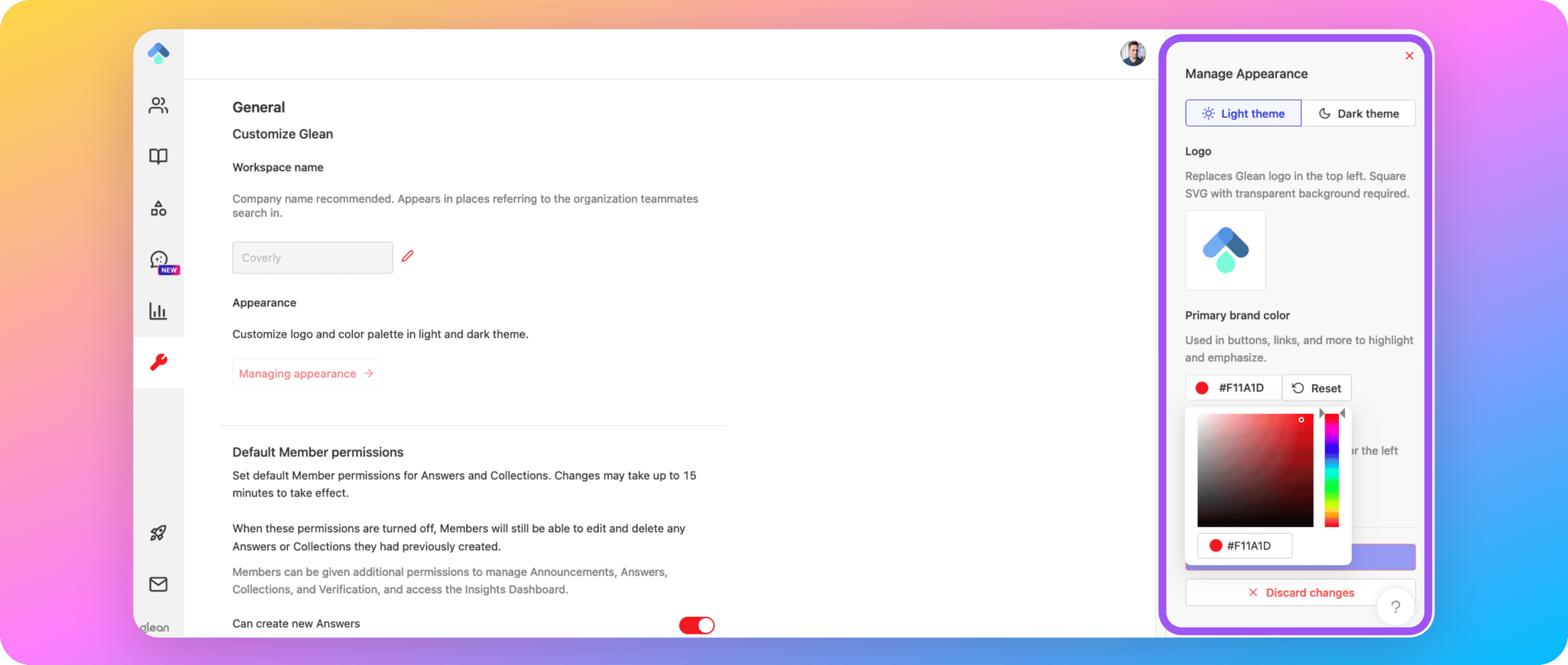 You can personalize the Glean UI to match your company’s branding by adjusting:
* The company name displayed throughout the UI
* Logo
* Color theme
You must be assigned the **Admin** or **Super Admin** roles to be able to customize the workspace appearance.
* * *
[](https://docs.glean.com/administration/management/customization/branding#workspace-name)
Workspace Name
-------------------------------------------------------------------------------------------------------------
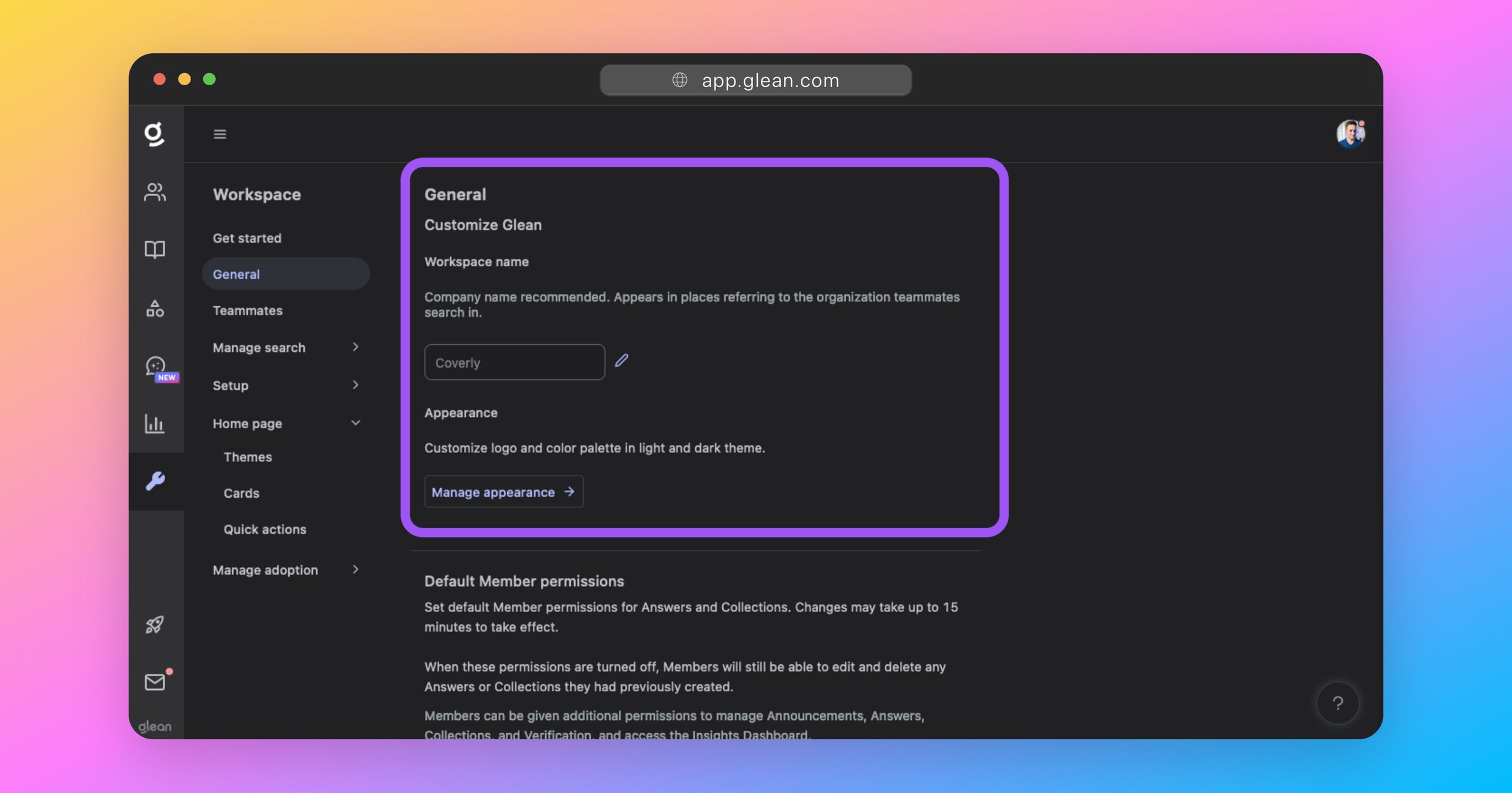
The **Workspace name** appears throughout the Glean UI and in placeholder text. For example, “_Search for anything at company\_name_”. This will be set to the name of your company by default. If you require it to be changed, you can do so by navigating to [Admin Console > Settings > Appearance](https://app.glean.com/admin/appearance), and changing the value of the **Workspace name** field.
We recommend setting this to a shorthand version of your company name, for example: “MCN” instead of “My Company Name LLC”
* * *
[](https://docs.glean.com/administration/management/customization/branding#branding-settings)
Branding Settings
-------------------------------------------------------------------------------------------------------------------
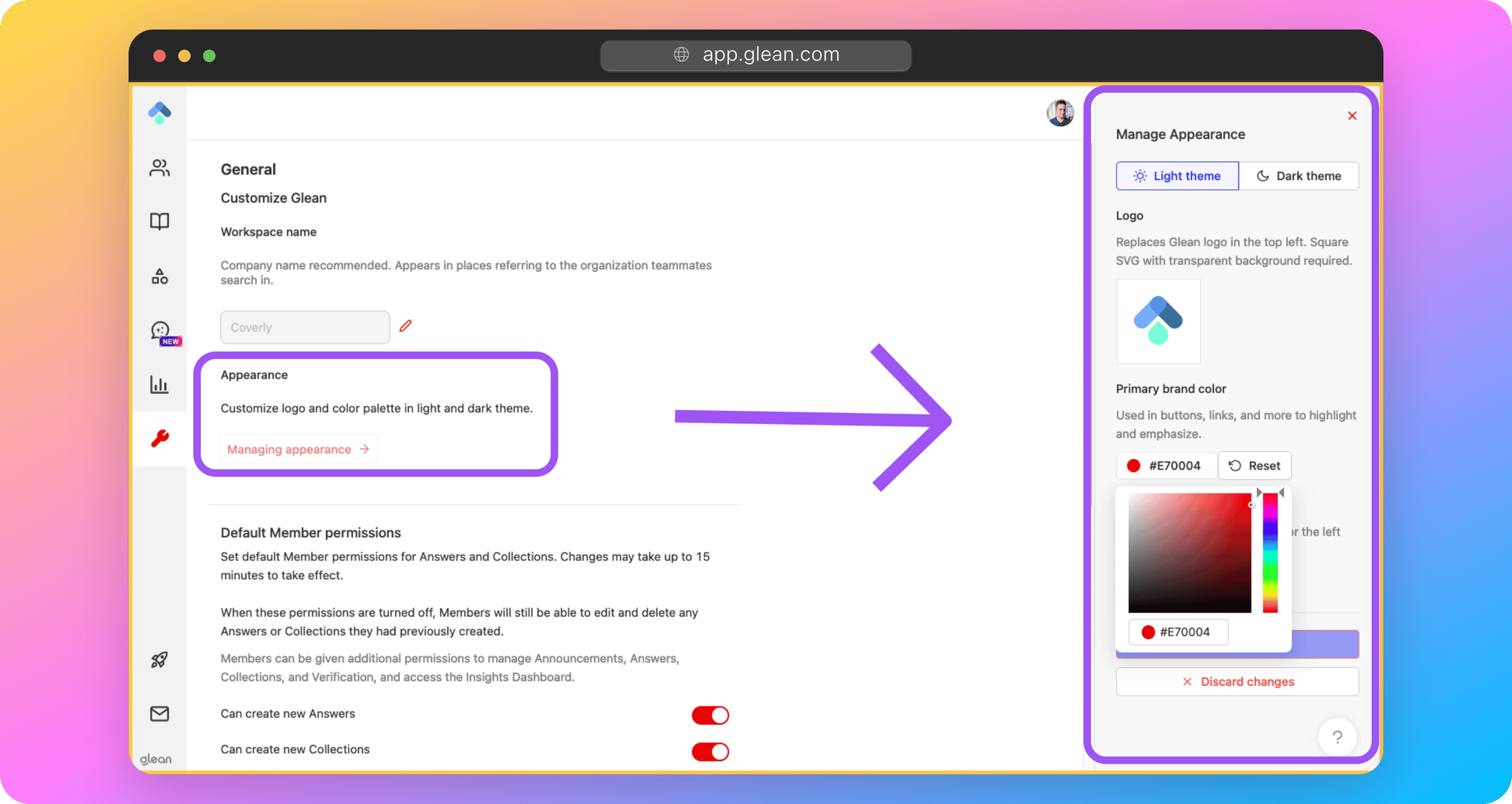
The branding menu includes all of the customization settings that impact the look and feel of the Glean UI. These settings will apply to all users at a company. To customize the branding and color palette of the Glean interface, navigate to [Admin Console > Settings > Appearance](https://app.glean.com/admin/appearance), then click on the **Manage branding** button.
###
[](https://docs.glean.com/administration/management/customization/branding#logo)
Logo
The logo will replace the Glean logo in the upper left-hand corner of the navigation sidebar. It must meet the following criteria:
* Square aspect ratio
* Transparent background
* SVG format
If used, custom logos **must** be uploaded for both light mode and dark mode.
###
[](https://docs.glean.com/administration/management/customization/branding#primary-brand-color)
Primary Brand Color
The primary brand color is the clearest way to bring your brand into a user’s entire Glean experience. It is used for links, monocolored icons, and a wide variety of other visual components throughout Glean.
You are not able to explicitly set the colors used for the Dark theme. These are derived automatically from the primary color set for the Light theme.If you have a specific use case that requires this to be overridden, please contact Glean support.
###
[](https://docs.glean.com/administration/management/customization/branding#navigation-color)
Navigation Color
This is the color of the left-hand navigation menu, which appears on all Glean pages except for the new tab page.
Glean will display an error if the color combinations selected are too low in contrast for sufficient accessibility.
You are not able to explicitly set the colors used for the Dark theme. These are derived automatically from the primary color set for the Light theme.If you have a specific use case that requires this to be overridden, please contact Glean support.
Was this page helpful?
YesNo
[Glean Language Support](https://docs.glean.com/administration/management/features/glean-language-support)
[Home Page](https://docs.glean.com/administration/management/customization/home-page)
⌘I
---
# Home Page - Glean Help Center
[Skip to main content](https://docs.glean.com/administration/management/customization/home-page#content-area)
[Glean Help Center home page](https://docs.glean.com/)
Search...
⌘K
Search...
Navigation
Customization
Home Page
[Home](https://docs.glean.com/home)
[User Guide](https://docs.glean.com/user-guide/about/what-is-glean)
[Agents](https://docs.glean.com/agents/home)
[Get Started for Admins](https://docs.glean.com/get-started/welcome)
[Connectors](https://docs.glean.com/connectors/home)
[Admin Guide](https://docs.glean.com/administration/about)
[Security & Architecture](https://docs.glean.com/security/home)
[Troubleshooting](https://docs.glean.com/troubleshooting/home)
[Release Notes](https://docs.glean.com/release-notes/home)
[Archive](https://docs.glean.com/archive/help-glean/answers/what-are-answers-and-how-do-they-work)
On this page
* [Cards](https://docs.glean.com/administration/management/customization/home-page#cards)
* [Quick Actions](https://docs.glean.com/administration/management/customization/home-page#quick-actions)
* [Default Wallpaper](https://docs.glean.com/administration/management/customization/home-page#default-wallpaper)
* [Mentions card](https://docs.glean.com/administration/management/customization/home-page#mentions-card)
* [Behavior and limits:](https://docs.glean.com/administration/management/customization/home-page#behavior-and-limits)
* [Supported sources and triggers:](https://docs.glean.com/administration/management/customization/home-page#supported-sources-and-triggers)
* [Permissions and visibility](https://docs.glean.com/administration/management/customization/home-page#permissions-and-visibility)
* [Configuration](https://docs.glean.com/administration/management/customization/home-page#configuration)
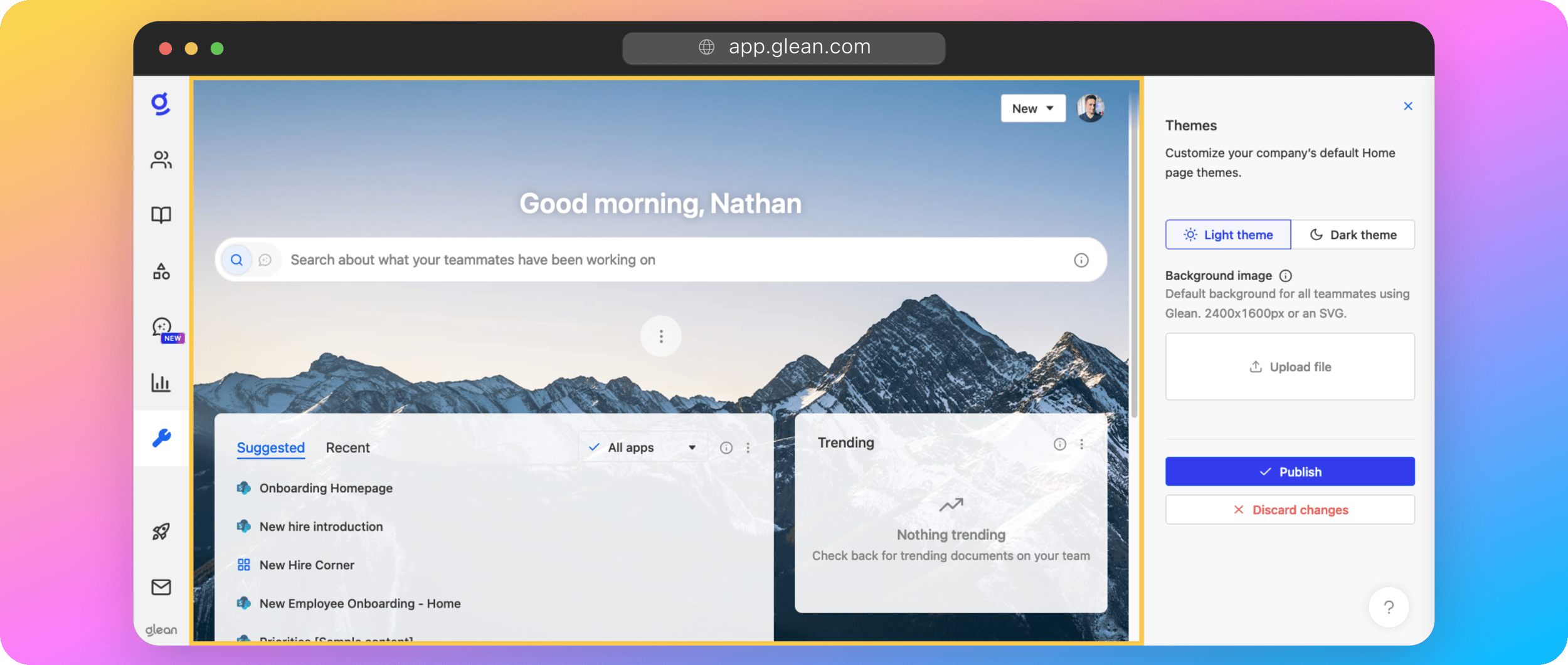 The home page settings menu allows admins to define the look and feel of the Glean home page for employees at their company. This is the primary place where your employees will interact with Glean across their workflows.
You must be assigned the **Admin** or **Super Admin** roles to be able to customize the workspace appearance.
You can personalize the Home page for all of your employees by adjusting:
* **Cards:** Cards are the sections that are visible on the Glean home page for each of your users. These can include suggested documents, collections, and people celebrations.
* **Quick Actions:** Quick actions are the items that are displayed under the **New** button in the top-right corner of the Home and New Tab pages; providing shortcuts for your employees to create new content across all of your apps.
* **Default wallpapers:** You can set the default wallpaper that is used for both light and dark themes when users first open Glean.
* * *
[](https://docs.glean.com/administration/management/customization/home-page#cards)
Cards
--------------------------------------------------------------------------------------------
[Admin Console > Settings > Appearance > Manage home page > Cards](https://app.glean.com/admin/preview/cards) The _Cards_ menu is where you can customize the widgets (known as _Cards_) that are visible on the Glean home page of your employees. 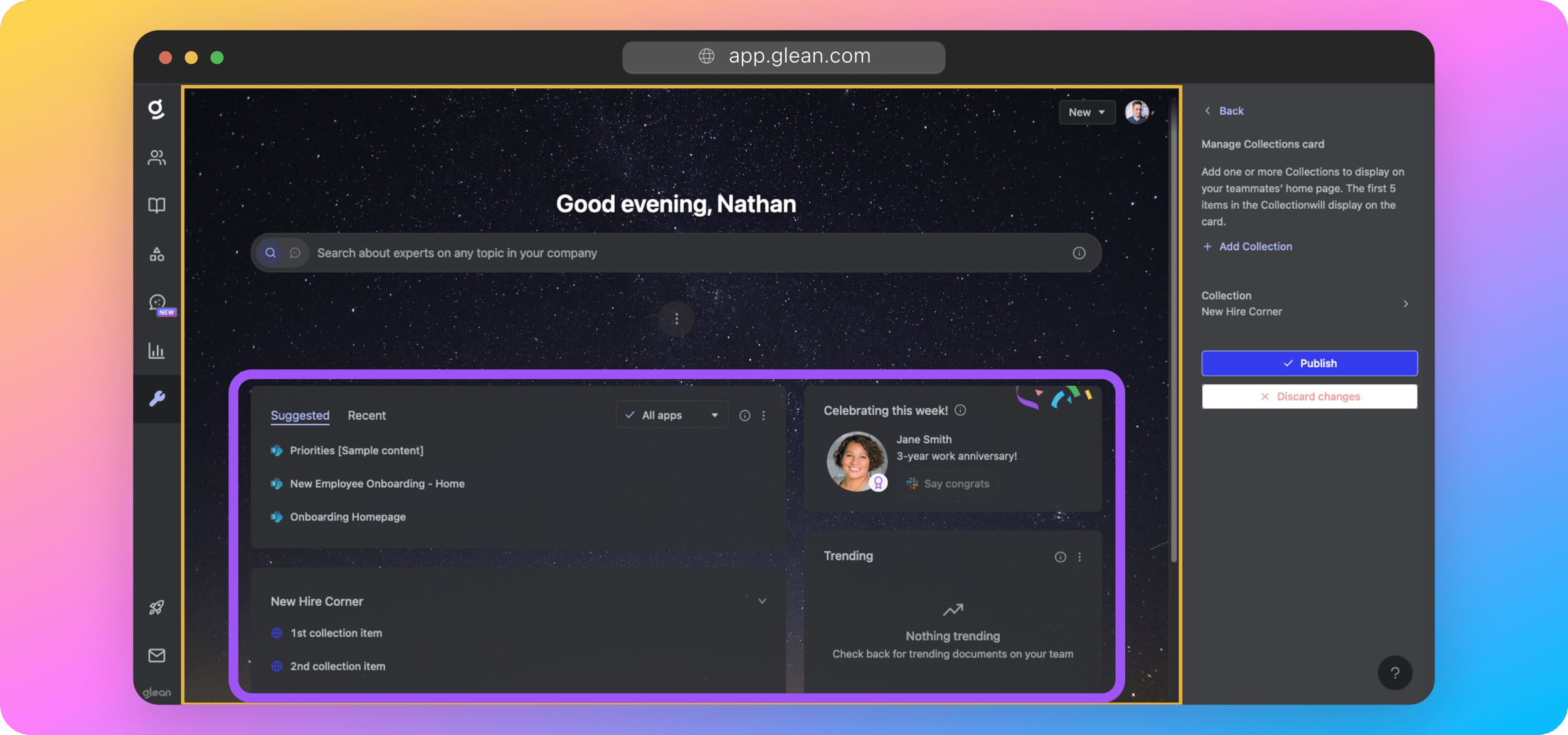 There are a total of 6 cards that can be toggled:
* **Suggested**: Recently and frequently accessed content across all apps.
* **Recents**: Recently accessed content, with the most recent on top.
* **Mentions**: Notifies users about relevant conversations, updates, and tasks across integrated platforms like Jira and Google Drive whenever they are tagged, assigned, or referenced.
* **Trending**: Top content viewed within a teammate’s department.
* **People Celebrations**: See who’s new and celebrate teammates’ work anniversaries.
* **Collection**: A list of resources organized by topic, eg: HR Policies, New Hire Resources, etc.
* You must first add a collection under [Knowledge > Collections](https://app.glean.com/knowledge/collections)
.
* You can add multiple collections to the home page.
* The collections card supports different visibility settings. For example, you might make a “New Hire” collection visible for employees with a tenure under 90 days.
* * *
[](https://docs.glean.com/administration/management/customization/home-page#quick-actions)
Quick Actions
------------------------------------------------------------------------------------------------------------
[Admin Console > Settings > Appearance > Manage home page > Quick actions](https://app.glean.com/admin/preview/quickActions) Customize the actions that are displayed under the **New** button in the top-right corner of the Home page. 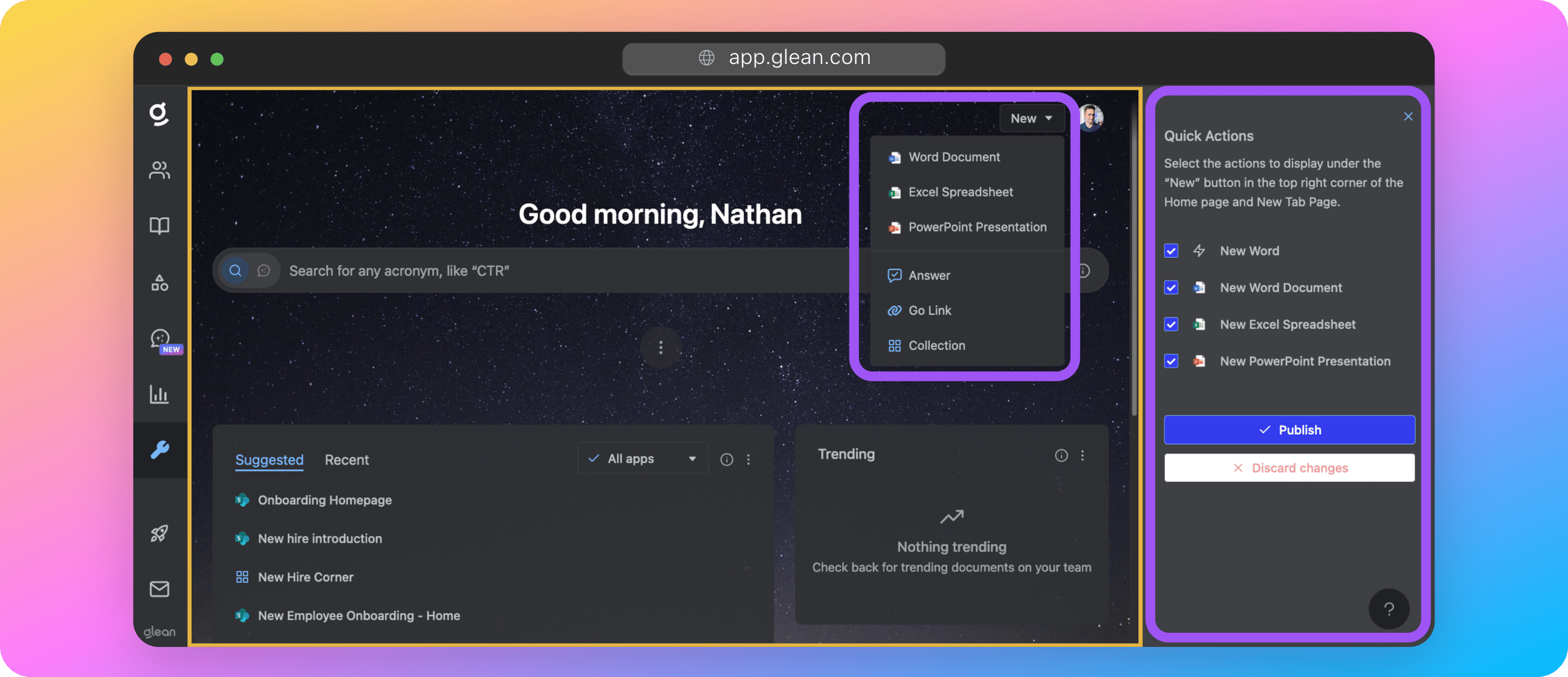 The actions available are dependent on the datasources that you have connected to Glean. If you would like to add additional links to this menu other than what is available to be selected, please contact Glean support.
* * *
[](https://docs.glean.com/administration/management/customization/home-page#default-wallpaper)
Default Wallpaper
--------------------------------------------------------------------------------------------------------------------
[Admin Console > Settings > Appearance > Manage home page > Background](https://app.glean.com/admin/preview/themes) 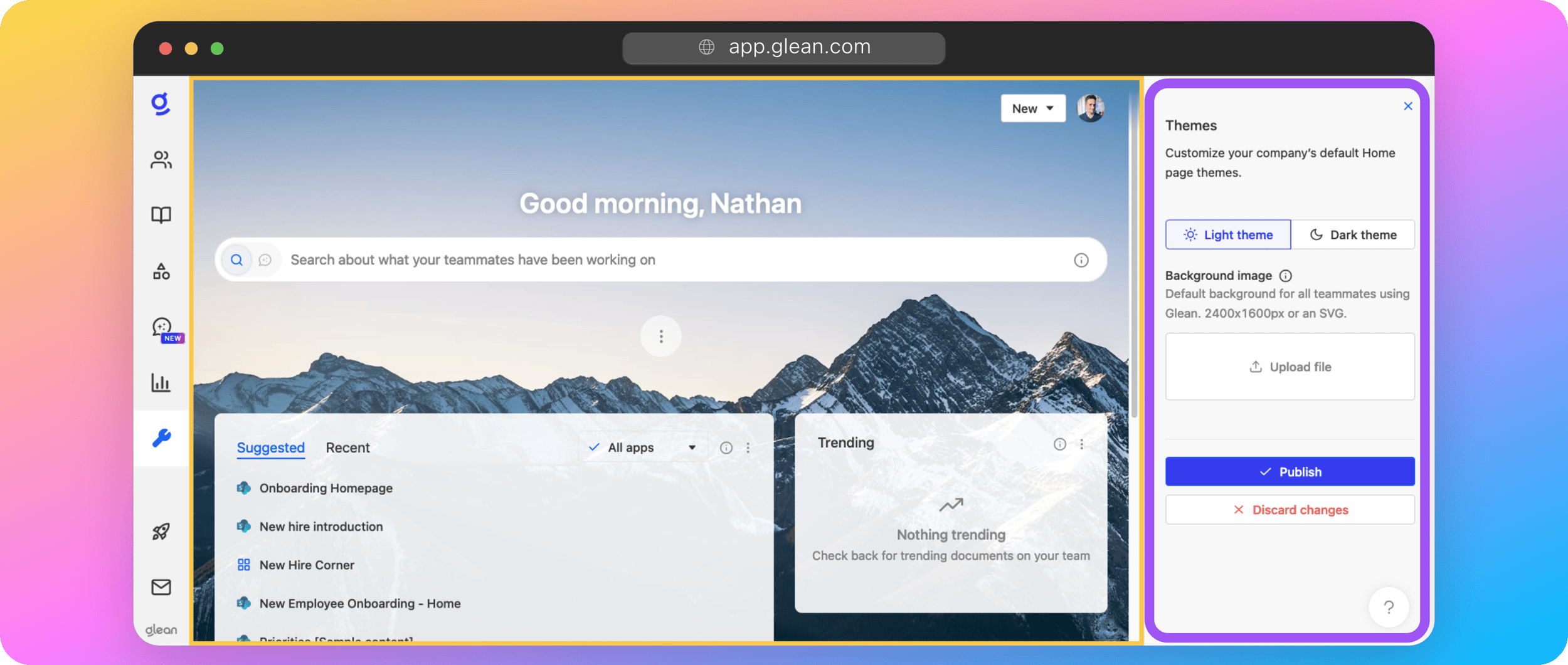 The _Themes_ menu is where you can customize the default background image that is used for all users at your company when they first access the Glean. Users who have set their background from Glean’s library will not have their choices affected by any change in the default background. The images must be in SVG format, or be at least 2400 x 1600px. Larger images will be scaled down, with the initial aspect ratios retained. Different images can be set for light mode and dark mode.
[](https://docs.glean.com/administration/management/customization/home-page#mentions-card)
Mentions card
------------------------------------------------------------------------------------------------------------
The Mentions card aims to streamline the process of staying updated on relevant discussions and tasks, ensuring that you do not miss out on important mentions across your work platforms. When there are new mentions, this card/tab is prioritized on **Home** and if there are no new mentions, the Suggested card is shown instead.
###
[](https://docs.glean.com/administration/management/customization/home-page#behavior-and-limits)
Behavior and limits:
* Mentions remain visible for up to 10 days (240 hours).
* Up to 50 mentions are retrieved and the card shows up to 5 by default, with an option to view more.
* Mentions are chronological and is **consolidated** to reduce noise.
###
[](https://docs.glean.com/administration/management/customization/home-page#supported-sources-and-triggers)
Supported sources and triggers:
* Jira integration
* You will receive notifications in your Mentions Feed when another user tags you in a comment or the body of a Jira issue, even if the issue is not assigned to you.
* Notifications are also sent when someone CC’s you in an issue, assigns an issue to you, or comments on an issue that is assigned to you.
* The feature covers instances when someone changes or updates an issue assigned to you. However, it does not include follow-up comments on a Jira comment you are tagged in unless you are tagged again.
* Google Drive integration
* In Google Drive, you are notified when someone assigns a comment to you, @mentions you in a comment, or shares a document with you. Similar to Jira, if you are @mentioned in the body of a document, it is not currently within the scope of what triggers a mention notification.
* Other supported apps
* Mentions can also surface from select connected apps. Current coverage includes Confluence, Google Drive, GitHub, and Jira.
###
[](https://docs.glean.com/administration/management/customization/home-page#permissions-and-visibility)
Permissions and visibility
Only items where the user has at least read access will appear.
###
[](https://docs.glean.com/administration/management/customization/home-page#configuration)
Configuration
You can enable or disable the Mentions card by default for your domain or you can manage it as a self‑serve card in **Home page** settings.
Was this page helpful?
YesNo
[Company Branding](https://docs.glean.com/administration/management/customization/branding)
[Self-serve beta features and managed rollouts](https://docs.glean.com/administration/feature-rollouts)
⌘I
---
# Admin Guide: Glean DNS-based Go Links - Glean Help Center
[Skip to main content](https://docs.glean.com/administration/management/features/admin-guide--glean-dns-based-go-links#content-area)
[Glean Help Center home page](https://docs.glean.com/)
Search...
⌘K
Search...
Navigation
Glean Features
Admin Guide: Glean DNS-based Go Links
[Home](https://docs.glean.com/home)
[User Guide](https://docs.glean.com/user-guide/about/what-is-glean)
[Agents](https://docs.glean.com/agents/home)
[Get Started for Admins](https://docs.glean.com/get-started/welcome)
[Connectors](https://docs.glean.com/connectors/home)
[Admin Guide](https://docs.glean.com/administration/about)
[Security & Architecture](https://docs.glean.com/security/home)
[Troubleshooting](https://docs.glean.com/troubleshooting/home)
[Release Notes](https://docs.glean.com/release-notes/home)
[Archive](https://docs.glean.com/archive/help-glean/answers/what-are-answers-and-how-do-they-work)
On this page
* [Glean Sign In](https://docs.glean.com/administration/management/features/admin-guide--glean-dns-based-go-links#glean-sign-in)
* [Options Overview](https://docs.glean.com/administration/management/features/admin-guide--glean-dns-based-go-links#options-overview)
* [Use go.glean.com](https://docs.glean.com/administration/management/features/admin-guide--glean-dns-based-go-links#use-go-glean-com)
* [Use Custom Domain](https://docs.glean.com/administration/management/features/admin-guide--glean-dns-based-go-links#use-custom-domain)
* [HTTP-only Solution](https://docs.glean.com/administration/management/features/admin-guide--glean-dns-based-go-links#http-only-solution)
* [HTTPS Solution](https://docs.glean.com/administration/management/features/admin-guide--glean-dns-based-go-links#https-solution)
* [Browser Support](https://docs.glean.com/administration/management/features/admin-guide--glean-dns-based-go-links#browser-support)
In addition to using Glean’s Chrome extension to enable Go Links, customers can also use our DNS-based Go Links solution. This enables the use of Go Links on any browser or mobile device (via a fully qualified domain name) without the installation of the Chrome Extension.
* * *
[](https://docs.glean.com/administration/management/features/admin-guide--glean-dns-based-go-links#glean-sign-in)
Glean Sign In
===================================================================================================================================
Glean is protected by SSO authentication. If a user has not already signed in to Glean in a given browser, they will be required to do so before accessing the first Go Link they navigate to.
* * *
[](https://docs.glean.com/administration/management/features/admin-guide--glean-dns-based-go-links#options-overview)
Options Overview
=========================================================================================================================================
Glean customers can use either **go.glean.com** directly or a custom domain for hosting their Go Links. Here is a task list to enable each solution.
| Domain Name | Example URLs | Tasks |
| --- | --- | --- |
| go.glean.com | `https://go.glean.com/link` | Configure search domain to “glean.com” |
| Custom Domain | `go/link`
`http://go/link`
`https:///link` | Configure search domain to the custom domain
Configure DNS records
Optional: configure Go Links redirections |
* * *
[](https://docs.glean.com/administration/management/features/admin-guide--glean-dns-based-go-links#use-go-glean-com)
Use go.glean.com
=========================================================================================================================================
Glean customers can access their Go Links from any device using our fully qualified domain name (FQDN) **go.glean.com** without any further configuration. When a user types a URL following the format go.glean.com/\[link\] in any browser that they have used to log in to Glean, they will be redirected to the desired target. Further on, Glean customers can configure [search domain](https://en.wikipedia.org/wiki/Search_domain)
on their users’ devices to “**glean.com**”, which allows their users to use the short URLs “go/\[link\]”. In an enterprise environment, search domain can be configured in multiple ways:
* Configured by the [DHCP Domain Search Option](https://datatracker.ietf.org/doc/html/rfc3397)
(consult your vendors’ documentation for how to set this up in your environment)
* Configured by a desktop management framework like [JAMF](https://www.jamf.com/)
Taking JAMF as an example, a JAMF administrator will create or add the below to /Library/Preferences/SystemConfiguration/preferences.plist on Mac:
Copy
DNS
SearchDomains
glean.com
Alternatively, a JAMF administrator can use [a script](https://community.jamf.com/t5/jamf-pro/best-way-to-set-search-domain/td-p/73297)
that executes /usr/sbin/networksetup to set up search domains.
* * *
[](https://docs.glean.com/administration/management/features/admin-guide--glean-dns-based-go-links#use-custom-domain)
Use Custom Domain
===========================================================================================================================================
[](https://docs.glean.com/administration/management/features/admin-guide--glean-dns-based-go-links#http-only-solution)
HTTP-only Solution
---------------------------------------------------------------------------------------------------------------------------------------------
When preferred, Glean customers can also configure their own domain name for accessing Glean Go Links. You can follow the below simple steps for setting it up:
* Create your custom domain (e.g. `go..com`) and add a DNS CNAME record pointing to **go.glean.com**.
* Add your custom domain to the search domains list as mentioned in the [above section](https://docs.google.com/document/d/1f8FzFv2P-GjE096WYr7C93ySOBMtDKjxxxfNn5tyODw/edit#bookmark=kix.u2jijk9rcqhm)
.
This setup allows Glean customers to use the short URL “go/\[link\]” via HTTP protocol to access Glean Go Links.
[](https://docs.glean.com/administration/management/features/admin-guide--glean-dns-based-go-links#https-solution)
HTTPS Solution
-------------------------------------------------------------------------------------------------------------------------------------
When using HTTPS protocol is required, you will need to follow the below steps:
* Set up a load balancer that redirects both HTTP and HTTPS requests from `http(s):///links` to `https://app.glean.com/go/links`.
* Create `` DNS name and add a DNS A record with the load balancer IP address.
* Provision an SSL certificate with ``.
* Add your custom domain to the search domains list as mentioned in the [above section](https://docs.google.com/document/d/1f8FzFv2P-GjE096WYr7C93ySOBMtDKjxxxfNn5tyODw/edit#bookmark=kix.u2jijk9rcqhm)
.
You can use either a Cloud-based load balancer or any other redirection server to set up the redirection as mentioned above. As a quick example, here is a Terraform configuration snippet on how such redirection can be set up by using a [GCP Load Balancer](https://cloud.google.com/load-balancing/docs/https/setting-up-url-rewrite)
. The full example Terraform configuration will be provided when asked.
Copy
resource "google_compute_url_map" "go-links" {
name = "go-links"
project = var.project
default_url_redirect {
host_redirect = "app.glean.com"
https_redirect = true
prefix_redirect = "/go"
redirect_response_code = "FOUND"
strip_query = false
}
}
We can deploy the load balancer inside the same GCP project used by the Glean application, if you would like.
* * *
[](https://docs.glean.com/administration/management/features/admin-guide--glean-dns-based-go-links#browser-support)
Browser Support
=======================================================================================================================================
After the search domain is configured correctly, a short domain name “go” will be expanded to an FQDN (app.glean.com/go/\[link\]) and resolved to an IP address. However, different browsers vary in their support for short links in their address bars. Here is a brief overview of which URLs are supported by the below browsers:
* FQDN URLs are supported by all browsers.
* Explicit HTTP URLs ([http://go/\[link](http://go/%5Blink)\
\]) are supported by all browsers.
* To use short links without the http(s) prefix on Chrome or Edge, users must enter an explicit HTTP URL ([http://go/\[link](http://go/%5Blink)\
\]) the first time they access a Go Link, and then can omit the preceding http:// thereafter.
* On Safari, a user needs to hold the ctrl key after entering a short URL so that the browser parses “go” as a domain name and does not use the Go Link as a web search.
* Short links without the http(s) prefix are not supported properly by the Firefox browser.
| Address Bar URL | Chrome | Edge | Safari | Firefox |
| --- | --- | --- | --- | --- |
| `https://go.glean.com/linkhttps:///link` | ✅ | ✅ | ✅ | ✅ |
| `http://go/link` | ✅ | ✅ | ✅ | ✅ |
| `go/link` | ✅ | ✅ | ✅ (by holding the ctrl key when first entering the Go Link) | becomes a search query |
Was this page helpful?
YesNo
[iOS & Android](https://docs.glean.com/administration/management/features/mobile)
[Glean Language Support](https://docs.glean.com/administration/management/features/glean-language-support)
⌘I
---
# Datasource Failure Alerts - Glean Help Center
[Skip to main content](https://docs.glean.com/administration/management/alerts/datasource-failure-alerts#content-area)
[Glean Help Center home page](https://docs.glean.com/)
Search...
⌘K
Search...
Navigation
Alerts
Datasource Failure Alerts
[Home](https://docs.glean.com/home)
[User Guide](https://docs.glean.com/user-guide/about/what-is-glean)
[Agents](https://docs.glean.com/agents/home)
[Get Started for Admins](https://docs.glean.com/get-started/welcome)
[Connectors](https://docs.glean.com/connectors/home)
[Admin Guide](https://docs.glean.com/administration/about)
[Security & Architecture](https://docs.glean.com/security/home)
[Troubleshooting](https://docs.glean.com/troubleshooting/home)
[Release Notes](https://docs.glean.com/release-notes/home)
[Archive](https://docs.glean.com/archive/help-glean/answers/what-are-answers-and-how-do-they-work)
On this page
* [Overview](https://docs.glean.com/administration/management/alerts/datasource-failure-alerts#overview)
* [Datasources Covered](https://docs.glean.com/administration/management/alerts/datasource-failure-alerts#datasources-covered)
* [What do these alerts look like?](https://docs.glean.com/administration/management/alerts/datasource-failure-alerts#what-do-these-alerts-look-like)
* [Is this alert required? If so, why?](https://docs.glean.com/administration/management/alerts/datasource-failure-alerts#is-this-alert-required-if-so-why)
* [Why are you sending alerts to those four data sources?](https://docs.glean.com/administration/management/alerts/datasource-failure-alerts#why-are-you-sending-alerts-to-those-four-data-sources)
* [How often are these alerts sent?](https://docs.glean.com/administration/management/alerts/datasource-failure-alerts#how-often-are-these-alerts-sent)
* [Who are alerts sent to?](https://docs.glean.com/administration/management/alerts/datasource-failure-alerts#who-are-alerts-sent-to)
* [How do I change who these alerts are sent to?](https://docs.glean.com/administration/management/alerts/datasource-failure-alerts#how-do-i-change-who-these-alerts-are-sent-to)
* [I want to receive some alerts and not others. How do I specify this?](https://docs.glean.com/administration/management/alerts/datasource-failure-alerts#i-want-to-receive-some-alerts-and-not-others-how-do-i-specify-this)
* [What happens if, after following the documented instructions, I continue to receive the alert daily?](https://docs.glean.com/administration/management/alerts/datasource-failure-alerts#what-happens-if-after-following-the-documented-instructions-i-continue-to-receive-the-alert-daily)
[](https://docs.glean.com/administration/management/alerts/datasource-failure-alerts#overview)
Overview
===========================================================================================================
After a datasource is set up, it can fail for a variety of reasons, such as:
* Credentials expire and need to refreshed on Glean
* Required plug-in installation failed
* Domains are no longer valid
Glean is enabling daily Datasource Failure alerts for Slack, O365, Google Drive, Github, so that admins can immediately take action. You can edit who receives these alerts via the alerts page on the admin workspace.
[](https://docs.glean.com/administration/management/alerts/datasource-failure-alerts#datasources-covered)
Datasources Covered
=================================================================================================================================
* Slack (Regular and Enterprise Grid)
* O365 (OneDrive, Sharepoint)
* Google Drive
* GitHub
* Microsoft Teams
* Jira
* Workday
[](https://docs.glean.com/administration/management/alerts/datasource-failure-alerts#what-do-these-alerts-look-like)
What do these alerts look like?
========================================================================================================================================================
The alerts include the name of the datasource that is failing (as specified in your Glean admin workspace), the time stamp where the error occurred, the specific error that triggered the alert, [documentation to fix the error](https://support.glean.com/hc/en-us/sections/21066299704475-Glean-Error-Codes)
, and a link to the datasource in your Glean workspace. 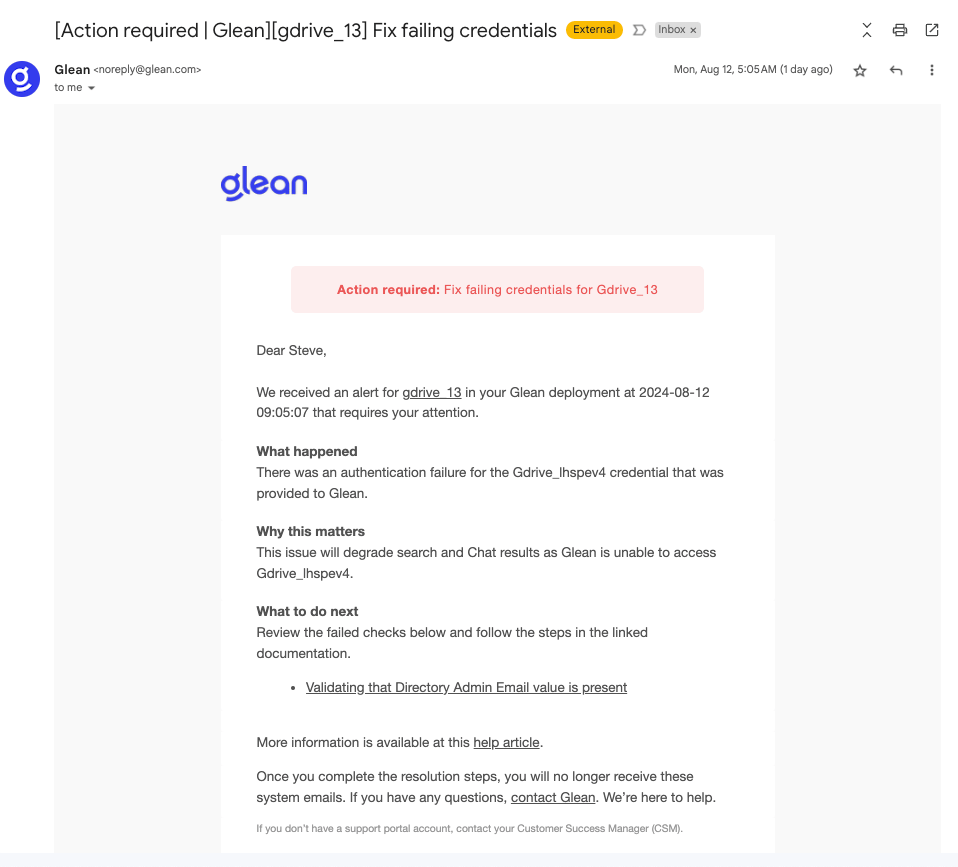
[](https://docs.glean.com/administration/management/alerts/datasource-failure-alerts#is-this-alert-required-if-so-why)
Is this alert required? If so, why?
==============================================================================================================================================================
**Yes, datasource failure alerts are required**. Datasource setup and successful continuous indexing is an essential part of Glean working well for your users. Delays in fixing data sources can result in your corpus in Glean becoming stale and user queries returning old documents. In particular, this is risk with stale permissions, as users may have access to content on Glean that they don’t have access to in their native datasource. If you have further issues when fixing your datasource setup, Glean’s support team can assist you with errors you encounter. If there are data sources that you no longer wish to connect to Glean, you can delete them on Glean’s Admin Workspace.
[](https://docs.glean.com/administration/management/alerts/datasource-failure-alerts#why-are-you-sending-alerts-to-those-four-data-sources)
Why are you sending alerts to those four data sources?
======================================================================================================================================================================================================
Slack, O365, Google Drive, and Github are 4 of the most frequently used data sources by Glean customers. We plan to add additional datasource to the alerts in the future.
[](https://docs.glean.com/administration/management/alerts/datasource-failure-alerts#how-often-are-these-alerts-sent)
How often are these alerts sent?
==========================================================================================================================================================
Alerts are sent every day to the admins until the datasource setup issue is resolved or the admin has requested that Glean Support deletes the datasource.
[](https://docs.glean.com/administration/management/alerts/datasource-failure-alerts#who-are-alerts-sent-to)
Who are alerts sent to?
========================================================================================================================================
Currently, alerts are sent to all admins specified in the Alerts page on workspace. In the future, we will provide the ability to pick recipients for each alert.
[](https://docs.glean.com/administration/management/alerts/datasource-failure-alerts#how-do-i-change-who-these-alerts-are-sent-to)
How do I change who these alerts are sent to?
====================================================================================================================================================================================
Recipients for alerts can be changed via the alerts page on Workspace. Simply add or remove the name of admins on this page. 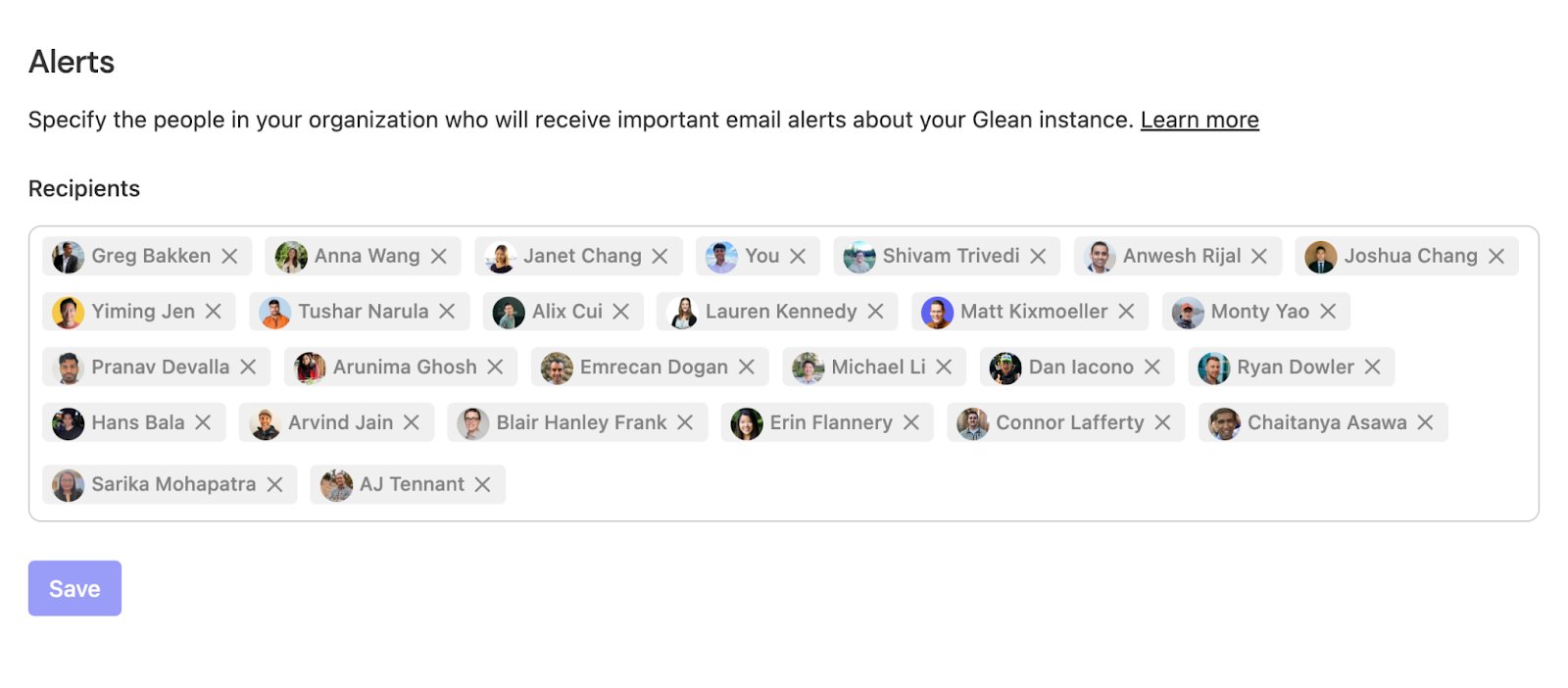
[](https://docs.glean.com/administration/management/alerts/datasource-failure-alerts#i-want-to-receive-some-alerts-and-not-others-how-do-i-specify-this)
I want to receive some alerts and not others. How do I specify this?
=================================================================================================================================================================================================================================
On the alerts page, you can edit the audiences that receive the Datasource Failure Alerts, along with other alerts. Click the three-dot button next to the alert audience images to specify which admins should receive each alert. 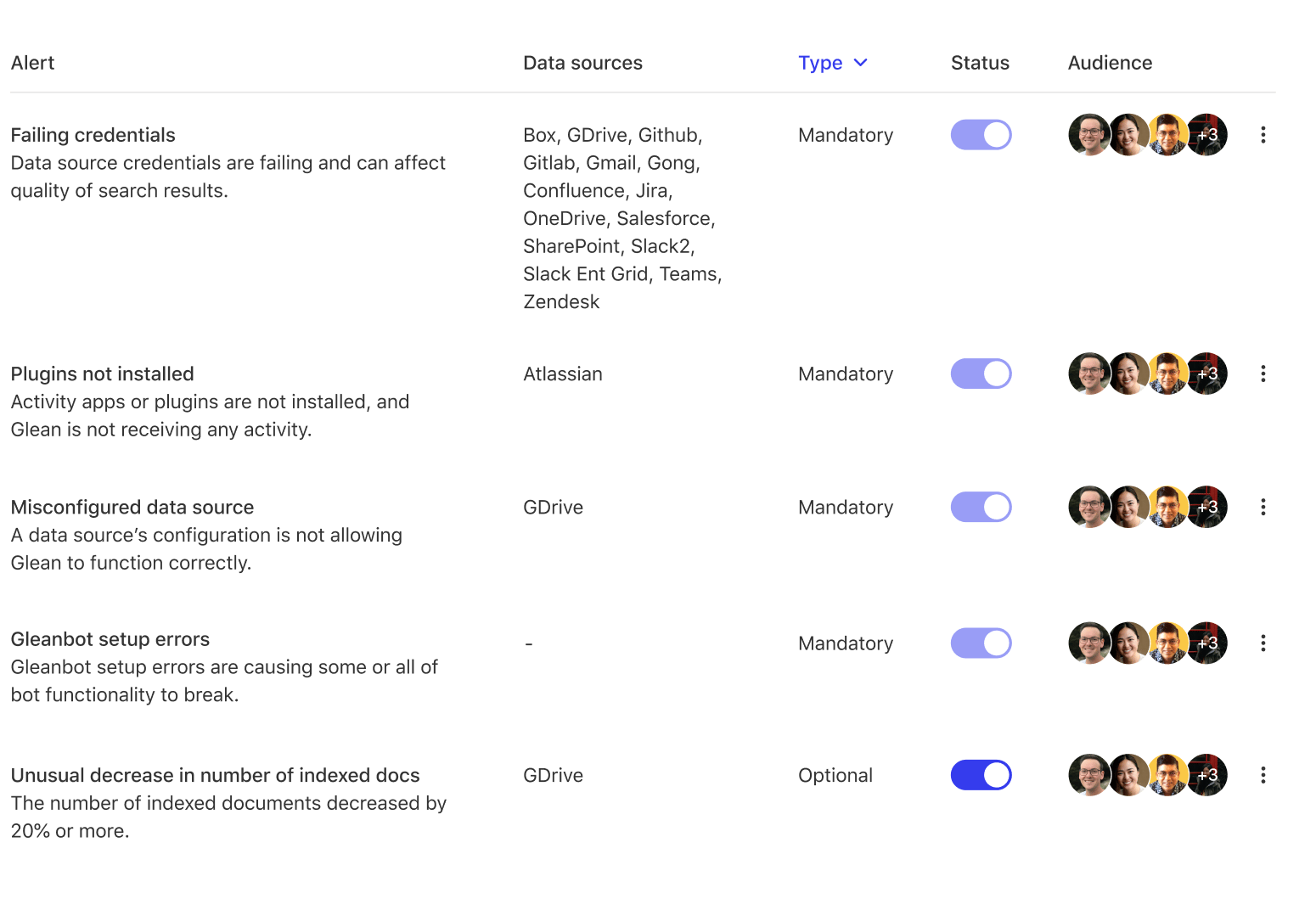
[](https://docs.glean.com/administration/management/alerts/datasource-failure-alerts#what-happens-if-after-following-the-documented-instructions-i-continue-to-receive-the-alert-daily)
What happens if, after following the documented instructions, I continue to receive the alert daily?
================================================================================================================================================================================================================================================================================================
If the alert continues after reconnecting, please contact [Glean Technical Support](https://support.glean.com/)
for further assistance. Please provide the alert notification body contents in the support ticket. If you do not have access to the Glean Support portal, please contact your account CSM to provision access for you.
Was this page helpful?
YesNo
[About Admin Alerts](https://docs.glean.com/administration/management/alerts/admin-alerts)
[LLM Provider Alerts](https://docs.glean.com/administration/management/alerts/llm-provider-alerts)
⌘I
---
# About Admin Alerts - Glean Help Center
[Skip to main content](https://docs.glean.com/administration/management/alerts/admin-alerts#content-area)
[Glean Help Center home page](https://docs.glean.com/)
Search...
⌘K
Search...
Navigation
Alerts
About Admin Alerts
[Home](https://docs.glean.com/home)
[User Guide](https://docs.glean.com/user-guide/about/what-is-glean)
[Agents](https://docs.glean.com/agents/home)
[Get Started for Admins](https://docs.glean.com/get-started/welcome)
[Connectors](https://docs.glean.com/connectors/home)
[Admin Guide](https://docs.glean.com/administration/about)
[Security & Architecture](https://docs.glean.com/security/home)
[Troubleshooting](https://docs.glean.com/troubleshooting/home)
[Release Notes](https://docs.glean.com/release-notes/home)
[Archive](https://docs.glean.com/archive/help-glean/answers/what-are-answers-and-how-do-they-work)
On this page
* [Overview](https://docs.glean.com/administration/management/alerts/admin-alerts#overview)
* [Configuration](https://docs.glean.com/administration/management/alerts/admin-alerts#configuration)
* [Alert Settings](https://docs.glean.com/administration/management/alerts/admin-alerts#alert-settings)
* [Alert Delivery](https://docs.glean.com/administration/management/alerts/admin-alerts#alert-delivery)
* [Supported Alert Types](https://docs.glean.com/administration/management/alerts/admin-alerts#supported-alert-types)
* [Mandatory Alerts](https://docs.glean.com/administration/management/alerts/admin-alerts#mandatory-alerts)
[](https://docs.glean.com/administration/management/alerts/admin-alerts#overview)
Overview
----------------------------------------------------------------------------------------------
Admin alerts notify you of critical events in your Glean instance that could affect performance. These notifications enable rapid response to potential issues, helping you maintain system health and resolve problems efficiently.
All alerts are delivered via email and are enabled by default.
[](https://docs.glean.com/administration/management/alerts/admin-alerts#configuration)
Configuration
--------------------------------------------------------------------------------------------------------
###
[](https://docs.glean.com/administration/management/alerts/admin-alerts#alert-settings)
Alert Settings
Navigate to [Admin console](https://app.glean.com/admin/)
> Settings > [Alerts](https://app.glean.com/admin/setup/alerts)
to manage your alert configuration.
Configuration Options
---------------------
* Admins can customize recipient lists for each alert type
* At least one recipient must be specified as alerts are mandatory
* Alert settings are managed on a per-alert basis
###
[](https://docs.glean.com/administration/management/alerts/admin-alerts#alert-delivery)
Alert Delivery
* Frequency: One email notification per day for each alert until the issue is resolved
* Sender Address: [noreply@glean.com](mailto:noreply@glean.com)
* Preview: Admins can preview email alert content before enabling
[](https://docs.glean.com/administration/management/alerts/admin-alerts#supported-alert-types)
Supported Alert Types
------------------------------------------------------------------------------------------------------------------------
Glean continuously monitors various performance metrics for your instance. Admin alerts represent a subset of these monitoring capabilities and will expand over time.
* Note: ‘Failing Credentials’ alerts only flag the following datasources at this time: Slack2, Slack Enterpise Grid,Google Drive, Github, O365 Onedrive, O365 Sharepoint, Jira, Microsoft Teams, and Workday
###
[](https://docs.glean.com/administration/management/alerts/admin-alerts#mandatory-alerts)
Mandatory Alerts
Failing Credentials
-------------------
Triggers when data source credentials fail, potentially affecting search result integrity
* Initial alert on first detection
* Daily follow-up alerts after 7 days
Slack Integration Errors
------------------------
Alerts when the Glean application in Slack encounters setup issues
* Indicates problems with Slack message response capabilities
* Affects some or all Slack functionality
LLM Provider Errors
-------------------
The Glean Assistant calls your LLM provider’s endpoint (Azure, OpenAI, Google Vertex AI, or Amazon Bedrock). You are receiving the alert because the endpoint has been returning errors. Glean does not have administrative access to your LLM provider, so we need your help to resolve these issues.
All three alerts are mandatory and cannot be disabled to ensure system reliability and optimal performance.
Was this page helpful?
YesNo
[Configure Teams](https://docs.glean.com/administration/knowledge/people-and-teams/teams/configure-teams)
[Datasource Failure Alerts](https://docs.glean.com/administration/management/alerts/datasource-failure-alerts)
⌘I
---
# LLM Provider Alerts - Glean Help Center
[Skip to main content](https://docs.glean.com/administration/management/alerts/llm-provider-alerts#content-area)
[Glean Help Center home page](https://docs.glean.com/)
Search...
⌘K
Search...
Navigation
Alerts
LLM Provider Alerts
[Home](https://docs.glean.com/home)
[User Guide](https://docs.glean.com/user-guide/about/what-is-glean)
[Agents](https://docs.glean.com/agents/home)
[Get Started for Admins](https://docs.glean.com/get-started/welcome)
[Connectors](https://docs.glean.com/connectors/home)
[Admin Guide](https://docs.glean.com/administration/about)
[Security & Architecture](https://docs.glean.com/security/home)
[Troubleshooting](https://docs.glean.com/troubleshooting/home)
[Release Notes](https://docs.glean.com/release-notes/home)
[Archive](https://docs.glean.com/archive/help-glean/answers/what-are-answers-and-how-do-they-work)
On this page
* [Overview](https://docs.glean.com/administration/management/alerts/llm-provider-alerts#overview)
* [What does this mean?](https://docs.glean.com/administration/management/alerts/llm-provider-alerts#what-does-this-mean)
* [How to resolve the errors](https://docs.glean.com/administration/management/alerts/llm-provider-alerts#how-to-resolve-the-errors)
* [Status Code 401/403](https://docs.glean.com/administration/management/alerts/llm-provider-alerts#status-code-401%2F403)
* [Status Code 429](https://docs.glean.com/administration/management/alerts/llm-provider-alerts#status-code-429)
* [Status Code 500](https://docs.glean.com/administration/management/alerts/llm-provider-alerts#status-code-500)
[](https://docs.glean.com/administration/management/alerts/llm-provider-alerts#overview)
Overview
=====================================================================================================
If you have received an email stating that “Endpoint XYZ is running into errors” with a distribution of HTTP status codes, this guide will help you understand what it means and how to address the issue.
[](https://docs.glean.com/administration/management/alerts/llm-provider-alerts#what-does-this-mean)
What does this mean?
============================================================================================================================
The Glean Assistant calls the endpoint mentioned in the email to make requests to your LLM provider (Azure, OpenAI, Google Vertex AI, or Amazon Bedrock). You are receiving the alert because the endpoint has been returning errors. Glean does not have administrative access to your LLM provider, so we need your help to resolve these issues.
[](https://docs.glean.com/administration/management/alerts/llm-provider-alerts#how-to-resolve-the-errors)
How to resolve the errors
=======================================================================================================================================
[](https://docs.glean.com/administration/management/alerts/llm-provider-alerts#status-code-401/403)
Status Code 401/403
---------------------------------------------------------------------------------------------------------------------------
These status codes usually indicate an authentication issue with the endpoint. Please check that your account with your LLM provider is still active and the [Admin > Setup > Assistant > LLM Provider](https://app.glean.com/admin/setup/gleanassistant)
settings are correct.
[](https://docs.glean.com/administration/management/alerts/llm-provider-alerts#status-code-429)
Status Code 429
-------------------------------------------------------------------------------------------------------------------
This status code indicates that the endpoint might be underprovisioned for your traffic. Please refer to [Glean Assistant LLM Providers](https://docs.glean.com/administration/assistant/configuration/supported-llms)
to check if you are appropriately provisioned. Contact a Glean representative if you believe you are provisioned correctly but are still receiving 429 errors.
[](https://docs.glean.com/administration/management/alerts/llm-provider-alerts#status-code-500)
Status Code 500
-------------------------------------------------------------------------------------------------------------------
This status code indicates a server error on the LLM provider’s side. Check if there was any outage or service disruption from the provider:
* [OpenAI Status](https://status.openai.com/)
* [Azure Status](https://azure.status.microsoft/en-us/status)
* [Google Cloud Status](https://status.cloud.google.com/)
* [AWS Health Dashboard](https://health.aws.amazon.com/health/status)
Once the errors are resolved, you will stop receiving the alert emails and no further action is required.
Looking for the original version of this page? You can find the archived version [here](https://docs.glean.com/administration/management/alerts/archive/help-glean/uncategorized/llm-provider-error-debugging-guide)
.
Was this page helpful?
YesNo
[Datasource Failure Alerts](https://docs.glean.com/administration/management/alerts/datasource-failure-alerts)
[Notifications Dashboard](https://docs.glean.com/administration/management/notifications/admin-notifications-dashboard)
⌘I
---
# Maintenance Window Policy - Glean Help Center
[Skip to main content](https://docs.glean.com/administration/management/maintenance-windows#content-area)
[Glean Help Center home page](https://docs.glean.com/)
Search...
⌘K
Search...
Navigation
Management
Maintenance Window Policy
[Home](https://docs.glean.com/home)
[User Guide](https://docs.glean.com/user-guide/about/what-is-glean)
[Agents](https://docs.glean.com/agents/home)
[Get Started for Admins](https://docs.glean.com/get-started/welcome)
[Connectors](https://docs.glean.com/connectors/home)
[Admin Guide](https://docs.glean.com/administration/about)
[Security & Architecture](https://docs.glean.com/security/home)
[Troubleshooting](https://docs.glean.com/troubleshooting/home)
[Release Notes](https://docs.glean.com/release-notes/home)
[Archive](https://docs.glean.com/archive/help-glean/answers/what-are-answers-and-how-do-they-work)
On this page
* [Overview](https://docs.glean.com/administration/management/maintenance-windows#overview)
* [Maintenance Impact](https://docs.glean.com/administration/management/maintenance-windows#maintenance-impact)
* [Maintenance Settings](https://docs.glean.com/administration/management/maintenance-windows#maintenance-settings)
* [Maintenance Notifications](https://docs.glean.com/administration/management/maintenance-windows#maintenance-notifications)
[](https://docs.glean.com/administration/management/maintenance-windows#overview)
Overview
----------------------------------------------------------------------------------------------
As a managed SaaS service, Glean automatically updates our services to ensure that the underlying infrastructure is reliable, performant, secure, and up-to-date. Most of these updates are performed while your Glean services are up and running. However, certain software updates like Elasticsearch require a brief service interruption to be completed. These updates are called maintenance. One example is Elasticsearch updates which require the GKE nodes to be restarted, hence they incur a brief downtime.
[](https://docs.glean.com/administration/management/maintenance-windows#maintenance-impact)
Maintenance Impact
------------------------------------------------------------------------------------------------------------------
During a maintenance event, Glean’s Query Endpoint service loses connectivity to the Elasticsearch GKE cluster for up to 90 minutes for large indexes. Customers having small indexes should expect smaller downtime, around 15 minutes on average. Customer users are expected to see a “Temporarily down for maintenance“ page when they use the service during the maintenance window. Glean schedules maintenance no more than once a week. When there is no maintenance event for a week, customers may use the service as normal but there is no availability guarantee during the maintenance window.
[](https://docs.glean.com/administration/management/maintenance-windows#maintenance-settings)
Maintenance Settings
----------------------------------------------------------------------------------------------------------------------
The default maintenance window is **Saturday 12:00 pm - 01:30 pm UTC**. If there is a need to move your maintenance window to a different time slot, please contact the Glean Technical Services team to customize your maintenance settings.
[](https://docs.glean.com/administration/management/maintenance-windows#maintenance-notifications)
Maintenance Notifications
--------------------------------------------------------------------------------------------------------------------------------
As Glean is a SaaS service and we use a fixed maintenance schedule, there is no notification about upcoming maintenance sent to our customers currently. We are also working on removing the maintenance window in the near future, which will improve our service’s availability further.
Was this page helpful?
YesNo
[Audit Logs](https://docs.glean.com/administration/management/audit-logs/admin-audit-logs)
[Overview tab on Insights](https://docs.glean.com/administration/insights/overview)
⌘I
---
# iOS & Android - Glean Help Center
[Skip to main content](https://docs.glean.com/administration/management/features/mobile#content-area)
[Glean Help Center home page](https://docs.glean.com/)
Search...
⌘K
Search...
Navigation
Glean Features
iOS & Android
[Home](https://docs.glean.com/home)
[User Guide](https://docs.glean.com/user-guide/about/what-is-glean)
[Agents](https://docs.glean.com/agents/home)
[Get Started for Admins](https://docs.glean.com/get-started/welcome)
[Connectors](https://docs.glean.com/connectors/home)
[Admin Guide](https://docs.glean.com/administration/about)
[Security & Architecture](https://docs.glean.com/security/home)
[Troubleshooting](https://docs.glean.com/troubleshooting/home)
[Release Notes](https://docs.glean.com/release-notes/home)
[Archive](https://docs.glean.com/archive/help-glean/answers/what-are-answers-and-how-do-they-work)
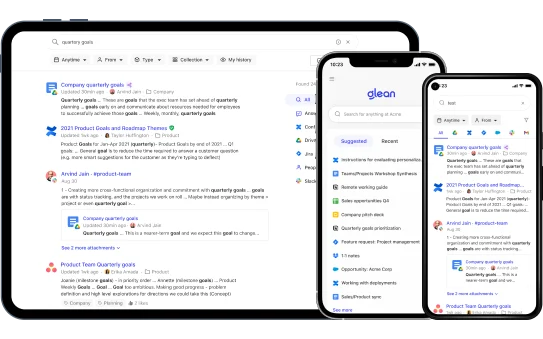 Deploy the Glean mobile apps to your managed devices to help your employees find exactly what they need when they need it. Access Glean Search and Glean Assistant on the go from anywhere!
* [iOS App Store](https://apps.apple.com/app/id1582892407)
* [Google Play Store](https://play.google.com/store/apps/details?id=com.glean.app)
Was this page helpful?
YesNo
[macOS](https://docs.glean.com/administration/management/features/macos)
[Admin Guide: Glean DNS-based Go Links](https://docs.glean.com/administration/management/features/admin-guide--glean-dns-based-go-links)
⌘I
---
# About the Browser Extension - Glean Help Center
[Skip to main content](https://docs.glean.com/administration/management/features/browser/about#content-area)
[Glean Help Center home page](https://docs.glean.com/)
Search...
⌘K
Search...
Navigation
Browser Extension
About the Browser Extension
[Home](https://docs.glean.com/home)
[User Guide](https://docs.glean.com/user-guide/about/what-is-glean)
[Agents](https://docs.glean.com/agents/home)
[Get Started for Admins](https://docs.glean.com/get-started/welcome)
[Connectors](https://docs.glean.com/connectors/home)
[Admin Guide](https://docs.glean.com/administration/about)
[Security & Architecture](https://docs.glean.com/security/home)
[Troubleshooting](https://docs.glean.com/troubleshooting/home)
[Release Notes](https://docs.glean.com/release-notes/home)
[Archive](https://docs.glean.com/archive/help-glean/answers/what-are-answers-and-how-do-they-work)
On this page
* [Supported Browsers](https://docs.glean.com/administration/management/features/browser/about#supported-browsers)
* [Extension Features](https://docs.glean.com/administration/management/features/browser/about#extension-features)
* [New Tab Page](https://docs.glean.com/administration/management/features/browser/about#new-tab-page)
* [Sidebar](https://docs.glean.com/administration/management/features/browser/about#sidebar)
* [Native Search Replacement (Embedded Search)](https://docs.glean.com/administration/management/features/browser/about#native-search-replacement-embedded-search)
* [Go Links](https://docs.glean.com/administration/management/features/browser/about#go-links)
* [Browser History Search Results](https://docs.glean.com/administration/management/features/browser/about#browser-history-search-results)
* [URL Bar Search](https://docs.glean.com/administration/management/features/browser/about#url-bar-search)
* [Enhanced Telemetry & Activity Signals](https://docs.glean.com/administration/management/features/browser/about#enhanced-telemetry-%26-activity-signals)
 By default, a user must access Glean by explicitly typing `https://app.glean.com` into their browser, or by clicking the Glean tile in your company’s SSO App Library. Both of these options have significant friction to them, and on their own, lead to poor adoption of Glean. The best way to drive Glean adoption at your company is by deploying the browser extension to their corporate devices.
[](https://docs.glean.com/administration/management/features/browser/about#supported-browsers)
Supported Browsers
---------------------------------------------------------------------------------------------------------------------
The Glean Browser Extension is available for:
[Microsoft Edge\
--------------](https://microsoftedge.microsoft.com/addons/detail/glean/lkhkfgdfpoijiiinpjgcgacdkgjeieak)
[Google Chrome\
-------------](https://chrome.google.com/webstore/detail/glean/cfpdompphcacgpjfbonkdokgjhgabpij)
[Mozilla Firefox\
---------------](https://addons.mozilla.org/en-US/firefox/addon/glean/)
[Safari\
------](https://apps.apple.com/us/app/glean-for-safari/id6444195239?mt=12)
[Brave\
-----](https://chrome.google.com/webstore/detail/glean/cfpdompphcacgpjfbonkdokgjhgabpij)
[](https://docs.glean.com/administration/management/features/browser/about#extension-features)
Extension Features
---------------------------------------------------------------------------------------------------------------------
The Glean Browser Extension provides a better user experience and creates habits for higher adoption and usage, allowing all of your employees to get the most out of Glean.
###
[](https://docs.glean.com/administration/management/features/browser/about#new-tab-page)
New Tab Page
Extension users have an option to use Glean as their new tab page. The Glean homepage will open every time users open a new tab and provides easy access to:
* Search
* Knowledge management tools
* Announcements and resources
* Intelligent content feed
* Calendar
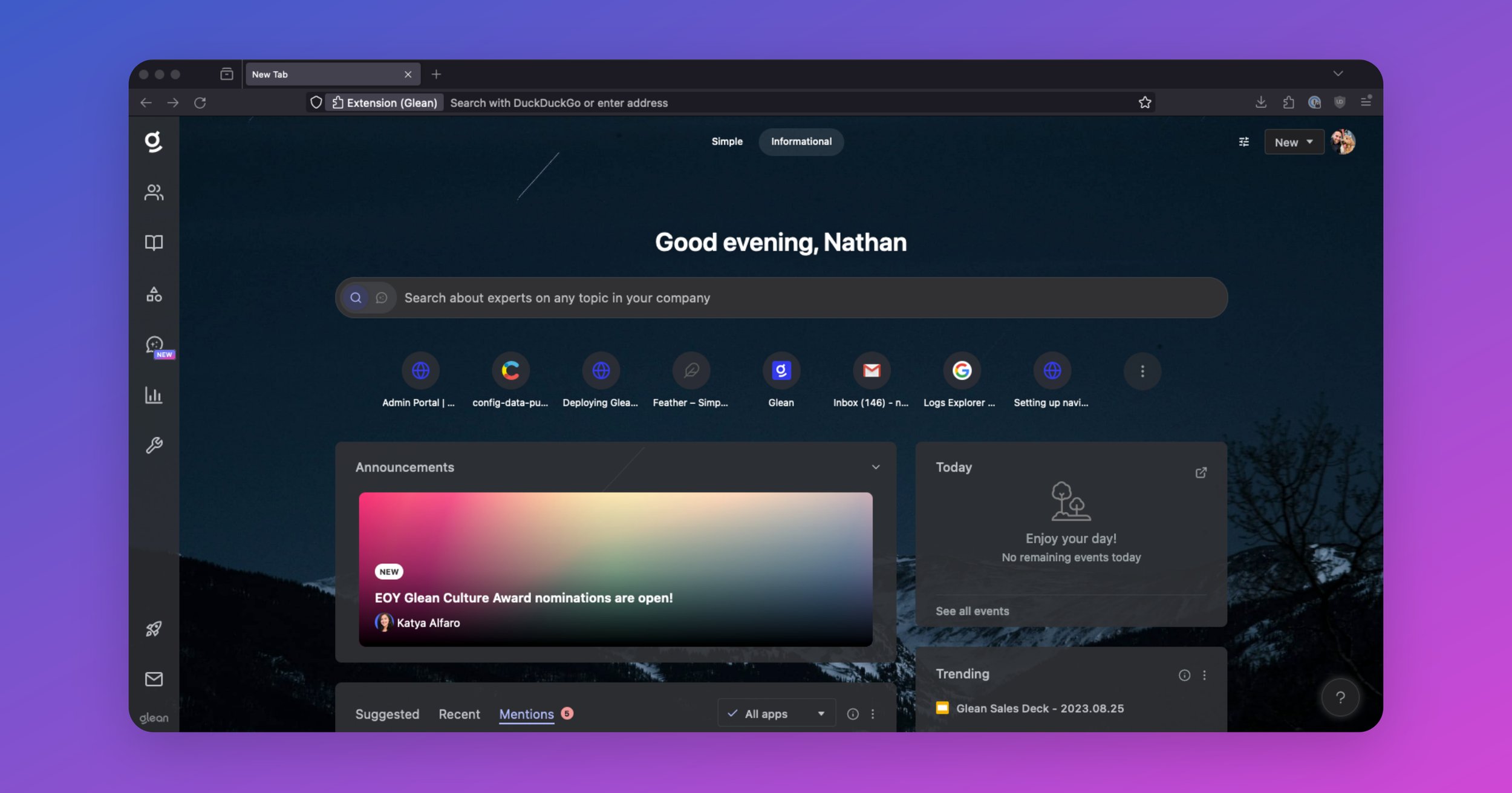 Open Glean search or Assistant in a sidebar on **any** web page. This allows for a quick search without breaking flow. To open the Glean sidebar without breaking flow:
* MacOS: **CMD+J**
* Windows: **CTRL+J**
* Some company apps that have been connected to Glean, like Google Drive, will have a sticky tab on the right that can also be used to open the Glean sidebar.
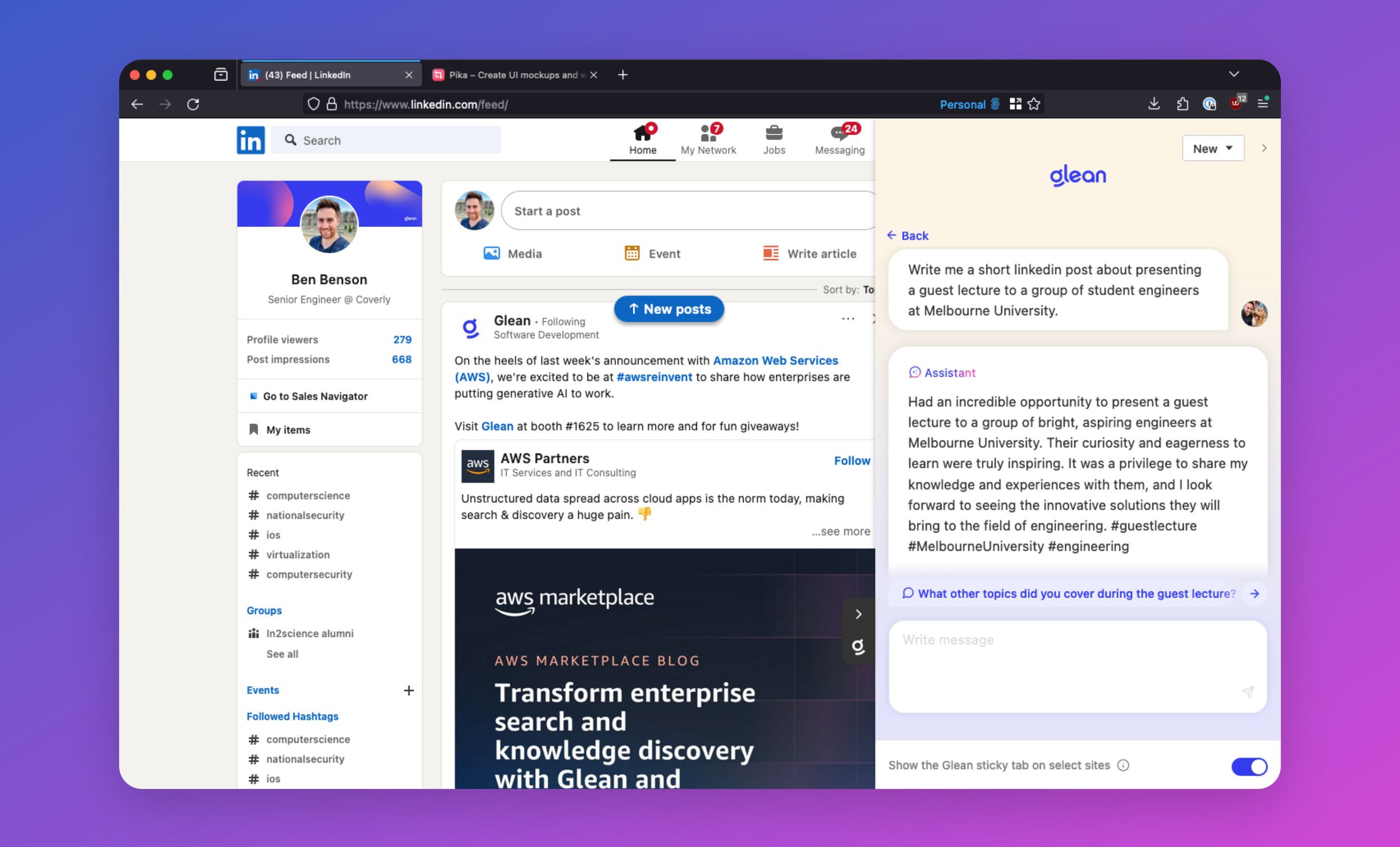
###
[](https://docs.glean.com/administration/management/features/browser/about#native-search-replacement-embedded-search)
Native Search Replacement (Embedded Search)
Glean can make searches within other apps better! Clicking or focusing the native search box on certain company-connected apps (like Jira, Confluence, and Google Drive) opens Glean search instantly in a modal dialog where typing continues to get Glean’s more relevant results. The following apps are currently supported:
* Box
* Confluence
* Google Drive
* Jira
* Simpplr
* OneDrive & SharePoint (partial support)
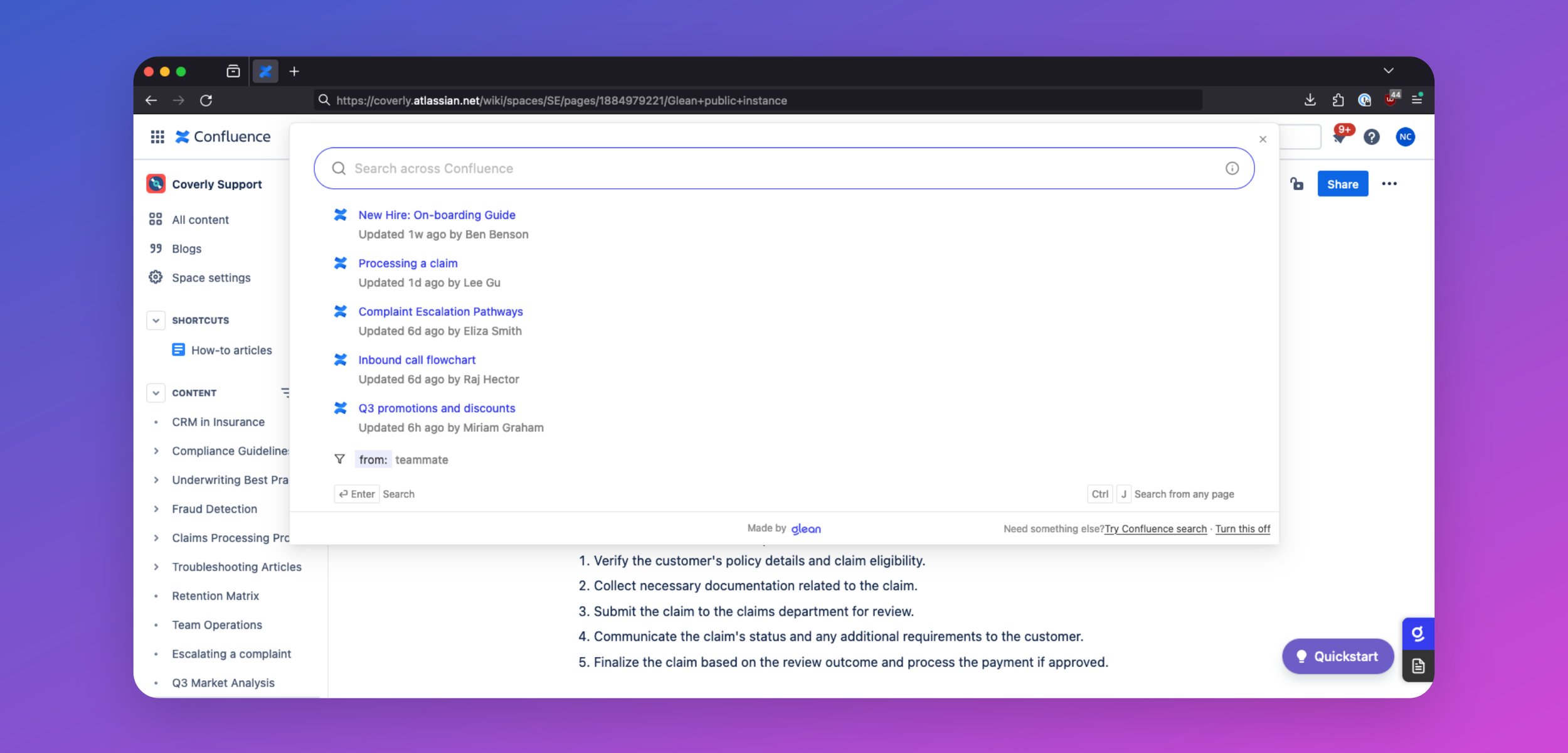
###
[](https://docs.glean.com/administration/management/features/browser/about#go-links)
Go Links
Go Links are short, memorable links that redirect to important URLs within your company. For example, you could create `go/401k` for your company’s 401k portal, `go/it-help` for your IT help desk, or `go/sprint-planning` for your Jira project. The Glean browser extension enables the use of these Go Links directly from your browser. Simply type your Go Link in the browser URL bar (e.g., `go/onboarding`), and you will be automatically redirected to the corresponding URL. 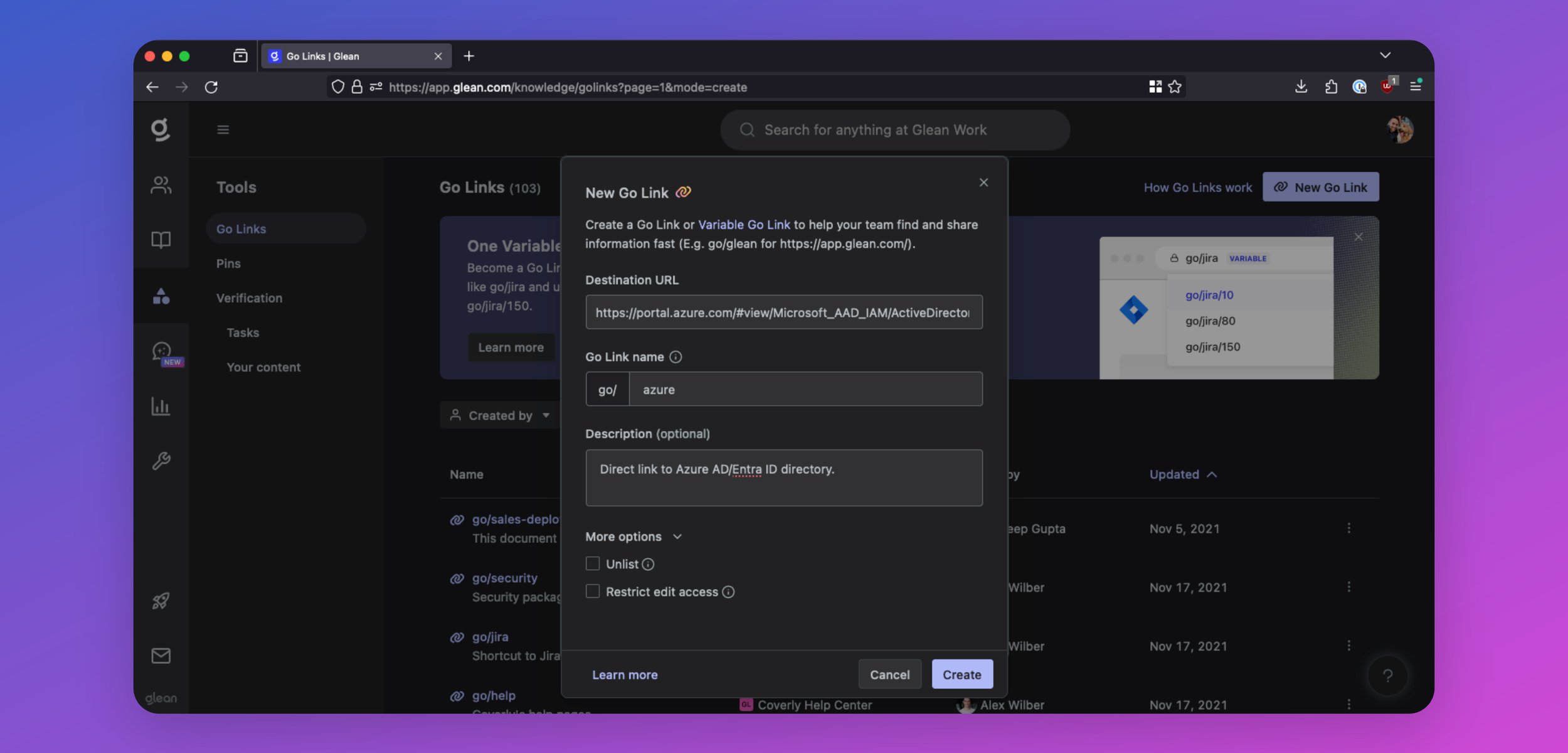
###
[](https://docs.glean.com/administration/management/features/browser/about#browser-history-search-results)
Browser History Search Results
For specific workplace apps in which Glean cannot build out a native connector (typically due to a limited API from the app vendor), the Glean extension can be used in place to allow employees to see results and suggestions from these apps; pulled from their browser history. Glean will be able to search across the titles of the pages your employees have visited, but because these are history-based results, users will only be able to view content that they have seen before in these workplace apps. Results from a user’s browser history are completely secure and private to the individual user: the company will not be able to see results from a user’s browser history. 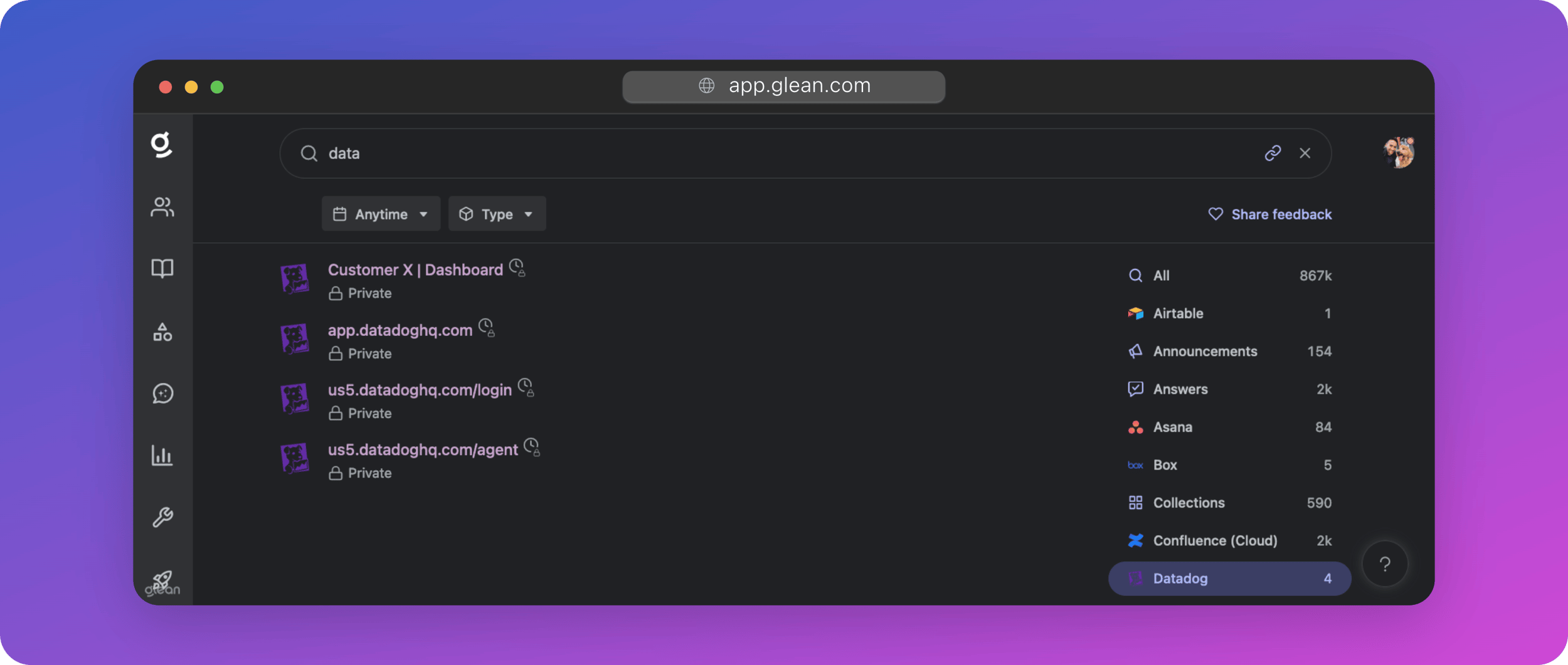
###
[](https://docs.glean.com/administration/management/features/browser/about#url-bar-search)
URL Bar Search
Type `Gl`+`tab` in any Chromium browser to search Glean directly from the URL bar. 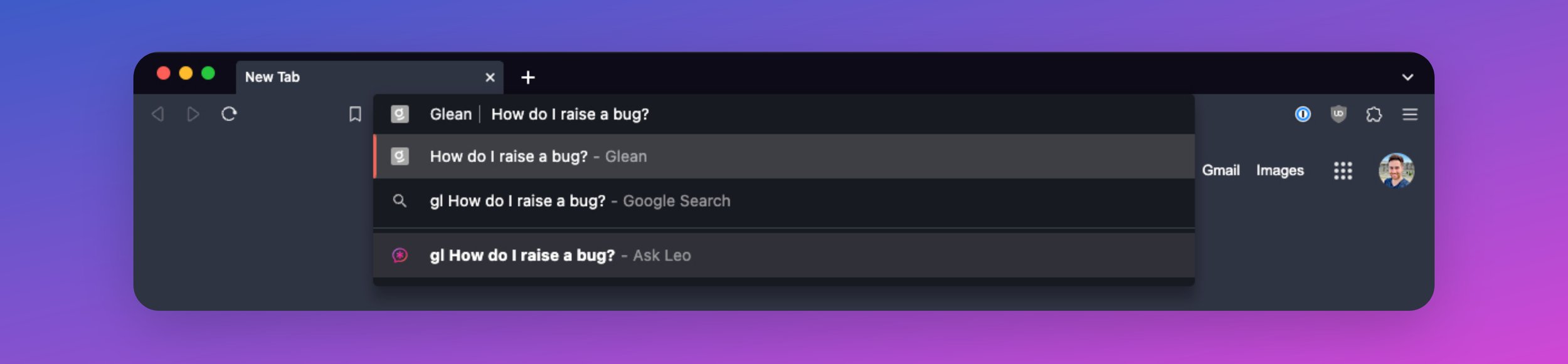
###
[](https://docs.glean.com/administration/management/features/browser/about#enhanced-telemetry-&-activity-signals)
Enhanced Telemetry & Activity Signals
When using Glean, the extension reports user events back to your Glean tenant so that Glean can provide:
* **Enhanced search result personalization**: Glean leverages activity data reported by the extension to learn the relevance of a document and its groupings within an application. This allows Glean to deliver a higher degree of personalization than without the browser extension.
* **Content suggestions**: Activity data obtained from the extension helps Glean learn and proactively suggest content that a user might be interested in at any point in time.
* **Insights**: The enhanced activity data provides additional analytics available to admins in the Insights dashboard. Glean also uses data captured by the extension (like dwell time) to help improve search rankings.
**What information is sent by the browser extension?**
* Each event consists of the page URL, title, referring page URL, visit timestamp, dwell time, and the one-way hash encrypted user ID.
* Events are only reported for the limited set of URLs that belong to workplace apps that are configured to be connected to Glean (including both API connected and browser history enabled). They’re not sent for all domains to which the extension has host permissions.
* Care is taken to also prevent this activity reporting for personal instances of an app that is also used in the workplace (e.g. Gmail and Google Drive with an account other than the one logged into Glean are excluded).
Was this page helpful?
YesNo
[Notifications Dashboard](https://docs.glean.com/administration/management/notifications/admin-notifications-dashboard)
[Deploying the Extension to Managed Devices](https://docs.glean.com/administration/management/features/browser/deployment)
⌘I
---
# macOS - Glean Help Center
[Skip to main content](https://docs.glean.com/administration/management/features/macos#content-area)
[Glean Help Center home page](https://docs.glean.com/)
Search...
⌘K
Search...
Navigation
Glean Features
macOS
[Home](https://docs.glean.com/home)
[User Guide](https://docs.glean.com/user-guide/about/what-is-glean)
[Agents](https://docs.glean.com/agents/home)
[Get Started for Admins](https://docs.glean.com/get-started/welcome)
[Connectors](https://docs.glean.com/connectors/home)
[Admin Guide](https://docs.glean.com/administration/about)
[Security & Architecture](https://docs.glean.com/security/home)
[Troubleshooting](https://docs.glean.com/troubleshooting/home)
[Release Notes](https://docs.glean.com/release-notes/home)
[Archive](https://docs.glean.com/archive/help-glean/answers/what-are-answers-and-how-do-they-work)
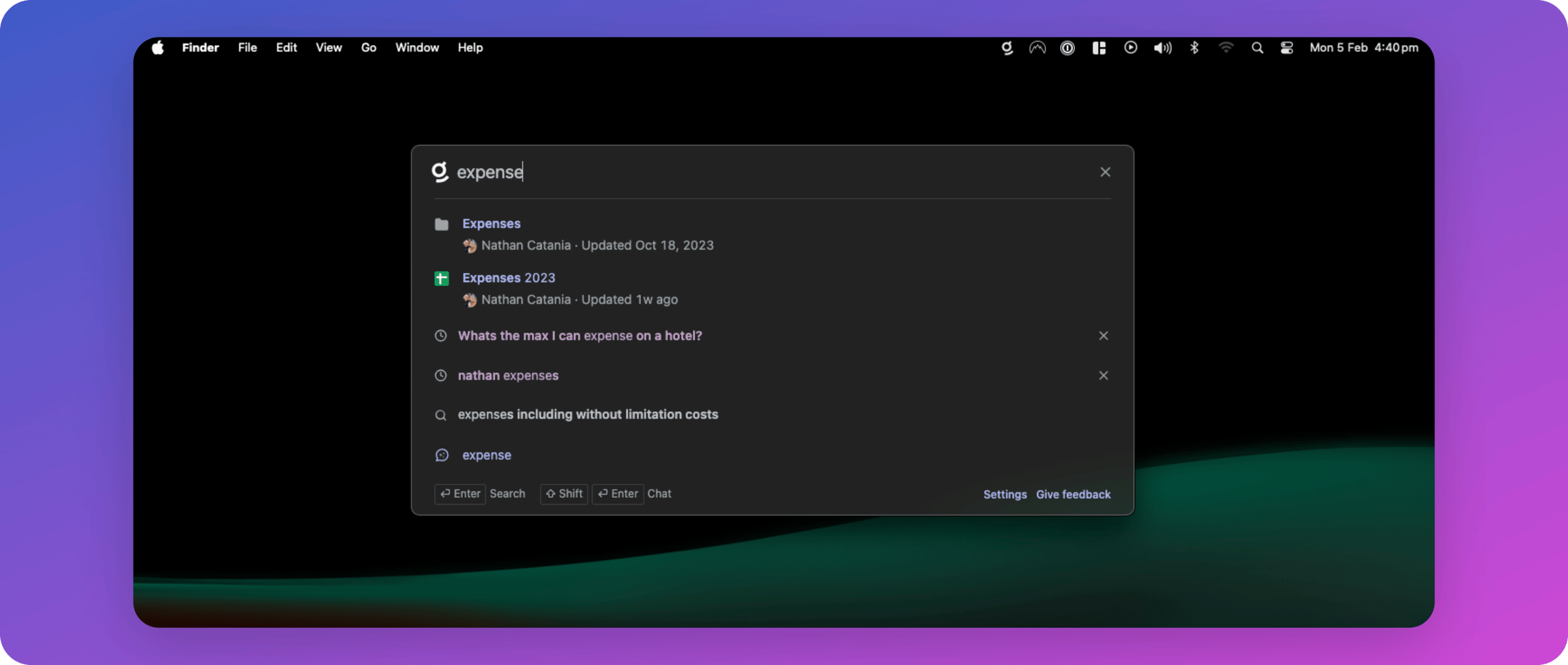 The Glean app for macOS provides your users with a spotlight-like search experience where you can search across all the tools your company has in use. Open it from the Menubar or using the shortcut **cmd+shift+j** to start a Glean search. 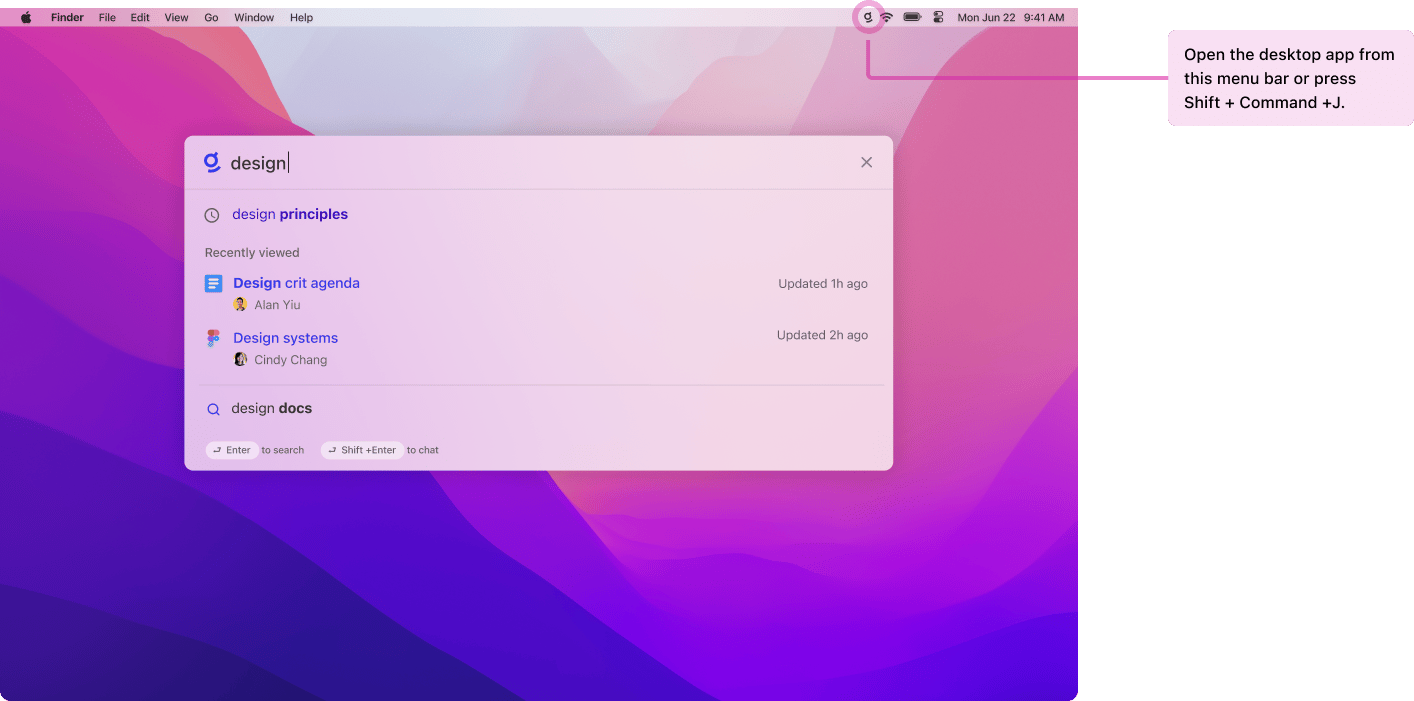 Glean for macOS can be downloaded from the [Mac App Store](https://apps.apple.com/us/app/glean-desktop/id6448766375?mt=12)
, or directly via the links below:
* [PKG](https://storage.googleapis.com/glean-downloads/glean-desktop-app/Glean.pkg)
(Recommended)
* [DMG](https://storage.googleapis.com/glean-downloads/glean-desktop-app/Glean.dmg)
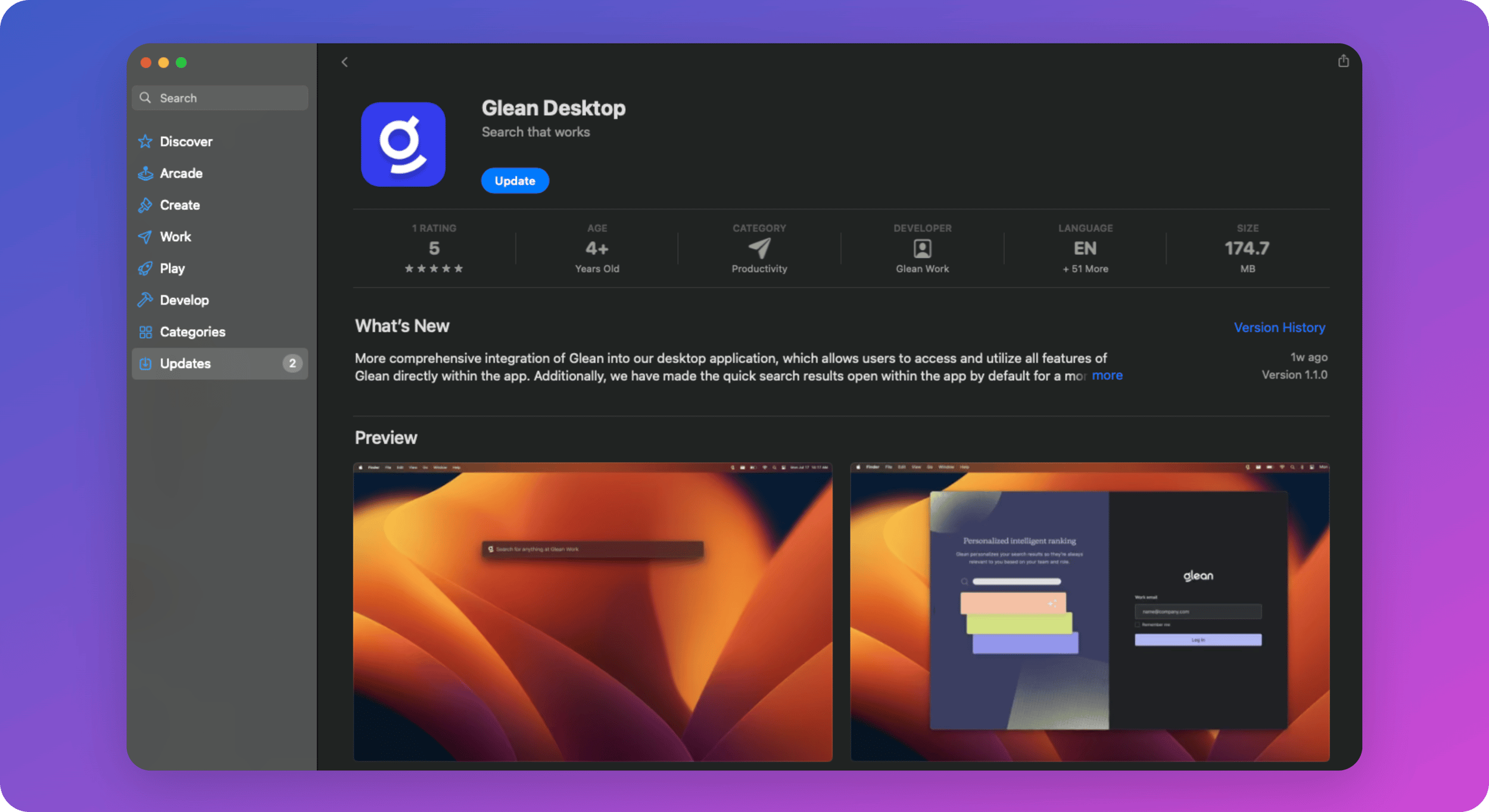
Was this page helpful?
YesNo
[Troubleshooting](https://docs.glean.com/administration/management/features/browser/troubleshooting)
[iOS & Android](https://docs.glean.com/administration/management/features/mobile)
⌘I
---
# Glean Language Support - Glean Help Center
[Skip to main content](https://docs.glean.com/administration/management/features/glean-language-support#content-area)
[Glean Help Center home page](https://docs.glean.com/)
Search...
⌘K
Search...
Navigation
Glean Features
Glean Language Support
[Home](https://docs.glean.com/home)
[User Guide](https://docs.glean.com/user-guide/about/what-is-glean)
[Agents](https://docs.glean.com/agents/home)
[Get Started for Admins](https://docs.glean.com/get-started/welcome)
[Connectors](https://docs.glean.com/connectors/home)
[Admin Guide](https://docs.glean.com/administration/about)
[Security & Architecture](https://docs.glean.com/security/home)
[Troubleshooting](https://docs.glean.com/troubleshooting/home)
[Release Notes](https://docs.glean.com/release-notes/home)
[Archive](https://docs.glean.com/archive/help-glean/answers/what-are-answers-and-how-do-they-work)
On this page
* [Capabilities](https://docs.glean.com/administration/management/features/glean-language-support#capabilities)
* [Support matrix](https://docs.glean.com/administration/management/features/glean-language-support#support-matrix)
* [Glossary](https://docs.glean.com/administration/management/features/glean-language-support#glossary)
[](https://docs.glean.com/administration/management/features/glean-language-support#capabilities)
Capabilities
------------------------------------------------------------------------------------------------------------------
* **Search** – Results are a subset of all documents written in the same language as the query.
* **Chat** – Responses match the language of the query, and typically are based on documents written in the same language of the query.
* Note that this means Glean can only answer questions based off documents in the same language – for example, an English query that needs knowledge from a Spanish document is not GA.
* We do have initial support for the above (asking a question in language X that requires knowledge from language Y) for 2-lingual corpora as early access (🟦).
* **Summarization** – Summaries are provided in the user interface language, regardless of the source document’s language.
**WARNING:** Because our LLM engines are multilingual, it may appear upon casual testing that Assistant can understand languages not enumerate below – however, this is very different from our end-to-end, core technology actually functioning, so please do not use that to infer that Glean supports that language!
[](https://docs.glean.com/administration/management/features/glean-language-support#support-matrix)
Support matrix
----------------------------------------------------------------------------------------------------------------------
✅ Generally available
🟦 Early access and welcoming design partners to help battle-test it!
| | Keyword Search | Semantic Search | Assistant | UI |
| --- | --- | --- | --- | --- |
| English | ✅ | ✅ | ✅ | ✅ |
| German | ✅ | ✅ | ✅ | ✅ |
| Japanese | ✅ | ✅ | ✅ | ✅ |
| French | ✅ | 🟦 | 🟦 | ✅ |
| Spanish | ✅ | 🟦 | 🟦 | ✅ |
| Dutch | ✅ | | 🟦 | ✅ |
| Italian | ✅ | | 🟦 | ✅ |
| Chinese (Simplified) | 🟦 | | 🟦 | ✅ |
| Chinese (Traditional) | 🟦 | | 🟦 | ✅ |
| Korean | 🟦 | | 🟦 | ✅ |
| Portuguese | 🟦 | | 🟦 | ✅ |
| Turkish | 🟦 | | 🟦 | |
| Greek | ✅ | | | ✅ |
| Hungarian | ✅ | | | ✅ |
| Croatian | 🟦 | | | ✅ |
| Czech | 🟦 | | | ✅ |
| Slovak | 🟦 | | | ✅ |
| Albanian | 🟦 | | | |
| Arabic | 🟦 | | | |
| Bengali | 🟦 | | | |
| Bulgarian | 🟦 | | | |
| Danish | 🟦 | | | |
| Finnish | 🟦 | | | |
| Hindi | 🟦 | | | |
| Indonesian | 🟦 | | | |
| Macedonian | 🟦 | | | |
| Norwegian | 🟦 | | | |
| Polish | 🟦 | | | |
| Romanian | 🟦 | | | |
| Russian | 🟦 | | | |
| Swedish | 🟦 | | | |
| Tamil | 🟦 | | | |
| Telugu | 🟦 | | | |
| Ukrainian | 🟦 | | | |
###
[](https://docs.glean.com/administration/management/features/glean-language-support#glossary)
Glossary
**Keyword Search** – The syntax/grammatical structure of the language is understood by the search stack. Search is functional.
**Language detection** – The language of the query is understood.
**Segmentation** – The boundary between words is understood.
**Stemming** – Concepts such as plurals and verb tenses are understood.
**Stop words** – Common words such as articles (e.g. a, the) and prepositions (e.g. of, from, in) are ignored. **Semantic Search** – The semantics of the language as used in the particular enterprise context is understood. Search is stronger.
**Frequency-based term weights** – System understands the relative frequency of all terms (not just stop words) and weighs them appropriately when constructing a result set.
**Domain-Adapted Vector Search** – a fine-tuned embedding model is used within the larger hybrid search system
**Acronyms** – Corpus specific acronyms are automatically mined.
**Synonyms** – Corpus specific synonyms are automatically mined. **Assistant** – Glean Chat has been optimized for the language and in-context learning examples have been provided in the language. Note that as Assistant is reliant on Search through RAG, quality is dependent on how much of the first 2 columns is complete for a given language: keyword Search is a strict requirement, and Semantic Search will improve upon quality. **User Interface** – All end-user facing product surfaces are localized into the given language / region. Note that external help documentation and admin workspace setup are not yet localized.
Was this page helpful?
YesNo
[Admin Guide: Glean DNS-based Go Links](https://docs.glean.com/administration/management/features/admin-guide--glean-dns-based-go-links)
[Company Branding](https://docs.glean.com/administration/management/customization/branding)
⌘I
---
# Troubleshooting - Glean Help Center
[Skip to main content](https://docs.glean.com/administration/management/features/browser/troubleshooting#content-area)
[Glean Help Center home page](https://docs.glean.com/)
Search...
⌘K
Search...
Navigation
Browser Extension
Troubleshooting
[Home](https://docs.glean.com/home)
[User Guide](https://docs.glean.com/user-guide/about/what-is-glean)
[Agents](https://docs.glean.com/agents/home)
[Get Started for Admins](https://docs.glean.com/get-started/welcome)
[Connectors](https://docs.glean.com/connectors/home)
[Admin Guide](https://docs.glean.com/administration/about)
[Security & Architecture](https://docs.glean.com/security/home)
[Troubleshooting](https://docs.glean.com/troubleshooting/home)
[Release Notes](https://docs.glean.com/release-notes/home)
[Archive](https://docs.glean.com/archive/help-glean/answers/what-are-answers-and-how-do-they-work)
On this page
* [CMD+J / CTRL+J Keyboard Shortcut Stops Working](https://docs.glean.com/administration/management/features/browser/troubleshooting#cmd%2Bj-%2F-ctrl%2Bj-keyboard-shortcut-stops-working)
[](https://docs.glean.com/administration/management/features/browser/troubleshooting#cmd+j-/-ctrl+j-keyboard-shortcut-stops-working)
CMD+J / CTRL+J Keyboard Shortcut Stops Working
---------------------------------------------------------------------------------------------------------------------------------------------------------------------------------------
Sometimes, the Glean shortcut (command + J) suddenly stops working. It could happen due to updates from the Chrome side or maybe due to another extension. To fix this problem, you need to reset the browser shortcut for Glean. To reset the shortcut:
* Go to _chrome://extensions/shortcuts_ 
* Edit ‘Activate the extension’ under the Glean app.
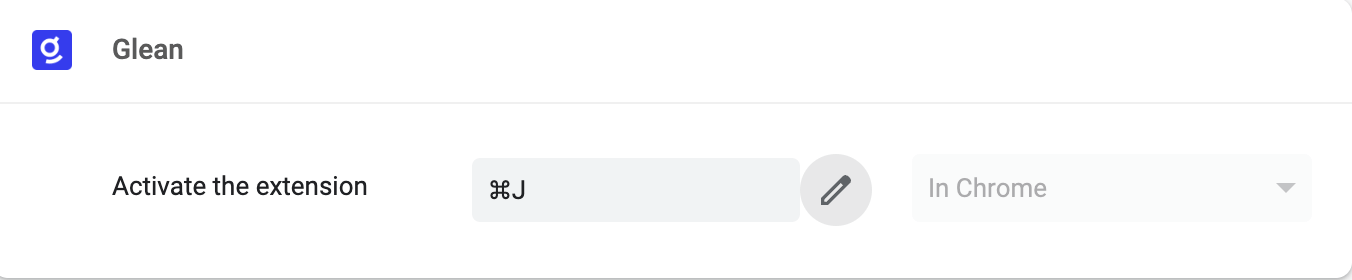
* Add cmd + J (if already added, please edit it and enter again).
* Refresh the page and try.
Was this page helpful?
YesNo
[Deploying the Extension to Managed Devices](https://docs.glean.com/administration/management/features/browser/deployment)
[macOS](https://docs.glean.com/administration/management/features/macos)
⌘I
---
# Admin Notifications Dashboard - Glean Help Center
[Skip to main content](https://docs.glean.com/administration/management/notifications/admin-notifications-dashboard#content-area)
[Glean Help Center home page](https://docs.glean.com/)
Search...
⌘K
Search...
Navigation
Notifications
Admin Notifications Dashboard
[Home](https://docs.glean.com/home)
[User Guide](https://docs.glean.com/user-guide/about/what-is-glean)
[Agents](https://docs.glean.com/agents/home)
[Get Started for Admins](https://docs.glean.com/get-started/welcome)
[Connectors](https://docs.glean.com/connectors/home)
[Admin Guide](https://docs.glean.com/administration/about)
[Security & Architecture](https://docs.glean.com/security/home)
[Troubleshooting](https://docs.glean.com/troubleshooting/home)
[Release Notes](https://docs.glean.com/release-notes/home)
[Archive](https://docs.glean.com/archive/help-glean/answers/what-are-answers-and-how-do-they-work)
On this page
* [Notifications](https://docs.glean.com/administration/management/notifications/admin-notifications-dashboard#notifications)
* [Notification components](https://docs.glean.com/administration/management/notifications/admin-notifications-dashboard#notification-components)
* [Filter notifications by severity](https://docs.glean.com/administration/management/notifications/admin-notifications-dashboard#filter-notifications-by-severity)
* [How Dashboard notifications relate to Alerts](https://docs.glean.com/administration/management/notifications/admin-notifications-dashboard#how-dashboard-notifications-relate-to-alerts)
The Admin Console Dashboard includes a Notifications panel that surfaces issues and system messages that require admin attention. This panel provides a centralized view for connector health problems and high-priority alerts. Admins can identify broken or at-risk components immediately upon opening the console. The **Notifications** panel empowers admins by providing immediate clarity and control over data source health. This feature directly addresses the following challenges:
* **Verified readiness**: Admins now receive clear indicators when a new data source is ready for testing in search and chat, eliminating guesswork after initial connection.
* **Proactive health monitoring**: Instead of silent failures, Glean surfaces real-time status updates and prescriptive troubleshooting steps. This allows admins to resolve issues independently and quickly.
This streamlined communication reduces reliance on manual support and ensures your Glean deployment remains healthy and high-performing.
[](https://docs.glean.com/administration/management/notifications/admin-notifications-dashboard#notifications)
Notifications
--------------------------------------------------------------------------------------------------------------------------------
The **Notifications** panel appears below the page title and description. Each row represents a single notification. Glean groups these in a scrollable list ordered by recency.
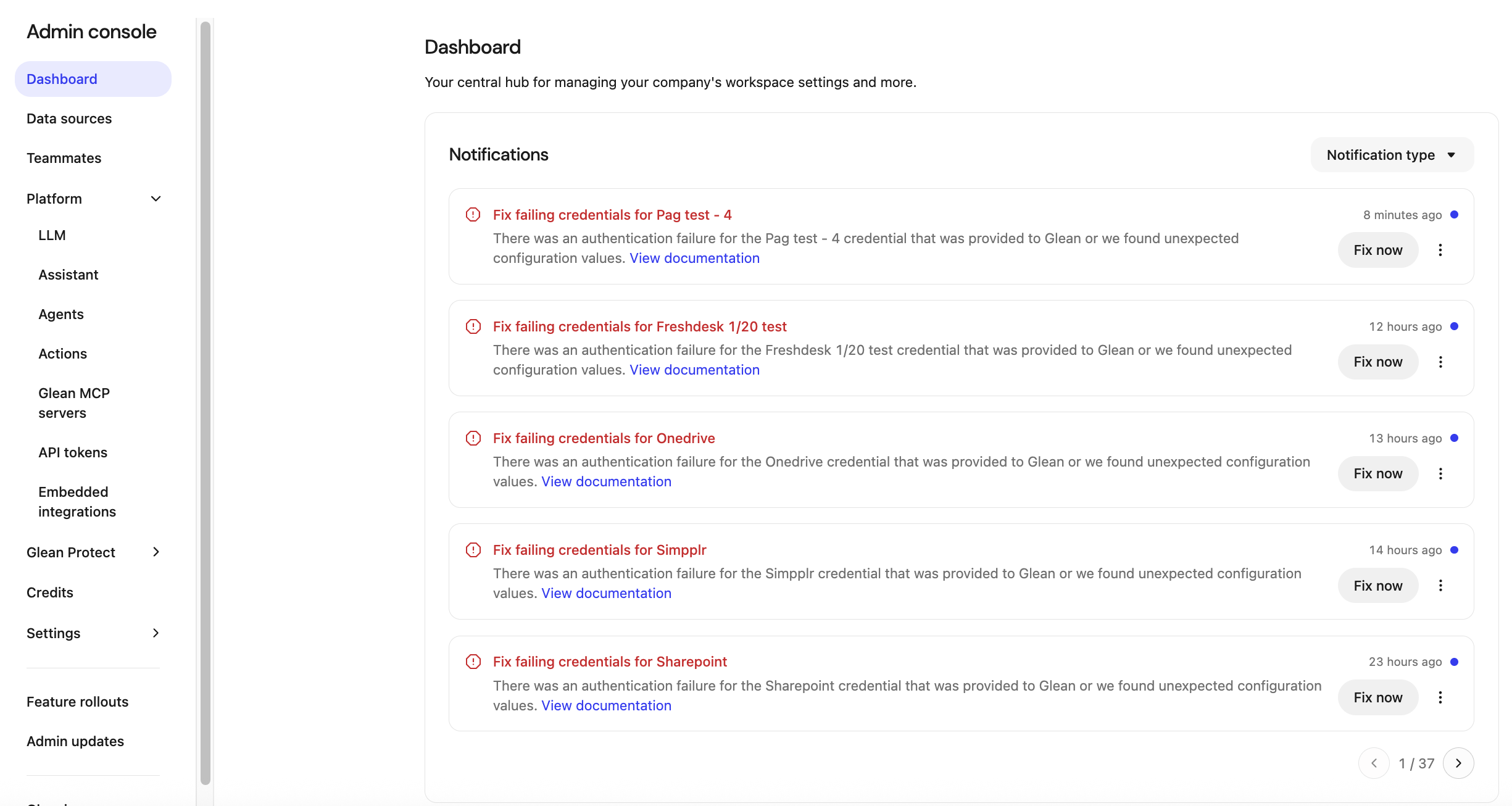
**Figure 1:** Dashboard view with credential alerts.
[](https://docs.glean.com/administration/management/notifications/admin-notifications-dashboard#notification-components)
Notification components
----------------------------------------------------------------------------------------------------------------------------------------------------
Each notification card provides a concise and actionable summary:
* **Title**: Summarizes the issue, such as `Failing credentials: Slack` or `Failing credentials: Freshdesk`.
* **Description**: Explains the error and its impact, such as degraded search results due to access failures.
* **Recommended action**: Instructs the admin to review failed checks and follow the linked documentation.
* **Status and recency**: Indicates how long ago the issue occurred and includes an unread indicator blue color dot for new items.
* **Fix issues**: Provides a **Fix now** button that navigates directly to the affected data source or configuration page.
* **Overflow menu**: Allows the admin to **Mark as unread** or **Delete** the notification.
[](https://docs.glean.com/administration/management/notifications/admin-notifications-dashboard#filter-notifications-by-severity)
Filter notifications by severity
----------------------------------------------------------------------------------------------------------------------------------------------------------------------
The **Notification type** menu allows you to filter the list by severity. You can toggle the following categories independently:
* **Critical**: Focuses on alerts that directly affect data freshness, search completeness, or core system health.
* **Warning**: Surfaces urgent issues that do not yet break core functionality.
* **Info**: Displays informational updates or low-priority system messages.
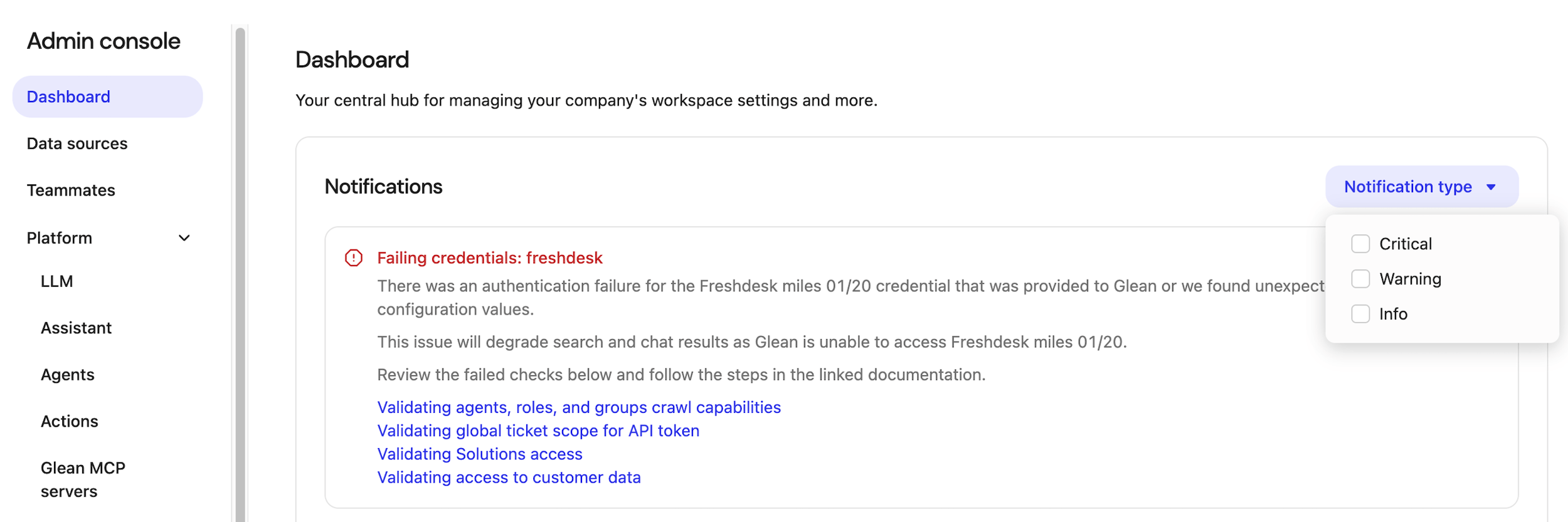
**Figure 2:** Severity filter options.
[](https://docs.glean.com/administration/management/notifications/admin-notifications-dashboard#how-dashboard-notifications-relate-to-alerts)
How Dashboard notifications relate to Alerts
----------------------------------------------------------------------------------------------------------------------------------------------------------------------------------------------
Dashboard notifications are powered by the same health checks and alerting framework that drives email‑based admin alerts and the **Alerts** settings page. Conceptually:
* The **Dashboard Notifications** panel is the in‑product view: a live list of active issues that impact search quality, data freshness, or connector health.
* The **Alerts** page (Settings → Alerts) is where admins configure recipients and behavior for email‑based alerts.
* **Email alerts** remain the push channel; Dashboard notifications are the always‑available, pull‑based view when an admin is already in the console.
If a connector credentials check fails, admins can expect:
* A notification card on the Dashboard that summarizes the failing data source and links to the relevant troubleshooting article.
* An email alert (depending on alert configuration) sent to the recipients defined under **Alerts**.
Admin notifications are designed to be the first place admins look when they want to understand the current health of their deployment and quickly drill into the highest‑impact issues. For more information on alerts, see [About Admin Alerts](https://docs.glean.com/administration/management/alerts/admin-alerts)
.
Was this page helpful?
YesNo
[LLM Provider Alerts](https://docs.glean.com/administration/management/alerts/llm-provider-alerts)
[About the Browser Extension](https://docs.glean.com/administration/management/features/browser/about)
⌘I
---
# Managing agent access - Glean Help Center
[Skip to main content](https://docs.glean.com/administration/managing-agents/agent-access#content-area)
[Glean Help Center home page](https://docs.glean.com/)
Search...
⌘K
Search...
Navigation
Managing Agents
Managing agent access
[Home](https://docs.glean.com/home)
[User Guide](https://docs.glean.com/user-guide/about/what-is-glean)
[Agents](https://docs.glean.com/agents/home)
[Get Started for Admins](https://docs.glean.com/get-started/welcome)
[Connectors](https://docs.glean.com/connectors/home)
[Admin Guide](https://docs.glean.com/administration/about)
[Security & Architecture](https://docs.glean.com/security/home)
[Troubleshooting](https://docs.glean.com/troubleshooting/home)
[Release Notes](https://docs.glean.com/release-notes/home)
[Archive](https://docs.glean.com/archive/help-glean/answers/what-are-answers-and-how-do-they-work)
On this page
* [Examples of possible configurations](https://docs.glean.com/administration/managing-agents/agent-access#examples-of-possible-configurations)
* [Modify default member Agent permissions](https://docs.glean.com/administration/managing-agents/agent-access#modify-default-member-agent-permissions)
* [](https://docs.glean.com/administration/managing-agents/agent-access#)
* [Add Agent roles to an individual user](https://docs.glean.com/administration/managing-agents/agent-access#add-agent-roles-to-an-individual-user)
* [Agent roles and permissions reference](https://docs.glean.com/administration/managing-agents/agent-access#agent-roles-and-permissions-reference)
Glean implements a comprehensive role and permission scheme for agents by default. However, you may wish to modify these permissions or make exceptions for specific users.
###
[](https://docs.glean.com/administration/managing-agents/agent-access#examples-of-possible-configurations)
Examples of possible configurations
These controls will provide you with a range of options for how broadly you want to enable creation and sharing of agents in your deployment.
| Desired outcome | Configuration |
| --- | --- |
| Let a small set of users create and share agents | Assign the **Agent creator** role to a small set of users Set the default member permissions: **Can create new agents: Off Can share and publish agents: On** |
| Let all users create agents and tightly control which agents are shared to the library | Assign the **Agent moderator** role to a small set of users Set the default member permissions: **Can create new agents: On Can share and publish agents: Off** Agent creators will need to ask an agent moderator to share their agent |
| Let all users create and share agents | Set the default member permissions: **Can create new agents: On Can share and publish agents: On** |
###
[](https://docs.glean.com/administration/managing-agents/agent-access#modify-default-member-agent-permissions)
Modify default member Agent permissions
By default, Glean enables agent creation for Default Members, but restricts them from sharing. You can change this behavior in the **Default Member permissions** console. **Prerequisites**
* You must be an Admin.
1. Navigate to the **Admin Console** **\> Teammates**
2. Select the **Default Member permissions** button
3. Enable or disable the desired agent options:
* Can create new Agents
* Can share and publish Agents
###
[](https://docs.glean.com/administration/managing-agents/agent-access#)
###
[](https://docs.glean.com/administration/managing-agents/agent-access#add-agent-roles-to-an-individual-user)
Add Agent roles to an individual user
When necessary, you can assign specific Agent roles to individual users. **Prerequisites**
* You must be an Admin.
1. Navigate to the **Admin Console** **\> Teammates**
2. Select the context menu for the user you wish to modify, followed by **Edit roles**
3. Under **Additional roles**, select the checkboxes for the agent roles you wish to add:
* Agent Creator
* Agent Moderator
* Departmental Agent Moderator (requires selecting at least one department)
4. Select the **Save** button
If your organization uses [group-based permissions](https://docs.glean.com/administration/identity/roles/group-based-permissions)
, you can also assign Agent Creator and Agent Moderator roles to identity provider groups. Members of those groups will automatically inherit the corresponding agent permissions when they sign in.
###
[](https://docs.glean.com/administration/managing-agents/agent-access#agent-roles-and-permissions-reference)
Agent roles and permissions reference
The following table describes the roles that can interact with Agents and their default permissions:
| Role | Permissions |
| --- | --- |
| Default Member | The ability for members to create or share agents will be governed by the Default member permissions. |
| Agent Creator | Allowed to create, edit, and delete their own agents. Capable of viewing anyone’s agent configurations, though editing requires proper permissions. Cannot broadly share/publish if the “Can share and publish agents” default is Off. |
| Action Creator | Create, edit, and delete their own actions. Actions must be enabled and governed by admins before use in agents. |
| Agent Moderator | Create, edit, delete, view, feature, share and publish anyones’s agent, regardless of the creator. They gate which agents reach the library when “share/publish” is restricted. This role includes oversight capabilities to ensure compliance and effective use of agents across the organization. |
| Departmental Agent Moderator | Create, edit, delete, view, share and publish agents created by members of their assigned departments. They have all agent sharing permissions except for the ability to share agents to the entire company. |
| Admin | Holds all permissions including the ability to assign Agent Creator or Agent Moderator roles to any users. Can manage overall agent settings and permissions for the entire organization. |
Was this page helpful?
YesNo
[Keycloak Credentials](https://docs.glean.com/administration/developer/keycloak-credentials)
[Managing agent library](https://docs.glean.com/administration/managing-agents/agent-library)
⌘I
---
# Deploying the Extension to Managed Devices - Glean Help Center
[Skip to main content](https://docs.glean.com/administration/management/features/browser/deployment#content-area)
[Glean Help Center home page](https://docs.glean.com/)
Search...
⌘K
Search...
Navigation
Browser Extension
Deploying the Extension to Managed Devices
[Home](https://docs.glean.com/home)
[User Guide](https://docs.glean.com/user-guide/about/what-is-glean)
[Agents](https://docs.glean.com/agents/home)
[Get Started for Admins](https://docs.glean.com/get-started/welcome)
[Connectors](https://docs.glean.com/connectors/home)
[Admin Guide](https://docs.glean.com/administration/about)
[Security & Architecture](https://docs.glean.com/security/home)
[Troubleshooting](https://docs.glean.com/troubleshooting/home)
[Release Notes](https://docs.glean.com/release-notes/home)
[Archive](https://docs.glean.com/archive/help-glean/answers/what-are-answers-and-how-do-they-work)
On this page
* [Managed Devices](https://docs.glean.com/administration/management/features/browser/deployment#managed-devices)
* [Post-Install experience](https://docs.glean.com/administration/management/features/browser/deployment#post-install-experience)
* [Email Template](https://docs.glean.com/administration/management/features/browser/deployment#email-template)
* [Unmanaged Devices](https://docs.glean.com/administration/management/features/browser/deployment#unmanaged-devices)
[](https://docs.glean.com/administration/management/features/browser/deployment#managed-devices)
Managed Devices
--------------------------------------------------------------------------------------------------------------------
To facilitate adoption and usage, a company-managed rollout of the Glean Chrome and/or Edge extensions can be pushed to all employees. This means all employees will automatically have Glean’s extension installed on company-managed computers.
* Users will not be able to disable/uninstall the extension if it is installed in this manner.
* The user’s New Tab Page will be switched to Glean. Users can disable this in their Glean settings in the Glean UI.
* Managed Chrome
* Managed Edge
1. Ensure you have or work with someone who has Google Workspace Admin privileges.
2. Go to [https://admin.google.com/ac/chrome/apps/user](https://admin.google.com/ac/chrome/apps/user)
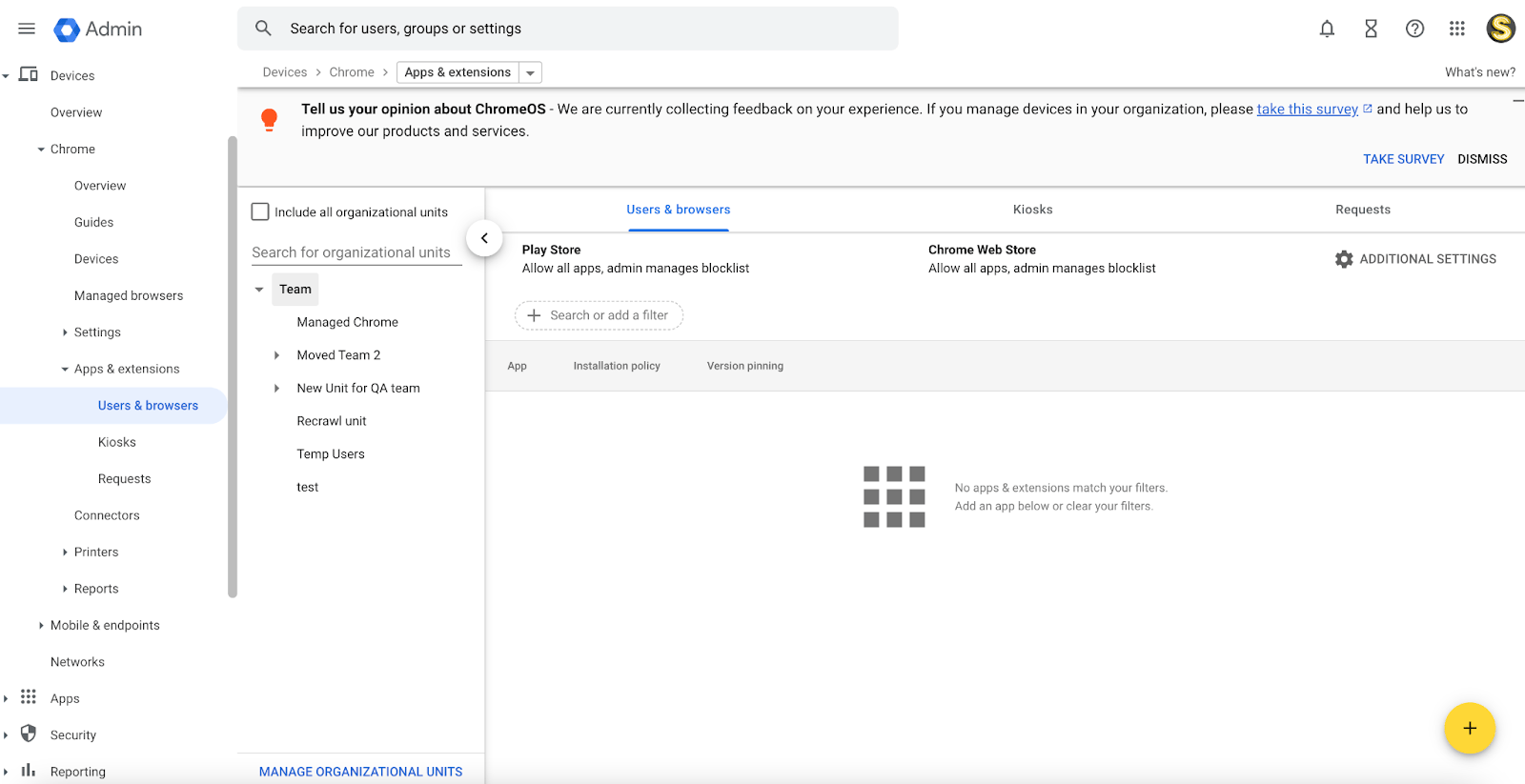
3. Use the left bar to choose the organizational unit you would like to deploy the extension to. Even if this is being rolled out company-wide, it’s good to select a company-wide organizational unit so that the extension will only be pushed on the Chrome profile associated with employees’ work account.
4. Hover over the + button in the bottom right corner and select “Add from Chrome Web Store”: 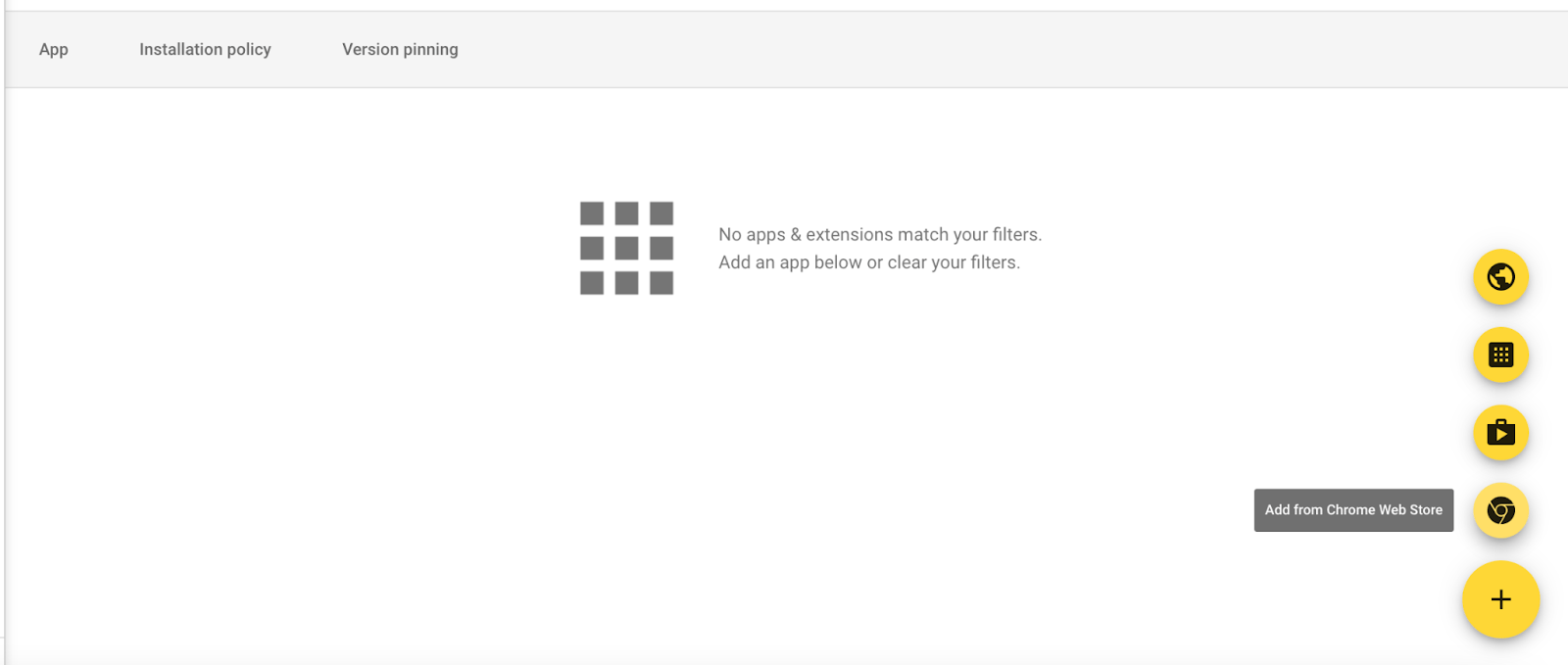
5. Search for “Glean” and select the option corresponding to the Glean work extension (the first one pictured here): 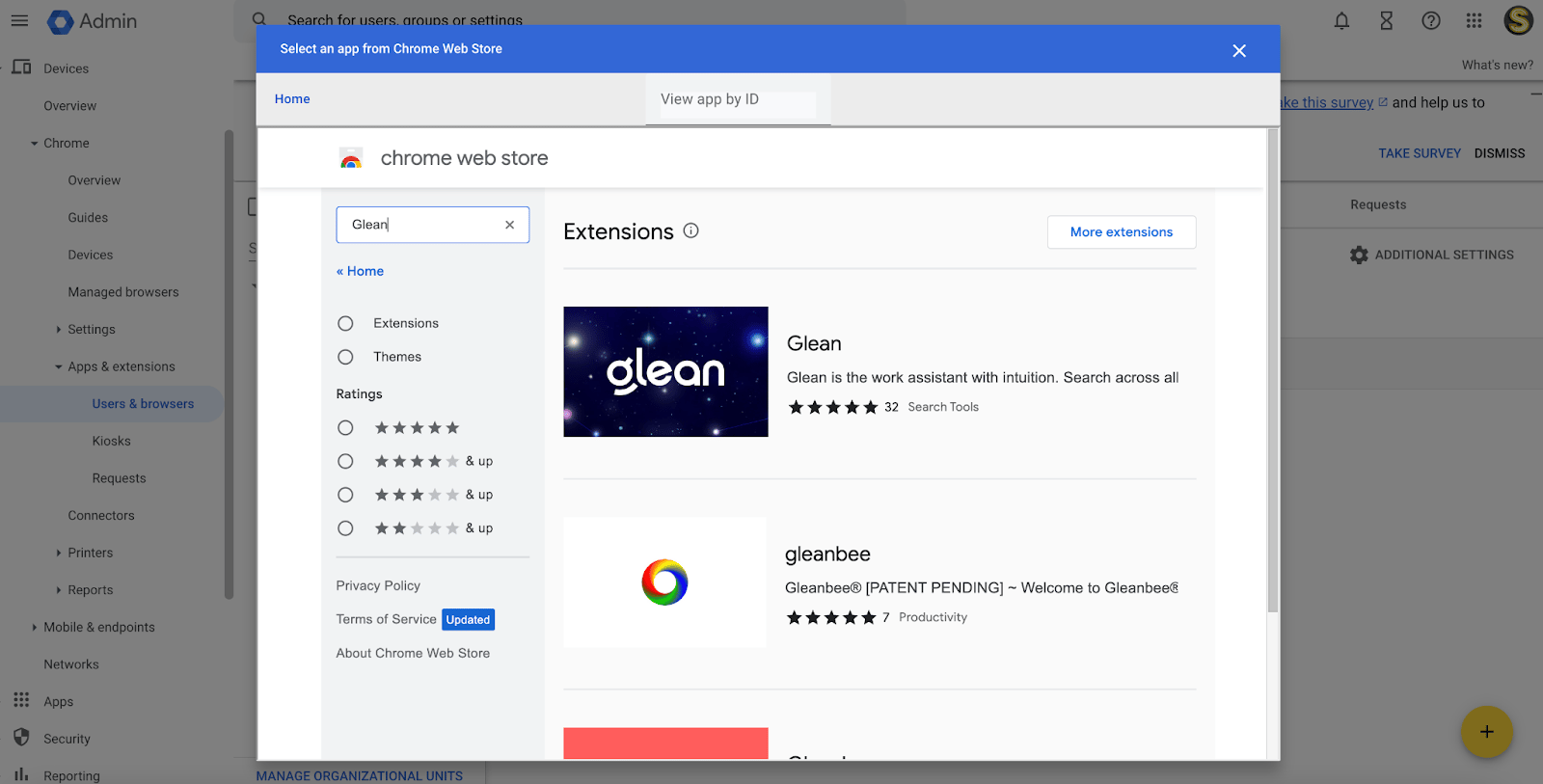
6. Hit “Select” on the top right: 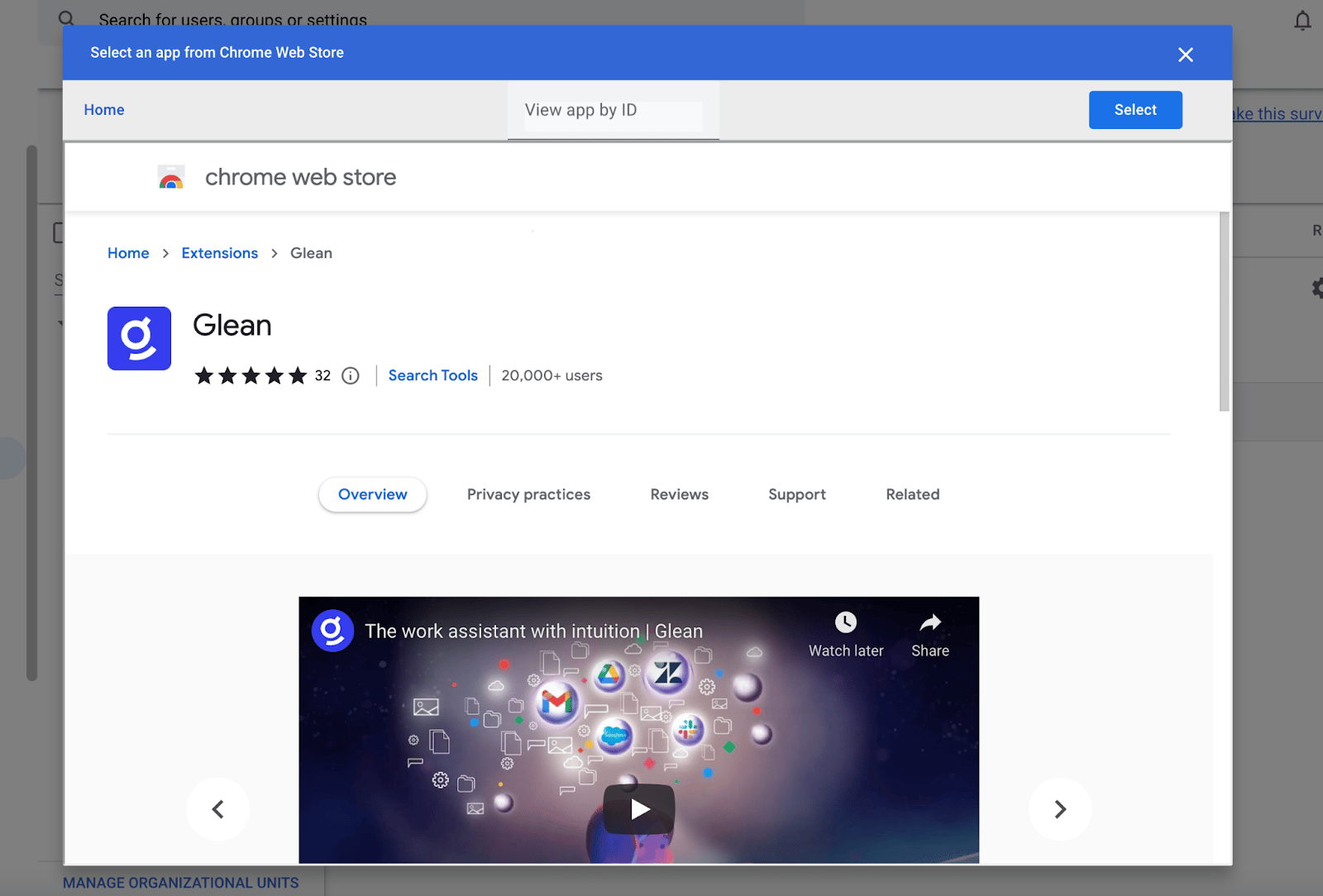
7. The extension should appear as below. Click on it to open a right nav bar. 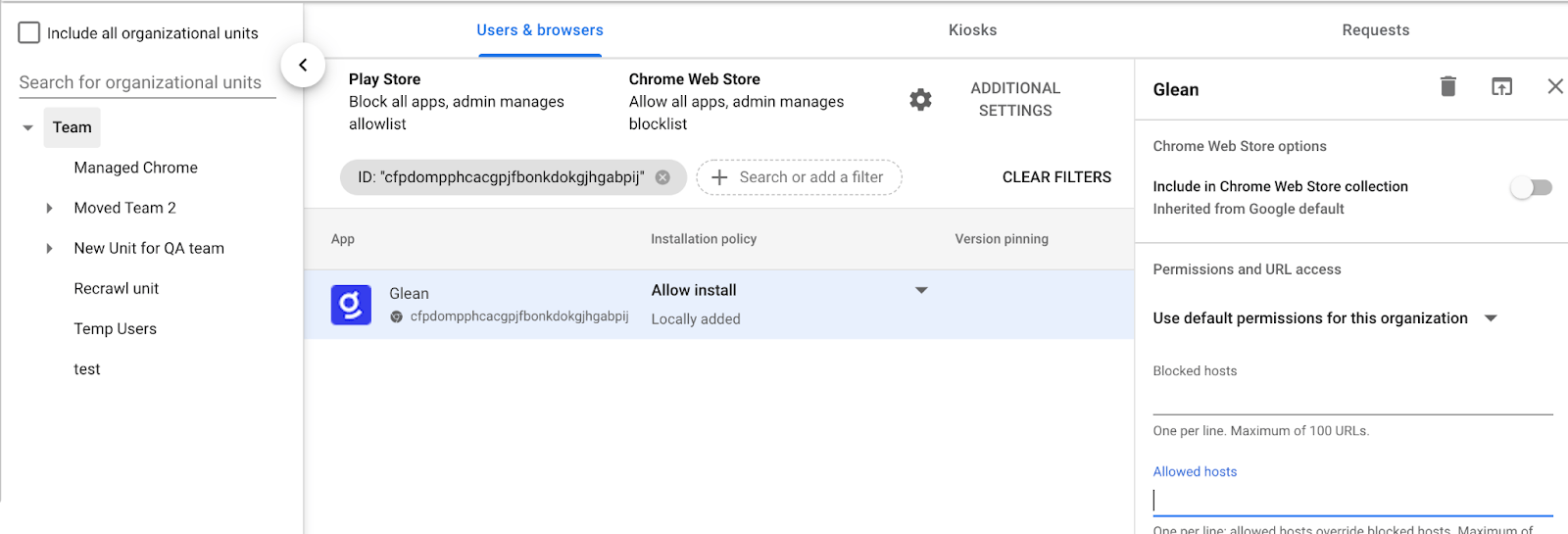
8. In “Policy for extensions” enter: `{ "BaseUrl": { "Value": "https://-be.glean.com" }}`
Please ask a Glean employee to confirm your company instance. An example is shown below.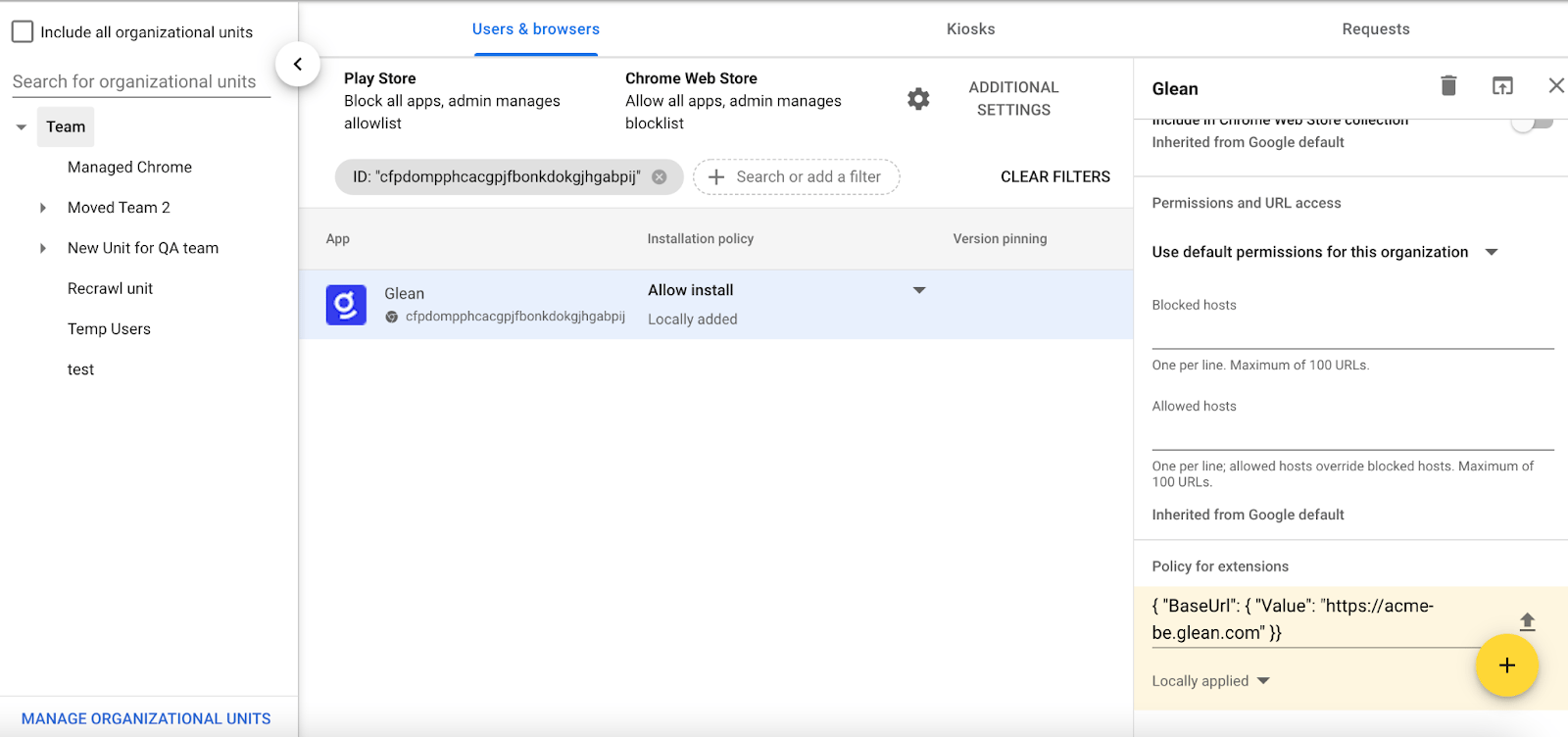
9. Hit “Save” at the top after entering the “Policy for extensions”: 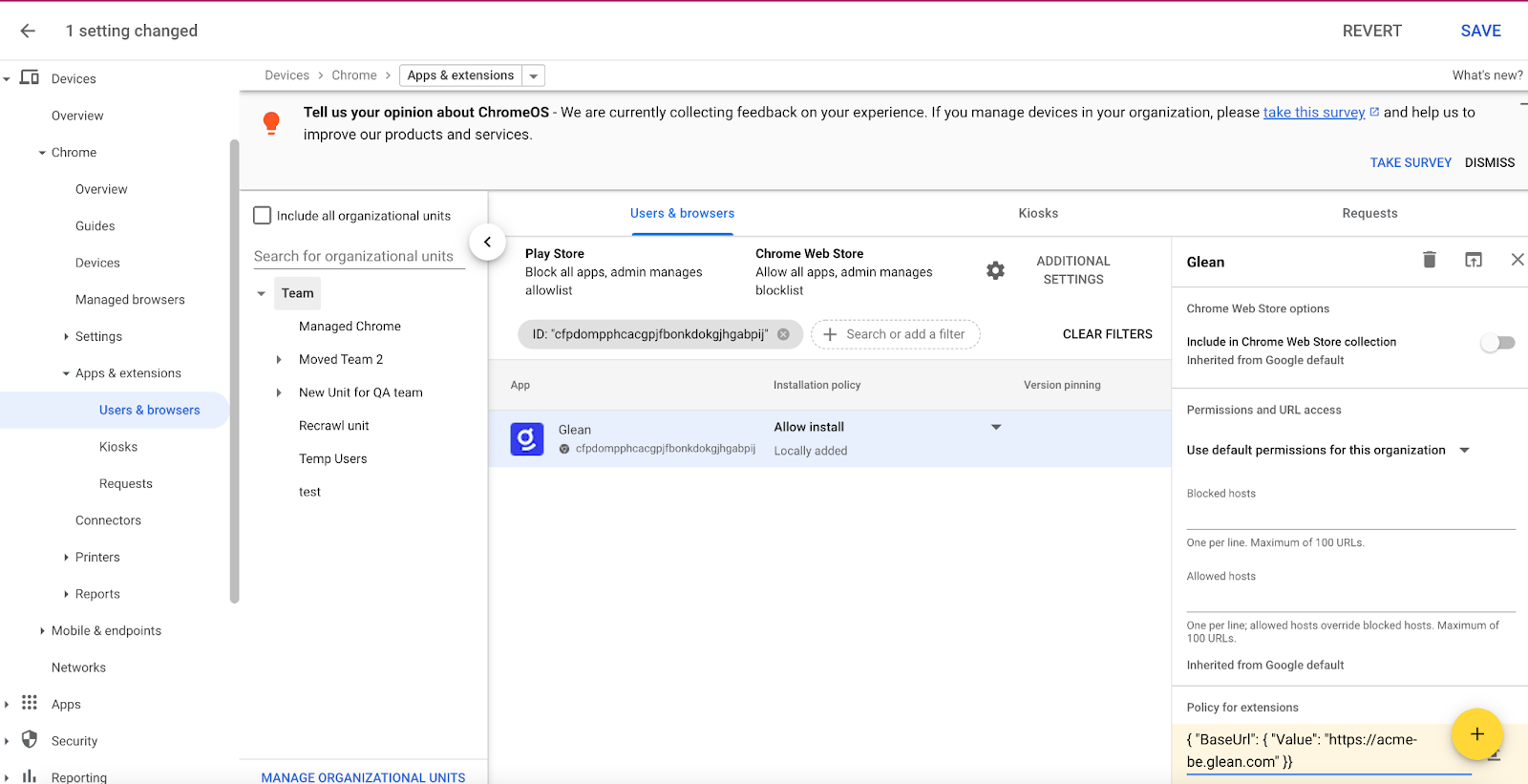
10. Hover over Installation Policy for the extension and choose “Force Install” or “Force Install + pin to browser toolbar”: 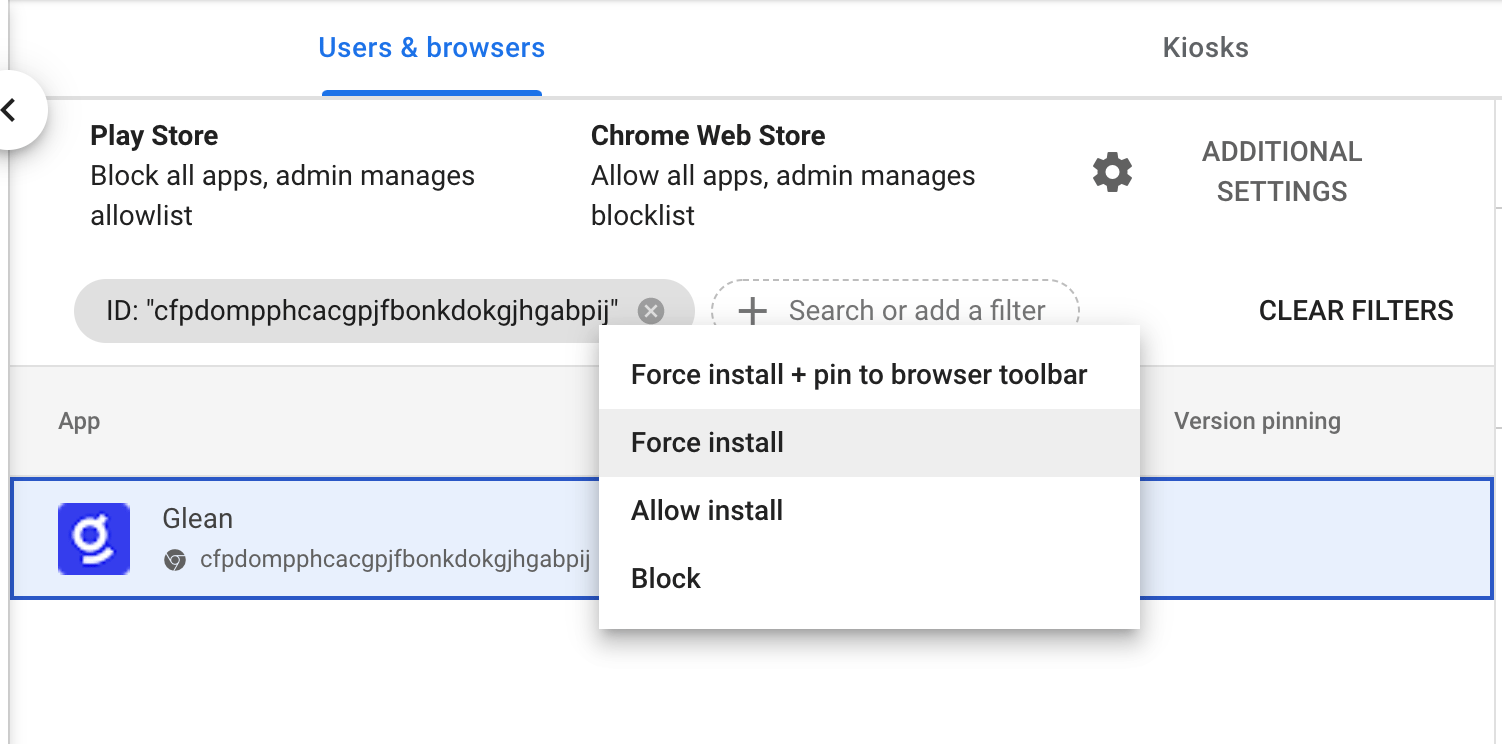
11. Hit “Save” at the top: 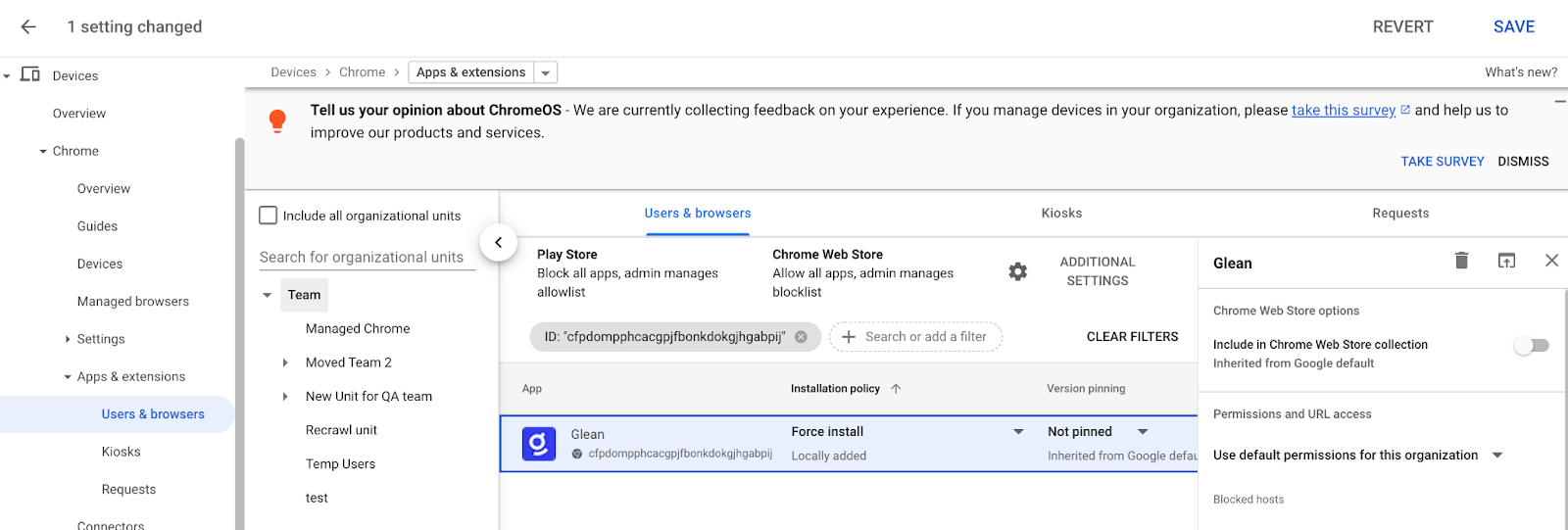
You’re all set!There may be a delay on the Google/Chrome side for when the extension is pushed. Expect all employees to have the extension present within 24-48 hours.
You can use the [ExtensionInstallForceList](https://learn.microsoft.com/en-us/DeployEdge/microsoft-edge-policies#extensioninstallforcelist)
policy to install the Glean extension silently.
1. In the Group Policy Editor, go to **Administrative Templates** > **Microsoft Edge** > **Extensions** > and then select **Control which extensions are installed silently**.
2. Select **Enabled**.
3. Click **Show**.
4. Enter the following ID to install the Glean extension from the Chrome web store:
Copy
cfpdompphcacgpjfbonkdokgjhgabpij;https://clients2.google.com/service/update2/crx
!!! success You’re all set!The extension is installed silently without user interaction. The user also won’t be able to uninstall or disable the extension. This setting overwrites any blocklist policy that is enabled.
[](https://docs.glean.com/administration/management/features/browser/deployment#post-install-experience)
Post-Install experience
------------------------------------------------------------------------------------------------------------------------------------
Upon installation of the Glean extension via a managed push, all new users will see the below page to prompt them to log into Glean. Your company name, as set in the Glean Admin settings, will be automatically populated in the popup to the user. 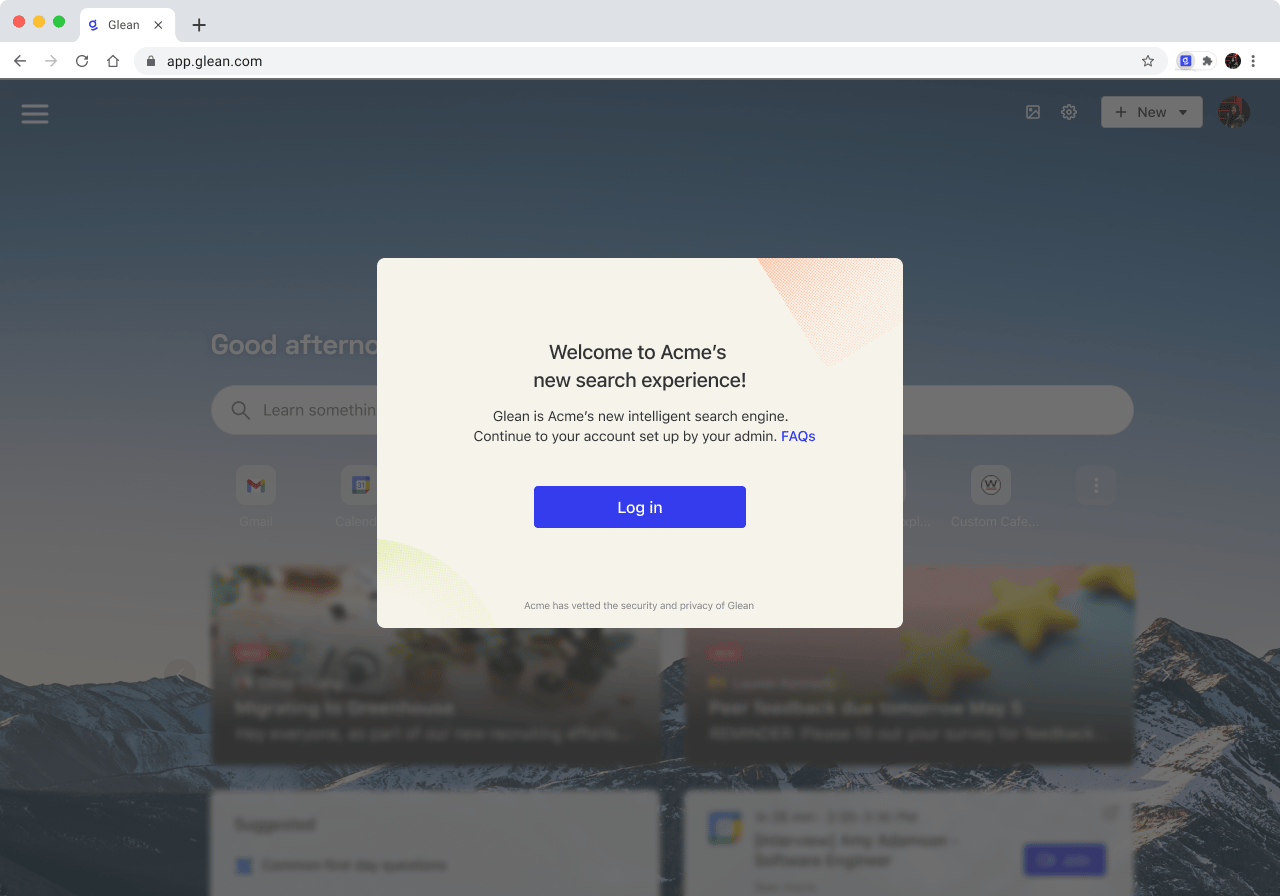
[](https://docs.glean.com/administration/management/features/browser/deployment#email-template)
Email Template
------------------------------------------------------------------------------------------------------------------
Refer to below email template below for a company-wide communication to inform of a managed Chrome/Edge install.
> **Subject: New browser extension available for all employees**
> _Title: Key updates to your browser_
> In \[company name\]‘s continued effort to support employee well-being and productivity, we are rolling out a new company-wide search tool, [Glean](https://www.glean.com/)
> .
> Using Glean, you can search across all work applications we use at \[company name\]. Whether the document or answer you are looking for lives in \[GDrive, Slack, Email, Jira \*customize with your company’s tools\] or with another colleague, Glean will help you search for and discover what you need to get your work done. All without remembering where all your documents are hosted or messaging multiple people.
> Starting \[launch date\], Glean will be installed on your Chrome browser. Note that this launch will replace your current default new tab page with Glean so that you can easily [access search across all company apps](https://docs.glean.com/user-guide/basics/search-from-wherever-you-work)
> .
* * *
[](https://docs.glean.com/administration/management/features/browser/deployment#unmanaged-devices)
Unmanaged Devices
------------------------------------------------------------------------------------------------------------------------
The Glean Browser Extension can be directly installed by users manually at the following links:
[Microsoft Edge\
--------------](https://microsoftedge.microsoft.com/addons/detail/glean/lkhkfgdfpoijiiinpjgcgacdkgjeieak)
[Google Chrome\
-------------](https://chrome.google.com/webstore/detail/glean/cfpdompphcacgpjfbonkdokgjhgabpij)
[Mozilla Firefox\
---------------](https://addons.mozilla.org/en-US/firefox/addon/glean/)
[Safari\
------](https://apps.apple.com/us/app/glean-for-safari/id6444195239?mt=12)
[Brave\
-----](https://chrome.google.com/webstore/detail/glean/cfpdompphcacgpjfbonkdokgjhgabpij)
Looking for the original version of this page? You can find the archived version [here](https://docs.glean.com/archive/help-glean/managing-your-glean-deployment/managed-chrome-extension-rollout)
.
Was this page helpful?
YesNo
[About the Browser Extension](https://docs.glean.com/administration/management/features/browser/about)
[Troubleshooting](https://docs.glean.com/administration/management/features/browser/troubleshooting)
⌘I
---
# Managing agent library - Glean Help Center
[Skip to main content](https://docs.glean.com/administration/managing-agents/agent-library#content-area)
[Glean Help Center home page](https://docs.glean.com/)
Search...
⌘K
Search...
Navigation
Managing Agents
Managing agent library
[Home](https://docs.glean.com/home)
[User Guide](https://docs.glean.com/user-guide/about/what-is-glean)
[Agents](https://docs.glean.com/agents/home)
[Get Started for Admins](https://docs.glean.com/get-started/welcome)
[Connectors](https://docs.glean.com/connectors/home)
[Admin Guide](https://docs.glean.com/administration/about)
[Security & Architecture](https://docs.glean.com/security/home)
[Troubleshooting](https://docs.glean.com/troubleshooting/home)
[Release Notes](https://docs.glean.com/release-notes/home)
[Archive](https://docs.glean.com/archive/help-glean/answers/what-are-answers-and-how-do-they-work)
If you are an admin or agent moderator, by default you can see agents that have been created by all users in the agent library, including agents that are not shared broadly. You can access an additional “Shared with” filter that allows you to display only agents that are shared with the entire company or shared with a specific department. The “Shared with” filter is not shown to normal users.
Was this page helpful?
YesNo
[Managing agent access](https://docs.glean.com/administration/managing-agents/agent-access)
[Assistant routing to Agents](https://docs.glean.com/administration/managing-agents/agent-routing)
⌘I
---
# Manage Featured Agents in the Agent Library - Glean Help Center
[Skip to main content](https://docs.glean.com/administration/managing-agents/featured-agents#content-area)
[Glean Help Center home page](https://docs.glean.com/)
Search...
⌘K
Search...
Navigation
Managing Agents
Manage Featured Agents in the Agent Library
[Home](https://docs.glean.com/home)
[User Guide](https://docs.glean.com/user-guide/about/what-is-glean)
[Agents](https://docs.glean.com/agents/home)
[Get Started for Admins](https://docs.glean.com/get-started/welcome)
[Connectors](https://docs.glean.com/connectors/home)
[Admin Guide](https://docs.glean.com/administration/about)
[Security & Architecture](https://docs.glean.com/security/home)
[Troubleshooting](https://docs.glean.com/troubleshooting/home)
[Release Notes](https://docs.glean.com/release-notes/home)
[Archive](https://docs.glean.com/archive/help-glean/answers/what-are-answers-and-how-do-they-work)
On this page
* [What users see](https://docs.glean.com/administration/managing-agents/featured-agents#what-users-see)
* [Who can curate Featured agents](https://docs.glean.com/administration/managing-agents/featured-agents#who-can-curate-featured-agents)
* [Configure Featured agents](https://docs.glean.com/administration/managing-agents/featured-agents#configure-featured-agents)
* [Tips](https://docs.glean.com/administration/managing-agents/featured-agents#tips)
Featured agents allow Admins and Agent Moderators to curate a single “Featured” category in the Agent Library, promoting high‑impact agents for quick discovery. The Featured section also appears in the chat for users who have access to at least one featured agent.
Changes respect existing permissions; featuring an agent never grants new access.
[](https://docs.glean.com/administration/managing-agents/featured-agents#what-users-see)
What users see
-----------------------------------------------------------------------------------------------------------
End users see a Featured section in the Agent Library and in chat, but only if they already have access to at least one agent that’s been featured. Featuring does not override an agent’s sharing/permissions. If no eligible agents are featured for a user, the section won’t appear.
[](https://docs.glean.com/administration/managing-agents/featured-agents#who-can-curate-featured-agents)
Who can curate Featured agents
-------------------------------------------------------------------------------------------------------------------------------------------
Admins and Agent Moderators can create and maintain the Featured category from the Agent Library, including adding and reordering agents. These roles are managed in the Admin Console under agent access and roles.
[](https://docs.glean.com/administration/managing-agents/featured-agents#configure-featured-agents)
Configure Featured agents
---------------------------------------------------------------------------------------------------------------------------------
**Prerequisites**You must be an Admin or Agent Moderator.
1. **Create and manage the Featured category:** Go to the Agent Library. You’ll see controls to create/manage the Featured category and add agents to it.
2. Add eligible agents. Reorder your featured agents by dragging and dropping to control display order.
3. Save your changes. Allow up to ~15 minutes for updates to propagate to end users due to client caching.
Changes to Featured agents (e.g., adding/removing or reordering agents) can take up to ~15 minutes to appear for users due to client‑side caching.
[](https://docs.glean.com/administration/managing-agents/featured-agents#tips)
Tips
---------------------------------------------------------------------------------------
* Pin your most broadly useful agents (e.g., onboarding, daily workflows) to maximize visibility.
* Keep the list concise and periodically review usage to ensure the most helpful agents are featured.
Was this page helpful?
YesNo
[Assistant routing to Agents](https://docs.glean.com/administration/managing-agents/agent-routing)
[How an App is translated to an Agent](https://docs.glean.com/administration/managing-agents/how-an-app-is-translated-to-an-agent)
⌘I
---
# Glean Assistant Auto-Routing to Agents - Glean Help Center
[Skip to main content](https://docs.glean.com/administration/managing-agents/agent-routing#content-area)
[Glean Help Center home page](https://docs.glean.com/)
Search...
⌘K
Search...
Navigation
Managing Agents
Glean Assistant Auto-Routing to Agents
[Home](https://docs.glean.com/home)
[User Guide](https://docs.glean.com/user-guide/about/what-is-glean)
[Agents](https://docs.glean.com/agents/home)
[Get Started for Admins](https://docs.glean.com/get-started/welcome)
[Connectors](https://docs.glean.com/connectors/home)
[Admin Guide](https://docs.glean.com/administration/about)
[Security & Architecture](https://docs.glean.com/security/home)
[Troubleshooting](https://docs.glean.com/troubleshooting/home)
[Release Notes](https://docs.glean.com/release-notes/home)
[Archive](https://docs.glean.com/archive/help-glean/answers/what-are-answers-and-how-do-they-work)
On this page
* [Overview](https://docs.glean.com/administration/managing-agents/agent-routing#overview)
* [Key Benefits](https://docs.glean.com/administration/managing-agents/agent-routing#key-benefits)
* [Typical Use Cases](https://docs.glean.com/administration/managing-agents/agent-routing#typical-use-cases)
* [How It Works](https://docs.glean.com/administration/managing-agents/agent-routing#how-it-works)
* [Step-by-Step Setup](https://docs.glean.com/administration/managing-agents/agent-routing#step-by-step-setup)
* [Example Routing Conditions](https://docs.glean.com/administration/managing-agents/agent-routing#example-routing-conditions)
* [HR Agent](https://docs.glean.com/administration/managing-agents/agent-routing#hr-agent)
* [IT Help Desk Agent](https://docs.glean.com/administration/managing-agents/agent-routing#it-help-desk-agent)
* [Best Practices](https://docs.glean.com/administration/managing-agents/agent-routing#best-practices)
* [Limitations & Known Issues](https://docs.glean.com/administration/managing-agents/agent-routing#limitations-%26-known-issues)
[](https://docs.glean.com/administration/managing-agents/agent-routing#overview)
Overview
---------------------------------------------------------------------------------------------
Glean’s Assistant auto-routing to Agents feature enables organizations to deliver faster, more accurate, and specialized responses by automatically directing user questions to custom-built agents. Instead of relying solely on the Glean Assistant’s general knowledge, you can configure the system to route, for example, HR or IT questions to dedicated agents tailored to your company’s policies, workflows, and data sources. This ensures users get authoritative answers and can trigger automated actions without needing to know which agent to use or how to find it.
[](https://docs.glean.com/administration/managing-agents/agent-routing#key-benefits)
Key Benefits
-----------------------------------------------------------------------------------------------------
* **Faster, more accurate answers**: Users get responses from the most relevant expert agent, improving quality and speed.
* **Seamless user experience**: Employees continue to use Glean Assistant as their single entry point. No need to search for the right agent.
* **Centralized control**: Admins can define and update routing rules to match evolving business needs.
[](https://docs.glean.com/administration/managing-agents/agent-routing#typical-use-cases)
Typical Use Cases
---------------------------------------------------------------------------------------------------------------
* **HR**: Route all questions about benefits, PTO, or company policies to an HR agent that references official documentation and can initiate HR workflows.
* **IT Help Desk**: Direct IT support requests to an IT agent that can troubleshoot, file tickets, or grant access.
* **Departmental Experts**: Route specialized queries (e.g., “Who should I contact about X?”) to expert finder agents.
[](https://docs.glean.com/administration/managing-agents/agent-routing#how-it-works)
How It Works
-----------------------------------------------------------------------------------------------------
* When a user submits a question to Glean Assistant, the system evaluates the request against the routing conditions you’ve defined for each agent. If a match is found, the Assistant automatically routes the request to the appropriate agent. The user sees a message such as “Using Agent: \[Agent Name\]” at the top of the response, making the handoff transparent.
* If multiple agents’ conditions match, the first agent in your configured list is selected. You can reorder agents to set priority.
* If no agent matches, the Assistant responds as usual.
* If an agent was mistakenly invoked or the user prefers not to use the agent, the user can “X” out of the agent at the top of the response and have the Assistant regenerate the answer using its general knowledge.
[](https://docs.glean.com/administration/managing-agents/agent-routing#step-by-step-setup)
Step-by-Step Setup
-----------------------------------------------------------------------------------------------------------------
**Prerequisites**
* Glean Agents must be enabled and launched for your deployment
* Admin access to the Glean Admin Console is required to configure routing
1. **Go to the Admin Console**: Navigate to [**Admin Console → Platform → Agents**](https://app.glean.com/admin/setup/agents)
.
2. **Open Assistant Auto-Routing**: Expand the “Assistant auto-routing” section and click **Configure**.
3. **Add Agents and Routing Conditions**: You can specify up to 15 conversational agents.
* For each agent, provide a routing condition - a natural language description (max 500 characters) of the types of requests that should be routed to this agent.
* Add example user requests to improve routing accuracy.
4. **Set Priority Order**: Drag and drop agents to change their order.
5. **Save Changes**: Click **Save changes** to activate your configuration.
[](https://docs.glean.com/administration/managing-agents/agent-routing#example-routing-conditions)
Example Routing Conditions
---------------------------------------------------------------------------------------------------------------------------------
###
[](https://docs.glean.com/administration/managing-agents/agent-routing#hr-agent)
HR Agent
_Route to agent if the user asks about HR policy, benefits, leave (PTO, sick, parental/maternity/paternity), holidays, payroll/tax docs (W‑2, paystubs), employment verification, or reports a sensitive concern (harassment, discrimination). Do not route if it’s a login, MFA, SSO, or access issue to an HR/benefits system._ Example requests:
* “How do I request a PTO?”
* “What holidays do we get off?”
* “How do I enroll in benefits?”
* “What is the process for maternity leave?”
* “How do I update my direct deposit?”
* “Where can I find my W‑2?”
* “I need an employment verification letter.”
* “How do I report harassment?”
###
[](https://docs.glean.com/administration/managing-agents/agent-routing#it-help-desk-agent)
IT Help Desk Agent
_Route to agent if the user needs help with accounts or access (password reset, MFA, SSO/Okta), devices/hardware (laptop, mouse, keyboard, monitor, dock), software installs/licenses, network/VPN/Wi‑Fi, email/calendar/chat tools, printers, or provisioning/access to applications (including the HR/benefits portal)._ Example requests:
* “How do I reset my password?”
* “How do I request a new laptop?”
* “My mouse isn’t working.”
* “I can’t log in to the benefits portal — my MFA code is invalid.”
* “Outlook isn’t showing company holidays.”
* “Please grant me access to Zoom Pro and Figma.”
* “VPN keeps disconnecting when I’m on hotel Wi‑Fi.”
[](https://docs.glean.com/administration/managing-agents/agent-routing#best-practices)
Best Practices
---------------------------------------------------------------------------------------------------------
* **Be specific in routing conditions**: Use clear, concise language and provide several example requests for each agent.
* **Review and update regularly**: As your organization’s needs change, revisit your routing rules and agent list.
* **Test with real queries**: Try common user questions to ensure they’re routed as expected.
* **Limit to 15 agents**: Prioritize the most impactful use cases for routing.
[](https://docs.glean.com/administration/managing-agents/agent-routing#limitations-&-known-issues)
Limitations & Known Issues
---------------------------------------------------------------------------------------------------------------------------------
* Routing is not 100% accurate: Quality depends on the clarity of your routing instructions and examples.
* Only conversational agents viewable by everyone can be routed to.
* If an agent is removed or made private, it will be excluded from routing.
* Currently, only agents with chat-message triggers are supported for routing. Expansion to input-form types is planned.
* Routing applies to all users in your deployment; limiting to a subset (e.g., pilot group) is not currently supported.
Was this page helpful?
YesNo
[Managing agent library](https://docs.glean.com/administration/managing-agents/agent-library)
[Manage Featured Agents in the Agent Library](https://docs.glean.com/administration/managing-agents/featured-agents)
⌘I
---
# How an App is translated to an Agent - Glean Help Center
[Skip to main content](https://docs.glean.com/administration/managing-agents/how-an-app-is-translated-to-an-agent#content-area)
[Glean Help Center home page](https://docs.glean.com/)
Search...
⌘K
Search...
Navigation
Managing Agents
How an App is translated to an Agent
[Home](https://docs.glean.com/home)
[User Guide](https://docs.glean.com/user-guide/about/what-is-glean)
[Agents](https://docs.glean.com/agents/home)
[Get Started for Admins](https://docs.glean.com/get-started/welcome)
[Connectors](https://docs.glean.com/connectors/home)
[Admin Guide](https://docs.glean.com/administration/about)
[Security & Architecture](https://docs.glean.com/security/home)
[Troubleshooting](https://docs.glean.com/troubleshooting/home)
[Release Notes](https://docs.glean.com/release-notes/home)
[Archive](https://docs.glean.com/archive/help-glean/answers/what-are-answers-and-how-do-they-work)
On this page
* [Building blocks of an AI Application:](https://docs.glean.com/administration/managing-agents/how-an-app-is-translated-to-an-agent#building-blocks-of-an-ai-application)
* [Additional Migration Details:](https://docs.glean.com/administration/managing-agents/how-an-app-is-translated-to-an-agent#additional-migration-details)
* [Example: Sample Agent (migrated from an App)](https://docs.glean.com/administration/managing-agents/how-an-app-is-translated-to-an-agent#example-sample-agent-migrated-from-an-app)
When migrating from Apps to Agents, each App component maps directly to its Agent equivalent to ensure seamless functionality.
###
[](https://docs.glean.com/administration/managing-agents/how-an-app-is-translated-to-an-agent#building-blocks-of-an-ai-application)
Building blocks of an AI Application:
1. Name
* App Display Name → Agent Name
* Direct one-to-one mapping with no changes
2. Icon
* App Icon → Agent Icon
* Visual representation remains identical
3. Description
* App Description → Agent Description
4. Instructions
* App Instructions → Instructions for the “Plan & Execute” step in the Agent (see screenshot below)
5. Actions
* App Actions → Actions for the “Plan & Execute” step in the Agent
* All configured actions and their customization are preserved as-is.
###
[](https://docs.glean.com/administration/managing-agents/how-an-app-is-translated-to-an-agent#additional-migration-details)
Additional Migration Details:
1. Permissions & Access:
* App library audience (Users, Departments) → Agent VIEWER roles
* App Editors → Agent EDITOR roles
* Creator becomes Agent Owner
2. Configuration:
* Prompts → Converted to conversation starters for the agent.
3. Integration:
* Slack Settings are preserved as-is and can be accessed from the “Share menu” in the Agent builder.
ℹ️ The migrated agent will refer to itself as `Agent: ` in Slack in its responses instead of `App: `.
[](https://docs.glean.com/administration/managing-agents/how-an-app-is-translated-to-an-agent#example-sample-agent-migrated-from-an-app)
Example: Sample Agent (migrated from an App)
-----------------------------------------------------------------------------------------------------------------------------------------------------------------------------------------
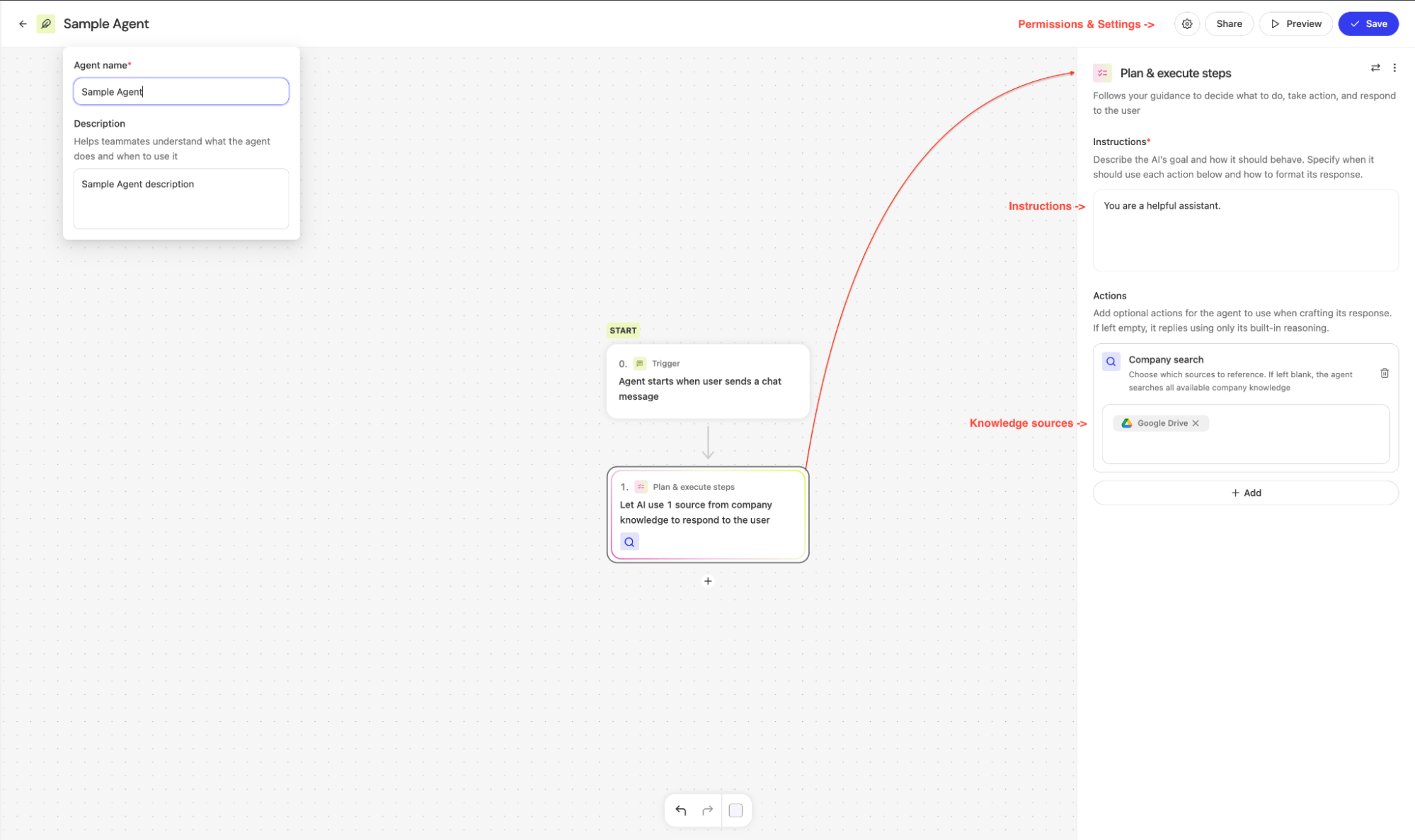 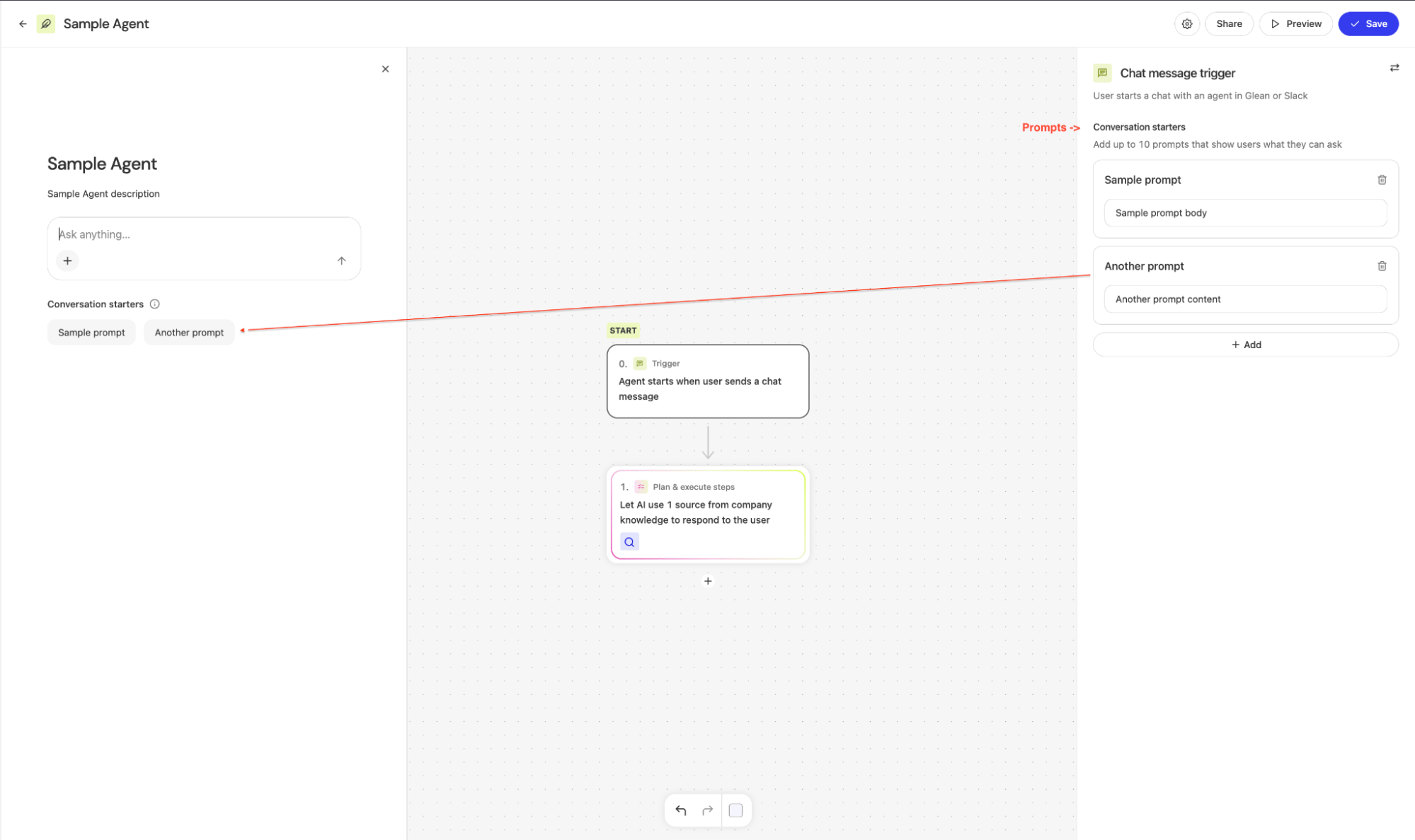
FAQs
##### \[Q\] What happens to bookmarked links to my Application post-migration, such as [https://app.glean.com/chat?applicationId=example\_application](https://app.glean.com/chat?applicationId=example_application)
?
* Once the migration is completed, Glean will seamlessly redirect any navigation from a link to an App to the corresponding Agent, so any previously bookmarked links for Apps will continue to work.
##### \[Q\] What about the Web SDK? I’m using an App with chat embedded on my website.
* Currently, one can embed an AI App in their site by using the applicationId parameter such as:
Copy
GleanWebSDK.renderChat(document.getElementById('container'), {
applicationId: "example_application"
})
* Post-migration, your existing code that is using applicationId with the Web SDK will continue to work as Glean internally translates the applicationId to the corresponding migrated agentId, ensuring your embedded chat functionality remains uninterrupted.
Note:
* The applicationId parameter will not work for new agents, and agentId should be used instead.
* We recommend switching to agentId for Web SDK usage of migrated agents once the same is completed.
Copy
GleanWebSDK.renderChat(document.getElementById('container'), {
applicationId: "example_application" // Will continue to work for agents that used to be Apps.
})
GleanWebSDK.renderChat(document.getElementById('container'), {
agentId: "example_application" // (Recommended) Use this for new agents or agents migrated from Apps.
})
##### \[Q\] I’m using the App via REST API, will the app stop working when called via /rest/api/v1/chat?
* For Apps that are migrated to an Agent, Glean will internally translate the applicationId parameter in the chat request to the corresponding agentId to ensure functionality remains uninterrupted.
Note:
* The applicationId parameter will not work for new agents, and agentId should be used instead.
* We recommend switching to agentId for REST API usage of migrated agents once the same is completed.
Copy
curl 'https://.glean.com/rest/api/v1/chat' \
-H 'Content-Type: application/json' \
-H 'Authorization: Bearer ...' \
-d '{
"stream": false,
"applicationId": "example_application",
"messages": [\
{\
"author": "USER",\
"fragments": [\
{\
"text": "What are the holidays this year?"\
}\
]\
}\
]
}'
curl 'https://.glean.com/rest/api/v1/chat' \
-H 'Content-Type: application/json' \
-H 'Authorization: Bearer ...' \
-d '{
"stream": false,
"agentId": "example_application", // For new agents Or agents migrated from Apps
"messages": [\
{\
"author": "USER",\
"fragments": [\
{\
"text": "What are the holidays this year?"\
}\
]\
}\
]
}'
##### \[Q\] Will my App’s conversation history be preserved?
* Yes, all existing chat sessions and conversation history will be maintained.
##### \[Q\] What happens to my App’s Slack integration?
* Your App’s Slack settings and channel mappings will transfer directly to the corresponding Agent. The Agent will maintain the same Slack functionality and channel associations as your original App.
##### \[Q\] Can I continue using my App during the migration process?
* During the migration phases, your Apps will continue to function normally until it is successful and they are replaced with the corresponding agent.
##### \[Q\] What if I made changes to my App before migration?
* Any changes made to Apps before the final migration will be preserved in the resulting Agent.
Was this page helpful?
YesNo
[Manage Featured Agents in the Agent Library](https://docs.glean.com/administration/managing-agents/featured-agents)
⌘I
---
# Model deprecation - Glean Help Center
[Skip to main content](https://docs.glean.com/administration/model-deprecation#content-area)
[Glean Help Center home page](https://docs.glean.com/)
Search...
⌘K
Search...
Navigation
Management
Model deprecation
[Home](https://docs.glean.com/home)
[User Guide](https://docs.glean.com/user-guide/about/what-is-glean)
[Agents](https://docs.glean.com/agents/home)
[Get Started for Admins](https://docs.glean.com/get-started/welcome)
[Connectors](https://docs.glean.com/connectors/home)
[Admin Guide](https://docs.glean.com/administration/about)
[Security & Architecture](https://docs.glean.com/security/home)
[Troubleshooting](https://docs.glean.com/troubleshooting/home)
[Release Notes](https://docs.glean.com/release-notes/home)
[Archive](https://docs.glean.com/archive/help-glean/answers/what-are-answers-and-how-do-they-work)
On this page
* [Assistant using a deprecated model](https://docs.glean.com/administration/model-deprecation#assistant-using-a-deprecated-model)
* [Glean Universal Model Key](https://docs.glean.com/administration/model-deprecation#glean-universal-model-key)
* [Customer Key](https://docs.glean.com/administration/model-deprecation#customer-key)
* [Agents using a deprecated model](https://docs.glean.com/administration/model-deprecation#agents-using-a-deprecated-model)
* [What needs your attention](https://docs.glean.com/administration/model-deprecation#what-needs-your-attention)
Glean periodically deprecates older models as newer, more capable versions become available. This section explains how deprecation works and what actions you may need to take.
[](https://docs.glean.com/administration/model-deprecation#assistant-using-a-deprecated-model)
Assistant using a deprecated model
-------------------------------------------------------------------------------------------------------------------------------------
###
[](https://docs.glean.com/administration/model-deprecation#glean-universal-model-key)
Glean Universal Model Key
If you are using Glean Universal Model Key, your assistant model is managed and configured by Glean. Glean ensures your assistant continues to use the latest models available in the market.
###
[](https://docs.glean.com/administration/model-deprecation#customer-key)
Customer Key
Glean will send you advance notifications when your configured assistant model is going to be deprecated.
| Timeline | Email notifications |
| --- | --- |
| **60 days before deprecation** | Glean will send an email notification to all the administrators regarding the upcoming deprecation of their assistant model. |
| **15 days before deprecation** | In case the admins have not yet migrated to a supported model, Glean sends a reminder email to all admins. |
| **After deprecation** | The model is no longer available for use. If the assistant model is not updated by this time, assistant requests will fail with an error and users will not be able to use the assistant until the model is updated to a supported model. |
In addition to email notifications, you will see a banner in the admin console informing you that your assistant model is being deprecated along with the deprecation date.
[](https://docs.glean.com/administration/model-deprecation#agents-using-a-deprecated-model)
Agents using a deprecated model
-------------------------------------------------------------------------------------------------------------------------------
* If any of your agents (or any of the steps within an agent) are using a model that is scheduled for deprecation, you will receive an email notification informing about which agents or steps of the agents are using the deprecated model along with the date of deprecation.
* Glean will also recommend suitable migration models for your agents, based on the models currently enabled within your deployment.
* Apart from the email notifications, you will also see a banner in the admin console informing you about the agents using a deprecated model and the date of deprecation.
* After the deprecation date, if any agents or any steps of the agents are still using the deprecated model, Glean will automatically switch these to the recommended fallback model. This ensures seemless usage of the agents by the users without any disruption.
[](https://docs.glean.com/administration/model-deprecation#what-needs-your-attention)
What needs your attention
-------------------------------------------------------------------------------------------------------------------
* **Admins:** If you receive an email notification about your assistant model being deprecated or see a banner in the admin console, you must update your assistant model to any newer model as soon as possible to avoid any disruption.
* **Agent builders:** If you receive an email notification about your agents using a deprecated model or see a banner in the admin console, Glean recommends that you proactively update your agents to a newer model of your choice. If you are unable to do so before the deprecation date, Glean will automatically move affected agents to a suitable fallback model so they continue to run.
Was this page helpful?
YesNo
[Exclude Models From Glean Agents](https://docs.glean.com/administration/model-exclusion)
[Audit Logs](https://docs.glean.com/administration/management/audit-logs/admin-audit-logs)
⌘I
---
# Glean OAuth Authorization Server - Glean Help Center
[Skip to main content](https://docs.glean.com/administration/oauth/authorization-server#content-area)
[Glean Help Center home page](https://docs.glean.com/)
Search...
⌘K
Search...
Navigation
Glean Authorization Server
Glean OAuth Authorization Server
[Home](https://docs.glean.com/home)
[User Guide](https://docs.glean.com/user-guide/about/what-is-glean)
[Agents](https://docs.glean.com/agents/home)
[Get Started for Admins](https://docs.glean.com/get-started/welcome)
[Connectors](https://docs.glean.com/connectors/home)
[Admin Guide](https://docs.glean.com/administration/about)
[Security & Architecture](https://docs.glean.com/security/home)
[Troubleshooting](https://docs.glean.com/troubleshooting/home)
[Release Notes](https://docs.glean.com/release-notes/home)
[Archive](https://docs.glean.com/archive/help-glean/answers/what-are-answers-and-how-do-they-work)
On this page
* [Overview](https://docs.glean.com/administration/oauth/authorization-server#overview)
* [When to choose this approach](https://docs.glean.com/administration/oauth/authorization-server#when-to-choose-this-approach)
* [What Glean does and does not do](https://docs.glean.com/administration/oauth/authorization-server#what-glean-does-and-does-not-do)
* [Where it applies](https://docs.glean.com/administration/oauth/authorization-server#where-it-applies)
* [Setup and Configuration](https://docs.glean.com/administration/oauth/authorization-server#setup-and-configuration)
* [Enabling the Glean OAuth Authorization Server](https://docs.glean.com/administration/oauth/authorization-server#enabling-the-glean-oauth-authorization-server)
* [Using OAuth with MCP Remote Servers](https://docs.glean.com/administration/oauth/authorization-server#using-oauth-with-mcp-remote-servers)
* [Technical Reference](https://docs.glean.com/administration/oauth/authorization-server#technical-reference)
* [Supported flows and endpoints](https://docs.glean.com/administration/oauth/authorization-server#supported-flows-and-endpoints)
* [Scopes and permissions](https://docs.glean.com/administration/oauth/authorization-server#scopes-and-permissions)
* [Troubleshooting and cautions](https://docs.glean.com/administration/oauth/authorization-server#troubleshooting-and-cautions)
* [Related links](https://docs.glean.com/administration/oauth/authorization-server#related-links)
Glean can act as an OAuth 2.1 Authorization Server (issuing access tokens) and as the Resource Server (validating them), while delegating user authentication to your configured Single Sign-On (SSO) Identity Provider (IdP) using OpenID Connect (OIDC) or Security Assertion Markup Language (SAML). **This is currently designed for MCP remote server authentication.** While the underlying infrastructure supports Client API operations, full Client API support requires additional UI components that are planned for future releases. **Glean does not replace your SSO.** When you enable the Glean OAuth Authorization Server, Glean only acts as the authorization server that issues OAuth access tokens. User authentication continues to happen through your existing SSO Identity Provider (Google Workspace, Microsoft Entra ID, Okta, etc.) using the same OIDC or SAML configuration you already have. Glean reuses your existing SSO for authentication and adds OAuth token issuance on top.
The Indexing API uses a separate authentication model with Glean-issued tokens and does not accept OAuth.
[](https://docs.glean.com/administration/oauth/authorization-server#overview)
Overview
------------------------------------------------------------------------------------------
###
[](https://docs.glean.com/administration/oauth/authorization-server#when-to-choose-this-approach)
When to choose this approach
* You are connecting MCP host applications to Glean’s remote MCP server. This is the recommended authentication path for MCP and requires enabling the Glean OAuth Authorization Server.
* You want faster setup without coordinating with your IdP team for new integrations.
* You want Glean-defined, fine-grained scopes for future Client API integrations (note: full Client API support with UI is coming in a future release).
###
[](https://docs.glean.com/administration/oauth/authorization-server#what-glean-does-and-does-not-do)
What Glean does and does not do
* **Does**: Act as OAuth 2.1 Authorization Server (issue access tokens); define and enforce scopes; validate tokens at the Resource Server.
* **Does not**: Replace or modify your SSO setup. User authentication continues via your existing SSO IdP (OIDC or SAML). Glean reuses your SSO, it doesn’t reinvent it.
###
[](https://docs.glean.com/administration/oauth/authorization-server#where-it-applies)
Where it applies
* **MCP Remote Servers**: Fully supported and recommended. This is the primary use case for the Glean OAuth Authorization Server. Note that host OAuth support may vary by MCP client application.
* **Client API**: Technically supported for operations like search, chat, and agents, but full support requires additional UI components planned for future releases.
[](https://docs.glean.com/administration/oauth/authorization-server#setup-and-configuration)
Setup and Configuration
------------------------------------------------------------------------------------------------------------------------
###
[](https://docs.glean.com/administration/oauth/authorization-server#enabling-the-glean-oauth-authorization-server)
Enabling the Glean OAuth Authorization Server
The Glean OAuth Authorization Server is disabled by default. To enable it, follow the steps below:
1
[](https://docs.glean.com/administration/oauth/authorization-server#)
Navigate to OAuth Settings
Go to the Admin Console and navigate to Settings → Third‑party access (OAuth).
2
[](https://docs.glean.com/administration/oauth/authorization-server#)
Enable Glean OAuth Authorization Server
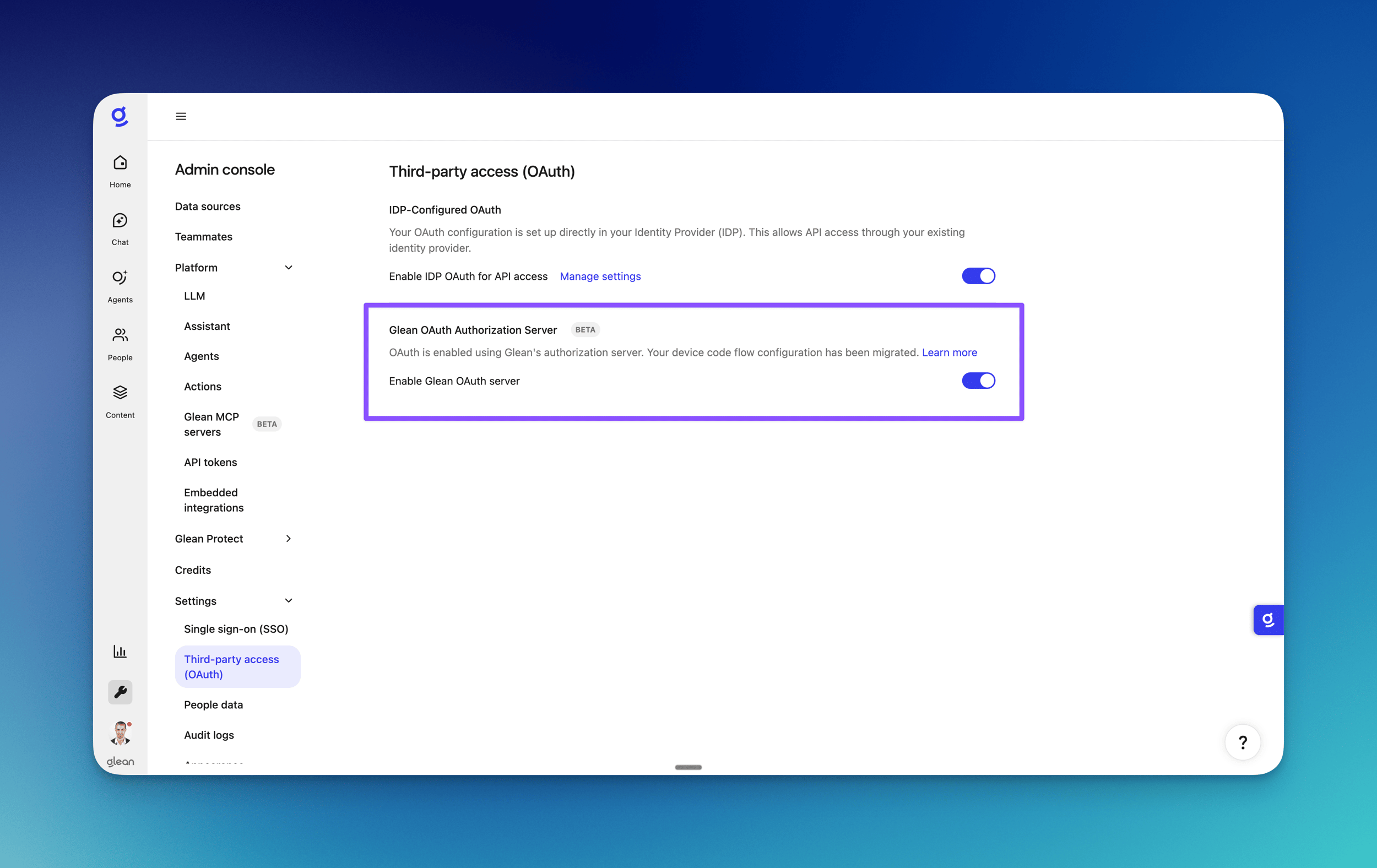
Once the Glean OAuth Authorization Server is enabled, you can start using it immediately, without any additional configuration.
Admins who want to restrict which applications can connect via DCR (e.g. MCP host applications) can configure redirect URI restrictions. See [Dynamic Client Registration](https://docs.glean.com/administration/oauth/dynamic-client-registration)
for details.
###
[](https://docs.glean.com/administration/oauth/authorization-server#using-oauth-with-mcp-remote-servers)
Using OAuth with MCP Remote Servers
Once enabled, MCP host applications can authenticate using the following flow:
* The MCP host initiates the Authorization Code flow (opening a browser for IdP login and user consent)
* The host obtains tokens through the Glean OAuth server
* The host connects to Remote MCP endpoints using the OAuth token
* Bearer token fallback: If an MCP host does not support OAuth, a user-scoped bearer token can be used as a fallback (less preferred than OAuth)
[](https://docs.glean.com/administration/oauth/authorization-server#technical-reference)
Technical Reference
----------------------------------------------------------------------------------------------------------------
###
[](https://docs.glean.com/administration/oauth/authorization-server#supported-flows-and-endpoints)
Supported flows and endpoints
* Authorization Code with Proof Key for Code Exchange (PKCE).
* Endpoints: Authorization, Token, Introspection, and OIDC Discovery. These support standard client registration and token acquisition patterns without exposing non-public base URLs.
###
[](https://docs.glean.com/administration/oauth/authorization-server#scopes-and-permissions)
Scopes and permissions
Glean-defined scopes govern API capabilities. Request the minimum scopes needed for your integration. Examples include `SEARCH`, `CHAT`, `AGENTS`, `MCP`, `DOCUMENTS`, `TOOLS`, and `ENTITIES`. For MCP remote servers, the relevant scopes (particularly `MCP` and related resource scopes) are automatically managed during the OAuth flow. The Indexing API uses a separate authentication model and does not accept OAuth.
###
[](https://docs.glean.com/administration/oauth/authorization-server#troubleshooting-and-cautions)
Troubleshooting and cautions
* Ensure the Glean OAuth server is enabled; otherwise token acquisition or validation will fail.
* Redirect URIs must match exactly; the PKCE verifier must match the original challenge.
* Do not use OAuth for the Indexing API, which requires Glean-issued tokens.
* MCP host client authentication failures or unknown client errors: Clear the host’s stored MCP credentials and re-authenticate.
[](https://docs.glean.com/administration/oauth/authorization-server#related-links)
Related links
----------------------------------------------------------------------------------------------------
* [Back to Overview](https://docs.glean.com/administration/oauth/oauth-overview)
* [Dynamic Client Registration](https://docs.glean.com/administration/oauth/dynamic-client-registration)
* [IdP-based OAuth](https://docs.glean.com/administration/oauth/oauth-idp)
* [Client API authentication overview](https://developers.glean.com/api-info/client/authentication/overview)
* [OAuth (IdP tokens) developer guide](https://developers.glean.com/api-info/client/authentication/oauth)
* [MCP Remote Server (overview/host configurator)](https://developers.glean.com/guides/mcp/)
* [MCP Server setup (admin enablement context)](https://docs.glean.com/administration/platform/mcp/connecting-to-glean-mcp-server)
Was this page helpful?
YesNo
[Overview](https://docs.glean.com/administration/oauth/oauth-overview)
[Dynamic Client Registration](https://docs.glean.com/administration/oauth/dynamic-client-registration)
⌘I
---
# Exclude Models From Glean Agents - Glean Help Center
[Skip to main content](https://docs.glean.com/administration/model-exclusion#content-area)
[Glean Help Center home page](https://docs.glean.com/)
Search...
⌘K
Search...
Navigation
Management
Exclude Models From Glean Agents
[Home](https://docs.glean.com/home)
[User Guide](https://docs.glean.com/user-guide/about/what-is-glean)
[Agents](https://docs.glean.com/agents/home)
[Get Started for Admins](https://docs.glean.com/get-started/welcome)
[Connectors](https://docs.glean.com/connectors/home)
[Admin Guide](https://docs.glean.com/administration/about)
[Security & Architecture](https://docs.glean.com/security/home)
[Troubleshooting](https://docs.glean.com/troubleshooting/home)
[Release Notes](https://docs.glean.com/release-notes/home)
[Archive](https://docs.glean.com/archive/help-glean/answers/what-are-answers-and-how-do-they-work)
On this page
* [Glean Universal Model Key (formerly Glean Key)](https://docs.glean.com/administration/model-exclusion#glean-universal-model-key-formerly-glean-key)
* [Customer Key](https://docs.glean.com/administration/model-exclusion#customer-key)
Glean allows you to exclude models from being used in your Glean Agents. This is useful if you want to prevent certain models from being available to your agent builders to be used in their agents.
[](https://docs.glean.com/administration/model-exclusion#glean-universal-model-key-formerly-glean-key)
Glean Universal Model Key (formerly _Glean Key_)
-----------------------------------------------------------------------------------------------------------------------------------------------------------
For the Glean Universal Model Key, Glean supports exclusion on the basis of model families. This means that you can exclude all models from a particular family from being used in your agents. Steps:
1. Go to **Admin Console**.
2. Select **Platform > LLM**.
3. Click **Add LLM**.
4. Select the specific hosting provider.
5. Select the model families you want to exclude from the **Agent model families** section.
6. A pop-up will appear informing you about the agents that will be affected by the exclusion.
7. Click **Exclude**.
You cannot exclude model families used in the Assistant.
Any agents (or a step within an agent) that were using a model from a previously included model family will automatically start using the default assistant model. All the excluded model families will be shown in the **Excluded from agents** section. You can click on **Include** to use these model families in your agents again. 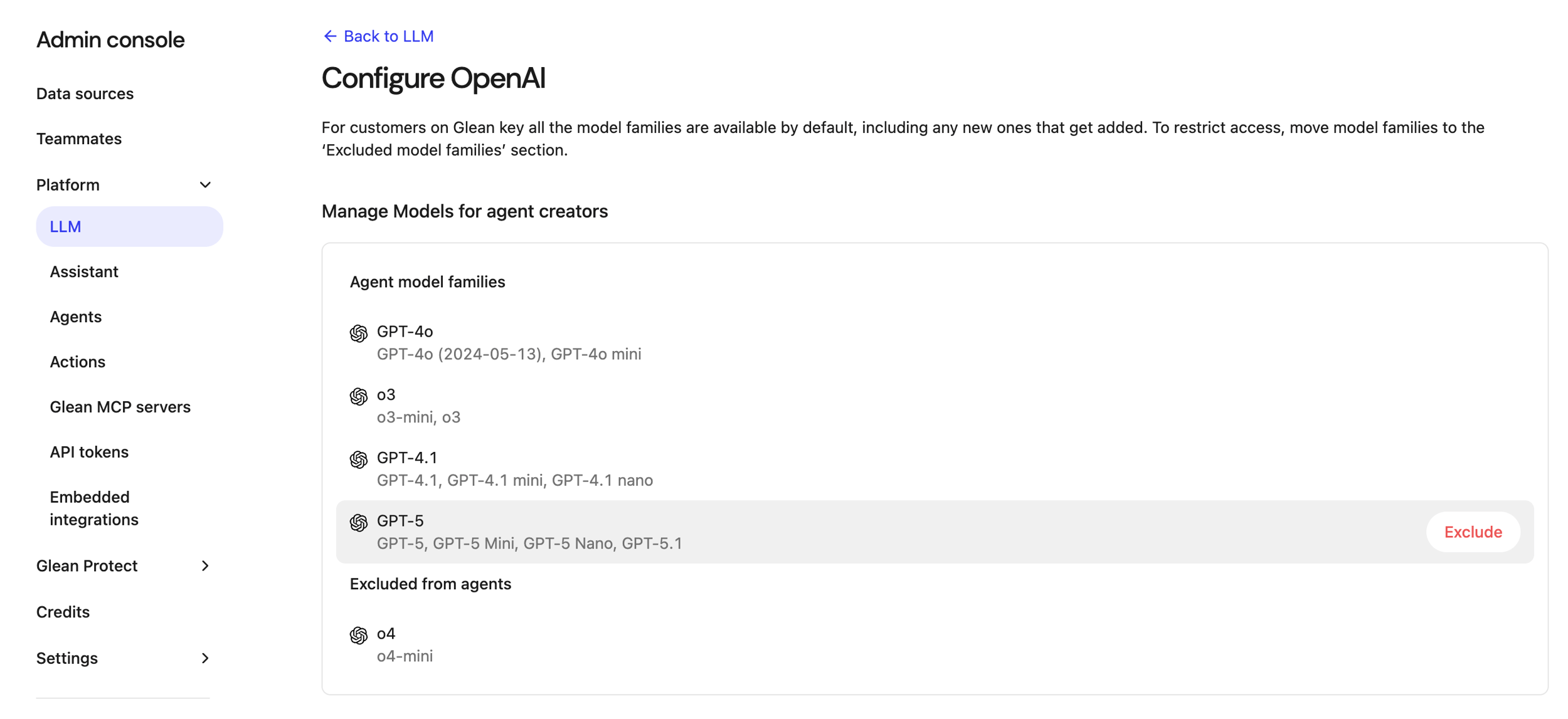
[](https://docs.glean.com/administration/model-exclusion#customer-key)
Customer Key
---------------------------------------------------------------------------------------
For Customer Key, you can exclude specific models from being used in your agents. Steps:
1. Go to **Admin Console**.
2. Select **Platform > LLM**.
3. Click **Add LLM**.
4. Select the specific hosting provider.
5. Clear the checkbox next to the model you want to exclude.
6. Validate the connection.
7. Click **Save**.
Was this page helpful?
YesNo
[Set up LLMs using the Model Hub](https://docs.glean.com/administration/llms)
[Model deprecation](https://docs.glean.com/administration/model-deprecation)
⌘I
---
# Dynamic Client Registration - Glean Help Center
[Skip to main content](https://docs.glean.com/administration/oauth/dynamic-client-registration#content-area)
[Glean Help Center home page](https://docs.glean.com/)
Search...
⌘K
Search...
Navigation
Glean Authorization Server
Dynamic Client Registration
[Home](https://docs.glean.com/home)
[User Guide](https://docs.glean.com/user-guide/about/what-is-glean)
[Agents](https://docs.glean.com/agents/home)
[Get Started for Admins](https://docs.glean.com/get-started/welcome)
[Connectors](https://docs.glean.com/connectors/home)
[Admin Guide](https://docs.glean.com/administration/about)
[Security & Architecture](https://docs.glean.com/security/home)
[Troubleshooting](https://docs.glean.com/troubleshooting/home)
[Release Notes](https://docs.glean.com/release-notes/home)
[Archive](https://docs.glean.com/archive/help-glean/answers/what-are-answers-and-how-do-they-work)
On this page
* [Restriction options](https://docs.glean.com/administration/oauth/dynamic-client-registration#restriction-options)
* [Configuring the Glean-managed list](https://docs.glean.com/administration/oauth/dynamic-client-registration#configuring-the-glean-managed-list)
* [Configuring your own static list](https://docs.glean.com/administration/oauth/dynamic-client-registration#configuring-your-own-static-list)
* [Redirect URI patterns](https://docs.glean.com/administration/oauth/dynamic-client-registration#redirect-uri-patterns)
* [Example](https://docs.glean.com/administration/oauth/dynamic-client-registration#example)
* [Related links](https://docs.glean.com/administration/oauth/dynamic-client-registration#related-links)
Admin-configured dynamic client restrictions is a new feature and may not be available in your tenant yet.
The Glean OAuth Authorization Server supports Dynamic Client Registration (DCR). This is the preferred approach for [MCP host applications to connect to Glean](https://modelcontextprotocol.io/specification/2025-03-26/basic/authorization#dynamic-client-registration)
. By default, any MCP host application can register with the Glean OAuth Authorization Server. Admins who prefer to restrict dynamic client registration can do so by limiting the redirect URIs that dynamically registered clients may use.
[](https://docs.glean.com/administration/oauth/dynamic-client-registration#restriction-options)
Restriction options
-----------------------------------------------------------------------------------------------------------------------
You have two options for restricting DCR:
| Option | Description |
| --- | --- |
| **Glean-managed list** | Use a Glean curated list of clients, with optional additional redirect URIs for other applications. This list may change over time as new clients are evaluated. |
| **Static list** | Use a list of redirect URI patterns fully maintained by you. You have complete control over which clients can register. |
Use the **Glean-managed list** if you want to automatically allow popular MCP host applications as Glean vets them. Use a **static list** if your security policy requires explicit approval of every client.
[](https://docs.glean.com/administration/oauth/dynamic-client-registration#configuring-the-glean-managed-list)
Configuring the Glean-managed list
-----------------------------------------------------------------------------------------------------------------------------------------------------
Use this option to allow Glean-vetted clients while optionally adding your own.
1
[](https://docs.glean.com/administration/oauth/dynamic-client-registration#)
Enable the Glean OAuth Authorization Server
Follow the steps in [Enabling the Glean OAuth Authorization Server](https://docs.glean.com/administration/oauth/authorization-server#enabling-the-glean-oauth-authorization-server)
.
2
[](https://docs.glean.com/administration/oauth/dynamic-client-registration#)
Open settings
Click **Manage settings** to open the settings modal.

3
[](https://docs.glean.com/administration/oauth/dynamic-client-registration#)
Enable redirect URI restrictions
Enable the **Restrict Dynamic Clients by Redirect URI** toggle.Leave the **Use Glean-managed List** toggle enabled to automatically allow future Glean-vetted clients.

4
[](https://docs.glean.com/administration/oauth/dynamic-client-registration#)
Add additional redirect URIs (optional)
Add any additional redirect URI patterns for clients you want your users to connect with.

[](https://docs.glean.com/administration/oauth/dynamic-client-registration#configuring-your-own-static-list)
Configuring your own static list
-------------------------------------------------------------------------------------------------------------------------------------------------
Use this option for complete control over which clients can register.
1
[](https://docs.glean.com/administration/oauth/dynamic-client-registration#)
Enable the Glean OAuth Authorization Server
Follow the steps in [Enabling the Glean OAuth Authorization Server](https://docs.glean.com/administration/oauth/authorization-server#enabling-the-glean-oauth-authorization-server)
.
2
[](https://docs.glean.com/administration/oauth/dynamic-client-registration#)
Open settings
Click **Manage settings** to open the settings modal.

3
[](https://docs.glean.com/administration/oauth/dynamic-client-registration#)
Enable redirect URI restrictions
Enable the **Restrict Dynamic Clients by Redirect URI** toggle.

4
[](https://docs.glean.com/administration/oauth/dynamic-client-registration#)
Disable Glean-managed list
Disable the **Use Glean-managed List** toggle. Now the only redirect URIs allowed during client registration are those that match the patterns in the table.

5
[](https://docs.glean.com/administration/oauth/dynamic-client-registration#)
Configure allowed clients
Toggle individual clients to add or remove their redirect URI patterns.
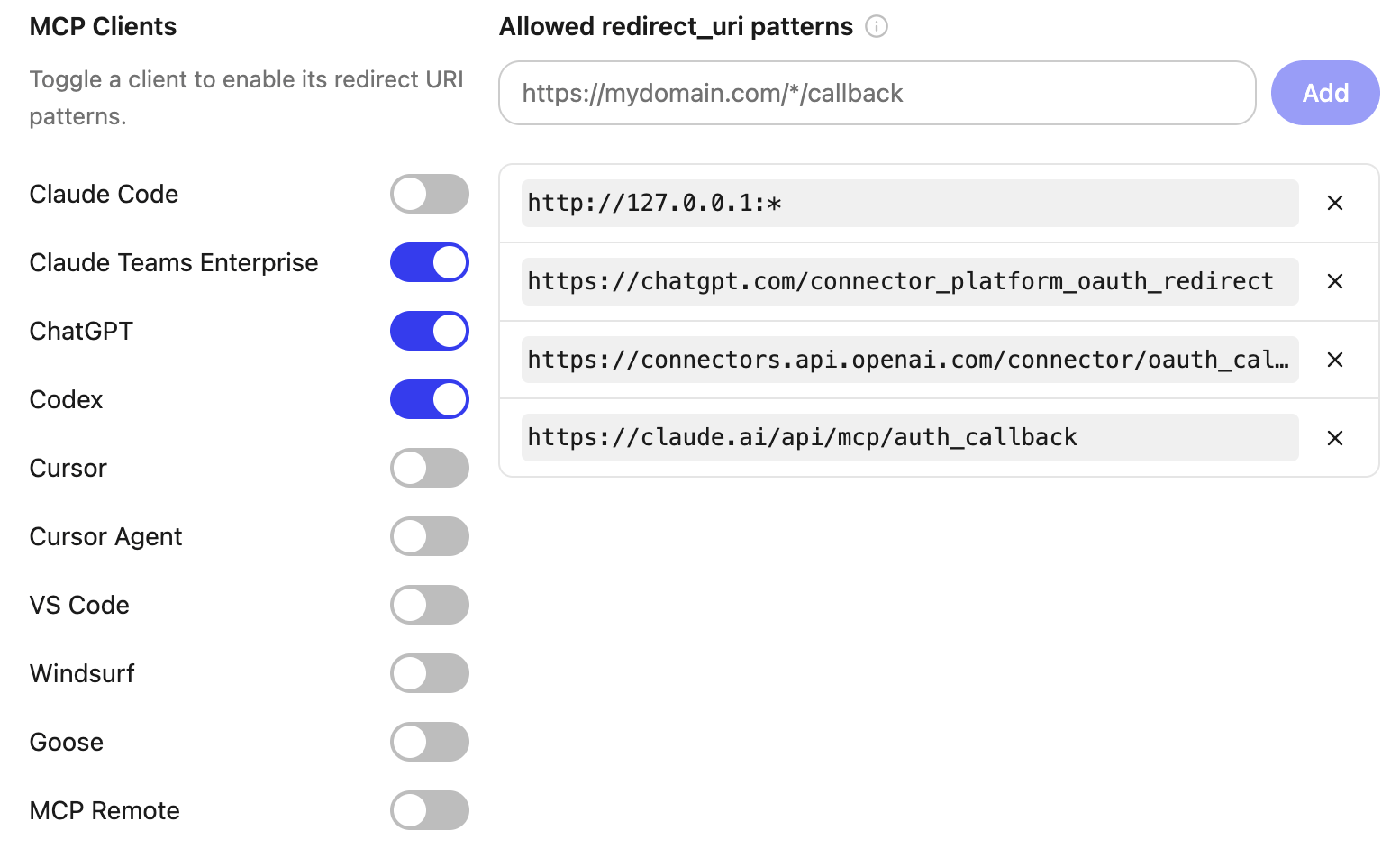
Alternatively, remove redirect URI patterns individually.

6
[](https://docs.glean.com/administration/oauth/dynamic-client-registration#)
Add redirect URI patterns
Add redirect URI patterns for any additional clients you want your users to connect with.

[](https://docs.glean.com/administration/oauth/dynamic-client-registration#redirect-uri-patterns)
Redirect URI patterns
---------------------------------------------------------------------------------------------------------------------------
Patterns can match redirect URIs exactly or use `*` as a wildcard to match characters within a single path segment.
The wildcard `*` does not match path separators (`/`) or traverse directory boundaries. This prevents overly broad patterns from inadvertently allowing unintended redirect URIs.
###
[](https://docs.glean.com/administration/oauth/dynamic-client-registration#example)
Example
For a redirect URI `https://my.example.com/oauth/callback`:
| Pattern | Matches? | Reason |
| --- | --- | --- |
| `https://my.example.com/oauth/callback` | Yes | Exact match |
| `https://my.example.com/oauth/*` | Yes | Wildcard matches `callback` |
| `https://my.example.com/*/callback` | Yes | Wildcard matches `oauth` |
| `https://my.example.com/*` | No | Wildcard cannot match across path separators (`oauth/callback`) |
[](https://docs.glean.com/administration/oauth/dynamic-client-registration#related-links)
Related links
-----------------------------------------------------------------------------------------------------------
* [Glean OAuth Authorization Server](https://docs.glean.com/administration/oauth/authorization-server)
* [OAuth Overview](https://docs.glean.com/administration/oauth/oauth-overview)
* [MCP Authorization (specification)](https://modelcontextprotocol.io/specification/2025-03-26/basic/authorization#dynamic-client-registration)
Was this page helpful?
YesNo
[Overview](https://docs.glean.com/administration/oauth/authorization-server)
[OAuth via IdP](https://docs.glean.com/administration/oauth/oauth-idp)
⌘I
---
# Page Not Found
[Skip to main content](https://docs.glean.com/administration/platform/mcp/connecting-to-glean-mcp-server#content-area)
[Glean Help Center home page](https://docs.glean.com/)
Search...
⌘K
Search...
Navigation
Page Not Found
[Home](https://docs.glean.com/home)
[User Guide](https://docs.glean.com/user-guide/about/what-is-glean)
[Agents](https://docs.glean.com/agents/home)
[Get Started for Admins](https://docs.glean.com/get-started/welcome)
[Connectors](https://docs.glean.com/connectors/home)
[Admin Guide](https://docs.glean.com/administration/about)
[Security & Architecture](https://docs.glean.com/security/home)
[Troubleshooting](https://docs.glean.com/troubleshooting/home)
[Release Notes](https://docs.glean.com/release-notes/home)
[Archive](https://docs.glean.com/archive/help-glean/answers/what-are-answers-and-how-do-they-work)
404
Page Not Found
==============
We couldn't find the page. Maybe you were looking for one of these pages below?
[About Glean MCP Servers](https://docs.glean.com/administration/platform/mcp/about#)
[Using the Glean MCP Server](https://docs.glean.com/user-guide/mcp/usage#using-the-glean-mcp-server)
[MCP Security, Data Flow, and Permissions](https://docs.glean.com/administration/platform/mcp/security#1-what-the-glean-mcp-server-is)
⌘I
---
# Error Codes - Glean Help Center
[Skip to main content](https://docs.glean.com/troubleshooting/error-codes/home#content-area)
[Glean Help Center home page](https://docs.glean.com/)
Search...
⌘K
Search...
Navigation
Error Codes
Error Codes
[Home](https://docs.glean.com/home)
[User Guide](https://docs.glean.com/user-guide/about/what-is-glean)
[Agents](https://docs.glean.com/agents/home)
[Get Started for Admins](https://docs.glean.com/get-started/welcome)
[Connectors](https://docs.glean.com/connectors/home)
[Admin Guide](https://docs.glean.com/administration/about)
[Security & Architecture](https://docs.glean.com/security/home)
[Troubleshooting](https://docs.glean.com/troubleshooting/home)
[Release Notes](https://docs.glean.com/release-notes/home)
[Archive](https://docs.glean.com/archive/help-glean/answers/what-are-answers-and-how-do-they-work)
Welcome to the Glean Error Codes documentation! This section provides a list of error codes that you may encounter while using Glean. Each error code is accompanied by a description of the issue and its resolution.
Was this page helpful?
YesNo
[Clear the Browser Cache](https://docs.glean.com/troubleshooting/clear-browser-cache)
[Config-validation-error](https://docs.glean.com/troubleshooting/error-codes/generic/config-validation-error)
⌘I
---
# Glean Deployment Models - Glean Help Center
[Skip to main content](https://docs.glean.com/get-started/build/about-self-hosted#content-area)
[Glean Help Center home page](https://docs.glean.com/)
Search...
⌘K
Search...
Navigation
Stage 2: Build
Glean Deployment Models
[Home](https://docs.glean.com/home)
[User Guide](https://docs.glean.com/user-guide/about/what-is-glean)
[Agents](https://docs.glean.com/agents/home)
[Get Started for Admins](https://docs.glean.com/get-started/welcome)
[Connectors](https://docs.glean.com/connectors/home)
[Admin Guide](https://docs.glean.com/administration/about)
[Security & Architecture](https://docs.glean.com/security/home)
[Troubleshooting](https://docs.glean.com/troubleshooting/home)
[Release Notes](https://docs.glean.com/release-notes/home)
[Archive](https://docs.glean.com/archive/help-glean/answers/what-are-answers-and-how-do-they-work)
On this page
* [Glean Hosted (SaaS)](https://docs.glean.com/get-started/build/about-self-hosted#glean-hosted-saas)
* [Description](https://docs.glean.com/get-started/build/about-self-hosted#description)
* [Advantages](https://docs.glean.com/get-started/build/about-self-hosted#advantages)
* [When should you choose this?](https://docs.glean.com/get-started/build/about-self-hosted#when-should-you-choose-this)
* [Customer-Hosted (Cloud-Prem)](https://docs.glean.com/get-started/build/about-self-hosted#customer-hosted-cloud-prem)
* [Description](https://docs.glean.com/get-started/build/about-self-hosted#description-2)
* [Advantages](https://docs.glean.com/get-started/build/about-self-hosted#advantages-2)
* [When should you choose this?](https://docs.glean.com/get-started/build/about-self-hosted#when-should-you-choose-this-2)
Glean currently offers two deployment models for customers: Glean Hosted (SaaS) and Customer-Hosted (Cloud-Prem). Regardless of the deployment model chosen:
1. Glean only uses a single-tenant infrastructure, meaning that each customer’s data is isolated from other customers’ data. Customer data does not leave this environment.
2. Glean is responsible for infrastructure and application management, including upgrades, patching, and monitoring.
3. Glean maintains support access to the customer environment for debugging and support purposes.
Our product is the same in both deployment models, with the only difference being where the infrastructure is hosted.
[](https://docs.glean.com/get-started/build/about-self-hosted#glean-hosted-saas)
Glean Hosted (SaaS)
--------------------------------------------------------------------------------------------------------
###
[](https://docs.glean.com/get-started/build/about-self-hosted#description)
Description
In this scenario, Glean hosts your Glean instance within our own tenant. This is equivalent to a true SaaS service. The customer does not have any infrastructure responsibility in this model. The cloud provider that Glean uses is GCP.
###
[](https://docs.glean.com/get-started/build/about-self-hosted#advantages)
Advantages
* Simplified setup process - no infrastructure setup required on customer end.
* Full auto-scaling as the corpus and users grow.
* Rely on Glean’s security controls and guarantees to protect your data.
* Simpler licensing and pricing model. Glean is responsible for all infrastructure costs.
* Multiple regions supported
###
[](https://docs.glean.com/get-started/build/about-self-hosted#when-should-you-choose-this)
When should you choose this?
* You do not want to host the infrastructure for Glean.
* You want a full out-of-the-box experience.
* You want to have a simpler pricing model.
[](https://docs.glean.com/get-started/build/about-self-hosted#customer-hosted-cloud-prem)
Customer-Hosted (Cloud-Prem)
--------------------------------------------------------------------------------------------------------------------------
###
[](https://docs.glean.com/get-started/build/about-self-hosted#description-2)
Description
In the Cloud-prem model, your Glean tenant is deployed by Glean **as a managed service** in isolation within your own cloud environment (i.e. GCP, AWS). **Note that this is equivalent to a hosted-SaaS model where Glean still has minimal access to operate it like as SaaS service. This is not a traditional self-hosted model.**
###
[](https://docs.glean.com/get-started/build/about-self-hosted#advantages-2)
Advantages
* Full data residency guarantees - data does not leave your organizational boundaries
* Enhanced visibility - you have full access to all raw logs stored within Glean
* Additonal options for networking to internal resources - while Glean still operates in an isolated VPC controlled by Glean, organizations have more options for networking to internal resources.
* Additional security controls - customers can apply VPC SC + Org policies (GCP) or SCPs (AWS) to further lock down the project.
* Use your existing cloud spend commitments to retire the costs of hosting Glean. Glean provides lower licensing costs for customers that host Glean in their own cloud environment.
###
[](https://docs.glean.com/get-started/build/about-self-hosted#when-should-you-choose-this-2)
When should you choose this?
* You have strict data residency requirements where data cannot leave your organizational boundaries. Alternative geographic regions are also available in SaaS
* You want full access to raw logs for compliance or security reasons
* You want to leverage your existing cloud spend commitments to retire the costs of hosting Glean
* You want additional security controls and networking options on the project
Glean does not support manually deploying/patching the Glean services, or altering any part of the Glean architecture. Glean’s architecture is not just a set of containerized services: It is a fully integrated system spanning different private networks, storage, databases, compute resources, and other integrated services.If your organization has significant restrictions on what can be deployed in your cloud environment, we recommend considering the Glean-hosted option instead.
Looking for the original version of this page? You can find the archived version [here](https://docs.glean.com/archive/help-glean/getting-started-in-glean/glean-deployment-options)
.
Was this page helpful?
YesNo
[Pre-Deployment Checklist](https://docs.glean.com/get-started/prepare/pre-deployment-checklist)
[GCP Deployment Guide](https://docs.glean.com/get-started/build/gcp/deploy-gcp)
⌘I
---
# Post-Launch Tasks & Checklist - Glean Help Center
[Skip to main content](https://docs.glean.com/get-started/start/post-launch-tasks#content-area)
[Glean Help Center home page](https://docs.glean.com/)
Search...
⌘K
Search...
Navigation
Stage 6: Post-Launch
Post-Launch Tasks & Checklist
[Home](https://docs.glean.com/home)
[User Guide](https://docs.glean.com/user-guide/about/what-is-glean)
[Agents](https://docs.glean.com/agents/home)
[Get Started for Admins](https://docs.glean.com/get-started/welcome)
[Connectors](https://docs.glean.com/connectors/home)
[Admin Guide](https://docs.glean.com/administration/about)
[Security & Architecture](https://docs.glean.com/security/home)
[Troubleshooting](https://docs.glean.com/troubleshooting/home)
[Release Notes](https://docs.glean.com/release-notes/home)
[Archive](https://docs.glean.com/archive/help-glean/answers/what-are-answers-and-how-do-they-work)
On this page
* [Checklist](https://docs.glean.com/get-started/start/post-launch-tasks#checklist)
* [1\. Conduct a Follow-Up Survey](https://docs.glean.com/get-started/start/post-launch-tasks#1-conduct-a-follow-up-survey)
* [Survey Template](https://docs.glean.com/get-started/start/post-launch-tasks#survey-template)
* [2\. Deploy Additional Users](https://docs.glean.com/get-started/start/post-launch-tasks#2-deploy-additional-users)
* [3\. Meet with Glean](https://docs.glean.com/get-started/start/post-launch-tasks#3-meet-with-glean)
 Here’s what you need to do next to make sure Glean becomes a seamless part of your daily operations.
[](https://docs.glean.com/get-started/start/post-launch-tasks#checklist)
Checklist
--------------------------------------------------------------------------------------
[](https://docs.glean.com/get-started/start/post-launch-tasks#)
Conduct a follow-up survey with your users
[](https://docs.glean.com/get-started/start/post-launch-tasks#)
Expand Glean to additional users
[](https://docs.glean.com/get-started/start/post-launch-tasks#)
Set Up Regular Check-Ins with the Glean team
* * *
[](https://docs.glean.com/get-started/start/post-launch-tasks#1-conduct-a-follow-up-survey)
1\. Conduct a Follow-Up Survey
------------------------------------------------------------------------------------------------------------------------------
~4 weeks after the kickoff to the initial wave of users, you should send out a survey to collect their thoughts and experiences, and examine how the results from the initial survey have changed. This feedback is crucial for understanding what’s working and what might need tweaking before the next wave of users is brought on-board.
###
[](https://docs.glean.com/get-started/start/post-launch-tasks#survey-template)
Survey Template
Glean offers a template for the follow-up survey designed to gather all necessary user insights effectively. This template can be used as-is or can be customized to better fit the specific needs of your organization.
* [Glean Follow-Up User Survey](https://docs.google.com/forms/d/1LgXBqKJqlP8q_xpR2p0J9h7_QI8wCUcE6XGZn5VFeUI)
(Google Forms)
You should ensure that all of your initial users have completed the survey before on-boarding the next group.
Consider posting an **Announcement** in Glean that mandates the completion of this survey for all users.
[](https://docs.glean.com/get-started/start/post-launch-tasks#2-deploy-additional-users)
2\. Deploy Additional Users
------------------------------------------------------------------------------------------------------------------------
If user feedback is positive, start to expand the Glean rollout to additional waves of users. If your initial rollout was only within a single department or team, you should now expand to additional business units.
[](https://docs.glean.com/get-started/start/post-launch-tasks#3-meet-with-glean)
3\. Meet with Glean
--------------------------------------------------------------------------------------------------------
If not in place already, ensure that regular meetings with your Delivery Excellence Manager (DEM) or Account Manager have been scheduled. These are invaluable for troubleshooting, exploring new features, and ensuring that your Glean deployment continues to go smoothly.
Was this page helpful?
YesNo
[Launch Preparation](https://docs.glean.com/get-started/golive/launch-preparation)
⌘I
---
# Customize Branding - Glean Help Center
[Skip to main content](https://docs.glean.com/get-started/golive/customize-branding#content-area)
[Glean Help Center home page](https://docs.glean.com/)
Search...
⌘K
Search...
Navigation
Stage 5: Go Live
Customize Branding
[Home](https://docs.glean.com/home)
[User Guide](https://docs.glean.com/user-guide/about/what-is-glean)
[Agents](https://docs.glean.com/agents/home)
[Get Started for Admins](https://docs.glean.com/get-started/welcome)
[Connectors](https://docs.glean.com/connectors/home)
[Admin Guide](https://docs.glean.com/administration/about)
[Security & Architecture](https://docs.glean.com/security/home)
[Troubleshooting](https://docs.glean.com/troubleshooting/home)
[Release Notes](https://docs.glean.com/release-notes/home)
[Archive](https://docs.glean.com/archive/help-glean/answers/what-are-answers-and-how-do-they-work)
On this page
* [Company Branding](https://docs.glean.com/get-started/golive/customize-branding#company-branding)
* [Home Page](https://docs.glean.com/get-started/golive/customize-branding#home-page)
 Administrators can control several aspects of Glean’s look and feel to ensure that it fits with the rest of the tools that employees use at work. The customization options include the following:
* **Company Branding:** These settings control the look of Glean everywhere, and include support for custom logos and colors.
* **Home page:** These settings control how the Glean home page appears to users across your company, and include settings for a default background image, quick actions, and available home page widgets.
* **Feature Enablement:** These settings control which features within the Glean app are enabled/disabled for your employees. E.g. You may wish to disable the org chart from being accessed by your users.
You must be assigned the **Admin** or **Super Admin** roles to be able to customize the workspace appearance.
* * *
[](https://docs.glean.com/get-started/golive/customize-branding#company-branding)
Company Branding
------------------------------------------------------------------------------------------------------
[Admin Console > Settings > Appearance > Manage Branding](https://app.glean.com/admin/appearance) 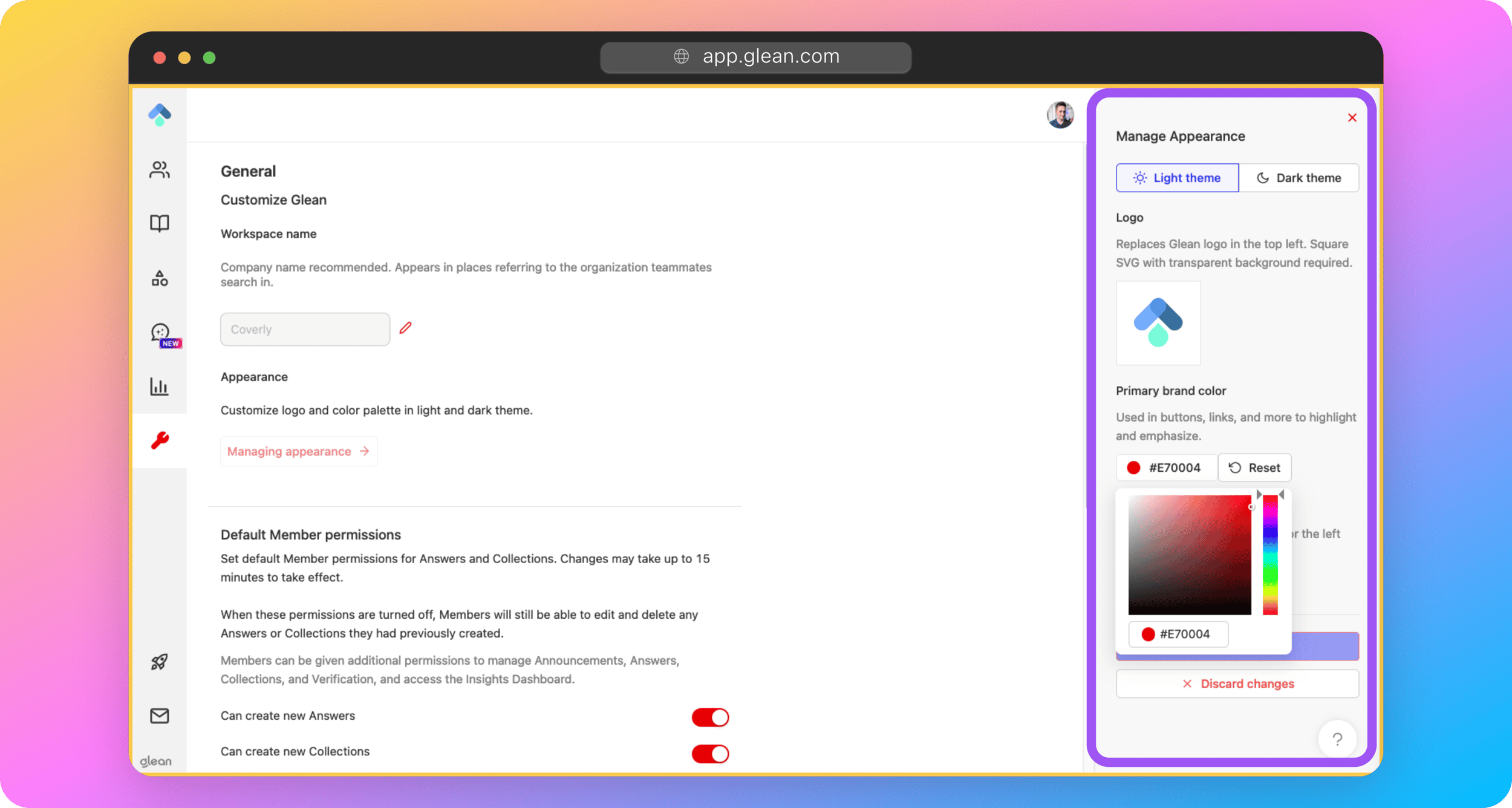 You can personalize the Glean UI to match your company’s branding by adjusting:
* The company name displayed throughout the UI
* Logo
* Color theme
More information: [Company Branding](https://docs.glean.com/administration/management/customization/branding)
* * *
[](https://docs.glean.com/get-started/golive/customize-branding#home-page)
Home Page
----------------------------------------------------------------------------------------
[Admin Console > Settings > Appearance > Manage Home Page](https://app.glean.com/admin/appearance) 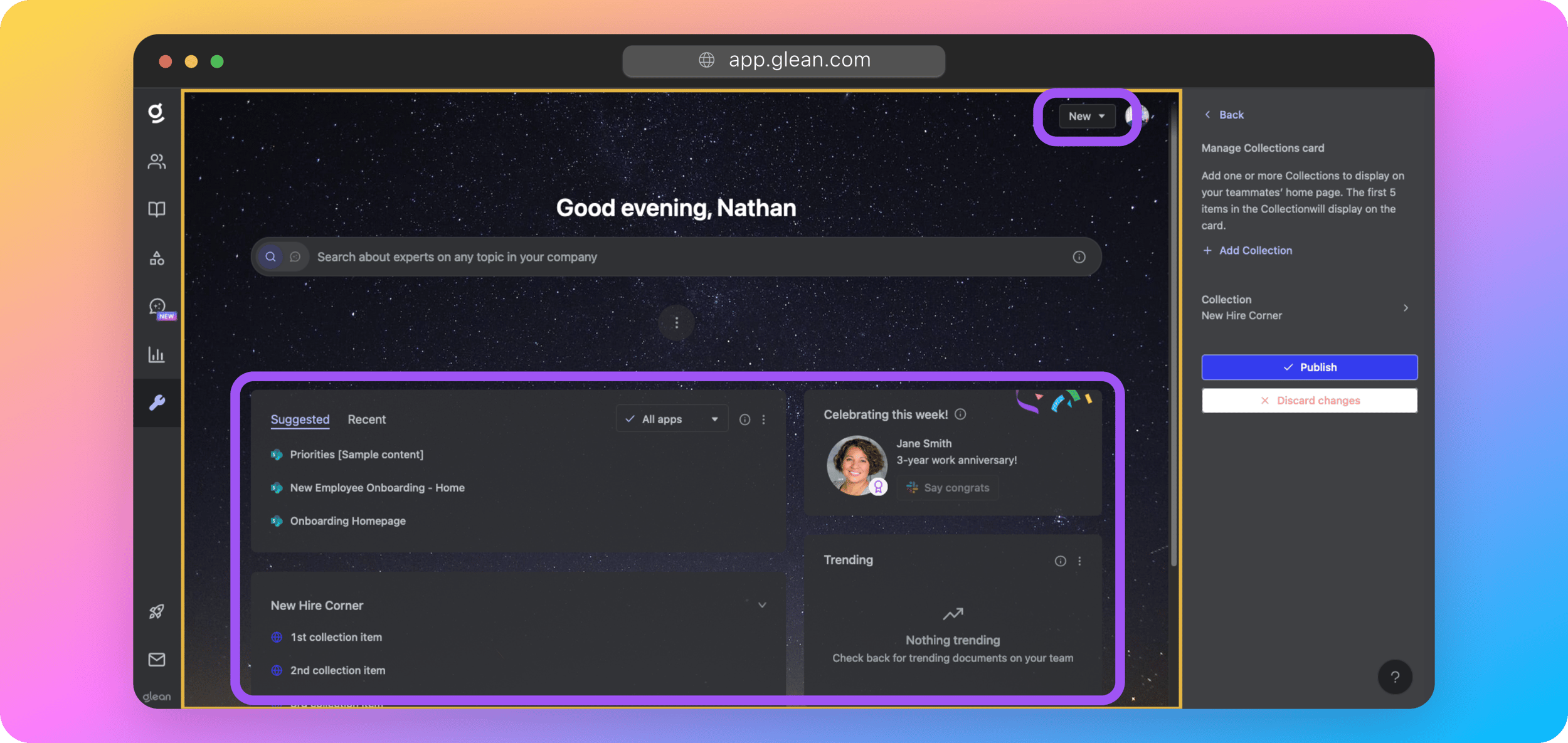 Customize the look and feel of the Glean home page for your employees, including:
* **Cards:** Cards are the sections that are visible on the Glean home page for each of your users. These can include suggested documents, collections, and people celebrations.
* **Quick Actions:** Quick actions are the items that are displayed under the New button in the top-right corner of the Home and New Tab pages; providing shortcuts for your employees to create new content across all of your apps.
* **Default wallpapers:** You can set the default wallpaper that is used for both light and dark modes when users first open Glean.
More information: [Home Page Settings](https://docs.glean.com/administration/management/customization/home-page)
Was this page helpful?
YesNo
[Populate Content](https://docs.glean.com/get-started/golive/populate-content)
[Setup Glean Assistant](https://docs.glean.com/get-started/golive/setup-glean-assistant)
⌘I
---
# Items to Prepare - Glean Help Center
[Skip to main content](https://docs.glean.com/get-started/prepare/items-to-prepare#content-area)
[Glean Help Center home page](https://docs.glean.com/)
Search...
⌘K
Search...
Navigation
Stage 1: Prepare
Items to Prepare
[Home](https://docs.glean.com/home)
[User Guide](https://docs.glean.com/user-guide/about/what-is-glean)
[Agents](https://docs.glean.com/agents/home)
[Get Started for Admins](https://docs.glean.com/get-started/welcome)
[Connectors](https://docs.glean.com/connectors/home)
[Admin Guide](https://docs.glean.com/administration/about)
[Security & Architecture](https://docs.glean.com/security/home)
[Troubleshooting](https://docs.glean.com/troubleshooting/home)
[Release Notes](https://docs.glean.com/release-notes/home)
[Archive](https://docs.glean.com/archive/help-glean/answers/what-are-answers-and-how-do-they-work)
1\. Identify Phase 1 Data Sources
Every organization has a long list of applications that need to be connected and integrated with Glean.To speed up your time to value, you should identify 4-6 “mission critical” apps to be integrated first. For example, SharePoint, Outlook, Google Drive, Jira, Confluence, Zendesk, etc.**These should be the core applications that have the largest user footprints within your organization.** At a bare minimum you should ensure you have in scope at least:
* One document repository app (SharePoint, OneDrive, Google Drive, Box, etc)
* One communications app (Teams, Slack, etc)
Any apps outside of this core scope can be added at any time at a later stage.
**Why can’t every app be connected upfront?**Before Glean can be used, a full fetch of data from core apps needs to be completed so that your search algorithm can be created. The algorithm cannot be created before this is complete.If the focus is on connecting **every** application in the organization upfront, you will significantly delay the point at which our training workflows can be started, and in turn, the point at which users can start using the service.
2\. Obtain App Owner & Security Approvals
One of the biggest delays encountered by customers when setting up Glean is the internal approvals needed (both from an application owner and security perspective) to connect each app to Glean.We recommend initiating the approval process as early as possible to avoid any unnecessary delays. Start by:
* Identifying the key stakeholders within your organization who are responsible for application ownership and security.
* Schedule meetings or consultations with these stakeholders to discuss the integration of Glean and address any concerns they may have.
* Provide them with detailed documentation about Glean’s security protocols, compliance certifications, and data handling practices to facilitate a smoother approval process.
Some of this information may require an NDA. Please contact your Glean account team for more information.
* Prepare a clear and concise summary of the benefits and functionalities that Glean will bring to your organization, which can help in gaining their support.
3\. (Self Hosted instances) Prepare Your Cloud Environment
If you are opting for a self-hosted deployment of Glean, it is crucial to prepare your cloud environment in advance by following the preparation guide of the cloud provider you are choosing. To do this, please work with your internal administrator of the cloud provider.This will involve:
1. Picking one of the supported regions of the cloud provider.
2. Correctly setting billing information for the environment.
3. Enabling all the required services
4. Adjusting the quotas of the cloud provider
5. Providing Glean with details of the environment including:
* (GCP) The project ID, name, number, and the selected region
* (AWS) The account ID, name, and the selected region
For detailed documentation on the requirements for creating the environment, please refer to the docs for [GCP](https://docs.glean.com/get-started/build/gcp/deploy-gcp)
or [AWS](https://docs.glean.com/get-started/build/aws/deploy-aws)
.
4\. Identify the user group
If not launching to the entire company at once, you should identify the intial group of users who will test Glean, and provide feedback on the system. Consider the following when selecting users to pilot Glean:
* Diverse Representation: Choose users from different departments and roles to ensure diverse feedback and comprehensive testing.
* Tech-Savvy Users: Select users who are comfortable with technology and can quickly adapt to new tools.
* Key Stakeholders: Include key stakeholders who can champion the adoption of Glean within their teams.
Once identified, provide these users with the necessary training and resources to get started with Glean (we can help!). Their feedback will be invaluable in fine-tuning the system before a broader rollout.
5\. Ready Your SSO and People/Directory Data
* **SSO Integration:** Ensure that your SSO provider is ready for integration with Glean. Glean supports a variety of SSO providers, including Okta, Azure AD, and Google Workspace. You should have the necessary permissions to configure SSO settings in your IdP. Glean requires SSO integration to be complete before end-users can access Glean.
* **People/Directory Data:** Ensure that your people data is up-to-date and accurate in your people data source. Glean uses this data to provide personalized search results and recommendations to users. The important fields are First Name, Last Name, Email, Title, Team, Department, Location, and Manager Email. People data is a required item.
In most organizations, people data is already synced to the SSO provider you are using and both the SSO and People data can be configured by the same person.
6\. Timeline Planning
A well-structured timeline ensures smooth deployment and sets appropriate expectations.
* **Project Plan:** Develop of a detailed project plan that outlines all the key milestones, tasks, and deadlines associated with the deployment.
* **Resource Allocation:** Ensure that you have allocated the necessary resources, including personnel, to assist with deployment of Glean.
* **Risk Management:** Identify potential risks and develop mitigation strategies to address any issues that may arise during the deployment process.
* **Communication Plan:** Establish a communication plan to keep all stakeholders informed about the progress of the deployment. You should also ensure that mechanisms to collect and aggregate user feedback have been identified.
Was this page helpful?
YesNo
[Welcome](https://docs.glean.com/get-started/welcome)
[Pre-Deployment Checklist](https://docs.glean.com/get-started/prepare/pre-deployment-checklist)
⌘I
---
# Crawling & Learning Process - Glean Help Center
[Skip to main content](https://docs.glean.com/get-started/learn/crawling-and-learning#content-area)
[Glean Help Center home page](https://docs.glean.com/)
Search...
⌘K
Search...
Navigation
Stage 4: Learn
Crawling & Learning Process
[Home](https://docs.glean.com/home)
[User Guide](https://docs.glean.com/user-guide/about/what-is-glean)
[Agents](https://docs.glean.com/agents/home)
[Get Started for Admins](https://docs.glean.com/get-started/welcome)
[Connectors](https://docs.glean.com/connectors/home)
[Admin Guide](https://docs.glean.com/administration/about)
[Security & Architecture](https://docs.glean.com/security/home)
[Troubleshooting](https://docs.glean.com/troubleshooting/home)
[Release Notes](https://docs.glean.com/release-notes/home)
[Archive](https://docs.glean.com/archive/help-glean/answers/what-are-answers-and-how-do-they-work)
On this page
* [Timelines for Completion](https://docs.glean.com/get-started/learn/crawling-and-learning#timelines-for-completion)
* [About Crawling & Indexing](https://docs.glean.com/get-started/learn/crawling-and-learning#about-crawling-%26-indexing)
* [Checking the Crawling & Indexing Status](https://docs.glean.com/get-started/learn/crawling-and-learning#checking-the-crawling-%26-indexing-status)
* [Crawling & Indexing FAQ](https://docs.glean.com/get-started/learn/crawling-and-learning#crawling-%26-indexing-faq)
* [About Machine Learning](https://docs.glean.com/get-started/learn/crawling-and-learning#about-machine-learning)
* [Checking the Machine Learning (ML) Status](https://docs.glean.com/get-started/learn/crawling-and-learning#checking-the-machine-learning-ml-status)
* [Machine Learning (ML) FAQ](https://docs.glean.com/get-started/learn/crawling-and-learning#machine-learning-ml-faq)
 In the previous section, you successfully linked all your company apps to Glean. Now, three essential background processes will take place, each crucial for optimizing Glean’s functionality:
1. **Crawling** - Glean fetches data from your connected apps.
2. **Indexing** - Glean creates a model of the data that was fetched and incorporates it into your organization’s search index.
3. **Learning** - Glean processes the data that was fetched using Machine Learning (ML) to create a search and ranking algorithm tailored to your organization’s data and users.
[](https://docs.glean.com/get-started/learn/crawling-and-learning#timelines-for-completion)
Timelines for Completion
------------------------------------------------------------------------------------------------------------------------
The time required to complete all 3 processes will vary depending on the size of your organization and the volume of content that Glean needs to process. The combined crawling and indexing processes can take approximately:
* 2-3 days to complete for a typical small organization, or small volume of content.
* 10-14 days for a typical large organization, or large volume of content.
The M/L process can take an additional 2-14 days, depending on:
1. The GCP or AWS region that your Glean tenant was deployed to (and the tier of TPU/GPU hardware available in that region).
2. The amount of content that needs to be processed as part of each M/L workflow.
These times should be used as an **estimate** only. Your Glean engineer will advise you once all crawling, indexing, and learning processes have been completed. The remainder of this document will cover these processes in more detail. For now, you can proceed to the next step: Populate Content.
* * *
[](https://docs.glean.com/get-started/learn/crawling-and-learning#about-crawling-&-indexing)
About Crawling & Indexing
--------------------------------------------------------------------------------------------------------------------------
When you initiate a crawl for a data source for the first time, the crawling and indexing processes are initiated. During this time, Glean will:
1. **Crawl** the content (and associated permissions & activity metadata) for the selected data source.
2. Create the **Glean Knowledge Graph** by **indexing** the crawled content, mapping it together, and creating a real-time model that can be referred to in response to a user’s query.
**Crawling** is the process in which Glean fetches data from within your organization’s sources of data for the purposes of creating the search index.The **Knowledge Graph** is a real-time model of your organization’s indexed information. It is a map that links all content, people, permissions, language, and activity within your organization. It is designed to provide users with the most personalized and relevant results for their queries in a matter of milliseconds.**Indexing** is the process in which Glean makes content ready for display in search results by creating (or updating) your organization’s Knowledge Graph: the mapping between all content, people, permissions, language, and activity in the company.
###
[](https://docs.glean.com/get-started/learn/crawling-and-learning#checking-the-crawling-&-indexing-status)
Checking the Crawling & Indexing Status
You can check the status of your in-progress crawls at any time by going to [Admin Console > Data sources](https://app.glean.com/admin/setup/apps) and reviewing the table of configured apps. When a data source is undergoing its initial sync, it will appear under the **Initial sync in progress** section, which is split into two phases:
1. **Crawling (step 1/2)** - Glean is actively fetching content and metadata from the data source.
2. **Indexing (step 2/2)** - Glean is processing the crawled content and incorporating it into the Knowledge Graph.
Once both crawling and indexing are complete for a data source, it will move from **Initial sync in progress** to the **All data sources** section, where it will appear alongside other fully-synced sources. For each data source, you’ll see:
* **Items synced** - The total number of items (documents, messages, files, etc.) that have been crawled and indexed.
* **Change rate (items/day)** - The number of changes (edits, additions, deletions) synced in the past 24 hours, reflecting ongoing freshness after initial sync completes.
Status and metrics refresh on an **hourly** cadence. If you don’t see immediate updates after making changes, check back in about an hour.
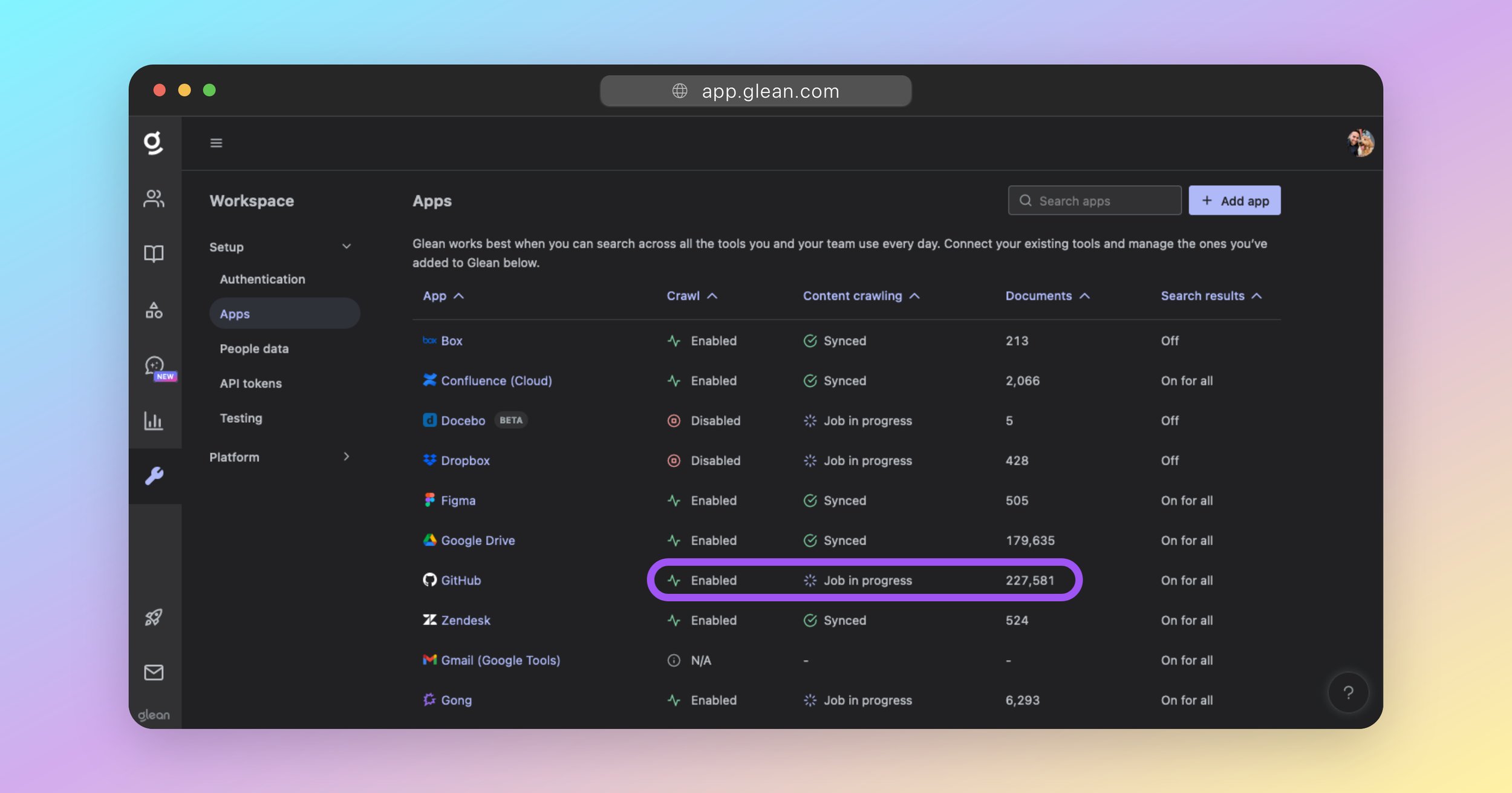
###
[](https://docs.glean.com/get-started/learn/crawling-and-learning#crawling-&-indexing-faq)
Crawling & Indexing FAQ
How long does the initial crawl and index process take to complete?
**Crawling (Step 1/2)**The initial crawl for any datasource will always take a while; the total time of which is dependent on two key factors:The size of the datasource (eg: number of documents/messages, and the size of each). The rate limit(s) of the datasource vendor’s API.If a datasource vendor’s API has a low rate limit, this will affect how quickly Glean can crawl it for items. Likewise, datasources containing a large number of documents, files, or messages, will also take longer to crawl.Some datasources share a rate limit across all integrated applications (like Glean). For these datasources, crawling time is typically slower, as Glean must be careful not to exhaust the entire rate limit threshold itself.You can monitor crawling progress by checking the **Initial sync in progress** section under **Crawling (step 1/2)** and watching the **Items synced** metric increase.**Indexing (Step 2/2)**The indexing process works in parallel with the crawling process. That is, content that has been crawled is processed by Glean’s indexer while other content is still being crawled.While the crawling speed is heavily dependent on the volume of data AND the API rate limit, the indexing speed is conversely heavily dependent on compute resources. The health of each deployment’s index and compute resources dedicated to the indexing process is carefully monitored by Glean’s SRE team.Once crawling begins to complete, you’ll see the data source move to the **Indexing (step 2/2)** phase in the **Initial sync in progress** section.**Total Time Required**For a typical enterprise datasource, expect the complete initial crawling and indexing processes to take anywhere from 3 days, up to 14 days for large datasources with moderate API rate limits. Once both phases complete, the data source will move to the **All data sources** section.
Can multiple data sources be crawled at the same time without impact?
Yes. Each data source configured has its own unique crawler that dynamically scales based on demand. This ensures that multiple datas ources can be crawled in parallel without impact to the time required to complete each crawl.
What happens if a document is modified while a crawl is in progress?
When a full (initial) crawl of a data source is initiated, it captures the state of all documents and content up to the exact timestamp when the crawl started. If any documents are modified or created after this timestamp, they will be processed and incorporated into the search index in one of two ways:
* **Webhooks**: Most datasources support webhooks, which Glean leverages to be notified of any content changes. When a webhook is received, it is processed within 1-5 minutes, depending on the datasource.
* **Incremental Crawls**: Glean performs an incremental crawl of each datasource every 24 hours. These crawls focus on identifying and incorporating changes that have occurred since the last crawl that were not captured via webhooks. This ensures that all recent modifications are captured.
Both webhooks and incremental crawls operate independently and run concurrently with any active full crawls. This design ensures that document updates are processed efficiently and that the system remains up-to-date with the latest changes.
How to verify if a document is crawled and indexed?
The Access Verification page allows admins to resolve questions related to the visibility of specific documents within Glean. With this tool, admins can determine a document’s latest status or detect if a document is visible in Glean across users or test individual user access.Navigate to [Admin Console >> Glean Protect >> Access verification.](https://app.glean.com/admin/managesearch/documentaccess)
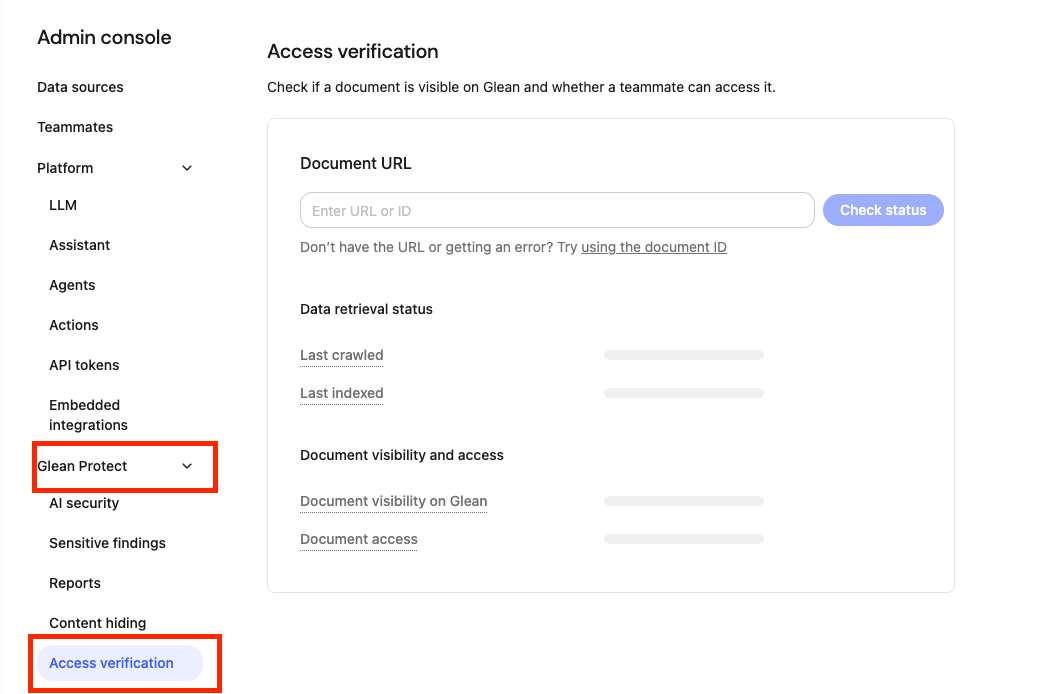**If you know the document URL or ID**Input the document URL or ID and press “Check status”. Glean will search for the document to check that it exists, then will show the following fields on found documents:
* **Last crawled** – when Glean last scanned the file for changes.
* **Last indexed** – when Glean last added those changes to search.
* **Document visibility on Glean** – whether the document is currently visible or hidden to users on Glean.
* **Document access** – you can use the teammate selector to check an individual user’s access to the document: “Full access” (the user can open it) or “No access” (the user cannot) 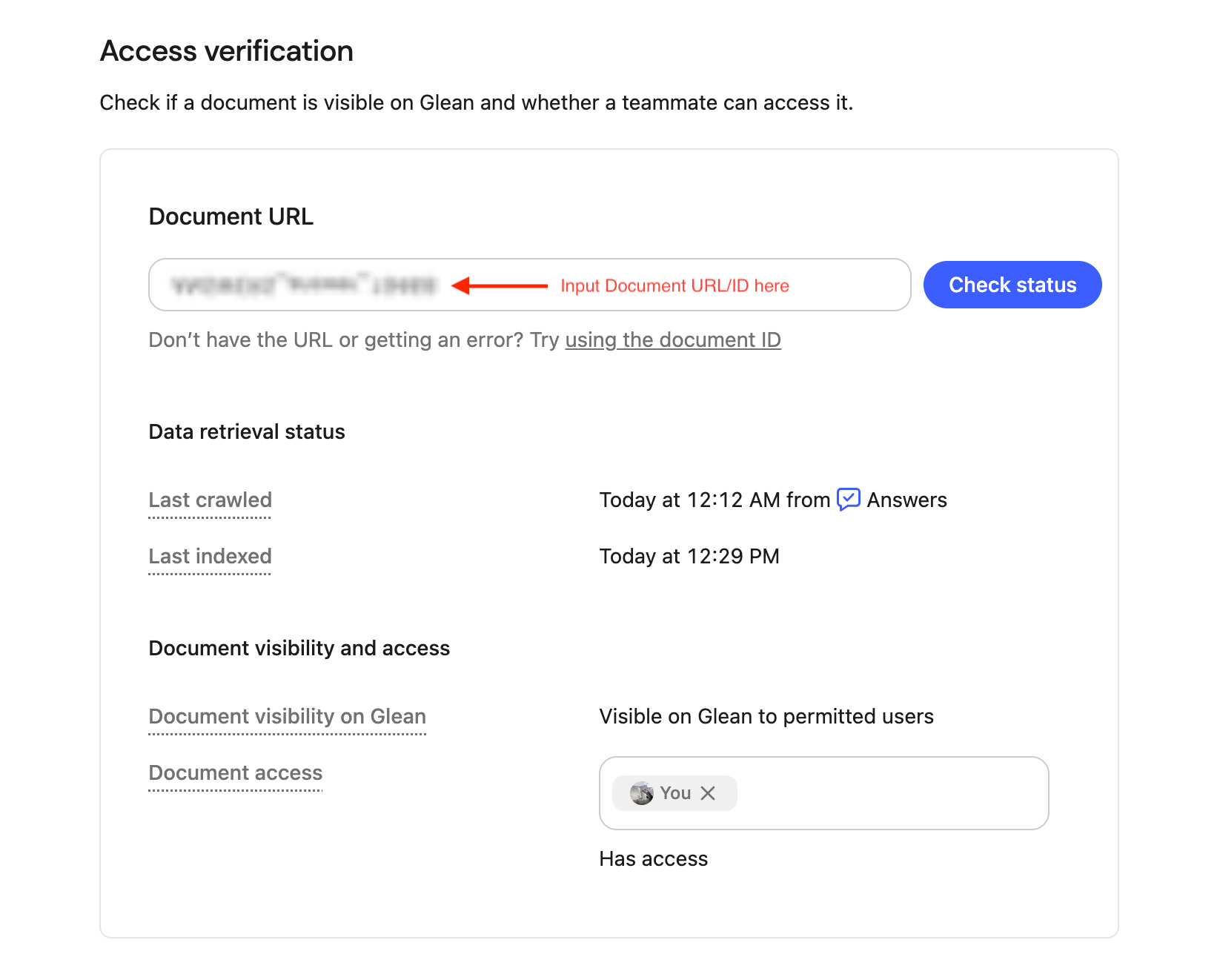
A “document ID” in Glean is a unique identifier automatically assigned to a document upon its successful crawling into the system.
**If you don’t know the document URL or ID or are getting an error**Below the input, click “using the document ID”. This opens Glean Search, where you can find the document using its URL or title.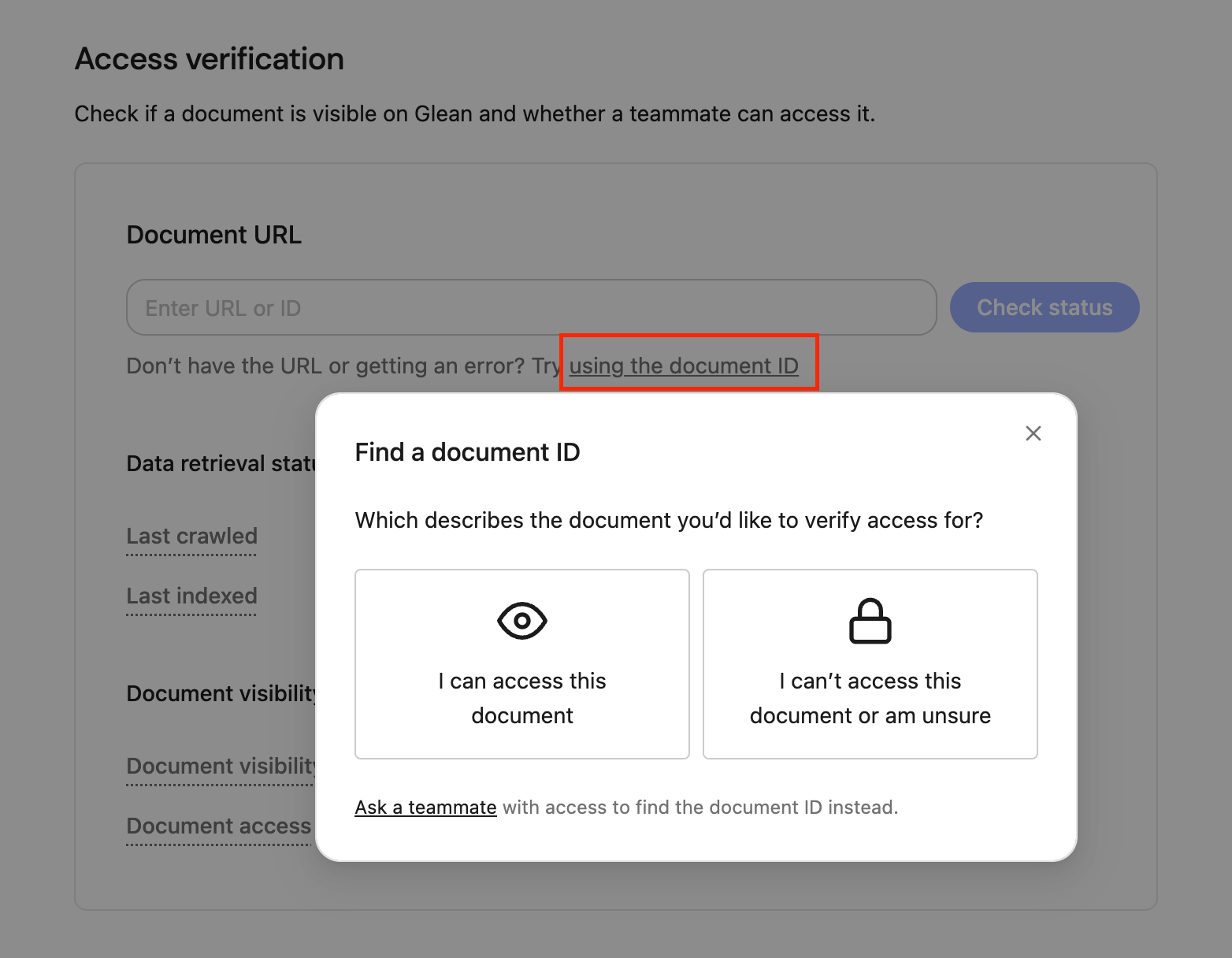Once you find the document you’re looking for, click “Add ID” to check its status.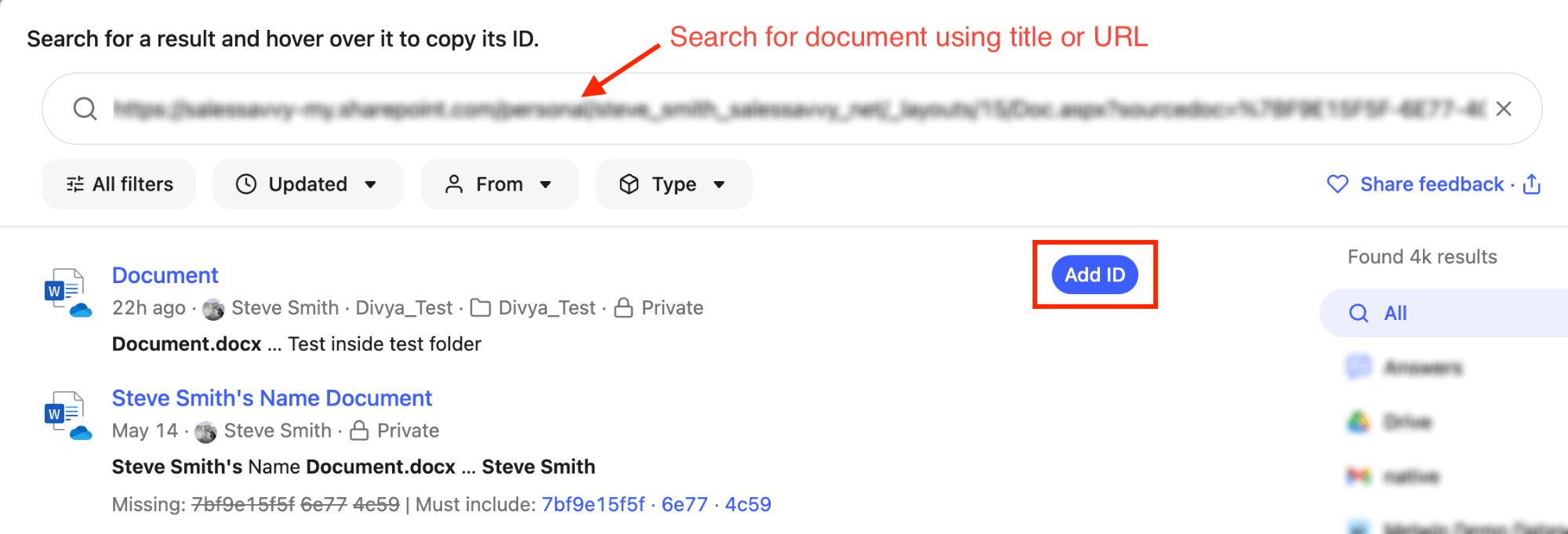
How do I interpret slow or stalled progress during crawling and indexing?
If you are experiencing slow or stalled progress during crawling and indexing, refer to the [Using metrics for troubleshooting](https://docs.glean.com/connectors/monitoring#using-metrics-for-troubleshooting)
section of the monitoring page to diagnose the issue.
* * *
[](https://docs.glean.com/get-started/learn/crawling-and-learning#about-machine-learning)
About Machine Learning
--------------------------------------------------------------------------------------------------------------------
Once the crawling and indexing processes have been completed, Glean will initiate several Machine Learning (ML) workflows that will run on all indexed content. The ML process is critically important and is responsible for:
* Optimizing search query understanding and spellcheck.
* Understanding synonyms, acronyms, and semantics used in documents and between employees within your organization.
* Enhancing relevance rankings for search results and people suggestions.
* Enabling query suggestions, predictive text, and autocomplete.
* Training the unique language model for your organization; which is essential for operation of Glean Chat and Glean Assistant.
Usage of Glean is not supported until the ML process has completed successfully. You should not allow users access to Glean until all ML has completed.
###
[](https://docs.glean.com/get-started/learn/crawling-and-learning#checking-the-machine-learning-ml-status)
Checking the Machine Learning (ML) Status
The ML workflows are background processes - it is not currently possible to check the status of these inside the Glean UI.
Your Glean engineer will notify you on the progress of these workflows and when they complete successfully.
###
[](https://docs.glean.com/get-started/learn/crawling-and-learning#machine-learning-ml-faq)
Machine Learning (ML) FAQ
How long does the ML process take to complete?
Completing all required ML workflows can take 2-14 days in total, depending on:
* The amount of content that needs to be processed as part of each ML workflow.
* The GCP or AWS region that your Glean tenant was deployed to (and the tier of TPU/GPU hardware available in that region).
* For example, using an Nvidia T4 GPU (if that is all that is supported in your elected deployment region) instead of a dedicated TPU typically increases the time required to run all ML workflows by a factor of 4-6x.
Does the ML process run in parallel with the crawl/index processes?
No. The ML workflows must be run on a complete dataset. Hence, Glean cannot initiate the ML process until all of your data sources have been crawled and indexed.
What is the impact if the ML process is not completed?
* Search results will be significantly degraded.
* Glean Assistant and Glean Chat will not respond correctly.
* Spellcheck will be errornous.
* Autocomplete will not function.
* Any synonyms or acronyms used within the organization will not be understood if included in a search query.
Was this page helpful?
YesNo
[Connect Data Sources](https://docs.glean.com/get-started/setup/connect-data-sources)
[Populate Content](https://docs.glean.com/get-started/golive/populate-content)
⌘I
---
# Sync People Data - Glean Help Center
[Skip to main content](https://docs.glean.com/get-started/setup/sync-people-data#content-area)
[Glean Help Center home page](https://docs.glean.com/)
Search...
⌘K
Search...
Navigation
Stage 3: Setup
Sync People Data
[Home](https://docs.glean.com/home)
[User Guide](https://docs.glean.com/user-guide/about/what-is-glean)
[Agents](https://docs.glean.com/agents/home)
[Get Started for Admins](https://docs.glean.com/get-started/welcome)
[Connectors](https://docs.glean.com/connectors/home)
[Admin Guide](https://docs.glean.com/administration/about)
[Security & Architecture](https://docs.glean.com/security/home)
[Troubleshooting](https://docs.glean.com/troubleshooting/home)
[Release Notes](https://docs.glean.com/release-notes/home)
[Archive](https://docs.glean.com/archive/help-glean/answers/what-are-answers-and-how-do-they-work)
On this page
* [About People Data](https://docs.glean.com/get-started/setup/sync-people-data#about-people-data)
* [Configure a People Data Source](https://docs.glean.com/get-started/setup/sync-people-data#configure-a-people-data-source)
* [Required Fields](https://docs.glean.com/get-started/setup/sync-people-data#required-fields)
* [Initial Setup](https://docs.glean.com/get-started/setup/sync-people-data#initial-setup)
* [Attribute Mapping](https://docs.glean.com/get-started/setup/sync-people-data#attribute-mapping)
* [Initiate the Sync](https://docs.glean.com/get-started/setup/sync-people-data#initiate-the-sync)
* [Verification](https://docs.glean.com/get-started/setup/sync-people-data#verification)
* [Missing / Invalid People](https://docs.glean.com/get-started/setup/sync-people-data#missing-%2F-invalid-people)
* [Manual Upload (CSV)](https://docs.glean.com/get-started/setup/sync-people-data#manual-upload-csv)
* [CSV Format](https://docs.glean.com/get-started/setup/sync-people-data#csv-format)
* [Upload the Data](https://docs.glean.com/get-started/setup/sync-people-data#upload-the-data)
You will not be able to complete this step until your Glean tenant has been provisioned. If you were not able to switch from Magic Links to SSO in the last section, you will need to return to this step later.
[](https://docs.glean.com/get-started/setup/sync-people-data#about-people-data)
About People Data
-----------------------------------------------------------------------------------------------------
Synchronizing your employee directory to Glean is a critical part of the setup process, as it allows Glean to:
* Enforce document permissions.
* Apply role-based access controls (RBAC).
* Deliver more relevant search results.
If you configured SSO using OIDC in the last step, and your directory is the same as your SSO platform (e.g. Azure AD/Entra ID, Okta), then you have already configured people data sync as part of the SSO configuration; in which case, you now simply need to enable it as a source.
[](https://docs.glean.com/get-started/setup/sync-people-data#configure-a-people-data-source)
Configure a People Data Source
-------------------------------------------------------------------------------------------------------------------------------
###
[](https://docs.glean.com/get-started/setup/sync-people-data#required-fields)
Required Fields
You must ensure that the following fields are populated for every user in your People Data source:
* Name (First Name, Last Name)
* Email
* Department
If you do not provide these fields, directory sync of user data to Glean will fail.
Additionally, the following fields are **strongly recommended** to enhance the Glean experience for your organization:
| Recommended Field | Description |
| --- | --- |
| Manager / Manager Email | The email of the user’s manager. Used heavily in search ranking signals. Required for the org chart to be populated correctly. |
| Location | The working location of the user. Required for location-based personalization. |
| Start Date | The start date of the user. To show tenure in the user’s profile page. |
###
[](https://docs.glean.com/get-started/setup/sync-people-data#initial-setup)
Initial Setup
Navigate to [Admin Console > Settings > People data](https://app.glean.com/admin/setup/people) If your SSO platform supports directory synchronization, it will be listed here with a green checkmark and status Ready to sync. Click the SSO provider’s icon to proceed.
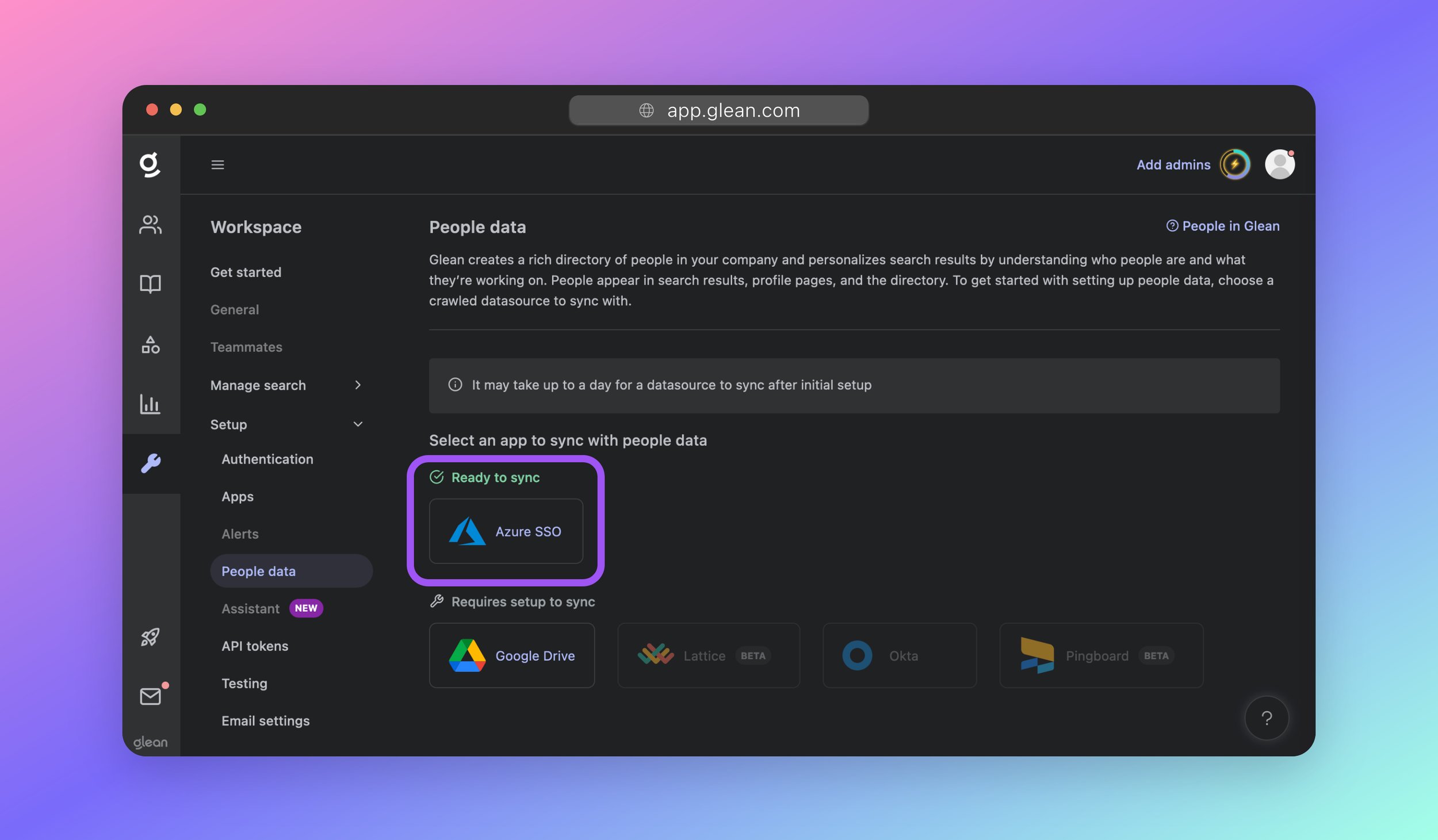
If you wish to set up an alternative source, click the appropriate service and follow the setup instructions.
**Using a People Data source not listed?**You will need to manually upload your directory data to Glean using CSV, or leverage Glean’s Indexing API to push your directory data to Glean.In some cases, Glean may also be able to pull your people data from another connected data source such as BambooHR, or Facebook Workplace. Please contact your Glean engineer or Glean support for more information.
###
[](https://docs.glean.com/get-started/setup/sync-people-data#attribute-mapping)
Attribute Mapping
On the next screen, and if your People Data source supports it, you will be able to map attributes from your directory to the required field in Glean. This is useful if you store user information differently than what is standard.
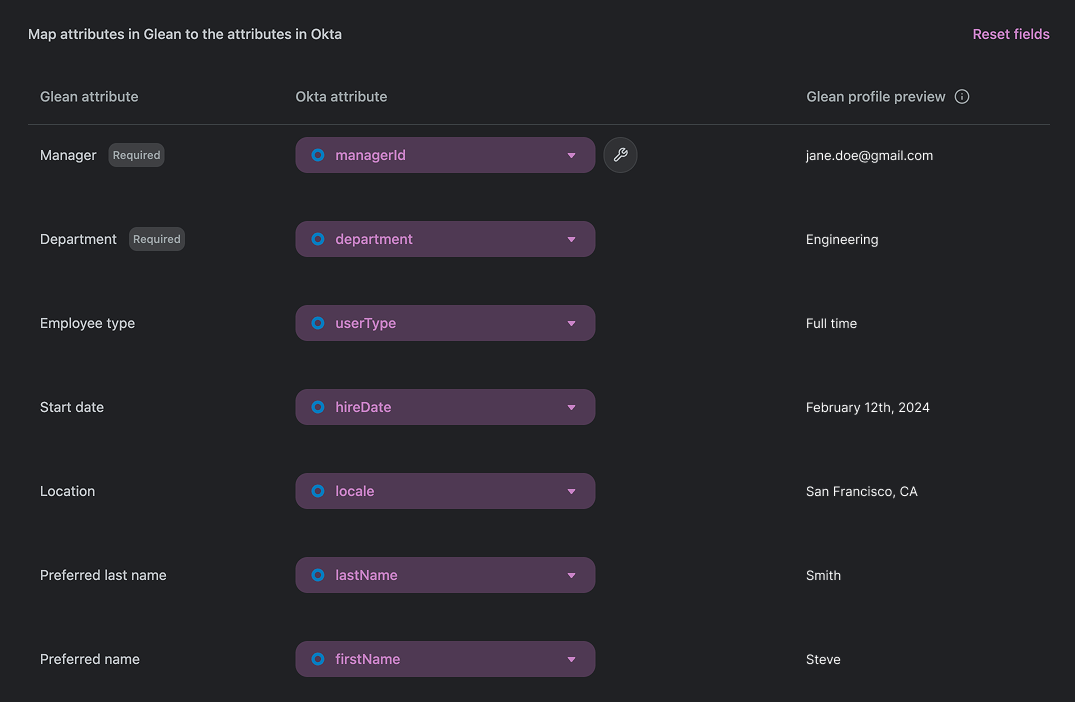
For example, you might want to infer a user’s manager from their manager’s email. If they have an Okta field called `managerEmail`, you could map `managerEmail` to the Glean attribute “Manager”. If you are unsure about what information is stored in a given directory attribute, you can preview information pulled directly from your directory specifically _for your directory profile_ within the “Glean profile preview” column. If your People Data source does not support custom mapping in the Glean interface, the directory attributes will be fixed on the page. Please contact Glean support if you require this feature but do not see it for your configured People Data source.
###
[](https://docs.glean.com/get-started/setup/sync-people-data#initiate-the-sync)
Initiate the Sync
Before you start the sync, you can view statistics about what information will be included. For example, how many users will be created, and how many departments you have. If this is different from what you expected, check that you have provided the correct permissions within the People Data source.
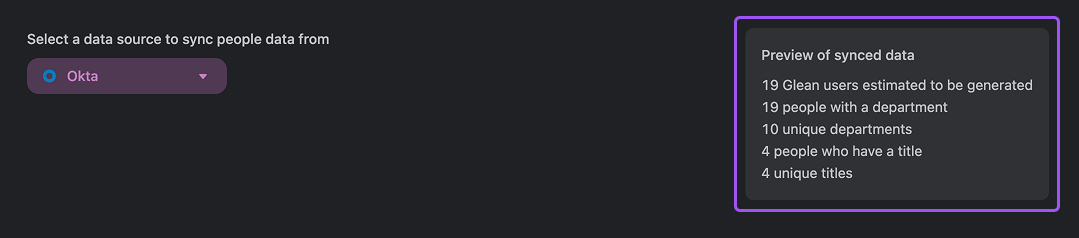
Click **“Save”** at the bottom of the page to save your changes and begin synchronization. From this point onwards, the sync is automatic: Glean will check your People Data source periodically for any changes.

###
[](https://docs.glean.com/get-started/setup/sync-people-data#verification)
Verification
The People Data sync will start, and over the next hour, you will start to see your employee directory being populated in Glean. The synchronization is not immediate: Glean needs to crawl your people data first, and then index it so that it is usable in search.
It can take 2-4 hours for the initial sync to complete.
You can return to this page later to validate that your sync is working.
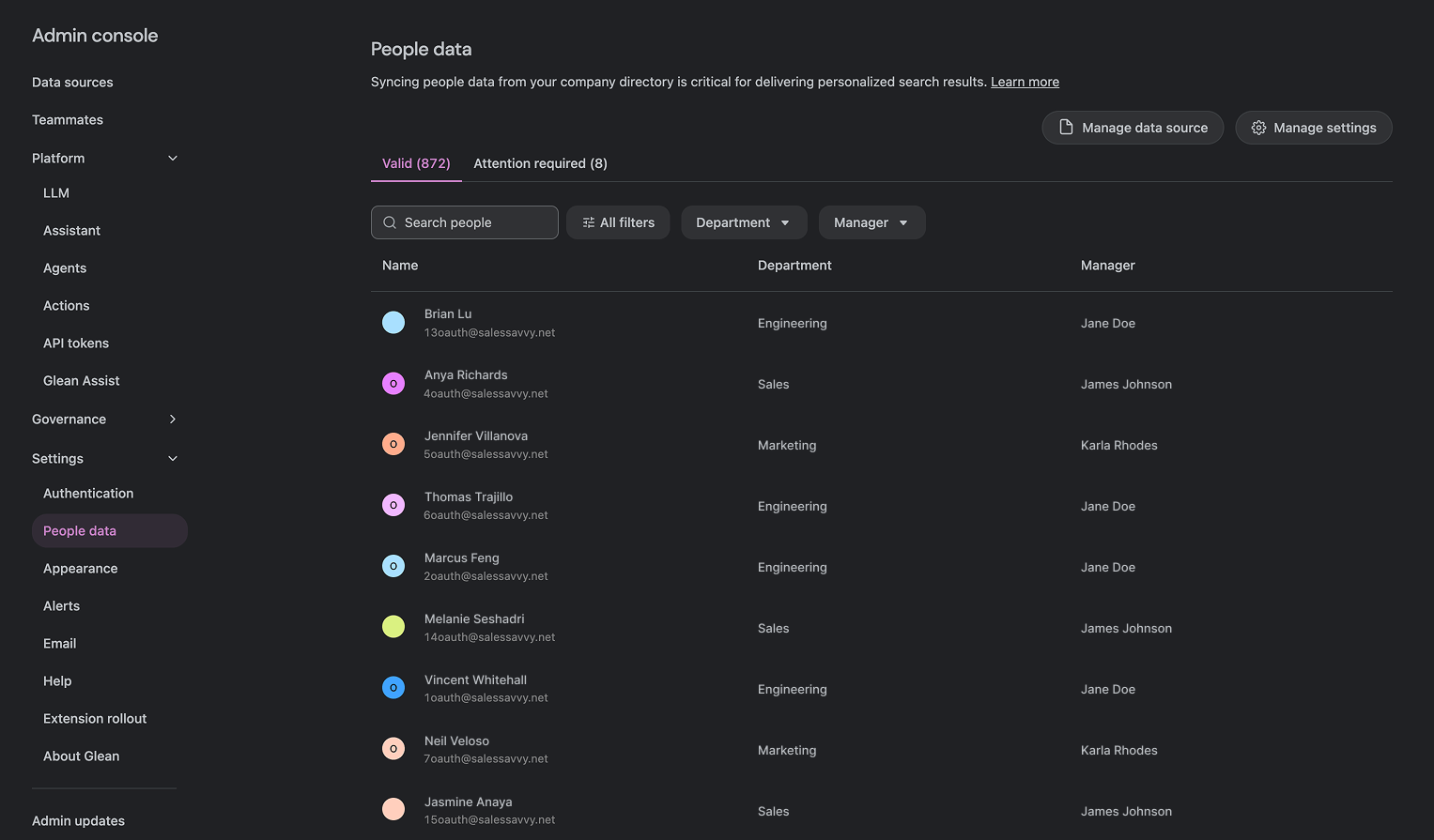
If you do not see people data start to show up within a few hours, this typically points to a permissions issue.Ensure that you have provided Glean with the correct permissions within your IdP when you configured SSO.For example, for Azure AD, it is critical to have `GroupMember.Read.All` and `User.Read.All` as **Application permissions** NOT Delegated Permissions. If your issues persist, please contact Glean support.
###
[](https://docs.glean.com/get-started/setup/sync-people-data#missing-/-invalid-people)
Missing / Invalid People
Glean can encounter issues when synchronizing certain people from your directory. Common issues include:
* A person’s email is invalid or malformed (e.g. email is missing the ”@” symbol)
* One or more required attributes are missing
* A person’s name or email contains a redlisted term
You can see all of the people marked as missing in the “Attention required” tab on the People Data page. Click the **“Resolve”** button next to a missing person on the table to see the set of instructions you can follow to resolve this issue.
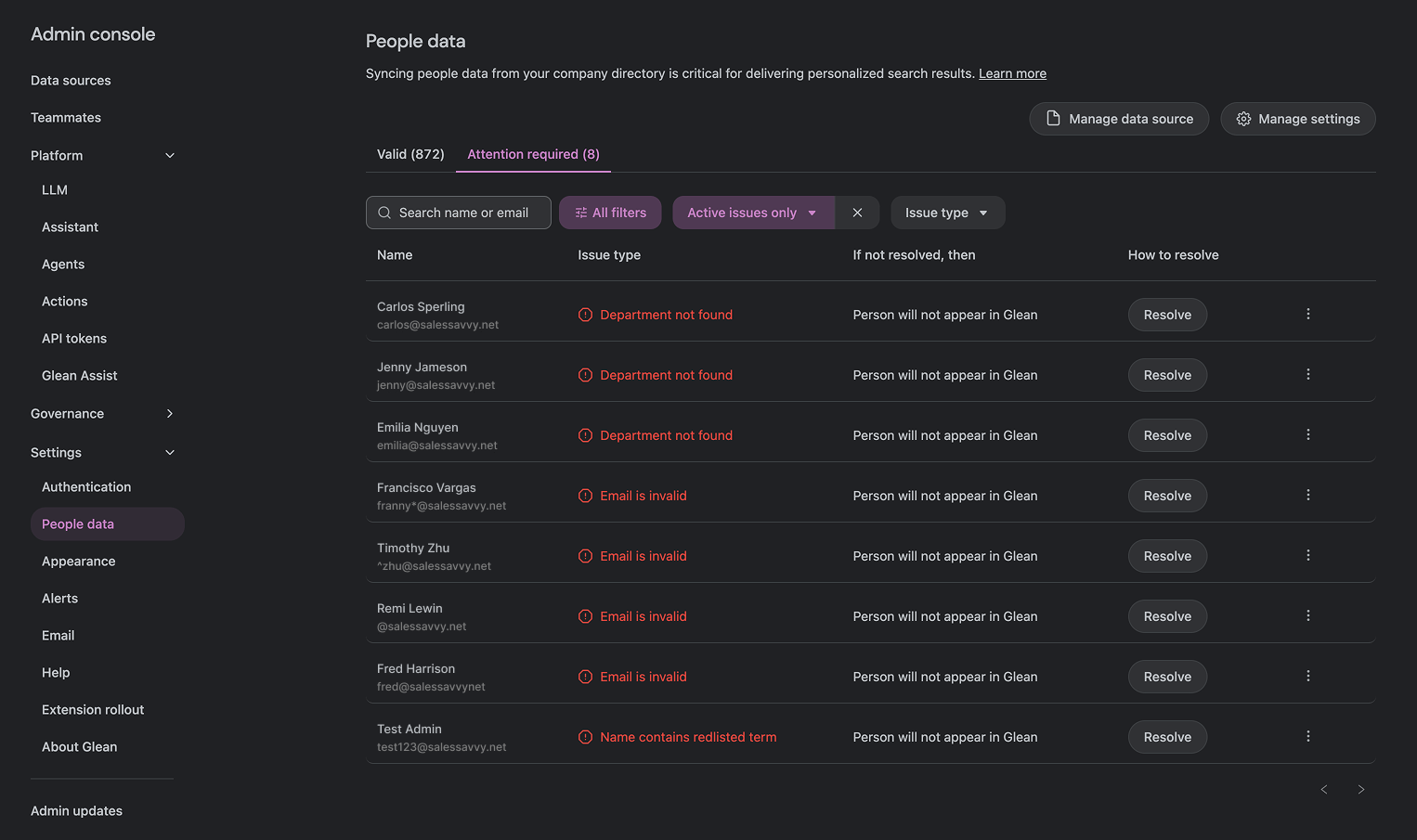
[](https://docs.glean.com/get-started/setup/sync-people-data#manual-upload-csv)
Manual Upload (CSV)
-------------------------------------------------------------------------------------------------------
For instances where your directory information cannot be automatically synchronized, Glean also supports the manual upload of people data as a set of comma-separated values .csv. Because this method is not asynchronous, Glean does not recommend it. Any updates to your directory (new employees, departures, or changes) will require you to re-upload a new CSV.
Why can't Glean get identity information from the SAML token?
1. The SAML Assertion Token does not contain all of the identity data required by Glean, and
2. Changes to a user account are only reflected in the SAML token when it is refreshed on user re-authentication.
This means that Glean would not be aware of any changes to a user’s identity attributes or group memberships until after re-authentication occurs; which is not desirable from a permissions enforcement perspective.
###
[](https://docs.glean.com/get-started/setup/sync-people-data#csv-format)
CSV Format
The following are mandatory fields:
| Required Field | Description |
| --- | --- |
| `first_name` | The user’s first name, eg: `Ben` |
| `last_name` | The user’s last name, eg: `Benson` |
| `email` | The user’s email, eg: `bbenson@domain.com` |
| `title` | The user’s job title, eg: `Software Engineer` |
| `department` | The user’s department, eg: `Engineering` |
The following are not mandatory, but **highly recommended** fields to enhance the Glean experience for your organization:
| Recommended Field | Description |
| --- | --- |
| `manager_email` | The email of the user’s manager. Used heavily in search ranking signals. Required for the org chart to be populated correctly. |
| `location` | The working location of the user. Required for location-based personalization. |
| `start_date` | The start date of the user. To show tenure in the user’s profile page. |
A sample CSV is included below:
Copy
name,email,first_name,last_name,nickname,title,department,business_unit,manager_email,location,city,country,desk_location,start_date,status,photo_url
Samuel Sample,s.sample@company.com,Sam,Sample,Sam,CEO,Leadership,Leadership Team,,"Sydney, Australia",Sydney,Australia,"Desk 1/25",27/09/22,active,https://i.postimg.cc/rp2Qfkz6/WFH-2.jpg
Ellie Example,e.example@company.com,Ellie,Example,,CFO,Leadership,Leadership Team,s.sample@company.com,"Palo Alto, California",California,USA,,26/10/22,active,https://i.postimg.cc/rp2Qfkz6/WFH-2.jpg
Steve Smith,s.smith@company.com,Steve,Smith,Steve,CTO,Leadership,Leadership Team,s.sample@company.com,"Auckland, New Zealand",Auckland,"New Zealand","Table 1",27/10/22,active,https://i.postimg.cc/rp2Qfkz6/WFH-2.jpg
Benjamin Benson,b.benson@company.com,Benjamin,Benson,Ben,"Software Engineer",Engineering,Engineering,s.smith@company.com,"Tokyo, Japan",Tokyo,Japan,"Level 6, 1/6",03/12/22,deactivated,
###
[](https://docs.glean.com/get-started/setup/sync-people-data#upload-the-data)
Upload the Data
Select **CSV** as a People Data source and select your CSV file when prompted. If you do not see this as an option or are having difficulties with the upload, please contact Glean support.
Was this page helpful?
YesNo
[Configure SSO](https://docs.glean.com/get-started/setup/configure-sso)
[Connect Data Sources](https://docs.glean.com/get-started/setup/connect-data-sources)
⌘I
---
# Setup Checklist - Glean Help Center
[Skip to main content](https://docs.glean.com/get-started/setup/setup-checklist#content-area)
[Glean Help Center home page](https://docs.glean.com/)
Search...
⌘K
Search...
Navigation
Stage 3: Setup
Setup Checklist
[Home](https://docs.glean.com/home)
[User Guide](https://docs.glean.com/user-guide/about/what-is-glean)
[Agents](https://docs.glean.com/agents/home)
[Get Started for Admins](https://docs.glean.com/get-started/welcome)
[Connectors](https://docs.glean.com/connectors/home)
[Admin Guide](https://docs.glean.com/administration/about)
[Security & Architecture](https://docs.glean.com/security/home)
[Troubleshooting](https://docs.glean.com/troubleshooting/home)
[Release Notes](https://docs.glean.com/release-notes/home)
[Archive](https://docs.glean.com/archive/help-glean/answers/what-are-answers-and-how-do-they-work)
1
[](https://docs.glean.com/get-started/setup/setup-checklist#)
### SSO Administrator & Information
You will need an administrator of your Single Sign-On (SSO) provider (e.g. Entra ID, Okta, Jumpcloud, Google Workspace, etc) on-hand to configure SSO for Glean.
2
[](https://docs.glean.com/get-started/setup/setup-checklist#)
### People Data Source
If you are using SAML for SSO instead of OIDC, you will need to identify a datasource that your corporate directory can be synchronized from. Glean has separate connectors for Entra ID/Azure and Okta available, as well as connectors for common HR apps like Workday BambooHR.If you are uncertain about this requirement, please contact your Glean account team.
3
[](https://docs.glean.com/get-started/setup/setup-checklist#)
### Data source Administrators
You will need an administrator for each data source or cloud-app you wish to connect to Glean (e.g., M365, Atlassian, Slack, GitHub).These administrators will either authorize the installation of the Glean app within their respective data source or create a scoped API token for Glean’s use.
Was this page helpful?
YesNo
[Supported AWS Regions and Services](https://docs.glean.com/get-started/build/aws/supported-aws-regions)
[Access the Admin UI](https://docs.glean.com/get-started/setup/access-the-admin-ui)
⌘I
---
# Pre-Deployment Checklist - Glean Help Center
[Skip to main content](https://docs.glean.com/get-started/prepare/pre-deployment-checklist#content-area)
[Glean Help Center home page](https://docs.glean.com/)
Search...
⌘K
Search...
Navigation
Stage 1: Prepare
Pre-Deployment Checklist
[Home](https://docs.glean.com/home)
[User Guide](https://docs.glean.com/user-guide/about/what-is-glean)
[Agents](https://docs.glean.com/agents/home)
[Get Started for Admins](https://docs.glean.com/get-started/welcome)
[Connectors](https://docs.glean.com/connectors/home)
[Admin Guide](https://docs.glean.com/administration/about)
[Security & Architecture](https://docs.glean.com/security/home)
[Troubleshooting](https://docs.glean.com/troubleshooting/home)
[Release Notes](https://docs.glean.com/release-notes/home)
[Archive](https://docs.glean.com/archive/help-glean/answers/what-are-answers-and-how-do-they-work)
1
[](https://docs.glean.com/get-started/prepare/pre-deployment-checklist#)
### Phase 1 Apps Identified
You have identified 4-6 “mission critical” apps that will be connected to Glean first. These should be the core applications that have the largest user footprints within your organization. E.g. OneDrive, SharePoint, Google Drive, Slack, Teams, Jira, Confluence.
2
[](https://docs.glean.com/get-started/prepare/pre-deployment-checklist#)
### Security & App Owner Approvals
All necessary approvals to connect the above apps to Glean have been obtained from relevant internal teams and/or stakeholders. By proactively managing these approvals, you can significantly reduce the time required to get Glean up and running in your organization.
3
[](https://docs.glean.com/get-started/prepare/pre-deployment-checklist#)
### (Self Hosted) Cloud Environment Prepared
If you are deploying Glean to your cloud environment, you have prepared the environment for the build of your Glean environment. Make sure your administrator has followed the creation guide for the cloud provider you are using.
* [GCP project creation guide](https://docs.glean.com/get-started/build/gcp/deploy-gcp)
* [AWS account creation guide](https://docs.glean.com/get-started/build/aws/deploy-aws)
4
[](https://docs.glean.com/get-started/prepare/pre-deployment-checklist#)
### Administrator Emails Provided
You have provided Glean with the email addresses of the administrators who will be responsible for managing the Glean environment.
5
[](https://docs.glean.com/get-started/prepare/pre-deployment-checklist#)
### Email Authentication Domains Provided
You have provided Glean with a list of all email domains that your users will use to sign in.
Glean does not allow users to sign in from domains that it is not aware of for security reasons. E.g. `company.com` for `user@company.com`
6
[](https://docs.glean.com/get-started/prepare/pre-deployment-checklist#)
### Deployment Region Selected
You have provided Glean with the country or region where you would like to deploy your Glean environment.By default, Glean establishes all new tenants in the USA.
Hosting in certain regions may increase your Glean licensing costs (or infrastructure costs if you are self-hosting Glean) to compensate for the higher infrastructure expenses in those regions.For details, please reach out to your Glean account team.
Was this page helpful?
YesNo
[Items to Prepare](https://docs.glean.com/get-started/prepare/items-to-prepare)
[Glean Deployment Models](https://docs.glean.com/get-started/build/about-self-hosted)
⌘I
---
# Access the Admin UI - Glean Help Center
[Skip to main content](https://docs.glean.com/get-started/setup/access-the-admin-ui#content-area)
[Glean Help Center home page](https://docs.glean.com/)
Search...
⌘K
Search...
Navigation
Stage 3: Setup
Access the Admin UI
[Home](https://docs.glean.com/home)
[User Guide](https://docs.glean.com/user-guide/about/what-is-glean)
[Agents](https://docs.glean.com/agents/home)
[Get Started for Admins](https://docs.glean.com/get-started/welcome)
[Connectors](https://docs.glean.com/connectors/home)
[Admin Guide](https://docs.glean.com/administration/about)
[Security & Architecture](https://docs.glean.com/security/home)
[Troubleshooting](https://docs.glean.com/troubleshooting/home)
[Release Notes](https://docs.glean.com/release-notes/home)
[Archive](https://docs.glean.com/archive/help-glean/answers/what-are-answers-and-how-do-they-work)
On this page
* [Sign In to Workspace Settings](https://docs.glean.com/get-started/setup/access-the-admin-ui#sign-in-to-workspace-settings)
* [Add Additional Administrators](https://docs.glean.com/get-started/setup/access-the-admin-ui#add-additional-administrators)
The Glean Admin UI ([app.glean.com/admin](https://app.glean.com/admin)
), known as the **Admin Console**, is where you will manage the Glean workspace for your organization, including setting up Single Sign-On (SSO), configuring data sources, and syncing people data.
[](https://docs.glean.com/get-started/setup/access-the-admin-ui#sign-in-to-workspace-settings)
Sign In to Workspace Settings
--------------------------------------------------------------------------------------------------------------------------------
To access the Workspace Settings for your tenant, navigate to [https://app.glean.com/admin](https://app.glean.com/admin)
in your web browser. If you are not already logged in, you will be prompted to do so.
Because Single Sign-On (SSO) has not been configured yet, you will be prompted to check your email for a link to log in. This is called a **Magic Link**. Click the Magic Link in your inbox to log in.
[](https://docs.glean.com/get-started/setup/access-the-admin-ui#add-additional-administrators)
Add Additional Administrators
--------------------------------------------------------------------------------------------------------------------------------
When you sign in for the first time, you will be prompted to add additional administrators before proceeding.
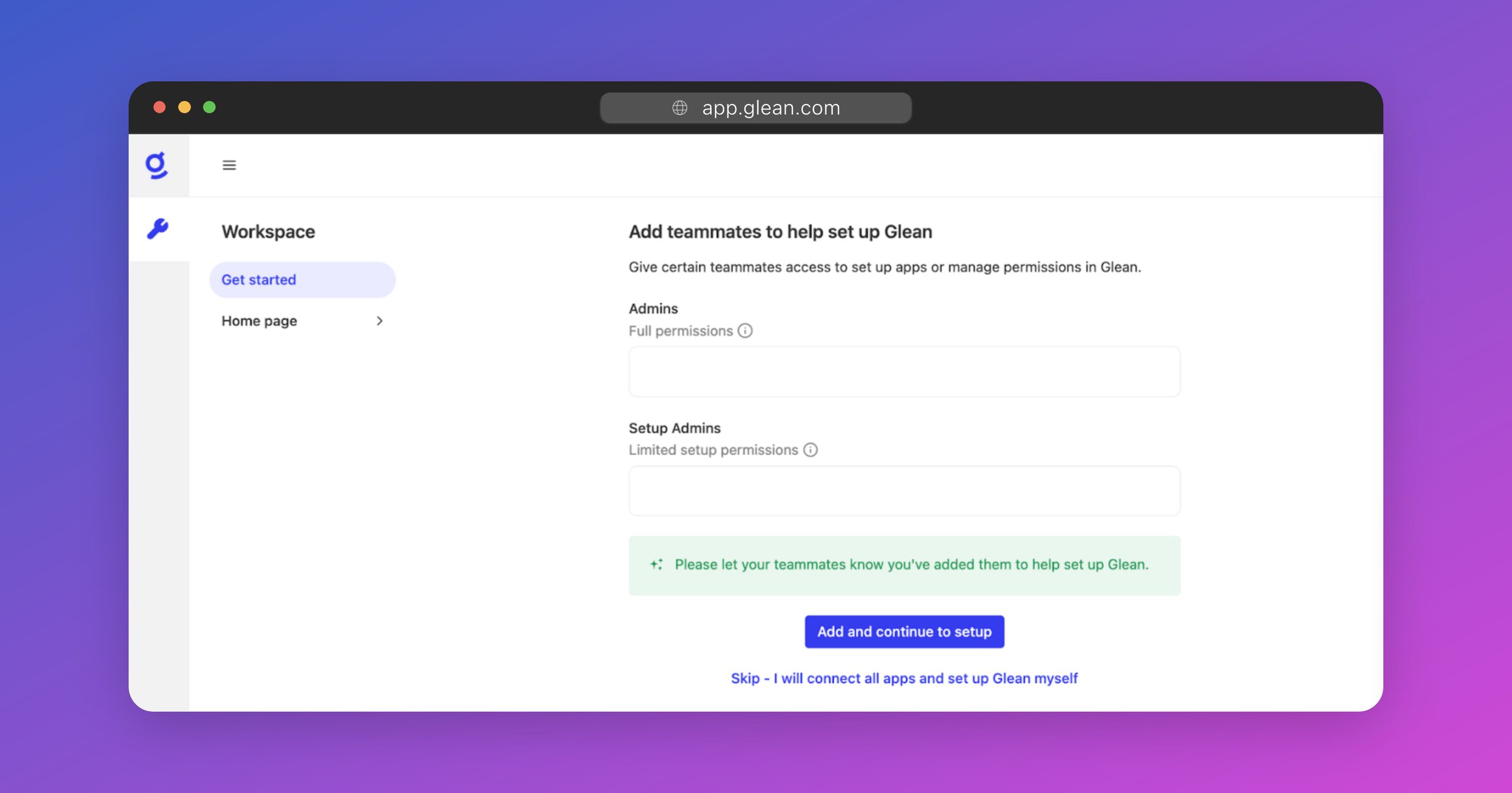
There are two types of administrator roles, **Admin** and **Setup Admin**:
* The **Admin** role (also known as the **Full Admin** role) has full read/write privileges across all Workspace Settings. This role can add/remove other administrators, manage user permissions, configure data sources, start crawls, and customize the Glean workspace for the organization.
* The **Setup Admin** role has restricted permissions and can only configure data sources and start crawls. This is the perfect role to give to the administrators of any cloud applications that you wish to connect to Glean.
Only select individuals within your organization should be provided with the Admin role.
To proceed, enter the emails of any additional administrators that you wish to add, or simply skip to the next step.
Are you hosting Glean in your own GCP or AWS environment?You will need to follow the appropriate cloud-prem guide for deploying Glean in GCP or AWS before you can proceed with the rest of this guide.
* [GCP Deployment Guide](https://docs.glean.com/get-started/build/gcp/deploy-gcp)
* [AWS Deployment Guide](https://docs.glean.com/get-started/build/aws/deploy-aws)
Was this page helpful?
YesNo
[Setup Checklist](https://docs.glean.com/get-started/setup/setup-checklist)
[Configure SSO](https://docs.glean.com/get-started/setup/configure-sso)
⌘I
---
# Connect Data Sources - Glean Help Center
[Skip to main content](https://docs.glean.com/get-started/setup/connect-data-sources#content-area)
[Glean Help Center home page](https://docs.glean.com/)
Search...
⌘K
Search...
Navigation
Stage 3: Setup
Connect Data Sources
[Home](https://docs.glean.com/home)
[User Guide](https://docs.glean.com/user-guide/about/what-is-glean)
[Agents](https://docs.glean.com/agents/home)
[Get Started for Admins](https://docs.glean.com/get-started/welcome)
[Connectors](https://docs.glean.com/connectors/home)
[Admin Guide](https://docs.glean.com/administration/about)
[Security & Architecture](https://docs.glean.com/security/home)
[Troubleshooting](https://docs.glean.com/troubleshooting/home)
[Release Notes](https://docs.glean.com/release-notes/home)
[Archive](https://docs.glean.com/archive/help-glean/answers/what-are-answers-and-how-do-they-work)
On this page
* [About Data Sources and Connectors](https://docs.glean.com/get-started/setup/connect-data-sources#about-data-sources-and-connectors)
* [Data Sources](https://docs.glean.com/get-started/setup/connect-data-sources#data-sources)
* [Connectors](https://docs.glean.com/get-started/setup/connect-data-sources#connectors)
* [Select a Data Source to Connect](https://docs.glean.com/get-started/setup/connect-data-sources#select-a-data-source-to-connect)
* [(Optional) Apply Crawling Restrictions](https://docs.glean.com/get-started/setup/connect-data-sources#optional-apply-crawling-restrictions)
* [Start Crawling](https://docs.glean.com/get-started/setup/connect-data-sources#start-crawling)
* [Checking the Crawl Status](https://docs.glean.com/get-started/setup/connect-data-sources#checking-the-crawl-status)
* [Initial sync in progress](https://docs.glean.com/get-started/setup/connect-data-sources#initial-sync-in-progress)
* [All data sources](https://docs.glean.com/get-started/setup/connect-data-sources#all-data-sources)
[](https://docs.glean.com/get-started/setup/connect-data-sources#about-data-sources-and-connectors)
About Data Sources and Connectors
-----------------------------------------------------------------------------------------------------------------------------------------
You will see frequent references to the terms “data source” and “connector” in the Glean documentation.
###
[](https://docs.glean.com/get-started/setup/connect-data-sources#data-sources)
Data Sources
**Data Sources** are the platforms, services, or cloud apps where your data resides. These could be:
| Category | Example Apps |
| --- | --- |
| Cloud Storage | Box, OneDrive |
| Email | Outlook, Gmail |
| Communication | Slack, Teams |
| Documentation | Confluence, Docusign |
| Ticketing & Support | Jira, Zendesk |
| Code & Engineering | GitHub, BitBucket |
| HR | Workday, Lattice |
| Sales & Marketing | Salesforce, Marketo |
| Project Management | Asana, Monday |
| […and more!](https://docs.glean.com/connectors) | |
###
[](https://docs.glean.com/get-started/setup/connect-data-sources#connectors)
Connectors
**Connectors** are the tools/integrations that Glean uses to connect to your data sources and crawl data from them. Today, Glean has 100+ connectors already built to allow you to connect to different data sources in use at your company. Connectors typically pull data from your data sources securely over API, but may also receive data from your data sources via a webhook.
[](https://docs.glean.com/get-started/setup/connect-data-sources#select-a-data-source-to-connect)
Select a Data Source to Connect
-------------------------------------------------------------------------------------------------------------------------------------
Navigate to [Admin Console > Data sources](https://app.glean.com/admin/setup/apps) and click the **Add app** button at the top-right.
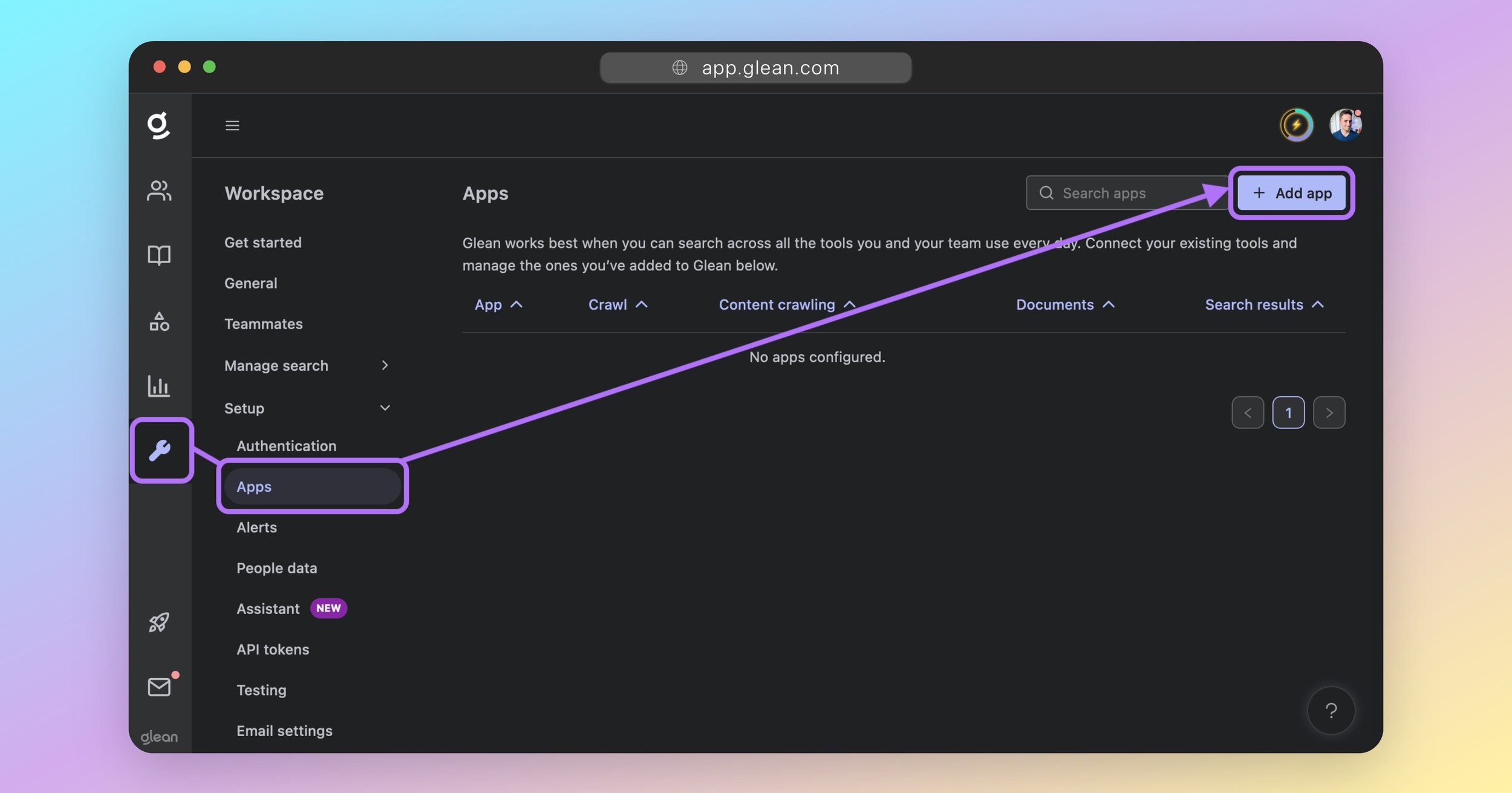
Select the data source that you want to connect Glean to and follow the instructions that are presented on-screen.
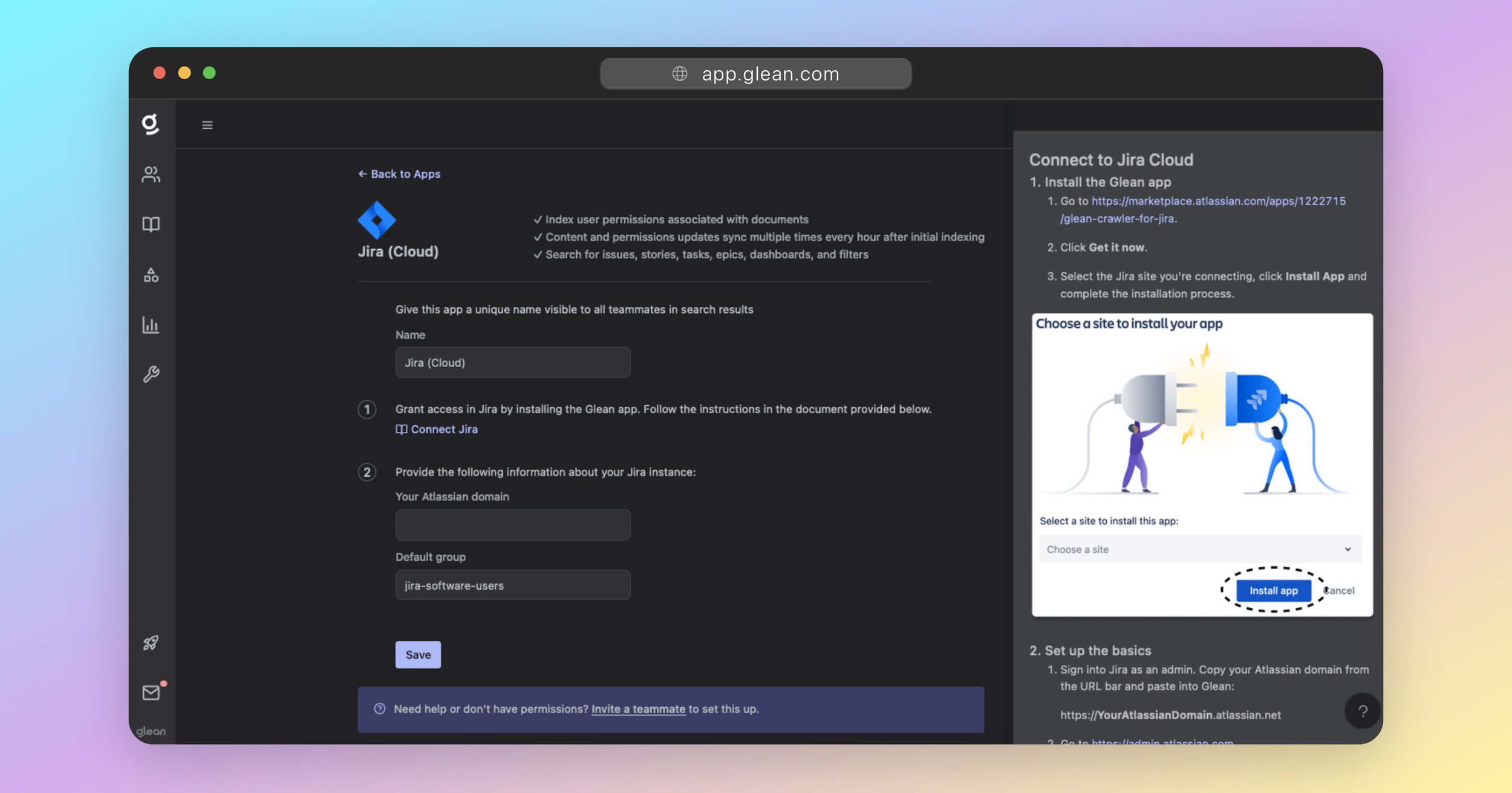
Connector configuration is typically achieved via OAuth and/or via installing Glean via your app’s marketplace/store (e.g. Atlassian Marketplace, Box App Center, etc). As part of the setup flow for each connector, your API credentials and permissions will be validated. For each piece of data within a datasource, Glean will crawl 3 things:
1. The contents of the asset itself (ie: spreadsheet, document, message, email, event, etc)
2. Access permissions for the item (ie: which users have access to the item)
3. Activities performed on the item (ie: when was the item created/posted/modified/viewed/etc and by which users?)
Glean only asks for the most minimal permissions to perform the above, however, this varies between datasources based on the capabilities of the API provided by the cloud service.
You must apply any API access permissions in the setup documents exactly as referenced.Failure to set the correct API access permissions will cause your Glean crawl to fail, or for data to be missing from Glean.
[](https://docs.glean.com/get-started/setup/connect-data-sources#optional-apply-crawling-restrictions)
(Optional) Apply Crawling Restrictions
-------------------------------------------------------------------------------------------------------------------------------------------------
If you would like to restrict the content that Glean crawls, DO NOT start crawling after saving the connector configuration. Crawling restrictions can be applied from [Admin Console > Data sources](https://app.glean.com/admin/setup/apps) once the initial configuration for the datasource has been saved. The restrictions that are supported vary between apps, but most data sources support at least two of the following restrictions:
1. Time-based restrictions (eg: Only crawl created or accessed in the last 6 months)
2. User-based restrictions (eg: Only crawl content from the specified users)
3. Group-based restrictions (eg: Only crawl content from the specified AD group)
4. Site/channel-based restrictions (eg: Only crawl content from the specified site or channel)
5. Folder-based restrictions (eg: Only crawl content from within the specified folders)
For most apps, **greenlisting** (explicit inclusion), and **redlisting** (explicit exclusion) are typically both supported.
Not all crawling restrictions are available in the UI: some can only be applied by Glean. Contact your Glean account team or Glean support for additional information.
[](https://docs.glean.com/get-started/setup/connect-data-sources#start-crawling)
Start Crawling
---------------------------------------------------------------------------------------------------
Once you have connected your data source, you can initiate the crawl for it. **Crawling** is the process in which Glean sifts through the data in each of your connected apps and indexes it for search. To start the crawl, click on the **Start crawl** button after setting up the connector configuration. You can also start the crawl later by selecting the app under [Admin Console > Data sources](https://app.glean.com/admin/setup/apps), and selecting **Start crawl**.
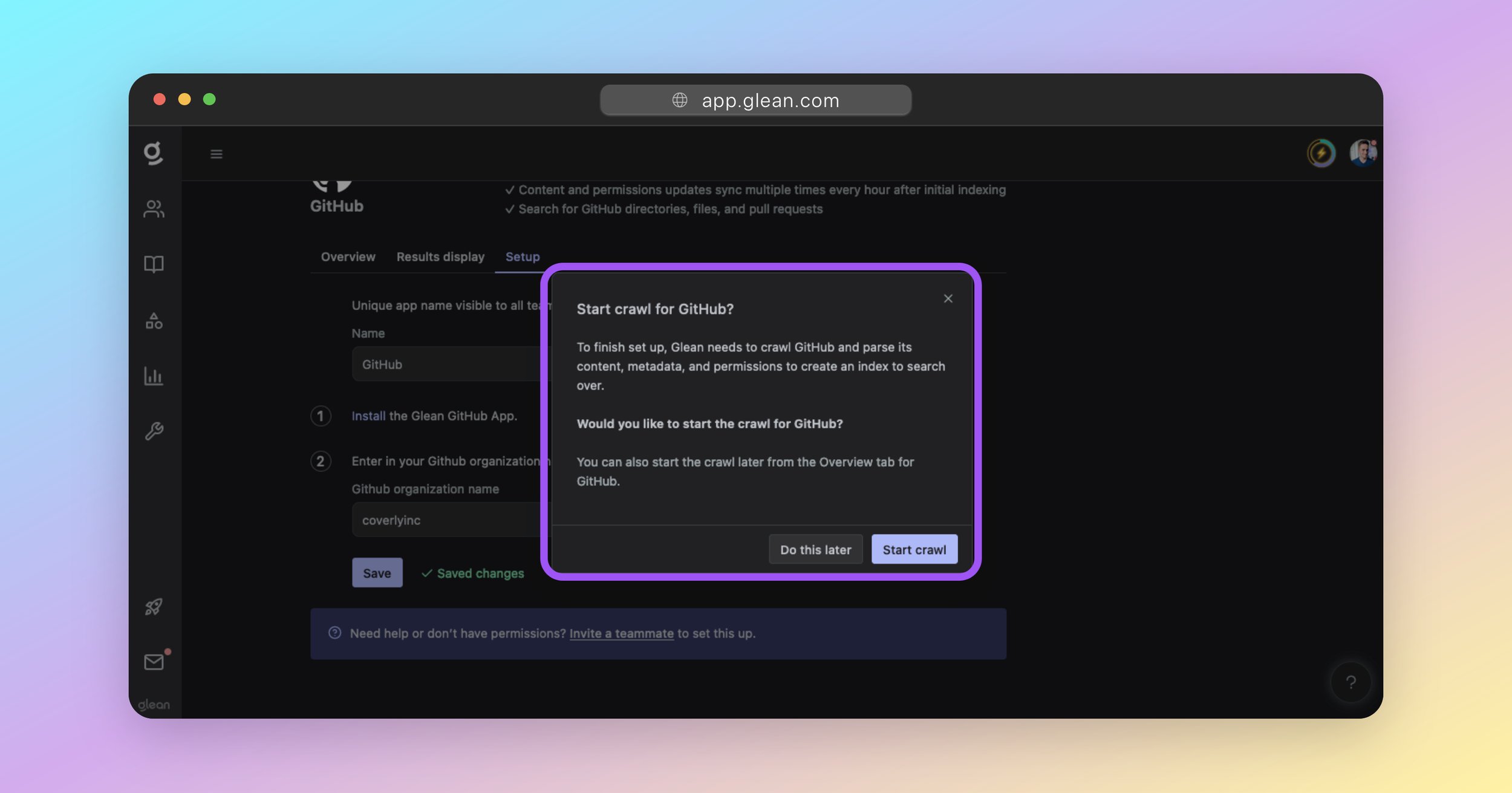
[](https://docs.glean.com/get-started/setup/connect-data-sources#checking-the-crawl-status)
Checking the Crawl Status
-------------------------------------------------------------------------------------------------------------------------
You can check the status of your crawl at any time by going to [Admin Console > Data sources](https://app.glean.com/admin/setup/apps) and reviewing the table of configured apps. The data sources page organizes your connectors into sections based on their sync status:
###
[](https://docs.glean.com/get-started/setup/connect-data-sources#initial-sync-in-progress)
Initial sync in progress
When a data source is undergoing its initial sync, it appears in this section and progresses through two distinct phases:
* **Crawling (step 1/2)** - The data source appears here while Glean is actively fetching content, metadata, and permissions from the source. You’ll see the **Items synced** count increase as content is retrieved.
* **Indexing (step 2/2)** - After crawling completes or as crawling nears completion, the data source moves to this phase while Glean processes the crawled content and incorporates it into the Knowledge Graph.
###
[](https://docs.glean.com/get-started/setup/connect-data-sources#all-data-sources)
All data sources
Once both crawling and indexing are complete, the data source moves from **Initial sync in progress** to **All data sources**, where it appears alongside other fully-synced sources. At this point, the data source is fully indexed and available for search. For each data source, you’ll see:
* **Items synced** - The total number of items (documents, messages, files, etc.) that have been crawled and indexed.
* **Change rate (items/day)** - The number of changes (edits, additions, deletions) synced in the past 24 hours, reflecting ongoing freshness.
Status and metrics refresh on an **hourly** cadence. For crawls of large data sources, or data sources with low rate limits, it is normal for the **Items synced** count to be low initially and then increase over several days.If the count remains low after a few days, please check the permissions granted to the Glean connector and contact Glean support.
How long does a crawl take?
The initial crawl for any data source will always take a while; the total time of which is dependent on two key factors:
1. The size of the data source (eg: number of documents/messages, and the size of each).
2. The rate limit of the data source’s API.
If an API has a low rate limit, this will affect how quickly Glean can crawl it for items. Likewise, data sources containing a large number of documents, files, or messages, will also take longer to crawl.For a typical enterprise data source, expect the initial crawl to take anywhere from 3 days, up to 10 days for large data sources with low API rate limits.For more details on how crawling and indexing work, and how to interpret progress metrics, see the [Crawling & Learning Process](https://docs.glean.com/get-started/learn/crawling-and-learning)
page.
Was this page helpful?
YesNo
[Sync People Data](https://docs.glean.com/get-started/setup/sync-people-data)
[Crawling & Learning Process](https://docs.glean.com/get-started/learn/crawling-and-learning)
⌘I
---
# Launch Preparation - Glean Help Center
[Skip to main content](https://docs.glean.com/get-started/golive/launch-preparation#content-area)
[Glean Help Center home page](https://docs.glean.com/)
Search...
⌘K
Search...
Navigation
Stage 5: Go Live
Launch Preparation
[Home](https://docs.glean.com/home)
[User Guide](https://docs.glean.com/user-guide/about/what-is-glean)
[Agents](https://docs.glean.com/agents/home)
[Get Started for Admins](https://docs.glean.com/get-started/welcome)
[Connectors](https://docs.glean.com/connectors/home)
[Admin Guide](https://docs.glean.com/administration/about)
[Security & Architecture](https://docs.glean.com/security/home)
[Troubleshooting](https://docs.glean.com/troubleshooting/home)
[Release Notes](https://docs.glean.com/release-notes/home)
[Archive](https://docs.glean.com/archive/help-glean/answers/what-are-answers-and-how-do-they-work)
On this page
* [Pre-Launch Preparation](https://docs.glean.com/get-started/golive/launch-preparation#pre-launch-preparation)
* [Checklist](https://docs.glean.com/get-started/golive/launch-preparation#checklist)
* [1\. Identify Users](https://docs.glean.com/get-started/golive/launch-preparation#1-identify-users)
* [Selection Criteria](https://docs.glean.com/get-started/golive/launch-preparation#selection-criteria)
* [Encouraging Organic Growth](https://docs.glean.com/get-started/golive/launch-preparation#encouraging-organic-growth)
* [2\. Survey Users](https://docs.glean.com/get-started/golive/launch-preparation#2-survey-users)
* [Initial Survey Template](https://docs.glean.com/get-started/golive/launch-preparation#initial-survey-template)
* [3\. Establish Feedback Channels](https://docs.glean.com/get-started/golive/launch-preparation#3-establish-feedback-channels)
* [4\. Schedule a Live Kickoff Session](https://docs.glean.com/get-started/golive/launch-preparation#4-schedule-a-live-kickoff-session)
* [Session Planning](https://docs.glean.com/get-started/golive/launch-preparation#session-planning)
* [Set expectations](https://docs.glean.com/get-started/golive/launch-preparation#set-expectations)
* [Encourage Feedback](https://docs.glean.com/get-started/golive/launch-preparation#encourage-feedback)
* [5\. Schedule Office Hours](https://docs.glean.com/get-started/golive/launch-preparation#5-schedule-office-hours)
* [6\. Send Comms to Users](https://docs.glean.com/get-started/golive/launch-preparation#6-send-comms-to-users)
* [Email Template](https://docs.glean.com/get-started/golive/launch-preparation#email-template)
* [7\. Deploy the Glean Browser Extension](https://docs.glean.com/get-started/golive/launch-preparation#7-deploy-the-glean-browser-extension)
* [8\. Populate Content](https://docs.glean.com/get-started/golive/launch-preparation#8-populate-content)
* [Post-Launch Tasks](https://docs.glean.com/get-started/golive/launch-preparation#post-launch-tasks)
 The time has come to go live and open Glean to your initial batch of users. Implementing a new tool like Glean across your organization can be a transformative step, enhancing productivity and streamlining information access. However, the success of such a rollout largely depends on how well it is executed.
[](https://docs.glean.com/get-started/golive/launch-preparation#pre-launch-preparation)
Pre-Launch Preparation
------------------------------------------------------------------------------------------------------------------
###
[](https://docs.glean.com/get-started/golive/launch-preparation#checklist)
Checklist
[](https://docs.glean.com/get-started/golive/launch-preparation#)
Initial Users Identified
[](https://docs.glean.com/get-started/golive/launch-preparation#)
User Survey Conducted
[](https://docs.glean.com/get-started/golive/launch-preparation#)
Feedback & Communication Channels Established
[](https://docs.glean.com/get-started/golive/launch-preparation#)
Training Materials Prepared
[](https://docs.glean.com/get-started/golive/launch-preparation#)
Launch Date & Kickoff Session Scheduled
[](https://docs.glean.com/get-started/golive/launch-preparation#)
Office Hours Scheduled
[](https://docs.glean.com/get-started/golive/launch-preparation#)
User Communications Sent Out
[](https://docs.glean.com/get-started/golive/launch-preparation#)
Glean Browser Extension Deployed
[](https://docs.glean.com/get-started/golive/launch-preparation#)
Glean populated with Announcements, Answers, Go Links, Collections, and Document Verifications; ready for initial wave of users.
* * *
[](https://docs.glean.com/get-started/golive/launch-preparation#1-identify-users)
1\. Identify Users
--------------------------------------------------------------------------------------------------------
To effectively manage user adaptation and ensure a smooth integration of Glean into your organization, it’s advisable to start with a staggered rollout. Begin by selecting an initial group of approximately 100-300 users. This approach allows you to closely monitor system performance and gather valuable feedback in a controlled setting.
###
[](https://docs.glean.com/get-started/golive/launch-preparation#selection-criteria)
Selection Criteria
Choose your initial users from a diverse range of departments or teams. This strategy ensures that you receive a broad spectrum of feedback, reflecting the varied ways in which different departments will utilize Glean. For instance, the engineering team might focus on different functionalities compared to what might be essential for the Sales or Marketing teams. Alternatively, you could consider initiating the rollout within a single department or team. This method allows you to focus on specific use-cases and streamline the initial integration process before expanding to other parts of the organization.
###
[](https://docs.glean.com/get-started/golive/launch-preparation#encouraging-organic-growth)
Encouraging Organic Growth
Promoting organic growth is essential for the successful adoption of the Glean across your organization. Often, colleagues of the initial users will notice the benefits of Glean and express interest in trying it themselves. Facilitate this process by allowing open access, which can significantly enhance the tool’s acceptance and usage.
Ensure that all new users complete an initial survey (see the sections below). This step is vital as it helps capture their feedback and experiences, aligning them with insights gathered from the initial user group.Consider posting an **Announcement** in Glean that mandates this survey for all new users.
[](https://docs.glean.com/get-started/golive/launch-preparation#2-survey-users)
2\. Survey Users
----------------------------------------------------------------------------------------------------
Before granting access to Glean, it is important to understand the current challenges your users face regarding data retrieval and internal communications within your organization. Conducting a preliminary survey with your initial wave of users will provide valuable insights into these challenges and how effective Glean is at addressing them. The survey should aim to:
* Assess the current difficulties users experience when trying to find data and connect with the right people across various systems.
* Gauge user expectations regarding the potential time savings and efficiency gains from an enterprise search and company-sanctioned Generative AI solution like Glean.
* Collect feedback on desired features and functionalities that users find most critical in such a tool.
###
[](https://docs.glean.com/get-started/golive/launch-preparation#initial-survey-template)
Initial Survey Template
Glean offers a comprehensive survey template designed to gather all necessary user insights effectively. This template can be used as-is or can be customized to better fit the specific needs of your organization.
* [Glean Initial User Survey](https://docs.google.com/forms/d/1pxqH8H5fqCHVgCypDy11RdpP98jMnGu1Bjy9gt_5lxY)
(Google Forms)
You should ensure that all users have completed the survey before being provided with access to Glean.
[](https://docs.glean.com/get-started/golive/launch-preparation#3-establish-feedback-channels)
3\. Establish Feedback Channels
----------------------------------------------------------------------------------------------------------------------------------
To ensure the successful adoption and continuous improvement of Glean within your organization, it is essential to establish robust and accessible channels for user feedback. A highly effective way to gather and manage feedback is through dedicated channels on communication platforms such as Slack or Microsoft Teams, as this allows users to engage more collaboratively.
* **Create a Dedicated Channel:** Establish a specific channel on Slack or Teams for all things related to Glean. Name it something intuitive like #glean-feedback or #glean-support.
* **Encourage Active Participation:** Promote this channel as the go-to place for sharing insights, feedback, questions, ideas, and any issues users encounter with Glean.
* **Involve the Glean Team:** If possible, include members from your Glean account team in this channel. Their presence can be incredibly beneficial as they can provide expert responses to technical queries, offer solutions, and take action on the feedback provided in a faster timeframe.
If direct involvement of the Glean team in the feedback channel is not feasible, you should ensure that a weekly touchpoint with them is established to go over the feedback collected through the channel.
[](https://docs.glean.com/get-started/golive/launch-preparation#4-schedule-a-live-kickoff-session)
4\. Schedule a Live Kickoff Session
------------------------------------------------------------------------------------------------------------------------------------------
Schedule a 60 minute live session with your initial group of users to ensure a comprehensive introduction to Glean. This session should encompass a range of topics including basic functionality, advanced features, and best practices for using Glean effectively. It should also guide users on how to submit feedback, highlight potential pitfalls (gotchas), and more broadly, explain how Glean aligns with the company’s strategic vision for Generative AI and Knowledge Management.
###
[](https://docs.glean.com/get-started/golive/launch-preparation#session-planning)
Session Planning
* **Executive Endorsement:** Begin the event with a pre-recorded message from your CIO or another key executive. This message talk about the impact of Generative AI on the business and the importance of Glean as a strategic tool.
* **Duration and Format:** Aim for a length of 60 minutes for the session. It should ideally be a hybrid of in-person and virtual/livestreamed.
* **Topics:**
* Explore the home page and how it aggregates company content.
* How to search across company apps using both keywords (like a traditional Google search) and natural language.
* E.g. “expense policy” vs “what’s the maximum I can expense on a hotel when travelling?”
* How to use Glean Assistant to find answers and generate content.
* “Who do I talk to about X?”
* “Write an email to X about Y”
* “Generate me some python code to do X.”
* People Profiles and the Organization Chart.
* Using Announcements, Answers, and Collections.
* How to create and use Go Links.
* The importance of Document Verification.
* Where to get help and submit feedback.
Instead of relying on static slides, conduct the entire session in the live Glean environment. This shows real-time usage of the tool and will help train your users on how to effectively leverage the platform.
###
[](https://docs.glean.com/get-started/golive/launch-preparation#set-expectations)
Set expectations
Make it clear that while Glean is powerful, it will not be able to surface content from apps or data sources that it is not yet connected to.
Consider creating a specific **Answer** in Glean that lists the company apps that Glean is currently connected to, and encourage users to submit feedback with the apps/datasources they would like to see added.
###
[](https://docs.glean.com/get-started/golive/launch-preparation#encourage-feedback)
Encourage Feedback
Stress the importance of each user providing feedback during the kickoff. You should explain how their insights and suggestions are crucial for refining Glean and enhancing its functionality within the company. Remind users about the established feedback channel in Slack/Teams, and encourage them to use it to share ideas, questions, and/or issues.
[](https://docs.glean.com/get-started/golive/launch-preparation#5-schedule-office-hours)
5\. Schedule Office Hours
----------------------------------------------------------------------------------------------------------------------
Scheduling weekly office hours is an effective strategy to provide ongoing support, address any issues, and discuss specific features with your users in detail.
* **Set a Regular Schedule:** Choose a consistent time each week for the office hours. Communicate the time during the kickoff and consider posting an Announcement in Glean with the details.
* **Weekly Focus Areas:** Each session should focus on general Q&A, and discussion on feedback and improvements, however you should also plan a deep dive into a specific Glean feature each week. This will help ensure regular attendance from your users.
* **Participation Reminders:** Actively encourage users to participate in these sessions. Ensure the meeting invite is recurring, that you have posted an Announcement in Glean, and that you are reminding your users weekly in the feedback channel.
[](https://docs.glean.com/get-started/golive/launch-preparation#6-send-comms-to-users)
6\. Send Comms to Users
------------------------------------------------------------------------------------------------------------------
Refer to below email template below for a company-wide communication to inform of a managed Chrome/Edge install.
###
[](https://docs.glean.com/get-started/golive/launch-preparation#email-template)
Email Template
> **Subject:** Introducing Our New Tool: Enhance Your Productivity with Glean! **Dear \[NAME\],** We are thrilled to introduce Glean, a transformative tool designed to boost your productivity and streamline your workflow. As part of our commitment to enhancing your efficiency at work, Glean combines the power of search and Generative AI to simplify how you access information across our company apps. **What is Glean?** Think of Glean as a blend of Google and ChatGPT, tailored for our company’s ecosystem. It serves as a central hub for all key company content, enabling you to effortlessly locate documents, find answers, and generate content across all our tools, including \[APP LIST\], and more. This integration means less time switching between applications and more time focusing on what matters. **Key Features:**
>
> * **Unified Search Interface:** Seamlessly search across \[APP LIST\], and other tools directly from your browser.
> * **Your New AI Assistant:** Glean assists by providing instant answers, generating content, and automating repetitive tasks, all within seconds.
> * **Easy Access:** Setting Glean as your new tab page makes accessing any company resource faster and more intuitive.
>
> **Launch Details:** Starting from \[LAUNCH DATE\], Glean will be automatically installed on your browser. This update will set Glean as your default new tab page, enabling you to seamlessly access search across all company apps. For a detailed guide on how to leverage Glean effectively, please visit the Glean User Guide. We are confident that Glean will significantly enhance your daily productivity by minimizing the time spent searching for information and maximizing the time spent on achieving your goals. We look forward to your feedback and are excited to see how Glean will support your success at \[COMPANY NAME\]. **Best Regards,** \[DEPARTMENT\]
[](https://docs.glean.com/get-started/golive/launch-preparation#7-deploy-the-glean-browser-extension)
7\. Deploy the Glean Browser Extension
------------------------------------------------------------------------------------------------------------------------------------------------
If you have not already deployed the [Glean Browser Extension](https://docs.glean.com/get-started/golive/get-started/golive/deploy-apps)
to your user’s managed devices, you should do so now. The best way to drive Glean adoption at your company is by deploying the Glean browser extension and apps. Once installed, the user’s new tab page in their browser is updated to the Glean home page ensuring that search and generative AI features are immediately at their fingertips when they need it. Without the Glean extension, a user must access Glean by explicitly typing `https://app.glean.com` into their browser, or by clicking the Glean tile in your company’s SSO App Library. Both of these options have significant friction to them, and on their own, lead to poor adoption of Glean.
[](https://docs.glean.com/get-started/golive/launch-preparation#8-populate-content)
8\. Populate Content
------------------------------------------------------------------------------------------------------------
If you have not already [populated your Glean environment with Announcements, Answers, Go Links, Collections, and verified documents](https://docs.glean.com/get-started/golive/populate-content)
, you should do so now before your users start to access the platform. Having content populated for these features creates an engaging first experience with Glean for your users, and has a notable impact on adoption and ongoing activity.
* * *
[](https://docs.glean.com/get-started/golive/launch-preparation#post-launch-tasks)
Post-Launch Tasks
--------------------------------------------------------------------------------------------------------
* See [Post-Launch Tasks & Checklist](https://docs.glean.com/get-started/start/post-launch-tasks)
Was this page helpful?
YesNo
[Deploy the Glean Apps](https://docs.glean.com/get-started/golive/deploy-apps)
[Post-Launch Tasks & Checklist](https://docs.glean.com/get-started/start/post-launch-tasks)
⌘I
---
# Wiz Sensor support on GCP - Glean Help Center
[Skip to main content](https://docs.glean.com/security/cloud-prem/gcp/wiz-sensor#content-area)
[Glean Help Center home page](https://docs.glean.com/)
Search...
⌘K
Search...
Navigation
GCP
Wiz Sensor support on GCP
[Home](https://docs.glean.com/home)
[User Guide](https://docs.glean.com/user-guide/about/what-is-glean)
[Agents](https://docs.glean.com/agents/home)
[Get Started for Admins](https://docs.glean.com/get-started/welcome)
[Connectors](https://docs.glean.com/connectors/home)
[Admin Guide](https://docs.glean.com/administration/about)
[Security & Architecture](https://docs.glean.com/security/home)
[Troubleshooting](https://docs.glean.com/troubleshooting/home)
[Release Notes](https://docs.glean.com/release-notes/home)
[Archive](https://docs.glean.com/archive/help-glean/answers/what-are-answers-and-how-do-they-work)
On this page
* [General Setup Details](https://docs.glean.com/security/cloud-prem/gcp/wiz-sensor#general-setup-details)
* [Requirements and Instructions](https://docs.glean.com/security/cloud-prem/gcp/wiz-sensor#requirements-and-instructions)
* [Google Secret Manager Requirements](https://docs.glean.com/security/cloud-prem/gcp/wiz-sensor#google-secret-manager-requirements)
* [The Secret Contents](https://docs.glean.com/security/cloud-prem/gcp/wiz-sensor#the-secret-contents)
* [Pricing](https://docs.glean.com/security/cloud-prem/gcp/wiz-sensor#pricing)
For customer-hosted GCP deployments that want to set up Wiz sensors on Glean compute workloads (Compute Engine instances and GKE nodes), please review the following:
[](https://docs.glean.com/security/cloud-prem/gcp/wiz-sensor#general-setup-details)
General Setup Details
-------------------------------------------------------------------------------------------------------------
Wiz sensor installation is conducted via the standard Glean deploy process. The customer need not worry about having to perform the installation, nor does the customer need to make any changes to the Glean deployment. The customer will need to provide Glean with some details to have Wiz deployed properly. Please see the requirements section.
[](https://docs.glean.com/security/cloud-prem/gcp/wiz-sensor#requirements-and-instructions)
Requirements and Instructions
-----------------------------------------------------------------------------------------------------------------------------
Glean requires that the customer perform the following steps:
1. In Wiz, create a Service Account for a Wiz sensor. Consult with the Wiz documentation for instructions on how to do this. When you do this, you will receive a **Client ID** and a **Client Secret** (used later as `WIZ_API_CLIENT_SECRET`). Please keep note of these as these will be needed.
2. You will also need to collect the runtime sensor image pull key from your Wiz tenant. This can be obtained by going to your tenant info by clicking on this link: ([https://app.wiz.io/tenant-info/general](https://app.wiz.io/tenant-info/general)
). You will be presented with a screen that looks like this: 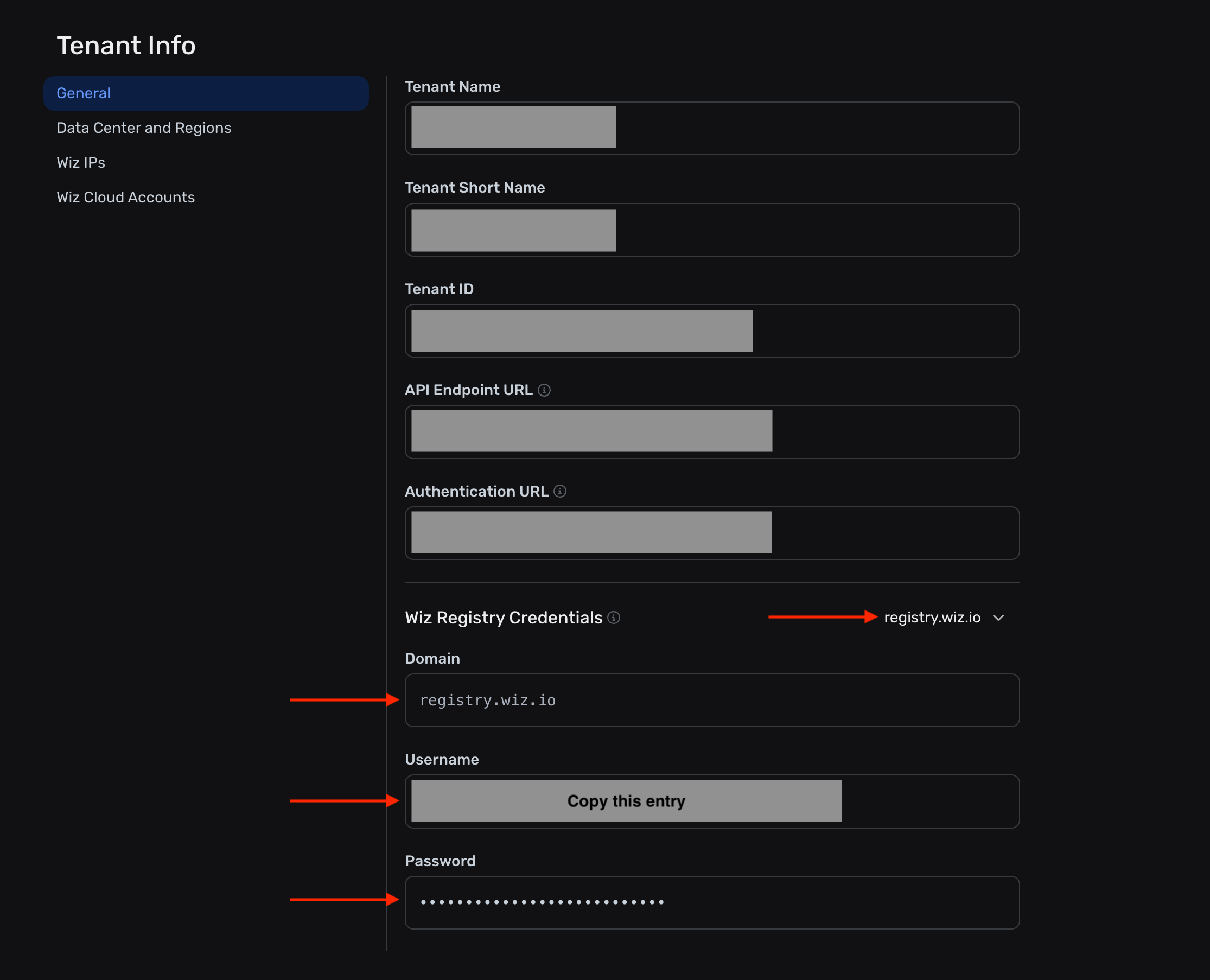
* You will need to obtain the **Domain** - You can select this via the drop-down. It is recommended that you select `registry.wiz.io`
* You will need the **Username** (Used later as `WIZ_REGISTRY_USERNAME`)
* You will need the **Password** (Used later as `WIZ_REGISTRY_PASSWORD`)
3. Next, you are going to create a **Google Secret Manager Secret in the same project as the Glean deployment**. See the Google Secret Manager Requirements section below on how to create the secret and what to place in there. Once you have provisioned the secret, come back here.
4. You will send over to your Glean representative the following information:
* The Wiz Client ID
* The Wiz registry Domain
* The name of the Secret Manager secret
5. Once the information is sent over to your Glean representative, Glean will perform a deployment to get the Wiz sensors installed.
###
[](https://docs.glean.com/security/cloud-prem/gcp/wiz-sensor#google-secret-manager-requirements)
Google Secret Manager Requirements
You will need to create a secret in the same _project_ as the Glean deployment. We recommend that you create a secret that is encrypted with the Google-managed encryption keys (default).
####
[](https://docs.glean.com/security/cloud-prem/gcp/wiz-sensor#the-secret-contents)
The Secret Contents
The secret that is created needs to be a JSON string that looks like this:
Copy
{
"WIZ_API_CLIENT_SECRET": "ADD-ME",
"WIZ_REGISTRY_USERNAME": "ADD-ME",
"WIZ_REGISTRY_PASSWORD": "ADD-ME"
}
You need to embed:
1. The Wiz Client Secret for `WIZ_API_CLIENT_SECRET`
2. The image pull registry username for `WIZ_REGISTRY_USERNAME`
3. The password for the image as `WIZ_REGISTRY_PASSWORD`
Once you create the secret, you will need to keep note of the name of the secret.
[](https://docs.glean.com/security/cloud-prem/gcp/wiz-sensor#pricing)
Pricing
---------------------------------------------------------------------------------
Because this is reporting back to the customer’s Wiz tenant, the customer is responsible for billing and capacity requirements. Generally, this will require a billable unit for each Compute Engine instance and GKE node instance. Please work with your Glean representative to discuss sizing.
Was this page helpful?
YesNo
[GCP Owner Role Management](https://docs.glean.com/security/cloud-prem/gcp/owner-role)
[Set up CrowdStrike Falcon sensors on GCP](https://docs.glean.com/security/cloud-prem/gcp/crowdstrike-falcon)
⌘I
---
# CrowdStrike Falcon Sensors on AWS - Glean Help Center
[Skip to main content](https://docs.glean.com/security/cloud-prem/aws/crowdstrike-falcon#content-area)
[Glean Help Center home page](https://docs.glean.com/)
Search...
⌘K
Search...
Navigation
AWS
CrowdStrike Falcon Sensors on AWS
[Home](https://docs.glean.com/home)
[User Guide](https://docs.glean.com/user-guide/about/what-is-glean)
[Agents](https://docs.glean.com/agents/home)
[Get Started for Admins](https://docs.glean.com/get-started/welcome)
[Connectors](https://docs.glean.com/connectors/home)
[Admin Guide](https://docs.glean.com/administration/about)
[Security & Architecture](https://docs.glean.com/security/home)
[Troubleshooting](https://docs.glean.com/troubleshooting/home)
[Release Notes](https://docs.glean.com/release-notes/home)
[Archive](https://docs.glean.com/archive/help-glean/answers/what-are-answers-and-how-do-they-work)
On this page
* [General Setup Details](https://docs.glean.com/security/cloud-prem/aws/crowdstrike-falcon#general-setup-details)
* [Setup Details](https://docs.glean.com/security/cloud-prem/aws/crowdstrike-falcon#setup-details)
* [Requirements](https://docs.glean.com/security/cloud-prem/aws/crowdstrike-falcon#requirements)
* [Licensing](https://docs.glean.com/security/cloud-prem/aws/crowdstrike-falcon#licensing)
* [Pricing](https://docs.glean.com/security/cloud-prem/aws/crowdstrike-falcon#pricing)
* [Customer Instructions](https://docs.glean.com/security/cloud-prem/aws/crowdstrike-falcon#customer-instructions)
* [Secret Creation](https://docs.glean.com/security/cloud-prem/aws/crowdstrike-falcon#secret-creation)
* [Preferred: Secret in the same AWS account as the Glean deployment:](https://docs.glean.com/security/cloud-prem/aws/crowdstrike-falcon#preferred-secret-in-the-same-aws-account-as-the-glean-deployment)
* [Secret in a different AWS account than the Glean deployment:](https://docs.glean.com/security/cloud-prem/aws/crowdstrike-falcon#secret-in-a-different-aws-account-than-the-glean-deployment)
* [The Secret Contents](https://docs.glean.com/security/cloud-prem/aws/crowdstrike-falcon#the-secret-contents)
* [Provide Glean with Details](https://docs.glean.com/security/cloud-prem/aws/crowdstrike-falcon#provide-glean-with-details)
For AWS customers that want to set up CrowdStrike Falcon sensors on the Glean compute workloads (EC2 instances and EKS nodes), please review the following:
[](https://docs.glean.com/security/cloud-prem/aws/crowdstrike-falcon#general-setup-details)
General Setup Details
=====================================================================================================================
CrowdStrike Falcon sensor installation is conducted via the standard Glean deploy process. The customer need not worry about having to perform the installation, nor does the customer need to make any changes to the Glean deployment. The customer will need to provide Glean with some details to have CrowdStrike Falcon deployed properly. Please see the requirements section.
[](https://docs.glean.com/security/cloud-prem/aws/crowdstrike-falcon#setup-details)
Setup Details
-----------------------------------------------------------------------------------------------------
For EC2 instances, Glean simply installs the Falcon agent. For K8s, Glean leverages the [Falcon Operator](https://github.com/CrowdStrike/falcon-operator)
to install the Node Sensor and the Kubernetes Admission Controller.
[](https://docs.glean.com/security/cloud-prem/aws/crowdstrike-falcon#requirements)
Requirements
===================================================================================================
[](https://docs.glean.com/security/cloud-prem/aws/crowdstrike-falcon#licensing)
Licensing
---------------------------------------------------------------------------------------------
CrowdStrike is not hosted by Glean; CrowdStrike is hosted by the customer and Glean hooks in to the customer’s CrowdStrike licenses. For customers to leverage CrowdStrike Falcon sensors to monitor their Glean deployment, there are one of 2 licensing options that customers must possess:
* **Option 1**: For CrowdStrike’s most comprehensive security capabilities, customers will need both CNAPP and CNAPP with Containers
* **Option 2**: For just runtime protection, customers will need both Cloud Runtime Security and Cloud Runtime Security with Containers
[](https://docs.glean.com/security/cloud-prem/aws/crowdstrike-falcon#pricing)
Pricing
-----------------------------------------------------------------------------------------
Because this is reporting back to the customer’s CrowdStrike tenant, the customer is responsible for all billing related matters.
[](https://docs.glean.com/security/cloud-prem/aws/crowdstrike-falcon#customer-instructions)
Customer Instructions
=====================================================================================================================
Glean requires that the customer perform the following steps:
1. Perform the steps required to add the Glean AWS account to your Falcon console for monitoring. Follow the CrowdStrike documentation for how to do this.
2. You will need CrowdStrike credentials that will be used by the Falcon sensors to communicate back to CrowdStrike. These credentials are composed of the following elements:
1. Client ID
2. Client Secret
3. After you obtain the credentials, grant the following permissions:
1. `Falcon Images Download`
2. `Installation Tokens` - `Read` and `Write`
3. `Sensor Download`
4. You will also need the Customer ID (CID Checksum). To obtain the Customer ID (CID Checksum), in the Falcon console, go to the CrowdStrike Sensor download page. The CID checksum should be at the top of the page. Click “Copy your Customer ID checksum to the clipboard.” This will be needed when constructing the secret.
5. Create the Secrets Manager entry (more on this below)
6. Provide details to Glean (more on this below)
[](https://docs.glean.com/security/cloud-prem/aws/crowdstrike-falcon#secret-creation)
Secret Creation
---------------------------------------------------------------------------------------------------------
The Glean deployment needs access to the credentials that have been minted. To securely provide this to the deployment, Glean requires that the customer mint an **AWS Secrets Manager secret in the same region as the Glean deployment**. For simplicity, we recommend creating this secret in the same AWS account as the Glean deployment, however, you also have the option of placing this in a different AWS account (instructions below).
[](https://docs.glean.com/security/cloud-prem/aws/crowdstrike-falcon#preferred-secret-in-the-same-aws-account-as-the-glean-deployment)
Preferred: Secret in the same AWS account as the Glean deployment:
-------------------------------------------------------------------------------------------------------------------------------------------------------------------------------------------------------------
If you are creating a secret in the _same_ AWS account as the Glean deployment, then we recommend that you create a secret that is encrypted with the AWS managed `aws/secretsmanager` KMS key. Create the secret and proceed to the next section on what the secret value should be.
[](https://docs.glean.com/security/cloud-prem/aws/crowdstrike-falcon#secret-in-a-different-aws-account-than-the-glean-deployment)
Secret in a different AWS account than the Glean deployment:
--------------------------------------------------------------------------------------------------------------------------------------------------------------------------------------------------
If you are creating a secret in a different AWS account than the Glean deployment, then you _**must**_ create a new AWS Customer Managed Key (KMS) first. This KMS key will need to have the following policy applied:
Copy
{
"Version": "2012-10-17",
"Id": "key-consolepolicy-3",
"Statement": [\
{\
"Sid": "Enable IAM User Permissions",\
"Effect": "Allow",\
"Principal": {\
"AWS": "arn:aws:iam::ACCOUNT-ID-THAT-THE-KMS-KEY-RESIDES-IN:root"\
},\
"Action": "kms:*",\
"Resource": "*"\
},\
{\
"Sid": "Allow secrets manager use of the key",\
"Effect": "Allow",\
"Principal": {\
"AWS": "arn:aws:iam::YOUR-GLEAN-DEPLOYMENT-AWS-ACCOUNT-ID:root"\
},\
"Action": [\
"kms:Decrypt",\
"kms:DescribeKey"\
],\
"Resource": "*",\
"Condition": {\
"StringEquals": {\
"kms:ViaService": "secretsmanager.DEPLOYMENT-REGION.amazonaws.com"\
}\
}\
}\
]
}
The secret that is created will _also_ need a cross-account policy attached to it. The policy will need to look like this:
Copy
{
"Version": "2012-10-17",
"Statement": [\
{\
"Sid": "AllowCrossAccountSecretRead",\
"Effect": "Allow",\
"Principal": {\
"AWS": "arn:aws:iam::YOUR-GLEAN-DEPLOYMENT-AWS-ACCOUNT:root"\
},\
"Action": "secretsmanager:GetSecretValue",\
"Resource": "*"\
}\
]
}
For cross-account secrets, **you cannot use the aws/secretsmanager** AWS managed key as it cannot be used cross-account.
[](https://docs.glean.com/security/cloud-prem/aws/crowdstrike-falcon#the-secret-contents)
The Secret Contents
-----------------------------------------------------------------------------------------------------------------
The secret that is created needs to be a JSON string that looks like this:
Copy
{
"FALCON_CLIENT_SECRET": "ADD-ME",
"CUSTOMER_ID": "ADD-ME"
}
You need to embed:
1. The CrowdStrike Falcon Client Secret for `FALCON_CLIENT_SECRET`
2. The Customer ID for `CUSTOMER_ID`
Once you create the secret, you will need to keep note of:
1. The ARN of the created secret
2. The ARN of the KMS key that encrypted the secret. You can locate this in the KMS console. For the `aws/secretsmanager` managed secret, you can locate this in the AWS console under AWS managed keys to obtain the ARN for it.
[](https://docs.glean.com/security/cloud-prem/aws/crowdstrike-falcon#provide-glean-with-details)
Provide Glean with Details
===============================================================================================================================
After you have completed all the customer steps above, then last step is to provide the desired CrowdStrike deployment details to Glean. The following details need to be sent over:
1. The Client ID for the credentials.
2. The ARN of the Secrets Manager Secret that was created above.
3. The ARN of the KMS key that encrypted the Secrets Manager Secret that was created above.
4. An optional comma-separated list of Tags that you would like to have applied to CrowdStrike deployments.
5. An optional “version decrement” for EC2 instances. By default, this value is set to 0. This sets the Falcon version to deploy minus the decrement (i.e. you can have the Falcon release that is 2 versions old to be deployed). See the CrowdStrike documentation for details.
6. An optional kubernetes Falcon auto update strategy. By default, this is set to `normal`, but this can also be set to `off` or `force`. See the CrowdStrike documentation for details.
7. An optional kubernetes Falcon update policy string. This is the name of the Falcon Linux sensor update policy (configured in the Falcon UI). When set, this policy determines which Falcon sensor version to install. This is unset by default. See the CrowdStrike documentation for details.
Once the details are provided, Glean will perform a deployment which will place the falcon sensors on the Glean compute components.
Was this page helpful?
YesNo
[Set up Wiz sensors on AWS](https://docs.glean.com/security/cloud-prem/aws/wiz-sensor)
[Connecting Glean to On-prem Datasources](https://docs.glean.com/security/cloud-prem/aws/connecting-to-onprem-datasources)
⌘I
---
# Connecting Glean to On-prem Datasources - Glean Help Center
[Skip to main content](https://docs.glean.com/security/cloud-prem/aws/connecting-to-onprem-datasources#content-area)
[Glean Help Center home page](https://docs.glean.com/)
Search...
⌘K
Search...
Navigation
AWS
Connecting Glean to On-prem Datasources
[Home](https://docs.glean.com/home)
[User Guide](https://docs.glean.com/user-guide/about/what-is-glean)
[Agents](https://docs.glean.com/agents/home)
[Get Started for Admins](https://docs.glean.com/get-started/welcome)
[Connectors](https://docs.glean.com/connectors/home)
[Admin Guide](https://docs.glean.com/administration/about)
[Security & Architecture](https://docs.glean.com/security/home)
[Troubleshooting](https://docs.glean.com/troubleshooting/home)
[Release Notes](https://docs.glean.com/release-notes/home)
[Archive](https://docs.glean.com/archive/help-glean/answers/what-are-answers-and-how-do-they-work)
On this page
* [Glean on AWS: Connecting to on-premises services over Shared TGW](https://docs.glean.com/security/cloud-prem/aws/connecting-to-onprem-datasources#glean-on-aws-connecting-to-on-premises-services-over-shared-tgw)
* [Topology](https://docs.glean.com/security/cloud-prem/aws/connecting-to-onprem-datasources#topology)
* [Configuration steps](https://docs.glean.com/security/cloud-prem/aws/connecting-to-onprem-datasources#configuration-steps)
* [Routing](https://docs.glean.com/security/cloud-prem/aws/connecting-to-onprem-datasources#routing)
[](https://docs.glean.com/security/cloud-prem/aws/connecting-to-onprem-datasources#glean-on-aws-connecting-to-on-premises-services-over-shared-tgw)
Glean on AWS: Connecting to on-premises services over Shared TGW
------------------------------------------------------------------------------------------------------------------------------------------------------------------------------------------------------------------------
The Glean AWS project can peer with TGWs in your other AWS accounts. This allows Glean to crawl private services within your network. Within the Glean project, we use a transit VPC network to minimize IP collisions with your network and minimize exposure. You must set aside a [private](https://tools.ietf.org/html/rfc1918)
/26 range for this transit VPC.
###
[](https://docs.glean.com/security/cloud-prem/aws/connecting-to-onprem-datasources#topology)
Topology
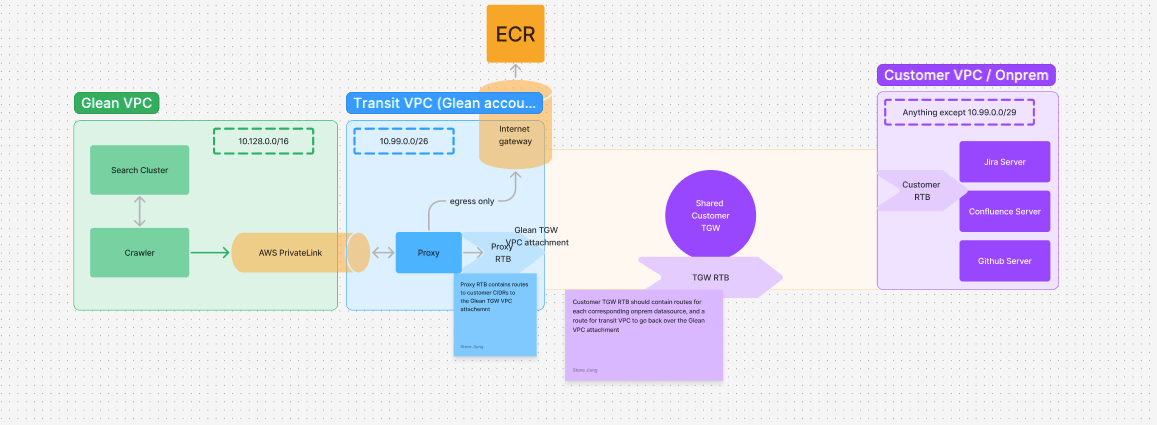
###
[](https://docs.glean.com/security/cloud-prem/aws/connecting-to-onprem-datasources#configuration-steps)
Configuration steps
You do not need to touch anything within the Glean account. All configuration will be done through terraform; you need to ensure routes and security groups are properly set up on your datasource or networking accounts.
The following setup assumes you have a TGW already established in your VPC, which you wish to share with Glean.
1. To start configuring Glean shared TGW connectivity, first decide on a transit network
* The set-aside /26 IP CIDR range for Glean’s use that doesn’t conflict with Glean VPC (10.1.0.0/16) or any existing customer ranges **and provide this to Glean**
* `This is used to avoid IP collisions`
2. Create a resource share with the corresponding Glean account, sharing the TGW resource with the principal: `arn:aws:iam::{glean-account-id}:root`
3. You can either accept the resource share on the glean account manually and provide the accepted transit gateway id
4. _**OR**_ if you would like the Glean account to make the connection request, provide the resource share to glean and glean will create an outgoing connection request, which you will need to accept and let glean know once done
5. Glean will create a TGW attachment to the shared TGW. You will need to accept this attachment and set up routes from there.
\*The 10.99.0.0/26 and 10.99.0.0/29 CIDRs in the diagram are examples.
###
[](https://docs.glean.com/security/cloud-prem/aws/connecting-to-onprem-datasources#routing)
Routing
For routing, simply route all traffic destined for Glean’s network through the shared TGW attachment (using the /26 transit CIDR).
Was this page helpful?
YesNo
[Set up CrowdStrike Falcon sensors on AWS](https://docs.glean.com/security/cloud-prem/aws/crowdstrike-falcon)
[Security Best Practices for Scheduled Triggers Agents](https://docs.glean.com/security/agents/background-agents)
⌘I
---
# About Cloud-Prem AWS - Glean Help Center
[Skip to main content](https://docs.glean.com/security/cloud-prem/aws/home#content-area)
[Glean Help Center home page](https://docs.glean.com/)
Search...
⌘K
Search...
Navigation
AWS
About Cloud-Prem AWS
[Home](https://docs.glean.com/home)
[User Guide](https://docs.glean.com/user-guide/about/what-is-glean)
[Agents](https://docs.glean.com/agents/home)
[Get Started for Admins](https://docs.glean.com/get-started/welcome)
[Connectors](https://docs.glean.com/connectors/home)
[Admin Guide](https://docs.glean.com/administration/about)
[Security & Architecture](https://docs.glean.com/security/home)
[Troubleshooting](https://docs.glean.com/troubleshooting/home)
[Release Notes](https://docs.glean.com/release-notes/home)
[Archive](https://docs.glean.com/archive/help-glean/answers/what-are-answers-and-how-do-they-work)
Welcome to Glean’s AWS Support Hub. This page serves as a central resource for all help articles and documentation related to using Glean on AWS. Whether you are just getting started or need advanced troubleshooting, you will find the information you need here.
[Deployment Guide\
----------------\
\
A step-by-step guide to deploying Glean on AWS](https://docs.glean.com/get-started/build/aws/deploy-aws)
[Supported Regions\
-----------------\
\
The AWS services required by Glean for successful deployment in each region](https://docs.glean.com/get-started/build/aws/supported-aws-regions)
[FAQ\
---\
\
Frequently asked questions about Glean’s AWS deployment options, infrastructure requirements, and feature support](https://docs.glean.com/security/cloud-prem/aws/faq)
Was this page helpful?
YesNo
[Connecting Glean to on-premises data sources](https://docs.glean.com/security/cloud-prem/gcp/connecting-to-onprem-datasources)
[AWS Account Access & Deployment Model](https://docs.glean.com/security/cloud-prem/aws/account-access-and-deployment-model)
⌘I
---
# About Cloud-Prem GCP - Glean Help Center
[Skip to main content](https://docs.glean.com/security/cloud-prem/gcp/home#content-area)
[Glean Help Center home page](https://docs.glean.com/)
Search...
⌘K
Search...
Navigation
GCP
About Cloud-Prem GCP
[Home](https://docs.glean.com/home)
[User Guide](https://docs.glean.com/user-guide/about/what-is-glean)
[Agents](https://docs.glean.com/agents/home)
[Get Started for Admins](https://docs.glean.com/get-started/welcome)
[Connectors](https://docs.glean.com/connectors/home)
[Admin Guide](https://docs.glean.com/administration/about)
[Security & Architecture](https://docs.glean.com/security/home)
[Troubleshooting](https://docs.glean.com/troubleshooting/home)
[Release Notes](https://docs.glean.com/release-notes/home)
[Archive](https://docs.glean.com/archive/help-glean/answers/what-are-answers-and-how-do-they-work)
Welcome to Glean’s GCP Support Hub. This page serves as a central resource for all help articles and documentation related to using Glean on GCP. Whether you are just getting started or need advanced troubleshooting, you will find the information you need here.
[Deployment Guide\
----------------\
\
A step-by-step guide to deploying Glean on GCP](https://docs.glean.com/get-started/build/gcp/deploy-gcp)
[Supported Regions\
-----------------\
\
The GCP services required by Glean for successful deployment in each region](https://docs.glean.com/get-started/build/gcp/supported-gcp-regions)
[FAQ\
---\
\
Frequently asked questions about Glean’s GCP deployment options, infrastructure requirements, and feature support](https://docs.glean.com/security/cloud-prem/gcp/faq)
Was this page helpful?
YesNo
[Glean on Cloud-Prem](https://docs.glean.com/security/cloud-prem/home)
[GCP FAQ](https://docs.glean.com/security/cloud-prem/gcp/faq)
⌘I
---
# Wiz Sensor support on AWS - Glean Help Center
[Skip to main content](https://docs.glean.com/security/cloud-prem/aws/wiz-sensor#content-area)
[Glean Help Center home page](https://docs.glean.com/)
Search...
⌘K
Search...
Navigation
AWS
Wiz Sensor support on AWS
[Home](https://docs.glean.com/home)
[User Guide](https://docs.glean.com/user-guide/about/what-is-glean)
[Agents](https://docs.glean.com/agents/home)
[Get Started for Admins](https://docs.glean.com/get-started/welcome)
[Connectors](https://docs.glean.com/connectors/home)
[Admin Guide](https://docs.glean.com/administration/about)
[Security & Architecture](https://docs.glean.com/security/home)
[Troubleshooting](https://docs.glean.com/troubleshooting/home)
[Release Notes](https://docs.glean.com/release-notes/home)
[Archive](https://docs.glean.com/archive/help-glean/answers/what-are-answers-and-how-do-they-work)
On this page
* [General Setup Details](https://docs.glean.com/security/cloud-prem/aws/wiz-sensor#general-setup-details)
* [Requirements and Instructions](https://docs.glean.com/security/cloud-prem/aws/wiz-sensor#requirements-and-instructions)
* [AWS Secrets Manager Requirements](https://docs.glean.com/security/cloud-prem/aws/wiz-sensor#aws-secrets-manager-requirements)
* [Preferred: Secret in the same AWS account as the Glean deployment:](https://docs.glean.com/security/cloud-prem/aws/wiz-sensor#preferred-secret-in-the-same-aws-account-as-the-glean-deployment)
* [Secret in a different AWS account than the Glean deployment:](https://docs.glean.com/security/cloud-prem/aws/wiz-sensor#secret-in-a-different-aws-account-than-the-glean-deployment)
* [The Secret Contents](https://docs.glean.com/security/cloud-prem/aws/wiz-sensor#the-secret-contents)
* [Pricing](https://docs.glean.com/security/cloud-prem/aws/wiz-sensor#pricing)
For AWS customers that want to set up Wiz sensors on the Glean compute workloads (EC2 instances and EKS nodes), please review the following:
[](https://docs.glean.com/security/cloud-prem/aws/wiz-sensor#general-setup-details)
General Setup Details
-------------------------------------------------------------------------------------------------------------
Wiz sensor installation is conducted via the standard Glean deploy process. The customer need not worry about having to perform the installation, nor does the customer need to make any changes to the Glean deployment. The customer will need to provide Glean with some details to have Wiz deployed properly. Please see the requirements section.
[](https://docs.glean.com/security/cloud-prem/aws/wiz-sensor#requirements-and-instructions)
Requirements and Instructions
-----------------------------------------------------------------------------------------------------------------------------
Glean requires that the customer perform the following steps:
1. In Wiz, create a Service Account for a Wiz sensor. Consult with the Wiz documentation for instructions on how to do this. When you do this, you will receive a **Client ID** and a **Client Secret** (used later as `WIZ_API_CLIENT_SECRET`). Please keep note of these as these will be needed.
2. You will also need to collect the runtime sensor image pull key from your Wiz tenant. This can be obtained by going to your tenant info by clicking on this link: ([https://app.wiz.io/tenant-info/general](https://app.wiz.io/tenant-info/general)
). You will be presented with a screen that looks like this: 
* You will need to obtain the **Domain** - You can select this via the drop-down. It is recommended that you select `registry.wiz.io`
* You will need the **Username** (Used later as `WIZ_REGISTRY_USERNAME`)
* You will need the **Password** (Used later as `WIZ_REGISTRY_PASSWORD`)
3. Next, you are going to create an **AWS Secrets Manager Secret in the same region as the Glean deployment**. For simplicity, we recommend creating this AWS secret in the same AWS account as the Glean deployment, however you don’t have to. See the AWS Secrets Manager Requirements section below on how to create the secret and what to place in there. Once you have provisioned the secret, come back here.
4. You will send over to your Glean representative the following information:
* The Wiz Client ID
* The Wiz registry Domain
* The ARN for the Secrets Manager Secret
* The ARN for the KMS key that is encrypting for the Secrets Manager secret
5. Once the information is sent over to your Glean representative, Glean will perform a deployment to get the Wiz sensors installed.
###
[](https://docs.glean.com/security/cloud-prem/aws/wiz-sensor#aws-secrets-manager-requirements)
AWS Secrets Manager Requirements
In all cases, you will need to create a secret in the _same region_ as the Glean deployment.
####
[](https://docs.glean.com/security/cloud-prem/aws/wiz-sensor#preferred-secret-in-the-same-aws-account-as-the-glean-deployment)
Preferred: Secret in the same AWS account as the Glean deployment:
If you are creating a secret in the _same_ AWS account as the Glean deployment, then we recommend that you create a secret that is encrypted with the AWS managed `aws/secretsmanager` KMS key. Create the secret and proceed to the next section on what the secret value should be.
####
[](https://docs.glean.com/security/cloud-prem/aws/wiz-sensor#secret-in-a-different-aws-account-than-the-glean-deployment)
Secret in a different AWS account than the Glean deployment:
If you are creating a secret in a different AWS account than the Glean deployment, then you _**must**_ create a new AWS Customer Managed Key (KMS) first. This KMS key will need to have the following policy applied:
Copy
{
"Version": "2012-10-17",
"Id": "key-consolepolicy-3",
"Statement": [\
{\
"Sid": "Enable IAM User Permissions",\
"Effect": "Allow",\
"Principal": {\
"AWS": "arn:aws:iam::ACCOUNT-ID-THAT-THE-KMS-KEY-RESIDES-IN:root"\
},\
"Action": "kms:*",\
"Resource": "*"\
},\
{\
"Sid": "Allow secrets manager use of the key",\
"Effect": "Allow",\
"Principal": {\
"AWS": "arn:aws:iam::YOUR-GLEAN-DEPLOYMENT-AWS-ACCOUNT-ID:root"\
},\
"Action": [\
"kms:Decrypt",\
"kms:DescribeKey"\
],\
"Resource": "*",\
"Condition": {\
"StringEquals": {\
"kms:ViaService": "secretsmanager.DEPLOYMENT-REGION.amazonaws.com"\
}\
}\
}\
]
}
The secret that is created will _also_ need a cross-account policy attached to it. The policy will need to look like this:
Copy
{
"Version": "2012-10-17",
"Statement": [\
{\
"Sid": "AllowCrossAccountSecretRead",\
"Effect": "Allow",\
"Principal": {\
"AWS": "arn:aws:iam::YOUR-GLEAN-DEPLOYMENT-AWS-ACCOUNT:root"\
},\
"Action": "secretsmanager:GetSecretValue",\
"Resource": "*"\
}\
]
}
For cross-account secrets, **you cannot use the aws/secretsmanager** AWS managed key as it cannot be used cross-account.
####
[](https://docs.glean.com/security/cloud-prem/aws/wiz-sensor#the-secret-contents)
The Secret Contents
The secret that is created needs to be a JSON string that looks like this:
Copy
{
"WIZ_API_CLIENT_SECRET": "ADD-ME",
"WIZ_REGISTRY_USERNAME": "ADD-ME",
"WIZ_REGISTRY_PASSWORD": "ADD-ME"
}
You need to embed:
1. The Wiz Client Secret for `WIZ_API_CLIENT_SECRET`
2. The image pull registry username for `WIZ_REGISTRY_USERNAME`
3. The password for the image as `WIZ_REGISTRY_PASSWORD`
Once you create the secret, you will need to keep note of:
1. The ARN of the created secret
2. The ARN of the KMS key that encrypted the secret. You can locate this in the KMS console. For the `aws/secretsmanager` managed secret, you can locate this in the AWS console under AWS managed keys to obtain the ARN for it.
[](https://docs.glean.com/security/cloud-prem/aws/wiz-sensor#pricing)
Pricing
---------------------------------------------------------------------------------
Because this is reporting back to the customer’s Wiz tenant, the customer is responsible for billing and capacity requirements. Generally, this will require a billable unit for each EC2 instance and EKS node instance. Please work with your Glean representative to discuss sizing.
Was this page helpful?
YesNo
[Glean AWS Permission Boundary Support](https://docs.glean.com/security/cloud-prem/aws/permission-boundaries)
[Set up CrowdStrike Falcon sensors on AWS](https://docs.glean.com/security/cloud-prem/aws/crowdstrike-falcon)
⌘I
---
# Setup Glean Assistant - Glean Help Center
[Skip to main content](https://docs.glean.com/get-started/golive/setup-glean-assistant#content-area)
[Glean Help Center home page](https://docs.glean.com/)
Search...
⌘K
Search...
Navigation
Stage 5: Go Live
Setup Glean Assistant
[Home](https://docs.glean.com/home)
[User Guide](https://docs.glean.com/user-guide/about/what-is-glean)
[Agents](https://docs.glean.com/agents/home)
[Get Started for Admins](https://docs.glean.com/get-started/welcome)
[Connectors](https://docs.glean.com/connectors/home)
[Admin Guide](https://docs.glean.com/administration/about)
[Security & Architecture](https://docs.glean.com/security/home)
[Troubleshooting](https://docs.glean.com/troubleshooting/home)
[Release Notes](https://docs.glean.com/release-notes/home)
[Archive](https://docs.glean.com/archive/help-glean/answers/what-are-answers-and-how-do-they-work)
On this page
* [About Glean Assistant](https://docs.glean.com/get-started/golive/setup-glean-assistant#about-glean-assistant)
* [Setting Up Glean Assistant](https://docs.glean.com/get-started/golive/setup-glean-assistant#setting-up-glean-assistant)
* [Activate Glean Assistant](https://docs.glean.com/get-started/golive/setup-glean-assistant#activate-glean-assistant)
* [Assign Users](https://docs.glean.com/get-started/golive/setup-glean-assistant#assign-users)
* [Enable Glean Assistant](https://docs.glean.com/get-started/golive/setup-glean-assistant#enable-glean-assistant)
* [Customizing Glean Assistant](https://docs.glean.com/get-started/golive/setup-glean-assistant#customizing-glean-assistant)
* [Select Your LLM](https://docs.glean.com/get-started/golive/setup-glean-assistant#select-your-llm)
* [Receive User feedback](https://docs.glean.com/get-started/golive/setup-glean-assistant#receive-user-feedback)
* [Set Exclusion Rules](https://docs.glean.com/get-started/golive/setup-glean-assistant#set-exclusion-rules)
* [Provide Custom instructions](https://docs.glean.com/get-started/golive/setup-glean-assistant#provide-custom-instructions)
* [Set a Disclaimer](https://docs.glean.com/get-started/golive/setup-glean-assistant#set-a-disclaimer)
* [Using Glean Assistant](https://docs.glean.com/get-started/golive/setup-glean-assistant#using-glean-assistant)
* [Chat](https://docs.glean.com/get-started/golive/setup-glean-assistant#chat)
* [AI Answers](https://docs.glean.com/get-started/golive/setup-glean-assistant#ai-answers)
* [AI Summaries](https://docs.glean.com/get-started/golive/setup-glean-assistant#ai-summaries)
* [Slackbot](https://docs.glean.com/get-started/golive/setup-glean-assistant#slackbot)
* [Teamsbot](https://docs.glean.com/get-started/golive/setup-glean-assistant#teamsbot)
* [Glean Agents](https://docs.glean.com/get-started/golive/setup-glean-assistant#glean-agents)

Before proceeding with this step, you should ensure that all of your initial data source crawls are complete and that your M/L workflows have run. Glean Assistant will not respond correctly until these steps have completed.
* * *
[](https://docs.glean.com/get-started/golive/setup-glean-assistant#about-glean-assistant)
About Glean Assistant
-------------------------------------------------------------------------------------------------------------------
Glean Assistant is a secure, enterprise-ready digital workplace assistant that respects data access permissions and delivers personalized answers based on your organization’s data. Think of it like ChatGPT, but with secure access to your company’s information. Glean Assistant is designed to enhance your workplace experience by providing you with the information you need, when you need it, in a secure and personalized manner. It understands your company’s content, internal language, people, and relationships, enabling Glean Assistant to deliver more relevant and accurate information than publicly available generative AI tools.
[](https://docs.glean.com/get-started/golive/setup-glean-assistant#setting-up-glean-assistant)
Setting Up Glean Assistant
-----------------------------------------------------------------------------------------------------------------------------
###
[](https://docs.glean.com/get-started/golive/setup-glean-assistant#activate-glean-assistant)
Activate Glean Assistant
You can activate Glean Assistant by navigating to [Admin Console > Platform > Assistant > Setup](https://app.glean.com/admin/setup/gleanassistant?tab=setup), then selecting **Activate**. If the Assistant menu option is greyed out or not visible, this means that either:
* Your People Data sync has not been completed.
* The initial crawling/indexing tasks for all data sources has not yet completed, OR
* The M/L workflows for your environment have not yet completed.
Once you have completed these steps, the Assistant menu option will become visible and you can activate Glean Assistant.
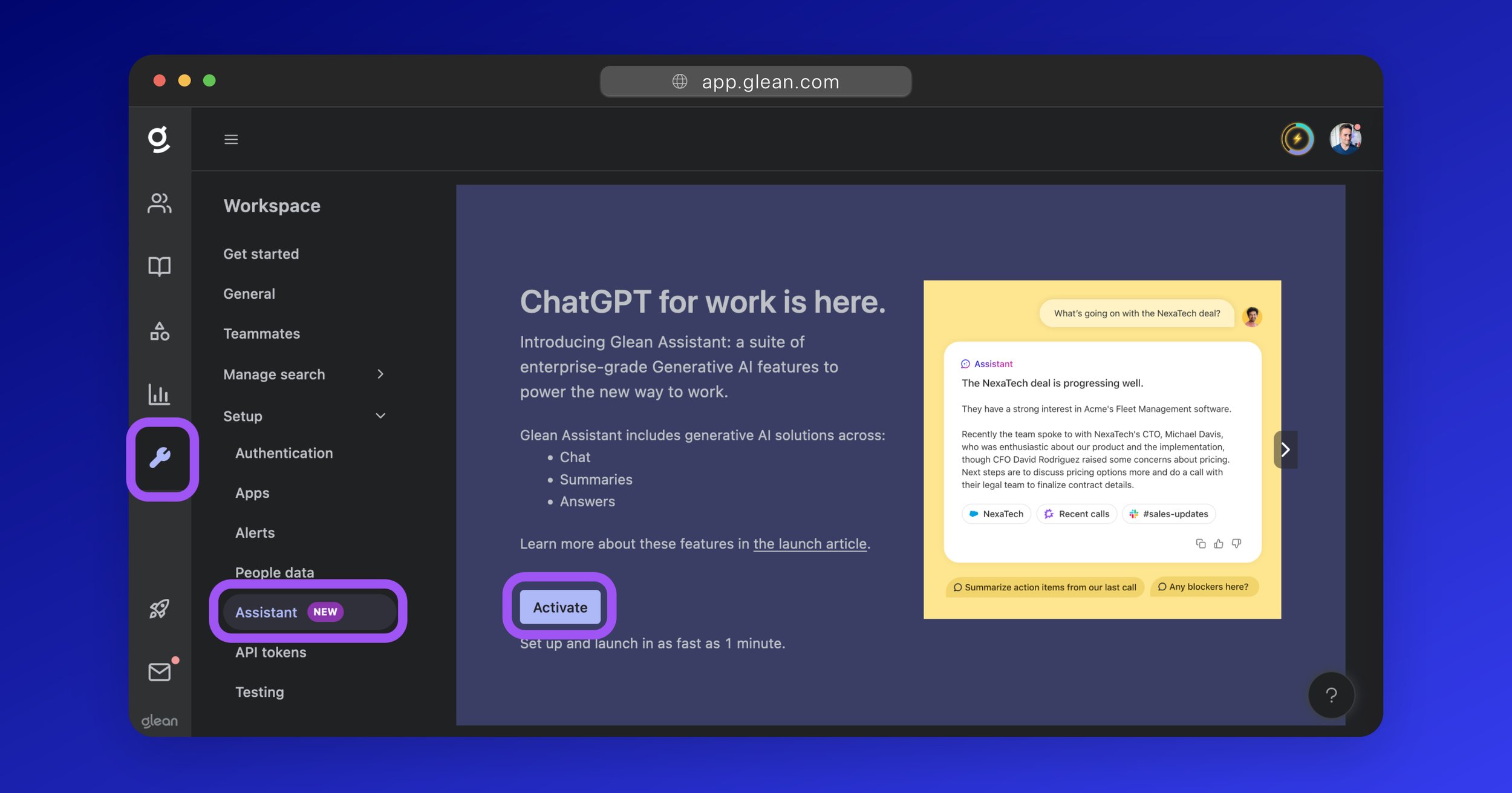
###
[](https://docs.glean.com/get-started/golive/setup-glean-assistant#assign-users)
Assign Users
Glean Assistant can be enabled for the entire organization or for a selected test group of users. Glean recommends enabling Assistant for a test group first before proceeding with the rollout to the broader organization. To assign users to Glean Assistant, navigate to [Admin Console > Platform > Assistant > Setup](https://app.glean.com/admin/setup/gleanassistant?tab=setup), then click to open the **User Access** dropdown menu. Here you can select either:
* Enabled for all teammates
* Enabled for test group only
If you select **Enabled for test group only**, you can click the **Add teammates** button to specify the users who will have access.
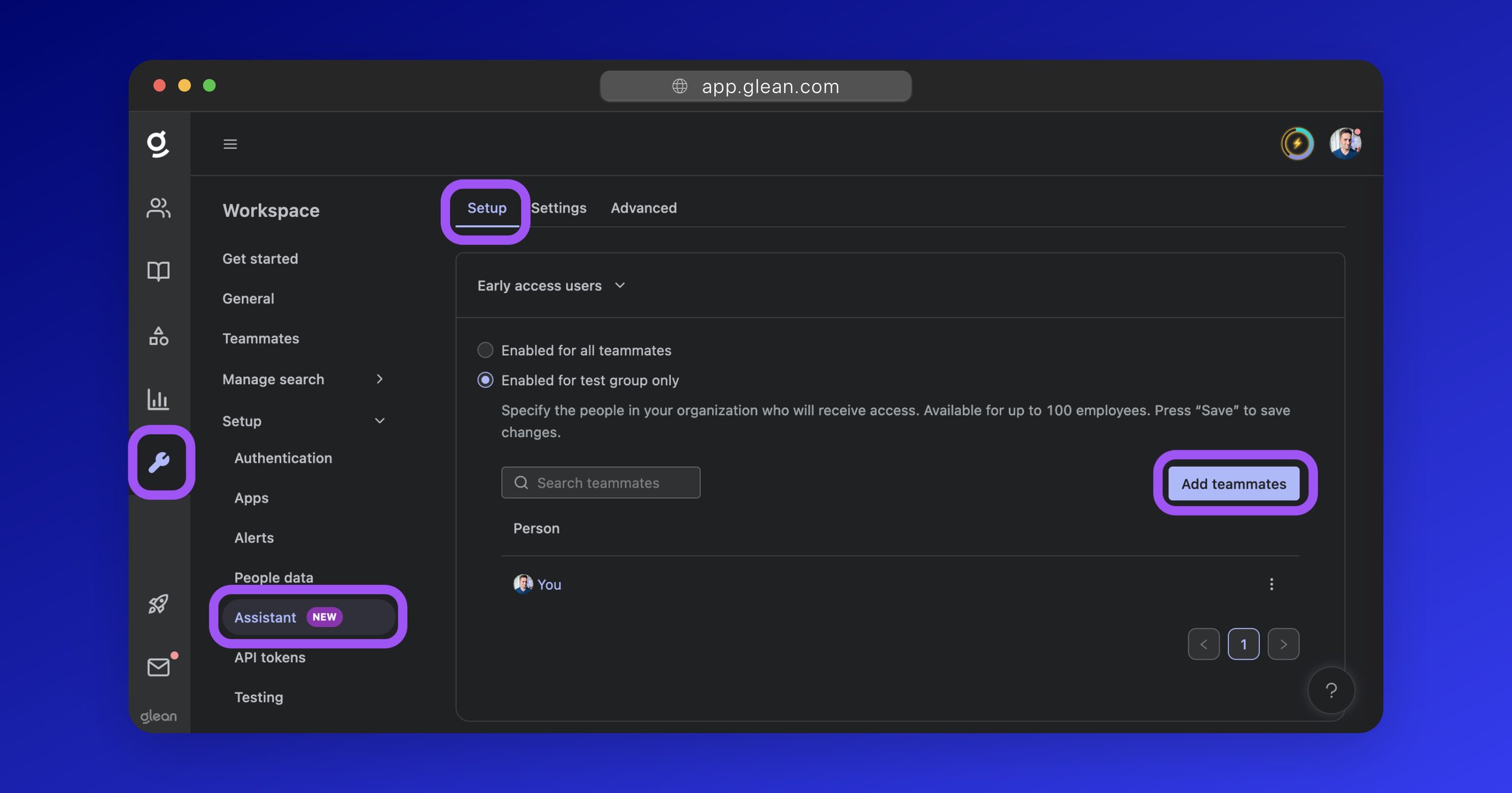
If your organization uses [group-based permissions](https://docs.glean.com/administration/identity/roles/group-based-permissions)
, you can also grant Assistant access via identity provider groups. Users who belong to groups with Assistant access will automatically receive access when they sign in. This is recommended for large-scale rollouts, as it keeps access synchronized with your IdP without manual user management.
###
[](https://docs.glean.com/get-started/golive/setup-glean-assistant#enable-glean-assistant)
Enable Glean Assistant
Once you have specified the users that Assistant should be enabled for, click the **Enable Glean Assistant**, button to turn on Assistant for those users. Alternatively, you can also follow any of the applicable optional steps below to customize Assistant and its behavior.
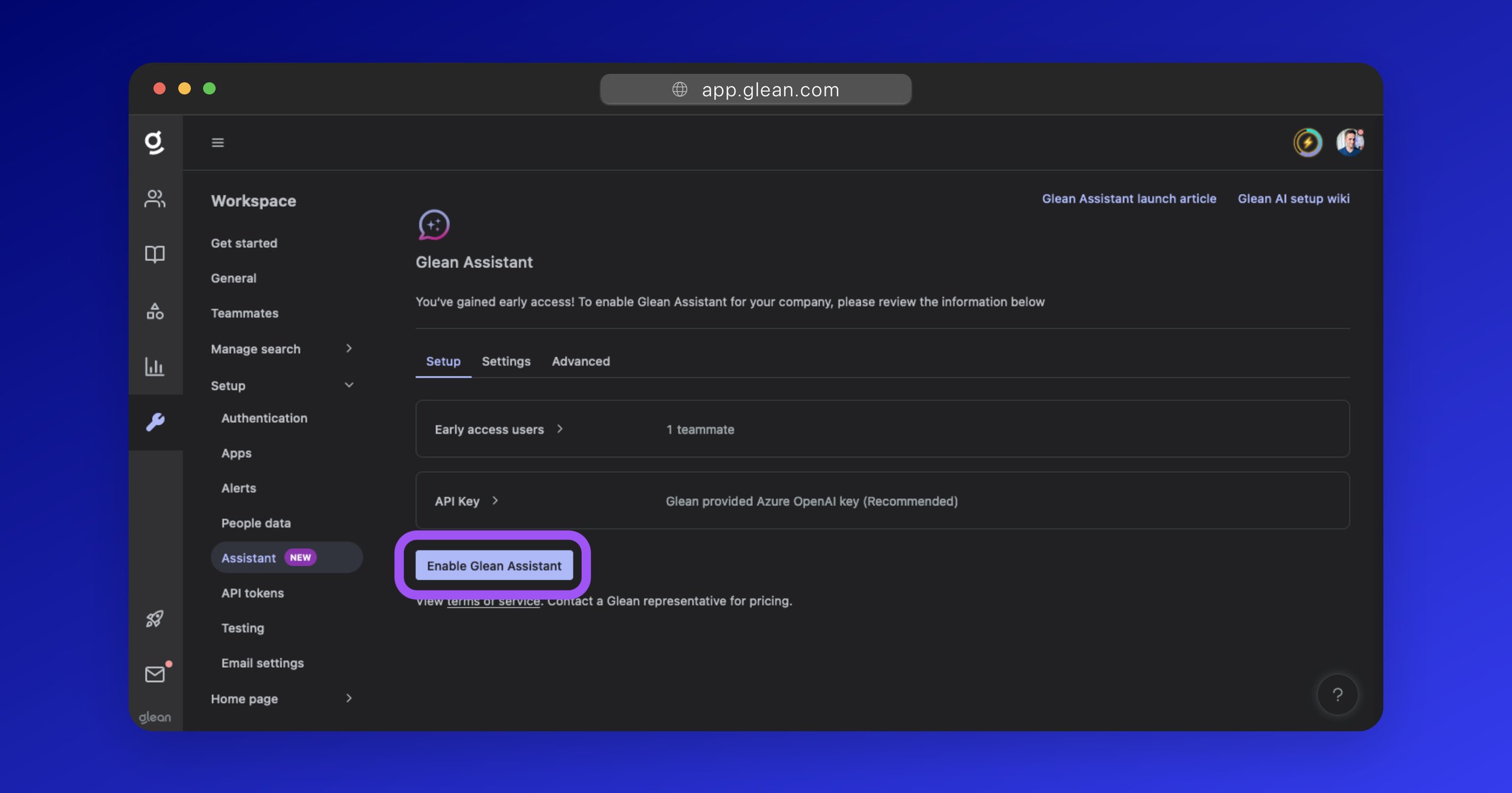
* * *
[](https://docs.glean.com/get-started/golive/setup-glean-assistant#customizing-glean-assistant)
Customizing Glean Assistant
-------------------------------------------------------------------------------------------------------------------------------
There are a number of optional settings you can configure for Glean Assistant.
###
[](https://docs.glean.com/get-started/golive/setup-glean-assistant#select-your-llm)
Select Your LLM
Glean supports a range of LLMs including:
* GPT
* Claude
* Gemini
In addition, Glean supports accessing your selected LLM via a variety of methods depending on the needs of your organization. For example, AWS Bedrock, GCP Vertex AI, etc. You can select the LLM provider by navigating to [Admin Console > Platform > Assistant > Setup](https://app.glean.com/admin/setup/gleanassistant?tab=setup), then expanding the **LLM Provider** section.
###
[](https://docs.glean.com/get-started/golive/setup-glean-assistant#receive-user-feedback)
Receive User feedback
Users can provide feedback to Glean Assistant responses as positive (👍) or negative (👎) with accompanying comments. You can opt to have this feedback sent to a company email alias for review. To configure settings related to user feedback, navigate to [Admin Console > Settings > Help](https://app.glean.com/admin/helpsettings), expand the **Feedback** section, and click the **Advanced preferences** button. More information: [Receive User Feedback](https://docs.glean.com/administration/assistant/configuration/user-feedback)
###
[](https://docs.glean.com/get-started/golive/setup-glean-assistant#set-exclusion-rules)
Set Exclusion Rules
You can exclude certain content from ever being sent to an LLM across all Glean Assistant interfaces. For example, if you exclude a document, Glean Assistant will not use any data from that document to generate responses; even if a user is permitted to access the document content. To set explicit exclusion (or inclusion) rules, navigate to [Admin Console > Platform > Assistant > Advanced](https://app.glean.com/admin/setup/gleanassistant?tab=advanced), then expand the **Exclusion rules** and **Inclusion rules** sections. More information: [Restricting LLM Access to Content](https://docs.glean.com/administration/assistant/configuration/content-restrictions)
###
[](https://docs.glean.com/get-started/golive/setup-glean-assistant#provide-custom-instructions)
Provide Custom instructions
You can optionally provide Glean Assistant with up to 5 custom instructions to better align its behavior with your enterprise requirements. For example:
* Ensure that you remind users that their answers may not be accurate.
* Do not respond to any queries regarding salary.
* Only respond in German.
To set a custom instruction, navigate to [Admin Console > Platform > Assistant > Advanced](https://app.glean.com/admin/setup/gleanassistant?tab=advanced), then expand the **Custom instructions** section.
Custom instructions do not alter Glean Assistant’s retrieval capabilities. They control the response generated by the LLM and are sent alongside data retrieved by Glean as deemed relevant to the user’s query.
More information: [Custom Instructions](https://docs.glean.com/administration/assistant/configuration/custom-instructions)
###
[](https://docs.glean.com/get-started/golive/setup-glean-assistant#set-a-disclaimer)
Set a Disclaimer
You can set a disclaimer that will be displayed to users when they interact with Glean Assistant. This can be used to inform users about the limitations of Generative AI or to provide them with important information. To set a disclaimer, navigate to [Admin Console > Platform > Assistant > Advanced](https://app.glean.com/admin/setup/gleanassistant?tab=advanced), then expand the **Disclaimers** section.
* * *
[](https://docs.glean.com/get-started/golive/setup-glean-assistant#using-glean-assistant)
Using Glean Assistant
-------------------------------------------------------------------------------------------------------------------
###
[](https://docs.glean.com/get-started/golive/setup-glean-assistant#chat)
Chat
**Glean Chat** is the dedicated entry point for the Assistant and can be accessed by clicking on the message bubble icon from the left-side menu of the Glean UI: [Chat > New Chat](https://app.glean.com/chat) More information: [Glean Chat](https://docs.glean.com/user-guide/basics/a-beginner-s-guide-to-chat)
###
[](https://docs.glean.com/get-started/golive/setup-glean-assistant#ai-answers)
AI Answers
**AI Answers** are typically used in the context of search results, providing direct answers to user queries based on the content of your documents when a user makes a relevant search query. More information: [AI Answers](https://docs.glean.com/user-guide/assistant/ai-answers)
###
[](https://docs.glean.com/get-started/golive/setup-glean-assistant#ai-summaries)
AI Summaries
The AI Summarization feature of Glean Assistant provides concise summaries of documents. This feature is designed to enhance your productivity by providing a quick overview of a document’s content without having to read the entire document. To summarize a document, hover over a search result and click the **Summarize** button that appears at the top-right of the result.
###
[](https://docs.glean.com/get-started/golive/setup-glean-assistant#slackbot)
Slackbot
If your organization uses Slack, you can configure Glean Assistant as a bot within your Slack workspace to automatically answer questions as employees post them. More information: [Slackbot](https://docs.glean.com/administration/assistant/slackbot/about-slackbot)
###
[](https://docs.glean.com/get-started/golive/setup-glean-assistant#teamsbot)
Teamsbot
If your organization uses Microsoft Teams, you can configure Glean Assistant as a bot within your Teams workspace to automatically answer questions as employees post them.
###
[](https://docs.glean.com/get-started/golive/setup-glean-assistant#glean-agents)
Glean Agents
Glean Agents are AI-powered workflows that help automate tasks and streamline processes. Agents can be configured to perform complex, multi-step operations by combining multiple actions together. They can be triggered on-demand, scheduled, or integrated into Slack channels. More information: [Glean Agents](https://docs.glean.com/agents/home)
Was this page helpful?
YesNo
[Customize Branding](https://docs.glean.com/get-started/golive/customize-branding)
[Deploy the Glean Apps](https://docs.glean.com/get-started/golive/deploy-apps)
⌘I
---
# Deploy the Glean Apps - Glean Help Center
[Skip to main content](https://docs.glean.com/get-started/golive/deploy-apps#content-area)
[Glean Help Center home page](https://docs.glean.com/)
Search...
⌘K
Search...
Navigation
Stage 5: Go Live
Deploy the Glean Apps
[Home](https://docs.glean.com/home)
[User Guide](https://docs.glean.com/user-guide/about/what-is-glean)
[Agents](https://docs.glean.com/agents/home)
[Get Started for Admins](https://docs.glean.com/get-started/welcome)
[Connectors](https://docs.glean.com/connectors/home)
[Admin Guide](https://docs.glean.com/administration/about)
[Security & Architecture](https://docs.glean.com/security/home)
[Troubleshooting](https://docs.glean.com/troubleshooting/home)
[Release Notes](https://docs.glean.com/release-notes/home)
[Archive](https://docs.glean.com/archive/help-glean/answers/what-are-answers-and-how-do-they-work)
On this page
* [Browser Extension](https://docs.glean.com/get-started/golive/deploy-apps#browser-extension)
* [Supported Browsers](https://docs.glean.com/get-started/golive/deploy-apps#supported-browsers)
* [Key Features](https://docs.glean.com/get-started/golive/deploy-apps#key-features)
* [Deploying the Browser Extension](https://docs.glean.com/get-started/golive/deploy-apps#deploying-the-browser-extension)
* [iOS & Android Apps](https://docs.glean.com/get-started/golive/deploy-apps#ios-%26-android-apps)
* [macOS App](https://docs.glean.com/get-started/golive/deploy-apps#macos-app)
 Glean’s apps are designed to make it easy for your users to access Glean Assistant and Glean Search. By default, a user must access Glean by explicitly typing `https://app.glean.com` into their browser, or by clicking the Glean tile in your company’s SSO App Library. Both of these options have significant friction to them, and on their own, lead to poor adoption of Glean. The best way to drive Glean adoption at your company is by deploying the Glean browser extension and Glean apps to their corporate devices.
[](https://docs.glean.com/get-started/golive/deploy-apps#browser-extension)
Browser Extension
-------------------------------------------------------------------------------------------------
The Glean Browser Extension provides a better user experience and creates habits for higher adoption and usage, allowing everyone to get the most out of Glean.
###
[](https://docs.glean.com/get-started/golive/deploy-apps#supported-browsers)
Supported Browsers
[Microsoft Edge\
--------------](https://microsoftedge.microsoft.com/addons/detail/glean/lkhkfgdfpoijiiinpjgcgacdkgjeieak)
[Google Chrome\
-------------](https://chrome.google.com/webstore/detail/glean/cfpdompphcacgpjfbonkdokgjhgabpij)
[Mozilla Firefox\
---------------](https://addons.mozilla.org/en-US/firefox/addon/glean/)
[Safari\
------](https://apps.apple.com/us/app/glean-for-safari/id6444195239?mt=12)
[Brave\
-----](https://chrome.google.com/webstore/detail/glean/cfpdompphcacgpjfbonkdokgjhgabpij)
###
[](https://docs.glean.com/get-started/golive/deploy-apps#key-features)
Key Features
Key features that the extension provides include:
New Tab Page
------------
Glean replaces the browsers New Tage page for quick access to search, suggested items, and calendar; meaning that employees no longer need to explicitly access `app.glean.com` to get to Glean.
Sidebar
-------
Glean Search and Assistant can be accessed from a sidebar on **any** web page. This allows for a quick search and content generation without the user’s workflow.
Native Search Replacement
-------------------------
Glean can replace the native search box for Google Drive, Jira, Confluence, Box, and more; providing a better search experience and more relevant results.
Go Links
--------
Go Links are short, memorable links that redirect to important URLs within your company.For example, you could create `go/it-help` for your IT help desk, or `go/sprint-planning` for your Jira project.
Browser History Search Results
------------------------------
Get search results from additional platforms even if the app isn’t directly connected to Glean.
URL Bar / Omnibar Search
------------------------
Type `Gl+tab` in any Chromium browser to search Glean directly from the URL bar.
Context Menu
------------
Right-clicking a word or phrase provides an option to search Glean for it.
Enhanced Insights
-----------------
The browser extension provides additional telemetry that feeds into the Insights section of the Glean Admin UI.
More information: [About the Glean Browser Extensions](https://docs.glean.com/administration/management/apps/browser/about)
###
[](https://docs.glean.com/get-started/golive/deploy-apps#deploying-the-browser-extension)
Deploying the Browser Extension
The Glean Browser extension can either be manually installed by your users or pushed to managed devices by your IT department. More information: [Deploying the Glean Browser Extensions](https://docs.glean.com/administration/management/apps/browser/deployment)
* * *
[](https://docs.glean.com/get-started/golive/deploy-apps#ios-&-android-apps)
iOS & Android Apps
---------------------------------------------------------------------------------------------------
 The Glean app for iOS and Android provide your employees the ability to access Glean Search and Glean Assistant from anywhere. Deploy the Glean mobile apps to your managed devices to help your employees find exactly what they need when they need it. More information: [Glean on iOS & Android](https://docs.glean.com/administration/management/apps/mobile)
* * *
[](https://docs.glean.com/get-started/golive/deploy-apps#macos-app)
macOS App
---------------------------------------------------------------------------------
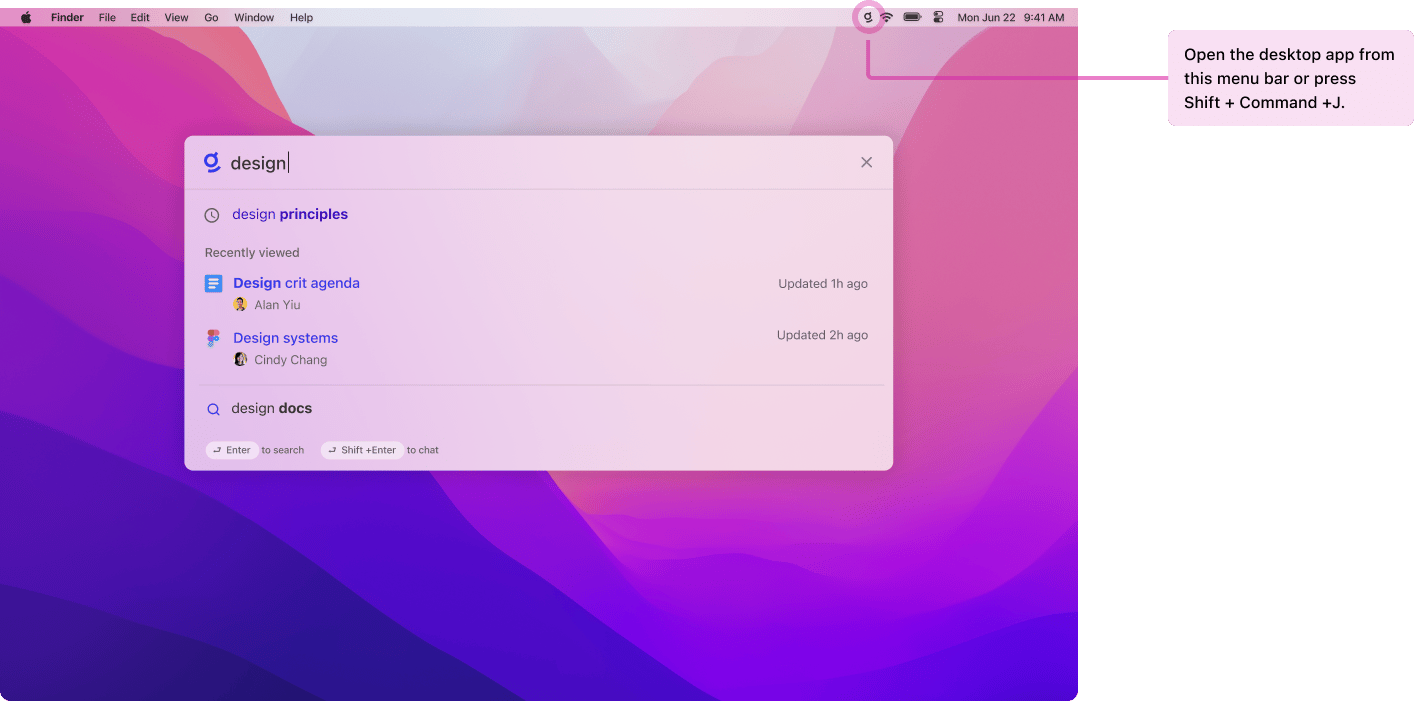 Glean’s macOS app provides your users with a spotlight-like search experience where they can search across all the tools your company has in use. More information: [Glean on macOS](https://docs.glean.com/administration/management/apps/macos)
Was this page helpful?
YesNo
[Setup Glean Assistant](https://docs.glean.com/get-started/golive/setup-glean-assistant)
[Launch Preparation](https://docs.glean.com/get-started/golive/launch-preparation)
⌘I
---
# Monday - Glean Help Center
[Skip to main content](https://docs.glean.com/connectors/native/monday/home#content-area)
[Glean Help Center home page](https://docs.glean.com/)
Search...
⌘K
Search...
Navigation
Native Connectors
Monday
[Home](https://docs.glean.com/home)
[User Guide](https://docs.glean.com/user-guide/about/what-is-glean)
[Agents](https://docs.glean.com/agents/home)
[Get Started for Admins](https://docs.glean.com/get-started/welcome)
[Connectors](https://docs.glean.com/connectors/home)
[Admin Guide](https://docs.glean.com/administration/about)
[Security & Architecture](https://docs.glean.com/security/home)
[Troubleshooting](https://docs.glean.com/troubleshooting/home)
[Release Notes](https://docs.glean.com/release-notes/home)
[Archive](https://docs.glean.com/archive/help-glean/answers/what-are-answers-and-how-do-they-work)
On this page
* [Overview](https://docs.glean.com/connectors/native/monday/home#overview)
* [Integration Features](https://docs.glean.com/connectors/native/monday/home#integration-features)
* [API Usage](https://docs.glean.com/connectors/native/monday/home#api-usage)
* [Setup](https://docs.glean.com/connectors/native/monday/home#setup)
* [Prerequisites](https://docs.glean.com/connectors/native/monday/home#prerequisites)
* [Installation Process](https://docs.glean.com/connectors/native/monday/home#installation-process)
* [Post Setup](https://docs.glean.com/connectors/native/monday/home#post-setup)
[](https://docs.glean.com/connectors/native/monday/home#overview)
Overview
------------------------------------------------------------------------------
* Glean requires an admin to install the Glean app to the Monday.com account and authorize the app.
* Authentication is done via [OAuth](https://developer.monday.com/apps/docs/oauth)
.
* Glean will understand user viewing permissions for workspaces and boards. Glean will never show documents to a user who does not have access.
* It’s important to note that all data is stored in the customer’s cloud account and no data leaves the customer environment.
[](https://docs.glean.com/connectors/native/monday/home#integration-features)
Integration Features
------------------------------------------------------------------------------------------------------
By default Glean will capture the following content:
* All workspaces a user has access to
* Public boards in open workspaces
In addition, each user can choose to authorize Glean to index private boards, shareable boards, and public boards in closed workspaces they have access to—this needs to be enabled on a per-user basis. Over time, Glean may add support for docs, dashboards, items, and other Monday.com objects.
[](https://docs.glean.com/connectors/native/monday/home#api-usage)
API Usage
--------------------------------------------------------------------------------
Glean uses the [Monday.com API](https://developer.monday.com/api-reference/docs)
to ingest all data:
* Glean begins by understanding the users and teams that are a part of the Monday.com account.
* Glean then crawls workspaces and boards in the customer’s Monday.com account.
Glean performs a full crawl of the content hourly, and updates permissions several times every hour.
[](https://docs.glean.com/connectors/native/monday/home#setup)
Setup
------------------------------------------------------------------------
###
[](https://docs.glean.com/connectors/native/monday/home#prerequisites)
Prerequisites
The customer should be on A Monday.com account admin for the customer is required to install the Glean app to the account. This allows Glean to access the Monday.com API on behalf of the customer.
###
[](https://docs.glean.com/connectors/native/monday/home#installation-process)
Installation Process
Instructions for setup are provided onscreen in the deployment console. For help with setup, please reach out to a Glean customer success representative or solutions engineer for assistance.
###
[](https://docs.glean.com/connectors/native/monday/home#post-setup)
Post Setup
Glean allows configuring for only a certain user set to have access to Monday.com search results. For any questions or issues with this setup, please file a support ticket at [https://support.glean.com/hc/en-us](https://support.glean.com/hc/en-us)
.
Was this page helpful?
YesNo
[Miro](https://docs.glean.com/connectors/native/miro/home)
[NetSuite](https://docs.glean.com/connectors/native/netsuite/home)
⌘I
---
# PagerDuty - Glean Help Center
[Skip to main content](https://docs.glean.com/connectors/native/pagerduty/home#content-area)
[Glean Help Center home page](https://docs.glean.com/)
Search...
⌘K
Search...
Navigation
Native Connectors
PagerDuty
[Home](https://docs.glean.com/home)
[User Guide](https://docs.glean.com/user-guide/about/what-is-glean)
[Agents](https://docs.glean.com/agents/home)
[Get Started for Admins](https://docs.glean.com/get-started/welcome)
[Connectors](https://docs.glean.com/connectors/home)
[Admin Guide](https://docs.glean.com/administration/about)
[Security & Architecture](https://docs.glean.com/security/home)
[Troubleshooting](https://docs.glean.com/troubleshooting/home)
[Release Notes](https://docs.glean.com/release-notes/home)
[Archive](https://docs.glean.com/archive/help-glean/answers/what-are-answers-and-how-do-they-work)
On this page
* [Supported Features and Limitations](https://docs.glean.com/connectors/native/pagerduty/home#supported-features-and-limitations)
* [Supported Objects](https://docs.glean.com/connectors/native/pagerduty/home#supported-objects)
* [Key Features](https://docs.glean.com/connectors/native/pagerduty/home#key-features)
* [Supported API Endpoints](https://docs.glean.com/connectors/native/pagerduty/home#supported-api-endpoints)
* [Limitations](https://docs.glean.com/connectors/native/pagerduty/home#limitations)
* [Requirements](https://docs.glean.com/connectors/native/pagerduty/home#requirements)
* [How to Set Up the Connector](https://docs.glean.com/connectors/native/pagerduty/home#how-to-set-up-the-connector)
* [Step 1: Obtain the API Key](https://docs.glean.com/connectors/native/pagerduty/home#step-1-obtain-the-api-key)
* [Step 2: Configure in Glean](https://docs.glean.com/connectors/native/pagerduty/home#step-2-configure-in-glean)
* [Permissions & Security](https://docs.glean.com/connectors/native/pagerduty/home#permissions-%26-security)
This article provides instructions for configuring and using the Glean PagerDuty connector. This integration allows Glean to ingest and index PagerDuty data, helping users search for and reference on-call information and escalation paths directly from Glean’s enterprise search.
[](https://docs.glean.com/connectors/native/pagerduty/home#supported-features-and-limitations)
Supported Features and Limitations
-------------------------------------------------------------------------------------------------------------------------------------
The PagerDuty connector is designed to bring core on-call and escalation workflow data into Glean, focusing on supported use cases and documenting its current boundaries.
###
[](https://docs.glean.com/connectors/native/pagerduty/home#supported-objects)
Supported Objects
* Escalation Policies
* Schedules
* Incidents (Requires additional configuration; contact Glean support to enable indexing.)
###
[](https://docs.glean.com/connectors/native/pagerduty/home#key-features)
Key Features
* **On-Call Data Indexing:** Indexes key PagerDuty objects, including escalation policies and schedules.
* **Access Management:** Uses PagerDuty’s API to fetch user and team data for access management, ensuring search results respect PagerDuty’s access models.
* **Read-Only Access:** Operates with a Read Only API Access Key, adhering to the principle of least privilege.
* **Incident Indexing**: Indexes PagerDuty incidents when incident support is enabled for your organization.
###
[](https://docs.glean.com/connectors/native/pagerduty/home#supported-api-endpoints)
Supported API Endpoints
* `/escalation_policies`: Crawls escalation policy definitions if enabled in the configuration
* `/schedules`: Crawls schedule configurations if enabled in the configuration
* `/users`: Fetches user information for access management
* `/teams`: Retrieves team information for access management
* `/audit/records`: Obtains audit logs detailing user interactions with PagerDuty entities
* `/incidents`: Crawls incidents when incident support is enabled for your organization
###
[](https://docs.glean.com/connectors/native/pagerduty/home#limitations)
Limitations
* **Deployment**: This connector is limited to PagerDuty cloud accounts via API access and does not support on-premise or self-hosted deployments.
* **Alerta**: Alerts are not crawled.
* **Data Access**: The connector does not support write or administrative actions.
* **Incident Crawl Cap**: Only the latest 10,000 incidents are crawled. Larger historical incident sets are not currently supported, but support for larger volumes is planned in a future enhancement.
* **Stakeholder User Role**: Users assigned this role cannot view incident reports or linked escalation policies for private teams, even if they are members of those teams. For more information on PagerDuty user role permissions, see [User Role Permissions](https://support.pagerduty.com/main/docs/user-roles#user-role-permissions)
and [Advanced Permissions](https://support.pagerduty.com/main/docs/advanced-permissions)
.
[](https://docs.glean.com/connectors/native/pagerduty/home#requirements)
Requirements
-----------------------------------------------------------------------------------------
To set up the PagerDuty connector, you must have the following:
* **PagerDuty Access:** An active PagerDuty subscription with an account owner or administrator role.
* **Glean Access:** Administrative permissions within the Glean Admin Console.
* **API Access Key:** A PagerDuty **Read Only API Access Key** generated from the PagerDuty web interface.
[](https://docs.glean.com/connectors/native/pagerduty/home#how-to-set-up-the-connector)
How to Set Up the Connector
-----------------------------------------------------------------------------------------------------------------------
Follow these steps to configure the PagerDuty connector within the Glean Admin Console.
###
[](https://docs.glean.com/connectors/native/pagerduty/home#step-1-obtain-the-api-key)
Step 1: Obtain the API Key
1. Log in to your PagerDuty account as an administrator.
2. Generate a **Read Only API Access Key** as described in the official PagerDuty documentation. For more information, see [Generate a General Access REST API Key](https://support.pagerduty.com/main/docs/api-access-keys#generate-a-general-access-rest-api-key)
.
###
[](https://docs.glean.com/connectors/native/pagerduty/home#step-2-configure-in-glean)
Step 2: Configure in Glean
1. In the Glean Admin Console, navigate to **Data Sources** and select **Add Data Source**, and select **PagerDuty**.
2. Provide a **Name** for the data source.
3. Enter the **API Access Key** you just obtained from PagerDuty into the designated field.
4. Click **Save**.
The connector will automatically test the connectivity and begin the initial crawl.
[](https://docs.glean.com/connectors/native/pagerduty/home#permissions-&-security)
Permissions & Security
-------------------------------------------------------------------------------------------------------------
* **Permission Propagation:** The connector uses PagerDuty’s API to enforce access controls. This ensures that Glean search results are limited to only those objects users have permission to view in PagerDuty.
* **Least Privilege:** The connector uses a Read Only API Access Key, ensuring it can only ingest data and cannot perform any administrative or write actions.
* **Data Ingestion:** Only escalation policies, schedules, and associated user, team, and audit metadata are ingested, minimizing exposure of sensitive details.
Was this page helpful?
YesNo
[Notion](https://docs.glean.com/connectors/native/notion/home)
[Pingboard](https://docs.glean.com/connectors/native/pingboard/home)
⌘I
---
# HubSpot - Glean Help Center
[Skip to main content](https://docs.glean.com/connectors/native/hubspot/home#content-area)
[Glean Help Center home page](https://docs.glean.com/)
Search...
⌘K
Search...
Navigation
Native Connectors
HubSpot
[Home](https://docs.glean.com/home)
[User Guide](https://docs.glean.com/user-guide/about/what-is-glean)
[Agents](https://docs.glean.com/agents/home)
[Get Started for Admins](https://docs.glean.com/get-started/welcome)
[Connectors](https://docs.glean.com/connectors/home)
[Admin Guide](https://docs.glean.com/administration/about)
[Security & Architecture](https://docs.glean.com/security/home)
[Troubleshooting](https://docs.glean.com/troubleshooting/home)
[Release Notes](https://docs.glean.com/release-notes/home)
[Archive](https://docs.glean.com/archive/help-glean/answers/what-are-answers-and-how-do-they-work)
On this page
* [Supported Features and Limitations](https://docs.glean.com/connectors/native/hubspot/home#supported-features-and-limitations)
* [Supported Objects/Entities](https://docs.glean.com/connectors/native/hubspot/home#supported-objects%2Fentities)
* [Indexed Properties](https://docs.glean.com/connectors/native/hubspot/home#indexed-properties)
* [Supported API Endpoints/Features](https://docs.glean.com/connectors/native/hubspot/home#supported-api-endpoints%2Ffeatures)
* [Limitations](https://docs.glean.com/connectors/native/hubspot/home#limitations)
* [Requirements](https://docs.glean.com/connectors/native/hubspot/home#requirements)
* [Technical Requirements](https://docs.glean.com/connectors/native/hubspot/home#technical-requirements)
* [Credential Requirements](https://docs.glean.com/connectors/native/hubspot/home#credential-requirements)
* [Permission Requirements](https://docs.glean.com/connectors/native/hubspot/home#permission-requirements)
* [Preliminary Source/System Setup](https://docs.glean.com/connectors/native/hubspot/home#preliminary-source%2Fsystem-setup)
* [Permissions & Security](https://docs.glean.com/connectors/native/hubspot/home#permissions-%26-security)
* [Configuration and Setup](https://docs.glean.com/connectors/native/hubspot/home#configuration-and-setup)
* [Prerequisites](https://docs.glean.com/connectors/native/hubspot/home#prerequisites)
* [Create a private app](https://docs.glean.com/connectors/native/hubspot/home#create-a-private-app)
* [Initial Steps](https://docs.glean.com/connectors/native/hubspot/home#initial-steps)
* [Granting Scopes](https://docs.glean.com/connectors/native/hubspot/home#granting-scopes)
* [Webhook Subscriptions](https://docs.glean.com/connectors/native/hubspot/home#webhook-subscriptions)
* [Entering the app credentials in Glean](https://docs.glean.com/connectors/native/hubspot/home#entering-the-app-credentials-in-glean)
With the HubSpot Connector, Glean integrates with HubSpot CRM, allowing organizations to ingest, index, and search critical CRM data across multiple objects. The connector enhances enterprise productivity by making HubSpot CRM data accessible within Glean’s unified search environment, supporting both sales prospecting and customer service resolution use cases. All content permissions, identities, and metadata are included in the crawl, preserving data privacy and adhering to HubSpot’s API security model.
[](https://docs.glean.com/connectors/native/hubspot/home#supported-features-and-limitations)
Supported Features and Limitations
-----------------------------------------------------------------------------------------------------------------------------------
The Glean HubSpot Connector is designed for comprehensive CRM data integration but is currently focused on core, standard objects. The connector fetches and maintains up-to-date CRM data using HubSpot’s REST API, supporting incremental updates and webhooks for real-time changes.
###
[](https://docs.glean.com/connectors/native/hubspot/home#supported-objects/entities)
Supported Objects/Entities
The connector indexes these standard HubSpot CRM objects:
* Contacts
* Companies
* Deals
* Tickets
####
[](https://docs.glean.com/connectors/native/hubspot/home#indexed-properties)
Indexed Properties
For each object, key standard properties are indexed. Examples:
| Object | Properties Indexed (Excerpt) |
| --- | --- |
| Contacts | Contact owner, Created by user ID, Updated by user ID, First/Last name, Email, Company, Status, Revenue, LinkedIn URL |
| Companies | Company owner, Name, Industry, Website, Last activity, Number of deals, Money raised, LinkedIn handle |
| Deals | Deal owner, Name, Stage, Pipeline, Amount, Priority, Reason (win/loss), Close date |
| Tickets | Ticket owner, Name, Status, Priority, Pipeline, Source, Resolution, Close date, Description |
###
[](https://docs.glean.com/connectors/native/hubspot/home#supported-api-endpoints/features)
Supported API Endpoints/Features
* REST API ingestion for the four main objects (Contacts, Companies, Deals, Tickets)
* Support for full and incremental crawls
* Webhooks for create/update/delete/restore/association-changed events for real-time data sync
* Schema crawl to dynamically handle custom and relabeled fields
###
[](https://docs.glean.com/connectors/native/hubspot/home#limitations)
Limitations
* The connector supports only standard objects and predefined properties initially.
* Custom objects and Marketing Hub entities (e.g., Leads, Blogs, Emails) are not supported in the current release.
* Fine-grained ticket read scopes and role-level permission syncs may have limitations due to HubSpot API constraints.
* Associations are crawled, but not all are surfaced directly in search at this time.
* The connector does not support embedding Glean inside the HubSpot UI.
* Some API features (e.g., for advanced auditing or custom roles) may require future updates.
[](https://docs.glean.com/connectors/native/hubspot/home#requirements)
Requirements
---------------------------------------------------------------------------------------
This section outlines what is needed to deploy and use the HubSpot Connector.
###
[](https://docs.glean.com/connectors/native/hubspot/home#technical-requirements)
Technical Requirements
* An active HubSpot account (no distinction for GCP/AWS; supported on both clouds)
* Access to the Glean admin console
###
[](https://docs.glean.com/connectors/native/hubspot/home#credential-requirements)
Credential Requirements
* Private app credentials: the app must be created in HubSpot to obtain an Access Token and Client Secret
* HubSpot account (portal) ID for API access
* These must be securely entered in Glean’s admin console during setup
###
[](https://docs.glean.com/connectors/native/hubspot/home#permission-requirements)
Permission Requirements
* The HubSpot user creating the integration must be a super admin.
* The app must be granted these HubSpot scopes:
* crm.objects.users.read
* crm.objects.contacts.read
* crm.objects.deals.read
* crm.objects.companies.read
* tickets
* These permissions allow the connector to crawl all necessary objects and their basic properties.
###
[](https://docs.glean.com/connectors/native/hubspot/home#preliminary-source/system-setup)
Preliminary Source/System Setup
1. In HubSpot, create a new Private App (requires super admin access).
2. On the app’s Scopes tab, add the above-listed scopes.
3. On the Webhooks tab, configure a webhook with the URL provided during Glean setup (for event notifications).
4. For each object (Contact, Company, Deal, Ticket), subscribe to create, delete, restore, and association change events.
5. Publish the app and record its credentials.
[](https://docs.glean.com/connectors/native/hubspot/home#permissions-&-security)
Permissions & Security
-----------------------------------------------------------------------------------------------------------
**Data and Metadata Ingested**
* The connector collects and indexes object data (Contacts, Companies, Deals, Tickets), identities (users), and selected properties/fields per object.
* Metadata such as creation/update timestamps and object associations are included.
**Permission Propagation Logic**
* The connector uses HubSpot’s permissions API to fetch and enforce allowed users for each object at crawl time.
* Original content- and object-level permissions are mapped into Glean’s permission model.
**Security & Compliance Notes**
* Authentication relies on private app tokens, using required scopes for minimum access.
* Webhook payloads are validated using the app’s Client Secret.
* Only objects for which valid access is configured are indexed.
* Sensitive credentials (Access Token, Client Secret) should be rotated according to organizational policy.
**Known Security Restrictions**
* Webhook setup is required to maintain real-time data sync; if webhooks are missing, changes may only sync on the next crawl.
* All indexed content from HubSpot will be available according to permission mappings in Glean; ensure appropriate scoping in both platforms.
**Data Privacy Implications**
* Indexed CRM data becomes discoverable according to organizational and user-level permission boundaries configured during setup.
[](https://docs.glean.com/connectors/native/hubspot/home#configuration-and-setup)
Configuration and Setup
-------------------------------------------------------------------------------------------------------------
You must create a private app in your HubSpot account to connect to the HubSpot API. This section explains how to create a private app in HubSpot, grant appropriate scopes, and create webhook subscriptions.
###
[](https://docs.glean.com/connectors/native/hubspot/home#prerequisites)
Prerequisites
* Glean administrator access
* The user setting up the private app must be a [super admin](https://knowledge.hubspot.com/user-management/hubspot-user-permissions-guide?#super-admin)
.
###
[](https://docs.glean.com/connectors/native/hubspot/home#create-a-private-app)
Create a private app
####
[](https://docs.glean.com/connectors/native/hubspot/home#initial-steps)
Initial Steps
1. In your HubSpot account, select the **settings icon** in the main navigation top bar.
2. In the left sidebar menu, navigate to **Integrations** → **Private Apps**.
3. Select **Create a private app**.
4. On the **Basic Info** tab, give a name to the app, like **Glean**. You can optionally add a logo and a description.
####
[](https://docs.glean.com/connectors/native/hubspot/home#granting-scopes)
Granting Scopes
1. Select the **Scopes** tab.
2. At the top of the page, select **Add new scope**.
3. From the right panel, search for the following scopes and select the **checkbox** beside them:
* `crm.objects.users.read`
* `crm.objects.contacts.read`
* `crm.objects.deals.read`
* `crm.objects.companies.read`
* `tickets`
4. Select **Update** when you are done adding scopes.
####
[](https://docs.glean.com/connectors/native/hubspot/home#webhook-subscriptions)
Webhook Subscriptions
1. At the top of the page, select the **Webhooks** tab.
2. Under **Target URL**, enter the webhook URL obtained by selecting on the **Create webhook URL** button on the Glean admin console page.
3. Select **Create subscription**.
4. Under **Which object types**, select the following object types:
* `Contact`
* `Company`
* `Deal`
* `Ticket`
5. Under **Listen for which events**, select the following events:
* `Created`
* `Deleted`
* `Restored`
* `Association changed`
6. Select **Subscribe**.
7. Select **Create app** in the top right
###
[](https://docs.glean.com/connectors/native/hubspot/home#entering-the-app-credentials-in-glean)
Entering the app credentials in Glean
1. Enter your HubSpot account (or portal) ID under the **Account ID** field.
2. Enter the **Access Token** and **Client Secret** of the app you created in the previous steps. This can be found from the **Auth** tab of the private app you created
3. Select **Save**.
Was this page helpful?
YesNo
[Highspot](https://docs.glean.com/connectors/native/highspot/home)
[Ironclad](https://docs.glean.com/connectors/native/ironclad/home)
⌘I
---
# Populate Content - Glean Help Center
[Skip to main content](https://docs.glean.com/get-started/golive/populate-content#content-area)
[Glean Help Center home page](https://docs.glean.com/)
Search...
⌘K
Search...
Navigation
Stage 5: Go Live
Populate Content
[Home](https://docs.glean.com/home)
[User Guide](https://docs.glean.com/user-guide/about/what-is-glean)
[Agents](https://docs.glean.com/agents/home)
[Get Started for Admins](https://docs.glean.com/get-started/welcome)
[Connectors](https://docs.glean.com/connectors/home)
[Admin Guide](https://docs.glean.com/administration/about)
[Security & Architecture](https://docs.glean.com/security/home)
[Troubleshooting](https://docs.glean.com/troubleshooting/home)
[Release Notes](https://docs.glean.com/release-notes/home)
[Archive](https://docs.glean.com/archive/help-glean/answers/what-are-answers-and-how-do-they-work)
On this page
* [Announcements](https://docs.glean.com/get-started/golive/populate-content#announcements)
* [Answers](https://docs.glean.com/get-started/golive/populate-content#answers)
* [Go Links](https://docs.glean.com/get-started/golive/populate-content#go-links)
* [Collections](https://docs.glean.com/get-started/golive/populate-content#collections)
* [Document Verification](https://docs.glean.com/get-started/golive/populate-content#document-verification)
* [Pins](https://docs.glean.com/get-started/golive/populate-content#pins)
 To create an engaging first experience with Glean, it’s essential to populate the platform with various types of content; other than what is being crawled from your datasources. Glean has several features to assist in the discovery and management of knowledge within your organization, including:
* Announcements
* Answers
* Go Links
* Collections
* Document Verifications/Deprecations
* Pins
* * *
[](https://docs.glean.com/get-started/golive/populate-content#announcements)
Announcements
----------------------------------------------------------------------------------------------
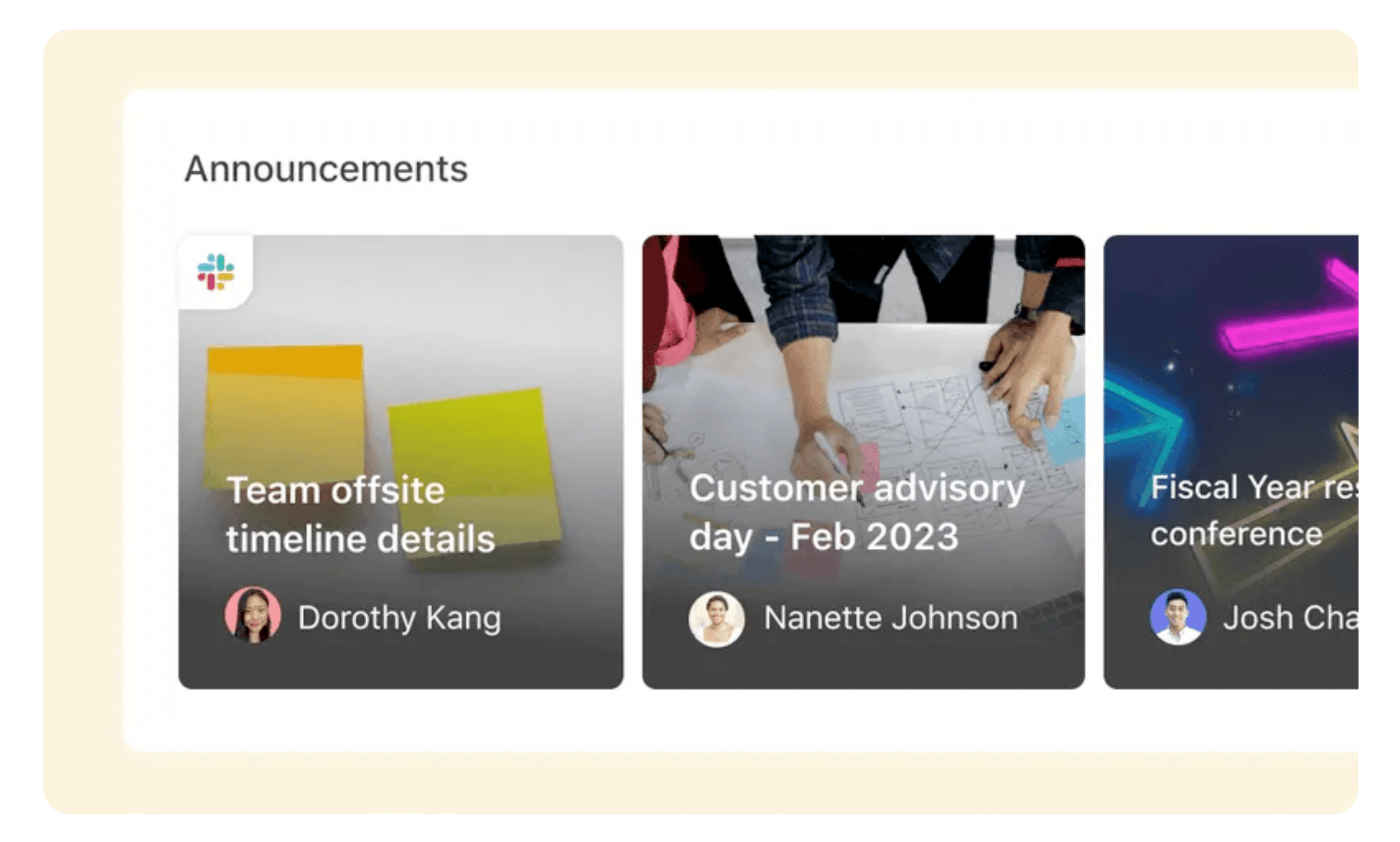 Announcements are a great way to promote updates on Glean’s home page for your teammates to see, especially if they are using Glean as their new tab page. Announcements can be posted organization-wide or targeted to a limited set of teammates for whatever duration you choose. To create an Announcement, navigate to [Knowledge > Announcements](https://app.glean.com/knowledge/announcements), then click the **New Announcement** button at the top-right. Once posted, you will see the announcement on the Glean home page.
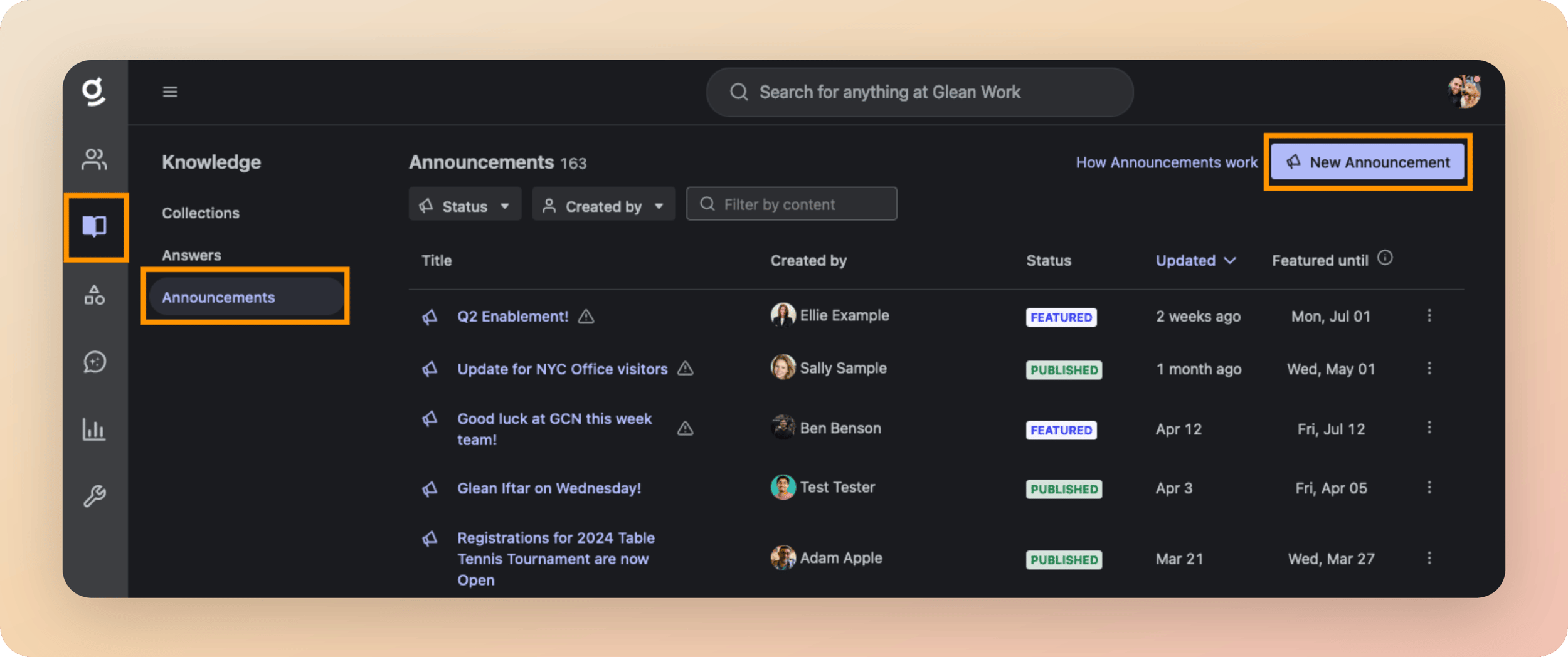
* * *
[](https://docs.glean.com/get-started/golive/populate-content#answers)
Answers
----------------------------------------------------------------------------------
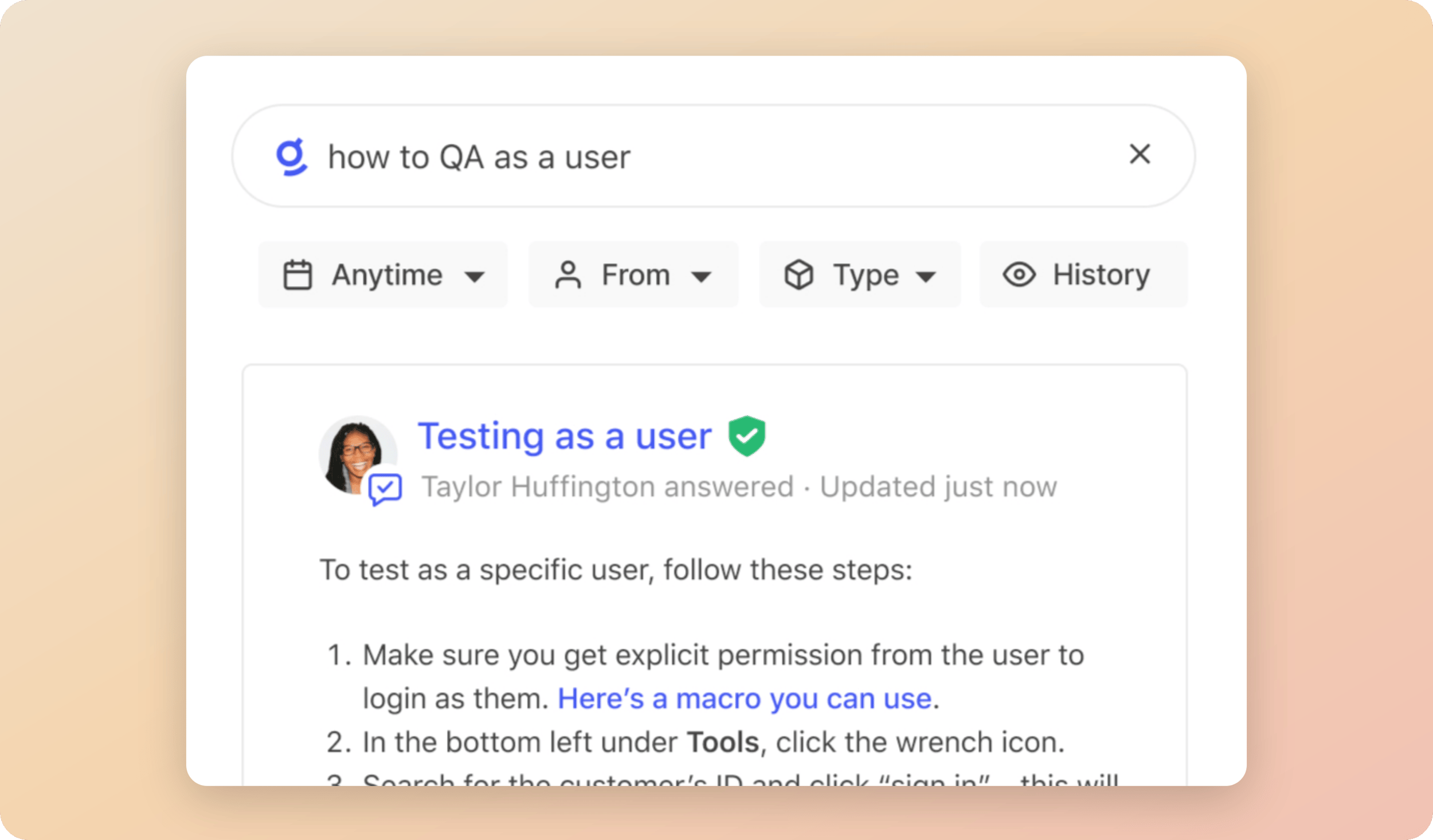 Answers allow your users to provide authoritative responses to frequently asked questions or important information: No more copying / pasting or rewriting the same Q&A for everyone. Answers are automatically surfaced in search results in response to relevant queries. They can also be grouped together using the Collections feature (more on that below). To create an Answer, navigate to [Knowledge > Answers](https://app.glean.com/knowledge/answers), then click the **New Answer** button at the top-right.
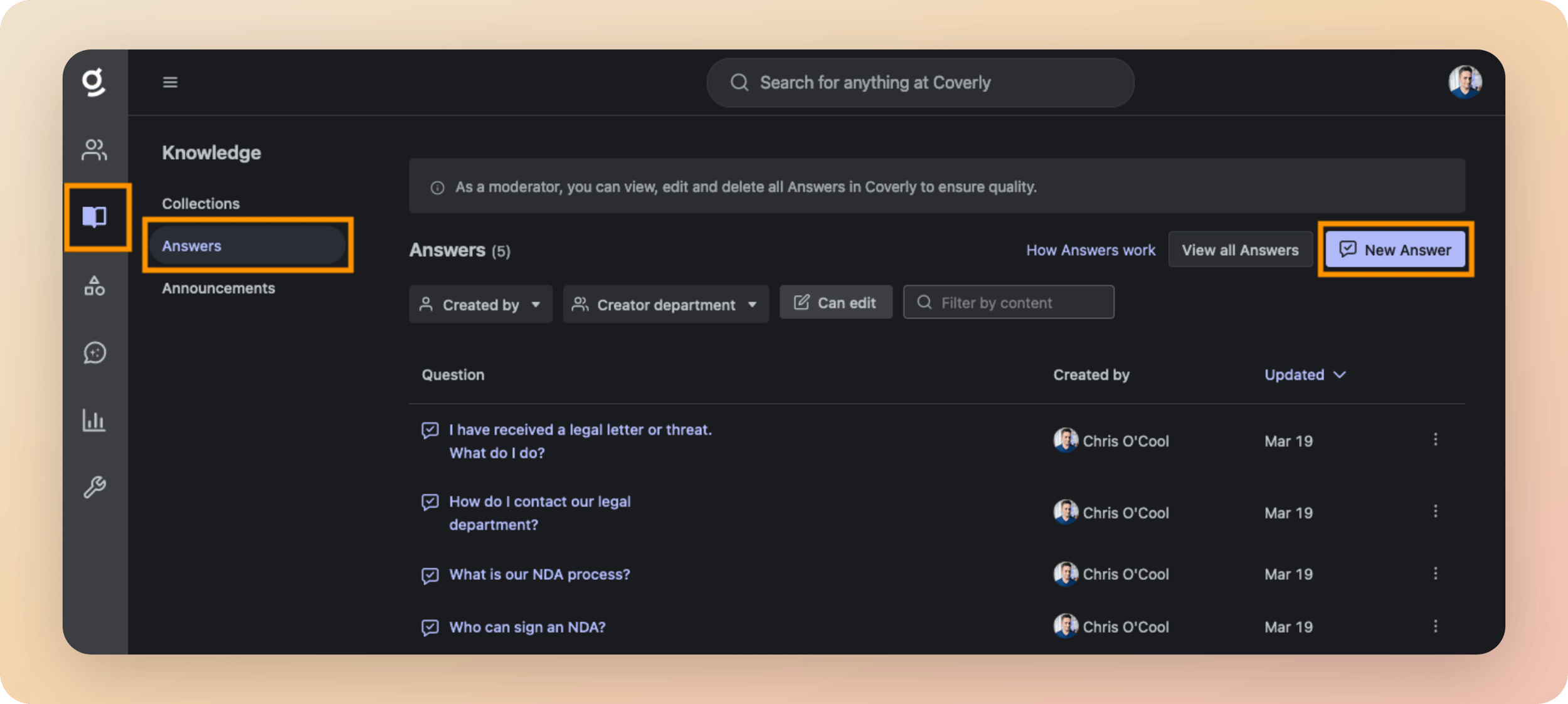
* More information: [Using Answers](https://docs.glean.com/user-guide/knowledge/answers/what-are-answers-and-how-do-they-work)
You should aim to populate Glean with **ten** Answers to questions that are frequently asked by your users. Here are some ideas to get you started:
1. What is our Work From Home (WFH) policy?
2. What benefits are available to me?
3. What is the process for taking annual leave?
4. What do I do if I (or a family member) is sick?
5. How do I get access to Jira?
6. How do I submit a feature request?
7. How do I get a new laptop?
8. Can I request a specific laptop model or brand?
9. How do I get a new office badge?
10. What are the 2024 holidays?
11. What is our time off policy?
12. What is our parental leave policy?
13. What are our company values?
14. Who is the best person to talk to about XYZ?
15. When do we get paid?
16. How do I book travel?
* * *
[](https://docs.glean.com/get-started/golive/populate-content#go-links)
Go Links
------------------------------------------------------------------------------------
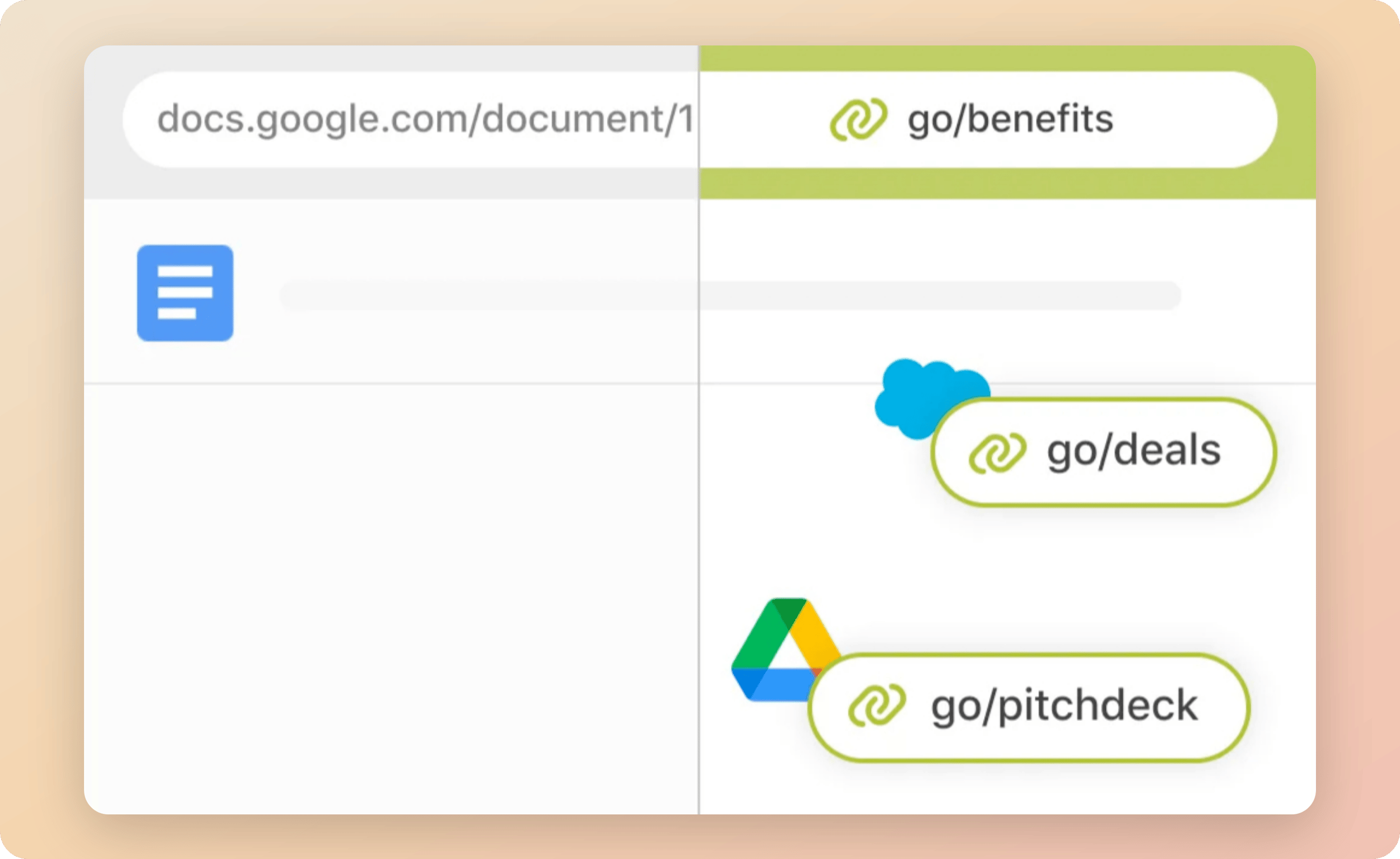 Go Links are memorable shortcuts that quickly redirect users to frequently used sites, documents, or internal resources. Go Links act like a mental bookmark: once you see it or hear it, you immediately know how to access it, both now and in the future. To create a Go Link, navigate to [Knowledge > Go Links](https://app.glean.com/knowledge/golinks), then click the **New Go Link** button at the top-right.
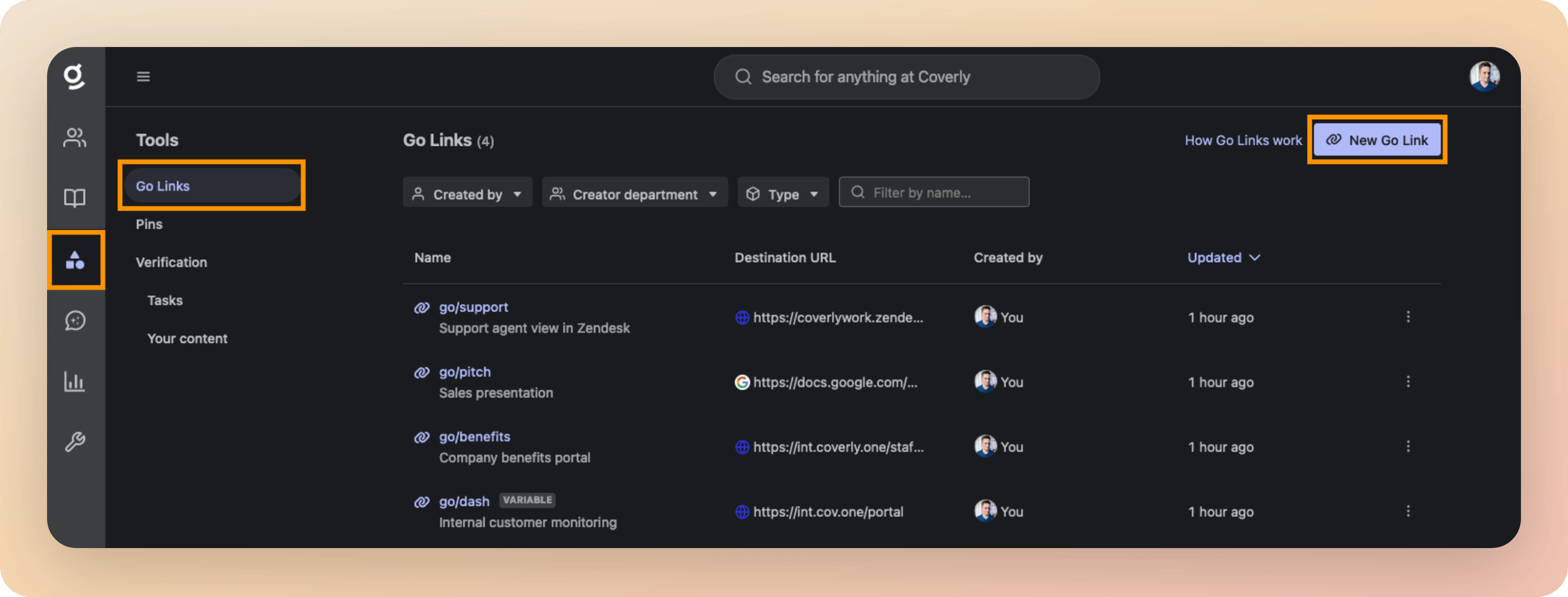
* More information: [Using Go Links](https://docs.glean.com/user-guide/knowledge/go-links/how-go-links-work)
You should aim to populate Glean with **five** Go Links to frequently accessed resources. Here are some ideas to get you started:
| Go Link | Destination |
| --- | --- |
| `go/benefits` | Company benefits portal. |
| `go/help` | IT help desk. |
| `go/deals` | Salesforce Dashboard showing the current numbers for the quarter. |
| `go/sprint` | Specific Jira project for your engineering team. |
| `go/dashboard/` | Internal dashboard to monitor `` (This is a variable Go Link) |
| `go/it/setup` | Setup instructions for a new laptop. |
| `go/it/wifi` | Wifi access details for employees. |
| `go/pitch` | Your company sales presentation. |
| `go/pto` | New annual leave request. |
| `go/git` | Your main internal Git repository. |
| `go/allhands` | A folder containing recordings from previous company All Hands. |
| `go/fast` | Internet speedtest, e.g. `https://fast.com` |
| `go/docs` | Documentation hub. |
| `go/support` | Agent view in Zendesk. |
| `go/mail` | Outlook Email |
| `go/cal` | Work calendar |
| `go/roadmap` | Company roadmap presentation |
* * *
[](https://docs.glean.com/get-started/golive/populate-content#collections)
Collections
------------------------------------------------------------------------------------------
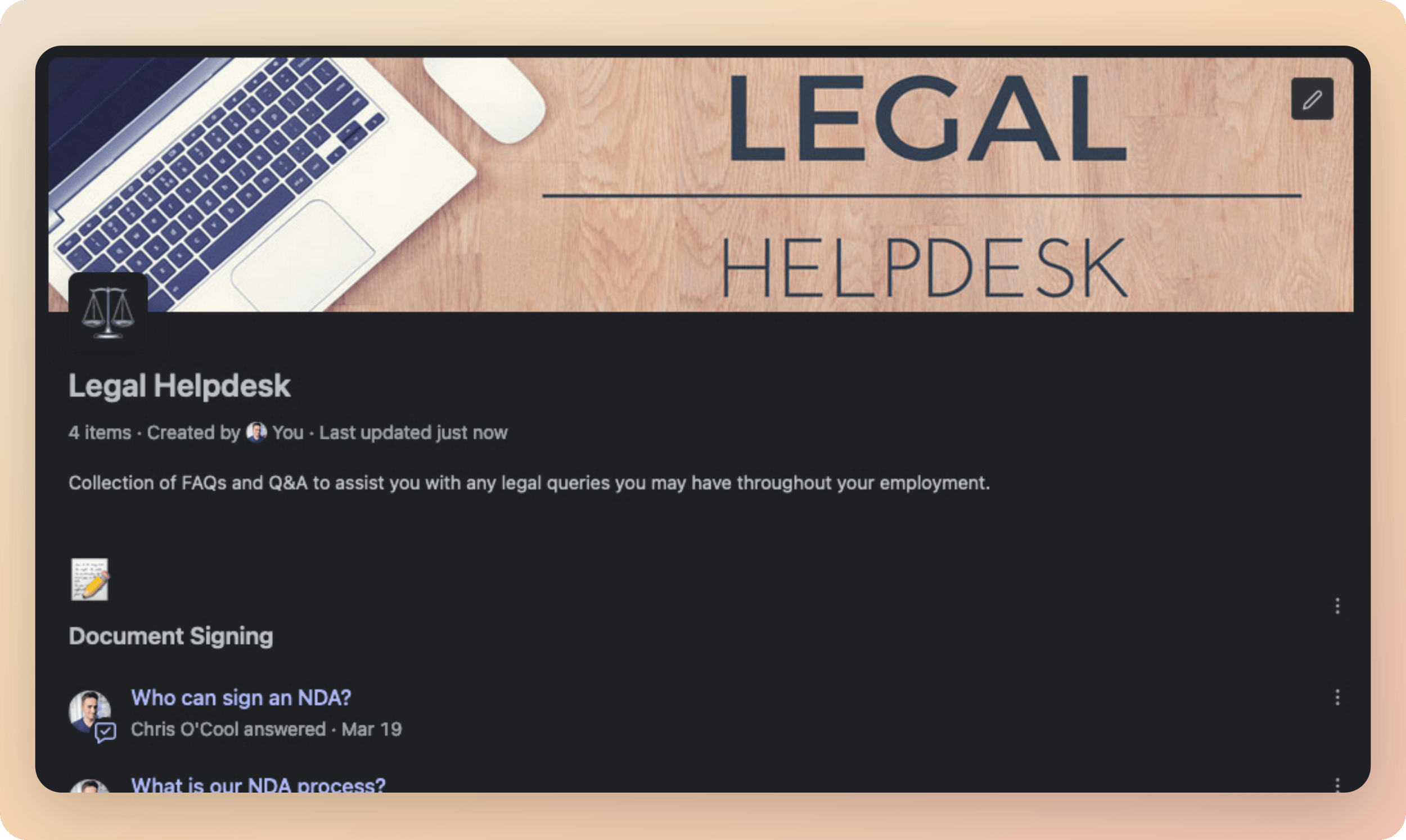 Collections are curated groups of documents or resources that are relevant to specific projects or topics. Think of them like a folder whose contents can span multiple different sources of data or apps. Organize a set of links, write useful descriptions about them, and share the whole package with the rest of the organization. Collections can be featured on the Glean home page and targeted at different audiences; providing a single source of truth for useful resources. To create a Collection, navigate to [Knowledge > Collections](https://app.glean.com/knowledge/collections), then click the **New Collection** button at the top-right.
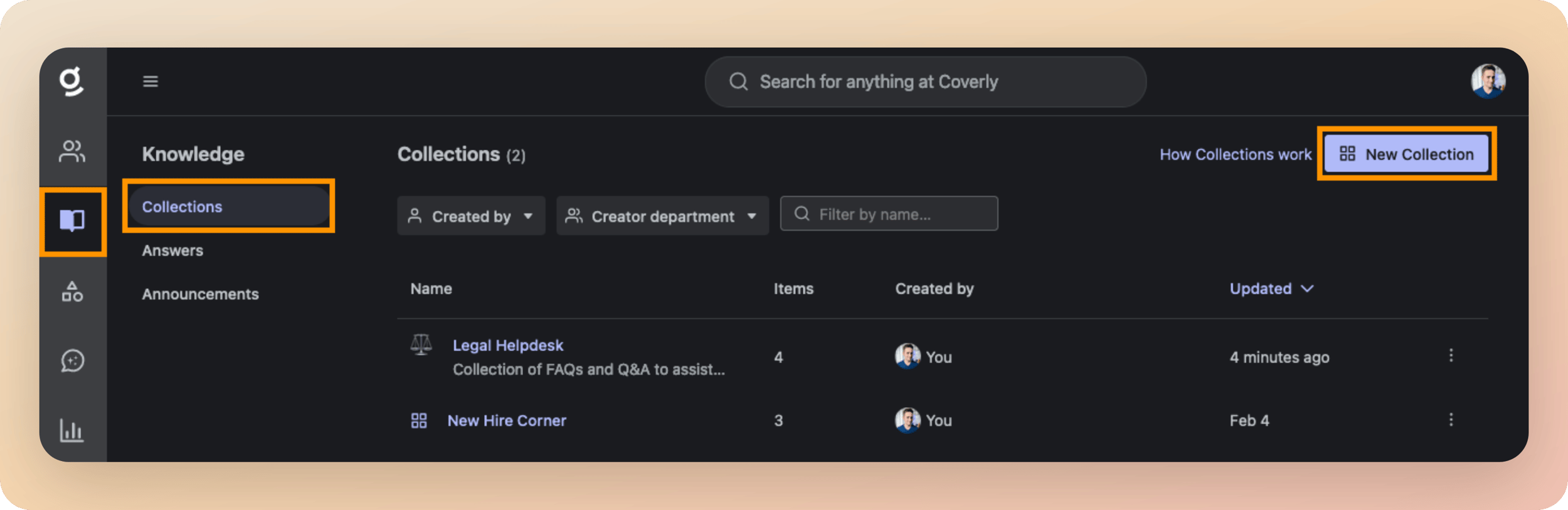
* More information: [Using Collections](https://docs.glean.com/user-guide/knowledge/collections/how-collections-work)
You should aim to populate Glean with at least two Collections to aggregate useful information together. Here are some ideas to get you started:
| Collection Name | Description |
| --- | --- |
| **New Employee Onboarding** | All resources and checklists that a new employee needs to follow during their first week at the company. |
| **Life @ \[COMPANY\]** | Links to policy documents relating to benefits, annual leave, travel, and technology at the company. |
| **Using Glean** | Documents, answers, and links related to Glean to help employees use the platform. |
| **Legal Helpdesk** | FAQs and documents related to anything legal related at the company. |
| **T&E Hub** | All documents, apps, and resources that employees need to book travel and manage expenses. |
| **\[LOCATION\] Office** | Information relating to a specific company office, e.g. Sydney |
| **\[TEAM NAME\]** | Contact details, Slack/Teams channels, and key documents managed by a specific team or department within the company, e.g. Solution Engineering. |
| **Project \[NAME\]** | All key resources relating to a specific internal project. |
* * *
[](https://docs.glean.com/get-started/golive/populate-content#document-verification)
Document Verification
--------------------------------------------------------------------------------------------------------------
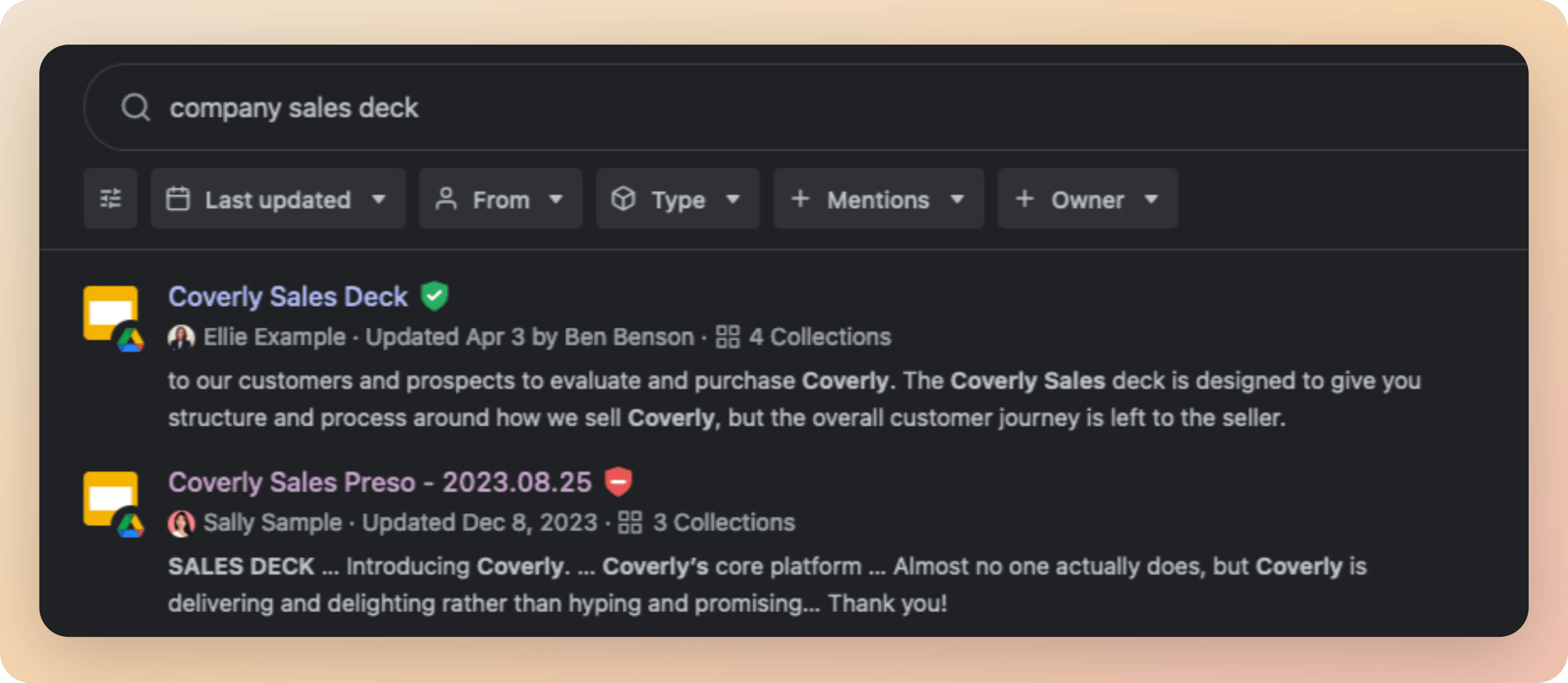 Document Verification allows content owners and moderators to mark content in Glean’s Search Results as **Verified** or **Deprecated**. This is useful to indicate to your users whether a piece of information or document is up-to-date and reliable.
* **Verified** documents receive a green checkmark ✅ next to them in the search results.
* **Deprecated** documents receive a red cross ❌ next to them in the search results.
To Verify or Deprecate a document:
1. Search for the document you wish to Verify or Deprecate.
2. Click the 3 dots to the right of the search result to open a menu.
3. Select **Verify or deprecate**, then the relevant option.
4. Your page will refresh, and the document will now have a green checkmark or red cross visible next to it.
* More information: [Verifying Content](https://docs.glean.com/user-guide/knowledge/verification/how-verification-works)
You should aim to verify key documents that are relied on by your employees, such as your Employee Handbook or Travel & Expense policy.
* * *
[](https://docs.glean.com/get-started/golive/populate-content#pins)
Pins
----------------------------------------------------------------------------
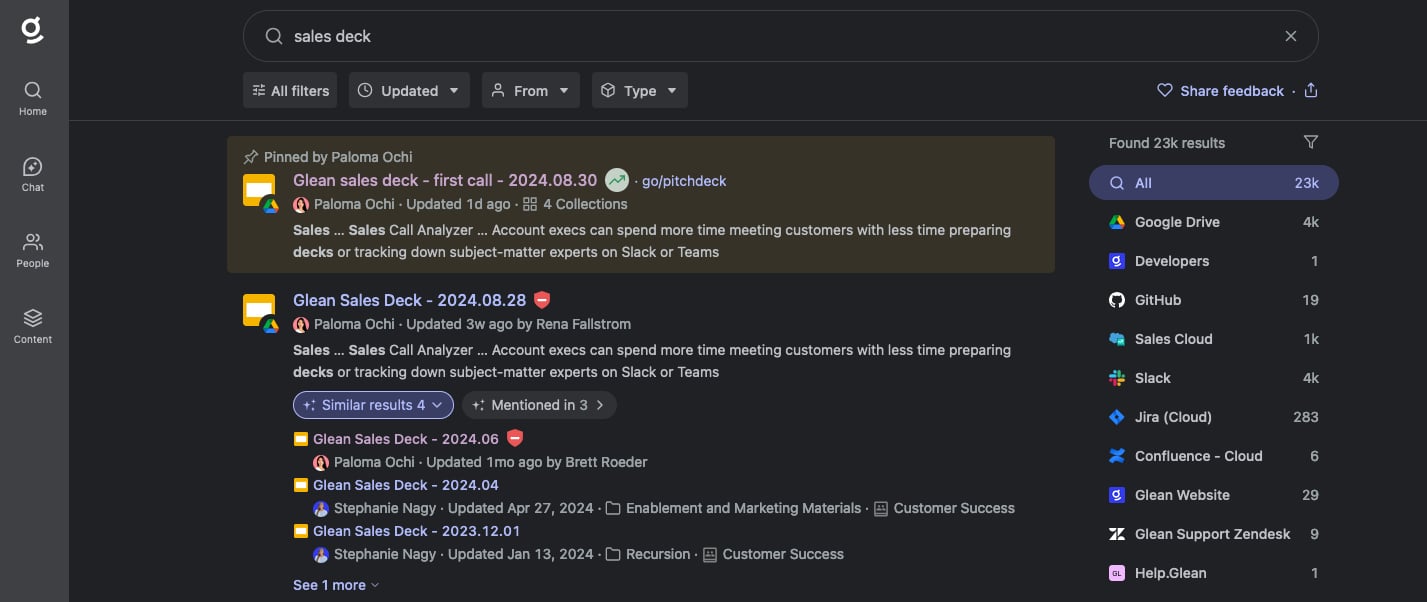 Pins allow you to push content to the top of search results based on specific keywords. Think of them as Google Ads (without the exchange of money!) There are two types of Pins:
1. **Private Pins** are only visible to the user who created them.
2. **Public Pins** are visible to all users in the organization.
Pins are useful for promoting content that is important to your users, such as a new policy or a key document. To create a Pin, navigate to [Knowledge > Pins](https://app.glean.com/knowledge/pins), then click the **New Pin** button at the top-right. You can also pin content directly from the search results page.
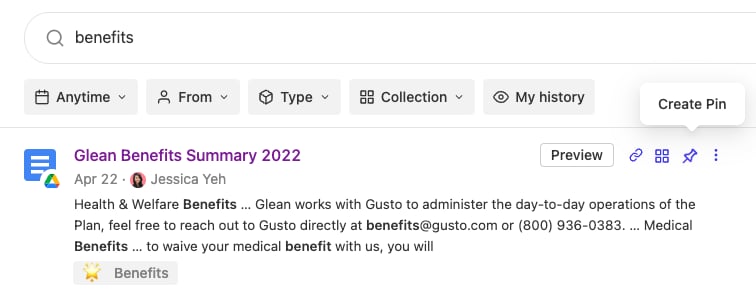
* More information: [Using Pins](https://docs.glean.com/user-guide/knowledge/pins/how-pins-work)
You should aim to create at least two Pins to promote key content to your users. For example:
* **New Employee Handbook** - Pin the new Employee Handbook to the top of search results for the keywords `handbook` and `onboarding`.
* **New Travel & Expense Policy** - Pin the new Travel & Expense Policy to the top of search results for the keywords `travel` and `expense`.
* **Benefits Hub** - Pin the Benefits Hub to the top of search results for the keywords `benefits` and `insurance`.
Was this page helpful?
YesNo
[Crawling & Learning Process](https://docs.glean.com/get-started/learn/crawling-and-learning)
[Customize Branding](https://docs.glean.com/get-started/golive/customize-branding)
⌘I
---
# Lessonly - Glean Help Center
[Skip to main content](https://docs.glean.com/connectors/native/lessonly/home#content-area)
[Glean Help Center home page](https://docs.glean.com/)
Search...
⌘K
Search...
Navigation
Native Connectors
Lessonly
[Home](https://docs.glean.com/home)
[User Guide](https://docs.glean.com/user-guide/about/what-is-glean)
[Agents](https://docs.glean.com/agents/home)
[Get Started for Admins](https://docs.glean.com/get-started/welcome)
[Connectors](https://docs.glean.com/connectors/home)
[Admin Guide](https://docs.glean.com/administration/about)
[Security & Architecture](https://docs.glean.com/security/home)
[Troubleshooting](https://docs.glean.com/troubleshooting/home)
[Release Notes](https://docs.glean.com/release-notes/home)
[Archive](https://docs.glean.com/archive/help-glean/answers/what-are-answers-and-how-do-they-work)
On this page
* [Supported Features and Limitations](https://docs.glean.com/connectors/native/lessonly/home#supported-features-and-limitations)
* [Supported Objects/Entities](https://docs.glean.com/connectors/native/lessonly/home#supported-objects%2Fentities)
* [Supported API Endpoints/Features](https://docs.glean.com/connectors/native/lessonly/home#supported-api-endpoints%2Ffeatures)
* [Limitations](https://docs.glean.com/connectors/native/lessonly/home#limitations)
* [Requirements](https://docs.glean.com/connectors/native/lessonly/home#requirements)
* [Technical Requirements](https://docs.glean.com/connectors/native/lessonly/home#technical-requirements)
* [Credential Requirements](https://docs.glean.com/connectors/native/lessonly/home#credential-requirements)
* [Permission Requirements](https://docs.glean.com/connectors/native/lessonly/home#permission-requirements)
* [Preliminary Source/System Setup](https://docs.glean.com/connectors/native/lessonly/home#preliminary-source%2Fsystem-setup)
* [External References (if applicable)](https://docs.glean.com/connectors/native/lessonly/home#external-references-if-applicable)
* [Configuration and Setup Instructions](https://docs.glean.com/connectors/native/lessonly/home#configuration-and-setup-instructions)
* [Prerequisites](https://docs.glean.com/connectors/native/lessonly/home#prerequisites)
* [Authentication and Credentials](https://docs.glean.com/connectors/native/lessonly/home#authentication-and-credentials)
* [Step-by-Step Setup](https://docs.glean.com/connectors/native/lessonly/home#step-by-step-setup)
* [Permissions & Security](https://docs.glean.com/connectors/native/lessonly/home#permissions-%26-security)
* [Data and Metadata Ingested](https://docs.glean.com/connectors/native/lessonly/home#data-and-metadata-ingested)
* [Security & Compliance Notes](https://docs.glean.com/connectors/native/lessonly/home#security-%26-compliance-notes)
* [Known Security Restrictions](https://docs.glean.com/connectors/native/lessonly/home#known-security-restrictions)
* [Data Privacy Implications](https://docs.glean.com/connectors/native/lessonly/home#data-privacy-implications)
The Lessonly connector integrates Glean with your organization’s Lessonly instance, enabling searchable access to key learning and training resources. By connecting to Lessonly through an API token, the connector ensures that user access permissions defined in Lessonly are enforced for all search queries. Content from Lessons and Paths is securely indexed and made discoverable through Glean’s unified search experience.
[](https://docs.glean.com/connectors/native/lessonly/home#supported-features-and-limitations)
Supported Features and Limitations
------------------------------------------------------------------------------------------------------------------------------------
The Lessonly connector allows Glean to index and provide enterprise search over Lessons and Paths from your organization’s Lessonly environment. Permissions established in Lessonly are respected, ensuring only authorized users can discover specific content.
###
[](https://docs.glean.com/connectors/native/lessonly/home#supported-objects/entities)
Supported Objects/Entities
* Lessons
* Paths
###
[](https://docs.glean.com/connectors/native/lessonly/home#supported-api-endpoints/features)
Supported API Endpoints/Features
* User and group enumeration for permission determination
* Crawling and indexing of published Lessons and Paths via the Lessonly REST API
* Enforcement of Lessonly document-level permissions within Glean search results
* Search and retrieval of learning content through Glean’s interface
###
[](https://docs.glean.com/connectors/native/lessonly/home#limitations)
Limitations
* Only Lessons and Paths are currently indexed; other Lessonly content types are not supported
* The connector requires an API token; OAuth or other authentication methods are not supported
* Custom or nonstandard Lessonly domains (e.g., those using seismic.com) may not be directly compatible and could need workarounds
* Setup and installation guidance is provided interactively in the Glean deployment console rather than as a traditional step-by-step manual
[](https://docs.glean.com/connectors/native/lessonly/home#requirements)
Requirements
----------------------------------------------------------------------------------------
A secure, functioning Lessonly connector requires the following components and conditions to be met:
###
[](https://docs.glean.com/connectors/native/lessonly/home#technical-requirements)
Technical Requirements
* Access to a Lessonly (also known as Seismic Learning) cloud instance that supports API access
* A valid API token for Lessonly, generated with sufficient privileges to read Lessons, Paths, users, and groups
###
[](https://docs.glean.com/connectors/native/lessonly/home#credential-requirements)
Credential Requirements
* The API token must be generated by an administrator account in Lessonly with rights to access all relevant content and user/group information
* The token is entered in the Glean admin console during setup
###
[](https://docs.glean.com/connectors/native/lessonly/home#permission-requirements)
Permission Requirements
* Administrator privileges in the Lessonly instance are required to generate the API token and manage user/group permissions
* For optimal results, the Lessonly permissions model should be well-configured so only individuals with appropriate access in Lessonly can see respective content in Glean
###
[](https://docs.glean.com/connectors/native/lessonly/home#preliminary-source/system-setup)
Preliminary Source/System Setup
* Ensure API access is enabled in your Lessonly environment
* Generate a new API token using Lessonly’s administrator interface and follow their documentation for token management
###
[](https://docs.glean.com/connectors/native/lessonly/home#external-references-if-applicable)
External References (if applicable)
* Lessonly API Documentation (refer to Lessonly’s support portal or documentation site for API details)
* For Seismic/Knowledge/other “rebranded” Lessonly products, consult with your Seismic rep on compatibility or alternative integration paths
[](https://docs.glean.com/connectors/native/lessonly/home#configuration-and-setup-instructions)
Configuration and Setup Instructions
----------------------------------------------------------------------------------------------------------------------------------------
Connector setup is managed through the Glean admin deployment console, streamlining the process for administrators. Below is a summary; for detailed step-by-step guidance, refer to onscreen prompts during deployment.
###
[](https://docs.glean.com/connectors/native/lessonly/home#prerequisites)
Prerequisites
* A Lessonly instance with administrator access
* An API token with appropriate read permissions for Lessons, Paths, user, and group objects
###
[](https://docs.glean.com/connectors/native/lessonly/home#authentication-and-credentials)
Authentication and Credentials
* In the Glean admin console, select Lessonly as a new datasource
* Enter the Lessonly domain, as appropriate (the connector assumes a “lessonly.com” domain by default—alternative domains may require additional support)
* Paste in the administrator-generated API token into the authentication field
###
[](https://docs.glean.com/connectors/native/lessonly/home#step-by-step-setup)
Step-by-Step Setup
1. In the Glean admin console, navigate to **Add data source** and select **Lessonly**.
2. Generate an API key in Lessonly by following the instructions in [Lessonly’s API documentation](https://intercom.help/lessonly/en/articles/2648392-seismic-learning-api)
.
3. In the Glean setup screen, enter the API Key you just generated.
4. Determine the subdomain of your Lessonly instance. For example, if your Lessonly URL is `https://glean.lessonly.com`, your subdomain is `glean`.
5. Enter your subdomain into the **Subdomain** input box.
6. Click **Save** to complete the connection.
7. Complete any additional configuration fields as prompted (such as specifying which content to index, if available).
8. Validate the connection; if successful, the connector will begin crawling and indexing content.
For troubleshooting setup issues or questions about supported domains/extensions, file a support ticket at [https://support.glean.com/hc/en-us](https://support.glean.com/hc/en-us)
.
[](https://docs.glean.com/connectors/native/lessonly/home#permissions-&-security)
Permissions & Security
------------------------------------------------------------------------------------------------------------
###
[](https://docs.glean.com/connectors/native/lessonly/home#data-and-metadata-ingested)
Data and Metadata Ingested
The connector ingests metadata and content for Lessons and Paths, as well as user and group identities necessary for permission enforcement.
Permission Propagation Logic: Original Lessonly permissions are strictly propagated into Glean, ensuring compliance with existing access controls in your Lessonly tenant.
###
[](https://docs.glean.com/connectors/native/lessonly/home#security-&-compliance-notes)
Security & Compliance Notes
Data is fetched via API and stored in a customer-hosted Google Cloud Platform project; Glean and third parties cannot directly access customer data.
###
[](https://docs.glean.com/connectors/native/lessonly/home#known-security-restrictions)
Known Security Restrictions
The connector cannot support configurations that use unsupported authentication modalities or nonstandard domains without additional engineering intervention.
###
[](https://docs.glean.com/connectors/native/lessonly/home#data-privacy-implications)
Data Privacy Implications
Data control remains with the customer, ensuring compliance with organizational data privacy requirements.
Was this page helpful?
YesNo
[Ironclad](https://docs.glean.com/connectors/native/ironclad/home)
[Linear](https://docs.glean.com/connectors/native/linear/home)
⌘I
---
# Ironclad - Glean Help Center
[Skip to main content](https://docs.glean.com/connectors/native/ironclad/home#content-area)
[Glean Help Center home page](https://docs.glean.com/)
Search...
⌘K
Search...
Navigation
Native Connectors
Ironclad
[Home](https://docs.glean.com/home)
[User Guide](https://docs.glean.com/user-guide/about/what-is-glean)
[Agents](https://docs.glean.com/agents/home)
[Get Started for Admins](https://docs.glean.com/get-started/welcome)
[Connectors](https://docs.glean.com/connectors/home)
[Admin Guide](https://docs.glean.com/administration/about)
[Security & Architecture](https://docs.glean.com/security/home)
[Troubleshooting](https://docs.glean.com/troubleshooting/home)
[Release Notes](https://docs.glean.com/release-notes/home)
[Archive](https://docs.glean.com/archive/help-glean/answers/what-are-answers-and-how-do-they-work)
On this page
* [Use cases](https://docs.glean.com/connectors/native/ironclad/home#use-cases)
* [Supported objects and metadata](https://docs.glean.com/connectors/native/ironclad/home#supported-objects-and-metadata)
* [Workflows](https://docs.glean.com/connectors/native/ironclad/home#workflows)
* [Records](https://docs.glean.com/connectors/native/ironclad/home#records)
* [Entities](https://docs.glean.com/connectors/native/ironclad/home#entities)
* [Crawling strategy and update frequency](https://docs.glean.com/connectors/native/ironclad/home#crawling-strategy-and-update-frequency)
* [Limitations](https://docs.glean.com/connectors/native/ironclad/home#limitations)
* [Permissions and scopes](https://docs.glean.com/connectors/native/ironclad/home#permissions-and-scopes)
* [Admin OAuth: connector‑level access](https://docs.glean.com/connectors/native/ironclad/home#admin-oauth-connector%E2%80%91level-access)
* [Required scopes](https://docs.glean.com/connectors/native/ironclad/home#required-scopes)
* [Per‑user OAuth: user‑level access](https://docs.glean.com/connectors/native/ironclad/home#per%E2%80%91user-oauth-user%E2%80%91level-access)
* [Configuration and setup instructions](https://docs.glean.com/connectors/native/ironclad/home#configuration-and-setup-instructions)
* [Prerequisites](https://docs.glean.com/connectors/native/ironclad/home#prerequisites)
* [Step 1: Add the Ironclad connector in Glean](https://docs.glean.com/connectors/native/ironclad/home#step-1-add-the-ironclad-connector-in-glean)
* [Step 2: Determine your Ironclad server domain](https://docs.glean.com/connectors/native/ironclad/home#step-2-determine-your-ironclad-server-domain)
* [Step 3: Create an OAuth app in Ironclad](https://docs.glean.com/connectors/native/ironclad/home#step-3-create-an-oauth-app-in-ironclad)
* [Step 4: Configure the connector in Glean](https://docs.glean.com/connectors/native/ironclad/home#step-4-configure-the-connector-in-glean)
* [Step 5: Initiate the admin OAuth authorization flow](https://docs.glean.com/connectors/native/ironclad/home#step-5-initiate-the-admin-oauth-authorization-flow)
* [Step 6: Enable per‑user OAuth for end users](https://docs.glean.com/connectors/native/ironclad/home#step-6-enable-per%E2%80%91user-oauth-for-end-users)
**Beta:** This page contains beta features and may change.
The Glean Ironclad connector indexes and searches core Ironclad CLM data directly within Glean, unifying workflows, executed contracts, and entities into a single, permission-aware experience for teams across legal, sales, finance, and compliance. The connector indexes the following data and enforces Ironclad’s permission model:
* **Indexed objects:** Indexes Workflows, Records, and Entities from Ironclad, including core contract metadata (dates, counterparties, governing law, termination terms, status) and full document contents.
* **Permission enforcement:** Enforces Ironclad’s own permissions model via OAuth, ensuring users only see contracts and workflows they can already access in Ironclad.
* **Rich search scenarios:** Supports advanced contract Q&A and search scenarios, such as:
* “Do we have an NDA with Company X?”
* “Show all active agreements with termination for convenience and notice periods.”
* **Unified knowledge:** Indexes Ironclad CLM data into Glean so that teams can search and ask questions across contracts, workflows, and related business entities alongside the rest of their enterprise knowledge (docs, tickets, CRM, etc.).
[](https://docs.glean.com/connectors/native/ironclad/home#use-cases)
Use cases
----------------------------------------------------------------------------------
Typical high-value use cases include:
* **Targeted search:** Find specific contracts or workflows by name, counterparty, or metadata (e.g., “Master Services Agreement Acme 2023”).
* **Contextual Q&A:** Answer questions such as:
* “What are the key terms in the contract \[Contract Name\]?”
* “What is \[Company\] permitted or prohibited from doing under our contract?”
* **Workflow integration:** Because results are permission-aware and deep link back to Ironclad, users can both understand contract context in Glean and quickly jump into Ironclad to review or take action.
[](https://docs.glean.com/connectors/native/ironclad/home#supported-objects-and-metadata)
Supported objects and metadata
----------------------------------------------------------------------------------------------------------------------------
###
[](https://docs.glean.com/connectors/native/ironclad/home#workflows)
Workflows
A contract plus the approvals/signature process.
* Owned by
* Created on
* Document
* Content
* Title
* Counterparty Name
* Counterparty Signer Name
* Counterparty Signer Email
* Stage
* Review
* Sign
* Completed
* Imported
* Participants
* Launch type
* Participants
* Additional information/notes
* Additional documents
###
[](https://docs.glean.com/connectors/native/ironclad/home#records)
Records
Completed/imported contracts (digital file + metadata)
* Record type
* Agreement date
* Expiration date
* Counterparty Name
* Counterparty Signer Name
* Counterparty Signer Email
* Effective date
* Status
* Active
* Inactive
* Governing law
* Termination for convenience
* Termination Notice period
* Prediction date
* Document
* Content
* Title
###
[](https://docs.glean.com/connectors/native/ironclad/home#entities)
Entities
Business entities you work with (customers, partners, vendors)
* Name
* Relationship
* Status = Active
* Business type
* Country
[](https://docs.glean.com/connectors/native/ironclad/home#crawling-strategy-and-update-frequency)
Crawling strategy and update frequency
--------------------------------------------------------------------------------------------------------------------------------------------
The Ironclad connector uses Glean’s standard crawl framework for the content crawls (workflows, records, entities). Currently, Ironclad only supports full crawls, which run once per day.
> The crawl frequency may change in future updates.
[](https://docs.glean.com/connectors/native/ironclad/home#limitations)
Limitations
--------------------------------------------------------------------------------------
Incremental crawl is not supported.
[](https://docs.glean.com/connectors/native/ironclad/home#permissions-and-scopes)
Permissions and scopes
------------------------------------------------------------------------------------------------------------
The Ironclad connector utilizes a robust, two-layer OAuth strategy to ensure that Glean search results and AI answers accurately reflect the user’s current permissions within Ironclad.
1. **Admin OAuth configuration** (Ironclad OAuth app + client credentials).
2. **Per‑user OAuth authorization** (each user grants Glean access to their Ironclad data).
**Important**: Permissions are persisted efficiently and enforced on every result. Users must complete the per-user OAuth authorization to view any Ironclad content (workflows, records, or entities) within Glean.
###
[](https://docs.glean.com/connectors/native/ironclad/home#admin-oauth-connector%E2%80%91level-access)
Admin OAuth: connector‑level access
As an admin, you create a first-party OAuth client in Ironclad. You then configure the Ironclad connector in Glean by providing the following credentials:
* Client ID
* Client Secret
Additionally, specify the Ironclad Environment where your data is hosted (e.g., `na1`, `eu1`, or `demo`). This Environment is predetermined by your Ironclad setup and directs Glean to the correct API domain. Glean uses this access to:
* Discover schemas (record types, entity schemas, workflow fields, etc.).
* Crawl content and metadata across:
* Records
* Workflows
* Entities
* Read user and schema information via SCIM for permission mapping and identity resolution.
####
[](https://docs.glean.com/connectors/native/ironclad/home#required-scopes)
Required scopes
When registering the OAuth app in Ironclad, you must grant read‑only scopes that let Glean read the objects it indexes while avoiding overly broad privileges. The required scopes are:
* `public.records.readRecords`: read contract records and their metadata.
* `public.records.readSchemas`: read schemas for records so Glean understands available fields and types.
* `public.records.readAttachments`: read the actual contract documents attached to records.
* `public.workflows.readWorkflows`: read workflows (in‑flight and completed), including metadata.
* `public.workflows.readDocuments`: read documents attached to workflows.
* `public.entities.readEntities`: read entities (customers, vendors, etc.).
* `public.entities.readRelationshipTypes`: understand entity relationship types for better search/filtering.
* `scim.users.readUsers`: read user information to map identities and enforce permissions.
* `scim.schemas.readSchemas`: read SCIM schemas to interpret user data correctly.
All of these are read‑only and scoped to the Ironclad tenant where you register the OAuth app, minimizing risk while enabling accurate indexing and permission mapping.
###
[](https://docs.glean.com/connectors/native/ironclad/home#per%E2%80%91user-oauth-user%E2%80%91level-access)
Per‑user OAuth: user‑level access
On top of admin configuration, each Ironclad user authorizes Glean via OAuth:
* Glean prompts relevant users (based on your rollout plan) to connect their Ironclad account.
* Once connected, search results and AI answers in Glean mirror that user’s Ironclad access, ensuring proper permission fidelity.
This model guarantees:
* Users see only the workflows, records, and entities they could already see in Ironclad.
* If access changes in Ironclad (e.g., a user loses access to a record), Glean’s enforcement ensures they no longer see that content in Glean after the relevant refresh.
[](https://docs.glean.com/connectors/native/ironclad/home#configuration-and-setup-instructions)
Configuration and setup instructions
----------------------------------------------------------------------------------------------------------------------------------------
This section walks through the end‑to‑end setup for Glean admins and Ironclad admins.
###
[](https://docs.glean.com/connectors/native/ironclad/home#prerequisites)
Prerequisites
* A **Glean admin** account with access to the Admin console.
* An **Ironclad admin** account with permission to:
* Register OAuth clients.
* Confirm instance details and regional domain.
###
[](https://docs.glean.com/connectors/native/ironclad/home#step-1-add-the-ironclad-connector-in-glean)
Step 1: Add the Ironclad connector in Glean
1. In Glean, go to **Admin console** > **Datasources**.
2. Search for **“Ironclad”** and select the Ironclad connector.
###
[](https://docs.glean.com/connectors/native/ironclad/home#step-2-determine-your-ironclad-server-domain)
Step 2: Determine your Ironclad server domain
1. Identify the regional **domain prefix** for your Ironclad instance, usually one of:
* `na1` – `na1.ironcladapp.com`
* `eu1` – `eu1.ironcladapp.com`
* `demo` – `demo.ironcladapp.com`
2. In the Glean Ironclad connector configuration, enter only the **prefix** (for example, `na1`) into the **Server domain** field. Glean constructs the appropriate API base URL from this value.
If you’re unsure which domain your instance uses, contact your Ironclad account representative.
###
[](https://docs.glean.com/connectors/native/ironclad/home#step-3-create-an-oauth-app-in-ironclad)
Step 3: Create an OAuth app in Ironclad
1. Sign in to Ironclad as an **admin**.
2. Navigate to the OAuth client registration area:
1. Click your **profile icon** in the top-right corner.
2. Select **Company Settings**.
3. On the left sidebar, select the **API** tab (requires the Ironclad API add-on).
4. Click **Create new app**.
5. When the pop-up appears, enter a name for the OAuth application and click Create app. This generates a new client application and provides client ID and secret. Save this secret, as you will not be able to access it again.
6. After closing the modal, complete the required application details, including the Title, Description, and setting the appropriate Grant Types and Requested Resource Scopes (as specified in the prerequisites).
7. Click **Save Changes**.
**Note:** Ironclad requires the API add-on for your instance to make the **API** tab visible. For more informatio, see [Register an OAuth Client](https://developer.ironcladapp.com/reference/register-oauth-client)
.
3. When prompted for a **redirect URI**, copy the URI shown in Glean’s setup instructions. It will have the form: _`https://-be.glean.com/instance/ironclad/oauth/verify_code`_ (exact value provided in Glean UI).
4. Add the following **OAuth scopes** to the app:
* `public.records.readRecords`
* `public.records.readSchemas`
* `public.records.readAttachments`
* `public.workflows.readWorkflows`
* `public.workflows.readDocuments`
* `public.entities.readEntities`
* `public.entities.readRelationshipTypes`
* `scim.users.readUsers`
* `scim.schemas.readSchemas`
5. Complete creation of the OAuth client. **Save the client credentials (Client ID and Client Secret)**—they may only be shown once.
These client credentials are used by Glean’s connector to make authenticated, read‑only API calls to Ironclad.
###
[](https://docs.glean.com/connectors/native/ironclad/home#step-4-configure-the-connector-in-glean)
Step 4: Configure the connector in Glean
Back in the Glean Admin console, in the Ironclad connector configuration:
1. Enter:
* **Server domain** (e.g., `na1`, `eu1`, `demo`).
* **Client ID** from the Ironclad OAuth app.
* **Client Secret** from the Ironclad OAuth app.
2. Save the configuration.
Glean can now call Ironclad’s APIs with service‑level read access, within the scopes you granted.
###
[](https://docs.glean.com/connectors/native/ironclad/home#step-5-initiate-the-admin-oauth-authorization-flow)
Step 5: Initiate the admin OAuth authorization flow
In the Ironclad connector settings in Glean:
1. Click **Authorize** to initiate an OAuth 2.0 authorization flow between Glean and Ironclad.
2. You’ll be redirected to Ironclad to log in (if not already) and **consent** on behalf of the organization.
3. Ensure the user authorizing the connection is an **Ironclad admin** so that the granted scopes cover the tenant as configured.
Once complete, Glean verifies the credentials and the connector is ready to begin crawling.
###
[](https://docs.glean.com/connectors/native/ironclad/home#step-6-enable-per%E2%80%91user-oauth-for-end-users)
Step 6: Enable per‑user OAuth for end users
To ensure permissions mirror Ironclad accurately: Communicate to relevant users (e.g., legal/sales/finance teams) that they should:
1. Visit Glean.
2. Complete the **Ironclad OAuth connection** when prompted, or via their account’s “Connected apps” settings.
* Only users who complete this step will see Ironclad content; users without Ironclad accounts or OAuth connections will not see any Ironclad results.
* Once authorized, content will only become visible after the next full crawl. This process typically takes up to 24 hours to complete.
Was this page helpful?
YesNo
[HubSpot](https://docs.glean.com/connectors/native/hubspot/home)
[Lessonly](https://docs.glean.com/connectors/native/lessonly/home)
⌘I
---
# Linear - Glean Help Center
[Skip to main content](https://docs.glean.com/connectors/native/linear/home#content-area)
[Glean Help Center home page](https://docs.glean.com/)
Search...
⌘K
Search...
Navigation
Native Connectors
Linear
[Home](https://docs.glean.com/home)
[User Guide](https://docs.glean.com/user-guide/about/what-is-glean)
[Agents](https://docs.glean.com/agents/home)
[Get Started for Admins](https://docs.glean.com/get-started/welcome)
[Connectors](https://docs.glean.com/connectors/home)
[Admin Guide](https://docs.glean.com/administration/about)
[Security & Architecture](https://docs.glean.com/security/home)
[Troubleshooting](https://docs.glean.com/troubleshooting/home)
[Release Notes](https://docs.glean.com/release-notes/home)
[Archive](https://docs.glean.com/archive/help-glean/answers/what-are-answers-and-how-do-they-work)
On this page
* [Supported Features and Limitations](https://docs.glean.com/connectors/native/linear/home#supported-features-and-limitations)
* [Supported Objects/Entities](https://docs.glean.com/connectors/native/linear/home#supported-objects%2Fentities)
* [Supported API Endpoints/Features](https://docs.glean.com/connectors/native/linear/home#supported-api-endpoints%2Ffeatures)
* [Limitations](https://docs.glean.com/connectors/native/linear/home#limitations)
* [Crawling Strategy](https://docs.glean.com/connectors/native/linear/home#crawling-strategy)
* [Results Display](https://docs.glean.com/connectors/native/linear/home#results-display)
* [Requirements](https://docs.glean.com/connectors/native/linear/home#requirements)
* [Access and plan](https://docs.glean.com/connectors/native/linear/home#access-and-plan)
* [APIs and credentials](https://docs.glean.com/connectors/native/linear/home#apis-and-credentials)
* [Permissions and scopes](https://docs.glean.com/connectors/native/linear/home#permissions-and-scopes)
* [Connect to Linear](https://docs.glean.com/connectors/native/linear/home#connect-to-linear)
* [Step 1: Register a New OAuth2 Application in Linear](https://docs.glean.com/connectors/native/linear/home#step-1-register-a-new-oauth2-application-in-linear)
* [Step 2: Upload Keys and Authorize Glean](https://docs.glean.com/connectors/native/linear/home#step-2-upload-keys-and-authorize-glean)
* [Permissions & Security](https://docs.glean.com/connectors/native/linear/home#permissions-%26-security)
* [Data and Metadata Ingested](https://docs.glean.com/connectors/native/linear/home#data-and-metadata-ingested)
* [Permission Propagation Logic](https://docs.glean.com/connectors/native/linear/home#permission-propagation-logic)
* [Security & Compliance Notes](https://docs.glean.com/connectors/native/linear/home#security-%26-compliance-notes)
* [Known Security Restrictions](https://docs.glean.com/connectors/native/linear/home#known-security-restrictions)
* [Data Privacy Implications](https://docs.glean.com/connectors/native/linear/home#data-privacy-implications)
[](https://docs.glean.com/connectors/native/linear/home#supported-features-and-limitations)
Supported Features and Limitations
----------------------------------------------------------------------------------------------------------------------------------
The Linear connector allows you to index and search Linear Issues and Project Documents from your Linear workspace. The connector leverages the Linear GraphQL API to bring updated information into Glean and enforce appropriate team and document permissions.
###
[](https://docs.glean.com/connectors/native/linear/home#supported-objects/entities)
Supported Objects/Entities
| Object Type | Description |
| --- | --- |
| Linear Issues | Items created to track work or bugs |
| Issue Comments | Comments added to Linear Issues |
| Project Documents | Documents associated with Linear Projects |
###
[](https://docs.glean.com/connectors/native/linear/home#supported-api-endpoints/features)
Supported API Endpoints/Features
* Linear GraphQL API (for crawling Issues, Comments, Documents)
###
[](https://docs.glean.com/connectors/native/linear/home#limitations)
Limitations
* Indexing of private teams, issues, and documents requires a paid Linear plan (Standard or Plus tier). The connector cannot access private teams in the free plan.
* Webhooks are not supported.
* No audit API. Only data changes (not user views or edits) are supported for activity tracking.
###
[](https://docs.glean.com/connectors/native/linear/home#crawling-strategy)
Crawling Strategy
| Crawl type | Full Crawl | Incremental Crawl | People Data | Activity | Update Rate | Notes |
| --- | --- | --- | --- | --- | --- | --- |
| Issues & Comments | Yes | Yes (filter by updatedAt) | Yes (users API) | No audit API | Daily (by default) | \- |
| Project Documents | Yes | Limited | N/A | N/A | Daily | The connector performs a daily re-sync for documents; some updates/deletions may require a full crawl. |
* Full crawls query for all objects and comments.
###
[](https://docs.glean.com/connectors/native/linear/home#results-display)
Results Display
Search results for indexed Linear content in Glean include:
* Issue title, description, assignee, status, priority, labels, project, author, and team
* Commenter and related issue for comments
* Project document title and author
Results respect the visibility and permissions set in Linear – only content you’re allowed to view in Linear will appear in Glean search.
[](https://docs.glean.com/connectors/native/linear/home#requirements)
**Requirements**
------------------------------------------------------------------------------------------
###
[](https://docs.glean.com/connectors/native/linear/home#access-and-plan)
**Access and plan**
* **Linear** administrator-level access within your workspace, including the ability to create a **custom OAuth application** for authentication. You must provide correct credentials and enable the necessary permissions.
* **Linear workspace plan** on Standard or Plus if you need access to private teams and documents. Access to private team content is limited unless the appropriate permissions and plan tier are present.
###
[](https://docs.glean.com/connectors/native/linear/home#apis-and-credentials)
**APIs and credentials**
* **Linear GraphQL API** access and the ability to register a **custom OAuth application**.
* **OAuth2 credentials**: **Client ID** and **Client Secret** obtained from your Linear OAuth application.
###
[](https://docs.glean.com/connectors/native/linear/home#permissions-and-scopes)
**Permissions and scopes**
* **Admin authorization** for identity and document access.
* You need an **admin role** in Linear for setup and to access identity information via APIs. While the `admin` scope is not strictly required, it’s highly recommended for authorization.
* **Scopes Required:**
* `admin` (read/write to public teams; may limit access to private team issues)
* `read` (granular, per-user read-only access)
* **Note:** Access is limited for private team content unless the appropriate permissions and plan tier are present.
[](https://docs.glean.com/connectors/native/linear/home#connect-to-linear)
Connect to Linear
------------------------------------------------------------------------------------------------
This section walks you through the steps to connect your Glean instance to your Linear workspace. This process requires administrator access to both your Glean Admin Console and your Linear account.
###
[](https://docs.glean.com/connectors/native/linear/home#step-1-register-a-new-oauth2-application-in-linear)
Step 1: Register a New OAuth2 Application in Linear
First, you’ll need to create a new application in Linear to generate the necessary credentials for Glean.
1. Sign in to your Linear workspace as an admin.
2. Navigate to the [**Create a new OAuth2 Application**](https://linear.app/settings/api/applications/new)
page. Refer to Linear’s API documentation and OAuth setup guide for additional details.
3. On the **Create new application** page, fill in the following details:
* **Application Name:** `Glean Application`
* **Developer Name:** `Glean`
* **Developer URL:** `https://glean.com`
* **Callback URLs:** `https://[your-domain]-be.glean.com/instance/linear/oauth/verify_code`
* **Note:** Replace `[your-domain]` with your company’s unique Glean domain.
4. Click the **Create application** button.
###
[](https://docs.glean.com/connectors/native/linear/home#step-2-upload-keys-and-authorize-glean)
Step 2: Upload Keys and Authorize Glean
After creating the application in Linear, you will receive the **Client ID** and **Client Secret**. You will use these to complete the connection in Glean.
1. From the Linear application details page, copy the **Client ID** and **Client Secret**.
2. In your Glean Admin Console, navigate to the **Linear** connector setup page.
3. Paste the **Client ID** and **Client Secret** into the corresponding fields.
4. Click the **Authorize** button. A new browser tab will open for you to complete the authorization process.
5. Follow the prompts to authorize Glean to access your Linear instance.
Upon successful authorization, the connection is established, and Glean can begin indexing your Linear data.
[](https://docs.glean.com/connectors/native/linear/home#permissions-&-security)
Permissions & Security
----------------------------------------------------------------------------------------------------------
###
[](https://docs.glean.com/connectors/native/linear/home#data-and-metadata-ingested)
Data and Metadata Ingested
The connector ingests:
* Linear Issues (including fields like title, description, status, assignee, labels, project, author, and team)
* Issue Comments (including commenter and related issue)
* Project Documents (title, author, content, and associated project)
* User identity data for permissions mapping
###
[](https://docs.glean.com/connectors/native/linear/home#permission-propagation-logic)
Permission Propagation Logic
* Content visibility in Glean depends on the permission model in Linear:
* Issues and comments in public teams are visible to all relevant users.
* Issues and comments in private teams are visible only to team members.
* Project documents are visible to project members and associated teams.
* Admins do NOT have access to private team issues unless they are explicitly added to those teams.
###
[](https://docs.glean.com/connectors/native/linear/home#security-&-compliance-notes)
Security & Compliance Notes
* Authentication is via OAuth2 with client credentials.
* All API requests use the access token as a bearer token.
* Permissions rely solely on what is enforced and returned by the Linear API; Glean does not override these behaviors.
###
[](https://docs.glean.com/connectors/native/linear/home#known-security-restrictions)
Known Security Restrictions
* Multi-instance Linear deployments are not supported.
* All Linear content indexed is subject to Linear permissions, so “domain access” and “anonymous access” are not applicable.
* No support for link-based access or anonymous content viewing.
###
[](https://docs.glean.com/connectors/native/linear/home#data-privacy-implications)
Data Privacy Implications
* Only authorized identity data and documents are indexed.
* User and document visibility strictly follow Linear’s permission model to minimize exposure of sensitive content.
Was this page helpful?
YesNo
[Lessonly](https://docs.glean.com/connectors/native/lessonly/home)
[Looker](https://docs.glean.com/connectors/native/looker/home)
⌘I
---
# Highspot - Glean Help Center
[Skip to main content](https://docs.glean.com/connectors/native/highspot/home#content-area)
[Glean Help Center home page](https://docs.glean.com/)
Search...
⌘K
Search...
Navigation
Native Connectors
Highspot
[Home](https://docs.glean.com/home)
[User Guide](https://docs.glean.com/user-guide/about/what-is-glean)
[Agents](https://docs.glean.com/agents/home)
[Get Started for Admins](https://docs.glean.com/get-started/welcome)
[Connectors](https://docs.glean.com/connectors/home)
[Admin Guide](https://docs.glean.com/administration/about)
[Security & Architecture](https://docs.glean.com/security/home)
[Troubleshooting](https://docs.glean.com/troubleshooting/home)
[Release Notes](https://docs.glean.com/release-notes/home)
[Archive](https://docs.glean.com/archive/help-glean/answers/what-are-answers-and-how-do-they-work)
On this page
* [Supported Features and Limitations](https://docs.glean.com/connectors/native/highspot/home#supported-features-and-limitations)
* [Supported Objects/Entities](https://docs.glean.com/connectors/native/highspot/home#supported-objects%2Fentities)
* [Supported API Endpoints/Features](https://docs.glean.com/connectors/native/highspot/home#supported-api-endpoints%2Ffeatures)
* [Limitations](https://docs.glean.com/connectors/native/highspot/home#limitations)
* [Crawling Strategy](https://docs.glean.com/connectors/native/highspot/home#crawling-strategy)
* [Results Display](https://docs.glean.com/connectors/native/highspot/home#results-display)
* [Requirements](https://docs.glean.com/connectors/native/highspot/home#requirements)
* [Technical Requirements](https://docs.glean.com/connectors/native/highspot/home#technical-requirements)
* [Credential Requirements](https://docs.glean.com/connectors/native/highspot/home#credential-requirements)
* [Permission Requirements](https://docs.glean.com/connectors/native/highspot/home#permission-requirements)
* [Preliminary Source/System Setup](https://docs.glean.com/connectors/native/highspot/home#preliminary-source%2Fsystem-setup)
* [Configuration and Setup Instructions](https://docs.glean.com/connectors/native/highspot/home#configuration-and-setup-instructions)
* [Prerequisites](https://docs.glean.com/connectors/native/highspot/home#prerequisites)
* [Step-by-Step Setup](https://docs.glean.com/connectors/native/highspot/home#step-by-step-setup)
* [Enabling API Functionality](https://docs.glean.com/connectors/native/highspot/home#enabling-api-functionality)
* [Determining the subdomain of your Highspot instance](https://docs.glean.com/connectors/native/highspot/home#determining-the-subdomain-of-your-highspot-instance)
* [Determining the Client Information](https://docs.glean.com/connectors/native/highspot/home#determining-the-client-information)
* [Connecting Highspot connector and Glean](https://docs.glean.com/connectors/native/highspot/home#connecting-highspot-connector-and-glean)
* [Crawl Configuration Options](https://docs.glean.com/connectors/native/highspot/home#crawl-configuration-options)
* [Permissions & Security](https://docs.glean.com/connectors/native/highspot/home#permissions-%26-security)
The Highspot connector enables you to index and search content from Highspot directly within Glean. By integrating Highspot, you can quickly find Spots, items, and associated metadata, streamlining access to critical sales and marketing assets. The connector fetches content that the API user has access to, including all Spots and all Items within those Spots, along with their metadata and content.
[](https://docs.glean.com/connectors/native/highspot/home#supported-features-and-limitations)
Supported Features and Limitations
------------------------------------------------------------------------------------------------------------------------------------
The Highspot connector is designed to ingest and index content from Highspot, making it searchable within Glean. This section outlines the supported objects, API endpoints, limitations, crawling strategy, and how results are displayed.
###
[](https://docs.glean.com/connectors/native/highspot/home#supported-objects/entities)
Supported Objects/Entities
| Object/Entity | Description |
| --- | --- |
| Spots | All Spots accessible to the API user |
| Items | All Items within accessible Spots. For iteams, Glean crawls content and metadata. |
###
[](https://docs.glean.com/connectors/native/highspot/home#supported-api-endpoints/features)
Supported API Endpoints/Features
* `/users`: Fetches users from Highspot.
* `/spots`: Fetches Spots. In content crawl, this endpoint can be used to retrieve all spots across the tenant. Optionally, results can be scoped per user by using impersonation to apply that user’s permissions.
* `/items/%s`: Lists items within a Spot, including metadata.
* `/items/%s/content`: Downloads the content of a given item.
Page size is generally set to 100.
###
[](https://docs.glean.com/connectors/native/highspot/home#limitations)
Limitations
* The connector requires a paid Highspot license that supports API access.
* There is currently no direct API to list all users with access to a given Spot and user impersonation is used as a workaround.
* Due to API limitations, Glean cannot mirror Highspot’s native permissions. All Highspot documents indexed by Glean are visible to all Highspot users in Glean.
###
[](https://docs.glean.com/connectors/native/highspot/home#crawling-strategy)
Crawling Strategy
| Crawl Type | Full Crawl | Incremental Crawl | People Data | Activity | Update Rate | Webhook | Notes |
| --- | --- | --- | --- | --- | --- | --- | --- |
| Spots & Items | Yes | No | No | No | 4 hours | No | Frequency depends on object type and impersonation used for permissions. |
| Users | Yes | No | Yes | No | 1 hour | No | Users fetched for permission mapping. |
The default frequency for content crawl is 4 hours and for identity crawl it is 1 hour.
###
[](https://docs.glean.com/connectors/native/highspot/home#results-display)
Results Display
The results from Highspot will appear in Glean search with associated metadata such as title, author, date of publishing, and last modification date.
[](https://docs.glean.com/connectors/native/highspot/home#requirements)
Requirements
----------------------------------------------------------------------------------------
To use the Highspot connector, you must meet certain technical, credential, and permission requirements, as well as perform some preliminary setup in Highspot.
###
[](https://docs.glean.com/connectors/native/highspot/home#technical-requirements)
Technical Requirements
* You must have a Highspot instance with API access enabled.
* Glean must be deployed in your environment with access to the Glean admin console.
* All data is stored in your GCP project and no data leaves your environment.
###
[](https://docs.glean.com/connectors/native/highspot/home#credential-requirements)
Credential Requirements
* API credentials like the client key and client secret are required. These are provided by Highspot after API access is enabled for your instance.
* A dedicated API user is created in Highspot for integration purposes.
###
[](https://docs.glean.com/connectors/native/highspot/home#permission-requirements)
Permission Requirements
* The API user’s access in Highspot determines what content is crawled and indexed.
* For full identity-based permissions support, you must enable `Impersonation in Highspot REST API`.
###
[](https://docs.glean.com/connectors/native/highspot/home#preliminary-source/system-setup)
Preliminary Source/System Setup
* Contact Highspot to enable API access for your organization.
* Obtain the necessary API credentials like the client key and secret.
* (Optional) Enable impersonation in the Highspot API for enriched permissions and identity crawling.
[](https://docs.glean.com/connectors/native/highspot/home#configuration-and-setup-instructions)
Configuration and Setup Instructions
----------------------------------------------------------------------------------------------------------------------------------------
This section guides you through configuring and setting up the Highspot connector in Glean. Most setup steps are performed in the Glean admin console.
###
[](https://docs.glean.com/connectors/native/highspot/home#prerequisites)
Prerequisites
* Highspot instance with API access enabled.
* API credentials (client key and secret) from Highspot.
* (Optional) Impersonation enabled in Highspot API for advanced permission support.
###
[](https://docs.glean.com/connectors/native/highspot/home#step-by-step-setup)
Step-by-Step Setup
###
[](https://docs.glean.com/connectors/native/highspot/home#enabling-api-functionality)
Enabling API Functionality
Glean requires API functionality to search through Highspot’s content. Contact the Highspot support team to enable the API functionality for your instance and give the credentials to Glean.
###
[](https://docs.glean.com/connectors/native/highspot/home#determining-the-subdomain-of-your-highspot-instance)
Determining the subdomain of your Highspot instance
You can determine the subdomain of your Highspot instance by checking the URL you use to access the instance. For example, if you access Highspot at _acme.highspot.com_, the subdomain is _acme_.
###
[](https://docs.glean.com/connectors/native/highspot/home#determining-the-client-information)
Determining the Client Information
For Glean to access the API of your Highspot instance, provide the API URL, Client Key and Client Secret. To get the API URL, Client Key and Client Secret:
1. Log in to Highspot with your account credentials.
2. Click your profile icon (usually located in the top right corner).
3. Select **Settings** from the dropdown menu.
4. Navigate to the **Developer** tab or section in the left-hand panel.
5. Locate your API Key, Secret, and URL, which will be listed on this page.
###
[](https://docs.glean.com/connectors/native/highspot/home#connecting-highspot-connector-and-glean)
Connecting Highspot connector and Glean
To validate the credentials and initiate the connection between the Highspot connector and Glean, perform the following steps:
1. In the Glean **Admin console**, navigate to **Data sources**.
2. Click **Add data source** and add a new Highspot connector.
3. Enter the required information:
* Highspot subdomain
* API URL for example: [https://api-su2.highspot.com/v1.0](https://api-su2.highspot.com/v1.0)
* API client key
* API client secret
4. Click **Save**.
###
[](https://docs.glean.com/connectors/native/highspot/home#crawl-configuration-options)
Crawl Configuration Options
* You can control which Spots or items are indexed by modifying the API user’s access in Highspot.
* There are no explicit red/greenlist or lookback period options and access is managed through the API user’s permissions.
* The connector supports both full and incremental crawls, with typical update rates between 1 and 4 hours depending on the object type.
###
[](https://docs.glean.com/connectors/native/highspot/home#permissions-&-security)
Permissions & Security
**Data and Metadata Ingested:**
* Spots, items, item metadata, and item content accessible to the API user.
**Permission Propagation Logic:**
Due to Highspot API limitations, when installed in its default configuration, all indexed Highspot content is visible to all Highspot users in Glean. An optional toggle enables spot-level permissions, which relies on user impersonation to fetch each user’s Spots and map content visibility to their spot membership. Enabling the spot-level permissions toggle requires a Highspot admin to authorize user impersonation. This toggle is off by default. **Security & Compliance Notes:**
* Authentication is handled through API credentials (client key and secret).
* All data remains within your GCP project and no data leaves your environment.
**Data Privacy Implications:**
* The connector may impact your organization’s data privacy posture, as all indexed Highspot content becomes visible to all Highspot users in Glean, regardless of original Highspot permissions.
For any issues or concerns, contact [Glean support team](https://support.glean.com/hc/en-us/requests/new)
.
Was this page helpful?
YesNo
[Guru](https://docs.glean.com/connectors/native/guru/home)
[HubSpot](https://docs.glean.com/connectors/native/hubspot/home)
⌘I
---
# Quip - Glean Help Center
[Skip to main content](https://docs.glean.com/connectors/native/quip/home#content-area)
[Glean Help Center home page](https://docs.glean.com/)
Search...
⌘K
Search...
Navigation
Native Connectors
Quip
[Home](https://docs.glean.com/home)
[User Guide](https://docs.glean.com/user-guide/about/what-is-glean)
[Agents](https://docs.glean.com/agents/home)
[Get Started for Admins](https://docs.glean.com/get-started/welcome)
[Connectors](https://docs.glean.com/connectors/home)
[Admin Guide](https://docs.glean.com/administration/about)
[Security & Architecture](https://docs.glean.com/security/home)
[Troubleshooting](https://docs.glean.com/troubleshooting/home)
[Release Notes](https://docs.glean.com/release-notes/home)
[Archive](https://docs.glean.com/archive/help-glean/answers/what-are-answers-and-how-do-they-work)
On this page
* [Supported Features and Limitations](https://docs.glean.com/connectors/native/quip/home#supported-features-and-limitations)
* [Supported Objects/Entities](https://docs.glean.com/connectors/native/quip/home#supported-objects%2Fentities)
* [Supported API Endpoints/Features](https://docs.glean.com/connectors/native/quip/home#supported-api-endpoints%2Ffeatures)
* [Limitations](https://docs.glean.com/connectors/native/quip/home#limitations)
* [Requirements](https://docs.glean.com/connectors/native/quip/home#requirements)
* [Technical Requirements](https://docs.glean.com/connectors/native/quip/home#technical-requirements)
* [Credential Requirements](https://docs.glean.com/connectors/native/quip/home#credential-requirements)
* [Preliminary Source/System Setup](https://docs.glean.com/connectors/native/quip/home#preliminary-source%2Fsystem-setup)
* [Configuration and Setup Instructions](https://docs.glean.com/connectors/native/quip/home#configuration-and-setup-instructions)
* [Prerequisites](https://docs.glean.com/connectors/native/quip/home#prerequisites)
* [Ensure the Quip Admin API is enabled on your Quip instance](https://docs.glean.com/connectors/native/quip/home#ensure-the-quip-admin-api-is-enabled-on-your-quip-instance)
* [Add Quip configs](https://docs.glean.com/connectors/native/quip/home#add-quip-configs)
* [Generate a Quip API Key](https://docs.glean.com/connectors/native/quip/home#generate-a-quip-api-key)
Quip is a document collaboration platform that structures documents and messages into entities called threads. The Quip connector enables organizations to index and search Quip documents, spreadsheets, and folders through Glean. This documentation outlines key features, necessary permissions, technical and credential requirements, and detailed setup procedures for a successful Quip integration.
[](https://docs.glean.com/connectors/native/quip/home#supported-features-and-limitations)
Supported Features and Limitations
--------------------------------------------------------------------------------------------------------------------------------
The Quip connector allows Glean to index and search core Quip content types, but there are explicit constraints on what is ingested based on API access and current implementation.
###
[](https://docs.glean.com/connectors/native/quip/home#supported-objects/entities)
Supported Objects/Entities
* Documents (Quip threads of type “document”)
* Spreadsheets (Quip threads of type “spreadsheet”)
* Folders (if enabled)
###
[](https://docs.glean.com/connectors/native/quip/home#supported-api-endpoints/features)
Supported API Endpoints/Features
* Listing all threads (documents and spreadsheets) using the Quip Admin API
* Fetching thread content and associated metadata (title, author, created/updated time, permissions)
* Fetching folder metadata and hierarchy (when enabled)
* Capturing document- and folder-level sharing and permissions
* Activity/event data capture (requires Quip Events API add-on, not included in standard setup)
###
[](https://docs.glean.com/connectors/native/quip/home#limitations)
Limitations
* The connector does not support ingesting chat rooms, thread messages (comments), or tasks
* Folders are not indexed by default; enabling folder support may require additional configuration
* Only data accessible via the Quip Admin API is available; personal access tokens are not supported
* The default Quip Admin API per-user rate limit is 100 requests per minute (can be increased upon request)
* Near real-time activity and granular events are only available with a Salesforce add-on for the Activities API
[](https://docs.glean.com/connectors/native/quip/home#requirements)
Requirements
------------------------------------------------------------------------------------
Careful preparation is needed to ensure the Quip connector operates correctly, including API enablement, proper credentials, and correct administrative roles in Quip.
###
[](https://docs.glean.com/connectors/native/quip/home#technical-requirements)
Technical Requirements
* Quip Admin API access enabled (not enabled by default; must be requested from Salesforce)
* Access to an active Quip instance and company administrative privileges
* Ability to generate and manage OAuth 2.0 credentials for integration
* (Optional) Increased Quip API rate limits for larger organizations
###
[](https://docs.glean.com/connectors/native/quip/home#credential-requirements)
Credential Requirements
* Quip Client ID and Client Secret issued from the Admin API configuration (OAuth application in Quip)
* API access token and refresh token generated with ADMIN\_READ and USER\_READ privileges
* The account used for API access must be added to the Admin API Users list in Quip, with the required admin api management permission (hidden by default)
* Customer Quip company ID (visible in the Quip admin console)
* Quip instance hostname (e.g., glean.quip.com)
* Personal access tokens created via quip.com/dev/token are not acceptable
* It is strongly advised to create and use a dedicated Quip service account for Glean integration
###
[](https://docs.glean.com/connectors/native/quip/home#preliminary-source/system-setup)
Preliminary Source/System Setup
* Enable Quip Admin API for your organization by submitting a request to Salesforce/Quip support
* Optionally, ask Quip support to raise the per-user API rate limit (default is 100 requests/min; request up to 500)
* Create an OAuth application in Quip named “Glean” with `ADMIN_READ` and `USER_READ` privileges to obtain client credentials
* Use the Quip admin console to retrieve the company ID and verify the instance hostname
* Add the designated integration user to the Admin API Users list and assign the required permissions
* Optional: Enable and license the Quip Events API add-on from Salesforce for activity/event ingestion
[](https://docs.glean.com/connectors/native/quip/home#configuration-and-setup-instructions)
Configuration and Setup Instructions
------------------------------------------------------------------------------------------------------------------------------------
Setting up Glean’s Quip connector involves steps in both Quip and Glean admin interfaces, focusing on OAuth app creation, credential management, and config validation.
###
[](https://docs.glean.com/connectors/native/quip/home#prerequisites)
Prerequisites
* Admin access to the Quip instance
* Glean Admin privileges to configure datasources
* Confirmed availability of required API privileges and client credentials
###
[](https://docs.glean.com/connectors/native/quip/home#ensure-the-quip-admin-api-is-enabled-on-your-quip-instance)
Ensure the Quip Admin API is enabled on your Quip instance
1. [This may require contacting Quip support for enablement.](https://quip.com/dev/admin/documentation/current#section/Requirements)
2. **Ideally we also request Quip Support to raise the per-user rate limit for the Admin API to 500 requests per minute.** The default is 100 requests per minute which is quite low.
3. Admins can verify access to the Admin API by manually invoking the [`/users/list`](https://quip.com/dev/admin/documentation/current#operation/listUsersAtCompany)
endpoint.
###
[](https://docs.glean.com/connectors/native/quip/home#add-quip-configs)
Add Quip configs
1. Find your company’s company ID. As an admin, navigate to `Admin Console > Settings > Site Settings > Site Profile`. Enter the company ID into the corresponding input box.
2. Enter your company’s Quip instance name to the corresponding input box. For example, if you access quip at `acme.quip.com`, then the instance name is `acme`.
###
[](https://docs.glean.com/connectors/native/quip/home#generate-a-quip-api-key)
Generate a Quip API Key
1. As an admin, navigate to `Admin Console > Settings > Integrations > New API Key`. Enable the `ADMIN_READ` and `USER_READ` scopes only.
2. Enter the API key Client ID and Client Secret into their corresponding input boxes.
3. Click **Authorize** in Glean and follow the generated link. If the authorization succeeds, you’re all set!
Visit the [Quip Documentation](https://quip.com/dev/automation/documentation/current#tag/Authentication)
for more information.
Was this page helpful?
YesNo
[Procore](https://docs.glean.com/connectors/native/procore/home)
[S3](https://docs.glean.com/connectors/native/s3/home)
⌘I
---
# Workday - Glean Help Center
[Skip to main content](https://docs.glean.com/connectors/native/workday/home#content-area)
[Glean Help Center home page](https://docs.glean.com/)
Search...
⌘K
Search...
Navigation
Native Connectors
Workday
[Home](https://docs.glean.com/home)
[User Guide](https://docs.glean.com/user-guide/about/what-is-glean)
[Agents](https://docs.glean.com/agents/home)
[Get Started for Admins](https://docs.glean.com/get-started/welcome)
[Connectors](https://docs.glean.com/connectors/home)
[Admin Guide](https://docs.glean.com/administration/about)
[Security & Architecture](https://docs.glean.com/security/home)
[Troubleshooting](https://docs.glean.com/troubleshooting/home)
[Release Notes](https://docs.glean.com/release-notes/home)
[Archive](https://docs.glean.com/archive/help-glean/answers/what-are-answers-and-how-do-they-work)
On this page
* [Supported objects/entities](https://docs.glean.com/connectors/native/workday/home#supported-objects%2Fentities)
* [Setup the connector](https://docs.glean.com/connectors/native/workday/home#setup-the-connector)
* [Phase 1: Integration User and Security Group setup](https://docs.glean.com/connectors/native/workday/home#phase-1-integration-user-and-security-group-setup)
* [Step 1: Create Integration System User (ISU)](https://docs.glean.com/connectors/native/workday/home#step-1-create-integration-system-user-isu)
* [Step 2: Create and configure security group](https://docs.glean.com/connectors/native/workday/home#step-2-create-and-configure-security-group)
* [Phase 2: Configure permissions and activate policies](https://docs.glean.com/connectors/native/workday/home#phase-2-configure-permissions-and-activate-policies)
* [Step 3: Grant domain security permissions](https://docs.glean.com/connectors/native/workday/home#step-3-grant-domain-security-permissions)
* [Step 4: Activate security policy changes](https://docs.glean.com/connectors/native/workday/home#step-4-activate-security-policy-changes)
* [Phase 3: Create API client and reports](https://docs.glean.com/connectors/native/workday/home#phase-3-create-api-client-and-reports)
* [Step 5: Create API client and refresh token](https://docs.glean.com/connectors/native/workday/home#step-5-create-api-client-and-refresh-token)
* [Step 6: Create custom report for workers](https://docs.glean.com/connectors/native/workday/home#step-6-create-custom-report-for-workers)
* [Step 7: Fetch custom report API URL](https://docs.glean.com/connectors/native/workday/home#step-7-fetch-custom-report-api-url)
* [Step 8: Fetch article audience IDs (If indexing knowledge base)](https://docs.glean.com/connectors/native/workday/home#step-8-fetch-article-audience-ids-if-indexing-knowledge-base)
* [Final step: Configure the Glean connector](https://docs.glean.com/connectors/native/workday/home#final-step-configure-the-glean-connector)
* [Use cases](https://docs.glean.com/connectors/native/workday/home#use-cases)
* [Enable Knowledge article specific audience indexing](https://docs.glean.com/connectors/native/workday/home#enable-knowledge-article-specific-audience-indexing)
* [Add Workday as people data source](https://docs.glean.com/connectors/native/workday/home#add-workday-as-people-data-source)
Glean’s Workday connector enables you to index and search both people data and knowledge articles from your Workday instance. By integrating Workday with Glean, you can make HR org charts, employee profiles, and public help articles easily discoverable, supporting use cases like company directory lookups and policy searches. The connector supports both people data ingestion via custom reports and knowledge article indexing, with configuration options to control which data is included.
###
[](https://docs.glean.com/connectors/native/workday/home#supported-objects/entities)
Supported objects/entities
The Workday connector supports indexing two main types of content: people data (employee directory information) and knowledge articles (help articles). You can configure the connector to index either or both, depending on your needs.
| Object type | Description |
| --- | --- |
| People Data | Employee profiles, including name, email, job title, department, manager, photo, location, hire date, and phone number. No sensitive data such as salary is ingested. |
| Knowledge Articles | Public or audience-specific help articles, including content and metadata. |
[](https://docs.glean.com/connectors/native/workday/home#setup-the-connector)
Setup the connector
-----------------------------------------------------------------------------------------------------
1. In [Glean Admin console](https://app.glean.com/admin/setup/apps)
, go to the **Data sources** > **Add data sources** and select the **Workday** connector.
2. In the **Setup**, add a name and icon to your data source.
3. In Glean, you need to provide the following details:
* Domain (host name)
* Tenant name
* Client ID
* Client secret
* Refresh token
* Custom reports API URL
* (Optional) Article audience IDs
4. Follow the instructions in the [Workday Community article](https://community.workday.com/articles/6120#endpoint)
to identify your Domain and Tenant name. Reference your service endpoint URL to extract these values. Here is an example service endpoint: `https://wd2-impl-services1.workday.com/ccx/service/tenant_name/Human_Resources/v44.0` In this example,
* **Domain:** `wd2-impl-services1.workday.com`
* **Tenant Name:** `tenant_name` (The segment directly following `/service/`)
5. The Workday connector needs credentials of a Workday Integration System User to access the Workday Human Resources API. Perform the following steps to configure user accounts, permissions, and reports in Workday to enable the Glean connector.
###
[](https://docs.glean.com/connectors/native/workday/home#phase-1-integration-user-and-security-group-setup)
Phase 1: Integration User and Security Group setup
This phase creates the non-UI user account and security group required for Glean to log in and access data programmatically.
####
[](https://docs.glean.com/connectors/native/workday/home#step-1-create-integration-system-user-isu)
Step 1: Create Integration System User (ISU)
1. Sign in to Workday with an admin account. Search for and select the **Create Integration System User** task.
2. Enter a username and password for the new ISU.
3. **Uncheck** **Require New Password at Next Sign In** (the user is programmatic).
4. Set **Session Timeout Minutes** to `0` to prevent early session termination.
5. Check **Do Not Allow UI Sessions** for added security.
####
[](https://docs.glean.com/connectors/native/workday/home#step-2-create-and-configure-security-group)
Step 2: Create and configure security group
Create an Integration System Security Group and assign the user created in Step 1.
1. Search for and select the **Create Security Group** task.
2. Select **Integration System Security Group (Unconstrained)** from the **Type of Tenanted Security Group** dropdown.
3. Add the new Integration System User to the Security Group’s members.
4. Click **Done**.
###
[](https://docs.glean.com/connectors/native/workday/home#phase-2-configure-permissions-and-activate-policies)
Phase 2: Configure permissions and activate policies
This phase grants the security group access to the necessary data domains and activates all policy changes.
####
[](https://docs.glean.com/connectors/native/workday/home#step-3-grant-domain-security-permissions)
Step 3: Grant domain security permissions
Grant the security group permission to read essential worker and knowledge base data.
1. In the Workday app, search for **Security Group Membership and Access** and run the report.
2. Search for and select the Security Group created in Step 2.
3. Click the three dots (…), then select **Security Group > Maintain Domain Permissions for Security Group**.
4. Under **Integration Permissions**, add the following domains and select **Permitting Get access** for each:
| **Data domain (Required)** | **Data domain (If indexing photos / knowledge base)** |
| --- | --- |
| Worker Data: Workers | **Person Data: Personal Photo** (For photos) |
| Worker Data: Current Staffing Information | **Help Article REST API** (For knowledge base articles) |
5. Click **OK** and **Done** to save the changes.
####
[](https://docs.glean.com/connectors/native/workday/home#step-4-activate-security-policy-changes)
Step 4: Activate security policy changes
1. Search for and select the **Activate Pending Security Policy Changes** task.
2. Describe your changes in the **Comment** field for auditing purposes, and click **OK**.
3. On the next screen, check the **Confirm** box and click **OK**.
###
[](https://docs.glean.com/connectors/native/workday/home#phase-3-create-api-client-and-reports)
Phase 3: Create API client and reports
This phase generates the credentials and creates the custom report required for data ingestion.
####
[](https://docs.glean.com/connectors/native/workday/home#step-5-create-api-client-and-refresh-token)
Step 5: Create API client and refresh token
Create an API client for the ISU and generate the required refresh token.
1. In the Workday app, search for and select the **Register API Client for Integrations** task.
2. Enter **Glean Api Client** in the **Client Name** field.
3. Under **Scopes (Functional Areas)**, select **Tenant Non-Configurable** and **Personal Data**.
* _If indexing Knowledge Base Articles, also select the **Help** scope._
4. Click **OK**. Save the displayed **Client ID** and **Client Secret** securely. These values you need to enter in the Glean Admin console.
5. Click the three dots (…) next to the new API client name, then select **API Client > Manage Refresh Tokens for Integration**.
6. Select the Integration System User created in Step 1, and click **Generate New Refresh Token**. Save this **Refresh Token** securely. You need to enter this value in the Glean Admin console.
####
[](https://docs.glean.com/connectors/native/workday/home#step-6-create-custom-report-for-workers)
Step 6: Create custom report for workers
This step creates the report used to pull worker data, groups, and positions. **Prerequisite:** Complete Step 4 before creating this report.
1. Search for and select the **Create Custom Report** task.
2. Fill the **Report Form**:
* **Report Name:** `Glean Get Workers`
* **Report Type:** `Advanced`
* Check **Enable as Web Service**
* **Data Source:** `All Workers`
3. **Add all required columns** and ensure the **Column Heading Override XML Alias** exactly matches the schema provided by Glean (refer to the documentation’s alias table). Warning : Workday will show an alert if an alias is longer than 16 characters. Use a shorter alias if you see that warning.
You can copy the names from the table below to add the columns in the report. The “Column Heading Override XML Alias” is used to map the fields to the Glean People Data Schema. The “Format” and “Options” can be left empty.
| **Business object** | **Field** | **Column heading override XML alias** | **Required** |
| --- | --- | --- | --- |
| Worker | Employee ID | id | Yes |
| Worker | Workday ID | workdayId | Yes |
| Worker | Employee Type | employeeType | No |
| Worker | Hire Date | hireDate | No |
| Worker | Public Primary Work Phone | phone | No |
| Worker | Worker is Contingent Worker | isContingentWorker | Yes |
| Worker | Cost Center - Name | department | No |
| Worker | Location | location | No |
| Preferred Name | First Name | preferredFirstName | Yes |
| Preferred Name | Last Name | preferredLastName | Yes |
| Preferred Name | Name in General Display Format | formattedName | Yes |
| Public Email Addresses | Email Address | address | Yes |
| Public Email Addresses | Is Primary Work | isPrimary | Yes |
| Public Primary Work Address | Address - Formatted Line 1 | formattedAddress | No |
| Public Primary Work Address | Postal Code | postalCode | No |
| Public Primary Work Address | Country Region | countryRegion | No |
| Public Primary Work Address | City | city | No |
| Public Primary Work Address | Two-Digit Country ISO Code | countryCode | No |
| Worker Primary Position | Business Title | jobTitle | No |
| Manager - Level 01 | Employee ID | managerEmployeeId | No |
| Manager - Level 01 | Worker is Contingent Worker | managerIsContingentWorker | No |
**Note:** While only some of the above fields are mandatory to add the user in Glean, not including the remaining fields can impact the quality of the search results in Glean. It is recommended to include all the fields. You might also need to add **Group Column Headings**, these heading strings should be non empty. You can copy the names from the table below to add the columns in the report.
| **Business object** | **Group column heading** | **Group column heading XML alias** |
| --- | --- | --- |
| Manager - Level 01 | | managerGroup |
| Preferred Name | Name | preferredNameData |
| Public Email Addresses | | workEmails |
| Public Primary Work Address | | publicPrimaryWorkAddressGroup |
| Worker Primary Position | | workerPrimaryPosition |
4. In the **Filter** tab, configure date-based filters using “Hire Date” for pagination and the “Active Status” field to filter for active users.

5. In the **Share** tab, share the report with the Integration System User created in Step 1 by adding the user to **Authorized Users**.
####
[](https://docs.glean.com/connectors/native/workday/home#step-7-fetch-custom-report-api-url)
Step 7: Fetch custom report API URL
1. Search for and select the **View Custom Report** task.
2. Type the report name (`Glean Get Workers`), and click **OK**.
3. Click the three dots (…) next to the report, then select **Web Service > View URLs**.
4. Leave the start and end date empty, and click **OK**.
5. Scroll to the bottom of the page, right-click on **JSON**, and select **Copy URL** to save the JSON API link.
####
[](https://docs.glean.com/connectors/native/workday/home#step-8-fetch-article-audience-ids-if-indexing-knowledge-base)
Step 8: Fetch article audience IDs (If indexing knowledge base)
1. Search for and select the **View Article Audience** task.
2. Select the desired audience (linked to help articles).
3. Click the three dots (…) next to the audience, then select **Integration IDs > View IDs**.
4. Copy the **Workday ID** from the new page.
###
[](https://docs.glean.com/connectors/native/workday/home#final-step-configure-the-glean-connector)
Final step: Configure the Glean connector
Open the Glean Workday setup page and enter the following collected information:
* **Client ID, Client Secret, and Refresh Token** (from Step 5)
* **Custom Reports API URL** (The JSON link from Step 7)
* **Article Audience IDs** (The comma-separated list of IDs from Step 8)
[](https://docs.glean.com/connectors/native/workday/home#use-cases)
Use cases
---------------------------------------------------------------------------------
* **Searchable Articles:** Users can search and access Workday Help articles directly from Glean.
* **Direct Navigation:** Relevant articles appear in Glean search results with a direct link to the original article in Workday.
* Example search query: “Leave policy for remote employees”
* **Natural Language Queries:** Glean can understand natural language questions and extract answers from relevant Workday articles. Sample queries include:
* “What are the clauses around reimbursement for business travel if I am travelling to LATAM countries?”
* “How do I submit a PTO request?”, “What’s the process for expense reimbursement?”
[](https://docs.glean.com/connectors/native/workday/home#enable-knowledge-article-specific-audience-indexing)
Enable Knowledge article specific audience indexing
---------------------------------------------------------------------------------------------------------------------------------------------------------------------
Optionally, you can index Knowledge articles visible to audiences you define into Glean. Perform the following steps to index these Knowledge articles:
1. Select the **Crawl articles** checkbox.
2. When selected, a text entry field appears.
3. If you have not already, select the **Show setup instructions** of the connector’s setup page.
4. Follow step **8\. Fetch Article Audience Ids** of the setup instructions to fetch `audience_id` of public audience
Help articles which are visible to audiences defined by `audience_id` will be indexed.
The articles with access to these `audience_id`s **will be visible to all the glean users** in your organization. Ensure `audience_id` for non-public audiences are not entered into setup. Only add `audience_id` for “Public” access policy. Please contact your account manager if public articles account for less than 50% of all your articles.
[](https://docs.glean.com/connectors/native/workday/home#add-workday-as-people-data-source)
Add Workday as people data source
---------------------------------------------------------------------------------------------------------------------------------
1. In the Glean **Admin console**, navigate to **Settings** and select **People data**.
2. Click **Manage data source**.
3. Select Workday as the data source to sync people data from.
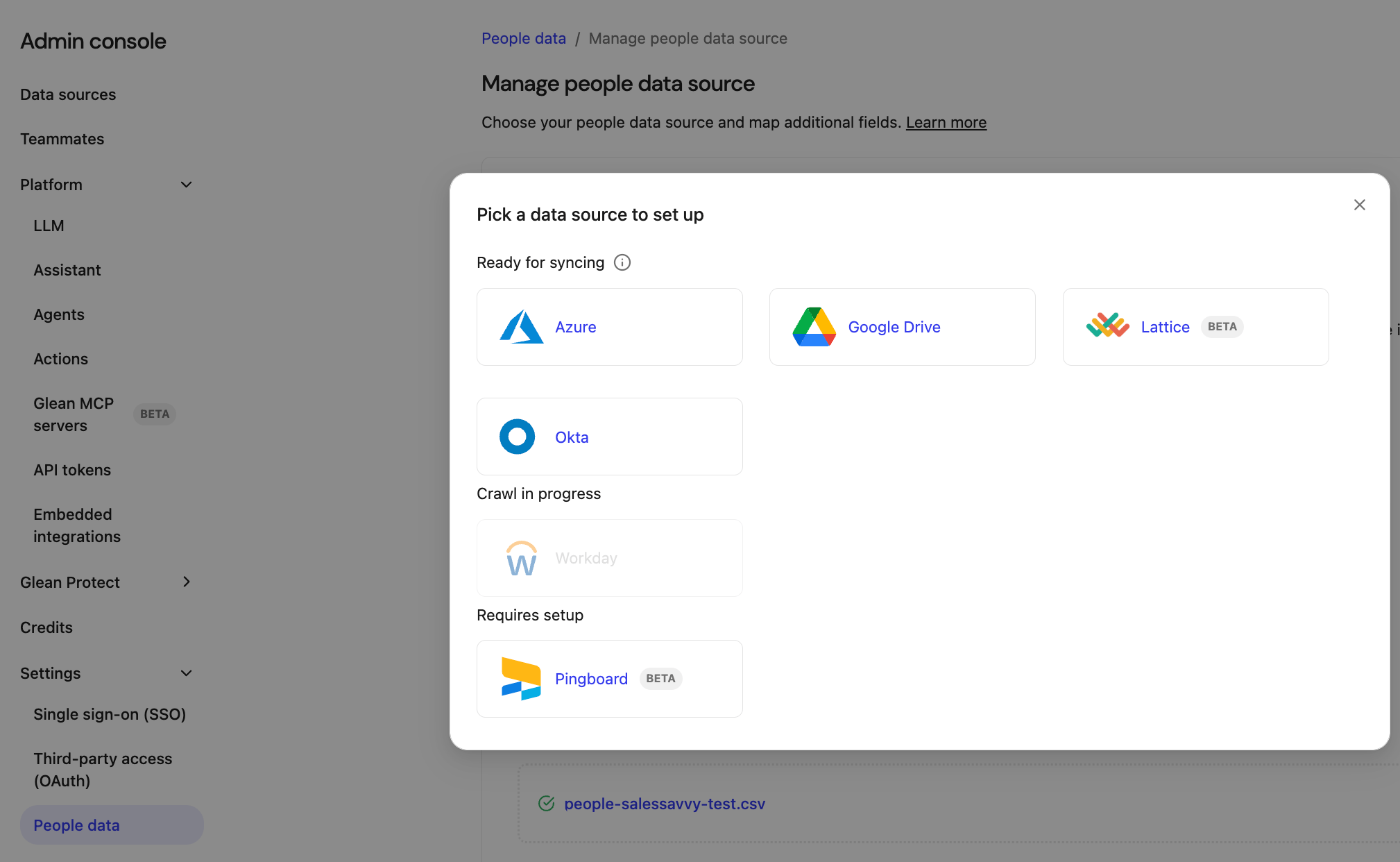
Was this page helpful?
YesNo
[Wordpress](https://docs.glean.com/connectors/native/wordpress/home)
[Zendesk](https://docs.glean.com/connectors/native/zendesk/home)
⌘I
---
# Looker - Glean Help Center
[Skip to main content](https://docs.glean.com/connectors/native/looker/home#content-area)
[Glean Help Center home page](https://docs.glean.com/)
Search...
⌘K
Search...
Navigation
Native Connectors
Looker
[Home](https://docs.glean.com/home)
[User Guide](https://docs.glean.com/user-guide/about/what-is-glean)
[Agents](https://docs.glean.com/agents/home)
[Get Started for Admins](https://docs.glean.com/get-started/welcome)
[Connectors](https://docs.glean.com/connectors/home)
[Admin Guide](https://docs.glean.com/administration/about)
[Security & Architecture](https://docs.glean.com/security/home)
[Troubleshooting](https://docs.glean.com/troubleshooting/home)
[Release Notes](https://docs.glean.com/release-notes/home)
[Archive](https://docs.glean.com/archive/help-glean/answers/what-are-answers-and-how-do-they-work)
On this page
* [Supported Features and Limitations](https://docs.glean.com/connectors/native/looker/home#supported-features-and-limitations)
* [Supported Objects/Entities](https://docs.glean.com/connectors/native/looker/home#supported-objects%2Fentities)
* [Supported API Endpoints/Features](https://docs.glean.com/connectors/native/looker/home#supported-api-endpoints%2Ffeatures)
* [Limitations](https://docs.glean.com/connectors/native/looker/home#limitations)
* [Crawling Strategy](https://docs.glean.com/connectors/native/looker/home#crawling-strategy)
* [Results Display](https://docs.glean.com/connectors/native/looker/home#results-display)
* [Requirements](https://docs.glean.com/connectors/native/looker/home#requirements)
* [Technical Requirements](https://docs.glean.com/connectors/native/looker/home#technical-requirements)
* [Credential Requirements](https://docs.glean.com/connectors/native/looker/home#credential-requirements)
* [Permission Requirements](https://docs.glean.com/connectors/native/looker/home#permission-requirements)
* [Preliminary Source/System Setup](https://docs.glean.com/connectors/native/looker/home#preliminary-source%2Fsystem-setup)
* [Configuration and Setup Instructions](https://docs.glean.com/connectors/native/looker/home#configuration-and-setup-instructions)
* [Prerequisites](https://docs.glean.com/connectors/native/looker/home#prerequisites)
* [Step-by-Step Setup](https://docs.glean.com/connectors/native/looker/home#step-by-step-setup)
* [Determining Looker instance name](https://docs.glean.com/connectors/native/looker/home#determining-looker-instance-name)
* [Generating Looker admin API credentials](https://docs.glean.com/connectors/native/looker/home#generating-looker-admin-api-credentials)
* [Connecting Looker and Glean](https://docs.glean.com/connectors/native/looker/home#connecting-looker-and-glean)
* [Crawl Configuration Options](https://docs.glean.com/connectors/native/looker/home#crawl-configuration-options)
* [Permissions & Security](https://docs.glean.com/connectors/native/looker/home#permissions-%26-security)
The Looker connector enables you to integrate Glean with your Looker instance, allowing you to search and discover metadata from Looks and Dashboards within your organization. The connector indexes Looker content metadata such as titles, descriptions, and folder names but does not ingest or expose the underlying data or models used in visualizations. All data is stored within your own Google Cloud Platform (GCP) project, ensuring that you retain full control and ownership over your Looker content.
[](https://docs.glean.com/connectors/native/looker/home#supported-features-and-limitations)
Supported Features and Limitations
----------------------------------------------------------------------------------------------------------------------------------
The Looker connector is designed to index and make searchable the metadata of Looks and Dashboards from your Looker environment. It enforces Looker’s native permissions, ensuring that users only see content they are authorized to access.
###
[](https://docs.glean.com/connectors/native/looker/home#supported-objects/entities)
Supported Objects/Entities
| Object Type | Description |
| --- | --- |
| Looks | Metadata including title, description, and folder name |
| Dashboards | Metadata including title, description, folder name, and dashboard elements (title, description, notes, subtitles) |
###
[](https://docs.glean.com/connectors/native/looker/home#supported-api-endpoints/features)
Supported API Endpoints/Features
* /looks/search: Used to enumerate and fetch Looks metadata.
* /dashboards/search: Used to enumerate and fetch Dashboards metadata.
* /users: Used to fetch user identities for permission mapping.
* Permissions endpoints: Used to determine access control for each content item.
###
[](https://docs.glean.com/connectors/native/looker/home#limitations)
Limitations
* Only Looker cloud (API v4.0) is supported and on-premises Looker is not currently supported.
* The connector does not index or expose the underlying data or models used in Looks or Dashboards, only metadata is indexed.
* Incremental and activity crawls are not supported and only full crawls are available due to API limitations.
* No webhook support and Looker webhooks are not used by this connector.
* Redlist/greenlist (content filtering) functionality is not available.
* No support for custom objects or lookback period configuration.
###
[](https://docs.glean.com/connectors/native/looker/home#crawling-strategy)
Crawling Strategy
| Crawl type | Full Crawl | Incremental Crawl | People Data | Activity | Update Rate | Webhook | Notes |
| --- | --- | --- | --- | --- | --- | --- | --- |
| Looks | Yes | No | Yes | No | On demand | No | Only metadata indexed |
| Dashboards | Yes | No | Yes | No | On demand | No | Only metadata indexed |
* Full crawls are performed to index all Looks and Dashboards.
* No incremental or activity crawls are available due to API constraints.
* Permissions are fetched and enforced for each content item.
###
[](https://docs.glean.com/connectors/native/looker/home#results-display)
Results Display
After connecting Looker, you can search for Looks and Dashboards by their metadata like title, description, folder name within Glean. Only content you have access to in Looker is visible in search results.
[](https://docs.glean.com/connectors/native/looker/home#requirements)
Requirements
--------------------------------------------------------------------------------------
To use the Looker connector, you must meet certain technical, credential, and permission requirements. Setup must be performed by a Looker admin or a user with sufficient privileges.
###
[](https://docs.glean.com/connectors/native/looker/home#technical-requirements)
Technical Requirements
* Looker cloud instance with API v4.0 enabled.
* Google Cloud Platform (GCP) project for data storage.
###
[](https://docs.glean.com/connectors/native/looker/home#credential-requirements)
Credential Requirements
Looker API3 key (client ID and client secret) generated from a Looker admin account. The API3 key is used to authenticate and generate short-lived bearer tokens for API access.
###
[](https://docs.glean.com/connectors/native/looker/home#permission-requirements)
Permission Requirements
* The connector requires a Looker admin account or a service account with permissions to generate API keys and access Looks and Dashboards.
* The API key must have access to all content you wish to index.
* Permissions are enforced at both the content (folder-level ACLs) and role (permission set/model set) levels.
* Required Looker API scopes: `see_looks`, `see_user_dashboards`, `see_lookml_dashboards` as applicable.
* The connector intersects content ACLs and role permissions to determine access for each user.
###
[](https://docs.glean.com/connectors/native/looker/home#preliminary-source/system-setup)
Preliminary Source/System Setup
* A Looker admin must generate API3 credentials in the Looker admin console.
* No additional app registration or API enablement is required beyond standard Looker API setup.
[](https://docs.glean.com/connectors/native/looker/home#configuration-and-setup-instructions)
Configuration and Setup Instructions
--------------------------------------------------------------------------------------------------------------------------------------
You configure and manage the Looker connector primarily through the Glean Admin console. The following steps outline the process for connecting your Looker instance to Glean.
###
[](https://docs.glean.com/connectors/native/looker/home#prerequisites)
Prerequisites
* Access to a Looker admin account.
* API3 credentials (client ID and client secret) generated in Looker.
* Access to your organization’s GCP project for data storage.
###
[](https://docs.glean.com/connectors/native/looker/home#step-by-step-setup)
Step-by-Step Setup
###
[](https://docs.glean.com/connectors/native/looker/home#determining-looker-instance-name)
Determining Looker instance name
The instance name is of the format `.looker.com`. Copy the entire `` including hyphens and other URL components like periods. For example, if you access Looker at `acme.cloud.looker.com`, the instance name is `acme.cloud`.
###
[](https://docs.glean.com/connectors/native/looker/home#generating-looker-admin-api-credentials)
Generating Looker admin API credentials
1. As an admin, navigate to the **/admin/users** page on your Looker instance.
2. Click **Edit** on the admin user for which you want to cerate or use the API key. 
3. Click **API Keys** > **Edit Keys**. 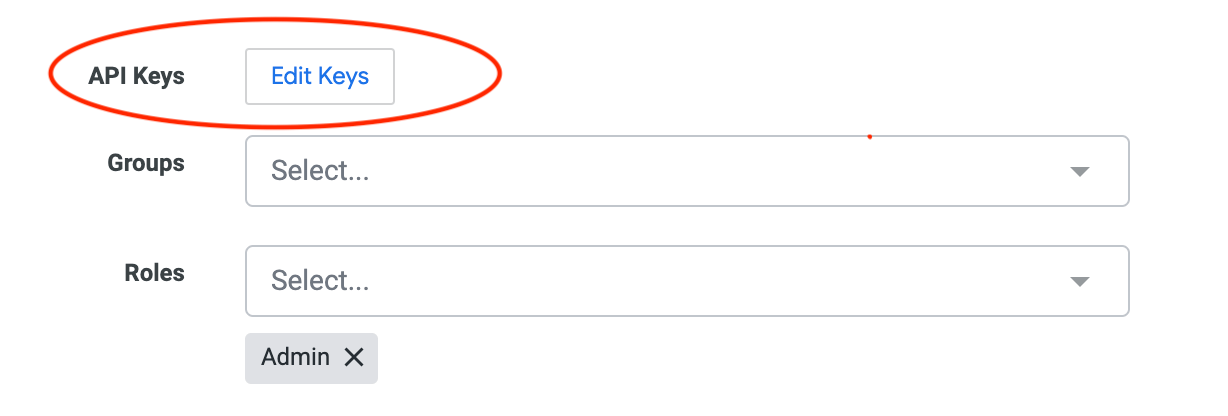
4. Click **Save**.
###
[](https://docs.glean.com/connectors/native/looker/home#connecting-looker-and-glean)
Connecting Looker and Glean
To connect the Looker connector and Glean, perform the following steps:
1. As an admin, navigate to the Glean **Admin console**.
2. Click **Add data source** and select Looker.
3. In the **Setup** tab, add the required information gathered from the previous sections:
* Data source name: keep the name so that the users understand that this data source is used for Glean.
* Instance name
* API Client ID
* API Client Secret
4. Click **Save**.
###
[](https://docs.glean.com/connectors/native/looker/home#crawl-configuration-options)
Crawl Configuration Options
* No support for redlist/greenlist or custom object selection.
* No lookback period configuration; all available Looks and Dashboards are indexed.
* No crawl frequency customization; full crawls are performed on demand or as scheduled by Glean.
###
[](https://docs.glean.com/connectors/native/looker/home#permissions-&-security)
Permissions & Security
**Data and Metadata Ingested:**
* Only metadata from Looks and Dashboards (titles, descriptions, folder names, dashboard element text) is indexed.
* No underlying data or models are ingested or exposed.
**Permission Propagation Logic:**
* The connector enforces Looker’s native permissions by intersecting content ACLs and role permissions for each user.
* Only content a user is authorized to access in Looker will be visible in Glean search.
**Security & Compliance Notes:**
* All data is stored in your organization’s GCP project; Glean does not have access to your Looker data.
* Authentication uses Looker API3 credentials and short-lived bearer tokens.
* No data leaves your cloud environment.
**Known Security Restrictions:**
* On-premises Looker is not supported.
* All indexed content is subject to Looker’s permission model; unsupported configurations (such as multi-instance scenarios) are not available.
**Data Privacy Implications:**
* The connector does not ingest or expose any sensitive data from Looker visualizations or models.
* All indexed data remains within your organization’s GCP environment.
If you have issues or concerns, reach out to the [Glean support team](https://support.glean.com/hc/en-us/requests/new)
.
Was this page helpful?
YesNo
[Linear](https://docs.glean.com/connectors/native/linear/home)
[LumApps](https://docs.glean.com/connectors/native/lumapps/home)
⌘I
---
# Zendesk - Glean Help Center
[Skip to main content](https://docs.glean.com/connectors/native/zendesk/home#content-area)
[Glean Help Center home page](https://docs.glean.com/)
Search...
⌘K
Search...
Navigation
Native Connectors
Zendesk
[Home](https://docs.glean.com/home)
[User Guide](https://docs.glean.com/user-guide/about/what-is-glean)
[Agents](https://docs.glean.com/agents/home)
[Get Started for Admins](https://docs.glean.com/get-started/welcome)
[Connectors](https://docs.glean.com/connectors/home)
[Admin Guide](https://docs.glean.com/administration/about)
[Security & Architecture](https://docs.glean.com/security/home)
[Troubleshooting](https://docs.glean.com/troubleshooting/home)
[Release Notes](https://docs.glean.com/release-notes/home)
[Archive](https://docs.glean.com/archive/help-glean/answers/what-are-answers-and-how-do-they-work)
On this page
* [Introduction](https://docs.glean.com/connectors/native/zendesk/home#introduction)
* [Objects Supported](https://docs.glean.com/connectors/native/zendesk/home#objects-supported)
* [Authentication Mechanism](https://docs.glean.com/connectors/native/zendesk/home#authentication-mechanism)
* [Connection instructions](https://docs.glean.com/connectors/native/zendesk/home#connection-instructions)
* [Create Zendesk API Token](https://docs.glean.com/connectors/native/zendesk/home#create-zendesk-api-token)
* [Setup in Glean](https://docs.glean.com/connectors/native/zendesk/home#setup-in-glean)
* [Items crawled](https://docs.glean.com/connectors/native/zendesk/home#items-crawled)
* [Content Indexed](https://docs.glean.com/connectors/native/zendesk/home#content-indexed)
* [Identity](https://docs.glean.com/connectors/native/zendesk/home#identity)
* [Webhook Events](https://docs.glean.com/connectors/native/zendesk/home#webhook-events)
* [Rate Limits](https://docs.glean.com/connectors/native/zendesk/home#rate-limits)
* [Update frequency](https://docs.glean.com/connectors/native/zendesk/home#update-frequency)
* [How the crawl works](https://docs.glean.com/connectors/native/zendesk/home#how-the-crawl-works)
* [Known Limitations in Crawl](https://docs.glean.com/connectors/native/zendesk/home#known-limitations-in-crawl)
* [API endpoints](https://docs.glean.com/connectors/native/zendesk/home#api-endpoints)
* [Content Configuration](https://docs.glean.com/connectors/native/zendesk/home#content-configuration)
* [Exclusion (Red-Listing) Options](https://docs.glean.com/connectors/native/zendesk/home#exclusion-red-listing-options)
* [Inclusion (Green-Listing) Options](https://docs.glean.com/connectors/native/zendesk/home#inclusion-green-listing-options)
[](https://docs.glean.com/connectors/native/zendesk/home#introduction)
Introduction
=======================================================================================
The Zendesk connector for Glean allows Glean to fetch and index content from Zendesk while ensuring users can search and access documents for which permissions have been authorized.
* **Authentication**: Glean requires the Zendesk admin to authenticate to Glean during the Glean data source setup with an API Token.
* **Data Storage**: All data is stored in the cloud project within the customer’s cloud account, ensuring no data leaves the customer’s environment
**API Usage**
* **Standard API**: Glean uses Zendesk’s standard [Apps REST API](https://developer.zendesk.com/api-reference/apps/apps-support-api/introduction/)
to ingest all data
**Integration Features**
* **Content Captured**: Posts, Knowledgebase articles, and Tickets, including comments.
* **Permissions Enforcement**: Glean respects all user access permissions, ensuring users only see search results for documents users can access. When a user clicks on a search result, they are taken to the Zendesk web application, which enforces the permission.
[](https://docs.glean.com/connectors/native/zendesk/home#objects-supported)
Objects Supported
-------------------------------------------------------------------------------------------------
The Zendesk connector supports the following objects:
* Knowledge base articles (including comments)
* Tickets (including comments)
* Posts and comments
[](https://docs.glean.com/connectors/native/zendesk/home#authentication-mechanism)
Authentication Mechanism
===============================================================================================================
The Zendesk administrator will create the Zendesk [API token](https://developer.zendesk.com/api-reference/introduction/security-and-auth/#api-token)
that Glean will utilize for the Zendesk connector. Please use a Service Account to create the token to ensure that Glean does not lose access if the employee who performed the authentication leaves the company.
[](https://docs.glean.com/connectors/native/zendesk/home#connection-instructions)
Connection instructions
-------------------------------------------------------------------------------------------------------------
_Disclaimer: The instructions below are updated periodically by Glean on our customer-facing documentation. For the latest instructions, refer to the Glean Admin UI_
[](https://docs.glean.com/connectors/native/zendesk/home#create-zendesk-api-token)
Create Zendesk API Token
---------------------------------------------------------------------------------------------------------------
1. Sign in to Zendesk, copy your URL from your URL bar, and enter it into Glean (for example: [https://YourZendeskDomain.zendesk.com](https://yourzendeskdomain.zendesk.com/)
)
2. Go to **Admin** (gear icon) → **Go to Admin Center** → **Apps and integrations** → **Zendesk API**.
3. Enable **Token Access**.
4. Add a new token by clicking the **Add API token** button. Set the description to: **Glean Access Token** (Save API Token for setup in Glean)
[](https://docs.glean.com/connectors/native/zendesk/home#setup-in-glean)
Setup in Glean
-------------------------------------------------------------------------------------------
1. Input the data source name in the **Name** text box and select an icon
2. Complete any outstanding setup in **Show setup instructions**
3. Input the following information:
* Input Zendesk domain name in **Zendesk domain** name text box (for example: [https://YourZendeskDomain.zendesk.com](https://yourzendeskdomain.zendesk.com/)
)
* Input Zendesk API Token in **API Token** name text box
* Input the email of the service account that created the API token in the **Email** name text box
* Check the following boxes that apply for the setup:
* Crawl articles
* Crawl posts
* Crawl tickets
4. Click **Save**
[](https://docs.glean.com/connectors/native/zendesk/home#items-crawled)
Items crawled
=========================================================================================
[](https://docs.glean.com/connectors/native/zendesk/home#content-indexed)
Content Indexed
---------------------------------------------------------------------------------------------
* Knowledgebase articles (including comments)
* Tickets (including comments)
* Posts and comments
[](https://docs.glean.com/connectors/native/zendesk/home#identity)
Identity
-------------------------------------------------------------------------------
* **Users**: Information about users within the Zendesk
* **Groups**: Details about groups within Zendesk, including Organisations, user segments and permission\_groups
The identity crawl operates with the following configurations:
* **Incremental Identity Crawls**: These are performed to capture changes since the last crawl.
* **Full Identity Crawls**: These are conducted periodically to ensure all identity data is up-to-date.
[](https://docs.glean.com/connectors/native/zendesk/home#webhook-events)
Webhook Events
-------------------------------------------------------------------------------------------
The Glean Zendesk connector utilizes Webhooks for ticket creation, ticket updates, and comment creation.
[](https://docs.glean.com/connectors/native/zendesk/home#rate-limits)
Rate Limits
-------------------------------------------------------------------------------------
* **Queries per Second (QPS)**: The default rate limit is 12 queries per second, but it can be adjusted. Please contact your Glean representative for more information.
* For more information regarding Zendesk’s rate limiting, see [here](https://developer.zendesk.com/api-reference/introduction/rate-limits/)
[](https://docs.glean.com/connectors/native/zendesk/home#update-frequency)
Update frequency
-----------------------------------------------------------------------------------------------
Content updates for the Zendesk connector in Glean can happen quite rapidly, depending on the type of update and the configuration settings. Here are the key areas:
* **People / Identity Crawls**: The identity crawl, which runs every hour, detects changes to group memberships and ensures that updates to user groups and their permissions are reflected promptly.
* **Incremental Crawls**: Occur every 1 hour and capture the difference between the previous incremental or full crawl
* **Full Crawls**: The frequency of full crawls can be configured, but they are generally less frequent than incremental crawls at 28 days
Changes in data must be crawled, processed, and indexed before the data is reflected in the UI. Actual time may vary depending on the number of changes and corpus size. For more crawler refresh information, see [Crawling frequency](https://docs.glean.com/connectors/crawling-frequency)
.
[](https://docs.glean.com/connectors/native/zendesk/home#how-the-crawl-works)
How the crawl works
-----------------------------------------------------------------------------------------------------
The Zendesk crawler follows the traditional crawler strategy, including utilizing the Zendesk API and the following ways to get and update data:
* **Identity Crawl:** updating and adding of People data, including users, groups, and other information
* **Content Crawls:** Full crawls the entire defined scope of the application, whereas incremental crawls only capture the changes from the previous full or incremental crawl
[](https://docs.glean.com/connectors/native/zendesk/home#known-limitations-in-crawl)
Known Limitations in Crawl
-------------------------------------------------------------------------------------------------------------------
* Glean does not support Departmental Spaces or Team Brand membership
[](https://docs.glean.com/connectors/native/zendesk/home#api-endpoints)
API endpoints
=========================================================================================
| Cloud Endpoint |
| --- |
| api/v2/users.json |
| api/v2/groups.json |
| api/v2/groups/%s/memberships.json |
| api/v2/guide/permission\_groups.json |
| api/v2/help\_center/user\_segments.json |
| api/v2/organizations.json |
| api/v2/organizations/%s/organization\_memberships.json |
| api/v2/brands |
| api/v2/community/topics.json |
| api/v2/help\_center/incremental/articles.json |
| api/v2/help\_center/articles/%s/comments.json |
| api/v2/community/posts.json |
| api/v2/community/posts/%s/comments.json |
| api/v2/ticket\_fields.json |
| api/v2/incremental/tickets/cursor.json |
| api/v2/tickets/%s/comments.json |
| api/v2/custom\_roles.json |
| api/v2/triggers |
| api/v2/webhooks |
| api/v2/apps/installations.json |
[](https://docs.glean.com/connectors/native/zendesk/home#content-configuration)
Content Configuration
=========================================================================================================
**Note:** If Inclusion (Green-Listing) options are enabled, only content from the Inclusion category will be indexed. If Exclusion (Red-Listing) options are enabled, all content in the exclusion category will be removed. If both rules are applied to the same content, then the content will NOT be indexed, as the exclusion rule takes priority. The rules below should be used MINIMALLY to preserve the enterprise search experience, as most end-users expect to find all content. Most customers do not apply any rules or apply red-listing rules sparingly for sensitive items.
[](https://docs.glean.com/connectors/native/zendesk/home#exclusion-red-listing-options)
Exclusion (Red-Listing) Options
---------------------------------------------------------------------------------------------------------------------------
Glean provides the ability to exclude the following content from the Zendesk connector crawl based on the criteria:
* Posts
* Articles
* Brand ID
**Note:** Excluded items will not show in search results, chat, or any other Glean applications Please contact your Glean representative to configure this in your Glean instance.
[](https://docs.glean.com/connectors/native/zendesk/home#inclusion-green-listing-options)
Inclusion (Green-Listing) Options
-------------------------------------------------------------------------------------------------------------------------------
Glean provides the ability to include the following content from the Zendesk connector crawl based on the criteria:
* Posts
* Articles
* Brand ID
**Note:** Only content specified to be included items will show in search results, chat, or any other Glean applications. Unspecified content will not be included in search results, chat, or other Glean applications. Please contact your Glean representative to configure this in your Glean instance.
Was this page helpful?
YesNo
[Workday](https://docs.glean.com/connectors/native/workday/home)
[Zoom](https://docs.glean.com/connectors/native/zoom/home)
⌘I
---
# Pingboard - Glean Help Center
[Skip to main content](https://docs.glean.com/connectors/native/pingboard/home#content-area)
[Glean Help Center home page](https://docs.glean.com/)
Search...
⌘K
Search...
Navigation
Native Connectors
Pingboard
[Home](https://docs.glean.com/home)
[User Guide](https://docs.glean.com/user-guide/about/what-is-glean)
[Agents](https://docs.glean.com/agents/home)
[Get Started for Admins](https://docs.glean.com/get-started/welcome)
[Connectors](https://docs.glean.com/connectors/home)
[Admin Guide](https://docs.glean.com/administration/about)
[Security & Architecture](https://docs.glean.com/security/home)
[Troubleshooting](https://docs.glean.com/troubleshooting/home)
[Release Notes](https://docs.glean.com/release-notes/home)
[Archive](https://docs.glean.com/archive/help-glean/answers/what-are-answers-and-how-do-they-work)
On this page
* [Overview](https://docs.glean.com/connectors/native/pingboard/home#overview)
* [Integration Features](https://docs.glean.com/connectors/native/pingboard/home#integration-features)
* [API Usage](https://docs.glean.com/connectors/native/pingboard/home#api-usage)
* [Installation process](https://docs.glean.com/connectors/native/pingboard/home#installation-process)
* [Prerequisites](https://docs.glean.com/connectors/native/pingboard/home#prerequisites)
* [Steps](https://docs.glean.com/connectors/native/pingboard/home#steps)
* [Create a Service Account](https://docs.glean.com/connectors/native/pingboard/home#create-a-service-account)
* [Connect Pingboard to Glean](https://docs.glean.com/connectors/native/pingboard/home#connect-pingboard-to-glean)
Pingboard is an employee directory and organizational chart platform that provides access to essential information about people, teams, and companies. The Pingboard connector for Glean enables organizations to index employee data from Pingboard, allowing users to search, discover, and connect with coworkers through Glean Work AI. The connector synchronizes fields such as employee names, titles, department, manager relationships, key dates, contact details, and profile avatars.
[](https://docs.glean.com/connectors/native/pingboard/home#overview)
Overview
---------------------------------------------------------------------------------
* Glean requires a service account for Pingboard to fetch relevant information to create People cards.
* Authentication is done by creating a read-only service account client ID and secret pair in Pingboard.
* It’s important to note that all data is stored in the GCP project in the customer’s cloud account and no data leaves the customer environment.
[](https://docs.glean.com/connectors/native/pingboard/home#integration-features)
Integration Features
---------------------------------------------------------------------------------------------------------
For Pingboard, Glean will capture the following content:
* Employee name, title, department, manager ID, join date, birth date, updated date, time zone, nickname, bio, email, phone number and any avatar URLs.
[](https://docs.glean.com/connectors/native/pingboard/home#api-usage)
API Usage
-----------------------------------------------------------------------------------
Glean will use the [Users](https://pingboard.docs.apiary.io/#reference/users)
and [Groups](https://pingboard.docs.apiary.io/#reference/groups)
APIs to generate People cards in Glean.
[](https://docs.glean.com/connectors/native/pingboard/home#installation-process)
Installation process
---------------------------------------------------------------------------------------------------------
###
[](https://docs.glean.com/connectors/native/pingboard/home#prerequisites)
Prerequisites
* Your company must be on a _Pro plan_ in order to have API access.
* Administrator access to create a service account.
###
[](https://docs.glean.com/connectors/native/pingboard/home#steps)
Steps
####
[](https://docs.glean.com/connectors/native/pingboard/home#create-a-service-account)
Create a Service Account
1. Log in to your Pingboard account as a Pingboard administrator.
2. Click the **Add-Ons** tab, select **API**.
3. Click **Manage Service Accounts** button under **Service Accounts**.
4. Click **Add Service Account**. For the added Service Account:
1. Add a recognizable name such as _Glean_.
2. Set permissions as **Regular User**.
5. After the account is created, you will have access to the following:
* Client Id
* Client Secret
6. Save the Client ID and Client Secret.
####
[](https://docs.glean.com/connectors/native/pingboard/home#connect-pingboard-to-glean)
Connect Pingboard to Glean
1. In the Glean **Admin console**, click **Other**.
2. In _Connect all your Tools_ section:
* Toggle to **Config** and enter:
* Key name: _pingboard.domain_
* Key value: Enter the Client ID. Enter only the subdomain part of your Pingboard URL, for example, _subdomain_.pingboard.com
* Click **Submit**.
* Toggle to **Secret** section:
* Key name: _PINGBOARD\_CLIENT\_SECRET_
* Key value: enter the value from the Pingboard Client Secret.
* Click **Submit**.
3. Click **Save**.
Was this page helpful?
YesNo
[PagerDuty](https://docs.glean.com/connectors/native/pagerduty/home)
[Procore](https://docs.glean.com/connectors/native/procore/home)
⌘I
---
# Miro - Glean Help Center
[Skip to main content](https://docs.glean.com/connectors/native/miro/home#content-area)
[Glean Help Center home page](https://docs.glean.com/)
Search...
⌘K
Search...
Navigation
Native Connectors
Miro
[Home](https://docs.glean.com/home)
[User Guide](https://docs.glean.com/user-guide/about/what-is-glean)
[Agents](https://docs.glean.com/agents/home)
[Get Started for Admins](https://docs.glean.com/get-started/welcome)
[Connectors](https://docs.glean.com/connectors/home)
[Admin Guide](https://docs.glean.com/administration/about)
[Security & Architecture](https://docs.glean.com/security/home)
[Troubleshooting](https://docs.glean.com/troubleshooting/home)
[Release Notes](https://docs.glean.com/release-notes/home)
[Archive](https://docs.glean.com/archive/help-glean/answers/what-are-answers-and-how-do-they-work)
On this page
* [Supported Features and Limitations](https://docs.glean.com/connectors/native/miro/home#supported-features-and-limitations)
* [Supported Objects/Entities](https://docs.glean.com/connectors/native/miro/home#supported-objects%2Fentities)
* [Supported API Endpoints/Features](https://docs.glean.com/connectors/native/miro/home#supported-api-endpoints%2Ffeatures)
* [Limitations](https://docs.glean.com/connectors/native/miro/home#limitations)
* [Requirements](https://docs.glean.com/connectors/native/miro/home#requirements)
* [Technical Requirements](https://docs.glean.com/connectors/native/miro/home#technical-requirements)
* [Credential Requirements](https://docs.glean.com/connectors/native/miro/home#credential-requirements)
* [Permission Requirements](https://docs.glean.com/connectors/native/miro/home#permission-requirements)
* [Preliminary Source/System Setup](https://docs.glean.com/connectors/native/miro/home#preliminary-source%2Fsystem-setup)
* [External References](https://docs.glean.com/connectors/native/miro/home#external-references)
* [Configuration and Setup Instructions](https://docs.glean.com/connectors/native/miro/home#configuration-and-setup-instructions)
* [Prerequisites](https://docs.glean.com/connectors/native/miro/home#prerequisites)
* [Authentication and credentials](https://docs.glean.com/connectors/native/miro/home#authentication-and-credentials)
* [Step-by-Step Setup](https://docs.glean.com/connectors/native/miro/home#step-by-step-setup)
Miro is an online collaborative whiteboard platform used by distributed teams for brainstorming, project planning, and agile workflows. Integrating Miro with Glean enables users to search, discover, and access Miro board content from a designated list of teams within Glean, enhancing workflow efficiency by making critical information accessible directly within your enterprise knowledge platform.
[](https://docs.glean.com/connectors/native/miro/home#supported-features-and-limitations)
Supported Features and Limitations
--------------------------------------------------------------------------------------------------------------------------------
The Miro connector is designed to index and make searchable the content from Miro boards in specified teams. This section outlines supported data objects, key features, and known limitations to guide users in understanding the connector’s capabilities.
###
[](https://docs.glean.com/connectors/native/miro/home#supported-objects/entities)
Supported Objects/Entities
| Object/Entity | Description |
| --- | --- |
| Miro Boards | All boards accessible by users who have explicitly authorized Glean for pre-indicated teams. |
###
[](https://docs.glean.com/connectors/native/miro/home#supported-api-endpoints/features)
Supported API Endpoints/Features
* List all team members (for identity and permissions mapping).
* List boards available to the user in a given team.
* Fetch board metadata and textual content via widgets (using Miro REST API v2, which removes widget count limitations).
* Activity ingestion via audit logs API (only available in v1 and for select plans), for document update/delete events.
###
[](https://docs.glean.com/connectors/native/miro/home#limitations)
Limitations
* Only boards visible to users who have authorized Glean for teams in the predefined list are indexed.
* Comments within boards and some non-native widget content (such as third-party plugin widgets) are not indexed due to API constraints.
* Full crawling of project-level permissions is limited, as there is no public API for Miro projects to determine hierarchical or inherited permissions.
* Incremental crawling is primarily available via audit logs for customers with access to v1 API; otherwise, frequent full crawls are needed.
* No webhook support—content updates are detected via crawls rather than event notifications.
* Instant access to new or deleted content is dependent on crawl frequency and API rate limits.
[](https://docs.glean.com/connectors/native/miro/home#requirements)
Requirements
------------------------------------------------------------------------------------
This section addresses the technical, credential, and permission requirements needed to configure the Miro connector for your Glean environment.
###
[](https://docs.glean.com/connectors/native/miro/home#technical-requirements)
Technical Requirements
* Miro enterprise (or business) plan is recommended for organization-wide access and project support.
* Glean instance with support for app integrations and connectors.
* API access enabled for the relevant Miro teams.
###
[](https://docs.glean.com/connectors/native/miro/home#credential-requirements)
Credential Requirements
* OAuth2 application credentials (Client ID and Client Secret) from an app registered in the Miro developer console.
* The app should be registered under the Miro developer team, with appropriate redirect URIs set up as per Glean’s instance configuration.
###
[](https://docs.glean.com/connectors/native/miro/home#permission-requirements)
Permission Requirements
* Minimum required Miro admin roles to configure the connector: Company Admin and Content Admin are required to register, configure, and authorize the Glean app for each team.
* The service account or user performing the configuration must have access to all targeted boards and teams to ensure complete indexing.
* When accessing board content, the Glean connector only receives data accessible to the authorizing user, respecting Miro’s access controls.
###
[](https://docs.glean.com/connectors/native/miro/home#preliminary-source/system-setup)
Preliminary Source/System Setup
1. Register a new app in Miro’s developer portal.
2. Set the required OAuth scopes: `boards:read`, `identity:read` (and optionally `auditlogs:read` for full activity support where available).
3. Add redirect URIs matching your Glean deployment.
4. Install the Glean app to each designated Miro team either as an admin or allow team members to perform installation depending on team settings.
5. (Optional) For multi-team setups, repeat installation and authorization steps per team as needed.
###
[](https://docs.glean.com/connectors/native/miro/home#external-references)
External References
* Miro Developer Reference: [https://developers.miro.com/](https://developers.miro.com/)
* Miro API Scopes and Permissions: [https://developers.miro.com/reference/scopes](https://developers.miro.com/reference/scopes)
[](https://docs.glean.com/connectors/native/miro/home#configuration-and-setup-instructions)
Configuration and Setup Instructions
------------------------------------------------------------------------------------------------------------------------------------
Follow these instructions to configure and launch the Miro connector in your Glean instance.
###
[](https://docs.glean.com/connectors/native/miro/home#prerequisites)
Prerequisites
* A Glean admin account with permission to manage connectors.
* Miro enterprise plan access and admin permissions.
* OAuth application (Client ID and Secret) created in Miro for your organization’s Glean integration.
###
[](https://docs.glean.com/connectors/native/miro/home#authentication-and-credentials)
Authentication and credentials
* Enter the Miro app’s Client ID and Client Secret in the Glean connector configuration UI.
* Specify the team ID(s) for which the connector should index content—these should correspond to Miro teams for which the Glean app has been installed.
* When prompted, authenticate using a Miro admin or a user with sufficient permissions. Each user seeking to index their accessible boards must complete the OAuth authorization for the Glean app for the relevant teams.
###
[](https://docs.glean.com/connectors/native/miro/home#step-by-step-setup)
Step-by-Step Setup
1. In the Miro developer portal, register a new app and note the Client ID and Client Secret.
2. Configure the required redirect URIs in the app registration to point to your Glean instance’s callback URLs.
3. Assign necessary OAuth scopes (typically `boards:read`, `identity:read`).
4. In your Glean admin console, navigate to the connector setup and select Miro.
5. Input the Client ID, Client Secret, and the list of team IDs you wish to index.
6. For each relevant team, ensure the Glean app has been installed and authorized by an admin or allowed member.
7. Prompt users to complete the OAuth authorization flow for their selected teams if per-user authentication is enabled.
8. Start the initial crawl. Content indexing may take time depending on the size of your Miro instance; background processes will sync boards and permissions.
9. If issues arise, confirm roles (Company and Content Admin) and review Glean/Miro logs for OAuth and API errors (such as 401 Unauthorized).
Was this page helpful?
YesNo
[Microsoft Viva Engage (formerly Yammer)](https://docs.glean.com/connectors/native/viva-engage/home)
[Monday](https://docs.glean.com/connectors/native/monday/home)
⌘I
---
# NetSuite - Glean Help Center
[Skip to main content](https://docs.glean.com/connectors/native/netsuite/home#content-area)
[Glean Help Center home page](https://docs.glean.com/)
Search...
⌘K
Search...
Navigation
Native Connectors
NetSuite
[Home](https://docs.glean.com/home)
[User Guide](https://docs.glean.com/user-guide/about/what-is-glean)
[Agents](https://docs.glean.com/agents/home)
[Get Started for Admins](https://docs.glean.com/get-started/welcome)
[Connectors](https://docs.glean.com/connectors/home)
[Admin Guide](https://docs.glean.com/administration/about)
[Security & Architecture](https://docs.glean.com/security/home)
[Troubleshooting](https://docs.glean.com/troubleshooting/home)
[Release Notes](https://docs.glean.com/release-notes/home)
[Archive](https://docs.glean.com/archive/help-glean/answers/what-are-answers-and-how-do-they-work)
On this page
* [Supported objects and data](https://docs.glean.com/connectors/native/netsuite/home#supported-objects-and-data)
* [Objects crawled](https://docs.glean.com/connectors/native/netsuite/home#objects-crawled)
* [Identity and permissions data](https://docs.glean.com/connectors/native/netsuite/home#identity-and-permissions-data)
* [Permissions and security](https://docs.glean.com/connectors/native/netsuite/home#permissions-and-security)
* [Crawling strategy and update frequency](https://docs.glean.com/connectors/native/netsuite/home#crawling-strategy-and-update-frequency)
* [Limitations](https://docs.glean.com/connectors/native/netsuite/home#limitations)
* [Requirements](https://docs.glean.com/connectors/native/netsuite/home#requirements)
* [Technical requirements](https://docs.glean.com/connectors/native/netsuite/home#technical-requirements)
* [Credential requirements](https://docs.glean.com/connectors/native/netsuite/home#credential-requirements)
* [Permission requirements](https://docs.glean.com/connectors/native/netsuite/home#permission-requirements)
* [Setup and configuration](https://docs.glean.com/connectors/native/netsuite/home#setup-and-configuration)
* [Step 1: Create the NetSuite integration (OAuth 2.0 M2M)](https://docs.glean.com/connectors/native/netsuite/home#step-1-create-the-netsuite-integration-oauth-2-0-m2m)
* [Step 2: Generate certificate and private key](https://docs.glean.com/connectors/native/netsuite/home#step-2-generate-certificate-and-private-key)
* [Step 3: Upload the certificate to NetSuite](https://docs.glean.com/connectors/native/netsuite/home#step-3-upload-the-certificate-to-netsuite)
* [Step 4: Create Service Account User](https://docs.glean.com/connectors/native/netsuite/home#step-4-create-service-account-user)
* [Step 5: Configure the NetSuite data source in Glean](https://docs.glean.com/connectors/native/netsuite/home#step-5-configure-the-netsuite-data-source-in-glean)
* [Step 6: Verify search behavior](https://docs.glean.com/connectors/native/netsuite/home#step-6-verify-search-behavior)
**Beta:** This page contains beta features and may change.
The NetSuite connector integrates key financial and operational records from your NetSuite ERP into Glean, allowing teams to search invoices, purchase orders, customer billing data, and related entities alongside the rest of your enterprise knowledge (Drive, Confluence, Slack, etc.). This integration unifies NetSuite with enterprise search and supports high-value workflows:
* Surface NetSuite records directly in Glean search results alongside content from other systems, eliminating the need for users to switch tools for common finance, Revenue Operations (RevOps), or back-office tasks.
* Enable scenarios such as viewing unpaid invoices, checking purchase order status, and looking up customer or vendor records and their related transactions directly from Glean.
* The connector enforces NetSuite’s **r**ole-based permissions (RBAC) and segment restrictions (subsidiary, department, location, class), ensuring users only see the NetSuite data they are entitled to view in NetSuite itself.
[](https://docs.glean.com/connectors/native/netsuite/home#supported-objects-and-data)
Supported objects and data
--------------------------------------------------------------------------------------------------------------------
###
[](https://docs.glean.com/connectors/native/netsuite/home#objects-crawled)
Objects crawled
The NetSuite connector currently crawls the following objects:
* Customers
* Vendors
* Transactions (master transaction records)
* Purchase Orders
* Sales Orders
* Invoices
* Vendor Bills
Transaction line items are also indexed and associated with their parent transactions, enabling more granular queries on line‑level details such as quantities, unit prices, and line amounts.
###
[](https://docs.glean.com/connectors/native/netsuite/home#identity-and-permissions-data)
Identity and permissions data
To mirror NetSuite access controls, the connector also crawls identity/segment objects at full‑crawl intervals:
* Permission and role groups (`permission_groups`, `role_groups`, `role_group_members`, `user_ancestor_groups`)
* Segment hierarchies (`subsidiary_parents`, `subsidiary_members`, `department_parents`, `department_members`, `location_parents`, `location_members`, `class_parents`, `class_members`)
This identity data is used purely for permission enforcement and does not appear as user‑visible content in search.
[](https://docs.glean.com/connectors/native/netsuite/home#permissions-and-security)
Permissions and security
----------------------------------------------------------------------------------------------------------------
NetSuite enforces access through a combination of role‑based permissions and segment restrictions (subsidiary, department, location, class). The connector mirrors these rules in Glean:
* **Role‑based visibility**: Users only see transactions and master records they can access via their NetSuite roles (for example, AP vs. Sales vs. Finance roles).
* **Segment‑based restrictions**: Records limited by subsidiary, department, location, or class obey those restrictions in Glean; users in another region or segment cannot see them.
* **Ownership / “my records” behavior**: Tests validate that users can see records they own (or that are assigned to their subordinates) while being prevented from viewing unassigned or unrelated records, consistent with NetSuite “my records” semantics.
When a user opens a NetSuite result from Glean, final access is still enforced by NetSuite itself.
[](https://docs.glean.com/connectors/native/netsuite/home#crawling-strategy-and-update-frequency)
Crawling strategy and update frequency
--------------------------------------------------------------------------------------------------------------------------------------------
The NetSuite connector currently uses full crawls for both identity and content data:
* Identity crawl (groups and segments)
* Content crawl (business data)
Glean can tune these full‑crawl intervals (expressed in seconds) per object type to balance freshness and API load. If you need specific SLAs for update latency, work with your Glean representative to adjust the configuration. Because there is no incremental crawl yet, changes in NetSuite become visible in Glean after the next scheduled full crawl completes.
[](https://docs.glean.com/connectors/native/netsuite/home#limitations)
Limitations
--------------------------------------------------------------------------------------
* **Record limit**: The connector indexes only the 100,000 most recent records per object type. If a NetSuite object (such as an transactions) exceeds this limit, Glean does not index the older records.
[](https://docs.glean.com/connectors/native/netsuite/home#requirements)
Requirements
----------------------------------------------------------------------------------------
###
[](https://docs.glean.com/connectors/native/netsuite/home#technical-requirements)
Technical requirements
* An active NetSuite account with REST Web Services enabled.
* Support for OAuth 2.0 Machine‑to‑Machine (Client Credentials) authentication in your NetSuite environment.
* Network connectivity from Glean to the NetSuite API endpoints (typically over the public internet; any firewall or IP allowlisting must permit Glean’s traffic).
###
[](https://docs.glean.com/connectors/native/netsuite/home#credential-requirements)
Credential requirements
You will need the following information during setup:
* NetSuite Account ID
* A Machine‑to‑Machine OAuth 2.0 Server Application in NetSuite with:
* Integration type: OAuth 2.0 Server Application
* Grant type: Client Credentials
* Scope: REST Web Services
* The application’s Client ID
* An X.509 certificate and private key pair for the integration (generated via OpenSSL or your PKI and uploaded to Glean).
###
[](https://docs.glean.com/connectors/native/netsuite/home#permission-requirements)
Permission requirements
* The user configuring the integration in NetSuite must have Administrator privileges with access to the **Setup** menu and **Integration Management** features.
* The service account / integration app must have read access to the NetSuite objects you intend to index (customers, vendors, transactions, etc.).
[](https://docs.glean.com/connectors/native/netsuite/home#setup-and-configuration)
Setup and configuration
--------------------------------------------------------------------------------------------------------------
###
[](https://docs.glean.com/connectors/native/netsuite/home#step-1-create-the-netsuite-integration-oauth-2-0-m2m)
Step 1: Create the NetSuite integration (OAuth 2.0 M2M)
1. Log in to NetSuite as an administrator.
2. Navigate to **Setup > Integration > Manage Integrations**.
3. Click **New** and create an integration application with the following characteristics:
* **Application type:** OAuth 2.0 Server Application
* **Grant type:** Client Credentials
* **Scope:** REST Web Services
4. Save the integration and copy the generated **Client ID**. You will use this in the Glean Admin console.
###
[](https://docs.glean.com/connectors/native/netsuite/home#step-2-generate-certificate-and-private-key)
Step 2: Generate certificate and private key
Use OpenSSL (or your internal PKI tooling) to generate an X.509 certificate and private key pair for the Machine‑to‑Machine integration. For example:
Copy
# Generate private key
openssl genrsa -out netsuite_private_key.key 4096
# Generate certificate signing request (CSR)
openssl req -new-key netsuite_private_key.key -out netsuite.csr
# Generate self-signed certificate (example: valid for 1 year)
openssl x509 -req -days 365 -in netsuite.csr -signkey netsuite_private_key.key -out netsuite_certificate.crt
# Create a copy with .pem extension for NetSuite upload
cp netsuitecertificate.crt netsuitecertificate.pem
###
[](https://docs.glean.com/connectors/native/netsuite/home#step-3-upload-the-certificate-to-netsuite)
Step 3: Upload the certificate to NetSuite
1. Navigate to **Setup** > **Integration** > **OAuth 2.0 Client Credentials (M2M) Setup**.
2. Click **Create New**.
3. Select **Entity** and **Role**: Administration.
4. Select the application created earlier (Glean M2M Integration).
5. Upload your `netsuite_certificate.pem file`. Note the Certificate ID for later setup.
###
[](https://docs.glean.com/connectors/native/netsuite/home#step-4-create-service-account-user)
Step 4: Create Service Account User
1. Navigate to **Setup** > **Users/Roles** > **Manage Users**.
2. Create or designate a user with Administrator role that has the following permissions:
* **Administrator** role assigned (required for API access)
* **REST Web Services**: Full access
* **Log in using OAuth 2.0 Access Tokens**: Enabled
* **Login using OAuth 2.0 Client Credentials Grant**: Required
Upload the resulting certificate and private key in the Glean Admin console during connector setup.
###
[](https://docs.glean.com/connectors/native/netsuite/home#step-5-configure-the-netsuite-data-source-in-glean)
Step 5: Configure the NetSuite data source in Glean
1. In the **Glean Admin console**, go to **Data sources** > **Add data source**, and select **NetSuite**.
2. Give the data source a recognizable **name** and **icon** (for example, `NetSuite – Finance`). This label appears in search filters and results.
3. In the **Setup** tab, enter the following:
* **Account ID**: your NetSuite account ID
* **Client ID**: from the NetSuite integration application
* **Certificate file**: upload the X.509 certificate
* **Private key file**: upload the matching private key
4. Save the configuration to trigger the initial full crawl. Depending on dataset size, the first crawl can take some time to complete.
###
[](https://docs.glean.com/connectors/native/netsuite/home#step-6-verify-search-behavior)
Step 6: Verify search behavior
After the initial crawl finishes:
1. Open Glean and search using a query such as `app:netsuite purchase order` or `app:netsuite customer testcompany1`.
2. Confirm that NetSuite records (customers, purchase orders, invoices, vendor bills, etc.) appear with the expected metadata and that permissions align with what you see in NetSuite.
For example, you should see NetSuite transactions (purchase orders, sales orders, invoices) and account records appearing in Glean’s results list with status, amount, and key dates.
Was this page helpful?
YesNo
[Monday](https://docs.glean.com/connectors/native/monday/home)
[Notion](https://docs.glean.com/connectors/native/notion/home)
⌘I
---
# Tableau - Glean Help Center
[Skip to main content](https://docs.glean.com/connectors/native/tableau/home#content-area)
[Glean Help Center home page](https://docs.glean.com/)
Search...
⌘K
Search...
Navigation
Native Connectors
Tableau
[Home](https://docs.glean.com/home)
[User Guide](https://docs.glean.com/user-guide/about/what-is-glean)
[Agents](https://docs.glean.com/agents/home)
[Get Started for Admins](https://docs.glean.com/get-started/welcome)
[Connectors](https://docs.glean.com/connectors/home)
[Admin Guide](https://docs.glean.com/administration/about)
[Security & Architecture](https://docs.glean.com/security/home)
[Troubleshooting](https://docs.glean.com/troubleshooting/home)
[Release Notes](https://docs.glean.com/release-notes/home)
[Archive](https://docs.glean.com/archive/help-glean/answers/what-are-answers-and-how-do-they-work)
On this page
* [Overview](https://docs.glean.com/connectors/native/tableau/home#overview)
* [Integration Features](https://docs.glean.com/connectors/native/tableau/home#integration-features)
* [API Usage](https://docs.glean.com/connectors/native/tableau/home#api-usage)
* [Setup](https://docs.glean.com/connectors/native/tableau/home#setup)
* [Prerequisites](https://docs.glean.com/connectors/native/tableau/home#prerequisites)
* [Installation Process](https://docs.glean.com/connectors/native/tableau/home#installation-process)
* [Post Setup](https://docs.glean.com/connectors/native/tableau/home#post-setup)
[](https://docs.glean.com/connectors/native/tableau/home#overview)
Overview
===============================================================================
* Glean requires authentication to the customer’s Tableau instance in order to fetch relevant Tableau permissions and content.
* Glean uses [Tableau’s Personal Access Token (PAT) flow](https://help.tableau.com/current/api/rest_api/en-us/REST/rest_api_concepts_auth.htm)
for authentication. The user that goes through the initial authentication flow should be a Tableau admin. Thereafter, each user who wants to be able to search for Tableau content in Glean needs to authenticate individually via their Glean-connected app settings (see the **Setup** section below for more detail).
* Glean understands all user access permissions and strictly enforces permissions for users at the time of the query. This ensures that users cannot see results they do not have access to.
* Note that all data is stored in a GCP project inside the customer’s cloud account, and no data leaves the customer’s environment.
* Glean crawlers default to the 3.16 version of Tableau’s API. Although this can be configured to a different version, please consult with Glean to determine if your version is compatible with our crawlers.
[](https://docs.glean.com/connectors/native/tableau/home#integration-features)
Integration Features
=======================================================================================================
For Tableau, Glean indexes the following content and associated permissioning:
* Workbooks
* Data sources
**Note:** Glean only crawls the metadata of these documents (id, name, owner, description for workspaces, createdAt/updatedAt). We don’t crawl the actual content of workbooks/data sources. Tableau is both an online and on-prem version and the Glean-Tableau integration has been engineered to work with both right out of the box.
[](https://docs.glean.com/connectors/native/tableau/home#api-usage)
API Usage
---------------------------------------------------------------------------------
Glean uses the [Tableau Server REST API](https://help.tableau.com/current/api/rest_api/en-us/REST/rest_api.htm)
to ingest all data:
* Glean begins by understanding the users who are a part of the Tableau instance and their associated roles and permissions in the system.
* Glean crawls all workbooks and data sources in the customer’s Tableau instance using the admin credentials granted in the initial authentication flow.
* For each individually authenticated user, Glean performs additional processing to understand which users should be allowed to see each workbook and data source.
* Those access policies are then enforced so there is parity between permissions for Tableau content in Glean and the original permissions in Tableau.
Glean performs a full crawl of the content monthly and makes use of incremental crawls to update existing content and permissions several times every hour.
[](https://docs.glean.com/connectors/native/tableau/home#setup)
Setup
=========================================================================
[](https://docs.glean.com/connectors/native/tableau/home#prerequisites)
Prerequisites
-----------------------------------------------------------------------------------------
A Tableau admin is required to go through the initial authentication flow to connect Glean with Tableau. The initial authentication flow provides Glean credentials with which to access the Tableau Server REST API on behalf of the customer.
[](https://docs.glean.com/connectors/native/tableau/home#installation-process)
Installation Process
-------------------------------------------------------------------------------------------------------
Instructions are provided onscreen in the deployment console, but a summary is also provided here:
* Determine the domain and site content URL of your Tableau instance:
* Log in to your Tableau instance and navigate to the homepage.
* Copy the full URL in your browser address bar. It should have the following format: **https:///#/site//home**
* Enter the site domain and site content URL values into their respective input boxes on the setup page in the deployment console.
* The input box for the webhook base URL on the setup page in the deployment console should already be populated. Verify that it looks correct.
* Generate a Personal Access Token (PAT):
* In Tableau, navigate to **My Account Settings** and then to the Personal Access Tokens section of the Settings tab.
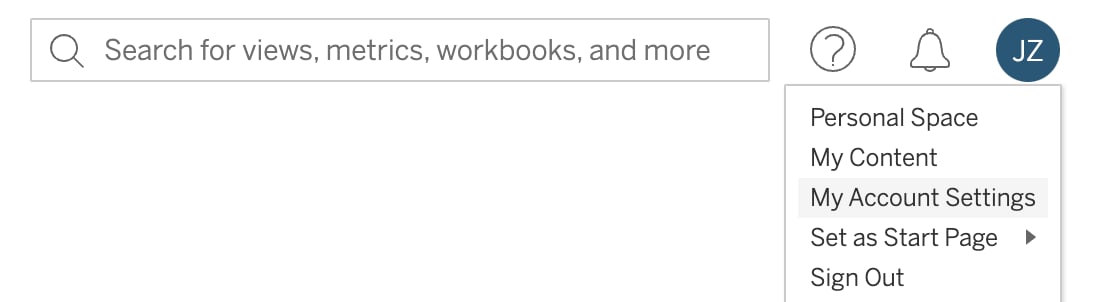 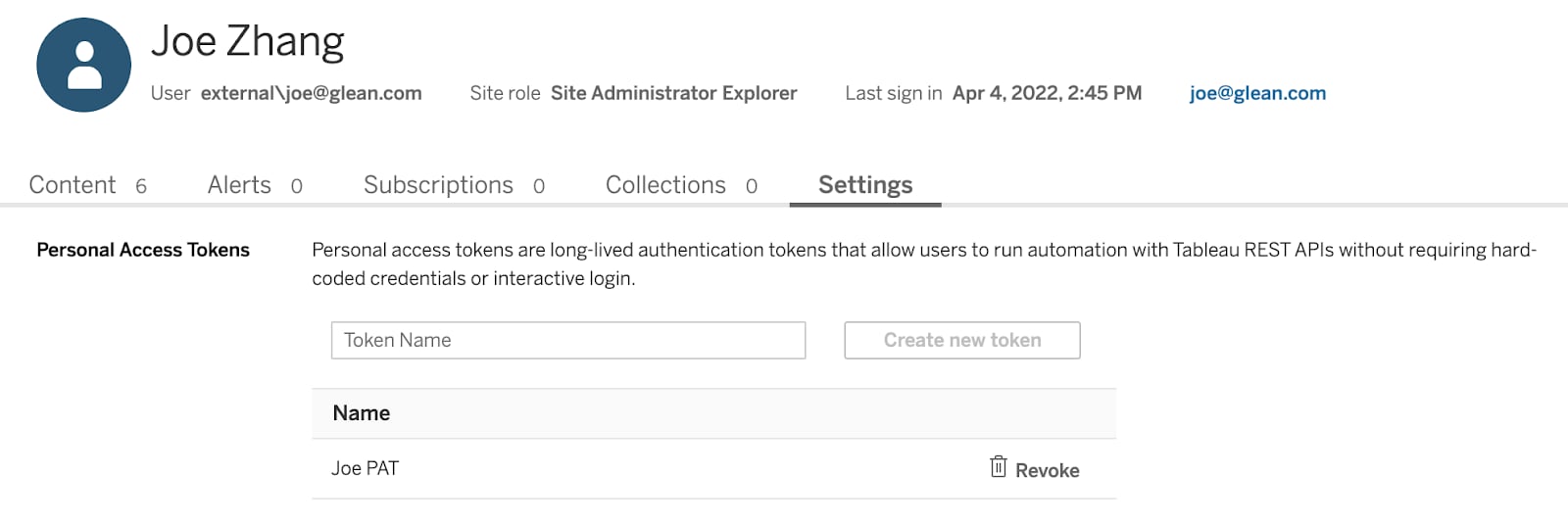
* Create a new token. Save the token secret somewhere secure since it is only displayed once in the Tableau UI.
* Enter the token name and the token secret into their respective input boxes on the setup page in the deployment console.
* Click **Save** in Glean. You’re all set! If you would like to connect additional Tableau sites with Glean, please contact the Glean engineer helping you with your deployment for assistance.
Users who want to start accessing Tableau search results in Glean need to authenticate individually by following these steps:
* Log in to Glean and click on your profile in the upper right. Navigate to **Your Settings** in the profile dropdown menu.
* Under **Your account** on the left, navigate to **Apps**.
* There should be a tab for Tableau. Click on this tab.
* Follow the onscreen instructions to provide your Personal Access Token information. Then save those credentials to Glean. This will now allow you to access Tableau search results within Glean.
* You can remove your credentials at any time to disable access.
* If there are multiple Tableau instances, you may provide credentials for each of them separately in the same settings page.
[](https://docs.glean.com/connectors/native/tableau/home#post-setup)
Post Setup
-----------------------------------------------------------------------------------
Glean allows configuring for only a certain user set to have access to Tableau search results. For any questions or issues with this setup, please file a support ticket at [https://support.glean.com/hc/en-us](https://support.glean.com/hc/en-us)
.
Was this page helpful?
YesNo
[Troubleshooting](https://docs.glean.com/connectors/native/stackoverflow/troubleshooting)
[Website](https://docs.glean.com/connectors/native/website/home)
⌘I
---
# S3 - Glean Help Center
[Skip to main content](https://docs.glean.com/connectors/native/s3/home#content-area)
[Glean Help Center home page](https://docs.glean.com/)
Search...
⌘K
Search...
Navigation
Native Connectors
S3
[Home](https://docs.glean.com/home)
[User Guide](https://docs.glean.com/user-guide/about/what-is-glean)
[Agents](https://docs.glean.com/agents/home)
[Get Started for Admins](https://docs.glean.com/get-started/welcome)
[Connectors](https://docs.glean.com/connectors/home)
[Admin Guide](https://docs.glean.com/administration/about)
[Security & Architecture](https://docs.glean.com/security/home)
[Troubleshooting](https://docs.glean.com/troubleshooting/home)
[Release Notes](https://docs.glean.com/release-notes/home)
[Archive](https://docs.glean.com/archive/help-glean/answers/what-are-answers-and-how-do-they-work)
On this page
* [Supported Features and Limitations](https://docs.glean.com/connectors/native/s3/home#supported-features-and-limitations)
* [Supported Objects](https://docs.glean.com/connectors/native/s3/home#supported-objects)
* [Supported API Endpoints](https://docs.glean.com/connectors/native/s3/home#supported-api-endpoints)
* [Limitations](https://docs.glean.com/connectors/native/s3/home#limitations)
* [Crawling Strategy](https://docs.glean.com/connectors/native/s3/home#crawling-strategy)
* [Requirements](https://docs.glean.com/connectors/native/s3/home#requirements)
* [Technical Requirements](https://docs.glean.com/connectors/native/s3/home#technical-requirements)
* [Credential Requirements](https://docs.glean.com/connectors/native/s3/home#credential-requirements)
* [Permission Requirements](https://docs.glean.com/connectors/native/s3/home#permission-requirements)
* [Configuration and Setup Instructions](https://docs.glean.com/connectors/native/s3/home#configuration-and-setup-instructions)
* [Prerequisites](https://docs.glean.com/connectors/native/s3/home#prerequisites)
* [Authentication and Credentials](https://docs.glean.com/connectors/native/s3/home#authentication-and-credentials)
* [Step-by-Step Setup](https://docs.glean.com/connectors/native/s3/home#step-by-step-setup)
* [Creating IAM role for GCP deployment](https://docs.glean.com/connectors/native/s3/home#creating-iam-role-for-gcp-deployment)
* [Creating IAM role for AES deployment](https://docs.glean.com/connectors/native/s3/home#creating-iam-role-for-aes-deployment)
* [Connecting Glean to S3](https://docs.glean.com/connectors/native/s3/home#connecting-glean-to-s3)
* [Crawl Configuration Options](https://docs.glean.com/connectors/native/s3/home#crawl-configuration-options)
* [Data and Metadata Ingested](https://docs.glean.com/connectors/native/s3/home#data-and-metadata-ingested)
* [Permission Propagation Logic](https://docs.glean.com/connectors/native/s3/home#permission-propagation-logic)
* [Security & Compliance Notes](https://docs.glean.com/connectors/native/s3/home#security-%26-compliance-notes)
* [Known Security Restrictions](https://docs.glean.com/connectors/native/s3/home#known-security-restrictions)
* [Data Privacy Implications](https://docs.glean.com/connectors/native/s3/home#data-privacy-implications)
The Glean S3 connector enables you to ingest and index text-based documents from your Amazon S3 buckets into your enterprise search environment. By integrating Amazon S3 with Glean, you make content such as PDFs, Office documents, spreadsheets, presentations, and other text files searchable and discoverable within your organization. The connector supports deployment on both GCP-based and AWS-based Glean instances and surfaces indexed S3 content in Glean Search either as searchable metadata or, optionally, through time-limited pre-signed URLs.
[](https://docs.glean.com/connectors/native/s3/home#supported-features-and-limitations)
Supported Features and Limitations
------------------------------------------------------------------------------------------------------------------------------
The S3 Connector indexes a range of text-based documents from specified S3 buckets, providing broad search capabilities within Glean. While the connector works across both GCP and AWS platforms, the technical setup varies slightly for each environment.
###
[](https://docs.glean.com/connectors/native/s3/home#supported-objects)
Supported Objects
You can index and search the following file types from S3:
* PDF documents
* Office documents (Word)
* Presentation files (PowerPoint)
* Spreadsheet files (Excel)
* Text-based files (TXT and similar)
###
[](https://docs.glean.com/connectors/native/s3/home#supported-api-endpoints)
Supported API Endpoints
* Full corpus indexing for document types.
* Search access to indexed S3 documents using Glean’s platform.
* Optional surfacing of documents as time-limited pre-signed URLs.
###
[](https://docs.glean.com/connectors/native/s3/home#limitations)
Limitations
* Encrypted objects (client-side encryption, PII encryption) are not supported for search indexing.
* Files above 64MB in size are omitted from indexing. Files larger than this limit are not crawled or indexed.
* Permissions native to S3 are not enforced within Glean. All indexed documents are available to all Glean users irrespective of their original S3 restrictions.
* Only listed file types are indexed; unsupported types are ignored.
###
[](https://docs.glean.com/connectors/native/s3/home#crawling-strategy)
Crawling Strategy
| Crawl Type | Full Crawl | Incremental Crawl | People Data | Activity | Update Rate | Webhook | Notes |
| --- | --- | --- | --- | --- | --- | --- | --- |
| S3 Connector | Scheduled, entire bucket(s) scan | Modified/new documents since last crawl | N/A | Tracks additions/updates/deletes via full crawls | Default scheduling can be tuned | N/A | Deletion reflected at next full crawl; no webhook support. |
[](https://docs.glean.com/connectors/native/s3/home#requirements)
Requirements
----------------------------------------------------------------------------------
You must meet these prerequisites to successfully deploy and utilize the S3 Connector.
###
[](https://docs.glean.com/connectors/native/s3/home#technical-requirements)
Technical Requirements
* Active Glean instance deployed on either GCP or AWS.
* Ability to access your organization’s S3 buckets on AWS.
* **For GCP**: Creation of a service account that can be federated as a trusted entity in AWS IAM roles.
* **For AWS**: Usage of a cross-account trust relationship between IAM roles.
###
[](https://docs.glean.com/connectors/native/s3/home#credential-requirements)
Credential Requirements
* AWS IAM setup:
* For GCP deployments: Service account credentials from Glean, trusted in AWS.
* For AWS deployments: IAM role in your AWS account, with Glean’s role as a trusted entity.
* Access keys, tokens, or service account credentials must remain securely managed and only provide read-only access unless otherwise restricted by your policy.
###
[](https://docs.glean.com/connectors/native/s3/home#permission-requirements)
Permission Requirements
* The IAM role used for crawling must have `AmazonS3ReadOnlyAccess` (or equivalent) permissions.
* Role trust policy must allow Glean’s role or service account to assume it.
* Multi-instance S3 configurations may require separate IAM roles per instance and greenlist configuration.
* Access to your AWS account with permissions to create IAM roles and policies.
* **For GCP**:
* Create an AWS IAM role with access to desired buckets.
* Designate the Glean GCP service account as a trusted entity through web identity federation.
* Input the correct audience ID as per the Glean data source setup page.
* **For AWS**:
* Create a dedicated IAM role for S3 bucket access.
* Replace trust policy with the template provided on the Glean data source setup page.
* Assign `AmazonS3ReadOnlyAccess` permissions.
* Record all necessary role ARNs and bucket lists for later configuration steps.
[](https://docs.glean.com/connectors/native/s3/home#configuration-and-setup-instructions)
Configuration and Setup Instructions
----------------------------------------------------------------------------------------------------------------------------------
Follow these steps to configure and deploy the S3 connector for either GCP or AWS platforms, primarily through the Glean admin console.
###
[](https://docs.glean.com/connectors/native/s3/home#prerequisites)
Prerequisites
* Glean admin console access (admin privileges)
* AWS account access with permission to create IAM roles
###
[](https://docs.glean.com/connectors/native/s3/home#authentication-and-credentials)
Authentication and Credentials
* In the Glean admin console, locate the S3 data source setup.
* Enter:
* Display Name for the data source.
* IAM Role ARN
* Comma-separated list of bucket names to index (bucket greenlist).
###
[](https://docs.glean.com/connectors/native/s3/home#step-by-step-setup)
Step-by-Step Setup
####
[](https://docs.glean.com/connectors/native/s3/home#creating-iam-role-for-gcp-deployment)
Creating IAM role for GCP deployment
1. Navigate to the AWS home page and search for **IAM**.
2. From the sidebar menu, select **Roles** -> **Create Role**.
3. Choose **Web Identity** as the trusted entity type,
4. Designate _Google_ as the identity provider, and input the **audience ID**. The audience ID is available on the _datasource_ setup page.
5. Click **Next**.
6. Search for `AmazonS3ReadOnlyAccess` policy and click **Next**.
7. Enter the role name and description.
8. Click **Create Role**.
####
[](https://docs.glean.com/connectors/native/s3/home#creating-iam-role-for-aes-deployment)
Creating IAM role for AES deployment
Follow these steps to create the AWS IAM Role and obtain the Role ARN:
1. Navigate to the AWS home page and search for **IAM**.
2. From the sidebar menu, select **Roles** -> **Create Role**.
3. Choose **Web Identity** as the trusted entity type.
4. Designate _Google_ as the identity provider, and input the audience ID.
5. Click **Next**.
6. Search for `AmazonS3ReadOnlyAccess` policy and click **Next**.
7. Enter the role name and description.
8. Click **Create Role**.
9. Navigate to the IAM Roles page and search for the role you created.
10. Click on the role and copy the Role ARN.
####
[](https://docs.glean.com/connectors/native/s3/home#connecting-glean-to-s3)
Connecting Glean to S3
After you have the Role ARN, follow these steps to connect Glean to S3:
1. In Glean admin console, navigate to **Data Sources** > **S3** and click **Add Data Source**.
2. Fill in:
* Display Name
* IAM Role ARN
* Bucket Greenlist (for example bucket1,bucket2,bucket3)
3. Save and test the connection. Resolve any permission or credential issues if connection fails.
4. Complete configuration. The initial full crawl will execute per connector schedule.
5. To re-index or update, edit the bucket greenlist and schedule another crawl.
###
[](https://docs.glean.com/connectors/native/s3/home#crawl-configuration-options)
Crawl Configuration Options
* Greenlist: Specify which buckets to index (only listed buckets are crawled).
####
[](https://docs.glean.com/connectors/native/s3/home#data-and-metadata-ingested)
Data and Metadata Ingested
* Document content (for supported file types)
* Metadata (name, path, last modified, etc.)
####
[](https://docs.glean.com/connectors/native/s3/home#permission-propagation-logic)
Permission Propagation Logic
* S3-origin permissions do not propagate. All indexed documents are accessible to all users on Glean.
####
[](https://docs.glean.com/connectors/native/s3/home#security-&-compliance-notes)
Security & Compliance Notes
* Authentication through IAM cross-account role (AWS) or federated service account (GCP).
* Required scope: read-only access to listed buckets.
* Sensitive or regulatory content is not restricted after indexed, consider this prior to setup.
####
[](https://docs.glean.com/connectors/native/s3/home#known-security-restrictions)
Known Security Restrictions
* Multi-instance configurations require individual IAM roles and bucket greenlists.
* There is no permissions granularity available within the connector.
####
[](https://docs.glean.com/connectors/native/s3/home#data-privacy-implications)
Data Privacy Implications
* Documents indexed from S3 are searchable by all organization members with access to Glean.
* * *
Was this page helpful?
YesNo
[Quip](https://docs.glean.com/connectors/native/quip/home)
[Salesforce](https://docs.glean.com/connectors/native/salesforce/home)
⌘I
---
# LumApps - Glean Help Center
[Skip to main content](https://docs.glean.com/connectors/native/lumapps/home#content-area)
[Glean Help Center home page](https://docs.glean.com/)
Search...
⌘K
Search...
Navigation
Native Connectors
LumApps
[Home](https://docs.glean.com/home)
[User Guide](https://docs.glean.com/user-guide/about/what-is-glean)
[Agents](https://docs.glean.com/agents/home)
[Get Started for Admins](https://docs.glean.com/get-started/welcome)
[Connectors](https://docs.glean.com/connectors/home)
[Admin Guide](https://docs.glean.com/administration/about)
[Security & Architecture](https://docs.glean.com/security/home)
[Troubleshooting](https://docs.glean.com/troubleshooting/home)
[Release Notes](https://docs.glean.com/release-notes/home)
[Archive](https://docs.glean.com/archive/help-glean/answers/what-are-answers-and-how-do-they-work)
On this page
* [Supported Features and Limitations](https://docs.glean.com/connectors/native/lumapps/home#supported-features-and-limitations)
* [Supported Objects/Entities](https://docs.glean.com/connectors/native/lumapps/home#supported-objects%2Fentities)
* [Supported API Endpoints/Features](https://docs.glean.com/connectors/native/lumapps/home#supported-api-endpoints%2Ffeatures)
* [Limitations](https://docs.glean.com/connectors/native/lumapps/home#limitations)
* [Crawling Strategy](https://docs.glean.com/connectors/native/lumapps/home#crawling-strategy)
* [Requirements](https://docs.glean.com/connectors/native/lumapps/home#requirements)
* [Credential Requirements](https://docs.glean.com/connectors/native/lumapps/home#credential-requirements)
* [Permission Requirements](https://docs.glean.com/connectors/native/lumapps/home#permission-requirements)
* [Configuration and Setup Instructions](https://docs.glean.com/connectors/native/lumapps/home#configuration-and-setup-instructions)
* [Prerequisites](https://docs.glean.com/connectors/native/lumapps/home#prerequisites)
* [Step-by-Step Setup](https://docs.glean.com/connectors/native/lumapps/home#step-by-step-setup)
* [Retrieving a temporary access token](https://docs.glean.com/connectors/native/lumapps/home#retrieving-a-temporary-access-token)
* [Finding site information](https://docs.glean.com/connectors/native/lumapps/home#finding-site-information)
* [Creating an OAuth client for integration](https://docs.glean.com/connectors/native/lumapps/home#creating-an-oauth-client-for-integration)
* [Connecting LumApps connector with Glean](https://docs.glean.com/connectors/native/lumapps/home#connecting-lumapps-connector-with-glean)
* [(Optional) Validating the setup](https://docs.glean.com/connectors/native/lumapps/home#optional-validating-the-setup)
* [Crawl Configuration Options](https://docs.glean.com/connectors/native/lumapps/home#crawl-configuration-options)
* [Permissions & Security](https://docs.glean.com/connectors/native/lumapps/home#permissions-%26-security)
The LumApps connector allows you to integrate your LumApps intranet with Glean, enabling search and discovery of LumApps content directly within Glean. The connector indexes content pages, community pages, and posts, while strictly enforcing LumApps permissions so that users only see content they are authorized to access. All data is stored in your own Google Cloud Platform (GCP) project, ensuring you retain control and ownership of your data.
[](https://docs.glean.com/connectors/native/lumapps/home#supported-features-and-limitations)
Supported Features and Limitations
-----------------------------------------------------------------------------------------------------------------------------------
The LumApps connector supports permissions-enforced indexing and search for a range of LumApps content types. It is designed to keep your Glean index in sync with LumApps, reflecting changes in content and permissions as quickly as possible.
###
[](https://docs.glean.com/connectors/native/lumapps/home#supported-objects/entities)
Supported Objects/Entities
* Content pages including homepages, directory listings, and custom content pages
* Community pages
* Community posts
For all indexed content, Glean processes and displays the title, last updated time, author, and text snippets in search results.
###
[](https://docs.glean.com/connectors/native/lumapps/home#supported-api-endpoints/features)
Supported API Endpoints/Features
* LumApps API v1 for content, users, groups, and permissions.
* If enabled, platform logs API for user activity .
* OAuth 2.0 authentication for secure access.
###
[](https://docs.glean.com/connectors/native/lumapps/home#limitations)
Limitations
* Only content visible to the admin user who authorizes the connector is indexed. Private pages not accessible to the admin will not be indexed.
* Sections within a content page that have special permissions (different from the page default) are ignored and only content visible to the default groups is indexed.
* Incremental crawls are not supported due to API limitations and full crawls are run at the same frequency as incremental crawls.
* The Platform logs API for activity data is disabled by default and must be enabled by LumApps support if you want to use activity-based features.
* Indexing of _Spaces_ requires API v2, which is not currently supported.
###
[](https://docs.glean.com/connectors/native/lumapps/home#crawling-strategy)
Crawling Strategy
| Crawl type | Full Crawl | Incremental Crawl | People Data | Activity | Update Rate | Webhook | Notes |
| --- | --- | --- | --- | --- | --- | --- | --- |
| Content | Yes | No | No | No | Frequent | No | All content (pages, community pages, posts) fetched in parallel |
| Identity | Yes | No | Yes | No | Frequent | No | Users and groups fetched to determine permissions |
| Activity | No | No | No | Yes | Optional | No | Requires Platform logs API to be enabled by LumApps support |
Crawls are performed using the admin access token, which has access to all content visible to the admin in the LumApps instance.
[](https://docs.glean.com/connectors/native/lumapps/home#requirements)
Requirements
---------------------------------------------------------------------------------------
To use the LumApps connector, you must meet certain technical, credential, and permission requirements. These ensure secure and complete access to your LumApps data for indexing and search.
###
[](https://docs.glean.com/connectors/native/lumapps/home#credential-requirements)
Credential Requirements
* OAuth 2.0 credentials: You must authorize Glean to access your LumApps instance using OAuth 2.0. This process provides Glean with a refresh token and an access token. The access token is used to fetch data from LumApps APIs and the refresh token is used to obtain new access tokens as needed.
###
[](https://docs.glean.com/connectors/native/lumapps/home#permission-requirements)
Permission Requirements
* The access token inherits the permissions of the admin user, so only content visible to that user will be indexed.
* Glean enforces all LumApps permissions at query time, ensuring users only see content they are authorized to access.
[](https://docs.glean.com/connectors/native/lumapps/home#configuration-and-setup-instructions)
Configuration and Setup Instructions
---------------------------------------------------------------------------------------------------------------------------------------
You configure and set up the LumApps connector primarily within the Glean workspace settings. The process involves authorizing access, specifying configuration options, and validating the connection.
###
[](https://docs.glean.com/connectors/native/lumapps/home#prerequisites)
Prerequisites
* A LumApps instance with admin access. For more information, see [LumApps Global administrator](https://docs.lumapps.com/docs/docs/iam-iam-landing/iam-l23035901674320758)
.
* Glean deployment with access to Google Cloud Platform (GCP) for data storage.
* LumApps API v1 enabled for your instance.
* (Optional) Platform logs API enabled for activity data.
* Be aware of your LumApps content and group permissions, as Glean will respect these settings exactly.
###
[](https://docs.glean.com/connectors/native/lumapps/home#step-by-step-setup)
Step-by-Step Setup
Perform the following steps to connect LumApps connector to Glean:
####
[](https://docs.glean.com/connectors/native/lumapps/home#retrieving-a-temporary-access-token)
Retrieving a temporary access token
1. Go to your LumApps homepage.
2. Right click and open **Inspect Element** for your browser and click the **Console** tab.
3. Enter the following command in the Console to retrieve a temporary access token:
`var instance=window.location.pathname.split('/');instance=instance[1]=="a"?instance[3]:instance[1];fetch(window.location.origin+"/service/init?customerHost="+window.location.host+"&instanceSlug="+instance).then(response=>response.text()).then(data=>{const match=data.match(/USER_ACCESS_TOKEN\s*=\s*'(.+?)'/);console.log(match&&match[1]?match[1]:data);}).catch(error=>console.error('Error fetching data:',error));` This command returns a long string, which represents a temporary access token. This token is used to fetch information about your LumApps instance. Use this when a Bearer access token is required.
####
[](https://docs.glean.com/connectors/native/lumapps/home#finding-site-information)
Finding site information
Glean requires information on which LumApps sites to crawl. Follow the steps to find the site information:
1. In the terminal, execute the following command:
`curl 'https://sites.lumapps.com/_ah/api/lumsites/v1/instance/list' -H "Authorization: Bearer " | jq`
2. If a 404 error is returned, your environment is not _sites_ but something else (that is, the prefix in the domain name).
3. Go to [LumApps documentation](https://docs.lumapps.com/docs/docs/expand-landing/expand-l020380370874875542/expand-l018320005015322383)
.
4. Go to the API server section, and substitute the different environment names until one succeeds. The environment names can be **sites-us**, **sites-eu**, **csbx-us**, or **sites-ms** for Microsoft customers.
5. Navigate to the homepage of your LumApps site homepage. The URL looks like `https://..com` and is the LumApps main production site which must be indexed.
6. Enter the URL you got in step 4 in the **Base URL** input box.
The URL must not contain any slashes after _.com_ and must be only the base URL prefixed by _https://_ and ending in _.com_.
7. On the LumApps homepage, use the `Ctrl + /` shortcut and navigate to the **Advanced Debug info menu**.
To access the _Advanced Debug info menu_, you must be logged in as a global administrator.
8. Copy and save the information like _Customer ID_, _Instance IDs_, _User ID_ and _Haussmann cell_ you see in the _Advanced Debug info menu_.
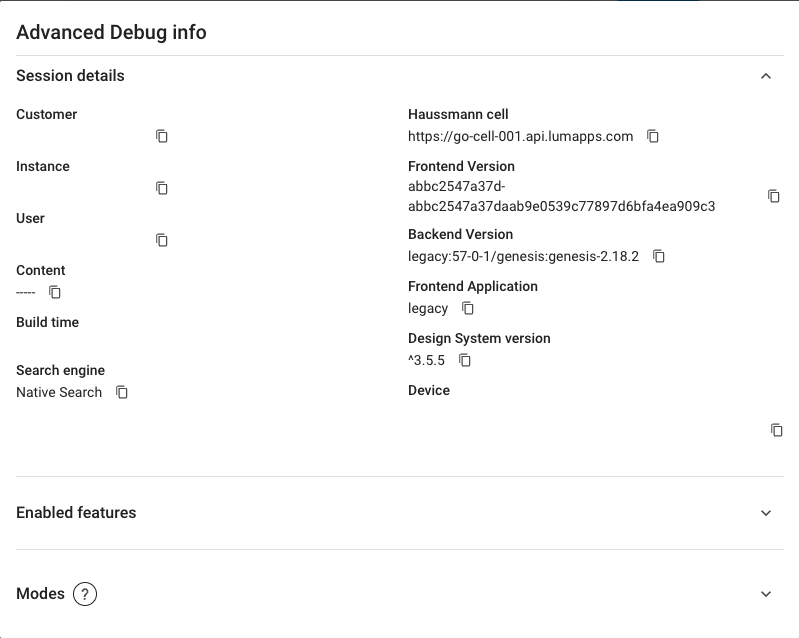
####
[](https://docs.glean.com/connectors/native/lumapps/home#creating-an-oauth-client-for-integration)
Creating an OAuth client for integration
Glean requires an OAuth application in LumApps to regularly refresh access tokens for the crawler. Glean follows the steps recommended by LumApps [Oauth documentation](https://developers.lumapps.com/documentation/oauth.html)
.
1. A global administrator can create an application by executing the following command. The Haussmann cell, Customer ID, temporary access token, and user ID are part of the arguments. An example of the haussmann cell is _[https://go-cell-001.api.lumapps.com](https://go-cell-001.api.lumapps.com/)
_
Ensure the _allowedUserIds_ field includes the quotes around the user ID.
`curl -X POST /v2/organizations//applications \ -H "Content-Type: application/json" \ -H "Authorization: Bearer " \ -d '{"name":"Glean Search","scopes":["all.read"],"allowedUserIds":[""]}'` Command output:
Copy
{
"allowedUserIds": [\
""\
],
"clientSecret": "",
"createdBy": "",
"id": "",
"name": "Glean Search",
"scopes": ["all.read"],
"status": "live",
}
2. Copy and save the application ID and client secret with global administrator permissions.
####
[](https://docs.glean.com/connectors/native/lumapps/home#connecting-lumapps-connector-with-glean)
Connecting LumApps connector with Glean
1. Go to the Glean **Admin console** -> **Data sources**.
2. Click **Add data source** -> Select **LumApps**.
3. In the **Setup** tab, add the following information gathered in the previous sections:
1. Add the environment information in **Environment** input box.
2. Enter the customer ID in the **Customer ID** input box.
3. Enter the instance ID in the **Instance IDs** input box.
4. Enter the user ID in the **User ID** input box.
5. Enter the Haussmann cell information in **Haussmann cell** input box. This API host is used to refresh access tokens. It must be in the form `https://.api.lumapps.com`.
4. (Optional) Specify a greenlist of users who should have access to LumApps search results for testing before rolling out company-wide.
5. (Optional) If you wish to power search within LumApps using Glean, refer to the Glean Embedded Search documentation for LumApps.
####
[](https://docs.glean.com/connectors/native/lumapps/home#optional-validating-the-setup)
(Optional) Validating the setup
1. In a terminal, execute the following command:
`curl -X POST '/v1/content/list?lang=en&status=LIVE&instanceId=< id_of_production_site>&maxResults=1' -H "Authorization: Bearer " | jq`
2. Get the value of the URL field and visit the following URL in your browser: __
3. If you get directed to a valid page in your LumApps instance, and the page matches the one returned by the API request in step 2, the setup is successful. If not, please contact the Glean engineer helping you with your deployment to figure out the issue.
###
[](https://docs.glean.com/connectors/native/lumapps/home#crawl-configuration-options)
Crawl Configuration Options
* You can specify a greenlist of users to restrict access to LumApps search results during testing.
* All content visible to the admin user is indexed and there are no redlist or custom object options at this time.
* Crawl frequency is managed automatically to keep data fresh and full crawls are performed regularly due to API limitations.
###
[](https://docs.glean.com/connectors/native/lumapps/home#permissions-&-security)
Permissions & Security
**Data and Metadata Ingested:**
* Content pages, community pages, community posts.
* User and group information for permissions enforcement.
* (Optional) Activity data if Platform logs API is enabled
**Permission Propagation Logic:**
* Glean maps LumApps group and user permissions to enforce access controls at query time.
* Only users with access to content in LumApps will see it in Glean search results.
**Security & Compliance Notes:**
* All data is stored in a GCP project hosted by you, Glean and third parties cannot directly access your data.
* OAuth 2.0 is used for secure authentication.
* The connector does not support multi-instance scenarios or indexing of private pages not visible to the admin user.
**Data Privacy Implications:**
* Your organization retains full control and ownership of all indexed data.
* Glean enforces all LumApps permissions, ensuring data privacy and compliance with your internal policies.
If you have any issues or concerns, reach out to the [Glean support team](http://gleanwork.zendesk.com/)
.
Was this page helpful?
YesNo
[Looker](https://docs.glean.com/connectors/native/looker/home)
[Azure DevOps](https://docs.glean.com/connectors/native/azure-devops/home)
⌘I
---
# Notion - Glean Help Center
[Skip to main content](https://docs.glean.com/connectors/native/notion/home#content-area)
[Glean Help Center home page](https://docs.glean.com/)
Search...
⌘K
Search...
Navigation
Native Connectors
Notion
[Home](https://docs.glean.com/home)
[User Guide](https://docs.glean.com/user-guide/about/what-is-glean)
[Agents](https://docs.glean.com/agents/home)
[Get Started for Admins](https://docs.glean.com/get-started/welcome)
[Connectors](https://docs.glean.com/connectors/home)
[Admin Guide](https://docs.glean.com/administration/about)
[Security & Architecture](https://docs.glean.com/security/home)
[Troubleshooting](https://docs.glean.com/troubleshooting/home)
[Release Notes](https://docs.glean.com/release-notes/home)
[Archive](https://docs.glean.com/archive/help-glean/answers/what-are-answers-and-how-do-they-work)
On this page
* [Supported Features](https://docs.glean.com/connectors/native/notion/home#supported-features)
* [Supported Objects](https://docs.glean.com/connectors/native/notion/home#supported-objects)
* [Supported Blocks](https://docs.glean.com/connectors/native/notion/home#supported-blocks)
* [Supported Page Properties](https://docs.glean.com/connectors/native/notion/home#supported-page-properties)
* [Crawling Strategy](https://docs.glean.com/connectors/native/notion/home#crawling-strategy)
* [How it Works](https://docs.glean.com/connectors/native/notion/home#how-it-works)
* [Permissions & Security](https://docs.glean.com/connectors/native/notion/home#permissions-%26-security)
* [Indexed Content (Data Crawling)](https://docs.glean.com/connectors/native/notion/home#indexed-content-data-crawling)
* [Live Mode (MCP-based Fetching)](https://docs.glean.com/connectors/native/notion/home#live-mode-mcp-based-fetching)
* [Limitations](https://docs.glean.com/connectors/native/notion/home#limitations)
* [Requirements](https://docs.glean.com/connectors/native/notion/home#requirements)
* [Technical Requirements](https://docs.glean.com/connectors/native/notion/home#technical-requirements)
* [Credential Requirements](https://docs.glean.com/connectors/native/notion/home#credential-requirements)
* [Permission and Content Scope](https://docs.glean.com/connectors/native/notion/home#permission-and-content-scope)
* [Live Mode Requirements](https://docs.glean.com/connectors/native/notion/home#live-mode-requirements)
* [Configuration and Setup Instructions](https://docs.glean.com/connectors/native/notion/home#configuration-and-setup-instructions)
* [Step 1: Create the Glean internal integration in Notion](https://docs.glean.com/connectors/native/notion/home#step-1-create-the-glean-internal-integration-in-notion)
* [Step 2: Configure the integration](https://docs.glean.com/connectors/native/notion/home#step-2-configure-the-integration)
* [Step 3: Add and configure the Notion data source in Glean](https://docs.glean.com/connectors/native/notion/home#step-3-add-and-configure-the-notion-data-source-in-glean)
* [Step 4: (Optional) Enable per‑user Notion OAuth for Live Mode](https://docs.glean.com/connectors/native/notion/home#step-4-optional-enable-per%E2%80%91user-notion-oauth-for-live-mode)
* [Step 5: Share pages and databases with the Glean integration (for indexing)](https://docs.glean.com/connectors/native/notion/home#step-5-share-pages-and-databases-with-the-glean-integration-for-indexing)
**Beta:** Live Mode (Data fetching) is in beta and may change.
Notion is a knowledge management platform supporting documents, wikis, tables, calendars, and databases. The Glean Notion connector allows organizations to search and analyze Notion content through two complementary paths:
* **Data Crawling and Indexing:** A workspace-level integration that builds a shared index of content explicitly shared with Glean.
* **Live Mode (MCP-based):** A real-time data fetcher that retrieves fresh, permission-aware content at query time via per-user OAuth.
[](https://docs.glean.com/connectors/native/notion/home#supported-features)
Supported Features
--------------------------------------------------------------------------------------------------
The connector enables central ingestion and search for shared organizational content.
* **Comprehensive Retrieval:** Ingests Notion pages and databases, including full recursive crawling of nested “block” content such as toggles, tables, and task trackers.
* **Metadata Support:** Indexes page/database titles, owner/author information, and last-modified timestamps.
* **Flexible Data Modes:**
* **Data Crawling:** Uses an internal integration token to index content on a regular schedule.
* **Live Mode:** Uses the Model Context Protocol (MCP) to provide real-time retrieval, ensuring Assistant answers include private or recently updated content without waiting for a crawl.
[](https://docs.glean.com/connectors/native/notion/home#supported-objects)
Supported Objects
------------------------------------------------------------------------------------------------
* [Pages](https://developers.notion.com/reference/page)
* [Databases](https://developers.notion.com/reference/database)
* [Blocks](https://developers.notion.com/reference/block)
(toggle blocks and sub-blocks) within pages and databases are indexed recursively to a configurable depth, allowing search over deep Notion structures.
###
[](https://docs.glean.com/connectors/native/notion/home#supported-blocks)
Supported Blocks
* paragraph
* heading\_1
* heading\_2
* heading\_3
* bulleted\_list\_item
* numbered\_list\_item
* to\_do
* toggle
* child\_page
* child\_database
* image
* embed
* video
* file
* pdf
* bookmark
* text
* unsupported
* code
* callout
* quote
* divider
* equation
* table\_of\_contents
* column\_list
* breadcrumb
* synced\_block
* link\_to\_page
* link\_preview
* template
* table\_row
###
[](https://docs.glean.com/connectors/native/notion/home#supported-page-properties)
Supported Page Properties
[Notion page properties](https://developers.notion.com/reference/page-property-values)
are automatically indexed and searchable in Glean, allowing you to search and filter documents based on custom page properties. **Supported Properties:** title, rich text, people, email, status, number, date, select, checkbox, multi-select **How to Search:**
* **Direct search:** Type any property value in the search box to find pages containing that value
* **Filtered search:** Type the property name, colon, and value (e.g., `assignee:"Steve Smith"` or `status:Done`) to filter by specific properties
**Note:** Multi-word property names become single words for filtering (e.g., “start date” becomes `startdate:2024-01-01`, “due\_date” becomes `duedate:2024-12-31`)
[](https://docs.glean.com/connectors/native/notion/home#crawling-strategy)
Crawling Strategy
------------------------------------------------------------------------------------------------
Notion uses scheduled full crawls (no webhooks today) and a separate identity crawl.
| Crawl type | Scope | Frequency | Notes |
| --- | --- | --- | --- |
| Full content crawl | Pages, databases, blocks shared with the integration | Every 6 hours | No webhooks; used to pick up new/updated content and structural changes. |
| Identity crawl | Users/workspaces relevant to Notion | Every hour | Keeps user/identity maps fresh for permissions modeling outside Notion. |
| Deletion safety | Previously indexed docs | 10‑day delay | Docs are only hard-deleted from the index if they remain missing for >10 days. |
###
[](https://docs.glean.com/connectors/native/notion/home#how-it-works)
How it Works
1
[](https://docs.glean.com/connectors/native/notion/home#)
Notion workspaces are installed
You install the Glean notion connector individually for each Notion workspace. You share each page with the integration that you wish to index. Child pages of shared pages will automatically be shared with the integration.
2
[](https://docs.glean.com/connectors/native/notion/home#)
Glean crawls the Notion workspace
Glean will crawl the Notion workspace and index all pages and their child pages that you’ve shared with the integration.
3
[](https://docs.glean.com/connectors/native/notion/home#)
Crawled content is made searchable
Glean indexes the crawled content and makes it searchable for all Glean users who can access the Notion connector. Because Notion’s crawl APIs do not expose document‑level permission lists in a way Glean can project into its index, this indexed corpus is not permission‑aware—any content shared with the integration is visible in Glean to all such users.
4
[](https://docs.glean.com/connectors/native/notion/home#)
(Optional) Live Mode fetches permission‑aware content at query time
When Live Mode is enabled and a user has connected their Notion account via OAuth, Glean Assistant can call Notion via MCP at query time to retrieve fresh, permission‑aware content on behalf of that user. Live Mode can surface:
* Private pages and databases that the user can access in Notion.
* Newly created or recently updated content that has not yet been picked up by the scheduled crawl.
Notion enforces its own permission model on these Live Mode calls, so each user only sees Notion content they are allowed to access.
[](https://docs.glean.com/connectors/native/notion/home#permissions-&-security)
**Permissions & Security**
--------------------------------------------------------------------------------------------------------------
The security behavior and data handling differ significantly between the two retrieval modes:
###
[](https://docs.glean.com/connectors/native/notion/home#indexed-content-data-crawling)
**Indexed Content (Data Crawling)**
* **Permission Propagation:** Notion’s crawl APIs do not expose full user/group-level sharing lists. Consequently, Glean cannot project document ACLs into its index or enforce fine-grained permissions.
* **Visibility:** All indexed content shared with the integration is visible to all Glean users who can access the Notion connector.
* **Compliance Recommendation:** Glean recommends sharing only Notion content that is appropriate for organization-wide visibility.
###
[](https://docs.glean.com/connectors/native/notion/home#live-mode-mcp-based-fetching)
**Live Mode (MCP-based Fetching)**
* **Permission Behavior:** Uses per-user OAuth tokens to call Notion’s MCP interface at query time. Notion enforces its own permission model, ensuring users only see content they can access directly in Notion.
* **Data Handling:** Queries fetch content on demand. Glean does not replace the indexed corpus with Live Mode responses or expand visibility beyond a user’s native access.
* **Security Standards:** Standard Glean security practices for data in transit and at rest apply, consistent with other connectors using activity-based updates.
[](https://docs.glean.com/connectors/native/notion/home#limitations)
Limitations
------------------------------------------------------------------------------------
* **ACL & Group Visibility:** Notion’s API does not provide visibility into group membership or document-level access lists. It does not expose document-level permission lists in a way Glean can use to project per-user ACLs.
* **Permission Model Scope:** Glean does not support indexing documents not explicitly shared with the integration or those residing outside the permissions model allowed by the Notion API.
* **Object-Level Propagation:** There is no support for Notion object-level user permissions propagation for the indexed corpus.
* **Content Redlisting:** There is no mechanism to “redlist” or exclude specific child page content from the integration once a parent is shared.
* **Unsupported Data:** Glean does not yet support databases with multiple data sources. Embedded content types and external file attachments may not be indexed in the same way as native text.
* **No Webhooks:** Glean does not support webhooks for Notion; updates are captured only during scheduled crawls.
[](https://docs.glean.com/connectors/native/notion/home#requirements)
Requirements
--------------------------------------------------------------------------------------
This connector has specific technical and operational requirements that must be met before it can be configured.
###
[](https://docs.glean.com/connectors/native/notion/home#technical-requirements)
Technical Requirements
* You must have Glean Admin access to install and configure the connector.
* You must have Notion Workspace Admin privileges to create and manage integrations.
* A supported Notion Enterprise or Business plan with API access enabled.
* Use a dedicated admin or service account to create the integration. This prevents service disruption if an individual admin leaves the organization.
###
[](https://docs.glean.com/connectors/native/notion/home#credential-requirements)
Credential Requirements
* A Bearer token generated via [Notion My-Integrations](https://www.notion.com/my-integrations)
. This token is required for all API calls related to data crawling and indexing.
* Required specifically for Live Mode. These tokens are issued to individual users when they connect their Notion accounts within Glean. They are managed separately from the workspace-level integration token.
###
[](https://docs.glean.com/connectors/native/notion/home#permission-and-content-scope)
Permission and Content Scope
* The Notion API requires that pages and databases be explicitly shared with the Glean integration app to be indexed.
* Because the indexing API does not support per-user ACLs, all shared content is visible to all Glean users with access to the connector.
* Admins must ensure that only content appropriate for organization-wide visibility is shared with the integration.
###
[](https://docs.glean.com/connectors/native/notion/home#live-mode-requirements)
Live Mode Requirements
To enable real-time, permission-aware data fetching via Live Mode, the following additional conditions must be met:
* A Glean admin must toggle the “Live Mode” (data fetching) option in the Glean Admin Console. If this option is not visible, contact your Glean representative to confirm eligibility.
* Individual users must complete the OAuth flow to link their Notion accounts to Glean.
* Live Mode may be restricted for environments with strict connector-level crawl restrictions or Data Loss Prevention (DLP) policies that conflict with real-time fetching behavior.
[](https://docs.glean.com/connectors/native/notion/home#configuration-and-setup-instructions)
Configuration and Setup Instructions
--------------------------------------------------------------------------------------------------------------------------------------
Proper setup of the Notion connector happens in two places:
1. **In Notion**, where you create and configure the “Glean” internal integration.
2. **In the Glean Admin console**, where you add the Notion data source, enter credentials, choose data retrieval modes (indexing and Live Mode), and start indexing pages.
###
[](https://docs.glean.com/connectors/native/notion/home#step-1-create-the-glean-internal-integration-in-notion)
Step 1: Create the Glean internal integration in Notion
1. Create a new integration by going to [https://www.notion.com/my-integrations](https://www.notion.com/my-integrations)
. 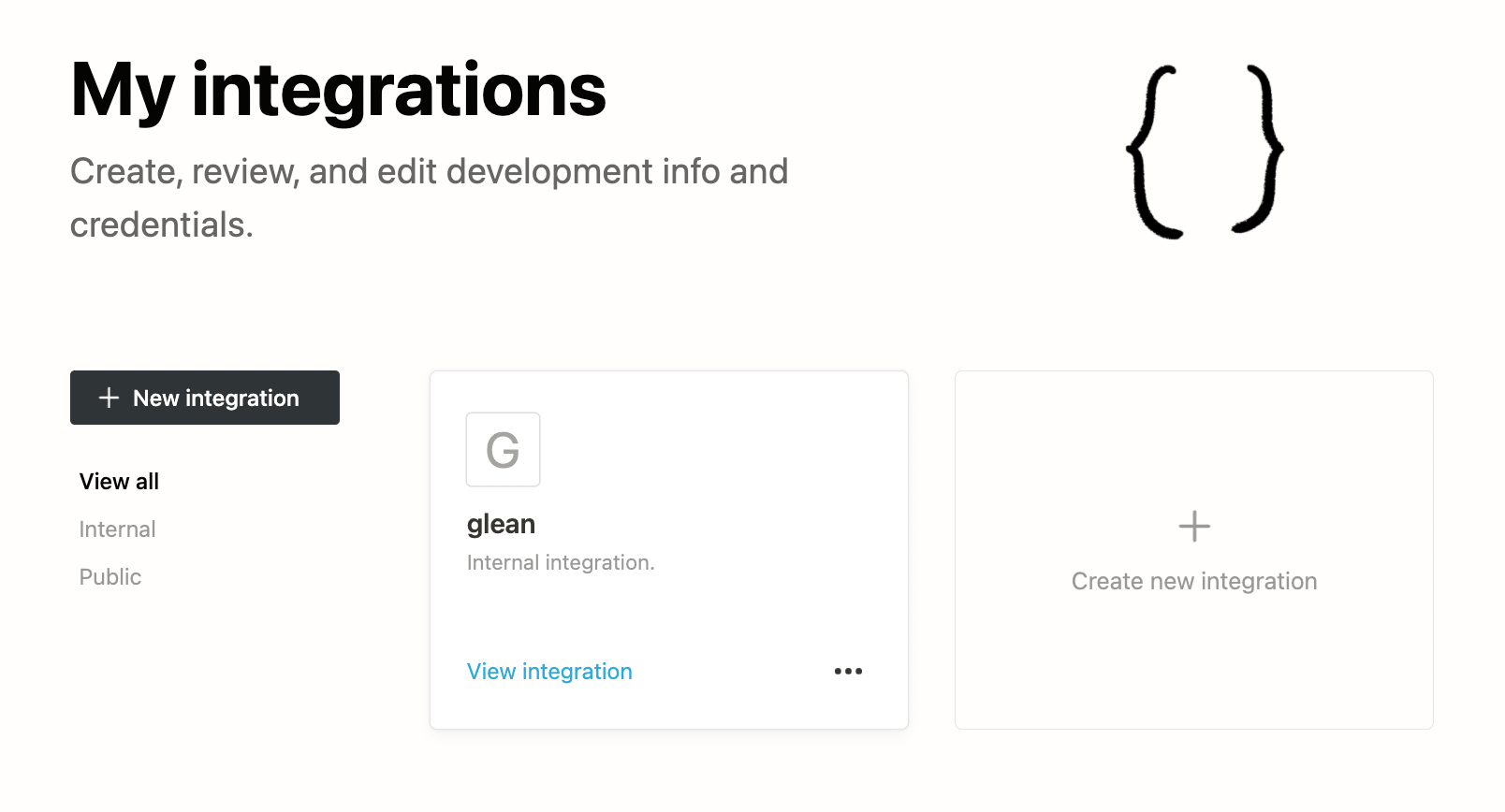
2. Select the **New integration** button. Name the integration “Glean”.
3. Associate the integration with your workspace by selecting it from the drop down menu. (You can only do this if you are an admin of that workspace.) Select **Submit**. 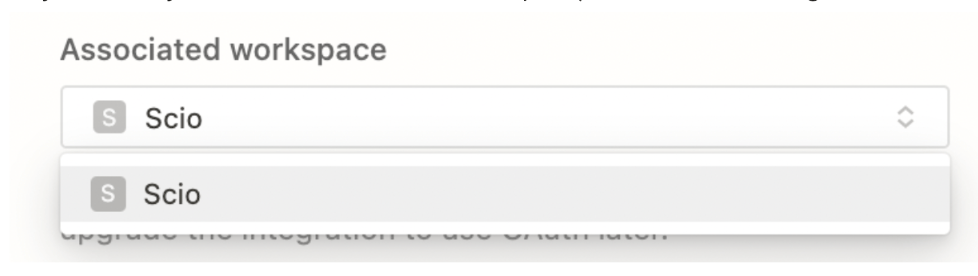
###
[](https://docs.glean.com/connectors/native/notion/home#step-2-configure-the-integration)
Step 2: Configure the integration
1. Select **Capabilities** and select capabilities: 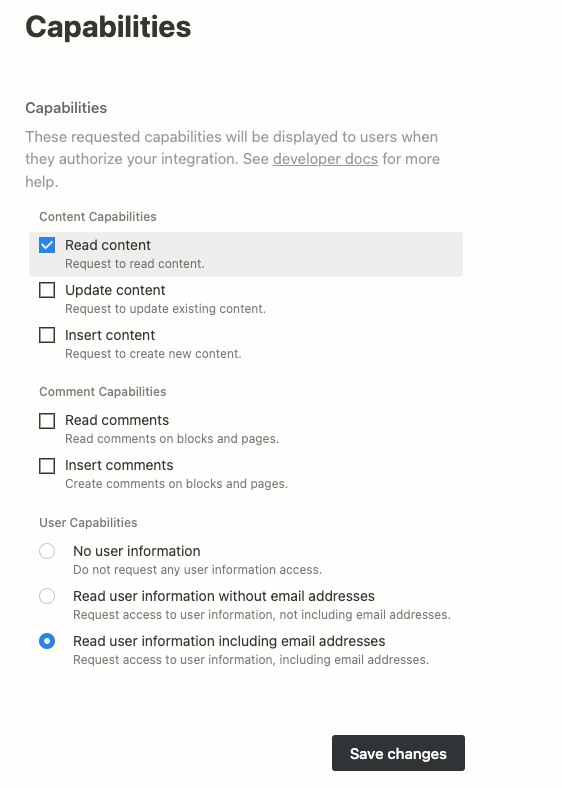
2. Select **Save changes**.
3. Select **Distribution** and ensure that the integration is not public.
###
[](https://docs.glean.com/connectors/native/notion/home#step-3-add-and-configure-the-notion-data-source-in-glean)
Step 3: Add and configure the Notion data source in Glean
1. In the **Glean Admin console**, go to **Data sources**.
2. Click **Add data source** and select **Notion**.
3. On the Notion connector setup page:
* **Name and icon**
* Enter a **Name** for this data source (for example, `Notion – Main workspace`).
* (Optional) Choose or upload an **Icon**. This label and icon will appear in Glean search results and filters.
* Choose your retrieval modes:
* **Data crawling and indexing (recommended):** Enable this to allow Glean to crawl Notion via the workspace integration token and build a shared Notion index. Glean will index pages and databases that you explicitly share with the integration.
* **Data fetching (Live Mode) (optional)**: Enable this to allow Glean to use per‑user OAuth and MCP to fetch fresh, permission‑aware Notion content at query time.
* **Credentials**
In the credentials section, paste the values you copied from Notion:
* **Internal integration token** – paste the token from the Notion integration’s Secrets/API view.
* **Workspace** – paste or select the corresponding workspace value (workspace name or ID as displayed in Notion).
* Verify there are no extra spaces before or after the token or workspace values.
4. Click **Save** to validate the connection.
Glean will verify it can reach the Notion API using the integration token you provided.
If validation fails, double‑check that:
* The token is from the correct integration and workspace.
* The integration is still enabled in Notion and has the required read capabilities.
* The token and workspace values are copied exactly as shown in Notion.
###
[](https://docs.glean.com/connectors/native/notion/home#step-4-optional-enable-per%E2%80%91user-notion-oauth-for-live-mode)
Step 4: (Optional) Enable per‑user Notion OAuth for Live Mode
If you enabled Live Mode in Step 3, users must authorize Glean to act on their behalf in Notion.
1. After the admin enables Live Mode:
* Users will see a **Connect Notion** prompt in Glean (for example in Glean Assistant or search).
2. Each user who wants permission‑aware Notion answers should:
* Click **Connect Notion** in Glean.
* Review and accept the Notion OAuth consent screen when prompted.
* Complete the flow to return to Glean.
3. Once connected:
* Glean Assistant can call Notion via MCP at query time using that user’s OAuth token.
* These Live Mode answers are combined with the existing indexed corpus at answer time; they do not change the underlying index or expand access for other users.
End‑user OAuth is **not** required for the basic indexed corpus to function; it is required only for Live Mode.
###
[](https://docs.glean.com/connectors/native/notion/home#step-5-share-pages-and-databases-with-the-glean-integration-for-indexing)
**Step 5: Share pages and databases with the Glean integration (for indexing)**
For the **indexed corpus** (Data crawling and indexing) to include a page or database, it must be **explicitly shared** with the Glean integration in Notion.
1. In Notion, navigate to a page (or database) you want Glean to index.
2. Open the page menu (three‑dot menu in the top‑right corner).
3. Select **Connections > Add connections> Glean** (or select the name of the integration you created).
4. Repeat for any additional pages or top‑level spaces you want to include. Child pages of a shared page are automatically shared with the integration.
5. Review your sharing choices carefully:
* For the **indexed corpus**, any content shared with the Glean integration becomes visible in Glean to all users who can access the Notion connector.
* Only share pages and databases here that you are comfortable making broadly available within your company.
When Notion sharing is complete and the connector has run its initial crawl, Notion content will begin to appear in Glean search results and in Glean Assistant answers (for both indexed and Live Mode responses, depending on your configuration).
Was this page helpful?
YesNo
[NetSuite](https://docs.glean.com/connectors/native/netsuite/home)
[PagerDuty](https://docs.glean.com/connectors/native/pagerduty/home)
⌘I
---
# Microsoft Dynamics 365 Connector - Glean Help Center
[Skip to main content](https://docs.glean.com/connectors/native/microsoft/microsoft-dynamics-365-connector#content-area)
[Glean Help Center home page](https://docs.glean.com/)
Search...
⌘K
Search...
Navigation
Microsoft
Microsoft Dynamics 365 Connector
[Home](https://docs.glean.com/home)
[User Guide](https://docs.glean.com/user-guide/about/what-is-glean)
[Agents](https://docs.glean.com/agents/home)
[Get Started for Admins](https://docs.glean.com/get-started/welcome)
[Connectors](https://docs.glean.com/connectors/home)
[Admin Guide](https://docs.glean.com/administration/about)
[Security & Architecture](https://docs.glean.com/security/home)
[Troubleshooting](https://docs.glean.com/troubleshooting/home)
[Release Notes](https://docs.glean.com/release-notes/home)
[Archive](https://docs.glean.com/archive/help-glean/answers/what-are-answers-and-how-do-they-work)
On this page
* [Supported Features and Limitations](https://docs.glean.com/connectors/native/microsoft/microsoft-dynamics-365-connector#supported-features-and-limitations)
* [Supported Objects/Entities](https://docs.glean.com/connectors/native/microsoft/microsoft-dynamics-365-connector#supported-objects%2Fentities)
* [Supported API Endpoints/Features](https://docs.glean.com/connectors/native/microsoft/microsoft-dynamics-365-connector#supported-api-endpoints%2Ffeatures)
* [Limitations](https://docs.glean.com/connectors/native/microsoft/microsoft-dynamics-365-connector#limitations)
* [Crawling Strategy](https://docs.glean.com/connectors/native/microsoft/microsoft-dynamics-365-connector#crawling-strategy)
* [Requirements](https://docs.glean.com/connectors/native/microsoft/microsoft-dynamics-365-connector#requirements)
* [Technical Requirements](https://docs.glean.com/connectors/native/microsoft/microsoft-dynamics-365-connector#technical-requirements)
* [Credential Requirements](https://docs.glean.com/connectors/native/microsoft/microsoft-dynamics-365-connector#credential-requirements)
* [Permission Requirements](https://docs.glean.com/connectors/native/microsoft/microsoft-dynamics-365-connector#permission-requirements)
* [Preliminary Source/System Setup](https://docs.glean.com/connectors/native/microsoft/microsoft-dynamics-365-connector#preliminary-source%2Fsystem-setup)
* [Configuration and Setup Instructions](https://docs.glean.com/connectors/native/microsoft/microsoft-dynamics-365-connector#configuration-and-setup-instructions)
* [Prerequisites](https://docs.glean.com/connectors/native/microsoft/microsoft-dynamics-365-connector#prerequisites)
* [Authentication and Credentials](https://docs.glean.com/connectors/native/microsoft/microsoft-dynamics-365-connector#authentication-and-credentials)
* [Step-by-Step Setup](https://docs.glean.com/connectors/native/microsoft/microsoft-dynamics-365-connector#step-by-step-setup)
* [Required permissions for setup](https://docs.glean.com/connectors/native/microsoft/microsoft-dynamics-365-connector#required-permissions-for-setup)
* [1\. O365 Data Source Association](https://docs.glean.com/connectors/native/microsoft/microsoft-dynamics-365-connector#1-o365-data-source-association)
* [2\. Register a new app](https://docs.glean.com/connectors/native/microsoft/microsoft-dynamics-365-connector#2-register-a-new-app)
* [3\. Configure permissions](https://docs.glean.com/connectors/native/microsoft/microsoft-dynamics-365-connector#3-configure-permissions)
* [4\. Grant admin consent](https://docs.glean.com/connectors/native/microsoft/microsoft-dynamics-365-connector#4-grant-admin-consent)
* [5\. Generate secret](https://docs.glean.com/connectors/native/microsoft/microsoft-dynamics-365-connector#5-generate-secret)
* [6\. Get Dynamics 365 Organization ID](https://docs.glean.com/connectors/native/microsoft/microsoft-dynamics-365-connector#6-get-dynamics-365-organization-id)
* [7\. Add Application User in Dynamics 365](https://docs.glean.com/connectors/native/microsoft/microsoft-dynamics-365-connector#7-add-application-user-in-dynamics-365)
* [8\. Fill out keys](https://docs.glean.com/connectors/native/microsoft/microsoft-dynamics-365-connector#8-fill-out-keys)
* [Crawl Configuration Options](https://docs.glean.com/connectors/native/microsoft/microsoft-dynamics-365-connector#crawl-configuration-options)
* [Permissions & Security](https://docs.glean.com/connectors/native/microsoft/microsoft-dynamics-365-connector#permissions-%26-security)
* [Data and Metadata Ingested](https://docs.glean.com/connectors/native/microsoft/microsoft-dynamics-365-connector#data-and-metadata-ingested)
* [Permission Propagation Logic](https://docs.glean.com/connectors/native/microsoft/microsoft-dynamics-365-connector#permission-propagation-logic)
* [Security & Compliance Notes](https://docs.glean.com/connectors/native/microsoft/microsoft-dynamics-365-connector#security-%26-compliance-notes)
* [Known Security Restrictions](https://docs.glean.com/connectors/native/microsoft/microsoft-dynamics-365-connector#known-security-restrictions)
* [Data Privacy Implications](https://docs.glean.com/connectors/native/microsoft/microsoft-dynamics-365-connector#data-privacy-implications)
Glean’s Microsoft Dynamics 365 Connector allows you to index and search key CRM records from your Dynamics 365 Sales module directly within Glean. This enables you to unify CRM data with your company’s broader knowledge ecosystem, improving sales workflow efficiency and discovery.
[](https://docs.glean.com/connectors/native/microsoft/microsoft-dynamics-365-connector#supported-features-and-limitations)
Supported Features and Limitations
-----------------------------------------------------------------------------------------------------------------------------------------------------------------
This section describes the connector’s capabilities and any important product boundaries.
###
[](https://docs.glean.com/connectors/native/microsoft/microsoft-dynamics-365-connector#supported-objects/entities)
Supported Objects/Entities
You can index and search the following entities from Dynamics 365 Sales:
* Accounts
* Contacts
* Leads
* Opportunities
* Activities (including emails, meetings, and attachments)
###
[](https://docs.glean.com/connectors/native/microsoft/microsoft-dynamics-365-connector#supported-api-endpoints/features)
Supported API Endpoints/Features
* Microsoft Graph API (Application permissions: User.Read.All, Directory.Read.All)
* Dynamics CRM API (Delegated permission: user\_impersonation)
* Incremental and full crawls for timely coverage of CRM records.
* Query assistant: Allows users to chat and request insights such as customer sentiment and conversation summaries on Dynamics 365 data.
###
[](https://docs.glean.com/connectors/native/microsoft/microsoft-dynamics-365-connector#limitations)
Limitations
* Only the Dynamics 365 Sales module is supported.
* Dynamics 365 modules like Cases, Projects, custom fields, customer service and ERP are not supported.
* Access is limited to items with role-based Security Role permissions; sharing-based and hierarchy-based ACLs are not supported.
* Only one Dynamics 365 organization (tenant) can be connected per Glean data source instance (DSI).
* Glean does not write or modify any data in Dynamics 365 during operation.
###
[](https://docs.glean.com/connectors/native/microsoft/microsoft-dynamics-365-connector#crawling-strategy)
Crawling Strategy
| Crawl type | Full Crawl | Incremental Crawl | People Data | Activity | Update Rate | Webhook | Notes |
| --- | --- | --- | --- | --- | --- | --- | --- |
| Dynamics 365 CRM | Yes | Yes | No | No | Timely | N/A | Only Sales module, one org per DSI |
[](https://docs.glean.com/connectors/native/microsoft/microsoft-dynamics-365-connector#requirements)
Requirements
---------------------------------------------------------------------------------------------------------------------
The following requirements must be met to use the Dynamics 365 Connector.
###
[](https://docs.glean.com/connectors/native/microsoft/microsoft-dynamics-365-connector#technical-requirements)
Technical Requirements
* Microsoft Dynamics 365 Sales module must be licensed and accessible within your organization.
* An O365 data source (OneDrive or SharePoint) set up in Glean and linked to the same Azure tenant as Dynamics 365.
* Azure Portal access for registering and managing applications.
###
[](https://docs.glean.com/connectors/native/microsoft/microsoft-dynamics-365-connector#credential-requirements)
Credential Requirements
* You must generate and provide:
* Application (Client) ID
* Directory (Tenant) ID
* Client Secret
* Dynamics 365 Organization ID
These credentials are configured and obtained during the Azure Portal setup. Only admin-level users (Global, Application, or Cloud Application Admin) must complete this process.
###
[](https://docs.glean.com/connectors/native/microsoft/microsoft-dynamics-365-connector#permission-requirements)
Permission Requirements
* Microsoft 365 and Azure admin privileges are required for setup and granting consent.
* The new Azure Application must have:
* Microsoft Graph (Application): User.Read.All, Directory.Read.All
* Dynamics CRM (Delegated): user\_impersonation
* You must assign a Dynamics 365 Security Role to the Application User (recommended: System Administrator, or a custom org-level read-only role with appropriate table access).
* Admin consent must be granted on the app in Azure Enterprise Applications.
###
[](https://docs.glean.com/connectors/native/microsoft/microsoft-dynamics-365-connector#preliminary-source/system-setup)
Preliminary Source/System Setup
* Register Glean application in Azure (App registrations).
* Set up O365 data source in Glean.
* Assign permissions and grant consent.
* Create Application User in Dynamics 365 and assign appropriate Security Role.
[](https://docs.glean.com/connectors/native/microsoft/microsoft-dynamics-365-connector#configuration-and-setup-instructions)
Configuration and Setup Instructions
---------------------------------------------------------------------------------------------------------------------------------------------------------------------
This section guides you through initial connector setup and ongoing configuration.
###
[](https://docs.glean.com/connectors/native/microsoft/microsoft-dynamics-365-connector#prerequisites)
Prerequisites
Before starting, ensure you:
* Have Glean established as an app in your Azure Tenant.
* Have an O365 (OneDrive or SharePoint) source already set up in Glean from the same Azure tenant as your Dynamics 365 instance.
###
[](https://docs.glean.com/connectors/native/microsoft/microsoft-dynamics-365-connector#authentication-and-credentials)
Authentication and Credentials
* Register a new Azure app, name it **Glean** and select **Accounts in this organization only (Single tenant)**.
* Add required Microsoft Graph and Dynamics CRM permissions.
* Grant Admin Consent for all API permissions.
* Generate a new Client Secret and copy its value. Ensure to store it securely.
* Obtain your Dynamics 365 Organization ID from the Dynamics 365 instance URL.
* In the Dynamics 365 Power Platform Admin Center, create a new Application User using the app registration information and Organization ID.
* Assign Security Roles as appropriate; System Administrator gives the broadest access.
###
[](https://docs.glean.com/connectors/native/microsoft/microsoft-dynamics-365-connector#step-by-step-setup)
Step-by-Step Setup
###
[](https://docs.glean.com/connectors/native/microsoft/microsoft-dynamics-365-connector#required-permissions-for-setup)
Required permissions for setup
* The user setting up this data source must be the [**Global Admin**](https://learn.microsoft.com/en-us/microsoft-365/admin/add-users/about-admin-roles?view=o365-worldwide#commonly-used-microsoft-365-admin-center-roles)
.
###
[](https://docs.glean.com/connectors/native/microsoft/microsoft-dynamics-365-connector#1-o365-data-source-association)
1\. O365 Data Source Association
1. Ensure some O365 Data source (e.g. OneDrive/Sharepoint) with Dynamics 365’s Azure tenant id is already setup.
###
[](https://docs.glean.com/connectors/native/microsoft/microsoft-dynamics-365-connector#2-register-a-new-app)
2\. Register a new app
1. Sign into the [Azure portal](https://portal.azure.com/)
. Select **Microsoft Entra ID**, then **Manage > App registrations > New registration**.
2. On the **Register an application page**, register an app with the following:
| Field | Value |
| --- | --- |
| Name | `Glean` |
| Supported account types | Accounts in this organizational directory only (Single tenant) |
| Redirect URI | (Leave this field blank) |
3. Click **Register**.

###
[](https://docs.glean.com/connectors/native/microsoft/microsoft-dynamics-365-connector#3-configure-permissions)
3\. Configure permissions
1. On the left side navigation on the overview page, click on **Manage > API Permissions**.
2. Click **Add a permission** and select **Microsoft Graph**. Select **Application permissions** and add the following:
* `User.Read.All`
* `Directory.Read.All`
3. Click **Add a permission** and select **Dynamics CRM**. Select **Delegated permissions** and add the following:
* `user_impersonation`
###
[](https://docs.glean.com/connectors/native/microsoft/microsoft-dynamics-365-connector#4-grant-admin-consent)
4\. Grant admin consent
1. Ensure you are signed into Azure as a Global, Application or Cloud Application administrator.
2. Use the search box to navigate to **Enterprise applications**. Select the **Glean** app you created from the list of applications.
3. Click **Permissions** under **Security**. Review the permissions shown, and then click **Grant admin consent**.
 By this step, you must have the following permissions provisioned on the **API Permissions** page. 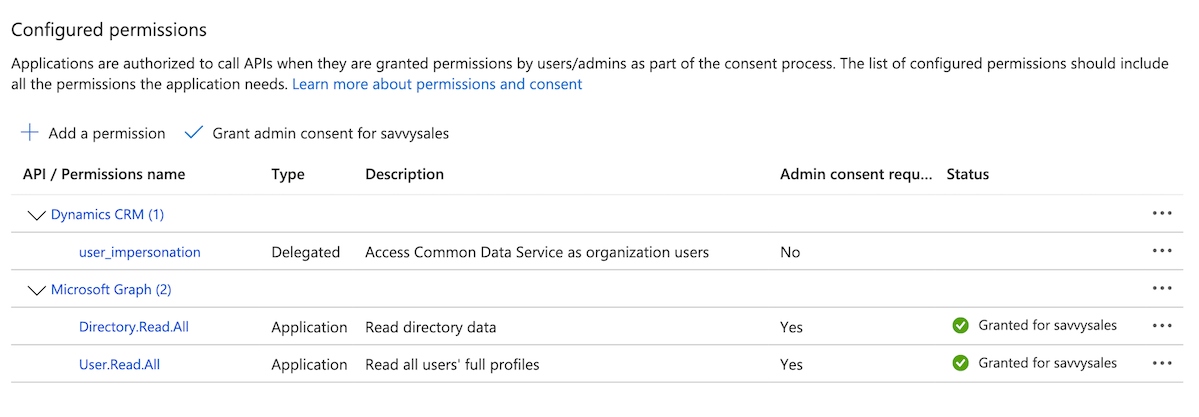
###
[](https://docs.glean.com/connectors/native/microsoft/microsoft-dynamics-365-connector#5-generate-secret)
5\. Generate secret
1. Navigate to **Microsoft Entra ID > Manage > App registrations** and click on the app you created earlier.
2. Click **Manage > Certificates & secrets** in the left sidebar.
3. Click on **New client secret**. Enter a description and select **24 months** for expiry time, then click **Add**.
4. Under **Client secrets**, copy the **Value** (not the **Secret ID**) you generated and enter it in Glean as the **Client secret**. The **Value** is shown only once.
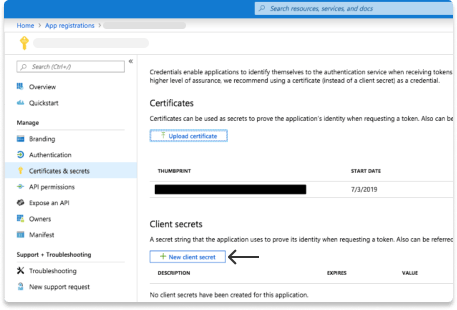
###
[](https://docs.glean.com/connectors/native/microsoft/microsoft-dynamics-365-connector#6-get-dynamics-365-organization-id)
6\. Get Dynamics 365 Organization ID
1. Check the URL bar in your browser. The **Dynamics 365 Organization ID** is part of the domain name. For example if you see: `https://org810c0cef.crm.dynamics.com/` in the URL bar, your **Organization ID** is `org810c0cef`.
###
[](https://docs.glean.com/connectors/native/microsoft/microsoft-dynamics-365-connector#7-add-application-user-in-dynamics-365)
7\. Add Application User in Dynamics 365
1. Sign into the [Power platform admin center](https://admin.powerplatform.microsoft.com/manage/environments)
.
2. Select the Dynamics 365 Environment you want to connect to Glean.
3. On the Dynamics 365 Environment page, navigate to **Settings > User + permissions > Application users** to add a new application user.
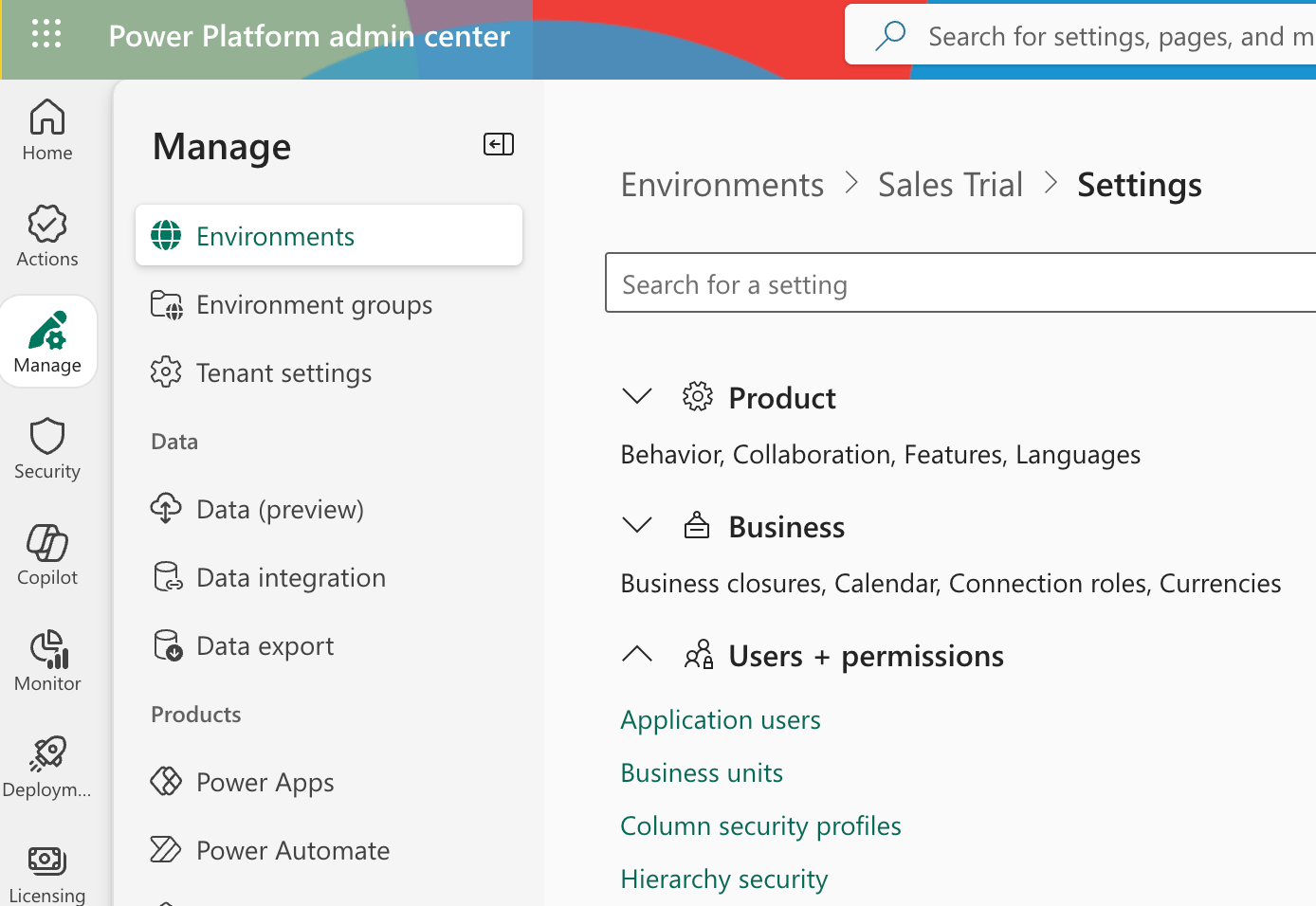
4. In the **Application users** page, click **\+ New app user** to open **Create a new app user** dialog.
5. Enter the previously created app name, Dynamics 365 Organization ID and Role name which provides read access to the Dynamics 365 data and click **Create**.
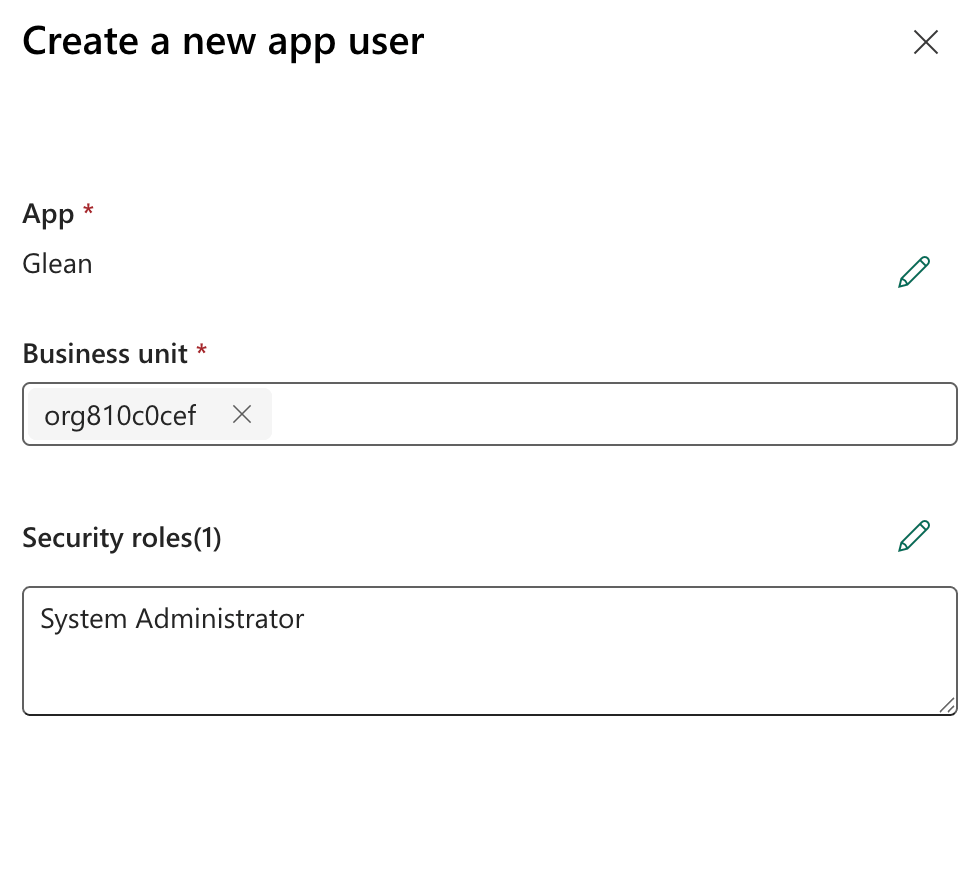
###
[](https://docs.glean.com/connectors/native/microsoft/microsoft-dynamics-365-connector#8-fill-out-keys)
8\. Fill out keys
1. Scroll to the top of the left sidebar and click **Setup**.
2. Copy the Application (client) ID & Directory (tenant) ID and enter it in the Glean self serve page.
3. Enter the Dynamics 365 Organization ID in the designated field.
4. Click Save. If the credentials save, you’re all set!
###
[](https://docs.glean.com/connectors/native/microsoft/microsoft-dynamics-365-connector#crawl-configuration-options)
Crawl Configuration Options
* You can configure crawl type (full or incremental), lookback periods, and inclusion/exclusion of specific objects through Glean’s interface.
* Redlist/greenlist: Limit surface area by object type or field as preferred.
* Lookback period: Set retention for historical records during initial crawls.
* For custom object support, you can submit feature requests to Glean.
###
[](https://docs.glean.com/connectors/native/microsoft/microsoft-dynamics-365-connector#permissions-&-security)
Permissions & Security
####
[](https://docs.glean.com/connectors/native/microsoft/microsoft-dynamics-365-connector#data-and-metadata-ingested)
Data and Metadata Ingested
* Data: Accounts, Contacts, Opportunities, Leads, Activities (email, meetings, attachments), metadata (timestamps, owners, etc.)
* Identity mappings support access control mirroring Dynamics 365’s security roles and business units.
####
[](https://docs.glean.com/connectors/native/microsoft/microsoft-dynamics-365-connector#permission-propagation-logic)
Permission Propagation Logic
* Permissions from Dynamics 365 are respected: Users see only records they can access within the source system.
* Sharing-based and hierarchy ACLs are not supported; only Security Role-based access is enforced for the indexed objects.
####
[](https://docs.glean.com/connectors/native/microsoft/microsoft-dynamics-365-connector#security-&-compliance-notes)
Security & Compliance Notes
* Authentication uses OAuth2 against Azure AD.
* Glean does not modify or create data in your Dynamics 365 environment.
* Supported for one Dynamics 365 organization per Glean data source instance.
####
[](https://docs.glean.com/connectors/native/microsoft/microsoft-dynamics-365-connector#known-security-restrictions)
Known Security Restrictions
* All crawling is limited to the Sales module. Other modules, projects, or case data are excluded.
####
[](https://docs.glean.com/connectors/native/microsoft/microsoft-dynamics-365-connector#data-privacy-implications)
Data Privacy Implications
* Indexed CRM data may include personally identifiable information (PII) as present in source records.
* Role-based access protects sensitive records from unauthorized views in Glean.
* No external data sharing or writing occurs during crawl.
Was this page helpful?
YesNo
[Azure DevOps](https://docs.glean.com/connectors/native/azure-devops/home)
[Home](https://docs.glean.com/connectors/native/onedrive/home)
⌘I
---
# Microsoft Viva Engage (formerly Yammer) - Glean Help Center
[Skip to main content](https://docs.glean.com/connectors/native/viva-engage/home#content-area)
[Glean Help Center home page](https://docs.glean.com/)
Search...
⌘K
Search...
Navigation
Microsoft
Microsoft Viva Engage (formerly Yammer)
[Home](https://docs.glean.com/home)
[User Guide](https://docs.glean.com/user-guide/about/what-is-glean)
[Agents](https://docs.glean.com/agents/home)
[Get Started for Admins](https://docs.glean.com/get-started/welcome)
[Connectors](https://docs.glean.com/connectors/home)
[Admin Guide](https://docs.glean.com/administration/about)
[Security & Architecture](https://docs.glean.com/security/home)
[Troubleshooting](https://docs.glean.com/troubleshooting/home)
[Release Notes](https://docs.glean.com/release-notes/home)
[Archive](https://docs.glean.com/archive/help-glean/answers/what-are-answers-and-how-do-they-work)
On this page
* [Supported objects](https://docs.glean.com/connectors/native/viva-engage/home#supported-objects)
* [Supported API endpoints](https://docs.glean.com/connectors/native/viva-engage/home#supported-api-endpoints)
* [Limitations](https://docs.glean.com/connectors/native/viva-engage/home#limitations)
* [Requirements](https://docs.glean.com/connectors/native/viva-engage/home#requirements)
* [Set up instructions](https://docs.glean.com/connectors/native/viva-engage/home#set-up-instructions)
* [Step 1: Register a new application in Azure AD](https://docs.glean.com/connectors/native/viva-engage/home#step-1-register-a-new-application-in-azure-ad)
* [Step 2: Configure API permissions](https://docs.glean.com/connectors/native/viva-engage/home#step-2-configure-api-permissions)
* [Step 3: Generate client secret and copy Application (client) ID and Directory (tenant) ID details](https://docs.glean.com/connectors/native/viva-engage/home#step-3-generate-client-secret-and-copy-application-client-id-and-directory-tenant-id-details)
* [Step 4: Connect in Glean](https://docs.glean.com/connectors/native/viva-engage/home#step-4-connect-in-glean)
* [Permissions & security](https://docs.glean.com/connectors/native/viva-engage/home#permissions-%26-security)
The Microsoft Viva Engage connector allows Glean to index messages from public and private communities, making them searchable within Glean. The connector supports instances running in [Native Mode](https://learn.microsoft.com/en-us/viva/engage/overview-native-mode)
and uses the [Data Export API](https://learn.microsoft.com/en-us/rest/api/yammer/data-export-apis)
to keep content up to date. To ensure data integrity and security, all data remains within your cloud environment, and Glean strictly enforces user permissions during search.
[](https://docs.glean.com/connectors/native/viva-engage/home#supported-objects)
Supported objects
-----------------------------------------------------------------------------------------------------
The Microsoft Viva Engage connector indexes public and private community messages.
[](https://docs.glean.com/connectors/native/viva-engage/home#supported-api-endpoints)
Supported API endpoints
-----------------------------------------------------------------------------------------------------------------
For information on supported API endpoints, see the Microsoft Viva Engage [Data Export API](https://learn.microsoft.com/en-us/rest/api/yammer/data-export-apis)
documentation.
[](https://docs.glean.com/connectors/native/viva-engage/home#limitations)
Limitations
-----------------------------------------------------------------------------------------
The Microsoft Viva Engage connector indexes community messages and has the following limitations:
* **Direct Messages:** Private messages between individual users are not crawled or indexed.
* **Real-time Updates:** The connector relies on scheduled crawls for updates and does not support webhooks or near-realtime activity tracking.
* **Files:** Files are not indexed by this connector, as they are handled by the SharePoint connector.
* **Reactions:** Likes and reactions to posts cannot be acquired from the Data Export API.
* **Deployment:** The connector is designed for cloud-hosted Microsoft Viva Engage instances in **Native Mode** and does not support on-premise variants.
[](https://docs.glean.com/connectors/native/viva-engage/home#requirements)
Requirements
-------------------------------------------------------------------------------------------
To enable the Microsoft Viva Engage connector, you must meet the following requirements:
* Your Microsoft Viva Engage instance must be running in [Native Mode](https://learn.microsoft.com/en-us/viva/engage/overview-native-mode)
.
* You must have a **[Microsoft Viva Engage Verified Administrator](https://learn.microsoft.com/en-us/viva/engage/eac-key-admin-roles-permissions#verified-administrator)
** account and permissions to register applications in Azure Active Directory.
* You must obtain the following from your Azure AD application:
* Client secret
* Application (client) ID
* Directory (tenant) ID
* The connector app must be granted the following **delegated permissions** in Azure AD:
* `Microsoft Viva Engage`:
* `access_as_user`
* `user_impersonation`
* `Microsoft Graph`:
* `User.Read`
* `offline_access`
* `email`
* `openid`
* `profile`
[](https://docs.glean.com/connectors/native/viva-engage/home#set-up-instructions)
Set up instructions
---------------------------------------------------------------------------------------------------------
To connect Glean to Microsoft Viva Engage, you need to gather the following credentials from the Azure portal: **Client ID**, **Client Secret**, and **Directory (tenant) ID**. These credentials are used to configure the connector in the Glean Admin Console.
###
[](https://docs.glean.com/connectors/native/viva-engage/home#step-1-register-a-new-application-in-azure-ad)
Step 1: Register a new application in Azure AD
1. Sign in to your **[Azure portal](https://portal.azure.com/)
** as an administrator.
2. Select **Microsoft Entra ID**, and navigate to **Manage** > **App registrations** > **New registration**.
3. On the **Register an application** page, enter the following details:
* **Name:** `Glean Viva Engage Application`
* **Supported account types:** `Accounts in this organizational directory only (Single tenant)`
* **Redirect URI:** Select **Web** and enter the URL: `https://[your-domain]-be.glean.com/instance/viva-engage/oauth/verify_code` _Note:_ Replace `[your-domain]` with your company’s unique Glean domain.
4. Click **Register**.
###
[](https://docs.glean.com/connectors/native/viva-engage/home#step-2-configure-api-permissions)
Step 2: Configure API permissions
Grant the Glean application the necessary permissions to access Microsoft Viva Engage data.
1. On the left side navigation on the **Overview** page, click **Manage** > **API Permissions**.
2. Click **Add a permission** and select **Microsoft Graph**.
3. Choose **Delegated permissions** and add the following permissions:
* `User.Read`
* `offline_access`
* `email`
* `openid`
* `profile`
4. Click **Add a permission** again and select **Viva Engage**.
5. Choose **Delegated permissions** and add `access_as_user` and `user_impersonation`.
6. Click the **Grant admin consent** button to finalize the permissions.
###
[](https://docs.glean.com/connectors/native/viva-engage/home#step-3-generate-client-secret-and-copy-application-client-id-and-directory-tenant-id-details)
Step 3: Generate client secret and copy Application (client) ID and Directory (tenant) ID details
1. Navigate to **Microsoft Entra ID** > **Manage** > **App registrations** and click on the application that you created earlier.
2. From the left-hand navigation pane, select **Manage** > **Certificates & secrets**.
3. Under **Client secrets**, click **New client secret**.
4. Enter a descriptive name and select a recommended expiry time, such as 24 months, then click **Add**. For more information, see [Certificates & secrets](https://learn.microsoft.com/en-us/azure/healthcare-apis/register-application#certificates--secrets)
.
5. **Copy the `Value` of the new secret.** This is your client secret, and it will not be displayed again after you leave this page.
> Note: It is important that you save the secret value, not the secret ID.
5. After copying the secret, navigate back to the **Overview** page for your application.
6. Copy the **Application (client) ID** and the **Directory (tenant) ID** from the **Essentials** panel. For more information, see [Register an application](https://learn.microsoft.com/en-us/entra/identity-platform/quickstart-register-app#register-an-application)
.
###
[](https://docs.glean.com/connectors/native/viva-engage/home#step-4-connect-in-glean)
Step 4: Connect in Glean
With all three credentials in hand, you can now complete the setup in the Glean Admin Console.
1. In the Glean Admin Console, navigate to **Data Sources** and select **Add Data Source**, and select Yammer.
2. Enter a Name for your data source. This name will appear to all teammates in search results.
3. Enter the following values into their corresponding fields:
* Client secret
* Application (client) ID
* Directory (tenant) ID
4. Click the **Authorize** button and follow the generated link to sign in with your Verified Administrator account.
Upon successful authorization, your connection to Microsoft Viva Engage is complete, and Glean will begin the initial crawl.
[](https://docs.glean.com/connectors/native/viva-engage/home#permissions-&-security)
Permissions & security
---------------------------------------------------------------------------------------------------------------
* **Permission propagation:** The connector honors Microsoft Viva Engage’s permission model. It uses community/group membership to determine access, ensuring users only see messages from communities they are members of.
* **Privileges:** The connector uses **OAuth 2.0 delegated authentication** and only requests the specific scopes required for its operation, ensuring access is limited.
* **Data privacy:** Data extraction is performed by Glean within the customer’s cloud environment. All indexed data respects source system permissions and does not leave the customer’s environment.
Was this page helpful?
YesNo
[Teams Transcripts](https://docs.glean.com/connectors/native/teams/teams-transcripts)
[Miro](https://docs.glean.com/connectors/native/miro/home)
⌘I
---
# Procore - Glean Help Center
[Skip to main content](https://docs.glean.com/connectors/native/procore/home#content-area)
[Glean Help Center home page](https://docs.glean.com/)
Search...
⌘K
Search...
Navigation
Native Connectors
Procore
[Home](https://docs.glean.com/home)
[User Guide](https://docs.glean.com/user-guide/about/what-is-glean)
[Agents](https://docs.glean.com/agents/home)
[Get Started for Admins](https://docs.glean.com/get-started/welcome)
[Connectors](https://docs.glean.com/connectors/home)
[Admin Guide](https://docs.glean.com/administration/about)
[Security & Architecture](https://docs.glean.com/security/home)
[Troubleshooting](https://docs.glean.com/troubleshooting/home)
[Release Notes](https://docs.glean.com/release-notes/home)
[Archive](https://docs.glean.com/archive/help-glean/answers/what-are-answers-and-how-do-they-work)
On this page
* [Supported objects](https://docs.glean.com/connectors/native/procore/home#supported-objects)
* [Projects](https://docs.glean.com/connectors/native/procore/home#projects)
* [RFIs (Requests for Information)](https://docs.glean.com/connectors/native/procore/home#rfis-requests-for-information)
* [Submittals](https://docs.glean.com/connectors/native/procore/home#submittals)
* [Specifications](https://docs.glean.com/connectors/native/procore/home#specifications)
* [Drawings (metadata)](https://docs.glean.com/connectors/native/procore/home#drawings-metadata)
* [Daily Logs](https://docs.glean.com/connectors/native/procore/home#daily-logs)
* [Attachments](https://docs.glean.com/connectors/native/procore/home#attachments)
* [Limitations](https://docs.glean.com/connectors/native/procore/home#limitations)
* [Requirements](https://docs.glean.com/connectors/native/procore/home#requirements)
* [Technical requirements](https://docs.glean.com/connectors/native/procore/home#technical-requirements)
* [Credential requirements](https://docs.glean.com/connectors/native/procore/home#credential-requirements)
* [Permission requirements](https://docs.glean.com/connectors/native/procore/home#permission-requirements)
* [Procore setup (Developer Managed Service Account)](https://docs.glean.com/connectors/native/procore/home#procore-setup-developer-managed-service-account)
* [1\. Create a Developer App and Service Account in Procore](https://docs.glean.com/connectors/native/procore/home#1-create-a-developer-app-and-service-account-in-procore)
* [2\. Generate OAuth credentials](https://docs.glean.com/connectors/native/procore/home#2-generate-oauth-credentials)
* [3\. Find your Procore Company ID](https://docs.glean.com/connectors/native/procore/home#3-find-your-procore-company-id)
* [4\. Install the app into your Procore company](https://docs.glean.com/connectors/native/procore/home#4-install-the-app-into-your-procore-company)
* [Configuration and setup in Glean](https://docs.glean.com/connectors/native/procore/home#configuration-and-setup-in-glean)
* [1\. Start connector setup](https://docs.glean.com/connectors/native/procore/home#1-start-connector-setup)
* [2\. Configure custom permissions](https://docs.glean.com/connectors/native/procore/home#2-configure-custom-permissions)
* [3\. Save and start the initial crawl](https://docs.glean.com/connectors/native/procore/home#3-save-and-start-the-initial-crawl)
* [Permissions & security](https://docs.glean.com/connectors/native/procore/home#permissions-%26-security)
* [How permissions are enforced](https://docs.glean.com/connectors/native/procore/home#how-permissions-are-enforced)
* [Data access model](https://docs.glean.com/connectors/native/procore/home#data-access-model)
* [Crawling and freshness](https://docs.glean.com/connectors/native/procore/home#crawling-and-freshness)
* [Full crawls](https://docs.glean.com/connectors/native/procore/home#full-crawls)
* [Incremental crawls](https://docs.glean.com/connectors/native/procore/home#incremental-crawls)
* [Use cases and example queries](https://docs.glean.com/connectors/native/procore/home#use-cases-and-example-queries)
* [Troubleshooting](https://docs.glean.com/connectors/native/procore/home#troubleshooting)
* [Error validating Procore credentials during setup](https://docs.glean.com/connectors/native/procore/home#error-validating-procore-credentials-during-setup)
* [Some users do not see Procore content they expect](https://docs.glean.com/connectors/native/procore/home#some-users-do-not-see-procore-content-they-expect)
* [Data appears stale](https://docs.glean.com/connectors/native/procore/home#data-appears-stale)
* [FAQs](https://docs.glean.com/connectors/native/procore/home#faqs)
**Beta:** This page contains beta features and may change.
Procore is an industry-leading construction project management platform that centralizes mission‑critical workflows such as RFIs, Submittals, Daily Logs, Drawings, and Specifications across complex projects. The Glean Procore connector brings this data into Glean for permission‑aware search and AI assistance, so project teams, field staff, and back‑office users can quickly find the latest project status, RFIs, submittals, and logs without leaving Glean.
[](https://docs.glean.com/connectors/native/procore/home#supported-objects)
Supported objects
-------------------------------------------------------------------------------------------------
The Procore connector indexes core construction data from the following Procore tools (objects).
###
[](https://docs.glean.com/connectors/native/procore/home#projects)
Projects
* Title and project description
* Address and location (country, state)
* Project number and type
* Stage, work scope, sector, and delivery method
* Project value and roles
* Created by / created at / updated at metadata
###
[](https://docs.glean.com/connectors/native/procore/home#rfis-requests-for-information)
RFIs (Requests for Information)
* RFI number, subject, and project stage
* Questions and answers
* Status and due date
* RFI manager and “ball in court”
* Responsible contractor and distribution list
* Location, specification reference, cost code
* Schedule impact, cost impact and cost impact value
* Created by / created at / updated at / closed date
* Assignees
* Attachments
###
[](https://docs.glean.com/connectors/native/procore/home#submittals)
Submittals
* Submittal number, title, and description
* Submittal type and submittal manager
* Responsible contractor and “ball in court”
* Specification section (label and description)
* Final due date, due date, submit‑by date, issue date, received date
* Required on site date, lead time, and any scheduled task references
* Cost code and location
* Approvers (response, type, user, comments, attachments)
* Status and updated at metadata
* Created by / created at
* Attachments
###
[](https://docs.glean.com/connectors/native/procore/home#specifications)
Specifications
* Division
* Set
* Number and description
* Issued date and received date
* Revision and updated at metadata
* Revision PDFs (with text extraction for search)
###
[](https://docs.glean.com/connectors/native/procore/home#drawings-metadata)
Drawings (metadata)
* Drawing set
* Drawing number and title
* Discipline
* Status and obsolete flag
* Drawing date and received date
* Revision number
> The connector indexes drawing metadata; drawing binaries themselves are not rendered in Glean. When Procore exposes drawing revision PDFs for Specifications, Glean extracts text content for search.
###
[](https://docs.glean.com/connectors/native/procore/home#daily-logs)
Daily Logs
The connector indexes multiple Daily Log “sub‑tools,” including:
* **Weather**: date, weather conditions (sky, precipitation, temperature, wind, ground), calamity notes, comments, vendor, status, attachments, created by / at
* **Manpower**: company, location, number of workers, total man hours, notes, status, attachments, created by / at
* **Notes**: comments, status, attachments, created by / at
* **Delivery**: delivery from, contents, delivery time, tracking number, status, updated at, attachments, created by / at
###
[](https://docs.glean.com/connectors/native/procore/home#attachments)
Attachments
The Procore connector indexes attachments for key objects where supported by the Procore APIs:
* RFIs – attached documents and images
* Submittals – attachments, including documents routed for approval
* Daily Logs (Weather, Manpower, Notes, Delivery) – attachments
* Specification revisions – PDFs, with text content extracted for search
[](https://docs.glean.com/connectors/native/procore/home#limitations)
Limitations
-------------------------------------------------------------------------------------
* Only Procore content accessible via the configured Procore application and service account is indexed. If the service account cannot see a project or tool, that data will not appear in Glean.
* Permissions are modeled primarily via Procore’s project‑centric permission templates and tool‑level permissions. Highly custom, non‑template permissions require an explicit admin choice during setup (see **Permissions & security**).
* Procore tools and objects for example, certain change order or punchlist workflows are currently not supported.
[](https://docs.glean.com/connectors/native/procore/home#requirements)
Requirements
---------------------------------------------------------------------------------------
###
[](https://docs.glean.com/connectors/native/procore/home#technical-requirements)
Technical requirements
To use the Procore connector, you need:
* A Procore company account where you can create a [**Developer Managed Service Account**](https://v2.support.procore.com/faq-what-is-developer-managed-service-account)
and a developer app.
* Admin access in Procore to configure Developer Apps and App Management.
* A Glean deployment with access to the **Admin console** to manage data sources.
Glean connects to Procore via Procore’s REST APIs over HTTPS and stores indexed data in your organization’s Glean deployment.
###
[](https://docs.glean.com/connectors/native/procore/home#credential-requirements)
Credential requirements
The connector uses OAuth 2.0 credentials from a Procore **Developer App** that has an associated **Service Account**:
* **Client ID** (from your Procore Developer App OAuth credentials)
* **Client Secret** (generated by resetting the client secret in your Procore Developer App)
* **Procore Company ID** (numeric ID from your Procore URL, see below)
These values are entered into the Procore connector setup in the Glean Admin console.
###
[](https://docs.glean.com/connectors/native/procore/home#permission-requirements)
Permission requirements
To configure the connector end‑to‑end, the person performing setup must:
* Be a **Procore admin** for the relevant company (to create developer apps and install them via App Management).
* Be a **Glean admin** with permission to add and configure data sources.
Within Procore, the Developer App must be configured with a Data Connector component that has:
* **User Level Authentication** **and** **Service Account Authentication**
* **Company Directory Admin** permission (required for crawling Custom Field Definitions and project directory‑related data)
[](https://docs.glean.com/connectors/native/procore/home#procore-setup-developer-managed-service-account)
Procore setup (Developer Managed Service Account)
---------------------------------------------------------------------------------------------------------------------------------------------------------------
Before configuring the connector in Glean, you must create and install a Procore Developer App with an associated Developer Managed Service Account.
###
[](https://docs.glean.com/connectors/native/procore/home#1-create-a-developer-app-and-service-account-in-procore)
1\. Create a Developer App and Service Account in Procore
1. Sign in to your [Procore account](https://developers.procore.com/developers)
as an admin and open **Procore Developer Apps**.
2. Click **Create a New App** and provide a name such as “Glean”.
3. In the **Configuration Builder**, go to **Data Connector Components** and click **Add Component**.
4. Under **Component Type**, select both:
* **User Level Authentication**
* **Service Account Authentication**
5. Then grant the **Company Directory Admin** permission and click **Save Component**. This is required to allow Glean to crawl Custom Field Definitions.
6. Click **Create Version** and then **Create App** to create the developer app version.
7. Click **Promote Version** to promote it to a production app version.
###
[](https://docs.glean.com/connectors/native/procore/home#2-generate-oauth-credentials)
2\. Generate OAuth credentials
1. In your Procore Developer App, open **OAuth Credentials**.
2. Click **Reset client secret** in the **OAuth Credentials** section to generate a new client secret.
> Ensure that you reset the client secret for **OAuth Credentials**, not the **Sandbox OAuth Credentials**.
3. Copy the **Client ID** and **Client Secret**.
4. You will paste these values into the Procore connector setup page in the Glean Admin console.
###
[](https://docs.glean.com/connectors/native/procore/home#3-find-your-procore-company-id)
3\. Find your Procore Company ID
1. From your browser, navigate to your Procore web application.
2. The **Company ID** is the numeric value immediately after `https://app.procore.com/` in the URL.
3. Record this Company ID; you will provide it to Glean during setup.
For more information, check [this article](https://v2.support.procore.com/faq-how-do-i-find-the-company-id)
.
###
[](https://docs.glean.com/connectors/native/procore/home#4-install-the-app-into-your-procore-company)
4\. Install the app into your Procore company
1. Go back to the **Configuration Builder** for your Developer App and copy the **Production App Version Key**.
2. In the Procore web UI, switch to the **Company** that you want to connect to Glean.
3. Open the **App Management** company tool.
4. Click **Install App**, paste the **Production App Version Key**, and click **Install** to add the Glean app to your Procore environment.
At this point, Procore is prepared for Glean to connect via the Procore APIs using your Developer Managed Service Account.
[](https://docs.glean.com/connectors/native/procore/home#configuration-and-setup-in-glean)
Configuration and setup in Glean
-------------------------------------------------------------------------------------------------------------------------------
Once Procore is configured, complete setup in the Glean Admin console.
###
[](https://docs.glean.com/connectors/native/procore/home#1-start-connector-setup)
1\. Start connector setup
1. In the Glean Admin console, go to **Data sources** > **Add data source**.
2. Search for **Procore** and select the Procore connector.
3. Provide a **Name** and optional **Icon** for the Procore data source. This label will appear for users in search results.
4. In the Procore connector setup page, supply the credentials collected earlier:
* **Client ID** – your Procore Developer App OAuth Client ID.
* **Client Secret** – your Procore Developer App OAuth Client Secret.
* **Company ID** – numeric Company ID from your Procore URL (the number after [`app.procore.com/`](http://app.procore.com/)
).
Glean uses these values to authenticate to the Procore APIs via the Developer Managed Service Account.
###
[](https://docs.glean.com/connectors/native/procore/home#2-configure-custom-permissions)
2\. Configure custom permissions
Click **Manage data (optional)**. Toggle **Read access for custom permissions**. This toggle controls how Glean handles Procore users and access patterns that are **not** based on standard permission templates.
* By default, Glean honors Procore’s **project‑level** and **template‑based** permissions; users see only what they can access in Procore.
* For users or edge cases **not governed by templates** (for example, ad‑hoc access at the tool level), your admin can choose to provide read access via this toggle so that those relationships are respected in search results, rather than being treated as missing permissions.
###
[](https://docs.glean.com/connectors/native/procore/home#3-save-and-start-the-initial-crawl)
3\. Save and start the initial crawl
1. Review your configuration.
2. Click **Save** to complete setup.
3. Glean will start an initial full crawl of Procore content. Once this finishes, Procore results will begin to appear in users’ Glean search and AI experiences.
[](https://docs.glean.com/connectors/native/procore/home#permissions-&-security)
Permissions & security
-----------------------------------------------------------------------------------------------------------
###
[](https://docs.glean.com/connectors/native/procore/home#how-permissions-are-enforced)
How permissions are enforced
The Procore connector mirrors Procore’s own project‑centric permissions model as closely as possible:
* **Project‑level permissions** – users see only the projects they can access in Procore.
* **Tool‑level permissions** – visibility for RFIs, Submittals, Daily Logs, Specifications, and Drawings follows Procore tool permissions and permission templates.
* **Template‑based permissions** – Procore permission templates assigned to users govern which tools and records Glean will surface for them. These are adhered to by default.
* **Custom / non‑template permissions** – ad‑hoc, non‑template permission assignments can be honored by enabling the **Read access for custom permissions** toggle during setup, as described above.
Glean evaluates permissions at query time so that users only see items they are allowed to access in Procore.
###
[](https://docs.glean.com/connectors/native/procore/home#data-access-model)
Data access model
* The connector uses Procore’s APIs with **read‑only** access, through the Developer Managed Service Account configured in your Procore Developer App.
* Indexed content is stored within your organization’s Glean deployment; no connector data leaves your environment, and Glean enforces least‑privilege read access.
[](https://docs.glean.com/connectors/native/procore/home#crawling-and-freshness)
Crawling and freshness
-----------------------------------------------------------------------------------------------------------
The Procore connector uses a combination of periodic crawls and event‑driven updates (where supported by Procore’s APIs) to keep your index fresh.
###
[](https://docs.glean.com/connectors/native/procore/home#full-crawls)
Full crawls
* A full crawl is run approximately **once every 7 days** by default.
* Full crawls re‑enumerate projects and all supported objects (RFIs, Submittals, Daily Logs, Specifications, Drawings) that are accessible to the service account.
###
[](https://docs.glean.com/connectors/native/procore/home#incremental-crawls)
Incremental crawls
* Incremental crawls run approximately **every 6 hours**.
* They fetch newly created or recently updated projects, RFIs, Submittals, Daily Logs, Specifications, and Drawings since the last incremental crawl.
[](https://docs.glean.com/connectors/native/procore/home#use-cases-and-example-queries)
Use cases and example queries
-------------------------------------------------------------------------------------------------------------------------
Once enabled and crawls have completed, users can ask Glean natural‑language questions or perform keyword searches across Procore content. Example use cases include:
* **Project staffing and membership**
* “Who are the project members of Hospital Tower?”
* **Open RFIs and routing**
* “What are the due dates for open RFIs on the Hospital Tower project?”
* “Who is the responsible contractor for RFI 245?”
* **Submittal tracking**
* “Show me open submittals for the Hospital Tower project.”
* **Specifications and materials**
* “Construction‑related specifications for Hospital Tower.”
* “What are the composition and materials for the concrete mix design specifications in Hospital Tower?”
* **General discovery and context**
* “Hospital Tower project”
* “Structured steel bolted RFI”
* “Flooring”
* **Daily logs**
* “Daily logs Mon Nov 17”
Because Glean combines Procore with other enterprise sources (e.g., GDrive, Slack, Jira), users can also ask cross‑system questions such as, “Show me all RFIs related to Hospital Tower that were mentioned in last week’s Slack discussions,” subject to permissions.
[](https://docs.glean.com/connectors/native/procore/home#troubleshooting)
Troubleshooting
---------------------------------------------------------------------------------------------
###
[](https://docs.glean.com/connectors/native/procore/home#error-validating-procore-credentials-during-setup)
Error validating Procore credentials during setup
If the Glean Admin console reports an error when you click **Save**:
* Confirm that the **Client ID** and **Client Secret** exactly match the values from your Procore Developer App’s OAuth credentials (after resetting the secret).
* Validate that the **Company ID** is correct (numeric ID after `app.procore.com/` in the browser URL).
* Verify that the Developer App has been promoted to **Production** and installed into the correct Procore company using the **Production App Version Key** via the App Management tool.
* Confirm that the app’s Data Connector component has both **User Level Authentication** and **Service Account Authentication** enabled with **Company Directory Admin** permission.
If these steps look correct and validation still fails, capture the error message and contact Glean Support.
###
[](https://docs.glean.com/connectors/native/procore/home#some-users-do-not-see-procore-content-they-expect)
Some users do not see Procore content they expect
* Check whether those users have the appropriate **project and tool permissions** in Procore (for example, RFI tool access, Submittals, Daily Logs). Glean will not show content a user cannot access in Procore.
* If your organization relies on non‑template, ad‑hoc permissions, verify whether the **Read access for custom permissions** toggle is configured as desired in the connector setup (see Figure 1).
* Confirm that the initial crawl has completed and that incremental crawls are running successfully in the Glean Admin console.
###
[](https://docs.glean.com/connectors/native/procore/home#data-appears-stale)
Data appears stale
* Remember that full crawls run roughly **weekly** and incremental crawls run roughly **every 6 hours**; some updates may take up to several hours to appear.
* For urgent issues, you can trigger a manual crawl or contact Glean Support to review connector health.
[](https://docs.glean.com/connectors/native/procore/home#faqs)
FAQs
-----------------------------------------------------------------------
Does the connector index attachments?
Yes. The Procore connector indexes attachments on RFIs, Submittals, and Daily Logs, as well as specification revision PDFs where available. Attachments become searchable in Glean (subject to permissions).
WHow fresh is the data?
* **Full crawls:** approximately every **7 days**.
* **Incremental crawls:** approximately every **6 hours**.
How are permissions enforced?
Glean maps Procore’s **project‑centric permission model** and **permission templates** to its own permission system. At query time, Procore permissions determine which items a user can see. Ad‑hoc, non‑template permissions can be accounted for using the **Read access for custom permissions** toggle during setup.
Who should set up the connector?
A Procore company admin (with authority to create Developer Apps and install them via App Management) and a Glean admin should collaborate. The same person can fill both roles if they have the requisite permissions in both systems.
Was this page helpful?
YesNo
[Pingboard](https://docs.glean.com/connectors/native/pingboard/home)
[Quip](https://docs.glean.com/connectors/native/quip/home)
⌘I
---
# Wordpress - Glean Help Center
[Skip to main content](https://docs.glean.com/connectors/native/wordpress/home#content-area)
[Glean Help Center home page](https://docs.glean.com/)
Search...
⌘K
Search...
Navigation
Native Connectors
Wordpress
[Home](https://docs.glean.com/home)
[User Guide](https://docs.glean.com/user-guide/about/what-is-glean)
[Agents](https://docs.glean.com/agents/home)
[Get Started for Admins](https://docs.glean.com/get-started/welcome)
[Connectors](https://docs.glean.com/connectors/home)
[Admin Guide](https://docs.glean.com/administration/about)
[Security & Architecture](https://docs.glean.com/security/home)
[Troubleshooting](https://docs.glean.com/troubleshooting/home)
[Release Notes](https://docs.glean.com/release-notes/home)
[Archive](https://docs.glean.com/archive/help-glean/answers/what-are-answers-and-how-do-they-work)
On this page
* [Supported Features and Limitations](https://docs.glean.com/connectors/native/wordpress/home#supported-features-and-limitations)
* [Supported Objects/Entities](https://docs.glean.com/connectors/native/wordpress/home#supported-objects%2Fentities)
* [Supported API Endpoints/Features](https://docs.glean.com/connectors/native/wordpress/home#supported-api-endpoints%2Ffeatures)
* [Limitations](https://docs.glean.com/connectors/native/wordpress/home#limitations)
* [Requirements](https://docs.glean.com/connectors/native/wordpress/home#requirements)
* [Technical Requirements](https://docs.glean.com/connectors/native/wordpress/home#technical-requirements)
* [Credential Requirements](https://docs.glean.com/connectors/native/wordpress/home#credential-requirements)
* [Permission Requirements](https://docs.glean.com/connectors/native/wordpress/home#permission-requirements)
* [Preliminary Source/System Setup](https://docs.glean.com/connectors/native/wordpress/home#preliminary-source%2Fsystem-setup)
* [External References](https://docs.glean.com/connectors/native/wordpress/home#external-references)
* [Configuration and Setup Instructions](https://docs.glean.com/connectors/native/wordpress/home#configuration-and-setup-instructions)
* [Prerequisites](https://docs.glean.com/connectors/native/wordpress/home#prerequisites)
* [Authentication and Credentials](https://docs.glean.com/connectors/native/wordpress/home#authentication-and-credentials)
* [Step-by-Step Setup](https://docs.glean.com/connectors/native/wordpress/home#step-by-step-setup)
The Wordpress connector allows Glean to index content from WordPress sites, enabling users to search public pages, posts, comments, tags, and categories directly within Glean. Once configured, the connector brings WordPress content—including selected metadata—into the Glean platform for enterprise search. Integration is primarily intended for published, public-facing content.
[](https://docs.glean.com/connectors/native/wordpress/home#supported-features-and-limitations)
Supported Features and Limitations
-------------------------------------------------------------------------------------------------------------------------------------
The Wordpress connector supports crawling standard content available through the WordPress REST API. Only content that is published and publicly accessible will be indexed. Permission enforcement for restricted content is not supported in the current version: all indexed content will be visible to all users within the organization using Glean.
###
[](https://docs.glean.com/connectors/native/wordpress/home#supported-objects/entities)
Supported Objects/Entities
* Pages (published, public)
* Posts (published, public)
* Comments (attached to posts/pages)
* Tags
* Categories
* Custom Posts (requires manual endpoint configuration)
###
[](https://docs.glean.com/connectors/native/wordpress/home#supported-api-endpoints/features)
Supported API Endpoints/Features
* `/pages`: Retrieve and index page content and metadata
* `/posts`: Retrieve and index post content and metadata
* `/comments`: Index comments on pages and posts
* `/tags`: Index tag metadata associated with posts/pages
* `/categories`: Index category metadata
Custom post types can be included, but require manual entry of their endpoints in the Glean configuration.
###
[](https://docs.glean.com/connectors/native/wordpress/home#limitations)
Limitations
* Only published, non-password-protected, and non-private content is crawled. Drafts, password-protected, and private pages/posts are not indexed.
* No permission propagation: all indexed content is available to all Glean users in the organization, regardless of WordPress role-based access controls.
* Nested categories are not fully supported for faceting; only directly assigned categories are indexed.
* No author attribution: Although the WordPress API can return an author ID, the connector does not attach or surface author information in indexed documents. Author names, emails, or IDs are not recorded or displayed.
* Activity data (such as view counts) is not supported in the initial version.
* Advanced features such as popularity-based ranking, private content handling, and per-user visibility are not included in the current connector.
[](https://docs.glean.com/connectors/native/wordpress/home#requirements)
Requirements
-----------------------------------------------------------------------------------------
This section outlines the requirements to deploy and operate the WordPress connector with Glean.
###
[](https://docs.glean.com/connectors/native/wordpress/home#technical-requirements)
Technical Requirements
* WordPress site must be accessible over the internet (publicly or via allow-listed IP ranges if necessary).
* The WordPress REST API must be enabled and reachable.
* Minimum WordPress version 5.6+ is required to support Application Passwords for API authentication.
###
[](https://docs.glean.com/connectors/native/wordpress/home#credential-requirements)
Credential Requirements
* Administrator account credentials on the WordPress site to generate an Application Password.
* Application Password and corresponding WordPress username must be provided to Glean for API access.
* Target WordPress site hostname is required for connector configuration.
###
[](https://docs.glean.com/connectors/native/wordpress/home#permission-requirements)
Permission Requirements
* The connector requires use of a WordPress administrator account to generate API Application Passwords. Only administrator or users with sufficient privileges can create these credentials.
* Since the connector only crawls public content, no additional permission mapping or user role scoping is performed.
###
[](https://docs.glean.com/connectors/native/wordpress/home#preliminary-source/system-setup)
Preliminary Source/System Setup
* An Application Password must be created in WordPress for the dedicated integration account.
* (Optional) Custom post endpoints should be identified if custom post types should be indexed.
###
[](https://docs.glean.com/connectors/native/wordpress/home#external-references)
External References
* WordPress REST API reference: developer.wordpress.org/rest-api/reference/
* Application Passwords (WordPress 5.6+): make.wordpress.org/core/2020/11/05/application-passwords-integration-guide/
[](https://docs.glean.com/connectors/native/wordpress/home#configuration-and-setup-instructions)
Configuration and Setup Instructions
-----------------------------------------------------------------------------------------------------------------------------------------
The setup process for the WordPress connector is completed through the Glean Admin Console. All primary configuration activities happen within the console, with necessary information sourced from the WordPress admin portal.
###
[](https://docs.glean.com/connectors/native/wordpress/home#prerequisites)
Prerequisites
* Running WordPress site (v5.6+)
* WordPress admin access
* Glean Admin Console access
###
[](https://docs.glean.com/connectors/native/wordpress/home#authentication-and-credentials)
Authentication and Credentials
* In WordPress, log in with an administrator account. Navigate to the user’s profile and generate a new Application Password for Glean use.
* Record both the newly created Application Password and the associated username.
* In Glean’s Admin Console, enter the hostname of the WordPress site, the admin username, and the Application Password in the relevant connector fields.
###
[](https://docs.glean.com/connectors/native/wordpress/home#step-by-step-setup)
Step-by-Step Setup
1. Log in to your WordPress site as an administrator and navigate to your user profile.
2. Create a new Application Password specifically for Glean integration.
3. Note the Application Password and username; store this information securely.
4. Open Glean’s Admin Console and select “Add Connector” > “WordPress.”
5. Enter the following in the configuration:
* WordPress site hostname (e.g., mycompany.com)
* Application Password (from Step 3)
* Username (from Step 3)
6. (Optional) To crawl custom post types, add the REST API endpoints for those custom posts in the Glean connector settings.
7. Save your configuration and trigger a crawl/test to confirm successful authentication and setup.
Was this page helpful?
YesNo
[Sitemap Redlisting](https://docs.glean.com/connectors/native/website/sitemap-redlisting)
[Workday](https://docs.glean.com/connectors/native/workday/home)
⌘I
---
# Shortcut (Formerly Clubhouse) - Glean Help Center
[Skip to main content](https://docs.glean.com/connectors/native/shortcut/home#content-area)
[Glean Help Center home page](https://docs.glean.com/)
Search...
⌘K
Search...
Navigation
Native Connectors
Shortcut (Formerly Clubhouse)
[Home](https://docs.glean.com/home)
[User Guide](https://docs.glean.com/user-guide/about/what-is-glean)
[Agents](https://docs.glean.com/agents/home)
[Get Started for Admins](https://docs.glean.com/get-started/welcome)
[Connectors](https://docs.glean.com/connectors/home)
[Admin Guide](https://docs.glean.com/administration/about)
[Security & Architecture](https://docs.glean.com/security/home)
[Troubleshooting](https://docs.glean.com/troubleshooting/home)
[Release Notes](https://docs.glean.com/release-notes/home)
[Archive](https://docs.glean.com/archive/help-glean/answers/what-are-answers-and-how-do-they-work)
On this page
* [Features and Limitations](https://docs.glean.com/connectors/native/shortcut/home#features-and-limitations)
* [Supported Objects](https://docs.glean.com/connectors/native/shortcut/home#supported-objects)
* [Key Features](https://docs.glean.com/connectors/native/shortcut/home#key-features)
* [Limitations](https://docs.glean.com/connectors/native/shortcut/home#limitations)
* [Requirements](https://docs.glean.com/connectors/native/shortcut/home#requirements)
* [How to Set up the Connector](https://docs.glean.com/connectors/native/shortcut/home#how-to-set-up-the-connector)
* [Step 1: Obtain the API Token from Shortcut](https://docs.glean.com/connectors/native/shortcut/home#step-1-obtain-the-api-token-from-shortcut)
* [Step 2: Set up a Webhook in Shortcut](https://docs.glean.com/connectors/native/shortcut/home#step-2-set-up-a-webhook-in-shortcut)
* [Step 3: Configure the Connector in Glean](https://docs.glean.com/connectors/native/shortcut/home#step-3-configure-the-connector-in-glean)
* [Permissions & Security](https://docs.glean.com/connectors/native/shortcut/home#permissions-%26-security)
The Shortcut connector enables secure, unified search of Shortcut stories and epics from within Glean’s enterprise search platform. It is designed to work with **Shortcut (formerly Clubhouse)** to centralize project management knowledge alongside content from all your other applications. This integration allows users to quickly find relevant project information and a complete view of their work. Most importantly, it enforces user-level permissions from Shortcut at the time of the query, ensuring every user only sees content they are authorized to access. All indexed Shortcut data is securely stored within your own cloud environment, ensuring your organizational data never leaves your infrastructure.
###
[](https://docs.glean.com/connectors/native/shortcut/home#features-and-limitations)
Features and Limitations
####
[](https://docs.glean.com/connectors/native/shortcut/home#supported-objects)
Supported Objects
The Shortcut connector indexes the following entities:
* Stories
* Epics
####
[](https://docs.glean.com/connectors/native/shortcut/home#key-features)
Key Features
* **Comprehensive Indexing:** Indexes Shortcut stories and epics, including key metadata such as status, type, assignees, and a custom popularity metric.
* **Native Permissions:** Inherits and strictly enforces user-level access permissions from Shortcut at the time of the query.
####
[](https://docs.glean.com/connectors/native/shortcut/home#limitations)
Limitations
* **Cloud-Only:** This connector is designed exclusively for native integration with the cloud version of Shortcut. It does not support on-premises or self-hosted deployments.
* **Entity Scope:** The connector’s scope is currently limited to core entities. It indexes stories and epics, but does not support additional entities such as comments, attachments, or workflows.
* **Custom Field Support:** The connector does not support the indexing of custom objects or advanced field mapping.
###
[](https://docs.glean.com/connectors/native/shortcut/home#requirements)
Requirements
To set up the Shortcut connector, you must have the following administrative access and credentials.
* **Shortcut Workspace:** An active Shortcut (Clubhouse) workspace using the standard cloud-based service.
* **Glean Access:** Administrative permission to configure connectors within your Glean deployment.
* **API Token:** A Shortcut API token with workspace-level read access to all relevant stories and epics.
* **Permissions:** The user account providing the API token must have an admin role or a dedicated integration account with sufficient permissions to access all data intended for indexing.
###
[](https://docs.glean.com/connectors/native/shortcut/home#how-to-set-up-the-connector)
How to Set up the Connector
The setup process involves obtaining credentials from Shortcut and then configuring the connector in Glean. The process requires a **Shortcut API token** and a **Webhook secret**.
####
[](https://docs.glean.com/connectors/native/shortcut/home#step-1-obtain-the-api-token-from-shortcut)
Step 1: Obtain the API Token from Shortcut
1. Log in to your Shortcut workspace.
2. Navigate to profile or organization settings and find the **API Tokens** section.
3. Generate a new API token, ensuring it has workspace-level read access to stories and epics. For more information, see [Shortcut API documentation](https://help.shortcut.com/hc/en-us/articles/205701199-Shortcut-API-Tokens)
.
####
[](https://docs.glean.com/connectors/native/shortcut/home#step-2-set-up-a-webhook-in-shortcut)
Step 2: Set up a Webhook in Shortcut
This step is required to generate the Webhook Secret needed for the Glean setup.
1. Log in as an Administrator in your Shortcut instance.
2. Go to the **Webhooks** section in your admin settings.
3. Create a new webhook and configure it with the following:
* **Payload URL:** `https://-be.glean.com/instance/SHORTCUT/events`
* **Secret:** Choose and enter a unique secret. **This is the Webhook Secret you will need for Glean.**
* **Scope:** Select **All workspaces** to ensure timely notifications for all changes.
4. Save the webhook configuration. For more information, see [Setting up Outgoing Webhooks](https://help.shortcut.com/hc/en-us/articles/115005093963-Setting-up-Outgoing-Webhooks)
.
####
[](https://docs.glean.com/connectors/native/shortcut/home#step-3-configure-the-connector-in-glean)
Step 3: Configure the Connector in Glean
1. In the Glean Admin Console, navigate to **Data Sources** and select **Add Data Source**, and select **Shortcut**.
2. Enter the **API Token** you obtained in Step 1.
3. Enter the **Webhook Secret** you created in Step 2.
4. Click **Save**. Glean will automatically validate the credentials and begin the initial crawl.
###
[](https://docs.glean.com/connectors/native/shortcut/home#permissions-&-security)
Permissions & Security
* **Permission Enforcement:** The connector relies entirely on the permissions defined in Shortcut. Glean does not override these permissions, ensuring that users can only access content for which they are authorized.
* **Data Storage:** All Shortcut data ingested by Glean is stored securely in your designated cloud environment. No content is stored outside of your infrastructure.
Was this page helpful?
YesNo
[Connecting ServiceNow With a Custom Role](https://docs.glean.com/connectors/native/servicenow/servicenow-custom-role)
[Simpplr (AWS Version)](https://docs.glean.com/connectors/native/simpplr/home)
⌘I
---
# Seismic - Glean Help Center
[Skip to main content](https://docs.glean.com/connectors/native/seismic/home#content-area)
[Glean Help Center home page](https://docs.glean.com/)
Search...
⌘K
Search...
Navigation
Native Connectors
Seismic
[Home](https://docs.glean.com/home)
[User Guide](https://docs.glean.com/user-guide/about/what-is-glean)
[Agents](https://docs.glean.com/agents/home)
[Get Started for Admins](https://docs.glean.com/get-started/welcome)
[Connectors](https://docs.glean.com/connectors/home)
[Admin Guide](https://docs.glean.com/administration/about)
[Security & Architecture](https://docs.glean.com/security/home)
[Troubleshooting](https://docs.glean.com/troubleshooting/home)
[Release Notes](https://docs.glean.com/release-notes/home)
[Archive](https://docs.glean.com/archive/help-glean/answers/what-are-answers-and-how-do-they-work)
On this page
* [Supported Features and Limitations](https://docs.glean.com/connectors/native/seismic/home#supported-features-and-limitations)
* [Supported Objects/Entities](https://docs.glean.com/connectors/native/seismic/home#supported-objects%2Fentities)
* [Key features](https://docs.glean.com/connectors/native/seismic/home#key-features)
* [Limitations](https://docs.glean.com/connectors/native/seismic/home#limitations)
* [Crawling Strategy](https://docs.glean.com/connectors/native/seismic/home#crawling-strategy)
* [Results Display](https://docs.glean.com/connectors/native/seismic/home#results-display)
* [Requirements](https://docs.glean.com/connectors/native/seismic/home#requirements)
* [Technical requirements](https://docs.glean.com/connectors/native/seismic/home#technical-requirements)
* [Scope](https://docs.glean.com/connectors/native/seismic/home#scope)
* [Preliminary setup](https://docs.glean.com/connectors/native/seismic/home#preliminary-setup)
* [Setup instructions](https://docs.glean.com/connectors/native/seismic/home#setup-instructions)
* [Register a new Seismic app for crawl](https://docs.glean.com/connectors/native/seismic/home#register-a-new-seismic-app-for-crawl)
* [Get refresh and access token for the app](https://docs.glean.com/connectors/native/seismic/home#get-refresh-and-access-token-for-the-app)
* [(Optional) Manage data](https://docs.glean.com/connectors/native/seismic/home#optional-manage-data)
* [Configure content indexing by file extension](https://docs.glean.com/connectors/native/seismic/home#configure-content-indexing-by-file-extension)
* [Configure folder indexing by greenlisting and redlisting](https://docs.glean.com/connectors/native/seismic/home#configure-folder-indexing-by-greenlisting-and-redlisting)
* [Grant document access via custom properties](https://docs.glean.com/connectors/native/seismic/home#grant-document-access-via-custom-properties)
* [Permissions & Security](https://docs.glean.com/connectors/native/seismic/home#permissions-%26-security)
The Seismic connector enables you to search published information in Seismic content profiles directly from Glean. By integrating Seismic with Glean, you can ensure that users only see content they are authorized to access, with permissions enforced down to the record level at query time. This connector is designed to help organizations surface relevant Seismic files while maintaining strict data privacy and access controls.
[](https://docs.glean.com/connectors/native/seismic/home#supported-features-and-limitations)
Supported Features and Limitations
-----------------------------------------------------------------------------------------------------------------------------------
The Seismic connector is focused on indexing and searching published content profiles within Seismic. It leverages Seismic’s Reporting API and enforces user-level permissions to ensure secure and relevant search results.
###
[](https://docs.glean.com/connectors/native/seismic/home#supported-objects/entities)
Supported Objects/Entities
| Object Type | Description |
| --- | --- |
| Content Profiles | Published information in Seismic content profiles |
| Library Documents | Documents within content profiles (library only) |
###
[](https://docs.glean.com/connectors/native/seismic/home#key-features)
Key features
* **Content profiles:** Indexes published content profiles and Library Documents.
* **Permission enforcement:** Honors granular Seismic permissions, ensuring users only see content they are allowed to access.
* **Custom properties:** Supports using Seismic custom properties to grant document access to specific groups in Glean, enabling precise access control.
* **Advanced crawling:** Efficiently syncs new and updated items through incremental crawling.
* **Advanced configuration controls**: The connector offers granular control over indexed content:
* **File extensions (Greenlist):** You can specify file types (e.g., `pdf`, `docx`, `pptx`) whose content Glean should fully index.
* **Folder inclusion (Greenlist):** You can define specific Library Folder IDs that Glean should crawl **exclusively**.
* **Folder exclusion (Redlist):** You can define Library Folder IDs that Glean should explicitly **exclude** from crawling.
###
[](https://docs.glean.com/connectors/native/seismic/home#limitations)
Limitations
* **Content scope:** Only **published content profiles and library documents** are indexed. Workspace files and unpublished content are excluded.
* **Embedded documents:** Embedded documents (e.g., Google Slides reformatted as PowerPoints) are surfaced only as links; their content is not crawled.
* **User visibility:** Due to Seismic API constraints, **all published content profile links are made available to all Seismic users in Glean**. Users cannot view content in Seismic if they lack native access.
* **Updates:** The connector does not support webhooks; all updates are detected through scheduled crawls.
* **Licensing:** The **Seismic Reporting API**, which the connector leverages, may require a specific Seismic license.
###
[](https://docs.glean.com/connectors/native/seismic/home#crawling-strategy)
Crawling Strategy
| Crawl type | Full Crawl | Incremental Crawl | People Data | Activity | Update Rate | Webhook | Notes |
| --- | --- | --- | --- | --- | --- | --- | --- |
| Content Profile | Yes | Yes | No | Yes | Scheduled | No | Only published content profiles. No webhooks and activity through API |
| Library Docs | Yes | Yes | No | No | Scheduled | No | Only library not workspace docs and incremental supported |
You can configure greenlist (include) or redlist (exclude) folders at the library level to control which folders are crawled.
###
[](https://docs.glean.com/connectors/native/seismic/home#results-display)
Results Display
Search results from Seismic appear in Glean with document titles, metadata, and links to the original Seismic content. Embedded documents are shown as links, but their content is not indexed.
[](https://docs.glean.com/connectors/native/seismic/home#requirements)
Requirements
---------------------------------------------------------------------------------------
To use the Seismic connector, you must meet certain technical, credential, and permission requirements. These ensure secure integration and proper enforcement of access controls.
###
[](https://docs.glean.com/connectors/native/seismic/home#technical-requirements)
Technical requirements
* **API access:** Your Seismic account must have the **Reporting API enabled**, which may require a specific Seismic license.
* **Seismic permissions:** You must have **admin access** in Seismic to register and configure OAuth2 applications.
* **Glean access:** You need administrative privileges in the Glean Admin Console.
###
[](https://docs.glean.com/connectors/native/seismic/home#scope)
Scope
* The Seismic app must be granted the following OAuth scopes:
* seismic.user.view
* seismic.user.manage
* seismic.configuration.view
* seismic.configuration.manage
* seismic.reporting
* seismic.delivery
* seismic.library.view
* seismic.library.manage
* seismic.workspace.view
* seismic.workspace.manage
Do not use `seismic.self.view` or `seismic.self.manage` as these are insufficient for connector operation.
* The authenticated user must have access to the content profiles you wish to index.
* The Reporting API must be enabled for your Seismic account.
###
[](https://docs.glean.com/connectors/native/seismic/home#preliminary-setup)
Preliminary setup
* (Optional) Configure custom properties in Seismic to grant document access to specific groups in Glean.
[](https://docs.glean.com/connectors/native/seismic/home#setup-instructions)
Setup instructions
---------------------------------------------------------------------------------------------------
Follow these steps to configure and set up the Seismic connector in Glean. Most setup occurs in the Seismic admin console and the Glean admin interface.
* In Glean, you need to enter the client ID and secret when adding the Seismic connector.
* Complete the OAuth2 flow to authorize Glean to access your Seismic data.
###
[](https://docs.glean.com/connectors/native/seismic/home#register-a-new-seismic-app-for-crawl)
Register a new Seismic app for crawl
To get the client ID and secret from your Seismic tenant for the Glean set up, run the following steps:
1. Create and register a new app at [https://apps.seismic.com/](https://apps.seismic.com/)
in the Seismic tenant. Name this app indicating that it is used for Glean integration. 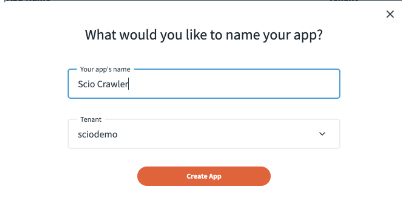
2. Setup the Authorization Code Flow
1. Select _OAuth2 - Authorization Code Flow_ in the **Authentication** tab. 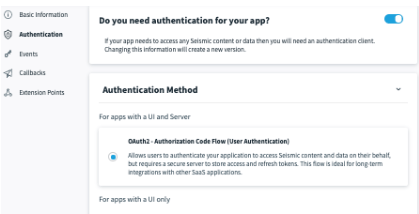
2. On the _OAuth2 Information_ page, add the redirect URL as the tenant URL:
1. For example, [https://yourtenant.seismic.com/](https://yourtenant.seismic.com/)
.
2. Client ID is generated automatically.
3. Generate the client secret. The clieny secret is hidden initially, but you can show and copy the secret. it. 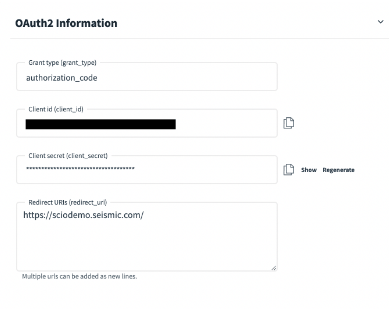
3. In the scopes section, select the following scopes:
* seismic.user.view
* seismic.user.manage
* seismic.configuration.view
* seismic.configuration.manage
* seismic.reporting
* seismic.delivery
* seismic.library.view
* seismic.library.manage
* seismic.workspace.view
* seismic.workspace.manage. 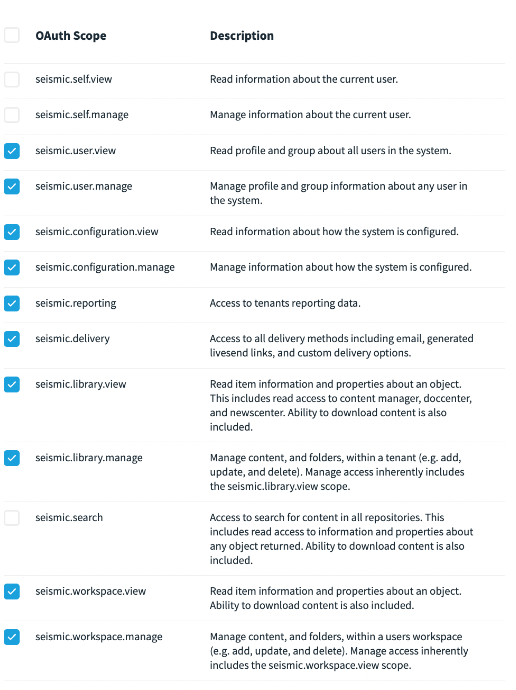
3. With the information that you have gathered from the above steps:
1. Enter the tenant name into the **Tenant Name** input box. Ensure to not include _seismic.com_. For example, id the tenant name is `https://sciodemo.seismic.com`, enter only `sciodemo`.
2. Enter the client ID into the **Client ID** input box.
3. Enter the client secret into the **Client Secret** input box.
###
[](https://docs.glean.com/connectors/native/seismic/home#get-refresh-and-access-token-for-the-app)
Get refresh and access token for the app
To get an access and a refresh token for the Glean set up, perform the following steps:
1. Go the [Seismic documentation](https://developer.seismic.com/seismicsoftware/reference/authorization-code-login)
for instructions and executions of POST requests.
2. Run the URL given on [Get the user’s authorization](https://developer.seismic.com/seismicsoftware/reference/get-tokens-using-authorization_code-flow)
to get an access code. Note that scopes must be separated by a space in the URL.
Ensure you include **all** required scopes from the Permission Requirements section above when making the authorization request. The scope field should be `scope=seismic.reporting seismic.workspace.manage seismic.workspace.view seismic.library.manage seismic.library.view seismic.delivery seismic.configuration.manage seismic.configuration.view seismic.user.manage seismic.user.view offline_access`. Missing scopes will cause the connector to fail during crawling.
* You will be redirected and the URL will include the access code. For example: [https://sciodemo.seismic.com/app?code=sciodemo\_ABCDEF123&scope=seismic.reporting+offline\_access&state=blank#/home](https://sciodemo.seismic.com/app?code=sciodemo_ABCDEF123&scope=seismic.reporting+offline_access&state=blank#/home)
.
3. Exchange the authorization code for an access token
1. Go to the [Exchange the Authorization Code for an Access Token page](https://developer.seismic.com/seismicsoftware/reference/authorization-code-get-the-token)
.
2. Enter the required information and click **Try it**.
3. The response will have the access token and refresh token. 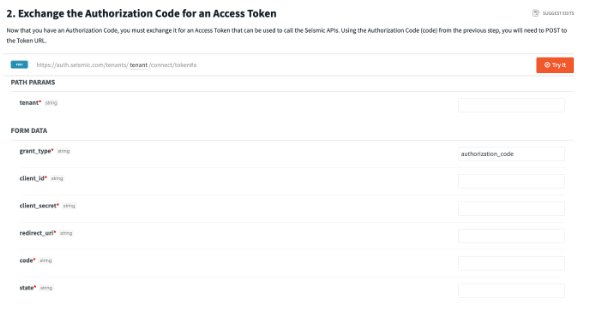
4. Enter the access token into the **Access Token** input box.
5. Enter the refresh token into the **Refresh Token** input box.
4. Click **Save** in Glean.
[](https://docs.glean.com/connectors/native/seismic/home#optional-manage-data)
(Optional) Manage data
---------------------------------------------------------------------------------------------------------
Once the initial connector setup is complete, use the following steps to control which content is indexed and how document access is managed in Glean.
###
[](https://docs.glean.com/connectors/native/seismic/home#configure-content-indexing-by-file-extension)
Configure content indexing by file extension
Specify which file types the connector should crawl for content. Only file extensions listed here will have their full content indexed.
1. In the Glean Admin console, navigate to the **Seismic** data source and go to the **Manage data** tab.
2. Expand the **File Extensions** section.
3. In the **Greenlisted File Extensions** field, add the desired file types as a comma-separated list (e.g., `pdf, docx, pptx`).
4. To apply changes to existing documents, run a fresh crawl after updating the list.
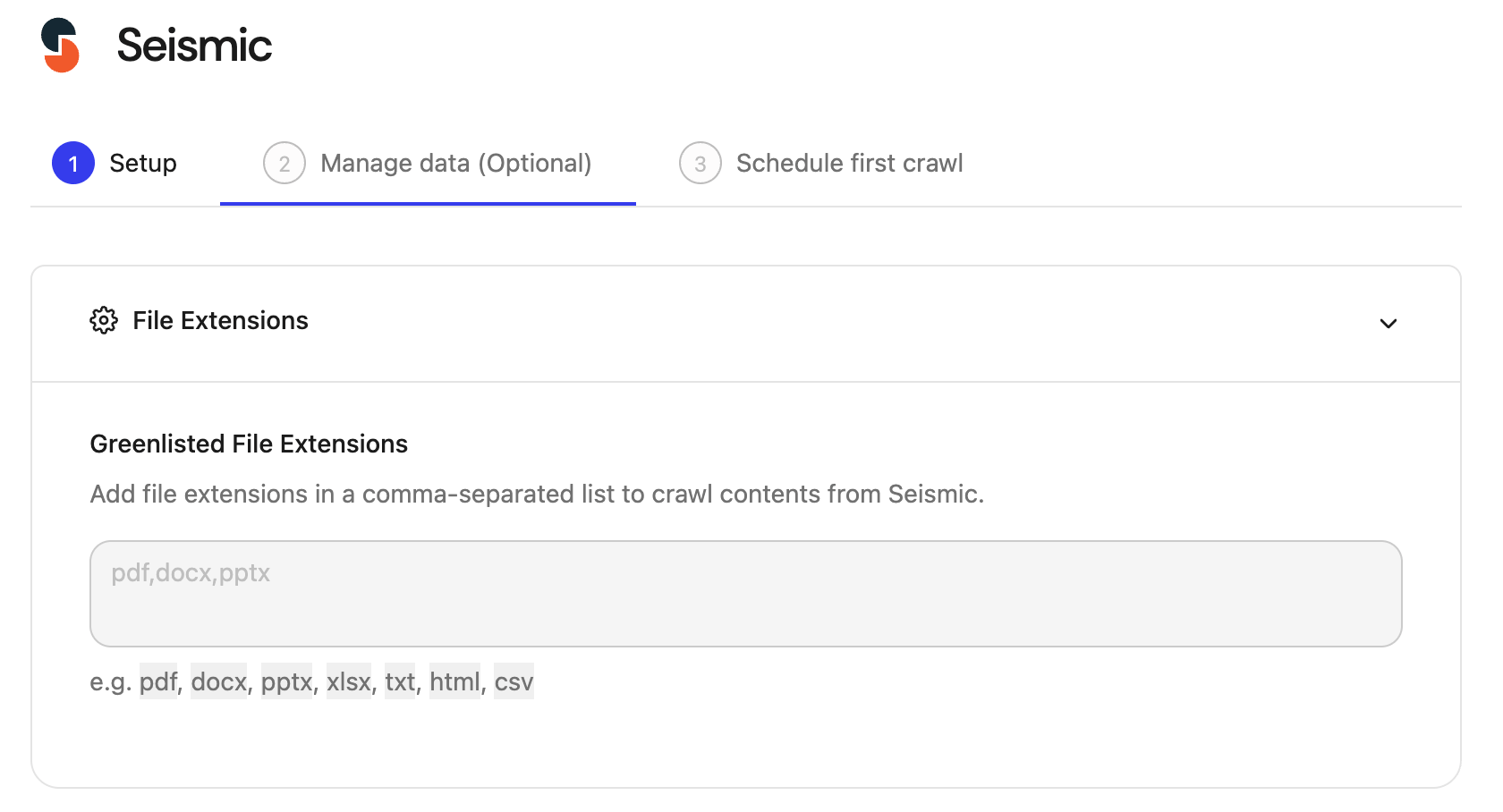
###
[](https://docs.glean.com/connectors/native/seismic/home#configure-folder-indexing-by-greenlisting-and-redlisting)
Configure folder indexing by greenlisting and redlisting
Restrict or permit crawling at the library folder level by using inclusion and exclusion rules.
1. **Retrieve Folder IDs:** Navigate to the folder in Seismic. The Folder ID is the segment immediately following `/LIST/` in the browser URL. **Example URL:**
`https://.seismic.com/app#/contentmanager/main/...//LIST/title`
Folder ID: ``
2. **Define inclusion (Greenlist):**
* In the **Library folder inclusion rules** section, add the Folder IDs that Glean should crawl **exclusively**. If this list is left empty, all folders are crawled by default.
3. **Define exclusion (Redlist):**
* In the **Library folder exclusion rules** section, add the Folder IDs that Glean should explicitly **exclude** from crawling. (Note: Exclusion rules are ignored if inclusion rules are populated.)
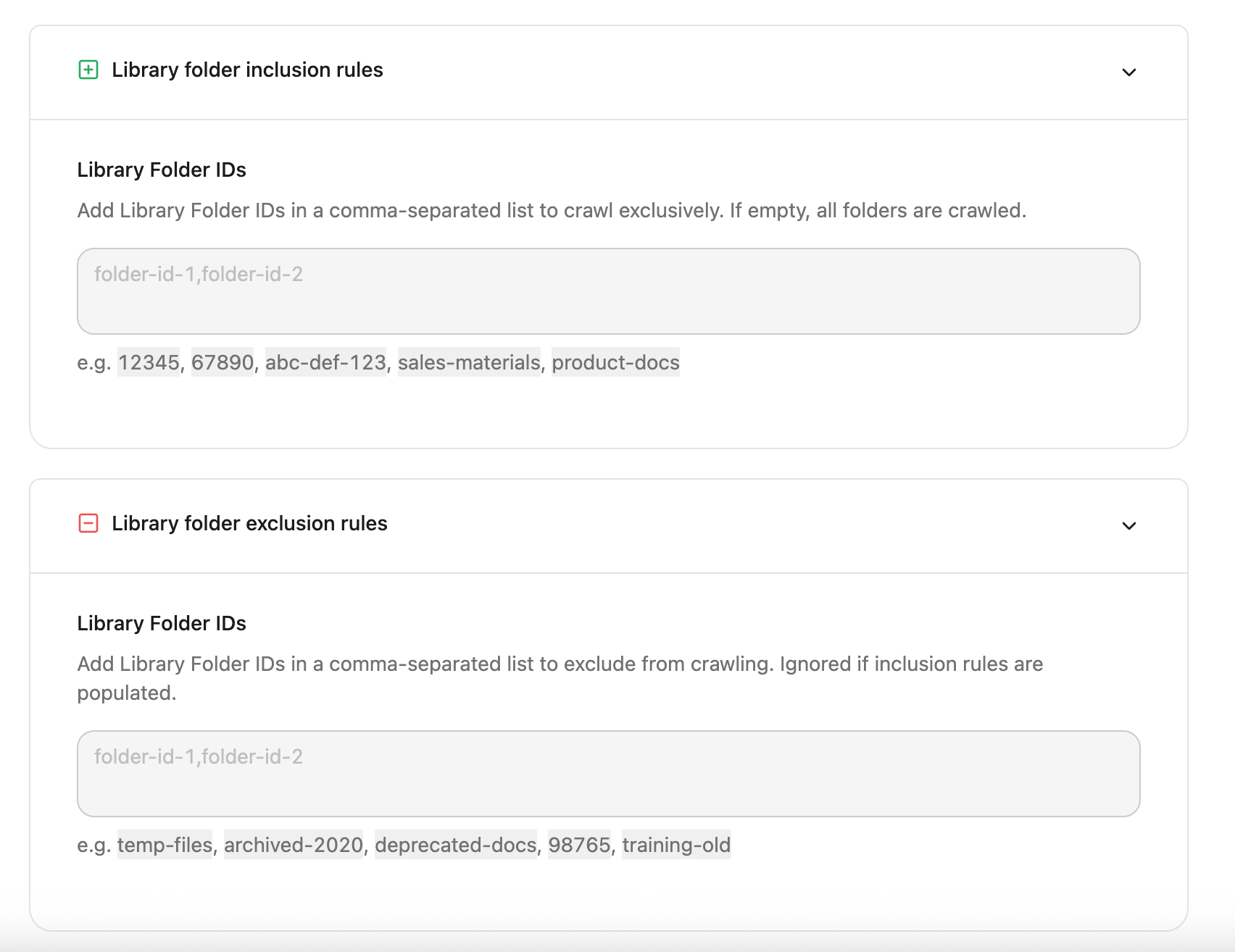
Once you’ve made all the changes, click **Save**.
###
[](https://docs.glean.com/connectors/native/seismic/home#grant-document-access-via-custom-properties)
Grant document access via custom properties
You can map document access based on group membership by configuring a custom property in Seismic and assigning it to documents.
1. In Seismic, navigate to the **Custom Properties** page: `https://.seismic.com/apps/adminsettings/system/CustomPropertiesV2`.
2. Create a new custom property (e.g., “Glean Content Profile”) with the following specifications:
* **Type:** Select **Multi-select**.
* **Values:** Add the exact names of the user groups (e.g., “G2 Delete Group,” “APAC Sales”) that will be granted access.
3. Assign this custom property to the target documents either individually or via the bulk edit tool.
4. In the property field (e.g., “Glean Content Profile”), select the groups that should have view access (e.g., “TSG 62,” “Group CP 120”).
Once the custom property setup and assignments are complete, reach out to your Account Executive team to enable this setting on the Glean deployment. After the Account Executive confirms deployment, run a fresh crawl. Group members listed in the custom property will now be able to view these documents in Glean.
[](https://docs.glean.com/connectors/native/seismic/home#permissions-&-security)
Permissions & Security
-----------------------------------------------------------------------------------------------------------
**Data and Metadata Ingested:**
* Published content profile documents, metadata (title, author, last modified), and links to embedded documents.
**Permission Propagation Logic:**
* Glean enforces Seismic permissions at query time. If Seismic’s API does not expose content profile membership, all published content profile links are made available to all Seismic users in Glean. However, users cannot view content in Seismic if they do not have access.
**Security & Compliance Notes:**
* OAuth2-based authentication.
* All data remains in your cloud environment.
* No webhooks. All updates are detected through scheduled crawls.
**Known Security Restrictions:**
* No support for multi-instance scenarios.
* All published content profile links are visible to all Seismic users in Glean due to API limitations.
**Data Privacy Implications:**
* The connector does not expose unpublished or workspace content.
* Users cannot access content in Seismic for which they do not have permission, even if it appears in Glean search.
If you have any issues or concerns, reah out to the [Glean support team](https://support.glean.com/hc/en-us/requests/new)
.
Was this page helpful?
YesNo
[FAQs](https://docs.glean.com/connectors/native/salesforce/faq)
[ServiceNow](https://docs.glean.com/connectors/native/servicenow/home)
⌘I
---
# Smartsheet - Glean Help Center
[Skip to main content](https://docs.glean.com/connectors/native/smartsheet/home#content-area)
[Glean Help Center home page](https://docs.glean.com/)
Search...
⌘K
Search...
Navigation
Native Connectors
Smartsheet
[Home](https://docs.glean.com/home)
[User Guide](https://docs.glean.com/user-guide/about/what-is-glean)
[Agents](https://docs.glean.com/agents/home)
[Get Started for Admins](https://docs.glean.com/get-started/welcome)
[Connectors](https://docs.glean.com/connectors/home)
[Admin Guide](https://docs.glean.com/administration/about)
[Security & Architecture](https://docs.glean.com/security/home)
[Troubleshooting](https://docs.glean.com/troubleshooting/home)
[Release Notes](https://docs.glean.com/release-notes/home)
[Archive](https://docs.glean.com/archive/help-glean/answers/what-are-answers-and-how-do-they-work)
On this page
* [Supported Features and Limitations](https://docs.glean.com/connectors/native/smartsheet/home#supported-features-and-limitations)
* [Supported Objects/Entities](https://docs.glean.com/connectors/native/smartsheet/home#supported-objects%2Fentities)
* [Supported API Endpoints/Features](https://docs.glean.com/connectors/native/smartsheet/home#supported-api-endpoints%2Ffeatures)
* [Limitations](https://docs.glean.com/connectors/native/smartsheet/home#limitations)
* [Crawling Strategy](https://docs.glean.com/connectors/native/smartsheet/home#crawling-strategy)
* [Results Display](https://docs.glean.com/connectors/native/smartsheet/home#results-display)
* [Requirements](https://docs.glean.com/connectors/native/smartsheet/home#requirements)
* [Preliminary Source/System Setup](https://docs.glean.com/connectors/native/smartsheet/home#preliminary-source%2Fsystem-setup)
* [Configuration and Setup Instructions](https://docs.glean.com/connectors/native/smartsheet/home#configuration-and-setup-instructions)
* [Authentication and Credentials](https://docs.glean.com/connectors/native/smartsheet/home#authentication-and-credentials)
* [Step-by-Step Setup](https://docs.glean.com/connectors/native/smartsheet/home#step-by-step-setup)
* [Crawl Configuration Options](https://docs.glean.com/connectors/native/smartsheet/home#crawl-configuration-options)
* [Permissions & Security](https://docs.glean.com/connectors/native/smartsheet/home#permissions-%26-security)
Smartsheet is a cloud-based work execution platform that helps organizations manage projects, automate workflows, and collaborate efficiently. The Smartsheet connector enables you to index and search Smartsheet content—including sheets, dashboards, reports, and workspaces—directly within Glean, with strict enforcement of native permissions of Smartsheet at query time.
[](https://docs.glean.com/connectors/native/smartsheet/home#supported-features-and-limitations)
Supported Features and Limitations
--------------------------------------------------------------------------------------------------------------------------------------
The Smartsheet connector is designed to index key Smartsheet content types and enforce user-level access controls. This section outlines what you can expect from the integration.
###
[](https://docs.glean.com/connectors/native/smartsheet/home#supported-objects/entities)
Supported Objects/Entities
| Object Type | Description |
| --- | --- |
| Sheets | Project planning documents containing rows, columns, attachments, and metadata. |
| Dashboards | Visual documents aggregating data from multiple sources. |
| Reports | Aggregated views across multiple sheets for analysis. |
| Workspaces | Top-level containers for organizing sheets, reports, and dashboards. |
###
[](https://docs.glean.com/connectors/native/smartsheet/home#supported-api-endpoints/features)
Supported API Endpoints/Features
* Identity: Get Users, Get Groups, Get Token (refreshing access tokens)
* Content: Get Sheets, Get Reports, Get Sights (Dashboards), Get Workspaces
* Permissions: Get shares for Sheets, Reports, Sights, and Workspaces
###
[](https://docs.glean.com/connectors/native/smartsheet/home#limitations)
Limitations
* Only text content is indexed and complex field types like dropdowns, attachments, comments may not be fully represented.
* Owner information is only available for sheets due to Smartsheet API limitations.
* Dashboards, reports, and workspaces may not display owner information in search results.
* Activity crawls and webhook-based updates are not supported. As a result, permission changes and deletions may take up to a few hours or in some cases, days to propagate in Glean.
* Documents shared through public view links like _Anybody can view/edit_ are not indexed or surfaced in Glean search.
###
[](https://docs.glean.com/connectors/native/smartsheet/home#crawling-strategy)
Crawling Strategy
| Crawl Type | Full Crawl | Incremental Crawl | Identity | Activity | Update Rate | Webhook | Notes |
| --- | --- | --- | --- | --- | --- | --- | --- |
| Smartsheet | 1h | 10m | 10m | N/A | N/A | N/A | No webhook or activity crawl. Full content crawls are used for updates and deletions. |
###
[](https://docs.glean.com/connectors/native/smartsheet/home#results-display)
Results Display
In Glean’s search results, you can facet Smartsheet content by Type (Sheet, Dashboard, Report, Workspace), Owner (for sheets), and Workspace. Each result displays the document type icon and relevant metadata, helping you quickly identify and filter the content you need.
[](https://docs.glean.com/connectors/native/smartsheet/home#requirements)
Requirements
------------------------------------------------------------------------------------------
To use the Smartsheet connector, you must meet certain prerequisites.
* Smartsheet Business plan or higher API access required.
* Glean platform access with admin privileges for connector setup.
* Smartsheet system administrator account to authorize the Glean app through OAuth. OAuth 2.0 is required for secure, scoped access. Each user can optionally authenticate to enable indexing of their private documents.
###
[](https://docs.glean.com/connectors/native/smartsheet/home#preliminary-source/system-setup)
Preliminary Source/System Setup
* Register the Glean app in your Smartsheet account (handled during OAuth flow).
* No additional API enablement or app registration is required beyond the standard OAuth process.
[](https://docs.glean.com/connectors/native/smartsheet/home#configuration-and-setup-instructions)
Configuration and Setup Instructions
------------------------------------------------------------------------------------------------------------------------------------------
Follow these steps to configure and deploy the Smartsheet connector in your Glean environment.
###
[](https://docs.glean.com/connectors/native/smartsheet/home#authentication-and-credentials)
Authentication and Credentials
* Setup is performed through OAuth 2.0. You will be prompted to authorize the Glean app with your Smartsheet admin credentials.
* After initial setup, individual users can authenticate to enable indexing of their private Smartsheet documents.
###
[](https://docs.glean.com/connectors/native/smartsheet/home#step-by-step-setup)
Step-by-Step Setup
1. In Glean, navigate to the **Admin console**.
2. Go to Workspace > Setup > Apps and search for _Smartsheet_. Or use this link [Smartsheet](https://app.glean.com/admin/setup/apps/smartsheet/)
.
3. Click “Create Authorization Link” and follow the instructions to open Smartsheet’s OAuth flow in a new tab.
4. Complete the OAuth flow in Smartsheet. You will be redirected back to Glean.
5. Once authorized, Glean will begin the initial crawl of all Smartsheet content accessible to the system admin.
6. For help, contact Glean support or your customer success representative.
###
[](https://docs.glean.com/connectors/native/smartsheet/home#crawl-configuration-options)
Crawl Configuration Options
* The connector performs a full content crawl every hour and incremental crawls every 10 minutes.
* You can configure which users’ content is indexed by controlling who authenticates with Smartsheet.
###
[](https://docs.glean.com/connectors/native/smartsheet/home#permissions-&-security)
Permissions & Security
**Data and Metadata Ingested:**
* Sheets, dashboards, reports, and workspaces (text content only).
* User and group permissions for each document.
* Metadata such as title, workspace, and (for sheets) owner.
**Permission Propagation Logic:**
* Smartsheet’s workspace permissions cascade to all contained documents.
* Glean enforces document-level permissions at query time, matching Smartsheet’s access model.
**Security & Compliance Notes:**
* OAuth 2.0 authentication ensures secure, scoped access.
* All data remains within GCP environment your organization.
* No support for public or anonymous access and all access is authenticated and permissioned.
**Data Privacy Implications:**
* The connector does not index or expose any content beyond what users are permitted to access in Smartsheet.
* All data is processed and stored in compliance with Glean’s privacy and security policies.
Was this page helpful?
YesNo
[Admin setup & rollout](https://docs.glean.com/connectors/native/slack-rts/slack-rts-admin-feedback)
[Home](https://docs.glean.com/connectors/native/stackoverflow/home)
⌘I
---
# Simpplr (AWS Version) - Glean Help Center
[Skip to main content](https://docs.glean.com/connectors/native/simpplr/home#content-area)
[Glean Help Center home page](https://docs.glean.com/)
Search...
⌘K
Search...
Navigation
Native Connectors
Simpplr (AWS Version)
[Home](https://docs.glean.com/home)
[User Guide](https://docs.glean.com/user-guide/about/what-is-glean)
[Agents](https://docs.glean.com/agents/home)
[Get Started for Admins](https://docs.glean.com/get-started/welcome)
[Connectors](https://docs.glean.com/connectors/home)
[Admin Guide](https://docs.glean.com/administration/about)
[Security & Architecture](https://docs.glean.com/security/home)
[Troubleshooting](https://docs.glean.com/troubleshooting/home)
[Release Notes](https://docs.glean.com/release-notes/home)
[Archive](https://docs.glean.com/archive/help-glean/answers/what-are-answers-and-how-do-they-work)
On this page
* [Key features](https://docs.glean.com/connectors/native/simpplr/home#key-features)
* [Supported objects/entities](https://docs.glean.com/connectors/native/simpplr/home#supported-objects%2Fentities)
* [Limitations](https://docs.glean.com/connectors/native/simpplr/home#limitations)
* [Permission model](https://docs.glean.com/connectors/native/simpplr/home#permission-model)
* [Prerequisites](https://docs.glean.com/connectors/native/simpplr/home#prerequisites)
* [Step-by-step instructions](https://docs.glean.com/connectors/native/simpplr/home#step-by-step-instructions)
* [Determine Simpplr hostnames and credentials](https://docs.glean.com/connectors/native/simpplr/home#determine-simpplr-hostnames-and-credentials)
* [Obtain hostnames (API and UI)](https://docs.glean.com/connectors/native/simpplr/home#obtain-hostnames-api-and-ui)
* [Generate and provide credentials](https://docs.glean.com/connectors/native/simpplr/home#generate-and-provide-credentials)
* [Stop crawling of previous Simpplr (Salesforce) setup](https://docs.glean.com/connectors/native/simpplr/home#stop-crawling-of-previous-simpplr-salesforce-setup)
* [Frequently asked questions (FAQs)](https://docs.glean.com/connectors/native/simpplr/home#frequently-asked-questions-faqs)
The Glean Simpplr Connector enables your organization to index and search content from Simpplr’s modern intranet, directly within Glean. This new connector is specifically built for Simpplr’s AWS platform, replacing the old Salesforce-based integration. As Simpplr transitions all customers to AWS, Glean’s renewed connector ensures you maintain seamless intranet search and knowledge discovery.
[](https://docs.glean.com/connectors/native/simpplr/home#key-features)
Key features
---------------------------------------------------------------------------------------
* **Design**: Works with Simpplr’s latest AWS APIs and infrastructure.
* **Indexes Pages, Events, and Sites**: Search Simpplr’s core objects - Pages (knowledge/news), Events, and Sites. Metadata like likes/comments is supported, but not page view/activity analytics.
* **Permission-aware:** Honors granular Simpplr permissions so users only see content they’re allowed to access.
* **Incremental crawling:** Efficiently syncs new and updated items post initial import.
* **Authentication**: Uses OAuth 2.0 client credentials.
* **Access control:** Excludes inactive or frozen users from search results, **preventing permission leaks**.
[](https://docs.glean.com/connectors/native/simpplr/home#supported-objects/entities)
Supported objects/entities
-------------------------------------------------------------------------------------------------------------------
| Object/Entity | Description |
| --- | --- |
| Pages | Authored documents within a site, including “knowledge” and “news” types |
| Events | Calendar entries with details such as date, location, and linked site |
| Sites | Primary groupings in Simpplr, which can be public, private, or unlisted |
[](https://docs.glean.com/connectors/native/simpplr/home#limitations)
Limitations
-------------------------------------------------------------------------------------
* Page view/activity analytics are not indexed.
[](https://docs.glean.com/connectors/native/simpplr/home#permission-model)
Permission model
-----------------------------------------------------------------------------------------------
* **Public sites:** Accessible to all users in your Glean data source.
* **Private & unlisted sites:** Only visible to explicitly invited members.
* **Admins:** Have access to all site content.
**Note:** Only users marked as “active” in Simpplr will have search access. Inactive or frozen users are excluded.
[](https://docs.glean.com/connectors/native/simpplr/home#prerequisites)
Prerequisites
-----------------------------------------------------------------------------------------
* Your Simpplr environment **must be on AWS**. It is important to note that your Simpplr instance must be migrated to AWS if it is built on Salesforce.
* Admin permissions in both Simpplr and Glean.
[](https://docs.glean.com/connectors/native/simpplr/home#step-by-step-instructions)
Step-by-step instructions
-----------------------------------------------------------------------------------------------------------------
1. In Glean, navigate to **Admin console** > **Add data source** > and select **Simpplr**.
2. Enter a name and icon to your data source. Results for this data source will appear to all teammates under this name and icon.
3. Provide the following configuration details about your Simpplr instance:
* API Hostname
* UI Hostname
* Client ID
* Client Secret
###
[](https://docs.glean.com/connectors/native/simpplr/home#determine-simpplr-hostnames-and-credentials)
Determine Simpplr hostnames and credentials
This connector requires two distinct hostnames from your Simpplr environment and a dedicated OAuth 2.0 application.
####
[](https://docs.glean.com/connectors/native/simpplr/home#obtain-hostnames-api-and-ui)
Obtain hostnames (API and UI)
You must identify two different hostnames for the connector’s internal and external functions.
1. **Determine the API Hostname:**
1. **Action:** Consult your Simpplr API documentation or admin settings to find the exact backend endpoint used for communication. The general format of Simpplr API URLs is: `https:///v1/...`
2. **Purpose:** This hostname is used by the connector for backend API calls and authentication.
3. _Example Format:_ `platform.app.simpplr.com` or `platform.eu.simpplr.com`
2. **Determine the UI Hostname:**
1. **Action:** Open Simpplr in your browser and check the URL bar. The hostname is the value between `https://` and the first single slash (`/`). The general format of Simpplr user URLs is: `https:///site/...`
2. **Purpose:** This hostname represents the user-facing URL for content links in Glean.
3. _Example Format:_ `mycompany.app.simpplr.com` or `intranet.mycompany.com`
####
[](https://docs.glean.com/connectors/native/simpplr/home#generate-and-provide-credentials)
Generate and provide credentials
You must create an OAuth 2.0 Client Application in Simpplr to obtain the required access keys. For more information, see [Creating the Client Application](https://platform.simpplr.com/reference/creating-the-client-application)
.
1. **Create the client application:**
1. Log in to Simpplr as an **App Manager**.
2. Select **Application settings** > **Application** > **Integrations** > **Client application**.
3. Click **Add client application** and select the **Client Credentials** type.
4. Provide a unique name and ID for the application (e.g., “Glean Connector”).
5. Click **Save**.
2. **Copy credentials to Glean:**
1. **Copy** the newly generated **Client ID** and **Client Secret** provided by Simpplr.
2. **Paste** these credentials into the respective input fields in the Glean setup page.
3. **Click Save** in Glean to complete the configuration.
Glean will fetch an access token (valid 24h) and test connection automatically. Once connected, Glean will begin crawling and periodically sync changes.
[](https://docs.glean.com/connectors/native/simpplr/home#stop-crawling-of-previous-simpplr-salesforce-setup)
Stop crawling of previous Simpplr (Salesforce) setup
---------------------------------------------------------------------------------------------------------------------------------------------------------------------
* Once crawls from the new Simpplr setup completes, you can stop crawling of the Salesforce setup.
* You can delete previous data source once results from the new data source are visible in Glean search results.
[](https://docs.glean.com/connectors/native/simpplr/home#frequently-asked-questions-faqs)
Frequently asked questions (FAQs)
-------------------------------------------------------------------------------------------------------------------------------
**Q: What happens to existing indexed Simpplr (Salesforce) data?**
A: Once migrated to AWS, the legacy Salesforce connector won’t update content. Historic data may linger if the old instance is left online, but will eventually disappear. **Q: When should previous datasource needs to be stopped/deleted?**
A: As soon as crawls for the new datasource is completed, you can stop crawling the Salesforce instances of Simpplr connector. Then verify some search results on Glean for the new datasource. Once verified, you can delete previous datasource. **Q: What will happen if the previous datasource is not deleted once the new datasource starts working?**
A: If this is not done, then there will be duplicated data in search results. **Q: Are permissions respected?**
A: Yes, all Simpplr sites and membership permissions are honored. Search results are only shown to people with access in Simpplr. Permissions rely on site membership lists. **Q: Do deleted users or content show up?**
A: No. When a user or item is deactivated or deleted in Simpplr, it disappears from Glean’s index at the next sync.
Was this page helpful?
YesNo
[Shortcut (Formerly Clubhouse)](https://docs.glean.com/connectors/native/shortcut/home)
[Slack connectors overview](https://docs.glean.com/connectors/native/slack/about)
⌘I
---
# How Collections Work - Glean Help Center
[Skip to main content](https://docs.glean.com/user-guide/knowledge/collections/how-collections-work#content-area)
[Glean Help Center home page](https://docs.glean.com/)
Search...
⌘K
Search...
Navigation
Collections
How Collections Work
[Home](https://docs.glean.com/home)
[User Guide](https://docs.glean.com/user-guide/about/what-is-glean)
[Agents](https://docs.glean.com/agents/home)
[Get Started for Admins](https://docs.glean.com/get-started/welcome)
[Connectors](https://docs.glean.com/connectors/home)
[Admin Guide](https://docs.glean.com/administration/about)
[Security & Architecture](https://docs.glean.com/security/home)
[Troubleshooting](https://docs.glean.com/troubleshooting/home)
[Release Notes](https://docs.glean.com/release-notes/home)
[Archive](https://docs.glean.com/archive/help-glean/answers/what-are-answers-and-how-do-they-work)
On this page
* [What are Collections?](https://docs.glean.com/user-guide/knowledge/collections/how-collections-work#what-are-collections)
* [Create a Collection](https://docs.glean.com/user-guide/knowledge/collections/how-collections-work#create-a-collection)
* [Add items to a Collection](https://docs.glean.com/user-guide/knowledge/collections/how-collections-work#add-items-to-a-collection)
* [From the collection page](https://docs.glean.com/user-guide/knowledge/collections/how-collections-work#from-the-collection-page)
* [From the search results page](https://docs.glean.com/user-guide/knowledge/collections/how-collections-work#from-the-search-results-page)
* [Add descriptions to collection items](https://docs.glean.com/user-guide/knowledge/collections/how-collections-work#add-descriptions-to-collection-items)
* [See Collections in search results](https://docs.glean.com/user-guide/knowledge/collections/how-collections-work#see-collections-in-search-results)
* [View all collections across your company](https://docs.glean.com/user-guide/knowledge/collections/how-collections-work#view-all-collections-across-your-company)
* [Organize Collections](https://docs.glean.com/user-guide/knowledge/collections/how-collections-work#organize-collections)
* [Edit sharing permissions on Collections](https://docs.glean.com/user-guide/knowledge/collections/how-collections-work#edit-sharing-permissions-on-collections)
* [Questions? Feature requests?](https://docs.glean.com/user-guide/knowledge/collections/how-collections-work#questions-feature-requests)
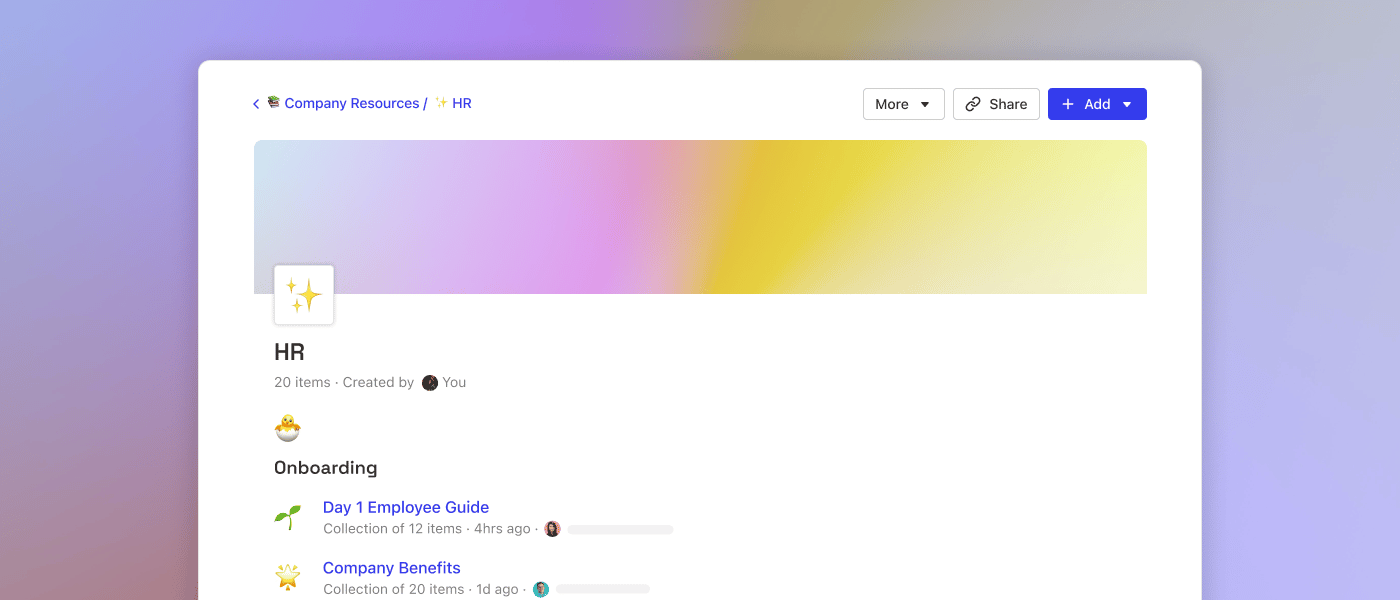
[](https://docs.glean.com/user-guide/knowledge/collections/how-collections-work#what-are-collections)
What are Collections?
===============================================================================================================================
Collections are an easy way to organize related documents across all your tools by a single topic. You can think of them as a way to curate a set of documents for other teammates to find and use easily. **Have a big launch coming up?** Group that planning doc, Jira epic, design folder, and marketing communications in a single collection, so your cross-functional team stays aligned. **Have someone new joining your team?** Organize all the onboarding information that a new employee needs to get up and running into a collection, and share the link with them on their first day. **Have documents related to a horizontal or vertical scattered everywhere?** Group those docs into a collection so your teammates can find what they need quickly. The use cases are endless! Let’s take a look at how collections work.
* * *
[](https://docs.glean.com/user-guide/knowledge/collections/how-collections-work#create-a-collection)
Create a Collection
============================================================================================================================
Open the [Collections dashboard](https://app.glean.com/knowledge/collections)
, and click “New Collection” in the upper right-hand corner. Then create the collection’s title (choose something that will describe its contents), select an emoji to be used as the collection’s icon and then enter a description. Don’t worry if you don’t have the perfect idea for these yet! You can change them any time.
[](https://docs.glean.com/user-guide/knowledge/collections/how-collections-work#add-items-to-a-collection)
Add items to a Collection
========================================================================================================================================
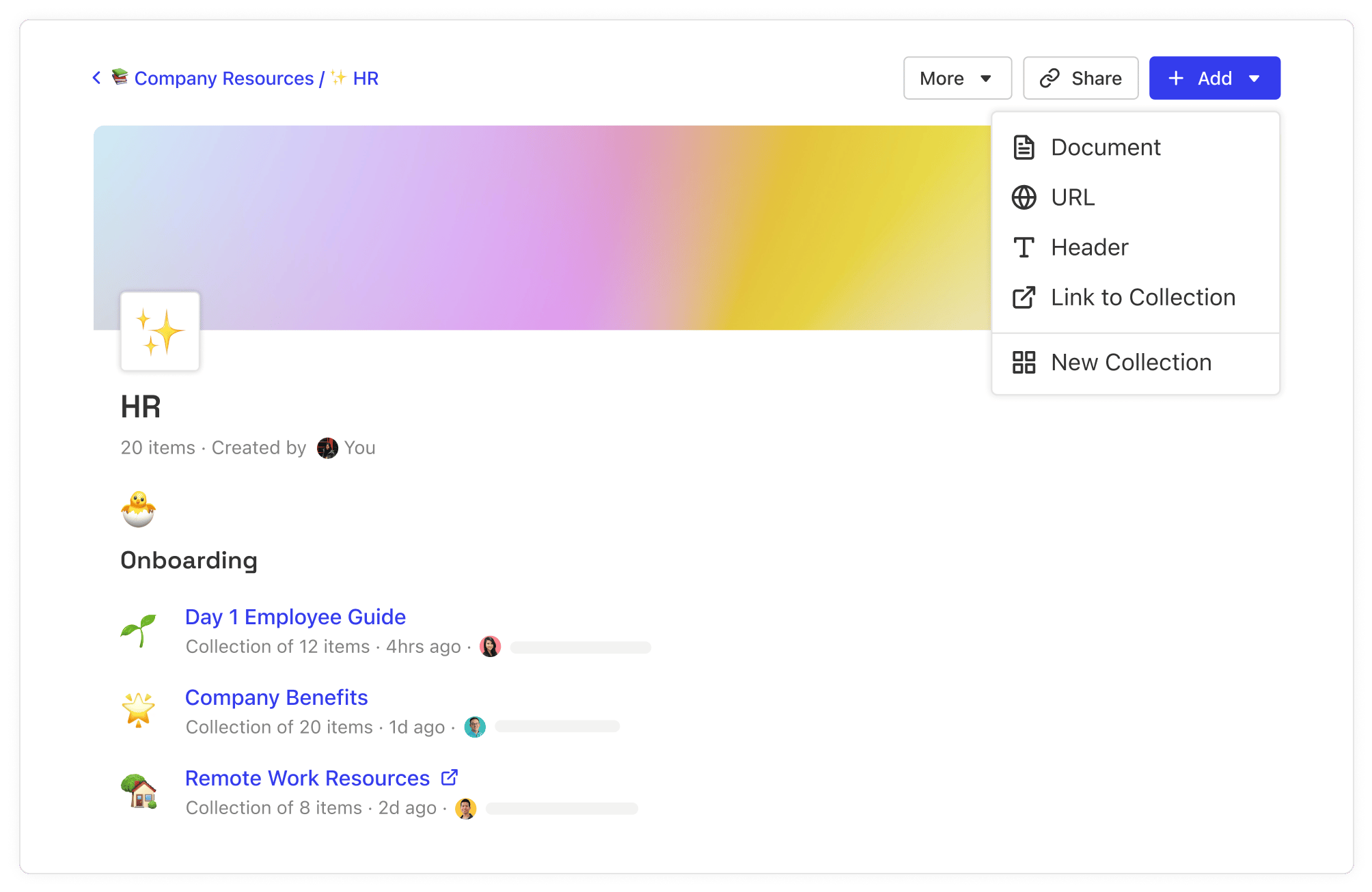
[](https://docs.glean.com/user-guide/knowledge/collections/how-collections-work#from-the-collection-page)
From the collection page
--------------------------------------------------------------------------------------------------------------------------------------
You can add links to a collection by clicking on one of the five options in the ”+ Add ” drop-down menu seen above. Clicking “Document” will pull up a search box that allows you to look for any files you want that Glean indexes. Click on the “Add to Collection” button next to a search result to add it to the collection. From this view, you can add multiple items to a collection at once: keep searching and adding until you’ve found everything you want to include. (There is no technical limit on the number of items in a collection, but we recommend keeping them to no more than 30 items for readability purposes.) You can also add content you can’t find searching Glean by using the “🌐URL” option in that same drop-down menu. This helps organize content like external media mentions or sites that don’t make sense to include in Glean’s index, like an expense reporting system or benefits portal. When added via search, Glean will automatically populate the item’s title, offer an integrated preview on the collection page, and show that the item is tagged in a collection on search results so users can easily find related information. Items added to a collection via URL will only show a link and will not include the integrated preview or search result tags.
[](https://docs.glean.com/user-guide/knowledge/collections/how-collections-work#from-the-search-results-page)
**From the search results page**
--------------------------------------------------------------------------------------------------------------------------------------------------
Search to pull up the document(s) you want to add to your collection. Hover over the document, click on the three dot menu, and use the “**Add to Collection**” quick action from the results. 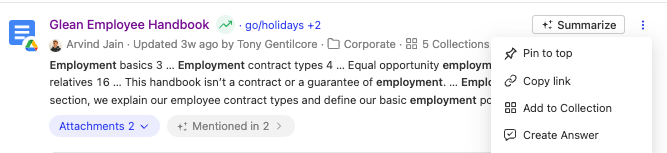 You can add Answers and documents from connected workplace apps to Collections. In the modal that appears, you can quickly filter to add the document to a Collection that already exists or create a new one.
* * *
[](https://docs.glean.com/user-guide/knowledge/collections/how-collections-work#add-descriptions-to-collection-items)
Add descriptions to collection items
==============================================================================================================================================================
Once an item is in a collection, you can give it a brief, one-paragraph description, so other people viewing the collection can understand its purpose and why it has been included. For example, if you’ve created an onboarding collection for your team, use these description fields to help guide people through the onboarding process, provide instructions about setting up their GitHub profile, or fill out a form to request office supplies.
* * *
[](https://docs.glean.com/user-guide/knowledge/collections/how-collections-work#see-collections-in-search-results)
See Collections in search results
========================================================================================================================================================
When a document is part of a Collection, you’ll see the Collection on the search result.  You can also filter by Collection using the filters under the search box or use the search operator `app:collections`
* * *
[](https://docs.glean.com/user-guide/knowledge/collections/how-collections-work#view-all-collections-across-your-company)
View all collections across your company
======================================================================================================================================================================
You can view all of your company’s collections from the Collections dashboard, which can be [found here](https://app.glean.com/knowledge/collections/)
. From this dashboard, you can create new collections, search for collections other people have created using the “Filter” box directly above the gallery table, and delete collections. Deleting a Collection won’t delete or affect any of the underlying documents within it - it will just remove the Collection from Glean. 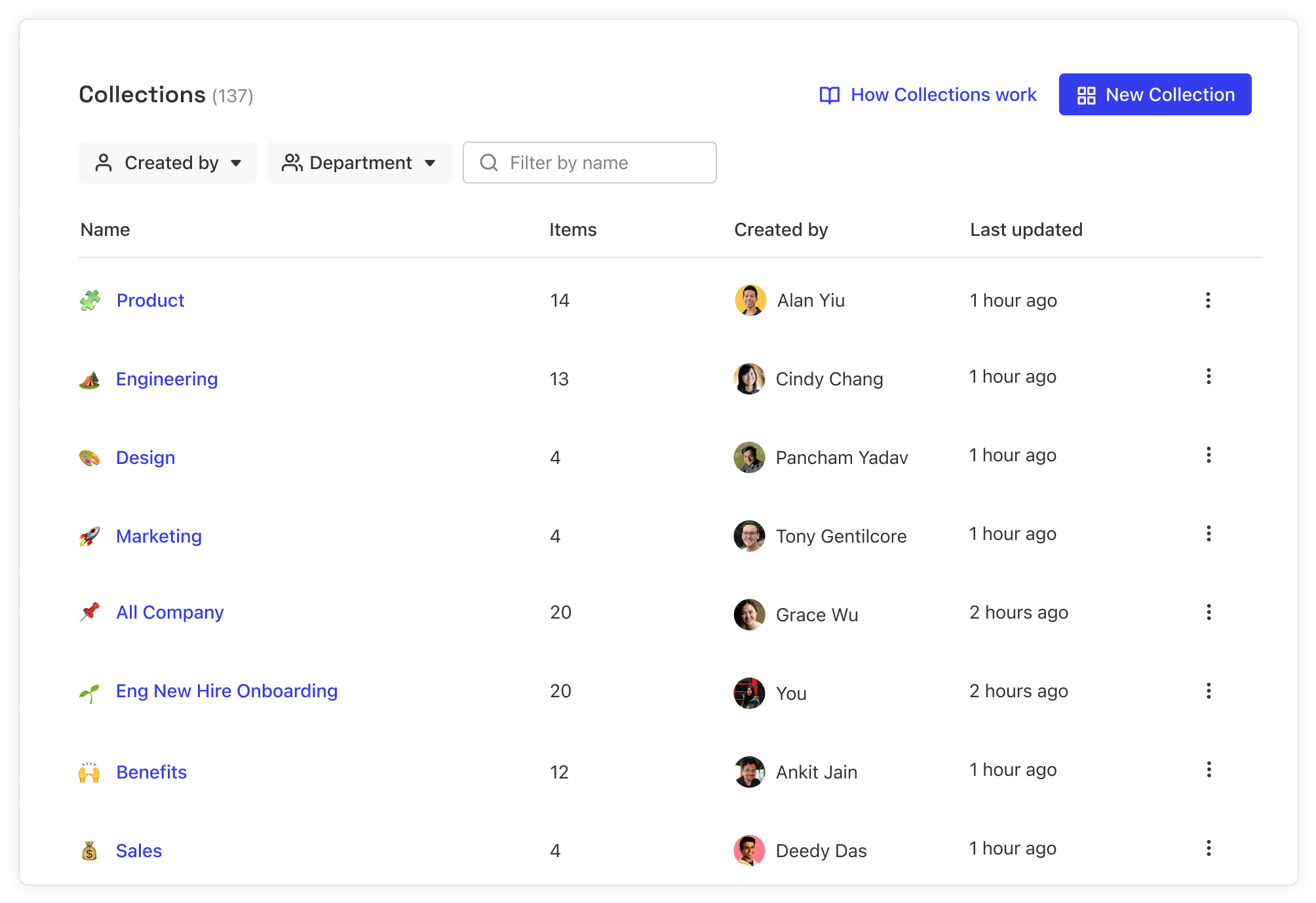
* * *
[](https://docs.glean.com/user-guide/knowledge/collections/how-collections-work#organize-collections)
Organize Collections
==============================================================================================================================
You can organize Collections into sections using [Headers](https://docs.glean.com/user-guide/knowledge/collections/organizing-collections-using-headers)
or create [Subcollections](https://docs.glean.com/user-guide/knowledge/collections/providing-informational-hierarchy-using-subcollections)
to nest collections within. 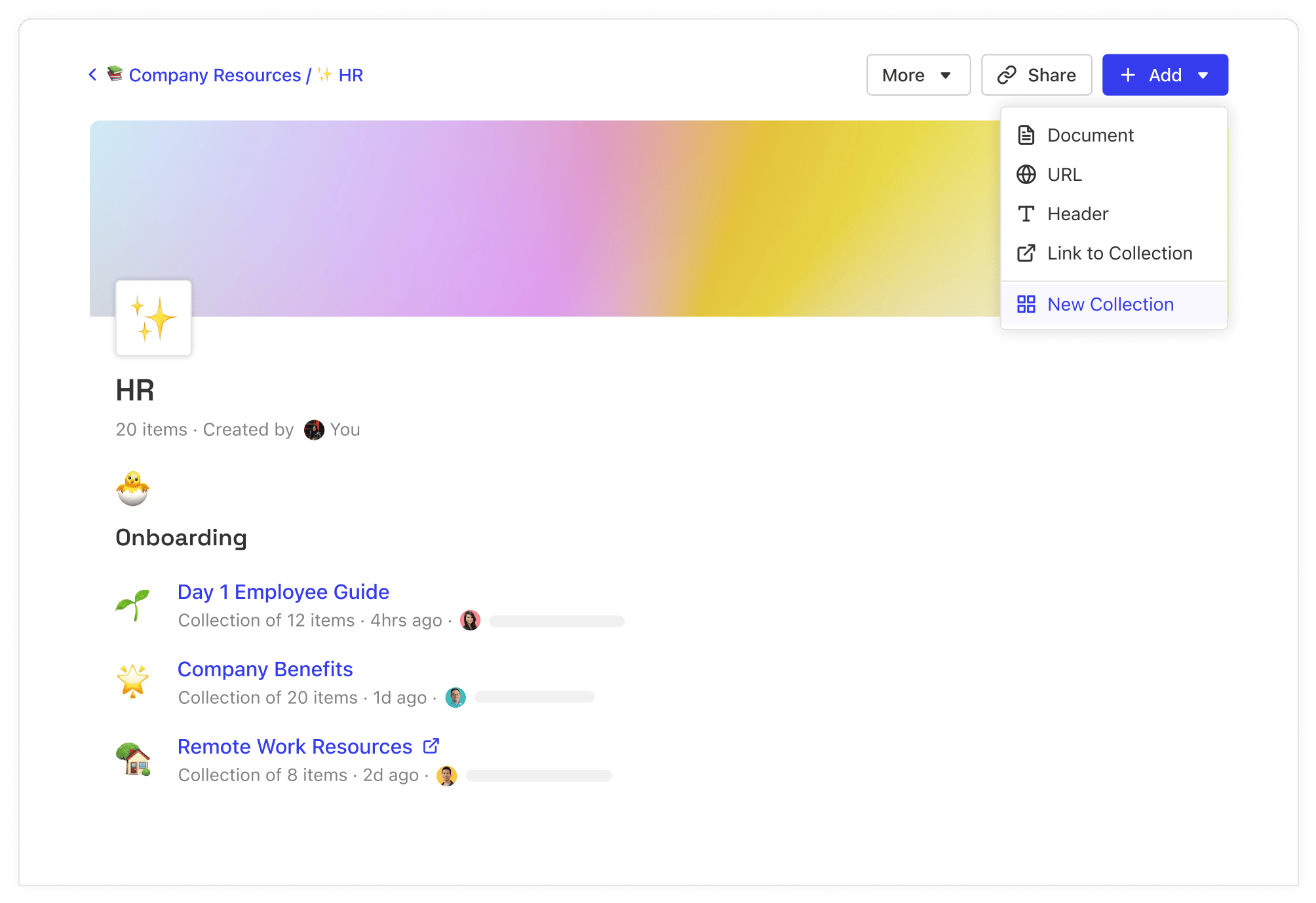
* * *
[](https://docs.glean.com/user-guide/knowledge/collections/how-collections-work#edit-sharing-permissions-on-collections)
Edit sharing permissions on Collections
====================================================================================================================================================================
You can update permissions for which teammates or departments should have edit access to the contents of any collection using the Share button. 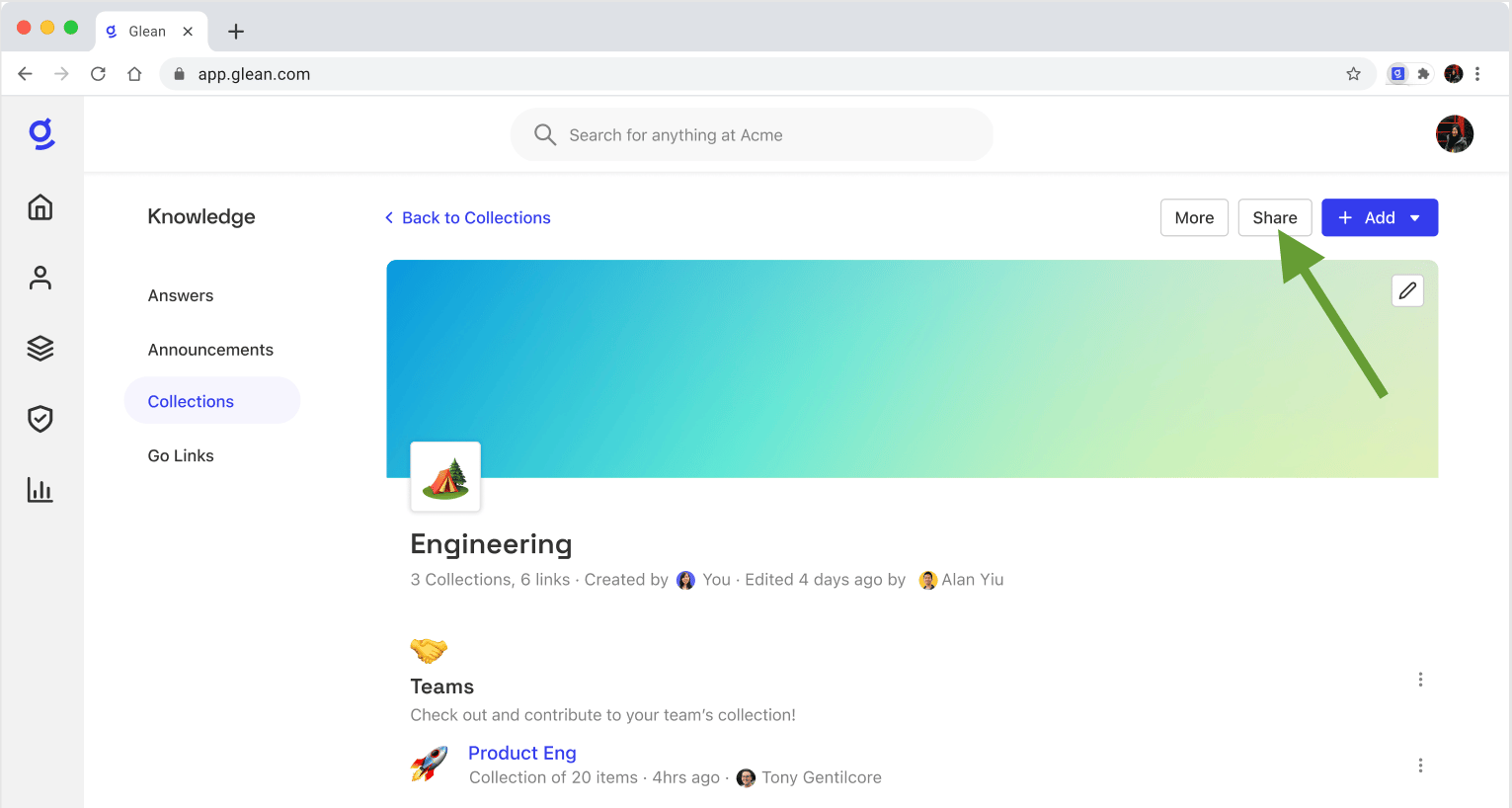
* * *
[](https://docs.glean.com/user-guide/knowledge/collections/how-collections-work#questions-feature-requests)
Questions? Feature requests?
============================================================================================================================================
Get in touch with us via the Messenger 👉
Was this page helpful?
YesNo
[How To Write Effective Answers](https://docs.glean.com/user-guide/knowledge/answers/how-to-write-effective-answers)
[Organizing Collections Using Headers](https://docs.glean.com/user-guide/knowledge/collections/organizing-collections-using-headers)
⌘I
---
# How Pins Work - Glean Help Center
[Skip to main content](https://docs.glean.com/user-guide/knowledge/pins/how-pins-work#content-area)
[Glean Help Center home page](https://docs.glean.com/)
Search...
⌘K
Search...
Navigation
Pins
How Pins Work
[Home](https://docs.glean.com/home)
[User Guide](https://docs.glean.com/user-guide/about/what-is-glean)
[Agents](https://docs.glean.com/agents/home)
[Get Started for Admins](https://docs.glean.com/get-started/welcome)
[Connectors](https://docs.glean.com/connectors/home)
[Admin Guide](https://docs.glean.com/administration/about)
[Security & Architecture](https://docs.glean.com/security/home)
[Troubleshooting](https://docs.glean.com/troubleshooting/home)
[Release Notes](https://docs.glean.com/release-notes/home)
[Archive](https://docs.glean.com/archive/help-glean/answers/what-are-answers-and-how-do-they-work)
On this page
* [What are Pins?](https://docs.glean.com/user-guide/knowledge/pins/how-pins-work#what-are-pins)
* [Create a Pin](https://docs.glean.com/user-guide/knowledge/pins/how-pins-work#create-a-pin)
* [Create a Pin from a search results page](https://docs.glean.com/user-guide/knowledge/pins/how-pins-work#create-a-pin-from-a-search-results-page)
* [Create a Pin from the Pins dashboard](https://docs.glean.com/user-guide/knowledge/pins/how-pins-work#create-a-pin-from-the-pins-dashboard)
* [Choose an audience for your Pin](https://docs.glean.com/user-guide/knowledge/pins/how-pins-work#choose-an-audience-for-your-pin)
* [View Pins in search results](https://docs.glean.com/user-guide/knowledge/pins/how-pins-work#view-pins-in-search-results)
* [View Pins across your company](https://docs.glean.com/user-guide/knowledge/pins/how-pins-work#view-pins-across-your-company)
* [Removing a Pin](https://docs.glean.com/user-guide/knowledge/pins/how-pins-work#removing-a-pin)
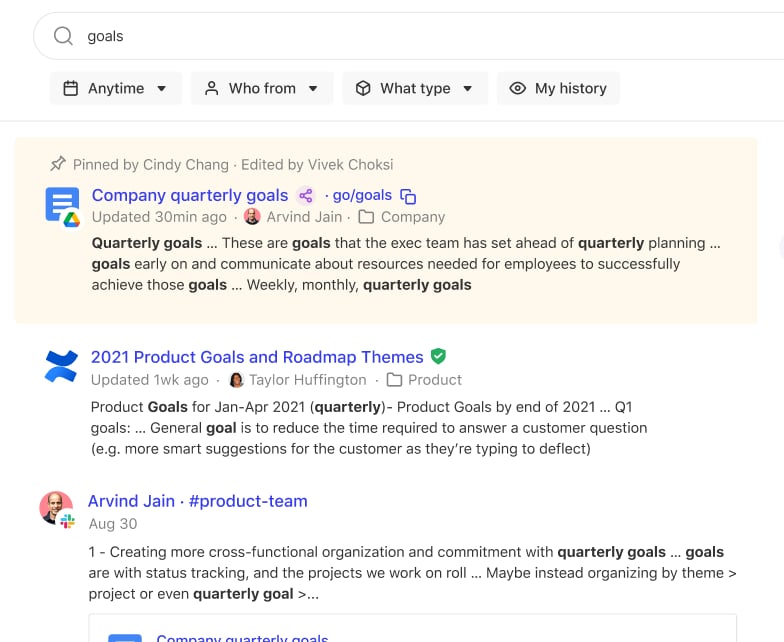
[](https://docs.glean.com/user-guide/knowledge/pins/how-pins-work#what-are-pins)
What are Pins?
===================================================================================================
Pins are results that always appear at the top of a search results page for a query and audience that you choose. Public pins appear for you and other users at your company, while private pins are only visible to you.
[](https://docs.glean.com/user-guide/knowledge/pins/how-pins-work#create-a-pin)
Create a Pin
================================================================================================
You can create a pin from the search results page or the [pin dashboard](https://app.glean.com/knowledge/pins)
in Glean’s knowledge tab.
[](https://docs.glean.com/user-guide/knowledge/pins/how-pins-work#create-a-pin-from-a-search-results-page)
Create a Pin from a search results page
------------------------------------------------------------------------------------------------------------------------------------------------------
From the search results page for a query, hover over the result you would like to pin and click on the pushpin icon. 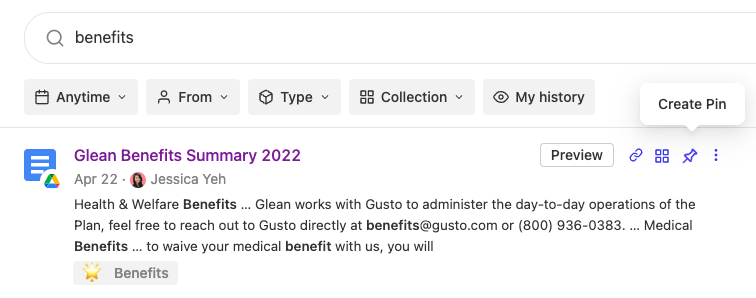
[](https://docs.glean.com/user-guide/knowledge/pins/how-pins-work#create-a-pin-from-the-pins-dashboard)
Create a Pin from the Pins dashboard
------------------------------------------------------------------------------------------------------------------------------------------------
Navigate to [Knowledge > Pins](https://app.glean.com/knowledge/pins)
. Click the New Pin button, and you’ll be prompted to search for and select the resource you would like to pin. 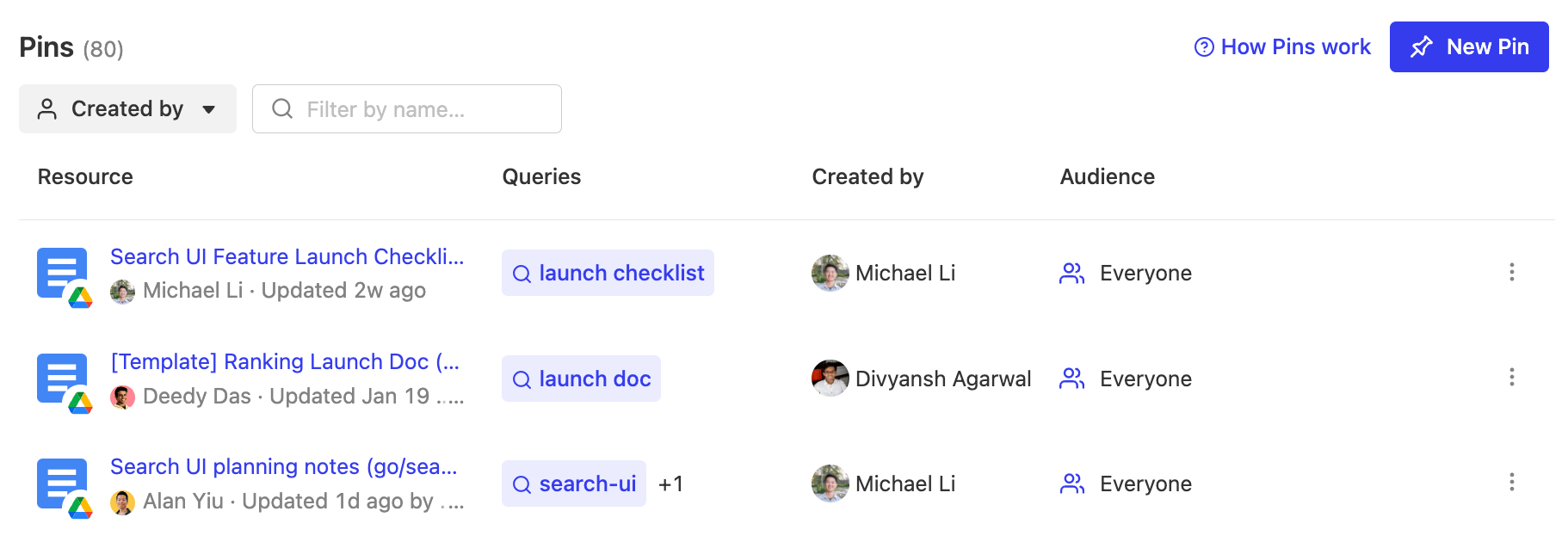 You can input additional queries for your Pin by clicking Add a query.
[](https://docs.glean.com/user-guide/knowledge/pins/how-pins-work#choose-an-audience-for-your-pin)
**Choose an audience for your Pin**
------------------------------------------------------------------------------------------------------------------------------------------
Once you’ve selected the result to pin, you’ll be able to specify the audience it shows up for. 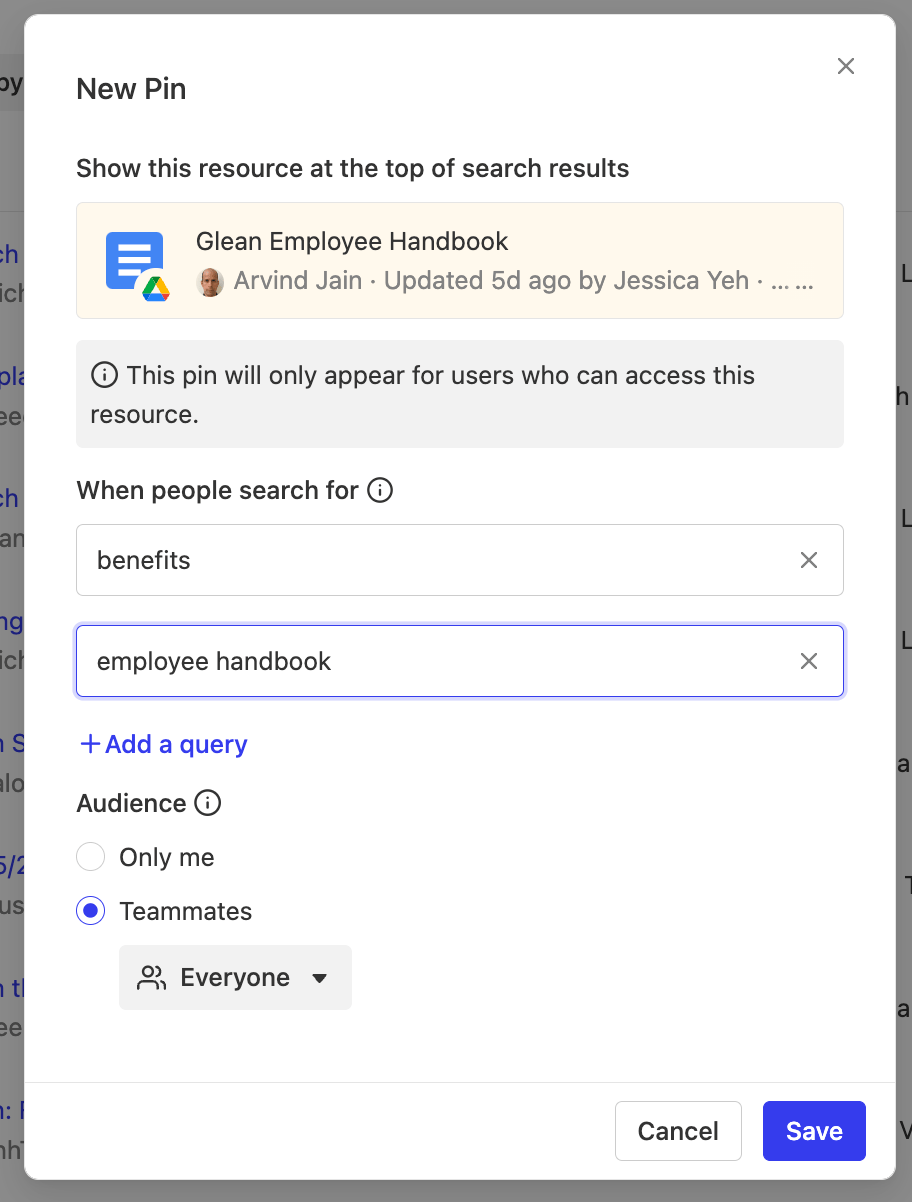
* Selecting “Only Me” will create a private pin that will only appear at the top of search results for you and nobody else.
* Selecting “Teammates” will create a public pin that appears for other users within your company. The audience dropdown allows you to choose which departments at your company see the pin; leaving it blank will have the pin appear for everyone at your organization.
If you don’t see “Teammates” as an option, your organization’s Glean admin has locked public pin creation. Contact them to get access.
[](https://docs.glean.com/user-guide/knowledge/pins/how-pins-work#view-pins-in-search-results)
View Pins in search results
==============================================================================================================================
If a Pin is visible to you for your query, you’ll see it at the top of the search results. Each pin will have the name of the person who pinned the result, as well as the person who last edited it. Private pins will show that they are only visible to you. Glean respects all source permissions for pinned items, so users will only see pins in search results when they have access to the underlying item.
[](https://docs.glean.com/user-guide/knowledge/pins/how-pins-work#view-pins-across-your-company)
View Pins across your company
==================================================================================================================================
You can see all pins that you are in the audience for in the [pins dashboard](https://app.glean.com/knowledge/pins)
, including public and private pins. Admins and users with the pin moderator role will be able to see all public pins across the company as well.
[](https://docs.glean.com/user-guide/knowledge/pins/how-pins-work#removing-a-pin)
Removing a Pin
====================================================================================================
To remove a Pin, click the more menu on the right hand side of the Pin on the [Pins dashboard](https://app.glean.com/knowledge/pins)
, and select “Delete Pin”. This button may be disabled depending on the permissions set for Pins by your Glean admin.
Was this page helpful?
YesNo
[Troubleshooting Go Links](https://docs.glean.com/user-guide/knowledge/go-links/troubleshooting)
[How Verification Works](https://docs.glean.com/user-guide/knowledge/verification/how-verification-works)
⌘I
---
# First Day FAQs - Glean Help Center
[Skip to main content](https://docs.glean.com/user-guide/about/first-day-faqs#content-area)
[Glean Help Center home page](https://docs.glean.com/)
Search...
⌘K
Search...
Navigation
About Glean
First Day FAQs
[Home](https://docs.glean.com/home)
[User Guide](https://docs.glean.com/user-guide/about/what-is-glean)
[Agents](https://docs.glean.com/agents/home)
[Get Started for Admins](https://docs.glean.com/get-started/welcome)
[Connectors](https://docs.glean.com/connectors/home)
[Admin Guide](https://docs.glean.com/administration/about)
[Security & Architecture](https://docs.glean.com/security/home)
[Troubleshooting](https://docs.glean.com/troubleshooting/home)
[Release Notes](https://docs.glean.com/release-notes/home)
[Archive](https://docs.glean.com/archive/help-glean/answers/what-are-answers-and-how-do-they-work)
On this page
* [Is Glean approved by IT?](https://docs.glean.com/user-guide/about/first-day-faqs#is-glean-approved-by-it)
* [How did Glean get access to the apps I’m able to search over?](https://docs.glean.com/user-guide/about/first-day-faqs#how-did-glean-get-access-to-the-apps-i%E2%80%99m-able-to-search-over)
* [How do permissions work in Glean?](https://docs.glean.com/user-guide/about/first-day-faqs#how-do-permissions-work-in-glean)
* [How do I connect more apps?](https://docs.glean.com/user-guide/about/first-day-faqs#how-do-i-connect-more-apps)
* [I noticed that Glean has some results from my browser history. How did it get that?](https://docs.glean.com/user-guide/about/first-day-faqs#i-noticed-that-glean-has-some-results-from-my-browser-history-how-did-it-get-that)
* [I have more questions, who can I talk to?](https://docs.glean.com/user-guide/about/first-day-faqs#i-have-more-questions-who-can-i-talk-to)
[](https://docs.glean.com/user-guide/about/first-day-faqs#is-glean-approved-by-it)
Is Glean approved by IT?
---------------------------------------------------------------------------------------------------------------
Quite simply, yes. If you are using Glean at this point, your IT and Security team did a thorough review and approved the rollout of the product. We do not have a model where an end user can connect to Glean by themselves.
[](https://docs.glean.com/user-guide/about/first-day-faqs#how-did-glean-get-access-to-the-apps-i%E2%80%99m-able-to-search-over)
How did Glean get access to the apps I’m able to search over?
-------------------------------------------------------------------------------------------------------------------------------------------------------------------------------------------------
After your IT team approved rolling the product out, they worked with us to connect each of the different data sources.
[](https://docs.glean.com/user-guide/about/first-day-faqs#how-do-permissions-work-in-glean)
How do permissions work in Glean?
---------------------------------------------------------------------------------------------------------------------------------
Glean fully replicates the permissions on the original app. That means that you’ll never be able to search for something that you don’t already have access to.
[](https://docs.glean.com/user-guide/about/first-day-faqs#how-do-i-connect-more-apps)
How do I connect more apps?
---------------------------------------------------------------------------------------------------------------------
Message us via the ? button in the bottom right if you have a particular tool you want to connect. We can then work with your IT team on getting it set up.
[](https://docs.glean.com/user-guide/about/first-day-faqs#i-noticed-that-glean-has-some-results-from-my-browser-history-how-did-it-get-that)
I noticed that Glean has some results from my browser history. How did it get that?
------------------------------------------------------------------------------------------------------------------------------------------------------------------------------------------------------------------------------------
When you install the browser extension, Glean will use your history to make it easy to navigate to recent documents in enterprise apps that we do not have full support for such as Notes (e.g. Evernote), no-code apps (e.g. Airtable, Coda) and general collaboration (Notion, etc). This is based on your browser history and this data is personal to you so it is not stored anywhere else.
[](https://docs.glean.com/user-guide/about/first-day-faqs#i-have-more-questions-who-can-i-talk-to)
I have more questions, who can I talk to?
------------------------------------------------------------------------------------------------------------------------------------------------
Just message us via the ? icon in the bottom right and we’d be happy to chat.
Was this page helpful?
YesNo
[What is Glean?](https://docs.glean.com/user-guide/about/what-is-glean)
[Quick Start Guide](https://docs.glean.com/user-guide/about/end-user-quick-start-guide)
⌘I
---
# Accessibility Statement - Glean Help Center
[Skip to main content](https://docs.glean.com/user-guide/about/accessibility#content-area)
[Glean Help Center home page](https://docs.glean.com/)
Search...
⌘K
Search...
Navigation
About Glean
Accessibility Statement
[Home](https://docs.glean.com/home)
[User Guide](https://docs.glean.com/user-guide/about/what-is-glean)
[Agents](https://docs.glean.com/agents/home)
[Get Started for Admins](https://docs.glean.com/get-started/welcome)
[Connectors](https://docs.glean.com/connectors/home)
[Admin Guide](https://docs.glean.com/administration/about)
[Security & Architecture](https://docs.glean.com/security/home)
[Troubleshooting](https://docs.glean.com/troubleshooting/home)
[Release Notes](https://docs.glean.com/release-notes/home)
[Archive](https://docs.glean.com/archive/help-glean/answers/what-are-answers-and-how-do-they-work)
On this page
* [Our goal](https://docs.glean.com/user-guide/about/accessibility#our-goal)
* [Our approach](https://docs.glean.com/user-guide/about/accessibility#our-approach)
* [Get in touch](https://docs.glean.com/user-guide/about/accessibility#get-in-touch)
[](https://docs.glean.com/user-guide/about/accessibility#our-goal)
Our goal
-------------------------------------------------------------------------------
At Glean, our mission is to bring people the knowledge they need to make a difference in the world. This includes empowering individuals with disabilities by incorporating accessibility throughout our products and services. That’s why we’ve started an initiative to bring our web application into compliance with WCAG 2.1 AA standards.
[](https://docs.glean.com/user-guide/about/accessibility#our-approach)
Our approach
---------------------------------------------------------------------------------------
Glean’s design process incorporates accessibility principles from the start. Our accessibility champions collaborate with our product and engineering teams throughout the development process. Our testing involves a variety of assistive technologies, including screen readers, magnifiers, and alternative navigation methods such as keyboard-only and voice control.
[](https://docs.glean.com/user-guide/about/accessibility#get-in-touch)
Get in touch
---------------------------------------------------------------------------------------
We welcome any questions or feedback at [a11y@glean.com](mailto:a11y@glean.com)
. You can also chat with us directly from Glean using the Messenger. Please include information about the site, web application, desktop application, or mobile apps you’re trying to access and the assistive technology you’re using (e.g., NVDA with Chrome on Windows, VoiceOver with Firefox on Mac OS, etc…).
Looking for the original version of this page? You can find the archived version [here](https://docs.glean.com/archive/help-glean/accessibility/glean-accessibility-statement)
.
Was this page helpful?
YesNo
[Glean For Sales](https://docs.glean.com/user-guide/about/glean-for-sales)
[How to search in Glean](https://docs.glean.com/user-guide/basics/how-to-search-in-glean)
⌘I
---
# Quick Start Guide - Glean Help Center
[Skip to main content](https://docs.glean.com/user-guide/about/end-user-quick-start-guide#content-area)
[Glean Help Center home page](https://docs.glean.com/)
Search...
⌘K
Search...
Navigation
About Glean
Quick Start Guide
[Home](https://docs.glean.com/home)
[User Guide](https://docs.glean.com/user-guide/about/what-is-glean)
[Agents](https://docs.glean.com/agents/home)
[Get Started for Admins](https://docs.glean.com/get-started/welcome)
[Connectors](https://docs.glean.com/connectors/home)
[Admin Guide](https://docs.glean.com/administration/about)
[Security & Architecture](https://docs.glean.com/security/home)
[Troubleshooting](https://docs.glean.com/troubleshooting/home)
[Release Notes](https://docs.glean.com/release-notes/home)
[Archive](https://docs.glean.com/archive/help-glean/answers/what-are-answers-and-how-do-they-work)
On this page
* [What is Glean?](https://docs.glean.com/user-guide/about/end-user-quick-start-guide#what-is-glean)
* [What can Glean do?](https://docs.glean.com/user-guide/about/end-user-quick-start-guide#what-can-glean-do)
* [Access instructions](https://docs.glean.com/user-guide/about/end-user-quick-start-guide#access-instructions)
* [Step 1: Get started](https://docs.glean.com/user-guide/about/end-user-quick-start-guide#step-1-get-started)
* [Step 2: Install the browser extension](https://docs.glean.com/user-guide/about/end-user-quick-start-guide#step-2-install-the-browser-extension)
* [Step 3: Optional enhancements](https://docs.glean.com/user-guide/about/end-user-quick-start-guide#step-3-optional-enhancements)
* [Tips & Tricks](https://docs.glean.com/user-guide/about/end-user-quick-start-guide#tips-%26-tricks)
* [Example prompts](https://docs.glean.com/user-guide/about/end-user-quick-start-guide#example-prompts)
* [Frequently Asked Questions](https://docs.glean.com/user-guide/about/end-user-quick-start-guide#frequently-asked-questions)
[](https://docs.glean.com/user-guide/about/end-user-quick-start-guide#what-is-glean)
What is Glean?
-------------------------------------------------------------------------------------------------------
Glean provides an Enterprise Generative AI and Search solution connected directly to your company’s knowledge. This solution functions as your own secure AI work assistant. It is tailored to your workplace data to deliver insightful answers and automate tasks across your organization.
[](https://docs.glean.com/user-guide/about/end-user-quick-start-guide#what-can-glean-do)
What can Glean do?
---------------------------------------------------------------------------------------------------------------
You can use Glean to perform the following tasks at work:
* Quickly find information, summarize documents, draft content, pull meeting materials, make sense of long Slack threads, and more.
* Chat conversationally to ask questions, iterate, and refine your requests for better answers.
* Use Agents to automate common multi-step tasks and workflows and explore available Agents from the Help Center navigation.
* Run Deep Research when you need longer-form, multi-source analysis.
* Verify answers with source citations so you can trust results and click through to the originals.
* Work from wherever you are with the browser extension like the sidebar search, address-bar search, new tab page and optional desktop quick chat.
* Switch to World Knowledge mode when you need information outside your company resources.
[](https://docs.glean.com/user-guide/about/end-user-quick-start-guide#access-instructions)
Access instructions
------------------------------------------------------------------------------------------------------------------
Access may vary by organization. Follow any specific internal steps provided by your admin.
###
[](https://docs.glean.com/user-guide/about/end-user-quick-start-guide#step-1-get-started)
Step 1: Get started
* Go to [Glean](https://docs.glean.com/user-guide/about/app.glean.com)
in your browser and sign in with your work account.
###
[](https://docs.glean.com/user-guide/about/end-user-quick-start-guide#step-2-install-the-browser-extension)
Step 2: Install the browser extension
* Installing the extension unlocks sidebar search from any page and integrated search in tools like Google Drive, Jira, and Confluence if enabled.
* Install the browser extension from [Glean extension](https://app.glean.com/)
, use the shortcut to open Glean as a sidebar in your browser:
* Command + J (Mac)
* Alt + J (Windows)
* The extension can optionally set Glean as your browser’s _New Tab page_.
###
[](https://docs.glean.com/user-guide/about/end-user-quick-start-guide#step-3-optional-enhancements)
Step 3: Optional enhancements
* Get the desktop app for dedicated chat access.
* Search excels when you know what to look for.
* Chat excels when you want synthesis or creation.
[](https://docs.glean.com/user-guide/about/end-user-quick-start-guide#tips-&-tricks)
Tips & Tricks
------------------------------------------------------------------------------------------------------
1. When asking a question or prompting Glean, be specific with your instructions. For more information, see [Example prompts](https://docs.glean.com/user-guide/about/example-prompts)
.
2. Glean Chat is conversational. Keep the conversation going and ask follow-ups, add constraints, or request edits. For more information, see [A Beginner’s Guide to Chat](https://docs.glean.com/user-guide/basics/a-beginner-s-guide-to-chat)
.
3. If you know which resource you want Glean to use to respond, use the ”@” symbol to tag the resource directly rather than including a URL.
4. Glean Search and Glean Chat have slightly different capabilities and if one is not giving you the answer you need, explore the alternative to learn which one is better suited to your task.
5. Enabling [New Tab Page](https://docs.glean.com/user-guide/basics/faq#how-do-i-use-glean-as-my-new-tab-page)
and [enabling Glean Search](https://docs.glean.com/user-guide/basics/search-from-wherever-you-work)
for G-Drive, Jira and Confluence. You need to install the [extension](https://app.glean.com/)
which allows users to take advantage of several other Glean features, including searching Glean from your URL bar, and using sidebar search from where you can search Glean from any document/website. This helps you to stop losing time switching between apps looking for the information you need. Watch video [Glean video](https://www.loom.com/share/b02085989e3b4a8d8c0cd0f419602c6d?sid=06ac7c7d-7b61-42a5-a605-87868ae4700c)
for more information.
6. Use **Public Knowledge** mode when you need external context beyond the sources of your company.
7. Explore Agents to automate multi-step workflows and tool-based actions. For more information, see [Glean Agents](https://docs.glean.com/agents/home)
.
[](https://docs.glean.com/user-guide/about/end-user-quick-start-guide#example-prompts)
Example prompts
----------------------------------------------------------------------------------------------------------
In this video, we demonstrate how to effectively use prompt engineering to maximize the benefits of Glean’s generative AI features. By engaging in specific dialogues with [Glean Chat](https://app.glean.com/chat)
, we show how being clear and detailed in requests leads to more informative and organized outputs.
* Summarize \[tag document\] for me. Add a section called “Key Takeaways” with 3 bullet points at the end of the summary.
* Help me write a product requirements document on \[brief explanation about project and its goals\]. I want it to include sections called “Context” “Objective” and “Open Questions.”
* I want to contact the person who is the subject matter expert on \[topic\] to ask about \[describe question\]. Who is the best person to talk to?
* What is \[technical terminology\]? Explain it to me in simple terms as a non-technical person.
* I am onboarding onto \[project or team name\]. I want to get up to speed and understand what’s happening at a high-level. Write a section that describes important historical context I should know, documents that I should read to get started, and people I should talk to.
[](https://docs.glean.com/user-guide/about/end-user-quick-start-guide#frequently-asked-questions)
Frequently Asked Questions
--------------------------------------------------------------------------------------------------------------------------------
Can people see what I'm searching?
No, your search history is private.
Will my private data or documents be searchable by others?
No, your private information remains private. Glean mirrors the permissions in our connected applications. For example, some Slack channels are private; only members of a private channel will see conversations shared in that channel.
How secure is my data with Glean? Do I need to be sensitive about sharing our trade secrets or private information like I would if I were using ChatGPT?
Glean operates under a strict agreement with your organization to ensure that your data is not used for training or testing purposes. Glean also uses LLM models that offer a zero-day retention policy.
Can I verify where Glean is getting its answers?
Yes! Glean’s answers reference the source materials within our content so you can always check that it is referencing the latest and greatest. For more information, see [Citations](https://docs.glean.com/user-guide/assistant/glean-chat/glean-chat-citations/glean-citations)
.
What is Glean connected to?
The list of connectors is always evolving and is configured by your admin.
I want to provide feedback on how Glean responded to my question. How can I do that?
Giving a thumbs up and down button helps improve the quality of your future responses. When you can, leave comments so Glean’s team can investigate.
My colleague and I asked Glean the same question, but we got different answers: why?
Glean searches and generates a response based on the specific documents and resources that each person can access, what that person interacts with the most, and more, so answers can vary because the user’s context can vary.
What are Agents and how are they different from Chat?
Agents are purpose-built assistants you can select for specific tasks and workflows; Chat is an open-ended conversational interface for asking questions and generating content. Explore available Agents from the Help Center navigation.
Was this page helpful?
YesNo
[First Day FAQs](https://docs.glean.com/user-guide/about/first-day-faqs)
[Glean for Engineering](https://docs.glean.com/user-guide/about/glean-for-engineering)
⌘I
---
# Glean for Engineering - Glean Help Center
[Skip to main content](https://docs.glean.com/user-guide/about/glean-for-engineering#content-area)
[Glean Help Center home page](https://docs.glean.com/)
Search...
⌘K
Search...
Navigation
About Glean
Glean for Engineering
[Home](https://docs.glean.com/home)
[User Guide](https://docs.glean.com/user-guide/about/what-is-glean)
[Agents](https://docs.glean.com/agents/home)
[Get Started for Admins](https://docs.glean.com/get-started/welcome)
[Connectors](https://docs.glean.com/connectors/home)
[Admin Guide](https://docs.glean.com/administration/about)
[Security & Architecture](https://docs.glean.com/security/home)
[Troubleshooting](https://docs.glean.com/troubleshooting/home)
[Release Notes](https://docs.glean.com/release-notes/home)
[Archive](https://docs.glean.com/archive/help-glean/answers/what-are-answers-and-how-do-they-work)
On this page
* [Solve issues quickly.](https://docs.glean.com/user-guide/about/glean-for-engineering#solve-issues-quickly)
* [Get context on PRs.](https://docs.glean.com/user-guide/about/glean-for-engineering#get-context-on-prs)
* [Spend more time in code.](https://docs.glean.com/user-guide/about/glean-for-engineering#spend-more-time-in-code)
* [Use Glean wherever you work](https://docs.glean.com/user-guide/about/glean-for-engineering#use-glean-wherever-you-work)
* [Quickly navigate to known docs](https://docs.glean.com/user-guide/about/glean-for-engineering#quickly-navigate-to-known-docs)
* [Learn about your teammates](https://docs.glean.com/user-guide/about/glean-for-engineering#learn-about-your-teammates)
[](https://docs.glean.com/user-guide/about/glean-for-engineering#solve-issues-quickly)
Solve issues quickly.
----------------------------------------------------------------------------------------------------------------
Avoid filing multiple Jira issues, track down past mentions of an issue, and quickly find related solutions for errors.
[](https://docs.glean.com/user-guide/about/glean-for-engineering#get-context-on-prs)
Get context on PRs.
------------------------------------------------------------------------------------------------------------
Search for PR descriptions to understand why changes were made and how to make similar changes.
[](https://docs.glean.com/user-guide/about/glean-for-engineering#spend-more-time-in-code)
Spend more time in code.
----------------------------------------------------------------------------------------------------------------------
Find all the relevant design docs and requirements for the feature you’re building. And the people who can help.
[](https://docs.glean.com/user-guide/about/glean-for-engineering#use-glean-wherever-you-work)
Use Glean wherever you work
-----------------------------------------------------------------------------------------------------------------------------
Use our handy ⌘J / ALT-J shortcut to search in our sidebar without missing a beat on your customer issue.
[](https://docs.glean.com/user-guide/about/glean-for-engineering#quickly-navigate-to-known-docs)
Quickly navigate to known docs
-----------------------------------------------------------------------------------------------------------------------------------
Know exactly what you’re looking for? Glean is a faster way to navigate to your workplace documents.
[](https://docs.glean.com/user-guide/about/glean-for-engineering#learn-about-your-teammates)
Learn about your teammates
---------------------------------------------------------------------------------------------------------------------------
Working with someone new? Refresh yourself on who someone is and what they work on.
Looking for the original version of this page? You can find the archived version [here](https://docs.glean.com/archive/help-glean/what-do-i-use-glean-for/glean-for-engineering)
.
Was this page helpful?
YesNo
[Quick Start Guide](https://docs.glean.com/user-guide/about/end-user-quick-start-guide)
[Glean For Support](https://docs.glean.com/user-guide/about/glean-for-support)
⌘I
---
# Improve search quality by giving feedback on results - Glean Help Center
[Skip to main content](https://docs.glean.com/user-guide/basics/improve-search-quality-by-giving-feedback-on-results#content-area)
[Glean Help Center home page](https://docs.glean.com/)
Search...
⌘K
Search...
Navigation
Glean Basics
Improve search quality by giving feedback on results
[Home](https://docs.glean.com/home)
[User Guide](https://docs.glean.com/user-guide/about/what-is-glean)
[Agents](https://docs.glean.com/agents/home)
[Get Started for Admins](https://docs.glean.com/get-started/welcome)
[Connectors](https://docs.glean.com/connectors/home)
[Admin Guide](https://docs.glean.com/administration/about)
[Security & Architecture](https://docs.glean.com/security/home)
[Troubleshooting](https://docs.glean.com/troubleshooting/home)
[Release Notes](https://docs.glean.com/release-notes/home)
[Archive](https://docs.glean.com/archive/help-glean/answers/what-are-answers-and-how-do-they-work)
Help us improve search quality at your company by giving feedback on results. Within your first few searches, you may see this little message in the top right corner asking for feedback about the quality of the results shown. You can share feedback using that button at any time to help us improve search quality for your entire company. We review this feedback regularly to inform our product roadmap. You can also message us anytime if you have feedback on search quality - your feedback is always welcome and appreciated!
Was this page helpful?
YesNo
[Customizing your Glean profile](https://docs.glean.com/user-guide/basics/customizing-your-glean-profile)
[FAQ](https://docs.glean.com/user-guide/basics/faq)
⌘I
---
# Customizing your Glean profile - Glean Help Center
[Skip to main content](https://docs.glean.com/user-guide/basics/customizing-your-glean-profile#content-area)
[Glean Help Center home page](https://docs.glean.com/)
Search...
⌘K
Search...
Navigation
Glean Basics
Customizing your Glean profile
[Home](https://docs.glean.com/home)
[User Guide](https://docs.glean.com/user-guide/about/what-is-glean)
[Agents](https://docs.glean.com/agents/home)
[Get Started for Admins](https://docs.glean.com/get-started/welcome)
[Connectors](https://docs.glean.com/connectors/home)
[Admin Guide](https://docs.glean.com/administration/about)
[Security & Architecture](https://docs.glean.com/security/home)
[Troubleshooting](https://docs.glean.com/troubleshooting/home)
[Release Notes](https://docs.glean.com/release-notes/home)
[Archive](https://docs.glean.com/archive/help-glean/answers/what-are-answers-and-how-do-they-work)
On this page
* [Personal information:](https://docs.glean.com/user-guide/basics/customizing-your-glean-profile#personal-information)
* [Bio:](https://docs.glean.com/user-guide/basics/customizing-your-glean-profile#bio)
* [Collaboration widgets:](https://docs.glean.com/user-guide/basics/customizing-your-glean-profile#collaboration-widgets)
Setting up your profile is easy to do in Glean. To get to your profile, click on your avatar in the top right corner of Glean, and click on your name. You can also get to your profile from the [Directory](http://app.glean.com/directory)
. To change your profile, click the edit button to the right of your name. That will enable editing all of the customizable elements within your profile, including your bio, contact information, banner photo and collaboration widgets. When you’re done, click the publish button at the top of the page to save your changes. Here is the breakdown of each editable profile attribute:
[](https://docs.glean.com/user-guide/basics/customizing-your-glean-profile#personal-information)
Personal information:
--------------------------------------------------------------------------------------------------------------------------
Clicking the edit button to the right of your name once you’ve entered the profile editor will allow you to customize your preferred name, pronouns and links to external social networks that will appear alongside contact information from work systems.
[](https://docs.glean.com/user-guide/basics/customizing-your-glean-profile#bio)
Bio:
----------------------------------------------------------------------------------------
Clicking the edit button to the right of the “bio” label will allow you to create a custom bio for yourself that all users will see when visiting your profile. Bios can include rich text, headings, lists, images and hyperlinks, so be creative! Remember to click the “Apply” button below your bio to save your changes. After applying the changes to your bio, click the “Publish” button at the top of the page to save the changes to your profile.
[](https://docs.glean.com/user-guide/basics/customizing-your-glean-profile#collaboration-widgets)
Collaboration widgets:
----------------------------------------------------------------------------------------------------------------------------
On the right hand side of your profile, you’ll find the collaboration widgets:
* **At a glance** will show your calendar availability (if a user has permission to view your calendar), and allow them to schedule a meeting with you.
* The **related people** widget will show you and other users who you work with most closely, based on signals from the systems connected to Glean.
* **Worked together on** will show another user browsing your profile what the two of you have worked on together.
* **Recent activity** will show you the items you’ve worked on most recently. Other people browsing your profile will see the items you’ve worked on most recently that they have permission to view. That way, if you have worked on a document that isn’t shared with them, they won’t see it in that widget.
If you want to hide any of these widgets from appearing on your profile, click the toggle on the bottom right-hand corner of the widget. Users with more than 50 total reports will have the related people and recent activity widgets disabled by default. To save these changes to your profile, click the “Publish” button at the top of the page.
Was this page helpful?
YesNo
[A Beginner's Guide to Chat](https://docs.glean.com/user-guide/basics/a-beginner-s-guide-to-chat)
[Improve search quality by giving feedback on results](https://docs.glean.com/user-guide/basics/improve-search-quality-by-giving-feedback-on-results)
⌘I
---
# Glean For Sales - Glean Help Center
[Skip to main content](https://docs.glean.com/user-guide/about/glean-for-sales#content-area)
[Glean Help Center home page](https://docs.glean.com/)
Search...
⌘K
Search...
Navigation
About Glean
Glean For Sales
[Home](https://docs.glean.com/home)
[User Guide](https://docs.glean.com/user-guide/about/what-is-glean)
[Agents](https://docs.glean.com/agents/home)
[Get Started for Admins](https://docs.glean.com/get-started/welcome)
[Connectors](https://docs.glean.com/connectors/home)
[Admin Guide](https://docs.glean.com/administration/about)
[Security & Architecture](https://docs.glean.com/security/home)
[Troubleshooting](https://docs.glean.com/troubleshooting/home)
[Release Notes](https://docs.glean.com/release-notes/home)
[Archive](https://docs.glean.com/archive/help-glean/answers/what-are-answers-and-how-do-they-work)
On this page
* [Get a 360° view of prospects and customers.](https://docs.glean.com/user-guide/about/glean-for-sales#get-a-360%C2%B0-view-of-prospects-and-customers)
* [Pull the right materials for your meeting.](https://docs.glean.com/user-guide/about/glean-for-sales#pull-the-right-materials-for-your-meeting)
* [Find answers quickly.](https://docs.glean.com/user-guide/about/glean-for-sales#find-answers-quickly)
* [Use Glean wherever you work](https://docs.glean.com/user-guide/about/glean-for-sales#use-glean-wherever-you-work)
* [Quickly navigate to known docs](https://docs.glean.com/user-guide/about/glean-for-sales#quickly-navigate-to-known-docs)
* [Learn about your teammates](https://docs.glean.com/user-guide/about/glean-for-sales#learn-about-your-teammates)
[](https://docs.glean.com/user-guide/about/glean-for-sales#get-a-360%C2%B0-view-of-prospects-and-customers)
Get a 360° view of prospects and customers.
-----------------------------------------------------------------------------------------------------------------------------------------------------------
Search across your company to understand issues and opportunities to compress your sales cycle. 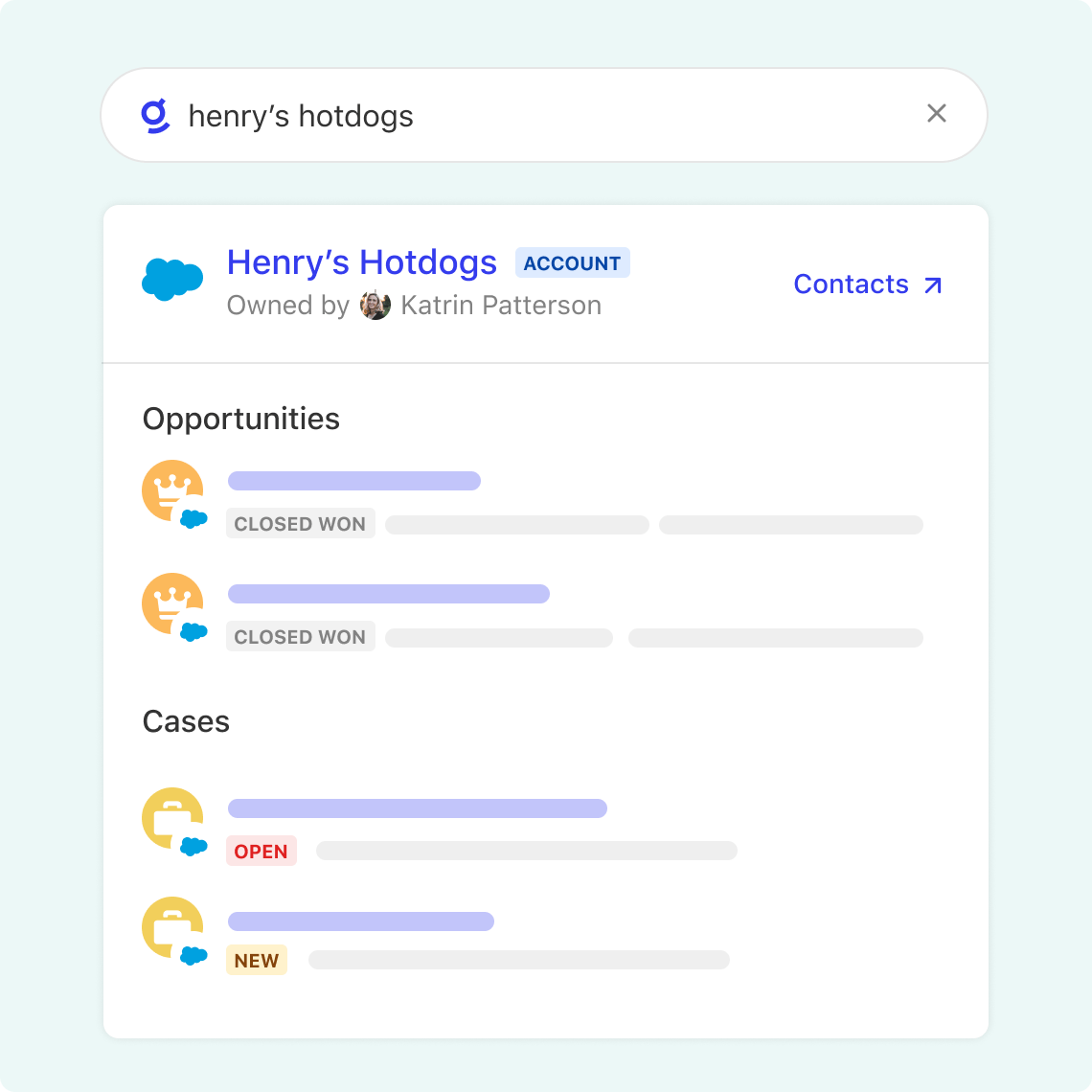
[](https://docs.glean.com/user-guide/about/glean-for-sales#pull-the-right-materials-for-your-meeting)
Pull the right materials for your meeting.
----------------------------------------------------------------------------------------------------------------------------------------------------
One place to search for the right pitch deck, product update, research, or people who can help. 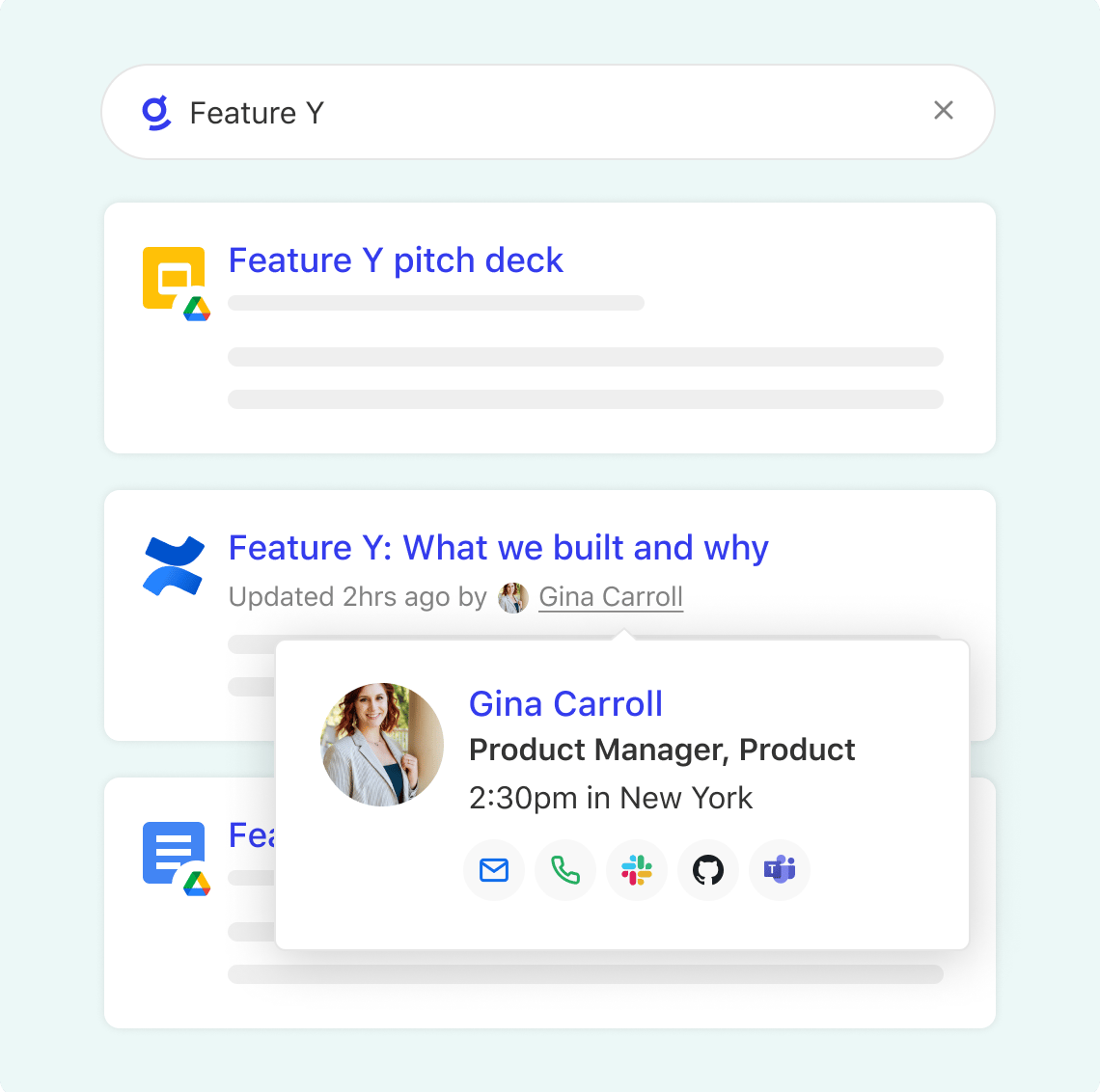
[](https://docs.glean.com/user-guide/about/glean-for-sales#find-answers-quickly)
Find answers quickly.
----------------------------------------------------------------------------------------------------------
Find what you need to answer questions on the spot or troubleshoot customer problems. 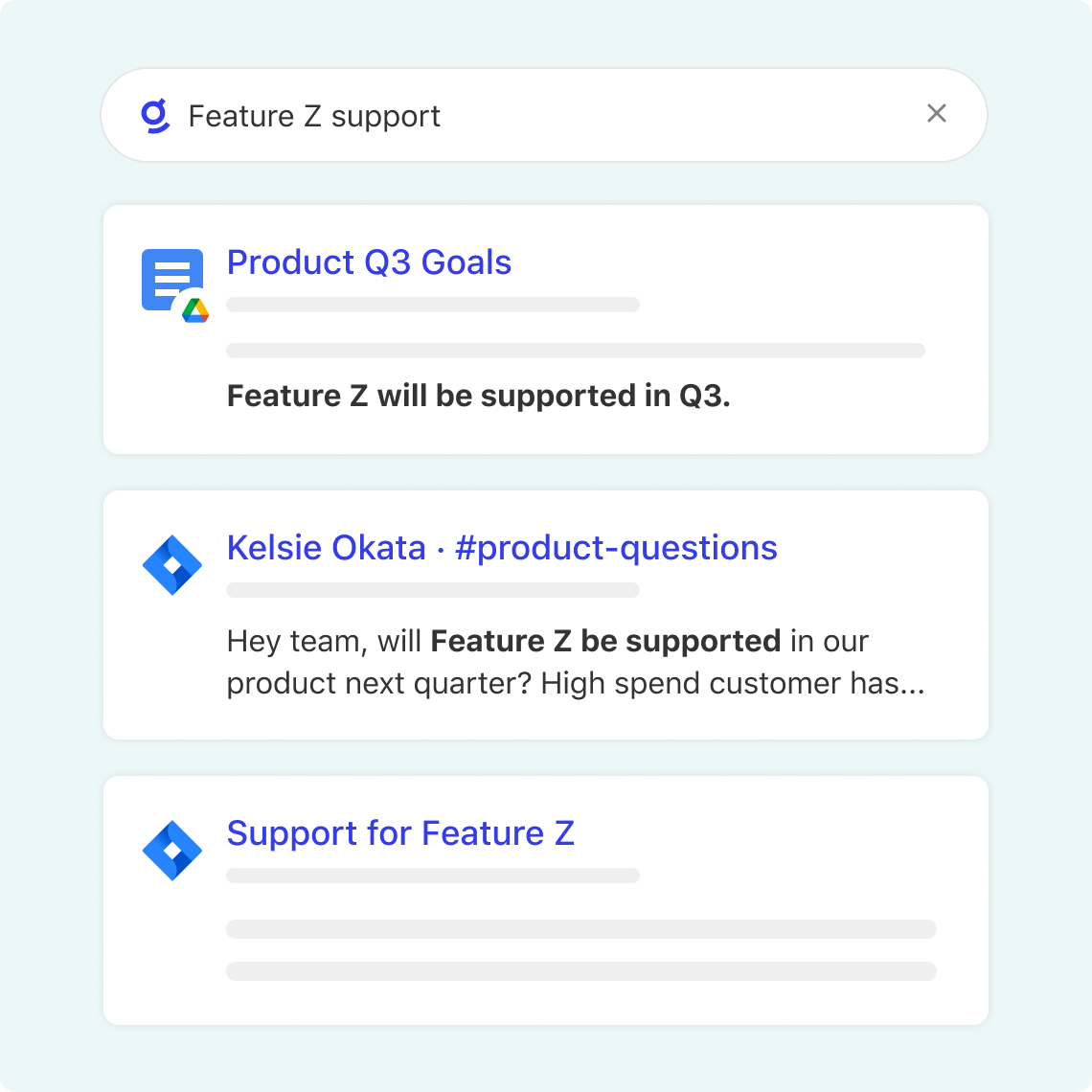
[](https://docs.glean.com/user-guide/about/glean-for-sales#use-glean-wherever-you-work)
Use Glean wherever you work
-----------------------------------------------------------------------------------------------------------------------
Use our handy ⌘J / ALT-J shortcut to search in our sidebar without missing a beat on your customer issue. 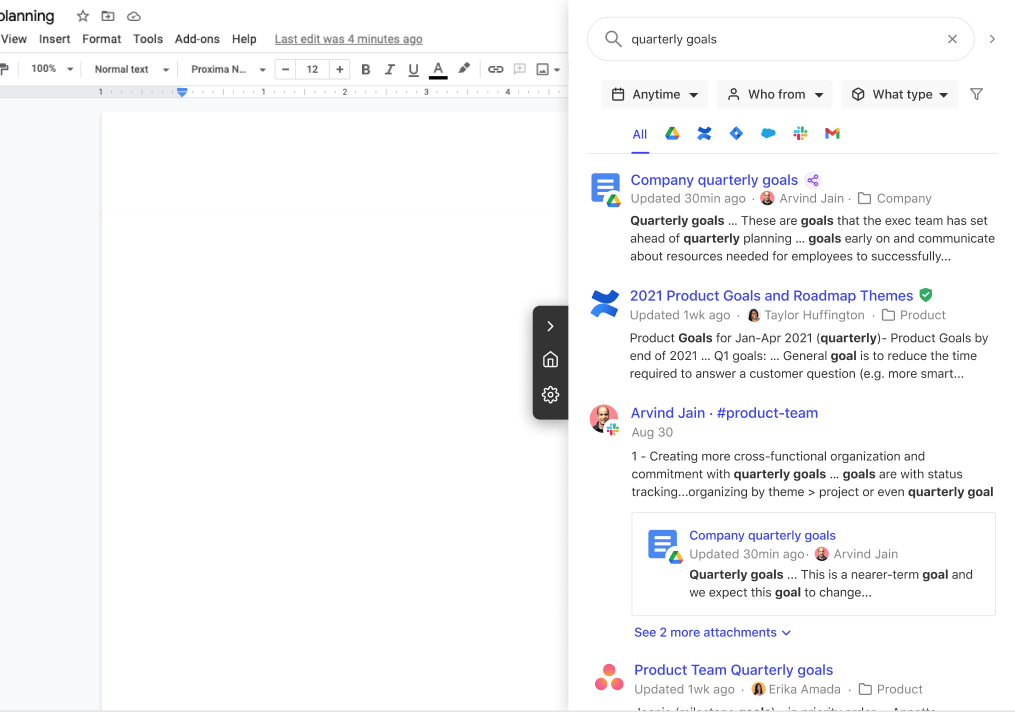
[](https://docs.glean.com/user-guide/about/glean-for-sales#quickly-navigate-to-known-docs)
Quickly navigate to known docs
-----------------------------------------------------------------------------------------------------------------------------
Know exactly what you’re looking for? Glean is a faster way to navigate to your workplace documents. 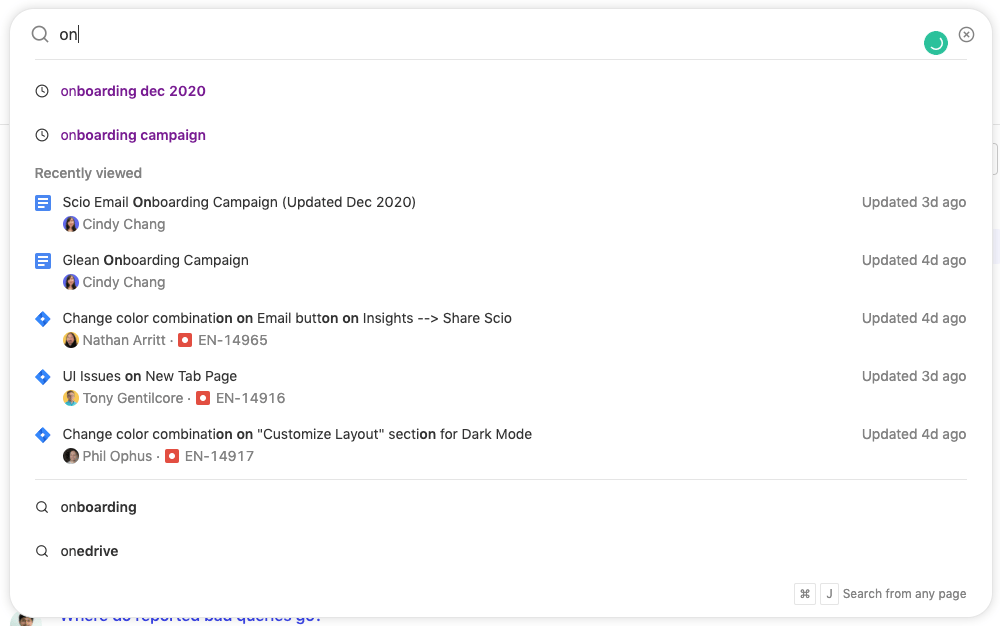
[](https://docs.glean.com/user-guide/about/glean-for-sales#learn-about-your-teammates)
Learn about your teammates
---------------------------------------------------------------------------------------------------------------------
Working with someone new? Refresh yourself on who someone is and what they work on. 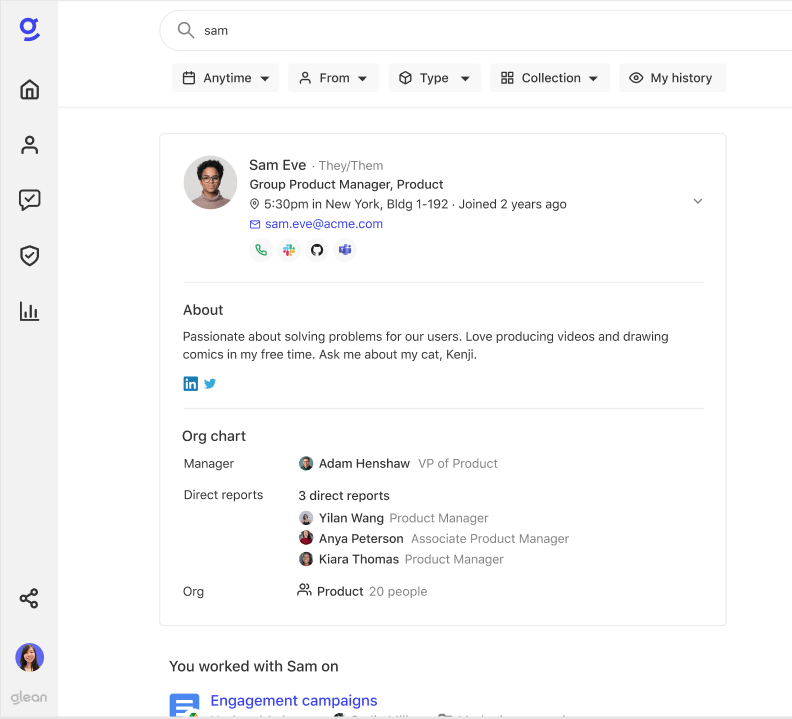
Was this page helpful?
YesNo
[Glean For Support](https://docs.glean.com/user-guide/about/glean-for-support)
[Accessibility Statement](https://docs.glean.com/user-guide/about/accessibility)
⌘I
---
# Info Access - Glean Help Center
[Skip to main content](https://docs.glean.com/user-guide/assistant/how-glean-accesses-info#content-area)
[Glean Help Center home page](https://docs.glean.com/)
Search...
⌘K
Search...
Navigation
Glean Assistant
Info Access
[Home](https://docs.glean.com/home)
[User Guide](https://docs.glean.com/user-guide/about/what-is-glean)
[Agents](https://docs.glean.com/agents/home)
[Get Started for Admins](https://docs.glean.com/get-started/welcome)
[Connectors](https://docs.glean.com/connectors/home)
[Admin Guide](https://docs.glean.com/administration/about)
[Security & Architecture](https://docs.glean.com/security/home)
[Troubleshooting](https://docs.glean.com/troubleshooting/home)
[Release Notes](https://docs.glean.com/release-notes/home)
[Archive](https://docs.glean.com/archive/help-glean/answers/what-are-answers-and-how-do-they-work)
On this page
* [Glean Search](https://docs.glean.com/user-guide/assistant/how-glean-accesses-info#glean-search)
* [Glean Chat](https://docs.glean.com/user-guide/assistant/how-glean-accesses-info#glean-chat)
* [Influencing Results](https://docs.glean.com/user-guide/assistant/how-glean-accesses-info#influencing-results)
Glean gathers information from multiple sources to create unique responses based on several inputs, such as your access permissions, search and chat settings, prompt, and any additional information you provide in the chat box. Just as every person is unique, so are their search results! Glean offers two distinct methods for searching content: Glean Chat and Glean Search. Depending on your needs, you might prefer one over the other.
###
[](https://docs.glean.com/user-guide/assistant/how-glean-accesses-info#glean-search)
Glean Search
Glean Search functions like a traditional search engine. You enter a query and receive results that you can explore independently. This method is useful when you want to browse through various documents and information sources.
###
[](https://docs.glean.com/user-guide/assistant/how-glean-accesses-info#glean-chat)
Glean Chat
Glean Chat acts as a conversational tool where you can ask questions and receive answers. There are two types of chat modes in Glean: Company Knowledge and World Knowledge:
* **Company Knowledge** Uses the underlying large language model alongside your accessible company data to provide responses. When using Company Knowledge, Glean’s sources include the LLM’s inherent knowledge and the files within your company that you have access to.
* **World Knowledge** Uses the underlying large language model to provide responses based on general world knowledge. In World Mode, you can enhance the LLM’s understanding by selecting the Web Search option when typing your query, allowing Glean to search the internet for answers and incorporate the results into its responses. When using World Knowledge, Glean’s sources include the LLM’s inherent knowledge and the internet.
You can control what information Glean accesses by selecting **Company Knowledge**, **World Knowledge**, or the **Web Search** option with world knowledge in the chat box.
Web search is only available if your administrator has enabled it.
Glean personalizes search results based on your activity and the permissions set in your company’s data sources. This means that the results you see are tailored to the documents and information you have access to and have interacted with. For example, if you frequently access certain documents or collaborate with specific colleagues, those documents and related content are more likely to appear in your search results. Your coworker might have different access permissions or have interacted with different documents, leading to different responses. To better understand how Glean integrates information based on your selections, refer to the following diagram: 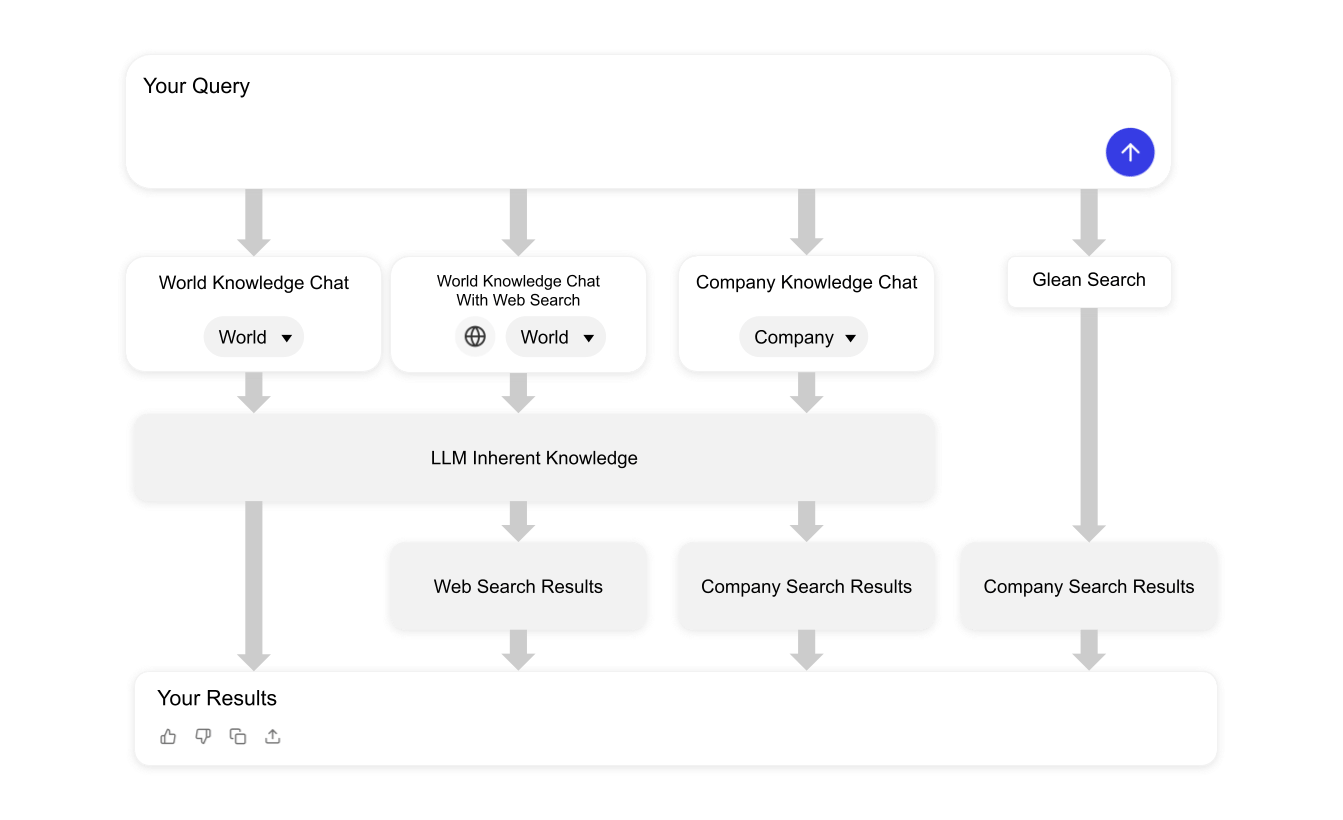
###
[](https://docs.glean.com/user-guide/assistant/how-glean-accesses-info#influencing-results)
Influencing Results
You can create collections and verify documents to influence the likelihood they will be used in results. Glean respects the permissions set in your company’s data sources. If you have permission to view a document in Google Drive or a thread in a public Slack channel, it will appear in your search results. If your coworker has different permissions, they might see different results. Additionally, if any permissions change, Glean’s results will reflect those changes quickly. Glean’s responses can vary even for the same query, depending on the chat settings and the context of previous interactions. By understanding these features, you can effectively utilize Glean Search and Glean Chat to find the information you need efficiently.
Was this page helpful?
YesNo
[Chat Best Practices](https://docs.glean.com/user-guide/assistant/best-practices)
[Contextual Images](https://docs.glean.com/user-guide/assistant/contextual-images)
⌘I
---
# FAQ - Glean Help Center
[Skip to main content](https://docs.glean.com/user-guide/basics/faq#content-area)
[Glean Help Center home page](https://docs.glean.com/)
Search...
⌘K
Search...
Navigation
Glean Basics
FAQ
[Home](https://docs.glean.com/home)
[User Guide](https://docs.glean.com/user-guide/about/what-is-glean)
[Agents](https://docs.glean.com/agents/home)
[Get Started for Admins](https://docs.glean.com/get-started/welcome)
[Connectors](https://docs.glean.com/connectors/home)
[Admin Guide](https://docs.glean.com/administration/about)
[Security & Architecture](https://docs.glean.com/security/home)
[Troubleshooting](https://docs.glean.com/troubleshooting/home)
[Release Notes](https://docs.glean.com/release-notes/home)
[Archive](https://docs.glean.com/archive/help-glean/answers/what-are-answers-and-how-do-they-work)
On this page
* [Content Updates](https://docs.glean.com/user-guide/basics/faq#content-updates)
* [Home Page](https://docs.glean.com/user-guide/basics/faq#home-page)
[](https://docs.glean.com/user-guide/basics/faq#content-updates)
Content Updates
------------------------------------------------------------------------------------
How long does it take for new data to be updated in Glean?
Let’s say a teammate created a new document a few minutes ago, or a customer opened a new ticket today. How long will it take for these changes to appear in Glean?The answer depends on the specific app. For most apps (Jira, Confluence, Slack, etc), their APIs enable us to index the new content within 15 mins of the content changing.For other apps like Zendesk and Salesforce, due to API restrictions we index content changes within an hour of the change.Have more questions or seeing delays in content showing up in your search?Message us for help and if you feel comfortable, please share URLs of example content that are not showing up so we can debug.
[](https://docs.glean.com/user-guide/basics/faq#home-page)
Home Page
------------------------------------------------------------------------
How do I use Glean as my new tab page?
Keep Glean close at hand plus get quick access to your calendar and work tools.Here’s how to enable it:
1. First, check you have the Glean chrome extension installed by [heading here](https://docs.glean.com/user-guide/apps/installing-the-browser-extension)
.
2. Second, head to [Your account](https://app.glean.com/settings)
and enable “New tab page” under “General”. 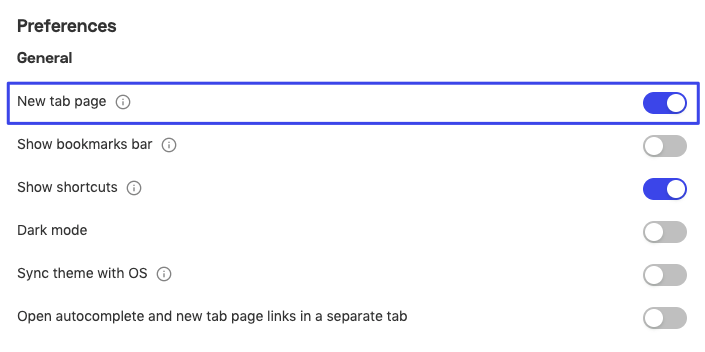
You can also enable or disable Glean as your new tab page from the Home page settings icon directly on the Glean new tab page: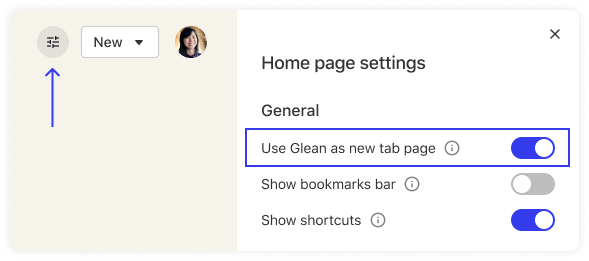
How can I get my old new tab page back?
Although the Glean new tab page is an essential part of finding what you need from all your tools and quickly accessing relevant content, we understand sometimes you just want your old new tab back.After you log in to Glean, on the home or new tab page, click the Home page settings icon in the top right corner. In the right panel, you can turn off Glean as your new tab entirely by flipping the toggle.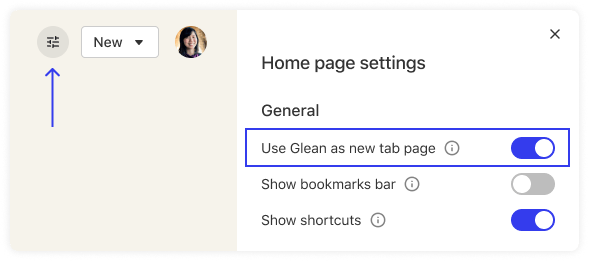If you had a previous extension that replaced your new tab and prefer that over Glean, you’ll have to uninstall the extension that gave you that previous new tab experience (Momentum, Scratchpad, Earth View, etc). Then, reinstall that same extension and your previous new tab should be restored.After you’ve reset your new tab, don’t forget that there are other entry points for Glean!
* Typing gl in the address bar followed by your search
* CMD + J for the sidebar
* [app.glean.com](https://app.glean.com/)
* [Desktop app](https://docs.glean.com/user-guide/apps/get-the-desktop-app)
Was this page helpful?
YesNo
[Improve search quality by giving feedback on results](https://docs.glean.com/user-guide/basics/improve-search-quality-by-giving-feedback-on-results)
[Browser History Results](https://docs.glean.com/user-guide/search/browser-history-apps)
⌘I
---
# Glean For Support - Glean Help Center
[Skip to main content](https://docs.glean.com/user-guide/about/glean-for-support#content-area)
[Glean Help Center home page](https://docs.glean.com/)
Search...
⌘K
Search...
Navigation
About Glean
Glean For Support
[Home](https://docs.glean.com/home)
[User Guide](https://docs.glean.com/user-guide/about/what-is-glean)
[Agents](https://docs.glean.com/agents/home)
[Get Started for Admins](https://docs.glean.com/get-started/welcome)
[Connectors](https://docs.glean.com/connectors/home)
[Admin Guide](https://docs.glean.com/administration/about)
[Security & Architecture](https://docs.glean.com/security/home)
[Troubleshooting](https://docs.glean.com/troubleshooting/home)
[Release Notes](https://docs.glean.com/release-notes/home)
[Archive](https://docs.glean.com/archive/help-glean/answers/what-are-answers-and-how-do-they-work)
On this page
* [Quickly resolve the most difficult cases.](https://docs.glean.com/user-guide/about/glean-for-support#quickly-resolve-the-most-difficult-cases)
* [Accelerate response efficiency.](https://docs.glean.com/user-guide/about/glean-for-support#accelerate-response-efficiency)
* [Reduce time for onboarding.](https://docs.glean.com/user-guide/about/glean-for-support#reduce-time-for-onboarding)
* [Use Glean wherever you work](https://docs.glean.com/user-guide/about/glean-for-support#use-glean-wherever-you-work)
* [Quickly navigate to known docs](https://docs.glean.com/user-guide/about/glean-for-support#quickly-navigate-to-known-docs)
* [Learn about your teammates](https://docs.glean.com/user-guide/about/glean-for-support#learn-about-your-teammates)
[](https://docs.glean.com/user-guide/about/glean-for-support#quickly-resolve-the-most-difficult-cases)
Quickly resolve the most difficult cases.
----------------------------------------------------------------------------------------------------------------------------------------------------
Search for error codes and past mentions of issues, so you can find what you need to close cases faster. 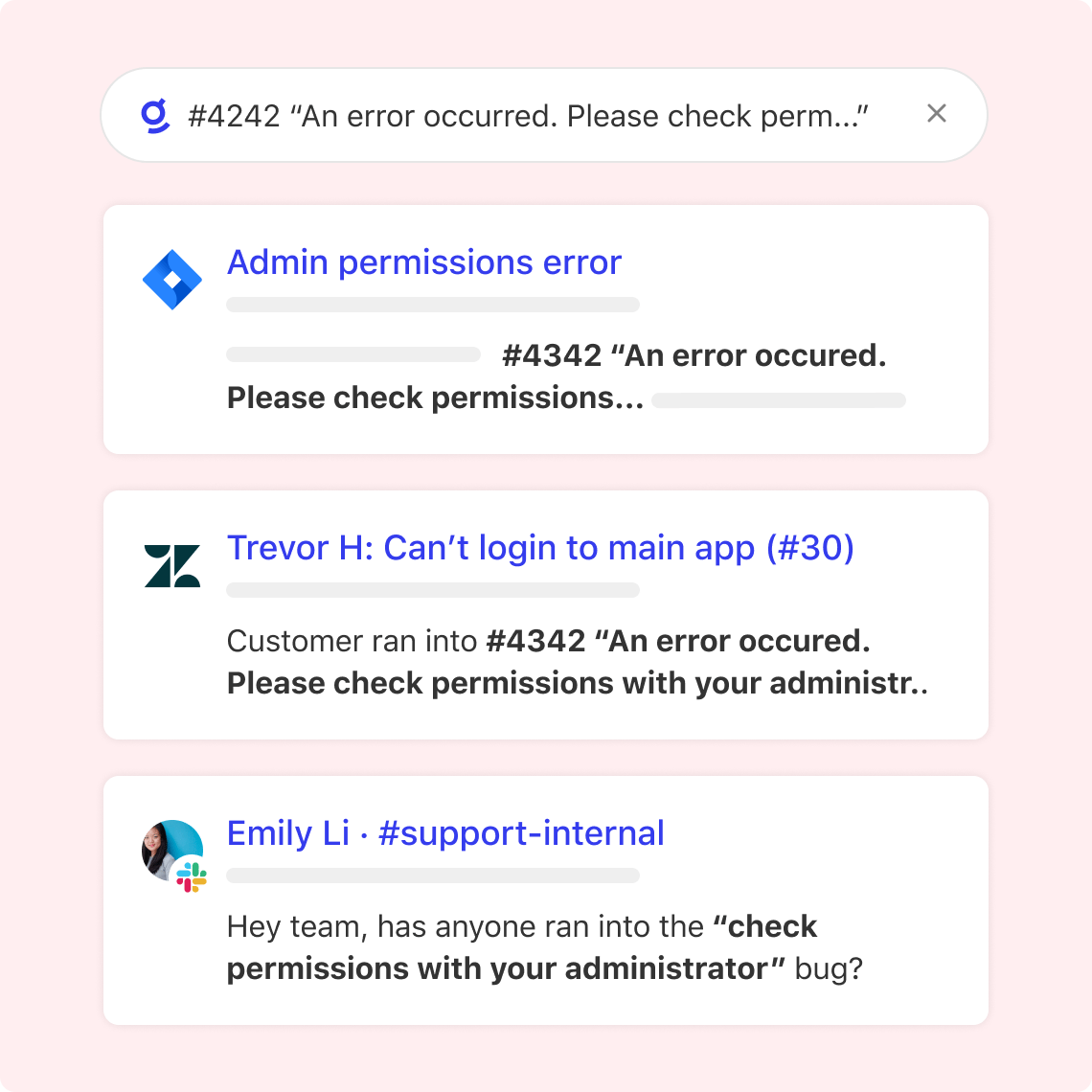
[](https://docs.glean.com/user-guide/about/glean-for-support#accelerate-response-efficiency)
Accelerate response efficiency.
--------------------------------------------------------------------------------------------------------------------------------
Respond with confidence knowing the content you find is verified as up-to-date. 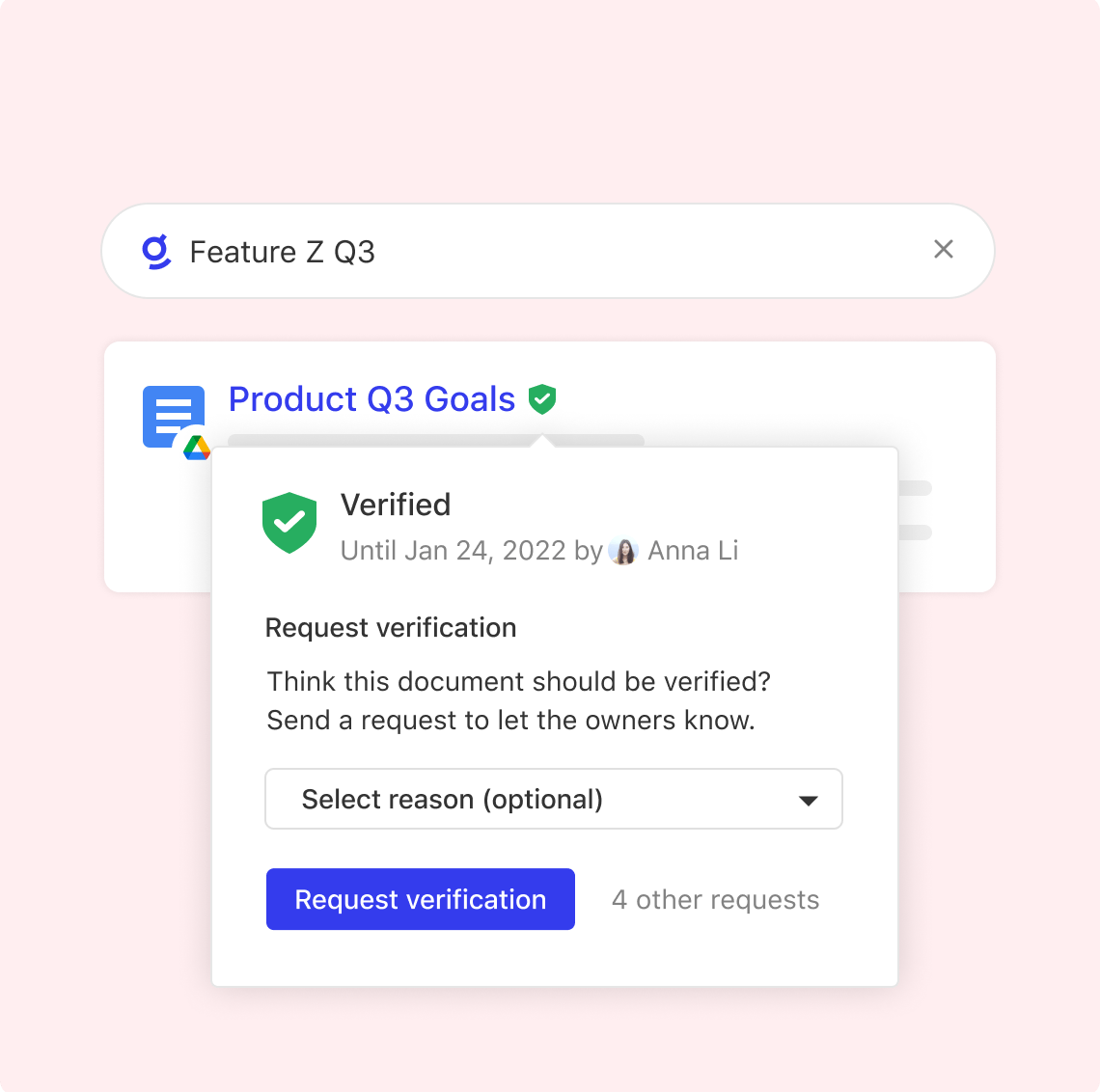
[](https://docs.glean.com/user-guide/about/glean-for-support#reduce-time-for-onboarding)
Reduce time for onboarding.
------------------------------------------------------------------------------------------------------------------------
Get up and running quickly with content collections and answers for new products and releases. 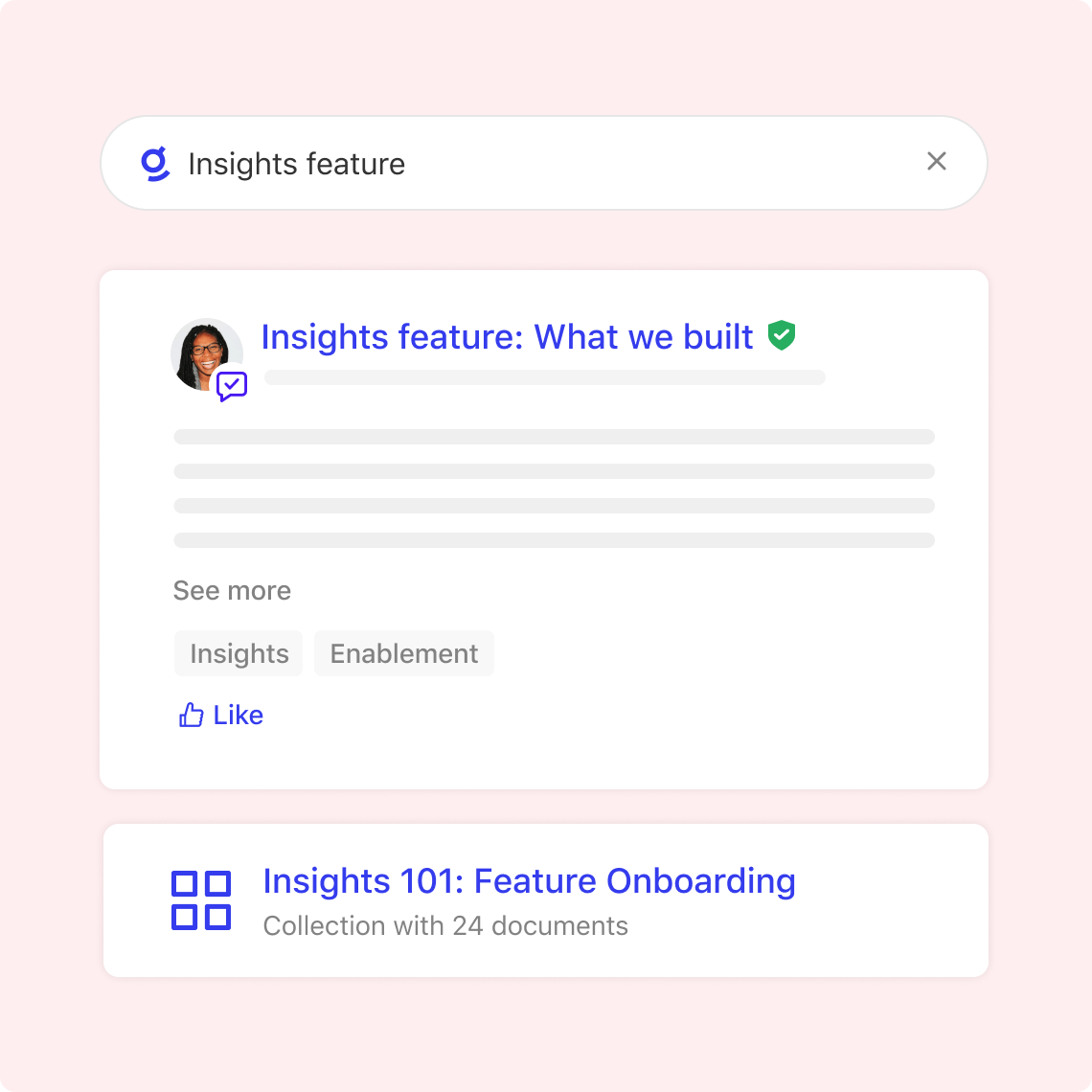
[](https://docs.glean.com/user-guide/about/glean-for-support#use-glean-wherever-you-work)
Use Glean wherever you work
-------------------------------------------------------------------------------------------------------------------------
Use our handy ⌘J / ALT-J shortcut to search in our sidebar without missing a beat on your customer issue. 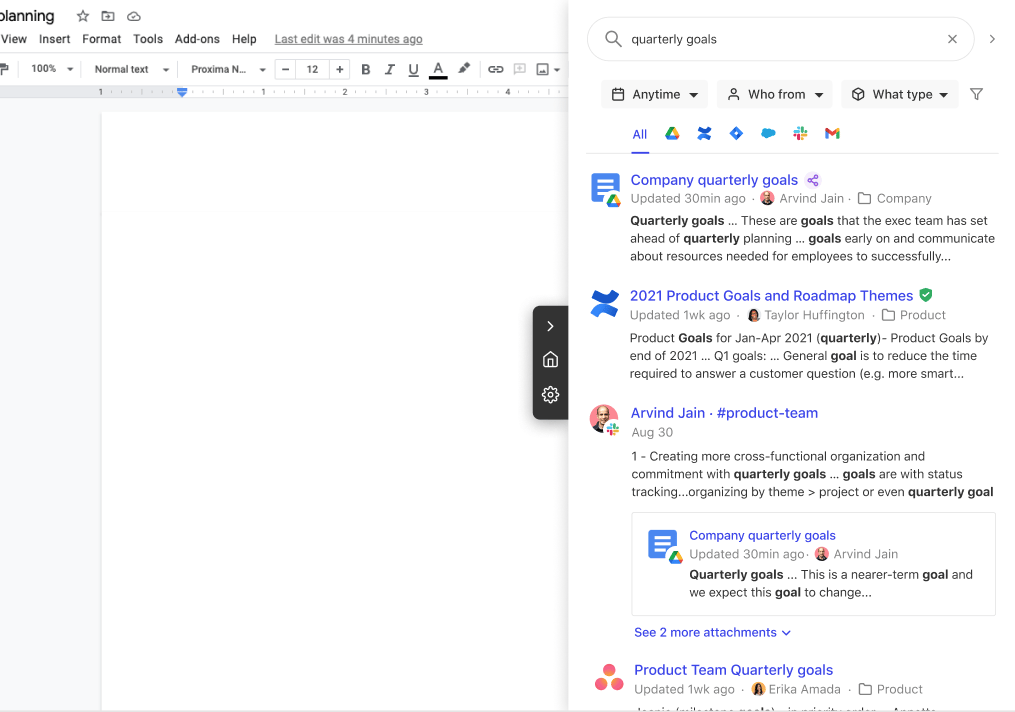
[](https://docs.glean.com/user-guide/about/glean-for-support#quickly-navigate-to-known-docs)
Quickly navigate to known docs
-------------------------------------------------------------------------------------------------------------------------------
Know exactly what you’re looking for? Glean is a faster way to navigate to your workplace documents. 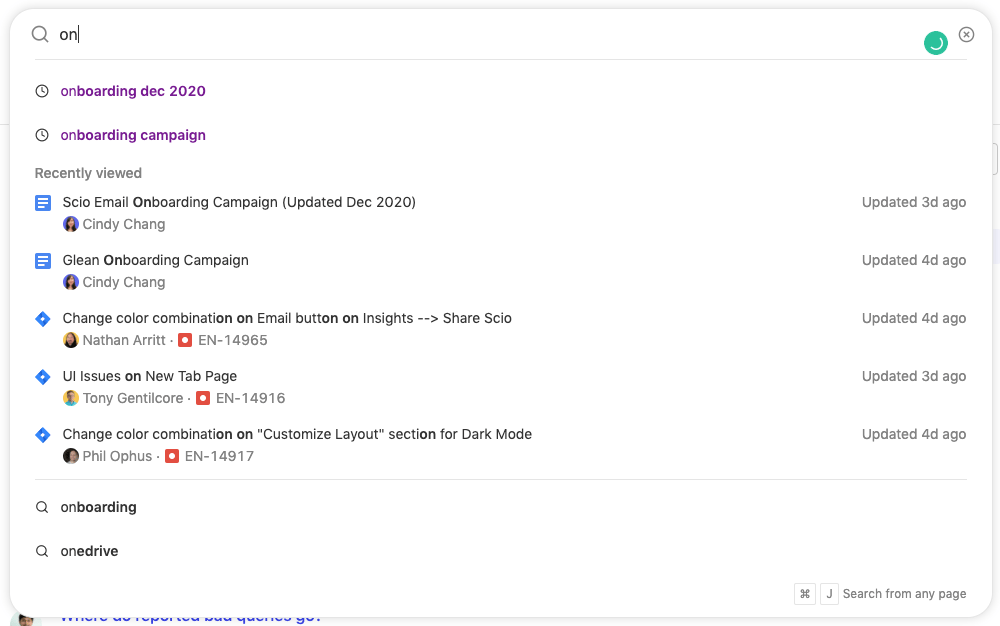
[](https://docs.glean.com/user-guide/about/glean-for-support#learn-about-your-teammates)
Learn about your teammates
-----------------------------------------------------------------------------------------------------------------------
Working with someone new? Refresh yourself on who someone is and what they work on. 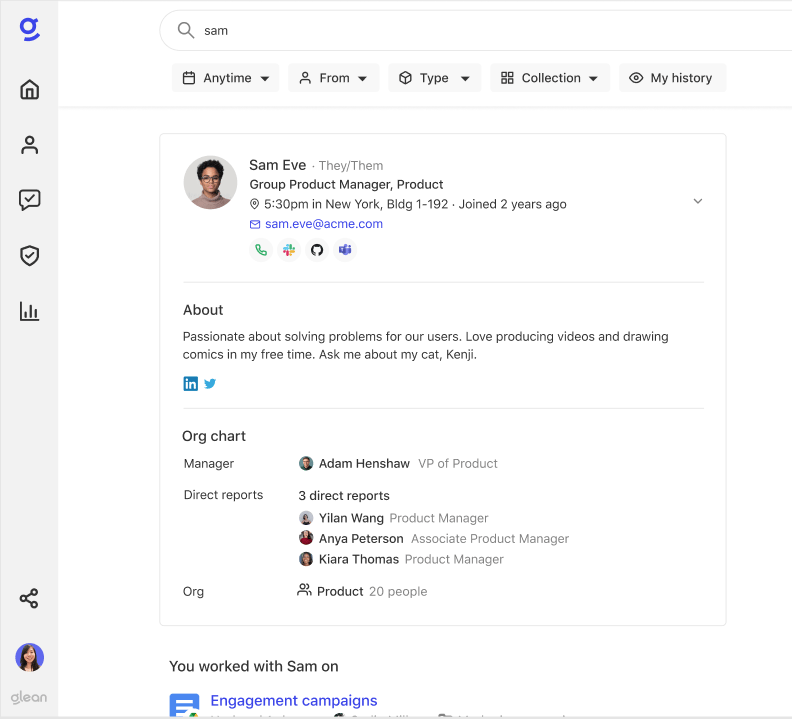
Was this page helpful?
YesNo
[Glean for Engineering](https://docs.glean.com/user-guide/about/glean-for-engineering)
[Glean For Sales](https://docs.glean.com/user-guide/about/glean-for-sales)
⌘I
---
# Installing the browser extension - Glean Help Center
[Skip to main content](https://docs.glean.com/user-guide/apps/installing-the-browser-extension#content-area)
[Glean Help Center home page](https://docs.glean.com/)
Search...
⌘K
Search...
Navigation
Glean Apps
Installing the browser extension
[Home](https://docs.glean.com/home)
[User Guide](https://docs.glean.com/user-guide/about/what-is-glean)
[Agents](https://docs.glean.com/agents/home)
[Get Started for Admins](https://docs.glean.com/get-started/welcome)
[Connectors](https://docs.glean.com/connectors/home)
[Admin Guide](https://docs.glean.com/administration/about)
[Security & Architecture](https://docs.glean.com/security/home)
[Troubleshooting](https://docs.glean.com/troubleshooting/home)
[Release Notes](https://docs.glean.com/release-notes/home)
[Archive](https://docs.glean.com/archive/help-glean/answers/what-are-answers-and-how-do-they-work)
On this page
* [Downloading browser extension](https://docs.glean.com/user-guide/apps/installing-the-browser-extension#downloading-browser-extension)
[](https://docs.glean.com/user-guide/apps/installing-the-browser-extension#downloading-browser-extension)
Downloading browser extension
-------------------------------------------------------------------------------------------------------------------------------------------
Install the Glean browser extension to use the sidebar, new tab, and companion features. You have two options to install the extension:
* Visit [https://app.glean.com/setup](https://app.glean.com/setup)
and follow the guided installation process for your browser.
* Install the extension through your browser’s extension app store:
* [Chrome Web Store](https://chrome.google.com/webstore/detail/glean/cfpdompphcacgpjfbonkdokgjhgabpij)
* [Firefox Browser Add-ons](https://addons.mozilla.org/en-US/firefox/addon/glean/)
* [Safari](https://apps.apple.com/us/app/glean-for-safari/id6444195239)
* [Edge](https://microsoftedge.microsoft.com/addons/detail/glean/lkhkfgdfpoijiiinpjgcgacdkgjeieak)
Was this page helpful?
YesNo
[Memory and personalization](https://docs.glean.com/user-guide/assistant/memory-personalization)
[Extension Sidebar](https://docs.glean.com/user-guide/apps/extension-sidebar)
⌘I
---
# Chat Best Practices - Glean Help Center
[Skip to main content](https://docs.glean.com/user-guide/assistant/best-practices#content-area)
[Glean Help Center home page](https://docs.glean.com/)
Search...
⌘K
Search...
Navigation
Glean Assistant
Chat Best Practices
[Home](https://docs.glean.com/home)
[User Guide](https://docs.glean.com/user-guide/about/what-is-glean)
[Agents](https://docs.glean.com/agents/home)
[Get Started for Admins](https://docs.glean.com/get-started/welcome)
[Connectors](https://docs.glean.com/connectors/home)
[Admin Guide](https://docs.glean.com/administration/about)
[Security & Architecture](https://docs.glean.com/security/home)
[Troubleshooting](https://docs.glean.com/troubleshooting/home)
[Release Notes](https://docs.glean.com/release-notes/home)
[Archive](https://docs.glean.com/archive/help-glean/answers/what-are-answers-and-how-do-they-work)
On this page
* [Additional Best Practices](https://docs.glean.com/user-guide/assistant/best-practices#additional-best-practices)
This guide outlines best practices for interacting with Glean Chat, AI apps, and Search to ensure you receive the most accurate and relevant results.
1
[](https://docs.glean.com/user-guide/assistant/best-practices#)
Use Question Marks
Always conclude questions with a question mark (?). This punctuation helps Glean recognize that you’re seeking information or clarification.
2
[](https://docs.glean.com/user-guide/assistant/best-practices#)
Specify Connector Names
Include the relevant connector name in your question for more precise results.For example, instead of: “Provide me some sample support tickets”Use: “Can you provide me some sample support tickets from Zendesk?”
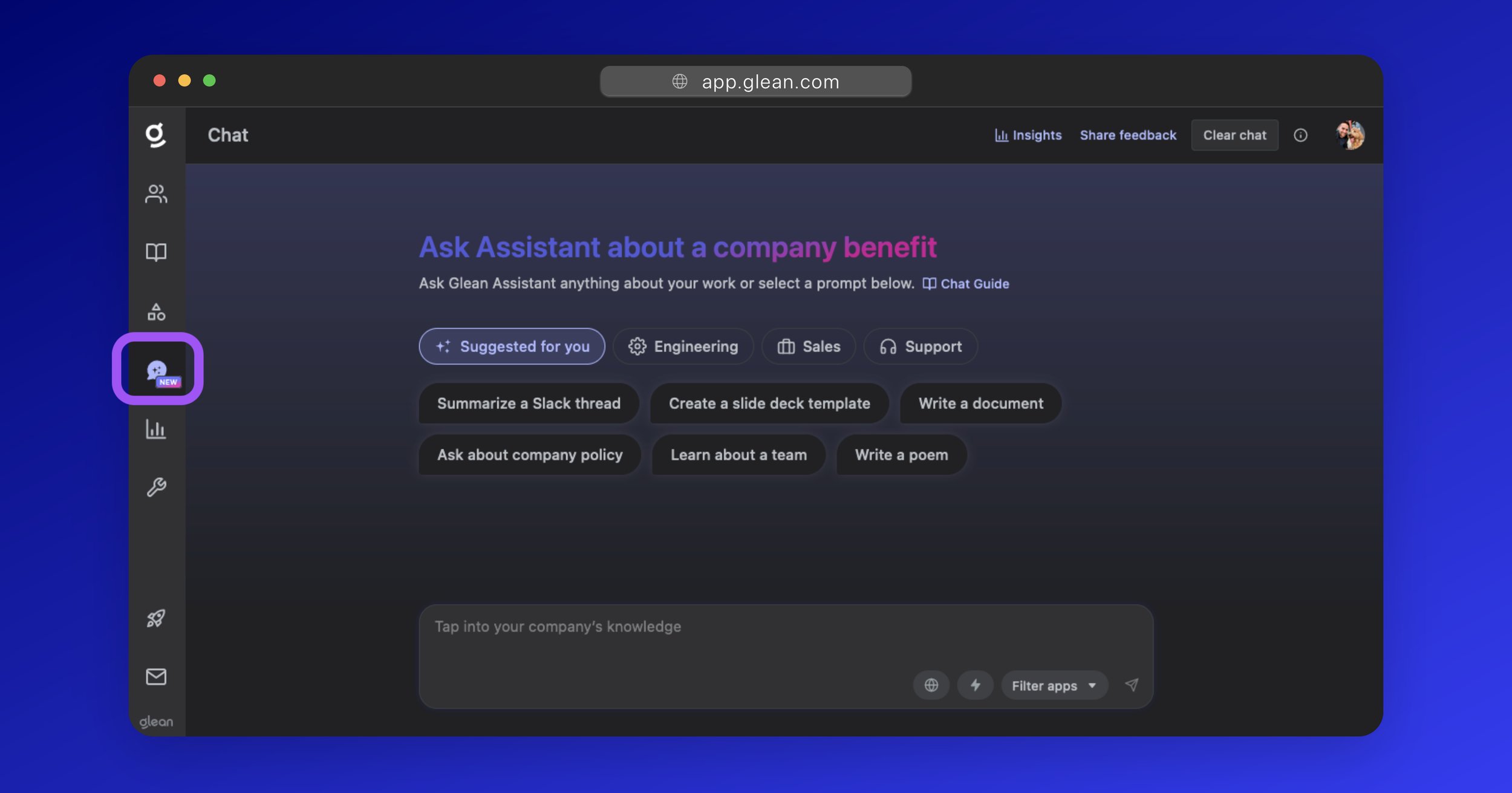
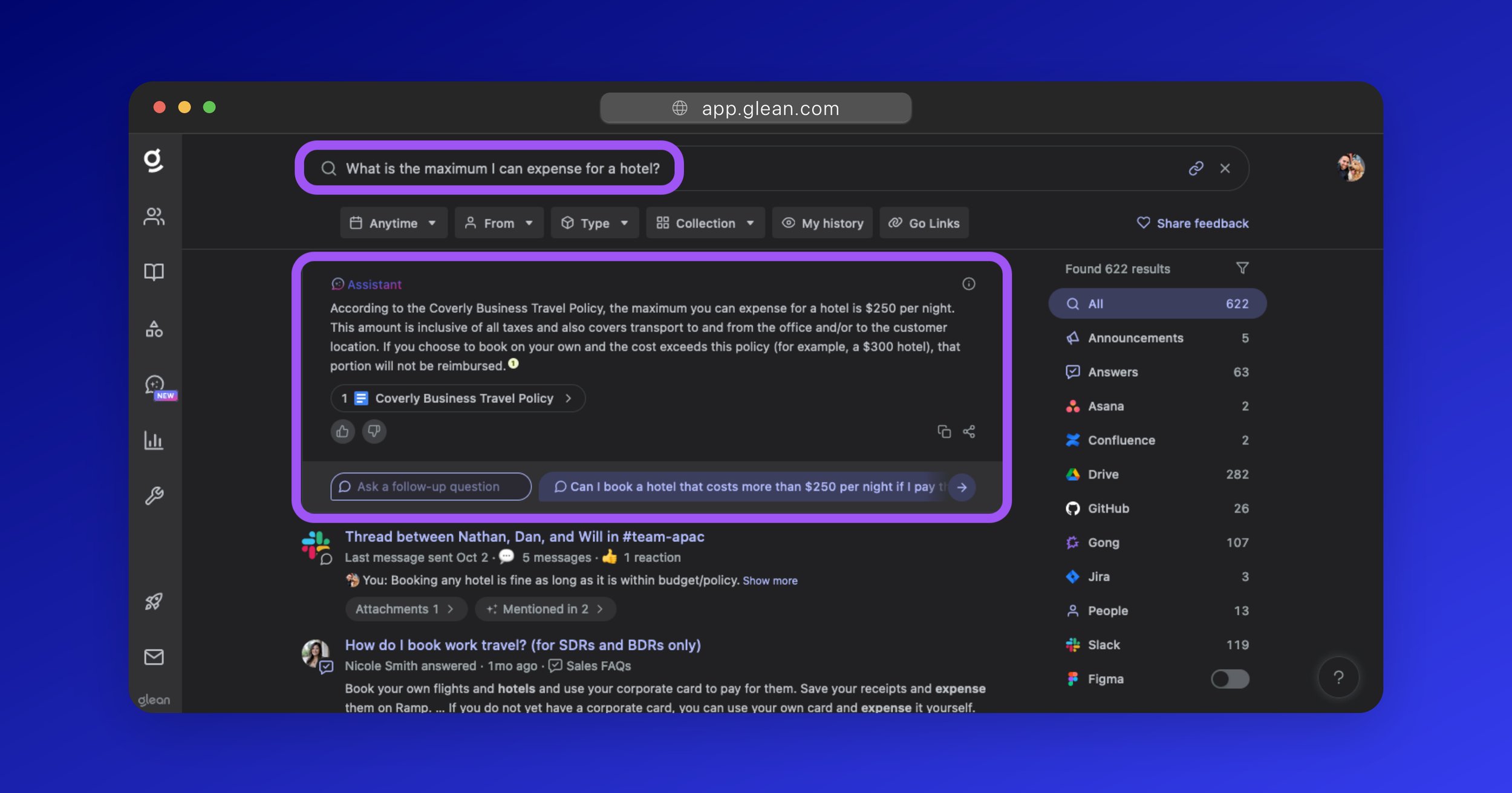
3
[](https://docs.glean.com/user-guide/assistant/best-practices#)
Use Application Filters
Filter by application to narrow down search results and enhance precision.
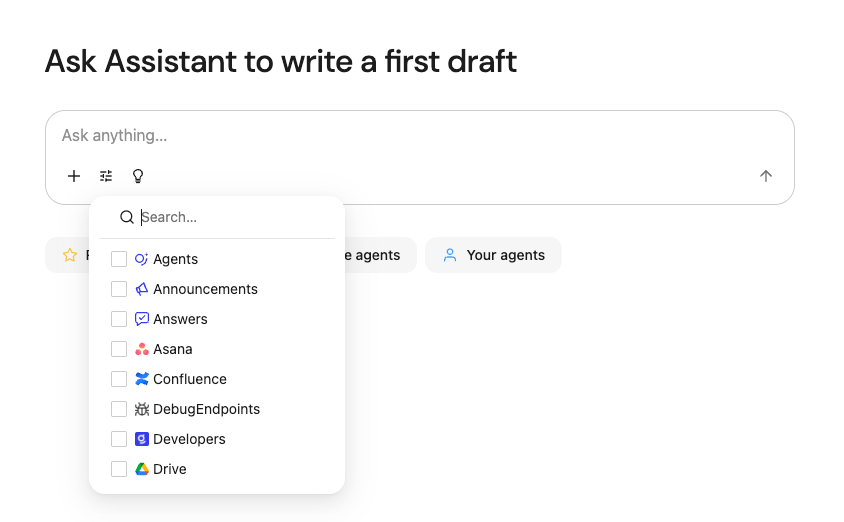
4
[](https://docs.glean.com/user-guide/assistant/best-practices#)
Utilize Connector Parameters
For global searches, use connector names as search parameters to find specific results. Use the format `app:connectorname` (e.g., “app:zendesk” or “app:gdrive”).
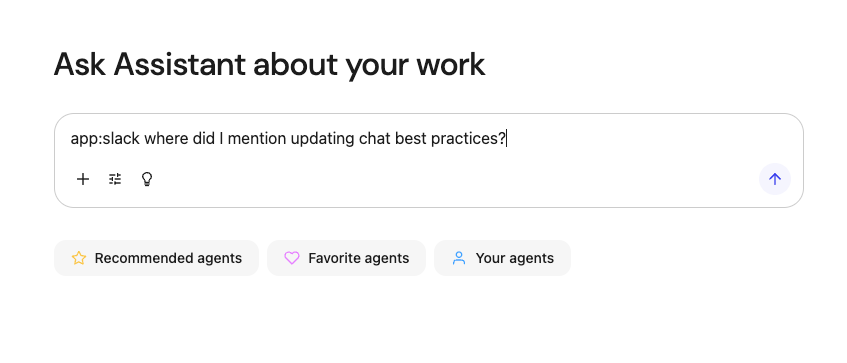
5
[](https://docs.glean.com/user-guide/assistant/best-practices#)
Tag Relevant Documents
To ask questions about a specific document, enter the URL of the document or type in @ followed by the name of the document.
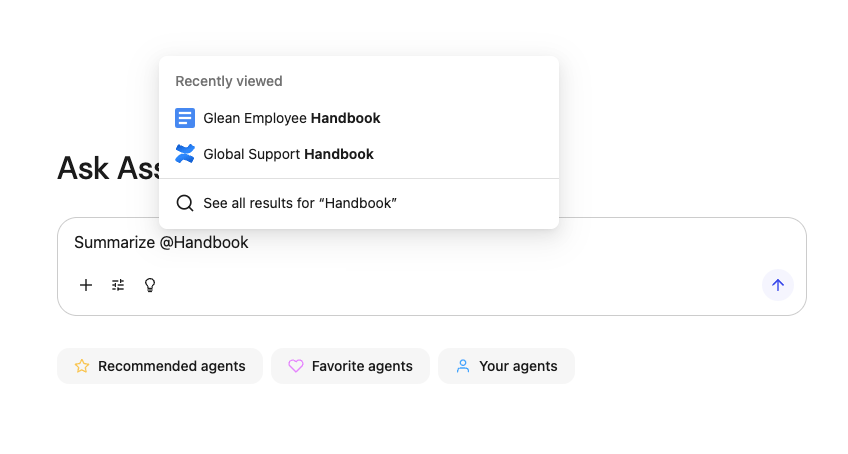
6
[](https://docs.glean.com/user-guide/assistant/best-practices#)
Access Worldwide Knowledge
Toggle to “Search the web” mode to expand your search to worldwide knowledge.
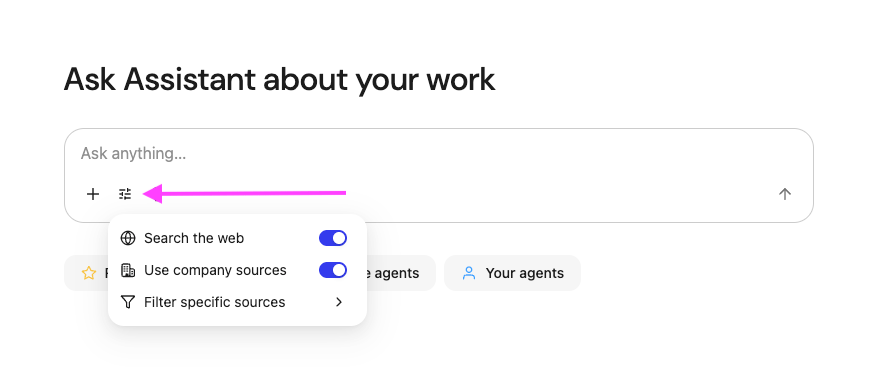
[](https://docs.glean.com/user-guide/assistant/best-practices#additional-best-practices)
Additional Best Practices
----------------------------------------------------------------------------------------------------------------------
Use Clear Language
------------------
Write questions in clear, simple language and avoid slang or abbreviations.**Instead of:** “What’s the ROI on implementing AI-driven CRM?”**Better:** “Could you explain the expected benefits of using AI in customer relationship management systems?”
Break Down Complex Questions
----------------------------
If your question involves multiple parts, consider breaking it down into smaller, more focused questions to get more accurate responses.
Provide Context
---------------
Include relevant background information to help Glean understand your question better and provide more relevant answers.
Use Quotation Marks for Emphasis
--------------------------------
Place important keywords in double quotes to emphasize them in your search. For example: `Please provide recent customer tickets for the "XYZ" customer from the ticketing tool or datasource "ABC".`
If you need assistance, please reach out to our support team by submitting a request through our [support portal](https://support.glean.comhttps//support.glean.com/hc/en-us)
.
Was this page helpful?
YesNo
[Glean Deep Research](https://docs.glean.com/user-guide/assistant/deep-research)
[Info Access](https://docs.glean.com/user-guide/assistant/how-glean-accesses-info)
⌘I
---
# Extension Sidebar - Glean Help Center
[Skip to main content](https://docs.glean.com/user-guide/apps/extension-sidebar#content-area)
[Glean Help Center home page](https://docs.glean.com/)
Search...
⌘K
Search...
Navigation
Glean Apps
Extension Sidebar
[Home](https://docs.glean.com/home)
[User Guide](https://docs.glean.com/user-guide/about/what-is-glean)
[Agents](https://docs.glean.com/agents/home)
[Get Started for Admins](https://docs.glean.com/get-started/welcome)
[Connectors](https://docs.glean.com/connectors/home)
[Admin Guide](https://docs.glean.com/administration/about)
[Security & Architecture](https://docs.glean.com/security/home)
[Troubleshooting](https://docs.glean.com/troubleshooting/home)
[Release Notes](https://docs.glean.com/release-notes/home)
[Archive](https://docs.glean.com/archive/help-glean/answers/what-are-answers-and-how-do-they-work)
On this page
* [Glean browser extension sidebar](https://docs.glean.com/user-guide/apps/extension-sidebar#glean-browser-extension-sidebar)
* [Using the sidebar screenshot](https://docs.glean.com/user-guide/apps/extension-sidebar#using-the-sidebar-screenshot)
* [Accessing the sidebar](https://docs.glean.com/user-guide/apps/extension-sidebar#accessing-the-sidebar)
* [Knowledge tools](https://docs.glean.com/user-guide/apps/extension-sidebar#knowledge-tools)
[](https://docs.glean.com/user-guide/apps/extension-sidebar#glean-browser-extension-sidebar)
Glean browser extension sidebar
--------------------------------------------------------------------------------------------------------------------------------
The Glean browser extension sidebar enhances your research and discovery capabilities directly within your web browser on both indexed and unindexed web pages. It consolidates essential functionalities into an interface accessible via keyboard shortcuts or the Glean icon. The sidebar features two distinct tabs:
* **Chat tab:** Provides an AI assistant that uses contextual and company knowledge to enhance research.
* **Search tab:** Enables searches for relevant content, documents, and experts.
[](https://docs.glean.com/user-guide/apps/extension-sidebar#using-the-sidebar-screenshot)
Using the sidebar screenshot
--------------------------------------------------------------------------------------------------------------------------
Capture and use content that can’t be copied or highlighted on the web page.
* Screenshot images, non-selectable text, or specific sections from the current page in just a few clicks.
* Focus on part of a page and bring more content into Glean’s chat and tools.
[](https://docs.glean.com/user-guide/apps/extension-sidebar#accessing-the-sidebar)
Accessing the sidebar
------------------------------------------------------------------------------------------------------------
There are three ways to access the Glean browser extension sidebar:
* Use the keyboard shortcut: Command + J (Mac) or Alt + J (Windows).
* Click the blue Glean icon on the sticky tab on the right side of the screen.
* Navigate to the Glean extension icon (puzzle piece) in the navigation bar.
[](https://docs.glean.com/user-guide/apps/extension-sidebar#knowledge-tools)
Knowledge tools
------------------------------------------------------------------------------------------------
The content tab provides knowledge tools that enhance your ability to organize and access information:
* **Collections:** Add or view collections this document is relevant to, helping you organize related content for easy discovery later.
* **Go Links:** Create or view Go Links to the current page you are on, enabling quick access through memorable shortcuts.
Was this page helpful?
YesNo
[Installing the browser extension](https://docs.glean.com/user-guide/apps/installing-the-browser-extension)
[Glean companion](https://docs.glean.com/user-guide/apps/glean-companion)
⌘I
---
# Browser History Results - Glean Help Center
[Skip to main content](https://docs.glean.com/user-guide/search/browser-history-apps#content-area)
[Glean Help Center home page](https://docs.glean.com/)
Search...
⌘K
Search...
Navigation
Glean Search
Browser History Results
[Home](https://docs.glean.com/home)
[User Guide](https://docs.glean.com/user-guide/about/what-is-glean)
[Agents](https://docs.glean.com/agents/home)
[Get Started for Admins](https://docs.glean.com/get-started/welcome)
[Connectors](https://docs.glean.com/connectors/home)
[Admin Guide](https://docs.glean.com/administration/about)
[Security & Architecture](https://docs.glean.com/security/home)
[Troubleshooting](https://docs.glean.com/troubleshooting/home)
[Release Notes](https://docs.glean.com/release-notes/home)
[Archive](https://docs.glean.com/archive/help-glean/answers/what-are-answers-and-how-do-they-work)
With the [Glean Extension](https://docs.glean.com/user-guide/apps/installing-the-browser-extension)
, you can see results and suggestions from certain workplace apps in your browser history. Because these are history-based results, you will only be able to view content you’ve seen before in these workplace apps. Glean will search across the titles of the pages you’ve visited. Results from your browser history are completely secure and private to you. Only you will see these results. Your coworkers and company will not see these results. You will be able to see results from these workplace apps if they appear in your browser history:
* Aha
* Airtable
* Bynder
* Clubhouse (Shortcut)
* Coda
* Datadog
* DocuSign
* Evernote
* Freshservice
* GCP
* Google Datastudio
* Google Sites
* Invision
* Jenkins
* JFrog
* Lucid
* Miro
* OpsGenie
* Phabricator
* Quip
* Smartsheet
* Tableau
* Testrail
* Trello
* Workday
* Zeplin
Looking for the original version of this page? You can find the archived version [here](https://docs.glean.com/archive/help-glean/faq/browser-history-apps)
.
Was this page helpful?
YesNo
[FAQ](https://docs.glean.com/user-guide/basics/faq)
[Introduction to Glean Chat](https://docs.glean.com/user-guide/assistant/glean-chat/glean-chat)
⌘I
---
# Contextual Images - Glean Help Center
[Skip to main content](https://docs.glean.com/user-guide/assistant/contextual-images#content-area)
[Glean Help Center home page](https://docs.glean.com/)
Search...
⌘K
Search...
Navigation
Glean Assistant
Contextual Images
[Home](https://docs.glean.com/home)
[User Guide](https://docs.glean.com/user-guide/about/what-is-glean)
[Agents](https://docs.glean.com/agents/home)
[Get Started for Admins](https://docs.glean.com/get-started/welcome)
[Connectors](https://docs.glean.com/connectors/home)
[Admin Guide](https://docs.glean.com/administration/about)
[Security & Architecture](https://docs.glean.com/security/home)
[Troubleshooting](https://docs.glean.com/troubleshooting/home)
[Release Notes](https://docs.glean.com/release-notes/home)
[Archive](https://docs.glean.com/archive/help-glean/answers/what-are-answers-and-how-do-they-work)
On this page
* [Key benefits](https://docs.glean.com/user-guide/assistant/contextual-images#key-benefits)
* [Example use cases](https://docs.glean.com/user-guide/assistant/contextual-images#example-use-cases)
* [How it works](https://docs.glean.com/user-guide/assistant/contextual-images#how-it-works)
* [Permissions & privacy](https://docs.glean.com/user-guide/assistant/contextual-images#permissions-%26-privacy)
* [Frequently asked questions](https://docs.glean.com/user-guide/assistant/contextual-images#frequently-asked-questions)
* [Further reading](https://docs.glean.com/user-guide/assistant/contextual-images#further-reading)
**Contextual Images** is a feature in Glean Assistant that surfaces diagrams, charts, screenshots, and other images found in your company’s indexed documents directly in chat responses. These visuals appear inline with supporting answers, helping you quickly understand technical concepts or visualize referenced content without leaving your workflow.
###
[](https://docs.glean.com/user-guide/assistant/contextual-images#key-benefits)
Key benefits
* **Instant Visual Context:** See diagrams, process maps, and screenshots exactly when you need them.
* **Improved Collaboration:** Reduce back-and-forth over missing visuals during technical troubleshooting or brainstorming.
* **Time Savings:** No need to open multiple files or search folders for referenced images.
###
[](https://docs.glean.com/user-guide/assistant/contextual-images#example-use-cases)
Example use cases
* Requesting a system architecture diagram for a product or service.
* Viewing a whiteboard photo from a design review captured in a meeting notes doc.
* Troubleshooting a support issue with step-by-step screenshots extracted from internal documentation.
###
[](https://docs.glean.com/user-guide/assistant/contextual-images#how-it-works)
How it works
1
[](https://docs.glean.com/user-guide/assistant/contextual-images#)
Scan Data Sources
Glean Assistant scans your connected data sources (Google Drive, SharePoint, and OneDrive) for images that match your query context.
2
[](https://docs.glean.com/user-guide/assistant/contextual-images#)
Display Relevant Images
When an image is relevant and you have viewing permissions, it appears automatically in your Assistant response.
3
[](https://docs.glean.com/user-guide/assistant/contextual-images#)
Support Multiple Formats
Images are supported if they are standalone files (PNG, JPG, GIF, etc.) or embedded inside Google Docs, PDFs, Word, and PowerPoint documents (except Google Drawings).
###
[](https://docs.glean.com/user-guide/assistant/contextual-images#permissions-&-privacy)
Permissions & privacy
* You will _only_ see images if you have access to the underlying source document.
* The feature honors your company’s sharing and security policies automatically.
This feature may not be available for your deployment. Please contact your admin if you do not see images rendered.
###
[](https://docs.glean.com/user-guide/assistant/contextual-images#frequently-asked-questions)
Frequently asked questions
Can users upload their own images?
Contextual Images surfaces existing images from indexed sources; user uploads via chat are not currently supported for rendering.
Which image formats are supported?
Standard image formats (PNG, JPG, GIF, etc.) from Google Drive, OneDrive, SharePoint, and those embedded in PDFs, DOCX, and PPTX files are supported (excluding Google Drawings).
Do I have to do anything to prompt images?
Just ask a question; for best results, reference the concept or process you want to visualize (e.g., “Show me the pipeline diagram for project Mercury”).
###
[](https://docs.glean.com/user-guide/assistant/contextual-images#further-reading)
Further reading
For further details, troubleshooting tips, and admin cost controls, visit:
* [Contextual Images Admin Guide](https://docs.glean.com/administration/assistant/features/contextual-images)
* [Community and Support](https://community.glean.com/)
Was this page helpful?
YesNo
[Info Access](https://docs.glean.com/user-guide/assistant/how-glean-accesses-info)
[Image Generation in Glean Assistant](https://docs.glean.com/user-guide/assistant/image-generation)
⌘I
---
# Why does the Chrome extension ask for those permissions? - Glean Help Center
[Skip to main content](https://docs.glean.com/user-guide/apps/why-does-the-chrome-extension-ask-for-those-permissions#content-area)
[Glean Help Center home page](https://docs.glean.com/)
Search...
⌘K
Search...
Navigation
Glean Apps
Why does the Chrome extension ask for those permissions?
[Home](https://docs.glean.com/home)
[User Guide](https://docs.glean.com/user-guide/about/what-is-glean)
[Agents](https://docs.glean.com/agents/home)
[Get Started for Admins](https://docs.glean.com/get-started/welcome)
[Connectors](https://docs.glean.com/connectors/home)
[Admin Guide](https://docs.glean.com/administration/about)
[Security & Architecture](https://docs.glean.com/security/home)
[Troubleshooting](https://docs.glean.com/troubleshooting/home)
[Release Notes](https://docs.glean.com/release-notes/home)
[Archive](https://docs.glean.com/archive/help-glean/answers/what-are-answers-and-how-do-they-work)
On this page
* [Read and change all your data on websites you visit](https://docs.glean.com/user-guide/apps/why-does-the-chrome-extension-ask-for-those-permissions#read-and-change-all-your-data-on-websites-you-visit)
* [Replace the page you see when opening a new tab](https://docs.glean.com/user-guide/apps/why-does-the-chrome-extension-ask-for-those-permissions#replace-the-page-you-see-when-opening-a-new-tab)
* [Read and change your browsing history](https://docs.glean.com/user-guide/apps/why-does-the-chrome-extension-ask-for-those-permissions#read-and-change-your-browsing-history)
* [Read and change your bookmarks](https://docs.glean.com/user-guide/apps/why-does-the-chrome-extension-ask-for-those-permissions#read-and-change-your-bookmarks)
You might’ve noticed our Chrome Extension asks for several permissions you might be unfamiliar with, so let’s break down the details together.
###
[](https://docs.glean.com/user-guide/apps/why-does-the-chrome-extension-ask-for-those-permissions#read-and-change-all-your-data-on-websites-you-visit)
Read and change all your data on websites you visit
Glean has a variety of features that enhance the user experience and shown in the native tool. Some examples are:
* Native search replacement where Glean powers search directly in tools like Atlassian and Drive
* Our Glean sticky tab appears on workplace apps where you can verify a document.
* To use [Go Links](https://docs.glean.com/user-guide/knowledge/go-links/how-go-links-work)
, it asks for an additional permission to read and change your data on “go,” which enables redirection to shortened links
In order to provide these features, it requires this broad permission – but the access is limited to only workplace applications that work with Glean.
###
[](https://docs.glean.com/user-guide/apps/why-does-the-chrome-extension-ask-for-those-permissions#replace-the-page-you-see-when-opening-a-new-tab)
Replace the page you see when opening a new tab
We replace your new tab page with our search experience so you can bring up anything from any tool you use in an instant. You can still search Google from the browser’s URL bar or disable Glean acting as the new tab at any time from the settings.
###
[](https://docs.glean.com/user-guide/apps/why-does-the-chrome-extension-ask-for-those-permissions#read-and-change-your-browsing-history)
Read and change your browsing history
We only use the “read” part of this permission so we can autocomplete search results for you and and improve search result ranking for individual users. The system only uses history from the workplace apps you’ve connected to Glean and other well known productivity apps that we don’t currently index (e.g. Notion, Airtable, etc), and ignore all other history. This data will never be shared with any 3rd party.
###
[](https://docs.glean.com/user-guide/apps/why-does-the-chrome-extension-ask-for-those-permissions#read-and-change-your-bookmarks)
Read and change your bookmarks
We show a dismissible bookmarks bar on our new tab page, since replacing Chrome’s default new tab page also disables the Google bookmarks feature which only shows the bookmarks bar on a new tab.
Was this page helpful?
YesNo
[Glean companion](https://docs.glean.com/user-guide/apps/glean-companion)
[Glean Extension via Company Push](https://docs.glean.com/user-guide/apps/glean-extension-via-company-push)
⌘I
---
# Glean Extension via Company Push - Glean Help Center
[Skip to main content](https://docs.glean.com/user-guide/apps/glean-extension-via-company-push#content-area)
[Glean Help Center home page](https://docs.glean.com/)
Search...
⌘K
Search...
Navigation
Glean Apps
Glean Extension via Company Push
[Home](https://docs.glean.com/home)
[User Guide](https://docs.glean.com/user-guide/about/what-is-glean)
[Agents](https://docs.glean.com/agents/home)
[Get Started for Admins](https://docs.glean.com/get-started/welcome)
[Connectors](https://docs.glean.com/connectors/home)
[Admin Guide](https://docs.glean.com/administration/about)
[Security & Architecture](https://docs.glean.com/security/home)
[Troubleshooting](https://docs.glean.com/troubleshooting/home)
[Release Notes](https://docs.glean.com/release-notes/home)
[Archive](https://docs.glean.com/archive/help-glean/answers/what-are-answers-and-how-do-they-work)
On this page
* [What is Glean?](https://docs.glean.com/user-guide/apps/glean-extension-via-company-push#what-is-glean)
* [How did Glean become my new tab page?](https://docs.glean.com/user-guide/apps/glean-extension-via-company-push#how-did-glean-become-my-new-tab-page)
* [How can I get my old new tab page back?](https://docs.glean.com/user-guide/apps/glean-extension-via-company-push#how-can-i-get-my-old-new-tab-page-back)
* [I want to go back to my old blank browser new tab:](https://docs.glean.com/user-guide/apps/glean-extension-via-company-push#i-want-to-go-back-to-my-old-blank-browser-new-tab)
* [I want to go back to my previous custom new tab (e.g. Momentum, Scratchpad, Earth View):](https://docs.glean.com/user-guide/apps/glean-extension-via-company-push#i-want-to-go-back-to-my-previous-custom-new-tab-e-g-momentum-scratchpad-earth-view-)
* [How can I continue to use Glean?](https://docs.glean.com/user-guide/apps/glean-extension-via-company-push#how-can-i-continue-to-use-glean)
[](https://docs.glean.com/user-guide/apps/glean-extension-via-company-push#what-is-glean)
What is Glean?
------------------------------------------------------------------------------------------------------------
Glean is the AI-powered workplace assistant that searches all of your apps across your entire company, understanding context, language behavior, and relationships with others, to find personalized answers to all your workplace questions. You can read more about what we do and how to use us [here](https://docs.glean.com/user-guide/about/what-is-glean)
.
[](https://docs.glean.com/user-guide/apps/glean-extension-via-company-push#how-did-glean-become-my-new-tab-page)
How did Glean become my new tab page?
----------------------------------------------------------------------------------------------------------------------------------------------------------
The Glean extension was installed into your browser by your company which has vetted the product’s effectiveness, security, and ability to save you time.
[](https://docs.glean.com/user-guide/apps/glean-extension-via-company-push#how-can-i-get-my-old-new-tab-page-back)
How can I get my old new tab page back?
--------------------------------------------------------------------------------------------------------------------------------------------------------------
Although the Glean new tab page is an essential part of finding what you need from all your tools and quickly accessing relevant content, we understand sometimes you just want your old new tab back.
####
[](https://docs.glean.com/user-guide/apps/glean-extension-via-company-push#i-want-to-go-back-to-my-old-blank-browser-new-tab)
I want to go back to my old blank browser new tab:
After you log in to Glean, on the home or new tab page, click the **Home page** **settings icon** in the top right corner to open the settings panel. From there, you can turn off Glean as your new tab entirely by flipping the toggle.
####
[](https://docs.glean.com/user-guide/apps/glean-extension-via-company-push#i-want-to-go-back-to-my-previous-custom-new-tab-e-g-momentum-scratchpad-earth-view-)
I want to go back to my previous custom new tab (e.g. Momentum, Scratchpad, Earth View):
If you had a previous extension that replaced your new tab and prefer that over Glean, you’ll have to uninstall the extension that gave you that previous new tab experience (Momentum, Scratchpad, Earth View, etc). Then, reinstall that same extension and your previous new tab should be restored.
####
[](https://docs.glean.com/user-guide/apps/glean-extension-via-company-push#how-can-i-continue-to-use-glean)
How can I continue to use Glean?
After you’ve reset your new tab, don’t forget that there are other entry points for Glean!
* Typing \*\*`gl`\*\*in the address bar followed by your search
* CMD + J for the sidebar
* [app.glean.com](https://app.glean.com/)
* [Desktop app](https://docs.glean.com/user-guide/apps/get-the-desktop-app)
Was this page helpful?
YesNo
[Why does the Chrome extension ask for those permissions?](https://docs.glean.com/user-guide/apps/why-does-the-chrome-extension-ask-for-those-permissions)
[Get The Desktop App](https://docs.glean.com/user-guide/apps/get-the-desktop-app)
⌘I
---
# Memory and personalization - Glean Help Center
[Skip to main content](https://docs.glean.com/user-guide/assistant/memory-personalization#content-area)
[Glean Help Center home page](https://docs.glean.com/)
Search...
⌘K
Search...
Navigation
Glean Assistant
Memory and personalization
[Home](https://docs.glean.com/home)
[User Guide](https://docs.glean.com/user-guide/about/what-is-glean)
[Agents](https://docs.glean.com/agents/home)
[Get Started for Admins](https://docs.glean.com/get-started/welcome)
[Connectors](https://docs.glean.com/connectors/home)
[Admin Guide](https://docs.glean.com/administration/about)
[Security & Architecture](https://docs.glean.com/security/home)
[Troubleshooting](https://docs.glean.com/troubleshooting/home)
[Release Notes](https://docs.glean.com/release-notes/home)
[Archive](https://docs.glean.com/archive/help-glean/answers/what-are-answers-and-how-do-they-work)
On this page
* [How memory works](https://docs.glean.com/user-guide/assistant/memory-personalization#how-memory-works)
* [Memory categories](https://docs.glean.com/user-guide/assistant/memory-personalization#memory-categories)
* [Benefits of memory](https://docs.glean.com/user-guide/assistant/memory-personalization#benefits-of-memory)
* [Manage your memories](https://docs.glean.com/user-guide/assistant/memory-personalization#manage-your-memories)
* [View memories in Settings](https://docs.glean.com/user-guide/assistant/memory-personalization#view-memories-in-settings)
* [Add memories using chat](https://docs.glean.com/user-guide/assistant/memory-personalization#add-memories-using-chat)
* [View memories using chat](https://docs.glean.com/user-guide/assistant/memory-personalization#view-memories-using-chat)
* [Delete memories](https://docs.glean.com/user-guide/assistant/memory-personalization#delete-memories)
* [Runtime controls in chat](https://docs.glean.com/user-guide/assistant/memory-personalization#runtime-controls-in-chat)
* [Privacy and security](https://docs.glean.com/user-guide/assistant/memory-personalization#privacy-and-security)
* [Known limitations](https://docs.glean.com/user-guide/assistant/memory-personalization#known-limitations)
* [Frequently asked questions](https://docs.glean.com/user-guide/assistant/memory-personalization#frequently-asked-questions)
Assistant memory is a persistent, privacy-safe continuity layer that enables Glean Assistant to remember your preferences, work context, and ongoing projects. Memory helps the Assistant provide more relevant, personalized responses without requiring you to repeat information across sessions.
[](https://docs.glean.com/user-guide/assistant/memory-personalization#how-memory-works)
How memory works
------------------------------------------------------------------------------------------------------------
Glean Assistant uses two types of memory to personalize your experience:
* **Saved memories**: Explicit, user-controlled information you tell the Assistant to remember (for example, “Remember that I prefer concise answers” or “I’m a Sales Engineer in EMEA”).
* **Extracted memories**: Implicit insights mined from your chat sessions and work activity, within retention guardrails. These include your response preferences, role and responsibilities, active projects, and recent topics.
Memory improves response quality and efficiency for tasks that benefit from personalization, including tone, style, role awareness, and continuity across conversations.
Memory does not grant the Assistant access to documents you cannot access. Memory only stores user-level facts and preferences.
[](https://docs.glean.com/user-guide/assistant/memory-personalization#memory-categories)
Memory categories
--------------------------------------------------------------------------------------------------------------
The Assistant organizes memories into the following categories:
| Category | Description |
| --- | --- |
| **Role and responsibilities** | A summary of your role, job function, and key areas of focus |
| **Response preferences** | Your preferred tone (concise vs. detailed), formatting (bullets, tables), formality level, and style |
| **Active projects** | Current projects and initiatives you’re working on |
| **Recent topics** | Topics and focus areas from your recent work activity |
| **Other** | Additional context and facts that don’t fit other categories |
[](https://docs.glean.com/user-guide/assistant/memory-personalization#benefits-of-memory)
Benefits of memory
----------------------------------------------------------------------------------------------------------------
Memory helps you work more efficiently by:
* **Reducing repetition**: You don’t need to re-explain your role, preferences, or project context in each conversation.
* **Providing continuity**: The Assistant remembers context from previous discussions, so you can continue where you left off.
* **Personalizing responses**: Responses match your preferred communication style and level of detail.
* **Improving relevance**: Recommendations and suggestions are tailored to your work focus areas and past requests.
[](https://docs.glean.com/user-guide/assistant/memory-personalization#manage-your-memories)
Manage your memories
--------------------------------------------------------------------------------------------------------------------
You can view and delete your saved memories from Settings, and you can view, add, and edit memories directly in chat.
###
[](https://docs.glean.com/user-guide/assistant/memory-personalization#view-memories-in-settings)
View memories in Settings
1. Click your profile icon and select **Settings**.
2. Select **Personalization**.
3. Review your memories organized by category.
###
[](https://docs.glean.com/user-guide/assistant/memory-personalization#add-memories-using-chat)
Add memories using chat
Tell the Assistant what to remember using natural language:
* “Remember that I prefer comprehensive responses in tabular format”
* “Remember that I work on the enterprise sales team”
* “Remember that I always want code examples in Python”
The Assistant confirms when it saves a memory.
###
[](https://docs.glean.com/user-guide/assistant/memory-personalization#view-memories-using-chat)
View memories using chat
Ask the Assistant what it remembers about you:
* “What do you remember about me?”
* “Show me my saved memories”
###
[](https://docs.glean.com/user-guide/assistant/memory-personalization#delete-memories)
Delete memories
You can delete individual memories or all memories: **Delete a specific memory:**
* In Settings > Personalization, click the delete icon next to the memory you want to remove.
* In chat, tell the Assistant: “Forget that I prefer responses in bulleted format”
**Delete all memories:**
* In Settings > Personalization, click **Delete all** to remove all memories in a category.
Deleted memories may be regenerated from your activity data during the weekly memory update cycle.
###
[](https://docs.glean.com/user-guide/assistant/memory-personalization#runtime-controls-in-chat)
Runtime controls in chat
You can control memory usage during a conversation using natural language:
* “Don’t use memory in this chat”
* “Use memory for this response”
* “What memories are you using right now?”
[](https://docs.glean.com/user-guide/assistant/memory-personalization#privacy-and-security)
Privacy and security
--------------------------------------------------------------------------------------------------------------------
Memory is designed with privacy and security as core principles:
* **User-level data**: Memories are stored at the individual user level. There is no cross-user memory sharing.
* **No document access**: Memory stores facts and preferences, not document content. Memory does not grant access to documents you don’t have permission to view.
* **Retention policies**: Extracted memories are persisted for 30 days and regenerated weekly. Saved memories persist until you delete them.
* **Sensitive data**: The system does not extract sensitive personal attributes. Extraction is scoped to work context and preferences.
* **Admin controls**: Your organization’s admin can configure memory settings, including enabling or disabling memory features at the organization level.
[](https://docs.glean.com/user-guide/assistant/memory-personalization#known-limitations)
Known limitations
--------------------------------------------------------------------------------------------------------------
* **Possible duplication**: You may see duplicate entries in memory views. These are deduplicated during the weekly update cycle.
* **Deleted memories may reappear**: Extracted memories may be regenerated from activity data after deletion.
* **Fast Mode**: Memories cannot be created or referenced when using Fast Mode.
* **Memory edits in UI**: User memory edits through chat commands are supported; edits directly in the Settings UI are view-only except for deletion.
* **Weekly updates**: Extracted memories are regenerated weekly. Changes may not appear immediately.
[](https://docs.glean.com/user-guide/assistant/memory-personalization#frequently-asked-questions)
Frequently asked questions
--------------------------------------------------------------------------------------------------------------------------------
How is memory different from chat history?
Chat history stores your previous conversations so you can reference them later. Memory extracts and stores durable facts, preferences, and context that persist across all conversations, not just within a single chat thread.
Will the Assistant use memory in agent conversations?
Yes, agents can access your memories to provide personalized responses, subject to the agent’s configuration and your memory settings.
Can my admin see my memories?
Your admin can configure memory settings for the organization but cannot view individual user memories. Memories are private to each user.
Was this page helpful?
YesNo
[Code Generation](https://docs.glean.com/user-guide/assistant/code-generation)
[Installing the browser extension](https://docs.glean.com/user-guide/apps/installing-the-browser-extension)
⌘I
---
# Image Generation in Glean Assistant - Glean Help Center
[Skip to main content](https://docs.glean.com/user-guide/assistant/image-generation#content-area)
[Glean Help Center home page](https://docs.glean.com/)
Search...
⌘K
Search...
Navigation
Glean Assistant
Image Generation in Glean Assistant
[Home](https://docs.glean.com/home)
[User Guide](https://docs.glean.com/user-guide/about/what-is-glean)
[Agents](https://docs.glean.com/agents/home)
[Get Started for Admins](https://docs.glean.com/get-started/welcome)
[Connectors](https://docs.glean.com/connectors/home)
[Admin Guide](https://docs.glean.com/administration/about)
[Security & Architecture](https://docs.glean.com/security/home)
[Troubleshooting](https://docs.glean.com/troubleshooting/home)
[Release Notes](https://docs.glean.com/release-notes/home)
[Archive](https://docs.glean.com/archive/help-glean/answers/what-are-answers-and-how-do-they-work)
On this page
* [Who can use image generation](https://docs.glean.com/user-guide/assistant/image-generation#who-can-use-image-generation)
* [Where you can generate images](https://docs.glean.com/user-guide/assistant/image-generation#where-you-can-generate-images)
* [How to generate an image](https://docs.glean.com/user-guide/assistant/image-generation#how-to-generate-an-image)
* [Example prompts](https://docs.glean.com/user-guide/assistant/image-generation#example-prompts)
* [Prompting tips and best practices](https://docs.glean.com/user-guide/assistant/image-generation#prompting-tips-and-best-practices)
* [Be explicit about subject and style](https://docs.glean.com/user-guide/assistant/image-generation#be-explicit-about-subject-and-style)
* [Specify the audience](https://docs.glean.com/user-guide/assistant/image-generation#specify-the-audience)
* [Limit on-image text](https://docs.glean.com/user-guide/assistant/image-generation#limit-on-image-text)
* [Iterate with feedback](https://docs.glean.com/user-guide/assistant/image-generation#iterate-with-feedback)
* [Use your enterprise context when it helps](https://docs.glean.com/user-guide/assistant/image-generation#use-your-enterprise-context-when-it-helps)
* [Credits, pricing, and admin controls](https://docs.glean.com/user-guide/assistant/image-generation#credits-pricing-and-admin-controls)
* [Known limitations and quirks](https://docs.glean.com/user-guide/assistant/image-generation#known-limitations-and-quirks)
* [Occasional link-only responses](https://docs.glean.com/user-guide/assistant/image-generation#occasional-link-only-responses)
* [Activity-based prompts and broken links](https://docs.glean.com/user-guide/assistant/image-generation#activity-based-prompts-and-broken-links)
* [Image safety and blocked requests](https://docs.glean.com/user-guide/assistant/image-generation#image-safety-and-blocked-requests)
* [Frequently asked questions](https://docs.glean.com/user-guide/assistant/image-generation#frequently-asked-questions)
* [Further reading](https://docs.glean.com/user-guide/assistant/image-generation#further-reading)
Glean Assistant includes built-in image generation, allowing you to create custom visuals from natural-language prompts without leaving your workflow. Whether you need to illustrate concepts, create quick mockups, or add visuals to documentation, you can generate images alongside your questions and tasks.
[](https://docs.glean.com/user-guide/assistant/image-generation#who-can-use-image-generation)
Who can use image generation
------------------------------------------------------------------------------------------------------------------------------
Image generation is available to:
* **Glean Key customers on GCP** with access to Glean Assistant and Agents
* End users in tenants where the feature is enabled
Admins can enable or disable image generation tenant-wide from:
> **Admin Console** → **Assistant** → **Settings** → **Image generation**
From the end user’s perspective, there’s nothing to install. If your admin has enabled the feature, you’ll see image responses directly in Glean Assistant.
[](https://docs.glean.com/user-guide/assistant/image-generation#where-you-can-generate-images)
Where you can generate images
--------------------------------------------------------------------------------------------------------------------------------
You can use image generation anywhere you use Glean Assistant:
* **Assistant chat** in the Glean web application
* **Plan & Execute note** in Agents when creating or refining multi-step plans
Image generation works in both:
* **Fast mode** – optimized for speed
* **Thinking mode** – optimized for deeper reasoning and richer use of your enterprise context
You don’t need to change modes or tools to access image generation. Simply ask the assistant for an image in your prompt.
[](https://docs.glean.com/user-guide/assistant/image-generation#how-to-generate-an-image)
How to generate an image
----------------------------------------------------------------------------------------------------------------------
You generate images using natural language prompts, just like any other question to the assistant.
1
[](https://docs.glean.com/user-guide/assistant/image-generation#)
Open Glean Assistant
Navigate to Glean Assistant in your Glean application.
2
[](https://docs.glean.com/user-guide/assistant/image-generation#)
Write your prompt
Type a prompt that clearly asks for an image. Specify style, level of realism, audience, or any other constraints.
3
[](https://docs.glean.com/user-guide/assistant/image-generation#)
Submit and review
Submit your prompt. The assistant will generate the image using Nano Banana Pro and return it inline in the chat, typically with a link to view or download.
4
[](https://docs.glean.com/user-guide/assistant/image-generation#)
Download or refine
Click the image or link to open it in full size, then download it, paste it into docs or slides, or regenerate with updated instructions.
###
[](https://docs.glean.com/user-guide/assistant/image-generation#example-prompts)
Example prompts
**Using your work context:**
* _“Search for my scope and what I work on. Then generate an image that describes it visually.”_
This lets the assistant ground the image in your recent work—projects, artifacts, and topics tied to your account. **Purely creative:**
* _“Generate a photorealistic image of a hamster flying a plane.”_
Good for illustrative or playful visuals where you don’t need enterprise context. **Explaining a concept:**
* _“Create a simple diagram that explains the enterprise agent development lifecycle, with clear stages from value to launch and monitoring.”_
**Documentation support:**
* _“Generate a clean, line-art style diagram that shows ‘My Work’ at the center with Security, Agents, Connectors, and Customer Outcomes around it, suitable for a product overview slide.”_
[](https://docs.glean.com/user-guide/assistant/image-generation#prompting-tips-and-best-practices)
Prompting tips and best practices
----------------------------------------------------------------------------------------------------------------------------------------
To get better results from image generation:
###
[](https://docs.glean.com/user-guide/assistant/image-generation#be-explicit-about-subject-and-style)
Be explicit about subject and style
Specify visual style, detail level, and format to guide the model. _Examples: “flat illustration, minimal text, pastel colors” | “photorealistic” | “simple black-and-white line drawing”_
###
[](https://docs.glean.com/user-guide/assistant/image-generation#specify-the-audience)
Specify the audience
Tell the assistant who will view the image to adjust complexity and tone. _Examples: “for an executive audience” | “for a new engineer onboarding doc”_
###
[](https://docs.glean.com/user-guide/assistant/image-generation#limit-on-image-text)
Limit on-image text
Short labels or headings work best. Long paragraphs should live in your document, not on the image.
###
[](https://docs.glean.com/user-guide/assistant/image-generation#iterate-with-feedback)
Iterate with feedback
Ask the assistant to refine instead of starting from scratch. _Examples: “regenerate with fewer details” | “simplify the diagram” | “change the color palette”_
###
[](https://docs.glean.com/user-guide/assistant/image-generation#use-your-enterprise-context-when-it-helps)
Use your enterprise context when it helps
For work-related visuals, reference your internal data so the assistant can ground the image in what you actually do. _Examples: “my recent docs” | “my roadmap” | “my team’s projects”_
[](https://docs.glean.com/user-guide/assistant/image-generation#credits-pricing-and-admin-controls)
Credits, pricing, and admin controls
--------------------------------------------------------------------------------------------------------------------------------------------
* **Credits:** Each generated image consumes Flex Credits, similar to other LLM-powered features.
* **Visibility:** Image generation appears as a distinct line item in Admin Console usage and billing interfaces, so admins can track usage and adjust budgets or policies.
* **Controls:** Admins can enable or disable image generation globally in Assistant settings and combine this with existing Assistant and Agents permissions for finer-grained control.
[](https://docs.glean.com/user-guide/assistant/image-generation#known-limitations-and-quirks)
Known limitations and quirks
------------------------------------------------------------------------------------------------------------------------------
Most of the time, images render directly in your chat. However, there are a few quirks to be aware of:
###
[](https://docs.glean.com/user-guide/assistant/image-generation#occasional-link-only-responses)
Occasional link-only responses
In some cases, you may see a clickable image link instead of an inline thumbnail. Clicking the link should still open the image in a new tab. If you open **“Show work”**, you may see a valid image link there even if the main response only shows the URL.
###
[](https://docs.glean.com/user-guide/assistant/image-generation#activity-based-prompts-and-broken-links)
Activity-based prompts and broken links
Prompts that ask the assistant to analyze your recent activity or personal graph and then generate an image (for example, _“Use my personal graph over the last 3 months, then generate an image”_) can sometimes produce an image link that doesn’t load correctly or returns a browser error. **If this happens:**
* Try regenerating with a simpler prompt that doesn’t rely on “my last N months of work”
* If the problem persists, report it via the feedback controls in the chat (thumbs down with a brief description) so we can track it
###
[](https://docs.glean.com/user-guide/assistant/image-generation#image-safety-and-blocked-requests)
Image safety and blocked requests
Requests that violate safety policies (explicit content, hateful or harassing imagery, real-person impersonation, or sensitive personal data) may be refused or heavily modified. **For best results, avoid prompts that include:**
* Real coworkers’ faces or full names
* Sensitive customer data, secrets, or production credentials
* Harmful, illegal, or discriminatory scenarios
[](https://docs.glean.com/user-guide/assistant/image-generation#frequently-asked-questions)
Frequently asked questions
--------------------------------------------------------------------------------------------------------------------------
Can I upload an image and ask Glean to edit it?
Yes, you can attach an image and ask the assistant to adjust style, colors, or add/remove elements, subject to the same safety policies.
Which image model is used?
Image generation currently uses **Nano Banana Pro** by default. Additional models may be introduced over time for more advanced creative or marketing use cases; when available, they will be surfaced via the normal Assistant experience.
Where are images stored?
Generated images are stored and served through Glean’s image infrastructure and follow the same enterprise-grade security and access controls as other Glean content.
Do I need to switch modes to generate images?
No. Image generation is available in both Fast and Thinking modes, so you can choose speed or depth without losing access to image generation.
[](https://docs.glean.com/user-guide/assistant/image-generation#further-reading)
Further reading
----------------------------------------------------------------------------------------------------
* [A Beginner’s Guide to Chat](https://docs.glean.com/user-guide/basics/a-beginner-s-guide-to-chat)
* [Glean Assistant Best Practices](https://docs.glean.com/user-guide/assistant/best-practices)
* [Community and Support](https://community.glean.com/)
Was this page helpful?
YesNo
[Contextual Images](https://docs.glean.com/user-guide/assistant/contextual-images)
[Code Generation](https://docs.glean.com/user-guide/assistant/code-generation)
⌘I
---
# How to search in Glean - Glean Help Center
[Skip to main content](https://docs.glean.com/user-guide/basics/how-to-search-in-glean#content-area)
[Glean Help Center home page](https://docs.glean.com/)
Search...
⌘K
Search...
Navigation
Glean Basics
How to search in Glean
[Home](https://docs.glean.com/home)
[User Guide](https://docs.glean.com/user-guide/about/what-is-glean)
[Agents](https://docs.glean.com/agents/home)
[Get Started for Admins](https://docs.glean.com/get-started/welcome)
[Connectors](https://docs.glean.com/connectors/home)
[Admin Guide](https://docs.glean.com/administration/about)
[Security & Architecture](https://docs.glean.com/security/home)
[Troubleshooting](https://docs.glean.com/troubleshooting/home)
[Release Notes](https://docs.glean.com/release-notes/home)
[Archive](https://docs.glean.com/archive/help-glean/answers/what-are-answers-and-how-do-they-work)
On this page
* [Search basics](https://docs.glean.com/user-guide/basics/how-to-search-in-glean#search-basics)
* [1\. Search for words from anywhere in the document](https://docs.glean.com/user-guide/basics/how-to-search-in-glean#1-search-for-words-from-anywhere-in-the-document)
* [2\. Navigate to documents via autocomplete](https://docs.glean.com/user-guide/basics/how-to-search-in-glean#2-navigate-to-documents-via-autocomplete)
* [3\. Use quotes around a word to require it being present](https://docs.glean.com/user-guide/basics/how-to-search-in-glean#3-use-quotes-around-a-word-to-require-it-being-present)
* [Filters](https://docs.glean.com/user-guide/basics/how-to-search-in-glean#filters)
* [1\. Find more recent results with “updated”](https://docs.glean.com/user-guide/basics/how-to-search-in-glean#1-find-more-recent-results-with-%E2%80%9Cupdated%E2%80%9D)
* [2\. Find a person associated with the document with “from”](https://docs.glean.com/user-guide/basics/how-to-search-in-glean#2-find-a-person-associated-with-the-document-with-%E2%80%9Cfrom%E2%80%9D)
* [3\. Find specific document types with “type”](https://docs.glean.com/user-guide/basics/how-to-search-in-glean#3-find-specific-document-types-with-%E2%80%9Ctype%E2%80%9D)
* [4\. Find things you’ve previously viewed with “my history”](https://docs.glean.com/user-guide/basics/how-to-search-in-glean#4-find-things-you%E2%80%99ve-previously-viewed-with-%E2%80%9Cmy-history%E2%80%9D)
* [5\. Filter by app](https://docs.glean.com/user-guide/basics/how-to-search-in-glean#5-filter-by-app)
* [6\. Use dynamically suggested filters within an app](https://docs.glean.com/user-guide/basics/how-to-search-in-glean#6-use-dynamically-suggested-filters-within-an-app)
* [Search for teammates](https://docs.glean.com/user-guide/basics/how-to-search-in-glean#search-for-teammates)
* [1\. Find contact info and details about the person](https://docs.glean.com/user-guide/basics/how-to-search-in-glean#1-find-contact-info-and-details-about-the-person)
* [2\. Learn more about a document owner](https://docs.glean.com/user-guide/basics/how-to-search-in-glean#2-learn-more-about-a-document-owner)
* [Search from wherever you work](https://docs.glean.com/user-guide/basics/how-to-search-in-glean#search-from-wherever-you-work)
* [1\. Search directly from Slack](https://docs.glean.com/user-guide/basics/how-to-search-in-glean#1-search-directly-from-slack)
* [2\. Search from any location](https://docs.glean.com/user-guide/basics/how-to-search-in-glean#2-search-from-any-location)
* [Share knowledge](https://docs.glean.com/user-guide/basics/how-to-search-in-glean#share-knowledge)
* [Advanced features](https://docs.glean.com/user-guide/basics/how-to-search-in-glean#advanced-features)
* [1\. Advanced filters](https://docs.glean.com/user-guide/basics/how-to-search-in-glean#1-advanced-filters)
* [2\. Filter out certain apps](https://docs.glean.com/user-guide/basics/how-to-search-in-glean#2-filter-out-certain-apps)
* [4\. Zoom meeting results](https://docs.glean.com/user-guide/basics/how-to-search-in-glean#4-zoom-meeting-results)
We’ve put together a quick guide on all our favorite ways of searching in Glean:
* Search basics
* Filters to narrow down on results
* Searching for teammates
* Search from wherever you work
* Sharing knowledge from Glean
* Advanced features
Let’s dive right in!
[](https://docs.glean.com/user-guide/basics/how-to-search-in-glean#search-basics)
Search basics
---------------------------------------------------------------------------------------------------
###
[](https://docs.glean.com/user-guide/basics/how-to-search-in-glean#1-search-for-words-from-anywhere-in-the-document)
1\. Search for words from anywhere in the document
First things first - Glean doesn’t just search document titles! You can search for whatever you remember about a document (i.e. specific phrases or keywords) and watch Glean work its magic ✨ _Pro tip: You can run queries as either keywords or phrased as questions._
When you enter a short, keyword‑style query in Chat like a title or name, Glean shows a concise set of top search results directly in the conversation so you can open the right document without switching to the Search page. For more information, see [Search results in Chat](https://docs.glean.com/user-guide/assistant/glean-chat/glean-chat#search-results-in-chat)
.
###
[](https://docs.glean.com/user-guide/basics/how-to-search-in-glean#2-navigate-to-documents-via-autocomplete)
2\. Navigate to documents via autocomplete
If you’ve visited a doc before, just start typing some words from the title to see it appear as a suggestion in autocomplete. _Bonus: With the [Glean extension](https://chrome.google.com/webstore/detail/scio-search/cfpdompphcacgpjfbonkdokgjhgabpij)
, you’ll also see docs from enterprise apps that Glean hasn’t indexed._
###
[](https://docs.glean.com/user-guide/basics/how-to-search-in-glean#3-use-quotes-around-a-word-to-require-it-being-present)
3\. Use quotes around a word to require it being present
To ensure that a word or a phrase are present in all results, include a quote around the word or the phrase that needs to be present. For example: **`featureX "featureY"`** or **`featureX "some phrase"`** Two words in quotes will require that those words show up in the same order right next to each other in the doc. If you just want to make sure that the words show up independently anywhere in the then put separate quotes around each of the words.
[](https://docs.glean.com/user-guide/basics/how-to-search-in-glean#filters)
Filters
---------------------------------------------------------------------------------------
Below we’ll walk through 6 examples of filters you can use in Glean. Note that there are two general ways to filter in Glean:
1. Directly from the query box by typing filter keywords
2. Clicking on filters after you see results
###
[](https://docs.glean.com/user-guide/basics/how-to-search-in-glean#1-find-more-recent-results-with-%E2%80%9Cupdated%E2%80%9D)
1\. Find more recent results with “updated”
Use the _**updated**_ filter to find documents updated in a certain time frame, e.g. **`updated:yesterday`.** Updated time is one of the common filters shown across the top of the results page.
###
[](https://docs.glean.com/user-guide/basics/how-to-search-in-glean#2-find-a-person-associated-with-the-document-with-%E2%80%9Cfrom%E2%80%9D)
2\. Find a person associated with the document with “from”
Use the flexible _**from**_ filter to find people associated with a document across any tool, e.g. either Owner or Contributor for a Drive/Dropbox/Box doc, or Assignee, Reporter, or Commenter in a Jira. You can either use the _**from**_ filter on top of the results page, or you can include **`from:`** as you’re formulating your query and select one of the names that appear in autocomplete suggestions. _Pro tips:_
* _Use **`from:me`** to find something related to you_
* _If you need to narrow it down to only a specific field (e.g. the Owner of the document), we recommend using the app-specific filters discussed in later sections._
###
[](https://docs.glean.com/user-guide/basics/how-to-search-in-glean#3-find-specific-document-types-with-%E2%80%9Ctype%E2%80%9D)
3\. Find specific document types with “type”
Use the _**type**_ filter to narrow by a specific document type (such as a **presentation** in Drive or a **bug** in Jira). You can either use the _**type**_ filter on top of the results page, or you can include **`type:`** as you’re formulating your query and select an autocomplete suggestion.
###
[](https://docs.glean.com/user-guide/basics/how-to-search-in-glean#4-find-things-you%E2%80%99ve-previously-viewed-with-%E2%80%9Cmy-history%E2%80%9D)
4\. Find things you’ve previously viewed with “my history”
Use the _**my history**_ filter to narrow down your results to only docs that you’ve viewed. Type \*\*`my:history`\*\*into the query box or use the filters at the top of the results page. This currently will only filter to docs you’ve viewed in the past 6 months.
###
[](https://docs.glean.com/user-guide/basics/how-to-search-in-glean#5-filter-by-app)
5\. Filter by app
Click on the app name in the right side filters to narrow to results from that app. _Pro tip: use **`app:`** in the query to pre-filter to a specific data source without needing to click on it._
###
[](https://docs.glean.com/user-guide/basics/how-to-search-in-glean#6-use-dynamically-suggested-filters-within-an-app)
6\. Use dynamically suggested filters within an app
Once you narrow down to a specific app, you’ll see dynamically populated filters based on the results on the page. You can use this to get more specific about what you’re looking for. All filters can also be typed while you’re formulating the query.
[](https://docs.glean.com/user-guide/basics/how-to-search-in-glean#search-for-teammates)
Search for teammates
-----------------------------------------------------------------------------------------------------------------
###
[](https://docs.glean.com/user-guide/basics/how-to-search-in-glean#1-find-contact-info-and-details-about-the-person)
1\. Find contact info and details about the person
Search for a person’s name to quickly find contact info, see their org chart, and recent documents and activity from the person. You can also search by a department or role, e.g. `Engineering`.
###
[](https://docs.glean.com/user-guide/basics/how-to-search-in-glean#2-learn-more-about-a-document-owner)
2\. Learn more about a document owner
When you see a name next to a document, you can click on the person’s name to search for the document owner.
[](https://docs.glean.com/user-guide/basics/how-to-search-in-glean#search-from-wherever-you-work)
Search from wherever you work
-----------------------------------------------------------------------------------------------------------------------------------
###
[](https://docs.glean.com/user-guide/basics/how-to-search-in-glean#1-search-directly-from-slack)
1\. Search directly from Slack
Share a doc quickly from anywhere in Slack with **`/glean`** followed by query terms. The **results will only be visible to you**unless you select a document to share in the channel.
###
[](https://docs.glean.com/user-guide/basics/how-to-search-in-glean#2-search-from-any-location)
2\. Search from any location
Use **Cmd+J** on Mac (or **Alt-J**on Windows) to pop out our sidebar and search from anywhere you’re working on the web. The search experience is the same as the web app. This only works if you have the [Glean extension](https://chrome.google.com/webstore/detail/scio-search/cfpdompphcacgpjfbonkdokgjhgabpij)
. Note: If you have the Firefox extension installed, use the shortcut **Control+J** (Mac)
[](https://docs.glean.com/user-guide/basics/how-to-search-in-glean#share-knowledge)
Share knowledge
-------------------------------------------------------------------------------------------------------
If you want to send results to someone else, just copy the URL of your Glean query and send it to anyone on your team, e.g. [https://app.glean.com/search?q=example](https://app.glean.com/search?q=example)
Remember that their results are personalized so they won’t see any sensitive content they don’t have access to, even if you see it in your results.
[](https://docs.glean.com/user-guide/basics/how-to-search-in-glean#advanced-features)
Advanced features
-----------------------------------------------------------------------------------------------------------
###
[](https://docs.glean.com/user-guide/basics/how-to-search-in-glean#1-advanced-filters)
1\. Advanced filters
For complex workflows, you might be using apps with a lot of custom fields in them, like Salesforce, Zendesk, and Jira. Good news! We extract those custom fields when we index your content so you can use them to do more advanced searches. Click the “info” icon in the right corner of the search box to see the fields that are available for each app. You can actually create a query that just filters by a single advanced filter. Build on top of it with additional filters (either the standard ones on the right side or other advanced filters). You can even add in some keywords on top of it! **Example:** If you’re in sales, quickly answer the common question _“Does anyone have a customer that has…?”_ Just search for **`status:"closed won" vertical:"xyz" feature name`** and narrow down to Salesforce to run an ad-hoc report looking for Won deals in the “xyz” vertical that have any mention of a specific feature. For advanced searches, see [Advanced search filters in Glean](https://docs.glean.com/user-guide/advanced/advanced-search-filter)
for the full syntax, app‑specific operators like Jira, Drive, Slack, and more, copy‑paste examples, and documented limitations with workarounds.
###
[](https://docs.glean.com/user-guide/basics/how-to-search-in-glean#2-filter-out-certain-apps)
2\. Filter out certain apps
Too many results? If you know certain apps aren’t relevant for your query, you can remove them from your search results. Click on the filter icon at the top of the app filters, and change the list of apps you’d like to see results from. ### 3. Everything is searchable! Really, we mean it! If you’re looking for a folder, but don’t feel like using a special search operator like we showed earlier, **you can still type what you’re searching for in plain text.** For example, if you’re looking for the Product folder, then just search **`product folder`** _Pro tip: Type in something like **pptx** or **pdf** at the end of your query to focus on specific document types._ This will generally work, but if for some reason it doesn’t filter it down as you had hoped, then you can use the specific filters mentioned earlier. Happy searching! May you find everything you need - near and far.
###
[](https://docs.glean.com/user-guide/basics/how-to-search-in-glean#4-zoom-meeting-results)
4\. Zoom meeting results
When relevant, Zoom meeting transcripts and their recording links appear in Search. Click a result to open the transcript destination in Zoom. For more information, see [Use Zoom meeting transcripts in Search, Chat, and Home](https://docs.glean.com/user-guide/knowledge/meetings-and-calendar/zoom-meeting-transcripts)
Was this page helpful?
YesNo
[Accessibility Statement](https://docs.glean.com/user-guide/about/accessibility)
[Search from wherever you work](https://docs.glean.com/user-guide/basics/search-from-wherever-you-work)
⌘I
---
# Get The Desktop App - Glean Help Center
[Skip to main content](https://docs.glean.com/user-guide/apps/get-the-desktop-app#content-area)
[Glean Help Center home page](https://docs.glean.com/)
Search...
⌘K
Search...
Navigation
Glean Apps
Get The Desktop App
[Home](https://docs.glean.com/home)
[User Guide](https://docs.glean.com/user-guide/about/what-is-glean)
[Agents](https://docs.glean.com/agents/home)
[Get Started for Admins](https://docs.glean.com/get-started/welcome)
[Connectors](https://docs.glean.com/connectors/home)
[Admin Guide](https://docs.glean.com/administration/about)
[Security & Architecture](https://docs.glean.com/security/home)
[Troubleshooting](https://docs.glean.com/troubleshooting/home)
[Release Notes](https://docs.glean.com/release-notes/home)
[Archive](https://docs.glean.com/archive/help-glean/answers/what-are-answers-and-how-do-they-work)
On this page
* [About the desktop app](https://docs.glean.com/user-guide/apps/get-the-desktop-app#about-the-desktop-app)
* [Setting up the app](https://docs.glean.com/user-guide/apps/get-the-desktop-app#setting-up-the-app)
* [Important notes:](https://docs.glean.com/user-guide/apps/get-the-desktop-app#important-notes)
* [Controlling automatic updates](https://docs.glean.com/user-guide/apps/get-the-desktop-app#controlling-automatic-updates)
###
[](https://docs.glean.com/user-guide/apps/get-the-desktop-app#about-the-desktop-app)
About the desktop app
Glean’s desktop app brings the power of Glean to your Mac and Windows machine, whenever you need it. Invoke Glean from any application using _Cmd-Shift-J_, and type your query to run a search or start a chat conversation with Glean Assistant. 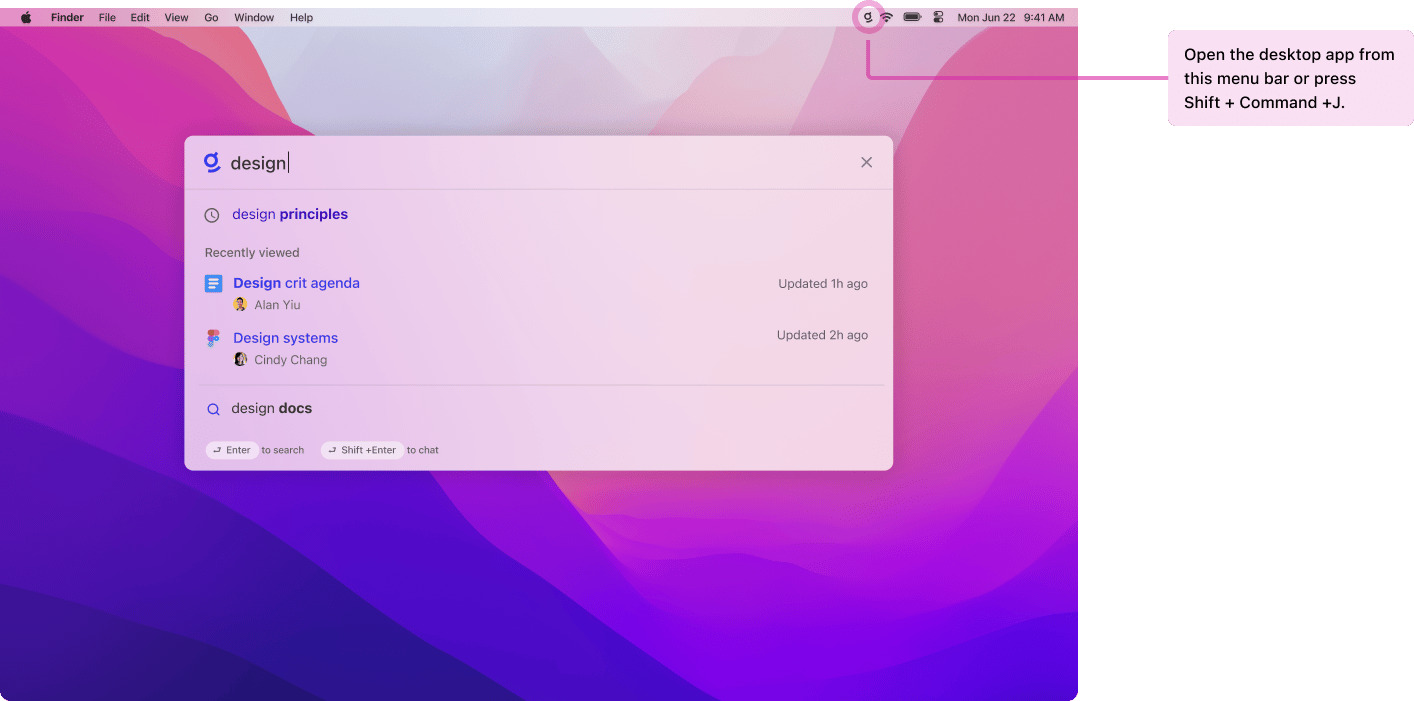
###
[](https://docs.glean.com/user-guide/apps/get-the-desktop-app#setting-up-the-app)
Setting up the app
You can download the desktop app from [Glean](https://app.glean.com/settings/install)
. After installing the app, you will have to sign in to Glean. In the app’s settings, you can make the following adjustments to your experience:
* **Quick search shortcut** controls the keyboard shortcut that opens up the quick search bar anywhere on your Mac. it is _Cmd-Shift-J_ by default, but can be changed to any desired key combination.
* **Hide menu bar icon** hides the Glean menu bar icon when enabled.
* **Hide from dock** hides the Glean icon from appearing in the Dock. If the app is pinned to the Dock, its icon will not be hidden, even if this setting is enabled.
* **Open quick search results in browser** will cause search and chat queries from the quick search bar to open in your default browser, rather than the Glean app window, similar to Apple’s default Spotlight behavior.
###
[](https://docs.glean.com/user-guide/apps/get-the-desktop-app#important-notes)
Important notes:
* Glean will not search local files, such as content on your desktop.
* The app is only available for macOS 10.15 (“Catalina”) or later.
###
[](https://docs.glean.com/user-guide/apps/get-the-desktop-app#controlling-automatic-updates)
Controlling automatic updates
We provide system preferences to control automatic updates. You can disable automatic updates on a per-user basis. This may be helpful for testing new versions of the app before releasing them, or for gradually rolling out app updates. To maintain app reliability and security, we recommend updating Glean whenever a new app version is released. To prevent Glean from automatically checking for updates, run the following terminal command as each user who will be running the Glean desktop app:
Copy
defaults write /Users/$USER/Library/Preferences/com.glean.desktop GleanNoAutoUpdates -bool YES
Use the following command to re-enable automatic updates:
Copy
defaults write /Users/$USER/Library/Preferences/com.glean.desktop GleanNoAutoUpdates -bool NO
By default, automatic updates will be enabled.
Was this page helpful?
YesNo
[Glean Extension via Company Push](https://docs.glean.com/user-guide/apps/glean-extension-via-company-push)
[Glean Desktop App Quick Chat for macOS](https://docs.glean.com/user-guide/apps/chat-first-experience)
⌘I
---
# Glean companion - Glean Help Center
[Skip to main content](https://docs.glean.com/user-guide/apps/glean-companion#content-area)
[Glean Help Center home page](https://docs.glean.com/)
Search...
⌘K
Search...
Navigation
Glean Apps
Glean companion
[Home](https://docs.glean.com/home)
[User Guide](https://docs.glean.com/user-guide/about/what-is-glean)
[Agents](https://docs.glean.com/agents/home)
[Get Started for Admins](https://docs.glean.com/get-started/welcome)
[Connectors](https://docs.glean.com/connectors/home)
[Admin Guide](https://docs.glean.com/administration/about)
[Security & Architecture](https://docs.glean.com/security/home)
[Troubleshooting](https://docs.glean.com/troubleshooting/home)
[Release Notes](https://docs.glean.com/release-notes/home)
[Archive](https://docs.glean.com/archive/help-glean/answers/what-are-answers-and-how-do-they-work)
On this page
* [Introduction](https://docs.glean.com/user-guide/apps/glean-companion#introduction)
* [Using Glean companion](https://docs.glean.com/user-guide/apps/glean-companion#using-glean-companion)
* [Getting Started](https://docs.glean.com/user-guide/apps/glean-companion#getting-started)
* [Managing Glean companion](https://docs.glean.com/user-guide/apps/glean-companion#managing-glean-companion)
[](https://docs.glean.com/user-guide/apps/glean-companion#introduction)
Introduction
----------------------------------------------------------------------------------------
Glean companion provides seamless access to your company’s knowledge and insights directly within your browser. This floating widget contextualizes any text you highlight, allowing you to quickly understand terms, find related information, identify experts, improve your writing, summarize content, and translate text without leaving your current application or document. 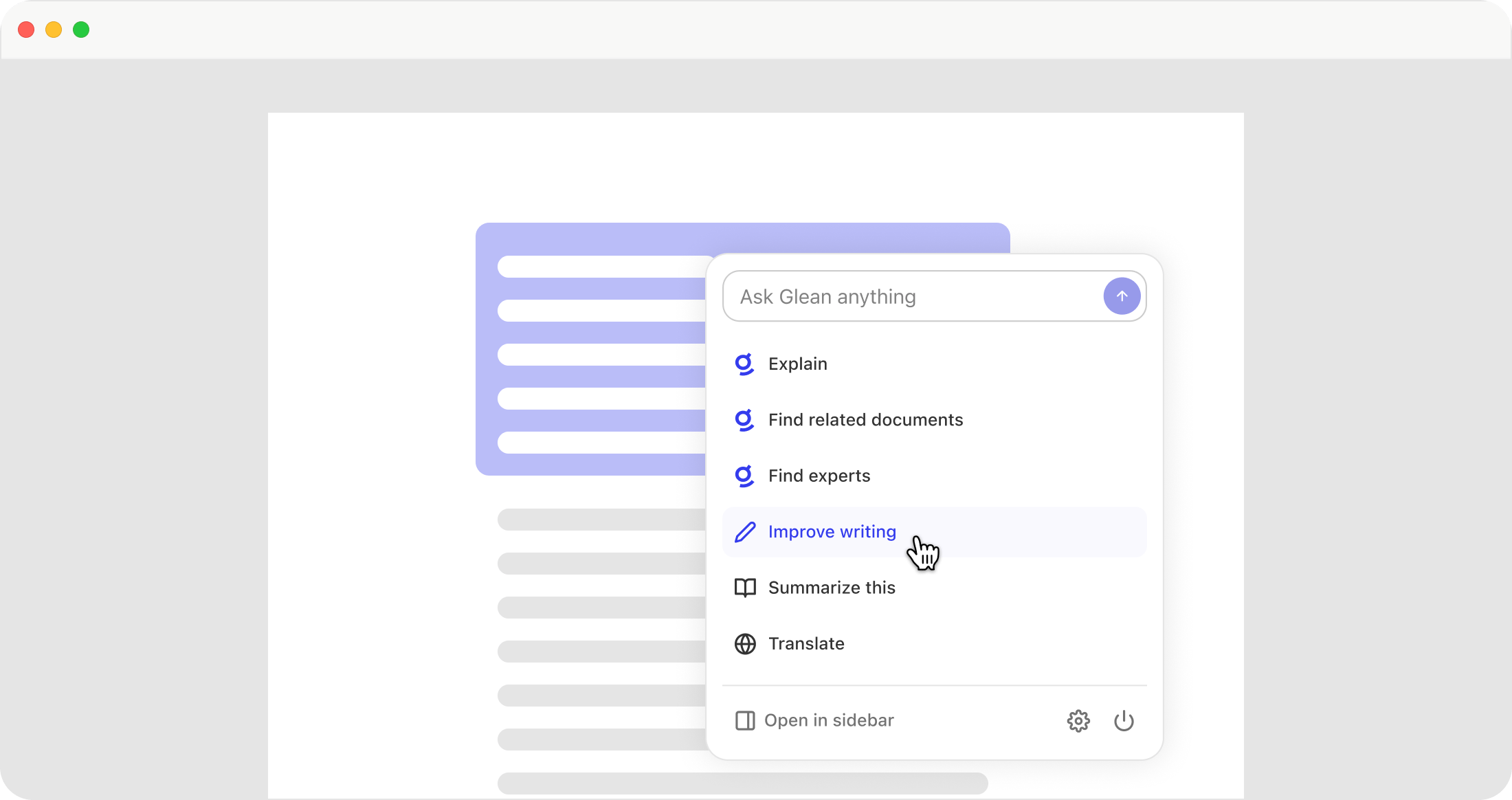
[](https://docs.glean.com/user-guide/apps/glean-companion#using-glean-companion)
Using Glean companion
----------------------------------------------------------------------------------------------------------
To activate the companion, simply highlight any text in your browser. A Glean icon will appear next to the highlighted text. Clicking this icon opens companion, offering six key functionalities:
* **Explain**: Highlight any unfamiliar term or technical phrase to understand its meaning within your company’s context.
* **Find related documents**: Highlight a short phrase to discover relevant documents indexed in Glean that discuss similar concepts.
* **Find experts**: Highlight a key concept to identify subject matter experts on that topic within your organization.
* **Improve writing**: Highlight a sentence or paragraph to have Glean refine and rewrite the content for grammar and clarity.
* **Summarize this**: Highlight a paragraph or an entire page to generate a concise summary.
* **Translate**: Translate any highlighted text into 13 different languages.
[](https://docs.glean.com/user-guide/apps/glean-companion#getting-started)
Getting Started
----------------------------------------------------------------------------------------------
Glean companion is accessible by downloading the [Glean browser extension](https://docs.glean.com/user-guide/apps/installing-the-browser-extension)
. For troubleshooting, please contact your Glean representative.
[](https://docs.glean.com/user-guide/apps/glean-companion#managing-glean-companion)
Managing Glean companion
----------------------------------------------------------------------------------------------------------------
* **Disabling companion on a specific webpage**: To disable companion on a particular website, highlight any text to activate it, click the Power icon, and select ‘Hide for this site’.
* **Disabling companion**: To disable companion across all webpages, navigate to the Glean sidebar settings (command+J on macOS or alt+J on Windows) and toggle off the companion option within the companion settings.
* **Data privacy**: Glean companion does not automatically read the content of webpages. It only accesses content when you explicitly highlight text and invoke the feature. Glean does not store any personal information through companion and strictly adheres to its 30-day data retention policy.
* **Default availability**: Glean companion will be automatically enabled on these web pages. Additional permissions can be granted to have the Glean Companion be available on all web pages.
Copy
https://app.box.com/*
https://*.asana.com/*
https://*.atlassian.net/*
https://*.docebosaas.com/*
https://docs.google.com/*
https://*.docusign.com/*
https://drive.google.com/*
https://*.dropbox.com/*
https://*.force.com/*
https://github.com/*
https://*.highspot.com/*
https://mail.google.com/*
https://*.marketo.com/*
https://*.mindtouch.com/*
https://*.office.com/*
https://*.onedrive.live.com/*
https://*.quip.com/*
https://*.salesforce.com/*
https://*.servicenow.com/*
https://*.slack.com/*
https://*.stackoverflow.com/*
https://teams.microsoft.com/*
https://work.facebook.com/*
https://*.workday.com/*
https://*.zendesk.com/*
Was this page helpful?
YesNo
[Extension Sidebar](https://docs.glean.com/user-guide/apps/extension-sidebar)
[Why does the Chrome extension ask for those permissions?](https://docs.glean.com/user-guide/apps/why-does-the-chrome-extension-ask-for-those-permissions)
⌘I
---
# Glean Deep Research - Glean Help Center
[Skip to main content](https://docs.glean.com/user-guide/assistant/deep-research#content-area)
[Glean Help Center home page](https://docs.glean.com/)
Search...
⌘K
Search...
Navigation
Glean Assistant
Glean Deep Research
[Home](https://docs.glean.com/home)
[User Guide](https://docs.glean.com/user-guide/about/what-is-glean)
[Agents](https://docs.glean.com/agents/home)
[Get Started for Admins](https://docs.glean.com/get-started/welcome)
[Connectors](https://docs.glean.com/connectors/home)
[Admin Guide](https://docs.glean.com/administration/about)
[Security & Architecture](https://docs.glean.com/security/home)
[Troubleshooting](https://docs.glean.com/troubleshooting/home)
[Release Notes](https://docs.glean.com/release-notes/home)
[Archive](https://docs.glean.com/archive/help-glean/answers/what-are-answers-and-how-do-they-work)
On this page
* [Core technology](https://docs.glean.com/user-guide/assistant/deep-research#core-technology)
* [When to use Deep research](https://docs.glean.com/user-guide/assistant/deep-research#when-to-use-deep-research)
* [How it works](https://docs.glean.com/user-guide/assistant/deep-research#how-it-works)
* [Getting started](https://docs.glean.com/user-guide/assistant/deep-research#getting-started)
* [Step 1: Access Deep research](https://docs.glean.com/user-guide/assistant/deep-research#step-1-access-deep-research)
* [Step 2: Write your query](https://docs.glean.com/user-guide/assistant/deep-research#step-2-write-your-query)
* [Step 3: Answer clarifying questions](https://docs.glean.com/user-guide/assistant/deep-research#step-3-answer-clarifying-questions)
* [Step 4: Wait for your report](https://docs.glean.com/user-guide/assistant/deep-research#step-4-wait-for-your-report)
* [Technical specifications](https://docs.glean.com/user-guide/assistant/deep-research#technical-specifications)
Glean Deep research is an AI agent that generates detailed, citation-rich reports by synthesizing information from **internal enterprise systems** and the **Web**. It is designed to tackle complex, multi-source queries that require deeper analysis and broader context than traditional search. A typical Deep Research report spans 5–10 pages and includes fully linked citations, making it an ideal tool for strategic planning, competitive analysis, and deep learning.
[](https://docs.glean.com/user-guide/assistant/deep-research#core-technology)
Core technology
-------------------------------------------------------------------------------------------------
Deep Research is built on [Glean’s Enterprise Knowledge Graph](https://www.glean.com/resources/guides/glean-knowledge-graph)
and integrates with over 100 enterprise systems, including Google Drive, Slack, and ServiceNow. It utilizes GPT 5.1, the leading reasoning model from OpenAI, which excels at in-depth research and instruction following.
[](https://docs.glean.com/user-guide/assistant/deep-research#when-to-use-deep-research)
When to use Deep research
---------------------------------------------------------------------------------------------------------------------
Use Deep Research when your query requires synthesis, analysis, or strategic insight. It is not intended for basic fact lookups, which are better suited for [Glean Chat.](https://docs.glean.com/user-guide/assistant/glean-chat)
| Category | Use Case Example |
| --- | --- |
| **Track** | **Project Tracking & Risk Management:** Analyze recent issues faced by a customer. Review data from Jira, Gong, and Slack to identify the issues and their current status. |
| **Learn** | **Competitive Analysis:** Identify new product launches in a specific feature area by a competitor. Review their blogs, marketing materials, and news releases. |
| **Analyze** | **Strategic Planning:** Analyze a specific business area to uncover untapped opportunities for expansion. Examine Gong calls, Slack threads, and Salesforce activity to find feature requests, recurring usage patterns, or customer-led workarounds. |
[](https://docs.glean.com/user-guide/assistant/deep-research#how-it-works)
How it works
-------------------------------------------------------------------------------------------
The agent performs a multi-step process to generate a report, ensuring thoroughness and accuracy:
* **Searches Multiple Sources:** Glean finds and retrieves relevant information from your enterprise knowledge base and the web.
* **Synthesizes Information:** The agent synthesizes outputs from multiple AI models to analyze the retrieved information.
* **Generates a Detailed Report:** The final output is a structured, detailed report with fully linked citations.
[](https://docs.glean.com/user-guide/assistant/deep-research#getting-started)
Getting started
-------------------------------------------------------------------------------------------------
Deep research must be enabled for your organization. Admins can [enable or disable Deep Research](https://docs.glean.com/administration/assistant/configuration/deep-research)
for users in the Admin Console.
####
[](https://docs.glean.com/user-guide/assistant/deep-research#step-1-access-deep-research)
Step 1: Access Deep research
1. In Glean, click **Chat** and select **Deep research** mode.
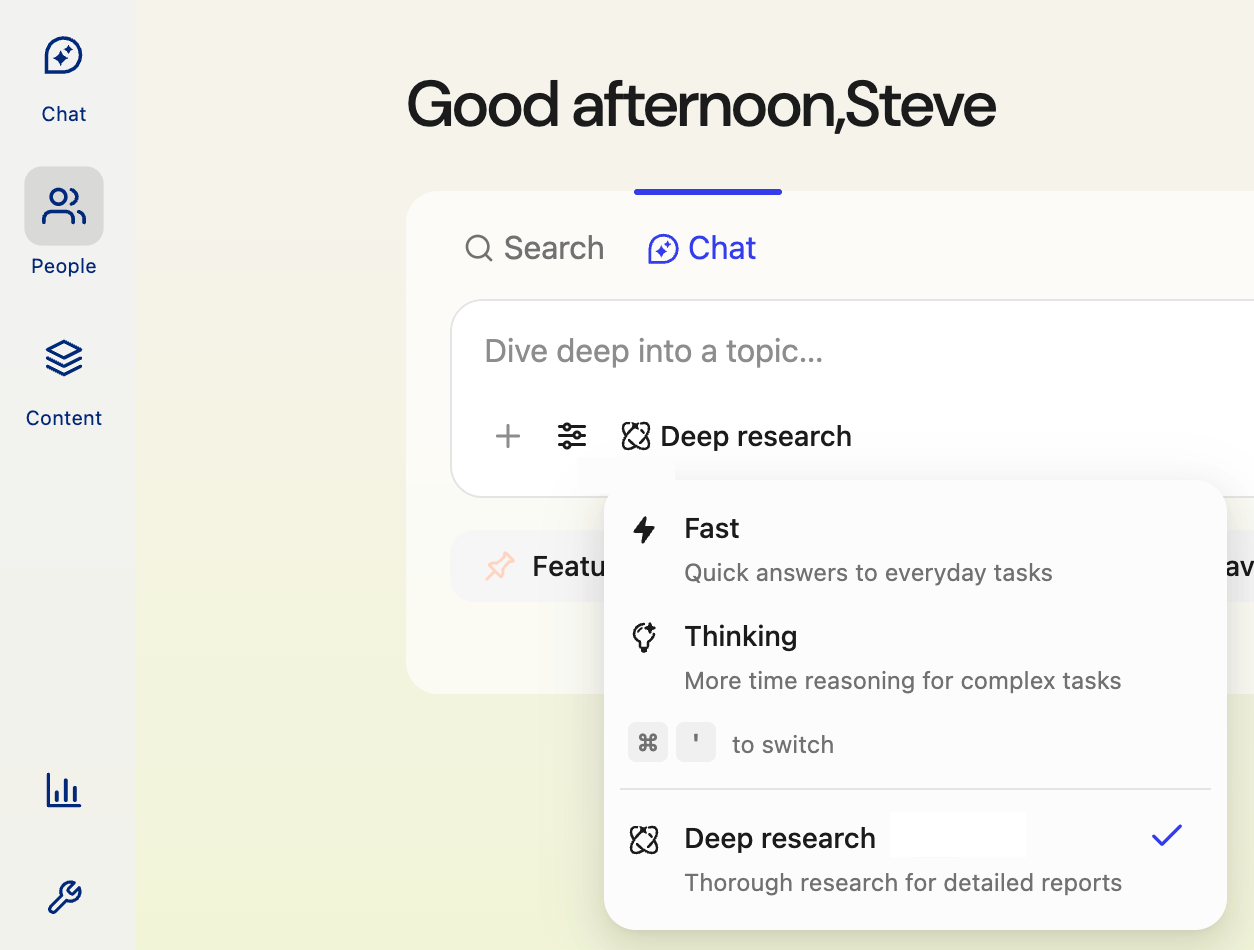
####
[](https://docs.glean.com/user-guide/assistant/deep-research#step-2-write-your-query)
Step 2: Write your query
Deep research performs best when you provide more detail. A strong query should clearly state your research goals and, if possible, include specific sources to reference.
* **State your goals:** Clearly explain what you want to achieve.
* **Provide context:** Add details by referencing specific documents, teams, or systems.
####
[](https://docs.glean.com/user-guide/assistant/deep-research#step-3-answer-clarifying-questions)
Step 3: Answer clarifying questions
After you submit a query, the agent may ask a few clarifying questions to ensure the report it generates is detailed and meets your needs. Once you provide the necessary details, Deep research will begin its work.
####
[](https://docs.glean.com/user-guide/assistant/deep-research#step-4-wait-for-your-report)
Step 4: Wait for your report
After submitting your query, the agent will begin its research. Generating a full report typically takes 5–30 minutes, depending on the complexity of the query and the number of sources.
###
[](https://docs.glean.com/user-guide/assistant/deep-research#technical-specifications)
Technical specifications
This section provides key details on the product’s access, usage, and technology.
* **Supported platforms:** Deep Research is currently supported on our web application only. We will roll out to other platforms, such as mobile and desktop, in the coming months.
* **LLM key support:** Deep Research is built to work exclusively with the **Glean Universal Key**. It is not compatible with legacy keys (Azure, Vertex, or AWS). Customer-hosted keys are also not supported.
* **Web search:** Deep Research exclusively uses **Brave Web Search** for all web content.
Was this page helpful?
YesNo
[AI Answers](https://docs.glean.com/user-guide/assistant/ai-answers)
[Chat Best Practices](https://docs.glean.com/user-guide/assistant/best-practices)
⌘I
---
# Providing Informational Hierarchy Using Subcollections - Glean Help Center
[Skip to main content](https://docs.glean.com/user-guide/knowledge/collections/providing-informational-hierarchy-using-subcollections#content-area)
[Glean Help Center home page](https://docs.glean.com/)
Search...
⌘K
Search...
Navigation
Collections
Providing Informational Hierarchy Using Subcollections
[Home](https://docs.glean.com/home)
[User Guide](https://docs.glean.com/user-guide/about/what-is-glean)
[Agents](https://docs.glean.com/agents/home)
[Get Started for Admins](https://docs.glean.com/get-started/welcome)
[Connectors](https://docs.glean.com/connectors/home)
[Admin Guide](https://docs.glean.com/administration/about)
[Security & Architecture](https://docs.glean.com/security/home)
[Troubleshooting](https://docs.glean.com/troubleshooting/home)
[Release Notes](https://docs.glean.com/release-notes/home)
[Archive](https://docs.glean.com/archive/help-glean/answers/what-are-answers-and-how-do-they-work)
On this page
* [What are SubCollections?](https://docs.glean.com/user-guide/knowledge/collections/providing-informational-hierarchy-using-subcollections#what-are-subcollections)
* [How to create SubCollections](https://docs.glean.com/user-guide/knowledge/collections/providing-informational-hierarchy-using-subcollections#how-to-create-subcollections)
* [Moving SubCollections](https://docs.glean.com/user-guide/knowledge/collections/providing-informational-hierarchy-using-subcollections#moving-subcollections)
* [Accessing Subcollections](https://docs.glean.com/user-guide/knowledge/collections/providing-informational-hierarchy-using-subcollections#accessing-subcollections)
* [Number of Subcollections](https://docs.glean.com/user-guide/knowledge/collections/providing-informational-hierarchy-using-subcollections#number-of-subcollections)
[Collections](https://docs.glean.com/user-guide/knowledge/collections/how-collections-work)
are an easy way to organize related documents across all your tools and any URL from the web by a single topic. As teams start creating Collections with more than a few items, it can become harder for people to navigate and find the most relevant or important item within the Collection. Here’s how you can use Subcollections to better organize.
[](https://docs.glean.com/user-guide/knowledge/collections/providing-informational-hierarchy-using-subcollections#what-are-subcollections)
What are SubCollections?
-----------------------------------------------------------------------------------------------------------------------------------------------------------------------
SubCollections are nested collections under a main collection, providing ways to build a more robust collection with a large number of items. It prevents a single collection from being too long to navigate even with Headers, while also providing informational hierarchy. For example, you can create a subcollection for:
* Subteams, subtopics, or subprojects under the main Collection for a team or topic. For example, creating a subcollection for a product feature within a Collection for a product team
* When there are different audiences under the same umbrella topics. i.e. creating a subcollection for BDR and AE under “Onboarding” header/topic
* When you have more than 5 items (documents and links) under the same topic, making it too long to be organized under a Header
* We also encourage organizing using subcollection when the main collection becomes a list of 20+ documents and links.
See a demo of Subcollections [here](https://www.loom.com/share/5969473e092d4779b5655bae5fa181f2)
[](https://docs.glean.com/user-guide/knowledge/collections/providing-informational-hierarchy-using-subcollections#how-to-create-subcollections)
How to create SubCollections
--------------------------------------------------------------------------------------------------------------------------------------------------------------------------------
You can create a Subcollection the same way you add any documents and links to a collection by clicking ”+ Add New Collection” button on the top right corner of the Collection. You can also insert Subcollection between existing documents or add to the bottom of the page by clicking the **+---** button from the place you want to add a Subcollection to. 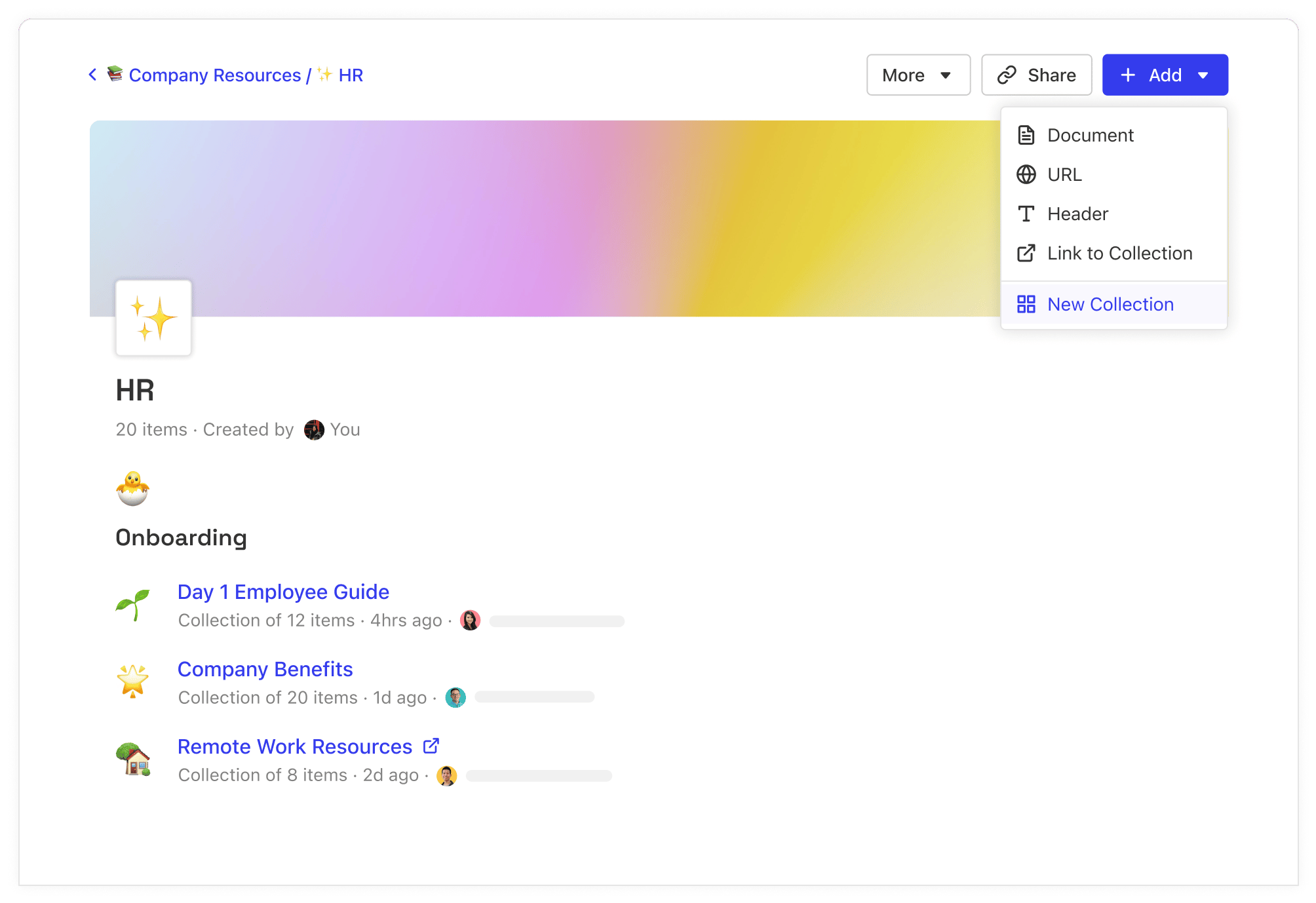
[](https://docs.glean.com/user-guide/knowledge/collections/providing-informational-hierarchy-using-subcollections#moving-subcollections)
Moving SubCollections
------------------------------------------------------------------------------------------------------------------------------------------------------------------
Collections can be nested under other Collections by clicking on the 3-dot menu on the Collections dashboard and selecting “Move” and moving the Collection to an appropriate parent Collection. Please note that there can only be one parent Collection for every Subcollection. 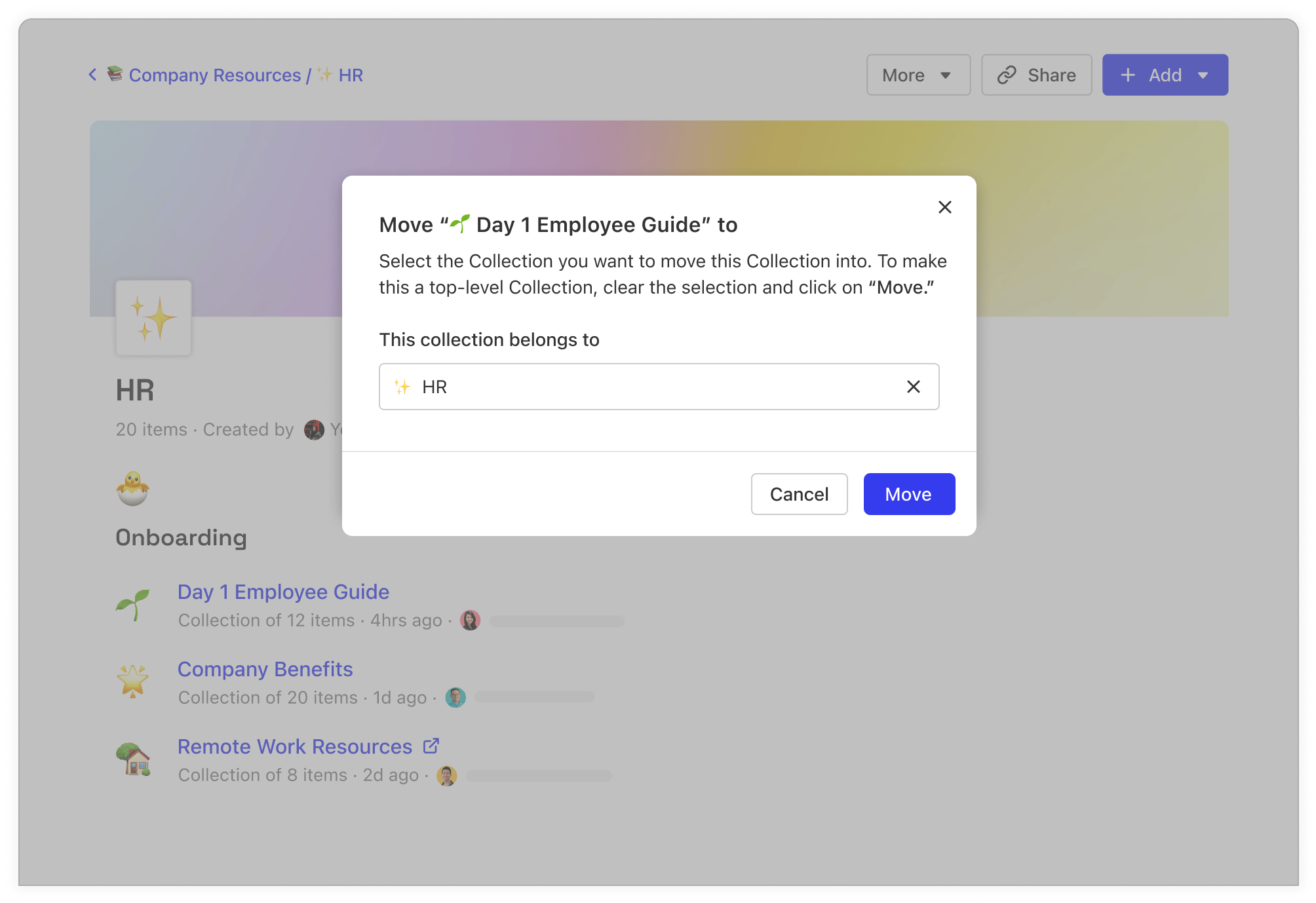
[](https://docs.glean.com/user-guide/knowledge/collections/providing-informational-hierarchy-using-subcollections#accessing-subcollections)
Accessing Subcollections
------------------------------------------------------------------------------------------------------------------------------------------------------------------------
* See SubCollections in search results
* Subcollection will appear on the search results based on relevancy
* When a document is part of a SubCollection, you’ll see the SubCollection on the search result
* SubCollection will not appear on the main Collections dashboard in order to help organization of the dashboard
[](https://docs.glean.com/user-guide/knowledge/collections/providing-informational-hierarchy-using-subcollections#number-of-subcollections)
Number of Subcollections
------------------------------------------------------------------------------------------------------------------------------------------------------------------------
You can create up to 20 Collections within a collection and up to 2 sublevels (Main Collection -> sub collections -> collection within a sub collection) for a 3 layer of Collections hierarchy
Was this page helpful?
YesNo
[Organizing Collections Using Headers](https://docs.glean.com/user-guide/knowledge/collections/organizing-collections-using-headers)
[Updating Permissions On Collections](https://docs.glean.com/user-guide/knowledge/collections/updating-permissions-on-collections)
⌘I
---
# Organizing Collections Using Headers - Glean Help Center
[Skip to main content](https://docs.glean.com/user-guide/knowledge/collections/organizing-collections-using-headers#content-area)
[Glean Help Center home page](https://docs.glean.com/)
Search...
⌘K
Search...
Navigation
Collections
Organizing Collections Using Headers
[Home](https://docs.glean.com/home)
[User Guide](https://docs.glean.com/user-guide/about/what-is-glean)
[Agents](https://docs.glean.com/agents/home)
[Get Started for Admins](https://docs.glean.com/get-started/welcome)
[Connectors](https://docs.glean.com/connectors/home)
[Admin Guide](https://docs.glean.com/administration/about)
[Security & Architecture](https://docs.glean.com/security/home)
[Troubleshooting](https://docs.glean.com/troubleshooting/home)
[Release Notes](https://docs.glean.com/release-notes/home)
[Archive](https://docs.glean.com/archive/help-glean/answers/what-are-answers-and-how-do-they-work)
On this page
* [What are Headers?](https://docs.glean.com/user-guide/knowledge/collections/organizing-collections-using-headers#what-are-headers)
* [How to create Headers](https://docs.glean.com/user-guide/knowledge/collections/organizing-collections-using-headers#how-to-create-headers)
Collections are an easy way to organize related documents across all your tools and any URL from the web by a single topic. As teams start creating Collections with more than a few items, it can become harder for people to navigate and find the most relevant or important item within the Collection. Here’s how you can use Headers to better organize.
[](https://docs.glean.com/user-guide/knowledge/collections/organizing-collections-using-headers#what-are-headers)
What are Headers?
=======================================================================================================================================
Headers are used to label different sections within a Collection to provide more context on a group of documents. For example, you can use headers to:
* Group documents by order of importance using “Start here” “Must reads”
* Group documents by different projects
* Group documents by topics such as “Onboarding” “Technical resources” “Project backgrounds”
[](https://docs.glean.com/user-guide/knowledge/collections/organizing-collections-using-headers#how-to-create-headers)
How to create Headers
================================================================================================================================================
You can create headers the same way you add any documents and links by clicking on the **\+ Add** button on the top right corner of the Collection. You can also insert Headers between existing documents or add Headers to the bottom of the page by clicking the **+---** button from the place you want to add headers to. 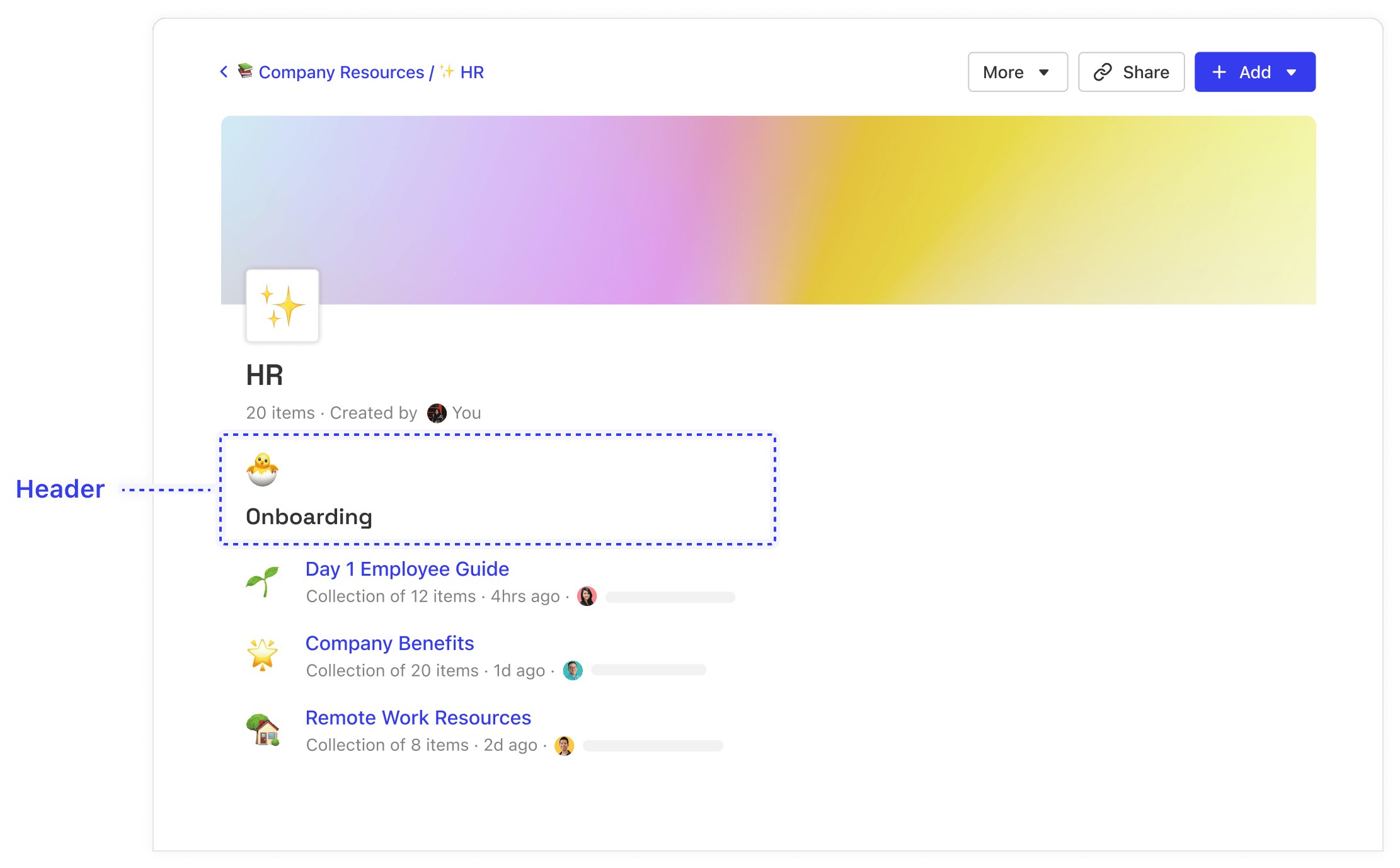 If you are looking for ways to organize by creating hierarchy of information, you can use [Subcollections](https://docs.glean.com/user-guide/knowledge/collections/organizing-collections-using-headers)
to create Collections within a Collection.
Was this page helpful?
YesNo
[How Collections Work](https://docs.glean.com/user-guide/knowledge/collections/how-collections-work)
[Providing Informational Hierarchy Using Subcollections](https://docs.glean.com/user-guide/knowledge/collections/providing-informational-hierarchy-using-subcollections)
⌘I
---
# Glean Desktop App Quick Chat for macOS - Glean Help Center
[Skip to main content](https://docs.glean.com/user-guide/apps/chat-first-experience#content-area)
[Glean Help Center home page](https://docs.glean.com/)
Search...
⌘K
Search...
Navigation
Glean Apps
Glean Desktop App Quick Chat for macOS
[Home](https://docs.glean.com/home)
[User Guide](https://docs.glean.com/user-guide/about/what-is-glean)
[Agents](https://docs.glean.com/agents/home)
[Get Started for Admins](https://docs.glean.com/get-started/welcome)
[Connectors](https://docs.glean.com/connectors/home)
[Admin Guide](https://docs.glean.com/administration/about)
[Security & Architecture](https://docs.glean.com/security/home)
[Troubleshooting](https://docs.glean.com/troubleshooting/home)
[Release Notes](https://docs.glean.com/release-notes/home)
[Archive](https://docs.glean.com/archive/help-glean/answers/what-are-answers-and-how-do-they-work)
On this page
* [Configuration and customization](https://docs.glean.com/user-guide/apps/chat-first-experience#configuration-and-customization)
* [Step 1: Access settings](https://docs.glean.com/user-guide/apps/chat-first-experience#step-1-access-settings)
* [Step 2: Define quick entry behavior](https://docs.glean.com/user-guide/apps/chat-first-experience#step-2-define-quick-entry-behavior)
* [Step 3: Define quick chat behavior](https://docs.glean.com/user-guide/apps/chat-first-experience#step-3-define-quick-chat-behavior)
* [Step 4: Provide permissions for screen capture](https://docs.glean.com/user-guide/apps/chat-first-experience#step-4-provide-permissions-for-screen-capture)
* [Usage](https://docs.glean.com/user-guide/apps/chat-first-experience#usage)
* [Access Assistant from anywhere](https://docs.glean.com/user-guide/apps/chat-first-experience#access-assistant-from-anywhere)
* [Attach visual context](https://docs.glean.com/user-guide/apps/chat-first-experience#attach-visual-context)
The [Glean Desktop App](http://app.glean.com/settings/install)
for **macOS** is designed to provide **chat-first access** to the Glean Assistant from anywhere on your machine. This experience is delivered via the following components:
* **Quick entry for Glean Assistant:** The universal shortcut (`⌘+⇧+J` by default) that launches a search bar can be configured to default to a Glean Assistant. 
* **Quick chat:** A dedicated, assistant floating window that **always stays on top** of all other applications. It provides a persistent, uninterrupted space for conversations with the Glean Chat Assistant.
* **Chat with screenshot:** The ability to attach a screenshot directly to your query within quick chat, giving the Assistant visual context for faster, more accurate answers. 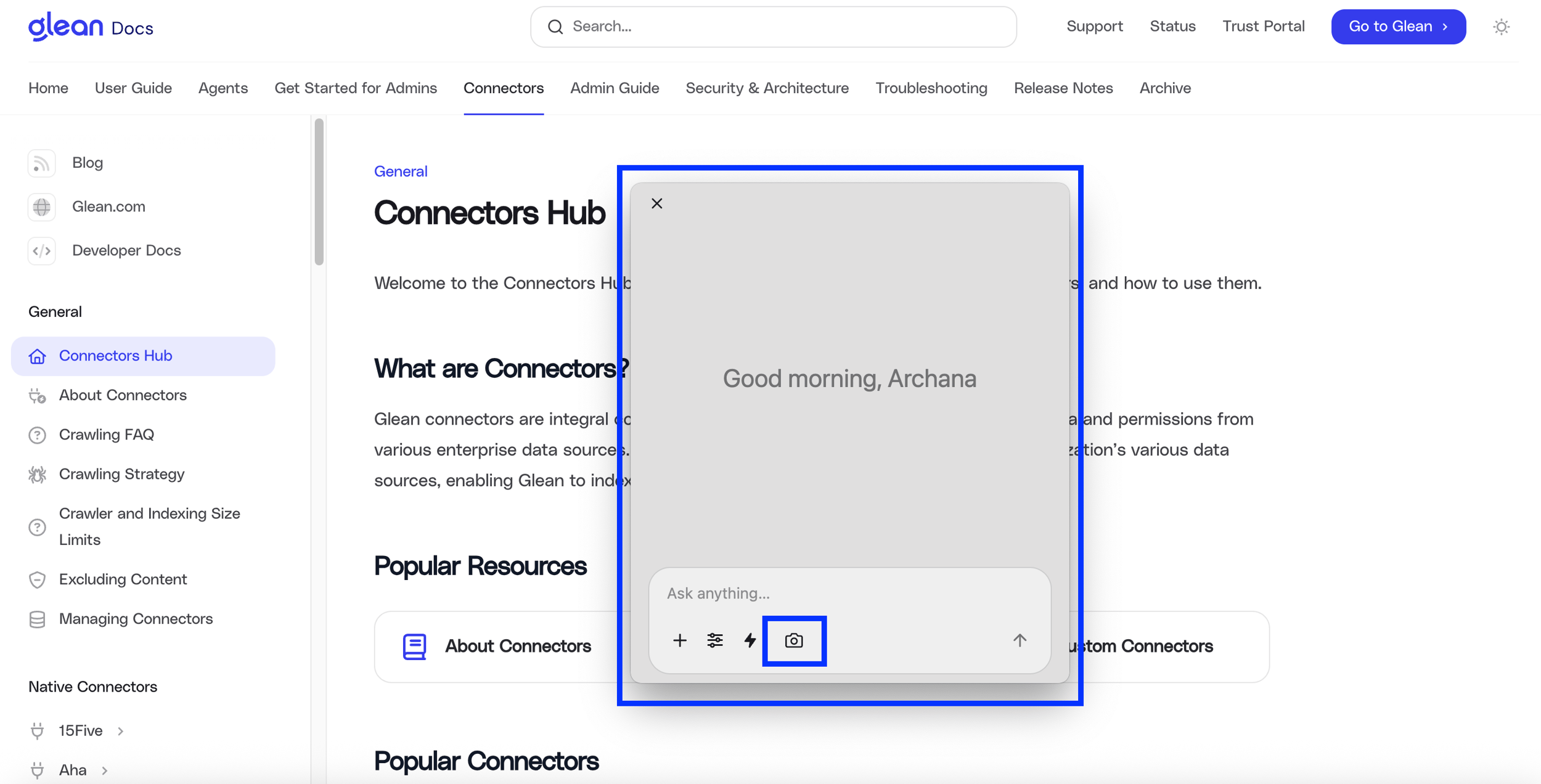
[](https://docs.glean.com/user-guide/apps/chat-first-experience#configuration-and-customization)
Configuration and customization
------------------------------------------------------------------------------------------------------------------------------------
All features are managed from the **Desktop App** settings panel.
###
[](https://docs.glean.com/user-guide/apps/chat-first-experience#step-1-access-settings)
Step 1: Access settings
1. In the Glean application, click the **Glean icon** (bottom-left) and then click **Your settings**. 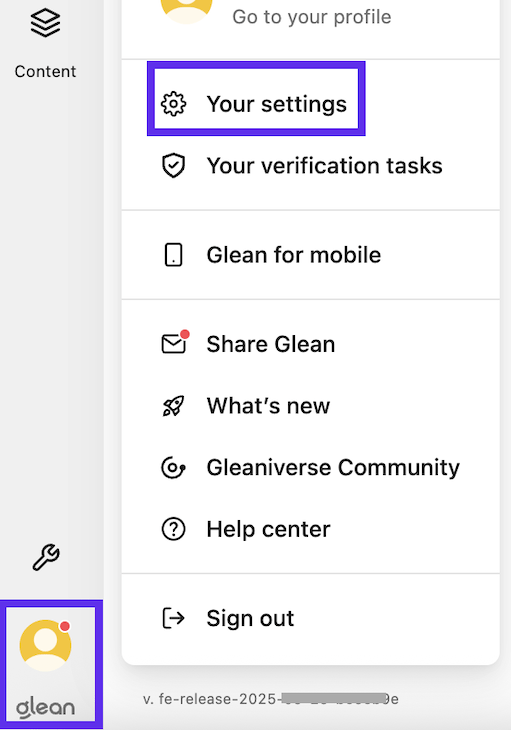
2. Click the **Desktop app** section.
###
[](https://docs.glean.com/user-guide/apps/chat-first-experience#step-2-define-quick-entry-behavior)
Step 2: Define quick entry behavior
Configure the shortcuts and default modes for quick entry.
1. In the **Quick entry** > **Quick entry shortcut** field specify the key combination for the the **Quick entry shortcut** (e.g., `⌘+⇧+J`).
2. Set the **Default mode:** for the quick entry shortcut:
* **Chat:** Launches the interface directly into the Assistant chat composer (recommended).
* **Search:** Launches the Glean Chat Assistant in the Glean application.
3. In **Open new chats**, select the default destination for all new chat queries:
* **In Quick Chat:** Launches the conversation in the persistent floating window.
* **In Main Window:** Launches the conversation in the Glean application window.
###
[](https://docs.glean.com/user-guide/apps/chat-first-experience#step-3-define-quick-chat-behavior)
Step 3: Define quick chat behavior
1. In the **quick chat** > **aompanion chat shortcut:** field specify the key combination for the **quick chat shortcut** (e.g., `⌃+⇧+G`).
2. Set the default **Quick chat** behavior.
* Toggle window
* Open new window
###
[](https://docs.glean.com/user-guide/apps/chat-first-experience#step-4-provide-permissions-for-screen-capture)
Step 4: Provide permissions for screen capture
1. Under **Permissions**, toggle on **Screen Capture** to enable the **chat with screenshot** feature.
Once configured, the feature is immediately accessible via the shortcut. **Note:** After making changes to the settings, you may need to **quit and relaunch the app** for the new configuration to take effect.
[](https://docs.glean.com/user-guide/apps/chat-first-experience#usage)
Usage
--------------------------------------------------------------------------------
####
[](https://docs.glean.com/user-guide/apps/chat-first-experience#access-assistant-from-anywhere)
Access Assistant from anywhere
* **Quick entry:** Press the defined **Quick entry shortcut** (`⌘+⇧+J`) to instantly launch the chat composer and submit your query.
* **Quick chat:** Press the defined **quick chat shortcut** (`⌃+⇧+G`) to launch the floating Assistant window.
####
[](https://docs.glean.com/user-guide/apps/chat-first-experience#attach-visual-context)
Attach visual context
1. Open the **Quick chat** window.
2. Click the **screenshot** button (camera icon) in the chat composer. The captured screenshot attaches directly to your query, providing visual context to the Assistant.
Was this page helpful?
YesNo
[Get The Desktop App](https://docs.glean.com/user-guide/apps/get-the-desktop-app)
[Celebrations Widget](https://docs.glean.com/user-guide/knowledge/home-page/celebrations-widget)
⌘I
---
# Updating Permissions On Collections - Glean Help Center
[Skip to main content](https://docs.glean.com/user-guide/knowledge/collections/updating-permissions-on-collections#content-area)
[Glean Help Center home page](https://docs.glean.com/)
Search...
⌘K
Search...
Navigation
Collections
Updating Permissions On Collections
[Home](https://docs.glean.com/home)
[User Guide](https://docs.glean.com/user-guide/about/what-is-glean)
[Agents](https://docs.glean.com/agents/home)
[Get Started for Admins](https://docs.glean.com/get-started/welcome)
[Connectors](https://docs.glean.com/connectors/home)
[Admin Guide](https://docs.glean.com/administration/about)
[Security & Architecture](https://docs.glean.com/security/home)
[Troubleshooting](https://docs.glean.com/troubleshooting/home)
[Release Notes](https://docs.glean.com/release-notes/home)
[Archive](https://docs.glean.com/archive/help-glean/answers/what-are-answers-and-how-do-they-work)
On this page
* [Who Can Change Permissions](https://docs.glean.com/user-guide/knowledge/collections/updating-permissions-on-collections#who-can-change-permissions)
* [How to Change Permissions](https://docs.glean.com/user-guide/knowledge/collections/updating-permissions-on-collections#how-to-change-permissions)
* [How Permissions on Child Collections Work](https://docs.glean.com/user-guide/knowledge/collections/updating-permissions-on-collections#how-permissions-on-child-collections-work)
Collections are an easy way to organize related documents across all your tools and any URL from the web by a single topic. When you want to use Collections as a source of truth on a particular topic, you may want to restrict which teammates can edit contents of that Collection. Here’s how you can control who has edit access over a single Collection.
[](https://docs.glean.com/user-guide/knowledge/collections/updating-permissions-on-collections#who-can-change-permissions)
Who Can Change Permissions
=========================================================================================================================================================
1. **Owners:** Owners can add or remove other owners and editors, ensuring that the right people have the appropriate level of access.
* The creator of a collection is automatically assigned as the Owner and has the ability to manage permissions.
* The company’s overall Collection Moderator has Owner rights to all Collections by default.
2. **Editors:** Editors can add or remove other editors from the Collection
**Note:** All Collections will always be viewable by the entire company. You can restrict any individual from viewing a specific Collection.
* * *
[](https://docs.glean.com/user-guide/knowledge/collections/updating-permissions-on-collections#how-to-change-permissions)
How to Change Permissions
=======================================================================================================================================================
If you’re the an owner or editor of a Collection
1. **Open the Collection**: Navigate to the collection for which you want to change permissions.
2. **Click the Share Button**: Locate and click the Share button on the collection page. 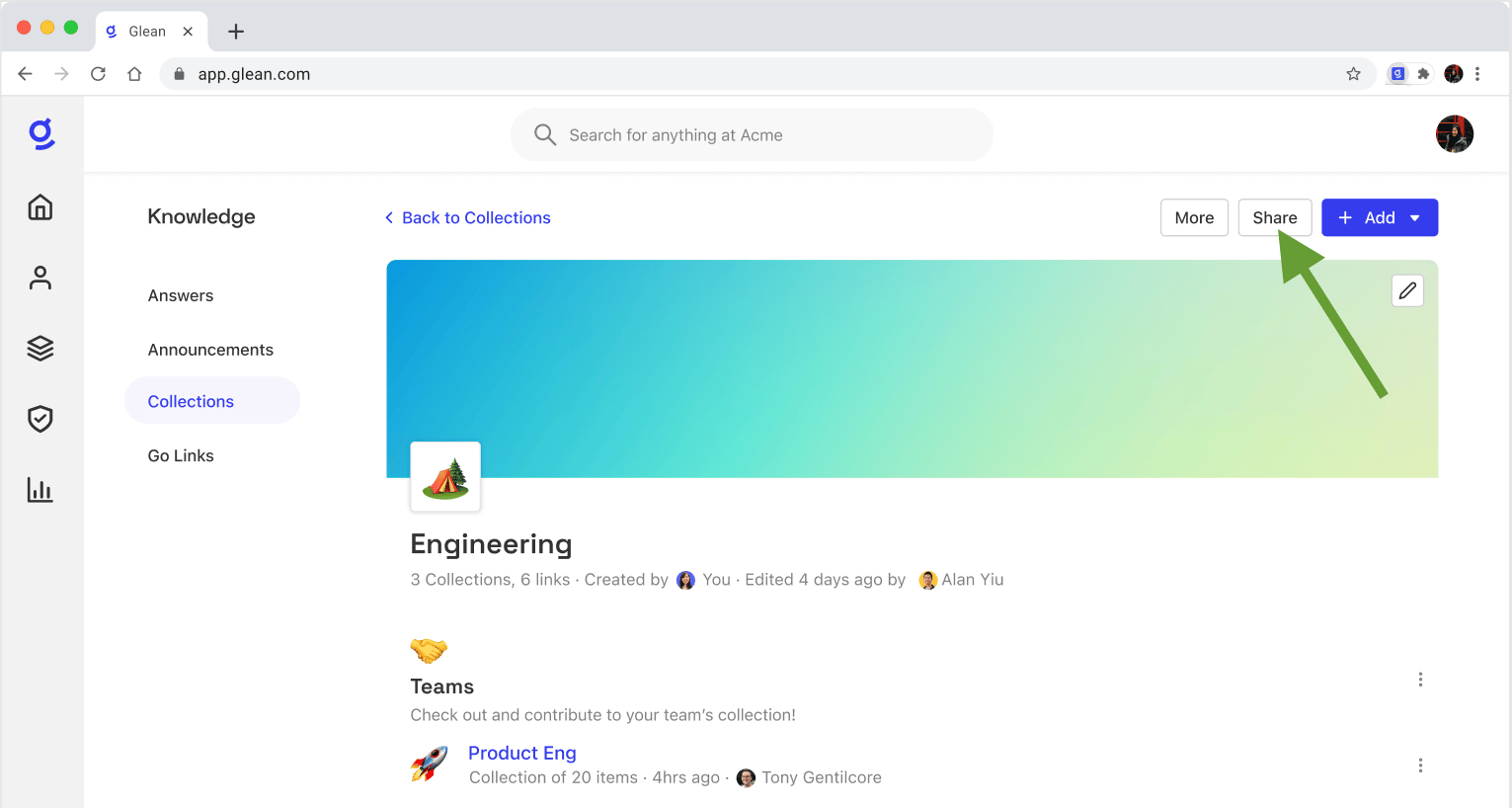
3. **Manage Permissions**: In the sharing settings, you can:
* Add individual owners and editors.
* Change the permission level of the entire company from editors to viewers.
* Remove access for specific users or departments.
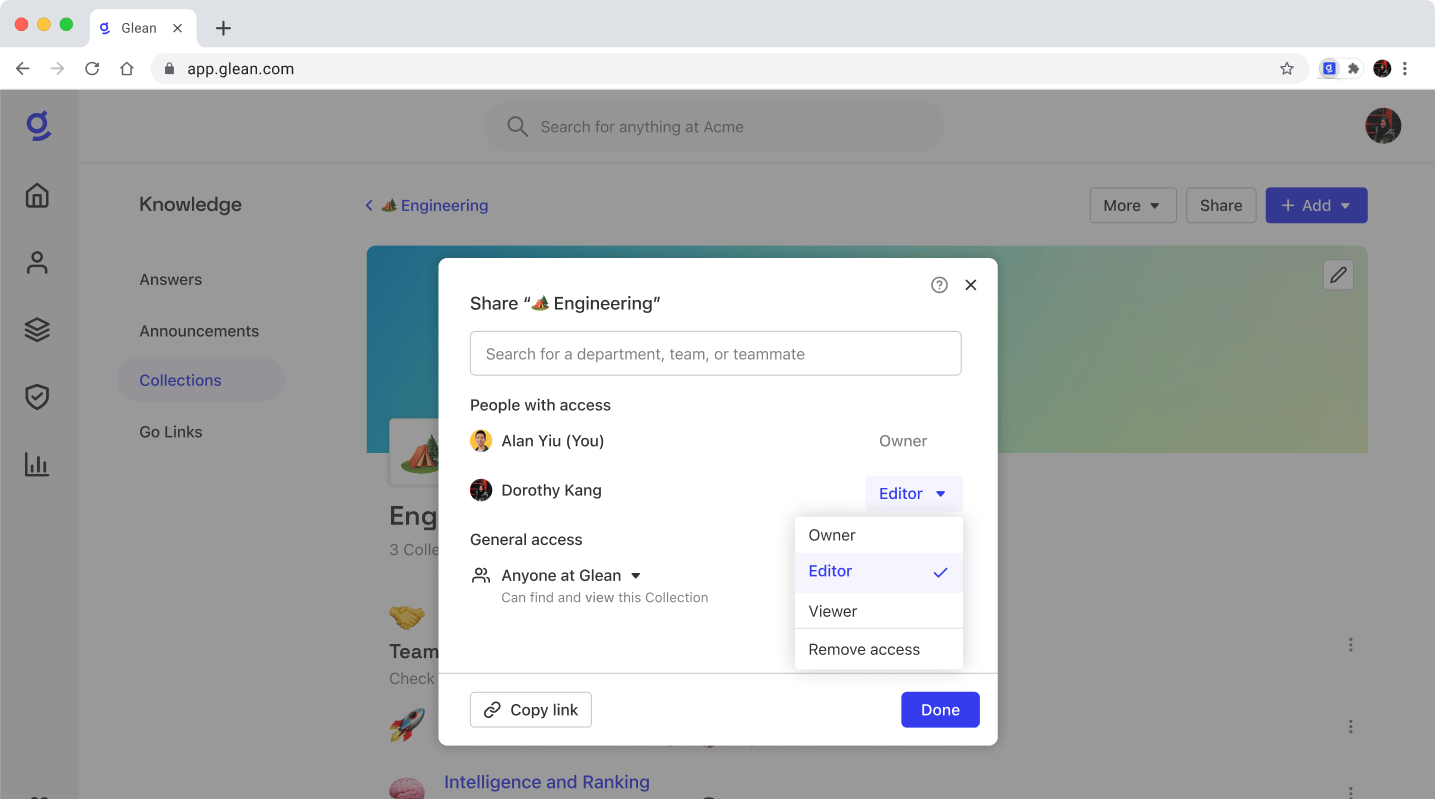
4. New permissions are auto-saved. Click ‘Done’ to exit.
* * *
[](https://docs.glean.com/user-guide/knowledge/collections/updating-permissions-on-collections#how-permissions-on-child-collections-work)
How Permissions on Child Collections Work
=======================================================================================================================================================================================
Child Collections (Collections created under a top parent Collection) automatically inherit the permissions of their parent Collection. This means:
* **Inherited Permissions**: Any permissions set on the parent Collection will apply to the child Collection.
* **Adding Permissions**: Owners and editors of the child Collection can add new editors or owners to the child collection.
* **Non-Removable Inherited Permissions**: Inherited permissions cannot be removed from the child collection.
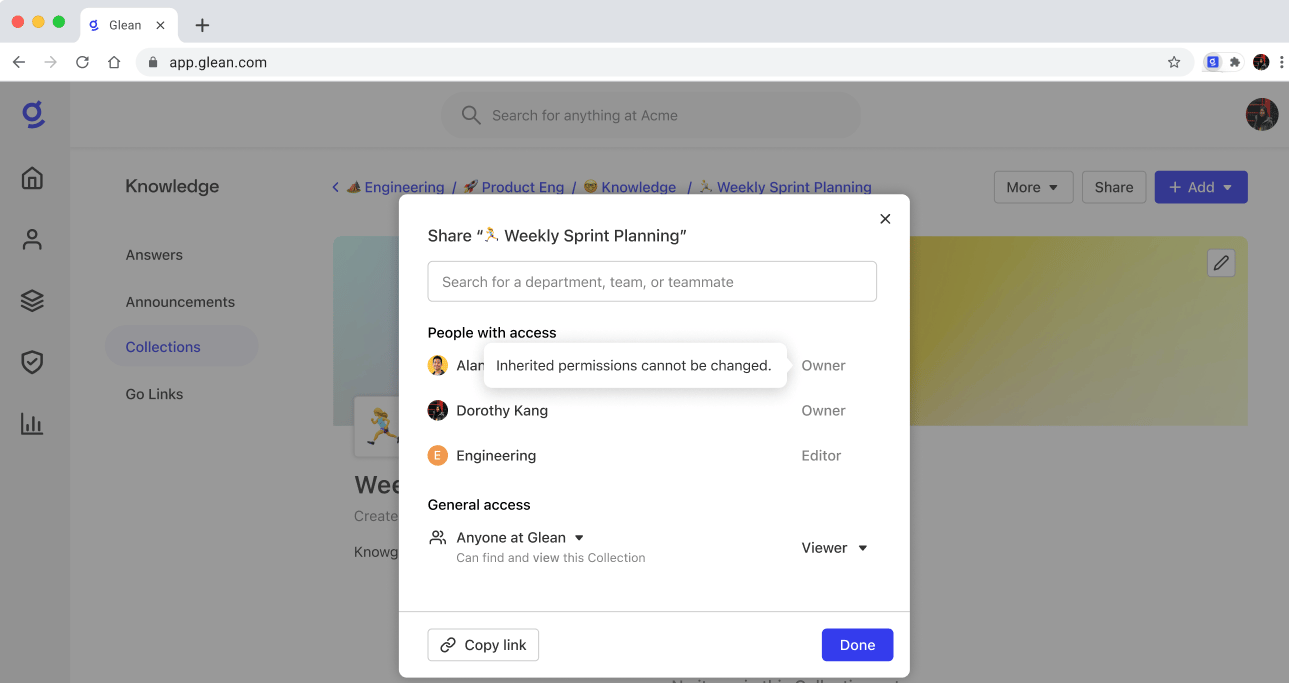
Was this page helpful?
YesNo
[Providing Informational Hierarchy Using Subcollections](https://docs.glean.com/user-guide/knowledge/collections/providing-informational-hierarchy-using-subcollections)
[How Go Links Work](https://docs.glean.com/user-guide/knowledge/go-links/how-go-links-work)
⌘I
---
# Keyboard Shortcuts - Glean Help Center
[Skip to main content](https://docs.glean.com/user-guide/advanced/keyboard-shortcuts#content-area)
[Glean Help Center home page](https://docs.glean.com/)
Search...
⌘K
Search...
Navigation
Advanced
Keyboard Shortcuts
[Home](https://docs.glean.com/home)
[User Guide](https://docs.glean.com/user-guide/about/what-is-glean)
[Agents](https://docs.glean.com/agents/home)
[Get Started for Admins](https://docs.glean.com/get-started/welcome)
[Connectors](https://docs.glean.com/connectors/home)
[Admin Guide](https://docs.glean.com/administration/about)
[Security & Architecture](https://docs.glean.com/security/home)
[Troubleshooting](https://docs.glean.com/troubleshooting/home)
[Release Notes](https://docs.glean.com/release-notes/home)
[Archive](https://docs.glean.com/archive/help-glean/answers/what-are-answers-and-how-do-they-work)
On this page
* [On all web pages](https://docs.glean.com/user-guide/advanced/keyboard-shortcuts#on-all-web-pages)
* [Within Glean](https://docs.glean.com/user-guide/advanced/keyboard-shortcuts#within-glean)
[](https://docs.glean.com/user-guide/advanced/keyboard-shortcuts#on-all-web-pages)
On all web pages
-------------------------------------------------------------------------------------------------------
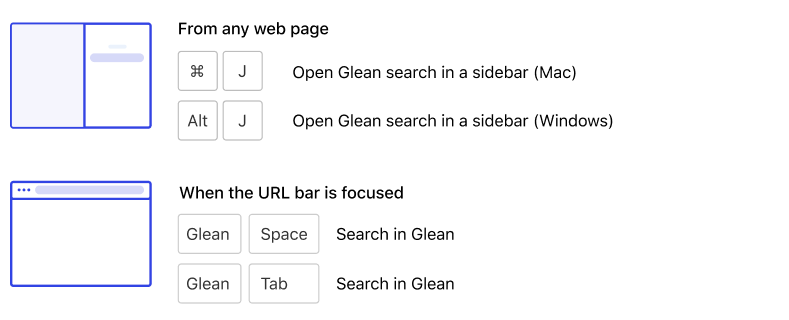 Note: If you have another shortcut set to Command/Alt + J, you can set another shortcut for Glean, change the shortcut, or disable the shortcut entirely by going to **chrome://extensions/shortcuts**.
[](https://docs.glean.com/user-guide/advanced/keyboard-shortcuts#within-glean)
Within Glean
-----------------------------------------------------------------------------------------------
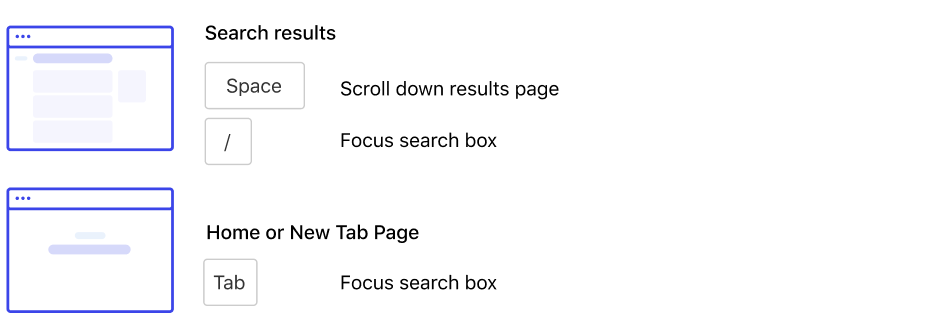
Was this page helpful?
YesNo
[Configuring dark mode](https://docs.glean.com/user-guide/advanced/configuring-dark-mode)
[Customizing Your Glean Home Page](https://docs.glean.com/user-guide/advanced/customizing-home-page)
⌘I
---
# Customizing Your Glean Home Page - Glean Help Center
[Skip to main content](https://docs.glean.com/user-guide/advanced/customizing-home-page#content-area)
[Glean Help Center home page](https://docs.glean.com/)
Search...
⌘K
Search...
Navigation
Advanced
Customizing Your Glean Home Page
[Home](https://docs.glean.com/home)
[User Guide](https://docs.glean.com/user-guide/about/what-is-glean)
[Agents](https://docs.glean.com/agents/home)
[Get Started for Admins](https://docs.glean.com/get-started/welcome)
[Connectors](https://docs.glean.com/connectors/home)
[Admin Guide](https://docs.glean.com/administration/about)
[Security & Architecture](https://docs.glean.com/security/home)
[Troubleshooting](https://docs.glean.com/troubleshooting/home)
[Release Notes](https://docs.glean.com/release-notes/home)
[Archive](https://docs.glean.com/archive/help-glean/answers/what-are-answers-and-how-do-they-work)
On this page
* [Customize the Home page directly from the home page](https://docs.glean.com/user-guide/advanced/customizing-home-page#customize-the-home-page-directly-from-the-home-page)
* [Set your default mode between Search and Chat](https://docs.glean.com/user-guide/advanced/customizing-home-page#set-your-default-mode-between-search-and-chat)
* [Customize home page settings using the settings icon](https://docs.glean.com/user-guide/advanced/customizing-home-page#customize-home-page-settings-using-the-settings-icon)
* [Customize the Home page using the Preferences Menu](https://docs.glean.com/user-guide/advanced/customizing-home-page#customize-the-home-page-using-the-preferences-menu)
* [Home page settings customization options](https://docs.glean.com/user-guide/advanced/customizing-home-page#home-page-settings-customization-options)
* [General](https://docs.glean.com/user-guide/advanced/customizing-home-page#general)
* [Theme](https://docs.glean.com/user-guide/advanced/customizing-home-page#theme)
* [Background](https://docs.glean.com/user-guide/advanced/customizing-home-page#background)
* [Layout](https://docs.glean.com/user-guide/advanced/customizing-home-page#layout)
* [Preferred language](https://docs.glean.com/user-guide/advanced/customizing-home-page#preferred-language)
* [Default composer selection](https://docs.glean.com/user-guide/advanced/customizing-home-page#default-composer-selection)
* [Tips](https://docs.glean.com/user-guide/advanced/customizing-home-page#tips)
Your Glean home page is fully customizable to match your workflow, aesthetic preferences, and productivity needs. Some of the customization options are available directly from the home page, others are available in the Preferences menu.
[](https://docs.glean.com/user-guide/advanced/customizing-home-page#customize-the-home-page-directly-from-the-home-page)
Customize the Home page directly from the home page
--------------------------------------------------------------------------------------------------------------------------------------------------------------------------------
some settings can be customized directly from the home page, others are available in the Preferences menu.
###
[](https://docs.glean.com/user-guide/advanced/customizing-home-page#set-your-default-mode-between-search-and-chat)
Set your default mode between Search and Chat
You can **pin** your preferred default, **Search** or **Chat**, directly from the **Home page composer** so Glean starts the way you like every time. Pinning sets your pinned mode as the default at the start of each new Glean session, and moves the pinned mode to the left in the composer toggle for easier access. On the Glean Home page, select the pin icon next to either Search or Chat on the composer.
* The pin shows up on the mode which is currently not the pinned tab. If you don’t see the pin icon, you are already pinned to the mode you selected.
* Your organization has a global default set by your admin (for example, Chat-first), you will see that mode on the left by default. You can still change your personal default by pinning the mode you prefer and that will override the global default.
###
[](https://docs.glean.com/user-guide/advanced/customizing-home-page#customize-home-page-settings-using-the-settings-icon)
Customize home page settings using the settings icon
In the upper right hand corner of the home page, you will see a settings icon (slider filter icon). Clicking this will open a drawer with the following settings:
* **General**: Control basic behavior of the Glean home page.
* **Theme**: Choose your preferred theme for the Glean home page.
* **Background**: Choose from a variety of static and scenic wallpapers to personalize your background.
* **Layout**: Customize how content is displayed on your home page.
* **Default composer selection**: Choose the default mode for the composer (the box where you type search queries or chat prompts) each time you load the Home Page.
[](https://docs.glean.com/user-guide/advanced/customizing-home-page#customize-the-home-page-using-the-preferences-menu)
Customize the Home page using the Preferences Menu
------------------------------------------------------------------------------------------------------------------------------------------------------------------------------
The Preferences Menu contains more advanced settings for customizing your home page. To access the **Preferences Menu**:
1. Select your profile icon in the lower left corner of the home page.
2. Select **Your Settings**.
3. Ensure you’re on the **Preferences** tab.
[](https://docs.glean.com/user-guide/advanced/customizing-home-page#home-page-settings-customization-options)
Home page settings customization options
----------------------------------------------------------------------------------------------------------------------------------------------------------
You can customize the following home page settings using either the settings icon or the Preferences Menu:
###
[](https://docs.glean.com/user-guide/advanced/customizing-home-page#general)
General
Control basic behavior of the Glean home page.
* **Use Glean as new tab page**: When toggled on, Glean will appear every time you open a new tab in your browser.
* **Show bookmarks bar**: Toggle this to show or hide the bookmarks bar for quick access to saved links.
* **Show shortcuts**: Toggle this to show or hide shortcuts to commonly visited pages or apps.
###
[](https://docs.glean.com/user-guide/advanced/customizing-home-page#theme)
Theme
* **Light**: A bright, classic look.
* **Dark**: A sleek, low-light theme that’s easy on the eyes.
* **System**: Automatically matches your operating system’s light or dark mode setting.
###
[](https://docs.glean.com/user-guide/advanced/customizing-home-page#background)
Background
Choose from a variety of static and scenic wallpapers to personalize your background.
* Tap any image to apply it.
* To remove wallpaper, select the blank option in the top-left.
###
[](https://docs.glean.com/user-guide/advanced/customizing-home-page#layout)
Layout
Customize how content is displayed on your home page.
* **Simple**: A minimal and focused layout—great if you prefer a clean workspace.
* **Informational** (default): Displays helpful widgets like your calendar, mentions, trending content, and more.
###
[](https://docs.glean.com/user-guide/advanced/customizing-home-page#preferred-language)
Preferred language
Choose your preferred language for the Glean home page.
###
[](https://docs.glean.com/user-guide/advanced/customizing-home-page#default-composer-selection)
Default composer selection
Choose the default mode for the composer (the box where you type search queries or chat prompts) each time you load the Home Page. This gives you faster access to your preferred workflow, whether you’re a search power user or rely on Glean Assistant for chat.
* **Search (default)**: Composer defaults to a search mode—ideal if you primarily use Glean for quick lookups.
* **Chat** : Composer opens ready for a conversation with Glean’s assistant.
* **Sticky:** Glean will remember your last used mode—Search or Chat—and default to that next time.
[](https://docs.glean.com/user-guide/advanced/customizing-home-page#tips)
Tips
----------------------------------------------------------------------------------
* Changes take effect immediately. You don’t need to save.
* You can return to the settings panel at any time to make updates.
Was this page helpful?
YesNo
[Keyboard Shortcuts](https://docs.glean.com/user-guide/advanced/keyboard-shortcuts)
[Searching from the address bar](https://docs.glean.com/user-guide/advanced/searching-from-address-bar)
⌘I
---
# Searching from the address bar - Glean Help Center
[Skip to main content](https://docs.glean.com/user-guide/advanced/searching-from-address-bar#content-area)
[Glean Help Center home page](https://docs.glean.com/)
Search...
⌘K
Search...
Navigation
Advanced
Searching from the address bar
[Home](https://docs.glean.com/home)
[User Guide](https://docs.glean.com/user-guide/about/what-is-glean)
[Agents](https://docs.glean.com/agents/home)
[Get Started for Admins](https://docs.glean.com/get-started/welcome)
[Connectors](https://docs.glean.com/connectors/home)
[Admin Guide](https://docs.glean.com/administration/about)
[Security & Architecture](https://docs.glean.com/security/home)
[Troubleshooting](https://docs.glean.com/troubleshooting/home)
[Release Notes](https://docs.glean.com/release-notes/home)
[Archive](https://docs.glean.com/archive/help-glean/answers/what-are-answers-and-how-do-they-work)
On this page
* [Chrome](https://docs.glean.com/user-guide/advanced/searching-from-address-bar#chrome)
* [Firefox](https://docs.glean.com/user-guide/advanced/searching-from-address-bar#firefox)
You will need the [Glean Extension](https://docs.glean.com/user-guide/apps/installing-the-browser-extension)
installed to use this feature.
[](https://docs.glean.com/user-guide/advanced/searching-from-address-bar#chrome)
Chrome
-------------------------------------------------------------------------------------------
In Chrome, just type **`gl`** **`space`** or **`gl`** **`tab`** into the address bar, followed by your query in Glean.  If you also start typing “app.glean…”, you can also tab to search directly in Glean from there.
[](https://docs.glean.com/user-guide/advanced/searching-from-address-bar#firefox)
Firefox
---------------------------------------------------------------------------------------------
Go to [app.glean.com](http://app.glean.com/)
and click into the address bar. Right click, and you’ll see an option to **Add “Glean”** at the bottom of the menu. 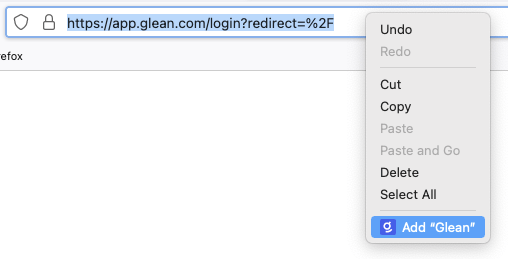 You can also click into the address bar, and click on the Glean icon in the bottom row of the menu (with the green plus button).  Then, navigate to the search section, under your Firefox Preferences (or just type **about:preferences#search** into the address bar). Double click on “Glean” in the list, and you’ll be able to add your own keyword there. 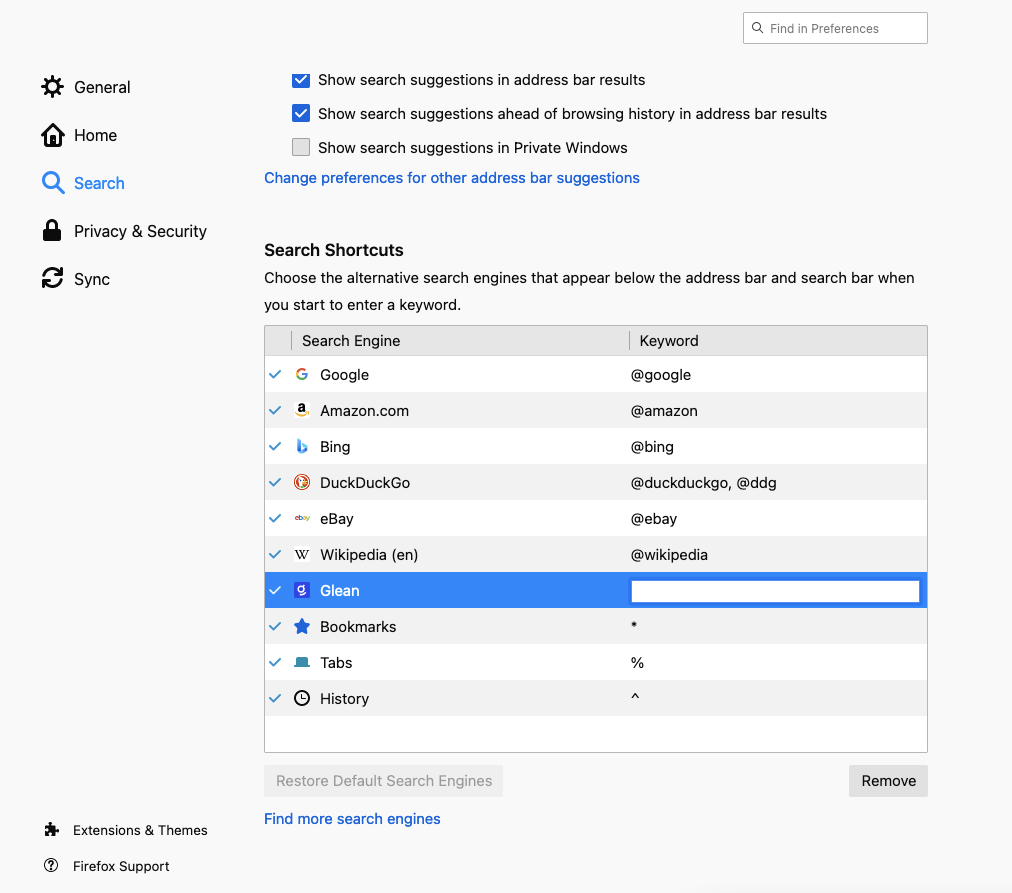 We recommend setting this up at @gl (short, easy to type).  You’ll then be able to search directly with Glean from the address bar! 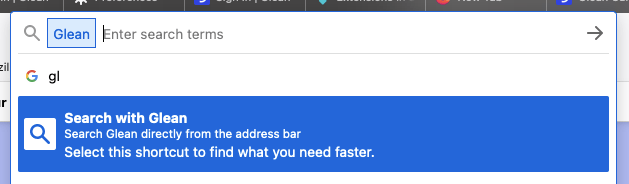
After opening a new window/Firefox tab, pressing the tab button will not focus on the Glean search box. Unfortunately, this is a known problem on the Firefox end. Please use `F6 + Tab` to focus on the Glean search box.
Looking for the original versions of this page? You can find the archived versions [here](https://docs.glean.com/archive/help-glean/faq/pressing-tab-is-not-focusing-on-glean-search-box-in-firefox)
and [here](https://docs.glean.com/archive/help-glean/faq/how-do-i-search-glean-directly-from-the-address-bar)
.
Was this page helpful?
YesNo
[Customizing Your Glean Home Page](https://docs.glean.com/user-guide/advanced/customizing-home-page)
[Advanced search filters in Glean](https://docs.glean.com/user-guide/advanced/advanced-search-filter)
⌘I
---
# How To Write Effective Answers - Glean Help Center
[Skip to main content](https://docs.glean.com/user-guide/knowledge/answers/how-to-write-effective-answers#content-area)
[Glean Help Center home page](https://docs.glean.com/)
Search...
⌘K
Search...
Navigation
Answers
How To Write Effective Answers
[Home](https://docs.glean.com/home)
[User Guide](https://docs.glean.com/user-guide/about/what-is-glean)
[Agents](https://docs.glean.com/agents/home)
[Get Started for Admins](https://docs.glean.com/get-started/welcome)
[Connectors](https://docs.glean.com/connectors/home)
[Admin Guide](https://docs.glean.com/administration/about)
[Security & Architecture](https://docs.glean.com/security/home)
[Troubleshooting](https://docs.glean.com/troubleshooting/home)
[Release Notes](https://docs.glean.com/release-notes/home)
[Archive](https://docs.glean.com/archive/help-glean/answers/what-are-answers-and-how-do-they-work)
On this page
* [1\. Think of common questions you or your team get asked](https://docs.glean.com/user-guide/knowledge/answers/how-to-write-effective-answers#1-think-of-common-questions-you-or-your-team-get-asked)
* [2\. Phrase your question completely](https://docs.glean.com/user-guide/knowledge/answers/how-to-write-effective-answers#2-phrase-your-question-completely)
* [3\. Write your answer](https://docs.glean.com/user-guide/knowledge/answers/how-to-write-effective-answers#3-write-your-answer)
* [Other ways to create answers](https://docs.glean.com/user-guide/knowledge/answers/how-to-write-effective-answers#other-ways-to-create-answers)
[](https://docs.glean.com/user-guide/knowledge/answers/how-to-write-effective-answers#1-think-of-common-questions-you-or-your-team-get-asked)
1\. Think of common questions you or your team get asked
==========================================================================================================================================================================================================
These might be a category of questions (i.e. “Where is XYZ”), questions related to a workflow, or questions that come up at certain times of the year. **Some examples to get you started 👇**
* Where can I find…?
* What existing work has been done on…?
* What’s our process for…?
* What’s the policy for…?
* How do I configure…?
* How do I set up…?
* How do I troubleshoot…?
**Pro tip ✨** If your team has a public Slack channel that others use to collaborate with/ask questions of your team, or a private Slack channel for questions among yourselves, look through that for ideas. Adding answers for those kinds of questions will save time for you and your teammates in the future!
[](https://docs.glean.com/user-guide/knowledge/answers/how-to-write-effective-answers#2-phrase-your-question-completely)
2\. Phrase your question completely
================================================================================================================================================================
In the **New Answer** modal, write your question in a complete sentence. When others search for that question or keywords/queries that match the question, they’ll see your answer at the top of their results. Your question will also be used as a **title** for your answer.
[](https://docs.glean.com/user-guide/knowledge/answers/how-to-write-effective-answers#3-write-your-answer)
3\. Write your answer
====================================================================================================================================
You can add a link, text, or both to your answer. The way your answers looks in the text editor is exactly like how others will see your answer at the top of their search results. 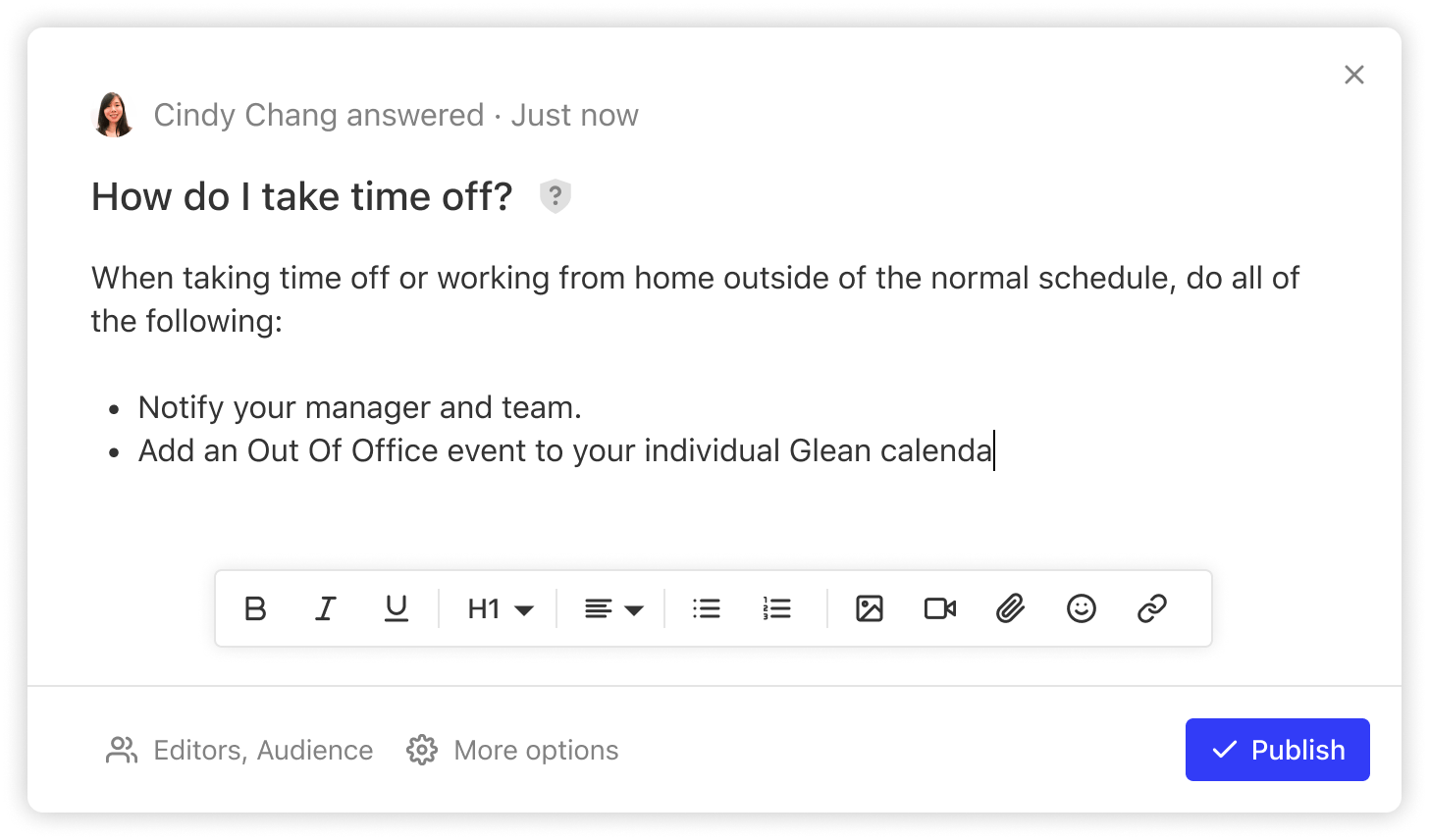 Then just save and you’re done! You can always edit your answer from the search results, or click **Answers** in the top navigation bar to view and edit your answers.
[](https://docs.glean.com/user-guide/knowledge/answers/how-to-write-effective-answers#other-ways-to-create-answers)
Other ways to create answers
====================================================================================================================================================
**Create answer from result** Use this if you’ve already searched for something, and see a result you want to appear at the top for everyone when they search for the same thing. Hover over the result, click the “more” menu with the three dots, and click **Create Answer**. 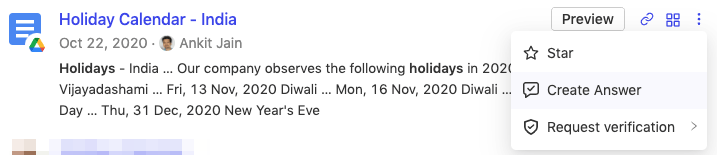
Was this page helpful?
YesNo
[What Are Answers And How Do They Work?](https://docs.glean.com/user-guide/knowledge/answers/what-are-answers-and-how-do-they-work)
[How Collections Work](https://docs.glean.com/user-guide/knowledge/collections/how-collections-work)
⌘I
---
# Configuring dark mode - Glean Help Center
[Skip to main content](https://docs.glean.com/user-guide/advanced/configuring-dark-mode#content-area)
[Glean Help Center home page](https://docs.glean.com/)
Search...
⌘K
Search...
Navigation
Advanced
Configuring dark mode
[Home](https://docs.glean.com/home)
[User Guide](https://docs.glean.com/user-guide/about/what-is-glean)
[Agents](https://docs.glean.com/agents/home)
[Get Started for Admins](https://docs.glean.com/get-started/welcome)
[Connectors](https://docs.glean.com/connectors/home)
[Admin Guide](https://docs.glean.com/administration/about)
[Security & Architecture](https://docs.glean.com/security/home)
[Troubleshooting](https://docs.glean.com/troubleshooting/home)
[Release Notes](https://docs.glean.com/release-notes/home)
[Archive](https://docs.glean.com/archive/help-glean/answers/what-are-answers-and-how-do-they-work)
Glean supports dark mode across its desktop and mobile applications to allow users to tailor their experience. This guide will help you understand what options Glean provides, as well as how to configure them. By default, Glean will mirror your system’s settings. When your computer or phone is set to dark mode, Glean will also be in dark mode. You can also set Glean to remain in dark mode or light mode by navigating to [your settings](https://app.glean.com/settings)
and selecting the appropriate option. Glean applies these preferences across its desktop, [Android](https://play.google.com/store/apps/details?id=com.glean.app)
and [iOS](https://apps.apple.com/us/app/glean-work/id1582892407)
apps. You can change these settings at any time.
Was this page helpful?
YesNo
[MCP for Support](https://docs.glean.com/user-guide/mcp/support)
[Keyboard Shortcuts](https://docs.glean.com/user-guide/advanced/keyboard-shortcuts)
⌘I
---
# Advanced search filters in Glean - Glean Help Center
[Skip to main content](https://docs.glean.com/user-guide/advanced/advanced-search-filter#content-area)
[Glean Help Center home page](https://docs.glean.com/)
Search...
⌘K
Search...
Navigation
Advanced
Advanced search filters in Glean
[Home](https://docs.glean.com/home)
[User Guide](https://docs.glean.com/user-guide/about/what-is-glean)
[Agents](https://docs.glean.com/agents/home)
[Get Started for Admins](https://docs.glean.com/get-started/welcome)
[Connectors](https://docs.glean.com/connectors/home)
[Admin Guide](https://docs.glean.com/administration/about)
[Security & Architecture](https://docs.glean.com/security/home)
[Troubleshooting](https://docs.glean.com/troubleshooting/home)
[Release Notes](https://docs.glean.com/release-notes/home)
[Archive](https://docs.glean.com/archive/help-glean/answers/what-are-answers-and-how-do-they-work)
On this page
* [Essential syntax rules](https://docs.glean.com/user-guide/advanced/advanced-search-filter#essential-syntax-rules)
* [Core filters](https://docs.glean.com/user-guide/advanced/advanced-search-filter#core-filters)
* [Date and time expressions](https://docs.glean.com/user-guide/advanced/advanced-search-filter#date-and-time-expressions)
* [Natural language](https://docs.glean.com/user-guide/advanced/advanced-search-filter#natural-language)
* [Specific dates](https://docs.glean.com/user-guide/advanced/advanced-search-filter#specific-dates)
* [Boolean logic rules](https://docs.glean.com/user-guide/advanced/advanced-search-filter#boolean-logic-rules)
* [People and entity filters](https://docs.glean.com/user-guide/advanced/advanced-search-filter#people-and-entity-filters)
* [Text matching patterns](https://docs.glean.com/user-guide/advanced/advanced-search-filter#text-matching-patterns)
* [Use search filters in Glean Agents](https://docs.glean.com/user-guide/advanced/advanced-search-filter#use-search-filters-in-glean-agents)
* [Critical Rules](https://docs.glean.com/user-guide/advanced/advanced-search-filter#critical-rules)
* [Good vs Bad Examples](https://docs.glean.com/user-guide/advanced/advanced-search-filter#good-vs-bad-examples)
* [Tips and tricks](https://docs.glean.com/user-guide/advanced/advanced-search-filter#tips-and-tricks)
* [Query Building Strategy](https://docs.glean.com/user-guide/advanced/advanced-search-filter#query-building-strategy)
* [Performance Tips](https://docs.glean.com/user-guide/advanced/advanced-search-filter#performance-tips)
* [Discover filters through the Search UI:](https://docs.glean.com/user-guide/advanced/advanced-search-filter#discover-filters-through-the-search-ui)
* [Known limitations and workarounds](https://docs.glean.com/user-guide/advanced/advanced-search-filter#known-limitations-and-workarounds)
* [Quick reference table](https://docs.glean.com/user-guide/advanced/advanced-search-filter#quick-reference-table)
* [Common search patterns](https://docs.glean.com/user-guide/advanced/advanced-search-filter#common-search-patterns)
* [Application specific filters](https://docs.glean.com/user-guide/advanced/advanced-search-filter#application-specific-filters)
[Search filters](https://docs.glean.com/user-guide/basics/how-to-search-in-glean)
are useful ways to find exactly what you need across all company documents. Instead of browsing hundreds of results to find the single document you are looking for, use filters to say “show me only Google Drive presentations from Jane updated last week.” You can use filter to:
* Perform detailed and specific queries in Glean Search.
* Create _Manual_ search queries for Agent, allowing fine-grained specification of exactly which data Company Search, Web Search, and other Agents Actions/Steps will retrieve.
Basic syntax: `filter:value` (like `app:gdrive` or `from:"Jane Doe"`). Include negation filters by adding a `-` operator to any query (e.g. `-app:gmail` excludes results from Google Mail). Combine filters to get precise results — it’s like giving Glean specific instructions to understand exactly what you’re looking for. This comprehensive article is designed to be your go-to reference for [Glean Search Filters](https://docs.glean.com/user-guide/basics/how-to-search-in-glean)
:
* **New to Glean?** Start with [Essential syntax rules](https://docs.glean.com/user-guide/advanced/advanced-search-filter#essential-syntax-rules)
and [Core filters](https://docs.glean.com/user-guide/advanced/advanced-search-filter#core-filters)
to learn the basics.
* **Building Agents?** Jump to [Use search filters in Glean Agents](https://docs.glean.com/user-guide/advanced/advanced-search-filter#use-search-filters-in-glean-agents)
for critical rules and examples.
* **Need app-specific help?** [Application specific filters](https://docs.glean.com/user-guide/advanced/advanced-search-filter#application-specific-filters)
covers 9+ applications with examples.
* **Looking for examples of common use-cases?** [Common Search Patterns](https://docs.glean.com/user-guide/advanced/advanced-search-filter#common-search-patterns)
has ready-to-use queries for frequent scenarios.
* **Stuck?** Check [Known limitations and workarounds](https://docs.glean.com/user-guide/advanced/advanced-search-filter#known-limitations-and-workarounds)
for known issues and workarounds.
[](https://docs.glean.com/user-guide/advanced/advanced-search-filter#essential-syntax-rules)
Essential syntax rules
-----------------------------------------------------------------------------------------------------------------------
The essential syntax rules include how to handle spaces, exact phrases, and word matching logic. Quote multi-word values, use exact phrases for precise matches, and understand that unquoted words search for ANY while quoted words search for ALL.
Copy
filter:value → Basic filter syntax
filter:"value with space" → ALWAYS quote multi-word values
"exact phrase" → Find this exact phrase
"word1" "word2" → Find ALL these words (any order)
word1 word2 → Find ANY of these words
-filter:value → EXCLUDE certain results.
[](https://docs.glean.com/user-guide/advanced/advanced-search-filter#core-filters)
Core filters
---------------------------------------------------------------------------------------------------
These are the fundamental filters that work across all applications:
Copy
app:appname → Limit to specific app(s)
type:typename → Filter by document type
from:person → From specific person
from:me → Your documents
updated:timeframe → Recently modified
my:history → You've viewed (6 month limit)
collection:"Name" → In a Glean collection
has:golink → Has a Go link
in:"Folder Name" → Docs in specific container/space/folder
[](https://docs.glean.com/user-guide/advanced/advanced-search-filter#date-and-time-expressions)
Date and time expressions
-----------------------------------------------------------------------------------------------------------------------------
###
[](https://docs.glean.com/user-guide/advanced/advanced-search-filter#natural-language)
Natural language
Copy
updated:today → Current day only
updated:yesterday → Previous day only
updated:past_week → Last 7 days
updated:past_month → Last 30 days
updated:past_3_days → Last 3 days
updated:past_quarter → Last 90 days
updated:this_week → Current calendar week
updated:last_month → Previous calendar month
after:"2024-01-01" → After a specific date
before:"2024-01-01" → Before a specific date
###
[](https://docs.glean.com/user-guide/advanced/advanced-search-filter#specific-dates)
Specific dates
Copy
updated:"2024-01-15" → Specific date
updated:"2024-01" → Entire month
updated:"2024" → Entire year
updated:"2024-Q1" → Quarter
after:"2024-01-01" before:"2024-01-31" → Date range
[](https://docs.glean.com/user-guide/advanced/advanced-search-filter#boolean-logic-rules)
Boolean logic rules
-----------------------------------------------------------------------------------------------------------------
* **Same filter** = OR: `type:doc type:sheet` (docs OR sheets).
* **Different filters** = AND: `app:jira from:me` (Jira AND from me).
* **No way to force AND on same filter** (platform limitation).
* **No parentheses or custom grouping** (platform limitation).
* **Negation filter**: Add a `-` operator to remove certain keywords from queries (e.g. employee experience `-customer` → exclude results that mention “customer”.).
[](https://docs.glean.com/user-guide/advanced/advanced-search-filter#people-and-entity-filters)
People and entity filters
-----------------------------------------------------------------------------------------------------------------------------
Filters for finding people by title, department, location, reporting structure, and combining with document searches.
Copy
# Job & Organization
title:"Software Engineer" → Job title
department:engineering → Department
businessunit:sales → Business unit
team:"Platform Team" → Specific team
# Location
location:"San Francisco" → City/office
country:"United States" → Country
state:"CA" → State/province
region:"EMEA" → Region
# Reporting & Employment
reportsto:"Manager Name" → Direct manager
level:[ic|manager|director] → Seniority level
startafter:"2023-01-01" → Start date after
startbefore:"2024-01-01" → Start date before
employmenttype:[fulltime|contractor|intern]
# Combining with documents
from:[title:"Product Manager"] type:presentation
from:[department:sales] updated:past_week
[](https://docs.glean.com/user-guide/advanced/advanced-search-filter#text-matching-patterns)
Text matching patterns
-----------------------------------------------------------------------------------------------------------------------
Copy
# Exact phrase
"quarterly business review" → Exact phrase in order
# All words required
"quarterly" "business" "review" → All 3 words, any order
# Any words
quarterly business review → ANY of these words
# Special characters (use quotes)
"user@company.com"
"Q4-2024"
"$1,000,000"
"C++"
[](https://docs.glean.com/user-guide/advanced/advanced-search-filter#use-search-filters-in-glean-agents)
Use search filters in Glean Agents
-----------------------------------------------------------------------------------------------------------------------------------------------
Crafting manual search queries in Glean Agents is a powerful approach for achieving accurate, highly relevant information retrieval across organizational knowledge. Unlike AI-generated queries, manually constructed searches allow you to specify exactly which parameters and filters to apply, leading to precise results that align tightly with business objectives. Quoting multi-word values—such as account:“Acme Corp” ensures the system interprets search intent correctly, while explicit filter inclusion helps target the right data set from the start. This level of control not only minimizes noise and irrelevant results but also supports reproducibility and transparency in automated processes. Manual queries allows you to confidently surface critical insights, troubleshoot with nuance, and create efficient workflows that are robust to context changes—making them indispensable for high-stakes use cases within Glean. Hence, for the `Company Search` step in a Glean Agent, it is a core best practice to _default to a Manual search query_ instead of an _AI-generated_ one. Manual queries provide deterministic, repeatable, and reliable results, which is critical for any automated workflow.
Use the `AI-generated` option only when search parameters, like a specific date, must be created dynamically during the Agent’s run.
###
[](https://docs.glean.com/user-guide/advanced/advanced-search-filter#critical-rules)
Critical Rules
Always quote multi-word values, test syntax in Glean Search UI first, and be explicit with all needed filters for reliable Agent results.
* **Always quote multi-word values**: `account:"Acme Corp"`.
* **Test in Glean Search UI first**, copy exact syntax.
Any manual search query that will work in Agents will also work in Glean Search. Consequently, this pattern of testing manual queries is quite effective.
* **Use Manual Search** (not AI-generated) when possible.
* **Be explicit** - include all needed filters.
* **Handle empty results** in your Agent logic.
###
[](https://docs.glean.com/user-guide/advanced/advanced-search-filter#good-vs-bad-examples)
Good vs Bad Examples
Proper quoting makes the difference between successful and failed searches. Quoted multi-word values ensure accurate interpretation while unquoted ones cause parsing errors.
Copy
✅ GOOD: account:"Acme Corporation" status:"in progress"
❌ BAD: account:Acme Corporation status:in progress
✅ GOOD: app:jira type:bug label:"high-priority"
❌ BAD: app:jira type:bug label:high priority
[](https://docs.glean.com/user-guide/advanced/advanced-search-filter#tips-and-tricks)
Tips and tricks
---------------------------------------------------------------------------------------------------------
Build queries incrementally starting simple, use app filters first for performance, and discover new filters through the UI’s “All filters” option.
###
[](https://docs.glean.com/user-guide/advanced/advanced-search-filter#query-building-strategy)
Query Building Strategy
The incremental layering approach - starting with keywords, then systematically adding app, type, person, and time filters - mirrors how Glean’s search engine processes queries for optimal performance. This methodology prevents the “too many results” problem that overwhelms users and ensures each filter layer meaningfully refines the result set rather than creating contradictory constraints.
1. Start simple: `project phoenix`
2. Add app: `project phoenix app:confluence`
3. Add type: `project phoenix app:confluence type:page`
4. Add person: `project phoenix app:confluence type:page from:"PM"`
5. Add time: `project phoenix app:confluence type:page from:"PM" updated:past_week`
###
[](https://docs.glean.com/user-guide/advanced/advanced-search-filter#performance-tips)
Performance Tips
Begin with app filters to narrow scope, be specific with document types, limit date ranges, and use exact phrases for known titles.
* Use `app:` filter first to narrow scope
* Be specific with types
* Limit date ranges when possible
* Use exact phrases for known titles
###
[](https://docs.glean.com/user-guide/advanced/advanced-search-filter#discover-filters-through-the-search-ui)
Discover filters through the Search UI:
1. Run a search.
2. Click All filters.
3. Select options.
4. Copy the syntax from the search bar.
[](https://docs.glean.com/user-guide/advanced/advanced-search-filter#known-limitations-and-workarounds)
Known limitations and workarounds
---------------------------------------------------------------------------------------------------------------------------------------------
| Limitation | What doesn’t work | Practical workaround |
| --- | --- | --- |
| No complex boolean | `(A OR B) AND (C OR D)` | Run multiple targeted searches |
| No same‑field AND | “Docs with Jane AND John” | Use text search for both names |
| No regex | Pattern matching | Use multiple exact phrases |
| History scope | `my:history` > 6 months | Combine with other filters |
| GDrive recency edge cases | Newly updated files may not appear with broad time filters | Combine time with `from:` or `type:`; add keywords for critical searches |
[](https://docs.glean.com/user-guide/advanced/advanced-search-filter#quick-reference-table)
Quick reference table
---------------------------------------------------------------------------------------------------------------------
These are the 8 common use cases with their exact filter combinations for quick copy-paste:
| Need | Filter combination |
| --- | --- |
| My recent work | `from:me updated:past_week` |
| Team documents | `from:[department:"Dept"] type:document` |
| Open bugs | `app:jira type:bug status:"open"` |
| Customer intel | `"Acme Corp" app:salescloud app:zendesk` |
| Meeting notes | `"meeting" type:document updated:past_month` |
| Shared drives | `app:gdrive folder:"Shared"` |
| Recent Slack | `app:slack updated:yesterday` |
| My history, slides | `my:history type:presentation` |
[](https://docs.glean.com/user-guide/advanced/advanced-search-filter#common-search-patterns)
Common search patterns
-----------------------------------------------------------------------------------------------------------------------
These are ready-to-use queries for team documents, customer intelligence, project tracking, bugs, sales, and knowledge search. Recent team documents
Copy
from:[department:"Engineering"] updated:past_week
from:[reportsto:"Manager Name"] "meeting notes"
from:me app:gdrive type:document updated:past_month
Customer intelligence
Copy
"Acme Corp" app:salescloud app:zendesk app:gong
account:"Acme Corp" type:opportunity status:"open"
"Acme Corp" app:slack channel:"#customer-success"
Project tracking
Copy
"Project Phoenix" app:confluence app:jira
"Project Phoenix" updated:past_week -type:email
"Project Phoenix" from:[team:"Phoenix Team"]
Bug management
Copy
app:jira type:bug status:"open" priority:highest
app:jira type:bug label:customer-reported assignee:me
app:jira type:bug status:"resolved" updated:past_week
Sales pipeline
Copy
app:salescloud type:opportunity stage:!"closed lost"
app:salescloud type:opportunity amount:>100000
app:salescloud closedate:"2024-Q1" owner:me
Knowledge search
Copy
"how to" type:document app:confluence label:tutorial
collection:"Engineering Playbooks" "best practices"
has:golink "onboarding"
[](https://docs.glean.com/user-guide/advanced/advanced-search-filter#application-specific-filters)
Application specific filters
-----------------------------------------------------------------------------------------------------------------------------------
The following are detailed filter syntax for Google Drive, Slack, Jira, Confluence, Salesforce, GitHub/GitLab, Teams, Gong, and Zendesk. Google Drive
Copy
app:gdrive
type:[document|spreadsheet|presentation|pdf|image|video|folder]
folder:"Folder Name"
owner:email@company.com
# Example:
app:gdrive type:spreadsheet folder:"Finance" updated:past_week
Slack
Copy
app:slack
channel:"#channel-name" # include the #
from:@username # include the @
type:[conversation|channel|dm]
# Example:
app:slack channel:"#engineering" from:@john "deployment"
Jira
Copy
app:jira
type:[bug|story|epic|task|subtask]
status:"Status Name"
assignee:"Person Name"
reporter:"Person Name"
project:"PROJECT-KEY"
label:labelname
component:componentname
priority:[highest|high|medium|low|lowest]
sprint:"Sprint Name"
# Example:
app:jira type:bug status:"in progress" priority:high assignee:me
Confluence
Copy
app:confluence
type:[page|blogpost|space]
space:"Space Name"
author:"Person Name"
label:labelname
# Example:
app:confluence space:"Engineering Wiki" author:"Jane" label:howto
Salesforce
Copy
# Sales Cloud
app:salescloud
type:[opportunity|account|lead|contact|case]
status:"Status Name"
stage:"Stage Name"
owner:"Person Name"
account:"Account Name"
amount:>100000
closedate:"2024-Q1"
# Service Cloud
app:servicecloud
type:case
priority:[high|medium|low]
# Example:
app:salescloud type:opportunity stage:"negotiation" amount:>50000
GitHub / GitLab
Copy
app:github # or app:gitlab
type:[issue|pr|commit|repo|discussion]
repo:"repository-name"
author:"username"
assignee:"username"
label:labelname
status:[open|closed|merged]
# Example:
app:github type:pr repo:"main-app" status:open label:bug
Microsoft Teams
Copy
app:teams
team:"Team Name"
channel:"Channel Name"
from:"Person Name"
type:[conversation|file|channel]
# Example:
app:teams team:"Product Dev" channel:"General" type:file
Gong
Copy
app:gong
account:"Account Name"
participant:"Person Name"
type:[call|email]
# Example:
app:gong account:"Acme Corp" type:call updated:past_week
Zendesk
Copy
app:zendesk
type:ticket
status:[new|open|pending|solved|closed]
priority:[urgent|high|normal|low]
assignee:"Agent Name"
requester:"Customer Name"
# Example:
app:zendesk type:ticket status:open priority:urgent
Was this page helpful?
YesNo
[Searching from the address bar](https://docs.glean.com/user-guide/advanced/searching-from-address-bar)
⌘I
---
# Troubleshooting Go Links - Glean Help Center
[Skip to main content](https://docs.glean.com/user-guide/knowledge/go-links/troubleshooting#content-area)
[Glean Help Center home page](https://docs.glean.com/)
Search...
⌘K
Search...
Navigation
Go Links
Troubleshooting Go Links
[Home](https://docs.glean.com/home)
[User Guide](https://docs.glean.com/user-guide/about/what-is-glean)
[Agents](https://docs.glean.com/agents/home)
[Get Started for Admins](https://docs.glean.com/get-started/welcome)
[Connectors](https://docs.glean.com/connectors/home)
[Admin Guide](https://docs.glean.com/administration/about)
[Security & Architecture](https://docs.glean.com/security/home)
[Troubleshooting](https://docs.glean.com/troubleshooting/home)
[Release Notes](https://docs.glean.com/release-notes/home)
[Archive](https://docs.glean.com/archive/help-glean/answers/what-are-answers-and-how-do-they-work)
On this page
* [If you are seeing an error saying “This site can’t be reached”](https://docs.glean.com/user-guide/knowledge/go-links/troubleshooting#if-you-are-seeing-an-error-saying-%E2%80%9Cthis-site-can%E2%80%99t-be-reached%E2%80%9D)
* [If you are seeing a page that says “Oops, no Go Link here!”](https://docs.glean.com/user-guide/knowledge/go-links/troubleshooting#if-you-are-seeing-a-page-that-says-%E2%80%9Coops-no-go-link-here-%E2%80%9D)
If you’re having trouble accessing a [Go Link](https://docs.glean.com/user-guide/knowledge/go-links/how-go-links-work)
, this guide will walk you through potential solutions to that problem.
[](https://docs.glean.com/user-guide/knowledge/go-links/troubleshooting#if-you-are-seeing-an-error-saying-%E2%80%9Cthis-site-can%E2%80%99t-be-reached%E2%80%9D)
If you are seeing an error saying “This site can’t be reached”
==================================================================================================================================================================================================================================
Check to make sure you have the Glean Browser Extension installed and enabled. Go Links require the latest version of the extension to function. In Chrome, go to [chrome://extensions](chrome://extensions)
, and look for Glean. If it’s not there, download the extension from the Chrome Web Store.  If it is there, make sure that it’s enabled: the toggle in the lower right corner should be switched on and over to the right. After that, quit and reopen Chrome, and try accessing the Go Link again. If that still doesn’t work, go to the [Go Links directory](https://app.glean.com/knowledge/golinks)
. You may need to enable additional permissions from the banner at the top of the directory to make Go Links function in your browser.
* * *

[](https://docs.glean.com/user-guide/knowledge/go-links/troubleshooting#if-you-are-seeing-a-page-that-says-%E2%80%9Coops-no-go-link-here-%E2%80%9D)
If you are seeing a page that says “Oops, no Go Link here!”
===================================================================================================================================================================================================================
Check to make sure you typed the Go Link correctly. If you have typed it correctly, it’s possible that you were accidentally given the wrong Go Link. You can search Glean for the correct resource, or filter the [Go Links Directory](https://app.glean.com/knowledge/golinks)
for your organization to find it. If someone else gave you the Go Link, check with them to make sure they sent you the right one.
Was this page helpful?
YesNo
[Create Variable Go Links](https://docs.glean.com/user-guide/knowledge/go-links/create-variable-go-links)
[How Pins Work](https://docs.glean.com/user-guide/knowledge/pins/how-pins-work)
⌘I
---
# Page Not Found
[Skip to main content](https://docs.glean.com/user-guide/about/app.glean.com#content-area)
[Glean Help Center home page](https://docs.glean.com/)
Search...
⌘K
Search...
Navigation
Page Not Found
[Home](https://docs.glean.com/home)
[User Guide](https://docs.glean.com/user-guide/about/what-is-glean)
[Agents](https://docs.glean.com/agents/home)
[Get Started for Admins](https://docs.glean.com/get-started/welcome)
[Connectors](https://docs.glean.com/connectors/home)
[Admin Guide](https://docs.glean.com/administration/about)
[Security & Architecture](https://docs.glean.com/security/home)
[Troubleshooting](https://docs.glean.com/troubleshooting/home)
[Release Notes](https://docs.glean.com/release-notes/home)
[Archive](https://docs.glean.com/archive/help-glean/answers/what-are-answers-and-how-do-they-work)
404
Page Not Found
==============
We couldn't find the page.
⌘I
---
# Page Not Found
[Skip to main content](https://docs.glean.com/user-guide/about/example-prompts#content-area)
[Glean Help Center home page](https://docs.glean.com/)
Search...
⌘K
Search...
Navigation
Page Not Found
[Home](https://docs.glean.com/home)
[User Guide](https://docs.glean.com/user-guide/about/what-is-glean)
[Agents](https://docs.glean.com/agents/home)
[Get Started for Admins](https://docs.glean.com/get-started/welcome)
[Connectors](https://docs.glean.com/connectors/home)
[Admin Guide](https://docs.glean.com/administration/about)
[Security & Architecture](https://docs.glean.com/security/home)
[Troubleshooting](https://docs.glean.com/troubleshooting/home)
[Release Notes](https://docs.glean.com/release-notes/home)
[Archive](https://docs.glean.com/archive/help-glean/answers/what-are-answers-and-how-do-they-work)
404
Page Not Found
==============
We couldn't find the page. Maybe you were looking for one of these pages below?
[MCP for Engineering](https://docs.glean.com/user-guide/mcp/engineering#example-prompt-7)
[MCP for Operations](https://docs.glean.com/user-guide/mcp/operations#example-prompt)
[MCP for Support](https://docs.glean.com/user-guide/mcp/support#example-prompt-8)
⌘I
---
# Citations - Glean Help Center
[Skip to main content](https://docs.glean.com/user-guide/assistant/glean-chat/glean-chat-citations/glean-citations#content-area)
[Glean Help Center home page](https://docs.glean.com/)
Search...
⌘K
Search...
Navigation
Citations in Glean Chat
Citations
[Home](https://docs.glean.com/home)
[User Guide](https://docs.glean.com/user-guide/about/what-is-glean)
[Agents](https://docs.glean.com/agents/home)
[Get Started for Admins](https://docs.glean.com/get-started/welcome)
[Connectors](https://docs.glean.com/connectors/home)
[Admin Guide](https://docs.glean.com/administration/about)
[Security & Architecture](https://docs.glean.com/security/home)
[Troubleshooting](https://docs.glean.com/troubleshooting/home)
[Release Notes](https://docs.glean.com/release-notes/home)
[Archive](https://docs.glean.com/archive/help-glean/answers/what-are-answers-and-how-do-they-work)
On this page
* [Citation omissions](https://docs.glean.com/user-guide/assistant/glean-chat/glean-chat-citations/glean-citations#citation-omissions)
* [Troubleshooting steps](https://docs.glean.com/user-guide/assistant/glean-chat/glean-chat-citations/glean-citations#troubleshooting-steps)
* [FAQs](https://docs.glean.com/user-guide/assistant/glean-chat/glean-chat-citations/glean-citations#faqs)
A citation is a reference to a source Glean used. They appear within the response, immediately following statements that need backing, and provide a brief pointer to the document, file, or person so readers can locate and evaluate the source. Citations never grant new access. You can only open items you already have permission to view. Source previews and links inherit data controls and retention policies of your organization. Glean Chat cites the following resources:
* Documents and pages like Google Docs, Confluence, SharePoint pages.
* Files like PDFs, presentations, spreadsheets where a specific portion supports the claim.
* People records when the answer reflects a person as a source like an author or owner reference.
You see citations in the assitant responses as:
* Inline markers and a **View sources** section show the sources used for the answer.
* Hover over a citation to preview context.
* Opening a source shows a preview so you can confirm you are looking at the right place before you click through.
* Clicking a source opens the original item in its native application like Google Drive, Confluence, SharePoint which is subject to your access.
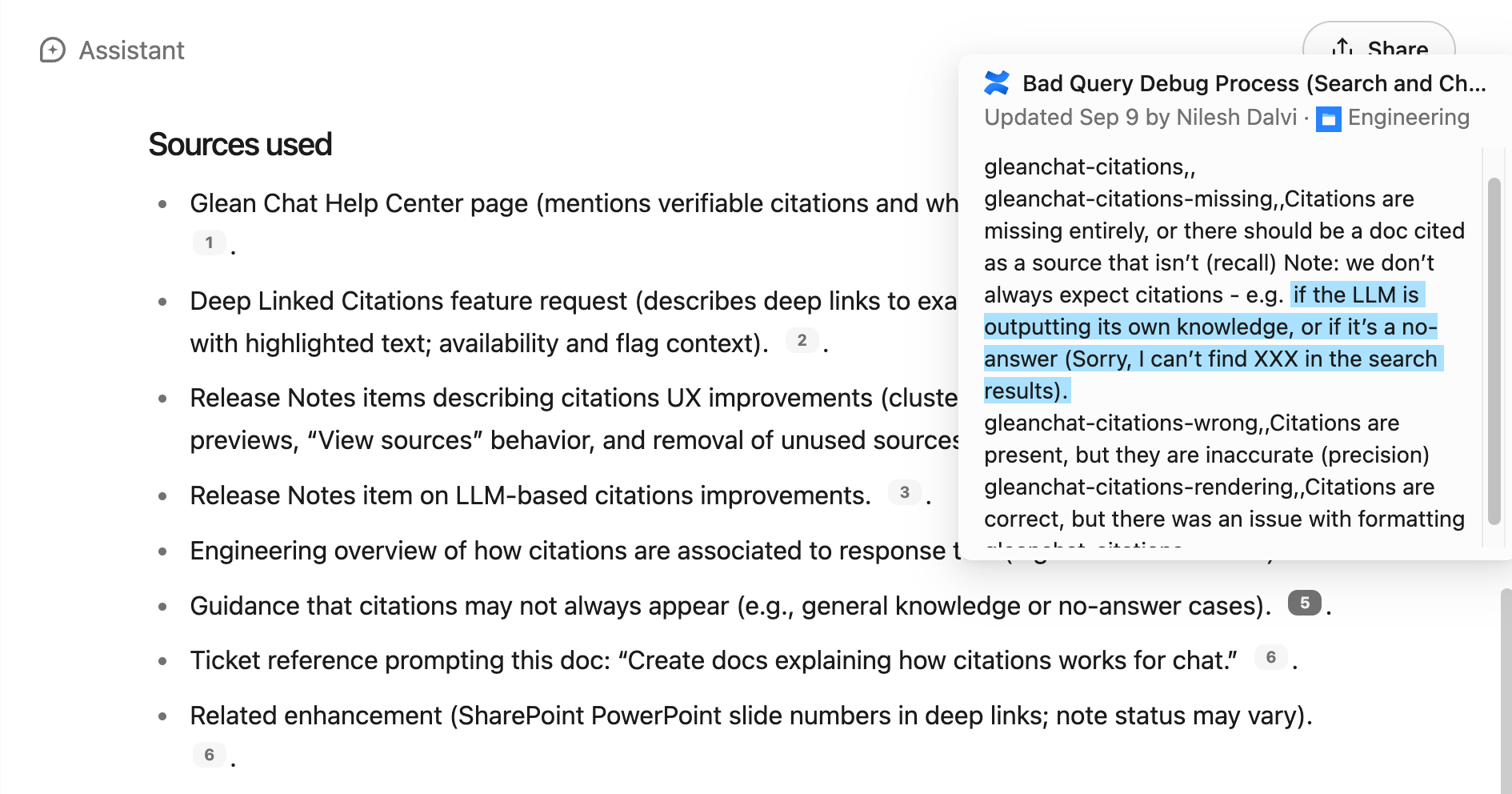
When deep linked citations are enabled, you are directed to the exact passage in the source that supports the statement, with the referenced text so that you can verify it.
* Hover previews highlight the cited text and show surrounding context.
* For certain file types, the link may jump to a specific section, for example, a slide within a presentation when available.
* Page numbers are also displayed for the appropriate sources.
Deep linking availability and behavior can vary by data source and admin settings.
###
[](https://docs.glean.com/user-guide/assistant/glean-chat/glean-chat-citations/glean-citations#citation-omissions)
Citation omissions
* If no enterprise sources are searched and the answer relies solely on world knowledge, citations are not generated and this is an expected behavior.
###
[](https://docs.glean.com/user-guide/assistant/glean-chat/glean-chat-citations/glean-citations#troubleshooting-steps)
Troubleshooting steps
* Missing citations: Rephrase your question to anchor to company specific knowledge. Add or tag the relevant documentation URLs, for example, “According to our FY25 strategy doc…”.
* Incorrect or low‑quality citations: If you see incorrect citations, share your feedback by clicking on the **thumbs down** button and select the category as _Used incorrect citation or source_.
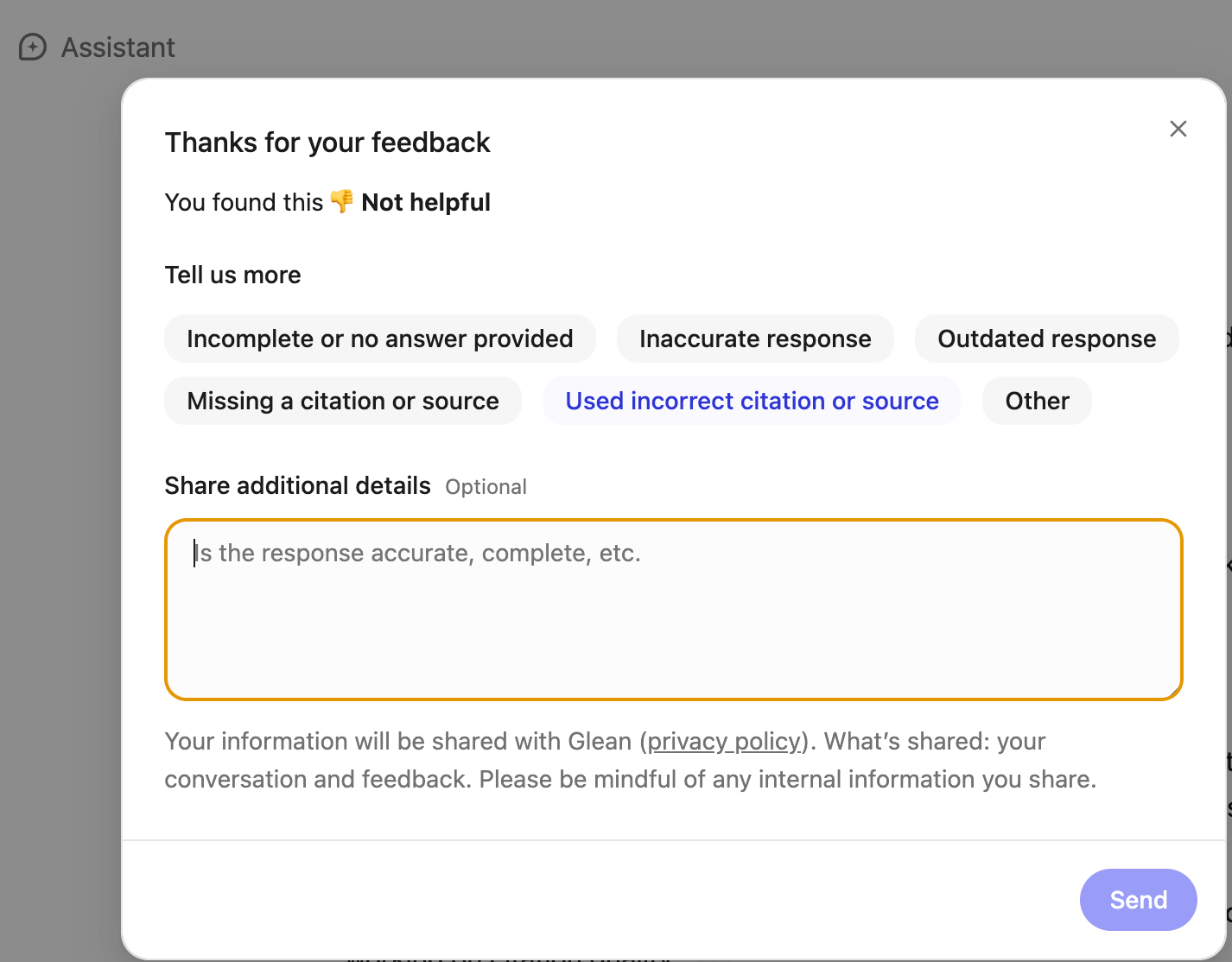
* Can not open a cited item: You can only open items you already have permission to view. Citations should not come for sources that you do not have access to, however they will remain in history if permission is revoked. Source previews and links inherit data controls and retention policies of your organization.
###
[](https://docs.glean.com/user-guide/assistant/glean-chat/glean-chat-citations/glean-citations#faqs)
FAQs
Are citations always present?
Citation are not always returned. Citations appear when the answer relies on enterprise sources. Responses that only come from public knowledge will not have citations.
Do citations affect answer quality?
Citations have been shown to steer responses to being more truthful. However, the absence of citations is not an indication that a response is hallucinated or wrong.
Was this page helpful?
YesNo
[Introduction to Glean Chat](https://docs.glean.com/user-guide/assistant/glean-chat/glean-chat)
[Deep-linked citations (Beta)](https://docs.glean.com/user-guide/assistant/glean-chat/glean-chat-citations/deep-linked-citations)
⌘I
---
# MCP for Support - Glean Help Center
[Skip to main content](https://docs.glean.com/user-guide/mcp/support#content-area)
[Glean Help Center home page](https://docs.glean.com/)
Search...
⌘K
Search...
Navigation
MCP Usage Examples
MCP for Support
[Home](https://docs.glean.com/home)
[User Guide](https://docs.glean.com/user-guide/about/what-is-glean)
[Agents](https://docs.glean.com/agents/home)
[Get Started for Admins](https://docs.glean.com/get-started/welcome)
[Connectors](https://docs.glean.com/connectors/home)
[Admin Guide](https://docs.glean.com/administration/about)
[Security & Architecture](https://docs.glean.com/security/home)
[Troubleshooting](https://docs.glean.com/troubleshooting/home)
[Release Notes](https://docs.glean.com/release-notes/home)
[Archive](https://docs.glean.com/archive/help-glean/answers/what-are-answers-and-how-do-they-work)
On this page
* [Overview](https://docs.glean.com/user-guide/mcp/support#overview)
* [Prerequisites](https://docs.glean.com/user-guide/mcp/support#prerequisites)
* [Use Cases](https://docs.glean.com/user-guide/mcp/support#use-cases)
* [1\. Ticket Triage and Next Steps](https://docs.glean.com/user-guide/mcp/support#1-ticket-triage-and-next-steps)
* [2\. Find Similar Resolved Tickets](https://docs.glean.com/user-guide/mcp/support#2-find-similar-resolved-tickets)
* [3\. Build Contextual Ticket Timeline](https://docs.glean.com/user-guide/mcp/support#3-build-contextual-ticket-timeline)
* [4\. Draft Ticket Responses](https://docs.glean.com/user-guide/mcp/support#4-draft-ticket-responses)
* [5\. Identify Knowledge Base Gaps](https://docs.glean.com/user-guide/mcp/support#5-identify-knowledge-base-gaps)
* [6\. Technical Troubleshooting](https://docs.glean.com/user-guide/mcp/support#6-technical-troubleshooting)
* [7\. Customer Sentiment Analysis](https://docs.glean.com/user-guide/mcp/support#7-customer-sentiment-analysis)
* [8\. Onboarding New Support Agents](https://docs.glean.com/user-guide/mcp/support#8-onboarding-new-support-agents)
* [9\. Bug Verification and Reporting](https://docs.glean.com/user-guide/mcp/support#9-bug-verification-and-reporting)
* [10\. Feature Request Validation](https://docs.glean.com/user-guide/mcp/support#10-feature-request-validation)
* [Best Practices](https://docs.glean.com/user-guide/mcp/support#best-practices)
* [Always Verify Solutions](https://docs.glean.com/user-guide/mcp/support#always-verify-solutions)
* [Use Specific Ticket References](https://docs.glean.com/user-guide/mcp/support#use-specific-ticket-references)
* [Prioritize Recent Information](https://docs.glean.com/user-guide/mcp/support#prioritize-recent-information)
* [Combine Sources](https://docs.glean.com/user-guide/mcp/support#combine-sources)
* [Request Confidence Indicators](https://docs.glean.com/user-guide/mcp/support#request-confidence-indicators)
* [Troubleshooting](https://docs.glean.com/user-guide/mcp/support#troubleshooting)
* [Related Resources](https://docs.glean.com/user-guide/mcp/support#related-resources)
[](https://docs.glean.com/user-guide/mcp/support#overview)
Overview
-----------------------------------------------------------------------
Support teams use Glean’s MCP server to quickly find solutions, understand ticket context, and deliver accurate responses by accessing the full enterprise knowledge base.
[](https://docs.glean.com/user-guide/mcp/support#prerequisites)
Prerequisites
---------------------------------------------------------------------------------
**Recommended connectors:**
* Zendesk or ServiceNow (for ticketing)
* Slack
* Confluence or Notion (for internal knowledge bases)
* GitHub (for technical issues)
* Jira (for bug tracking)
* Google Drive (for documentation)
**Supported MCP hosts:**
* Claude Desktop
* ChatGPT
* Any MCP-compatible interface
* Embedded in support workflows
[](https://docs.glean.com/user-guide/mcp/support#use-cases)
Use Cases
-------------------------------------------------------------------------
###
[](https://docs.glean.com/user-guide/mcp/support#1-ticket-triage-and-next-steps)
1\. Ticket Triage and Next Steps
Get immediate recommendations for how to handle incoming tickets based on past resolutions.
Example Prompt
Copy
Given Zendesk ticket #12345, use Glean to:
1. Summarize the customer's issue
2. Find similar resolved tickets from the past
3. Check for related bugs in Jira
4. Identify the likely root cause
5. Suggest next steps and who to escalate to if needed
6. Provide confidence level for your recommendation.
Alternative Prompts
Copy
Use Glean to triage this ticket. Search for similar issues, known bugs,
and workarounds. Tell me if this is a quick fix or needs engineering.
Copy
This customer is reporting [error]. Search Glean for past tickets with
this error and show me how they were resolved.
**What it does:**
* Analyzes ticket content and metadata
* Finds similar historical tickets
* Checks for known bugs or ongoing incidents
* Recommends resolution path and priority
* Suggests escalation if confidence is low
###
[](https://docs.glean.com/user-guide/mcp/support#2-find-similar-resolved-tickets)
2\. Find Similar Resolved Tickets
Quickly locate past solutions without manual searching.
Example Prompt
Copy
Search Glean for Zendesk tickets about login errors in the last 90 days.
Show me the top 3 most common solutions and which customers were affected.
Alternative Prompts
Copy
Use Glean to find all resolved tickets about [specific error code].
What's the pattern? Is there a common fix?
Copy
This issue looks familiar. Search Glean for similar tickets from enterprise customers and
show me verified solutions.
**What it does:**
* Semantic search across ticket history
* Identifies resolution patterns
* Filters by customer segment or date
* Shows verified solutions
###
[](https://docs.glean.com/user-guide/mcp/support#3-build-contextual-ticket-timeline)
3\. Build Contextual Ticket Timeline
Synthesize full customer context across all systems.
Example Prompt
Copy
For customer [Company Name], use Glean to create a timeline of:
1. All open and recent closed support tickets
2. Escalations in the #customer-success Slack channel
3. Recent Salesforce activity and account health
4. Product usage or feature requests from sales calls Highlight any
patterns or recurring issues.
Alternative Prompts
Copy
Build a detailed support ticket timeline for ticket #12345. Use Glean to
find related Slack threads, Jira bugs, and any internal discussions.
Copy
Search Glean for everything related to [customer name]: tickets,
escalations, bugs, and sales notes. Summarize their experience.
**What it does:**
* Aggregates customer interactions across systems
* Creates chronological timeline of issues
* Identifies recurring themes
* Surfaces relevant internal discussions
###
[](https://docs.glean.com/user-guide/mcp/support#4-draft-ticket-responses)
4\. Draft Ticket Responses
Generate accurate, context-aware responses based on knowledge base and past solutions.
Example Prompt
Copy
Draft a response to Zendesk ticket #12345. Use Glean to:
1. Find our official documentation about this feature
2. Check for similar tickets and how they were resolved
3. Look for any known issues in Jira
4. Use our response tone guidelines from the support wiki Keep it concise, empathetic,
and include relevant links.
Alternative Prompts
Copy
This customer is asking about [feature]. Use Glean to draft a response
with links to help docs and relevant examples.
Copy
Search Glean for our troubleshooting guide for [issue] and draft a step-by-step response I can
send to this customer.
**What it does:**
* Pulls from official documentation
* Incorporates successful past responses
* Matches your support tone and style
* Includes appropriate links and resources
###
[](https://docs.glean.com/user-guide/mcp/support#5-identify-knowledge-base-gaps)
5\. Identify Knowledge Base Gaps
Find recurring issues that need better documentation.
Example Prompt
Copy
Use Glean to analyze closed tickets from the last 30 days.
Identify: 1. Common issues that took multiple back-and-forths to resolve
2. Topics where agents had to escalate to engineering
3. Questions not covered in our current help docs
4. Feature confusion points mentioned repeatedly Suggest new knowledge base articles we should create.
Alternative Prompts
Copy
Search Glean for Zendesk tickets about [topic]. Are there gaps in our
documentation? What questions keep coming up?
Copy
Use Glean to find all tickets where agents said "let me check with engineering." What documentation would prevent these escalations?
**What it does:**
* Analyzes ticket patterns
* Identifies documentation gaps
* Finds frequently escalated issues
* Recommends content creation priorities
###
[](https://docs.glean.com/user-guide/mcp/support#6-technical-troubleshooting)
6\. Technical Troubleshooting
Access technical documentation and past solutions for complex issues.
Example Prompt
Copy
Customer is reporting error code ERR_AUTH_401. Use Glean to:
1. Search technical docs for this error code
2. Find GitHub issues or PRs related to authentication errors
3. Check Slack #engineering for recent authentication issues
4. Look for similar Zendesk tickets and their resolutions
Provide a troubleshooting checklist and known solutions.
Alternative Prompts
Copy
Use Glean to help debug this technical issue. Search our runbooks,
GitHub discussions, and past tickets for solutions.
Copy
This looks like a backend issue. Search Glean for recent incidents, related Jira bugs, and
engineering team notes about this service.
**What it does:**
* Searches technical documentation and runbooks
* Connects to engineering systems (GitHub, Jira)
* Finds past technical resolutions
* Provides systematic troubleshooting steps
###
[](https://docs.glean.com/user-guide/mcp/support#7-customer-sentiment-analysis)
7\. Customer Sentiment Analysis
Understand customer satisfaction trends and identify at-risk accounts.
Example Prompt
Copy
Use Glean to analyze customer sentiment from tickets and escalations for
[customer name].
Check:
1. Recent ticket volume and resolution times
2. Escalations or negative feedback in Slack
3. CSAT scores from resolved tickets
4. Mentions in customer success check-ins Is this account at risk?
What are the main pain points?
Alternative Prompts
Copy
Search Glean for all tickets from enterprise customers in the last
quarter. Which accounts are opening the most tickets? What's the theme?
Copy
Use Glean to check sentiment across all support channels for [customer].
Are they happy with our support?
**What it does:**
* Aggregates feedback across channels
* Identifies sentiment trends
* Flags at-risk customers
* Surfaces recurring pain points
###
[](https://docs.glean.com/user-guide/mcp/support#8-onboarding-new-support-agents)
8\. Onboarding New Support Agents
Help new team members ramp up quickly with instant access to tribal knowledge.
Example Prompt
Copy
I'm new to the support team. Use Glean to: 1. Find our support process
documentation 2. Show me examples of well-handled complex tickets 3. Locate
our product documentation and common troubleshooting guides 4. Tell me who
the subject matter experts are for different product areas
Alternative Prompts
Copy
Use Glean to explain our escalation process. When should I escalate to
engineering vs customer success vs product?
Copy
Search Glean for training materials and best practices for handling [type of issue]. Show me
examples of good responses.
**What it does:**
* Locates onboarding documentation
* Finds example tickets and responses
* Identifies subject matter experts
* Surfaces process guidelines
###
[](https://docs.glean.com/user-guide/mcp/support#9-bug-verification-and-reporting)
9\. Bug Verification and Reporting
Determine if a ticket is a bug and gather information for engineering.
Example Prompt
Copy
This ticket might be a bug. Use Glean to: 1. Check if this is a known
issue in Jira 2. Find similar reports from other customers 3. Search for
recent code changes that might be related 4. Look for engineering
discussions about this area Should I file a new bug report? If yes, draft it
with all relevant context.
Alternative Prompts
Copy
Search Glean for other reports of [issue]. Is this a pattern? Gather
repro steps and affected customers for a bug report.
Copy
Use Glean to check if engineering knows about this issue. Search Jira, GitHub, and Slack
#engineering for mentions.
**What it does:**
* Checks for existing bug reports
* Finds duplicate reports from other customers
* Gathers reproduction steps
* Drafts comprehensive bug reports
###
[](https://docs.glean.com/user-guide/mcp/support#10-feature-request-validation)
10\. Feature Request Validation
Understand the scope and priority of feature requests.
Example Prompt
Copy
Customer is requesting [feature].
Use Glean to:
1. Check if this is already on the roadmap (Jira, product docs)
2. Find how many other customers have requested this
3. Look for related sales conversations or escalations
4. Search for any product strategy docs mentioning this area
5. Summarize demand and provide an informed response to the customer.
Alternative Prompts
Copy
Search Glean for all feature requests about [capability]. How many
customers want this? What's the business impact?
Copy
Use Glean to check our product roadmap and recent planning docs. Is [feature] planned? When
might it ship?
**What it does:**
* Checks roadmap and planning docs
* Aggregates feature request volume
* Assesses business impact
* Provides informed customer responses
[](https://docs.glean.com/user-guide/mcp/support#best-practices)
Best Practices
-----------------------------------------------------------------------------------
###
[](https://docs.glean.com/user-guide/mcp/support#always-verify-solutions)
Always Verify Solutions
Copy
After Glean suggests a solution, verify it matches current product behavior
before sending to customers. Documentation can be outdated.
###
[](https://docs.glean.com/user-guide/mcp/support#use-specific-ticket-references)
Use Specific Ticket References
Copy
✅ "Given Zendesk ticket #12345..."
✅ "For customer Acme Corp (SFDC account 001...)..."
❌ "This customer has a problem..." (too vague)
###
[](https://docs.glean.com/user-guide/mcp/support#prioritize-recent-information)
Prioritize Recent Information
Copy
Search Glean for solutions from the last 30 days - our product changes
frequently and older solutions may not apply.
###
[](https://docs.glean.com/user-guide/mcp/support#combine-sources)
Combine Sources
Copy
Search both our public help docs and internal troubleshooting guides.
Internal docs often have more detailed technical steps.
###
[](https://docs.glean.com/user-guide/mcp/support#request-confidence-indicators)
Request Confidence Indicators
Copy
Include your confidence level and reasoning. If confidence is low, suggest
I escalate to [specific team/person].
[](https://docs.glean.com/user-guide/mcp/support#troubleshooting)
Troubleshooting
-------------------------------------------------------------------------------------
**Getting irrelevant ticket results?**
* Use ticket status filters (“resolved tickets only”)
* Specify date ranges (“in the last 90 days”)
* Add customer segment context (“enterprise customers”)
**Responses too technical or too vague?**
* Reference your response guidelines: “Use our support tone guide from Confluence”
* Specify audience: “Draft a response for a non-technical user”
* Provide examples: “Similar to how we handled ticket #98765”
**Missing internal context?**
* Verify Slack channels are indexed (#support, #customer-success, #engineering)
* Check that internal wikis and runbooks are connected
* Ensure Jira connector includes relevant projects
**Slow response times?**
* Break complex queries into smaller steps
* Search specific data sources rather than everything
* Use ticket IDs or error codes for faster lookups
[](https://docs.glean.com/user-guide/mcp/support#related-resources)
Related Resources
-----------------------------------------------------------------------------------------
* [MCP Setup Guide](https://docs.glean.com/user-guide/mcp/usage)
- Initial configuration
* [Glean for Support](https://docs.glean.com/user-guide/about/glean-for-support)
- Overview of support use cases
* [Chat Best Practices](https://docs.glean.com/user-guide/assistant/best-practices)
- Prompting tips
Was this page helpful?
YesNo
[MCP for Sales](https://docs.glean.com/user-guide/mcp/sales)
[Configuring dark mode](https://docs.glean.com/user-guide/advanced/configuring-dark-mode)
⌘I
---
# How to make the most of Go Links - Glean Help Center
[Skip to main content](https://docs.glean.com/user-guide/knowledge/go-links/how-to-make-the-most-of-go-links#content-area)
[Glean Help Center home page](https://docs.glean.com/)
Search...
⌘K
Search...
Navigation
Go Links
How to make the most of Go Links
[Home](https://docs.glean.com/home)
[User Guide](https://docs.glean.com/user-guide/about/what-is-glean)
[Agents](https://docs.glean.com/agents/home)
[Get Started for Admins](https://docs.glean.com/get-started/welcome)
[Connectors](https://docs.glean.com/connectors/home)
[Admin Guide](https://docs.glean.com/administration/about)
[Security & Architecture](https://docs.glean.com/security/home)
[Troubleshooting](https://docs.glean.com/troubleshooting/home)
[Release Notes](https://docs.glean.com/release-notes/home)
[Archive](https://docs.glean.com/archive/help-glean/answers/what-are-answers-and-how-do-they-work)
On this page
* [Discoverability](https://docs.glean.com/user-guide/knowledge/go-links/how-to-make-the-most-of-go-links#discoverability)
* [Go Links extension autocomplete](https://docs.glean.com/user-guide/knowledge/go-links/how-to-make-the-most-of-go-links#go-links-extension-autocomplete)
* [Go Links spellcheck](https://docs.glean.com/user-guide/knowledge/go-links/how-to-make-the-most-of-go-links#go-links-spellcheck)
* [Permissions](https://docs.glean.com/user-guide/knowledge/go-links/how-to-make-the-most-of-go-links#permissions)
* [View and edit permissions](https://docs.glean.com/user-guide/knowledge/go-links/how-to-make-the-most-of-go-links#view-and-edit-permissions)
* [Go Links moderator role](https://docs.glean.com/user-guide/knowledge/go-links/how-to-make-the-most-of-go-links#go-links-moderator-role)
* [Go Links Dashboard](https://docs.glean.com/user-guide/knowledge/go-links/how-to-make-the-most-of-go-links#go-links-dashboard)
[](https://docs.glean.com/user-guide/knowledge/go-links/how-to-make-the-most-of-go-links#discoverability)
Discoverability
-----------------------------------------------------------------------------------------------------------------------------
###
[](https://docs.glean.com/user-guide/knowledge/go-links/how-to-make-the-most-of-go-links#go-links-extension-autocomplete)
Go Links extension autocomplete
With the Glean extension, teammates can search for Go Links directly from their URL bar. Type in **gl + space** to activate the Glean URL bar shortcut, then search for a Go Link. Below is an example of typing **gl + space**, then **go/product**. Glean’s autocomplete suggests Go Links matching **go/product**. 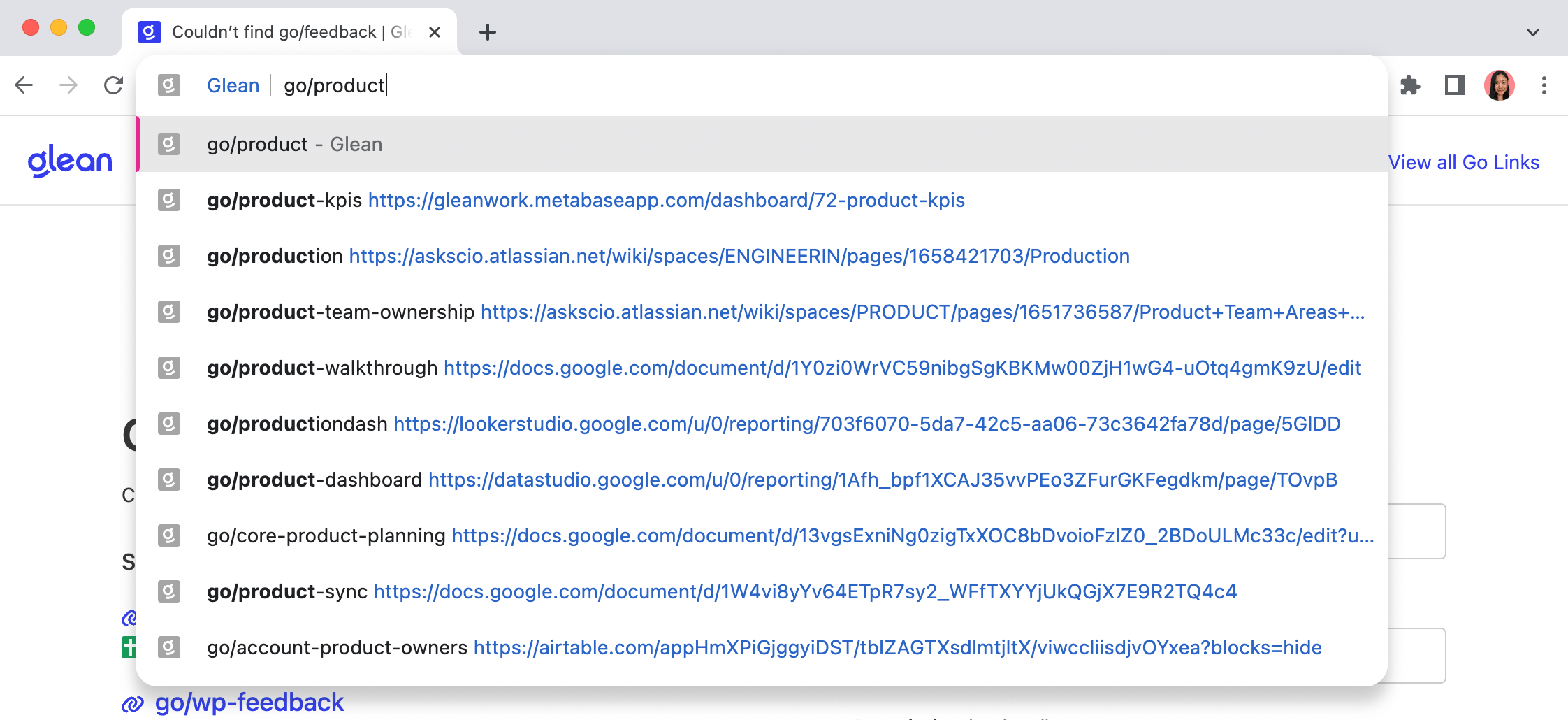
###
[](https://docs.glean.com/user-guide/knowledge/go-links/how-to-make-the-most-of-go-links#go-links-spellcheck)
Go Links spellcheck
When a teammate misspells a Go Link or wants to check if a certain Go Link already exists, Glean will show a page informing that the Go Link was not found. It will also suggest similar Go Links. Below is an example of typing **go/feedback**, then getting recommendations of similar Go Links. 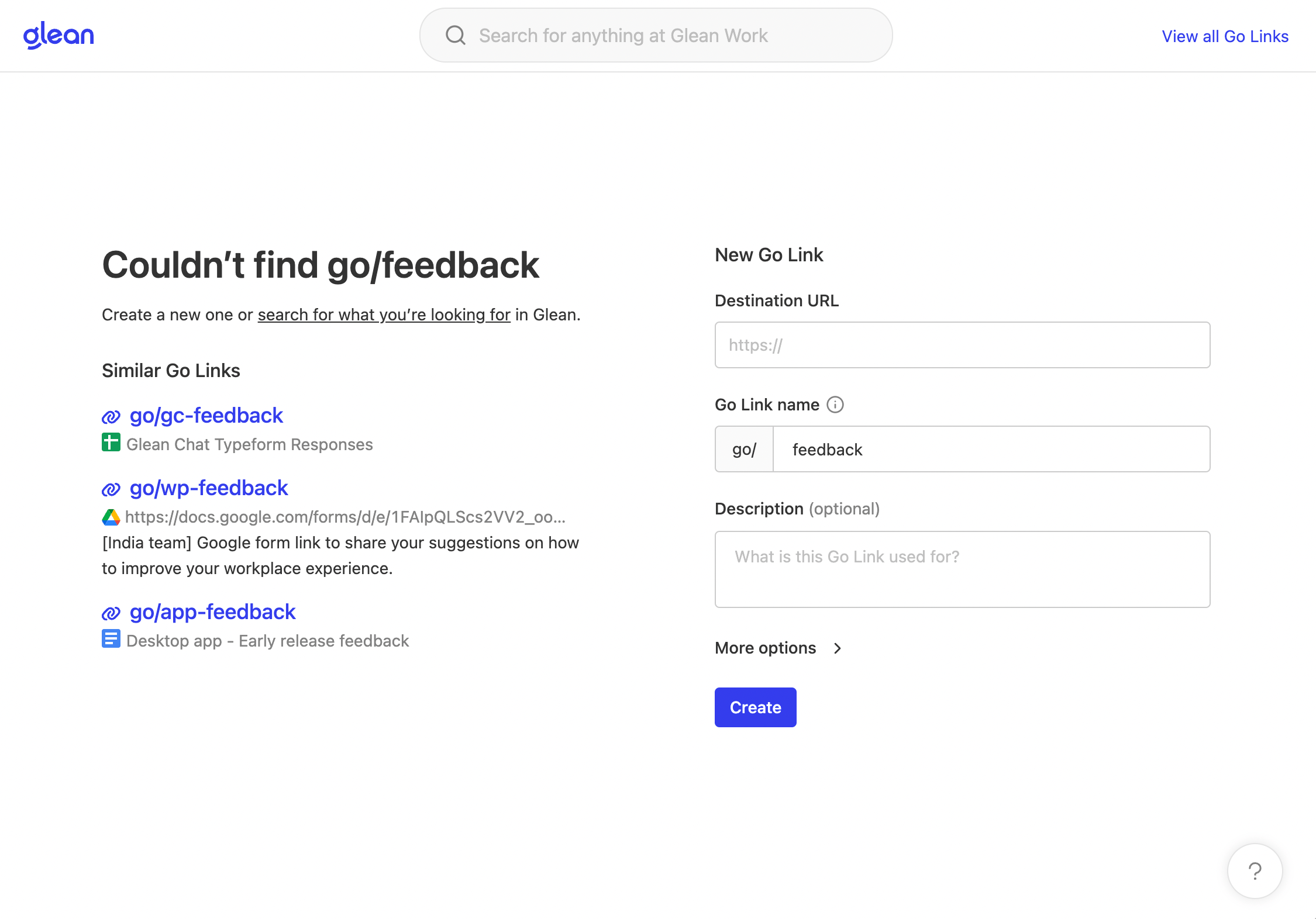
[](https://docs.glean.com/user-guide/knowledge/go-links/how-to-make-the-most-of-go-links#permissions)
Permissions
---------------------------------------------------------------------------------------------------------------------
###
[](https://docs.glean.com/user-guide/knowledge/go-links/how-to-make-the-most-of-go-links#view-and-edit-permissions)
View and edit permissions
Teammates can choose to [unlist their Go Link](https://docs.glean.com/user-guide/knowledge/go-links/unlisted-go-links)
so it cannot be seen by other teammates as well as restrict edit access to only themselves. Go Links moderators and admins are still able to edit Go Links with restricted edit access.
###
[](https://docs.glean.com/user-guide/knowledge/go-links/how-to-make-the-most-of-go-links#go-links-moderator-role)
Go Links moderator role
Admins can set certain teammates as Go Links moderators. As a moderator, they can edit Go Links, even those that have been set to be non-editable by their creators. This is useful in cases where a Go Link needs to be updated or corrected, but the original creator is not available or has left the organization Watch how to set teammate permissions on the [Admin Guide: Teammates Tab](https://docs.glean.com/administration/identity/roles/manage-users)
page.
###
[](https://docs.glean.com/user-guide/knowledge/go-links/how-to-make-the-most-of-go-links#go-links-dashboard)
Go Links Dashboard
Create and manage all Go Links from the dashboard which can be found under [Content > Knowledge > Go Links](https://app.glean.com/knowledge/golinks)
Filter Go Links by creator, department, and Go Link type (Unlisted, Public, Variable). 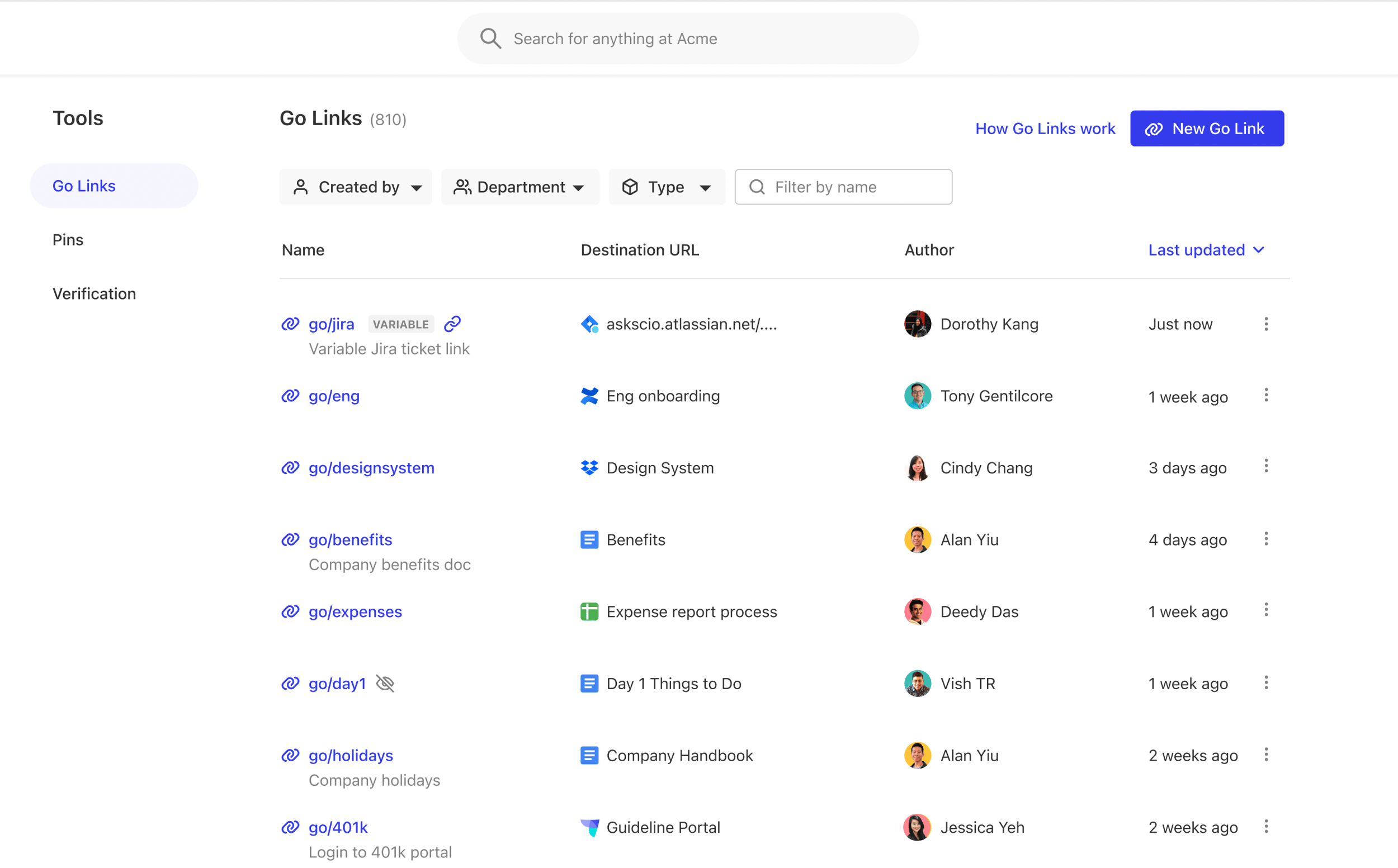
Was this page helpful?
YesNo
[How Go Links Work](https://docs.glean.com/user-guide/knowledge/go-links/how-go-links-work)
[Unlisted Go Links](https://docs.glean.com/user-guide/knowledge/go-links/unlisted-go-links)
⌘I
---
# Unlisted Go Links - Glean Help Center
[Skip to main content](https://docs.glean.com/user-guide/knowledge/go-links/unlisted-go-links#content-area)
[Glean Help Center home page](https://docs.glean.com/)
Search...
⌘K
Search...
Navigation
Go Links
Unlisted Go Links
[Home](https://docs.glean.com/home)
[User Guide](https://docs.glean.com/user-guide/about/what-is-glean)
[Agents](https://docs.glean.com/agents/home)
[Get Started for Admins](https://docs.glean.com/get-started/welcome)
[Connectors](https://docs.glean.com/connectors/home)
[Admin Guide](https://docs.glean.com/administration/about)
[Security & Architecture](https://docs.glean.com/security/home)
[Troubleshooting](https://docs.glean.com/troubleshooting/home)
[Release Notes](https://docs.glean.com/release-notes/home)
[Archive](https://docs.glean.com/archive/help-glean/answers/what-are-answers-and-how-do-they-work)
On this page
* [How to create an Unlisted Go Link](https://docs.glean.com/user-guide/knowledge/go-links/unlisted-go-links#how-to-create-an-unlisted-go-link)
Unlisted Go Links are Go Links that are only visible to the creator of the Go Link and admins of Glean. Unlisted Go Links are great for private projects you don’t want others to accidentally discover.
###
[](https://docs.glean.com/user-guide/knowledge/go-links/unlisted-go-links#how-to-create-an-unlisted-go-link)
How to create an Unlisted Go Link
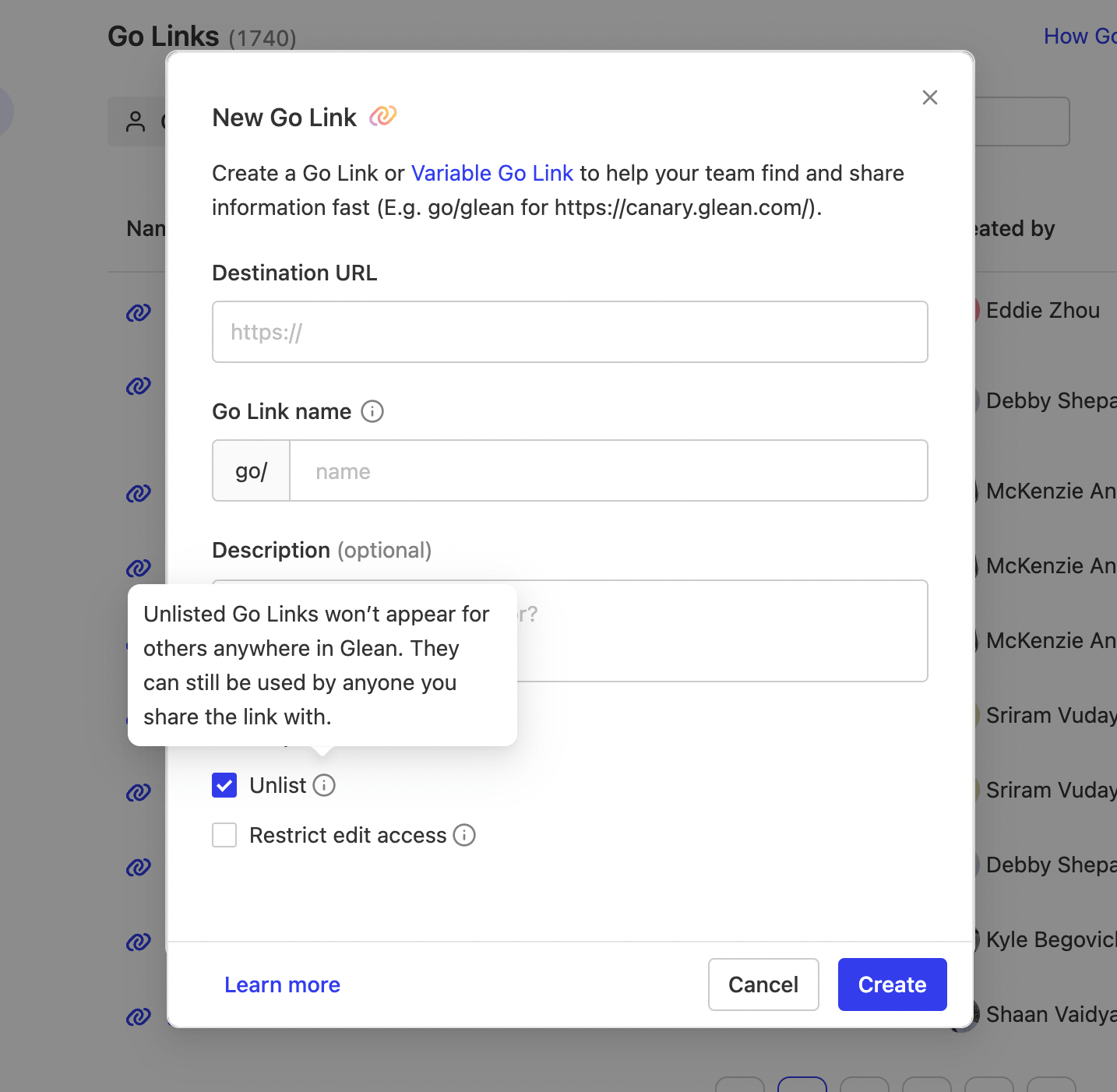
* Click on “**New Go Link**” on your [Go Links dashboard](https://app.glean.com/knowledge/golinks)
or on the Glean Home page
* Fill out the form with a URL, name, and the description
* Check “**Unlist**”
Your Go Link will no longer be discoverable on the Go Links dashboard by other users. A user who knows the Go Link and types it directly into the address bar can still access the Go Link. To make an unlisted Go Link discoverable to others again, simply uncheck the “**Unlist**.”
Was this page helpful?
YesNo
[How to make the most of Go Links](https://docs.glean.com/user-guide/knowledge/go-links/how-to-make-the-most-of-go-links)
[Create Variable Go Links](https://docs.glean.com/user-guide/knowledge/go-links/create-variable-go-links)
⌘I
---
# Create Variable Go Links - Glean Help Center
[Skip to main content](https://docs.glean.com/user-guide/knowledge/go-links/create-variable-go-links#content-area)
[Glean Help Center home page](https://docs.glean.com/)
Search...
⌘K
Search...
Navigation
Go Links
Create Variable Go Links
[Home](https://docs.glean.com/home)
[User Guide](https://docs.glean.com/user-guide/about/what-is-glean)
[Agents](https://docs.glean.com/agents/home)
[Get Started for Admins](https://docs.glean.com/get-started/welcome)
[Connectors](https://docs.glean.com/connectors/home)
[Admin Guide](https://docs.glean.com/administration/about)
[Security & Architecture](https://docs.glean.com/security/home)
[Troubleshooting](https://docs.glean.com/troubleshooting/home)
[Release Notes](https://docs.glean.com/release-notes/home)
[Archive](https://docs.glean.com/archive/help-glean/answers/what-are-answers-and-how-do-they-work)
On this page
* [How to create a Variable Go Link](https://docs.glean.com/user-guide/knowledge/go-links/create-variable-go-links#how-to-create-a-variable-go-link)
* [Examples](https://docs.glean.com/user-guide/knowledge/go-links/create-variable-go-links#examples)
Variable Go Links redirect to specific destinations when a custom value like a ticket # are added, powering hundreds of pages within a website. Users can make any part of an URL variable with a denotation and append Go Link URL to target specific destinations such as search results page or support tickets.
###
[](https://docs.glean.com/user-guide/knowledge/go-links/create-variable-go-links#how-to-create-a-variable-go-link)
How to create a Variable Go Link
1. Click on “New Go Link” on your [Go Links dashboard](https://app.glean.com/knowledge/golinks)
or Glean Home Page.
2. Fill in the Destination URL and identify the part of the URL (parameter) to make variable and replace it with **`{*}`.** You will see “**Variable**” pop up when it detects a\*\*`{*}`\*\*.
* Example: **`glean.atlassian.net/123`** -> **`glean.atlassian.net/{*}`**
3. Fill in “Default Go Link to”. This is to specify the default destination URL for the Go Link without a variable.
* Example: You can specify **go/jira** to be redirected to **glean.atlassian.net**
Note: When typing a variable Go Link, the substitution would be denoted by another “/” following go/jira (E.g. **go/jira/123**). There can be multiple variable substitutions in a single URL (E.g. **go/jira/123/abc**) 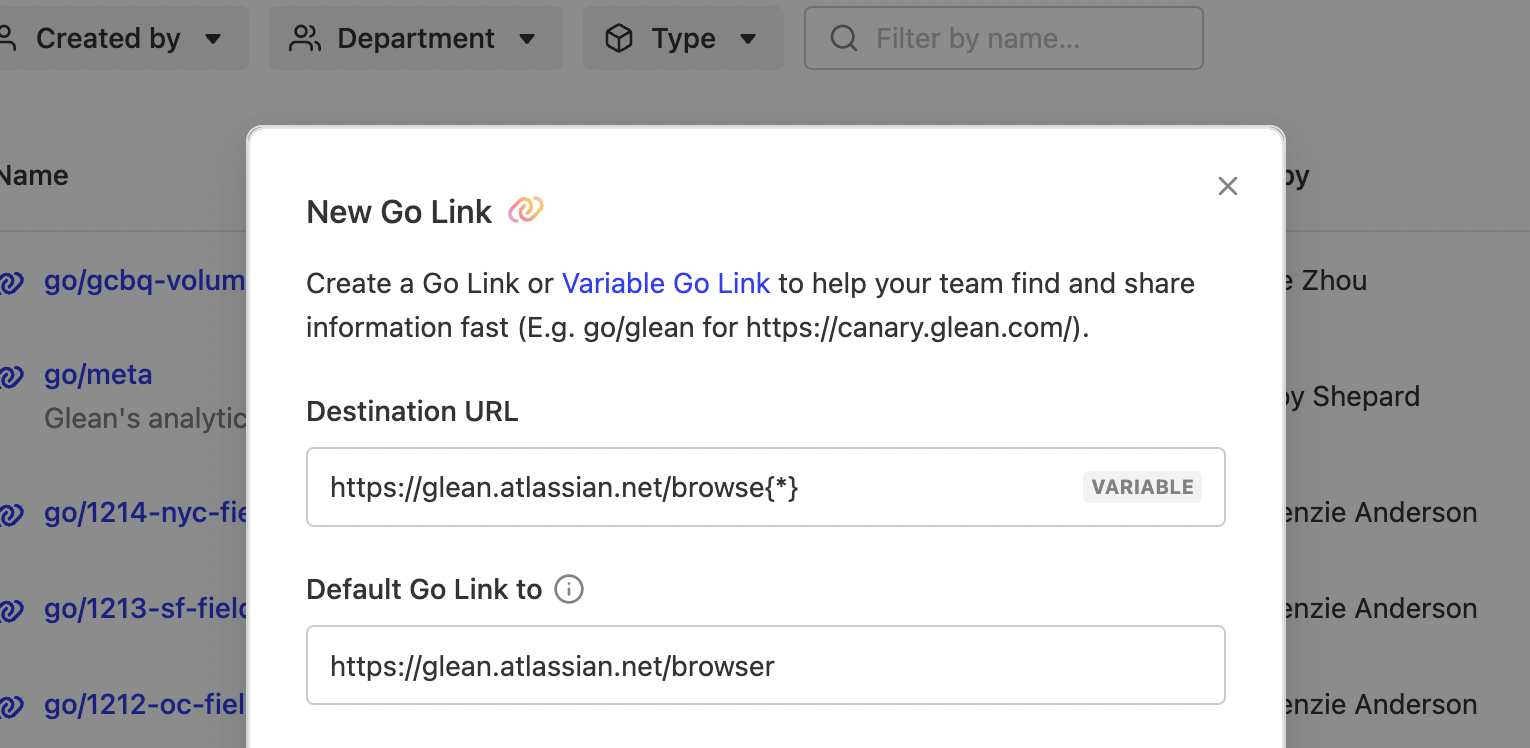
###
[](https://docs.glean.com/user-guide/knowledge/go-links/create-variable-go-links#examples)
Examples
Use Variable Go Links to quickly navigate to search result pages
* `https://app.glean.com/search?q={*}` -> `https://app.glean.com/search?q=expense-policy`
* `https://github.com/search?q={*}` -> `https://github.com/search?q=fastapi`
\*Note that Variable Go Links support spaces (E.g. you can search for “how do go links work” using “_go/glean/how do go links work”_ Use Variable Go Links to quickly navigate to specific issues and tickets
* `https://app.atlassian.net/browse/PROD-{*}` -> `https://app.atlassian.net/browse/PROD-79845`
* `https://github.com/product/{*}/issues/{*}` -> `https://github.com/product/featureX/issues/BUG-1234`
Was this page helpful?
YesNo
[Unlisted Go Links](https://docs.glean.com/user-guide/knowledge/go-links/unlisted-go-links)
[Troubleshooting Go Links](https://docs.glean.com/user-guide/knowledge/go-links/troubleshooting)
⌘I
---
# Enable or disable Deep Research - Glean Help Center
[Skip to main content](https://docs.glean.com/administration/assistant/configuration/deep-research#content-area)
[Glean Help Center home page](https://docs.glean.com/)
Search...
⌘K
Search...
Navigation
Enable or disable Deep Research
[Home](https://docs.glean.com/home)
[User Guide](https://docs.glean.com/user-guide/about/what-is-glean)
[Agents](https://docs.glean.com/agents/home)
[Get Started for Admins](https://docs.glean.com/get-started/welcome)
[Connectors](https://docs.glean.com/connectors/home)
[Admin Guide](https://docs.glean.com/administration/about)
[Security & Architecture](https://docs.glean.com/security/home)
[Troubleshooting](https://docs.glean.com/troubleshooting/home)
[Release Notes](https://docs.glean.com/release-notes/home)
[Archive](https://docs.glean.com/archive/help-glean/answers/what-are-answers-and-how-do-they-work)
You can enable or disable Deep Research for your organization or specific users in the Admin Console. Perform the following steps:
1. Navigate to [Admin Console → Platform → Assistant → Settings](https://app.glean.com/admin/setup/gleanassistant?tab=settings)
2. Expand the **Deep Research** section.
3. Select one of the following:
* **On for everyone** (recommended if Assistant is enabled)
* **On for some teammates** (test group via allowlist)
* **Off** (disable for everyone)
4. Select **Save**.
Was this page helpful?
YesNo
⌘I
---
# Celebrations Widget - Glean Help Center
[Skip to main content](https://docs.glean.com/user-guide/knowledge/home-page/celebrations-widget#content-area)
[Glean Help Center home page](https://docs.glean.com/)
Search...
⌘K
Search...
Navigation
Home Page
Celebrations Widget
[Home](https://docs.glean.com/home)
[User Guide](https://docs.glean.com/user-guide/about/what-is-glean)
[Agents](https://docs.glean.com/agents/home)
[Get Started for Admins](https://docs.glean.com/get-started/welcome)
[Connectors](https://docs.glean.com/connectors/home)
[Admin Guide](https://docs.glean.com/administration/about)
[Security & Architecture](https://docs.glean.com/security/home)
[Troubleshooting](https://docs.glean.com/troubleshooting/home)
[Release Notes](https://docs.glean.com/release-notes/home)
[Archive](https://docs.glean.com/archive/help-glean/answers/what-are-answers-and-how-do-they-work)
On this page
* [What is the celebrations widget?](https://docs.glean.com/user-guide/knowledge/home-page/celebrations-widget#what-is-the-celebrations-widget)
* [How can I congratulate my teammate?](https://docs.glean.com/user-guide/knowledge/home-page/celebrations-widget#how-can-i-congratulate-my-teammate)
* [Who shows up on my widget?](https://docs.glean.com/user-guide/knowledge/home-page/celebrations-widget#who-shows-up-on-my-widget)
* [What determines the order of the celebrations shown on the widget?](https://docs.glean.com/user-guide/knowledge/home-page/celebrations-widget#what-determines-the-order-of-the-celebrations-shown-on-the-widget)
* [I don’t want others to know about my celebration. How do I opt out?](https://docs.glean.com/user-guide/knowledge/home-page/celebrations-widget#i-don%E2%80%99t-want-others-to-know-about-my-celebration-how-do-i-opt-out)
* [Where does the celebration data come from?](https://docs.glean.com/user-guide/knowledge/home-page/celebrations-widget#where-does-the-celebration-data-come-from)
[](https://docs.glean.com/user-guide/knowledge/home-page/celebrations-widget#what-is-the-celebrations-widget)
What is the celebrations widget?
--------------------------------------------------------------------------------------------------------------------------------------------------
The celebrations widget helps you and your teammates celebrate each other by recognizing new hires and work anniversaries. The celebration widget appears in the right-hand column of the Glean home page and displays a carousel of teammates who have reached a new work anniversary or recently joined the team. 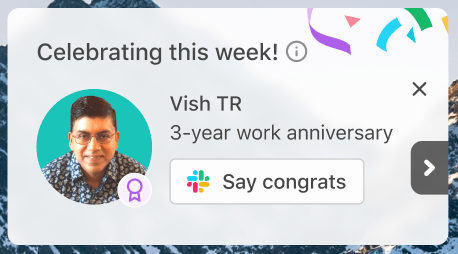
[](https://docs.glean.com/user-guide/knowledge/home-page/celebrations-widget#how-can-i-congratulate-my-teammate)
How can I congratulate my teammate?
--------------------------------------------------------------------------------------------------------------------------------------------------------
You can click on the “say welcome/congrats” button to send a message to the celebrated teammate through your organization’s chat application such as Slack or Teams. If the teammate does not have a Slack or Teams profile, clicking on the button will launch your organization’s email application instead.
[](https://docs.glean.com/user-guide/knowledge/home-page/celebrations-widget#who-shows-up-on-my-widget)
Who shows up on my widget?
--------------------------------------------------------------------------------------------------------------------------------------
Glean will display up to 10 celebrations in the widget at any time. The selection is personalized, so you will see celebrations for teammates with whom you have a relationship. Cards will be visible for the entire week of the celebration.
[](https://docs.glean.com/user-guide/knowledge/home-page/celebrations-widget#what-determines-the-order-of-the-celebrations-shown-on-the-widget)
What determines the order of the celebrations shown on the widget?
----------------------------------------------------------------------------------------------------------------------------------------------------------------------------------------------------------------------
If you are being celebrated, your card will always appear first. Next, the widget will show teammates who have anniversaries or new start dates today, followed by teammates who have upcoming anniversaries, and then teammates whose anniversaries have past.
[](https://docs.glean.com/user-guide/knowledge/home-page/celebrations-widget#i-don%E2%80%99t-want-others-to-know-about-my-celebration-how-do-i-opt-out)
I don’t want others to know about my celebration. How do I opt out?
-------------------------------------------------------------------------------------------------------------------------------------------------------------------------------------------------------------------------------
1. Select “Your settings” from the avatar dropdown menu. 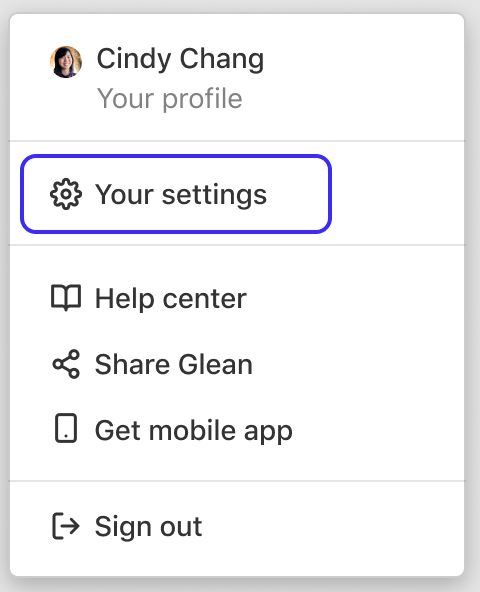
2. Under “Privacy,” toggle off the option to feature your celebrations on the home page. 
[](https://docs.glean.com/user-guide/knowledge/home-page/celebrations-widget#where-does-the-celebration-data-come-from)
Where does the celebration data come from?
----------------------------------------------------------------------------------------------------------------------------------------------------------------------
The celebrations widget uses start date data from your company’s people data source (HR or IT system) to determine when to showcase particular teammates. If that source data is incorrect, you will see celebrations appear on incorrect days.
Was this page helpful?
YesNo
[Glean Desktop App Quick Chat for macOS](https://docs.glean.com/user-guide/apps/chat-first-experience)
[Shortcuts](https://docs.glean.com/user-guide/knowledge/home-page/shortcuts)
⌘I
---
# Introduction to Glean Chat - Glean Help Center
[Skip to main content](https://docs.glean.com/user-guide/assistant/glean-chat/glean-chat#content-area)
[Glean Help Center home page](https://docs.glean.com/)
Search...
⌘K
Search...
Navigation
Glean Chat
Introduction to Glean Chat
[Home](https://docs.glean.com/home)
[User Guide](https://docs.glean.com/user-guide/about/what-is-glean)
[Agents](https://docs.glean.com/agents/home)
[Get Started for Admins](https://docs.glean.com/get-started/welcome)
[Connectors](https://docs.glean.com/connectors/home)
[Admin Guide](https://docs.glean.com/administration/about)
[Security & Architecture](https://docs.glean.com/security/home)
[Troubleshooting](https://docs.glean.com/troubleshooting/home)
[Release Notes](https://docs.glean.com/release-notes/home)
[Archive](https://docs.glean.com/archive/help-glean/answers/what-are-answers-and-how-do-they-work)
On this page
* [Key features](https://docs.glean.com/user-guide/assistant/glean-chat/glean-chat#key-features)
* [Search results in Chat](https://docs.glean.com/user-guide/assistant/glean-chat/glean-chat#search-results-in-chat)
* [Accessing Glean Chat](https://docs.glean.com/user-guide/assistant/glean-chat/glean-chat#accessing-glean-chat)

Glean Chat serves as the primary interface for interacting with Glean Assistant, offering a familiar chat-like experience similar to contemporary AI assistants. This interface enables users to engage with their company’s knowledge base through natural conversations, as they would with a colleague.
[](https://docs.glean.com/user-guide/assistant/glean-chat/glean-chat#key-features)
Key features
---------------------------------------------------------------------------------------------------
* Personalized responses based on each user’s permissions.
* High-confidence answers with verifiable citations.
* Natural language interaction with your organization’s knowledge base.
* Glean Chat surfaces a short set of high‑confidence search results directly in the chat window for keyword or search‑like queries. For more information see, [Search results in Glean Chat](https://docs.glean.com/user-guide/assistant/glean-chat/glean-chat#search-results-in-chat)
.
###
[](https://docs.glean.com/user-guide/assistant/glean-chat/glean-chat#search-results-in-chat)
Search results in Chat
Glean Chat now surfaces a short set of high‑confidence search results directly in the chat window for keyword or search‑like queries. This helps you jump straight to relevant documents and people without switching to the Search page or waiting for a full conversational answer. You will see top results inline when you enter a keyword or search‑style query, for example, a document title, team name, or a short term. Use specific keywords like _Quarterly plan_ or _OKR 2025_ to trigger the inline results. **How it works**
1. Type a keyword or short, search‑like query in Glean Chat.
2. A compact set of top results appears inline above the streamed chat answer.
3. Click any result to open it in a new tab. You can keep chatting as usual if you still want a conversational response.
4. To browse more results, select **View all search results** to open the full Search results page.
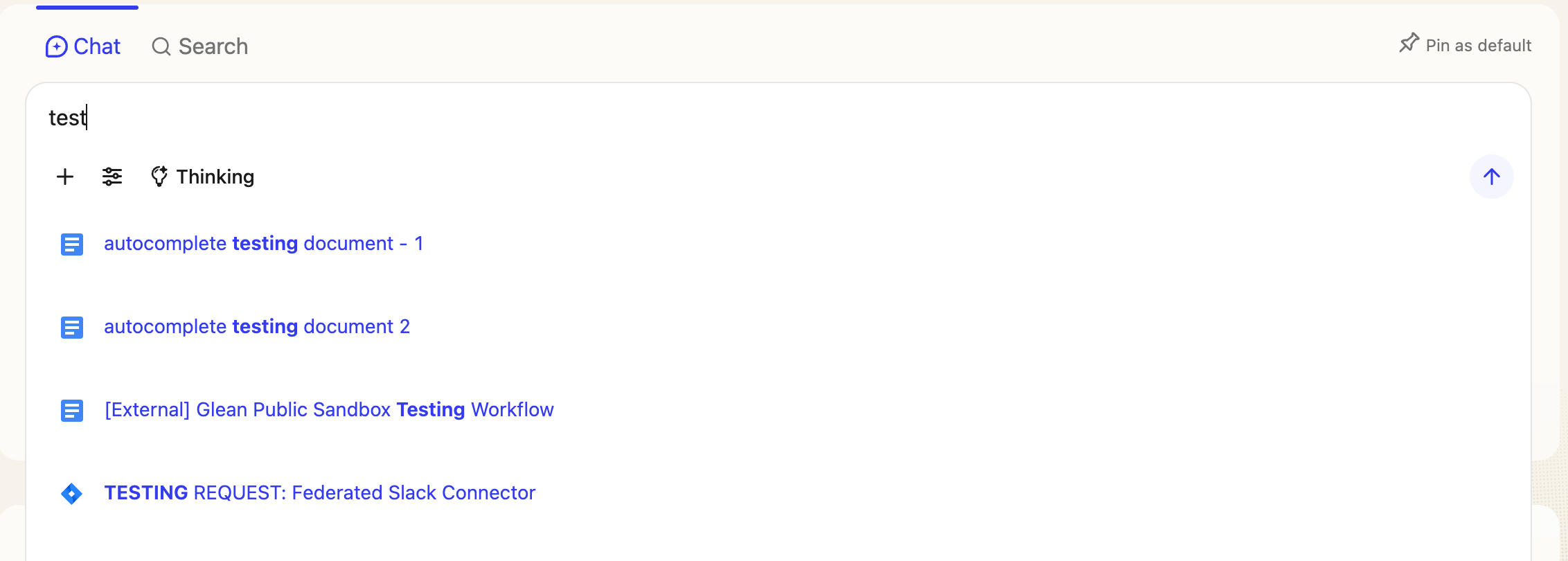
When available, Glean Chat can use Zoom transcript content you have permission to access. For more information, see [Use Zoom meeting transcripts in Search, Chat, and Home](https://docs.glean.com/user-guide/knowledge/meetings-and-calendar/zoom-meeting-transcripts)
.
[](https://docs.glean.com/user-guide/assistant/glean-chat/glean-chat#accessing-glean-chat)
Accessing Glean Chat
-------------------------------------------------------------------------------------------------------------------
You can access Glean Chat in two ways:
Navigation Menu
---------------
Click the message bubble icon in the left-side menu of the Glean UI
[Direct Access\
-------------\
\
Visit the Glean Chat interface directly](https://app.glean.com/chat)
Was this page helpful?
YesNo
[Browser History Results](https://docs.glean.com/user-guide/search/browser-history-apps)
[Citations](https://docs.glean.com/user-guide/assistant/glean-chat/glean-chat-citations/glean-citations)
⌘I
---
# Use Zoom meeting transcripts in Search, Chat, and Home - Glean Help Center
[Skip to main content](https://docs.glean.com/user-guide/knowledge/meetings-and-calendar/zoom-meeting-transcripts#content-area)
[Glean Help Center home page](https://docs.glean.com/)
Search...
⌘K
Search...
Navigation
Meetings & Calendar
Use Zoom meeting transcripts in Search, Chat, and Home
[Home](https://docs.glean.com/home)
[User Guide](https://docs.glean.com/user-guide/about/what-is-glean)
[Agents](https://docs.glean.com/agents/home)
[Get Started for Admins](https://docs.glean.com/get-started/welcome)
[Connectors](https://docs.glean.com/connectors/home)
[Admin Guide](https://docs.glean.com/administration/about)
[Security & Architecture](https://docs.glean.com/security/home)
[Troubleshooting](https://docs.glean.com/troubleshooting/home)
[Release Notes](https://docs.glean.com/release-notes/home)
[Archive](https://docs.glean.com/archive/help-glean/answers/what-are-answers-and-how-do-they-work)
On this page
* [Prerequisites](https://docs.glean.com/user-guide/knowledge/meetings-and-calendar/zoom-meeting-transcripts#prerequisites)
* [How to retrieve meeting information using Glean?](https://docs.glean.com/user-guide/knowledge/meetings-and-calendar/zoom-meeting-transcripts#how-to-retrieve-meeting-information-using-glean)
* [Find meeting transcripts in Search](https://docs.glean.com/user-guide/knowledge/meetings-and-calendar/zoom-meeting-transcripts#find-meeting-transcripts-in-search)
* [Ask questions in Glean Chat](https://docs.glean.com/user-guide/knowledge/meetings-and-calendar/zoom-meeting-transcripts#ask-questions-in-glean-chat)
* [Summarize past meetings from Home](https://docs.glean.com/user-guide/knowledge/meetings-and-calendar/zoom-meeting-transcripts#summarize-past-meetings-from-home)
* [Limitations](https://docs.glean.com/user-guide/knowledge/meetings-and-calendar/zoom-meeting-transcripts#limitations)
* [Privacy and security](https://docs.glean.com/user-guide/knowledge/meetings-and-calendar/zoom-meeting-transcripts#privacy-and-security)
* [Troubleshooting](https://docs.glean.com/user-guide/knowledge/meetings-and-calendar/zoom-meeting-transcripts#troubleshooting)
* [Additional information](https://docs.glean.com/user-guide/knowledge/meetings-and-calendar/zoom-meeting-transcripts#additional-information)
When the Zoom connector is enabled, Glean will help you find and use the Zoom meeting transcripts and their recording links across **Search**, **Chat**, and the **Home** page:
* Glean Chat can use Zoom transcript content that you have permission to access to answer questions.
* You can summarize past Zoom meetings from the Calendar widget on the Glean Home page.
[](https://docs.glean.com/user-guide/knowledge/meetings-and-calendar/zoom-meeting-transcripts#prerequisites)
Prerequisites
------------------------------------------------------------------------------------------------------------------------------
* The Zoom connector is installed and authorized by your admin. For more information, see [Zoom connector](https://docs.glean.com/connectors/native/zoom/about)
.
* Your Zoom plan supports cloud recordings and transcription, and cloud recording is enabled in Zoom.
* Access is permission-aware. Glean will only surface meetings and transcript content you are allowed to access in Zoom.
[](https://docs.glean.com/user-guide/knowledge/meetings-and-calendar/zoom-meeting-transcripts#how-to-retrieve-meeting-information-using-glean)
How to retrieve meeting information using Glean?
---------------------------------------------------------------------------------------------------------------------------------------------------------------------------------------------------
###
[](https://docs.glean.com/user-guide/knowledge/meetings-and-calendar/zoom-meeting-transcripts#find-meeting-transcripts-in-search)
Find meeting transcripts in Search
* Search naturally, for example, “quarterly roadmap review decisions” to see relevant Zoom meetings in your results.
* Meeting results include a link to play the cloud recording in Zoom and are ranked by relevance alongside your other work content.
* Opening a Zoom meeting result takes you to the transcript destination in Zoom. Depending on your Zoom configuration, the transcript and recording are hosted and viewed in Zoom.
###
[](https://docs.glean.com/user-guide/knowledge/meetings-and-calendar/zoom-meeting-transcripts#ask-questions-in-glean-chat)
Ask questions in Glean Chat
* Ask questions like “What did we decide about Q1 hiring in last week’s sales leadership sync?” or “Summarize the action items from the customer escalation call.”
* Chat uses the transcript content you have permission to access and includes citations as usual within Glean.
###
[](https://docs.glean.com/user-guide/knowledge/meetings-and-calendar/zoom-meeting-transcripts#summarize-past-meetings-from-home)
Summarize past meetings from Home
* On the Glean Home page, open the Calendar widget.
* Select a past meeting to generate a concise summary of key topics, decisions, and action items.
* For more information, see [Calendar widget](https://docs.glean.com/user-guide/knowledge/meetings/calendar-widget)
.
[](https://docs.glean.com/user-guide/knowledge/meetings-and-calendar/zoom-meeting-transcripts#limitations)
Limitations
--------------------------------------------------------------------------------------------------------------------------
* Transcript visibility is currently limited to the meeting organizer.
* Transcript and recording availability depend on your Zoom plan and settings, cloud recordings must be enabled.
[](https://docs.glean.com/user-guide/knowledge/meetings-and-calendar/zoom-meeting-transcripts#privacy-and-security)
Privacy and security
--------------------------------------------------------------------------------------------------------------------------------------------
* Glean enforces your enterprise permissions and Zoom access controls. Users only see meetings and transcripts they are allowed to access.
* Connector data is stored in the cloud environment of your organization as per your Glean deployment model.
[](https://docs.glean.com/user-guide/knowledge/meetings-and-calendar/zoom-meeting-transcripts#troubleshooting)
Troubleshooting
----------------------------------------------------------------------------------------------------------------------------------
* I can not see transcripts I expect:
* Confirm you were the meeting organizer. Only organizers can access transcripts in Glean today.
* Check that the Zoom connector is successfully connected and crawled in the Glean Admin Console.
* I can not authorize the Zoom app:
* Your Zoom admin may need to approve the _Glean Search Crawler for Zoom_ in the Zoom App Marketplace per your tenant policies.
* Search results open in Zoom instead of a preview:
* This is expected, Zoom hosts the transcript and recording. Glean links you to the Zoom destination.
[](https://docs.glean.com/user-guide/knowledge/meetings-and-calendar/zoom-meeting-transcripts#additional-information)
Additional information
------------------------------------------------------------------------------------------------------------------------------------------------
* [Zoom connector](https://docs.glean.com/connectors/native/zoom/about)
.
* [Calendar Search Actions setup](https://docs.glean.com/administration/assistant/actions/calendar-search-actions-setup)
.
* [How to search in Glean](https://docs.glean.com/user-guide/basics/how-to-search-in-glean)
.
Was this page helpful?
YesNo
[What Should I Do With Documents That Are Completely Out Of Date?](https://docs.glean.com/user-guide/knowledge/verification/what-should-i-do-with-documents-that-are-completely-out-of-date)
[How to use Team Pages](https://docs.glean.com/user-guide/people/teams/how-to-use-team-pages)
⌘I
---
# Chat documentation autocomplete - Glean Help Center
[Skip to main content](https://docs.glean.com/user-guide/assistant/glean-chat/glean-chat-autocomplete#content-area)
[Glean Help Center home page](https://docs.glean.com/)
Search...
⌘K
Search...
Navigation
Glean Chat
Chat documentation autocomplete
[Home](https://docs.glean.com/home)
[User Guide](https://docs.glean.com/user-guide/about/what-is-glean)
[Agents](https://docs.glean.com/agents/home)
[Get Started for Admins](https://docs.glean.com/get-started/welcome)
[Connectors](https://docs.glean.com/connectors/home)
[Admin Guide](https://docs.glean.com/administration/about)
[Security & Architecture](https://docs.glean.com/security/home)
[Troubleshooting](https://docs.glean.com/troubleshooting/home)
[Release Notes](https://docs.glean.com/release-notes/home)
[Archive](https://docs.glean.com/archive/help-glean/answers/what-are-answers-and-how-do-they-work)
On this page
* [Privacy and permissions](https://docs.glean.com/user-guide/assistant/glean-chat/glean-chat-autocomplete#privacy-and-permissions)
* [Get started](https://docs.glean.com/user-guide/assistant/glean-chat/glean-chat-autocomplete#get-started)
* [FAQs](https://docs.glean.com/user-guide/assistant/glean-chat/glean-chat-autocomplete#faqs)
Chat autocomplete in Glean Assistant suggests relevant documents as you type in the chat input. You can click a suggestion to insert it into your message or open the document directly without sending a separate query. As you type keywords or phrases, Assistant surfaces real‑time document suggestions below the input. Suggestions are selected by matching your input and context with document titles, content, and metadata so the most relevant items appear first.
Suggestions currently focus on documents and related files that match your input and context.
With this feature you can:
* Find the right document faster while composing a prompt without switching tabs or context.
* Insert a suggested document into your message to give Assistant immediate context.
* Open a suggested document in a new tab to review details before you ask a question.
[](https://docs.glean.com/user-guide/assistant/glean-chat/glean-chat-autocomplete#privacy-and-permissions)
Privacy and permissions
--------------------------------------------------------------------------------------------------------------------------------------
Autocomplete suggestions only include content that you are allowed to see. Glean is permission aware and follows the data governance rules of your organization across all surfaces.
[](https://docs.glean.com/user-guide/assistant/glean-chat/glean-chat-autocomplete#get-started)
Get started
--------------------------------------------------------------------------------------------------------------
1. Open Glean Assistant and start a chat.
2. In the input, type a keyword, for example, project, doc title, or team name.
3. Pick a suggestion to either:
* Insert the document into your message, or
* Open the document to view it.
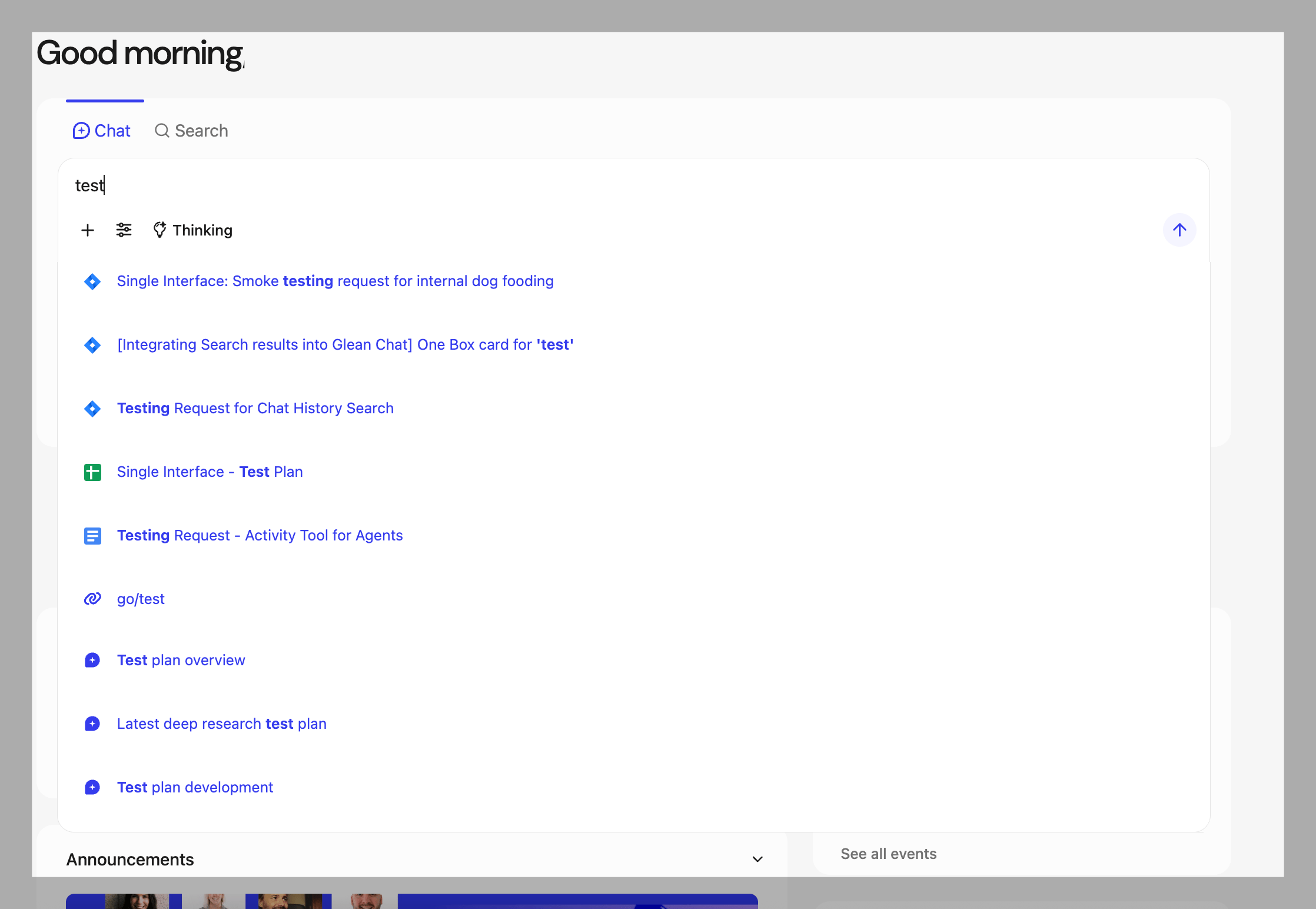
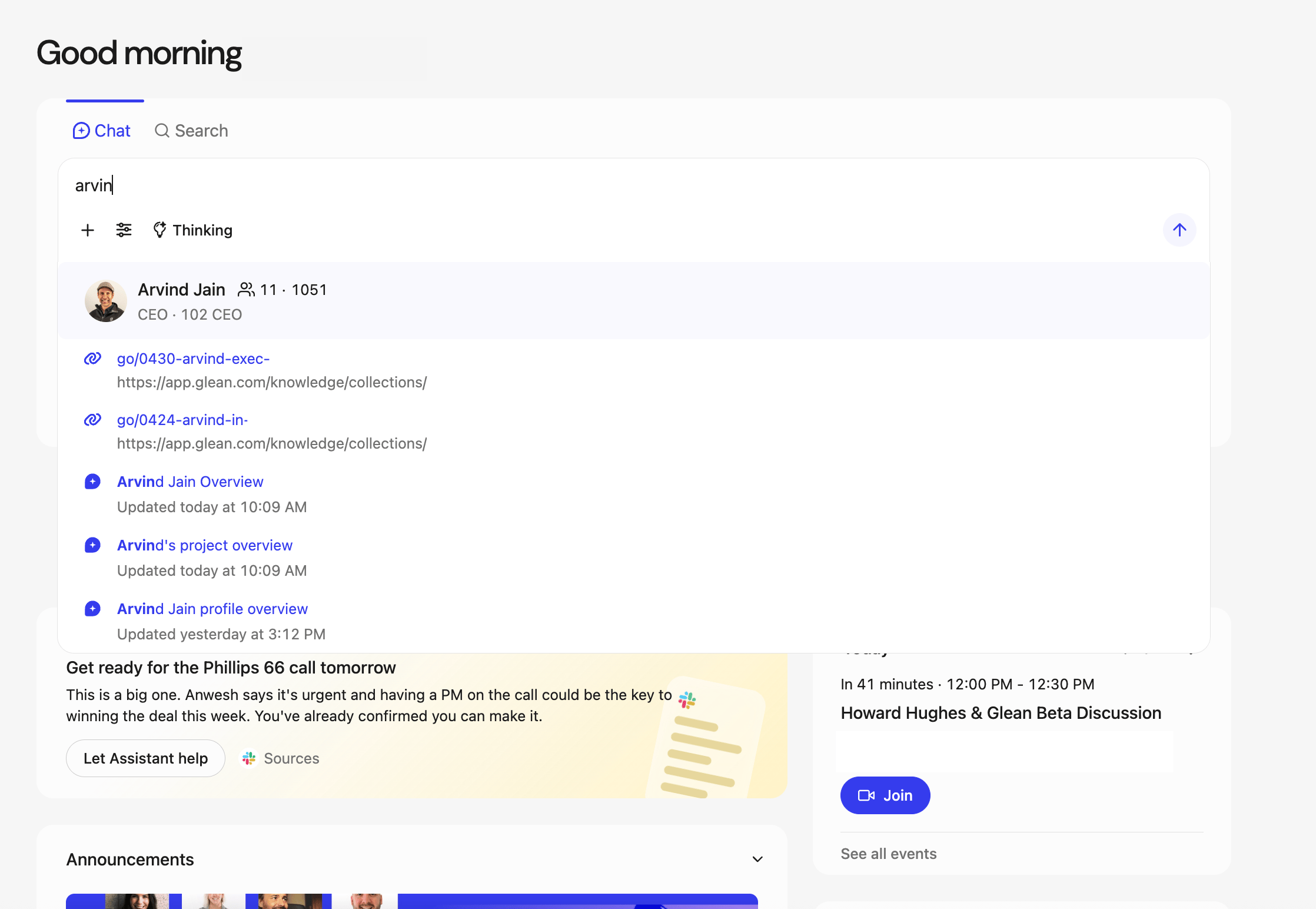
[](https://docs.glean.com/user-guide/assistant/glean-chat/glean-chat-autocomplete#faqs)
FAQs
------------------------------------------------------------------------------------------------
How are suggestions ranked?
By relevance based on your input and context, using signals from titles, content, and metadata to prioritize likely matches.
Do I need to send my question first to get suggestions?
No, suggestions appear as you type, and you can insert or open a document before sending your message.
Was this page helpful?
YesNo
[Deep-linked citations (Beta)](https://docs.glean.com/user-guide/assistant/glean-chat/glean-chat-citations/deep-linked-citations)
[Code Search](https://docs.glean.com/user-guide/assistant/code-search)
⌘I
---
# Deep-linked citations (Beta) - Glean Help Center
[Skip to main content](https://docs.glean.com/user-guide/assistant/glean-chat/glean-chat-citations/deep-linked-citations#content-area)
[Glean Help Center home page](https://docs.glean.com/)
Search...
⌘K
Search...
Navigation
Citations in Glean Chat
Deep-linked citations (Beta)
[Home](https://docs.glean.com/home)
[User Guide](https://docs.glean.com/user-guide/about/what-is-glean)
[Agents](https://docs.glean.com/agents/home)
[Get Started for Admins](https://docs.glean.com/get-started/welcome)
[Connectors](https://docs.glean.com/connectors/home)
[Admin Guide](https://docs.glean.com/administration/about)
[Security & Architecture](https://docs.glean.com/security/home)
[Troubleshooting](https://docs.glean.com/troubleshooting/home)
[Release Notes](https://docs.glean.com/release-notes/home)
[Archive](https://docs.glean.com/archive/help-glean/answers/what-are-answers-and-how-do-they-work)
On this page
* [Enabling deep-linked citations for Glean Chat](https://docs.glean.com/user-guide/assistant/glean-chat/glean-chat-citations/deep-linked-citations#enabling-deep-linked-citations-for-glean-chat)
* [Prerequisites](https://docs.glean.com/user-guide/assistant/glean-chat/glean-chat-citations/deep-linked-citations#prerequisites)
* [Step](https://docs.glean.com/user-guide/assistant/glean-chat/glean-chat-citations/deep-linked-citations#step)
* [Limitations](https://docs.glean.com/user-guide/assistant/glean-chat/glean-chat-citations/deep-linked-citations#limitations)
A citation is a reference to a source Glean Chat used. It includes a brief pointer to the document, allowing you to locate and evaluate the information. A deep-linked citation links directly to the exact passage that supports the statement. This allows you to instantly verify the response and explore the surrounding context without searching the entire document. With deep-linked citations, hovering over a citation shows significant details about the cited content.
You will see the cited text highlighted in blue, with the rest of the paragraph visible for full context. In addition to the source information, the citation popover displays the page number. You can also select the **Expand** button in the top-right corner to view a preview of the source. For certain file types, the link may jump to a specific section, for example, a slide within a presentation when available.
[](https://docs.glean.com/user-guide/assistant/glean-chat/glean-chat-citations/deep-linked-citations#enabling-deep-linked-citations-for-glean-chat)
Enabling deep-linked citations for Glean Chat
-----------------------------------------------------------------------------------------------------------------------------------------------------------------------------------------------------
###
[](https://docs.glean.com/user-guide/assistant/glean-chat/glean-chat-citations/deep-linked-citations#prerequisites)
Prerequisites
* Ensure that agentic loop for Glean Chat is turned on.
###
[](https://docs.glean.com/user-guide/assistant/glean-chat/glean-chat-citations/deep-linked-citations#step)
Step
As deep-linked citation is a beta feature, to opt-in for this feature, contact your AE.
[](https://docs.glean.com/user-guide/assistant/glean-chat/glean-chat-citations/deep-linked-citations#limitations)
Limitations
---------------------------------------------------------------------------------------------------------------------------------
* Deep-linked citations for complex content Currently, deep-linked citations sourced from non-plaintext content such as tables and code blocks—are displayed as simple plaintext. This presentation may make the cited information difficult to read or parse.
* Source Navigation The ability to click on a citation and navigate directly to the cited page is not yet supported in this Beta release.
Was this page helpful?
YesNo
[Citations](https://docs.glean.com/user-guide/assistant/glean-chat/glean-chat-citations/glean-citations)
[Chat documentation autocomplete](https://docs.glean.com/user-guide/assistant/glean-chat/glean-chat-autocomplete)
⌘I
---
# Glean Canvas - Glean Help Center
[Skip to main content](https://docs.glean.com/user-guide/assistant/glean-chat/canvas#content-area)
[Glean Help Center home page](https://docs.glean.com/)
Search...
⌘K
Search...
Navigation
Glean Chat
Glean Canvas
[Home](https://docs.glean.com/home)
[User Guide](https://docs.glean.com/user-guide/about/what-is-glean)
[Agents](https://docs.glean.com/agents/home)
[Get Started for Admins](https://docs.glean.com/get-started/welcome)
[Connectors](https://docs.glean.com/connectors/home)
[Admin Guide](https://docs.glean.com/administration/about)
[Security & Architecture](https://docs.glean.com/security/home)
[Troubleshooting](https://docs.glean.com/troubleshooting/home)
[Release Notes](https://docs.glean.com/release-notes/home)
[Archive](https://docs.glean.com/archive/help-glean/answers/what-are-answers-and-how-do-they-work)
On this page
* [Overview](https://docs.glean.com/user-guide/assistant/glean-chat/canvas#overview)
* [Key Capabilities](https://docs.glean.com/user-guide/assistant/glean-chat/canvas#key-capabilities)
* [How It Works](https://docs.glean.com/user-guide/assistant/glean-chat/canvas#how-it-works)
* [Use Cases](https://docs.glean.com/user-guide/assistant/glean-chat/canvas#use-cases)
* [Benefits](https://docs.glean.com/user-guide/assistant/glean-chat/canvas#benefits)
* [Additional resources](https://docs.glean.com/user-guide/assistant/glean-chat/canvas#additional-resources)
###
[](https://docs.glean.com/user-guide/assistant/glean-chat/canvas#overview)
Overview
Glean canvas is a feature that enables users to draft, iterate, and refine written content directly within the Glean platform. Canvas is designed to streamline the process of collecting your ideas, creating documents, reports, proposals, and other written materials by leveraging Glean’s AI-powered writing assistance. This feature is available to users as part of the Glean Assistant experience and is intended to help individuals and teams produce high-quality content efficiently. No configuration is needed. Canvas and the personalized writing features work out of the box using your existing data.
###
[](https://docs.glean.com/user-guide/assistant/glean-chat/canvas#key-capabilities)
Key Capabilities
* **Drafting Content**: Users can start a new document and receive AI-powered suggestions to help structure and compose their writing.
* **Direct Editing:** Users can type directly into the canvas interface if they want to add their own information to the document. All changes are automatically saved.
* **Targeted Editing:** Users can highlight a section of the canvas and prompt Assistant to make changes based on the highlighted area.
* **Iterative Editing**: Canvas supports multiple rounds of editing, allowing users to refine their drafts with feedback and suggestions from the Assistant.
* **Personalized Writing Style**: Assistant adapts to each user’s unique writing style by analyzing existing communications across connected platforms. This ensures that generated content matches the user’s tone, structure, and vocabulary, requiring minimal manual revision. This is done automatically and does not require any additional setup.
* **Seamless Integration**: Canvas is integrated into the Glean workspace, making it easy to access and use alongside other Glean features.
* **Citations:** View exactly where the content came from with a sources section at the bottom of the document.
* **Version History:** Want to go back to a previous canvas and pull in some information? You can easily go back to previous versions with version history in the upper right-hand corner.
* **Discoverability:** Look for the canvas icon in your conversation thread history to see which threads have a canvas at a glance.
###
[](https://docs.glean.com/user-guide/assistant/glean-chat/canvas#how-it-works)
How It Works
1. **Start a New Document**: Users can trigger a canvas one of two ways:
* Tell Assistant you want to work on some writing-oriented task, such as, “Write a report summarizing everything I accomplished this week.”
* Manual trigger by clicking the + menu in the composer and selecting canvas from there.
* If you got a response in chat that you want to work on within a canvas, you can also click the “Edit in canvas” button at the bottom of the response.
2. **Receive AI Assistance**: The Assistant provides suggestions for structure, phrasing, and content based on the user’s intent and previous writing patterns.
3. **Finalize and Share**: Once the document is complete, users can export it to Google Docs or Microsoft Word, share it via email or Slack, or continue collaborating within the Glean platform.
###
[](https://docs.glean.com/user-guide/assistant/glean-chat/canvas#use-cases)
Use Cases
* **Drafting Emails and Reports**: Quickly compose professional emails, reports, or proposals that reflect your authentic voice.
* **Content Personalization**: Ensure that all written materials align with individual or organizational communication standards.
* **Creating Meeting Summaries and Action Items**: Generate meeting recaps with key decisions and next steps by pulling from transcripts, notes, and follow-up messages.
* **Building Knowledge Base Articles**: Draft internal documentation and how-to guides that maintain consistent terminology while referencing existing company knowledge.
* **Generating Status Reports**: Compile progress updates by aggregating information from project tools, emails, and conversations to highlight accomplishments, blockers, and milestones.
###
[](https://docs.glean.com/user-guide/assistant/glean-chat/canvas#benefits)
Benefits
* **Maintains Authenticity**: Content generated in canvas sounds like the user, not generic AI output.
* **Saves Time**: Reduces the need for extensive manual editing by producing drafts that closely match the user’s style.
* **Consistent Branding**: Supports a unified communication style across all documents and teams.
* **No Configuration Required**: The Assistant works immediately, using existing data from connected platforms—no setup or sample uploads needed.
###
[](https://docs.glean.com/user-guide/assistant/glean-chat/canvas#additional-resources)
Additional resources
For more information or assistance with Glean canvas, please contact your Glean customer success representative or support team.
Was this page helpful?
YesNo
[Configure browser notifications for Glean Chat](https://docs.glean.com/user-guide/assistant/glean-chat/glean-chat-browser-notifications)
[AI Answers](https://docs.glean.com/user-guide/assistant/ai-answers)
⌘I
---
# Code Search - Glean Help Center
[Skip to main content](https://docs.glean.com/user-guide/assistant/code-search#content-area)
[Glean Help Center home page](https://docs.glean.com/)
Search...
⌘K
Search...
Navigation
Glean Chat
Code Search
[Home](https://docs.glean.com/home)
[User Guide](https://docs.glean.com/user-guide/about/what-is-glean)
[Agents](https://docs.glean.com/agents/home)
[Get Started for Admins](https://docs.glean.com/get-started/welcome)
[Connectors](https://docs.glean.com/connectors/home)
[Admin Guide](https://docs.glean.com/administration/about)
[Security & Architecture](https://docs.glean.com/security/home)
[Troubleshooting](https://docs.glean.com/troubleshooting/home)
[Release Notes](https://docs.glean.com/release-notes/home)
[Archive](https://docs.glean.com/archive/help-glean/answers/what-are-answers-and-how-do-they-work)
On this page
* [Security](https://docs.glean.com/user-guide/assistant/code-search#security)
* [Usage examples](https://docs.glean.com/user-guide/assistant/code-search#usage-examples)
The Code Search capability in Glean primarily runs as an automatic tool inside Glean Assistant, helping you find and reason over code across your connected repositories. You can also invoke it explicitly through the Code Search action in Agents when you need tighter control or custom query patterns. There is no initial setup required for Assistant to start using Code Search. After you connect your code hosts like GitHub, GitHub Enterprise Server, GitLab or GitLab server, the Assistant uses Code Search automatically. Code Search is supported for GitHub cloud, GitHub Enterprise cloud, GitLab On-prem, GitHub On-prem enterprise server, Gitlab self-managed On-prem, Bitbucket cloud, Bitbucket On-Prem and for Glean deployments on GCP, AWS and Azure. This functionality is designed to assist with various code-related tasks, such as:
* **Finding and understanding code**: Helps users locate specific code snippets, understand code changes, and navigate through code repositories.
* **Creating code snippets**: Allows users to generate code snippets based on their queries.
* **Debugging**: Assists in identifying recent changes that may be causing errors by searching through recent pull requests and commits.
* **Feature status checks**: Provides information on whether certain features have been implemented and how they can be enabled by searching related code files and documentation.
The Assistant automatically detects when you have a question about your code. For example, if you ask,
* “What changed in X?”
* “Where is Y implemented?”
* “How do I add Z endpoint?” It runs a Code Search and uses the code from your connected hosts. The Code Search feature respects the access permissions to give you the right results.
With Code Search, the Assistant gives answers with code context and uses its understanding of your code, commits, and pull requests to give you a full summary. It can suggest likely code locations, show code differences (diffs) and point to previous implementations.
[](https://docs.glean.com/user-guide/assistant/code-search#security)
Security
---------------------------------------------------------------------------------
Code Search protects private repositories as it inherits the same security model as your code connectors. Glean respects your privacy and operates with high security guardrails so processing stays within your environment. **All data is stored in your cloud project—no data leaves your environment.** Glean also enforces user access permissions at query time, ensuring users only see data they are authorized to view.
[](https://docs.glean.com/user-guide/assistant/code-search#usage-examples)
Usage examples
---------------------------------------------------------------------------------------------
* **Debugging Errors**: A user can search for recent code changes that might have introduced errors into a specific component. The tool will look through recent commits and pull requests to identify potential causes and summarize them. **Example**: “What recent changes could have caused errors in runtime configs?” The tool might identify PRs that addressed configuration errors and suggest reviewing those changes.
* **Feature Implementation Status**: A user can inquire about the implementation status of a specific feature. The tool can identify if the feature has been implemented, locate the documentation, and even provide instructions on enabling it. **Example**: “Is indexing of code content from GitHub files enabled?” The agent would confirm if the feature is active and outline the steps to enable it.
* **Code Implementation Guidance**: A user, unsure where to start with implementing a new feature, can get guidance on which files to modify based on past similar changes. **Example**: “Where can I add a new endpoint in QE?” The tool would search for similar past implementations and provide sample code snippets and file locations to get started.
For information on using Code Search as an action in agents, see [Code Search action](https://docs.glean.com/agents/actions/glean/code-search)
.
Was this page helpful?
YesNo
[Chat documentation autocomplete](https://docs.glean.com/user-guide/assistant/glean-chat/glean-chat-autocomplete)
[Search chat history](https://docs.glean.com/user-guide/assistant/glean-chat/search-past-chats)
⌘I
---
# Search chat history - Glean Help Center
[Skip to main content](https://docs.glean.com/user-guide/assistant/glean-chat/search-past-chats#content-area)
[Glean Help Center home page](https://docs.glean.com/)
Search...
⌘K
Search...
Navigation
Glean Chat
Search chat history
[Home](https://docs.glean.com/home)
[User Guide](https://docs.glean.com/user-guide/about/what-is-glean)
[Agents](https://docs.glean.com/agents/home)
[Get Started for Admins](https://docs.glean.com/get-started/welcome)
[Connectors](https://docs.glean.com/connectors/home)
[Admin Guide](https://docs.glean.com/administration/about)
[Security & Architecture](https://docs.glean.com/security/home)
[Troubleshooting](https://docs.glean.com/troubleshooting/home)
[Release Notes](https://docs.glean.com/release-notes/home)
[Archive](https://docs.glean.com/archive/help-glean/answers/what-are-answers-and-how-do-they-work)
On this page
* [Requirements and availability](https://docs.glean.com/user-guide/assistant/glean-chat/search-past-chats#requirements-and-availability)
* [Searching your chat history](https://docs.glean.com/user-guide/assistant/glean-chat/search-past-chats#searching-your-chat-history)
* [Filtering your chat history](https://docs.glean.com/user-guide/assistant/glean-chat/search-past-chats#filtering-your-chat-history)
* [Troubleshooting steps](https://docs.glean.com/user-guide/assistant/glean-chat/search-past-chats#troubleshooting-steps)
* [Limitations](https://docs.glean.com/user-guide/assistant/glean-chat/search-past-chats#limitations)
The chat history search feature lets you search across your own past Glean Assistant chats and agent runs directly from the chat history panel. This helps you revisit earlier threads and pick up from where you left faster. You can search chat threads and agent runs by title.
The current release searches titles only. Message bodies are not searched yet.
[](https://docs.glean.com/user-guide/assistant/glean-chat/search-past-chats#requirements-and-availability)
Requirements and availability
--------------------------------------------------------------------------------------------------------------------------------------------
* No admin setup required: If your organization has Chat History enabled, chat history search works automatically.
* Supported across deployments: Available for all supported clouds (AWS, Azure, GCP) and with both Glean Key and customer‑managed keys.
* Your own history only: Chat history search returns threads and runs from your account, respecting permissions and data controls of your organization.
If your organization disables Chat History, or if retention has removed older threads, those conversations will not appear in results.
[](https://docs.glean.com/user-guide/assistant/glean-chat/search-past-chats#searching-your-chat-history)
Searching your chat history
----------------------------------------------------------------------------------------------------------------------------------------
1. Open Glean and go to **Glean Chat**.
2. In the **chat history** panel, locate the search bar.
3. Type a keyword from the thread title, for example, the topic or the agent name.
4. Select the matching thread to open it.
**Tips:**
* Use distinctive words from how the thread title appears in your history.
* If you ran an agent, try including the agent name in your search term.
[](https://docs.glean.com/user-guide/assistant/glean-chat/search-past-chats#filtering-your-chat-history)
Filtering your chat history
----------------------------------------------------------------------------------------------------------------------------------------
Click filter icon at the top right to view only chats with the Assistant or runs from a specific agent.
[](https://docs.glean.com/user-guide/assistant/glean-chat/search-past-chats#troubleshooting-steps)
Troubleshooting steps
----------------------------------------------------------------------------------------------------------------------------
* I do not see the search bar in chat history
* Refresh your browser tab and try again.
* Confirm that your organization has **Chat History** enabled.
* Check if your thread is outside retention window of your organization.
* I cannot find a conversation I remember
* Try alternate title keywords, for example, the project name or a unique phrase you would expect in the title.
* Verify the conversation occurred under your account and not a shared screen or a different login.
[](https://docs.glean.com/user-guide/assistant/glean-chat/search-past-chats#limitations)
Limitations
--------------------------------------------------------------------------------------------------------
* This feature only supports searching across past chat titles. It does not support searching across chat responses.
Was this page helpful?
YesNo
[Code Search](https://docs.glean.com/user-guide/assistant/code-search)
[Configure browser notifications for Glean Chat](https://docs.glean.com/user-guide/assistant/glean-chat/glean-chat-browser-notifications)
⌘I
---
# Configure browser notifications for Glean Chat - Glean Help Center
[Skip to main content](https://docs.glean.com/user-guide/assistant/glean-chat/glean-chat-browser-notifications#content-area)
[Glean Help Center home page](https://docs.glean.com/)
Search...
⌘K
Search...
Navigation
Glean Chat
Configure browser notifications for Glean Chat
[Home](https://docs.glean.com/home)
[User Guide](https://docs.glean.com/user-guide/about/what-is-glean)
[Agents](https://docs.glean.com/agents/home)
[Get Started for Admins](https://docs.glean.com/get-started/welcome)
[Connectors](https://docs.glean.com/connectors/home)
[Admin Guide](https://docs.glean.com/administration/about)
[Security & Architecture](https://docs.glean.com/security/home)
[Troubleshooting](https://docs.glean.com/troubleshooting/home)
[Release Notes](https://docs.glean.com/release-notes/home)
[Archive](https://docs.glean.com/archive/help-glean/answers/what-are-answers-and-how-do-they-work)
On this page
* [Key benefits](https://docs.glean.com/user-guide/assistant/glean-chat/glean-chat-browser-notifications#key-benefits)
* [Setup steps](https://docs.glean.com/user-guide/assistant/glean-chat/glean-chat-browser-notifications#setup-steps)
* [Enabling browser notifications](https://docs.glean.com/user-guide/assistant/glean-chat/glean-chat-browser-notifications#enabling-browser-notifications)
* [Disabling browser notifications](https://docs.glean.com/user-guide/assistant/glean-chat/glean-chat-browser-notifications#disabling-browser-notifications)
* [Troubleshooting steps](https://docs.glean.com/user-guide/assistant/glean-chat/glean-chat-browser-notifications#troubleshooting-steps)
Glean Assistant supports _browser notifications_ for chat responses, ensuring employees are alerted when a reply is available and the Glean browser tab is not active. Notifications allows you to return directly to the relevant chat thread with a single click and the content is limited to chat context awareness. This feature works within existing OS and browser security models. Notifications are available across all chat modes like Fast, Thinking, Deep Research, and Agents. Notifications are enabled at the individual level and you can disable it at any time.
[](https://docs.glean.com/user-guide/assistant/glean-chat/glean-chat-browser-notifications#key-benefits)
Key benefits
-------------------------------------------------------------------------------------------------------------------------
* Increased productivity: You can continue working in other applications while awaiting responses.
* Timely updates: Notifications appear as soon as replies are ready, even for long-running queries.
* Seamless navigation: Each notification links directly back to the relevant chat.
[](https://docs.glean.com/user-guide/assistant/glean-chat/glean-chat-browser-notifications#setup-steps)
Setup steps
-----------------------------------------------------------------------------------------------------------------------
###
[](https://docs.glean.com/user-guide/assistant/glean-chat/glean-chat-browser-notifications#enabling-browser-notifications)
Enabling browser notifications
To receive notifications, perform the following steps:
1. In Glean, open **Home page settings** on the top right corner.
2. Click **Manage more settings**.
3. Click **Preferences** → **Notifications** and enable notifications.
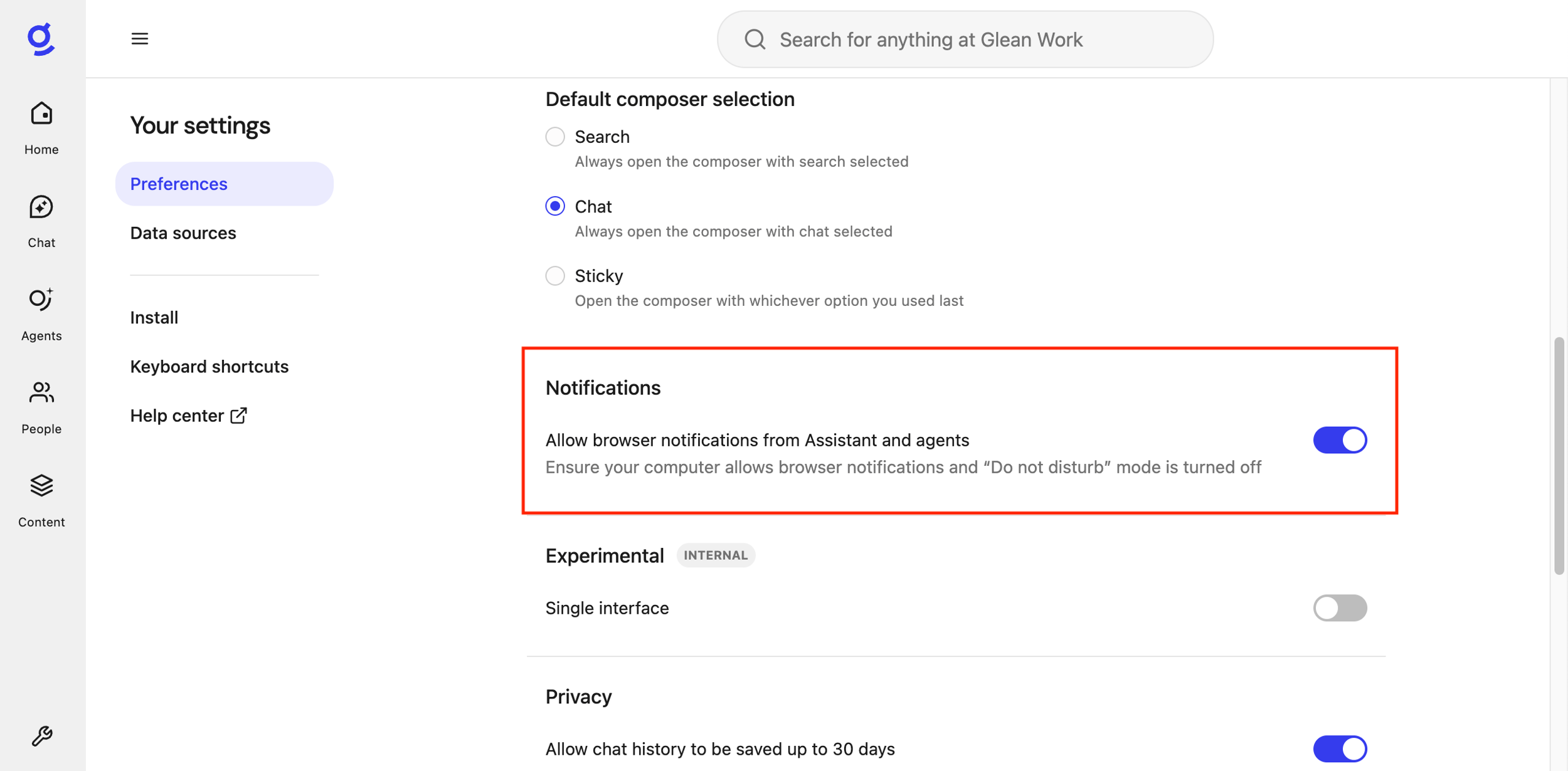
* Each user must enable notifications when they receive the alert in Glean.
4. When prompted by your browser to allow notifications, select **Allow** to grant permission.
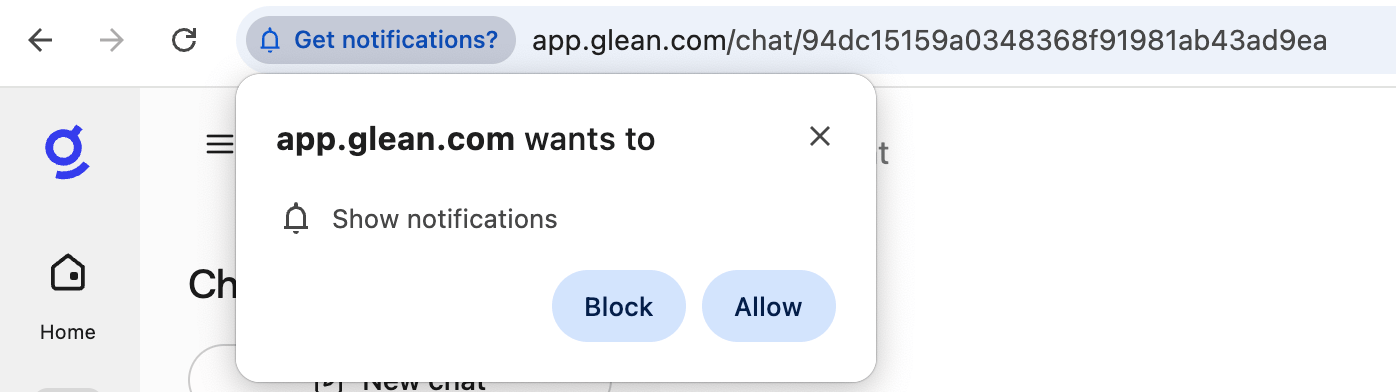
5. Verify that notifications for the chosen browser is enabled at the opertaing system (OS) level.
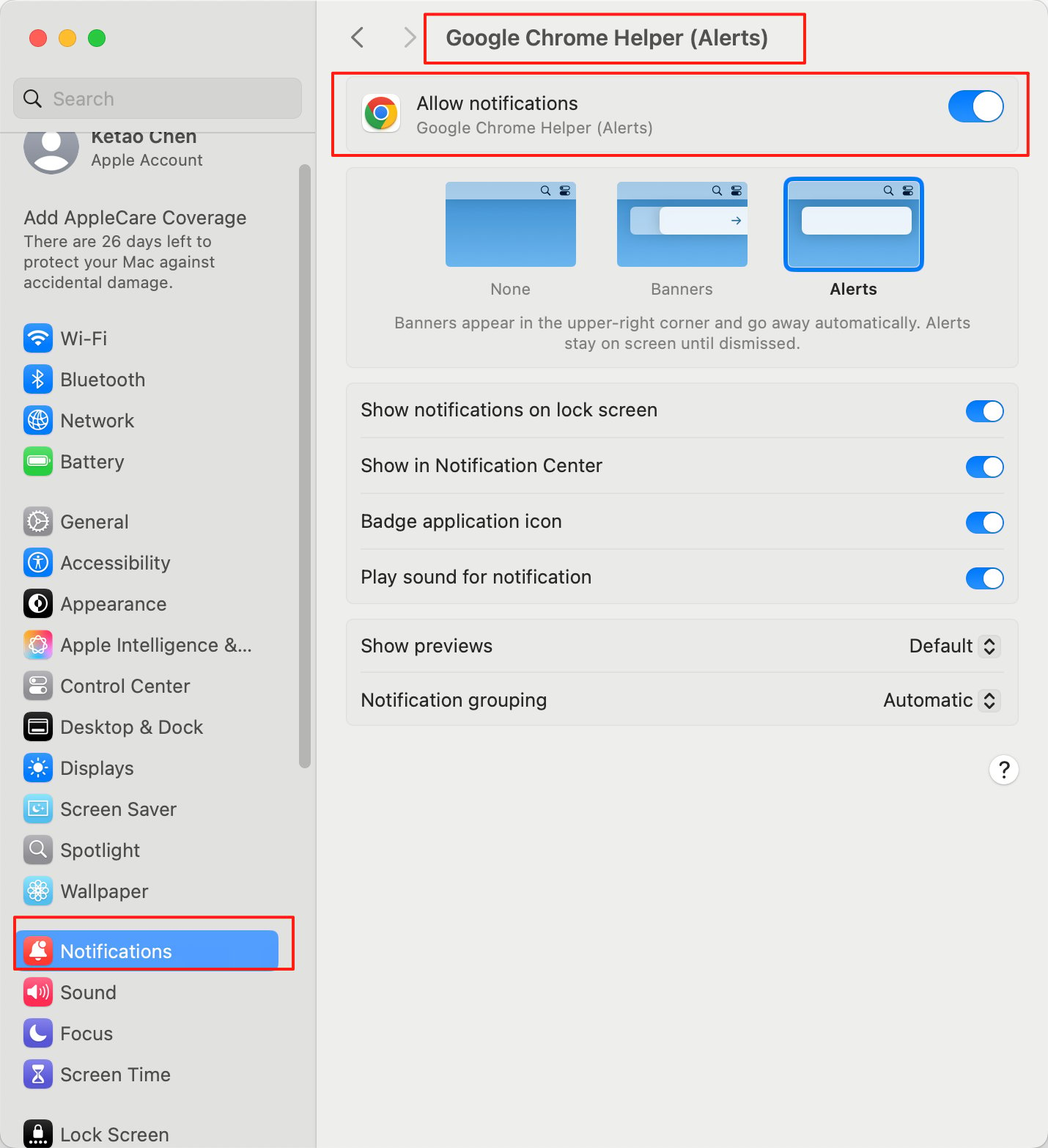
If you have enabled the notifications in Glean setting, browser and on the OS level, you will see the notification after Glean is ready with the answer for your query.
_Do not disturb_ mode must be turned off.
###
[](https://docs.glean.com/user-guide/assistant/glean-chat/glean-chat-browser-notifications#disabling-browser-notifications)
Disabling browser notifications
To disable notification, perform the following step:
1. In Glean, open **Home page settings** on the top right corner.
2. Click **Manage more settings**.
3. Click **Preferences** → **Notifications** and disable notifications.
[](https://docs.glean.com/user-guide/assistant/glean-chat/glean-chat-browser-notifications#troubleshooting-steps)
Troubleshooting steps
-------------------------------------------------------------------------------------------------------------------------------------------
If notifications are not appearing:
* Revisit **Preferences** in Glean settings to confirm **Notification** setting is still enabled.
* Confirm that notifications are enabled in the browser.
* Verify that OS-level settings permit notifications for the browser.
* Ensure the Glean tab is not in focus, notifications only appear when it is inactive.
Was this page helpful?
YesNo
[Search chat history](https://docs.glean.com/user-guide/assistant/glean-chat/search-past-chats)
[Glean Canvas](https://docs.glean.com/user-guide/assistant/glean-chat/canvas)
⌘I
---
# Overview - Glean Help Center
[Skip to main content](https://docs.glean.com/user-guide/mcp/overview#content-area)
[Glean Help Center home page](https://docs.glean.com/)
Search...
⌘K
Search...
Navigation
MCP Usage Examples
Overview
[Home](https://docs.glean.com/home)
[User Guide](https://docs.glean.com/user-guide/about/what-is-glean)
[Agents](https://docs.glean.com/agents/home)
[Get Started for Admins](https://docs.glean.com/get-started/welcome)
[Connectors](https://docs.glean.com/connectors/home)
[Admin Guide](https://docs.glean.com/administration/about)
[Security & Architecture](https://docs.glean.com/security/home)
[Troubleshooting](https://docs.glean.com/troubleshooting/home)
[Release Notes](https://docs.glean.com/release-notes/home)
[Archive](https://docs.glean.com/archive/help-glean/answers/what-are-answers-and-how-do-they-work)
On this page
* [What You’ll Find Here](https://docs.glean.com/user-guide/mcp/overview#what-you%E2%80%99ll-find-here)
* [Getting Started](https://docs.glean.com/user-guide/mcp/overview#getting-started)
* [Examples by Role](https://docs.glean.com/user-guide/mcp/overview#examples-by-role)
* [How MCP Tools Work](https://docs.glean.com/user-guide/mcp/overview#how-mcp-tools-work)
* [Prompting Tips](https://docs.glean.com/user-guide/mcp/overview#prompting-tips)
* [Be Explicit About Tools](https://docs.glean.com/user-guide/mcp/overview#be-explicit-about-tools)
* [Specify Data Sources](https://docs.glean.com/user-guide/mcp/overview#specify-data-sources)
* [Provide Context](https://docs.glean.com/user-guide/mcp/overview#provide-context)
* [Iterate and Refine](https://docs.glean.com/user-guide/mcp/overview#iterate-and-refine)
This guide provides practical, tested examples of using Glean’s MCP server in tools like Cursor, Claude Desktop, VS Code, and other MCP hosts. These examples come from real usage patterns and have been validated in production environments.
[](https://docs.glean.com/user-guide/mcp/overview#what-you%E2%80%99ll-find-here)
What You’ll Find Here
----------------------------------------------------------------------------------------------------------
Role-specific examples organized by job function, each including:
* **Common use cases**: What teams actually accomplish with MCP
* **Real prompts**: Copy-paste examples you can try immediately
* **Prerequisites**: Required connectors and setup
* **Best practices**: Tips for getting better results
[](https://docs.glean.com/user-guide/mcp/overview#getting-started)
Getting Started
--------------------------------------------------------------------------------------
Before diving into role-specific examples, ensure you have:
1. **MCP server configured**: Navigate to **Settings** → **Install** → **MCP Configurator** to install the MCP server in your MCP host
2. **Relevant connectors**: Connect the data sources your team uses
3. **Appropriate permissions**: Verify you can access the data sources you need
The effectiveness of these prompts depends on having the right data sources connected. Each role section lists recommended connectors.
[](https://docs.glean.com/user-guide/mcp/overview#examples-by-role)
Examples by Role
----------------------------------------------------------------------------------------
[Engineering\
-----------\
\
Debug errors, review PRs, understand code history, generate documentation](https://docs.glean.com/user-guide/mcp/engineering)
[Product Management\
------------------\
\
Draft PRDs, track projects, analyze feedback, research competitors](https://docs.glean.com/user-guide/mcp/product-management)
[Support\
-------\
\
Triage tickets, find solutions, draft responses, identify knowledge gaps](https://docs.glean.com/user-guide/mcp/support)
[Sales\
-----\
\
Research accounts, prepare for calls, track deals, draft outreach](https://docs.glean.com/user-guide/mcp/sales)
[Data Analytics\
--------------\
\
Query databases, identify trends, generate reports, detect anomalies](https://docs.glean.com/user-guide/mcp/data-analytics)
[Operations\
----------\
\
IT troubleshooting, HR policies, meeting prep, incident response](https://docs.glean.com/user-guide/mcp/operations)
[](https://docs.glean.com/user-guide/mcp/overview#how-mcp-tools-work)
How MCP Tools Work
--------------------------------------------------------------------------------------------
When you use Glean’s MCP server, your AI assistant can:
* **Search Glean**: Find relevant documents, conversations, and code across your company
* **Read documents**: Retrieve full content from specific URLs or IDs
* **Query structured data**: Access databases, spreadsheets, and data warehouses
* **Find people**: Look up employees and their areas of expertise
* **Access email**: Search Gmail or Outlook for relevant messages
* **Chat with Glean**: Ask Glean Assistant questions about your data
All MCP queries respect your existing permissions. You’ll only see data you already have access to in Glean.
[](https://docs.glean.com/user-guide/mcp/overview#prompting-tips)
Prompting Tips
------------------------------------------------------------------------------------
To get the most from Glean’s MCP server:
###
[](https://docs.glean.com/user-guide/mcp/overview#be-explicit-about-tools)
Be Explicit About Tools
Tell your AI assistant to use Glean:
* ✅ “Search Glean for recent PRs related to authentication”
* ✅ “Use Glean to find the design doc for feature X”
* ❌ “Tell me about authentication” (may not use MCP)
###
[](https://docs.glean.com/user-guide/mcp/overview#specify-data-sources)
Specify Data Sources
Mention specific connectors when relevant:
* ✅ “Search Glean for Zendesk tickets about login errors”
* ✅ “Find Slack conversations in #engineering about this bug”
* ❌ “Find tickets about login errors” (less specific)
###
[](https://docs.glean.com/user-guide/mcp/overview#provide-context)
Provide Context
Include relevant identifiers, dates, or keywords:
* ✅ “Given Jira ticket EN-12345, find similar past issues”
* ✅ “Search for discussions about the Q3 roadmap in the last 30 days”
* ❌ “Find similar issues” (too vague)
###
[](https://docs.glean.com/user-guide/mcp/overview#iterate-and-refine)
Iterate and Refine
Start broad, then narrow based on results:
1. “Search Glean for information about our deployment process”
2. Review what comes back
3. “Now focus on the Kubernetes deployment docs from the last quarter”
Was this page helpful?
YesNo
[Using the Glean MCP Server](https://docs.glean.com/user-guide/mcp/usage)
[MCP for Data Analytics](https://docs.glean.com/user-guide/mcp/data-analytics)
⌘I
---
# MCP for Data Analytics - Glean Help Center
[Skip to main content](https://docs.glean.com/user-guide/mcp/data-analytics#content-area)
[Glean Help Center home page](https://docs.glean.com/)
Search...
⌘K
Search...
Navigation
MCP Usage Examples
MCP for Data Analytics
[Home](https://docs.glean.com/home)
[User Guide](https://docs.glean.com/user-guide/about/what-is-glean)
[Agents](https://docs.glean.com/agents/home)
[Get Started for Admins](https://docs.glean.com/get-started/welcome)
[Connectors](https://docs.glean.com/connectors/home)
[Admin Guide](https://docs.glean.com/administration/about)
[Security & Architecture](https://docs.glean.com/security/home)
[Troubleshooting](https://docs.glean.com/troubleshooting/home)
[Release Notes](https://docs.glean.com/release-notes/home)
[Archive](https://docs.glean.com/archive/help-glean/answers/what-are-answers-and-how-do-they-work)
On this page
* [Overview](https://docs.glean.com/user-guide/mcp/data-analytics#overview)
* [Prerequisites](https://docs.glean.com/user-guide/mcp/data-analytics#prerequisites)
* [Use Cases](https://docs.glean.com/user-guide/mcp/data-analytics#use-cases)
* [1\. Natural Language Database Queries](https://docs.glean.com/user-guide/mcp/data-analytics#1-natural-language-database-queries)
* [2\. Trend Analysis and Pattern Recognition](https://docs.glean.com/user-guide/mcp/data-analytics#2-trend-analysis-and-pattern-recognition)
* [3\. Automated Report Generation](https://docs.glean.com/user-guide/mcp/data-analytics#3-automated-report-generation)
* [4\. Anomaly Detection in Financial Data](https://docs.glean.com/user-guide/mcp/data-analytics#4-anomaly-detection-in-financial-data)
* [5\. Customer Cohort Analysis](https://docs.glean.com/user-guide/mcp/data-analytics#5-customer-cohort-analysis)
* [6\. Root Cause Analysis](https://docs.glean.com/user-guide/mcp/data-analytics#6-root-cause-analysis)
* [7\. Competitive Benchmarking](https://docs.glean.com/user-guide/mcp/data-analytics#7-competitive-benchmarking)
* [8\. Data Quality Assessment](https://docs.glean.com/user-guide/mcp/data-analytics#8-data-quality-assessment)
* [9\. Predictive Analysis Support](https://docs.glean.com/user-guide/mcp/data-analytics#9-predictive-analysis-support)
* [10\. Ad Hoc Business Questions](https://docs.glean.com/user-guide/mcp/data-analytics#10-ad-hoc-business-questions)
* [Best Practices](https://docs.glean.com/user-guide/mcp/data-analytics#best-practices)
* [Start with Clear Questions](https://docs.glean.com/user-guide/mcp/data-analytics#start-with-clear-questions)
* [Specify Time Ranges](https://docs.glean.com/user-guide/mcp/data-analytics#specify-time-ranges)
* [Combine Quantitative and Qualitative](https://docs.glean.com/user-guide/mcp/data-analytics#combine-quantitative-and-qualitative)
* [Validate Results](https://docs.glean.com/user-guide/mcp/data-analytics#validate-results)
* [Document Assumptions](https://docs.glean.com/user-guide/mcp/data-analytics#document-assumptions)
* [Troubleshooting](https://docs.glean.com/user-guide/mcp/data-analytics#troubleshooting)
* [Related Resources](https://docs.glean.com/user-guide/mcp/data-analytics#related-resources)
[](https://docs.glean.com/user-guide/mcp/data-analytics#overview)
Overview
------------------------------------------------------------------------------
Data analysts use Glean’s MCP server to query structured data sources, combine quantitative and qualitative insights, and generate reports without switching between multiple analytics tools.
[](https://docs.glean.com/user-guide/mcp/data-analytics#prerequisites)
Prerequisites
----------------------------------------------------------------------------------------
**Recommended connectors:**
* Databricks (for data warehouse queries)
* Salesforce (for CRM data)
* Google Drive (for spreadsheets and reports)
* Confluence or Notion (for analysis documentation)
* Slack (for data discussions)
* Jira (for project tracking)
**Supported MCP hosts:**
* Claude Desktop
* ChatGPT
* Cursor (for data notebooks)
* Any MCP-compatible interface
[](https://docs.glean.com/user-guide/mcp/data-analytics#use-cases)
Use Cases
--------------------------------------------------------------------------------
###
[](https://docs.glean.com/user-guide/mcp/data-analytics#1-natural-language-database-queries)
1\. Natural Language Database Queries
Query structured data sources using natural language instead of SQL.
Example Prompt
Copy
Use Glean to query Databricks for:
1. Total revenue by customer segment for Q3 2024
2. Month-over-month growth rates
3. Top 10 customers by revenue
4. Any significant anomalies or outliers Display results as a table and
highlight key insights.
Alternative Prompts
Copy
Query Databricks via Glean to show user sign-ups by week for the last
quarter. Calculate week-over-week growth and flag any unusual drops.
Copy
Use Glean to analyze our sales data: What's the average deal size by
industry? Which industries have the highest close rates?
**What it does:**
* Translates natural language to SQL queries
* Executes queries against connected data warehouses
* Formats results for easy interpretation
* Identifies notable patterns or anomalies
**Note:** Requires Databricks Genie or similar connectors that support structured data queries.
###
[](https://docs.glean.com/user-guide/mcp/data-analytics#2-trend-analysis-and-pattern-recognition)
2\. Trend Analysis and Pattern Recognition
Identify trends in business metrics and customer behavior.
Example Prompt
Copy
Use Glean to analyze customer purchase behavior trends:
1. Query our transaction data for the last 12 months
2. Identify seasonal patterns
3. Segment by customer type (new vs returning)
4. Look for correlations with marketing campaigns
5. Summarize the key trends and their business implications.
Alternative Prompts
Copy
Search Glean for usage metrics discussions in Slack and product
analytics. What features are growing? What's declining? Why?
Copy
Use Glean to analyze support ticket volume over time. Are there spikes related
to releases or specific features?
**What it does:**
* Queries time-series data
* Identifies patterns and correlations
* Combines quantitative data with qualitative context
* Provides business interpretation
###
[](https://docs.glean.com/user-guide/mcp/data-analytics#3-automated-report-generation)
3\. Automated Report Generation
Generate recurring reports by pulling data from multiple sources.
Example Prompt
Copy
Generate a detailed analytical report on monthly sales data using Glean:
1. Query Salesforce for closed-won deals this month
2. Calculate key metrics: total ARR, average deal size, win rate
3. Compare to previous month and same month last year
4. Pull in any relevant context from sales team Slack discussions
5. Identify top performers and any concerning trends
6. Format as an executive summary with supporting data tables.
Alternative Prompts
Copy
Use Glean to create a weekly performance report: pull key metrics from
our analytics dashboard, add context from team discussions, highlight wins
and areas needing attention.
Copy
Generate a quarterly business review using Glean to aggregate data from
Salesforce, support metrics, product usage, and financial reports.
**What it does:**
* Aggregates data from multiple sources
* Calculates key metrics automatically
* Adds qualitative context from discussions
* Formats for stakeholder consumption
###
[](https://docs.glean.com/user-guide/mcp/data-analytics#4-anomaly-detection-in-financial-data)
4\. Anomaly Detection in Financial Data
Identify unusual patterns or errors in financial datasets.
Example Prompt
Copy
Analyze accounting data from Salesforce or your financial system using Glean to find anomalies:
1. Look for transactions with unusual amounts (outliers)
2. Identify accounts with unexpected activity patterns
3. Flag duplicate entries or reconciliation issues
4. Check for missing data or incomplete records
Prioritize findings by potential financial impact and create an audit checklist for items needing investigation.
Alternative Prompts
Copy
Use Glean to analyze our expense data from the last quarter. Find
anomalies, duplicate charges, or policy violations.
Copy
Query financial data via Glean to identify high-risk transactions or accounts
that need closer review during our audit.
**What it does:**
* Analyzes financial data for outliers
* Identifies reconciliation issues
* Flags potential errors or fraud
* Prioritizes audit focus areas
###
[](https://docs.glean.com/user-guide/mcp/data-analytics#5-customer-cohort-analysis)
5\. Customer Cohort Analysis
Analyze customer behavior by cohort to understand retention and growth patterns.
Example Prompt
Copy
Use Glean to perform a cohort analysis on customers:
1. Group customers by their signup month
2. Calculate retention rates by cohort
3. Analyze revenue trends for each cohort
4. Identify which acquisition channels have best long-term value
5. Visualize the cohort data and highlight insights for the growth team.
Alternative Prompts
Copy
Query customer data via Glean to compare cohorts from Q1 vs Q2. Which
cohort has better engagement and retention?
Copy
Use Glean to analyze user behavior by signup source. Do customers from
different channels behave differently?
**What it does:**
* Groups customers by cohort
* Calculates retention and lifetime value metrics
* Compares cohort performance
* Identifies successful acquisition strategies
###
[](https://docs.glean.com/user-guide/mcp/data-analytics#6-root-cause-analysis)
6\. Root Cause Analysis
Investigate data anomalies by combining quantitative and qualitative sources.
Example Prompt
Copy
Our conversion rate dropped 15% last week.
Use Glean to investigate:
1. Query analytics data to confirm the drop and identify when it started
2. Check for code deployments or feature releases during that time
3. Search Slack for mentions of site issues or customer complaints
4. Look for related support tickets or bug reports
5. Determine the most likely root cause and suggest data to validate it.
Alternative Prompts
Copy
Revenue is down this month. Use Glean to analyze: Are we closing fewer
deals? Lower deal sizes? Different customer segments? What changed?
Copy
Use Glean to investigate this spike in API errors. Check logs, recent
deployments, and engineering discussions for clues.
**What it does:**
* Combines quantitative metrics with qualitative context
* Correlates changes with events (deployments, campaigns)
* Searches for related discussions and issues
* Proposes hypotheses for investigation
###
[](https://docs.glean.com/user-guide/mcp/data-analytics#7-competitive-benchmarking)
7\. Competitive Benchmarking
Analyze competitive data and market positioning.
Example Prompt
Copy
Use Glean to compile competitive benchmarking data:
1. Search for market research reports in Confluence
2. Find competitive pricing data from sales conversations
3. Look for analyst reports or industry surveys
4. Query our win/loss data by competitor
5. Create a comparison table showing our position vs top 3 competitors.
Alternative Prompts
Copy
Search Glean for all mentions of [competitor] in sales calls and
analysis docs. How do we compare on features, pricing, and positioning?
Copy
Use Glean to analyze our competitive win rate by segment. Where are we
strongest? Where are we losing?
**What it does:**
* Aggregates competitive intelligence
* Compiles market research and analysis
* Quantifies competitive performance
* Identifies positioning opportunities
###
[](https://docs.glean.com/user-guide/mcp/data-analytics#8-data-quality-assessment)
8\. Data Quality Assessment
Audit data quality and identify gaps or inconsistencies.
Example Prompt
Copy
Audit data quality in our CRM using Glean: 1. Find records with missing
required fields 2. Identify duplicate accounts or contacts 3. Check for
inconsistent data formats 4. Flag accounts without recent activity
Prioritize cleanup by potential impact on reporting and operations.
Alternative Prompts
Copy
Use Glean to analyze our analytics data for gaps. Are there time periods
with missing data? Features with no tracking?
Copy
Query our data warehouse via Glean to identify tables or fields with high
null rates that might affect analysis accuracy.
**What it does:**
* Identifies incomplete or inconsistent data
* Finds duplicates and errors
* Quantifies data quality issues
* Prioritizes remediation efforts
###
[](https://docs.glean.com/user-guide/mcp/data-analytics#9-predictive-analysis-support)
9\. Predictive Analysis Support
Gather data and context for predictive modeling.
Example Prompt
Copy
I'm building a churn prediction model. Use Glean to gather: 1.
Historical customer data: tenure, usage, support tickets 2. Known churn
cases with reasons (from CRM and support) 3. Research on churn indicators
from past analyses 4. Feature ideas discussed by data science team in Slack
Compile a dataset and suggest additional predictive features to consider.
Alternative Prompts
Copy
Use Glean to find factors that predict deal win rate. Query CRM data and
search for sales team insights about what makes deals succeed.
Copy
Search Glean for past analyses about [business outcome]. What variables were
found to be predictive? What data sources should I use?
**What it does:**
* Aggregates historical data for modeling
* Surfaces domain knowledge from past analyses
* Suggests relevant features and variables
* Connects quantitative data with qualitative insights
###
[](https://docs.glean.com/user-guide/mcp/data-analytics#10-ad-hoc-business-questions)
10\. Ad Hoc Business Questions
Answer urgent business questions quickly with data.
Example Prompt
Copy
Leadership is asking: "How many customers from [industry] churned last quarter and why?"
Use Glean to:
1. Query CRM for churned customers in that industry
2. Find their support ticket history and escalations
3. Search for exit interview notes or feedback
4. Look for patterns in account health scores
Provide a concise answer with supporting evidence.
Alternative Prompts
Copy
How many deals did we close with new vs existing customers last month?
Use Glean to query Salesforce and break down by segment.
Copy
What's the average time to close by deal size? Use Glean to analyze our
pipeline data and identify where deals slow down.
**What it does:**
* Quickly queries relevant data sources
* Provides evidence-based answers
* Combines data with contextual information
* Formats insights for executive consumption
[](https://docs.glean.com/user-guide/mcp/data-analytics#best-practices)
Best Practices
------------------------------------------------------------------------------------------
###
[](https://docs.glean.com/user-guide/mcp/data-analytics#start-with-clear-questions)
Start with Clear Questions
Copy
✅ "What's the month-over-month growth in user sign-ups?"
✅ "Which customer segment has the highest churn rate?"
❌ "Tell me about our customers" (too broad)
###
[](https://docs.glean.com/user-guide/mcp/data-analytics#specify-time-ranges)
Specify Time Ranges
Copy
Always include time boundaries: "last quarter", "YTD", "since January 2024"
###
[](https://docs.glean.com/user-guide/mcp/data-analytics#combine-quantitative-and-qualitative)
Combine Quantitative and Qualitative
Copy
Don't just query numbers. Also search for context in Slack discussions,
meeting notes, and analysis docs to understand the "why" behind the data.
###
[](https://docs.glean.com/user-guide/mcp/data-analytics#validate-results)
Validate Results
Copy
When Glean returns data, cross-check key figures against known sources or
dashboards before using in reports.
###
[](https://docs.glean.com/user-guide/mcp/data-analytics#document-assumptions)
Document Assumptions
Copy
Ask Glean to note any assumptions, filters, or data limitations in the
analysis so stakeholders understand the context.
[](https://docs.glean.com/user-guide/mcp/data-analytics#troubleshooting)
Troubleshooting
--------------------------------------------------------------------------------------------
**Can’t query structured data?**
* Verify Databricks Genie or similar connector is properly configured
* Check that your user has query permissions on the data warehouse
* Ensure the data source is actively indexed
**Inaccurate calculations?**
* Be explicit about formulas: “Calculate as (new - old) / old \* 100 for growth rate”
* Specify how to handle nulls, duplicates, or edge cases
* Ask Glean to show the query it’s using so you can verify
**Missing business context?**
* Connect Slack channels where data discussions happen
* Index analysis documentation from Confluence or Notion
* Include links to past analyses and reports
**Results don’t match dashboards?**
* Check if time zones or date boundaries are defined consistently
* Verify filters and segments match your dashboard definitions
* Confirm you’re querying the same underlying data sources
[](https://docs.glean.com/user-guide/mcp/data-analytics#related-resources)
Related Resources
------------------------------------------------------------------------------------------------
* [MCP Setup Guide](https://docs.glean.com/user-guide/mcp/usage)
- Initial configuration
* [Chat Best Practices](https://docs.glean.com/user-guide/assistant/best-practices)
- Prompting tips
* [Deep Research](https://docs.glean.com/user-guide/assistant/deep-research)
- In-depth analysis features
Was this page helpful?
YesNo
[Overview](https://docs.glean.com/user-guide/mcp/overview)
[MCP for Engineering](https://docs.glean.com/user-guide/mcp/engineering)
⌘I
---
# MCP for Engineering - Glean Help Center
[Skip to main content](https://docs.glean.com/user-guide/mcp/engineering#content-area)
[Glean Help Center home page](https://docs.glean.com/)
Search...
⌘K
Search...
Navigation
MCP Usage Examples
MCP for Engineering
[Home](https://docs.glean.com/home)
[User Guide](https://docs.glean.com/user-guide/about/what-is-glean)
[Agents](https://docs.glean.com/agents/home)
[Get Started for Admins](https://docs.glean.com/get-started/welcome)
[Connectors](https://docs.glean.com/connectors/home)
[Admin Guide](https://docs.glean.com/administration/about)
[Security & Architecture](https://docs.glean.com/security/home)
[Troubleshooting](https://docs.glean.com/troubleshooting/home)
[Release Notes](https://docs.glean.com/release-notes/home)
[Archive](https://docs.glean.com/archive/help-glean/answers/what-are-answers-and-how-do-they-work)
On this page
* [Overview](https://docs.glean.com/user-guide/mcp/engineering#overview)
* [Prerequisites](https://docs.glean.com/user-guide/mcp/engineering#prerequisites)
* [Use Cases](https://docs.glean.com/user-guide/mcp/engineering#use-cases)
* [1\. Stack Trace Debugging](https://docs.glean.com/user-guide/mcp/engineering#1-stack-trace-debugging)
* [2\. Understanding Code History](https://docs.glean.com/user-guide/mcp/engineering#2-understanding-code-history)
* [3\. CI/CD Pipeline Failures](https://docs.glean.com/user-guide/mcp/engineering#3-ci%2Fcd-pipeline-failures)
* [4\. PR Review and Documentation](https://docs.glean.com/user-guide/mcp/engineering#4-pr-review-and-documentation)
* [5\. Codebase Onboarding](https://docs.glean.com/user-guide/mcp/engineering#5-codebase-onboarding)
* [6\. Jira Bug Triage](https://docs.glean.com/user-guide/mcp/engineering#6-jira-bug-triage)
* [7\. Write Code Aligned with Style](https://docs.glean.com/user-guide/mcp/engineering#7-write-code-aligned-with-style)
* [8\. RFC to Implementation Drift](https://docs.glean.com/user-guide/mcp/engineering#8-rfc-to-implementation-drift)
* [9\. Generate Launch Notes](https://docs.glean.com/user-guide/mcp/engineering#9-generate-launch-notes)
* [10\. Documentation Generation](https://docs.glean.com/user-guide/mcp/engineering#10-documentation-generation)
* [Best Practices](https://docs.glean.com/user-guide/mcp/engineering#best-practices)
* [Use .cursorrules or Similar](https://docs.glean.com/user-guide/mcp/engineering#use-cursorrules-or-similar)
* [Be Specific About Timeframes](https://docs.glean.com/user-guide/mcp/engineering#be-specific-about-timeframes)
* [Request Confidence Levels](https://docs.glean.com/user-guide/mcp/engineering#request-confidence-levels)
* [Combine Tools](https://docs.glean.com/user-guide/mcp/engineering#combine-tools)
* [Troubleshooting](https://docs.glean.com/user-guide/mcp/engineering#troubleshooting)
* [Related Resources](https://docs.glean.com/user-guide/mcp/engineering#related-resources)
[](https://docs.glean.com/user-guide/mcp/engineering#overview)
Overview
---------------------------------------------------------------------------
Engineering teams use Glean’s MCP server in their IDEs to access enterprise context without leaving their development environment. These examples come from validated, production use cases.
[](https://docs.glean.com/user-guide/mcp/engineering#prerequisites)
Prerequisites
-------------------------------------------------------------------------------------
**Recommended connectors:**
* GitHub (or GitLab, Bitbucket)
* Jira (or Linear, Asana)
* Slack
* Confluence (or Notion)
* Google Drive (for design docs and RFCs)
**Supported MCP hosts:**
* Cursor
* VS Code with extensions
* Claude Desktop
* Windsurf
* Claude Code
[](https://docs.glean.com/user-guide/mcp/engineering#use-cases)
Use Cases
-----------------------------------------------------------------------------
###
[](https://docs.glean.com/user-guide/mcp/engineering#1-stack-trace-debugging)
1\. Stack Trace Debugging
When you encounter an error, Glean can find similar past issues, known fixes, and relevant experts.
Example Prompt
Copy
Here's a build failure log from our CI pipeline. Use Glean to identify
the file and line causing the issue, search for similar failures in the last
30 days, and find what fix was used last time. Draft a PR with the solution
and suggest who to ask if this doesn't work.
Alternative Prompts
Copy
Check Glean if anyone else has run into this error: [paste error]
Copy
I'm getting this stack trace. Use Glean to find the likely source files,
similar errors in Slack or Jira, and relevant documentation.
**What it does:**
* Parses the stack trace to identify key error messages
* Searches Slack, Jira, and GitHub for similar errors
* Finds documentation about error handling
* Suggests the right expert or Slack channel if confidence is low
**Real user flow:** Highlight a terminal error → Ask your IDE assistant to check Glean → Get context without leaving your editor.
###
[](https://docs.glean.com/user-guide/mcp/engineering#2-understanding-code-history)
2\. Understanding Code History
Find out why code was written a certain way by tracing through PRs, design docs, and Slack discussions.
Example Prompt
Copy
Why was the file `code_oqagen.py` created? What's the rationale behind
having a separate code oqagen file instead of adding it to the existing
oqagen pipeline? Use Glean to find the PR, design discussions, and any Slack
conversations about this decision.
Alternative Prompts
Copy
Use Glean to explain why this authentication method was chosen over
alternatives. Look for RFCs, PR discussions, and Slack threads.
Copy
Why was X done instead of Y in this module? Find the historical context.
**What it does:**
* Searches GitHub for the original PR and review comments
* Finds related design docs or RFCs
* Locates Slack discussions that influenced the decision
* Synthesizes the “why” behind implementation choices
###
[](https://docs.glean.com/user-guide/mcp/engineering#3-ci/cd-pipeline-failures)
3\. CI/CD Pipeline Failures
Explain pipeline failures by correlating logs with recent code changes, known flakes, and similar incidents.
Example Prompt
Copy
Explain this CI failure: [link or log snippet]
Use Glean to:
1. Cluster similar failures in the last 14 days
2. Point to the culprit PR range
3. Propose the fastest minimal fix
4. Include the likelihood this is a flaky test vs a real issue
Alternative Prompts
Copy
This pipeline failed. Search Glean for past incidents that looked like this and
show me the one-liner that fixed it.
Copy
Use Glean to find recent code changes that might have caused this build
failure, and check if there are open bugs about it.
**What it does:**
* Correlates failure logs with recent commits
* Searches for similar failures and their resolutions
* Identifies known flaky tests
* Recommends retry vs fix strategy
###
[](https://docs.glean.com/user-guide/mcp/engineering#4-pr-review-and-documentation)
4\. PR Review and Documentation
Generate PR descriptions that link to relevant context, and perform code reviews based on your team’s standards.
Example Prompt
Copy
Generate a PR description for my current changes. Use Glean to:
1. Link relevant Jira tickets and RFC sections
2. Check our code review guidelines
3. Flag any security or performance concerns based on past reviews
4. Suggest reviewers based on code ownership
Alternative Prompts
Copy
Review this PR using Glean to reference our style guide, security best
practices, and architectural design docs. Flag deviations.
Copy
Use Glean to find the code owners for these files and suggest who should
review this PR.
**What it does:**
* Generates comprehensive PR descriptions with context
* Links to related tickets, RFCs, and discussions
* Checks code against documented standards
* Suggests appropriate reviewers
###
[](https://docs.glean.com/user-guide/mcp/engineering#5-codebase-onboarding)
5\. Codebase Onboarding
Speed up understanding of unfamiliar code by pulling together docs, architectural context, and ownership info.
Example Prompt
Copy
I'm new to the Search Serving service. Use Glean to:
1. Explain the service architecture
2. Show me how to run the test suite locally
3. Describe our release process
4. Tell me who reviews changes in this area
Alternative Prompts
Copy
Help me get started writing a new connector. Use Glean to find relevant code
examples, design patterns, and developer guides.
Copy
I need to modify the payment processing flow. Use Glean to find the design doc,
recent changes, and who owns this code.
**What it does:**
* Finds onboarding documentation and developer guides
* Locates architecture diagrams and RFCs
* Identifies code owners and subject matter experts
* Surfaces recent changes and active work
###
[](https://docs.glean.com/user-guide/mcp/engineering#6-jira-bug-triage)
6\. Jira Bug Triage
Quickly understand bugs by pulling together ticket details, Slack escalations, and similar past issues.
Example Prompt
Copy
Can you help debug and resolve Jira ticket EN-12345? Use Glean to:
1. Find the ticket details and any linked Slack threads
2. Search for similar resolved bugs
3. Identify the likely root cause based on recent changes
4. Propose a fix or suggest who to escalate to
Alternative Prompts
Copy
Given this Jira ticket and the linked Slack escalation, use Glean to summarize
repro steps, suspected cause, prior related bugs, and next steps.
Copy
Search Glean for all tickets and Slack messages about this error code in the
last 90 days. What's the pattern?
**What it does:**
* Retrieves full ticket context including comments
* Links related Slack discussions and escalations
* Finds duplicate or similar issues
* Suggests owners and next steps
###
[](https://docs.glean.com/user-guide/mcp/engineering#7-write-code-aligned-with-style)
7\. Write Code Aligned with Style
Ensure new code follows team conventions by checking style guides before generating suggestions.
Example Prompt
Copy
Before suggesting this code change, use Glean to find our style guide for
[language] and make sure the suggestion follows our conventions.
Alternative Prompts
Copy
Use Glean to search for similar implementations in our codebase and generate
code that matches our patterns.
Copy
Check our code review guidelines in Glean and verify this change follows our
standards for error handling and logging.
**What it does:**
* Searches for documented style guides
* Reviews past code review feedback
* Ensures consistency with team conventions
###
[](https://docs.glean.com/user-guide/mcp/engineering#8-rfc-to-implementation-drift)
8\. RFC to Implementation Drift
Compare design documents to actual implementation to find what changed and what needs updating.
Example Prompt
Copy
Find the RFC for "Hosted MCP Server" in Glean and compare the approved design
sections on URL schemes and authentication to our current implementation.
Summarize the deltas and propose updates to the doc and a PR checklist.
Alternative Prompts
Copy
Use Glean to find the design doc for feature X. Compare it to the merged PRs
and tell me what was implemented differently and why.
Copy
Search for our API design RFC and check if the current endpoints match what was
approved. Flag any undocumented changes.
**What it does:**
* Retrieves original design documents
* Compares with current code implementation
* Identifies undocumented changes
* Suggests documentation updates
###
[](https://docs.glean.com/user-guide/mcp/engineering#9-generate-launch-notes)
9\. Generate Launch Notes
Automatically create release notes from Jira tickets and merged PRs.
Example Prompt
Copy
Use Glean to find all Jira tickets tagged for the Q3 release. Generate
launch notes that summarize new features, bug fixes, and breaking changes
with links to relevant documentation.
Alternative Prompts
Copy
Create release notes from merged PRs in the last sprint. Use Glean to
group by feature, link to Jira tickets, and highlight customer impact.
**What it does:**
* Aggregates tickets and PRs for a release
* Groups changes by category
* Generates user-facing descriptions
* Links to detailed documentation
###
[](https://docs.glean.com/user-guide/mcp/engineering#10-documentation-generation)
10\. Documentation Generation
Create or update documentation from RFCs, code, and team knowledge.
Example Prompt
Copy
Draft a "QE MCP Server: URL Schemes & Auth" runbook using Glean to find the
RFC, design doc, and current code. Include validation steps and rollback
procedures. Format for Confluence.
Alternative Prompts
Copy
Use Glean to generate API documentation for this endpoint based on the code,
design doc, and any existing examples.
Copy
Create an onboarding doc for this service. Use Glean to find setup
instructions, architecture docs, and team conventions.
**What it does:**
* Synthesizes information from multiple sources
* Generates structured documentation
* Includes code examples and validation steps
* Formats for your documentation platform
[](https://docs.glean.com/user-guide/mcp/engineering#best-practices)
Best Practices
---------------------------------------------------------------------------------------
###
[](https://docs.glean.com/user-guide/mcp/engineering#use-cursorrules-or-similar)
Use .cursorrules or Similar
Many MCP hosts support configuration files. Add Glean-specific instructions:
Copy
When debugging errors, always search Glean for similar issues before proposing fixes.
When writing new code, check Glean for our style guides and existing patterns.
For PRs, use Glean to find related tickets and design docs to include in descriptions.
###
[](https://docs.glean.com/user-guide/mcp/engineering#be-specific-about-timeframes)
Be Specific About Timeframes
Copy
✅ "Search Glean for similar errors in the last 30 days"
✅ "Find PRs merged since the last release"
❌ "Find similar errors" (may return stale results)
###
[](https://docs.glean.com/user-guide/mcp/engineering#request-confidence-levels)
Request Confidence Levels
Copy
If confidence is low, suggest the Slack channel or expert to ask instead of guessing.
###
[](https://docs.glean.com/user-guide/mcp/engineering#combine-tools)
Combine Tools
Copy
Use Glean to find the design doc, then analyze the code in this repository to
compare the implementation.
[](https://docs.glean.com/user-guide/mcp/engineering#troubleshooting)
Troubleshooting
-----------------------------------------------------------------------------------------
**Assistant not using Glean?**
* Be explicit: “Use Glean to search for…”
* Check that the MCP server is configured correctly
* Verify you have the necessary connector permissions
**Results not relevant?**
* Add more specific keywords or identifiers
* Specify the data source (e.g., “in GitHub” or “in Slack”)
* Narrow the timeframe
**Missing context?**
* Check that required connectors are enabled
* Verify indexing is up to date
* Ensure you have permissions to the data sources
[](https://docs.glean.com/user-guide/mcp/engineering#related-resources)
Related Resources
---------------------------------------------------------------------------------------------
* [MCP Setup Guide](https://docs.glean.com/user-guide/mcp/usage)
- Initial configuration
* [Glean for Engineering](https://docs.glean.com/user-guide/about/glean-for-engineering)
- Overview of engineering use cases
* [Chat Best Practices](https://docs.glean.com/user-guide/assistant/best-practices)
- General prompting tips
Was this page helpful?
YesNo
[MCP for Data Analytics](https://docs.glean.com/user-guide/mcp/data-analytics)
[MCP for Operations](https://docs.glean.com/user-guide/mcp/operations)
⌘I
---
# MCP for Product Management - Glean Help Center
[Skip to main content](https://docs.glean.com/user-guide/mcp/product-management#content-area)
[Glean Help Center home page](https://docs.glean.com/)
Search...
⌘K
Search...
Navigation
MCP Usage Examples
MCP for Product Management
[Home](https://docs.glean.com/home)
[User Guide](https://docs.glean.com/user-guide/about/what-is-glean)
[Agents](https://docs.glean.com/agents/home)
[Get Started for Admins](https://docs.glean.com/get-started/welcome)
[Connectors](https://docs.glean.com/connectors/home)
[Admin Guide](https://docs.glean.com/administration/about)
[Security & Architecture](https://docs.glean.com/security/home)
[Troubleshooting](https://docs.glean.com/troubleshooting/home)
[Release Notes](https://docs.glean.com/release-notes/home)
[Archive](https://docs.glean.com/archive/help-glean/answers/what-are-answers-and-how-do-they-work)
On this page
* [Overview](https://docs.glean.com/user-guide/mcp/product-management#overview)
* [Prerequisites](https://docs.glean.com/user-guide/mcp/product-management#prerequisites)
* [Use Cases](https://docs.glean.com/user-guide/mcp/product-management#use-cases)
* [1\. Draft Product Requirements Documents](https://docs.glean.com/user-guide/mcp/product-management#1-draft-product-requirements-documents)
* [2\. Roadmap Planning and Status Updates](https://docs.glean.com/user-guide/mcp/product-management#2-roadmap-planning-and-status-updates)
* [3\. Analyze and Prioritize Feature Requests](https://docs.glean.com/user-guide/mcp/product-management#3-analyze-and-prioritize-feature-requests)
* [4\. Competitive Research](https://docs.glean.com/user-guide/mcp/product-management#4-competitive-research)
* [5\. RFC-to-Reality Validation](https://docs.glean.com/user-guide/mcp/product-management#5-rfc-to-reality-validation)
* [6\. Customer Impact Analysis](https://docs.glean.com/user-guide/mcp/product-management#6-customer-impact-analysis)
* [7\. Stakeholder Meeting Preparation](https://docs.glean.com/user-guide/mcp/product-management#7-stakeholder-meeting-preparation)
* [8\. Market and Trend Analysis](https://docs.glean.com/user-guide/mcp/product-management#8-market-and-trend-analysis)
* [9\. Sprint Planning Support](https://docs.glean.com/user-guide/mcp/product-management#9-sprint-planning-support)
* [10\. Post-Launch Analysis](https://docs.glean.com/user-guide/mcp/product-management#10-post-launch-analysis)
* [Best Practices](https://docs.glean.com/user-guide/mcp/product-management#best-practices)
* [Structure Your Knowledge Base](https://docs.glean.com/user-guide/mcp/product-management#structure-your-knowledge-base)
* [Use Specific Identifiers](https://docs.glean.com/user-guide/mcp/product-management#use-specific-identifiers)
* [Combine Qualitative and Quantitative](https://docs.glean.com/user-guide/mcp/product-management#combine-qualitative-and-quantitative)
* [Iterate on Drafts](https://docs.glean.com/user-guide/mcp/product-management#iterate-on-drafts)
* [Validate Assumptions](https://docs.glean.com/user-guide/mcp/product-management#validate-assumptions)
* [Troubleshooting](https://docs.glean.com/user-guide/mcp/product-management#troubleshooting)
* [Related Resources](https://docs.glean.com/user-guide/mcp/product-management#related-resources)
[](https://docs.glean.com/user-guide/mcp/product-management#overview)
Overview
----------------------------------------------------------------------------------
Product managers use Glean’s MCP server to synthesize information across tools, draft documentation, and stay on top of project status without constant context switching.
[](https://docs.glean.com/user-guide/mcp/product-management#prerequisites)
Prerequisites
--------------------------------------------------------------------------------------------
**Recommended connectors:**
* Jira (or Linear, Asana)
* Confluence (or Notion)
* Slack
* GitHub (for engineering context)
* Salesforce (for customer feedback)
* Gong or Zoom (for meeting transcripts)
* Google Drive (for documents and presentations)
**Supported MCP hosts:**
* Claude Desktop
* ChatGPT
* Cursor
* Any MCP-compatible chat interface
[](https://docs.glean.com/user-guide/mcp/product-management#use-cases)
Use Cases
------------------------------------------------------------------------------------
###
[](https://docs.glean.com/user-guide/mcp/product-management#1-draft-product-requirements-documents)
1\. Draft Product Requirements Documents
Generate first drafts of PRDs using context from existing docs, customer feedback, and team discussions.
Example Prompt
Copy
Use Glean to draft a first version of a PRD for [feature name]. Include:
1. Target persona and pain points from our Notion customer research
2. Jobs-to-be-done from recent sales calls in Gong
3. Technical constraints from engineering Slack discussions
4. Similar features we've built, based on past PRDs
Structure it using our standard PRD template in Confluence.
Alternative Prompts
Copy
Search Glean for customer requests about [feature area] in the last 6 months.
Draft a PRD that addresses the top 3 pain points.
Copy
Use Glean to find our PRD template, then draft a new PRD for [feature] using
context from Jira epic PROJ-123 and related Slack threads.
**What it does:**
* Pulls relevant customer feedback and research
* Finds similar past features for reference
* Incorporates technical constraints from engineering
* Structures content using your team’s template
**Note:** PRD generation works best when you have well-structured Notion pages or Confluence spaces with customer research and templates.
###
[](https://docs.glean.com/user-guide/mcp/product-management#2-roadmap-planning-and-status-updates)
2\. Roadmap Planning and Status Updates
Synthesize project status across multiple sources to create comprehensive updates.
Example Prompt
Copy
Generate a summary of current project statuses and upcoming milestones from
Jira and Confluence for the Q3 roadmap. Include:
- Projects in progress with completion percentage
- Blocked items and their reasons
- Upcoming milestones in the next 30 days
- Red flags or risks mentioned in recent standups
Format as a table.
Alternative Prompts
Copy
Use Glean to create a weekly roadmap update by checking Jira epics tagged
"Q3-2025", recent #product-updates Slack messages, and engineering team
updates. Highlight changes from last week.
Copy
Search Glean for all projects assigned to my team. Summarize progress,
blockers, and next steps for each.
**What it does:**
* Aggregates status from Jira, Confluence, and Slack
* Identifies blockers and dependencies
* Highlights changes and risks
* Formats for stakeholder communication
###
[](https://docs.glean.com/user-guide/mcp/product-management#3-analyze-and-prioritize-feature-requests)
3\. Analyze and Prioritize Feature Requests
Compile customer feedback from multiple channels and identify patterns.
Example Prompt
Copy
Use Glean to compile and prioritize user feedback on recent product
updates. Search: - Zendesk tickets tagged "feature-request" - Slack
#customer-feedback channel from last 60 days - Sales calls in Gong
mentioning "feature request" - Existing Jira tickets with customer votes
Categorize by theme, count mentions, assess business impact, and recommend
top 3 priorities.
Alternative Prompts
Copy
Search Glean for all customer requests about [feature area]. Group by
customer segment and show which enterprise customers are asking for it.
Copy
Use Glean to analyze feedback from the last product launch. What are
users loving? What's causing friction?
**What it does:**
* Aggregates feedback across support, sales, and direct channels
* Identifies common themes and patterns
* Links to specific customer examples
* Helps prioritize based on frequency and impact
###
[](https://docs.glean.com/user-guide/mcp/product-management#4-competitive-research)
4\. Competitive Research
Gather competitive intelligence from internal discussions, sales calls, and research docs.
Example Prompt
Copy
Use Glean to compile competitive intelligence on [competitor name]: 1.
Search sales call transcripts where they were mentioned 2. Find competitive
analysis docs in Confluence 3. Look for Slack discussions in #sales about
competitive deals 4. Identify features customers say they have that we don't
Summarize their positioning, key features, and our win/loss patterns.
Alternative Prompts
Copy
Search Glean for recent "why we lost" discussions mentioning [competitor]. What
features are causing us to lose deals?
Copy
Use Glean to find all competitive battlecards and analysis docs. What do we
know about [competitor]'s pricing and target customers?
**What it does:**
* Aggregates competitive mentions across sales and product
* Identifies feature gaps and win/loss themes
* Surfaces recent competitive intelligence
* Links to detailed battlecards and analysis
###
[](https://docs.glean.com/user-guide/mcp/product-management#5-rfc-to-reality-validation)
5\. RFC-to-Reality Validation
Compare design documents to what was actually shipped to identify gaps.
Example Prompt
Copy
Use Glean to find the RFC for "[feature name]" and compare the approved design
to what was actually implemented. Check:
1. The original design doc
2. Merged PRs for this feature
3. Slack discussions about scope changes
4. Current feature documentation
List what was cut, what changed, and what needs documenting.
Alternative Prompts
Copy
Compare the original PRD for [feature] to the shipped version. Use Glean to
find what acceptance criteria weren't met and why.
Copy
Search Glean for the design doc and release notes for [feature]. Did we deliver
what was promised?
**What it does:**
* Compares planned vs shipped features
* Identifies scope changes and cuts
* Finds reasoning in Slack or PR discussions
* Highlights documentation gaps
###
[](https://docs.glean.com/user-guide/mcp/product-management#6-customer-impact-analysis)
6\. Customer Impact Analysis
Understand how customers are affected by features or issues.
Example Prompt
Copy
Use Glean to analyze customer impact of [bug/incident/feature]:
1. Search Zendesk for related support tickets
2. Find Slack escalations in #customer-success
3. Check Salesforce for affected accounts and their ARR
4. Look for Gong calls discussing this issue
Summarize severity, affected customer segments, and business impact.
Alternative Prompts
Copy
Search Glean for all customer mentions of [feature] since launch. Are customers
using it? What feedback are we getting?
Copy
Use Glean to find which enterprise customers are affected by bug JIRA-123 based
on support tickets and escalations.
**What it does:**
* Identifies affected customers across support and sales
* Quantifies business impact
* Surfaces specific customer feedback
* Helps prioritize fixes or communication
###
[](https://docs.glean.com/user-guide/mcp/product-management#7-stakeholder-meeting-preparation)
7\. Stakeholder Meeting Preparation
Gather context before meetings with executives or cross-functional partners.
Example Prompt
Copy
I have a meeting with [person] about [topic] tomorrow. Use Glean to:
1. Find recent documents they've created or commented on about this topic
2. Check Slack for their recent concerns or questions
3. Summarize the current status from Jira and Confluence
4. Identify any blockers or decisions needed
Create a meeting prep doc with key points and potential questions.
Alternative Prompts
Copy
Use Glean to prepare me for the quarterly business review. Find progress on
OKRs, customer wins, and key metrics from our dashboards.
Copy
Search Glean for everything about project X that [executive] would care about:
status, risks, customer impact, and next milestones.
**What it does:**
* Aggregates relevant context for the meeting
* Identifies stakeholder concerns from recent activity
* Prepares talking points and potential questions
* Ensures you have latest status information
###
[](https://docs.glean.com/user-guide/mcp/product-management#8-market-and-trend-analysis)
8\. Market and Trend Analysis
Research market trends and opportunities using internal knowledge.
Example Prompt
Copy
Use Glean to analyze recent market trends in [market segment]:
1. Search for analyst reports and competitive research in Confluence
2. Find sales calls discussing market changes
3. Look for customer requests indicating new use cases
4. Check product strategy docs mentioning this market
Summarize emerging trends and opportunities for us.
Alternative Prompts
Copy
Search Glean for customer conversations about [emerging technology]. Are
customers asking about this? What's the demand signal?
Copy
Use Glean to find our latest market analysis and customer research about
[vertical/segment]. What opportunities are we seeing?
**What it does:**
* Synthesizes market intelligence from multiple sources
* Identifies emerging customer needs
* Connects market trends to internal strategy
* Surfaces relevant analyst reports and research
###
[](https://docs.glean.com/user-guide/mcp/product-management#9-sprint-planning-support)
9\. Sprint Planning Support
Prepare for sprint planning with comprehensive epic and story context.
Example Prompt
Copy
Use Glean to help plan next sprint. For epic PROJ-456:
1. Find the original PRD and design docs
2. Check engineering Slack for technical concerns
3. List related bugs or tech debt from Jira
4. Identify dependencies on other teams
Suggest a story breakdown and flag risks.
Alternative Prompts
Copy
Search Glean for everything about [feature] to help estimate effort. Find
similar features we've built and how long they took.
Copy
Use Glean to check if epic PROJ-456 has all required design approvals,
security reviews, and technical specs before we start building.
**What it does:**
* Gathers full context for sprint planning
* Identifies dependencies and risks
* Finds similar work for estimation
* Ensures prerequisites are met
###
[](https://docs.glean.com/user-guide/mcp/product-management#10-post-launch-analysis)
10\. Post-Launch Analysis
Evaluate feature launches by analyzing adoption and feedback.
Example Prompt
Copy
Use Glean to analyze the [feature name] launch from 30 days ago:
1. Search for customer feedback in Zendesk or support tickets
2. Find usage discussions in #customer-success Slack
3. Check for bugs filed in Jira
4. Look for mentions in sales calls
Summarize adoption, feedback themes, and issues to address.
Alternative Prompts
Copy
Search Glean for all feedback and metrics about [feature] since launch. Is it
meeting the goals from the PRD?
Copy
Use Glean to create a post-launch report for [feature]: usage data mentions,
customer quotes, bugs filed, and next iteration ideas.
**What it does:**
* Aggregates launch feedback from multiple channels
* Identifies adoption patterns and issues
* Compares results to original goals
* Informs iteration planning
[](https://docs.glean.com/user-guide/mcp/product-management#best-practices)
Best Practices
----------------------------------------------------------------------------------------------
###
[](https://docs.glean.com/user-guide/mcp/product-management#structure-your-knowledge-base)
Structure Your Knowledge Base
PMs get better results when:
* PRD templates are in Confluence or Notion
* Feature requests are consistently tagged in Jira/Zendesk
* Customer research is centralized and well-organized
* Meeting notes follow consistent formats
###
[](https://docs.glean.com/user-guide/mcp/product-management#use-specific-identifiers)
Use Specific Identifiers
Copy
✅ "Search for feedback on feature X (PROJ-123)"
✅ "Find PRDs tagged with #enterprise"
❌ "Find product docs" (too broad)
###
[](https://docs.glean.com/user-guide/mcp/product-management#combine-qualitative-and-quantitative)
Combine Qualitative and Quantitative
Copy
Use Glean to find customer quotes about [feature], then analyze usage
metrics from our analytics dashboard to validate the feedback.
###
[](https://docs.glean.com/user-guide/mcp/product-management#iterate-on-drafts)
Iterate on Drafts
Copy
After Glean drafts a PRD, ask: "Now add technical constraints from the
engineering team's RFC" or "Expand the success metrics section"
###
[](https://docs.glean.com/user-guide/mcp/product-management#validate-assumptions)
Validate Assumptions
Copy
I think customers want [feature]. Use Glean to search support tickets,
sales calls, and feature requests to validate or challenge this.
[](https://docs.glean.com/user-guide/mcp/product-management#troubleshooting)
Troubleshooting
------------------------------------------------------------------------------------------------
**Incomplete PRD drafts?**
* Ensure your Notion/Confluence has well-structured templates and research
* Be specific about which docs to reference
* Break into smaller steps: “First find the template, then draft section by section”
**Missing customer feedback?**
* Verify connectors for support tools (Zendesk or ServiceNow) are set up
* Check that Gong or Zoom meeting transcript tools are indexed
* Use specific date ranges to narrow results
**Generic competitive analysis?**
* Reference specific battlecards or analysis docs by name
* Ask for specific aspects (pricing, features, positioning)
* Include both sales call insights and formal research
[](https://docs.glean.com/user-guide/mcp/product-management#related-resources)
Related Resources
----------------------------------------------------------------------------------------------------
* [MCP Setup Guide](https://docs.glean.com/user-guide/mcp/usage)
- Initial configuration
* [Chat Best Practices](https://docs.glean.com/user-guide/assistant/best-practices)
- Prompting tips
* [Deep Research](https://docs.glean.com/user-guide/assistant/deep-research)
- In-depth analysis features
Was this page helpful?
YesNo
[MCP for Operations](https://docs.glean.com/user-guide/mcp/operations)
[MCP for Sales](https://docs.glean.com/user-guide/mcp/sales)
⌘I
---
# MCP for Operations - Glean Help Center
[Skip to main content](https://docs.glean.com/user-guide/mcp/operations#content-area)
[Glean Help Center home page](https://docs.glean.com/)
Search...
⌘K
Search...
Navigation
MCP Usage Examples
MCP for Operations
[Home](https://docs.glean.com/home)
[User Guide](https://docs.glean.com/user-guide/about/what-is-glean)
[Agents](https://docs.glean.com/agents/home)
[Get Started for Admins](https://docs.glean.com/get-started/welcome)
[Connectors](https://docs.glean.com/connectors/home)
[Admin Guide](https://docs.glean.com/administration/about)
[Security & Architecture](https://docs.glean.com/security/home)
[Troubleshooting](https://docs.glean.com/troubleshooting/home)
[Release Notes](https://docs.glean.com/release-notes/home)
[Archive](https://docs.glean.com/archive/help-glean/answers/what-are-answers-and-how-do-they-work)
On this page
* [Overview](https://docs.glean.com/user-guide/mcp/operations#overview)
* [Prerequisites](https://docs.glean.com/user-guide/mcp/operations#prerequisites)
* [Use Cases](https://docs.glean.com/user-guide/mcp/operations#use-cases)
* [1\. IT Troubleshooting Assistant](https://docs.glean.com/user-guide/mcp/operations#1-it-troubleshooting-assistant)
* [2\. HR Policy Questions](https://docs.glean.com/user-guide/mcp/operations#2-hr-policy-questions)
* [3\. Meeting Preparation](https://docs.glean.com/user-guide/mcp/operations#3-meeting-preparation)
* [4\. Daily Digest and Morning Briefing](https://docs.glean.com/user-guide/mcp/operations#4-daily-digest-and-morning-briefing)
* [5\. Incident Response and Timeline](https://docs.glean.com/user-guide/mcp/operations#5-incident-response-and-timeline)
* [6\. Onboarding New Employees](https://docs.glean.com/user-guide/mcp/operations#6-onboarding-new-employees)
* [7\. Software Access Requests](https://docs.glean.com/user-guide/mcp/operations#7-software-access-requests)
* [8\. Company Announcements and Updates](https://docs.glean.com/user-guide/mcp/operations#8-company-announcements-and-updates)
* [9\. Performance Review Preparation](https://docs.glean.com/user-guide/mcp/operations#9-performance-review-preparation)
* [10\. Finding Subject Matter Experts](https://docs.glean.com/user-guide/mcp/operations#10-finding-subject-matter-experts)
* [Best Practices](https://docs.glean.com/user-guide/mcp/operations#best-practices)
* [Maintain Up-to-Date Documentation](https://docs.glean.com/user-guide/mcp/operations#maintain-up-to-date-documentation)
* [Use Specific Department or Topic Tags](https://docs.glean.com/user-guide/mcp/operations#use-specific-department-or-topic-tags)
* [Combine with Ticket Systems](https://docs.glean.com/user-guide/mcp/operations#combine-with-ticket-systems)
* [Verify Sensitive Information](https://docs.glean.com/user-guide/mcp/operations#verify-sensitive-information)
* [Leverage for Self-Service](https://docs.glean.com/user-guide/mcp/operations#leverage-for-self-service)
* [Troubleshooting](https://docs.glean.com/user-guide/mcp/operations#troubleshooting)
* [Related Resources](https://docs.glean.com/user-guide/mcp/operations#related-resources)
[](https://docs.glean.com/user-guide/mcp/operations#overview)
Overview
--------------------------------------------------------------------------
Operations teams (IT, HR, and general ops) use Glean’s MCP server to answer employee questions, troubleshoot issues, prepare for meetings, and respond to incidents efficiently.
[](https://docs.glean.com/user-guide/mcp/operations#prerequisites)
Prerequisites
------------------------------------------------------------------------------------
**Recommended connectors:**
* Confluence (or Notion for internal wikis)
* Slack
* Jira or ServiceNow (for IT ticketing)
* Google Drive and Gmail (or SharePoint and Outlook)
* Workday or BambooHR (for HR data)
* Google Calendar or Outlook (for scheduling)
**Supported MCP hosts:**
* Claude Desktop
* ChatGPT
* Any MCP-compatible interface
[](https://docs.glean.com/user-guide/mcp/operations#use-cases)
Use Cases
----------------------------------------------------------------------------
###
[](https://docs.glean.com/user-guide/mcp/operations#1-it-troubleshooting-assistant)
1\. IT Troubleshooting Assistant
Help employees resolve technical issues by searching knowledge bases and past solutions.
Example Prompt
Copy
An employee is reporting: "I can't access the VPN." Use Glean to:
1. Search our IT knowledge base for VPN troubleshooting guides
2. Find similar past IT tickets and their resolutions
3. Check for recent Slack mentions of VPN issues
4. Look for known incidents or outages
Provide step-by-step troubleshooting instructions. If this doesn't resolve it, suggest who to escalate to.
Alternative Prompts
Copy
Search Glean's IT documentation for how to reset a user's laptop. Provide the
complete procedure with any security considerations.
Copy
Use Glean to help troubleshoot this error: [error message]. Check runbooks,
past tickets, and engineering discussions for solutions.
**What it does:**
* Searches internal IT documentation
* Finds similar past issues and resolutions
* Checks for ongoing incidents
* Provides escalation paths when needed
**Real impact:** Reduces IT ticket volume by enabling self-service and faster first-line resolution.
###
[](https://docs.glean.com/user-guide/mcp/operations#2-hr-policy-questions)
2\. HR Policy Questions
Answer employee questions about policies, benefits, and procedures.
Example Prompt
Copy
An employee is asking about our parental leave policy. Use Glean to:
1. Find the official parental leave policy document
2. Check for any recent updates or changes
3. Look for related FAQs or guidance
4. Search for examples of how this policy has been applied
Provide a clear answer with links to the official policy.
Alternative Prompts
Copy
Search Glean for our PTO policy. How much vacation do employees get?
What's the rollover policy?
Copy
Use Glean to explain our expense reimbursement process. What's allowed?
What's the approval workflow?
**What it does:**
* Retrieves official policy documents
* Finds supplementary guidance and FAQs
* Provides consistent, accurate answers
* Reduces HR team inquiries
###
[](https://docs.glean.com/user-guide/mcp/operations#3-meeting-preparation)
3\. Meeting Preparation
Gather context and prepare for upcoming meetings automatically.
Example Prompt
Copy
I have a 1:1 with [person] in an hour. Use Glean to prepare me:
1. Find recent projects or documents they're working on
2. Check for any Slack messages or emails between us
3. Look for action items from our last meeting
4. Search for any blockers or issues they've mentioned
Create a meeting prep doc with topics to discuss.
Alternative Prompts
Copy
Use Glean to prepare for my team meeting. Summarize what everyone worked on
this week based on Slack, Jira, and documents.
Copy
I'm meeting with [stakeholder] about [project]. Search Glean for the current
status, open issues, and recent discussions.
**What it does:**
* Aggregates recent activity and context
* Identifies action items and follow-ups
* Surfaces relevant discussions
* Creates structured meeting prep
###
[](https://docs.glean.com/user-guide/mcp/operations#4-daily-digest-and-morning-briefing)
4\. Daily Digest and Morning Briefing
Get a personalized summary of what you need to know to start your day.
Example Prompt
Copy
Create my daily morning digest using Glean:
1. Summarize important Slack messages I missed overnight
2. List action items from recent emails
3. Show my calendar for today with context on each meeting
4. Flag any urgent mentions or escalations
5. Highlight documents that were shared with me
Prioritize by urgency and relevance to my role.
Alternative Prompts
Copy
Use Glean to create a Monday morning team update: What happened last week in
our Slack channels, what's coming up this week from calendars, any blockers
mentioned?
Copy
Search Glean for everything important that happened while I was out. Summarize
decisions, action items, and urgent items needing my attention.
**What it does:**
* Aggregates information from multiple sources
* Filters by relevance and urgency
* Extracts action items automatically
* Provides context for meetings
###
[](https://docs.glean.com/user-guide/mcp/operations#5-incident-response-and-timeline)
5\. Incident Response and Timeline
Quickly understand incidents by pulling together logs, discussions, and actions.
Example Prompt
Copy
We had an outage this morning. Use Glean to build an incident timeline:
1. Find the initial alert or escalation in Slack
2. Locate related Jira tickets or incident reports
3. Search for relevant code changes or deployments
4. Gather discussion from incident channels
5. Identify when the issue was resolved
Create a chronological timeline with key events and actions taken.
Alternative Prompts
Copy
Use Glean to help with an incident postmortem. Find all related Slack
threads, Jira tickets, PRs, and logs to create a complete picture.
Copy
Search Glean for context on this incident: customer impact from support
tickets, root cause from engineering, and timeline from Slack.
**What it does:**
* Aggregates incident data from multiple sources
* Creates chronological timelines
* Identifies root causes and resolutions
* Supports postmortem creation
###
[](https://docs.glean.com/user-guide/mcp/operations#6-onboarding-new-employees)
6\. Onboarding New Employees
Provide comprehensive onboarding information and resources.
Example Prompt
Copy
A new engineer is starting next week. Use Glean to create an onboarding package:
1. Find our engineering onboarding documentation
2. Locate setup guides for dev environments
3. Identify key people on the engineering team and their roles
4. List common resources and tools they'll need access to
Create a structured onboarding checklist with links.
Alternative Prompts
Copy
Search Glean for onboarding materials for [role]. What should a new hire read,
who should they meet, what tools do they need?
Copy
Use Glean to help me onboard to [team/project]. What docs should I read first?
Who owns what? What's the current state of work?
**What it does:**
* Compiles onboarding documentation
* Identifies key contacts and resources
* Creates structured checklists
* Ensures consistent onboarding experience
###
[](https://docs.glean.com/user-guide/mcp/operations#7-software-access-requests)
7\. Software Access Requests
Streamline software access approval workflows.
Example Prompt
Copy
Employee needs access to [software]. Use Glean to:
1. Find our software access policy
2. Check who typically approves this type of request
3. Look for the access request form or process
4. Verify any compliance or security requirements
Draft an approval request or create a ticket with all required information.
Alternative Prompts
Copy
Search Glean for the process to request [tool] access. What's the approval
workflow? What information do I need to provide?
Copy
Use Glean to check if we have licenses available for [software] and who manages
access provisioning.
**What it does:**
* Retrieves access policies and procedures
* Identifies approval workflows
* Ensures compliance requirements are met
* Streamlines request processing
###
[](https://docs.glean.com/user-guide/mcp/operations#8-company-announcements-and-updates)
8\. Company Announcements and Updates
Find important company information and announcements quickly.
Example Prompt
Copy
Search Glean for recent company announcements about:
1. Organizational changes or new leadership
2. Product launches or major features
3. Company events or all-hands meetings
4. Policy updates that affect employees
Summarize the most important updates from the last month.
Alternative Prompts
Copy
Use Glean to find information about [upcoming event]. When is it? What's the
agenda? How do I register?
Copy
Search Glean for our Q3 OKRs and how they were announced. What are the company
priorities this quarter?
**What it does:**
* Searches announcements and updates
* Filters by relevance and recency
* Summarizes key information
* Provides links to full details
###
[](https://docs.glean.com/user-guide/mcp/operations#9-performance-review-preparation)
9\. Performance Review Preparation
Gather information to prepare for performance reviews.
Example Prompt
Copy
Help me prepare for my performance review. Use Glean to:
1. Find projects I worked on this review period
2. Locate documents I created or contributed to
3. Search for positive feedback or recognition in Slack/emails
4. Identify key metrics or results I delivered
Create a summary of accomplishments with supporting evidence.
Alternative Prompts
Copy
I'm writing a performance review for [direct report]. Use Glean to find their
projects, contributions, feedback from others, and key achievements.
Copy
Search Glean for my work on [major project] to document my contributions for
the performance review.
**What it does:**
* Aggregates work artifacts and contributions
* Finds feedback and recognition
* Quantifies impact where possible
* Creates evidence-based summaries
###
[](https://docs.glean.com/user-guide/mcp/operations#10-finding-subject-matter-experts)
10\. Finding Subject Matter Experts
Quickly identify who to ask for help on specific topics.
Example Prompt
Copy
Who should I talk to about [technical topic/project]? Use Glean to:
1. Find people who've authored docs on this topic
2. Check who's been active in related Slack discussions
3. Look for code owners or recent contributors
4. Identify team ownership from org docs
Recommend 2-3 people to contact and why they're relevant.
Alternative Prompts
Copy
Use Glean to find experts on [tool/technology] in our company. Who has
experience with this and might be able to help?
Copy
Search Glean for who owns [service/project]. Who should I talk to about making
changes or asking questions?
**What it does:**
* Identifies document authors and contributors
* Analyzes discussion participation
* Surfaces code ownership
* Recommends specific people with context
[](https://docs.glean.com/user-guide/mcp/operations#best-practices)
Best Practices
--------------------------------------------------------------------------------------
###
[](https://docs.glean.com/user-guide/mcp/operations#maintain-up-to-date-documentation)
Maintain Up-to-Date Documentation
MCP works best when your knowledge base is current:
* Regularly update IT runbooks and troubleshooting guides
* Keep HR policies and FAQs current
* Archive outdated documentation
* Mark documents with last-reviewed dates
###
[](https://docs.glean.com/user-guide/mcp/operations#use-specific-department-or-topic-tags)
Use Specific Department or Topic Tags
Copy
✅ "Search IT knowledge base for VPN troubleshooting"
✅ "Find HR policy about remote work"
❌ "How do I fix this?" (too vague, no context)
###
[](https://docs.glean.com/user-guide/mcp/operations#combine-with-ticket-systems)
Combine with Ticket Systems
Copy
After Glean helps resolve an issue, document the solution in your
ticketing system so future queries are even more effective.
###
[](https://docs.glean.com/user-guide/mcp/operations#verify-sensitive-information)
Verify Sensitive Information
Copy
For HR questions about individual employee situations, verify the answer
with official sources before providing guidance.
###
[](https://docs.glean.com/user-guide/mcp/operations#leverage-for-self-service)
Leverage for Self-Service
Copy
Empower employees to use Glean directly for common questions, reducing
load on IT and HR teams.
[](https://docs.glean.com/user-guide/mcp/operations#troubleshooting)
Troubleshooting
----------------------------------------------------------------------------------------
**Can’t find documentation?**
* Verify that knowledge base connectors (Confluence, wikis) are set up
* Check that documents are properly indexed
* Ensure you have permissions to access the documentation
**Outdated information in results?**
* Use date filters: “policies updated in the last year”
* Check document metadata for last-updated dates
* Flag outdated docs for archiving or updating
**Missing context from Slack?**
* Verify Slack connector includes relevant channels
* Check that historical messages are indexed
* Use specific channel names in queries
**Privacy concerns with employee data?**
* MCP respects existing permissions
* Verify connectors honor data access controls
* For sensitive HR queries, ensure proper authorization
[](https://docs.glean.com/user-guide/mcp/operations#related-resources)
Related Resources
--------------------------------------------------------------------------------------------
* [MCP Setup Guide](https://docs.glean.com/user-guide/mcp/usage)
- Initial configuration
* [Chat Best Practices](https://docs.glean.com/user-guide/assistant/best-practices)
- Prompting tips
* [Glean for Engineering](https://docs.glean.com/user-guide/about/glean-for-engineering)
- Engineering workflows
Was this page helpful?
YesNo
[MCP for Engineering](https://docs.glean.com/user-guide/mcp/engineering)
[MCP for Product Management](https://docs.glean.com/user-guide/mcp/product-management)
⌘I
---
# MCP for Sales - Glean Help Center
[Skip to main content](https://docs.glean.com/user-guide/mcp/sales#content-area)
[Glean Help Center home page](https://docs.glean.com/)
Search...
⌘K
Search...
Navigation
MCP Usage Examples
MCP for Sales
[Home](https://docs.glean.com/home)
[User Guide](https://docs.glean.com/user-guide/about/what-is-glean)
[Agents](https://docs.glean.com/agents/home)
[Get Started for Admins](https://docs.glean.com/get-started/welcome)
[Connectors](https://docs.glean.com/connectors/home)
[Admin Guide](https://docs.glean.com/administration/about)
[Security & Architecture](https://docs.glean.com/security/home)
[Troubleshooting](https://docs.glean.com/troubleshooting/home)
[Release Notes](https://docs.glean.com/release-notes/home)
[Archive](https://docs.glean.com/archive/help-glean/answers/what-are-answers-and-how-do-they-work)
On this page
* [Overview](https://docs.glean.com/user-guide/mcp/sales#overview)
* [Prerequisites](https://docs.glean.com/user-guide/mcp/sales#prerequisites)
* [Use Cases](https://docs.glean.com/user-guide/mcp/sales#use-cases)
* [1\. Customer 360 / Account Snapshot](https://docs.glean.com/user-guide/mcp/sales#1-customer-360-%2F-account-snapshot)
* [2\. Research Prospects and Draft Outreach](https://docs.glean.com/user-guide/mcp/sales#2-research-prospects-and-draft-outreach)
* [3\. Deal Preparation and Call Briefing](https://docs.glean.com/user-guide/mcp/sales#3-deal-preparation-and-call-briefing)
* [4\. Competitive Intelligence](https://docs.glean.com/user-guide/mcp/sales#4-competitive-intelligence)
* [5\. Weekly Account Progress Reports](https://docs.glean.com/user-guide/mcp/sales#5-weekly-account-progress-reports)
* [6\. Closed-Lost Deal Analysis](https://docs.glean.com/user-guide/mcp/sales#6-closed-lost-deal-analysis)
* [7\. Customer Success Handoff](https://docs.glean.com/user-guide/mcp/sales#7-customer-success-handoff)
* [8\. Territory Planning and Prioritization](https://docs.glean.com/user-guide/mcp/sales#8-territory-planning-and-prioritization)
* [9\. Proposal and RFP Support](https://docs.glean.com/user-guide/mcp/sales#9-proposal-and-rfp-support)
* [10\. Lead Qualification and Enrichment](https://docs.glean.com/user-guide/mcp/sales#10-lead-qualification-and-enrichment)
* [Best Practices](https://docs.glean.com/user-guide/mcp/sales#best-practices)
* [Keep CRM Data Current](https://docs.glean.com/user-guide/mcp/sales#keep-crm-data-current)
* [Use Specific Account Identifiers](https://docs.glean.com/user-guide/mcp/sales#use-specific-account-identifiers)
* [Combine Real-Time with Historical](https://docs.glean.com/user-guide/mcp/sales#combine-real-time-with-historical)
* [Request Actionable Outputs](https://docs.glean.com/user-guide/mcp/sales#request-actionable-outputs)
* [Verify Before Sending Externally](https://docs.glean.com/user-guide/mcp/sales#verify-before-sending-externally)
* [Troubleshooting](https://docs.glean.com/user-guide/mcp/sales#troubleshooting)
* [Related Resources](https://docs.glean.com/user-guide/mcp/sales#related-resources)
[](https://docs.glean.com/user-guide/mcp/sales#overview)
Overview
---------------------------------------------------------------------
Sales teams use Glean’s MCP server to gather comprehensive account intelligence, prepare for meetings, and stay on top of deal progress without switching between multiple tools.
[](https://docs.glean.com/user-guide/mcp/sales#prerequisites)
Prerequisites
-------------------------------------------------------------------------------
**Recommended connectors:**
* Salesforce or HubSpot (for CRM)
* Slack
* Gong or Zoom (for call recordings)
* Gmail or Outlook
* Confluence or Notion (for internal wikis)
* Zendesk (for customer health)
* Google Drive (for proposals and presentations)
**Supported MCP hosts:**
* Claude Desktop
* ChatGPT
* Any MCP-compatible interface
[](https://docs.glean.com/user-guide/mcp/sales#use-cases)
Use Cases
-----------------------------------------------------------------------
###
[](https://docs.glean.com/user-guide/mcp/sales#1-customer-360-/-account-snapshot)
1\. Customer 360 / Account Snapshot
Get a comprehensive view of accounts by pulling together opportunities, tickets, and recent discussions.
Example Prompt
Copy
Generate an account snapshot for [Company Name] using Glean.
Include:
1. All open opportunities and their stages from Salesforce
2. Recent support tickets from Zendesk
3. Active discussions in Slack channels (#sales, #customer-success)
4. Recent emails and meeting notes
5. Product usage or engagement metrics mentioned anywhere
Highlight any red flags or opportunities.
Alternative Prompts
Copy
Use Glean to create a 360-degree view of [account]. What's happening
across sales, support, and product? What should I know before my call?
Copy
Search Glean for all activity related to [company] in the last 30 days.
Summarize deal status, health issues, and recent wins.
**What it does:**
* Aggregates information across CRM, support, and communication tools
* Identifies risks and opportunities
* Surfaces recent customer interactions
* Provides complete context before calls
###
[](https://docs.glean.com/user-guide/mcp/sales#2-research-prospects-and-draft-outreach)
2\. Research Prospects and Draft Outreach
Gather intelligence on prospects and create personalized outreach.
Example Prompt
Copy
I'm reaching out to [prospect name] at [company].
Use Glean to:
1. Search for any past interactions or mentions in our systems
2. Find similar customers in our portfolio (same industry/size)
3. Look for relevant case studies or success stories
4. Check if anyone on our team has connections there
Draft a personalized intro email highlighting relevant customer wins.
Alternative Prompts
Copy
Research [prospect company] using Glean. Have we talked to them before?
Do we have customers in the same space? Draft an outreach email.
Copy
Use Glean to find case studies and wins relevant to [prospect's industry].
Create talking points for my first call.
**What it does:**
* Checks for prior engagement history
* Finds relevant case studies and references
* Identifies internal connections
* Drafts personalized outreach
###
[](https://docs.glean.com/user-guide/mcp/sales#3-deal-preparation-and-call-briefing)
3\. Deal Preparation and Call Briefing
Prepare for customer calls with comprehensive background and talking points.
Example Prompt
Copy
I have a call with [customer name] tomorrow about [topic].
Use Glean to:
1. Pull the latest Salesforce opportunity details
2. Find recent emails and meeting notes with this customer
3. Check for any open support issues or escalations
4. Search for internal discussions about this deal in Slack
5. Locate relevant product documentation or demo assets Create a call prep doc with key context and potential questions.
Alternative Prompts
Copy
Prepare me for my customer call. Search Glean for everything about
[account]: recent activity, deal status, pain points, and decision makers.
Copy
Use Glean to create a briefing for my QBR with [customer]. What's
their usage, issues, wins, and expansion opportunities?
**What it does:**
* Aggregates deal context from Salesforce
* Surfaces recent customer communications
* Flags open issues or concerns
* Prepares relevant materials and talking points
###
[](https://docs.glean.com/user-guide/mcp/sales#4-competitive-intelligence)
4\. Competitive Intelligence
Access competitive information from battlecards, calls, and win/loss analysis.
Example Prompt
Copy
I'm in a competitive deal against [competitor].
Use Glean to:
1. Find our competitive battlecard for [competitor]
2. Search Gong calls where we've competed against them
3. Look for win/loss analysis in Slack or Confluence
4. Check what features or pricing objections come up Summarize their
positioning and our best counter-strategies.
Alternative Prompts
Copy
Search Glean for recent deals where we competed against [competitor].
What made us win? What makes us lose?
Copy
Use Glean to prepare me for a
competitive situation. Find everything about [competitor]: their strengths,
weaknesses, and our differentiation.
**What it does:**
* Retrieves competitive battlecards and analysis
* Analyzes win/loss patterns
* Surfaces recent competitive insights from calls
* Provides proven counter-strategies
###
[](https://docs.glean.com/user-guide/mcp/sales#5-weekly-account-progress-reports)
5\. Weekly Account Progress Reports
Track progress across your book of business and identify what needs attention.
Example Prompt
Copy
Generate a weekly report on my top accounts using Glean.
For each account:
1. Summarize deal progress from Salesforce
2. Note any support escalations or health issues
3. Highlight completed activities and next steps
4. Flag accounts that haven't had activity in 7+ days
Call out red flags and recommend priorities for this week.
Alternative Prompts
Copy
Use Glean to create a status report for all my enterprise deals. What
moved forward? What's stuck? What needs my attention?
Copy
Search Glean for activity across my territory in the last week. Summarize wins, losses,
and deals needing action.
**What it does:**
* Aggregates status across multiple accounts
* Identifies stalled deals
* Flags at-risk accounts
* Recommends prioritization
###
[](https://docs.glean.com/user-guide/mcp/sales#6-closed-lost-deal-analysis)
6\. Closed-Lost Deal Analysis
Understand why deals are lost to improve future outcomes.
Example Prompt
Copy
Opportunity [SFDC ID] just moved to closed-lost.
Use Glean to:
1. Search Gong call transcripts for objections and concerns
2. Find Slack discussions about why we lost
3. Check for competitive mentions
4. Look for pricing or feature gaps discussed
Extract insights: Why did we lose? What could we have done differently?
Alternative Prompts
Copy
Analyze this lost deal using Glean. What were the objections? Was it
price, features, or something else? Find evidence in calls and emails.
Copy
Search Glean for all closed-lost deals to [competitor] this quarter.
What's the pattern? What are we missing?
**What it does:**
* Analyzes call transcripts for loss reasons
* Identifies common objection patterns
* Surfaces competitive factors
* Informs strategy improvements
###
[](https://docs.glean.com/user-guide/mcp/sales#7-customer-success-handoff)
7\. Customer Success Handoff
Create comprehensive handoff documentation when deals close.
Example Prompt
Copy
Deal [opportunity name] just closed. Use Glean to create a handoff doc
for customer success:
1. Summarize the sales process and key stakeholders
2. List promised features or customizations from calls
3. Note pain points and use cases discussed
4. Include relevant emails, meeting notes, and demos
5. Highlight expectations set during the sales process
Suggest onboarding priorities and potential expansion areas.
Alternative Prompts
Copy
Search Glean for everything about [new customer] during the sales cycle.
Create a transition document for the CSM team.
Copy
Use Glean to compile all commitments and expectations for [customer] from sales calls, proposals,
and contracts.
**What it does:**
* Synthesizes the entire sales journey
* Documents commitments and expectations
* Identifies key stakeholders and pain points
* Ensures smooth customer success transition
###
[](https://docs.glean.com/user-guide/mcp/sales#8-territory-planning-and-prioritization)
8\. Territory Planning and Prioritization
Analyze your territory to identify the best opportunities.
Example Prompt
Copy
Help me plan my quarter. Use Glean to analyze my territory:
1. List all accounts with open opportunities in Salesforce
2. Identify accounts with high engagement but no active deal
3. Find customers mentioned in expansion discussions
4. Check for at-risk accounts with recent support escalations
Recommend where I should focus my time for maximum pipeline impact.
Alternative Prompts
Copy
Search Glean for signals indicating expansion opportunities: increased usage,
new stakeholder engagement, feature requests, budget discussions.
Copy
Use Glean to identify my most engaged accounts that aren't in an active sales
cycle. Who should I reach out to?
**What it does:**
* Analyzes account health and engagement
* Identifies expansion signals
* Flags at-risk customers
* Recommends prioritization strategy
###
[](https://docs.glean.com/user-guide/mcp/sales#9-proposal-and-rfp-support)
9\. Proposal and RFP Support
Gather information to respond to proposals and RFPs quickly.
Example Prompt
Copy
I need to respond to an RFP asking about [specific requirements]. Use Glean to:
1. Find similar past proposals we've submitted
2. Locate relevant product documentation and specs
3. Search for customer references in the same industry
4. Check if we have compliance certifications they're asking for
Draft responses to the key technical requirements sections.
Alternative Prompts
Copy
Search Glean for our standard responses to RFP questions about security,
compliance, and integration capabilities.
Copy
Use Glean to find case studies, ROI data, and testimonials relevant to
[prospect's industry] for this proposal.
**What it does:**
* Locates past proposal content for reuse
* Finds relevant documentation and specs
* Identifies appropriate case studies
* Accelerates response creation
###
[](https://docs.glean.com/user-guide/mcp/sales#10-lead-qualification-and-enrichment)
10\. Lead Qualification and Enrichment
Quickly qualify inbound leads with context from multiple sources.
Example Prompt
Copy
New lead: [name] from [company]. Use Glean to qualify:
1. Check if this company is already in Salesforce
2. Search for any past interactions or demo requests
3. Look for similar customers in our base (industry/size)
4. Find mentions of this company in Slack or emails
Assess fit and recommend whether to prioritize this lead.
Alternative Prompts
Copy
Search Glean to see if anyone's talked to [company] before. Are they
already a customer? Have we engaged with them?
Copy
Use Glean to research [inbound lead]. Find relevant talking points, similar
customers, and our best positioning for their industry.
**What it does:**
* Checks for existing relationships
* Identifies similar customers for reference
* Assesses lead quality and fit
* Provides context for initial outreach
[](https://docs.glean.com/user-guide/mcp/sales#best-practices)
Best Practices
---------------------------------------------------------------------------------
###
[](https://docs.glean.com/user-guide/mcp/sales#keep-crm-data-current)
Keep CRM Data Current
MCP works best when your Salesforce data is up to date:
* Ensure opportunities have current stages and close dates
* Tag deals with relevant industries, competitors, use cases
* Keep contact roles and stakeholder information current
###
[](https://docs.glean.com/user-guide/mcp/sales#use-specific-account-identifiers)
Use Specific Account Identifiers
Copy
✅ "Account: Acme Corp (SFDC ID 001...)"
✅ "Opportunity: Q4 Enterprise Deal (Opp-12345)"
❌ "That big deal I'm working on" (too vague)
###
[](https://docs.glean.com/user-guide/mcp/sales#combine-real-time-with-historical)
Combine Real-Time with Historical
Copy
What's the current deal status? And what were the key concerns raised in
our last three calls with this customer?
###
[](https://docs.glean.com/user-guide/mcp/sales#request-actionable-outputs)
Request Actionable Outputs
Copy
Not just "summarize this account" but "identify the top 3 risks and suggest
specific actions I should take this week"
###
[](https://docs.glean.com/user-guide/mcp/sales#verify-before-sending-externally)
Verify Before Sending Externally
Copy
Always review Glean's output before sending to customers. Ensure accuracy
and appropriateness of any competitive or internal information.
[](https://docs.glean.com/user-guide/mcp/sales#troubleshooting)
Troubleshooting
-----------------------------------------------------------------------------------
**Missing Salesforce data?**
* Verify Salesforce connector is properly configured
* Check that necessary fields and objects are being indexed
* Ensure your user permissions allow access to the data
**Incomplete call intelligence?**
* Confirm Gong or similar tool is connected
* Check that call recordings are being transcribed
* Verify date ranges match when calls occurred
**Can’t find competitive intel?**
* Check that Confluence or document repositories are indexed
* Search for specific competitor names or product names
* Look in both formal battlecards and informal Slack discussions
**Generic account summaries?**
* Be more specific about what you need (deal status, health, risks)
* Reference specific time frames (“last 30 days”)
* Ask for specific types of information (support issues, expansion signals)
[](https://docs.glean.com/user-guide/mcp/sales#related-resources)
Related Resources
---------------------------------------------------------------------------------------
* [MCP Setup Guide](https://docs.glean.com/user-guide/mcp/usage)
- Initial configuration
* [Glean for Sales](https://docs.glean.com/user-guide/about/glean-for-sales)
- Overview of sales use cases
* [Chat Best Practices](https://docs.glean.com/user-guide/assistant/best-practices)
- Prompting tips
Was this page helpful?
YesNo
[MCP for Product Management](https://docs.glean.com/user-guide/mcp/product-management)
[MCP for Support](https://docs.glean.com/user-guide/mcp/support)
⌘I
---
# Page Not Found
[Skip to main content](https://docs.glean.com/connectors/native/zoom/about#content-area)
[Glean Help Center home page](https://docs.glean.com/)
Search...
⌘K
Search...
Navigation
Page Not Found
[Home](https://docs.glean.com/home)
[User Guide](https://docs.glean.com/user-guide/about/what-is-glean)
[Agents](https://docs.glean.com/agents/home)
[Get Started for Admins](https://docs.glean.com/get-started/welcome)
[Connectors](https://docs.glean.com/connectors/home)
[Admin Guide](https://docs.glean.com/administration/about)
[Security & Architecture](https://docs.glean.com/security/home)
[Troubleshooting](https://docs.glean.com/troubleshooting/home)
[Release Notes](https://docs.glean.com/release-notes/home)
[Archive](https://docs.glean.com/archive/help-glean/answers/what-are-answers-and-how-do-they-work)
404
Page Not Found
==============
We couldn't find the page. Maybe you were looking for one of these pages below?
[Google Calendar Native Connector](https://docs.glean.com/connectors/native/gcal/native-setup#)
[Zoom](https://docs.glean.com/connectors/native/zoom/home#)
[About Connectors](https://docs.glean.com/connectors/about#native-connectors)
⌘I
---
# Shortcuts - Glean Help Center
[Skip to main content](https://docs.glean.com/user-guide/knowledge/home-page/shortcuts#content-area)
[Glean Help Center home page](https://docs.glean.com/)
Search...
⌘K
Search...
Navigation
Home Page
Shortcuts
[Home](https://docs.glean.com/home)
[User Guide](https://docs.glean.com/user-guide/about/what-is-glean)
[Agents](https://docs.glean.com/agents/home)
[Get Started for Admins](https://docs.glean.com/get-started/welcome)
[Connectors](https://docs.glean.com/connectors/home)
[Admin Guide](https://docs.glean.com/administration/about)
[Security & Architecture](https://docs.glean.com/security/home)
[Troubleshooting](https://docs.glean.com/troubleshooting/home)
[Release Notes](https://docs.glean.com/release-notes/home)
[Archive](https://docs.glean.com/archive/help-glean/answers/what-are-answers-and-how-do-they-work)
On this page
* [What Are Shortcuts in Profile Settings?](https://docs.glean.com/user-guide/knowledge/home-page/shortcuts#what-are-shortcuts-in-profile-settings)
* [How to Enable Shortcuts in Your Profile Settings](https://docs.glean.com/user-guide/knowledge/home-page/shortcuts#how-to-enable-shortcuts-in-your-profile-settings)
* [Managing Your Shortcuts](https://docs.glean.com/user-guide/knowledge/home-page/shortcuts#managing-your-shortcuts)
* [Adding ‘My Shortcuts’](https://docs.glean.com/user-guide/knowledge/home-page/shortcuts#adding-%E2%80%98my-shortcuts%E2%80%99)
[](https://docs.glean.com/user-guide/knowledge/home-page/shortcuts#what-are-shortcuts-in-profile-settings)
What Are Shortcuts in Profile Settings?
------------------------------------------------------------------------------------------------------------------------------------------------------
Shortcuts in profile settings are quick links to websites or pages you visit frequently. They provide easy and fast access to these sites directly from your home page, saving you time and helping you stay organized.
[](https://docs.glean.com/user-guide/knowledge/home-page/shortcuts#how-to-enable-shortcuts-in-your-profile-settings)
How to Enable Shortcuts in Your Profile Settings
-------------------------------------------------------------------------------------------------------------------------------------------------------------------------
Follow these simple steps to enable shortcuts and start managing them in your profile settings:
1. Access ‘Your Settings’
* Navigate to your profile settings by clicking on your profile icon.
2. Enable Shortcuts
* Under **Preferences**, go to the **General** section. Find the option labeled **Show Shortcuts** and toggle it On. This will enable the shortcut feature. 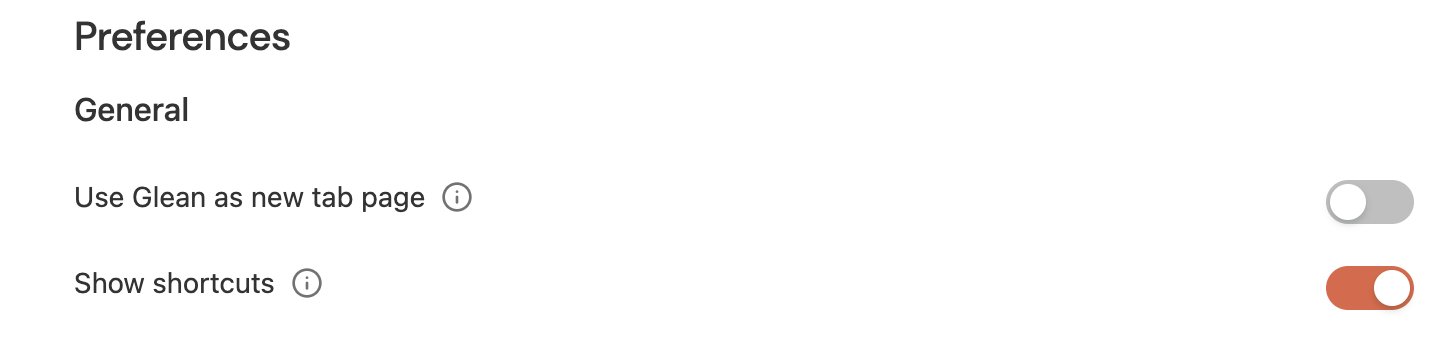
[](https://docs.glean.com/user-guide/knowledge/home-page/shortcuts#managing-your-shortcuts)
Managing Your Shortcuts
-----------------------------------------------------------------------------------------------------------------------
Once the feature is enabled, managing your shortcuts is easy. Here’s how:
1. Navigate to the Glean Home Page
* Go to the Glean home page, where you’ll now notice a small menu with three dots (…). This is the **Manage Shortcuts** option. 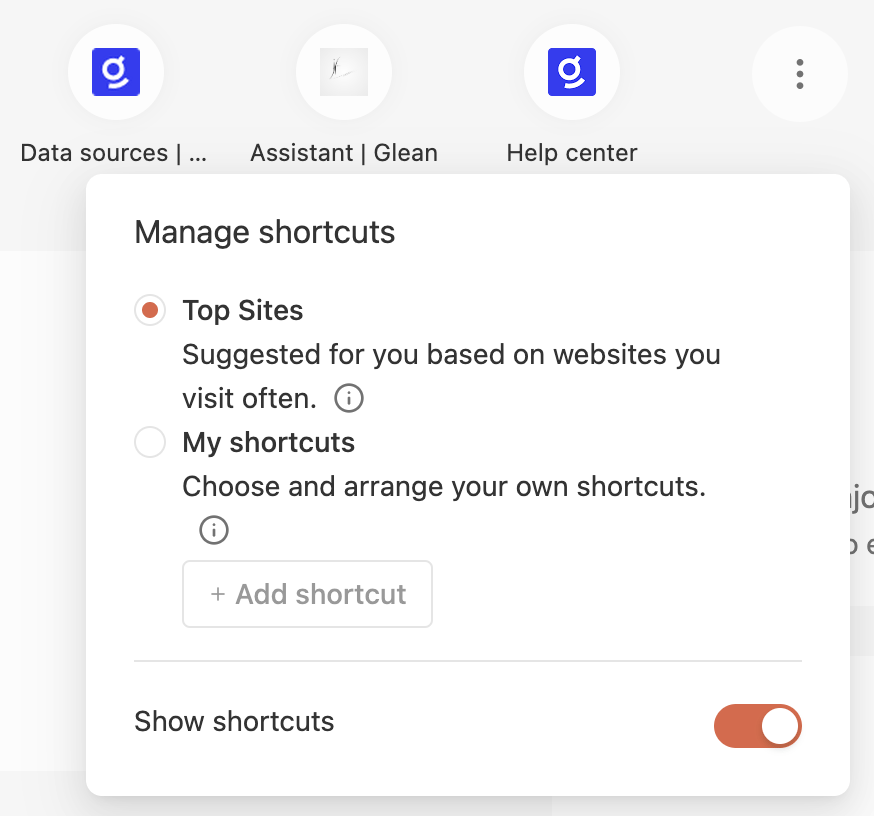
2. Click on these three dots i.e ‘Manage Shortcuts’
* When you click on **Manage Shortcuts**, you’ll be presented with two options:
* **Top Sites**: This section automatically displays sites you visit most frequently. If enabled, these sites will appear on your home page for quick access.
* **My Shortcuts**: Clicking this option will reveal the ‘Add Shortcut’ sub-tab, which will now be highlighted (previously dimmed). This is where you can manually add and customize the sites you want to appear as your preferred shortcuts. 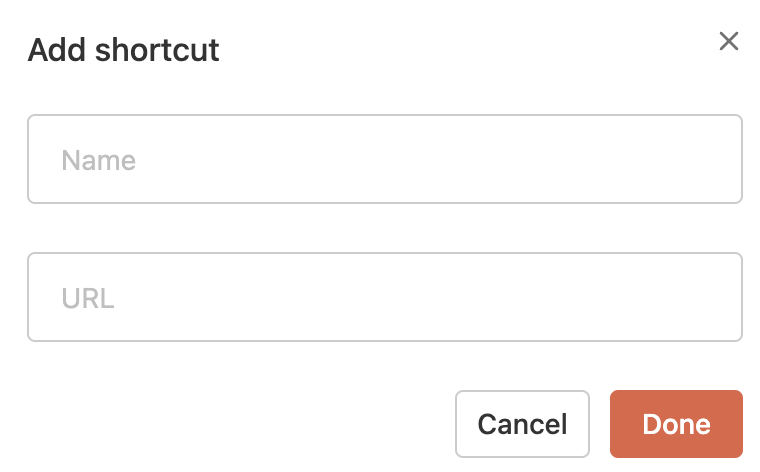
[](https://docs.glean.com/user-guide/knowledge/home-page/shortcuts#adding-%E2%80%98my-shortcuts%E2%80%99)
Adding ‘My Shortcuts’
-----------------------------------------------------------------------------------------------------------------------------------
To add a new shortcut, follow these simple steps:
1. Click on the ‘Add Shortcut’ option in the My Shortcuts tab.
2. A small dialog box will appear asking for the name and URL of the site you want to add. Enter this information and click Add.
3. Once the shortcut is created, you will receive a confirmation message on the screen. The icon for the site will also appear in your home page’s Shortcuts section.
While both Shortcuts and Go Links serve the purpose of providing quick access, they are distinct features. Shortcuts are designed for personal use, offering quick links to frequently visited sites. In contrast, Go Links are a specialized feature within Glean, intended for creating easy-to-remember URLs for company resources. This makes it easier to navigate internal tools and resources.
Was this page helpful?
YesNo
[Celebrations Widget](https://docs.glean.com/user-guide/knowledge/home-page/celebrations-widget)
[Mentions](https://docs.glean.com/user-guide/knowledge/home-page/mentions)
⌘I
---
# Page Not Found
[Skip to main content](https://docs.glean.com/user-guide/knowledge/meetings/calendar-widget#content-area)
[Glean Help Center home page](https://docs.glean.com/)
Search...
⌘K
Search...
Navigation
Page Not Found
[Home](https://docs.glean.com/home)
[User Guide](https://docs.glean.com/user-guide/about/what-is-glean)
[Agents](https://docs.glean.com/agents/home)
[Get Started for Admins](https://docs.glean.com/get-started/welcome)
[Connectors](https://docs.glean.com/connectors/home)
[Admin Guide](https://docs.glean.com/administration/about)
[Security & Architecture](https://docs.glean.com/security/home)
[Troubleshooting](https://docs.glean.com/troubleshooting/home)
[Release Notes](https://docs.glean.com/release-notes/home)
[Archive](https://docs.glean.com/archive/help-glean/answers/what-are-answers-and-how-do-they-work)
404
Page Not Found
==============
We couldn't find the page. Maybe you were looking for one of these pages below?
[Customizing your Glean profile](https://docs.glean.com/user-guide/basics/customizing-your-glean-profile#collaboration-widgets)
[Google Calendar Native Connector](https://docs.glean.com/connectors/native/gcal/native-setup#)
[Use Zoom meeting transcripts in Search, Chat, and Home](https://docs.glean.com/user-guide/knowledge/meetings-and-calendar/zoom-meeting-transcripts#summarize-past-meetings-from-home)
⌘I
---
# How to use Team Pages - Glean Help Center
[Skip to main content](https://docs.glean.com/user-guide/people/teams/how-to-use-team-pages#content-area)
[Glean Help Center home page](https://docs.glean.com/)
Search...
⌘K
Search...
Navigation
Teams
How to use Team Pages
[Home](https://docs.glean.com/home)
[User Guide](https://docs.glean.com/user-guide/about/what-is-glean)
[Agents](https://docs.glean.com/agents/home)
[Get Started for Admins](https://docs.glean.com/get-started/welcome)
[Connectors](https://docs.glean.com/connectors/home)
[Admin Guide](https://docs.glean.com/administration/about)
[Security & Architecture](https://docs.glean.com/security/home)
[Troubleshooting](https://docs.glean.com/troubleshooting/home)
[Release Notes](https://docs.glean.com/release-notes/home)
[Archive](https://docs.glean.com/archive/help-glean/answers/what-are-answers-and-how-do-they-work)
On this page
* [Anatomy of a team page](https://docs.glean.com/user-guide/people/teams/how-to-use-team-pages#anatomy-of-a-team-page)
* [Team directory:](https://docs.glean.com/user-guide/people/teams/how-to-use-team-pages#team-directory)
* [Teams in search:](https://docs.glean.com/user-guide/people/teams/how-to-use-team-pages#teams-in-search)
Glean’s team pages provide you and other employees at your company with a shared space to coordinate your efforts. Each page allows you to share what your team is working on, who’s on that team, and what the best way is to contact you. This way, it is easier for you to work within your team and share information across functions at your organization. At a minimum, Glean recommends creating team pages for all of your company’s departments, but the possibilities for what team pages you have are limitless! Customers use team pages to create workspaces for individual project pods, employee resource groups and social groups for particular geographic areas. Right now, only Glean admins and team moderators can create new team pages, so contact them for information on how to get new teams set up. This guide provides additional information on how to use team pages for teams you are a part of:
[](https://docs.glean.com/user-guide/people/teams/how-to-use-team-pages#anatomy-of-a-team-page)
Anatomy of a team page
--------------------------------------------------------------------------------------------------------------------------
Team profile pages contain detailed information about a team. Each page has a set of components, including:
* Team name
* What department the team is a part of
* Team membersWho is on the teamWho leads the team
* Team profile image
* Banner image
* “About” section for describing what the team does (this can include multiple paragraphs of rich text, with hyperlinks, images and more)
* Contact infoEmail addresses to contact the team (can be a team alias, or any other address)Team Slack channelsURLs (can link to any page, including intranet and external content)
Glean recommends ensuring that your team pages have informative and up-to-date descriptions, and links to relevant contact information. Some ideas for information to put in your team’s description:
* A description of what your team is responsible for
* Information about who the correct contacts on your team are for cross-functional work
* Links to project plans and quarterly goals
* Information about upcoming events or key milestones
To edit these fields, click on the “edit” button in the upper-right-hand corner of the team page. Your organization may have particular style guides or best practices in place for teams pages — for information on that, contact your Glean admin.
[](https://docs.glean.com/user-guide/people/teams/how-to-use-team-pages#team-directory)
Team directory:
-----------------------------------------------------------------------------------------------------------
For easy discoverability, teams appear in the directory alongside people. Teams can be sorted by relevance, team size, and alphabetically by name. Teams can also be filtered by name. The screenshot below is what part of the teams directory looks like when sorted by relevance for an engineer on the Verticals team that works closely with Product. Clicking on a team links to the team profile page.
[](https://docs.glean.com/user-guide/people/teams/how-to-use-team-pages#teams-in-search)
Teams in search:
-------------------------------------------------------------------------------------------------------------
When your search indicates you are looking for a team, they will appear prominently in the results. These teams appear as expandable cards and can be expanded to show a subset of up to 6 members. Clicking on a card will take you to the team profile page. Teams will also show up as autocomplete results as you are typing a query. If you click on the team name, you will be taken to the team’s profile page.
Was this page helpful?
YesNo
[Use Zoom meeting transcripts in Search, Chat, and Home](https://docs.glean.com/user-guide/knowledge/meetings-and-calendar/zoom-meeting-transcripts)
[Setting up Team Pages](https://docs.glean.com/user-guide/people/teams/setting-up-team-pages)
⌘I
---
# Mentions - Glean Help Center
[Skip to main content](https://docs.glean.com/user-guide/knowledge/home-page/mentions#content-area)
[Glean Help Center home page](https://docs.glean.com/)
Search...
⌘K
Search...
Navigation
Home Page
Mentions
[Home](https://docs.glean.com/home)
[User Guide](https://docs.glean.com/user-guide/about/what-is-glean)
[Agents](https://docs.glean.com/agents/home)
[Get Started for Admins](https://docs.glean.com/get-started/welcome)
[Connectors](https://docs.glean.com/connectors/home)
[Admin Guide](https://docs.glean.com/administration/about)
[Security & Architecture](https://docs.glean.com/security/home)
[Troubleshooting](https://docs.glean.com/troubleshooting/home)
[Release Notes](https://docs.glean.com/release-notes/home)
[Archive](https://docs.glean.com/archive/help-glean/answers/what-are-answers-and-how-do-they-work)
On this page
* [Overview](https://docs.glean.com/user-guide/knowledge/home-page/mentions#overview)
* [Mentions card details](https://docs.glean.com/user-guide/knowledge/home-page/mentions#mentions-card-details)
* [Supported sources and triggers](https://docs.glean.com/user-guide/knowledge/home-page/mentions#supported-sources-and-triggers)
* [Behavior and limits](https://docs.glean.com/user-guide/knowledge/home-page/mentions#behavior-and-limits)
* [Using Mentions](https://docs.glean.com/user-guide/knowledge/home-page/mentions#using-mentions)
[](https://docs.glean.com/user-guide/knowledge/home-page/mentions#overview)
Overview
----------------------------------------------------------------------------------------
Keep up with important activity where teammates tag you across your work apps from your **Home** page. The **Mentions** card surfaces recent activity where you were mentioned or assigned, helping you jump back into relevant conversations and documents quickly. Mentions display chronologically and include quick actions to review, copy links, or dismiss items you no longer need. This feature aims to streamline the process of staying updated on relevant discussions and tasks, ensuring that you do not miss out on important mentions across your work platforms.
[](https://docs.glean.com/user-guide/knowledge/home-page/mentions#mentions-card-details)
_Mentions_ card details
--------------------------------------------------------------------------------------------------------------------
* **A dedicated Mentions tab/card** on Home that is shown by default when you have new mentions. If there are no new mentions, Glean shows your **Suggested** content instead.
* **A chronological list** with the app icon, title, who mentioned you, and when. Multiple mentions in the same item is consolidated to reduce noise.
* **Quick actions** to mark all as read, dismiss, and copy a link. If Assistant is enabled in your org, you can also summarize a mention’s content.
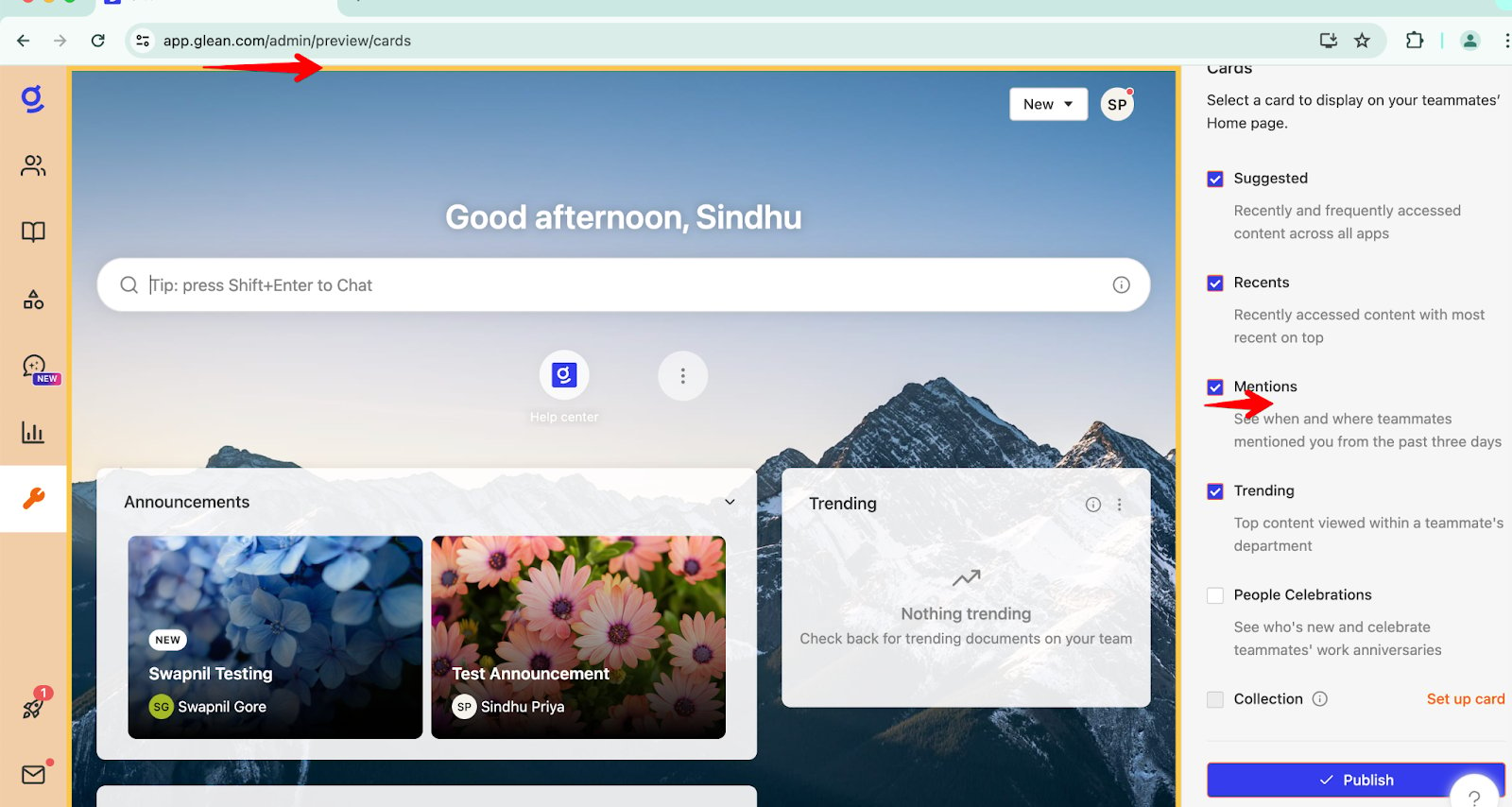
[](https://docs.glean.com/user-guide/knowledge/home-page/mentions#supported-sources-and-triggers)
Supported sources and triggers
------------------------------------------------------------------------------------------------------------------------------------
Below are common events that create a mention in Glean. Only content you have permission to access will appear.
* Jira integration
* You will receive notifications in your Mentions Feed when another user tags you in a comment or the body of a Jira issue, even if the issue is not assigned to you.
* Notifications are also sent when someone CC’s you in an issue, assigns an issue to you, or comments on an issue that is assigned to you.
* The feature covers instances when someone changes or updates an issue assigned to you. However, it does not include follow-up comments on a Jira comment you are tagged in unless you are tagged again.
* Google Drive integration
* In Google Drive, you are notified when someone assigns a comment to you, @mentions you in a comment, or shares a document with you. Similar to Jira, if you are @mentioned in the body of a document, it is not currently within the scope of what triggers a mention notification.
* Other supported apps
* Mentions can also surface from select connected apps. Current coverage includes Confluence, Google Drive, GitHub, and Jira.
[](https://docs.glean.com/user-guide/knowledge/home-page/mentions#behavior-and-limits)
Behavior and limits
--------------------------------------------------------------------------------------------------------------
* Time window: Mentions remain visible for up to 10 days (240 hours).
* List size: Up to 50 mentions are retrieved. The card shows up to 5 by default. You can select **More** to view the rest.
* Unread vs. dismiss: There is no manual _unread_ state. You can use dismiss to clear items you no longer need. Dismissed mentions are removed from your Mentions queue.
* Consolidation: Glean can consolidate multiple mentions in the same item and across users to reduce noise.
* Enabling/disabling: Glean can set these feature functionality to be enabled or disabled by default or it can be self served.
[](https://docs.glean.com/user-guide/knowledge/home-page/mentions#using-mentions)
Using Mentions
----------------------------------------------------------------------------------------------------
* The **Mentions** field on the home page gives you a quick glance of the tagged/mentioned conversations.
* You can also sort the mentions application-wise by selecting the drop-down field.
* You can review Mentions and mark them as read as needed in bulk or dismiss the suggestion.
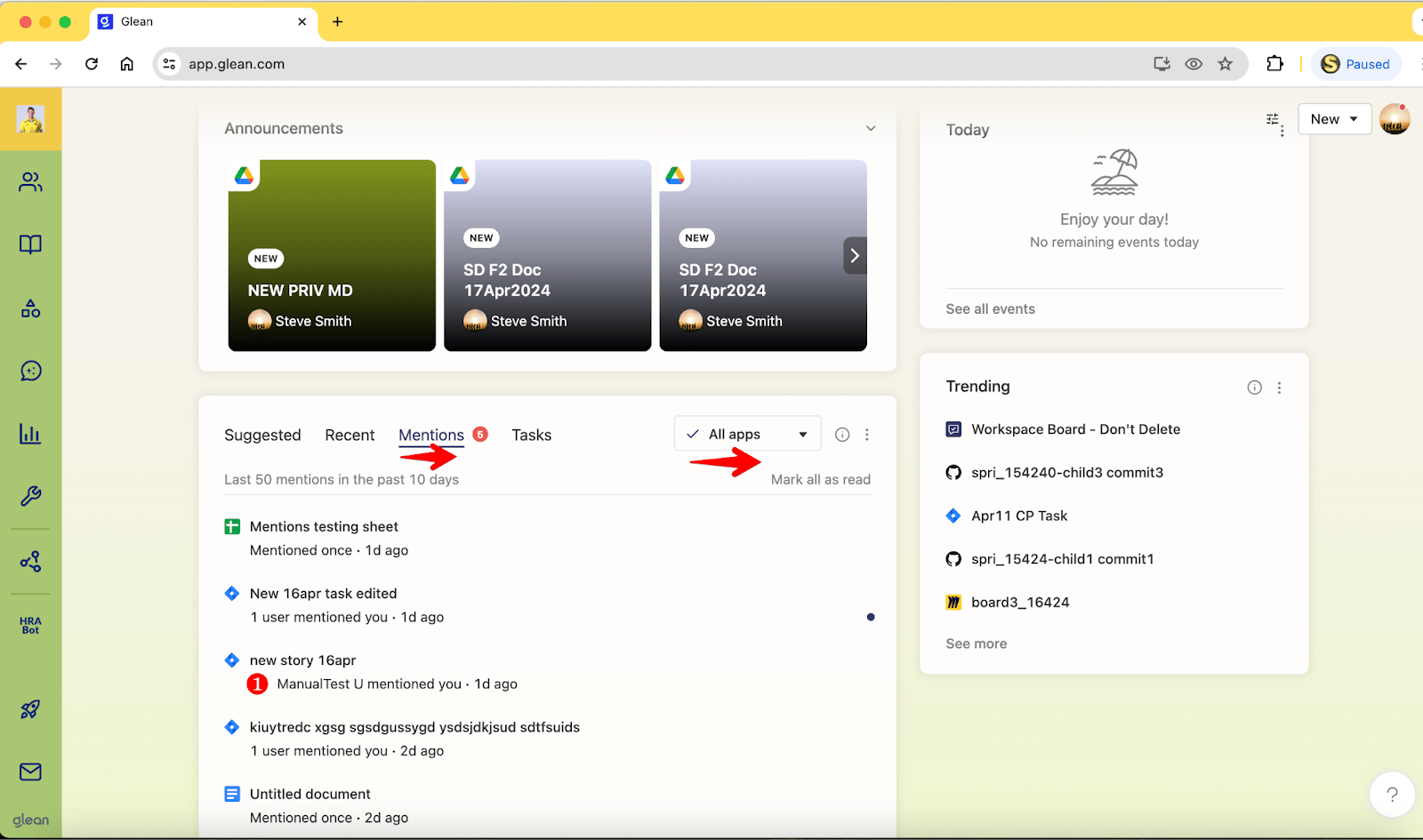
Was this page helpful?
YesNo
[Shortcuts](https://docs.glean.com/user-guide/knowledge/home-page/shortcuts)
[How Announcements Work](https://docs.glean.com/user-guide/knowledge/announcements/how-announcements-work)
⌘I
---
# What Should I Do With Documents That Are Completely Out Of Date? - Glean Help Center
[Skip to main content](https://docs.glean.com/user-guide/knowledge/verification/what-should-i-do-with-documents-that-are-completely-out-of-date#content-area)
[Glean Help Center home page](https://docs.glean.com/)
Search...
⌘K
Search...
Navigation
Document Verification
What Should I Do With Documents That Are Completely Out Of Date?
[Home](https://docs.glean.com/home)
[User Guide](https://docs.glean.com/user-guide/about/what-is-glean)
[Agents](https://docs.glean.com/agents/home)
[Get Started for Admins](https://docs.glean.com/get-started/welcome)
[Connectors](https://docs.glean.com/connectors/home)
[Admin Guide](https://docs.glean.com/administration/about)
[Security & Architecture](https://docs.glean.com/security/home)
[Troubleshooting](https://docs.glean.com/troubleshooting/home)
[Release Notes](https://docs.glean.com/release-notes/home)
[Archive](https://docs.glean.com/archive/help-glean/answers/what-are-answers-and-how-do-they-work)
On this page
* [Unsharing a document](https://docs.glean.com/user-guide/knowledge/verification/what-should-i-do-with-documents-that-are-completely-out-of-date#unsharing-a-document)
* [Deprecating a document](https://docs.glean.com/user-guide/knowledge/verification/what-should-i-do-with-documents-that-are-completely-out-of-date#deprecating-a-document)
* [How to deprecate a document](https://docs.glean.com/user-guide/knowledge/verification/what-should-i-do-with-documents-that-are-completely-out-of-date#how-to-deprecate-a-document)
* [What happens after I’ve deprecated a document?](https://docs.glean.com/user-guide/knowledge/verification/what-should-i-do-with-documents-that-are-completely-out-of-date#what-happens-after-i%E2%80%99ve-deprecated-a-document)
[](https://docs.glean.com/user-guide/knowledge/verification/what-should-i-do-with-documents-that-are-completely-out-of-date#unsharing-a-document)
Unsharing a document
==========================================================================================================================================================================
We get it. Sometimes, documents are just completely out of date and it’s best to remove them entirely. If you have such a document that is still being viewed by your teammates, then there are a few actions to take. If the document is not valuable at all anymore, it’s best to **unshare it or delete it** so that no one else will stumble across it. You will need to navigate to the document itself to **manually unshare or delete the document.** Glean does not have write permissions so you won’t be able to unshare or delete the document from Glean itself.
[](https://docs.glean.com/user-guide/knowledge/verification/what-should-i-do-with-documents-that-are-completely-out-of-date#deprecating-a-document)
Deprecating a document
==============================================================================================================================================================================
[](https://docs.glean.com/user-guide/knowledge/verification/what-should-i-do-with-documents-that-are-completely-out-of-date#how-to-deprecate-a-document)
How to deprecate a document
----------------------------------------------------------------------------------------------------------------------------------------------------------------------------------------
If your document is no longer valid but may still have some value, you can mark it as **Deprecated** to act as a warning to your teammates. This is similar to modifying the title of your document to include the words “deprecated”. For example, there might be documentation for an old product design that’s no longer in production, but can serve as a helpful reference for discussions or ideation in the future. To deprecate a document, go to the **Verification > Your content** and click on the **Deprecate** button for a document. You’ll see a confirmation in a modal, and also get an option to unshare the document itself. 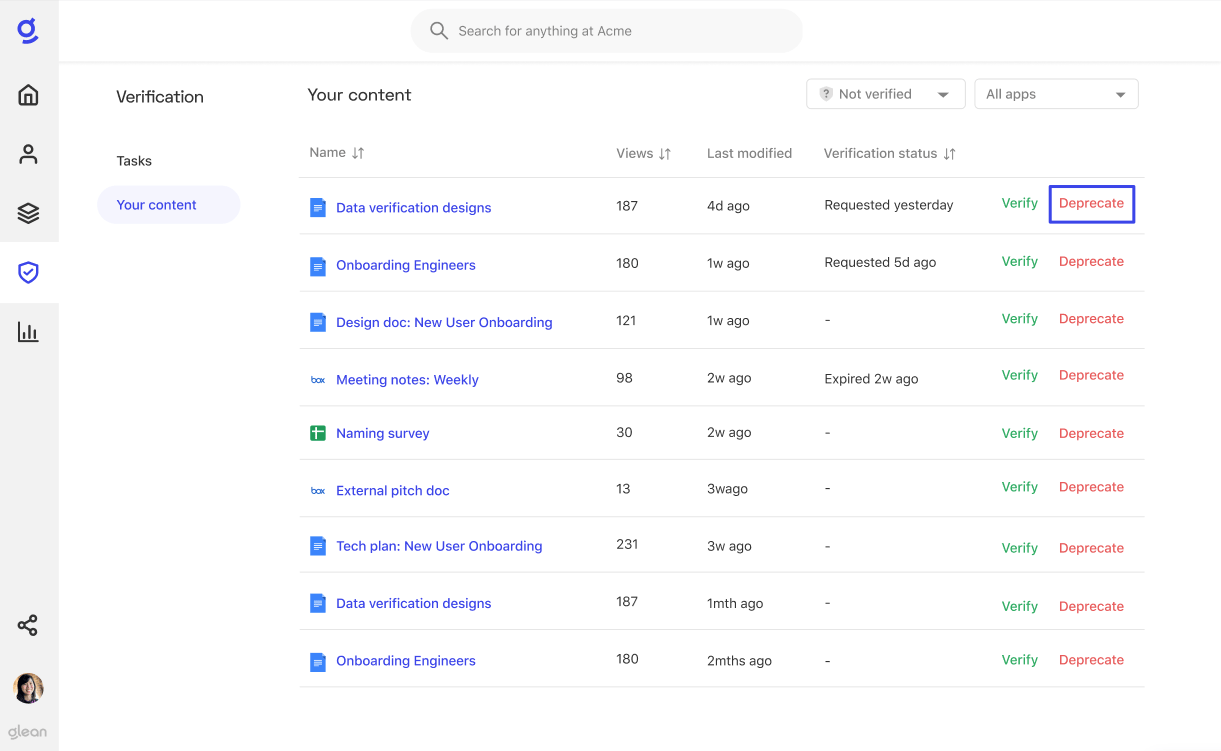
[](https://docs.glean.com/user-guide/knowledge/verification/what-should-i-do-with-documents-that-are-completely-out-of-date#what-happens-after-i%E2%80%99ve-deprecated-a-document)
What happens after I’ve deprecated a document?
-------------------------------------------------------------------------------------------------------------------------------------------------------------------------------------------------------------------------------------
Deprecated documents may still appear on Glean search results. However, a deprecated symbol will appear next to the document on the search results page. This status will also be seen from the document itself. 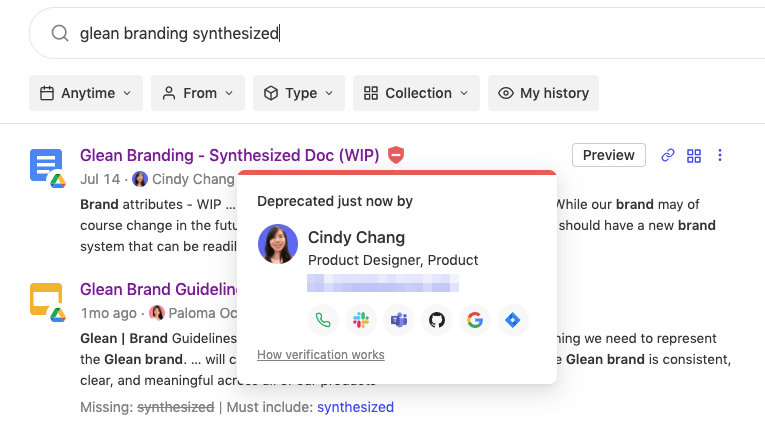
Was this page helpful?
YesNo
[Which Documents Should I Verify?](https://docs.glean.com/user-guide/knowledge/verification/which-documents-should-i-verify)
[Use Zoom meeting transcripts in Search, Chat, and Home](https://docs.glean.com/user-guide/knowledge/meetings-and-calendar/zoom-meeting-transcripts)
⌘I
---
# Setting up Team Pages - Glean Help Center
[Skip to main content](https://docs.glean.com/user-guide/people/teams/setting-up-team-pages#content-area)
[Glean Help Center home page](https://docs.glean.com/)
Search...
⌘K
Search...
Navigation
Teams
Setting up Team Pages
[Home](https://docs.glean.com/home)
[User Guide](https://docs.glean.com/user-guide/about/what-is-glean)
[Agents](https://docs.glean.com/agents/home)
[Get Started for Admins](https://docs.glean.com/get-started/welcome)
[Connectors](https://docs.glean.com/connectors/home)
[Admin Guide](https://docs.glean.com/administration/about)
[Security & Architecture](https://docs.glean.com/security/home)
[Troubleshooting](https://docs.glean.com/troubleshooting/home)
[Release Notes](https://docs.glean.com/release-notes/home)
[Archive](https://docs.glean.com/archive/help-glean/answers/what-are-answers-and-how-do-they-work)
On this page
* [Setup process:](https://docs.glean.com/user-guide/people/teams/setting-up-team-pages#setup-process)
It can be hard to coordinate efforts between groups of people at your company, and Glean’s teams pages are here to help. These pages provide a single hub for people at your company to learn about who’s working together, and what they’re working on. This help article will guide you through the process of setting up teams; for more information on how to use team pages, see [this article](https://docs.glean.com/user-guide/people/teams/how-to-use-team-pages)
. _Note:_ _Only admins and users with team moderator permissions can set up teams._ Users can access teams pages through search, by clicking on teams in user profiles, and by visiting the team directory. All members of a team will be able to edit that page, including its name, description, profile photo, banner photo, contact information and which members are listed as leads on the team page. Users can be in multiple teams at once. That way, one person can be in a team for their department, the DevOps pod they’re working in and an employee resource group they’re a part of. Glean recommends – at a minimum – setting up teams pages for every department. After that, we see additional value from creating teams that match your company’s internal structure Once you have teams set up in your organization, Glean recommends enlisting individual team leads to update their teams’ contents, including photos, descriptions, and preferred contact methods. (Those leads are welcome to delegate those tasks as necessary, but they have the best context for what to create.) From there, users should begin seeing the teams pages as they use Glean normally.
[](https://docs.glean.com/user-guide/people/teams/setting-up-team-pages#setup-process)
Setup process:
---------------------------------------------------------------------------------------------------------
To create a new team, go to the team dashboard in Glean’s Directory tab. Click on the “new team” button in the upper right-hand corner, and then follow the prompts to go about creating teams from there. We currently support creating teams from two sources:
* **Slack**: All public slack channels connected to the Glean instance can be used to create teams where all channel members will be part of the team.
* Note: Slackentgrid is not supported as a team source.
* **People data in Glean**: You can also create teams from eligible fields (e.g. department, role, location, and/or team) in your company’s people data. This data is typically populated from your single sign-on system, such as Google Workspace, Okta or Azure Active Directory.You can use multiple people data fields to create teams, so your company can have pages based on departments, locations and other facets.
While not recommended, Glean also supports manually creating teams through our Push API. For more information on that, contact your Account Manager or Delivery Excellence Manager. Once a team has been created in the teams dashboard, it may take up to an hour to appear in search results for all users. In the meantime, admins can view all teams (including those queued for creation) on the teams dashboard. The teams dashboard supports the following functions:
* Searching for a team by name
* Filtering for a team based on department or business unit
* Ordering teams based on name, data source (e.g Slack, people data in Glean), created from (for Slack this is the channel name, for people fields this is the field name), and last updated (the last time a team page has been edited)Note that all teams being created or deleted will show up first in the dashboard while Glean is processing them.
* Bulk deletion of teams
Was this page helpful?
YesNo
[How to use Team Pages](https://docs.glean.com/user-guide/people/teams/how-to-use-team-pages)
[Using the Glean MCP Server](https://docs.glean.com/user-guide/mcp/usage)
⌘I
---
# What Does Verification Mean? - Glean Help Center
[Skip to main content](https://docs.glean.com/user-guide/knowledge/verification/what-does-verification-mean#content-area)
[Glean Help Center home page](https://docs.glean.com/)
Search...
⌘K
Search...
Navigation
Document Verification
What Does Verification Mean?
[Home](https://docs.glean.com/home)
[User Guide](https://docs.glean.com/user-guide/about/what-is-glean)
[Agents](https://docs.glean.com/agents/home)
[Get Started for Admins](https://docs.glean.com/get-started/welcome)
[Connectors](https://docs.glean.com/connectors/home)
[Admin Guide](https://docs.glean.com/administration/about)
[Security & Architecture](https://docs.glean.com/security/home)
[Troubleshooting](https://docs.glean.com/troubleshooting/home)
[Release Notes](https://docs.glean.com/release-notes/home)
[Archive](https://docs.glean.com/archive/help-glean/answers/what-are-answers-and-how-do-they-work)
On this page
* [For example](https://docs.glean.com/user-guide/knowledge/verification/what-does-verification-mean#for-example)
**Verification** is your stamp of approval on the accuracy of a document you own. By letting your teammates know your document is verified to be accurate, they can use the information in their work with confidence.
[](https://docs.glean.com/user-guide/knowledge/verification/what-does-verification-mean#for-example)
For example
====================================================================================================================
An engineer can **verify a tech plan**, so other engineers from different teams can input on the latest decisions with any dependencies or considerations. A product manager can **verify the release notes of a feature**, so Sales and Support teams can use that information in conversations with prospective and current customers. A designer can **verify a design proposal**, so engineers know it contains the most up-to-date requirements and designs for a feature they’re building. And many more! Get in touch via the Messenger with any questions or share use cases of your own.
Was this page helpful?
YesNo
[How Verification Works](https://docs.glean.com/user-guide/knowledge/verification/how-verification-works)
[Which Documents Should I Verify?](https://docs.glean.com/user-guide/knowledge/verification/which-documents-should-i-verify)
⌘I
---
# Which Documents Should I Verify? - Glean Help Center
[Skip to main content](https://docs.glean.com/user-guide/knowledge/verification/which-documents-should-i-verify#content-area)
[Glean Help Center home page](https://docs.glean.com/)
Search...
⌘K
Search...
Navigation
Document Verification
Which Documents Should I Verify?
[Home](https://docs.glean.com/home)
[User Guide](https://docs.glean.com/user-guide/about/what-is-glean)
[Agents](https://docs.glean.com/agents/home)
[Get Started for Admins](https://docs.glean.com/get-started/welcome)
[Connectors](https://docs.glean.com/connectors/home)
[Admin Guide](https://docs.glean.com/administration/about)
[Security & Architecture](https://docs.glean.com/security/home)
[Troubleshooting](https://docs.glean.com/troubleshooting/home)
[Release Notes](https://docs.glean.com/release-notes/home)
[Archive](https://docs.glean.com/archive/help-glean/answers/what-are-answers-and-how-do-they-work)
On this page
* [Which documents should I verify?](https://docs.glean.com/user-guide/knowledge/verification/which-documents-should-i-verify#which-documents-should-i-verify)
* [Respond to verification requests](https://docs.glean.com/user-guide/knowledge/verification/which-documents-should-i-verify#respond-to-verification-requests)
[](https://docs.glean.com/user-guide/knowledge/verification/which-documents-should-i-verify#which-documents-should-i-verify)
Which documents should I verify?
=================================================================================================================================================================
A few good questions to ask yourself on any document is:
* Will someone from another department look at this document for information they need?
* Will this information be used by Sales or Marketing to create customer material?
* Will someone on my team waste time if they use this information and it’s no longer accurate? Requirements docs, design docs, FAQs, wiki pages, and debugging instructions are good examples.
If you answer **Yes** to any of these questions, it’s probably a good document to **Verify** and focus on keeping up to date. _Note: this is not a comprehensive guide and you’ll have to use your own intuition on how valuable a document is._ **For example…** An engineer can **verify a tech plan,** so other engineers from different teams can input on the latest decisions with any dependencies or considerations. A product manager can **verify the release notes of a feature**, so Sales and Support teams can use that information in conversations with prospective and current customers. A designer can **verify a design proposal,** so engineers know it contains the most up-to-date requirements and designs for a feature they’re building.
[](https://docs.glean.com/user-guide/knowledge/verification/which-documents-should-i-verify#respond-to-verification-requests)
Respond to verification requests
==================================================================================================================================================================
When other teammates **request verification** on a document you own, or if it’s time to re-verify documents based on your own reminders, those documents appear on **Verification > Your tasks.** You can verify or deprecate documents from the list. 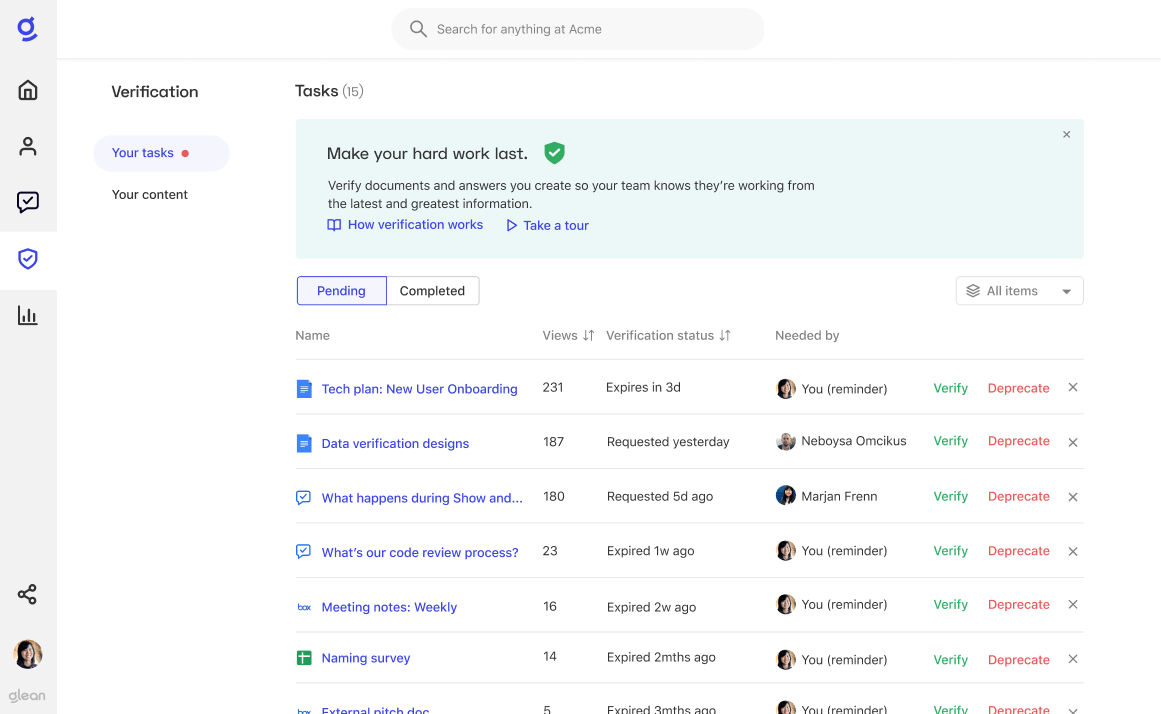
* * *
Questions? Let us know in the Messenger.
Was this page helpful?
YesNo
[What Does Verification Mean?](https://docs.glean.com/user-guide/knowledge/verification/what-does-verification-mean)
[What Should I Do With Documents That Are Completely Out Of Date?](https://docs.glean.com/user-guide/knowledge/verification/what-should-i-do-with-documents-that-are-completely-out-of-date)
⌘I
---
# How Announcements Work - Glean Help Center
[Skip to main content](https://docs.glean.com/user-guide/knowledge/announcements/how-announcements-work#content-area)
[Glean Help Center home page](https://docs.glean.com/)
Search...
⌘K
Search...
Navigation
Announcements
How Announcements Work
[Home](https://docs.glean.com/home)
[User Guide](https://docs.glean.com/user-guide/about/what-is-glean)
[Agents](https://docs.glean.com/agents/home)
[Get Started for Admins](https://docs.glean.com/get-started/welcome)
[Connectors](https://docs.glean.com/connectors/home)
[Admin Guide](https://docs.glean.com/administration/about)
[Security & Architecture](https://docs.glean.com/security/home)
[Troubleshooting](https://docs.glean.com/troubleshooting/home)
[Release Notes](https://docs.glean.com/release-notes/home)
[Archive](https://docs.glean.com/archive/help-glean/answers/what-are-answers-and-how-do-they-work)
On this page
* [What are Announcements?](https://docs.glean.com/user-guide/knowledge/announcements/how-announcements-work#what-are-announcements)
* [Create an Announcement](https://docs.glean.com/user-guide/knowledge/announcements/how-announcements-work#create-an-announcement)
* [Customize the banner area](https://docs.glean.com/user-guide/knowledge/announcements/how-announcements-work#customize-the-banner-area)
* [Write your announcement](https://docs.glean.com/user-guide/knowledge/announcements/how-announcements-work#write-your-announcement)
* [Include images](https://docs.glean.com/user-guide/knowledge/announcements/how-announcements-work#include-images)
* [Include a video URL](https://docs.glean.com/user-guide/knowledge/announcements/how-announcements-work#include-a-video-url)
* [Show or hide the announcement author](https://docs.glean.com/user-guide/knowledge/announcements/how-announcements-work#show-or-hide-the-announcement-author)
* [Choose your audience](https://docs.glean.com/user-guide/knowledge/announcements/how-announcements-work#choose-your-audience)
* [Schedule when it should appear and disappear from your teammates’ home pages](https://docs.glean.com/user-guide/knowledge/announcements/how-announcements-work#schedule-when-it-should-appear-and-disappear-from-your-teammates%E2%80%99-home-pages)
* [Preview the announcement](https://docs.glean.com/user-guide/knowledge/announcements/how-announcements-work#preview-the-announcement)
* [Publish the announcement](https://docs.glean.com/user-guide/knowledge/announcements/how-announcements-work#publish-the-announcement)
* [How Announcements appear](https://docs.glean.com/user-guide/knowledge/announcements/how-announcements-work#how-announcements-appear)
* [For Admins:](https://docs.glean.com/user-guide/knowledge/announcements/how-announcements-work#for-admins)
[](https://docs.glean.com/user-guide/knowledge/announcements/how-announcements-work#what-are-announcements)
What are Announcements?
=======================================================================================================================================
Announcements are a great way to promote updates on Glean’s home page for your teammates to see, especially if many teammates are using [Glean as their new tab page](https://chrome.google.com/webstore/detail/scio-search/cfpdompphcacgpjfbonkdokgjhgabpij)
. They can be targeted to a limited set of teammates for whatever duration you choose. 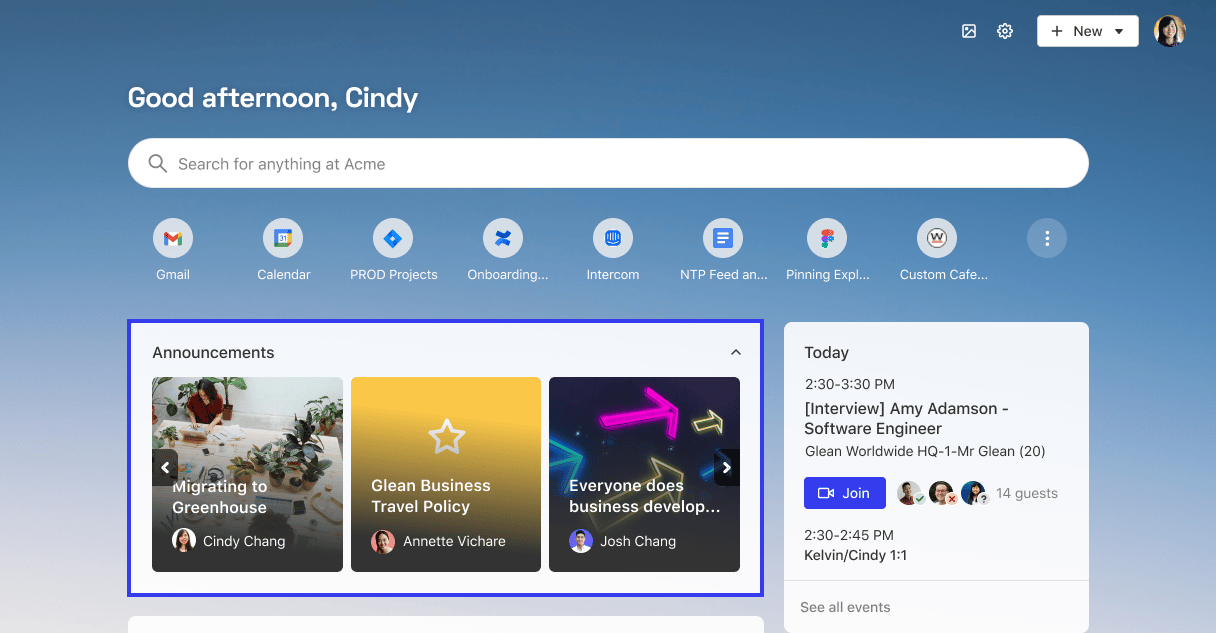
* * *
[](https://docs.glean.com/user-guide/knowledge/announcements/how-announcements-work#create-an-announcement)
Create an Announcement
======================================================================================================================================
If you have permission to create Announcements for your team, navigate to [Knowledge > Announcements](https://app.askscio.com/knowledge/announcements)
and click the **“New announcement”** button in the upper right corner. 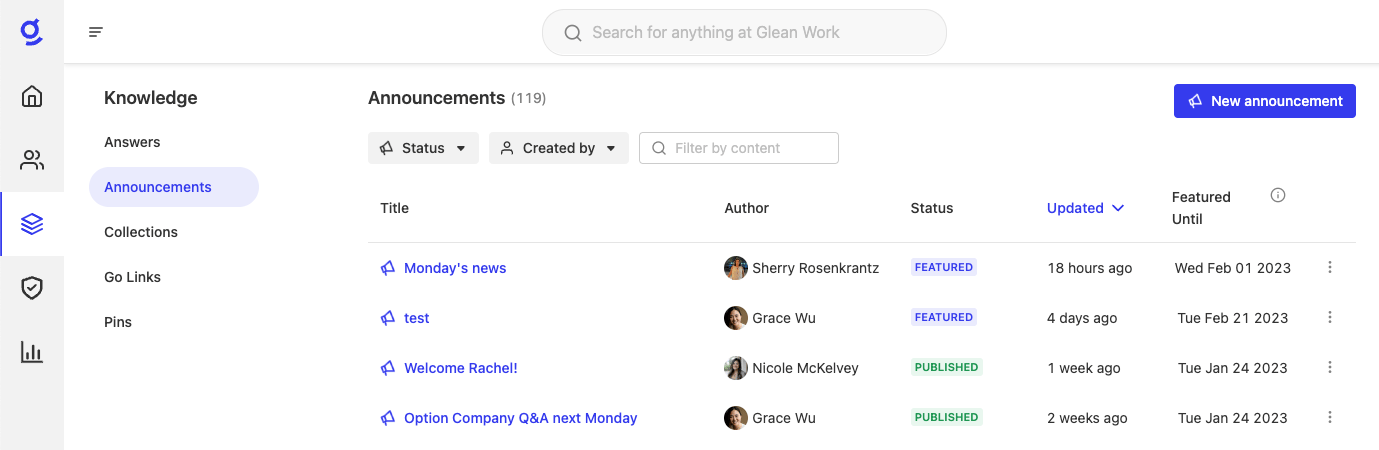 You will see the announcement composer to create your announcement. 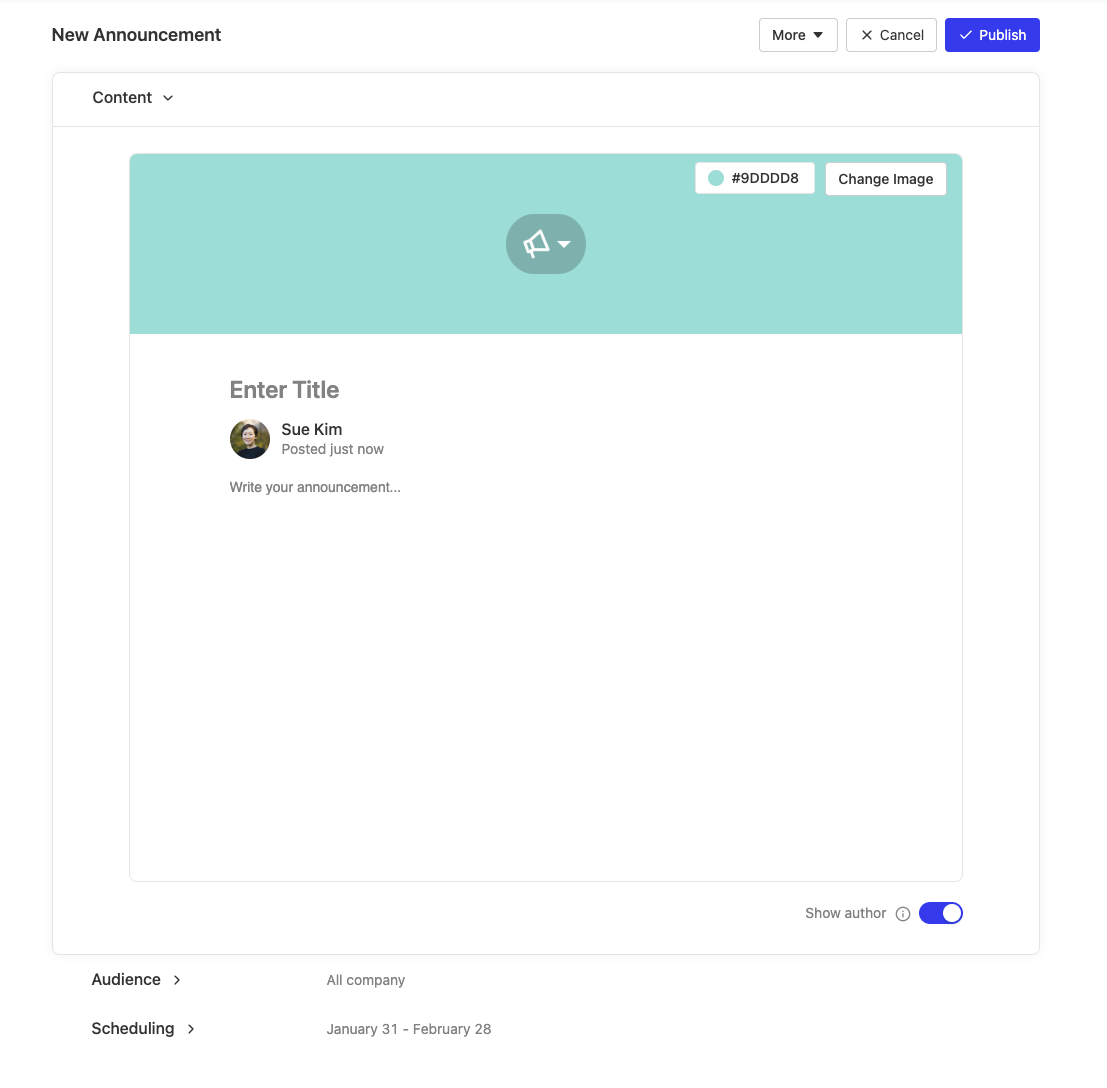
* * *
[](https://docs.glean.com/user-guide/knowledge/announcements/how-announcements-work#customize-the-banner-area)
Customize the banner area
--------------------------------------------------------------------------------------------------------------------------------------------
Choose a background color, icon, or image. 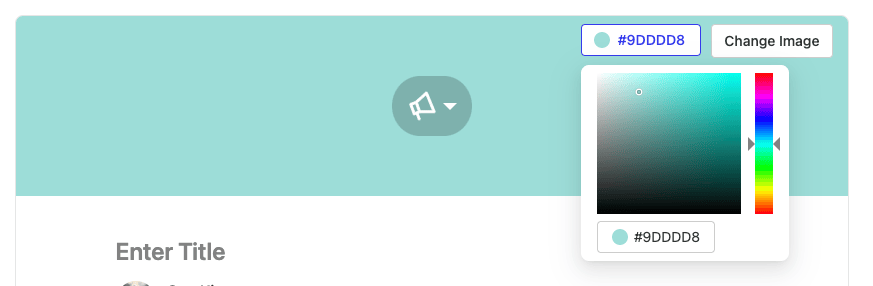 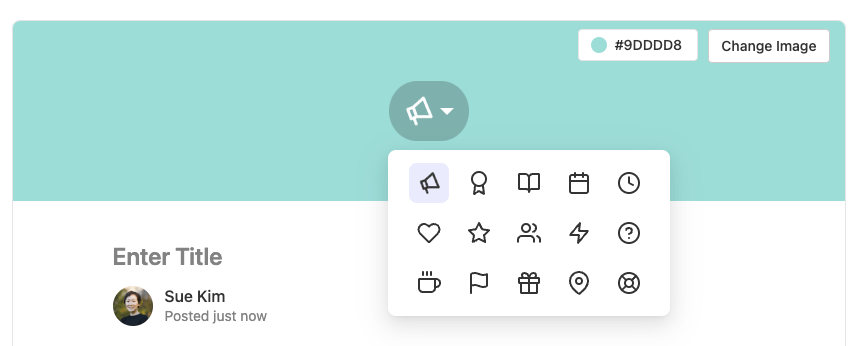 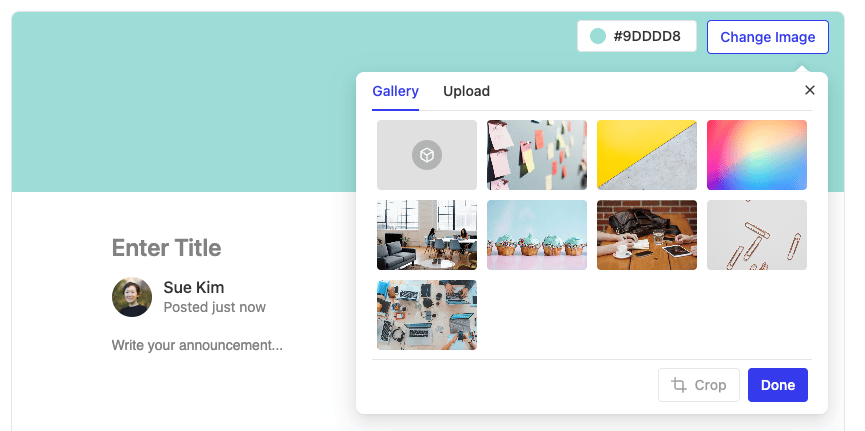 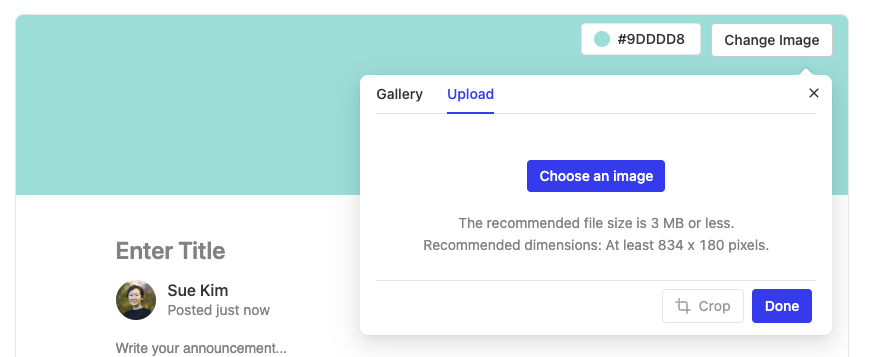
[](https://docs.glean.com/user-guide/knowledge/announcements/how-announcements-work#write-your-announcement)
Write your announcement
----------------------------------------------------------------------------------------------------------------------------------------
Give your announcement a title and use our WYSIWYG editor to easily compose your message. 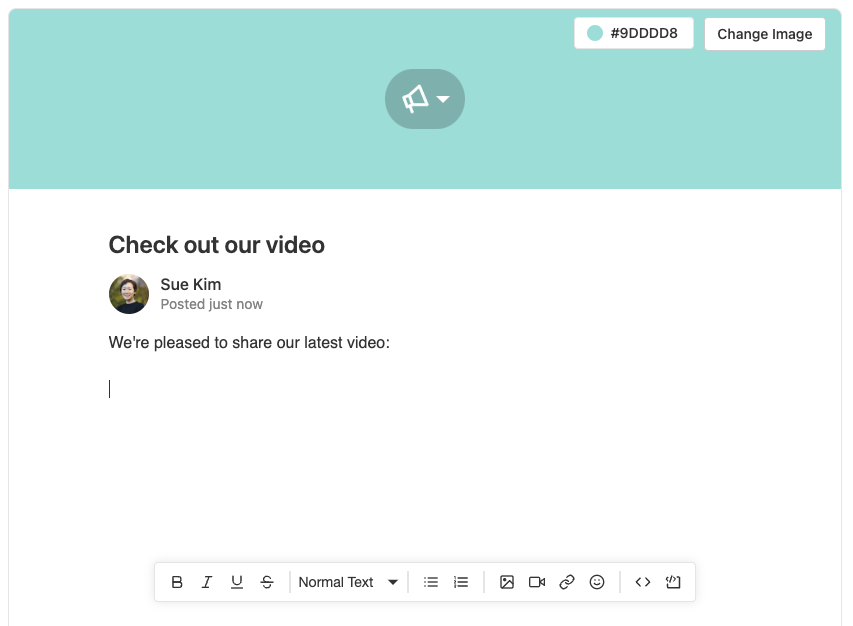
[](https://docs.glean.com/user-guide/knowledge/announcements/how-announcements-work#include-images)
Include images
----------------------------------------------------------------------------------------------------------------------
You can include images to enhance your announcement. Please make sure that your image is less than 1MB in size. After placing your image, you can resize it by clicking it and then dragging the corner handle. 
[](https://docs.glean.com/user-guide/knowledge/announcements/how-announcements-work#include-a-video-url)
Include a video URL
--------------------------------------------------------------------------------------------------------------------------------
We currently support Youtube, Vimeo, and Google Drive links.  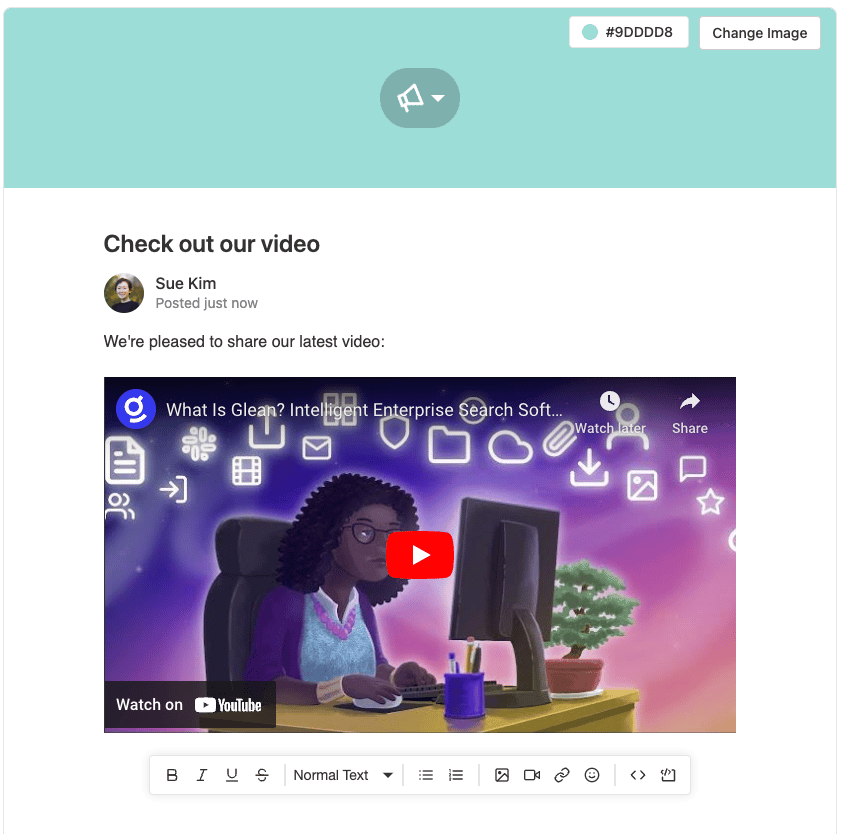
###
[](https://docs.glean.com/user-guide/knowledge/announcements/how-announcements-work#show-or-hide-the-announcement-author)
Show or hide the announcement author
If you prefer to hide the author name, turn off the _Show author_ toggle. 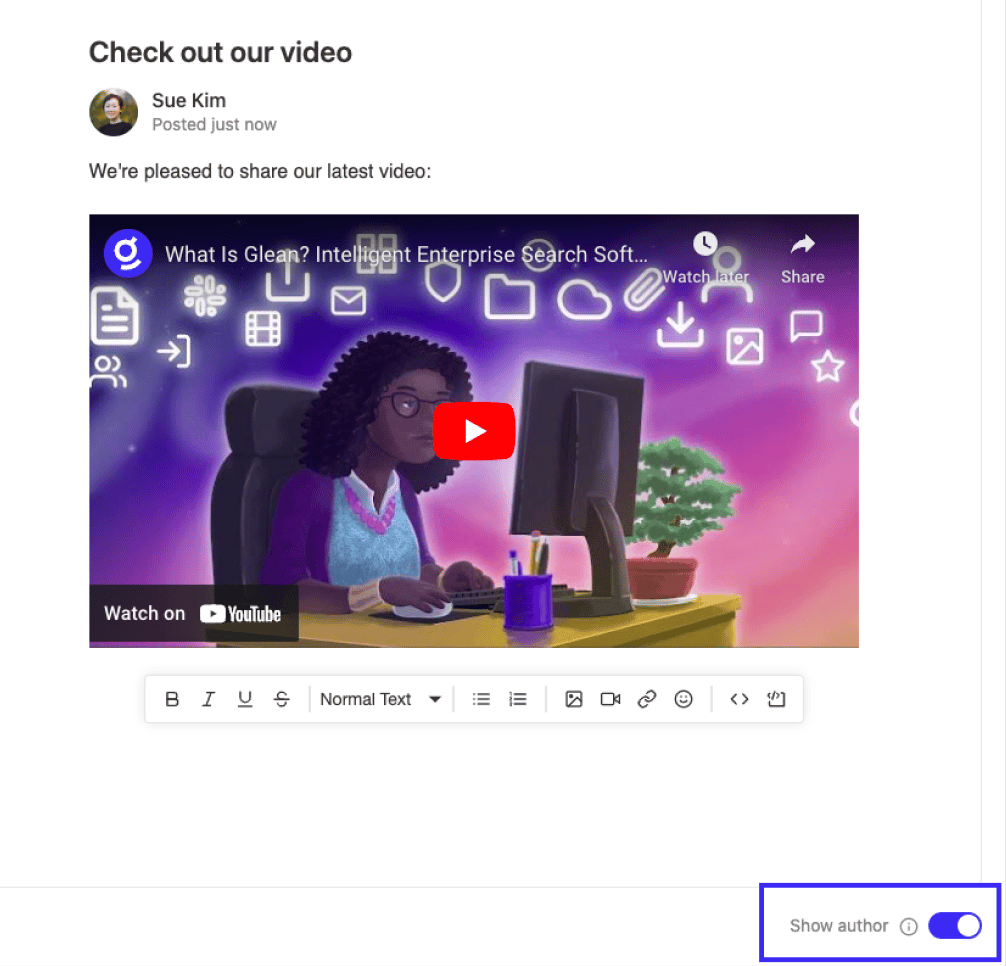 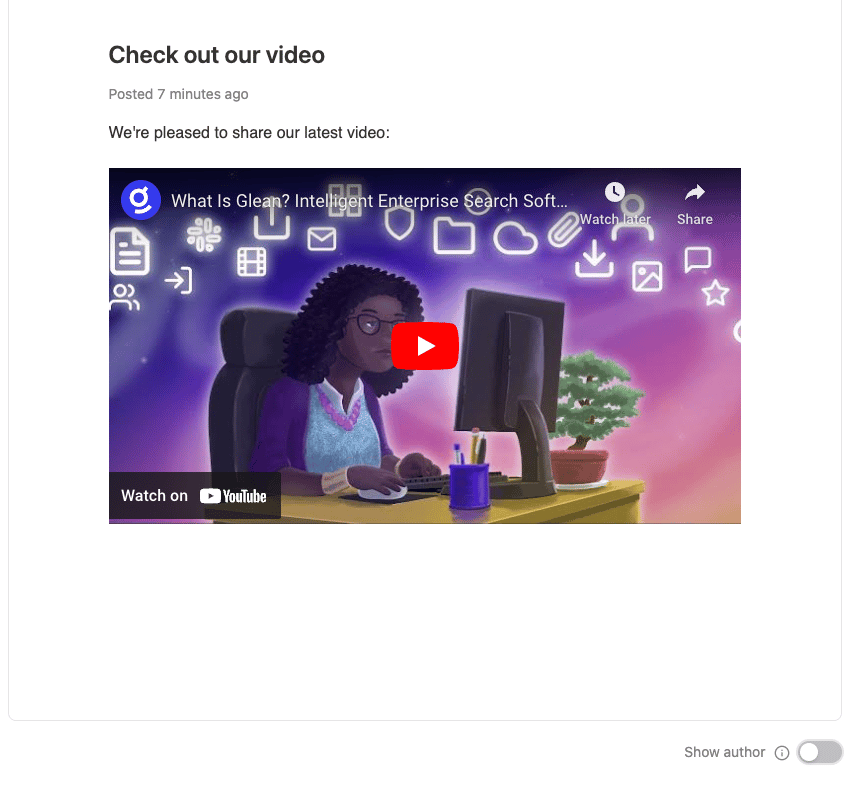
###
[](https://docs.glean.com/user-guide/knowledge/announcements/how-announcements-work#choose-your-audience)
Choose your audience
By default, your announcement will be shown to everyone in your organization. If you want to display the announcement to a select group of teammates, choose their _Department_ and _Location_. 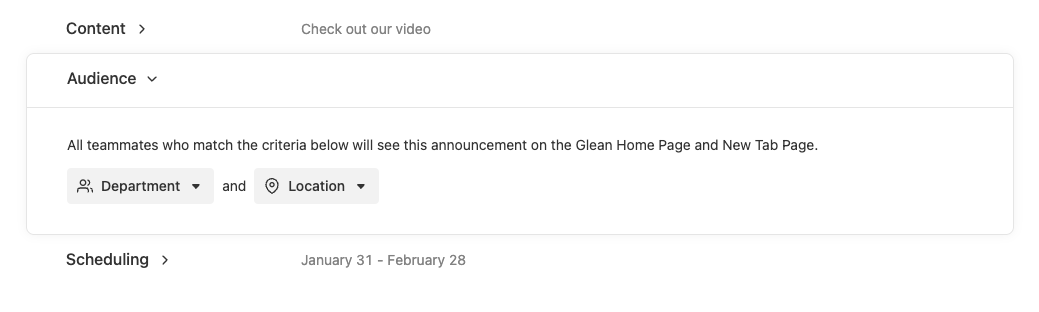
###
[](https://docs.glean.com/user-guide/knowledge/announcements/how-announcements-work#schedule-when-it-should-appear-and-disappear-from-your-teammates%E2%80%99-home-pages)
Schedule when it should appear and disappear from your teammates’ home pages
By default, your announcement will be featured on your teammates’ home page for a month. You can change it by specifying the dates in _Scheduling_. 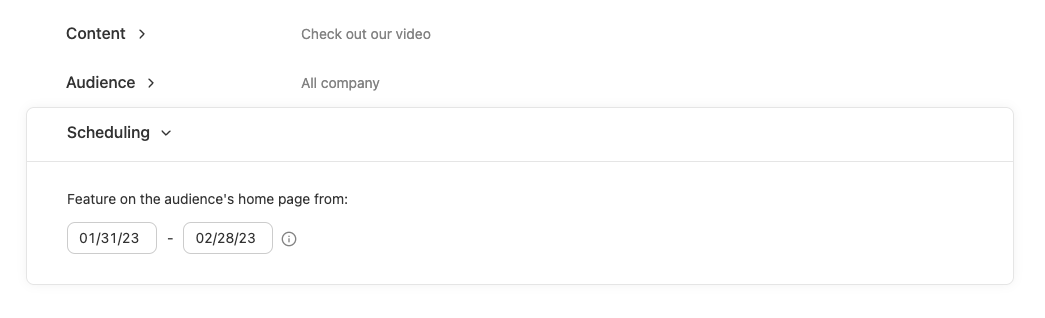
###
[](https://docs.glean.com/user-guide/knowledge/announcements/how-announcements-work#preview-the-announcement)
Preview the announcement
Click on the _More_ button on the top right and select _Preview announcement_. 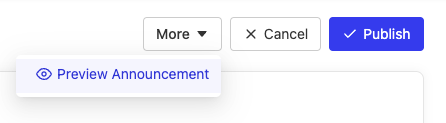 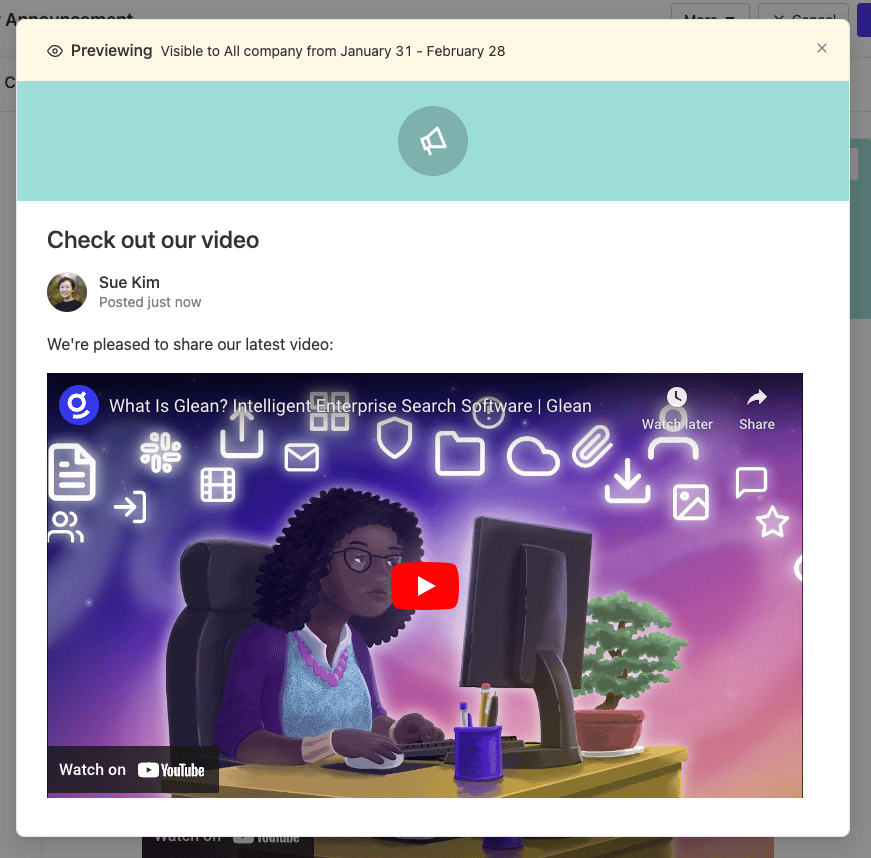
###
[](https://docs.glean.com/user-guide/knowledge/announcements/how-announcements-work#publish-the-announcement)
Publish the announcement
Select the _Publish_ button, and your announcement will appear on your teammates’ home pages! 
* * *
[](https://docs.glean.com/user-guide/knowledge/announcements/how-announcements-work#how-announcements-appear)
How Announcements appear
==========================================================================================================================================
If there are announcements visible to you, you’ll see an Announcements section on the Glean home page (or new tab page). You can click on the announcement itself to read in more detail, or hide it if irrelevant.
* * *
[](https://docs.glean.com/user-guide/knowledge/announcements/how-announcements-work#for-admins)
For Admins:
===============================================================================================================
Want to allow users to push announcements from Slack? Follow the steps [here](https://docs.glean.com/administration/knowledge/announcements/announcements-slack)
.
Was this page helpful?
YesNo
[Mentions](https://docs.glean.com/user-guide/knowledge/home-page/mentions)
[What Are Answers And How Do They Work?](https://docs.glean.com/user-guide/knowledge/answers/what-are-answers-and-how-do-they-work)
⌘I
---