# Table of Contents
- [Welcome 👋](#welcome-)
- [Quick Start Guide](#quick-start-guide)
- [Upload from Device](#upload-from-device)
- [FAQs](#faqs)
- [Cloud Storage](#cloud-storage)
- [Upload & Import Videos](#upload-import-videos)
- [Manage Videos](#manage-videos)
- [What is Gumlet?](#what-is-gumlet-)
- [Video Analytics](#video-analytics)
- [Import Zoom Recordings](#import-zoom-recordings)
- [Import from Wistia](#import-from-wistia)
- [Collection and Settings](#collection-and-settings)
- [Working with oEmbed: Embedding Videos](#working-with-oembed-embedding-videos)
- [Publish First Video](#publish-first-video)
- [Video Library](#video-library)
- [Usage Analytics](#usage-analytics)
---
# Welcome 👋
Videos
[](#videos)
----------------------
[Get Started\
\
Get started with video transcoding in minutes.\
\
est. 2 min](/docs/video-getting-started)
[Embed & Stream\
\
Embed videos in websites, apps, and stream effortlessly\
\
est. 2 min](/docs/publish-first-video)
[DRM\
\
Secure your videos with military grade DRM.\
\
est. 5 min](/docs/drm)
Images
[](#images)
----------------------
[Introduction\
\
See features provided by Gumlet and what makes us different.\
\
est. 1 min](/docs/image-introduction)
[Get Started\
\
Get started with image optimization and delivery in minutes.\
\
est. 4 min](/docs/image-getting-started)
[How Gumlet Works\
\
Learn how Gumlet image optimization and delivery works.\
\
est. 2 min](/docs/image-how-it-works)
Questions?
[](#questions)
-----------------------------
Please feel free to reach out via chat or [support@gumlet.com](mailto:support@gumlet.com)
if you need any help.
Updated 8 months ago
* * *
---
# Quick Start Guide
When you first log in to the Gumlet dashboard, we have a sample video ready for you to get started.
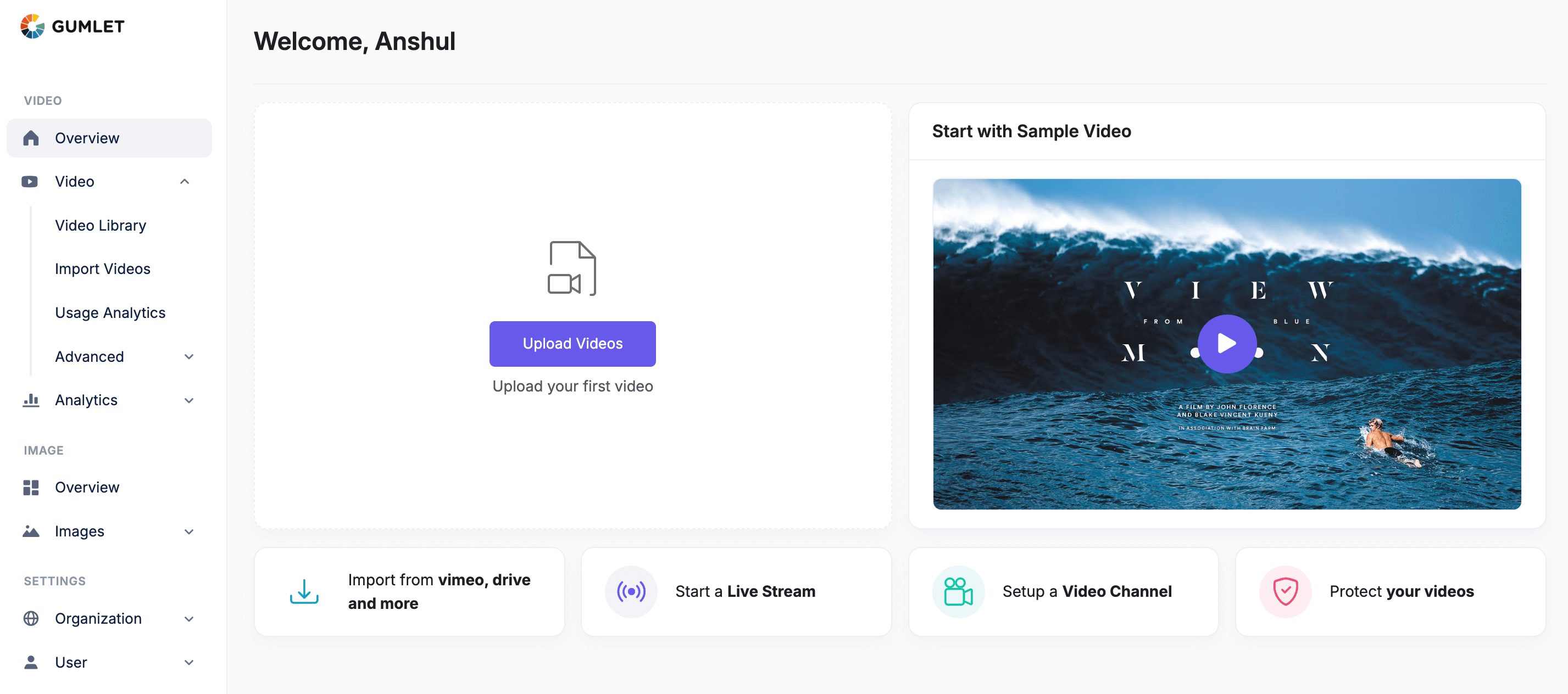
Do more with new [video dashboard](https://dashboard.gumlet.com/video/dashboard)
:
* Upload & Import videos
* Create a live stream
* Create a branded video channel
* Secure your videos using DRM
* Video tutorials to give you a headstart
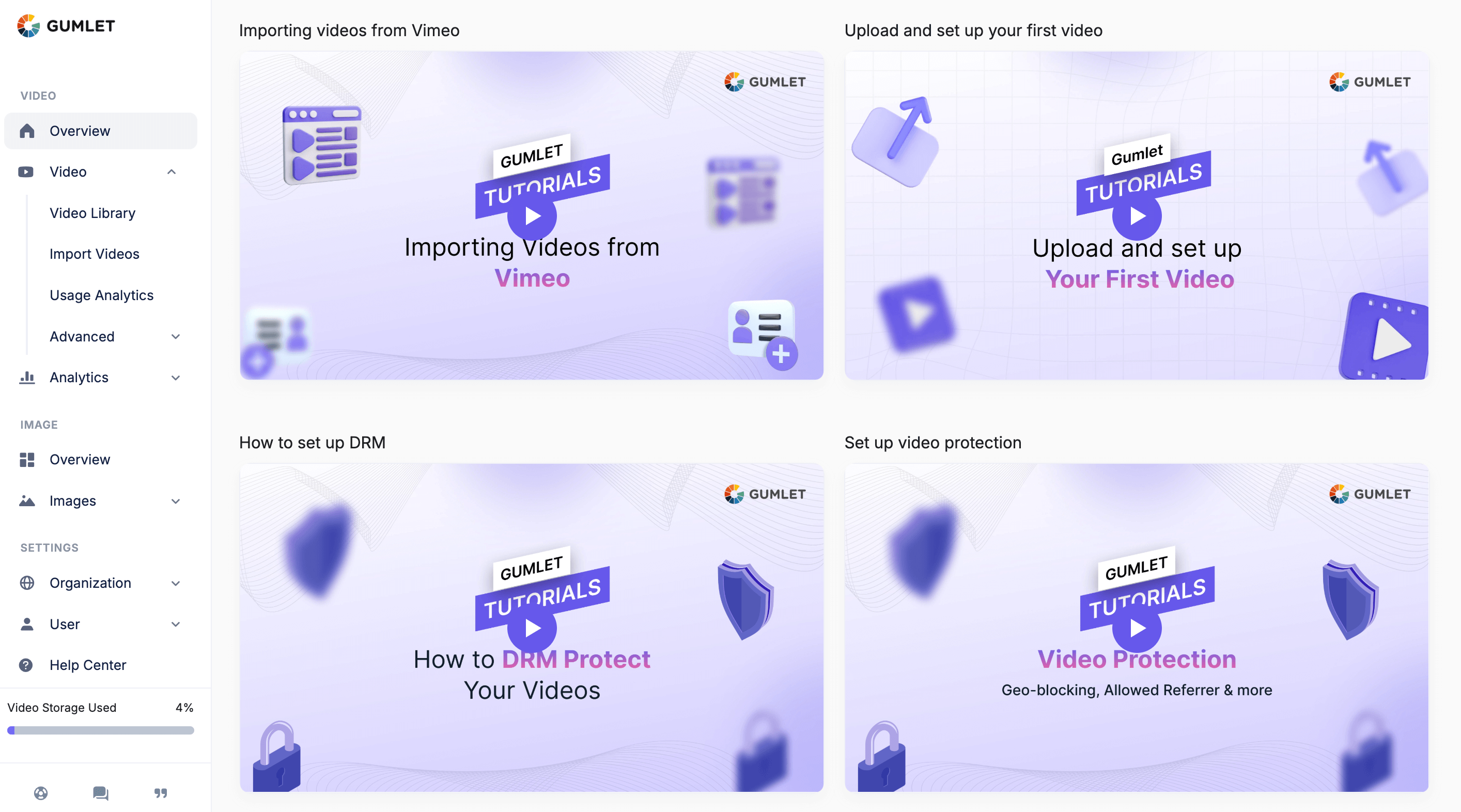
Video Tutorials on your dashboard
Below are the steps to upload videos and start streaming:
###
1\. Upload Video
[](#1-upload-video)
You can upload videos to a collection by clicking on `New Video` button. You choose files from your device. You can also import from other storage providers such as OneDrive, Dropbox, Google Drive, or a URL.
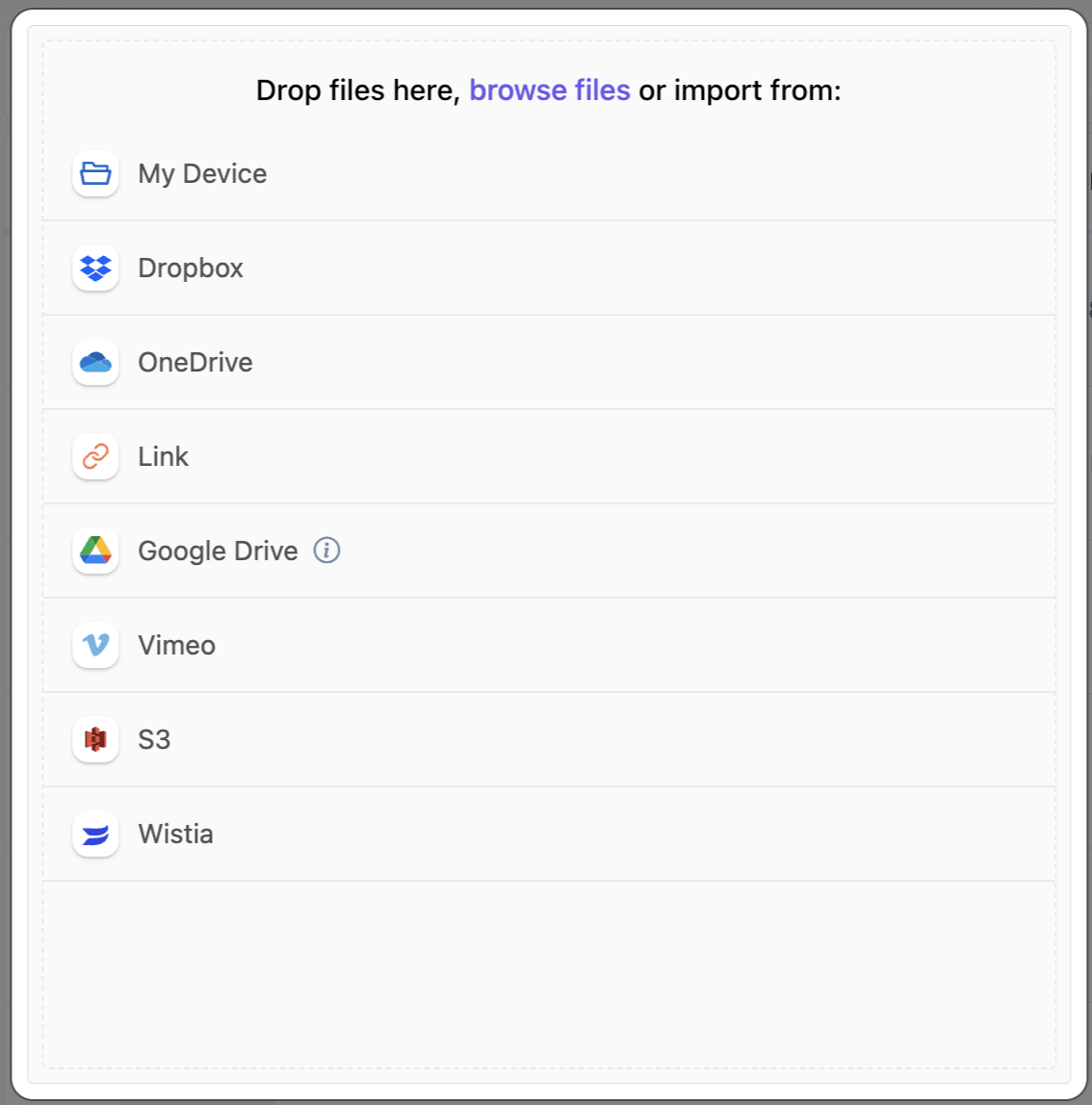
Video Upload Box
> You can also drag and drop videos directly inside this box for quick upload
###
2\. Start Streaming
[](#2-start-streaming)
Gumlet makes processing your videos extremely fast so videos are steam-ready within less than 5 seconds!
You can click on the video, go to the video details page, and click on the **Embed & Share** button to get different options to start streaming.
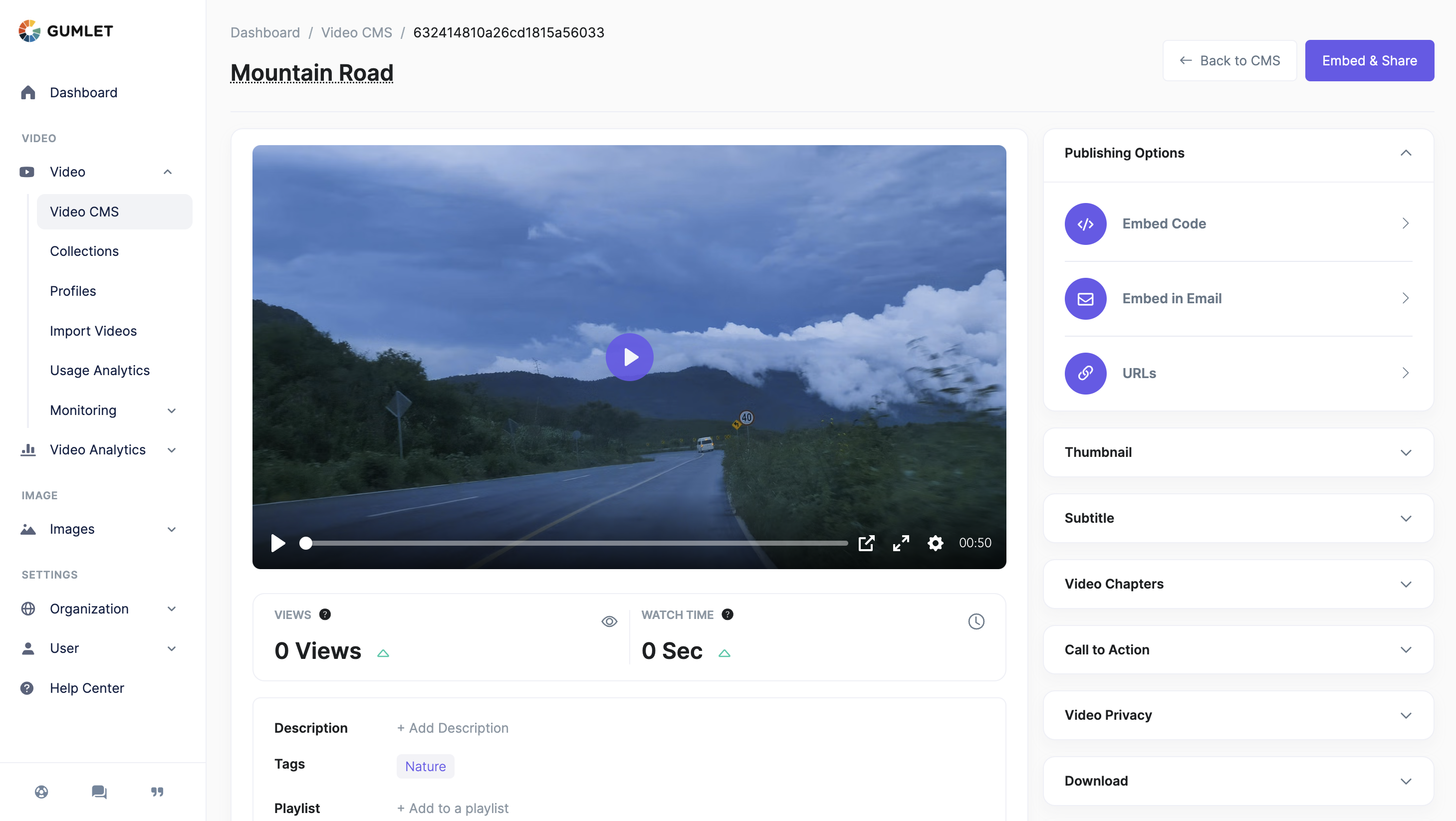
Video Details Page
> _Tip_: You can edit player settings and customise player to match your brand.
Updated about 1 month ago
* * *
* [Publish First Video](/docs/publish-first-video)
---
# Upload from Device
Uploading your original files to Gumlet is the easiest way to get started using Gumlet. When you do this, we store the original input file and all output files.
Add files
[](#add-files)
----------------------------
Drag and drop files in the upload box, or choose **My Device**. Upload should start automatically and you can monitor the progress.
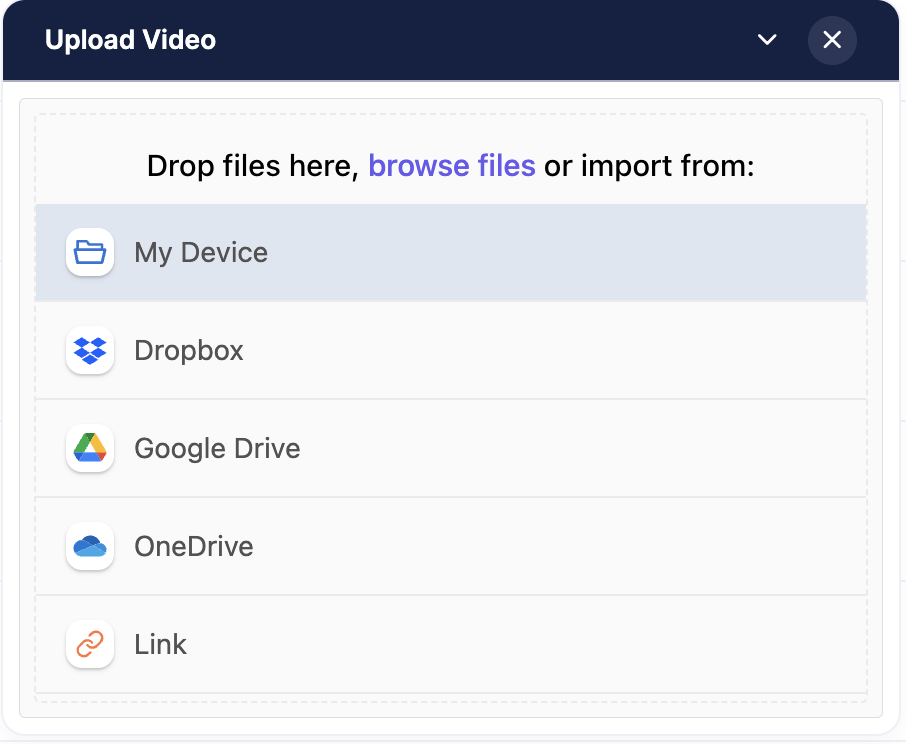
Upload Box
> Please note, there is no limit on file size but files which are not video / audio will result in processing error and will be deleted.
###
Original file
[](#original-file)
The files you upload are stored in their original form without any modifications. You always have the option to download the original file if you ever want. For streaming, this original version is never used. We process video and then we use the optimized and processed version for streaming which helps reduce streaming bandwidth.
If you ever delete the video from Gumlet, its original input file and all output files are deleted after 30 days. If you have any deletion by mistake, you have up to 30 days to request for restoration.
Updated 6 months ago
* * *
---
# FAQs
###
How do I download my original videos?
[](#how-do-i-download-my-original-videos)
You can download the original video from the video settings page. Go to **Video CMS** and click on the video you want to download. You will see a menu on the right-side panel named **Download**. Click on the `Download Video button` to download the original.
###
Does Gumlet store my data?
[](#does-gumlet-store-my-data)
Gumlet stores video views and other analytics data to provide you detailed analysis of how your videos are doing. At Gumlet, we believe privacy is the most important, so you can disable collecting analytics data in the collection settings [here](https://dashboard.gumlet.com/video/collections)
.
###
How to add subtitles to videos?
[](#how-to-add-subtitles-to-videos)
There are two ways to add subtitles to videos in Gumlet.
1. Select subtitle languages in the processing settings to use AI to generate subtitles for new videos. Go to video processing settings [here](https://dashboard.gumlet.com/video/manage?tab=edit_process)
.
2. You can go to the video settings page, and upload SRT files to add subtitles manually to your videos.
Learn more about adding subtitles [here](/docs/video-engagement#subtitles)
.
###
Can I embed videos on third-party LMS and platforms?
[](#can-i-embed-videos-on-third-party-lms-and-platforms)
Yes, you can Embed videos on any platform that supports embedding. Gumlet provides iframe (HTML) code, HLS (M3U8) URL, MP4 URL, and DASH (MPD) URL. Gumlet also supports Embed.ly, OEmbed, and Iframely. Gumlet can be used with Circle.so, WordPress, Medium, Thinkific, Moodle, Salesforce, Webflow, and custom-designed frameworks & tools.
###
How can I change player settings?
[](#how-can-i-change-player-settings)
You can customize the player and settings as per your needs. Gumlet supports custom colors, logos, player settings like disabling/enabling controls, and more. It may take 10-15 minutes to reflect the updated settings.
###
How to move videos from Vimeo to Gumlet without downloading and uploading manually?
[](#how-to-move-videos-from-vimeo-to-gumlet-without-downloading-and-uploading-manually)
To migrate videos from Vimeo to Gumlet, we built an integration. The integration will allow you to select videos you want to migrate to Gumlet. This won't need additional efforts like downloading from Vimeo and uploading to Gumlet. Just select files and click on Import Videos. You will be notified once the upload is completed. Here is the guide - [Migrate from Vimeo](/docs/import-from-vimeo)
.
###
How do I allow users to download videos?
[](#how-do-i-allow-users-to-download-videos)
You can easily allow your users to download videos. First, you need to enable MP4 processing on _Processing Settings_. Once enabled, you can visit the Player Settings page and then enable _Show download button_.
###
How can I prevent screenshots and screen recording when DRM is enabled?
[](#how-can-i-prevent-screenshots-and-screen-recording-when-drm-is-enabled)
Ensure you have enabled DRM in your video profile settings to prevent screenshots and screen recording. Please check this: [https://gumlet.tv/watch/65dedb6f20c39971cd19c1b8/](https://gumlet.tv/watch/65dedb6f20c39971cd19c1b8/)
###
How do we implement AVOD in the Gumlet video?
[](#how-do-we-implement-avod-in-the-gumlet-video)
The AVOD can be implemented with the help of a VAST Tag URL. Please refer to our documentation: [VAST Tag Documentation](/docs/edit-collection#vast-tag)
###
Is there a feature similar to YouTube that suggests related videos to play at the end of a video?
[](#is-there-a-feature-similar-to-youtube-that-suggests-related-videos-to-play-at-the-end-of-a-video)
Currently, we do not have a built-in feature that provides algorithmic suggestions for related videos at the end of a video. Please upvote here [https://feedback.gumlet.com/feature-requests/p/related-videos](https://feedback.gumlet.com/feature-requests/p/related-videos)
###
If I add a user with the same email to different channels, does that count as one?
[](#if-i-add-a-user-with-the-same-email-to-different-channels-does-that-count-as-one)
Yes. If the same user (same email) is added to multiple channels, it will only count as one subscriber. If user A is added to Channel P and Channel Q, it will only count as 1 user, not two.
###
I updated my video settings but these are not reflecting on the actual video. Why?
[](#i-updated-my-video-settings-but-these-are-not-reflecting-on-the-actual-video-why)
We cache most of the video-related information for faster responses on the Internet. This cache usually takes 10-15 minutes to clear, and the new data will appear. If your recent changes are not reflecting, we request you wait for 15 minutes before raising a support ticket.
###
How can I download multiple videos with one click?
[](#how-can-i-download-multiple-videos-with-one-click)
To download multiple videos in one click, you need to use API.
Please use list asset API [https://docs.gumlet.com/reference/list-assets](/reference/list-assets)
and get mp4 URLs and mp4 output playback URLs like: `https://video.gumlet.io/{collection_id}/{asset_id}/main.mp4`
###
How can I show the user's email/ID in the dynamic watermark?
[](#how-can-i-show-the-users-emailid-in-the-dynamic-watermark)
Here are the steps to show a custom dynamic watermark:
Step 1: Enable the dynamic watermark in the [Player Settings > Advanced Settings](https://dashboard.gumlet.com/video/manage?tab=edit_player)
.
Step2: Add `watermark_text` parameter in the embed code: `https://play.gumlet.io/embed/649e698ab792a98fc2dc0791?watermark_text=ANYTEXT`
Sample src: `https://play.gumlet.io/embed/649e698ab792a98fc2dc0791?watermark_text=support@gumlet.com`
You need some coding expertise to show a custom dynamic watermark. If you use WordPress, you can use our plugin to customize the dynamic watermark without coding expertise - [https://wordpress.org/plugins/gumlet-video/](https://wordpress.org/plugins/gumlet-video/)
###
How to contact customer support via email?
[](#how-to-contact-customer-support-via-email)
If you want to contact support via email, you can reach our support team at [support@gumlet.com](mailto:support@gumlet.com)
.
###
My images are not loading when I set up the Gumlet Image SDK/plugin. How to fix?
[](#my-images-are-not-loading-when-i-set-up-the-gumlet-image-sdkplugin-how-to-fix)
Please share the website URL where you set up Gumlet Image. Also, share the technology with which your website it built and how you did integration. This will help us resolve the issue faster.
Updated about 1 hour ago
* * *
---
# Cloud Storage
We support multiple different cloud services from where we can fetch your original video to process and stream.
Currently, we support these cloud storage providers.
* Dropbox
* OneDrive
* Google Drive
You can click on a provider of your choice. You will be asked to permit Gumlet to read files from your storage provider. Once you grant permission, you can browse files in your cloud storage right from the upload box.
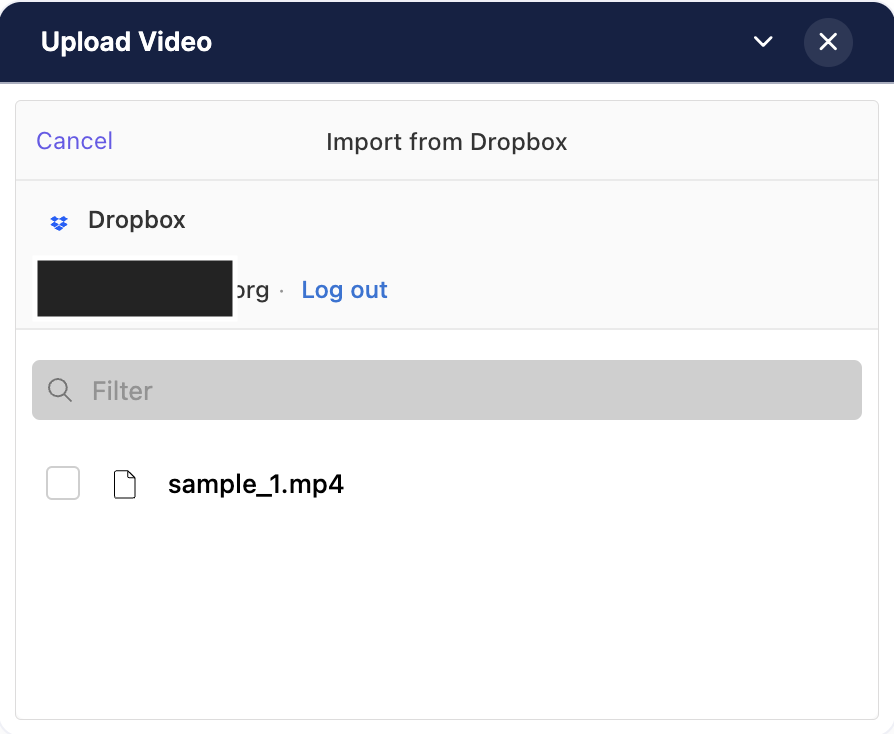
Sample Dropbox browser for file upload
Here, you can see there is one file in the Dropbox account that can be selected for upload. Once you select and upload your desired files, Gumlet will fetch them and then create processed versions which are ready to stream.
Please note, we will not modify or delete your original files. You retain full control of those files regardless of how you use Gumlet.
Updated 6 months ago
* * *
---
# Upload & Import Videos
This is the elementary step to start your streaming journey with Gumlet.
Gumlet allows you to upload videos from your mobile, desktop, and tablet. We have integrations with the most popular cloud partners, not just physical devices. We have built state-of-the-art integration with Zoom and Vimeo to import videos in an automated way.
[Upload from Device](/docs/upload-from-device)
[Cloud Storage](/docs/cloud-storage-video-upload)
[Import from Object Storage](/docs/cloud-storage-copy)
[Import Zoom Recordings](/docs/import-from-zoom)
[Import from Vimeo](/docs/import-from-vimeo)
Updated 9 months ago
* * *
---
# Manage Videos
Gumlet is built to improve user experience and engage your users. For you to get started quickly, we have created a Video Library (content management system) to manage all assets via a simple web interface. You can head to the [video library](https://dashboard.gumlet.com/video/manage/)
section, and you will see this screen:
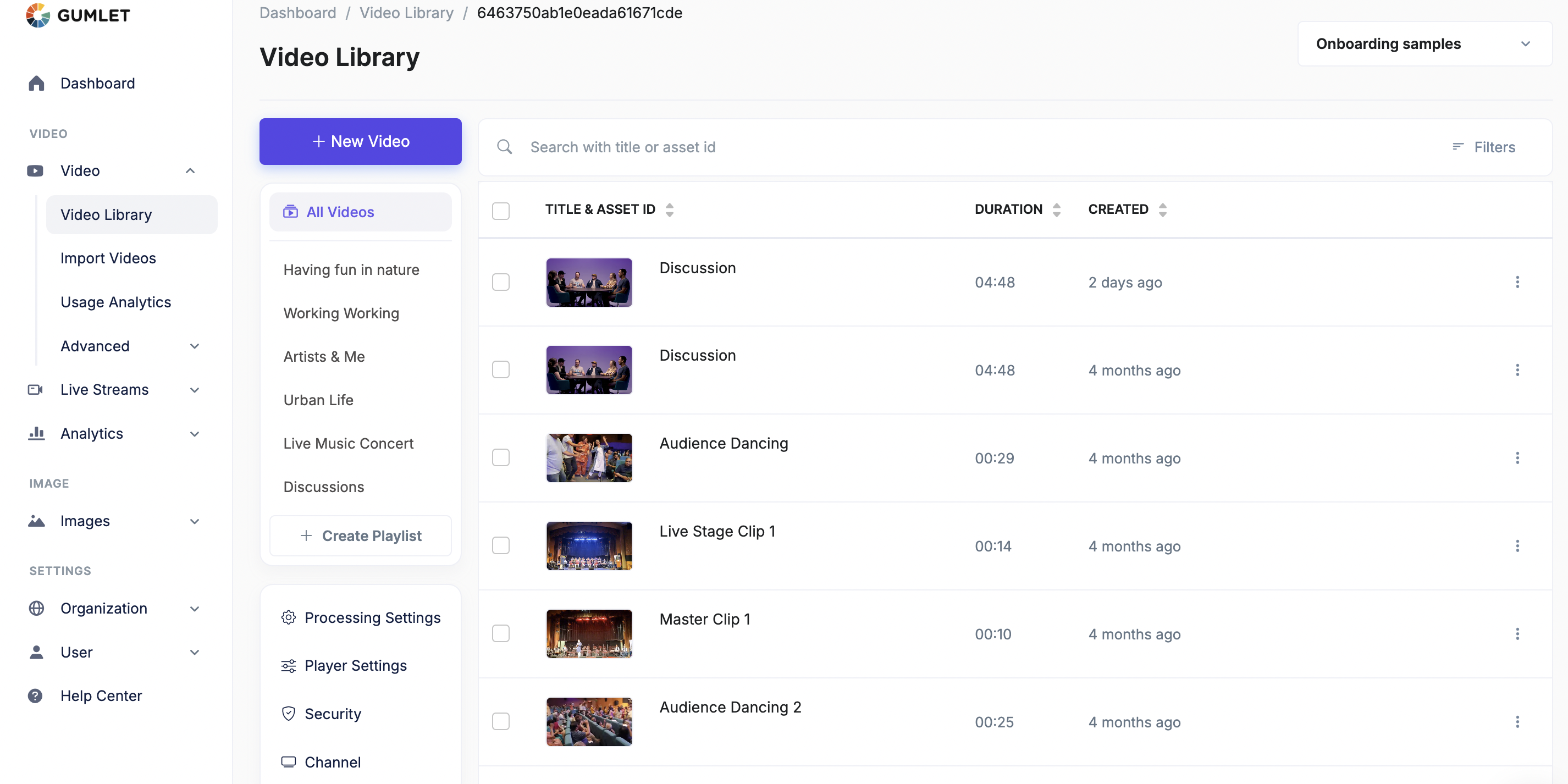
Video Library
###
Switching Collections
[](#switching-collections)
We allow users to create multiple collections to manage their content efficiently. You can create more collections from the top-right corner of the Library or switch to a different collection.
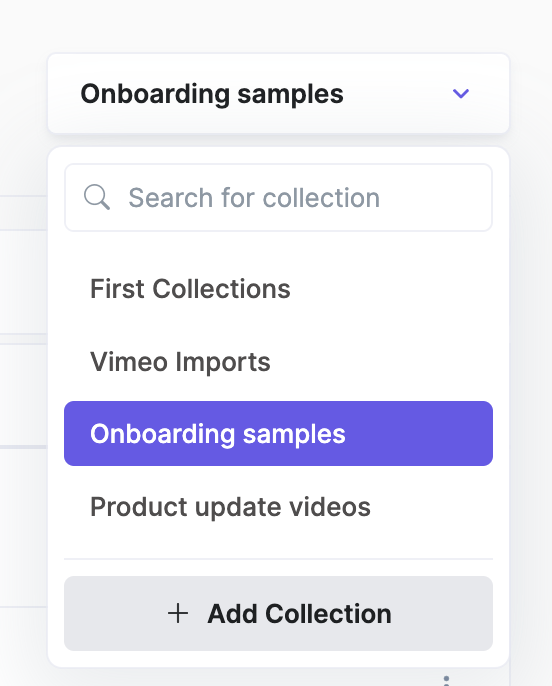
Updated 3 months ago
* * *
---
# What is Gumlet?
Publishing a video online on your own, without using popular video hosting platforms like YouTube is hard. It involves transcoding your original video files in various resolutions, figuring out correct bitrates, selecting the optimal formats, and many other settings. Not to mention the computing cost, engineering efforts, and time spent to build and maintain a tech pipeline.
To avoid all of the above, Gumlet has built a video product that offers:
⚡️**Automatic Optimisation**: Get the highest video compression output while keeping the video quality the same.
🔌 **HLS and Dash Support:** The output streams can be played on any device/browser / OS using a video player
🤖 **Auto Format**: The output video stream will have multiple formats available. (HLS or MPEG-DASH). This lets the client device choose the most efficient stream.
🌼 **Single, Simple, Solution**: We manage and optimize the entire pipeline of transcoding > storage > streaming for you.
🌎 **CDN delivery**: As always, the videos are delivered via a world-class low latency CDN best viewing experience.
🛠 **Powerful API:** Many operations like overlay, crop, clip, etc. are available. [Read documentation](../reference/create-asset)
.
🔐 **DRM Support:** Protect your content with DRM to prevent unauthorised access and downloads.
Updated 6 months ago
* * *
* [Quick Start Guide](/docs/quick-start-guide-video)
---
# Video Analytics
The deep insights from your videos set you on top of your audience's needs. Gumlet's advanced video analytics provide the insights that enable you to improve your content, increase engagement, and make your audience happy.
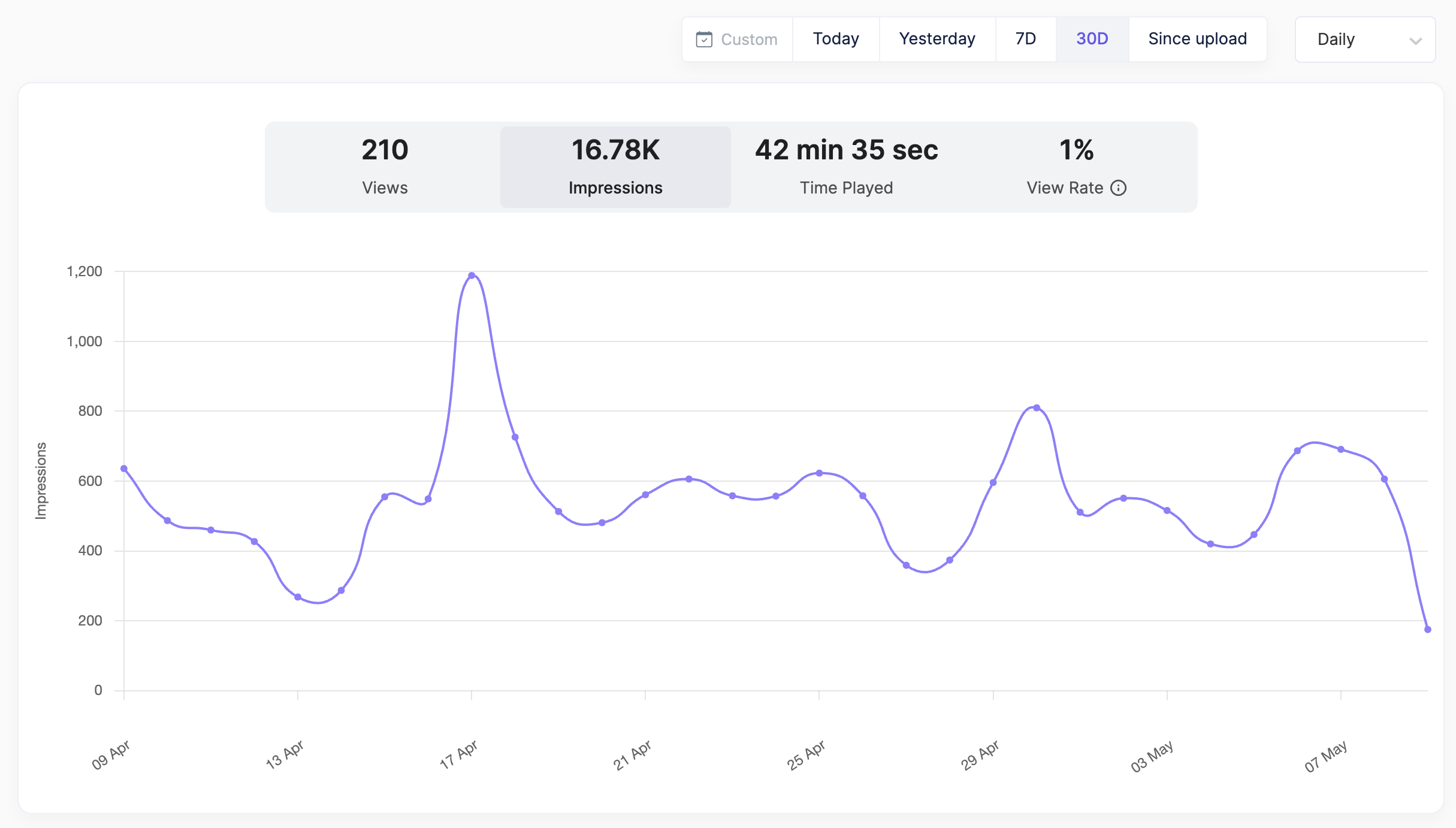
You can access the analytics page from two places:
* Right from the video CMS table

Click on the analytics icon in the CMS
* From the video settings page

Click on the quick analytics strip
###
The metrics you can deep dive into with Video Analytics:
[](#the-metrics-you-can-deep-dive-into-with-video-analytics)
* video heatmap -> [learn more about heatmap here](/docs/video-heatmap)
* find the absolute view on a daily, weekly, and monthly basis
* find the total impression on a particular date range
* total time played grouped in days/weeks/months
* average view rate -> views/impressions, how many video plays against the video loads
* find the geography of your audience, i.e., cities or countries
* top pages (referrers) from where your video is being watched
* top browsers and devices your audience uses for watching your content
Updated 4 months ago
* * *
---
# Import Zoom Recordings
Add Zoom as a source in your collection. All the new recordings will be optimized and added to your collection.
###
Create a Zoom source
[](#create-a-zoom-source)
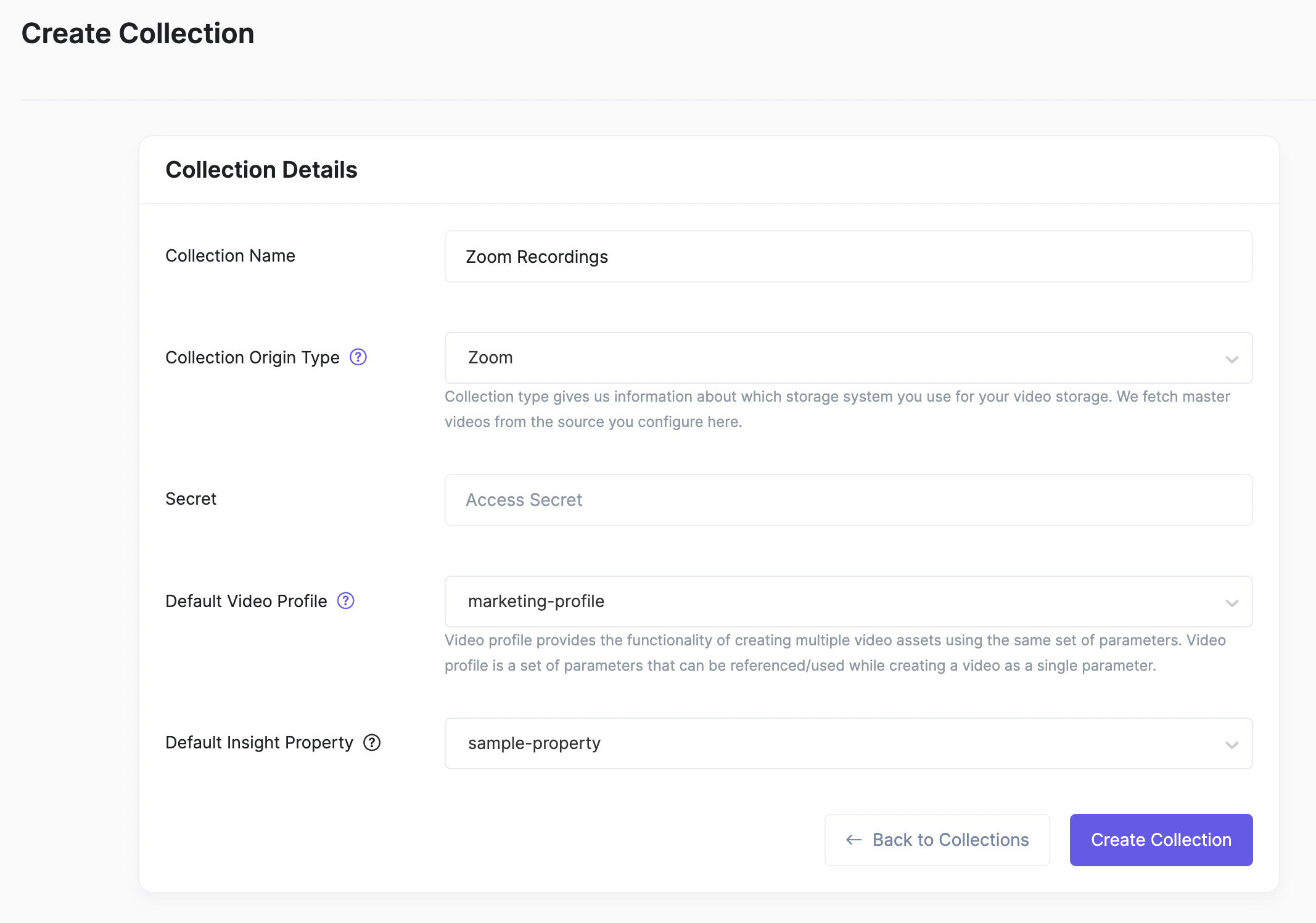
Navigate to the [create collection](https://dashboard.gumlet.com/video/collections/add)
page and select Zoom as the Origin Type.
###
Generate a Secret Token
[](#generate-a-secret-token)
You need to generate a secret token from your Zoom account. Here is the step-wise guide to generate a secret token in your Zoom account and get recordings whenever finished.
####
Create a Zoom App
[](#create-a-zoom-app)
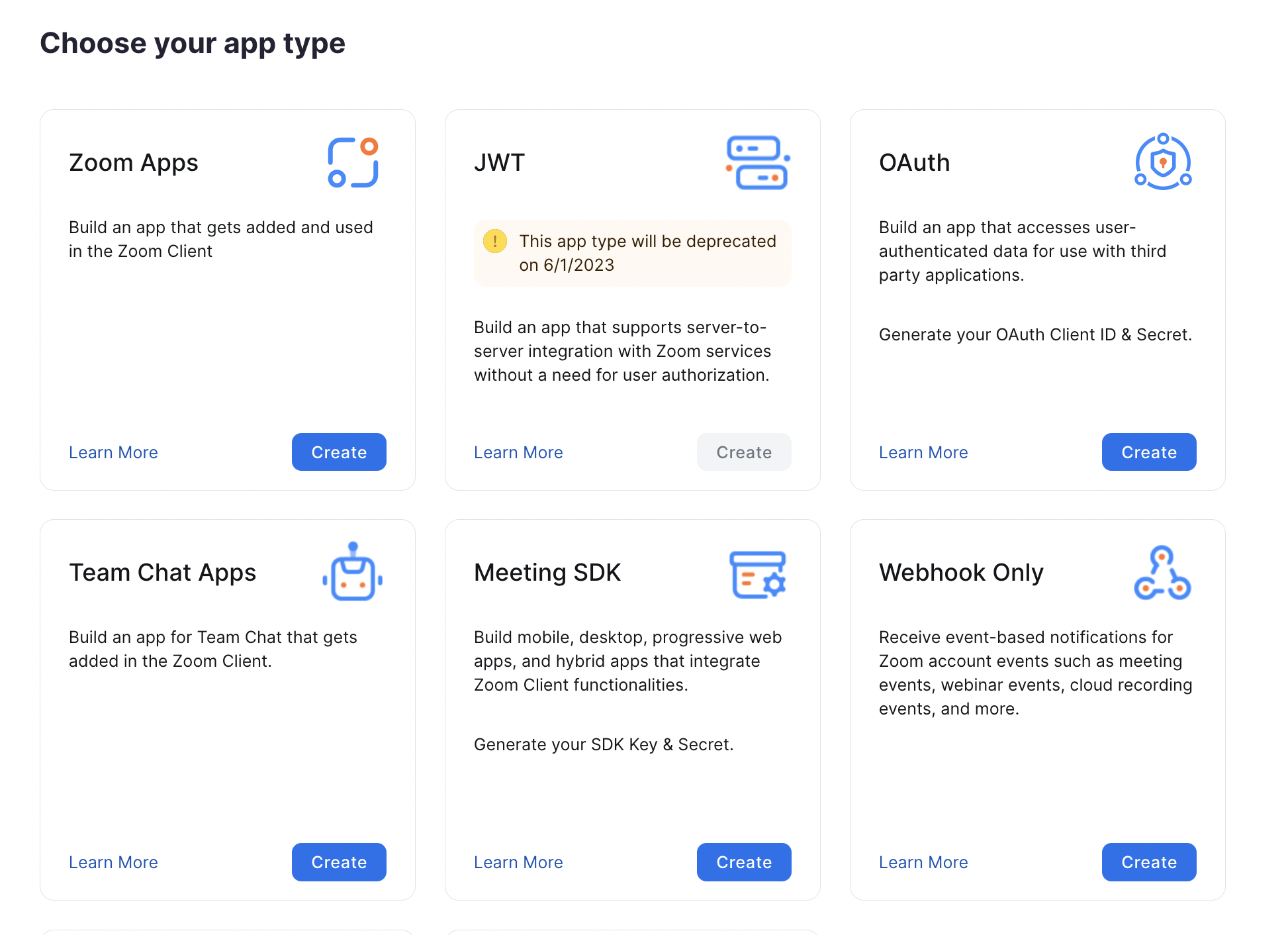
Go to the [Zoom App Creation](https://marketplace.zoom.us/develop/create)
page and create a **Webhook Only** app.
Once you fill in the important details for the app, you need to set up permissions to send events to Gumlet.
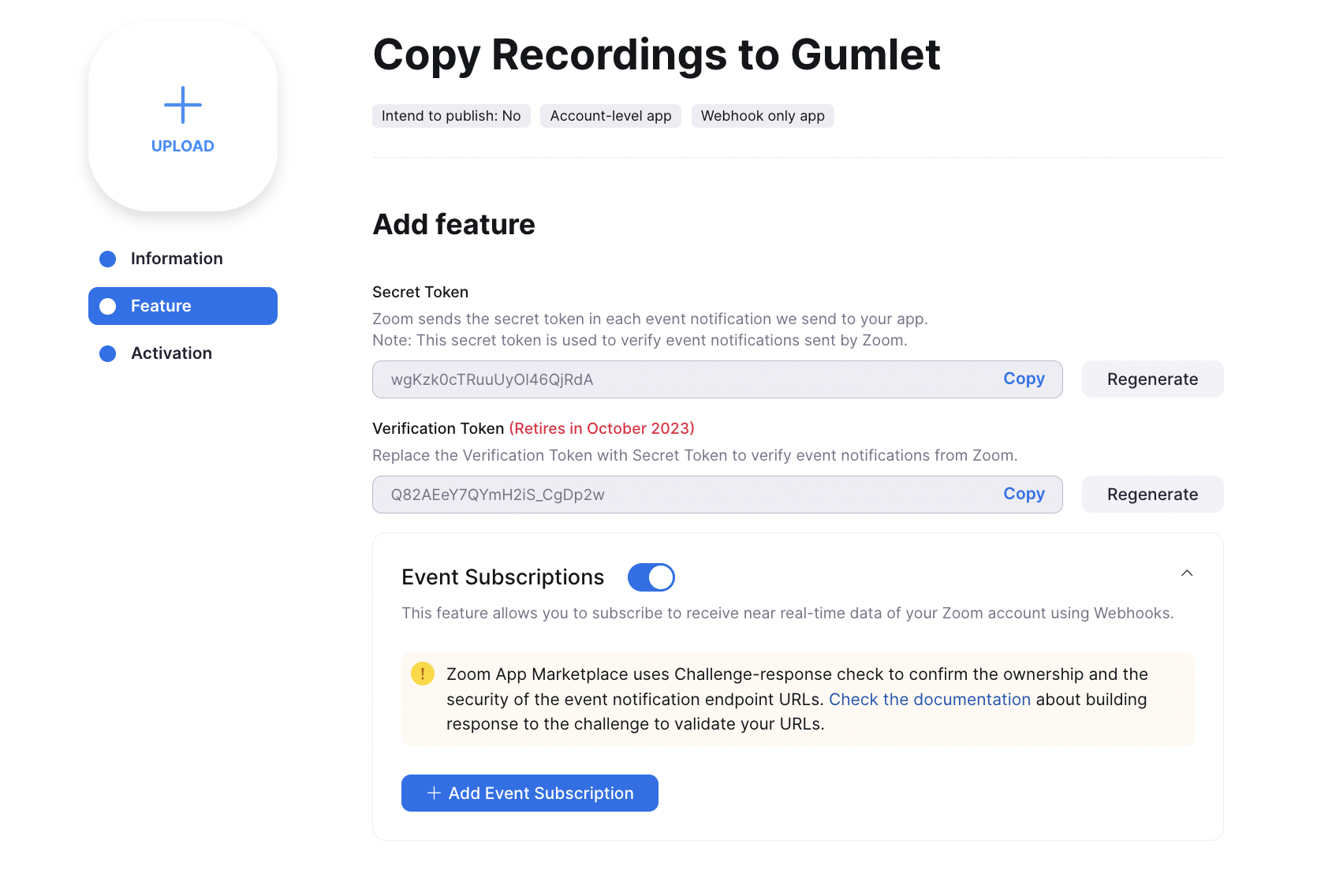
Enable Event Subscriptions
Copy the Secret Token from the above screen and add it to the Collection settings in Gumlet [here](/docs/zoom-recordings-as-source#create-zoom-source)
.
####
Subscribe to Recordings Completed Event
[](#subscribe-to-recordings-completed-event)
Click on the **Add Event Subscription** button and add the endpoint URL as `https://api.gumlet.com/v1/video/assets/zoom/event/{collection_id}`, replace `{collection_id}` with the actual collection ID from your [dashboard](https://dashboard.gumlet.com/video/collections)
.
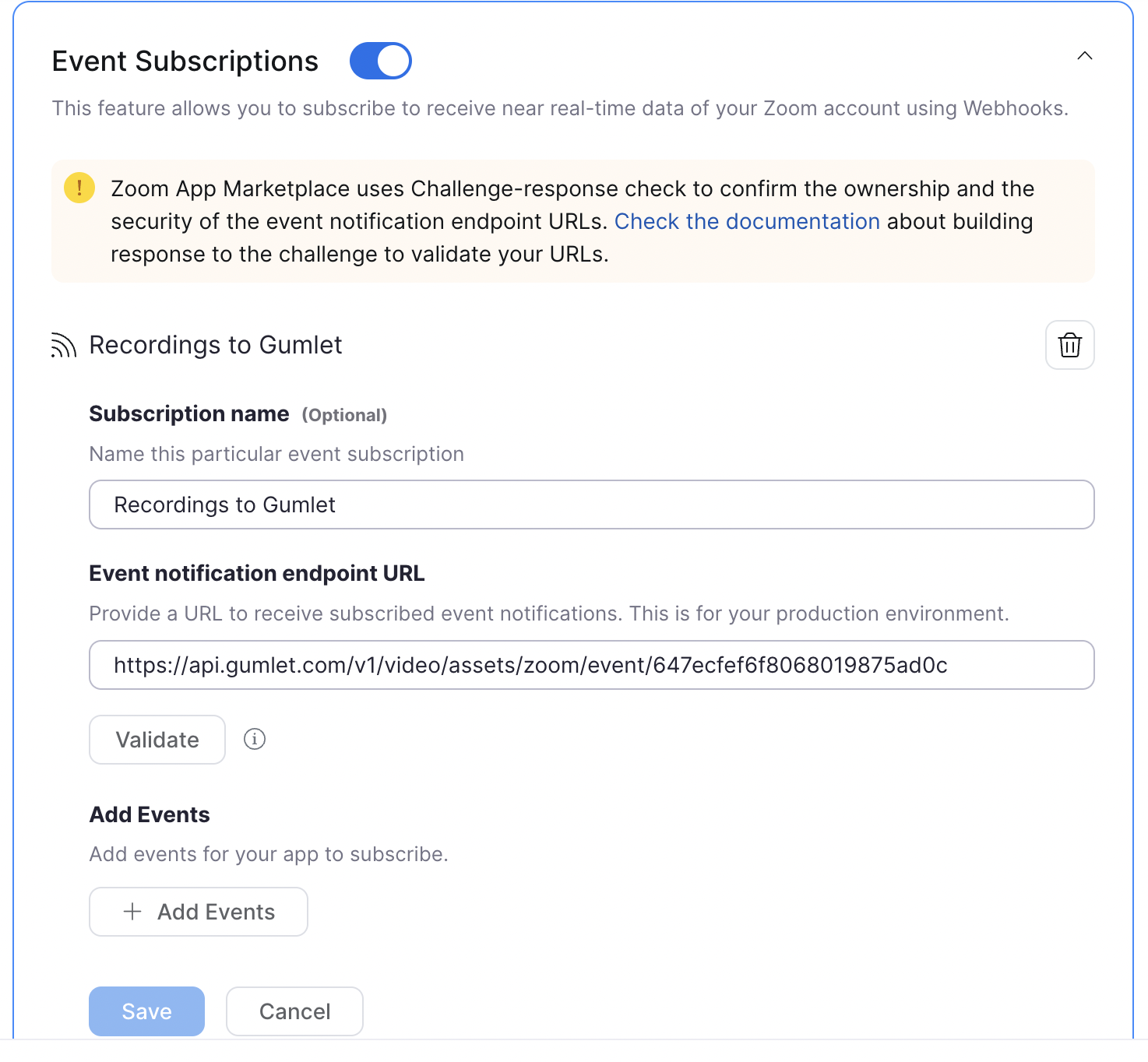
Add webhook URL
Click the **Validate** button to confirm the URL is correct.
Click the **Add Events** button to select the required event to share the recording information with Gumlet.
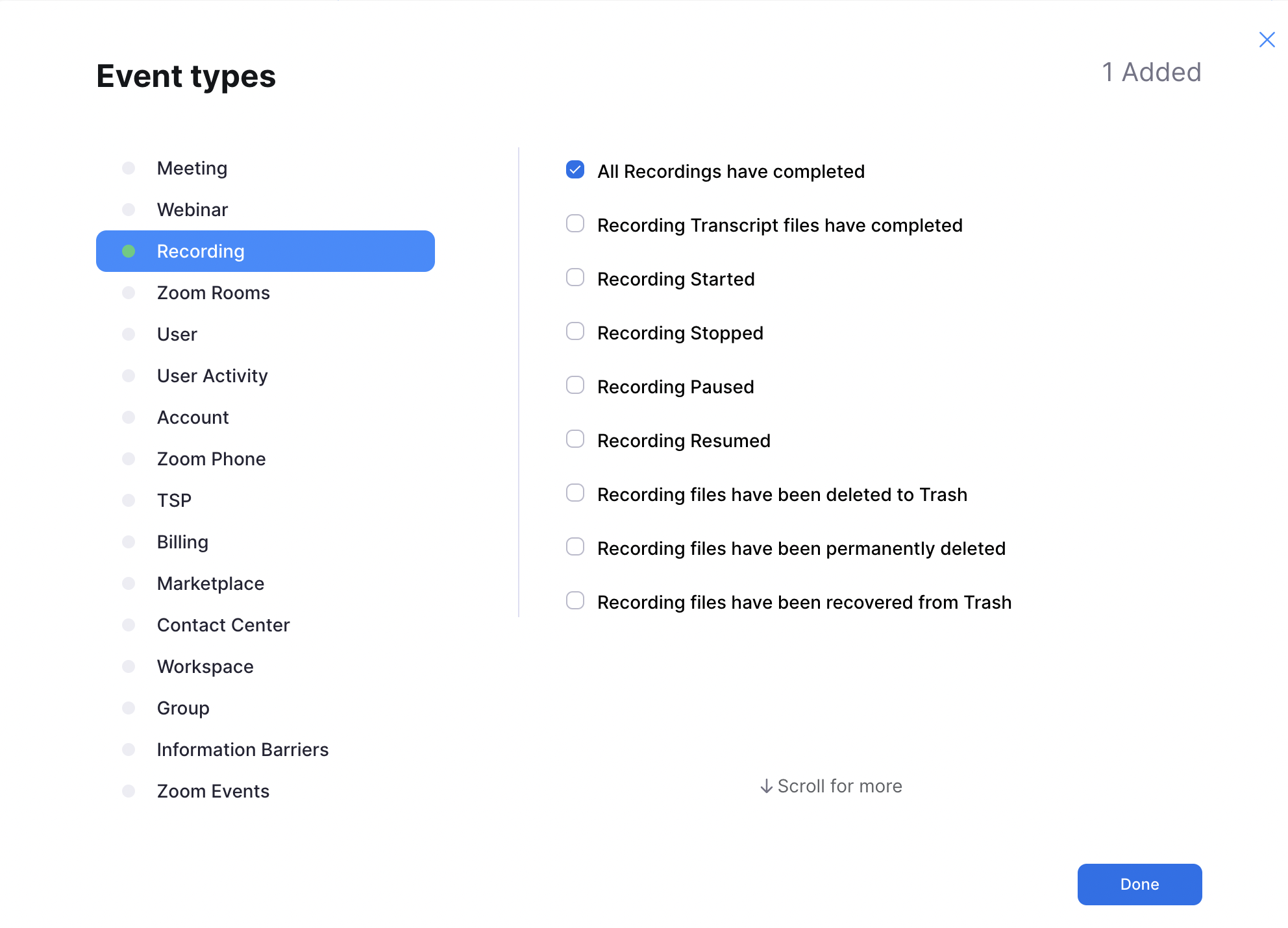
Select All Recordings Completed
Save the settings and **Continue**. Your app is activated now. All new recordings will now be processed to Gumlet automatically.
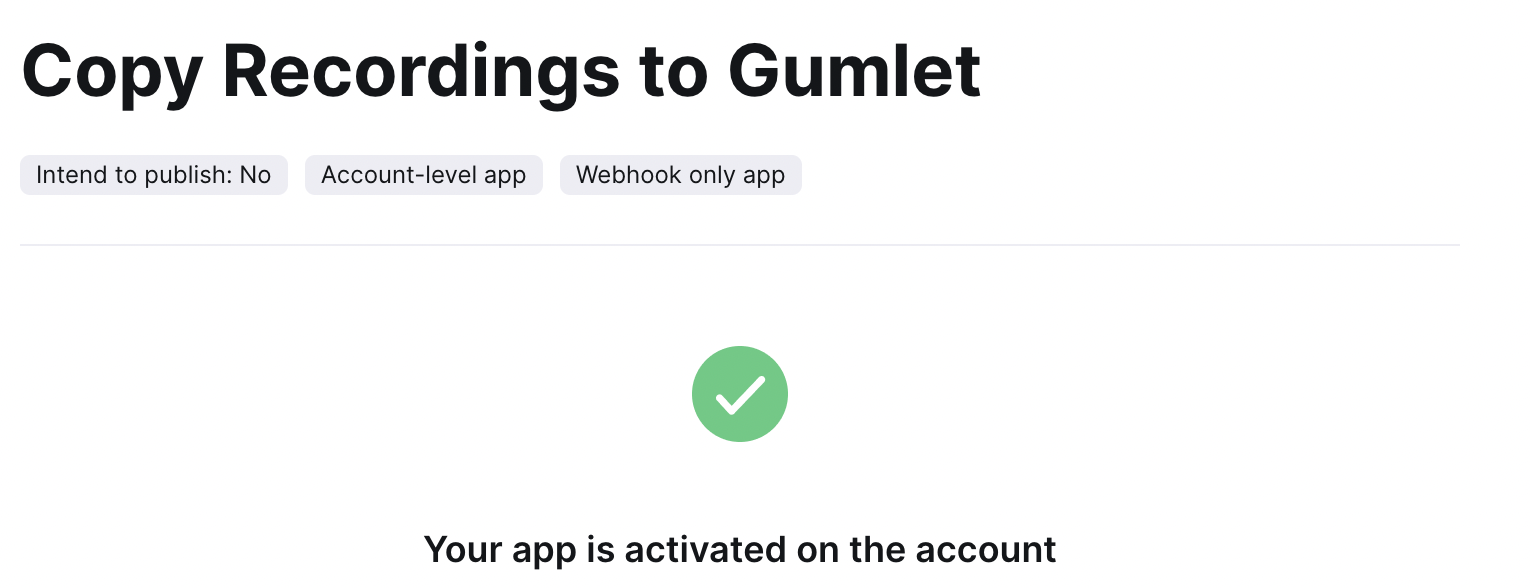
Note: You need to have a paid Zoom account for this feature to work. The cloud recordings are available only to paid members.
Updated 10 months ago
* * *
---
# Import from Wistia
Have you been using Wistia to host and manage your videos? We have got a quick way to import all the videos to Gumlet.
Prerequisites:
* A paid account with Gumlet (if not, you can subscribe to a plan [here](https://dashboard.gumlet.com/organization/billing?utm_source=docs&utm_campaign=vimeo-migration)
)
Now head over to [Import Page](https://dashboard.gumlet.com/video/import-videos)
. You will find Wistia and click on connect, and you will need an API token from Wistia to import your videos.
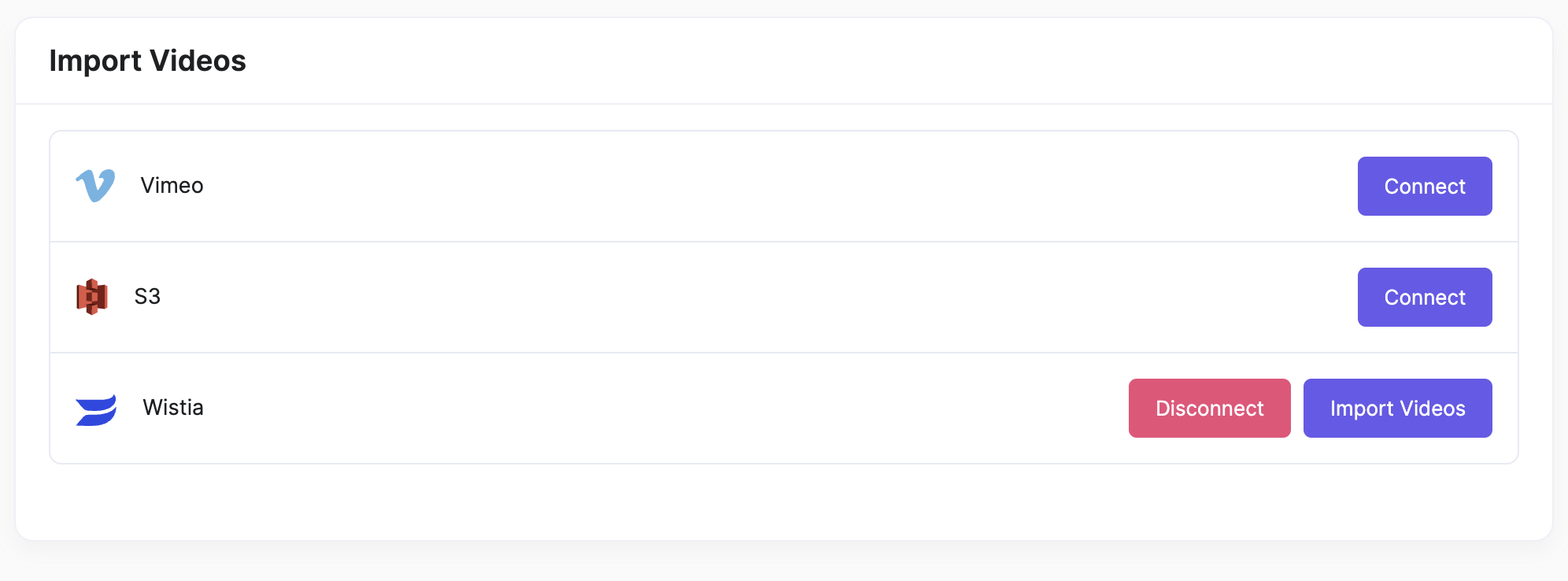
Generate a token on Wistia
[](#generate-a-token-on-wistia)
--------------------------------------------------------------
To generate a token from Wistia, follow the following steps:
###
Go to Wistia Account Settings
[](#go-to-wistia-account-settings)
* Navigate to account settings from top-right corner

Go to account settings
* Go to API Access in the bottom-left corner
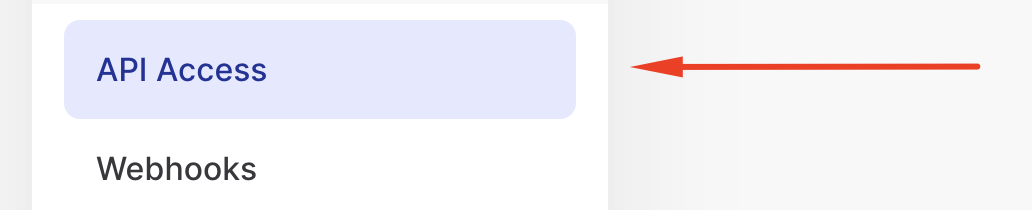
###
Generate an API Token
[](#generate-an-api-token)
Select `Read all project and video data` and create a token.
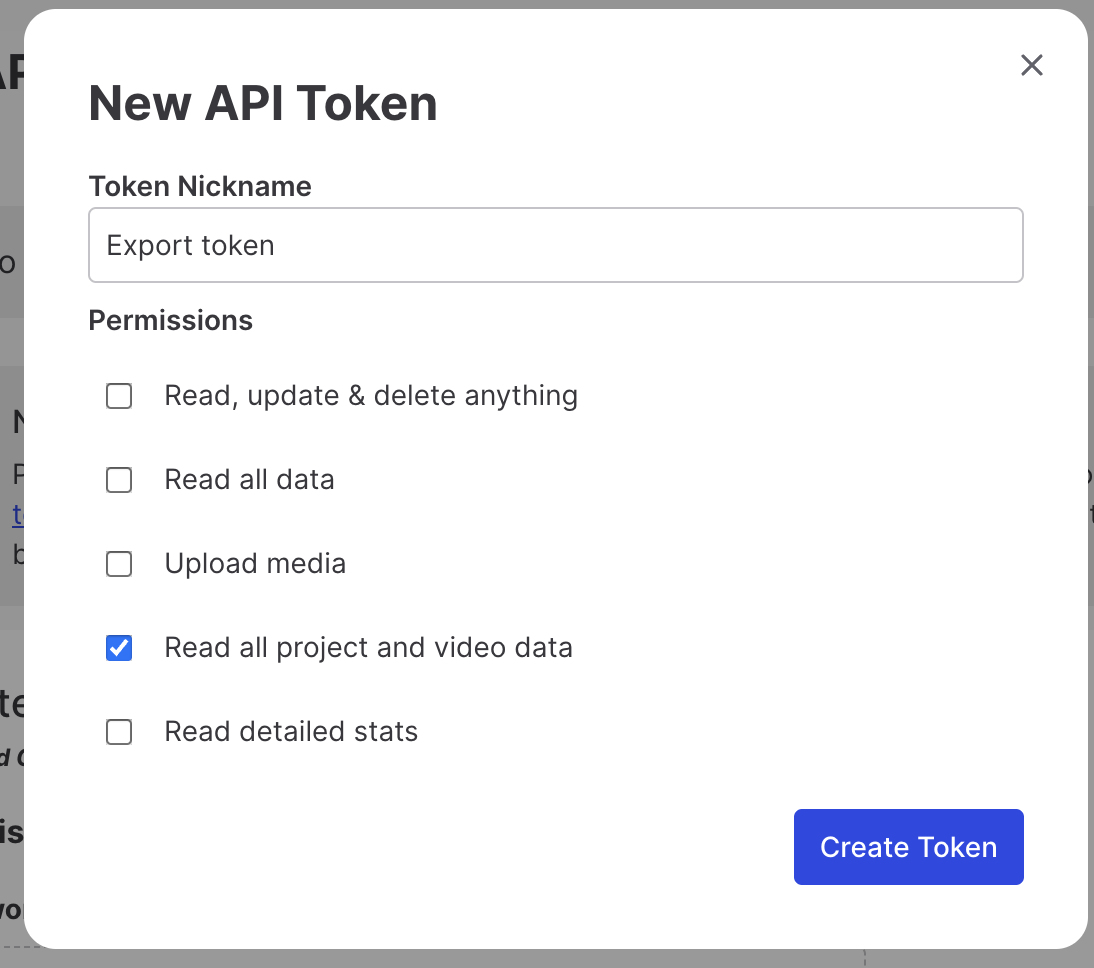
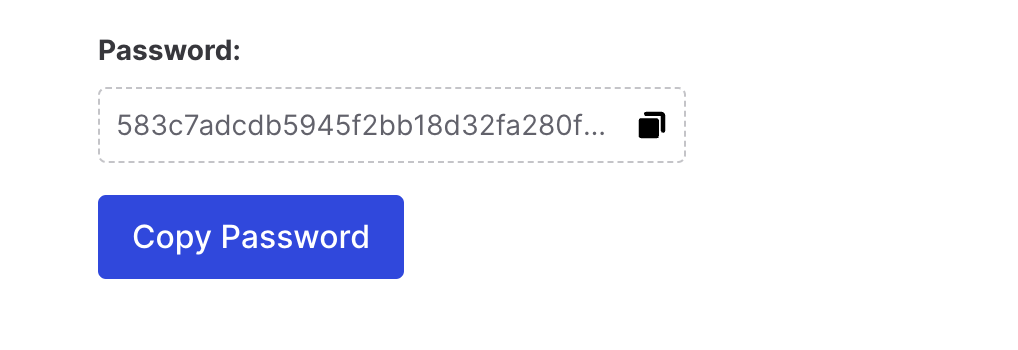
Copy the password and add it to the [Gumlet Migration Dashboard](https://dashboard.gumlet.com/video/migrate-videos)
.
Final Steps to Import
[](#final-steps-to-import)
----------------------------------------------------
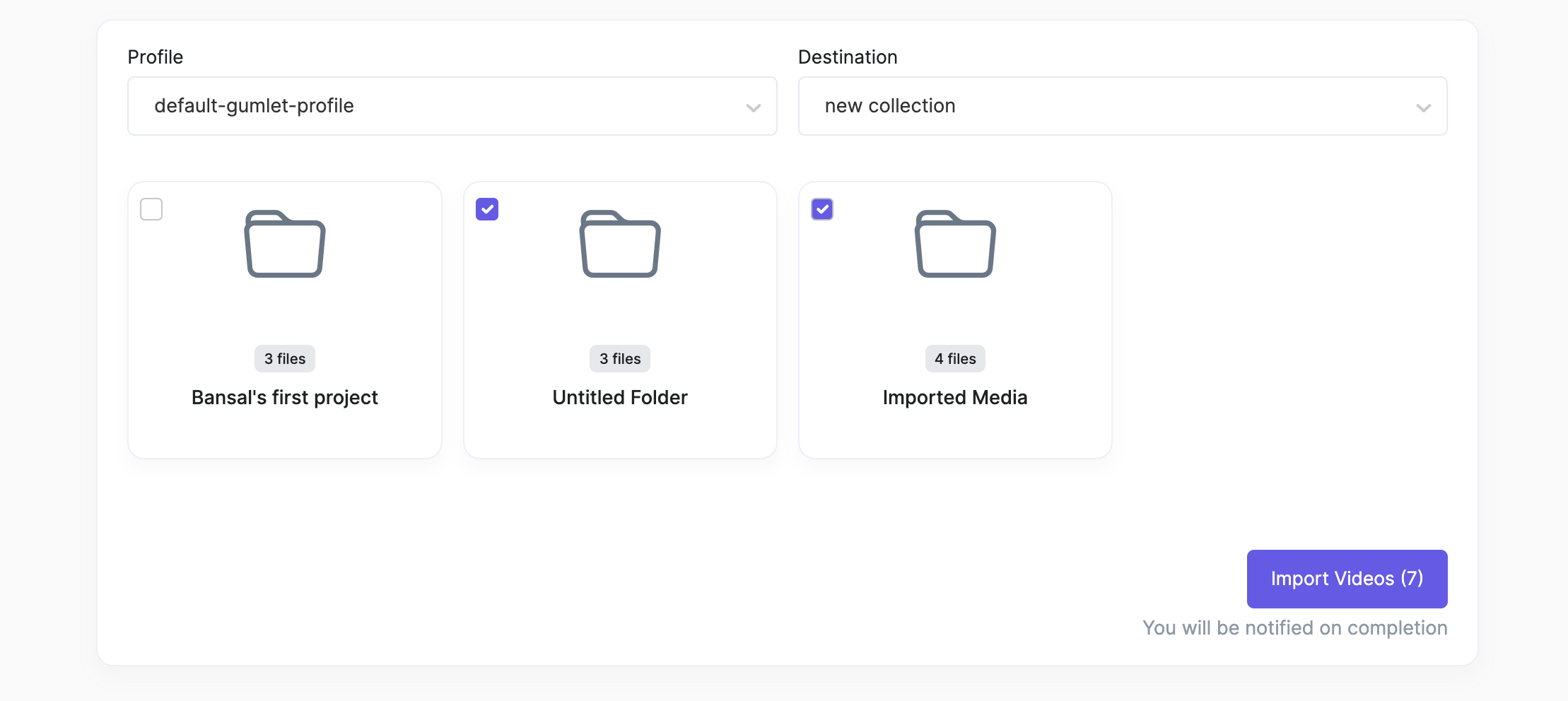
Once the token is verified, you can preview which projects are there to import.
###
Select a Profile
[](#select-a-profile)
Select a profile to process your imported videos. All the files will be imported and processed automatically based on the selected Video Profile.
###
Select a Destination
[](#select-a-destination)
The destination is where all your imported videos will be stored. This is the same as the collection. Select a collection from the list, and we will process and keep your videos in the selected collection.
###
Select Projects
[](#select-projects)
Select projects that you want to import to Gumlet. We will automatically create playlists and organize your files.
Clicking the **Import Videos** button will start the Import.
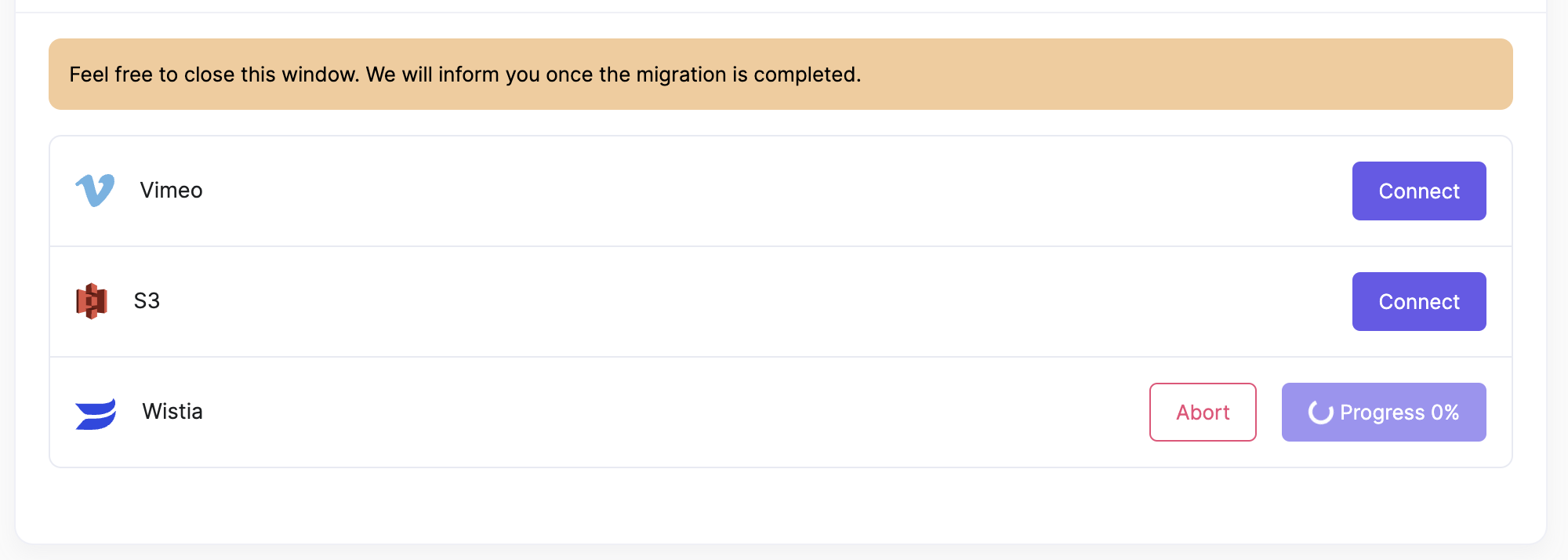
Import Progress
Sit back and relax. We will do all the heavy work to import and process videos for you.
You will find all your Imported Videos in the selected collection.
Happy Streaming.
Updated 6 months ago
* * *
---
# Collection and Settings
You can create collections to organize your videos better and manage access controls and permissions to specific features such as analytics, videos, and usage.
Collection Settings
[](#collection-settings)
------------------------------------------------
Configure the source of videos and upload videos to Gumlet securely and seamlessly with pre-configured defaults.
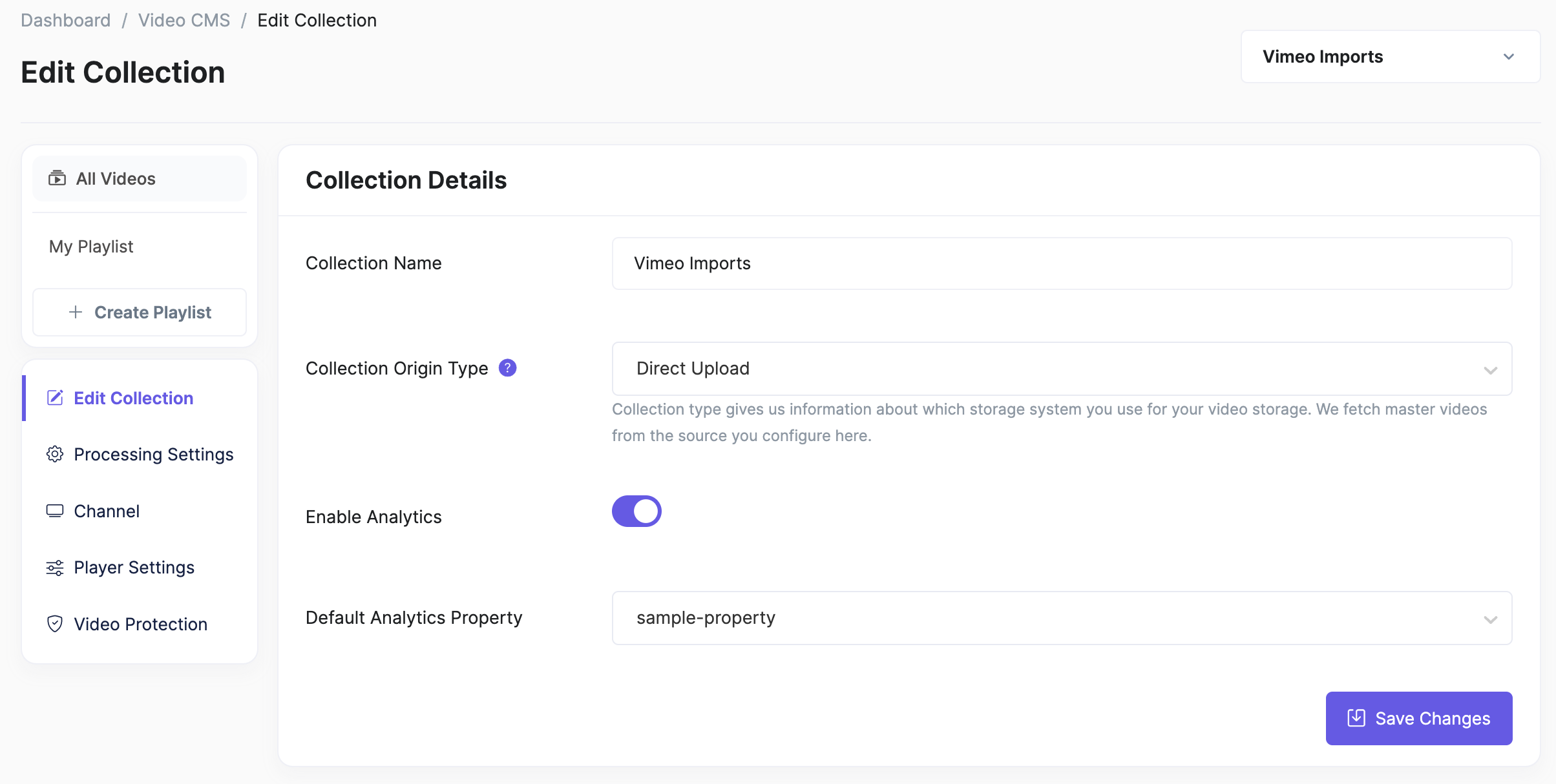
_Tip: If you do not want to track user behavior for the videos inside a specific collection, you can disable Analytics._
Updated 3 months ago
* * *
---
# Working with oEmbed: Embedding Videos
oEmbed is a standard framework across the Internet for Embedding video and other content. We support oEmbed for the widespread acceptability of Gumlet videos across platforms and devices.
Embedding videos with oEmbed
[](#embedding-videos-with-oembed)
------------------------------------------------------------------
Get the oEmbed response using a request:
HTTP
`GET https://api.gumlet.com/v1/oembed?url={video_url}`
Sample Request
`GET https://api.gumlet.com/v1/oembed?url=https://gumlet.tv/watch/64be6a1705ab8a164db198a5`
The video URL (_**video\_url**_) can support any of these schemes:
| This URL is ... | URL Scheme |
| --- | --- |
| A watch page | [https://gumlet.tv/watch/{video\_id}](https://gumlet.tv/watch/%7Bvideo_id%7D) |
| A play embed code | [https://play.gumlet.io/embed/{video\_id}](https://play.gumlet.io/embed/%7Bvideo_id%7D) |
You can add any parameters mentioned in the [Table](/docs/embed-stream#parameter-reference)
to customize.
Here is the sample response:
Sample Response
`{ "version": "1.0", "type": "video", "provider_name": "Gumlet", "provider_url": "https://www.gumlet.com/", "title": "launch video 3", "thumbnail_url": "https://video.gumlet.io/6435267e83c96cf7c982e560/64be6a1705ab8a164db198a5/thumbnail-1-0.png?v=1692964590857&width=800&height=450&dpr=2.0", "thumbnail_width": 800, "thumbnail_height": 450, "width": 800, "height": 450, "html": "" }`
The response fields can be described as below:
| Field | Description |
| --- | --- |
| version | The type of the **oEmbed**, which in this case is _video_. |
| type | The version of the **oEmbed Specifications**. |
| provider\_name | The name of the oEmbed provider, i.e. Gumlet |
| provider\_url | The name of the oEmbed provider, i.e. [https://www.gumlet.com/](https://www.gumlet.com/) |
| title | The title of the video |
| thumbnail\_url | The thumbnail URL of the video |
| thumbnail\_width | The width of the thumbnail |
| thumbnail\_height | The height of the thumbnail |
| width | The height of the video |
| height | The width of the video |
| html | The `