# Table of Contents
- [Documentation – Midjourney](#documentation-midjourney)
- [Canceling Your Subscription – Midjourney](#canceling-your-subscription-midjourney)
- [Requesting a Refund – Midjourney](#requesting-a-refund-midjourney)
- [Editing Your Payment Information – Midjourney](#editing-your-payment-information-midjourney)
- [Unsuccessful Payments – Midjourney](#unsuccessful-payments-midjourney)
- [Reporting an Unauthorized Charge – Midjourney](#reporting-an-unauthorized-charge-midjourney)
- [Fixing a Paused Plan – Midjourney](#fixing-a-paused-plan-midjourney)
- [Payment Currency – Midjourney](#payment-currency-midjourney)
- [Tax / VAT Charges – Midjourney](#tax-vat-charges-midjourney)
- [Reporting a Duplicate Charge – Midjourney](#reporting-a-duplicate-charge-midjourney)
- [Accepted Payment Methods – Midjourney](#accepted-payment-methods-midjourney)
- [Viewing Your Payment History – Midjourney](#viewing-your-payment-history-midjourney)
- [Changing Your Invoice Information – Midjourney](#changing-your-invoice-information-midjourney)
- [Requesting a Tax Exemption – Midjourney](#requesting-a-tax-exemption-midjourney)
- [Turning Off Automatic Renewals – Midjourney](#turning-off-automatic-renewals-midjourney)
- [Discord Nitro Subscription – Midjourney](#discord-nitro-subscription-midjourney)
- [Changing Your Billing Email – Midjourney](#changing-your-billing-email-midjourney)
- [Free Trials – Midjourney](#free-trials-midjourney)
- [Deleting Your Data – Midjourney](#deleting-your-data-midjourney)
- [Using Images & Videos Commercially – Midjourney](#using-images-videos-commercially-midjourney)
- [Managing Your Midjourney Magazine Subscription – Midjourney](#managing-your-midjourney-magazine-subscription-midjourney)
- [Group Plans & Enterprise Billing – Midjourney](#group-plans-enterprise-billing-midjourney)
- [Finding Your Renewal Time – Midjourney](#finding-your-renewal-time-midjourney)
- [Upgrading or Downgrading Your Plan – Midjourney](#upgrading-or-downgrading-your-plan-midjourney)
- [Transferring Your Subscription – Midjourney](#transferring-your-subscription-midjourney)
- [Midjourney](#midjourney)
- [Community Guidelines – Midjourney](#community-guidelines-midjourney)
- [Midjourney Magazine Subscription FAQ – Midjourney](#midjourney-magazine-subscription-faq-midjourney)
- [Subscription Fast Time Expiration – Midjourney](#subscription-fast-time-expiration-midjourney)
- [Midjourney Store Orders FAQ – Midjourney](#midjourney-store-orders-faq-midjourney)
- [Using Midjourney in Discord – Midjourney](#using-midjourney-in-discord-midjourney)
- [Midjourney Trademark Policy – Midjourney](#midjourney-trademark-policy-midjourney)
- [Data Deletion and Privacy FAQ – Midjourney](#data-deletion-and-privacy-faq-midjourney)
- [Chaos / Variety – Midjourney](#chaos-variety-midjourney)
- [Privacy Policy – Midjourney](#privacy-policy-midjourney)
- [Purchase Order Terms and Conditions – Midjourney](#purchase-order-terms-and-conditions-midjourney)
- [Managing Your Subscription – Midjourney](#managing-your-subscription-midjourney)
- [Tile – Midjourney](#tile-midjourney)
- [Describe – Midjourney](#describe-midjourney)
- [No – Midjourney](#no-midjourney)
- [Keeping Your Creations Private – Midjourney](#keeping-your-creations-private-midjourney)
- [Stylize – Midjourney](#stylize-midjourney)
- [Hosting Images on Discord – Midjourney](#hosting-images-on-discord-midjourney)
- [Show Command – Midjourney](#show-command-midjourney)
- [Raw Mode – Midjourney](#raw-mode-midjourney)
- [Contacting Support – Midjourney](#contacting-support-midjourney)
- [Terms of Service – Midjourney](#terms-of-service-midjourney)
- [Blend Images on Discord – Midjourney](#blend-images-on-discord-midjourney)
- [Weird – Midjourney](#weird-midjourney)
- [Add Midjourney to Your Discord Server – Midjourney](#add-midjourney-to-your-discord-server-midjourney)
- [Discord Direct Messages – Midjourney](#discord-direct-messages-midjourney)
- [Seeds – Midjourney](#seeds-midjourney)
- [Multi-Prompts & Weights – Midjourney](#multi-prompts-weights-midjourney)
- [Art of Prompting – Midjourney](#art-of-prompting-midjourney)
- [Comparing Midjourney Plans – Midjourney](#comparing-midjourney-plans-midjourney)
- [Variations – Midjourney](#variations-midjourney)
- [Repeat – Midjourney](#repeat-midjourney)
- [Stealth Mode – Midjourney](#stealth-mode-midjourney)
- [Info Command – Midjourney](#info-command-midjourney)
- [Prompt Basics – Midjourney](#prompt-basics-midjourney)
- [Personalization – Midjourney](#personalization-midjourney)
- [Text Generation – Midjourney](#text-generation-midjourney)
- [Quality – Midjourney](#quality-midjourney)
- [Using Folders – Midjourney](#using-folders-midjourney)
- [Earning Free Fast Time – Midjourney](#earning-free-fast-time-midjourney)
- [Character Reference – Midjourney](#character-reference-midjourney)
- [Permutations – Midjourney](#permutations-midjourney)
- [Image Size & Resolution – Midjourney](#image-size-resolution-midjourney)
- [Aspect Ratio – Midjourney](#aspect-ratio-midjourney)
- [Cookie Policy – Midjourney](#cookie-policy-midjourney)
- [Taxes & VAT – Midjourney](#taxes-vat-midjourney)
- [Purchasing Extra Fast Time – Midjourney](#purchasing-extra-fast-time-midjourney)
- [Cancellations & Refunds – Midjourney](#cancellations-refunds-midjourney)
- [Pan – Midjourney](#pan-midjourney)
- [Zoom Out – Midjourney](#zoom-out-midjourney)
- [Getting Started – Midjourney](#getting-started-midjourney)
- [Logging In & Connecting Accounts – Midjourney](#logging-in-connecting-accounts-midjourney)
- [Complete Tasks – Midjourney](#complete-tasks-midjourney)
- [Draft & Conversational Modes – Midjourney](#draft-conversational-modes-midjourney)
- [Managing Image Uploads – Midjourney](#managing-image-uploads-midjourney)
- [Magazines & Books – Midjourney](#magazines-books-midjourney)
- [How to Subscribe – Midjourney](#how-to-subscribe-midjourney)
- [Discord Command List – Midjourney](#discord-command-list-midjourney)
- [Prompting Basics – Midjourney](#prompting-basics-midjourney)
- [GPU Speed (Fast, Relax, Turbo) – Midjourney](#gpu-speed-fast-relax-turbo-midjourney)
- [Image Prompts – Midjourney](#image-prompts-midjourney)
- [Discord Overview – Midjourney](#discord-overview-midjourney)
- [Creation Settings in Discord – Midjourney](#creation-settings-in-discord-midjourney)
- [Style Reference – Midjourney](#style-reference-midjourney)
- [Editor – Midjourney](#editor-midjourney)
- [Using Web – Midjourney](#using-web-midjourney)
- [Discord Quick Start – Midjourney](#discord-quick-start-midjourney)
- [Web vs Discord – Midjourney](#web-vs-discord-midjourney)
- [Using Your Own Images – Midjourney](#using-your-own-images-midjourney)
- [Midjourney Policies – Midjourney](#midjourney-policies-midjourney)
- [Payments – Midjourney](#payments-midjourney)
- [Account Management – Midjourney](#account-management-midjourney)
- [Upscalers – Midjourney](#upscalers-midjourney)
- [Remix – Midjourney](#remix-midjourney)
- [Modifying Your Creations – Midjourney](#modifying-your-creations-midjourney)
- [Legacy Features – Midjourney](#legacy-features-midjourney)
- [Plan Information – Midjourney](#plan-information-midjourney)
- [Vary Region – Midjourney](#vary-region-midjourney)
- [Organizing Your Creations – Midjourney](#organizing-your-creations-midjourney)
- [Website Overview – Midjourney](#website-overview-midjourney)
- [Video – Midjourney](#video-midjourney)
- [Using Discord – Midjourney](#using-discord-midjourney)
- [Omni Reference – Midjourney](#omni-reference-midjourney)
- [Parameter List – Midjourney](#parameter-list-midjourney)
- [Version – Midjourney](#version-midjourney)
- [Midjourney Controls – Midjourney](#midjourney-controls-midjourney)
- [Creating on Web – Midjourney](#creating-on-web-midjourney)
- [Getting Started Guide – Midjourney](#getting-started-guide-midjourney)
- [Billing Support – Midjourney](#billing-support-midjourney)
- [Documentation – Midjourney](#documentation-midjourney)
- [Billing Support – Midjourney](#billing-support-midjourney)
---
# Documentation – Midjourney
[Skip to main content](https://docs.midjourney.com/hc/en-us/categories/32013335627533#page-container)
Documentation
Learn More About...
[Getting Started](https://docs.midjourney.com/hc/en-us/sections/33324274255373-Getting-Started)
------------------------------------------------------------------------------------------------
* [](https://docs.midjourney.com/hc/en-us/articles/33329261836941-Getting-Started-Guide)
[Getting Started Guide](https://docs.midjourney.com/hc/en-us/articles/33329261836941-Getting-Started-Guide)
Learn to subscribe, create your first image, explore features, and connect with our creative community.
[Prompting Basics](https://docs.midjourney.com/hc/en-us/sections/32013365472909-Prompting-Basics)
--------------------------------------------------------------------------------------------------
* [](https://docs.midjourney.com/hc/en-us/articles/32023408776205-Prompt-Basics)
[Prompt Basics](https://docs.midjourney.com/hc/en-us/articles/32023408776205-Prompt-Basics)
A prompt is your creative starting point—learn how to turn words into unique and exciting images!
* [](https://docs.midjourney.com/hc/en-us/articles/33329329805581-Modifying-Your-Creations)
[Modifying Your Creations](https://docs.midjourney.com/hc/en-us/articles/33329329805581-Modifying-Your-Creations)
You've generated your first Midjourney image—now what? Learn about our tools for modifying your images!
* [](https://docs.midjourney.com/hc/en-us/articles/31894244298125-Aspect-Ratio)
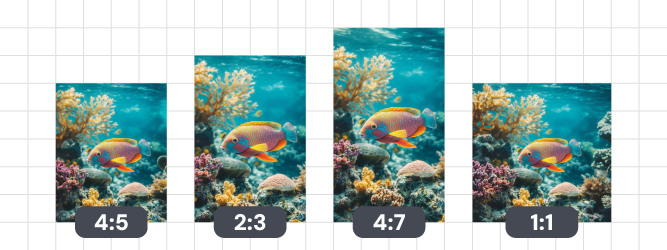
[Aspect Ratio](https://docs.midjourney.com/hc/en-us/articles/31894244298125-Aspect-Ratio)
Midjourney images start as squares, but you can change this using the aspect ratio parameter: --aspect or --ar
* [](https://docs.midjourney.com/hc/en-us/articles/33329374594957-Image-Size-Resolution)
[Image Size & Resolution](https://docs.midjourney.com/hc/en-us/articles/33329374594957-Image-Size-Resolution)
From pixels to prints: Master Midjourney image sizes and resolution.
* [](https://docs.midjourney.com/hc/en-us/articles/32835253061645-Art-of-Prompting)
[Art of Prompting](https://docs.midjourney.com/hc/en-us/articles/32835253061645-Art-of-Prompting)
Explore words that spark imagination and bring your images to life!
[Using Your Own Images](https://docs.midjourney.com/hc/en-us/sections/32013397184397-Using-Your-Own-Images)
------------------------------------------------------------------------------------------------------------
* [](https://docs.midjourney.com/hc/en-us/articles/37460773864589-Video)
[Video](https://docs.midjourney.com/hc/en-us/articles/37460773864589-Video)
Turn your images into captivating 5 second videos!
* [](https://docs.midjourney.com/hc/en-us/articles/32040250122381-Image-Prompts)
[Image Prompts](https://docs.midjourney.com/hc/en-us/articles/32040250122381-Image-Prompts)
Influcence the content, composition and colors of your creations using image prompts.
* [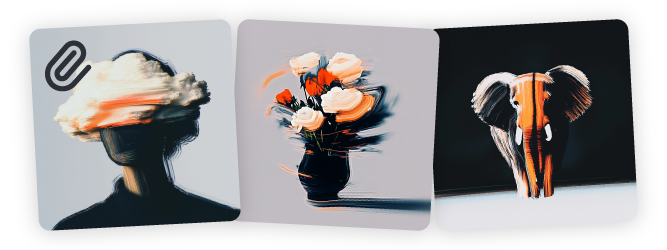](https://docs.midjourney.com/hc/en-us/articles/32180011136653-Style-Reference)
[Style Reference](https://docs.midjourney.com/hc/en-us/articles/32180011136653-Style-Reference)
Match the look and feel of another image by using style references.
* [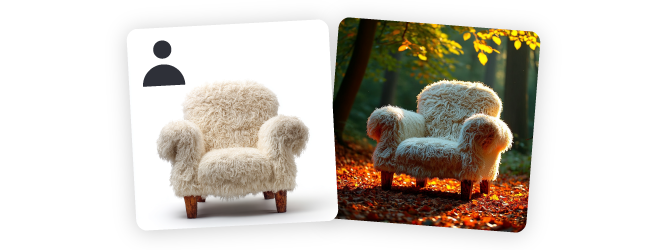](https://docs.midjourney.com/hc/en-us/articles/36285124473997-Omni-Reference)
[Omni Reference](https://docs.midjourney.com/hc/en-us/articles/36285124473997-Omni-Reference)
Put a person or object into your images using an Omni Reference.
* [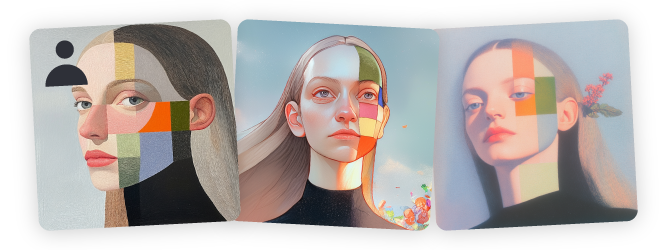](https://docs.midjourney.com/hc/en-us/articles/32162917505293-Character-Reference)
[Character Reference](https://docs.midjourney.com/hc/en-us/articles/32162917505293-Character-Reference)
Use the same character in multiple images and scenes using character references.
* [](https://docs.midjourney.com/hc/en-us/articles/32497889043981-Describe)
[Describe](https://docs.midjourney.com/hc/en-us/articles/32497889043981-Describe)
Use Describe to turn your own images into inspiring prompt ideas.
* [](https://docs.midjourney.com/hc/en-us/articles/32764383466893-Editor)
[Editor](https://docs.midjourney.com/hc/en-us/articles/32764383466893-Editor)
Customize your images using Midjourney's powerful tools!
* [](https://docs.midjourney.com/hc/en-us/articles/33329380893325-Managing-Image-Uploads)
[Managing Image Uploads](https://docs.midjourney.com/hc/en-us/articles/33329380893325-Managing-Image-Uploads)
Hide, unhide, or delete your uploaded images with ease on your Manage Uploads page.
[See all 8 articles](https://docs.midjourney.com/hc/en-us/sections/32013397184397-Using-Your-Own-Images)
[Using Web](https://docs.midjourney.com/hc/en-us/sections/33329398561549-Using-Web)
------------------------------------------------------------------------------------
* [](https://docs.midjourney.com/hc/en-us/articles/33329460426765-Website-Overview)
[Website Overview](https://docs.midjourney.com/hc/en-us/articles/33329460426765-Website-Overview)
Get an overview of our website and all the tools you need to turn your ideas into stunning images.
* [](https://docs.midjourney.com/hc/en-us/articles/33390732264589-Creating-on-Web)
[Creating on Web](https://docs.midjourney.com/hc/en-us/articles/33390732264589-Creating-on-Web)
Explore all the tools and features on your Create page and watch your images generate in real time.
* [](https://docs.midjourney.com/hc/en-us/articles/35577175650957-Draft-Conversational-Modes)
[Draft & Conversational Modes](https://docs.midjourney.com/hc/en-us/articles/35577175650957-Draft-Conversational-Modes)
Turbocharge your creative flow with Draft Mode!
* [](https://docs.midjourney.com/hc/en-us/articles/32433330574221-Personalization)
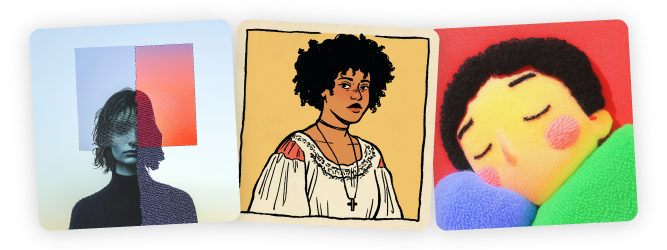
[Personalization](https://docs.midjourney.com/hc/en-us/articles/32433330574221-Personalization)
Create custom image styles with personalized profiles and moodboards using --p
* [](https://docs.midjourney.com/hc/en-us/articles/33329462451469-Organizing-Your-Creations)
[Organizing Your Creations](https://docs.midjourney.com/hc/en-us/articles/33329462451469-Organizing-Your-Creations)
Easily manage all your Midjourney creations with the tools and features on your Organize page.
* [](https://docs.midjourney.com/hc/en-us/articles/34580542725645-Using-Folders)
[Using Folders](https://docs.midjourney.com/hc/en-us/articles/34580542725645-Using-Folders)
Use folders to keep your creativity organized and make dedicated spaces to generate your images.
* [](https://docs.midjourney.com/hc/en-us/articles/33390759197197-Complete-Tasks)
[Complete Tasks](https://docs.midjourney.com/hc/en-us/articles/33390759197197-Complete-Tasks)
Complete tasks on midjourney.com to earn rewards and shape your Personalization.
[See all 7 articles](https://docs.midjourney.com/hc/en-us/sections/33329398561549-Using-Web)
[Midjourney Controls](https://docs.midjourney.com/hc/en-us/sections/33329522730509-Midjourney-Controls)
--------------------------------------------------------------------------------------------------------
* [](https://docs.midjourney.com/hc/en-us/articles/32859204029709-Parameter-List)
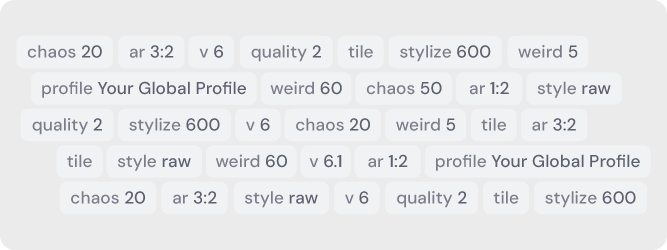
[Parameter List](https://docs.midjourney.com/hc/en-us/articles/32859204029709-Parameter-List)
Learn how to use parameters to control, customize, and enhace your creations.
* [](https://docs.midjourney.com/hc/en-us/articles/32099348346765-Chaos-Variety)
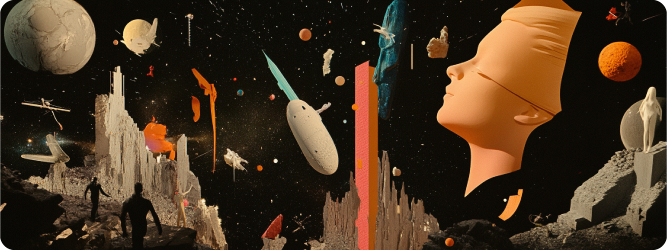
[Chaos / Variety](https://docs.midjourney.com/hc/en-us/articles/32099348346765-Chaos-Variety)
Add variety to your image results with the chaos parameter: --chaos or --c
* [](https://docs.midjourney.com/hc/en-us/articles/33329788681101-Legacy-Features)
[Legacy Features](https://docs.midjourney.com/hc/en-us/articles/33329788681101-Legacy-Features)
Learn about legacy tools and features that shaped Midjourney's evolution.
* [](https://docs.midjourney.com/hc/en-us/articles/32658968492557-Multi-Prompts-Weights)
[Multi-Prompts & Weights](https://docs.midjourney.com/hc/en-us/articles/32658968492557-Multi-Prompts-Weights)
Highlight important elements in your creations by using multi-prompts and weights.
* [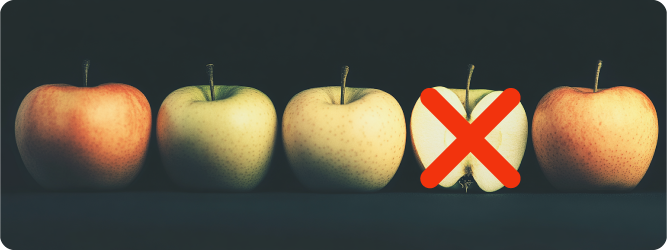](https://docs.midjourney.com/hc/en-us/articles/32173351982093-No)
[No](https://docs.midjourney.com/hc/en-us/articles/32173351982093-No)
Tell Midjourney what you don't want in your image using --no
* [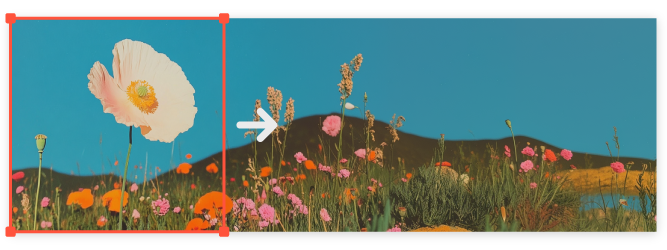](https://docs.midjourney.com/hc/en-us/articles/32570788043405-Pan)
[Pan](https://docs.midjourney.com/hc/en-us/articles/32570788043405-Pan)
Use pan to expand the canvas of your image and fill in new details.
* [](https://docs.midjourney.com/hc/en-us/articles/32761322355597-Permutations)
[Permutations](https://docs.midjourney.com/hc/en-us/articles/32761322355597-Permutations)
Use permutation prompts to generate multiple prompt variations from a single idea.
* [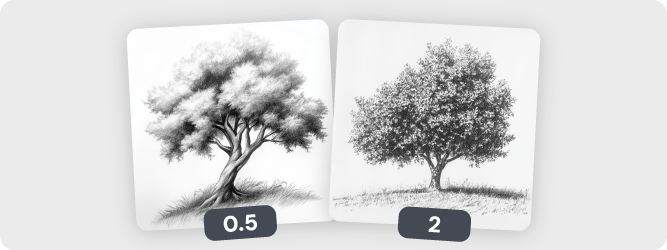](https://docs.midjourney.com/hc/en-us/articles/32176522101773-Quality)
[Quality](https://docs.midjourney.com/hc/en-us/articles/32176522101773-Quality)
Control the processing time of your images with the quality parameter: --quality or --q
* [](https://docs.midjourney.com/hc/en-us/articles/32634113811853-Raw-Mode)
[Raw Mode](https://docs.midjourney.com/hc/en-us/articles/32634113811853-Raw-Mode)
Use Raw Mode for more control over your creations.
* [](https://docs.midjourney.com/hc/en-us/articles/32799074515213-Remix)
[Remix](https://docs.midjourney.com/hc/en-us/articles/32799074515213-Remix)
Adjust your prompt text and guide your variations and edits using remix.
* [](https://docs.midjourney.com/hc/en-us/articles/32757107922061-Repeat)
[Repeat](https://docs.midjourney.com/hc/en-us/articles/32757107922061-Repeat)
Generate multiple image sets from a prompt using the repeat parameter: --repeat or --r
* [](https://docs.midjourney.com/hc/en-us/articles/32604356340877-Seeds)
[Seeds](https://docs.midjourney.com/hc/en-us/articles/32604356340877-Seeds)
Use the seed parameter for testing and experimenting: --seed
* [](https://docs.midjourney.com/hc/en-us/articles/32196176868109-Stylize)
[Stylize](https://docs.midjourney.com/hc/en-us/articles/32196176868109-Stylize)
Control the artistic flair in your images with the stylize parameter: --stylize or --s
* [](https://docs.midjourney.com/hc/en-us/articles/32502277092109-Text-Generation)
[Text Generation](https://docs.midjourney.com/hc/en-us/articles/32502277092109-Text-Generation)
Generate images with words and phrases in them using quotation marks.
* [](https://docs.midjourney.com/hc/en-us/articles/32197978340109-Tile)
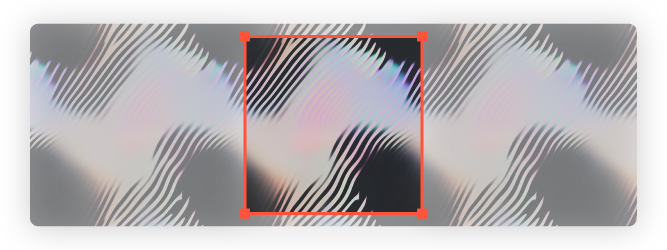
[Tile](https://docs.midjourney.com/hc/en-us/articles/32197978340109-Tile)
Create seamless repeating patterns with the tile parameter: --tile
* [](https://docs.midjourney.com/hc/en-us/articles/32804058614669-Upscalers)
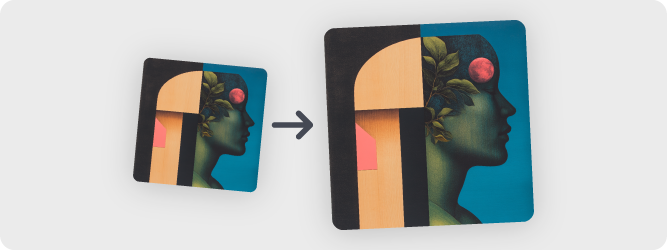
[Upscalers](https://docs.midjourney.com/hc/en-us/articles/32804058614669-Upscalers)
Make your images bigger and better with Midjourney's upscaling tools.
* [](https://docs.midjourney.com/hc/en-us/articles/32692978437005-Variations)
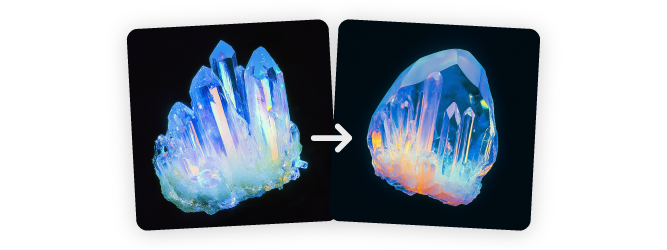
[Variations](https://docs.midjourney.com/hc/en-us/articles/32692978437005-Variations)
Transform your images with simple tweaks or creative overhauls using variations.
* [](https://docs.midjourney.com/hc/en-us/articles/32199405667853-Version)
[Version](https://docs.midjourney.com/hc/en-us/articles/32199405667853-Version)
Switch between Midjourney's model versions using the version parameter: --version or --v
* [](https://docs.midjourney.com/hc/en-us/articles/32390120435085-Weird)
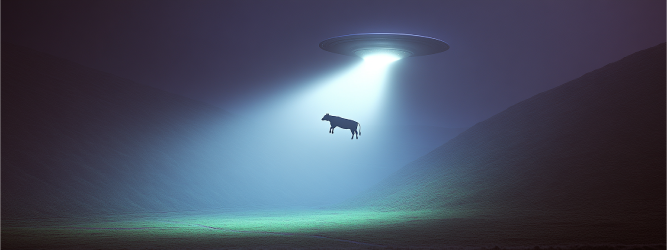
[Weird](https://docs.midjourney.com/hc/en-us/articles/32390120435085-Weird)
Make your images quirky and unconventional with the weird parameter: --weird or --w
* [](https://docs.midjourney.com/hc/en-us/articles/32595476770957-Zoom-Out)
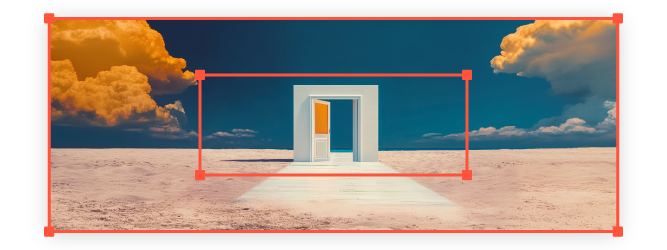
[Zoom Out](https://docs.midjourney.com/hc/en-us/articles/32595476770957-Zoom-Out)
Zoom Out of your creations to shrink the original image and reveal new content.
[See all 20 articles](https://docs.midjourney.com/hc/en-us/sections/33329522730509-Midjourney-Controls)
[Using Discord](https://docs.midjourney.com/hc/en-us/sections/32013439485197-Using-Discord)
--------------------------------------------------------------------------------------------
* [](https://docs.midjourney.com/hc/en-us/articles/33329300781837-Web-vs-Discord)
[Web vs Discord](https://docs.midjourney.com/hc/en-us/articles/33329300781837-Web-vs-Discord)
Learn about the differences between making images on midjourney.com and Discord.
* [](https://docs.midjourney.com/hc/en-us/articles/32631709682573-Discord-Quick-Start)
[Discord Quick Start](https://docs.midjourney.com/hc/en-us/articles/32631709682573-Discord-Quick-Start)
Get started making Midjourney images in Discord.
* [](https://docs.midjourney.com/hc/en-us/articles/33330535666445-Discord-Overview)
[Discord Overview](https://docs.midjourney.com/hc/en-us/articles/33330535666445-Discord-Overview)
Learn all about using Discord to make Midjourney images.
* [](https://docs.midjourney.com/hc/en-us/articles/32637339216013-Discord-Direct-Messages)
[Discord Direct Messages](https://docs.midjourney.com/hc/en-us/articles/32637339216013-Discord-Direct-Messages)
Make images one-on-one with Midjourney in Discord Direct Messages.
* [](https://docs.midjourney.com/hc/en-us/articles/32637946450445-Add-Midjourney-to-Your-Discord-Server)
[Add Midjourney to Your Discord Server](https://docs.midjourney.com/hc/en-us/articles/32637946450445-Add-Midjourney-to-Your-Discord-Server)
Learn how to add the Midjourney Bot to your own Discord server.
* [](https://docs.midjourney.com/hc/en-us/articles/32894521590669-Discord-Command-List)
[Discord Command List](https://docs.midjourney.com/hc/en-us/articles/32894521590669-Discord-Command-List)
See all the commands you can use to interact with the Midjourney Bot in Discord.
* [](https://docs.midjourney.com/hc/en-us/articles/32868982949517-Creation-Settings-in-Discord)
[Creation Settings in Discord](https://docs.midjourney.com/hc/en-us/articles/32868982949517-Creation-Settings-in-Discord)
Adjust your default Midjourney settings in Discord with the /settings command.
* [](https://docs.midjourney.com/hc/en-us/articles/32084927086861-Info-Command)
[Info Command](https://docs.midjourney.com/hc/en-us/articles/32084927086861-Info-Command)
Use the /info command to see your subscription type, renewal date, and more.
* [](https://docs.midjourney.com/hc/en-us/articles/32635695384461-Show-Command)
[Show Command](https://docs.midjourney.com/hc/en-us/articles/32635695384461-Show-Command)
Move or refresh your generated images in Discord using the /show command.
* [](https://docs.midjourney.com/hc/en-us/articles/32794723105549-Vary-Region)
[Vary Region](https://docs.midjourney.com/hc/en-us/articles/32794723105549-Vary-Region)
Change parts of your image while leaving the rest untouched with Vary Region in Discord.
* [](https://docs.midjourney.com/hc/en-us/articles/32635189884557-Blend-Images-on-Discord)
[Blend Images on Discord](https://docs.midjourney.com/hc/en-us/articles/32635189884557-Blend-Images-on-Discord)
Turn multiple photos into a single unique creation using the /blend command.
* [](https://docs.midjourney.com/hc/en-us/articles/32558957919117-Hosting-Images-on-Discord)
[Hosting Images on Discord](https://docs.midjourney.com/hc/en-us/articles/32558957919117-Hosting-Images-on-Discord)
Upload images directly to Discord to use them with the Midjourney bot.
[See all 12 articles](https://docs.midjourney.com/hc/en-us/sections/32013439485197-Using-Discord)
[Midjourney Policies](https://docs.midjourney.com/hc/en-us/sections/33329694407821-Midjourney-Policies)
--------------------------------------------------------------------------------------------------------
* [](https://docs.midjourney.com/hc/en-us/articles/32083055291277-Terms-of-Service)
[Terms of Service](https://docs.midjourney.com/hc/en-us/articles/32083055291277-Terms-of-Service)
* [](https://docs.midjourney.com/hc/en-us/articles/32013696484109-Community-Guidelines)
[Community Guidelines](https://docs.midjourney.com/hc/en-us/articles/32013696484109-Community-Guidelines)
* [](https://docs.midjourney.com/hc/en-us/articles/32083472637453-Privacy-Policy)
[Privacy Policy](https://docs.midjourney.com/hc/en-us/articles/32083472637453-Privacy-Policy)
* [](https://docs.midjourney.com/hc/en-us/articles/37012090959245-Cookie-Policy)
[Cookie Policy](https://docs.midjourney.com/hc/en-us/articles/37012090959245-Cookie-Policy)
* [](https://docs.midjourney.com/hc/en-us/articles/32084281102349-Midjourney-Trademark-Policy)
[Midjourney Trademark Policy](https://docs.midjourney.com/hc/en-us/articles/32084281102349-Midjourney-Trademark-Policy)
* [](https://docs.midjourney.com/hc/en-us/articles/32084462534541-Data-Deletion-and-Privacy-FAQ)
[Data Deletion and Privacy FAQ](https://docs.midjourney.com/hc/en-us/articles/32084462534541-Data-Deletion-and-Privacy-FAQ)
* [](https://docs.midjourney.com/hc/en-us/articles/32084601469581-Purchase-Order-Terms-and-Conditions)
[Purchase Order Terms and Conditions](https://docs.midjourney.com/hc/en-us/articles/32084601469581-Purchase-Order-Terms-and-Conditions)
[See all 7 articles](https://docs.midjourney.com/hc/en-us/sections/33329694407821-Midjourney-Policies)
---
# Canceling Your Subscription – Midjourney
[Skip to main content](https://docs.midjourney.com/hc/en-us/articles/25384024738573-Canceling-Your-Subscription#page-container)
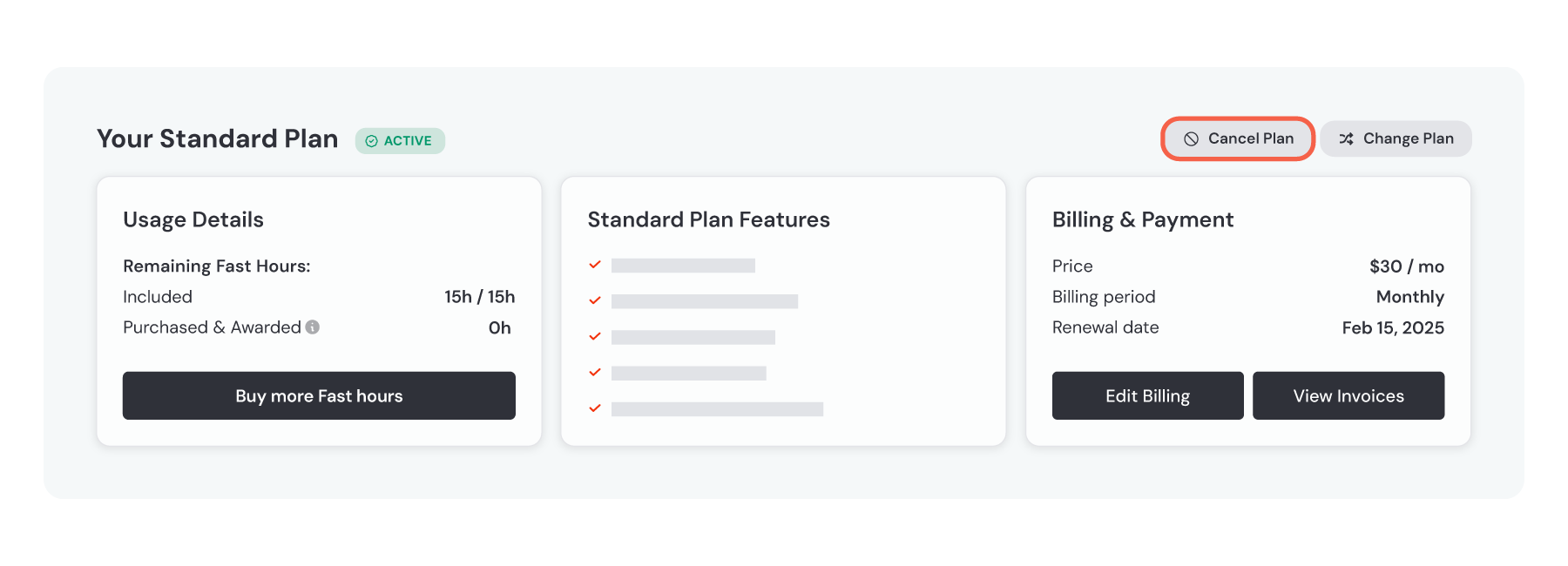
You can cancel your Midjourney subscription at any time by going to your [Manage Subscription](https://www.midjourney.com/account)
page and clicking the **Cancel Plan** button.
Your cancellation will become effective at the end of your current billing cycle, and you'll still have access to all of your subscription features—including any remaining Fast time—until then.
Canceling your subscription does not delete your generated images or account history. Any Stealth images you have will stay unpublished. You can choose to resubscribe at any time.
If you have an upgrade or downgrade scheduled, make sure to cancel that change first by using the **Cancel Change** button before you proceed with canceling your subscription.
---
# Requesting a Refund – Midjourney
[Skip to main content](https://docs.midjourney.com/hc/en-us/articles/25386088618253-Requesting-a-Refund#page-container)
You're eligible for a refund only if you've used less than 20 GPU minutes throughout the lifetime of your account. This includes both Fast/Turbo and Relax time.
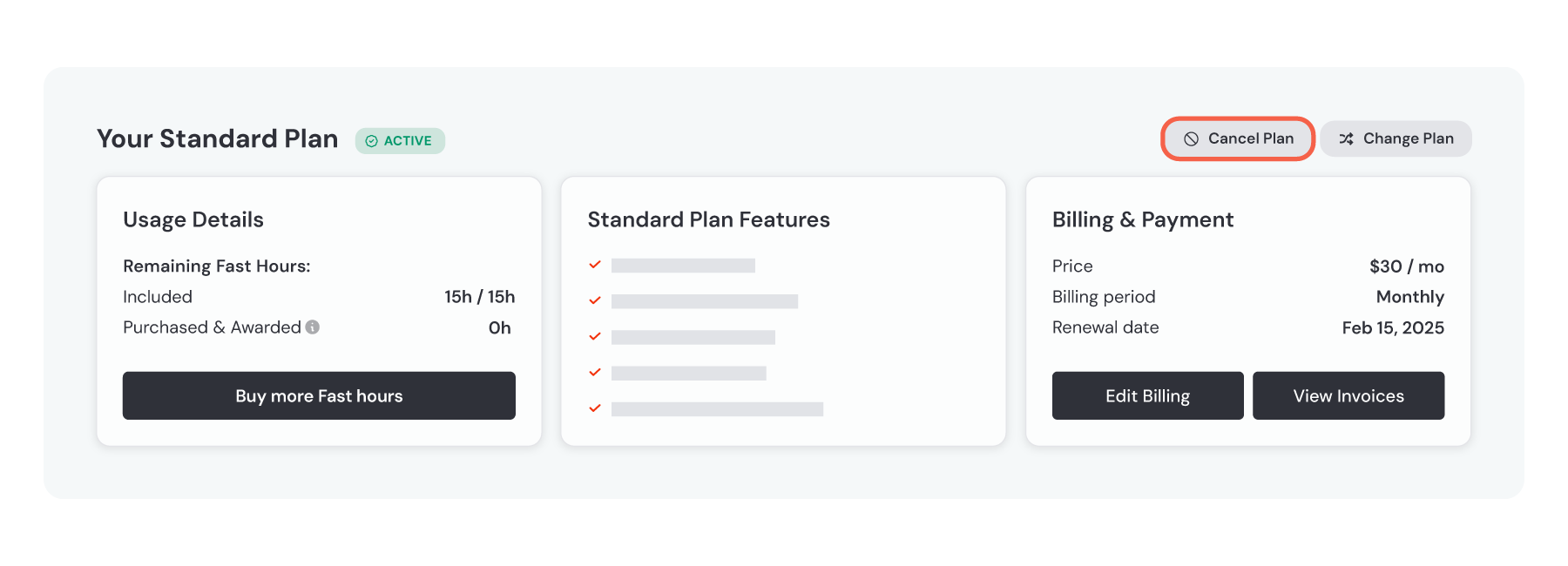
If you qualify for a refund, you'll automatically see the option to request one when you [cancel your subscription](https://docs.midjourney.com/hc/en-us/articles/25384024738573)
. If you don't see the refund option, we're unable to provide a refund.
Refund processing may take up to 10 business days, depending on your bank's processing times, but you'll receive a refund confirmation email from Midjourney within a few minutes.
Before requesting a refund, make sure to cancel any other plan changes you have scheduled using the **Cancel Change** button.
If you encounter any error messages, wait an hour and try again—your renewal payment might still be processing. If the issue persists, [contact billing support](https://docs.midjourney.com/hc/en-us/articles/32638309968141)
for assistance.
---
# Editing Your Payment Information – Midjourney
[Skip to main content](https://docs.midjourney.com/hc/en-us/articles/25385791792781-Editing-Your-Payment-Information#page-container)
**Active Subscription:** To review or update your payment details on an active subscription, go to your [Manage Subscription](https://www.midjourney.com/account)
page on midjourney.com. Make sure you're logged in if you haven't done so already.
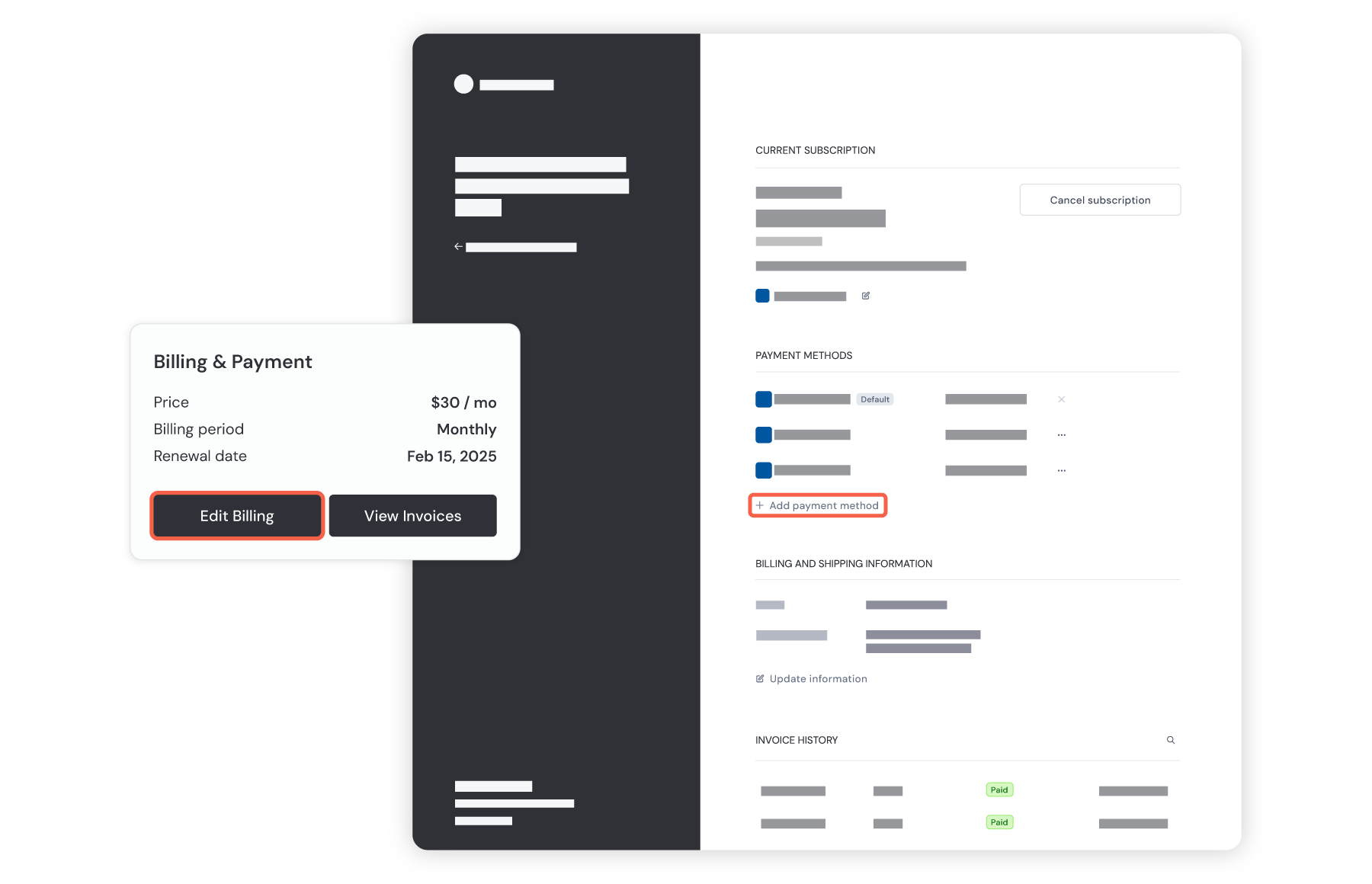
From there, click the "Edit Billing" button. This opens your billing portal in a new window. Inside the portal, you can add new card details by clicking "Add a payment method." Click the ... (ellipsis) button to set a card as your default payment method. If you need to delete a payment method, use the X button, but remember you must keep at least one payment method on file as long as your subscription is active.
For smooth transactions, ensure your billing address matches the address on file with your credit card issuer. This helps avoid any [unsuccessful payments](https://docs.midjourney.com/hc/en-us/articles/27868801964045)
.
**Inactive Subscription:** If your subscription has ended, you won't see an "Edit Billing" button on your Manage Subscription page. Instead, enter your email address [here](https://billing.stripe.com/p/login/aEUdRA5Wc8t25a03cc)
. You will receive an email with a link to access your billing portal within a few minutes. Make sure to check your spam folder if you don't receive it right away.
Please note, if you also have a subscription to Midjourney Magazine using the same email address, the form might send you a link to your magazine subscription billing portal instead. If this occurs, or if you encounter any other issues accessing your billing history, please [reach out to billing support](https://docs.midjourney.com/hc/en-us/articles/32638309968141)
for assistance.
---
# Unsuccessful Payments – Midjourney
[Skip to main content](https://docs.midjourney.com/hc/en-us/articles/27868801964045-Unsuccessful-Payments#page-container)
When a payment is declined, you will often see a pending transaction in your bank account. This is normal, and will go away automatically. It does not mean the payment was successful. When your payment is successful you will always receive an email from Midjourney with your receipt and invoice.
Payments can fail for a variety of reasons. If you're having trouble making a payment, try please these troubleshooting steps:
* **Check Card Information:** Ensure that all card details, including your name, card number, CVC, and expiration date, are entered correctly.
* **Verify Billing Address:** Make sure your billing address matches what's on file with your card issuer. Even small differences in the address can cause payment issues.
* **Funds and Limits:** Confirm that you have enough funds in your account and haven’t hit any spending limits that may be set on your card.
* **Bank Approvals:** If everything seems correct, your bank might still be declining the transaction. You can call the number on the back of your card and ask for Midjourney transactions to be whitelisted.
* **Try Another Card:** If possible, use a different card to try making the payment again.
If you've reviewed all your billing info and contacted your bank but still face payment issues, please [reach out to our billing support team](https://docs.midjourney.com/hc/en-us/articles/32638309968141)
.
---
# Reporting an Unauthorized Charge – Midjourney
[Skip to main content](https://docs.midjourney.com/hc/en-us/articles/27868804543885-Reporting-an-Unauthorized-Charge#page-container)
If you believe your card has been used fraudulently to pay for Midjourney, please [contact billing support](https://docs.midjourney.com/hc/en-us/articles/32638309968141)
right away with all the following transaction details:
* Exact amount charged (and your local currency, if it's not USD)
* Date and time of the transaction, including your local time zone
* The type of card (Visa, Mastercard, etc., credit or debit card)
* Your card’s country of origin
* Name of the bank that issued your card
* The last 4 digits of your card number
* The card's expiration date
**To definitively locate the charges in our system, billing support needs all of this information.**
If there are multiple charges, please provide the amount, date, and time of each charge.
Investigations into potentially fraudulent charges are a top priority for the billing team, and we can generally resolve these cases, including getting your money back to you, faster than your bank can.
---
# Fixing a Paused Plan – Midjourney
[Skip to main content](https://docs.midjourney.com/hc/en-us/articles/27868802467853-Fixing-a-Paused-Plan#page-container)
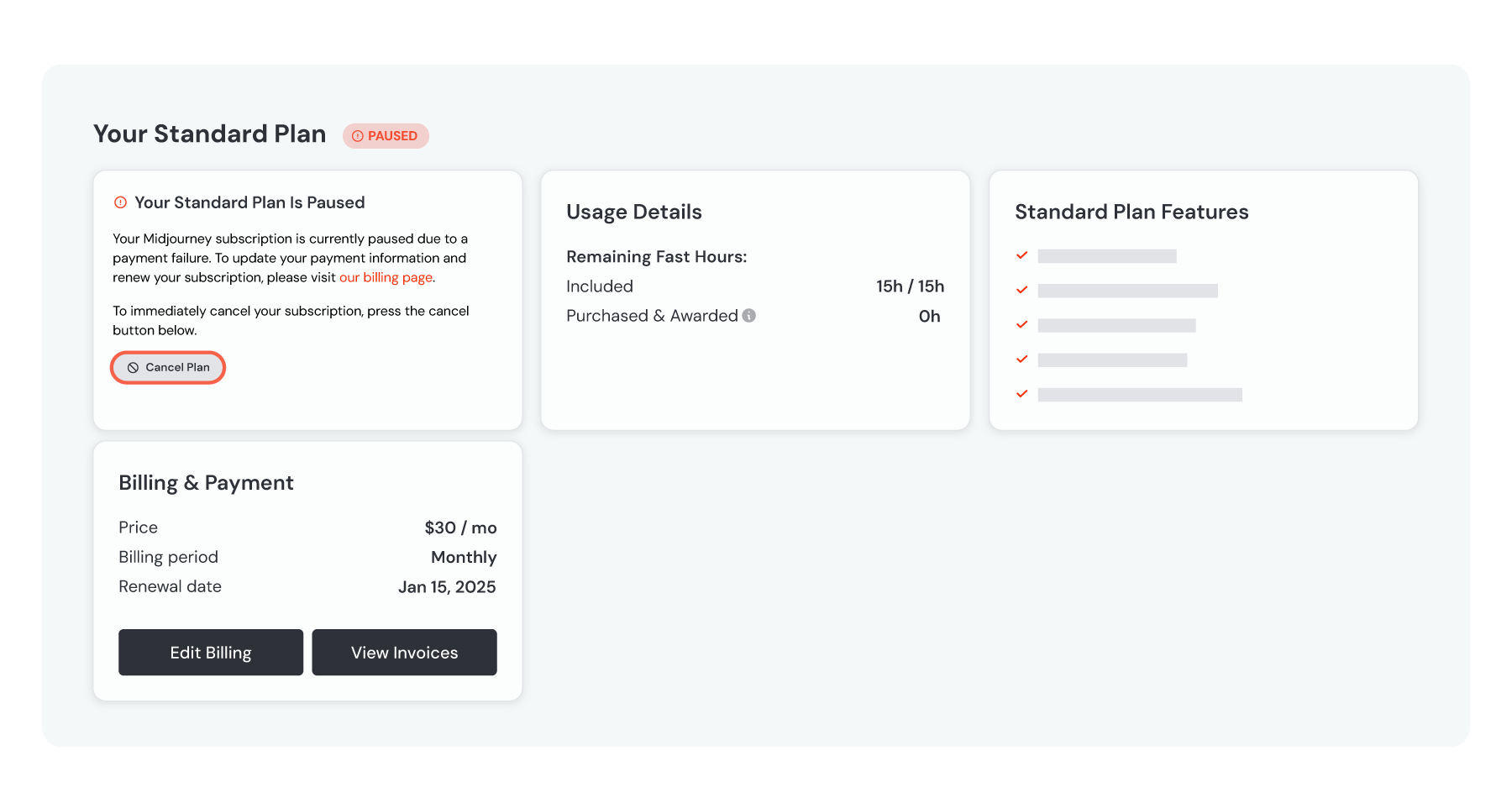
If your subscription doesn't renew because of a payment failure, your plan will be marked as "Paused". This means that the renewal payment didn't go through successfully.
You should receive an email notifying you that the payment attempt was unsuccessful. Our system automatically retries the payment multiple times over several days. However, if none of these attempts work, your subscription will be automatically canceled.
When a payment is declined, you will often see a pending transaction in your bank account. This is normal, and will go away automatically. It does not mean the payment was successful. When your payment is successful you will always receive an email from Midjourney with your receipt and invoice.
#### How to Fix a Paused Plan:
1. To immediately stop the payment attempts, visit your [Manage Subscription](https://www.midjourney.com/account)
page (make sure you're logged in) and cancel the paused plan.
2. Once canceled, you can re-subscribe from the same page. To update your payment information, use the "Edit Billing" button.
For more details on why your payment might not have gone through, see our [Unsuccessful Payments](https://docs.midjourney.com/hc/en-us/articles/27868801964045)
article. If you're still experiencing payment issues, please [contact billing support](https://docs.midjourney.com/hc/en-us/articles/32638309968141)
for further assistance.
---
# Payment Currency – Midjourney
[Skip to main content](https://docs.midjourney.com/hc/en-us/articles/27868831424525-Payment-Currency#page-container)
Midjourney accepts payments exclusively in US Dollars (USD).
If you're paying with a currency other than USD, your bank will automatically convert your payment to USD. This process will involve your bank's conversion rates, and depending on your account terms, they may also charge a foreign transaction fee.
**Please note that Midjourney has no control over the conversion rates or any bank fees applied.** If you have questions concerning how your bank manages foreign transactions, it's a good idea to contact them before subscribing to understand what to expect.
---
# Tax / VAT Charges – Midjourney
[Skip to main content](https://docs.midjourney.com/hc/en-us/articles/27868801261325-Tax-VAT-Charges#page-container)
When you purchase a Midjourney subscription, sales tax or Value Added Tax (VAT) may apply, depending on your location. Stripe, our payment processor, calculates your tax rate at checkout using your billing information. Any taxes due are added to your subscription price, and you'll see the total amount before you complete your payment.
This process is automated based on your billing details. Our billing support team cannot modify the taxes charged for your subscription. However, if you're part of an organization that should be tax-exempt, please refer to our [Requesting a Tax Exemption](https://docs.midjourney.com/hc/en-us/articles/27868838932621)
article for guidance.
Note: Tax requirements may change over time. Just because your past purchases were tax-free doesn’t mean future purchases will be as well.
---
# Reporting a Duplicate Charge – Midjourney
[Skip to main content](https://docs.midjourney.com/hc/en-us/articles/27868806085517-Reporting-a-Duplicate-Charge#page-container)
If you haven’t received multiple receipts by email, it’s likely you haven’t been charged more than once. Often, failed payments show up as pending authorizations on your card for several days, which might also trigger payment alerts. If you've only gotten one email receipt, the extra transactions you're seeing are probably pending authorizations that will vanish automatically within a few days.
However, if you have received multiple email receipts, please [contact our billing support team](https://docs.midjourney.com/hc/en-us/articles/32638309968141)
right away.
To help us resolve the issue swiftly, include the invoice or receipt number from each receipt you’ve received. You can find these numbers in the subject line of your receipt emails or near the top left corner of the PDF versions of your receipts or invoices. Invoice numbers look like ABC1DEF2-0001, and receipt numbers like 1234-5678-9012.
---
# Accepted Payment Methods – Midjourney
[Skip to main content](https://docs.midjourney.com/hc/en-us/articles/27868831972365-Accepted-Payment-Methods#page-container)
Midjourney uses Stripe as our payment processor, which means you can only use payment methods that Stripe accepts. Generally, you can pay with major credit and debit cards like Visa, Mastercard, and American Express, as well as some digital wallets such as Apple Pay, Amazon Pay, Alipay, Google Pay, and Link in some regions. The options you see during checkout are the ones available to you.
We can only accept the payment methods shown at checkout, and our billing support team can't help set up any alternatives unless you're [buying in bulk as a company](https://docs.midjourney.com/hc/en-us/articles/27870607078285)
.
Unfortunately, PayPal isn't currently supported.
Stripe is a PCI Service Provider Level 1, the most stringent level of certification available in the payments industry.
---
# Viewing Your Payment History – Midjourney
[Skip to main content](https://docs.midjourney.com/hc/en-us/articles/27868885185293-Viewing-Your-Payment-History#page-container)
All your invoices and receipts are automatically emailed to the billing email address on file, so you might also find them in your inbox.
**Active Subscription:** If you have an active subscription, accessing your billing history is straightforward. Log in to midjourney.com and navigate to the [Manage Subscription](https://www.midjourney.com/account)
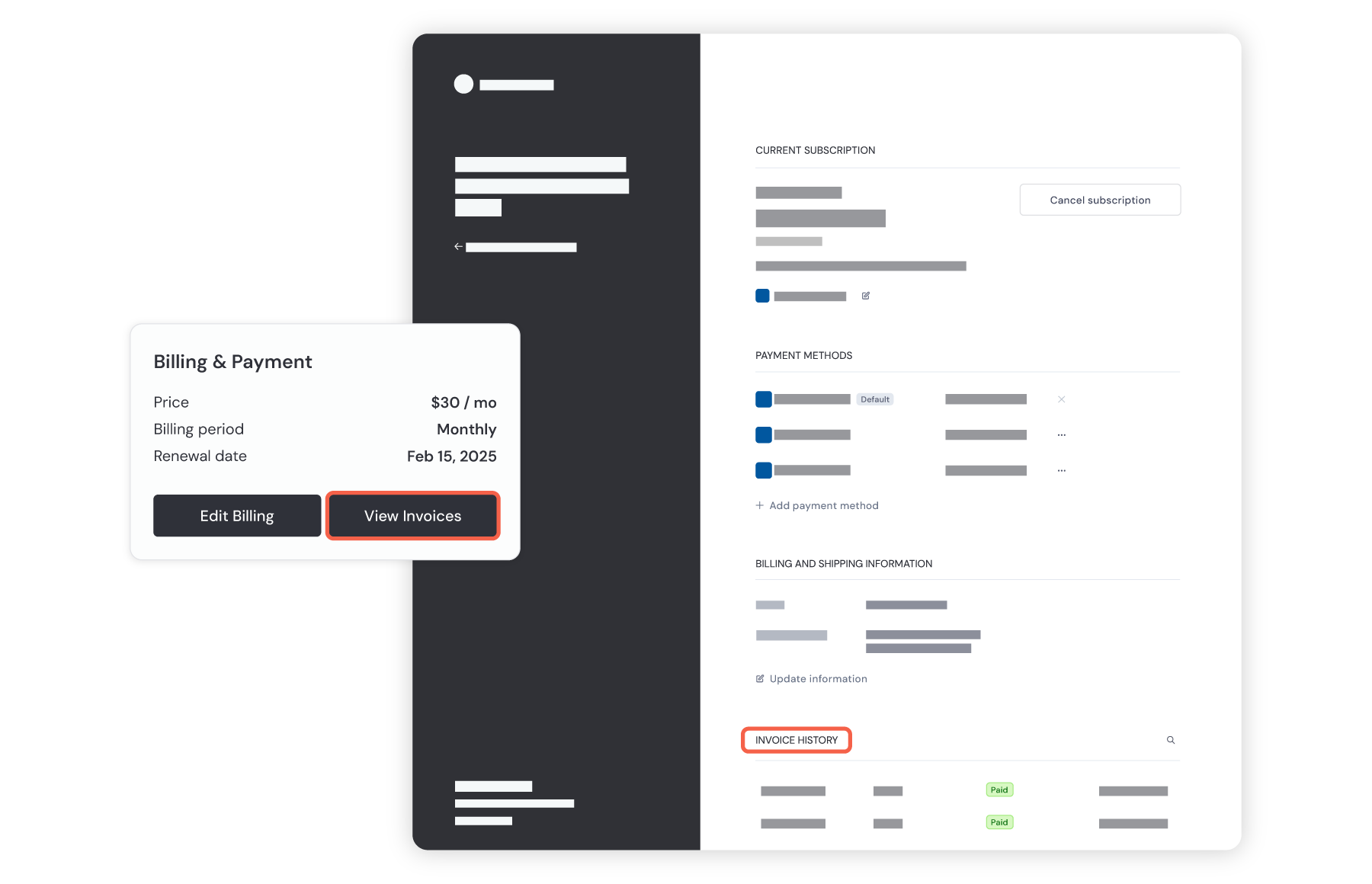
page. Once there, click the "View Invoices" button to open your billing portal in a new window. At the bottom of this page, you’ll find your Invoice History, where you can click on any invoice to view it.
**Inactive Subscription:** If your subscription has ended, you won't see a "View Invoices" button on your Manage Subscription page. Instead, enter your email address [here](https://billing.stripe.com/p/login/aEUdRA5Wc8t25a03cc)
. You will receive an email with a link to access your billing portal within a few minutes. Make sure to check your spam folder if you don't receive it right away.
Please note, if you also have a subscription to Midjourney Magazine using the same email address, the form might send you a link to your magazine subscription billing portal instead. If this occurs, or if you encounter any other issues accessing your billing history, please [reach out to billing support](https://docs.midjourney.com/hc/en-us/articles/32638309968141)
for assistance.
---
# Changing Your Invoice Information – Midjourney
[Skip to main content](https://docs.midjourney.com/hc/en-us/articles/27868825749517-Changing-Your-Invoice-Information#page-container)
The name, physical address, and VAT or Tax ID that you have in your Stripe payment details are what appear on your invoice. To update this information, you can simply [edit your payment details.](https://docs.midjourney.com/hc/en-us/articles/25385791792781)
Bear in mind that any changes you make will apply only to future invoices. Unfortunately, we cannot change invoices that have already been issued, so ensure that the payment details you enter at checkout are the ones you want to see on your invoice.
---
# Requesting a Tax Exemption – Midjourney
[Skip to main content](https://docs.midjourney.com/hc/en-us/articles/27868838932621-Requesting-a-Tax-Exemption#page-container)
This article is for Midjourney subscribers from tax-exempt organizations paying for their subscription. Please note that we cannot modify tax status for individual users. If you're an individual, refer to our other article on [how taxes are determined for your subscription](https://docs.midjourney.com/hc/en-us/articles/27868801261325)
.
When Subscribing
----------------
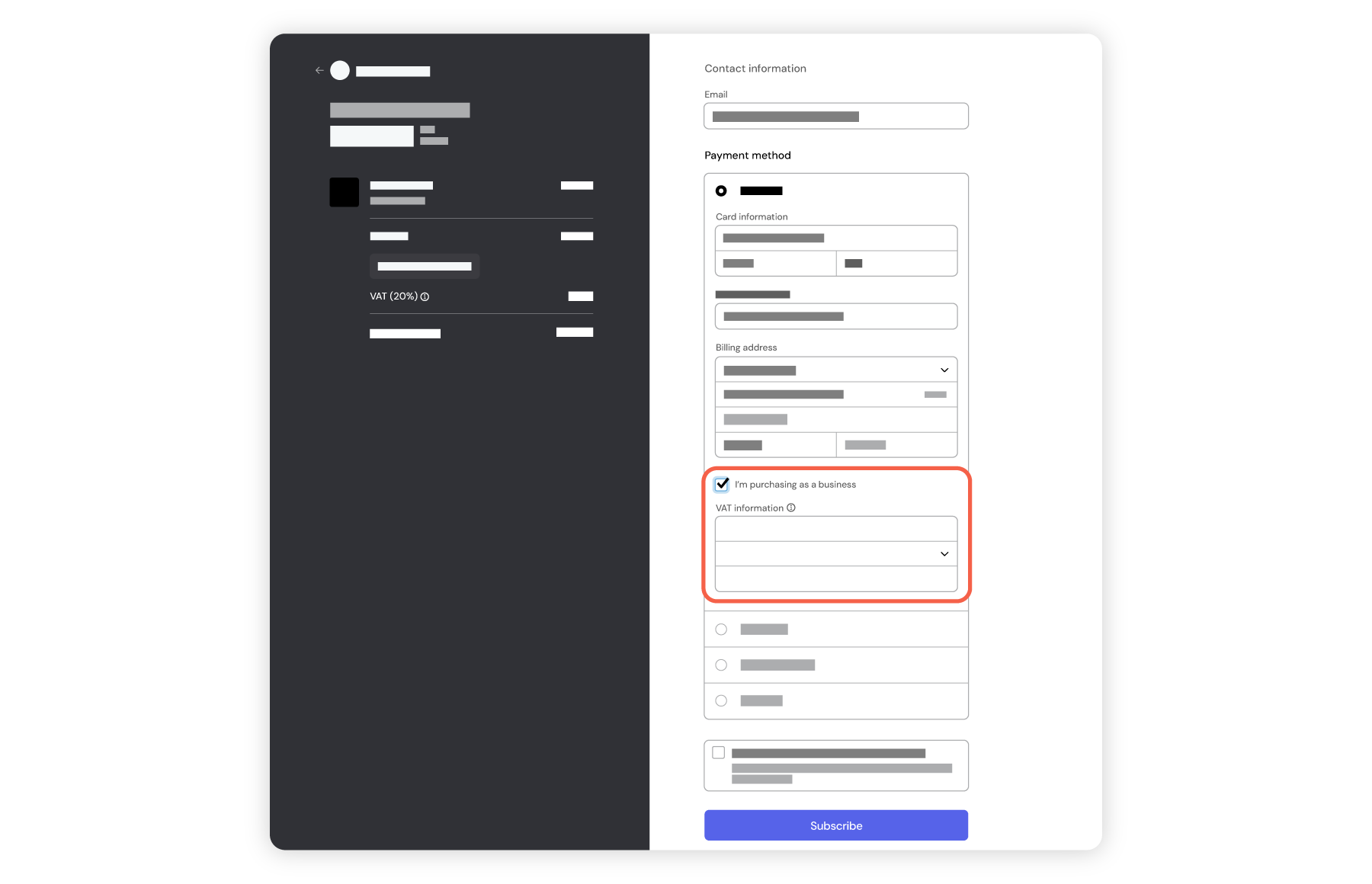
During checkout, tick the "I'm purchasing as a business" box that will appear after you enter your payment and address information, if taxes apply. This will reveal fields for entering your tax ID, like an EIN in the United States or a VAT number in applicable countries. This information will appear automatically on future invoices.
Our payment processor will try to validate your tax status and apply any eligible exemptions. If the option doesn’t appear, or if validation fails, you can [contact billing support](https://docs.midjourney.com/hc/en-us/articles/32638309968141)
after subscribing to update your account and refund any taxes charged.
After Subscribing
-----------------
To request a tax exemption or reverse-charge status, [contact billing support](https://docs.midjourney.com/hc/en-us/articles/32638309968141)
with the following details:
* Full name on your account
* Billing email address
* Physical billing address
* For VAT countries: Company’s VAT number
* For non-VAT countries: Tax-exempt status documentation, such as a tax exemption certificate
Ensure your subscription’s billing information matches your exemption documentation. Once we confirm your tax status, we’ll update your account and refund any taxes paid for the current calendar year.
Please note: Billing support can only adjust tax status post-subscription. Processing tax exemption requests may take up to two weeks. We cannot alter past invoices, but your updated info will show on future ones.
---
# Turning Off Automatic Renewals – Midjourney
[Skip to main content](https://docs.midjourney.com/hc/en-us/articles/27868888211213-Turning-Off-Automatic-Renewals#page-container)
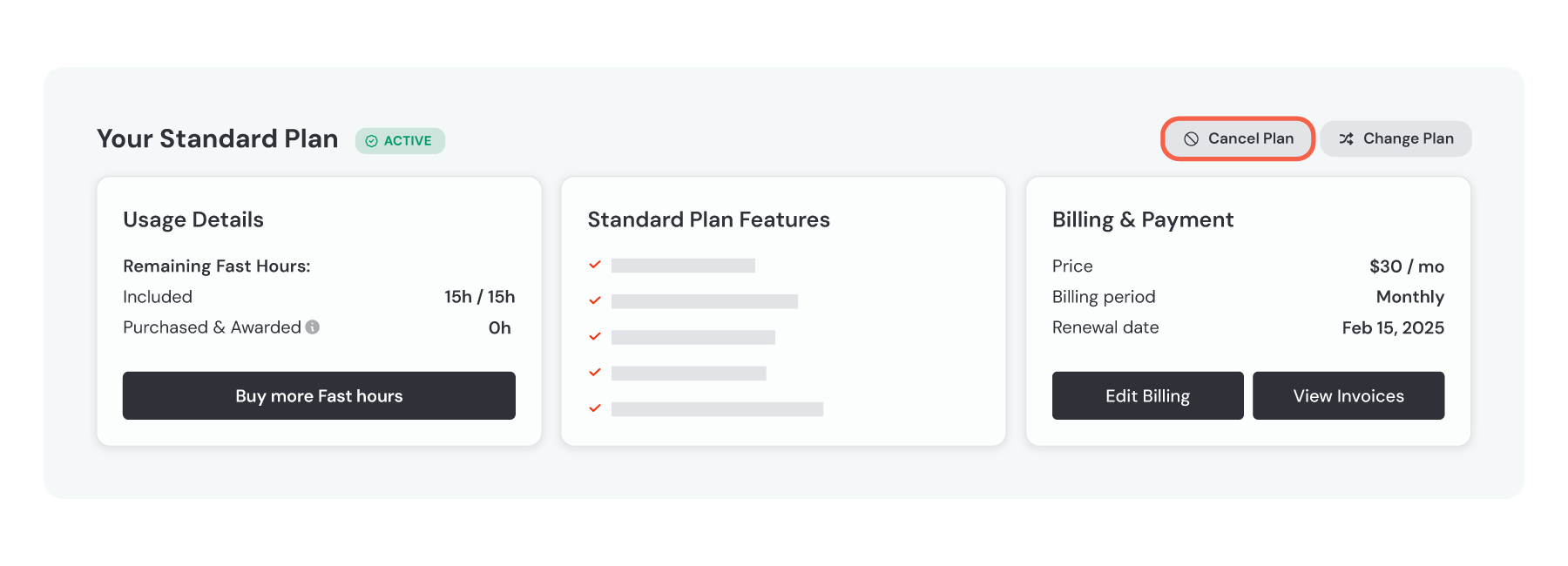
All Midjourney subscriptions are set to renew automatically. If you'd prefer not to continue your subscription, you can cancel it via your [Manage Subscription](https://www.midjourney.com/account)
page on midjourney.com. Be sure to log in first if you’re not already.
Once you cancel, you'll still enjoy your current plan’s features and any remaining GPU time until your subscription period ends. However, the plan won't automatically renew at the end of your billing period. Remember, each time you subscribe, you'll need to cancel before renewal if you don't want it to auto-renew—disabling automatic renewals entirely isn't an option.
Canceling comes without penalties, and all your images created with Midjourney will remain saved in your account. You can access them anytime on midjourney.com, even without an active subscription.
---
# Discord Nitro Subscription – Midjourney
[Skip to main content](https://docs.midjourney.com/hc/en-us/articles/27870371412749-Discord-Nitro-Subscription#page-container)
[Discord Nitro](https://support.discord.com/hc/en-us/articles/115000435108-What-are-Nitro-Nitro-Basic)
is a Discord subscription with perks for your account, but it’s different from a Midjourney subscription. Having Discord Nitro won't give you access to Midjourney, and you don’t need Discord Nitro to use Midjourney.
When you go to the "Subscriptions" page in your Discord user settings, you'll only see Discord Nitro subscriptions. Midjourney subscriptions won’t be listed there. If you accidentally signed up for Discord Nitro thinking it would let you use Midjourney, you might be able to [get a refund from Discord](https://support.discord.com/hc/en-us/articles/360012668071-Refund-Policy)
.
If you need help subscribing to Midjourney, check out our [How to Subscribe](https://docs.midjourney.com/hc/en-us/articles/31974654274573)
article.
To get help with your Discord Nitro subscription, [visit Discord's support site](https://support.discord.com/)
.
---
# Changing Your Billing Email – Midjourney
[Skip to main content](https://docs.midjourney.com/hc/en-us/articles/27868854770573-Changing-Your-Billing-Email#page-container)
Your billing email is the address our payment processor, Stripe, uses to send you invoices and receipts for your Midjourney purchases. This email may be different from the one you use to log in to your Midjourney account, and changing it won’t affect your login process on midjourney.com or Discord. For more details about logging in, check out our [Logging In & Connecting Accounts](https://docs.midjourney.com/hc/en-us/articles/33390994570509)
article.
To update your billing email address, you'll need assistance from Midjourney's billing support team, so please [contact billing support](https://docs.midjourney.com/hc/en-us/articles/32638309968141)
for help. For security purposes, you might need to answer some verification questions to ensure your account remains safe.
---
# Free Trials – Midjourney
[Skip to main content](https://docs.midjourney.com/hc/en-us/articles/27870399340173-Free-Trials#page-container)
A limited trial is available on the [niji · journey](https://nijijourney.com/)
app, available for [iOS](https://apps.apple.com/us/app/niji-journey/id6446376937)
and [Android](https://play.google.com/store/apps/details?id=com.spellbrush.nijijourney)
devices. No free trial is currently available in Discord or the midjourney.com website.
See our [How to Subscribe](https://docs.midjourney.com/hc/en-us/articles/31974654274573)
article for help subscribing to Midjourney.
---
# Deleting Your Data – Midjourney
[Skip to main content](https://docs.midjourney.com/hc/en-us/articles/27870397554701-Deleting-Your-Data#page-container)
If you wish to delete all personal data associated with your Midjourney account, you can initiate this process from the [Manage Subscription](https://www.midjourney.com/account)
page on midjourney.com. Locate the "How can I delete my account?" FAQ section at the bottom of the page and follow the instructions provided.
**Once you initiate the deletion, your subscription will be immediately canceled.** There is a 7-day window during which you can reconsider your decision before your data is permanently erased. Remember, once your data is deleted, your account cannot be restored. Be sure to save anything from your account that you might need in the future.
For any additional questions, please see our [Data Deletion and Privacy FAQ](https://docs.midjourney.com/hc/en-us/articles/32084462534541)
policy page.
---
# Using Images & Videos Commercially – Midjourney
[Skip to main content](https://docs.midjourney.com/hc/en-us/articles/27870375276557-Using-Images-Videos-Commercially#page-container)
With Midjourney, you own all the images and videos you create, even if you decide to cancel your subscription. Feel free to use them however you like, with just a couple of exceptions:
1. If you upscale an image that another user created, that image belongs to the original creator, not you. It will show up in their gallery on our website, so you'll need their permission to use it.
2. If you are part of a business grossing more than $1,000,000 USD a year, you need a Pro or Mega Plan to use your images commercially for your company.
Full details can be found in the Midjourney [Terms of Service](https://docs.midjourney.com/hc/en-us/articles/32083055291277)
, Section 4: Copyright and Trademark.
#### Understanding Copyrights
It's important to know that Midjourney cannot offer guidance on copyright matters. Copyright laws differ from one country to another, so we recommend contacting a lawyer or legal expert if you have specific questions or concerns.
---
# Managing Your Midjourney Magazine Subscription – Midjourney
[Skip to main content](https://docs.midjourney.com/hc/en-us/articles/27870410169997-Managing-Your-Midjourney-Magazine-Subscription#page-container)
Your Midjourney Magazine subscription is entirely separate from your image generation subscription.
To manage your magazine subscription, enter your magazine billing email into [this form](https://billing.stripe.com/p/login/aEUdRA5Wc8t25a03cc)
. This is the only method for managing your magazine subscription.
Important: Any changes you make to your image generation subscription on the Manage Subscription page at midjourney.com will not affect your magazine subscription. The two subscriptions operate independently.
After entering your email in the above form, you'll receive an email with a link to your magazine billing portal.
If you encounter any issues—such as the link directing you to your Midjourney Bot subscription instead of your magazine subscription—please [contact billing support](https://docs.midjourney.com/hc/en-us/articles/32638309968141)
for assistance.
---
# Group Plans & Enterprise Billing – Midjourney
[Skip to main content](https://docs.midjourney.com/hc/en-us/articles/27870607078285-Group-Plans-Enterprise-Billing#page-container)
Currently, Midjourney does not offer discounts or free plans for organizations, including non-profits and educational institutions.
If your organization requires 50 or more yearly Pro or Mega Plans, our support team can assist with bulk billing arrangements. Simply [contact billing support](https://docs.midjourney.com/hc/en-us/articles/32638309968141)
for more details.
**Please note that we do not offer the following:**
1. Seat management
2. Terms and policy negotiations
3. Participation in vendor processes, such as signing organization-required forms
For needs under 50 subscriptions, please subscribe through our standard channels. Refer to our [How to Subscribe](https://docs.midjourney.com/hc/en-us/articles/31974654274573)
article for guidance.
If you experience payment issues when using the same billing information for multiple accounts, [reach out to billing support](https://docs.midjourney.com/hc/en-us/articles/32638309968141)
for assistance.
---
# Finding Your Renewal Time – Midjourney
[Skip to main content](https://docs.midjourney.com/hc/en-us/articles/27870433501837-Finding-Your-Renewal-Time#page-container)
To know when your subscription renews, remember that it happens exactly on the same day and time each month as when you first subscribed.
For those on a yearly plan, your plan hours refresh monthly on the same day. For instance, if you subscribed to a yearly plan on August 8, your plan hours will refresh on the 8th of each month.
To easily find your renewal date, you can either use the [info command in Discord](https://docs.midjourney.com/hc/en-us/articles/32084927086861)
or visit your [Manage Subscription](https://www.midjourney.com/account)
page on midjourney.com.
Your renewal time may vary up to an hour from what's shown in Discord due to Daylight Saving Time/Summer Time.
Remember, all Midjourney subscription plans automatically renew unless you [set your plan to cancel](https://docs.midjourney.com/hc/en-us/articles/25384024738573)
.
---
# Upgrading or Downgrading Your Plan – Midjourney
[Skip to main content](https://docs.midjourney.com/hc/en-us/articles/27870428114317-Upgrading-or-Downgrading-Your-Plan#page-container)
Need to adjust your Midjourney plan? You can easily upgrade or downgrade from the [Manage Subscription](https://www.midjourney.com/account)
page on midjourney.com. If you're not logged in yet, be sure to log in first. Then, scroll down past your current subscription details to view other available plans.
Use the "Upgrade Plan" or "Downgrade Plan" button under the new plan you'd like to switch to.
If you're switching from a yearly plan to an upgraded monthly plan, the website won’t allow an immediate change. Please [contact our billing support team](https://docs.midjourney.com/hc/en-us/articles/32638309968141)
for assistance.
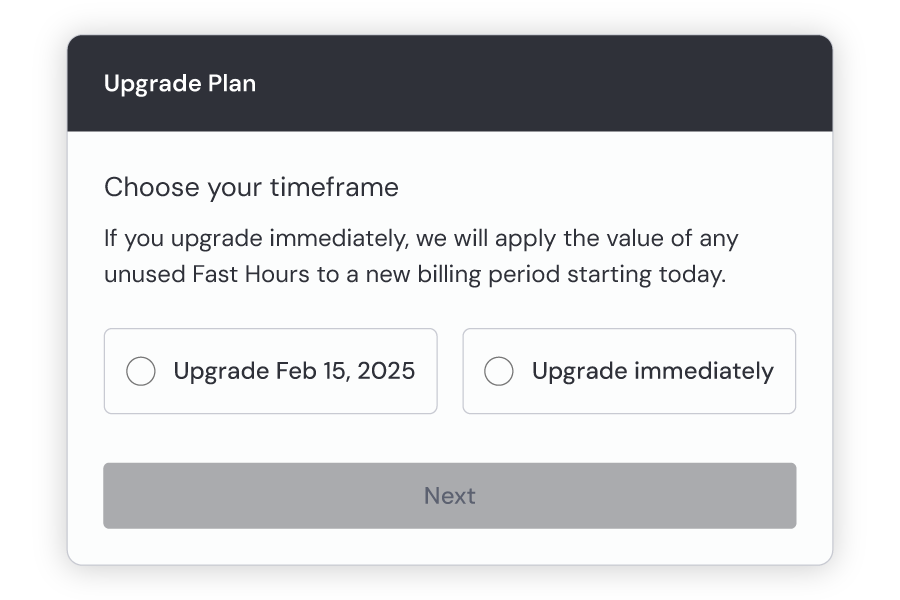
* When you move to a higher-tier plan, you can choose to upgrade immediately or wait until your regular renewal date.
If you upgrade right away, you'll receive a discount based on any unused Fast time from your current plan. If all your Fast time is used up, the new plan will be at full price.
Your subscription will reset immediately, granting you all the benefits of the new plan, including Fast time, and setting your next renewal one month (or one year for yearly plans) from your upgrade date.
Some payment methods and banks won't allow you to upgrade. If you're having any trouble, please [contact billing support](https://docs.midjourney.com/hc/en-us/articles/32638309968141)
for assistance.
* If you decide to switch to a lower-tier plan, the change will take effect at your next renewal, not immediately. Please note that downgrading won't [refund your current plan](https://docs.midjourney.com/hc/en-us/articles/25386088618253)
.
---
# Transferring Your Subscription – Midjourney
[Skip to main content](https://docs.midjourney.com/hc/en-us/articles/31541557571981-Transferring-Your-Subscription#page-container)
If you’ve lost access to the Discord or Google accounts you use to log in to midjourney.com, here’s what you can do:
First, reach out to [Discord Support](https://support.discord.com/)
or [Google Support](https://support.google.com/)
for help in recovering your account. Sadly, Midjourney support can't help with recovering your login details for these services. If you’re unable to get access back, [contact our billing support team](https://docs.midjourney.com/hc/en-us/articles/32638309968141)
for assistance and options to recover your Midjourney account.
Just a heads-up, your Midjourney subscription and image history can't be transferred. In some cases, we might be able to offer a credit transfer if you need to subscribe using a different account. However, your image gallery, image count history, and other account-specific details won’t move with you. For any help or questions, [contact our billing support team](https://docs.midjourney.com/hc/en-us/articles/32638309968141)
.
---
# Midjourney
[Skip to main content](https://docs.midjourney.com/hc/en-us#page-container)
Learn about Midjourney
======================
---
# Community Guidelines – Midjourney
[Skip to main content](https://docs.midjourney.com/hc/en-us/articles/32013696484109-Community-Guidelines#page-container)
### Midjourney is an open-by-default community. To keep the platform accessible and welcoming to the broadest number of users, content must be “Safe For Work” (SFW).
**We have 4 main rules**
1. **Be kind and respect each other**
2. **SFW content only**
3. **Be thoughtful about how you share your creations**
4. **Unauthorized automation & third party apps are not allowed**
Thank you for helping us make Midjourney a safe, welcoming space for everyone.
If you see someone violating these guidelines, you can report it [here](https://www.midjourney.com/help)
.
Please use these incredible powers with joy, wonder, responsibility and respect.
Rules
-----
1. Be kind and respect each other
1. Be kind and respect each other and staff. Violent behavior, harassment or incitement of any kind will not be tolerated.
2. Do not create images or use text prompts that are inherently disrespectful, aggressive, or otherwise abusive.
3. Do not create or use imagery of real people, famous or otherwise, that could be used to harass, abuse, defame, or otherwise harm.
4. Respect others’ rights. Do not attempt to find out others' private information. Do not upload others’ private information.
2. SFW content only
1. Do not create or attempt to create gore or adult content. Avoid making visually shocking or disturbing content.
2. What is Considered Gore? Gore includes images of detached body parts of humans or animals, cannibalism, blood, violence (images of shooting or bombing someone, for instance), mutilated bodies, severed limbs, pestilence, etc.
3. What is NSFW or Adult Content? Avoid nudity, sexual organs, fixation on such things, sexualized imagery, fetishes, people in showers, on toilets, etc.
4. Do not create or attempt to create content that in any way sexualizes children or minors. This includes real images as well as generated images. Do not generate, upload, share, or make attempts to distribute content that depicts, promotes, or attempts to normalize child sexual abuse.
5. Do not create other offensive content. Other things may be deemed offensive or abusive because they can be viewed as racist, homophobic, disturbing, or in some way derogatory to a community. This includes offensive or inflammatory images of celebrities or public figures.
3. Be thoughtful about how you share your creations
1. Do not publicly repost the creations of others without their permission.
2. Be careful about sharing. It’s okay to share your creations outside of the Midjourney community, but please consider how others might view your content.
3. Do not generate images to spread misinformation or disinformation.
4. Do not generate images for political campaigns or to try to influence the outcome of an election.
5. Do not generate images to attempt to or to actually deceive or defraud anyone.
6. Do not intentionally mislead recipients of generated images about their nature or source.
4. Unauthorized automation and third party apps are not allowed
1. In order to maintain the highest quality experience for all users, Midjourney accounts are designed for individual use and each user may maintain only one account.
2. With a few rare exceptions that are explicitly granted, Midjourney does not provide an API, nor provide third-party apps or scripts, and automating interactions with Midjourney service is strictly prohibited according to our Terms of Service. Accounts who do not comply with these rules may be blocked.
3. You may not resell or redistribute Midjourney Services or access to the Service (this includes sharing your account).
5. Moderation Policy Notes
1. Midjourney will block some text and image inputs automatically. An input not being automatically blocked does not necessarily mean that it is allowed.
2. Users who violate the Terms of Service may be warned by a community moderator, given a time-out, or be blocked from the service.
3. If you see someone else’s content that breaks the rules, please report it.
6. Overall Policy Notes
1. The above rules apply to all content, including images made in private servers, images deleted/hidden, using Stealth Mode, in direct messages with the Midjourney Bot, and Midjourney websites.
2. Any violations of these rules may lead to bans from our services.
3. Midjourney is both a product and community. We may revoke your access to the community separately from access to the product.
4. Content guidelines are continually reviewed and may be modified as the Midjourney community grows.
5. Do not generate images for illegal activity or upload images to our servers that involve illegal activity, or where the uploading itself may be illegal.
6. This is not an exhaustive list. We may take action against users that violate the spirit of these guidelines, even if their actions are not explicitly prohibited.
7. We are a small team striving to balance the needs of the broadest number of users in our community. Our decision making process is not a democracy, but we take feedback on moderation very seriously.
8. Most importantly, have fun!
Specific Community Guidelines & Important Reminders for Editor
--------------------------------------------------------------
The Editor is a powerful new tool for unleashing imagination. It’s not for creating images that might deceive, harass, or maliciously harm others.
* Do not abuse the Editor to manipulate images of real people, famous or otherwise, in ways that could lead to harassment, abuse, or harm.
* Do not abuse the Editor to create images intended to offend, deceive, or maliciously harm others.
* Do not abuse the Editor to create NSFW or sexualized imagery. We will take especially strict action against anyone attempting to produce sexualized images of real people.
Anyone attempting to violate our Community Guidelines using the Editor will face suspension or banning without refund. Use this tool with respect and consideration for others.
Self-Policing & Reporting
-------------------------
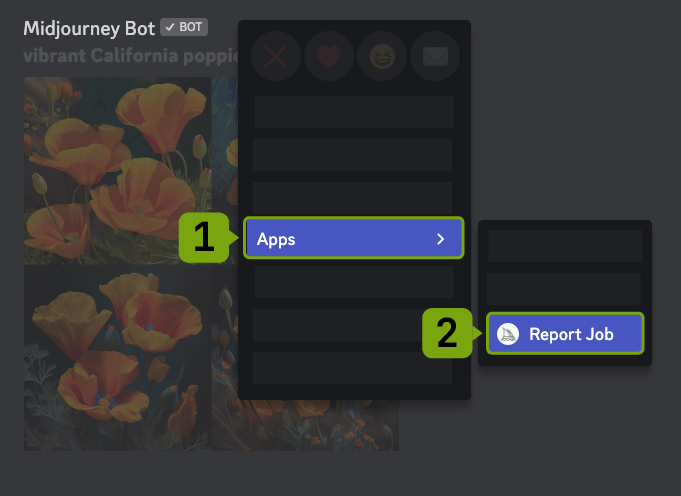
Occasionally prompts will unintentionally produce not safe for work content. Please self-police these images by using the ❌ emoji reaction or by right-clicking selecting Apps and then clicking Cancel Job to delete the image in Discord.
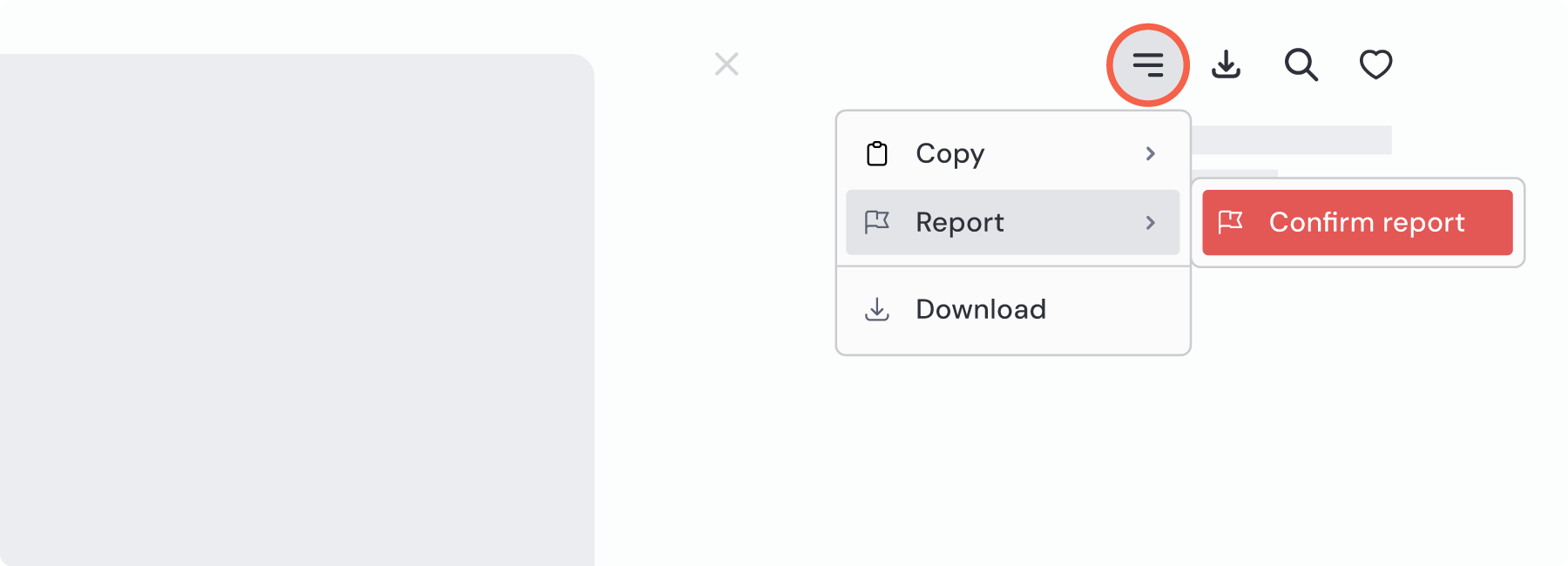
Users may flag any image for moderator review by right-clicking selecting Apps, and then clicking Report Job within Discord or the website by selecting the Options  button under an image and clicking Report.
* 
* 
---
# Midjourney Magazine Subscription FAQ – Midjourney
[Skip to main content](https://docs.midjourney.com/hc/en-us/articles/28012940139021-Midjourney-Magazine-Subscription-FAQ#page-container)
This FAQ applies to Midjourney Magazine subscriptions. If you have questions about individual orders placed on [mag.midjourney.com](https://mag.midjourney.com/)
for past issues or books, see the [Midjourney Store Orders FAQ](https://docs.midjourney.com/hc/en-us/articles/28012925933837)
instead.
#### When will I receive my magazine issues?
Midjourney Magazine ships monthly, towards the end of each month. When you subscribe, your first issue will be the one that ships near the end of the following month. For example, if you subscribe in June, your first issue will be shipped at the end of July. Shipping times can vary from 1 to 6 weeks, depending on your location.
| Issue | Payment | Issue Deadline | Estimated Ship Date |
| --- | --- | --- | --- |
| 25 | March 1-31 | March 31 | End of April |
| 26 | April 1-30 | April 30 | End of May |
| 27 | May 1-31 | May 31 | End of June |
| 28 | June 1-30 | June 30 | End of July |
| 29 | July 1-31 | July 31 | End of Aug |
| 30 | Aug 1-31 | Aug 31 | End of Sept |
| 31 | Sept 1-30 | Sept 30 | End of Oct |
#### How do magazine subscriptions ship?
To keep costs low, magazine issues ship without tracking, using slower shipping methods. Please allow up to 6 weeks for delivery after shipping. Magazines for North America, South America, Australia, and parts of Asia are shipped from Canada, while deliveries to Europe, the Middle East, Africa, and other parts of Asia ship from the UK.
#### How can I change my shipping address?
To update your shipping address, enter your billing email into the [magazine subscription portal](https://billing.stripe.com/p/login/aEUdRA5Wc8t25a03cc)
and follow the link sent to your email. You must make changes by the last day of each month for them to apply to the next month's issue shipment. If you encounter any issues with the portal, such as being redirected to your Midjourney image generation subscription, [contact billing support](https://docs.midjourney.com/hc/en-us/articles/32638309968141)
for assistance.
#### How can I view and manage my magazine subscription?
Your magazine subscription is separate from your image generation subscription. Manage it by entering your billing email in the [magazine subscription portal](https://billing.stripe.com/p/login/aEUdRA5Wc8t25a03cc)
and using the access link sent to your inbox. For issues accessing the portal, [contact billing support](https://docs.midjourney.com/hc/en-us/articles/32638309968141)
for help.
#### How do I cancel my magazine subscription?
To cancel, enter your billing email in the [subscription portal](https://billing.stripe.com/p/login/aEUdRA5Wc8t25a03cc)
, and use the link to access your account. Click "Cancel Plan" to stop future issues. Any issues you’ve already paid for will still be sent. If issues arise during this process, [reach out to billing support](https://docs.midjourney.com/hc/en-us/articles/32638309968141)
.
#### Can I order multiple copies of the magazine?
You can subscribe up to four times to receive extra copies of each issue. For past issues, visit [mag.midjourney.com](https://mag.midjourney.com/)
, but note that stock may be limited.
#### Can I get copies of Midjourney Magazine for my group?
We reserve copies for schools, stores, and community groups monthly. To apply for our distribution list, please fill out [this form](https://mag.midjourney.com/distribution)
. Please be aware that you may be responsible for customs/duties/import fees and brokerage fees payable to the shipping carrier prior to delivery.
#### Is there a digital version of the magazine?
No digital version is available. The magazine celebrates community creativity through print, offering a pause from screen time to enjoy art at a different pace.
#### How are images chosen? Can I submit an image for the magazine?
We compile the top-rated community images on Midjourney, shortlist a few hundred, and publish select ones based on criteria such as clarity, originality, and composition. Direct submissions are not accepted.
#### What if I don't receive my magazine, or it arrives damaged?
If your magazine hasn’t arrived within 6 weeks post-shipping, [contact billing support](https://docs.midjourney.com/hc/en-us/articles/32638309968141)
. Remember, issues ship at the end of the month following your payment and may take 1 to 6 additional weeks for delivery.
We do our best to protect the magazines by having them wrapped in plastic for shipping, but unfortunately damage can sometimes still happen.
#### How can I get more help?
For any other magazine subscription concerns, [contact billing support](https://docs.midjourney.com/hc/en-us/articles/32638309968141)
for assistance.
---
# Subscription Fast Time Expiration – Midjourney
[Skip to main content](https://docs.midjourney.com/hc/en-us/articles/27870521824653-Subscription-Fast-Time-Expiration#page-container)
Keep in mind that any unused [Fast time](https://docs.midjourney.com/hc/en-us/articles/32016412137741)
from your subscription will not carry over to the next month. Whether you're on a monthly or yearly plan, unused Fast time vanishes at the end of each month, so be sure to use it up before the month ends!
To know when your current subscription month ends, check out our [Finding Your Renewal Time](https://docs.midjourney.com/hc/en-us/articles/27870433501837)
article.
---
# Midjourney Store Orders FAQ – Midjourney
[Skip to main content](https://docs.midjourney.com/hc/en-us/articles/28012925933837-Midjourney-Store-Orders-FAQ#page-container)
This FAQ applies to orders placed on [mag.midjourney.com](https://mag.midjourney.com/)
for past issues or books. If you have questions about your monthly Midjourney magazine subscription, see the [Midjourney Magazine Subscription FAQ](https://docs.midjourney.com/hc/en-us/articles/28012940139021)
instead.
General Order Questions
-----------------------
#### Can orders be edited after they're placed?
Unfortunately, once an order is placed, we can't modify the items. However, if you need to cancel your order or update your shipping address, we might be able to assist. See below for more details.
#### Can orders be canceled and refunded after they're placed?
Orders that haven't yet been processed may be cancelable. [Contact billing support](https://docs.midjourney.com/hc/en-us/articles/32638309968141)
as soon as possible for the best chance of canceling your order.
#### Can shipping addresses be changed after an order is placed?
We can potentially update your address before the order ships. [Contact billing support](https://docs.midjourney.com/hc/en-us/articles/32638309968141)
as soon as possible to increase the likelihood of a successful change.
#### If an issue is sold out, when will it be restocked?
At this time, there are no plans to restock any sold-out issues.
#### What if my store order is missing or damaged?
If your order is missing or damaged, [reach out to billing support](https://docs.midjourney.com/hc/en-us/articles/32638309968141)
within 30 days of your order date, and we'll gladly assist you.
#### Are customs fees and taxes included in the price?
No, you'll be responsible for additional customs/duties/import fees and brokerage fees payable to the shipping carrier based on your location, prior to delivery.
#### Do packages ship with tracking?
Individual magazine issue orders do not include tracking unless the order includes a Midjourney Year One book, or if shipping multiple issues/copies internationally. You'll receive a shipment confirmation email with the tracking number if available once your order ships.
#### Can I get an invoice for orders from the store?
We can't generate invoices for orders made through the Midjourney Store, but a receipt should be emailed to you automatically.
Year One Book Questions
-----------------------
#### When will I receive my Midjourney Year One book?
Orders typically ship within 2 business days, excluding holidays. Delivery generally takes 5-7 business days within the United States and Canada, and 1-2 weeks for international orders. You'll receive a confirmation email with a tracking number once shipped.
#### Does the Midjourney Year One book ship internationally?
Yes, Midjourney Year One ships to most parts of the world. Please note that international delivery may take several weeks.
#### How do Midjourney Year One books ship?
Year One books ship with tracking. A tracking number will be emailed to you once your order ships. United States deliveries are via USPS, Canadian deliveries via Canada Post, and international orders via FedEx or UPS.
#### Is there a digital version of the book?
No, Midjourney Year One is a physical book intended to celebrate our progress as a technical team and creative community.
#### What if my book is missing or damaged?
If your order is missing or damaged, [reach out to billing support](https://docs.midjourney.com/hc/en-us/articles/32638309968141)
within 30 days of your order date, and we'll gladly assist you.
---
# Using Midjourney in Discord – Midjourney
[Skip to main content](https://docs.midjourney.com/hc/en-us/articles/31541509949069-Using-Midjourney-in-Discord#page-container)
All our [subscription plans](https://docs.midjourney.com/hc/en-us/articles/27870484040333)
allow you to use Midjourney both on our website and in Discord. But if you want to make images in Discord, you will need to have a Discord account connected to your Midjourney account. You can do this on your [Account Settings](https://www.midjourney.com/profile-settings)
page on midjourney.com
You will not be able to connect a Discord account to your current subscription if that Discord account has been used in the past to make images with Midjourney. For more information see our [Logging In & Connecting Accounts](https://docs.midjourney.com/hc/en-us/articles/33390994570509)
article.
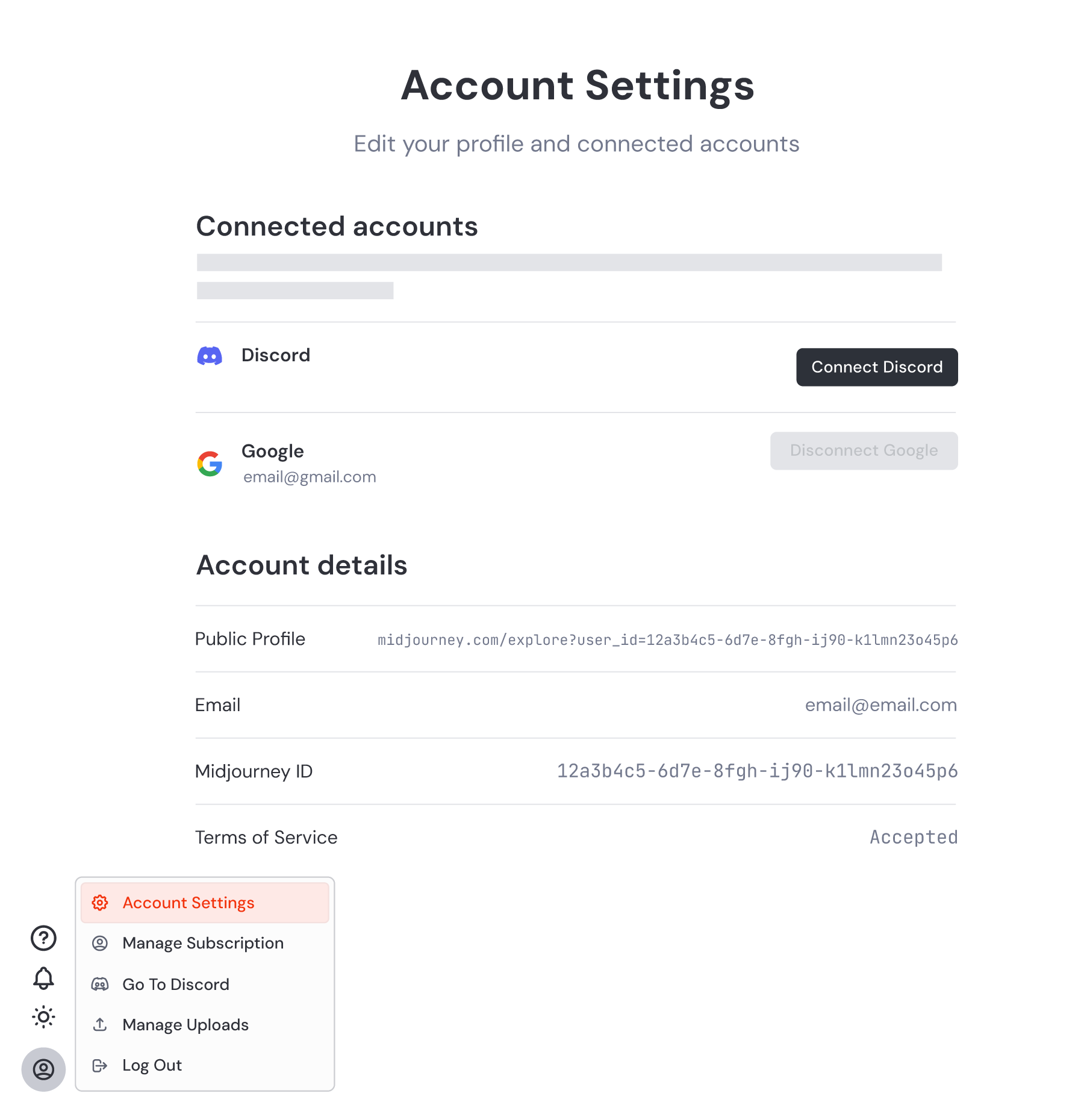
Use the "Connect Discord" button and you'll be prompted to log into your Discord account and Authorize the connection to Midjourney.
Important: Double-check the email address associated with your Discord account. Entering an email that isn't linked to a Discord account will prompt Discord to take you through the steps of creating a new account. This could lead to complications if you already have an account. Before clicking "Authorize," double-check that your correct Discord username is shown at the top of the popup. If the username is incorrect, use the "Not you?" link.
Once your Discord account is connected, you'll see your login email and Discord username displayed on your Manage Profile page, and you'll be able to generate images in Discord.
#### Disconnecting Accounts
Accounts can only be disconnected by our billing support team. If you need help with this, please [reach out to billing support](https://docs.midjourney.com/hc/en-us/articles/32638309968141)
. You may be required to verify your account ownership before your login method can be disconnected. Your account must have one method connected at all times, so make sure you have a secondary method already connected before contacting support.
---
# Midjourney Trademark Policy – Midjourney
[Skip to main content](https://docs.midjourney.com/hc/en-us/articles/32084281102349-Midjourney-Trademark-Policy#page-container)
Last Updated: August 7, 2023
The goal of this policy is to protect customers by making it easy to readily identify products and services from Midjourney, Inc. Please read on to learn when and how you can properly use our logo, name, and other brand features (collectively, the “Midjourney Trademarks”).
What are the Midjourney Trademarks?
-----------------------------------
The Midjourney Trademarks include, but are not limited to, the following:
MIDJOURNEY™,
NIJI JOURNEY™,
NIJI·JOURNEY™,
にじジャーニー,
小船,

By using any Midjourney Trademarks, or by accessing the Midjourney platform, you acknowledge that Midjourney is the sole owner of the Trademarks and you agree not to interfere with Midjourney’s rights in the Trademarks, including challenging Midjourney’s use, registration of, or application to register such Trademarks. You agree that you will not harm, misuse, or bring into dispute any Midjourney Trademarks. You may not use any Midjourney Trademarks in metatags, search fields, hidden text without Midjourney’s prior written consent. It is never acceptable to use the Midjourney Trademarks in any form that has the purpose or effect of diverting or confusing consumers.
Please review these guidelines on a regular basis, as they may be updated from time to time. Midjourney reserves the right to revoke any permission and to change or restrict any use of the trademarks if we believe that such use is in violation of this policy or is harmful to the reputation of Midjourney or the Midjourney community.
When and How can you use a Midjourney Trademark?
------------------------------------------------
Here is a non-exhaustive list of the correct ways to use a Midjourney Trademark.
* Use Midjourney Trademarks to refer to Midjourney, its services, and products truthfully and accurately.
* “Created using the Midjourney web app.”
* Use Midjourney Trademarks exactly as shown in the list above, including capitalization and proper trademark symbol ™.
* Please include this notice when you use the Midjourney’s Trademarks in accordance with this Policy:
* “\[Midjourney Trademark\] is a trademark of Midjourney, Inc. We are not endorsed by or affiliated with Midjourney, Inc.”
Here are some ways you shouldn’t use our marks:
-----------------------------------------------
* Do not use Midjourney Trademarks in the name of your business, product, service, app, publication, domain name, or other offering.
* Do not use Midjourney wordmarks in plural or possessive forms.
* Do not misspell the Midjourney Marks (including hyphens, spaces etc.)
* Do not use marks, logos, company names, domain names, social media names, community names, or designs that are confusingly similar to Midjourney’s Trademarks. Deliberate misspellings and transliterations of the Midjourney Trademarks are also not permitted
* Ex. Midj0urney
* Do not use Midjourney’s Trademarks to incorrectly imply sponsorship, endorsement, or affiliation with Midjourney.
* Do not use Midjourney’s Trademarks for any illegal, misleading, derogatory, or defamatory purposes.
* Do not use Midjourney’s Trademarks more prominently than your company name, product, or service.
* Do not use Midjourney’s Trademarks on merchandise for sale.
* Do not use Midjourney’s Trademarks for any other form of commercial use, unless limited to a truthful descriptive reference.
* Do not modify, distort, abbreviate, or combine Midjourney’s Trademarks with any other symbols, words, images, or slogans.
#### Can I use one of the Midjourney Trademarks when registering a domain name?
You may not use the Midjourney Trademarks in your own domain, if that use would likely confuse a relevant consumer. You may not use the Midjourney Trademarks in your product, app, or service, except to clearly refer to Midjourney services in a nominative fashion.
#### Can I use one of the Midjourney Trademarks when naming an application or game?
You may not use the Midjourney trademark in naming an application or a game, if that use would likely confuse a consumer.
#### What if I want to plan an online or in person event concerning Midjourney or with Midjourney community members?
To help guide your usage of our trademarks, please keep in mind the following: Meetups, events, online chats outside our Discord channel, or other in person or online events that are not sponsored or endorsed by Midjourney cannot misrepresent the event as such. In order to avoid this confusion, the event planner should promote the event as an unofficial event.
Midjourney is not responsible for your experience at these unofficial events, as it is not an official Midjourney event. In order to avoid any implication that Midjourney is associated or sponsoring the event, avoid prominent use the Midjourney Trademarks (e.g., in connection with the title of the event etc.) to advertise, promote, or otherwise talk about the event.
**IMPORTANT NOTE:** Nothing in this Midjourney policy statement shall be interpreted to allow any third parties to claim any association with the Midjourney offerings or to imply its approval or support by Midjourney for any third-party products or services.
If you have any questions at all about proper usage of the Midjourney Trademarks, please contact [trademarks@midjourney.com](mailto:trademarks@midjourney.com)
---
# Data Deletion and Privacy FAQ – Midjourney
[Skip to main content](https://docs.midjourney.com/hc/en-us/articles/32084462534541-Data-Deletion-and-Privacy-FAQ#page-container)
Data Deletion
-------------
To request to delete your account and data, visit [https://www.midjourney.com/account](https://www.midjourney.com/account)
. Follow the instructions listed in the "How can I delete my account?" section at the bottom of the page.
Your data will be marked for deletion, and your subscription will be cancelled.
To avoid inadvertent data deletion, you will have 7 days to reverse your request.
Privacy FAQ
-----------
Last Updated: February 27, 2025
#### What information does Midjourney collect from users?
We collect information that you provide to us while interacting with our services. This may include personal information that could be used to identify you, such as your username, the text or image prompts that you input, public chats, IP address, billing information for Stripe, your contact information, email address, and any other information that you share with us.
#### How long is personal data stored?
We only keep the information that you share with us for as long as necessary to serve an allowable purpose under the data protection regulations that apply to you. Some of these purposes include: providing you with the Midjourney services, maintaining and improving upon these services, helping you manage your account and the features that you can access, and other purposes laid out in our Privacy Policy. There may also be legal obligations that we need to comply with that may impact how long we retain your personal data.
#### Where is the personal data on Discord stored?
Discord is in control of all data you store on Discord. Please consult the [Discord Privacy Policy](https://discord.com/privacy)
for more information.
#### Where is the personal data that Midjourney handles stored?
The personal information you provide is stored on Midjourney servers in the US. We take careful measures to make sure that your personal information is treated securely, and that your information is not transferred to an organization or country that does not have the adequate measures in place to ensure its security.
#### Does Midjourney sell personal data?
No. We do not sell your personal information.
#### Who can submit a request to delete personal data?
If you use or have used the Midjourney services, you can submit a request to delete your personal data. Please visit [https://www.midjourney.com/account](https://www.midjourney.com/account)
and follow the instructions listed in the "How can I delete my account?" section at the bottom of the page. There is no need for you to reside in or have used our services in any particular locations.
#### How long does a data deletion request take?
Your account and associated data will be deleted within 30 days after successful submission of your deletion request. If you change your mind, you can cancel your request within 7 days of submission.
---
# Chaos / Variety – Midjourney
[Skip to main content](https://docs.midjourney.com/hc/en-us/articles/32099348346765-Chaos-Variety#page-container)
Add variety to your image results with the chaos parameter: --chaos or --c
### Add more variety to your image results with the chaos parameter: `--c` or `--chaos`
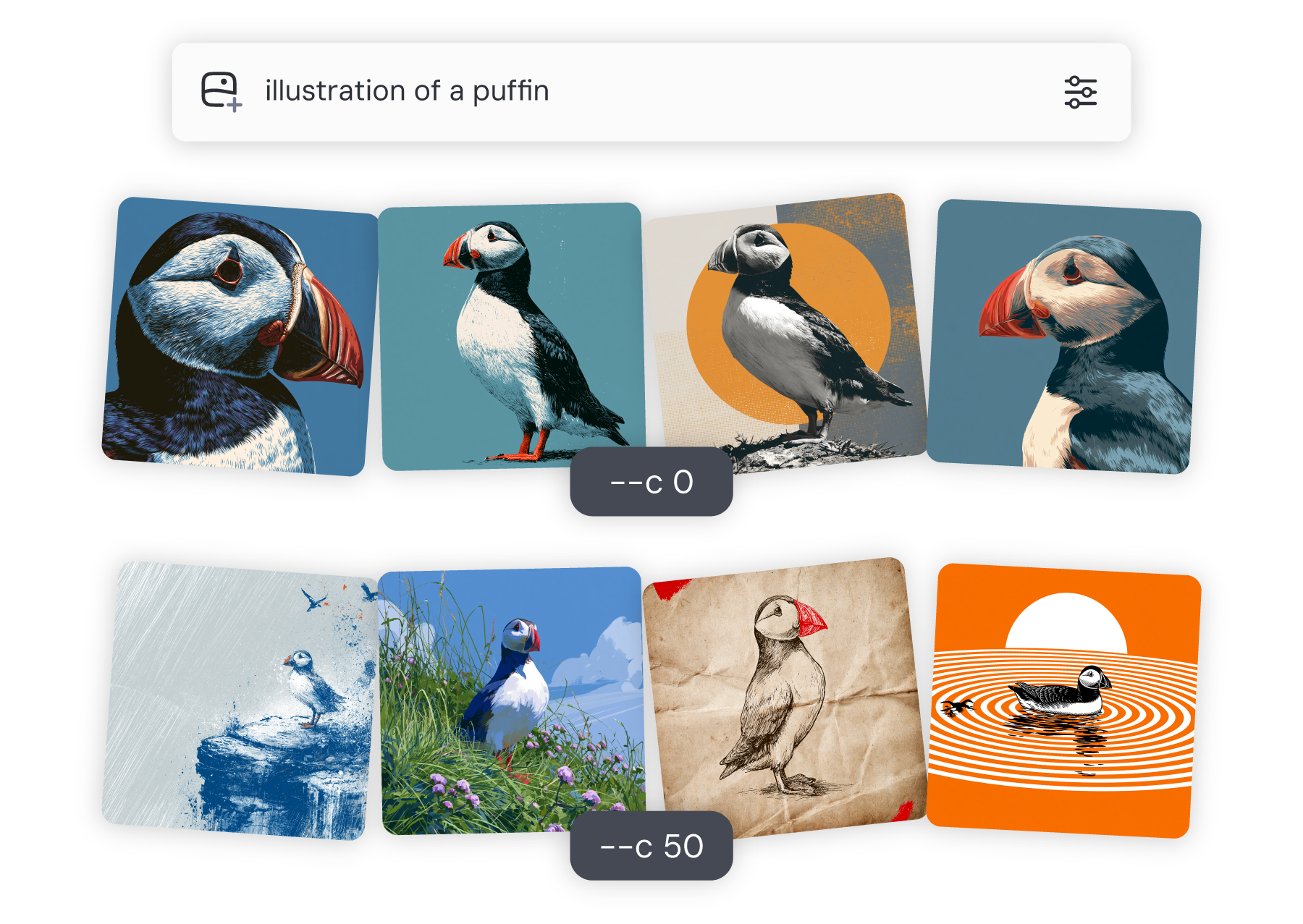
What is Chaos?
--------------
Chaos (also called Variety on midjourney.com) lets you add more variety to the image results you get from each prompt.
By default chaos is set to 0, and Midjourney creates four images based on your prompt. If you want each image to look more different, increase the chaos value.
You can set the chaos value anywhere between 0 and 100, but keep in mind that higher values mean the images can be quite different and may not stick as closely to your prompt, giving you unpredictable results.
Setting the Chaos Value
-----------------------
* Add `--c #` to the end of your prompt in the Imagine bar.

You can choose a default Variety setting for all your images in the settings panel. To do this, click the settings  button in the Imagine bar. Once you set it, this will apply to all your future prompts.
* Add `--c #` to the end of your prompt in Discord.

---
# Privacy Policy – Midjourney
[Skip to main content](https://docs.midjourney.com/hc/en-us/articles/32083472637453-Privacy-Policy#page-container)
Last Updated: June 2, 2025
1\. Introduction
----------------
This privacy policy (the “Policy”) describes Midjourney, Inc. (“Midjourney”)’s practices with respect to personal data that is collected when you access midjourney.com (the “Site”), or access or use the Midjourney services, applications, or platform through the Site, Discord servers administered by Midjourney, or by any other means (collectively, the “Services”) . Midjourney is a communications technology incubator that provides image generation services to augment human creativity and foster social connection.
As used in this Policy, “personal data” means any information that relates to, describes, or could be used to identify an individual, directly or indirectly.
**Applicability:** This Policy applies to personal data that Midjourney collects, uses, and discloses and which may include: (i) data collected through the Services, (ii) data collected through the process of training Midjourney machine learning algorithms, (iii) data collected through Midjourney websites, and (iv) data collected from third party sources. Third party sources may include, but not be limited to: public databases, commercial data sources, and the public internet. When you make purchases, we use third-party payment processors to collect credit card or other financial information. Midjourney does not store the credit card or payment information you provide, only confirmation that payment was made.
This Policy does not apply to the following information:
* Personal Data about Midjourney employees and candidates, and certain contractors and agents acting in similar roles.
**Changes:** We may update this Policy from time-to-time to reflect changes in legal, regulatory, operational requirements, our practices, and other factors. Please check this Policy periodically for updates. If any of the changes are unacceptable to you, you should cease interacting with us. When required under applicable law, we will notify you of any changes to this Policy.
**Definitions:** Through this Policy, You, or Your means the individual accessing or using the Service, or the company, or other legal entity on behalf of which such individual is accessing or using the Service, as applicable. Company (referred to as either "the Company", "We", "Us" or "Our" in this Agreement) refers to Midjourney LLC. Usage Data refers to data collected automatically, either generated by the use of the Service or from the Service infrastructure itself (for example, the duration of a page visit).
2\. Collecting and Using Your Personal Data
-------------------------------------------
**2.1 Types of Data Collected**
_**2.1.1 Personal Data**_
While interacting with the Services, You may provide certain personally identifiable information that could be used to contact or identify You. Personally identifiable information may include, but is not limited to:
* Your user name for the Services
* Prompts that you provide (including text, images, and those generated from spoken input and summarized into text), and other content such as photos, videos, documents, and messages that you input into the Services
* Your IP address
* Usage Data
* Tracking Technologies and Cookies
* Contact Information
* Organizational Information like your company title
* Your Email
* Cookies
* Other data that you elect to send to Midjourney, such as your survey responses or information you include in communications to us
**2.2 Use of Your Personal Data**
Midjourney may use Personal Data for the following purposes:
* **To provide, maintain, and improve our Service,** including to monitor the usage of our Service.
* **To manage Your account:** to manage Your registration as a user of the Service. The Personal Data You provide can give You access to different functionalities of the Service that are available to You as a registered user.
* **For the performance of a contract:** the development, compliance and undertaking of the purchase contract for the products, items or services You have purchased or of any other contract with Us through the Service.
* **To contact You:** To contact You by email, telephone calls, SMS, or other equivalent forms of electronic communication, such as a mobile application's push notifications regarding updates or informative communications related to the functionalities, products or contracted services, including the security updates, when necessary or reasonable for their implementation.
* **To provide You** with news, special offers and general information about other goods, services and events which we offer that are similar to those that you have already purchased or enquired about unless You have opted not to receive such information.
* **For marketing and advertising purposes**, including through cookies and similar technologies with your consent where applicable.
* **To manage Your requests:** To attend and manage Your requests to Us.
* **For business transfers:** We may use Your information to evaluate or conduct a merger, divestiture, restructuring, reorganization, dissolution, or other sale or transfer of some or all of Our assets, whether as a going concern or as part of bankruptcy, liquidation, or similar proceeding, in which Personal Data held by Us about our Service users is among the assets transferred.
* **For other purposes:** We may use Your information for other purposes, such as data analysis, identifying usage trends, determining the effectiveness of our promotional campaigns and to evaluate and improve our Service, products, services, marketing and your experience.
2.3 Sharing of Your Personal Data
---------------------------------
We may share Your personal information in the following situations:
* **With Service Providers, Third Party Vendors, Consultants, and other Business Partners:** We may share Your personal information with these parties in order to provide the Services to You on our behalf, monitor and analyze the use of our Services, contact You, and for other purposes stated in the Agreement. This may also include third party analytics and advertising partners that use cookies or similar technologies to help measure performance and deliver more relevant ads, where permitted by law.
* **For business transfers:** We may share or transfer Your personal information in connection with, or during negotiations of, any merger, sale of Company assets, financing, or acquisition of all or a portion of Our business to another company.
* **With Your consent:** We may disclose Your personal information for any other purpose with Your consent.
* **With Law Enforcement:** Under certain circumstances, Midjourney may be required to disclose Your Personal Data if required to do so by law or in response to valid requests by public authorities (e.g. a court or a government agency). To the extent we receive a request from Law Enforcement for Your personal data, we will promptly notify You and provide You with a copy of the request, unless we are legally prohibited from doing so.
* **With Other Parties in order to:**
* Comply with a legal obligation
* Protect and defend the rights or property of the Company
* Prevent or investigate possible wrongdoing in connection with the Service
* Protect the personal safety of Users of the Service or the public
* Protect against legal liability
**2.4 Retention of Your Personal Data**
The Company will retain Your Personal Data only for as long as is necessary for the purposes set out in this Privacy Policy. We will retain and use Your Personal Data to the extent necessary to comply with our legal obligations (for example, if we are required to retain your data to comply with applicable laws), resolve disputes, and enforce our legal agreements and policies.
The Company will also retain Usage Data for internal analysis purposes. Usage Data is generally retained for a shorter period of time, except when this data is used to strengthen the security or to improve the functionality of Our Service, or We are legally obligated to retain this data for longer time periods.
**2.5 Transfer of Your Personal Data**
Your information, including Personal Data, is processed at the Company's operating offices and in any other places where the parties involved in the processing are located. It means that this information may be transferred to — and maintained on — computers located outside of Your state, province, country or other governmental jurisdiction where the data protection laws may differ from those in Your jurisdiction.
Your consent to this Privacy Policy followed by Your submission of such information represents Your agreement to that transfer.
The Company will take all steps reasonably necessary to ensure that Your data is treated securely and in accordance with this Privacy Policy and no transfer of Your Personal Data will take place to an organization or a country unless there are adequate controls in place including the security of Your data and other personal information.
2.6 Security of Your Personal Data
----------------------------------
The security of Your Personal Data is important to Us, but remember that no method of transmission over the Internet, or method of electronic storage is 100% secure. While We strive to use commercially acceptable means to protect Your Personal Data, We cannot guarantee its absolute security.
3\. Children's Privacy
----------------------
Our Service does not address anyone under the age of 13. We do not knowingly collect personally identifiable information from anyone under the age of 13. If You are a parent or guardian and You are aware that Your child has provided Us with Personal Data, please contact Us. If We become aware that We have collected Personal Data from anyone under the age of 13 without verification of parental consent, We take steps to remove that information from Our servers.
If We need to rely on consent as a legal basis for processing Your information and Your country requires consent from a parent, We may require Your parent's consent before We collect and use that information.
4\. Links to Other Websites
---------------------------
Our Service may contain links to other websites that are not operated by Us. If You click on a third party link, You will be directed to that third party's site. We strongly advise You to review the Privacy Policy of every site You visit.
Third party sites and services (including Discord) have separate practices regarding the protection of personal data that you provide to them. We have no control over and assume no responsibility for the content, privacy policies or practices of these third party sites or services.
5\. Changes to this Privacy Policy
----------------------------------
We may update Our Privacy Policy from time to time. We will notify You of any changes by posting the new Privacy Policy on this page.
We will let You know via email and/or a prominent notice on Our Service, prior to the change becoming effective and update the "Last updated" date at the top of this Privacy Policy.
You are advised to review this Privacy Policy periodically for any changes. Changes to this Privacy Policy are effective when they are posted on this page.
6\. Supplemental Terms and Conditions for Certain Regions
---------------------------------------------------------
**Europe**
If You are located in the European Economic Area (the “EEA”), Switzerland, or the United Kingdom (the “UK”) Our legal basis for collecting and using the Personal Data described in this Policy will depend on the personal data concerned and the specific context in which we collect it. However, we will normally collect personal data from you only where we have your consent to do so, where we need the personal data to perform a contract with you, or where the processing is in our legitimate interests and not overridden by your data protection interests or fundamental rights and freedoms. In some cases, we may also have a legal obligation to collect personal data from you.
Midjourney may share information internally or with third parties, as further described in this Policy. When we share Personal Data of individuals in the EEA, Switzerland or UK with third parties, we make use of a variety of legal mechanisms to safeguard the transfer including the European Commission-approved standard contractual clauses, as well as additional safeguards where appropriate.
Midjourney uses cookies and similar technologies for analytics and advertising purposes, including to help tailor content and ads. These non-essential cookies will only be used with your explicit consent. You can manage or withdraw your consent at any time by visiting the [Privacy Settings](https://www.midjourney.com/profile-settings)
page. Essential cookies, which are necessary for the website and our Services to function, are always active. Please refer to our [Cookie Policy](https://docs.midjourney.com/hc/en-us/articles/37012090959245-Cookie-Policy)
for more information.
Additionally You have the following data protection rights:
* You can request access, correction, updates or deletion of your Personal Data.
* You can object to our processing of your Personal Data, ask us to restrict processing of your Personal Data or request portability of your Personal Data.
* If we have collected and processed your Personal Data with your consent, then you can withdraw your consent at any time. Withdrawing your consent will not affect the lawfulness of any processing we conducted prior to your withdrawal, nor will it affect processing of your Personal Data conducted in reliance on lawful processing grounds other than consent.
* You have the right to complain to a data protection authority about our collection and use of your Personal Data.
In order to exercise Your rights please visit [www.midjourney.com/account](https://www.midjourney.com/account)
and follow the instructions listed at the bottom of the page to delete your account and data. Survey data that you may have submitted can also be accessed and deleted at this link. To access or review your account information, please follow the instructions listed [here.](https://docs.midjourney.com/hc/en-us/articles/32084927086861)
**California**
This Statement applies solely to residents of California or individuals whose information has been collected in California. Midjourney has adopted and included this notice to comply with the California Consumer Privacy Act of 2018 (“CCPA”). Any terms used in this Statement that are defined in the CCPA have the same meaning given therein.
**INFORMATION WE COLLECT**
| **#** | **Category** | **Collected?** | **Disclosed?** |
| --- | --- | --- | --- |
| 1 | **Identifiers.** Name, alias, postal address, unique personal identifier, online identifier, Internet Protocol (IP) address, email address, account name, social security number, driver’s license number, passport number, or other similar identifiers | YES | YES |
| 2 | **Personal information categories under the California Customer Records statute (Cal. Civ. Code § 1798.80(e)).** A name, signature, Social Security number, physical characteristics or description, address, telephone number, passport number, driver’s license or state identification card number, insurance policy number, education, employment, employment history, bank account number, credit card number, debit card number, or any other financial information, medical information, or health insurance information. Some personal information included in this category may overlap with other categories. | YES | YES |
| 3 | **Protected classification characteristics under California or federal law.** Age (40 years or older), race, color, ancestry, national origin, citizenship, religion or creed, marital status, medical condition, physical or mental disability, sex (including gender, gender identity, gender expression, pregnancy or childbirth and related medical conditions), sexual orientation, veteran or military status, genetic information (including familial genetic information). | YES (only the information you share upon consent as part of an applicable survey) | YES |
| 4 | **Commercial information.** Records of personal property, products or services purchased, obtained, or considered, or other purchasing or consuming histories or tendencies. | YES | YES |
| 5 | **Biometric information.** Genetic, physiological, behavioral, and biological characteristics, or activity patterns used to extract a template or other identifier or identifying information, such as, fingerprints, faceprints, and voiceprints, iris or retina scans, keystroke, gait, or other physical patterns, and sleep, health, or exercise data. | NO | NO |
| 6 | **Internet or other similar network activity.** Browsing history, search history, information on a consumer’s interaction with a website, application, or advertisement. | YES | YES |
| 7 | **Geolocation data.** Physical location or movements. | NO | NO |
| 8 | **Sensory data.** Audio, electronic, visual, thermal, olfactory, or similar information. | YES (only images you upload to our services) | YES |
| 9 | **Professional or employment-related information.** Current or past employment history or performance evaluations. | NO | NO |
| 10 | **Education Information under California Family Educational Rights and Privacy Act (20 U.S.C. section 1232g, 34 C.F.R. Part 99)** Information that is not “publicly available personally identifiable information” as defined in the California Family Educational Rights and Privacy Act (20 U.S.C. section 1232g, 34 C.F.R. Part 99). Includes education records directly related to a student maintained by an educational institution or party acting on its behalf, like grades, transcripts, class lists and student schedules, identification codes, financial information, or disciplinary records. | NO | NO |
| 11 | **Inferences** Conclusions that could be used to create a profile reflecting an individual’s preferences, characteristics, psychological trends, predispositions, behavior, attitudes, intelligence, abilities, aptitude. | YES. | YES |
**YOUR RIGHTS AND CHOICES**
The CCPA provides individuals residing in California or whose Personal Information was collected in California with specific rights regarding their Personal information. The below describes your rights and how you may exercise them.
**Access to Specific Information and Data Portability Rights**
You have the right to request that Midjourney disclose certain information to you about our collection and use of your Personal Information over the past twelve (12) months. Once Midjourney receives and confirms your verifiable information access request, Midjourney must disclose to you: (i) the categories of Personal Information we collected about you; (ii) the categories of sources for the Personal Information we collected about you; (iii) our business or commercial purpose for collecting or, if applicable, selling that Personal Information; (iv) the categories of third parties with whom we share that Personal Information; (v) the specific data points or pieces of Personal Information we collected about you. If we disclosed for a business purpose or sold your Personal Information, Midjourney must also provide separate lists that: (x) identify the personal information categories that were sold to each category of recipient in connection with sales of your Personal Information; and (y) identify the personal information categories that were provided to each category of recipient in connection with business purposes disclosures of your Personal Information..
**Deletion Request Rights**
You have the right to request that Midjourney delete any of your Personal Information that we collected from you and/or retained. Unless subject to a certain limited exception, once Midjourney receives and confirms your verifiable data deletion request, we will delete (and direct our service providers to delete) your personal information from our records. Midjourney will notify you promptly if it determines it must deny your deletion request.
**Do Not Sell or Share Opt-Out Rights**
You have the right to opt-out of any “sale” or “sharing”, as defined by the CCPA, of Personal Information by Midjourney. While, Midjourney does not sell your information, we may share it, for example, through advertising cookies that allow our third party partners to deliver relevant and personalized ads. You can opt-out of such sharing at any time by updating your preferences in the [Privacy Settings](https://www.midjourney.com/profile-settings)
page.
**EXERCISING YOUR RIGHTS**
To exercise your access, data portability, and deletion or do not sell opt-out rights described above, please visit [www.midjourney.com/account](https://www.midjourney.com/account)
and follow the instructions listed at the bottom of the page to delete your account and data (including any survey responses), or go [here](https://docs.midjourney.com/hc/en-us/articles/32084927086861)
and follow the instructions listed to access or review your account information.
You may only make a verifiable consumer request for access or data portability up to two times within a 12-month period. You may make a verifiable do not sell opt-out request at any time. Any such request must: (i) provide sufficient information that allows Us to reasonably verify that you are the person about whom we collected personal information or an authorized representative thereof; and (ii) describe your request with sufficient detail such that we may understand, evaluate, and respond to it. Midjourney cannot respond to your request or provide you with personal information if we cannot verify your identity or authority to make the request and confirm the personal information relates to you. Making a verifiable consumer request does not require you to create an account with Midjourney. Midjourney will only use personal information provided in a verifiable consumer request to verify the requestor’s identity or authority to make the request. Only you or a person registered with the California Secretary of State that you authorize to act on your behalf may make a verifiable consumer request related to your Personal Information. You may also make a verifiable consumer request on behalf of your minor child.
**Response Timing and Format**
We endeavor to respond to a verifiable consumer request within 45 days of its receipt. If we require more time (up to 90 days), we will inform you in writing of the extension period and the reason for it. Midjourney will deliver any required or requested responses or other communications in writing to you by email. Any disclosures we provide will only cover the 12-month period preceding the verifiable consumer request’s receipt. If applicable, the response we provide will also explain any reasons we cannot comply with a request. For data portability requests, Midjourney will provide your personal information in a format that is readily usable and transferable. Midjourney does not charge a fee to process or respond to your verifiable consumer request unless such requests become excessive, repetitive, or manifestly unfounded or as otherwise permitted by the CCPA. If we determine that a request warrants charging a fee, we will notify you and provide you with a cost estimate before completing your request.
---
# Purchase Order Terms and Conditions – Midjourney
[Skip to main content](https://docs.midjourney.com/hc/en-us/articles/32084601469581-Purchase-Order-Terms-and-Conditions#page-container)
**Version Effective Date: April 25, 2024**
Purchase orders issued by Midjourney Inc. (“Midjourney”) to the seller referenced in the purchase order (“Seller”) are made expressly subject to these Purchase Order Terms and Conditions (“Terms”). These Terms shall be incorporated into and made a material part of any purchase order issued by Midjourney. No Seller terms and conditions shall be binding upon Midjourney if in conflict with, inconsistent with, or in addition to the terms and conditions contained in these Terms. Any additional or differing terms proposed by Seller are objected to and rejected unless expressly agreed to in writing by Midjourney. If there are conflicting terms and conditions between these Terms and an additional valid agreement fully executed by both parties, then the terms in such an agreement shall prevail.
1. **Acceptance.** Seller accepts these Terms and agrees to be bound by the terms and conditions provided herein by issuing an order acknowledgement or confirmation, commencing performance, or shipping products in accordance with Midjourney’s purchase order, whichever occurs first.
2. **Delivery, Title, and Risk of Loss.** Seller acknowledges that time is of the essence in the delivery of products or performance of services within the timeframe mutually agreed upon by Midjourney and Seller, and that failure to complete the delivery or services within such timeframe constitutes a breach of these Terms. Midjourney may terminate any order where delivery or performance is late or incomplete. Seller shall furnish all products sold to Midjourney F.O.B. Destination. As used herein, F.O.B. Destination means title to, and risk of loss, for any products sold to Midjourney shall pass to Midjourney only after unloading the products at the delivery location selected by Midjourney.
3. **Changes.** Midjourney reserves the right to modify the purchase order at any time prior to shipment with respect to quantities, method of delivery, delivery schedules, place of delivery, and specifications by issuing one or more change orders to Seller (“Change Order”). Seller shall not make any changes to purchase orders affecting the products or services without the prior written consent of Midjourney. If a Change Order causes an increase or decrease in price or the time required for performance, an equitable adjustment shall be made, and the purchase order shall be modified in writing accordingly.
4. Cancellations. Midjourney reserves the right to cancel a purchase order or any portion thereof, without liability to Seller, if: (a) Seller fails to deliver products or perform services as specified by Midjourney, including failure to meet commitments as to time, price, quality or quantity; (b) Seller breaches any of the terms of the purchase order or these Terms; (c) Seller ceases to conduct its operations in the normal course of business; (d) proceedings are instituted against Seller under bankruptcy laws or any other laws related to the relief of creditors; (e) a receiver is appointed by Seller; or (f) any assignments are made by Seller for the benefit of creditors. Midjourney may also terminate all or any portion of a purchase order at any time prior to the scheduled delivery date, in which case the Seller shall be entitled to the reimbursement of direct, verifiable, and non-recoverable expenses incurred by Seller as a result of such cancellation. The payment required by the foregoing sentence shall constitute Midjourney’s sole and exclusive liability and obligations with respect to cancellation of any order.
5. **Inspection & Rejection.** All products and services are subject to final inspection and acceptance by Midjourney at the delivery destination notwithstanding payment or passage of title. Such inspection will be made within a reasonable time after receipt of the products or services, and Midjourney will be deemed to accept such products or services unless it gives Seller written notice of any defect or non-conformity within a reasonable time after inspection. Failure to give notice of any defect or non-conformity shall not affect any warranty or operate as acceptance of any product or services with a latent defect. Midjourney shall notify Seller if any products or services are rejected, and at Midjourney’s election and Seller’s risk and expense, products shall be held by Midjourney or returned to Seller. Seller will not make any corrections or replace non-conforming goods unless agreed to in writing by Midjourney.
6. **Invoice, Disputes, and Payment.** Prices for the products and/or services will be set out in the applicable purchase order. Price increases or charges not expressly set out in the purchase order shall not be effective unless agreed to in writing by Midjourney. Seller will issue all invoices on a timely basis. Unless otherwise specified in the purchase order or agreed to in writing, payment terms are net thirty (30) days from receipt of an accurate and complete invoice. In the event Midjourney disputes any portion of the invoice, Midjourney will notify Seller of its dispute in writing within fourteen (14) days of receipt of the invoice, and such notice will contain the details of the dispute in reasonable specificity. Midjourney shall have the right to withhold payment of any invoiced amounts that are disputed in good faith until the parties reach an agreement with respect to such disputed amounts, and such withholdings shall not be deemed a breach of these Terms or incur late payment or interest charges until the dispute is resolved. Notwithstanding the foregoing, Midjourney agrees to pay any undisputed amounts when due.
7. **Taxes.** Unless otherwise stated in the purchase order, all prices or other payments stated in the purchase order are exclusive of any applicable taxes. Seller shall separately itemize all applicable taxes on each invoice.
8. **Seller’s Representations and Warranties.** Seller represents and warrants that: (a) Seller owns all rights, title, and interest in the products and services and has the legal authority to sell, license, or otherwise transfer the right to use or sell such items to Midjourney; (b) the products and services are of good and merchantable quality and free from defects in design, material, and workmanship, are safe and conform to applicable specifications, drawings, samples, descriptions, and associated documentation provided to Midjourney; (c) the products and services comply with all applicable international, federal, state, local laws, rules, and regulations; (d) the goods are fit for the intended purpose; (e) the products and services, or their sale or use will not infringe any third party patents, trademarks, copyrights, trade secrets, or similar intellectual property rights; (f) Seller will comply with all federal, state, and local laws, ordinances, rules, and regulations applicable to its performance under the purchase order, including in the manufacture, procurement, transporting, or sale of any of the products or services rendered.
9. **Warranty Remedies.** If Seller breaches any of the warranties in Section 8, Midjourney may, at its election and in addition to any rights or remedies it may have, request a refund for the purchase price and return products to Seller, or require Seller to promptly replace or correct products or re-perform the affected services within fourteen (14) days after notice by Midjourney to Seller of warranty breach. All associated costs, including costs to return and replace the products and re-perform the services, will be borne by the Seller. If products are corrected or replaced or services are re-performed, the warranties in Section 8 will continue as to the corrected or replaced products and services.
10. **Confidentiality.** Seller agrees to protect all confidential information belonging to Midjourney and will not disclose any such information without Midjourney’s prior written consent.
11. **Limitation of Liability.** EXCEPT FOR SELLER’S OBLIGATIONS UNDER SECTION 12, AND EXCEPT FOR DAMAGES THAT ARE THE RESULT OF THE GROSS NEGLIGENCE OR WILLFUL MISCONDUCT OF EITHER PARTY, IN NO EVENT WILL EITHER PARTY BE LIABLE TO THE OTHER PARTY OR ANY OTHER PERSON FOR ANY INDIRECT, INCIDENTAL, CONSEQUENTIAL, OR PUNITIVE DAMAGES, INCLUDING ANY LOST PROFITS, DATA, GOODWILL, OR BUSINESS OPPORTUNITY FOR ANY MATTER RELATING TO THESE TERMS.
12. **Indemnification.** Seller shall release, defend, indemnify, and hold Midjourney, its directors, officers, employees, and agents harmless from and against any losses, liabilities, claims, damages, legal fees, costs, and expenses arising out of: (a) death, bodily injury, or loss or damage to real or tangible personal property resulting from the use of or any actual or alleged defect in the products or services, or from the failure of the products or services to comply with Seller’s representations and warranties in Section 8; (b) any claims that the products or services infringe upon the intellectual property rights of any person; (c) any intentional, wrongful, or negligent act or omission of Seller or any of its subcontractors or affiliates; or (d) Seller’s breach of any of its obligations under these Terms; provided, however, that Seller’s obligations to indemnify Midjourney shall not apply to liabilities solely arising from Midjourney’s negligence.
13. **Relationship of the Parties.** The relationship between Midjourney and Seller is solely that of independent contracting parties, and nothing in these Terms or any purchase order shall be construed to create an employment, joint venture, partnership, or agency relationship between Midjourney and Seller.
14. **Force Majeure.** Midjourney will not be liable or held responsible for any delays or losses related to Midjourney’s failure to accept products or services that arise directly or indirectly from acts of God, severe weather conditions, labor disputes, governmental actions, war, riots, or other causes beyond the reasonable control of Midjourney. If Seller suffers a delay due to a force majeure event, Midjourney may terminate any purchase order where such delay exceeds or is reasonably likely to exceed thirty (30) days.
15. **Non-waiver.** No failure or delay by either party in exercising any rights, remedies, and authority under these Terms will constitute a waiver of that right. Any waiver must be in writing and be signed by each party.
16. **Assignment.** Seller shall not assign, delegate, or subcontract its performance under any purchase order or these Terms without the prior written consent of Midjourney, which Midjourney may withhold in its sole discretion.
17. Severability. If any provision of these Terms is determined to be unenforceable or invalid for any reason, in whole or in part, such invalidity or unenforceability shall attach only to such provision or part thereof and the remaining part thereof and all other provisions shall continue in full force and effect.
18. **Survival.** Any provision of these Terms which expressly or by implication from its nature is intended to survive the termination or completion of these Terms will continue in full force and effect after any termination or expiration of these Terms.
19. **Governing Law.** The laws of the State of California shall govern these Terms without giving effect to the choice of law provisions thereof. Any action based on or arising out of these Terms shall be brought and maintained exclusively in any state or federal court located in the State of California. The provisions of the United Nations Convention on the International Sale of Goods shall not apply to these Terms.
---
# Managing Your Subscription – Midjourney
[Skip to main content](https://docs.midjourney.com/hc/en-us/articles/28014179406861-Managing-Your-Subscription#page-container)
To manage your Midjourney image generation subscription, simply log in to midjourney.com.
For help logging in, see our [Logging In & Connecting Accounts](https://docs.midjourney.com/hc/en-us/articles/33390994570509)
article.
If you're looking to access your magazine subscription instead, please refer to our [Managing Your Magazine Subscription](https://docs.midjourney.com/hc/en-us/articles/27870410169997)
article for assistance.
Once you're logged in at midjourney.com, head over to your [Manage Subscription](https://www.midjourney.com/account)
page. Here’s what you can do:
* **Check your remaining Fast time:** Look under "Usage Details."
* **Review your plan details:** Features are in the center section and price is under "Billing & Payment."
* **Find out your renewal date:** Under "Billing & Payment."
* **Change your plan tier:** Use the "Change Plan" button and select a new plan further down the page. For more information see our [Upgrading or Downgrading Your Plan](https://docs.midjourney.com/hc/en-us/articles/27870428114317)
article.
* **Cancel your subscription and see any refund options:** Click the "Cancel Plan" button. For more information see [Canceling Your Subscription](https://docs.midjourney.com/hc/en-us/articles/25384024738573)
or [Requesting a Refund](https://docs.midjourney.com/hc/en-us/articles/25386088618253)
.
* **View or update your payment information:** Use the "Edit Billing" and "View Invoices" buttons.
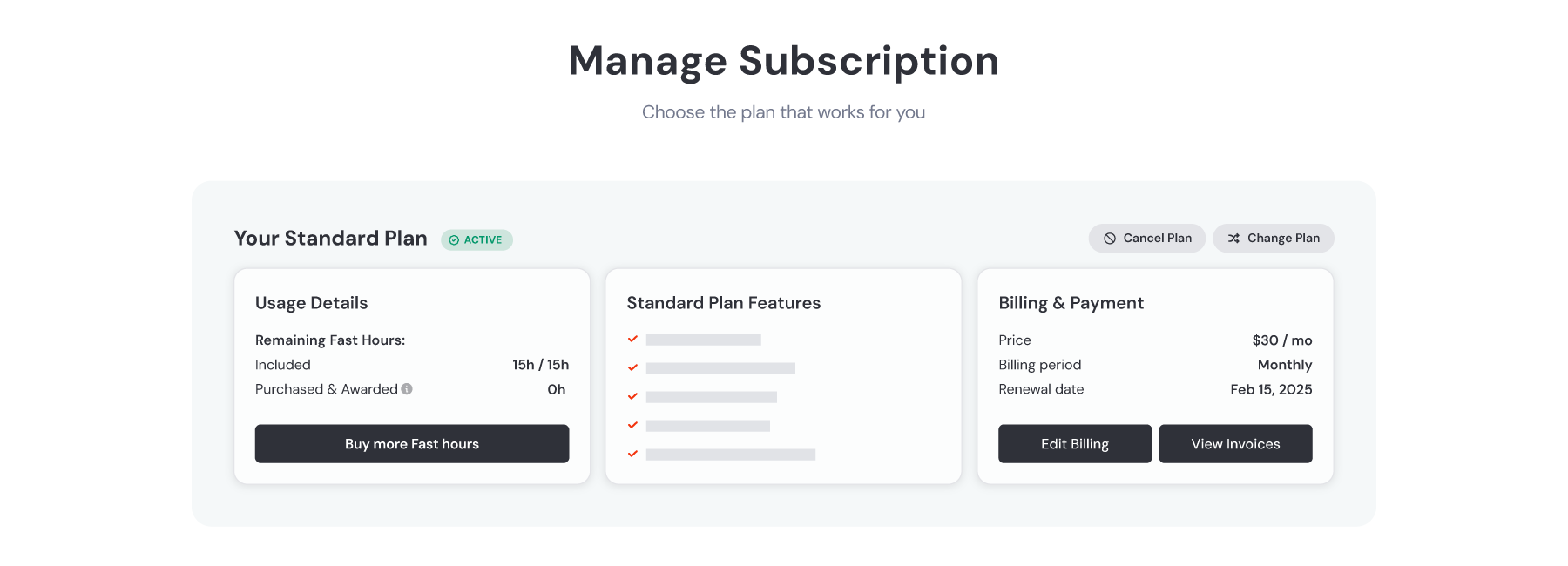
---
# Tile – Midjourney
[Skip to main content](https://docs.midjourney.com/hc/en-us/articles/32197978340109-Tile#page-container)
Create seamless repeating patterns with the tile parameter: --tile
### Create seamless repeating patterns with the tile parameter: `--tile`
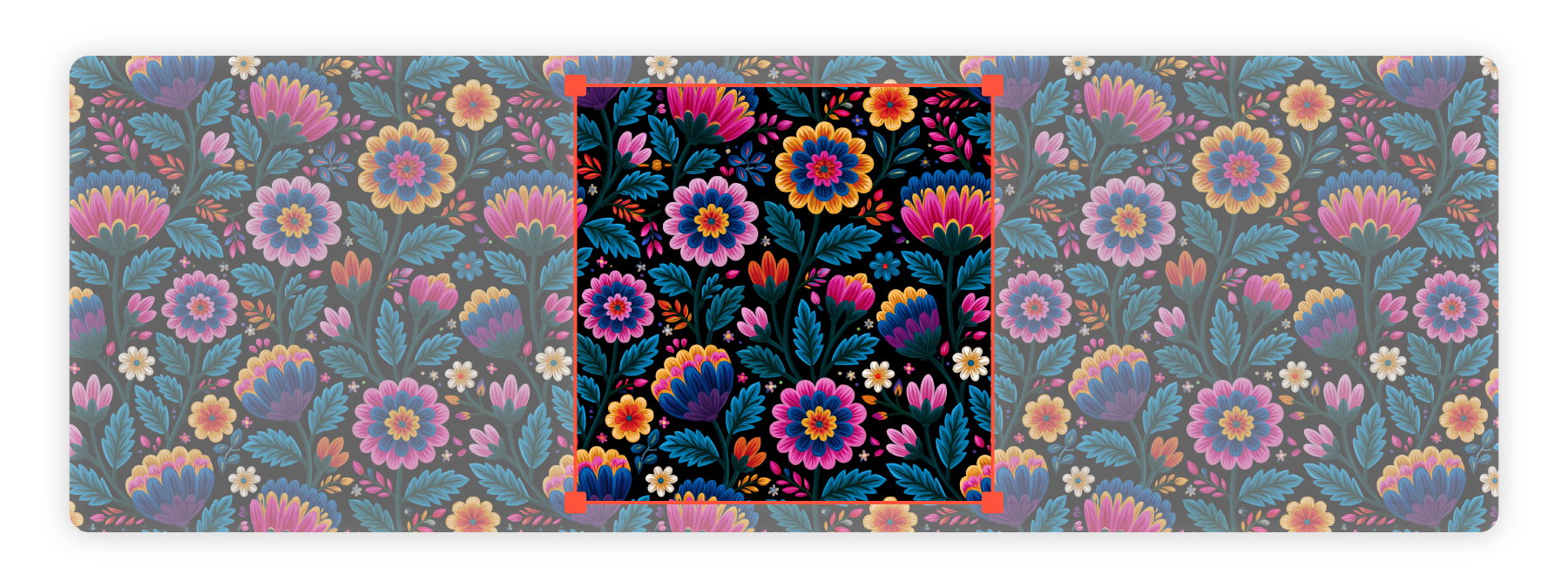
What is --tile?
---------------
Imagine you have a square image, and you want to line up multiple copies of it side by side to form a larger pattern, like wallpaper. If those images align perfectly, that's a tiled pattern, and Midjourney can make them!
The `--tile` parameter makes sure that the edges of your image match up perfectly with the same image when you place them next to each other. This means you can use the image over and over, and it will look like one continuous design without any obvious seams or breaks where the images meet. It's a great tool for creating designs that need to repeat smoothly, like on fabrics or wallpapers!
When you use `--tile`, keep in mind that it generates just a single tile. To visualize the full pattern, use a pattern-making tool like a [Seamless Pattern Checker](https://www.pycheung.com/checker/)
to see how multiple tiles fit together.
[Upscaling](https://docs.midjourney.com/hc/en-us/articles/32804058614669)
your tile images will often break the seamless repeating pattern, so we do not recommend upscaling these images.
Using --tile
------------
* Add `--tile` to the end of your prompt in the Imagine bar.

* Add `--tile` to the end of your prompt in Discord.

---
# Describe – Midjourney
[Skip to main content](https://docs.midjourney.com/hc/en-us/articles/32497889043981-Describe#page-container)
Use Describe to turn your own images into inspiring prompt ideas.
### Let your images inspire new ideas—use Describe to explore creative prompts!
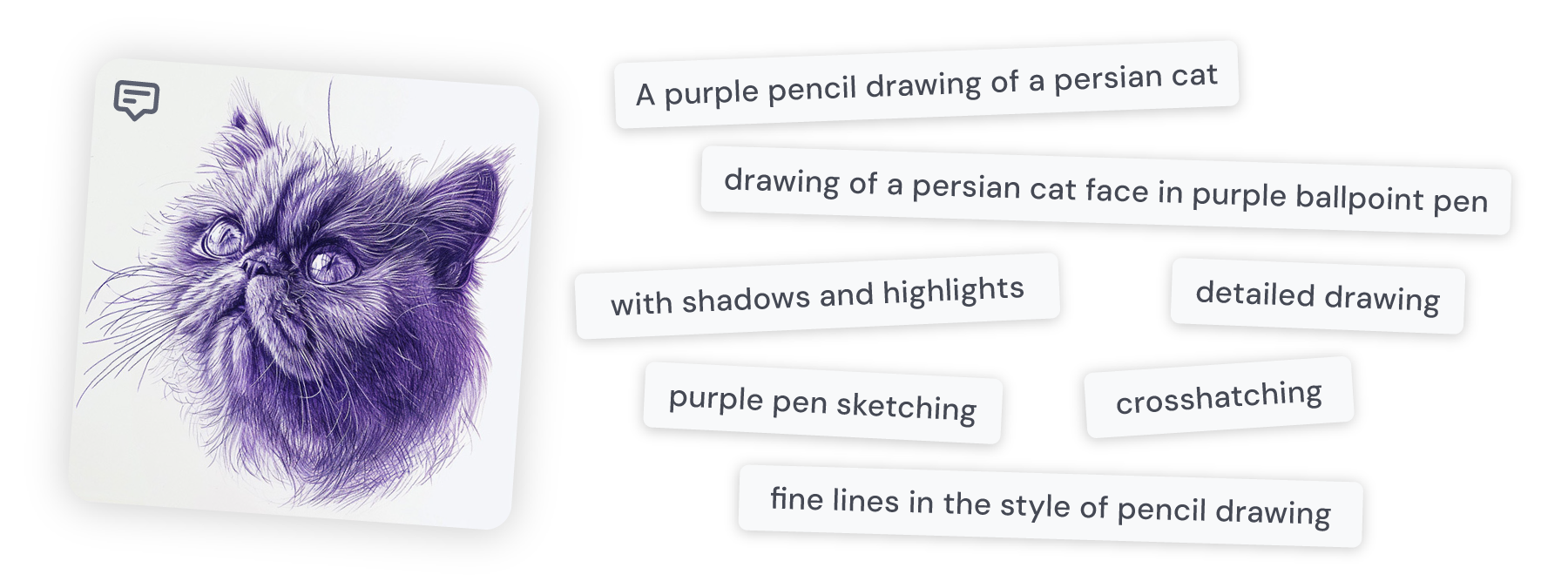
What is Describe?
-----------------
The Describe tool helps you generate creative prompts by analyzing an image you upload and then offering words and phrases that describe the image. It's a great way to discover new style words and get inspiration for your text prompts.
Describe is an image-to-text tool that can help guide your creativity, but the suggested prompts won't precisely copy your image. If you use Describe repeatedly on the same image, Midjourney will give you a different set of suggestions each time.
Using Describe
--------------
* #### Click & Drag
Click and drag your image to the Imagine bar and you'll see a panel pop up that says "Drop image to describe."
You can click and drag images from your computer, as well as images you've already uploaded to Midjourney from the uploads panel.
If you release your image over that panel Midjourney will generate four prompts on your Create page.
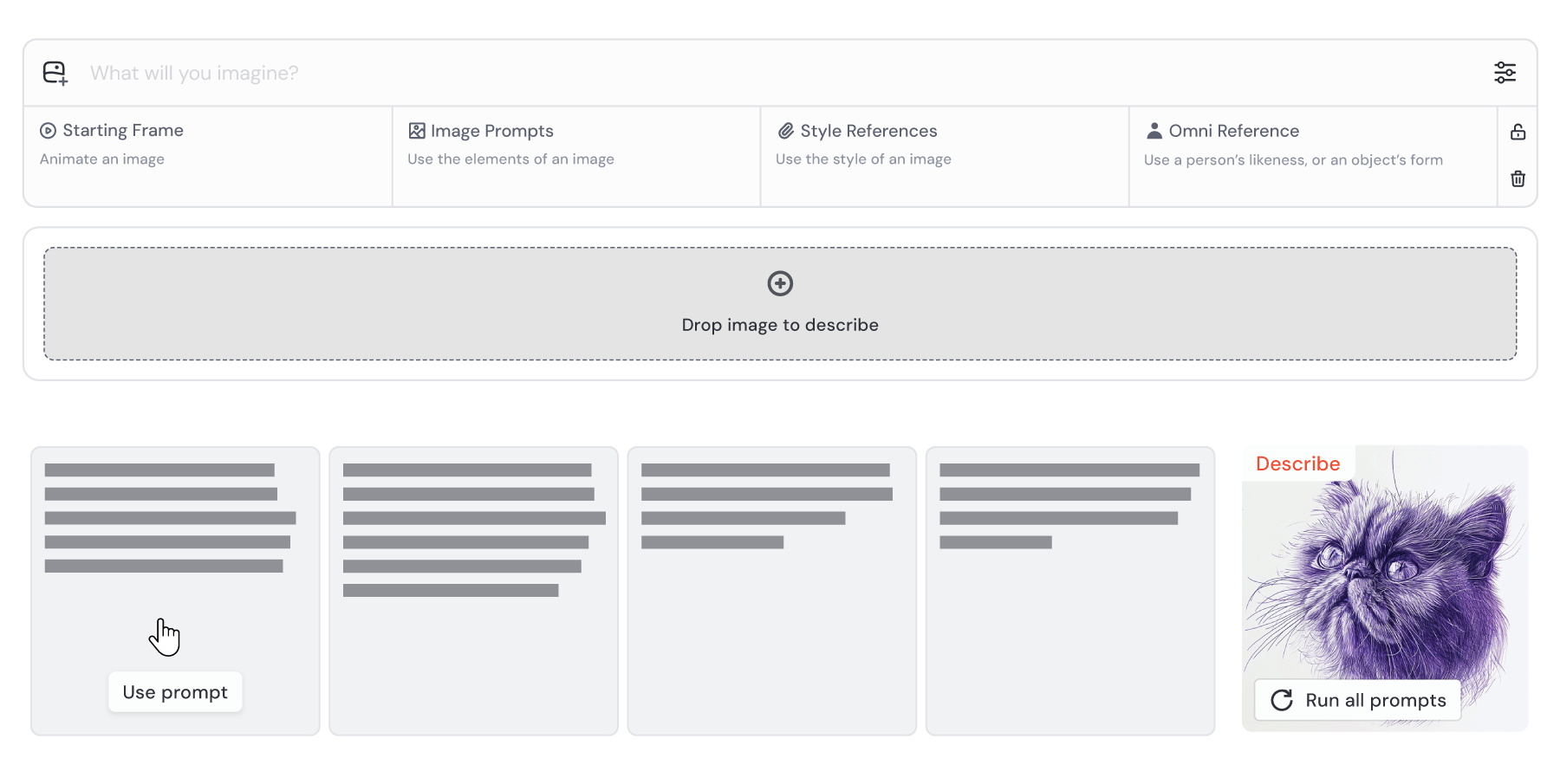
Click the "Use Prompt" button on any of the prompts to add the text to your Imagine bar, or you can click the "Run all prompts" button to try all four of them right away.
Note: When you refresh your Create page the Describe suggestions will disappear.
#### Right-Click
Right-click any image from your Create or Organize pages and select "Describe Image" and Midjourney will generate four prompts on your Create page.
* 1. Open your Discord app and go to the message box. Make sure you are in a server or channel that the Midjourney Bot has permission to access.
2. Type `/` in the message box. You’ll see a list of commands pop up above.
3. Keep typing until you see `/describe`. This helps narrow down the options, just like a search field.
4. Once you spot `/describe` in the list, click it.
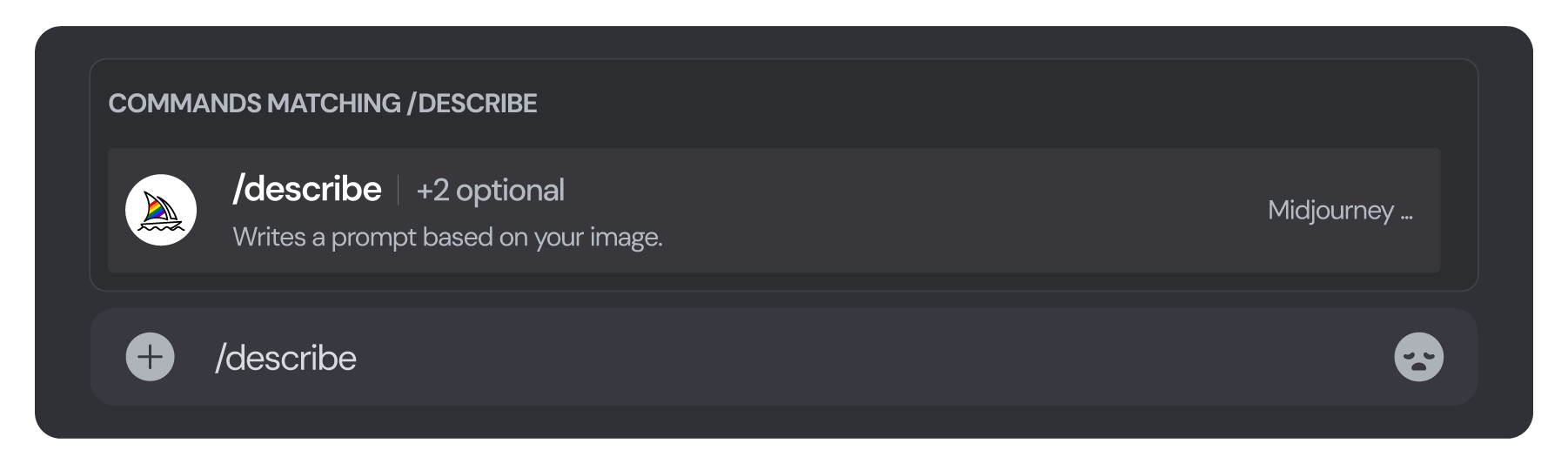
5. Select between uploading an image from your device (image), or providing an image URL (link). Then select your image file or paste your URL.
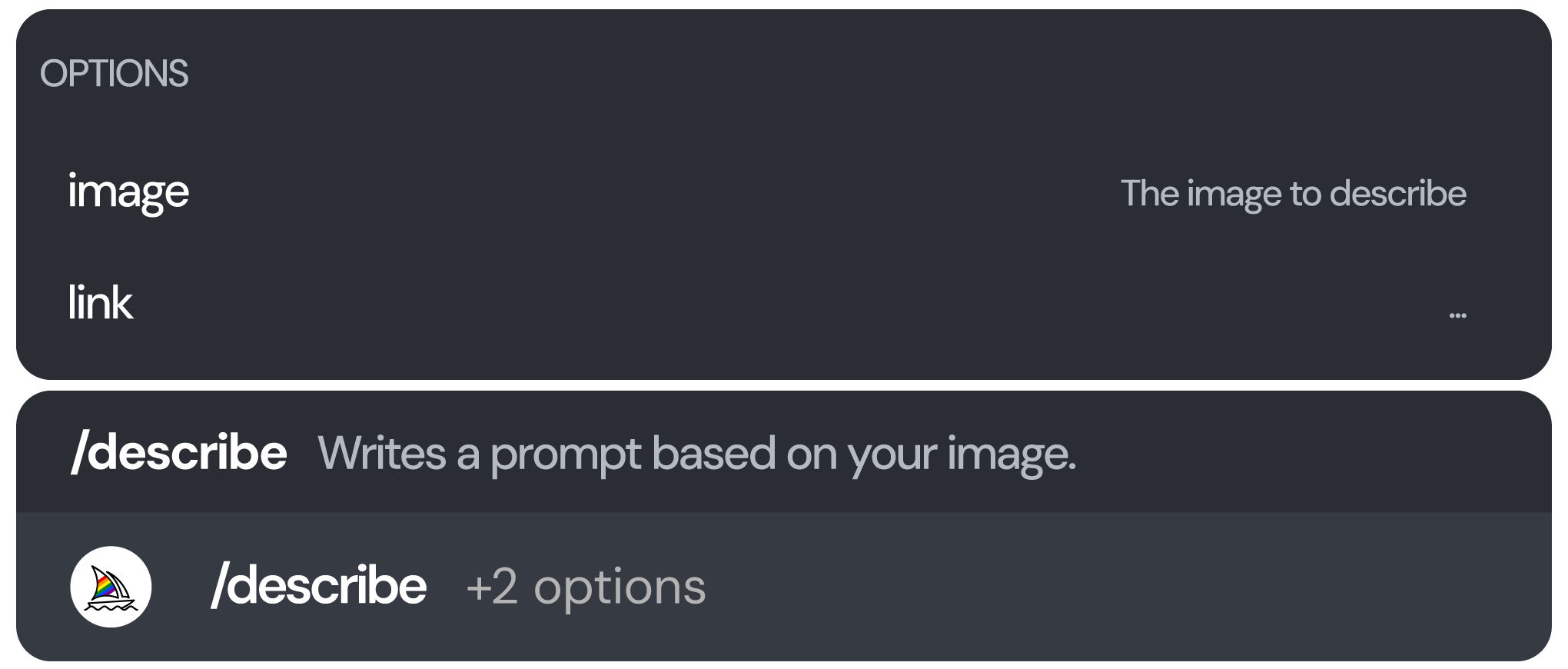
6. Press Enter or Send to execute the command.
The results will appear in your chat feed. Midjourney will return 4 prompt suggestions for your image. Use the numbered buttons to run individual prompts, or use `🎉 Imagine all` to try all 4! The refresh button will generate 4 new prompt suggestions.
---
# No – Midjourney
[Skip to main content](https://docs.midjourney.com/hc/en-us/articles/32173351982093-No#page-container)
Tell Midjourney what you don't want in your image using --no
### Tell Midjourney what you don't want in your image using the no parameter: `--no`
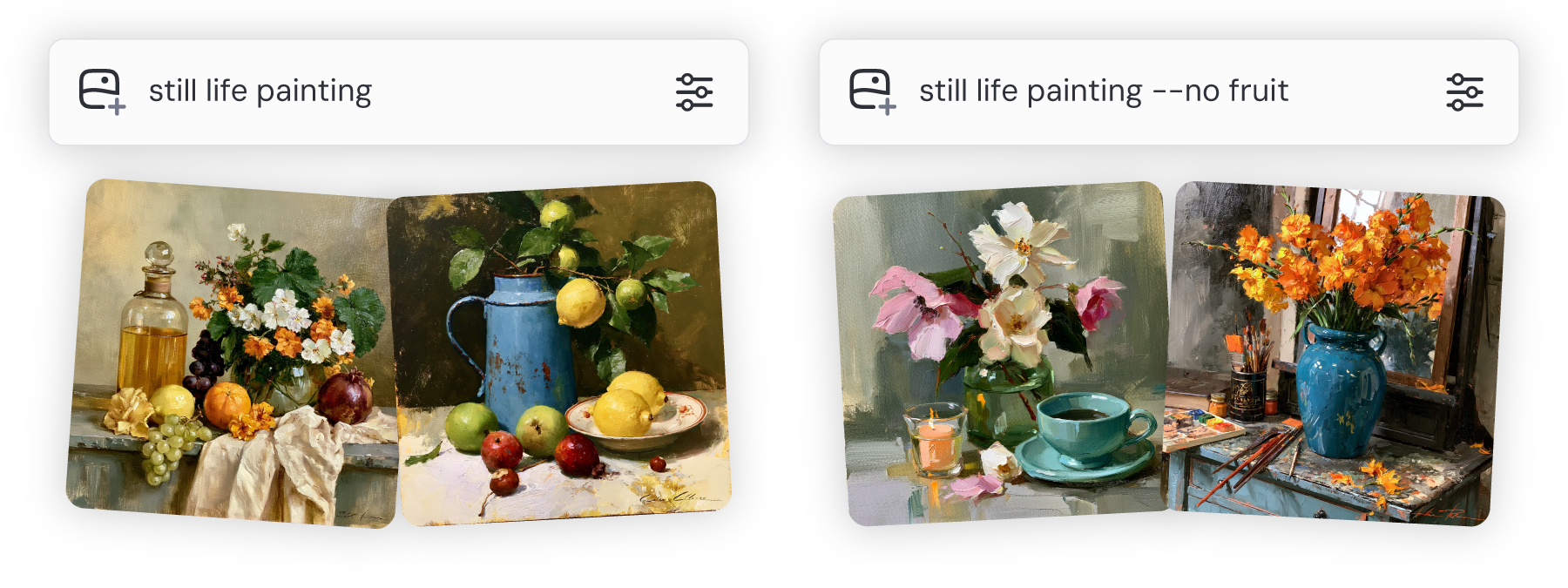
What is --no ?
--------------
The `--no` parameter is a tool you can use to tell Midjourney what you **don't** want in your image. It's like making a "no entry" list for certain things you don't want to see.
For example, if you're creating an image and want to make sure certain elements, like fruit or trees, are not included, you simply use the `--no` parameter followed by those elements. This helps Midjourney understand exactly what to leave out, so your image stays focused on what you do want. You can even list multiple elements by separating them with commas.
####  Bad Prompt Examples:
still life gouache painting without any fruit
still life gouache painting, please don't add fruit!
####  Good Prompt Example:
still life gouache painting --no fruit, apple, pear
Midjourney's moderation system reads every word you add to the `--no` parameter independently. This means if you prompt "--no modern clothing" it will read that as "no modern" and "no clothing"! This interpretation can accidentally trigger a warning, as it might seem like you’re requesting an image of someone without clothing. In this case, include the type of clothing you do want in your prompt, rather than using `--no`.
Using the No Parameter
----------------------
* Add `--no` to the end of your prompt in the Imagine bar, followed by the thing or list of things you don't want in your image.

* Add `--no` to the end of your prompt in Discord, followed by the thing or list of things you don't want in your image.

More Information
----------------
Using the `--no` parameter is the same as weighing part of a multi-prompt to "-0.5"
For more information, visit our article on [Multi-Prompts & Weights.](https://docs.midjourney.com/hc/en-us/articles/32658968492557)
---
# Keeping Your Creations Private – Midjourney
[Skip to main content](https://docs.midjourney.com/hc/en-us/articles/28014645615373-Keeping-Your-Creations-Private#page-container)
Midjourney thrives as an open-by-default community, which means that every image and video you create can be found on the community gallery on midjourney.com. This includes images made in [private Discord servers](https://docs.midjourney.com/hc/en-us/articles/32637946450445)
or [direct messages with the Midjourney Bot](https://docs.midjourney.com/hc/en-us/articles/32637339216013)
.
If privacy is a priority for you, consider using [Stealth Mode](https://docs.midjourney.com/hc/en-us/articles/32019750070669)
. Available only with our Pro and Mega Plans, Stealth Mode keeps your creations hidden from other users on the website. However, your images and videos will still need to adhere to our [Community Guidelines](https://docs.midjourney.com/hc/en-us/articles/32013696484109)
.
Stealth Mode only unpublishes your creations on midjourney.com. If you generate images and videos in a shared Discord space or in Rooms on the website, other users in those forums will still be able to see them. For full privacy, use Stealth Mode in direct messages with the Midjourney Bot in Discord, a private Discord server, or on your Create page on midjourney.com.
---
# Stylize – Midjourney
[Skip to main content](https://docs.midjourney.com/hc/en-us/articles/32196176868109-Stylize#page-container)
Control the artistic flair in your images with the stylize parameter: --stylize or --s
### Control the artistic flair in your images with the stylize parameter: `--stylize` or `--s`
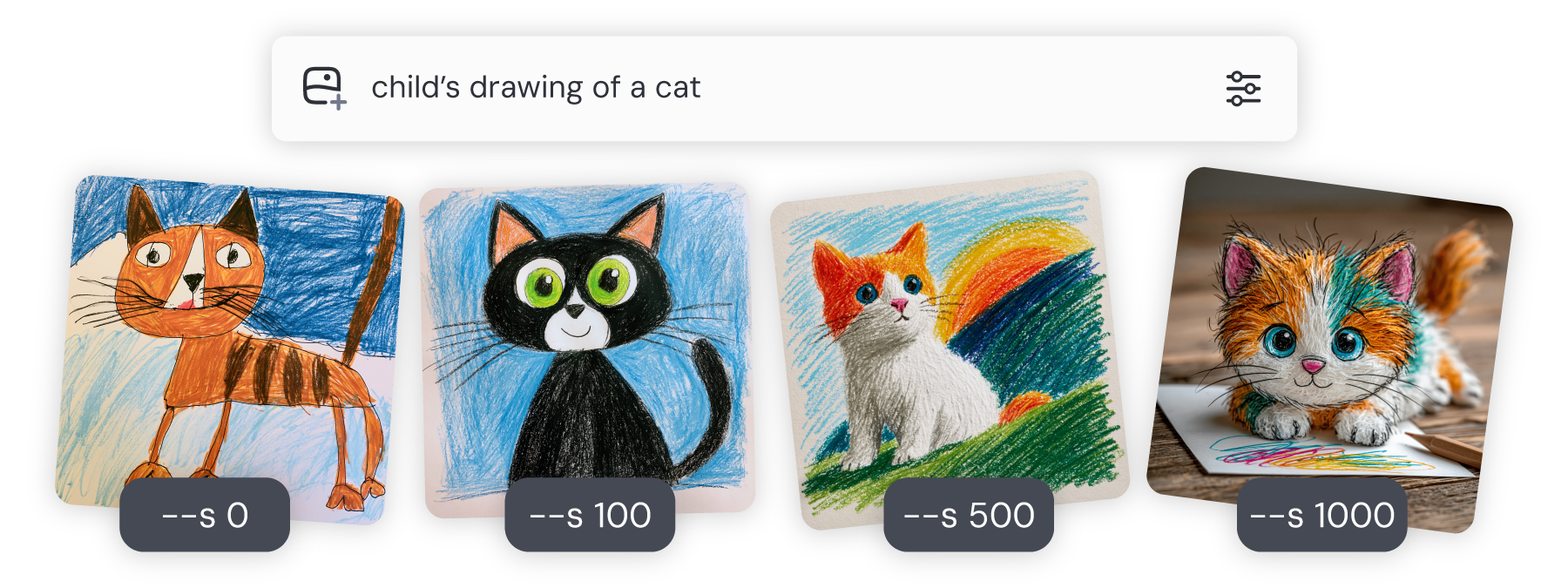
What is Stylize?
----------------
Think of stylize as a slider that changes how much artistic creativity is applied to your image. With a low stylize setting, it's like asking for an image that follows your prompt very closely—Midjourney sticks to the facts without much extra flair. With a higher stylize setting, it's like giving Midjourney more freedom to interpret your idea. The image might look more artistic and visually interesting, but it could stray from the exact details of your prompt.
So, stylize lets you choose if you want your image to be more literal (based on your prompt) or more creative and artistic.
The default value for stylize is 100, and you can adjust it anywhere between 0 and 1000 with the current [model versions](https://docs.midjourney.com/hc/en-us/articles/32199405667853)
.
Setting the Stylize Value
-------------------------
* Add `--s #` to the end of your prompt in the Imagine bar.

You can choose a default Stylization for all your images in the settings panel. To do this, click the settings  button in the Imagine bar. Once you set it, this will apply to all your future prompts.
* Add `--s #` to the end of your prompt in Discord.

You can also set the default Stylize value for all your images using the [settings command](https://docs.midjourney.com/hc/en-us/articles/32868982949517)
and selecting one of the Stylize preset buttons. `🖌️ Stylize med` is the default. You can see the exact value of each preset by selecting it and looking at "Current suffix"
---
# Hosting Images on Discord – Midjourney
[Skip to main content](https://docs.midjourney.com/hc/en-us/articles/32558957919117-Hosting-Images-on-Discord#page-container)
Upload images directly to Discord to use them with the Midjourney bot.
### Upload images directly to Discord to use them with the Midjourney bot
When you're creating images with Midjourney in Discord, you might want to mix things up by using [Image Prompts](https://docs.midjourney.com/hc/en-us/articles/32040250122381)
, [Character References](https://docs.midjourney.com/hc/en-us/articles/32162917505293)
, or [Style References](https://docs.midjourney.com/hc/en-us/articles/32180011136653)
. To do this, the Midjourney bot needs an image URL. If the image you want to use is only on your computer or device (and not already online), don't worry! You can easily upload it to Discord. Once it's uploaded, you'll have an image URL ready to use in your Midjourney prompts.
Upload your Image to Discord
----------------------------
Note: We recommending doing this in a private space in Discord like a Direct Message with the Midjourney bot or in your private server, otherwise other users will be able to see and potentially use your image.
1. To upload a file, click the `+` icon in your Message box. If you're on a desktop, you can also drag and drop an image file directly into the Message box.
2. Once your file is attached, press enter on your keyboard or hit the send button if you're on a mobile device to upload the image to Discord.
3. After uploading, it will appear in your chat feed with your username above it. **If you still see icons like an eye, pencil, and trash can in the corner of your image, it hasn't fully uploaded, so make sure to send the message.**
For more information on uploading images to Discord you can visit [Discord's support center](https://support.discord.com/hc/en-us/articles/211866427-How-do-I-upload-images-and-GIFs)
.
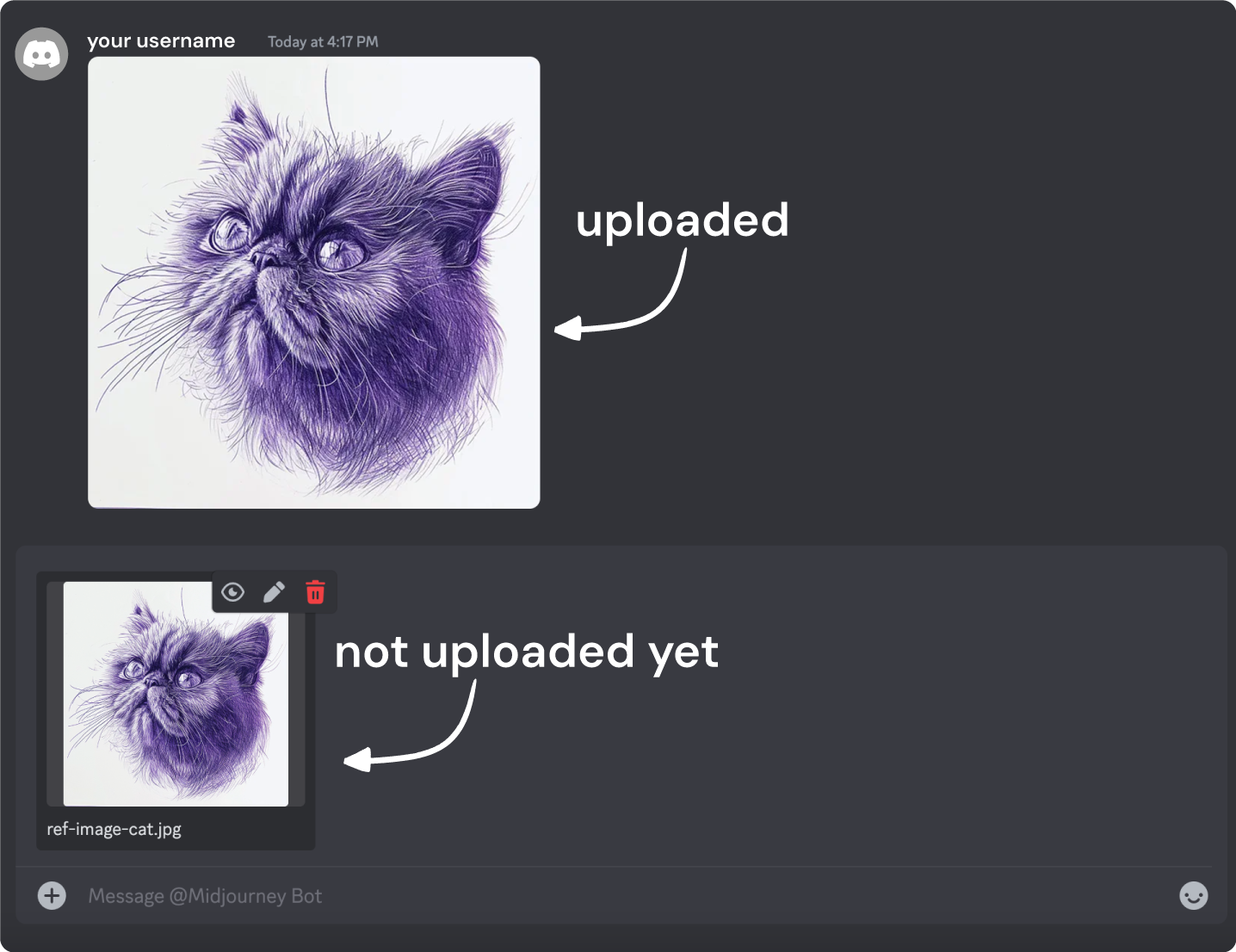
Note: If you get an error message that your prompt contains a "blob URL" that means your image is not yet uploaded. Make sure to press enter on your keyboard or send so that the image uploads and is shown in your chat feed.
Copy the Image URL
------------------
#### iOS App Users
Click the image to open it, then use the `...` button and select `Share`, then select `Copy`.
#### Android App Users
Long press the image and select `Copy Media Link`
#### Desktop Users
Click the image to open it, then right-click and select `Copy Image Address` or `Copy Link`. You can also run the `/imagine` command and then click and drag the image thumbnail into the prompt box.
Important: Make sure you do not copy the Discord **Message Link**, that URL will not work.
---
# Show Command – Midjourney
[Skip to main content](https://docs.midjourney.com/hc/en-us/articles/32635695384461-Show-Command#page-container)
Move or refresh your generated images in Discord using the /show command.
### Move or refresh your generated images in Discord using `/show`
What is /show?
--------------
The show command in Discord lets you to revive, refresh, or move your generated image to another channel within Discord using its Job ID. If you've lost track of where your image is in Discord, you can quickly bring up a new instance of it. If you generated your image before a new feature was launched, you can use `/show` to refresh the results and see the latest updates.
Note: You can only use the show command on your own images.
Copy the Job ID
---------------
To use `/show` you'll need the Job ID of your generated image. A Job ID is a special code that identifies each image made by Midjourney. It looks like this: 9333dcd0-681e-4840-a29c-801e502ae424. You can find it in the image's URL on the website, in the filename, or by copying it from our website or Discord.
* Start by clicking on any image you've made on your Create or Organize page. This will open the image, revealing more options.
Use the options  button near your prompt text and click Copy and then click Job ID. This will copy the image's Job ID to your clipboard.
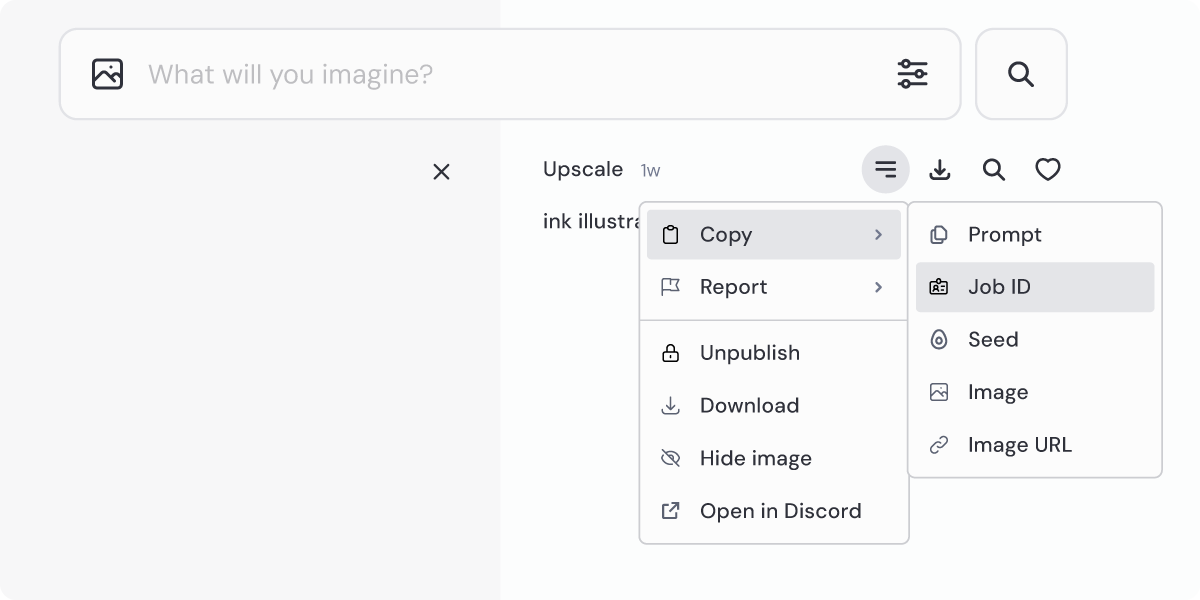
* After your image is generated, click Add Reaction and select the envelope ✉️ emoji. Make sure to select the plain envelope emoji. If you're having trouble finding it, you can use the search bar at the top of the emoji window.
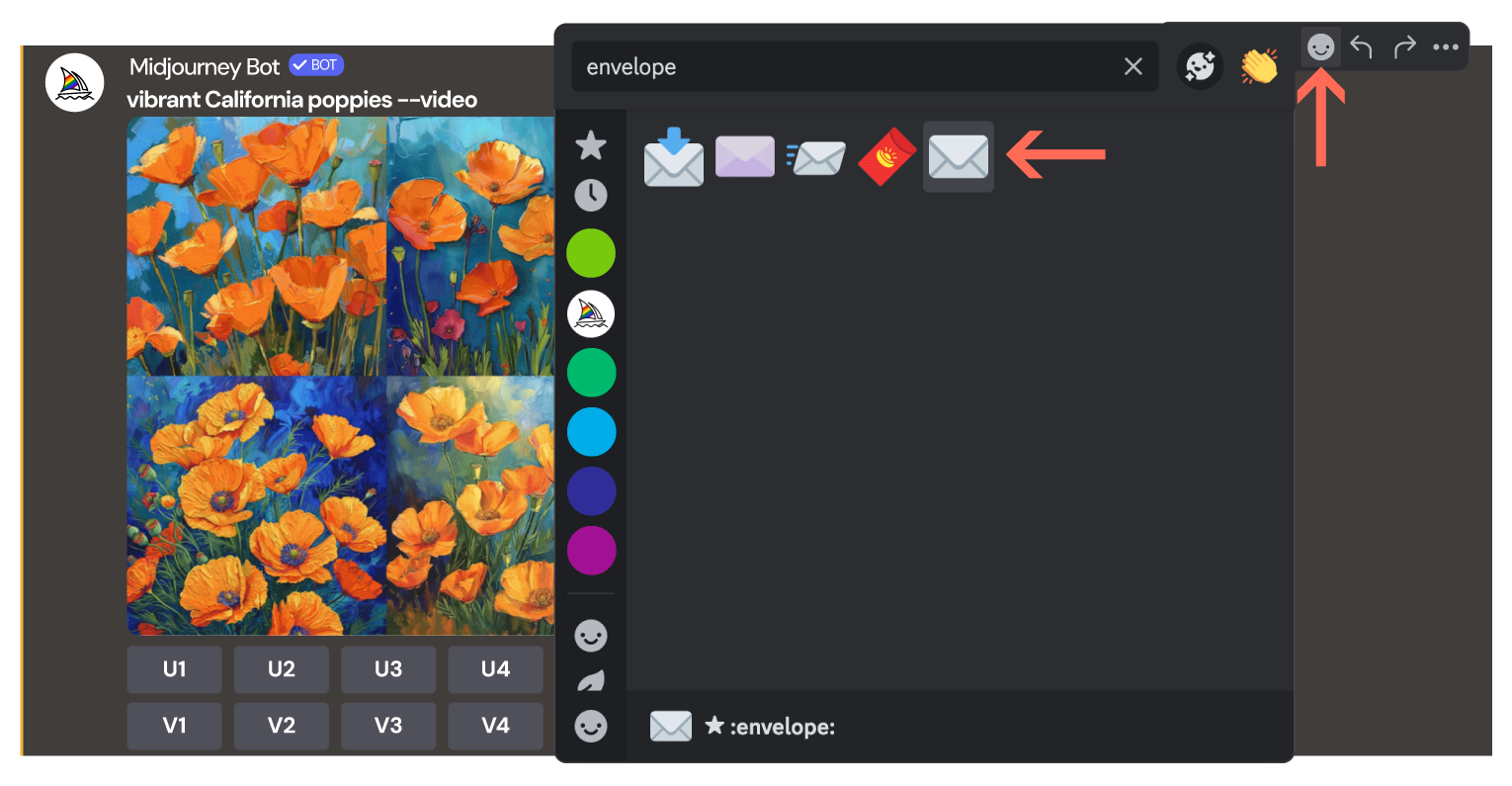
The Midjourney Bot will then send you a Direct Message with the Job ID. If you do not receive a direct message, make sure to check your Privacy Settings for the Midjourney Discord server and confirm that "Direct Messages" is toggled on to allow the Midjourney Bot to send you a direct message.
How to Use /show
----------------
1. Open your Discord app and go to the message box. Make sure you are in a server or channel that the Midjourney Bot has permission to access.
2. Type `/` in the message box. You’ll see a list of commands pop up above.
3. Keep typing until you see `/show`. This helps narrow down the options, just like a search field.
4. Once you spot `/show` in the list, click it. If you aren't seeing any Midjourney commands, try our [command troubleshooting tips](https://docs.midjourney.com/hc/en-us/articles/32894521590669)
.
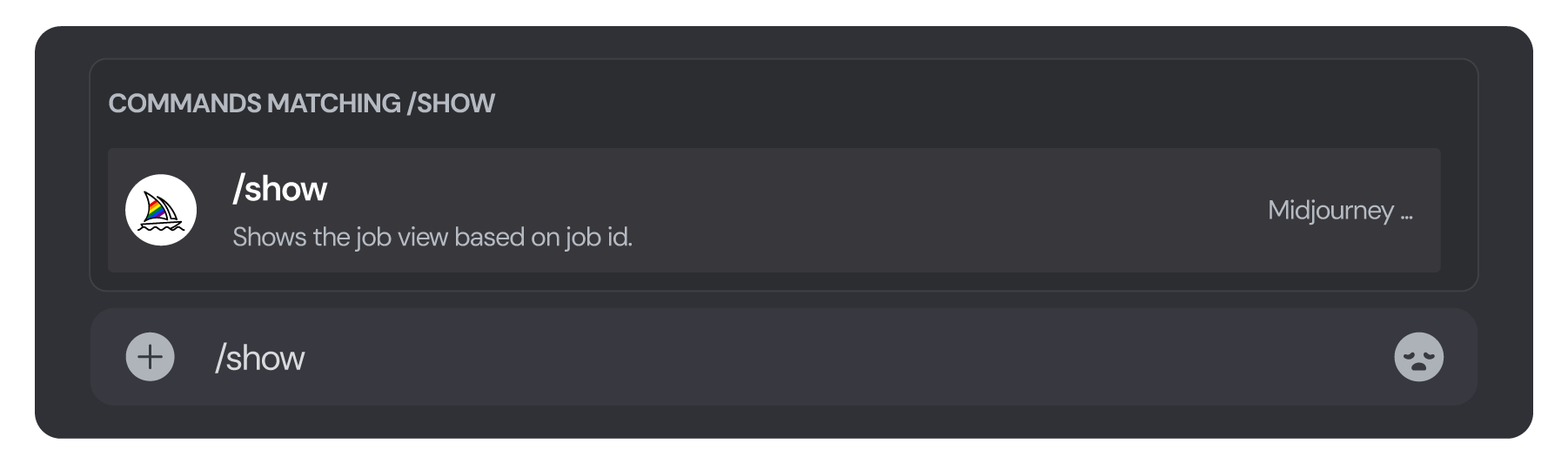
5. Paste your image's Job ID in the **job\_id** box.

6. Press Enter or Send to execute the command.
Now, look out for your generated image; it’ll pop up right in your message feed.
---
# Raw Mode – Midjourney
[Skip to main content](https://docs.midjourney.com/hc/en-us/articles/32634113811853-Raw-Mode#page-container)
Use Raw Mode for more control over your creations.
### Gain more control over your images with Raw Mode.
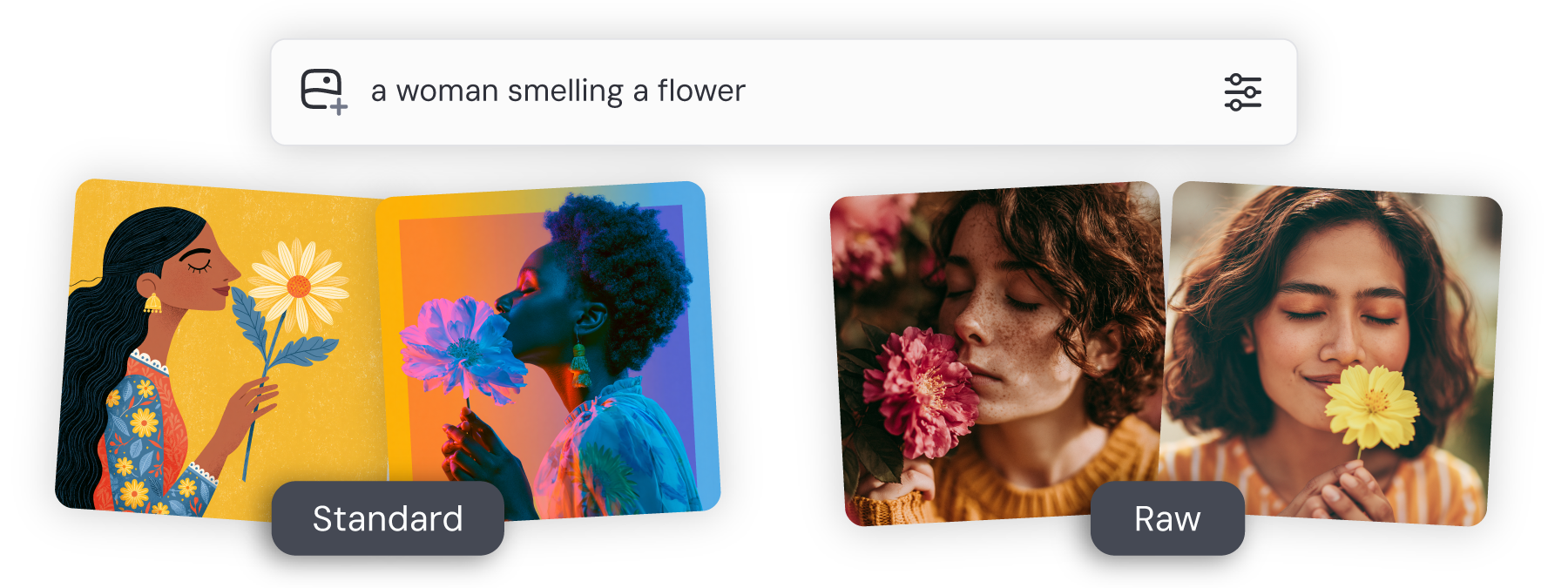
What is Raw Mode?
-----------------
In Standard Mode, Midjourney automatically adds its own creative touch to your images, which can transform simple prompts into a wide range of artistic styles.
When you switch to Raw Mode, you’re essentially turning off this “auto-pilot.” With simple prompts, you’ll often get more realistic, photo-like images. If you provide more stylistically detailed prompts in Raw Mode, you can really dial in and control the final look of your images.
Raw Mode is compatible with Midjourney [versions](https://docs.midjourney.com/hc/en-us/articles/32199405667853)
5.1 and later.
Using Raw Mode
--------------
* Add `--raw` to the end of your prompt in the Imagine bar.

You can also turn on Raw Mode for all your images in the settings panel. To do this, click the settings  button in the Imagine bar and set your Mode to Raw. Once you set it, this will apply to all your future prompts.
* Add `--raw` to the end of your prompt in Discord.

You can also turn on Raw Mode for all your images using the [settings command](https://docs.midjourney.com/hc/en-us/articles/32868982949517)
and clicking `🔧 RAW Mode`.
---
# Contacting Support – Midjourney
[Skip to main content](https://docs.midjourney.com/hc/en-us/articles/32638309968141-Contacting-Support#page-container)
If you have any questions or need assistance, our billing support team is here to help.
#### How to Reach Billing Support
For billing inquiries, please email [billing@midjourney.com](mailto:billing@midjourney.com)
. Within a few minutes you'll receive an automated response that includes your support ticket number, and the support team will respond to your request as soon as possible.
#### Include Your Midjourney ID
To help us assist you faster, please include your Midjourney ID in your email. Your Midjourney ID lets us easily locate your account information and speed up the process.
**Finding Your Midjourney ID**
* Visit midjourney.com and log into your account. Head to your [Account Settings](https://www.midjourney.com/profile-settings)
page, and your Midjourney ID will be there.
* On Discord: Run the `/userid` command. You'll get your Midjourney ID right away.
---
# Terms of Service – Midjourney
[Skip to main content](https://docs.midjourney.com/hc/en-us/articles/32083055291277-Terms-of-Service#page-container)
**Version Effective Date: June 23, 2025**
Thank you for using the Midjourney platform. These Terms of Service (“Terms”) govern the relationship between Midjourney, Inc. (“Midjourney”,”we”,”our”) and the entity or person (“Customer, “You”, “Your”) using or accessing our services, applications, or platform through our website available at midjourney.com (the “Site”), through any of our Discord servers, or by any other means (together, the “Services”). These Terms explain what rights you have with respect to images, videos, and other assets which you might generate with the Service (the "Assets"), or prompts you might enter into the Service (the “Inputs”), your use of the Services, and other important topics like arbitration. Our privacy policy outlines how we handle your data [here](https://docs.midjourney.com/hc/en-us/articles/32083472637453)
. Please carefully read these Terms, along with our privacy policy, and all other documents referenced in these Terms, including the Subscription Plans page and the Community Guidelines below. Together with the Terms, these documents form a single binding agreement between us (the “Agreement”).
This Agreement is effective when the Customer is presented with this Agreement and proceeds to use or access the Services (the "Effective Date") or to receive or distribute Assets. This agreement may be updated and presented again to the Customer from time to time. Continued use of the Services constitutes acceptance of the updated terms. If You do not agree to this Agreement, please stop using or accessing the Services.
1\. Service Availability and Quality
------------------------------------
We are constantly improving the Services to make them better. The Services are subject to modification and change, including but not limited to the art style of Assets, the algorithms used to generate the Assets, and features available to the Customer. No guarantees are made with respect to the Services’ quality, stability, uptime or reliability. Please do not create any dependencies on any attributes of the Services or the Assets. We will not be liable to You or Your downstream customers for any harm caused by Your dependency on the Service.
Both the Services and the Assets are provided to Customer on an "AS IS" BASIS, WITHOUT WARRANTIES OR CONDITIONS OF ANY KIND, either express or implied, including, without limitation, any warranties or conditions of TITLE, NON-INFRINGEMENT, MERCHANTABILITY, or FITNESS FOR A PARTICULAR PURPOSE. You are solely responsible for determining the appropriateness of using or redistributing the Assets and assume any risks associated with use of the Services.
Midjourney reserves the right to suspend or ban Your access to the Services at any time, and for any reason. You may not access or use the Services for purposes of developing or offering competitive products or services. You may not reverse engineer the Services or the Assets. You may not use automated tools to access, interact with, or generate Assets through the Services. You may not resell or redistribute the Services or access to the Service. Only one user may use the Services per registered account. Each user of the Services may only have one account.
You may not use the Service to try to violate the intellectual property rights of others, including copyright, patent, or trademark rights. Doing so may subject you to penalties including legal action or a permanent ban from the Service.
We reserve the right to investigate complaints or reported violations of this Agreement and to take any action we deem appropriate including but not limited to reporting any suspected unlawful activity to law enforcement officials, regulators, or other third parties and disclosing any information necessary or appropriate to such persons or entities relating to user profiles, e-mail addresses, usage history, posted materials, IP addresses and traffic information.
2\. Age Requirements
--------------------
By accessing the Services, You confirm that You are at least 13 years old and meet the minimum age of digital consent in Your country. If You are old enough to access the Services in Your country, but not old enough to have authority to consent to our terms, Your parent or guardian must agree to our terms on Your behalf.
Please ask Your parent or guardian to read these terms with You. If You are a parent or legal guardian, and You allow Your teenager to use the Services, then these terms also apply to You and You are responsible for Your teenager’s activity on the Services.
Midjourney tries to make its Services PG-13 and family friendly, but the Assets are generated by an artificial intelligence system based on user queries. This is new technology and it does not always work as expected. No guarantees are made as to the suitability of the Assets for the Customer.
3\. Your Information
--------------------
By using the Services, You may provide Midjourney with personal information like Your email address, user name, billing information, favorites, outputs, and text prompts that You enter, or sample images or other content that You upload to the Service. Our privacy policy can be found [here](https://docs.midjourney.com/hc/en-us/articles/32083472637453)
.
4\. Content Rights
------------------
#### Your Rights and Obligations
You own all Assets You create with the Services to the fullest extent possible under applicable law. There are some exceptions:
* Your ownership is subject to any obligations imposed by this Agreement and the rights of any third-parties.
* If you are a company or any employee of a company with more than $1,000,000 USD a year in revenue, you must be subscribed to a “Pro” or “Mega” plan to own Your Assets.
* If you upscale the images of others, these images remain owned by the original creators.
Please consult Your own lawyer if You want more information about the state of current intellectual property law in Your jurisdiction. Your ownership of the Assets you created persists even if in subsequent months You downgrade or cancel Your membership.
Inputs, Assets, and other content such as messages, photos, videos, and documents that you may provide to the Services (such as through uploading, posting, sharing, or chat messages) are collectively, “Content”. You are responsible for all Content that you provide or generate, including ensuring that it does not violate any applicable laws or this Agreement, and that you have all necessary rights and permissions to provide the Content.
#### Rights You give to Midjourney
By using the Services, You grant to Midjourney, its affiliates, successors, and assigns a perpetual, worldwide, non-exclusive, sublicensable no-charge, royalty-free, irrevocable copyright license to reproduce, prepare derivative works of, publicly display, publicly perform, sublicense, and distribute the Content You input into the Services, as well as any Assets produced by You through the Service. This license survives termination of this Agreement by any party, for any reason.
#### Remixing and Stealth Mode
Please note: Midjourney is an open community which allows others to use and remix Your Content whenever they are posted in a public setting. By default, Your Content is publicly viewable and remixable. As described below, You grant Midjourney a license to allow this.
If You purchased the Stealth feature as part of Your “Pro” or "Mega" subscription or through the previously available add-on, we agree to make best efforts not to publish any Assets You make in any situation where you have engaged stealth mode in the Services.
Please be aware that any Assets You make in a shared or open space, such as a Discord chatroom, is viewable by anyone in that chatroom, regardless of whether Stealth mode is engaged.
5\. DMCA and Takedowns Policy
-----------------------------
_Notification Procedures_
We respect the intellectual property rights of others. If you believe that material located on or linked to by the Services violates your copyright or trademark, please send a notice of claimed infringement by using [this form](https://docs.google.com/forms/d/e/1FAIpQLSd1DfIhFV33cdMWpimIf6kQgzxPJ_CUQ9x2lpfVSs4SkoqtsA/viewform)
or by email to takedown@midjourney.com with the subject "Takedown Request", and include the following:
1. Your physical or electronic signature.
2. Identification of the copyrighted work (or mark) you believe to have been infringed or, if the claim involves multiple works, a representative list of such works.
3. Identification of the material you believe to be infringing in a sufficiently precise and detailed manner to allow us to locate that material.
4. Adequate information by which we can contact you (including your name, postal address, telephone number, and, if available, email address).
5. A statement that you have a good faith belief that use of the copyrighted material is not authorized by the copyright owner, its agent, or the law.
6. A statement that the information in the written notice is accurate.
7. A statement, under penalty of perjury, that you are authorized to act on behalf of the copyright owner.
8. If the copyright owner’s rights arise under the laws of a country other than the United States, please identify the country.
You may also send notices containing the above-required information to the following Address:
Midjourney, Inc.
Attn: Takedowns Department
611 Gateway Blvd. Ste 120
South San Francisco, CA, 94080-7066,
US
Upon receipt of a notice that complies with the foregoing, we reserve the right to remove or disable access to the accused material or disable any links to the material; notify the party accused of infringement that we have removed or disabled access to the identified material; and terminate access to and use of the Services for any user who engages in repeated acts of infringement.
Please be aware that if you knowingly misrepresent that material or activity on the Services is infringing your copyright, you may be held liable for damages (including costs and attorneys’ fees) under Section 512(f) of the DMCA.
_Counter-Notification Procedures_
If you believe that material was removed or access to it was disabled by mistake or misidentification, you may file a counter-notification with us by submitting a written notification to our copyright agent designated above. Such notification must include substantially the following:
1. Your physical or electronic signature.
2. An identification of the material that has been removed or to which access has been disabled and the location at which the material appeared before it was removed or access disabled.
3. Adequate information by which we can contact you (including your name, postal address, telephone number, and, if available, email address).
4. A statement under penalty of perjury by you that you have a good faith belief that the material identified above was removed or disabled as a result of a mistake or misidentification of the material to be removed or disabled.
5. A statement that you will consent to the jurisdiction of the Federal District Court for the judicial district in which your address is located (or if you reside outside the United States for any judicial district in which the Services may be found) and that you will accept service from the person (or an agent of that person) who provided us with the complaint at issue.
6. Our designated agent to receive counter notices is the same as the agent shown above.
7. The DMCA allows us to restore the removed content within 10-14 business days unless the complaining party initiates a court action against you during that time period and notifies us of the same.
8. Please be aware that if you knowingly materially misrepresent that material or activity on the Services was removed or disabled by mistake or misidentification, you may be held liable for damages (including costs and attorney’s; fees) under Section 512(f) of the DMCA.
6\. Dispute Resolution and Governing Law
----------------------------------------
**In the event a dispute, controversy, or claim arises out of or relating to these Terms (“Dispute”), the Dispute will be resolved by binding arbitration rather than in court.** The parties will first try in good faith to settle any Dispute within 30 days after the Dispute arises. If the Dispute is not resolved within 30 days, it shall be resolved by binding arbitration by the American Arbitration Association’s International Centre for Dispute Resolution in accordance with its Expedited Commercial Rules in force as of the date of this Agreement ("Rules"). The parties will mutually select one arbitrator. The arbitration will be conducted in English in Santa Clara County, California, USA. By agreeing to mandatory arbitration as set forth herein, You and Midjourney knowingly and irrevocably waive any right to trial by jury in any action, proceeding, or counterclaim, except that either party may apply to any competent court for injunctive relief necessary to protect its rights pending resolution of the arbitration. The arbitrator may order equitable or injunctive relief consistent with the remedies and limitations in the Agreement. The arbitral award will be final and binding on the parties and its execution may be presented in any competent court, including any court with jurisdiction over either party or any of its property.
Each party will bear its own lawyers’ and experts’ fees and expenses, regardless of the arbitrator’s final decision regarding the Dispute.
7\. Unlimited Service and Rate Limiting
---------------------------------------
If You purchase an unlimited plan, we will try to reasonably offer You unlimited access to the Services. However, we reserve the right to rate limit You to prevent quality decay or interruptions to other customers.
8\. Payment and Billing
-----------------------
We may invoice You for Your use of the Services through a third party payment service provider. The third party service provider’s terms of service shall govern and supersede this Agreement in case of conflict, solely with respect to payment processing.
You are free to cancel Your plan at any time. We reserve the right to modify or discontinue any aspect of the Service, including pricing and features, at any time. We also reserve the right to terminate Your access to the Service for any reason, including for violation of the Community Guidelines or other inappropriate use of the Service. Any violation of Community Guidelines is a breach of this Agreement. You will not be refunded for the current subscription period, but You will not be charged after the current subscription period has ended. Additional information and policies regarding our subscription plans, including details on billing, taxes, refunds, and authorization, can be found [here](https://docs.midjourney.com/hc/en-us/categories/16016577793421)
.
9\. Community Guidelines
------------------------
1. Be kind and respect each other and staff. Do not create Assets, use prompts, or submit content that are inherently disrespectful, aggressive, hateful, or otherwise abusive. Violence or harassment of any kind will not be tolerated.
2. No adult content or gore. Please avoid making visually shocking or disturbing content. We will block some inputs automatically.
3. Respect others’ creations. Do not distribute or publicly repost the creations of others without their permission.
4. You may not use the Services to generate images for political campaigns, or to try to influence the outcome of an election.
5. You may not use the Services or the Assets to attempt to or to actually deceive or defraud anyone.
6. You may not use the Services for illegal activity nor may you upload content to our servers that involves illegal activity, or where the uploading itself may be illegal.
7. You may not intentionally mislead recipients of the Assets about their nature or source.
8. Respect others’ rights. Do not upload others’ private information.
9. Be careful about sharing. It’s OK to share Your creations outside of the Midjourney community but please consider how others might view Your content.
10. Banhammer. Any violations of these rules may lead to bans from our services. We are not a democracy. Behave respectfully or lose Your rights to use the Service.
10\. Limitation of Liability and Indemnity
------------------------------------------
We provide the service as is, and we make no promises or guarantees about it.
You understand and agree that we will not be liable to You or any
third party for any loss of profits, use, goodwill, or data, or for
any incidental, indirect, special, consequential or exemplary damages, however they arise. Our aggregate liability under this Agreement will not exceed the amount You paid for the Services that gave rise to the claim during the 12 months before the claim.
You are responsible for Your use of the service. If You harm someone else or get into a dispute with someone else, we will not be involved.
To the extent permitted by law, you will indemnify and hold us
harmless, our affiliates, and our personnel, from and against any
costs, losses, liabilities, and expenses (including attorneys’ fees)
from third party claims arising out of or relating to your use of the
Services and Assets or any violation of these Terms.
You and Midjourney agree that any cause of action arising out of or related to the Services must commence within one (1) year after the cause of action accrues. Otherwise, such cause of action is permanently barred.
11\. Image Editor and Video Model
---------------------------------
Midjourney’s Image Editor tool (“Editor”) and the Video Model ("Video") are provided as part of the Services and are subject to the terms and conditions outlined in this Agreement. By accessing and using Editor and/or Video, you agree to comply with the conditions set forth in this section, which govern Editor and Video availability and usage. If you do not agree to these Editor and Video terms and conditions, you must not access and must stop using the tool.
#### Access and Restrictions
Subject to your compliance with this Agreement, Midjourney grants you the right to access and use Editor and Video. In using these tools, you shall not violate any applicable laws, this Agreement, Midjourney Community Guidelines, or any other Midjourney policies or guidelines that are made available to you. In order to use these tools, you must meet the age requirements as outlined in this Agreement. Midjourney reserves the right to remove any content that you upload or generate using Editor and/or Video, or suspend or ban your access to them at any time, and for any reason.
#### Content
You are responsible for all content, including any images, videos, and prompts, that you input or generate when using Editor and/or Video.
You represent and warrant that you have all necessary rights and permissions to provide, edit, generate, and share such content, including obtaining necessary permission from anyone who may be depicted in the content that you upload and edit using Editor, or input and generate using Video. You will not upload content, enter prompts, or use Editor or Video in any way that infringes or violates any third-party intellectual property or privacy rights.
12\. Miscellaneous
------------------
1. Force Majeure. Neither party will be liable for failure or delay in performance to the extent caused by circumstances beyond its reasonable control, including acts of God, natural disasters, terrorism, riots, or war.
2. No Agency. This Agreement does not create any agency, partnership, or joint venture between the parties.
3. Severability. If any part of this Agreement is invalid, illegal, or unenforceable, the rest of the Agreement will remain in effect.
4. No Third-Party Beneficiaries. This Agreement does not confer any benefits on any third party unless it expressly states that it does.
5. Survival. The sections and obligations in this Agreement that a reasonable person would expect to survive this agreement, will. Particularly the IP and privacy stuff.
6. Governing Law. This Agreement shall be governed by the laws of the State of California, USA, without reference to conflict of law rules. All disputes will be governed by the arbitration agreement above.
---
# Blend Images on Discord – Midjourney
[Skip to main content](https://docs.midjourney.com/hc/en-us/articles/32635189884557-Blend-Images-on-Discord#page-container)
Turn multiple photos into a single unique creation using the /blend command.
### Turn multiple photos into a single unique creation using `/blend`
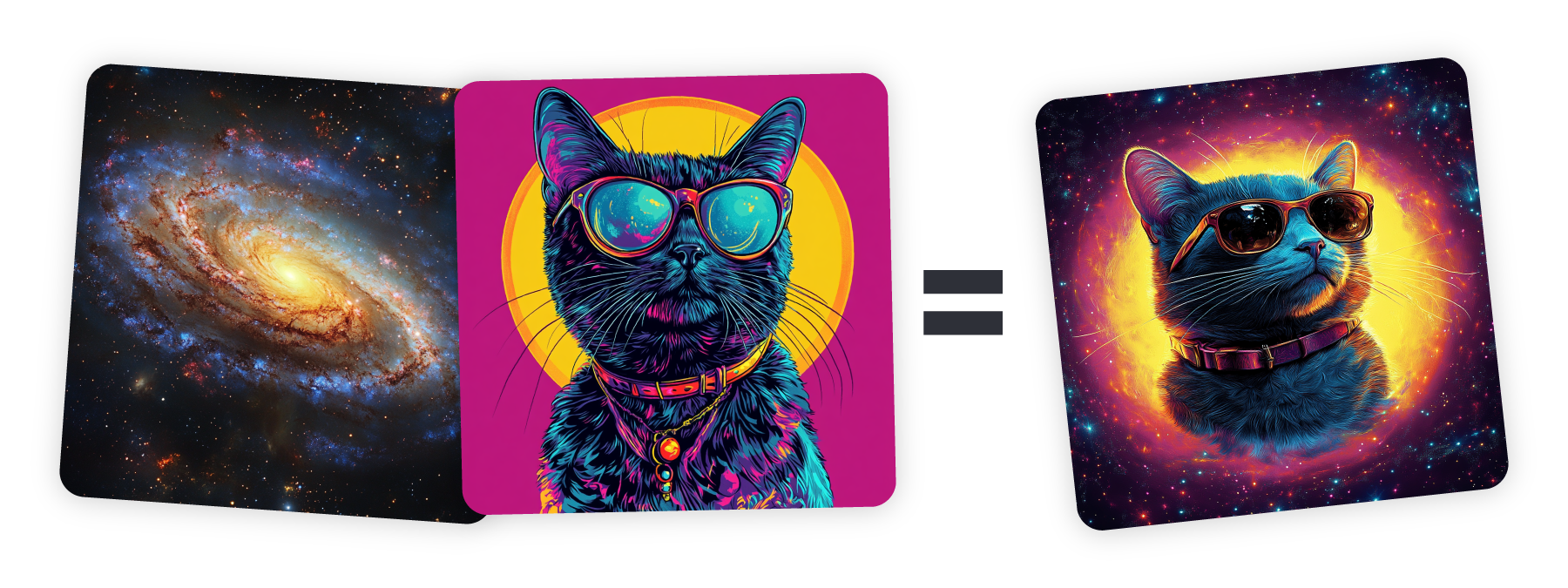
What is Blend?
--------------
The blend command in Discord lets you combine several images into a single, unique piece of art. By uploading between 2 to 5 images, you can see their concepts and styles merge into a new creative expression. It's perfect for when you want to mix different visuals into one design, and it's designed to be simple to use, especially on your phone.
#### Helpful Tips
**Images Only:** Text prompts are not included in the blending process. If you want to blend images with a text prompt, use [image prompts](https://docs.midjourney.com/hc/en-us/articles/32040250122381)
instead.
**Aspect Ratio:** Blended images default to a square (1:1) [aspect ratio](https://docs.midjourney.com/hc/en-us/articles/31894244298125)
. But you can choose a portrait (2:3) or landscape (3:2) by using the optional **dimensions** field when blending. For the best results, use images with the same aspect ratio as your desired new image.
**More than 5 Images?** If you want to blend more than 5 images, use the regular `/imagine` command with [image prompts](https://docs.midjourney.com/hc/en-us/articles/32040250122381)
.
**Custom Suffix:** If you have a custom suffix set up, it will work with blend just like with other prompts. If you set an aspect ratio with blend, it will override any aspect ratio in your custom suffix.
**Blending on Web:** Blending is specific to Discord. To achieve the same results on web, simply use multiple [image prompts](https://docs.midjourney.com/hc/en-us/articles/32040250122381)
without any prompt text.
How to Blend
------------
1. Open your Discord app and go to the message box. Make sure you are in a server or channel that the Midjourney Bot has permission to access.
2. Type `/` in the message box. You’ll see a list of commands pop up above.
3. Keep typing until you see `/blend`. This helps narrow down the options, just like a search field.
4. Once you spot `/blend` in the list, click it. If you aren't seeing any Midjourney commands, try our [command troubleshooting tips](https://docs.midjourney.com/hc/en-us/articles/32894521590669)
.
5. On mobile: With **image1** highlighted, select an image from your device. Repeat for **image2**. You must pick at least two images. To add more images or pick an aspect ratio, use the buttons next to "optional."
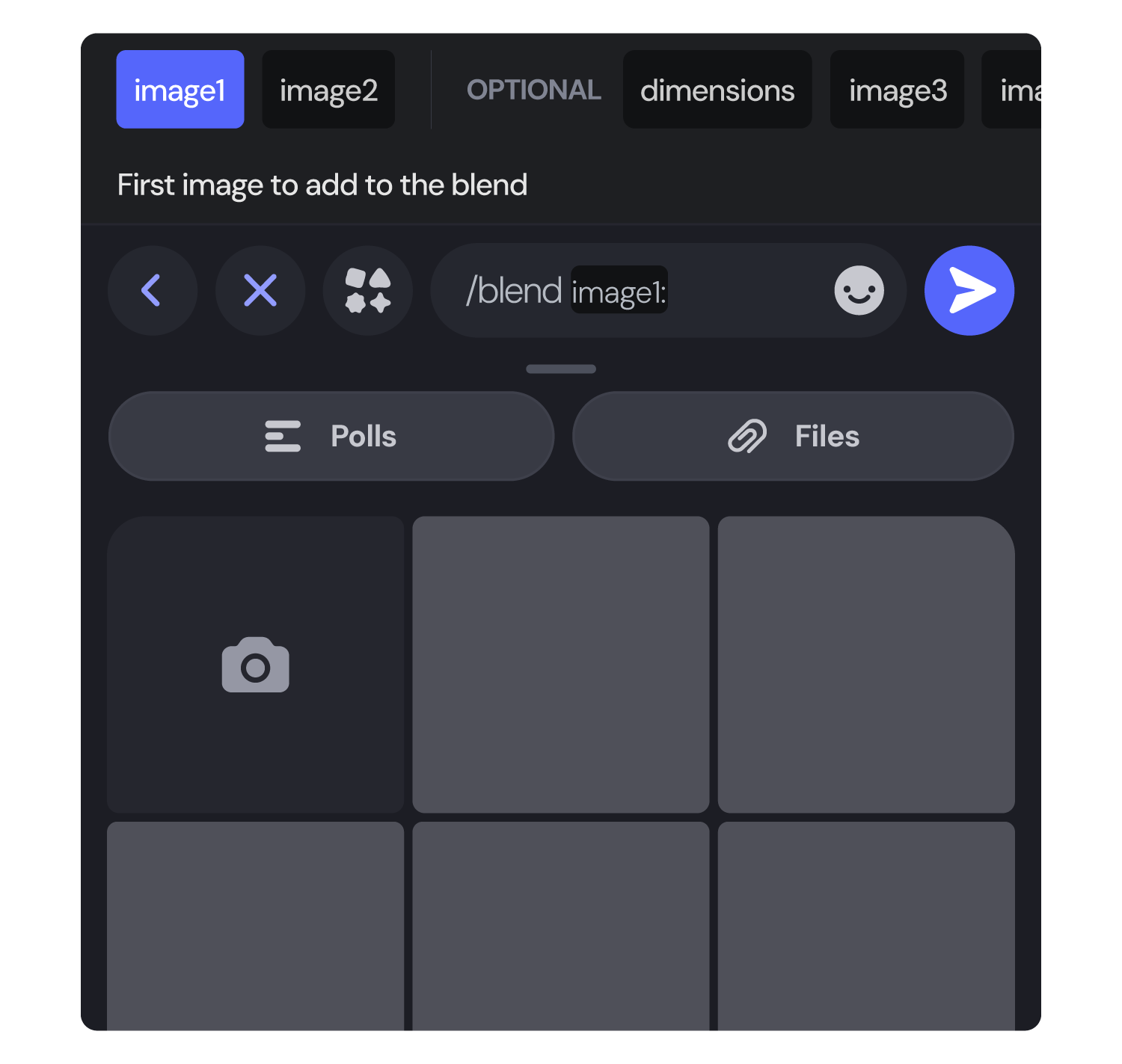
On desktop: Drag and drop image files or click the image boxes to select files from your device. You must pick at least two images. To add more images or pick an aspect ratio, click **+4 more** to see the "options" panel.

6. Press Enter or Send to execute the command.
Note: Discord has a maximum file upload size of 25MB (if you have Discord Nitro the limit is higher).
Have fun and experiment with different images to see all the unique results! Remember, the blend command may take a little longer to start than other commands because your images have to be uploaded before Midjourney can start making your images.
---
# Weird – Midjourney
[Skip to main content](https://docs.midjourney.com/hc/en-us/articles/32390120435085-Weird#page-container)
Make your images quirky and unconventional with the weird parameter: --weird or --w
### Make your images quirky and unconventional with the weird parameter: `--w` or `--weird`
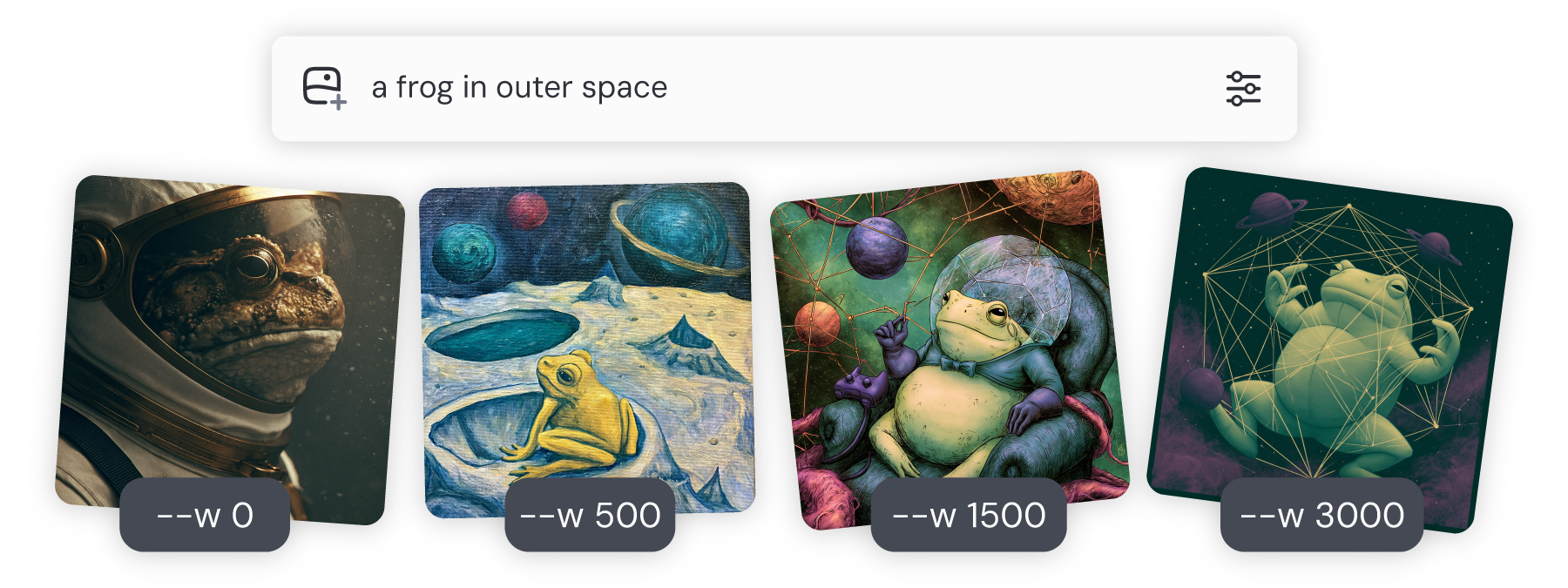
What is Weird?
--------------
Weird is a fun tool that spices up your images by adding a touch of the unusual or strange. When you use it, you’re telling Midjourney to take some creative risks.
Weird gives you the power to create images that are more experimental or out-of-the-box, allowing your creative ideas to wander into new, exciting places!
By default, weird is set to 0, but you can add values up to 3000. Keep in mind that weird is an experimental feature, and what's "weird" may change over time. Weird is also not fully compatible with [seeds](https://docs.midjourney.com/hc/en-us/articles/32604356340877)
.
Weird is compatible with Midjourney [versions](https://docs.midjourney.com/hc/en-us/articles/32199405667853)
5 and later.
Setting the Weird Value
-----------------------
* Add `--w #` to the end of your prompt in the Imagine bar.

You can choose a default Weirdness setting for all your images in the settings panel. To do this, click the settings  button in the Imagine bar. Once you set it, this will apply to all your future prompts.
* Add `--w #` to the end of your prompt in Discord.

---
# Add Midjourney to Your Discord Server – Midjourney
[Skip to main content](https://docs.midjourney.com/hc/en-us/articles/32637946450445-Add-Midjourney-to-Your-Discord-Server#page-container)
Learn how to add the Midjourney Bot to your own Discord server.
### Add the Midjourney Bot to your own Discord Server!
If you want to create images with Midjourney in your own private Discord server, you can add the Midjourney Bot as a member. This lets you use commands just like you do in the main [Midjourney Discord server](https://discord.gg/midjourney)
or in [direct messages](https://docs.midjourney.com/hc/en-us/articles/32637339216013)
. Having the bot in your private server lets you organize your images into different threads and even invite other Midjourney subscribers to join you for collaborative creativity.
Important: Each person in your private server needs their own Midjourney subscription to use the bot. Also, the images you create still need to follow Midjourney's [Community Guidelines](https://docs.midjourney.com/hc/en-us/articles/32013696484109)
.
Keep in mind that even on a private server, your images are still visible to others on midjourney.com unless you use [Stealth Mode](https://docs.midjourney.com/hc/en-us/articles/32019750070669)
to keep them unpublished.
Add the Bot
-----------
To get started you'll first need to [create your own Discord server](https://support.discord.com/hc/en-us/articles/204849977-How-do-I-create-a-server)
. Then, follow the instructions below.
* #### Find the Midjourney Bot
Open the [Midjourney Discord server](https://discord.gg/midjourney)
and look for the  Member List icon. Clicking it will open a sidebar where you can find the Midjourney Bot.
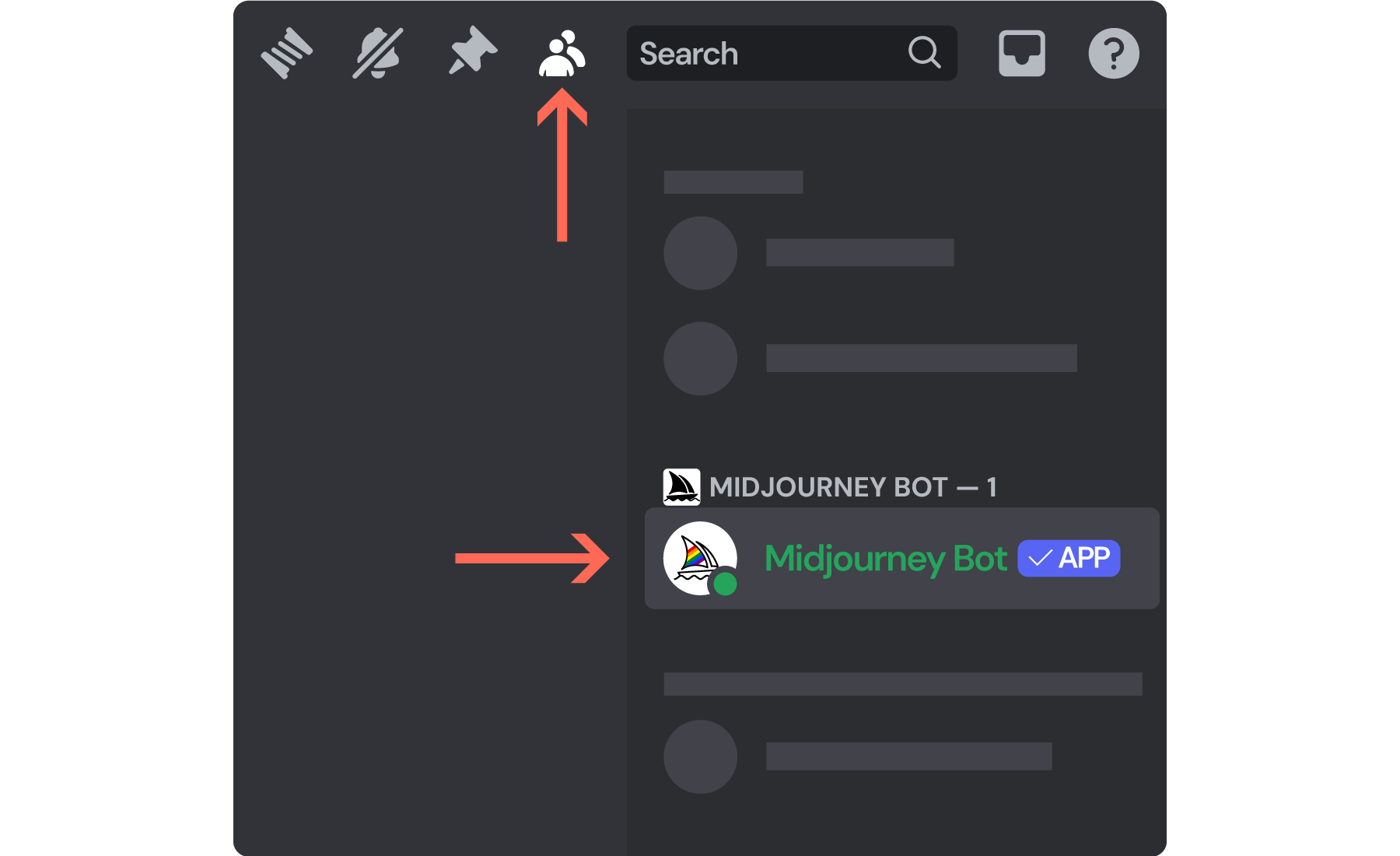
Mobile Users: You can find the Member List by going into a public channel on our server and clicking the channel name at the top of your screen.
Tip: You can also click the Midjourney Bot's username anywhere you see it in public channels.
* #### Add App
Click on the Midjourney Bot's name. In the pop up window, click the Add App button.
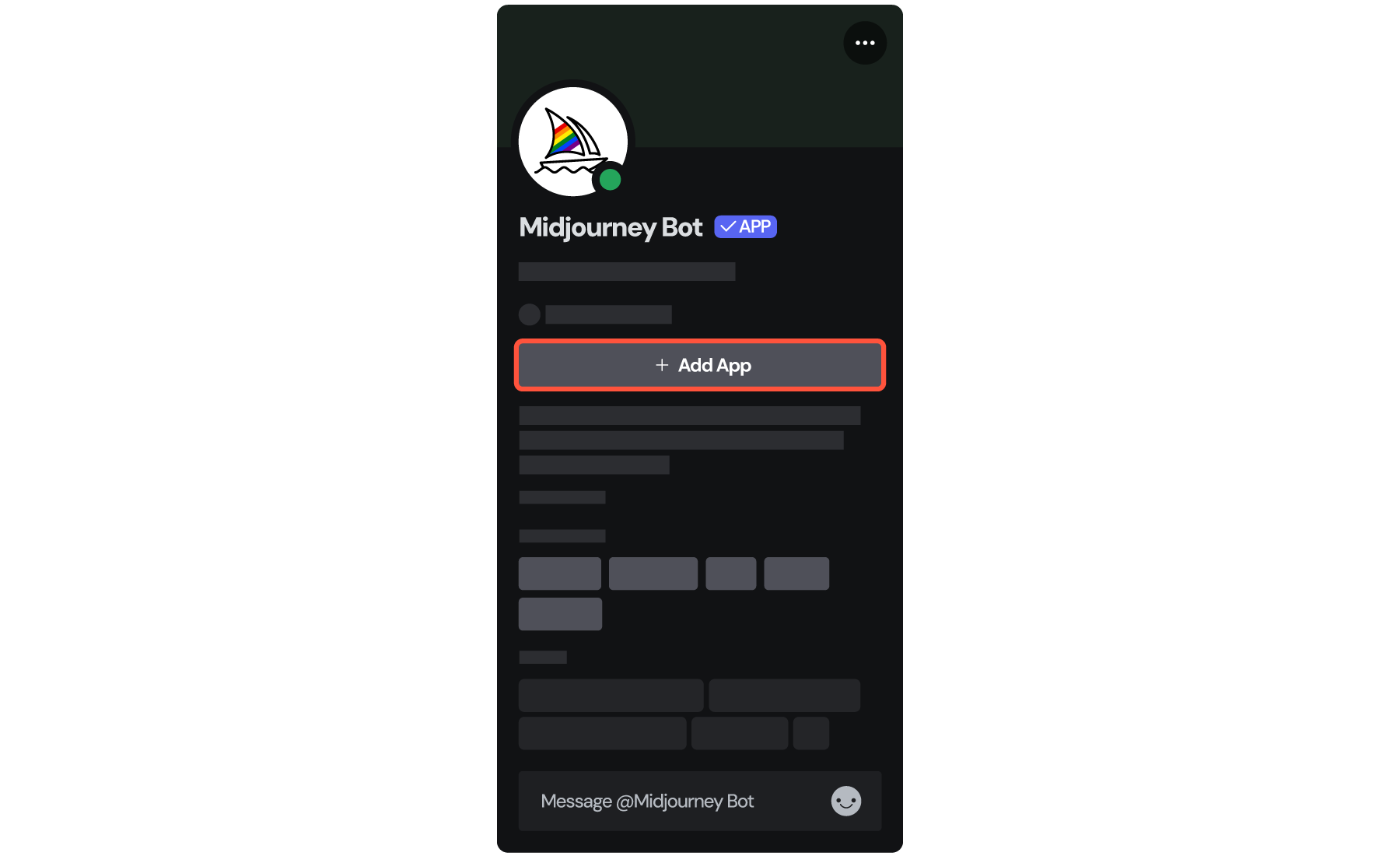
* #### Authorize the Bot
Select your server from the dropdown menu and click Continue, then click Authorize.
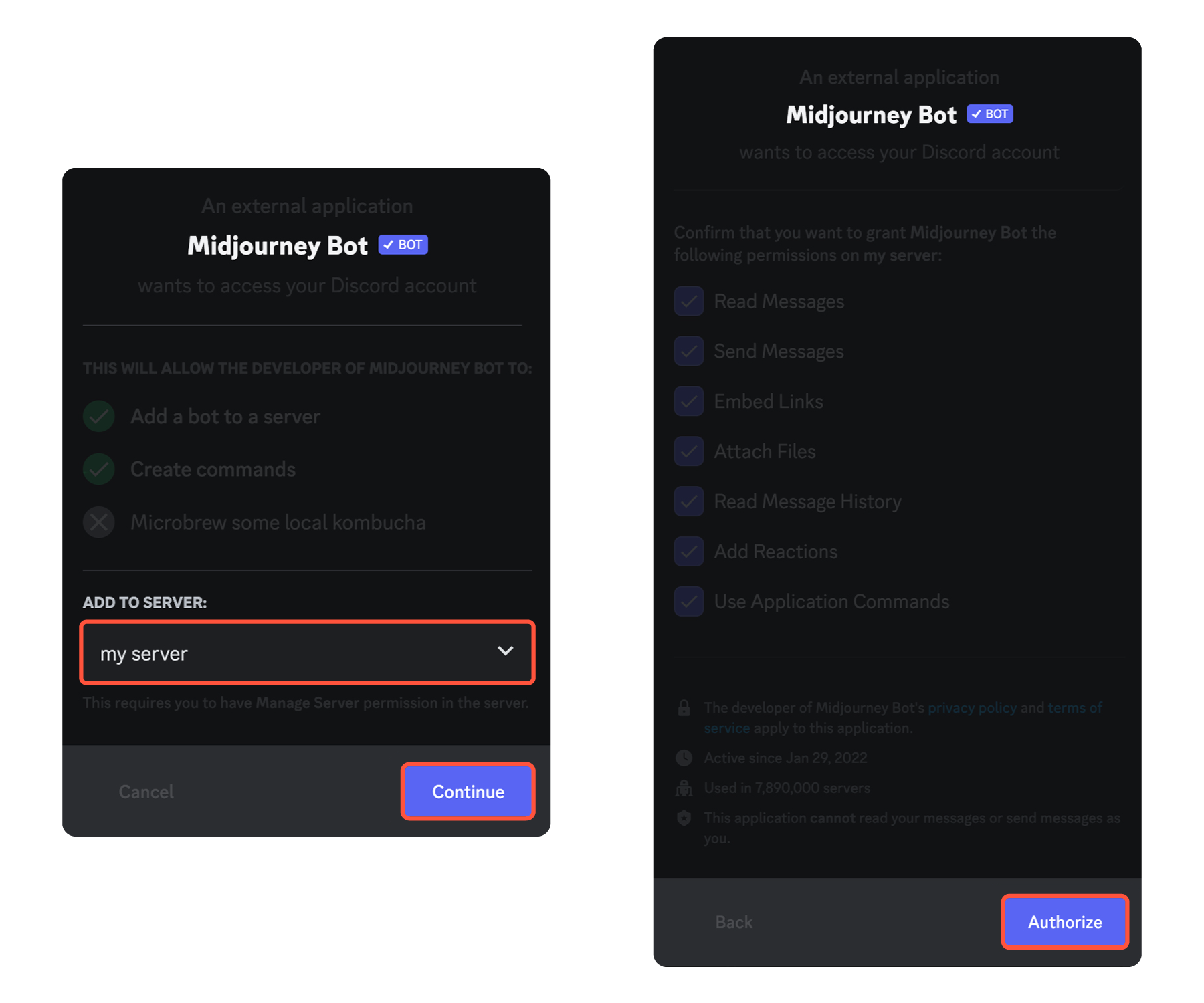
Bot Management
--------------
If you'd like to prevent the Midjourney Bot from being used in certain channels, you can do this easily.
1. Go to the channel you want to edit, click on "Edit Channel."
2. Head over to the "Permissions" tab and click "Advanced Permissions."
3. Under "Roles/Members", select "@everyone."
4. Under "Apps Permissions" click the red X next to "Use Application Commands."
This stops anyone from using the bot's commands in that channel.
For more specific control, you can set permissions for the bot itself:
1. Navigate to "Settings" in your server.
2. Click on "Integrations."
3. Under "Bots and Apps" click the Midjourney Bot.
From there, you can set slash command permissions for specific roles and channels, giving you the flexibility to decide precisely who can use the bot and where.
Add Announcements to Your Server
--------------------------------
Follow the Midjourney Official Discord [#announcements](https://discord.com/channels/662267976984297473/952771221915840552)
, [#community updates](https://discord.com/channels/662267976984297473/1067864372707340298)
, and [#status](https://discord.com/channels/662267976984297473/942231458918064148)
channels on your server to stay up-to-date with Midjourney.
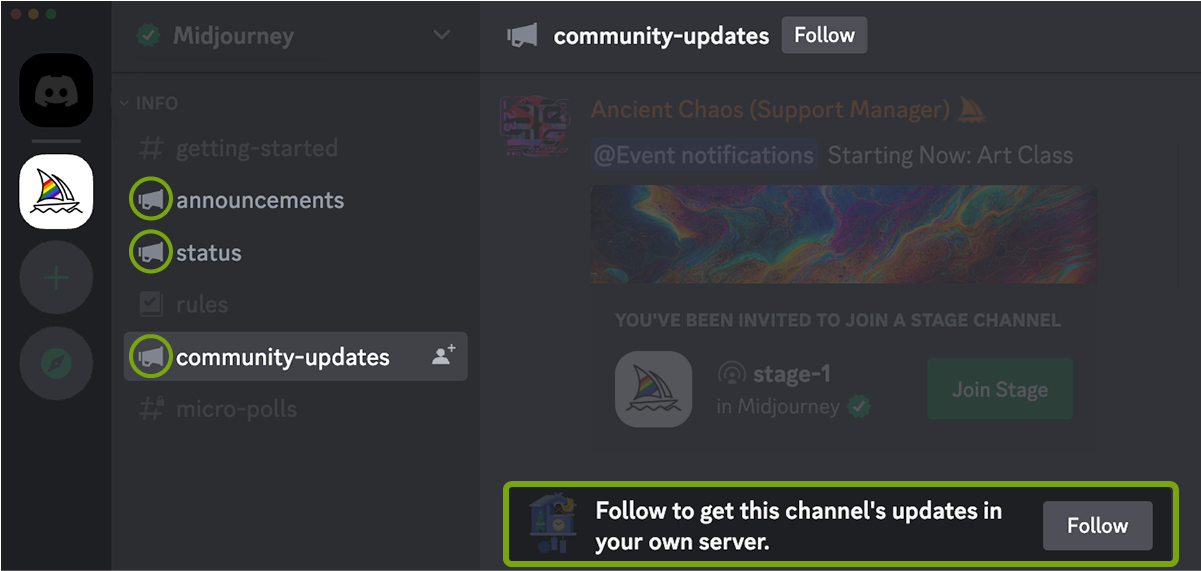
---
# Discord Direct Messages – Midjourney
[Skip to main content](https://docs.midjourney.com/hc/en-us/articles/32637339216013-Discord-Direct-Messages#page-container)
Make images one-on-one with Midjourney in Discord Direct Messages.
### Make images one-on-one with Midjourney in Direct Messages!
Using Direct Messages (DMs) in Discord with the Midjourney Bot is a great way to create images in your own personal space. You don’t have to worry about the clutter or noise from public channels, and it’s super easy to set up! All Midjourney subscribers can create images in DMs, no matter which [subscription plan](https://docs.midjourney.com/hc/en-us/articles/27870484040333)
you have.
Feel free to explore different spaces on Discord—whether shared or solo—and find what works best for you!
Even when you generate images in your DMs, they're still subject to Midjourney's content and moderation rules. Remember, these images can be seen by other users on the Midjourney website. If you'd like to keep your images private, consider using [Stealth Mode](https://docs.midjourney.com/hc/en-us/articles/32019750070669)
.
DM the Bot
----------
To get started you'll first need to send a Direct Message to the Midjourney Bot in Discord.
* #### Find the Midjourney Bot
Open the [Midjourney Discord server](https://discord.gg/midjourney)
and look for the  Member List icon. Clicking it will open a sidebar where you can find the Midjourney Bot.
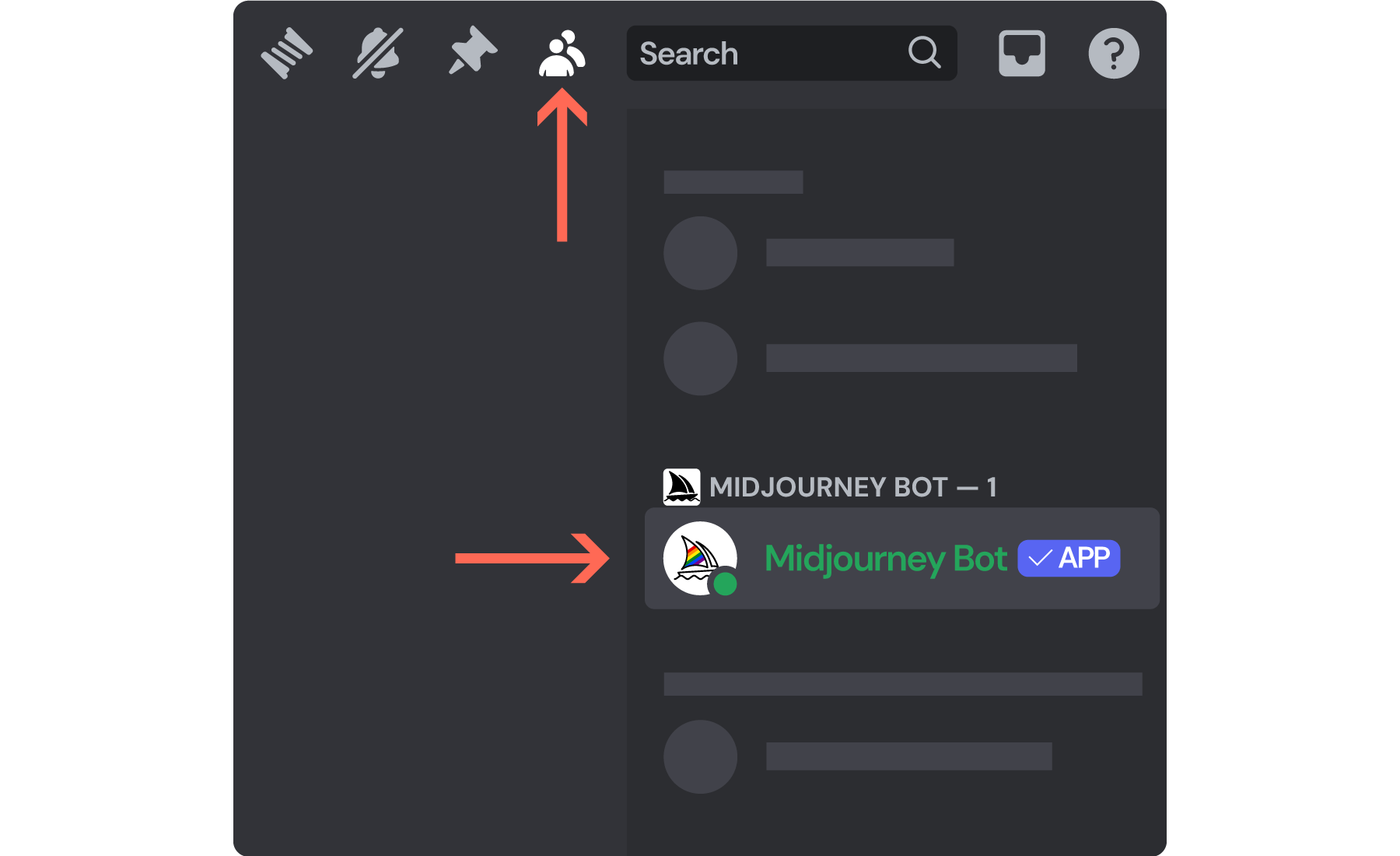
Mobile Users: You can find the Member List by going into a public channel on our server and clicking the channel name at the top of your screen.
Tip: You can also click the Midjourney Bot's username anywhere you see it in public channels.
* #### Send a Message
Click on the Midjourney Bot's name. A window will appear, and you'll see a Message field at the bottom. Type something like "hello!" and press Enter or Send. This will open a DM with the bot.

* #### Start Creating
After you send your message, you’ll be taken to your Direct Messages page. Your DM with the Midjourney Bot will be open and ready. In this DM conversation, you can generate images, use [commands](https://docs.midjourney.com/hc/en-us/articles/32894521590669)
, and even [upload images](https://docs.midjourney.com/hc/en-us/articles/32558957919117)
to use in your prompts.
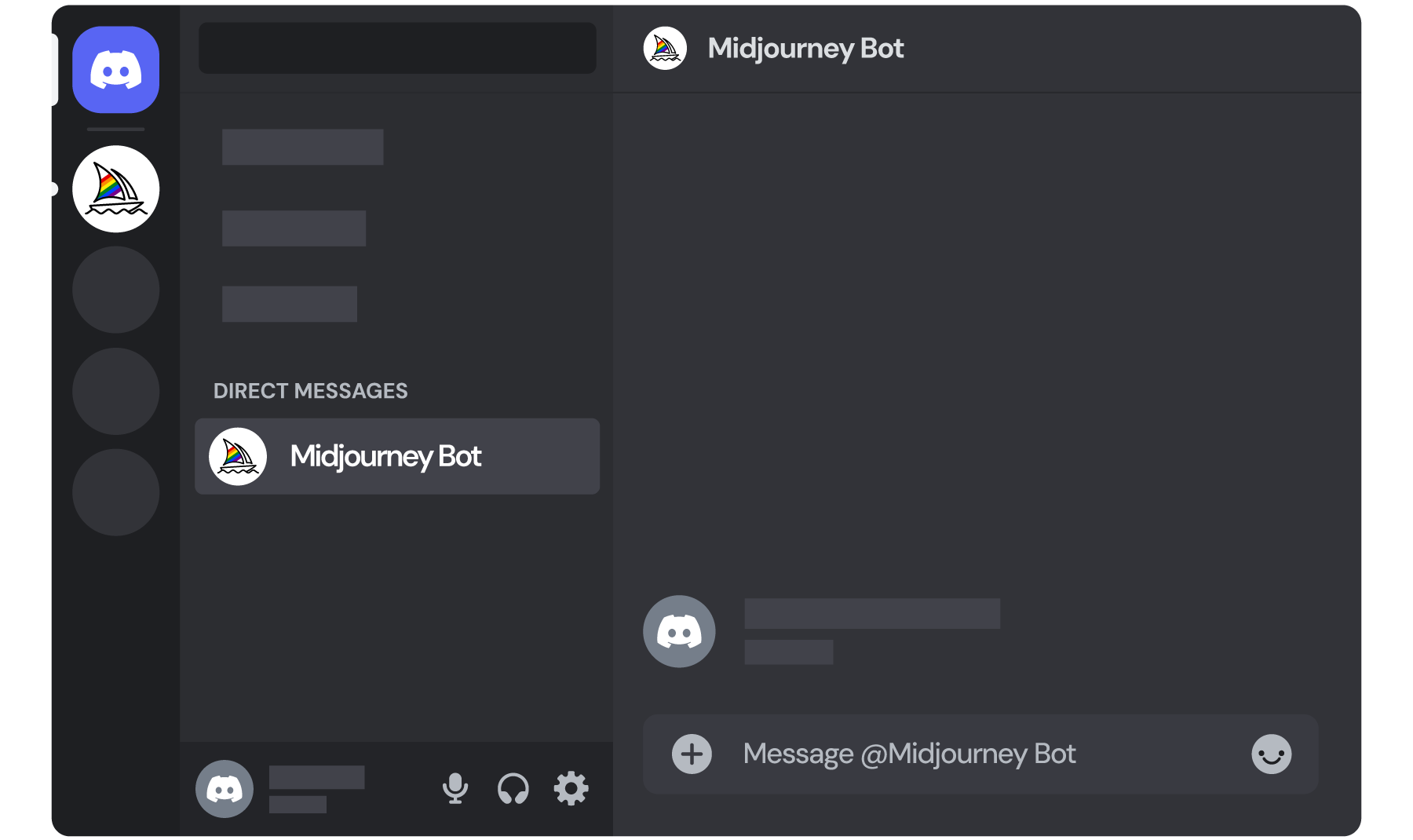
Troubleshooting
---------------
If you get an error message when you try to DM the Midjourney bot, make sure to check your Privacy Settings for the Midjourney Discord server and confirm that "Direct Messages" is toggled on.
**Discord Desktop**
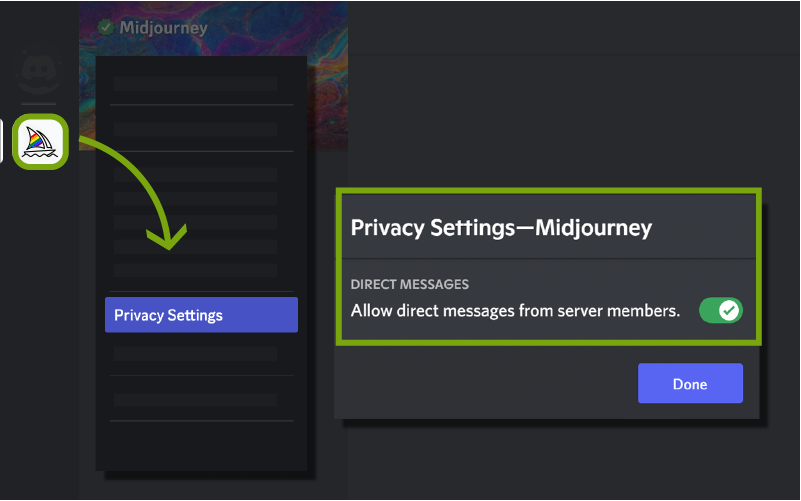
**Discord Mobile**
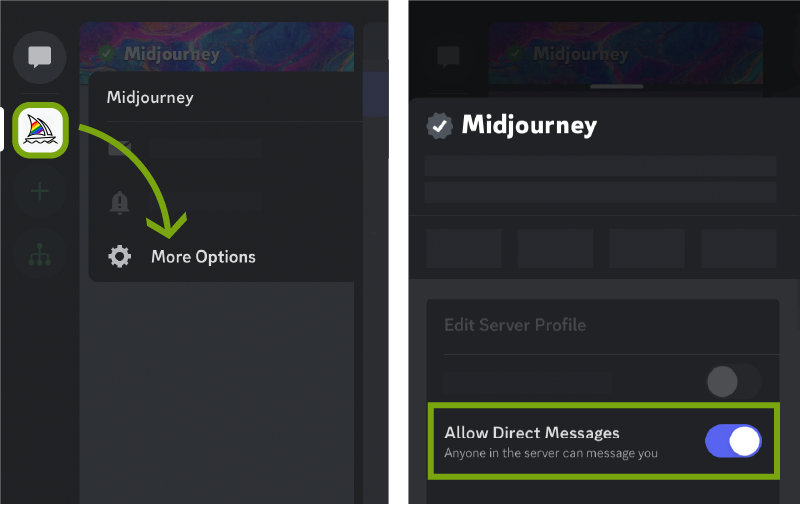
Finding Your DMs
----------------
If you leave your Direct Messages page and need to find it again, don’t worry! Your chat history is always saved, so you can return to it anytime.
On a desktop computer, simply look for the Discord logo icon at the very top left of the screen, right above your list of servers. Click on it to access your DMs.
If you're using a mobile device, tap the back arrow in the top left corner of the screen. You’ll see a messages icon at the top left, above your list of servers. Click on that icon to return to your DMs.
Tip: If you accidentally archived your conversation with the Midjourney Bot and you don't see it in your DMs, you can easily get it back by sending the bot another Direct Message—all your message history is preserved.
---
# Seeds – Midjourney
[Skip to main content](https://docs.midjourney.com/hc/en-us/articles/32604356340877-Seeds#page-container)
Use the seed parameter for testing and experimenting: --seed
### Use the seed parameter for testing and experimenting: `--seed`
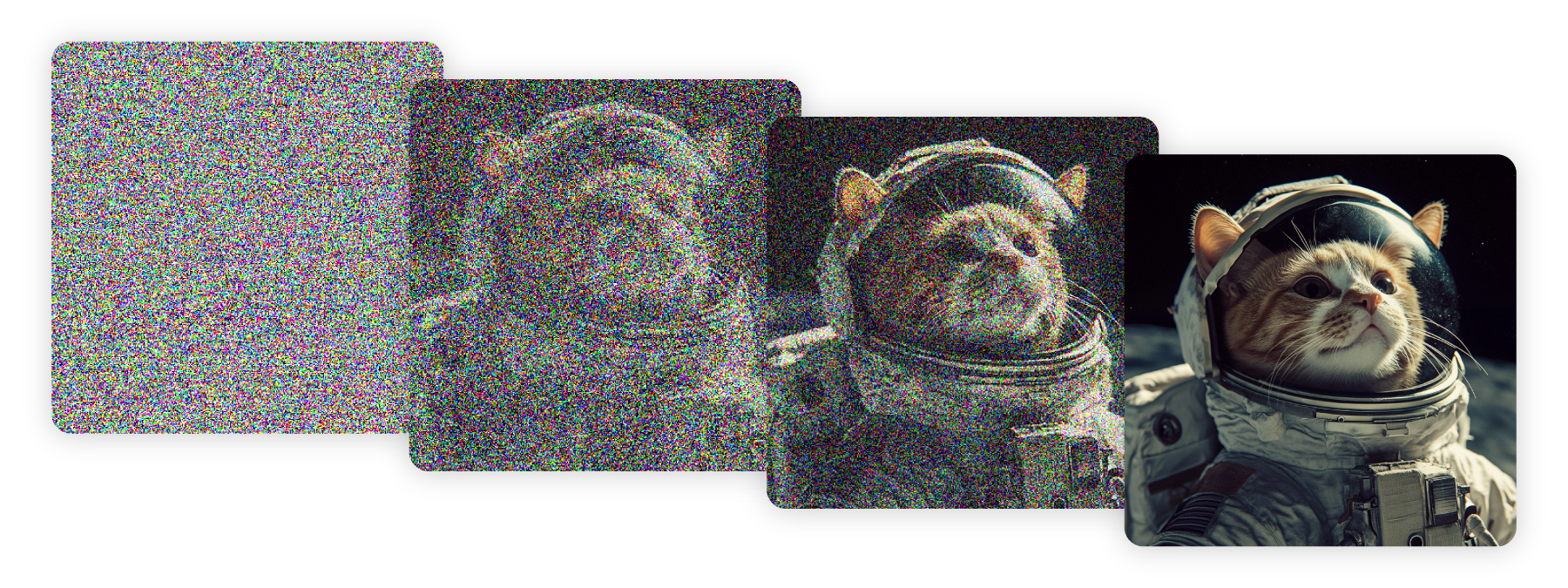
What are Seeds?
---------------
Seeds are the initial spark that sets your Midjourney image in motion. Think of a seed as the random noise you see on a TV screen—it’s the first step before your image comes to life. When you use seeds, you can lock in a specific starting point.
You can lock a seed by plugging in a whole number between 0 and 4294967295 in your prompt. If you don’t choose a seed, Midjourney will use a new random one every time, giving you a variety of outcomes.
#### Best Practices
** Experimenting & Testing:** Lock a seed when testing different elements in your prompts. It’s like having a control in an experiment. This makes it easier to see how changes in your prompt affect the result.
** Not for Saving Styles:** Seeds can’t capture or bookmark a specific style, character, or appearance across different prompts. They only influence the initial layout of noise that begins the rendering process. For consistency in your images, we recommend [style references](https://docs.midjourney.com/hc/en-us/articles/32180011136653)
, [character references](https://docs.midjourney.com/hc/en-us/articles/32162917505293)
, and [personalization](https://docs.midjourney.com/hc/en-us/articles/32433330574221)
.
** Not Always Predictable:** Seeds may behave unexpectedly, so they shouldn't be relied on for the same results over different prompting sessions. Assume that if you take a break and come back later, your seed may no longer work as expected.
** Not Always Consistent:** While seeds can help with consistency, they have the least impact on the final image. Factors like your prompt, [model version](https://docs.midjourney.com/hc/en-us/articles/32199405667853)
, and even slight parameter or settings changes can lead to unexpected results.
** Not for Use in Turbo Mode:** Don't use [Turbo mode](https://docs.midjourney.com/hc/en-us/articles/32016412137741)
when using seeds. Turbo mode focuses on speed, and as a result seed locking is not reliable.
Using Seeds
-----------
* Add `--seed #` to the end of your prompt in the Imagine bar.

* Add `--seed #` to the end of your prompt in Discord.

Finding Image Seeds
-------------------
* Start by clicking on any image you've made on your Create or Organize page. This will open the image, revealing more options.
Use the options  button near your prompt text and click Copy and then click Seed. This will copy the image's seed number to your clipboard.
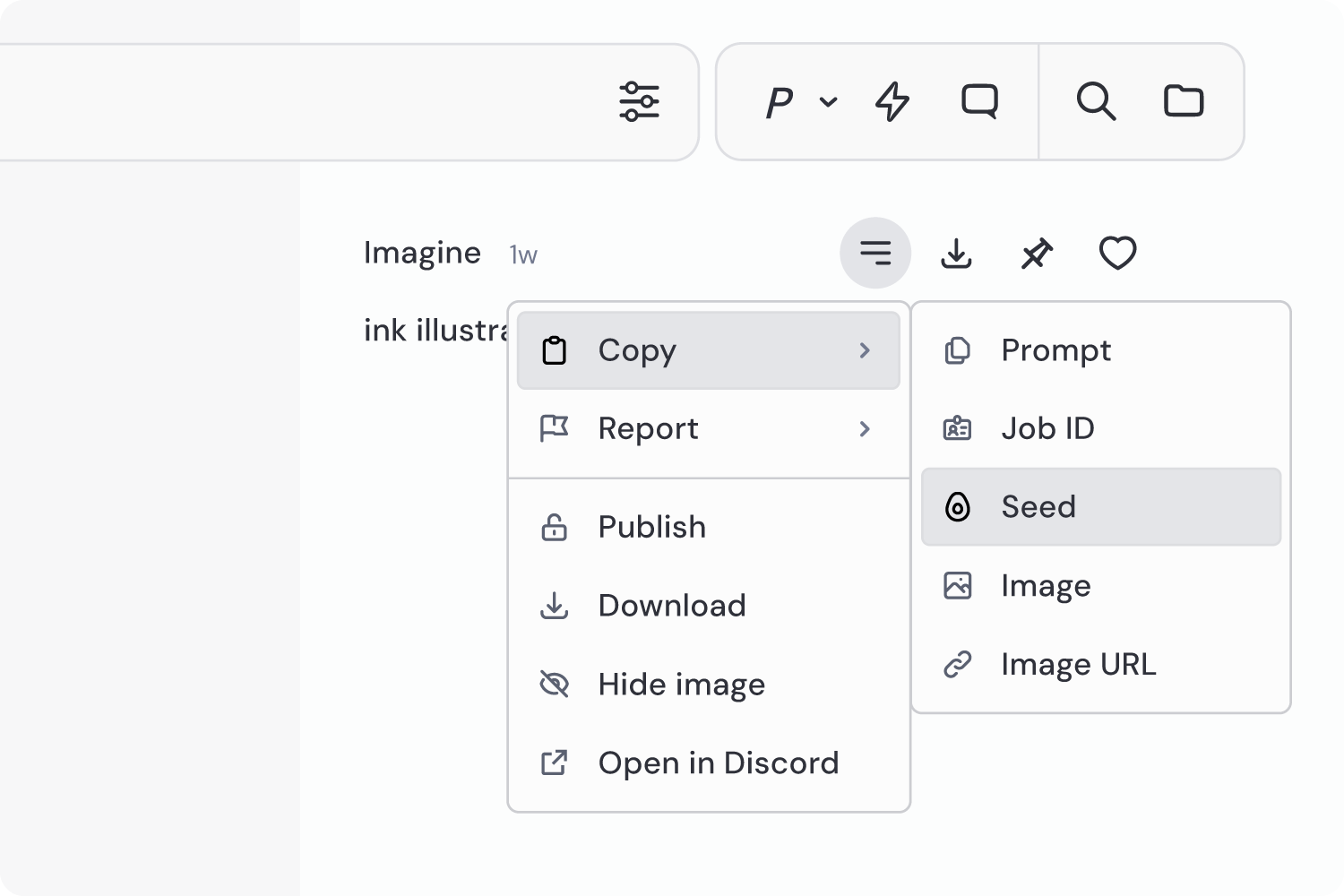
* After your image is generated, click Add Reaction and select the envelope ✉️ emoji. Make sure to select the plain envelope emoji. If you're having trouble finding it, you can use the search bar at the top of the emoji window.
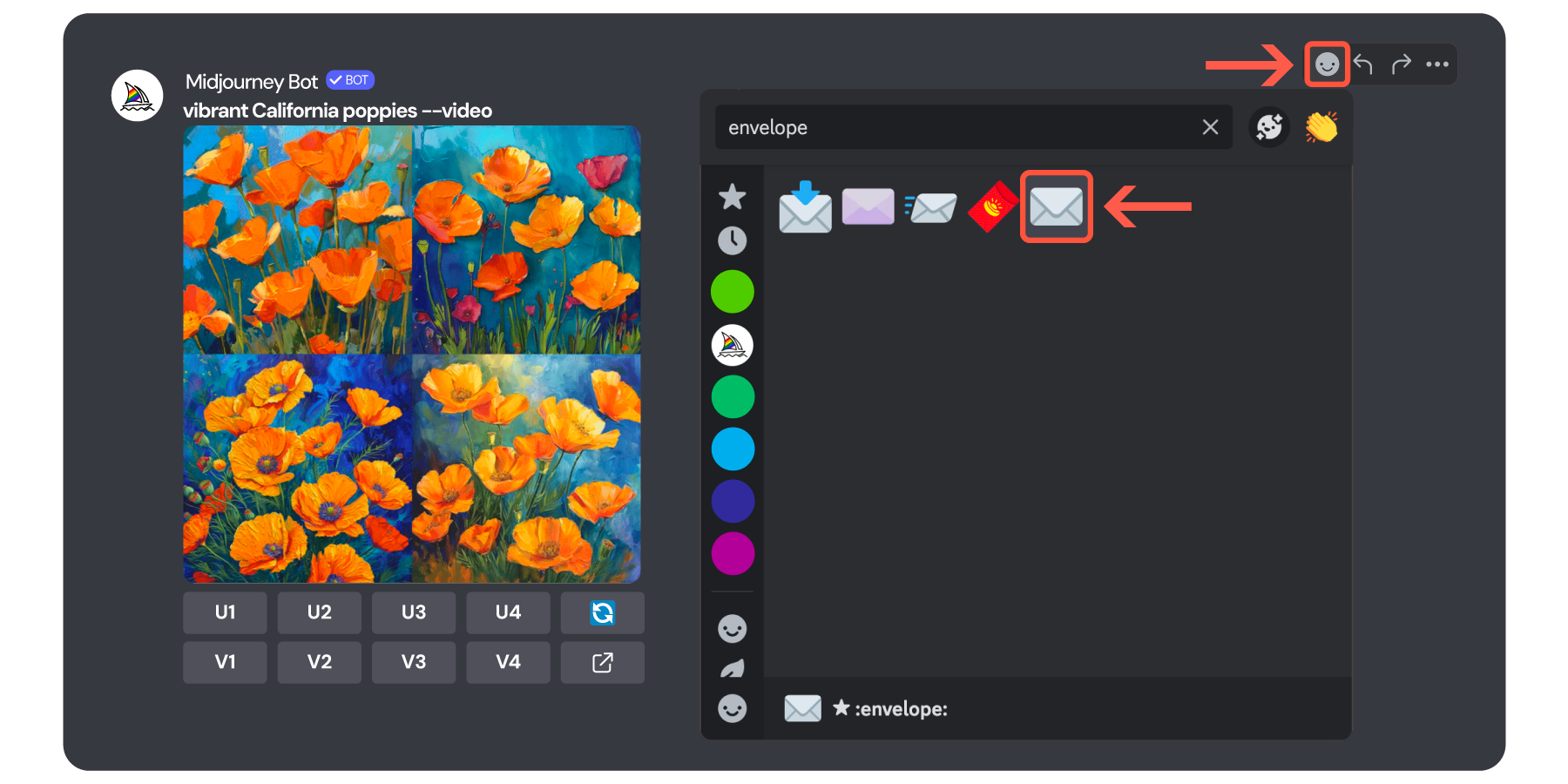
The Midjourney Bot will then send you a Direct Message with the seed number. If you do not receive a direct message, make sure to check your Privacy Settings for the Midjourney Discord server and confirm that "Direct Messages" is toggled on to allow the Midjourney Bot to send you a direct message.
---
# Multi-Prompts & Weights – Midjourney
[Skip to main content](https://docs.midjourney.com/hc/en-us/articles/32658968492557-Multi-Prompts-Weights#page-container)
Highlight important elements in your creations by using multi-prompts and weights.
### Highlight important elements in your creations by using multi-prompts and weights!
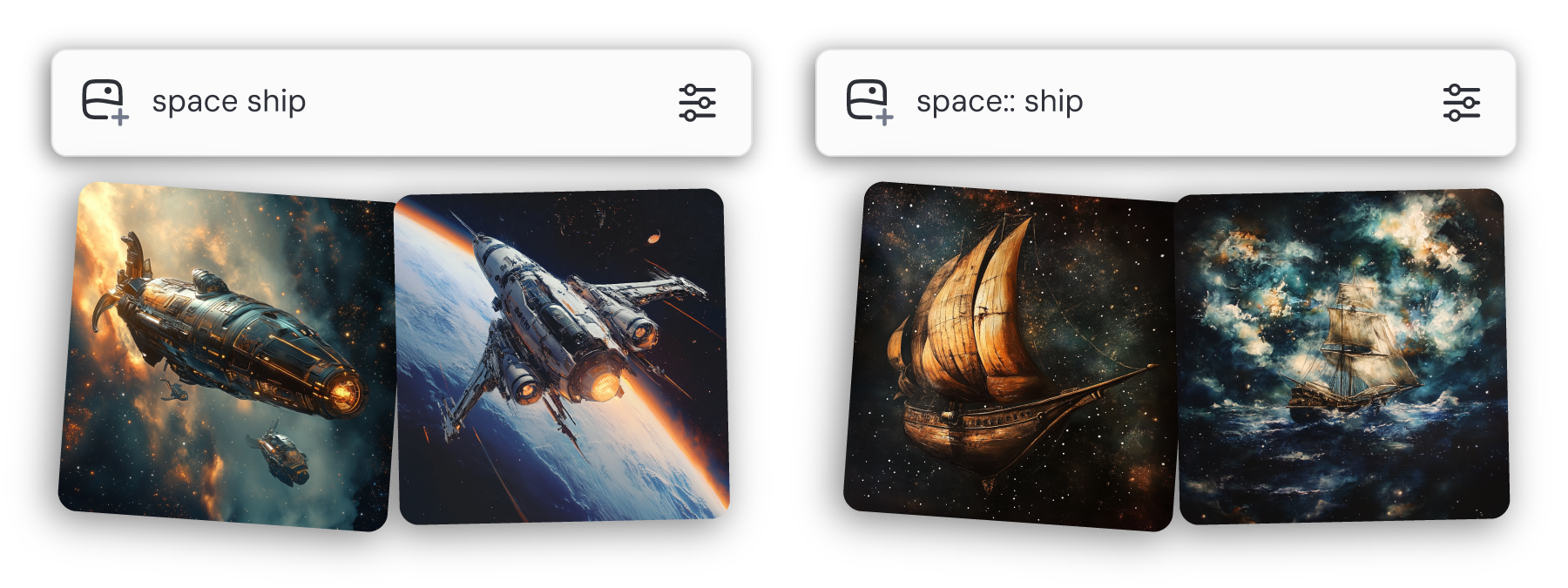
What are Multi-Prompts?
-----------------------
Think of multi-prompts like giving separate instructions to make a single creative recipe. When you use a multi-prompt, you're telling Midjourney to take each idea you've given and think of them separately before combining them into one image. This gives you the power to create something unique and surprising by blending different concepts together.
#### How Do Multi-Prompts Work?
You add a double colon `::` between the different ideas in your prompt. This acts like a divider. For example, if you prompt `space ship` Midjourney will consider those words together and give you sci-fi spaceships. If you prompt `space:: ship`, you're asking Midjourney to think about "space" and "ship" as distinct elements and then mix them together. The result could be a boat sailing through space—a creative twist on a simple idea.
Multi-prompts work with model [versions](https://docs.midjourney.com/hc/en-us/articles/32199405667853)
1, 2, 3, 4, Niji 4, 5, Niji 5, 6, Niji 6, and 6.1.
Using Multi-Prompts
-------------------
* Add a double colon `::` after each section of your prompt you want to separate in the Imagine bar.
Important: There should be no space on the left side of your double colon, and a single space on the right side. If you want to use any [parameters](https://docs.midjourney.com/hc/en-us/articles/32859204029709)
, those still go at the very end of your prompt.

After your image is generated, hover your mouse over your prompt text to see the individual multi-prompts on their weights.
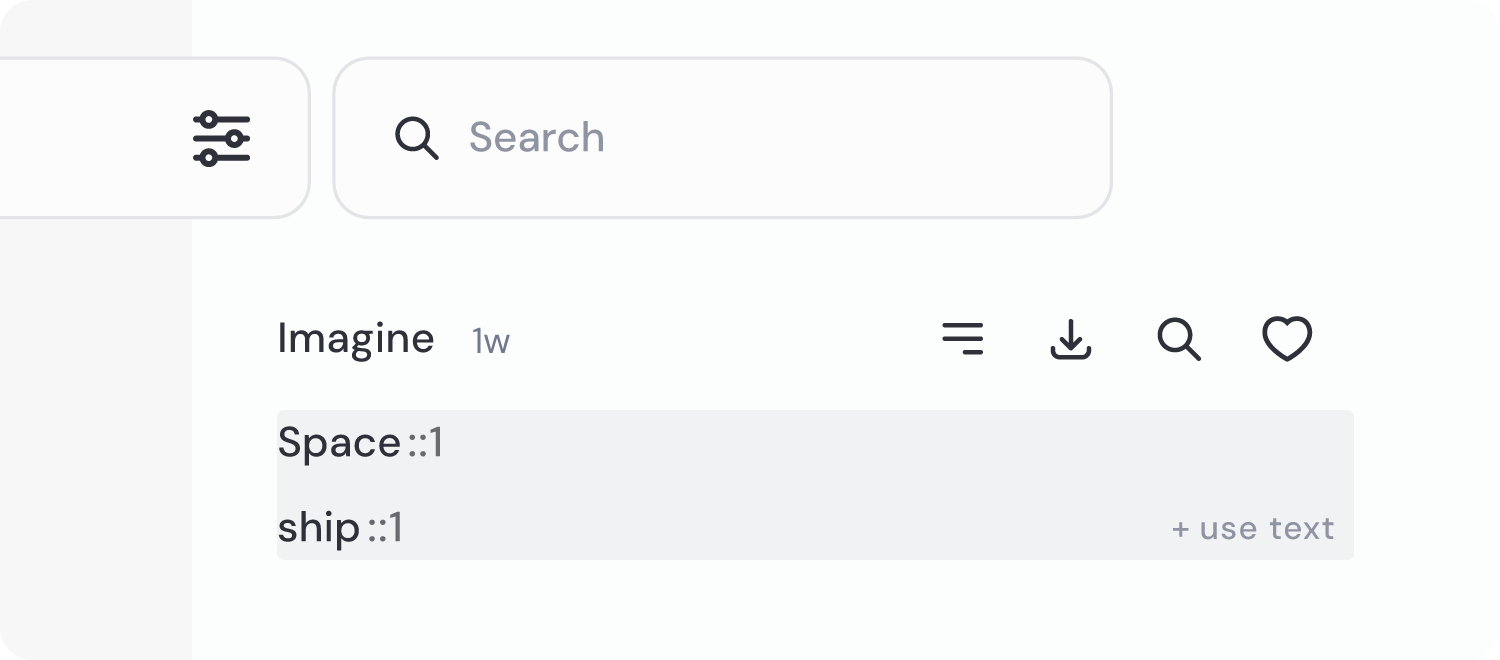
* Add a double colon `::` after each section of your prompt you want to separate in Discord.
Important: There should be no space on the left side of your double colon, and a single space on the right side. If you want to use any [parameters](https://docs.midjourney.com/hc/en-us/articles/32859204029709)
, those still go at the very end of your prompt.

Prompt Weights
--------------
With multi-prompts, you can decide how important each part of your prompt is by using prompt weights. This means you can highlight one idea over another, guiding the final image to fit your vision better.
After you separate your ideas with `::`, you can add a number right after it to show how important that part is. For example, if you prompt `space::2 ship`, you're telling Midjourney that "space" is twice as important as "ship." This leads to images where space takes center stage, and the ship plays a supporting role. It's like turning up the volume on one part of your picture!
For model versions 1, 2, and 3, you can use whole numbers as weights. For versions 4, Niji 4, 5, Niji 5, 5.1, 5.2, 6, and 6.1 you can use decimal numbers for more precise control.
Note: If you don’t specify a weight, it defaults to 1.
Negative Prompt Weights
-----------------------
You can also use negative numbers as weights in order to tell Midjourney what you don't want to see in your image. Just remember, **the total of all weights in your prompt needs to be a positive number.**
For example, `still life painting:: fruit::-0.5` works because "still life painting" has a default weight of 1. When you add 1 and -0.5, you get 0.5, which is positive.
But `still life painting:: fruit::-2` won't work because 1 plus -2 equals -1, and that's not positive. If it's negative, Midjourney will show you an error.
Using the [no parameter](https://docs.midjourney.com/hc/en-us/articles/32173351982093)
is the same as using a -0.5 weight. So `vibrant tulip fields --no red` is the same as `vibrant tulip fields:: red::-0.5`
---
# Art of Prompting – Midjourney
[Skip to main content](https://docs.midjourney.com/hc/en-us/articles/32835253061645-Art-of-Prompting#page-container)
Explore words that spark imagination and bring your images to life!
### Explore words that spark imagination and bring your images to life!
Unlock a world of creativity with Midjourney by exploring the power of words. While single-word prompts can yield stunning images, the true magic happens when you mix in different concepts like artistic mediums, time periods, environments, and more. Here are a few ideas to get you started!
Artistic Mediums
----------------
The examples below were made using the prompt: `______ style cat`
| | | | |
| --- | --- | --- | --- |
| **Block Print**
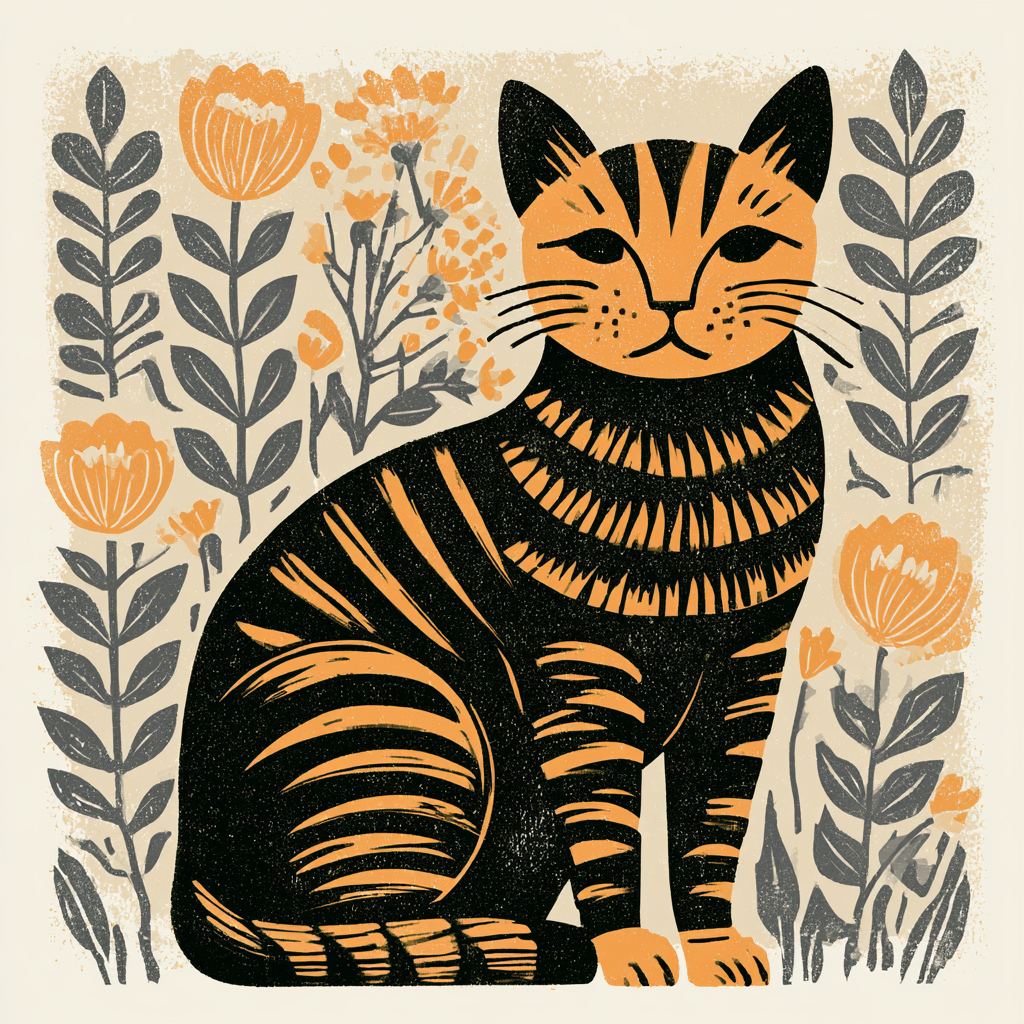 | **Ballpoint Pen Sketch**
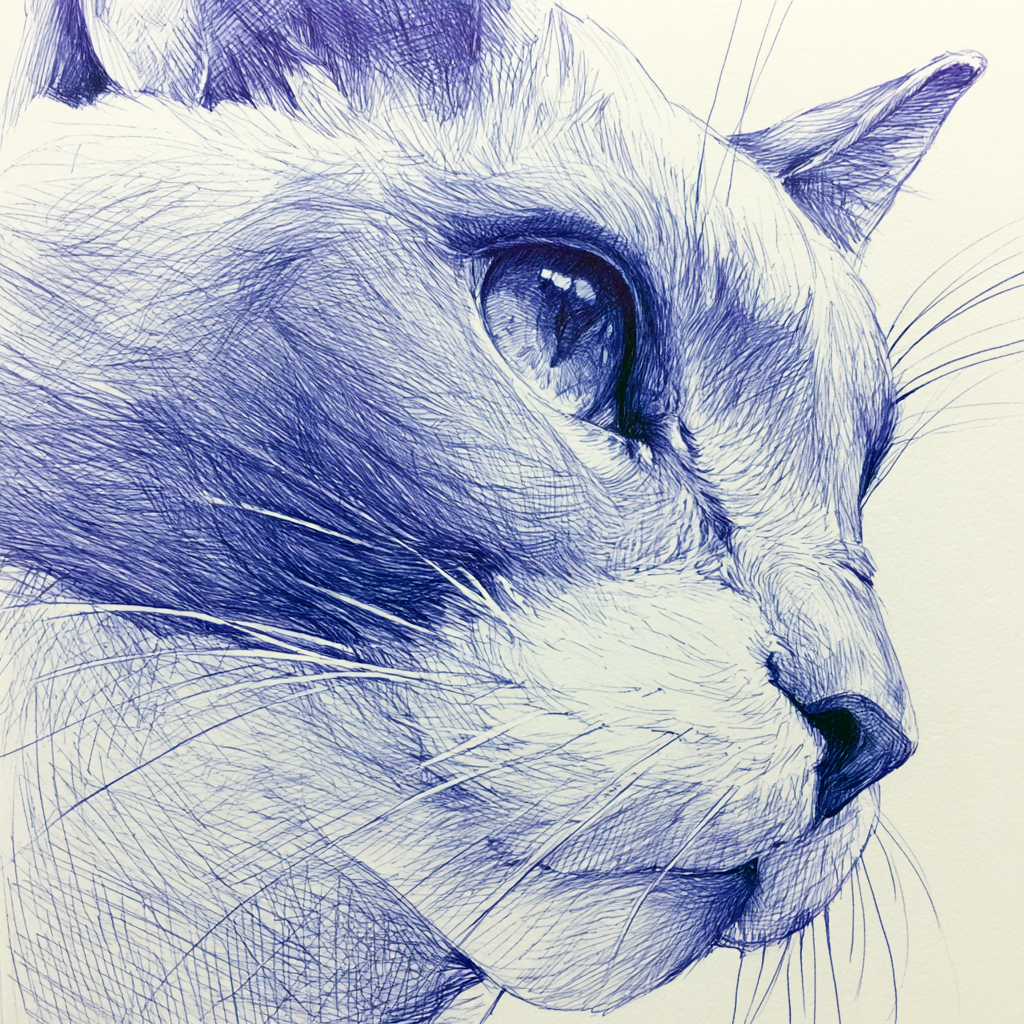 | **Cyanotype**
 | **Graffiti**
 |
| **Paint-by-Numbers
** | **Risograph
** | **Ukiyo-e
** | **Pencil Sketch
** |
| **Watercolor
** | **Pixel Art
** | **Blacklight Painting
** | **Cross Stitch
** |
| **Acrylic Pour
** | **Cut Paper
** | **Pressed Flowers
** | **Oil Painting
** |
Time Periods
------------
The examples below were made using the prompt: `illustration of a ______ cat`
| | | | |
| --- | --- | --- | --- |
| **1400s**
 | **1500s**
 | **1600s**
 | **1700s**
 |
| **1800s
** | **1900s
** | **1910s
** | **1920s
** |
| **1930s
** | **1940s
** | **1950s
** | **1960s
** |
| **1970s
** | **1980s
** | **1990s
** | **2000s
** |
Emotions
--------
The examples below were made using the prompt: `______ cat`
| | | | |
| --- | --- | --- | --- |
| **Shy
** | **Determined
** | **Sad
** | **Joyful
** |
| **Angry
** | **Happy
** | **Depressed
** | **Sleepy
** |
Colors
------
The examples below were made using the prompt: `______ colored cat`
| | | | |
| --- | --- | --- | --- |
| **Millennial Pink**
 | **Acid Green**
 | **Pink and Blue**
 | **Canary Yellow**
 |
| **Sepia
** | **Two Toned
** | **Pastel
** | **Duotone
** |
| **Ebony
** | **Neutral
** | **CMYK
** | **Indigo
** |
| **Iridescent
** | **Brightly
** | **Grayscale
** | **Neon
** |
Environments
------------
The examples below were made using the prompt: `______ cat`
| | | | |
| --- | --- | --- | --- |
| **Tundra
** | **Salt Flat
** | **Jungle
** | **Desert
** |
| **Forest
** | **Cave
** | **Farm
** | **Crystal Forest
** |
| **City
** | **Garden
** | **Suburban
** | **Ocean
** |
Need Help Getting Started?
[Getting Started Guide](https://docs.midjourney.com/hc/en-us/articles/33329261836941)
---
# Comparing Midjourney Plans – Midjourney
[Skip to main content](https://docs.midjourney.com/hc/en-us/articles/27870484040333-Comparing-Midjourney-Plans#page-container)
### All Midjourney plans are subscriptions - meaning they automatically renew on a monthly or yearly basis unless you set your plan to cancel.
Midjourney offers four subscription tiers: Basic, Standard, Pro, and Mega. See the chart below for a comparison of plan features.
* For unlimited image generations with [Relax Mode](https://docs.midjourney.com/hc/en-us/articles/32016412137741)
, subscribe to the Standard, Pro, or Mega Plan.
* For unlimited video generations with Relax Mode, subscribe to the Pro or Mega Plan.
* [Stealth Mode](https://docs.midjourney.com/hc/en-us/articles/32019750070669)
, which keeps your images and videos private, is only available on the Pro and Mega Plans.
You can get a 20% discount on your subscription by committing to an annual plan, where the full year fee is paid upfront.
| | **Basic Plan** | **Standard Plan** | **Pro Plan** | **Mega Plan** |
| --- | --- | --- | --- | --- |
| Monthly Price | $10 | $30 | $60 | $120 |
| Annual Price | $96
($8 / month) | $288
($24 / month) | $576
($48 / month) | $1,152
($96 / month) |
| Fast GPU Time [](https://docs.midjourney.com/hc/en-us/articles/32016412137741) | 3.3 hr/month
(200 minutes) | 15 hr/month | 30 hr/month | 60 hr/month |
| Relax GPU Time [](https://docs.midjourney.com/hc/en-us/articles/32016412137741) |  | Unlimited Images | Unlimited Images & Video | Unlimited Images & Video |
| Purchase Extra
GPU Time | $4/hr | $4/hr | $4/hr | $4/hr |
| Work Solo in Discord Direct Messages [](https://docs.midjourney.com/hc/en-us/articles/32637339216013) |  |  |  |  |
| Stealth Mode [](https://docs.midjourney.com/hc/en-us/articles/32019750070669) |  |  |  |  |
| Maximum Concurrent Image Prompts | 3 Fast | 3 Fast or Relax | 12 Fast or
3 Relax | 12 Fast or
3 Relax |
| Maximum Concurrent Video Prompts | 1 Fast | 3 Fast | 6 Fast or 3 Relax | 12 Fast or 3 Relax |
| Maximum Repeat / Permutation Size | 4 jobs | 10 jobs | 40 jobs | 40 jobs |
| Maximum Queued Jobs | 10 jobs | 10 jobs | 10 jobs\*
(3 if Relax videos) | 10 jobs\*
(3 if Relax videos) |
| Rate Images to Earn
Free GPU Time [](https://docs.midjourney.com/hc/en-us/articles/28014817524109) |  |  |  |  |
| Usage Rights | General Commercial Terms\*\* | General Commercial Terms\*\* | General Commercial Terms\*\* | General Commercial Terms\*\* |
_\*Queue size will extend to accommodate repeat/permutation jobs._
_\*\*If you have subscribed at any point, you are free to use your images/videos in just about any way you want. You must purchase the Pro or Mega plan if you are a company making more than $1,000,000 USD in gross revenue per year. For complete details, please see the [Terms of Service](https://docs.midjourney.com/hc/en-us/articles/32083055291277)
._
Plan availability and features are subject to change. Our [Terms of Service](https://docs.midjourney.com/hc/en-us/articles/32083055291277)
apply to all subscriptions.
Need Help Getting Started?
[Getting Started Guide](https://docs.midjourney.com/hc/en-us/articles/33329261836941)
---
# Variations – Midjourney
[Skip to main content](https://docs.midjourney.com/hc/en-us/articles/32692978437005-Variations#page-container)
Transform your images with simple tweaks or creative overhauls using variations.
### Transform your images with simple tweaks or creative overhauls using Variations!
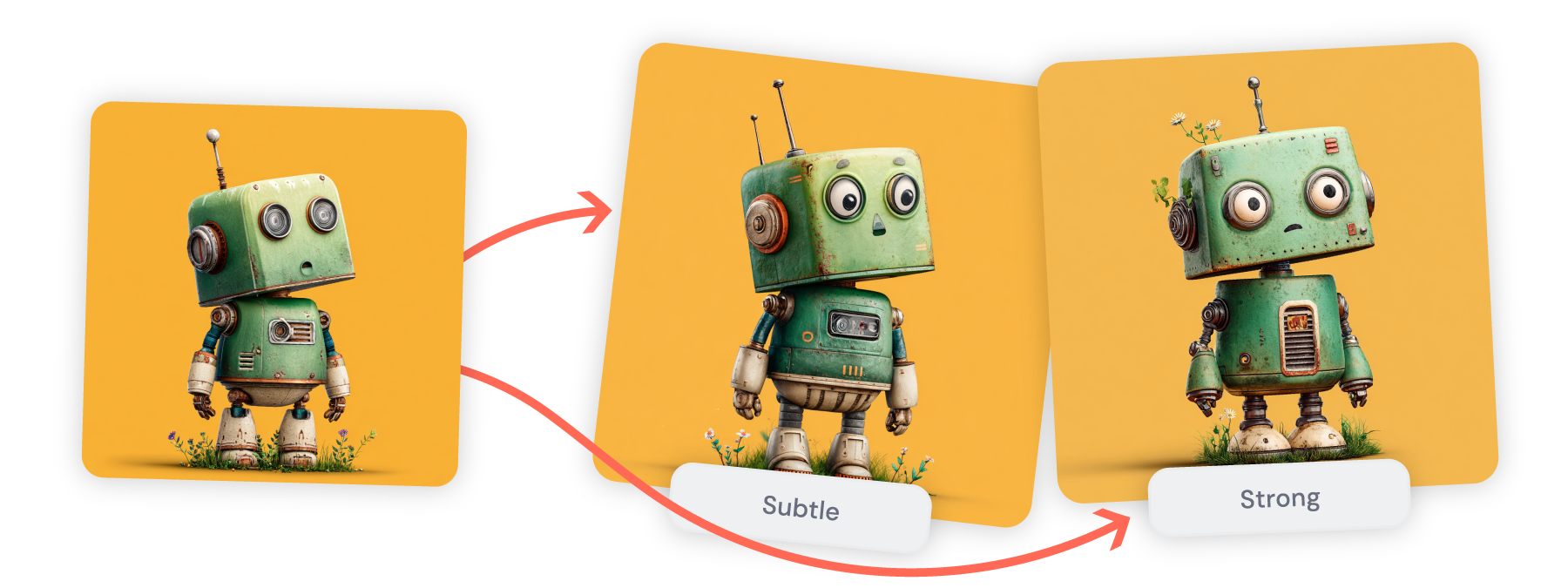
What are Variations?
--------------------
Imagine you take a photo and make several copies of it. Now, you want to change each copy a bit to see different looks. Variations in Midjourney do just that for your generated images. They allow you to create different versions of the same image by changing little details or the overall arrangement.
Think of variations as a creative tool. They help you explore how several versions of your image might look, either by making major changes or just little tweaks, all without starting over from scratch.
#### Subtle Variations
Subtle variations make small, detailed changes to your image. This is perfect when you like the overall image but want to tweak small areas without a full redesign.
#### Strong Variations
Strong variations more significantly change your image while keeping the main theme intact. The core idea stays, but the visuals change in new ways. This is ideal for exploring bold, creative possibilities while sticking to the original concept.
Using Variations
----------------
* Start by clicking on any image you've made on your Create or Organize page. This will open the image, revealing more options.
Next, look for the "Creation Actions" section where you'll find the Vary options. Choose Subtle or Strong and your variations will immediately start generating.
If you can't find the Vary options right away, just click "More options" and add a checkmark next to Vary to make them visible.

If you'd like to change your prompt while making variations, check out our article on [Remixing](https://docs.midjourney.com/hc/en-us/articles/32799074515213)
.
* Once your image is generated, you can create variations from the grid by using the `V1` `V2` `V3` `V4` buttons for your favorite image. These buttons follow the variation mode set in your settings. To check or switch this mode, use the [settings command](https://docs.midjourney.com/hc/en-us/articles/32868982949517)
and select `🎨 Strong Variation Mode` or `🎨 Subtle Variation Mode`.
You can also make variations after upscaling your image. Once upscaled or separated from the grid, `🪄 Vary (Strong)` and `🪄 Vary (Subtle)` buttons appear, ready to use.
If you'd like to change your prompt while making variations, make sure to turn on [Remix Mode](https://docs.midjourney.com/hc/en-us/articles/32799074515213)
in your [settings panel](https://docs.midjourney.com/hc/en-us/articles/32868982949517)
. Once on, a window will pop up after pressing the variation buttons, allowing you to edit the prompt.
---
# Repeat – Midjourney
[Skip to main content](https://docs.midjourney.com/hc/en-us/articles/32757107922061-Repeat#page-container)
Generate multiple image sets from a prompt using the repeat parameter: --repeat or --r
### Want to generate multiple image sets from a single prompt? Use the repeat parameter: `--repeat` or `--r`
What is Repeat?
---------------
Every time you submit a prompt to Midjourney, you'll get a unique image—even if you use the same prompt. With the repeat parameter, you can tell Midjourney to run your prompt multiple times. For example, if you want three sets of images from the same prompt, just add `--r 3` to the end of your prompt.
The number of repeats you can use depends on your [subscription plan](https://docs.midjourney.com/hc/en-us/articles/27870484040333)
. Basic plan users can pick 2 to 4 repeats, Standard allows 2 to 10, and Pro and Mega plans offer 2 to 40. Just remember, the repeat parameter only works in [Fast and Turbo modes](https://docs.midjourney.com/hc/en-us/articles/32016412137741)
. It won't work in Relax mode.
Each image set you create with repeat uses up [Fast GPU time](https://docs.midjourney.com/hc/en-us/articles/32016412137741)
, just like running individual prompts. Using repeat can quickly consume your available GPU time, so it's important to keep track of how much time you have left.
Setting the Repeat Value
------------------------
* Add `--r #` to the end of your prompt in the Imagine bar.

Note: Unlike other parameters, the repeat parameter will be stripped out of your finished images, so you won't see it once your images are done generating. This also means if you re-run the prompt you will have to manually add the repeat parameter again.
* Add `--r #` to the end of your prompt in Discord.

After sending your prompt, the bot will ask you to confirm the number of repeats and you'll need to click Yes before your prompts will run.
Note: Unlike other parameters, the repeat parameter will be stripped out of your finished images, so you won't see it once your images are done generating. This also means if you re-run the prompt you will have to manually add the repeat parameter again.
---
# Stealth Mode – Midjourney
[Skip to main content](https://docs.midjourney.com/hc/en-us/articles/32019750070669-Stealth-Mode#page-container)
### You can manage who sees your creations on the Midjourney website by using Stealth Mode.
What is Stealth Mode?
---------------------
Stealth Mode lets you control who can see your images and videos on the Midjourney website. You can choose which content to make public (publish) or keep private (unpublish).
Important: Even with Stealth Mode turned on, any creations made in public channels on Discord or rooms on web are still visible to others. If you want total privacy, use your web Create page, generate them in Discord [direct messages](https://docs.midjourney.com/hc/en-us/articles/32637339216013)
, or work in a [private Discord server](https://docs.midjourney.com/hc/en-us/articles/32637946450445)
while using Stealth Mode.
Stealth Mode is available only to Pro and Mega plan members. If you cancel or downgrade your subscription, any content you've unpublished will stay that way on the site.
Switching to Stealth Mode
-------------------------
Your website and Discord settings are synced. This means that if you change your settings in one place, they'll automatically change in the other—including Stealth Mode. Double-check your settings to make sure they're set the way you want them before you generate images and videos!
* **With Parameters:** To change your default setting for a specific prompt, just add the `--stealth` or `--public` [parameter](https://docs.midjourney.com/hc/en-us/articles/32859204029709)
at the end of your prompt in the Imagine bar.

**With Settings:** You can turn Stealth Mode on or off through the settings panel, which you can access with the settings  button in the Imagine bar. Changing your default mode will apply to all your future prompts but won't affect your existing images.
Note: Images and [videos](https://docs.midjourney.com/hc/en-us/articles/37460773864589)
each have their own settings.
To see which of your creations are public, visit your Organize page and use the filter checkboxes to select Published images.
* **With Commands:** Use `/stealth` or `/public` as a standalone command in Discord to switch between Stealth Mode and Public Mode.
**With Settings:** Use the [settings command](https://docs.midjourney.com/hc/en-us/articles/32868982949517)
and turn the `🧍♂️Public Mode` button on or off from the menu. When the button is green it means you are in Public Mode. When the button is gray it means you are in Stealth Mode.
Changing your default mode will apply to all your future prompts but won't affect your existing images.
**With Parameters:** To change your setting for a specific prompt, simply add the `--stealth` or `--public` [parameter](https://docs.midjourney.com/hc/en-us/articles/32859204029709)
at the end of the prompt.
To confirm which mode you're in, use the [info command](https://docs.midjourney.com/hc/en-us/articles/32084927086861)
in Discord and check your Visibility Mode.
Unpublish Existing Creations
----------------------------
Upgrading to a subscription plan with Stealth Mode lets you unpublish images and videos you made before, even if they were created under a lower-tier plan. But keep in mind, upgrading or setting Stealth Mode as your default doesn't automatically make your public creations private. You'll need to manually unpublish them to make them private.
#### Individual Images/Videos
To change the visibility of an individual image or video, click into it from your Create or Organize page and use the options button  located near the prompt text.
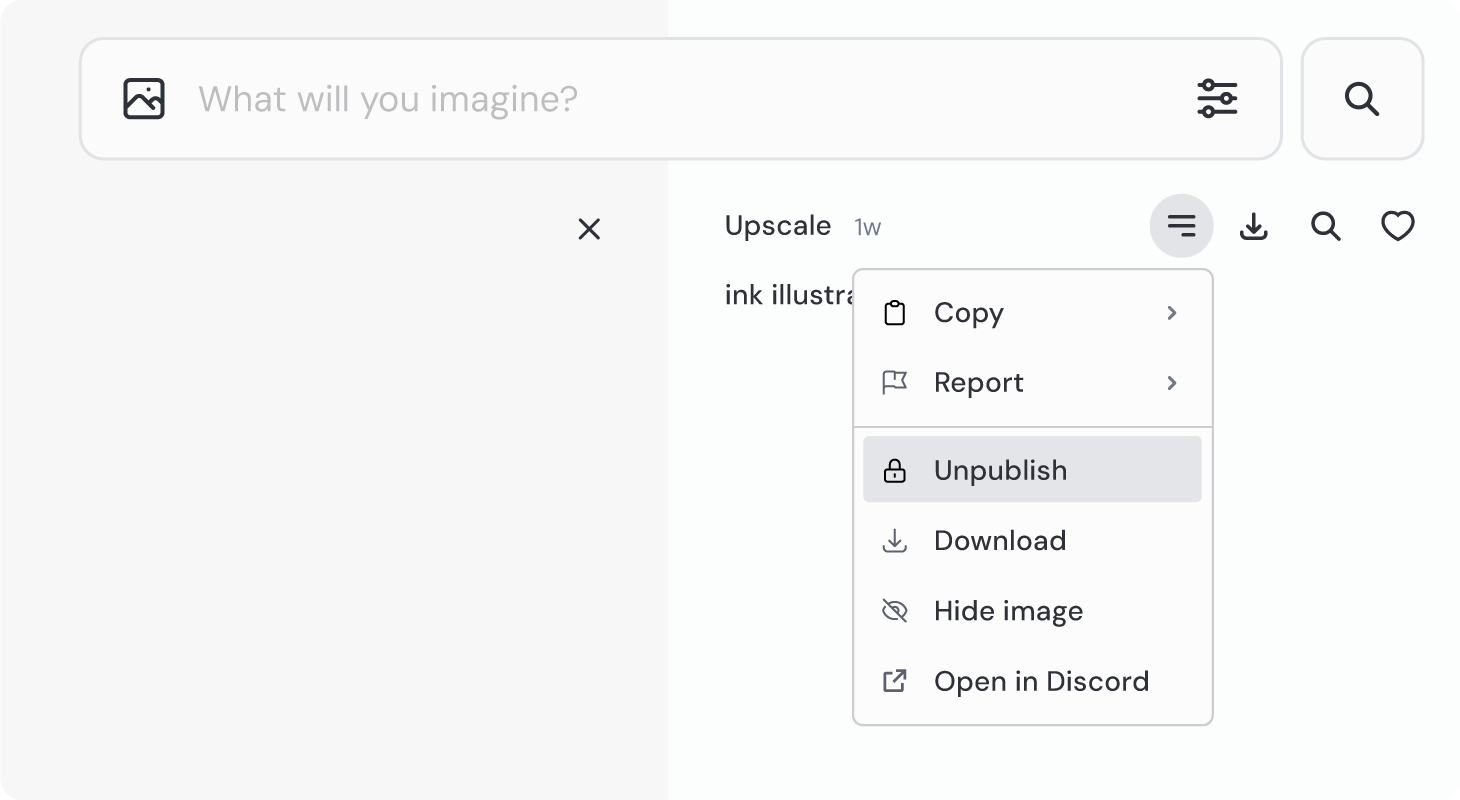
#### Multiple Images/Videos
To change multiple images and videos all at once, go to your Organize page. You can click and drag or use shift + click to select multiple items. Once you've selected them, look for the More button in the bulk change pop-up window at the bottom of the screen. This will allow you to make bulk changes easily.
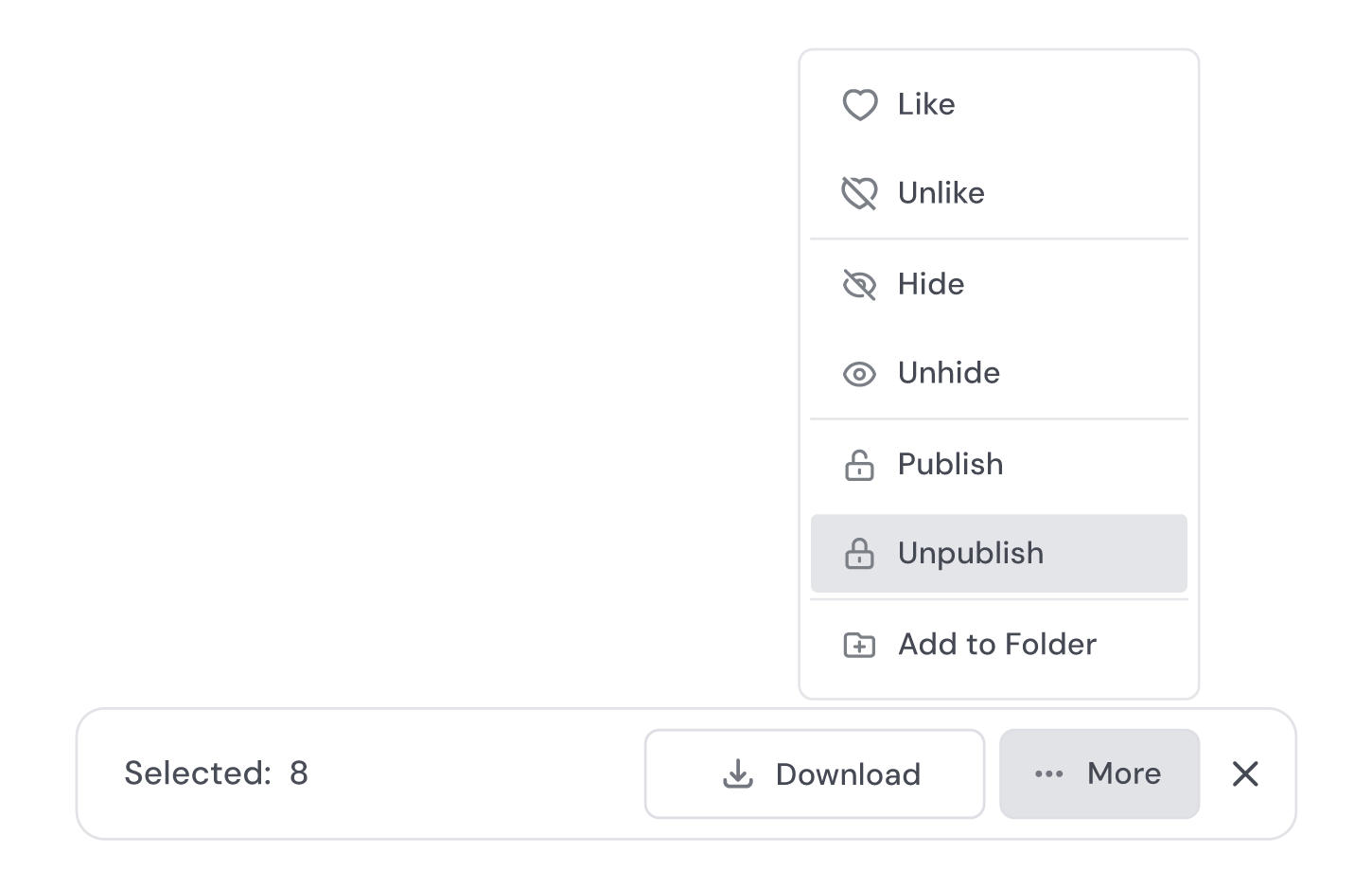
No, hiding and unpublishing are not the same. Hiding an image or video on the website only makes it invisible to you—it remains public, and other users can still view it.
---
# Info Command – Midjourney
[Skip to main content](https://docs.midjourney.com/hc/en-us/articles/32084927086861-Info-Command#page-container)
Use the /info command to see your subscription type, renewal date, and more.
### Use the `/info` command in Discord to see information about your current queued and running jobs, subscription type, renewal date, and more.
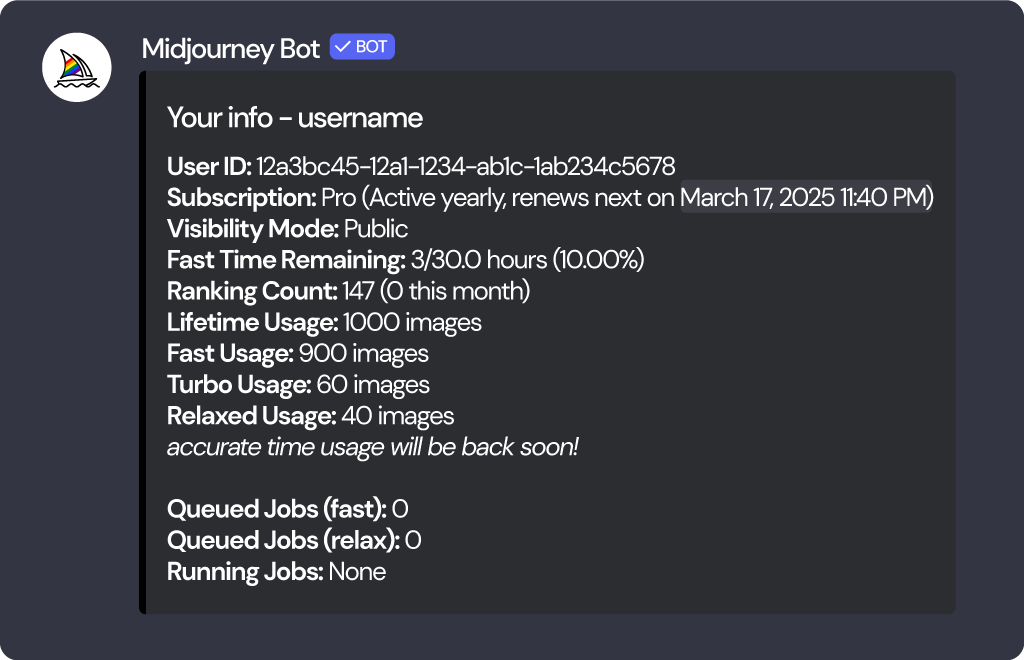
Accessing your info panel lets you see useful information about your account and subscription plan easily within Discord. Here’s how to find it:
1. Open your Discord app and go to the message box. Make sure you are in a server or channel that the Midjourney Bot has permission to access.
2. Type `/` in the message box. You’ll see a list of commands pop up above.
3. Keep typing until you see `/info`. This helps narrow down the options, just like a search field.
4. Once you spot `/info` in the list, click it. If you aren't seeing any Midjourney commands, try our [command troubleshooting tips](https://docs.midjourney.com/hc/en-us/articles/32894521590669)
.
5. Press Enter or Send to execute the command.
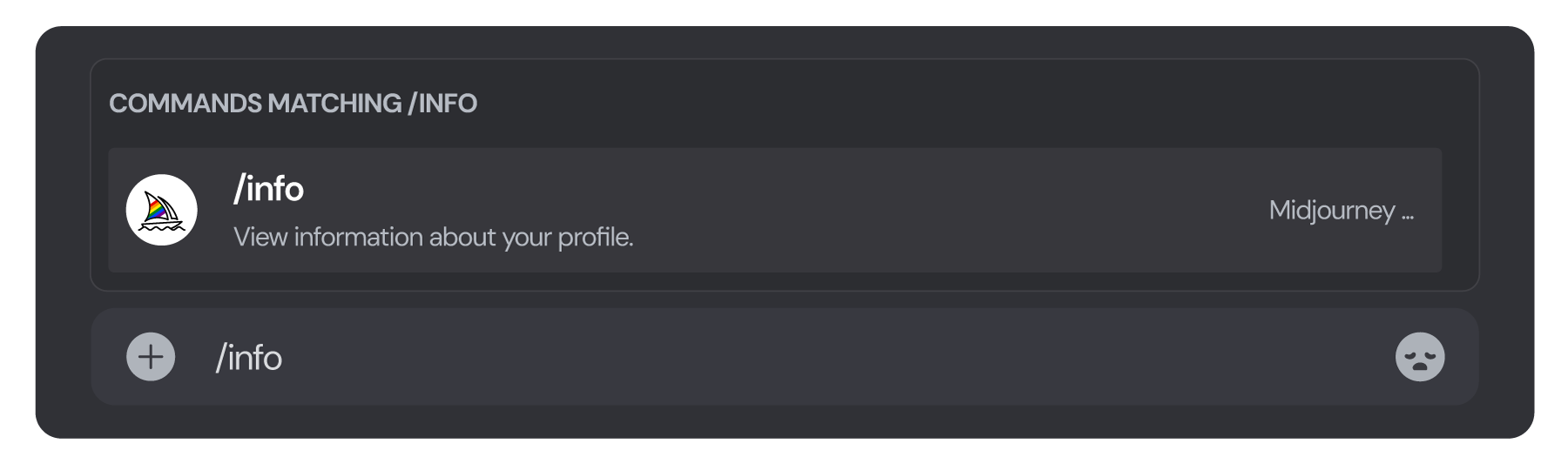
Now, look out for your info panel; it’ll pop up right in your message feed.
Only you can see your info panel, even if you enter the command in a public channel.
Info Details
------------
#### Your Info - Username
This is your Discord username. Keep in mind that your username can be different than your display name. If you need to contact our support staff, it's most helpful to provide your username.
#### User ID
This is your Midjourney User ID, which is unique to you and your subscription plan. If you need to contact our support staff, it's extremely helpful to provide this ID.
#### Subscription
The Subscription section shows which [plan](https://docs.midjourney.com/hc/en-us/articles/27870484040333)
you are currently subscribed to and your next renewal date. Your renewal date and time is also when your monthly Fast time will refresh.
#### Visibility Mode
This indicates whether you are currently in [Public or Stealth Mode](https://docs.midjourney.com/hc/en-us/articles/32019750070669)
. Stealth Mode is only available to Pro and Mega Plan subscribers.
#### Fast Time Remaining
This shows your remaining [Fast GPU time](https://docs.midjourney.com/hc/en-us/articles/32016412137741)
, shown as X / Y. The first number (X) tells you how much Fast time you currently have, and this includes any extra time you've bought or been awarded. The second number (Y) shows how much Fast time your plan gives you each month. Remember, your plan’s Fast time refreshes each month, and any leftover time won't roll over to the next month.
#### Ranking Count
This shows your total number of [ranked images](https://docs.midjourney.com/hc/en-us/articles/28014817524109)
, along with the number of images ranked in the last 30 days.
#### Lifetime Usage
This shows your lifetime Midjourney stats. Images include all types of generations (initial image grids, upscales, variations, remix, etc).
#### Fast, Turbo and Relaxed Usage
This shows your [Fast, Turbo and Relaxed Mode](https://docs.midjourney.com/hc/en-us/articles/32016412137741)
usage.
#### Queued Fast and Relaxed Jobs
Here you can view the number of prompts/jobs in your queue.
#### Running Jobs
This will list all prompts/jobs currently running.
---
# Prompt Basics – Midjourney
[Skip to main content](https://docs.midjourney.com/hc/en-us/articles/32023408776205-Prompt-Basics#page-container)
A prompt is your creative starting point—learn how to turn words into unique and exciting images!
### A prompt is your creative starting point—learn how to turn words into unique and exciting images!
What is a Prompt?
-----------------
Creating an image with Midjourney starts with a "prompt." A prompt is simply the text or phrase you use to tell Midjourney what kind of image you want.
Your prompt could be just one word or a complete phrase. The more thought you put into your prompt, the more unique and interesting your image can be. So, take a moment to think about what you want to see, and use your words to guide Midjourney's creative process.

Prompting Tips & Tricks
-----------------------
Short and simple prompts typically generate the best images with Midjourney. Use phrases that clearly describe what you want to see. Think of it like giving a quick snapshot of your idea. Avoid making long lists or detailed instructions; these can confuse the process.
****Show me a picture of lots of blooming California poppies, make them bright, vibrant orange, and draw them in an illustrated style with colored pencils
****Colored pencil illustration of bright orange California poppies
#### Choose the Right Words
The words you pick matter! Try using specific synonyms. For example, instead of "big," consider "huge," "gigantic," or "enormous." Being precise can help get better results.
#### Be Specific with Numbers
Plural words like "cats" can be vague. Instead, use specific numbers like "three cats." Or go for collective nouns like "flock of birds" instead of just "birds."
#### Focus on What You Want
Describe what you do want instead of what you don’t. If you mention a party with “no cake,” a cake might still appear. For excluding items, read about the [no parameter](https://docs.midjourney.com/hc/en-us/articles/32173351982093)
.
#### Prompt Length and Details
Your prompts can be simple—even a single word or emoji works. Short prompts let Midjourney's default style fill in the gaps. But if specific elements are important to you, be sure to include them. Fewer details mean more variety, but you get less control over the outcome.
Be clear about details that matter to you. Here are some areas to consider:
* **Subject:** Who or what? (person, animal, character, location, object)
* **Medium:** In what form? (photo, painting, illustration, sculpture, doodle, tapestry)
* **Environment:** Where? (indoors, outdoors, on the moon, underwater, in the city)
* **Lighting:** What kind? (soft, ambient, overcast, neon, studio lights)
* **Color:** In what shades? (vibrant, muted, bright, monochromatic, colorful, black and white, pastel)
* **Mood:** Feelings to evoke? (playful, calm, gloomy, energetic)
* **Composition:** How is it framed? (portrait, headshot, closeup, birds-eye view)
Advanced Prompts
----------------
Once you're comfortable with basic prompts, start exploring more advanced options! Add one or more [Image Prompts](https://docs.midjourney.com/hc/en-us/articles/32040250122381)
, use multiple text phrases, and apply tools called [parameters](https://docs.midjourney.com/hc/en-us/articles/32859204029709)
. These give you the ability to create more complex or specific images. Experiment by mixing different elements to boost your creativity!

**Text Prompt**
The text description of what you want to see. Keep reading for prompting tips and tricks. Well-written prompts help generate amazing images!
**Image Prompts**
Adding images to your prompt influences the style and content of your new creations. You can do this through [Image Prompts](https://docs.midjourney.com/hc/en-us/articles/32040250122381)
, [Style References](https://docs.midjourney.com/hc/en-us/articles/32180011136653)
, and [Character References](https://docs.midjourney.com/hc/en-us/articles/32162917505293)
.
**Parameters**
[Parameters](https://docs.midjourney.com/hc/en-us/articles/32859204029709)
are tools that let you customize how an image is generated. They can adjust things like [aspect ratios](https://docs.midjourney.com/hc/en-us/articles/31894244298125)
to tailor your image to your liking. Parameters get added to the end of your prompt.
More Prompt Help
----------------
Midjourney has a vibrant community that loves problem-solving and helping others! If you need more help or tips, make sure to visit our [Prompt Craft channel on Discord](https://discord.com/channels/662267976984297473/992207085146222713)
or the [Prompt Craft Room](https://www.midjourney.com/rooms/44a30f92-a8c1-470b-a553-86f49add2a7a)
on web.
Need Help Getting Started?
[Getting Started Guide](https://docs.midjourney.com/hc/en-us/articles/33329261836941)
---
# Personalization – Midjourney
[Skip to main content](https://docs.midjourney.com/hc/en-us/articles/32433330574221-Personalization#page-container)
Create custom image styles with personalized profiles and moodboards using --p
### Create custom image styles with personalized profiles and moodboards using `--p`
What is Personalization?
------------------------
Personalization acts like a style assistant for your image creations. By liking or ranking images and creating moodboards, Midjourney gets to know what kind of images you love and uses that information to generate images tailored to your personal tastes and unique style.
Personalization is compatible with Midjourney [versions](https://docs.midjourney.com/hc/en-us/articles/32199405667853-Version)
6 and 7.
Unlocking Personalization
-------------------------
Unlocking your Global Personalization Profile is the first step to using Personalization.
**Here’s how to unlock your Global Profile:**
1. Visit the [Personalize](https://www.midjourney.com/personalize)
page and find your Global V7 Profile.
2. Click the "Continue ranking" button.
3. You’ll see two images. Click on the one you prefer.
4. A new pair of images will appear. Keep picking your favorites.
5. As you choose, watch the progress bar move at the top of the page. Once you’ve ranked enough pairs, your profile will unlock.
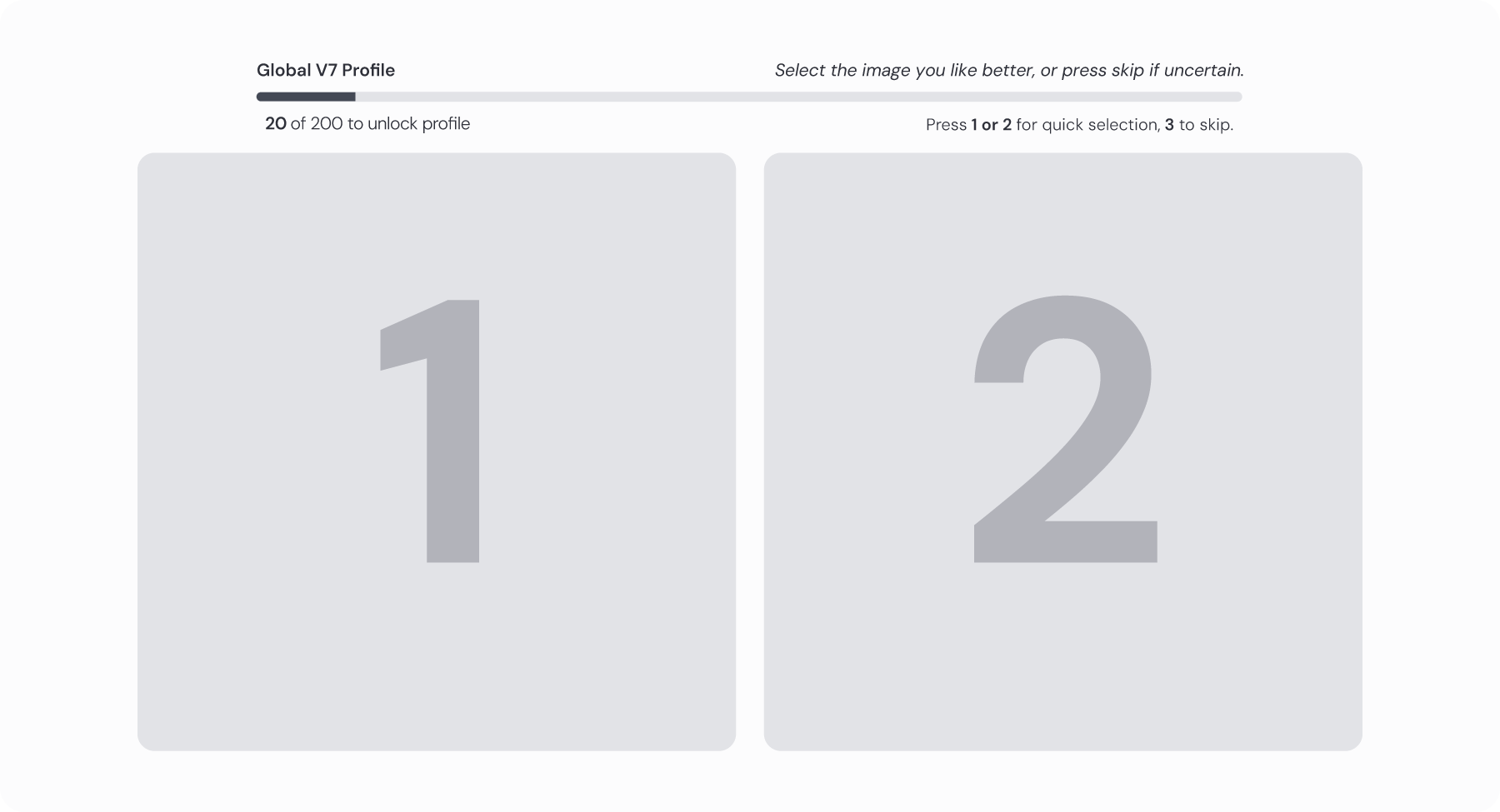
To get the most out of your personalization profile, we recommend spending more time ranking images. The more images you rank, the better Midjourney gets at tailoring the images to your style.
Using Personalization
---------------------
* Add `--p` to the end of your prompt in the Imagine bar. This will automatically apply your default personalization profile to your prompt.
To use a specific profile, go to the Personalization page, hover your mouse over a profile and click the "Use Profile" button to add its profile ID to the Imagine bar (example: `--p pID`). You can also use a specific code `--p code` from a previous prompt.

You can choose a default profile for all your images in the personalization panel. To do this, click the personalization  dropdown button in the Imagine bar, turn Personalize on, and select your preferred profile. Once you set it, this will apply to all your future prompts.
* Add `--p` to the end of your prompt in Discord. This will automatically apply your default personalization profile to your prompt.
To use a specific profile, copy its ID from your [Personalization page](https://www.midjourney.com/personalize)
using the "Use Profile" button and add it to the end of your prompt (example: `--p pID`). You can also use a specific code `--p code` from a previous prompt.

On Discord you can use the `🙋 Personalization` button in your Midjourney [settings](https://docs.midjourney.com/hc/en-us/articles/32868982949517)
to automatically add the `--p` parameter to all your prompts.
You'll only be able to use personalization once you've ranked enough image aesthetic pairs and/or ❤️ed enough images from the Explore page. If you try to use `--p` without enough data, you'll see an error message directing you to do more ranking.
Personalization Profiles
------------------------
You can create multiple profiles, each with a different style or mood. Each profile has a unique ID that generates a code when used in your prompts.
Create and manage your personalization profiles on your [Personalize page](https://www.midjourney.com/personalize)
.
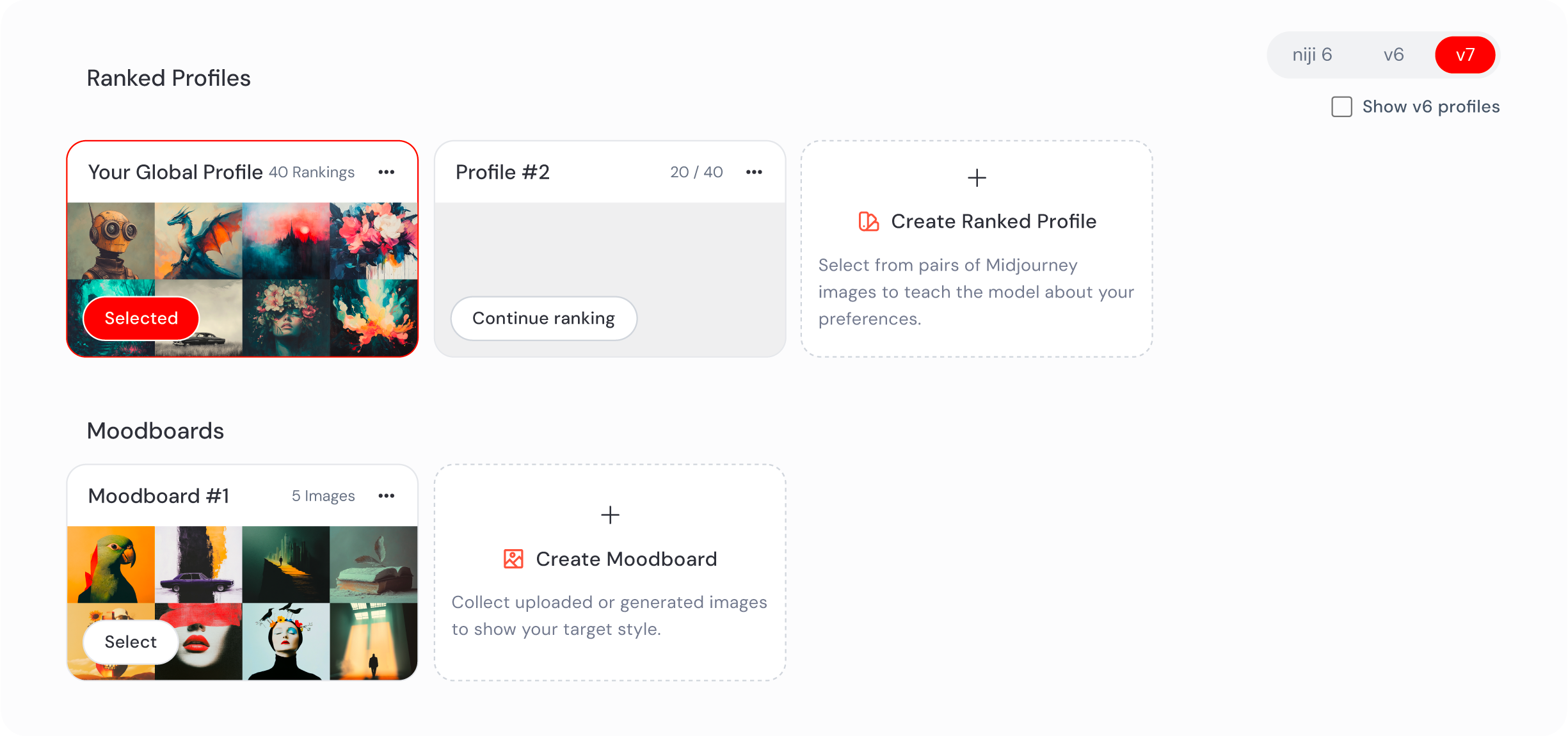
####  Global Profile
This is your default profile, and each Midjourney [version](https://docs.midjourney.com/hc/en-us/articles/32199405667853-Version)
has its own Global Profile. You'll need to unlock this profile by ranking images before you can create additional profiles. When ranking for your Global Profile, try to avoid "skipping" as much as possible—more data results in a better tuned Global Profile.
Liking ❤️ images from other users on the Explore page will influence your Global Profiles. Check which version the liked image was made with to see which Global Profile it will affect.
####  Ranked Profiles
These are extra profiles you can create to focus on specific styles. You rank pairs of images to show Midjourney what you like.
If you Rank Image Aesthetics from the [Tasks](https://www.midjourney.com/tasks)
page, this information will automatically apply to your Global Profile. To rank more images for a specific profile, locate it on your [Personalize](https://www.midjourney.com/personalize)
page and click its name.
####  Moodboard Profiles
You create these by selecting specific images that set a particular mood or vibe. You can upload your own images, provide image URLs, or select images from your gallery.
Creating Personalization Profiles
---------------------------------
* 
Head to the [Personalize page](https://www.midjourney.com/personalize)
on the Midjourney website to view and manage your personalization profiles. This is your starting point for customizing your image styles.
* Turn on personalization using the toggle switch. This will automatically add your default personalization profile to all your prompts.

* To create a new ranked profile, click the "Create Ranked Profile" button.
This will take you to a new page where you'll rank pairs of images. Choose the image you like best between the two options.
Continue ranking until you've unlocked your profile, which is necessary before you can start using it.
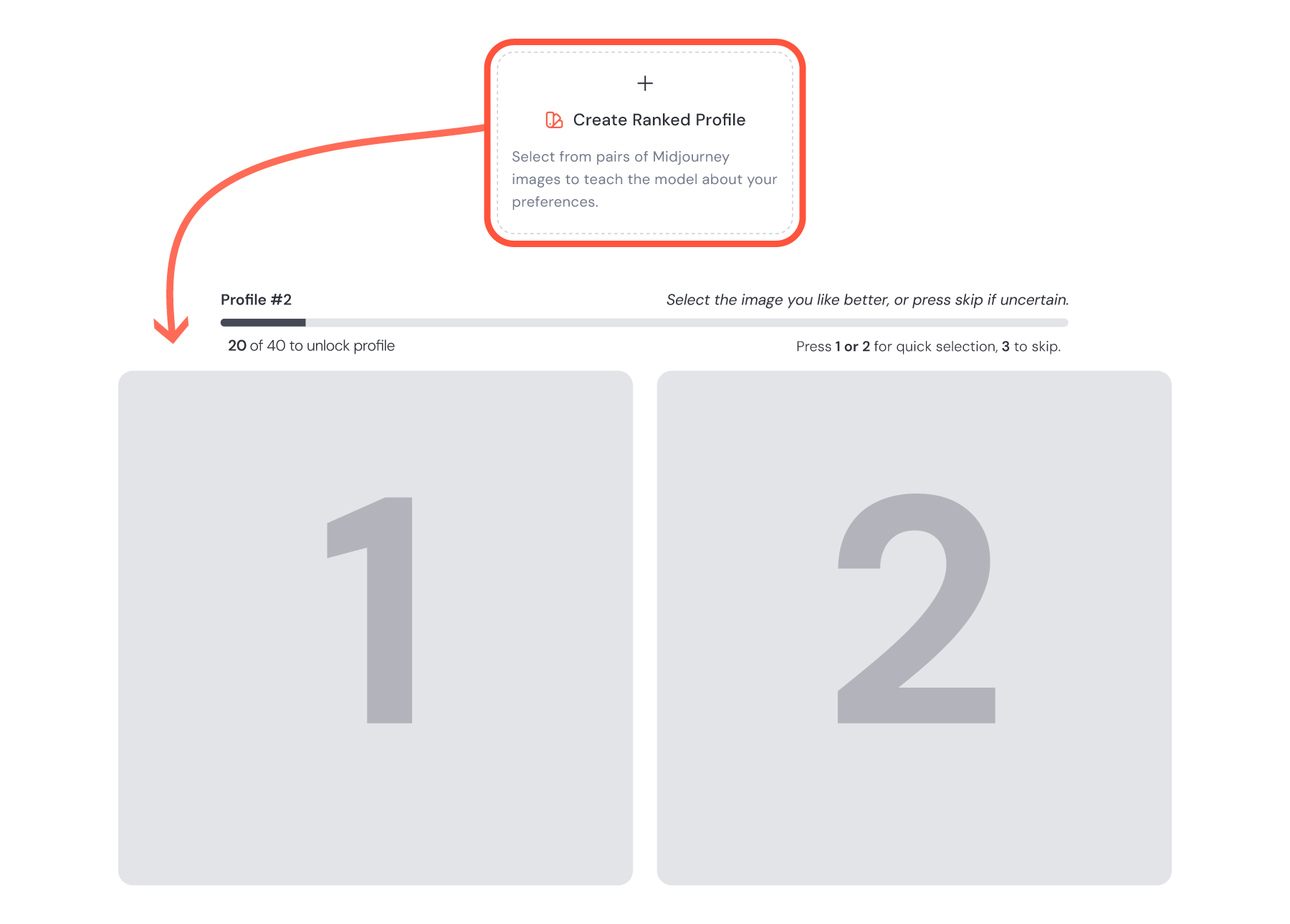
* To create a moodboard profile, click the "Create Moodboard" button.
This will take you to a blank moodboard page. Here, you can upload images from your computer or device, add images from URLs, or add images from your Midjourney gallery.
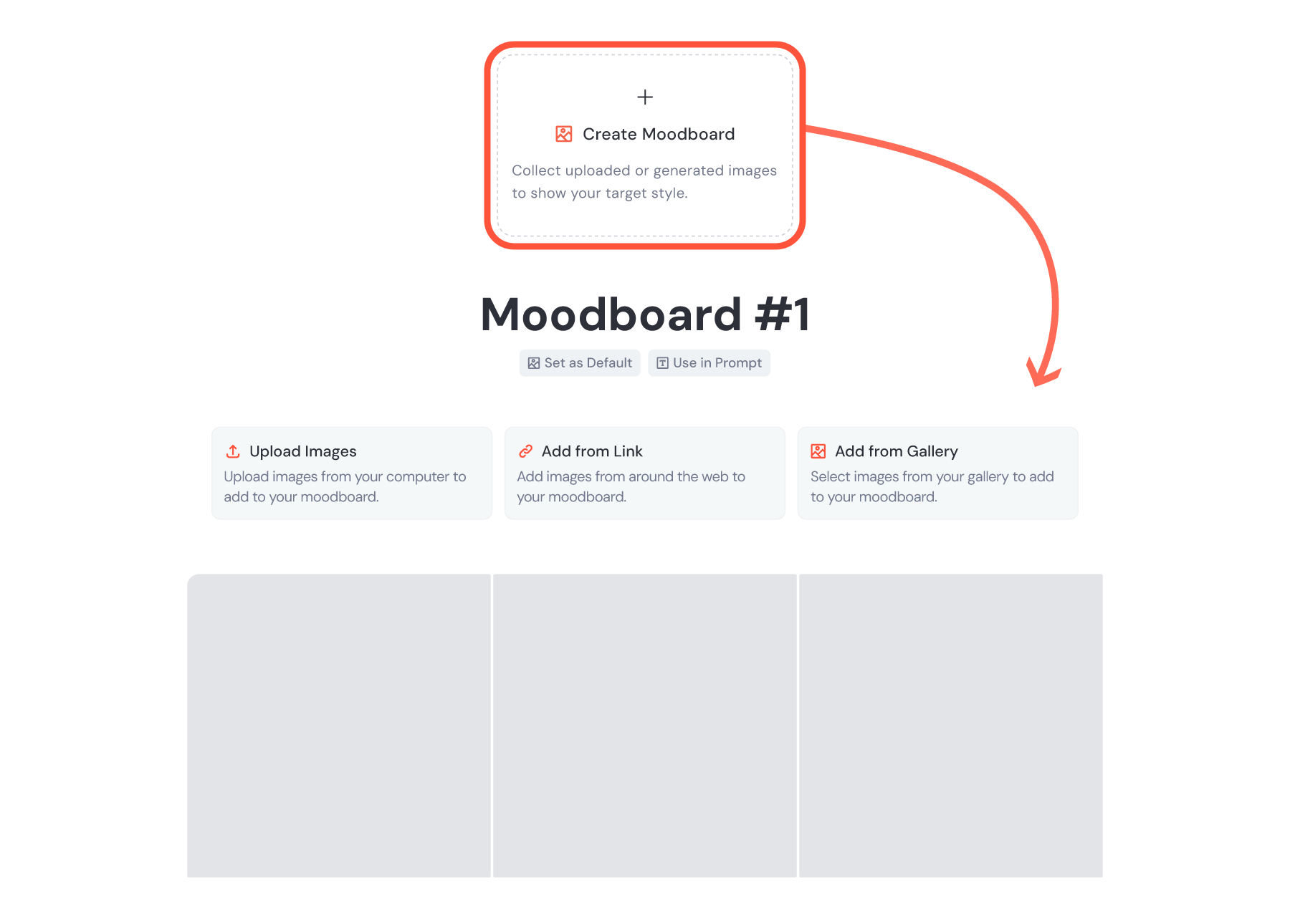
* Hover your mouse over a profile and click "Use Profile" to add your profile ID to the Imagine bar.

If you've turned on personalization, you can also use the "Select" button on your favorite profile to set it as your default profile.
Personalization Codes
---------------------
Your personalization profiles will grow and change as you keep liking and ranking more images. As your profile updates, it will generates new codes that act like labels for the different versions of your profile.
Copy the ID from your profile to use the latest version. To find older codes, you can use the `/list_personalize_codes` command in Discord or revisit your previous prompts to see the codes you used before.
Note: When using a profile ID it will automatically convert from `--p pID` to `--p code` when you submit your prompt.
Managing Your Profiles
----------------------
You can manage your profiles by renaming or deleting them. To do this, click the three dots icon and use the pencil  button to rename it or the trash can  button to delete it.
When you delete a profile it disappears from your profiles list, and you won't be able to add any new data to it. However, any codes that were already created from that profile will still work, allowing you to continue using its style in future prompts.
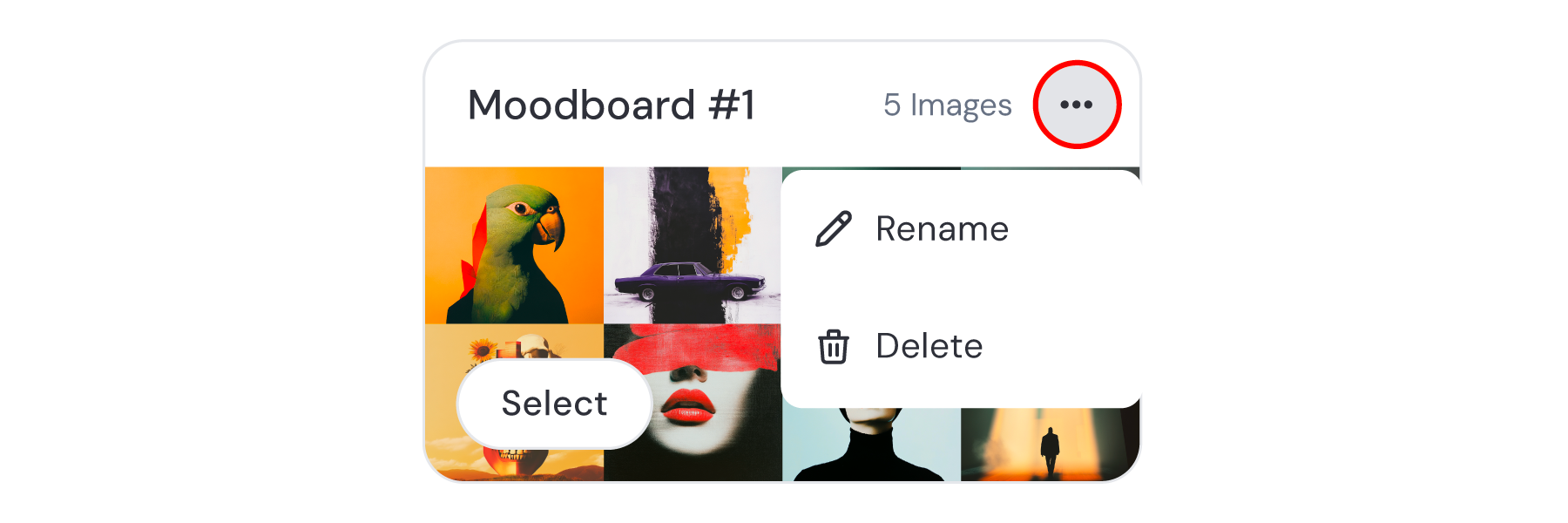
Stylize with Personalization
----------------------------
When using personalization, the [stylize parameter](https://docs.midjourney.com/hc/en-us/articles/32196176868109)
controls how much of your personalization is applied to the image. A lower stylize value will limit the personalization, while a higher value will increase it. The stylize parameter accepts values from 0 to 1000. The default is 100.
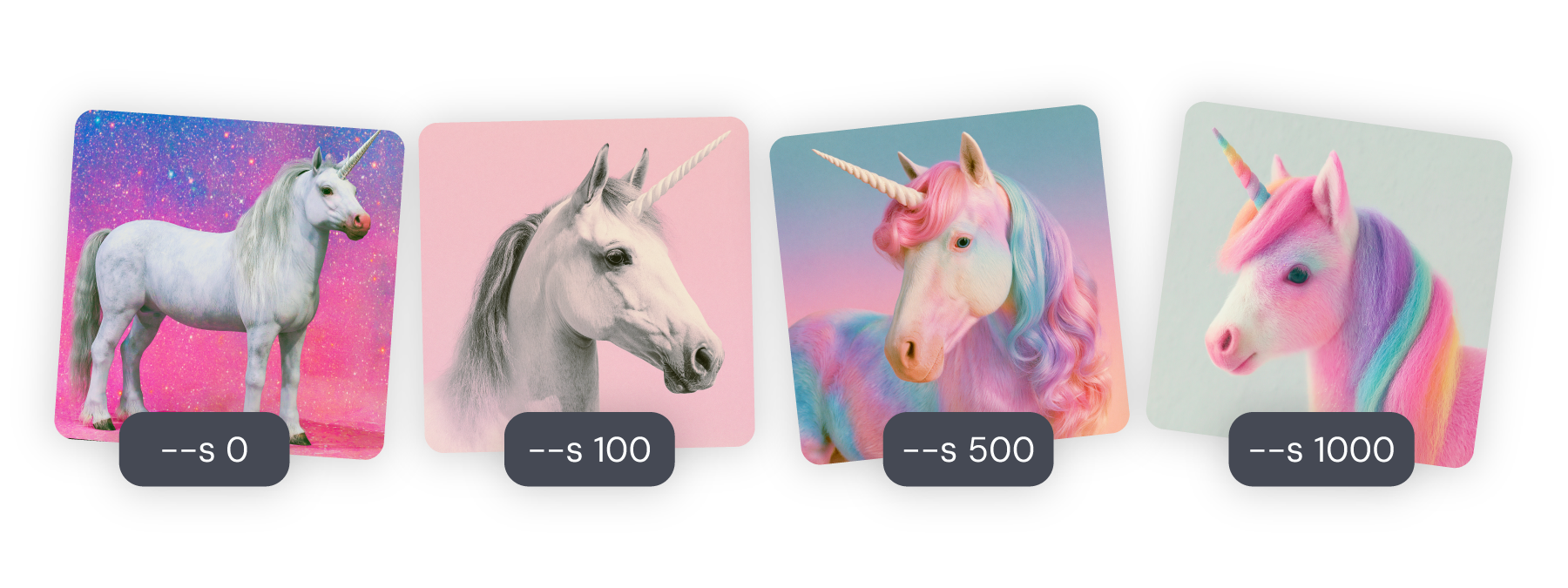
Need Help Getting Started?
[Getting Started Guide](https://docs.midjourney.com/hc/en-us/articles/33329261836941)
---
# Text Generation – Midjourney
[Skip to main content](https://docs.midjourney.com/hc/en-us/articles/32502277092109-Text-Generation#page-container)
Generate images with words and phrases in them using quotation marks.
### Add words to your images with double quotation marks!
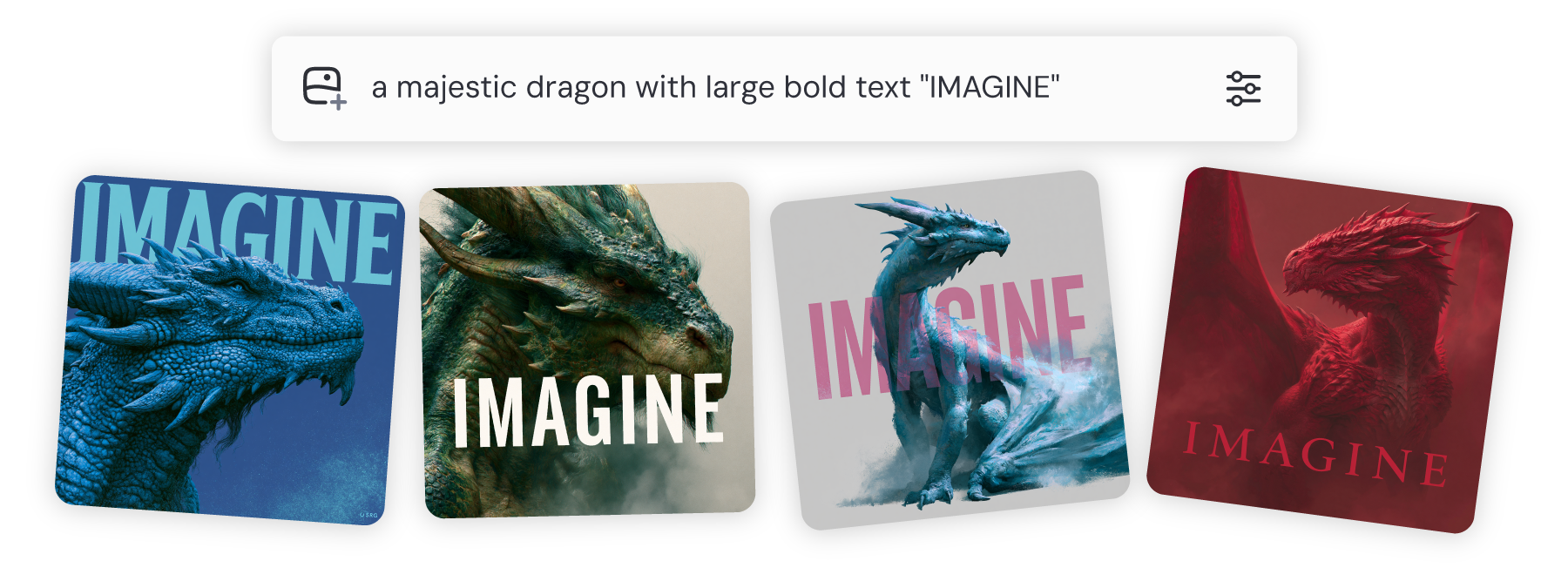
Text in Images
--------------
When you use Midjourney [versions](https://docs.midjourney.com/hc/en-us/articles/32199405667853)
6 and later, you can get words or phrases to show up in your images by putting them inside double quotation marks (" "). For instance, if you want to create an image of a cyberpunk cat with a neon sign that says Midjourney, just surround "Midjourney" with quotation marks in your prompt.
Important: You need to use double quotation marks—single quotes or apostrophes (' ') won't work for this.
#### Best Practices
Text generation works best with the standard Latin alphabet, like English letters. If you stick to shorter words or phrases, you'll have a better chance of getting them to appear just right. It's also helpful to include things like "with the words" or "text" or "written" in your prompt.
If you encounter issues with getting the text exactly how you want it, consider using [Raw Mode](https://docs.midjourney.com/hc/en-us/articles/32634113811853)
or lowering the [Stylize](https://docs.midjourney.com/hc/en-us/articles/32196176868109)
value. You can also use the [Editor](https://docs.midjourney.com/hc/en-us/articles/32764383466893)
on web or try the [Vary Region](https://docs.midjourney.com/hc/en-us/articles/32794723105549)
feature in Discord to fix minor glitches.
####  Bad Prompt Examples:
a logo with the company name Boing
put the text 'Hello' in a frame
####  Good Prompt Examples:
a pastel watercolor landscape with "imagine" written in the clouds
a cartoon drawing of a manual with the words "read the docs" in big text on the pages
More Prompt Help
----------------
Midjourney has a vibrant community that loves problem-solving and helping others! If you need more help or tips, make sure to visit our [Prompt Craft channel on Discord](https://discord.com/channels/662267976984297473/992207085146222713)
or the [Prompt Craft Room](https://www.midjourney.com/rooms/44a30f92-a8c1-470b-a553-86f49add2a7a)
on web.
---
# Quality – Midjourney
[Skip to main content](https://docs.midjourney.com/hc/en-us/articles/32176522101773-Quality#page-container)
Control the processing time of your images with the quality parameter: --quality or --q
### Control the detail and processing time of your images with the quality parameter: `--quality` or `--q`
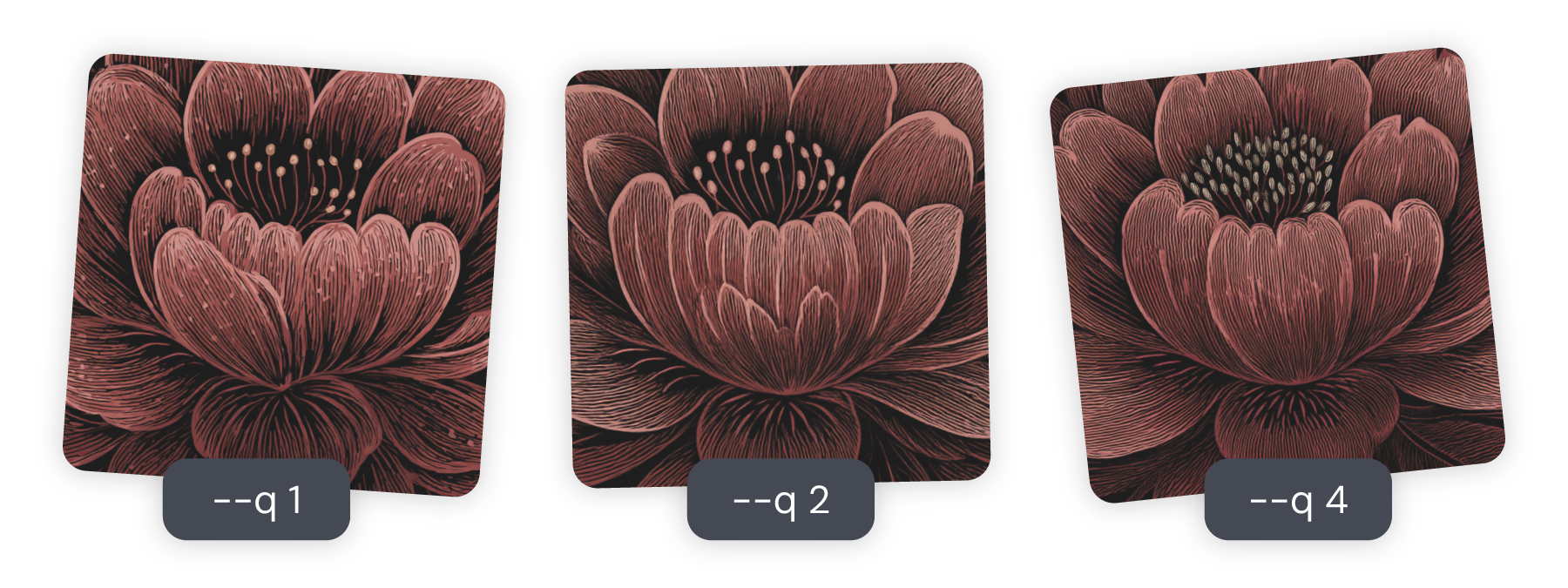
What is Quality?
----------------
Quality controls how much [GPU time](https://docs.midjourney.com/hc/en-us/articles/32016412137741-GPU-Speed-Fast-Relax-Turbo)
is spent making your images. This can change how the details and textures look.
In Midjourney [version](https://docs.midjourney.com/hc/en-us/articles/32199405667853)
7 the default setting for quality is 1. You can also set values to 2 or 4, which will use 2 times or 4 times more GPU time.
Keep in mind, the quality parameter only influences the first set of four images you create. It doesn't affect later [variations](https://docs.midjourney.com/hc/en-us/articles/32692978437005)
, [inpainting/outpainting](https://docs.midjourney.com/hc/en-us/articles/32764383466893)
, or [upscales](https://docs.midjourney.com/hc/en-us/articles/32804058614669)
.
If you're looking to save on GPU time, give [Draft Mode](https://docs.midjourney.com/hc/en-us/articles/35577175650957-Draft-Conversational-Modes)
a try.
Setting the Quality Value
-------------------------
* Add `--q #` to the end of your prompt in the Imagine bar.

* Add `--q #` to the end of your prompt in Discord.

* • In version 7 there is no `--q 3` setting. If used, it will automatically switch to `--q 4`
• `--q 4` is not compatible with [Omni Reference](https://docs.midjourney.com/hc/en-us/articles/36285124473997-Omni-Reference)
.
---
# Using Folders – Midjourney
[Skip to main content](https://docs.midjourney.com/hc/en-us/articles/34580542725645-Using-Folders#page-container)
Use folders to keep your creativity organized and make dedicated spaces to generate your images.
### Keep your creativity organized with folders!
What are folders?
-----------------
Folders work just like the folders on your computer, helping you organize and manage your Midjourney creations. You can set up individual folders and even group them to keep things organized. Here's how you can make the most of folders:
* **Organize Your Images:** After creating images, you can sort them into different folders—imagine a filing system for your various projects or styles. Feel free to name folders any way you like, as long as each has a unique name.
* **Generate Images Inside Folders:** You can also generate images directly within a specific folder. This ensures any new creations are automatically saved where you want them, keeping related images together in an easy-to-find place.
You can access folders from both the [Create](https://www.midjourney.com/imagine)
page and the [Organize](https://www.midjourney.com/archive)
page. Just click the folder button next to the search bar to open the folder menu, and click it again to close it.
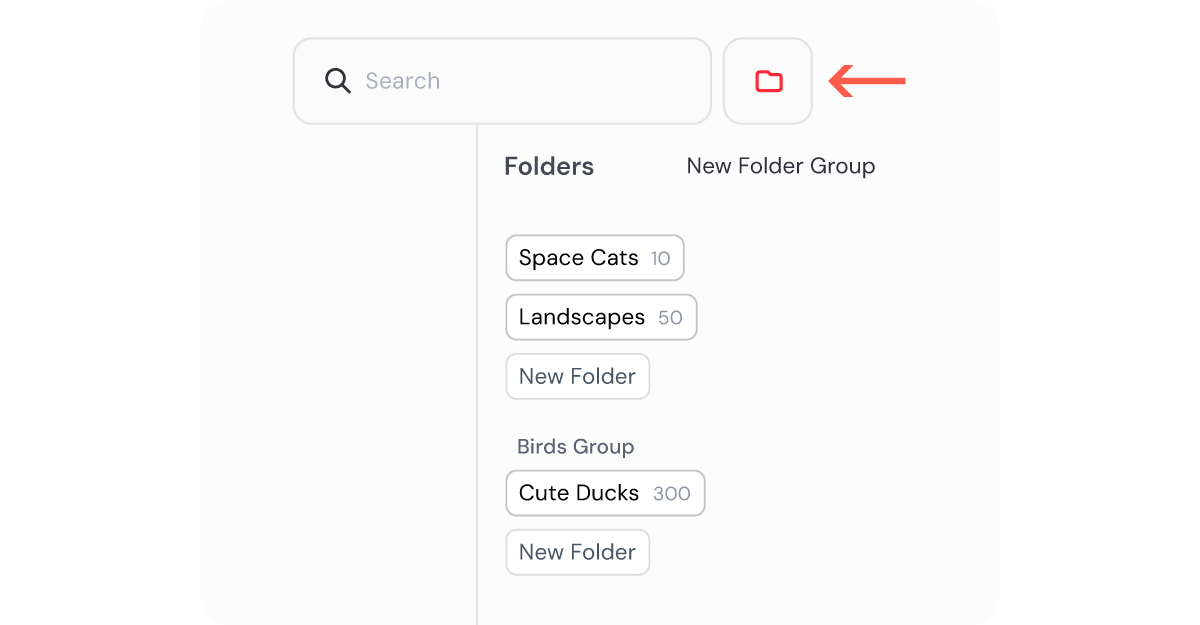
To create a new folder, open the folder menu and click the "New Folder" button. Type in a unique name for your folder and press enter on your keyboard. Your new folder will appear in the menu, with a number showing how many images it contains.
Adding & Removing Images
------------------------
Head to the [Organize](https://www.midjourney.com/archive)
page to easily add images to your folders.
* #### Adding Multiple Images at Once:
1. To select multiple images, hold the Shift key on your keyboard and click the images one by one. Or, click and drag your mouse over the images you want.
2. With your selection ready, make sure the folder menu is open, and drag the selected images onto a folder.
Alternatively, with your images selected, use the bulk actions menu at the bottom of the screen. Click "More," then "Add to Folder," and choose your desired folder.
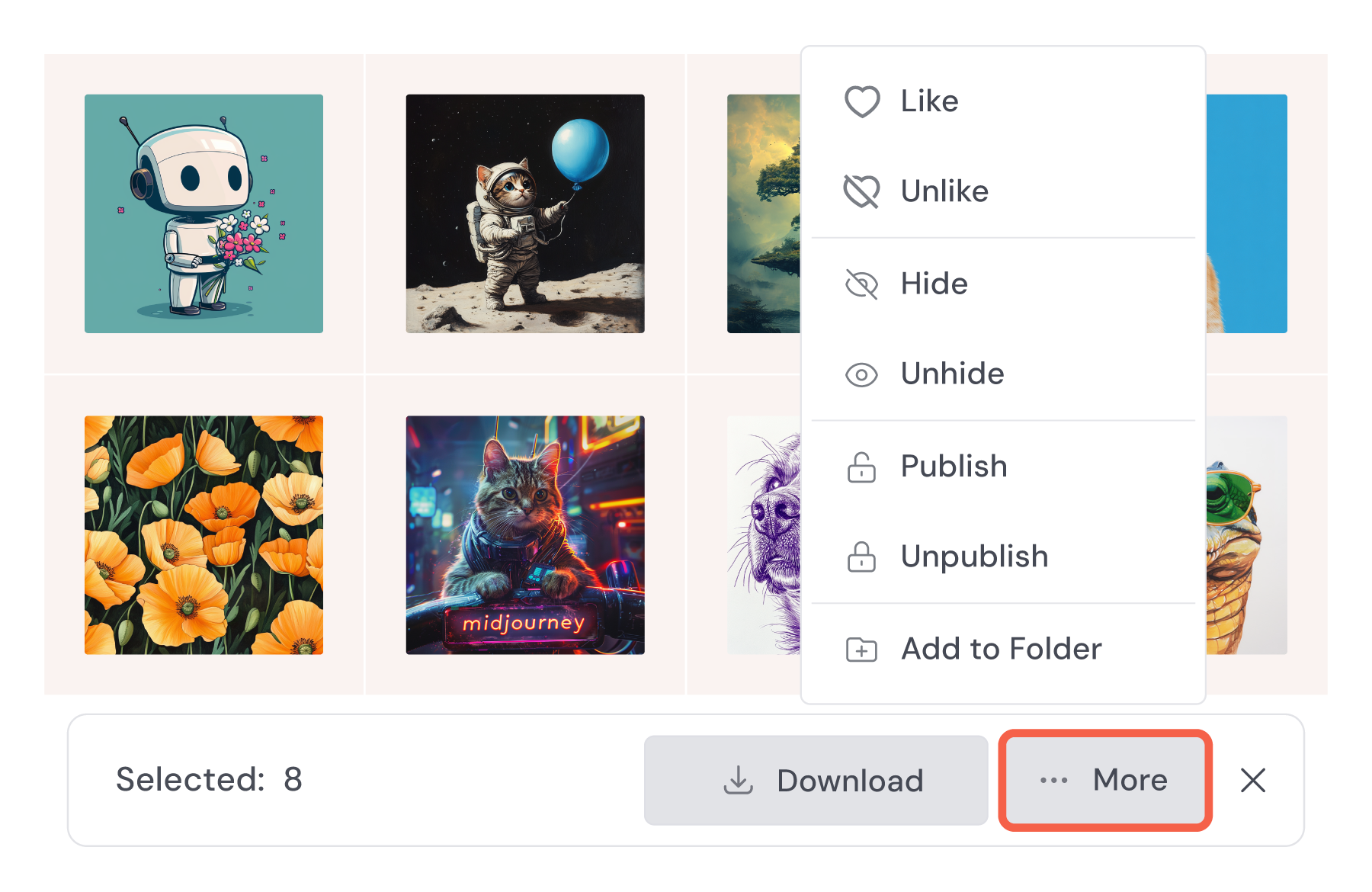
* #### Adding an Individual Image:
Click and drag the image to your folder in the folder menu or right-click the image, select "Add to…" and pick your folder.
#### Removing Images:
Open the folder by clicking on it. To remove multiple images, select them and use the bulk actions menu: click "More," then "Remove from Folder." To remove a single image, right-click it and choose "Remove from…"
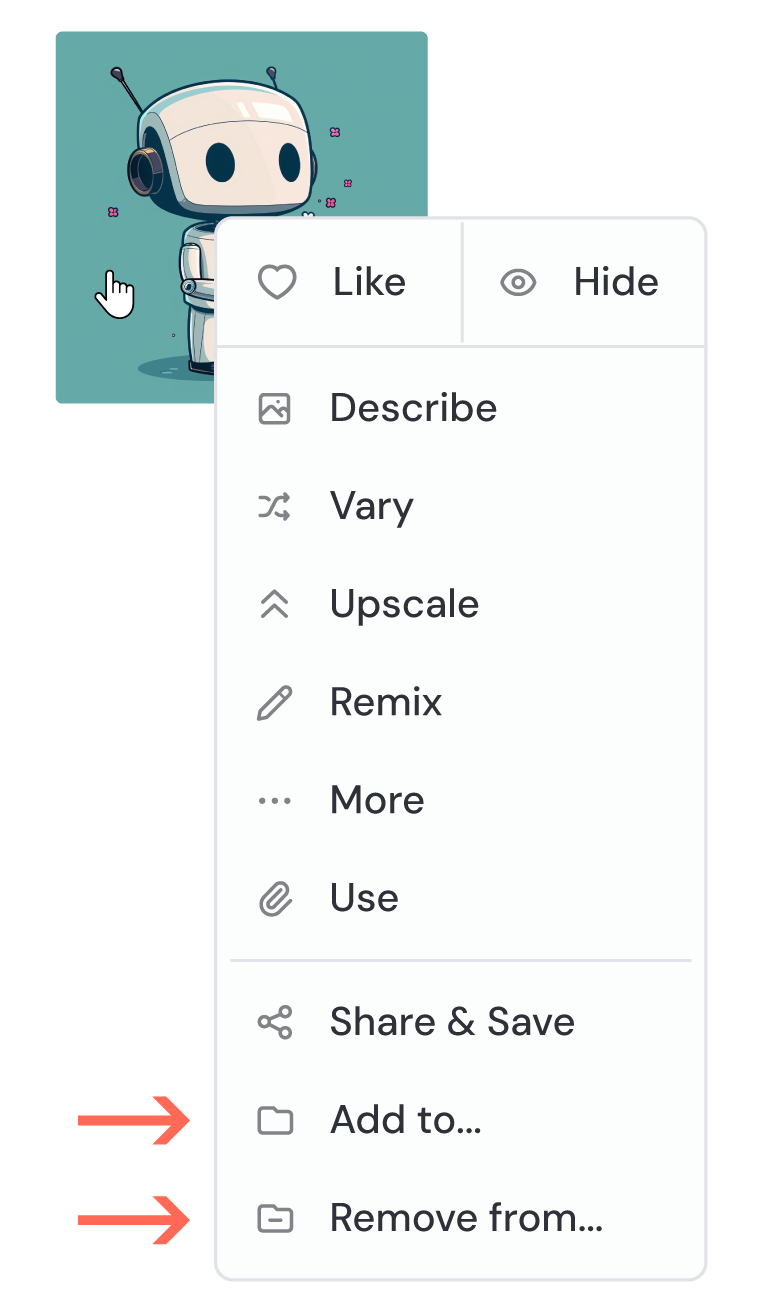
We used to have a feature called Smart Folders that automatically organized images based on search terms. These have now become Saved Searches, which you can learn more about in our [Organizing Your Creations](https://docs.midjourney.com/hc/en-us/articles/33329462451469-Organizing-Your-Creations#h_01JMGG77RJ9C9Z66HF8TAE0MPM)
article.
Generating in Folders
---------------------
Creating images directly inside a folder is easy and helps keep your work organized in dedicated creative spaces.
1. **Enter the Folder:** First, click the folder from the folder menu to open it and go inside. When you are inside a folder the folder button next to the search bar will display the name of your current folder, so you always know where your work is being stored.
2. **Start Generating:** Use the Imagine bar at the top of the screen to start generating your images. While you're inside a folder, the Imagine bar will have an indicator below it that says "Generating in..." to show where your images are going.

3. **Stop Generating in the Folder:** To stop generating images in a folder, you need to leave the folder. Do this by looking for the folder button next to the search bar and clicking the "X" next to the folder name. Even if you navigate to another page on the website, your prompts in the Imagine bar will continue to save in the folder until you leave it.
Managing Folders & Groups
-------------------------
#### Rename
To change a folder's name, hover over the folder to reveal the three dots icon. Click on it to open a small menu where you can select "Rename." Once you've entered the new name, press enter on your keyboard to save it.
#### Delete
To delete a folder, hover over the folder to reveal the three dots icon. Clicking it will open a small menu where you can select "Delete." Deleting a folder won’t delete the images inside. They will remain safe in your gallery.
#### Download
Need to download all the images in a folder? Simply hover over the folder to reveal the three dots icon, click it, and select "Download" from the small menu.
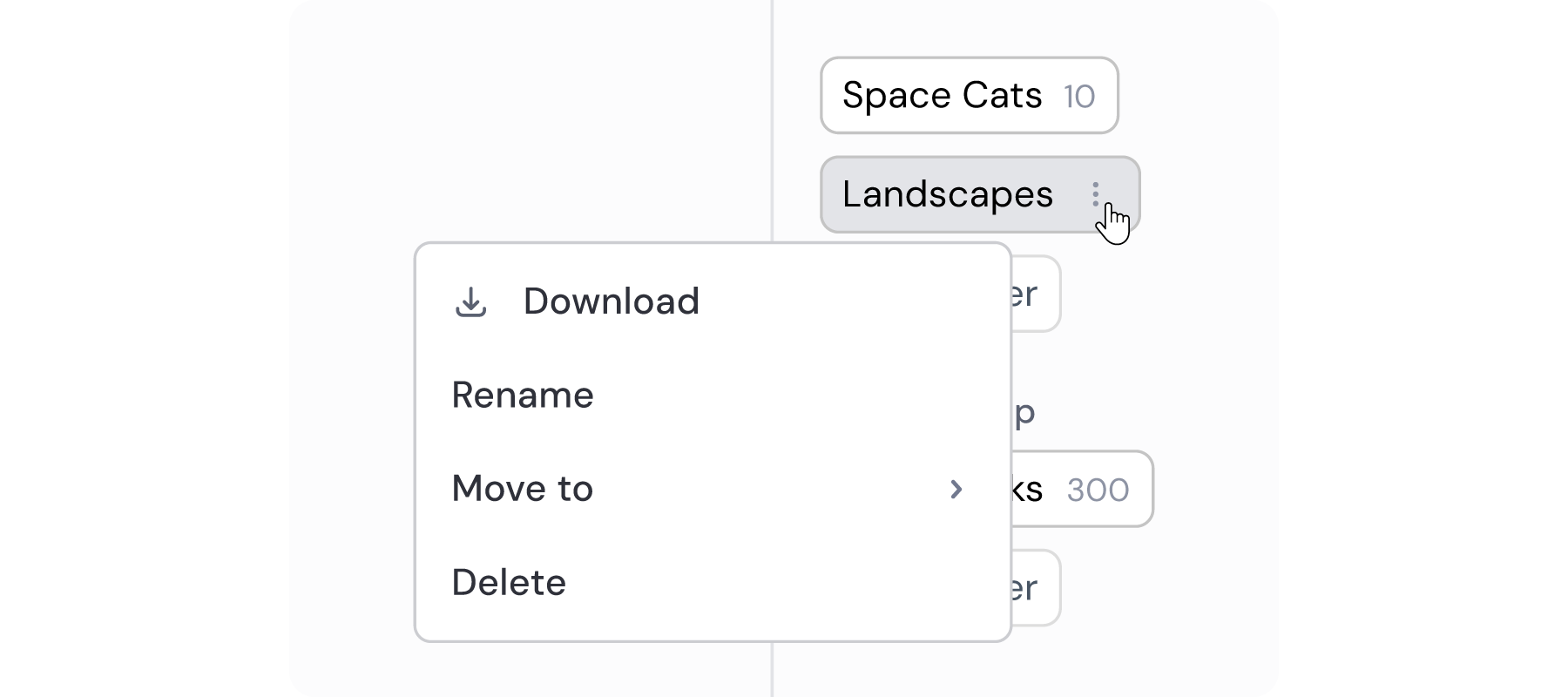
#### Folder Groups
If you want to create a folder group, open the folders menu and click the "New Folder Group" button. Type the desired name for your group and press enter to save it.
Organizing your folders is as easy as dragging and dropping them into or out of groups. You can also use the three dots icon menu on a folder and select "Move to" and pick the group.
Remember, folders that aren't in any group will always appear at the top of the folder menu. Additionally, if you remove all folders from a group, that group will automatically be deleted.
---
# Earning Free Fast Time – Midjourney
[Skip to main content](https://docs.midjourney.com/hc/en-us/articles/28014817524109-Earning-Free-Fast-Time#page-container)
Looking to add more Fast time to your account? Midjourney provides a few ways to earn extra Fast time, perfect for keeping your creative projects going! Just remember, you'll need an active subscription to use any awarded time, and it expires 30 days after it's given. You can also [purchase additional Fast time](https://docs.midjourney.com/hc/en-us/articles/33570952624141)
on our website.
#### Ranking Images
Each day, the top 2,000 users who rank the most images receive an extra hour of Fast time free. If you're among the top rankers, you’ll receive a direct message from the Midjourney Bot in Discord around midnight UTC. Curious about how to rank images? Check out our [Complete Tasks](https://docs.midjourney.com/hc/en-us/articles/33390759197197)
article for more details.
#### Surveys
Occasionally, we conduct surveys and offer Fast time as a reward. The amount you can earn varies, so keep an eye on the [Tasks](https://www.midjourney.com/tasks)
page to find open surveys and see how much Fast time you can gain.
---
# Character Reference – Midjourney
[Skip to main content](https://docs.midjourney.com/hc/en-us/articles/32162917505293-Character-Reference#page-container)
Use the same character in multiple images and scenes using character references.
### Want to use the same character in multiple images and scenes? You can provide Midjourney with a Character Reference!
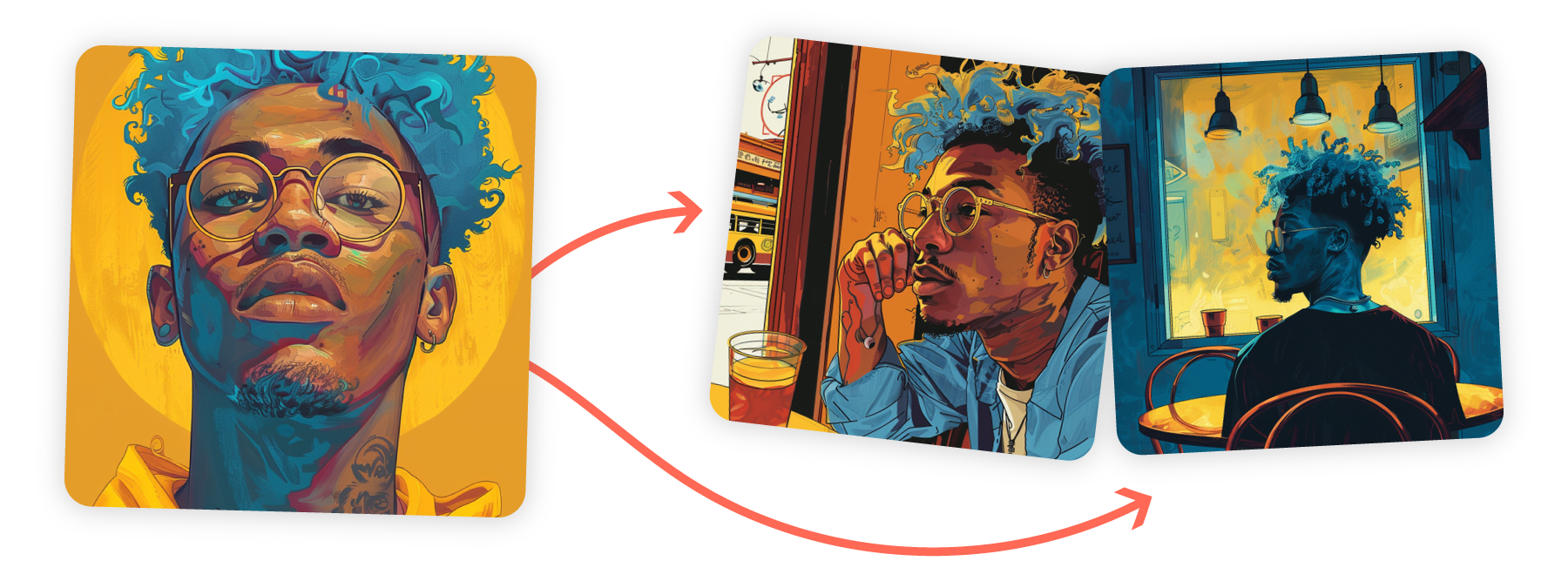
Character Reference is not compatible with [version 7](https://docs.midjourney.com/hc/en-us/articles/32199405667853)
, please use [Omni Reference](https://docs.midjourney.com/hc/en-us/articles/36285124473997)
instead.
What is a Character Reference?
------------------------------
A Character Reference allows you to recreate a specific character in multiple images.
By using a picture of a character you like, Midjourney can recognize the character's features, like hair color, clothes, and facial traits, and use these details for generating the character in new scenes. This helps maintain consistency across different images.
Using a Character Reference
---------------------------
* To add an image to your prompt, start by clicking on the image  icon in the Imagine bar. This opens the images panel, allowing you to upload new images or pick from those you've already uploaded.
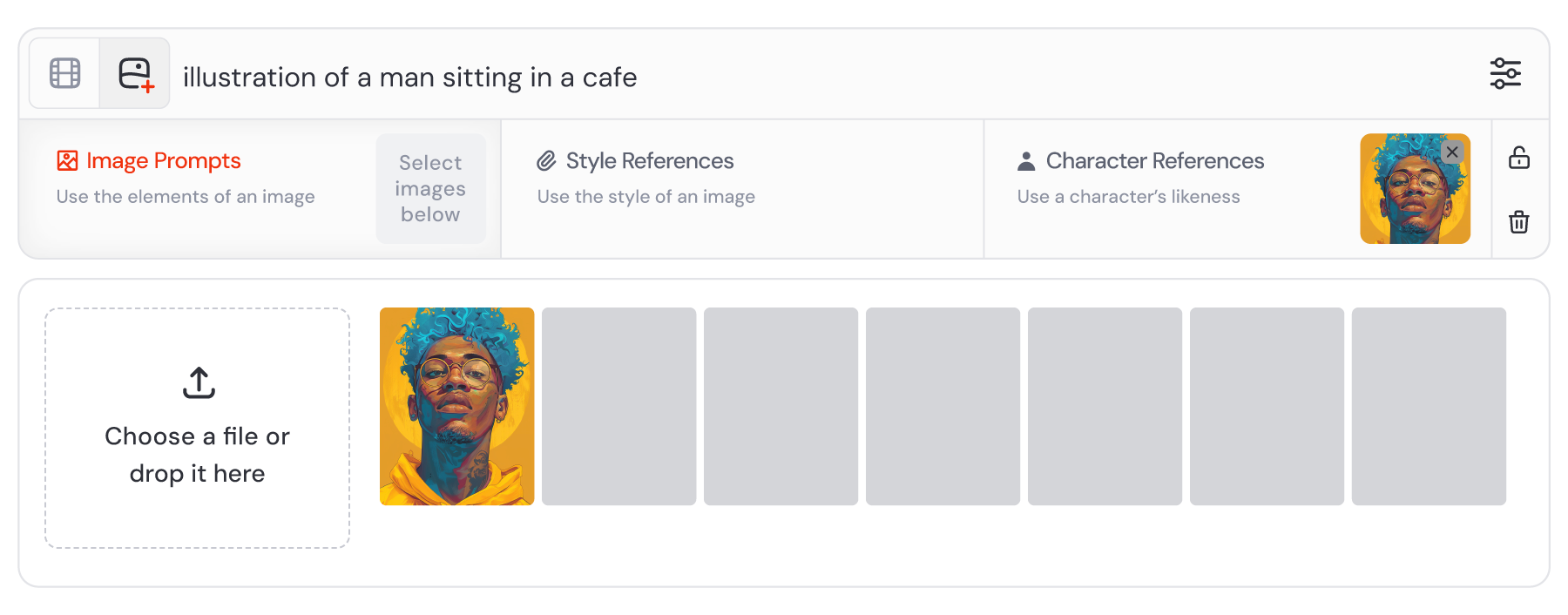
Drag and drop your image from the uploads library into the Character Reference section. To remove your image from the Imagine bar, hover your mouse over it and click the X icon.
If you want to use your images with multiple prompts, click the lock icon  to keep your images pinned to the Imagine bar.
**Image Reference Types:**
 [Image Prompt](https://docs.midjourney.com/hc/en-us/articles/32040250122381)
(default)
 [Style Reference](https://docs.midjourney.com/hc/en-us/articles/32180011136653)
 [Omni Reference](https://docs.midjourney.com/hc/en-us/articles/36285124473997)
(replaces Character Reference)
* To use a Character Reference in Discord, start by adding the `--cref` parameter to the end of your prompt, then pasting your image URL. If you want to use multiple images, separate each URL with a space.

It's important to ensure that you have a valid image URL, meaning the image should already be online. If your image is stored on your computer or device, you can [host it on Discord](https://docs.midjourney.com/hc/en-us/articles/32558957919117)
to generate an image URL.
Best Practices
--------------
* **Use Midjourney Images:** For best results, start with an image of a single character created by Midjourney. Images of real people typically won't look exactly like them.
* **Limit Character References:** While you can use more than one image of the same character, it's often not necessary.
* **Account for Details:** Be aware that intricate details like specific freckles or logos on clothing might not come out exactly right.
* **Use Detailed Text Prompts:** Combine your character reference with a clear text prompt. Text is just as important for conveying the full scene and additional details beyond what the reference image shows.
####  Bad Prompt Examples:
 put this man in a cafe
 add this man to a cafe setting
####  Good Prompt Examples:
 a man with blue hair and gold glasses sitting in a cafe
 illustration of a man sitting alone in a cafe
Character Weight
----------------
Character weight acts like a dial that lets you choose how much detail from your reference image shows up in your new image.
By default, with `--cw 100`, Midjourney includes as much detail as possible, like the face, hair, and clothing. If you turn the dial down to `--cw 0`, the focus will mainly be on the character's face. This gives you the flexibility to adjust how much detail is pulled from your reference image.
Midjourney uses Image Prompts and References as inspiration to guide new creations, not to copy them exactly. If you're not getting exactly the results you want, check out the [Editor](https://docs.midjourney.com/hc/en-us/articles/32764383466893)
.
* • For your prompts to work, you need a text prompt in combination with your Character Reference.
• Your image file should end in .png, .gif, .webp, .jpg, or .jpeg.
• Character Reference can be used with Midjourney and Niji version 6.
• Character Reference can be combined with [Style References](https://docs.midjourney.com/hc/en-us/articles/32180011136653)
and [Image Prompts](https://docs.midjourney.com/hc/en-us/articles/32040250122381)
.
Need Help Getting Started?
[Getting Started Guide](https://docs.midjourney.com/hc/en-us/articles/33329261836941)
---
# Permutations – Midjourney
[Skip to main content](https://docs.midjourney.com/hc/en-us/articles/32761322355597-Permutations#page-container)
Use permutation prompts to generate multiple prompt variations from a single idea.
### Explore endless combinations! Use permutation prompts to easily generate multiple prompt variations from a single idea.
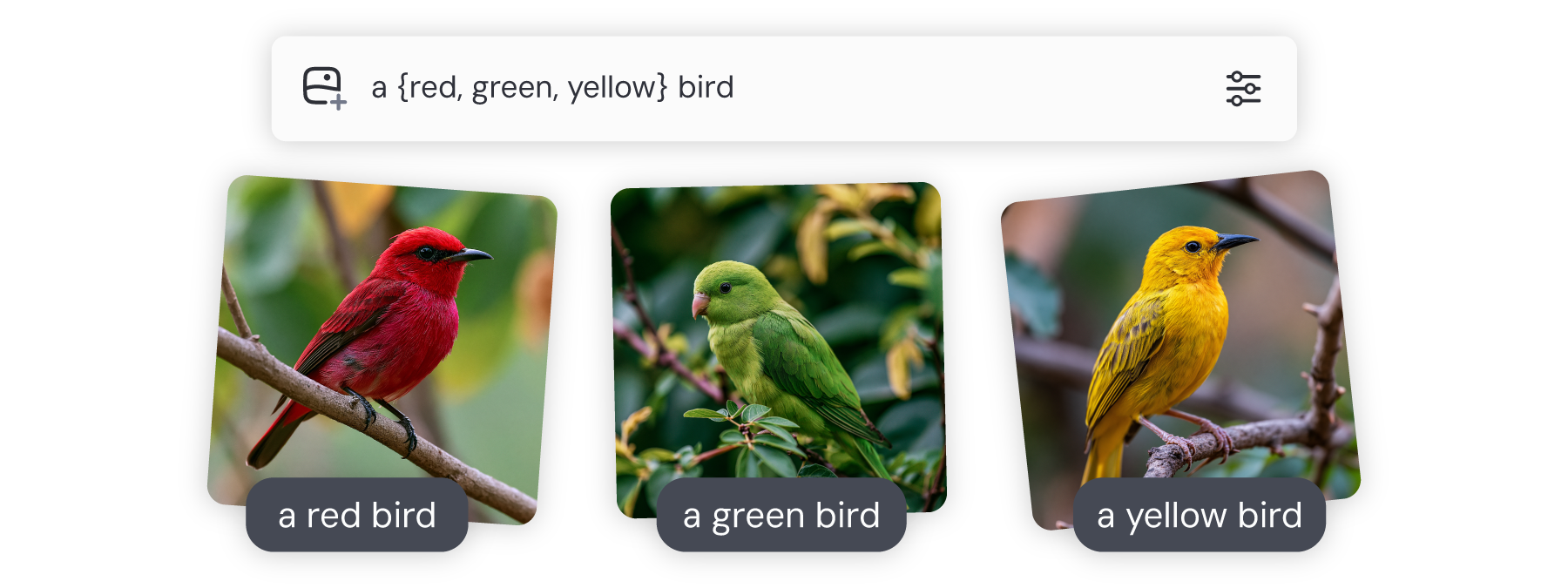
What are Permutations?
----------------------
Think of permutation as a way to make many different prompts from just one prompt. It helps you swap certain parts—like colors or items—within your prompt to create different versions. Instead of typing each one by hand, you write it once, putting your options in curly braces {} separated by commas, and let Midjourney do the rest.
For example, if you prompt `a {red, green, yellow} bird`, Midjourney will swap out "red," "green," and "yellow" in separate prompts to give you three different prompts:
1. `A red bird`
2. `A green bird`
3. `A yellow bird`
You can use permutations on any part of your prompt, including [parameters](https://docs.midjourney.com/hc/en-us/articles/32859204029709)
. For instance, if you want to try the same prompt in multiple [aspect ratios](https://docs.midjourney.com/hc/en-us/articles/31894244298125)
, you can use `--ar {1:1, 2:3, 3:5}`.
The number of permutations you can use depends on your [subscription plan](https://docs.midjourney.com/hc/en-us/articles/27870484040333)
. If you have the Basic plan, you can create a maximum of 4 prompts with a single permutation prompt. The Standard plan allows you up to 10. For Pro and Mega plans, you can go up to 40. Just remember, permutations only work in [Fast and Turbo modes](https://docs.midjourney.com/hc/en-us/articles/32016412137741)
. They won't work in Relax mode.
Each individual prompt you create with permutations uses up [Fast GPU time](https://docs.midjourney.com/hc/en-us/articles/32016412137741)
, just like running individual prompts. Using permutations can quickly consume your available GPU time, so it's important to keep track of how much time you have left.
Using Permutations
------------------
* Put the variables you want to change inside curly braces {} in your prompt in the Imagine bar. Make sure to separate them with commas.

* Put the variables you want to change inside curly braces {} in your prompt in Discord. Make sure to separate them with commas.

After sending your prompt, the bot will ask you to confirm the number of permutations and you'll need to click Yes before your prompts will run.
* It is possible to use multiple sets of bracketed options in a single prompt. For example, `a {red, green} bird in the {jungle, desert}` will produce four prompts.
It is also possible to nest sets of bracketed options inside other sets of brackets within a single prompt. For example, `A {bird {on a pier, on a beach}, dog {on a sofa, in a truck}}` will produce four prompts.
You can also use permutations on parameters. For example, `a red bird --v {4, 5, 6.1}` will produce three prompts each in a different version of Midjourney.
Permutations can be used in [custom suffixes and option sets](https://docs.midjourney.com/hc/en-us/articles/32868982949517)
.
If you want to include a comma within the curly brackets that does not act as a separator, place a backslash `\` directly before it. For example, `{red, pastel \, yellow} bird` will produce two prompts:
`a red bird`
`a pastel, yellow bird`
---
# Image Size & Resolution – Midjourney
[Skip to main content](https://docs.midjourney.com/hc/en-us/articles/33329374594957-Image-Size-Resolution#page-container)
From pixels to prints: Master Midjourney image sizes and resolution.
### From pixels to prints: Master Midjourney image sizes and resolution.
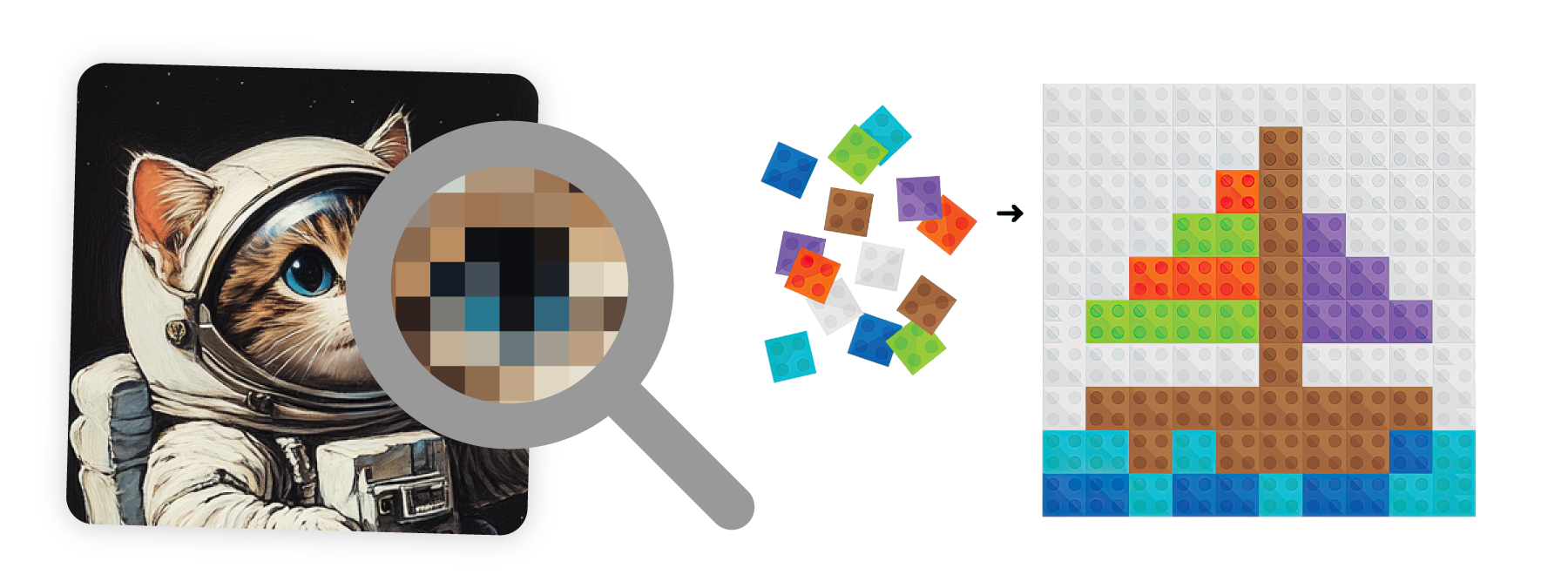
Let's dive into what you can expect with your Midjourney images, how to handle them, and how resolution works. By the end, you'll know how image sizes affect your work and what steps you can take for printing.
What Is Image Size?
-------------------
Every Midjourney image starts with a certain number of pixels, measured width by height. For example, when you use the default 1:1 [aspect ratio](https://docs.midjourney.com/hc/en-us/articles/31894244298125)
, Midjourney [version](https://docs.midjourney.com/hc/en-us/articles/32199405667853)
7 creates [upscaled images](https://docs.midjourney.com/hc/en-us/articles/32804058614669)
that are 2048 x 2048 pixels (px). Pixels are the tiny dots that make up your image, much like the tiny tiles in a mosaic.
Understanding Resolution
------------------------
Image resolution represents the level of detail in an image. For printed images, resolution measures the density of ink dots per inch (DPI).
When you open a Midjourney image in a program like Photoshop, the resolution will probably be 72, which is just right for online or screen use. There are no "high-resolution" image files for screens like monitors or phones. What matters is how many pixels you have versus the size of the screen. So, an image fits differently on a small phone compared to a large monitor based on its pixel count.
The same image dimension viewed on different screens.
Why Resolution Matters for Printing
-----------------------------------
When you want to print an image, the DPI affects its clarity and size on paper. While 72 DPI looks sharp on your screen, printing usually requires around 300 DPI for the best quality. This is because printed images need many more dots squeezed into each inch to look just as clear as they do on your screen.
How to Change Resolution
------------------------
If you want a higher DPI for your Midjourney images, here are some steps to help you along:
* **Use Editing Software:** Programs like Photoshop let you change the DPI. Open your image, find the image settings, change the DPI to 300, and check that "Resample" is off. This keeps your pixel dimensions the same (2048 x 2048px), but now it's ready for a higher-quality print.
* **Third-Party Upscaling Tools:** Sometimes you'll need your image to have more pixels to keep it sharp as you make it larger. You can use third party upscaling tools to upscale your image, which adds more pixels and helps maintain clarity at a higher DPI.
Can You Print a Midjourney Image?
---------------------------------
Absolutely! You can print your Midjourney images, but the quality of the print follows the rules of DPI. For a sharp, quality print, aim for 300 DPI. So, with a default 2048 x 2048px image from Midjourney, you can produce a good quality 6.8 inch by 6.8 inch print (2048 pixels divided by 300 DPI equals 6.8 inches).
If you want to print larger than 6.8 inches, you can lower the DPI, but be aware that your image might not print as clear or sharp, and some printers may have minimum DPI requirements. For example, some posters can be printed at 150 DPI and still look clear because they are viewed from further away. Alternatively, use third party upscaling tools to add more pixels, increasing your image dimensions for larger prints while maintaining clarity.
#### Need More Help?
A great place to find recommendations is our [Midjourney community on Discord](https://discord.gg/midjourney)
. Members often share tips and experiences on which tools they prefer!
---
# Aspect Ratio – Midjourney
[Skip to main content](https://docs.midjourney.com/hc/en-us/articles/31894244298125-Aspect-Ratio#page-container)
Midjourney images start as squares, but you can change this using the aspect ratio parameter: --aspect or --ar
### Midjourney images start as squares, but you can change this using the aspect ratio parameter: `--ar` or `--aspect`
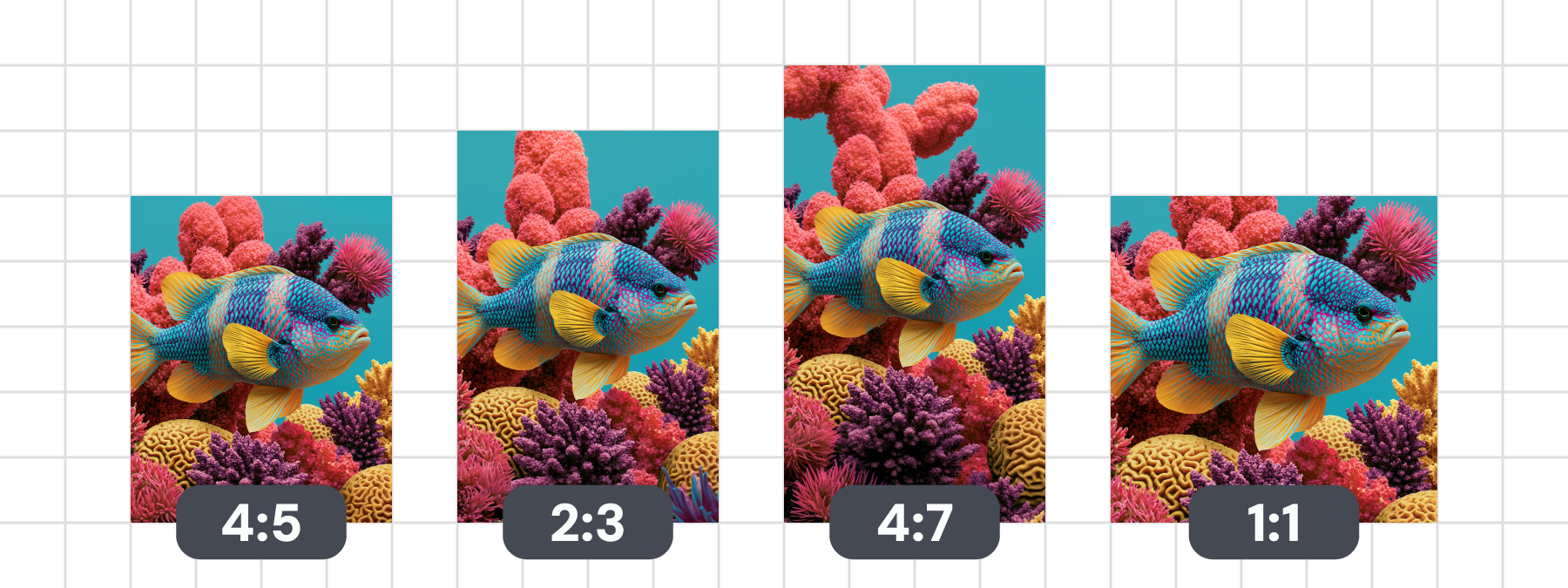
What is Aspect Ratio?
---------------------
Aspect ratio is a way to describe how wide and tall an image is. It's shown as two numbers, like 1:1 or 4:3, that tell you how the width compares to the height. For example, a 4:3 aspect ratio means the width is 4 parts, and the height is 3 parts.
By default Midjourney images are square, meaning the width and height are the same, so the aspect ratio is 1:1.
Choosing an aspect ratio helps you decide if your image will be wide (landscape) or tall (portrait). Use a bigger first number for a wide image and a bigger second number for a tall image.
Important: Aspect ratio isn't the same as image dimensions. The final size of your Midjourney images will also depend on the [Midjourney version](https://docs.midjourney.com/hc/en-us/articles/32199405667853)
and [Upscaler](https://docs.midjourney.com/hc/en-us/articles/32804058614669)
you're using.
Setting the Aspect Ratio
------------------------
* Add `--ar #:#` to the end of your prompt in the Imagine bar.

You can choose a default aspect ratio for all your images in the settings panel. To do this, click the settings  button in the Imagine bar. Once you set it, this will apply to all your future prompts.
* Add `--ar #:#` to the end of your prompt in Discord.

**1:1** – Perfect square, popular for social media profile pictures and posts.
**4:3** – Slightly rectangular, used in older TV screens and computer monitors.
**2:3** – Common in printed photography and picture frame sizes.
**16:9** – Widescreen, the standard for HD videos and most modern TVs.
**9:16** – Vertical orientation, common for mobile content on social media.
* To find the aspect ratio of an image, use its dimensions. For example, if your image is 1920x1080 pixels, enter `--ar 1920:1080`, and Midjourney will simplify it to `--ar 16:9`. For something like 8.5x11 inches, remove the decimals (Midjourney doesn’t accept them) and enter `--ar 85:110`. This makes it easy to match your image's proportions.
* You can change a generated image's aspect ratio using the [pan](https://docs.midjourney.com/hc/en-us/articles/32570788043405)
and [zoom out](https://docs.midjourney.com/hc/en-us/articles/32595476770957)
tools on both the web and Discord, or by using the [Web Editor](https://docs.midjourney.com/hc/en-us/articles/32696720371341)
on midjourney.com
* • The default aspect ratio is 1:1.
• `--ar` cannot contain decimals. Use 139:100 instead of 1.39:1.
• Some aspect ratios may be slightly changed when upscaling.
• Older Midjourney [versions](https://docs.midjourney.com/hc/en-us/articles/32199405667853)
may not support all aspect ratios.
• Extremely wide and tall aspect ratios are experimental and may produce unpredictable results.
---
# Cookie Policy – Midjourney
[Skip to main content](https://docs.midjourney.com/hc/en-us/articles/37012090959245-Cookie-Policy#page-container)
Last Updated: May 29, 2025
This Cookie Policy explains how Midjourney uses cookies and similar technologies on the Site and Services (as defined in the [Privacy Policy](https://docs.midjourney.com/hc/en-us/articles/32083472637453-Privacy-Policy)
), and how you can manage your cookie preferences.
Cookies and Similar Technologies
--------------------------------
Cookies are small text files that may be placed on your device when you interact with certain websites and services. They are widely used to support key website functions like logging-in, remembering your account preference, and enhancing user experience. In this policy, we use the term “cookies” to also include similar technologies like web beacons and embedded scripts that help us automatically collect certain usage data.
Types of Cookies
----------------
Midjourney uses the following types of cookies:
**Essential Cookies**: These types of cookies are necessary for the Site and Services to function properly. They help enable core features like secure login, session management, and navigation. Because these cookies are required for use of certain features and functionalities, they are always active and cannot be disabled.
**Analytics Cookies:** These cookies help us understand how visitors interact with our Site and Services, such as which pages are most popular or which features are the most engaging. This information helps us improve performance and usability of our Site and Services.
Advertising Cookies: These types of cookies are used to measure the effectiveness of our marketing campaigns and help deliver relevant content and advertisement to users. These cookies may be set by us through our Site or Service or by our advertising partners.
Managing your Cookie Preferences
--------------------------------
You can manage your cookie preferences at any time through the [Privacy Settings](https://www.midjourney.com/profile-settings)
page. There, you can choose which types of cookies to allow or disable. Please note that essential cookies cannot be disabled, as they are required for the Site and Services to operate.
Most web browsers provide settings that let you control or block cookies. You can usually configure your browser to notify you when a cookie is being set, or to automatically disable or delete cookies. Please note that disabling cookies, especially essential cookies, means that certain features of our Site and Services may not function properly. For more details about cookies and how to manage them across different browsers, please visit [allaboutcookies.org](https://allaboutcookies.org/)
.
---
# Taxes & VAT – Midjourney
[Skip to main content](https://docs.midjourney.com/hc/en-us/sections/16016608453645-Taxes-VAT#page-container)
Taxes & VAT
===========
* [Tax / VAT Charges](https://docs.midjourney.com/hc/en-us/articles/27868801261325-Tax-VAT-Charges)
When you purchase a Midjourney subscription, sales tax or Value Added Tax (VAT) may apply, depending on your location. Stripe, our payment proce...
* [Requesting a Tax Exemption](https://docs.midjourney.com/hc/en-us/articles/27868838932621-Requesting-a-Tax-Exemption)
This article is for Midjourney subscribers from tax-exempt organizations paying for their subscription. Please note that we cannot modify tax st...
---
# Purchasing Extra Fast Time – Midjourney
[Skip to main content](https://docs.midjourney.com/hc/en-us/articles/33570952624141-Purchasing-Extra-Fast-Time#page-container)
If you run out of Fast time before your subscription renews, you can easily purchase more to continue creating without delays.
1. **Visit the Manage Subscription Page:** Log in to midjourney.com and head over to the [Manage Subscription](https://www.midjourney.com/account)
page. This is where you can find all the details about your plan and purchase extra Fast time.
2. **Purchase Additional Hours:** Click the "Buy more Fast hours" button and select the amount of Fast time you wish to add. Keep in mind, these purchased hours come with a 60-day expiration, so plan accordingly.
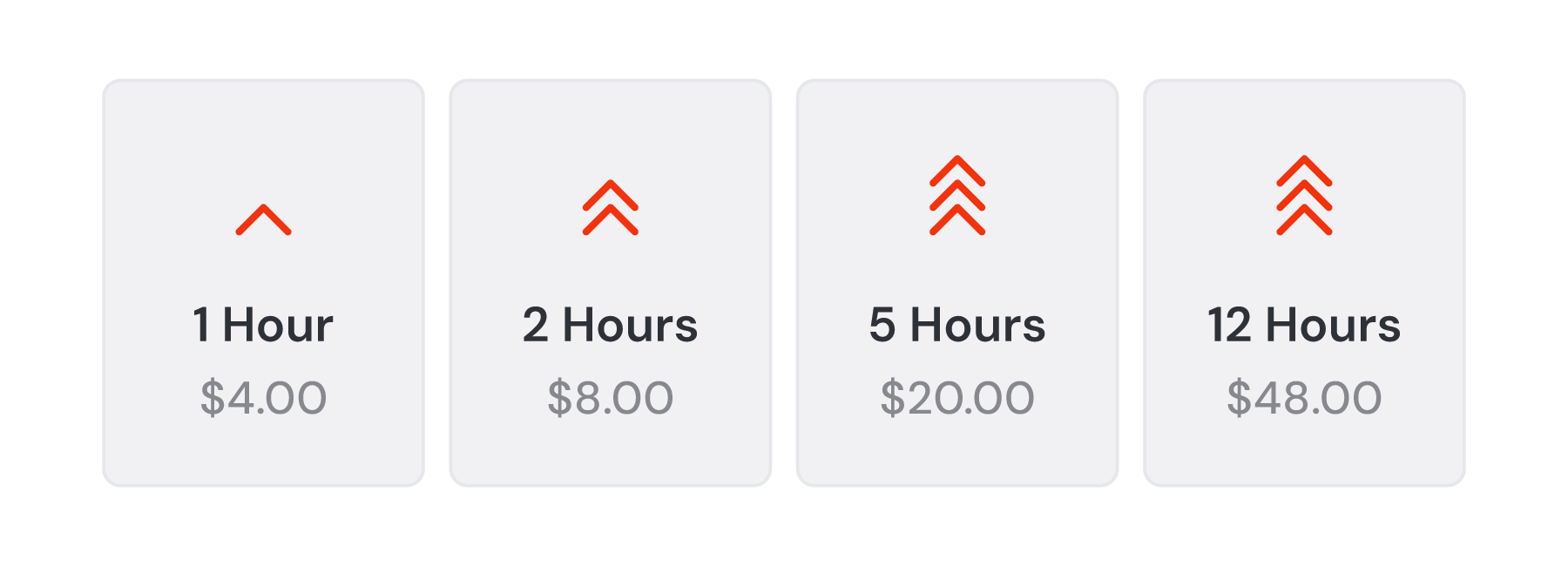
3. **Active Subscription Needed:** To use purchased Fast time, you must have an active subscription. If your subscription lapses, the extra Fast time won't be available unless you renew your plan.
4. **Non-Refundable:** Once you've purchased the additional Fast time, it cannot be refunded.
You may also be able to [earn free Fast time](https://docs.midjourney.com/hc/en-us/articles/28014817524109)
by [completing tasks](https://docs.midjourney.com/hc/en-us/articles/33390759197197)
on our website.
---
# Cancellations & Refunds – Midjourney
[Skip to main content](https://docs.midjourney.com/hc/en-us/sections/27646307671309-Cancellations-Refunds#page-container)
Cancellations & Refunds
=======================
* [Canceling Your Subscription](https://docs.midjourney.com/hc/en-us/articles/25384024738573-Canceling-Your-Subscription)
You can cancel your Midjourney subscription at any time by going to your Manage Subscription page and clicking the Cancel Plan button. Your canc...
* [Requesting a Refund](https://docs.midjourney.com/hc/en-us/articles/25386088618253-Requesting-a-Refund)
You're eligible for a refund only if you've used less than 20 GPU minutes throughout the lifetime of your account. This includes both Fast/Turbo...
---
# Pan – Midjourney
[Skip to main content](https://docs.midjourney.com/hc/en-us/articles/32570788043405-Pan#page-container)
Use pan to expand the canvas of your image and fill in new details.
### Want to explore beyond your image's borders? Use Pan to grow the canvas with new detail!
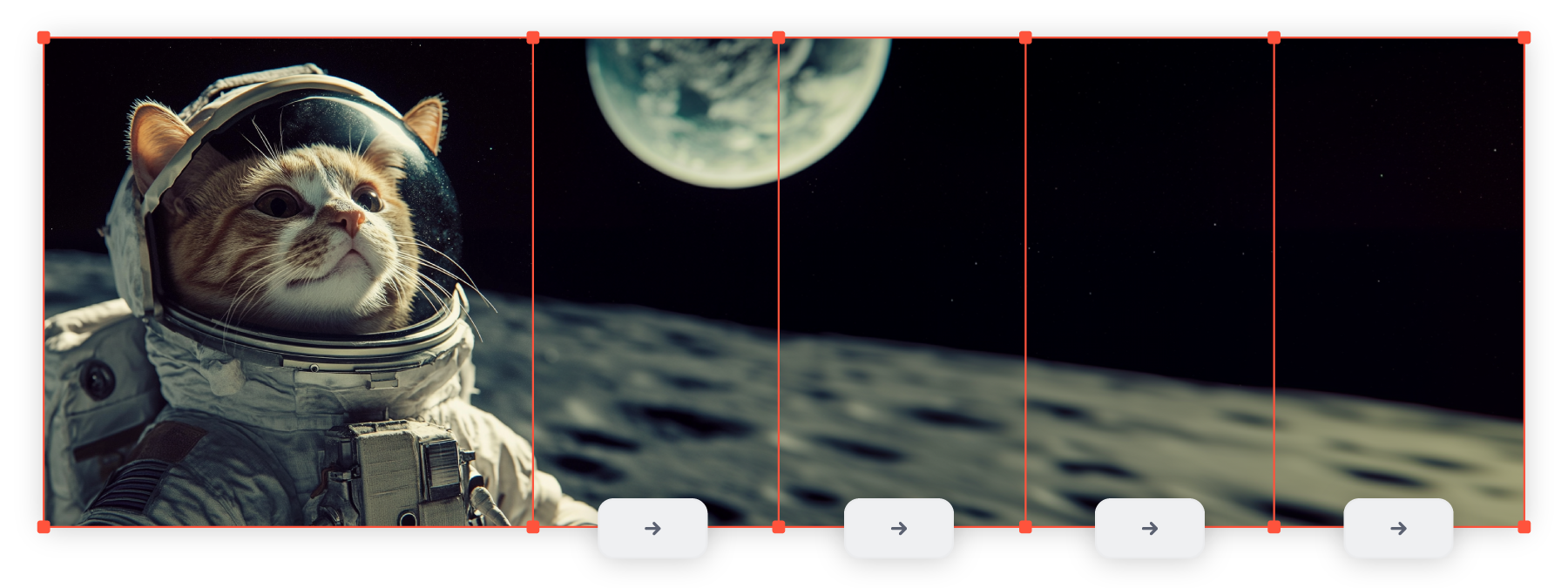
What is Pan?
------------
Imagine you have a framed photo and you want to make the frame bigger without changing the picture itself. Panning expands the "canvas" of your image in a direction you choose. The extra space is then filled with new details that match the original image, using guidance from your prompt. It's a cool way to explore and add context to your picture while keeping the core parts untouched.
Pan is compatible with Midjourney [versions](https://docs.midjourney.com/hc/en-us/articles/32199405667853)
5 and later, however when using V7, Pan still utilizes V6.1.
Using Pan
---------
* Start by clicking on any image you've made on your Create or Organize page. This will open the image, revealing more options.
Next, look for the "Creation Actions" section where you'll find the Pan options. Choose any of the arrow buttons to quickly expand your image in the direction you want.
If you can't find the Pan options right away, just click "More options" and add a checkmark next to Pan to make them visible.

If you'd like to change your prompt while panning to add new elements, click the "Editor" button. This loads your image into Midjourney's editor, where you can make multiple changes at once (pan, [zoom](https://docs.midjourney.com/hc/en-us/articles/32595476770957)
, [remix](https://docs.midjourney.com/hc/en-us/articles/32799074515213)
, and [vary region](https://docs.midjourney.com/hc/en-us/articles/32794723105549)
). You can click and drag the canvas edges or select a different [aspect ratio](https://docs.midjourney.com/hc/en-us/articles/31894244298125)
to pan.

For more detailed guidance, check out our article on the [Editor](https://docs.midjourney.com/hc/en-us/articles/32696720371341)
.
* After your image is generated, use the `U1` `U2` `U3` `U4` buttons to separate your favorite image from the initial grid. Once separated, use the `⬅️` `➡️` `⬇️` `⬆️` arrow buttons to quickly expand your image in the direction you want.
If you'd like to change your prompt while panning to add new elements, make sure to turn on [Remix Mode](https://docs.midjourney.com/hc/en-us/articles/32799074515213)
in your [settings panel](https://docs.midjourney.com/hc/en-us/articles/32868982949517)
. Once on, a window will pop up after pressing the Pan buttons, allowing you to edit the prompt.
---
# Zoom Out – Midjourney
[Skip to main content](https://docs.midjourney.com/hc/en-us/articles/32595476770957-Zoom-Out#page-container)
Zoom Out of your creations to shrink the original image and reveal new content.
### Pull back the lens and reveal the bigger picture with Zoom Out!
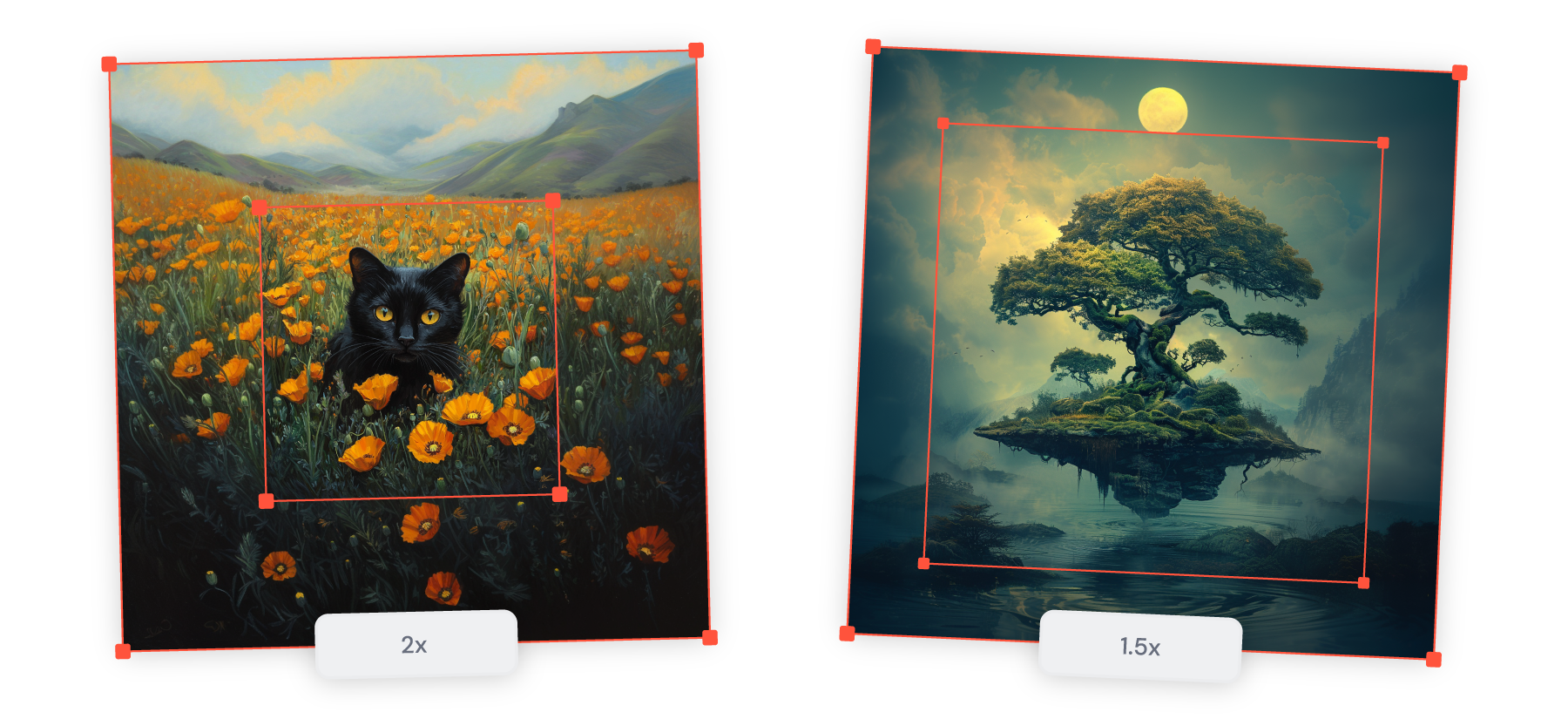
What is Zoom Out?
-----------------
Take an image you've generated and make it look like you're backing away to reveal a wider view! Imagine your original image getting smaller, while new content appears around it, all based on your original creation and prompt—without altering the original image.
One thing to note is that when you zoom out, it doesn't change the actual size of your image in pixels—it's all about the cool visual effect. It's like giving your image more room to breathe and explore!
Zoom out is compatible with Midjourney [versions](https://docs.midjourney.com/hc/en-us/articles/32199405667853)
5 and later, however when using V7, Zoom out still utilizes V6.1. Zoom values can range from 1.0 to 2.0.
Using Zoom Out
--------------
* Start by clicking on any image you've made on your Create or Organize page. This will open the image, revealing more options.
Next, look for the "Creation Actions" section where you'll find the Zoom Out options. Choose from 1.5x or 2x to quickly zoom out your image. To use a custom zoom value, simply hover over the 2x button. You'll see a pencil  icon pop up. Click it, and you can enter the zoom value you want between 1.0 and 2.0, then click the button to generate your image.
If you can't find the Zoom Out options right away, just click "More options" and add a checkmark next to Zoom Out to make them visible.

If you'd like to change your prompt while zooming out to add new elements, click the "Editor" button. This loads your image into Midjourney's editor, where you can make multiple changes at once ([pan](https://docs.midjourney.com/hc/en-us/articles/32570788043405)
, zoom out, [remix](https://docs.midjourney.com/hc/en-us/articles/32799074515213)
, and [vary region](https://docs.midjourney.com/hc/en-us/articles/32794723105549)
). You can click and drag the corners of your image or use the Scale slider to zoom out.

For more detailed guidance, check out our article on the [Editor](https://docs.midjourney.com/hc/en-us/articles/32696720371341)
.
* After your image is generated, use the `U1` `U2` `U3` `U4` buttons to separate your favorite image from the initial grid. Once separated, use the `🔎 Zoom Out 2X` or `🔎 Zoom Out 1.5X` buttons to quickly zoom out your image.
**Custom Zoom**
If you'd like to change your prompt while zooming out or use a custom zoom value, use the `🔎 Custom Zoom` button. This will open a text window where you can change your prompt text and [parameters](https://docs.midjourney.com/hc/en-us/articles/32859204029709)
, as well as set a custom zoom value between 1.0 and 2.0, before submitting your prompt.
Pro Tip: You can use Custom Zoom to change the aspect ratio of a generated image by setting the zoom level to 1 (so it will not zoom) and adding or changing the aspect ratio in the prompt text.
**Make Square**
If your image has a non-square shape (using a custom [aspect ratio](https://docs.midjourney.com/hc/en-us/articles/31894244298125)
), you'll see a `Make Square` button, allowing you to quickly zoom so that your new image is square. Your image will expand either horizontally or vertically depending on your image's starting aspect ratio.
---
# Getting Started – Midjourney
[Skip to main content](https://docs.midjourney.com/hc/en-us/sections/33324274255373-Getting-Started#page-container)
Getting Started
===============
* [](https://docs.midjourney.com/hc/en-us/articles/33329261836941-Getting-Started-Guide)
[Getting Started Guide](https://docs.midjourney.com/hc/en-us/articles/33329261836941-Getting-Started-Guide)
Learn to subscribe, create your first image, explore features, and connect with our creative community. Welcome to Midjourney, your portal to tr...
---
# Logging In & Connecting Accounts – Midjourney
[Skip to main content](https://docs.midjourney.com/hc/en-us/articles/33390994570509-Logging-In-Connecting-Accounts#page-container)
Whether you're joining us for the first time or you're a returning user, it's important to sign in with the correct account. This helps make sure you can enjoy using Midjourney on both our website and Discord without any issues. Every [subscription plan](https://docs.midjourney.com/hc/en-us/articles/27870484040333)
lets you use both platforms—it's all about setting things up correctly.
New Subscribers
---------------
If you’re new here, we’re excited to have you! Here’s how you can create an account:
1. **Visit the Home Page:** Go to midjourney.com and click the **Sign Up** button.
2. **Choose a Sign-Up Method:** You’ll see two options to sign up...
* **Continue with Discord:** Pick this option to use Discord for creating images.
• You can link either an existing Discord account or make a new one.
• Your Discord login details will serve as your Midjourney credentials. This means you’ll use the same credentials for both Discord and our website, so make sure your [Discord account is verified](https://support.discord.com/hc/en-us/articles/6181726888215-How-to-Verify-Your-Discord-Account)
and keep track of your email and password.
* **Continue with Google:** Choose this option to sign in to midjourney.com with your Google account.
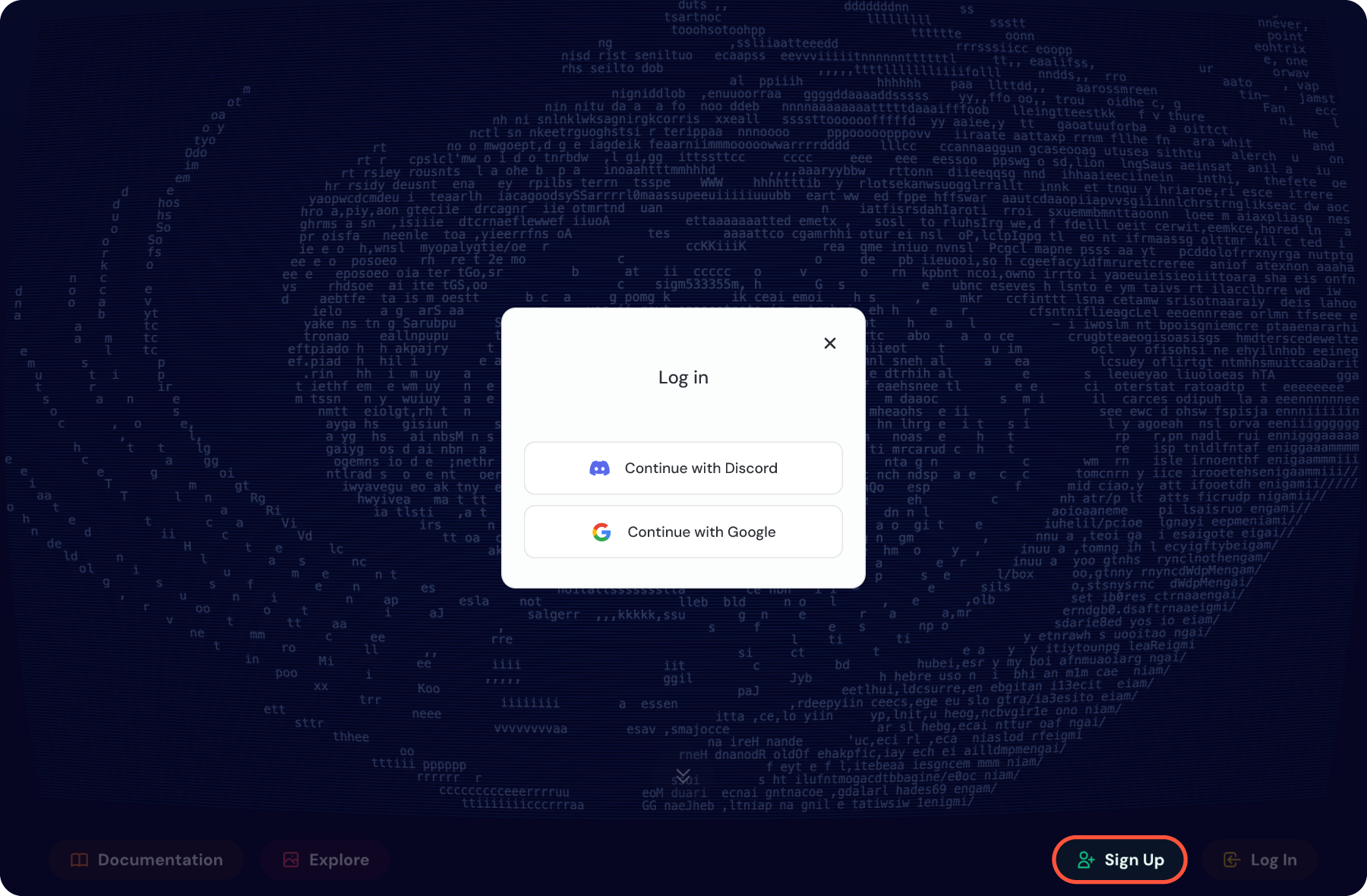
3. **Connect Your Account:** If you continue with Google, you’ll be prompted to enter your Google login details. If you continue with Discord, you’ll need to enter your Discord login details. You'll also be asked to authorize Midjourney to access your Discord account.
Important Note for Discord Users:
If you're linking an existing Discord account, double-check the email address associated with it. Entering an email that isn't linked to a Discord account will prompt Discord to take you through the steps of creating a new account. This could lead to complications if you already have an account.
4. **Add a Second Sign-In Method (optional):** After setting up your account or subscribing, you can add the other sign-in option, like adding Google if you started with Discord, and vice versa. Simply go to your [Account Settings](https://www.midjourney.com/profile-settings)
page on midjourney.com. However, if your Discord account has already created Midjourney images, you’re considered a returning user and you need to sign in with Discord.
Right now, you can create a Midjourney account using either a Discord account or a Google account. We don't have the option to create a username and password specific just to Midjourney. You will need to use Google or Discord as your login method.
Returning Subscribers
---------------------
Welcome back to Midjourney! If you've used our service before, even just a free trial, chances are it was before August 2024. Back then, Discord was the only option for account creation. To access your old image history and ensure a smooth experience, it’s crucial to sign in with your Discord account first.
Warning: If you sign in with Google and create a new subscription, you will not be able to connect a Discord account with past image history.
**How to Reconnect:**
1. **Visit the Home Page:** Go to midjourney.com and click the **Log In** button.
2. **Sign In with Discord:** To link up with your past images and activity, start by logging in with your Discord account. You'll also be asked to authorize Midjourney to access your Discord account.
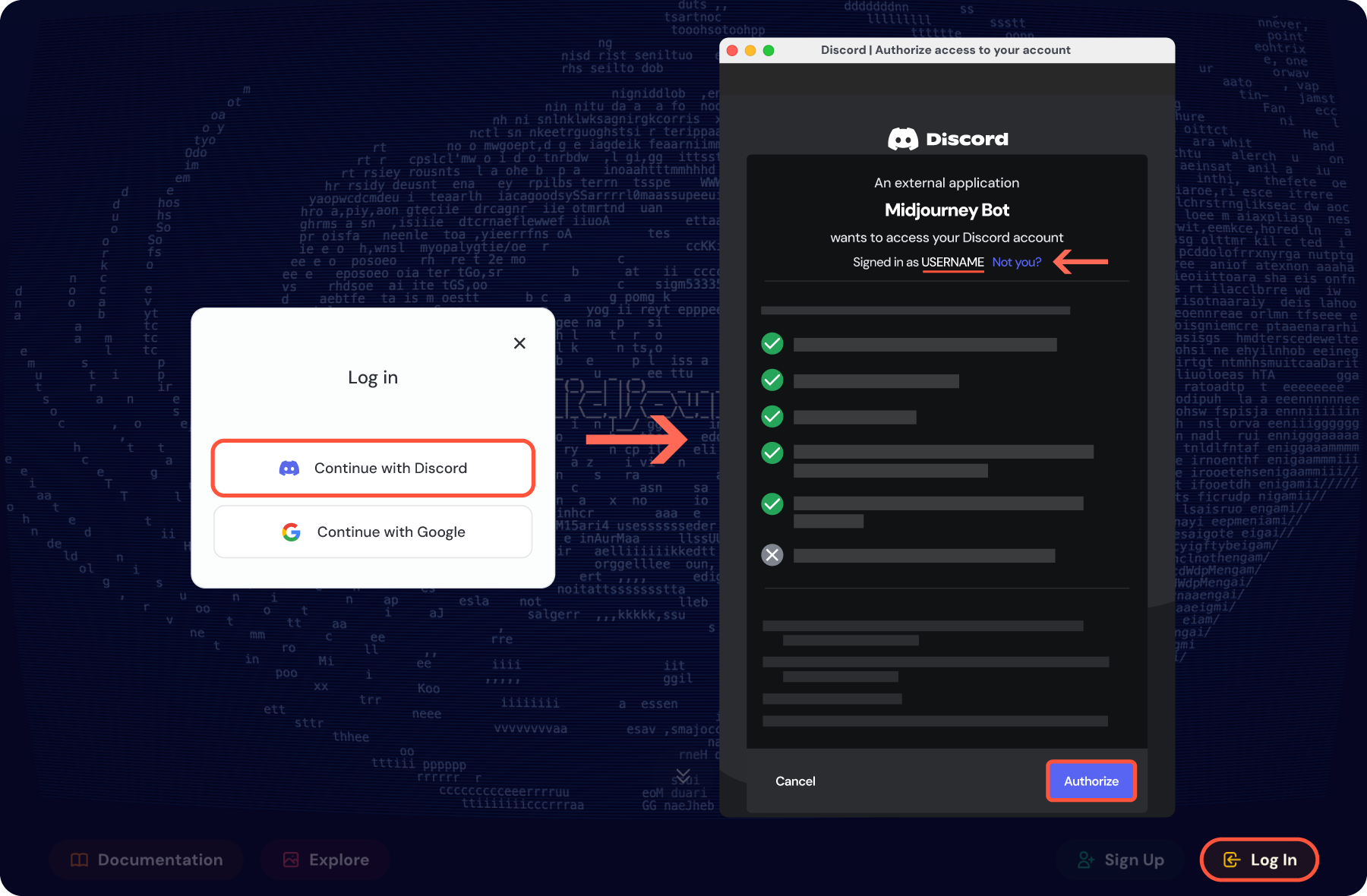
Important Note for Discord Users:
Double-check the email address associated with your Discord account. Entering an email that isn't linked to a Discord account will prompt Discord to take you through the steps of creating a new account. This could lead to complications if you already have an account. Before clicking "Authorize," double-check that your correct Discord username is shown at the top of the popup. If the username is incorrect, use the "Not you?" link.
3. **Add Google as a Login Option (optional):** Once you're logged in, you can add Google as a login option by visiting your [Account Settings](https://www.midjourney.com/profile-settings)
page. This way, you’ll have the flexibility to use either method in the future.
Remember, starting with your Discord login is key to ensuring that everything syncs correctly. Once you're all set, feel free to explore and create new images. Welcome back and happy creating!
Connecting Accounts
-------------------
All our [subscription plans](https://docs.midjourney.com/hc/en-us/articles/27870484040333)
allow you to use Midjourney both on our website and in Discord. But if you want to make images in Discord, you will need to have a Discord account connected to your Midjourney account. You can do this, as well as add a Google login, on your [Account Settings](https://www.midjourney.com/profile-settings)
page on midjourney.com
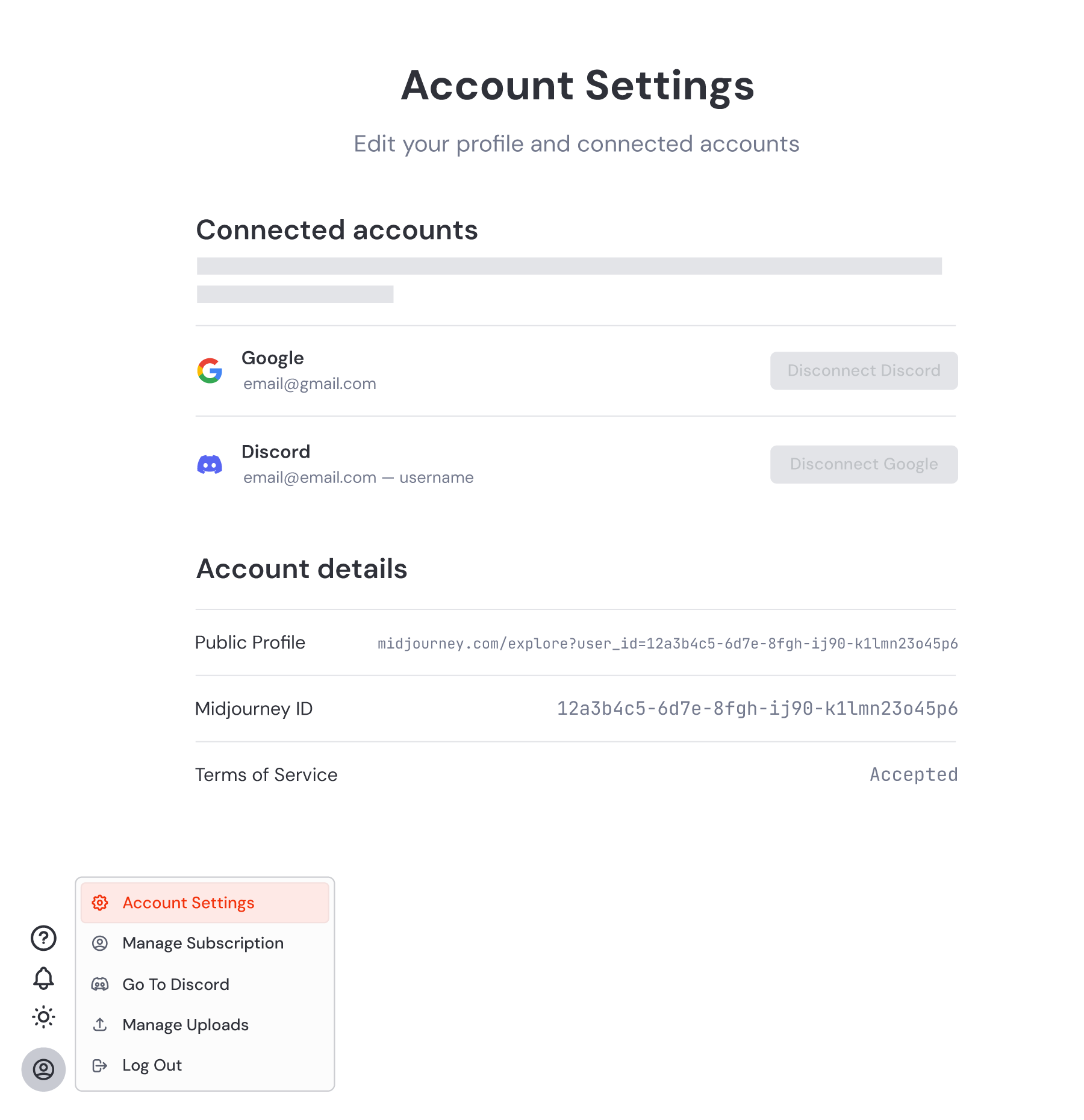
In the "Connected Accounts" section, you'll find your login methods displayed along with their details. If a login method isn't connected yet, you will see a "Connect" button next to it. Just click this button to proceed with linking your account.
#### Midjourney ID
Your Midjourney ID is also shown on this page. When you contact billing support, providing this ID is really helpful and highly encouraged. This helps us assist you more quickly and effectively.
#### Disconnecting Accounts
Accounts can only be disconnected by our billing support team. If you need help with this, please [reach out to billing support](https://docs.midjourney.com/hc/en-us/articles/32638309968141)
. You may be required to verify your account ownership before your login method can be disconnected. Your account must have one method connected at all times, so make sure you have a secondary method already connected before contacting support.
Troubleshooting
---------------
If you're having trouble connecting your accounts or logging in, you might see a message like this:
#### **"One of the accounts you are trying to link has a subscription while the other already contains jobs. At this time, linking such accounts is not supported."**
This often occurs if you log into midjourney.com using Google, subscribe to a plan, and then try to connect a Discord account that has already created images with Midjourney. Each account now has its own image gallery, so they can't be linked or connected.
**Solutions:**
1. **Use a Different Discord Account:**
Try connecting a Discord account that hasn't used Midjourney before.
2. **Cancel and Switch Accounts:**
If eligible, [cancel and refund your subscription](https://docs.midjourney.com/hc/en-us/articles/25386088618253)
. Log out of the website, then log in with your Discord account and re-subscribe (see [Returning Subscribers](https://docs.midjourney.com/hc/en-us/articles/33390994570509-Logging-In-Connecting-Accounts#h_01JHJRQBY1WZTQ76QAENFCYJYK)
).
3. **Contact Billing Support:**
[Reach out to our billing support team](https://docs.midjourney.com/hc/en-us/articles/32638309968141)
for further assistance.
#### **
"Another account already exists for \[EMAIL\]. Please log in with that account and then link it."**
This means there’s already an account registered with that email address.
**Solutions:**
1. If you encountered this error while trying to log in with Google, try logging in with the Discord account that uses the same email address instead. Once logged in, you can link your Google account on your [Account Settings](https://www.midjourney.com/profile-settings)
page.
2. If you see this error while trying to log in with Discord, try logging in with Google using the same email instead. Once logged in, go to your [Account Settings](https://www.midjourney.com/profile-settings)
page and connect your Discord account.
3. [Reach out to our billing support team](https://docs.midjourney.com/hc/en-us/articles/32638309968141)
for further assistance.
Need Help Getting Started?
[Getting Started Guide](https://docs.midjourney.com/hc/en-us/articles/33329261836941)
---
# Complete Tasks – Midjourney
[Skip to main content](https://docs.midjourney.com/hc/en-us/articles/33390759197197-Complete-Tasks#page-container)
Complete tasks on midjourney.com to earn rewards and shape your Personalization.
### Your input matters: complete tasks for rewards and Personalization!
Welcome to the [Tasks page](https://www.midjourney.com/tasks)
on midjourney.com! You're in for a fun experience that lets you shape Midjourney while earning some fun rewards. Let's take a look at the tasks you can explore here.
Image Rankings
--------------
There are two "Rank Image Aesthetics" tasks. One focuses on Midjourney images, and the other is about [Niji](https://docs.midjourney.com/hc/en-us/articles/32199405667853)
images. These tasks help build your [Personalization](https://docs.midjourney.com/hc/en-us/articles/32433330574221)
data, tailoring Midjourney to better match your tastes.
There's also the "Curate Community Frontpage" task. This one is all about voting for the creations that will be featured on the Community Frontpage of midjourney.com. Note that this task doesn’t affect your Personalization data, but it helps highlight community favorites.
#### **How to Rank Images**
Wondering how to rank images on midjourney.com? Here's a quick guide to help you make those choices confidently!
**Aesthetics Ranking
**You're presented with two image options. Your task is to choose the one you find most visually appealing and that stands out to you aesthetically.
This choice helps build your [Personalization](https://docs.midjourney.com/hc/en-us/articles/32433330574221)
data, tailoring future image generations to your tastes. The Personalization Profile you are currently ranking for is shown at the top of the Image Ranking page.
Not a fan of either image? No problem—just use the Skip option to move on.
**Community Frontpage Ranking
**You're presented with a grid of multiple images. From each grid, pick the image you believe deserves a spot on the Community Frontpage—your vote helps decide what the community sees.
If you find an image you particularly love, use the heart button to add it to your favorites. For more details about an image—like its creator or prompt text—hold the Command/Control key and click the image to open it in a new window.
Surveys
-------
These surveys help us explore the fascinating intersection of personality and aesthetics. By sharing your thoughts, you contribute to our understanding of how different styles and preferences align with diverse personalities. Your responses shape our insights and efforts in making Midjourney more in tune with your artistic inclinations.
Community
---------
Got ideas about which features Midjourney should focus on? Rate ideas and help us shape future tools and features. We’re always moving and improving based on what our community needs the most.
Earn Extra GPU Time
-------------------
Some tasks come with a special bonus of extra [Fast GPU hours](https://docs.midjourney.com/hc/en-us/articles/32016412137741)
. These hours give you more time to create awesome images—a little reward for your efforts!
Important: You must have an active subscription to receive and use awarded Fast time, and it expires 30 days after its awarded.
* **Image Rankings:** If you participate in Image Rankings and end up in the top 2,000 rankers for the day, you'll earn one extra Fast hour. It's a competitive space, so keep in mind that the reward isn’t guaranteed. If you use Discord, the Midjourney Bot will send you a [Direct Message](https://docs.midjourney.com/hc/en-us/articles/32637339216013)
letting you know if you've earned the extra hour.
* **Surveys:** Complete the surveys, and you'll be guaranteed those extra hours.
You can easily monitor your rewards on your [Manage Subscription](https://www.midjourney.com/account)
page, under the "Usage Details" section. Look for "Purchased & Awarded" and hover your mouse over the hours to see a breakdown of your purchased and awarded time and expiry dates for unused hours.
Any awarded Fast time you don’t use will expire after 30 days.
---
# Draft & Conversational Modes – Midjourney
[Skip to main content](https://docs.midjourney.com/hc/en-us/articles/35577175650957-Draft-Conversational-Modes#page-container)
Turbocharge your creative flow with Draft Mode!
### Turbocharge your creative flow with Draft Mode!
UPDATE: Conversational Mode now has its own button you must click to activate it, which is different than what's shown in this video. Read below for more details.
What is Draft Mode?
-------------------
Draft Mode is a lightning-fast (10x faster!) way to prototype images at half the [GPU cost](https://docs.midjourney.com/hc/en-us/articles/32016412137741)
. It's built for effortless iteration, with the option of using [Conversational Mode](https://docs.midjourney.com/hc/en-us/articles/35577175650957-Draft-Conversational-Modes#h_01JRV2QPETCNWKVX7C0S28PEB1)
via text or voice to have AI help you write prompts.
Draft Mode is compatible with Midjourney [version](https://docs.midjourney.com/hc/en-us/articles/32199405667853)
7.
Using Draft Mode
----------------
To activate Draft Mode, head to your Create page and click the  Draft Mode button in the Imagine bar.

Once activated, any prompts you type into the Imagine bar will run in Draft Mode. Draft Mode images generate faster and use less GPU time, making them great for experimenting and trying out new ideas.
You can also add `--draft` to any prompt to run it as a draft, even if Draft Mode is turned off.
Enhancing Your Drafts
---------------------
If you draft an image you like, use the "Enhance" button to regenerate it using a higher [Quality](https://docs.midjourney.com/hc/en-us/articles/32176522101773)
setting. This will produce a new set of images very similar to your draft image, but using the standard amount of GPU time—just like prompting without Draft Mode.
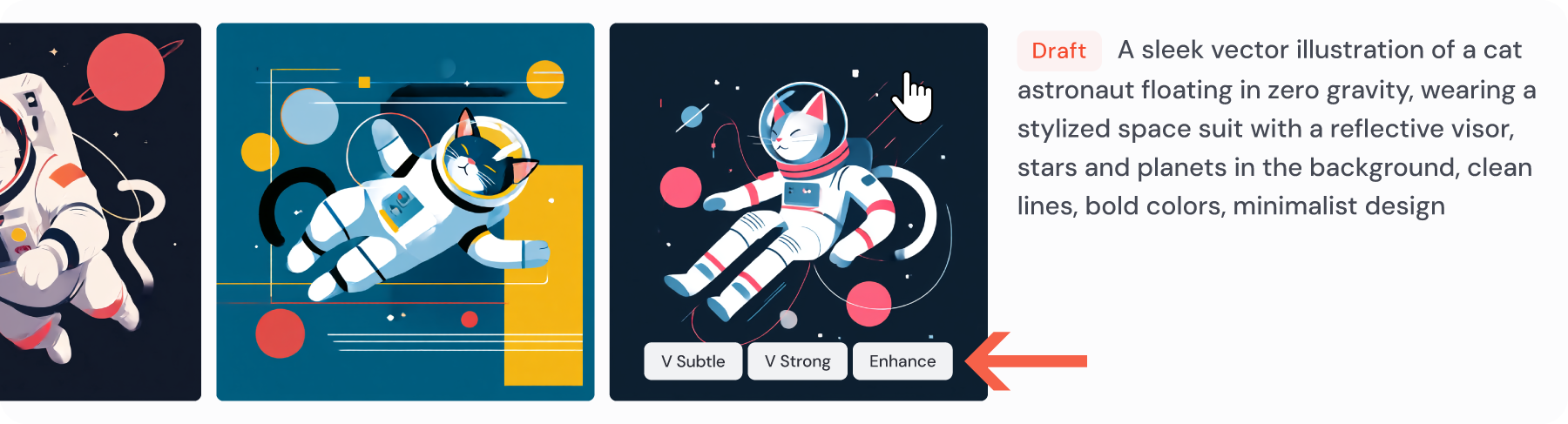
If you really love one of your draft images just as it is, feel free to [upscale](https://docs.midjourney.com/hc/en-us/articles/32804058614669)
it! Just click the draft image to open it, and select an upscale option from the Creation Actions menu.
Conversational Mode
-------------------
Conversational Mode allows you to describe your ideas and images in normal, conversational language to an AI that will write prompts for you.
Click the  Conversational Mode button in the Imagine bar to activate it.

You can use Conversational Mode in two ways:
1. **With Text:** The Imagine bar becomes your space to share ideas with the AI. Just type in your thoughts and press enter.
2. **With Voice:** Prefer talking? Click the microphone  icon. The first time, you might need to let your browser use the microphone. Speak your ideas, and hit the microphone icon again to stop.
You can even use Conversational Mode in other languages!
If you want to tweak or explore variations of an image in Conversational Mode, refer to specific images by saying "image 1," "image 2," and so on. For example, you can say, "run a variation of image 4."
Keep in mind that you can guide the AI and communicate what you need, but you won't be writing the prompts directly in Conversational Mode.
You can use Conversational Mode with or without Draft Mode.
---
# Managing Image Uploads – Midjourney
[Skip to main content](https://docs.midjourney.com/hc/en-us/articles/33329380893325-Managing-Image-Uploads#page-container)
Hide, unhide, or delete your uploaded images with ease on your Manage Uploads page.
### Hide, unhide, or delete your uploaded images with ease.
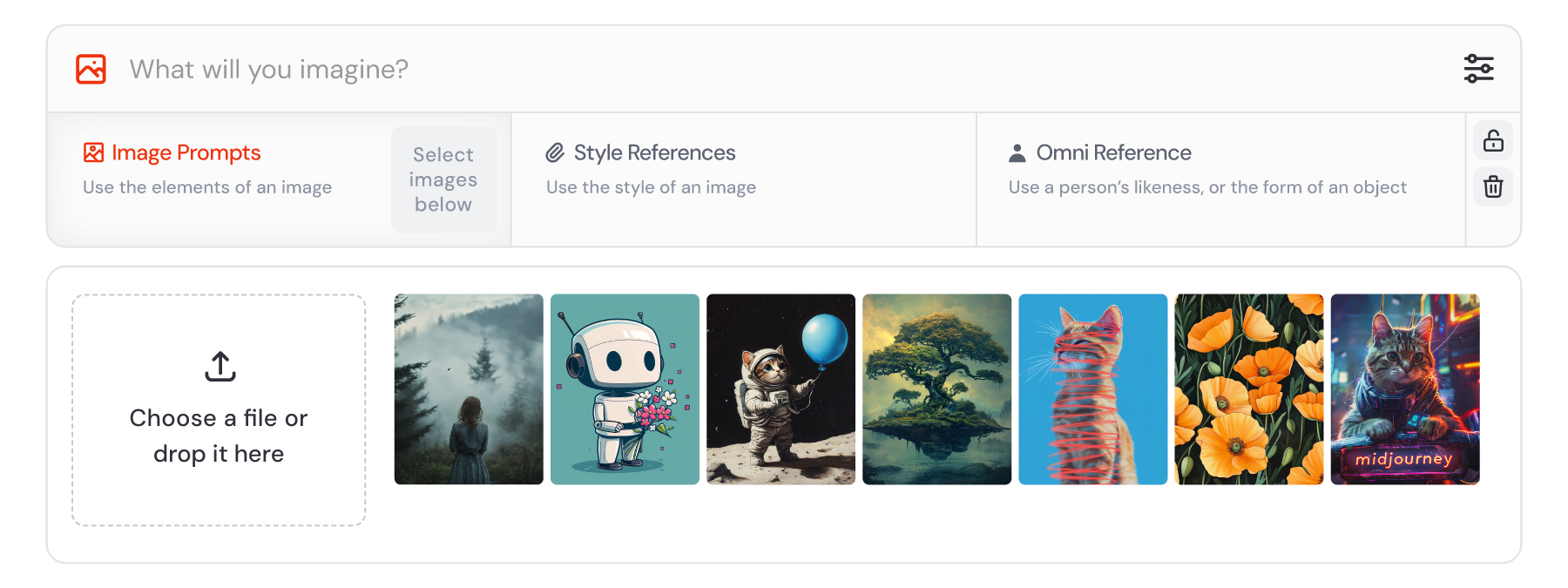
Every image you use with Midjourney—including in prompts and [Describe](https://docs.midjourney.com/hc/en-us/articles/32497889043981)
in Discord—is stored in your personal uploads library. You'll find these images on your Manage Uploads page and in the images panel, which you access by clicking the image  icon in the Imagine bar.
Other users can't see your uploads library. However, keep in mind that if you're not in [Stealth Mode](https://docs.midjourney.com/hc/en-us/articles/32019750070669)
, the details of your prompts—like any images and the parameters you used—will be visible alongside your creations on midjourney.com.
Your [Manage Uploads page](https://www.midjourney.com/manage/uploads)
is a convenient tool to help manage these images, and includes two viewing tabs: Visible and Hidden.
* **Visible:** Images here will appear in your images panel, ready for you to use anytime.
* **Hidden:** These images are tucked away and won't show up in your images panel, but they're still saved.
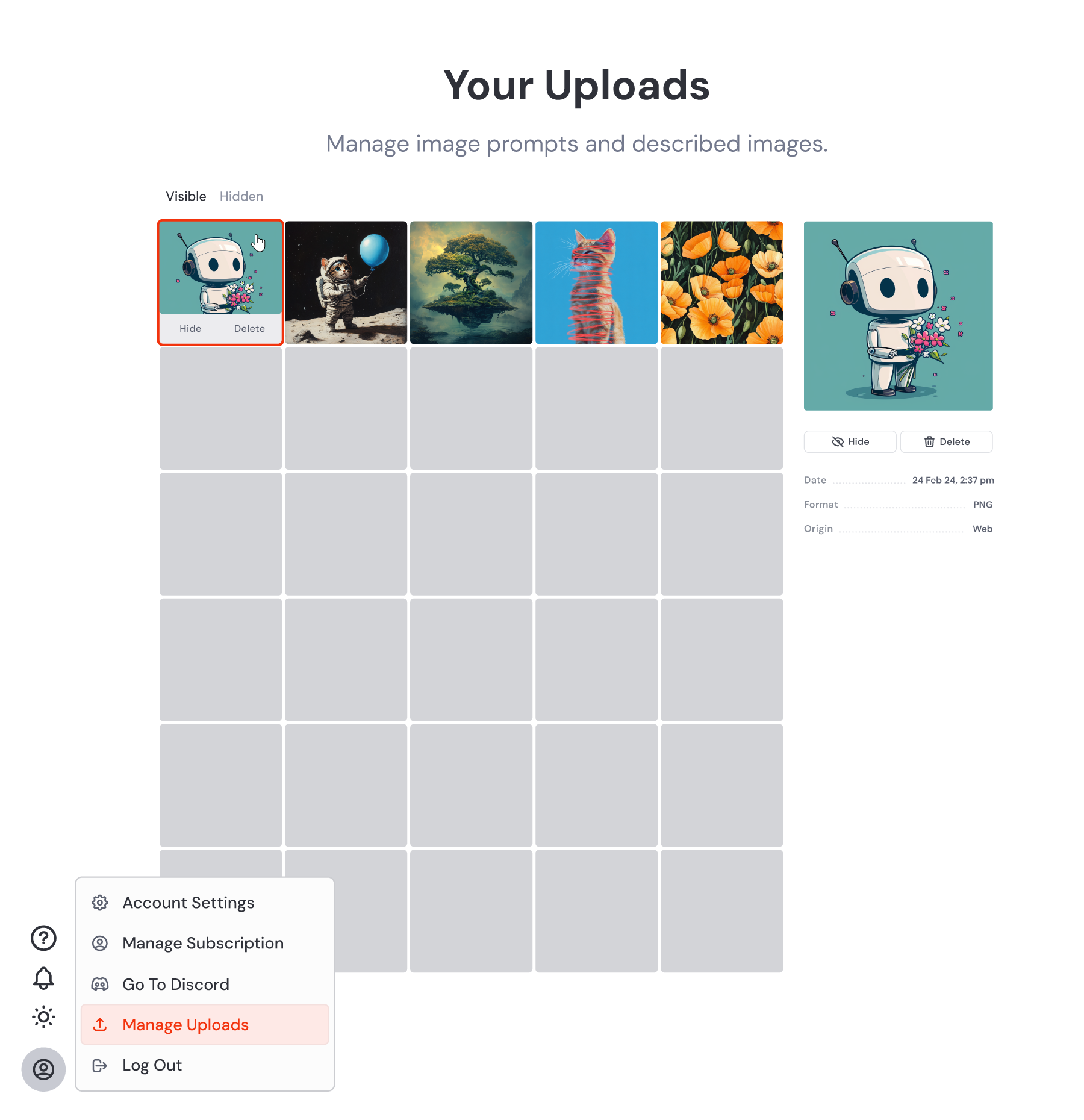
You can easily hide and unhide images by hovering your mouse over them and clicking the corresponding button.
If you want to remove an image completely, use the Delete button. While the image will be gone from your uploads, it will still be linked with any prompts that used it.
---
# Magazines & Books – Midjourney
[Skip to main content](https://docs.midjourney.com/hc/en-us/sections/28005340955277-Magazines-Books#page-container)
Magazines & Books
=================
* [Midjourney Magazine Subscription FAQ](https://docs.midjourney.com/hc/en-us/articles/28012940139021-Midjourney-Magazine-Subscription-FAQ)
This FAQ applies to Midjourney Magazine subscriptions. If you have questions about individual orders placed on mag.midjourney.com for past issue...
* [Managing Your Midjourney Magazine Subscription](https://docs.midjourney.com/hc/en-us/articles/27870410169997-Managing-Your-Midjourney-Magazine-Subscription)
Your Midjourney Magazine subscription is entirely separate from your image generation subscription. To manage your magazine subscription, enter ...
* [Midjourney Store Orders FAQ](https://docs.midjourney.com/hc/en-us/articles/28012925933837-Midjourney-Store-Orders-FAQ)
This FAQ applies to orders placed on mag.midjourney.com for past issues or books. If you have questions about your monthly Midjourney magazine s...
---
# How to Subscribe – Midjourney
[Skip to main content](https://docs.midjourney.com/hc/en-us/articles/31974654274573-How-to-Subscribe#page-container)
To get started with a Midjourney plan, first create or log in to your account and head over to your [Manage Subscription](https://www.midjourney.com/account)
page on midjourney.com.
If you need help getting logged in for the first time or want to access an old account, don’t worry! Check out our [Logging In & Connecting Accounts](https://docs.midjourney.com/hc/en-us/articles/33390994570509)
article for step-by-step help.
Pick a Plan
-----------
Once you're on your Manage Subscription page, scroll down to the plans section. Find your perfect plan and press the "Subscribe" button below it. If you're not sure which plan to choose, our [Comparing Midjourney Plans](https://docs.midjourney.com/hc/en-us/articles/27870484040333)
article can help you decide.
Yearly billing is selected by default, meaning the full year is paid upfront. If you'd rather pay each month, please click the "Monthly Billing" tab before selecting a plan.
Complete the Checkout Process
-----------------------------
To complete your purchase, check out using our payment processor, Stripe. If you have any questions during this process, we've got you covered with the helpful articles below.
* [Accepted Payment Methods](https://docs.midjourney.com/hc/en-us/articles/27868831972365)
* [Payment Currency](https://docs.midjourney.com/hc/en-us/articles/27868831424525)
* [Unsuccessful Payments](https://docs.midjourney.com/hc/en-us/articles/27868801964045)
* [Requesting a Tax Exemption](https://docs.midjourney.com/hc/en-us/articles/27868838932621)
* [Group Plans & Enterprise Billing](https://docs.midjourney.com/hc/en-us/articles/27870607078285)
* [Contacting Billing Support](https://docs.midjourney.com/hc/en-us/articles/32638309968141)
Keep in mind that once your billing email is set during checkout, you'll need to reach out to our billing support team if you want to [change your email](https://docs.midjourney.com/hc/en-us/articles/27868854770573)
. Remember, we [can't change invoices](https://docs.midjourney.com/hc/en-us/articles/27868825749517)
after they've been issued. So, double-check that the payment details you enter at checkout are exactly what you want to see on your invoice.
Confirmation
------------
After your payment goes through, you'll get a confirmation email. This email includes both your invoice and receipt. It will be sent to the billing email you used during the Stripe checkout process, which might be different from the one you use to log in to midjourney.com.
If you return to your Manage Subscription page, you should now see that your plan is active and ready to use.
Need Help Getting Started?
[Getting Started Guide](https://docs.midjourney.com/hc/en-us/articles/33329261836941)
---
# Discord Command List – Midjourney
[Skip to main content](https://docs.midjourney.com/hc/en-us/articles/32894521590669-Discord-Command-List#page-container)
See all the commands you can use to interact with the Midjourney Bot in Discord.
### Interact with the Midjourney Bot using Discord commands!
[Discord commands](https://support-apps.discord.com/hc/en-us/articles/26501837786775-Slash-Commands-FAQ)
are used to create images, change default settings, monitor user info, and perform other helpful tasks. To use a command, follow these instructions:
1. Open your Discord app and go to the message box. Make sure you are in a server or channel that the Midjourney Bot has permission to access.
2. Type `/` in the message box. You’ll see a list of commands pop up above.
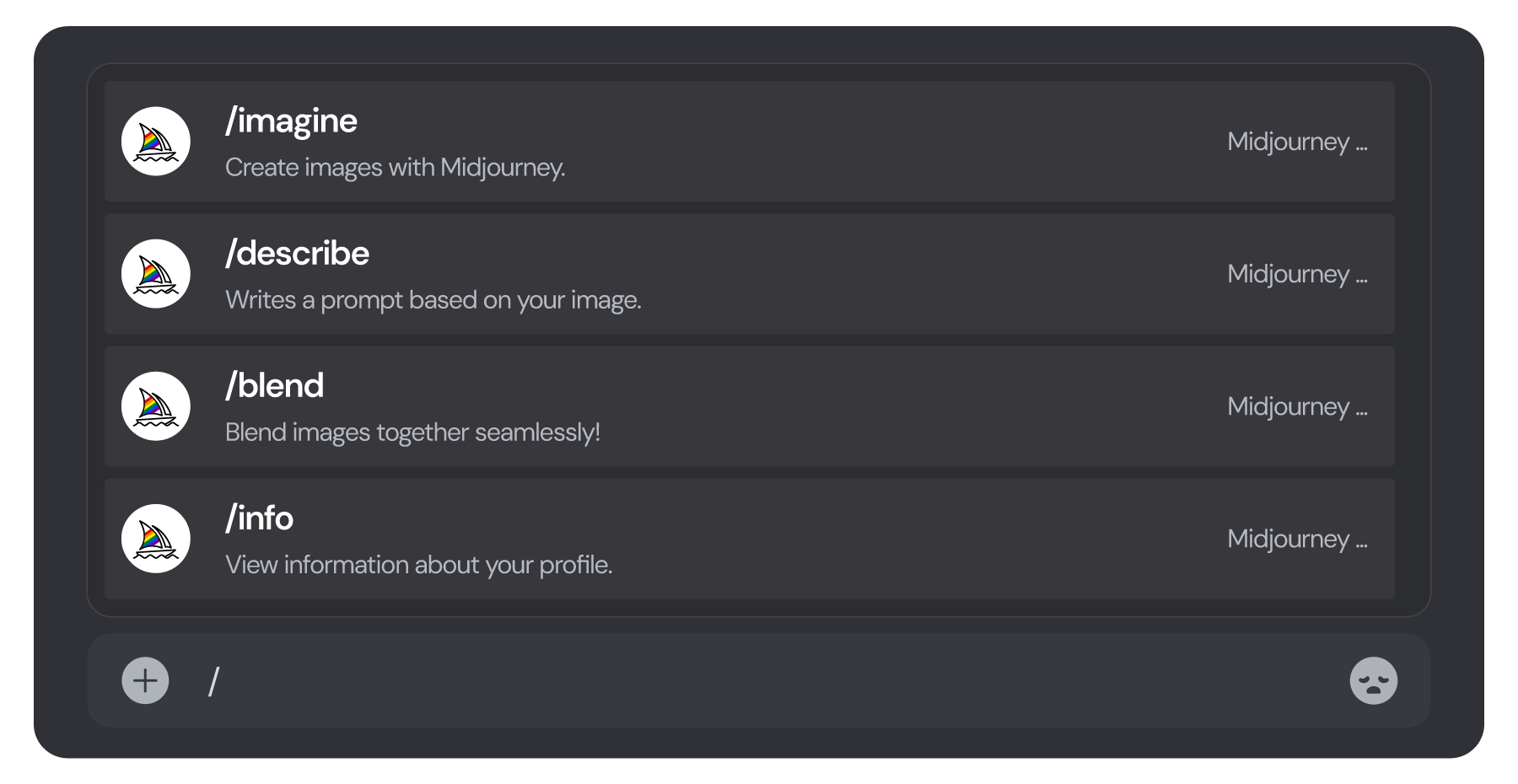
3. You can keep typing the name of a command until you see it in the list. This helps narrow down the options, just like a search field.
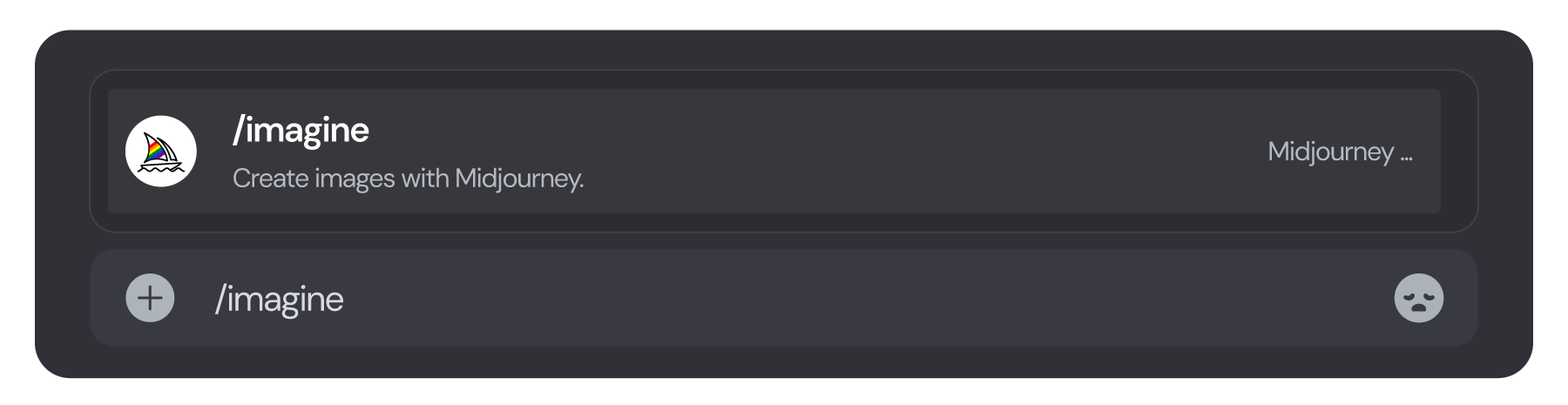
4. Once you spot the command you want in the list, click it. It will show up in your message box with the Midjourney logo.

5. Press Enter or Send to execute the command.
If you’re having trouble seeing any Midjourney commands, there might be a few things you can do to fix it. First, check if you're in a server or channel where the Midjourney Bot has access. If you’re on a private server, you’ll need to add the bot to your server first.
Still not seeing the commands? Try these steps:
**• Update Discord:** Make sure your Discord app is fully updated for both desktop and mobile. If issues continue, try uninstalling and reinstalling the app.
**• Check Discord Settings:** Click on the gear icon in Discord to open your Discord user settings. Go to the Accessibility tab and ensure the "Use the legacy chat input" option is turned off.
Full Command List
-----------------
| | | |
| --- | --- | --- |
| **/ask**
Ask Midjourney Bot a question | [**/blend**](https://docs.midjourney.com/hc/en-us/articles/32635189884557)
Easily blend images together | **/daily\_theme**
Toggle notification pings for the #daily-theme channel |
| [**/describe**](https://docs.midjourney.com/hc/en-us/articles/32497889043981)
Writes four example prompts based on an image you upload | **/docs**
Use in the official Midjourney Discord server to quickly generate a link to topics covered in this user guide! | [**/fast**](https://docs.midjourney.com/hc/en-us/articles/32016412137741)
Switch to Fast Mode |
| **/feedback**
Submit suggestions and ideas for Midjourney and rate ideas from others | **/faq**
Use in the official Midjourney Discord server to quickly generate a link to popular prompt craft channel FAQs | **/help**
Shows helpful basic information and tips about the Midjourney Bot |
| **/imagine**
Generate an image using a prompt | [**/info**](https://docs.midjourney.com/hc/en-us/articles/32084927086861)
View information about your account and any queued or running jobs | **/invite**
Get the invite link for the Midjourney Discord server |
| **[/list\_tuners](https://docs.midjourney.com/hc/en-us/articles/33329788681101-Legacy-Features#h_01JHKCCT80N011NG85Y2RB1Z0Q)
**
Generate a list of all of the Style Tuners you have created | **[/prefer option set](https://docs.midjourney.com/hc/en-us/articles/32868982949517-Creation-Settings-in-Discord#h_01JFGHS2KP8XMH13FP8DFV5Y1D)
**
Create or manage a custom option | **[/prefer option list](https://docs.midjourney.com/hc/en-us/articles/32868982949517-Creation-Settings-in-Discord#h_01JFGHS2KP8XMH13FP8DFV5Y1D)
**
View your current custom options |
| [**/prefer remix**](https://docs.midjourney.com/hc/en-us/articles/32799074515213)
Toggle Remix mode | **[/prefer suffix](https://docs.midjourney.com/hc/en-us/articles/32868982949517-Creation-Settings-in-Discord#h_01JFGGQT4B34F2R6Q2CJ4FQ674)
**
Specify a suffix to add to the end of every prompt | [**/prefer variability**](https://docs.midjourney.com/hc/en-us/articles/32692978437005)
Toggle between Strong and Subtle variations when using the `V#` buttons |
| [**/public**](https://docs.midjourney.com/hc/en-us/articles/32019750070669)
For Pro and Mega Plan subscribers: switch to Public Mode | [**/relax**](https://docs.midjourney.com/hc/en-us/articles/32016412137741)
Switch to Relax Mode | [**/settings**](https://docs.midjourney.com/hc/en-us/articles/32868982949517)
View and adjust the Midjourney Bot's settings |
| [**/stealth**](https://docs.midjourney.com/hc/en-us/articles/32019750070669)
For Pro and Mega Plan subscribers: switch to Stealth Mode | **/shorten**
Submit a long prompt and receive suggestions on how to make it more concise | [**/show**](https://docs.midjourney.com/hc/en-us/articles/32635695384461)
Use an images Job ID to regenerate the job within Discord |
| **/subscribe**
Generate a private personal link directly to your account page | **/synonyms**
Use in the official Midjourney Discord server to explore related words and phrases to try in your prompts | **[/tune](https://docs.midjourney.com/hc/en-us/articles/33329788681101-Legacy-Features#h_01JHKCCT80N011NG85Y2RB1Z0Q)
**
Generate a Style Tuner based on your prompt |
| [**/turbo**](https://docs.midjourney.com/hc/en-us/articles/32016412137741)
Switch to Turbo Mode | **/userid**
Get your Midjourney User ID | |
#### Deprecated Commands
/private (replaced with /stealth)
/pixels
/idea
---
# Prompting Basics – Midjourney
[Skip to main content](https://docs.midjourney.com/hc/en-us/sections/32013365472909-Prompting-Basics#page-container)
Prompting Basics
================
* [](https://docs.midjourney.com/hc/en-us/articles/32023408776205-Prompt-Basics)
[Prompt Basics](https://docs.midjourney.com/hc/en-us/articles/32023408776205-Prompt-Basics)
A prompt is your creative starting point—learn how to turn words into unique and exciting images! A prompt is your creative starting point—learn...
* [](https://docs.midjourney.com/hc/en-us/articles/33329329805581-Modifying-Your-Creations)
[Modifying Your Creations](https://docs.midjourney.com/hc/en-us/articles/33329329805581-Modifying-Your-Creations)
You've generated your first Midjourney image—now what? Learn about our tools for modifying your images! You've generated your first Midjourney i...
* [](https://docs.midjourney.com/hc/en-us/articles/31894244298125-Aspect-Ratio)
[Aspect Ratio](https://docs.midjourney.com/hc/en-us/articles/31894244298125-Aspect-Ratio)
Midjourney images start as squares, but you can change this using the aspect ratio parameter: --aspect or --ar Midjourney images start as square...
* [](https://docs.midjourney.com/hc/en-us/articles/33329374594957-Image-Size-Resolution)
[Image Size & Resolution](https://docs.midjourney.com/hc/en-us/articles/33329374594957-Image-Size-Resolution)
From pixels to prints: Master Midjourney image sizes and resolution. From pixels to prints: Master Midjourney image sizes and resolution. Let's...
* [](https://docs.midjourney.com/hc/en-us/articles/32835253061645-Art-of-Prompting)
[Art of Prompting](https://docs.midjourney.com/hc/en-us/articles/32835253061645-Art-of-Prompting)
Explore words that spark imagination and bring your images to life! Explore words that spark imagination and bring your images to life! Unlock a...
---
# GPU Speed (Fast, Relax, Turbo) – Midjourney
[Skip to main content](https://docs.midjourney.com/hc/en-us/articles/32016412137741-GPU-Speed-Fast-Relax-Turbo#page-container)
### To change how fast your images and videos are made, adjust your GPU speed.
Midjourney uses powerful Graphics Processing Units (GPUs) to handle the prompts you give it and turn them into images and videos. When you subscribe to Midjourney, you're actually buying time to use these GPUs. Think of GPU time like the data you get with a cell phone plan. We offer 3 different GPU speeds to chose from: Fast, Relax, and Turbo.
Note: It's important to understand that GPU time is different from the time you're spending on our website or in Discord, and even from the actual time you wait for your creations. GPU time is only used when Midjourney is actively working to create images/videos for you.
Fast Mode
---------
When you're in Fast Mode, you're tapping into your Fast time. This is a set amount of GPU time you receive each month with your Midjourney [subscription](https://docs.midjourney.com/hc/en-us/articles/27870484040333)
. Each time your subscription renews, your Fast time is reset. So, it's smart to use up your Fast time before the month ends, because any unused time doesn't carry over to the next month.
To check how much Fast time you have left, head to your [Manage Subscription](https://www.midjourney.com/account)
page and look at the usage details. If you're in Discord, you can use the [info command](https://docs.midjourney.com/hc/en-us/articles/32084927086861)
to see your remaining Fast time.
#### How much GPU time does a prompt cost?
Processing one image prompt usually takes about one minute of GPU time, and one video prompt about eight minutes. But remember, different tasks can use more or less. [Upscaling](https://docs.midjourney.com/hc/en-us/articles/32804058614669)
images, using nonstandard [aspect ratios](https://docs.midjourney.com/hc/en-us/articles/31894244298125)
, or older model [versions](https://docs.midjourney.com/hc/en-us/articles/32199405667853)
might require more time. Creating [variations](https://docs.midjourney.com/hc/en-us/articles/32692978437005)
or using lower [quality](https://docs.midjourney.com/hc/en-us/articles/32176522101773)
settings often uses less.
If you need more Fast time before your plan renews, you can [purchase additional Fast time](https://docs.midjourney.com/hc/en-us/articles/33570952624141)
on your [Manage Subscription](https://www.midjourney.com/account)
page or you may be able to [complete tasks](https://docs.midjourney.com/hc/en-us/articles/33390759197197)
on our website to [earn free Fast time.](https://docs.midjourney.com/hc/en-us/articles/28014817524109)
Relax Mode
----------
Relax Mode for images is only available to those with Standard, Pro, and Mega plans. When you switch to Relax Mode, you're using your Relax time, which is unlimited. This means you can create as many images as you want each month without using your Fast time. The tradeoff? Images will take longer to generate compared to Fast Mode.
Relax Mode for videos is limited to the Pro and Mega plans.
#### How Long Does Relax Mode Take?
In Relax Mode, your prompt requests wait in line to be processed as GPUs free up. This means you might experience wait times ranging from 0 to 10 minutes. How long you wait can depend on how much you've used Relax Mode compared to other users. If you use Relax Mode less often, you'll typically have shorter wait times.
#### Limitations
[Permutation](https://docs.midjourney.com/hc/en-us/articles/32761322355597)
prompts, the [repeat](https://docs.midjourney.com/hc/en-us/articles/32757107922061)
parameter, and Max Upscale (a legacy [upscaler](https://docs.midjourney.com/hc/en-us/articles/32804058614669)
) are not available while using Relax mode. Relax Mode for [videos](https://docs.midjourney.com/hc/en-us/articles/37460773864589)
is only available on the Pro and Mega plans.
Turbo Mode
----------
Want your images super fast? Turbo Mode is for you! When you switch to Turbo Mode, you're using your Fast time. This mode taps into a special, high-speed GPU pool that can generate images up to four times faster than Fast Mode.
**Keep in mind that Turbo Mode uses double the Fast time for each image.** You can enjoy Turbo Mode with Midjourney versions 5 and later. If the Turbo GPUs aren’t available or you're on an older version, your job will switch automatically to Fast Mode.
Remember, Turbo Mode is experimental, so its availability and costs might change anytime.
Switching Speeds
----------------
Your website and Discord settings are synced. This means that if you change your settings in one place, they'll automatically change in the other—including your generation speed. Double-check your settings to make sure they're set the way you want them before you generate images and videos!
* **With Parameters:** To override your default generation speed for a specific prompt, you can add the `--fast`, `--relax`, or `--turbo` [parameter](https://docs.midjourney.com/hc/en-us/articles/32859204029709)
at the end of your prompt in the Imagine bar.

**With Settings:** You can choose a default GPU speed for all your images in the settings panel by clicking the settings  button in the Imagine bar. Once you set it, this speed will apply to all your future prompts.
Note: Images and [videos](https://docs.midjourney.com/hc/en-us/articles/37460773864589)
each have their own settings.
* **With Commands:** Use `/relax`, `/fast`, or `/turbo` as a standalone command in Discord to switch between speeds.
**With Settings:** Use the [settings command](https://docs.midjourney.com/hc/en-us/articles/32868982949517)
and choose `🐢 Relax Mode` `🐇 Fast Mode` or `⚡ Turbo Mode` from the menu.
**With Parameters:** To override your default speed for a specific prompt, you can add the `--fast`, `--relax`, or `--turbo` [parameter](https://docs.midjourney.com/hc/en-us/articles/32859204029709)
at the end.
---
# Image Prompts – Midjourney
[Skip to main content](https://docs.midjourney.com/hc/en-us/articles/32040250122381-Image-Prompts#page-container)
Influcence the content, composition and colors of your creations using image prompts.
### Want to influence the content, composition, and colors of your Midjourney creations? Include an image as part of your prompt!
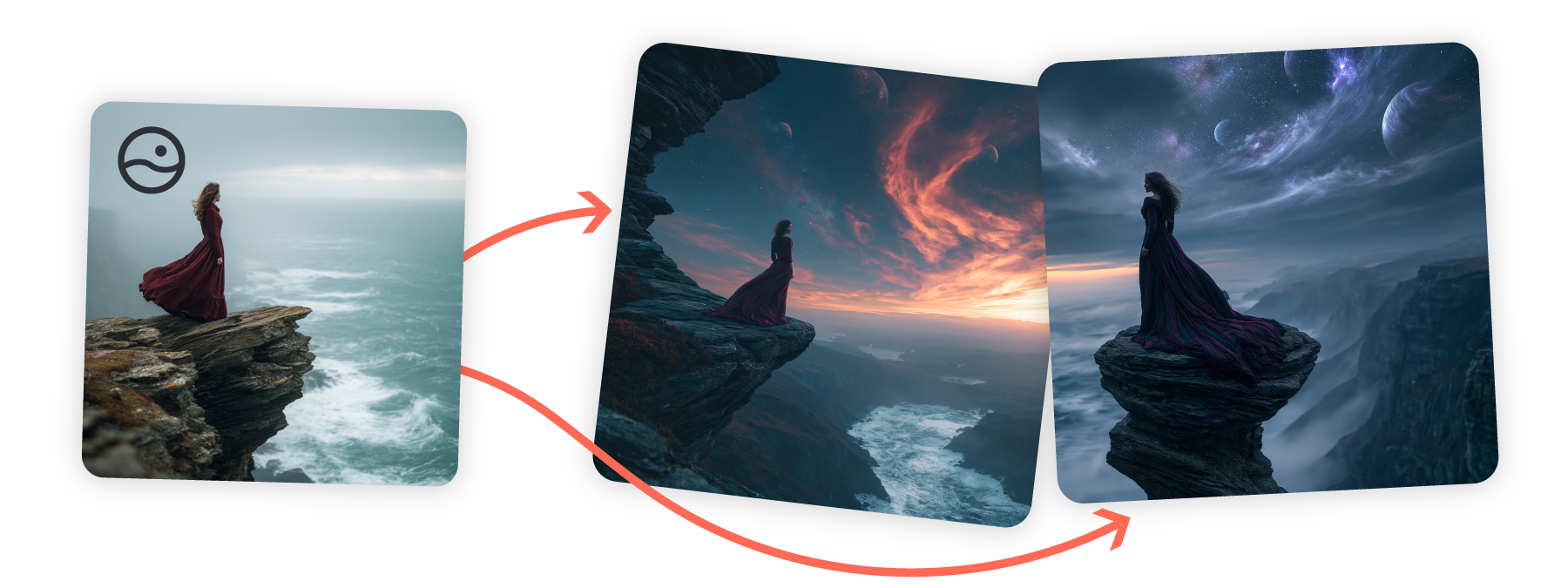
There are several ways you can use your own pictures when creating prompts with Midjourney. In this article, we'll focus on Image Prompts, but there are also [Character References](https://docs.midjourney.com/hc/en-us/articles/32162917505293)
, [Style References](https://docs.midjourney.com/hc/en-us/articles/32180011136653)
, and moodboards using [Personalization](https://docs.midjourney.com/hc/en-us/articles/32433330574221)
. You can even mix and match to get exactly what you want in your images!
What are Image Prompts?
-----------------------
Image Prompts let you guide Midjourney by including an image along with your text prompt. Midjourney looks at your image's core elements, and uses it as a source of inspiration for your new and unique image.
#### Three Ways to Use Image Prompts
1. **Single Image Prompt  + Text Prompt**
Choose an image similar to your vision, then add descriptive text. Your text prompt should include everything you want in the final image, rather than instructions for changing the reference image.
2. **Multiple Image Prompts  Without Text Prompt**
Upload two or more images _without_ text to blend them together—similar to using the [Blend command in Discord](https://docs.midjourney.com/hc/en-us/articles/32635189884557)
. This is perfect if you want Midjourney to focus on visual elements.
3. **Multiple Image Prompts  + Text Prompt**
Combine several images with descriptive text for more detailed guidance. Use your text prompt to specify important details not visible in your reference images.
Using Image Prompts
-------------------
* To add an image to your prompt, start by clicking on the image  icon in the Imagine bar. This opens the images panel, allowing you to upload new images or pick from those you've already uploaded. You can even select multiple images to use in your prompt!
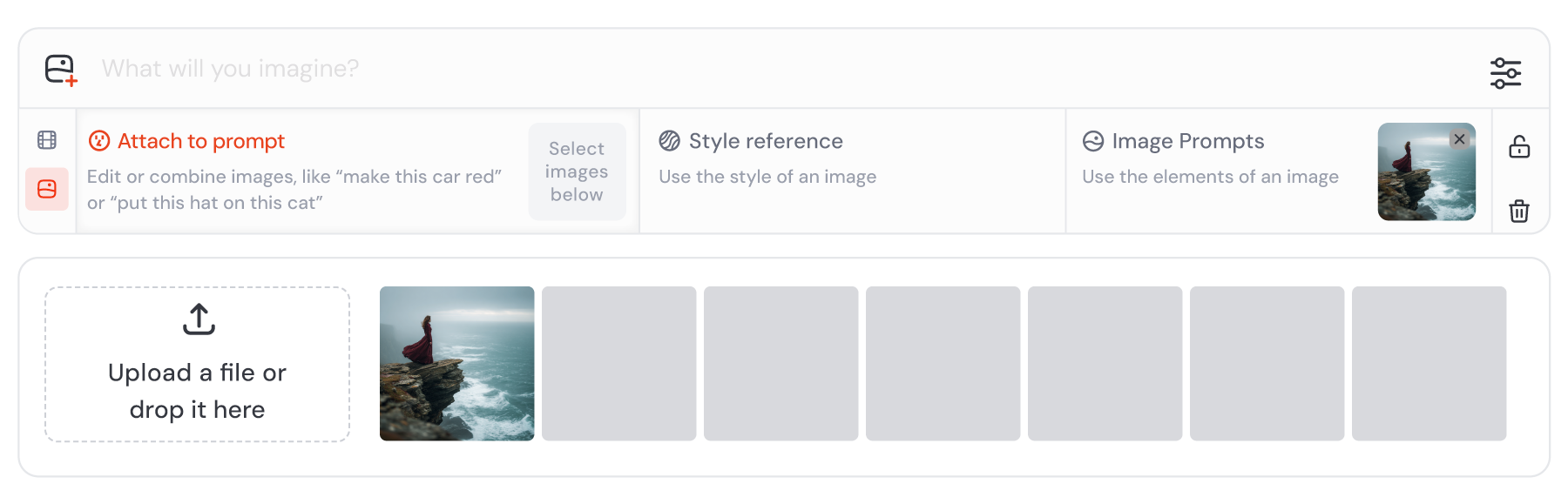
Click your image in the uploads library to automatically add it as an Image Prompt. You can also drag and drop your image into any of the image sections to use it in different ways. To remove your image from the Imagine bar, hover your mouse over it and click the X icon.
If you want to use your images with multiple prompts, click the lock icon  to keep your images pinned to the Imagine bar.
**Image Reference Types:**
 Image Prompt (default)
 [Style Reference](https://docs.midjourney.com/hc/en-us/articles/32180011136653)
 [Omni Reference](https://docs.midjourney.com/hc/en-us/articles/36285124473997)
(replaces [Character Reference](https://docs.midjourney.com/hc/en-us/articles/32162917505293)
)
* To use Image Prompts in Discord, paste your image URL at the beginning of your text prompt. If you want to use multiple images, separate each URL with a space. To easily use multiple images without a text prompt, check out the [Blend command](https://docs.midjourney.com/hc/en-us/articles/32635189884557)
.

It's important to ensure that you have a valid image URL, meaning the image should already be online. If your image is stored on your computer or device, you can [host it on Discord](https://docs.midjourney.com/hc/en-us/articles/32558957919117)
to generate an image URL.
Midjourney uses Image Prompts and references as inspiration to guide new creations, not to copy them exactly. If you're looking to make precise changes on your own images, check out the [Editor](https://docs.midjourney.com/hc/en-us/articles/32764383466893)
.
Image Weight
------------
If you want more control over how much your Image Prompt affects the final image, try using the image weight parameter `--iw`.
If you don't set an `--iw` value, Midjourney will use the default setting. By choosing a higher weight, your Image Prompt will have a bigger impact on the finished image.
Remember, different [Midjourney versions](https://docs.midjourney.com/hc/en-us/articles/32199405667853)
may have different image weight ranges.
| | Version 7 | Version 6 | Niji 6 |
| --- | --- | --- | --- |
| Image Weight Default | 1 | 1 | 1 |
| Image Weight Range | 0 - 3 | 0 - 3 | 0 - 3 |
* • For your prompts to work, you need either multiple Image Prompts or a combination of one Image Prompt and a text prompt.
• Your image file should end in .png, .gif, .webp, .jpg, or .jpeg.
• For the best results, crop your image to match the aspect ratio of your final image.
• Prompts that only use images and no text are not compatible with the `--stylize` or `--weird` parameters.
Need Help Getting Started?
[Getting Started Guide](https://docs.midjourney.com/hc/en-us/articles/33329261836941)
---
# Discord Overview – Midjourney
[Skip to main content](https://docs.midjourney.com/hc/en-us/articles/33330535666445-Discord-Overview#page-container)
Learn all about using Discord to make Midjourney images.
### Learn all about Midjourney's Discord features and start chatting!
The [Midjourney server](https://discord.gg/midjourney)
is a vibrant space where you can generate images, collaborate with others, find technical support, receive official announcements, submit feedback, and engage in stimulating discussions. Our community is welcoming and ready to help newcomers get started on their creative journey. If you’re eager to dive in, be sure to check out our [Discord Quickstart guide!](https://docs.midjourney.com/hc/en-us/articles/32631709682573)
Discord Interface
-----------------
#### Channel List
Explore and navigate through various channels within our server. For assistance, visit the [#support channel](https://discord.com/channels/662267976984297473/958069758211797092)
to connect with guides and moderators. Ready to create images? Head over to the #newbies or #general channels.
#### Member List
Easily spot the Midjourney Bot and see the list of our dedicated Midjourney team, guides, and moderators. If you can't find the Member List, just click the Member List icon to reveal it.
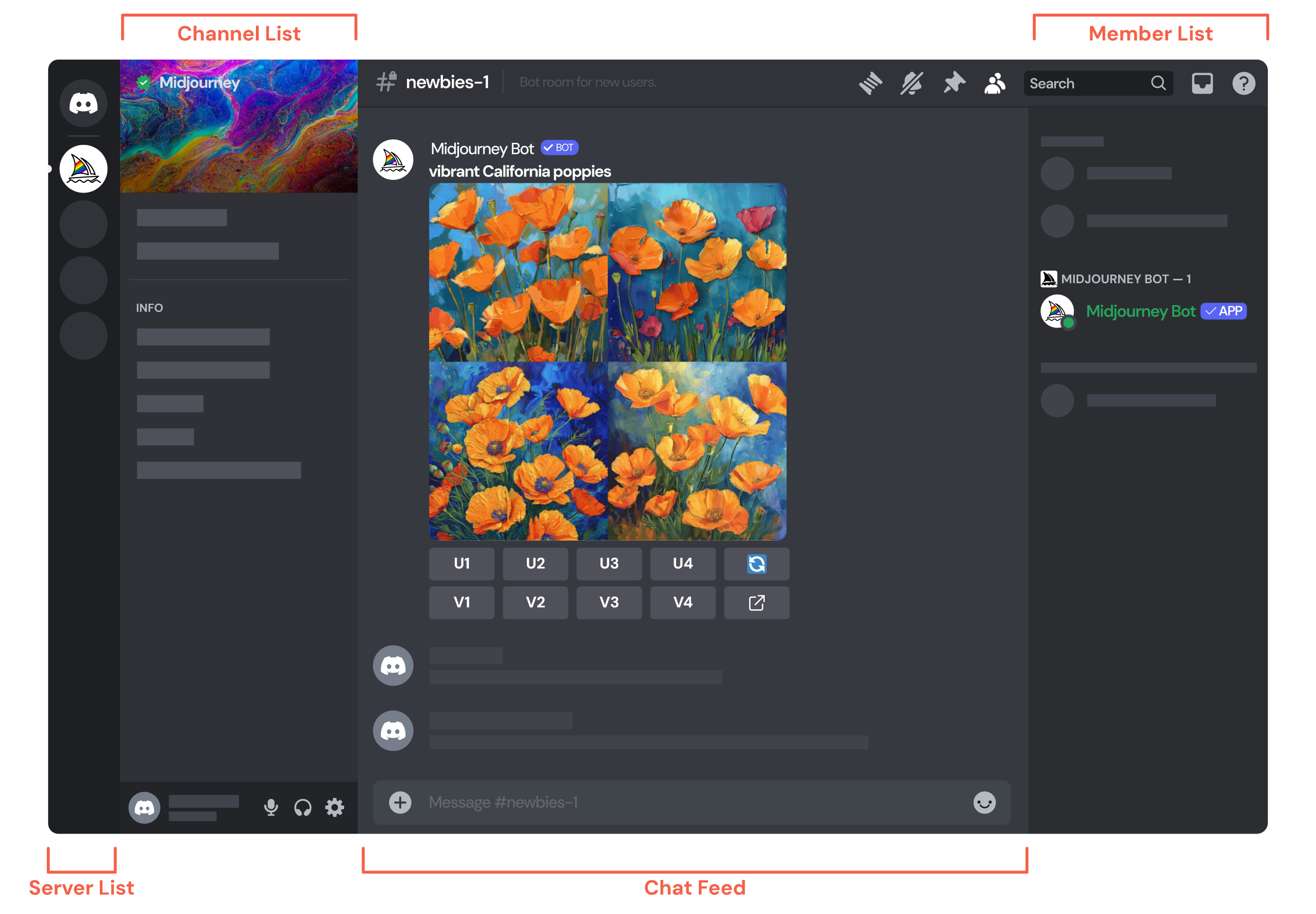
#### Server List
Here, you can access your [Direct Messages](https://docs.midjourney.com/hc/en-us/articles/32637339216013)
(top icon) and view all the servers you've joined.
#### Chat Feed
This is where the real-time conversation happens! Feel free to chat and interact with other server members in this space.
Emoji Reactions
---------------
You can interact with the Midjourney Bot in Discord by using emoji reactions. Once your images are ready, hover your mouse over the message area. A small menu will appear on the right side. Click on the "Add Reaction" button, which looks like a smiley face. This brings up a menu with emojis.
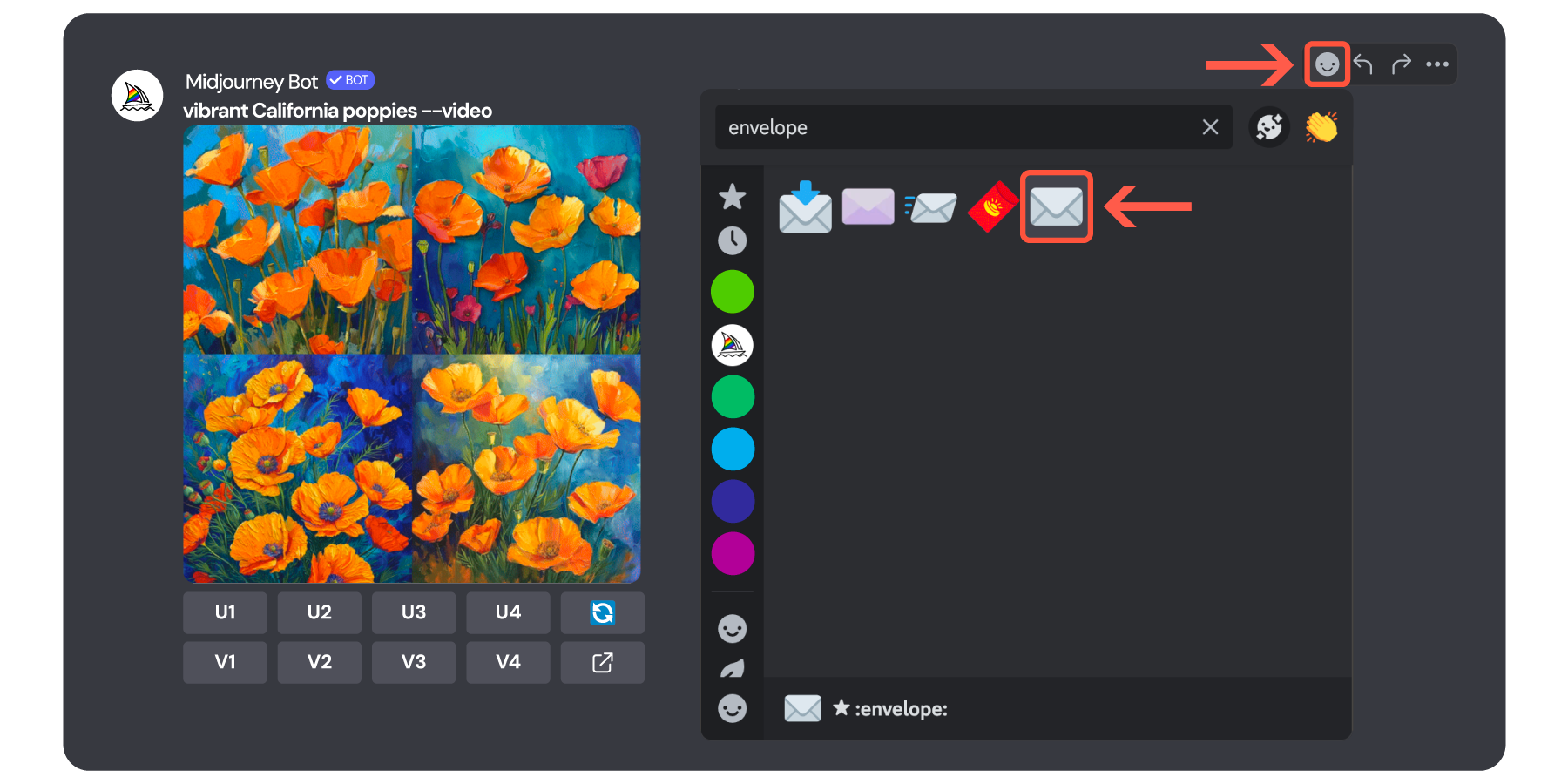
Using a mobile device? Long press on the message area and click the smiley face button in the menu that pops up to reveal the emoji reaction menu.
There are two emojis you can use to interact with the Midjourney Bot, but keep in mind these only work on your own images.
* If you want to receive your completed image generation to your [direct messages](https://docs.midjourney.com/hc/en-us/articles/32637339216013)
(DMs), use the envelope emoji ✉️ as a reaction on the Midjourney Bot's message. This will send the images straight to your DMs, and include helpful details like the image's [seed number](https://docs.midjourney.com/hc/en-us/articles/32604356340877)
and [Job ID](https://docs.midjourney.com/hc/en-us/articles/32635695384461)
.
When used on an image grid, the envelope emoji will send each of the four images separately. Be sure to choose the plain envelope emoji. If you have difficulty finding it, take advantage of the emoji search bar.
* The red X emoji ❌ can do two different things depending on the status of your images:
**Stop Image Generation:** If your images are still generating and you use the red X emoji, it will cancel the job. This means the images will stop processing. Use the [info command](https://docs.midjourney.com/hc/en-us/articles/32084927086861)
to see your currently running and queued jobs.
**Delete Finished Images:** If your images are already complete, reacting with the red X will delete them from Discord and your web gallery on midjourney.com. Keep in mind that currently this is the only way to delete images from your web gallery, and sometimes it may take a little while for the images to disappear. If you want to delete an image that you can't find in Discord or that you made on the website, you can use the [show command](https://docs.midjourney.com/hc/en-us/articles/32635695384461)
to bring it up in Discord.
Important: Once you delete images, you can’t reverse the action. So, be sure before you delete them!
#### Troubleshooting
If you're having trouble using emoji reactions on a job, look below the action buttons for a tiny message that says "Only you can see this." This message means your images are ephemeral. Ephemeral images are visible only to you when they first generate in Discord and will vanish when you refresh the page.
Ephemeral jobs are part of Midjourney's moderation system. They are triggered by certain words or phrases in your prompt that could result in inappropriate images. To keep things safe, these images are private to you and will disappear unless you generated them in a [direct message](https://docs.midjourney.com/hc/en-us/articles/32637339216013)
with the Midjourney Bot.
Want to make them visible to others and use emoji reactions? Just use the [show command](https://docs.midjourney.com/hc/en-us/articles/32635695384461)
. Your images will pop back into view, and you can then interact with them as usual.
---
# Creation Settings in Discord – Midjourney
[Skip to main content](https://docs.midjourney.com/hc/en-us/articles/32868982949517-Creation-Settings-in-Discord#page-container)
Adjust your default Midjourney settings in Discord with the /settings command.
### Adjust your default Midjourney settings in Discord with the `/settings` command
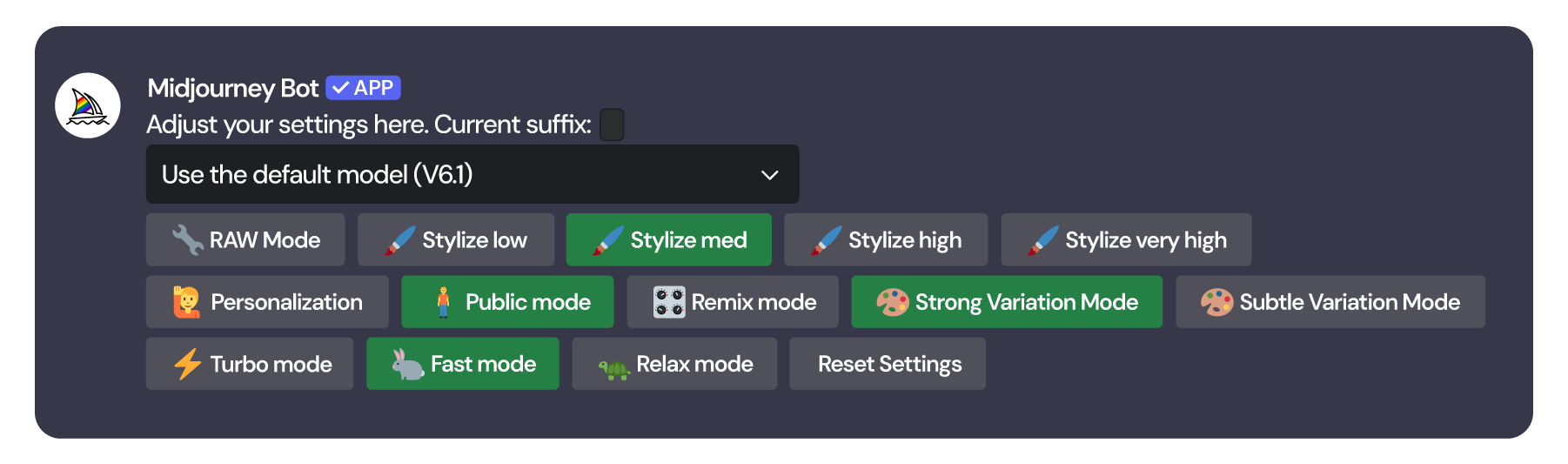
Accessing the Midjourney settings panel in Discord lets you change your default settings with ease. Here’s how to find it:
1. Open your Discord app and go to the message box. Make sure you are in a server or channel that the Midjourney Bot has permission to access.
2. Type `/` in the message box. You’ll see a list of commands pop up above.
3. Keep typing until you see `/settings`. This helps narrow down the options, just like a search field.
4. Once you spot `/settings` in the list, click it. If you aren't seeing any Midjourney commands, try our [command troubleshooting tips](https://docs.midjourney.com/hc/en-us/articles/32894521590669)
.
5. Press Enter or Send to execute the command.
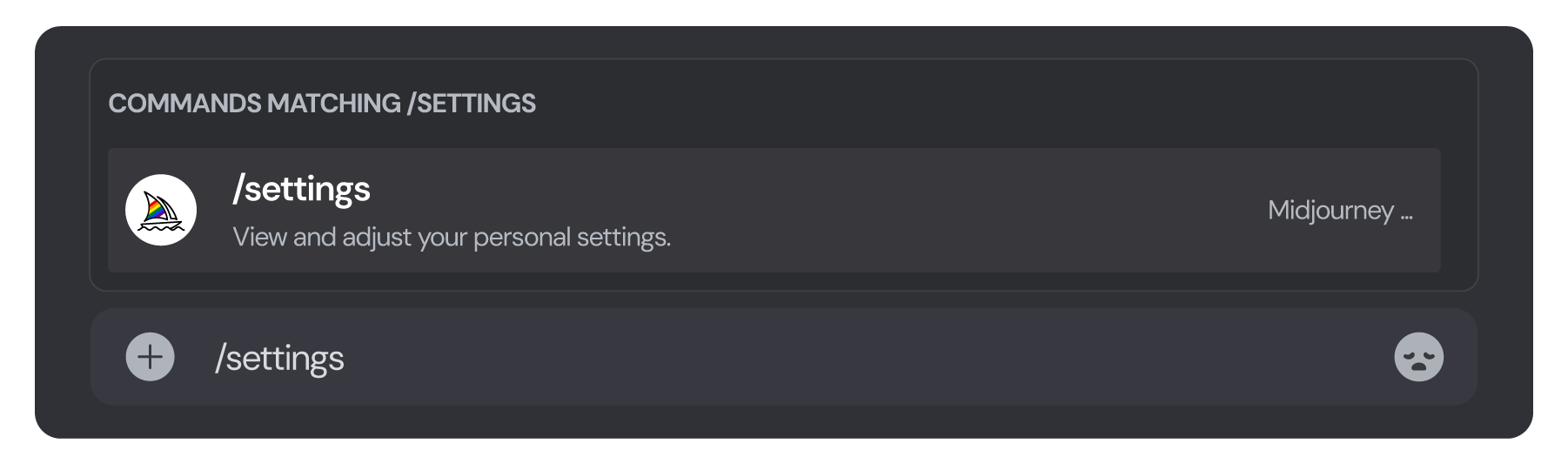
Now, look out for your settings panel; it’ll pop up right in your message feed. This is your easy-access spot to view and change your default settings—simple and straightforward!
Only you can see your settings panel and options. Even if you enter the command in a public channel, only you can view it and make changes.
Your website and Discord settings are synced. This means that if you change your settings in one place, they'll automatically change in the other. Double-check your settings to make sure they're set the way you want them before you generate images!
Settings Options
----------------
#### Midjourney Default Version
Set your default [model version](https://docs.midjourney.com/hc/en-us/articles/32199405667853)
using the dropdown menu. This is the version that will be used on all your prompts unless you specify a different one in your prompt with the [version parameter](https://docs.midjourney.com/hc/en-us/articles/32199405667853)
.
#### RAW Mode
Click RAW Mode to automatically add `--raw` to all your prompts. Check out our [Raw Mode](https://docs.midjourney.com/hc/en-us/articles/32634113811853)
article for more information.
#### Stylize
The settings panel has four [stylize parameter](https://docs.midjourney.com/hc/en-us/articles/32196176868109)
presets that you can use. `Stylize med` is the default. Stylize Low = 50, Stylize Med = 100, Stylize High = 250, Stylize Very High = 750
#### Personalization
Clicking this button will turn on [personalization](https://docs.midjourney.com/hc/en-us/articles/32433330574221)
, and `--p` will be added automatically to all your prompts. If you have multiple personalization profiles, go to your [Personalize](https://www.midjourney.com/personalize)
page on our website to set your default profile.
#### Public Mode
By default the `Public mode` button will be highlighted green. If you have a [subscription plan](https://docs.midjourney.com/hc/en-us/articles/27870484040333)
with access to [Stealth Mode](https://docs.midjourney.com/hc/en-us/articles/32019750070669)
, you can click this button and it will turn gray—meaning you are in Stealth Mode.
#### Remix Mode
Toggle this button to turn [remix mode](https://docs.midjourney.com/hc/en-us/articles/32799074515213)
on or off.
#### Variation Modes
Set your default [variation](https://docs.midjourney.com/hc/en-us/articles/32692978437005)
mode to either Strong or Subtle. Strong is the default.
#### Turbo, Fast, Relax Modes
Set your default [GPU speed](https://docs.midjourney.com/hc/en-us/articles/32016412137741)
. Basic plan subscribers do not have access to Relax Mode.
#### Reset Settings
Use this button to reset your stylize setting to medium and remove any custom suffix parameters set with the `/prefer suffix` command (explained below).
Note: You can override a default setting by manually adding the parameter with a different value to your prompt.
Custom Suffixes
---------------
Want to automatically add text snippets or parameters to all your prompts? Simply use the `/prefer suffix` command, click **new\_value**, type your text and/or parameters, and press Enter or Send to execute the command. If you are using both prompt text and parameters, make sure the parameters are entered last. You can view your current suffix in the settings panel, above the version menu.
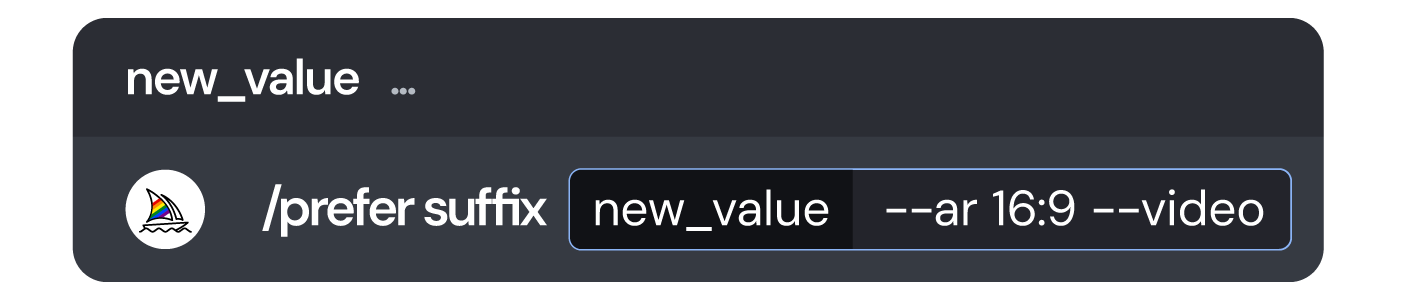
To remove a custom suffix, use the `/prefer suffix` command again, but press Send or Enter without clicking **new\_value**. Or you can use the `Reset Settings` button in the settings panel.
Option Sets
-----------
Use the `/prefer option set` command to help you bundle multiple parameters or text snippets into a shortcut you can use repeatedly.
In the example below we are creating an option set called "mine" that contains a chaos and aspect ratio setting.

Once created, use it like this: `vibrant California poppies --mine`. It acts like typing `vibrant California poppies --chaos 5 --aspect 2:3`. Like a shortcut!
To create an option set:
1. Use the `/prefer option set` command.
2. In the **option** field, type the name of your set.
3. Click **+1 more** next to your new name, then click **value** from the box above.
4. In the **value** field type your text snippets and/or parameters. Remember, all parameters must go at the end of your prompt.
5. Press Enter or Send to execute the command.
To see a list of all your option sets, use the `/prefer option list` command.
To delete an option set, use the `/prefer option set` command, select your desired option set from the pop up list, and then simply press Enter or Send.
Option sets can be used in prompts on midjourney.com, but can only be created and managed in Discord.
Your option set will "expand" wherever it's placed in your prompt. If you are using text snippets in your option sets and adding additional parameters in your prompt, make sure that all parameters are at the end of your prompt.
---
# Style Reference – Midjourney
[Skip to main content](https://docs.midjourney.com/hc/en-us/articles/32180011136653-Style-Reference#page-container)
Match the look and feel of another image by using style references.
### Want to match the look and feel of another image? You can provide Midjourney with a Style Reference!
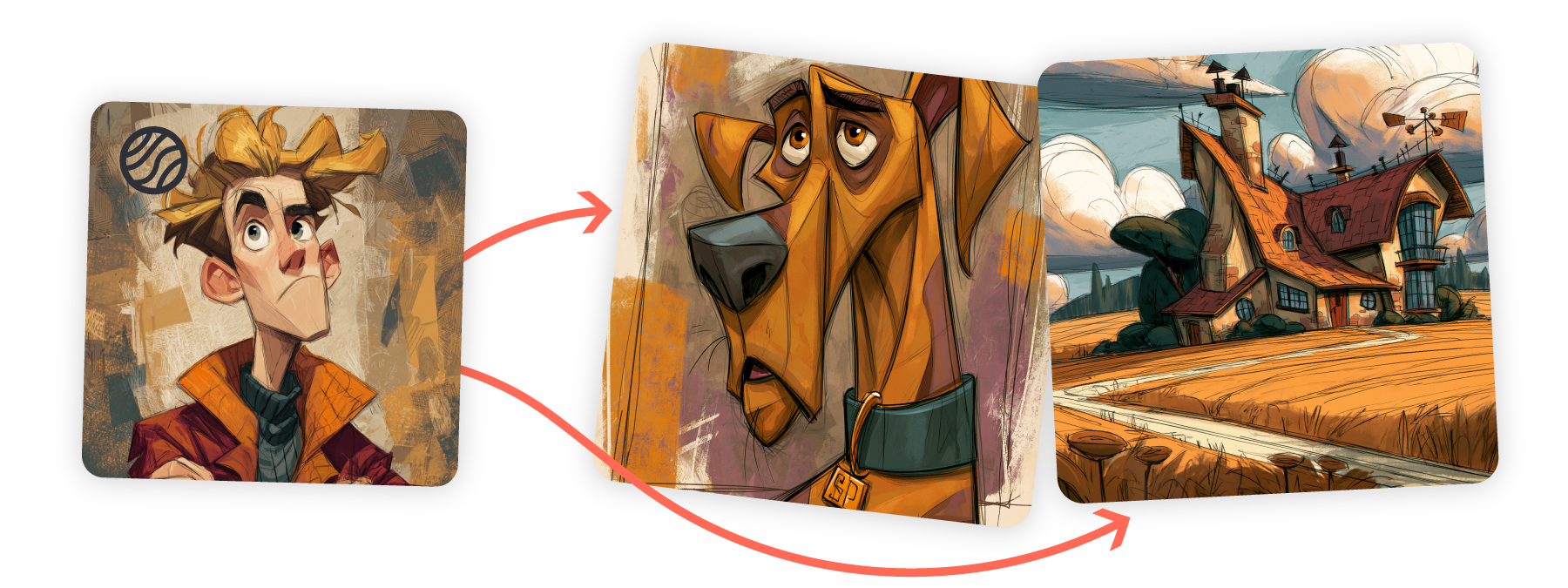
What is a Style Reference?
--------------------------
A Style Reference is a way to capture the visual vibe of an existing image and apply it to your new Midjourney creations. It doesn't copy objects or people, just the overall style—like colors, medium, textures, or lighting—helping you achieve a consistent visual theme.
Style References are compatible with Midjourney [versions](https://docs.midjourney.com/hc/en-us/articles/32199405667853)
6 and 7.
Using a Style Reference
-----------------------
* To add an image to your prompt, start by clicking on the image  icon in the Imagine bar. This opens the images panel, allowing you to upload new images or pick from those you've already uploaded. You can even select multiple images to use in your prompt!
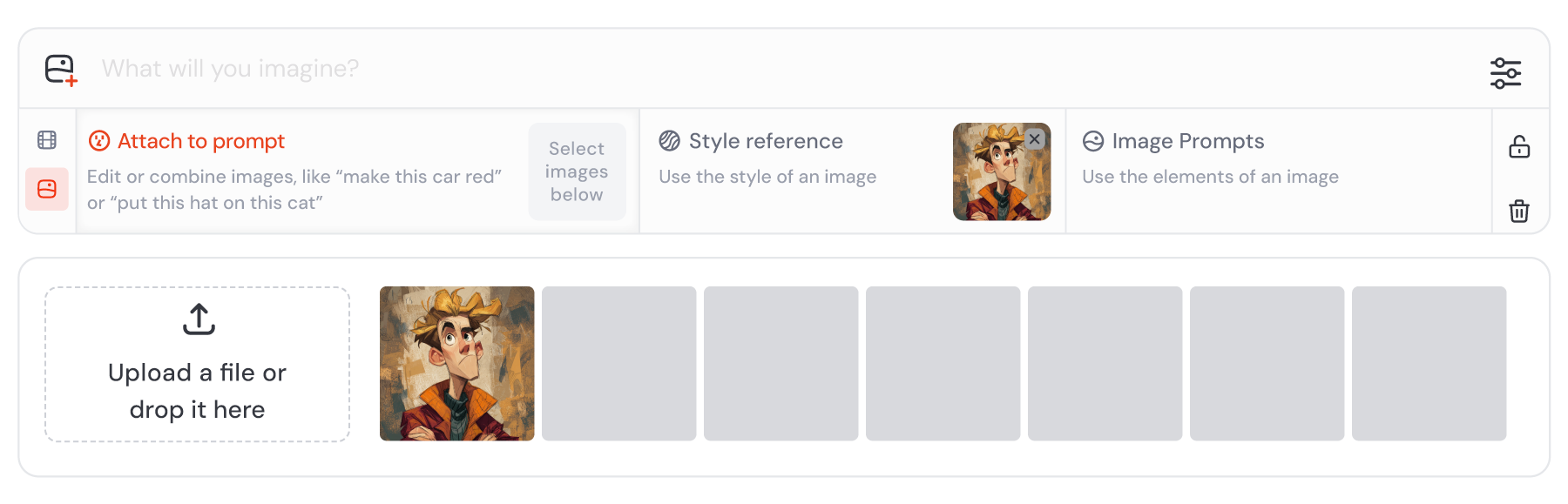
Drag and drop your image from the uploads library into the Style Reference section. To remove your image from the Imagine bar, hover your mouse over it and click the X icon.
If you want to use your images with multiple prompts, click the lock icon  to keep your images pinned to the Imagine bar.
**Image Reference Types:**
 [Image Prompt](https://docs.midjourney.com/hc/en-us/articles/32040250122381)
(default)
 Style Reference
 [Omni Reference](https://docs.midjourney.com/hc/en-us/articles/36285124473997)
(replaces [Character Reference](https://docs.midjourney.com/hc/en-us/articles/32162917505293)
)
* To use a Style Reference in Discord, start by adding the `--sref` parameter to the end of your prompt, then pasting your image URL. If you want to use multiple images, separate each URL with a space.

It's important to ensure that you have a valid image URL, meaning the image should already be online. If your image is stored on your computer or device, you can [host it on Discord](https://docs.midjourney.com/hc/en-us/articles/32558957919117)
to generate an image URL.
Best Practices
--------------
* **Keep text prompts simple** - Avoid adding style words that might conflict with your reference image's look.
* **Add style words selectively** - If achieving a specific style is difficult, include descriptive words that match your reference image.
* **Focus on content, not instructions** - Use your text prompt to describe what you want to see, not how Midjourney should modify the reference image.
####  Bad Prompt Examples:
 the look of this image but a dog
 copy this style and make a bunny
####  Good Prompt Examples:
 detailed portrait of a dog
 ballpoint pen sketch of a bunny
Style Weight
------------
The style weight parameter `--sw`, allows you to control how strongly the style of your reference influences your new image. You can set this parameter to any value between 0 and 1000, with the default being `--sw 100`. With the V7 model update, you may notice that style weight has more impact when used with sref codes than with images.
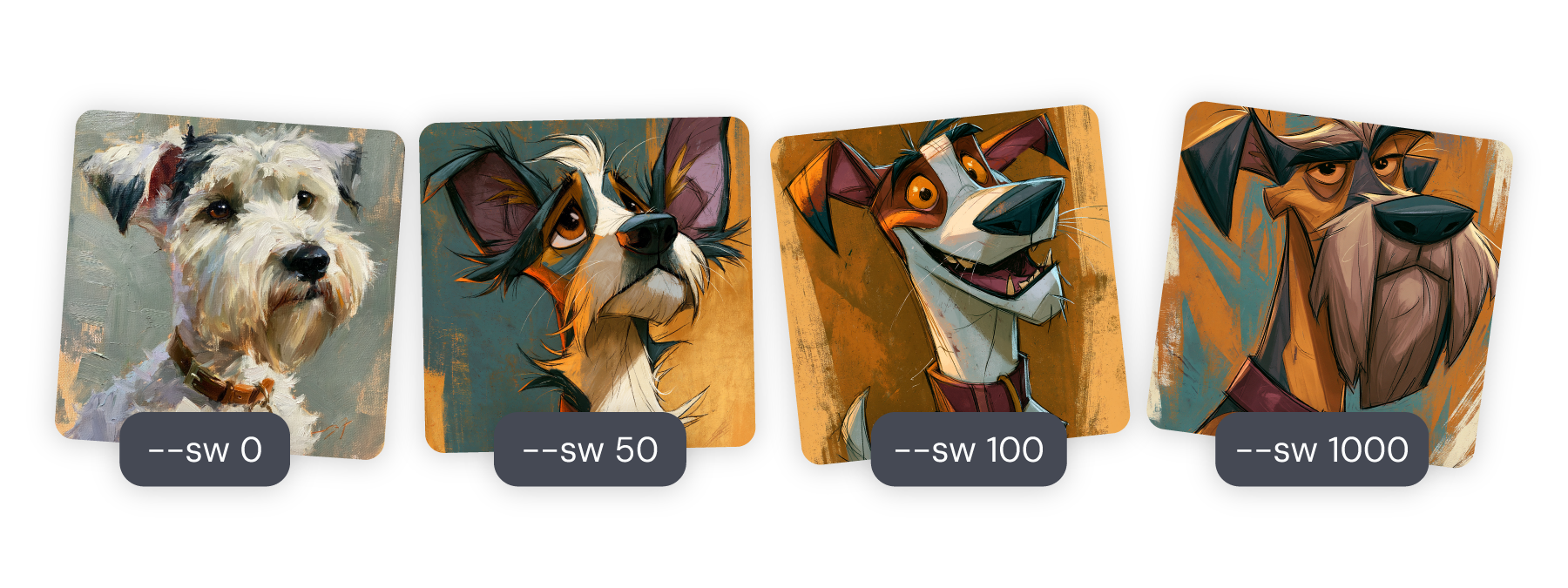
Random Styles & Codes
---------------------
The Style Reference feature has been updated for V7 and old sref codes may not produce the same styles anymore. To use old codes, add `--sv 4` to your prompt (uses the old V7 model) or switch to V6.
Use `--sref random` in your prompt and Midjourney will select a preset style from its internal library at random. After submitting your prompt, "random" converts to a numerical code (an sref code), which you can reuse for the same style in future prompts.
Once your prompt has an sref code, using rerun/reroll or variations keeps the same code and style. If you use `--sref random` with a [permutation](https://docs.midjourney.com/hc/en-us/articles/32761322355597)
or [repeat](https://docs.midjourney.com/hc/en-us/articles/32757107922061)
prompt, each image will have a different style and code.
You can still use the `--sw` parameter with codes to adjust the influence of the random style on your image. You can also mix codes by using more than one, and combine images with codes.
Currently sref codes are only available for the random styles from Midjourney's internal library. You cannot create an sref code based on an uploaded image. See the [instructions above](https://docs.midjourney.com/hc/en-us/articles/32180011136653-Style-Reference#h_01JCRMPT77EVWXDF6X1DG95BK0)
to use an uploaded image.
* There are six versions of the Style Reference feature in Midjourney version 7 when using images. Use the `--sv` parameter to choose between them.
`--sv 6` is default.
`--sv 4` is the old V7 sref model (prior to June 16, 2025).
Each version offers a unique way of interpreting and applying your Style Reference, so experiment and see what works best for you!
Note: Sref random and sref codes are only compatible with `--sv 4` and `--sv 6`
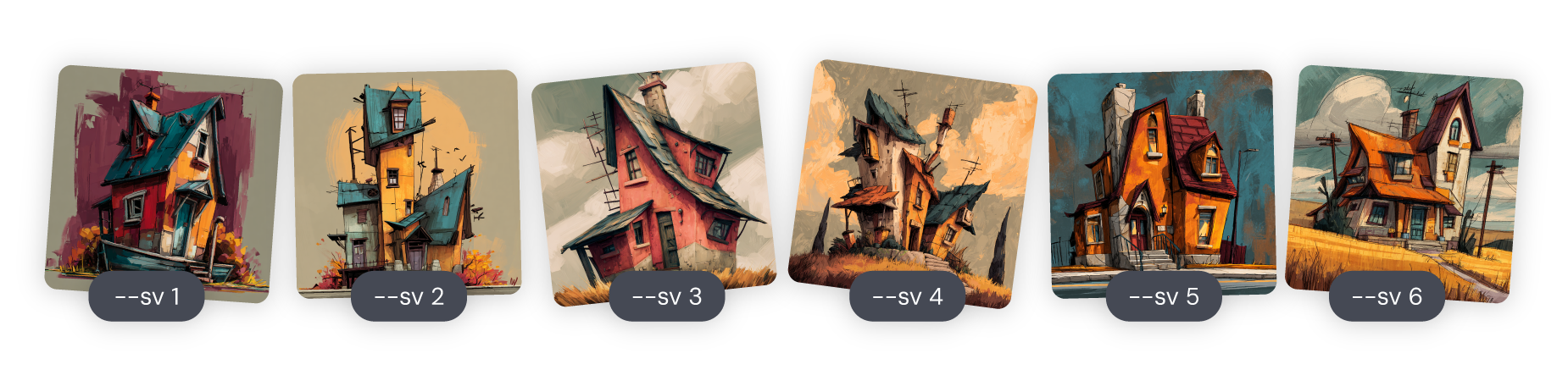
* There are four versions of the Style Reference feature in Midjourney version 6. Use the `--sv` parameter to choose between them. `--sv 4` is default. Each version may offer a unique way of interpreting and applying your Style Reference, so experiment and see what works best for you!
`--sv 1` The original style reference algorithm, more “vibey”
`--sv 2` The second iteration of style references
`--sv 3` An updated version of the more “vibey” `--sv 1`
`--sv 4` An updated version of `--sv 2`
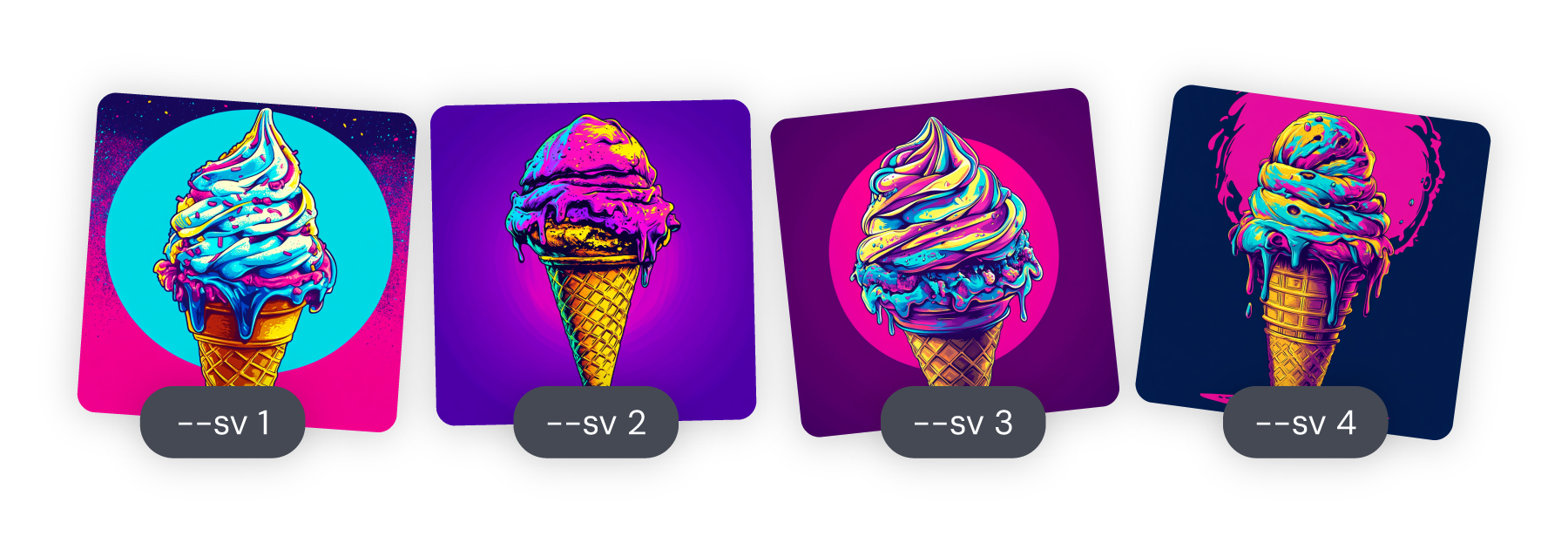
* • For your prompts to work, you need a text prompt in combination with your Style Reference.
• Your image file should end in .png, .gif, .webp, .jpg, or .jpeg.
• Style Reference can be used with Midjourney versions 6, 7, and Niji 6.
• Style Reference can be combined with [Character References](https://docs.midjourney.com/hc/en-us/articles/32162917505293)
/[Omni References](https://docs.midjourney.com/hc/en-us/articles/36285124473997)
and [Image Prompts](https://docs.midjourney.com/hc/en-us/articles/32040250122381)
.
• When using Midjourney version 6, individual Style References can also be assigned different weights: `--sref URL1::2 URL2::1 URL3::1` For more information see our article on [Multi-Prompts & Weights](https://docs.midjourney.com/hc/en-us/articles/32658968492557)
.
Need Help Getting Started?
[Getting Started Guide](https://docs.midjourney.com/hc/en-us/articles/33329261836941)
---
# Editor – Midjourney
[Skip to main content](https://docs.midjourney.com/hc/en-us/articles/32764383466893-Editor#page-container)
Customize your images using Midjourney's powerful tools!
### Customize your images using Midjourney's powerful tools!
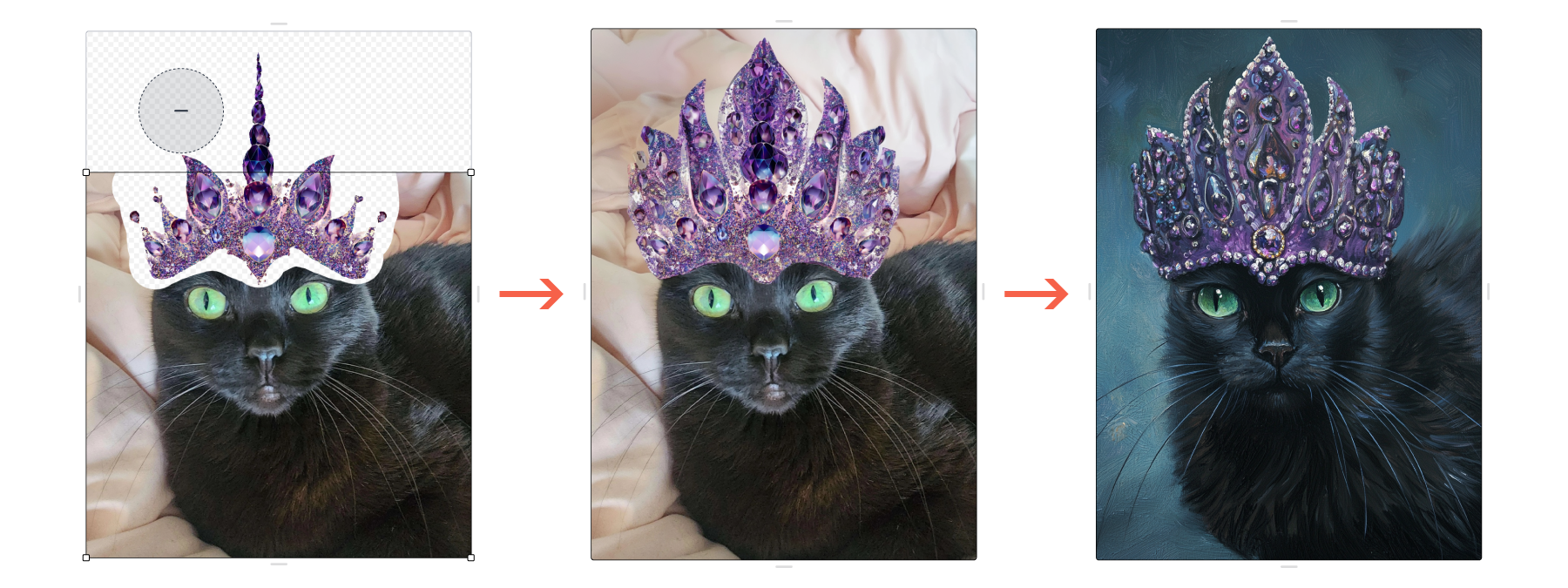
What is the Editor?
-------------------
The [Editor](https://www.midjourney.com/editor/new)
on midjourney.com provides a simple and easy-to-use web interface for editing and adjusting your favorite images—both Midjourney images and your own personal ones. Use [remix](https://docs.midjourney.com/hc/en-us/articles/32799074515213)
, inpainting ([vary region](https://docs.midjourney.com/hc/en-us/articles/32794723105549)
), [pan](https://docs.midjourney.com/hc/en-us/articles/32570788043405)
, and [zoom](https://docs.midjourney.com/hc/en-us/articles/32595476770957)
—all at once, or in any mix you choose!
When editing your Midjourney images from the Create or Organize pages, a "light" version of Editor opens, keeping you closer to your creation feed for a more seamless workflow.
If you want to upload external images or use the more advanced Editor tools, go to the  **Edit** tab in the website navigation menu.
Note: Currently, images from your gallery made using [Omni Reference](https://docs.midjourney.com/hc/en-us/articles/36285124473997)
can only be opened in the Edit tab. You will need to remove the Omni Reference and `--ow` parameter before submitting your edits.
Editor Tools
------------
** Undo,  Redo &  Reset** - If you change your mind or make a mistake you can undo and redo, as well as reset all edits to start over.
 **Move / Resize** - This tool lets you move your image around the canvas, scale it by dragging the corners or using the Image Scale slider, rotate it by hovering your mouse outside the corners, and change the [aspect ratio](https://docs.midjourney.com/hc/en-us/articles/31894244298125)
using the preset ratios or by dragging the gray bars on the outside edges of your canvas.
 **Paint** - Use the  **Erase** brush to select portions of your image that you want to change and regenerate. Use the  **Restore** brush to bring back areas of your original image that you erased. You can control both brush sizes with the Brush Size slider.
** Smart Select** - Use this tool to create a selection mask over parts of your image that you can erase. For more instructions on using this tool, [jump to Smart Select](https://docs.midjourney.com/hc/en-us/articles/32764383466893-Editor#h_01JNSH5601AH8H973SJXKKFEV6)
.
_The above tools are available in both the "light" version of the Editor and the Edit tab. To access the below tools, you'll need to be on the [Edit](https://www.midjourney.com/editor/new)
tab._
 **Suggest Prompt** - Use the power of [Describe](https://docs.midjourney.com/hc/en-us/articles/32497889043981)
to generate a prompt based on your image.
**Custom Aspect Ratios** \- In the Move / Resize panel you can manually enter a custom aspect ratio for your image.
**Layers** - Add additional images to your composition using layers. For more information, [jump to Layers.](https://docs.midjourney.com/hc/en-us/articles/32764383466893-Editor#h_01JQ9RW7CAN6FC6Q4GRPM0TXQP)
**Retexture** - The Retexture tool allows you to regenerate your entire image using a new style while keeping the structure and composition of the original image. For more details, [jump to Retexture.](https://docs.midjourney.com/hc/en-us/articles/32764383466893-Editor#h_01JF8WA5WZ615RTPESWCCXNS2G)
**Export** - When you're happy with your edited image you can  **Upscale to Gallery** or  **Download Image** directly to your device. When downloading, you have the option to download your generated image (Save Original Generation) as well as a transparent PNG of the areas you erased (Save Current Edit).
Note: Edited images using layers and uploaded images will not be visible on your Create or Organize page unless you [upscale](https://docs.midjourney.com/hc/en-us/articles/32804058614669)
them.
Editor Walkthrough
------------------
* #### Select Your Image
**Midjourney Image
**To edit an image from your Midjourney gallery in the "light" Editor, click the image to open it from your Create or Organize page and then use the "Edit" button in the Creation Actions section.
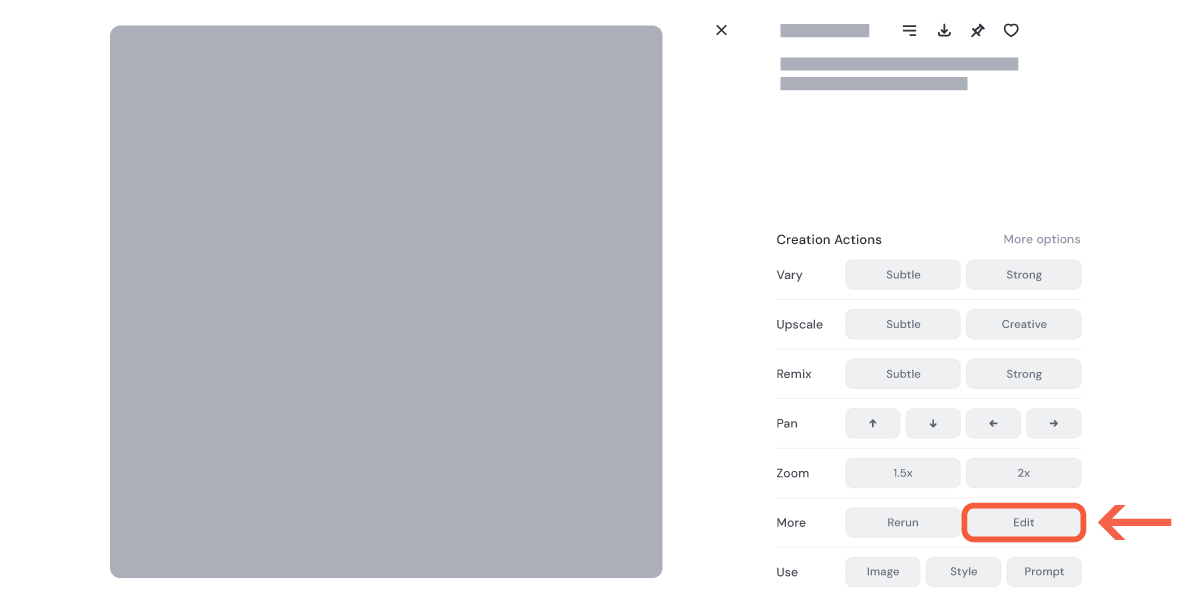
To move your image from the "light" Editor to the full Edit page, use the "Open in Edit tab" button.
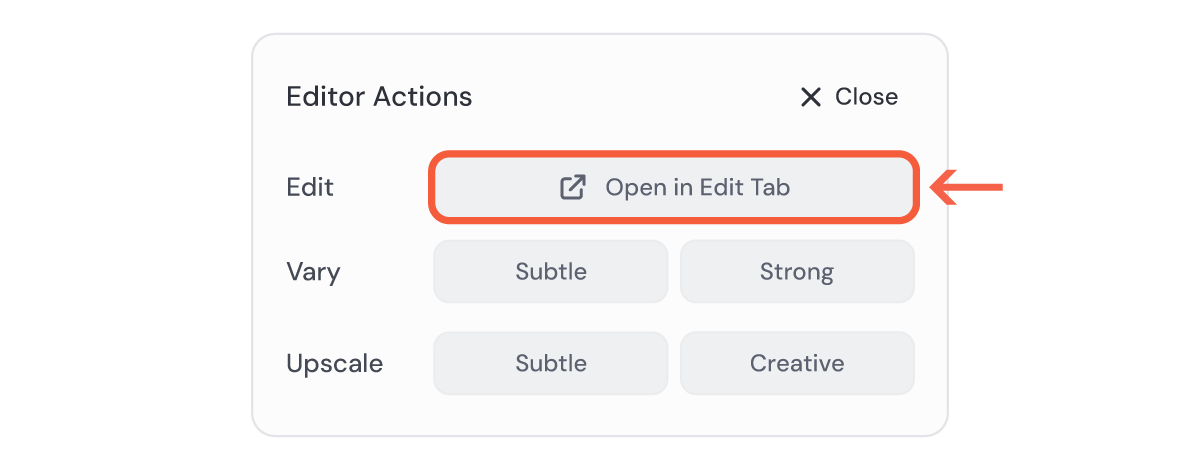
* #### Select Your Image
**Your Own Image
**To edit an external image, navigate to the  [Edit](https://www.midjourney.com/editor/new)
page where you have two options: you can either upload an image directly from your device, or paste an image URL.
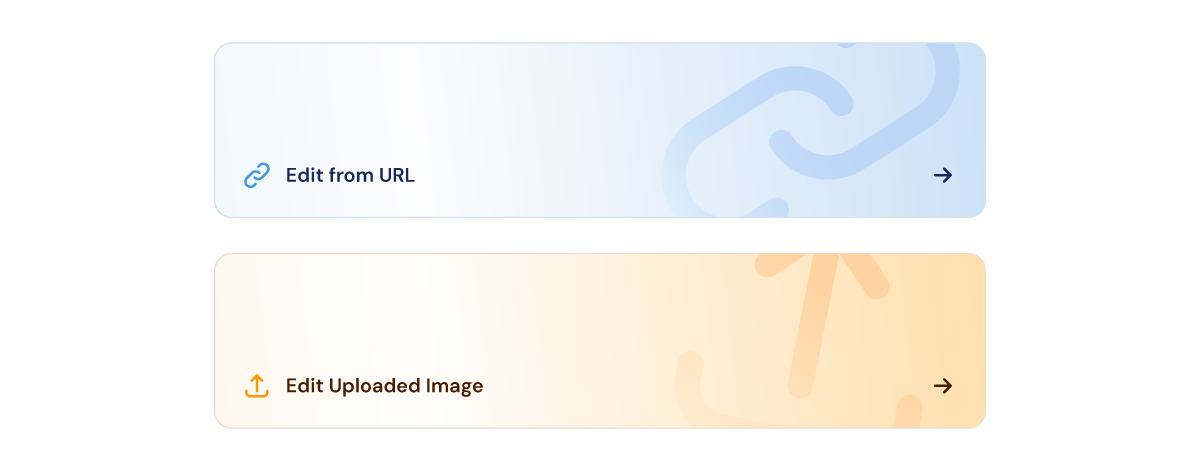
* #### Resize & Paint
For this example we'll upload a photo of this cute cat.
To add a crown to the top of the cat's head, we first need to add enough space for the crown by adjusting the [aspect ratio](https://docs.midjourney.com/hc/en-us/articles/31894244298125)
. You can do this using the Aspect Ratio presets in the  **Move / Resize** panel, or by clicking and dragging the short gray bar at the top of the image.
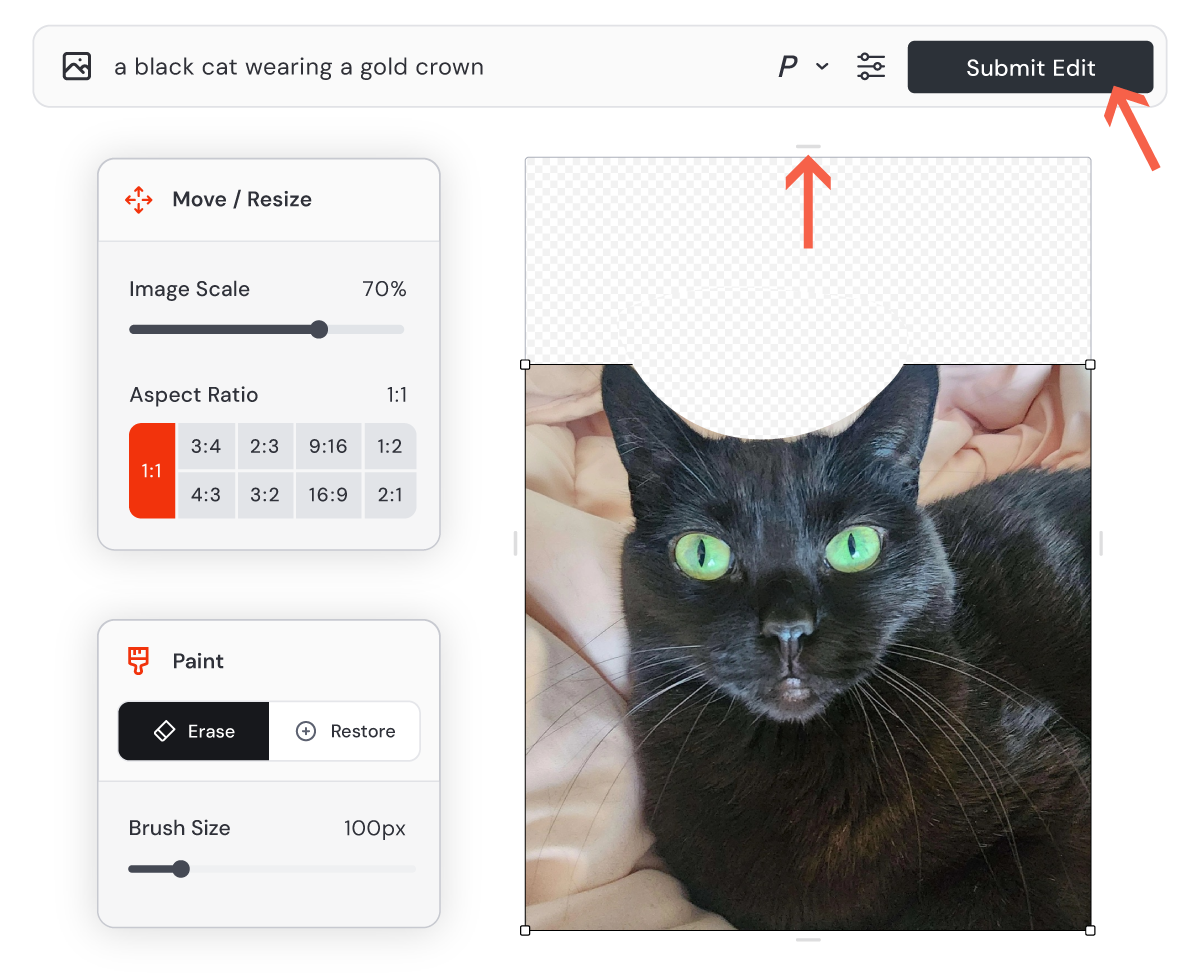
Next, use the Erase tool in the  **Paint** panel to remove the area where the crown will sit, and add your text prompt to the Imagine bar describing what you want to see. When you're ready, press the "Submit Edit" button.
* #### Results
Midjourney will generate four images in the results panel. Each time you make an edit to this image, the results will get added to this panel.
From here you can keep editing, or use the Export options at the bottom to upscale or download your image.
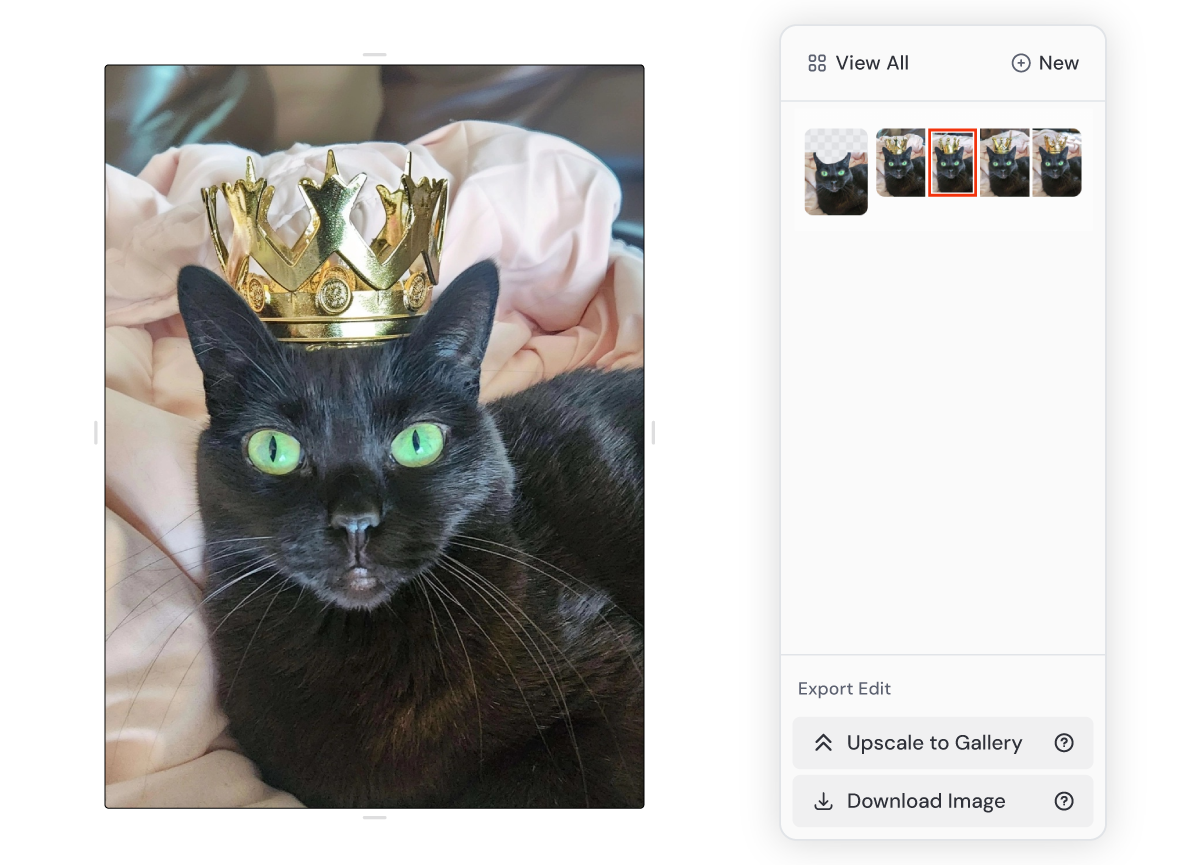
* #### Select Tool
If you wanted to change the background behind the cat you can use the  **Smart Select** tool to create a selection mask over areas of your image. Once highlighted, erase the area within your mask using the "Erase Selection" button. The "Erase Background" button erases everything outside your mask.
Note: Make sure to apply your mask using the erase buttons before submitting your prompt. If you can still see the highlighted green areas, your mask is not yet applied.
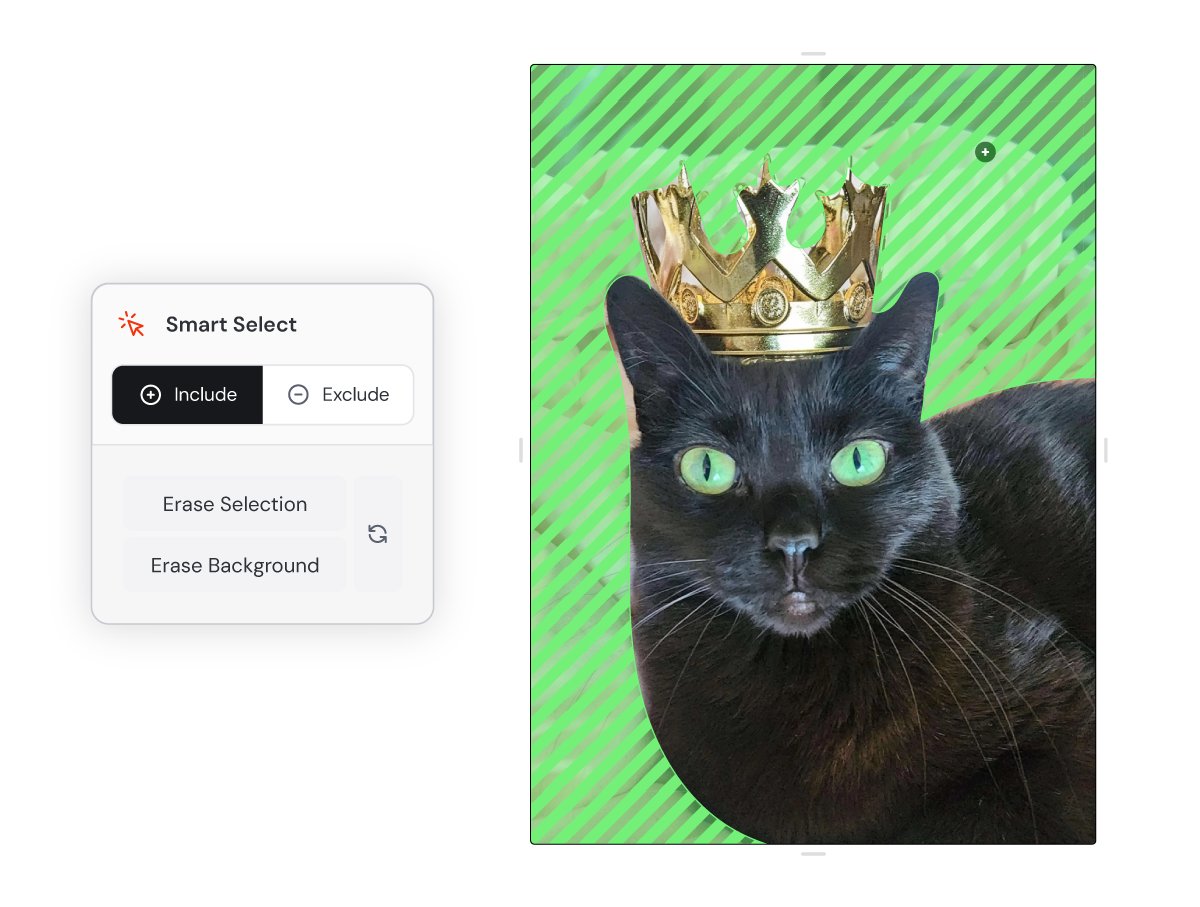
* #### Retexture
If you wanted to turn this image into a watercolor painting, click over to the Retexture tab and enter your new text prompt into the Imagine bar. When you're ready, hit "Submit Retexture."
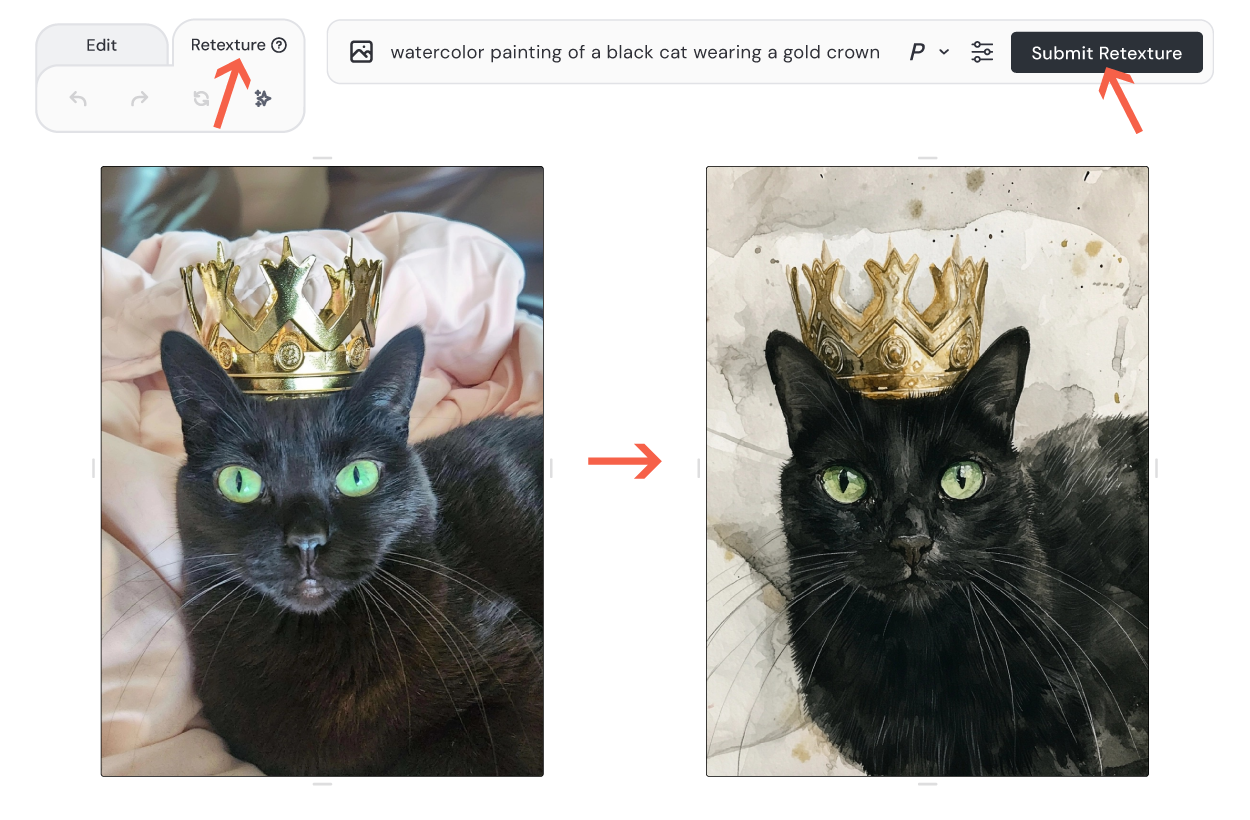
* #### Layers
If you wanted to use a specific crown for the cat, you can add another image as a new layer from the Layers panel.
Use the check mark in the layers panel to pick your current active layer, and then erase the areas you want Midjourney to generate.
If you want to regenerate the entire image in a cohesive style, try using Retexture.
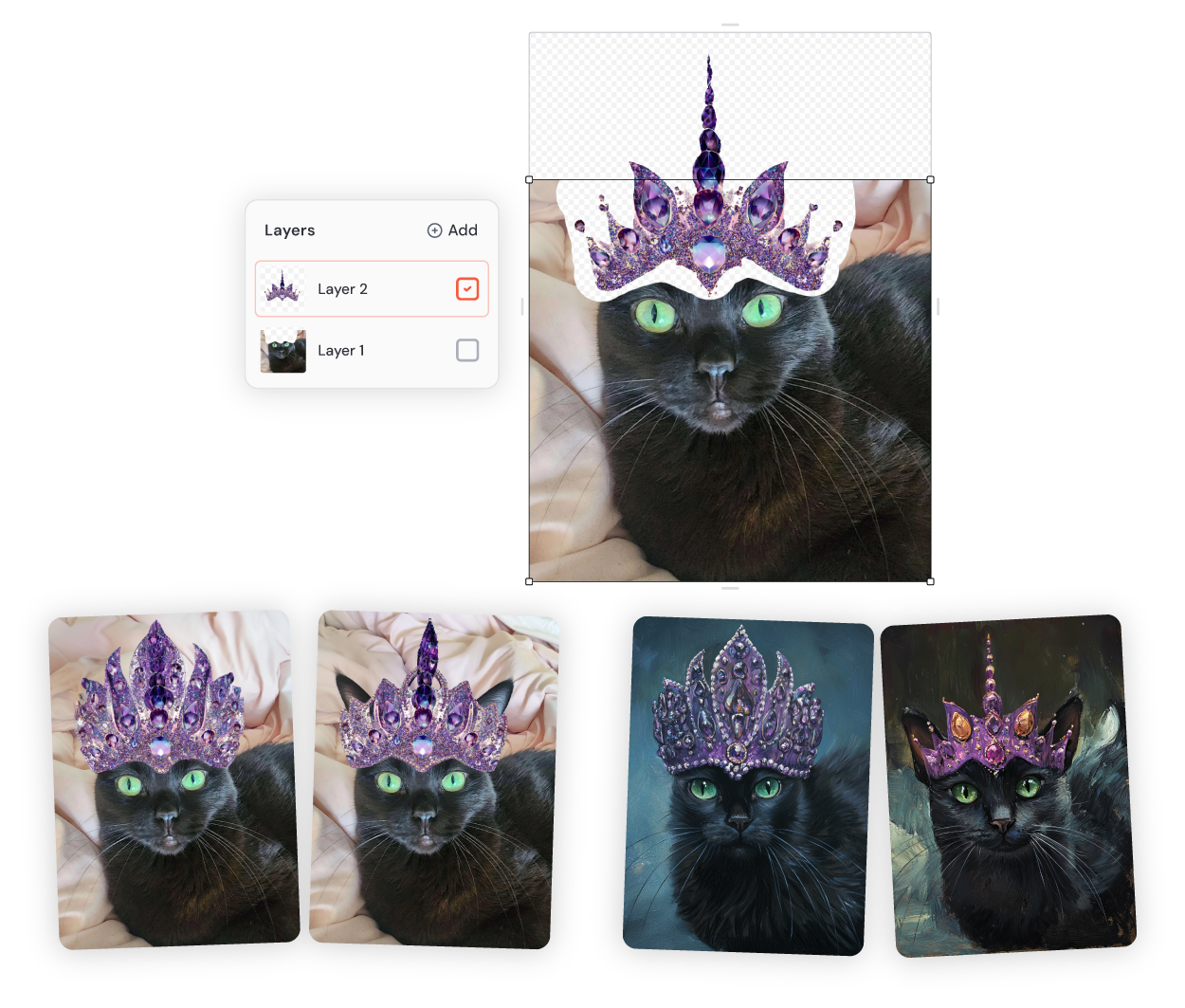
Smart Select
------------
The Smart Select tool works by creating a selection mask over parts of your image.
1. Start by pressing the "Smart Select" button to activate the tool.
2. Click on an area of your image to set your first positive (Include) point. This tells Midjourney where to focus.
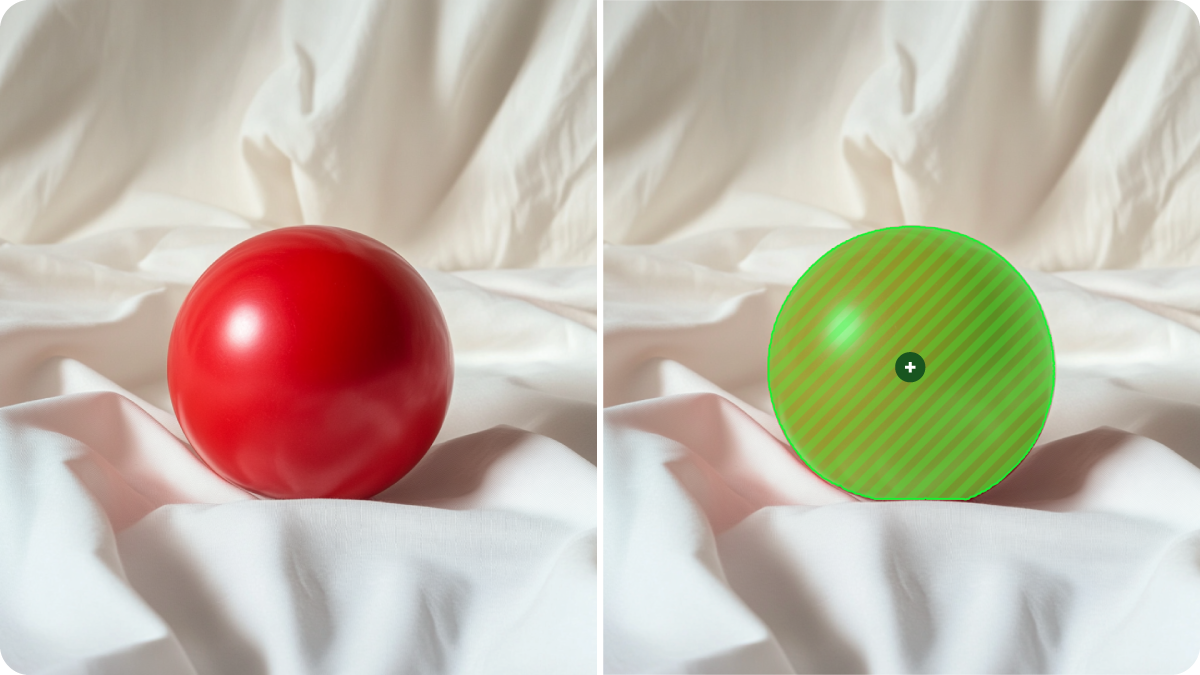
3. To refine the mask, add more positive points and negative (Exclude) points. Exclude points highlight areas you want Midjourney to avoid selecting.
4. Keep adding points until your mask covers the areas you want.
When your mask is ready, choose between two options:
* Hit the "Erase Selection" button to erase what's inside the mask.
* Or use the "Erase Background" button to erase everything outside your mask.
Make sure to use either "Erase Selection" or "Erase Background" to apply your mask before submitting your image edits. If you need to clear the mask, use the reset  button.
Layers
------
The Layers panel allows you to add additional images on top of your original image, so you can make more complex compositions.
To add a layer, click the "Add" button and select a new image. To reorder your layers, just click and drag them. If you need to delete a layer, hover your mouse over it and click the trash can  icon.
Once a new layer is added, you can use the Editor tools to make selections, erase portions, and move and scale it. Whichever layer has the check mark next to it is the active layer that the Editor tools will apply to.
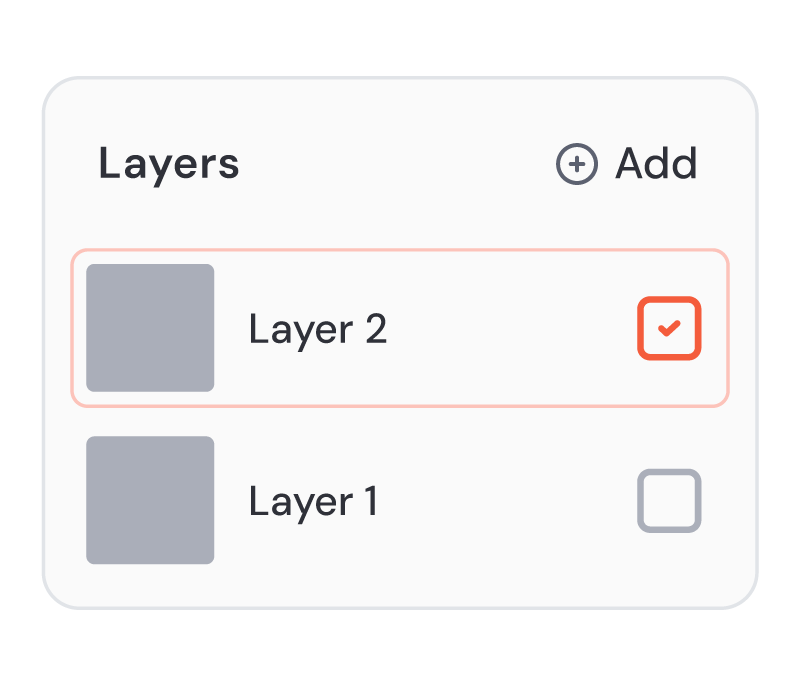
After you've arranged and erased your layers, you can flatten them into a single layer by submitting the edit. Once flattened, you can continue working on the image or upscale and download it.
When you submit an edit using layers, only the areas of your image with visible transparency will be regenerated (the gray checker pattern)—any visible parts will remain unchanged. To regenerate the entire image, for example in a single cohesive style, use Retexture.
Retexture
---------
The Retexture tool allows you to overlay new styles and details onto your image, while keeping the structure of the original image—like a template.
To use Retexture, click on the Retexture tab at the top of the Editor page, add a new prompt, and Submit.
If there are portions of your original image that you don't want Retexture to use, experiment with Erasing them before doing the Retexture.
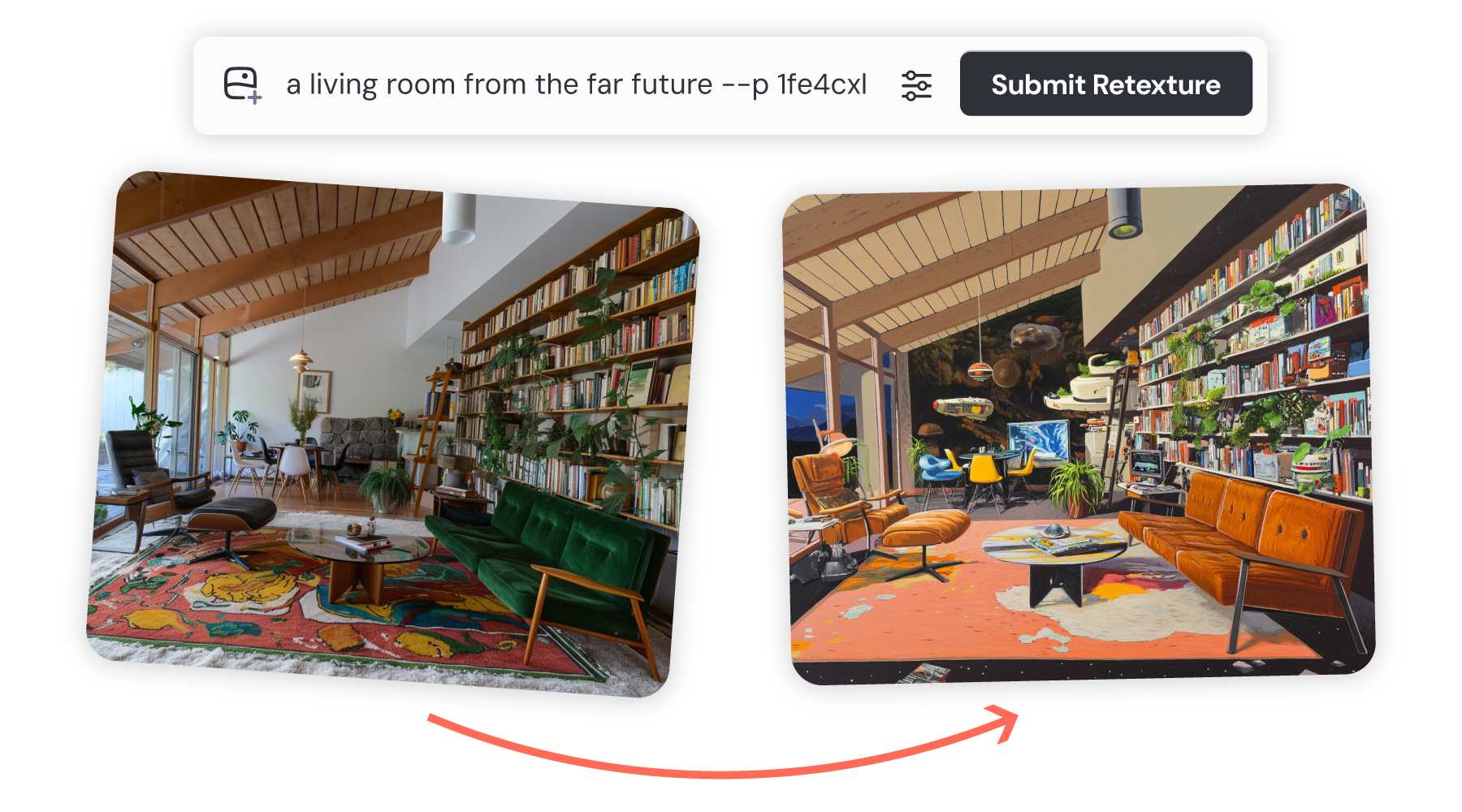
* Midjourney provides you with powerful tools for unleashing your imagination. When using our tools to create with external images, we have additional necessary precautions you should be aware of.
By using external images with Midjourney, you agree to the following rules in addition to our [Terms of Service](https://docs.midjourney.com/hc/en-us/articles/32083055291277)
.
#### External Image Guidelines
* You must meet the age requirement in our [Terms of Service](https://docs.midjourney.com/hc/en-us/articles/32083055291277)
.
* You must follow all applicable laws, our [Community Guidelines](https://docs.midjourney.com/hc/en-us/articles/32013696484109)
, and other policies.
* We may remove content or restrict access at our discretion.
#### Your Responsibilities
* You are responsible for all content you input, create, and share.
* You must have the necessary rights to use the images you upload.
* Do not manipulate images of public or private individuals in ways that are abusive, disrespectful, offensive, derogatory, or inflammatory—this includes sexualized deepfakes.
* Anyone attempting to violate our [Community Guidelines](https://docs.midjourney.com/hc/en-us/articles/32013696484109)
will face suspension or banning without refund. Use these tools with respect and consideration for others.
**If you disagree with these rules, do not use Midjourney with external images.**
You will likely encounter friction with our moderation — seemingly innocent prompts may be blocked by our filters. Blocked jobs don't cost you any credits. [GPU time](https://docs.midjourney.com/hc/en-us/articles/32016412137741)
will only be deducted when you see your results.
We encourage you to use this tool and your imagination with joy, wonder, responsibility, and respect.
For additional information on policies, including privacy, payments, and disputes, refer to our [Terms of Service](https://docs.midjourney.com/hc/en-us/articles/32083055291277)
.
Image History & Visibility
--------------------------
Creations made in the Editor will not show up on your Create or Organize pages unless you Upscale them, but they are saved within the Editor. You can continue working on them or Upscale and Download them at any time by going back to the [Edit](https://www.midjourney.com/editor)
page.
When using externally uploaded images with the Editor or multiple layers, both your uploads and the edited results (including Upscales) are only visible to you—they won't appear on midjourney.com for other users. These images also will not work with the [show command](https://docs.midjourney.com/hc/en-us/articles/32635695384461)
in Discord.
---
# Using Web – Midjourney
[Skip to main content](https://docs.midjourney.com/hc/en-us/sections/33329398561549-Using-Web#page-container)
Using Web
=========
* [](https://docs.midjourney.com/hc/en-us/articles/33329460426765-Website-Overview)
[Website Overview](https://docs.midjourney.com/hc/en-us/articles/33329460426765-Website-Overview)
Get an overview of our website and all the tools you need to turn your ideas into stunning images. Welcome to midjourney.com, your gateway to en...
* [](https://docs.midjourney.com/hc/en-us/articles/33390732264589-Creating-on-Web)
[Creating on Web](https://docs.midjourney.com/hc/en-us/articles/33390732264589-Creating-on-Web)
Explore all the tools and features on your Create page and watch your images generate in real time. Unleash your creativity on the Create page! ...
* [](https://docs.midjourney.com/hc/en-us/articles/35577175650957-Draft-Conversational-Modes)
[Draft & Conversational Modes](https://docs.midjourney.com/hc/en-us/articles/35577175650957-Draft-Conversational-Modes)
Turbocharge your creative flow with Draft Mode! Turbocharge your creative flow with Draft Mode! UPDATE: Conversational Mode now has its own bu...
* [](https://docs.midjourney.com/hc/en-us/articles/32433330574221-Personalization)
[Personalization](https://docs.midjourney.com/hc/en-us/articles/32433330574221-Personalization)
Create custom image styles with personalized profiles and moodboards using --p Create custom image styles with personalized profiles and moodboa...
* [](https://docs.midjourney.com/hc/en-us/articles/33329462451469-Organizing-Your-Creations)
[Organizing Your Creations](https://docs.midjourney.com/hc/en-us/articles/33329462451469-Organizing-Your-Creations)
Easily manage all your Midjourney creations with the tools and features on your Organize page. Easily manage all your Midjourney creations with ...
* [](https://docs.midjourney.com/hc/en-us/articles/34580542725645-Using-Folders)
[Using Folders](https://docs.midjourney.com/hc/en-us/articles/34580542725645-Using-Folders)
Use folders to keep your creativity organized and make dedicated spaces to generate your images. Keep your creativity organized with folders! W...
* [](https://docs.midjourney.com/hc/en-us/articles/33390759197197-Complete-Tasks)
[Complete Tasks](https://docs.midjourney.com/hc/en-us/articles/33390759197197-Complete-Tasks)
Complete tasks on midjourney.com to earn rewards and shape your Personalization. Your input matters: complete tasks for rewards and Personalizat...
---
# Discord Quick Start – Midjourney
[Skip to main content](https://docs.midjourney.com/hc/en-us/articles/32631709682573-Discord-Quick-Start#page-container)
Get started making Midjourney images in Discord.
### Create stunning images instantly using the Midjourney bot on Discord—no special hardware needed!
• Don't be a jerk.
• Don't use our tools to make images that could inflame, upset, or cause drama. That includes gore and adult content. See our [Community Guidelines](https://docs.midjourney.com/hc/en-us/articles/32013696484109)
for more information.
• Be respectful to other people and the team.
Before you jump into creating images in Discord with Midjourney, you'll need a subscription. Don't worry, the process is simple! For a step-by-step guide, take a look at our [How to Subscribe](https://docs.midjourney.com/hc/en-us/articles/31974654274573)
article.
After you’ve subscribed, you’re all set to follow these steps and start making creative images in Discord. Let's get started!
Join the Midjourney Server on Discord
-------------------------------------
To start interacting with the Midjourney Bot, join the Midjourney Server:
1. Open Discord and locate the server list on the left-hand sidebar.
2. Press the `+` button at the bottom of the server list.
3. In the pop-up window, click the `Join a Server` button.
4. Paste or type the following URL: [http://discord.gg/midjourney](http://discord.gg/midjourney)
and press `Join`.
[Learn more about Discord servers](https://support.discord.com/hc/en-us/articles/360034842871-How-do-I-join-a-Server-)
.
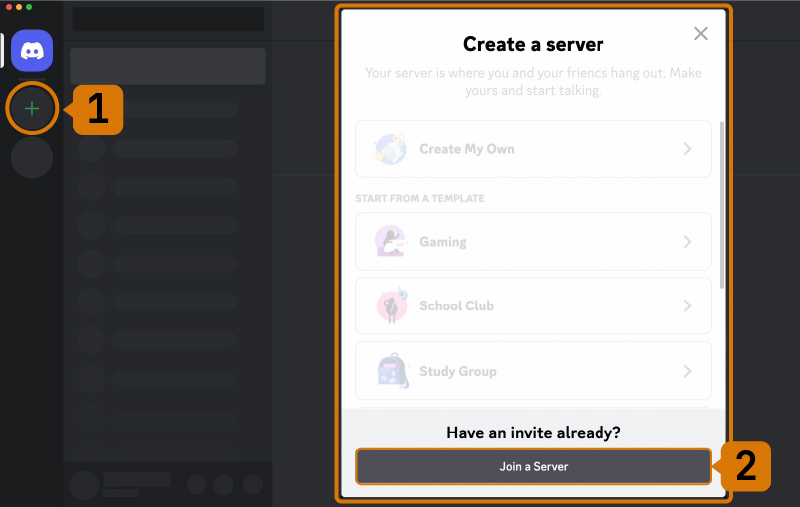
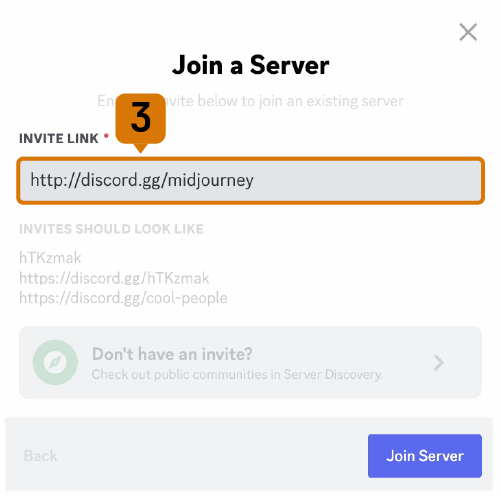
Go to any #General or #Newbie Channel
-------------------------------------
After joining the Midjourney server on Discord, you'll see several channels listed in the sidebar.
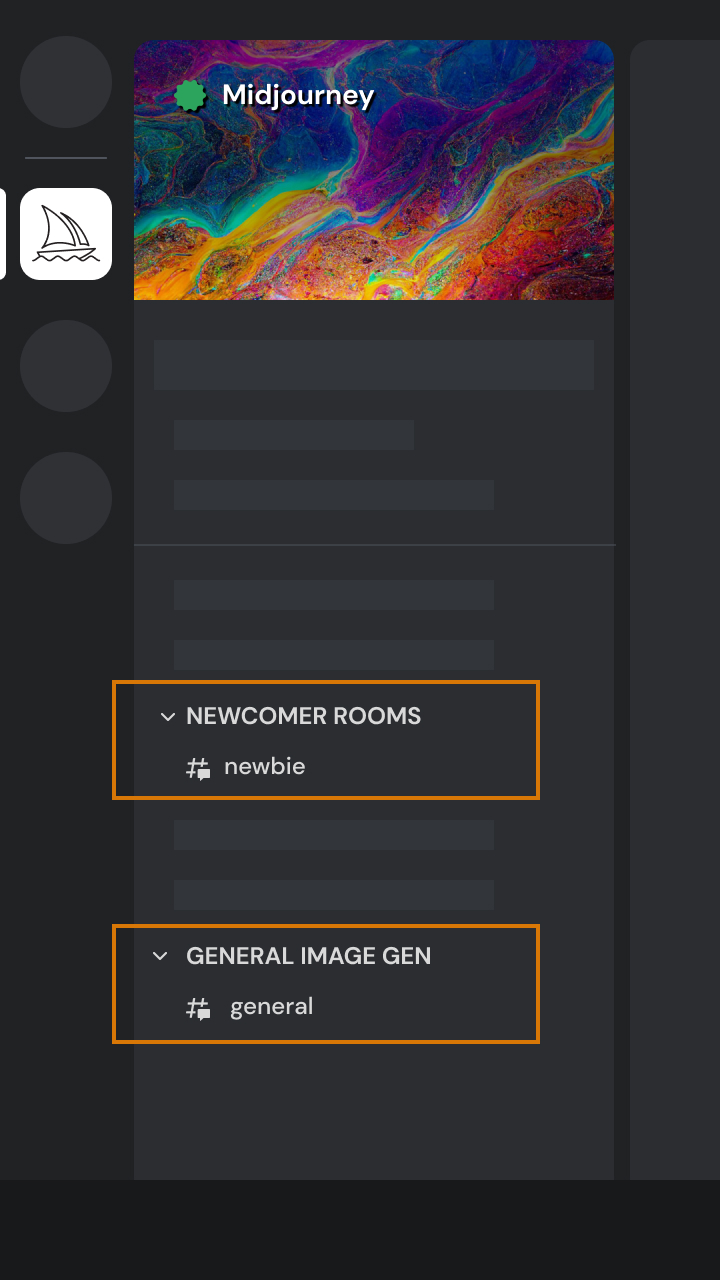
**On the Midjourney Server**
Locate and select any channel labeled `general-#` or `newbie-#`. These channels are designed for beginners to start using the Midjourney Bot. The Midjourney Bot will not generate images in other channels.
**On Other Servers**
You can generate images with the Midjourney Bot on any Discord server that has invited the Midjourney Bot. Look for instructions on your server on where to use the Bot.
Use the /imagine Command
------------------------
Interact with the Midjourney Bot on Discord using [slash commands](https://docs.midjourney.com/hc/en-us/articles/32894521590669)
. Commands are used to create images, change default settings, monitor user info, and perform other helpful tasks. The `/imagine` command generates a unique image from a short text description, known as a [prompt](https://docs.midjourney.com/hc/en-us/articles/32023408776205)
.
#### How to Use /imagine
1. Type `/` in the message box. You’ll see a list of commands pop up above.
2. Keep typing until you see `/imagine`. This helps narrow down the options, just like a search field.
3. Once you spot `/imagine` in the list, click it. If you aren't seeing any Midjourney commands, try our [command troubleshooting tips](https://docs.midjourney.com/hc/en-us/articles/32894521590669)
.
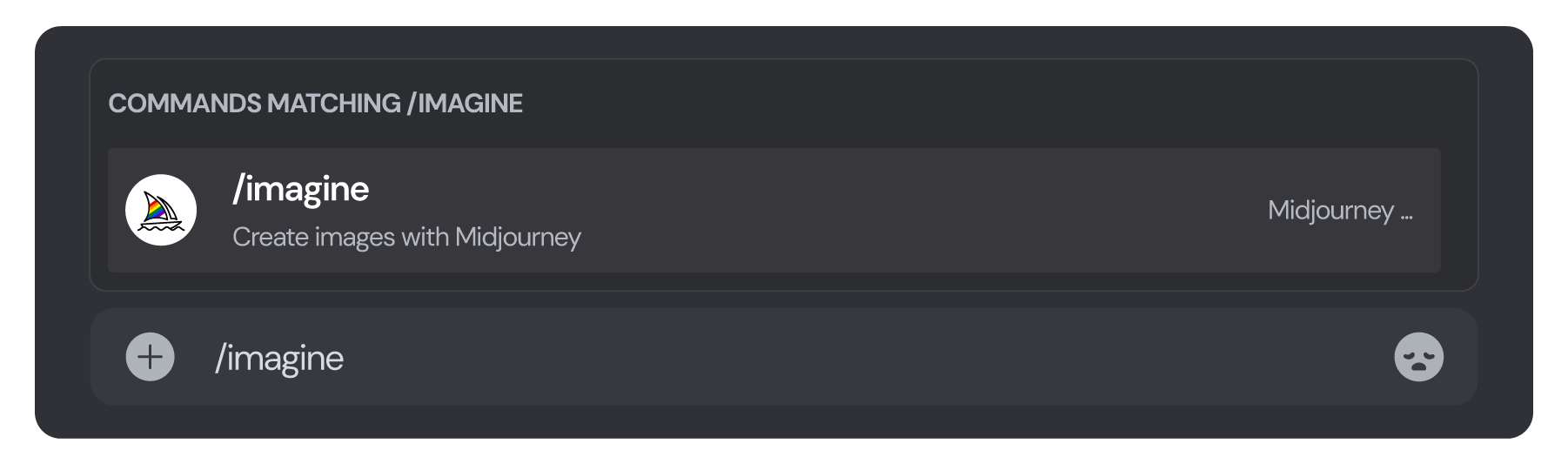
4. Type your prompt into the prompt field.

5. Press Enter or Send to execute the command.
Accept the Terms Of Service
---------------------------
Before generating any images, the Midjourney Bot will prompt you to accept the [Terms Of Service](https://docs.midjourney.com/hc/en-us/articles/32083055291277)
. You must agree to these terms to proceed with image creation.
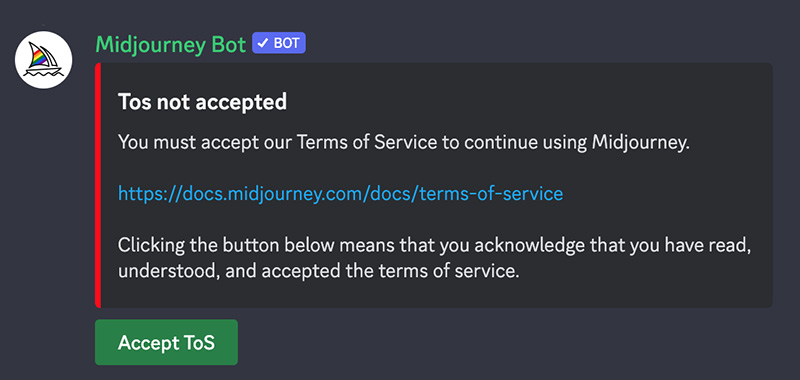
Image Generation Process
------------------------
After submitting a text prompt, the Midjourney Bot processes your request, creating four unique image options within a minute. This process utilizes advanced Graphics Processing Units (GPUs), and each image generation counts towards the [GPU time](https://docs.midjourney.com/hc/en-us/articles/32016412137741)
included with your Midjourney subscription. To monitor your available GPU time (Fast Time Remaining) use the `/info` command.
Select an Image or Create Variations
------------------------------------
Once your initial image grid has been generated, two rows of buttons become available underneath your image grid.
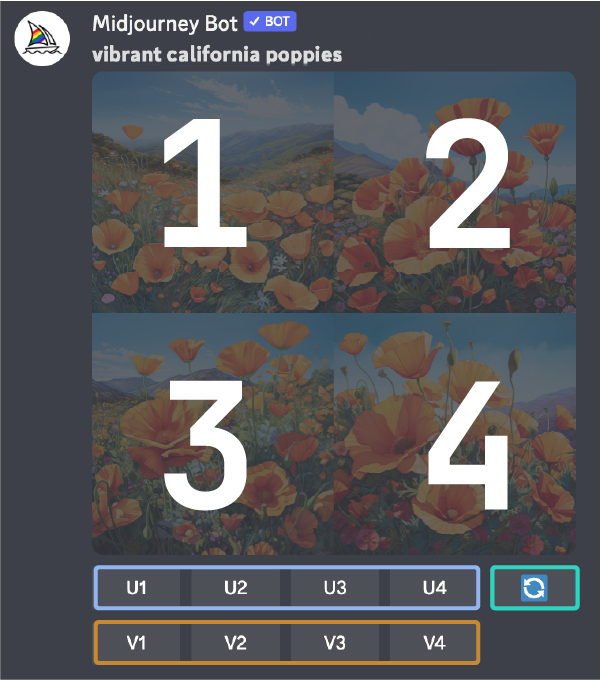
`U1` `U2` `U3` `U4` Image Selection
In earlier versions of Midjourney, the U buttons were used for upscaling images. With the latest model, images are immediately generated at 1024 x 1024 pixels size. Now, the `U` buttons help you separate out your chosen image from the grid, making it easier to download and giving you access to additional editing and generation tools.
`🔄` Re-run or Re-roll a Job
The `🔄` button re-runs a Job. In this case, it would re-run the original prompt producing a new grid of images.
`V1` `V2` `V3` `V4` Image Variation
The `V` buttons are used to create variations of the selected image. Each button generates a new image grid that maintains the general style and composition of the selected image.
Enhance or Modify Your Image
----------------------------
After singling out an image, an expanded set of options becomes available.
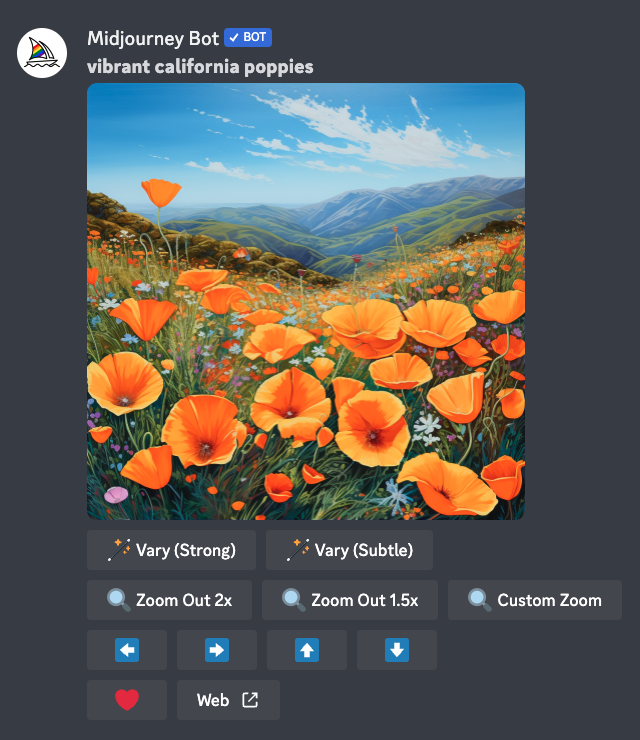
`🪄 Vary (Strong)` `🪄 Vary (Subtle)`
Create a stronger or subtle [variation](https://docs.midjourney.com/hc/en-us/articles/32692978437005)
of your selected image, generating a new grid of four options.
`🔍 Zoom Out 2x` `🔍 Zoom Out 1.5x` `🔍 Custom Zoom`
[Zoom Out](https://docs.midjourney.com/hc/en-us/articles/32595476770957)
of your image, extending the canvas beyond its original boundaries without changing the content of the original image. The newly expanded canvas will be filled-in using guidance from the prompt and the original image.
`⬅️` `➡️` `⬆️` `⬇️`
The [Pan](https://docs.midjourney.com/hc/en-us/articles/32570788043405)
buttons allow you to expand the canvas of an image in a chosen direction without changing the content of the original image. The newly expanded canvas will be filled in using guidance from the prompt and the original image.
`❤️ Favorite`
tag your best images to easily find them on the Midjourney website.
`Web ↗️`
Open the image in your gallery on [midjourney.com](https://www.midjourney.com/home/)
Save Your Image
---------------
Click on the image to open it to full size, and then right-click and choose `Save image`. On mobile, long-tap the image and then tap the download icon in the top right corner.
All images are immediately available to view on [midjourney.com](https://www.midjourney.com/)
Next Steps
----------
#### Direct Messaging the Midjourney Bot
Are you having difficulty finding yourself while working with other users on the Midjourney server? You can interact with the Midjourney Bot one-on-one in a [direct message](https://docs.midjourney.com/hc/en-us/articles/32637339216013)
. Images created within your direct messages are still subject to content and moderation rules and are visible on the Midjourney website.
#### Learn More About Prompts
Learn the [basics of writing prompts](https://docs.midjourney.com/hc/en-us/articles/32023408776205)
and explore how descriptions of artistic mediums, locations, and time periods change an image with [the art of prompting](https://docs.midjourney.com/hc/en-us/articles/32835253061645)
.
#### Blend Your Own Images
Learn how to upload and [blend your own images](https://docs.midjourney.com/hc/en-us/articles/32635189884557)
using the `/blend` command.
#### Midjourney Bot Assistance
Need help or have questions? Try these commands:
`/help` Displays useful information and tips about the Midjourney Bot.
`/ask` Provides answers to questions about the Midjourney Bot.

You can also visit the [#support](https://discord.com/channels/662267976984297473/958069758211797092)
channel on the Midjourney Discord for additional assistance.
#### Billing and Subscription Queries
For billing and subscription help, please visit [Billing Support](https://docs.midjourney.com/hc/en-us/categories/16016577793421)
.
---
# Web vs Discord – Midjourney
[Skip to main content](https://docs.midjourney.com/hc/en-us/articles/33329300781837-Web-vs-Discord#page-container)
Learn about the differences between making images on midjourney.com and Discord.
### Web or Discord? Compare your Midjourney experience!
With your Midjourney subscription, you have the freedom to create images on both our website and Discord. Most features and tools are offered on both platforms, but sometimes they might have different names. You can choose the one that fits your style, or enjoy using both! If you need help connecting your subscription to Discord, check out our [Connecting Accounts](https://docs.midjourney.com/hc/en-us/articles/33390994570509)
article.
Take a look at the table below to explore the key differences and similarities between making images on [midjourney.com](https://www.midjourney.com/)
and Discord.
| Tool / Feature | midjourney.com | Discord |
| --- | --- | --- |
| Making Images with Others |  |  |
| Making Images on Your Own |  |  |
| Chatting with the Community |  |  |
| [Editor](https://docs.midjourney.com/hc/en-us/articles/32764383466893) |  |  |
| [Deleting Images](https://docs.midjourney.com/hc/en-us/articles/33330535666445-Discord-Overview#h_01JH6HGN86CE3MEKM57ASZEPSB) |  |  |
| [Custom Suffixes & Option Sets](https://docs.midjourney.com/hc/en-us/articles/32868982949517-Creation-Settings-in-Discord#h_01JFGGQT4B34F2R6Q2CJ4FQ674)
\* |  |  |
| [Publish/Unpublish Images](https://docs.midjourney.com/hc/en-us/articles/32019750070669)
(after creation) |  |  |
| Manage [Personalization](https://docs.midjourney.com/hc/en-us/articles/32433330574221)
Profiles |  |  |
\*Option Sets can be used on midjourney.com in prompts, but they can only be created and managed in Discord.
Editor
------
On midjourney.com, the [Editor](https://docs.midjourney.com/hc/en-us/articles/32764383466893)
is your go-to for making precise tweaks to your images. With everything in one user-friendly spot, you can crop, [pan](https://docs.midjourney.com/hc/en-us/articles/32570788043405)
, and adjust the [aspect ratio](https://docs.midjourney.com/hc/en-us/articles/31894244298125)
(and more!) all at the same time. Discord offers panning and aspect ratio changes too, but you'll need to do each step separately, which gives you a bit less control.
A standout feature of the Editor is that the [Vary Region](https://docs.midjourney.com/hc/en-us/articles/32794723105549)
inpainting tool is built right into it. This lets you re-generate parts of your image while you make other changes, giving you a smoother creative experience.
Working with Reference Images
-----------------------------
Using your own images to guide your Midjourney creations is incredibly easy on midjourney.com. With the click of a button you can designate your image as an [image prompt](https://docs.midjourney.com/hc/en-us/articles/32040250122381)
, [style reference](https://docs.midjourney.com/hc/en-us/articles/32180011136653)
, or [character reference](https://docs.midjourney.com/hc/en-us/articles/32162917505293)
—even use it as all three! Plus, you can swiftly add any of your Midjourney creations from your gallery to your prompt without hassle.
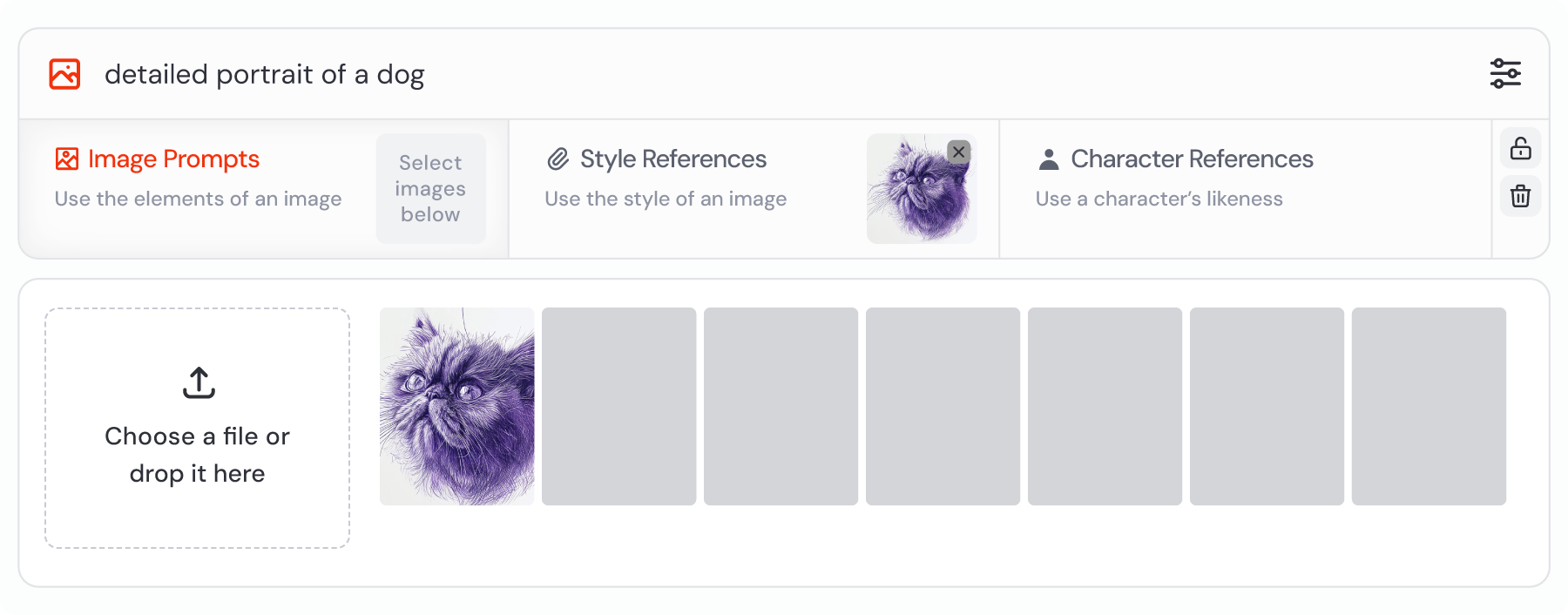
If you’re on Discord, you can still use reference images. However, you’ll first need to [host your image on Discord](https://docs.midjourney.com/hc/en-us/articles/32558957919117)
, grab the image URL, and then add it to your prompt along with any specific parameters. It’s a bit more hands-on, but still doable!
Reusing Elements
----------------
Mixing and matching prompt text, image references and style references is a breeze on the website. In each image's "Creation Actions" section, you'll find "Use" tools. These let you effortlessly reuse prompt text and the image itself, making it simple to craft new prompts.

On Discord, you can achieve similar results, but it takes more manual steps. You’ll need image URLs, and you might find yourself copying, pasting, or using the re-roll 🔄 button to get everything just right.
---
# Using Your Own Images – Midjourney
[Skip to main content](https://docs.midjourney.com/hc/en-us/sections/32013397184397-Using-Your-Own-Images#page-container)
Using Your Own Images
=====================
* [](https://docs.midjourney.com/hc/en-us/articles/37460773864589-Video)
[Video](https://docs.midjourney.com/hc/en-us/articles/37460773864589-Video)
Turn your images into captivating 5 second videos! Turn your images into captivating 5 second videos using Midjourney! Welcome to the exciting ...
* [](https://docs.midjourney.com/hc/en-us/articles/32040250122381-Image-Prompts)
[Image Prompts](https://docs.midjourney.com/hc/en-us/articles/32040250122381-Image-Prompts)
Influcence the content, composition and colors of your creations using image prompts. Want to influence the content, composition, and colors of ...
* [](https://docs.midjourney.com/hc/en-us/articles/32180011136653-Style-Reference)
[Style Reference](https://docs.midjourney.com/hc/en-us/articles/32180011136653-Style-Reference)
Match the look and feel of another image by using style references. Want to match the look and feel of another image? You can provide Midjourney...
* [](https://docs.midjourney.com/hc/en-us/articles/36285124473997-Omni-Reference)
[Omni Reference](https://docs.midjourney.com/hc/en-us/articles/36285124473997-Omni-Reference)
Put a person or object into your images using an Omni Reference. Want to put a person or object into your images? You can provide Midjourney wit...
* [](https://docs.midjourney.com/hc/en-us/articles/32162917505293-Character-Reference)
[Character Reference](https://docs.midjourney.com/hc/en-us/articles/32162917505293-Character-Reference)
Use the same character in multiple images and scenes using character references. Want to use the same character in multiple images and scenes? Y...
* [](https://docs.midjourney.com/hc/en-us/articles/32497889043981-Describe)
[Describe](https://docs.midjourney.com/hc/en-us/articles/32497889043981-Describe)
Use Describe to turn your own images into inspiring prompt ideas. Let your images inspire new ideas—use Describe to explore creative prompts! W...
* [](https://docs.midjourney.com/hc/en-us/articles/32764383466893-Editor)
[Editor](https://docs.midjourney.com/hc/en-us/articles/32764383466893-Editor)
Customize your images using Midjourney's powerful tools! Customize your images using Midjourney's powerful tools! What is the Editor? The Edito...
* [](https://docs.midjourney.com/hc/en-us/articles/33329380893325-Managing-Image-Uploads)
[Managing Image Uploads](https://docs.midjourney.com/hc/en-us/articles/33329380893325-Managing-Image-Uploads)
Hide, unhide, or delete your uploaded images with ease on your Manage Uploads page. Hide, unhide, or delete your uploaded images with ease. Eve...
---
# Midjourney Policies – Midjourney
[Skip to main content](https://docs.midjourney.com/hc/en-us/sections/33329694407821-Midjourney-Policies#page-container)
Midjourney Policies
===================
* [](https://docs.midjourney.com/hc/en-us/articles/32083055291277-Terms-of-Service)
[Terms of Service](https://docs.midjourney.com/hc/en-us/articles/32083055291277-Terms-of-Service)
...
* [](https://docs.midjourney.com/hc/en-us/articles/32013696484109-Community-Guidelines)
[Community Guidelines](https://docs.midjourney.com/hc/en-us/articles/32013696484109-Community-Guidelines)
...
* [](https://docs.midjourney.com/hc/en-us/articles/32083472637453-Privacy-Policy)
[Privacy Policy](https://docs.midjourney.com/hc/en-us/articles/32083472637453-Privacy-Policy)
...
* [](https://docs.midjourney.com/hc/en-us/articles/37012090959245-Cookie-Policy)
[Cookie Policy](https://docs.midjourney.com/hc/en-us/articles/37012090959245-Cookie-Policy)
...
* [](https://docs.midjourney.com/hc/en-us/articles/32084281102349-Midjourney-Trademark-Policy)
[Midjourney Trademark Policy](https://docs.midjourney.com/hc/en-us/articles/32084281102349-Midjourney-Trademark-Policy)
...
* [](https://docs.midjourney.com/hc/en-us/articles/32084462534541-Data-Deletion-and-Privacy-FAQ)
[Data Deletion and Privacy FAQ](https://docs.midjourney.com/hc/en-us/articles/32084462534541-Data-Deletion-and-Privacy-FAQ)
...
* [](https://docs.midjourney.com/hc/en-us/articles/32084601469581-Purchase-Order-Terms-and-Conditions)
[Purchase Order Terms and Conditions](https://docs.midjourney.com/hc/en-us/articles/32084601469581-Purchase-Order-Terms-and-Conditions)
...
---
# Payments – Midjourney
[Skip to main content](https://docs.midjourney.com/hc/en-us/sections/16016608509709-Payments#page-container)
Payments
========
* [Accepted Payment Methods](https://docs.midjourney.com/hc/en-us/articles/27868831972365-Accepted-Payment-Methods)
Midjourney uses Stripe as our payment processor, which means you can only use payment methods that Stripe accepts. Generally, you can pay with m...
* [Editing Your Payment Information](https://docs.midjourney.com/hc/en-us/articles/25385791792781-Editing-Your-Payment-Information)
Active Subscription: To review or update your payment details on an active subscription, go to your Manage Subscription page on midjourney.com. ...
* [Viewing Your Payment History](https://docs.midjourney.com/hc/en-us/articles/27868885185293-Viewing-Your-Payment-History)
All your invoices and receipts are automatically emailed to the billing email address on file, so you might also find them in your inbox. Active...
* [Unsuccessful Payments](https://docs.midjourney.com/hc/en-us/articles/27868801964045-Unsuccessful-Payments)
When a payment is declined, you will often see a pending transaction in your bank account. This is normal, and will go away automatically. It do...
* [Fixing a Paused Plan](https://docs.midjourney.com/hc/en-us/articles/27868802467853-Fixing-a-Paused-Plan)
If your subscription doesn't renew because of a payment failure, your plan will be marked as "Paused". This means that the renewal payment didn'...
* [Payment Currency](https://docs.midjourney.com/hc/en-us/articles/27868831424525-Payment-Currency)
Midjourney accepts payments exclusively in US Dollars (USD). If you're paying with a currency other than USD, your bank will automatically conve...
* [Reporting a Duplicate Charge](https://docs.midjourney.com/hc/en-us/articles/27868806085517-Reporting-a-Duplicate-Charge)
If you haven’t received multiple receipts by email, it’s likely you haven’t been charged more than once. Often, failed payments show up as pendi...
* [Reporting an Unauthorized Charge](https://docs.midjourney.com/hc/en-us/articles/27868804543885-Reporting-an-Unauthorized-Charge)
If you believe your card has been used fraudulently to pay for Midjourney, please contact billing support right away with all the following tran...
* [Changing Your Invoice Information](https://docs.midjourney.com/hc/en-us/articles/27868825749517-Changing-Your-Invoice-Information)
The name, physical address, and VAT or Tax ID that you have in your Stripe payment details are what appear on your invoice. To update this infor...
* [Group Plans & Enterprise Billing](https://docs.midjourney.com/hc/en-us/articles/27870607078285-Group-Plans-Enterprise-Billing)
Currently, Midjourney does not offer discounts or free plans for organizations, including non-profits and educational institutions. If your orga...
---
# Account Management – Midjourney
[Skip to main content](https://docs.midjourney.com/hc/en-us/sections/27646234144397-Account-Management#page-container)
Account Management
==================
* [Logging In & Connecting Accounts](https://docs.midjourney.com/hc/en-us/articles/33390994570509-Logging-In-Connecting-Accounts)
Whether you're joining us for the first time or you're a returning user, it's important to sign in with the correct account. This helps make sur...
* [Managing Your Subscription](https://docs.midjourney.com/hc/en-us/articles/28014179406861-Managing-Your-Subscription)
To manage your Midjourney image generation subscription, simply log in to midjourney.com. For help logging in, see our Logging In & Connecting A...
* [Finding Your Renewal Time](https://docs.midjourney.com/hc/en-us/articles/27870433501837-Finding-Your-Renewal-Time)
To know when your subscription renews, remember that it happens exactly on the same day and time each month as when you first subscribed. For th...
* [Upgrading or Downgrading Your Plan](https://docs.midjourney.com/hc/en-us/articles/27870428114317-Upgrading-or-Downgrading-Your-Plan)
Need to adjust your Midjourney plan? You can easily upgrade or downgrade from the Manage Subscription page on midjourney.com. If you're not logg...
* [Using Midjourney in Discord](https://docs.midjourney.com/hc/en-us/articles/31541509949069-Using-Midjourney-in-Discord)
All our subscription plans allow you to use Midjourney both on our website and in Discord. But if you want to make images in Discord, you will n...
* [Turning Off Automatic Renewals](https://docs.midjourney.com/hc/en-us/articles/27868888211213-Turning-Off-Automatic-Renewals)
All Midjourney subscriptions are set to renew automatically. If you'd prefer not to continue your subscription, you can cancel it via your Manag...
* [Changing Your Billing Email](https://docs.midjourney.com/hc/en-us/articles/27868854770573-Changing-Your-Billing-Email)
Your billing email is the address our payment processor, Stripe, uses to send you invoices and receipts for your Midjourney purchases. This emai...
* [Transferring Your Subscription](https://docs.midjourney.com/hc/en-us/articles/31541557571981-Transferring-Your-Subscription)
If you’ve lost access to the Discord or Google accounts you use to log in to midjourney.com, here’s what you can do: First, reach out to Discord...
* [Deleting Your Data](https://docs.midjourney.com/hc/en-us/articles/27870397554701-Deleting-Your-Data)
If you wish to delete all personal data associated with your Midjourney account, you can initiate this process from the Manage Subscription page...
* [Contacting Support](https://docs.midjourney.com/hc/en-us/articles/32638309968141-Contacting-Support)
If you have any questions or need assistance, our billing support team is here to help. How to Reach Billing Support For billing inquiries, plea...
---
# Upscalers – Midjourney
[Skip to main content](https://docs.midjourney.com/hc/en-us/articles/32804058614669-Upscalers#page-container)
Make your images bigger and better with Midjourney's upscaling tools.
### Make your images bigger and better with Midjourney's upscaling tools!
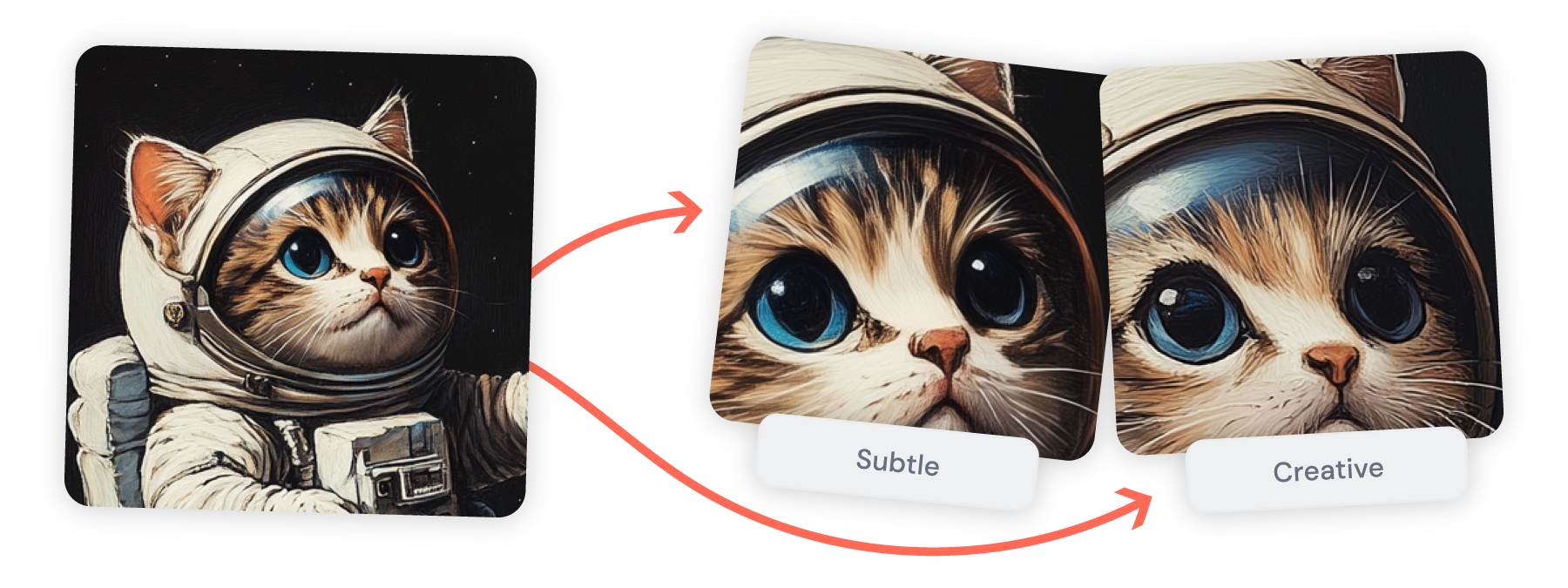
What are Upscalers?
-------------------
Once you've created an image you love, you'll likely want to make it bigger to share or save! This is called upscaling, and it takes your image to its largest size, ready for downloading or sharing. Different [versions](https://docs.midjourney.com/hc/en-us/articles/32199405667853)
of Midjourney start with various default image sizes and offer distinct upscalers.
With the latest Midjourney version, your images start at 1024 x 1024 pixels (using the default [aspect ratio](https://docs.midjourney.com/hc/en-us/articles/31894244298125)
). You can then use the Creative and Subtle upscalers to bump up your images to 2048 x 2048 pixels.
If you're working with different aspect ratios, your image size will change. Check out the chart below to see how some common aspect ratios affect image sizes in version 7.
| Aspect Ratio | Initial Images | Subtle/Creative Upscale |
| --- | --- | --- |
| 1:1 | 1024 x 1024 pixels | 2048 x 2048 pixels |
| 4:3 | 1232 x 928 pixels | 2464 x 1856 pixels |
| 2:3 | 896 x 1344 pixels | 1792 x 2688 pixels |
| 16:9 | 1456 x 816 pixels | 2912 x 1632 pixels |
Need a larger image than what Midjourney offers? No worries! There are plenty of third-party upscaling tools and software out there to help enlarge your images. A great place to find recommendations is our [Midjourney community on Discord](https://discord.gg/midjourney)
. Members often share tips and experiences on which tools they prefer!
Upscalers use your subscription's [GPU minutes](https://docs.midjourney.com/hc/en-us/articles/32016412137741)
. Upscaling can take up to twice as many GPU minutes as generating your initial images.
Subtle vs Creative Upscale
--------------------------
In version 7, you have two options to upscale your images: Subtle and Creative. Both will double the size of your original image. If you choose the Creative upscaler, it might change your image a bit as it adds new details. On the other hand, the Subtle upscaler keeps changes to a minimum, preserving the look of your initial image as closely as possible.
Pro Tip: Using the Creative upscaler can sometimes help correct small issues in your image, like awkward hand positions or odd facial expressions. Plus, you can re-do the upscale more than once. Each time you do, you'll get a slightly different result. Just remember that each Creative or Subtle upscale consumes [GPU minutes](https://docs.midjourney.com/hc/en-us/articles/32016412137741)
.
Upscaling Your Image
--------------------
* Start by clicking on any image you've made on your Create or Organize page. This will open the image, revealing more options.
Next, look for the "Creation Actions" section where you'll find the Upscale options. Select Subtle or Creative to immediately start upscaling your image. The finished result will appear on your Create page.
If you can't find the Upscale options right away, just click "More options" and add a checkmark next to Upscale to make them visible.

Note: If your image was generated in an earlier Midjourney version, then you'll have different upscale options. More information about legacy upscalers is below.
* After your image is generated, use the `U1` `U2` `U3` `U4` buttons to separate your favorite image from the initial grid. Once separated, use the `Upscale (Subtle)` or `Upscale (Creative)` buttons to quickly start generating your upscale.
Note: In Midjourney versions 5 and later the `U#` buttons separate your image from the grid but do not change its size, so they do not consume [GPU time](https://docs.midjourney.com/hc/en-us/articles/32016412137741)
. In earlier versions these buttons do increase your image size, and will consume GPU time.
If you have images in Discord that were made before the release of a new upscaler, you can use the [show command](https://docs.midjourney.com/hc/en-us/articles/32635695384461)
to "refresh" the upscale options.
For information about the upscalers available in older Midjourney versions, check out our [Legacy Features](https://docs.midjourney.com/hc/en-us/articles/33329788681101)
article.
---
# Remix – Midjourney
[Skip to main content](https://docs.midjourney.com/hc/en-us/articles/32799074515213-Remix#page-container)
Adjust your prompt text and guide your variations and edits using remix.
### Adjust your prompt and guide your variations and edits using remix!
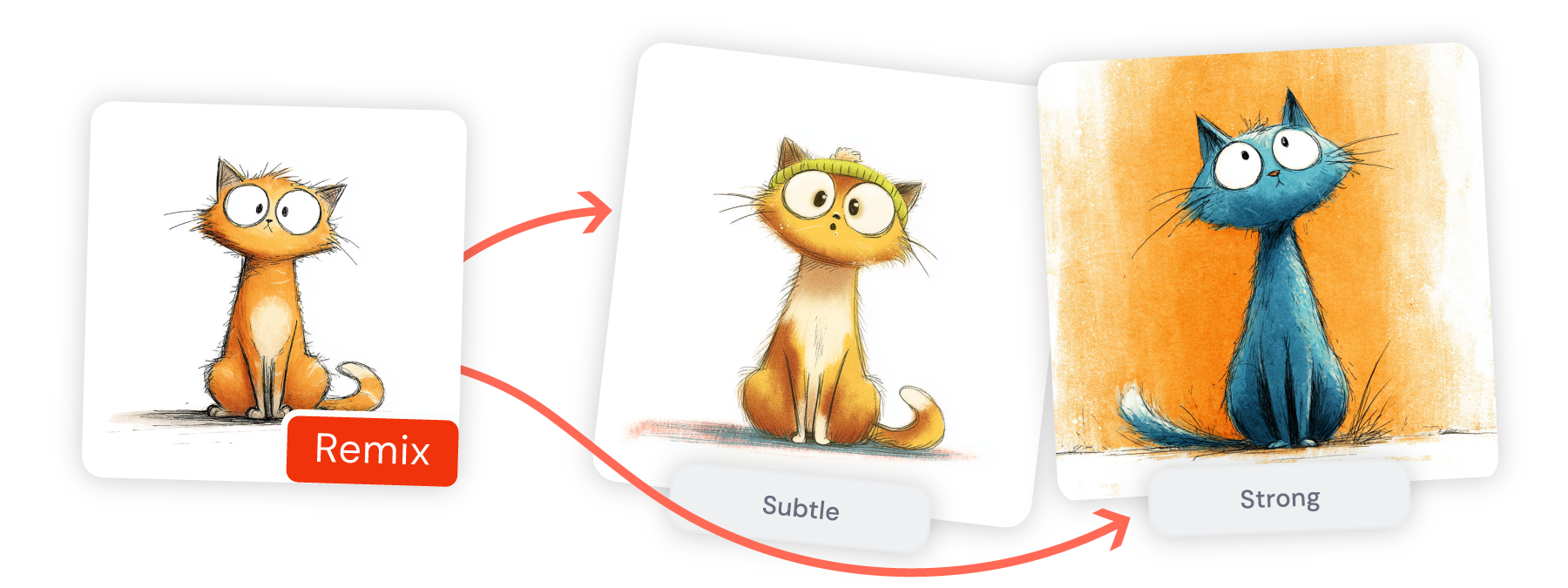
What is Remix?
--------------
With remix, you can tweak or adjust your prompt text while working on your Midjourney images. When you make [variations](https://docs.midjourney.com/hc/en-us/articles/32692978437005)
, use the [Vary Region](https://docs.midjourney.com/hc/en-us/articles/32794723105549)
tool, or try the [pan](https://docs.midjourney.com/hc/en-us/articles/32570788043405)
tool, remix lets you steer how your images turn out. You can change both your prompt and the [parameters](https://docs.midjourney.com/hc/en-us/articles/32859204029709)
you used.
Remember, remix works a bit differently on our website versus Discord, so let's explore the details for each!
Using Remix
-----------
* Start by clicking on any image you've made on your Create or Organize page. This will open the image, revealing more options.
Next, look for the "Creation Actions" section where you'll find the Remix options. Choose from Subtle or Strong, depending on how different you want your new images to be from the original. These options work the same way they do with [variations](https://docs.midjourney.com/hc/en-us/articles/32692978437005)
.
If you can't find the Remix options right away, just click "More options" and add a checkmark next to Remix to make them visible.

After clicking one of the buttons, your original prompt and image will automatically populate in your Imagine bar with the "remix" label. From here you can edit your prompt and submit it. If you make changes you're unhappy with, use the Reset Prompt button to revert back to your original prompt.

If you'd like to change your prompt while making additional edits, click the "Editor" button. This loads your image into Midjourney's [Editor](https://docs.midjourney.com/hc/en-us/articles/32696720371341)
, where you can make multiple changes at once ([pan](https://docs.midjourney.com/hc/en-us/articles/32570788043405)
, [zoom out](https://docs.midjourney.com/hc/en-us/articles/32595476770957)
, remix, and [vary region](https://docs.midjourney.com/hc/en-us/articles/32794723105549)
). You can make changes to your prompt in the "Edit Prompt" section of the Editor.

For more detailed guidance, check out our article on the [Editor](https://docs.midjourney.com/hc/en-us/articles/32696720371341)
.
* In Discord, remix is a mode that you can turn on to unlock the ability to edit your prompt while performing other actions like making [variations](https://docs.midjourney.com/hc/en-us/articles/32692978437005)
, using [Vary Region](https://docs.midjourney.com/hc/en-us/articles/32794723105549)
, re-rolling 🔄, and [panning](https://docs.midjourney.com/hc/en-us/articles/32570788043405)
.
Use the [settings command](https://docs.midjourney.com/hc/en-us/articles/32868982949517)
and click the `🎛️ Remix Mode` button in your settings panel to turn it on. You can also run the standalone `/prefer remix` command to turn the mode on or off.
The default [variation](https://docs.midjourney.com/hc/en-us/articles/32692978437005)
mode (Strong or Subtle) in your settings will automatically be used when remixing a variation with the `V#` buttons.
Changing Parameters
-------------------
You can add or remove [parameters](https://docs.midjourney.com/hc/en-us/articles/32859204029709)
while using remix, but your parameters must remain compatible with each other. For example, if your original prompt has `--version 3` `--stylize 8000` and you change your prompt to `--version 4`, you will get an error message because the maximum stylize value for version 4 is 1000.
Only parameters that normally influence variations will work while using remix, including: [aspect ratio](https://docs.midjourney.com/hc/en-us/articles/31894244298125)
, [no](https://docs.midjourney.com/hc/en-us/articles/32173351982093)
, [stop](https://docs.midjourney.com/hc/en-us/articles/32602768934925)
, and [tile](https://docs.midjourney.com/hc/en-us/articles/32197978340109)
.
Changing aspect ratios with remix will stretch an image. It will not extend the canvas, add missing details, or fix a bad crop. To adjust aspect ratios or fix cropping issues, try [custom zoom](https://docs.midjourney.com/hc/en-us/articles/32595476770957)
, [pan](https://docs.midjourney.com/hc/en-us/articles/32570788043405)
, or using the [Editor](https://docs.midjourney.com/hc/en-us/articles/32696720371341)
instead.
---
# Modifying Your Creations – Midjourney
[Skip to main content](https://docs.midjourney.com/hc/en-us/articles/33329329805581-Modifying-Your-Creations#page-container)
You've generated your first Midjourney image—now what? Learn about our tools for modifying your images!
### You've generated your first Midjourney image—now what? Learn about our tools for modifying your images!
Once you've made an image with Midjourney, your creative journey doesn't have to stop there. You have a range of tools at your fingertips to modify and enhance your images.
To get started, click on your image from your Create or Organize page to open it and reveal more options. Here's a quick look at the Creation Actions.
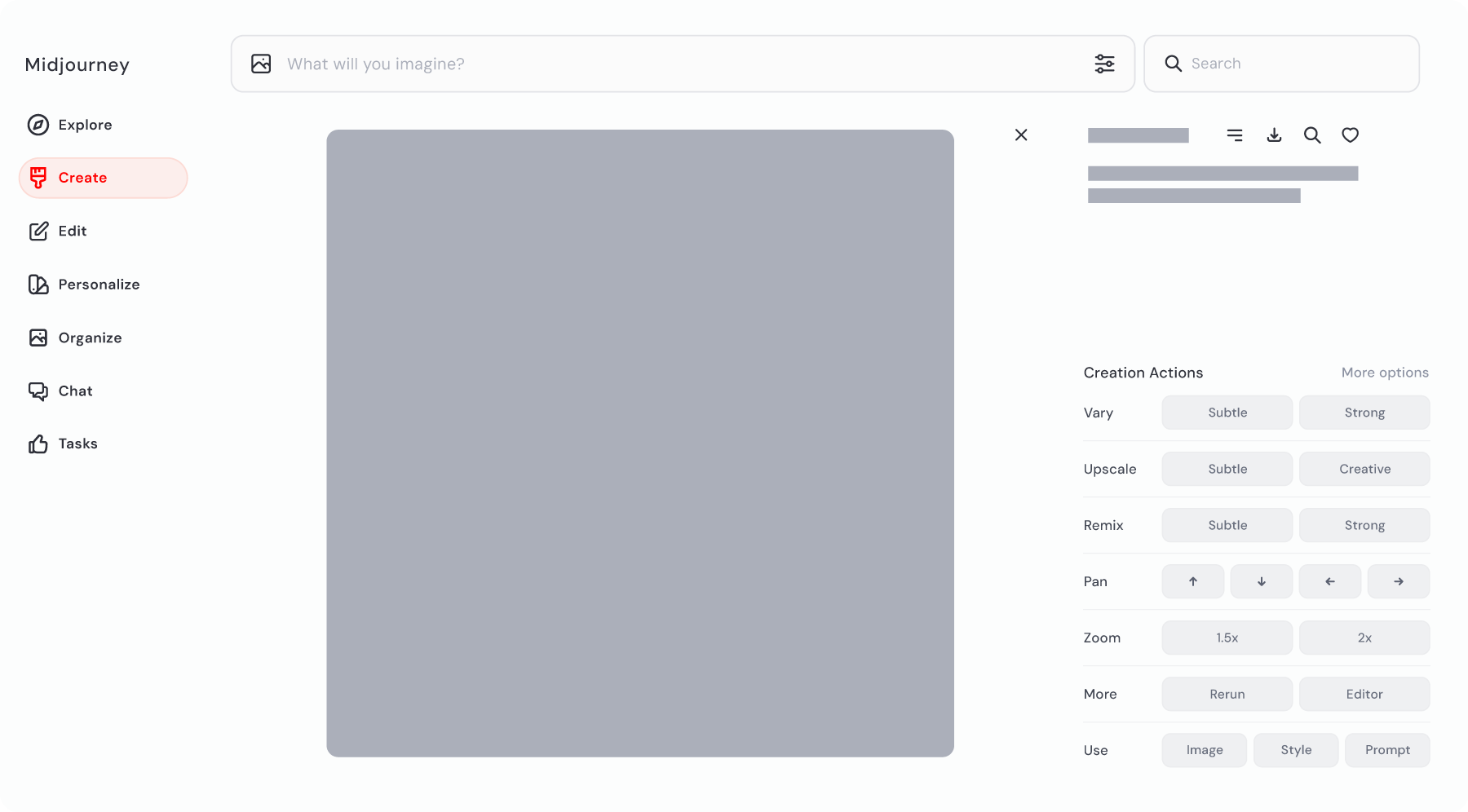
If any of the Creation Actions buttons are missing, just click "More options" and add a checkmark to make them visible.
Variations
----------
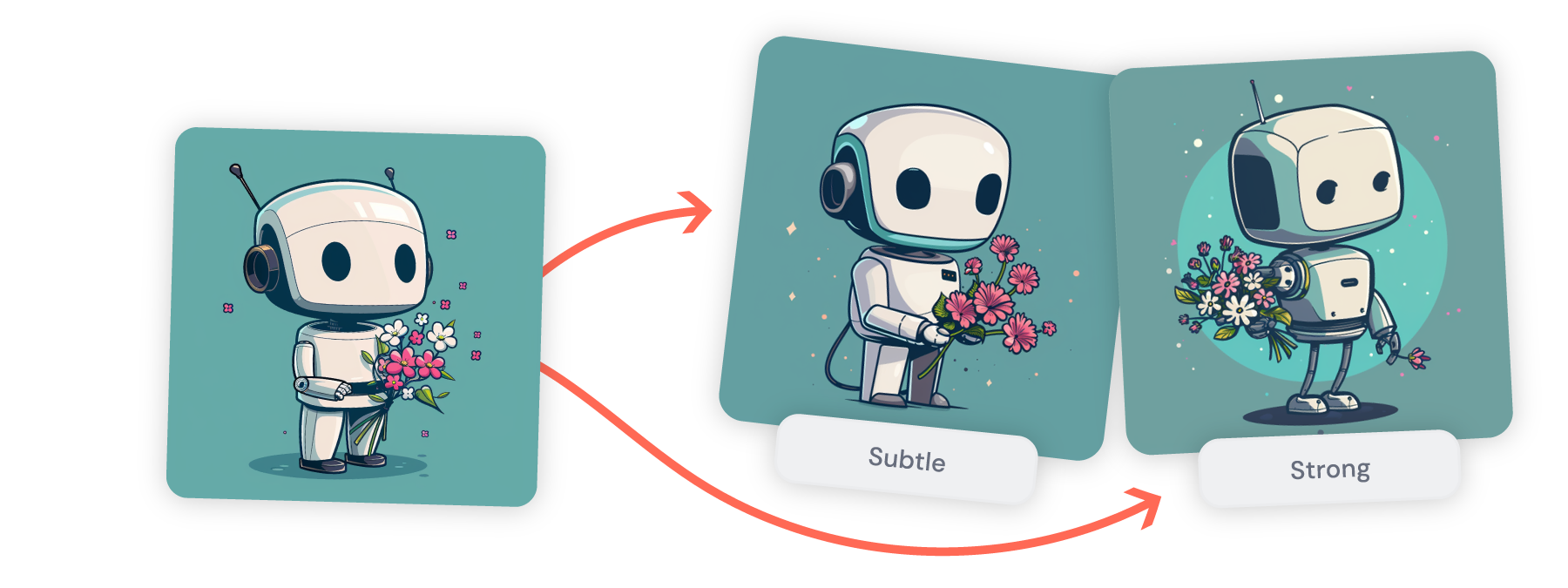
[Variations](https://docs.midjourney.com/hc/en-us/articles/32692978437005)
(Vary) in Midjourney let you create multiple versions of your image with subtle or strong differences. This is particularly useful when you’re happy with your original image but are curious about changes that could make it even better.
Upscale
-------
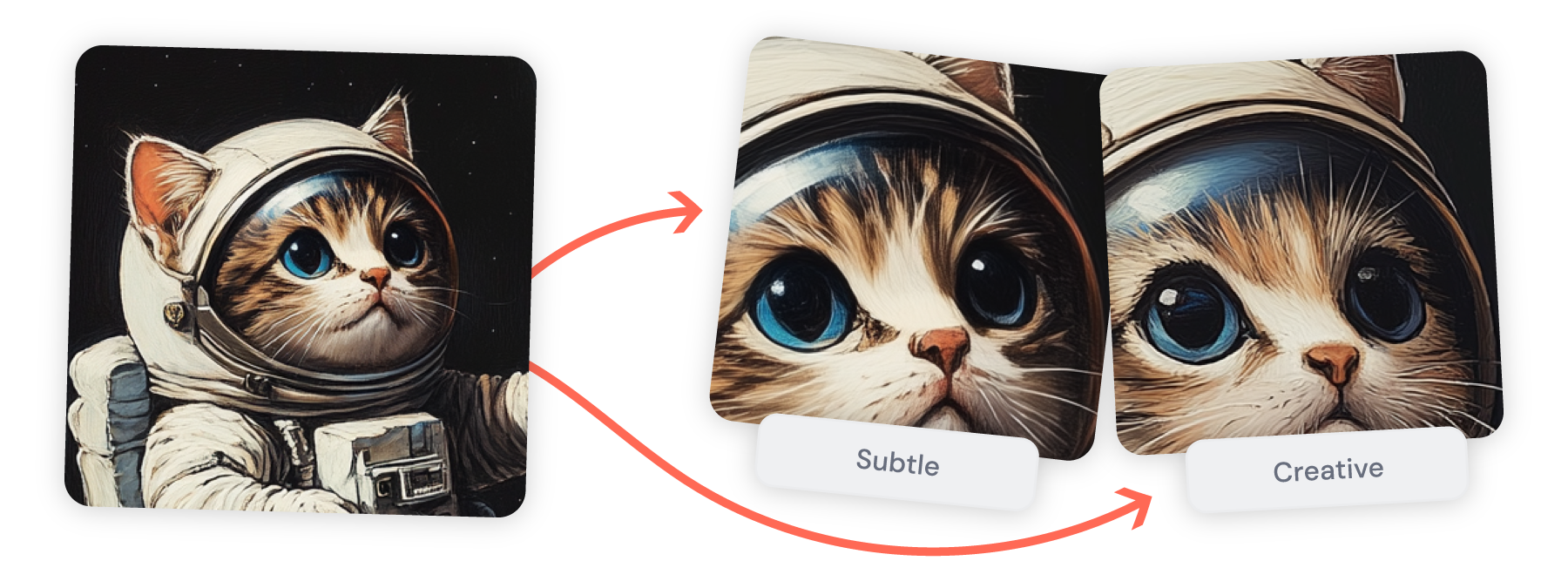
[Upscaling](https://docs.midjourney.com/hc/en-us/articles/32804058614669)
takes your image to the next level by enlarging its dimensions. Creative Upscale not only boosts the size but also adds subtle improvements, perfect for when your image needs that extra polish. To enlarge your image without altering it, use Subtle Upscale.
Remix
-----
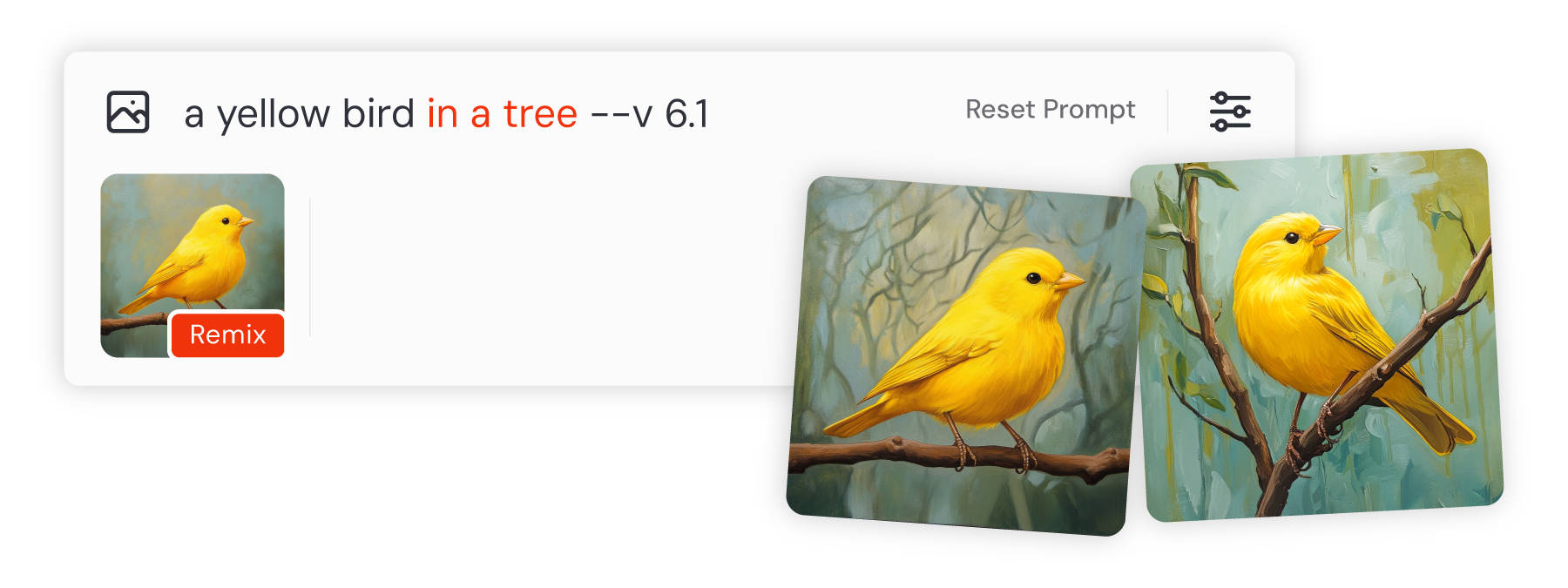
Remix is a powerful feature that lets you make iterations on your image by changing the prompt text. With Remix, you have the freedom to change both the prompt and the parameters you've set, allowing you to creatively steer how your images develop. Remix works a bit different on our website than on Discord, so be sure to check out our [Remix](https://docs.midjourney.com/hc/en-us/articles/32799074515213)
article.
The Editor
----------
Midjourney's [Editor](https://docs.midjourney.com/hc/en-us/articles/32764383466893)
includes Pan, Zoom Out, and Vary Region (the erase tool) all in one interface, if you'd like to make several changes at once. You can also use the individual tools on their own.
#### Pan
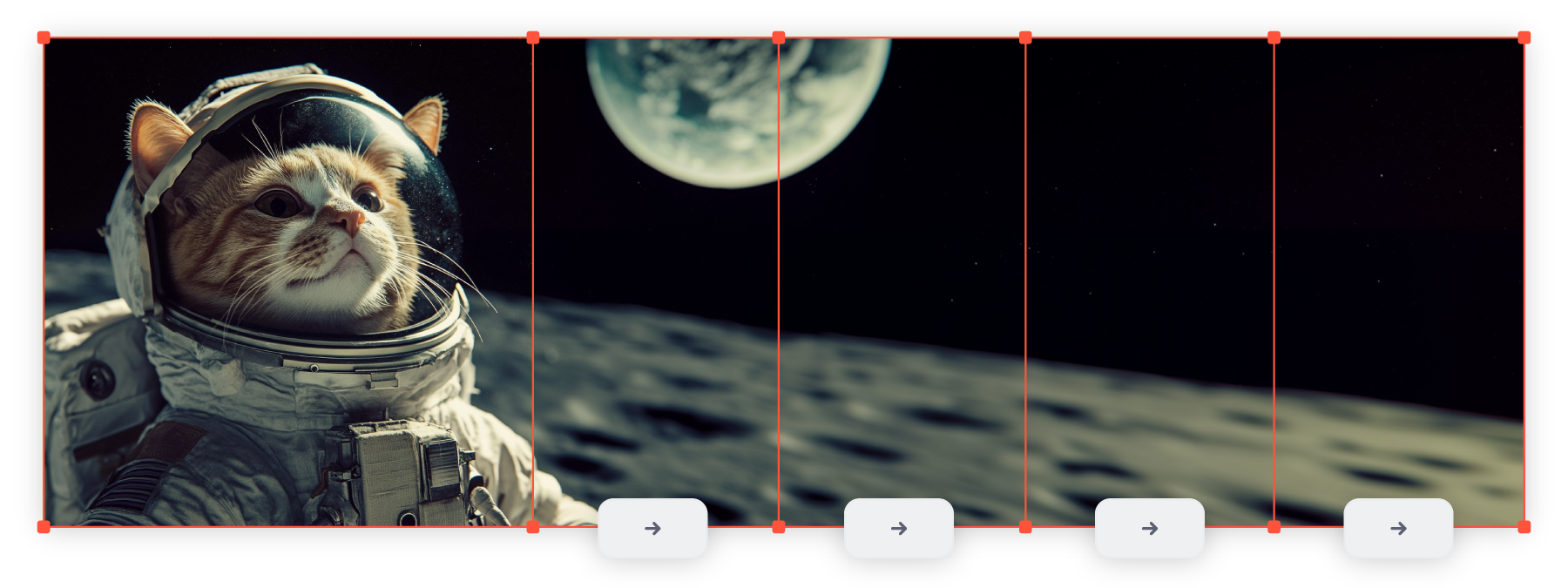
With [Pan](https://docs.midjourney.com/hc/en-us/articles/32570788043405)
, you can expand the canvas of your image in a specific direction to add more content and change its [aspect ratio](https://docs.midjourney.com/hc/en-us/articles/31894244298125)
.
#### Zoom Out
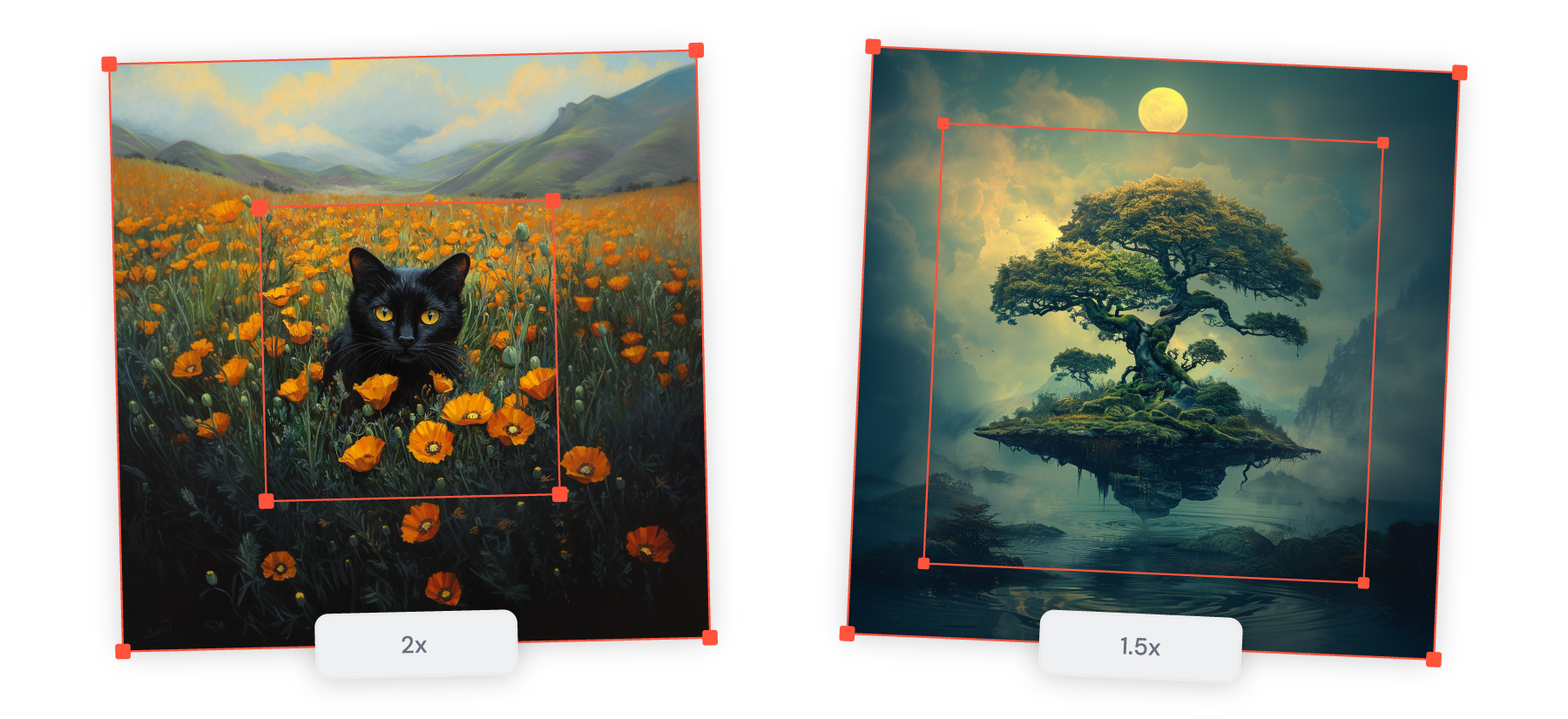
[Zoom Out](https://docs.midjourney.com/hc/en-us/articles/32595476770957)
gives you the ability to add more context and elements around all four sides of your original image, effectively expanding it beyond its current borders.
#### Inpainting
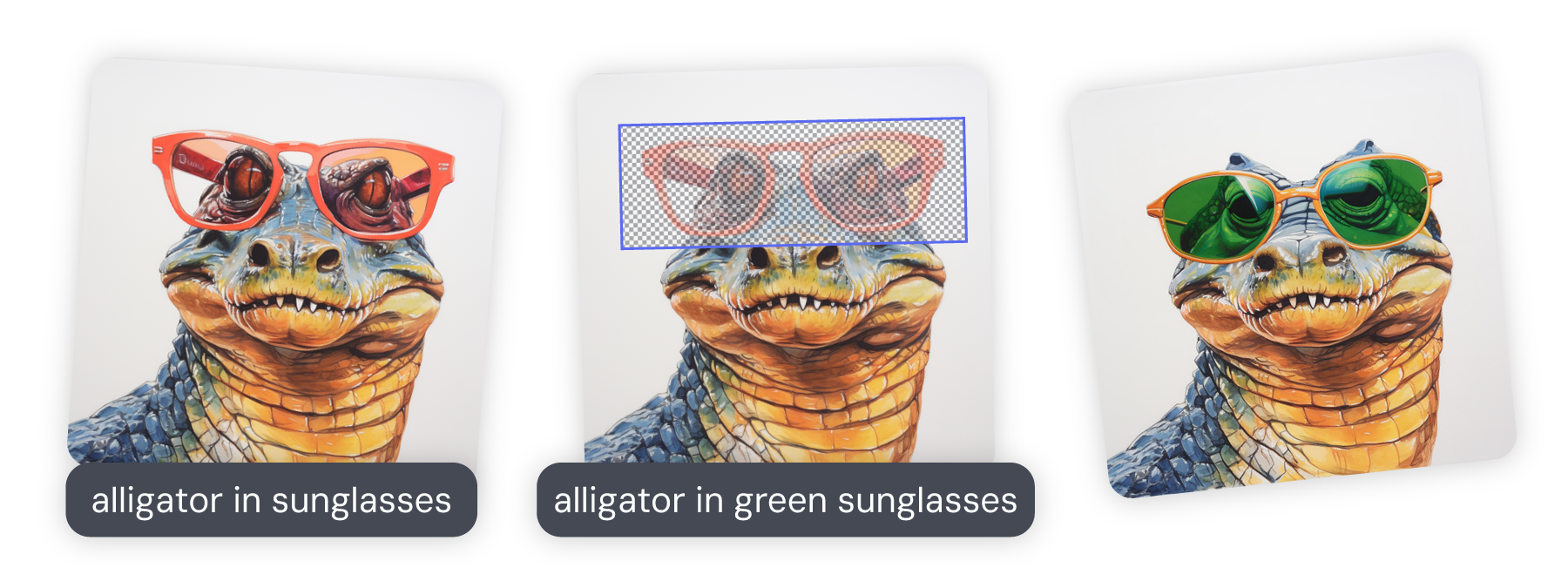
[Vary Region](https://docs.midjourney.com/hc/en-us/articles/32794723105549)
/[Erase](https://docs.midjourney.com/hc/en-us/articles/32696720371341)
is perfect for editing specific parts of your image, allowing for precise alterations without changing the rest of the image.
Use in a New Prompt
-------------------
Under Creation Actions on our website you also have the "Use" buttons which allow you to quickly and easily use your generated image as an [image prompt](https://docs.midjourney.com/hc/en-us/articles/32040250122381)
, [style reference](https://docs.midjourney.com/hc/en-us/articles/32180011136653)
, or add the prompt text to your Imagine bar to make changes and run the prompt again.
Animate
-------
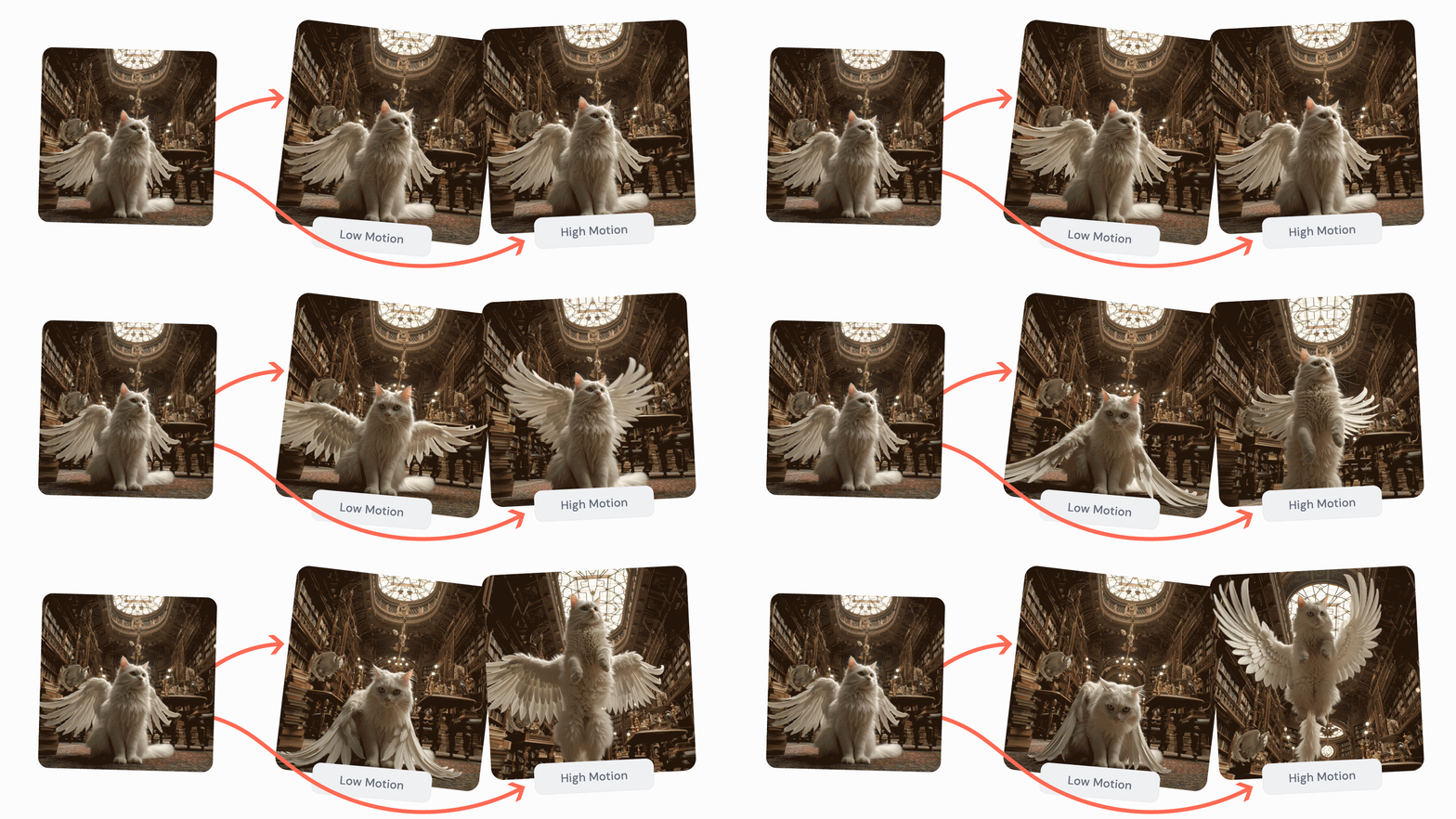
The animate tools give you the ability to turn your image into a captivating 5 second video. Use the Auto buttons to jump right in, or the Manual buttons to adjust your prompt text for the video. Learn more on our [Video](https://docs.midjourney.com/hc/en-us/articles/37460773864589)
article.
Need Help Getting Started?
[Getting Started Guide](https://docs.midjourney.com/hc/en-us/articles/33329261836941)
---
# Legacy Features – Midjourney
[Skip to main content](https://docs.midjourney.com/hc/en-us/articles/33329788681101-Legacy-Features#page-container)
Learn about legacy tools and features that shaped Midjourney's evolution.
### Discover legacy tools and features that shaped Midjourney's evolution.
If you’re curious about the older versions of Midjourney and the features they offer, you’ve come to the right place. As we keep moving forward with the latest updates, we also want to acknowledge and explore the tools and options from previous models that helped shape Midjourney to what it is today.
Legacy Versions
---------------
#### Version 5.2
Version 5.2 was released in June 2023. It was the default model from June 22, 2023 to February 14, 2024. Version 5.2 produces more detailed, sharper results with better colors, contrast, and compositions. It also has a slightly better understanding of prompts than earlier models and is more responsive to the full range of the `--stylize` parameter.
#### Version 5.1
Version 5.1 was released on May 4th, 2023. It was the default model from May 3, 2023 to June 22, 2023. Version 5.1 has a stronger default aesthetic than earlier versions, making it easier to use with simple text prompts. It also has high coherency, excels at accurately interpreting natural language prompts, produces fewer unwanted artifacts and borders, has increased image sharpness, and supports advanced features like repeating patterns with `--tile`.
#### Version 5
Version 5 was released in March 2023. It was the default model from March 30, 2023 to May 3, 2023. Version 5 produces more photographic generations than the V5.1 model, and produces images that closely match the prompt but may require longer prompts to achieve your desired aesthetic.
#### Niji 5
The Niji 5 model was released in April 2023. It can be fine-tuned with specific `--style` parameters including:
• `--style cute` creates charming and adorable characters, props, and settings.
• `--style expressive` has a more sophisticated illustrated feeling.
• `--style original` uses the original Niji Model version 5, which was the default before May 26th, 2023.
• `--style scenic` makes beautiful backgrounds and cinematic character moments in the context of their fantastical surroundings.
**Default Parameter Values**
| | Aspect Ratio | Chaos | Quality | Seed | Stop | Stylize |
| --- | --- | --- | --- | --- | --- | --- |
| Default Value | 1:1 | 0 | 1 | random | 100 | 100 |
| Range | any | 0-100 | 0.25, 0.5, 1 | 0-4294967295 | 10-100 | 0-1000 |
**Upscalers:** Version 5 features the Upscale (2x) and Upscale (4x) tools, which are not compatible with [Pan](https://docs.midjourney.com/hc/en-us/articles/32570788043405)
or [Tile](https://docs.midjourney.com/hc/en-us/articles/32197978340109)
.
* #### Version 4
Version 4 was released in November 2022. It was the default model from December 20, 2022 to March 30, 2023. Version 4 is an entirely new codebase and brand-new AI architecture (compared to previous versions) designed by Midjourney and trained on the new Midjourney AI supercluster. Version 4 has more knowledge of creatures, places, objects, and more than previous versions. It's much better at getting small details right and can handle complex prompts with multiple characters or objects. Version 4 supports advanced functionality like image prompting and multi-prompts, and has very high coherency and excels with Image Prompts.
Version 4 has three slightly different "flavors" with slight tweaks to the stylistic tuning of the model. Experiment with these versions by adding `--style 4a`, `--style 4b`, or `--style 4c` to the end of a V4 prompt. 4c is the default and support aspect ratios up to 1:2 or 2:1. 4a and 4b only support 1:1, 2:3, and 3:2 aspect ratios.
#### Niji 4
Midjourney's first Niji model, Niji 4, was released on December 20, 2022.
**Default Parameter Values**
| | Aspect Ratio | Chaos | Quality | Seed | Stop | Style | Stylize |
| --- | --- | --- | --- | --- | --- | --- | --- |
| Default Value | 1:1 | 0 | 1 | random | 100 | 4c | 100 |
| Range | 1:2–2:1 | 0-100 | 0.25, 0.5, 1 | 0-4294967295 | 10-100 | 4a, 4b, 4c | 0-1000 |
**Upscalers:** Earlier Midjourney model versions start by generating a grid of low-resolution image options for each Job. You can use a Midjourney upscaler on any of these images to increase the size and add additional details. The table below shows image sizes for 1:1 ratio images. For more information view our [Upscalers](https://docs.midjourney.com/hc/en-us/articles/32804058614669)
article.
| Model Version | Starting Grid | Default Upscale | Detail Upscale | Light Upscale | Beta Upscale |
| --- | --- | --- | --- | --- | --- |
| Version 4 | 512 x 512px | 1024 x 1024px | 1536 x 1536px | 1536 x 1536px | 2048 x 2048px |
| Niji 4 | 512 x 512px | 1024 x 1024px | 1024 x 1024px | 1024 x 1024px | 2048 x 2048px |
* The `--test` and `--testp` models were introduced in August 2022 as part of Midjourney's effort to gather community feedback and improve upon new features. These test models allow users to explore upcoming capabilities, and they can be used alongside the `--creative` parameter for more varied compositions. When using these models, keep in mind that they support `--stylize` values ranging from 1250 to 5000, offering strong artistic influence.
There are some limitations with the test models. They do not support multi-prompts or image-prompts and have a maximum aspect ratio of 3:2 or 2:3. When the aspect ratio is 1:1, they generate two initial grid images, but with other aspect ratios, they produce only one initial grid image. Additionally, in crafting prompts, note that words at the beginning of your prompt may hold more weight than those at the end. These unique characteristics make the test models an exciting option for experimental image creation.
**Upscalers:** Initial grid images are 512 x 512px and the only option to upscale is Beta Upscale, which creates a 2048 x 2048px image when using 1:1 aspect ratio. For more information view our [Upscalers](https://docs.midjourney.com/hc/en-us/articles/32804058614669)
article.
* #### Version 1
Version 1 was the default model from February 2022 to April 2022. Version 1 is very abstract and painterly with low coherency.
#### Version 2
Version 2 was the default model from April 2022 to July 2022. Version 2 is creative, colorful, and painterly with low coherency.
#### Version 3
Version 3 was the default model from July 2022 to November 2022. Version 3 generates highly creative compositions with moderate coherency.
V3 Legacy Parameter: `--sameseed` Seed values create a single large random noise field applied across all images in the initial grid. When `--sameseed` is specified, all images in the initial grid use the same starting noise and will produce very similar generated images.
#### High Definition
`--hd` is an early alternative model that generates busy, detailed, and abstract images with low coherency.
**Upscalers:** Earlier Midjourney model versions start by generating a grid of low-resolution image options for each Job. You can use a Midjourney upscaler on any of these images to increase the size and add additional details. The table below shows image sizes for 1:1 ratio images. For more information view our [Upscalers](https://docs.midjourney.com/hc/en-us/articles/32804058614669)
article.
| Model Version | Starting Grid | Default (Detail) Upscale | Light Upscale | Beta Upscale | Max Upscale |
| --- | --- | --- | --- | --- | --- |
| Version 1-3 | 256 x 256px | 1024 x 1024px | 1024 x 1024px | 1024 x 1024px | 1664 x 1664px |
| hd | 512 x 512px | 1536 x 1536px | 1536 x 1536px | 2048 x 2048px | \-- |
Legacy Parameters
-----------------
| | | |
| --- | --- | --- |
| [**High Definition Model**](https://docs.midjourney.com/hc/en-us/articles/33329788681101-Legacy-Features#heading-4)
\--hd | **[Test Models](https://docs.midjourney.com/hc/en-us/articles/33329788681101-Legacy-Features#heading-3)
**
\--test --testp | **[Creative](https://docs.midjourney.com/hc/en-us/articles/33329788681101-Legacy-Features#heading-3)
**
\--creative |
| **[Sameseed](https://docs.midjourney.com/hc/en-us/articles/33329788681101-Legacy-Features#heading-4)
**
\--sameseed | **[Uplight](https://docs.midjourney.com/hc/en-us/articles/33329788681101-Legacy-Features#h_01JHKBTCPCKTEWV56CFSWK79R2)
**
\--uplight | **[Upbeta](https://docs.midjourney.com/hc/en-us/articles/33329788681101-Legacy-Features#h_01JHKBTCPCKTEWV56CFSWK79R2)
**
\--upbeta |
| **[Stop](https://docs.midjourney.com/hc/en-us/articles/33329788681101-Legacy-Features#h_01JY4H0VWNJ0642ANWQFCAGEZ3)
**\--stop | | |
#### Deprecated Parameters
\--width and --w (replaced with [Aspect Ratio](https://docs.midjourney.com/hc/en-us/articles/31894244298125)
)
\--height and --h (replaced with [Aspect Ratio](https://docs.midjourney.com/hc/en-us/articles/31894244298125)
)
\--fast (replaced with [Quality](https://docs.midjourney.com/hc/en-us/articles/32176522101773)
)
\--vibe (now known as model version 1)
\--upanime
\--hq
\--newclip
\--nostretch
\--old
\--video
#### Parameter Version Compatibility
| | Affects Initial Images | Affects Variations & Remix | V6 | V5 | V4 | V3 | Test & Testp | Niji 4 | Niji 5 |
| --- | --- | --- | --- | --- | --- | --- | --- | --- | --- |
| Max. Aspect Ratio |  |  | any | any | 1:2 / 2:1 | 5:2 / 2:5 | 3:2 / 2:3 | 1:2 / 2:1 | any |
| Chaos |  | |  |  |  |  |  |  |  |
| Image Weight |  | | 0-3
default 1 | 0.5-2
default 1 | 0.5-2
default 1 | any
default 0.25 | | | 0.2-2
default 1 |
| No |  |  |  |  |  |  |  |  |  |
| Quality |  | | 0.5-2 | 0.25-1 | 0.25-1 | 0.25-2 | | 0.25-2 | 0.25-2 |
| Repeat |  | |  |  |  |  |  |  |  |
| Seed |  | |  |  |  |  |  |  |  |
| Sameseed |  | | | | |  | | | |
| Stop |  |  |  |  |  |  |  |  |  |
| Style | | | raw | raw | 4a, 4b | | | | expressive, cute, scenic, original |
| Stylize |  | | 0-1000
default 100 | 0-1000
default 100 | 0-1000
default 100 | 625-60000
default 2500 | 1250-5000
default 2500 | | 0-1000
default 100 |
| Tile |  |  |  |  | |  | | |  |
| Weird |  | |  |  | | | | | |
| \# of Initial Images | \-- | \-- | 4 | 4 | 4 | 4 | 2 or 1 if custom aspect ratio | 4 | 4 |
Legacy Upscalers
----------------
In previous Midjourney model versions, images generated at smaller sizes. You can still enlarge these images using a legacy upscaler. These tools not only increase the size but also add more details. There are various legacy upscalers you can choose from for images made with earlier models. Keep in mind, using a legacy upscaler will use [GPU minutes](https://docs.midjourney.com/hc/en-us/articles/32016412137741)
.
#### Version 5
Midjourney model versions 5.x produce 1024 x 1024 pixel images. You can then use the `Upscale (2x)` or `Upscale (4x)` tools to increase the size of your image to 2048 x 2048 pixels or 4096 x 4096 pixels respectively. V5 upscale tools are not compatible with the [pan tool](https://docs.midjourney.com/hc/en-us/articles/32570788043405)
or the [tile parameter](https://docs.midjourney.com/hc/en-us/articles/32197978340109)
.
#### Versions 4 & Earlier
Each of these upscalers changes your image in different ways. All sizes are in pixels and for square aspect ratios.
| Version | Initial Image | V4 Default Upscale | Light Upscale | Beta Upscale | Detail Upscale | Max Upscale\*\* |
| --- | --- | --- | --- | --- | --- | --- |
| V4 | 512 x 512 | 1024 x 1024 | 1536 x 1536 | 2048 x 2048 | 1536 x 1536 | \-- |
| V1-V3 | 256 x 256 | \-- | 1024 x 1024 | 1024 x 1024 | 1024 x 1024\* | 1664 x 1664 |
| Niji | 512 x 512 | 1024 x 1024 | 1024 x 1024 | 2048 x 2048 | 1024 x 1024 | \-- |
| test / testp | 512 x 512 | \-- | \-- | 2048 x 2048 | \-- | \-- |
| hd | 512 x 512 | \-- | 1536 x 1536 | 2048 x 2048 | 1536 x 1536\* | \-- |
\* = the default upscaler for each Midjourney version model.
\*\* Max Upscale is an older resource-intensive upscaler and is only available when users are in Fast Mode.
When using legacy versions, the `--uplight` or `--upbeta` parameters in your prompt will turn the `U#` buttons in Discord into Light Upscale or Beta Upscale shortcut buttons.
Style Tuner
-----------
The Style Tuner is a Discord feature in Midjourney version 5.2, and it set the stage for [Personalization](https://docs.midjourney.com/hc/en-us/articles/32433330574221)
. With this tool, you can use the `/tune` command along with a prompt to generate a variety of sample images. Each image showcases a different visual style based on your provided prompt. Generating these sample images uses your subscription [Fast time](https://docs.midjourney.com/hc/en-us/articles/32016412137741)
, and it can't be used in Relax Mode.
Once you pick the images you like the most, the Style Tuner gives you a special `--style code`. You can use this parameter to tailor the look of your future images, giving them a distinct style. These style code parameters can be combined and shared with other Midjourney subscribers.
Using the `/list_tuners` command will generate a list of all of the Style Tuners you have created.
Remaster
--------
Remaster is a Discord button for upscaled images generated using legacy versions of Midjourney. It automatically [remixes your prompt](https://docs.midjourney.com/hc/en-us/articles/32799074515213)
into version 5.2. Remaster any previously upscaled job by clicking the `🆕 Remaster` button beneath the upscaled image.
Stop
----
Stop is a parameter compatible with versions 6 and earlier. Using `--stop` allows you to end the image creation process before it's fully completed, resulting in softer, less detailed images.
The default stop value is 100, meaning the image completes fully unless you specify otherwise. You can choose a value between 10 to 100. This value represents the percentage of the process you'd like to stop at.
---
# Plan Information – Midjourney
[Skip to main content](https://docs.midjourney.com/hc/en-us/sections/28005319720845-Plan-Information#page-container)
Plan Information
================
* [How to Subscribe](https://docs.midjourney.com/hc/en-us/articles/31974654274573-How-to-Subscribe)
To get started with a Midjourney plan, first create or log in to your account and head over to your Manage Subscription page on midjourney.com. ...
* [Comparing Midjourney Plans](https://docs.midjourney.com/hc/en-us/articles/27870484040333-Comparing-Midjourney-Plans)
All Midjourney plans are subscriptions - meaning they automatically renew on a monthly or yearly basis unless you set your plan to cancel. Midjo...
* [GPU Speed (Fast, Relax, Turbo)](https://docs.midjourney.com/hc/en-us/articles/32016412137741-GPU-Speed-Fast-Relax-Turbo)
To change how fast your images and videos are made, adjust your GPU speed. Midjourney uses powerful Graphics Processing Units (GPUs) to handle t...
* [Subscription Fast Time Expiration](https://docs.midjourney.com/hc/en-us/articles/27870521824653-Subscription-Fast-Time-Expiration)
Keep in mind that any unused Fast time from your subscription will not carry over to the next month. Whether you're on a monthly or yearly plan,...
* [Purchasing Extra Fast Time](https://docs.midjourney.com/hc/en-us/articles/33570952624141-Purchasing-Extra-Fast-Time)
If you run out of Fast time before your subscription renews, you can easily purchase more to continue creating without delays. Visit the Manag...
* [Earning Free Fast Time](https://docs.midjourney.com/hc/en-us/articles/28014817524109-Earning-Free-Fast-Time)
Looking to add more Fast time to your account? Midjourney provides a few ways to earn extra Fast time, perfect for keeping your creative project...
* [Using Images & Videos Commercially](https://docs.midjourney.com/hc/en-us/articles/27870375276557-Using-Images-Videos-Commercially)
With Midjourney, you own all the images and videos you create, even if you decide to cancel your subscription. Feel free to use them however you...
* [Stealth Mode](https://docs.midjourney.com/hc/en-us/articles/32019750070669-Stealth-Mode)
You can manage who sees your creations on the Midjourney website by using Stealth Mode. What is Stealth Mode? Stealth Mode lets you control who ...
* [Keeping Your Creations Private](https://docs.midjourney.com/hc/en-us/articles/28014645615373-Keeping-Your-Creations-Private)
Midjourney thrives as an open-by-default community, which means that every image and video you create can be found on the community gallery on m...
* [Free Trials](https://docs.midjourney.com/hc/en-us/articles/27870399340173-Free-Trials)
A limited trial is available on the niji · journey app, available for iOS and Android devices. No free trial is currently available in Discord o...
* [Discord Nitro Subscription](https://docs.midjourney.com/hc/en-us/articles/27870371412749-Discord-Nitro-Subscription)
Discord Nitro is a Discord subscription with perks for your account, but it’s different from a Midjourney subscription. Having Discord Nitro won...
---
# Vary Region – Midjourney
[Skip to main content](https://docs.midjourney.com/hc/en-us/articles/32794723105549-Vary-Region#page-container)
Change parts of your image while leaving the rest untouched with Vary Region in Discord.
### Perfect your image with Vary Region—select and change just a part, leaving the rest untouched!
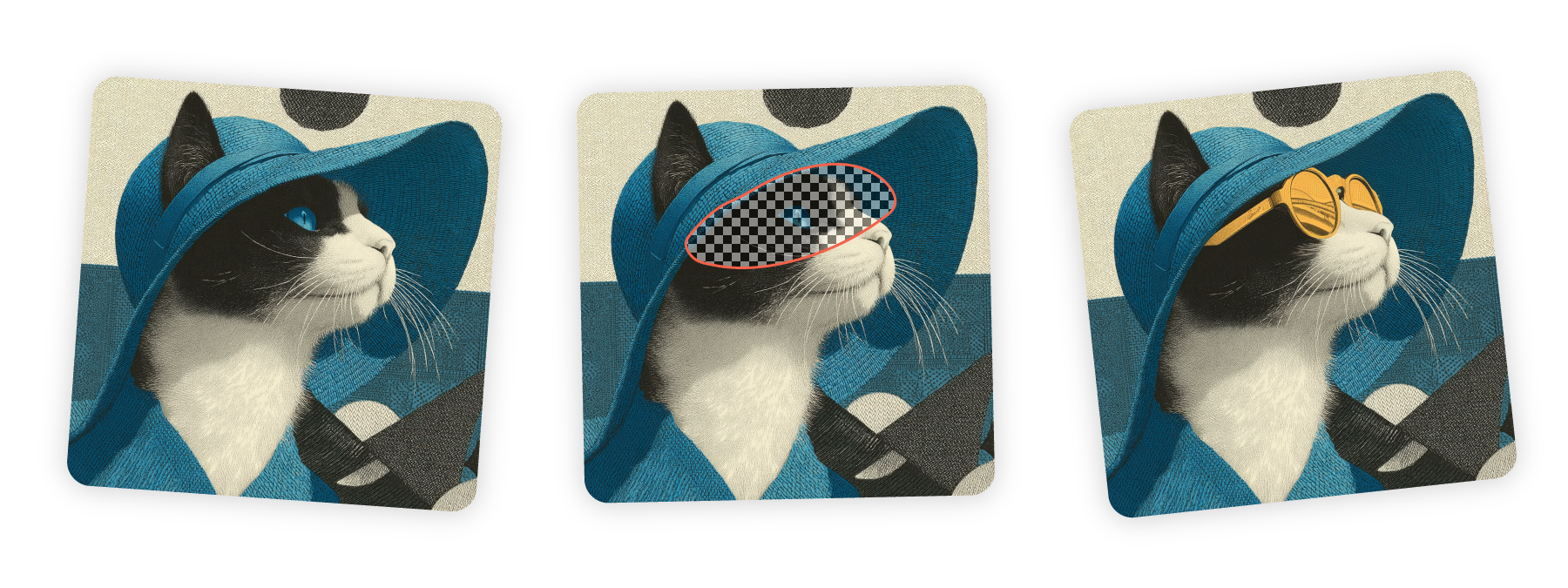
What is Vary Region?
--------------------
The Vary Region tool is a feature in Discord that lets you select a part of your Midjourney-generated image and make changes to it without altering the rest of the image. It's great for fixing small mistakes, adding new elements, or making tweaks while keeping the rest of your image just as it is.
Midjourney takes the content of your original image to smartly regenerate the selected area. Whether you're refining details or experimenting with new ideas, Vary Region offers a seamless way to perfect your images.
Vary Region works with images generated in Midjourney [versions](https://docs.midjourney.com/hc/en-us/articles/32199405667853)
5 and later. While Vary Region is specific to Discord, you can also utilize the same tool (called Erase) on our website using the [Editor](https://docs.midjourney.com/hc/en-us/articles/32764383466893)
.
To guide Midjourney in regenerating a specific area using Vary Region, turn on [Remix Mode](https://docs.midjourney.com/hc/en-us/articles/32799074515213)
in your [Midjourney Discord settings](https://docs.midjourney.com/hc/en-us/articles/32868982949517)
. Once `🎛️ Remix Mode` is active, you'll be able to edit your prompt text directly in the Vary Region editor. This helps you customize how your selected area is regenerated.
Vary Region Walkthrough
-----------------------
* #### Generate an Image
Create an image using the `/imagine` command.

* #### Upscale the Image
Use the `U#` buttons to upscale your selected image.
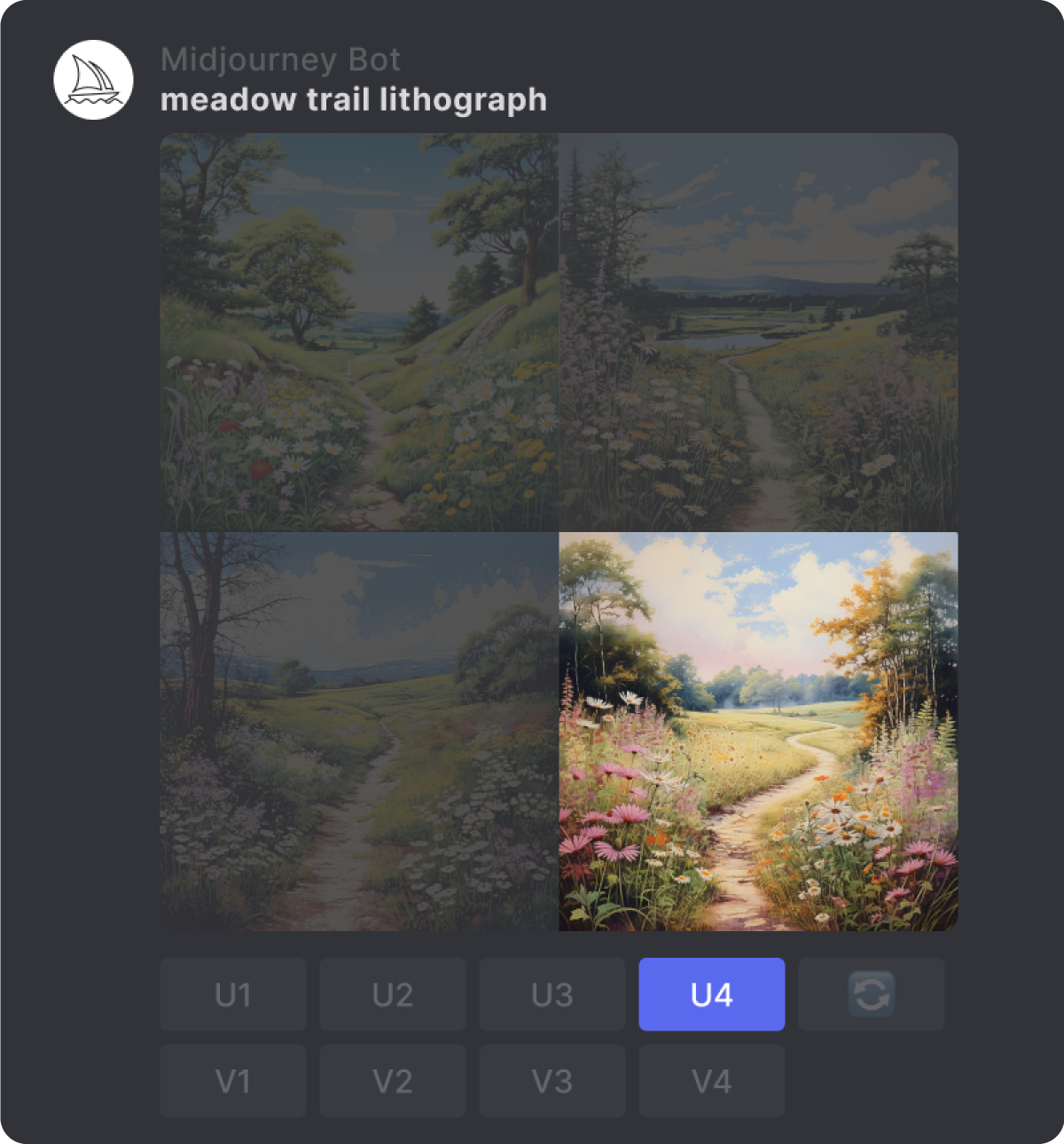
* #### Select Vary Region
Click the `🖌️ Vary (Region)` button to open the editing interface.
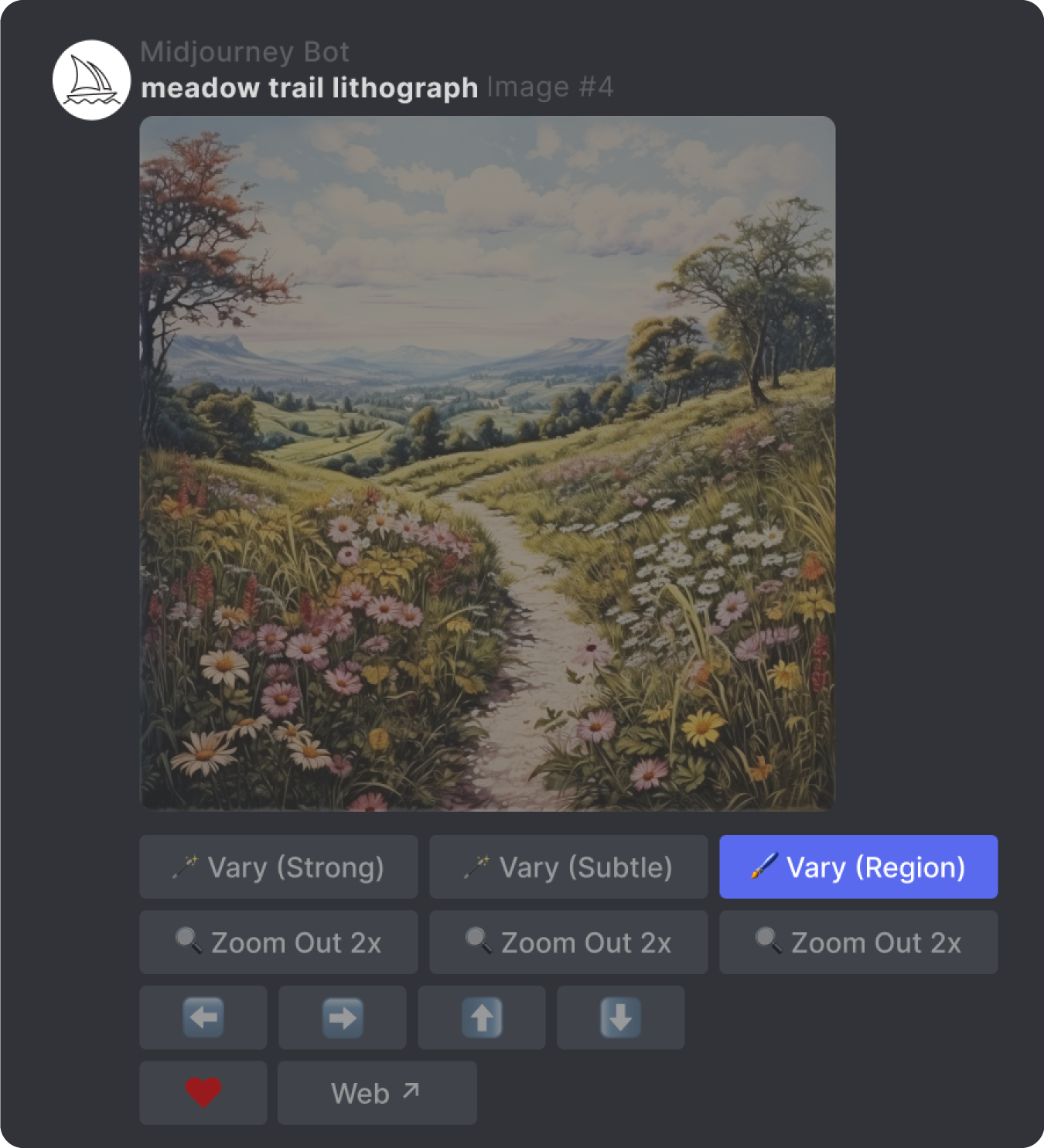
* #### Select Areas to Regenerate
Choose the freehand or rectangular selection tools in the lower left of the editor and select the areas of your image that you want to regenerate.
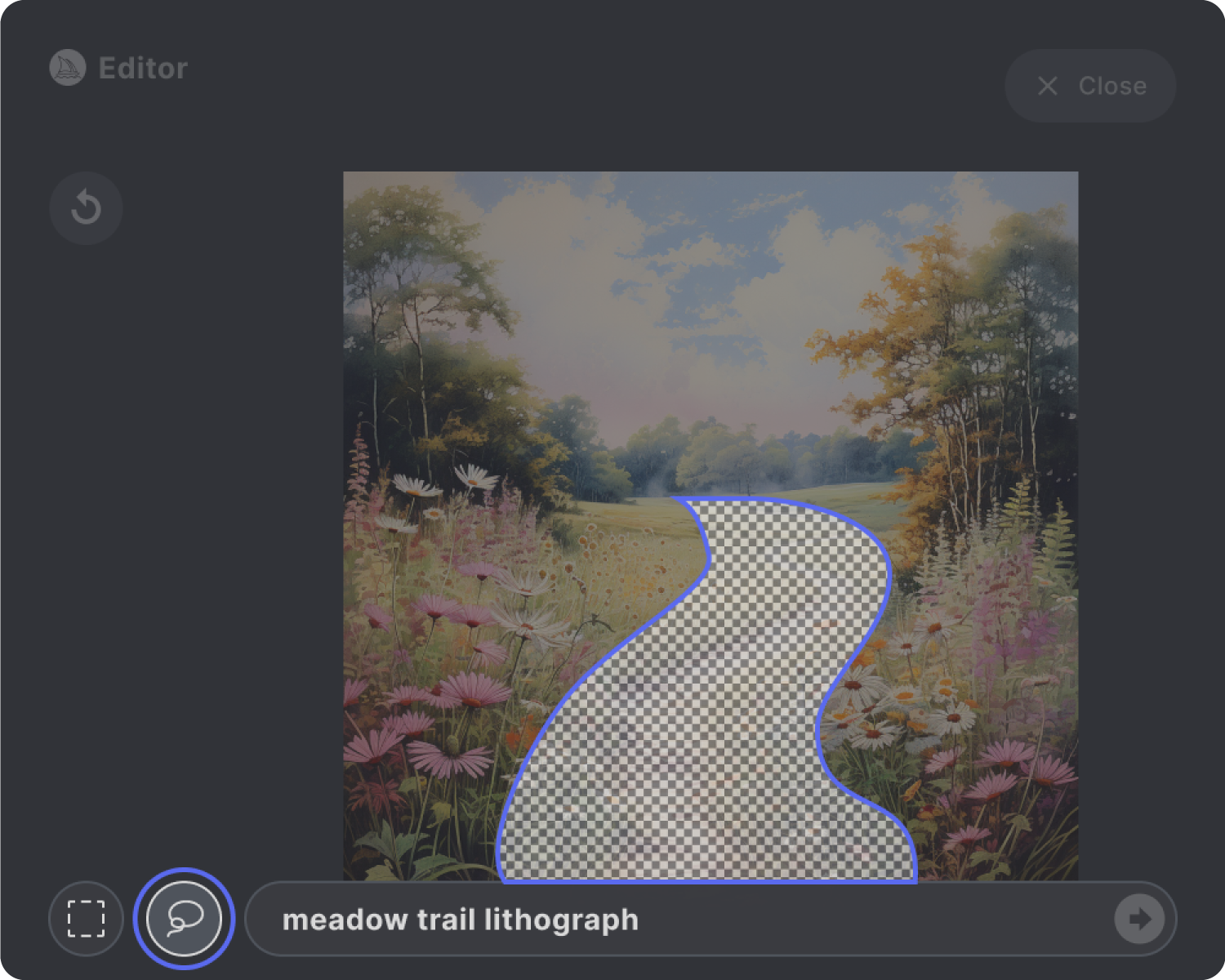
The size of your selection will affect your results. Larger selections give the Midjourney Bot more room to generate new creative details. Smaller selections will result in smaller, more subtle changes. Note: You cannot edit an existing selection but can undo multiple steps using the undo button in the upper right corner.
* #### Modify Your Prompt (optional)
With [Remix Mode](https://docs.midjourney.com/hc/en-us/articles/32799074515213)
turned on you can describe what you want to generate in the selected areas with an updated prompt. Your revised prompt should focus on the details you want to introduce or change.

* #### Submit & View the Results
Click the submit `→` button to send your request to Midjourney Bot. The Vary Region editor can now be closed, and you can return to Discord while your edit is processed.

The Midjourney Bot will process your edit and generate a new image grid using the information from your original image and the guidance of your new prompt.
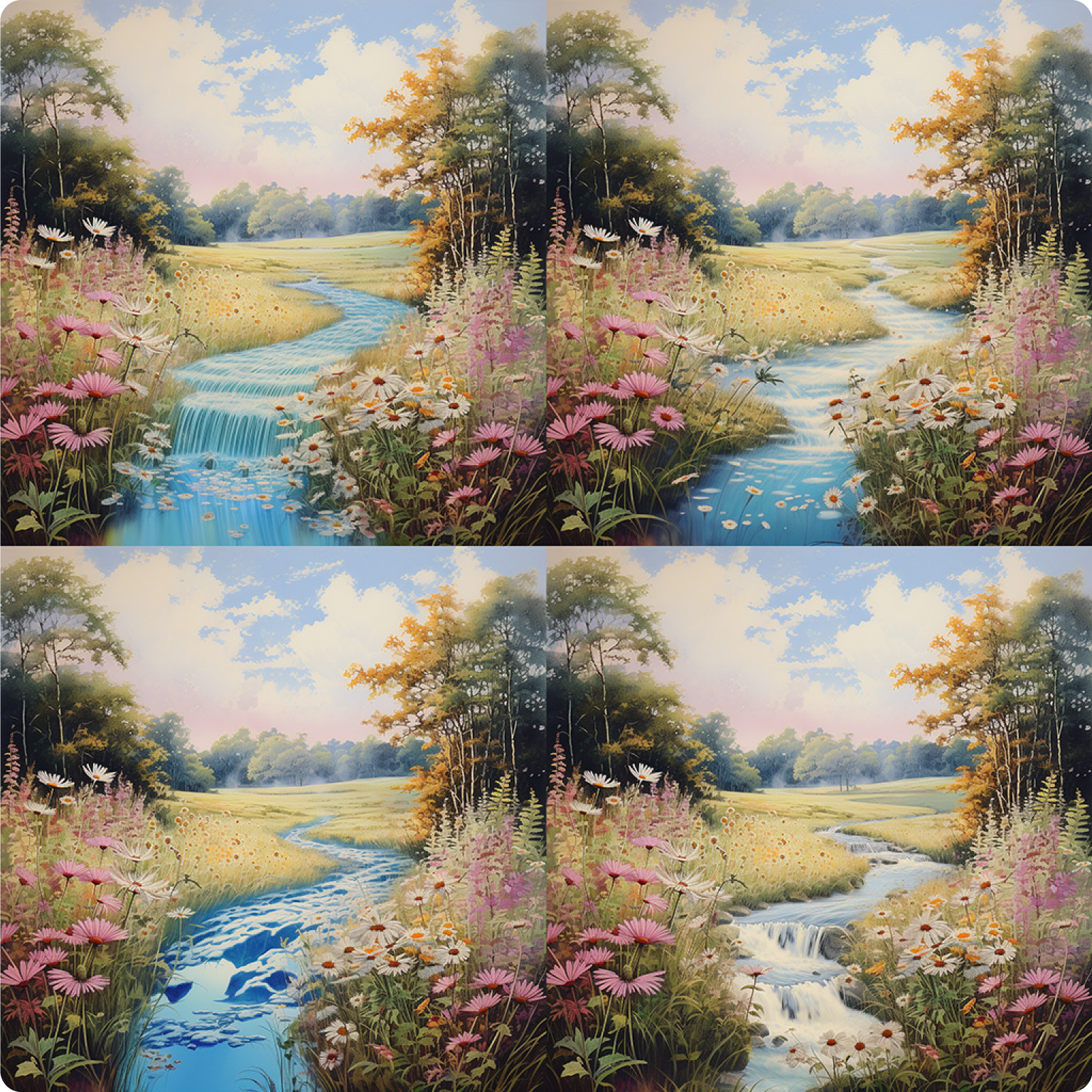
* #### Upscale and Vary Region Again (optional)
You can upscale one of your new images and use the Vary Region editor again to continue refining your image.
Vary Region Tips
----------------
#### Selections
The size of your selection matters! Larger selections give Midjourney more context, which can help ensure the new content matches the rest of your image. However, be careful—selecting too much might lead to new elements blending or replacing parts of the original image you wanted to keep.
#### Prompts
When using Vary Region with Remix Mode, try tweaking your prompts to focus on changes you want in the selected area. Midjourney takes the existing image into account, so short and direct prompts often work best. For instance, instead of prompting "Please change the meadow trail into a beautiful stream," be straight and prompt "meadow stream."
#### Work in Small Steps
If you want to modify several parts of an image, focus on one section at a time. This allows you to create specific prompts for each area.
* The following [parameters](https://docs.midjourney.com/hc/en-us/articles/32859204029709)
are compatible with Vary Region when editing your prompt: [chaos](https://docs.midjourney.com/hc/en-us/articles/32099348346765)
, [generation speeds](https://docs.midjourney.com/hc/en-us/articles/32016412137741)
, [image weight](https://docs.midjourney.com/hc/en-us/articles/32040250122381)
, [no](https://docs.midjourney.com/hc/en-us/articles/32173351982093)
, [stylize](https://docs.midjourney.com/hc/en-us/articles/32196176868109)
, [style](https://docs.midjourney.com/hc/en-us/articles/32634113811853)
, [version](https://docs.midjourney.com/hc/en-us/articles/32199405667853)
, [video](https://docs.midjourney.com/hc/en-us/articles/33330535666445-Discord-Overview#h_01JH6J8BD94W2XJ91RDGV3FP52)
, and [weird](https://docs.midjourney.com/hc/en-us/articles/32390120435085)
.
---
# Organizing Your Creations – Midjourney
[Skip to main content](https://docs.midjourney.com/hc/en-us/articles/33329462451469-Organizing-Your-Creations#page-container)
Easily manage all your Midjourney creations with the tools and features on your Organize page.
### Easily manage all your Midjourney creations with the tools and features on your Organize page!
Welcome to the [Organize page](https://www.midjourney.com/archive)
on midjourney.com, your centralized hub for managing all your creations!
Filters
-------
On the right side of the page you'll find a toolbar with a variety of options you can use to filter your images. Selecting filters will temporarily hide all other creations that don't match your filters.
* **Profiles:** In the Profiles tab, you'll see all your [Personalization](https://docs.midjourney.com/hc/en-us/articles/32433330574221)
profiles listed. Check the box next to a profile to see only the images generated using that profile.
* **Filters:** Ticking multiple boxes within a section displays images that match _any_ of those selections. Checking options in more than one section displays images that match _all_ of those selections.
If it seems like some of your images are missing, it might be because a filter is applied. To view all your images again, make sure to uncheck all filter boxes.
#### View Options
These let you customize the look and layout of your Organize page
#### Timeline Bar
Next to the toolbar, you'll notice a thin gray bar resembling a scroll bar. Hovering over it reveals a timeline displaying the specific days you've generated images. Click on any date to jump straight to images created on that day.
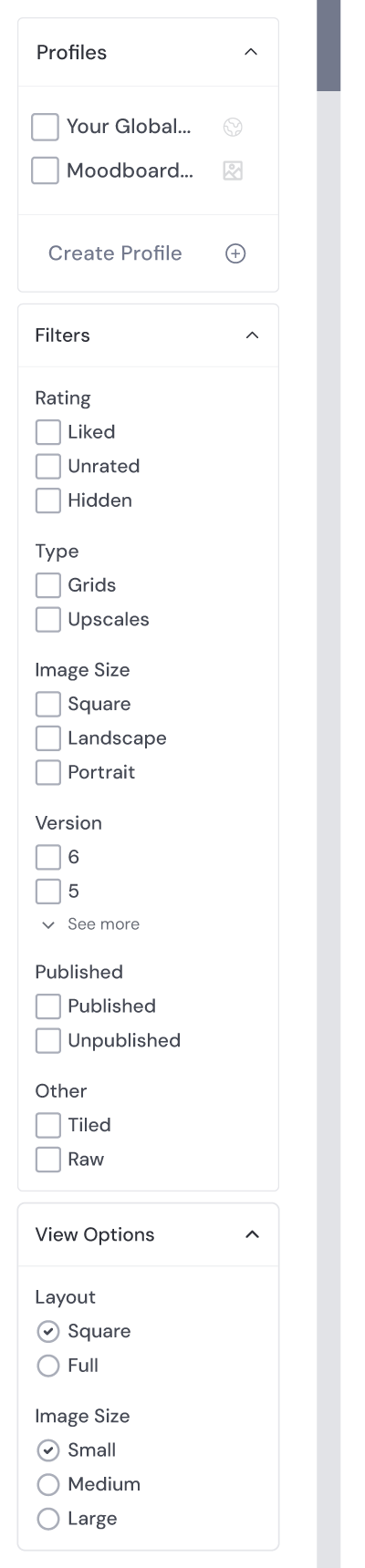
Folders
-------
Just like on your computer, Folders let you neatly organize your images. But here's the fun part: you can now create images directly inside them!
Click the Folder icon next to the search bar to view your folders, create new ones, or create Folder Groups. Give your folders unique names and drag and drop images into them. You can also drag folders into different Folder Groups.
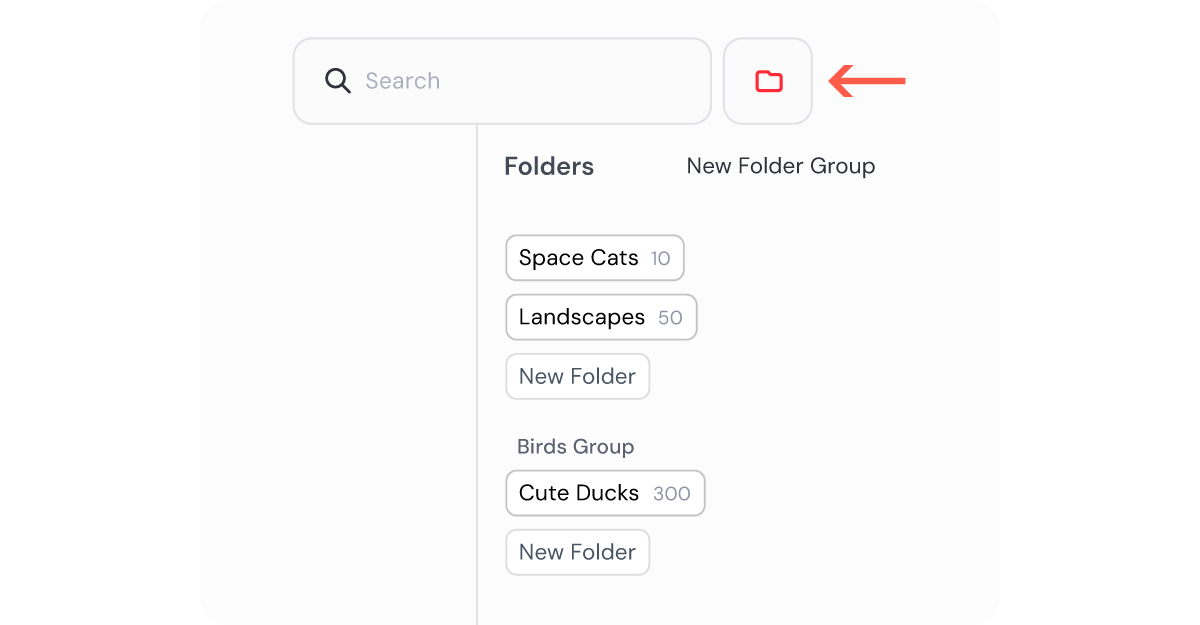
When you enter a prompt in the Imagine bar with a folder open, the results will appear right inside the folder.
The image feed of your folder will appear differently depending on whether you are viewing it from the Create page or the Organize page.
For more information, check out our [Using Folders](https://docs.midjourney.com/hc/en-us/articles/34580542725645)
article.
Searching Your Images
---------------------
* On the Organize page, there's a search bar at the top designed just for your personal image collection.
While other parts of midjourney.com allow you to search images from other users, this search feature focuses on your own creations.
You can search by using words or phrases from your prompt text, and even use [parameters](https://docs.midjourney.com/hc/en-us/articles/32859204029709)
like `--chaos 10` to pinpoint exactly what you're looking for.
* Saved Searches (previously called Smart Folders) help you organize your images in a very easy way. With these searches, you don't need to add or remove images manually—everything sorts itself automatically based on the terms you provide.
When you set up a Saved Search, only prompts that include all your search terms will appear. It doesn't matter what order the terms are in. For example, if you add "cat dog" you'll get images where both words are used in the prompt.
If you want results for either word, just separate them with a comma. Keep in mind that Saved Searches will also find part of a word. So if you add "cat" you'll get results including "catapult" too.
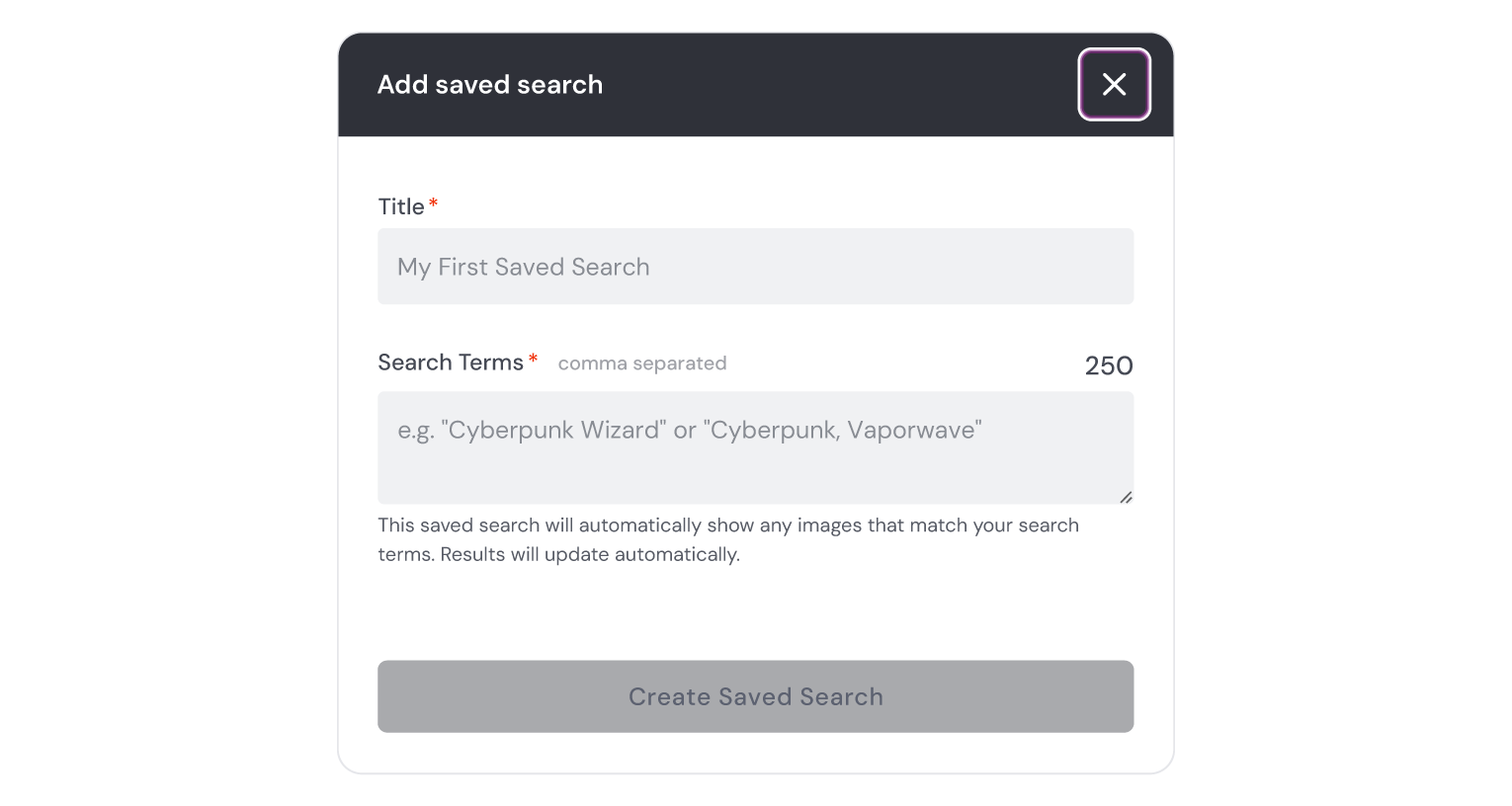
Bulk Actions
------------
Easily select multiple images at once by clicking and dragging or using shift + click. You can also select all the images generated on a single day by clicking the plus + icon next to the date.
After selecting, a bulk actions pop-up will appear at the bottom of your screen. This pop-up shows the number of images selected and presents several action options.
You can download images directly, or click the More button for additional actions such as adding or removing from folders, [publishing or unpublishing](https://docs.midjourney.com/hc/en-us/articles/32019750070669)
, hiding or unhiding, and liking or unliking.
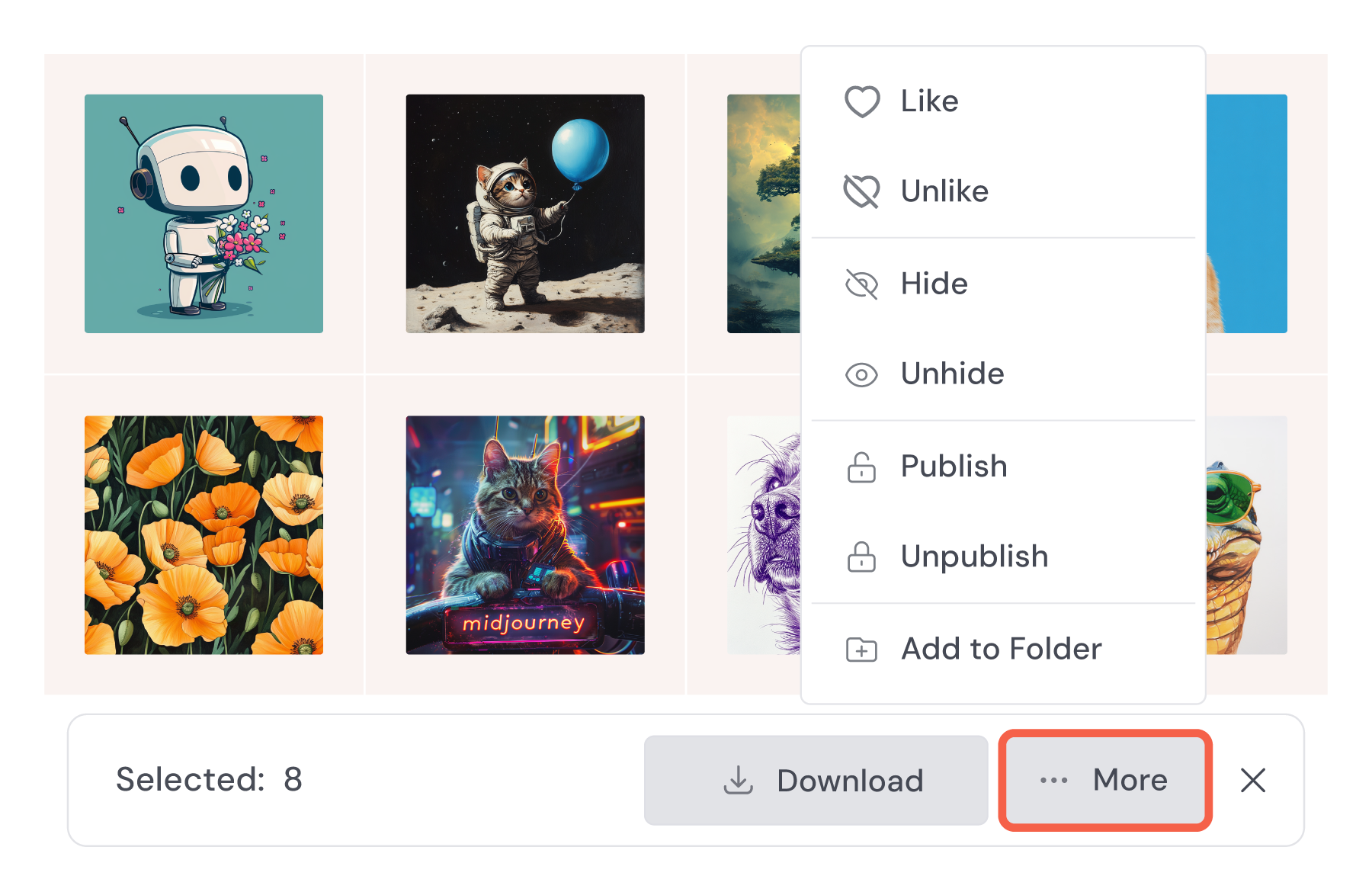
Hiding & Deleting Images
------------------------
Currently there isn't a way to delete images from the Midjourney website, but you can hide them if you'd like to clean up your Organize page.
Hiding an image makes it invisible to you, but it remains public and other Midjourney users can still see it. To view your hidden images, use the "hidden" checkbox filter option to reveal them.
The only way to delete images is using the ❌ emoji reaction in Discord. For more information, check out our [Discord Overview](https://docs.midjourney.com/hc/en-us/articles/33330535666445)
article.
---
# Website Overview – Midjourney
[Skip to main content](https://docs.midjourney.com/hc/en-us/articles/33329460426765-Website-Overview#page-container)
Get an overview of our website and all the tools you need to turn your ideas into stunning images.
### Welcome to midjourney.com, your gateway to endless creative possibilities!

Our website is designed to ignite your imagination and provide all the tools you need to turn your ideas into stunning images.
For newcomers, or if you just want a refresher on getting started, check out our [Getting Started Guide](https://docs.midjourney.com/hc/en-us/articles/33329261836941)
.
Explore
-------
Dive into the [Explore Page](https://www.midjourney.com/explore)
, the community gallery where you can browse a stunning array of images crafted by fellow subscribers.
With a search bar and views like Random, Hot, and Top (by day, week, or month), it's easy to find popular and trending creations.
Clicking on any image reveals details about its creator, prompt, and settings.
Hovering over an image will give you handy shortcuts to reuse the image and prompt text in your own prompts, find similar visuals, or "like" the image. Use the Likes view to see all your liked images.
Create
------
The [Create Page](https://www.midjourney.com/imagine)
is the heart of your image-making journey. It's where you bring your ideas to life and see your images generate in real-time.
Once your creations are complete, they'll be right there for you to admire and fine-tune. This page is packed with tools and features that make it simple to continue evolving your work and modifying your images. For more detailed information, see our [Creating on Web](https://docs.midjourney.com/hc/en-us/articles/33390732264589)
article.
Edit
----
The [Edit Page](https://www.midjourney.com/editor)
is where you can access Midjourney's Editor, your gateway to uploading and editing any image using Midjourney's advanced tools.
For more information, see our [Editor](https://docs.midjourney.com/hc/en-us/articles/32764383466893)
article.
Personalize
-----------
The [Personalization Page](https://www.midjourney.com/personalize)
is your go-to place for creating custom image styles with personalized profiles and moodboards. You can manage multiple profiles, each capturing a unique style or mood to meet your creative goals.
For more information, see our [Personalization](https://docs.midjourney.com/hc/en-us/articles/32433330574221)
article.
Organize
--------
The [Organize Page](https://www.midjourney.com/archive)
is your hub for managing everything you create with Midjourney. You can search, filter, and sort your images to easily navigate and organize your work.
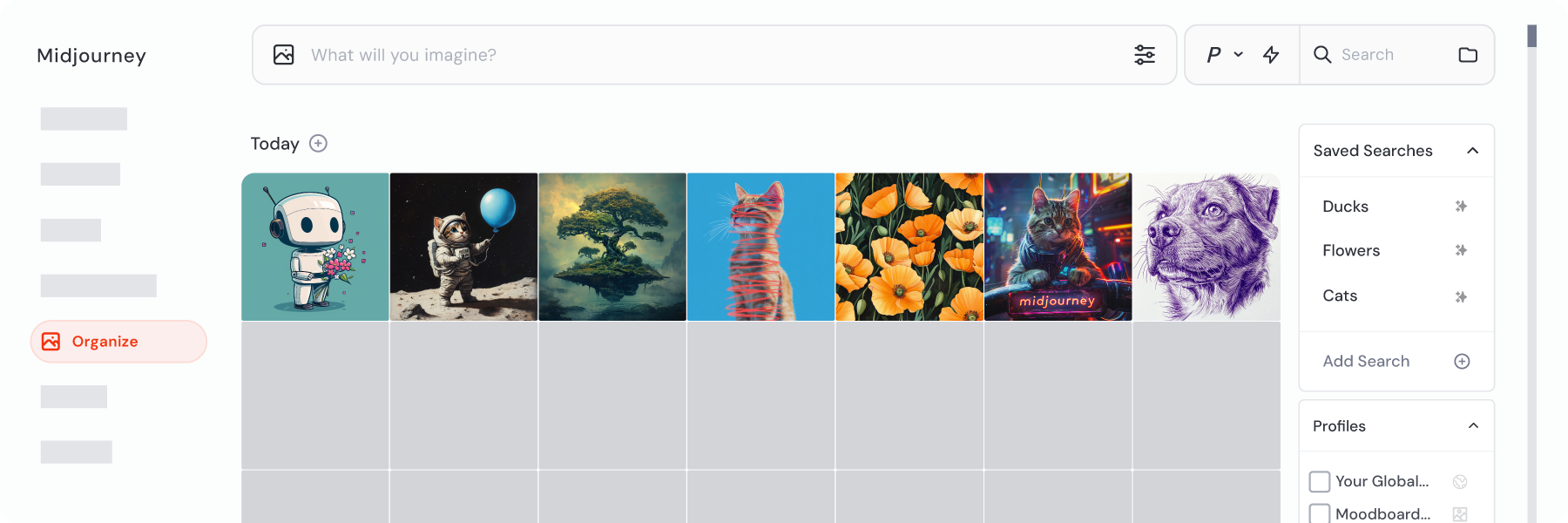
Arrange your creations using folders or explore your images by date through the Timeline Bar.
Bulk Actions make it easy to manage multiple images at once, whether you're liking, hiding, or organizing them further.
This page is all about keeping your creations organized and easily accessible. For more detailed information, see our [Organizing Your Creations](https://docs.midjourney.com/hc/en-us/articles/33329462451469)
article.
Rooms
-----
[Rooms](https://www.midjourney.com/rooms)
are interactive chat spaces where creativity meets community. Access Rooms by clicking Chat in the navigation menu, and you'll find various pre-set rooms for different activities.
Join Newbies, Daily Theme, Prompt Craft for sharing prompt tips, or Help for getting your questions answered.
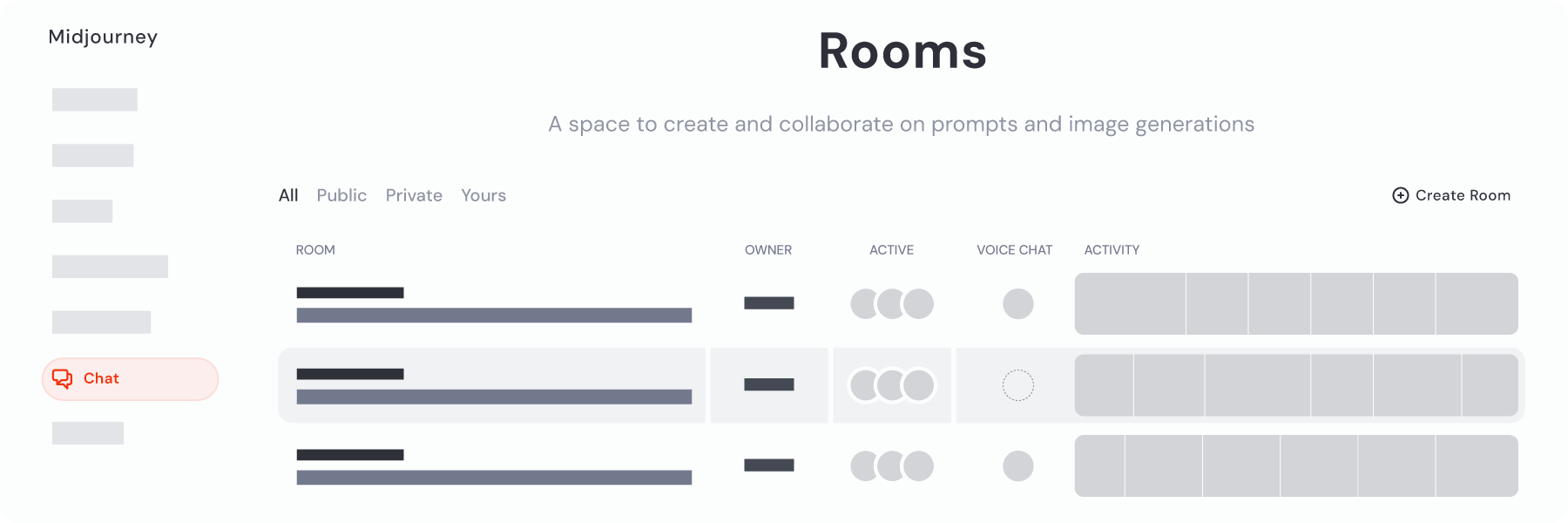
You can also create your own private room by clicking the Create Room button, setting a password, and sharing the URL and password with fellow subscribers.
Inside each Room, you can chat, generate images, and even use the voice feature to talk with others, making collaboration and connection even more dynamic.
Tasks
-----
The [Tasks page](https://www.midjourney.com/tasks)
is where you can dive into activities that help tailor your [Personalization](https://docs.midjourney.com/hc/en-us/articles/32433330574221)
profiles and potentially earn some rewards. By participating in image rankings and surveys, you contribute valuable input, helping to shape community choices and future tools.
Plus, when you complete these tasks, you may earn extra benefits like additional GPU time. For more information, see our [Complete Tasks](https://docs.midjourney.com/hc/en-us/articles/33390759197197)
article.
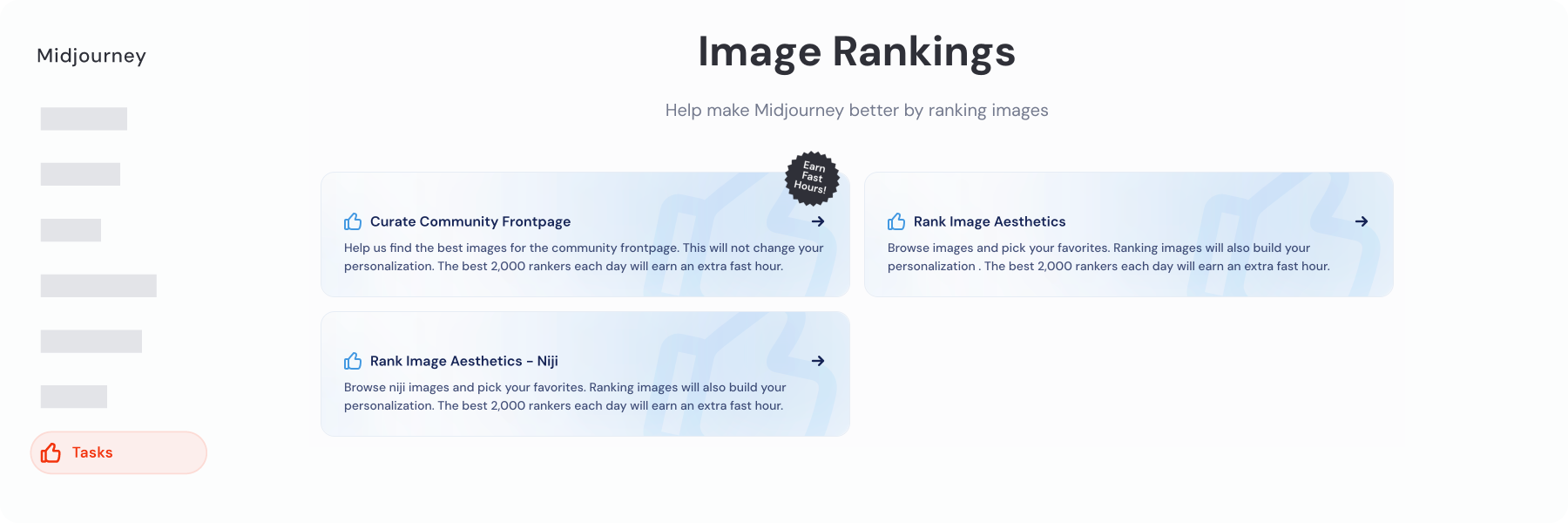
---
# Video – Midjourney
[Skip to main content](https://docs.midjourney.com/hc/en-us/articles/37460773864589-Video#page-container)
Turn your images into captivating 5 second videos!
### Turn your images into captivating 5 second videos using Midjourney!
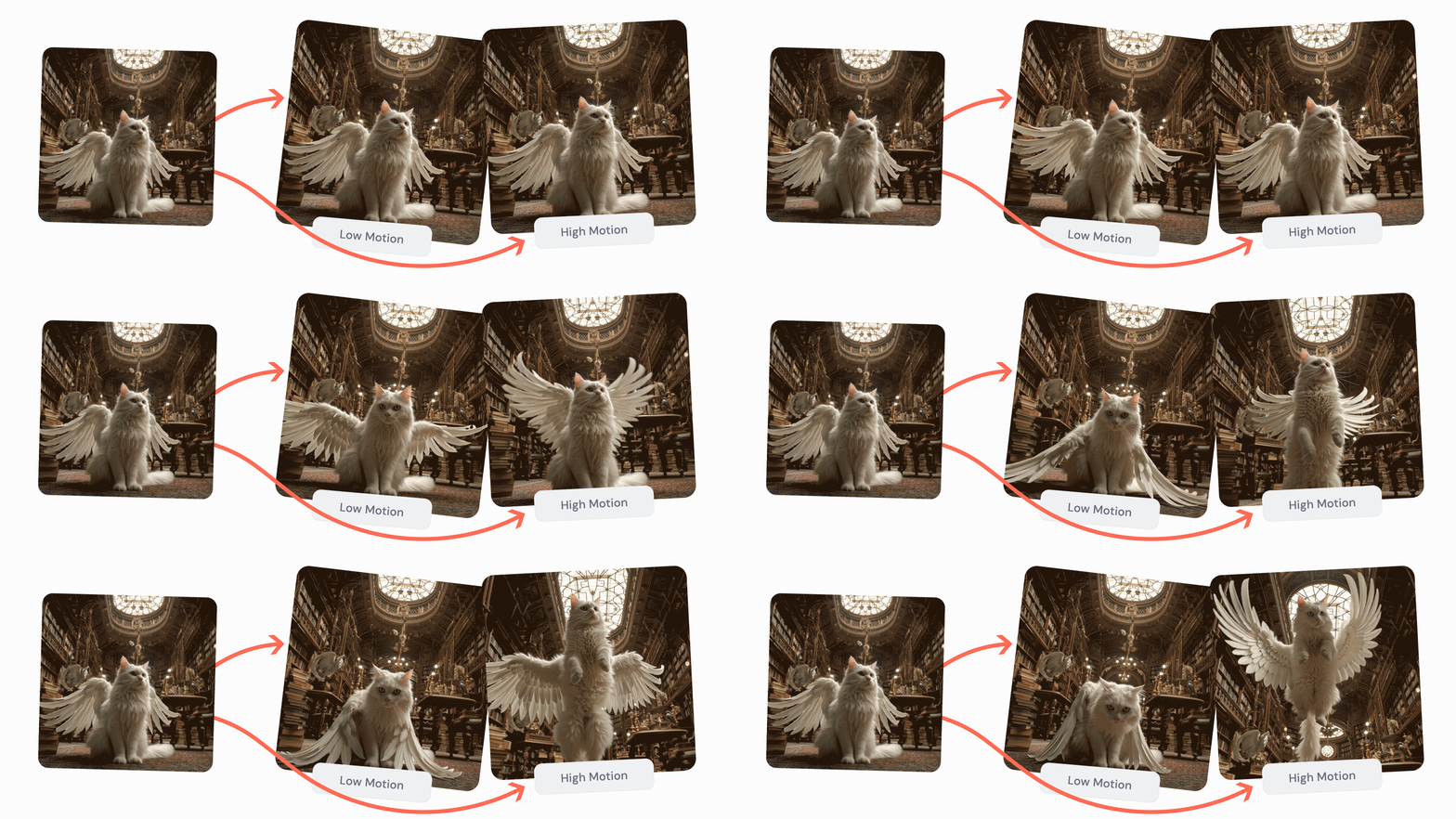
Welcome to the exciting world of video creation with Midjourney! You can now turn a single image into a dynamic 5-second video.
It's as simple as feeding Midjourney an image to serve as the first frame, adding a text prompt (optional), and then watch as it brings your vision to life with a moving sequence.
• Video generation is currently only available on the midjourney.com website.
• All plan tiers can generate videos in Fast Mode, but only Pro and Mega plans can generate videos in Relax Mode.
• Videos cost 8x more [GPU time](https://docs.midjourney.com/hc/en-us/articles/32016412137741)
compared to regular images (8 minutes vs 1 minute).
• Video generations are only compatible with video-specific parameters: `--motion low`, `--motion high`, and `--raw`.
Generating Videos
-----------------
Head to [midjourney.com](https://www.midjourney.com/imagine)
to start creating videos! If you need help accessing our website, check out our [Logging In & Connecting Accounts](https://docs.midjourney.com/hc/en-us/articles/33390994570509-Logging-In-Connecting-Accounts)
article.
**If you use Midjourney via Discord, please make sure you log in using the "Continue with Discord" option.**
#### **Using Midjourney Images**
All images in your gallery (regardless of what [version](https://docs.midjourney.com/hc/en-us/articles/32199405667853-Version)
they were made in) now have Animate Image buttons below the Creation Actions section when you open them. You'll also see a shortcut button when you hover your mouse over them from the Create page.
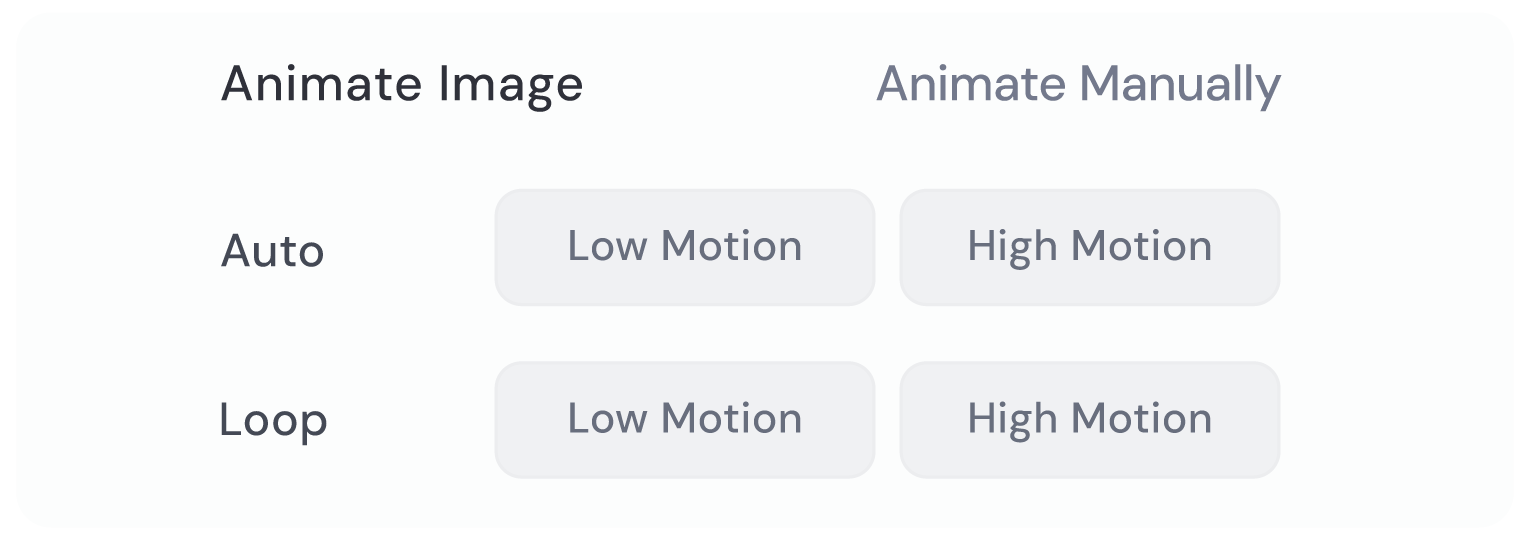
The **Auto** buttons will automatically start generating a video using your image.
The **Manual** buttons will give you an opportunity to adjust the text prompt in the Imagine bar before generating the video.
For information on "Low Motion" and "High Motion" check out the [Video Motion](https://docs.midjourney.com/hc/en-us/articles/37460773864589-Video#h_01JXZPK87W40NJP60VAR453XBZ)
section below.
Note: Any image [parameters](https://docs.midjourney.com/hc/en-us/articles/32859204029709-Parameter-List)
used to generate your original image will be automatically removed when generating videos.
#### **Using Your Own Images**
To select an image to animate, start by clicking on the image icon  in the Imagine bar. This opens the images panel, allowing you to upload new images or pick from those you've already uploaded.
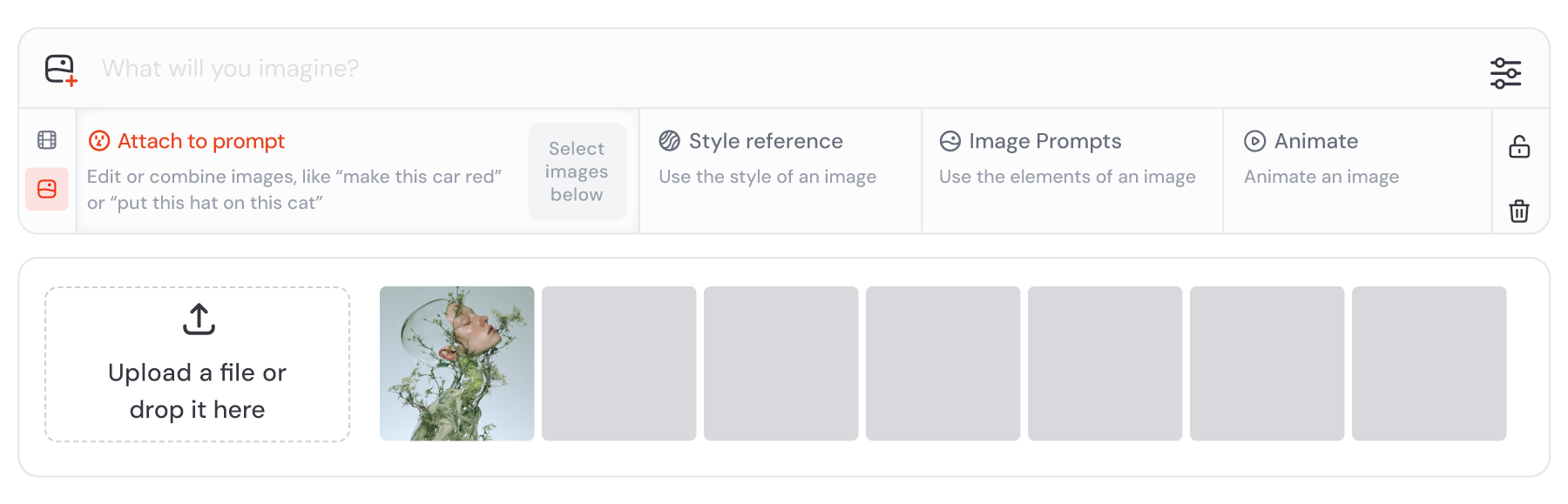
Click your image in the uploads library to automatically add it as a Starting Frame, or drag and drop it into the Starting Frame section. To remove your image from the Imagine bar, hover your mouse over it and click the X icon.
If you want to use your images with multiple prompts, click the lock icon  to keep your images pinned to the Imagine bar.
**Other Image Reference Types (not compatible with video generations):**
 [Image Prompt](https://docs.midjourney.com/hc/en-us/articles/32040250122381-Image-Prompts)
 [Style Reference](https://docs.midjourney.com/hc/en-us/articles/32180011136653)
 [Omni Reference](https://docs.midjourney.com/hc/en-us/articles/36285124473997)
(replaces [Character Reference](https://docs.midjourney.com/hc/en-us/articles/32162917505293-Character-Reference)
)
* Midjourney provides you with powerful tools for unleashing your imagination. When using our tools to create with external images, we have additional necessary precautions you should be aware of.
By using external images with Midjourney, you agree to the following rules in addition to our [Terms of Service](https://docs.midjourney.com/hc/en-us/articles/32083055291277)
.
#### External Image Guidelines
* You must meet the age requirement in our [Terms of Service](https://docs.midjourney.com/hc/en-us/articles/32083055291277)
.
* You must follow all applicable laws, our [Community Guidelines](https://docs.midjourney.com/hc/en-us/articles/32013696484109)
, and other policies.
* We may remove content or restrict access at our discretion.
#### Your Responsibilities
* You are responsible for all content you input, create, and share.
* You must have the necessary rights to use the images you upload.
* Do not manipulate images of public or private individuals in ways that are abusive, disrespectful, offensive, derogatory, or inflammatory—this includes sexualized deepfakes.
* Anyone attempting to violate our [Community Guidelines](https://docs.midjourney.com/hc/en-us/articles/32013696484109)
will face suspension or banning without refund. Use these tools with respect and consideration for others.
**If you disagree with these rules, do not use Midjourney with external images.**
You will likely encounter friction with our moderation — seemingly innocent prompts may be blocked by our filters. Blocked jobs don't cost you any credits. [GPU time](https://docs.midjourney.com/hc/en-us/articles/32016412137741)
will only be deducted when you see your results.
We encourage you to use this tool and your imagination with joy, wonder, responsibility, and respect.
For additional information on policies, including privacy, payments, and disputes, refer to our [Terms of Service](https://docs.midjourney.com/hc/en-us/articles/32083055291277)
.
Video Output
------------
Midjourney videos are generated in 480p quality, also called Standard Definition. The exact shape and size of your video is based on the aspect ratio of your starting image. If you upload your generated video to another video-sharing platform, the quality will be classified as 480p.
The table below shows how different starting image aspect ratios will affect your video's pixel dimensions:
| Starting Image Aspect Ratio | Video Aspect Ratio\* | Video Dimensions |
| --- | --- | --- |
| 1:1 | 1:1 | 624 x 624 pixels |
| 4:3 | 77:58 | 720 x 544 pixels |
| 2:3 | 2:3 | 512 x 768 pixels |
| 16:9 | 91:51 | 832 x 464 pixels |
| 1:2 | 1:2 | 448 x 880 pixels |
\*Midjourney may need to adjust the aspect ratio slightly in some cases. This means that your video's aspect ratio may be a little different than your starting image.
Video Settings
--------------
With an image selected as your starting frame, click the settings icon  in the Imagine bar to access your video settings. Here you can control your default [motion setting](https://docs.midjourney.com/hc/en-us/articles/37460773864589-Video#h_01JXZPK87W40NJP60VAR453XBZ)
, [GPU speed](https://docs.midjourney.com/hc/en-us/articles/32016412137741)
, and [Stealth Mode](https://docs.midjourney.com/hc/en-us/articles/32019750070669-Stealth-Mode)
. These settings are synced with your image generation settings.
Note: Generating videos in Relax Mode is currently only available with Pro and Mega plans.

Video Playback
--------------
Once your videos have finished generating on the Create page, hover your mouse over them to play them.
You can also manually scrub (play the videos at your own speed) by holding the Control or Command key on your keyboard and moving your mouse back and forth over them.

Video Motion
------------
When generating videos, you have two motion settings options to choose from, "Low Motion" and "High Motion." Use the correspond buttons on the website, or add the `--motion low` or `--motion high` parameters to the end of your video prompt.
* **Low Motion (default):** is more likely to result in still scenes, low camera motion, slow motion, or subtle character movements.
* **High Motion:** is more likely to result in big camera motions and larger character movements, however it may also create unrealistic or glitchy movements.
Video Raw
---------
For more precise motion control of your video creations, using the `--raw` parameter in your video prompts can be helpful. This feature works similarly to [Raw Mode](https://docs.midjourney.com/hc/en-us/articles/32634113811853-Raw-Mode)
for images.
When you add `--raw`, it reduces the extra creative flair that Midjourney usually adds, allowing your prompt text to have more influence on the outcome.
Extend Video
------------
Video generations start at 5 seconds, but it doesn't have to stop there. After your video is created, you’ll see options to extend it further. This will add another 4 seconds to your video.
Look for the "Extend Auto" and "Extend Manual" buttons when you hover over your video on the Create page, and below the Creation Actions section when you open your video.
1. **Extend Auto:** This button extends your video automatically, using the original prompt.
2. **Extend Manual:** Use the manual option if you’d like to change your prompt text before extending the video. This way, you can tweak or add new elements before submitting for the longer video.
Feel free to extend your video up to 4 times, until it reaches 21 seconds, which is the maximum length available.
Download Video
--------------
When you right-click on a video from your Create or Organize page, you'll see three download options:
* **Download for Social:** Use this option if you plan to share your videos on social media. This method uses a new optimized encoder that reduces the compression when shared on social websites, so your videos will look crisp and clear (file format is .mp4).
* **Download Raw Video:** Use this option to download the original video file generated by Midjourney (file format is .mp4).
* **Download Gif:** Download your video as an animated Gif (file format is .gif).
---
# Using Discord – Midjourney
[Skip to main content](https://docs.midjourney.com/hc/en-us/sections/32013439485197-Using-Discord#page-container)
Using Discord
=============
* [](https://docs.midjourney.com/hc/en-us/articles/33329300781837-Web-vs-Discord)
[Web vs Discord](https://docs.midjourney.com/hc/en-us/articles/33329300781837-Web-vs-Discord)
Learn about the differences between making images on midjourney.com and Discord. Web or Discord? Compare your Midjourney experience! With your M...
* [](https://docs.midjourney.com/hc/en-us/articles/32631709682573-Discord-Quick-Start)
[Discord Quick Start](https://docs.midjourney.com/hc/en-us/articles/32631709682573-Discord-Quick-Start)
Get started making Midjourney images in Discord. Create stunning images instantly using the Midjourney bot on Discord—no special hardware needed...
* [](https://docs.midjourney.com/hc/en-us/articles/33330535666445-Discord-Overview)
[Discord Overview](https://docs.midjourney.com/hc/en-us/articles/33330535666445-Discord-Overview)
Learn all about using Discord to make Midjourney images. Learn all about Midjourney's Discord features and start chatting! The Midjourney server...
* [](https://docs.midjourney.com/hc/en-us/articles/32637339216013-Discord-Direct-Messages)
[Discord Direct Messages](https://docs.midjourney.com/hc/en-us/articles/32637339216013-Discord-Direct-Messages)
Make images one-on-one with Midjourney in Discord Direct Messages. Make images one-on-one with Midjourney in Direct Messages! Using Direct Messa...
* [](https://docs.midjourney.com/hc/en-us/articles/32637946450445-Add-Midjourney-to-Your-Discord-Server)
[Add Midjourney to Your Discord Server](https://docs.midjourney.com/hc/en-us/articles/32637946450445-Add-Midjourney-to-Your-Discord-Server)
Learn how to add the Midjourney Bot to your own Discord server. Add the Midjourney Bot to your own Discord Server! If you want to create images ...
* [](https://docs.midjourney.com/hc/en-us/articles/32894521590669-Discord-Command-List)
[Discord Command List](https://docs.midjourney.com/hc/en-us/articles/32894521590669-Discord-Command-List)
See all the commands you can use to interact with the Midjourney Bot in Discord. Interact with the Midjourney Bot using Discord commands! Discor...
* [](https://docs.midjourney.com/hc/en-us/articles/32868982949517-Creation-Settings-in-Discord)
[Creation Settings in Discord](https://docs.midjourney.com/hc/en-us/articles/32868982949517-Creation-Settings-in-Discord)
Adjust your default Midjourney settings in Discord with the /settings command. Adjust your default Midjourney settings in Discord with the /sett...
* [](https://docs.midjourney.com/hc/en-us/articles/32084927086861-Info-Command)
[Info Command](https://docs.midjourney.com/hc/en-us/articles/32084927086861-Info-Command)
Use the /info command to see your subscription type, renewal date, and more. Use the /info command in Discord to see information about your cur...
* [](https://docs.midjourney.com/hc/en-us/articles/32635695384461-Show-Command)
[Show Command](https://docs.midjourney.com/hc/en-us/articles/32635695384461-Show-Command)
Move or refresh your generated images in Discord using the /show command. Move or refresh your generated images in Discord using /show What is ...
* [](https://docs.midjourney.com/hc/en-us/articles/32794723105549-Vary-Region)
[Vary Region](https://docs.midjourney.com/hc/en-us/articles/32794723105549-Vary-Region)
Change parts of your image while leaving the rest untouched with Vary Region in Discord. Perfect your image with Vary Region—select and change j...
* [](https://docs.midjourney.com/hc/en-us/articles/32635189884557-Blend-Images-on-Discord)
[Blend Images on Discord](https://docs.midjourney.com/hc/en-us/articles/32635189884557-Blend-Images-on-Discord)
Turn multiple photos into a single unique creation using the /blend command. Turn multiple photos into a single unique creation using /blend W...
* [](https://docs.midjourney.com/hc/en-us/articles/32558957919117-Hosting-Images-on-Discord)
[Hosting Images on Discord](https://docs.midjourney.com/hc/en-us/articles/32558957919117-Hosting-Images-on-Discord)
Upload images directly to Discord to use them with the Midjourney bot. Upload images directly to Discord to use them with the Midjourney bot Whe...
---
# Omni Reference – Midjourney
[Skip to main content](https://docs.midjourney.com/hc/en-us/articles/36285124473997-Omni-Reference#page-container)
Put a person or object into your images using an Omni Reference.
### Want to put a person or object into your images? You can provide Midjourney with an Omni Reference!
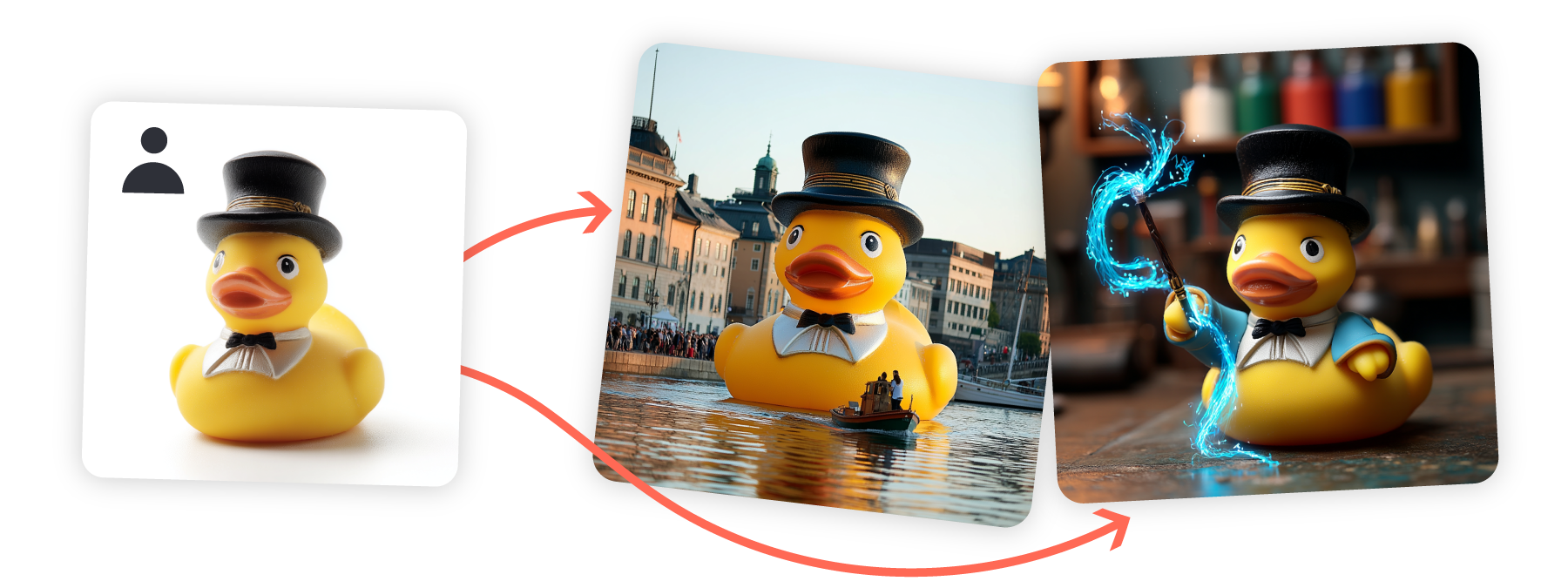
What is an Omni Reference?
--------------------------
Using an Omni Reference allows you to put characters, objects, vehicles, or non-human creatures from a reference image into your Midjourney creations.
You can use it in combination with [personalization and moodboards](https://docs.midjourney.com/hc/en-us/articles/32433330574221)
, [stylize](https://docs.midjourney.com/hc/en-us/articles/32196176868109)
, and [style references!](https://docs.midjourney.com/hc/en-us/articles/32180011136653)
Omni Reference is compatible with Midjourney version 7.
• Omni Reference is not compatible with features like inpainting or outpainting that still use V6.1.
• Using Omni Reference will cost 2x more [GPU time](https://docs.midjourney.com/hc/en-us/articles/32016412137741)
compared to regular V7 images.
• Omni Reference image results currently are not compatible with [vary region](https://docs.midjourney.com/hc/en-us/articles/32794723105549)
, [pan](https://docs.midjourney.com/hc/en-us/articles/32570788043405)
, or [zoom out](https://docs.midjourney.com/hc/en-us/articles/32595476770957)
. To edit these images please load them into the [Editor](https://docs.midjourney.com/hc/en-us/articles/32764383466893)
on midjourney.com and remove the image reference and any `--oref` or `--ow` parameters.
• Omni Reference is currently not compatible with [Fast Mode](https://docs.midjourney.com/hc/en-us/articles/32016412137741)
, [Draft Mode & Conversational Mode](https://docs.midjourney.com/hc/en-us/articles/35577175650957)
, or `--q 4`.
Using an Omni Reference
-----------------------
* To add an image to your prompt, start by clicking on the image  icon in the Imagine bar. This opens the images panel, allowing you to upload new images or pick from those you've already uploaded.
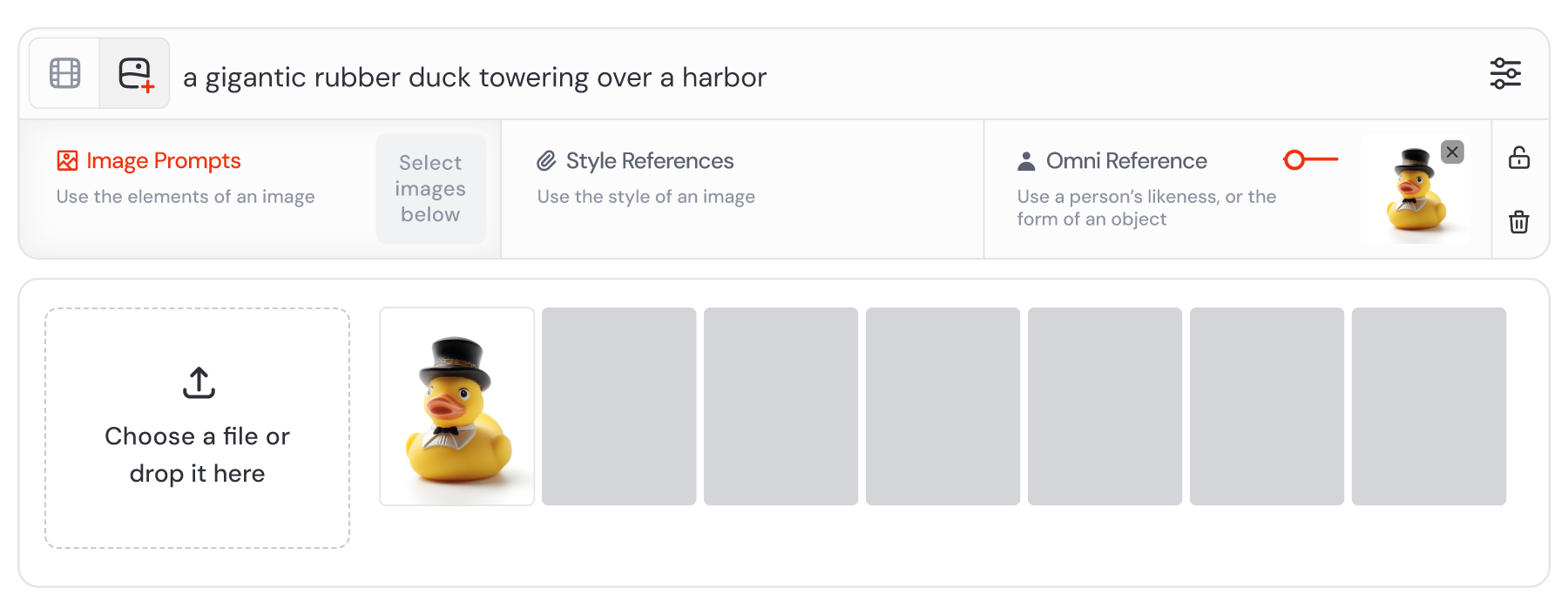
Drag and drop your image from the uploads library into the Omni Reference section. You can only use one image with Omni Reference. To remove your image from the Imagine bar, hover your mouse over it and click the X icon.
If you want to use your images with multiple prompts, click the lock icon  to keep your images pinned to the Imagine bar.
**Image Reference Types:**
 [Image Prompt](https://docs.midjourney.com/hc/en-us/articles/32040250122381)
(default)
 [Style Reference](https://docs.midjourney.com/hc/en-us/articles/32180011136653)
 Omni Reference (replaces [Character Reference](https://docs.midjourney.com/hc/en-us/articles/32162917505293)
)
* To use an Omni Reference in Discord, start by adding the `--oref` parameter to the end of your prompt, then pasting your image URL. You can only use one image with Omni Reference.

It's important to ensure that you have a valid image URL, meaning the image should already be online. If your image is stored on your computer or device, you can [host it on Discord](https://docs.midjourney.com/hc/en-us/articles/32558957919117)
to generate an image URL.
Best Practices
--------------
* **Importance of Text Prompts:** Combine your Omni Reference with a clear text prompt. Text is just as important for conveying the full scene and additional details beyond what the reference image shows.
* **Reinforce the Style:** If you want your image in a different style than your reference, mention your desired style at both the start and end of your prompt. For example, "**Illustration** of a young woman with short gray hair **drawn by a comic book artist**." Also consider using [style references](https://docs.midjourney.com/hc/en-us/articles/32180011136653)
and lowering the [Omni Reference weight](https://docs.midjourney.com/hc/en-us/articles/36285124473997-Omni-Reference#h_01JD5G8C3RY38GSHNSFH6H7H31)
. With a lower weight you will need to reinforce the physical characteristics you want to preserve using your prompt text.
* **Multiple Characters:** While you can only use one image as an Omni Reference, you can try using an image that contains multiple characters/people and describe them in your prompt.
* **Account for Details:** Be aware that intricate details like specific freckles or logos on clothing may not perfectly match your reference.
* **Consider Other Parameters:** If you're using high [stylize](https://docs.midjourney.com/hc/en-us/articles/32196176868109)
or `--exp` values you may want to also use a higher [Omni Reference weight](https://docs.midjourney.com/hc/en-us/articles/36285124473997-Omni-Reference#h_01JD5G8C3RY38GSHNSFH6H7H31)
, as these will all compete for influence.
* Midjourney provides you with powerful tools for unleashing your imagination. When using our tools to create with external images, we have additional necessary precautions you should be aware of.
By using external images with Midjourney, you agree to the following rules in addition to our [Terms of Service](https://docs.midjourney.com/hc/en-us/articles/32083055291277)
.
#### External Image Guidelines
* You must meet the age requirement in our [Terms of Service](https://docs.midjourney.com/hc/en-us/articles/32083055291277)
.
* You must follow all applicable laws, our [Community Guidelines](https://docs.midjourney.com/hc/en-us/articles/32013696484109)
, and other policies.
* We may remove content or restrict access at our discretion.
#### Your Responsibilities
* You are responsible for all content you input, create, and share.
* You must have the necessary rights to use the images you upload.
* Do not manipulate images of public or private individuals in ways that are abusive, disrespectful, offensive, derogatory, or inflammatory—this includes sexualized deepfakes.
* Anyone attempting to violate our [Community Guidelines](https://docs.midjourney.com/hc/en-us/articles/32013696484109)
will face suspension or banning without refund. Use these tools with respect and consideration for others.
**If you disagree with these rules, do not use Midjourney with external images.**
You will likely encounter friction with our moderation — seemingly innocent prompts may be blocked by our filters. Blocked jobs don't cost you any credits. [GPU time](https://docs.midjourney.com/hc/en-us/articles/32016412137741)
will only be deducted when you see your results.
We encourage you to use this tool and your imagination with joy, wonder, responsibility, and respect.
For additional information on policies, including privacy, payments, and disputes, refer to our [Terms of Service](https://docs.midjourney.com/hc/en-us/articles/32083055291277)
.
Omni Reference Weight
---------------------
The Omni Reference weight parameter `--ow` allows you to control how much detail from your reference image appears in your new image. You can set this parameter to any value between 1 and 1,000, with the default being `--ow 100`.
Unless you are using a very high [stylize](https://docs.midjourney.com/hc/en-us/articles/32196176868109)
value, it's best to keep your weight below 400, otherwise your results may be unpredictable.
On midjourney.com you can use the slider in the Imagine bar to adjust the weight.
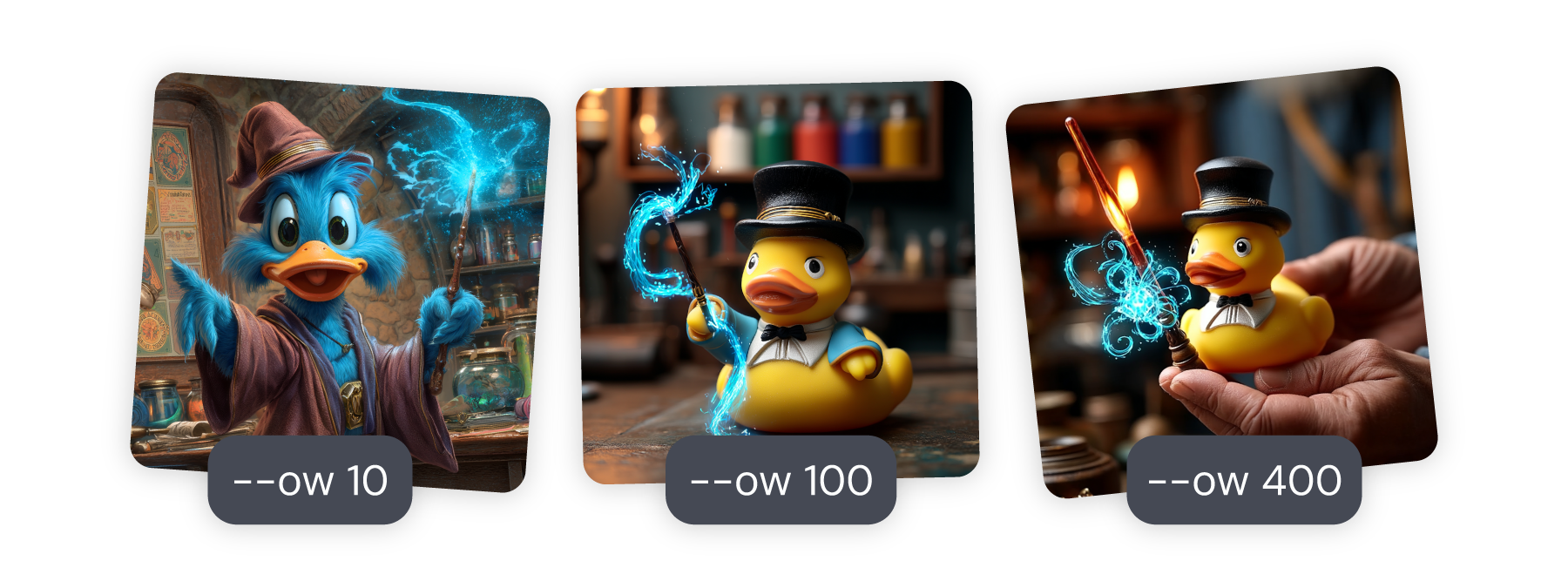
* • For your prompts to work, you need a text prompt in combination with your Omni Reference.
• Your image file should end in .png, .gif, .webp, .jpg, or .jpeg.
• Omni Reference can only be used with Midjourney version 7.
• Omni Reference can be combined with [Style References](https://docs.midjourney.com/hc/en-us/articles/32180011136653)
and [Image Prompts](https://docs.midjourney.com/hc/en-us/articles/32040250122381)
.
Need Help Getting Started?
[Getting Started Guide](https://docs.midjourney.com/hc/en-us/articles/33329261836941)
---
# Parameter List – Midjourney
[Skip to main content](https://docs.midjourney.com/hc/en-us/articles/32859204029709-Parameter-List#page-container)
Learn how to use parameters to control, customize, and enhace your creations.
### Control, customize, and enhance your images with parameters!
What are Parameters?
--------------------
Parameters are like special instructions you can use to guide how your images turn out. They help you customize things, like changing the shape of an image, or using a [Personalization profile](https://docs.midjourney.com/hc/en-us/articles/32433330574221)
.
Using Parameters
----------------
Parameters always go at the end of your text prompt, after you've described what you want to see. Using them successfully is all about placement and formatting.

#### Remember these tips for success:
1. **Place Parameters at the End:** Always put parameters after your prompt text.
2. **Watch the Spaces:** Add a space between your prompt text and the dashes.
3. **No Punctuation:** Don't use commas, periods, or other punctuation marks in your parameters.
 vibrant California poppies--ar 2:3 **(No space before the dashes)**
 vibrant California poppies - - ar 2:3 **(Extra space between the dashes)**
 vibrant California poppies --ar 2:3, **(Using punctuation in parameters)**
 vibrant California --ar 2:3 poppies **(Prompt text after parameters)**
Full Parameter List
-------------------
| | | |
| --- | --- | --- |
| [**Aspect Ratio**](https://docs.midjourney.com/hc/en-us/articles/31894244298125)
Midjourney images start as squares, but you can change this using the aspect ratio parameter
\--aspect or --ar | [**Chaos**](https://docs.midjourney.com/hc/en-us/articles/32099348346765)
Spice up your image results with the chaos parameter
\--chaos or --c | [**Omni Reference**](https://docs.midjourney.com/hc/en-us/articles/36285124473997)
Want to use a person's likeness or the form of an object? You can provide Midjourney with an Omni Reference! (replaces [Character Reference](https://docs.midjourney.com/hc/en-us/articles/32162917505293)
in V7)
\--oref |
| **[No](https://docs.midjourney.com/hc/en-us/articles/32173351982093)
**
Tell Midjourney what you don't want in your image using the no parameter
\--no | **[Personalization](https://docs.midjourney.com/hc/en-us/articles/32433330574221)
**
Create custom image styles with personalized profiles and moodboards
\--profile or --p | **[Quality](https://docs.midjourney.com/hc/en-us/articles/32176522101773)
**
Control the detail and processing time of your images with the quality parameter
\--quality or --q |
| **[Repeat](https://docs.midjourney.com/hc/en-us/articles/32757107922061)
**
Want to generate multiple image sets from a single prompt? Use the repeat parameter
\--repeat or --r | **[Seed](https://docs.midjourney.com/hc/en-us/articles/32604356340877)
**
Use the seed parameter for testing and experimenting
\--seed | **[Stealth Mode](https://docs.midjourney.com/hc/en-us/articles/32019750070669)
**
Unpublish your image creations on the Midjourney website
\--stealth |
| **[Raw Mode](https://docs.midjourney.com/hc/en-us/articles/32634113811853)
**
Gain more control over your images with Raw Mode
\--raw | **[Stylize](https://docs.midjourney.com/hc/en-us/articles/32196176868109)
**
Control the artistic flair in your images with the stylize parameter
\--stylize or --s | **[Style Reference](https://docs.midjourney.com/hc/en-us/articles/32180011136653)
**
Want to match the look and feel of another image? You can provide Midjourney with a Style Reference!
\--sref |
| **[Tile](https://docs.midjourney.com/hc/en-us/articles/32197978340109)
**
Create seamless repeating patterns with the tile parameter
\--tile | **[Version](https://docs.midjourney.com/hc/en-us/articles/32199405667853)
**
Explore and switch between Midjourney's model versions using the version parameter
\--version or --v | [**Draft**](https://docs.midjourney.com/hc/en-us/articles/35577175650957)
Generate draft images in V7 at half the GPU cost using --draft |
| **[Weird](https://docs.midjourney.com/hc/en-us/articles/32390120435085)
**
Make your images quirky and unconventional with the weird parameter
\--weird or --w | **[Fast Mode](https://docs.midjourney.com/hc/en-us/articles/32016412137741)
**
Switch your GPU speed to Fast Mode
\--fast | **[Image Weight](https://docs.midjourney.com/hc/en-us/articles/32040250122381)
**
Control the impact of image prompts
\--iw |
| **[Relax Mode](https://docs.midjourney.com/hc/en-us/articles/32016412137741)
**
Switch your GPU speed to Relax Mode
\--relax | **[Turbo Mode](https://docs.midjourney.com/hc/en-us/articles/32016412137741)
**
Switch your GPU speed to Turbo Mode
\--turbo | **[Niji](https://docs.midjourney.com/hc/en-us/articles/32199405667853)
**
Use our model focused on anime and Eastern aesthetics
\--niji |
| **[Public Mode](https://docs.midjourney.com/hc/en-us/articles/32019750070669)
**
Publish your image creations on the Midjourney website
\--public | | |
For information about legacy parameters, visit our [Legacy Features](https://docs.midjourney.com/hc/en-us/articles/33329788681101)
article.
---
# Version – Midjourney
[Skip to main content](https://docs.midjourney.com/hc/en-us/articles/32199405667853-Version#page-container)
Switch between Midjourney's model versions using the version parameter: --version or --v
### Explore and switch between Midjourney's versions using the version parameter: `--version` or `--v`
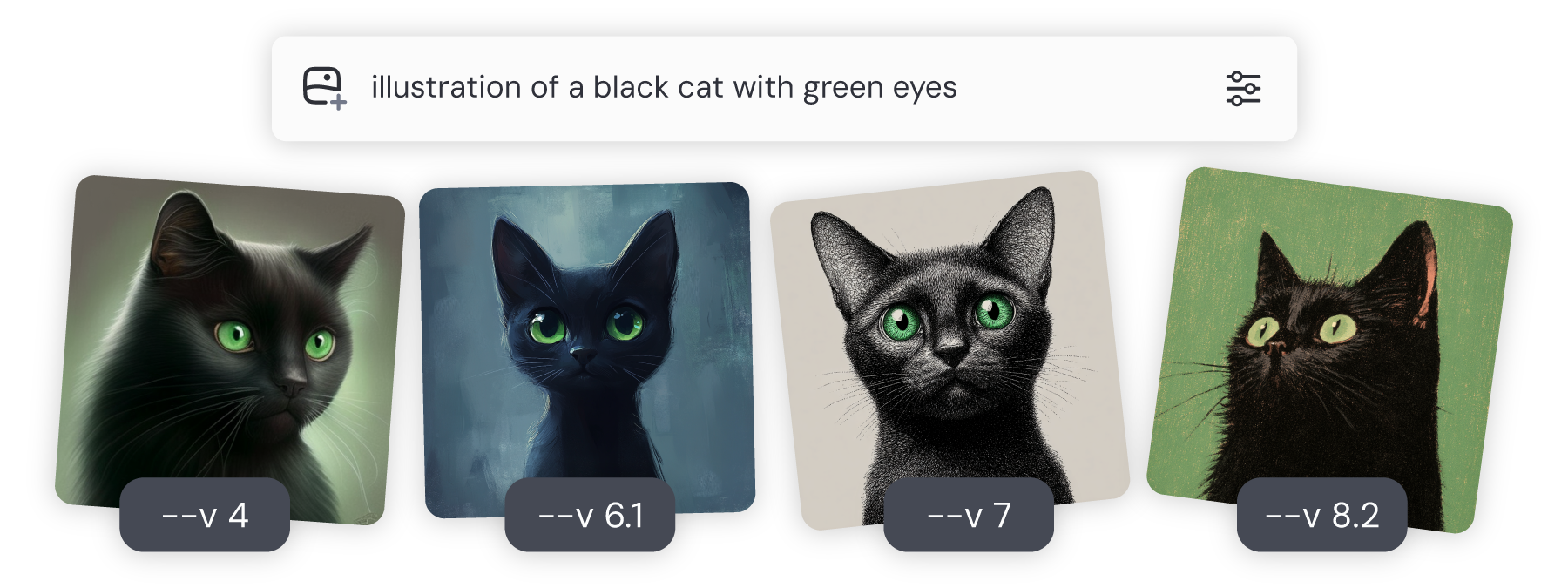
What are Versions?
------------------
Think of versions like software updates. When software is updated, it might have better graphics or new features. Similarly, Midjourney versions refer to the different models released over time—each with unique features.
Each version might handle prompts differently, have unique artistic styles, or offer improved image quality.
The current default Midjourney version is 7.
Setting a Version
-----------------
* Add `--v #` to the end of your prompt in the Imagine bar.

You can choose a default version for all your images in the settings panel. To do this, click the settings  button in the Imagine bar. Once you set it, this will apply to all your future prompts.
* Add `--v #` to the end of your prompt in Discord.

You can also set the default Version for all images using the [settings command](https://docs.midjourney.com/hc/en-us/articles/32868982949517)
and selecting one from the version dropdown menu.
Version 7
---------
Version 7 was released on April 3, 2025, and became the default model on June 17, 2025.
In version 7 text and image prompts are handled with stunning precision, while image quality shines with richer textures and more coherent details—especially in bodies, hands, and objects.
V7 also introduces [Draft Mode](https://docs.midjourney.com/hc/en-us/articles/35577175650957)
and [Omni Reference](https://docs.midjourney.com/hc/en-us/articles/36285124473997)
.
#### Feature Compatibility & Comparison Chart
| | Version 6 | Version 7 |
| --- | --- | --- |
| [Max. Aspect Ratio](https://docs.midjourney.com/hc/en-us/articles/31894244298125) | any | any |
| [Variations](https://docs.midjourney.com/hc/en-us/articles/32692978437005) | Strong & Subtle | Strong & Subtle |
| [Upscalers](https://docs.midjourney.com/hc/en-us/articles/32804058614669) | Subtle & Creative | Using V6.1 Upscalers |
| [Pan](https://docs.midjourney.com/hc/en-us/articles/32570788043405) |  |  Using V6.1 Pan |
| [Zoom Out](https://docs.midjourney.com/hc/en-us/articles/32595476770957) |  |  Using V6.1 Zoom |
| [Remix](https://docs.midjourney.com/hc/en-us/articles/32799074515213) |  |  |
| [Personalization (ranking)](https://docs.midjourney.com/hc/en-us/articles/32433330574221) |  |  |
| [Personalization (moodboards)](https://docs.midjourney.com/hc/en-us/articles/32433330574221) |  |  |
| [Editor](https://docs.midjourney.com/hc/en-us/articles/32696720371341) |  |  Using V6.1 Inpainting |
| [Full Editor](https://docs.midjourney.com/hc/en-us/articles/32764383466893) |  |  |
| [Character Reference](https://docs.midjourney.com/hc/en-us/articles/32162917505293) |  |  |
| [Character Reference Weight](https://docs.midjourney.com/hc/en-us/articles/32162917505293-Character-Reference#h_01JD5G8C3RY38GSHNSFH6H7H31) |  |  |
| [Omni Reference](https://docs.midjourney.com/hc/en-us/articles/36285124473997) |  |  |
| [Omni Reference Weight](https://docs.midjourney.com/hc/en-us/articles/36285124473997-Omni-Reference#h_01JD5G8C3RY38GSHNSFH6H7H31) |  |  |
| [Style Reference](https://docs.midjourney.com/hc/en-us/articles/32180011136653) |  |  |
| [Random Style Reference](https://docs.midjourney.com/hc/en-us/articles/32180011136653-Style-Reference#h_01JDK11MKAANM6VRPRBKNW6WYX) |  |  (styles don't match V6.1) |
| [Style Reference Weight](https://docs.midjourney.com/hc/en-us/articles/32180011136653-Style-Reference#h_01JD5G8C3RY38GSHNSFH6H7H31) |  |  |
| [Image Prompts](https://docs.midjourney.com/hc/en-us/articles/32040250122381) |  |  |
| [Image Weight](https://docs.midjourney.com/hc/en-us/articles/32040250122381-Image-Prompts#h_01JD5G8C3RY38GSHNSFH6H7H31) |  |  |
| [Multi-Prompting](https://docs.midjourney.com/hc/en-us/articles/32658968492557) |  |  |
| [No Parameter](https://docs.midjourney.com/hc/en-us/articles/32173351982093) |  |  |
| [Quality Parameter](https://docs.midjourney.com/hc/en-us/articles/32176522101773) |  (0.5, 1, 2) |  (1, 2, 4)\* |
| [Repeat Parameter](https://docs.midjourney.com/hc/en-us/articles/32757107922061) |  |  |
| [Permutations](https://docs.midjourney.com/hc/en-us/articles/32761322355597) |  |  |
| [Seed Parameter](https://docs.midjourney.com/hc/en-us/articles/32604356340877) |  |  |
| [Stop Parameter](https://docs.midjourney.com/hc/en-us/articles/32602768934925) |  |  |
| [Chaos Parameter](https://docs.midjourney.com/hc/en-us/articles/32099348346765) |  |  |
| [Raw Mode](https://docs.midjourney.com/hc/en-us/articles/32634113811853) |  |  |
| [Stylize Parameter](https://docs.midjourney.com/hc/en-us/articles/32196176868109) |  |  |
| [Tile Parameter](https://docs.midjourney.com/hc/en-us/articles/32197978340109) |  |  |
| [Weird Parameter](https://docs.midjourney.com/hc/en-us/articles/32390120435085) |  |  |
| [\--exp Parameter](https://www.midjourney.com/updates/v7-update-editor-and-exp) |  |  |
| [Niji Version](https://docs.midjourney.com/hc/en-us/articles/32199405667853-Version#01JDMR4T1CFVJHAF627ZVXR17A) |  --niji 6 |  |
| [Relax Mode](https://docs.midjourney.com/hc/en-us/articles/32016412137741) |  |  |
| [Fast Mode](https://docs.midjourney.com/hc/en-us/articles/32016412137741) |  |  |
| [Turbo Mode](https://docs.midjourney.com/hc/en-us/articles/32016412137741) |  |  |
\* The quality parameter in V7 works differently. See more information on our [Quality](https://docs.midjourney.com/hc/en-us/articles/32176522101773)
article.
Version 6.1
-----------
Version 6.1 was released on July 30, 2024, and was the default model until June 16, 2025. It produces more coherent images with more precise details and textures, and generates images approximately 25% faster than version 6.
Version 6
---------
Version 6 was released on December 20, 2023, and was the default model from February 14 to July 30, 2024. Version 6 has enhanced prompt accuracy for longer inputs, improved coherence and knowledge, and advanced image prompting and remixing capabilities.
Niji 6
------
_Niji models are a special series within Midjourney, developed in collaboration with Spellbrush, to focus on Eastern and anime aesthetics and illustrative styles. Niji models have their own dedicated [website](https://nijijourney.com/home)
and [Discord server](https://discord.com/invite/nijijourney)
, providing a tailored experience for anime enthusiasts._
The Niji 6 model, released on June 7, 2024, features improved rendering of Japanese text, handling short Japanese kana text effectively and even rendering simple Chinese characters. It offers better image detail, particularly in elements like the structure of anime eyes, and addresses certain minor image artifacts that affected a small number of previous generations.
For information about older versions, please see our [Legacy Features](https://docs.midjourney.com/hc/en-us/articles/33329788681101)
article.
---
# Midjourney Controls – Midjourney
[Skip to main content](https://docs.midjourney.com/hc/en-us/sections/33329522730509-Midjourney-Controls#page-container)
Midjourney Controls
===================
* [](https://docs.midjourney.com/hc/en-us/articles/32859204029709-Parameter-List)
[Parameter List](https://docs.midjourney.com/hc/en-us/articles/32859204029709-Parameter-List)
Learn how to use parameters to control, customize, and enhace your creations. Control, customize, and enhance your images with parameters! What ...
* [](https://docs.midjourney.com/hc/en-us/articles/32099348346765-Chaos-Variety)
[Chaos / Variety](https://docs.midjourney.com/hc/en-us/articles/32099348346765-Chaos-Variety)
Add variety to your image results with the chaos parameter: --chaos or --c Add more variety to your image results with the chaos parameter: --c ...
* [](https://docs.midjourney.com/hc/en-us/articles/33329788681101-Legacy-Features)
[Legacy Features](https://docs.midjourney.com/hc/en-us/articles/33329788681101-Legacy-Features)
Learn about legacy tools and features that shaped Midjourney's evolution. Discover legacy tools and features that shaped Midjourney's evolution....
* [](https://docs.midjourney.com/hc/en-us/articles/32658968492557-Multi-Prompts-Weights)
[Multi-Prompts & Weights](https://docs.midjourney.com/hc/en-us/articles/32658968492557-Multi-Prompts-Weights)
Highlight important elements in your creations by using multi-prompts and weights. Highlight important elements in your creations by using multi...
* [](https://docs.midjourney.com/hc/en-us/articles/32173351982093-No)
[No](https://docs.midjourney.com/hc/en-us/articles/32173351982093-No)
Tell Midjourney what you don't want in your image using --no Tell Midjourney what you don't want in your image using the no parameter: --no Wh...
* [](https://docs.midjourney.com/hc/en-us/articles/32570788043405-Pan)
[Pan](https://docs.midjourney.com/hc/en-us/articles/32570788043405-Pan)
Use pan to expand the canvas of your image and fill in new details. Want to explore beyond your image's borders? Use Pan to grow the canvas with...
* [](https://docs.midjourney.com/hc/en-us/articles/32761322355597-Permutations)
[Permutations](https://docs.midjourney.com/hc/en-us/articles/32761322355597-Permutations)
Use permutation prompts to generate multiple prompt variations from a single idea. Explore endless combinations! Use permutation prompts to easi...
* [](https://docs.midjourney.com/hc/en-us/articles/32176522101773-Quality)
[Quality](https://docs.midjourney.com/hc/en-us/articles/32176522101773-Quality)
Control the processing time of your images with the quality parameter: --quality or --q Control the detail and processing time of your images wi...
* [](https://docs.midjourney.com/hc/en-us/articles/32634113811853-Raw-Mode)
[Raw Mode](https://docs.midjourney.com/hc/en-us/articles/32634113811853-Raw-Mode)
Use Raw Mode for more control over your creations. Gain more control over your images with Raw Mode. What is Raw Mode? In Standard Mode, Midjou...
* [](https://docs.midjourney.com/hc/en-us/articles/32799074515213-Remix)
[Remix](https://docs.midjourney.com/hc/en-us/articles/32799074515213-Remix)
Adjust your prompt text and guide your variations and edits using remix. Adjust your prompt and guide your variations and edits using remix! Wh...
* [](https://docs.midjourney.com/hc/en-us/articles/32757107922061-Repeat)
[Repeat](https://docs.midjourney.com/hc/en-us/articles/32757107922061-Repeat)
Generate multiple image sets from a prompt using the repeat parameter: --repeat or --r Want to generate multiple image sets from a single prompt...
* [](https://docs.midjourney.com/hc/en-us/articles/32604356340877-Seeds)
[Seeds](https://docs.midjourney.com/hc/en-us/articles/32604356340877-Seeds)
Use the seed parameter for testing and experimenting: --seed Use the seed parameter for testing and experimenting: --seed What are Seeds? Seed...
* [](https://docs.midjourney.com/hc/en-us/articles/32196176868109-Stylize)
[Stylize](https://docs.midjourney.com/hc/en-us/articles/32196176868109-Stylize)
Control the artistic flair in your images with the stylize parameter: --stylize or --s Control the artistic flair in your images with the styliz...
* [](https://docs.midjourney.com/hc/en-us/articles/32502277092109-Text-Generation)
[Text Generation](https://docs.midjourney.com/hc/en-us/articles/32502277092109-Text-Generation)
Generate images with words and phrases in them using quotation marks. Add words to your images with double quotation marks! Text in Images When...
* [](https://docs.midjourney.com/hc/en-us/articles/32197978340109-Tile)
[Tile](https://docs.midjourney.com/hc/en-us/articles/32197978340109-Tile)
Create seamless repeating patterns with the tile parameter: --tile Create seamless repeating patterns with the tile parameter: --tile What is ...
* [](https://docs.midjourney.com/hc/en-us/articles/32804058614669-Upscalers)
[Upscalers](https://docs.midjourney.com/hc/en-us/articles/32804058614669-Upscalers)
Make your images bigger and better with Midjourney's upscaling tools. Make your images bigger and better with Midjourney's upscaling tools! Wha...
* [](https://docs.midjourney.com/hc/en-us/articles/32692978437005-Variations)
[Variations](https://docs.midjourney.com/hc/en-us/articles/32692978437005-Variations)
Transform your images with simple tweaks or creative overhauls using variations. Transform your images with simple tweaks or creative overhauls ...
* [](https://docs.midjourney.com/hc/en-us/articles/32199405667853-Version)
[Version](https://docs.midjourney.com/hc/en-us/articles/32199405667853-Version)
Switch between Midjourney's model versions using the version parameter: --version or --v Explore and switch between Midjourney's versions using ...
* [](https://docs.midjourney.com/hc/en-us/articles/32390120435085-Weird)
[Weird](https://docs.midjourney.com/hc/en-us/articles/32390120435085-Weird)
Make your images quirky and unconventional with the weird parameter: --weird or --w Make your images quirky and unconventional with the weird pa...
* [](https://docs.midjourney.com/hc/en-us/articles/32595476770957-Zoom-Out)
[Zoom Out](https://docs.midjourney.com/hc/en-us/articles/32595476770957-Zoom-Out)
Zoom Out of your creations to shrink the original image and reveal new content. Pull back the lens and reveal the bigger picture with Zoom Out! ...
---
# Creating on Web – Midjourney
[Skip to main content](https://docs.midjourney.com/hc/en-us/articles/33390732264589-Creating-on-Web#page-container)
Explore all the tools and features on your Create page and watch your images generate in real time.
### Unleash your creativity on the Create page!
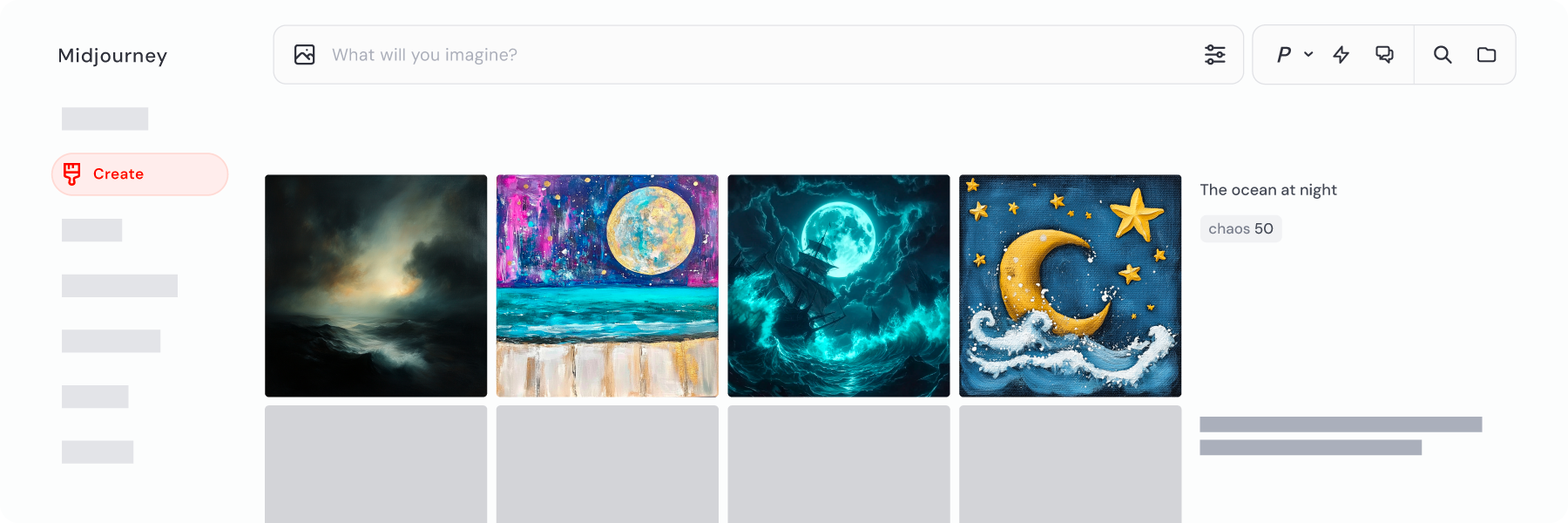
Welcome to the [Create page](https://www.midjourney.com/imagine)
on midjourney.com, your hub for generating amazing images! While you can use the Imagine bar on many pages, the Create page is where you can watch your images come to life right in front of your eyes.
Imagine Bar
-----------
The Imagine bar is where you type your prompts. Hit the send button or press enter on your keyboard, and your images will start generating.
You'll find several helpful tools in the Imagine bar—one for adding images , another to change your default settings , and one to manage your [personalization](https://docs.midjourney.com/hc/en-us/articles/32433330574221)
settings . Also in the Imagine bar is  Draft Mode, which allows you to prototype images at half the GPU cost. Check out our [Draft Mode](https://docs.midjourney.com/hc/en-us/articles/35577175650957)
article for more information.
Next to the Imagine bar is a search box, where you can quickly search all the prompts in your creation history.
Hold Ctrl (or Cmd on Mac) and hit Enter. This runs your prompt and keeps the text in the Imagine bar, so you can easily use the prompt again.
#### Images Panel
Click the image  icon, and you'll get instant access to your images panel. This is your go-to spot for uploading new images to Midjourney or picking from your uploads library to enhance your prompt.
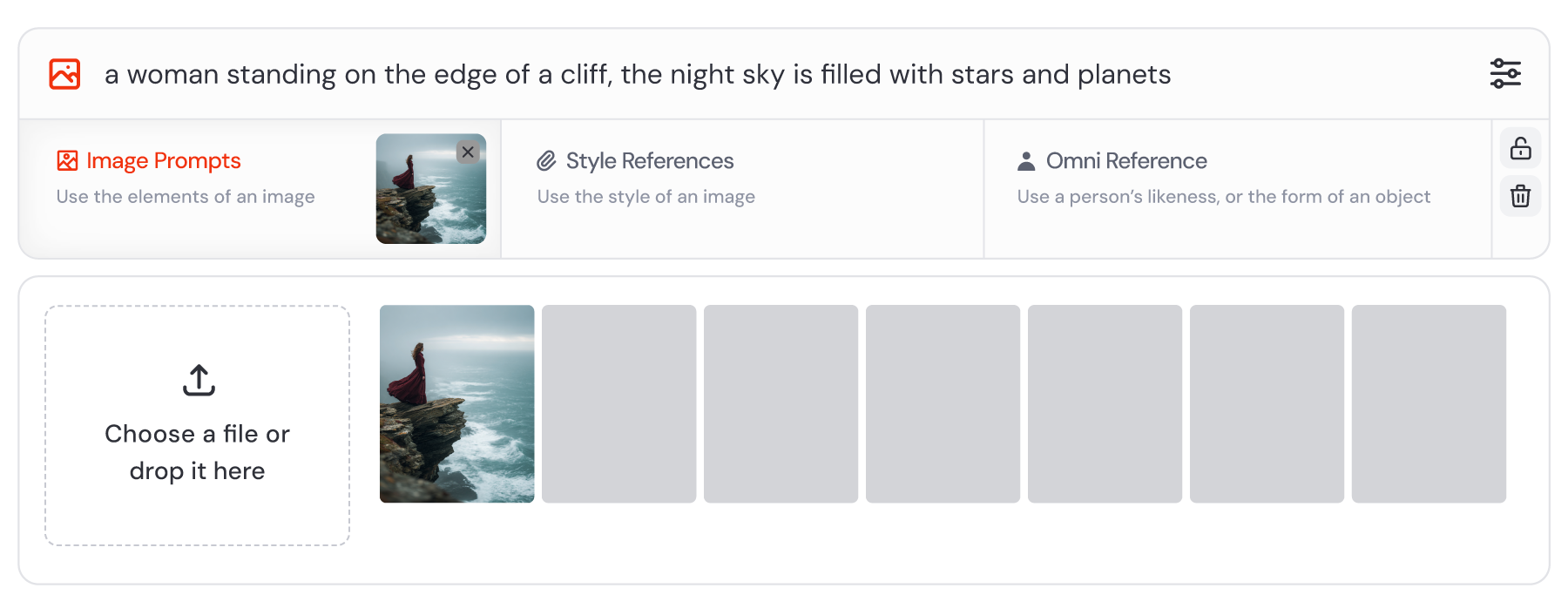
Hover over any image in your uploads library, and you'll see three shortcut buttons pop up.
* Click the "i"  icon to run [Describe](https://docs.midjourney.com/hc/en-us/articles/32497889043981)
, which suggest prompt text to match your image.
* Use the pencil  icon to open your image in the [Editor](https://docs.midjourney.com/hc/en-us/articles/32764383466893)
.
* Press the trash can  icon to delete an image from your uploads library. You can also do this on your [Manage Uploads](https://docs.midjourney.com/hc/en-us/articles/33329380893325)
page.
When you open the images panel, two extra buttons appear on the Imagine bar.
* Use the lock  icon to secure your chosen images in the Imagine bar, so you can quickly use them again in another prompt.
* Click the trash can  icon to remove all images from the Imagine bar.
Drag your image into the Imagine bar and drop it into your desired section:
* Use the image as an [Image Prompt](https://docs.midjourney.com/hc/en-us/articles/32040250122381)
 (the default option).
* Use your image as a [Style Reference](https://docs.midjourney.com/hc/en-us/articles/32180011136653)
 to capture a specific look.
* Use your image as a [Omni Reference](https://docs.midjourney.com/hc/en-us/articles/36285124473997)
 to maintain character consistency.
#### Settings Panel
When you click the settings icon, you can adjust the default settings that will automatically apply to all your prompts.
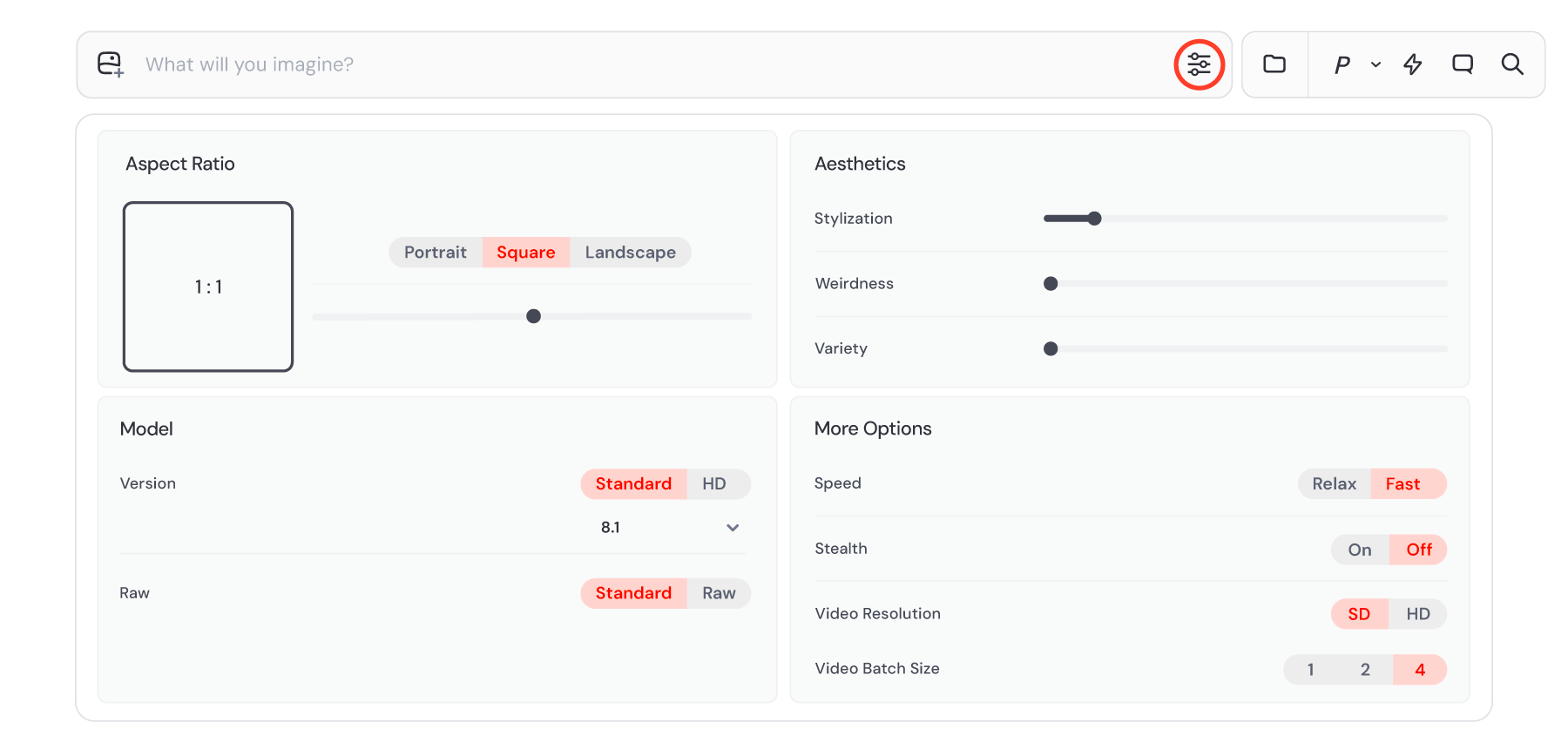
* **Image Size:** Change your default [aspect ratio](https://docs.midjourney.com/hc/en-us/articles/31894244298125)
to fit your vision perfectly.
* **Model:**
* Toggle [Raw Mode](https://docs.midjourney.com/hc/en-us/articles/32634113811853)
on or off for different image effects.
* Choose your default [Midjourney version](https://docs.midjourney.com/hc/en-us/articles/32199405667853)
for generating images.
* Turn [Draft Mode](https://docs.midjourney.com/hc/en-us/articles/35577175650957)
on for quick prototyping.
* **Aesthetics:**
* Play with [Stylization](https://docs.midjourney.com/hc/en-us/articles/32196176868109)
to influence how artistically your images are rendered.
* Adjust [Weirdness](https://docs.midjourney.com/hc/en-us/articles/32390120435085)
to add unique quirks.
* Control [Variety](https://docs.midjourney.com/hc/en-us/articles/32099348346765)
for more diverse outputs.
* **More Options:**
* Select your default [GPU speed](https://docs.midjourney.com/hc/en-us/articles/32016412137741)
.
* Activate [Stealth Mode](https://docs.midjourney.com/hc/en-us/articles/32019750070669)
if your plan allows, keeping your creations private.
Creation Feed
-------------
The central feature of the Create page is the creation feed. Here, you can watch your images generate in real-time and revisit all your finished creations.
When you hover your mouse over any image in the feed, shortcut buttons pop up that let you quickly create either [subtle or strong variations](https://docs.midjourney.com/hc/en-us/articles/32692978437005)
of that image.
To the right of the images, you'll see the [prompt text](https://docs.midjourney.com/hc/en-us/articles/32023408776205)
, [parameters](https://docs.midjourney.com/hc/en-us/articles/32859204029709)
, and reference images that were used to generate your images. Hover over this section to access more shortcut buttons.
With these, you can  **Rerun** the same prompt immediately,  **Use** the prompt text and images for a new creation,  **Hide** images from your feed (with the option to unhide on your [Organize page](https://docs.midjourney.com/hc/en-us/articles/33329462451469)
), or explore  **More** options.
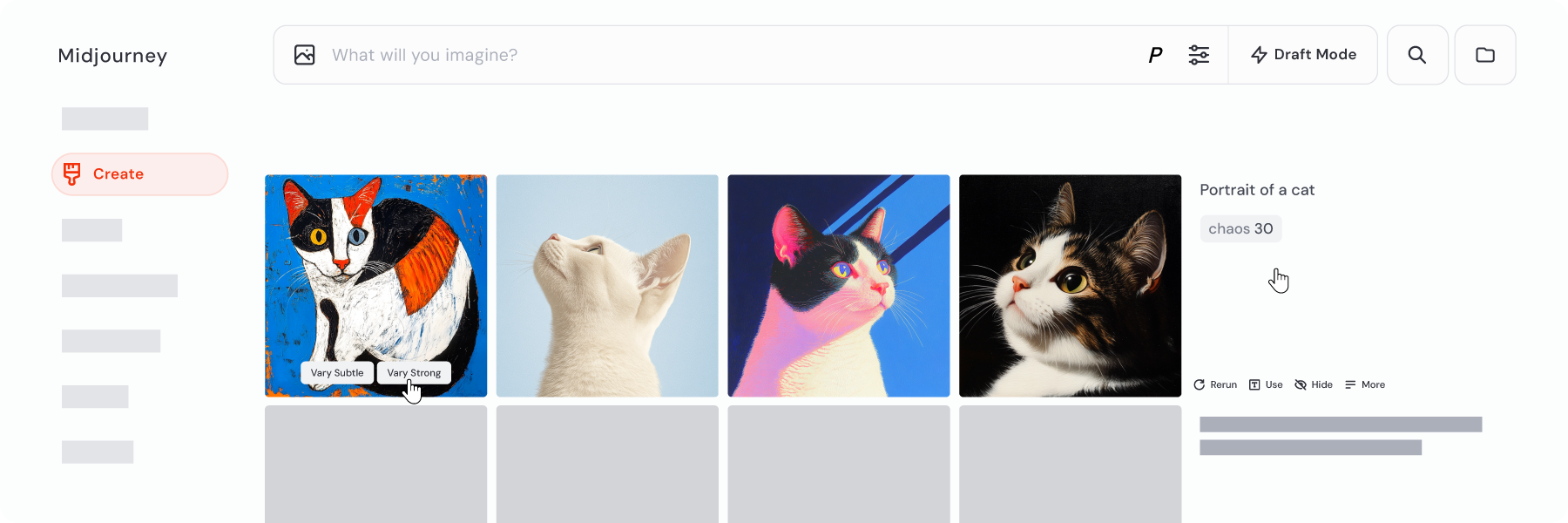
Creating in Folders
-------------------
When you're on the Create page, you'll see a folder button right next to the search bar at the top. Clicking this reveals all your Folders and Folder Groups.
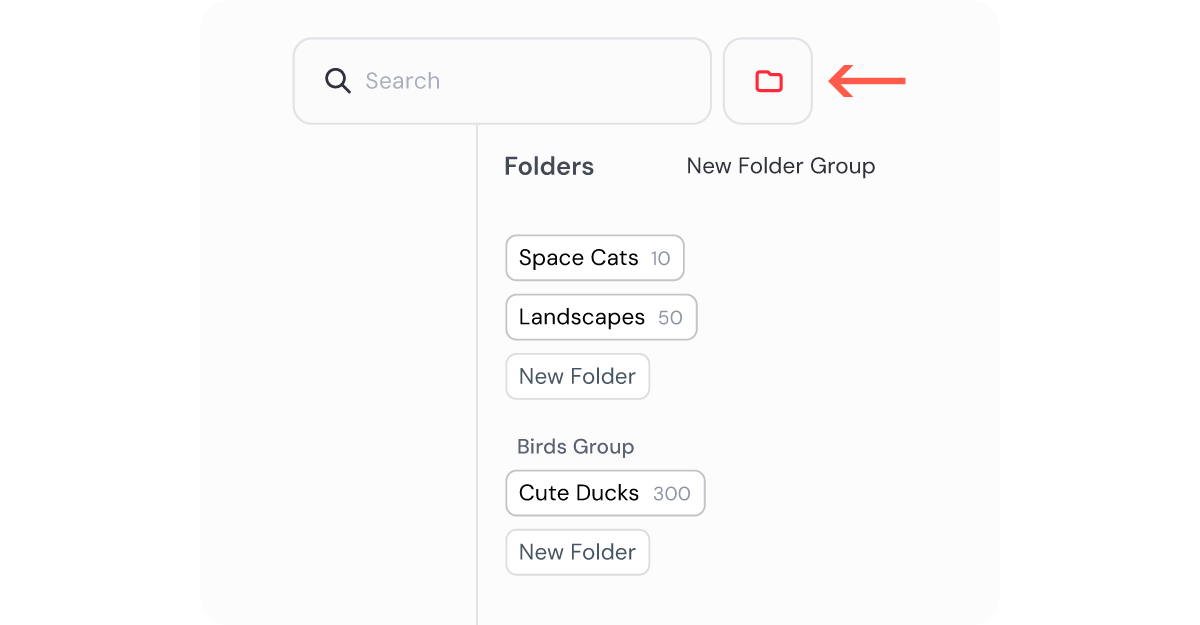
If you click a folder to open it, you'll see a dedicated creation space just for that folder, and you can generate images directly inside it!

Ready to leave a folder? Just click the X in the folder button next to the search bar.
For more information about folders, check out our [Using Folders](https://docs.midjourney.com/hc/en-us/articles/34580542725645)
article.
More Image Options
------------------
When you click on an image from your creation feed it will open fullscreen, giving you more options and tools.
At the top, near the prompt text, you'll find a toolbar packed with useful features.
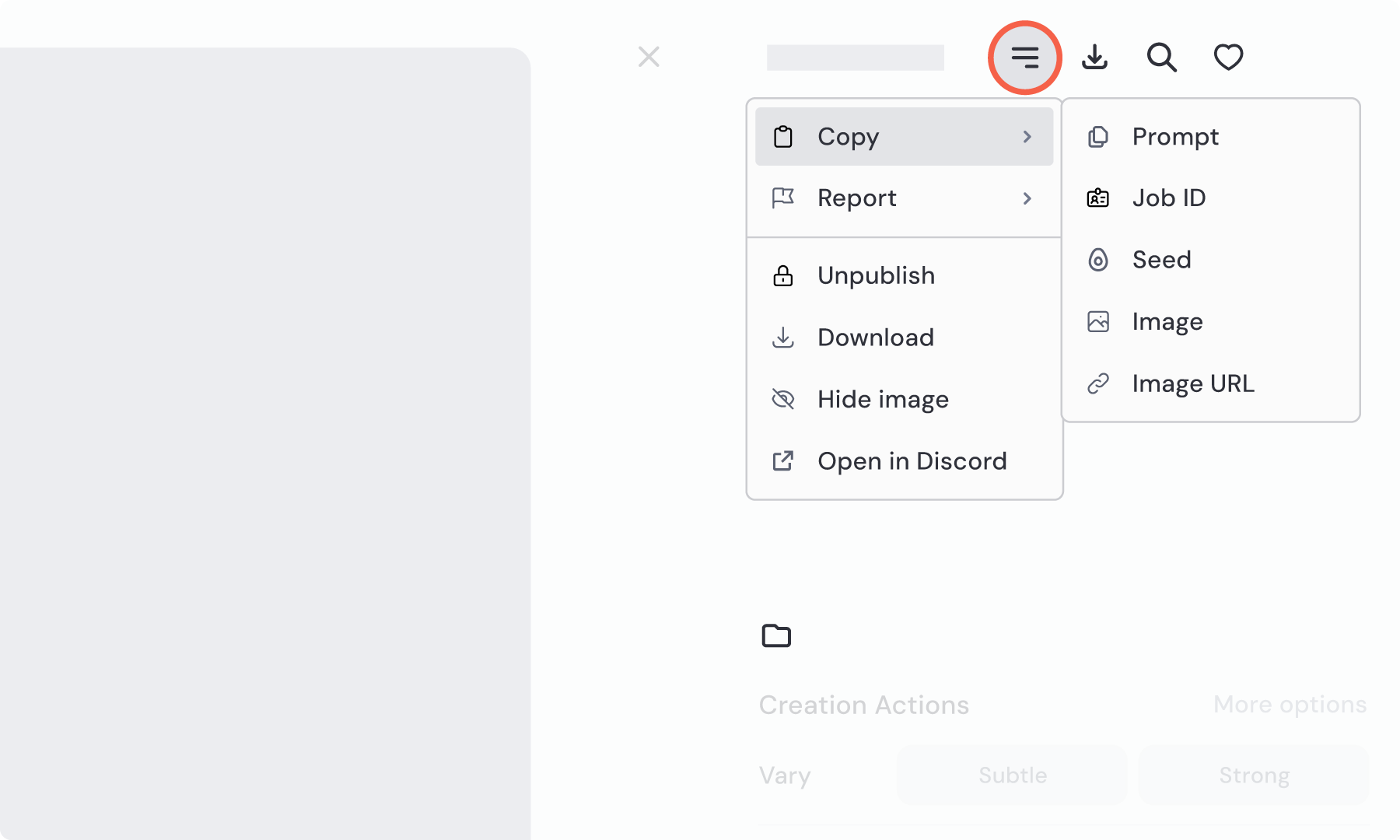
The More Options  button lets you copy important details like the [Prompt](https://docs.midjourney.com/hc/en-us/articles/32023408776205)
, [Job ID](https://docs.midjourney.com/hc/en-us/articles/32635695384461)
, [Seed](https://docs.midjourney.com/hc/en-us/articles/32604356340877)
, Image, or Image URL. You can report any image that violates our [Community Guidelines](https://docs.midjourney.com/hc/en-us/articles/32013696484109)
, choose to [Publish or Unpublish](https://docs.midjourney.com/hc/en-us/articles/32019750070669)
, Download, Hide or Unhide it, and even open it in Discord (if it was created there).
Next to this, you'll find icons to Download the image, Search our community for similar images, and mark your favorites with a Like.
Above the Creation Actions, there's a folder  icon. If your image is already in a folder, you'll see the folder name right there. If not, you can click the folder icon to quickly add the image to a folder.
In the Creation Actions section, you can further tweak your images and continue working with them. For a full breakdown of all these tools and features, check out our [Modifying Your Creations](https://docs.midjourney.com/hc/en-us/articles/33329329805581)
article.
---
# Getting Started Guide – Midjourney
[Skip to main content](https://docs.midjourney.com/hc/en-us/articles/33329261836941-Getting-Started-Guide#page-container)
Learn to subscribe, create your first image, explore features, and connect with our creative community.
### Welcome to Midjourney, your portal to transforming text into amazing images! If you're ready to unleash your creativity, this guide is your first step to crafting stunning images and exploring endless possibilities.
Subscribing to Midjourney
-------------------------
Before you dive into creating your first masterpiece, you'll need to subscribe to one of our plans. Here's how you can get started:
* Log In to midjourney.com: [Logging In & Connecting Accounts](https://docs.midjourney.com/hc/en-us/articles/33390994570509)
* Select a Plan: [Comparing Midjourney Plans](https://docs.midjourney.com/hc/en-us/articles/27870484040333)
* Subscribe: [How to Subscribe](https://docs.midjourney.com/hc/en-us/articles/31974654274573)
Making Your First Image
-----------------------
Check out this video for a quick introduction to using Midjourney, then follow the guide below to create your first images!
1. **Visit Your Create Page:** Go to the [Create](https://www.midjourney.com/imagine)
page on midjourney.com. This is where your images come to life, and you can see them appear in real-time.
2. **Use the Imagine Bar:** At the top of the page, you'll see the Imagine bar. Here, type what you'd like to see—this is your prompt.

3. **Generate Your Image:** After pressing Enter or the send button if you're using a mobile device, Midjourney creates a set of four images. Watch as your images take form.
4. **Congratulations!** Once it reaches 100%, you're done! You've created your first Midjourney images.
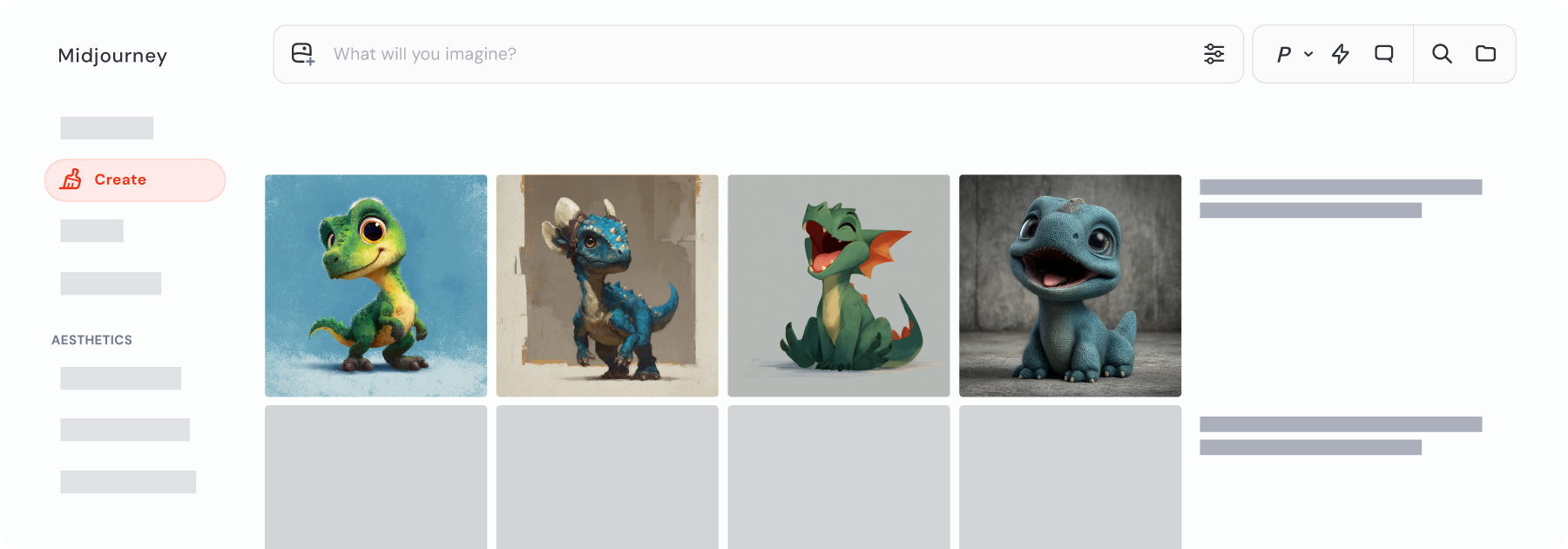
Writing and crafting prompts can be an art in and of itself. To learn more, check out our [Prompt Basics](https://docs.midjourney.com/hc/en-us/articles/32023408776205)
and [Art of Prompting](https://docs.midjourney.com/hc/en-us/articles/32835253061645)
articles.
Personalize Midjourney
----------------------
Midjourney is even better when [personalized](https://docs.midjourney.com/hc/en-us/articles/32433330574221)
. Create moodboards and custom personalization profiles that will help Midjourney generate images that uniquely match your individual style!
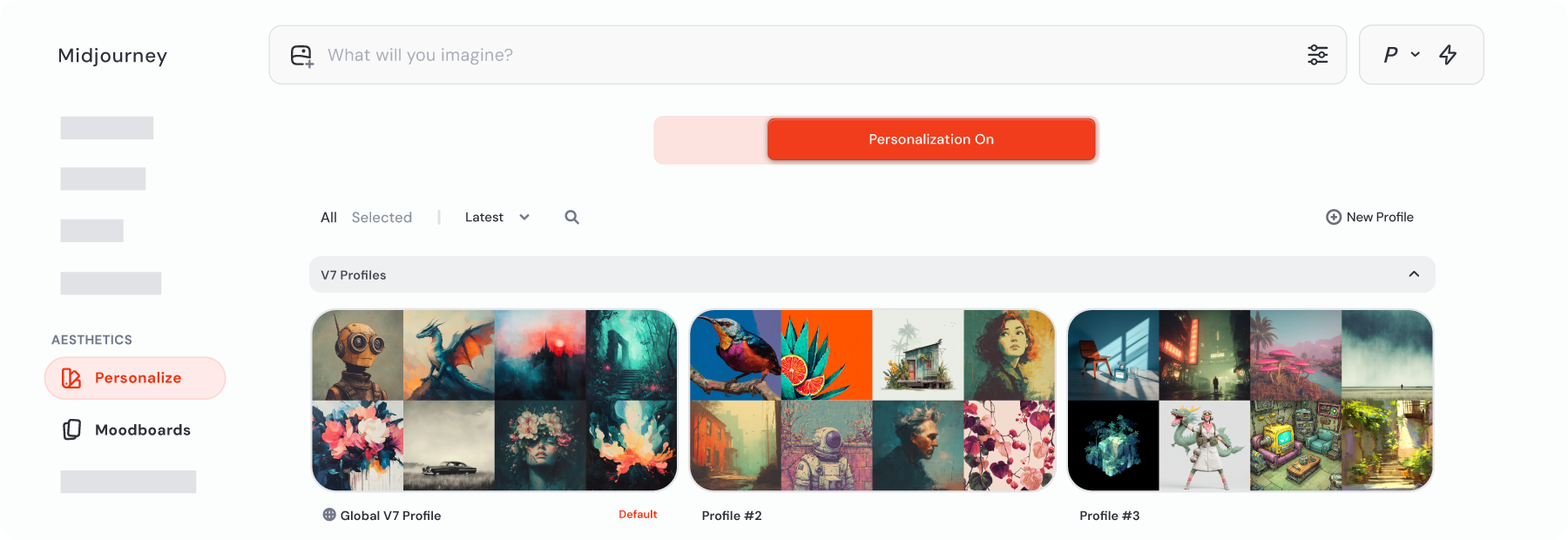
Continue Working on Your Images
-------------------------------
The creativity doesn't stop here! Learn how to enhance and refine your creations using upscalers, variations, zoom out, pan, editor, and more in our [Modifying Your Creations](https://docs.midjourney.com/hc/en-us/articles/33329329805581)
article.
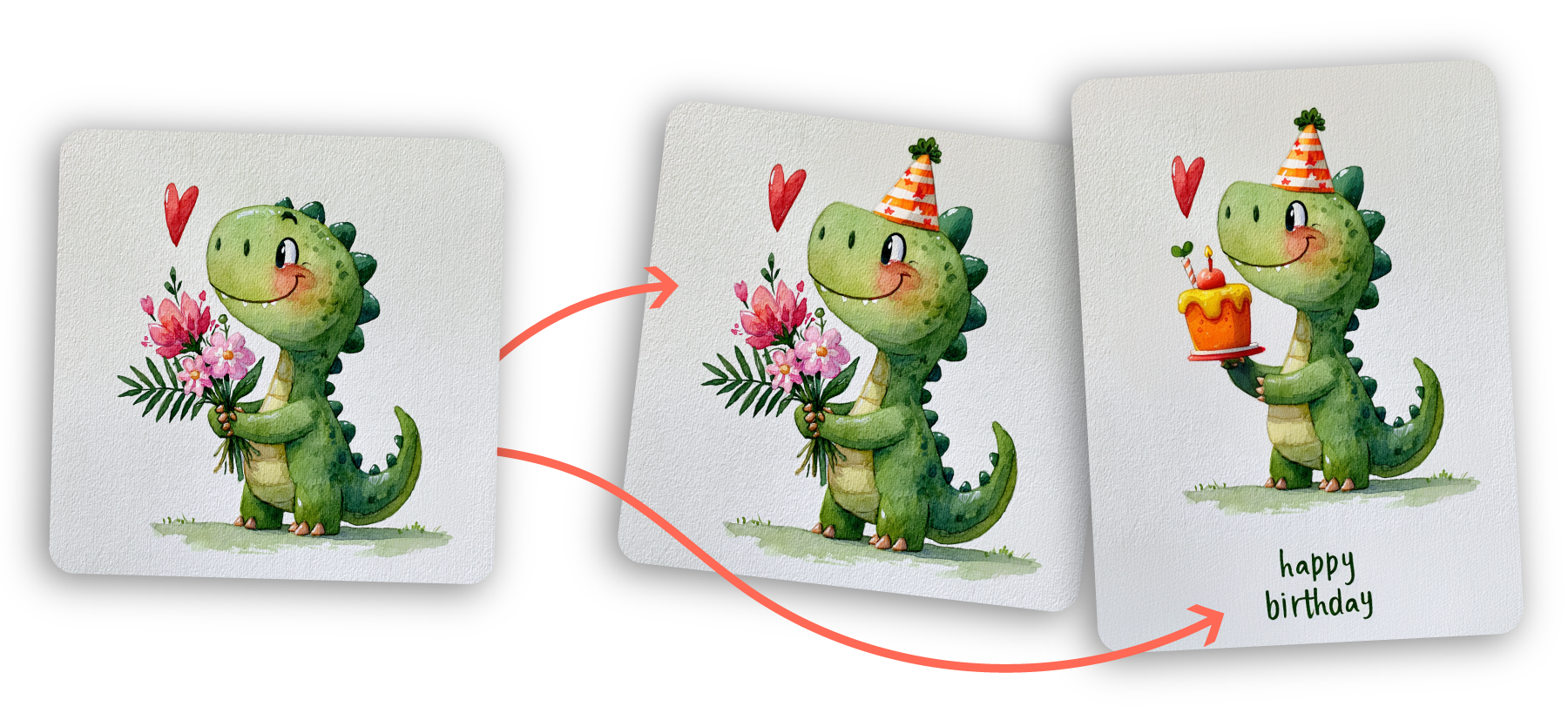
Turn Images into Videos
-----------------------
Make your images come alive by transforming them into 5 second videos! Learn how to animate both your Midjourney creations and your own images on our [Video](https://docs.midjourney.com/hc/en-us/articles/37460773864589)
article.
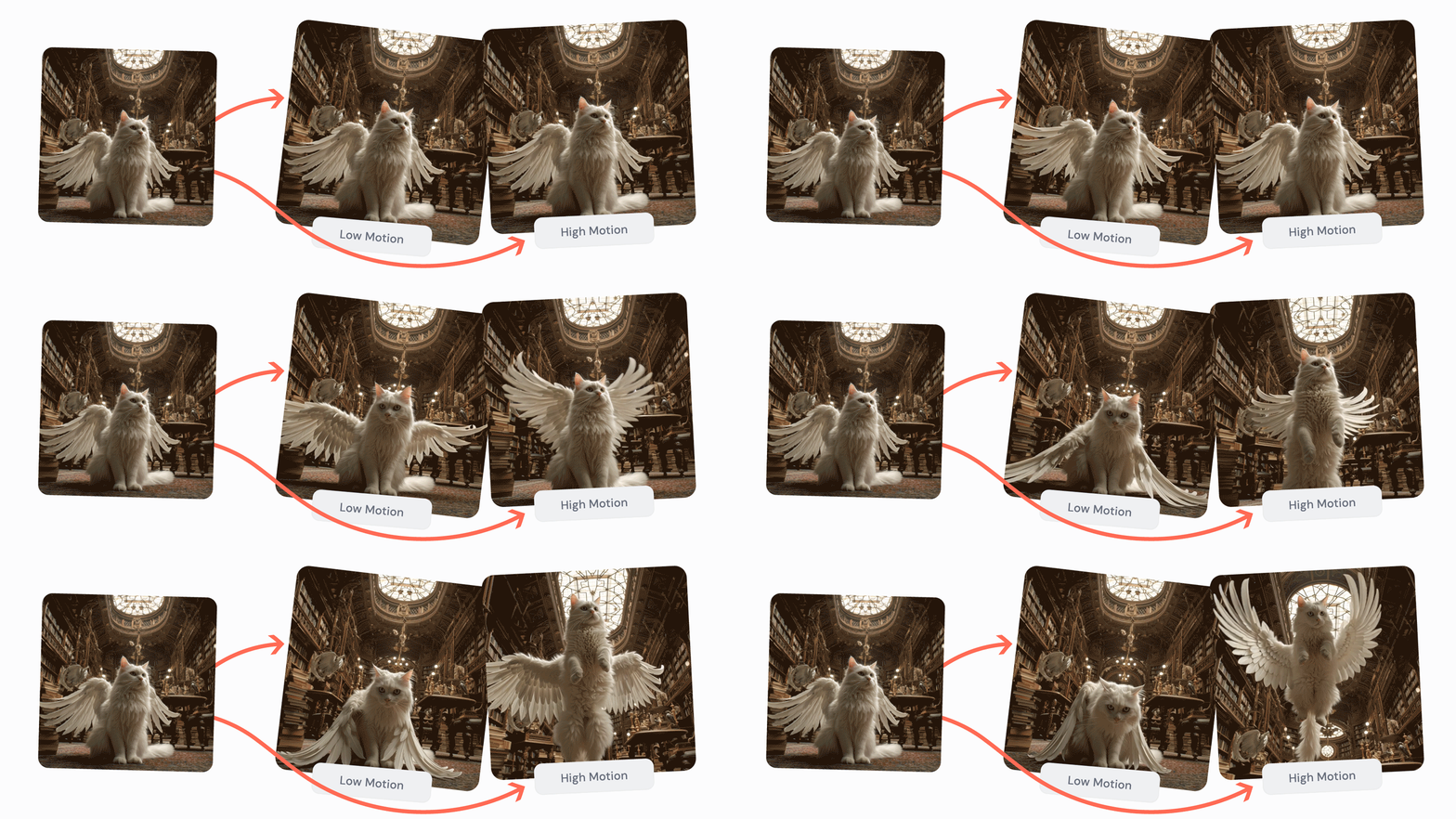
Customizing Your Settings
-------------------------
You can change your default image generation settings at any time by clicking on the settings icon  in the Imagine bar.
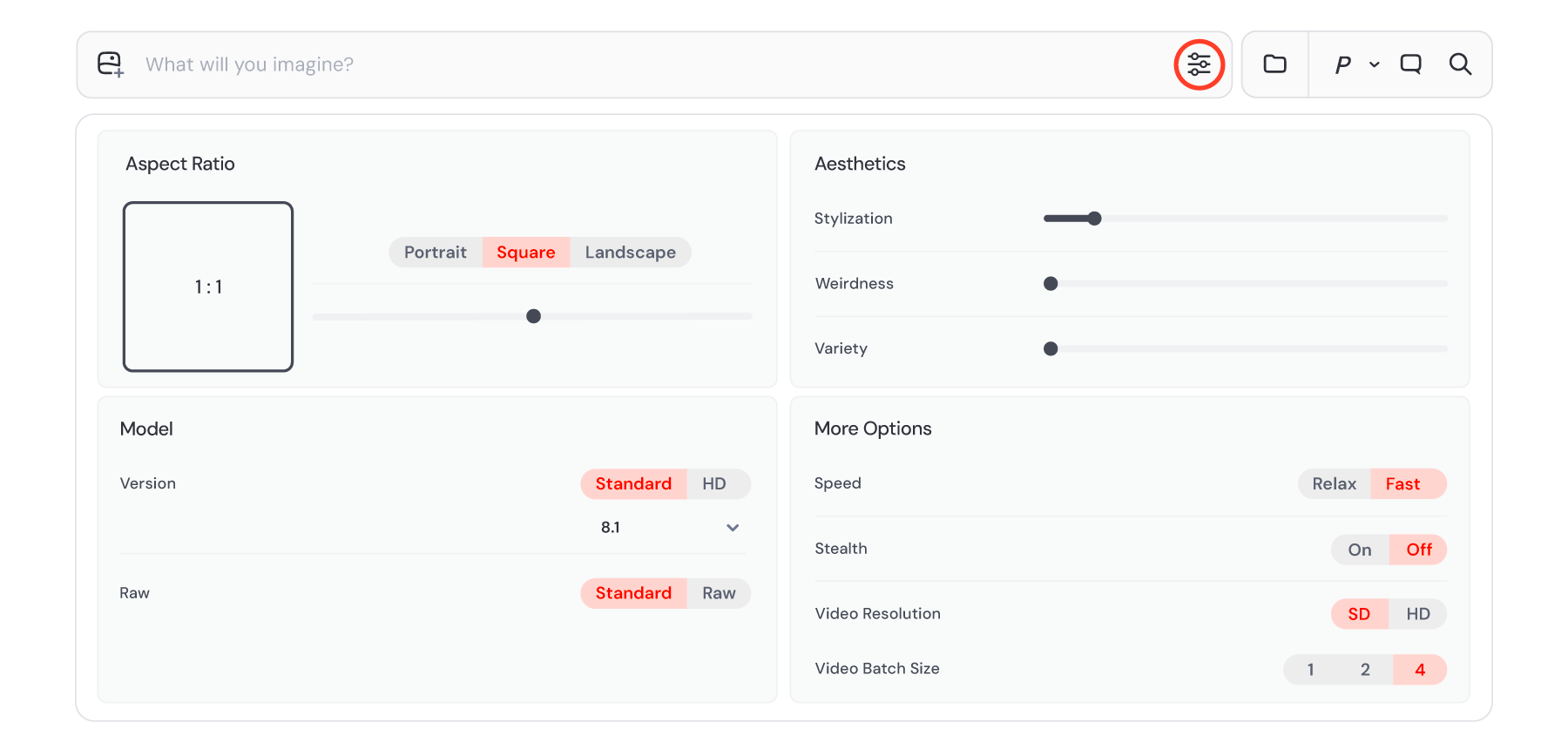
For more information on each setting, check out these articles: [Aspect Ratio](https://docs.midjourney.com/hc/en-us/articles/31894244298125)
(image size), [Raw Mode](https://docs.midjourney.com/hc/en-us/articles/32634113811853)
, [Version](https://docs.midjourney.com/hc/en-us/articles/32199405667853)
, [Draft Mode](https://docs.midjourney.com/hc/en-us/articles/35577175650957)
, [Stylize](https://docs.midjourney.com/hc/en-us/articles/32196176868109)
, [Weird](https://docs.midjourney.com/hc/en-us/articles/32390120435085)
, [Variety](https://docs.midjourney.com/hc/en-us/articles/32099348346765)
, [GPU Speed](https://docs.midjourney.com/hc/en-us/articles/32016412137741)
, and [Stealth](https://docs.midjourney.com/hc/en-us/articles/32019750070669)
.
Using Images in Your Prompts
----------------------------
Did you know that you can also provide Midjourney with images—not just text—to guide your creations?
* [Image Prompts](https://docs.midjourney.com/hc/en-us/articles/32040250122381)
let you influence content, composition, style, and colors.
* [Style References](https://docs.midjourney.com/hc/en-us/articles/32180011136653)
help you match the look and feel of another image.
* [Omni References](https://docs.midjourney.com/hc/en-us/articles/36285124473997-Omni-Reference)
help you use the same character or object in multiple images.
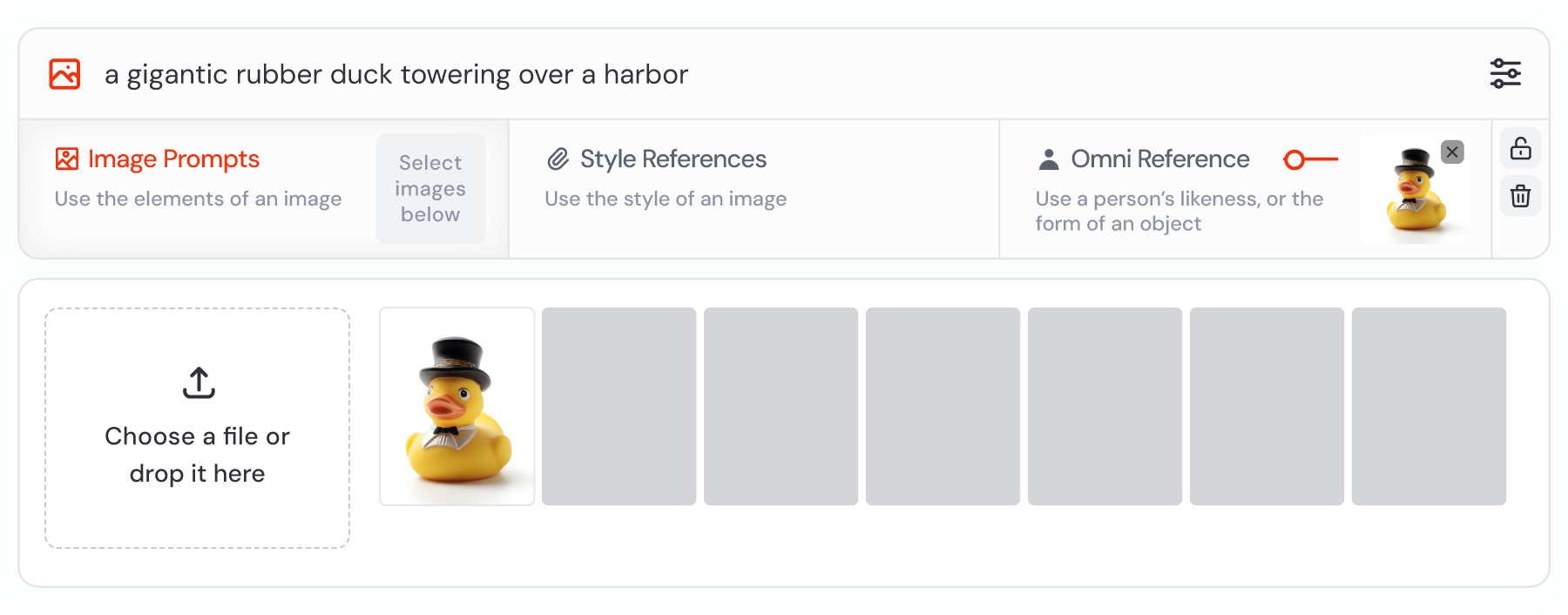
For more information about all the tools and features available on your Create page, check out our [Creating on Web](https://docs.midjourney.com/hc/en-us/articles/33390732264589)
article.
Organizing Your Creations
-------------------------
Your Organize page offers a clear view of all your Midjourney images. Here, you can download, sort, and filter your creations. You can also organize them into folders easily. For more tips and tricks, check out our [Organizing Your Creations](https://docs.midjourney.com/hc/en-us/articles/33329462451469)
article.
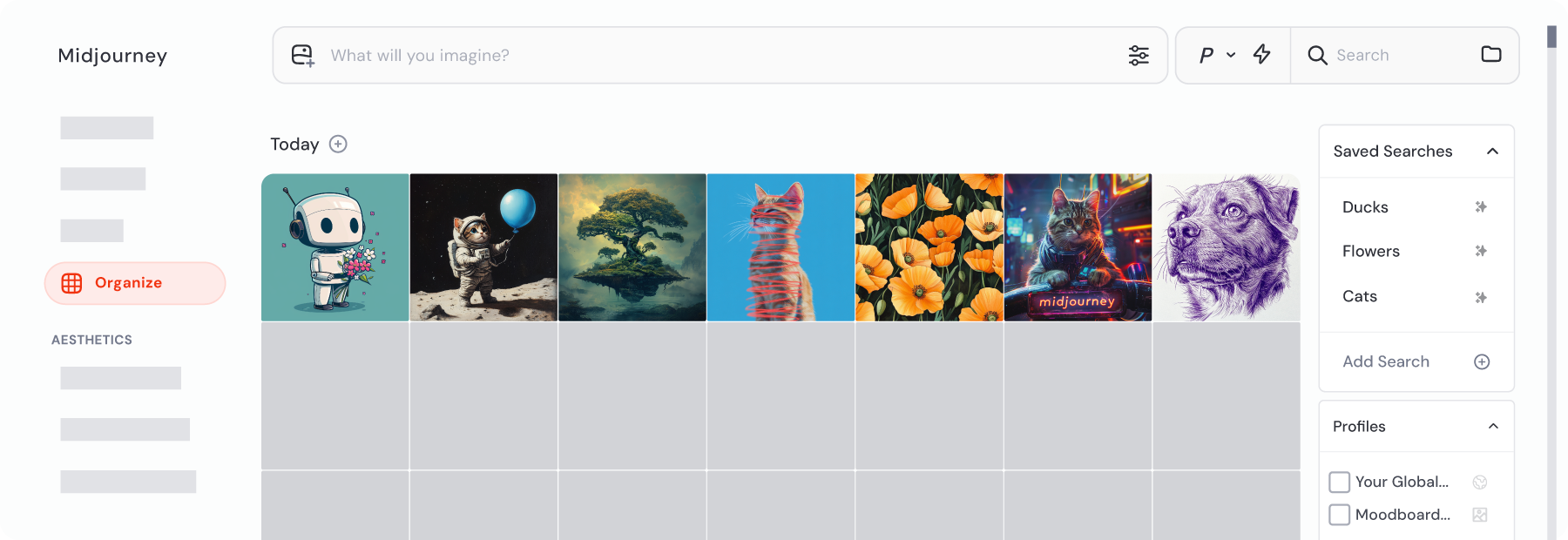
Collaborating
-------------
Nothing beats the creative energy that comes from making images with others!
On the [Chat page](https://www.midjourney.com/rooms)
, you can find (or create!) shared spaces to work together with other subscribers.
The [Explore page](https://www.midjourney.com/explore)
is another great resource for inspiration—it's a showcase of subscriber creations!
Check out the [Daily Theme](https://www.midjourney.com/rooms/fdcd697e-d8c9-4848-9d6b-27dc8a209eea)
room every day to see the creative ways other users are incorporating the day's theme into prompts, and create alongside them.
Community Guidelines
--------------------
To ensure a safe and happy creative environment, stay informed about our [Community Guidelines](https://docs.midjourney.com/hc/en-us/articles/32013696484109)
.
Sharing & Support
-----------------
Feel like sharing your works of art? Connect with our community and seek guidance from fellow Midjourney enthusiasts or our helpers in [our Discord server](https://discord.gg/midjourney)
.
If you need help with your account or subscription, you can browse helpful [billing articles](https://docs.midjourney.com/hc/en-us/categories/16016577793421)
or [contact our billing team](https://docs.midjourney.com/hc/en-us/articles/32638309968141)
.
---
# Billing Support – Midjourney
[Skip to main content](https://docs.midjourney.com/hc/en-us/categories/16016577793421-Billing-Support#page-container)
Billing Support
I need help with...
[Plan Information](https://docs.midjourney.com/hc/en-us/sections/28005319720845-Plan-Information)
--------------------------------------------------------------------------------------------------
* [How to Subscribe](https://docs.midjourney.com/hc/en-us/articles/31974654274573-How-to-Subscribe)
To get started with a Midjourney plan, first create or log in to your account and head over to your Manage Subscription page on midjourney.com. ...
* [Comparing Midjourney Plans](https://docs.midjourney.com/hc/en-us/articles/27870484040333-Comparing-Midjourney-Plans)
All Midjourney plans are subscriptions - meaning they automatically renew on a monthly or yearly basis unless you set your plan to cancel. Midjo...
* [GPU Speed (Fast, Relax, Turbo)](https://docs.midjourney.com/hc/en-us/articles/32016412137741-GPU-Speed-Fast-Relax-Turbo)
To change how fast your images and videos are made, adjust your GPU speed. Midjourney uses powerful Graphics Processing Units (GPUs) to handle t...
* [Subscription Fast Time Expiration](https://docs.midjourney.com/hc/en-us/articles/27870521824653-Subscription-Fast-Time-Expiration)
Keep in mind that any unused Fast time from your subscription will not carry over to the next month. Whether you're on a monthly or yearly plan,...
* [Purchasing Extra Fast Time](https://docs.midjourney.com/hc/en-us/articles/33570952624141-Purchasing-Extra-Fast-Time)
If you run out of Fast time before your subscription renews, you can easily purchase more to continue creating without delays. Visit the Manag...
* [Earning Free Fast Time](https://docs.midjourney.com/hc/en-us/articles/28014817524109-Earning-Free-Fast-Time)
Looking to add more Fast time to your account? Midjourney provides a few ways to earn extra Fast time, perfect for keeping your creative project...
[See all 11 articles](https://docs.midjourney.com/hc/en-us/sections/28005319720845-Plan-Information)
[Account Management](https://docs.midjourney.com/hc/en-us/sections/27646234144397-Account-Management)
------------------------------------------------------------------------------------------------------
* [Logging In & Connecting Accounts](https://docs.midjourney.com/hc/en-us/articles/33390994570509-Logging-In-Connecting-Accounts)
Whether you're joining us for the first time or you're a returning user, it's important to sign in with the correct account. This helps make sur...
* [Managing Your Subscription](https://docs.midjourney.com/hc/en-us/articles/28014179406861-Managing-Your-Subscription)
To manage your Midjourney image generation subscription, simply log in to midjourney.com. For help logging in, see our Logging In & Connecting A...
* [Finding Your Renewal Time](https://docs.midjourney.com/hc/en-us/articles/27870433501837-Finding-Your-Renewal-Time)
To know when your subscription renews, remember that it happens exactly on the same day and time each month as when you first subscribed. For th...
* [Upgrading or Downgrading Your Plan](https://docs.midjourney.com/hc/en-us/articles/27870428114317-Upgrading-or-Downgrading-Your-Plan)
Need to adjust your Midjourney plan? You can easily upgrade or downgrade from the Manage Subscription page on midjourney.com. If you're not logg...
* [Using Midjourney in Discord](https://docs.midjourney.com/hc/en-us/articles/31541509949069-Using-Midjourney-in-Discord)
All our subscription plans allow you to use Midjourney both on our website and in Discord. But if you want to make images in Discord, you will n...
* [Turning Off Automatic Renewals](https://docs.midjourney.com/hc/en-us/articles/27868888211213-Turning-Off-Automatic-Renewals)
All Midjourney subscriptions are set to renew automatically. If you'd prefer not to continue your subscription, you can cancel it via your Manag...
[See all 10 articles](https://docs.midjourney.com/hc/en-us/sections/27646234144397-Account-Management)
[Payments](https://docs.midjourney.com/hc/en-us/sections/16016608509709-Payments)
----------------------------------------------------------------------------------
* [Accepted Payment Methods](https://docs.midjourney.com/hc/en-us/articles/27868831972365-Accepted-Payment-Methods)
Midjourney uses Stripe as our payment processor, which means you can only use payment methods that Stripe accepts. Generally, you can pay with m...
* [Editing Your Payment Information](https://docs.midjourney.com/hc/en-us/articles/25385791792781-Editing-Your-Payment-Information)
Active Subscription: To review or update your payment details on an active subscription, go to your Manage Subscription page on midjourney.com. ...
* [Viewing Your Payment History](https://docs.midjourney.com/hc/en-us/articles/27868885185293-Viewing-Your-Payment-History)
All your invoices and receipts are automatically emailed to the billing email address on file, so you might also find them in your inbox. Active...
* [Unsuccessful Payments](https://docs.midjourney.com/hc/en-us/articles/27868801964045-Unsuccessful-Payments)
When a payment is declined, you will often see a pending transaction in your bank account. This is normal, and will go away automatically. It do...
* [Fixing a Paused Plan](https://docs.midjourney.com/hc/en-us/articles/27868802467853-Fixing-a-Paused-Plan)
If your subscription doesn't renew because of a payment failure, your plan will be marked as "Paused". This means that the renewal payment didn'...
* [Payment Currency](https://docs.midjourney.com/hc/en-us/articles/27868831424525-Payment-Currency)
Midjourney accepts payments exclusively in US Dollars (USD). If you're paying with a currency other than USD, your bank will automatically conve...
[See all 10 articles](https://docs.midjourney.com/hc/en-us/sections/16016608509709-Payments)
[Cancellations & Refunds](https://docs.midjourney.com/hc/en-us/sections/27646307671309-Cancellations-Refunds)
--------------------------------------------------------------------------------------------------------------
* [Canceling Your Subscription](https://docs.midjourney.com/hc/en-us/articles/25384024738573-Canceling-Your-Subscription)
You can cancel your Midjourney subscription at any time by going to your Manage Subscription page and clicking the Cancel Plan button. Your canc...
* [Requesting a Refund](https://docs.midjourney.com/hc/en-us/articles/25386088618253-Requesting-a-Refund)
You're eligible for a refund only if you've used less than 20 GPU minutes throughout the lifetime of your account. This includes both Fast/Turbo...
[Taxes & VAT](https://docs.midjourney.com/hc/en-us/sections/16016608453645-Taxes-VAT)
--------------------------------------------------------------------------------------
* [Tax / VAT Charges](https://docs.midjourney.com/hc/en-us/articles/27868801261325-Tax-VAT-Charges)
When you purchase a Midjourney subscription, sales tax or Value Added Tax (VAT) may apply, depending on your location. Stripe, our payment proce...
* [Requesting a Tax Exemption](https://docs.midjourney.com/hc/en-us/articles/27868838932621-Requesting-a-Tax-Exemption)
This article is for Midjourney subscribers from tax-exempt organizations paying for their subscription. Please note that we cannot modify tax st...
[Magazines & Books](https://docs.midjourney.com/hc/en-us/sections/28005340955277-Magazines-Books)
--------------------------------------------------------------------------------------------------
* [Midjourney Magazine Subscription FAQ](https://docs.midjourney.com/hc/en-us/articles/28012940139021-Midjourney-Magazine-Subscription-FAQ)
This FAQ applies to Midjourney Magazine subscriptions. If you have questions about individual orders placed on mag.midjourney.com for past issue...
* [Managing Your Midjourney Magazine Subscription](https://docs.midjourney.com/hc/en-us/articles/27870410169997-Managing-Your-Midjourney-Magazine-Subscription)
Your Midjourney Magazine subscription is entirely separate from your image generation subscription. To manage your magazine subscription, enter ...
* [Midjourney Store Orders FAQ](https://docs.midjourney.com/hc/en-us/articles/28012925933837-Midjourney-Store-Orders-FAQ)
This FAQ applies to orders placed on mag.midjourney.com for past issues or books. If you have questions about your monthly Midjourney magazine s...
---
# Documentation – Midjourney
[Skip to main content](https://docs.midjourney.com/hc/en-us/categories/32013335627533-Documentation#page-container)
Documentation
Learn More About...
[Getting Started](https://docs.midjourney.com/hc/en-us/sections/33324274255373-Getting-Started)
------------------------------------------------------------------------------------------------
* [](https://docs.midjourney.com/hc/en-us/articles/33329261836941-Getting-Started-Guide)
[Getting Started Guide](https://docs.midjourney.com/hc/en-us/articles/33329261836941-Getting-Started-Guide)
Learn to subscribe, create your first image, explore features, and connect with our creative community. Welcome to Midjourney, your portal to tr...
[Prompting Basics](https://docs.midjourney.com/hc/en-us/sections/32013365472909-Prompting-Basics)
--------------------------------------------------------------------------------------------------
* [](https://docs.midjourney.com/hc/en-us/articles/32023408776205-Prompt-Basics)
[Prompt Basics](https://docs.midjourney.com/hc/en-us/articles/32023408776205-Prompt-Basics)
A prompt is your creative starting point—learn how to turn words into unique and exciting images! A prompt is your creative starting point—learn...
* [](https://docs.midjourney.com/hc/en-us/articles/33329329805581-Modifying-Your-Creations)
[Modifying Your Creations](https://docs.midjourney.com/hc/en-us/articles/33329329805581-Modifying-Your-Creations)
You've generated your first Midjourney image—now what? Learn about our tools for modifying your images! You've generated your first Midjourney i...
* [](https://docs.midjourney.com/hc/en-us/articles/31894244298125-Aspect-Ratio)
[Aspect Ratio](https://docs.midjourney.com/hc/en-us/articles/31894244298125-Aspect-Ratio)
Midjourney images start as squares, but you can change this using the aspect ratio parameter: --aspect or --ar Midjourney images start as square...
* [](https://docs.midjourney.com/hc/en-us/articles/33329374594957-Image-Size-Resolution)
[Image Size & Resolution](https://docs.midjourney.com/hc/en-us/articles/33329374594957-Image-Size-Resolution)
From pixels to prints: Master Midjourney image sizes and resolution. From pixels to prints: Master Midjourney image sizes and resolution. Let's...
* [](https://docs.midjourney.com/hc/en-us/articles/32835253061645-Art-of-Prompting)
[Art of Prompting](https://docs.midjourney.com/hc/en-us/articles/32835253061645-Art-of-Prompting)
Explore words that spark imagination and bring your images to life! Explore words that spark imagination and bring your images to life! Unlock a...
[Using Your Own Images](https://docs.midjourney.com/hc/en-us/sections/32013397184397-Using-Your-Own-Images)
------------------------------------------------------------------------------------------------------------
* [](https://docs.midjourney.com/hc/en-us/articles/37460773864589-Video)
[Video](https://docs.midjourney.com/hc/en-us/articles/37460773864589-Video)
Turn your images into captivating 5 second videos! Turn your images into captivating 5 second videos using Midjourney! Welcome to the exciting ...
* [](https://docs.midjourney.com/hc/en-us/articles/32040250122381-Image-Prompts)
[Image Prompts](https://docs.midjourney.com/hc/en-us/articles/32040250122381-Image-Prompts)
Influcence the content, composition and colors of your creations using image prompts. Want to influence the content, composition, and colors of ...
* [](https://docs.midjourney.com/hc/en-us/articles/32180011136653-Style-Reference)
[Style Reference](https://docs.midjourney.com/hc/en-us/articles/32180011136653-Style-Reference)
Match the look and feel of another image by using style references. Want to match the look and feel of another image? You can provide Midjourney...
* [](https://docs.midjourney.com/hc/en-us/articles/36285124473997-Omni-Reference)
[Omni Reference](https://docs.midjourney.com/hc/en-us/articles/36285124473997-Omni-Reference)
Put a person or object into your images using an Omni Reference. Want to put a person or object into your images? You can provide Midjourney wit...
* [](https://docs.midjourney.com/hc/en-us/articles/32162917505293-Character-Reference)
[Character Reference](https://docs.midjourney.com/hc/en-us/articles/32162917505293-Character-Reference)
Use the same character in multiple images and scenes using character references. Want to use the same character in multiple images and scenes? Y...
* [](https://docs.midjourney.com/hc/en-us/articles/32497889043981-Describe)
[Describe](https://docs.midjourney.com/hc/en-us/articles/32497889043981-Describe)
Use Describe to turn your own images into inspiring prompt ideas. Let your images inspire new ideas—use Describe to explore creative prompts! W...
[See all 8 articles](https://docs.midjourney.com/hc/en-us/sections/32013397184397-Using-Your-Own-Images)
[Using Web](https://docs.midjourney.com/hc/en-us/sections/33329398561549-Using-Web)
------------------------------------------------------------------------------------
* [](https://docs.midjourney.com/hc/en-us/articles/33329460426765-Website-Overview)
[Website Overview](https://docs.midjourney.com/hc/en-us/articles/33329460426765-Website-Overview)
Get an overview of our website and all the tools you need to turn your ideas into stunning images. Welcome to midjourney.com, your gateway to en...
* [](https://docs.midjourney.com/hc/en-us/articles/33390732264589-Creating-on-Web)
[Creating on Web](https://docs.midjourney.com/hc/en-us/articles/33390732264589-Creating-on-Web)
Explore all the tools and features on your Create page and watch your images generate in real time. Unleash your creativity on the Create page! ...
* [](https://docs.midjourney.com/hc/en-us/articles/35577175650957-Draft-Conversational-Modes)
[Draft & Conversational Modes](https://docs.midjourney.com/hc/en-us/articles/35577175650957-Draft-Conversational-Modes)
Turbocharge your creative flow with Draft Mode! Turbocharge your creative flow with Draft Mode! UPDATE: Conversational Mode now has its own bu...
* [](https://docs.midjourney.com/hc/en-us/articles/32433330574221-Personalization)
[Personalization](https://docs.midjourney.com/hc/en-us/articles/32433330574221-Personalization)
Create custom image styles with personalized profiles and moodboards using --p Create custom image styles with personalized profiles and moodboa...
* [](https://docs.midjourney.com/hc/en-us/articles/33329462451469-Organizing-Your-Creations)
[Organizing Your Creations](https://docs.midjourney.com/hc/en-us/articles/33329462451469-Organizing-Your-Creations)
Easily manage all your Midjourney creations with the tools and features on your Organize page. Easily manage all your Midjourney creations with ...
* [](https://docs.midjourney.com/hc/en-us/articles/34580542725645-Using-Folders)
[Using Folders](https://docs.midjourney.com/hc/en-us/articles/34580542725645-Using-Folders)
Use folders to keep your creativity organized and make dedicated spaces to generate your images. Keep your creativity organized with folders! W...
[See all 7 articles](https://docs.midjourney.com/hc/en-us/sections/33329398561549-Using-Web)
[Midjourney Controls](https://docs.midjourney.com/hc/en-us/sections/33329522730509-Midjourney-Controls)
--------------------------------------------------------------------------------------------------------
* [](https://docs.midjourney.com/hc/en-us/articles/32859204029709-Parameter-List)
[Parameter List](https://docs.midjourney.com/hc/en-us/articles/32859204029709-Parameter-List)
Learn how to use parameters to control, customize, and enhace your creations. Control, customize, and enhance your images with parameters! What ...
* [](https://docs.midjourney.com/hc/en-us/articles/32099348346765-Chaos-Variety)
[Chaos / Variety](https://docs.midjourney.com/hc/en-us/articles/32099348346765-Chaos-Variety)
Add variety to your image results with the chaos parameter: --chaos or --c Add more variety to your image results with the chaos parameter: --c ...
* [](https://docs.midjourney.com/hc/en-us/articles/33329788681101-Legacy-Features)
[Legacy Features](https://docs.midjourney.com/hc/en-us/articles/33329788681101-Legacy-Features)
Learn about legacy tools and features that shaped Midjourney's evolution. Discover legacy tools and features that shaped Midjourney's evolution....
* [](https://docs.midjourney.com/hc/en-us/articles/32658968492557-Multi-Prompts-Weights)
[Multi-Prompts & Weights](https://docs.midjourney.com/hc/en-us/articles/32658968492557-Multi-Prompts-Weights)
Highlight important elements in your creations by using multi-prompts and weights. Highlight important elements in your creations by using multi...
* [](https://docs.midjourney.com/hc/en-us/articles/32173351982093-No)
[No](https://docs.midjourney.com/hc/en-us/articles/32173351982093-No)
Tell Midjourney what you don't want in your image using --no Tell Midjourney what you don't want in your image using the no parameter: --no Wh...
* [](https://docs.midjourney.com/hc/en-us/articles/32570788043405-Pan)
[Pan](https://docs.midjourney.com/hc/en-us/articles/32570788043405-Pan)
Use pan to expand the canvas of your image and fill in new details. Want to explore beyond your image's borders? Use Pan to grow the canvas with...
[See all 20 articles](https://docs.midjourney.com/hc/en-us/sections/33329522730509-Midjourney-Controls)
[Using Discord](https://docs.midjourney.com/hc/en-us/sections/32013439485197-Using-Discord)
--------------------------------------------------------------------------------------------
* [](https://docs.midjourney.com/hc/en-us/articles/33329300781837-Web-vs-Discord)
[Web vs Discord](https://docs.midjourney.com/hc/en-us/articles/33329300781837-Web-vs-Discord)
Learn about the differences between making images on midjourney.com and Discord. Web or Discord? Compare your Midjourney experience! With your M...
* [](https://docs.midjourney.com/hc/en-us/articles/32631709682573-Discord-Quick-Start)
[Discord Quick Start](https://docs.midjourney.com/hc/en-us/articles/32631709682573-Discord-Quick-Start)
Get started making Midjourney images in Discord. Create stunning images instantly using the Midjourney bot on Discord—no special hardware needed...
* [](https://docs.midjourney.com/hc/en-us/articles/33330535666445-Discord-Overview)
[Discord Overview](https://docs.midjourney.com/hc/en-us/articles/33330535666445-Discord-Overview)
Learn all about using Discord to make Midjourney images. Learn all about Midjourney's Discord features and start chatting! The Midjourney server...
* [](https://docs.midjourney.com/hc/en-us/articles/32637339216013-Discord-Direct-Messages)
[Discord Direct Messages](https://docs.midjourney.com/hc/en-us/articles/32637339216013-Discord-Direct-Messages)
Make images one-on-one with Midjourney in Discord Direct Messages. Make images one-on-one with Midjourney in Direct Messages! Using Direct Messa...
* [](https://docs.midjourney.com/hc/en-us/articles/32637946450445-Add-Midjourney-to-Your-Discord-Server)
[Add Midjourney to Your Discord Server](https://docs.midjourney.com/hc/en-us/articles/32637946450445-Add-Midjourney-to-Your-Discord-Server)
Learn how to add the Midjourney Bot to your own Discord server. Add the Midjourney Bot to your own Discord Server! If you want to create images ...
* [](https://docs.midjourney.com/hc/en-us/articles/32894521590669-Discord-Command-List)
[Discord Command List](https://docs.midjourney.com/hc/en-us/articles/32894521590669-Discord-Command-List)
See all the commands you can use to interact with the Midjourney Bot in Discord. Interact with the Midjourney Bot using Discord commands! Discor...
[See all 12 articles](https://docs.midjourney.com/hc/en-us/sections/32013439485197-Using-Discord)
[Midjourney Policies](https://docs.midjourney.com/hc/en-us/sections/33329694407821-Midjourney-Policies)
--------------------------------------------------------------------------------------------------------
* [](https://docs.midjourney.com/hc/en-us/articles/32083055291277-Terms-of-Service)
[Terms of Service](https://docs.midjourney.com/hc/en-us/articles/32083055291277-Terms-of-Service)
...
* [](https://docs.midjourney.com/hc/en-us/articles/32013696484109-Community-Guidelines)
[Community Guidelines](https://docs.midjourney.com/hc/en-us/articles/32013696484109-Community-Guidelines)
...
* [](https://docs.midjourney.com/hc/en-us/articles/32083472637453-Privacy-Policy)
[Privacy Policy](https://docs.midjourney.com/hc/en-us/articles/32083472637453-Privacy-Policy)
...
* [](https://docs.midjourney.com/hc/en-us/articles/37012090959245-Cookie-Policy)
[Cookie Policy](https://docs.midjourney.com/hc/en-us/articles/37012090959245-Cookie-Policy)
...
* [](https://docs.midjourney.com/hc/en-us/articles/32084281102349-Midjourney-Trademark-Policy)
[Midjourney Trademark Policy](https://docs.midjourney.com/hc/en-us/articles/32084281102349-Midjourney-Trademark-Policy)
...
* [](https://docs.midjourney.com/hc/en-us/articles/32084462534541-Data-Deletion-and-Privacy-FAQ)
[Data Deletion and Privacy FAQ](https://docs.midjourney.com/hc/en-us/articles/32084462534541-Data-Deletion-and-Privacy-FAQ)
...
[See all 7 articles](https://docs.midjourney.com/hc/en-us/sections/33329694407821-Midjourney-Policies)
---
# Billing Support – Midjourney
[Skip to main content](https://docs.midjourney.com/hc/en-us/categories/16016577793421#page-container)
Billing Support
I need help with...
[Plan Information](https://docs.midjourney.com/hc/en-us/sections/28005319720845-Plan-Information)
--------------------------------------------------------------------------------------------------
* [How to Subscribe](https://docs.midjourney.com/hc/en-us/articles/31974654274573-How-to-Subscribe)
To get started with a Midjourney plan, first create or log in to your account and head over to your Manage Subscription page on midjourney.com. ...
* [Comparing Midjourney Plans](https://docs.midjourney.com/hc/en-us/articles/27870484040333-Comparing-Midjourney-Plans)
All Midjourney plans are subscriptions - meaning they automatically renew on a monthly or yearly basis unless you set your plan to cancel. Midjo...
* [GPU Speed (Fast, Relax, Turbo)](https://docs.midjourney.com/hc/en-us/articles/32016412137741-GPU-Speed-Fast-Relax-Turbo)
To change how fast your images and videos are made, adjust your GPU speed. Midjourney uses powerful Graphics Processing Units (GPUs) to handle t...
* [Subscription Fast Time Expiration](https://docs.midjourney.com/hc/en-us/articles/27870521824653-Subscription-Fast-Time-Expiration)
Keep in mind that any unused Fast time from your subscription will not carry over to the next month. Whether you're on a monthly or yearly plan,...
* [Purchasing Extra Fast Time](https://docs.midjourney.com/hc/en-us/articles/33570952624141-Purchasing-Extra-Fast-Time)
If you run out of Fast time before your subscription renews, you can easily purchase more to continue creating without delays. Visit the Manag...
* [Earning Free Fast Time](https://docs.midjourney.com/hc/en-us/articles/28014817524109-Earning-Free-Fast-Time)
Looking to add more Fast time to your account? Midjourney provides a few ways to earn extra Fast time, perfect for keeping your creative project...
[See all 11 articles](https://docs.midjourney.com/hc/en-us/sections/28005319720845-Plan-Information)
[Account Management](https://docs.midjourney.com/hc/en-us/sections/27646234144397-Account-Management)
------------------------------------------------------------------------------------------------------
* [Logging In & Connecting Accounts](https://docs.midjourney.com/hc/en-us/articles/33390994570509-Logging-In-Connecting-Accounts)
Whether you're joining us for the first time or you're a returning user, it's important to sign in with the correct account. This helps make sur...
* [Managing Your Subscription](https://docs.midjourney.com/hc/en-us/articles/28014179406861-Managing-Your-Subscription)
To manage your Midjourney image generation subscription, simply log in to midjourney.com. For help logging in, see our Logging In & Connecting A...
* [Finding Your Renewal Time](https://docs.midjourney.com/hc/en-us/articles/27870433501837-Finding-Your-Renewal-Time)
To know when your subscription renews, remember that it happens exactly on the same day and time each month as when you first subscribed. For th...
* [Upgrading or Downgrading Your Plan](https://docs.midjourney.com/hc/en-us/articles/27870428114317-Upgrading-or-Downgrading-Your-Plan)
Need to adjust your Midjourney plan? You can easily upgrade or downgrade from the Manage Subscription page on midjourney.com. If you're not logg...
* [Using Midjourney in Discord](https://docs.midjourney.com/hc/en-us/articles/31541509949069-Using-Midjourney-in-Discord)
All our subscription plans allow you to use Midjourney both on our website and in Discord. But if you want to make images in Discord, you will n...
* [Turning Off Automatic Renewals](https://docs.midjourney.com/hc/en-us/articles/27868888211213-Turning-Off-Automatic-Renewals)
All Midjourney subscriptions are set to renew automatically. If you'd prefer not to continue your subscription, you can cancel it via your Manag...
[See all 10 articles](https://docs.midjourney.com/hc/en-us/sections/27646234144397-Account-Management)
[Payments](https://docs.midjourney.com/hc/en-us/sections/16016608509709-Payments)
----------------------------------------------------------------------------------
* [Accepted Payment Methods](https://docs.midjourney.com/hc/en-us/articles/27868831972365-Accepted-Payment-Methods)
Midjourney uses Stripe as our payment processor, which means you can only use payment methods that Stripe accepts. Generally, you can pay with m...
* [Editing Your Payment Information](https://docs.midjourney.com/hc/en-us/articles/25385791792781-Editing-Your-Payment-Information)
Active Subscription: To review or update your payment details on an active subscription, go to your Manage Subscription page on midjourney.com. ...
* [Viewing Your Payment History](https://docs.midjourney.com/hc/en-us/articles/27868885185293-Viewing-Your-Payment-History)
All your invoices and receipts are automatically emailed to the billing email address on file, so you might also find them in your inbox. Active...
* [Unsuccessful Payments](https://docs.midjourney.com/hc/en-us/articles/27868801964045-Unsuccessful-Payments)
When a payment is declined, you will often see a pending transaction in your bank account. This is normal, and will go away automatically. It do...
* [Fixing a Paused Plan](https://docs.midjourney.com/hc/en-us/articles/27868802467853-Fixing-a-Paused-Plan)
If your subscription doesn't renew because of a payment failure, your plan will be marked as "Paused". This means that the renewal payment didn'...
* [Payment Currency](https://docs.midjourney.com/hc/en-us/articles/27868831424525-Payment-Currency)
Midjourney accepts payments exclusively in US Dollars (USD). If you're paying with a currency other than USD, your bank will automatically conve...
[See all 10 articles](https://docs.midjourney.com/hc/en-us/sections/16016608509709-Payments)
[Cancellations & Refunds](https://docs.midjourney.com/hc/en-us/sections/27646307671309-Cancellations-Refunds)
--------------------------------------------------------------------------------------------------------------
* [Canceling Your Subscription](https://docs.midjourney.com/hc/en-us/articles/25384024738573-Canceling-Your-Subscription)
You can cancel your Midjourney subscription at any time by going to your Manage Subscription page and clicking the Cancel Plan button. Your canc...
* [Requesting a Refund](https://docs.midjourney.com/hc/en-us/articles/25386088618253-Requesting-a-Refund)
You're eligible for a refund only if you've used less than 20 GPU minutes throughout the lifetime of your account. This includes both Fast/Turbo...
[Taxes & VAT](https://docs.midjourney.com/hc/en-us/sections/16016608453645-Taxes-VAT)
--------------------------------------------------------------------------------------
* [Tax / VAT Charges](https://docs.midjourney.com/hc/en-us/articles/27868801261325-Tax-VAT-Charges)
When you purchase a Midjourney subscription, sales tax or Value Added Tax (VAT) may apply, depending on your location. Stripe, our payment proce...
* [Requesting a Tax Exemption](https://docs.midjourney.com/hc/en-us/articles/27868838932621-Requesting-a-Tax-Exemption)
This article is for Midjourney subscribers from tax-exempt organizations paying for their subscription. Please note that we cannot modify tax st...
[Magazines & Books](https://docs.midjourney.com/hc/en-us/sections/28005340955277-Magazines-Books)
--------------------------------------------------------------------------------------------------
* [Midjourney Magazine Subscription FAQ](https://docs.midjourney.com/hc/en-us/articles/28012940139021-Midjourney-Magazine-Subscription-FAQ)
This FAQ applies to Midjourney Magazine subscriptions. If you have questions about individual orders placed on mag.midjourney.com for past issue...
* [Managing Your Midjourney Magazine Subscription](https://docs.midjourney.com/hc/en-us/articles/27870410169997-Managing-Your-Midjourney-Magazine-Subscription)
Your Midjourney Magazine subscription is entirely separate from your image generation subscription. To manage your magazine subscription, enter ...
* [Midjourney Store Orders FAQ](https://docs.midjourney.com/hc/en-us/articles/28012925933837-Midjourney-Store-Orders-FAQ)
This FAQ applies to orders placed on mag.midjourney.com for past issues or books. If you have questions about your monthly Midjourney magazine s...
---