# Table of Contents
- [Search the documentation](#search-the-documentation)
- [Overview | NEAR Treasury Docs](#overview-near-treasury-docs)
- [Function Calls | NEAR Treasury Docs](#function-calls-near-treasury-docs)
- [Asset Exchange Backend | NEAR Treasury Docs](#asset-exchange-backend-near-treasury-docs)
- [My Treasuries | NEAR Treasury Docs](#my-treasuries-near-treasury-docs)
- [Dashboard | NEAR Treasury Docs](#dashboard-near-treasury-docs)
- [Lockup | NEAR Treasury Docs](#lockup-near-treasury-docs)
- [Support | NEAR Treasury Docs](#support-near-treasury-docs)
- [Roles & Permissions | NEAR Treasury Docs](#roles-permissions-near-treasury-docs)
- [NEAR Intents | NEAR Treasury Docs](#near-intents-near-treasury-docs)
- [Settings | NEAR Treasury Docs](#settings-near-treasury-docs)
- [Using a Ledger device | NEAR Treasury Docs](#using-a-ledger-device-near-treasury-docs)
- [Bulk Payment Import | NEAR Treasury Docs](#bulk-payment-import-near-treasury-docs)
- [About System Updates | NEAR Treasury Docs](#about-system-updates-near-treasury-docs)
- [Asset Exchange | NEAR Treasury Docs](#asset-exchange-near-treasury-docs)
- [Getting Started Guide | NEAR Treasury Docs](#getting-started-guide-near-treasury-docs)
- [Latest Changes | NEAR Treasury Docs](#latest-changes-near-treasury-docs)
- [Stake Delegation | NEAR Treasury Docs](#stake-delegation-near-treasury-docs)
- [About Lockups | NEAR Treasury Docs](#about-lockups-near-treasury-docs)
- [Payments | NEAR Treasury Docs](#payments-near-treasury-docs)
---
# Search the documentation
[Skip to main content](https://docs.neartreasury.com/search#__docusaurus_skipToContent_fallback)
Search the documentation
========================
---
# Overview | NEAR Treasury Docs
[Skip to main content](https://docs.neartreasury.com/#__docusaurus_skipToContent_fallback)
On this page
NEAR Treasury Documentation
===========================
Introduction[](https://docs.neartreasury.com/#introduction "Direct link to Introduction")
-------------------------------------------------------------------------------------------
Welcome to the NEAR Treasury documentation! This guide will help you get the most out of your decentralized, multi-signature treasury management dashboard.
What is NEAR Treasury?[](https://docs.neartreasury.com/#what-is-near-treasury "Direct link to What is NEAR Treasury?")
------------------------------------------------------------------------------------------------------------------------
NEAR Treasury is a multi-signature treasury management dashboard built on the [SputnikDAO](https://github.com/near-daos/sputnik-dao-contract)
V2 Contract. Whether you're a small grant recipient or large DAO, NEAR Treasury simplifies your treasury operations.
* * *
With NEAR Treasury, you can:
* Easily track your treasury's finances across all supported tokens.
* Create and manage payment requests with multi-signature approvals.
* Stake your tokens to earn rewards.
* Safely exchange different types of cryptocurrency.
* Manage funds held in lockup accounts.
* View reports on your treasury's performance.
* Customize your treasury's settings and appearance.
Benefits of using NEAR Treasury[](https://docs.neartreasury.com/#benefits-of-using-near-treasury "Direct link to Benefits of using NEAR Treasury")
----------------------------------------------------------------------------------------------------------------------------------------------------
* **Enhanced security:** Multi-signature approvals protect your funds by requiring multiple authorizations for transactions.
* **Increased transparency:** Everyone on the team can see treasury activity, promoting accountability and trust.
* **Streamlined workflows:** Save time and reduce errors with automated processes for payments, staking, and other treasury operations.
* **Flexibility:** Manage different types of treasury accounts, including lockups, and customize the dashboard to your needs.
* [Introduction](https://docs.neartreasury.com/#introduction)
* [What is NEAR Treasury?](https://docs.neartreasury.com/#what-is-near-treasury)
* [Benefits of using NEAR Treasury](https://docs.neartreasury.com/#benefits-of-using-near-treasury)
---
# Function Calls | NEAR Treasury Docs
[Skip to main content](https://docs.neartreasury.com/advanced/function-calls#__docusaurus_skipToContent_fallback)
On this page
Overview[](https://docs.neartreasury.com/advanced/function-calls#overview "Direct link to Overview")
------------------------------------------------------------------------------------------------------
This section covers how to use Function Calls to interact directly with any smart contract on the NEAR network. This is an advanced feature that allows the DAO to execute any contract method via a multi-sig proposal.

Warning: This is an advanced feature for technical users
Creating a custom transaction request is a powerful action. Mistakes, such as targeting the wrong contract or using incorrect arguments, can be irreversible. It is designed for users who are comfortable interacting directly with smart contracts. Please proceed with caution.
info
For security reasons, this feature is disabled by default. To enable it for your Treasury, please contact our [support team](https://docs.neartreasury.com/help/support)
.
**Available actions:**
* [Creating Custom Function Call Requests](https://docs.neartreasury.com/advanced/function-calls#creating-custom-function-call-requests)
* [Approving or Rejecting Requests](https://docs.neartreasury.com/advanced/function-calls#approving-or-rejecting-requests)
* [Exporting Request History](https://docs.neartreasury.com/advanced/function-calls#exporting-request-history)
* * *
Creating Custom Function Call Requests[](https://docs.neartreasury.com/advanced/function-calls#creating-custom-function-call-requests "Direct link to Creating Custom Function Call Requests")
------------------------------------------------------------------------------------------------------------------------------------------------------------------------------------------------
To create a request that calls a contract method:
1. Navigate to the **`Function Calls`** section.
2. Click the **`Create Request`** button.
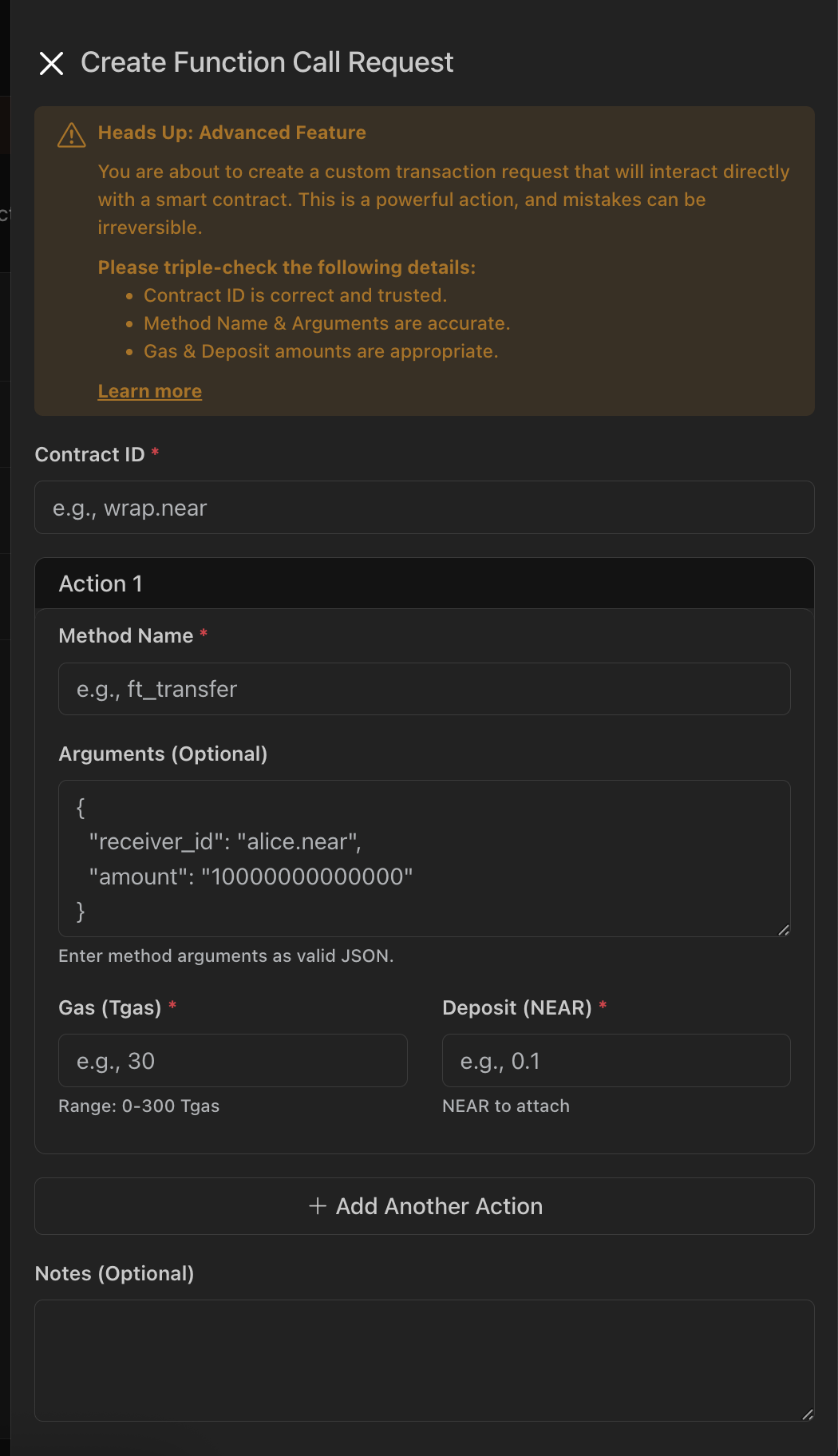
3. Fill in the fields in the modal:
* **Contract ID**: The target account ID of the smart contract to call, e.g., `usdt.tether-token.near`.
* **Method Name**: The name of the method to invoke, e.g., `ft_transfer`.
* **Arguments (JSON)**: Valid JSON object with the method parameters. For example:
{ "receiver_id": "alice.near", "amount": "1000000000000000000000000" }
The modal validates JSON. Ensure numbers that represent token amounts are strings when required by the contract interface.
* **Gas (Tgas)**: The gas limit for the call, specified in Tgas (1 Tgas = 10^12 gas units). Range: 0–300 Tgas. Typical values are 30–100 Tgas depending on the method complexity.
* **Deposit (NEAR)**: Optional NEAR to attach to the call when the method requires funds, e.g., storage or token transfers.
* **Notes (optional)**: Additional context for reviewers.
You can add multiple actions to the same proposal by clicking **Add another action**. All actions will execute in the listed order when the proposal is approved.
4. Submit the request for approval.
Before submitting, double‑check the contract interface and argument schema. Incorrect method names or argument shapes will cause the transaction to fail at execution time.
* * *
Approving or Rejecting Requests[](https://docs.neartreasury.com/advanced/function-calls#approving-or-rejecting-requests "Direct link to Approving or Rejecting Requests")
---------------------------------------------------------------------------------------------------------------------------------------------------------------------------
Custom function call requests require approval from authorized members according to your treasury thresholds. To review and vote on pending requests:
1. Navigate to the **`Function Calls`** section.
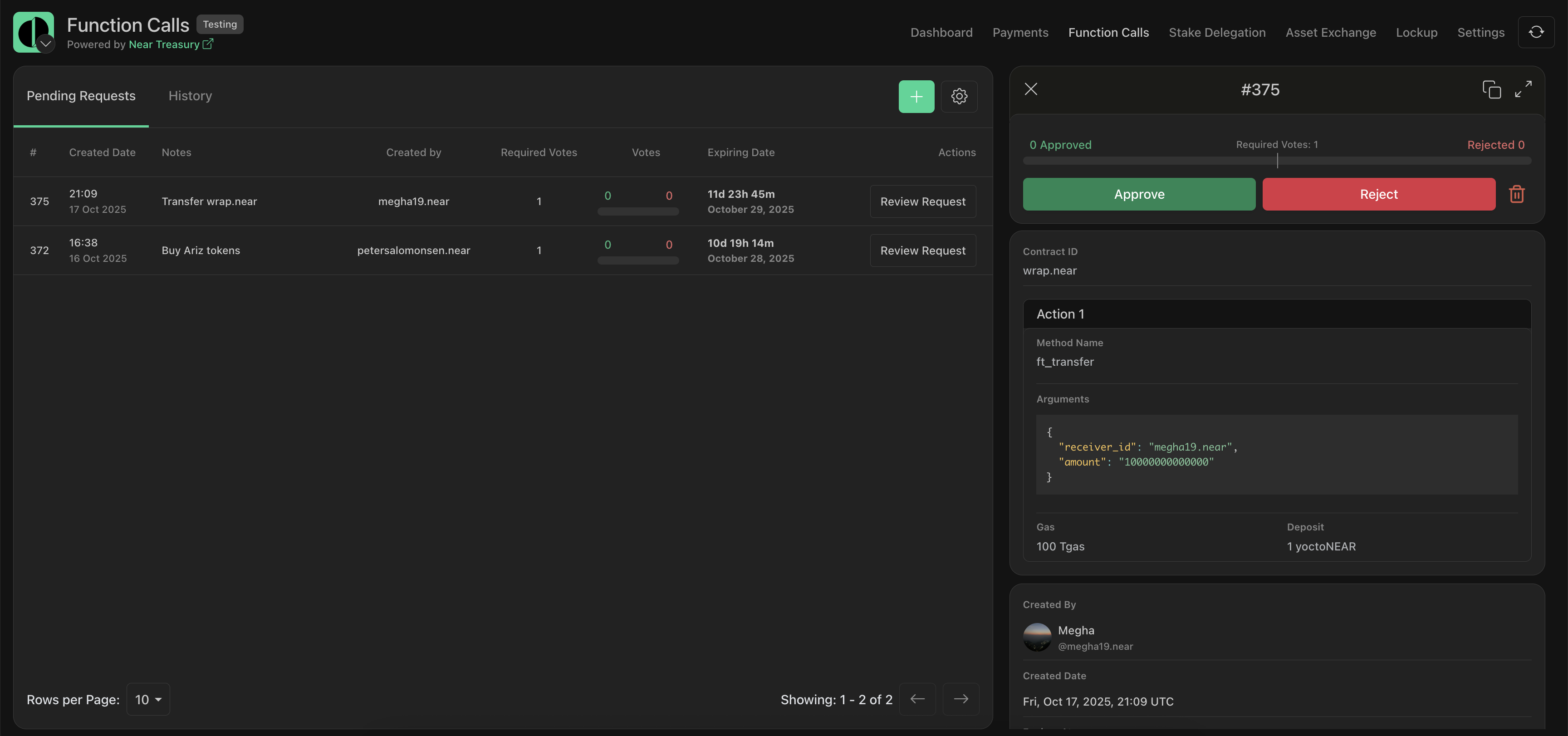
2. In the **`Pending Requests`** tab, locate the request and click **`Review Request`** to review the payload (contract, method, args, gas, deposit).
3. Cast your vote to **Approve** or **Reject**.
Expired requests can no longer be approved. If the underlying contract method or parameters change, create a new request with the updated values.
* * *
Exporting Request History[](https://docs.neartreasury.com/advanced/function-calls#exporting-request-history "Direct link to Exporting Request History")
---------------------------------------------------------------------------------------------------------------------------------------------------------
To export custom function call history to a `.csv` file:
1. Navigate to the **`Function Calls`** section.
2. Switch to the **`History`** tab.
3. Click **`Export as CSV`**.

* [Overview](https://docs.neartreasury.com/advanced/function-calls#overview)
* [Creating Custom Function Call Requests](https://docs.neartreasury.com/advanced/function-calls#creating-custom-function-call-requests)
* [Approving or Rejecting Requests](https://docs.neartreasury.com/advanced/function-calls#approving-or-rejecting-requests)
* [Exporting Request History](https://docs.neartreasury.com/advanced/function-calls#exporting-request-history)
---
# Asset Exchange Backend | NEAR Treasury Docs
[Skip to main content](https://docs.neartreasury.com/help/exchange#__docusaurus_skipToContent_fallback)
On this page
Near Treasury utilizes the [Rhea Finance SDK](https://docs.neartreasury.com/help/exchange#about-rhea-finance)
, which enables token swaps through its [Smart Routing](https://docs.neartreasury.com/help/exchange#rhea-auto-router)
feature.
In this article you'll find additional information about RHEA and the [Auto Router algorithm](https://docs.neartreasury.com/help/exchange#rhea-auto-router)
used to get better prices, and better liquidity utilization compared to regular exchanges.
About RHEA Finance[](https://docs.neartreasury.com/help/exchange#about-rhea-finance "Direct link to About RHEA Finance")
--------------------------------------------------------------------------------------------------------------------------
[RHEA Finance](https://rhea.finance/)
is a community-led, multi-purpose DeFi platform built on the [NEAR Protocol](https://near.org/)
blockchain.
The platform is fully permissionless and removes the need for trusted intermediaries, prioritizing decentralization and censorship resistance. Anyone can trade or become a liquidity provider for a pool by depositing an equivalent value of each underlying token in return for pool tokens. These tokens track pro-rata LP shares of the total reserves, and can be redeemed for the underlying assets at any time.
info
RHEA Finance's smart contract ([`v2.ref-finance.near`](https://github.com/ref-finance/ref-contracts)
) swaps, provides liquidity, and contains all pairs or liquidity pools, made of reserves of two or three [NEP-141](https://nomicon.io/Standards/FungibleToken/Core)
tokens ([ERC-20](https://eips.ethereum.org/EIPS/eip-20)
equivalent on NEAR).
RHEA Auto Router[](https://docs.neartreasury.com/help/exchange#rhea-auto-router "Direct link to RHEA Auto Router")
--------------------------------------------------------------------------------------------------------------------
Auto Router, also known as Smart Routing, can be defined as the ability to find better prices for traders on RHEA Finance. This includes splitting the trade across multiple pools at once.
The Auto Router offers better prices and better liquidity utilization, and ultimately creates a win-win situation for market participants:
* _Traders:_ better prices
* _Liquidity Providers:_ fairer model (vs winner-takes-all approach)
tip
The Auto Router algorithm is open source, and available at [RHEA Finance GitHub](https://github.com/ref-finance/ref-ui/blob/main/src/services/smartRouteLogicWorker/smartRouteLogicSimple.js)
repository.
### Auto Router Design[](https://docs.neartreasury.com/help/exchange#auto-router-design "Direct link to Auto Router Design")
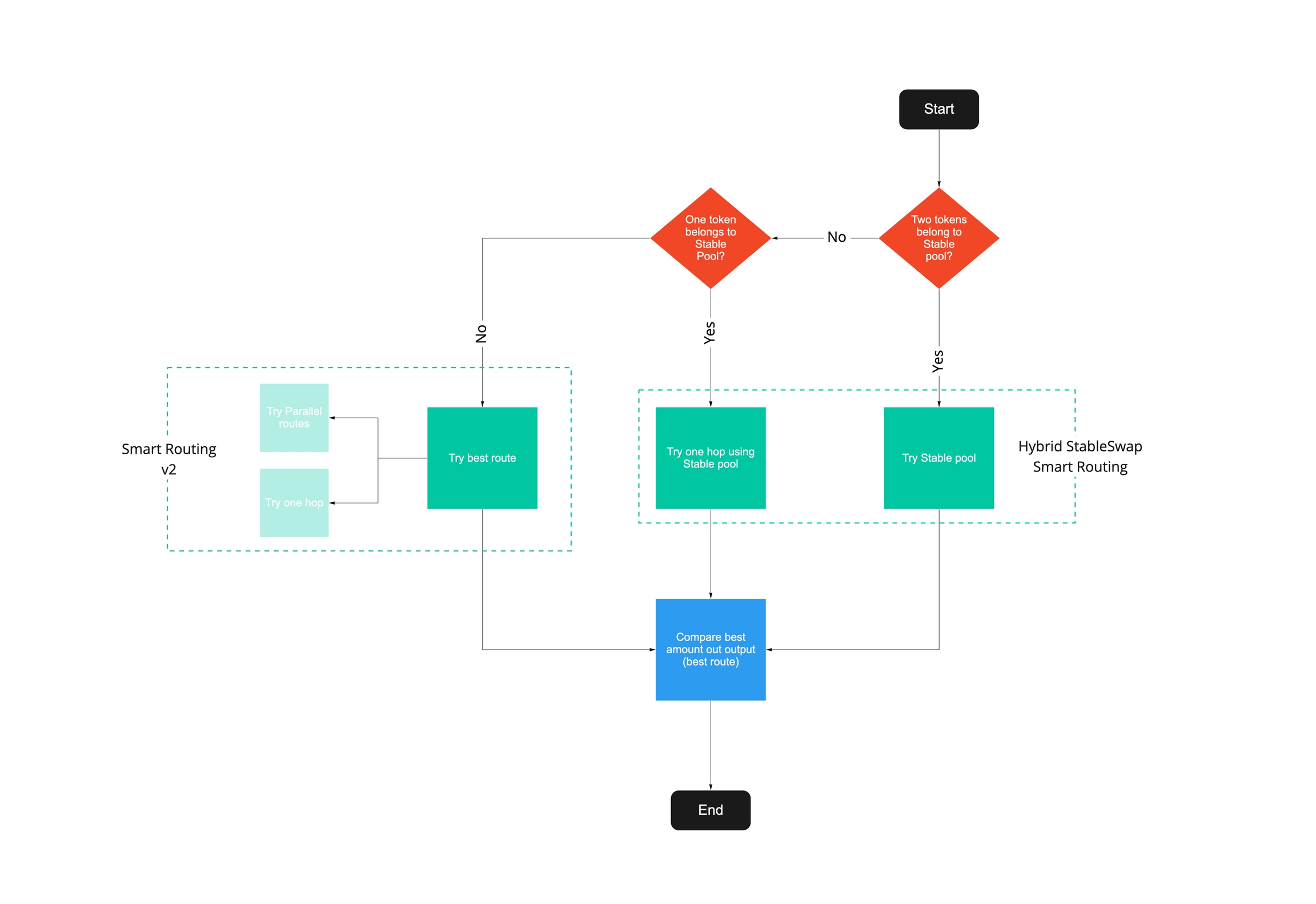
RHEA Finance's Auto Router aims to find the best price for a trade. The algorithm takes advantage of all liquidity, using all pools when available:
* Parallel pools
* Intermediary pools
The Auto Router solution determines the best allocation across pools of the same pairs, and the best path using one hop or intermediary pool.
info
The Auto Router also leverages the [StableSwap](https://curve.fi/files/stableswap-paper.pdf)
function, therefore combining both, normal and stable pools as potential intermediary pools.
Here's a high-level flow chart of the Auto Router logic:
* [About RHEA Finance](https://docs.neartreasury.com/help/exchange#about-rhea-finance)
* [RHEA Auto Router](https://docs.neartreasury.com/help/exchange#rhea-auto-router)
* [Auto Router Design](https://docs.neartreasury.com/help/exchange#auto-router-design)
---
# My Treasuries | NEAR Treasury Docs
[Skip to main content](https://docs.neartreasury.com/setup/my-treasuries#__docusaurus_skipToContent_fallback)
On this page
Overview[](https://docs.neartreasury.com/setup/my-treasuries#overview "Direct link to Overview")
--------------------------------------------------------------------------------------------------
With NEAR Treasury you can be part of multiple treasuries and you can easily [switch between them](https://docs.neartreasury.com/setup/my-treasuries#switch-treasuries)
.
My Treasuries[](https://docs.neartreasury.com/setup/my-treasuries#my-treasuries "Direct link to My Treasuries")
-----------------------------------------------------------------------------------------------------------------
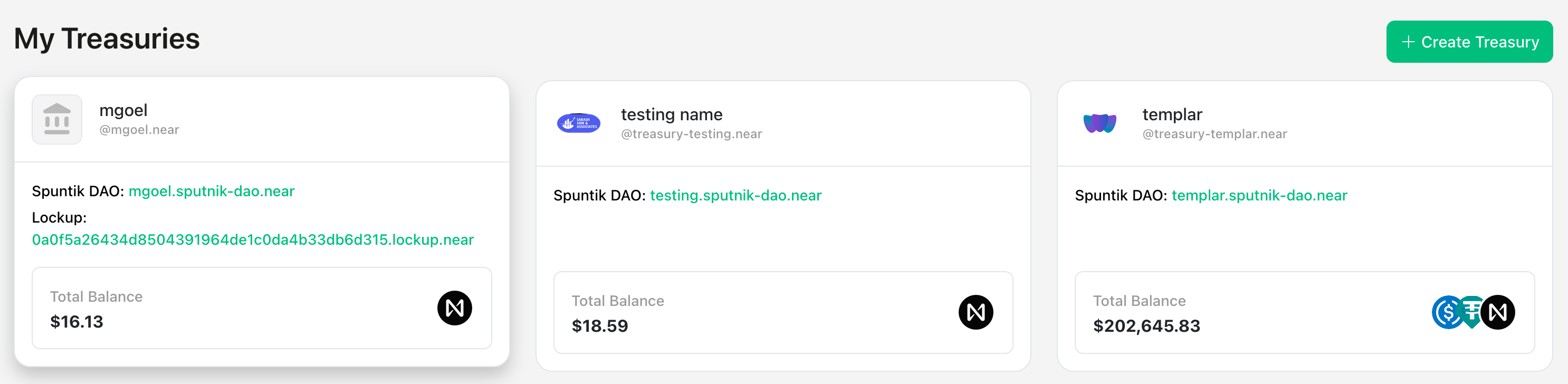
You can find all your treasuries on the [NEAR Treasury landing page](https://treasury-factory.near.page/)
.
Select the Treasury that you want to access by clicking on it:
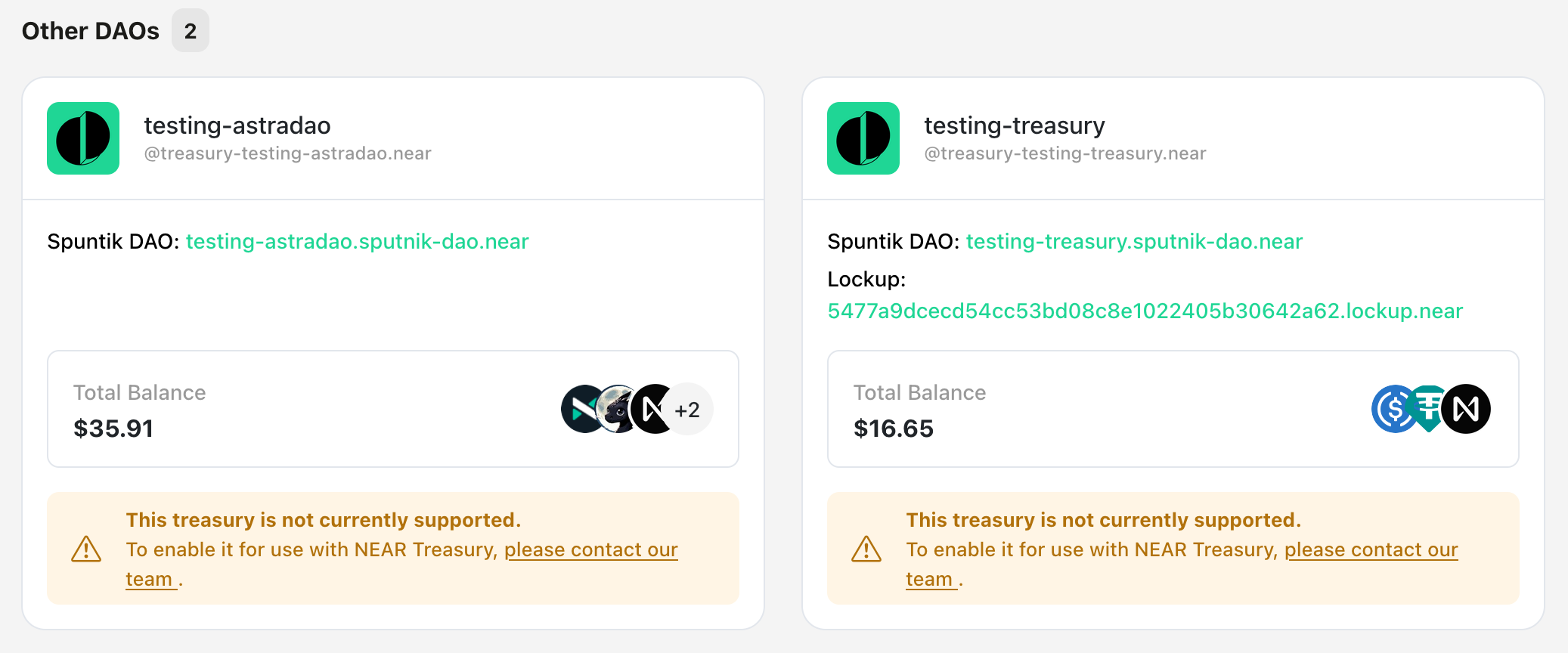
### Other DAOs[](https://docs.neartreasury.com/setup/my-treasuries#other-daos "Direct link to Other DAOs")
On the [NEAR Treasury landing page](https://treasury-factory.near.page/)
you can also see other DAOs that you're currently member of.
tip
If you want to use any of these DAOs with NEAR Treasury, please [contact the support team](https://docs.neartreasury.com/help/support)
.
Switch Treasuries[](https://docs.neartreasury.com/setup/my-treasuries#switch-treasuries "Direct link to Switch Treasuries")
-----------------------------------------------------------------------------------------------------------------------------
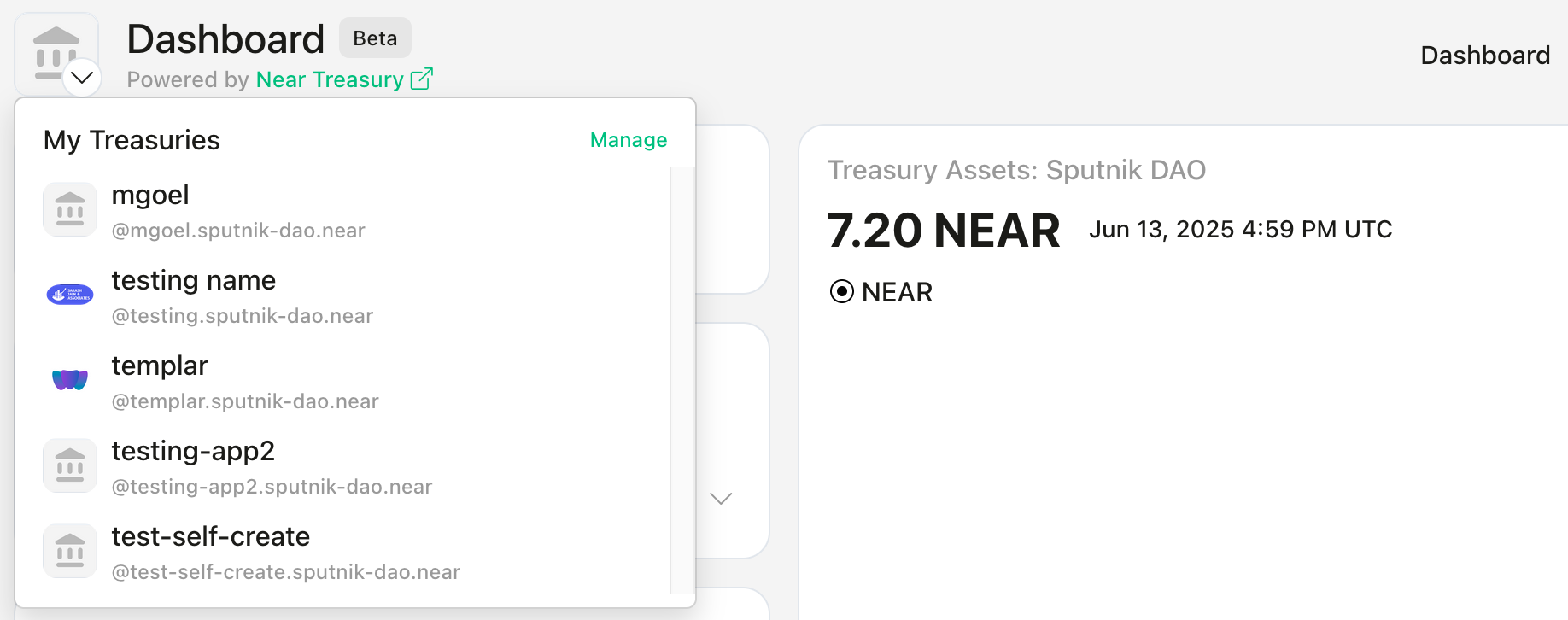
You can switch between any of your treasuries using the top-left drop-down menu (next to the logo):
* [Overview](https://docs.neartreasury.com/setup/my-treasuries#overview)
* [My Treasuries](https://docs.neartreasury.com/setup/my-treasuries#my-treasuries)
* [Other DAOs](https://docs.neartreasury.com/setup/my-treasuries#other-daos)
* [Switch Treasuries](https://docs.neartreasury.com/setup/my-treasuries#switch-treasuries)
---
# Dashboard | NEAR Treasury Docs
[Skip to main content](https://docs.neartreasury.com/dashboard#__docusaurus_skipToContent_fallback)
On this page
Overview[](https://docs.neartreasury.com/dashboard#overview "Direct link to Overview")
----------------------------------------------------------------------------------------
The NEAR Treasury dashboard provides a centralized overview of your treasury's finances. Here's what you'll find and how to navigate it:
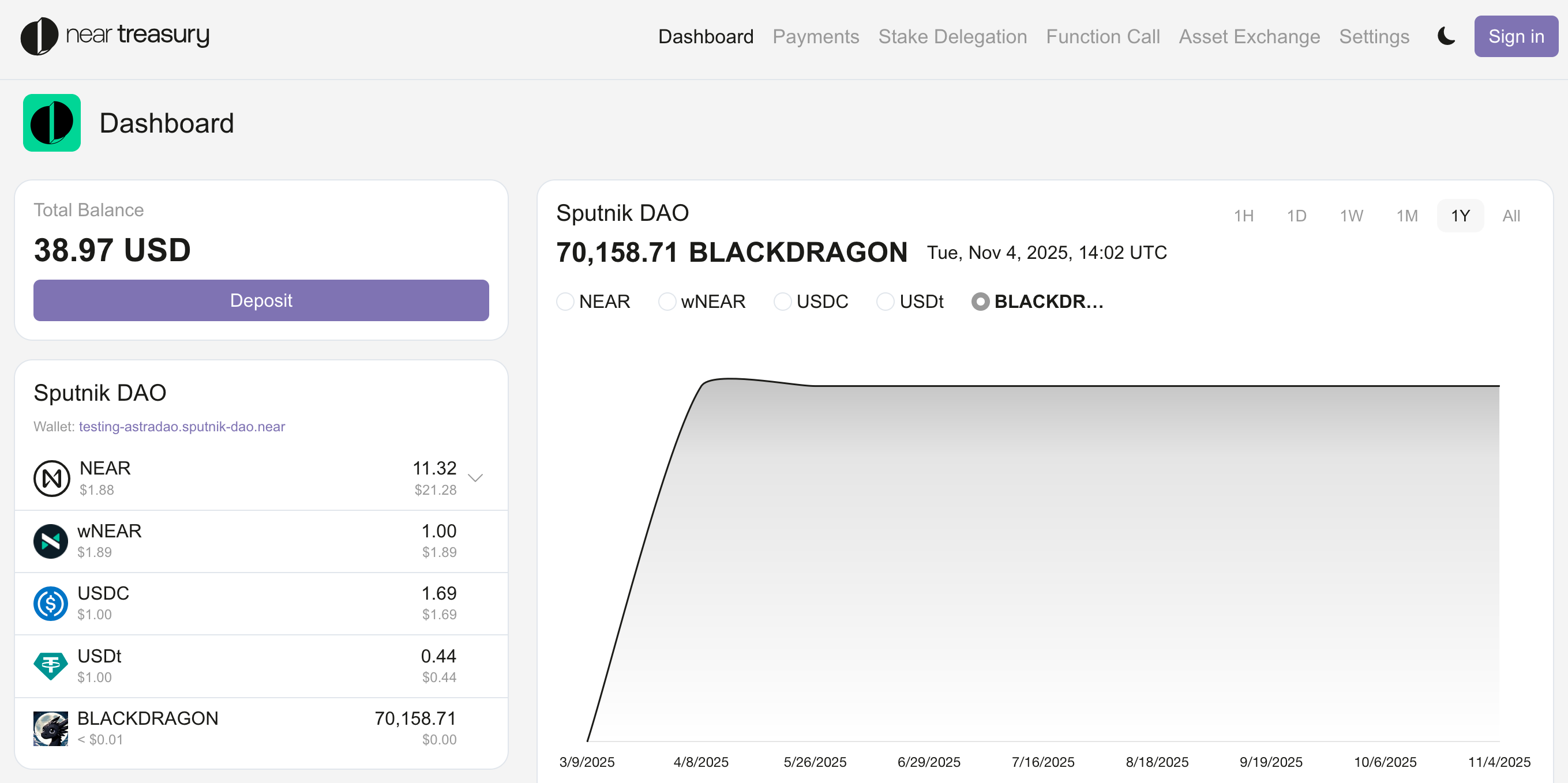
* **Total Balance:** At the top of the dashboard, you'll see a clear display of your treasury's total value across all supported tokens. This gives you an immediate snapshot of your overall financial health.
* **Token Balances:** Below the total balance, you'll find a breakdown of the specific amounts held in each token. This section may include details like:
* **Available Balance:** The amount readily available for spending or other actions.
* **Staked Balance:** The amount currently staked to earn rewards.
* **Pending Release:** For lockup accounts, this shows the amount of tokens scheduled to be released soon.
* [**NEAR Lockup Balances**](https://docs.neartreasury.com/dashboard#near-lockup-optional)
_(if applicable)_
* [**FT Lockup Balances**](https://docs.neartreasury.com/dashboard#ft-lockup-optional)
_(if applicable)_
* **Transaction History:** This section provides a detailed record of all incoming and outgoing transactions. You can filter and sort transactions by date, type (payment, staking, exchange), and token. Click on individual transactions to view more details.
* **Charts and Graphs:** Visual representations of your treasury's activity over time are displayed in this section. You can interact with these charts to adjust the timeframe and see how your treasury's value has fluctuated. This helps you identify trends and make informed decisions about your finances .
NEAR Lockup (Optional)[](https://docs.neartreasury.com/dashboard#near-lockup-optional "Direct link to NEAR Lockup (Optional)")
--------------------------------------------------------------------------------------------------------------------------------
If your treasury has a lockup account, this section displays the balance of tokens held within the lockup contracts. You'll be able to see details about the lockup period and any staking activity associated with those funds.
info
The Treasury **NEAR Lockup** account shown in the Dashboard is not related to the [Lockup section](https://docs.neartreasury.com/management/lockup)
, where you can create new Lockups using your treasury funds for your own recipients, based on your custom dates and rules.
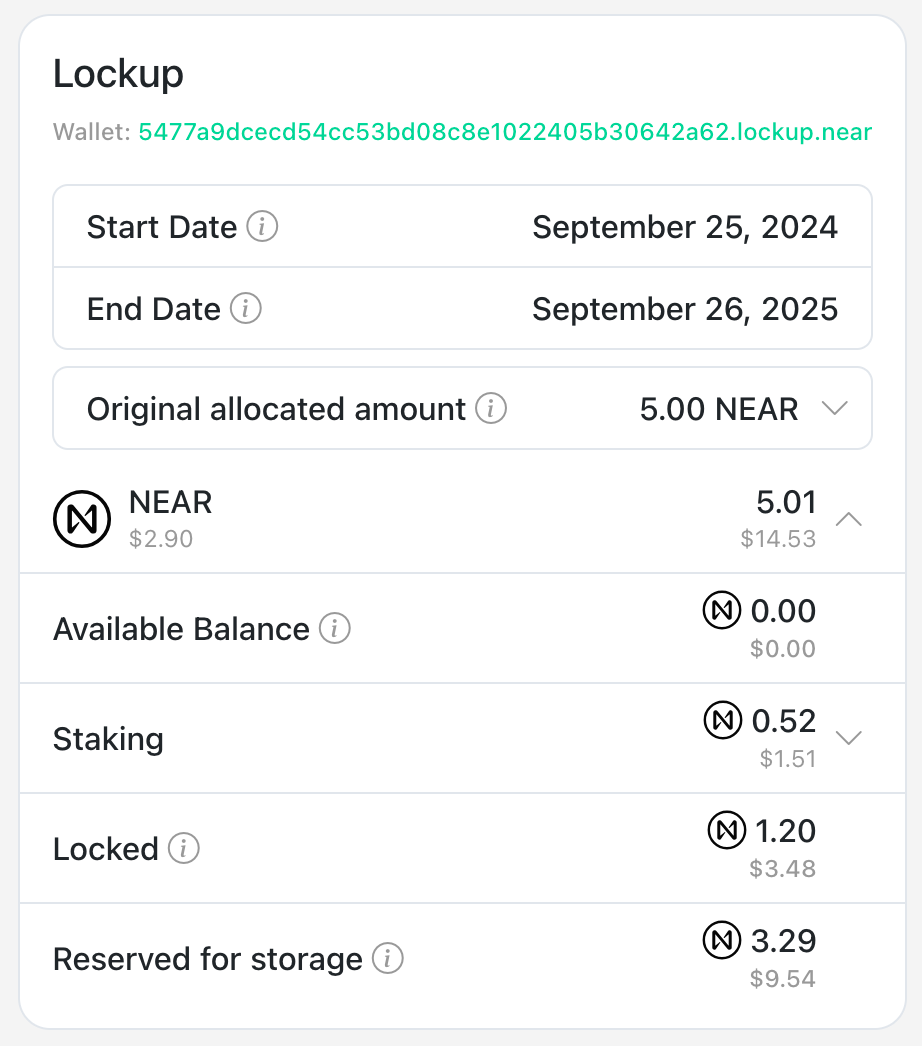
* **Start date:** The date when the vesting period for the lockup account began.
* **End date:** The date when the vesting period for the lockup account will end.
* **Original allocated amount:** The total amount of tokens initially allocated to the lockup account.
* **Vested:** The portion of the original allocated amount that has become available for payments use according to the vesting schedule. _(This amount may or may not have already been used)_
* **Unvested:** The portion of the original allocated amount that is still locked and will become available gradually according to the vesting schedule.
* **Available balance:** Amount of tokens spendable now. These tokens can be used for payments or staking.
* **Staking:** Amount of tokens currently staked.
* **Staked:** Tokens that are currently staked with validators to earn staking rewards. You can unstake any amount of your staked tokens.
* **Pending Release:** Tokens that have been unstaked and are now within a 48-hour waiting period before they become available for withdrawal.
* **Available for withdrawal:** Tokens that have been unstaked and finished the 48-hour waiting period.
* **Locked:** Tokens that are currently restricted by the vesting schedule and cannot be used for payments until they become vested. These tokens can only be staked.
* **Reserved for storage:** A small amount of tokens required to maintain the account active and cover the storage costs.
FT Lockup (Optional)[](https://docs.neartreasury.com/dashboard#ft-lockup-optional "Direct link to FT Lockup (Optional)")
--------------------------------------------------------------------------------------------------------------------------
If your treasury has a custom Fungible Token (FT) lockup account, this section displays the balance of tokens held within the FT lockup contract. You'll be able to claim available funds, and see details about the FT lockup period.
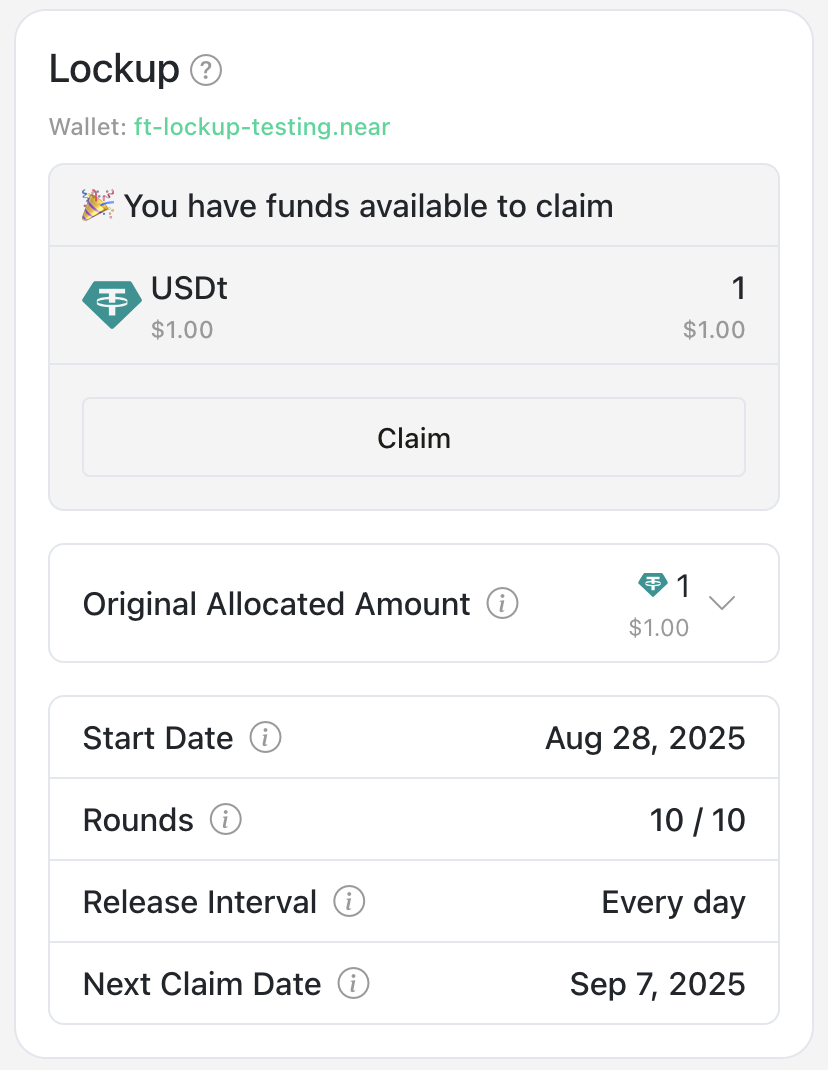
* **Original Allocated Amount:** The total number of tokens assigned to you in this vesting schedule.
* **Unreleased:** Tokens that are still locked and not yet available to claim under your vesting schedule.
* **Unclaimed:** Tokens from earlier payout periods (_rounds_) that you haven’t claimed yet. These can be claimed together with the next unlock.
* **Claimed:** Tokens you’ve already claimed and transferred to your DAO treasury.
* **Start Date:** The date this vesting schedule began.
* **Rounds:** The number of payout rounds completed out of the total scheduled.
* **Release Interval:** The time period between each payout.
* **Next Claim Date:** The next date when tokens will be available to claim.
### Claiming FT tokens[](https://docs.neartreasury.com/dashboard#claiming-ft-tokens "Direct link to Claiming FT tokens")
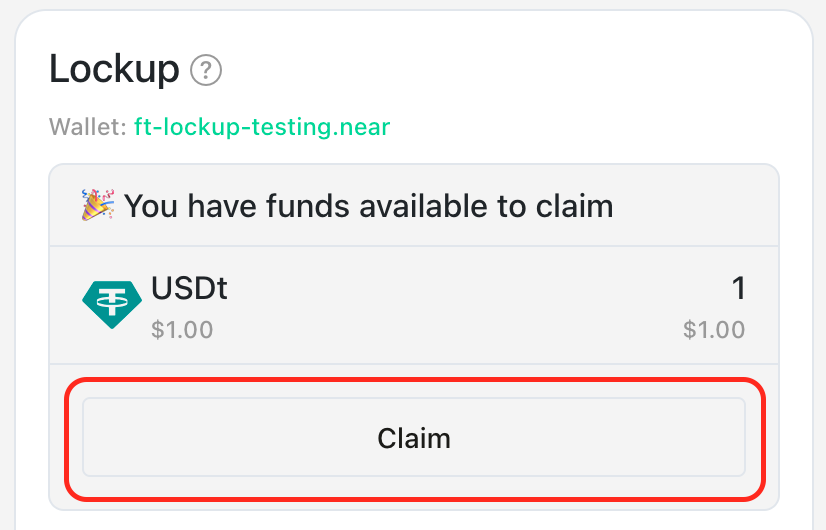
If you have FT tokens available to claim:
1. Navigate to the **`Dashboard`** section.
2. Click the **`Claim`** button under the **`Lockup`** sidebar.
3. Confirm the transaction to claim your tokens.
* [Overview](https://docs.neartreasury.com/dashboard#overview)
* [NEAR Lockup (Optional)](https://docs.neartreasury.com/dashboard#near-lockup-optional)
* [FT Lockup (Optional)](https://docs.neartreasury.com/dashboard#ft-lockup-optional)
* [Claiming FT tokens](https://docs.neartreasury.com/dashboard#claiming-ft-tokens)
---
# Lockup | NEAR Treasury Docs
[Skip to main content](https://docs.neartreasury.com/management/lockup#__docusaurus_skipToContent_fallback)
On this page
Overview[](https://docs.neartreasury.com/management/lockup#overview "Direct link to Overview")
------------------------------------------------------------------------------------------------
The Lockup section allows you to create and manage separate lockups for other recipients using your treasury funds.
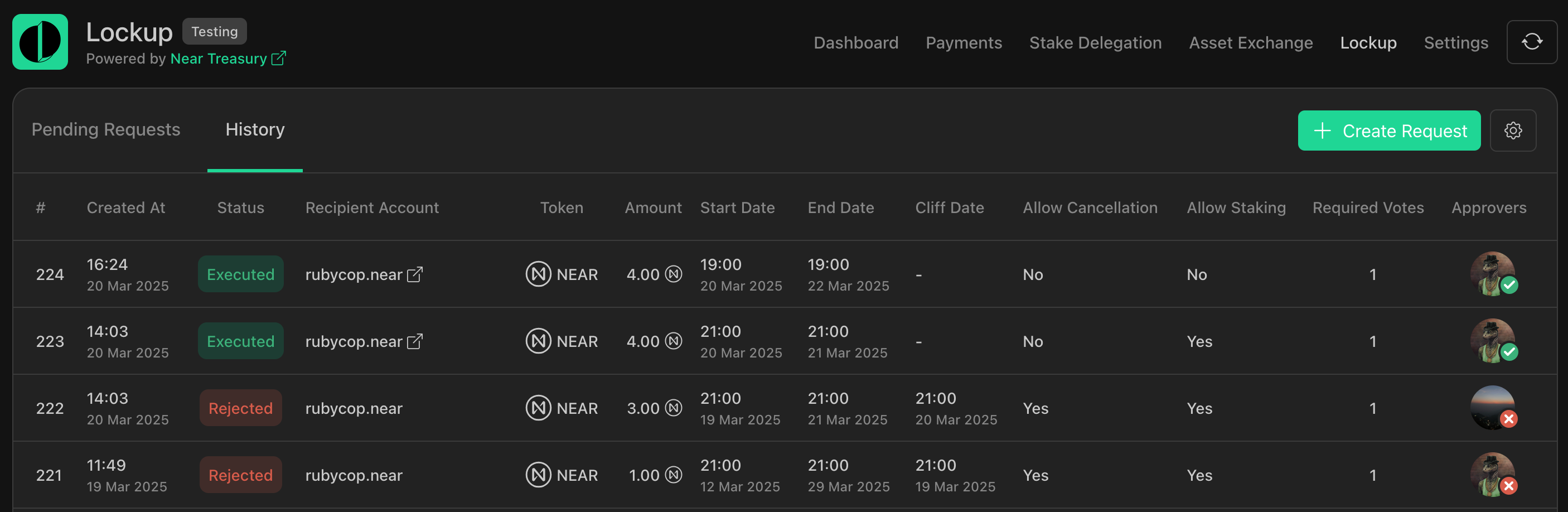
Here you can view pending lockup requests, their history, and create new requests.
info
To enable the Lockup feature for your Treasury, please contact our [support team](https://docs.neartreasury.com/help/support)
.
**Available actions:**
* [Lockup Tokens](https://docs.neartreasury.com/management/lockup#lockup-tokens)
* [Approving or Rejecting Lockup Requests](https://docs.neartreasury.com/management/lockup#approving-or-rejecting-lockup-requests)
* [Exporting Lockup Transactions](https://docs.neartreasury.com/management/lockup#exporting-lockup-transactions)
* * *
Lockup Tokens[](https://docs.neartreasury.com/management/lockup#lockup-tokens "Direct link to Lockup Tokens")
---------------------------------------------------------------------------------------------------------------
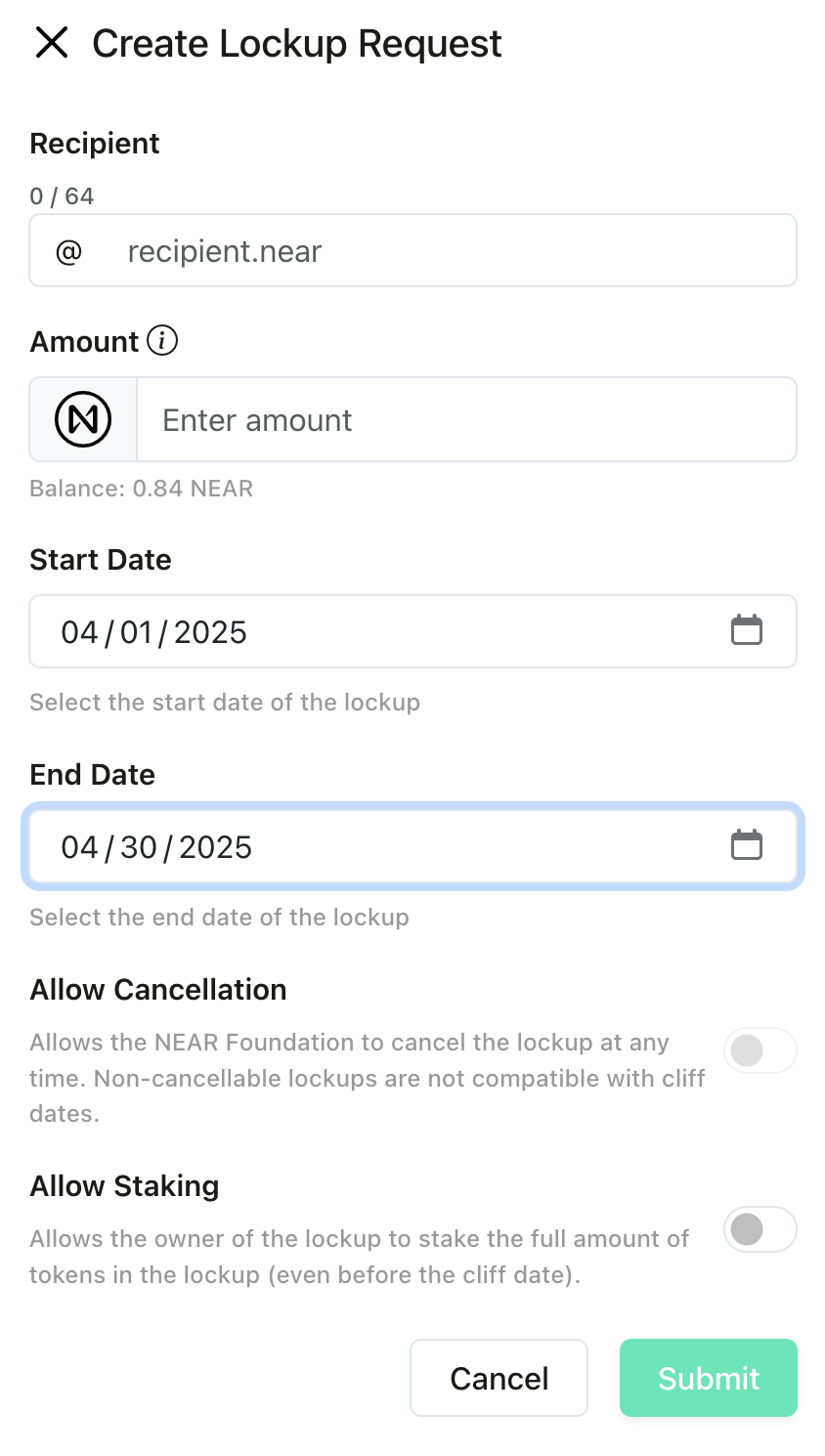
To create a new lockup using your treasury's tokens:
1. Navigate to the **`Lockup`** section.
2. Click the **`Create Request`** button.
3. Select the recipient for your lockup tokens.
4. Choose the amount to lockup and select start and end dates.
5. Submit the lockup request for approval.
Approving or Rejecting Lockup Requests[](https://docs.neartreasury.com/management/lockup#approving-or-rejecting-lockup-requests "Direct link to Approving or Rejecting Lockup Requests")
------------------------------------------------------------------------------------------------------------------------------------------------------------------------------------------
Lockup actions require approval from authorized team members. To review and vote on pending requests:
1. Navigate to the **`Lockup`** section.
2. View the list of pending requests.
3. Review the details of each request.
4. Cast your vote to approve or reject the request.

tip
You can sort lockup requests by date by clicking on `Created At`. (Ascending or descending order)
Exporting Lockup Transactions[](https://docs.neartreasury.com/management/lockup#exporting-lockup-transactions "Direct link to Exporting Lockup Transactions")
---------------------------------------------------------------------------------------------------------------------------------------------------------------
To export lockup transaction records to a `.csv` file:
1. Navigate to the **`Lockup`** section.
2. Switch to the **`History`** tab.
3. Click the **`Export as CSV`** button.

* [Overview](https://docs.neartreasury.com/management/lockup#overview)
* [Lockup Tokens](https://docs.neartreasury.com/management/lockup#lockup-tokens)
* [Approving or Rejecting Lockup Requests](https://docs.neartreasury.com/management/lockup#approving-or-rejecting-lockup-requests)
* [Exporting Lockup Transactions](https://docs.neartreasury.com/management/lockup#exporting-lockup-transactions)
---
# Support | NEAR Treasury Docs
[Skip to main content](https://docs.neartreasury.com/help/support#__docusaurus_skipToContent_fallback)
On this page
Get in Touch[](https://docs.neartreasury.com/help/support#get-in-touch "Direct link to Get in Touch")
-------------------------------------------------------------------------------------------------------
Choose from the options below to get started.
[### **Ask a question**\
\
We are here to help.](https://docs.neartreasury.com/help/support#)
[### **Request a feature**\
\
What would you like to see?](https://docs.neartreasury.com/help/support#)
[### **Report an issue**\
\
Found a bug? Let us know.](https://docs.neartreasury.com/help/support#)
Troubleshooting & Common Issues[](https://docs.neartreasury.com/help/support#troubleshooting--common-issues "Direct link to Troubleshooting & Common Issues")
---------------------------------------------------------------------------------------------------------------------------------------------------------------
* **_I'm having trouble approving a request_**: Check permissions and that the request is still pending. If the issue persists, check the voting duration settings.
* **_My transaction is not going through_**: Verify that you have sufficient funds and that the recipient's wallet address is correct.
Additional Support[](https://docs.neartreasury.com/help/support#additional-support "Direct link to Additional Support")
-------------------------------------------------------------------------------------------------------------------------
Telegram support
You can also join our [Telegram channel](https://t.me/neartreasury)
for quick support and community interaction.
* [Get in Touch](https://docs.neartreasury.com/help/support#get-in-touch)
* [Troubleshooting & Common Issues](https://docs.neartreasury.com/help/support#troubleshooting--common-issues)
* [Additional Support](https://docs.neartreasury.com/help/support#additional-support)
---
# Roles & Permissions | NEAR Treasury Docs
[Skip to main content](https://docs.neartreasury.com/setup/permissions#__docusaurus_skipToContent_fallback)
On this page
Overview[](https://docs.neartreasury.com/setup/permissions#overview "Direct link to Overview")
------------------------------------------------------------------------------------------------
NEAR Treasury uses a role-based permissions system to ensure secure and transparent management of your team’s treasury funds. There are two primary categories of actions within NEAR Treasury:
* **Treasury Transaction Requests** involve actions related to the movement or management of the treasury's funds, such as creating payments, staking tokens, or exchanging assets.
* **Treasury Configuration Requests** involve actions related to the setup and management of the treasury itself, such as adding or removing members, adjusting voting thresholds and durations, or changing the treasury's appearance.
Each member of your treasury can have one or more permission groups assigned that determines their capabilities within the system. There are three distinct groups: [**Requestor**](https://docs.neartreasury.com/setup/permissions#1-requestor)
, [**Approver**](https://docs.neartreasury.com/setup/permissions#2-approver)
, and [**Admin**](https://docs.neartreasury.com/setup/permissions#3-admin)
.
Understanding the Permission Groups[](https://docs.neartreasury.com/setup/permissions#understanding-the-permission-groups "Direct link to Understanding the Permission Groups")
---------------------------------------------------------------------------------------------------------------------------------------------------------------------------------
info
* A member can have multiple roles assigned. For example, a user can have both a **`Requestor`** and **`Approver`** roles.
* A user with multiple roles will have the combined permissions granted by each of their assigned roles.
### 1\. Requestor[](https://docs.neartreasury.com/setup/permissions#1-requestor "Direct link to 1. Requestor")
Allows to create requests related to the treasury's funds (e.g. treasury transaction requests).
| Can | Cannot |
| --- | --- |
| * Create payment requests.
* Create staking, unstaking, and withdraw requests.
* Create asset exchange requests.
* Delete their own treasury transaction requests | * Vote on treasury transaction requests created by others.
* Create or vote on treasury configuration requests (e.g., changing settings, adding members). |
### 2\. Approver[](https://docs.neartreasury.com/setup/permissions#2-approver "Direct link to 2. Approver")
Responsible for reviewing and voting on treasury transaction requests.
| Can | Cannot |
| --- | --- |
| * Vote to approve or reject treasury transaction requests created by Requestors. | * Create treasury transaction requests.
* Create or vote on treasury configuration requests.
* Delete requests. |
### 3\. Admin[](https://docs.neartreasury.com/setup/permissions#3-admin "Direct link to 3. Admin")
Responsible for configuring the treasury's settings and member configuration.
| Can | Cannot |
| --- | --- |
| * Create requests to add, edit, or delete members.
* Create requests to update the voting duration.
* Create requests to update the treasury's theme and logo.
* Set the voting threshold required for Approvers and other Admins to approve requests.
* Vote on any treasury configuration requests.
* Delete their own configuration requests | * Create treasury transaction requests (e.g., payments, staking).
* Vote on treasury transaction requests. |
Permission Matrix[](https://docs.neartreasury.com/setup/permissions#permission-matrix "Direct link to Permission Matrix")
---------------------------------------------------------------------------------------------------------------------------
The following table shows the actions users can perform for each role:
| Action | Requestor | Approver | Admin |
| --- | --- | --- | --- |
| Create Payment Requests | ✔ | | |
| Create Stake Delegation Requests (Stake/Unstake/Widthdraw) | ✔ | | |
| Create Asset Exchange Requests | ✔ | | |
| Delete Own Pending Treasury Transaction Requests | ✔ | | |
| Vote on Treasury Transaction Requests | | ✔ | |
| Create Add/Edit/Delete Member Requests | | | ✔ |
| Create Voting Duration Update Requests | | | ✔ |
| Create Theme/Logo Update Requests | | | ✔ |
| Create Voting Thresholds Requests | | | ✔ |
| Vote on Configuration Requests | | | ✔ |
| Delete Own Pending Configuration Requests | | | ✔ |
Voting Thresholds[](https://docs.neartreasury.com/setup/permissions#voting-thresholds "Direct link to Voting Thresholds")
---------------------------------------------------------------------------------------------------------------------------
The Admin can set the voting thresholds for both Approvers and Admins. This determines the number of approvals required for a request to be executed. For example:
* For Admin (Treasury Configuration Requests): A threshold of 50% would require at least 50% of all Admins to vote to approve or reject any configuration requests (changing voting policy).
* For Approver (Treasury Transaction Requests: A threshold of 2 would require at least 2 Approvers to vote to approve or reject any transaction requests (e.g. staking).
See the Voting Thresholds section in the Settings page for detailed instructions on setting voting thresholds.
Deleting Requests[](https://docs.neartreasury.com/setup/permissions#deleting-requests "Direct link to Deleting Requests")
---------------------------------------------------------------------------------------------------------------------------
Requestors and Admins can delete their own pending requests. For example, a Requestor can delete a pending translation request they created for a payment, or an Admin can delete a pending treasury configuration request they created to update the treasury theme. The delete action is automatically approved and does not require a separate vote. However, they cannot delete requests created by other members.
Where to Manage Roles[](https://docs.neartreasury.com/setup/permissions#where-to-manage-roles "Direct link to Where to Manage Roles")
---------------------------------------------------------------------------------------------------------------------------------------
You can manage member roles and permissions in two main areas:
1. Treasury Creation: When you initially create your treasury, you’ll be guided through the process of adding members and assigning them roles.
2. Settings: After creating your treasury, Admins can manage roles and related settings within the Settings page. This includes:
* Members: Add new members, edit existing members (including their assigned roles), and remove members.
* Voting Thresholds: Configure the voting policies for both Admin and Approver.
* Pending Requests: Approve or reject pending requests related to configuration changes. Only Admins can vote on these requests.
Best Practices[](https://docs.neartreasury.com/setup/permissions#best-practices "Direct link to Best Practices")
------------------------------------------------------------------------------------------------------------------
* Least Privilege: Assign the least privilege necessary for each member to perform their duties. This enhances security and reduces the risk of errors.
* Regular Review: Periodically review assigned roles and permissions to ensure they align with your treasury's current needs.
* Administrator Caution: Exercise caution when assigning the Admin role, as this role has extensive control over the treasury's settings.
* [Overview](https://docs.neartreasury.com/setup/permissions#overview)
* [Understanding the Permission Groups](https://docs.neartreasury.com/setup/permissions#understanding-the-permission-groups)
* [1\. Requestor](https://docs.neartreasury.com/setup/permissions#1-requestor)
* [2\. Approver](https://docs.neartreasury.com/setup/permissions#2-approver)
* [3\. Admin](https://docs.neartreasury.com/setup/permissions#3-admin)
* [Permission Matrix](https://docs.neartreasury.com/setup/permissions#permission-matrix)
* [Voting Thresholds](https://docs.neartreasury.com/setup/permissions#voting-thresholds)
* [Deleting Requests](https://docs.neartreasury.com/setup/permissions#deleting-requests)
* [Where to Manage Roles](https://docs.neartreasury.com/setup/permissions#where-to-manage-roles)
* [Best Practices](https://docs.neartreasury.com/setup/permissions#best-practices)
---
# NEAR Intents | NEAR Treasury Docs
[Skip to main content](https://docs.neartreasury.com/payments/intents#__docusaurus_skipToContent_fallback)
On this page
Overview[](https://docs.neartreasury.com/payments/intents#overview "Direct link to Overview")
-----------------------------------------------------------------------------------------------
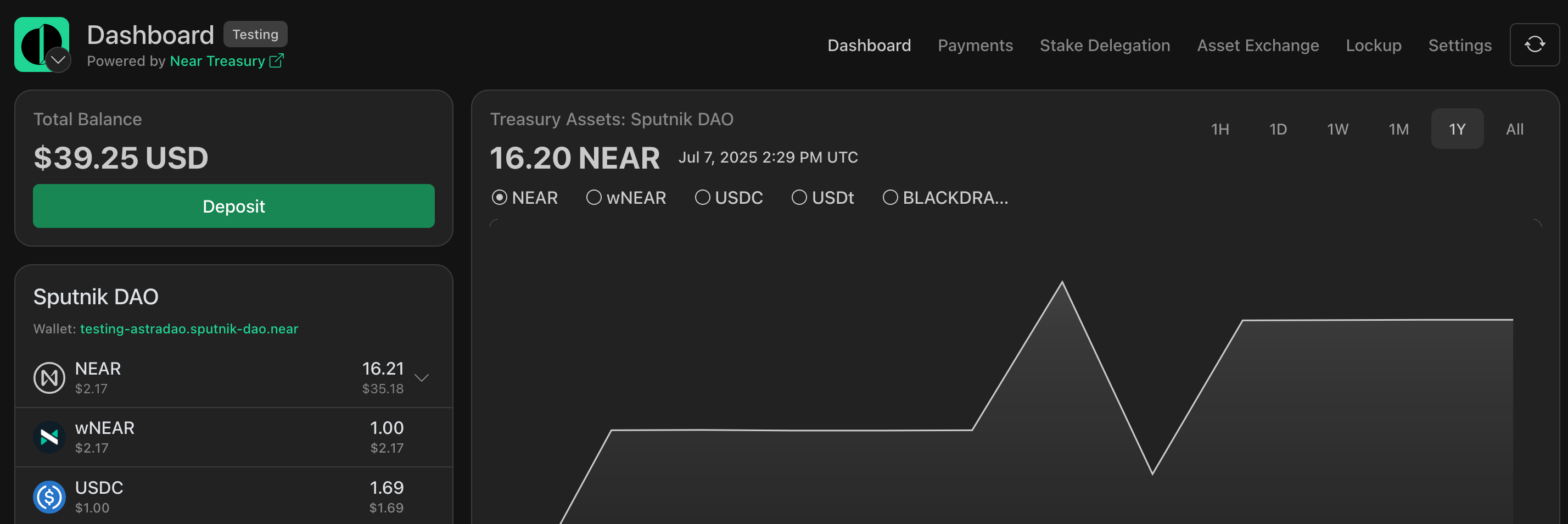
NEAR Intents is a powerful feature of the Treasury Dashboard that enables cross-chain asset management and payment processing. This system allows DAOs to receive deposits from multiple blockchain networks and create payment requests for various cryptocurrencies while maintaining assets in a unified interface.
**Available actions:**
* [Asset Management](https://docs.neartreasury.com/payments/intents#asset-management)
* [Making Deposits](https://docs.neartreasury.com/payments/intents#making-deposits)
* [Creating Payment Requests](https://docs.neartreasury.com/payments/intents#creating-payment-requests)
* * *
Asset Management[](https://docs.neartreasury.com/payments/intents#asset-management "Direct link to Asset Management")
-----------------------------------------------------------------------------------------------------------------------
The NEAR Intents dashboard integrates seamlessly into the Treasury Dashboard, providing a comprehensive view of your cross-chain assets.
### Dashboard Components[](https://docs.neartreasury.com/payments/intents#dashboard-components "Direct link to Dashboard Components")
1. **Total Balance Card**:
* Displays aggregate USD value including NEAR Intents assets
* Features a **`Deposit`** button for new deposits
* Updates automatically when Intents balances change
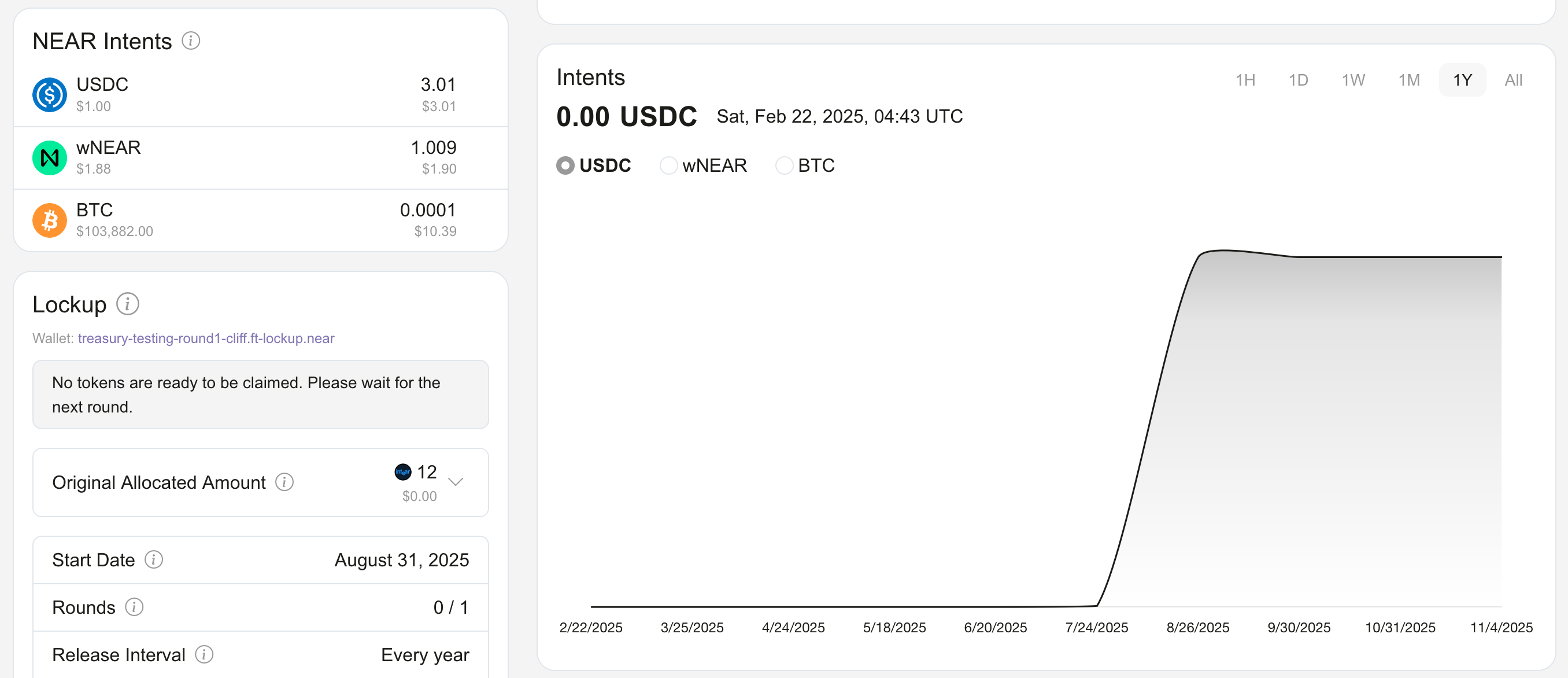
2. **NEAR Intents Section**:
* Shows individual asset balances with proper token precision
* Displays assets from all supported networks
* Includes icons for each blockchain and asset
* Shows USD equivalent values when available
### Supported Networks[](https://docs.neartreasury.com/payments/intents#supported-networks "Direct link to Supported Networks")
The system supports a wide range of blockchain networks like ETH (`eth:1`), BTC (`btc:mainnet`), SOL (`sol:mainnet`), BASE (`eth:8453`), ARB (`eth:42161`), NEAR (`near:mainnet`), XRP (`xrp:mainnet`), and TRON (`tron:mainnet`).
info
For a complete list of supported chains and assets, [check this page](https://docs.near-intents.org/near-intents/chain-address-support)
.
### Supported Assets[](https://docs.neartreasury.com/payments/intents#supported-assets "Direct link to Supported Assets")
The system supports a wide range of assets, including:
* **Native tokens**: ETH, BTC, SOL, XRP, TRX
* **Stablecoins**: USDC, USDT, DAI
* **DeFi tokens**: AAVE, UNI, COMP
* **NEAR ecosystem**: wNEAR, REF, AURORA
* **Memecoins**: SHITZU, PEPE, DOGE
Making Deposits[](https://docs.neartreasury.com/payments/intents#making-deposits "Direct link to Making Deposits")
--------------------------------------------------------------------------------------------------------------------
NEAR Intents supports deposits from multiple blockchain networks into your DAO treasury.
### How to Make a Deposit[](https://docs.neartreasury.com/payments/intents#how-to-make-a-deposit "Direct link to How to Make a Deposit")
1. **Access Deposit Interface**
* Click the **`Deposit`** button in the Total Balance card
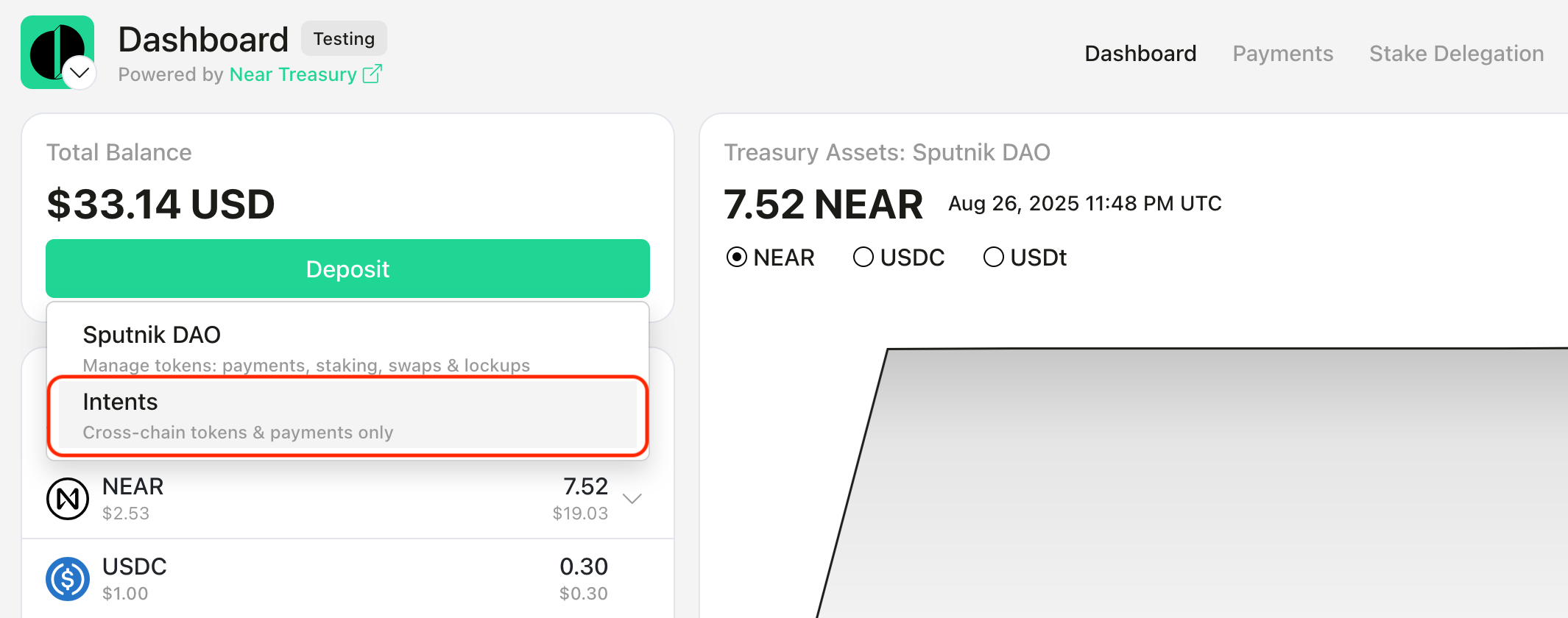
2. **Select NEAR Intents**
* Click on the **`Intents`** button to access cross-chain deposits
* This shows all supported assets and networks
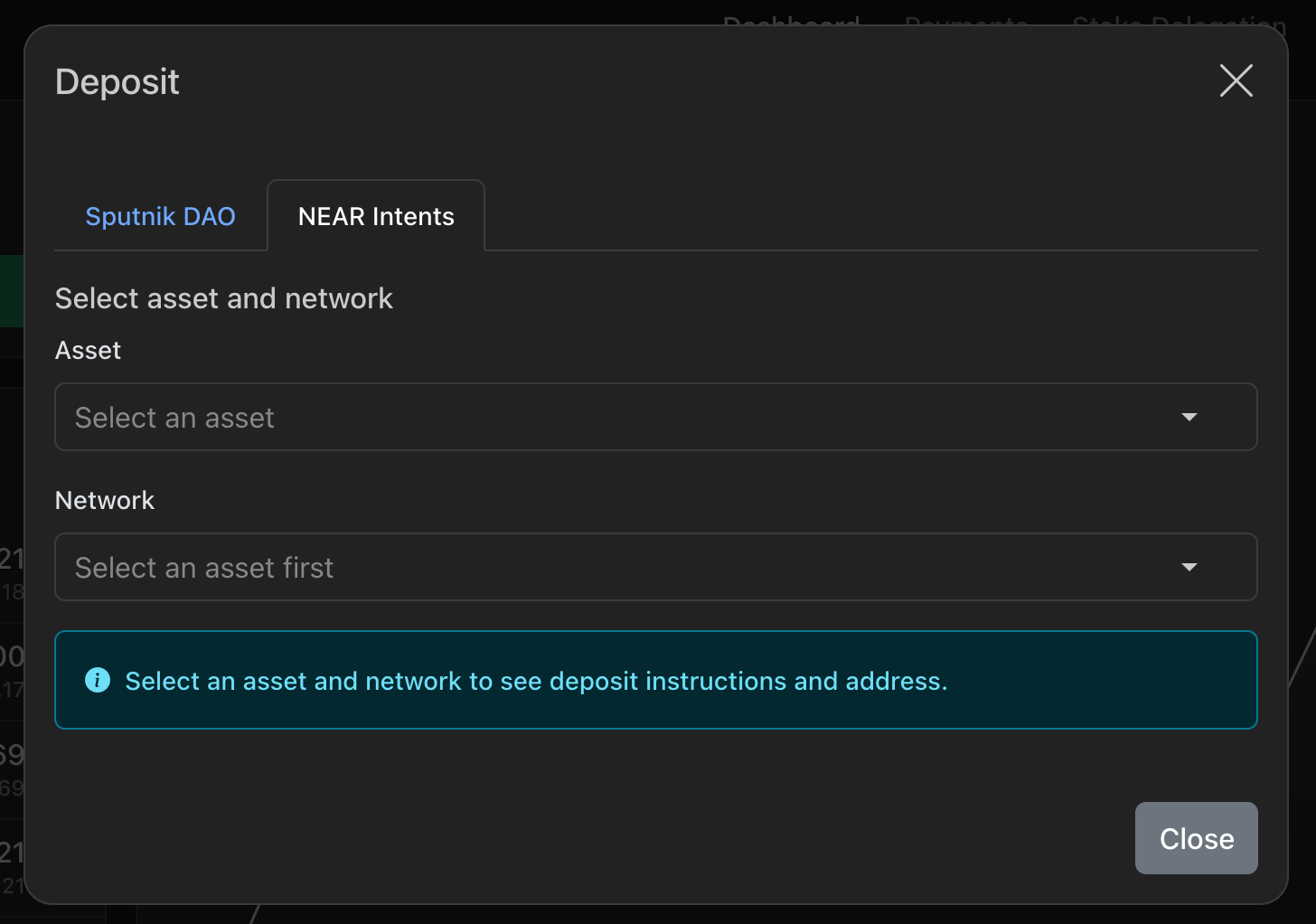
3. **Select Asset and Network**
* Browse available assets or use the search function
* Select the blockchain network (displayed with human-readable names)
* Each network shows its native name (e.g., `ETH` for Ethereum, `BTC` for Bitcoin)
4. **Get Deposit Address**
* The system generates a unique deposit address for your selected asset/network
* QR codes are automatically generated for easy mobile wallet scanning
* Copy the address or scan the QR code with your wallet
info
The deposit address might change, so always get the latest deposit address before making a new transaction.
5. **Complete the Deposit**
* Send your assets to the provided address
* Deposits are processed automatically through the bridge infrastructure
* Assets appear in your dashboard once confirmed on the source network
tip
We recommend starting with a small test transaction to ensure everything works correctly before sending the full amount.
Creating Payment Requests[](https://docs.neartreasury.com/payments/intents#creating-payment-requests "Direct link to Creating Payment Requests")
--------------------------------------------------------------------------------------------------------------------------------------------------
NEAR Intents enables DAOs to create payment requests that utilize cross-chain assets for disbursements, including:
* **Cross-Chain Payments**: Send BTC, ETH, or other assets to external addresses
* **NEAR Native Payments**: Transfer wNEAR or other NEAR tokens
* **Multi-Asset Support**: Choose from any available asset in your treasury
### Creating a Payment Request[](https://docs.neartreasury.com/payments/intents#creating-a-payment-request "Direct link to Creating a Payment Request")
Follow the regular process to [create a payment request](https://docs.neartreasury.com/payments/manage-payments#creating-payment-requests)
:
1. **Access Payment Interface**
* Navigate to the **`Payments`** section
* Select **`Create Request`**
2. **Set the Treasury Wallet**
* Select **`NEAR Intents`**
3. **Configure Payment Details**
* **Requested Token**: Choose from available Intents assets
* **Recipient**: Enter the destination address
* 💡 _The recipient address should belong to the same chain as the token. E.g., if the selected token is BTC on the Bitcoin blockchain, then the recipient should also be a Bitcoin chain address._
* **Amount**: Specify the payment amount
* **Description**: Add context for the payment
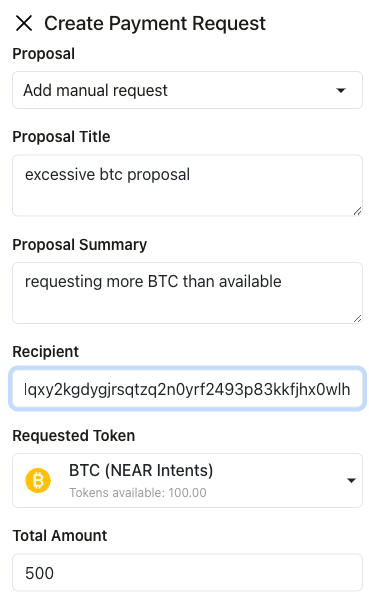
Address Validation
* The system validates recipient addresses for the selected network
* Format checking ensures compatibility with the target blockchain
* Network-specific validation prevents errors
4. **Submit for Approval**
* Payment requests follow standard DAO governance processes
* Council members vote on approval
* Approved payments are executed automatically
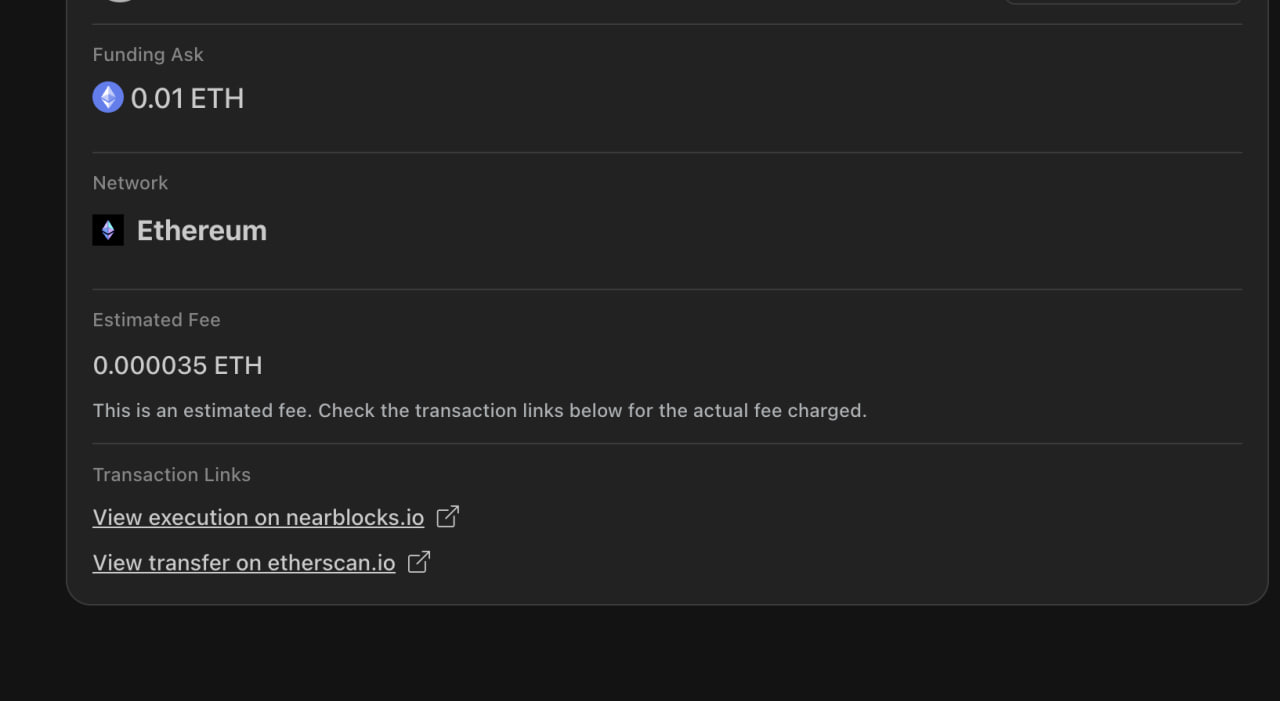
* Once the payment is approved and executed successfully, the user can see the transaction links in the proposal details page.
Troubleshooting[](https://docs.neartreasury.com/payments/intents#troubleshooting "Direct link to Troubleshooting")
--------------------------------------------------------------------------------------------------------------------
Here's a quick reference for troubleshooting common issues:
* **Deposit Not Appearing**
* Check transaction status on source blockchain
* Verify minimum confirmation requirements
* Ensure correct deposit address was used
* [Contact support](https://docs.neartreasury.com/help/support)
if delayed beyond expected timeframe
* **Payment Request Failures**
* Verify sufficient balance in treasury
* Check recipient address format
* Ensure network compatibility
* Review gas fee requirements
* **Balance Display Issues**
* Refresh the dashboard
* Check network connectivity
* Verify RPC endpoint status
* Clear browser cache if necessary
* **Error Messages**
* _`Insufficient Balance`_: Treasury lacks required funds for payment
* _`Invalid Address`_: Recipient address format is incorrect
* _`Network Mismatch`_: Asset not supported on selected network
* [Overview](https://docs.neartreasury.com/payments/intents#overview)
* [Asset Management](https://docs.neartreasury.com/payments/intents#asset-management)
* [Dashboard Components](https://docs.neartreasury.com/payments/intents#dashboard-components)
* [Supported Networks](https://docs.neartreasury.com/payments/intents#supported-networks)
* [Supported Assets](https://docs.neartreasury.com/payments/intents#supported-assets)
* [Making Deposits](https://docs.neartreasury.com/payments/intents#making-deposits)
* [How to Make a Deposit](https://docs.neartreasury.com/payments/intents#how-to-make-a-deposit)
* [Creating Payment Requests](https://docs.neartreasury.com/payments/intents#creating-payment-requests)
* [Creating a Payment Request](https://docs.neartreasury.com/payments/intents#creating-a-payment-request)
* [Troubleshooting](https://docs.neartreasury.com/payments/intents#troubleshooting)
---
# Settings | NEAR Treasury Docs
[Skip to main content](https://docs.neartreasury.com/settings#__docusaurus_skipToContent_fallback)
On this page
Overview[](https://docs.neartreasury.com/settings#overview "Direct link to Overview")
---------------------------------------------------------------------------------------
The Settings section allows Admins (see [Roles & Permissions](https://docs.neartreasury.com/setup/permissions)
) to configure various aspects of your NEAR Treasury dashboard.
**Available actions:**
* [Approving or Rejecting Pending Requests](https://docs.neartreasury.com/settings#pending-requests)
* [Adding Members](https://docs.neartreasury.com/settings#adding-members)
* [Editing Members](https://docs.neartreasury.com/settings#editing-members)
* [Deleting Members](https://docs.neartreasury.com/settings#deleting-members)
* [Setting Vote Thresholds](https://docs.neartreasury.com/settings#setting-thresholds)
* [Setting Vote Duration](https://docs.neartreasury.com/settings#voting-duration)
* [Theme & Logo](https://docs.neartreasury.com/settings#theme--logo)
* [Preferences](https://docs.neartreasury.com/settings#preferences)
* [Reviewing System Updates](https://docs.neartreasury.com/settings#reviewing-system-updates)
Pending Requests[](https://docs.neartreasury.com/settings#pending-requests "Direct link to Pending Requests")
---------------------------------------------------------------------------------------------------------------
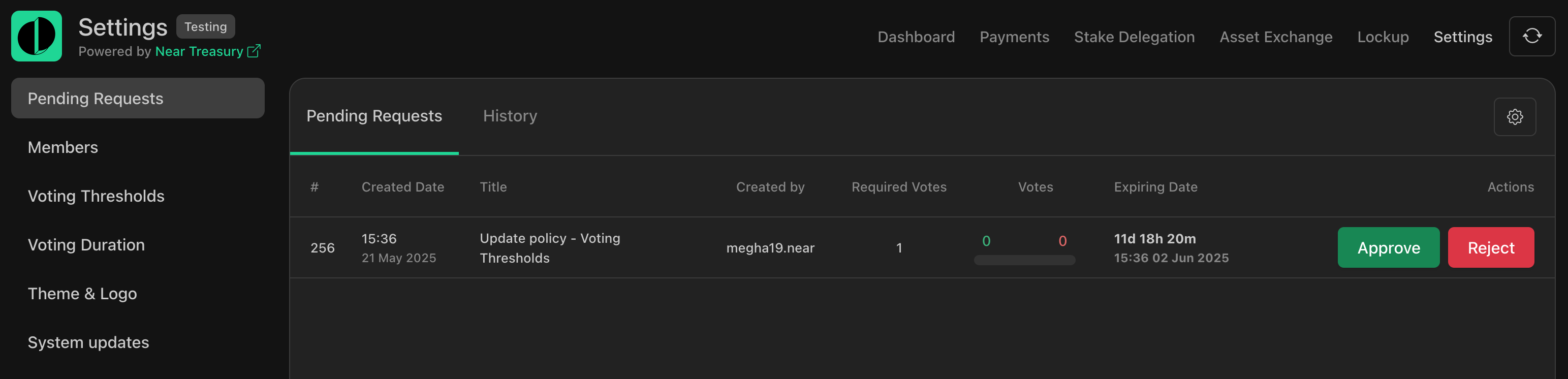
When you first access the Settings section, you'll see a list of pending requests. These are requests to modify the treasury's configuration that are awaiting approval. You can review the details of each request, but only users with the Admin role can vote to approve or reject.
To review and vote on pending requests:
1. Navigate to the **`Settings`** section.
2. Select the **`Pending Requests`** tab.
3. View the list of pending requests.
4. Review the details of each request.
5. Cast your vote to approve or reject the request.

tip
You can sort requests by date by clicking on `Created Date`. (Ascending or descending order)
### Filtering Requests[](https://docs.neartreasury.com/settings#filtering-requests "Direct link to Filtering Requests")
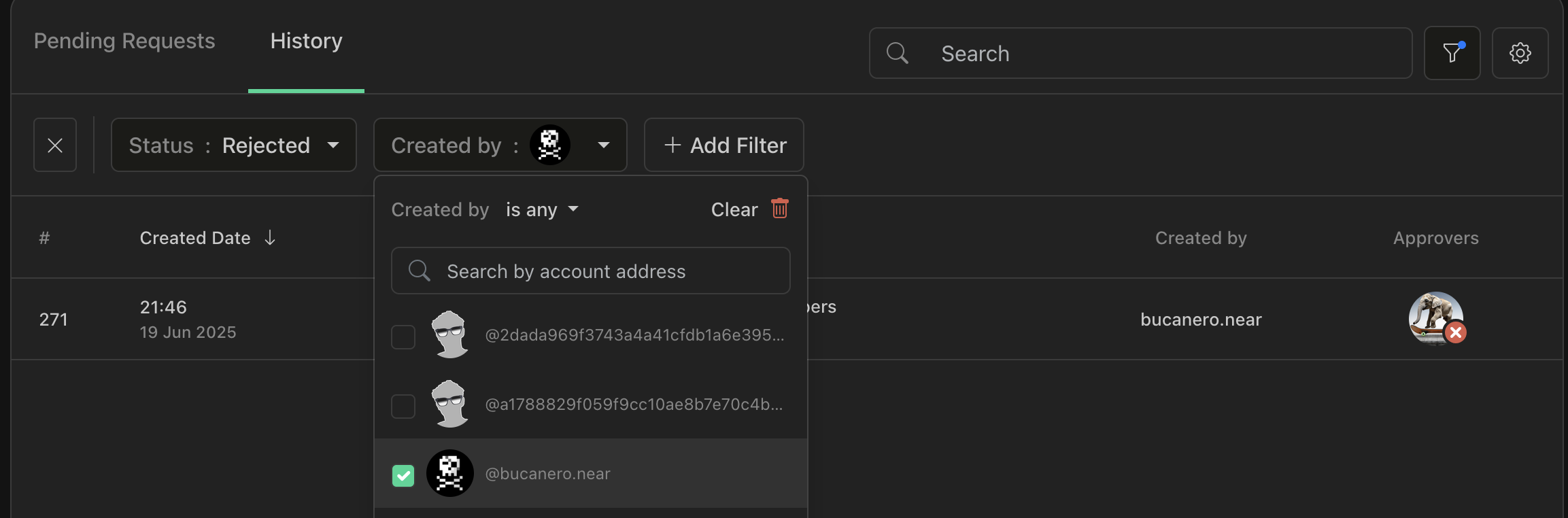
You can easily filter requests to find specific items.
Available filters
* `Proposal Type`, `Created Date`, `Status`, `Created by`, `Approver`, `My Vote Status`
To filter requests:
1. Navigate to the **`Settings`** section.
2. Select the **`Pending Requests`** tab.
3. Click on the **`Filter`** icon.

4. Select the filter that you want to add.
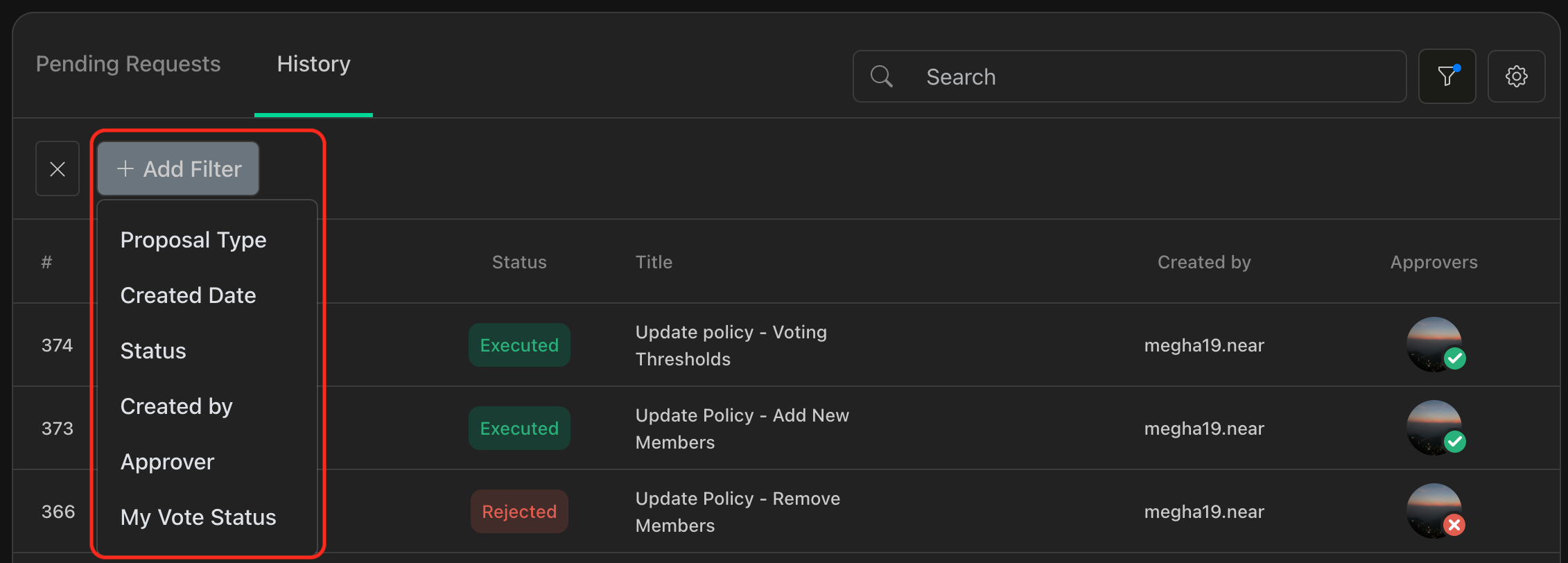
5. Add filters as needed.
### Searching Requests[](https://docs.neartreasury.com/settings#searching-requests "Direct link to Searching Requests")
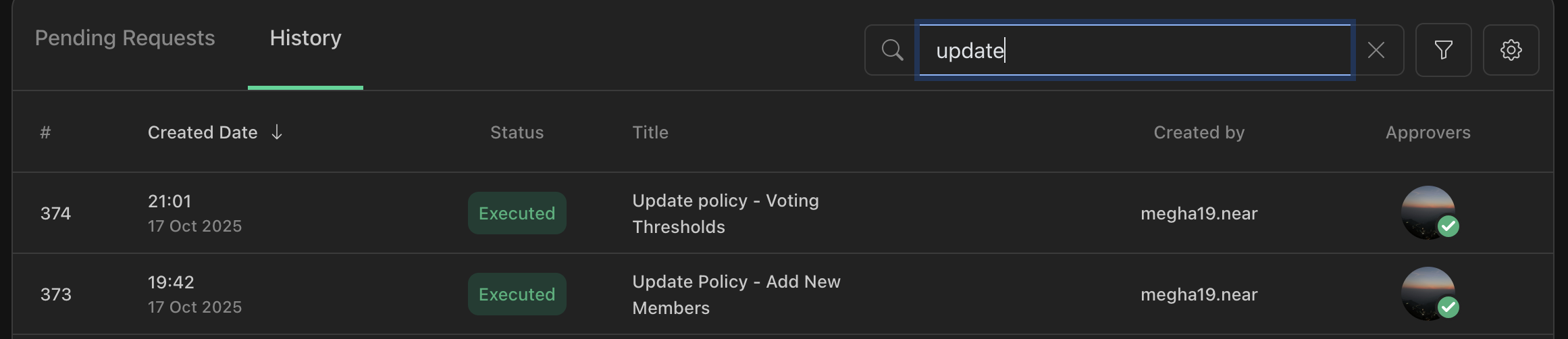
You can search for keywords on your requests to find specific items.
Available search fields
* Search by `ID`, `Title`, `Summary`
To search and find requests:
1. Navigate to the **`Settings`** section.
2. Select the **`Pending Requests`** tab.
3. Click on the **`Search`** text box.

4. Type the words that you want to search.
Members[](https://docs.neartreasury.com/settings#members "Direct link to Members")
------------------------------------------------------------------------------------
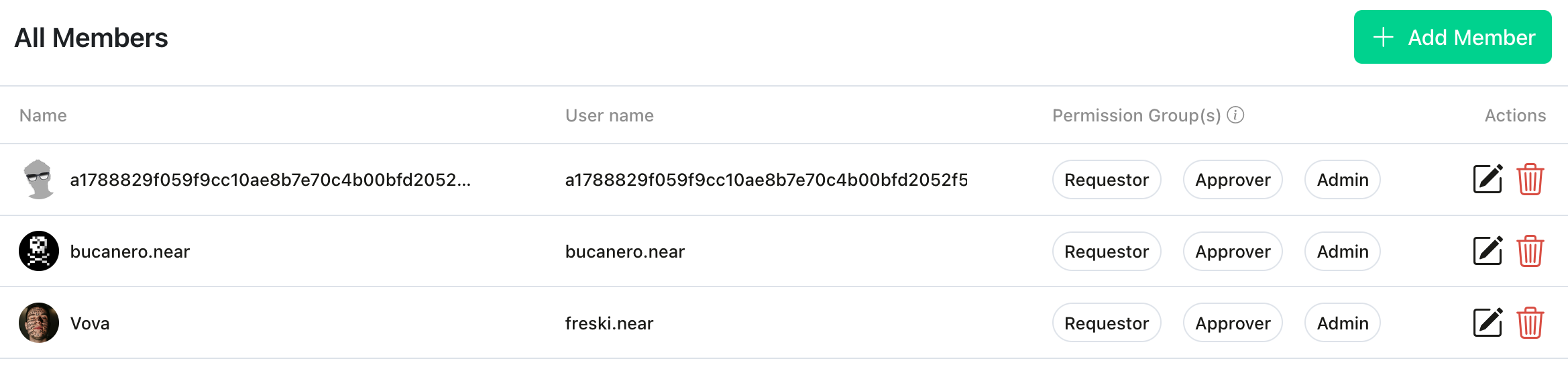
This section allows the Admin to manage the members of your treasury. The Admin can create a request to add new members, edit existing members’ roles, or remove members. These requests must be approved by Admins, based on the configured voting threshold. For a detailed explanation of the different roles and permission, refer to the [Roles & Permissions page](https://docs.neartreasury.com/setup/permissions)
.
### Adding Members[](https://docs.neartreasury.com/settings#adding-members "Direct link to Adding Members")
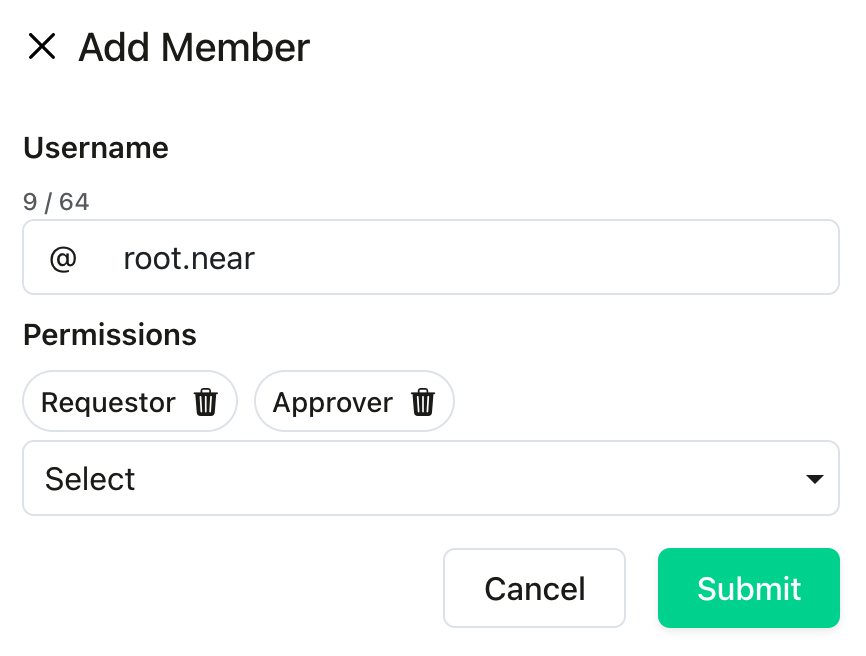
To add members to your treasury:
1. Navigate to the **`Settings`** page.
2. Select the **`Members`** tab.
3. Click the **`+ Add Members`** button.
4. Enter the NEAR wallet address of the new member.
5. Choose the member's role(s): [**`Requestor`**](https://docs.neartreasury.com/setup/permissions#1-requestor)
, [**`Approver`**](https://docs.neartreasury.com/setup/permissions#2-approver)
, or [**`Admin`**](https://docs.neartreasury.com/setup/permissions#3-admin)
. You can select multiple roles for a member.
* See [Roles & Permissions](https://docs.neartreasury.com/setup/permissions)
for a detailed explanation of each role.
6. Click the **`Save`** button and confirm the transactions.
7. Go to the **`Requests`** page to [approve the request](https://docs.neartreasury.com/settings#pending-requests)
.
### Editing Members[](https://docs.neartreasury.com/settings#editing-members "Direct link to Editing Members")
To edit members from your treasury:
1. Navigate to the **`Settings`** page.
2. Select the **`Members`** tab.
3. Select one or more members by clicking the member's checkbox.
4. Click the **`Edit`** button.
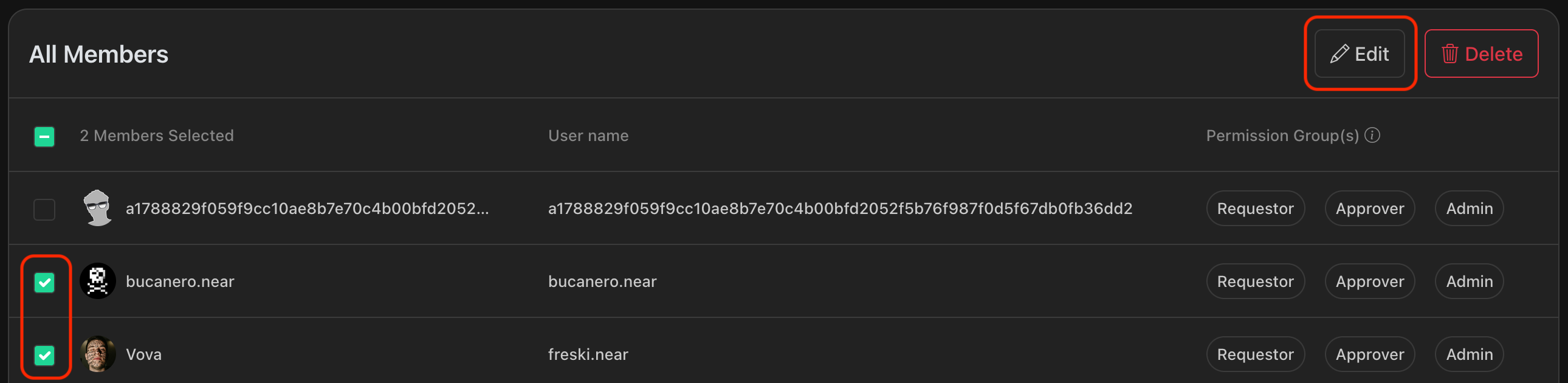
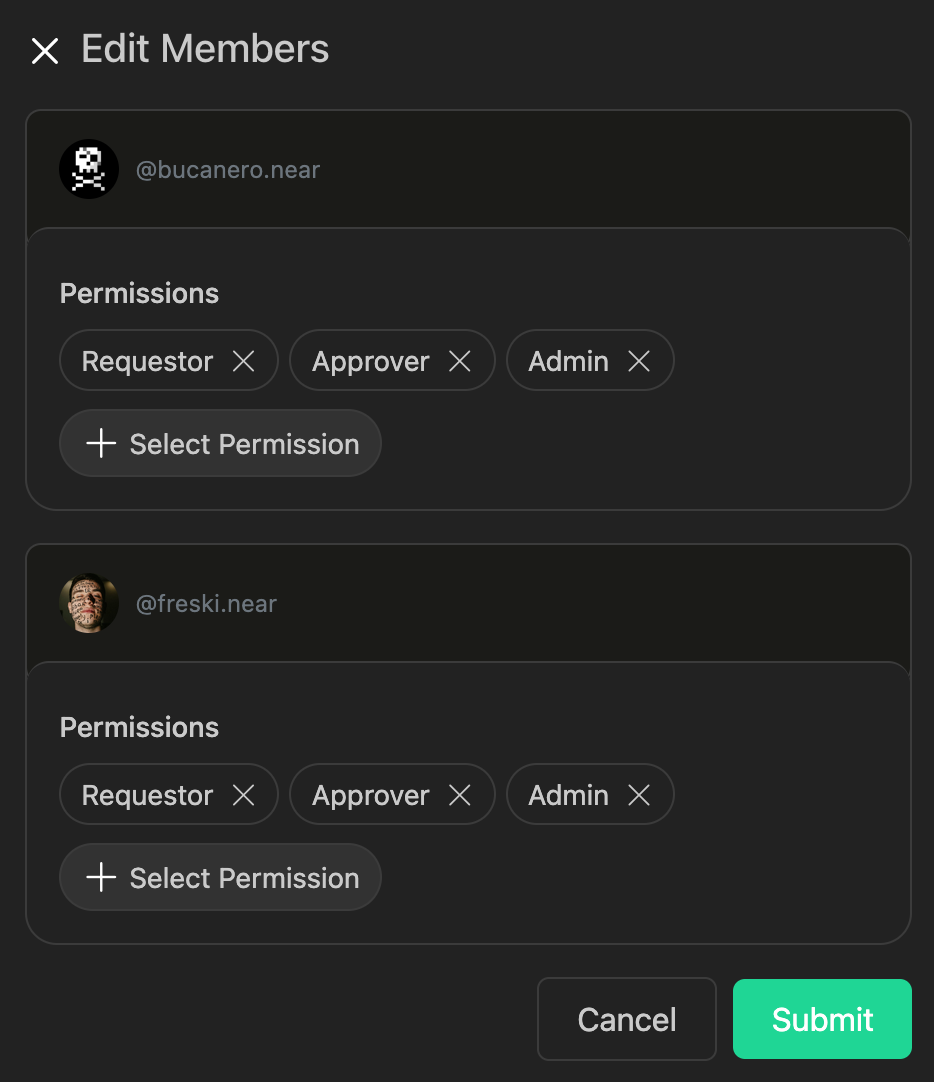
5. On the **`Edit Members`** window, modify the permissions as needed.
6. Click **`Submit`** to confirm the action.
7. Go to the **`Requests`** page to [approve the request](https://docs.neartreasury.com/settings#pending-requests)
.
### Deleting Members[](https://docs.neartreasury.com/settings#deleting-members "Direct link to Deleting Members")
To delete members from your treasury:
1. Navigate to the **`Settings`** page.
2. Select the **`Members`** tab.
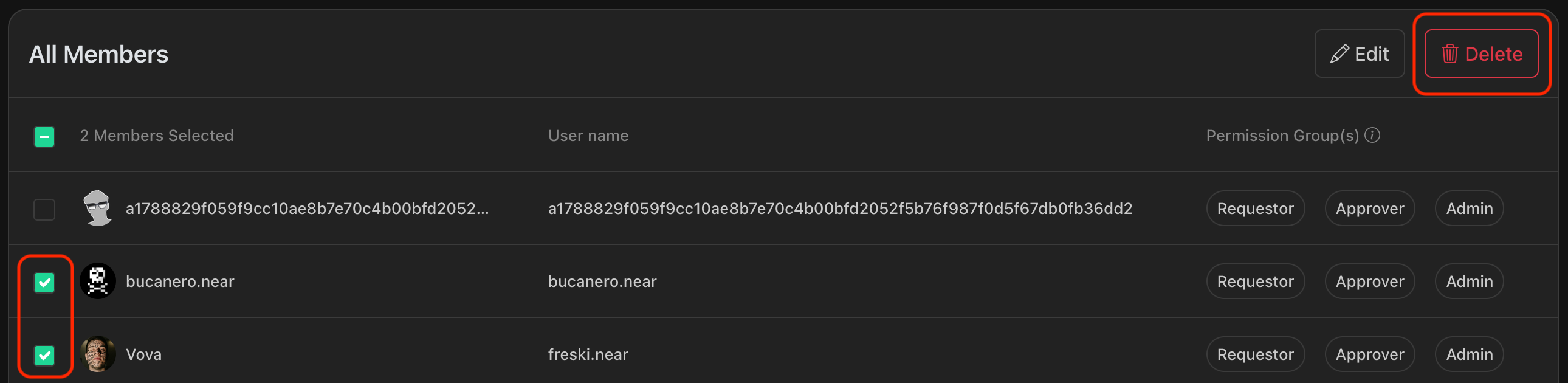
3. Select one or more members by clicking the member's checkbox.
4. Click the **`Delete`** button.
5. On the confirmation window, click **`Remove`** to confirm the action.
6. Go to the **`Requests`** page to [approve the request](https://docs.neartreasury.com/settings#pending-requests)
.
Voting Thresholds[](https://docs.neartreasury.com/settings#voting-thresholds "Direct link to Voting Thresholds")
------------------------------------------------------------------------------------------------------------------
The Voting Thresholds section allows Admins to configure the voting policies for treasury transaction requests and treasury configuration requests.
### Setting Thresholds[](https://docs.neartreasury.com/settings#setting-thresholds "Direct link to Setting Thresholds")
To set the voting thresholds:
1. Navigate to the **`Settings`** page.
2. Select the **`Voting Thresholds`** tab.
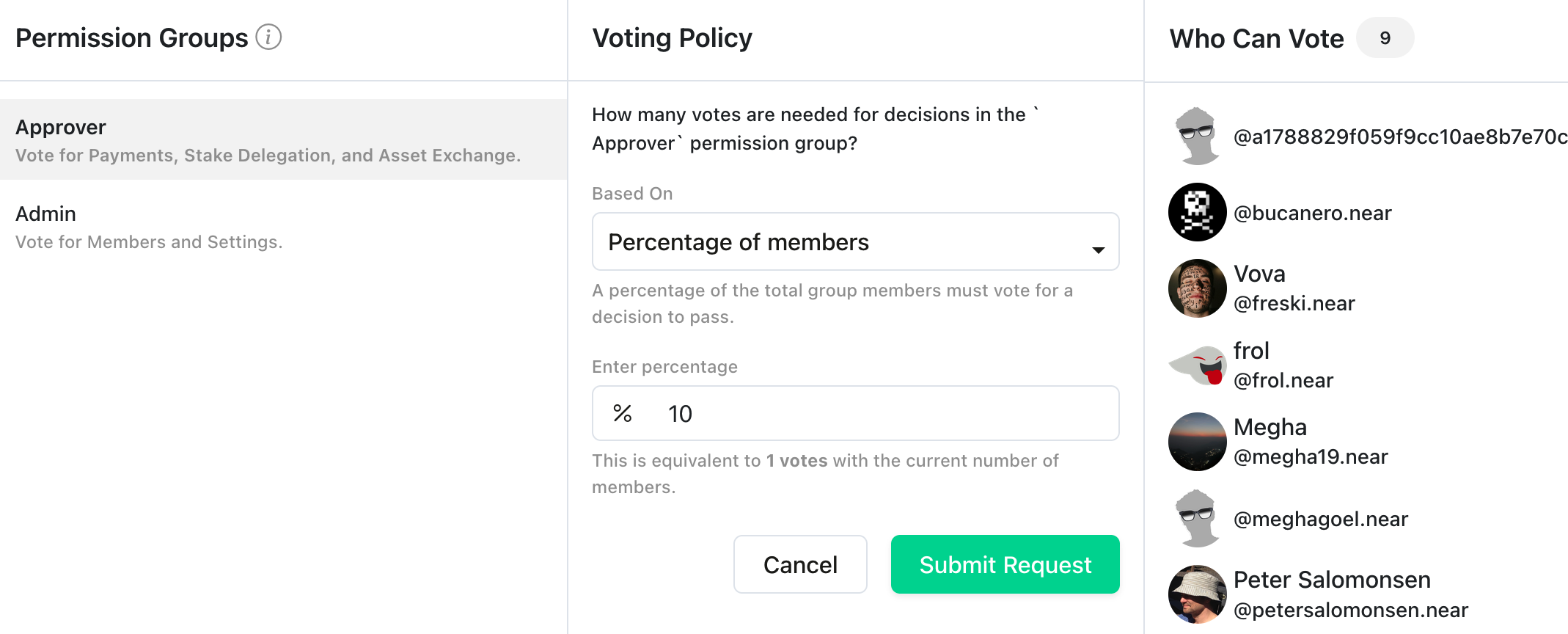
3. Select the permission group you want to apply the voting threshold to:
* **`Admin`**: For requests related to change in treasury settings (e.g. managing members, assigning roles, changing voting thresholds, or customizing dashboard appearance).
* **`Approver`**: For requests related to treasury transactions (e.g. payments, staking, asset exchange).
4. Under **`Voting Policy`**, select how you want to base the number of votes required for a request to be approved:
* **Number of votes**: A fixed number of votes is required for a decision to pass, regardless of the total number of members. For example, if you select 2 and there are 5 total members, 2 members must vote to pass the request.
* **Percentage of members**: A percentage of total members is required for a decision to pass. For example, if you select 50% and there are 3 total members, 2 members must vote to pass the request.
5. Review the eligible members from the role required to approve this type of request. If you need to change members, go to the **`Members`** page to add or remove people from that role.
6. Click the **`Submit Request`** button and confirm the transactions.
7. Go to the **`Requests`** page to [approve this request](https://docs.neartreasury.com/settings#pending-requests)
.
Voting Duration[](https://docs.neartreasury.com/settings#voting-duration "Direct link to Voting Duration")
------------------------------------------------------------------------------------------------------------
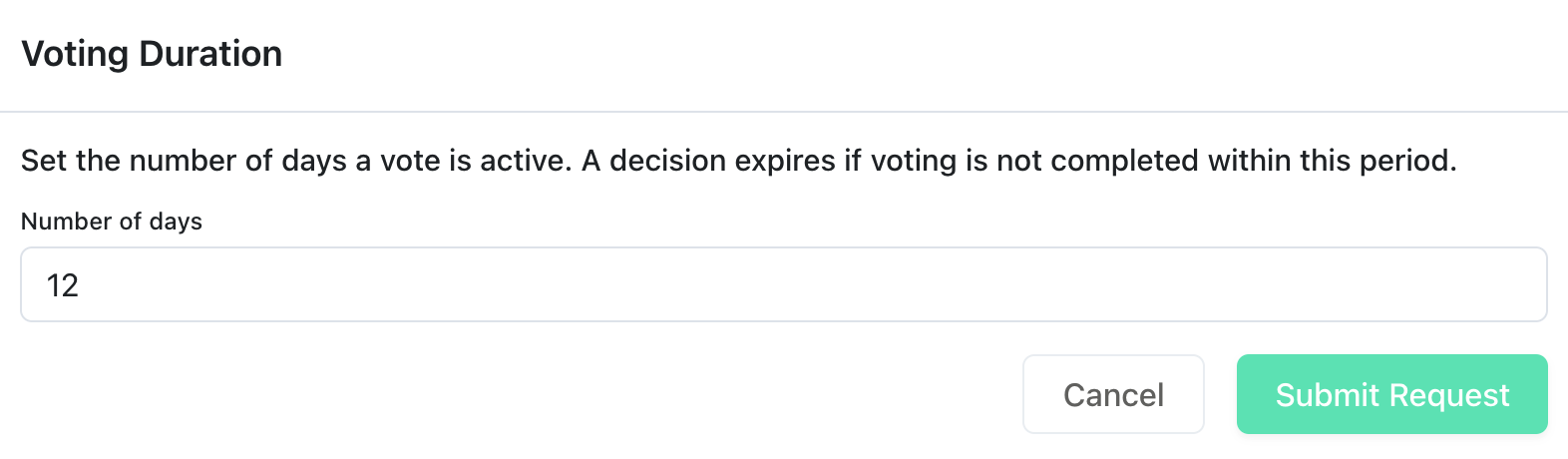
The Voting Duration section allows Admins to set the timeframe during which team members can vote on pending requests. If the voting threshold is met to reach a decision, the request will be approved or rejected based on the voting results. If the voting period ends and there are not enough votes to reach a decision, the request will expire.
To set a voting duration:
1. Navigate to the **`Settings`** section.
2. Select the **`Voting Duration`** tab.
3. Set the number of days a proposal stays open for voting.
4. Click the **`Submit Request`** button.
Theme & Logo[](https://docs.neartreasury.com/settings#theme--logo "Direct link to Theme & Logo")
--------------------------------------------------------------------------------------------------
The **`Theme & Logo`** section lets Admins personalize the look of your dashboard. You can upload a custom logo and pick a primary color.
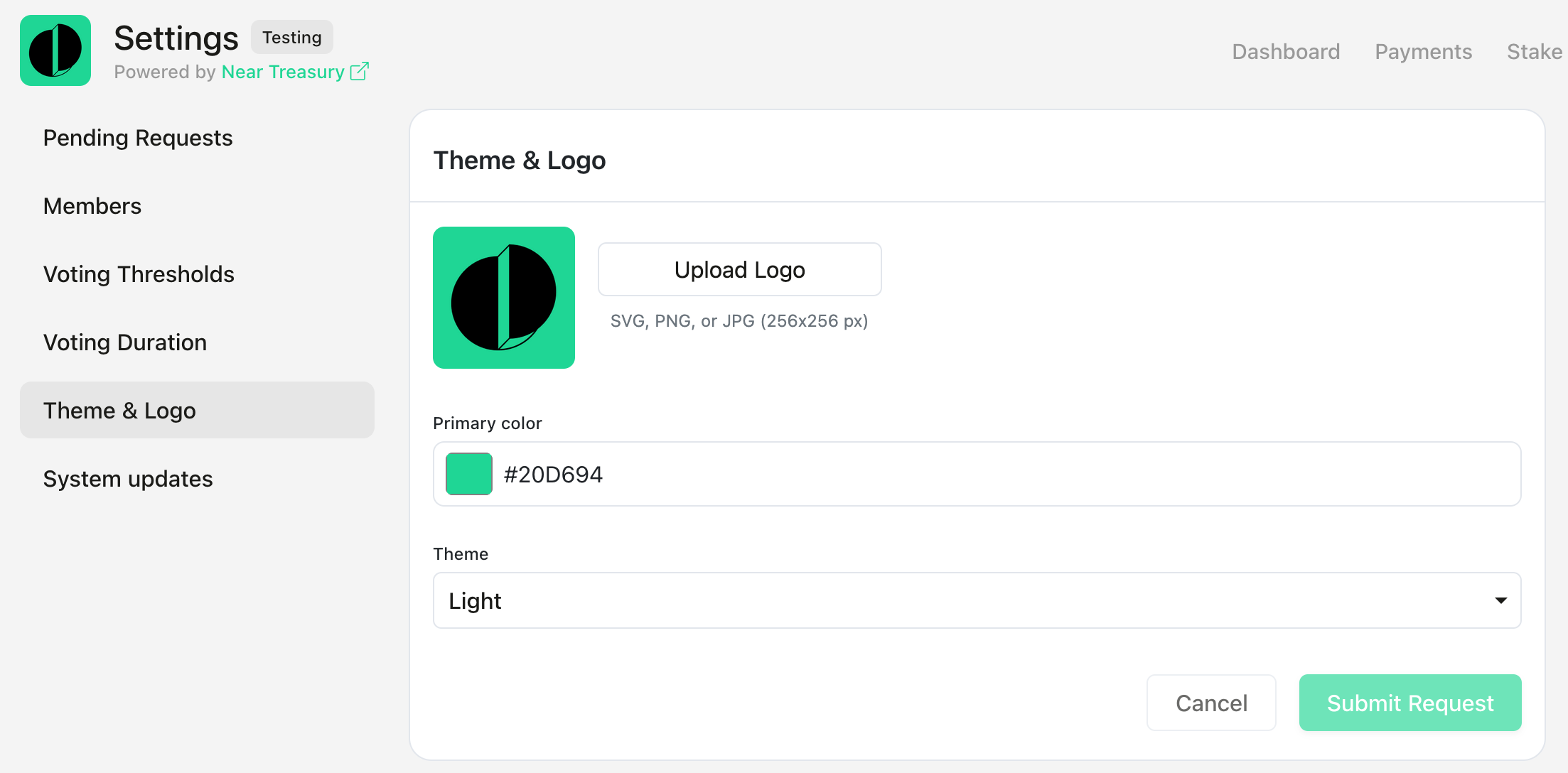
To set your Treasury logo and preferred theme:
1. Navigate to the **`Settings`** section.
2. Select the **`Theme & Logo`** tab.
3. Upload your logo image. (SVG, PNG, or JPG, 256x256 px)
4. Set the Primary color value.
5. Set the Theme. (Dark or Light)
6. Click the **`Submit Request`** button.
Preferences[](https://docs.neartreasury.com/settings#preferences "Direct link to Preferences")
------------------------------------------------------------------------------------------------
The **`Preferences`** section allows users to choose their preferred timezone and time format, with standardized date displays across NEAR Treasury.
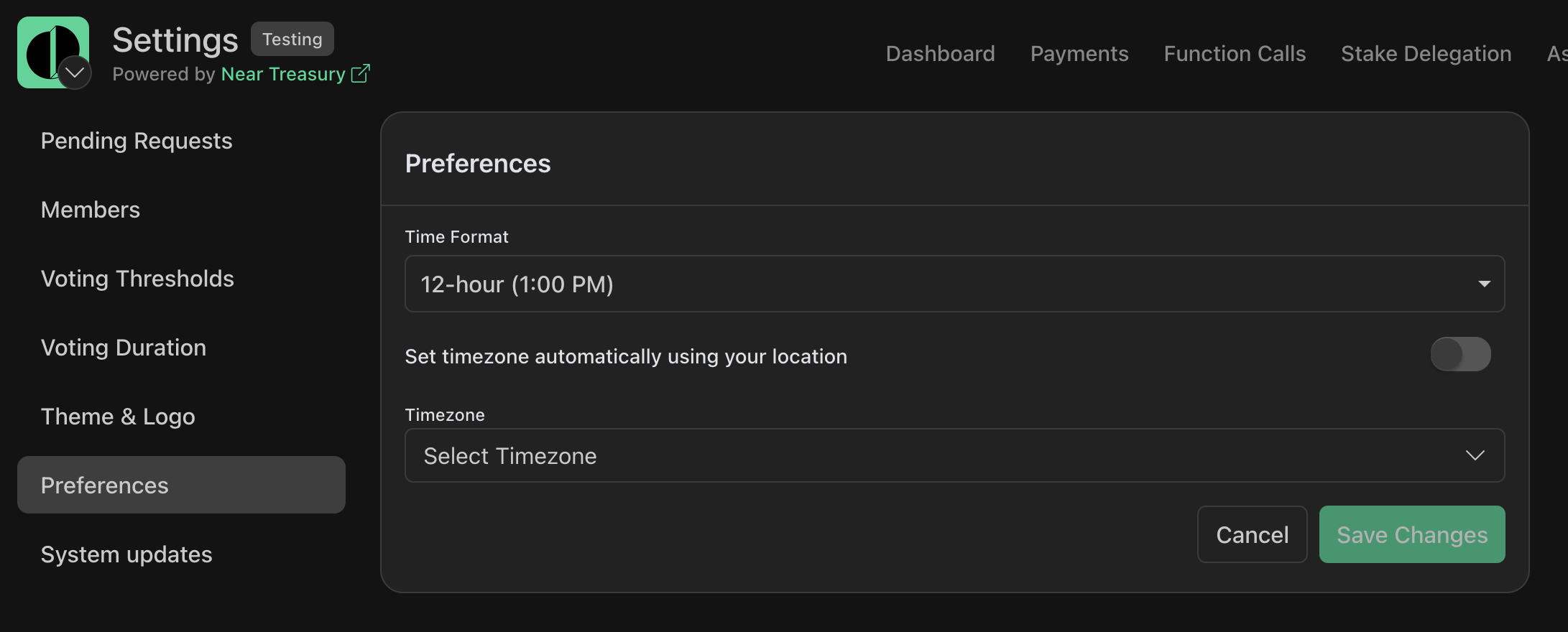
To set your timezone and preferred time format:
1. Navigate to the **`Settings`** section.
2. Select the **`Preferences`** tab.
3. Set the Time Format. (12-hour or 24-hour)
4. Set the Timezone manually, or use the automatic setting by location.
5. Click the **`Save Changes`** button.
System Updates[](https://docs.neartreasury.com/settings#system-updates "Direct link to System Updates")
---------------------------------------------------------------------------------------------------------
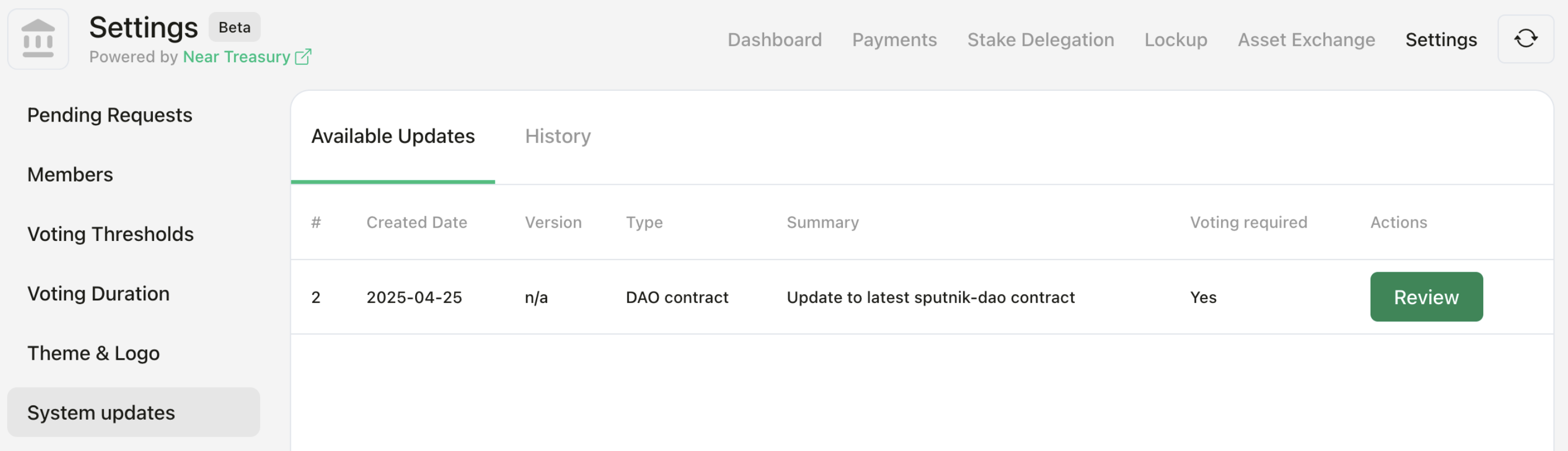
The **`System Update`** section allows Admins to review, approve, and apply pending updates to their treasury instance. NEAR Treasury developers push updates such as contract upgrades, policy changes, or instance app widget changes to provide new features, fix bugs, and improve the user experience.
info
For details on [Update Types](https://docs.neartreasury.com/help/sys-update#update-types)
and the system update mechanism, [visit this page](https://docs.neartreasury.com/help/sys-update)
.
### Reviewing System Updates[](https://docs.neartreasury.com/settings#reviewing-system-updates "Direct link to Reviewing System Updates")
All updates must be manually approved or rejected by treasury administrators. To review and vote on pending updates:
1. Navigate to the **`System updates`** section.
2. View the list of pending updates.
3. Review the details of each update.
4. Approve or reject the pending update request.
Policy updates
After an Administrator accepts a system [policy update](https://docs.neartreasury.com/help/sys-update#update-types)
, you will see a new request under [**`Pending requests`**](https://docs.neartreasury.com/settings#pending-requests)
, and Treasury users will need to vote on it.
* [Overview](https://docs.neartreasury.com/settings#overview)
* [Pending Requests](https://docs.neartreasury.com/settings#pending-requests)
* [Filtering Requests](https://docs.neartreasury.com/settings#filtering-requests)
* [Searching Requests](https://docs.neartreasury.com/settings#searching-requests)
* [Members](https://docs.neartreasury.com/settings#members)
* [Adding Members](https://docs.neartreasury.com/settings#adding-members)
* [Editing Members](https://docs.neartreasury.com/settings#editing-members)
* [Deleting Members](https://docs.neartreasury.com/settings#deleting-members)
* [Voting Thresholds](https://docs.neartreasury.com/settings#voting-thresholds)
* [Setting Thresholds](https://docs.neartreasury.com/settings#setting-thresholds)
* [Voting Duration](https://docs.neartreasury.com/settings#voting-duration)
* [Theme & Logo](https://docs.neartreasury.com/settings#theme--logo)
* [Preferences](https://docs.neartreasury.com/settings#preferences)
* [System Updates](https://docs.neartreasury.com/settings#system-updates)
* [Reviewing System Updates](https://docs.neartreasury.com/settings#reviewing-system-updates)
---
# Using a Ledger device | NEAR Treasury Docs
[Skip to main content](https://docs.neartreasury.com/help/ledger#__docusaurus_skipToContent_fallback)
On this page
About Ledger devices[](https://docs.neartreasury.com/help/ledger#about-ledger-devices "Direct link to About Ledger devices")
------------------------------------------------------------------------------------------------------------------------------
A [Ledger device](https://www.ledger.com/)
lets you confirm transactions outside your computer. If connected with a ledger device, the app you are interacting with does not have any access keys to your account, and has to ask your ledger to confirm every blockchain transaction. Your private key, which is needed to sign a transaction, is then on the ledger device. With a web wallet or mobile wallet app, that private key is stored in the wallet application, on your computer or mobile device. With a ledger, you have a dedicated device for the private keys. While there are fewer attack surfaces on a separate ledger device, compared to a web or mobile wallet, you still need to trust the ledger just as much as any other wallet software for keeping your keys safe.
Confirming transactions with the ledger device requires a bit more effort than with a web or mobile wallet. When confirming the transaction, the ledger needs to be unlocked and the NEAR app must be open. You need to click through the transaction content and sign. Applications on BOS may time out while waiting for the transaction to confirm, and assume there's an error, while you are just in the process of clicking through the confirmation of the transaction on your ledger device.
Prerequisites[](https://docs.neartreasury.com/help/ledger#prerequisites "Direct link to Prerequisites")
---------------------------------------------------------------------------------------------------------
Ledger devices have software installed to support its operations. There is an operating system, and there are apps for different blockchain. You need to make sure that the operating system and NEAR app is installed and up to date, otherwise you may get unexpected results. Consult with the documentation of your ledger device to make sure that it is updated.
Also make sure to navigate to the web4 version of your treasury, and that you are not already connected with another wallet. The direct ledger device support, described below, is only available through URLs on the form `https://.near.page`, and not through the `near.social` or `dev.near.page gateways`.
Using a Ledger device with the Treasury app[](https://docs.neartreasury.com/help/ledger#using-a-ledger-device-with-the-treasury-app "Direct link to Using a Ledger device with the Treasury app")
---------------------------------------------------------------------------------------------------------------------------------------------------------------------------------------------------
When connecting a wallet, you may choose to use a ledger device directly. While many wallets like e.g. MyNearWallet or Meteor supports confirming transactions via a ledger device, there will be less steps if connecting the ledger device directly through the wallet selector. This guide also only covers the direct ledger device connection. To find documentation and support for connecting the ledger through another wallet, you need to consult with your wallet providers documentation resources.
To establish a direct connection from the web4 page of your treasury ( `https://.near.page` ), click the "Connect Wallet" button, and choose Ledger.
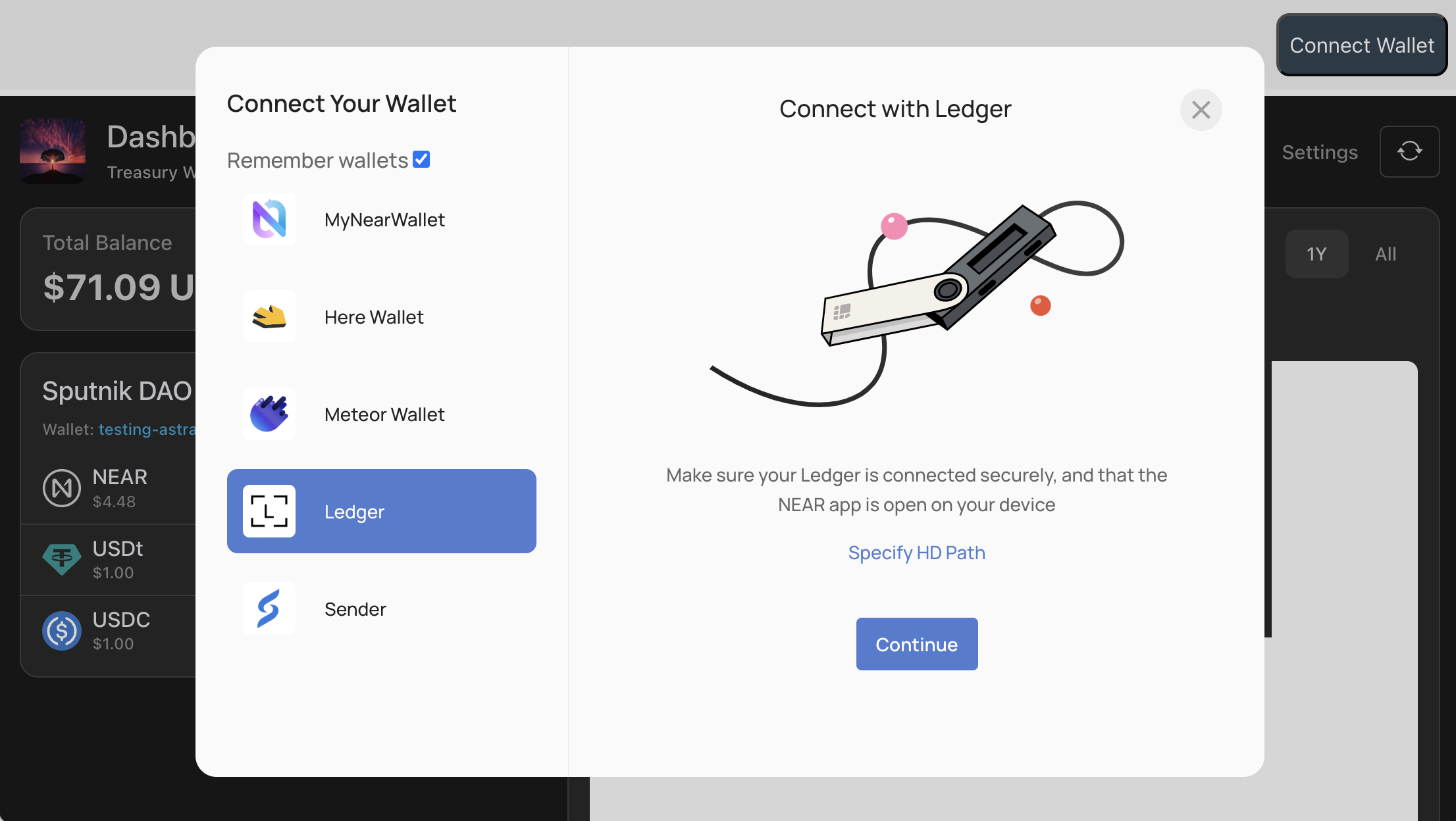
Make sure your ledger device is connected, and that you have opened the NEAR app. Follow the instructions on screen to get you through the process for connecting it to the treasury application. Once connected you are ready to confirm every action through your ledger device. Every time you click confirm on the transaction modal screen, your ledger device will prompt you to confirm the transaction.
Known limitations[](https://docs.neartreasury.com/help/ledger#known-limitations "Direct link to Known limitations")
---------------------------------------------------------------------------------------------------------------------
The treasury app assumes a transaction to complete within some time frame, and may display a message that something went wrong if the transaction does not complete within that time. You may still be in the process of confirming the transaction on your ledger, while you see a toast with the error message on the screen. If this happens, you may still proceed and confirm. The transaction will be processed.
Ledger devices have limitations in transaction size. The treasury app may send large payloads, such as when the configuration of the DAO is updated. If this payload is too big, then signing a transaction using ledger may fail, and you may need to use another wallet for performing the action.
* [About Ledger devices](https://docs.neartreasury.com/help/ledger#about-ledger-devices)
* [Prerequisites](https://docs.neartreasury.com/help/ledger#prerequisites)
* [Using a Ledger device with the Treasury app](https://docs.neartreasury.com/help/ledger#using-a-ledger-device-with-the-treasury-app)
* [Known limitations](https://docs.neartreasury.com/help/ledger#known-limitations)
---
# Bulk Payment Import | NEAR Treasury Docs
[Skip to main content](https://docs.neartreasury.com/payments/bulk-import#__docusaurus_skipToContent_fallback)
On this page
Overview[](https://docs.neartreasury.com/payments/bulk-import#overview "Direct link to Overview")
---------------------------------------------------------------------------------------------------
The Bulk Import feature in NEAR Treasury allows you to efficiently create multiple payment requests at once. Simply use our [official template](https://docs.neartreasury.com/payments/bulk-import#accessing-template)
(accessible as a Google Sheet), enter your payment data, copy relevant cells (including headers), and paste it into the payment creation flow. This guide will walk you through the process.
Bulk import limits
Currently, the Bulk Import feature has a limit of 10 payments per import process.
The Treasury team is working on removing this limitation. [Get in touch](https://docs.neartreasury.com/help/support)
if you would like to receive updates on this feature.
Step 1: Complete the Bulk Payment Template[](https://docs.neartreasury.com/payments/bulk-import#step-1-complete-the-bulk-payment-template "Direct link to Step 1: Complete the Bulk Payment Template")
--------------------------------------------------------------------------------------------------------------------------------------------------------------------------------------------------------
To ensure your data is formatted correctly for import, always start with the official template provided by NEAR Treasury.
### Accessing Template[](https://docs.neartreasury.com/payments/bulk-import#accessing-template "Direct link to Accessing Template")
tip
[Click here to open the Bulk Payment CSV Template](https://docs.google.com/spreadsheets/d/1VGpYu7Nzuuf1mgdeYiMgB2I6rX3VYtvbKP3RY2HuIj4/edit?gid=0#gid=0)
.
When the Google Sheet opens, you have two options for editing:
* **Option A:** Make your own copy by going to **`File`** > **`Make a copy`** in the Google Sheets menu. Save this copy to your own Google Drive and enter your data there.
* **Option B:** Download the template as an Excel file by going to **`File`** > **`Download`** > **`Microsoft Excel (.xlsx)`**. Save this file to your computer and enter your data using Microsoft Excel or another spreadsheet program.
### How to Fill in the Template[](https://docs.neartreasury.com/payments/bulk-import#how-to-fill-in-the-template "Direct link to How to Fill in the Template")
Whether you're working in your copied Google Sheet or a downloaded Excel file, the requirements are the same. The file must retain the specific columns in the exact order provided in the original template, including the header row. Do not change the column names in the header row or their order. Below the header row, each subsequent row you add will represent an individual payment request. Here's a description of each column:
| Column | Description | Example(s) |
| --- | --- | --- |
| **Title** | A short, descriptive name for the payment request (e.g., purpose or project). This will be visible to approvers. | Oct Marketing Services, Community Grant - J.Doe, Bug Bounty Payout |
| **Summary** (Optional) | A brief explanation of what the payment is for, providing more context if needed. | Payment for Oct 2025 content creation services., Approved grant for Q4 research project. |
| **Recipient** | The NEAR account ID that will receive the funds (e.g., `yourname.near` or a 64-character hexadecimal string). Ensure this is accurate. | `alice.near`, `projectx.sputnik-dao.near`, `62a6aa7b25...107a3956` |
| **Requested Token** | The token you want the payment to be made in. Use common symbols (e.g., NEAR, USDt) for tokens supported by the Treasury, or the token's contract address for other NEP-141 tokens. Please see note below. | NEAR, USDt, `usdc.token-contract.near` |
| **Total Amount** | The amount of the 'Requested Token' to be paid. Use a period (.) for decimals. Do not include commas or currency symbols. | `150.75`, `2500`, `0.05` |
| **Notes** (Optional) | Any additional notes, references (like invoice numbers or links), or comments for this specific payment. | Invoice #2025-015, For approved proposal ID #123 |
Note on Requested Token
For commonly supported tokens (like those listed in the single **`Create Payment Request`** token dropdown), using the standard symbol (e.g., NEAR, USDt) is often sufficient. For other [NEP-141](https://github.com/near/NEPs/blob/master/neps/nep-0141.md)
tokens, or to ensure precision, using the token's full contract address (e.g., `usdt.tether-token.near`) is recommended. The system will validate the token you enter. If unsure, verify the correct symbol or contract address from reliable sources or within the NEAR Treasury app.
### Important Tips for Template[](https://docs.neartreasury.com/payments/bulk-import#important-tips-for-template "Direct link to Important Tips for Template")
* Keep the header row. Do not delete or modify it.
* Remove any sample data rows (rows below the header) before adding your own data.
* Each row below the header represents one payment request.
* You do not need to manually save or export the file as a CSV or Excel. The system handles the necessary formatting from your pasted data.
Step 2: Copy and Paste your Data[](https://docs.neartreasury.com/payments/bulk-import#step-2-copy-and-paste-your-data "Direct link to Step 2: Copy and Paste your Data")
--------------------------------------------------------------------------------------------------------------------------------------------------------------------------
Once your data is correctly entered in your working copy of the template (either your Google Sheet copy or your downloaded Excel file):
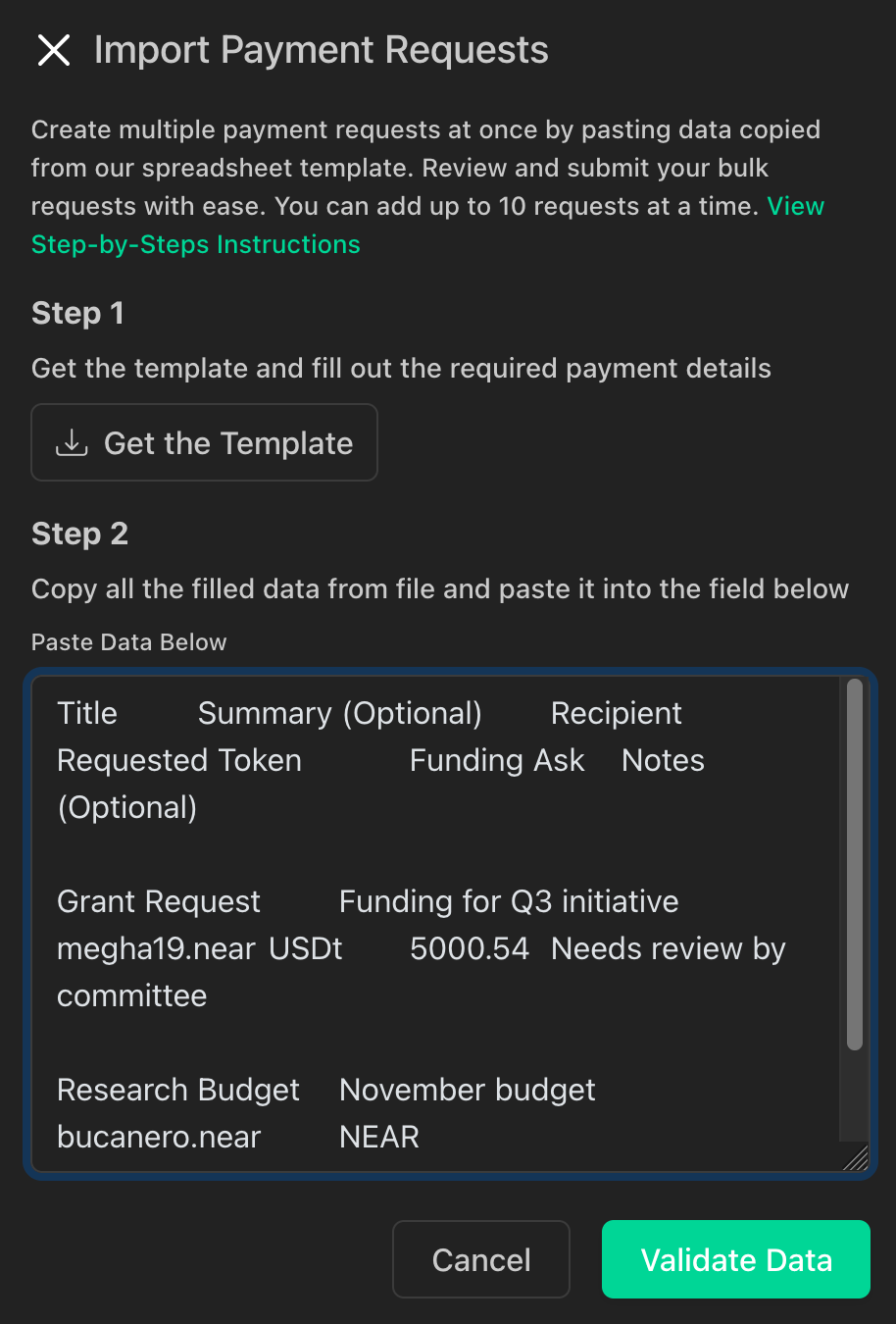
1. In your Google Sheet or Excel application, select all rows, including the header row and all your subsequent data rows (`Ctrl+A` on Windows or `Cmd+A` on Mac).
2. Copy the selected data (`Ctrl+C` on Windows or `Cmd+C` on Mac).
3. Navigate to the **`Import Payment Requests`** section in NEAR Treasury
* Navigate to **`Payments`**
* Click **`+ Create Request`**
* Select **`Import multiple Payment Requests`**.
4. Paste your copied data into the **`Paste Data`** text area provided (`Ctrl+V` on Windows or `Cmd+V` on Mac).
Our system will automatically interpret the pasted data and convert it to the required CSV format for processing.
Step 3: Validate Your Data[](https://docs.neartreasury.com/payments/bulk-import#step-3-validate-your-data "Direct link to Step 3: Validate Your Data")
--------------------------------------------------------------------------------------------------------------------------------------------------------
1. After pasting your data, click the **`Validate Data`** button in NEAR Treasury.
2. The system will check your data (processing the header row appropriately) for correct column count, required information, and proper formatting in each data row.
3. If errors are found (in the data rows):
* A list of errors will be displayed.
* You must correct these errors in your working file, then repeat [Step 2 (Copy and Paste)](https://docs.neartreasury.com/payments/bulk-import#step-2-copy-and-paste-your-data)
and [Step 3 (Validate Data)](https://docs.neartreasury.com/payments/bulk-import#step-3-validate-your-data)
.
4. If your data is valid you'll be able to proceed to the next step.
Step 4: Preview and Submit Your Requests[](https://docs.neartreasury.com/payments/bulk-import#step-4-preview-and-submit-your-requests "Direct link to Step 4: Preview and Submit Your Requests")
--------------------------------------------------------------------------------------------------------------------------------------------------------------------------------------------------
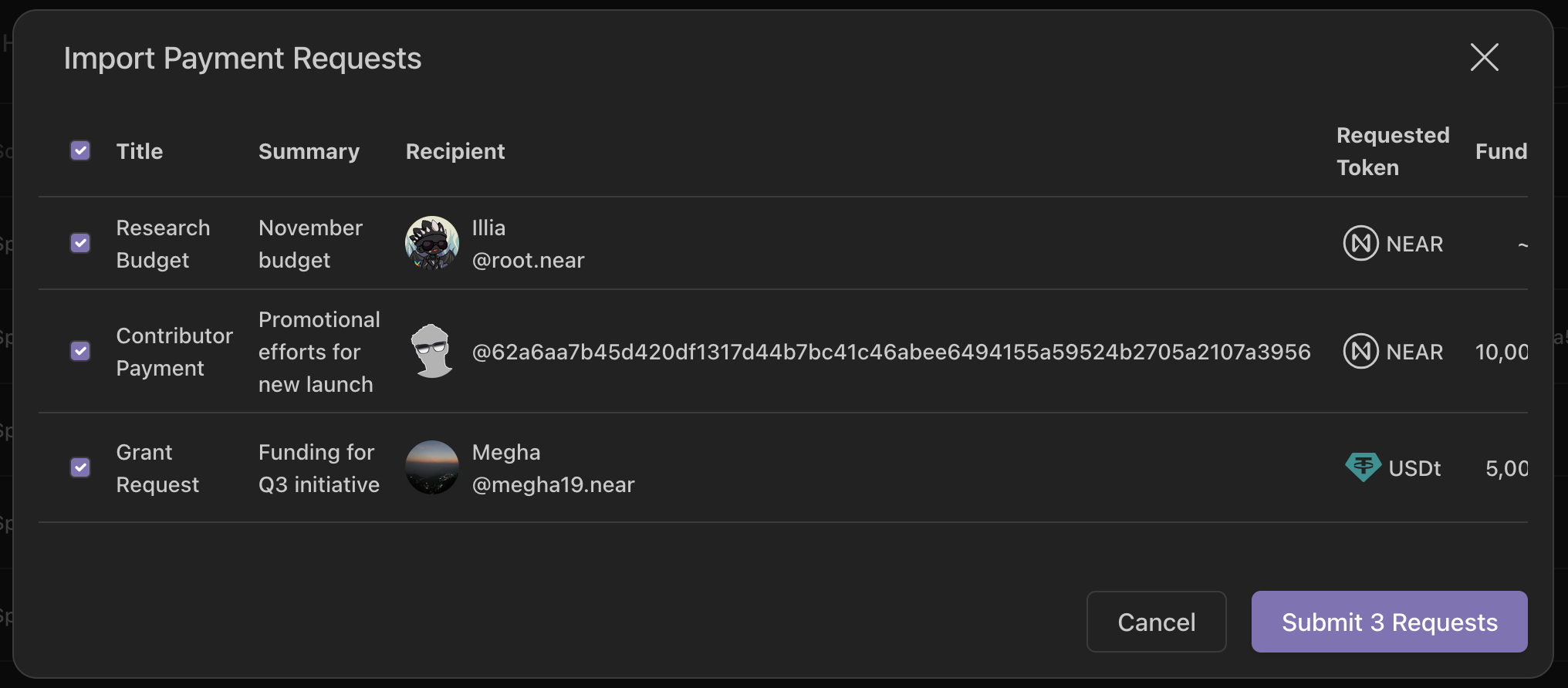
1. Click the **`Show Preview`** button.
2. Review the parsed data in the preview table. Cancel and restart if you need to make any changes.
3. If everything is correct, click the **`Submit X Requests`**.
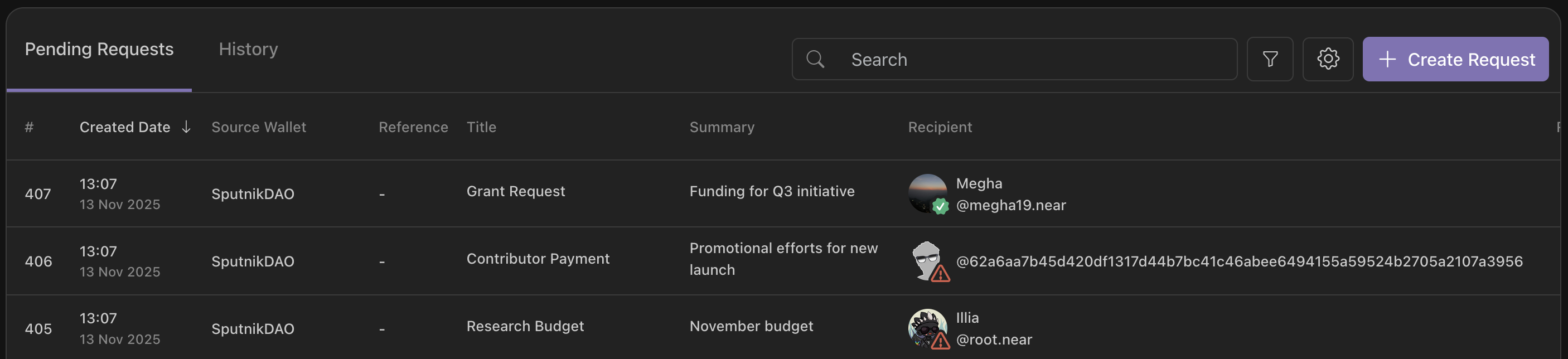
4. Your requests will appear in the **`Pending Requests`** list, awaiting approval as per your treasury's rules.
Step 5: Approve Your Imported Requests[](https://docs.neartreasury.com/payments/bulk-import#step-5-approve-your-imported-requests "Direct link to Step 5: Approve Your Imported Requests")
--------------------------------------------------------------------------------------------------------------------------------------------------------------------------------------------
After submitting the bulk requests:
1. Open the **`Pending Requests`** list
2. For each request, [**`Approve`** or **`Reject`** the payment](https://docs.neartreasury.com/payments/manage-payments#approving-or-rejecting-payment-requests)
.
Best Practices[](https://docs.neartreasury.com/payments/bulk-import#best-practices "Direct link to Best Practices")
---------------------------------------------------------------------------------------------------------------------
* Always Use the Official Template: Download the latest version from NEAR Treasury each time you prepare a new bulk import to ensure you have the correct columns and formatting.
* Start with a Small Batch: If you're new to this feature or importing a large number of requests, try importing just 2-3 payment requests (plus the header row) first. This helps you quickly test your data and understand the process.
* Double-Check Critical Information: Before you copy and paste, meticulously review recipient addresses and payment amounts in your template file. A small typo can lead to misdirected funds.
* Save Your Files: Keep a copy of each template file you upload for your records.
Troubleshooting[](https://docs.neartreasury.com/payments/bulk-import#troubleshooting "Direct link to Troubleshooting")
------------------------------------------------------------------------------------------------------------------------
### Exceeding Import Limit?[](https://docs.neartreasury.com/payments/bulk-import#exceeding-import-limit "Direct link to Exceeding Import Limit?")
* The system allows you to import up to a certain number of requests at a time (e.g., the UI may state _"You can add up to 10 requests at a time"_ ). If you try to paste more than this limit, you may encounter an error, or only the allowed number might be processed. If you have many requests, split them into smaller batches.
### Data Not Pasting Correctly?[](https://docs.neartreasury.com/payments/bulk-import#data-not-pasting-correctly "Direct link to Data Not Pasting Correctly?")
* Ensure you are copying directly from your template file or a plain text view of your spreadsheet. Sometimes copying from a richly formatted spreadsheet (like Excel directly) can carry over hidden formatting. If issues persist, try pasting into a plain text editor first, then copy from there into the NEAR Treasury paste area.
* Confirm you've selected all rows, including the header row, before copying.
### Errors After Clicking **`Validate Data`**?[](https://docs.neartreasury.com/payments/bulk-import#errors-after-clicking-validate-data "Direct link to errors-after-clicking-validate-data")
* The system will usually indicate which row (referring to the data rows after the header) and field caused the problem.
* Always make corrections in your original template file and then re-copy and re-paste the entire data (including headers).
* Check for Common Mistakes:
* Ensure all required columns have data for every payment row.
* Verify addresses are correct (e.g. `name.near`, valid hexadecimal strings).
* Ensure the Requested Token symbol or contract address is accurate and supported by the treasury. Refer to the note in Step 1's column descriptions.
* Total Amount should be a number (e.g. `100.50`). Do not use currency symbols ($, €) or commas (1,000).
### Header Row Problems?[](https://docs.neartreasury.com/payments/bulk-import#header-row-problems "Direct link to Header Row Problems?")
* Make sure you copied the header row exactly as it is in the official template. Do not change header names or their order.
### Unexpected Blank Rows?[](https://docs.neartreasury.com/payments/bulk-import#unexpected-blank-rows "Direct link to Unexpected Blank Rows?")
* Ensure there are no completely empty rows at the end of your data in the template, as these can sometimes cause parsing errors or be misinterpreted.
* [Overview](https://docs.neartreasury.com/payments/bulk-import#overview)
* [Step 1: Complete the Bulk Payment Template](https://docs.neartreasury.com/payments/bulk-import#step-1-complete-the-bulk-payment-template)
* [Accessing Template](https://docs.neartreasury.com/payments/bulk-import#accessing-template)
* [How to Fill in the Template](https://docs.neartreasury.com/payments/bulk-import#how-to-fill-in-the-template)
* [Important Tips for Template](https://docs.neartreasury.com/payments/bulk-import#important-tips-for-template)
* [Step 2: Copy and Paste your Data](https://docs.neartreasury.com/payments/bulk-import#step-2-copy-and-paste-your-data)
* [Step 3: Validate Your Data](https://docs.neartreasury.com/payments/bulk-import#step-3-validate-your-data)
* [Step 4: Preview and Submit Your Requests](https://docs.neartreasury.com/payments/bulk-import#step-4-preview-and-submit-your-requests)
* [Step 5: Approve Your Imported Requests](https://docs.neartreasury.com/payments/bulk-import#step-5-approve-your-imported-requests)
* [Best Practices](https://docs.neartreasury.com/payments/bulk-import#best-practices)
* [Troubleshooting](https://docs.neartreasury.com/payments/bulk-import#troubleshooting)
* [Exceeding Import Limit?](https://docs.neartreasury.com/payments/bulk-import#exceeding-import-limit)
* [Data Not Pasting Correctly?](https://docs.neartreasury.com/payments/bulk-import#data-not-pasting-correctly)
* [Errors After Clicking **`Validate Data`**?](https://docs.neartreasury.com/payments/bulk-import#errors-after-clicking-validate-data)
* [Header Row Problems?](https://docs.neartreasury.com/payments/bulk-import#header-row-problems)
* [Unexpected Blank Rows?](https://docs.neartreasury.com/payments/bulk-import#unexpected-blank-rows)
---
# About System Updates | NEAR Treasury Docs
[Skip to main content](https://docs.neartreasury.com/help/sys-update#__docusaurus_skipToContent_fallback)
On this page
About updates[](https://docs.neartreasury.com/help/sys-update#about-updates "Direct link to About updates")
-------------------------------------------------------------------------------------------------------------
The [system update](https://docs.neartreasury.com/settings#system-updates)
allows Treasury developers to share important updates with treasury instances. These updates can relate to contract or frontend UI (e.g., Sputnik contract upgrades, DAO policy updates, or new UI features). These available updates can be reviewed, approved, and applied manually by treasury administrators.
Update Types[](https://docs.neartreasury.com/help/sys-update#update-types "Direct link to Update Types")
----------------------------------------------------------------------------------------------------------
The following system updates are supported:
* **Web4 Contract**: Used to upgrade the underlying Web4 smart contract for the treasury instance to the latest version. Applying this update triggers a self-upgrade of the contract.
* **Widgets**: Updates the main application widget to the latest version from the reference account. Ensures the UI and logic are up-to-date with the latest features and bug fixes.
* **Policy**: Updates that change the DAO policy, such as voting rules, roles, or permissions. Applying this update creates a proposal to change the policy on the DAO contract.
* **DAO contract**: Upgrades the DAO contract itself (e.g., to a new version of Sputnik DAO). May involve deploying new contract code or migrating state.
How System Updates Work[](https://docs.neartreasury.com/help/sys-update#how-system-updates-work "Direct link to How System Updates Work")
-------------------------------------------------------------------------------------------------------------------------------------------
When a system update is published, treasury administrators may see a notification banner or badge indicating that a new update is available for their treasury instance. This is designed to help administrators and users stay informed about important changes, such as contract upgrades or policy updates.
### Banner Notifications[](https://docs.neartreasury.com/help/sys-update#banner-notifications "Direct link to Banner Notifications")
When an update is available (and it has not been previously applied), a banner or notification will appear:

If you visit the updates page and the system detects that your instance is already up to date (for example, the contract or widget has already been upgraded), the update will disappear from the list and the banner will be moved to the `History` tab.
Why Updates May Disappear?
* If you see an update notification but when you visit the [Settings page](https://docs.neartreasury.com/settings)
the update disappears, this means the system has checked your instance and determined that the update is no longer needed (e.g., the upgrade may have already been applied—possibly by another admin or from a different browser—or the update request might have already been created and is still pending a vote).
* This can be confusing, but it is expected behavior due to the decentralized and stateless nature of the [update tracking system](https://docs.neartreasury.com/help/sys-update#how-update-status-is-tracked)
.
### How Update Status is Tracked[](https://docs.neartreasury.com/help/sys-update#how-update-status-is-tracked "Direct link to How Update Status is Tracked")
There is no central server or database that tracks which updates have been applied for each instance or user. The system relies on local checks and the current state of your instance (e.g., contract version, widget version, policy) to determine if an update is still relevant.
The status of which updates have been applied or acknowledged is tracked in your browser's local storage. This means the update banner or notification is specific to your browser and device.
Local storage
If you clear your browser storage or use a different browser/device, you may see update notifications again, even if you have already applied or dismissed them elsewhere.
### Tips for Users[](https://docs.neartreasury.com/help/sys-update#tips-for-users "Direct link to Tips for Users")
* If you want to keep a record of which updates have been applied, consider keeping your browser storage intact or using the same device for administrative actions.
* If you are collaborating with other admins, be aware that update status is not synchronized between users—each admin's browser tracks updates independently, but the system will always check the actual state of the instance before showing or hiding updates.
* [About updates](https://docs.neartreasury.com/help/sys-update#about-updates)
* [Update Types](https://docs.neartreasury.com/help/sys-update#update-types)
* [How System Updates Work](https://docs.neartreasury.com/help/sys-update#how-system-updates-work)
* [Banner Notifications](https://docs.neartreasury.com/help/sys-update#banner-notifications)
* [How Update Status is Tracked](https://docs.neartreasury.com/help/sys-update#how-update-status-is-tracked)
* [Tips for Users](https://docs.neartreasury.com/help/sys-update#tips-for-users)
---
# Asset Exchange | NEAR Treasury Docs
[Skip to main content](https://docs.neartreasury.com/management/asset-exchange#__docusaurus_skipToContent_fallback)
On this page
Overview[](https://docs.neartreasury.com/management/asset-exchange#overview "Direct link to Overview")
--------------------------------------------------------------------------------------------------------
You can exchange your treasury's tokens to other supported assets and tokens, based on available swap providers.
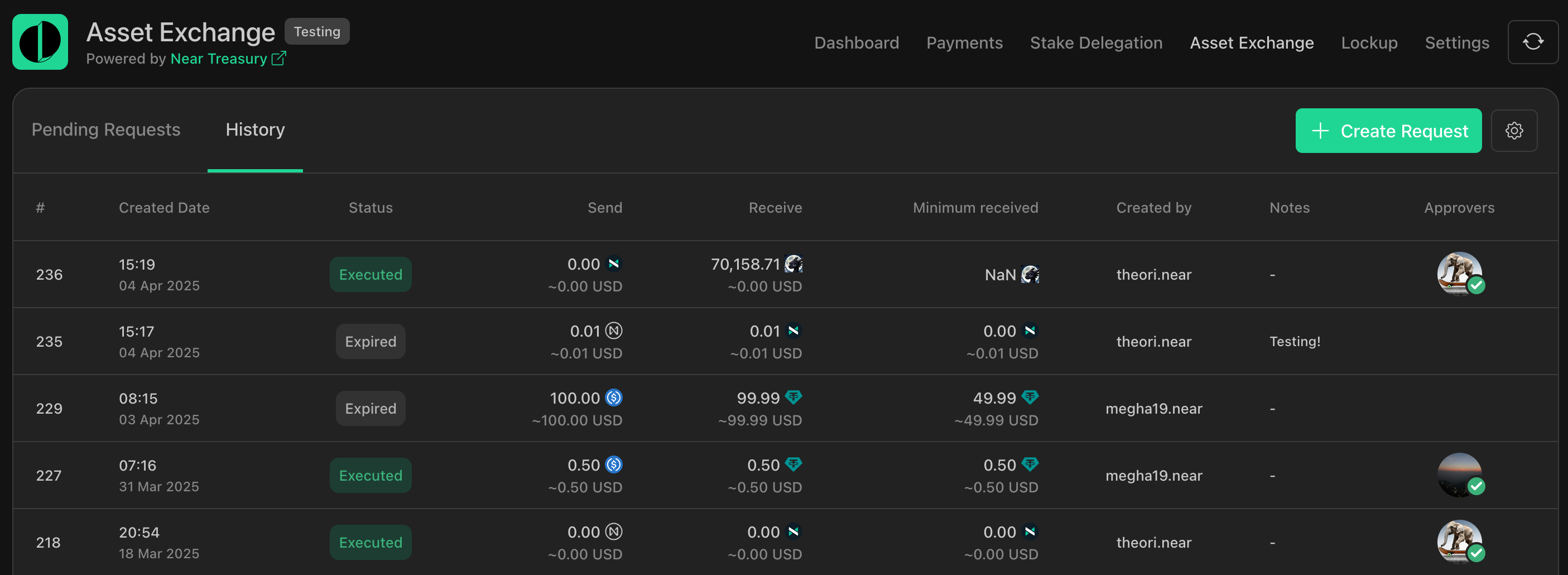
**Available actions:**
* [Creating Asset Exchange Requests](https://docs.neartreasury.com/management/asset-exchange#creating-asset-exchange-requests)
* [Approving or Rejecting Exchange Requests](https://docs.neartreasury.com/management/asset-exchange#approving-or-rejecting-exchange-requests)
* [Exporting Asset Exchange Transactions](https://docs.neartreasury.com/management/asset-exchange#exporting-asset-exchange-transactions)
info
Token swaps on Near Treasury are powered by Rhea Finance SDK’s [Smart Routing feature](https://docs.neartreasury.com/help/exchange#rhea-auto-router)
.
* * *
Creating Asset Exchange Requests[](https://docs.neartreasury.com/management/asset-exchange#creating-asset-exchange-requests "Direct link to Creating Asset Exchange Requests")
--------------------------------------------------------------------------------------------------------------------------------------------------------------------------------
To exchange one type of cryptocurrency for another:
1. Navigate to the **`Asset Exchange`** section.
2. Select the tokens you want to exchange.
3. Input the desired amounts.
4. Submit the exchange request for approval.
Exchange considerations
* **Price slippage:** Exchange rates may fluctuate during the approval process for your asset exchange request. Setting a price slippage limit helps protect against unexpected changes. If the actual exchange rate exceeds your specified limit at the time of voting, the request will fail.
* **Price Deference:** The difference between the market price and the price you get.
* **Pool fee:** Fee collected by [RHEA Finance](https://docs.neartreasury.com/help/exchange)
and shared with liquidity providers as a reward for providing liquidity to the pool.
* **Additional Storage Purchase:** To collect a new token, you need to purchase storage space. After submission, 0.1 NEAR will be charged from your account as an additional transaction.
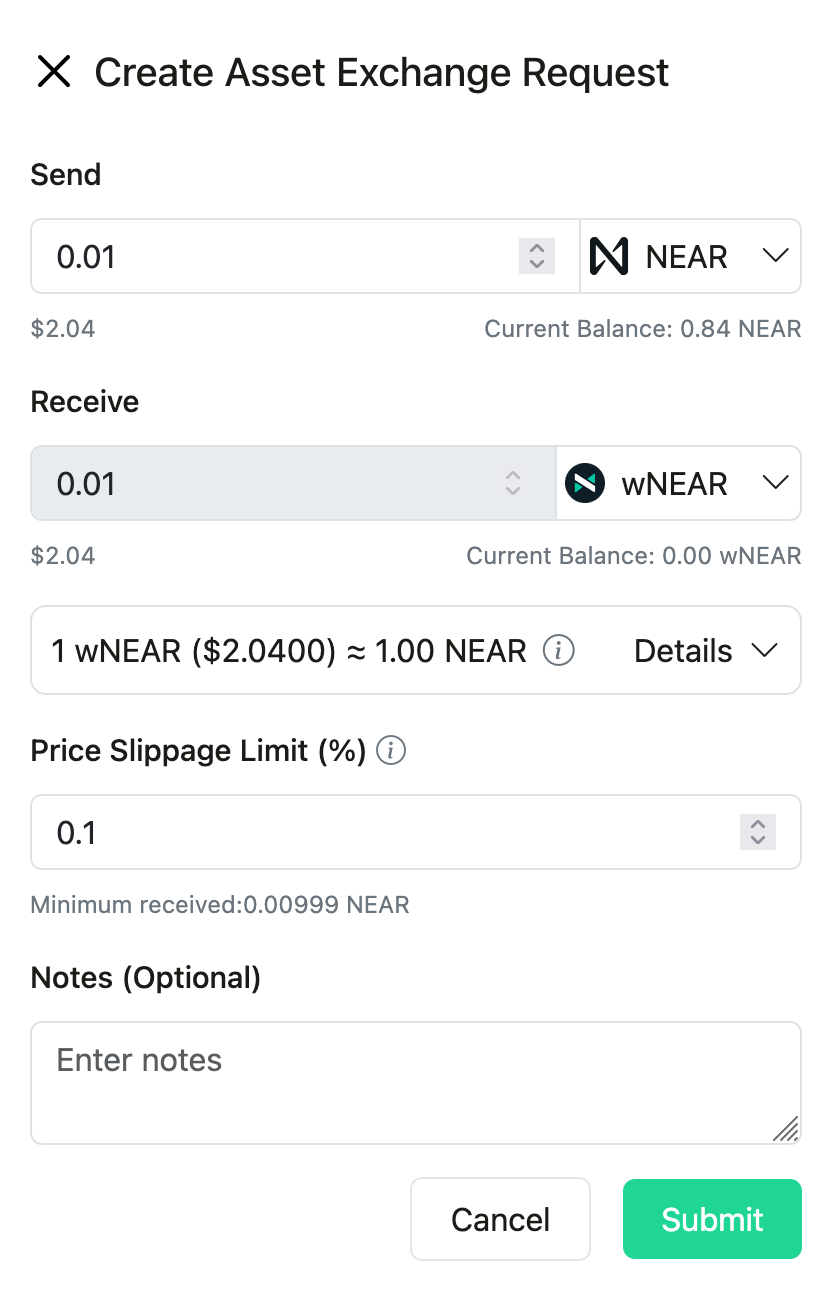
Approving or Rejecting Exchange Requests[](https://docs.neartreasury.com/management/asset-exchange#approving-or-rejecting-exchange-requests "Direct link to Approving or Rejecting Exchange Requests")
--------------------------------------------------------------------------------------------------------------------------------------------------------------------------------------------------------
Asset exchange actions require approval from authorized team members. To review and vote on pending requests:
1. Navigate to the **`Asset Exchange`** section.
2. View the list of pending requests.
3. Review the details of each request.
4. Cast your vote to approve or reject the request.

tip
You can sort exchange requests by date by clicking on `Created Date`. (Ascending or descending order)
Exporting Asset Exchange Transactions[](https://docs.neartreasury.com/management/asset-exchange#exporting-asset-exchange-transactions "Direct link to Exporting Asset Exchange Transactions")
-----------------------------------------------------------------------------------------------------------------------------------------------------------------------------------------------
To export asset exchange transaction records to a `.csv` file:
1. Navigate to the **`Asset Exchange`** section.
2. Switch to the **`History`** tab.
3. Click the **`Export as CSV`** button.

* [Overview](https://docs.neartreasury.com/management/asset-exchange#overview)
* [Creating Asset Exchange Requests](https://docs.neartreasury.com/management/asset-exchange#creating-asset-exchange-requests)
* [Approving or Rejecting Exchange Requests](https://docs.neartreasury.com/management/asset-exchange#approving-or-rejecting-exchange-requests)
* [Exporting Asset Exchange Transactions](https://docs.neartreasury.com/management/asset-exchange#exporting-asset-exchange-transactions)
---
# Getting Started Guide | NEAR Treasury Docs
[Skip to main content](https://docs.neartreasury.com/setup/quickstart#__docusaurus_skipToContent_fallback)
On this page
This guide will walk you through setting up your NEAR Treasury.
Before you begin[](https://docs.neartreasury.com/setup/quickstart#before-you-begin "Direct link to Before you begin")
-----------------------------------------------------------------------------------------------------------------------
info
To create a Treasury, you'll need a [NEAR wallet](https://wallet.near.org/)
with at least 9 NEAR available to cover the data storage deposit for both Sputnik DAO and the frontend hosting.
Creating a new treasury[](https://docs.neartreasury.com/setup/quickstart#creating-a-new-treasury "Direct link to Creating a new treasury")
--------------------------------------------------------------------------------------------------------------------------------------------
1. Visit [neartreasury.com](https://neartreasury.com/)
and click **`Get Started`**.
2. If you are not signed in, sign in with your NEAR Account using your preferred wallet.
* We recommend using [Meteor Wallet](https://meteorwallet.app/)
.
* [Ledger users](https://docs.neartreasury.com/help/ledger)
can connect directly without a named NEAR account or alternatively use a third-party wallet with Ledger support.
3. Confirm your wallet.
* This is the account that will be used to pay for creating the treasury and will be your initial administrator account.
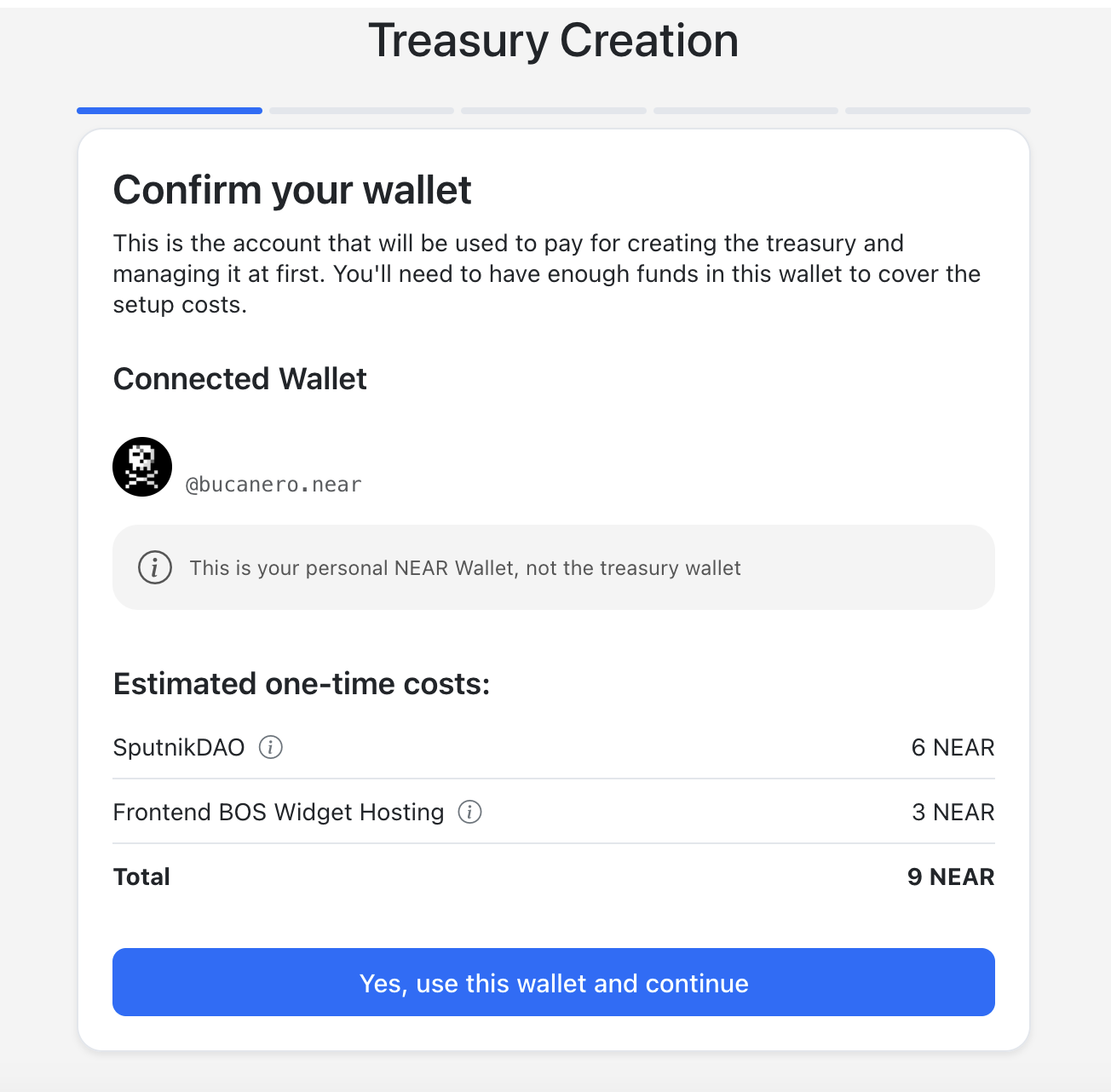
* * *
4. Enter a name for your treasury application (e.g., “myteam-treasury”).
* In this step, you are creating two accounts: a NEAR Account and a SputnikDAO account.
info
Currently, NEAR Treasury only supports creating new SputnikDAO accounts. To import an existing account, please [contact the support team](https://docs.neartreasury.com/help/support)
.
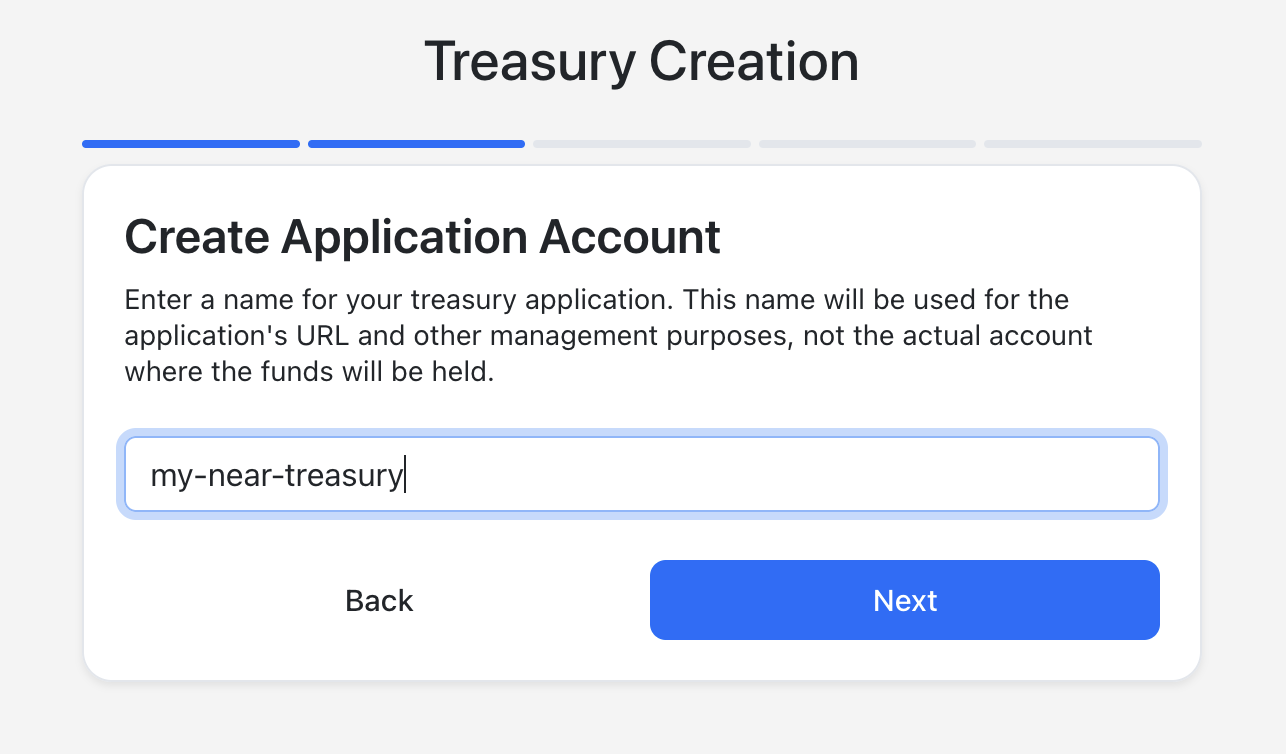
* * *
5. Add members to your treasury and define their permissions (`Requester`, `Admin`, `Approver`).
* Refer to the [Roles & Permissions](https://docs.neartreasury.com/setup/permissions)
for a detailed explanation of each group.
info
The voting thresholds policy will be set to one vote by default for all permission groups. You can modify those later in the [Settings](https://docs.neartreasury.com/settings)
.
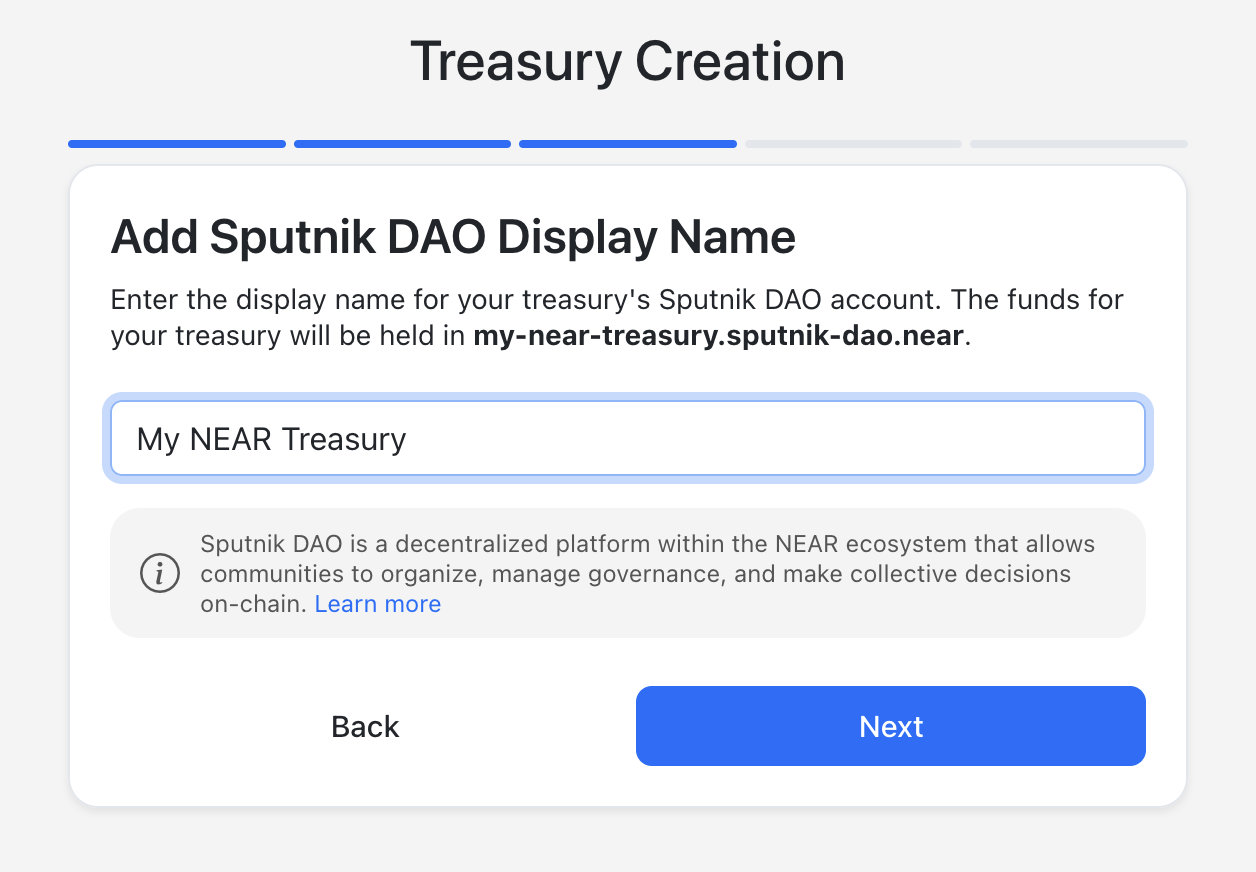
* * *
6. Review the Summary and confirm your data.
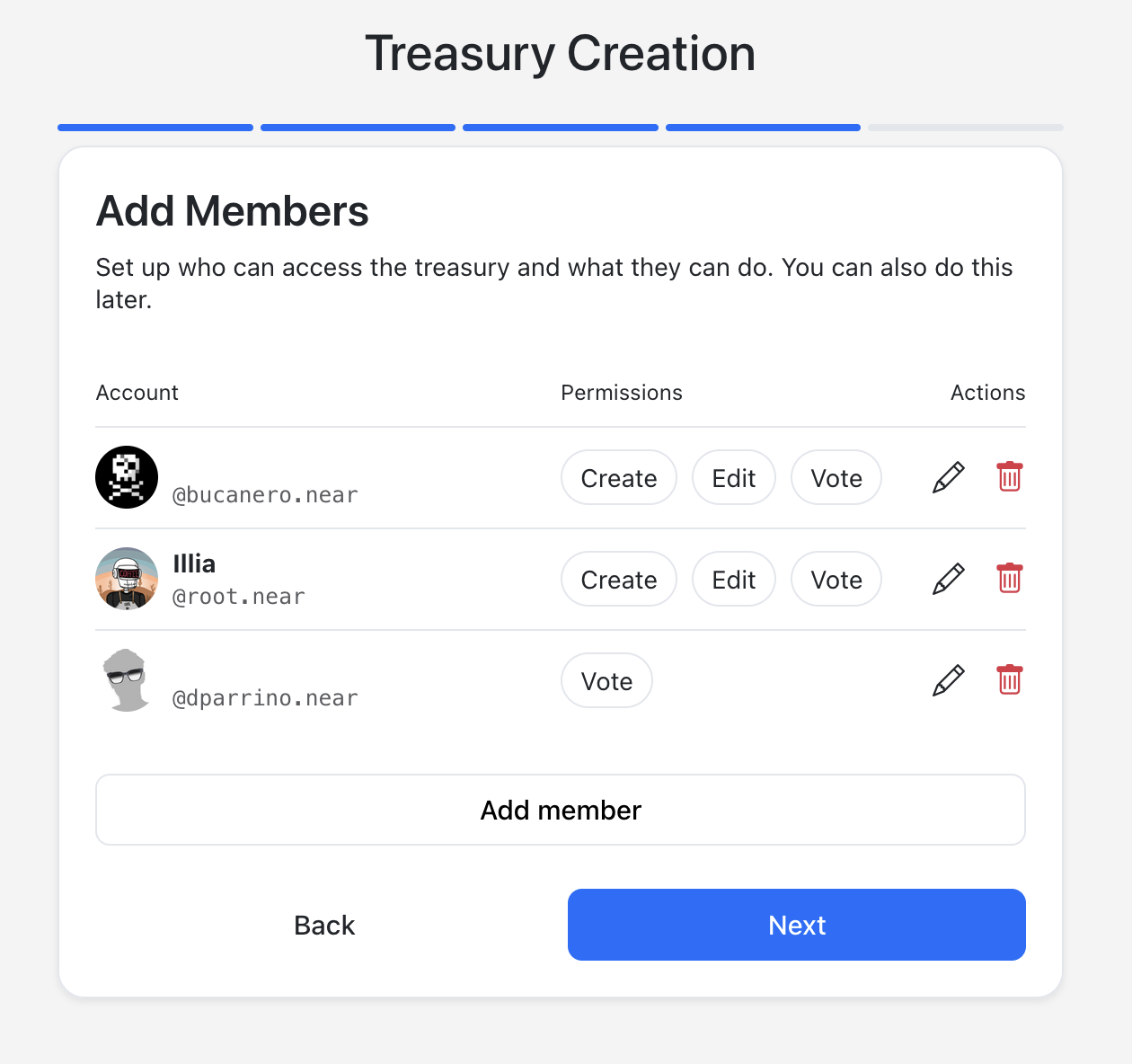
* * *
7. Confirm the transaction (deposit 9 NEAR). This will create the treasury and deploy the necessary contracts.
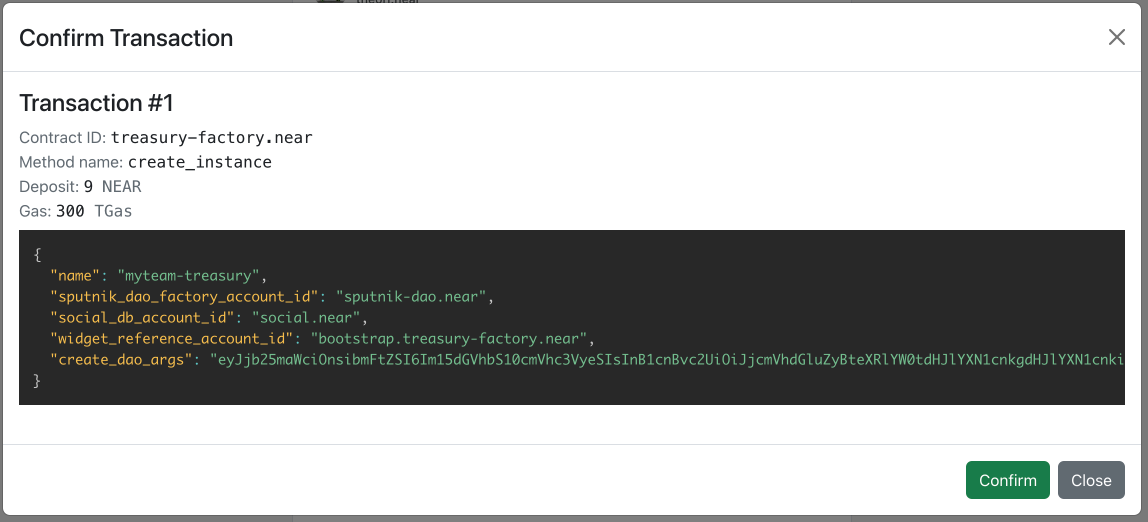
* * *
8. Congratulations! Your treasury is ready. You can access and manage your treasury using multiple gateways: Web4 (Recommended), Near Social, and Dev Near.
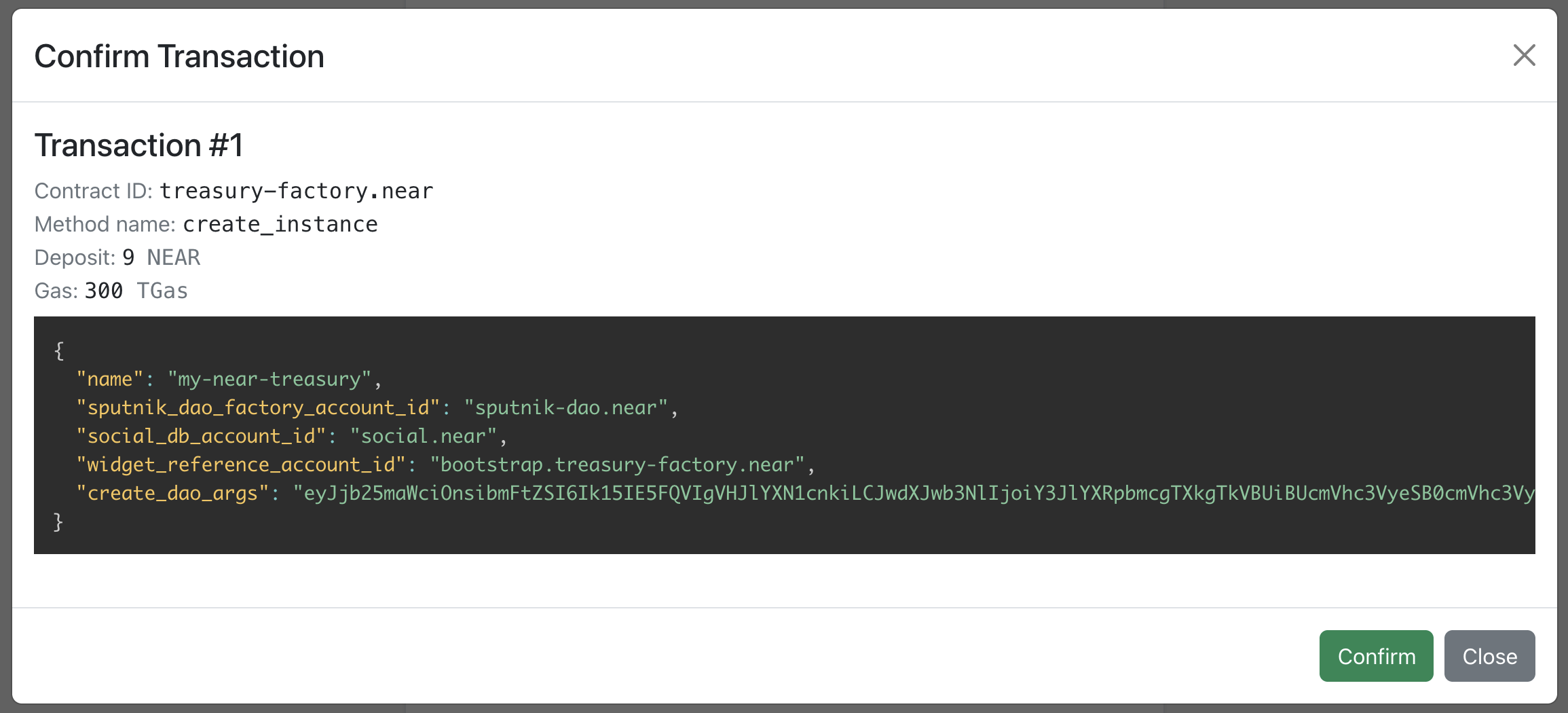
Next steps[](https://docs.neartreasury.com/setup/quickstart#next-steps "Direct link to Next steps")
-----------------------------------------------------------------------------------------------------
Now that you have your Treasury up and running, be sure to check the following articles to learn more about the available features:
* [Dashboard](https://docs.neartreasury.com/dashboard)
* [My Treasuries](https://docs.neartreasury.com/setup/my-treasuries)
* [Payments](https://docs.neartreasury.com/payments/manage-payments)
* [Bulk Payment Import](https://docs.neartreasury.com/payments/bulk-import)
* [Stake Delegation](https://docs.neartreasury.com/management/stake-delegation)
* [Asset Exchange](https://docs.neartreasury.com/management/asset-exchange)
* [Lockup](https://docs.neartreasury.com/management/lockup)
* [Roles & Permissions](https://docs.neartreasury.com/setup/permissions)
* [Settings](https://docs.neartreasury.com/settings)
* [Before you begin](https://docs.neartreasury.com/setup/quickstart#before-you-begin)
* [Creating a new treasury](https://docs.neartreasury.com/setup/quickstart#creating-a-new-treasury)
* [Next steps](https://docs.neartreasury.com/setup/quickstart#next-steps)
---
# Latest Changes | NEAR Treasury Docs
[Skip to main content](https://docs.neartreasury.com/changelog#__docusaurus_skipToContent_fallback)
On this page
Roadmap[](https://docs.neartreasury.com/changelog#roadmap "Direct link to Roadmap")
-------------------------------------------------------------------------------------
The NEAR Treasury team is working hard every day, simplifying the management of your treasury operations. We're excited to share [our roadmap](https://github.com/NEAR-DevHub/.github/issues/12)
and offer you a glimpse of our upcoming new features!
info
To learn more about upcoming features and improvements, check out the [NEAR Treasury roadmap](https://github.com/NEAR-DevHub/.github/issues/12)
.
* * *
Changelog[](https://docs.neartreasury.com/changelog#changelog "Direct link to Changelog")
-------------------------------------------------------------------------------------------
This section tracks the evolution of NEAR Treasury: find out what's new, what's fixed, or just take a trip down memory lane, remembering those bugs of yesterday.
November 2025[](https://docs.neartreasury.com/changelog#november-2025 "Direct link to November 2025")
-------------------------------------------------------------------------------------------------------
**What's New ✨**
* Updated web4 dropdown to include the new Treasury React version.
* Updated Treasury creation flow:
* Direct usage of Sputnik-DAO for Treasury creation.
* Updated links to use the new React version instead of web4.
October 2025[](https://docs.neartreasury.com/changelog#october-2025 "Direct link to October 2025")
----------------------------------------------------------------------------------------------------
**What's New ✨**
* Added [Function Calls support](https://docs.neartreasury.com/advanced/function-calls)
: users can interact directly with any smart contract on the NEAR network.
* This is an advanced feature that allows the DAO to execute any contract method via a multi-sig proposal.
* Updated wallet selector in Web4 to the latest version.
* Added support for Intear, Hot, and NEAR Mobile wallets.
* Removed support for Here wallet.
* Added a timezone selector in `Settings` → `Preferences`, allowing users to choose their timezone and time format, with standardized date displays across NEAR Treasury.
* Added filter options in the `Settings` page: users can now filter by proposal type, creation date, status, approver, and creator.
**Bug Fixes 🐛**
* Fixed: Removed `Vote` buttons on expired NEAR Intents quotes.
* * *
September 2025[](https://docs.neartreasury.com/changelog#september-2025 "Direct link to September 2025")
----------------------------------------------------------------------------------------------------------
**What's New ✨**
* Asset Exchange for NEAR Intents leveraging the OneClick API:
* Shows info about USD values, network info, and more.
* Improved OneClick Exchange loading and error states.
* Added support to look for FT lockups deployed using Lockup factory.
* Added historical balance for NEAR Intents.
* Intelligent token decimal display formatting across the Treasury dashboard.
* Implemented a new design flow for [NEAR Intents deposits](https://docs.neartreasury.com/payments/intents#making-deposits)
.
* Updated Deposit modal: improved the Deposit UI so users understand the difference between Sputnik DAO and NEAR Intents.
* [Display FT lockup portfolio in the Dashboard](https://docs.neartreasury.com/dashboard#ft-lockup-optional)
: when users have a FT lockup attached to their treasury, it's presented in the Dashboard page. [Contact the support team](https://docs.neartreasury.com/help/support)
to get started.
**Bug Fixes 🐛**
* Fixed: Display Bitcoin network correctly and add token icon support.
* Fixed: Tooltip texts for quote deadline and estimated time.
* * *
August 2025[](https://docs.neartreasury.com/changelog#august-2025 "Direct link to August 2025")
-------------------------------------------------------------------------------------------------
**What's New ✨**
* [NEAR Intents support](https://docs.neartreasury.com/payments/intents)
: the NEAR Treasury integration with [NEAR Intents](https://near-intents.org/)
has been successfully completed. Now Sputnik-DAO treasuries can execute simple cross-network token payments via NEAR Intents.
* [Filter support for Payments](https://docs.neartreasury.com/payments/manage-payments#filtering-payment-requests)
: filter by creation date, approvals, vote status, recipient, and requested tokens.
* Enhanced the [Create Asset Exchange Request](https://docs.neartreasury.com/management/asset-exchange#creating-asset-exchange-requests)
Modal with improved validation and user experience.
* Improved the payment details page and table view for [NEAR Intents payments](https://docs.neartreasury.com/payments/intents)
.
* Filter support for Stake delegation: filter by amount, type (`stake`/`unstake`/`withdraw`/`whitelist`), and validator.
* * *
July 2025[](https://docs.neartreasury.com/changelog#july-2025 "Direct link to July 2025")
-------------------------------------------------------------------------------------------
**What's New ✨**
* 📥 [Bulk Payment Import](https://docs.neartreasury.com/payments/bulk-import)
: Upload multiple payment requests in one go using our Google Sheet template. Great for handling contributor payouts, grant rounds, and large payment sets.
* 👥 [Batch Member Management](https://docs.neartreasury.com/settings#members)
: Admins can now add, edit, or remove multiple members in a single request. No more repetitive approvals for each change.
* 🤝 [NEARN Integration](https://docs.nearn.io/sponsor/treasury)
: You can now connect your [NEARN](https://nearn.io/)
sponsor account directly to your treasury, making it easy to manage the entire contributor reward workflow – from approved submission to on-chain payments.
* ⚙️ [System Upgrades](https://docs.neartreasury.com/settings#system-updates)
: We've rolled out background upgrades to all treasuries – including a switch to FastNEAR RPC and improved Web4 caching. You should notice faster load times and a more reliable experience. We've also built a scalable system update framework to support future contract and UI upgrades when needed.
tip
We strongly recommend using the Web4 Gateway for managing your treasury. It ensures you're always on the latest version with the best performance.
* * *
June 2025[](https://docs.neartreasury.com/changelog#june-2025 "Direct link to June 2025")
-------------------------------------------------------------------------------------------
**What's New ✨**
* 🔐 [Lockups](https://docs.neartreasury.com/management/lockup)
: Now you can create and manage accounts with specific vesting conditions, such as grants. You can also directly manage your lockup accounts within NEAR Treasury, including staking, payment requests, and withdrawals.
* ↕️ [Asset Exchange](https://docs.neartreasury.com/management/asset-exchange)
: Swap different assets using multi-signature approvals.
* 🔁 BOS Gateway Switching: Easily switch between your BOS gateways so you can access your treasury in your preferred way.
* * *
April 2025[](https://docs.neartreasury.com/changelog#april-2025 "Direct link to April 2025")
----------------------------------------------------------------------------------------------
**What's New ✨**
* 🛡 Security update for NEAR Treasury: SputnikDAO V2 just passed a full audit with no critical findings. Same contract, verified stronger.
* 💾 No more starting over on NEAR Treasury: You can now save your Treasury setup as a draft and finish it whenever.
* 📂 One overview to see every DAO you're in — not just NEAR Treasury. Less friction. More flow.
* * *
* [Roadmap](https://docs.neartreasury.com/changelog#roadmap)
* [Changelog](https://docs.neartreasury.com/changelog#changelog)
* [November 2025](https://docs.neartreasury.com/changelog#november-2025)
* [October 2025](https://docs.neartreasury.com/changelog#october-2025)
* [September 2025](https://docs.neartreasury.com/changelog#september-2025)
* [August 2025](https://docs.neartreasury.com/changelog#august-2025)
* [July 2025](https://docs.neartreasury.com/changelog#july-2025)
* [June 2025](https://docs.neartreasury.com/changelog#june-2025)
* [April 2025](https://docs.neartreasury.com/changelog#april-2025)
---
# Stake Delegation | NEAR Treasury Docs
[Skip to main content](https://docs.neartreasury.com/management/stake-delegation#__docusaurus_skipToContent_fallback)
On this page
Overview[](https://docs.neartreasury.com/management/stake-delegation#overview "Direct link to Overview")
----------------------------------------------------------------------------------------------------------
You can stake your treasury's tokens to earn rewards or unstake them to regain access to the funds.
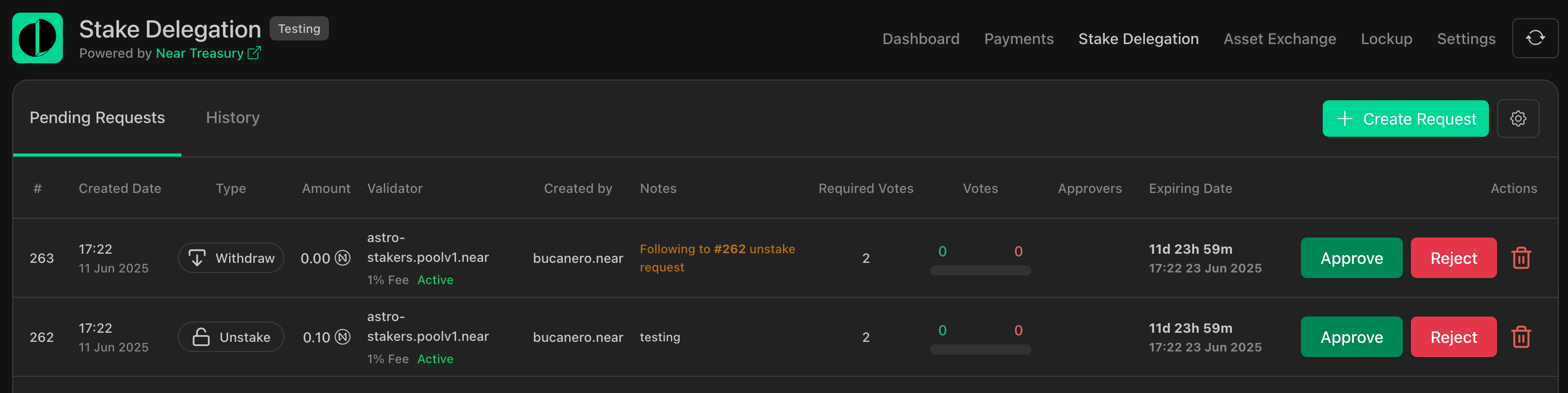
**Available actions:**
* [Staking Tokens](https://docs.neartreasury.com/management/stake-delegation#staking-tokens)
* [Unstaking Tokens](https://docs.neartreasury.com/management/stake-delegation#unstaking-tokens)
* [Withdrawal Requests](https://docs.neartreasury.com/management/stake-delegation#withdrawal-requests)
* [Approving or Rejecting Staking Requests](https://docs.neartreasury.com/management/stake-delegation#approving-or-rejecting-staking-requests)
* [Exporting Stake Delegation Transactions](https://docs.neartreasury.com/management/stake-delegation#exporting-stake-delegation-transactions)
* * *
Staking Tokens[](https://docs.neartreasury.com/management/stake-delegation#staking-tokens "Direct link to Staking Tokens")
----------------------------------------------------------------------------------------------------------------------------
To stake tokens:
1. Navigate to the **`Staking`** section.
2. Click the **`Create Request`** button and select **`Stake`**.
3. Select the token you want to stake.
4. Choose the amount to stake and select a validator.
5. Submit the staking request for approval.
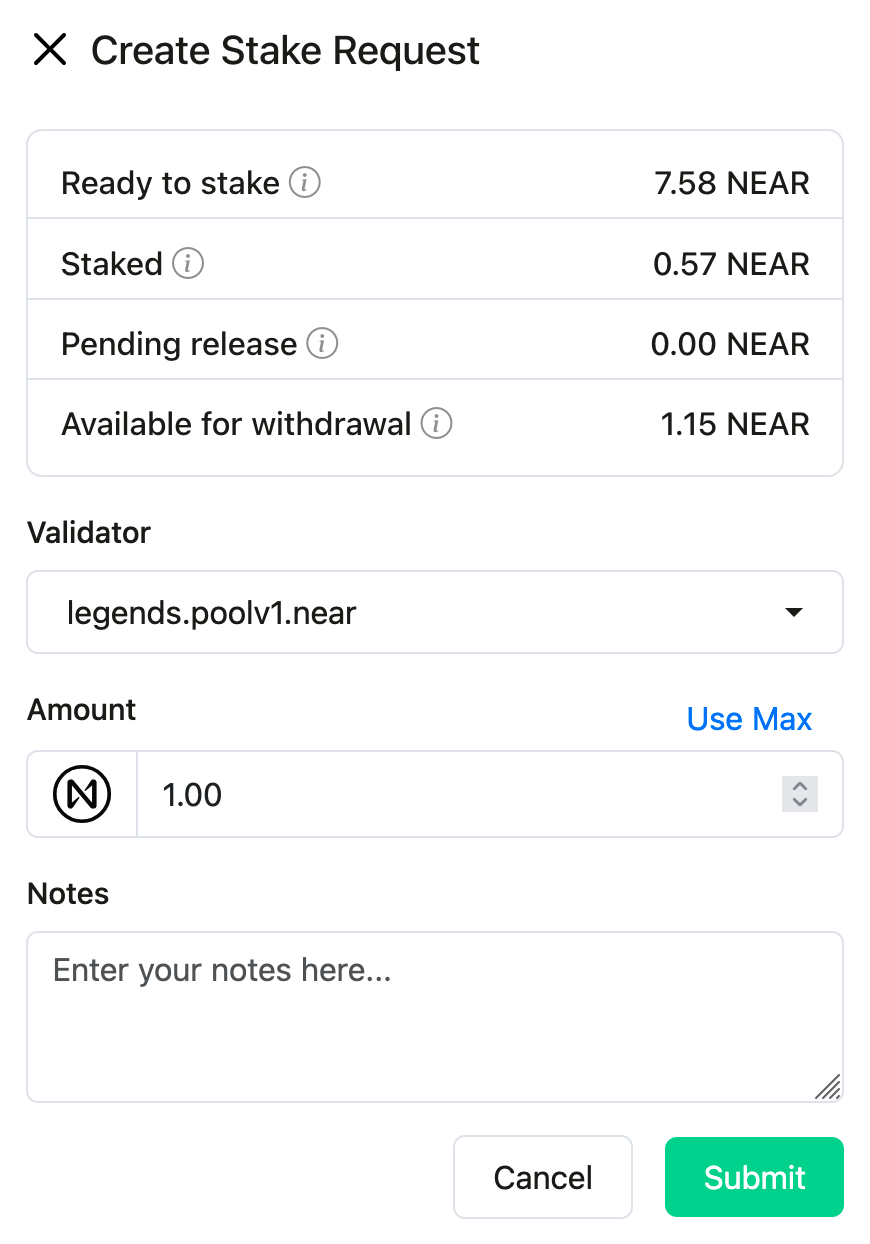
Unstaking Tokens[](https://docs.neartreasury.com/management/stake-delegation#unstaking-tokens "Direct link to Unstaking Tokens")
----------------------------------------------------------------------------------------------------------------------------------
To unstake tokens:
1. Navigate to the **`Staking`** section.
2. Click the **`Create Request`** button and select **`Unstake`**.
3. Select the staked tokens you want to unstake.
4. Submit the unstaking request for approval.
5. Once approved, you may need to [initiate a withdrawal](https://docs.neartreasury.com/management/stake-delegation#withdrawal-requests)
to access the unstaked funds.
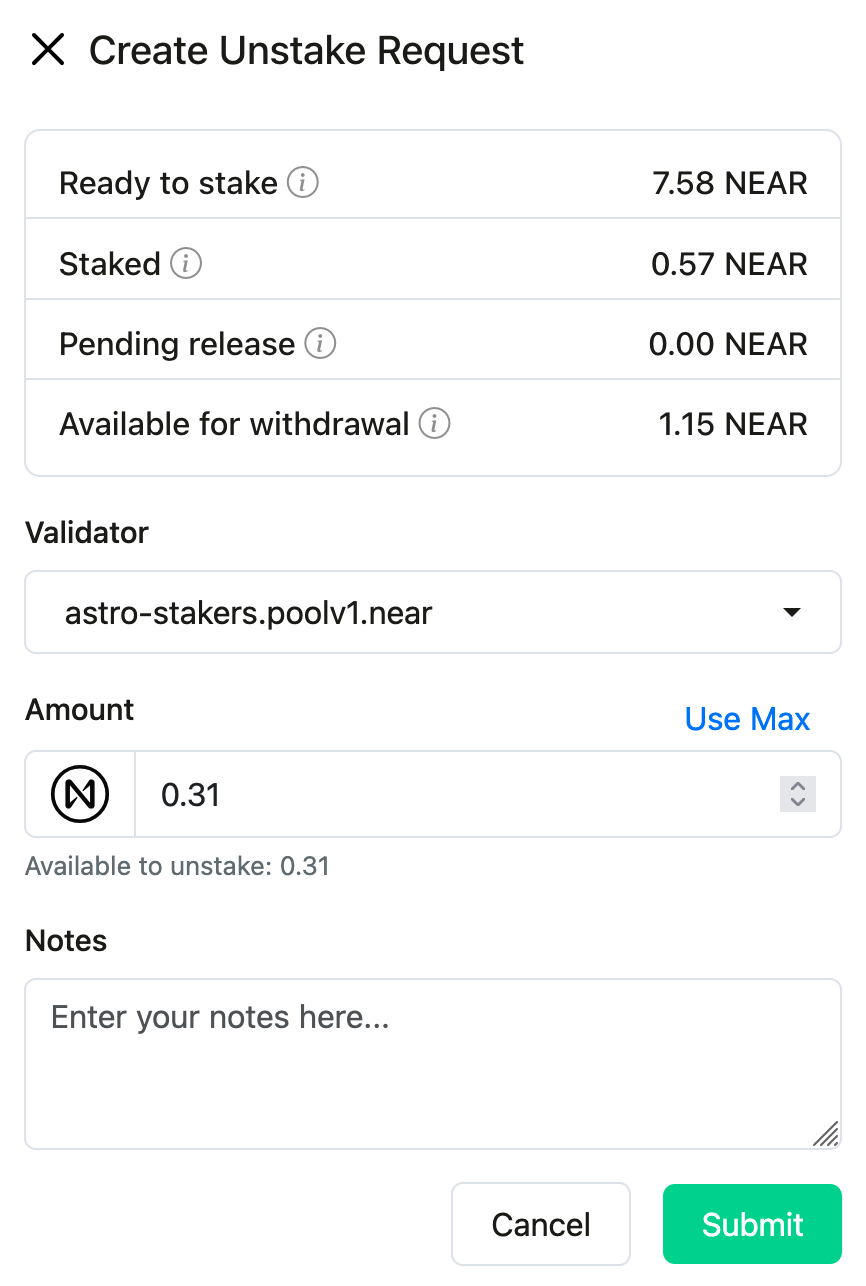
Withdrawal Requests[](https://docs.neartreasury.com/management/stake-delegation#withdrawal-requests "Direct link to Withdrawal Requests")
-------------------------------------------------------------------------------------------------------------------------------------------
In some cases, you may need to create a withdrawal request to move funds out of your treasury. This can be necessary for unstaked tokens or other scenarios. To create a withdrawal request:
1. Navigate to the **`Staking`** section.
2. Click the **`Create Request`** button and select **`Withdraw`**.
3. Submit the withdrawal request for approval.
info
By submitting a Withdrawal, you request to withdraw all available funds. A separate withdrawal request will be created for each validator.
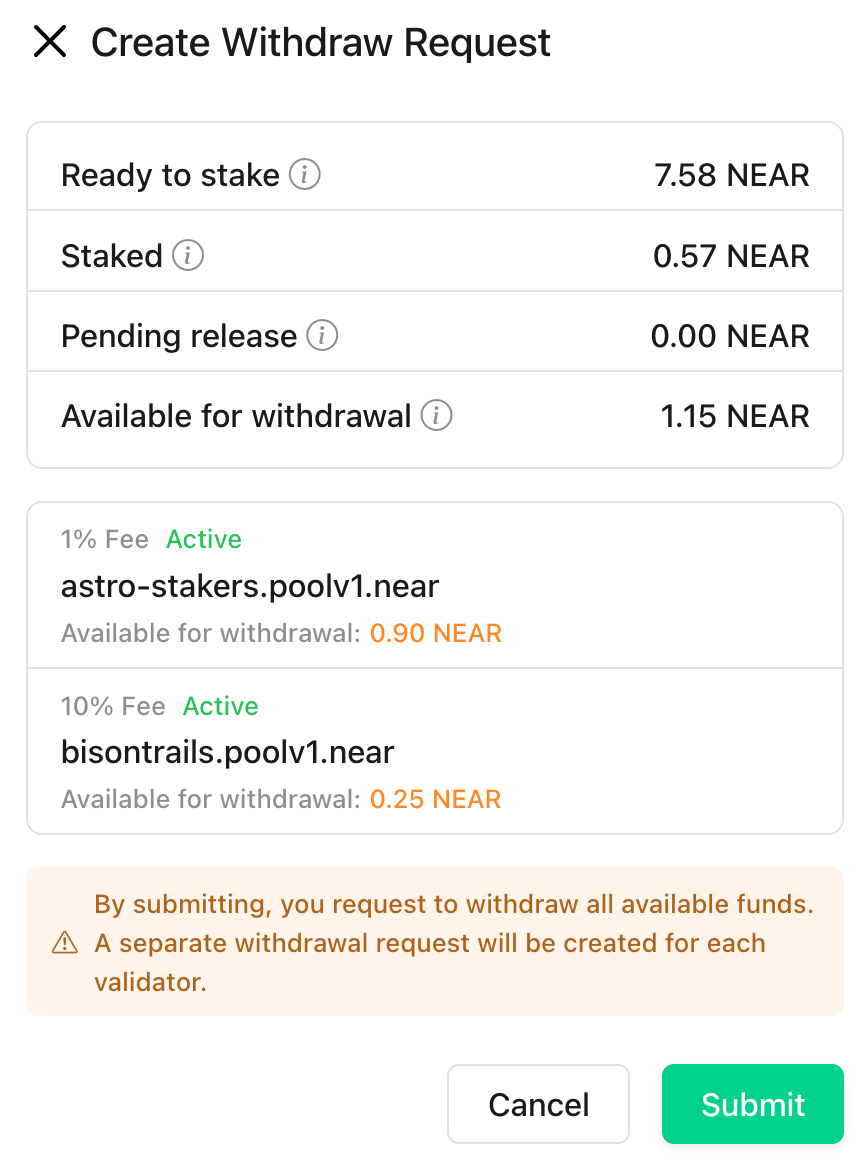
Approving or Rejecting Staking Requests[](https://docs.neartreasury.com/management/stake-delegation#approving-or-rejecting-staking-requests "Direct link to Approving or Rejecting Staking Requests")
-------------------------------------------------------------------------------------------------------------------------------------------------------------------------------------------------------
Stake actions require approval from authorized team members. To review and vote on pending requests:
1. Navigate to the **`Stake Delegation`** section.
2. View the list of pending requests.
3. Review the details of each request.
4. Cast your vote to approve or reject the request.

tip
You can sort staking requests by date by clicking on `Created Date`. (Ascending or descending order)
Managing Lockup Accounts[](https://docs.neartreasury.com/management/stake-delegation#managing-lockup-accounts "Direct link to Managing Lockup Accounts")
----------------------------------------------------------------------------------------------------------------------------------------------------------
If your treasury has any funds in lockup accounts, you can monitor and manage them in the `Lockups` section. This includes viewing the lockup period, checking the balance, and initiating withdrawals when funds are released.
Exporting Stake Delegation Transactions[](https://docs.neartreasury.com/management/stake-delegation#exporting-stake-delegation-transactions "Direct link to Exporting Stake Delegation Transactions")
-------------------------------------------------------------------------------------------------------------------------------------------------------------------------------------------------------
To export stake delegation transaction records to a `.csv` file:
1. Navigate to the **`Stake Delegation`** section.
2. Switch to the **`History`** tab.
3. Click the **`Export as CSV`** button.

* [Overview](https://docs.neartreasury.com/management/stake-delegation#overview)
* [Staking Tokens](https://docs.neartreasury.com/management/stake-delegation#staking-tokens)
* [Unstaking Tokens](https://docs.neartreasury.com/management/stake-delegation#unstaking-tokens)
* [Withdrawal Requests](https://docs.neartreasury.com/management/stake-delegation#withdrawal-requests)
* [Approving or Rejecting Staking Requests](https://docs.neartreasury.com/management/stake-delegation#approving-or-rejecting-staking-requests)
* [Managing Lockup Accounts](https://docs.neartreasury.com/management/stake-delegation#managing-lockup-accounts)
* [Exporting Stake Delegation Transactions](https://docs.neartreasury.com/management/stake-delegation#exporting-stake-delegation-transactions)
---
# About Lockups | NEAR Treasury Docs
[Skip to main content](https://docs.neartreasury.com/help/lockups#__docusaurus_skipToContent_fallback)
On this page
These docs include information about lockups in general, how they are implemented on NEAR, some challenges this causes, and how you can delegate your locked tokens.
Lockup Basics[](https://docs.neartreasury.com/help/lockups#lockup-basics "Direct link to Lockup Basics")
----------------------------------------------------------------------------------------------------------
A **lockup** is when tokens are prevented from being transferred. The configuration of this lockup may vary significantly from case to case, but the same smart contract is used for each of them.
The most common configuration of lockup is to linearly release the tokens for transfer during the entire term of the lockup. For example, a 24-month linear lockup would make a small amount of tokens eligible for transfer with each block that passes until the full amount is free to transfer at the end of 24 months.
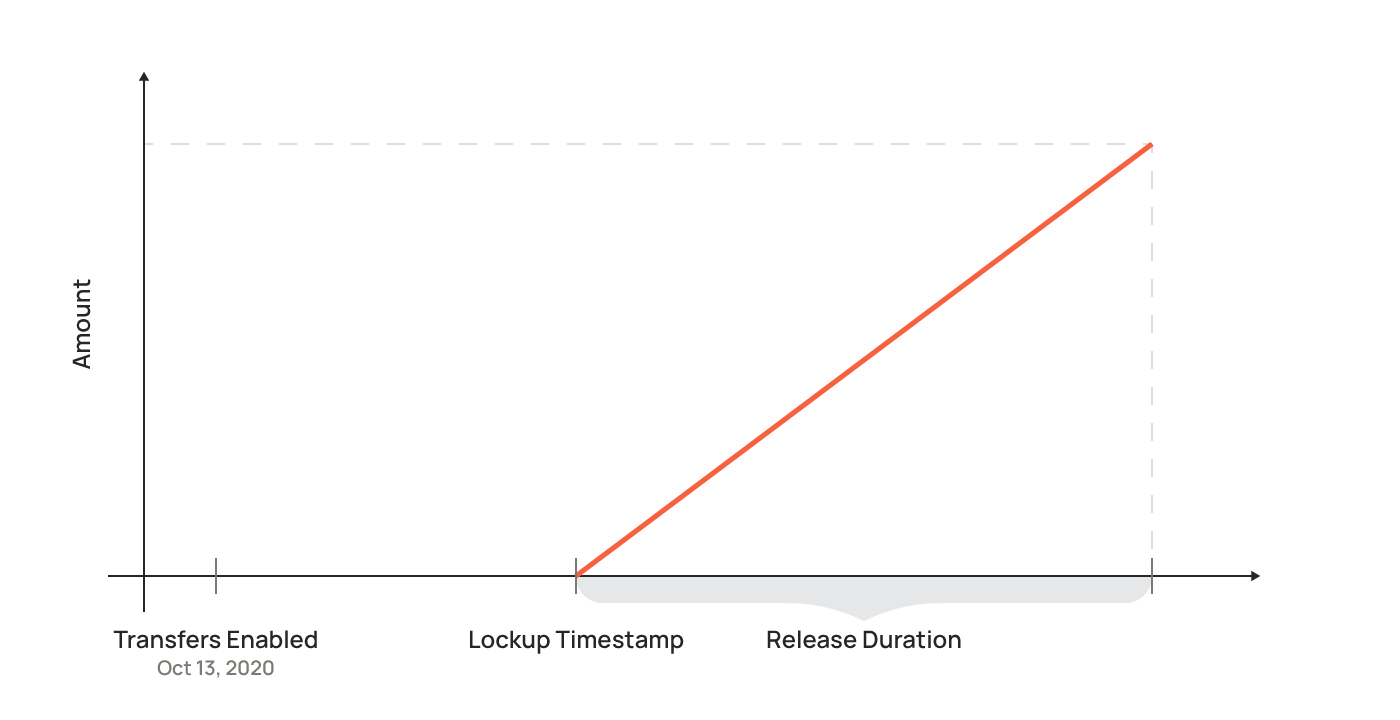
### Smart contract[](https://docs.neartreasury.com/help/lockups#smart-contract "Direct link to Smart contract")
A Lockup is a special smart contract that ensures that the full, or the partial amount of tokens is not transferable until it is supposed to be.
The lockups are implemented as a separate smart contract from your main account. The lockup contract is deployed on a separate account using the hash of the user account as the `account-id`. This means that a user account (e.g., `myusername.near`) can only have one lockup at a time.
tip
Have a look at the [Lockup page](https://github.com/near/core-contracts/tree/master/lockup)
in the NEAR GitHub repository for a deeper dive into Lockups.
### Cliffs[](https://docs.neartreasury.com/help/lockups#cliffs "Direct link to Cliffs")
Another factor in lockups is the **cliff**, which means that no tokens are unlocked until that date (often 12 months after the lockup start).
On that date, a large chunk of tokens is unlocked at once to make it as if the cliff never existed at all.
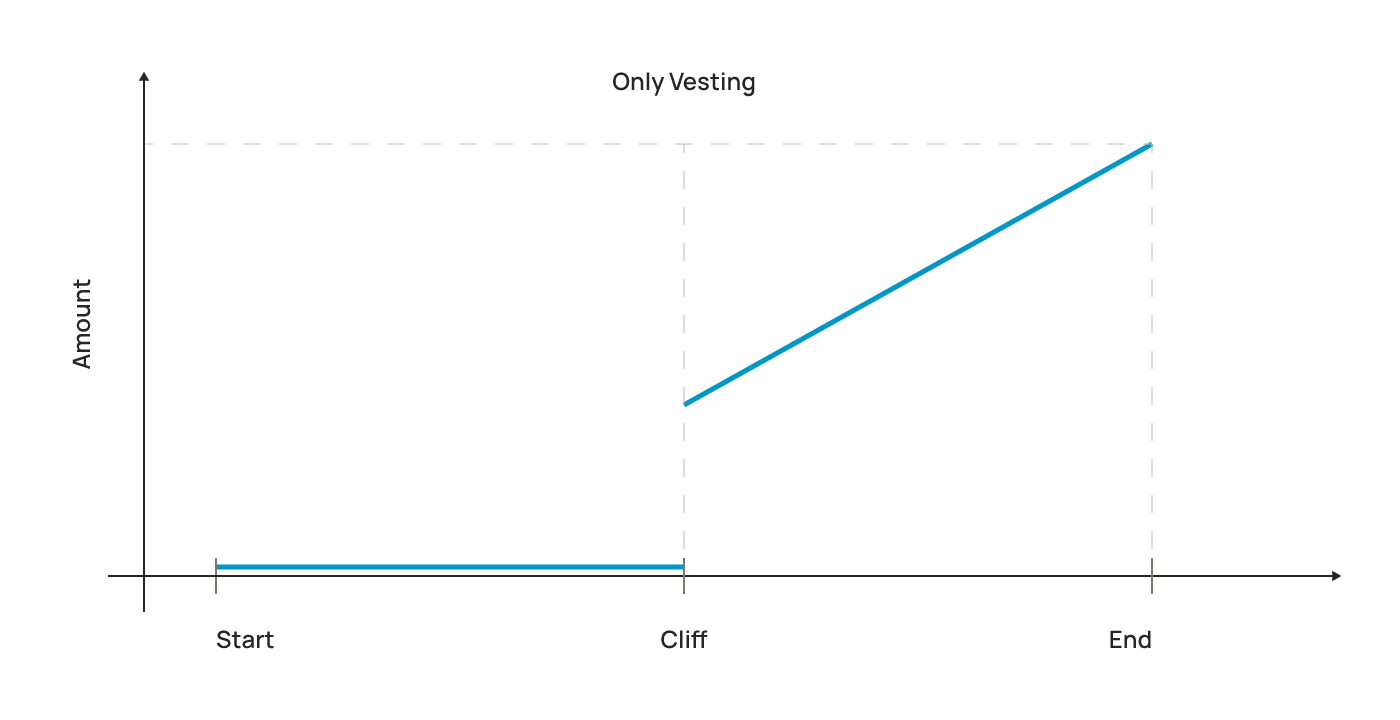
#### Example[](https://docs.neartreasury.com/help/lockups#example "Direct link to Example")
For example, a 4-year linear lockup with a 1-year cliff will have the following characteristics:
1. Months 0-12: all tokens are locked
2. Month 12+1 block: the first 25% of the tokens are immediately unlocked
3. Months 13-48: the remaining 75% of tokens are unlocked smoothly over each block of the remaining 36 months.
4. Months 48+: all tokens are unlocked
info
See how NEAR tokens have been distributed and what lockups generally apply in [this post](https://near.org/blog/near-token-supply-and-distribution/)
.
### Vesting[](https://docs.neartreasury.com/help/lockups#vesting "Direct link to Vesting")
Vesting is an additional mechanism. It also locks the tokens, and it allows to configure 2 more options:
* Ability to terminate tokens vesting and refund non-vested tokens back.
* Cliff vesting period.
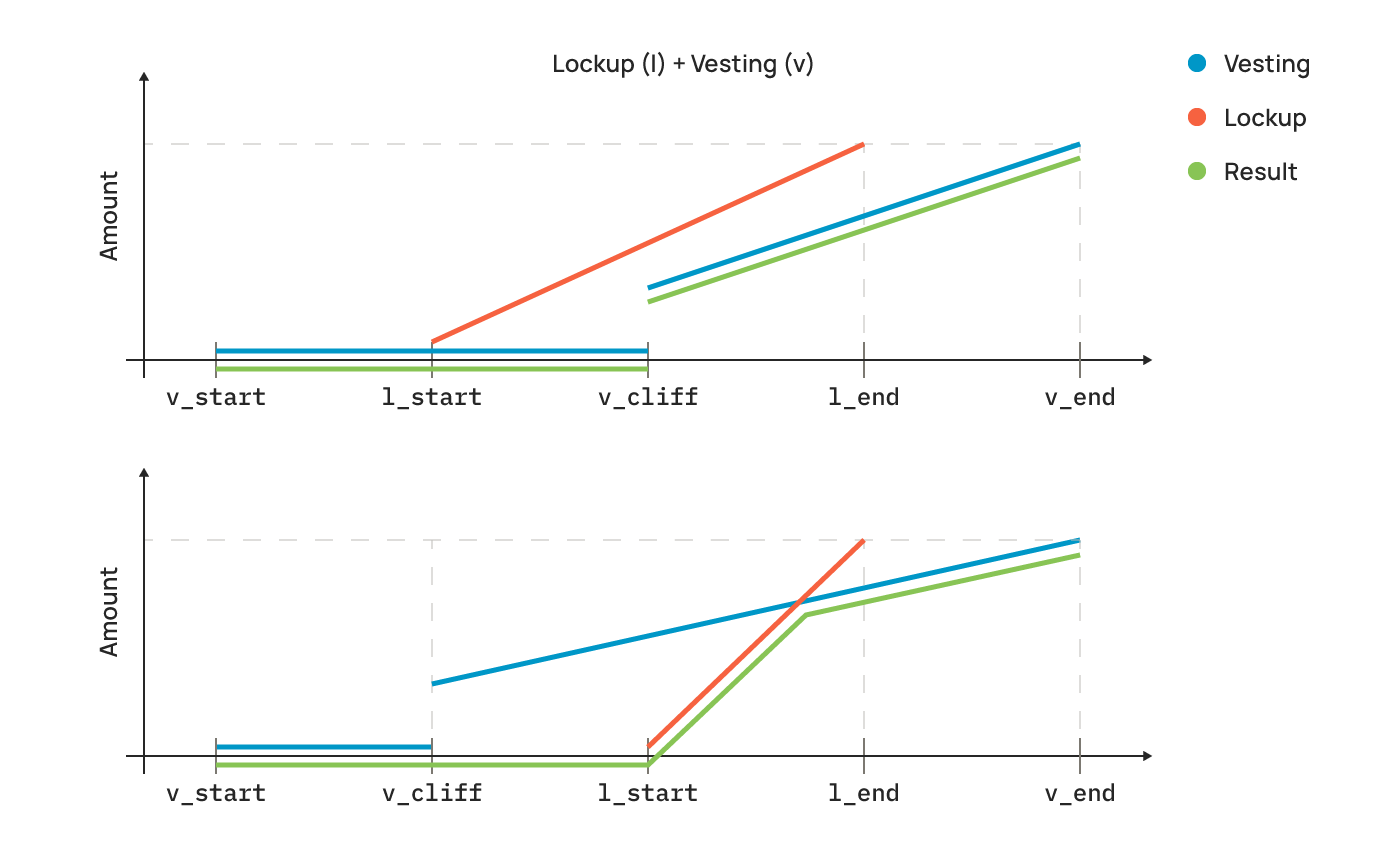
### Vesting Termination[](https://docs.neartreasury.com/help/lockups#vesting-termination "Direct link to Vesting Termination")
Vesting can be terminated by the same account that created the lockup. It's important to understand how the termination works combining with the lockup schedule.
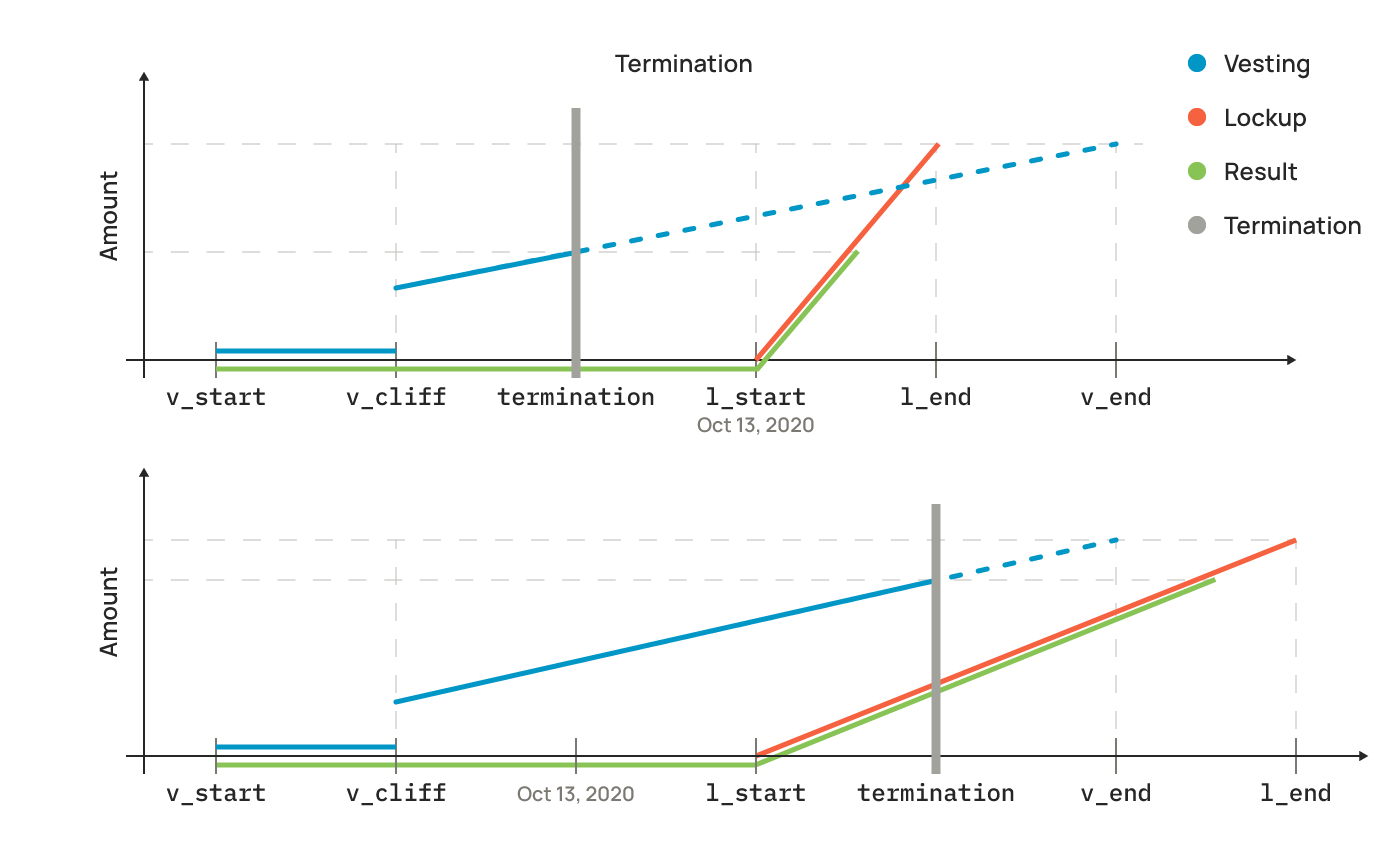
At the moment of termination, we stop the vesting process, so the vested amount is going to remain constant after that; the lockup process keeps going and will unlock the tokens on its schedule. We continue to unlock the tokens by getting the minimum between unlocked and vested amounts.
Delegating Locked Tokens[](https://docs.neartreasury.com/help/lockups#delegating-locked-tokens "Direct link to Delegating Locked Tokens")
-------------------------------------------------------------------------------------------------------------------------------------------
One of the unique features of the NEAR lockups is the ability to delegate tokens while they are still locked.
There are a few things you need to know:
1. You can only delegate to whitelisted pools, right now it's all the pools that end with `.poolv1.near`.
2. A Lockup contract can delegate to one pool at a time. If you want to delegate to another pool, you must withdraw all, and then delegate to a different pool.
3. The account must keep a minimum balance of `3.5 $NEAR` to cover storage for the lockup contract itself (transactions that will try to withdraw over that amount will just fail).
4. Delegation rewards can be withdrawn back to the lockup contract but are unlocked, so they can be withdrawn from it right away.
* [Lockup Basics](https://docs.neartreasury.com/help/lockups#lockup-basics)
* [Smart contract](https://docs.neartreasury.com/help/lockups#smart-contract)
* [Cliffs](https://docs.neartreasury.com/help/lockups#cliffs)
* [Vesting](https://docs.neartreasury.com/help/lockups#vesting)
* [Vesting Termination](https://docs.neartreasury.com/help/lockups#vesting-termination)
* [Delegating Locked Tokens](https://docs.neartreasury.com/help/lockups#delegating-locked-tokens)
---
# Payments | NEAR Treasury Docs
[Skip to main content](https://docs.neartreasury.com/payments/manage-payments#__docusaurus_skipToContent_fallback)
On this page
Overview[](https://docs.neartreasury.com/payments/manage-payments#overview "Direct link to Overview")
-------------------------------------------------------------------------------------------------------
This section covers the core features for managing your treasury's funds.
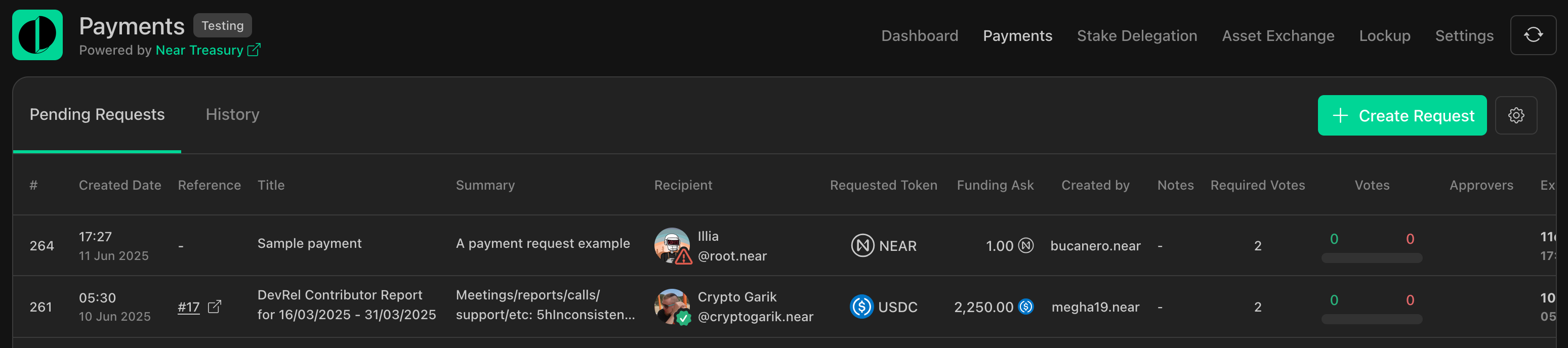
**Available actions:**
* [Creating Payment Requests](https://docs.neartreasury.com/payments/manage-payments#creating-payment-requests)
* [Approving or Rejecting Payment Requests](https://docs.neartreasury.com/payments/manage-payments#approving-or-rejecting-payment-requests)
* [Filtering Payment Requests](https://docs.neartreasury.com/payments/manage-payments#filtering-payment-requests)
* [Searching Payment Requests](https://docs.neartreasury.com/payments/manage-payments#searching-payment-requests)
* [Viewing Payment Details](https://docs.neartreasury.com/payments/manage-payments#viewing-payment-details)
* [Exporting Payment Transactions](https://docs.neartreasury.com/payments/manage-payments#exporting-payment-transactions)
* * *
Creating Payment Requests[](https://docs.neartreasury.com/payments/manage-payments#creating-payment-requests "Direct link to Creating Payment Requests")
----------------------------------------------------------------------------------------------------------------------------------------------------------
To create a new payment request:
1. Navigate to the **`Payments`** section.
2. Click the **`Create Request`** button.
3. Select the **`SputnikDAO`** Treasury Wallet.
4. Fill in the required details, such as the recipient's wallet address, the amount to send, and any relevant notes.
5. Submit the request for approval.
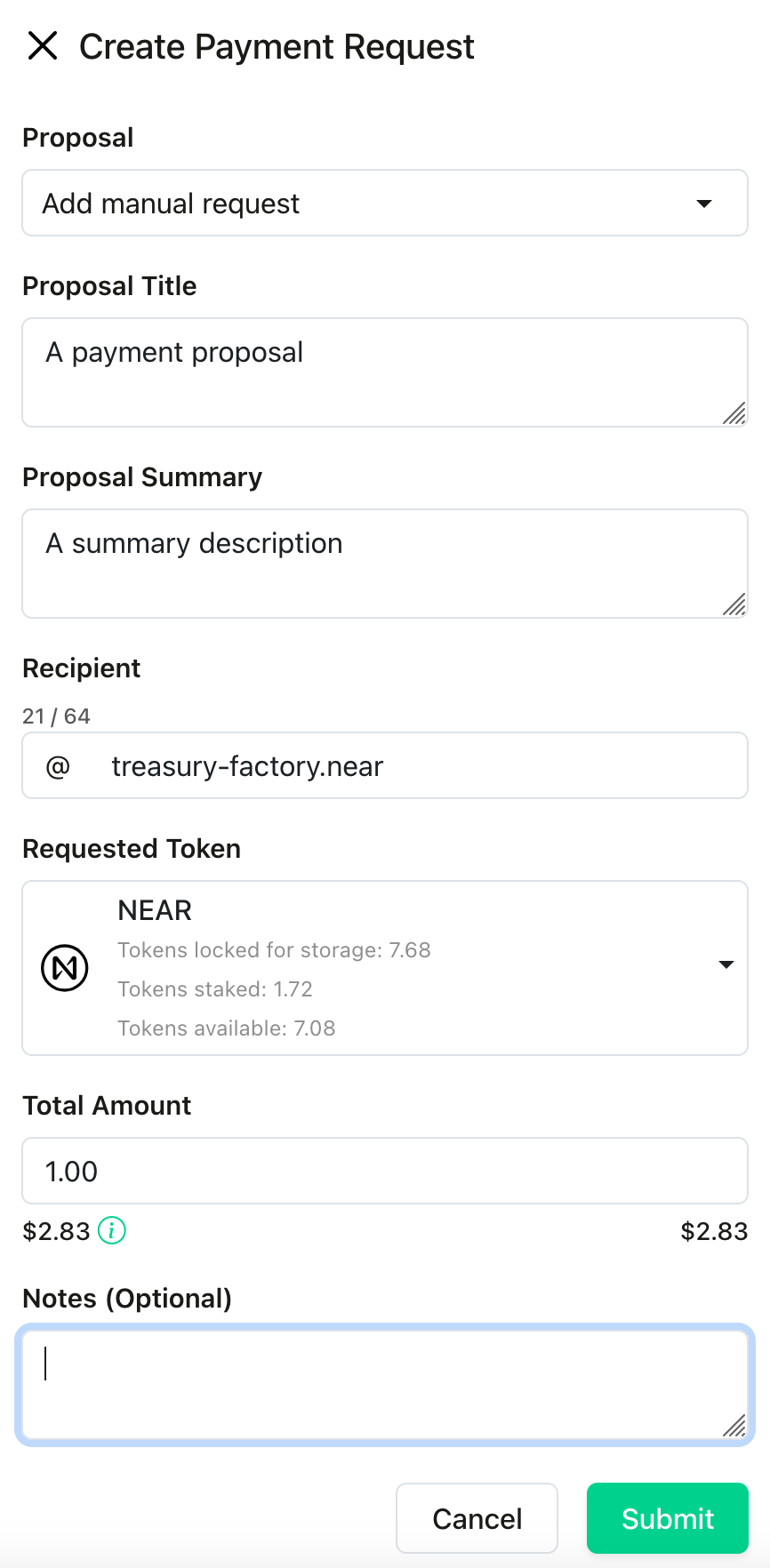
Approving or Rejecting Payment Requests[](https://docs.neartreasury.com/payments/manage-payments#approving-or-rejecting-payment-requests "Direct link to Approving or Rejecting Payment Requests")
----------------------------------------------------------------------------------------------------------------------------------------------------------------------------------------------------
Payment requests require approval from authorized team members. To review and vote on pending requests:
1. Navigate to the **`Payments`** section.
2. View the list of pending requests.
* _(Optional)_ [Apply filters](https://docs.neartreasury.com/payments/manage-payments#filtering-payment-requests)
to find the desired payments.
3. Review the details of each request.
4. Cast your vote to approve or reject the request.

tip
You can sort payment requests by date by clicking on `Created Date`. (Ascending or descending order)
Filtering Payment Requests[](https://docs.neartreasury.com/payments/manage-payments#filtering-payment-requests "Direct link to Filtering Payment Requests")
-------------------------------------------------------------------------------------------------------------------------------------------------------------
You can easily filter payment requests to find specific payments.
Available filters
* `Creation Date`, `Status`, `Recipient`, `Token`, `Created by`, `Approver`, `My Vote status`
To filter payment requests:
1. Navigate to the **`Payments`** section.
2. Click on the **`Filter`** icon.

3. Select the filter that you want to add.
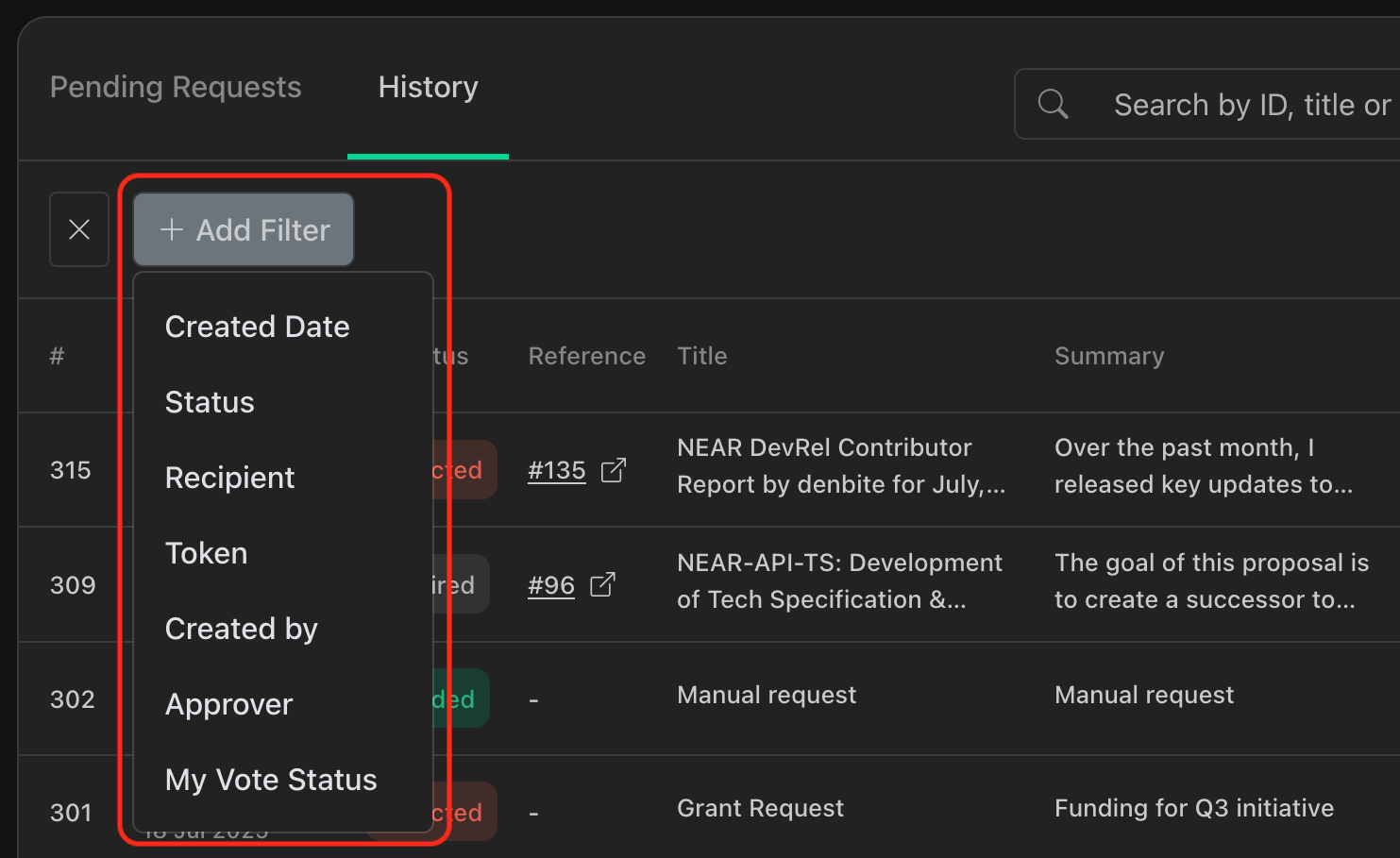
4. Add filters as needed.
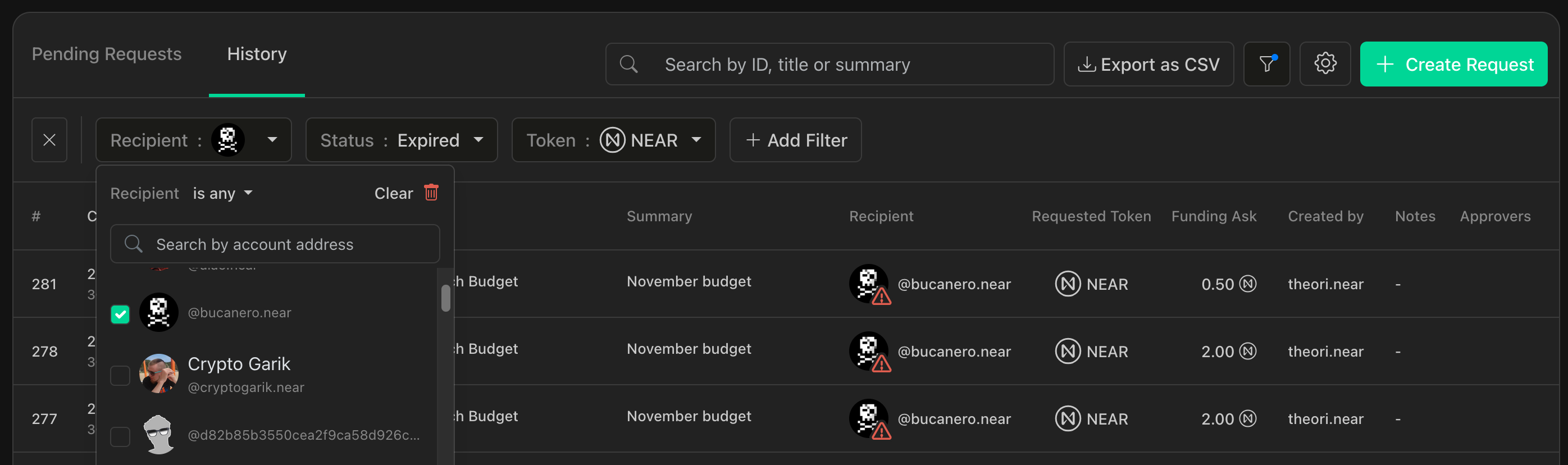
5. _(Optional)_ Export filtered results as CSV.
* Select **`Filtered Requests Only`** to export records to a `.csv` file.

Searching Payment Requests[](https://docs.neartreasury.com/payments/manage-payments#searching-payment-requests "Direct link to Searching Payment Requests")
-------------------------------------------------------------------------------------------------------------------------------------------------------------
You can search for keywords on your payment requests to find specific payments.
Available search fields
* Search by `ID`, `Title`, `Summary`
To search and find payment requests:
1. Navigate to the **`Payments`** section.
2. Click on the **`Search`** text box.

3. Type the words that you want to search.

4. _(Optional)_ Export results as CSV.
* Select **`Filtered Requests Only`** to export records to a `.csv` file.

Viewing Payment Details[](https://docs.neartreasury.com/payments/manage-payments#viewing-payment-details "Direct link to Viewing Payment Details")
----------------------------------------------------------------------------------------------------------------------------------------------------
You can view payment details by clicking on any item under the **`Pending Requests`** or **`History`** list.
tip
When opening the detail window, you can also copy a direct link to the payment detail page.
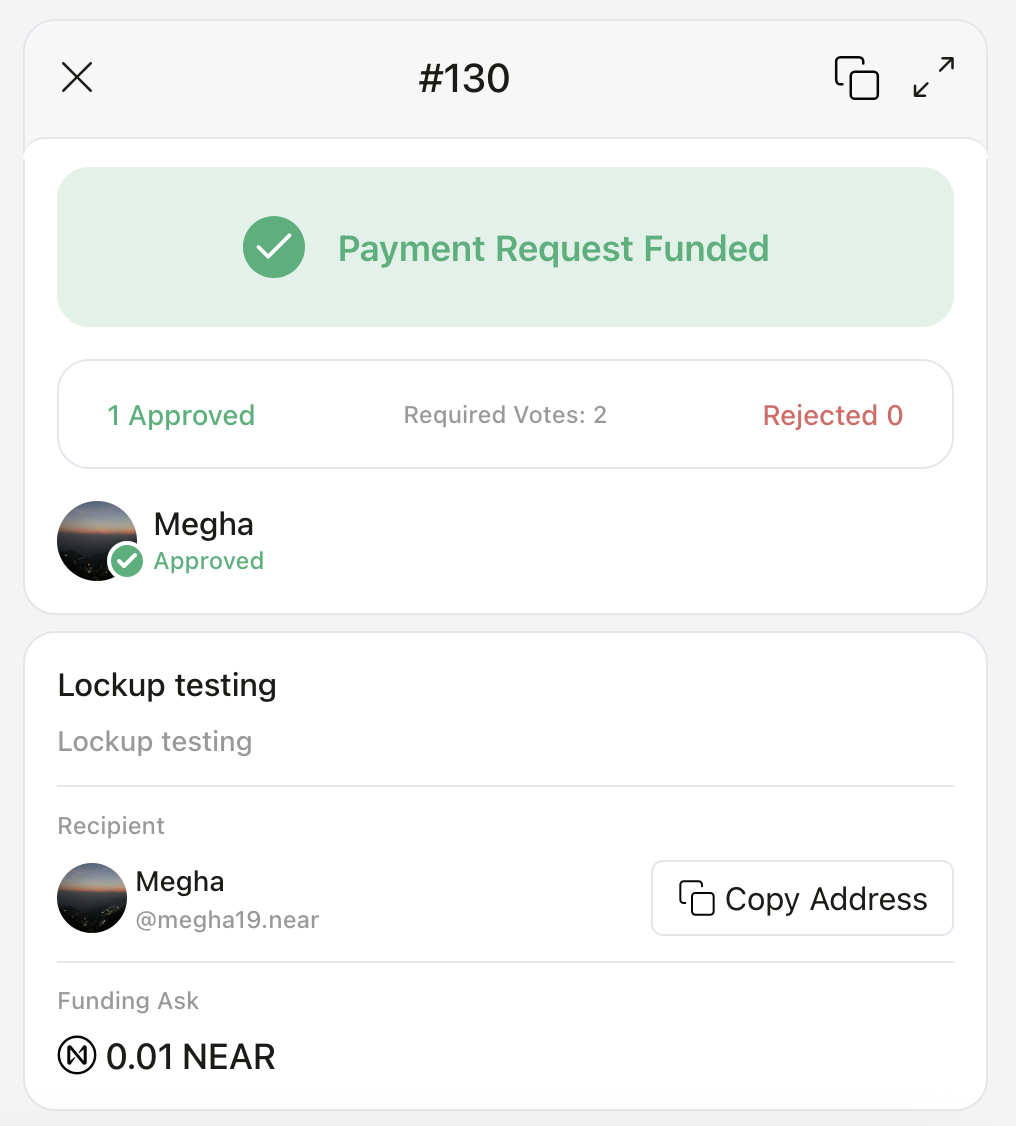
Exporting Payment Transactions[](https://docs.neartreasury.com/payments/manage-payments#exporting-payment-transactions "Direct link to Exporting Payment Transactions")
-------------------------------------------------------------------------------------------------------------------------------------------------------------------------
To export payment transaction records to a `.csv` file:
1. Navigate to the **`Payments`** section.
2. Switch to the **`History`** tab.
* _(Optional)_ [Apply filters](https://docs.neartreasury.com/payments/manage-payments#filtering-payment-requests)
to find the payments you want to export.
3. Click the **`Export as CSV`** button.
* _(Optional)_ Select **`Filtered Requests Only`** when applying filters.

* [Overview](https://docs.neartreasury.com/payments/manage-payments#overview)
* [Creating Payment Requests](https://docs.neartreasury.com/payments/manage-payments#creating-payment-requests)
* [Approving or Rejecting Payment Requests](https://docs.neartreasury.com/payments/manage-payments#approving-or-rejecting-payment-requests)
* [Filtering Payment Requests](https://docs.neartreasury.com/payments/manage-payments#filtering-payment-requests)
* [Searching Payment Requests](https://docs.neartreasury.com/payments/manage-payments#searching-payment-requests)
* [Viewing Payment Details](https://docs.neartreasury.com/payments/manage-payments#viewing-payment-details)
* [Exporting Payment Transactions](https://docs.neartreasury.com/payments/manage-payments#exporting-payment-transactions)
---