# Table of Contents
- [C# and .NET basics - cTrader Algo](#c-and-net-basics-ctrader-algo)
- [cTrader Help Center](#ctrader-help-center)
- [Parameter types - cTrader Algo](#parameter-types-ctrader-algo)
- [Introduction - cTrader Algo](#introduction-ctrader-algo)
- [Introduction - cTrader Algo](#introduction-ctrader-algo)
- [Redirecting...](#redirecting-)
- [Redirecting...](#redirecting-)
- [Redirecting...](#redirecting-)
- [cTrader Troubleshooting](#ctrader-troubleshooting)
- [Introduction - Partner tools](#introduction-partner-tools)
- [FAQ - cTrader Copy](#faq-ctrader-copy)
- [Introduction - cTrader Copy](#introduction-ctrader-copy)
- [Shared Access - cTrader Mobile (iOS)](#shared-access-ctrader-mobile-ios-)
- [cTrader Mobile (iOS)](#ctrader-mobile-ios-)
- [cTrader Analyze](#ctrader-analyze)
- [Fees calculation - cTrader Copy](#fees-calculation-ctrader-copy)
- [Share an algorithm - cTrader Algo](#share-an-algorithm-ctrader-algo)
- [Introduction - cTrader Algo](#introduction-ctrader-algo)
- [Start, stop and delete an instance - cTrader Algo](#start-stop-and-delete-an-instance-ctrader-algo)
- [Manage instance parameters - cTrader Algo](#manage-instance-parameters-ctrader-algo)
- [For money managers - Partner tools](#for-money-managers-partner-tools)
- [Chart Trading - cTrader Windows](#chart-trading-ctrader-windows)
- [Market Replay - cTrader Windows](#market-replay-ctrader-windows)
- [Introduction - cTrader Algo](#introduction-ctrader-algo)
- [FAQ - cTrader Algo](#faq-ctrader-algo)
- [Requirements for cBots - cTrader Algo](#requirements-for-cbots-ctrader-algo)
- [Manage Cloud instance parameters - cTrader Algo](#manage-cloud-instance-parameters-ctrader-algo)
- [Customise an algorithm - cTrader Algo](#customise-an-algorithm-ctrader-algo)
- [Share an algorithm - cTrader Algo](#share-an-algorithm-ctrader-algo)
- [FAQ - cTrader Algo](#faq-ctrader-algo)
- [For networkers and affiliates - Partner tools](#for-networkers-and-affiliates-partner-tools)
- [Customise an algorithm - cTrader Algo](#customise-an-algorithm-ctrader-algo)
- [Signal Links - cTrader Mobile (iOS)](#signal-links-ctrader-mobile-ios-)
- [Manage synchronisation settings - cTrader Algo](#manage-synchronisation-settings-ctrader-algo)
- [Become a strategy provider - cTrader Copy](#become-a-strategy-provider-ctrader-copy)
- [Invest in strategies - cTrader Copy](#invest-in-strategies-ctrader-copy)
- [Introduction - cTrader Bonuses](#introduction-ctrader-bonuses)
- [For educators - Partner tools](#for-educators-partner-tools)
- [Orders - cTrader Windows](#orders-ctrader-windows)
- [Create a plugin - cTrader Algo](#create-a-plugin-ctrader-algo)
- [Chart Streams - cTrader Web](#chart-streams-ctrader-web)
- [Introduction - cTrader Web](#introduction-ctrader-web)
- [Introduction - cTrader Web](#introduction-ctrader-web)
- [For social traders - Partner tools](#for-social-traders-partner-tools)
- [Introduction - cTrader Windows](#introduction-ctrader-windows)
- [Trading with cTrader](#trading-with-ctrader)
- [cTrader Mobile (Android)](#ctrader-mobile-android-)
- [Knowledge base](#knowledge-base)
- [cTrader Video Library](#ctrader-video-library)
- [Access rights - cTrader Algo](#access-rights-ctrader-algo)
- [File operations - cTrader Algo](#file-operations-ctrader-algo)
- [Algo registry - cTrader Algo](#algo-registry-ctrader-algo)
- [Parameter types - cTrader Algo](#parameter-types-ctrader-algo)
- [Price Alerts - cTrader Web](#price-alerts-ctrader-web)
- [Symbol sentiment - cTrader Algo](#symbol-sentiment-ctrader-algo)
- [Custom symbols - cTrader Algo](#custom-symbols-ctrader-algo)
- [Custom time frames - cTrader Algo](#custom-time-frames-ctrader-algo)
- [Custom notifications - cTrader Algo](#custom-notifications-ctrader-algo)
- [Chartshot method - cTrader Algo](#chartshot-method-ctrader-algo)
- [Network access - cTrader Algo](#network-access-ctrader-algo)
- [Sleep functionality - cTrader Algo](#sleep-functionality-ctrader-algo)
- [Changelog - cTrader Algo](#changelog-ctrader-algo)
- [Messages and subscriptions - cTrader Algo](#messages-and-subscriptions-ctrader-algo)
- [Genetic Algorithm - cTrader Algo](#genetic-algorithm-ctrader-algo)
- [Currency converter - cTrader Algo](#currency-converter-ctrader-algo)
- [Margin estimations - cTrader Algo](#margin-estimations-ctrader-algo)
- [Local storage - cTrader Algo](#local-storage-ctrader-algo)
- [Price alerts - cTrader Algo](#price-alerts-ctrader-algo)
- [Installation - cTrader Mobile (iOS)](#installation-ctrader-mobile-ios-)
- [Trading sessions - cTrader Algo](#trading-sessions-ctrader-algo)
- [Manage chart indicators - cTrader Algo](#manage-chart-indicators-ctrader-algo)
- [Advanced operations with cBots - cTrader Algo](#advanced-operations-with-cbots-ctrader-algo)
- [Orders - cTrader Mobile (iOS)](#orders-ctrader-mobile-ios-)
- [Partner - cTrader Invite](#partner-ctrader-invite)
- [Settings - cTrader Invite](#settings-ctrader-invite)
- [Invited traders - cTrader Invite](#invited-traders-ctrader-invite)
- [Range Bars - cTrader Web](#range-bars-ctrader-web)
- [cTrader FIX API](#ctrader-fix-api)
- [FAQ - cTrader Invite](#faq-ctrader-invite)
- [Risk-Reward - cTrader Web](#risk-reward-ctrader-web)
- [Invite link - cTrader Invite](#invite-link-ctrader-invite)
- [Introduction - cTrader ID](#introduction-ctrader-id)
- [Create a new cTID - cTrader ID](#create-a-new-ctid-ctrader-id)
- [Introduction - cTrader Mac](#introduction-ctrader-mac)
- [Introduction - cTrader deeplinks](#introduction-ctrader-deeplinks)
- [Market Watch - cTrader Windows](#market-watch-ctrader-windows)
- [Buy a product - cTrader Store](#buy-a-product-ctrader-store)
- [Getting Started - Open API](#getting-started-open-api)
- [cTrader Help Center](#ctrader-help-center)
- [Profile - cTrader ID](#profile-ctrader-id)
- [Managing cTID - cTrader ID](#managing-ctid-ctrader-id)
- [Sign in - cTrader Store](#sign-in-ctrader-store)
- [cTID credentials - cTrader ID](#ctid-credentials-ctrader-id)
- [UI operations - cTrader Algo](#ui-operations-ctrader-algo)
- [Introduction - WebView Plugins](#introduction-webview-plugins)
- [Introduction - cTrader Store](#introduction-ctrader-store)
- [Become a seller - cTrader Store](#become-a-seller-ctrader-store)
- [Use a product - cTrader Store](#use-a-product-ctrader-store)
- [Commands in plugins - cTrader Algo](#commands-in-plugins-ctrader-algo)
- [Market Sentiment - cTrader Web](#market-sentiment-ctrader-web)
- [TextBox - cTrader Algo](#textbox-ctrader-algo)
- [TextChangedEventArgs - cTrader Algo](#textchangedeventargs-ctrader-algo)
- [Tick - cTrader Algo](#tick-ctrader-algo)
- [Ticks - cTrader Algo](#ticks-ctrader-algo)
- [TimeFrames - cTrader Algo](#timeframes-ctrader-algo)
- [TextTrimming - cTrader Algo](#texttrimming-ctrader-algo)
- [TextWrapping - cTrader Algo](#textwrapping-ctrader-algo)
- [Thickness - cTrader Algo](#thickness-ctrader-algo)
- [TimeFrameManager - cTrader Algo](#timeframemanager-ctrader-algo)
- [Timer - cTrader Algo](#timer-ctrader-algo)
- [TimeFrame - cTrader Algo](#timeframe-ctrader-algo)
- [TotalMarginCalculationType - cTrader Algo](#totalmargincalculationtype-ctrader-algo)
- [TimeZones - cTrader Algo](#timezones-ctrader-algo)
- [TimeSeries - cTrader Algo](#timeseries-ctrader-algo)
- [TickVolume - cTrader Algo](#tickvolume-ctrader-algo)
- [TradeWatch - cTrader Algo](#tradewatch-ctrader-algo)
- [TradeType - cTrader Algo](#tradetype-ctrader-algo)
- [TradeOperation - cTrader Algo](#tradeoperation-ctrader-algo)
- [TradeResult - cTrader Algo](#traderesult-ctrader-algo)
- [TradeWatchTab - cTrader Algo](#tradewatchtab-ctrader-algo)
- [TradingPermission - cTrader Algo](#tradingpermission-ctrader-algo)
- [Transactions - cTrader Algo](#transactions-ctrader-algo)
- [Transaction - cTrader Algo](#transaction-ctrader-algo)
- [TransactionType - cTrader Algo](#transactiontype-ctrader-algo)
- [UserTimeOffsetChangedEventArgs - cTrader Algo](#usertimeoffsetchangedeventargs-ctrader-algo)
- [TradingHoliday - cTrader Algo](#tradingholiday-ctrader-algo)
- [TicksHistoryLoadedEventArgs - cTrader Algo](#tickshistoryloadedeventargs-ctrader-algo)
- [ToggleButton - cTrader Algo](#togglebutton-ctrader-algo)
- [TradingSession - cTrader Algo](#tradingsession-ctrader-algo)
- [TicksTickEventArgs - cTrader Algo](#tickstickeventargs-ctrader-algo)
- [TimeFramesRemovedEventArgs - cTrader Algo](#timeframesremovedeventargs-ctrader-algo)
- [TimeFramesAddedEventArgs - cTrader Algo](#timeframesaddedeventargs-ctrader-algo)
- [TimeSeriesMovingAverage - cTrader Algo](#timeseriesmovingaverage-ctrader-algo)
- [TradeVolumeIndex - cTrader Algo](#tradevolumeindex-ctrader-algo)
- [TypicalPrice - cTrader Algo](#typicalprice-ctrader-algo)
- [TripleExponentialMovingAverage - cTrader Algo](#tripleexponentialmovingaverage-ctrader-algo)
- [TriangularMovingAverage - cTrader Algo](#triangularmovingaverage-ctrader-algo)
- [TrueRange - cTrader Algo](#truerange-ctrader-algo)
- [Trix - cTrader Algo](#trix-ctrader-algo)
- [VariableIndexDynamicAverage - cTrader Algo](#variableindexdynamicaverage-ctrader-algo)
- [UltimateOscillator - cTrader Algo](#ultimateoscillator-ctrader-algo)
- [TradeWatchIsVisibleChangedEventArgs - cTrader Algo](#tradewatchisvisiblechangedeventargs-ctrader-algo)
- [TradeWatchSizeChangedEventArgs - cTrader Algo](#tradewatchsizechangedeventargs-ctrader-algo)
- [ToggleButtonEventArgs - cTrader Algo](#togglebuttoneventargs-ctrader-algo)
- [TradeWatchTabSizeChangedEventArgs - cTrader Algo](#tradewatchtabsizechangedeventargs-ctrader-algo)
- [TradeWatchTabDetachedEventArgs - cTrader Algo](#tradewatchtabdetachedeventargs-ctrader-algo)
- [TradeWatchTabIsSelectedChangedEventArgs - cTrader Algo](#tradewatchtabisselectedchangedeventargs-ctrader-algo)
- [TradeWatchTabAttachedEventArgs - cTrader Algo](#tradewatchtabattachedeventargs-ctrader-algo)
- [VerticalAlignment - cTrader Algo](#verticalalignment-ctrader-algo)
- [Proxies/Endpoints - Open API](#proxies-endpoints-open-api)
- [Soalan Lazim - cTrader ID](#soalan-lazim-ctrader-id)
- [Bahasa - cTrader ID](#bahasa-ctrader-id)
- [ภาษา - cTrader ID](#-ctrader-id)
- [Establishing a Connection - Open API](#establishing-a-connection-open-api)
- [จัดการผลิตภัณฑ์ - cTrader สโตร์](#-ctrader-)
- [การสร้าง cTID โดยโบรกเกอร์ - cTrader ID](#-ctid-ctrader-id)
- [Redirecting...](#redirecting-)
- [How to draw Fibonacci retracements - cTrader Algo](#how-to-draw-fibonacci-retracements-ctrader-algo)
- [Sending/Receiving Protobuf Messages - Open API](#sending-receiving-protobuf-messages-open-api)
- [Attaining Symbol Data - Open API](#attaining-symbol-data-open-api)
- [How to use a canvas - cTrader Algo](#how-to-use-a-canvas-ctrader-algo)
- [Symbol Rate Conversion - Open API](#symbol-rate-conversion-open-api)
- [الجلسات - cTrader ID](#-ctrader-id)
- [Range bar strategies in cTrader - cTrader Algo](#range-bar-strategies-in-ctrader-ctrader-algo)
- [User Time Offset - cTrader Mac](#user-time-offset-ctrader-mac)
- [Sesi - cTrader ID](#sesi-ctrader-id)
- [Phiên - cTrader ID](#phi-n-ctrader-id)
- [Working with styles - cTrader Algo](#working-with-styles-ctrader-algo)
- [Menghapus cTID - cTrader ID](#menghapus-ctid-ctrader-id)
- [How to work with WebSockets in cTrader Algo - cTrader Algo](#how-to-work-with-websockets-in-ctrader-algo-ctrader-algo)
- [Cuentas - cTrader ID](#cuentas-ctrader-id)
- [Eliminación de un cTID - cTrader ID](#eliminaci-n-de-un-ctid-ctrader-id)
- [Xóa cTID - cTrader ID](#x-a-ctid-ctrader-id)
- [Renko strategies in cTrader - cTrader Algo](#renko-strategies-in-ctrader-ctrader-algo)
- [Sesiones - cTrader ID](#sesiones-ctrader-id)
- [Calculating Profit/Loss - Open API](#calculating-profit-loss-open-api)
- [Thông báo - cTrader ID](#th-ng-b-o-ctrader-id)
- [الإشعارات - cTrader ID](#-ctrader-id)
- [Notifikasi - cTrader ID](#notifikasi-ctrader-id)
- [Notificaciones - cTrader ID](#notificaciones-ctrader-id)
- [Help Centre - cTrader Mac](#help-centre-ctrader-mac)
- [الحسابات - cTrader ID](#-ctrader-id)
- [Akun - cTrader ID](#akun-ctrader-id)
- [How to manage cBots and indicators using algos - cTrader Algo](#how-to-manage-cbots-and-indicators-using-algos-ctrader-algo)
- [Hotkeys - cTrader Mac](#hotkeys-ctrader-mac)
- [Tài khoản - cTrader ID](#t-i-kho-n-ctrader-id)
- [Working with files - cTrader Algo](#working-with-files-ctrader-algo)
- [Installing Algos - cTrader Mac](#installing-algos-ctrader-mac)
- [Preguntas frecuentes - cTrader ID](#preguntas-frecuentes-ctrader-id)
- [الأسئلة الشائعة - cTrader ID](#-ctrader-id)
- [Pertanyaan umum - cTrader ID](#pertanyaan-umum-ctrader-id)
- [Network access in cTrader - cTrader Algo](#network-access-in-ctrader-ctrader-algo)
- [คำถามที่พบบ่อย - cTrader ID](#-ctrader-id)
- [Bahasa - cTrader ID](#bahasa-ctrader-id)
- [اللغة - cTrader ID](#-ctrader-id)
- [حذف cTID - cTrader ID](#-ctid-ctrader-id)
- [FAQ - cTrader ID](#faq-ctrader-id)
- [Ngôn ngữ - cTrader ID](#ng-n-ng-ctrader-id)
- [Penciptaan cTID oleh broker - cTrader ID](#penciptaan-ctid-oleh-broker-ctrader-id)
- [ลบ cTID - cTrader ID](#-ctid-ctrader-id)
- [Padam cTID - cTrader ID](#padam-ctid-ctrader-id)
- [Creating and Adding Indicators - cTrader Mac](#creating-and-adding-indicators-ctrader-mac)
- [Tạo cTID bởi nhà môi giới - cTrader ID](#t-o-ctid-b-i-nh-m-i-gi-i-ctrader-id)
- [Creación del cTID por parte de un bróker - cTrader ID](#creaci-n-del-ctid-por-parte-de-un-br-ker-ctrader-id)
- [Criar um cTID através de um corretor - cTrader ID](#criar-um-ctid-atrav-s-de-um-corretor-ctrader-id)
- [Membuat cTID melalui broker - cTrader ID](#membuat-ctid-melalui-broker-ctrader-id)
- [إنشاء cTID عن طريق وسيط - cTrader ID](#-ctid-ctrader-id)
- [Restablecimiento de contraseña - cTrader ID](#restablecimiento-de-contrase-a-ctrader-id)
- [Pemberitahuan - cTrader ID](#pemberitahuan-ctrader-id)
- [Idioma - cTrader ID](#idioma-ctrader-id)
- [การแจ้งเตือน - cTrader ID](#-ctrader-id)
- [Sesi - cTrader ID](#sesi-ctrader-id)
- [เซสชัน - cTrader ID](#-ctrader-id)
- [How to create custom window plugins - cTrader Algo](#how-to-create-custom-window-plugins-ctrader-algo)
- [Câu hỏi thường gặp - cTrader ID](#c-u-h-i-th-ng-g-p-ctrader-id)
- [Sending/Receiving JSON - Open API](#sending-receiving-json-open-api)
- [How to draw Andrews' Pitchfork - cTrader Algo](#how-to-draw-andrews-pitchfork-ctrader-algo)
- [Tutorials and References - cTrader Mac](#tutorials-and-references-ctrader-mac)
- [Đặt lại mật khẩu - cTrader ID](#-t-l-i-m-t-kh-u-ctrader-id)
- [Mengatur ulang kata sandi - cTrader ID](#mengatur-ulang-kata-sandi-ctrader-id)
- [إعادة تعيين كلمة المرور - cTrader ID](#-ctrader-id)
- [How to work with local storage - cTrader Algo](#how-to-work-with-local-storage-ctrader-algo)
- [ดีพลิงก์ข้ามแพลตฟอร์ม - ดีปลิงก์ cTrader](#-ctrader)
- [Urus produk - cTrader Store](#urus-produk-ctrader-store)
- [Creating and Running cBots - cTrader Mac](#creating-and-running-cbots-ctrader-mac)
- [Mengatur produk - Toko cTrader](#mengatur-produk-toko-ctrader)
- [Administrar productos - cTrader Store](#administrar-productos-ctrader-store)
- [Menetapkan semula kata laluan - cTrader ID](#menetapkan-semula-kata-laluan-ctrader-id)
- [บัญชี - cTrader ID](#-ctrader-id)
- [Akaun - cTrader ID](#akaun-ctrader-id)
- [รีเซ็ตรหัสผ่าน - cTrader ID](#-ctrader-id)
- [Gerir produtos - cTrader Store](#gerir-produtos-ctrader-store)
- [إدارة المنتجات - متجر cTrader](#-ctrader)
- [ตั้งรหัสผ่าน cTID - cTrader ID](#-ctid-ctrader-id)
- [How to reference third-party libraries in cTrader Algo - cTrader Algo](#how-to-reference-third-party-libraries-in-ctrader-algo-ctrader-algo)
- [App and Account Authentication - Open API](#app-and-account-authentication-open-api)
- [Idioma - cTrader ID](#idioma-ctrader-id)
- [Working with custom windows - cTrader Algo](#working-with-custom-windows-ctrader-algo)
- [How to add methods to the cTrader API - cTrader Algo](#how-to-add-methods-to-the-ctrader-api-ctrader-algo)
- [ดีพลิงก์สำหรับมือถือเท่านั้น - ดีปลิงก์ cTrader](#-ctrader)
- [กรณีการใช้งาน - ดีปลิงก์ cTrader](#-ctrader)
- [Parameter rentetan pertanyaan - Plugin WebView](#parameter-rentetan-pertanyaan-plugin-webview)
- [วิธีการทำงานของดีพลิงก์ - ดีปลิงก์ cTrader](#-ctrader)
- [Pautan khusus merentas platform - Deeplink cTrader](#pautan-khusus-merentas-platform-deeplink-ctrader)
- [วงจรชีวิตของปลั๊กอิน WV - ปลั๊กอิน WebView](#-wv-webview)
- [Daftar menggunakan akaun media sosial - cTrader ID](#daftar-menggunakan-akaun-media-sosial-ctrader-id)
- [Pautan khusus yang khusus untuk mudah alih - Deeplink cTrader](#pautan-khusus-yang-khusus-untuk-mudah-alih-deeplink-ctrader)
- [ลงชื่อเข้าใช้ด้วยโซเชียล - cTrader ID](#-ctrader-id)
- [How to use cTrader Algo references and guides - cTrader Algo](#how-to-use-ctrader-algo-references-and-guides-ctrader-algo)
- [Tetapkan kata laluan cTID - cTrader ID](#tetapkan-kata-laluan-ctid-ctrader-id)
- [상품 관리하기 - cTrader 스토어](#-ctrader-)
- [Quản lý sản phẩm - cTrader Store](#qu-n-l-s-n-ph-m-ctrader-store)
- [管理产品 - cTrader 商店](#-ctrader-)
- [คำถามที่พบบ่อย - cTrader สโตร์](#-ctrader-)
- [Kes penggunaan - Deeplink cTrader](#kes-penggunaan-deeplink-ctrader)
- [พารามิเตอร์สตริงค์คิวรี - ปลั๊กอิน WebView](#-webview)
- [Soalan Lazim - cTrader Store](#soalan-lazim-ctrader-store)
- [Cara pautan khusus berfungsi - Deeplink cTrader](#cara-pautan-khusus-berfungsi-deeplink-ctrader)
- [Kitaran hayat plugin WV - Plugin WebView](#kitaran-hayat-plugin-wv-plugin-webview)
- [Soalan Lazim - Plugin WebView](#soalan-lazim-plugin-webview)
- [商品を管理する - cTraderストア](#-ctrader-)
- [Chart Trading - cTrader Mac](#chart-trading-ctrader-mac)
- [Tindakan lain - cTrader Store](#tindakan-lain-ctrader-store)
- [คำถามที่พบบ่อย - ปลั๊กอิน WebView](#-webview)
- [Terbitkan produk - cTrader Store](#terbitkan-produk-ctrader-store)
- [การดำเนินการอื่นๆ - cTrader สโตร์](#-ctrader-)
- [Contas - cTrader ID](#contas-ctrader-id)
- [เผยแพร่ผลิตภัณฑ์ - cTrader สโตร์](#-ctrader-)
- [Sessões - cTrader ID](#sess-es-ctrader-id)
- [Custom - cTrader Algo](#custom-ctrader-algo)
- [Mesej pelayan awam - Plugin WebView](#mesej-pelayan-awam-plugin-webview)
- [ข้อความสาธารณะของเซิร์ฟเวอร์ - ปลั๊กอิน WebView](#-webview)
- [Menambah plugin WV - Plugin WebView](#menambah-plugin-wv-plugin-webview)
- [Notificações - cTrader ID](#notifica-es-ctrader-id)
- [Eliminar um cTID - cTrader ID](#eliminar-um-ctid-ctrader-id)
- [Repor palavra-passe - cTrader ID](#repor-palavra-passe-ctrader-id)
- [เพิ่มปลั๊กอิน WV - ปลั๊กอิน WebView](#-wv-webview)
- [Ciclo de vida de los plugins WV - Plugins de WebView](#ciclo-de-vida-de-los-plugins-wv-plugins-de-webview)
- [Configuración de contraseña del cTID - cTrader ID](#configuraci-n-de-contrase-a-del-ctid-ctrader-id)
- [Otras acciones - cTrader Store](#otras-acciones-ctrader-store)
- [Parameter string kueri - Plugin WebView](#parameter-string-kueri-plugin-webview)
- [Ciclo de vida do plugin WV - Plugins WebView](#ciclo-de-vida-do-plugin-wv-plugins-webview)
- [Volatility - Knowledge base](#volatility-knowledge-base)
- [Other - Knowledge base](#other-knowledge-base)
- [Volume - Knowledge base](#volume-knowledge-base)
- [Trend - Knowledge base](#trend-knowledge-base)
- [Oscillators - Knowledge base](#oscillators-knowledge-base)
- [기타 작업 - cTrader 스토어](#-ctrader-)
- [よくあるご質問 - cTraderストア](#-ctrader-)
- [Donchian Channel - Knowledge base](#donchian-channel-knowledge-base)
- [その他の操作 - cTraderストア](#-ctrader-)
- [Redirecting...](#redirecting-)
- [Liên kết sâu chỉ dành cho thiết bị di động - Liên kết sâu cTrader](#li-n-k-t-s-u-ch-d-nh-cho-thi-t-b-di-ng-li-n-k-t-s-u-ctrader)
- [Cara kerja deeplink - Deeplink cTrader](#cara-kerja-deeplink-deeplink-ctrader)
- [Tham số chuỗi truy vấn - Plugin WebView](#tham-s-chu-i-truy-v-n-plugin-webview)
- [Cách thức hoạt động của liên kết sâu - Liên kết sâu cTrader](#c-ch-th-c-ho-t-ng-c-a-li-n-k-t-s-u-li-n-k-t-s-u-ctrader)
- [Liên kết sâu đa nền tảng - Liên kết sâu cTrader](#li-n-k-t-s-u-a-n-n-t-ng-li-n-k-t-s-u-ctrader)
- [Trường hợp sử dụng - Liên kết sâu cTrader](#tr-ng-h-p-s-d-ng-li-n-k-t-s-u-ctrader)
- [Enlaces profundos solo para Mobile - Enlaces profundos de cTrader](#enlaces-profundos-solo-para-mobile-enlaces-profundos-de-ctrader)
- [Enlaces profundos multiplataforma - Enlaces profundos de cTrader](#enlaces-profundos-multiplataforma-enlaces-profundos-de-ctrader)
- [Market Watch - cTrader Mac](#market-watch-ctrader-mac)
- [Deeplinks multiplataforma - Deeplinks do cTrader](#deeplinks-multiplataforma-deeplinks-do-ctrader)
- [حالات الاستخدام - الروابط العميقة لـ cTrader](#-ctrader)
- [معلمات سلسلة الاستعلام - إضافات WebView](#-webview)
- [Orders - cTrader Mac](#orders-ctrader-mac)
- [Deeplinks exclusivos para dispositivos móveis - Deeplinks do cTrader](#deeplinks-exclusivos-para-dispositivos-m-veis-deeplinks-do-ctrader)
- [Parâmetros de string de consulta - Plugins WebView](#par-metros-de-string-de-consulta-plugins-webview)
- [Casos de uso - Enlaces profundos de cTrader](#casos-de-uso-enlaces-profundos-de-ctrader)
- [Cómo funcionan los enlaces profundos - Enlaces profundos de cTrader](#c-mo-funcionan-los-enlaces-profundos-enlaces-profundos-de-ctrader)
- [Como funcionam os deeplinks - Deeplinks do cTrader](#como-funcionam-os-deeplinks-deeplinks-do-ctrader)
- [Parámetros de cadena de consulta - Plugins de WebView](#par-metros-de-cadena-de-consulta-plugins-de-webview)
- [Casos de uso - Deeplinks do cTrader](#casos-de-uso-deeplinks-do-ctrader)
- [Trade Watch - cTrader Mac](#trade-watch-ctrader-mac)
- [Deeplink lintas platform - Deeplink cTrader](#deeplink-lintas-platform-deeplink-ctrader)
- [كيفية عمل الروابط العميقة - الروابط العميقة لـ cTrader](#-ctrader)
- [Deeplink khusus mobile - Deeplink cTrader](#deeplink-khusus-mobile-deeplink-ctrader)
- [روابط عميقة للهاتف المحمول فقط - الروابط العميقة لـ cTrader](#-ctrader)
- [Contoh penggunaan - Deeplink cTrader](#contoh-penggunaan-deeplink-ctrader)
- [روابط عميقة عبر المنصات - الروابط العميقة لـ cTrader](#-ctrader)
- [Đăng nhập bằng mạng xã hội - cTrader ID](#-ng-nh-p-b-ng-m-ng-x-h-i-ctrader-id)
- [Đặt mật khẩu cTID - cTrader ID](#-t-m-t-kh-u-ctid-ctrader-id)
- [Registro con cuentas de redes sociales - cTrader ID](#registro-con-cuentas-de-redes-sociales-ctrader-id)
- [Preguntas frecuentes - Plugins de WebView](#preguntas-frecuentes-plugins-de-webview)
- [Definir uma palavra-passe do cTID - cTrader ID](#definir-uma-palavra-passe-do-ctid-ctrader-id)
- [Câu hỏi thường gặp - cTrader Store](#c-u-h-i-th-ng-g-p-ctrader-store)
- [Registar com redes sociais - cTrader ID](#registar-com-redes-sociais-ctrader-id)
- [التسجيل باستخدام الحسابات الاجتماعية - cTrader ID](#-ctrader-id)
- [Mendaftar dengan akun sosial - cTrader ID](#mendaftar-dengan-akun-sosial-ctrader-id)
- [FAQ - Plugin WebView](#faq-plugin-webview)
- [Mensajes públicos del servidor - Plugins de WebView](#mensajes-p-blicos-del-servidor-plugins-de-webview)
- [FAQ - Plugins WebView](#faq-plugins-webview)
- [Mengatur kata sandi cTID - cTrader ID](#mengatur-kata-sandi-ctid-ctrader-id)
- [تعيين كلمة مرور cTID - cTrader ID](#-ctid-ctrader-id)
- [دورة حياة إضافة WV - إضافات WebView](#-wv-webview)
- [Mensagens do servidor público - Plugins WebView](#mensagens-do-servidor-p-blico-plugins-webview)
- [الأسئلة الشائعة - إضافات WebView](#-webview)
- [FAQ - cTrader Store](#faq-ctrader-store)
- [Siklus hidup plugin WV - Plugin WebView](#siklus-hidup-plugin-wv-plugin-webview)
- [Preguntas frecuentes - cTrader Store](#preguntas-frecuentes-ctrader-store)
- [رسائل الخادم العامة - إضافات WebView](#-webview)
- [其他操作 - cTrader 商店](#-ctrader-)
- [Vòng đời plugin WV - Plugin WebView](#v-ng-i-plugin-wv-plugin-webview)
- [Pertanyaan umum - Toko cTrader](#pertanyaan-umum-toko-ctrader)
- [الأسئلة الشائعة - متجر cTrader](#-ctrader)
- [Các thao tác khác - cTrader Store](#c-c-thao-t-c-kh-c-ctrader-store)
- [Outras ações - cTrader Store](#outras-a-es-ctrader-store)
- [Xuất sản phẩm - cTrader Store](#xu-t-s-n-ph-m-ctrader-store)
- [Menambahkan plugin WV - Plugin WebView](#menambahkan-plugin-wv-plugin-webview)
- [Câu hỏi thường gặp - Plugin WebView](#c-u-h-i-th-ng-g-p-plugin-webview)
- [Tin nhắn máy chủ công khai - Plugin WebView](#tin-nh-n-m-y-ch-c-ng-khai-plugin-webview)
- [Pesan server publik - Plugin WebView](#pesan-server-publik-plugin-webview)
- [الإجراءات الأخرى - متجر cTrader](#-ctrader)
- [기타 작업 - cTrader 스토어](#-ctrader-)
- [자주 묻는 질문(FAQ) - cTrader 스토어](#-faq-ctrader-)
- [常见问题 - cTrader 商店](#-ctrader-)
- [Publicar un producto - cTrader Store](#publicar-un-producto-ctrader-store)
- [Tindakan lain - Toko cTrader](#tindakan-lain-toko-ctrader)
- [Adicionar plugins WV - Plugins WebView](#adicionar-plugins-wv-plugins-webview)
- [نشر منتج - متجر cTrader](#-ctrader)
- [Publicar um produto - cTrader Store](#publicar-um-produto-ctrader-store)
- [Añadir plugins WV - Plugins de WebView](#a-adir-plugins-wv-plugins-de-webview)
- [إضافة إضافات WV - إضافات WebView](#-wv-webview)
- [Mempublikasikan produk - Toko cTrader](#mempublikasikan-produk-toko-ctrader)
- [Membina plugin WV - Plugin WebView](#membina-plugin-wv-plugin-webview)
- [Construir plugins WV - Plugins WebView](#construir-plugins-wv-plugins-webview)
- [Construir plugins WV - Plugins de WebView](#construir-plugins-wv-plugins-de-webview)
- [สร้างปลั๊กอิน WV - ปลั๊กอิน WebView](#-wv-webview)
- [Standard Deviation - Knowledge base](#standard-deviation-knowledge-base)
- [True Range - Knowledge base](#true-range-knowledge-base)
- [상품 게시하기 - cTrader 스토어](#-ctrader-)
- [发布产品 - cTrader 商店](#-ctrader-)
- [商品を公開する - cTraderストア](#-ctrader-)
- [Thêm plugin WV - Plugin WebView](#th-m-plugin-wv-plugin-webview)
- [Aceder a plugins WV - Plugins WebView](#aceder-a-plugins-wv-plugins-webview)
- [Mesej awam - Plugin WebView](#mesej-awam-plugin-webview)
- [ข้อความสาธารณะ - ปลั๊กอิน WebView](#-webview)
- [High Minus Low - Knowledge base](#high-minus-low-knowledge-base)
- [Keltner Channels - Knowledge base](#keltner-channels-knowledge-base)
- [Ichimoku Kinko Hyo - Knowledge base](#ichimoku-kinko-hyo-knowledge-base)
- [Fractal Chaos Bands - Knowledge base](#fractal-chaos-bands-knowledge-base)
- [Ease of Movement - Knowledge base](#ease-of-movement-knowledge-base)
- [Money Flow Index - Knowledge base](#money-flow-index-knowledge-base)
- [Median Price - Knowledge base](#median-price-knowledge-base)
- [Tick Volume - Knowledge base](#tick-volume-knowledge-base)
- [Positive Volume Index - Knowledge base](#positive-volume-index-knowledge-base)
- [Negative Volume Index - Knowledge base](#negative-volume-index-knowledge-base)
- [On Balance Volume - Knowledge base](#on-balance-volume-knowledge-base)
- [Fractals - Knowledge base](#fractals-knowledge-base)
- [Chaikin Volatility - Knowledge base](#chaikin-volatility-knowledge-base)
- [Average Directional Movement Index Rating - Knowledge base](#average-directional-movement-index-rating-knowledge-base)
- [Price Volume Trend - Knowledge base](#price-volume-trend-knowledge-base)
- [Trade Volume Index - Knowledge base](#trade-volume-index-knowledge-base)
- [VIDYA - Knowledge base](#vidya-knowledge-base)
- [Typical Price - Knowledge base](#typical-price-knowledge-base)
- [Hull Moving Average - Knowledge base](#hull-moving-average-knowledge-base)
- [Center of Gravity - Knowledge base](#center-of-gravity-knowledge-base)
- [Aroon - Knowledge base](#aroon-knowledge-base)
- [Bollinger Bands - Knowledge base](#bollinger-bands-knowledge-base)
- [Chaikin Money Flow - Knowledge base](#chaikin-money-flow-knowledge-base)
- [จัดการปลั๊กอิน WV - ปลั๊กอิน WebView](#-wv-webview)
- [Public server messages - WebView Plugins](#public-server-messages-webview-plugins)
- [Weighted Close - Knowledge base](#weighted-close-knowledge-base)
- [Acceder a plugins WV - Plugins de WebView](#acceder-a-plugins-wv-plugins-de-webview)
- [Pautan khusus - Plugin WebView](#pautan-khusus-plugin-webview)
- [Simple Moving Average - Knowledge base](#simple-moving-average-knowledge-base)
- [Directional Movement System - Knowledge base](#directional-movement-system-knowledge-base)
- [Supertrend - Knowledge base](#supertrend-knowledge-base)
- [Exponential Moving Average - Knowledge base](#exponential-moving-average-knowledge-base)
- [Average True Range - Knowledge base](#average-true-range-knowledge-base)
- [ดีพลิงค์ - ปลั๊กอิน WebView](#-webview)
- [โมเดล - ปลั๊กอิน WebView](#-webview)
- [Alligator - Knowledge base](#alligator-knowledge-base)
- [Accumulative Swing Index - Knowledge base](#accumulative-swing-index-knowledge-base)
- [Menggunakan SDK plugin WV - Plugin WebView](#menggunakan-sdk-plugin-wv-plugin-webview)
- [ใช้ SDK ของปลั๊กอิน WV - ปลั๊กอิน WebView](#-sdk-wv-webview)
- [Mengurus plugin WV - Plugin WebView](#mengurus-plugin-wv-plugin-webview)
- [Melaporkan plugin WV - Plugin WebView](#melaporkan-plugin-wv-plugin-webview)
- [รายงานปลั๊กอิน WV - ปลั๊กอิน WebView](#-wv-webview)
- [Polynomial Regression Channels - Knowledge base](#polynomial-regression-channels-knowledge-base)
- [Momentum Oscillator - Knowledge base](#momentum-oscillator-knowledge-base)
- [Detrended Price Oscillator - Knowledge base](#detrended-price-oscillator-knowledge-base)
- [Cyber Cycle - Knowledge base](#cyber-cycle-knowledge-base)
- [Commodity Channel Index - Knowledge base](#commodity-channel-index-knowledge-base)
- [MACD Crossover - Knowledge base](#macd-crossover-knowledge-base)
- [Mass Index - Knowledge base](#mass-index-knowledge-base)
- [Awesome Oscillator - Knowledge base](#awesome-oscillator-knowledge-base)
- [Accelerator Oscillator - Knowledge base](#accelerator-oscillator-knowledge-base)
- [How to use indicators in cBots - cTrader Algo](#how-to-use-indicators-in-cbots-ctrader-algo)
- [Create WV plugins with AI - WebView Plugins](#create-wv-plugins-with-ai-webview-plugins)
- [Sdk vs open api - Plugins de WebView](#sdk-vs-open-api-plugins-de-webview)
---
# C# and .NET basics - cTrader Algo
[Skip to content](https://help.ctrader.com/ctrader-algo/c-net-basics/#c-and-net-basics)
C# and .NET basics[¶](https://help.ctrader.com/ctrader-algo/c-net-basics/#c-and-net-basics "Permanent link")
=============================================================================================================
What is C#[¶](https://help.ctrader.com/ctrader-algo/c-net-basics/#what-is-c "Permanent link")
----------------------------------------------------------------------------------------------
C# is an object-oriented programming language that can be used to build various types of extensions and applications. As an object-oriented language, C# is easy to learn and read even if you have no prior programming experience. It also provides a structured means for writing compact and reusable code.
C# is our language of choice for cBots, plugins and indicators because of the following:
* Shallow learning curve: Even if you have never worked with C# before, creating and deploying [**your first bot**](https://help.ctrader.com/ctrader-algo/creating-and-running-a-cbot/)
or an [**indicator**](https://help.ctrader.com/ctrader-algo/creating-an-indicator/)
should only take a couple of minutes.
* Language efficiency: As C# is easy to use, you can quickly rewrite any code snippets from this documentation to suit your needs.
* Extensive class library: When using C# and .NET, you can access a large number of libraries containing predefined classes and methods. These methods can efficiently handle common tasks, leaving you free to solve complex trading problems.
* Support of concurrent operations: In C#, you can write code that does not block server threads upon execution. In other words, you can start certain tasks simultaneously with other tasks.
To be executed, C# source code has to be compiled into an Intermediary Language (IL). IL code, in turn, is necessary to ensure compliance with the international Common Language Infrastructure (CLI) specification. During execution, IL code is compiled into a set of native machine instructions.
What is .NET[¶](https://help.ctrader.com/ctrader-algo/c-net-basics/#what-is-net "Permanent link")
--------------------------------------------------------------------------------------------------
.NET is a virtual execution system based on a number of class libraries and the Common Language Runtime, Microsoft's interpretation of the CLI. Without going into technical intricacies, .NET fulfills the following functions.
* Facilitating the development and execution of applications: The [**.NET SDK**](https://dotnet.microsoft.com/en-us/download)
already contains several built-in compilers and build engines, eliminating the need for creating any custom solutions.
* Providing runtime libraries: If you would like to add certain data types or collections to your code, there is a high chance that .NET already has the corresponding set of classes and methods.
In our opinion, .NET is the perfect environment for creating and running trading bots or indicators.
The basics of C#[¶](https://help.ctrader.com/ctrader-algo/c-net-basics/#the-basics-of-c "Permanent link")
----------------------------------------------------------------------------------------------------------
### Data types and variable declarations[¶](https://help.ctrader.com/ctrader-algo/c-net-basics/#data-types-and-variable-declarations "Permanent link")
Data types are a means of categorising data so that C# knows exactly how to treat variables and properties. In variable/property declarations, data types always precede the variable/property name.
| | |
| --- | --- |
| 1 | `string developer = "I am developing cBots, plugins, and indicators!";` |
Alternatively, you can use the `var` keyword to avoid specifying a data type.
| | |
| --- | --- |
| 1 | `var developer = "I am developing cBots, plugins, and indicators!";` |
### Objects and classes[¶](https://help.ctrader.com/ctrader-algo/c-net-basics/#objects-and-classes "Permanent link")
Think of objects as abstractions of tangible or intangible entities. These entities can have certain characteristics (properties) and can perform various operations (methods). In turn, classes serve as templates for object creation.
As C# is an object-oriented language, classes can also inherit properties and methods from other classes. Consider the following example in which we declare a new `NewBot` class that inherits from the `Robot` class. We also define some new class properties.
| | |
| --- | --- |
| 1 2 3 4 5 6 7 8 9 10 11 12 13 14 15 16 17 18 19 20 21 22 23 | `/* We use the colon sign to designate inheritance. Additionally, we used expressions in square brackets to specify the parameters that apply to the entire class */ [Robot(AccessRights = AccessRights.None)] public class NewBot : Robot { /* We declare a custom class property and make it read-only. */ public string CustomProperty { get; } /* In this declaration, we define the default value of a custom parameter. */ [Parameter("BotName", DefaultValue = "Traders First!")] /* We declare the BotName property which is changeable via the "BotName" parameter. */ public string BotName { get; } /* We also declare the BotComment parameter. It can be both read and set. */ [Parameter("BotComment", DefaultValue = "Our super-duper bot!")] public string BotComment { get; set; } }` |
### Data types[¶](https://help.ctrader.com/ctrader-algo/c-net-basics/#data-types "Permanent link")
As C# is a strongly-typed language, it is necessary to specify data types when declaring variables and class properties. In brief, data types constitute unique classes with different sets of behaviors. Consider the following examples in which various data types are specified for different class properties and related parameters.
| | |
| --- | --- |
| 1 2 | `[Parameter("Price")] public DataSeries Source { get; }` |
In the above code, the `DataSeries` data type represents a read-only list of values and is, therefore, typically used to represent market prices.
When there is a need to create multi-option parameters, you can use the built-in `enum` data type as detailed below. You can think of `enum`'s as special classes that contain various constants.
| | |
| --- | --- |
| 1 2 3 4 5 6 7 8 9 | `public enum Option { First, Second, Third } [Parameter("Option", DefaultValue = Option.Third)] public Option SelectedOption { get; set; }` |
To access a constant contained in an `enum`, use the following syntax.
| | |
| --- | --- |
| 1 | `var newOption = Option.First;` |
If a parameter or a property needs to be a number, you will most often use the `int` (integer) or `double` (decimal) data types. While the `double` type has less precision than the `decimal` type, it is also less resource-intensive.
| | |
| --- | --- |
| 1 2 | `[Parameter("MA Periods", DefaultValue = 14, MinValue = 1, MaxValue = 20)] public int Periods { get; set; }` |
Lastly, the `bool` type typically represents a yes or no input. The values yes and no correspond to `true` and `false`, respectively.
| | |
| --- | --- |
| 1 2 | `[Parameter("Message", DefaultValue = true)] public bool DisplayChartMessage { get; set; }` |
### Namespaces[¶](https://help.ctrader.com/ctrader-algo/c-net-basics/#namespaces "Permanent link")
Namespaces act as designated collections of classes. Once you assign a class to a namespace, it can later be accessed by using the `Namespace.ClassName` notation. We will assign our `NewBot` to the `CoolTradingBots` namespace.
| | |
| --- | --- |
| 1 2 3 4 5 6 7 8 | `namespace CoolTradingBots { [Robot(AccessRights = AccessRights.None)] public class NewBot : Robot { // ... } }` |
### Class methods[¶](https://help.ctrader.com/ctrader-algo/c-net-basics/#class-methods "Permanent link")
Class methods are defined following class declaration. All objects of our `NewBot` class will be able to call the `CustomTradeOperation()` method. It takes two arguments, namely a `Symbol` object, and a `double` object. Our method is supposed to take a symbol and execute some sort of trading action for the specified volume
| | |
| --- | --- |
| 1 2 3 4 5 6 7 8 9 10 11 12 13 14 15 | `namespace CoolTradingBots { [Robot(AccessRights = AccessRights.None)] public class NewBot : Robot { // ... Defining the class parameters. // We declare the CustomTradeOperation method. protected override void CustomTradeOperation(string symbolName, double volume) { // This space is for declaring the method logic. } } }` |
### Class libraries[¶](https://help.ctrader.com/ctrader-algo/c-net-basics/#class-libraries "Permanent link")
Class libraries (and, subsequently, class methods) can be accessed by their namespace as shown in the below example.
| | |
| --- | --- |
| 1 | `CoolTradingBots.NewBot.CustomTradeOperation(symbolName, 10000)` |
Alternatively, you can type in the `using` keyword at the beginning of your code to designate certain namespaces and avoid redundancies. Consider the following code snippet.
| | |
| --- | --- |
| 1 2 3 | `using CoolTradingBots; NewBot.CustomTradeOperation(symbolName, 10000)` |
### Conditional statements[¶](https://help.ctrader.com/ctrader-algo/c-net-basics/#conditional-statements "Permanent link")
To use conditional statements, use a keyword followed by an expression in round brackets. The below example uses the `if` keyword to finalize our `CustomTradingOperation()` method. To do so, we use the `EvaluateMarket()` method which is defined in the `Analytics.Actions` namespace.
| | |
| --- | --- |
| 1 2 3 4 5 6 7 8 9 10 11 12 13 14 15 16 17 18 19 20 | `namespace CoolTradingBots { [Robot(AccessRights = AccessRights.None)] public class NewBot : Robot { // ... Defining the class parameters. protected override void CustomTradeOperation(string symbolName, double volume) { // We declare and initialize the 'result' variable. var result = Analytics.Action.EvaluateMarket(); // We use a conditional statement based on the IsSuccessful property. if (result.IsSuccessful) { Print("Operation successful!") } } } }` |
### Collections[¶](https://help.ctrader.com/ctrader-algo/c-net-basics/#collections "Permanent link")
Collections are defined as containers that can store one or more objects of a particular class.
Collections are fully indexable, meaning that their members can be accessed by passing a certain `integer` value in square bracers. Consider the following example in which the `Calculate()` method prints the properties of a bar accessed via its index.
| | |
| --- | --- |
| 1 2 3 4 5 | `public override void Calculate(int index) { var bar = Bars[index]; Print($"{bar.Open} \| {bar.High} \| {bar.Low} \| {bar.Close}"); }` |
### Create cTrader extensions[¶](https://help.ctrader.com/ctrader-algo/c-net-basics/#create-ctrader-extensions "Permanent link")
In the below snippet, we create a basic cBot using only the knowledge covered in the above sections.
| | |
| --- | --- |
| 1 2 3 4 5 6 7 8 9 10 11 12 13 14 15 16 17 18 19 20 21 22 23 24 | `using System; namespace Spotware.cBots { [Robot(AccessRights = AccessRights.None)] public class SuperAwesomeBot : Robot { /* In the below method, we define the operation(s) that our bot should perform when it is launched. */ protected override void OnStart() { var result = ExecuteMarketOrder(TradeType.Buy, symbolName, 10000); /* We use a conditional statement using the IsSuccessful property of the TradeResult object. */ if (result.IsSuccessful) { var position = result.Position; Print ("Position entry price is {0}", position.EntryPrice); } } } }` |
### Synchronous and asynchronous operations[¶](https://help.ctrader.com/ctrader-algo/c-net-basics/#synchronous-and-asynchronous-operations "Permanent link")
As stated [**previously**](https://help.ctrader.com/ctrader-algo/c-net-basics/#what-is-c)
, C# fully supports asynchronous operations. The diagram below defines a basic example of how trading activities are performed in synchronous execution.
Synchronous execution carries one important drawback. In the above example, the action of executing a market order fully occupies all server threads, meaning that your cBot is unable to do anything else before this operation is completed.
This is less than ideal when you want to quickly react to market events and volatility. Ideally, your cBot should be able to store various actions or put certain tasks on hold to engage in other, more pressing activities. We will expand our example to better reflect how asynchronous operations are performed.
In the above example, our cBot simultaneously placed orders in both directions for hedging its positions. In contrast to synchronous operations, there is no need to wait for one operation to complete before proceeding with another one. This significantly expands developers' opportunities for creating efficient and reliable cBots.
Note that asynchronous execution is different from multi-threading:
* In asynchronous execution, all tasks are started on the same thread. When they are stored or put on hold, they free this thread and, when their execution continues later, it occurs on a different thread chosen from the thread pool.
* When multi-threading, all tasks start on different threads and continue their execution on their initial threads. There is no thread shuffling.
cTrader never invokes your methods in parallel so you do not have to worry about multi-threading issues.
Back to top
---
# cTrader Help Center
All sections
[cTrader Store](https://help.ctrader.com/ctrader-store/)
[WebView plugins](https://help.ctrader.com/webview-plugins/)
[cTrader ID](https://help.ctrader.com/ctrader-id/)
[Trading with cTrader](https://help.ctrader.com/trading-with-ctrader/)
[cTrader Windows](https://help.ctrader.com/ctrader/)
[cTrader Mac](https://help.ctrader.com/ctrader-mac/)
[cTrader Web](https://help.ctrader.com/ctrader-web/)
[cTrader Mobile iOS](https://help.ctrader.com/ctrader-mobile-ios/)
[cTrader Mobile Android](https://help.ctrader.com/ctrader-mobile-android/)
[Partner tools](https://help.ctrader.com/partner-tools/)
[cTrader Invite](https://help.ctrader.com/ctrader-invite/)
[cTrader Algo](https://help.ctrader.com/ctrader-algo/)
[cTrader Copy](https://help.ctrader.com/ctrader-copy/)
[cTrader deeplinks](https://help.ctrader.com/ctrader-deeplinks/)
[cTrader Analyze](https://help.ctrader.com/ctrader-analyze/)
[cTrader bonuses](https://help.ctrader.com/bonuses/)
[Open API](https://help.ctrader.com/open-api/)
[FIX API](https://help.ctrader.com/fix/)
[Video library](https://help.ctrader.com/video-library/)
[Knowledge base](https://help.ctrader.com/knowledge-base/)
[Troubleshooting](https://help.ctrader.com/troubleshooting/)
[Join Discord](https://go.spotware.com/discord/)
[Suggestions](https://discord.com/channels/1253586345868136518/1351184739851042877/)
[cTrader Store](https://help.ctrader.com/ctrader-store/)
[WebView plugins](https://help.ctrader.com/webview-plugins/)
[cTrader ID](https://help.ctrader.com/ctrader-id/)
[Trading with cTrader](https://help.ctrader.com/trading-with-ctrader/)
[cTrader Windows](https://help.ctrader.com/ctrader/)
[cTrader Mac](https://help.ctrader.com/ctrader-mac/)
[cTrader Web](https://help.ctrader.com/ctrader-web/)
[cTrader Mobile iOS](https://help.ctrader.com/ctrader-mobile-ios/)
[cTrader Mobile Android](https://help.ctrader.com/ctrader-mobile-android/)
[Partner tools](https://help.ctrader.com/partner-tools/)
[cTrader Invite](https://help.ctrader.com/ctrader-invite/)
[cTrader Algo](https://help.ctrader.com/ctrader-algo/)
[cTrader Copy](https://help.ctrader.com/ctrader-copy/)
[cTrader deeplinks](https://help.ctrader.com/ctrader-deeplinks/)
[cTrader Analyze](https://help.ctrader.com/ctrader-analyze/)
[cTrader bonuses](https://help.ctrader.com/bonuses/)
[Open API](https://help.ctrader.com/open-api/)
[FIX API](https://help.ctrader.com/fix/)
[Video library](https://help.ctrader.com/video-library/)
[Knowledge base](https://help.ctrader.com/knowledge-base/)
[Troubleshooting](https://help.ctrader.com/troubleshooting/)
[](https://ctrader.com/brokers)
New
cTrader Store
Buy and sell algos
Check out products on cTrader Store and become a seller easily.
05/08/2024
3 min
Windows
Web
Mobile
cTrader Algo
Run cBots in Cloud
Learn how to add instances and start cBots in Cloud from mobile.
16/05/2024
3 min
Windows
Plugins
Create a plugin
Meet plugins, the new type of algorithms in cTrader.
16/05/2024
5 min
New
cTrader Store
Buy and sell algos
Check out products on cTrader Store and become a seller easily.
05/08/2024
3 min
Windows
Web
Mobile
cTrader Algo
Run cBots in Cloud
Learn how to add instances and start cBots in Cloud from mobile.
16/05/2024
3 min
Windows
Plugins
Create a plugin
Meet plugins, the new type of algorithms in cTrader.
16/05/2024
5 min
New
cTrader Store
Buy and sell algos
Check out products on cTrader Store and become a seller easily.
05/08/2024
3 min
Windows
Web
Mobile
cTrader Algo
Run cBots in Cloud
Learn how to add instances and start cBots in Cloud from mobile.
16/05/2024
3 min
Windows
Plugins
Create a plugin
Meet plugins, the new type of algorithms in cTrader.
16/05/2024
5 min
New
cTrader Store
Buy and sell algos
Check out products on cTrader Store and become a seller easily.
05/08/2024
3 min
Windows
Web
Mobile
cTrader Algo
Run cBots in Cloud
Learn how to add instances and start cBots in Cloud from mobile.
16/05/2024
3 min
Windows
Plugins
Create a plugin
Meet plugins, the new type of algorithms in cTrader.
16/05/2024
5 min
New
cTrader Store
Buy and sell algos
Check out products on cTrader Store and become a seller easily.
05/08/2024
3 min
Windows
Web
Mobile
cTrader Algo
Run cBots in Cloud
Learn how to add instances and start cBots in Cloud from mobile.
16/05/2024
3 min
Windows
Plugins
Create a plugin
Meet plugins, the new type of algorithms in cTrader.
16/05/2024
5 min

[cTrader Invite](https://help.ctrader.com/ctrader-invite/invite-link/)
See essential articles
* [Invited traders](https://help.ctrader.com/ctrader-invite/invited-traders/)
* [Partner](https://help.ctrader.com/ctrader-invite/partner/)
* [Settings](https://help.ctrader.com/ctrader-invite/settings/)
* [FAQ](https://help.ctrader.com/ctrader-invite/faq/)

[cTrader Algo](https://help.ctrader.com/ctrader-algo/how-tos-index/)
See essential articles
* [Creating and running a cBot](https://help.ctrader.com/ctrader-algo/creating-and-running-a-cbot/)
* [Creating an indicator](https://help.ctrader.com/ctrader-algo/creating-an-indicator/)
* [Creating a plugin](https://help.ctrader.com/ctrader-algo/creating-a-plugin/)
* [Sharing an algorithm](https://help.ctrader.com/ctrader-algo/synchronisation/sharing-an-algo/)

[cTrader Copy](https://help.ctrader.com/ctrader-copy/)
See essential articles
* [Investing in strategies](https://help.ctrader.com/ctrader-copy/investing-in-strategies/)
* [Becoming a strategy provider](https://help.ctrader.com/ctrader-copy/becoming-a-strategy-provider/)
* [Fees calculation](https://help.ctrader.com/ctrader-copy/fees-calculation/)
* [FAQ](https://help.ctrader.com/ctrader-copy/faq/)

[cTrader Store](https://help.ctrader.com/ctrader-store/)
See essential articles
* [Sign in](https://help.ctrader.com/ctrader-store/sign-in/)
* [Buy a product](https://help.ctrader.com/ctrader-store/how-tos/buy-a-product/)
* [Use a product](https://help.ctrader.com/ctrader-store/how-tos/use-a-product/)
* [Become a seller](https://help.ctrader.com/ctrader-store/how-tos/become-a-seller/)

[Partner tools](https://help.ctrader.com/partner-tools/)
See essential articles
* [For social traders](https://help.ctrader.com/partner-tools/for-social-traders/)
* [For educators](https://help.ctrader.com/partner-tools/for-educators/)
* [For money managers](https://help.ctrader.com/partner-tools/for-money-managers/)
* [For networkers and affiliates](https://help.ctrader.com/partner-tools/for-networkers-affiliates/)

[cTrader ID](https://help.ctrader.com/ctrader-id/)
See essential articles
* [Create a new cTID](https://help.ctrader.com/ctrader-id/create-a-new-ctrader-id/)
* [Managing cTID](https://help.ctrader.com/ctrader-id/managing-ctid/)
* [Profile](https://help.ctrader.com/ctrader-id/managing-ctid/profile/)
* [cTID credentials](https://help.ctrader.com/ctrader-id/managing-ctid/credentials/)

[cTrader Windows](https://help.ctrader.com/ctrader/)
See essential articles
* [Orders](https://help.ctrader.com/ctrader/trading/orders/)
* [Chart trading](https://help.ctrader.com/ctrader/trading/chart-trading/)
* [Market Watch](https://help.ctrader.com/ctrader/interface/market-watch/)
* [Market Replay](https://help.ctrader.com/ctrader/trading/market-replay/)

[cTrader Web](https://help.ctrader.com/ctrader-web/)
See essential articles
* [Widgets](https://help.ctrader.com/ctrader-web/embed/embedded-web/)
* [Risk-reward](https://help.ctrader.com/ctrader-web/charts/risk-reward/)
* [Chart Streams](https://help.ctrader.com/ctrader-web/sharing/streams/)
* [Price alerts](https://help.ctrader.com/ctrader-web/sharing/price-alerts/)

[cTrader Mobile (iOS)](https://help.ctrader.com/ctrader-mobile-ios/installation/)
See essential articles
* [Charts](https://help.ctrader.com/ctrader-mobile-ios/trade/charts/)
* [Orders](https://help.ctrader.com/ctrader-mobile-ios/trade/orders/)
* [Signal links](https://help.ctrader.com/ctrader-mobile-ios/signal-links-ios/)
* [Shared Access](https://help.ctrader.com/ctrader-mobile-ios/shared-access-ios/)
Popular guides
[cTrader Algo: Parameter types\
\
In this guide, we explain the key types of parameters you can use in cTrader algos.](https://help.ctrader.com/ctrader-algo/guides/parameter-types/)
[cTrader Algo: How to use custom indicators in cBots\
\
This guide explains how you can use custom indicators in cBots.](https://help.ctrader.com/ctrader-automate/articles/for-developers/how-to-use-custom-indicators-in-cbots/)
[cTrader Web: Chart Streams\
\
In this guide, we showcase how you can stream your charts.](https://help.ctrader.com/ctrader-web/sharing/streams/)
[cTrader ID: Create a new cTrader ID\
\
This article demonstrates how you can create a new cTrader ID.](https://help.ctrader.com/ctrader-id/create-a-new-ctrader-id/)
[cTrader Web: Range bars\
\
This guide discusses range bars and the benefits this chart type offers to traders.](https://help.ctrader.com/ctrader-web/charts/range-bars/)
Access cTrader
[cTrader Windows\
\
cTrader Windows for PCs. Current version: 5.0](https://spotware.ctrader.com/ctrader-spotware-setup.exe)
[cTrader Web\
\
cTrader as a web application. Current version: 5.0](https://app.ctrader.com/)
[cTrader Mobile Android\
\
cTrader for Android devices. Current version: 5.0](https://play.google.com/store/apps/details?id=com.spotware.ct)
[cTrader Mobile iOS\
\
cTrader for iOS devices. Current version: 5.0](https://itunes.apple.com/cy/app/spotware-ctrader/id767428811?mt=8)
[cTrader Mac\
\
Native cTrader app for MacOS.](https://getctradermac.com/spotware/ctrader-spotware-setup.dmg)
---
# Parameter types - cTrader Algo
[Skip to content](https://help.ctrader.com/ctrader-algo/guides/parameter-types/#parameter-types)
Parameter types[¶](https://help.ctrader.com/ctrader-algo/guides/parameter-types/#parameter-types "Permanent link")
===================================================================================================================
As C# is a strongly-typed language, it is necessary to specify data types when declaring variables and class properties in cBots, indicators and plugins. The API does not support all data types for parameters, which is why it is essential for algorithm developers to navigate across them.
Parameter use cases and UI[¶](https://help.ctrader.com/ctrader-algo/guides/parameter-types/#parameter-use-cases-and-ui "Permanent link")
-----------------------------------------------------------------------------------------------------------------------------------------
cTrader supports only these parameter types with the key use cases and related UI elements reflected in the table below.
| Data types | Use cases | UI |
| --- | --- | --- |
| `int` | Order volume, number of bars, number of periods, etc. | Number input field (with stepper) |
| `double` | Price value, order volume, etc. | Number input field (with stepper) |
| `string` | Custom message, position label, etc. | Text input field |
| `bool` | Protection mechanisms, allow trading, allow email, etc. | Dropdown list Yes/No |
| `DataSeries` | Source of market prices, etc. | Dropdown list |
| `TimeFrame` | Chosen time frame, etc. | Timeframe selector |
| `enum` | Chart drawings alignment, individual risk levels, etc. | Dropdown list |
| `Color` | Chart drawings, colour of technical analysis means, custom elements, etc. | Colour picker |
For example, the UI of cTrader reflects `bool`, `double`, and `int` parameters as follows.
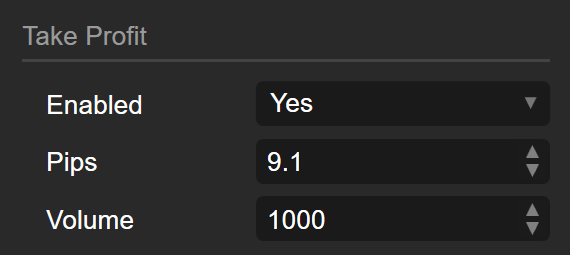
The next three examples show `DataSeries`, custom `enum` data (for which we also provide the full code in this guide) and `string` data.
[DataSeries](https://help.ctrader.com/ctrader-algo/guides/parameter-types/#__tabbed_1_1)
[Enum](https://help.ctrader.com/ctrader-algo/guides/parameter-types/#__tabbed_1_2)
[String](https://help.ctrader.com/ctrader-algo/guides/parameter-types/#__tabbed_1_3)
[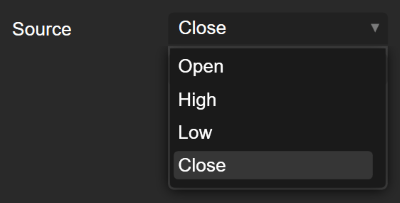](https://help.ctrader.com/ctrader-algo/img/guides/parameter-types/02.png)
[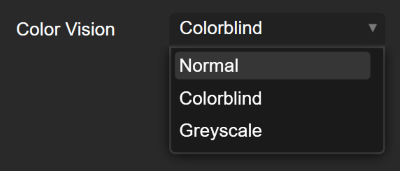](https://help.ctrader.com/ctrader-algo/img/guides/parameter-types/03.png)
[](https://help.ctrader.com/ctrader-algo/img/guides/parameter-types/04.png)
As shown below, the `Color` parameter type is represented by a colour picker.
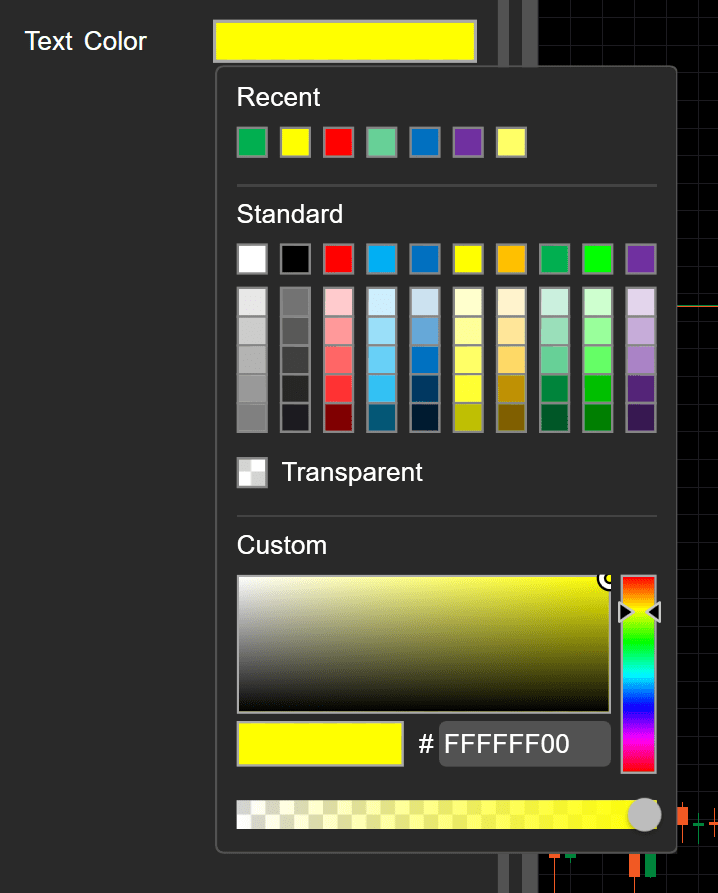
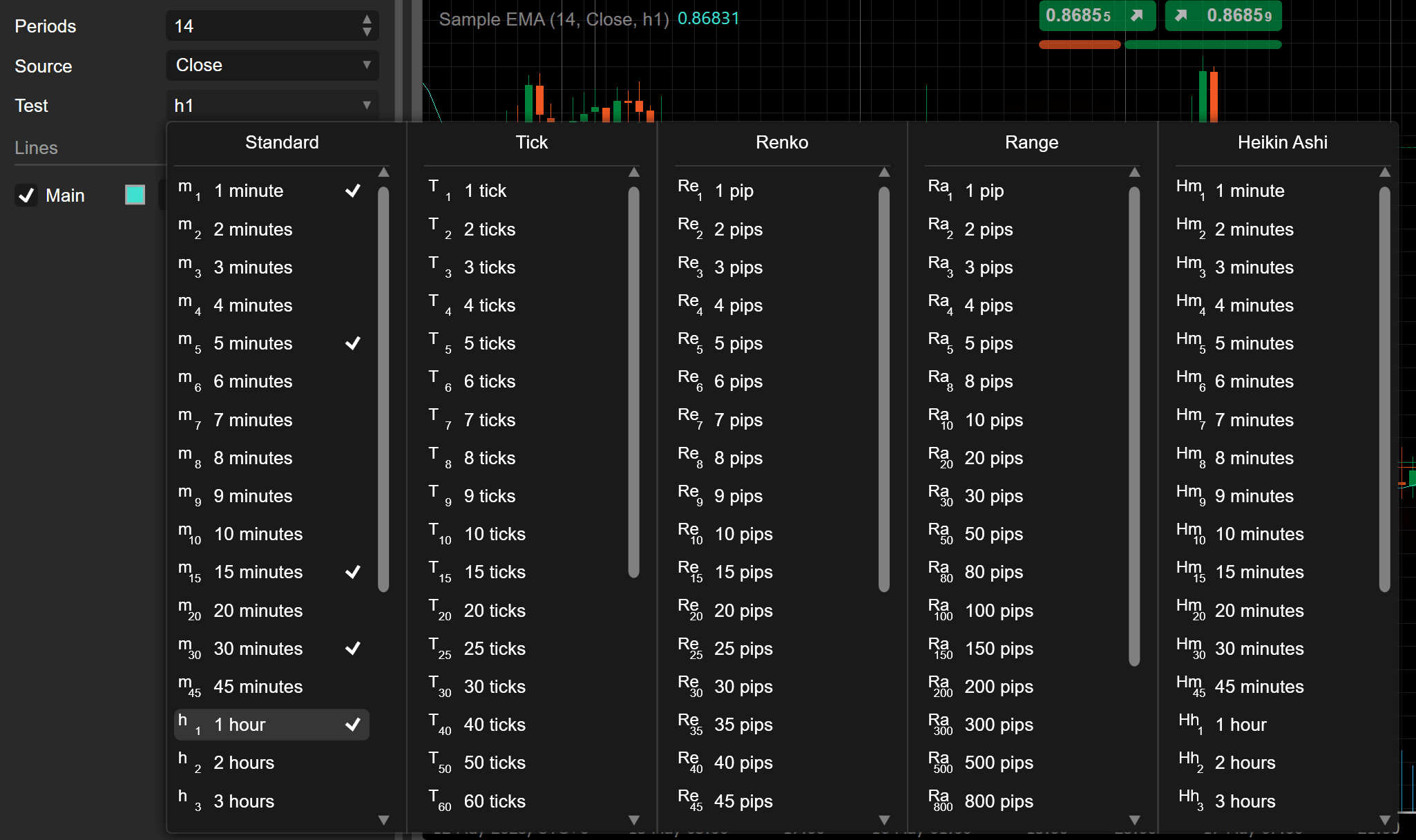
Finally, the UI of `TimeFrame` data duplicates the timeframe of trading charts in the **Trade** application.
cBot examples[¶](https://help.ctrader.com/ctrader-algo/guides/parameter-types/#cbot-examples "Permanent link")
---------------------------------------------------------------------------------------------------------------
The position label is a `string` parameter in the following cBot.
| | |
| --- | --- |
| 1 2 3 4 5 6 7 8 9 10 11 12 13 14 15 16 17 18 19 20 21 22 23 24 25 26 27 28 29 | `using System; using System.Collections.Generic; using System.Linq; using System.Text; using cAlgo.API; using cAlgo.API.Collections; using cAlgo.API.Indicators; using cAlgo.API.Internals; namespace cAlgo.Robots { [Robot(AccessRights = AccessRights.None)] public class NewcBot2 : Robot { [Parameter(DefaultValue = "my label")] public string PositionLabel { get; set; } protected override void OnStart() { ExecuteMarketOrder(TradeType.Buy, "XAGUSD", 1000, PositionLabel); } protected override void OnStop() { var positionToFind = Positions.Find(PositionLabel); positionToFind.Close(); } } }` |
`DataSeries`, `int` and `bool` data are exemplified in the algorithm below.
| | |
| --- | --- |
| 1 2 3 4 5 6 7 8 9 10 11 12 13 14 15 16 17 18 19 20 21 22 23 24 25 26 27 28 29 30 31 32 33 34 35 36 37 38 39 40 41 42 43 44 45 46 47 48 49 50 51 | `using System; using System.Collections.Generic; using System.Linq; using System.Text; using cAlgo.API; using cAlgo.API.Collections; using cAlgo.API.Indicators; using cAlgo.API.Internals; namespace cAlgo { [Robot(TimeZone = TimeZones.UTC, AccessRights = AccessRights.None)] public class SamplecBotReferenceSMA : Robot { [Parameter("Source")] public DataSeries Source { get; set; } [Parameter("SMA Period", DefaultValue = 14)] public int SmaPeriod { get; set; } [Parameter("Enable Trade", DefaultValue = true)] public bool EnableTrade { get; set; } private SimpleMovingAverage sma; protected override void OnStart() { sma = Indicators.SimpleMovingAverage(Source, SmaPeriod); } protected override void OnTick() { double currentSMA = sma.Result.LastValue; double currentPrice = Symbol.Bid; if (EnableTrade) { if (currentPrice > currentSMA) { ExecuteMarketOrder(TradeType.Buy, Symbol, 1000, "Buy Order"); } else if (currentPrice < currentSMA) { ExecuteMarketOrder(TradeType.Sell, Symbol, 1000, "Sell Order"); } } Print("Current Price: {0}, Current SMA: {1}", currentPrice, currentSMA); } } }` |
This cBot uses `Color` data as a parameter to define the text visualisation in the chart area.
| | |
| --- | --- |
| 1 2 3 4 5 6 7 8 9 10 11 12 13 14 15 16 17 18 19 20 21 22 23 | `using System; using System.Collections.Generic; using System.Linq; using System.Text; using cAlgo.API; using cAlgo.API.Collections; using cAlgo.API.Indicators; using cAlgo.API.Internals; namespace cAlgo.Robots { [Robot(AccessRights = AccessRights.None)] public class NewcBot : Robot { [Parameter(DefaultValue = "Yellow")] public Color TextColor { get; set; } protected override void OnBar() { Chart.DrawStaticText("static", "cBot running!", VerticalAlignment.Center, HorizontalAlignment.Left, TextColor); } } }` |
In the example below, `double` data type serves as a parameter to input the order volume in lots. The cBot executes a buy market order after three consecutive red bars.
| | |
| --- | --- |
| 1 2 3 4 5 6 7 8 9 10 11 12 13 14 15 16 17 18 19 20 21 22 23 24 25 26 27 28 29 30 31 32 33 34 35 36 37 38 39 40 41 42 43 44 45 46 47 48 49 50 51 52 53 | `using System; using System.Collections.Generic; using System.Linq; using System.Text; using cAlgo.API; using cAlgo.API.Collections; using cAlgo.API.Indicators; using cAlgo.API.Internals; namespace cAlgo { [Robot(TimeZone = TimeZones.UTC, AccessRights = AccessRights.None)] public class RedBarsBot : Robot { [Parameter("Order Volume (Lots)", DefaultValue = 0.1)] public double OrderVolume { get; set; } private int redBarsCount = 0; protected override void OnBar() { if (IsRedBar()) { redBarsCount++; if (redBarsCount == 3) { PlaceMarketOrder(TradeType.Buy); redBarsCount = 0; } } else { redBarsCount = 0; } } private bool IsRedBar() { var currentBar = MarketSeries.Close.Last(1); var previousBar = MarketSeries.Close.Last(2); return currentBar < previousBar; } private void PlaceMarketOrder(TradeType tradeType) { var symbol = Symbol; var volume = Symbol.QuantityToVolume(OrderVolume); ExecuteMarketOrder(tradeType, symbol, volume); } } }` |
Indicator examples[¶](https://help.ctrader.com/ctrader-algo/guides/parameter-types/#indicator-examples "Permanent link")
-------------------------------------------------------------------------------------------------------------------------
The following indicator code illustrates how `TimeFrame` parameters are used.
| | |
| --- | --- |
| 1 2 3 4 5 6 7 8 9 10 11 12 13 14 15 16 17 18 19 20 21 22 23 24 25 26 27 28 29 30 31 32 33 34 35 | `using System; using System.Collections.Generic; using System.Linq; using System.Text; using cAlgo.API; using cAlgo.API.Collections; using cAlgo.API.Indicators; using cAlgo.API.Internals; namespace cAlgo { [Indicator(AccessRights = AccessRights.None)] public class NewIndicator4 : Indicator { private Bars _hourlyTimeFrameBars; private Bars _targetTimeFrameBars; [Parameter("Chosen Time Frame")] public TimeFrame TargetTimeFrame { get; set; } [Output("Main")] public IndicatorDataSeries Result { get; set; } protected override void Initialize() { _hourlyTimeFrameBars = MarketData.GetBars(TimeFrame.Hour); _targetTimeFrameBars = MarketData.GetBars(TargetTimeFrame); } public override void Calculate(int index) { Result[index] = _hourlyTimeFrameBars.HighPrices[index] - _targetTimeFrameBars.HighPrices[index]; } } }` |
There is a playful (colour-blind test) indicator, which offers `enum` colour vision options (for example, normal, colour-blind and greyscale) for users to determine the colour of a horizontal line drawn on the chart.
| | |
| --- | --- |
| 1 2 3 4 5 6 7 8 9 10 11 12 13 14 15 16 17 18 19 20 21 22 23 24 25 26 27 28 29 30 31 32 33 34 35 36 37 38 39 40 41 42 43 44 45 46 47 48 49 50 51 52 53 | `using System; using System.Collections.Generic; using System.Linq; using System.Text; using cAlgo.API; using cAlgo.API.Collections; using cAlgo.API.Indicators; using cAlgo.API.Internals; namespace cAlgo { public enum ColorVision { Normal, Colorblind, Greyscale } [Indicator(AccessRights = AccessRights.None)] public class ColorblindTest : Indicator { [Parameter("Color Vision", DefaultValue = ColorVision.Normal)] public ColorVision ColorVision { get; set; } public override void Calculate(int index) {} protected override void Initialize() { Color lineColor = Color.Green; switch (ColorVision) { case ColorVision.Normal: lineColor = Color.Red; break; case ColorVision.Colorblind: lineColor = Color.Yellow; break; case ColorVision.Greyscale: lineColor = Color.White; break; } var trendLine = Chart.DrawHorizontalLine("line", Bars.HighPrices.Maximum(10), lineColor); } } }` |
To summarise, by choosing the correct data type for the declared variables and class properties, you will be able to create cBots and indicators that can handle with even non-standard tasks.
Back to top
---
# Introduction - cTrader Algo
[Skip to content](https://help.ctrader.com/ctrader-algo/synchronisation/#introduction)
Introduction[¶](https://help.ctrader.com/ctrader-algo/synchronisation/#introduction "Permanent link")
======================================================================================================
Synchronisation with Cloud is a feature that allows you to run cBots in a dedicated environment independent of your local machine.
It eliminates the need for third-party services that provide similar environments. With Cloud, you can simply create an instance, start it in one click, and then close cTrader entirely or turn off your local machine. Your instance will continue running 24/7 unless you stop it manually or it encounters a technical issue.
Key features
* Start cBots anywhere - regardless of where you are and what you are doing, you can start a cBot in just one click.
* Launch and forget - your cBots will continue running even if you close cTrader or turn off your computer.
* Customise your products - you can set the algorithm name, upload an avatar and add backtesting results to make your cBots more attractive to end users.
Note
You can simultaneously run 1 cBot instance on demo accounts and up to 10 cBot instances on live accounts in Cloud. Please note that these limits may vary depending on your broker.
Tip
Cloud supports cBots that have external dependencies. When creating new cBots, you can freely add third-party packages such as machine learning libraries. However, there are some requirements that your cBots need to meet to ensure that Cloud can fully execute code containing external dependencies. [**Read more here**](https://help.ctrader.com/ctrader-algo/synchronisation/requirements-for-cbots/)
.
How it works[¶](https://help.ctrader.com/ctrader-algo/synchronisation/#how-it-works "Permanent link")
------------------------------------------------------------------------------------------------------
### For users[¶](https://help.ctrader.com/ctrader-algo/synchronisation/#for-users "Permanent link")
You can start an instance of any cBot available to you in the **Algo** app. Instances can be run on any symbol available to your account and on any chart timeframe. Instances are launched and run in Cloud, which means that cTrader itself takes care to execute and maintain the algorithm.
As a result, there is no need to keep cTrader Windows open and active. You can also turn off your local machine and any cBots you may have launched will continue running.
Local instances
You can still start algorithms locally, in which case they will run on your machine and require cTrader Windows to be open.
Before launching a cBot, you have full control over the advanced parameters if the cBot contains them. You can have multiple instances of the same cBot running with different parameters or on different symbols and timeframes.
Note
cBots in Cloud are run in safe and isolated environments. Even if they have elevated access rights, algorithms cannot access your personal information, your system settings or any files saved on your device. Depending on their access rights, local instances can sometimes access data on your machine.
Here is how you can receive new algorithms:
* Automatically. The Algo app always contains all algorithms available to you. If you have a partner and they decide to share their new algorithm with others, you should see the algorithm being added to the app. The same algorithms will be shown on your partner's profile page in the Partner app.
* By double-clicking an `.algo` file shared with you on any channel. If you have access to the algorithm, it will be added to the Algo application.
* By creating a new algorithm and then synchronising it with Cloud. You can still launch algorithms locally without enabling synchronisation.
For partners and developers[¶](https://help.ctrader.com/ctrader-algo/synchronisation/#for-partners-and-developers "Permanent link")
------------------------------------------------------------------------------------------------------------------------------------
cTrader Algo provides unlimited opportunities for sharing algos with others and maximising your user and referral base.
Here are all the ways you can share algorithms:
* Once you synchronise an algorithm with Cloud and enable sharing, the algorithm will be shown to your invited traders in their Algo apps. They can also be added to your cTrader profile page.
* After sharing is enabled, you can also generate links to certain algorithms and send them to your invited traders. These links will not work for any users who are not among your invited traders.
* You can simply share an `.algo` file with any user you want on any suitable channel. Provided you have allowed the user to access the algo, they will be able to launch your cBot in one or two clicks.
Note
While plugins and custom indicators can be freely shared using the above methods, only cBots can be run in Cloud. Users, however, can still run plugins and custom indicators locally.
You are also given several options for customising how your algorithms look and behave.
* You can upload a custom image that will serve as an avatar for your algorithm. It will be displayed to all users.
* You can customise whether your live account statistics are displayed on the cBot page. Note that these statistics will cover your entire account of choice, not just the trading operations performed by the cBot.
* You can set default instance settings (such as symbol and timeframe) that will be provided to all users on every instance start.
* You can show a backtesting report generated for a cBot on its page
Structure[¶](https://help.ctrader.com/ctrader-algo/synchronisation/#structure "Permanent link")
------------------------------------------------------------------------------------------------
You can also read detailed tutorials about the different aspects of synchronisation and running cBots in Cloud.
* [**Manage synchronisation settings**](https://help.ctrader.com/ctrader-algo/synchronisation/managing-synchronisation-settings/)
* [**Manage Cloud instance parameters**](https://help.ctrader.com/ctrader-algo/synchronisation/managing-instance-parameters/)
* [**Customise an algorithm**](https://help.ctrader.com/ctrader-algo/synchronisation/customising-an-algo/)
* [**Share an algorithm**](https://help.ctrader.com/ctrader-algo/synchronisation/sharing-an-algo/)
* [**Requirements for cBots**](https://help.ctrader.com/ctrader-algo/synchronisation/requirements-for-cbots/)
There is also an extensive [**FAQ**](https://help.ctrader.com/ctrader-algo/synchronisation/faq/)
.
Back to top
---
# Introduction - cTrader Algo
[Skip to content](https://help.ctrader.com/ctrader-algo/mobile-algo/#introduction)
Introduction[¶](https://help.ctrader.com/ctrader-algo/mobile-algo/#introduction "Permanent link")
==================================================================================================
cTrader Algo is an app that gives all cTrader Mobile users the option to run cBots in Cloud on any device.
Key terms
* **cBot** - an algorithm that can trade on your behalf or autonomously perform other actions such as placing stop losses for any new positions you open.
* **algorithm** - a set of rules for performing certain trading operations under specific conditions.
* **instance** - a specific realisation of an algorithm. An instance acts according to the instructions specified in the algorithm and under a certain set of customisable rules and parameters. cBot instances always have to be attached to a specific symbol and timeframe.
* **Cloud** - a dedicated environment where instances execute their operations.
Key features
* Start cBots anywhere. Regardless of where you are and what you are doing, you can start a cBot in just one tap.
* Launch and forget. Your cBots will continue running even if you close cTrader or turn off your mobile phone.
* Customise your products. You can upload an avatar and backtesting results to make your cBots stand out and make them more attractive to end users.
How it works[¶](https://help.ctrader.com/ctrader-algo/mobile-algo/#how-it-works "Permanent link")
--------------------------------------------------------------------------------------------------
### For users[¶](https://help.ctrader.com/ctrader-algo/mobile-algo/#for-users "Permanent link")
You can start an instance of any cBot available to you in the **Algo** app. Instances can be run on any symbol available to your account and on any chart timeframe. Instances are launched and run in Cloud, which means that cTrader itself takes care to execute and maintain the algorithm.
As a result, there is no need to keep cTrader Mobile (or even your device) open and active. Any launched cBots will be running 24/7 unless you stop them or they encounter an error.
Before starting a cBot, you have full control over the advanced parameters if the cBot contains them. You can have multiple instances of the same cBot running with different parameters or on different symbols and timeframes.
Note
* Only cBots can be launched in Cloud. This functionality is unavailable for plugins and custom indicators.
* cBots are run in safe and isolated environments. Algorithms cannot access your personal information, your system settings or any files saved on your device.
* There is a limit on how many running instances can exist at any given time. You will not be able to start new instances if the limit is exceeded.
Here is how you can receive new algorithms:
* Automatically. The **Algo** app always contains all algorithms available to you. If you have a partner and they decide to share their new algorithm with others, you should see the algorithm being added to the app. The same algorithms will be shown on your partner's profile page in the **Partner** app.
* By tapping an `.algo` file shared with you on any channel. Your device should prompt you to open the file in a suitable application. Select cTrader and, if you have access to the algorithm, it will be added to the app.
* By creating a new algorithm via cTrader Windows and then synchronising it with Cloud.
### For partners and developers[¶](https://help.ctrader.com/ctrader-algo/mobile-algo/#for-partners-and-developers "Permanent link")
cTrader Algo provides unlimited opportunities for sharing algos with others and maximising your user and referral base.
Here are all the ways you can share algorithms on mobile devices:
* Once you synchronise an algorithm with Cloud and enable sharing, the algorithm will be shown to your invited traders in their **Algo** apps. They can also be added to your cTrader profile page.
* After sharing is enabled, you can also generate links to certain algorithms and send them to your invited traders. These links will not work for any users who are not among your invited traders.
* You can simply share an `.algo` file with any user you want on any suitable channel. Provided you have allowed the user to access the algo, they will be able to launch your cBot with one tap.
Note
The above actions can also be performed with plugins and custom indicators. However, these types of algos can only be launched locally on cTrader Windows.
You are also given several options for customising how your algorithms look and behave.
* You can upload a custom image that will serve as an avatar for your algorithm. It will be displayed to all users.
* You can customise whether your live account statistics are displayed on the cBot page. Note that these statistics will cover your entire account of choice, not just the trading operations performed by the cBot.
* You can set default instance settings (symbol, timeframe, etc.) that will be provided to all users on every instance start.
Structure[¶](https://help.ctrader.com/ctrader-algo/mobile-algo/#structure "Permanent link")
--------------------------------------------------------------------------------------------
You can also read detailed tutorials about the different functionalities of cTrader Algo.
* [**Starting, stopping and deleting an instance**](https://help.ctrader.com/ctrader-algo/mobile-algo/starting-stopping-deleting-instance/)
* [**Managing instance parameters**](https://help.ctrader.com/ctrader-algo/mobile-algo/managing-instance-parameters/)
* [**Customising an algorithm**](https://help.ctrader.com/ctrader-algo/mobile-algo/customising-an-algo/)
* [**Receiving and sharing an algorithm**](https://help.ctrader.com/ctrader-algo/mobile-algo/sharing-an-algo/)
There is also a detailed [**FAQ**](https://help.ctrader.com/ctrader-algo/mobile-algo/faq/)
.
Back to top
---
# Redirecting...
Redirecting...
---
# Redirecting...
Redirecting...
---
# Redirecting...
Redirecting...
---
# cTrader Troubleshooting
[Skip to content](https://help.ctrader.com/troubleshooting/#unstable-or-slow-internet-connection)
Troubleshooting
===============
Unstable or Slow Internet Connection[¶](https://help.ctrader.com/troubleshooting/#unstable-or-slow-internet-connection "Permanent link")
-----------------------------------------------------------------------------------------------------------------------------------------
The unstable internet connection can intercept the trading process. Note that an unstable connection isn't equal to a slow connection. It's highly recommended to check your internet connection with your Internet Service Provider or your system administrator.
The low bandwidth connection can also cause cTrader to restart the login process or even the connection fails.
To guarantee the best trading experience cTrader checks your connection to the proxy and if the connection bandwidth is unable to maintain the connection to a good level, which might result in, for example, a Trade with huge slippage, cTrader gets logged out and tries to log in again to find a proxy with lower latency to connect.
This is a safety mechanism, so you should just check your connection and log in again.
Experienced traders having multiple charts open need to have a connection with higher bandwidth than users that use just one or two charts simultaneously. Please, check the internet connection requirements and your internet connection before you start trading.
Possible Chart Inaccuracy[¶](https://help.ctrader.com/troubleshooting/#possible-chart-inaccuracy "Permanent link")
-------------------------------------------------------------------------------------------------------------------
In very rare cases some false historical data could be stored in the cache. This could result in your chart showing a false value in a historical bar. This can be simply fixed by refreshing your charts. Right-click on the chart and click the refresh field to the bottom.
cTrader will clear the cache and redownload the historical data. Alternatively, you can clear the cache manually from your browser settings and refresh the page by pressing F5 on your keyboard.
Note
In some cases the inconsistent data displayed in the chart can be caused by the broker. If you couldn’t fix the problem by yourself, try to contact your broker.
Non-onboarding US Users[¶](https://help.ctrader.com/troubleshooting/#non-onboarding-us-users "Permanent link")
---------------------------------------------------------------------------------------------------------------
### Why US Users Are Not Serviced[¶](https://help.ctrader.com/troubleshooting/#why-us-users-are-not-serviced "Permanent link")
cTrader does not offer its services to United States residents due to regulatory reasons. Contract for difference (CFD) trading is prohibited by the US financial authorities.
Warning
cTrader does not service US residents. An attempt to sign up/in will fail if you confirm your US residence.
Although we regret to lack any presence in the US market, other users worldwide may benefit from this situation. Owing to its compliance with the regulations of various other countries, cTrader remains a stable and reliable trading terminal, which is ready to address diverse needs in international markets. The global cTrader community remains truly multinational, without any mainstream group dominating it.
### Locale Detection[¶](https://help.ctrader.com/troubleshooting/#locale-detection "Permanent link")
Still, users from other than the US countries can accidentally see the following warning message when opening cTrader. This may occur because they are using a VPN service with a US IP address. Or it is the cTrader geo IP service that has detected the locale incorrectly.
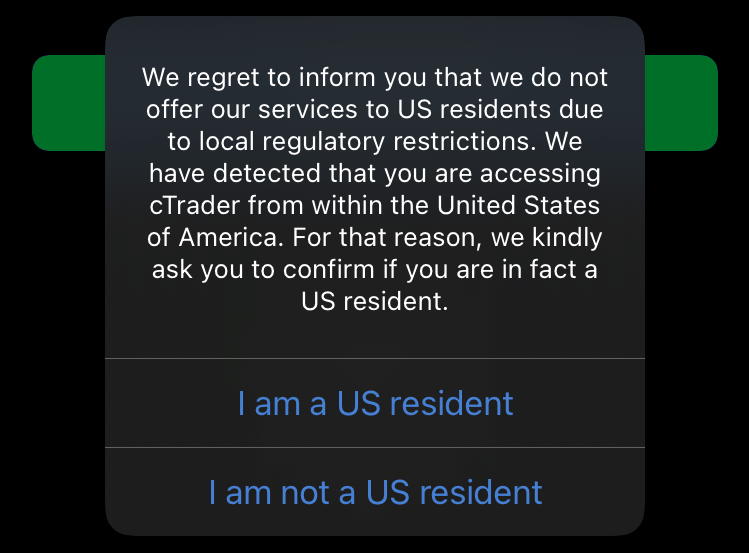
If you are facing this issue without real grounds, just confirm your non-US residence. For US residents, the cTrader app will forcibly shut down.
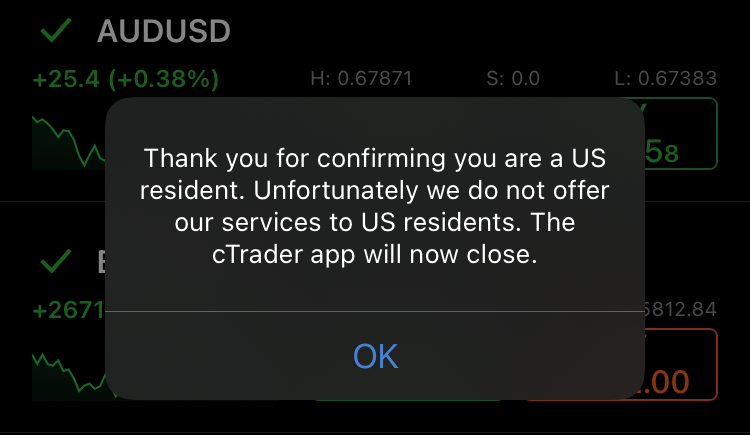
You can always contact your broker directly regarding their countries of presence and other residence restrictions.
Need cTrader support?
Reach out through our official channels to resolve any issues:
* Ask questions and connect with traders, developers and other users in the cTrader [**Discord Community**](https://go.spotware.com/discord)
.
* Browse archived discussions on the cTrader [**Community Forum**](https://community.ctrader.com/)
. While the forum is no longer open for new posts, it is full of helpful answers to common issues.
* Contact the cTrader Support Team at [**support@ctrader.com**](mailto:support@ctrader.com)
for technical assistance.
Note
The more information on the problem is provided (detailed description, screenshots, etc.), the faster your issue will be solved.
Alternatively, use the hot keys Ctrl+Alt+Shift+T while using cTrader Windows application to invoke a Trobleshooting form.
Enter your information and click on 'Submit' to automatically send it to the support team.
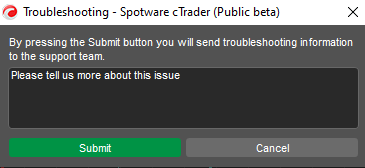
Also, you can join our official [Telegram group](https://t.me/cTrader_Official)
to ask your question or give your feedback.
---
# Introduction - Partner tools
[Skip to content](https://help.ctrader.com/partner-tools/#getting-started)
Getting started[¶](https://help.ctrader.com/partner-tools/#getting-started "Permanent link")
=============================================================================================
Introduction[¶](https://help.ctrader.com/partner-tools/#introduction "Permanent link")
---------------------------------------------------------------------------------------
This section of the Help Centre is dedicated to helping partners of all kinds achieve higher efficacy by fully leveraging valuable cTrader features in unique ways.
Who are partners?
Partners (IBs) work in close collaboration with their broker to attract other traders and incentivise their active live trading in various ways (sharing trading products, posting signals, offering technical analysis insights, providing strategies and more). To receive compensation for their work, partners enroll in their broker's referral programme; typically, this compensation takes the form of rebates.
If you have not considered branching out into partnership before, here are just some of the benefits you may gain when doing so:
* Build and participate in trading communities where each participant shares knowledge.
* Quickly and easily learn from others and improve your approach to trading by attaining feedback from your peers.
* Attain a social media following from other traders who may consider your trading insight to be reliable and effective.
* Potentially earn additional remuneration from your broker as part of the referral programme.
What is cTrader Invite?
To equip partners for winning referrals, cTrader offers the [**Invite**](https://help.ctrader.com/ctrader-invite/invite-link/)
application with its handy functionalities to manage invite links and share QR codes, track invited traders' statistics, display personal contacts and promote partner products. cTrader Invite is an all-in-one solution allowing partners to boost the conversion of new traders into active investors.
If you are already a partner, the guides in this section should help you plan your activities and execute your plans to their fullest potential. If you are just starting out, our articles will become your top resource on the built-in cTrader features for partners.
Check the full [**list of partner tools**](https://help.ctrader.com/partner-tools/list-of-tools/)
offered by cTrader.
Structure[¶](https://help.ctrader.com/partner-tools/#structure "Permanent link")
---------------------------------------------------------------------------------
Our tutorials are divided into sub-sections based on specific partner types to deliver the highest value. Note that it is impossible to avoid overlapping between these partner types, as partners often use a combined strategy.
* [**For social traders**](https://help.ctrader.com/partner-tools/for-social-traders/)
. Here, you will learn how to take advantage of the socially-oriented cTrader tools.
* [**For educators**](https://help.ctrader.com/partner-tools/for-educators/)
. The guides in this sub-section discuss how you can easily and effectively share knowledge with other traders.
* [**For money managers**](https://help.ctrader.com/partner-tools/for-money-managers/)
. In this sub-section, we demonstrate how you can improve the way you trade on behalf of others.
* [**For networkers and affiliates**](https://help.ctrader.com/partner-tools/for-networkers-affiliates/)
. The tutorials in this sub-section showcase how you can effectively generate traffic for your web resources or those owned by your broker.
---
# FAQ - cTrader Copy
[Skip to content](https://help.ctrader.com/ctrader-copy/faq/#faq)
FAQ[¶](https://help.ctrader.com/ctrader-copy/faq/#faq "Permanent link")
========================================================================
General[¶](https://help.ctrader.com/ctrader-copy/faq/#general "Permanent link")
--------------------------------------------------------------------------------
### The ROI chart I am looking at does not show any information, why is this?
In most cases, the ROI chart does not show any dynamics because there was no activity during the reviewed period. Try reconfiguring the chart to display a longer period. If there is still no information, please report this problem to us.
### Can I trade myself when I am copying other strategies?
When you are copying a strategy, you can still place your own trades using a regular account. However, you cannot trade manually using a copy-trading account.
### Can live accounts copy demo strategies?
Yes, you can copy demo strategies with your live account. However, you should be aware that demo traders take more risks with virtual funds and may provide more aggressive strategies.
For investors[¶](https://help.ctrader.com/ctrader-copy/faq/#for-investors "Permanent link")
--------------------------------------------------------------------------------------------
### How much do I need to pay to copy a strategy?
This fully depends on the copy-trading commission established by the strategy provider, which can include [**performance, management and volume fees**](https://help.ctrader.com/ctrader-copy/fees-calculation/)
in any combination. Some strategies are provided on a free basis. Before you start copying a strategy, you will see all applicable fees on the **Start copying** button.
### What happens if the strategy provider stops providing the strategy that I am copying?
Your strategy provider can stop providing the strategy you are copying at any time. In this case, all your copied open positions will be closed, and all the unrealised performance and management fees will be realised. The preview status of your copy-trading account will be changed to "stopped". The stopped strategies can be restarted by the strategy provider and can be copied again by the investor unless they are removed.
### Can I close the trades that I have copied from my strategy provider?
All the positions that your strategy provider has opened on your behalf are listed in the **Positions** tab of your investment profile (just like your positions in a regular account). However, you can only view opened positions in a copy-trading account. The only way for investors to close all positions at once is to stop copying the strategy.
### How many strategy providers can I copy from?
When you start copying a strategy, you allocate a certain amount of funds from your regular account to a copy-trading account. This means that you can allocate funds to as many copy-trading accounts as your account balance allows. Technically, there is no limit on how many strategies you can copy on cTrader.
### What happens when I stop copying a strategy?
When you stop copying a strategy, all open positions copied from that strategy will be automatically closed for your copy-trading account, and the unrealised performance and management fees will be realised after that. This is because you cannot receive a close signal once you have stopped copying.
### Can I contact my strategy provider?
You can contact your strategy provider if they have specified their contacts in the strategy profile. Partners who provide strategies and have public profiles usually share their contact details with invited traders in the [**Partner**](https://help.ctrader.com/ctrader-invite/partner/)
tab of the **Invite** application.
### Are the stop-loss and take-profit protections copied from the strategy I copy?
The protections (stop loss and take profit) are not copied by copy-trading accounts. However, the closing signal of the strategy is copied. Therefore, if a stop-loss or take-profit protection is executed by the strategy provider and the respective position is closed, this position will also be closed in the investor's copy-trading account.
### My copy-trading account history contains trades that do not exist in the strategy provider's history. Why is this happening?
After any balance operation in the investor's or strategy provider's account, cTrader Copy changes positions in the investor's copy-trading account to implement the equity-to-equity algorithm. In this case, the copy-trading account history can log the trades that are missing in the strategy provider's account.
### My copy-trading account history is missing trades that have been executed by the strategy provider. Why is this happening?
If a copy-trading account does not have sufficient funds to copy a strategy, or an investor does not have the trading instruments that the strategy provider is using, the respective trades of the strategy provider's account will not be copied, and therefore will not be logged in the investor's copy-trading account.
If the investor's account leverage is lower than the strategy provider's account leverage, there is a chance that the investor's free margin will not be enough to copy all the trades of this strategy, and the copy-trading account may reach the stop out earlier than the strategy provider's account. Such trades may fail to be copied, and therefore they will not be logged in the copy-trading account history.
### How can I check the fees that have been charged to my account when copying a strategy?
You can always check the strategy conditions in the [**Details**](https://help.ctrader.com/ctrader-copy/investing-in-strategies/)
section of the investment profile. The applied performance and management fees are displayed in the **Transactions** tab of your copy-trading account. The volume fee can be located in the **History** tab, and the unrealised volume fee is available in the **Positions** tab. The respective columns are disabled by default but you can right-click the column headings and enable them from the drop-down.
### What if my account currency is other than USD? How are the commissions that I pay calculated?
The fees to be deducted will be converted from USD into the currency of your copy-trading account at the actual rate at the processing time.
For strategy providers[¶](https://help.ctrader.com/ctrader-copy/faq/#for-strategy-providers "Permanent link")
--------------------------------------------------------------------------------------------------------------
### Who can see my strategy?
By default, anyone who can access cTrader Copy will see your strategy in the strategy list if it meets the [**inclusion requirements**](https://help.ctrader.com/ctrader-copy/becoming-a-strategy-provider/)
. However, strategy listing may vary from broker to broker. To start copying a strategy, investors will have to log in using their [**cTrader ID**](https://help.ctrader.com/ctrader-id/)
credentials. If your strategy is out of the strategy list, you can still offer it for copying via a direct link.
### Can I make my strategy completely private and visible only to certain investors?
No, you cannot make your strategy private. Even if your strategy is not shown in the common strategy list, anyone who has a direct link can access it. However, you can limit the visibility of your open positions in the [**strategy settings**](https://help.ctrader.com/ctrader-copy/becoming-a-strategy-provider/)
.
### How many strategies can I create?
On cTrader, there is no limit on the number of strategies you can create and provide. However, you will need a separate trading account for every new strategy you are creating. Note that new accounts are created with the broker and should be linked to your cTrader ID.
### Can I copy other strategy providers' strategies if I am already a strategy provider?
Yes, you can copy other strategies while providing your own strategy for copying. This is possible due to the allocation of a copy-trading account. When you start copying a strategy, a specified amount of funds is added from your regular account to your copy-trading account. As a result, the copy-trading account does not directly interact with the main account which provides a strategy for copying.
### Can I contact the investors who copy my strategy?
All investors will stay anonymous unless they initiate contact with you via the channels you can specify in the strategy profile. If you are promoting strategies as a partner, invited traders can see your contact details in the [**Partner**](https://help.ctrader.com/ctrader-invite/partner/)
tab of cTrader Invite.
### Are my pending orders visible to other cTrader Copy users?
All limit, stop and stop limit orders with the applied protection mechanisms will remain hidden. Regarding your open positions, you can configure in the strategy settings who will see them: everyone, only investors or no one.
### Can I stop being a strategy provider?
Yes, you can stop providing a strategy at any time, then adjust its settings, and restart if needed. Note that you cannot delete strategies. They are [**auto-deleted**](https://help.ctrader.com/ctrader-copy/becoming-a-strategy-provider/)
after a period of inactivity. When you stop a strategy, all open positions within this strategy will be closed for the investors who are copying it.
### Will my trades be copied by investors if I execute them from different platforms (cTrader Web, cTrader Mobile, etc.)?
You can trade on your strategy from any cTrader platform you consider convenient. All trades placed on your account will be automatically copied by your investors.
### How much can I charge for my strategy?
If you wish, you can provide your strategy on a free basis. Alternatively, you can establish [**three types of fees**](https://help.ctrader.com/ctrader-copy/fees-calculation/)
in any combination: performance fee (up to 30% of the investor's net profit), management fee (up to 10% of the investor's equity) and volume fee (up to USD 10 per million volume).
### How will the fees be paid to me?
All copy-trading fees are paid by the broker as a deposit into an account other than the strategy account as soon as these fees are charged to the investor's copy-trading account.
### Are there any fees for providing strategies?
No, Spotware does not apply any fees to strategy providers.
### Can strategy providers charge commissions in lots instead of units?
No, you cannot configure the type of volume in which you charge for your strategy, everything is converted into units of USD volume.
Need cTrader support?
Reach out through our official channels to resolve any issues:
* Ask questions and connect with traders, developers and other users in the cTrader [**Discord community**](https://go.spotware.com/discord)
.
* Browse archived discussions on the cTrader [**Community forum**](https://community.ctrader.com/)
. While the forum is no longer open for new posts, it is full of helpful answers to common issues.
* Contact the cTrader support team at [**support@ctrader.com**](mailto:support@ctrader.com)
for technical assistance.
---
# Introduction - cTrader Copy
[Skip to content](https://help.ctrader.com/ctrader-copy/#introduction)
Introduction[¶](https://help.ctrader.com/ctrader-copy/#introduction "Permanent link")
======================================================================================
cTrader Copy is a fully integrated cTrader application and a flexible investment platform that allows for copying trading strategies, as well as providing one’s own strategies for copying by other traders.
It is an easy-to-use reliable solution with a clearly defined fee system and transparent strategy information and history that offers an easy copying mechanism for a better trading experience.
Once logged in to cTrader web application with [**cTrader ID**](https://help.ctrader.com/ctrader-id/)
(cTID), a trader can proceed to the Copy section, check the available strategies, compare their history, details and fees, allocate funds and start copying in two clicks.
All the strategies can be discovered and copied from the cTrader Copy main page without any long-term commitment, and any trader signed in with cTrader ID can invest in a strategy as long as their broker offers cTrader Copy.
While using cTrader Copy, you may encounter these terms:
* **Strategy** – aggregated actions of a trader provided for copying to investors under certain conditions.
* **Investor** – a trader who allocates a certain amount of funds from their trading account for copying a strategy under certain conditions (investing).
* **Copy-trading account** – an account created by allocating a certain amount of funds from a trading account for copying a strategy.
* **Strategy provider** – a social trader who provides their trading strategy for copying by other traders.
cTrader Copy offers a powerful [**toolkit for partners**](https://help.ctrader.com/partner-tools/list-of-tools/)
allowing them to effortlessly share strategies, promote them via different channels, earn investor fees and gain referrals.
General copying logic[¶](https://help.ctrader.com/ctrader-copy/#general-copying-logic "Permanent link")
--------------------------------------------------------------------------------------------------------
The general logic of the copying mechanism in cTrader Copy is that an investor can allocate their funds to copy a specific trading strategy under specific conditions.
The funds allocated from the investor’s account are moved to a copy-trading account, which is a separate trading account under the same cTID that can be used only for copying the specific strategy.
A strategy provider executes trades from their trading account, and all investors copying the strategy automatically copy all its trades.
Example
If a strategy provider modifies the open positions on their strategy account (for example, closes some positions), the same actions will be copied for the investor as well.
Warning
cTrader Copy forbids copying any trades made for symbols representing stocks and shares. While a strategy provider can still place new orders and open new positions for these symbols (such as AAPL or TSLA), these trades will not be copied by their investors.
cTrader automatically adjusts the volume of open positions and future trades based on both the provider's and investor's withdrawals or deposits. The equity-to-equity ratio is used as the copying model of cTrader Copy.
Warning
The provider’s and investor’s prices may differ due to variations in trading conditions and execution time.
The strategy provider's trades will not be copied by the investor's copy-trading account in the following cases:
* There are not enough funds in the investor’s account.
* The investor does not have the trading instruments that the strategy provider is operating with.
* The investor’s leverage is lower than the strategy provider’s leverage, and the investor’s free margin might not be enough to copy all trades from this strategy.
Equity-to-equity ratio[¶](https://help.ctrader.com/ctrader-copy/#equity-to-equity-ratio "Permanent link")
----------------------------------------------------------------------------------------------------------
The copying model of cTrader Copy is based on the equity-to-equity ratio, which means that the volume of a trade that will be copied is defined according to both the strategy provider’s and the investor’s equities.
According to the equity-to-equity copying model, a volume to be copied for trade by a copy-trading account is calculated as follows:
`Investor’s Equity / Strategy Provider’s Equity * Strategy Provider’s Volume`
Example
The strategy provider's equity at the moment of copying is 4,000 USD, and the investor’s equity is 1,000 USD.
The provider opens 4 lots for trading.
This trade will be copied with the copying volume: 1,000 of the investor’s equity divided by 4,000 of the strategy provider equity and multiplied by 4 lots traded equals 1 lot, or:
`1,000 ÷ 4,000 × 4 = 1`
Example
An investor is going to copy a strategy with the following parameters:
* Own funds: USD 100,000 - the funds on the strategy provider’s trading account. The strategy provider’s own funds can change depending on the provider’s deposits and withdrawals.
* Min investment: USD 100.
An investor allocates 1,000 USD and starts copying this strategy. After some trades, the investor decides to stop copying. The copy-trading history will look as follows:
| Strategy history | Investor history |
| --- | --- |
| USD 1,000,000 → Buy EURUSD Entry 1.12261 - Close 1.12261 (com -0.10) = -0.06 USD 999,999.94 | Not copying yet |
| USD 999,999.94 → Sell EURJPY Entry 121.161 - Close 121.175 (com -9.00) = -20.55 → USD 999,979.39 | Starts copying: USD 1,000 → Sell EURJPY Entry 121.161 - Close 121.175 (com -0.06) = -0.19 → USD 999.81 |
| USD 999,979.39 → Buy EURJPY Entry 121.145 - Close 121.175 (com -9.00) = 98.19 → USD 1,000,077.58 | USD 999.81 → Buy EURJPY Entry 121.145 - Close 121.175 (com -0.06) = 1.15 → USD 1,000.96 |
| USD 1,000,077.58 → Buy EURJPY Entry 121.268 - Close 121.248 (com -9.00) = -25.50 → USD 1,000,052.08 | USD 1,000.96 → Buy EURJPY Entry 121.268 - Close 121.248 (com -0.06) = -0.25 → USD 1,000.71 |
Deposits and withdrawals[¶](https://help.ctrader.com/ctrader-copy/#deposits-and-withdrawals "Permanent link")
--------------------------------------------------------------------------------------------------------------
All deposits and withdrawals are taken into account, and the position sizes are kept relative to the amounts that each party has invested.
Warning
Depositing or withdrawing funds by the strategy provider to and from their strategy account with open positions can cause losses for investors' copy-trading accounts. Since equity is recalculated every time the account balance changes, the current open positions and future trades will be adjusted according to the equity-to-equity model.
Investors can add or remove funds to and from their copy-trading accounts at any time while copying strategies. Similarly, this will affect the volume of the copied positions and future trades.
Note
When the copied positions are recalculated due to balance operations (deposit or withdrawal) on the strategy provider’s or investor’s account, the volume fee will not be charged.
The amount deposited by an investor to a copy-trading account should be equal or higher than the minimum investment requirement when copying is in progress. This means that an investor can only withdraw amounts exceeding the minimum investment while copying a strategy.
If investors want to withdraw all funds including the minimum investment, they should stop copying the strategy and remove all funds. See our [**guide for investors**](https://help.ctrader.com/ctrader-copy/investing-in-strategies/)
on how to add and remove funds.
Exceptions[¶](https://help.ctrader.com/ctrader-copy/#exceptions "Permanent link")
----------------------------------------------------------------------------------
When you start copying a strategy, all the existing open positions of the strategy will be opened for your copy-trading account with the current market rates, and all the strategy actions will start being copied.
In some cases, the copying mechanism may undergo some exceptions. For example:
* In cases where, after calculation based on the equity-to-equity ratio, the trade volume in the copied strategy is lower than the minimum trading volume allowed by the investor’s broker, the trade size will be adjusted to the step allowed by the broker.
* In cases when the volume of a trade to be executed in a copied strategy is higher than the maximum ticket size allowed by the broker, then no position will be opened.
* In cases when the market is closed for trading a certain symbol in a strategy, the position for such a symbol will be opened only when the market is opened.
* In case of insufficient margin on your account, the position will not be copied.
---
# Shared Access - cTrader Mobile (iOS)
[Skip to content](https://help.ctrader.com/ctrader-mobile-ios/shared-access-ios/#shared-access)
Shared Access[¶](https://help.ctrader.com/ctrader-mobile-ios/shared-access-ios/#shared-access "Permanent link")
================================================================================================================
Money managers and other partners have found it difficult to execute remote access to individual accounts for the purpose of trading on behalf of a third party. From a different perspective, having granted access to a partner, account owners would like to observe deals in real time and reserve the right to revoke access any moment.
To resolve these issues, the cTrader mobile app on iOS offers a built-in shared access feature. This guide will explain in detail how to share and revoke access in the cTrader mobile app on your Apple device.
Shared Access in One Minute!
* Due to the shared access feature of cTrader on iOS, traders can grant access to money managers for trading on their behalf.
* Users can share access from the ‘Manage Trading Accounts’ screen.
* Once access is shared, any of the parties can promptly revoke/reject it by making just several taps on iPhone.
* All trading decisions remain transparent and trackable, which contributes to an account owner’s sense of control. In addition, deposit and withdrawal operations remain open only for account holders.
Benefits of Shared Access[¶](https://help.ctrader.com/ctrader-mobile-ios/shared-access-ios/#benefits-of-shared-access "Permanent link")
----------------------------------------------------------------------------------------------------------------------------------------
**Remote trading.** As a money manager, you are granted access to a third-party account. When a new cTrader account is shared with you, you can enjoy the full functionality of the shared account except for deposit/withdrawal operations and receiving/editing alerts.
**Full control and transparency.** As a cTrader account owner, you can delegate trading activities to more experienced partners without fear of losing your own access and transparency. You will be able to revoke access any moment you consider necessary.
**Win-win partnership.** When sharing accounts with experienced money managers, traders may generate higher streams of revenue due to skillful portfolio management. In turn, money managers will benefit from easily accessing all shared accounts in one place.
**Mobility and accessibility.** Shared access and further money/portfolio management are available on iPhone, which adds to accessibility and allows partners and account owners to interact with each other on the go.
How to Share Access[¶](https://help.ctrader.com/ctrader-mobile-ios/shared-access-ios/#how-to-share-access "Permanent link")
----------------------------------------------------------------------------------------------------------------------------
1\. To share access with a partner, open the hamburger menu in your cTrader app and tap on ‘Manage Trading Accounts’.
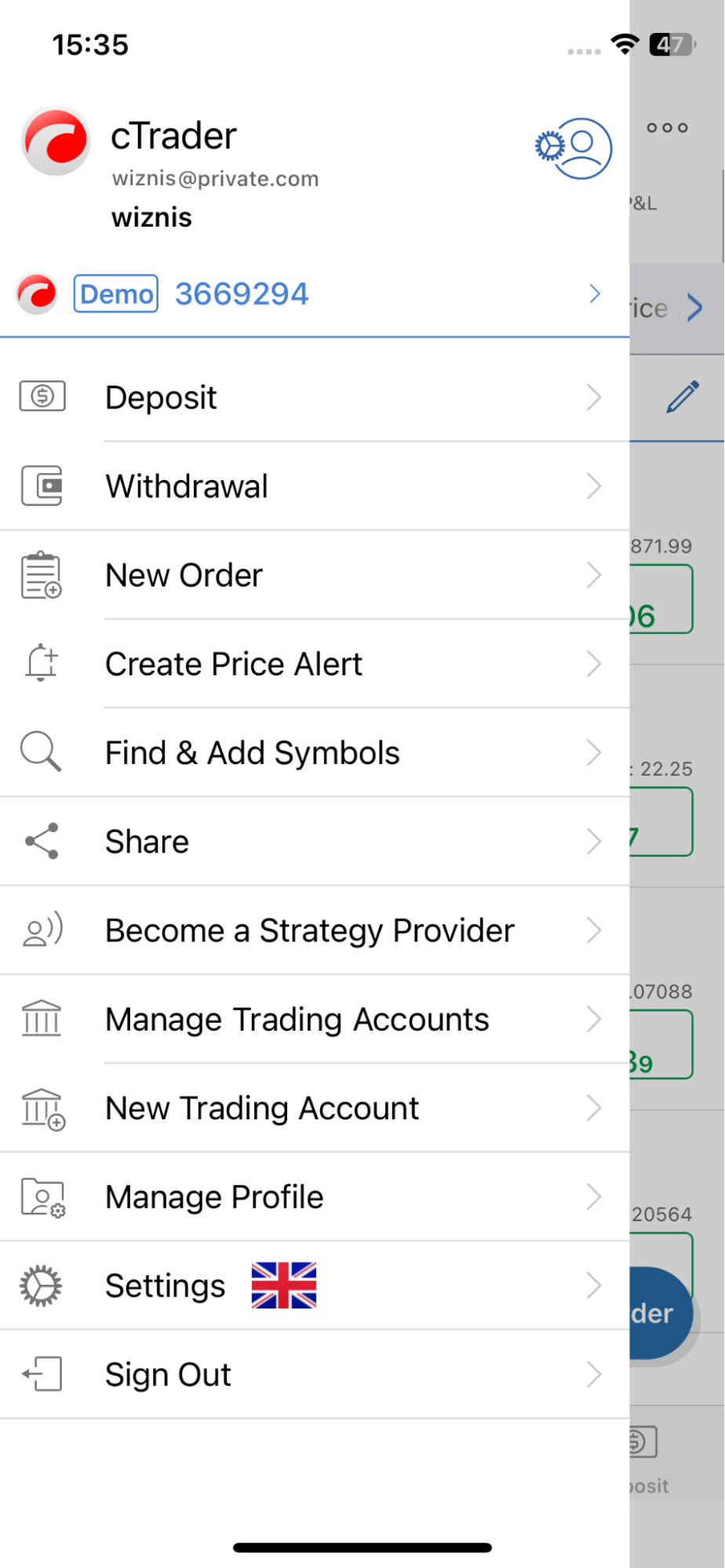
2\. If you have several accounts, you can choose which one to share. Tap on ‘Share Account’ under the corresponding account.
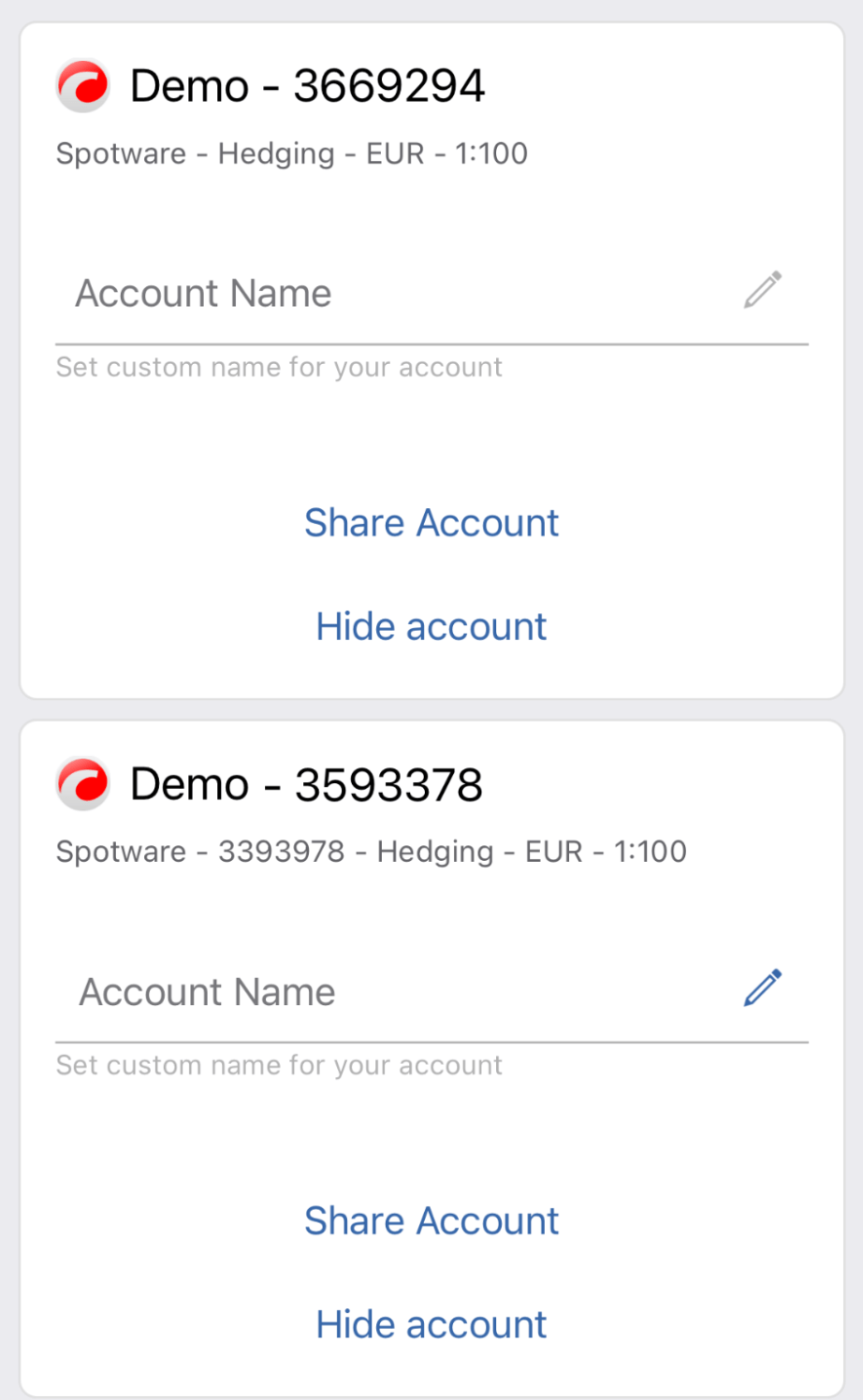
3\. You will then be asked to input an email or a cTrader ID (nickname) of the person you are sharing with and tap on ‘Next’. Note that an email should be registered as a cTrader user, and you cannot share access with yourself. If you acknowledge the consequences shown on the disclaimer, tap on ‘Share Access’. You will receive a notification email that your account has been shared.
Input Email or NicknameDisclaimer
[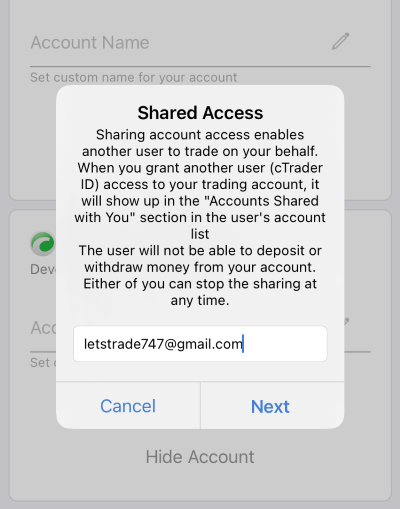](https://help.ctrader.com/ctrader-mobile-ios/img/sharing-features/shared-access/03.png)
[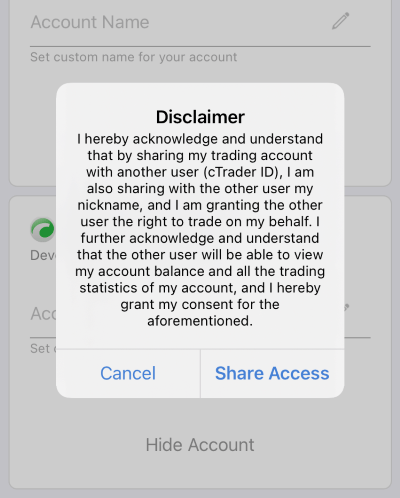](https://help.ctrader.com/ctrader-mobile-ios/img/sharing-features/shared-access/04.png)
4\. Upon sharing, any party can see the account(s) shared by/with them in the drop-down lists in the hamburger menu and at the top of the screen.
Access to Shared Accounts AAccess to Shared Accounts B
[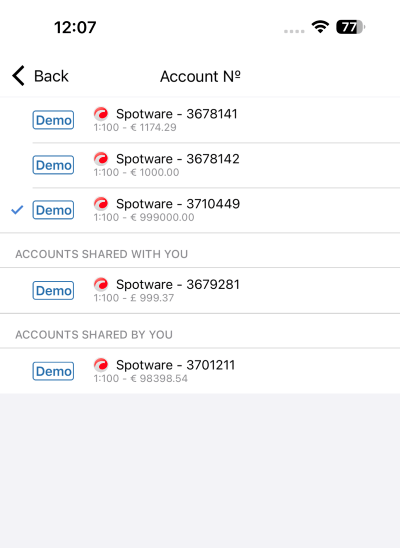](https://help.ctrader.com/ctrader-mobile-ios/img/sharing-features/shared-access/05.png)
[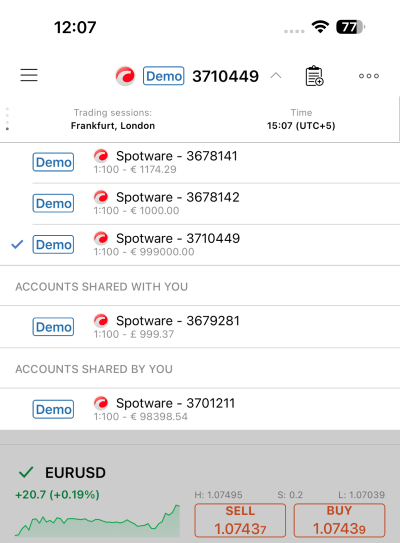](https://help.ctrader.com/ctrader-mobile-ios/img/sharing-features/shared-access/06.png)
5\. If you tap again on ‘Manage Trading Accounts’ in the hamburger menu, a separate section will list the accounts shared by you. Your partners’ email will be indicated in case you forget whom you have shared this account with.
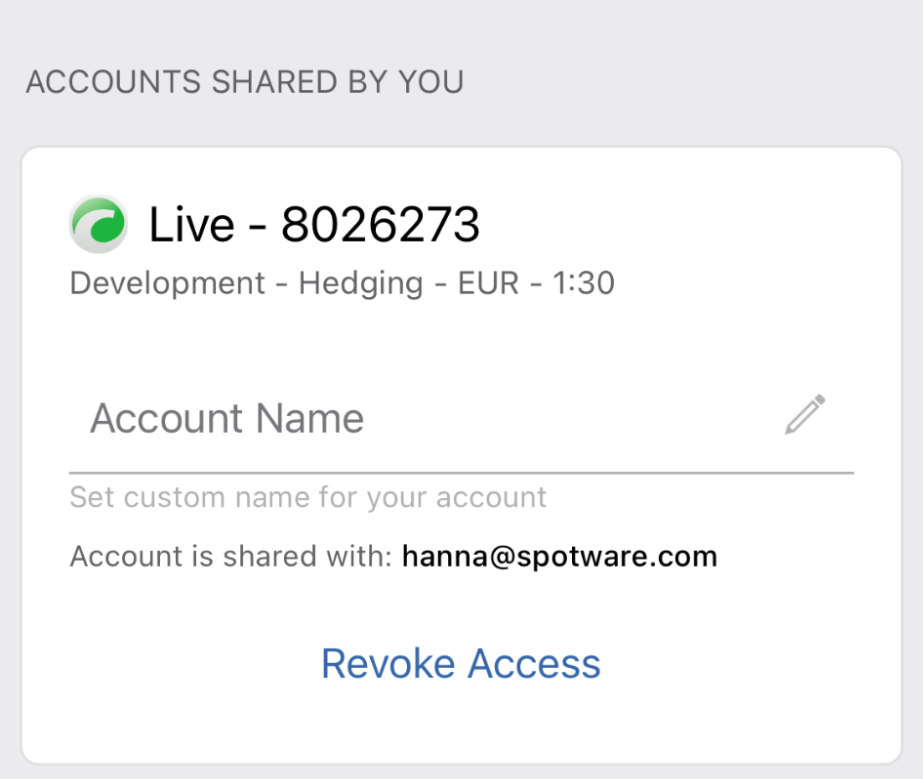
How to Revoke Access[¶](https://help.ctrader.com/ctrader-mobile-ios/shared-access-ios/#how-to-revoke-access "Permanent link")
------------------------------------------------------------------------------------------------------------------------------
1\. You can easily revoke access to your account by tapping on ‘Revoke Access’ in the ‘Manage Trading Accounts’ section in the hamburger menu (see the screenshot above). A notification informing that you will be logged out of your account for security reasons will pop up.
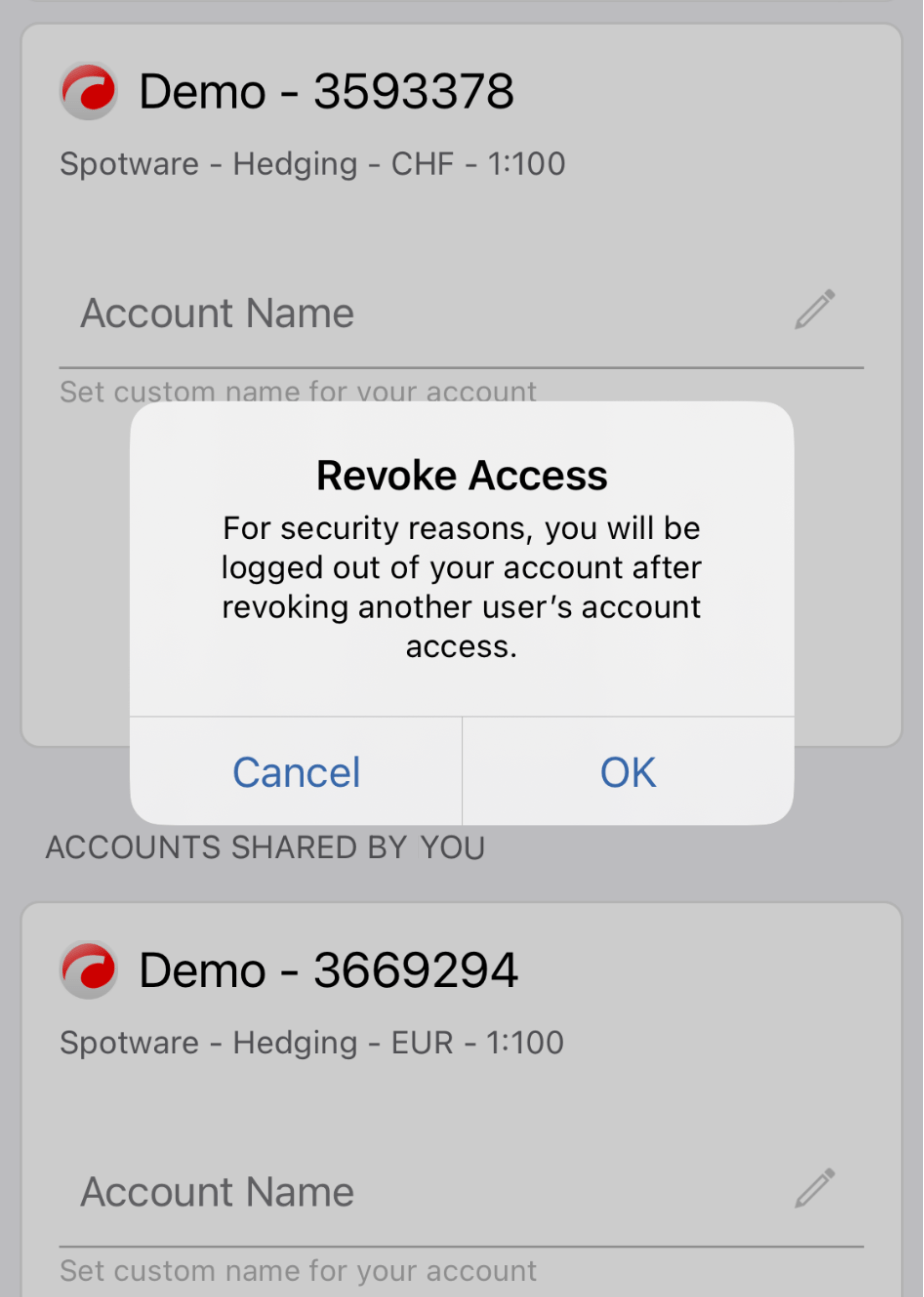
2\. Access can be terminated from any end. If it is the partner who initiates the sharing cessation, they should open ‘Manage Trading Accounts’ in the hamburger menu and tap on 'Reject Access’ under the needed account shared with them. A confirmation notice will pop up to prevent users from an accidental rejection.
Reject AccessConfirm Rejecting?
[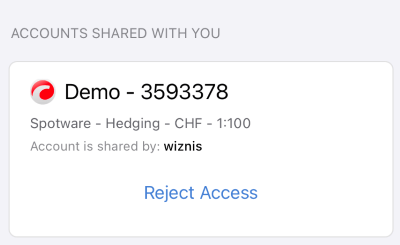](https://help.ctrader.com/ctrader-mobile-ios/img/sharing-features/shared-access/09.png)
[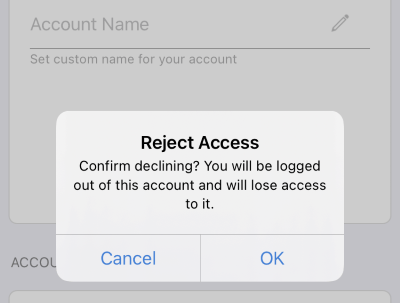](https://help.ctrader.com/ctrader-mobile-ios/img/sharing-features/shared-access/10.png)
After the access has been canceled, a notifying email will be sent to your address registered as a cTrader login. You can then share access with a different partner or with the same partner again.
To summarize, the easy access sharing functionality of the cTrader app on iOS enables account owners and their partners to collaborate effectively and generate higher revenue streams. Remote access to individual accounts is especially beneficial to money managers and partners who can use this feature for trading on behalf of a third party. Access can be revoked by any of the parties at any time, thus making the sharing feature totally controlled and safe.
---
# cTrader Mobile (iOS)
Home
====
This guide provides information on how to get started with the cTrader Mobile iOS platform, the trading and charting tools, and how to use them, the platfor's interface, and its additional functionality.
cTrader Mobile application is a fully functional iOS version of the cTrader trading platform with all the charting and trading features as the other cTrader versions.
As cTrader Mobile offers similar functionality for manual trading and charting to the other versions of the application, it allows users to get access to their trading accounts and trade from a variety of devices and operating systems.
To use the cTrader Mobile version it should be installed on your device.
---
# cTrader Analyze
Getting Started
===============
This guide provides information on an analytical tool, cTrader Analyze, which contains key trading performance information from different perspectives and time ranges.
---
# Fees calculation - cTrader Copy
[Skip to content](https://help.ctrader.com/ctrader-copy/fees-calculation/#fees-calculation)
Fees calculation[¶](https://help.ctrader.com/ctrader-copy/fees-calculation/#fees-calculation "Permanent link")
===============================================================================================================
For investors[¶](https://help.ctrader.com/ctrader-copy/fees-calculation/#for-investors "Permanent link")
---------------------------------------------------------------------------------------------------------
While strategy providers can offer their strategies for copying on a free basis, it is also possible for providers to configure strategy fees in the [**Strategy Settings**](https://help.ctrader.com/ctrader-copy/becoming-a-strategy-provider/)
window. The types of charges for investors include performance fee, management fee and volume fee, in any combination depending on the strategy provider's preferences.
An investor can instantly see all fees to be paid on the **Start copying** button before copying a strategy.

### Performance fee[¶](https://help.ctrader.com/ctrader-copy/fees-calculation/#performance-fee "Permanent link")
Performance fee (**P**) is the amount investors will pay to the strategy provider based on the established percentage of their net profit calculated by means of the [**high-water mark (HWM) model**](https://help.ctrader.com/ctrader-copy/high-water-mark-model/)
.
The performance fee cannot exceed 30%.
### Management fee[¶](https://help.ctrader.com/ctrader-copy/fees-calculation/#management-fee "Permanent link")
Management fee (**M**) involves a periodic payment to the strategy provider for managing investors' funds regardless of the strategy performance. Management fees are accrued on a daily basis and set by the strategy provider as an annual percentage of the investor's equity.
The management fee cannot exceed 10%.
### Volume fee[¶](https://help.ctrader.com/ctrader-copy/fees-calculation/#volume-fee "Permanent link")
Volume fee (**V**) is the amount investors will pay to the strategy provider per one million of volume copied. It is calculated per side and added to each position. If a strategy provider charges, for example, USD 10 per million, and an investor copies the volume of one million, they will pay USD 10 to the strategy provider upon opening the position and USD 10 upon closing the position.
The volume fee is charged only for the strategy provider's trading actions and is not applied for balance operations (deposits or withdrawals).
The volume fee cannot exceed USD 10.
Example
Let us assume that an investor is planning to allocate USD 1,000 for copying a strategy with the following fees preset by the strategy provider.
* Performance fee: 10%
* Management fee: 5%
* Volume fee: USD 5
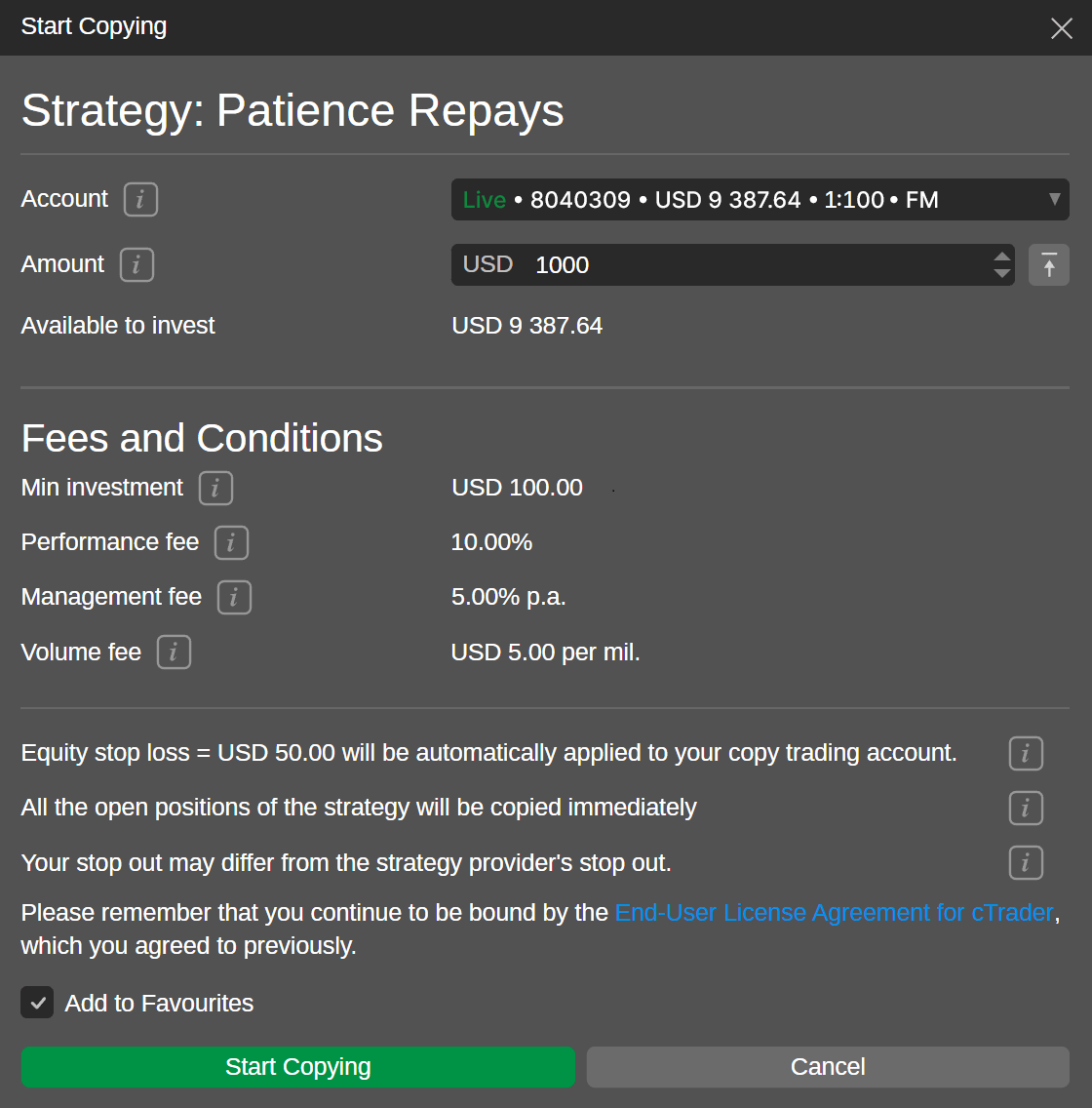
This means that:
* The investor will incur a fee amounting to 10% of the total net profit generated by the strategy. For instance, if the copy-trading account generates USD 700 as the total net profit, its holder will pay USD 70 for performance.
* The investor will incur a charge of 5% of the total equity allocated to their copy-trading account annually, equating to USD 50 out of the allocated USD 1,000 per year. The management fee will constitute `1,000.00 * 0.05 / 365 = 0.14` per day.
* The investor will be charged USD 5 for each USD million of the copied volume from the strategy, or USD 0.5 for one lot copied. The calculation of the volume fee for one lot of EURUSD will look as follows: `Volume fee = 1.19 * 100,000 / 10^6 * 5 * 2 = 1.19` This calculation is valid if:
* `1 lot = 100,000`
* `Current quote = 1.19/1.19`
* `EUR 100,000 = 1.19 * USD 100,000`
* `10^6 = 1 million`
* `2 = position sides (opening and closing)`
### Fee logs[¶](https://help.ctrader.com/ctrader-copy/fees-calculation/#fee-logs "Permanent link")
Investors can locate the applied performance and management fees on their [**copy-trading account page**](https://help.ctrader.com/ctrader-copy/investing-in-strategies/)
in the **Transactions** tab.
The volume fee log entry is available in the **History** tab. The unrealised volume fee can be found in the **Positions** tab.
Note
The **Volume fee** and the **Unr. volume fee** columns are disabled by default. Investors and strategy providers can right-click on any column heading in the **History** and **Positions** tabs and enable these columns for viewing in the drop-down menu.
For strategy providers[¶](https://help.ctrader.com/ctrader-copy/fees-calculation/#for-strategy-providers "Permanent link")
---------------------------------------------------------------------------------------------------------------------------
A strategy provider is free to decide whether to establish zero fees for copying their strategy for live and demo accounts, or charge fees in any combination but within the allowed boundaries discussed above.
The copy-trading commission is the sum of all three types of fees (performance, management and volume) charged to the investor's account.
Warning
Any of the fees can be adjusted by the strategy provider only after the strategy is stopped and no investors are copying it. New fees will be applied to the investors only after they restart copying the strategy.
Fees are paid to the strategy provider in the form of a deposit from the broker to one of the accounts specified by the provider earlier. The copy-trading commission is automatically converted to the provider's account currency. All fees paid by investors are deposited to the provider's account with a separate transaction per investor.
The broker will immediately reimburse the strategy provider for any realised performance or management fees applied to any investor. The volume fee will be charged to the investor's copy-trading account when the deals are executed, but it will be deposited to the provider's account along with the performance or management fee.
When fees are deposited to the provider's account, the strategy provider will automatically receive an email with a detailed description of the fees paid per strategy.
Fee payment time and terms (triggers)[¶](https://help.ctrader.com/ctrader-copy/fees-calculation/#fee-payment-time-and-terms-triggers "Permanent link")
-------------------------------------------------------------------------------------------------------------------------------------------------------
All fees regardless of their type are charged to the investor's copy-trading account on the 1st of each month. The payout to the strategy provider's account will be made immediately after the investor is charged.
Additionally, the following events trigger the application of fees:
* The strategy provider stops providing their strategy. In this case, all investors automatically stop copying it, and all open positions within the strategy will be automatically closed for the investors, and all unrealised fees will be charged after the positions are closed.
* The investor stops copying the strategy themselves.
* The investor withdraws funds from their copy-trading account (for example, removes funds to their main trading account). In this case, the platform also automatically recalculates the equity and adjusts the current and future trades according to the equity-to-equity model. If the investor removes funds while copying the strategy, all fees will be charged at once and in full.
Note
When the provider adds their own funds to the strategy account, the platform automatically decreases the investor's positions; and when the provider withdraws funds decreasing their balance, the platform automatically increases the investor's positions. Depositing the investor's fees to the provider's account does not trigger the recalculation of the investor's volume to avoid any unplanned volume corrections.
If the investor is copying several strategies, fees will be applied to each dedicated copy-trading account independently.
---
# Share an algorithm - cTrader Algo
[Skip to content](https://help.ctrader.com/ctrader-algo/synchronisation/sharing-an-algo/#share-an-algorithm)
Share an algorithm[¶](https://help.ctrader.com/ctrader-algo/synchronisation/sharing-an-algo/#share-an-algorithm "Permanent link")
==================================================================================================================================
If you are the author of an algorithm, you have several options for sharing it with other users.
* Automatically
* Via an `.algo` file
* Via an invite link
Automatically[¶](https://help.ctrader.com/ctrader-algo/synchronisation/sharing-an-algo/#automatically "Permanent link")
------------------------------------------------------------------------------------------------------------------------
You can make it so that access to an algorithm is automatically given to all your [**invited traders**](https://help.ctrader.com/ctrader-invite/invited-traders/)
. Note that this is done on a per-algorithm basis.
To enable this functionality, do the following:
1. Right-click an algorithm and select **Public settings**
2. Navigate to the **Invite** section
3. Tick the **Enable access to your invited traders** checkbox
4. Click **Apply**
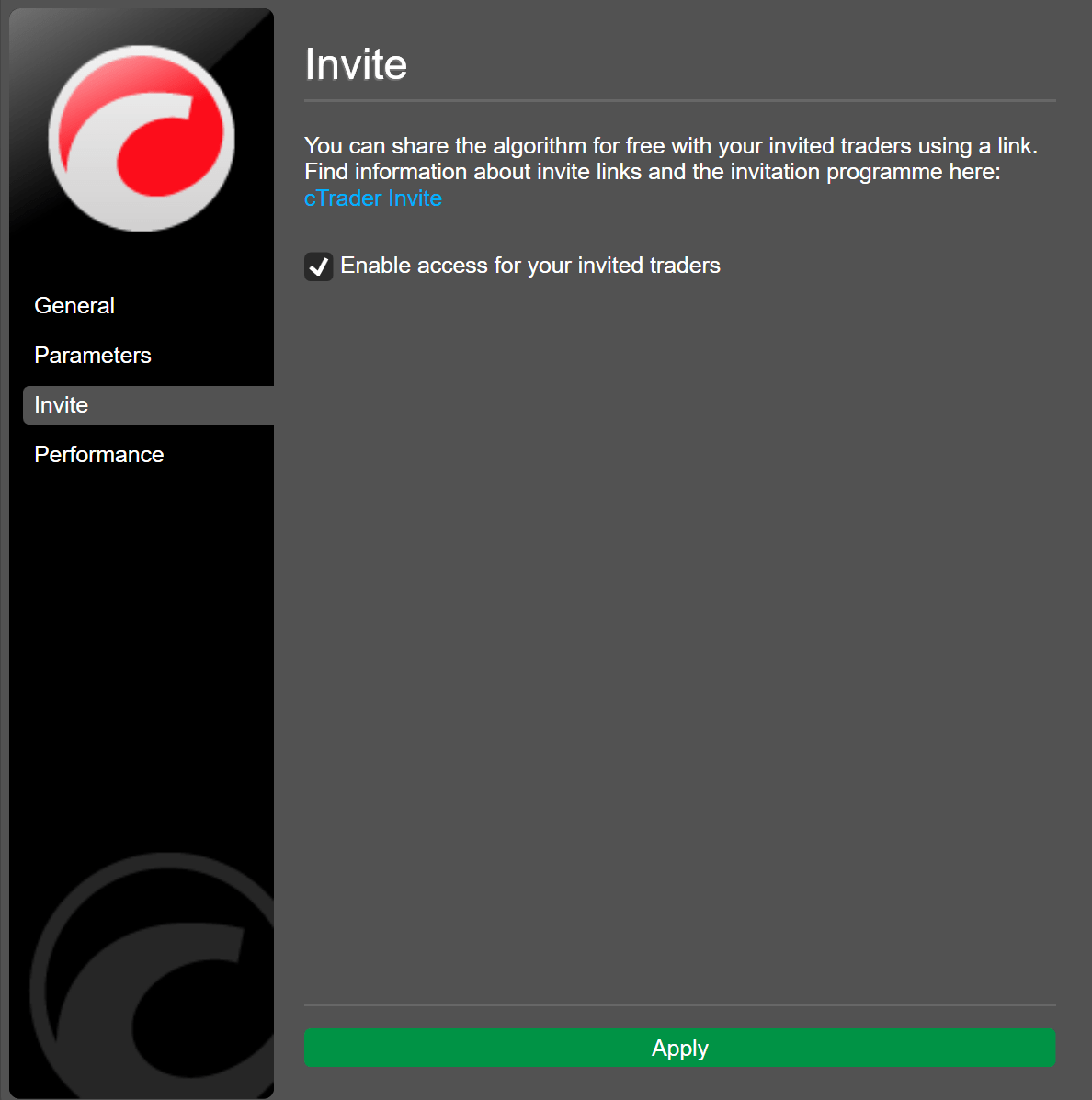
Afterwards, your invited traders will see the algorithm in their cTrader **Algo** applications. If it is a cBot, invited traders will be able to create new Cloud instances of it.
Via an invite link[¶](https://help.ctrader.com/ctrader-algo/synchronisation/sharing-an-algo/#via-an-invite-link "Permanent link")
----------------------------------------------------------------------------------------------------------------------------------
You can also share an algorithm with your invited traders using a link.
To enable this functionality, perform the same steps as discussed in the previous section.
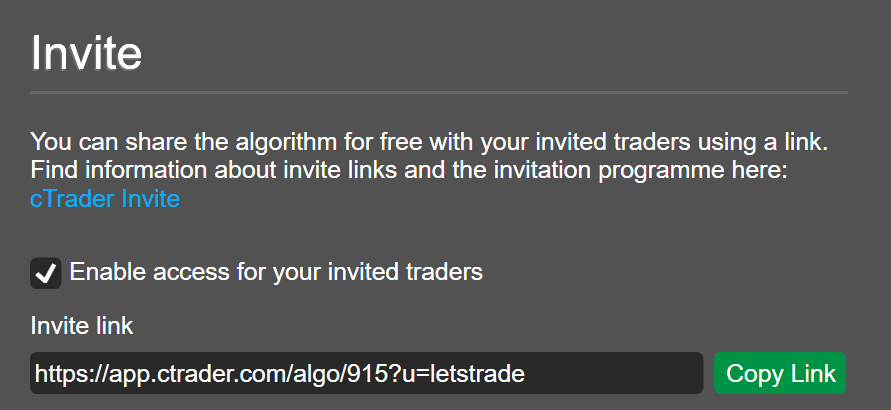
After access is enabled, cTrader will generate a link to the algorithm that will function as an invite link. As is the case with any other cTrader link, you can share it anywhere, and easily get new invited traders. Any of your invited traders who click the link will be able to access the algorithm.
Note
When you share an algorithm via an invite link, you do so for free. At the moment, cTrader does not offer a mechanism to charge traders for access to algorithms.
Profile page
If you want, your algos can also appear on your profile page as product cards. Your invited traders will be able to launch new instances and access algorithms directly from this page. If your profile is public, it can be accessed by traders by clicking your nickname in the **Author** field.
Via an .algo file[¶](https://help.ctrader.com/ctrader-algo/synchronisation/sharing-an-algo/#via-an-algo-file "Permanent link")
-------------------------------------------------------------------------------------------------------------------------------
You have several options for sharing an `.algo` file containing your algorithm.
* No source code, access per user
Note
If this option is chosen, only a specific user will be able to access the algorithm. If another user tries to launch the `.algo` file, they will encounter an error.
* No source code, anyone can access
* With source code, anyone can access
To create an `.algo` file, right-click any of your algorithms and select **Export** in the context menu.
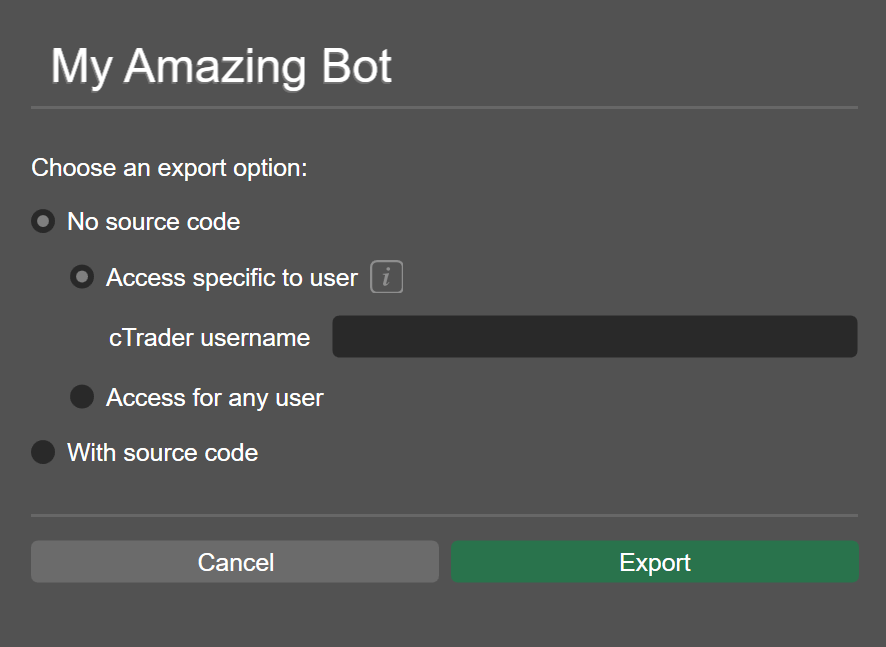
In the newly opened window, select the export option you would like to use. If you select the **No source code, access per user** option, also specify the nickname of the user with whom you are planning to share the algorithm.
After selecting the desired option, click **Export** to save the `.algo` file.
Note
You can freely send `.algo` files to users of cTrader Mobile. When an `.algo` file is opened on a mobile device, the user should select cTrader among the list of applications with which this file could be opened. Afterwards, the algorithm will be added to their **Algo** app.
Back to top
---
# Introduction - cTrader Algo
[Skip to content](https://help.ctrader.com/ctrader-algo/mobile-algo/?q=#introduction)
Introduction[¶](https://help.ctrader.com/ctrader-algo/mobile-algo/?q=#introduction "Permanent link")
=====================================================================================================
cTrader Algo is an app that gives all cTrader Mobile users the option to run cBots in Cloud on any device.
Key terms
* **cBot** - an algorithm that can trade on your behalf or autonomously perform other actions such as placing stop losses for any new positions you open.
* **algorithm** - a set of rules for performing certain trading operations under specific conditions.
* **instance** - a specific realisation of an algorithm. An instance acts according to the instructions specified in the algorithm and under a certain set of customisable rules and parameters. cBot instances always have to be attached to a specific symbol and timeframe.
* **Cloud** - a dedicated environment where instances execute their operations.
Key features
* Start cBots anywhere. Regardless of where you are and what you are doing, you can start a cBot in just one tap.
* Launch and forget. Your cBots will continue running even if you close cTrader or turn off your mobile phone.
* Customise your products. You can upload an avatar and backtesting results to make your cBots stand out and make them more attractive to end users.
How it works[¶](https://help.ctrader.com/ctrader-algo/mobile-algo/?q=#how-it-works "Permanent link")
-----------------------------------------------------------------------------------------------------
### For users[¶](https://help.ctrader.com/ctrader-algo/mobile-algo/?q=#for-users "Permanent link")
You can start an instance of any cBot available to you in the **Algo** app. Instances can be run on any symbol available to your account and on any chart timeframe. Instances are launched and run in Cloud, which means that cTrader itself takes care to execute and maintain the algorithm.
As a result, there is no need to keep cTrader Mobile (or even your device) open and active. Any launched cBots will be running 24/7 unless you stop them or they encounter an error.
Before starting a cBot, you have full control over the advanced parameters if the cBot contains them. You can have multiple instances of the same cBot running with different parameters or on different symbols and timeframes.
Note
* Only cBots can be launched in Cloud. This functionality is unavailable for plugins and custom indicators.
* cBots are run in safe and isolated environments. Algorithms cannot access your personal information, your system settings or any files saved on your device.
* There is a limit on how many running instances can exist at any given time. You will not be able to start new instances if the limit is exceeded.
Here is how you can receive new algorithms:
* Automatically. The **Algo** app always contains all algorithms available to you. If you have a partner and they decide to share their new algorithm with others, you should see the algorithm being added to the app. The same algorithms will be shown on your partner's profile page in the **Partner** app.
* By tapping an `.algo` file shared with you on any channel. Your device should prompt you to open the file in a suitable application. Select cTrader and, if you have access to the algorithm, it will be added to the app.
* By creating a new algorithm via cTrader Windows and then synchronising it with Cloud.
### For partners and developers[¶](https://help.ctrader.com/ctrader-algo/mobile-algo/?q=#for-partners-and-developers "Permanent link")
cTrader Algo provides unlimited opportunities for sharing algos with others and maximising your user and referral base.
Here are all the ways you can share algorithms on mobile devices:
* Once you synchronise an algorithm with Cloud and enable sharing, the algorithm will be shown to your invited traders in their **Algo** apps. They can also be added to your cTrader profile page.
* After sharing is enabled, you can also generate links to certain algorithms and send them to your invited traders. These links will not work for any users who are not among your invited traders.
* You can simply share an `.algo` file with any user you want on any suitable channel. Provided you have allowed the user to access the algo, they will be able to launch your cBot with one tap.
Note
The above actions can also be performed with plugins and custom indicators. However, these types of algos can only be launched locally on cTrader Windows.
You are also given several options for customising how your algorithms look and behave.
* You can upload a custom image that will serve as an avatar for your algorithm. It will be displayed to all users.
* You can customise whether your live account statistics are displayed on the cBot page. Note that these statistics will cover your entire account of choice, not just the trading operations performed by the cBot.
* You can set default instance settings (symbol, timeframe, etc.) that will be provided to all users on every instance start.
Structure[¶](https://help.ctrader.com/ctrader-algo/mobile-algo/?q=#structure "Permanent link")
-----------------------------------------------------------------------------------------------
You can also read detailed tutorials about the different functionalities of cTrader Algo.
* [**Starting, stopping and deleting an instance**](https://help.ctrader.com/ctrader-algo/mobile-algo/starting-stopping-deleting-instance/)
* [**Managing instance parameters**](https://help.ctrader.com/ctrader-algo/mobile-algo/managing-instance-parameters/)
* [**Customising an algorithm**](https://help.ctrader.com/ctrader-algo/mobile-algo/customising-an-algo/)
* [**Receiving and sharing an algorithm**](https://help.ctrader.com/ctrader-algo/mobile-algo/sharing-an-algo/)
There is also a detailed [**FAQ**](https://help.ctrader.com/ctrader-algo/mobile-algo/faq/)
.
Back to top
---
# Start, stop and delete an instance - cTrader Algo
[Skip to content](https://help.ctrader.com/ctrader-algo/mobile-algo/starting-stopping-deleting-instance/#start-stop-and-delete-an-instance)
Start, stop and delete an instance[¶](https://help.ctrader.com/ctrader-algo/mobile-algo/starting-stopping-deleting-instance/#start-stop-and-delete-an-instance "Permanent link")
=================================================================================================================================================================================
Start an instance[¶](https://help.ctrader.com/ctrader-algo/mobile-algo/starting-stopping-deleting-instance/#start-an-instance "Permanent link")
------------------------------------------------------------------------------------------------------------------------------------------------
After receiving access to a cBot, you can create a new instance as follows:
* In the **cBots** tab of the **Algo** application, tap the **Add instance** button located below the list of all currently running instances of a specific cBot.
* Open the algo page for a specific cBot, and tap the green **Start cBot** button at the bottom.
You will be presented with a screen allowing you to set up your new instance. The screen will show the following:
* The account the instance will run on.
* The symbol and timeframe to which the instance is supposed to be attached.
* Any advanced parameters that the cBot has.

After configuring the instance, tap the green **Start cBot** button at the bottom.
Your instance will also be added to the instance list in the **cBots** tab. If it stops for whatever reason, tap the green **Play** icon to restart it or go to the instance screen and tap **Start cBot instance**.
Stop an instance[¶](https://help.ctrader.com/ctrader-algo/mobile-algo/starting-stopping-deleting-instance/#stop-an-instance "Permanent link")
----------------------------------------------------------------------------------------------------------------------------------------------
You have two options for stopping a running instance.
* In the **cBots** tab, tap the grey **Stop** icon to the right of the instance name.
* Tap an instance to see its dedicated page. At the bottom, tap the grey **Stop cBot instance** button.
Note that, after being stopped, your instance will not be deleted; it will still be shown in the **cBots** tab. You can restart it by tapping the green **Play** button in the cBot list or the **Start cBot instance** on the instance screen.
Note
Apart from stopping it manually, an instance can also be stopped automatically for various reasons such as a lack of response from the server.
Delete an instance[¶](https://help.ctrader.com/ctrader-algo/mobile-algo/starting-stopping-deleting-instance/#delete-an-instance "Permanent link")
--------------------------------------------------------------------------------------------------------------------------------------------------
You can delete an instance by tapping it and opening its page. Then, tap the **three dots** icon in the bottom right corner to open the context menu. In the menu, tap **Delete cBot instance**.
Note
It is only possible to delete stopped instances. You cannot delete an instance that is currently running.
After deleting an instance, you still retain access to the algorithm. If you delete all instances of a particular algorithm, you will still be able to create new instances of this algorithm.
Back to top
---
# Manage instance parameters - cTrader Algo
[Skip to content](https://help.ctrader.com/ctrader-algo/mobile-algo/managing-instance-parameters/#manage-instance-parameters)
Manage instance parameters[¶](https://help.ctrader.com/ctrader-algo/mobile-algo/managing-instance-parameters/#manage-instance-parameters "Permanent link")
===========================================================================================================================================================
For traders[¶](https://help.ctrader.com/ctrader-algo/mobile-algo/managing-instance-parameters/#for-traders "Permanent link")
-----------------------------------------------------------------------------------------------------------------------------
A cBot instance always has the following parameters:
* The trading account whose funds the instance will use for trading
* The symbol to which the instance is attached
* The time frame to which an instance is attached
Depending on the algorithm, instances may also have advanced parameters. These parameters are defined entirely by the algorithm author.
You have two options for managing instance parameters:
* In the window that opens when creating a new instance
* In the **Parameters** tab of the page of an already existing instance

Note
* It is only possible to modify the parameters of a stopped instance. Before changing the parameters of an existing instance, make sure it is stopped.
* Be cautious when modifying additional parameters as these can significantly change how a cBot behaves. If you are unsure what the optimal settings are, contact the algo author for assistance. The author's contact details can be found in their profile which can be accessed by tapping the author's nickname in the **Author** field.
After defining parameters, tap the **Start cBot** or **Start cBot instance** button to start the instance with your chosen settings.
For algo authors[¶](https://help.ctrader.com/ctrader-algo/mobile-algo/managing-instance-parameters/#for-algo-authors "Permanent link")
---------------------------------------------------------------------------------------------------------------------------------------
As an algo author, you can customise what parameter values are considered the default for all new instances. When a user attempts to add a new instance of your algorithm, your chosen default settings will be presented to them first. However, users will still be able to override them freely.
To customise the default parameter values, do the following:
1. Open the page for one of your algorithms
2. Tap the **three dots** icon in the bottom-right corner
3. Select **Public settings**
4. In the newly appeared screen, switch to the **Parameters** tab
5. Set default instance parameters and tap **Apply**

Back to top
---
# For money managers - Partner tools
[Skip to content](https://help.ctrader.com/partner-tools/for-money-managers/#for-money-managers)
For money managers[¶](https://help.ctrader.com/partner-tools/for-money-managers/#for-money-managers "Permanent link")
======================================================================================================================
Who are money managers[¶](https://help.ctrader.com/partner-tools/for-money-managers/#who-are-money-managers "Permanent link")
------------------------------------------------------------------------------------------------------------------------------
Money managers are skilled and experienced traders who trade on behalf of others. This is usually done through a shared investment pool or by providing a money manager with access to their client's trading account.
Here are the key features cTrader offers for money managers:
* [**cTrader Copy**](https://help.ctrader.com/ctrader-copy/)
* [**cTrader Algo**](https://help.ctrader.com/ctrader-algo/)
* Investor Access
* [**Shared Access**](https://help.ctrader.com/ctrader-mobile-ios/shared-access-ios/)
Guides for money managers[¶](https://help.ctrader.com/partner-tools/for-money-managers/#guides-for-money-managers "Permanent link")
------------------------------------------------------------------------------------------------------------------------------------
To learn more about being an effective money manager, read the following tutorials:
* [**Boost your authority the cTrader way**](https://help.ctrader.com/partner-tools/how-to-boost-your-authority-the-ctrader-way/)
. This tutorial explains how you can build your authority by leveraging cTrader features.
---
# Chart Trading - cTrader Windows
[Skip to content](https://help.ctrader.com/ctrader/trading/chart-trading/#chart-trading)
Chart Trading[¶](https://help.ctrader.com/ctrader/trading/chart-trading/#chart-trading "Permanent link")
=========================================================================================================
cTrader allows creating orders, price alerts, modifying the open positions as well as setting and modifying the Stop Loss and Take Profit protections directly in the chart.
QuickTrade[¶](https://help.ctrader.com/ctrader/trading/chart-trading/#quicktrade "Permanent link")
---------------------------------------------------------------------------------------------------
To enter a trade in the QuickTrade mode directly from the chart, hover over the Sell or Buy QuickTrade buttons to the top of the chart - the volume selector will appear automatically between them.
Adjust the volume of the trade with the toggles, by typing in the desired value, or selecting the value from the drop-down, and click Buy or Sell button (or double-click depending on your QuickTrade settings) to send an order.
The order will be sent immediately and the respective notification will pop-up to the upper right (if the notifications are enabled).
Note
Depending on the QuickTrade settings, cTrader will either send an order or pop-up the Create Order menu.
Drag and drop the Buy Limit/Stop Order box to the right (or Sell Limit/Stop Order box to the left) to place a Limit or Stop Order. The orders below and between the spread are the Buy Limit Orders, above the spread - the Buy Stop Orders, above and between the spread - the Sell Limit Orders, below the spread - the Sell Stop Orders.
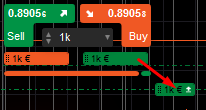
The pending orders will display in the chart right on the price level you have placed them. You can drag and drop them to modify orders directly in the chart.
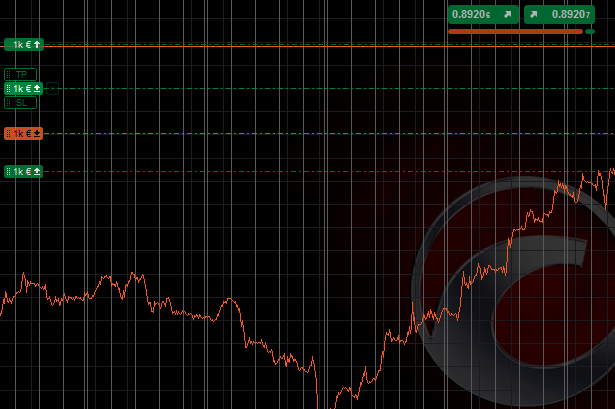
Please check the Application Settings section for more details on how the QuickTrade works.
Orders[¶](https://help.ctrader.com/ctrader/trading/chart-trading/#orders "Permanent link")
-------------------------------------------------------------------------------------------
Alternatively, to create orders directly from the chart, right-click on the desired price level and select Create New Order to proceed to the New Order menu, or select Sell/Buy Limit, Buy/Sell Stop, or Buy/Sell Limit to create the respective order directly on the desired price level.
Note
The bid and ask price lines are moving up and down with each tick of the current spot price.
Therefore, depending on where you are going to create an order (above the bid price or below the Ask price), cTrader will automatically suggest the direction of the order - Buy Limit, Sell Stop and Sell Stop Limit below the Ask price, or Sell Limit, Buy Stop and Buy Stop Limit above the bid price.
The new order badge will appear on the chart. It contains the number of lots being traded, the pips, the current position net profit or loss, as well as the managing and protection buttons. Hover over the Order badge to see its detailed information.
To modify your order, drug and drop it along the price axis or double-click to open the Modify Order menu. To modify Stop Loss or Take Profit protections, drag and drop the respective badge below or above the order badge.

Price Alerts[¶](https://help.ctrader.com/ctrader/trading/chart-trading/#price-alerts "Permanent link")
-------------------------------------------------------------------------------------------------------
To set the Price Alerts directly from the chart, right-click on the desired price level and select the desired Price Alert at Bid or Ask price.
The Price Alert line will automatically appear on the chart. Drag and drop the Price Alert badge to modify the price alert, or use the "x" button to cancel it.

Positions[¶](https://help.ctrader.com/ctrader/trading/chart-trading/#positions "Permanent link")
-------------------------------------------------------------------------------------------------
When you open a position, the position badge becomes visible on the symbol chart. It contains the number of lots trading, the pips, the current position net profit or loss, as well as the managing and protection buttons. You can see the Position reflected on your Chart as a dash and dot line.
If you don't see your current trading positions in the chart, hover over the View Options icon () to the top of the chart to make sure Orders and Positions are selected.
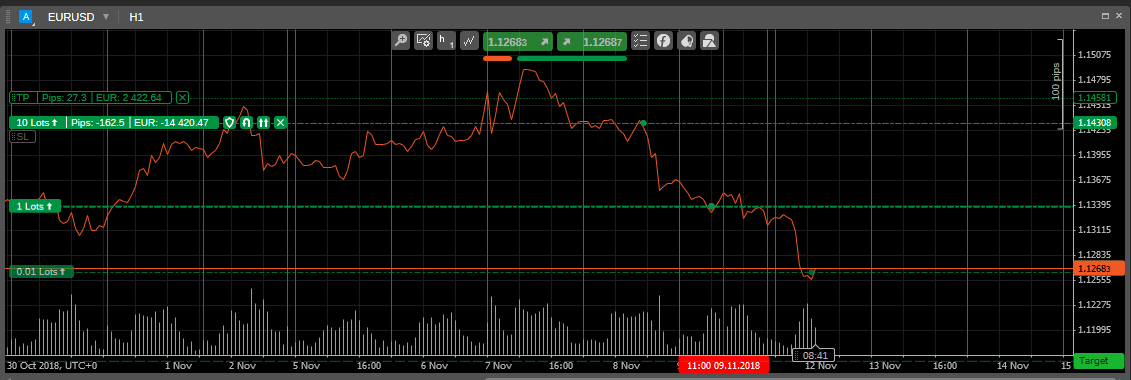
Double-click on the position badge in the chart to open the Modify Position menu.
Click and drag the TP or SL sliders to the desired price level to set or modify the Stop Loss or Take Profit protections. The standard Advanced Protection, Reverse, and Double buttons are available right next to the position preview.
Hover over the current Position or Order line to highlight the line and the corresponding Order/Position in TradeWatch and its open price on the price axis.
The dot on the position line shows the time when this order has been created.
Click the "x" button next to the desired position to close it.
Pending Orders[¶](https://help.ctrader.com/ctrader/trading/chart-trading/#pending-orders "Permanent link")
-----------------------------------------------------------------------------------------------------------
When creating a Pending Order, you can see it reflected on the symbol chart as a dash and dot line with the respective order badge. Click on the desired order icon to open the Modify Order menu.
The Stop Loss and Take Profit levels are reflected on the Chart as dotted lines above and beneath the Order Line.
Until the current price reaches the price you set for a pending order to be filled, you can drag and drop the order badge to change the price.
You can also drag and drop both Stop Loss and Take Profit lines. Use the respective badges to the left to do so.
If you would like to cancel Pending Order or remove Stop Loss/Take Profit, click on the "x" button next to the respective badge.
The dot on the order line shows the time when this order has been created.

---
# Market Replay - cTrader Windows
[Skip to content](https://help.ctrader.com/ctrader/trading/market-replay/#market-replay)
Market Replay[¶](https://help.ctrader.com/ctrader/trading/market-replay/#market-replay "Permanent link")
=========================================================================================================
The Market Replay feature allows you to metaphorically travel back in time to refine your manual trading skills on historical market data. Think of it as a chance to ‘relive’ certain market conditions and test various approaches to trading without risking any real funds.
Consult the bullet points below to learn how Market Replay works in one minute or less!
Market Replay in One Minute!
* To use Market Replay, click on the ‘Market Replay’ icon in the toolbar to the right of the traded chart.
* On the chart itself, choose a start date, adjust other settings, and click on ‘Play’. When the historical trading chart loads, freely place orders and analyze your reactions to certain market movements!
* Dynamically regulate the playback speed to fast-forward to certain events and evaluate the long-term performance of the positions you have opened!
* Analyze your trading strategies by using the equity chart and detailed trade statistics! Use this information on subsequent replays to grow your trading skills.
This extended guide explains where Market Replay can be accessed from, how it can be configured, and why it constitutes a great tool for designing and improving trading strategies.
How to Start Market Replay[¶](https://help.ctrader.com/ctrader/trading/market-replay/#how-to-start-market-replay "Permanent link")
-----------------------------------------------------------------------------------------------------------------------------------
In cTrader Windows, you can find the ‘Market Replay’ icon at the bottom of the toolbar which is to the right of the traded chart.
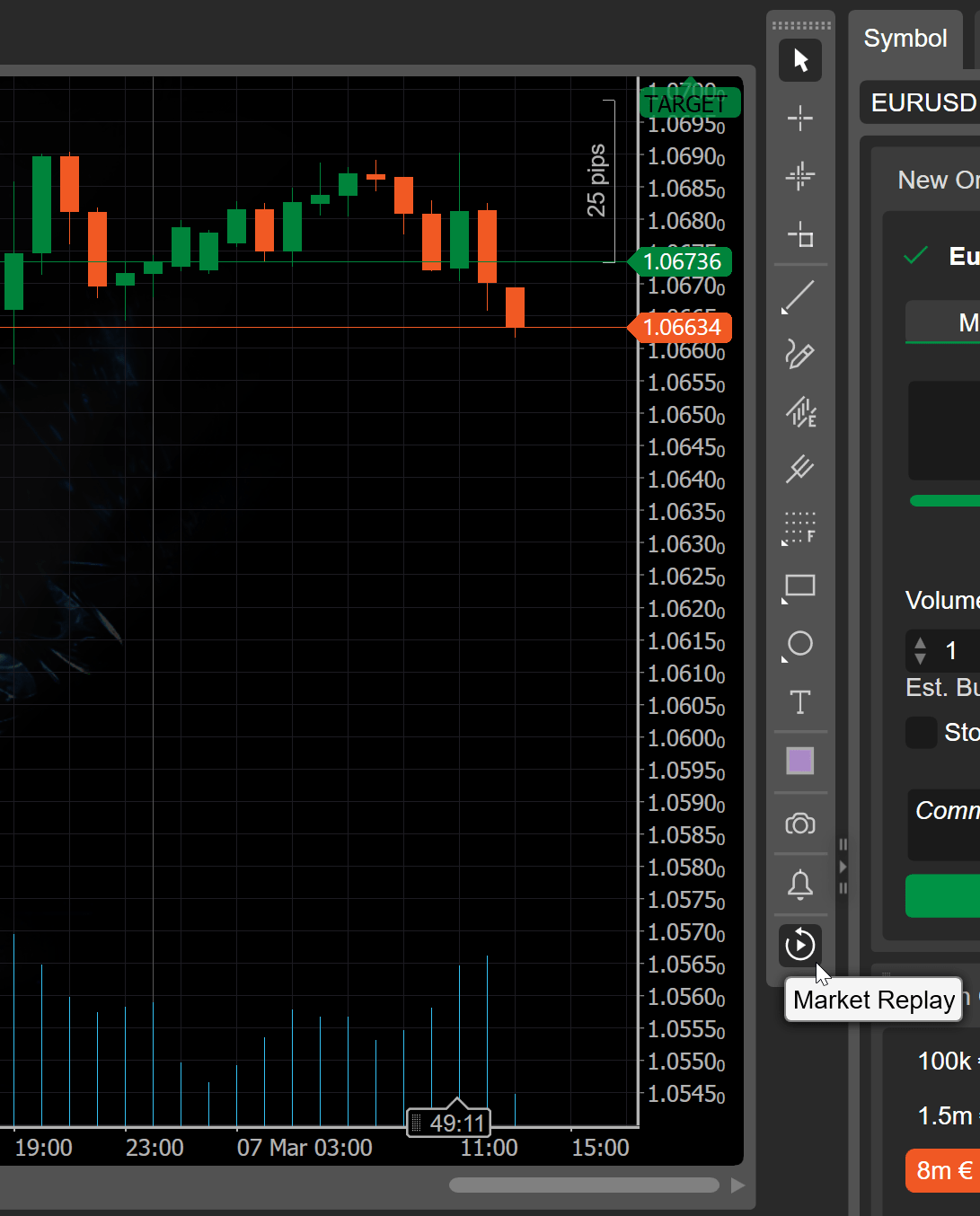
After clicking on the ‘Market Replay’ icon, you should move back the pointer along the chart timeframe and choose a moment from which the playback will start. The settings window will offer to specify the following initial parameters of the Market Replay.
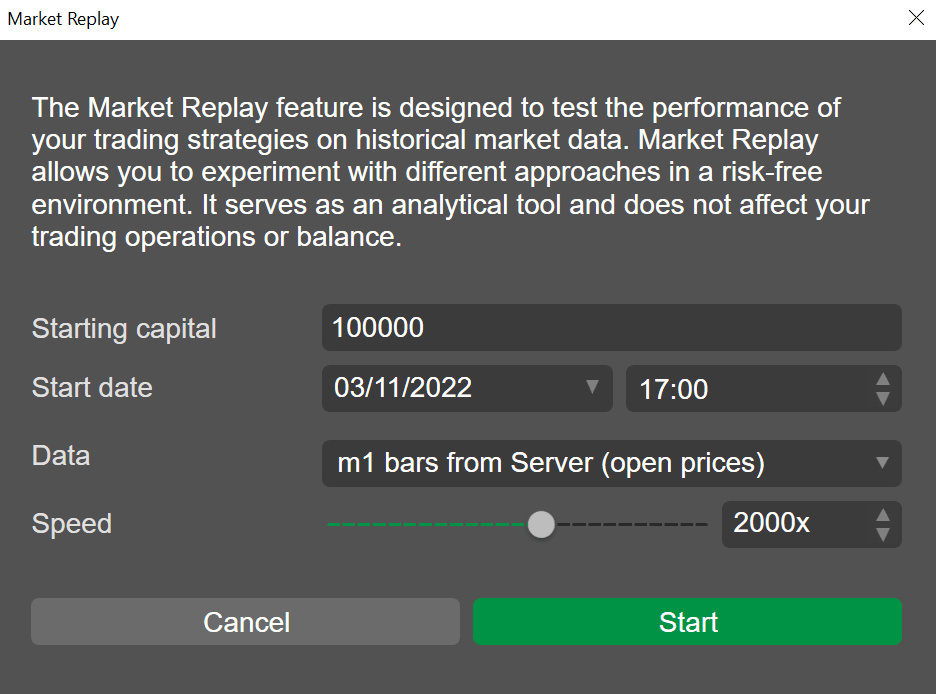
**Starting capital** - Input your starting capital. Since you simulate trading on historical data, any amount may be added here.
**Start date and time** - You can adjust the start date and time if your initial choice was inaccurate.
**Data** - Choose between m1 open prices and the most precise real historical tick data.
**Speed** - Set the playback speed.
Click on ‘Start’ to open the Market Replay interface in a new window. Note that cTrader will need time to load data, and the loading speed will depend on the selected data type.
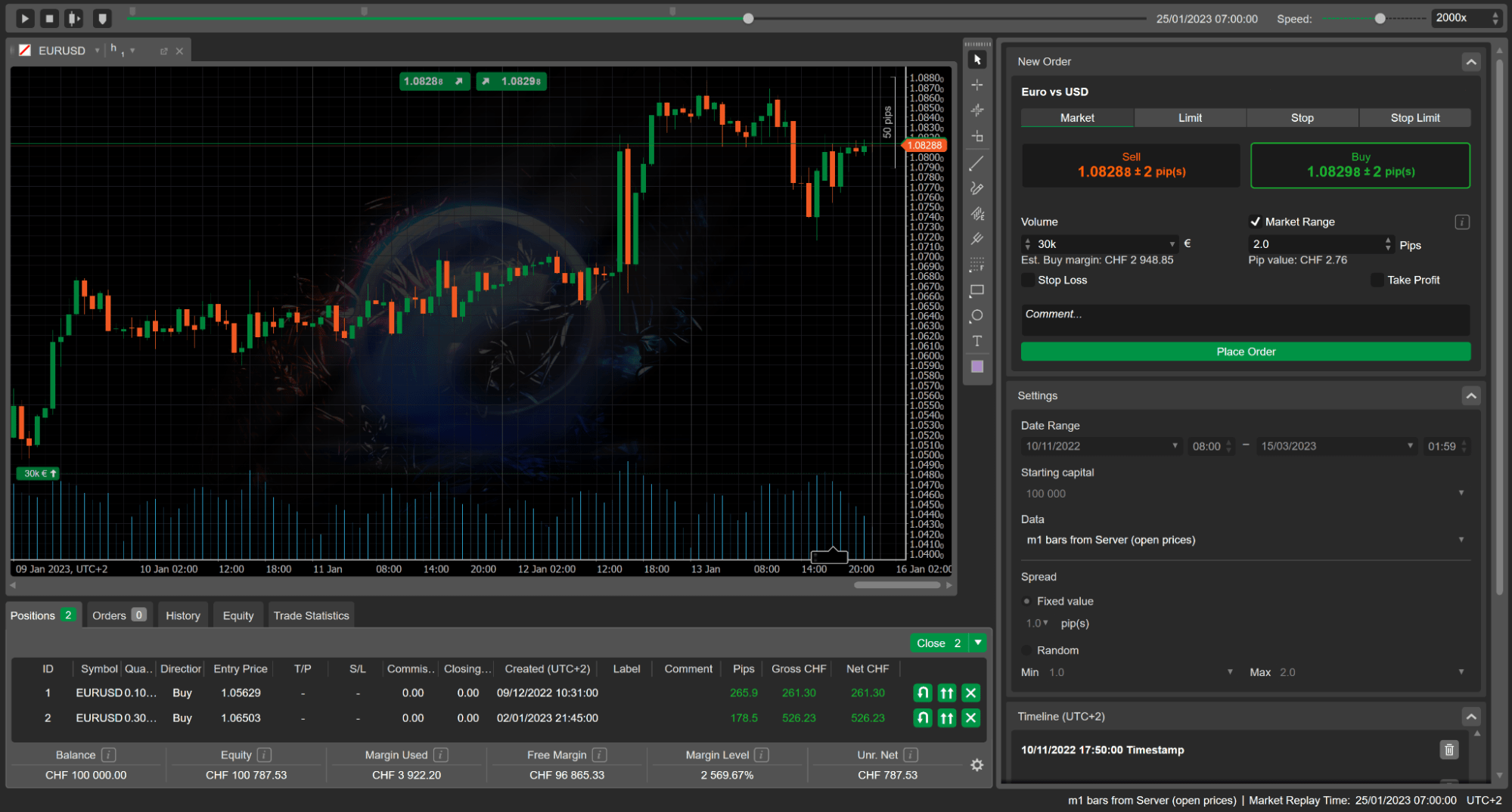
The Market Replay UI consists of six key elements.
* Market Replay controls including the ‘Play/Pause’ and ‘Stop’ icons, the ‘Fast-forward 1 bar’ icon, the ‘Add timestamp’ icon, the calendar progress bar, and the playback speed slider.
* Trading chart for the currently selected symbol.
* Tradewatch with five tabs, such as ‘Positions’, ‘Orders’, ‘History’, ‘Equity’, and ‘Trade Statistics’.
* ‘New Order’ tab.
* Market Replay ‘Settings’ tab.
* ‘Timeline’ tab.
How to Adjust Market Replay Settings[¶](https://help.ctrader.com/ctrader/trading/market-replay/#how-to-adjust-market-replay-settings "Permanent link")
-------------------------------------------------------------------------------------------------------------------------------------------------------
When the Market Replay is running, you can return to the ‘Settings’ tab and adjust your initial parameters. To do so, first, click on the ‘Stop’ icon located in the upper-left corner of the Market Replay window.

The ‘Settings’ tab is now active and you can configure the next parameters.
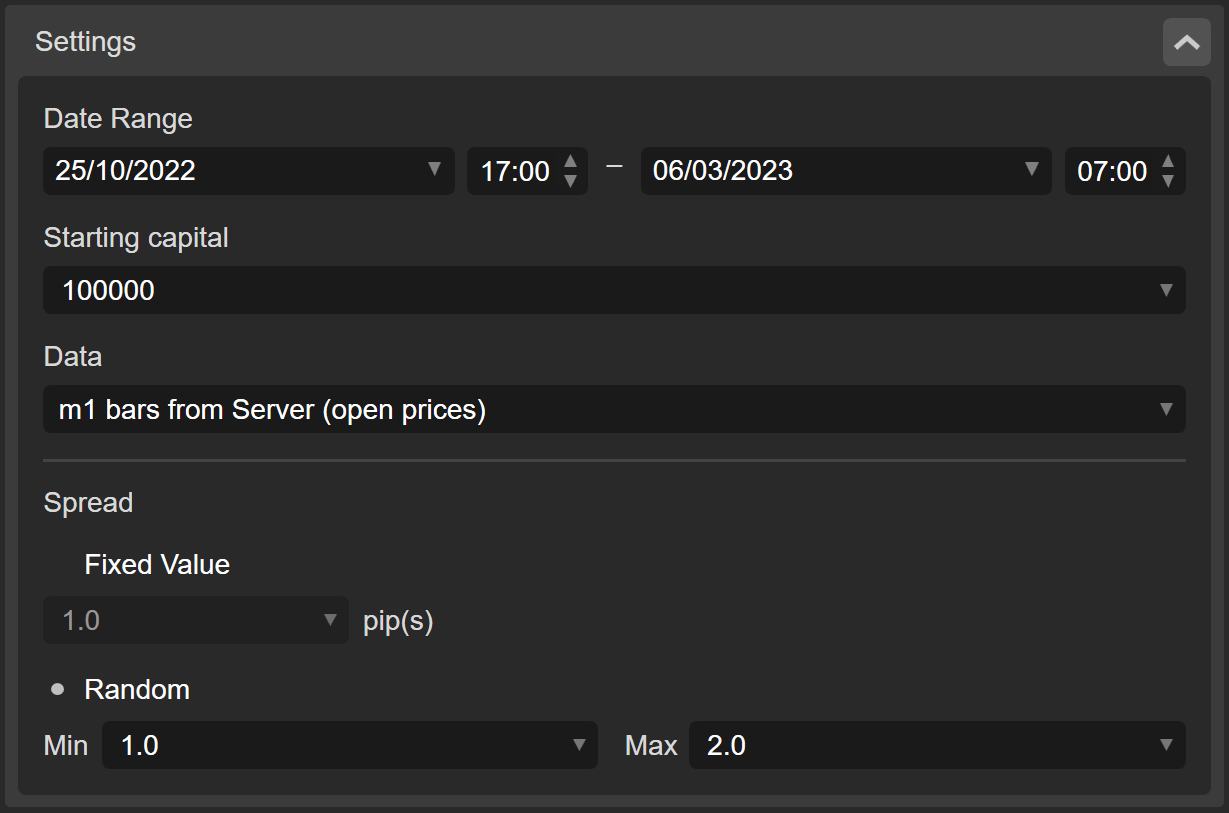
**Date Range** - Use the left and right date/time menus to specify the start and end times for which Market Replay should load historical data. For your convenience, a calendar grid will appear after clicking on the arrow to the right of the date.
**Starting Capital** - Increase or decrease the initial starting capital. We recommend trying different amounts of starting capital to get a feel for your risk tolerance levels.
**Data** - Two types of data are available for Market Replay.
* **m1 bars from Server.** Market Replay will source m1 data using open prices only. The data you will trade on may be slightly inaccurate compared to tick data. Nonetheless, selecting this option is fully justified when you wish to quickly load historical data over a large period.
* **Tick data from Server.** Market Replay will source tick data directly from the trading server. Selecting this data type means that you will trade on data that is highly accurate. Although, this option may also become resource-intensive.
Note
If the ‘m1 bars from Server’ data is selected, you need to specify the spread manually. For the ‘Tick data from Server’ data, the spread is determined based on historical data.
**Spread** - Either type in or select a certain fixed spread value. Alternatively, click on ‘Random’ to configure a random spread value ranging between the specified minimum and maximum boundaries.
How to Trade on Historical Data[¶](https://help.ctrader.com/ctrader/trading/market-replay/#how-to-trade-on-historical-data "Permanent link")
---------------------------------------------------------------------------------------------------------------------------------------------
Make sure that the Market Replay with your adjusted parameters is launched again. Use the controls in the top left corner of the Market Replay window for this purpose.
Now, the trading chart starts outputting price data, and you can enjoy the standard functionality of cTrader for trading operations and technical analysis. For example, you may draw Fibonacci fans, place horizontal lines, or do market snapshots due to the toolbar which is located to the right of the chart. The trend lines below attract attention to certain market movements.
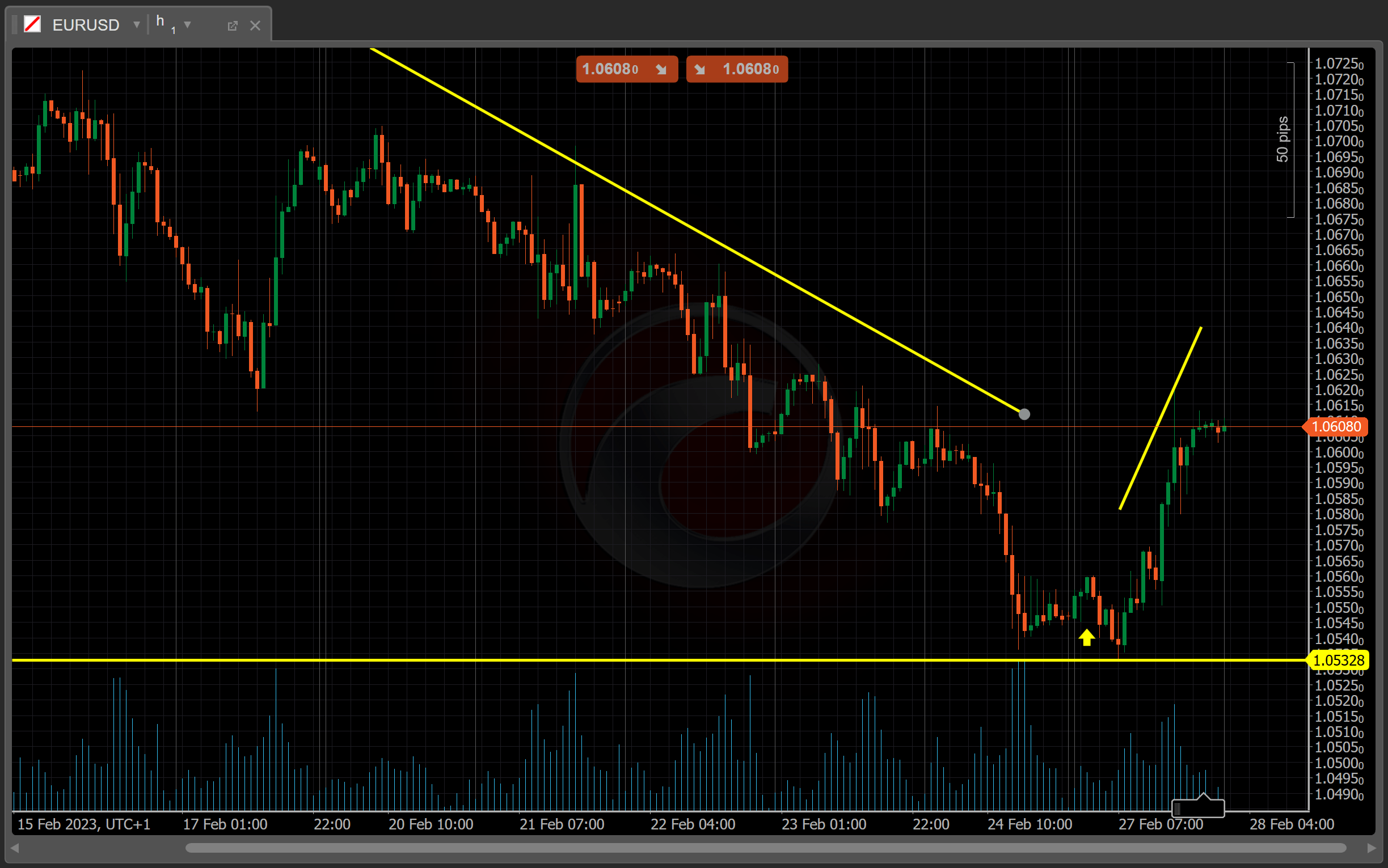
You can also adjust the playback speed dynamically by moving the ‘Speed’ slider, inputting values manually, or using up and down arrows. This functionality allows for fast-forwarding to certain events or, alternatively, slowing down the action to make a weighted trading decision.

As with the standard UI of cTrader, you can place an order in three different ways.
1\. Use the ‘New Order’ tab located to the right of the trading chart.
2\. Use QuickTrade buttons available at the top of the trading chart.
3\. Right-click within the chart area and place an order via the context menu.
Close your currently open positions one by one or altogether from the ‘Trade Watch’ tab below the trading chart.
The calendar slider at the top of the screen will progress from left to right matching your chosen playback speed. You cannot rewind the Market Replay using the calendar slider, but you can jump ahead to any moment by dragging the slider right. In addition to the ‘Play/Pause’ and ‘Stop’ controls, use the ‘Forward 1 Bar’ icon to allow only one bar at a click (according to the chosen timeframe).

How to Add Timestamps[¶](https://help.ctrader.com/ctrader/trading/market-replay/#how-to-add-timestamps "Permanent link")
-------------------------------------------------------------------------------------------------------------------------
Think of timestamps as ‘bookmarks’ which you can place on certain points of the timeline and quickly fast-forward to these events.
To add timestamps while a Market Replay, click on the ‘Add timestamp’ icon to the left of the calendar slider. You can also drag the slider right (not left) to any moment and press ‘Add timestamp’.
A new timestamp will appear just above the calendar slider. To place timestamps up or down the date range, simply right-click on the calendar slider at an approximate place you would like to bookmark.
To edit the timestamp position, drag-and-drop a timestamp along the calendar slider. Alternatively, right-click on it to open the ‘Edit timestamp’ menu. Here, you can edit the date and the exact time.
How to Analyze Replay Performance[¶](https://help.ctrader.com/ctrader/trading/market-replay/#how-to-analyze-replay-performance "Permanent link")
-------------------------------------------------------------------------------------------------------------------------------------------------
In addition to the ‘Positions’, ‘Orders’, and ‘History’ tabs, the ‘Trade Watch’ display in the Market Replay window also shows the ‘Equity’ and ‘Trade Statistics’ tabs. The ‘Equity’ tab offers a dynamic equity chart that acts as a great visual aid for evaluating trader performance.
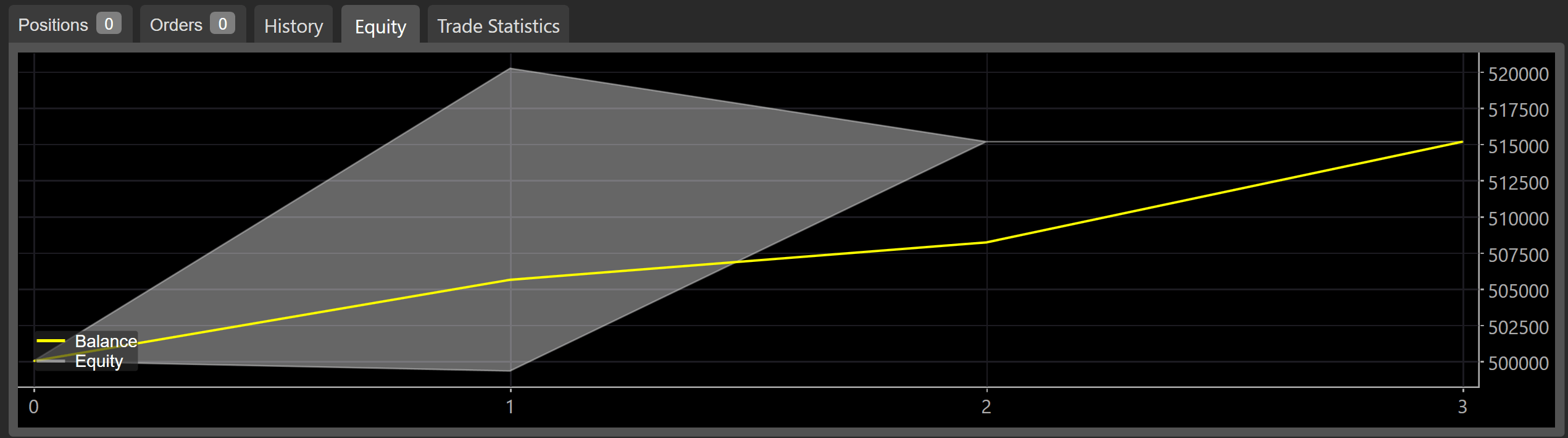
On the equity chart, the X axis illustrates the total number of trades you have made. The Y axis tracks funds.
Note
Market Replay does not affect any funds in your actual trading account be it Live or Demo.
In turn, the ‘Trade Statistics’ tab provides the following summary.
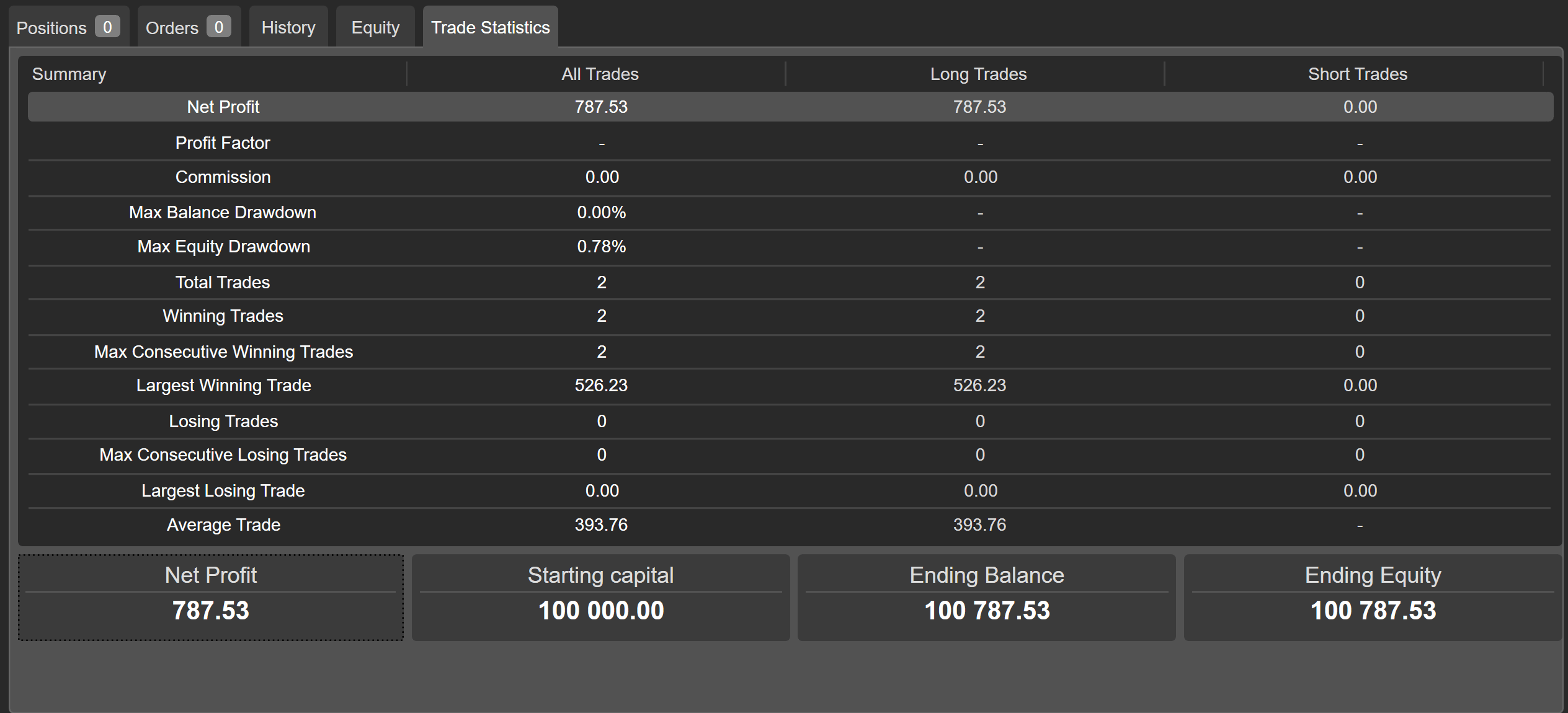
The chart highlights important statistics, such as the total number of winning trades you have made.
To associate your performance with certain events that have occurred throughout the Market Replay, turn to the ‘Timeline’ tab. It contains a dynamically updated record of all timestamps you have added and all orders you have placed during the currently active Market Replay.
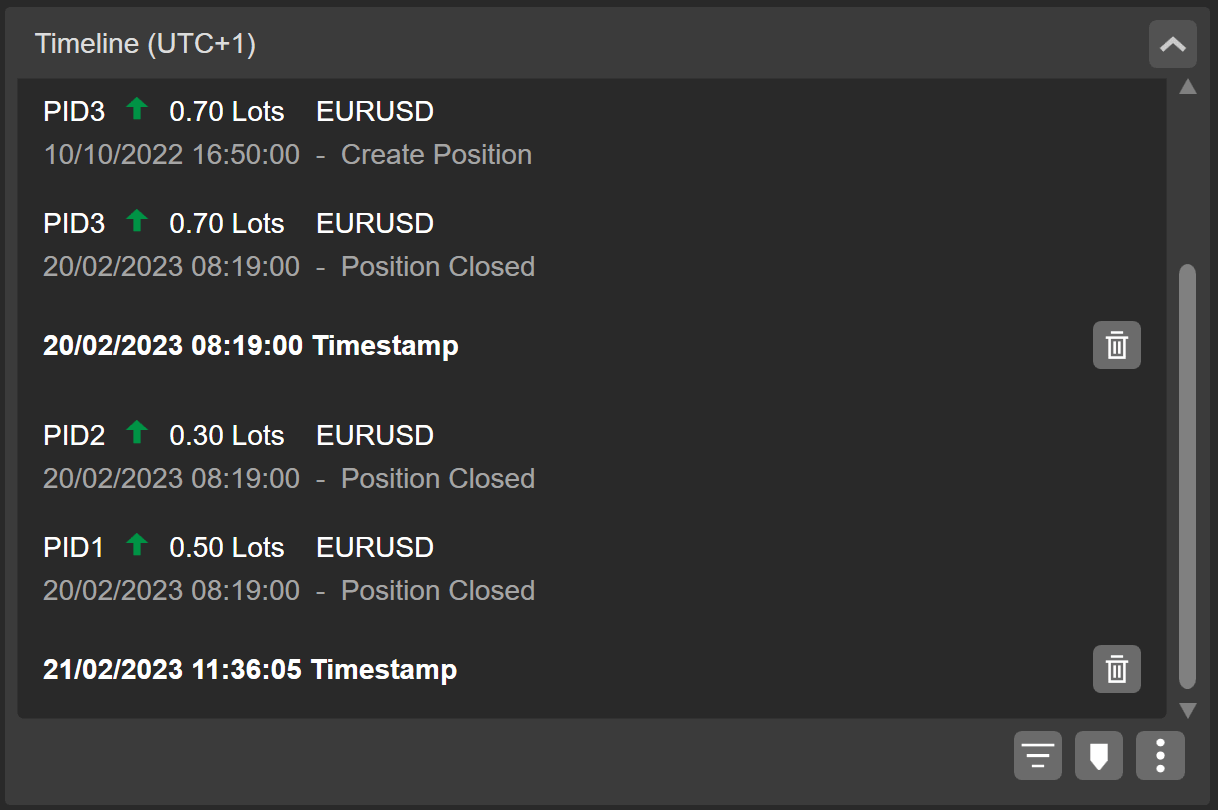
Additionally, you can edit timestamps directly from the ‘Timeline’ tab. After hovering over a timestamp, a ‘Cog’ icon will appear to the left of the ‘Bin’ icon. You can set a new date and time after clicking on it.

At the bottom of the ‘Timeline’ tab, there are several controls that allow for customizing the display filters, adding a timestamp right from this tab, and exporting/importing timestamps.

This functionality is particularly useful when you want to retry certain Market Replays and would like to save time on timestamp management. You should download and upload .rptm files for this purpose.
Key Benefits of Market Replay[¶](https://help.ctrader.com/ctrader/trading/market-replay/#key-benefits-of-market-replay "Permanent link")
-----------------------------------------------------------------------------------------------------------------------------------------
Market Replay is an invaluable tool for evaluating and refining one’s manual trading skills. Specifically, it provides the following benefits.
**Safe environment.** You can use the standard order functionality from cTrader to emulate trading without risking real funds in Market Replay.
**Quick strategy testing.** Due to the playback speed feature, Market Replay allows for quickly testing your manual trading strategies in the short and long-term.
**Easy navigation.** Traders do not waste time on repeated replays, as Market Replay allows for managing timestamps in just a few clicks.
**Trackable statistics.** Market Replay offers a detailed timeline and trading statistics, giving users accurate information for refining a trading strategy.
To summarize, Market Replay is a customizable tool for testing and enhancing one’s fundamental trading skills. Even if you consider yourself an experienced trader, you can still refine your strategy trading on historical market data without the risk of losing real funds.
---
# Introduction - cTrader Algo
[Skip to content](https://help.ctrader.com/ctrader-algo/synchronisation/?q=#introduction)
Introduction[¶](https://help.ctrader.com/ctrader-algo/synchronisation/?q=#introduction "Permanent link")
=========================================================================================================
Synchronisation with Cloud is a feature that allows you to run cBots in a dedicated environment independent of your local machine.
It eliminates the need for third-party services that provide similar environments. With Cloud, you can simply create an instance, start it in one click, and then close cTrader entirely or turn off your local machine. Your instance will continue running 24/7 unless you stop it manually or it encounters a technical issue.
Key features
* Start cBots anywhere - regardless of where you are and what you are doing, you can start a cBot in just one click.
* Launch and forget - your cBots will continue running even if you close cTrader or turn off your computer.
* Customise your products - you can set the algorithm name, upload an avatar and add backtesting results to make your cBots more attractive to end users.
Note
You can simultaneously run 1 cBot instance on demo accounts and up to 10 cBot instances on live accounts in Cloud. Please note that these limits may vary depending on your broker.
Tip
Cloud supports cBots that have external dependencies. When creating new cBots, you can freely add third-party packages such as machine learning libraries. However, there are some requirements that your cBots need to meet to ensure that Cloud can fully execute code containing external dependencies. [**Read more here**](https://help.ctrader.com/ctrader-algo/synchronisation/requirements-for-cbots/)
.
How it works[¶](https://help.ctrader.com/ctrader-algo/synchronisation/?q=#how-it-works "Permanent link")
---------------------------------------------------------------------------------------------------------
### For users[¶](https://help.ctrader.com/ctrader-algo/synchronisation/?q=#for-users "Permanent link")
You can start an instance of any cBot available to you in the **Algo** app. Instances can be run on any symbol available to your account and on any chart timeframe. Instances are launched and run in Cloud, which means that cTrader itself takes care to execute and maintain the algorithm.
As a result, there is no need to keep cTrader Windows open and active. You can also turn off your local machine and any cBots you may have launched will continue running.
Local instances
You can still start algorithms locally, in which case they will run on your machine and require cTrader Windows to be open.
Before launching a cBot, you have full control over the advanced parameters if the cBot contains them. You can have multiple instances of the same cBot running with different parameters or on different symbols and timeframes.
Note
cBots in Cloud are run in safe and isolated environments. Even if they have elevated access rights, algorithms cannot access your personal information, your system settings or any files saved on your device. Depending on their access rights, local instances can sometimes access data on your machine.
Here is how you can receive new algorithms:
* Automatically. The Algo app always contains all algorithms available to you. If you have a partner and they decide to share their new algorithm with others, you should see the algorithm being added to the app. The same algorithms will be shown on your partner's profile page in the Partner app.
* By double-clicking an `.algo` file shared with you on any channel. If you have access to the algorithm, it will be added to the Algo application.
* By creating a new algorithm and then synchronising it with Cloud. You can still launch algorithms locally without enabling synchronisation.
For partners and developers[¶](https://help.ctrader.com/ctrader-algo/synchronisation/?q=#for-partners-and-developers "Permanent link")
---------------------------------------------------------------------------------------------------------------------------------------
cTrader Algo provides unlimited opportunities for sharing algos with others and maximising your user and referral base.
Here are all the ways you can share algorithms:
* Once you synchronise an algorithm with Cloud and enable sharing, the algorithm will be shown to your invited traders in their Algo apps. They can also be added to your cTrader profile page.
* After sharing is enabled, you can also generate links to certain algorithms and send them to your invited traders. These links will not work for any users who are not among your invited traders.
* You can simply share an `.algo` file with any user you want on any suitable channel. Provided you have allowed the user to access the algo, they will be able to launch your cBot in one or two clicks.
Note
While plugins and custom indicators can be freely shared using the above methods, only cBots can be run in Cloud. Users, however, can still run plugins and custom indicators locally.
You are also given several options for customising how your algorithms look and behave.
* You can upload a custom image that will serve as an avatar for your algorithm. It will be displayed to all users.
* You can customise whether your live account statistics are displayed on the cBot page. Note that these statistics will cover your entire account of choice, not just the trading operations performed by the cBot.
* You can set default instance settings (such as symbol and timeframe) that will be provided to all users on every instance start.
* You can show a backtesting report generated for a cBot on its page
Structure[¶](https://help.ctrader.com/ctrader-algo/synchronisation/?q=#structure "Permanent link")
---------------------------------------------------------------------------------------------------
You can also read detailed tutorials about the different aspects of synchronisation and running cBots in Cloud.
* [**Manage synchronisation settings**](https://help.ctrader.com/ctrader-algo/synchronisation/managing-synchronisation-settings/)
* [**Manage Cloud instance parameters**](https://help.ctrader.com/ctrader-algo/synchronisation/managing-instance-parameters/)
* [**Customise an algorithm**](https://help.ctrader.com/ctrader-algo/synchronisation/customising-an-algo/)
* [**Share an algorithm**](https://help.ctrader.com/ctrader-algo/synchronisation/sharing-an-algo/)
* [**Requirements for cBots**](https://help.ctrader.com/ctrader-algo/synchronisation/requirements-for-cbots/)
There is also an extensive [**FAQ**](https://help.ctrader.com/ctrader-algo/synchronisation/faq/)
.
Back to top
---
# FAQ - cTrader Algo
[Skip to content](https://help.ctrader.com/ctrader-algo/synchronisation/faq/#faq)
FAQ[¶](https://help.ctrader.com/ctrader-algo/synchronisation/faq/#faq "Permanent link")
========================================================================================
What is the best cBot?[¶](https://help.ctrader.com/ctrader-algo/synchronisation/faq/#what-is-the-best-cbot "Permanent link")
-----------------------------------------------------------------------------------------------------------------------------
There is no cBot that realistically could be classified as the best. cBots perform various functions depending on the intentions of their authors. Using a cBot does not guarantee earning profits. When using a cBot, you accept full risk for any actions it may perform.
Can I create a new algorithm in cTrader Web?[¶](https://help.ctrader.com/ctrader-algo/synchronisation/faq/#can-i-create-a-new-algorithm-in-ctrader-web "Permanent link")
-------------------------------------------------------------------------------------------------------------------------------------------------------------------------
No, creating a new algorithm is only possible via cTrader Windows.
Can I see the source code of an algorithm?[¶](https://help.ctrader.com/ctrader-algo/synchronisation/faq/#can-i-see-the-source-code-of-an-algorithm "Permanent link")
---------------------------------------------------------------------------------------------------------------------------------------------------------------------
If you are not the author of an algorithm, you can only see its source code with explicit permission from the owner and only on cTrader Windows.
Why did one of my algorithms disappear?[¶](https://help.ctrader.com/ctrader-algo/synchronisation/faq/#why-did-one-of-my-algorithms-disappear "Permanent link")
---------------------------------------------------------------------------------------------------------------------------------------------------------------
The most probable cause is that the author has chosen to stop providing this product. If the author is your partner in the **Partner** app, you can go to their profile and see their contact details (if there are any). Contact your partner if you want them to restore the algorithm.
Note
You can also access the profile by tapping the nickname of the author in the **Author** field in the algorithm page.
One of my cBot instances has suddenly stopped or crashed. Why?[¶](https://help.ctrader.com/ctrader-algo/synchronisation/faq/#one-of-my-cbot-instances-has-suddenly-stopped-or-crashed-why "Permanent link")
------------------------------------------------------------------------------------------------------------------------------------------------------------------------------------------------------------
In rare cases, an instance may encounter an error and cease execution. If you go to the **Instance information** tab on the instance page, you should see a detailed log of actions performed by the instance. This journal should also contain the exact event when the instance encountered an error.
Instances run in Cloud on live accounts until you stop them, whereas the cloud execution of cBot instances on demo accounts is automatically stopped seven days after their start. To restart your instance, click **Start cBot instance** on the instance page or the green **Play** icon in the algorithm list.
How many cBot instances can I start in Cloud?[¶](https://help.ctrader.com/ctrader-algo/synchronisation/faq/#how-many-cbot-instances-can-i-start-in-cloud "Permanent link")
---------------------------------------------------------------------------------------------------------------------------------------------------------------------------
You can simultaneously run one cBot instance on demo accounts and up to ten cBot instances on live accounts in Cloud. Please note that these limits may vary depending on the broker.
Why can I not run custom indicators and plugins in Cloud?[¶](https://help.ctrader.com/ctrader-algo/synchronisation/faq/#why-can-i-not-run-custom-indicators-and-plugins-in-cloud "Permanent link")
---------------------------------------------------------------------------------------------------------------------------------------------------------------------------------------------------
Custom indicators and plugins offer several features that are not currently supported across all cTrader platforms. For example, plugins can modify the cTrader UI. To ensure that your experience with cTrader is as smooth as possible, you can only run custom indicators and plugins on cTrader Windows.
If I am the author of an algorithm can I charge other people for using it?[¶](https://help.ctrader.com/ctrader-algo/synchronisation/faq/#if-i-am-the-author-of-an-algorithm-can-i-charge-other-people-for-using-it "Permanent link")
-------------------------------------------------------------------------------------------------------------------------------------------------------------------------------------------------------------------------------------
At the moment, cTrader does not offer any built-in means for charging one-time payments or regular fees for algorithm usage. You will need to use third-party services to process payments and ensure that your algos are distributed only to paying customers. Note that this may change with future releases of cTrader.
Need cTrader support?
Reach out through our official channels to resolve any issues:
* Ask questions and connect with traders, developers and other users in the cTrader [**Discord Community**](https://go.spotware.com/discord)
.
* Browse archived discussions on the cTrader [**Community Forum**](https://community.ctrader.com/)
. While the forum is no longer open for new posts, it is full of helpful answers to common issues.
* Contact the cTrader Support Team at [**support@ctrader.com**](mailto:support@ctrader.com)
for technical assistance.
Back to top
---
# Requirements for cBots - cTrader Algo
[Skip to content](https://help.ctrader.com/ctrader-algo/synchronisation/requirements-for-cbots/#requirements-for-cbots)
Requirements for cBots[¶](https://help.ctrader.com/ctrader-algo/synchronisation/requirements-for-cbots/#requirements-for-cbots "Permanent link")
=================================================================================================================================================
There are two main requirements you have to meet to ensure that your cBot instances can run smoothly in Cloud.
Compile-time references[¶](https://help.ctrader.com/ctrader-algo/synchronisation/requirements-for-cbots/#compile-time-references "Permanent link")
---------------------------------------------------------------------------------------------------------------------------------------------------
There are multiple ways to work with dependencies in .NET. For example, you may supply dependencies as individual `.dll` files without including them directly in your project executable.
However, only compile-time references are fully compatible with running cBots in Cloud. Cloud acts as a dedicated environment that runs the cBot executable (the `.algo` file) without managing any external `.dll` files.
Compile-time dependencies are ensured in all cases where you reference a library in the `using` statements at the top of your code. However, if you reference a stand-alone `.dll` file within the body of your code (for example, via the `Assembly.Load()` method), this reference will not be compile-time, and your cBot will not perform any related operations in Cloud.
Use cross-platform dependencies[¶](https://help.ctrader.com/ctrader-algo/synchronisation/requirements-for-cbots/#use-cross-platform-dependencies "Permanent link")
-------------------------------------------------------------------------------------------------------------------------------------------------------------------
Cloud executes all cBots in a Linux-based environment. This means that if you want to use external dependencies, these dependencies have to be cross-platform.
As an illustration, here are some dependencies that will not work in Cloud as they are specific to Windows.
* WPF
* WinForms
* WinAPI
When adding a new dependency into your project, read its documentation to learn whether it is supported in Linux-based environments.
API features[¶](https://help.ctrader.com/ctrader-algo/synchronisation/requirements-for-cbots/#api-features "Permanent link")
-----------------------------------------------------------------------------------------------------------------------------
There are several Algo API features that work differently in Cloud when compared to local execution.
| Feature/method | How it works in Cloud |
| --- | --- |
| `MessageBox` | Always returns `MessageBoxResult.None` |
| `Window` | Is always ignored |
| `Notifications.PlaySound()` | Is always ignored |
| `Account.UserNickName` | Always calls the `OnException()` handler |
| `Chart.TakeChartshot()` | Always returns null |
| `WebSocketClient` | Only works if you connect to a service via port `25345` |
| `HTTP` | No HTTP requests are sent |
| `LocalStorage` and file operations | Only works if relative paths are specified or new directories are created from scratch |
Local storage and file operations
Whenever a Cloud instance is stopped or deleted, all resources allocated to it within Cloud are automatically freed. If your cBot creates files or directories and then accesses data from them, these files will be deleted on every instance restart or deletion.
Back to top
---
# Manage Cloud instance parameters - cTrader Algo
[Skip to content](https://help.ctrader.com/ctrader-algo/synchronisation/managing-instance-parameters/#manage-cloud-instance-parameters)
Manage Cloud instance parameters[¶](https://help.ctrader.com/ctrader-algo/synchronisation/managing-instance-parameters/#manage-cloud-instance-parameters "Permanent link")
===========================================================================================================================================================================
For traders[¶](https://help.ctrader.com/ctrader-algo/synchronisation/managing-instance-parameters/#for-traders "Permanent link")
---------------------------------------------------------------------------------------------------------------------------------
The process for managing Cloud instance parameters is exactly the same as the process for managing the parameters of local instances.

A cBot instance always has the following parameters:
* The trading account whose funds the instance will use for trading
* The symbol to which the instance is attached
* The timeframe to which an instance is attached
Depending on the algorithm, instances may also have advanced parameters. These parameters are defined entirely by the algorithm author.
You have several options for managing instance parameters:
* In the window that opens when creating a new instance
* In the context menu that opens after clicking the **cog** icon next to the instance timeframe selector
* In the **Parameters** section that appears below the chart when you click an instance
* By right-clicking an instance and then choosing **Load parameters** if you have a valid `.cbotset` file
New instanceContext menuParameters sectionLoad parameters
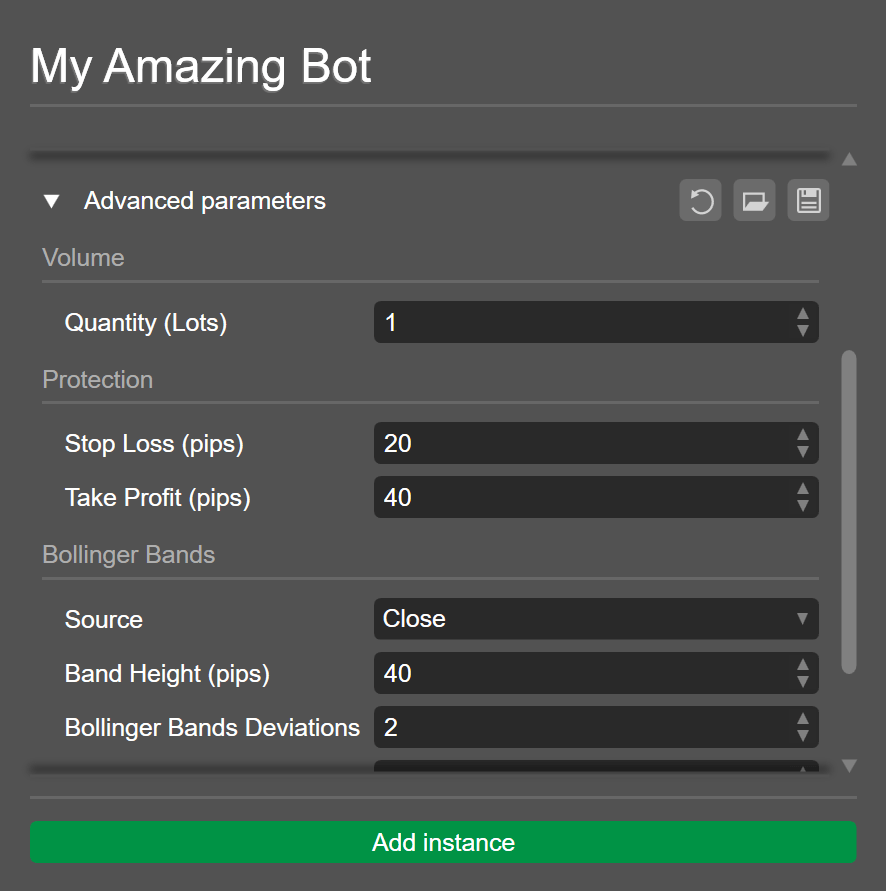
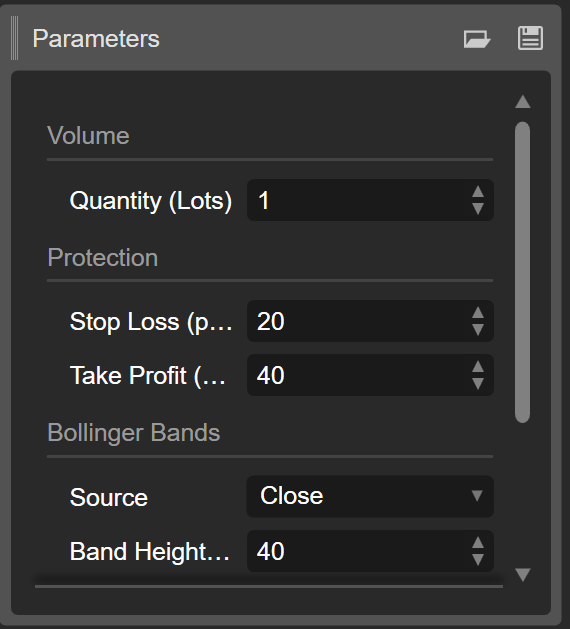
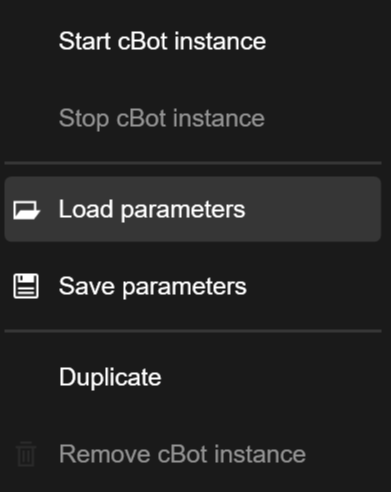
Note
* It is only possible to modify the parameters of an inactive instance. Before changing the parameters of an existing instance, make sure it has stopped.
* Be cautious when modifying advanced parameters as these can significantly change how a cBot behaves. If you are unsure what the optimal settings are, contact the algo author for assistance. The author's contact details can be found in their profile which can be accessed by clicking the author's nickname in the **Author** field.
After defining parameters, start the instance again and it will run using the new settings.
For algo authors[¶](https://help.ctrader.com/ctrader-algo/synchronisation/managing-instance-parameters/#for-algo-authors "Permanent link")
-------------------------------------------------------------------------------------------------------------------------------------------
As an algo author, you can customise what parameter values are considered the default for all new instances. When a user attempts to add a new instance of your algorithm, your chosen default settings will be presented to them first. However, users will still be able to override them freely using all of the methods defined above.
Do the following to configure the default parameter values:
1. Right-click any of your cBots in the algo list to the left
2. Select **Public settings**
3. In the newly opened window, navigate to the **Parameters** section
4. Define the default parameter values either by hand or via a `.cbotset` file
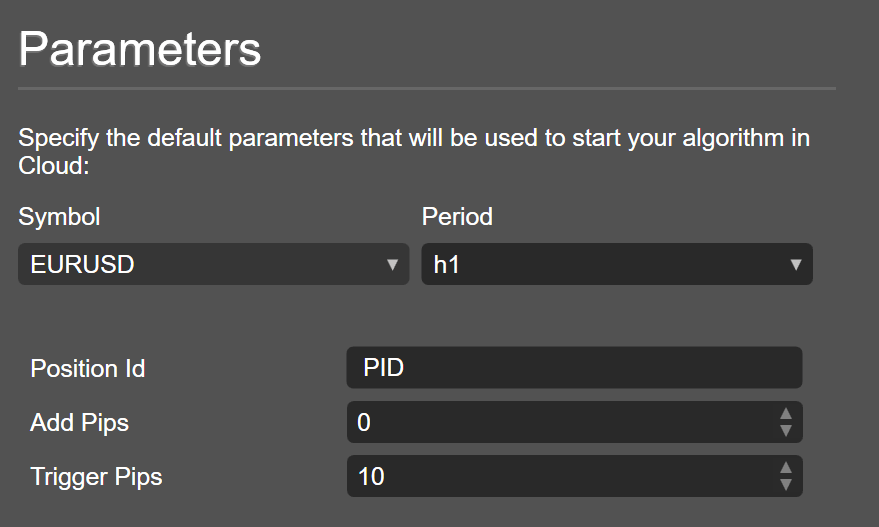
Back to top
---
# Customise an algorithm - cTrader Algo
[Skip to content](https://help.ctrader.com/ctrader-algo/mobile-algo/customising-an-algo/#customise-an-algorithm)
Customise an algorithm[¶](https://help.ctrader.com/ctrader-algo/mobile-algo/customising-an-algo/#customise-an-algorithm "Permanent link")
==========================================================================================================================================
If you are the author of an algorithm, you can customise how it appears to other users.
To customise a cBot, open its page, tap the **three dots** icon in the bottom-right corner and then tap **Public settings**. For indicators and plugins, **Public settings** is instead a button located at the bottom of the algorithm page.
Set the avatar[¶](https://help.ctrader.com/ctrader-algo/mobile-algo/customising-an-algo/#set-the-avatar "Permanent link")
--------------------------------------------------------------------------------------------------------------------------
You can upload an image that will effectively serve as the avatar of an algorithm. It will be shown to all algorithm users, so make sure to upload something informative and good-looking.
To upload an image or change an existing one, tap the **pencil** icon next to the existing avatar or the placeholder image. Tap **Upload new image** and then select the file you would like to upload. Afterwards, apply your changes.
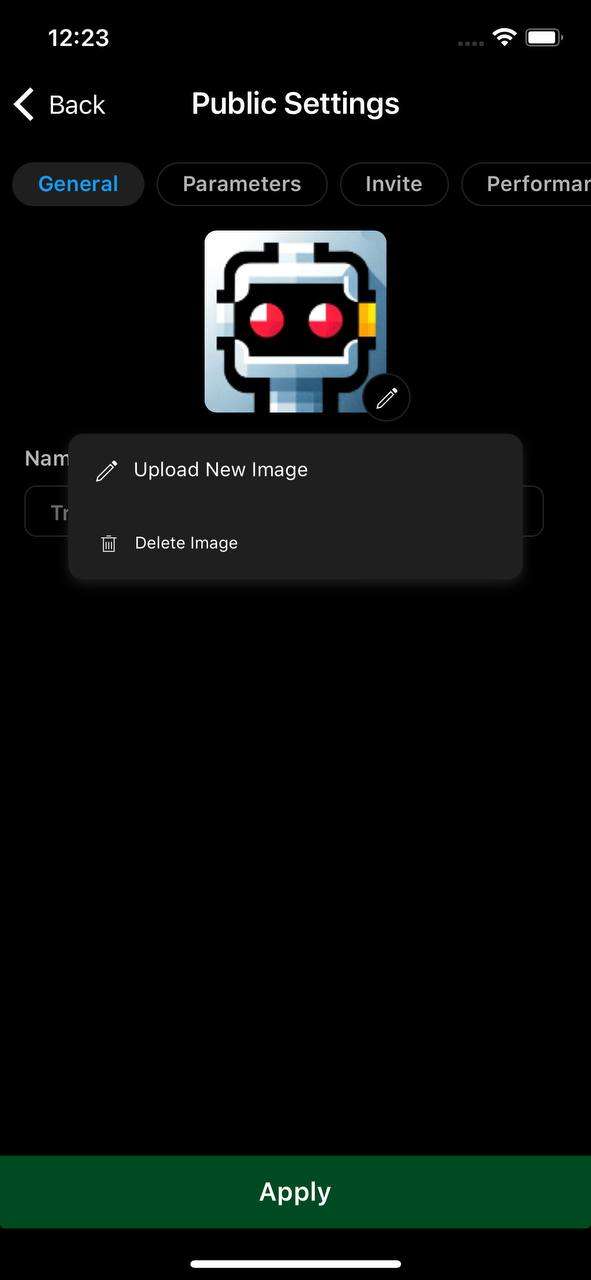
Set performance statistics[¶](https://help.ctrader.com/ctrader-algo/mobile-algo/customising-an-algo/#set-performance-statistics "Permanent link")
--------------------------------------------------------------------------------------------------------------------------------------------------
If you want, you can make sure that ROI charts will always be displayed on the algorithm page.
Note
The ROI charts are generated based on the performance of your chosen live trading account. They reflect all actions you perform, not just the actions performed by the algorithm.
To enable this option, switch to the **Performance** tab in the **Public settings** screen. In this tab, tap the **Display ROI charts** checkbox and choose one of your live accounts in the selector below.
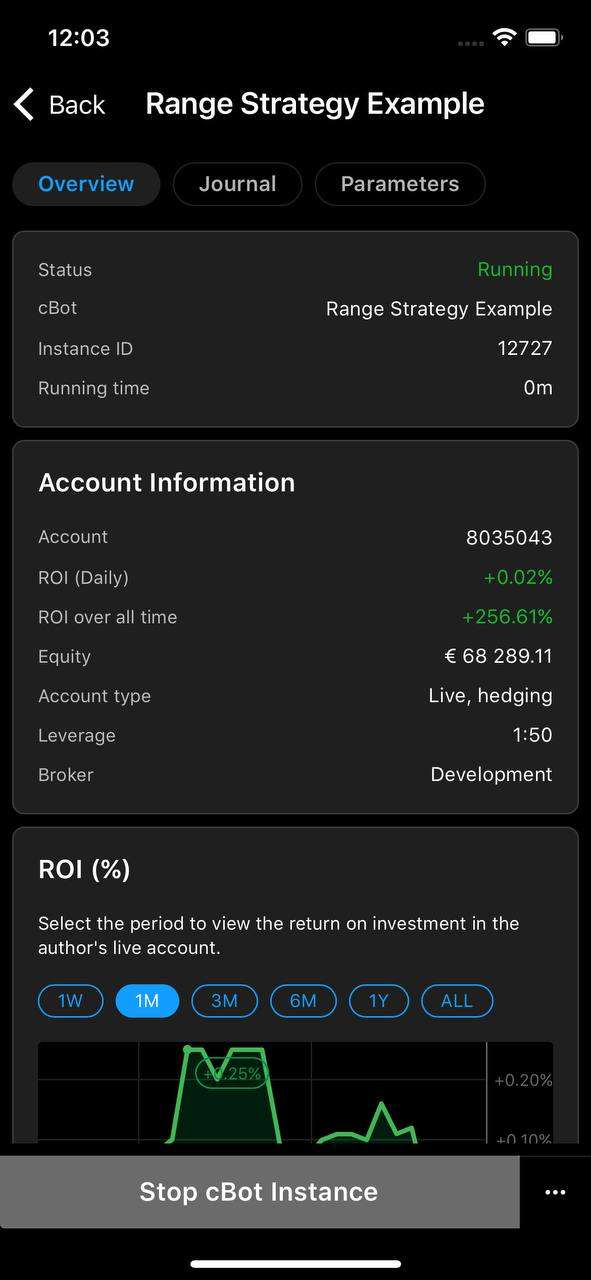
Note
Backtesting statistics can only be set via cTrader Windows. [**Read more here**](https://help.ctrader.com/ctrader-algo/synchronisation/customising-an-algo/)
.
Back to top
---
# Share an algorithm - cTrader Algo
[Skip to content](https://help.ctrader.com/ctrader-algo/mobile-algo/sharing-an-algo/#share-an-algorithm)
Share an algorithm[¶](https://help.ctrader.com/ctrader-algo/mobile-algo/sharing-an-algo/#share-an-algorithm "Permanent link")
==============================================================================================================================
If you are the author of an algorithm, you have three options for sharing it with other users.
* Automatically
* As an `.algo` file
* Via an invite link
Automatically[¶](https://help.ctrader.com/ctrader-algo/mobile-algo/sharing-an-algo/#automatically "Permanent link")
--------------------------------------------------------------------------------------------------------------------
If you are the owner of the algorithm, you can enable automatic access for your invited traders on a per-algorithm basis.
To do so, perform these actions:
1. Open the algorithm page, tap the **three dots** icon in the lower-right corner and tap **Public settings**. For plugins and indicators, **Public settings** is instead a button shown directly on the algorithm page.
2. Switch to the **Invite** tab
3. Tick the **Enable access for your invited traders** checkbox
4. Tap **Apply**

After your changes are applied, the algorithm will automatically be shown to all your invited traders in the **Algo** app.
As an `.algo` file[¶](https://help.ctrader.com/ctrader-algo/mobile-algo/sharing-an-algo/#as-an-algo-file "Permanent link")
---------------------------------------------------------------------------------------------------------------------------
To use this option, you have to access cTrader Windows.
After generating an `.algo` file via cTrader Windows, you can share it on any platform you want.
Note
It is possible to restrict access to an algorithm only to a specific user. In this case, no other users will be able to access it even if they have the related `.algo`file.
When a user taps the file, they will be prompted to open it using one of the apps installed on their device. If they select cTrader and can access this algorithm, the user will see the algorithm being added to the **Algo** app. [**Read more here**](https://help.ctrader.com/ctrader-algo/synchronisation/sharing-an-algo/)
.
Via an invite link[¶](https://help.ctrader.com/ctrader-algo/mobile-algo/sharing-an-algo/#via-an-invite-link "Permanent link")
------------------------------------------------------------------------------------------------------------------------------
You can share an algorithm with your invited traders using a link. To enable this functionality, enable automatic access and apply your changes to see the invite link for your chosen algo.
If you have not enabled access for invited traders yet, the algorithm page will also show the **Manage invite link** box from which you will be able to go to the **Invite** tab directly.
After access is enabled, cTrader will generate a link to the algorithm that will function as an Invite link. As is the case with any other cTrader link, you can share it anywhere, and easily get new invited traders. Any of your invited traders who tap the link will be able to access the algorithm.
Note
When you share an algorithm via an Invite link, you do so for free. At the moment, cTrader does not offer a mechanism to charge traders for access to algorithms.
Profile page
If you want, your algos can also appear on your profile page as product cards. Your invited traders will be able to launch new instances and access algos directly from this page. If your profile is public, it can be accessed by traders by tapping your nickname in the **Author** field.
Back to top
---
# FAQ - cTrader Algo
[Skip to content](https://help.ctrader.com/ctrader-algo/mobile-algo/faq/#faq)
FAQ[¶](https://help.ctrader.com/ctrader-algo/mobile-algo/faq/#faq "Permanent link")
====================================================================================
What is the best cBot?[¶](https://help.ctrader.com/ctrader-algo/mobile-algo/faq/#what-is-the-best-cbot "Permanent link")
-------------------------------------------------------------------------------------------------------------------------
There is no cBot that realistically could be considered the best. cBots perform various functions depending on the intentions of their authors. Using a cBot does not guarantee earning profits. When using a cBot, you accept full risk for any actions it may perform.
Can I create a new algorithm in cTrader Mobile?[¶](https://help.ctrader.com/ctrader-algo/mobile-algo/faq/#can-i-create-a-new-algorithm-in-ctrader-mobile "Permanent link")
---------------------------------------------------------------------------------------------------------------------------------------------------------------------------
No, creating a new algorithm is only possible via cTrader Windows.
Can I see the source code of an algorithm?[¶](https://help.ctrader.com/ctrader-algo/mobile-algo/faq/#can-i-see-the-source-code-of-an-algorithm "Permanent link")
-----------------------------------------------------------------------------------------------------------------------------------------------------------------
If you are not the author of an algorithm, you can only see its source code with explicit permission from the owner and only in cTrader Windows.
Why did one of my algorithms disappear?[¶](https://help.ctrader.com/ctrader-algo/mobile-algo/faq/#why-did-one-of-my-algorithms-disappear "Permanent link")
-----------------------------------------------------------------------------------------------------------------------------------------------------------
The most probable cause is that the author has chosen to stop providing this product. If the author is your partner in the **Partner** app, you can go to their profile and see their contact details (if there are any). Contact your partner if you want them to restore the algorithm.
You can also access the profile by tapping the nickname of the author in the **Author** field in the algorithm page.
One of my cBot instances has suddenly stopped or crashed. Why?[¶](https://help.ctrader.com/ctrader-algo/mobile-algo/faq/#one-of-my-cbot-instances-has-suddenly-stopped-or-crashed-why "Permanent link")
--------------------------------------------------------------------------------------------------------------------------------------------------------------------------------------------------------
In rare cases, an instance may encounter an error and cease execution. If you go to the **Journal** tab on the instance page, you should see a detailed log of actions performed by the instance. This journal should also contain the exact event when the instance encountered an error.
Instances run in Cloud on live accounts until you stop them, whereas the cloud execution of cBot instances on demo accounts is automatically stopped seven days after their start. To restart your instance, tap **Start cBot instance** in the instance page or the green **Play** icon in the algorithm list.
How many cBot instances can I start in Cloud?[¶](https://help.ctrader.com/ctrader-algo/mobile-algo/faq/#how-many-cbot-instances-can-i-start-in-cloud "Permanent link")
-----------------------------------------------------------------------------------------------------------------------------------------------------------------------
You can simultaneously run one cBot instance on demo accounts and up to ten cBot instances on live accounts in Cloud. Please note that these limits may vary depending on the broker.
Why can I not run custom indicators and plugins in Cloud?[¶](https://help.ctrader.com/ctrader-algo/mobile-algo/faq/#why-can-i-not-run-custom-indicators-and-plugins-in-cloud "Permanent link")
-----------------------------------------------------------------------------------------------------------------------------------------------------------------------------------------------
Custom indicators and plugins offer several features that are not currently supported across all cTrader platforms. For example, plugins can modify the cTrader UI. To ensure that your experience with cTrader is as smooth as possible, you can only run custom indicators and plugins on cTrader Windows.
If I am the author of an algorithm, can I charge other people for using it?[¶](https://help.ctrader.com/ctrader-algo/mobile-algo/faq/#if-i-am-the-author-of-an-algorithm-can-i-charge-other-people-for-using-it "Permanent link")
----------------------------------------------------------------------------------------------------------------------------------------------------------------------------------------------------------------------------------
At the moment, cTrader does not offer any built-in means for charging one-time payments or regular fees for algorithm usage. You will need to use third-party services to process payments and ensure that your algos are distributed only to paying customers. Note that this may change with future releases of cTrader.
How can I share the results of backtesting with other users?[¶](https://help.ctrader.com/ctrader-algo/mobile-algo/faq/#how-can-i-share-the-results-of-backtesting-with-other-users "Permanent link")
-----------------------------------------------------------------------------------------------------------------------------------------------------------------------------------------------------
Backtesting is only available in cTrader Windows. However, when using cTrader Windows, you can choose to upload your backtesting report so that it can be shown on the algorithm page. The report will be shown in all cTrader terminals on all devices.
[**Read more here**](https://help.ctrader.com/ctrader-algo/synchronisation/customising-an-algo/)
.
Need cTrader support?
Reach out through our official channels to resolve any issues:
* Ask questions and connect with traders, developers and other users in the cTrader [**Discord Community**](https://go.spotware.com/discord)
.
* Browse archived discussions on the cTrader [**Community Forum**](https://community.ctrader.com/)
. While the forum is no longer open for new posts, it is full of helpful answers to common issues.
* Contact the cTrader Support Team at [**support@ctrader.com**](mailto:support@ctrader.com)
for technical assistance.
Back to top
---
# For networkers and affiliates - Partner tools
[Skip to content](https://help.ctrader.com/partner-tools/for-networkers-affiliates/#for-networkers-and-affiliates)
For networkers and affiliates[¶](https://help.ctrader.com/partner-tools/for-networkers-affiliates/#for-networkers-and-affiliates "Permanent link")
===================================================================================================================================================
Who are networkers and affiliates[¶](https://help.ctrader.com/partner-tools/for-networkers-affiliates/#who-are-networkers-and-affiliates "Permanent link")
-----------------------------------------------------------------------------------------------------------------------------------------------------------
Networkers and affiliates focus on generating and directing traffic to web resources that are owned by them or by their broker. Note that networkers and affiliates do not necessarily have to be traders. However, a deep understanding of digital marketing is a must.
Here are the key cTrader features of use to networkers and affiliates:
* [**cTrader Invite**](https://help.ctrader.com/ctrader-invite/invite-link/)
* [**cTrader Widgets**](https://help.ctrader.com/ctrader-web/embed/embedded-web/)
* [**Guest mode**](https://help.ctrader.com/ctrader-web/miscellaneous/guest-mode/)
* [**cTrader deeplinks**](https://help.ctrader.com/ctrader-deeplinks/)
Guides for networkers and affiliates[¶](https://help.ctrader.com/partner-tools/for-networkers-affiliates/#guides-for-networkers-and-affiliates "Permanent link")
-----------------------------------------------------------------------------------------------------------------------------------------------------------------
To learn more about being an effective networker or affiliate, read the following tutorials:
* [**Improve conversion rate**](https://help.ctrader.com/partner-tools/how-to-improve-conversion-optimisation/)
. In this tutorial, we showcase how you can enhance lead conversion while skilfully leveraging cTrader features.
---
# Customise an algorithm - cTrader Algo
[Skip to content](https://help.ctrader.com/ctrader-algo/synchronisation/customising-an-algo/#customise-an-algorithm)
Customise an algorithm[¶](https://help.ctrader.com/ctrader-algo/synchronisation/customising-an-algo/#customise-an-algorithm "Permanent link")
==============================================================================================================================================
If you are the author of an algorithm, you can customise how it appears to other users.
To customise an algo, right-click it in the algo list to the left and then select **Public settings** in the context menu.
Note
The algorithm name can only be set during its creation. However, you can always duplicate an algorithm and change its name.
Set the avatar[¶](https://help.ctrader.com/ctrader-algo/synchronisation/customising-an-algo/#set-the-avatar "Permanent link")
------------------------------------------------------------------------------------------------------------------------------
You can upload an image that will effectively serve as the avatar of an algorithm. It will be shown to all algorithm users, so make sure to upload something informative and good-looking.
To upload an image or change an existing one, click the **Image** field to the right of the algo name. If you have already uploaded an image, click the image thumbnail. Select the required file from your local machine and upload it. Afterwards, apply your changes.
Set performance statistics[¶](https://help.ctrader.com/ctrader-algo/synchronisation/customising-an-algo/#set-performance-statistics "Permanent link")
------------------------------------------------------------------------------------------------------------------------------------------------------
If you want, you can make sure that ROI charts will always be displayed on the algorithm page.
Note
The ROI charts are generated based on the performance of your chosen live trading account. They reflect all actions you perform, not just the actions performed by the algorithm.
To enable this option, switch to the **Performance** screen in the **Public settings** window. In this tab, enable the **Display ROI charts** checkbox and select one of your live accounts in the **Choose live account** selector.
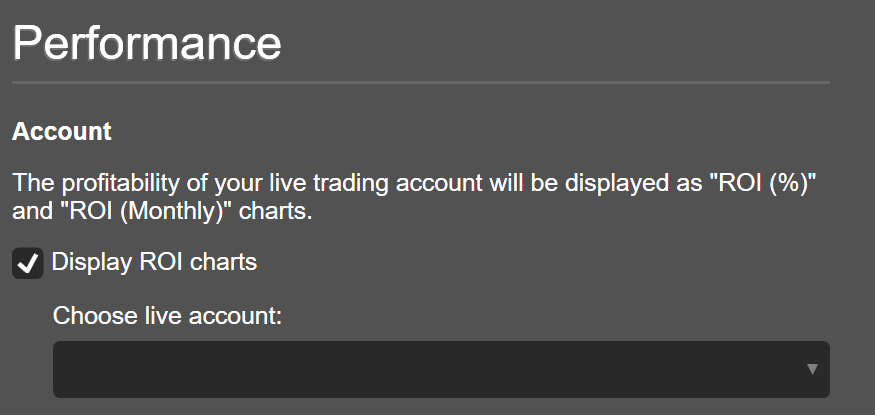
Statistics on the instance page
Regardless of whether you enable or disable ROI charts, the instance page will display the statistics of the live account to which this particular instance is attached.
Set backtesting results[¶](https://help.ctrader.com/ctrader-algo/synchronisation/customising-an-algo/#set-backtesting-results "Permanent link")
------------------------------------------------------------------------------------------------------------------------------------------------
What is backtesting?
Backtesting allows you to run a cBot on historical market data under configurable conditions. [**Read more here**](https://help.ctrader.com/ctrader-algo/backtesting-and-optimizing-cbots/)
.
The backtesting report is one of the most effective ways to promote a cBot. The report displays all essential statistics including balance and equity charts, the number of winning trades, etc.
When the report is shown on mobile devices, it is automatically adapted to fit the screen size, allowing you to promote your cBots to a wide audience.
To add the backtesting report to the algorithm page of one of your cBots, do the following:
1. Go to the **Performance** screen in the **Public settings** window
2. Tick the **Display backtesting report** checkbox
3. Set the symbol, period, testing period and the starting capital for backtesting
4. Click **Apply**
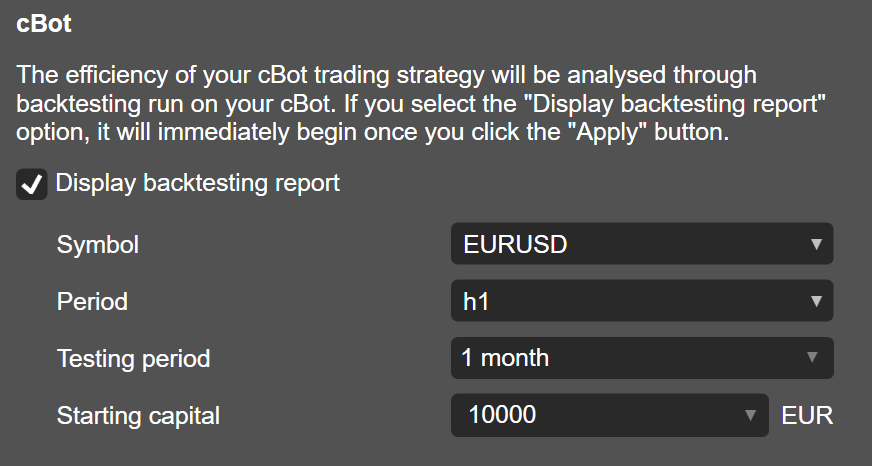
After your click **Apply**, cTrader will automatically start backtesting. This process may take some time depending on the chosen testing period and your local machine. When the process is completed, the backtesting report will automatically be displayed on the algorithm page.
If you want to stop displaying the current backtesting report, untick the **Display backtesting report** checkbox.
Note
In the **Public settings** window, you can only configure the symbol, time frame and the starting capital for backtesting. You cannot conduct backtesting on custom market data from a CSV file and configure other backtesting settings. This is only possible in the **Backtesting** tab on the instance page of a local cBot instance.
Back to top
---
# Signal Links - cTrader Mobile (iOS)
[Skip to content](https://help.ctrader.com/ctrader-mobile-ios/signal-links-ios/#signal-links)
Signal Links[¶](https://help.ctrader.com/ctrader-mobile-ios/signal-links-ios/#signal-links "Permanent link")
=============================================================================================================
Old-school trading signals for strategy sharing have remained primitive since traders had to send pictures, describe order parameters in plain text, and literally explain on the fingers. Now, with the revolutionary signal links feature from cTrader, traders can effectively share exact parameters with just a few taps.
Signal links serve as a convenient tool to expand any trader’s online presence and distribute instant signals regarding trading opportunities and market movements via a mobile device. In turn, mobile users do not need to specify order parameters but rather follow the link shared with them and tap on the ‘**Place Order**’ button, which makes the feature time-savvy.
This guide further explains how to create and share signal links in the cTrader app for iOS.
Signal Links in One Minute!
* Signal links equip traders with an opportunity to instantly exchange information about orders and/or positions. You can promote yourself as a successful trader by sharing information about market movements and trading opportunities through signal links.
* Each signal link is unique to include multiple query parameters whose value can be edited even manually outside of the cTrader app. Thus, your signal links can be customised remotely in no time.
* You can share a signal link by tapping on just one button inside the app and then choosing your preferred sharing channel. Due to quick sharing, other traders will know about must-see market movements and profitable opportunities distributed via links.
* Multi-channel sharing allows you not to leave the cTrader mobile app and send signal links immediately via messengers, social media and other communication means.
Benefits of Signal Links[¶](https://help.ctrader.com/ctrader-mobile-ios/signal-links-ios/#benefits-of-signal-links "Permanent link")
-------------------------------------------------------------------------------------------------------------------------------------
**Easy sharing.** Sharing your trading strategy has never been easier as you now have to make only a few taps. Imagine that in old times traders made awkward screenshots or even described the order parameters in words.
**Build your reputation.** Sharing effective signals on social media and other platforms is crucial for building your online reputation. Other traders are sure to pay attention once they see just how easy it is to capitalise on market movements!
**Adjustments on-the-go.** You do not have to return to the cTrader mobile app to make adjustments to your order and position parameters. Simply amend the signal link in any text editor, or straightly in the message window of any social media.
**Advanced mobility and accessibility.** Signal links may be both created and opened in the cTrader mobile app. This allows you to remain in touch with your audience and exert control over market movements via your iPhone.
What Signal Links Do[¶](https://help.ctrader.com/ctrader-mobile-ios/signal-links-ios/#what-signal-links-do "Permanent link")
-----------------------------------------------------------------------------------------------------------------------------
A signal link takes the form of a custom URL, which redirects traders to the ‘**Create Order**’ screen inside the cTrader mobile app. The new order is configured exactly the same way as the position and order parameters chosen by a signal link provider before creating a signal link in the cTrader app.
For example, you have just set a sell limit order for EURCAD with the requested entry price being equal to 1.5500, estimated stop loss price at 1.5520, and estimated take profit price at 1.5480.
By tapping on the sharing button, you can create a link containing all parameters for this new pending order. When other traders follow this signal link, they will be immediately forwarded to the ‘**Create Order**’ screen specifying the following.
* A ‘**Limit**’ order type with the ‘**Sell**’ direction selected.
* EURCAD as a traded symbol.
* The entry price will be 1.5500.
* The expiry date will be set on the 1st of August 2024 at 2 p.m.
* Both the ‘**Stop Loss**’ and ‘**Take Profit**’ switchers will be activated.
* The estimated stop loss in absolute value will equal 1.5520.
* The estimated take profit in absolute value will equal 1.5480.
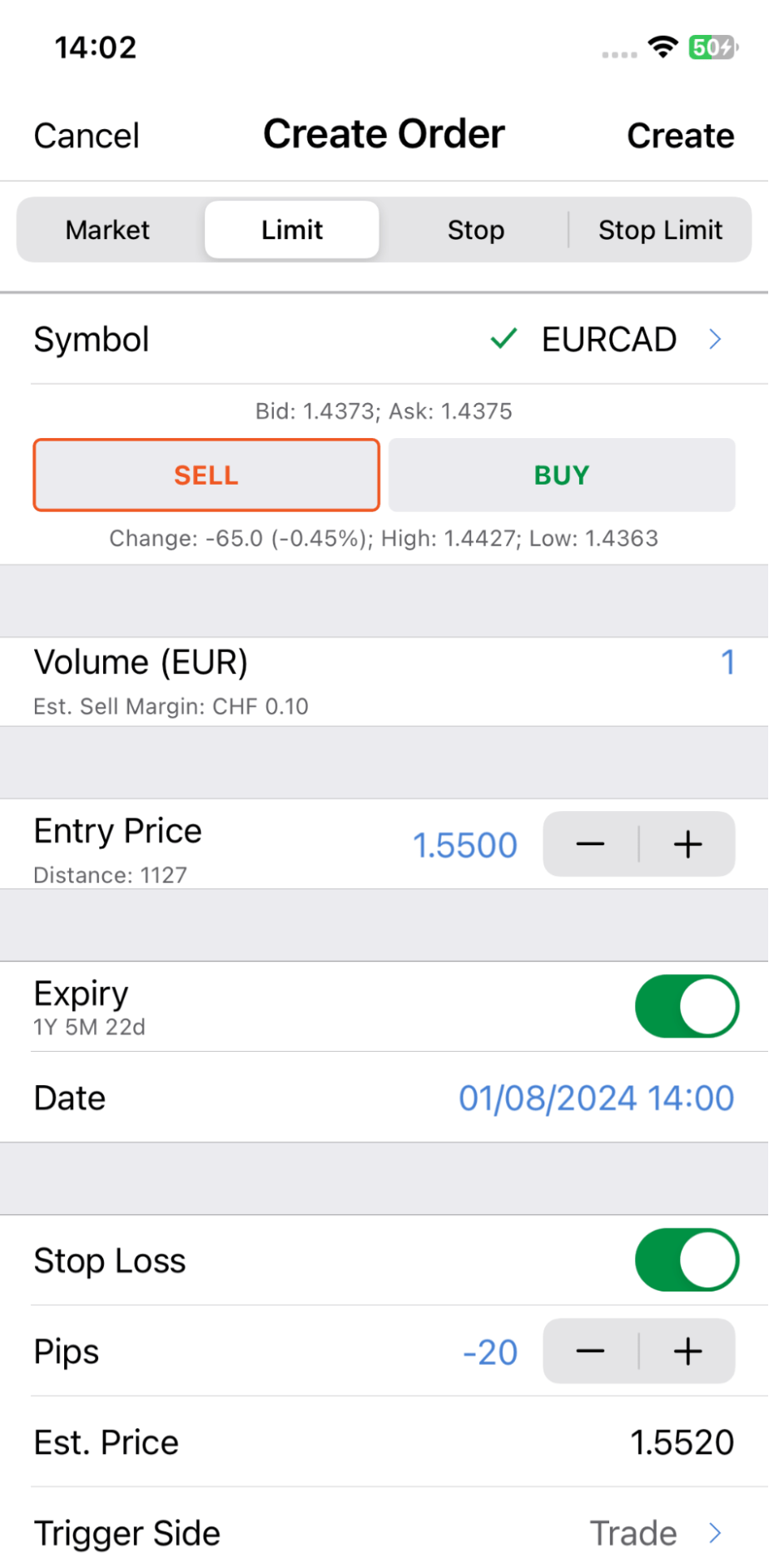
After opening a signal link, any recipient should tap on the ‘**Place Order**' button to pursue your trading strategy. Recipients will also be able to customise the order parameters within the cTrader app if they wish to amend the ‘**Entry Price**’ or ‘**Stop Loss**’/’**Take Profit**’ protections.
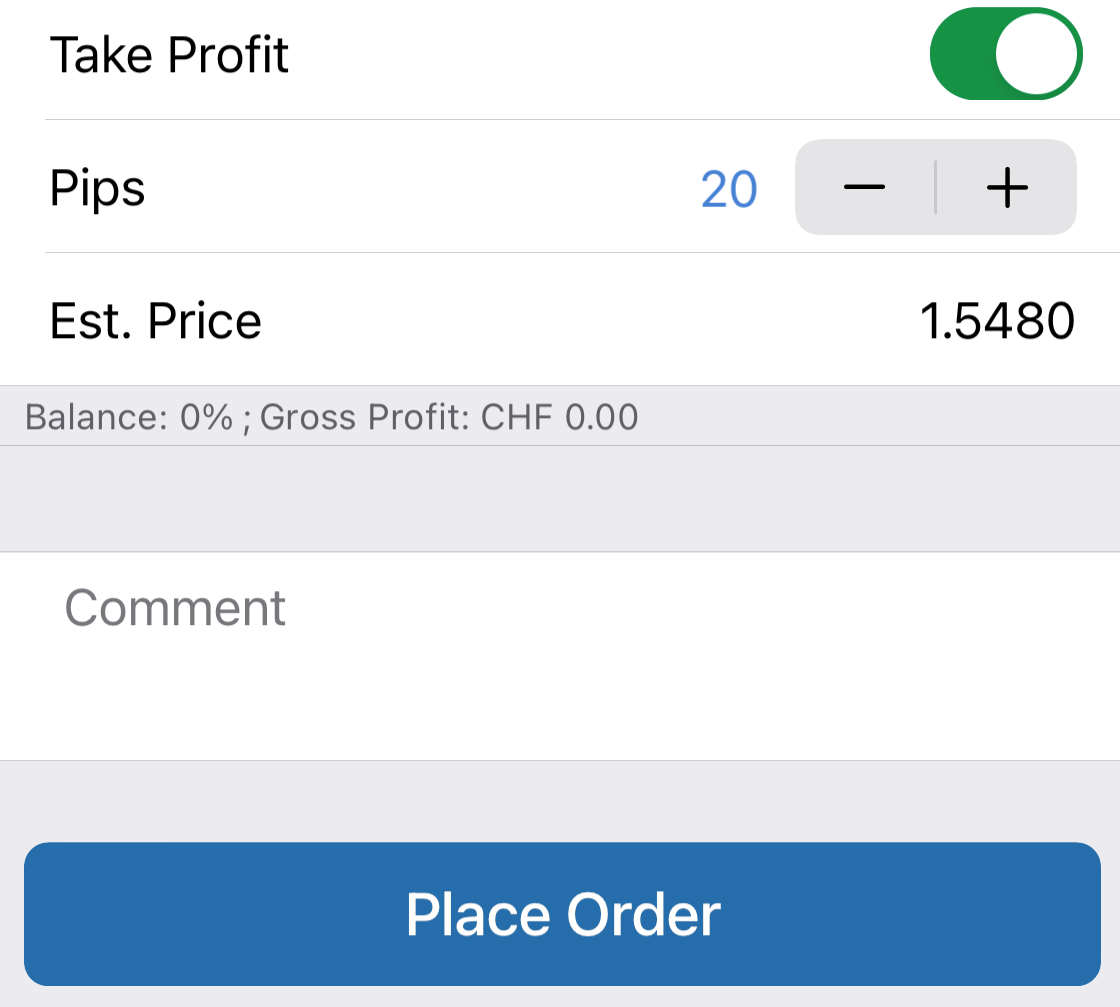
Upon tapping on the link, the recipient will be asked to download the cTrader app from AppStore if it has not been installed yet.
How Signal Links Are Structured[¶](https://help.ctrader.com/ctrader-mobile-ios/signal-links-ios/#how-signal-links-are-structured "Permanent link")
---------------------------------------------------------------------------------------------------------------------------------------------------
Any signal link consists of several recognisable parameters and their values. The next example is structured as follows.
`"https://ct.spotware.com/mobile/signal?s=EURCAD&d=sell&o=limit&p=1.468&sl=1.4700&tp=1.4660&e=01-08-2024_14-00&tz=00-00&u=nickname"`
The signal link was generated for the EURCAD traded symbol (`"?s=EURUSD"`) for the sell direction (`"&d=sell"`) of the limit order type (`"&o=limit"`), with the requested entry price set at 1.468 (`"&p=1.468"`), the stop loss absolute value equal to 1.4700 (`“&sl=1.4700”`), the take profit absolute value equal to 1.4660 (`"&tp=1.4660"`), the expiration date at 14:00 on the 1st of August 2024 (`"&e=01-08-2024_14-00"`), the user’s current time shift relative to UTC to define the time zone of the expiration date (`“&tz=00-00”`), and the user’s nickname (`“&u=nickname”`).
Note that the first parameter in the link is introduced via a question mark `“?”`, while all subsequent parameters are preceded by the `“&”` sign.
The following table summarises all parameters for generating signal links for orders.
| Parameter | Mandatory? | Possible Values | Definition |
| --- | --- | --- | --- |
| `?s` / `?symbol` | Yes | Any symbol. | The traded symbol. |
| `?o` / `?order` | Yes | `market` (for market orders), `limit` (for limit orders), `stop` (for stop orders), or `stop-limit` (for stop-limit orders). | The order type. |
| `?d` / `?direction` | Yes | Either `buy` or `sell`. | The order/position direction. |
| `?p` / `?price` | Yes - for pending orders No - for market orders | Any valid price with the dot as the decimal separator. | The requested order price. Even if it is specified, the value of this parameter is ignored if `?t=market`. |
| `?sl` | No | A valid price with the dot as the decimal separator. | The stop loss price. |
| `?tp` | No | The take profit price. | |
| `?r` / `?range` | No | Any number of pips with the dot as the decimal separator. | The market range (for market orders only) / limit range value (for stop limit orders only). |
| `?e` / `?expiry` | No | Any future date in the `DD-MM-YYYY_hh-mm` format. | The order expiry date (for non-market orders only). |
| `?tz` | No | Any valid time offset in the `hh:mm` format. | The user’s current time shift relative to UTC. This parameter defines the time zone of the order expiry date. |
| `?ts` / `?trigger-side` | No | `trade` (for the trade side), `opposite` (for the opposite side), `2trade` (for the double trade side), or `2opposite` (for the double opposite side). | The trade side (for stop limit orders only). |
| `?u` or `?partnerId` | No | Any valid user nickname (for `?u`) or partner identifier (for `?partnerId`). | A special parameter for trader attribution. If it is provided, all users who pass through the signal links will be attributed to the user with the specified nickname/identifier. |
Note
The same way as all other cTrader URLs with a `(u)` parameter, signal links work as Invite links and execute trader attribution in branded applications. [**Learn more**](https://help.ctrader.com/ctrader-invite/invite-link/)
about the benefits of cTrader Invite and multi-functional Invite links.
The order and/or position volume is not included in the parameters that constitute a signal link. The following reasons explain why.
* There is no single representation of order/position volume for different symbols. Hence, this parameter would only limit the value of the link to other traders.
* Recipients of the link would be guided by their own risk tolerance perceptions, used margin, and stop out levels to decide on appropriate order/position volume. Hence, a signal link with the volume identified would be useless to many categories of traders because of their varying risk tolerance levels.
How to Generate and Copy a Signal Link[¶](https://help.ctrader.com/ctrader-mobile-ios/signal-links-ios/#how-to-generate-and-copy-a-signal-link "Permanent link")
-----------------------------------------------------------------------------------------------------------------------------------------------------------------
Creating and copying a new signal link is done directly from the cTrader app by tapping on the iOS standard ‘**Share**’ button. You can easily find it on the ‘**Modify Pending Order**’ screen in the ‘**Orders**’ tab and on the ‘**Modify Position**’ screen in the ‘**Positions**’ tab.
Modify Pending OrderModify Position
[](https://help.ctrader.com/ctrader-mobile-ios/img/sharing-features/signal-links/04.png)
[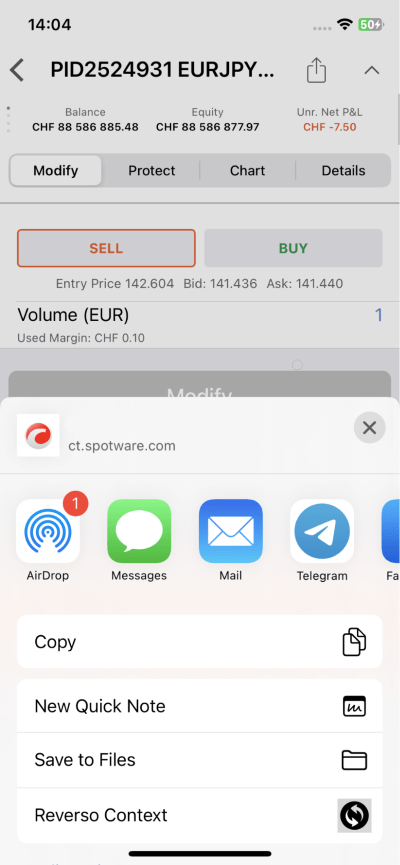](https://help.ctrader.com/ctrader-mobile-ios/img/sharing-features/signal-links/05.png)
The iOS ‘**Share**’ button is also available after you tap on the pending order or position directly on the active trading chart.
When an Order Is SelectedWhen a Position Is Selected
[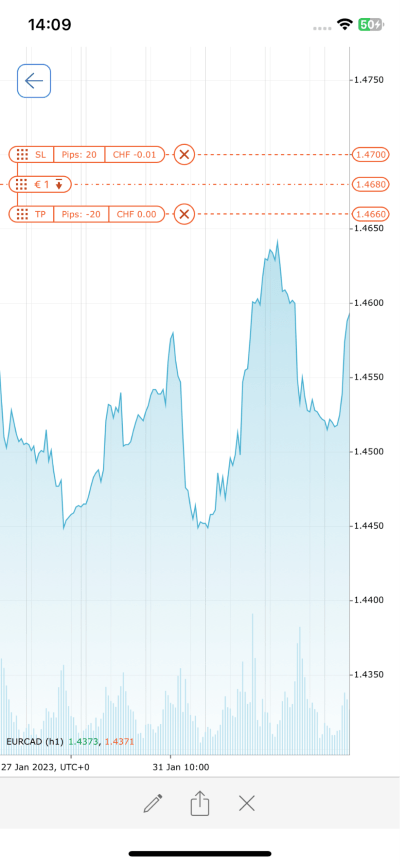](https://help.ctrader.com/ctrader-mobile-ios/img/sharing-features/signal-links/06.png)
[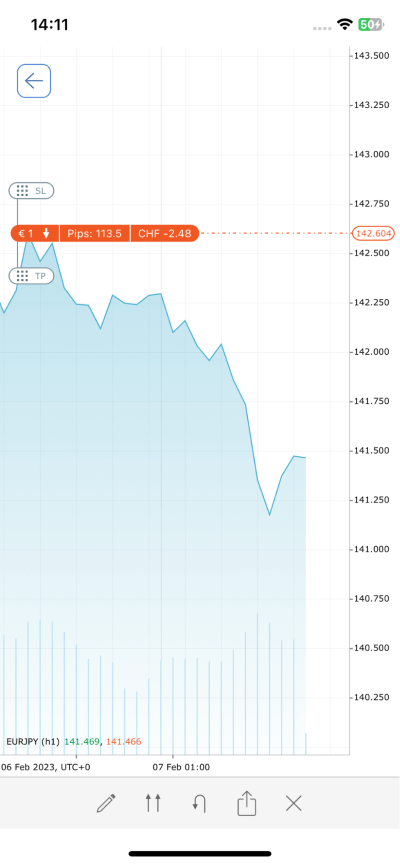](https://help.ctrader.com/ctrader-mobile-ios/img/sharing-features/signal-links/07.png)
On tapping on the ‘**Share**’ button, you will access a native sharing tool and choose a preferred sharing channel.
How to Change Signal Links Outside cTrader[¶](https://help.ctrader.com/ctrader-mobile-ios/signal-links-ios/#how-to-change-signal-links-outside-ctrader "Permanent link")
-------------------------------------------------------------------------------------------------------------------------------------------------------------------------
As shown by the structure of signal links, they are easily customisable outside the cTrader mobile app. After you have generated and copied a link, you can easily amend the value of each parameter manually to make it best suited for your target audience. For example, for an audience with high risk tolerance, the stop loss distance may be increased from 1.4700 to 1.4900, and the signal link would look as follows.
`"https://ct.spotware.com/mobile/signal?s=EURCAD&d=sell&o=limit&p=1.468&sl=1.4900&tp=1.4660&e=01-08-2024_14-00&tz=00:00&u=nickname"`
1\. Create and copy a signal link by tapping on the iOS standard ‘**Share**’ button.
2\. Paste the link to Apple’s Notes app, a new message window on any social media, or directly to your browser’s address bar.
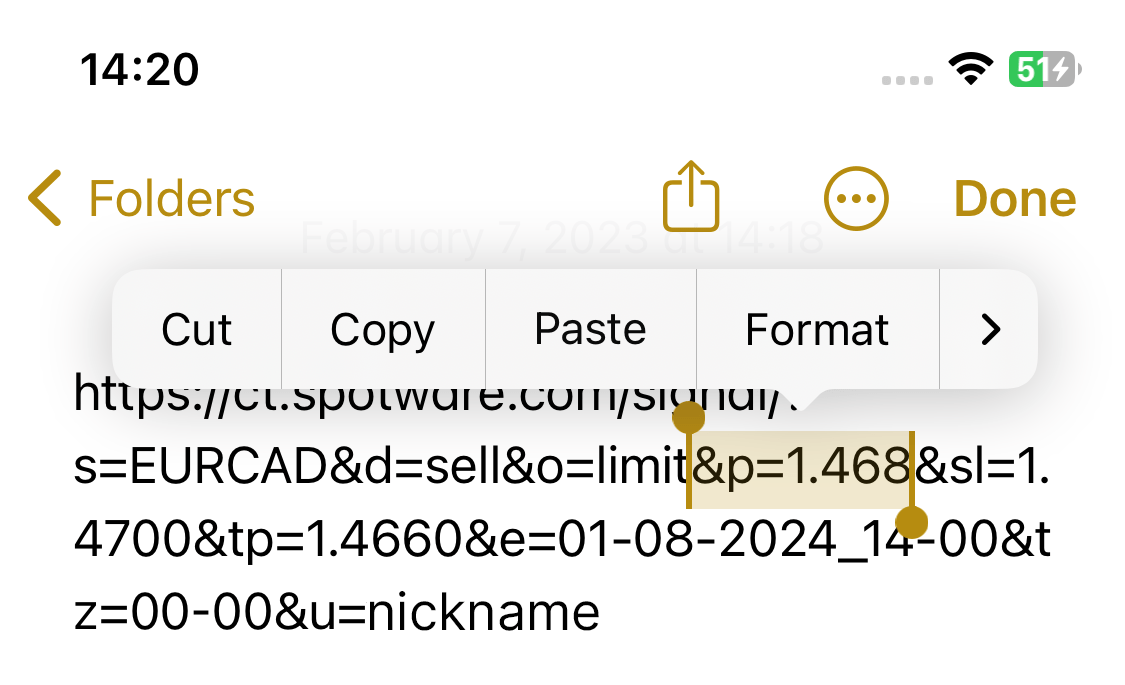
3\. Customise the link as text by changing the value of the parameters in accordance with the above chart. For example, you can change the order direction and a requested order price. Similarly, you can replace other traders' nicknames with yours if you are sharing someone else's signal links. In this case, traders who follow such links will be attributed to you due to [**cTrader Invite**](https://help.ctrader.com/ctrader-invite/invite-link/)
.
4\. Send the amended link or copy it if you are going to use it in a different app.
Note that if you already sent a signal link on one of your social media where messages can be edited, you can amend the link straight away and its parameters will be updated.
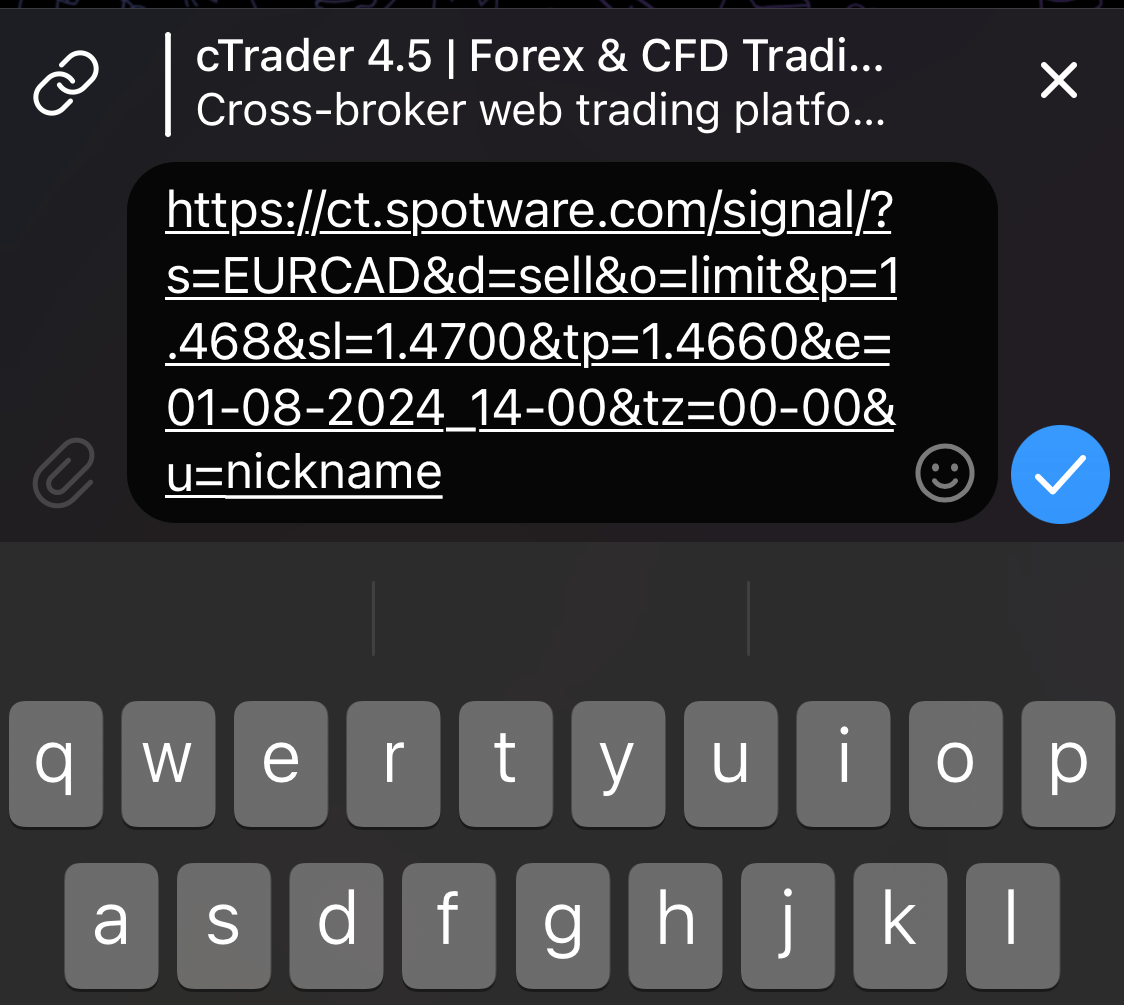
To summarise, signal links are an essential and convenient instrument of sharing your financial strategy with other traders. The UI of the cTrader app on iOS allows for generating and copying links in no time.
As all signal links are structured intuitively, you can customise them even outside of the cTrader app. Direct sharing is allowed to messengers, social media and other platforms where you can reach your audience of traders. You can simultaneously engage and attribute traders in cTrader Invite sharing signal links.
---
# Manage synchronisation settings - cTrader Algo
[Skip to content](https://help.ctrader.com/ctrader-algo/synchronisation/managing-synchronisation-settings/#manage-synchronisation-settings)
Manage synchronisation settings[¶](https://help.ctrader.com/ctrader-algo/synchronisation/managing-synchronisation-settings/#manage-synchronisation-settings "Permanent link")
==============================================================================================================================================================================
To enable or disable synchronisation, open the **Settings** window by clicking the corresponding field in the bottom left corner of cTrader.
In this window, navigate to the **Algo** screen. In the **Synchronisation** section, tick or untick the **Enable synchronisation** checkbox.
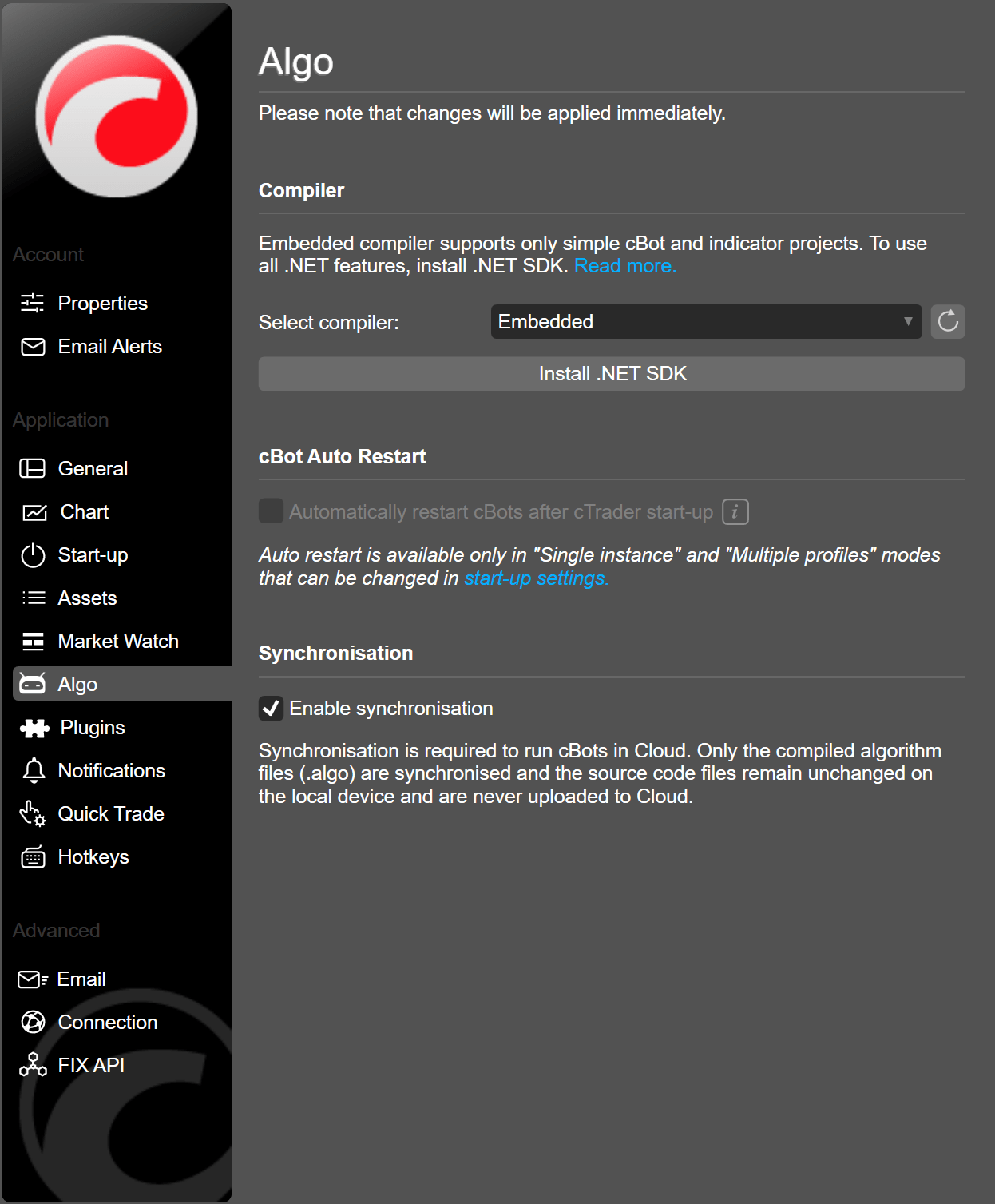
Synchronisation is on[¶](https://help.ctrader.com/ctrader-algo/synchronisation/managing-synchronisation-settings/#synchronisation-is-on "Permanent link")
----------------------------------------------------------------------------------------------------------------------------------------------------------
Here is what happens when synchronisation is on:
* You can start new instances of cBots in Cloud.
* If you have a [**partner**](https://help.ctrader.com/ctrader-invite/partner/)
, you gain access to all algorithms that they have chosen to share with their invited traders.
* If you [**enable such an option**](https://help.ctrader.com/ctrader-algo/synchronisation/sharing-an-algo/)
, you can share one or more of your algorithms with your [**invited traders**](https://help.ctrader.com/ctrader-invite/invite-link/)
.
* All new algorithms you build are automatically synchronised with Cloud.
* All your previous algorithms you have built before enabling synchronisation are also synchronised with Cloud.
* If you make a change to one of your existing algorithms and rebuild it, all changes will be synchronised with Cloud.
Note
Turning synchronisation on does not mean that your invited traders automatically gain access to your algorithms. You remain in full control of what you share with other people and when.
Note
When synchronisation is on and new changes have to be synchronised with Cloud, you will see a circular progress indicator below the list of algorithms to the left. Make sure your machine stays connected to the Internet until the words "Synchronisation complete" replace the progress indicator.
Note
If you start a local instance of a cBot, it will not automatically become a Cloud instance when you turn on synchronisation. Instead, it will remain a local instance. When cTrader Windows is stopped, the instance will stop running unless a third-party service is used to maintain it.
Synchronisation is off[¶](https://help.ctrader.com/ctrader-algo/synchronisation/managing-synchronisation-settings/#synchronisation-is-off "Permanent link")
------------------------------------------------------------------------------------------------------------------------------------------------------------
Here is what happens when synchronisation is off:
* You can only launch algorithms locally on your machine.
* Any new algorithms or changes to existing algorithms are only saved locally.
* If you have downloaded an algorithm from your [**partner**](https://help.ctrader.com/ctrader-invite/partner/)
, it will not be shown in cTrader Windows. However, it will still be shown in [**cTrader Web**](https://help.ctrader.com/ctrader-algo/web-algo/)
or [**Mobile**](https://help.ctrader.com/ctrader-algo/mobile-algo/)
.
Note
To restore access to an algorithm received from your partner in cTrader Windows, re-enable synchronisation.
* If you have ever started instances in Cloud of cBots you have received from your partner, these instances will no longer be shown in cTrader Windows. However, they will still be shown in [**cTrader Web**](https://help.ctrader.com/ctrader-algo/web-algo/)
or [**cTrader Mobile**](https://help.ctrader.com/ctrader-algo/mobile-algo/)
.
Back to top
---
# Become a strategy provider - cTrader Copy
[Skip to content](https://help.ctrader.com/ctrader-copy/becoming-a-strategy-provider/#become-a-strategy-provider)
Become a strategy provider[¶](https://help.ctrader.com/ctrader-copy/becoming-a-strategy-provider/#become-a-strategy-provider "Permanent link")
===============================================================================================================================================
Any platform user with a cTrader account can become a strategy provider in order to share trading strategies and charge fees to investors.
Note
It is now possible to start providing strategies via cTrader Copy in cTrader Desktop, cTrader Web and cTrader Mac.
The "become a strategy provider" functionality can be accessed from the accounts list or the account profile. You can find the detailed account/strategy list and page guides [**here**](https://help.ctrader.com/ctrader-copy/account-and-strategy-page/)
. Please follow the steps below to start providing your strategy for copying.
Warning
Traders with hedging accounts only can provide their strategies for copying. Providing strategies is impossible for netting accounts.
To make sure that customers can select from a better choice of strategies, cTrader Copy applies the following inclusion criteria for strategies to be added to the strategy list and, consequently, be available for copying.
Inclusion requirements for the strategy list:
* A positive account balance
* At least one open position
* At least one deal executed within the last 72 hours
* A higher all-time ROI than -90%
These requirements apply to all users currently acting as strategy providers or intending to become a strategy provider.
Warning
The following rules apply to the strategies that fail to meet the inclusion requirements:
* They will not be shown in the strategies list.
* They will not be shown in the search results when traders use the strategy finder.
* They will only be accessible via a direct link to the strategy.
In case a strategy does not qualify for inclusion, it can still be shared quickly and effectively via its direct link. Strategy providers are encouraged to use this method if their strategies are not fully compatible with the above inclusion criteria.
Provide a strategy[¶](https://help.ctrader.com/ctrader-copy/becoming-a-strategy-provider/#provide-a-strategy "Permanent link")
-------------------------------------------------------------------------------------------------------------------------------
To become a strategy provider, select a trading account from the accounts list located under the expandable **Copy** application tab. The account page will appear on the central screen.
Note
The ability to charge fees for providing strategies depends on the provider's account type (live or demo) and membership type (Full or Demo).
* Providers with Full membership can charge investors with live accounts for copying their strategies.
* Providers with Demo membership can only provide free-of-charge strategies.
The ability to copy certain types of strategies is also regulated by brokers by offering Full or Demo membership. You can learn more about the membership types in this [**guide**](https://help.ctrader.com/ctrader-copy/investing-in-strategies/)
.
Check your account membership type before you start providing strategies. The **FM** and **DM** icons in your account list stand for Full and Demo membership respectively.

Note
Providing demo strategies deals with virtual funds only and does not involve any charges from investors.
1\. To start providing your strategy to other traders, select **Become a strategy provider** in the upper right corner of the account profile.

Alternatively, you can select **More** of the needed account in the list and choose **Become a strategy provider**.
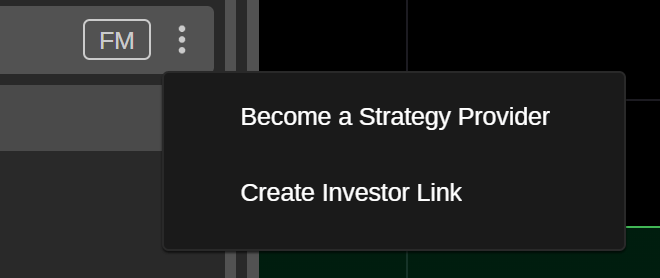
2\. In the opened window, you will need to specify.
* **Strategy name** – the name of your strategy that will be displayed to investors in the strategy list.
Warning
Once created, the strategy name cannot be changed. It must be unique, should not exceed 80 characters, and should not contain special characters. Numbers and Latin letters are acceptable.
**Conditions**:
* **Min investment** – the minimum amount of funds required for investors to start copying the strategy. Input the number or use toggles.
* **Performance fee** – the amount investors will pay the strategy provider based on the percentage of the net profit they have made using the high-water mark (HWM) model.
* **Management fee** – the amount you will charge your investors for managing their funds (up to 10% of the investors' equity).
* **Volume fee** – the amount you will charge your investors per one million of volume in USD (up to USD 10).
* **Account for fees** – a separate live trading account for depositing the fees and commissions paid by your investors. It must be different from the strategy account.
* **Allow copying for** – choose if you wish to allow copying for live accounts only, or for both live and demo accounts. This setting cannot be changed while providing the strategy.
**Visibility**:
* **Visible for** – choose who can see and copy your strategy, everyone or traders with the invitation link only.
* **Show positions to** – choose who can see your open positions, everyone, only your investors or no one.
**Description**:
* Add a description to your strategy. Use the formatting panel to customise the text, and add images and links. This description will be displayed to your investors on the strategy page.
When done, select **Become a strategy provider** to confirm your action.
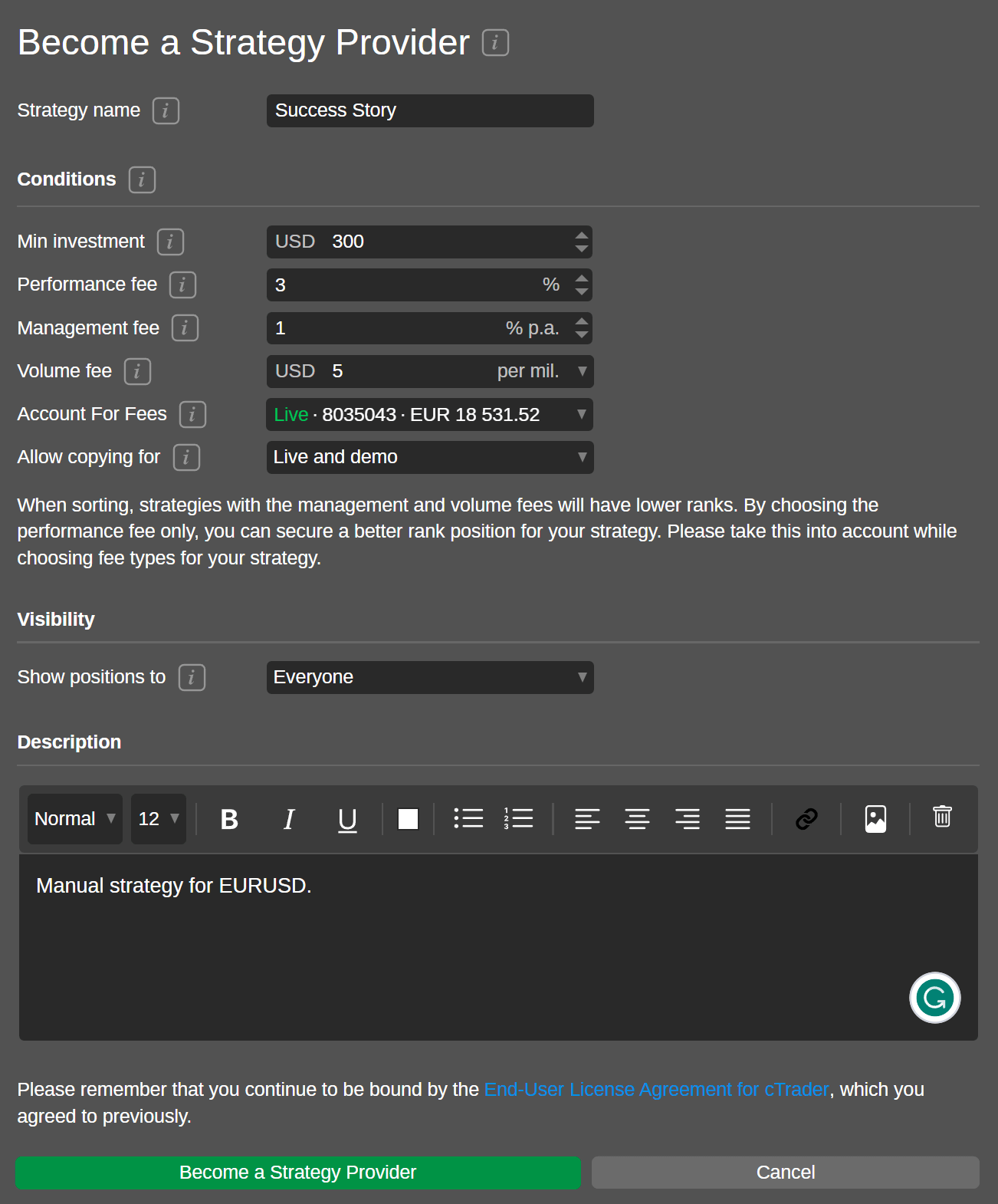
Note
If you wish to modify the fees or visibility settings while providing a strategy, you have to stop it first. When providing a strategy, open **Strategy settings** in the **More** menu of the corresponding account. Here, expand **Edit fees**, select the **Stop providing strategy** button, and confirm your action to make the fees and visibility settings active.
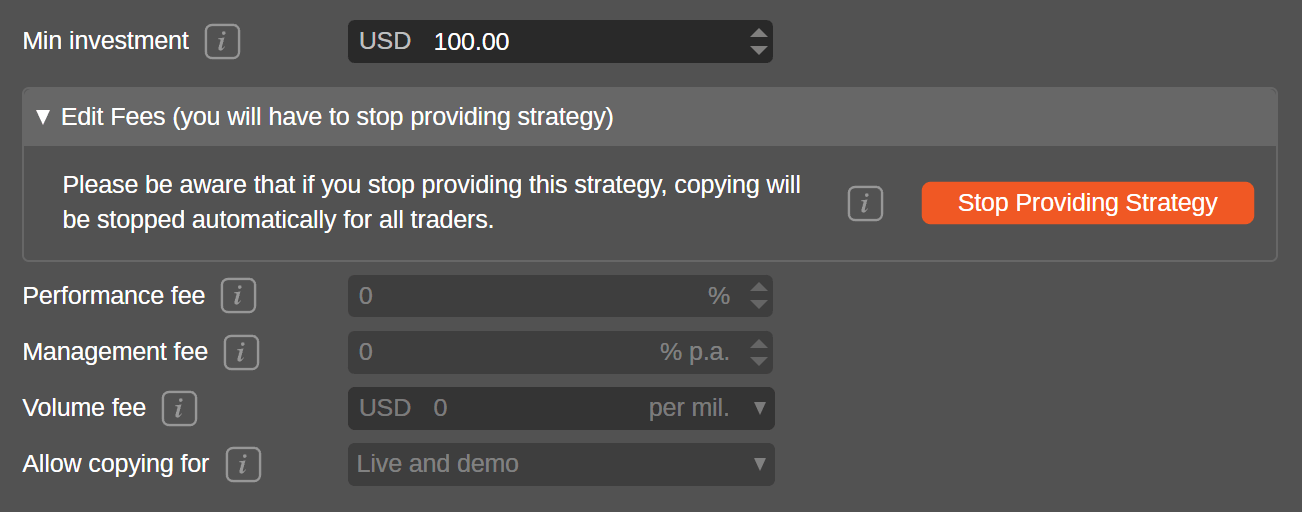
Now, you can edit the fees and visibility options for your strategy. When ready, select **Save and restart providing strategy**.
Warning
When you stop providing a strategy, all investors stop copying it automatically.
3\. When you resume providing your strategy to investors, you will see the **Provider** icon in the account list.

Note
If you are a strategy provider, consider becoming a partner and you will earn broker commissions in addition to investor fees. Read our [**guide for partners**](https://help.ctrader.com/partner-tools/how-to-transform-leads-into-investors/)
on how to quickly turn leads into strategy investors.
Manage a strategy[¶](https://help.ctrader.com/ctrader-copy/becoming-a-strategy-provider/#manage-a-strategy "Permanent link")
-----------------------------------------------------------------------------------------------------------------------------
When providing a strategy, select your strategy preview in the accounts list to expand the strategy profile on the central screen.
At the top of the strategy profile, you will see a strategy summary that includes:
* Strategy provider's avatar
* Account type logo
* Strategy name
* Favourites button
* Strategy provider's cTrader ID
* All time ROI of the strategy
* Investor funds attracted by the strategy
* Number of investors copying the strategy
* Strategy age from the start

In addition to the standard charts and tables covered in the [**Strategy list and strategy page**](https://help.ctrader.com/ctrader-copy/account-and-strategy-page/)
guide, the strategy page will also display the provider's statistics in the **Provider analytics** section.
This section includes:
* **Total commissions acquired** – the total amount of all commissions applied to your investors.
* **Total number of investors** – the total number of investors who have ever copied the strategy since its start.
* **Average number of investors per day** – the average number of investors copying your strategy daily. It is calculated by dividing all the investors by the number of days your strategy has been active.
* **Total volume copied (live)** – the total volume in USD copied by live investors.
* **Average volume copied per pay** – the total volume copied divided by the number of days your strategy has been active.
* **Total amount of capital copying (live)** – the amount of funds in USD being copied at the moment by live investors.
* **Average funds copying per day (live)** – the average amount of funds being copied daily by live investors.
* **Total number of deals copied** – the total number of deals copied from the strategy start.
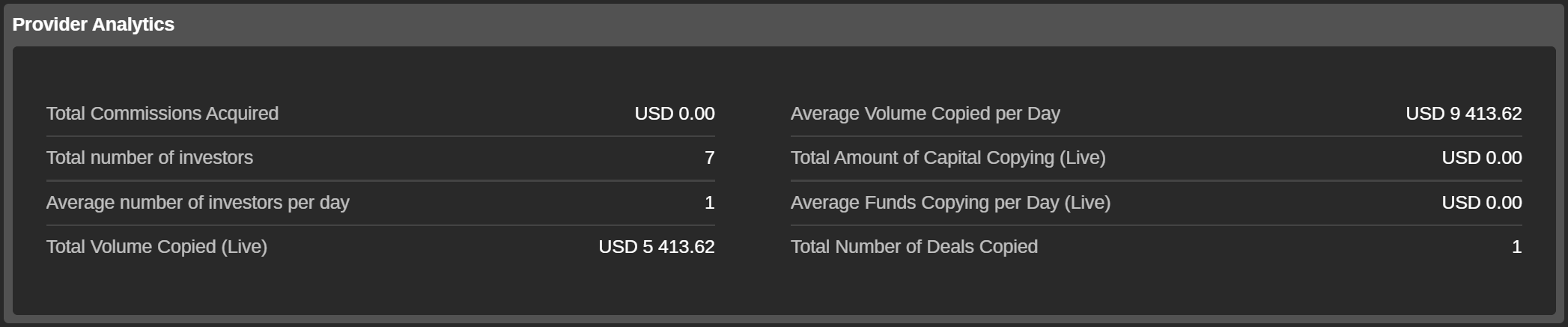
Select the strategy provider's cTrader ID to expand the full statistics including the total investor funds (live), average profit, the number of investors, strategy activation date, the number of investors over all time and the number of active live investors. All the provider's strategies are listed below.
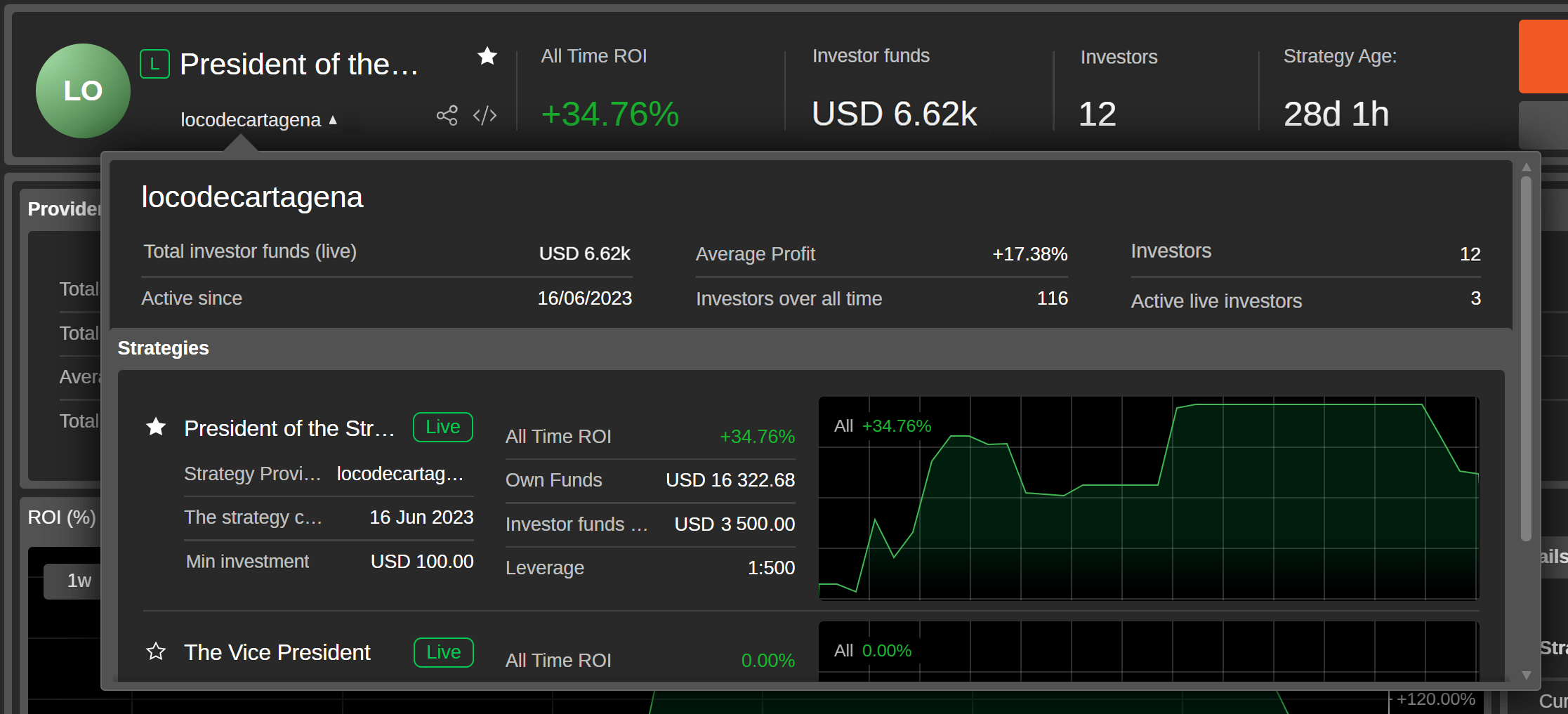
To modify the conditions and visibility of the strategy you are providing, select the **Strategy settings** button located to the right of the strategy summary.
Note
Some of the settings can be customised only after the strategy is stopped. They remain inactive in the **Strategy settings** window when the strategy is started.
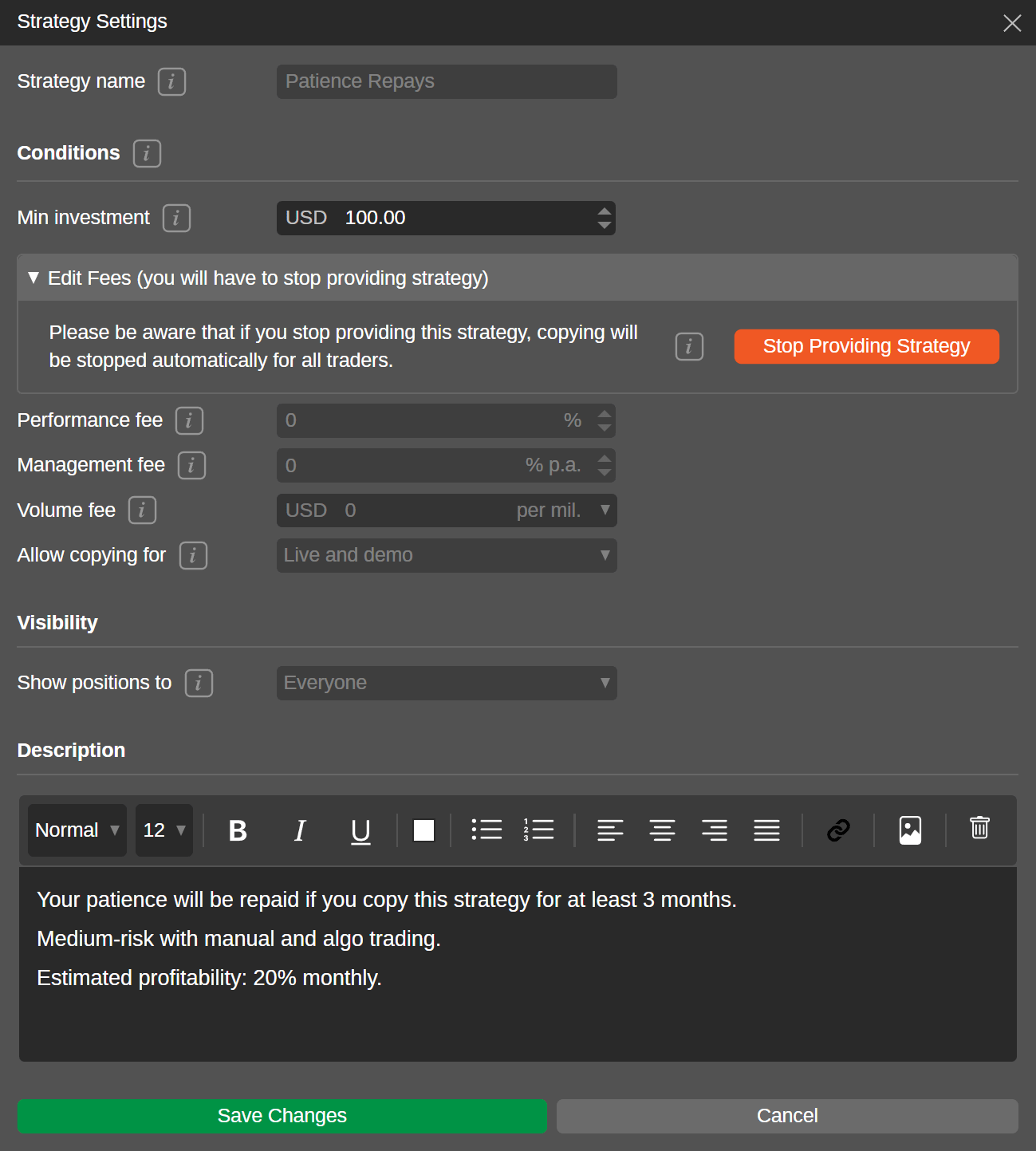
To stop sharing a strategy, select **Stop providing strategy** in the upper right corner of the strategy summary section. You will need to additionally confirm your action.
Warning
When you stop providing a strategy, all the investors will automatically stop copying it, and all the open positions within your strategy will be automatically closed for the investors.
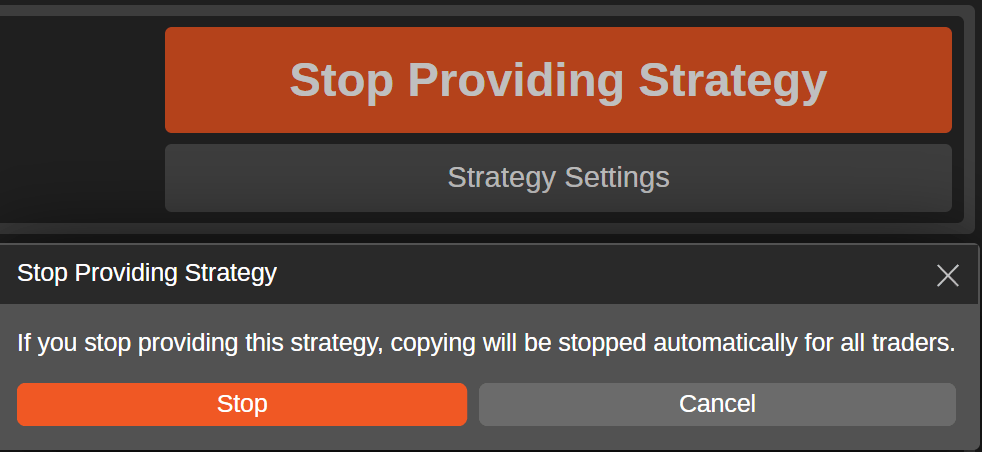
After you have stopped providing a strategy, you can restart it. To do so, select **Restart providing strategy** in the strategy summary section. Alternatively, select the **Save and restart providing strategy** button at the bottom of the **Strategy settings** window.
Warning
When a strategy provider deposits or withdraws funds to and from their strategy account with open positions, this may cause losses for investors' copy-trading accounts. As equity is recalculated every time the account balance changes, the current open positions and future trades will be adjusted according to the [**equity-to-equity model**](https://help.ctrader.com/ctrader-copy/)
.
Strategy auto-deletion[¶](https://help.ctrader.com/ctrader-copy/becoming-a-strategy-provider/#strategy-auto-deletion "Permanent link")
---------------------------------------------------------------------------------------------------------------------------------------
Strategies are auto-deleted after a period of inactivity. Auto-deletion is triggered after the two conditions below are met:
* The strategy is older than 30 days.
* The strategy has no deals, or its status is set to "stopped" for the last 30 days.
Note
Strategy providers cannot delete their strategies themselves. Strategies can only be auto-deleted.
Strategy promotion[¶](https://help.ctrader.com/ctrader-copy/becoming-a-strategy-provider/#strategy-promotion "Permanent link")
-------------------------------------------------------------------------------------------------------------------------------
The **Promotion** section that is located under each strategy summary offers rich sharing functionality for strategy providers.

### Invite investors[¶](https://help.ctrader.com/ctrader-copy/becoming-a-strategy-provider/#invite-investors "Permanent link")
To invite traders to start copying your strategy, you can distribute the relevant [**Invite link**](https://help.ctrader.com/ctrader-invite/invite-link/)
via your communication channels. When potential investors visit the strategy page by following this link, they will also become [**attributed**](https://help.ctrader.com/ctrader-invite/invited-traders/)
to you.
Select the **Invite link** sub-section and then select **Copy link** to attain a direct link to your strategy containing your nickname.
Warning
You cannot hide your strategy from investors after it has started. However, in **Strategy settings**, you can specify whether both live and demo accounts or only live accounts can copy it. Additionally, you can choose who can see your open positions: everyone, only your investors or no one. These settings should be configured before the strategy is started; otherwise, you will have to stop it for adjustments.
Note
When a new cTrader user follows a direct link to the strategy, they will be required to sign up and undergo registration with the broker. When logged in with the [**cTrader ID**](https://www.youtube.com/watch?v=owiv8Ou6Q1g)
, the linked strategy will automatically open in cTrader Copy.
### Embed strategies[¶](https://help.ctrader.com/ctrader-copy/becoming-a-strategy-provider/#embed-strategies "Permanent link")
A strategy provider can embed and publish strategies on the web using the code available in the **Promotion** section. Open the **Embedded strategy application** sub-section and select **Copy code** to attain the code for an HTML iframe that you can insert almost anywhere including your landing page or any other web resource you own.
Your embedded strategy will look and feel exactly like the corresponding page in cTrader Copy itself. The most significant benefit of embedding your strategy is that you will avoid redirecting investors to the general strategy list, allowing you to easily convert leads into committed investors.
### Share personal profile[¶](https://help.ctrader.com/ctrader-copy/becoming-a-strategy-provider/#share-personal-profile "Permanent link")
On their [**personal profile**](https://help.ctrader.com/ctrader-invite/partner/)
page, strategy providers can showcase their achievements, share contact details, and promote strategies. The page is fully customisable and serves as a convenient marketing instrument for partners.
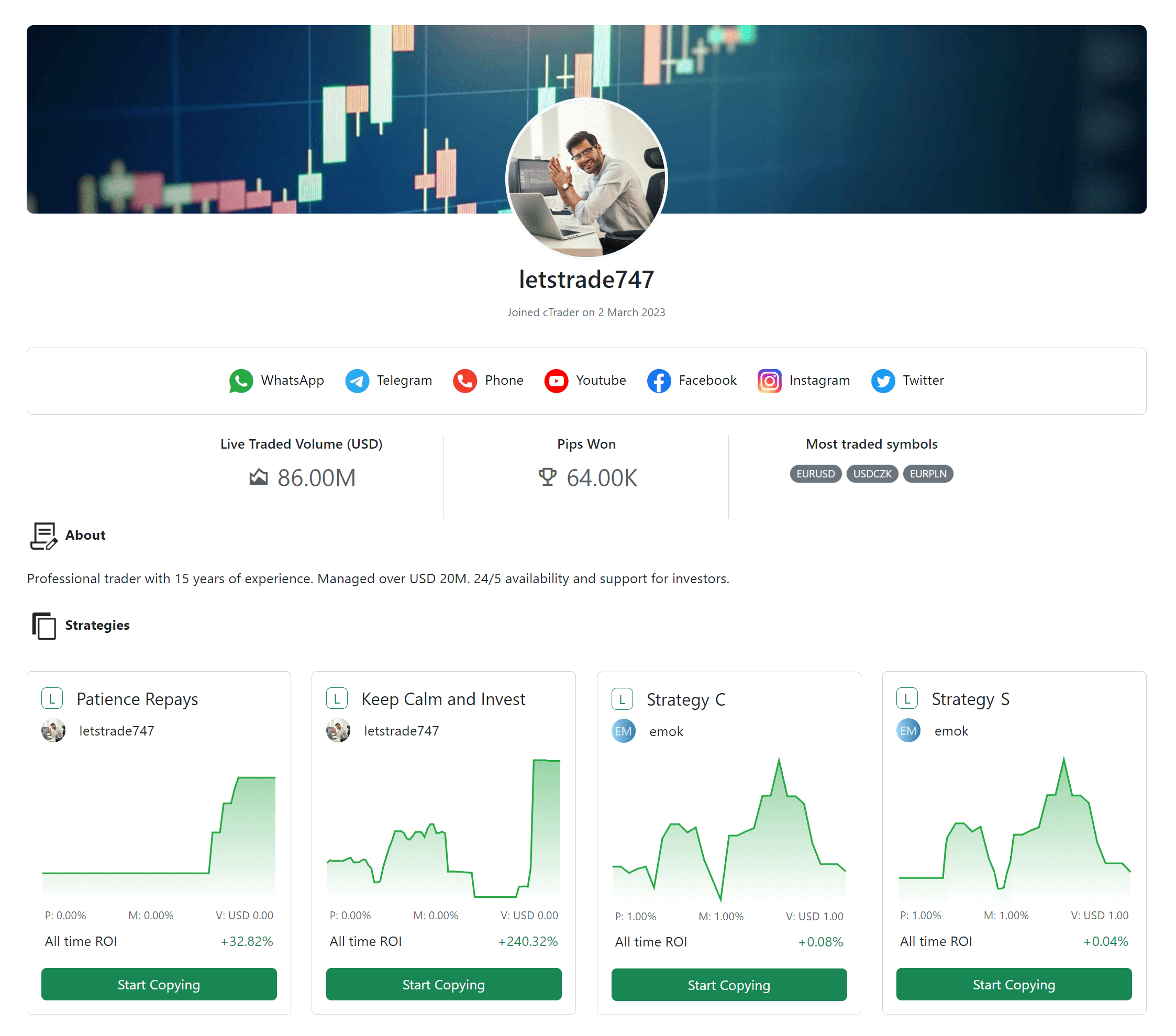
In the **Promotion** section, copy the link to your personal profile page and distribute it as part of your [**social media strategy**](https://help.ctrader.com/partner-tools/how-to-transform-leads-into-investors)
.
All strategies you are currently providing will be automatically added as cards to the profile page. In addition, all strategies you favourite in cTrader Copy will similarly be added as cards. You can disable both these options when configuring your profile via the **Manage profile** option in any cTrader application.
### Share investor access[¶](https://help.ctrader.com/ctrader-copy/becoming-a-strategy-provider/#share-investor-access "Permanent link")
You can share the live statistics of your trading account with everyone who has the investor access link. In the **Investor access link** sub-section, select the **Create link** button before copying and sharing the link.

Check the [**strategy statistics guide**](https://help.ctrader.com/ctrader-copy/account-and-strategy-page/)
to learn more about the contents of the investor access page. Credibility and real-time reporting are the major advantages of investor access for investors. The page is also viewable for new traders who have not yet created a cTrader ID, which makes it an effective mechanism for boosting trust among leads.
---
# Invest in strategies - cTrader Copy
[Skip to content](https://help.ctrader.com/ctrader-copy/investing-in-strategies/#invest-in-strategies)
Invest in strategies[¶](https://help.ctrader.com/ctrader-copy/investing-in-strategies/#invest-in-strategies "Permanent link")
==============================================================================================================================
Once you are logged in with your cTrader ID and you have created a demo or live account, you can start copying strategies as an investor.
Demo accounts deal with virtual funds only, but you can still use them for copying live strategies (if allowed by the strategy provider). Live accounts deal with real funds but can still be used for copying demo strategies.
Usually, the ability to copy certain types of strategies is regulated by the broker, by providing investors with two types of membership, such as Full membership and Demo membership.
* Investors with Full membership can copy any available strategies.
* Investors with Demo membership can copy only free strategies.
Check your account membership type before you start copying a strategy. The **FM** and **DM** icons in the account list under the **Copy** tab denote Full and Demo membership respectively.

By selecting the **three dots** icon, you can open the account settings menu and become a strategy provider yourself. The entire flow of the strategy provision and management is explained in [**this section**](https://help.ctrader.com/ctrader-copy/becoming-a-strategy-provider/)
.
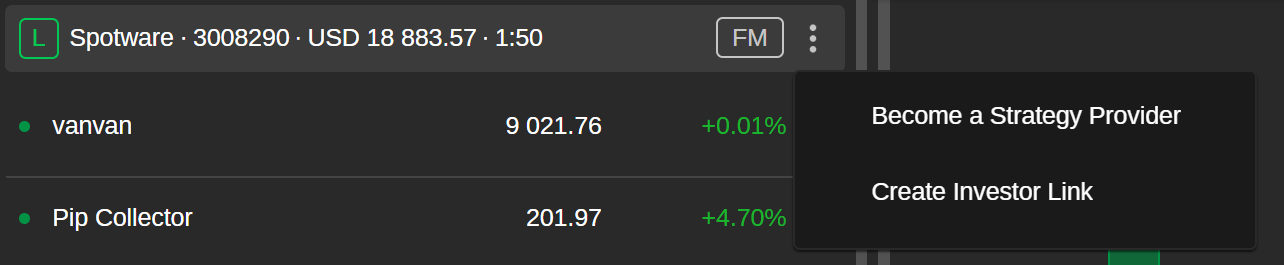
Warning
Only investors with hedging accounts can copy strategies. Copying is not supported for netting accounts.
Copy strategies[¶](https://help.ctrader.com/ctrader-copy/investing-in-strategies/#copy-strategies "Permanent link")
--------------------------------------------------------------------------------------------------------------------
Demo strategies are marked with the blue **Demo** icon and are always free to copy as they deal with virtual funds only. Live strategies that are marked with the green **Live** icon can be free as well, however, strategy providers usually charge fees. Before you start copying a live strategy, check the fee information that can be found on the **Start copying** button.
* **P** – performance fee in percentage, which applies to the net profit using the HWM model and is paid at the end of each month.
* **M** – management fee in percentage, which is the annual percentage of the investor's equity calculated daily and paid at the end of each month.
* **V** – volume fee in USD, which is based on the volume traded while copying the strategy and charged for opening and closing each position.
1\. To start copying, select a strategy from the [**strategy list**](https://help.ctrader.com/ctrader-copy/account-and-strategy-page/)
and tap **Start copying**.

Alternatively, select a strategy to open its individual page and tap the **Start copying** button in the strategy summary section.
2\. In the **Start copying** window that will pop up, select your preferred account from the drop-down list and input the amount of funds to invest in the strategy you are planning to copy.
If only one account is linked to your cTrader ID, there will be no alternative options for the account selection. Make sure that the amount of allocated funds is equal to or higher than the minimum investment specified in the **Fees and conditions** section.
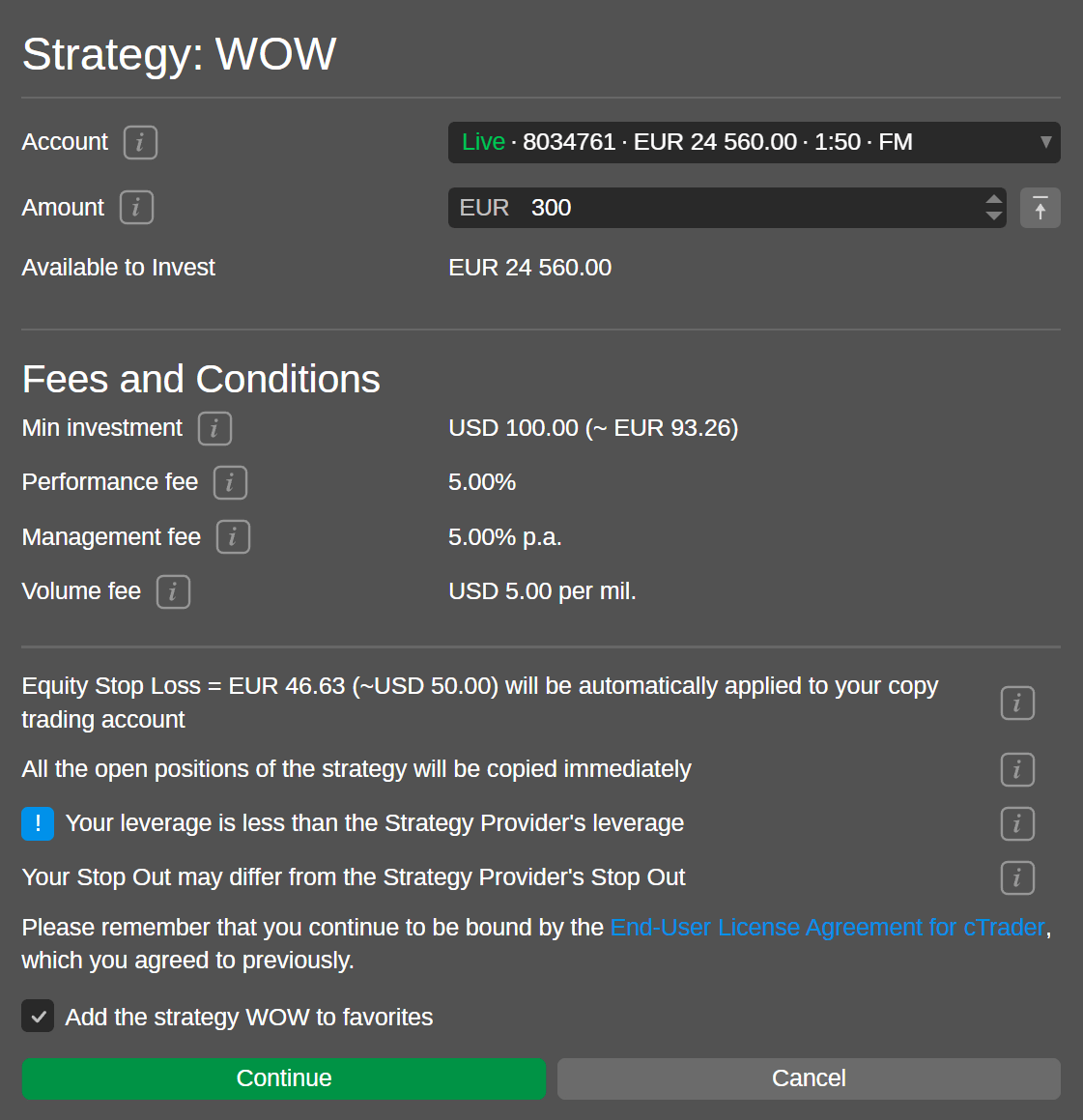
Note
If your account leverage is lower than the strategy provider's leverage, there is a chance that your margin will not be sufficient to copy all the trades of this strategy and you may reach the stop out earlier than the strategy provider.
Hover over the **information** icons to learn more about the fees and conditions fields in the **Start copying** window. When done, confirm that you agree with the terms and conditions and select the **Start copying** button.
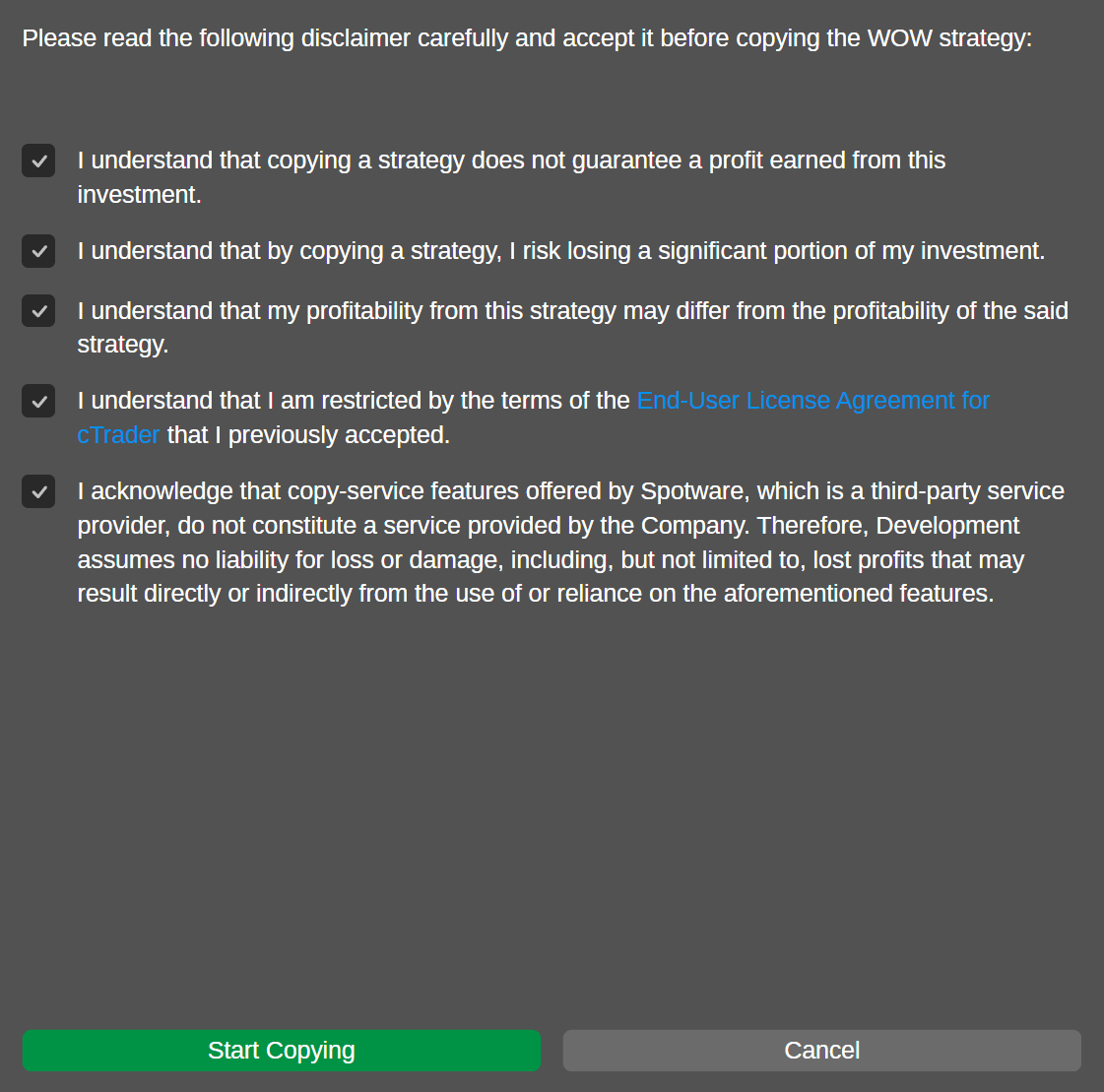
3\. Now, the funds allocated from your account are deposited into a special copy-trading account, this account starts copying the chosen strategy. You can review your investment statistics per strategy on dedicated pages that are available in the accounts list.
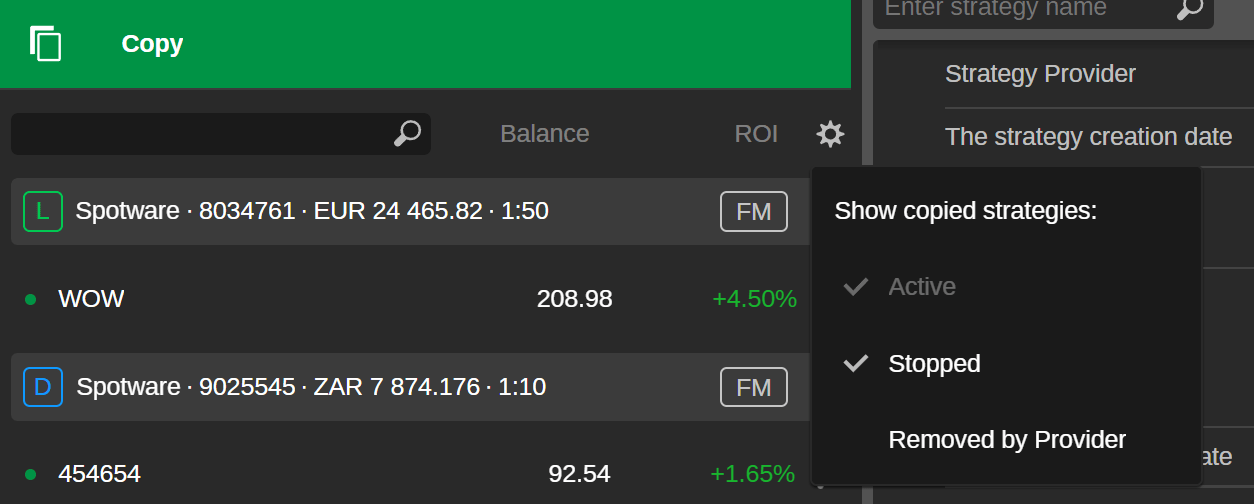
The strategies list can be filtered according to a strategy status. By selecting the **cog** icon, you can set up what strategies will be displayed. Upon selecting a strategy from the list, you will access the strategy statistics (how your account has performed copying this strategy).
The **Started** copying status in the **Investment stats** section of your copied strategy page indicates that the strategy is being copied. In the accounts list, strategies with an active copying status are marked with a green indicator. If you stop copying, the strategy status will change to **Stopped** and the indicator will turn orange.
Manage copy-trading account[¶](https://help.ctrader.com/ctrader-copy/investing-in-strategies/#manage-copy-trading-account "Permanent link")
--------------------------------------------------------------------------------------------------------------------------------------------
When copying a strategy, you can manage the corresponding copy-trading account. It is possible to add and remove funds, set equity stop loss or just stop copying.
To open all available options, select the **three dots** icon to the right of the corresponding strategy in the list.
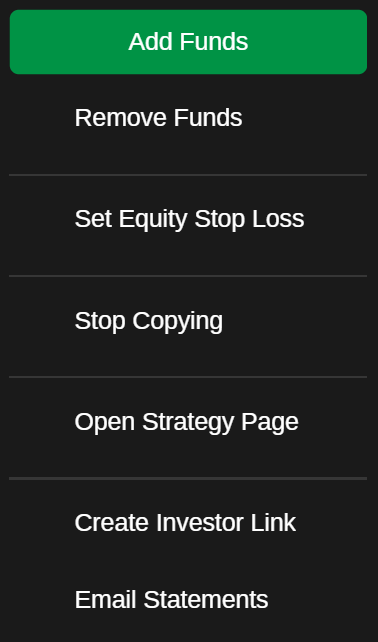
Alternatively, open the drop-down list with available actions on the investment statistics page of a specific strategy.
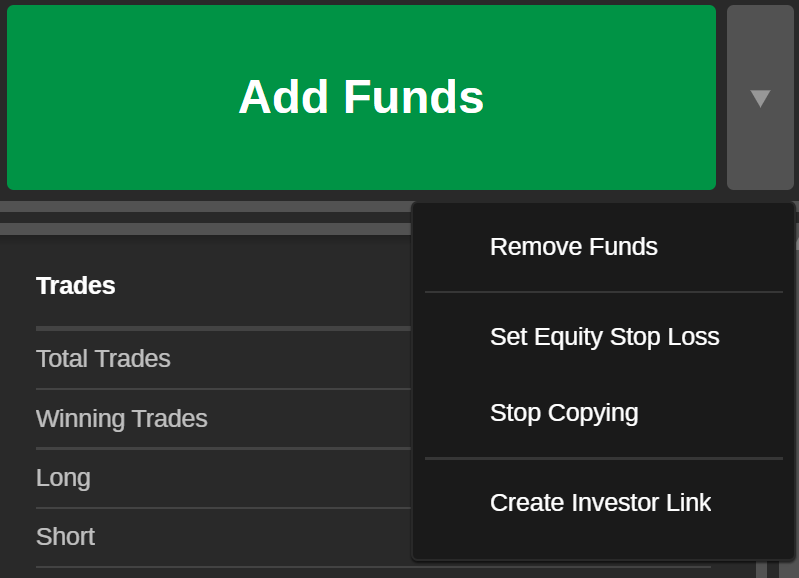
### Add Funds[¶](https://help.ctrader.com/ctrader-copy/investing-in-strategies/#add-funds "Permanent link")
While copying a strategy, you can add funds to the corresponding copy-trading account at any time.
1\. To add funds to a copy-trading account, select the **Add funds** button (shown where to locate it above).
2\. In the **Add funds** window, specify the amount of funds to be added to the copy-trading account from the account you originally chose for copying this strategy.
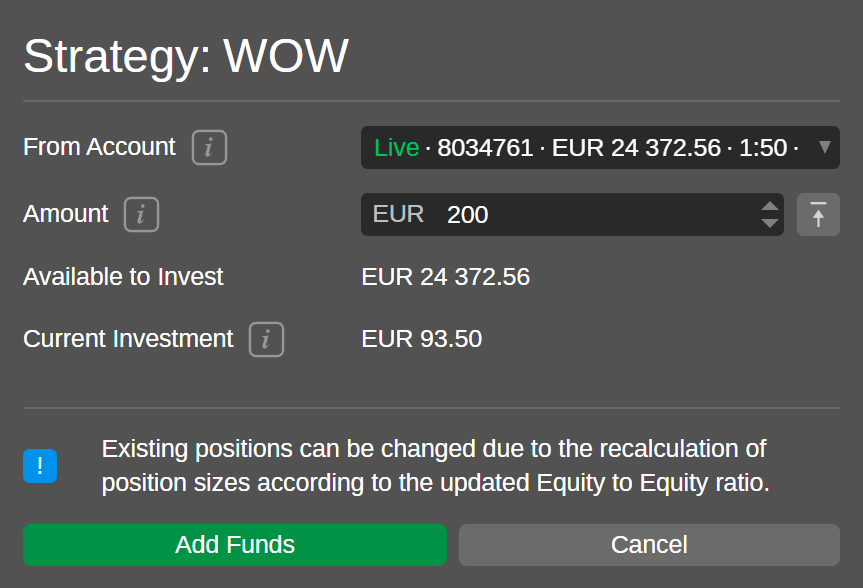
You can type in the desired amount or use toggles. Check the total available amount of funds in your account, the added amount cannot exceed it.
Warning
When adding funds to a copy-trading account, the existing positions can change due to the recalculation of position sizes according to the equity-to-equity ratio.
Tap **Add funds** to complete this action. The equity amount will be automatically updated in the copy-trading account preview.
### Remove funds[¶](https://help.ctrader.com/ctrader-copy/investing-in-strategies/#remove-funds "Permanent link")
While copying, your invested funds can be withdrawn from a copy-trading account at any time.
1\. To withdraw funds from the copy-trading account to the parent account, select **Remove funds**.
2\. In the **Remove funds** window, specify the amount of funds you would like to withdraw from the copy-trading account. The funds you are removing will be transferred back to the account they were originally allocated from. Check the available amount of funds for removing, as you cannot withdraw more than this amount.
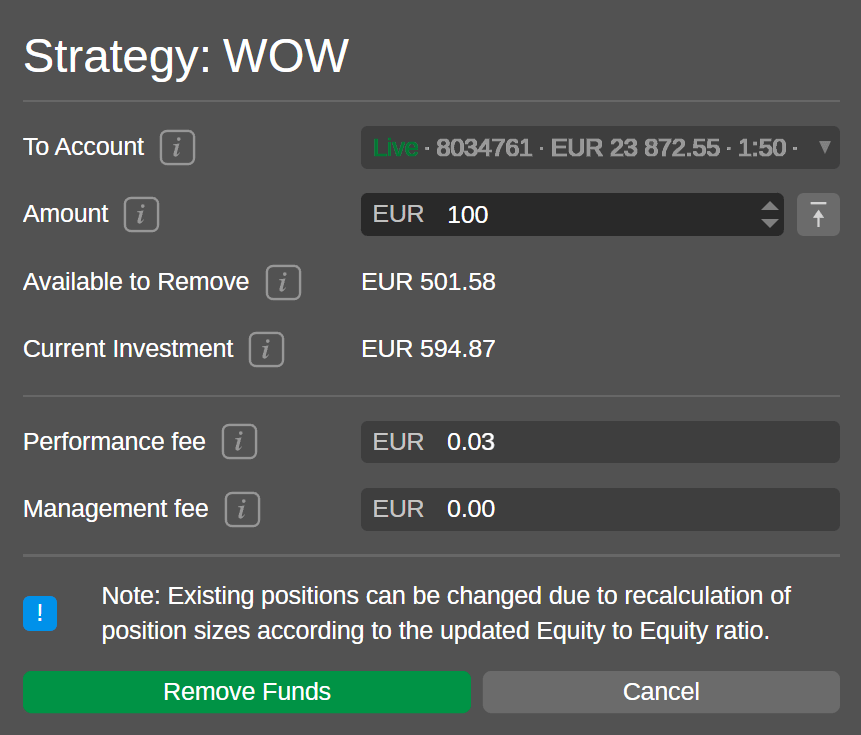
To withdraw all the available funds, select the **All available funds** icon.
Warning
When withdrawing funds from a copy-trading account, the existing positions can change due to the recalculation of position sizes according to the equity-to-equity ratio.
Also, when you remove funds from a copy-trading account, a certain amount of unrealised performance and management fees can be realised proportionally to the withdrawn amount. This amount of fees will be automatically calculated and displayed at the bottom of the **Remove funds** window before you submit your funds removal.
Select **Remove funds** to complete this action. The equity amount will be automatically updated in the copy-trading account preview.
### Set equity stop loss[¶](https://help.ctrader.com/ctrader-copy/investing-in-strategies/#set-equity-stop-loss "Permanent link")
The equity stop loss for a copy-trading account can be set at any time while copying. This functionality allows investors to limit losses when copying strategies.
Once the equity drops below the specified level, the copying is stopped and all the opened positions copied from the strategy are closed automatically.
1\. To set equity stop loss, select **Set equity stop loss** in the strategy settings menu.
2\. In the **Set equity stop loss** window, specify the needed equity stop-loss level. After the copying is stopped, all the funds of the copying account will be automatically transferred to the parent account. You can input the value manually, use toggles or use the slider.
Select **OK** to confirm your action.
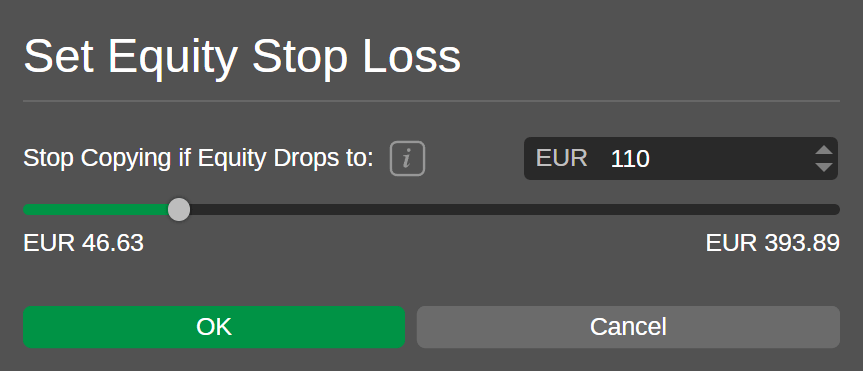
To modify the equity stop-loss level, select the same button and adjust your settings in the **Set equity stop loss** window.
Note
If after withdrawing funds, the amount of the funds on your copy-trading account is lower than the equity stop-loss level set by you, then the equity stop loss will be removed automatically.
### Stop copying[¶](https://help.ctrader.com/ctrader-copy/investing-in-strategies/#stop-copying "Permanent link")
An investor can stop copying a strategy at any time.
1\. To stop copying, select **Stop copying** in the strategy settings menu or in the drop-down list to the right of the **Add funds** button.
2\. The **Stop copying** window will display the approximate amount of unrealised performance and management fees that will be charged to you once you stop copying the strategy.
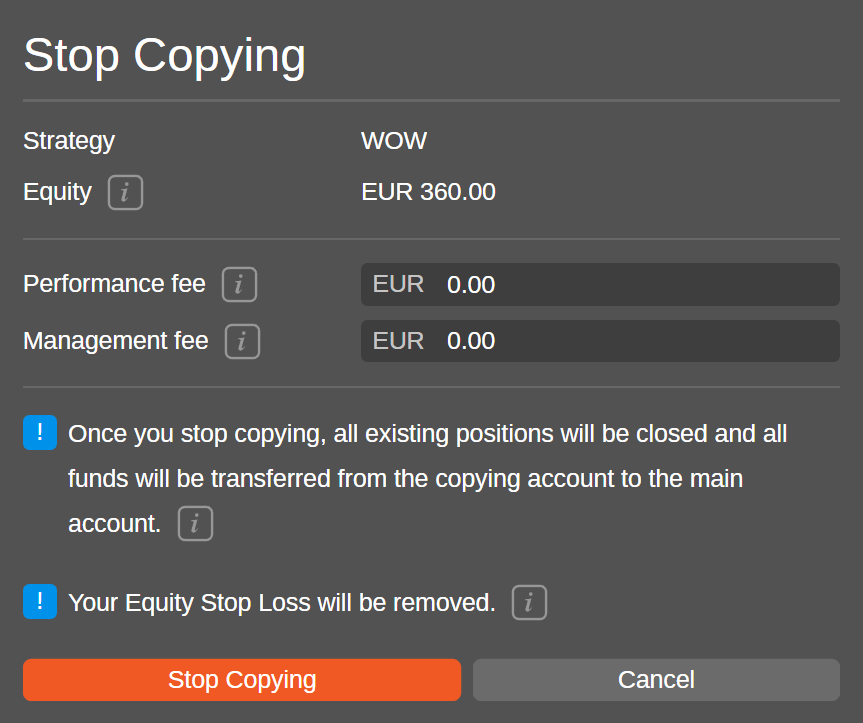
Select **Stop copying** to confirm your action.
Note
When you stop copying a strategy, all the existing open positions for your copy-trading account will be closed. After the copying is stopped, all the funds of the copying account will be automatically transferred to the main account.
The strategy that is not being copied is marked with an orange indicator.

Sometimes, when you stop copying a strategy, the market can be closed for some of the copied positions. In this case, the copy-trading account will obtain the **Stopping** status and will be marked with a grey indicator. Once the market is opened, the open positions are closed, and the fees are charged, the status will change to **Stopped** automatically.
### Restart copying[¶](https://help.ctrader.com/ctrader-copy/investing-in-strategies/#restart-copying "Permanent link")
An investor can restart copying a strategy at any time as long as it is still provided for copying and there are sufficient funds to invest. If the copying is stopped, the **Restart copying** buttons will headline both the account settings menu and the investment statistics controls.

After selecting **Restart copying**, you will have to specify your invested volume again.
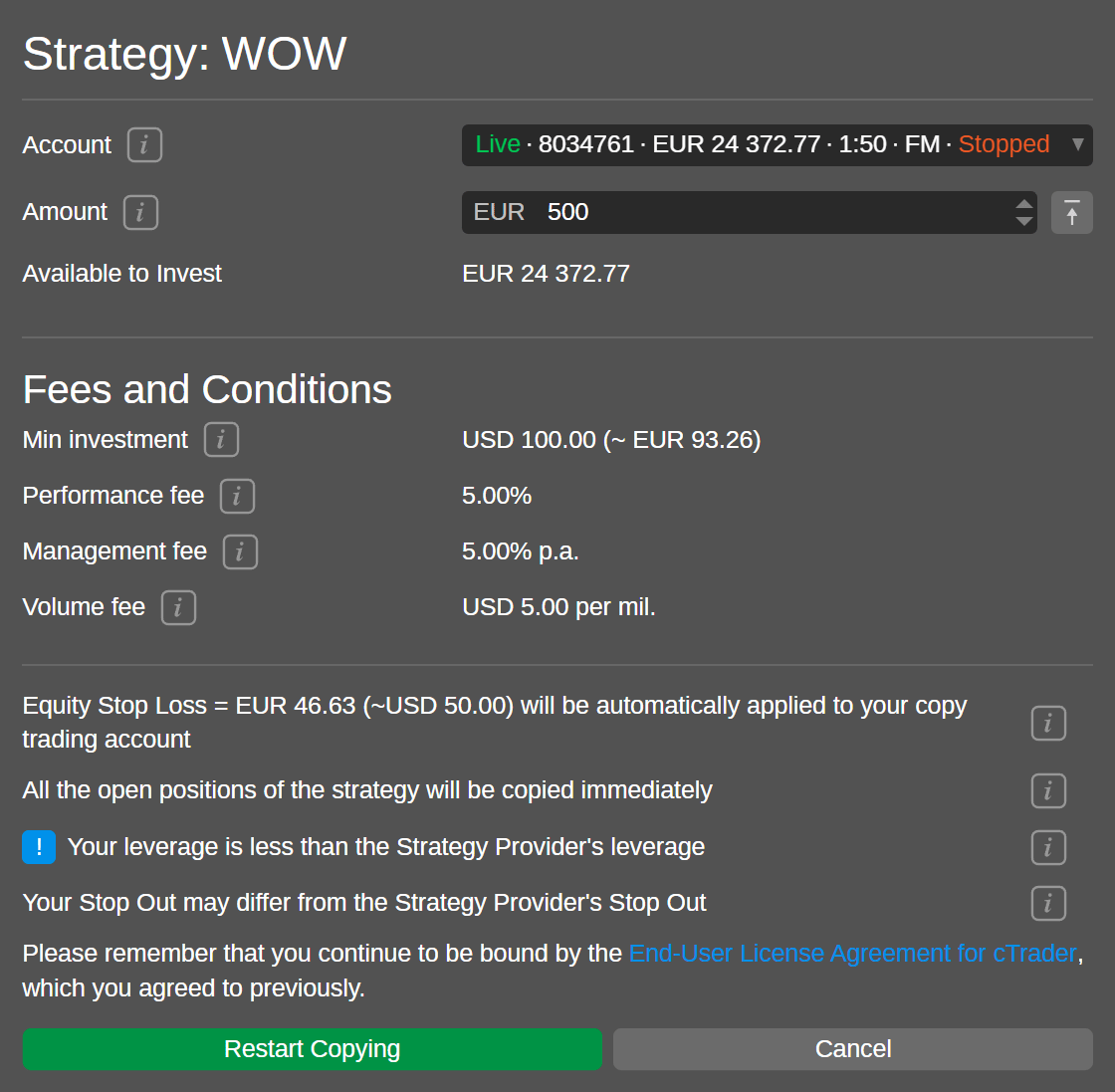
If the balance of your copy-trading account is lower than the minimum investment of the strategy, you will not be able to restart copying until you deposit funds.
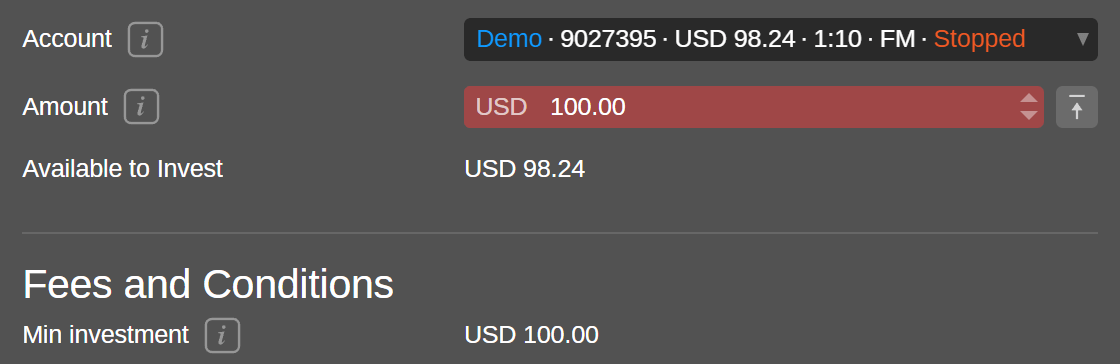
Open strategy page[¶](https://help.ctrader.com/ctrader-copy/investing-in-strategies/#open-strategy-page "Permanent link")
--------------------------------------------------------------------------------------------------------------------------
If you need to access the individual page of a strategy with its all time performance, select **Open strategy page**, in the account settings menu or in the dropdown menu of the **Investment stats** section.
Email statements[¶](https://help.ctrader.com/ctrader-copy/investing-in-strategies/#email-statements "Permanent link")
----------------------------------------------------------------------------------------------------------------------
After selecting the **Email statements** option in the account settings menu or in the drop-down menu of the **Investment stats** section, you will start receiving email statements that will keep you updated about the latest status of your strategy.
Investment profile[¶](https://help.ctrader.com/ctrader-copy/investing-in-strategies/#investment-profile "Permanent link")
--------------------------------------------------------------------------------------------------------------------------
The **Investment stats** section serves as an investment profile and offers detailed information about the trading activity of the account copying a specific strategy. select a strategy in the accounts list under the expandable **Copy** tab.

The **Investment stats** section provides the following information:
* Type of the copying account (live or demo)
* Name of the strategy being copied by the account (able to expand the all time strategy statistics)
* All time ROI for the copy-trading account
* Current equity of the copy-trading account
* Equity stop-loss level set for this copy-trading account
* Copying status (started, stopped, stopping or close only):
* **Started** – the copying process is on.
* **Stopped** – the copying process is off.
* **Stopping** – the copying process is being stopped. Once the open positions are closed and fees are charged, the status will change to **Stopped**
* **Close only** – new positions are not being copied, only closing positions are copied. It is only possible due to specific broker conditions. In case you see this status, you should contact your broker for assistance.
Charts[¶](https://help.ctrader.com/ctrader-copy/investing-in-strategies/#charts "Permanent link")
--------------------------------------------------------------------------------------------------
Further, the investment profile of the strategy you are copying contains a selection of charts for fast and convenient tracking of the trading dynamics while copying.
Scroll down the profile page to view them all. The following charts are available below: ROI (%), equity, ROI (monthly), performance and volume breakdown. Hover the cursor over these charts to view the exact information at the required point.
### ROI (%)[¶](https://help.ctrader.com/ctrader-copy/investing-in-strategies/#roi "Permanent link")
The **ROI (%)** chart displays the time on the X-axis and the profit in percentage on the Y-axis. The chart allows for tracking the percentage of income while copying the strategy compared to the balance from the beginning of copying.
In the upper left corner, you can select a period from one week up to all the time. The ROI chart is updated daily.
Check the [**ROI calculation**](https://help.ctrader.com/ctrader-copy/roi-calculation/)
section to learn more about how ROI is calculated in cTrader Copy.
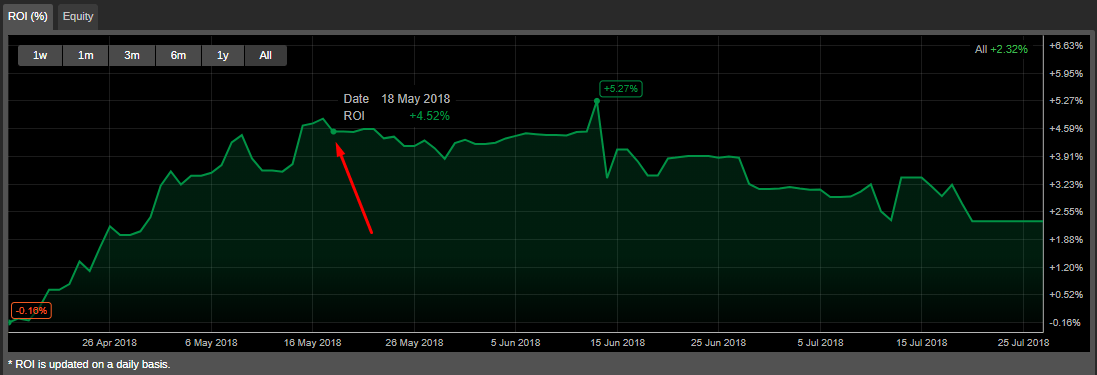
### Equity[¶](https://help.ctrader.com/ctrader-copy/investing-in-strategies/#equity "Permanent link")
The **Equity chart** plots the time on the X-axis and the cash value on the Y-axis. This chart depicts the changes in the copy-trading account equity regarding the account balance over the chosen period.
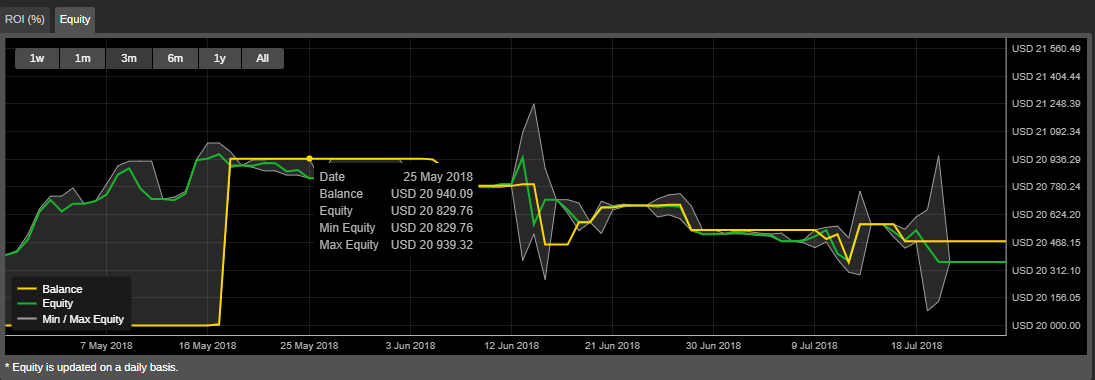
### ROI (monthly)[¶](https://help.ctrader.com/ctrader-copy/investing-in-strategies/#roi-monthly "Permanent link")
The **ROI (monthly)** chart displays the return on investment the copied strategy has generated per month since the investor started copying it.
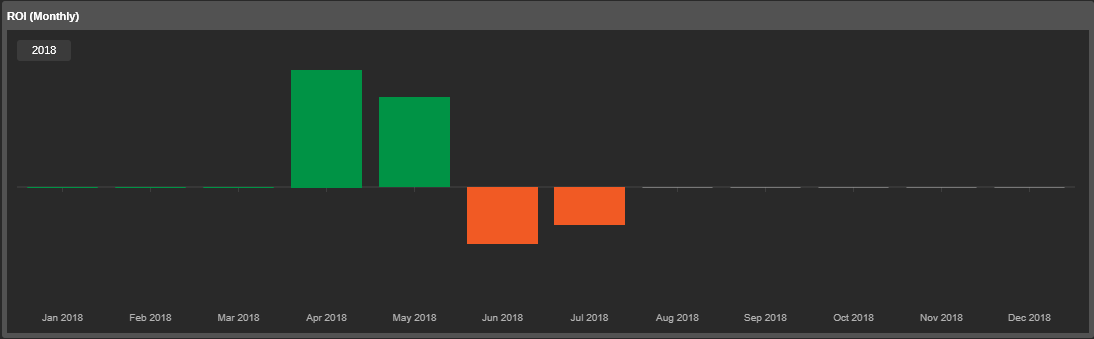
### Performance[¶](https://help.ctrader.com/ctrader-copy/investing-in-strategies/#performance "Permanent link")
The **Performance** chart displays the correlation between the winning and losing trades of the strategy. Use the time toggles to display the desired period. Hover over the chart to see the exact number of trades and their percentage.
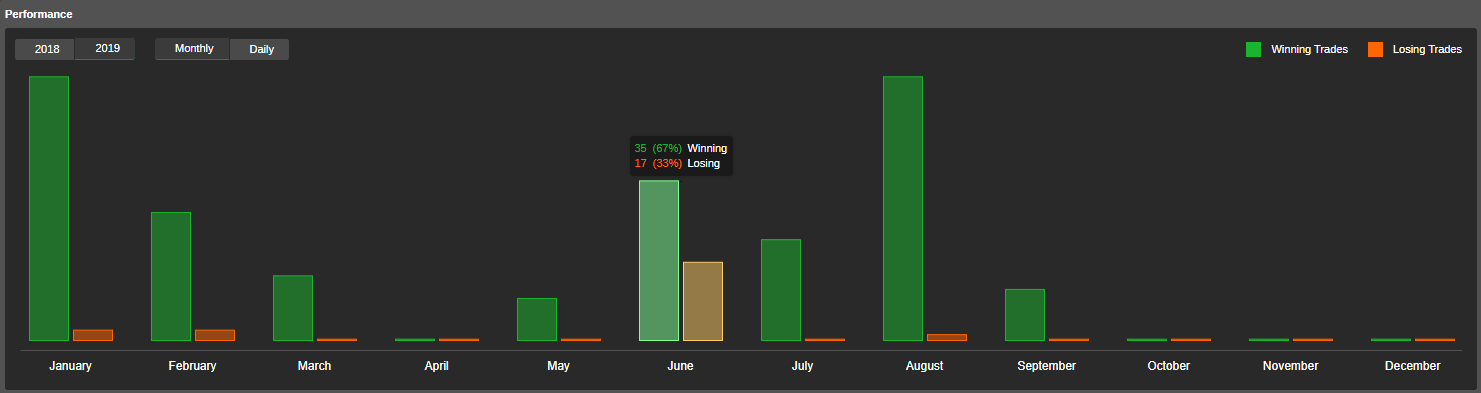
### Volume breakdown[¶](https://help.ctrader.com/ctrader-copy/investing-in-strategies/#volume-breakdown "Permanent link")
The **Volume breakdown** pie chart displays the symbols that were traded, their respective volumes, and the percentage of the total volume traded on this symbol.
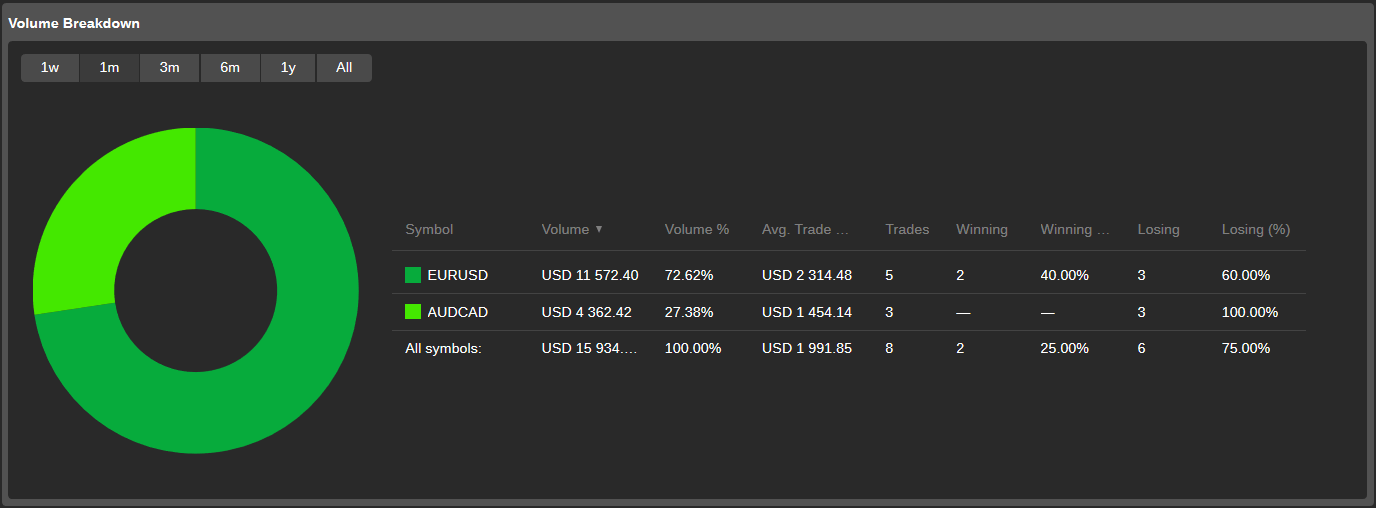
Details[¶](https://help.ctrader.com/ctrader-copy/investing-in-strategies/#details "Permanent link")
----------------------------------------------------------------------------------------------------
The copied strategy details are displayed in the **Details** section of the investment profile.
Here you can find the exact date and time when you started copying the strategy, the strategy currency and leverage and the copying conditions.
The **Conditions** section contains the required minimum investment amount and the fees the investor will be charged for copying.
* **Minimum investment** – the minimum amount of funds required to be allocated from a trading account to a copy-trading account to start copying the strategy. The funds cannot be withdrawn from a copy-trading account if it results in equity falling below the minimum investment while the strategy is being copied.
* **Performance fee** – the amount charged for copying the strategy on net profit made using the HWM model.
* **Management fee** – the amount that a strategy provider charges investors for managing their funds.
* **Volume fee** – the amount an investor is charged per one million of the volume copied.
You can read more about how fees are calculated in cTrader Copy [**here**](https://help.ctrader.com/ctrader-copy/docs/fees-calculation.md)
.
Tables[¶](https://help.ctrader.com/ctrader-copy/investing-in-strategies/#tables "Permanent link")
--------------------------------------------------------------------------------------------------
The investor's positions, history, transactions, and other trading statistics are displayed in the tables with configurable columns.
You can drag and drop the column headings to adjust their sequence. Right-click on a column heading to enable or disable the columns to be shown.
### Positions[¶](https://help.ctrader.com/ctrader-copy/investing-in-strategies/#positions "Permanent link")
In the **Positions** table, the investor's current open positions are listed.
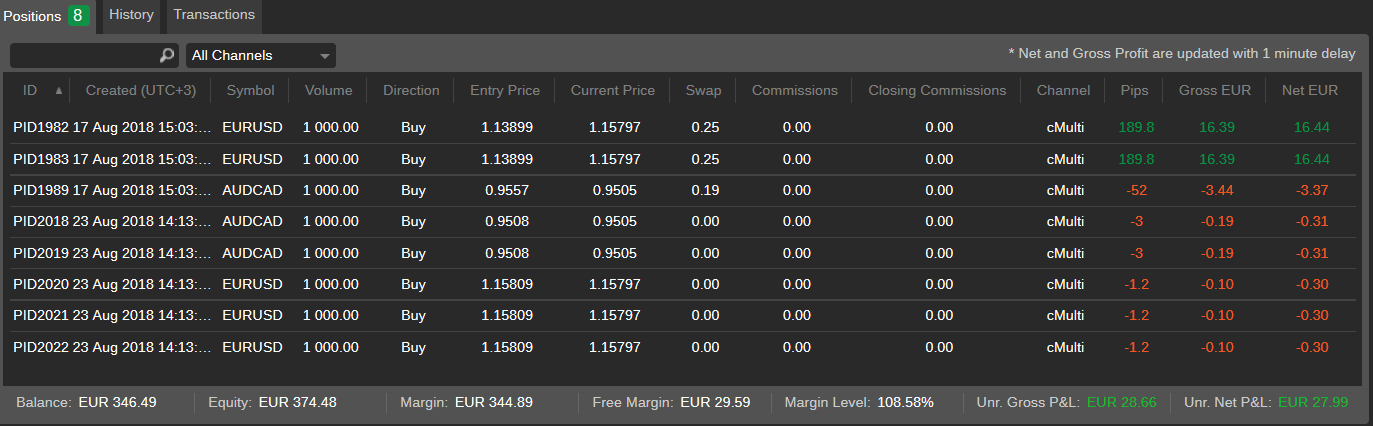
This is a standard configurable table for positions in cTrader Copy without an additional **Unrealised volume fee** column.
This column displays the amount of the volume fee to be charged by a strategy provider when closing the position. To enable the **Unrealised volume fee** column, right-click on any column heading in the chart and check **Unr. volume fee** in the drop-down list.
Note
An investor cannot manage or close the positions from the investment profile. All the positions can be closed at once only when the strategy copying is stopped.
### History[¶](https://help.ctrader.com/ctrader-copy/investing-in-strategies/#history "Permanent link")
The **History** table lists all the deals that have filled or attempted to fill the orders while copying the strategy.
This is a standard **History** table in cTrader Copy without an additional **Volume fee** column. This column displays the amount of volume fee charged by a strategy provider. To enable the **Volume fee** column, right-click on any column heading in the table and check **Volume fee** in the dropdown menu.
### Transactions[¶](https://help.ctrader.com/ctrader-copy/investing-in-strategies/#transactions "Permanent link")
The **Transactions** tab contains details of all the copy-trading account deposits and withdrawals, as well as of the fees charged, with the following details:
* **ID** – the transaction unique ID
* **Time** – the exact time of the transaction
* **Type** – the type of the transaction (withdrawal or deposit)
* **Amount** – the amount of the transaction
* **Note** – the detailed explanation of the transaction (a deposit from an account, a fee, etc.)

### Trades[¶](https://help.ctrader.com/ctrader-copy/investing-in-strategies/#trades "Permanent link")
All the copied trades statistics are listed in the **Trades** table. The trades information can be filtered by the standard period from one day to all time, or by a custom period you specify.
In the chart, you can find the following trades statistics with the division into all trades, long trades and short trades:
* **Net profit** – the net realised profit and loss of all the copied trades.
* **Profit factor** – the ratio of the total net profit divided by the total net loss.
* **Commission** – the total amount of commission paid to the broker.
* **Max balance drawdown** – the maximum amount of balance drawdown based on the end-of-day balance.
* **Total trades** – the total number of trades taken.
* **Winning trades** – the total number of the winning trades.
* **Largest winning trade** – the closing deal with the largest positive result.
* **Losing trades** – the total number of the losing trades.
* **Largest losing trade** – the closing deal with the largest negative result.
* **Average trade** – the average profit for all trades.
* **Total pips won** – the total number of pips won minus the pips lost by the investor.
* **Average pips won per trade** – the total pips divided by the number of trades.
* **Average trade duration** – the total period that the account had an open trade divided by the number of trades.
* **USD volume traded** – the total amount traded in USD.
### Symbols[¶](https://help.ctrader.com/ctrader-copy/investing-in-strategies/#symbols "Permanent link")
The **Symbols** tab lists all the symbols a copy-trading account is trading based on the closed positions considering the statistics of trades, pips, net profit and won and lost percentage in the corresponding columns.
You can filter the list of symbols by a standard period from one day to all time, or by a specified custom period.
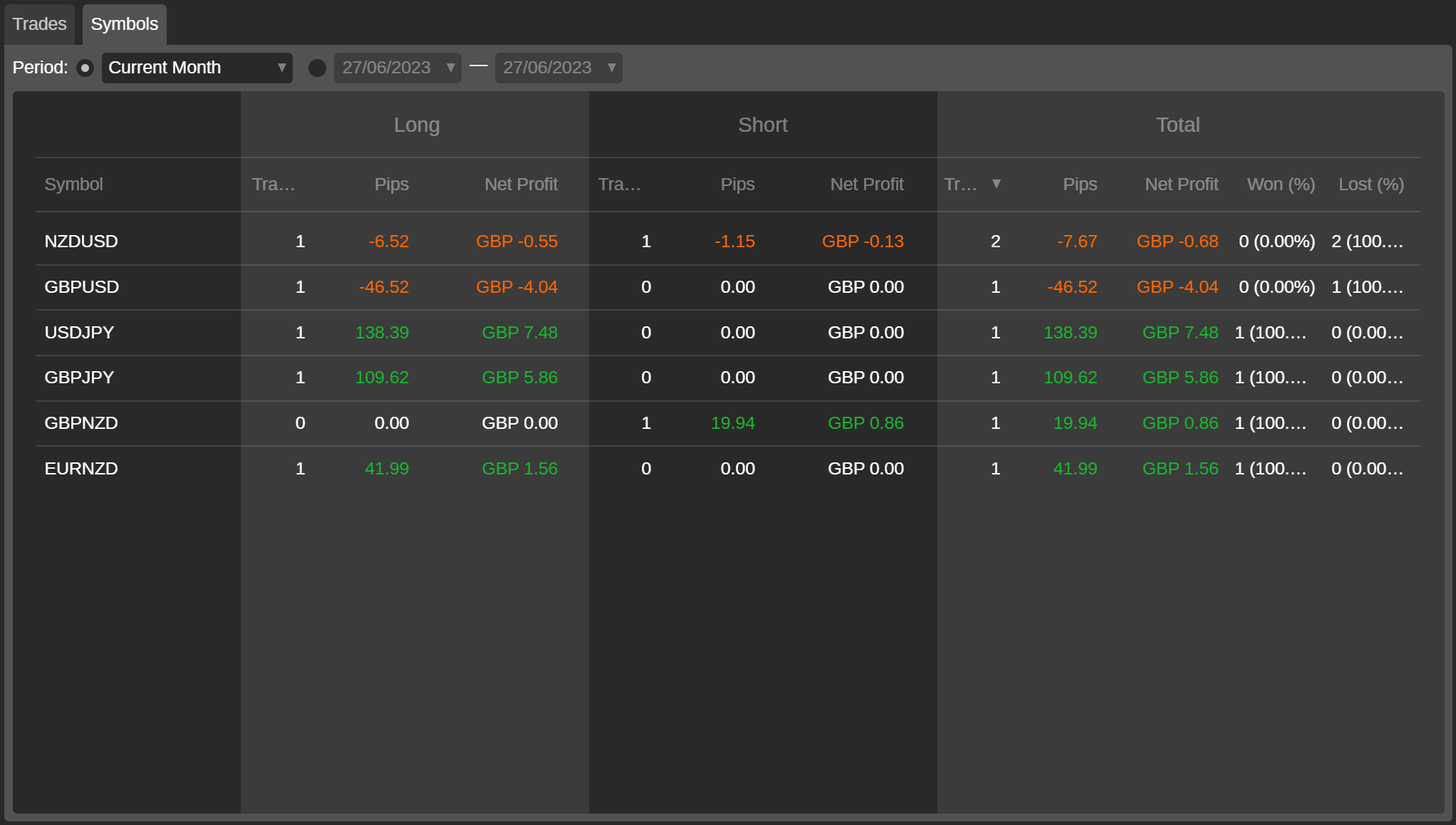
Performance stats[¶](https://help.ctrader.com/ctrader-copy/investing-in-strategies/#performance-stats "Permanent link")
------------------------------------------------------------------------------------------------------------------------
The **Performance stats** section contains the details on all the trades of the strategy:
* **Total trades** – the total number of trades.
* **Winning trades** – the total number and percentage of the winning trades of the strategy.
* **Long** – the total number and percentage of all the long winning trades.
* **Short** – the total number and percentage of all the short winning trades.
* **Losing trades** – the total number and percentage of all the losing trades.
* **Long** – the total number and percentage of all the long losing trades.
* **Short** – the total number and percentage of all the short losing trades.
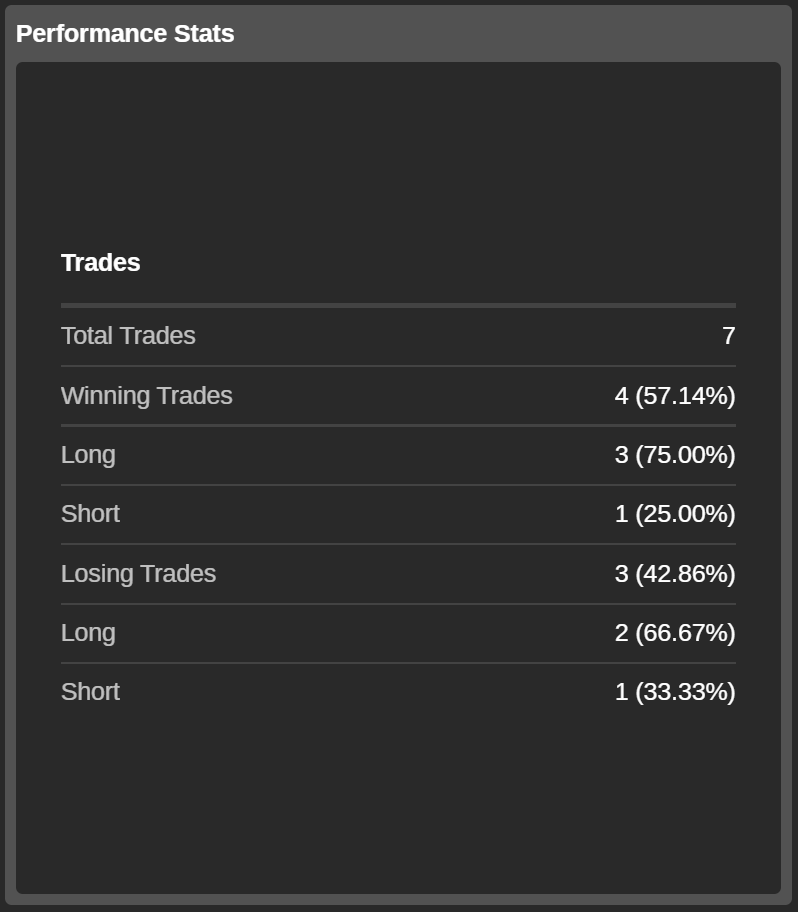
Summary[¶](https://help.ctrader.com/ctrader-copy/investing-in-strategies/#summary "Permanent link")
----------------------------------------------------------------------------------------------------
In the **Summary** section, the basic financial statistics of a copy-trading account is displayed. Here you can review the following:
* **Net profit** – the total net profit of the copy-trading account.
* **Profit factor** – the ratio of the total net profit divided by the total net loss.
* **Percent profitable** – the number of winning trades divided by the total number of trades.
* **Max balance drawdown** – the maximum amount of balance drawdown.
* **Starting balance** – the account balance when it started copying the strategy.
* **Current balance** – the account deposits plus the total realised net profit and loss (with all withdrawals deduced).
* **Equity** – the account balance plus the unrealised net profit and loss.
* **Deposits** – the total deposits to the copy-trading account.
* **Withdrawals** – the total withdrawals from the copy-trading account.
* **Margin used** – the maximum margin between the sum of all long or all short positions margin used.
* **Active since** – the time when the copy-trading account was created.
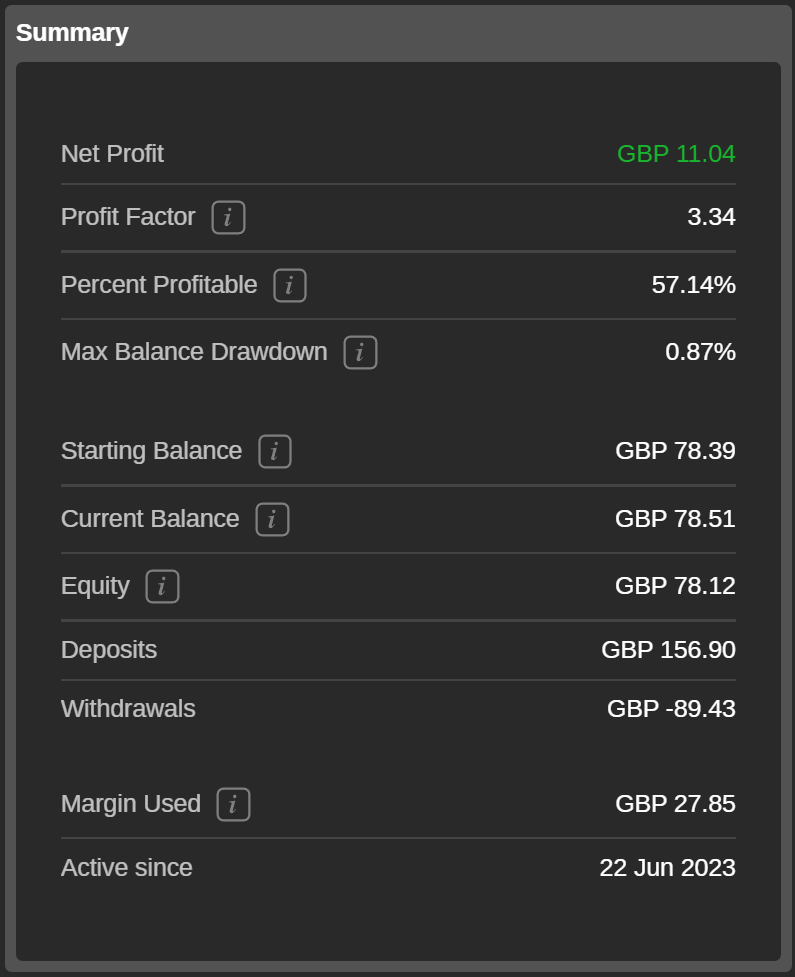
---
# Introduction - cTrader Bonuses
[Skip to content](https://help.ctrader.com/bonuses/#introduction)
Introduction[¶](https://help.ctrader.com/bonuses/#introduction "Permanent link")
=================================================================================
Bonuses are incentives provided by brokers to cTrader users to encourage their trading activities. Bonus funds are kept separately from a user’s account balance and can be used to trade and perform other actions.
Bonuses in One Minute!
* A broker can send bonuses to a user’s trading account, and the user receives these funds instantly.
* A user can trade with bonuses only in combination with funds from their balance.
* Brokers determine how bonuses are received and spent by users.
* Bonuses may be converted into balance as determined by a broker's policies.
Warning
Always check your broker's bonus policies—this guide is for information purposes and does not override their terms and conditions.
These are some of the popular bonuses traders receive from brokers:
* **Sign-up or welcome bonus** - provided when a trader creates an account.
* **Deposit bonus** - provided when a trader adds funds to their live account.
* **Trading bonus** - provided when a user meets certain conditions related to the traded volume.
* **Referral bonus** - provided when a trader brings a referral who then performs certain actions, such as making a deposit or trading a specific volume.
* **Discretionary bonus** - provided at the broker's discretion.
---
# For educators - Partner tools
[Skip to content](https://help.ctrader.com/partner-tools/for-educators/#for-educators)
For educators[¶](https://help.ctrader.com/partner-tools/for-educators/#for-educators "Permanent link")
=======================================================================================================
Who are educators[¶](https://help.ctrader.com/partner-tools/for-educators/#who-are-educators "Permanent link")
---------------------------------------------------------------------------------------------------------------
Educators are traders who focus on sharing technical analysis and knowledge with other traders. Typically, educators use the following channels:
* Streaming platforms (such as YouTube)
* Messengers and other digital community tools (such as Discord or Telegram)
* Forums, message boards and image boards
* Own academies and landing pages
The role of an educator is a difficult one, but it is also rewarding as you can teach new traders essential concepts such as risk management, key types of manual and automated trading strategies, as well as trading discipline.
Here are the key features cTrader offers for educators:
* [**cTrader Algo**](https://help.ctrader.com/ctrader-algo/)
* [**Chartshots**](https://help.ctrader.com/ctrader/charts/chart-shots/)
* [**Signal links**](https://help.ctrader.com/ctrader-mobile-ios/signal-links-ios/)
Guides for educators[¶](https://help.ctrader.com/partner-tools/for-educators/#guides-for-educators "Permanent link")
---------------------------------------------------------------------------------------------------------------------
To learn more about being an effective educator, read the following guides:
* [**Generate leads by sharing technical analysis**](https://help.ctrader.com/partner-tools/generate-leads-sharing-tech-analysis/)
. This tutorial details the best practices for lead generation via sharing technical analysis.
---
# Orders - cTrader Windows
[Skip to content](https://help.ctrader.com/ctrader/trading/orders/#creating-orders)
Orders
======
Creating Orders[¶](https://help.ctrader.com/ctrader/trading/orders/#creating-orders "Permanent link")
------------------------------------------------------------------------------------------------------
There are several ways to create orders in the cTrader:
* By clicking the New Order button () in the QuickLinks tab to the top of the screen, or in the TradeWatch panel (make sure that either Positions or Orders tab is selected). The New Order menu will pop-up.
* By right-clicking on the corresponding symbol in the Symbols List to the left, or on its chart, and selecting Create New Order from the submenu. The New Order menu will pop-up.
* By using Buy or Sell QuickTrade buttons to the top of the chart of the desired symbol.
* By using the New Order form in the Order tab of the Active Symbol Panel (ASP) to the right.
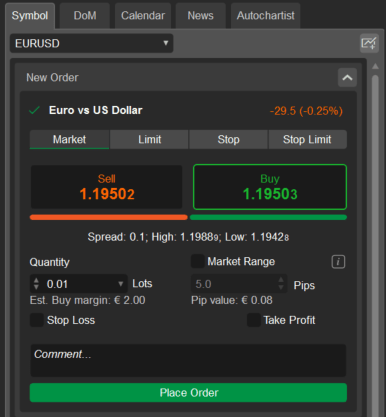
* By pressing `F9` on the keyboard.
### Creating a Market Order[¶](https://help.ctrader.com/ctrader/trading/orders/#creating-a-market-order "Permanent link")
1. In the New Order menu select a Symbol to trade.
2. Select a trading direction by clicking either the Sell or Buy buttons.
3. Specify Volume - the number of lots to be traded using the drop-down, the toggles, or typing in the number.
4. Change the Market Range to expand or narrow down the price range to which your order will be filled.
5. Check the corresponding boxes to set and configure the Stop Loss and Take Profit options (they will apply to the corresponding Position once the order is filled).
6. Optionally, type in your comment into the Comment box.
7. Click the Place Order button to create a Market Order.
Note
Uncheсking the Market Range checkbox, or setting a zero (0) value will essentially create a Limit Order.
Click the Price Alert button () to set a Price Alert.
Use the Collapse/Expand button () to collapse/expand the Chart to the right.
Click the Symbol info icon () to open the complete Symbol details.
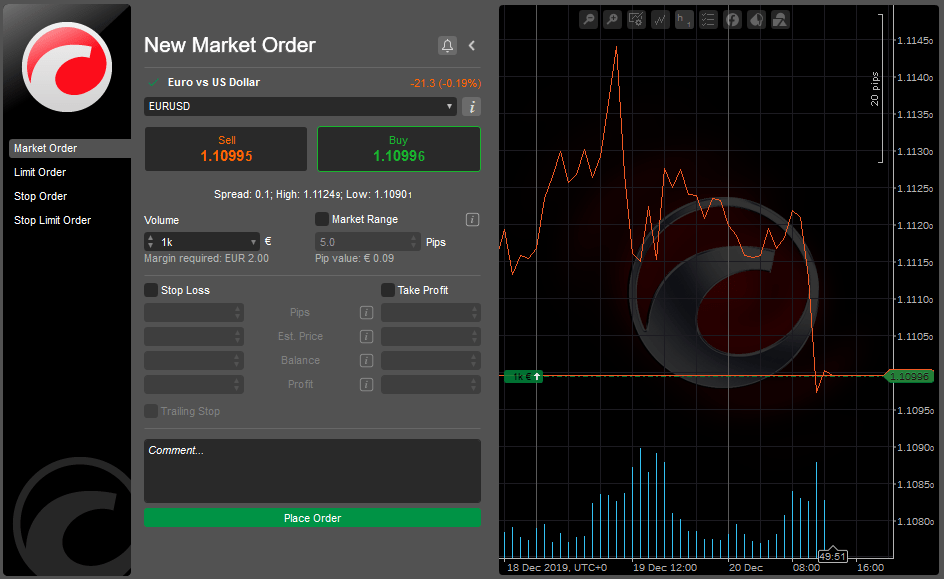
Alternatively, select the desired symbol in the New Order menu of the Active Symbol Panel, select a trading direction, specify volume to be traded, optionally enable the Market Range and Stop Loss And Take Profit protections, and click Place Order.
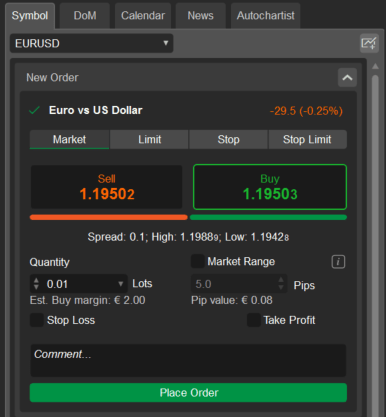
### Creating a Limit Order[¶](https://help.ctrader.com/ctrader/trading/orders/#creating-a-limit-order "Permanent link")
To create a Limit Order in the New Order menu select Limit Order to the left.
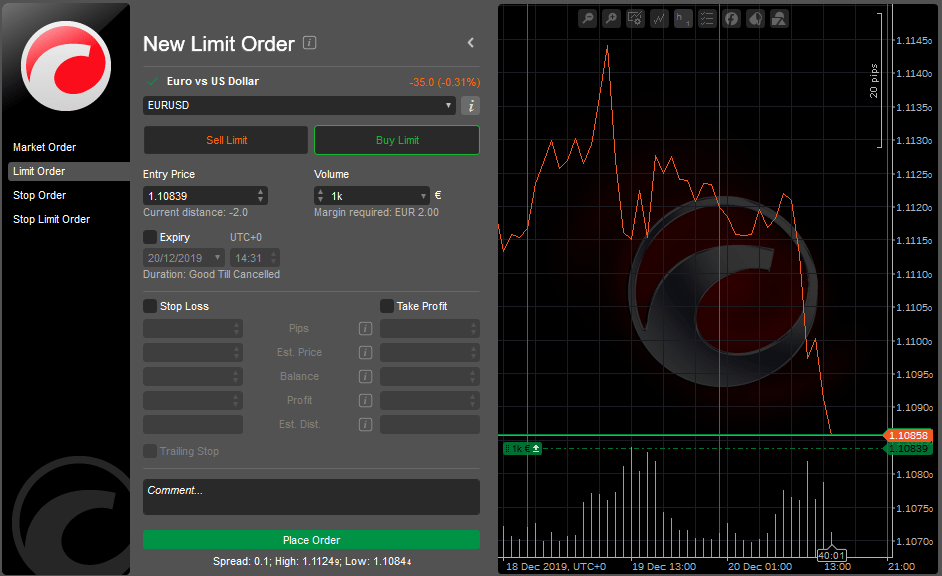
1. Select a Symbol to trade.
2. Select a trading direction by clicking either the Sell Limit or Buy Limit buttons.
3. Specify Volume - the number of lots to be traded using the drop-down, the toggles, or typing in the number.
4. Set the Entry Price at which you wish to fill your order. This price cannot be higher than the current Ask price on the market if going long (Buy), or lower than the current Bid price if going short (Sell). Buy Limit Orders can be executed only at the limit price or lower. Sell Limit Orders are executed at the limit price or higher.
5. Check the Expiry box to set the time and date when this pending order will automatically expire if not filled. Otherwise, the order remains active until cancelled manually.
6. Check the corresponding boxes to set and configure the Stop Loss and Take Profit options.
7. Click the Place Order button to create a limit order.
Click the Price Alert button () to set a Price Alert.
Use the Collapse/Expand button () to collapse/expand the Chart to the right.
Click the Symbol info icon () to open the complete Symbol details.
Alternatively, select the desired symbol in the New Order menu of the Active Symbol Panel, select the Limit tab, select a trading direction, specify the Entry Price and the Quantity (volume) to be traded, optionally enable the Expiry time and date, and the Stop Loss And Take Profit protections, and click Place Order.

### Creating a Stop Order[¶](https://help.ctrader.com/ctrader/trading/orders/#creating-a-stop-order "Permanent link")
To create a Stop Order in the New Order menu select Stop Order to the left.
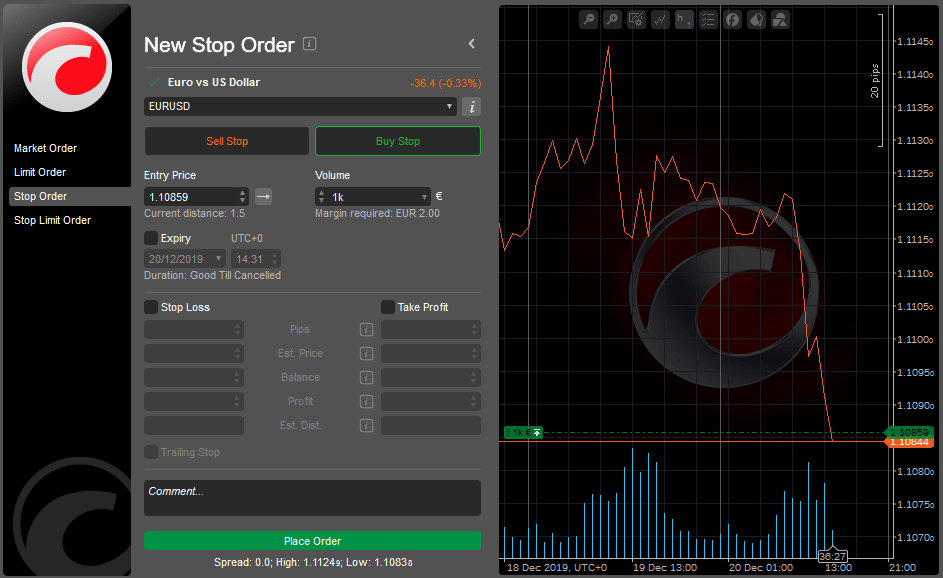
1. Select a Symbol to trade.
2. Select a trading direction by clicking either the Sell Stop or Buy Stop buttons.
3. Set the Entry price that will trigger an order. The price cannot be lower than the current Ask price if you are going long (Buy), or higher than the current Bid price if going short (Sell).
4. Specify Volume - the number of lots to be traded using the drop-down, the toggles, or typing in the number.
5. Click the right arrow () to select a way to trigger the order.
6. Check the Expiry box to set the time and date when this pending order will automatically expire if not filled. Otherwise, the order remains active until cancelled manually.
7. Check the corresponding boxes to set and configure the Stop Loss and Take Profit options.
8. Click the Place Order button to create a stop order.
The right arrow () is the Trade side. Buy Orders are triggered by the Ask price and Sell Orders are triggered by the Bid price.
The left arrow () is the Opposite side. Buy Orders are triggered by the Bid price and Sell Orders are triggered by the Ask price.
The double right arrow () is the Double Trade Side. Similar to the Trade Side trigger, but two consecutive ticks of the respective price are required.
The double left side () – is the Double Opposite side. Similar to the Opposite Side trigger, but two consecutive ticks of the respective price are required.
Click the Price Alert button () to set a Price Alert.
Use the Collapse/Expand button () to collapse/expand the Chart to the right.
Click the Symbol info icon () to open the complete Symbol details.
Alternatively, select the desired symbol in the New Order menu of the Active Symbol Panel, select the Stop tab, select a trading direction, specify the Entry Price and the Quantity (volume) to be traded, optionally enable the Expiry time and date, and the Stop Loss And Take Profit protections, and click Place Order.
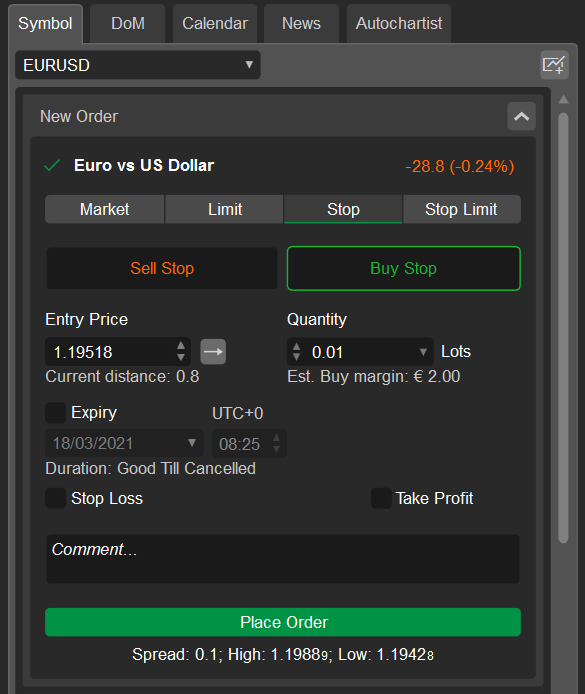
### Creating a Stop Limit Order[¶](https://help.ctrader.com/ctrader/trading/orders/#creating-a-stop-limit-order "Permanent link")
To create a Stop Limit Order in the New Order menu select Stop Limit Order to the left.
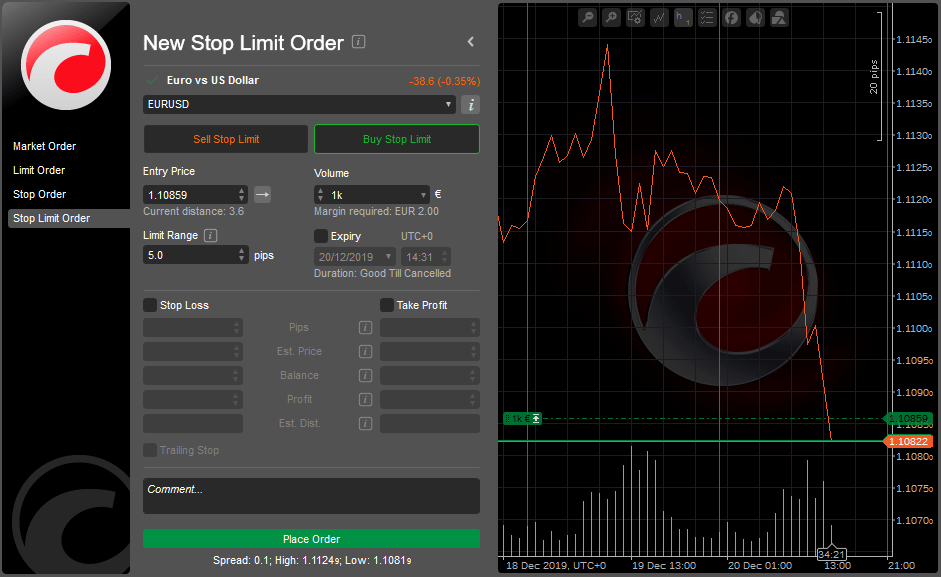
1. Select a Symbol to trade.
2. Select a trading direction by clicking either the Sell Stop or Buy Stop buttons.
3. Specify Volume - the number of lots to be traded using the drop-down, the toggles, or typing in the number.
4. Set the Entry Price that will trigger the limit order.
The right arrow () is the Trade side. Buy Orders are triggered by the Ask price and Sell Orders are triggered by the Bid price.
The left arrow () is the Opposite side. Buy Orders are triggered by the Bid price and Sell Orders are triggered by the Ask price.
The double right arrow () is the Double Trade Side. Similar to the Trade Side trigger, but two consecutive ticks of the respective price are required.
The double left side () – is the Double Opposite side. Similar to the Opposite Side trigger, but two consecutive ticks of the respective price are required.
Set Limit Range (in pips) relative to the Entry Price.
This means that stop limit order will be triggered only if the market reaches the Stop Price and will be filled only with the price determined by the Limit Range value (or a more preferable one).
Click the Price Alert button () to set a Price Alert.
Use the Collapse/Expand button () to collapse/expand the Chart to the right.
Click the Symbol info icon () to open the complete Symbol details.
Alternatively, select the desired symbol in the New Order menu of the Active Symbol Panel, select the Stop Limit tab, select a trading direction, specify the Entry Price and the Quantity (volume) to be traded,set Limit Range, optionally enable the Expiry time and date, and the Stop Loss and Take Profit protections, and click Place Order.
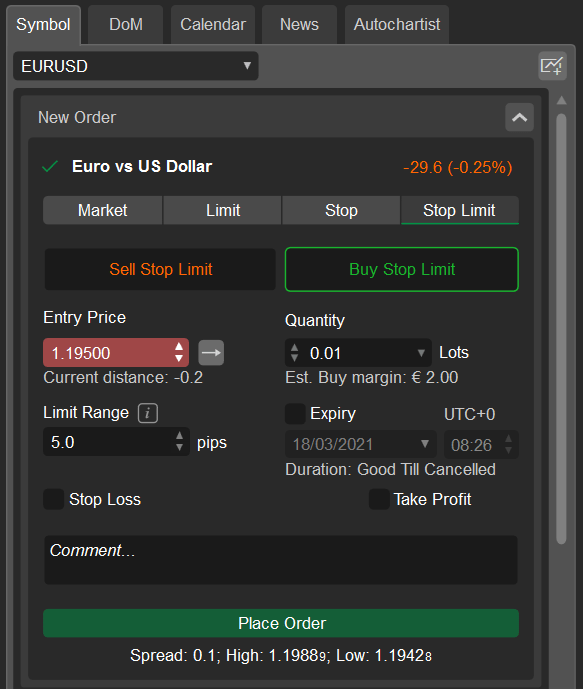
Managing Pending Orders[¶](https://help.ctrader.com/ctrader/trading/orders/#managing-pending-orders "Permanent link")
----------------------------------------------------------------------------------------------------------------------
All the pending orders are listed in the Orders tab at the TradeWatch panel. Here you can manage, modify, and cancel the pending orders.
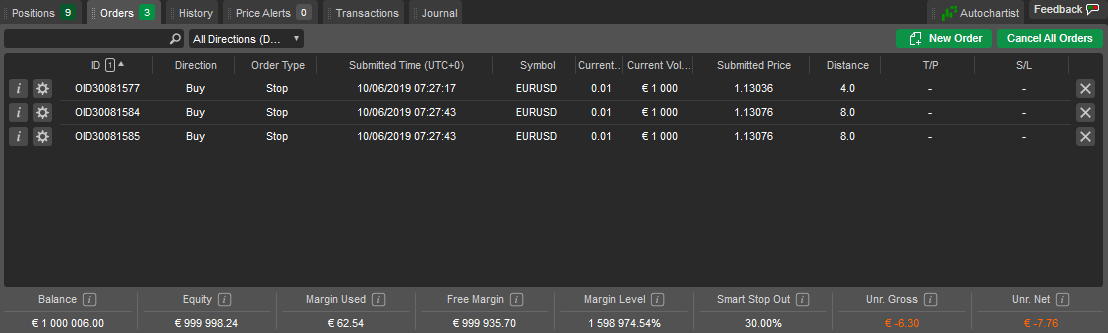
To filter the orders by their direction, type, symbol, or trading volume, type in the value, or its part, in the search box above the list of orders.
To filter the orders by their direction (Buy or Sell), click the Directions drop-down and select the desired direction.
Click the Order Info button () next to the desired order to open the Order Info page. Click the Cancel Order button () next to an order to cancel it.
Right-click on an order in the list to expand the additional order menu. Here you can:
* Cancel Order - to cancel the order.
* Modify Order - to open the Modify Order menu.
* Open Chart - to open the current order symbol chart.
* Create New Order - to open the create new order menu.
### Modifying Pending Orders[¶](https://help.ctrader.com/ctrader/trading/orders/#modifying-pending-orders "Permanent link")
To make changes to an existing pending order, click the Modify Order button () next to the desired Order in the Orders tab of the TradeWatch panel.
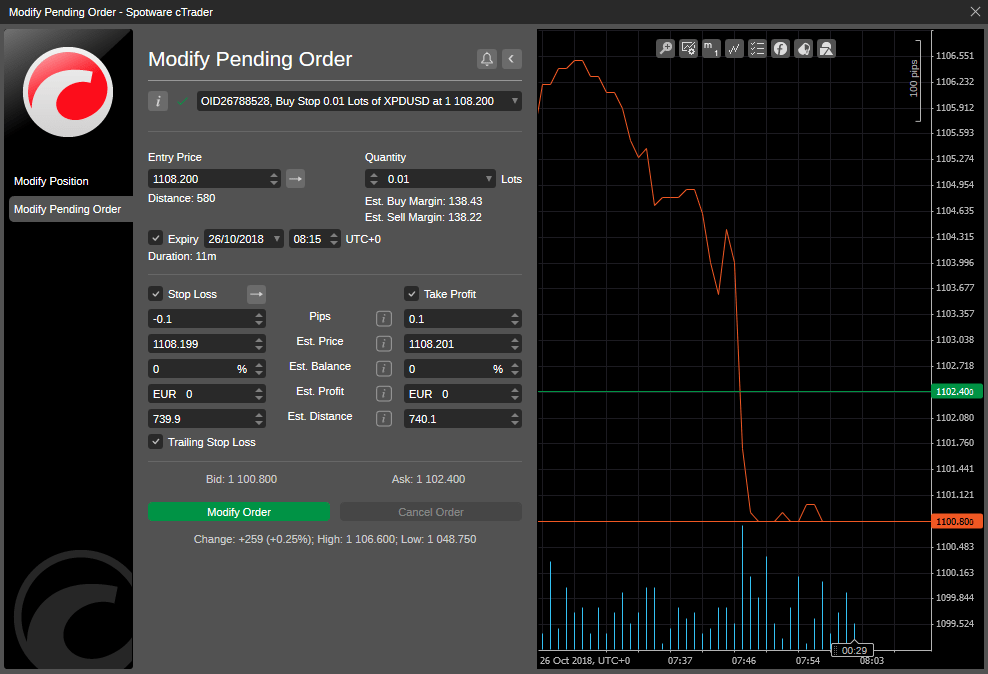
In the Modify Pending Order menu the following options are available:
* Entry Price - modify the Entry Price at which you wish to fill your order using the toggles, or just typing in the number. This price cannot be higher than the current Ask price on the market if going long (Buy), or lower than the current Bid price if going short (Sell). Quantity - modify the volume to be traded using the drop-down, the toggles, or just typing in the number.
* Expiry - set or modify the date and time when the order will automatically expire.
* Stop Loss - set or modify the Stop Loss protection.
* Take Profit - set or modify the Take Profit protection.
* Trailing Stop Loss - check to enable the Trailing Stop Loss. The Trailing Stop is a Stop Loss that automatically updates every time the price of the position moves in your favor. This is a handy tool if you initially have underappreciated the market. Trailing Stop Loss never readjusts if the market moves against you.
When done, click Modify Protection to save changes.
Note
You can not change the type of the existing order.
### Canceling Pending Orders[¶](https://help.ctrader.com/ctrader/trading/orders/#canceling-pending-orders "Permanent link")
To cancel a pending order, in the Orders tab of the TradeWatch, click the Cancel Order button () next to the desired order, or right-click on an order and select Cancel Order from the drop-down.
Alternatively, click Cancel Order in the Modify Pending Order menu.
To cancel all the pending orders at a time, click Cancel All to the upper right of the Orders tab in the TradeWatch.

### Order Information[¶](https://help.ctrader.com/ctrader/trading/orders/#order-information "Permanent link")
Click the Order Info button () next to the desired order in the Orders tab of the TradeWatch to view the detailed Order information. The following information is available:
* Information – the trading asset lot value and lot units.
* Order ID – the unique order identifier.
* Status – the current status of the order.
* Requesting Position – the position that has been requested for this order.
* Created Position – the position created by this order.
* Positions details – click to open Position Info panel (if the order resulted in a position).
* Symbol – the financial instrument of this order.
* Direction – the direction of the order (Buy or Sell).
* Submitted Volume – the initial volume requested.
* Current Volume – the current volume requested (volume left to fill).
* Filled Volume – the amount of the volume filled.
* Order Type – the type of the order.
* Filled Price – volume-weighted average price (VWAP) of the deals used to fill this order.
* Submitted Time – the exact date and time when the order was filled.
* Last Modified – the exact date and time of the latest changes made to the order.
* Channel - the platform used to open the current order.
* Label – the tag that may be added by the cBot (cTrader Aдпщ).
* Comment – the custom user comment that may be sent with the order.
* Submitted TIF – submitted Time In Force.
* Expiry – the exact date and time when any unfilled volume of the order will be canceled.
* Spot Price – the current price of the traded symbol on the market.
* Submitted Price – the initial price set for the order.
* Trigger Side – the current order trigger side (Bid or Ask price).
* Current Distance – the difference between the spot price and submitted price.
* Limit Range - the specific price range at which the limit order will be executed.
* Submitted SL – the initial Stop Loss value set with the order.
* Current SL – the current Stop Loss value.
* Submitted TP – the initial Take Profit value set with the order.
* Current TP – the current Take Profit value.
* Total Cover Deals – the total number of deals attempted to fill the order.
* Rejected Deals – the total number of the rejected deals.
* Verified Deals – the total number of the accepted deals.
* Exception Deals – the total number of deals that have encountered an exception.
Note
Availability of the fields depends on the order’s type.
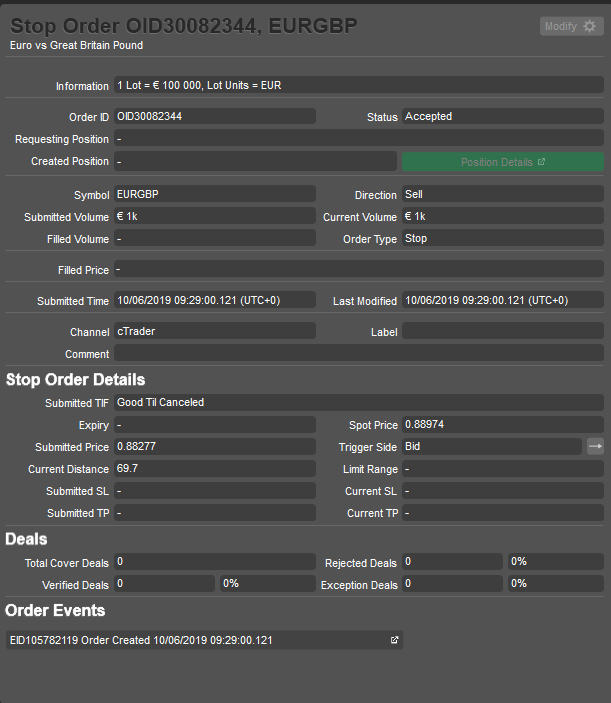
Order Events[¶](https://help.ctrader.com/ctrader/trading/orders/#order-events "Permanent link")
------------------------------------------------------------------------------------------------
Order Events section containing all the events of the order is displayed to the bottom of the Order Info section.
It shows all events experienced by the order in chronological sequence: creation and modification, match with liquidity providers, the executed deal, and created position.
Here you can see how much time has passed between these events.
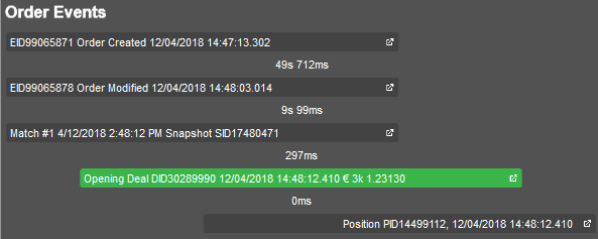
Click on an event to open the respective panel with all information about the order, deal, or position. The following details are presented in the grid:
* Event ID - the unique identifier of the event.
* Event Type - the type of the event (Order Created, Order Closed, etc.)
* Event Status - the current status of the event.
* Time - the exact date and time of the event.
* Expiration Time - the exact date time when the event is expired.
* Volume - the exact number of lots involved in the event.
* Price - the current price of the number of lots involved in the event.
* Stop Loss - the Stop Loss level.
* Take Profit - the Take Profit level.
* Session ID - the unique identifier of the session.
* Label - the tag that could be sent with the event.
* Comment - the custom user comment that could be added to the event.
* Client Request ID - the unique identifier of the client request.
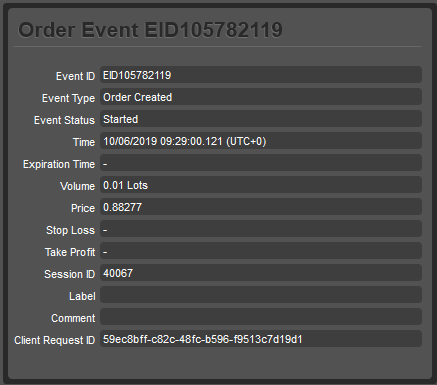
Stop Loss and Take Profit[¶](https://help.ctrader.com/ctrader/trading/orders/#stop-loss-and-take-profit "Permanent link")
--------------------------------------------------------------------------------------------------------------------------
The Stop Loss is an option that automatically limits an investor’s losses for an open position if the market moves unfavourably.
If a security falls to the specified level, the Stop Loss order is triggered and the position is closed for a loss.
The Take Profit is an option similar to Stop Loss, but it will close an open position when a predetermined level of gain is reached.
If a security rises to the specified level, the Take Profit triggers and the position is closed for a gain.
Stop Loss (SL) and Take Profit (TP) are often used together and are essentially the same thing but on the opposite sides of the order or position.
The benefit of using Stop Loss And Take Profit options is that a trader doesn't have to worry about manually executing a trade or second-guessing themselves.
On the other hand, Stop Loss and Take Profit orders are executed at the best possible price regardless of the security behaviour.
cTrader provides relative and absolute protection options for stop loss and take profit:
* Relative protection - stop loss and take profit are set as values in pips relative to the opening price.
* Absolute protection - stop loss and take profit are set as values in price.
### Set up Stop Loss and Take Profit[¶](https://help.ctrader.com/ctrader/trading/orders/#set-up-stop-loss-and-take-profit "Permanent link")
You can set up and modify the Stop Loss (SL) and Take Profit (TP) securities for the existing positions or pending orders in the Modify Order or Modify Position menu explained above, or when creating an order in the Create Order menu. Check the ST and TP boxes to set them.
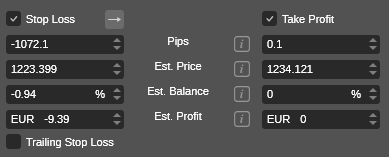
You can set the trigger value in pips, the symbol price, the balance percentage, the profit value, or the distance - all the values will be recalculated automatically relatively to the value you set.
For the pending orders or positions, you can see the distance to the Stop Loss and Take Profit triggers in pips from the current price of the symbol.
It’s easy to switch the Stop Loss trigger from Ask to Bid price (and vice versa). Click the right arrow ( to change the current trigger:
The right arrow ( is the Trade side (default). The Stop Loss will trigger by the Ask price for the Sell orders and by the Bid price for the Buy orders.
The left arrow ( is the Opposite Side. Stop Loss will trigger by the Bid price for the Sell orders and by the Ask price for the Buy orders.
The double right arrow () is the Double Trade Side.
The Stop Loss will trigger after two consecutive ticks of the Ask price above the SL level for the Sell orders, and by two consecutive ticks of the Bid price below the SL level for the Buy orders.
The double left arrow () is the Double Opposite Side.
The Stop Loss will be triggered by two consecutive ticks of the Bid price above the SL level for the Sell orders, and by two consecutive ticks of the Ask price below the SL level for the Buy orders.
Also, the Stop Loss and Take Profit can be activated directly in the chart within an open position.
Hover over an open position in the chart, then drag and drop the SL () or TP () items to set the respective SL and TP values.
Stop Loss within the spread is not allowed. Check the Chart Trading section for more details.
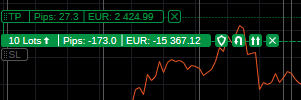
Note
You can preview the Stop Loss and Take Profit values in pips and the account currency.
The Stop Loss and Take Profit are active and can trigger even when cTrader is closed or disconnected.
---
# Create a plugin - cTrader Algo
[Skip to content](https://help.ctrader.com/ctrader-algo/creating-a-plugin/#create-a-plugin)
Create a plugin[¶](https://help.ctrader.com/ctrader-algo/creating-a-plugin/#create-a-plugin "Permanent link")
==============================================================================================================
Action map[¶](https://help.ctrader.com/ctrader-algo/creating-a-plugin/#action-map "Permanent link")
----------------------------------------------------------------------------------------------------
The following diagram showcases the action flow for creating a new plugin.
graph TB
A([Add a New Plugin]) ==> B([Determine the Placement]);
B ==> C([Edit the Sample Code]);
C ==> D([Save and Build Your Plugin]);
Add a new plugin[¶](https://help.ctrader.com/ctrader-algo/creating-a-plugin/#add-a-new-plugin "Permanent link")
----------------------------------------------------------------------------------------------------------------
To create a new plugin, switch to the **Plugin** tab and click **New**. The following window should open.
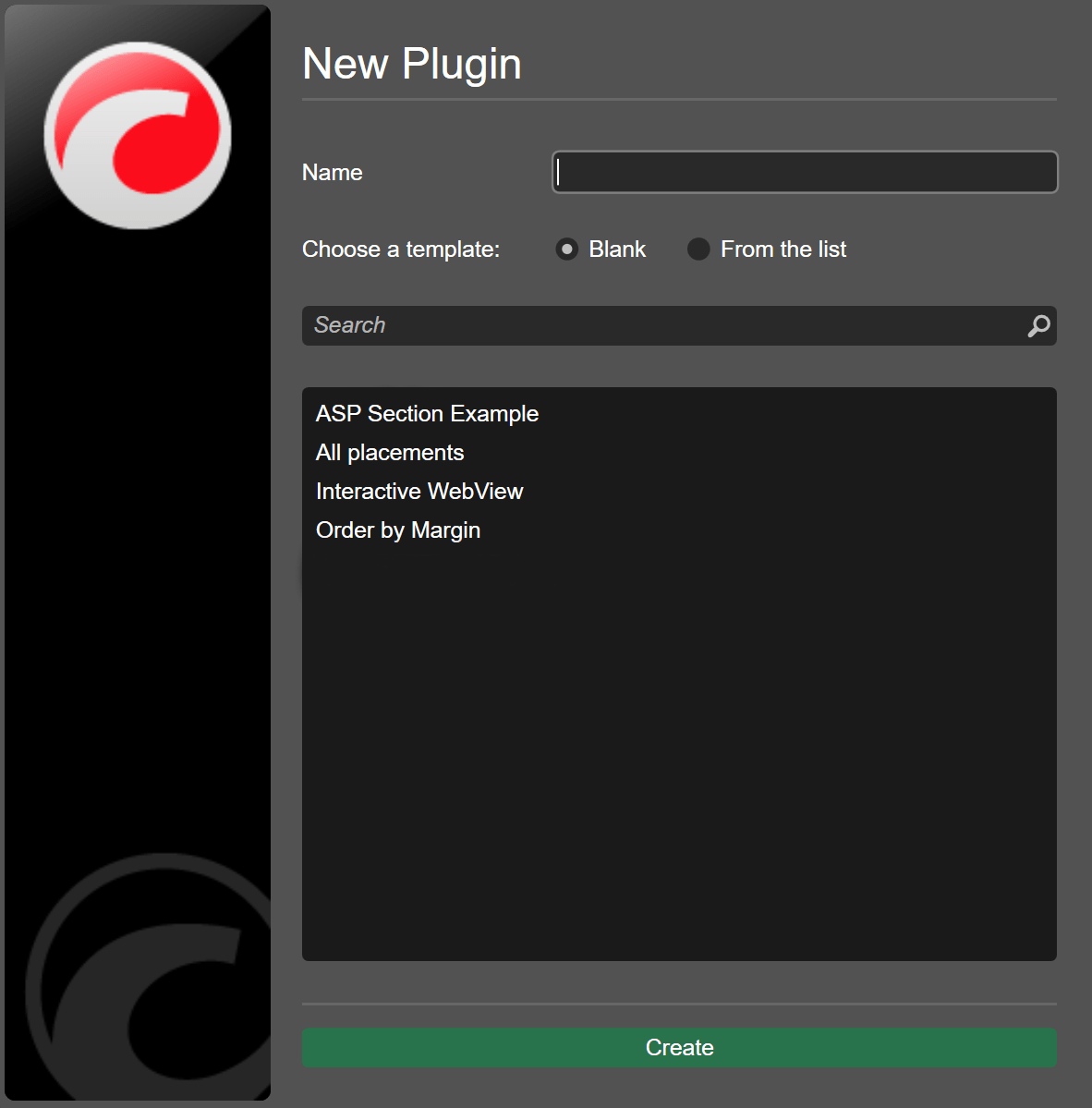
Type the indicator name and select between two options:
* **Blank** - the new plugin will contain only a basic template.
* **From the list** - a plugin is selected from the list below, the new plugin will contain the entire code of the chosen algo. The pre-made plugins in the list cover a wide range of placement options and integrations.
Samples repository
The code samples for the **From the list** option are taken from the `git@github.com:spotware/ctrader-automate-samples.git` repository. To access it, [**click here**](https://github.com/spotware/ctrader-automate-samples)
.
Click **Create** to finish setting up the plugin.
Note
If you would like to create a similar algo but with a different name, you can always use the duplicate functionality.
Determine the placement[¶](https://help.ctrader.com/ctrader-algo/creating-a-plugin/#determine-the-placement "Permanent link")
------------------------------------------------------------------------------------------------------------------------------
As stated in our [**introduction to plugins**](https://help.ctrader.com/ctrader-algo/plugins/)
, plugins can add new elements to several different places in the cTrader UI, namely **Active Symbol Panel** (ASP), **Trade Watch** display and as a separate chart. [**Click here**](https://help.ctrader.com/ctrader-algo/guides/plugin-placement/)
to learn more about showing custom elements via plugins.
Before coding your plugin, try to define where exactly you want it to display custom information or controls.
Placement options
When determining where a plugin will display its elements, try to make a decision based on the plugin functionality. If you want to show a large WebView of a financial news stream, displaying the instance in a chart frame is a reasonable choice. Conversely, a small custom trading panel may be better suited for the ASP. Another example would be a plugin that is supposed to display regularly occurring messages of some sort. In this case, you may want to consider using **Trade Watch** display.
Edit the sample code[¶](https://help.ctrader.com/ctrader-algo/creating-a-plugin/#edit-the-sample-code "Permanent link")
------------------------------------------------------------------------------------------------------------------------
Click your new plugin to open the code editor window. If you have chosen **Blank** in the plugin creation window, it will contain the following code:
| | |
| --- | --- |
| 1 2 3 4 5 6 7 8 9 10 11 12 13 14 15 16 17 18 19 20 21 22 23 24 25 26 | `using System; using System.Collections.Generic; using System.Linq; using System.Text; using cAlgo.API; using cAlgo.API.Collections; using cAlgo.API.Indicators; using cAlgo.API.Internals; namespace cAlgo.Plugins { [Plugin(AccessRights = AccessRights.None)] public class NewPlugin : Plugin { protected override void OnStart() { // To learn more about cTrader Algo, visit our Help Center: // https://help.ctrader.com/ctrader-automate } protected override void OnStop() { // Handle Plugin stop here } } }` |
Note
If you have chosen **From the list** during the previous step, your plugin will be ready for action immediately. It will contain all placement logic and some custom functionalities.
As shown in [**one of our tutorials**](https://help.ctrader.com/ctrader-algo/c-net-basics/#objects-and-classes)
, the plugin attribute `Plugin` along with its optional parameters (such as `AccessRights`) precedes the class declaration (`NewPlugin`).
All new plugins inherit from the base `Plugin` class and, as a result, they gain access to several features such as being able to trade, display custom controls or access the Internet.
Similarly to cBots, each plugin can call the `OnStart()` and `OnStop()` methods. The `OnStart()` handler is called once when a new plugin is initialised while the `OnStop()` handler is called when the plugin instance is stopped in the **Settings** window, is deinstalled or cTrader is closed by the user.
Exception handling
Just like any other algo, plugins also have access to the `OnException` method that you can use to adjust how a plugin [**responds to errors**](https://help.ctrader.com/ctrader-algo/fault-tolerance/#how-the-onexception-method-works)
.
In addition, each plugin has access to a `Timer` object. If you start and initialise the built-in timer of the `Timer` class. If you initialise it, and specify the `OnTimer()` handler, it will be executed each time the specified timer interval elapses.
For demonstration purposes, we will create a simple plugin that displays the total number of currently open profitable positions. The plugin is attached to the ASP and updates its display every second using the built-in timer.
To see the plugin in action, you can simply copy and paste the code below into the code editor window.
| | |
| --- | --- |
| 1 2 3 4 5 6 7 8 9 10 11 12 13 14 15 16 17 18 19 20 21 22 23 24 25 26 27 28 29 30 31 32 33 34 35 36 37 38 39 40 41 42 43 44 45 46 47 48 49 50 51 52 53 54 55 56 | `using System; using System.Collections.Generic; using System.Linq; using System.Text; using cAlgo.API; using cAlgo.API.Collections; using cAlgo.API.Indicators; using cAlgo.API.Internals; namespace cAlgo.Plugins { [Plugin(AccessRights = AccessRights.None)] public class ProfitablePositions : Plugin { private TextBlock _textBlock = new TextBlock { Text = "Starting...", FontSize = 30, FontWeight = FontWeight.ExtraBold, TextAlignment = TextAlignment.Center, Padding = new Thickness(5, 5, 5, 5), }; protected override void OnStart() { var aspBlock = Asp.SymbolTab.AddBlock("Profitable Positions"); aspBlock.IsExpanded = true; aspBlock.Height = 50; aspBlock.Child = _textBlock; _textBlock.Text = GetProfitablePositions(); Timer.Start(TimeSpan.FromSeconds(1)); } protected override void OnTimer() { _textBlock.Text = GetProfitablePositionsCount().toString(); } protected int GetProfitablePositionsCount() { int count = 0; foreach (var position in Positions) { if (position.GrossProfit > 0) { count++; } } return count; } } }` |
Save and build your plugin[¶](https://help.ctrader.com/ctrader-algo/creating-a-plugin/#save-and-build-your-plugin "Permanent link")
------------------------------------------------------------------------------------------------------------------------------------
After you edit the sample code to suit your requirements, the only two things left to do are to save and build the plugin. To save your algo, press Ctrl+S or click the **Save** button located above the code editor window.
Upon saving your code, press Ctrl+B or click the **Build** button at the top of the code editor. If the build action is successful, a message confirming this will appear in the **Build result** section. If the build fails, this section will, instead, display a summary of all errors encountered when the build action was performed. Clicking an error description in the **Build result** viewer will show you the exact place in your code where this error occurs.
On a successful build, the plugin will immediately add custom elements to all suitable areas of the cTrader UI specified in its code.
Back to top
---
# Chart Streams - cTrader Web
[Skip to content](https://help.ctrader.com/ctrader-web/sharing/streams/#chart-streams)
Chart Streams[¶](https://help.ctrader.com/ctrader-web/sharing/streams/#chart-streams "Permanent link")
=======================================================================================================
cTrader Web allows users to share their technical analysis and trading insight in the form of public charts on which stream providers can draw, place lines, or perform other actions without using any third-party tools. In this article, we explain how streams work and the benefits they offer.
Below, we also provide a one-minute summary of this feature.
Streams Feature in One Minute!
* Streams allow for real-time sharing of charts and any objects placed on these charts. Use this feature to inform other traders of market movements and new opportunities!
* Managing streams is done entirely within cTrader Web, eliminating the need for using third-party screen sharing and/or recording software.
* Stream links can be easily shared on any social network or physically as a QR code via the '**Invite**' application. This makes them an ideal tool for anyone who wants to educate other traders and boost their trading community.
* Viewers can watch streams without having a cTrader ID, allowing for sharing insight with traders who do not yet have an account with a cTrader-affiliated broker.
How Streams Work[¶](https://help.ctrader.com/ctrader-web/sharing/streams/#how-streams-work "Permanent link")
-------------------------------------------------------------------------------------------------------------
Think of streams as an easy-to-use method to share a chart and any objects added to this chart.
When a stream is active, its host can perform a wide variety of chart modifications including drawing trend lines, placing new indicators on the chart, or even changing the chart type entirely (e.g., switching from a candlestick chart to a Renko chart). It is also possible to change the symbol for which the currently streamed chart displays information as well as the chart timeframe.
In turn, stream watchers can see nearly all actions that are performed on the chart by the stream provider. As a result, technical analysis can be shared immediately without leaving cTrader.
Links to streams can be shared on Telegram, Discord, or any social media platforms you may be using. These links conform to the following format.
`https://ct.exampleBroker.com/streams/1450?u=nickname`
Note
The same way as all other cTrader URLs with a `(u)` parameter carrying a trader's nickname, Chart Stream links work as Invite links and execute trader attribution in branded applications. [**Learn more**](https://help.ctrader.com/ctrader-invite/invite-link/)
about the benefits of cTrader Invite and the sharing functionality of Invite links.
When a user clicks on the stream link, a new chart will be added to their workspace; this chart will replicate the chart shared by the stream provider. It will include all chart drawings and other objects added by the host as well as any indicators added to the shared chart.
If a user who wants to watch a stream does not yet have a cTrader ID, cTrader Web will open in guest mode.
How Streams Benefit Users[¶](https://help.ctrader.com/ctrader-web/sharing/streams/#how-streams-benefit-users "Permanent link")
-------------------------------------------------------------------------------------------------------------------------------
Streams are a crucial feature if you are an active trader who regularly shares your knowledge with others. They provide the following benefits.
* Streams allow for sharing technical analysis and insight without the need for dedicated third-party software, enabling you to use the familiar cTrader Web interface for educating other traders.
* By keeping your viewers inside cTrader Web, streams maximise the amount of time traders have to react to your technical analysis and exploit new market opportunities.
* Stream links can be easily shared on any social network or physically as a QR code via cTrader Invite, which means that professional traders can integrate them into any existing channels of communicating with other traders.
* Watching streams does not require viewers to have a cTrader ID, allowing sharing streams to a wide audience.
How to Start, Share, and Stop a Stream[¶](https://help.ctrader.com/ctrader-web/sharing/streams/#how-to-start-share-and-stop-a-stream "Permanent link")
-------------------------------------------------------------------------------------------------------------------------------------------------------
To start a stream, first, open the chart for the symbol that you would like to share insight about. Afterward, click on the ‘**Broadcast**’ icon just to the right of the chart timeframe selector.
The icon will be in the same place regardless of the chart mode you are using.
After you click on the '**Broadcast**' icon, cTrader should open the following window.
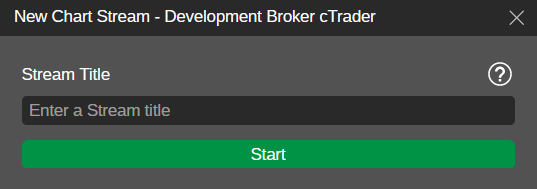
Afterward, perform the following actions.
* Type the stream name into the ‘**Stream Title**’ field. Note that this title cannot be changed for an ongoing stream.
* Click on ‘**Start**’ and cTrader will show a new window containing a link to your shared chart.
* Press the ‘**Copy Link**’ button to copy the stream link to your clipboard.
* To close the window, click on ‘**OK**’ after copying the link.
After the stream starts, the chart you are sharing will have an orange frame around it. You will also see a new toolbar with the stream title in the lower-left corner of the chart.

The Stream Toolbar
The stream toolbar contains the following elements.
* The stream title.
* The '**Active Watchers**'counter that shows the current number of traders watching your stream.
* The '**Watchers Over All Time**' counter that displays the total number of traders who have watched your stream (including the currently active watchers).
* The '**Share**' icon. Click on it to re-copy the stream link to your clipboard. Additionally, you can share your active Chart Streams as QR codes and copy their links in the '[**Invite Link**](https://help.ctrader.com/ctrader-invite/invite-link/)
' tab of cTrader Invite.
Note that you can use drag-and-drop to change the position of the toolbar. However, you cannot drag it between charts or over the QuickTrade buttons at the top of the currently active chart.
If you add any new external indicators, the orange frame will extend to the windows containing these indicators. This signifies that your stream watchers can see these windows and whatever indicator outputs they display.
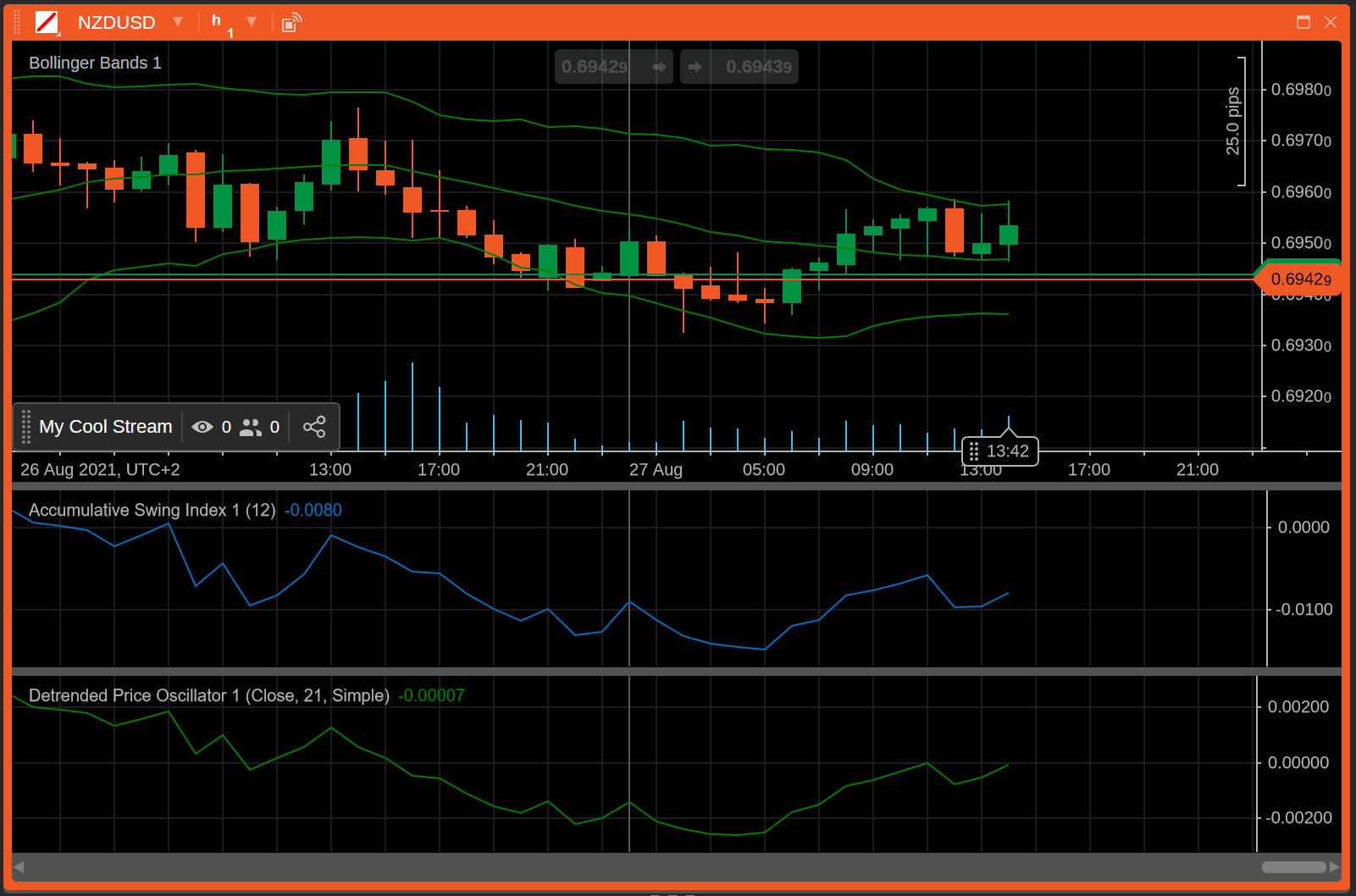
Open Positions
Whenever you open a new position on the streamed chart, the viewer will also see the position in their watcher chart. They will be able to duplicate it by double clicking on the position badge within the chart.
After your stream concludes, click on the '**Stop Broadcast**' button (which has now replaced the '**Broadcast**' icon) to end it. Alternatively, close the chart that you are sharing.
In the newly appeared window, select ‘**Stop Streaming**’.
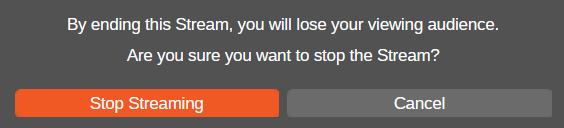
Logging Into a Different Account
Your stream will continue if you choose to log into a different account, allowing you to continue providing technical analysis and insight with no interruptions. Nonetheless, if the account to which you are switching belongs to a different brokerage or compared to the account where you have started the stream, you will not be able to perform any actions on the streamed chart. The same occurs if you are switching between a demo account and a live account, and vice versa even if both of them belong to the same brokerage.
How to Share Technical Analysis and Insight Using Chart Streams[¶](https://help.ctrader.com/ctrader-web/sharing/streams/#how-to-share-technical-analysis-and-insight-using-chart-streams "Permanent link")
-----------------------------------------------------------------------------------------------------------------------------------------------------------------------------------------------------------
When a user clicks on your stream link, they will be automatically redirected to cTrader Web. A new chart will be added to their active workspace. This chart will match the data shown on your currently streamed chart.
To share your insight, you can freely add new objects to the streamed chart (e.g., new text or Fibonacci fans). After a very brief amount of time, these objects will appear for all stream viewers. They will be automatically adjusted to fit the viewers’ chart sizes, zoom levels, and other custom preferences.
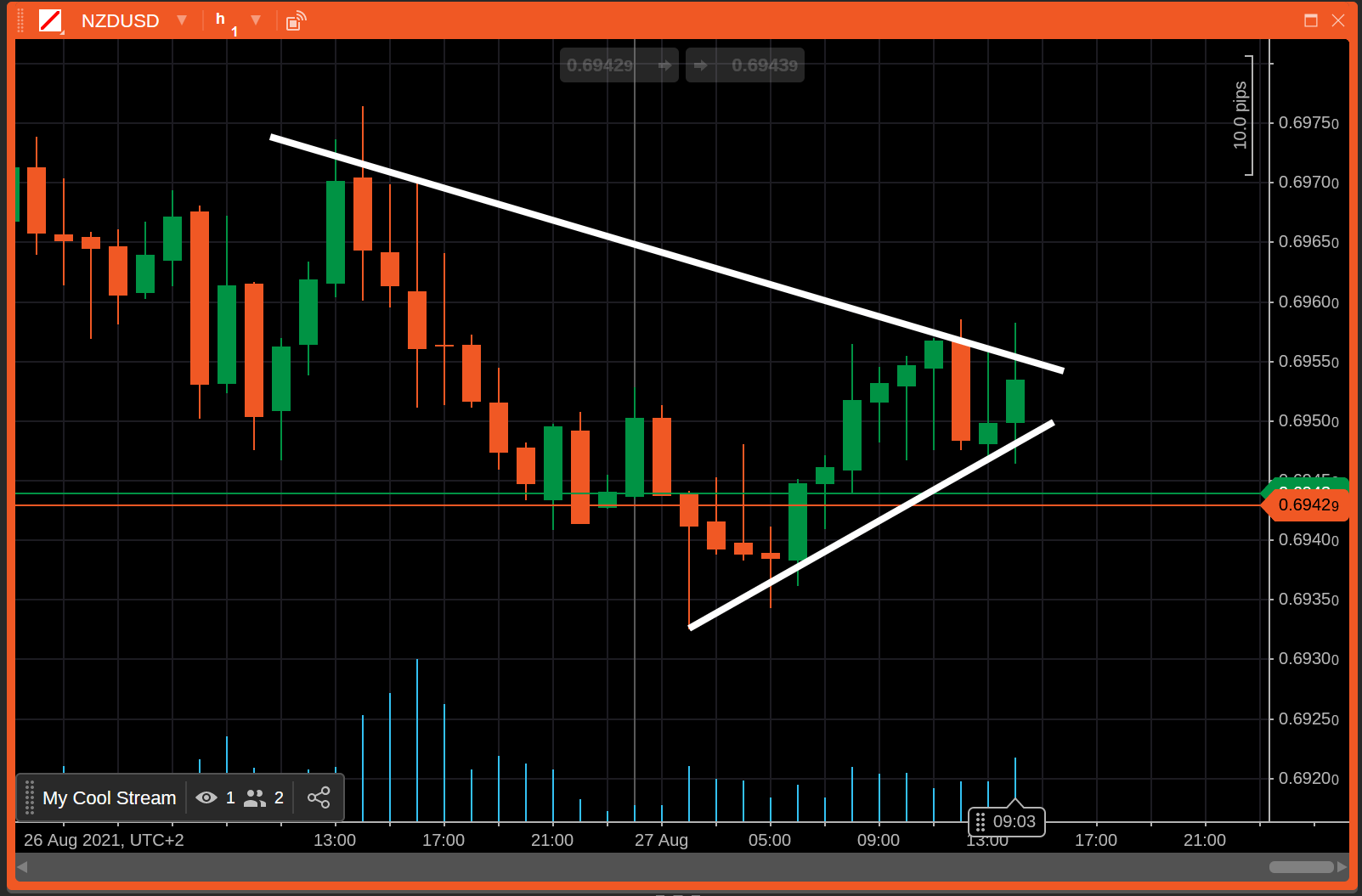
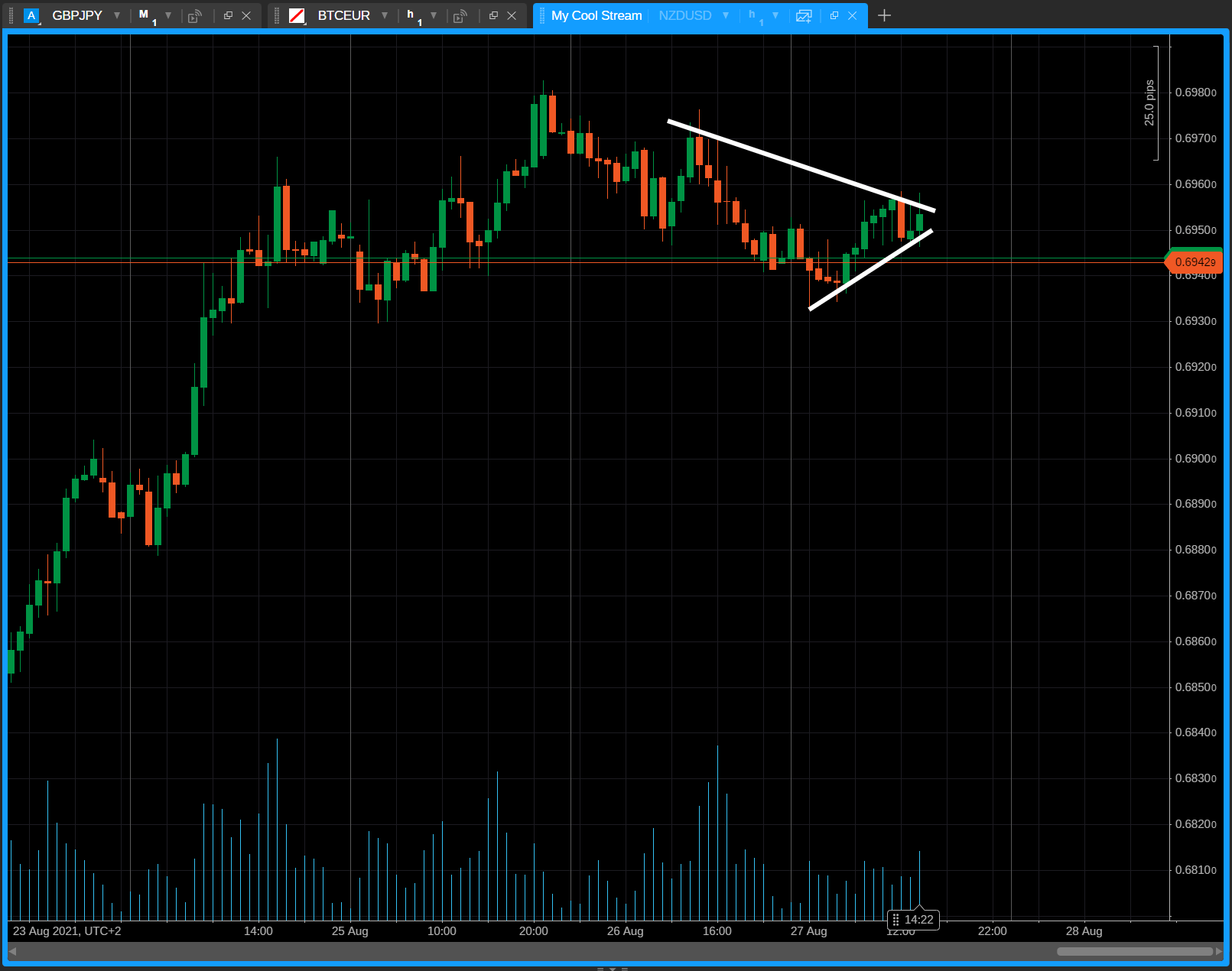
As a result, you can easily share your insight directly within cTrader Web without the need for recording your screen.
You can also perform a variety of actions that go beyond simply adding objects to the currently streamed chart. For example, you can open the symbol selector for the currently streamed chart and choose an entirely different symbol.
Your stream will continue and its watchers will now see the data for the newly selected symbol. This allows for hosting complex and lengthy webinars during which you could share technical analysis for several symbols.
Viewers can also quickly react to the results of your technical analysis. To do so, a watcher first needs to click on the ‘**Duplicate Stream**’ button.

The watcher will then see a new chart opened for the symbol that you are sharing technical analysis about. On this new chart, the watcher will be able to place new orders using the '**QuickTrade**' buttons or by right-clicking on the chart, instead of having to switch between any custom stream screens and the trading platform.
After you end a stream, the chart will still remain in the workspace of all its viewers. However, instead of displaying data, the chart will, instead, notify viewers that the stream provider has stopped the broadcast.
In summary, streams offer an easy-to-use way to share your insight with other traders. Managing streams does not require using any third-party software; instead, all operations with streams can be performed using the familiar cTrader Web UI. Stream links can be easily shared on any major communications platform, allowing you to share technical analysis with a wide audience.
---
# Introduction - cTrader Web
[Skip to content](https://help.ctrader.com/ctrader-web/#system-requirements)
Introduction
============
[**cTrader Web Application**](https://app.ctrader.com/)
is a fully functional web version of the cTrader trading platform with similar charting and trading features as the desktop versions.
cTrader Web offers similar functionality for manual trading and charting to the other versions of the application.
Ιt allows users to get access to their trading accounts and trade from a variety of devices and operating systems. To access Spotware cTrader Web Beta just follow the link.
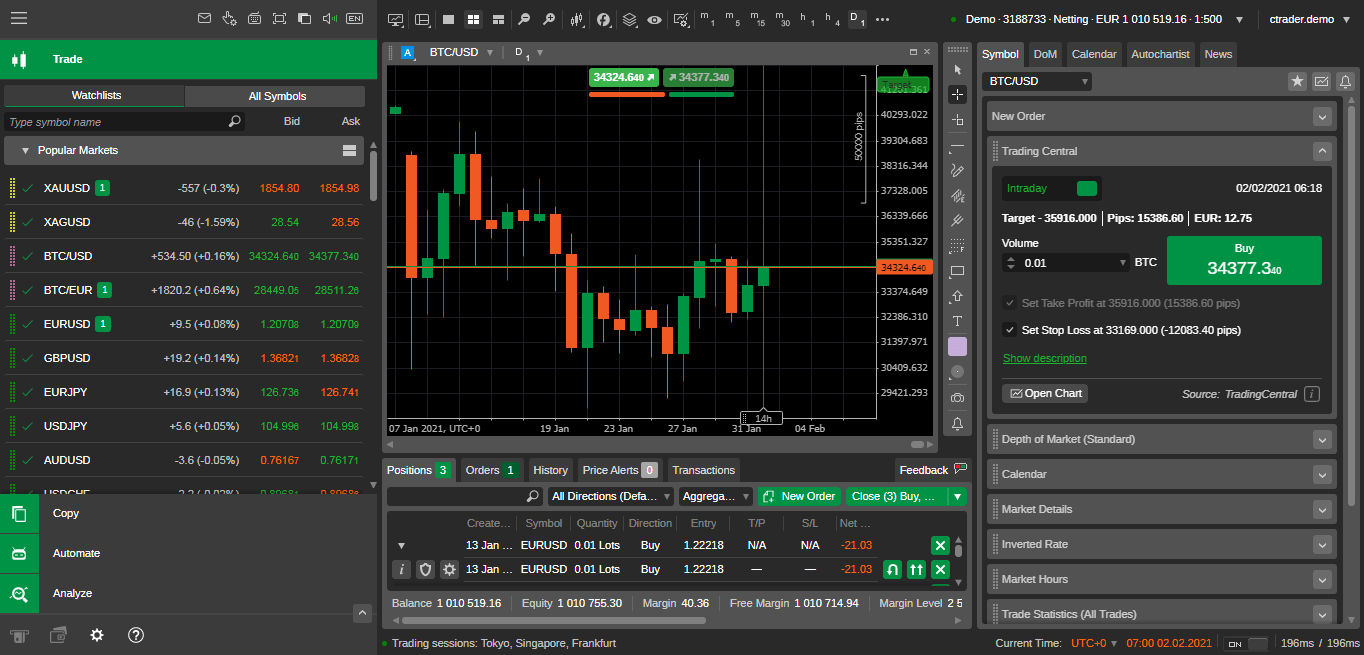
System Requirements[¶](https://help.ctrader.com/ctrader-web/#system-requirements "Permanent link")
---------------------------------------------------------------------------------------------------
| | Minimum | Recommended |
| --- | --- | --- |
| Processor | Dual Core CPU | Dual Core CPU |
| Memory | 2 GB | 4 GB |
| Operating System | * Windows 7 and higher * MacOS 10.13 High Sierra or higher | * Windows latest version * MacOS latest version |
| Internet Connection | 50 kB per second or faster | 100 kB per second or faster |
| Screen Resolution | 1280x800 | * 13- to 15-inch screen standard ratio: 1400×1050 * 13- to 15-inch screen widescreen: 1280x800 * 17-inch screen widescreen: 1680x1050 |
Browser Versions Supported[¶](https://help.ctrader.com/ctrader-web/#browser-versions-supported "Permanent link")
-----------------------------------------------------------------------------------------------------------------
| Operating System | Browser | Version |
| --- | --- | --- |
| Windows | Mozilla Firefox | Latest |
| Windows | Google Chrome | Latest |
| Windows | Microsoft Edge | Latest |
| macOS | Mozilla Firefox | Latest |
| macOS | Google Chrome | Latest |
| macOS | Safari | Latest |
| macOS | Microsoft Edge | Latest |
| Chrome OS | Google Chrome | Latest |
| Chrome OS | Microsoft Edge | Latest |
| Linux Ubuntu OS | Google Chrome | Latest |
| Linux Ubuntu OS | Mozilla Firefox | Latest |
---
# Introduction - cTrader Web
[Skip to content](https://help.ctrader.com/ctrader-web/embed/embedded-web/#introduction)
Introduction[¶](https://help.ctrader.com/ctrader-web/embed/embedded-web/#introduction "Permanent link")
========================================================================================================
How Widgets Work[¶](https://help.ctrader.com/ctrader-web/embed/embedded-web/#how-widgets-work "Permanent link")
----------------------------------------------------------------------------------------------------------------
Widgets are a feature of cTrader Web that allow you to embed the cTrader platform or certain parts of it on external web resources. Working with widgets is exactly the same as embedding anything else on the Internet: you receive a special code that you can copy and paste on any suitable area of another website. Working with widgets is contained within the '**Widgets**' app in cTrader Web.
Here is a summary of how widgets can benefit you.
Widgets in One Minute!
* Widgets can be placed almost anywhere. Add them to your website to show new opportunities for investment or attract new traders to cTrader Web!
* Widgets can significantly improve any web resource you own. With widgets, it is entirely possible for your website to have a fully-functional embedded trading platform inside it without the need to send visitors anywhere else.
* Widgets make getting new Copy investors incredibly easy. Simply embed your strategy on any suitable website and your audiences will be able to start investing in one click!
* All widgets can get you [**new invited traders**](https://help.ctrader.com/ctrader-invite/invite-link/)
. When someone new interacts with your widget and logs in, they will become your invited trader with a possibility of becoming your referral.
Note
To access the functionality of a widget, a user has to log in to cTrader Web. Most widgets provide the opportunity to log in without leaving the resource where they are embedded.
Using widgets is easy: all you have to do is select the widget from the main page in the '**Widgets**' application. Afterward, configure its settings and copy the code from the '**Embedded Code**' window.
Depending on the web resource you use, you have several options for where to paste the code.
* If you have access to raw HTML code, you can simply paste the code in an appropriate HTML container.
* If your resource has an admin panel, the panel should typically have the option to add custom JavaScript and HTML to every page. If that is the case, provide the admin panel with the embedded code.
* If your resource is managed by a third party, provide them with the embedded code.
Types of Widgets[¶](https://help.ctrader.com/ctrader-web/embed/embedded-web/#types-of-widgets "Permanent link")
----------------------------------------------------------------------------------------------------------------
cTrader Web currently supports the following types of widgets:
* [**cTrader Web**](https://help.ctrader.com/ctrader-web/embed/widgets-list/#ctrader-web)
* [**Market Watch**](https://help.ctrader.com/ctrader-web/embed/widgets-list/#market-watch)
* [**Your Strategies**](https://help.ctrader.com/ctrader-web/embed/widgets-list/#your-strategies)
* [**Single Strategy**](https://help.ctrader.com/ctrader-web/embed/widgets-list/#single-strategy)
* [**Multiple Strategies**](https://help.ctrader.com/ctrader-web/embed/widgets-list/#multiple-strategies)
* [**Market Chart**](https://help.ctrader.com/ctrader-web/embed/widgets-list/#market-chart)
For detailed instructions on using the available widgets, see [**List of Widgets**](https://help.ctrader.com/ctrader-web/embed/widgets-list/)
. To learn more about the code used to embed widgets, see [**Embed Codes**](https://help.ctrader.com/ctrader-web/embed/embed-codes/)
.
---
# For social traders - Partner tools
[Skip to content](https://help.ctrader.com/partner-tools/for-social-traders/#for-social-traders)
For social traders[¶](https://help.ctrader.com/partner-tools/for-social-traders/#for-social-traders "Permanent link")
======================================================================================================================
Who are social traders[¶](https://help.ctrader.com/partner-tools/for-social-traders/#who-are-social-traders "Permanent link")
------------------------------------------------------------------------------------------------------------------------------
Social traders regularly share trading-related analytics, signals, strategies and more across various social media communities. Social trading does not necessarily involve any additional remuneration from the broker's side. Not all social traders are partners, but nearly all partners are skilled social traders. We believe that social traders can significantly increase their income by becoming partners and using the cTrader tools that were designed for easy and convenient sharing.
[**cTrader Copy**](https://help.ctrader.com/ctrader-copy/)
is the main instrument used by social traders. It serves as a social trading platform where skilled strategy providers create strategies for other traders to invest in. With some exceptions, the trades placed by a strategy provider are replicated by their investors. Therefore, whenever a strategy provider earns profits on their trades, their investors also benefit. In addition, strategy providers can establish various fee structures to earn additional money for attracting traders' attention to effective and popular strategies.
Other notable features for social traders to attract new investors include:
* [**cTrader Invite**](https://help.ctrader.com/ctrader-invite/invite-link/)
* [**Signal links**](https://help.ctrader.com/ctrader-web/sharing/signal-links/)
* [**Price alerts**](https://help.ctrader.com/ctrader-web/sharing/price-alerts/)
* Investor Access
Guides for strategy providers[¶](https://help.ctrader.com/partner-tools/for-social-traders/#guides-for-strategy-providers "Permanent link")
--------------------------------------------------------------------------------------------------------------------------------------------
To learn more about being an effective strategy provider, consult the following tutorials:
* [**Turn leads into strategy investors**](https://help.ctrader.com/partner-tools/how-to-transform-leads-into-investors/)
. This guide discusses how you can effortlessly convert new leads into investors while maximising value for yourself and other traders.
* [**Earn more rebates**](https://help.ctrader.com/partner-tools/earn-more-rebates/)
. In this article, you will learn how to maximise your earnings from the broker's referral programme due to the powerful features of cTrader.
---
# Introduction - cTrader Windows
[Skip to content](https://help.ctrader.com/ctrader/#system-requirements)
Introduction
============
cTrader Windows application is a fully functional PC version of the cTrader trading platform with all the charting and trading features as the other cTrader versions.
cTrader Windows offers similar functionality for manual trading and charting to the other versions of the application.
Ιt allows users to get access to their trading accounts and trade from a variety of devices and operating systems. To use cTrader Windows , you need to install it on your machine.
This guide provides information on how to get started with cTrader Windows platform, the trading and charting tools and how to use them, the platform's interface and its additional functionality, such as IB Center and Bonuses.
System Requirements[¶](https://help.ctrader.com/ctrader/#system-requirements "Permanent link")
-----------------------------------------------------------------------------------------------
| | Minimum | Recommended |
| --- | --- | --- |
| Processor | Dual Core CPU | Dual Core CPU |
| Memory | 2 GB | 4 GB |
| Operating System | Windows 7 and higher | Windows latest version |
| Internet Connection | 50 kB per second or faster | 100 kB per second or faster |
| Screen Resolution | 1280x800 | * 13- to 15-inch screen standard ratio: 1400×1050 * 13- to 15-inch screen widescreen: 1280x800 * 17-inch screen widescreen: 1680x1050 |
---
# Trading with cTrader
Introduction
============
Before you start trading with cTrader, you need to become familiar with the main trading concepts found in cTrader.
In this section, you will find an overview of the basic trading terminology which is applicable to all the UI applications of the platform.
---
# cTrader Mobile (Android)
Home
====
This guide provides information on how to get started with the cTrader Mobile Android platform, the trading and charting tools, and how to use them, the platfor's interface, and its additional functionality.
cTrader Mobile application is a fully functional Android version of the cTrader trading platform with all the charting and trading features as the other cTrader versions.
As cTrader Mobile offers similar functionality for manual trading and charting to the other versions of the application, it allows users to get access to their trading accounts and trade from a variety of devices and operating systems.
To use the cTrader Mobile version it should be installed on your device.
---
# Knowledge base
[Skip to content](https://help.ctrader.com/knowledge-base/#introduction)
Introduction[¶](https://help.ctrader.com/knowledge-base/#introduction "Permanent link")
========================================================================================
Welcome to the cTrader knowledge base, where you can find detailed explanations of the basic terms and concepts used in the application, such as chart types, line study tools, plugins, trading indicators and more.
Back to top
---
# cTrader Video Library
Introduction
============
The cTrader Video Library below provides a bunch of video tutorials about how to use cTrader features and basics of Forex trading.
---
# Access rights - cTrader Algo
[Skip to content](https://help.ctrader.com/ctrader-algo/guides/access-rights/#access-rights)
Access rights[¶](https://help.ctrader.com/ctrader-algo/guides/access-rights/#access-rights "Permanent link")
=============================================================================================================
The AccessRights class property[¶](https://help.ctrader.com/ctrader-algo/guides/access-rights/#the-accessrights-class-property "Permanent link")
-------------------------------------------------------------------------------------------------------------------------------------------------
To protect users from malware code, we run every cBot or indicator in a sandboxed environment. As a result, cBots and indicators must declare their required access rights via the `AccessRights` class property as shown below.
cBotIndicator
| | |
| --- | --- |
| 1 2 | `[Robot(AccessRights = AccessRights.None)] public class SampleSARTrailingStop : Robot` |
| | |
| --- | --- |
| 1 2 | `[Indicator(AccessRights = AccessRights.FullAccess)] public class SampleEMA :` |
The two possible values for the `AccessRights` property are as follows:
* `None` - the extension only has access to the platform-provided API data. It will not be able to access anything outside the platform.
* `FullAccess` - the extension has unlimited access rights. It can access the Internet, read and write files, run other executables, import WinApi functions, use .NET reflection and create windows.
Note
There are several API features that still allow algos to perform various actions even when `AccessRights.None` is declared.
* [**File access**](https://help.ctrader.com/ctrader-algo/guides/file-operations/)
* [**Network access**](https://help.ctrader.com/ctrader-algo/guides/network-access/)
* [**Local storage**](https://help.ctrader.com/ctrader-algo/guides/local-storage/)
If `AccessRights.FullAccess` is declared, the following window will be shown when running an instance of the cBot or indicator in question.
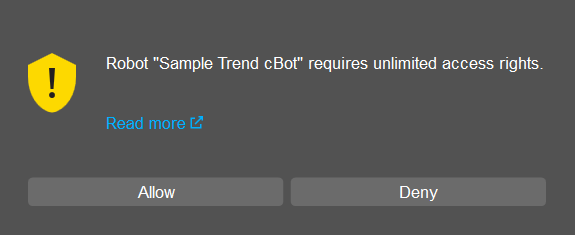
Security exception[¶](https://help.ctrader.com/ctrader-algo/guides/access-rights/#security-exception "Permanent link")
-----------------------------------------------------------------------------------------------------------------------
If your cBot or indicator attempts to perform a restricted action, the code will throw a security exception.
For example, if a cBot with `AccessRights.None` tries to read from a text file (without using [**the file access feature**](https://help.ctrader.com/ctrader-algo/guides/file-operations/)
), it will be stopped and the following message will appear in the log.
`Crashed in OnStart with SecurityException: Request for the permission of type 'System.Security.Permissions.FileIOPermission, mscorlib, Version=4.0.0.0, Culture=neutral, PublicKeyToken=b77a5c561934e089' failed.`
The surest way to avoid this exception is to declare `AccessRights.None` for all your extensions unless you plan on distributing them to other traders.
Back to top
---
# File operations - cTrader Algo
[Skip to content](https://help.ctrader.com/ctrader-algo/guides/file-operations/#file-operations)
File operations[¶](https://help.ctrader.com/ctrader-algo/guides/file-operations/#file-operations "Permanent link")
===================================================================================================================
Platform users express justified concerns about launching cBots and indicators with `AccessRights.FullAccess`. This is especially true when no source code is available, it is difficult to know for sure what changes will be introduced by the algorithm to the file system. In the access rights guide, we have already advised that cBots and indicators you are sharing with others should receive `AccessRights.None`.
This API guide explains how algorithms with limited `AccessRights` can securely conduct operations with local files.
File operations in one minute!
* The file operations feature allows algorithms with restricted access rights to work with files and folders only inside a designated folder.
* The folder name corresponds to the cBot or indicator name.
* All other directories of the user’s file system remain securely protected from unauthorised access.
* In the API, the file operations feature is supported only for .NET 6.0 algorithms.
Rules of file operations[¶](https://help.ctrader.com/ctrader-algo/guides/file-operations/#rules-of-file-operations "Permanent link")
-------------------------------------------------------------------------------------------------------------------------------------
Any algorithm with restricted access rights is allowed to perform file operations only in a designated folder of the user’s file system. Each algorithm type locates its own folder as shown below (such as cBots and indicators), with a separate folder created for each algorithm name.
`Documents |-cAlgo |-Data |-cBots |-${cBot Name} |-Indicators |-${Indicator Name}`
Note
The file operations feature is available for .NET 6.0 algorithms only.
The following rules determine how the file operations feature functions in the API:
1\. Each algorithm has access only to the folder corresponding to its name (including subfolders, if any).
2\. If there is no corresponding folder, such a folder is created in the file system according to the above scheme when an instance is first launched.
3\. If a new folder cannot be created, the cBot or indicator will not start, and an error will be reported.
4\. In the algorithm code, you do not need to specify the full path to the corresponding folder. Instead, algorithms use a relative path.
5\. The `System.IO` namespace offers a variety of classes (`File`, `FileInfo`, `Directory`. `DirectoryInfo`, `Path`, etc.) for which relevant methods can be called to execute operations with files and folders.
Below are some examples of the methods included in the `File` and `Directory` classes.
| Method | Description |
| --- | --- |
| `File.Create()` | Creates or overwrites a file in the designated directory. |
| `File.WriteAllText()` | Creates a new file, writes the specified string to the file and closes the file. |
| `File.Copy()` | Copies the existing file to a new file. Overwriting a file with the same name is not allowed. |
| `File.Delete()` | Deletes a file in the designated directory. |
| `Directory.CreateDirectory()` | Creates a folder or a subfolder. |
| `Directory.Delete()` | Deletes a folder or a subfolder. |
| `Directory.Exists()` | Checks if the specified directory exists. |
| `Directory.Move()` | Moves the existing directory to a new specified directory. |
Use case
When calling the [**`TakeChartshot()` method**](https://help.ctrader.com/ctrader-algo/guides/chartshot-methods/)
, you do not need to specify the full path to the destination directory after `File.WriteAllBytes`. Due to the file operations feature, the chartshot will be saved to the relevant algorithm directory even if the access rights are `AccessRights.None`.
Create a cBot example[¶](https://help.ctrader.com/ctrader-algo/guides/file-operations/#create-a-cbot-example "Permanent link")
-------------------------------------------------------------------------------------------------------------------------------
The below cBot example has `AccessRights.None`, but it creates a text file in the corresponding folder named "File Access Test" immediately after its initialisation. If a successful market order is placed `OnStart()`, the cBot writes a position ID in the created file.
| | |
| --- | --- |
| 1 2 3 4 5 6 7 8 9 10 11 12 13 14 15 16 17 18 19 20 21 22 23 24 25 26 27 28 29 | `using System; using System.Collections.Generic; using System.Linq; using System.Text; using cAlgo.API; using cAlgo.API.Collections; using cAlgo.API.Indicators; using cAlgo.API.Internals; using System.IO; namespace cAlgo.Robots { [Robot(TimeZone = TimeZones.UTC, AccessRights = AccessRights.None)] public class MycBot : Robot { protected override void OnStart() { TradeResult result = ExecuteMarketOrder(TradeType.Buy, SymbolName, 1000); if (result.IsSuccessful) { string positionId = result.Position.Id.ToString(); { File.WriteAllText("My positions.txt", $"{positionId}"); } } } } }` |
Created FileWritten Position ID
[](https://help.ctrader.com/ctrader-algo/img/guides/file-operations/01.png)
[](https://help.ctrader.com/ctrader-algo/img/guides/file-operations/02.png)
Summary[¶](https://help.ctrader.com/ctrader-algo/guides/file-operations/#summary "Permanent link")
---------------------------------------------------------------------------------------------------
The file operations feature in the API still enables algorithms with restricted access rights to work with local files and folders. You can use methods from the `System.IO` namespace of C# to program how algorithms will perform such operations within the confines of the corresponding folder. Thus, other directories in the user's file system remain fully protected even if the algorithm source code is unavailable.
Back to top
---
# Algo registry - cTrader Algo
[Skip to content](https://help.ctrader.com/ctrader-algo/guides/algo-registry/#algo-registry)
Algo registry[¶](https://help.ctrader.com/ctrader-algo/guides/algo-registry/#algo-registry "Permanent link")
=============================================================================================================
If you have a large portfolio of algos you are distributing to users, you may want to also offer a custom panel or system that allows these users to easily manage your algos on their local machines. Such a system would be especially valuable if you offer several products that all complement each other (for example, two cBots and a custom indicator that all need to be installed to function properly). If a user skips installing a required product, you will be able to alert them to this fact.
In addition, when a user has access to many algorithms, sometimes it can be difficult to keep track of all of them. For example, a user may accidentally delete a valuable algorithm only to later realise that they can no longer operate it.
To help you and your users, the Algo API exposes the `AlgoRegistry` interface, which offers a convenient means of dynamically tracking statistics about currently installed and uninstalled algos of different types.
Work with the algo registry[¶](https://help.ctrader.com/ctrader-algo/guides/algo-registry/#work-with-the-algo-registry "Permanent link")
-----------------------------------------------------------------------------------------------------------------------------------------
In the `AlgoRegistry`, each algo is represented by an `AlgoType`, which contains the unique name of the algorithm and its `AlgoKind` (such as an `AlgoKind.CustomIndicator`).
You can retrieve a specific algorithm from the registry by calling the following method.
| | |
| --- | --- |
| 1 | `AlgoRegistry.Get(string name, AlgoKind algoKind);` |
To retrieve a count of algorithms of a particular kind, call the following method.
| | |
| --- | --- |
| 1 | `AlgoRegistry.GetCount(AlgoKind algoKind)` |
You can also add custom handlers to the following events:
* `AlgoTypeInstalled` - triggered every time a new algo is installed.
* `AlgoTypeDeleted` - triggered every time a new algo is deleted.
* `AlgoTypeChanged` - triggered every time an installed algo is modified.
AlgoRegistry in different modes
`AlgoRegistry` works as intended in backtesting and optimisation. It does not work when using cTrader CLI.
Create an example plugin[¶](https://help.ctrader.com/ctrader-algo/guides/algo-registry/#create-an-example-plugin "Permanent link")
-----------------------------------------------------------------------------------------------------------------------------------
The `AlgoRegistry` is perfect for creating a plugin that will display information about algos directly in the cTrader UI. The following plugin does just that.
| | |
| --- | --- |
| 1 2 3 4 5 6 7 8 9 10 11 12 13 14 15 16 17 18 19 20 21 22 23 24 25 26 27 28 29 30 31 32 33 34 35 36 37 38 39 40 41 42 43 44 45 46 47 48 49 50 51 52 53 54 55 56 57 58 59 60 61 62 63 64 65 66 67 68 69 70 71 72 73 74 | `using System; using System.Collections.Generic; using System.Linq; using System.Text; using cAlgo.API; using cAlgo.API.Collections; using cAlgo.API.Indicators; using cAlgo.API.Internals; namespace cAlgo.Plugins { [Plugin(AccessRights = AccessRights.None)] public class AlgoStatsPlugin : Plugin { private TextBlock _customIndicatorsBlock = new TextBlock { FontSize = 12, FontWeight = FontWeight.Bold, TextAlignment = TextAlignment.Left, Padding = new Thickness(5, 5, 5, 5), }; private TextBlock _indicatorsBlock = new TextBlock { FontSize = 12, FontWeight = FontWeight.Bold, TextAlignment = TextAlignment.Left, Padding = new Thickness(5, 5, 5, 5), }; private TextBlock _robotsBlock = new TextBlock { FontSize = 12, FontWeight = FontWeight.Bold, TextAlignment = TextAlignment.Left, Padding = new Thickness(5, 5, 5, 5), }; private TextBlock _pluginsBlock = new TextBlock { FontSize = 12, FontWeight = FontWeight.Bold, TextAlignment = TextAlignment.Left, Padding = new Thickness(5, 5, 5, 5), }; private Grid _grid = new Grid(4, 1); protected override void OnStart() { var aspBlock = Asp.SymbolTab.AddBlock("Algo Registry"); aspBlock.IsExpanded = true; aspBlock.Height = 200; _grid.AddChild(_robotsBlock, 0, 0); _grid.AddChild(_indicatorsBlock, 1, 0); _grid.AddChild(_customIndicatorsBlock, 2, 0); _grid.AddChild(_pluginsBlock, 3, 0); aspBlock.Child = _grid; Timer.Start(TimeSpan.FromSeconds(1)); } protected override void OnTimer() { _robotsBlock.Text = $"cBots: {AlgoRegistry.GetCount(AlgoKind.Robot)}"; _customIndicatorsBlock.Text = $"Custom indicators: {AlgoRegistry.GetCount(AlgoKind.CustomIndicator)}"; _indicatorsBlock.Text = $"Indicators: {AlgoRegistry.GetCount(AlgoKind.StandardIndicator)}"; _pluginsBlock.Text = $"Plugins: {AlgoRegistry.GetCount(AlgoKind.Plugin)}"; } } }` |
Upon building our plugin, we should see the following block in **Active Symbol Panel**. The data in the block will be dynamically updated every second.
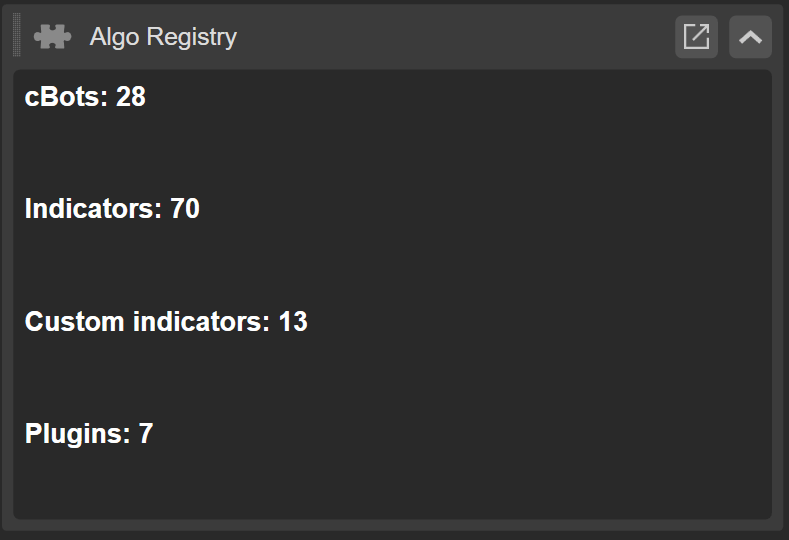
Install an algo through another algo[¶](https://help.ctrader.com/ctrader-algo/guides/algo-registry/#install-an-algo-through-another-algo "Permanent link")
-----------------------------------------------------------------------------------------------------------------------------------------------------------
The `AlgoRegistry` interface enables developers to create algorithms that can install other algorithms. For example, you can code a cBot (on start) to automatically install another cBot, an indicator or a plugin.
The following cBot is coded to install another cBot:
| | |
| --- | --- |
| 1 2 3 4 5 6 7 8 9 10 11 12 13 14 15 16 17 18 19 20 21 22 23 24 25 26 | `using System; using cAlgo.API; using cAlgo.API.Collections; using cAlgo.API.Indicators; using cAlgo.API.Internals; namespace cAlgo.Robots { [Robot(AccessRights = AccessRights.None, AddIndicators = true)] public class Installation : Robot { protected override void OnStart() { InstallationResult result = AlgoRegistry.Install("https://ctrader.com/algos/download/4392/"); Print(result.Succeeded); } protected override void OnTick() { } protected override void OnStop() { } } }` |
Summary[¶](https://help.ctrader.com/ctrader-algo/guides/algo-registry/#summary "Permanent link")
-------------------------------------------------------------------------------------------------
`AlgoRegistry` is a great feature for plugin developers but it can also be used with other types of algos. For example, you may create an indicator that references another custom indicator, in which case your algo would first need to check whether the required indicator is installed by the user. We also recommend adding the `AlgoRegistry` to your existing algos to simplify the management of custom indicators and other types of algos.
Back to top
---
# Parameter types - cTrader Algo
[Skip to content](https://help.ctrader.com/ctrader-algo/guides/parameter-types/?q=#parameter-types)
Parameter types[¶](https://help.ctrader.com/ctrader-algo/guides/parameter-types/?q=#parameter-types "Permanent link")
======================================================================================================================
As C# is a strongly-typed language, it is necessary to specify data types when declaring variables and class properties in cBots, indicators and plugins. The API does not support all data types for parameters, which is why it is essential for algorithm developers to navigate across them.
Parameter use cases and UI[¶](https://help.ctrader.com/ctrader-algo/guides/parameter-types/?q=#parameter-use-cases-and-ui "Permanent link")
--------------------------------------------------------------------------------------------------------------------------------------------
cTrader supports only these parameter types with the key use cases and related UI elements reflected in the table below.
| Data types | Use cases | UI |
| --- | --- | --- |
| `int` | Order volume, number of bars, number of periods, etc. | Number input field (with stepper) |
| `double` | Price value, order volume, etc. | Number input field (with stepper) |
| `string` | Custom message, position label, etc. | Text input field |
| `bool` | Protection mechanisms, allow trading, allow email, etc. | Dropdown list Yes/No |
| `DataSeries` | Source of market prices, etc. | Dropdown list |
| `TimeFrame` | Chosen time frame, etc. | Timeframe selector |
| `enum` | Chart drawings alignment, individual risk levels, etc. | Dropdown list |
| `Color` | Chart drawings, colour of technical analysis means, custom elements, etc. | Colour picker |
For example, the UI of cTrader reflects `bool`, `double`, and `int` parameters as follows.

The next three examples show `DataSeries`, custom `enum` data (for which we also provide the full code in this guide) and `string` data.
DataSeriesEnumString
[](https://help.ctrader.com/ctrader-algo/img/guides/parameter-types/02.png)
[](https://help.ctrader.com/ctrader-algo/img/guides/parameter-types/03.png)
[](https://help.ctrader.com/ctrader-algo/img/guides/parameter-types/04.png)
As shown below, the `Color` parameter type is represented by a colour picker.

Finally, the UI of `TimeFrame` data duplicates the timeframe of trading charts in the **Trade** application.

cBot examples[¶](https://help.ctrader.com/ctrader-algo/guides/parameter-types/?q=#cbot-examples "Permanent link")
------------------------------------------------------------------------------------------------------------------
The position label is a `string` parameter in the following cBot.
| | |
| --- | --- |
| 1 2 3 4 5 6 7 8 9 10 11 12 13 14 15 16 17 18 19 20 21 22 23 24 25 26 27 28 29 | `using System; using System.Collections.Generic; using System.Linq; using System.Text; using cAlgo.API; using cAlgo.API.Collections; using cAlgo.API.Indicators; using cAlgo.API.Internals; namespace cAlgo.Robots { [Robot(AccessRights = AccessRights.None)] public class NewcBot2 : Robot { [Parameter(DefaultValue = "my label")] public string PositionLabel { get; set; } protected override void OnStart() { ExecuteMarketOrder(TradeType.Buy, "XAGUSD", 1000, PositionLabel); } protected override void OnStop() { var positionToFind = Positions.Find(PositionLabel); positionToFind.Close(); } } }` |
`DataSeries`, `int` and `bool` data are exemplified in the algorithm below.
| | |
| --- | --- |
| 1 2 3 4 5 6 7 8 9 10 11 12 13 14 15 16 17 18 19 20 21 22 23 24 25 26 27 28 29 30 31 32 33 34 35 36 37 38 39 40 41 42 43 44 45 46 47 48 49 50 51 | `using System; using System.Collections.Generic; using System.Linq; using System.Text; using cAlgo.API; using cAlgo.API.Collections; using cAlgo.API.Indicators; using cAlgo.API.Internals; namespace cAlgo { [Robot(TimeZone = TimeZones.UTC, AccessRights = AccessRights.None)] public class SamplecBotReferenceSMA : Robot { [Parameter("Source")] public DataSeries Source { get; set; } [Parameter("SMA Period", DefaultValue = 14)] public int SmaPeriod { get; set; } [Parameter("Enable Trade", DefaultValue = true)] public bool EnableTrade { get; set; } private SimpleMovingAverage sma; protected override void OnStart() { sma = Indicators.SimpleMovingAverage(Source, SmaPeriod); } protected override void OnTick() { double currentSMA = sma.Result.LastValue; double currentPrice = Symbol.Bid; if (EnableTrade) { if (currentPrice > currentSMA) { ExecuteMarketOrder(TradeType.Buy, Symbol, 1000, "Buy Order"); } else if (currentPrice < currentSMA) { ExecuteMarketOrder(TradeType.Sell, Symbol, 1000, "Sell Order"); } } Print("Current Price: {0}, Current SMA: {1}", currentPrice, currentSMA); } } }` |
This cBot uses `Color` data as a parameter to define the text visualisation in the chart area.
| | |
| --- | --- |
| 1 2 3 4 5 6 7 8 9 10 11 12 13 14 15 16 17 18 19 20 21 22 23 | `using System; using System.Collections.Generic; using System.Linq; using System.Text; using cAlgo.API; using cAlgo.API.Collections; using cAlgo.API.Indicators; using cAlgo.API.Internals; namespace cAlgo.Robots { [Robot(AccessRights = AccessRights.None)] public class NewcBot : Robot { [Parameter(DefaultValue = "Yellow")] public Color TextColor { get; set; } protected override void OnBar() { Chart.DrawStaticText("static", "cBot running!", VerticalAlignment.Center, HorizontalAlignment.Left, TextColor); } } }` |
In the example below, `double` data type serves as a parameter to input the order volume in lots. The cBot executes a buy market order after three consecutive red bars.
| | |
| --- | --- |
| 1 2 3 4 5 6 7 8 9 10 11 12 13 14 15 16 17 18 19 20 21 22 23 24 25 26 27 28 29 30 31 32 33 34 35 36 37 38 39 40 41 42 43 44 45 46 47 48 49 50 51 52 53 | `using System; using System.Collections.Generic; using System.Linq; using System.Text; using cAlgo.API; using cAlgo.API.Collections; using cAlgo.API.Indicators; using cAlgo.API.Internals; namespace cAlgo { [Robot(TimeZone = TimeZones.UTC, AccessRights = AccessRights.None)] public class RedBarsBot : Robot { [Parameter("Order Volume (Lots)", DefaultValue = 0.1)] public double OrderVolume { get; set; } private int redBarsCount = 0; protected override void OnBar() { if (IsRedBar()) { redBarsCount++; if (redBarsCount == 3) { PlaceMarketOrder(TradeType.Buy); redBarsCount = 0; } } else { redBarsCount = 0; } } private bool IsRedBar() { var currentBar = MarketSeries.Close.Last(1); var previousBar = MarketSeries.Close.Last(2); return currentBar < previousBar; } private void PlaceMarketOrder(TradeType tradeType) { var symbol = Symbol; var volume = Symbol.QuantityToVolume(OrderVolume); ExecuteMarketOrder(tradeType, symbol, volume); } } }` |
Indicator examples[¶](https://help.ctrader.com/ctrader-algo/guides/parameter-types/?q=#indicator-examples "Permanent link")
----------------------------------------------------------------------------------------------------------------------------
The following indicator code illustrates how `TimeFrame` parameters are used.
| | |
| --- | --- |
| 1 2 3 4 5 6 7 8 9 10 11 12 13 14 15 16 17 18 19 20 21 22 23 24 25 26 27 28 29 30 31 32 33 34 35 | `using System; using System.Collections.Generic; using System.Linq; using System.Text; using cAlgo.API; using cAlgo.API.Collections; using cAlgo.API.Indicators; using cAlgo.API.Internals; namespace cAlgo { [Indicator(AccessRights = AccessRights.None)] public class NewIndicator4 : Indicator { private Bars _hourlyTimeFrameBars; private Bars _targetTimeFrameBars; [Parameter("Chosen Time Frame")] public TimeFrame TargetTimeFrame { get; set; } [Output("Main")] public IndicatorDataSeries Result { get; set; } protected override void Initialize() { _hourlyTimeFrameBars = MarketData.GetBars(TimeFrame.Hour); _targetTimeFrameBars = MarketData.GetBars(TargetTimeFrame); } public override void Calculate(int index) { Result[index] = _hourlyTimeFrameBars.HighPrices[index] - _targetTimeFrameBars.HighPrices[index]; } } }` |
There is a playful (colour-blind test) indicator, which offers `enum` colour vision options (for example, normal, colour-blind and greyscale) for users to determine the colour of a horizontal line drawn on the chart.
| | |
| --- | --- |
| 1 2 3 4 5 6 7 8 9 10 11 12 13 14 15 16 17 18 19 20 21 22 23 24 25 26 27 28 29 30 31 32 33 34 35 36 37 38 39 40 41 42 43 44 45 46 47 48 49 50 51 52 53 | `using System; using System.Collections.Generic; using System.Linq; using System.Text; using cAlgo.API; using cAlgo.API.Collections; using cAlgo.API.Indicators; using cAlgo.API.Internals; namespace cAlgo { public enum ColorVision { Normal, Colorblind, Greyscale } [Indicator(AccessRights = AccessRights.None)] public class ColorblindTest : Indicator { [Parameter("Color Vision", DefaultValue = ColorVision.Normal)] public ColorVision ColorVision { get; set; } public override void Calculate(int index) {} protected override void Initialize() { Color lineColor = Color.Green; switch (ColorVision) { case ColorVision.Normal: lineColor = Color.Red; break; case ColorVision.Colorblind: lineColor = Color.Yellow; break; case ColorVision.Greyscale: lineColor = Color.White; break; } var trendLine = Chart.DrawHorizontalLine("line", Bars.HighPrices.Maximum(10), lineColor); } } }` |
To summarise, by choosing the correct data type for the declared variables and class properties, you will be able to create cBots and indicators that can handle with even non-standard tasks.
Back to top
---
# Price Alerts - cTrader Web
[Skip to content](https://help.ctrader.com/ctrader-web/sharing/price-alerts/#price-alerts)
Price Alerts[¶](https://help.ctrader.com/ctrader-web/sharing/price-alerts/#price-alerts "Permanent link")
==========================================================================================================
Price alerts are a worthwhile mechanism for traders who wish to stay on top of their game by responding to buying and selling opportunities on time. The sharing functionality of price alerts has been demanded by proactive traders seeking to notify others for educational purposes and give a strategic insight to their audience.
This guide will showcase how to share price alerts in cTrader Web and explain the meaning of all parameters in price alert links.
Sharing Price Alerts in One Minute!
* The sharing functionality of price alerts allows traders to quickly notify their audience about critical price movements.
* Any price alert can be shared as a link, which is copied to your clipboard by clicking on just one button available in several areas of the UI.
* Price alert links contain distinct user-readable parameters, which may be modified even outside of cTrader. If present, the `(u)` parameter enables trader attribution in cTrader Invite.
* You can share price alerts via all social media channels instead of sending alarm messages with plain text. The links can be opened across all cTrader platforms.
How to Share Price Alerts[¶](https://help.ctrader.com/ctrader-web/sharing/price-alerts/#how-to-share-price-alerts "Permanent link")
------------------------------------------------------------------------------------------------------------------------------------
A full guide on how to create and manage price alerts is available [**here**](https://help.ctrader.com/ctrader-web/interface/price-alerts/)
.
If you hover over the yellow price alert label or line, a sharing button will become visible. By clicking on this button, you copy the price alert link to your clipboard. A pop-up notification in the top right corner will confirm that copying was successful.
Note
If the ‘**Price Alert**’ button in the toolbox remains pressed, the sharing button will not appear in the chart area even if you hover over the yellow price alert label/line.
Tip
If you have modified a price alert by moving it up or down along the price axis, do not forget to click on the ‘**Share**’ button again to copy the updated link.
Alternatively, you can find the ‘**Share**’ button of any active alert in the ‘**Price Alerts**’ tab of the TradeWatch panel below the chart area.

How Price Alert Links Are Structured[¶](https://help.ctrader.com/ctrader-web/sharing/price-alerts/#how-price-alert-links-are-structured "Permanent link")
----------------------------------------------------------------------------------------------------------------------------------------------------------
Every price alert link you are sharing is a URL that is comprised of specific parameters and their values. The first parameter is introduced via a question mark while all subsequent parameters are preceded by the ‘&’ sign.
`https://app.ctrader.com/price-alerts/create/EURUSD?pt=ask&a=higher&p=1.09248&c=Price%20Alert%20created%20at%3A%2006%20Apr%202023%2014%3A09%3A29&u=nickname`
The table below provides the full list of parameters used for generating price alert links.
The following table summarises all parameters for generating signal links for orders.
| Parameter | Mandatory? | Possible Values | Definition |
| --- | --- | --- | --- |
| `create/{SymbolName}` | Yes | Any valid symbol name. | The symbol for which the price alert is shared. |
| `?pt` / `?price-type` | Yes | Either `bid` or `ask`. | The kind of price alerts should react to. |
| `?a` / `?aim` | Yes | Either `higher` or `lower`. | The condition of triggering to a price. |
| `?p` / `?price` | Yes | Any valid price with the dot as a decimal separator. | The price of triggering. |
| `?c` / `?comment` | No | Any comment in Latin characters (max. 100 characters). | The text/numbers from the ‘**Comment**’ field of the related order. |
| `?u` / `?partnerId` | No | Any valid user nickname (for `?u`) or partner identifier (for `?partnerId`). | A special parameter for trader attribution. If it is provided, all users who pass through the signal links will be attributed to the user with the specified. |
Hence, the above example of the price alert link can be interpreted as follows. The price alert will be called off for the EURUSD symbol (`create/EURUSD`), the ask type of price (`?pt=ask`), on condition that the price will exceed the indicated meaning (`&a=higher`), the trigger price set at 1.09248 (`&p=1.09248`), the comment saying that “Price Alert created at: 06 Apr 2023 14:09:29” (`&c=Price%20Alert%20created%20at%3A%2006%20Apr%202023%2014%3A09%3A29`), and the user nickname (`&u=nickname`).
Note
The same way as all other cTrader URLs with a `(u)` parameter, price alert links work as Invite links and execute trader attribution in branded applications. [**Learn more**](https://help.ctrader.com/ctrader-invite/invite-link/)
about the benefits of cTrader Invite and multi-functional Invite links.
Since price alert links remain readable for traders, they can be modified even on the go outside of cTrader. For example, you can replace other traders' nicknames with yours if you are sharing someone else's price alert links. In this case, traders who follow such links will be attributed to you in [**cTrader Invite**](https://help.ctrader.com/ctrader-invite/invite-link/)
.
Tip
You can create several price alert links for different symbols, price types, conditions, and risk tolerance levels manually. Alternatively, you can automate the process of link creation to your preferred AI chatbot, which will recognise the link parameters and fill them in for you.
In summary, we would like to highlight the following benefits of sharing price alerts.
* A convenient and quick way to communicate with your audience that will engage more traders. Due to the comment parameter, price alert links become self-explanatory.
* User-readable links that can be modified even outside of cTrader. You can create price alert links in bulk being guided by their sample structure.
* Any communication channel is suitable for sharing price alert links, and they work better than plain text messages.
* You can simultaneously engage and attribute traders in cTrader Invite sharing price alert links.
* From a user perspective, shared price alerts attract attention via multiple signals, including in-app pop-ups, sounds, and emails.
---
# Symbol sentiment - cTrader Algo
[Skip to content](https://help.ctrader.com/ctrader-algo/guides/symbol-sentiment/#symbol-sentiment)
Symbol sentiment[¶](https://help.ctrader.com/ctrader-algo/guides/symbol-sentiment/#symbol-sentiment "Permanent link")
======================================================================================================================
The `SymbolSentiment` interface and `SymbolSentimentUpdatedEventArgs` class allow you to access real-time market sentiment data via API. For any given symbol:
* `Symbol.Sentiment.BuyPercentage` provides the aggregate percentage of buy activity, while `Symbol.Sentiment.SellPercentage` returns the aggregate percentage of sell activity.
* `SymbolSentimentUpdatedEventArgs` is a data carrier for sentiment update events. This class allows you to access the updated sentiment data for the corresponding symbol.
Warning
Symbol sentiment API objects are supported only in .NET 6 algorithms and do not function in Cloud or cTrader CLI.
Tip
Integrate market sentiment data into automated trading strategies to enhance decision making, increase the likelihood of profitable trades and strengthen risk management.
Symbol sentiment API objects can be used to do the following in algorithms:
| **Feature or operation** | **Examples** |
| --- | --- |
| Sentiment-driven trading | Trade with sentiment bias Trade against extreme sentiment Combine sentiment with candles Exit on sentiment divergence |
| Adaptive risk configuration | Filter out noisy trades Scale trades with sentiment Throttle strategy based on market activity Set stop loss based on sentiment |
| Monitoring and analysis | Create sentiment-based alerts Run sentiment heatmap strategy Spot breakouts through sentiment Validate indicator signals |
Note
As sentiment data is only available in real time, it cannot be used for backtesting or optimisation, since there is no historical or stored data.
Sentiment-driven trading[¶](https://help.ctrader.com/ctrader-algo/guides/symbol-sentiment/#sentiment-driven-trading "Permanent link")
--------------------------------------------------------------------------------------------------------------------------------------
### Trade with sentiment bias[¶](https://help.ctrader.com/ctrader-algo/guides/symbol-sentiment/#trade-with-sentiment-bias "Permanent link")
You can program a cBot to confirm trend bias before entering trades or trade only if sentiment matches the direction. For example, the cBot executes a buy if at least 70% of sentiment is bullish, and a sell if 70% is bearish.
| | |
| --- | --- |
| 1 2 3 4 5 6 7 8 9 10 11 | `protected override void OnBar() { if (Symbol.Sentiment.BuyPercentage > 70) { ExecuteMarketOrder(TradeType.Buy, "EURUSD", 10000); } else if (Symbol.Sentiment.SellPercentage > 70) { ExecuteMarketOrder(TradeType.Sell, "EURUSD", 10000); } }` |
### Trade against extreme sentiment[¶](https://help.ctrader.com/ctrader-algo/guides/symbol-sentiment/#trade-against-extreme-sentiment "Permanent link")
Consider a cBot that enters trades against strong sentiment consensus. The reversal approach in the algorithm assumes the crowd is often wrong at extremes or believes that when a very high proportion of traders are on one side, the market may be ready to turn. For example, if more than 80% of traders are buying, the cBot executes a sell, expecting a reversal. The same logic applies when most are selling.
| | |
| --- | --- |
| 1 2 3 4 5 6 7 8 9 10 11 12 13 | `protected override void OnBar() { if (Symbol.Sentiment.BuyPercentage > 80) { // Everyone is buying. Consider selling ExecuteMarketOrder(TradeType.Sell, "EURUSD", 10000); } else if (Symbol.Sentiment.SellPercentage > 80) { // Everyone is selling. Consider buying ExecuteMarketOrder(TradeType.Buy, "EURUSD", 10000); } }` |
### Combine sentiment with candles[¶](https://help.ctrader.com/ctrader-algo/guides/symbol-sentiment/#combine-sentiment-with-candles "Permanent link")
You can configure a cBot to act only when both market sentiment and candle direction agree. If it gets a bullish candle and sentiment is above 60% bullish, the cBot buys. If the candle is bearish and the sentiment agrees, the cBot sells. This approach helps you filter out weak signals and avoid false entries.
| | |
| --- | --- |
| 1 2 3 4 5 6 7 8 9 10 11 12 13 14 | `protected override void OnBar() { bool bullishCandle = Bars.LastBar.Close > Bars.LastBar.Open; if (bullishCandle && Symbol.Sentiment.BuyPercentage > 60) { ExecuteMarketOrder(TradeType.Buy, "EURUSD", 10000); } bool bearishCandle = Bars.LastBar.Close < Bars.LastBar.Open; if (bearishCandle && Symbol.Sentiment.SellPercentage > 60) { ExecuteMarketOrder(TradeType.Sell, "EURUSD", 10000); } }` |
### Exit on sentiment divergence[¶](https://help.ctrader.com/ctrader-algo/guides/symbol-sentiment/#exit-on-sentiment-divergence "Permanent link")
A cBot can help you exit trades when sentiment no longer supports your position. For example, if you are holding a buy and sentiment flips to over 60% bearish, the cBot closes it. It does the same for sell trades when sentiment turns bullish.
| | |
| --- | --- |
| 1 2 3 4 5 6 7 8 9 10 | `protected override void OnBar() { foreach (var position in Positions) { if (position.TradeType == TradeType.Buy && Symbol.Sentiment.SellPercentage > 60) ClosePosition(position); if (position.TradeType == TradeType.Sell && Symbol.Sentiment.BuyPercentage > 60) ClosePosition(position); } }` |
Adaptive risk configuration[¶](https://help.ctrader.com/ctrader-algo/guides/symbol-sentiment/#adaptive-risk-configuration "Permanent link")
--------------------------------------------------------------------------------------------------------------------------------------------
### Filter out noisy trades[¶](https://help.ctrader.com/ctrader-algo/guides/symbol-sentiment/#filter-out-noisy-trades "Permanent link")
You can develop a cBot that avoids trading when there is no clear sentiment bias. For example, if sentiment is nearly split and the difference is under 10%, the cBot skips the trade. This setup filters out noise and protects you from indecisive markets.
| | |
| --- | --- |
| 1 2 3 4 5 6 7 8 9 10 11 12 | `protected override void OnBar() { var diff = Math.Abs(Symbol.Sentiment.BuyPercentage - Symbol.Sentiment.SellPercentage); if (diff < 10) { // Sentiment is too neutral. Avoid trading return; } // Continue strategy logic here }` |
### Scale trades with sentiment[¶](https://help.ctrader.com/ctrader-algo/guides/symbol-sentiment/#scale-trades-with-sentiment "Permanent link")
You can set up a cBot to adjust the position size based on how strongly sentiment leans in one direction. For example, if bullish sentiment outweighs bearish by a large margin, the cBot increases trade volume. If sentiment is close to neutral, the cBot trades smaller.
| | |
| --- | --- |
| 1 2 3 4 5 6 7 8 9 10 11 12 13 14 | `protected override void OnBar() { double sentimentStrength = Math.Abs(Symbol.Sentiment.BuyPercentage - Symbol.Sentiment.SellPercentage); long volume = (long)(10000 * (sentimentStrength / 100.0)); // Adjust volume dynamically if (Symbol.Sentiment.BuyPercentage > Symbol.Sentiment.SellPercentage) { ExecuteMarketOrder(TradeType.Buy, "EURUSD", 10000); } else { ExecuteMarketOrder(TradeType.Sell, "EURUSD", 10000); } }` |
### Throttle strategy based on market activity[¶](https://help.ctrader.com/ctrader-algo/guides/symbol-sentiment/#throttle-strategy-based-on-market-activity "Permanent link")
Your strategy can be set up to pause trading when sentiment shows signs of a crowded market. For example, if more than 90% of traders are either buying or selling, the cBot stops trading to avoid entering a position just as the market is likely to reverse.
| | |
| --- | --- |
| 1 2 3 4 5 6 7 8 9 10 | `protected override void OnBar() { if (Symbol.Sentiment.BuyPercentage > 90 \| Symbol.Sentiment.SellPercentage > 90) { Print("Extreme sentiment detected. Halting trading temporarily."); return; } // Continue normal trading logic }` |
### Set stop loss according to sentiment[¶](https://help.ctrader.com/ctrader-algo/guides/symbol-sentiment/#set-stop-loss-according-to-sentiment "Permanent link")
You can instruct a cBot to measure sentiment strength and respond with appropriate stop loss sizing. For example, when bullish sentiment exceeds 80%, the cBot uses a tighter stop of 20 pips. If sentiment is less confident, the cBot sets a wider stop of 50 pips to allow more breathing room.
| | |
| --- | --- |
| 1 2 3 4 5 6 7 8 | `protected override void OnBar() { double stopLossPips = Symbol.Sentiment.BuyPercentage > 80 ? 20 : 50; if (Symbol.Sentiment.BuyPercentage > Symbol.Sentiment.SellPercentage) { ExecuteMarketOrder(TradeType.Buy, "EURUSD", 10000, "buy", stopLossPips, null); } }` |
Monitoring and analysis[¶](https://help.ctrader.com/ctrader-algo/guides/symbol-sentiment/#monitoring-and-analysis "Permanent link")
------------------------------------------------------------------------------------------------------------------------------------
### Create sentiment-based alerts[¶](https://help.ctrader.com/ctrader-algo/guides/symbol-sentiment/#create-sentiment-based-alerts "Permanent link")
Consider a cBot that monitors sentiment in real time and alerts you when extreme levels are reached. For example, if buy sentiment exceeds 90%, the cBot logs or prints a bullish alert. If sell sentiment crosses the same threshold, it notifies you of extreme bearishness.
| | |
| --- | --- |
| 1 2 3 4 5 6 7 8 9 10 | `// This method handles the SymbolSentiment_Updated event // It is triggered whenever the symbol sentiment data is updated private void SymbolSentiment_Updated(SymbolSentimentUpdatedEventArgs obj) { if (obj.Sentiment.BuyPercentage > 90) Print("Extreme bullish sentiment detected!"); if (obj.Sentiment.SellPercentage > 90) Print("Extreme bearish sentiment detected!"); }` |
### Run sentiment heatmap strategy[¶](https://help.ctrader.com/ctrader-algo/guides/symbol-sentiment/#run-sentiment-heatmap-strategy "Permanent link")
Consider a cBot that runs a sentiment scan across multiple assets and identifies the best trading opportunities. For example, the cBot loops through all available symbols and prints the buy and sell percentages, and then you can focus on those with the most extreme bullish or bearish sentiment.
| | |
| --- | --- |
| 1 2 3 4 5 6 7 8 | `protected override void OnStart() { var symbols = Symbols.GetSymbols(); foreach (var sym in symbols) { Print($"{sym.Name} - Buy %: {sym.Sentiment.BuyPercentage}, Sell %: {sym.Sentiment.SellPercentage}"); } }` |
### Spot breakouts through sentiment[¶](https://help.ctrader.com/ctrader-algo/guides/symbol-sentiment/#spot-breakouts-through-sentiment "Permanent link")
A cBot can be programmed to detect rapid changes in sentiment as a potential sign of a breakout or heightened market volatility. For example, if buy sentiment jumps or drops by more than 15%, the cBot logs the spike as an early indication of a volatile move.
| | |
| --- | --- |
| 1 2 3 4 5 6 7 8 9 10 11 12 13 14 15 16 17 18 19 20 21 | `// Field to store the previous buy percentage value private double previousBuy; protected override void OnStart() { previousBuy = Symbol.Sentiment.BuyPercentage; // Subscribe to the sentiment updated event // This will trigger the SymbolSentiment_Updated method whenever sentiment data is updated Symbol.Sentiment.Updated += SymbolSentiment_Updated; } // obj is an instance of SymbolSentimentUpdatedEventArgs, which carries the updated sentiment data private void SymbolSentiment_Updated(SymbolSentimentUpdatedEventArgs obj) { double change = Math.Abs(obj.Sentiment.BuyPercentage - previousBuy); if (change > 15) Print("Spike in sentiment detected. Breakout or heightened volatility coming soon"); previousBuy = obj.Sentiment.BuyPercentage; }` |
### Validate indicator signals[¶](https://help.ctrader.com/ctrader-algo/guides/symbol-sentiment/#validate-indicator-signals "Permanent link")
Rather than relying on indicators alone, you can enhance your strategy by programming your cBot to only act when both indicator and sentiment conditions align. For example, when RSI shows oversold and sentiment is over 70% bullish, the cBot buys. If RSI signals overbought and sentiment exceeds 70% bearish, the cBot sells.
| | |
| --- | --- |
| 1 2 3 4 5 6 7 8 9 10 11 12 13 14 15 16 17 18 19 | `private RelativeStrengthIndex rsi; protected override void OnStart() { rsi = Indicators.RelativeStrengthIndex(Bars.ClosePrices, 14); } protected override void OnBar() { if (rsi.Result.LastValue < 30 && Symbol.Sentiment.BuyPercentage > 70) { ExecuteMarketOrder(TradeType.Buy, "EURUSD", 10000); } if (rsi.Result.LastValue > 70 && Symbol.Sentiment.SellPercentage > 70) { ExecuteMarketOrder(TradeType.Sell, "EURUSD", 10000); } }` |
Back to top
---
# Custom symbols - cTrader Algo
[Skip to content](https://help.ctrader.com/ctrader-algo/guides/custom-symbols/#custom-symbols)
Custom symbols[¶](https://help.ctrader.com/ctrader-algo/guides/custom-symbols/#custom-symbols "Permanent link")
================================================================================================================
The custom symbol API enables you to create and manage your own symbols in cTrader. These symbols can represent synthetic assets, external datasets, derived metrics or completely offline instruments. Each custom symbol can be defined using one or two assets and supports full integration with timeframes, charting, indicators, backtesting and real-time updates.
Key types and methods for custom symbols include:
* `CustomSymbols.Add(name, baseSymbol)` or `CustomSymbols.Add(name, baseAsset, quoteAsset)` to create a new custom symbol.
* `CustomSymbol.BarsNeeded` to supply OHLC data for the symbol on demand.
* `CustomSymbol.UpdateQuote(bid, ask)` to feed live prices to the symbol.
* `CustomBars.AppendBars()`, `UpdateLastBar()` and `PrependBars()` to manage bar data dynamically. Each `CustomBar` stores `Time`, `Open`, `High`, `Low`, `Close` and `Volume`.
Additionally, developers can define swap rates, commissions, leverage tiers, sentiment, futures settings and even market hours or holidays for custom symbols. Once created, custom symbols are fully interactive and can be viewed in charts or used programmatically in cBots, indicators and plugins.
Tip
Use custom symbols to visualise external data, simulate spreads or correlations, test strategies on proprietary datasets or combine multiple assets into synthetic instruments.
Custom symbol API objects can be used to do the following:
| **Feature or operation** | **Examples** |
| --- | --- |
| Simulating synthetic assets | Build a spread symbol (e.g. UKOIL - USOIL) Create equity or currency baskets |
| Visualising offline datasets | Load CSV data for markets Plot historical interest rates or economic indices |
| Live charting from APIs | Feed external real-time prices Stream calculated fair value or risk metrics |
| Strategy testing on custom data | Backtest on fundamental or alt datasets Simulate legacy market environments |
| Generating synthetic quotes | Derive custom prices from existing symbols Inject quotes into custom instruments |
| Trading constraints modeling | Apply custom sessions, holidays, futures expiry, swap structure or leverage tiers |
| Strategy metrics visualisation | Plot equity curve, drawdown, or signals as price series for in-strategy analysis |
Basic operations[¶](https://help.ctrader.com/ctrader-algo/guides/custom-symbols/#basic-operations "Permanent link")
--------------------------------------------------------------------------------------------------------------------
**Create a new custom symbol with base symbol**
| | |
| --- | --- |
| 1 2 3 4 5 | `var baseSymbol = Symbols.GetSymbol("EURUSD"); var customSymbol = CustomSymbols.Add("MyCustomSymbol1", baseSymbol); customSymbol.Description = "Synthetic EURUSD Tracker"; customSymbol.UpdateQuote(baseSymbol.Bid, baseSymbol.Ask);` |
**Create a custom symbol with assets (no base symbol)**
| | |
| --- | --- |
| 1 2 3 4 5 | `var baseAsset = Assets.GetAsset("XAU"); var quoteAsset = Assets.GetAsset("USD"); var customSymbol = CustomSymbols.Add("GoldIndex", baseAsset, quoteAsset); customSymbol.UpdateQuote(1923.5, 1923.8);` |
**Define the static instrument properties**
| | |
| --- | --- |
| 1 2 3 4 5 6 | `customSymbol.LotSize = 100000; customSymbol.PipDigits = 2; customSymbol.TickDigits = 3; customSymbol.Commission = 3.5; customSymbol.SwapLong = -0.2; customSymbol.SwapShort = 0.1;` |
**Assign a quote feed (live or simulated)**
| | |
| --- | --- |
| 1 2 | `var tracking = Symbols.GetSymbol("GBPUSD"); tracking.Tick += e => customSymbol.UpdateQuote(e.Symbol.Bid, e.Symbol.Ask);` |
**Handle bars request for synthetic data**
| | |
| --- | --- |
| 1 2 3 4 5 6 | `customSymbol.BarsNeeded = args => { var baseBars = MarketData.GetBars(args.CustomBars.TimeFrame, "EURUSD"); var newBars = baseBars.Select(b => new CustomBar(b.OpenTime, b.Open, b.High, b.Low, b.Close, b.TickVolume)); args.CustomBars.AppendBars(newBars); };` |
**Append real-time bar on tick**
| | |
| --- | --- |
| 1 2 3 4 5 | `tracking.Tick += _ => { var last = MarketData.GetBars(TimeFrame.Minute, tracking.Name).LastBar; customSymbol.CustomBars.UpdateLastBar(last.Open, last.High, last.Low, last.Close, last.TickVolume); };` |
**Add custom trading session**
| | |
| --- | --- |
| 1 2 3 4 | `customSymbol.MarketHours.Sessions.Add(new CustomSymbolTradingSession( DayOfWeek.Monday, DayOfWeek.Friday, new TimeSpan(8, 0, 0), new TimeSpan(16, 30, 0) ));` |
**Define futures settings**
| | |
| --- | --- |
| 1 2 3 4 5 | `customSymbol.FuturesSettings = new CustomSymbolFuturesSettings( DateTime.UtcNow.AddDays(20), DateTime.UtcNow.AddDays(30), 0.15 // maintenance margin );` |
**Add dynamic leverage tiers**
| | |
| --- | --- |
| 1 2 | `customSymbol.DynamicLeverage.Add(new CustomSymbolLeverageTier(100000, 100)); customSymbol.DynamicLeverage.Add(new CustomSymbolLeverageTier(500000, 50));` |
**Create and add** [**custom time frame**](https://help.ctrader.com/ctrader-algo/guides/custom-time-frames/)
| | |
| --- | --- |
| 1 2 3 4 5 6 7 | `var customTF = TimeFrameManager.Custom.Add("MyCustomH1"); customTF.BarsNeeded = args => { var hourly = MarketData.GetBars(TimeFrame.Hour, args.CustomBars.Symbol.Name); args.CustomBars.AppendBars(hourly.Select(b => new CustomBar(b.OpenTime, b.Open, b.High, b.Low, b.Close, b.TickVolume))); };` |
**Import data from CSV**
| | |
| --- | --- |
| 1 2 3 4 5 6 7 8 9 10 11 12 | `var lines = File.ReadAllLines("data.csv"); var bars = lines.Skip(1).Select(line => { var parts = line.Split(','); return new CustomBar(DateTime.Parse(parts[0]), double.Parse(parts[1]), double.Parse(parts[2]), double.Parse(parts[3]), double.Parse(parts[4]), int.Parse(parts[5])); }); customSymbol.BarsNeeded = args => args.CustomBars.AppendBars(bars);` |
**Remove a custom symbol**
| | |
| --- | --- |
| 1 2 | `var cs = CustomSymbols.Get("MyCustomSymbol1"); CustomSymbols.Remove(cs);` |
Practical integration examples[¶](https://help.ctrader.com/ctrader-algo/guides/custom-symbols/#practical-integration-examples "Permanent link")
------------------------------------------------------------------------------------------------------------------------------------------------
### Track fundamental data over time[¶](https://help.ctrader.com/ctrader-algo/guides/custom-symbols/#track-fundamental-data-over-time "Permanent link")
Display macroeconomic indicators such as CPI, unemployment rate, or GDP as synthetic OHLC bars. This approach enables strategy overlay, divergence analysis, and historical pattern tracking using structured economic data.
| | |
| --- | --- |
| 1 2 3 4 5 6 7 8 9 10 11 12 13 | `var macroSymbol = CustomSymbols.Add("US_MacroIndex", Assets.GetAsset("USD"), Assets.GetAsset("USD")); macroSymbol.BarsNeeded = args => { var csvData = LoadCustomCsv("us_macro.csv"); // contains OpenTime, Open, High, Low, Close, Volume args.CustomBars.AppendBars(csvData.Select(row => new CustomBar( DateTime.Parse(row[0]), double.Parse(row[1]), double.Parse(row[2]), double.Parse(row[3]), double.Parse(row[4]), int.Parse(row[5]) ))); };` |
### Create a weighted asset basket[¶](https://help.ctrader.com/ctrader-algo/guides/custom-symbols/#create-a-weighted-asset-basket "Permanent link")
Combine multiple equities into a custom symbol that reflects a weighted portfolio. This setup allows you to track performance, apply indicators and backtest strategies on a synthetic equity index built from selected components.
| | |
| --- | --- |
| 1 2 3 4 5 6 7 8 9 10 11 12 13 14 15 16 17 18 | `var customIndex = CustomSymbols.Add("MyAssetBasket", Assets.GetAsset("USD"), Assets.GetAsset("USD")); customIndex.BarsNeeded = args => { var eurusdBars = MarketData.GetBars(TimeFrame.Daily, "EURUSD"); var gbpusdBars = MarketData.GetBars(TimeFrame.Daily, "GBPUSD"); var usdjpyBars = MarketData.GetBars(TimeFrame.Daily, "USDJPY"); var indexBars = Enumerable.Range(0, Math.Min(eurusdBars.Count, Math.Min(gbpusdBars.Count, usdjpyBars.Count))) .Select(i => { var time = eurusdBars[i].OpenTime; var weightedClose = eurusdBars[i].Close * 0.4 + gbpusdBars[i].Close * 0.35 + usdjpyBars[i].Close * 0.25; return new CustomBar(time, weightedClose, weightedClose, weightedClose, weightedClose, 0); }); args.CustomBars.AppendBars(indexBars); };` |
### Track commodity price differentials[¶](https://help.ctrader.com/ctrader-algo/guides/custom-symbols/#track-commodity-price-differentials "Permanent link")
Consider creating a custom symbol that represents the price spread between gold and silver (XAUUSD - XAGUSD). This custom symbol may help with spread trading strategies, divergence detection and intermarket analysis on precious metals.
By analysing the difference in price movements between gold and silver, traders can identify relative strength, potential arbitrage opportunities or hedge one position against the other.
| | |
| --- | --- |
| 1 2 3 4 5 6 7 8 9 10 11 12 13 14 15 16 17 | `var spreadSymbol = CustomSymbols.Add("Gold_Silver_Spread", Assets.GetAsset("USD"), Assets.GetAsset("USD")); spreadSymbol.BarsNeeded = args => { var gold = MarketData.GetBars(TimeFrame.Hour, "XAUUSD"); var silver = MarketData.GetBars(TimeFrame.Hour, "XAGUSD"); var spread = gold.Zip(silver, (g, s) => new CustomBar( g.OpenTime, g.Close - s.Close, g.Close - s.Close, g.Close - s.Close, g.Close - s.Close, g.TickVolume + s.TickVolume )); args.CustomBars.AppendBars(spread); };` |
### Stream a live FX spread symbol[¶](https://help.ctrader.com/ctrader-algo/guides/custom-symbols/#stream-a-live-fx-spread-symbol "Permanent link")
Create a real-time synthetic instrument by subtracting prices of two forex pairs.
This custom symbol enables charting and trading of the spread directly, supporting mean-reversion strategies, visual tracking and spread-based hedging.
| | |
| --- | --- |
| 1 2 3 4 5 6 7 8 9 10 11 12 13 14 15 16 17 18 19 20 21 22 | `private CustomSymbol _eurGbpSpread; private Symbol _eurusd, _gbpusd; protected override void OnStart() { _eurusd = Symbols.GetSymbol("EURUSD"); _gbpusd = Symbols.GetSymbol("GBPUSD"); _eurGbpSpread = CustomSymbols.Add("EUR‑GBP Spread", _eurusd.QuoteAsset, // both legs already trade in USD _eurusd.QuoteAsset); // propagate tick updates _eurusd.Tick += OnLegTick; _gbpusd.Tick += OnLegTick; } private void OnLegTick(SymbolTickEventArgs _) { var mid = _eurusd.Bid - _gbpusd.Bid; // naïve spread _eurGbpSpread.UpdateQuote(mid, mid + 0.00001); // 0.1 pip synthetic spread }` |
Back to top
---
# Custom time frames - cTrader Algo
[Skip to content](https://help.ctrader.com/ctrader-algo/guides/custom-time-frames/#custom-time-frames)
Custom time frames[¶](https://help.ctrader.com/ctrader-algo/guides/custom-time-frames/#custom-time-frames "Permanent link")
============================================================================================================================
The custom time frame API provides types that enable you to display custom OHLC data from any source, including third-party APIs, synthetic calculations or local files, directly in cTrader charts. API entities, such as `CustomTimeFrame` and `TimeFrameManager`, allow you to stream bars from a specific data source and display them in cTrader as a fully fledged time frame.
Important types include:
* `TimeFrameManager.Custom.Add(name)` to register a new custom time frame with a user-defined name.
* `CustomTimeFrame.BarsNeeded` to define how and when the data is loaded for the chart.
* `CustomBars.AppendBars()`, `CustomBars.UpdateLastBar()`, `CustomBars.PrependBars()` to dynamically manage the series, where each `CustomBar` holds these six fields: `time`, `open`, `high`, `low`, `close` and `volume`.
Once added, custom time frames integrate seamlessly into cTrader time frame UI and appear in the dropdown alongside built-in time frames. Users may then easily switch between standard and custom time frames.
Tip
Use custom time frames to visualise external markets, simulate experimental bar types, create advanced correlation/arbitrage charts or backtest strategies on bespoke data.
Custom time frame API objects can be used to do the following:
| **Feature or operation** | **Examples** |
| --- | --- |
| Displaying alternative market data | Load bars from REST APIs (e.g. AlphaVantage) Visualise off-platform prices |
| Simulating synthetic bar types | Create Heikin-Ashi, Renko or volume bars Generate bars from sentiment or economic indices |
| Offline data testing | Load custom bars from a CSV or JSON file Backtest on proprietary datasets |
| Cross-asset strategy overlays | Plot GBP/USD on EUR/USD charts Develop arbitrage models |
| Enhanced UI control | Toggle, favourite or modify custom time frames |
Create custom time frame based on existing data[¶](https://help.ctrader.com/ctrader-algo/guides/custom-time-frames/#create-custom-time-frame-based-on-existing-data "Permanent link")
--------------------------------------------------------------------------------------------------------------------------------------------------------------------------------------
The plugin here illustrates how to create and display a synthetic intraday timeframe in cTrader.
* The plugin builds a 25-minute timeframe by fetching native one-minute bars for the active symbol, aggregating them into 25-minute OHLC candles and then streaming the result into a `CustomBar` series.
* The new timeframe appears in the drop-down menu for selecting timeframes as **25Min**.
* When users scroll back on the chart, the plugin automatically loads more minute data, prepends older 25-minute bars and keeps the view up to date.
| | |
| --- | --- |
| 1 2 3 4 5 6 7 8 9 10 11 12 13 14 15 16 17 18 19 20 21 22 23 24 25 26 27 28 29 30 31 32 33 34 35 36 37 38 39 40 41 42 43 44 45 46 47 48 49 50 51 52 53 54 55 56 57 58 59 60 61 62 63 64 65 66 67 68 69 70 71 72 73 74 75 76 77 78 79 80 81 82 83 84 85 86 87 88 89 90 91 92 93 94 95 96 97 98 99 100 101 102 103 104 105 | `using System; using System.Linq; using cAlgo.API; using cAlgo.API.Internals; namespace cAlgo.Plugins { [Plugin(AccessRights = AccessRights.None)] public class TF25 : Plugin { private CustomTimeFrame _tf25Min; private bool _isLoadMoreEnabled = true; protected override void OnStart() { // Create the 25-minute TF _tf25Min = TimeFrameManager.Custom.Add("25Min"); _tf25Min.Description = "25‑minute aggregated from 1‑minute bars"; // Hook initial load and on‑scroll‑back _tf25Min.NewChart += OnNewChart; _tf25Min.BarsNeeded = OnBarsNeeded; } private void OnNewChart(CustomTimeFrameNewChartEventArgs args) { var cb = args.CustomBars; var chart = args.Chart; // Show a loading indicator var loading = new TextBlock { Text = "Loading 25‑min bars…", FontSize = 12 }; chart.AddControl(loading); // Fetch the 1‑min bars and aggregate MarketData.GetBarsAsync(TimeFrame.Minute, cb.Symbol.Name, minuteBars => { var aggregated = minuteBars .Select((bar, idx) => new { bar, idx }) .GroupBy(x => x.idx / 25) .Select(g => { var first = g.First().bar; var last = g.Last().bar; return new CustomBar( time: first.OpenTime, open: first.Open, high: g.Max(x => x.bar.High), low: g.Min(x => x.bar.Low), close: last.Close, volume: g.Sum(x => (int)x.bar.TickVolume) ); }); chart.RemoveControl(loading); }); } private void OnBarsNeeded(CustomTimeFrameBarsNeededArgs args) { var cb = args.CustomBars; // Same logic for explicit BarsNeeded triggers MarketData.GetBarsAsync(TimeFrame.Minute, cb.Symbol.Name, minuteBars => { var aggregated = minuteBars .Select((bar, idx) => new { bar, idx }) .GroupBy(x => x.idx / 25) .Select(g => new CustomBar( time: g.First().bar.OpenTime, open: g.First().bar.Open, high: g.Max(x => x.bar.High), low: g.Min(x => x.bar.Low), close: g.Last().bar.Close, volume: g.Sum(x => (int)x.bar.TickVolume) )); cb.AppendBars(aggregated); args.CustomBars.NeedsMore += _ => { if (!_isLoadMoreEnabled) { Print("Load‑more disabled; skipping additional bars."); return; } Print("NeedsMore fired; loading more history…"); minuteBars.LoadMoreHistoryAsync(loadArgs => { Print($"Loaded {loadArgs.Count} more 1‑min bars"); if (loadArgs.Count == 0) return; Sleep(TimeSpan.FromSeconds(1)); args.CustomBars.PrependBars(minuteBars.Take(loadArgs.Count).Select(bar => new CustomBar(bar.OpenTime, bar.Open, bar.High, bar.Low, bar.Close, (int)bar.TickVolume))); }); }; }); } protected override void OnStop() { } } }` |
Create custom time frame using external data[¶](https://help.ctrader.com/ctrader-algo/guides/custom-time-frames/#create-custom-time-frame-using-external-data "Permanent link")
--------------------------------------------------------------------------------------------------------------------------------------------------------------------------------
The plugin here demonstrates how to fetch and display external financial data in cTrader charts using custom time frame API objects.
* The plugin creates a custom time frame in cTrader by retrieving historical daily OHLC data for IBM from the AlphaVantage API.
* It parses the CSV response and loads the data into a `CustomBar` series, which is then displayed as a selectable custom time frame called **AlphaVantage** in the chart UI.
| | |
| --- | --- |
| 1 2 3 4 5 6 7 8 9 10 11 12 13 14 15 16 17 18 19 20 21 22 23 24 25 26 27 28 29 30 31 32 33 34 35 36 37 38 39 40 41 42 43 44 45 46 47 48 49 50 51 52 53 54 55 56 57 58 59 60 61 62 63 64 65 66 67 68 69 70 71 72 | `using System; using System.Collections.Generic; using cAlgo.API; using cAlgo.API.Collections; using cAlgo.API.Indicators; using cAlgo.API.Internals; namespace cAlgo.Plugins { [Plugin(AccessRights = AccessRights.None)] public class CustomTimeFrameAlphaVantage : Plugin { private const string ApiKey = "YOUR_ALPHA_VANTAGE_KEY"; private const string Symbol = "IBM"; private const string Endpoint = $"https://www.alphavantage.co/query?function=TIME_SERIES_DAILY&symbol={Symbol}&apikey={ApiKey}&datatype=csv&outputsize=full"; private CustomTimeFrame _customTimeFrame; protected override void OnStart() { _customTimeFrame = TimeFrameManager.Custom.Add("AlphaVantage"); _customTimeFrame.Description = "Loads data from AlphaVantage"; _customTimeFrame.BarsNeeded = args => { var response = Http.Get(new Uri(Endpoint)); if (!response.IsSuccessful) { Print($"Error loading data from AlphaVantage, status code: {response.StatusCode}, body: {response.Body}"); return; } Print($"Response Received: {response.StatusCode}"); var ohlcData = response.Body.Split(Environment.NewLine)[1..]; Array.Reverse(ohlcData); Print($"ohlcData Count: {ohlcData.Length}"); var bars = new List(); foreach (var ohlc in ohlcData) { var ohlcSplit = ohlc.Split(','); if (ohlcSplit.Length < 6) continue; var time = DateTime.Parse(ohlcSplit[0]); var open = double.Parse(ohlcSplit[1]); var high = double.Parse(ohlcSplit[2]); var low = double.Parse(ohlcSplit[3]); var close = double.Parse(ohlcSplit[4]); var volume = long.Parse(ohlcSplit[5]); bars.Add(new CustomBar(time, open, high, low, close, volume)); } Print($"AppendBars Count: {bars.Count}"); args.CustomBars.AppendBars(bars); }; } protected override void OnStop() { // Handle Plugin stop here } } }` |

Back to top
---
# Custom notifications - cTrader Algo
[Skip to content](https://help.ctrader.com/ctrader-algo/guides/custom-notifications/#custom-notifications)
Custom notifications[¶](https://help.ctrader.com/ctrader-algo/guides/custom-notifications/#custom-notifications "Permanent link")
==================================================================================================================================
The custom notifications API includes types that enable trading algorithms to deliver real-time popup alerts directly in cTrader. These popups allow your cBots, indicators and panels to communicate progress, success, errors or general information to users visually and contextually.
With custom notifications API support, cBots no longer have to rely on the **Log** tab, chart objects or external Telegram bridges for communication. Algos simply tell users what is happening directly. Users and algorithms get speed, reliability and clarity without any complex setup.
Relevant API interfaces include:
* `INotifications.ShowPopup(caption, message, state)` displays a popup notification with a given title, message and state (`PopupNotificationState`).
* `PopupNotification` interface allows programmatic control of long-running or progressive notifications by calling `.Complete()` to update their final state.
The messages delivered by the API appear instantly, are colour-coded by state and can be completed later. The notification states are defined using the `PopupNotificationState` enum:
* `InProgress` to represent long-running processes or pending states.
* `Success` to indicate that an operation was completed successfully.
* `Error` to signal a failure or exception.
* `Partial` to communicate a partially successful result (e.g. some orders succeeded).
* `Information` for general alerts, updates or feedback.
Tip
Use popup notifications to track trade activity, debug logic flows, alert users of market events or data errors and deliver dynamic UI feedback during live or manual strategy operations.
Notifications API objects can be used to do the following:
| **Feature or operation** | **Examples** |
| --- | --- |
| Order tracking and feedback | Display order execution feedback Confirm TP/SL exits Track trailing stop modifications |
| Risk and rule-based alerts | Warn about low margin levels Show alerts for blocked trades |
| Progress and diagnostics | Show analysis progress with popups |
| Manual trading interactions | Provide feedback for trade actions Warn about manual overrides or interventions |
| Market events and signal alerts | Signal indicator crossovers Announce session opens or price spikes |
| Strategy debugging and transparency | Trace strategy/logic steps visually Report logic failures |
Order tracking and feedback[¶](https://help.ctrader.com/ctrader-algo/guides/custom-notifications/#order-tracking-and-feedback "Permanent link")
------------------------------------------------------------------------------------------------------------------------------------------------
### Display order execution feedback[¶](https://help.ctrader.com/ctrader-algo/guides/custom-notifications/#display-order-execution-feedback "Permanent link")
Use popup notifications to instantly see whether your market order was successful or not. For example, after your cBot places a buy order, it shows a success popup if your trade was filled or an error popup if your broker rejected it.
| | |
| --- | --- |
| 1 2 3 | `var result = ExecuteMarketOrder(TradeType.Buy, SymbolName, 1000); var state = result.IsSuccessful ? PopupNotificationState.Success : PopupNotificationState.Error; Notifications.ShowPopup("Order Execution", $"Order result: {result.Error}", state);` |
### Confirm TP or SL exits[¶](https://help.ctrader.com/ctrader-algo/guides/custom-notifications/#confirm-tp-or-sl-exits "Permanent link")
Get notified when your cBot trade exits due to take-profit or stop-loss. A popup shows the exit reason along with the profit or loss from the closed position. This real-time feedback at the moment of exit helps you track trades and stay up to date with the results of your active positions.
| | |
| --- | --- |
| 1 2 3 4 5 6 | `protected override void OnPositionClosed(PositionClosedEventArgs args) { var pos = args.Position; var reason = pos.ClosingReason.ToString(); Notifications.ShowPopup("Position Closed", $"Closed due to {reason}. PnL: {pos.GrossProfit}", PopupNotificationState.Information); }` |
### Track trailing stop modifications[¶](https://help.ctrader.com/ctrader-algo/guides/custom-notifications/#track-trailing-stop-modifications "Permanent link")
See a popup each time a trailing stop updates the stop loss for your position. The notification includes the new stop-loss value and shows how the trailing stop is tracking price action. These alerts let you monitor how your trade protection adjusts without opening any panel.
| | |
| --- | --- |
| 1 2 3 4 5 6 7 | `protected override void OnPositionModified(PositionModifiedEventArgs args) { if (args.Reason == PositionModificationReason.TrailingStop) { Notifications.ShowPopup("Trailing Stop Moved", $"New SL: {args.Position.StopLoss}", PopupNotificationState.Information); } }` |
Risk and rule-based alerts[¶](https://help.ctrader.com/ctrader-algo/guides/custom-notifications/#risk-and-rule-based-alerts "Permanent link")
----------------------------------------------------------------------------------------------------------------------------------------------
### Warn about low margin levels[¶](https://help.ctrader.com/ctrader-algo/guides/custom-notifications/#warn-about-low-margin-levels "Permanent link")
Receive a popup alert when the margin level of your account falls below a critical threshold (e.g. 80%). The warning helps you take timely action, such as closing positions or adding funds, to avoid forced liquidation or a margin call. The popup acts as an automated safeguard based on real-time risk data.
| | |
| --- | --- |
| 1 2 3 4 5 6 7 | `protected override void OnTick() { if (Account.MarginLevel < 80) { Notifications.ShowPopup("Low Margin Warning", $"Current margin level: {Account.MarginLevel:0.00}%", PopupNotificationState.Error); } }` |
### Show alerts for blocked trades[¶](https://help.ctrader.com/ctrader-algo/guides/custom-notifications/#show-alerts-for-blocked-trades "Permanent link")
Some cBots are programmed to stop placing trades when internal safety rules, such as low equity or excessive drawdown, are triggered. A popup can explain the block and show you which condition was violated. This notification ensures you understand why a signal was skipped and reinforces disciplined strategy behaviour.
| | |
| --- | --- |
| 1 2 3 4 5 6 7 8 9 10 | `protected override void OnBar() { if (Account.Equity < 100) { Notifications.ShowPopup("Trade Blocked", "Equity too low to place trade", PopupNotificationState.Error); return; } ExecuteMarketOrder(TradeType.Sell, SymbolName, 1000); }` |
Progress and diagnostics[¶](https://help.ctrader.com/ctrader-algo/guides/custom-notifications/#progress-and-diagnostics "Permanent link")
------------------------------------------------------------------------------------------------------------------------------------------
### Show analysis progress with popups[¶](https://help.ctrader.com/ctrader-algo/guides/custom-notifications/#show-analysis-progress-with-popups "Permanent link")
Use an `InProgress` popup to indicate the start of a long-running process, such as data validation or preparation for back testing. Once the operation is complete, update the popup to a `Success` or `Error` state. The displayed progress report keeps you informed without needing to check logs or debug messages.
| | |
| --- | --- |
| 1 2 3 4 5 6 7 8 9 10 11 12 13 | `private PopupNotification _progressPopup; protected override void OnStart() { _progressPopup = Notifications.ShowPopup("Analysis Started", "Running analysis...", PopupNotificationState.InProgress); Timer.Start(4); // Simulate 4-second task } protected override void OnTimer() { _progressPopup.Complete(PopupNotificationState.Success); Timer.Stop(); }` |
Manual trading interactions[¶](https://help.ctrader.com/ctrader-algo/guides/custom-notifications/#manual-trading-interactions "Permanent link")
------------------------------------------------------------------------------------------------------------------------------------------------
### Notify users after button-triggered trades[¶](https://help.ctrader.com/ctrader-algo/guides/custom-notifications/#notify-users-after-button-triggered-trades "Permanent link")
After you click a custom control or button, your cBot can place an order and immediately show a popup with the result. The notification confirms whether your manual action succeeded or failed and displays any error returned by the broker. This visual feedback reduces guesswork and improves your confidence in manual interventions.
| | |
| --- | --- |
| 1 2 3 4 5 6 7 8 9 10 11 12 13 14 15 | `protected override void OnStart() { var panel = new StackPanel(); var button = new Button { Text = "Manual Buy" }; button.Click += args => { var result = ExecuteMarketOrder(TradeType.Buy, SymbolName, 1000); var status = result.IsSuccessful ? PopupNotificationState.Success : PopupNotificationState.Error; Notifications.ShowPopup("Manual Trade", $"Buy order result: {result.Error}", status); }; panel.AddChild(button); Chart.AddControl(panel); }` |
### Warn about manual overrides or interventions[¶](https://help.ctrader.com/ctrader-algo/guides/custom-notifications/#warn-about-manual-overrides-or-interventions "Permanent link")
When you override automated logic or perform a manual override (e.g. force a trade during a blocked state), a popup can acknowledge the action.
| | |
| --- | --- |
| 1 2 3 4 5 | `button.Click += args => { Notifications.ShowPopup("Manual Override", "User manually triggered a trade", PopupNotificationState.Information); ExecuteMarketOrder(TradeType.Sell, SymbolName, 1000); };` |
Market events and signal alerts[¶](https://help.ctrader.com/ctrader-algo/guides/custom-notifications/#market-events-and-signal-alerts "Permanent link")
--------------------------------------------------------------------------------------------------------------------------------------------------------
### Signal indicator crossovers[¶](https://help.ctrader.com/ctrader-algo/guides/custom-notifications/#signal-indicator-crossovers "Permanent link")
Monitor key technical events such as moving average crossovers or RSI thresholds and show a popup alert when they occur. The notification highlights the indicator and the condition met, such as a bullish crossover. This keeps you informed of technical signals and makes your strategy more transparent and traceable.
| | |
| --- | --- |
| 1 2 3 4 5 6 7 8 9 10 11 12 13 14 15 16 | `private MovingAverage _fast, _slow; protected override void OnStart() { _fast = Indicators.MovingAverage(MarketSeries.Close, 5, MovingAverageType.Exponential); _slow = Indicators.MovingAverage(MarketSeries.Close, 20, MovingAverageType.Exponential); } protected override void OnBar() { int i = MarketSeries.Close.Count - 1; if (_fast.Result[i] > _slow.Result[i] && _fast.Result[i - 1] <= _slow.Result[i - 1]) { Notifications.ShowPopup("MA Crossover", "Fast MA crossed above Slow MA", PopupNotificationState.Information); } }` |
### Alert session opens or price spikes[¶](https://help.ctrader.com/ctrader-algo/guides/custom-notifications/#alert-session-opens-or-price-spikes "Permanent link")
Create popups that trigger when important market events occur, such as the London session opening or a rapid price movement within a short period. These notifications act as situational awareness tools and help you react to potential volatility or prepare for market activity.
| | |
| --- | --- |
| 1 2 3 4 5 6 7 8 9 10 11 12 13 | `protected override void OnBar() { var time = Server.Time; if (time.TimeOfDay.Hours == 8 && time.TimeOfDay.Minutes == 0) { Notifications.ShowPopup("London Session Open", "London market has opened", PopupNotificationState.Information); } if (Math.Abs(Symbol.Bid - Symbol.Ask) / Symbol.PipSize > 15) { Notifications.ShowPopup("Spread Spike", "Spread exceeded 15 pips!", PopupNotificationState.Warning); } }` |
Strategy debugging and transparency[¶](https://help.ctrader.com/ctrader-algo/guides/custom-notifications/#strategy-debugging-and-transparency "Permanent link")
----------------------------------------------------------------------------------------------------------------------------------------------------------------
### Trace strategy steps visually[¶](https://help.ctrader.com/ctrader-algo/guides/custom-notifications/#trace-strategy-steps-visually "Permanent link")
Use a sequence of popups to show the logical flow of your strategy. For example, display a message when checking trend, confirming a signal or validating risk. Each popup represents a specific checkpoint, which allows you to follow how the strategy makes decisions in real time.
| | |
| --- | --- |
| 1 2 3 4 5 6 7 8 9 10 11 | `protected override void OnBar() { Notifications.ShowPopup("Step 1", "Checking market condition", PopupNotificationState.Information); if (MarketSeries.Close.Last(1) > MarketSeries.Open.Last(1)) { Notifications.ShowPopup("Step 2", "Bullish candle detected", PopupNotificationState.Information); } Notifications.ShowPopup("Step 3", "Trade logic complete", PopupNotificationState.Success); }` |
### Report logic failures or unexpected data[¶](https://help.ctrader.com/ctrader-algo/guides/custom-notifications/#report-logic-failures-or-unexpected-data "Permanent link")
When your strategy encounters an error or invalid data, such as a price mismatch or unavailable indicator, use a popup to show the exact issue. This setup helps you identify bugs or data gaps during development and demo/live trading, resulting in faster debugging and more resilient logic.
| | |
| --- | --- |
| 1 2 3 4 5 6 7 8 9 10 11 12 13 14 | `protected override void OnBar() { try { // Assume some strategy logic if (Symbol.Bid < 0) throw new Exception("Invalid price feed"); Notifications.ShowPopup("Logic OK", "Price validation passed", PopupNotificationState.Success); } catch (Exception ex) { Notifications.ShowPopup("Logic error", ex.Message, PopupNotificationState.Error); } }` |
Back to top
---
# Chartshot method - cTrader Algo
[Skip to content](https://help.ctrader.com/ctrader-algo/guides/chartshot-methods/#chartshot-method)
Chartshot method[¶](https://help.ctrader.com/ctrader-algo/guides/chartshot-methods/#chartshot-method "Permanent link")
=======================================================================================================================
This user guide explains how to use the `TakeChartshot()` method when creating cTrader algos. If you are eager to get started, simply read our one-minute summary below.
Chartshot methods in one minute!
* The `TakeChartshot()` method allows cTrader algos to take Chartshots of the charts on which they are running but only if this chart is visible.
* Chartshots are a great tool to communicate with other traders and share technical analysis. With the `TakeChartshot()` method, this process becomes much easier.
* The `TakeChartshot()` method returns an array of bytes, meaning that you can easily share Chartshots as `.PNG` files. You can also share the Chartshot on the Internet using the [**network access feature**](https://help.ctrader.com/ctrader-algo/guides/network-access/)
.
* The `TakeChartshot()` method is essential if you want to make Chartshots whenever your algos do something (such as when a cBot places an order). This feature provides a great visual aid for anyone who wants to evaluate how their solutions perform without keeping an eye on the chart 24/7.
How to use the TakeChartshot() method[¶](https://help.ctrader.com/ctrader-algo/guides/chartshot-methods/#how-to-use-the-takechartshot-method "Permanent link")
---------------------------------------------------------------------------------------------------------------------------------------------------------------
Chartshots offer a way to quickly create screenshots of trading charts. If you create a Chartshot manually via the cTrader toolbar, the screenshot is saved on your local machine in addition to being automatically uploaded to a special portal that offers several ways to share it (for example, via embeddable HTML code).
In turn, our API allows for making Chartshots automatically. In contrast to regular Chartshots, Chartshots made by cTrader algos are not saved anywhere by default. Instead, such Chartshots are returned as byte arrays that you are free to save wherever you want by specifying an additional action in the code.
The `byte[] TakeChartshot()` method works as follows:
* `byte[] TakeChartshot()`. Takes a Chartshot of the chart on which the algorithm is running and returns it as an array of bytes.
Note that the method only works if a chart is visible. To allow for easily checking chart visibility, the `Chart` interface includes the `IsVisible` property. It is equal to `true` for a visible chart and `false` for an invisible one.
Chartshots in backtesting and optimisation
* In optimisation and non-visual backtesting, the `TakeChartshot()` method always returns `null` and invokes the `OnException()` handler if you have specified it.
* In visual-mode backtesting, the method works as intended.
Create an example cBot[¶](https://help.ctrader.com/ctrader-algo/guides/chartshot-methods/#create-an-example-cbot "Permanent link")
-----------------------------------------------------------------------------------------------------------------------------------
To demonstrate how taking Chartshots works, we will create a simple cBot that will make a chartshot of the current chart and save it in the file system of your local machine.
| | |
| --- | --- |
| 1 2 3 4 5 6 7 8 9 10 11 12 13 14 15 16 17 18 19 20 21 22 23 24 25 26 27 | `using System; using System.IO; using System.Collections.Generic; using System.Linq; using System.Text; using cAlgo.API; using cAlgo.API.Collections; using cAlgo.API.Indicators; using cAlgo.API.Internals; namespace cAlgo.Robots { [Robot(AccessRights = AccessRights.FullAccess)] public class ChartshotTest : Robot { protected override void OnStart() { if (Chart.IsActive) { var chartshot = Chart.TakeChartshot(); File.WriteAllBytes(@"D://examplePath/chartshot.png", chartshot); } } } }` |
On start, the `.PNG` file containing the chartshot of the chart to which we have attached the cBot instance will be added to `D://examplePath/`.
Summary[¶](https://help.ctrader.com/ctrader-algo/guides/chartshot-methods/#summary "Permanent link")
-----------------------------------------------------------------------------------------------------
The `TakeChartshot()` method allows cTrader algos to make easily sharable Chartshots, making it essential for anyone who wants to share information with other traders or track how their automated solutions perform in response to certain conditions. This method is also usable in visual backtesting, allowing you to easily match the actions of your cBots to events occurring on charts.
Back to top
---
# Network access - cTrader Algo
[Skip to content](https://help.ctrader.com/ctrader-algo/guides/network-access/#network-access)
Network access[¶](https://help.ctrader.com/ctrader-algo/guides/network-access/#network-access "Permanent link")
================================================================================================================
This guide defines how you can create algorithms that can access the Internet. Below is a one-minute summary of this API feature.
Network access in one minute!
* Your algo solutions can source information from trading news websites or Forex-oriented web APIs. Use this feature to ensure that your cBots, plugins and indicators react to pressing real-life events and information.
* By using methods in the `System.Text.Json` and `System.Text.Json.Serialization` namespaces, you can quickly serialise or deserialise objects to and from JSON files, allowing cBots to easily consume endpoints and process valuable information.
* The WebSocket protocol allows for receiving data from a service in real time instead of having to make an HTTP request each time. Use websocket to smoothly integrate your algos with web resources. The `WebSocketClient` class contains all the methods and parameters necessary to use websocket connections.
* When using websocket, you can send and receive strings and raw byte data. Work with different data structures and serialise them into bytes to use valuable third-party services.
* `AccessRights.None` is sufficient for network functions.
HTTP[¶](https://help.ctrader.com/ctrader-algo/guides/network-access/#http "Permanent link")
--------------------------------------------------------------------------------------------
The new `Http` interface contains several methods that, when implemented, should enable cBots and other types of algorithms to access the Internet. For an illustration, see the following:
* `HttpResponse Http.Get(string uri)`. Performs a `GET` request to the URI specified in the passed string `uri` and returns an `HttpsResponse` object containing the results of this request.
The `HttpsRequest` class allows for performing more complex requests including `POST` requests. To perform these requests, set the `HttpsRequest.Method` property to one of the values of the `HttpMethod` `enum` such as `HttpMethod.Put` or `HttpMethod.Patch`.
In turn, the `HttpsRequest.Uri` property contains the URI to which a request is sent while the `HttpsRequest.Body` property can be used to set the request body. See below for an example of how you can use an `HttpsRequest` object.
* `HttpResponse Http.Send(HttpRequest request)`. Performs a request to the URI specified as the value of the `request.Uri` property of the `HttpsRequest` object passed into this method. Afterwards, returns an `HttpsResponse` object containing the results of this request. The request type is set as the value of the `equest.Method` property.
Network access in backtesting and optimisation
All methods in the `Http` interface work as intended in backtesting and optimisation. Note that, when accessing a web resource in backtesting or optimisation, the up-to-date version of this resource will be requested instead of a historical one.
### Create example cBots[¶](https://help.ctrader.com/ctrader-algo/guides/network-access/#create-example-cbots "Permanent link")
#### Perform a GET request[¶](https://help.ctrader.com/ctrader-algo/guides/network-access/#perform-a-get-request "Permanent link")
We will create a simple cBot that performs the following actions:
* Sends a `GET` request and accesses a JSON file via the API at `https://forexApiExample.com/v1/exchangerate` (note that this API is entirely fake).
* If the `GET` response is successful, the cBot deserialises the response body into an object of a custom `SymbolPrice` class (we have created this class for demonstration purposes).
* Places a sell limit order for a symbol at a price that is slightly higher than the price specified in the API.
Note that the cBot is entirely made up. While the code will build, it will not perform any meaningful actions.
How to serialise or deserialise strings from JSON files
The code of our cBot includes two important `using` statements, namely `System.Text.Json` and `System.Text.Json.Serialization`. These namespaces contain several methods that allow for easily serialising and deserialising strings from JSON files such as `JsonSerializer.Deserialize()`.
Here is the code of our example cBot:
| | |
| --- | --- |
| 1 2 3 4 5 6 7 8 9 10 11 12 13 14 15 16 17 18 19 20 21 22 23 24 25 26 27 28 29 30 31 32 33 34 35 36 37 | `using System; using System.Collections.Generic; using System.Linq; using System.Text; using cAlgo.API; using cAlgo.API.Collections; using cAlgo.API.Indicators; using cAlgo.API.Internals; using System.Text.Json; using System.Text.Json.Serialization; namespace cAlgo.Robots { [Robot(AccessRights = AccessRights.None)] public class NetworkAccessTest : Robot { protected override void OnStart() { var responseToGet = Http.Get("https://forexApiExample.com/v1/exchangerate"); if (responseToGet.IsSuccessful) { var tradedSymbol = JsonSerializer.Deserialize(responseToGet.Body); var result = PlaceLimitOrder(TradeType.Sell, tradedSymbol.SymbolName, 10000, tradedSymbol.ConversionRate + 0.15); } } } public class SymbolPrice { public string SymbolName { get; set; } public double ConversionRate { get; set; } } }` |
If this cBot was to access a real API, it would have done so successfully.
#### Perform a POST request[¶](https://help.ctrader.com/ctrader-algo/guides/network-access/#perform-a-post-request "Permanent link")
We can also create a more advanced cBot that achieves the following goals:
* Sends a `POST` request to the same fake API at `https://anotherForexApiExample.com/commodities/v1/getaccesstoken`. This is done to attain an access token for this API.
* Stores the token from the response body in the `token` variable.
* Performs a `GET` request to the same API with the value of the `token` variable passed as a query parameter in the URI (`https://anotherForexApiExample.com/commodities/v1/getprices`).
* Using JSON serialisation (discussed above), places a buy stop order at a price that is slightly lower than the price received from the API.
Once again, note that this cBot will not perform any meaningful actions when compiled. It exists for example purposes only.
| | |
| --- | --- |
| 1 2 3 4 5 6 7 8 9 10 11 12 13 14 15 16 17 18 19 20 21 22 23 24 25 26 27 28 29 30 31 32 33 34 35 36 37 38 39 40 41 42 43 44 45 46 47 | `using System; using System.Collections.Generic; using System.Linq; using System.Text; using cAlgo.API; using cAlgo.API.Collections; using cAlgo.API.Indicators; using cAlgo.API.Internals; using System.Text.Json; using System.Text.Json.Serialization; namespace cAlgo.Robots { [Robot(AccessRights = AccessRights.None)] public class NetworkAccessTestTwo : Robot { protected override void OnStart() { var uriForAccessToken = new Uri("https://anotherForexApiExample.com/commodities/v1/getaccesstoken"); var postRequest = new HttpRequest(uriForAccessToken); postRequest.Method = HttpMethod.Post; var responseToPost = Http.Send(postRequest); var token = responseToPost.Body; var response = Http.Get($"https://anotherForexApiExample.com/commodities/v1/getprices?token={token}"); if (response.IsSuccessful) { var tradedSymbol = JsonSerializer.Deserialize(response.Body); var result = PlaceStopOrder(TradeType.Buy, tradedSymbol.SymbolName, 10000, tradedSymbol.ConversionRate - 0.15); } } } public class SymbolPrice { public string SymbolName { get; set; } public double ConversionRate { get; set; } } }` |
WebSocket client[¶](https://help.ctrader.com/ctrader-algo/guides/network-access/#websocket-client "Permanent link")
--------------------------------------------------------------------------------------------------------------------
The Algo API allows anyone to use various web services and resources using a websocket connection. Compared to the HTTP protocol which is used in the [**network access feature**](https://help.ctrader.com/ctrader-algo/guides/network-access/)
, the WebSocket procotol is faster and allows for receiving data in real time.
### Use the WebSocket client[¶](https://help.ctrader.com/ctrader-algo/guides/network-access/#use-the-websocket-client "Permanent link")
Using the WebSocket client is simple:
1. Choose a service that exposes an endpoint for a websocket connection
2. Initialise an object of the `WebSocketClientOptions` class and specify its parameters to configure your client.
3. Initialise an object of the `WebSocketClient` class and pass the previously created options to the constructor.
4. Use the `Connect()` method to connect to your chosen resource and send data via the `Send()` method.
5. Use the `TextReceived()` and `BinaryReceived()` event handlers to set what your algo should do when the WebSocket client receives new data.
Below, we will create a simple cBot that connects to an imaginary economic news service via websocket. When a new piece of news is posted about the symbol to which the cBot is currently attached, the algo will shows a message box containing the news text.
Note
This cBot is for example purposes only. While it builds successfully, it does not perform any actions when attached to a chart.
| | |
| --- | --- |
| 1 2 3 4 5 6 7 8 9 10 11 12 13 14 15 16 17 18 19 20 21 22 23 24 25 26 27 28 29 30 31 32 33 34 35 36 37 38 39 40 41 42 43 44 | `using System; using System.Collections.Generic; using System.Linq; using System.Text; using cAlgo.API; using cAlgo.API.Collections; using cAlgo.API.Indicators; using cAlgo.API.Internals; namespace cAlgo.Robots { [Robot(AccessRights = AccessRights.None)] public class ExampleWebSocketBot : Robot { private static WebSocketClientOptions _webSocketClientOptions = new WebSocketClientOptions { KeepAliveInterval = new TimeSpan(0, 1, 30), UseDefaultCredentials = true, }; private WebSocketClient _webSocketClient = new WebSocketClient(_webSocketClientOptions); private readonly Uri _targetUri = new Uri("ws://amazingnews.com:8000"); protected override void OnStart() { _webSocketClient.Connect(_targetUri); _webSocketClient.Send("Hello"); _webSocketClient.TextReceived += NewsReceived; } protected override void OnStop() { _webSocketClient.Close(WebSocketClientCloseStatus.NormalClosure); } private void NewsReceived(WebSocketClientTextReceivedEventArgs args) { if (args.Text.Contains(SymbolName)) { MessageBox.Show(args.Text, "News!", MessageBoxButton.OK, MessageBoxImage.Information, MessageBoxResult.OK); } } } }` |
As you can see, our code is pretty compact as we can handle the `WebSocketClient.TextReceived` event to show the message box. Note that our cBot does not actively request information from the services. Instead, it dynamically reacts to new information being supplied to it.
Warning
When your websocket client disconnects for any reason (such as a server-side error leading to the keep-alive interval being exceeded), you would need to call the `WebSocketClient.Connect()` method again. To handle such cases programmatically, use the `WebSocketClient.Disconnected` event.
### Benefits of WebSocket[¶](https://help.ctrader.com/ctrader-algo/guides/network-access/#benefits-of-websocket "Permanent link")
Because websocket allows for reacting to new data from the web in real time, it is perfect for integrating with third-party services that can autonomously notify your algos about something. Here are a few examples of the web resources with which you can use the WebSocket client.
* An economic news calendar. When a new piece of news is released, your algo can show a message box with key information.
* A generative AI service. When an AI service starts to supply a response to a prompt, you can show the result word-by-word rather than having to wait for the complete response.
* A stream of prices for all symbols correlated with the one to which an algo is attached. When prices are updated, they are immediately and accurately shown to algo users.
* A social media network focused on trading. When new messages are posted about a particular symbol, an algo can show their contents to users.
In general, websocket connections offer the following benefits compared to regular HTTPS:
* WebSocket connections are more efficient. Any HTTP request has to contain additional data such as headers. With websocket, your connection is established only once, after which there is no need to send redundant data.
* WebSocket connections offer improved concurrency. There is no need to halt algo operations until you await a response after sending an HTTP request. With websocket, you can send and receive data at any time and handle it asynchronously.
The WebSocket client allows all types of algos to dynamically interact with web resources; this interaction is faster and more efficient compared to using HTTP. Use the WebSocket client to build powerful algos integrated with third-party services.
Network access and the AccessRights property[¶](https://help.ctrader.com/ctrader-algo/guides/network-access/#network-access-and-the-accessrights-property "Permanent link")
----------------------------------------------------------------------------------------------------------------------------------------------------------------------------
In brief, the `AccessRights` `enum` defines whether algorithms have access to data that is external to cTrader such as the file system of your local machine. You can learn more in [**this tutorial**](https://help.ctrader.com/ctrader-algo/guides/access-rights/)
.
Setting `AccessRights` to `AccessRights.FullAccess` allows algos to perform advanced operations (such as sourcing information from the Windows registry). The end users, however, may find giving cBots or indicators full access risky as it may lead to a data breach.
As a result, `AccessRights.None` is usually the most sensible option if you want to share your algo products with others. However, even if you choose this option, your cTrader products are free to access the web. The addition of the network access functionality to the cTrader Algo API means that cBots no longer require the `AccessRights` property to be set to `AccessRights.FullAccess` to work with resources on the Internet.
This greatly expands the opportunities algo developers have when coding cTrader products that they intend to distribute to other traders.
Summary[¶](https://help.ctrader.com/ctrader-algo/guides/network-access/#summary "Permanent link")
--------------------------------------------------------------------------------------------------
In conclusion, network access is a powerful feature that allows for greatly expanding the number of operations that your algorithms can perform while introducing no additional risks.
Back to top
---
# Sleep functionality - cTrader Algo
[Skip to content](https://help.ctrader.com/ctrader-algo/guides/sleep-functionality/#sleep-functionality)
Sleep functionality[¶](https://help.ctrader.com/ctrader-algo/guides/sleep-functionality/#sleep-functionality "Permanent link")
===============================================================================================================================
The ability to stand by until a specific time is essential for cBots, especially for those that should be scheduled or activated upon the occurrence of some event (for example, public announcement). The `Sleep()` method in cTrader allows for suspending algorithms until the specified time elapses or approaches.
Note
The sleep functionality is only available for cBots and indicators.
This API guide will introduce you to the `Sleep()` method and how to use it correctly.
Sleep() method in one minute!
* The `Sleep()` method enables developers to suspend the execution of an algorithm with flexible time parameters established.
* If you know the date and time of a specific event to which your cBot should react with a tailored strategy, use the sleep functionality to trade news and react to scheduled events.
* Set a period to elapse for the sleep functionality, from milliseconds to any timespan.
* The `Sleep()` method is available only for .NET 6 algos and works as intended in backtesting.
How the sleep() method works[¶](https://help.ctrader.com/ctrader-algo/guides/sleep-functionality/#how-the-sleep-method-works "Permanent link")
-----------------------------------------------------------------------------------------------------------------------------------------------
The sleep functionality is available only for .NET 6 algos. While a cBot stays in sleep mode, all other events in the code will be ignored.
Example
If the `BarOpened` event occurred five times during sleep mode, none of the missed `OnBar()` handlers will be invoked after the cBot is awake. Only new upcoming events will be raised in this case.
Still, cBots process all data messages while staying in sleep mode (for example, if `RefreshData()` is called).
Note
Specifying sleeping time, you set a minimum interval of the algorithm suspension. The actual sleeping time will always be equal to or greater than the requested suspension time.
To apply the `Sleep()` method, algorithm developers should use one of these signatures depending on their purpose.
To suspend the algorithm until the specified timespan elapses:
`void Sleep(Timespan timespan)`
To suspend the algorithm until the specified number of milliseconds elapses:
`void Sleep(int milliseconds)`
To suspend the algorithm until the specified time and date approach:
`void Sleep(DateTime dateTime)`
Example
We will assume that the next speech of the current Federal Reserve Chairman Jerome Powell is scheduled for the 11 December 2023 at 11:00. You expect some announcements that would affect the EURUSD trend and have developed a cBot that would pursue a relevant strategy right on the speech start. In this instance, you can apply the `Sleep()` method as follows.
`DateTime doomsday = new DateTime(2023, 12, 11, 11, 0, 0); Sleep(doomsday)`
Warning
If the `DateTime` parameter is not from the algorithm timezone, an `ArgumentException` will be thrown.
The `Sleep()` method works as intended in backtesting. If you want to stop a sleeping cBot from the UI, you do not have to wait until it wakes up. Click the **Stop** button and it will cease operating without a timeout.
Create an example cBot[¶](https://help.ctrader.com/ctrader-algo/guides/sleep-functionality/#create-an-example-cbot "Permanent link")
-------------------------------------------------------------------------------------------------------------------------------------
The following example cBot sleeps for 30 seconds after its launch, with the respective message printed in the log. Afterwards, it places a buy market order for USDJPY.
| | |
| --- | --- |
| 1 2 3 4 5 6 7 8 9 10 11 12 13 14 15 16 17 18 19 20 21 22 23 24 | `using System; using System.Collections.Generic; using System.Linq; using System.Text; using cAlgo.API; using cAlgo.API.Collections; using cAlgo.API.Indicators; using cAlgo.API.Internals; namespace cAlgo.Robots { [Robot(TimeZone = TimeZones.UTC, AccessRights = AccessRights.None)] public class SleepAndExecuteBot : Robot { protected override void OnStart() { Print("cBot will sleep for 30 seconds"); Sleep(30000); var symbol = Symbols.GetSymbol("USDJPY"); ExecuteMarketOrder(TradeType.Buy, symbol, 1000); } } }` |
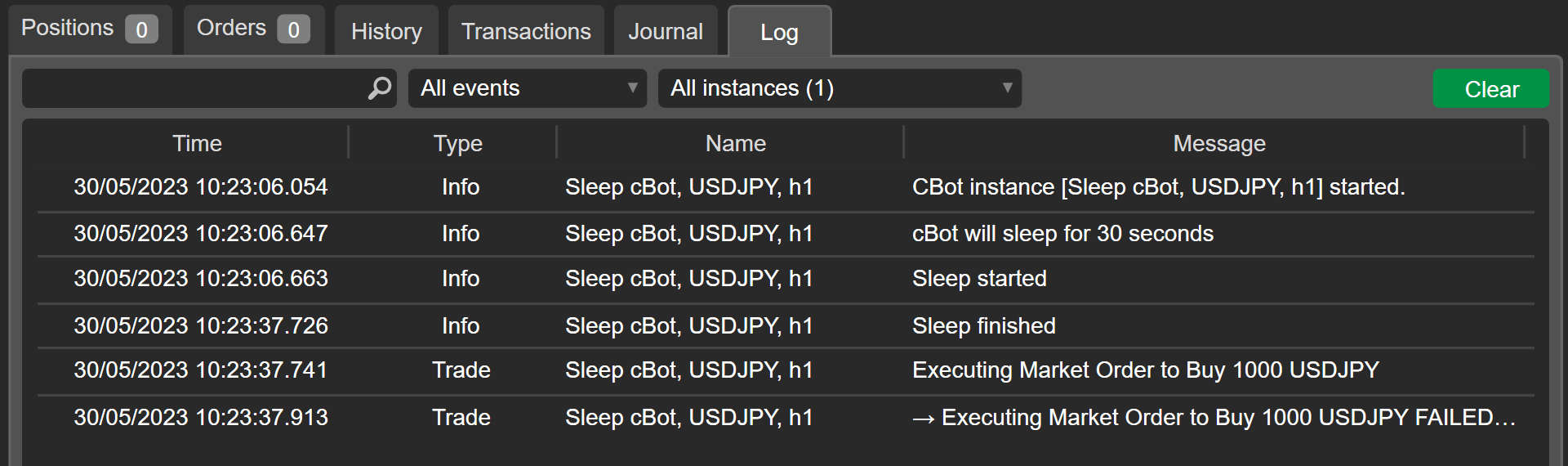
Summary[¶](https://help.ctrader.com/ctrader-algo/guides/sleep-functionality/#summary "Permanent link")
-------------------------------------------------------------------------------------------------------
The sleep functionality allows algorithm developers to suspend the execution of other methods even if the cBot was launched. Applying the `Sleep()` method with its flexible time parameters, you will always react to scheduled events with your tailored strategy on time.
Back to top
---
# Changelog - cTrader Algo
[Skip to content](https://help.ctrader.com/ctrader-algo/changelog/#changelog-for-ctrader-algo-api)
Changelog for cTrader Algo API[¶](https://help.ctrader.com/ctrader-algo/changelog/#changelog-for-ctrader-algo-api "Permanent link")
====================================================================================================================================
5.4[¶](https://help.ctrader.com/ctrader-algo/changelog/#54 "Permanent link")
-----------------------------------------------------------------------------
July, 2025
What's new
* Plugin hotkeys API: New API objects for plugins allow you to add global hotkeys. These hotkeys behave like built-in cTrader hotkeys and work everywhere.
* Parameter and output descriptions: New `Description` property in parameter and output attributes shows tooltips in the UI when users hover over them.
* Chart bars toggle: New `Bars` flag in chart display settings allows you to hide chart bars. The flag removes the need for transparent colours and prevents scaling issues by not drawing bars.
* Setting active frames: New `Activate` method in the `Frame` class allows plugins to set the active chart or frame.
* Bar outputs: Indicators can now output `OHLC` bars with volume instead of a single data series. The output allows displaying custom bar charts on panels or the main chart and can be reused by other indicators.
* Data series for plugins: New `CreateDataSeries` method allows plugins to create data series. The created series can be passed as inputs to internal indicators.
* Panel child properties: New `Children`, `HasChild` and `ChildrenCount` properties let you access and work with panel contents.
* Grid panel position info: New `GridChildPositionInfo` method returns a child’s position in the grid.
* Main menu API for plugins: New API lets you add menu items with SVG icons to the main menu. Top menu items can show custom controls. Bottom menu items can trigger plugin handlers.
* Plugin parameters: Plugins can now use parameters the same way indicators and cBots do. The parameters are visible and editable in plugin settings.
Improvements
* `Assets` API is refactored to reduce resource usage.
* `Sleep` API is improved to prevent freezing for cBots and indicators when the market is closed.
Bug fixes
* No API bugs were found or fixed in version 5.4.
5.3[¶](https://help.ctrader.com/ctrader-algo/changelog/#53 "Permanent link")
-----------------------------------------------------------------------------
June, 2025
What's new
* Custom timeframe API: New API lets plugins define custom timeframes and supply data for them.
* Custom symbol API: New API lets plugins create custom symbols. The created symbols can be based on existing ones or defined from scratch and behave like broker symbols.
* Custom backtesting data source: New API allows plugins to provide backtesting and optimisation data. The API supports external tick data and third-party feeds.
* Notification popups: Algos can now show popup alerts similar to built-in cTrader notifications.
* Symbol sentiment access: Algos can now read sentiment data for symbols.
Improvements
* Cross-timeframe backtesting: Improved error messages for incompatible timeframe use in backtesting and optimisation.
* Updated Help Centre link in default algo templates.
* Made `Account.UserId` and `Account.Nickname` available for Cloud cBot instances.
* CID disconnection handling: Algos keep running and return the last known account data when CID disconnects.
* Message timeouts: Timeout handling prevents algos from getting stuck while waiting for a response from cTrader.
* Help Centre API updates: Added protected API methods to the Help Centre reference.
Bug fixes
* `Account.BrokerName` returned empty in the console.
* Algos froze when loading all account transactions.
* `RiskReward` tool in backtest incorrectly placed live trades.
* Typo in `ChartObject.IsLocked` property documentation.
* `ComboBox.SelectionChanged` was triggered after setting the selected item before render.
Back to top
---
# Messages and subscriptions - cTrader Algo
[Skip to content](https://help.ctrader.com/ctrader-algo/guides/messages-and-subscriptions/#messages-and-subscriptions)
Messages and subscriptions[¶](https://help.ctrader.com/ctrader-algo/guides/messages-and-subscriptions/#messages-and-subscriptions "Permanent link")
====================================================================================================================================================
The `Messages` and `MessageSubscription` interfaces provide types that enable communications between algorithms inside a cTrader instance. With these types, you can code one algo to send a message and other algos can subscribe to it.
Warning
Messages API objects work only in .NET 6 algorithms.
An algo can be coded to perform a specific action when a specific message is received from another algo. The messages and actions could be anything.
Example
Consider a plugin that generates signals and sends them to a cBot, which listens for messages and opens positions accordingly.
### Send message (trade signal)[¶](https://help.ctrader.com/ctrader-algo/guides/messages-and-subscriptions/#send-message-trade-signal "Permanent link")
| | |
| --- | --- |
| 1 | `Messages.Send("TradeSignal", "Buy EURUSD at 1.1200");` |
### Take action (open position)[¶](https://help.ctrader.com/ctrader-algo/guides/messages-and-subscriptions/#take-action-open-position "Permanent link")
| | |
| --- | --- |
| 1 2 3 4 5 6 7 8 9 | `private void OnTradeSignalReceived(MessageArgs args) { var signal = args.Message; if (signal == "Buy EURUSD at 1.1200") { ExecuteMarketOrder(TradeType.Buy, "EURUSD", 10000); Print("Trade executed based on signal"); } }` |
Back to top
---
# Genetic Algorithm - cTrader Algo
[Skip to content](https://help.ctrader.com/ctrader-algo/guides/optimization/genetic-algorithm/#optimisation)
Optimisation[¶](https://help.ctrader.com/ctrader-algo/guides/optimization/genetic-algorithm/#optimisation "Permanent link")
============================================================================================================================
Define the genetic algorithm[¶](https://help.ctrader.com/ctrader-algo/guides/optimization/genetic-algorithm/#define-the-genetic-algorithm "Permanent link")
------------------------------------------------------------------------------------------------------------------------------------------------------------
When discussing how [**cBots could be optimised**](https://help.ctrader.com/ctrader-algo/backtesting-and-optimizing-cbots/#optimisation)
, we have mentioned that cBots can be refined using the genetic algorithm method. In this guide, we explain exactly what it is and how it works.
The genetic algorithm method is based on the natural selection theory. This theory states that only the fittest individuals survive for subsequent reproduction.
In cBot optimisation, each optimisation pass is considered an individual. To evaluate individual passes, the genetic algorithm calculates a certain fitness score for each pass and compares this score against all other passes.
For it to work, the genetic algorithm needs an initial population. To generate it, the optimiser will run several different passes with randomised parameters. After creating its initial population, the algorithm will start the process of finding the fittest optimisation pass. This process continues until the fitness scores of child passes start stagnating and converging. At this point, the algorithm is stopped.
Genetic algorithm stages[¶](https://help.ctrader.com/ctrader-algo/guides/optimization/genetic-algorithm/#genetic-algorithm-stages "Permanent link")
----------------------------------------------------------------------------------------------------------------------------------------------------
Any genetic algorithm has the following stages.
graph TB
B([Selection]) ==> C([Crossover]);
C ==> D([Mutation]);
D ==> B;
The stages are explained as follows.
### Selection[¶](https://help.ctrader.com/ctrader-algo/guides/optimization/genetic-algorithm/#selection "Permanent link")
During this stage, the algorithm finds the two fittest optimisation passes using their respective fitness scores.
### Crossover[¶](https://help.ctrader.com/ctrader-algo/guides/optimization/genetic-algorithm/#crossover "Permanent link")
After finding the two fittest optimisation passes, the algorithm uses them to create new child (or offspring) passes by using combinations of the parameter values of both of the parent passes.
Example
If your cBot has four different parameters for optimisation, the algorithm will get the values of the first and second parameters of offspring passes from one parent and the third and fourth parameters from the second parent.
### Mutation[¶](https://help.ctrader.com/ctrader-algo/guides/optimization/genetic-algorithm/#mutation "Permanent link")
At this stage, the algorithm mutates the offspring passes by randomly modifying one or more parameter values.
After the mutation stage, the optimiser will run a new offspring optimisation pass. Subsequently, it will repeat all stages but only if the fitness score of an offspring pass was higher than the last fittest optimisation pass. Such an outcome would mean that there is room for improvement, indicating that optimisation should continue.
Otherwise, the algorithm will increase its stagnation counter. If the stagnation counter reaches the value of the algorithm stagnation period parameter, the optimisation process will be automatically stopped.
Genetic algorithm parameters[¶](https://help.ctrader.com/ctrader-algo/guides/optimization/genetic-algorithm/#genetic-algorithm-parameters "Permanent link")
------------------------------------------------------------------------------------------------------------------------------------------------------------
The genetic algorithm has several parameters that it uses during its lifetime. These parameters cannot be changed.
| Parameter | Definition |
| --- | --- |
| Population size | The maximum size of a population or the maximum number of passes made during each optimisation iteration. |
| Max iteration count | The maximum number of optimisation iterations performed by the algorithm. |
| Stagnation period | The maximum value of the stagnation counter. If this value is reached, the algorithm is stopped. |
| Elite percentage | This value is used to select an X% of individuals with the highest fitness scores from the current algorithm iteration. These passes will survive to the next iteration. |
| Tournament size percentage | This value is used to select an X% of individuals from an iteration for finding parent passes. |
| Migrans percentage | This value is used to add an X% of randomly created passes during each new iteration or population generation. |
| Mutation percentage | The percentage of the parameters of offspring passes to be mutated. |
| Mutation probability percentage | The percentage of offspring passes to be mutated. The passes not included in this percentage will not go through the mutation stage. |
Back to top
---
# Currency converter - cTrader Algo
[Skip to content](https://help.ctrader.com/ctrader-algo/guides/currency-conversion/#currency-converter)
Currency converter[¶](https://help.ctrader.com/ctrader-algo/guides/currency-conversion/#currency-converter "Permanent link")
=============================================================================================================================
In algo trading, giving cBots and indicators the ability to autonomously convert currencies using current market rates is essential. In this API guide, we cover how this feature is implemented in cTrader.
Currency conversion in one minute!
* The `Convert (double value, Asset from, Asset to` and `Convert(double value, string from, string to))` methods return the exact conversion rate between the specified assets or the assets with the specified names. Access them via the new `AssetConverter` property of the `Algo` class.
* The `Asset` class includes its own `Convert(Asset to, double value)` and `Convert(string to, double value)` methods that can be easily invoked from any `Asset` object.
* When backtesting, cTrader will automatically use historical conversion rates. This means that you can always expect historically accurate results and fully evaluate the performance of your cBots.
How currency conversion works[¶](https://help.ctrader.com/ctrader-algo/guides/currency-conversion/#how-currency-conversion-works "Permanent link")
---------------------------------------------------------------------------------------------------------------------------------------------------
The `IAssetConverter` interface in the `cAlgo.API.Internals` namespace contains the `Convert()` method that has the following overloads:
* `double Convert(double value, Asset from, Asset to)` - converts the specified value from the `from` asset to the `to` asset.
* `double Convert(double value, string from, string to)` - converts the specified value from the asset the name of which matches the `from` string to the asset the name of which matches the `to` string.
The `Algo` class now includes the `AssetConverter` property of the `IAssetConverter` type. You can access the two methods above by typing the following.
| | |
| --- | --- |
| 1 | `AssetConverter.Convert(double value, Asset from, Asset to)` |
The `Asset` class also has its own `Convert()` methods with the following overloads:
* `double Convert(Asset to, double value)` - converts the specified value from the asset from which this method is called to the `to` asset.
* `double Convert(string to, double value)` - converts the specified value from the asset from which this method is called to the asset the name of which matches the `to` string.
Consider the example below in which our cBot converts GBP into JPY and then executes a new market order using the calculated value as the order volume.
| | |
| --- | --- |
| 1 2 3 4 5 6 7 8 9 10 11 12 13 14 15 16 17 18 19 20 21 22 23 24 25 26 27 28 29 30 31 32 33 34 | `using System; using System.Collections.Generic; using System.Linq; using System.Text; using cAlgo.API; using cAlgo.API.Collections; using cAlgo.API.Indicators; using cAlgo.API.Internals; namespace cAlgo.Robots { [Robot(AccessRights = AccessRights.None)] public class SampleConversionTestBot : Robot { [Parameter(DefaultValue = "Hello world!")] public string Message { get; set; } protected override void OnStart() { Asset baseAssetForNewOrder = Assets.GetAsset("GBP"); Asset quoteAssetForNewOrder = Assets.GetAsset("JPY"); double newOrderVolume = baseAssetForNewOrder.Convert(quoteAssetForNewOrder, 1000.00); ExecuteMarketOrder(TradeType.Buy, SymbolName, newOrderVolume); Print($"New order has been executed with {newOrderVolume} as its volume"); } } }` |
If we take a look at the log, we can see that our cBot behaves as expected. At the time when the instance was started, the bid price for GBPJPY equaled 159.619.

Currency conversion in backtesting[¶](https://help.ctrader.com/ctrader-algo/guides/currency-conversion/#currency-conversion-in-backtesting "Permanent link")
-------------------------------------------------------------------------------------------------------------------------------------------------------------
cTrader fully supports historical conversion rates in backtesting.
This means that, when you backtest a cBot that uses any of the methods described above, conversion calculations will be performed using historically accurate data rather than the current exchange rates between the specified assets. This feature ensures that the results of backtesting and optimisation are as precise as possible given past market conditions.
Note that cTrader can build accurate conversion chains using potentially unlimited trading instruments. As a result, even if your account deposit currency differs from the base or quote assets of the symbol on which you would like to perform a backtest, cTrader will handle all the necessary calculations to provide you with precise backtesting results.
In summary, conversion rates constitute another valuable tool for making sure that your cBots and indicators perform exactly as expected. As cTrader supports the use of historical data when converting assets in backtesting, you can be sure that all backtesting and optimisation results are historically accurate.
Back to top
---
# Margin estimations - cTrader Algo
[Skip to content](https://help.ctrader.com/ctrader-algo/guides/estimated-margin/#margin-estimations)
Margin estimations[¶](https://help.ctrader.com/ctrader-algo/guides/estimated-margin/#margin-estimations "Permanent link")
==========================================================================================================================
In cTrader Windows 4.5, we added estimated margin calculations to the Algo API. In other words, you can now use a method to check how much of your margin will be used by a new position or an order.
How margin estimations work[¶](https://help.ctrader.com/ctrader-algo/guides/estimated-margin/#how-margin-estimations-work "Permanent link")
--------------------------------------------------------------------------------------------------------------------------------------------
To calculate estimated margin, call the `Symbol.GetEstimatedMargin()` method and pass the required arguments, namely the trade type (either buy or sell) and the order volume.
| | |
| --- | --- |
| 1 2 3 4 | `var estimatedMargin = Symbol.GetEstimatedMargin(TradeType.Buy, 10000); if (estimatedMargin > Account.FreeMargin) Print("Not enough margin");` |
As `GetEstimatedMargin()` is an interface method, you can use it with any `Symbol` or `SymbolInfo` objects as shown below.
| | |
| --- | --- |
| 1 2 3 4 5 6 7 8 9 10 11 12 13 14 15 16 17 18 19 20 21 22 23 | `using cAlgo.API; namespace cAlgo.Robots { [Robot(AccessRights = AccessRights.None)] public class ExpectedMargin : Robot { [Parameter("Volume", DefaultValue = 10000, MinValue = -1)] public double Volume {get; set;} [Parameter("Symbol Name")] public string UserSymbolName {get; set;} protected override void OnStart() { if (string.IsNullOrWhiteSpace(UserSymbolName)) UserSymbolName = SymbolName; Print($"Buy: {Symbols.GetSymbolInfo(UserSymbolName).GetEstimatedMargin(TradeType.Buy, Volume)}"); Print($"Sell: {Symbols.GetSymbolInfo(UserSymbolName).GetEstimatedMargin(TradeType.Sell, Volume)}"); } } }` |
Note
During backtesting or optimisation, the `GetEstimatedMargin()` method will return the estimated margin without taking account exposure into consideration.
Back to top
---
# Local storage - cTrader Algo
[Skip to content](https://help.ctrader.com/ctrader-algo/guides/local-storage/#local-storage)
Local storage[¶](https://help.ctrader.com/ctrader-algo/guides/local-storage/#local-storage "Permanent link")
=============================================================================================================
In this guide, we explain how you can work with local storage when developing cTrader algos. Below, we provide a one-minute summary of how local storage access works.
Local storage in one minute!
* Local storage allows you to save information in your local file system. Use it to persist data between two or more deployments of your cBots and indicators.
* To save data, use the `SetString(string key, string value)` and `SetObject(string key, object obj)` methods. To retrieve it, invoke the `GetString(string key)` and `T GetObject(string key)` methods.
* Specify your preferred local storage scope by using the `LocalStorageScope` enum. For example, the `SetString(string key, string value, LocalStorageScope.Device)` overload will save data in your `Documents/cAlgo/LocalStorage/` directory.
* While information is saved automatically every minute, you can use the `Flush(LocalStorageScope localStorageScope)` method to store data without delays.
* During backtesting and optimisation, local storage stores data in memory only.
How to use local storage[¶](https://help.ctrader.com/ctrader-algo/guides/local-storage/#how-to-use-local-storage "Permanent link")
-----------------------------------------------------------------------------------------------------------------------------------
Think of local storage as a way to store information between one or several stops and starts of your cBots and indicators. This feature allows for saving cBot and indicator data and then accessing this information in several ways depending on your needs. Local storage works regardless of the access rights given to an algo.
The `LocalStorage` interface contains all methods that you can use to store and access data to and from local storage. Some examples of these methods include the following:
* `SetString(string key, string value)`\- saves a string value by matching it with the specified key.
* `SetObject(string key, object obj)`\- saves an object by matching it with the specified key.
* `GetString(string key)` - retrieves a saved string value by finding it under the specified key.
* `T GetObject(string key)` - retrieves a saved object of type `T` from local storage by finding it under the specified key.
Warning
The `SetObject(string key, object obj)` and `GetObject(string key)` methods only work with data types that can be serialised (converted into bytes).
Consider the following example in which we ask a cBot instance to save an example message on start. On subsequent starts, the same instance will display a message box containing our message.
| | |
| --- | --- |
| 1 2 3 4 5 6 7 8 9 10 11 12 13 14 15 16 17 18 19 20 21 22 23 24 25 26 27 28 29 30 31 32 33 | `using System; using System.Collections.Generic; using System.Linq; using System.Text; using cAlgo.API; using cAlgo.API.Collections; using cAlgo.API.Indicators; using cAlgo.API.Internals; namespace cAlgo.Robots { [Robot(AccessRights = AccessRights.None)] public class SampleLocalStorageTest : Robot { protected override void OnStart() { string messageLocalStorage = LocalStorage.GetString("Example Message"); if (messageLocalStorage is not null) { MessageBox.Show(messageLocalStorage); } LocalStorage.SetString("Example Message", "This is just an example message"); } } }` |
After an instance of the cBot above is launched for the first time, it saves our example message in local storage. After stopping the instance and starting it again, the following message box is shown.
Note that local storage works even when `AccessRights.None` is specified.
Define local storage scope[¶](https://help.ctrader.com/ctrader-algo/guides/local-storage/#define-local-storage-scope "Permanent link")
---------------------------------------------------------------------------------------------------------------------------------------
The local storage scope (defined via the `LocalStorageScope` type) determines where exactly information is stored and how it can be accessed. This `enum` contains the following constants:
* `LocalStorageScope.Instance` - saved data is stored and can only be accessed by a specific running instance of a cBot or indicator. Information is saved to the `Documents/cAlgo/LocalStorage/{AlgoType}/{AlgoName}/{InstanceUniqueIdentifier}/` directory. In this path, `"AlgoType"` denotes the type of the cTrader extension working with local storage (`cBots` or `Indicators`) while `AlgoName` is the name of a specific cBot/indicator. `InstanceUniqueIdentifier` is the unique ID of a specific instance of a particular cBot or indicator.
* `LocalStorageScope.Type` - saved data is stored and can be accessed by all running instances of a particular cBot or indicator. Information is saved to the `Documents/cAlgo/LocalStorage/{AlgoType}/{AlgoName}/` directory.
* `LocalStorageScope.Device` - saved data is stored and can be accessed by all running instances of cBots and indicators on the current device. Information is saved to the `"Documents/cAlgo/LocalStorage/"` directory.
In turn, methods such as `SetString()` and `SetObject()` have additional overloads allowing for specifying a custom local storage scope. For example, the following code will save a string to `LocalStorageScope.Type`; this string, subsequently, will be accessible to all extensions of a particular type.
| | |
| --- | --- |
| 1 | `SetString(“Example String”, “Just an example string”, LocalStorageScope.Type);` |
If `LocalStorageScope` is not specified as a parameter, `LocalStorageScope.Instance` is used by default.
Note that this behaviour is different for the `GetString(string key)` and `T GetObject(string key)` methods. When these methods are invoked without specifying the local storage scope, they will search for the specified key in all scopes following the below hierarchy:
* Instance
* Type
* Device
Additionally, each different local storage scope has its own disk space quota:
* `LocalStorageScope.Instance` is limited to 10 MB.
* `LocalStorageScope.Type` is limited to 100 MB.
* `LocalStorageScope.Device` is limited to 500 MB.
The limits defined above are not cumulative. For example, if you have already used all 500 MB of device-level storage, you will still be able to store information using instance-level storage until reaching its limit of 10 MB.
How saving and loading information works[¶](https://help.ctrader.com/ctrader-algo/guides/local-storage/#how-saving-and-loading-information-works "Permanent link")
-------------------------------------------------------------------------------------------------------------------------------------------------------------------
When storing information to local storage (for example, by invoking the `SetString()` method), cTrader automatically saves data every minute. Data is also saved on instance stop.
However, you can customise this behaviour by using the following methods:
* `Flush(LocalStorageScope localStorageScope)` - saves all data to the specified scope.
* `Reload(LocalStorageScope localStorageScope)` - reloads all values from the specified scope.
Keep in mind that, when calling the `Reload(LocalStorageScope localStorageScope` method, any pending changes may be lost. To avoid this, make sure to invoke `Flush(LocalStorageScope localStorageScope)` beforehand.
In the example below, we ask a cBot to execute a market order. After this action is completed, we immediately save the gross P&L of the position we have just opened in `LocalStorageScope.Type`.
| | |
| --- | --- |
| 1 2 3 4 5 | `ExecuteMarketOrder(TradeType.Buy, SymbolName, 10000, “Custom label”); var positionOne = Positions.Find("Custom label"); string positionOneGrossProfit = positionOne.GrossProfit.ToString(); LocalStorage.SetString("Position 1", positionOneGrossProfit, LocalStorageScope.Device); LocalStorage.Flush(LocalStorageScope.Device);` |
Local storage in backtesting and optimisation[¶](https://help.ctrader.com/ctrader-algo/guides/local-storage/#local-storage-in-backtesting-and-optimisation "Permanent link")
-----------------------------------------------------------------------------------------------------------------------------------------------------------------------------
Local storage works differently in backtesting compared to real-time trading.
As shown previously, local storage uses the file system of your local machine when this feature is used in real-time trading. However, using the file system in backtesting would lead to several issues, most notably saving large amounts data that beard no relation to current market movements and trading operations.
To avoid these problems, all operations with local storage are conducted in memory only when performing backtests or optimising your cBots. As a result, you can be sure that all data saved to your file system only concerns real-time trading.
In summary, local storage is a highly beneficial feature of the Algo API that allows for persisting data between multiple stops and starts of various cBots and indicators. By using local storage effectively, you can create complex automated trading strategies based on custom data saved in your file system.
Back to top
---
# Price alerts - cTrader Algo
[Skip to content](https://help.ctrader.com/ctrader-algo/guides/price-alerts/#price-alerts)
Price alerts[¶](https://help.ctrader.com/ctrader-algo/guides/price-alerts/#price-alerts "Permanent link")
==========================================================================================================
Example
Price alerts API objects expand on price polling functionalities and can be used to do the following:
* Create trade notification systems and applications
* Configure conditional trades in algorithms
* Monitor market sentiments
* Improve risk management strategies.
Create alerts[¶](https://help.ctrader.com/ctrader-algo/guides/price-alerts/#create-alerts "Permanent link")
------------------------------------------------------------------------------------------------------------
This code shows you how to create and trigger alerts:
| | |
| --- | --- |
| 1 2 3 4 5 6 7 8 9 10 11 12 13 14 15 16 17 18 19 20 21 22 23 24 25 26 27 28 29 30 31 32 33 34 35 36 37 38 39 40 41 42 43 44 45 46 47 48 49 50 51 52 53 54 55 56 57 58 | `using System; using cAlgo.API; using cAlgo.API.Internals; namespace cAlgo.Plugins { [Plugin(AccessRights = AccessRights.None)] public class SimplePriceAlert : Plugin { private PriceAlert _upperAlert; private PriceAlert _lowerAlert; protected override void OnStart() { PriceAlerts.Added += OnAlertAdded; PriceAlerts.Updated += OnAlertUpdated; PriceAlerts.Removed += OnAlertRemoved; PriceAlerts.Triggered += OnAlertTriggered; var symbol = Symbols.GetSymbol("EURUSD"); var pip = symbol.PipSize; _upperAlert = PriceAlerts.Add( symbol, symbol.Ask + 2 * pip, PriceAlertQuoteType.Ask, PriceAlertCondition.HigherOrEqual ); _lowerAlert = PriceAlerts.Add( symbol, symbol.Bid - 2 * pip, PriceAlertQuoteType.Bid, PriceAlertCondition.LowerOrEqual ); Print($"Added upper alert at Ask >= {symbol.Ask + 2 * pip}"); Print($"Added lower alert at Bid <= {symbol.Bid - 2 * pip}"); } private void OnAlertAdded(PriceAlertAddedEventArgs args) { Print($"Alert added. Id: {args.PriceAlert.Id}, Price: {args.PriceAlert.Price}"); } private void OnAlertUpdated(PriceAlertUpdatedEventArgs args) { Print($"Alert updated. Id: {args.PriceAlert.Id}"); } private void OnAlertRemoved(PriceAlertRemovedEventArgs args) { Print($"Alert removed. Id: {args.PriceAlert.Id}"); } private void OnAlertTriggered(PriceAlertTriggeredEventArgs args) { Print($"Alert triggered! Id: {args.PriceAlert.Id}, Symbol: {args.PriceAlert.Symbol.Name}, Target: {args.PriceAlert.Price}"); } } }` |
Execute trades using alerts[¶](https://help.ctrader.com/ctrader-algo/guides/price-alerts/#execute-trades-using-alerts "Permanent link")
----------------------------------------------------------------------------------------------------------------------------------------
You can code an algorithm to execute trades when a price alert is triggered.
| | |
| --- | --- |
| 1 2 3 4 5 6 7 8 9 10 11 | `protected override void OnStart() { PriceAlerts.Triggered += PriceAlerts_Triggered; } private void PriceAlerts_Triggered(PriceAlertTriggeredEventArgs obj) { var symbol = obj.PriceAlert.Symbol; ExecuteMarketOrder(TradeType.Buy, symbol.Name, 10000); Print($"Price alert triggered, trade executed for {symbol.Name}"); }` |
Manage trades dynamically[¶](https://help.ctrader.com/ctrader-algo/guides/price-alerts/#manage-trades-dynamically "Permanent link")
------------------------------------------------------------------------------------------------------------------------------------
You can code an algorithm to modify stop-loss and take-profit levels for open positions dynamically when an alert is triggered. This way, stop-loss and take-profit levels are moved or adjusted when a symbol price approaches a key level, which allows trades to run further as needed.
| | |
| --- | --- |
| 1 2 3 4 5 6 7 8 | `private void PriceAlerts_Triggered(PriceAlertTriggeredEventArgs obj) { var positions = Positions.FindAll("My position", obj.PriceAlert.Symbol.Name, TradeType.Buy); foreach (var position in positions) { position.ModifyStopLossPrice(obj.PriceAlert.Price - 50 * obj.PriceAlert.Symbol.PipSize); } }` |
Create price alerts manager[¶](https://help.ctrader.com/ctrader-algo/guides/price-alerts/#create-price-alerts-manager "Permanent link")
----------------------------------------------------------------------------------------------------------------------------------------
This plugin adds a tool for managing price alerts to Active Symbol Panel:
| | |
| --- | --- |
| 1 2 3 4 5 6 7 8 9 10 11 12 13 14 15 16 17 18 19 20 21 22 23 24 25 26 27 28 29 30 31 32 33 34 35 36 37 38 39 40 41 42 43 44 45 46 47 48 49 50 51 52 53 54 55 56 57 58 59 60 61 62 63 64 65 66 67 68 69 70 71 72 73 74 75 76 77 78 79 80 81 82 83 84 85 86 87 88 89 90 91 92 93 94 95 96 97 98 99 100 101 102 103 104 105 106 107 108 109 110 111 112 113 114 115 116 117 118 119 120 | `using System; using cAlgo.API; using cAlgo.API.Collections; using cAlgo.API.Indicators; using cAlgo.API.Internals; namespace cAlgo.Plugins { [Plugin(AccessRights = AccessRights.None)] public class PriceAlertsTest : Plugin { private PriceAlert _priceAlert; protected override void OnStart() { var panel = new StackPanel { Orientation = Orientation.Vertical }; var addButton = new Button { Text = "Add Alert" }; addButton.Click += addButton_Click; panel.AddChild(addButton); var removeButton = new Button { Text = "Remove Alert" }; removeButton.Click += removeButton_Click; ; panel.AddChild(removeButton); var updateButton = new Button { Text = "Update Alert" }; updateButton.Click += updateButton_Click; panel.AddChild(updateButton); var showSymbolAlertsCountButton = new Button { Text = "Show # Of Active Chart Symbol Alerts" }; showSymbolAlertsCountButton.Click += showSymbolAlertsCountButton_Click; panel.AddChild(showSymbolAlertsCountButton); var findAddedAlertButton = new Button { Text = "Find Added Alert" }; findAddedAlertButton.Click += findAddedAlertButton_Click; panel.AddChild(findAddedAlertButton); var block = Asp.SymbolTab.AddBlock("Price Alerts Test"); block.Child = panel; PriceAlerts.Added += PriceAlerts_Added; PriceAlerts.Removed += PriceAlerts_Removed; PriceAlerts.Updated += PriceAlerts_Updated; PriceAlerts.Triggered += PriceAlerts_Triggered; Print($"Price Alerts #: {PriceAlerts.Count}"); } private void findAddedAlertButton_Click(ButtonClickEventArgs obj) { Print($"Added Alert Id: {PriceAlerts.Find(_priceAlert.Id).Id}"); } private void showSymbolAlertsCountButton_Click(ButtonClickEventArgs obj) { if (ChartManager.ActiveFrame is not ChartFrame {Chart: var chart}) return; var symbol = chart.Symbol; Print($"Active chart symbol '{symbol.Name}' price alerts count: {PriceAlerts.FindAll(symbol.Name).Length}"); } private void PriceAlerts_Triggered(PriceAlertTriggeredEventArgs obj) { Print($"Price alert triggered, Id: {obj.PriceAlert.Id}"); } private void PriceAlerts_Updated(PriceAlertUpdatedEventArgs obj) { Print($"Price alert updated, Id: {obj.PriceAlert.Id}"); } private void PriceAlerts_Removed(PriceAlertRemovedEventArgs obj) { Print($"Price alert removed, Id: {obj.PriceAlert.Id}"); } private void PriceAlerts_Added(PriceAlertAddedEventArgs obj) { Print($"Price alert added, Id: {obj.PriceAlert.Id}"); } private void removeButton_Click(ButtonClickEventArgs obj) { PriceAlerts.Remove(_priceAlert); } private void updateButton_Click(ButtonClickEventArgs obj) { if (ChartManager.ActiveFrame is not ChartFrame {Chart: var chart}) return; var symbol = chart.Symbol; _priceAlert.Update(symbol, symbol.Ask - (100 * symbol.PipSize), PriceAlertQuoteType.Ask, PriceAlertCondition.LowerOrEqual, true, "Updated message"); } private void addButton_Click(ButtonClickEventArgs obj) { if (ChartManager.ActiveFrame is not ChartFrame {Chart: var chart}) return; var symbol = chart.Symbol; _priceAlert = PriceAlerts.Add(symbol, symbol.Bid + (100 * symbol.PipSize), PriceAlertQuoteType.Bid, PriceAlertCondition.HigherOrEqual); } } }` |
Back to top
---
# Installation - cTrader Mobile (iOS)
[Skip to content](https://help.ctrader.com/ctrader-mobile-ios/installation/#minimum-requirements)
Installation
============
Spotware cTrader mobile application installation process is standard and intuitive for iOS users.
This guide is designed to show how to step-by-step install cTrader on your device, register your cTrader ID account, and start using the application.
Usually, each Broker has it's own branded and optimized cTrader application and instructions on how to use it in its environment (website).
If you cannot find cTrader via your broker website try searching directly in the App Store for "cTrader {your broker name}" to find what you need.
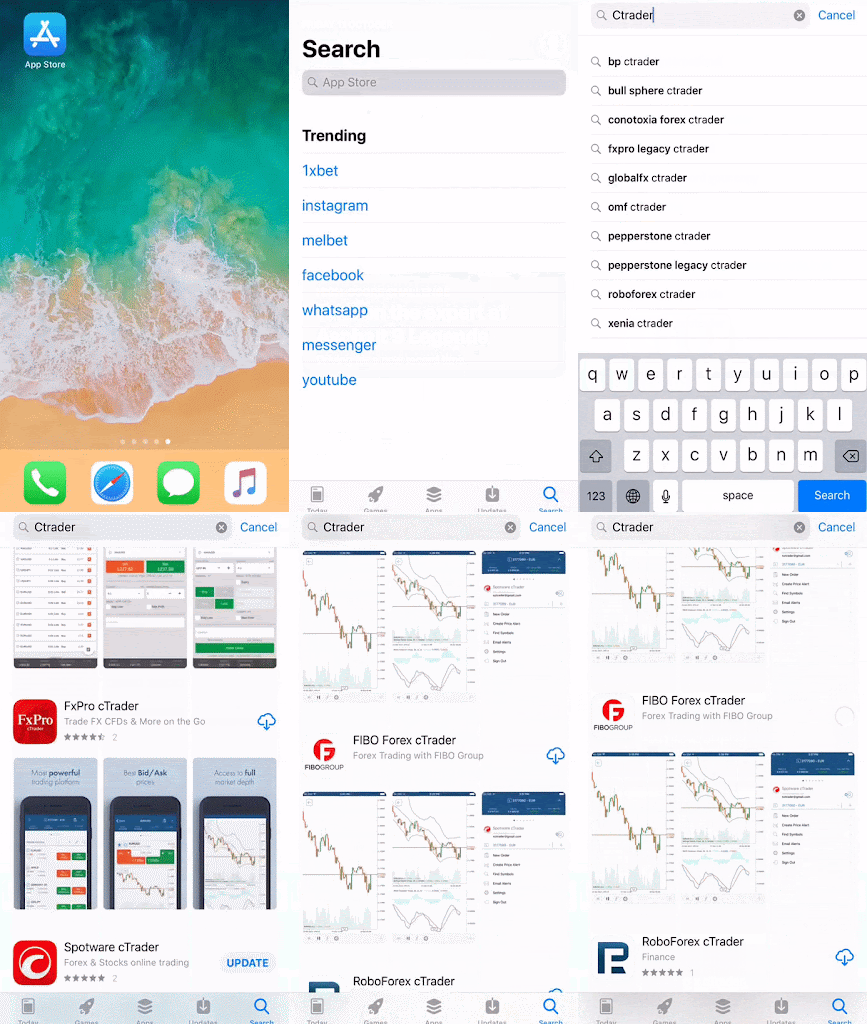
Here we describe how to find and install cTrader official application from the Apple App Store.
You can use it as the demo application or contact your broker to learn how to connect it to the official broker environment.
Minimum Requirements[¶](https://help.ctrader.com/ctrader-mobile-ios/installation/#minimum-requirements "Permanent link")
-------------------------------------------------------------------------------------------------------------------------
| | Minimum |
| --- | --- |
| Processor | Dual Core CPU |
| Memory | 2 GB |
| Operating System | iOS 9.0 or later. |
| Internet Connection | 50 kB per second or faster |
| HDD free space | 92,2 MB |
Installing cTrader: iOS device[¶](https://help.ctrader.com/ctrader-mobile-ios/installation/#installing-ctrader-ios-device "Permanent link")
--------------------------------------------------------------------------------------------------------------------------------------------
1\. Go to your broker's website to get the App Store link for downloading cTrader or pick a [**featured broker**](https://www.spotware.com/featured-ctrader-brokers-and-prop)
to open a live account.
Note
The [**cross-broker cTrader app**](https://www.ctrader.com/download)
allows you to access any of your existing broker accounts or create a new demo account.
2\. To start using cTrader, open the app and log in with your [**cTrader ID**](https://help.ctrader.com/ctrader-mobile-ios/ctrader-id/)
.
---
# Trading sessions - cTrader Algo
[Skip to content](https://help.ctrader.com/ctrader-algo/guides/trading-sessions/#trading-sessions)
Trading sessions[¶](https://help.ctrader.com/ctrader-algo/guides/trading-sessions/#trading-sessions "Permanent link")
======================================================================================================================
Since the release of cTrader Windows 4.5, the API includes the `MarketSessions` interface. It allows you to get information about current market sessions and using this data in your cBots and indicators.
Trading sessions in algo development[¶](https://help.ctrader.com/ctrader-algo/guides/trading-sessions/#trading-sessions-in-algo-development "Permanent link")
--------------------------------------------------------------------------------------------------------------------------------------------------------------
The [`MarketSession`](https://help.ctrader.com/ctrader-algo/references/?h=marketsession)
type is an `enum` with values representing various trading sessions (such as `Singapore` or `London`).
In turn, the `MarketSessions` property is of the `MarketSession` type. To get all current market sessions, use it as follows.
| | |
| --- | --- |
| 1 | `Print("Current Sessions: {0}", MarketSessions);` |
The value of the `MarketSessions` property should match the sessions that are displayed in the **Trading sessions** field in the lower-left corner of the cTrader UI.

You can use the `HasFlag` method to check whether the current sessions contain a specific session.
| | |
| --- | --- |
| 1 2 3 4 5 6 7 8 9 10 11 12 13 14 15 16 17 18 19 20 21 22 23 24 25 26 | `using cAlgo.API; namespace cAlgo.Robots { [Robot(AccessRights = AccessRights.None)] public class MarketSessionsTest : Robot { [Parameter("Working Session", DefaultValue = MarketSession.London)] public MarketSession WorkingSession {get; set;} protected override void OnTick() { MarketSession exampleSession = MarketSession.London; if (MarketSessions.HasFlag(exampleSession)) { // Insert your preferred method logic here. } return; } } }` |
You can also handle the `MarketSessionsChanged` event to detect and react to any changes in market sessions. The `MarketSessionChangedEventArgs` class has two properties, namely `NewSessions` and `PreviousSessions`, which work as follows:
* `NewSessions` contains all current sessions including any sessions that have just started. The value of `NewSessions` is always equal to the value of the `MarketSessions` property of a cBot or indicator.
* `PreviousSessions` also contains all current sessions but it also contains any past sessions that have just ended. Its value is equal to the value of the `MarketSessions` property of a cBot or indicator before the `MarketSessionsChanged` was triggered.
For a more detailed look at how `NewSessions` and `PreviousSessions` work, refer to the example below.
| | |
| --- | --- |
| 1 2 3 4 5 6 7 8 9 10 11 12 13 14 15 16 17 18 19 20 21 22 23 24 | `using cAlgo.API; namespace cAlgo.Robots { [Robot(AccessRights = AccessRights.None)] public class NewcBot : Robot { protected override void OnStart() { MarketSessionsChanged += OnMarketSessionsChanged; Print($"Starting sessions: {this.MarketSessions}"); } private void OnMarketSessionsChanged(MarketSessionChangedEventArgs obj) { Print($"Session(s) changed, previous sessions: {obj.PreviousSessions}"); Print($"Sessions(s) changed, current sessions: {obj.NewSessions}"); } protected override void OnTick() { } protected override void OnStop() { } } }` |
In the log, you should see two new entries for each session change. These entries will inform you of what the past trading sessions were and what they are now.
Trading sessions during backtesting[¶](https://help.ctrader.com/ctrader-algo/guides/trading-sessions/#trading-sessions-during-backtesting "Permanent link")
------------------------------------------------------------------------------------------------------------------------------------------------------------
The `MarketSessions` property works on both live and backtesting environments. During backtesting, this property will contain the sessions relative to the chosen backtest timings. In other words, you can use it to access trading sessions that were active during a specific historic trading period.
Back to top
---
# Manage chart indicators - cTrader Algo
[Skip to content](https://help.ctrader.com/ctrader-algo/guides/chart-indicators/#manage-chart-indicators)
Manage chart indicators[¶](https://help.ctrader.com/ctrader-algo/guides/chart-indicators/#manage-chart-indicators "Permanent link")
====================================================================================================================================
Traders often rely on some combination of manual trading and automated trading helpers, especially custom indicators. However, in many cases, these helpers are completely unaware of each other and cannot react to one another's actions and outputs.
Fortunately, cTrader offers a convenient means of managing chart indicators programmatically. Using this feature, you can build dynamic assistants that read data from indicators that users add to a chart.
You can also make it so an algo adds, removes or changes indicator settings based on some conditions, allowing you to offer more value to your users and open new avenues for monetisation.
This API guide explains how you can manage chart indicators programmatically in different conditions.
Chart indicator management in one minute!
* By managing chart indicators programmatically, you can adjust indicator settings (for example, line thickness) depending on certain conditions.
* cBots can access any indicators you manually attach to a chart, read their data and trade accordingly.
* Your algos can add indicators to or remove them from charts automatically, saving you time.
* Managing chart indicators programmatically is possible for all custom indicators.
Add and remove indicators programmatically[¶](https://help.ctrader.com/ctrader-algo/guides/chart-indicators/#add-and-remove-indicators-programmatically "Permanent link")
--------------------------------------------------------------------------------------------------------------------------------------------------------------------------
You can easily add any indicator that you have access to by calling the following method.
| | |
| --- | --- |
| 1 | `ChartIndicator ChartIndicators.Add(string name, params object[] parameterValues)` |
The method takes the indicator name as the first parameter and then takes all parameters of that indicator in sequence (for example, `"Simple Moving Average", "High", 25`).
Note
The method will accept the name of any indicator that you have access to.
Note
Any `DataSeries` parameters have to be specified as strings in the method arguments.
Note
If some parameters are not specified, the method will use default values. If some parameters are invalid, the method will invoke the [**OnException handler**](https://help.ctrader.com/ctrader-algo/fault-tolerance/)
for your algo.
After the method is executed, the requested indicator will immediately be added to a chart and you will be able to manage it using the value returned by the method. For example, you can remove it by calling the `ChartIndicators.Remove()` method.
| | |
| --- | --- |
| 1 2 3 | `var newIndicator = ChartIndicators.Add("Simple Moving Average", "High", 25); ... ChartIndicators.Remove(newIndicator);` |
Here is a simple cBot that uses both methods to add a custom Bollinger Bands indicator to a chart whenever the Average True Range (ATR) value crosses a specific threshold. If the ATR value falls below the threshold, the indicator is removed.
| | |
| --- | --- |
| 1 2 3 4 5 6 7 8 9 10 11 12 13 14 15 16 17 18 19 20 21 22 23 24 25 26 27 28 29 30 31 32 33 34 35 36 37 | `using System; using System.Collections.Generic; using System.Linq; using System.Text; using cAlgo.API; using cAlgo.API.Collections; using cAlgo.API.Indicators; using cAlgo.API.Internals; namespace cAlgo.Robots { [Robot(AccessRights = AccessRights.None)] public class ChartIndicatorsTest : Robot { private AverageTrueRange _aTR; private ChartIndicator _customBollingerBands; protected override void OnStart() { _aTR = Indicators.AverageTrueRange(14, MovingAverageType.Exponential); ChartIndicators.Add("Average True Range"); } protected override void OnBar() { if (_aTR.Result[Bars.Count - 1] >= 0.0002) { _bollingerBands = ChartIndicators.Add("Custom BB"); } else if (_bollingerBands != null) { ChartIndicators.Remove(_bollingerBands); } } } }` |
Modify the settings of indicators[¶](https://help.ctrader.com/ctrader-algo/guides/chart-indicators/#modify-the-settings-of-indicators "Permanent link")
--------------------------------------------------------------------------------------------------------------------------------------------------------
The `ChartIndicator` interface provides direct access to all major indicator settings via the following properties:
* `ChartIndicator.Type`, which gets the type of an indicator.
* `ChartIndicator.Parameters`, which gets a list of all indicator parameters.
* `Lines`, which gets a list of all lines outputted by an indicator.
As indicators are visual aids, you can enhance them by modifying their settings depending on market conditions. The following indicator tries to do exactly that.
| | |
| --- | --- |
| 1 2 3 4 5 6 7 8 9 10 11 12 13 14 15 16 17 18 19 20 21 22 23 24 25 26 27 28 29 30 31 32 33 34 35 36 37 38 39 40 41 42 | `using System; using System.Collections.Generic; using System.Linq; using System.Text; using cAlgo.API; using cAlgo.API.Collections; using cAlgo.API.Indicators; using cAlgo.API.Internals; namespace cAlgo { [Indicator(AccessRights = AccessRights.None, IsOverlay = true)] public class ColourMovingAverage : Indicator { private MovingAverage _fastMA; private ChartIndicator _chartMA; private const int __lineThickness = 4; protected override void Initialize() { _fastMA = Indicators.MovingAverage(Bars.OpenPrices, 10, MovingAverageType.Exponential); _chartMA = ChartIndicators.Add("Exponential Moving Average", "Open", 10); } public override void Calculate(int index) { var line = _chartMA.Lines[0]; if (Symbol.Bid > _fastMA.Result[index]) { line.Color = Color.Green; line.Thickness = __lineThickness; } else { line.Color = Color.Red; line.Thickness = __lineThickness; } } } }` |
Depending on whether the current price of a symbol is above or below the exponential moving average, the indicator line changes colour and thickness. In some cases (for example, quickly reacting to changing trends), additional visual help can make all the difference.
Handle additional events[¶](https://help.ctrader.com/ctrader-algo/guides/chart-indicators/#handle-additional-events "Permanent link")
--------------------------------------------------------------------------------------------------------------------------------------
The `ChartsIndicators` interface also exposes several events that you can handle to programmatically manage chart indicators:
* `IndicatorAdded`, which is triggered every time a new indicator is added to a chart.
* `IndicatorRemoved`, which is triggered every time an indicator is removed from a chart.
* `IndicatorModified`, which is triggered every time the settings of an indicator are adjusted.
These events are valuable for developers of [**plugins**](https://help.ctrader.com/ctrader-algo/creating-a-plugin/)
. Via plugins, you can create new elements of the cTrader UI that change their contents depending on whether a user adds, removes or modifies indicators.
Indicator management in different modes[¶](https://help.ctrader.com/ctrader-algo/guides/chart-indicators/#indicator-management-in-different-modes "Permanent link")
--------------------------------------------------------------------------------------------------------------------------------------------------------------------
Here is how indicator management works across different cTrader modes and tools.
| Mode/tool | How it works |
| --- | --- |
| Non-visual backtesting | All indicators added via `ChartIndicators` will be shown on the chart when backtesting finishes. |
| Visual backtesting and **Market Replay** | Everything works in real time as intended. |
| Optimisation | All operations will work but no changes to the chart will be made when backtesting finishes. |
| cTrader CLI | All operations work as intended but no changes are made to any charts. |
Summary[¶](https://help.ctrader.com/ctrader-algo/guides/chart-indicators/#summary "Permanent link")
----------------------------------------------------------------------------------------------------
Managing chart indicators programmatically is ideal for any developer who wants to offer algos that enhance or simplify working with indicators. By leveraging this feature, you can deliver high-quality and valuable products to your users.
Back to top
---
# Advanced operations with cBots - cTrader Algo
[Skip to content](https://help.ctrader.com/ctrader-algo/guides/trading/#advanced-operations-with-cbots)
Advanced operations with cBots[¶](https://help.ctrader.com/ctrader-algo/guides/trading/#advanced-operations-with-cbots "Permanent link")
=========================================================================================================================================
Introduction[¶](https://help.ctrader.com/ctrader-algo/guides/trading/#introduction "Permanent link")
-----------------------------------------------------------------------------------------------------
This guide is primarily intended as a complement to our [**extensive list of cBot code samples**](https://help.ctrader.com/ctrader-algo/cbot-code-samples/)
.
Trade other symbols[¶](https://help.ctrader.com/ctrader-algo/guides/trading/#trade-other-symbols "Permanent link")
-------------------------------------------------------------------------------------------------------------------
You can develop a cBot that trades multiple symbols in addition to the one specified when creating a new instance.
Making it possible, `Symbols` is a collection of all symbols available to your trading account. You can iterate over it by using loops; alternatively, you can search over it to find specific symbols.
To correctly work with multiple symbols, cBots need to know the following information:
* The minimum and maximum allowed volume
* The volume step
* The pip tick size
* The pip tick value (the monetary value of one pip or tick in the account deposit currency)
This data can be learned from a `Symbol` object. In the code below, we find a symbol with `"GBPUSD"` as its name and then create a market order for it. We also use its minimum allowed volume as order volume.
| | |
| --- | --- |
| 1 2 3 4 5 6 7 8 9 10 11 12 13 | `[Robot()] public class Sample_cBot : Robot { protected override void OnStart() { var symbol = Symbols.GetSymbol("GBPUSD"); if (symbol is not null) { ExecuteMarketOrder(TradeType.Sell, symbol.Name, symbol.VolumeInUnitsMin); } } }` |
Convert pips to ticks[¶](https://help.ctrader.com/ctrader-algo/guides/trading/#convert-pips-to-ticks "Permanent link")
-----------------------------------------------------------------------------------------------------------------------
When coding cBots, it is easy to encounter bugs arising from the fact that some variable values are calculated in units while other values are calculated in pips.
The below `SymbolExtensions` class showcases how pips can be converted to ticks. It also demonstrates how pips can be added to an absolute price value.
| | |
| --- | --- |
| 1 2 3 4 5 6 7 8 9 10 11 12 13 14 15 16 17 18 19 20 21 22 23 24 25 26 27 28 29 30 31 32 33 34 35 36 37 38 39 40 41 42 43 44 45 46 47 48 49 50 51 52 53 54 55 56 57 58 59 60 61 62 63 64 65 66 67 68 69 70 71 72 73 74 75 76 77 78 79 80 81 82 83 84 85 86 87 88 89 90 91 92 93 94 95 96 97 98 99 100 101 | `using System; using cAlgo.API; using cAlgo.API.Internals; namespace Samples { [Robot(AccessRights = AccessRights.None)] public class Sample : Robot { protected override void OnStart() { var spreadInPips = Symbol.NormalizePips(Symbol.ToPips(Symbol.Spread)); Print(spreadInPips); var spreadInTicks = Math.Round(Symbol.ToTicks(Symbol.Spread)); Print(spreadInTicks); /* Calculating a long position stop loss using the absolute price value. */ var stopLossInPips = 60; /* We use 'NormalizePips' to avoid the 'invalid decimal places' error in case our stop loss value has too many decimals. */ var stopLossInPrice = Symbol.Ask - (Symbol.NormalizePips(stopLossInPips) * Symbol.PipSize); Print(stopLossInPrice); } } public static class SymbolExtensions { /// /// Returns a symbol pip value /// /// /// double public static double GetPip(this Symbol symbol) { return symbol.TickSize / symbol.PipSize * Math.Pow(10, symbol.Digits); } /// /// Returns a price value in terms of pips /// /// /// The price level /// double public static double ToPips(this Symbol symbol, double price) { return price * symbol.GetPip(); } /// /// Returns a price value in terms of ticks /// /// /// The price level /// double public static double ToTicks(this Symbol symbol, double price) { return price * Math.Pow(10, symbol.Digits); } /// /// Rounds a price level to the number of symbol digits /// /// The symbol /// The price level /// double public static double Round(this Symbol symbol, double price) { return Math.Round(price, symbol.Digits); } /// /// Normalize x Pips amount decimal places to something that can be used as a stop loss or take profit for an order. /// For example if symbol is EURUSD and you pass to this method 10.456775 it will return back 10.5 /// /// The symbol /// The amount of Pips /// double public static double NormalizePips(this Symbol symbol, double pips) { var currentPrice = Convert.ToDecimal(symbol.Bid); var pipSize = Convert.ToDecimal(symbol.PipSize); var pipsDecimal = Convert.ToDecimal(pips); var pipsAddedToCurrentPrice = Math.Round((pipsDecimal * pipSize) + currentPrice, symbol.Digits); var tickSize = Convert.ToDecimal(symbol.TickSize); var result = (pipsAddedToCurrentPrice - currentPrice) * tickSize / pipSize * Convert.ToDecimal(Math.Pow(10, symbol.Digits)); return decimal.ToDouble(result); } } }` |
Get transaction details[¶](https://help.ctrader.com/ctrader-algo/guides/trading/#get-transaction-details "Permanent link")
---------------------------------------------------------------------------------------------------------------------------
`Transactions` contains types that provide data on deposits and withdrawals for accounts. These types enable you to access and manage transaction details for accounts programmatically.
You can retrieve data on the transaction type (deposit or withdrawal), amount, timestamps, transaction ID, balance details, equity properties, etc.
This cBot retrieves and prints out transaction details:
| | |
| --- | --- |
| 1 2 3 4 5 6 7 8 9 10 11 12 13 14 15 16 17 18 19 20 | `using System; using cAlgo.API; using cAlgo.API.Collections; using cAlgo.API.Indicators; using cAlgo.API.Internals; namespace cAlgo.Robots { [Robot] public class TransactionsAPITEST : Robot { protected override void OnStart() { foreach (var transaction in Transactions) { Print($"Transaction ID: {transaction.Id}, Amount: {transaction.Amount}, Type: {transaction.Type}, Date: {transaction.Time}"); } } } }` |
Get historical orders data[¶](https://help.ctrader.com/ctrader-algo/guides/trading/#get-historical-orders-data "Permanent link")
---------------------------------------------------------------------------------------------------------------------------------
cTrader provides the `HistoricalOrder` collection to enable users to retrieve information on orders, including completed market orders and pending orders that were executed or cancelled. The retrievable details include the order ID, its type, label, target price, expiration, etc.
The cBot code below shows you how to get the details for historical orders:
| | |
| --- | --- |
| 1 2 3 4 5 6 7 8 9 10 11 12 13 14 15 16 17 18 19 20 21 22 23 24 25 26 27 28 29 30 31 32 33 34 35 | `using cAlgo.API; using System; using System.Collections.Generic; using System.Linq; using System.Text; using cAlgo.API.Collections; using cAlgo.API.Indicators; using cAlgo.API.Internals; namespace cAlgo.Robots { [Robot(AccessRights = AccessRights.None)] public class HistoricalOrdersExample : Robot { protected override void OnStart() { var historicalOrders = HistoricalOrders foreach (var order in historicalOrders) { Print($"Order ID: {order.Id}"); Print($"Type: {order.OrderType}"); Print($"Volume: {order.VolumeInUnits}"); Print($"Price: {order.TargetPrice}"); Print($"Expiration: {order.ExpirationTime}"); Print($"Comment: {order.Comment}"); Print($"Label: {order.Label}"); Print($"Stop Loss: {order.StopLoss}"); Print($"Take Profit: {order.TakeProfit}"); Print($"TradeType: {order.TradeType}"); Print($"Quantity: {order.Quantity}"); Print($"Label: {order.Label}"); } } } }` |
Use historical trades data[¶](https://help.ctrader.com/ctrader-algo/guides/trading/#use-historical-trades-data "Permanent link")
---------------------------------------------------------------------------------------------------------------------------------
When coding cBots, you have access to your account history. This means that you can iterate over your past trades and use their data for whatever purposes you have.
The code snippet below creates a `.CSV` file containing all of our past trades and their trade data.
| | |
| --- | --- |
| 1 2 3 4 5 6 7 8 9 10 11 12 13 14 15 16 17 18 19 20 21 22 23 24 25 26 27 28 29 30 31 32 33 | `using System; using cAlgo.API; using System.Text; using System.IO; namespace Samples { /* We provide the access rights required for reading and writing in locally stored files. */ [Robot(AccessRights = AccessRights.FullAccess)] public class Sample : Robot { protected override void OnStart() { var stringBuilder = new StringBuilder(); _ = stringBuilder.AppendLine($"PositionId,TradeType,SymbolName,VolumeInUnits,EntryTime,EntryPrice,ClosingTime,ClosingPrice,NetProfit,Balance"); // All trades are inside the 'History' collection foreach (var trade in History) { _ = stringBuilder.AppendLine($"{trade.PositionId},{trade.TradeType},{trade.SymbolName},{trade.VolumeInUnits},{trade.EntryTime:o},{trade.EntryPrice},{trade.ClosingTime:o},{trade.ClosingPrice},{trade.NetProfit},{trade.Balance}"); } // We will save the CSV file on our desktop var desktopPath = Environment.GetFolderPath(Environment.SpecialFolder.Desktop); var filePath = Path.Combine(desktopPath, $"{Account.Number}_History.csv"); File.WriteAllText(filePath, stringBuilder.ToString()); } } }` |
Get information on deals[¶](https://help.ctrader.com/ctrader-algo/guides/trading/#get-information-on-deals "Permanent link")
-----------------------------------------------------------------------------------------------------------------------------
In cTrader, deals execute orders and cause positions to be opened or closed. Depending on the market liquidity, an order may be filled entirely by a single deal or in parts by several deals. See [**Positions and deals**](https://help.ctrader.com/trading-with-ctrader/positions-and-deals/)
to learn more.
The cBot code below shows you how to retrieve information about multiple deals that exist in a single position:
| | |
| --- | --- |
| 1 2 3 4 5 6 7 8 9 10 11 12 13 14 15 16 17 18 19 20 21 22 23 24 25 26 27 28 29 30 31 32 33 34 35 | `using System; using cAlgo.API; namespace cAlgo.Robots { [Robot(AccessRights = AccessRights.None)] public class DealsExample : Robot { protected override void OnStart() { var position = ExecuteMarketOrder(TradeType.Buy, "EURUSD", 10000); var deals = position.Position.Deals; foreach (var deal in deals) { Print(deal.ExecutionTime + " " + deal.Status + " " + deal.Id); } ClosePosition(position.Position, 3000); ClosePosition(position.Position, 7000); var closing_deals = History.FindByPositionId(position.Position.Id); foreach (var closing_deal in closing_deals) { Print(closing_deal.ClosingDeal.ExecutionTime + " " + closing_deal.ClosingDeal.VolumeInUnits); } } protected override void OnStop() { } } }` |
Convert lots to units[¶](https://help.ctrader.com/ctrader-algo/guides/trading/#convert-lots-to-units "Permanent link")
-----------------------------------------------------------------------------------------------------------------------
By default, cTrader algos calculate volume in units instead of lots. However, in some cases you may find that working with lots is more convenient and familiar.
You can convert lots to units by using the `Symbol.QuantityToVolumeUnits()` method.
| | |
| --- | --- |
| 1 2 3 4 5 6 7 8 9 10 11 12 13 14 15 16 17 18 19 20 | `using System; using cAlgo.API; using System.Text; using System.IO; namespace Samples { [Robot(AccessRights = AccessRights.None)] public class Sample : Robot { protected override void OnStart() { var lots = 2.5; var volumeInUnits = Symbol.QuantityToVolumeInUnits(lots); ExecuteMarketOrder(TradeType.Sell, SymbolName, volumeInUnits); } } }` |
Alternatively, you can use the `Symbol.VolumeInUnitsToQuantity()` method to convert units to lots.
Work with colours[¶](https://help.ctrader.com/ctrader-algo/guides/trading/#work-with-colours "Permanent link")
---------------------------------------------------------------------------------------------------------------
cBots can use custom colours when performing various operations (for example, when [**displaying text on trading charts**](https://help.ctrader.com/ctrader-algo/guides/ui/Chart-Objects/#draw-inside-indicator-windows)
). To add colour as a customisable parameter, add the following code to your parameter declarations.
| | |
| --- | --- |
| 1 2 | `[Parameter("Color", DefaultValue = "#f54242")] public Color DrawingColor { get; set; }` |
Note
You can use both hexadecimal colour codes and colour names (such as `"red"`) when defining the `DefaultValue` of such a parameter.
To illustrate how colour parameters work, we will create a simple cBot that, upon being started, will write text on the trading chart on which it is operating. The colour of this text will be customisable via the `TextColor` parameter.
| | |
| --- | --- |
| 1 2 3 4 5 6 7 8 9 10 11 12 13 14 15 16 17 18 19 20 21 22 23 24 25 | `using System; using System.Collections.Generic; using System.Linq; using System.Text; using cAlgo.API; using cAlgo.API.Collections; using cAlgo.API.Indicators; using cAlgo.API.Internals; namespace cAlgo.Robots { [Robot(AccessRights = AccessRights.None)] public class SampleColorcBot : Robot { [Parameter("Text Color", DefaultValue = "red")] public Color TextColor { get; set; } protected override void OnStart() { var staticText = Chart.DrawStaticText("static", "Sample text to demonstrate how color works", VerticalAlignment.Center, HorizontalAlignment.Center, TextColor); } } }` |
Back to top
---
# Orders - cTrader Mobile (iOS)
[Skip to content](https://help.ctrader.com/ctrader-mobile-ios/trade/orders/#creating-a-new-order)
Orders
======
One of the essential concepts of trading is the order mechanism. An order is a request to buy or sell the assets.
Technically, an order is an instruction to a broker to perform trading for a certain symbol under certain conditions.
cTrader Mobile allows trading with four standard types of orders - Market Order, Limit Order, Stop Order, and Stop Limit Order.
All the pending orders are listed in the Orders tab, but you can create new orders from the main menu and directly from the symbol menu as well.
The Orders tab contains the list of all the pending orders with the following information:
* Size - the volume of lots or units trading in the Order;
* Side - the order direction (Buy or Sell);
* Distance - the distance between the spot price and Stop/Limit Order entry price in pips;
* Entry Time - the time an order was filled.
The pending orders can be cancelled all at a time by tapping Cancel All, or one by one by tapping the cross next to them.
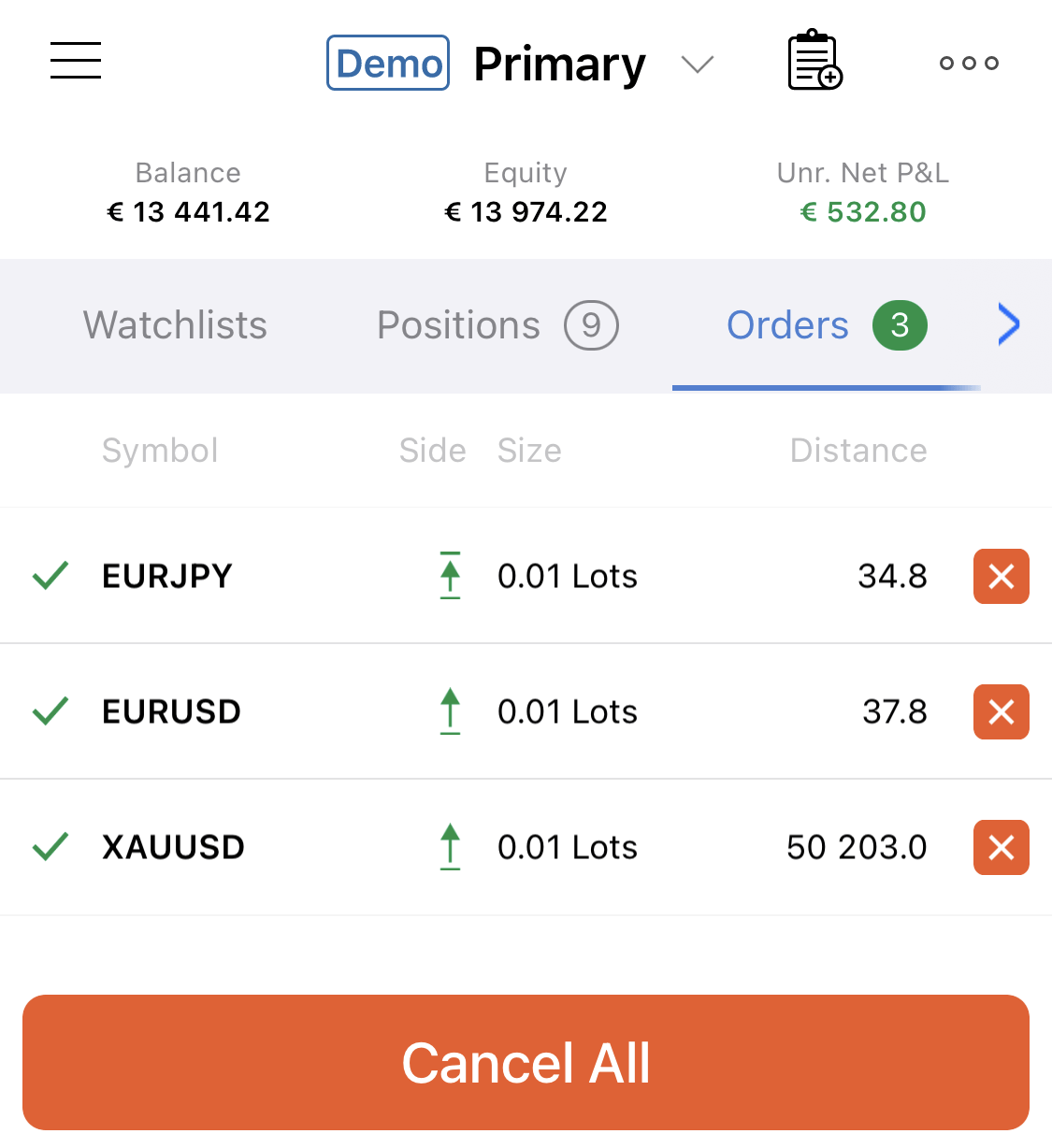
Creating a New Order[¶](https://help.ctrader.com/ctrader-mobile-ios/trade/orders/#creating-a-new-order "Permanent link")
-------------------------------------------------------------------------------------------------------------------------
Use the New Order button to create an order. The New Order button is available from the Main menu, Watchlists, Positions, and the Orders tab. Tap it to get to the New Order menu to create a new order.

Alternatively, tap New Orden in the Main menu.

The Create Order menu allows creating four types of orders: Market, Limit, Stop, or Stop Limit order. Market Order is the default order type.
To select the required order type use the order types tab bar to the top of the screen, or swipe left or right.

### Market Order[¶](https://help.ctrader.com/ctrader-mobile-ios/trade/orders/#market-order "Permanent link")
A Market order guarantees your entry into the market but doesn't guarantee the price you are going to enter.
Orders of this type are always filled with the best price currently available, but it may not be the exact price you expect.
Market orders are submitted immediately, but their execution price is affected by market liquidity and network latency. Therefore, you should expect partial execution and slippage from the requested price.
#### Creating a Market Order[¶](https://help.ctrader.com/ctrader-mobile-ios/trade/orders/#creating-a-market-order "Permanent link")
Market Order is the default order type in the Create Order menu. Creating a Market Order the one should specify:
* A symbol to trade if prompted. Tap on a symbol and select one from the list.
* Trading direction. The selected Sell or Buy side is highlighted with orange or green respectively.
* Lots or units quantity. Note that when selecting the number of units, your estimated buy or sell margin and volume will be automatically calculated in your account currency below.
* Market Range in pips if prompted. Market Range will expand or narrow down the price range your order will be filled at.
* Stop Loss protection if prompted. Check the respective box and specify the value in pips.
* Take Profit protection if prompted. Check the respective box and specify the value in pips.
* Your trader comment can be set as an option.
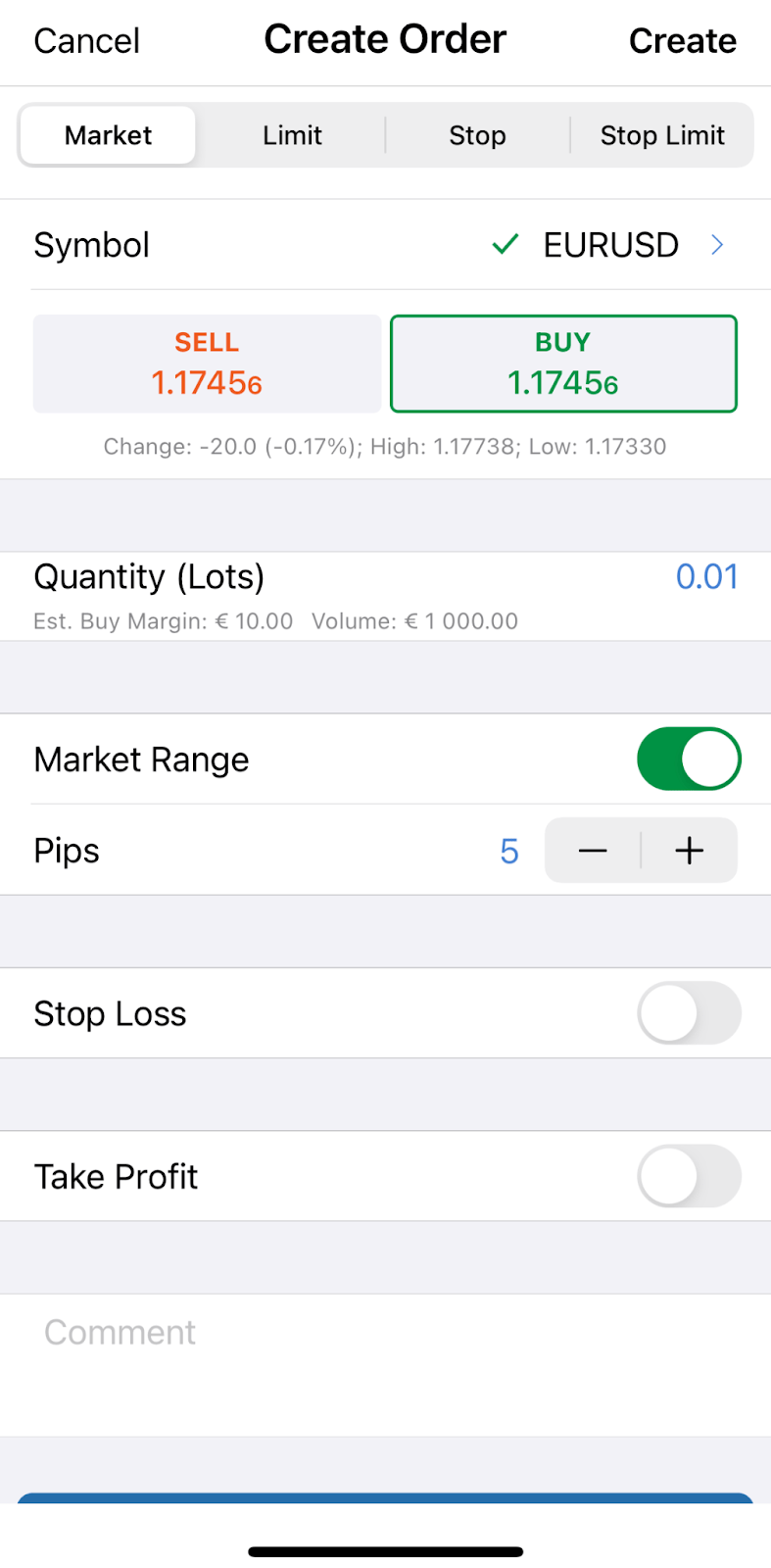
When done, swipe down and tap Place Order to save changes and place your order.
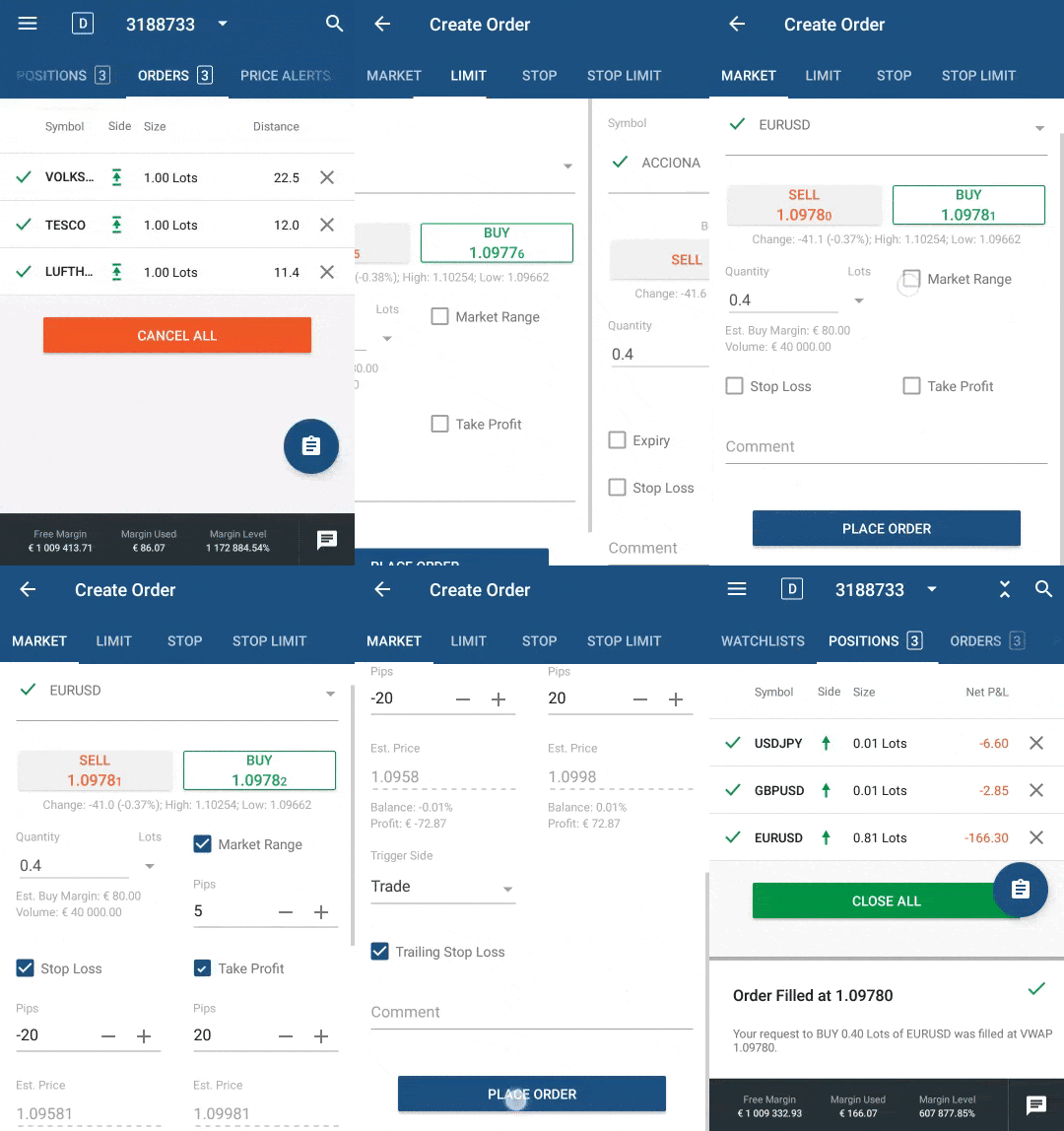
### Limit Order[¶](https://help.ctrader.com/ctrader-mobile-ios/trade/orders/#limit-order "Permanent link")
The Limit Order is a type of order that can be filled only if the price on the market matches the one you have specified for the symbol.
The Entry Price you set is the maximum or minimum price at which you would like to buy or sell the assets.
Your order will be filled either at the exact price you set, or a more favourable price for the direction of your order.
A Limit order guarantees to fill the order with the price equal to or better than specified.
You can use the Limit orders to buy certain assets when the price is low and you expect it to rise, or sell assets when the price is high and you expect it to fall.
It means that entry into the market is not guaranteed - in case if the price doesn't reach the expected level, the order will not be filled.
On the other hand, you can be sure that you will get either the exact price you set or a more favourable one.
#### Creating a Limit Order[¶](https://help.ctrader.com/ctrader-mobile-ios/trade/orders/#creating-a-limit-order "Permanent link")
To create a Limit order, select Limit in the order type tab bar at the top of the new order menu. When creating a Limit Order the one should specify:
* A symbol to trade if prompted. Tap on a symbol and select one from the list.
* Trading direction. The selected Sell or Buy side is highlighted with orange or green respectively.
* Lots or units quantity. Note that when selecting the number of units, your estimated buy or sell margin and volume will be automatically calculated in your currency below.
* Entry Price. Specify the price you would like your order to be filled at.
* Expiry date if prompted. Your order will automatically be cancelled on the time and date you set.
* Stop Loss protection if prompted. Check the respective box and specify the value in pips.
* Take Profit protection if prompted. Check the respective box and specify the value in pips.
* Your trader comment can be set as an option.
When done, swipe down and tap Place Order to save changes and place your order.

### Stop Order[¶](https://help.ctrader.com/ctrader-mobile-ios/trade/orders/#stop-order "Permanent link")
Stop Order (Trigger Order) - is very similar to the market order but it is filled only when the required price is met.
When a particular asset reaches the price you set, a market order is filled, but as with regular market orders, you are not guaranteed to get the exact price.
Stop orders are often used to confirm the direction that the market is moving and follow the trend or stop losing money if the price changes unfavourably for you.
#### Creating a Stop Order[¶](https://help.ctrader.com/ctrader-mobile-ios/trade/orders/#creating-a-stop-order "Permanent link")
To create a Stop Order select Stop in the order type tab bar to the top of the new order menu. When creating a Stop Order the one should specify:
* A symbol to trade if prompted. Tap on a symbol and select one from the list.
* Trading direction. The selected Sell or Buy side is highlighted with orange or green respectively.
* Lots or units quantity. Note that when selecting the number of units, your estimated buy or sell margin and volume will be automatically calculated in your currency below.
* Entry Price. Specify the price you would like your order to be filled at.
* Trigger side (Trade, Opposite, Double Trade, Double Opposite). Whether the order will be triggered by the Bid or Ask side of the spread.
* Expiry date if prompted. Your order will automatically be cancelled on the time and date you set.
* Stop Loss protection if prompted. Check the respective box and specify the value in pips.
* Take Profit protection if prompted. Check the respective box and specify the value in pips.
* Your trader comment can be set as an option.
When done, swipe down and tap Place Order to save changes and place your order.

### Stop Limit Order[¶](https://help.ctrader.com/ctrader-mobile-ios/trade/orders/#stop-limit-order "Permanent link")
Stop Limit order has the attributes of both Limit and Stop order. A Stop Limit order is filled at a specified price (or better) after a certain price value is reached.
With Stop Limit orders you can set not only the market price that will trigger the order but avoid filling the order with the unfavorable price.
Stop Limit orders provide the benefits of both Stop and Limit orders.
#### Creating a Stop Limit Order[¶](https://help.ctrader.com/ctrader-mobile-ios/trade/orders/#creating-a-stop-limit-order "Permanent link")
To create a Stop Limit Order select Stop Limit in the order type tab bar to the top of the new order menu. Creating a Stop Limit Order the one should specify:
* A symbol to trade if prompted. Tap on a symbol and select one from the list.
* Trading direction. The selected Sell or Buy side is highlighted with orange or green respectively.
* Lots or units quantity. Note that when selecting the number of units, your estimated buy or sell margin and volume will be automatically calculated in your currency below.
* Entry Price. Specify the price you would like your order to be filled at.
* Trigger side (Trade, Opposite, Double Trade, Double Opposite). Whether the order will be triggered by the Bid or Ask side of the spread.
* Limit Range in pips. The order will not be filled if the price falls out of the desirable range.
* Expiry date if prompted. Your order will automatically be cancelled on the time and date you set.
* Stop Loss protection if prompted. Check the respective box and specify the value in pips.
* Take Profit protection if prompted. Check the respective box and specify the value in pips.
* Your trader comment can be set as an option.
When done, swipe down and tap Place Order to save changes and place your order.

Modifying Pending Orders[¶](https://help.ctrader.com/ctrader-mobile-ios/trade/orders/#modifying-pending-orders "Permanent link")
---------------------------------------------------------------------------------------------------------------------------------
To modify a pending order, tap on the desired order in the Orders tab to proceed to the Modify Pending Order menu.
In the Modify Pending Order menu the following options are available:
* Quantity - modify the volume to be traded using the drop-down, the toggles, or just typing in the number.
* Entry Price - modify the Entry Price at which you wish to fill your order using the toggles, or just typing in the number. This price cannot be higher than the current Ask price on the market if going long (Buy), or lower than the current Bid price if going short (Sell).
* Trigger Side - modify the current order trigger side (Trade, Opposite, Double Trade, Double Opposite).
* Limit Range - modify the specific price range at which the limit order will be executed.
* Expiry - set or modify the date and time when the order will automatically expire.
* Stop Loss - set or modify the Stop Loss protection.
* Take Profit - set or modify the Take Profit protection.
* Trailing Stop Loss - check to enable the Trailing Stop Loss. The Trailing Stop is a Stop Loss that automatically updates every time the price of the position moves in your favor. This is a handy tool if you initially have underappreciated the market. Trailing Stop Loss never readjusts if the market moves against you.
When done, click Modify Protection to save changes.
Note
The Order type cannot be modified.
Cancelling Pending Orders[¶](https://help.ctrader.com/ctrader-mobile-ios/trade/orders/#cancelling-pending-orders "Permanent link")
-----------------------------------------------------------------------------------------------------------------------------------
The pending orders can be cancelled all at a time by tapping Cancel All to the bottom of the Orders tab, or one by one by tapping the Close icons next to them.
Alternatively, tap on an order to proceed to the Modify Pending Order menu and tap Cancel Order.
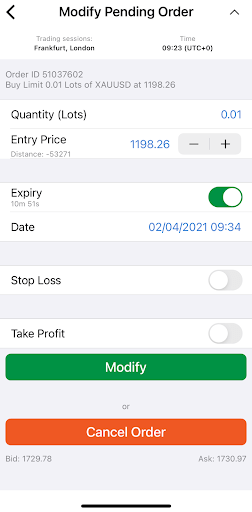
Note
The orders can be cancelled directly from the chart. Open the symbol and full-screen its chart to discover and close your order by taping on the cross icon.
Stop Loss and Take Profit[¶](https://help.ctrader.com/ctrader-mobile-ios/trade/orders/#stop-loss-and-take-profit "Permanent link")
-----------------------------------------------------------------------------------------------------------------------------------
Stop loss (SL) is an option that automatically limits an investor's losses for an open position if the market moves unfavourably. If a security falls to the specified level, the stop loss order is triggered and the position is closed for a loss.
Take profit (TP) is an option similar to stop loss, but it closes an open position when a predetermined level of gain is reached. If a security rises to the specified level, the take profit triggers and the position is closed for a gain.
You can set up SL and/or TP when placing any order. Additionally, you can set or modify the SL and TP for an open position or pending order.
cTrader provides relative and absolute protection options for stop loss and take profit:
* Relative protection - stop loss and take profit are set as values in pips relative to the opening price.
* Absolute protection - stop loss and take profit are set as values in price.
---
# Partner - cTrader Invite
[Skip to content](https://help.ctrader.com/ctrader-invite/partner/#partner)
Partner[¶](https://help.ctrader.com/ctrader-invite/partner/#partner "Permanent link")
======================================================================================
What is cTrader Invite?
cTrader Invite is an all-in-one toolkit designed to help partners attract traders with appealing cTrader products and effectively convert them into referrals. Any cTrader link shared by partners attributes traders who click it, and they later become referrals in the broker's client area. The Invite app allows partners to generate invite links and QR codes, track invited traders' stats in real time, promote engaging products and set up a personal profile page that outperforms a traditional landing page.
Check our [**brochure**](https://www.spotware.com/pdf/back-office/cTrader_Invite_Brochure.pdf)
with quick instructions for partners on how to set up cTrader Invite.
While partners can easily access the [**statistics**](https://help.ctrader.com/ctrader-invite/invited-traders/)
of invited traders via cTrader Invite, invited traders should in turn be provided with convenient functionality to view the profile of their partners. The UI of the **Partner** tab is designed the way to gather all contact information in one place and promote partners' products.
Warning
The **Partner** tab is visible in broker-branded cTrader applications only to invited traders whose partner has enabled **Make my profile public** and **Show your profile in the Partner section** in [**settings**](https://help.ctrader.com/ctrader-invite/settings/)
. Also, the entire **Invite** application turns into **Partner** in the cTrader UI in this case.
Partner in one minute!
* In cTrader, partners initiate user attribution by sharing invite links.
* A partner continues attributing an invited trader inside cTrader within the boundaries of a guaranteed time period and after it, if certain conditions are met.
* The **Partner** tab of cTrader Invite displays a partner's contact information, brief trading statistics, a bio section and a recommended broker. However, the amount of disclosed information can be adjusted.
* The **Partner** tab promotes partners' products (e.g., algorithms, copy strategies) and their performance for traders' quick access.
Partner information [¶](https://help.ctrader.com/ctrader-invite/partner/#partner-information "Permanent link")
---------------------------------------------------------------------------------------------------------------
The **Partner** tab provides exhaustive information about partners on condition that the latter have agreed to share it publicly. It includes:
* Profile picture
* Cover image
* Username
* Date of joining cTrader
* Invitation date
* Brief trading stats (live traded volume in USD, pips won and most traded symbols)
* Short bio
* Contact information (phone number, WhatsApp, Telegram, Facebook, Instagram, YouTube and X).
MobileWeb and desktop
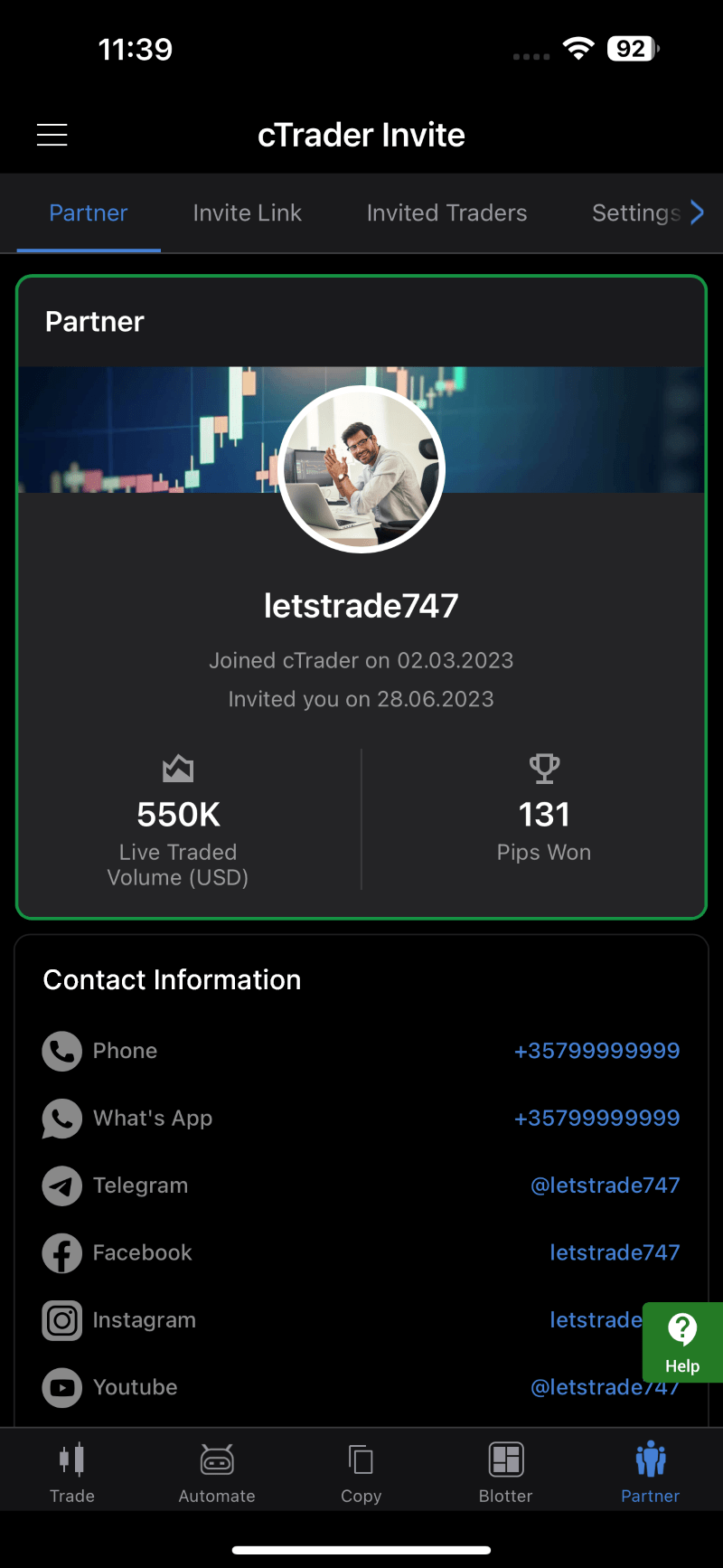
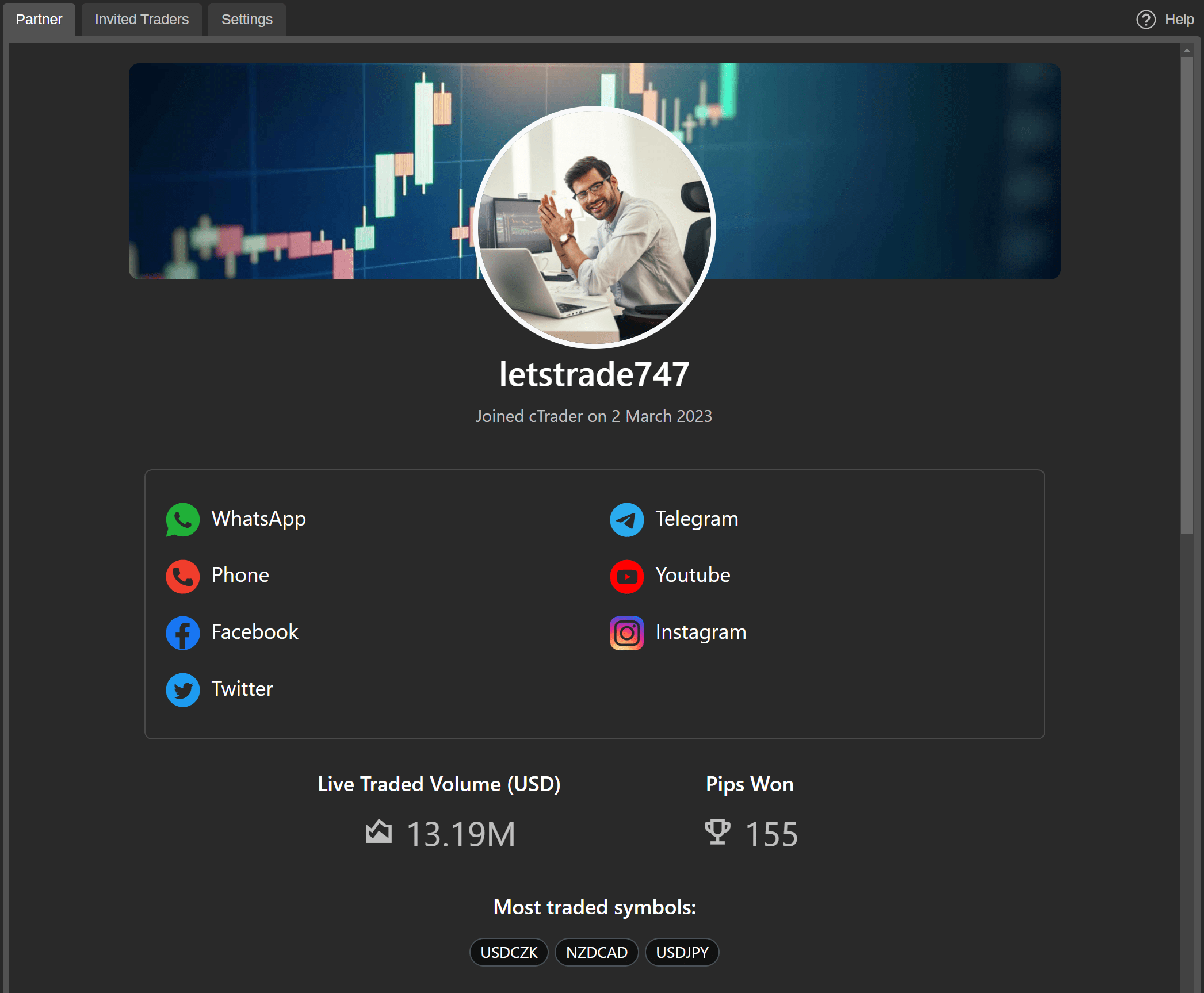
Note
Partners can configure what information to disclose to invited traders in the [**Settings**](https://help.ctrader.com/ctrader-invite/settings/)
tab of cTrader Invite or in the [**Profile**](https://id.ctrader.com/my/settings/profile)
tab of the cTID website.
How to change your current partner [¶](https://help.ctrader.com/ctrader-invite/partner/#how-to-change-your-current-partner "Permanent link")
---------------------------------------------------------------------------------------------------------------------------------------------
In accordance with the cTrader Invite rules, an invited trader's attribution is mandatory to the current partner within the guaranteed time period. Automatic reattribution can occur after the mandatory period is over if the invited trader clicks another partner's invite link. However, invited traders are only reattributed within cTrader if they are not using any of the current partner's products and the partner's profile is not public.
Outside of the guaranteed period, an invited trader can manually change their partner via the **Partner** tab functionality. By tapping **Make current** on one of the available partner's cards, invited traders can initiate reattribution themselves.
Warning
Brokers reattribute traders in their CRM based on the rules of their partner programme. Please contact your broker to clarify the details.
How to promote partner products [¶](https://help.ctrader.com/ctrader-invite/partner/#how-to-promote-partner-products "Permanent link")
---------------------------------------------------------------------------------------------------------------------------------------
The **Partner** tab also equips partners with a powerful channel to distribute products. Partners' own products (e.g., algorithms, copy strategies) as well as favourite products with their performance stats appear in the **Partner** tab of invited traders' apps if the corresponding [**setting**](https://help.ctrader.com/ctrader-invite/settings/)
is enabled.
MobileWeb and desktop
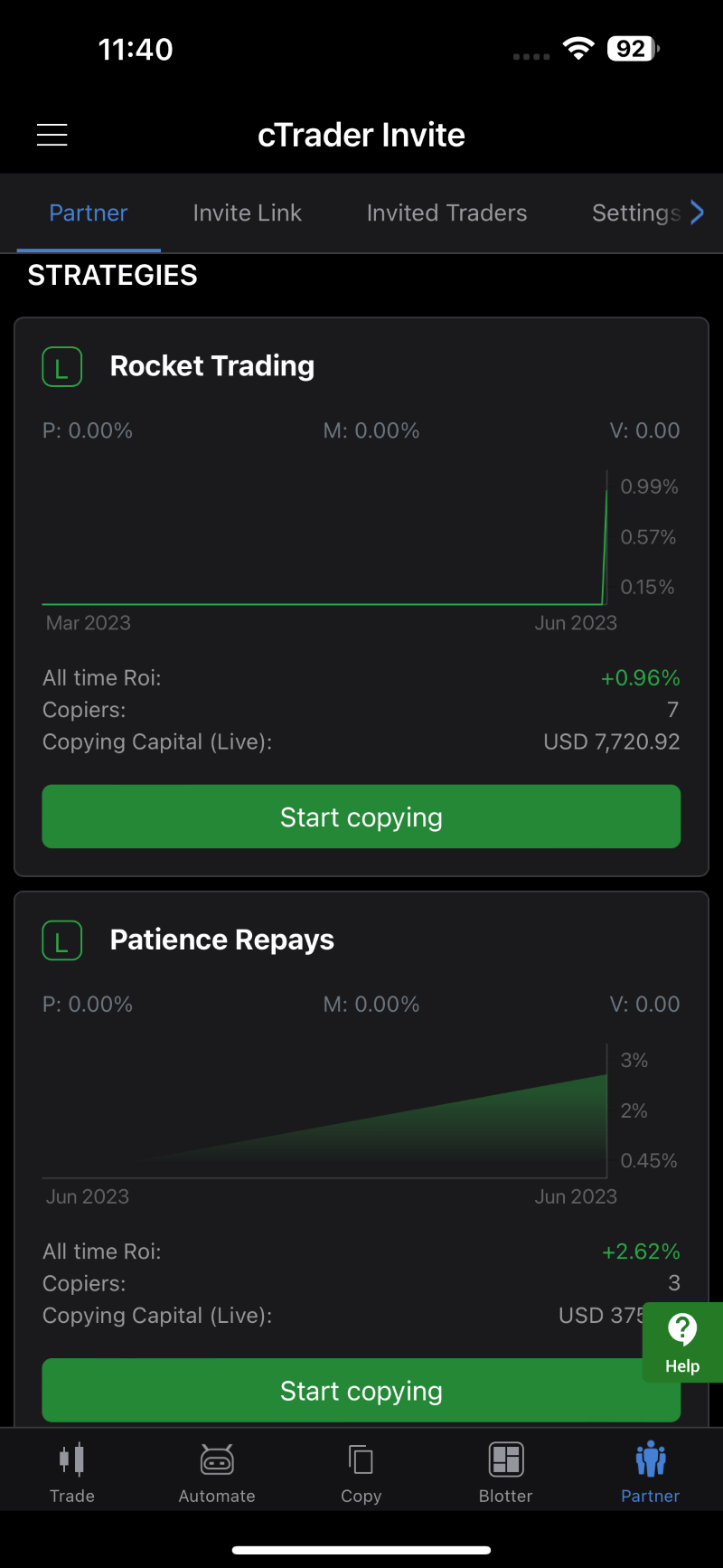
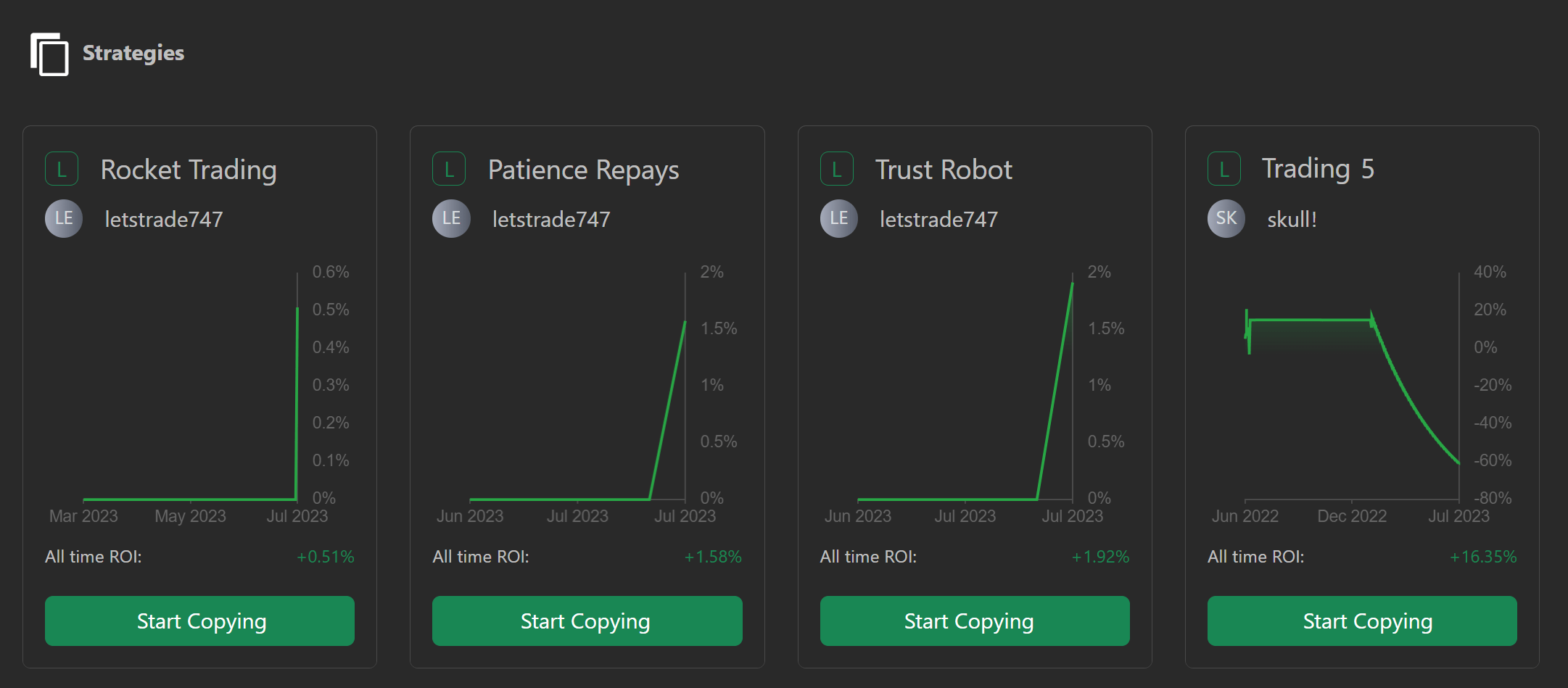
Tip
Traders can access a partner's profile page not only in cTrader Invite but also via a link `https://ctrader.com/u/{username}/`, where `{username}` is the partner's username. Partners can promote their profile page featuring appealing cTrader products, which performs better than a landing page, on social media and other marketing channels.
Back to top
---
# Settings - cTrader Invite
[Skip to content](https://help.ctrader.com/ctrader-invite/settings/#attribution-flow)
Settings[¶](https://help.ctrader.com/ctrader-invite/settings/#settings "Permanent link")
=========================================================================================
What is cTrader Invite?
cTrader Invite is an all-in-one toolkit designed to help partners attract traders with appealing cTrader products and effectively convert them into referrals. Any cTrader link shared by partners attributes traders who click it, and they later become referrals in the broker's client area. The Invite app allows partners to generate invite links and QR codes, track invited traders' stats in real time, promote engaging products and set up a personal profile page that outperforms a traditional landing page.
Check our [**brochure**](https://www.spotware.com/pdf/back-office/cTrader_Invite_Brochure.pdf)
with quick instructions for partners on how to set up cTrader Invite.
cTrader Invite offers flexible settings to partners who use the attribution functionality of branded applications. The **Settings** tab of the **Invite** application allows partners to configure public exposure, profile settings and more.
Invite settings in one minute!
* Depending on the broker’s flow, partners simply use Invite out of the box or need to input a broker referral link (BRL) in **Settings**.
* After attribution within cTrader, the app automatically synchronises with the broker CRM or redirects traders to the client area for registration and attribution.
* Invited traders can only access the contact information, trading statistics and products of partners whose profiles are public.
* Staying public, partners are offered flexible settings regarding what information to disclose to invited traders in the [**Partner**](https://help.ctrader.com/ctrader-invite/partner/)
tab.
* In addition to their own products (e.g, algorithms, copy strategies), partners can promote favourite products on a profile page.
Attribution flow [¶](https://help.ctrader.com/ctrader-invite/settings/#attribution-flow "Permanent link")
----------------------------------------------------------------------------------------------------------
The settings below depend on the level of your broker's integration of cTrader Invite with their CRM.
Partner IDBRL
You don’t need to set anything – just start sharing invite links!
As soon as you invite your first trader, you will be automatically registered in the broker's partner programme, and your partner ID will be displayed.
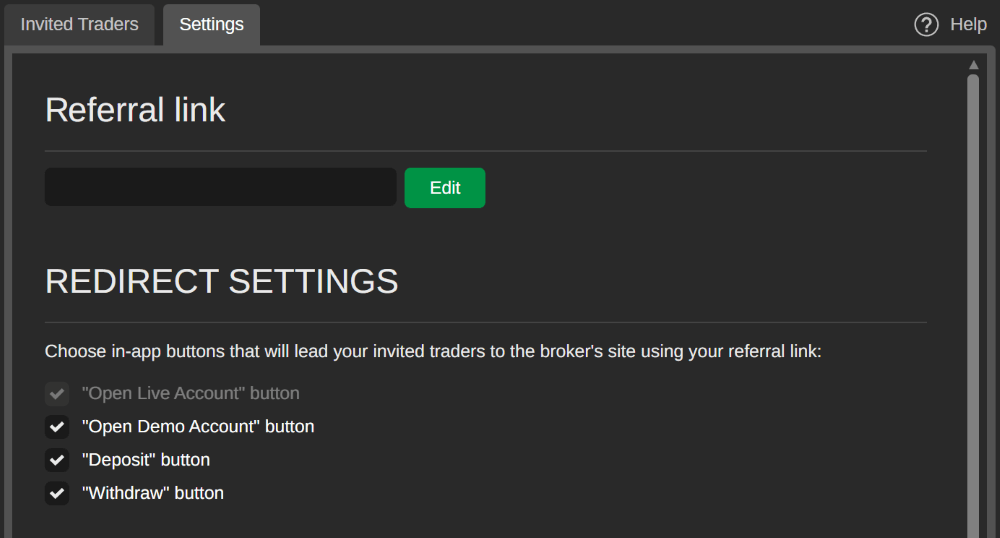
You first need to set your BRL provided by the broker after your registration in the partner programme.
Your invited traders will be redirected to the broker's website for registration and attribution after completing specific actions you can set below.
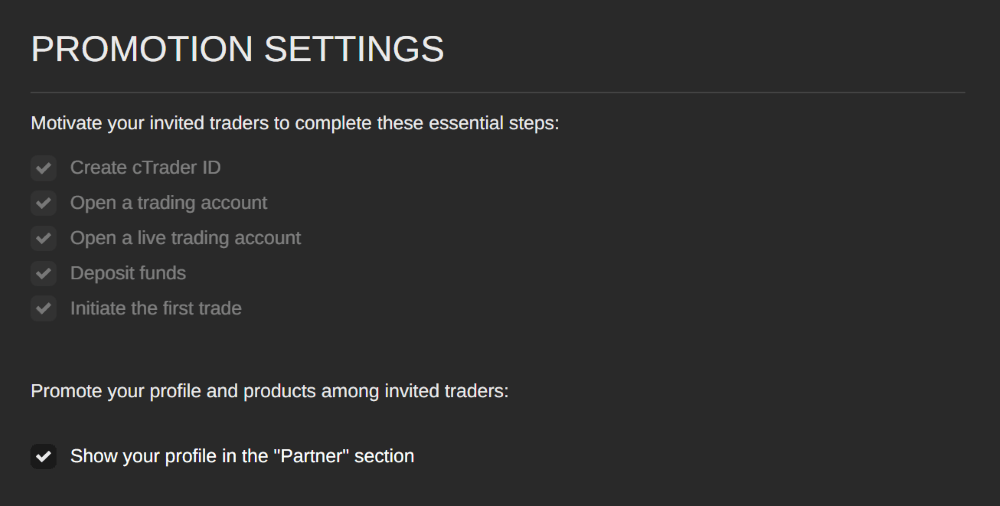
Tip
Contact your broker directly to request details on the attribution flow.
How to promote yourself as a partner [¶](https://help.ctrader.com/ctrader-invite/settings/#how-to-promote-yourself-as-a-partner "Permanent link")
--------------------------------------------------------------------------------------------------------------------------------------------------
cTrader Invite provides always-on promotion settings that will engage invited traders in completing essential actions on the platform. With these promotional mechanisms on board, invited traders would sooner convert into active platform users.
MobileWeb and desktop
To promote themselves more effectively, partners can choose to show their profile to invited traders.
Note
If the **Show your profile...** switcher is inactive, first, enable the **Make my profile public** setting in **Manage profile**.
Warning
If you are not showing your profile in the [**Partner**](https://help.ctrader.com/ctrader-invite/partner/)
section, invited traders will not have access to your contact details, trading statistics and partner products. Hidden partner profiles can enable your invited traders to switch to other partners if other Invite conditions are met.
How to edit profile settings [¶](https://help.ctrader.com/ctrader-invite/settings/#how-to-edit-profile-settings "Permanent link")
----------------------------------------------------------------------------------------------------------------------------------
Tap **Manage profile** at the bottom of the **Settings** tab.
MobileWeb and desktop
Note
Alternatively, profile information can be edited in the [**Profile**](https://id.ctrader.com/my/settings/profile)
tab of the cTID website. Read our dedicated guide on [**managing cTID**](https://help.ctrader.com/ctrader-id/managing-ctid/profile/)
.
Here, partners can adjust what information will be disclosed to invited traders in the **Partner** tab. Partners can customise their profile picture, cover image and username as shown below.
MobileWeb and desktop
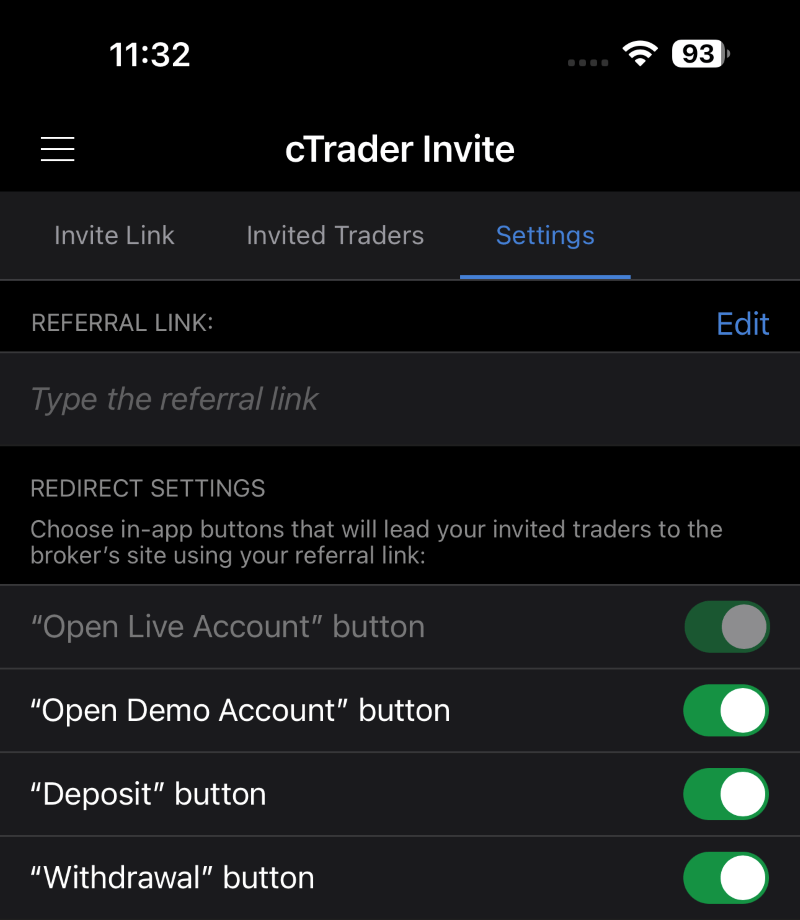
Warning
If you disable **Make my profile public**, your invited traders will not manage to access your profile page with contacts and products in the [**Partner**](https://help.ctrader.com/ctrader-invite/partner/)
tab. There is a risk that invited traders can leave partners whose profiles are not public after the guaranteed attribution period.
The profile settings allow partners to add their contact details for multiple channels, including phone number, WhatsApp, Telegram, Facebook and more. The **About** field is designated for a trader’s bio that would not exceed 1,024 symbols.
Tip
After editing the information you wish to disclose, tap **Check how your profile appears to users** in your cTrader app to inspect how your partner page will be displayed on the invited traders’ devices.
Having made their profiles public, partners can customise what kind of information will be available to invited traders in the **Partner** tab. In particular, partners can choose to show or hide contact information, trading statistics, a short bio and a recommended broker.
MobileWeb and desktop
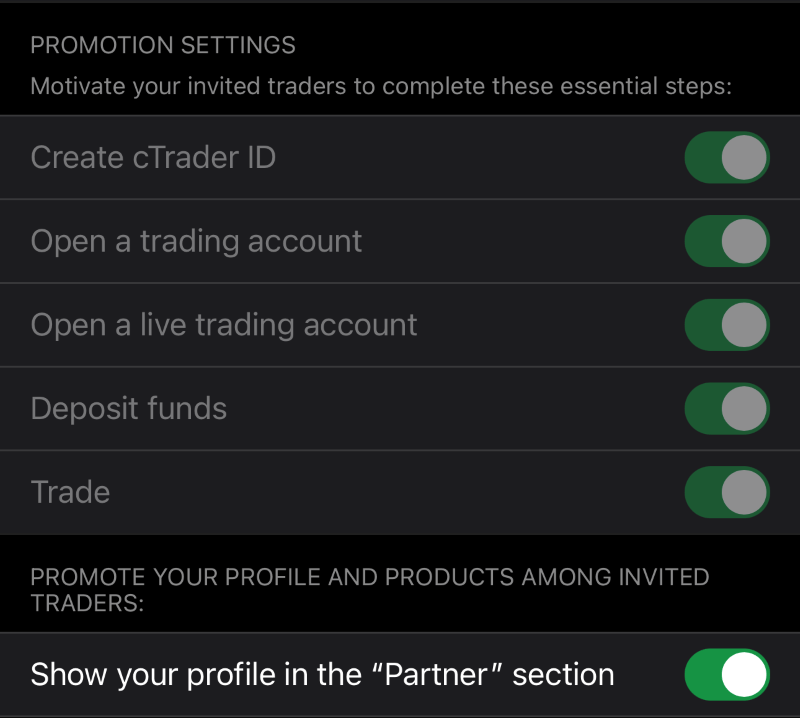
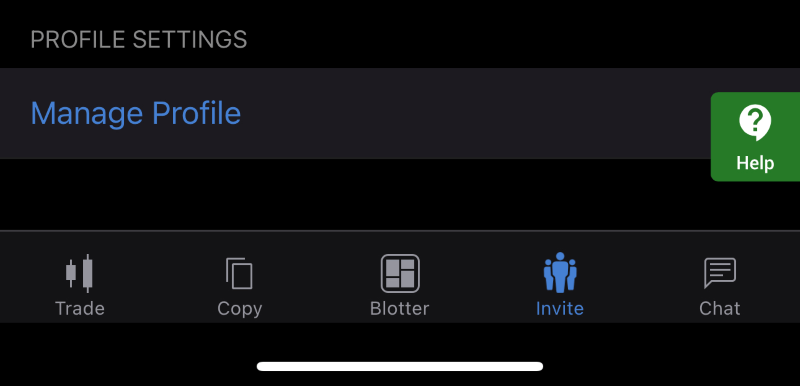
Tip
Disclosing your successful trading statistics via cTrader Invite will arouse trust from traders, and they will be more willing to use your partner products.
The profile settings also allow partners to configure the visibility and order of their products in the **Partner** tab. Additionally, you can showcase favourite copy strategies to expand your product offering and attract more invited traders.
MobileWeb and desktop
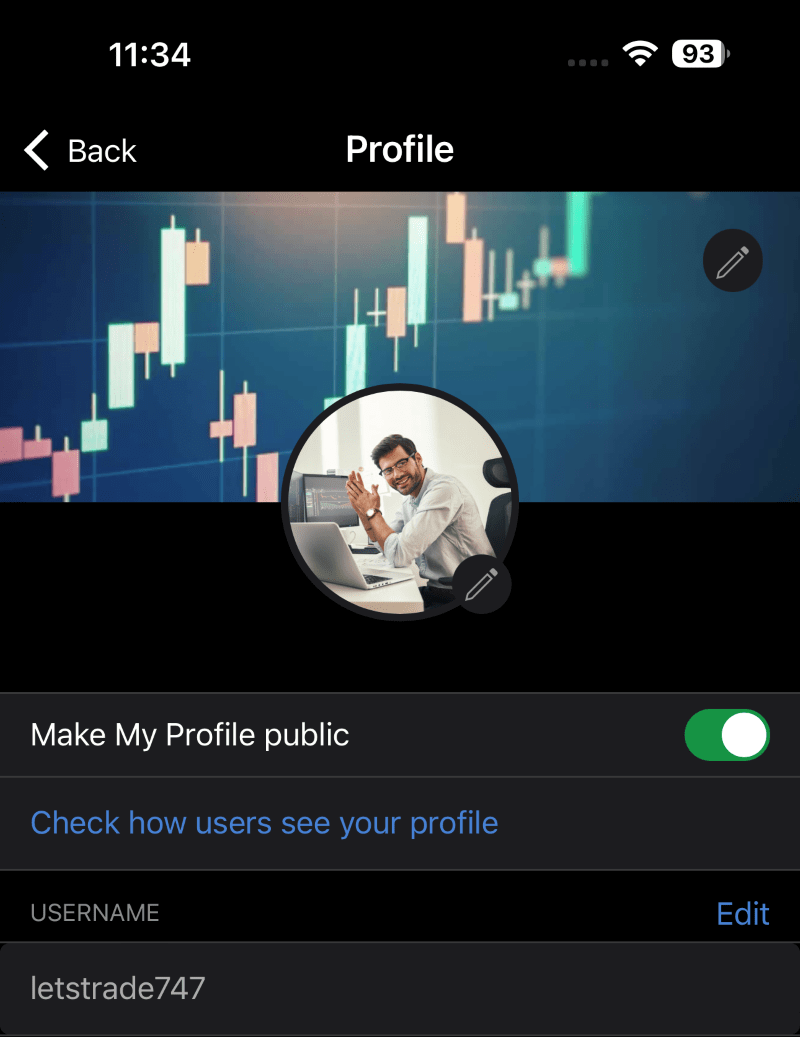
Back to top
---
# Invited traders - cTrader Invite
[Skip to content](https://help.ctrader.com/ctrader-invite/invited-traders/#how-to-invite-traders)
Invited traders[¶](https://help.ctrader.com/ctrader-invite/invited-traders/#invited-traders "Permanent link")
==============================================================================================================
What is cTrader Invite?
cTrader Invite is an all-in-one toolkit designed to help partners attract traders with appealing cTrader products and effectively convert them into referrals. Any cTrader link shared by partners attributes traders who click it, and they later become referrals in the broker's client area. The Invite app allows partners to generate invite links and QR codes, track invited traders' stats in real time, promote engaging products and set up a personal profile page that outperforms a traditional landing page.
Check our [**brochure**](https://www.spotware.com/pdf/back-office/cTrader_Invite_Brochure.pdf)
with quick instructions for partners on how to set up cTrader Invite.
To make the attribution process fully transparent and regularly update partners about their performance, cTrader Invite offers detailed statistics in the **Invited traders** tab of broker-branded applications. This solution also addresses the problem of delayed broker-partner communication.
Invited traders in one minute!
* In the cTrader ecosystem, an invited trader is a new or existing platform user who has been attributed to a partner.
* Invited traders stay with their partners for a guaranteed attribution period. Manual and automatic reattribution is possible after this period is over.
* The **Invited traders** tab includes a counter of total invited traders, a bar chart of traders invited daily, a doughnut chart of invited traders by link and the last 100 attributed traders chart.
* Any invited trader can attribute other users in cTrader and register as a partner in the broker's programme.
How to invite traders [¶](https://help.ctrader.com/ctrader-invite/invited-traders/#how-to-invite-traders "Permanent link")
---------------------------------------------------------------------------------------------------------------------------
The invitation process should comply with these requirements to end in success.
1. The attribution should take place in a broker-branded cTrader application.
2. An invited trader should follow any [**invite link**](https://help.ctrader.com/ctrader-invite/)
from the cTrader ecosystem with a `(u)` parameter carrying the partner's username.
3. Depending on the [**attribution flow**](https://help.ctrader.com/ctrader-invite/settings/)
, an invited trader is automatically recognised as a referral in the broker's CRM, or they are redirected to the client area for registration and attribution after completing specific actions on the platform.
4. To remain attributed within cTrader, invited traders should use [**partner's products**](https://help.ctrader.com/ctrader-invite/partner/)
and the partner's profile should be [**public**](https://help.ctrader.com/ctrader-invite/settings/)
.
How to interpret stats [¶](https://help.ctrader.com/ctrader-invite/invited-traders/#how-to-interpret-stats "Permanent link")
-----------------------------------------------------------------------------------------------------------------------------
The total invited traders counter appears at the top of the **Invited traders** tab. It displays the current number of traders who meet the Invite requirements outlined above. In brackets, it shows the number of invited traders who joined or left today.
MobileWeb and desktop


Further, a bar chart visualises the daily clicks that did not result in attribution, along with the number of invited traders over the past 15 days. As explained earlier in this guide, not every click on an invite link leads to attribution.
MobileWeb and desktop
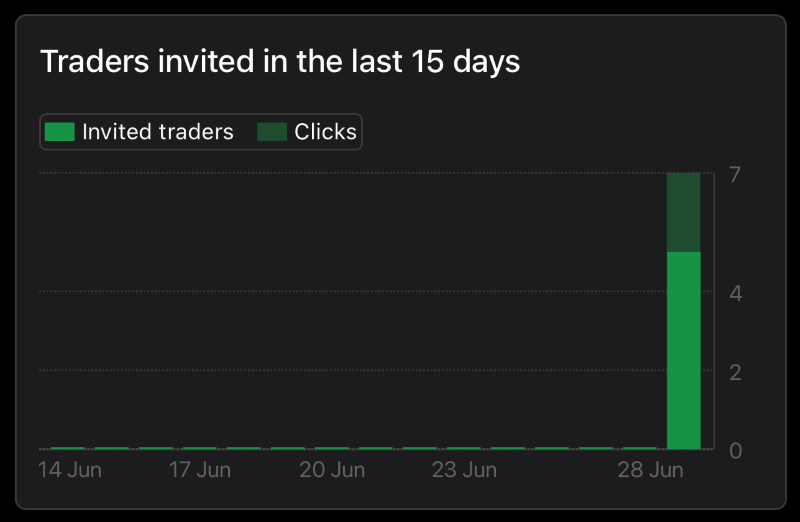
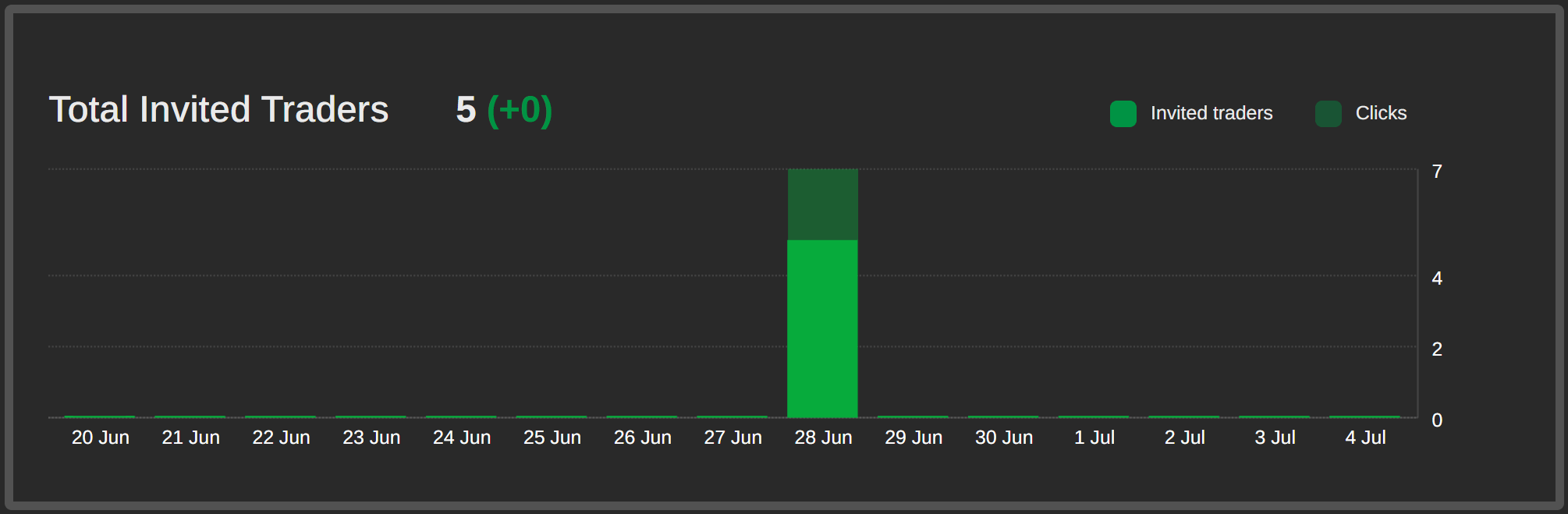
A doughnut chart illustrates the performance of each invite link based on the number of invited traders. By analysing these statistics, partners can identify the best-performing invite links.
MobileWeb and desktop
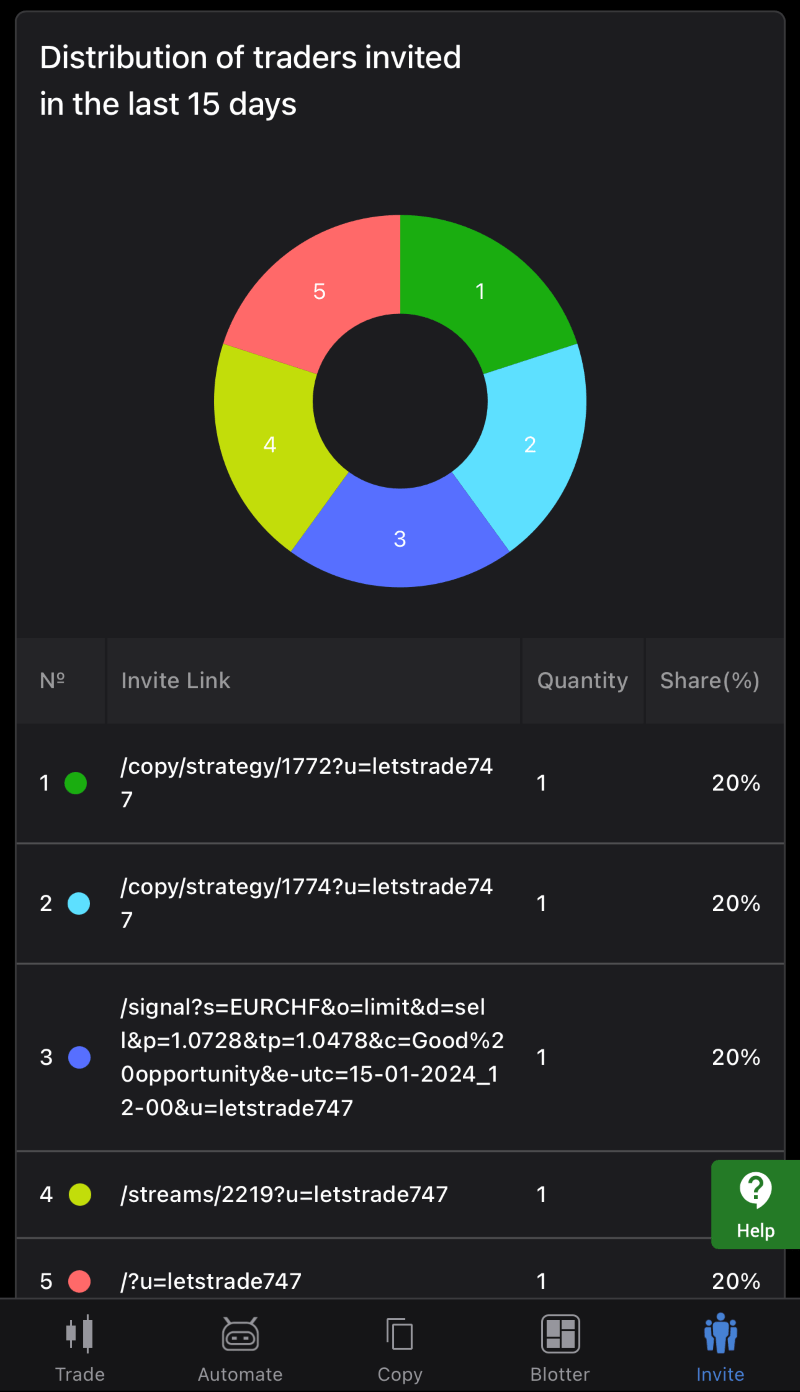
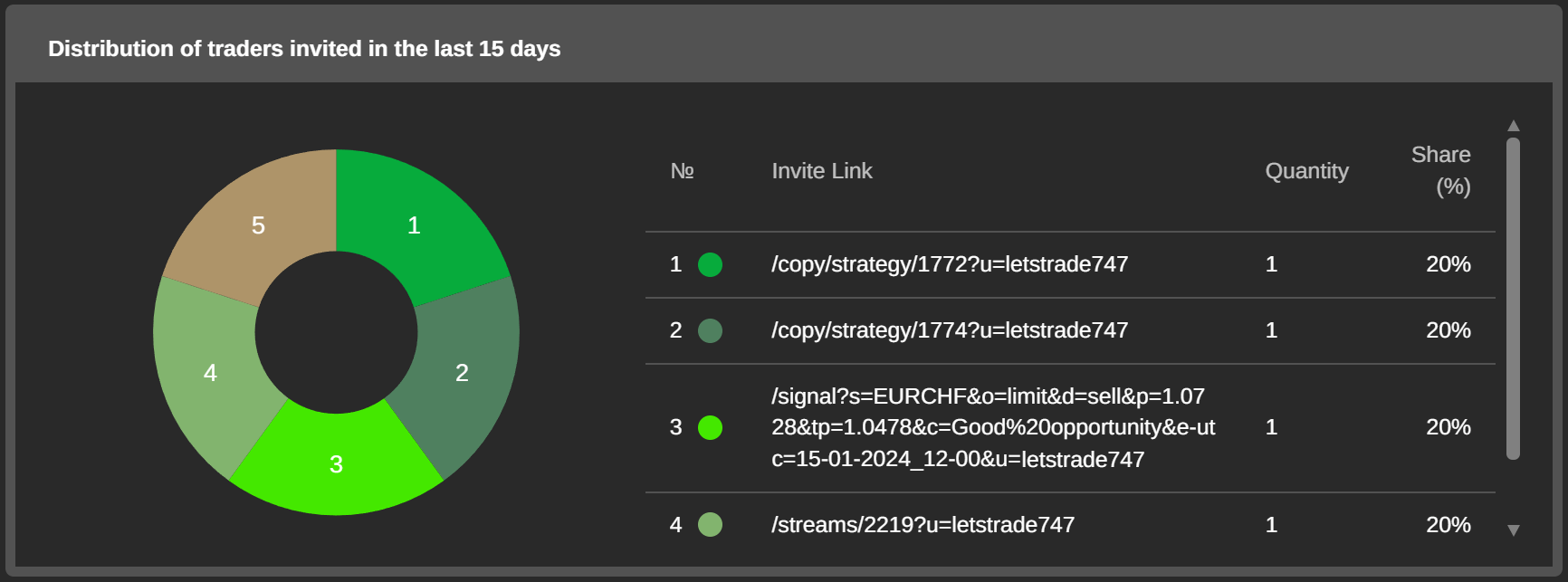
Finally, a chart listing the invited traders' nicknames, attribution dates, and activated invite links concludes the **Invited traders** tab. The last 100 attributed traders list can be exported from cTrader apps as a downloadable file.
MobileWeb and desktop
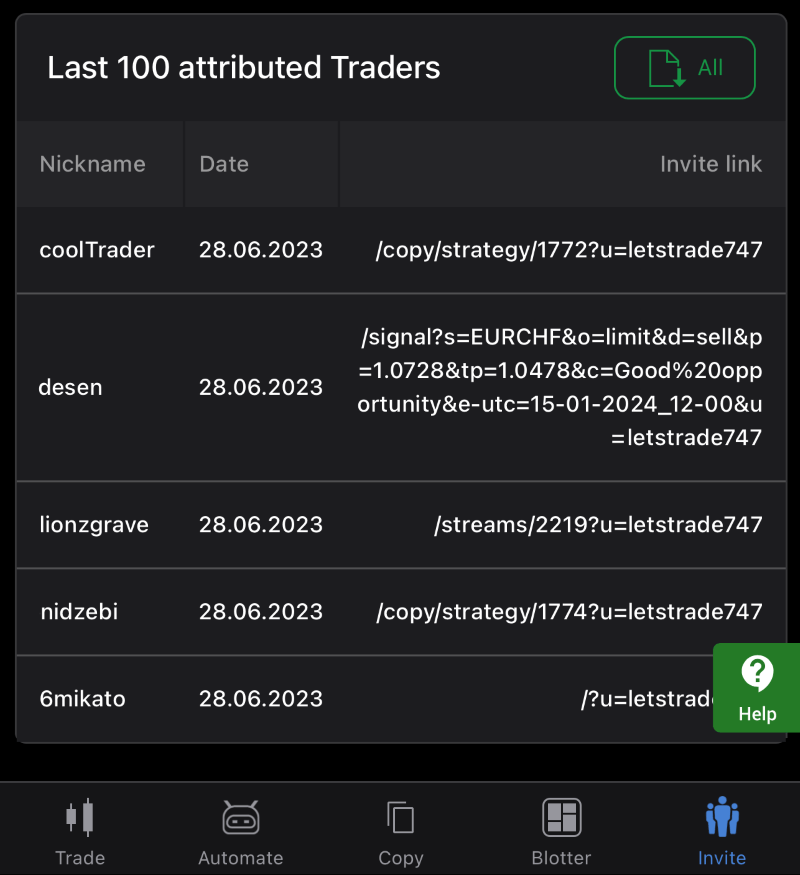
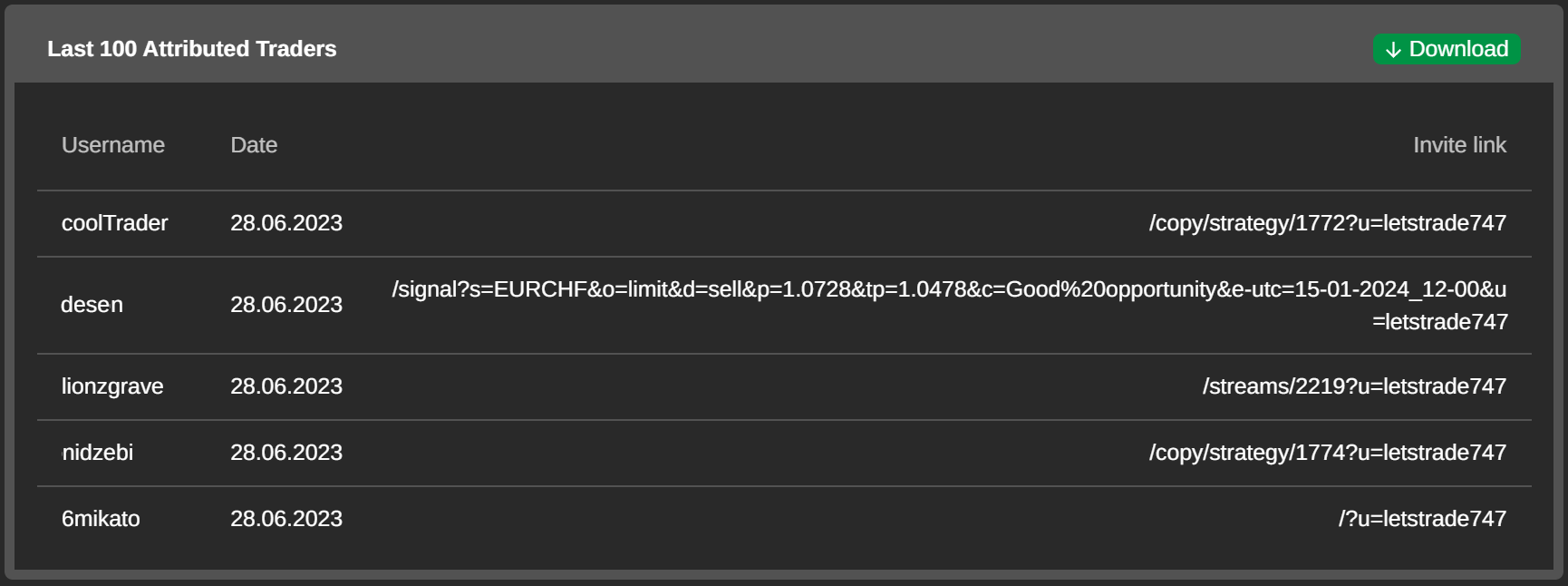
Back to top
---
# Range Bars - cTrader Web
[Skip to content](https://help.ctrader.com/ctrader-web/charts/range-bars/#range-bars)
Range Bars[¶](https://help.ctrader.com/ctrader-web/charts/range-bars/#range-bars "Permanent link")
===================================================================================================
Similarly to [Renko charts](https://help.ctrader.com/ctrader-web/charts/renko-charts/)
, range bars are essential for detecting price trends and reducing market noise. In this article, we discuss how range bars are formed, their key differences from standard candlestick charts and Renko charts, and how range bars can be accessed in cTrader Web.
How Range Bars Are Formed[¶](https://help.ctrader.com/ctrader-web/charts/range-bars/#how-range-bars-are-formed "Permanent link")
---------------------------------------------------------------------------------------------------------------------------------
A standard candlestick trading chart forms a new candlestick once a certain amount of time passes regardless of the price movement that occurs during this period. As a result, candlestick charts often include large amounts of ‘noise’ in the form of data that may not be particularly useful for creating and testing an effective trading strategy.
In contrast, range bars do not account for time and, instead, are formed purely based on price movements. Here is an example of a range bar chart that cTrader Web has constructed for GBPJPY using 10 pips as the volume threshold for new range bars.
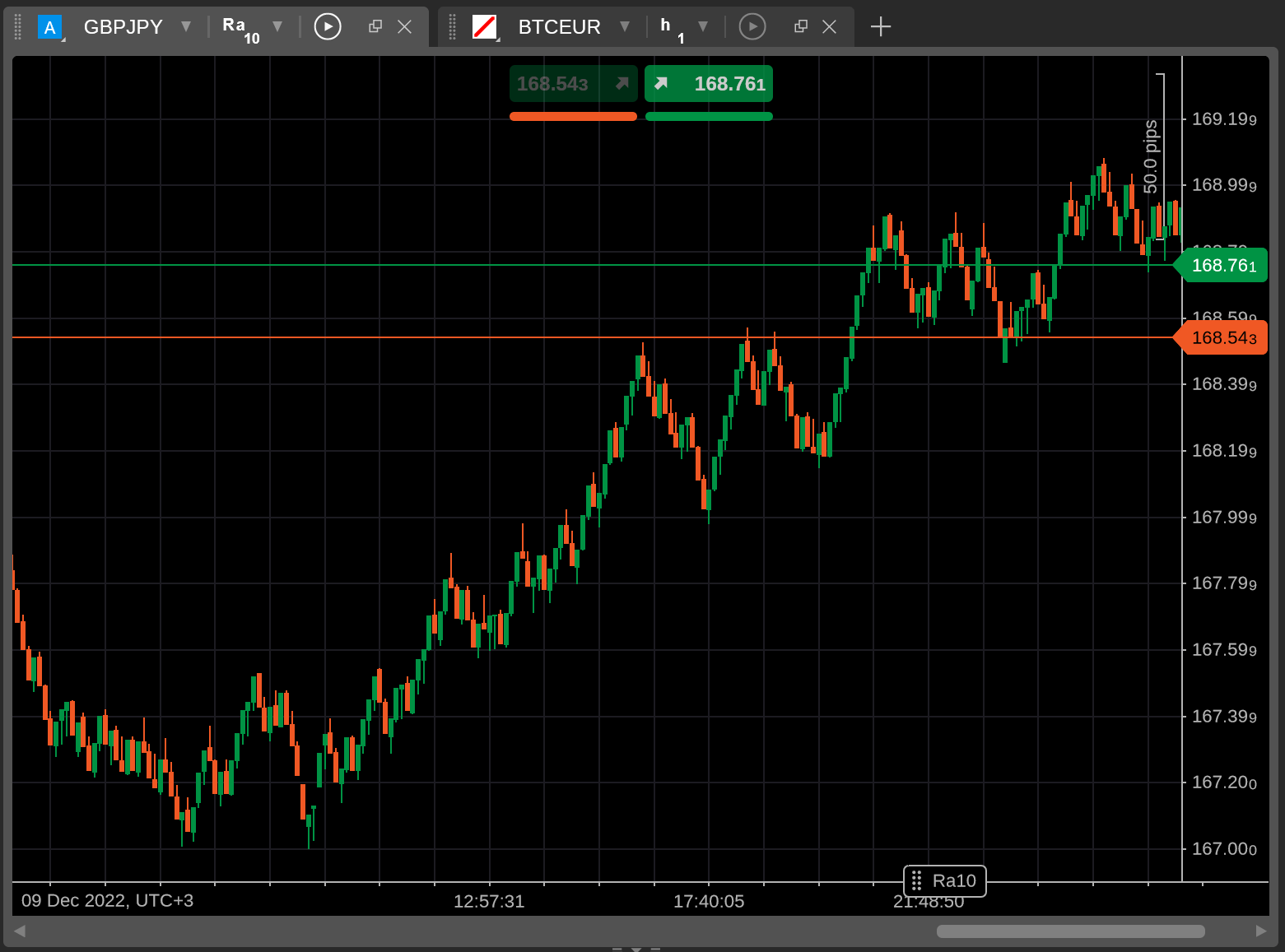
As you can see, range bars are structured similarly to candlesticks in that they include a high price, a low price, an open price, and a close price. However, the way new range bars are formed is different from a conventional trading chart.
Specifically, once a symbol moves a certain amount of pips in either direction in comparison to the closing price of the previous range bar, a new bar is formed on the chart. Note that range bars are formed based on cumulative price movements in both directions.
In the above example, the ask price for GBPJPY may first decrease by 3 pips to 168.758 and then increase by 7 pips to reach 168.765. A new range bar will be formed on the chart as the cumulative price movement will reach 10 pips. Its low price will be 168.758 while its high and closing price will be equal to 168.765.
Contrast this process with how Renko charts are formed. Renko bricks are also formed when price movements exceed a certain threshold; however, this movement has to occur in a single direction. Range bars, on the other hand, reflect cumulative movements in any direction and, as some may argue, convey more information than Renko bricks.
How Range Bars Relate to Timeframes[¶](https://help.ctrader.com/ctrader-web/charts/range-bars/#how-range-bars-relate-to-timeframes "Permanent link")
-----------------------------------------------------------------------------------------------------------------------------------------------------
As stated previously, the process of forming new range bars completely ignores the time component. In fact, in the screenshot above, each unit on the X-axis includes different amounts of time.

As you can see, the five units between 12:57:31 and 17:40:05 cover a period of almost five hours. The next five units on the X-axis (from 17:40:05 to 21:48:50), nevertheless, only represent a period that is slightly longer than four hours.
On the one hand, ignoring the time component may seem counterintuitive when trading. In practice, however, range bars are very effective when filtering market noise, particularly in highly volatile market conditions.
How to Access Range Bars in cTrader Web[¶](https://help.ctrader.com/ctrader-web/charts/range-bars/#how-to-access-range-bars-in-ctrader-web "Permanent link")
-------------------------------------------------------------------------------------------------------------------------------------------------------------
To construct a new range bar chart, first, open the chart selector menu by clicking on the ‘three dots’ icon to the right of the timeframe selector.
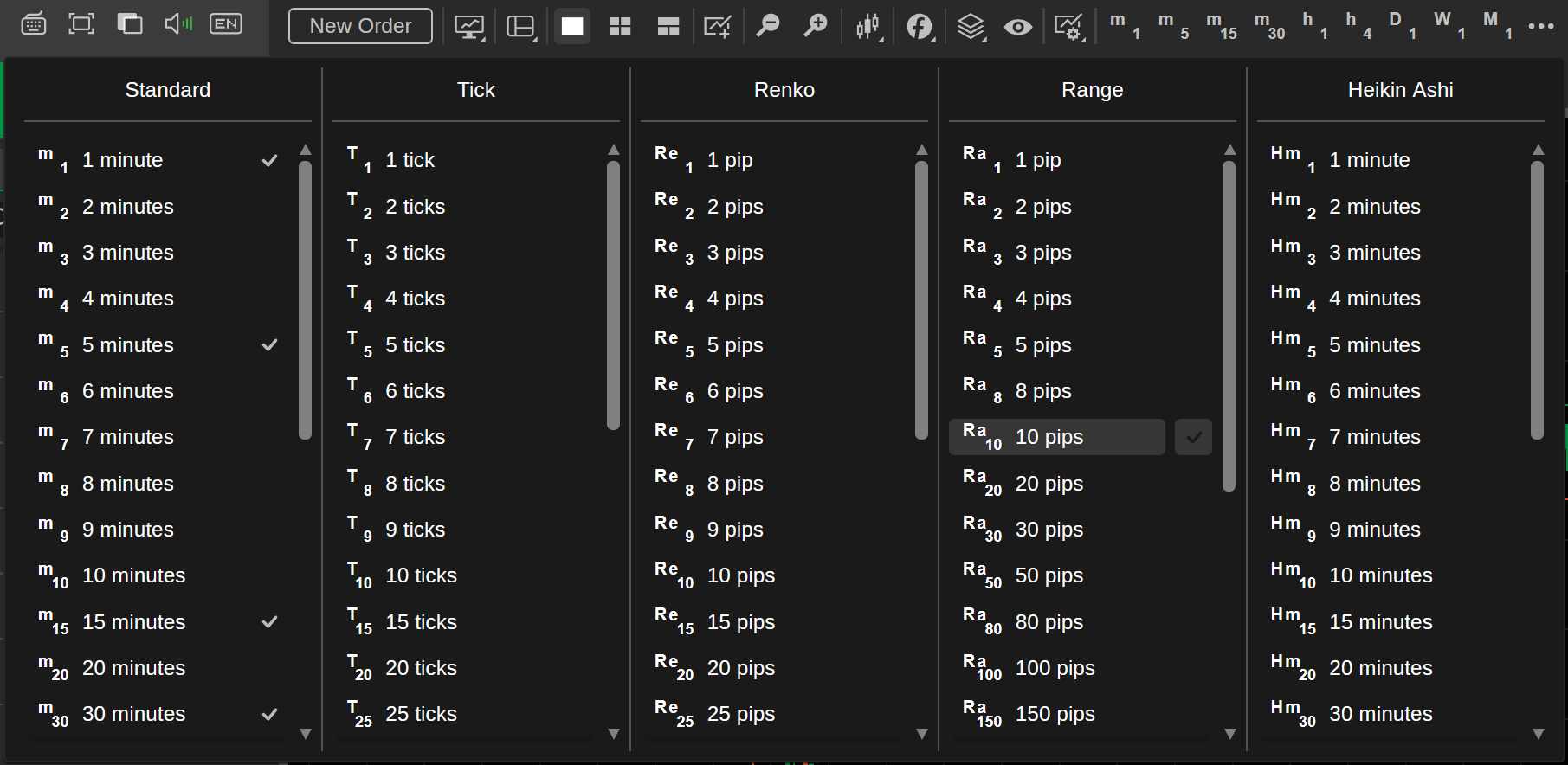
In the ‘Range’ column, select the volume threshold that should be used for creating new range bars. The larger the volume threshold, the slower new range bars will appear on the trading chart for the currently selected symbol.
Hover over a particular volume threshold option and press the ‘tick’ icon to its right to add it to your favorites. Afterward, it will always appear in the timeframe selector.
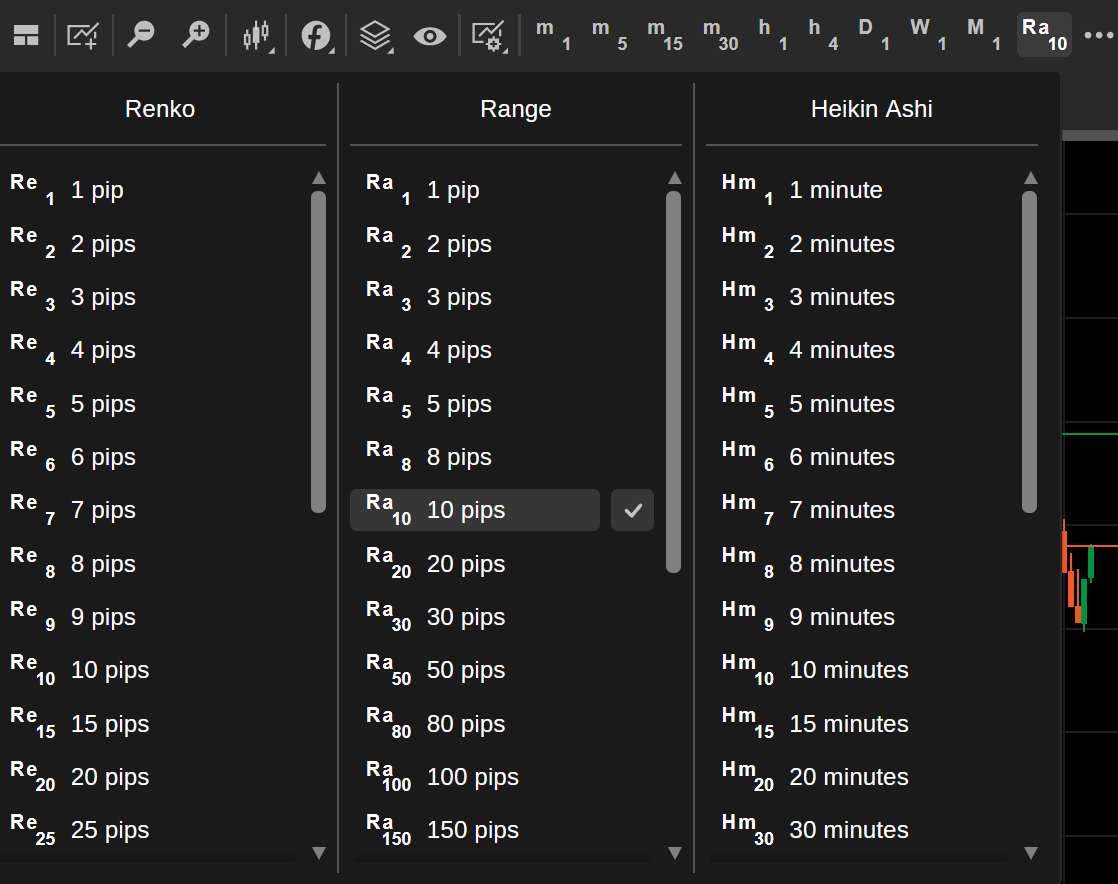
After choosing a volume threshold, cTrader Web will generate a range bar chart for the currently active symbol.
You will then be able to interact with this chart using all toolbox controls offered by cTrader Web. In the screenshot below, we have placed two new horizontal lines on the 10-pip range bar chart for USDJPY.
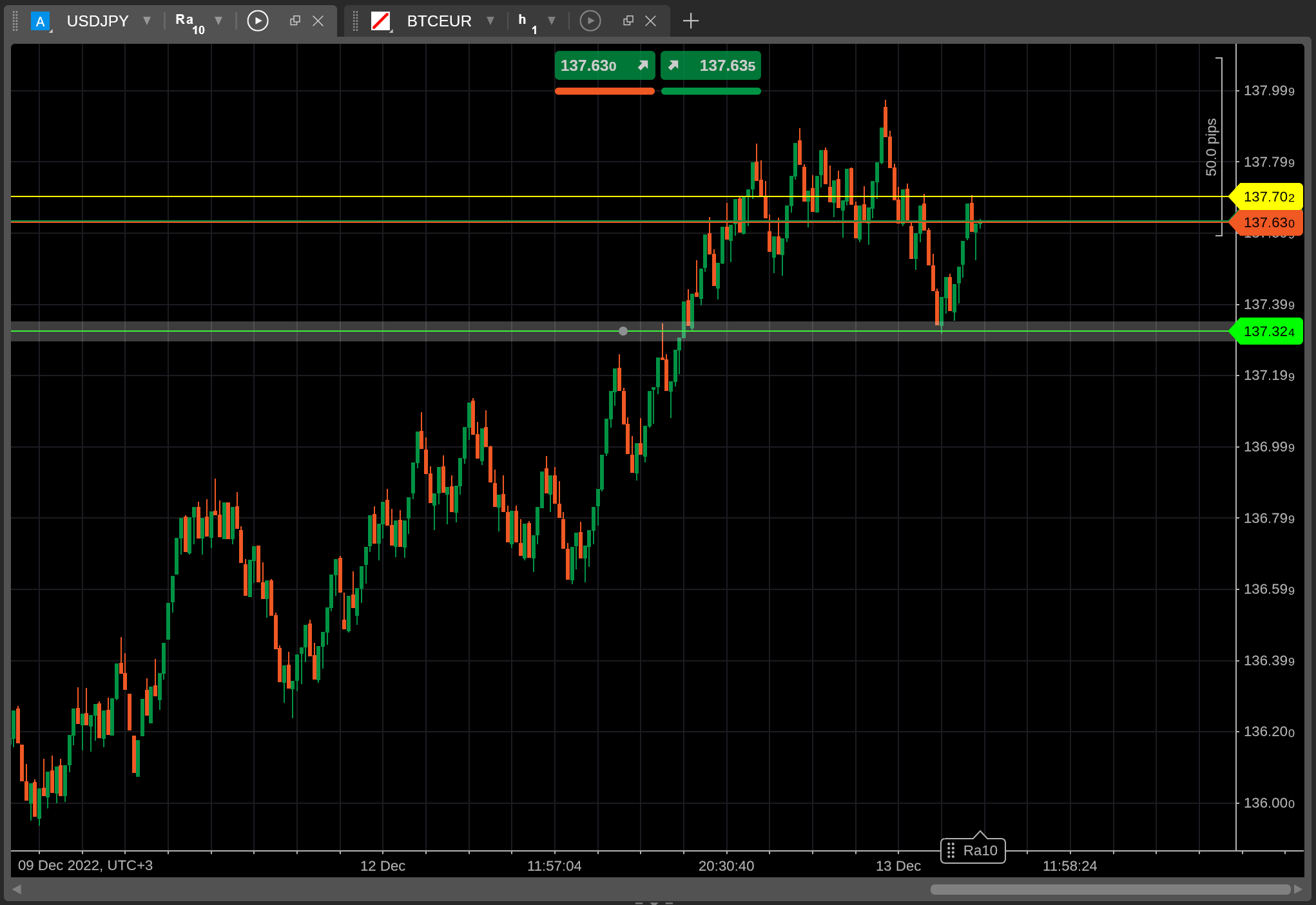
How Range Bars Benefit Traders[¶](https://help.ctrader.com/ctrader-web/charts/range-bars/#how-range-bars-benefit-traders "Permanent link")
-------------------------------------------------------------------------------------------------------------------------------------------
While different from traditional candlestick charts, range bar charts offer several advantages to all types of traders.
* Range bars are effective at demonstrating price trends and the general level of market volatility completely independent of the time component.
* Range bars provide more information than Renko charts by showcasing low and high prices in addition to open and close prices.
* Range bars simplify drawing on charts by providing easy-to-interpret points of reference for price reversals, and support and resistance levels.
Having said that, range bar charts may not be all that useful when attempting to plot time-dependent price trends.
To summarize, range bar charts should be of use to anyone wanting to receive accurate and noise-free information about any currently ongoing price trends and market movements. You can use them in combination with chart drawings to create a powerful visual aid for improving the effectiveness of your manual trading strategies.
---
# cTrader FIX API
[Skip to content](https://help.ctrader.com/fix/#introduction)
Getting Started
===============
Introduction[¶](https://help.ctrader.com/fix/#introduction "Permanent link")
-----------------------------------------------------------------------------
This section provides general information on FIX API, it's characteristics, applications, possibilities and limitations.
FIX stands for Financial Information Exchange. It is an industry driven machine-to-machine communication protocol that has been specifically created to handle considerable amounts of financial information and transmit that information as fast as possible.
The FIX Protocol Specification provides the format for electronic messages and the communication model of those messages. It has been created and managed by FIX Trading Community previously known as FIX Protocol Limited (FPL).
The FIX Trading Community is a natural and non-profit organization which regulates the standard of FIX API through the collaboration of major industry players and committee members.
cTrader supports FIX version 4.4. For further information about this version please refer to the specifications published by the FIX Protocol Organization under:
[https://www.fixtrading.org/standards/fix-4-4/](https://www.fixtrading.org/standards/fix-4-4/)
Background of FIX API in FX Trading[¶](https://help.ctrader.com/fix/#background-of-fix-api-in-fx-trading "Permanent link")
---------------------------------------------------------------------------------------------------------------------------
FIX Protocol was created in the early 1990's for setting up electronic communication between exchanges, brokers, banks and institutional participants such as hedge funds.
It has successfully established itself against other API's used for transmitting financial markets data such as JAVA and C++ because of the improved speed and the effectiveness of data transferring.
In 1998 there was a non-profit company established for expanding, developing and supporting the protocol, it was called FIX Protocol Limited (FPL) and remains active to this day under a different brand.
Due to the simplicity and effectiveness, FIX Protocol has quickly become the standard communication method in the financial industry across all asset classes. It is now widely used for performing any trading or financial operation all over the world.
For a very long time, in the FX Trading industry only major participants, such as banks, brokers, liquidity providers and institutional traders had access to using FIX API.
Theses participants were able to create sophisticated solutions in order to improve trading effectiveness and a competitive edge over smaller investors such as retail traders.
The situation has changed completely in 2016, when Spotware Systems became the first retail focused technology company to provide a FIX API to anyone without prejudice. A FIX API can be obtained via cTrader with no conditions applied such as minimum trading volume or minimum deposit size.
Typical Application Methods of FIX API in the Industry[¶](https://help.ctrader.com/fix/#typical-application-methods-of-fix-api-in-the-industry "Permanent link")
-----------------------------------------------------------------------------------------------------------------------------------------------------------------
FIX API is an industry standard messaging protocol which has multiple applications in the market.
### Brokerage[¶](https://help.ctrader.com/fix/#brokerage "Permanent link")
Brokers use FIX API to receive prices from the market and execute their clients orders.
### Providing Prices[¶](https://help.ctrader.com/fix/#providing-prices "Permanent link")
Liquidity providers and price makers such as banks or exchanges use FIX API to provide prices to brokers or hedge funds.
### Trading Hubs[¶](https://help.ctrader.com/fix/#trading-hubs "Permanent link")
Institutional traders may use FIX API for developing proprietary systems that allow them to open trades on any account they have with any broker from a single system.
### Advanced Trading Robots[¶](https://help.ctrader.com/fix/#advanced-trading-robots "Permanent link")
With FIX API trading robots including black box algos can receive information from multiple sources simultaneously and make trading decisions based on a much wider scope of data and number of sources.
### Trade Copiers[¶](https://help.ctrader.com/fix/#trade-copiers "Permanent link")
Systems that will automatically replicate trades on multiple trading accounts across multiple brokers or on the accounts of traders are connected to the copier. However we believe other Spotware API's are more suitable for this.
### Custom Trading Interfaces[¶](https://help.ctrader.com/fix/#custom-trading-interfaces "Permanent link")
Some traders prefer to use a minimalistic interface for trading, either because other interface parts distract them or because they feel they consume system resources. With FIX API, there is a possibility to create a trading interface which will fit the exact needs of such traders.
However we believe other Spotware API's are more suitable for this.
---
# FAQ - cTrader Invite
[Skip to content](https://help.ctrader.com/ctrader-invite/faq/#faq)
FAQ[¶](https://help.ctrader.com/ctrader-invite/faq/#faq "Permanent link")
==========================================================================
Common questions [¶](https://help.ctrader.com/ctrader-invite/faq/#common-questions "Permanent link")
-----------------------------------------------------------------------------------------------------
### What is cTrader Invite?
cTrader Invite is an all-in-one toolkit designed to help partners attract traders with appealing cTrader products and maximise referral conversions. Invite allows partners to generate and manage invite links, track real-time statistics of invited traders, share contact information and promote successful products.
### Is cTrader Invite available in my app?
Invite is only available in broker-branded cTrader applications. Inquire with your broker if you are unable to access Invite in your cTrader app.
### How is a partner different from a trader?
A partner is an individual or entity that collaborates with a broker to attract new clients and engage existing ones in trading, performing different [**roles**](https://help.ctrader.com/partner-tools/)
. A trader performs trading activities on the platform but can become a partner after registering with the broker as such.
For invited traders [¶](https://help.ctrader.com/ctrader-invite/faq/#for-invited-traders "Permanent link")
-----------------------------------------------------------------------------------------------------------
### Who is my partner?
You can see your current partner's profile in the [**Partner**](https://help.ctrader.com/ctrader-invite/partner/)
tab of cTrader Invite. If you have this tab, the entire **Invite** application will appear as **Partner** in the cTrader UI.
### Why do I see several partners in the Partner tab?
The [**Partner**](https://help.ctrader.com/ctrader-invite/partner/)
tab displays your current partner as well as other partners you have been attributed to. Only one partner can be 'current' at the moment.
### Why is my partner's profile invisible?
Your partner's profile may be non-public and, therefore, invisible to invited traders. If all of your partners are not public or you do not have a partner, the [**Partner**](https://help.ctrader.com/ctrader-invite/partner/)
tab will not show up in your app.
### Can I contact my partner?
Yes, partners are usually open to support traders invited by them. Your partner's preferred communication channels are listed in the [**Partner**](https://help.ctrader.com/ctrader-invite/partner/)
tab. Unfortunately, you cannot contact a partner with a non-public profile or hidden contact details.
### Can I access my partner's products?
In the [**Partner**](https://help.ctrader.com/ctrader-invite/partner/)
tab of cTrader Invite, you will be able to review your partner's own and favourite products (algorithms, copy strategies, etc.), provided that the partner has enabled their display.
### How can I stay with my current partner?
You will remain with your current partner throughout the guaranteed attribution period. Use your partner's products (algorithms, copy strategies, etc.), and automatic reattribution will not occur within cTrader even if you click other partners' invite links. Also, your partner's profile should remain public (i.e., stay visible in the [**Partner**](https://help.ctrader.com/ctrader-invite/partner/)
tab) to prevent automatic reattribution.
### How can I change my current partner?
After the mandatory attribution period elapses, you can change your current partner manually by tapping **Make current** on another partner's card in the [**Partner**](https://help.ctrader.com/ctrader-invite/partner/)
tab. Alternatively, you can tap another partner's invite link for automatic reattribution. In the latter case, reattribution will occur only if you are not using the current partner's products and the partner's profile is not public.
### Can I identify a partner by their invite link?
Yes, [**invite links**](https://help.ctrader.com/ctrader-invite/)
are readable for ordinary users because they carry the partner's username at the end as a parameter (`u={username}`). If you delete this parameter manually, the link will no longer function as an invite link, but it will still work within the cTrader ecosystem.
### Am I redirected from cTrader to the broker's client area for registration and attribution?
After you tap an invite link, cTrader will open, and you may be required to sign in/up. What happens next depends on your broker’s [**attribution flow**](https://help.ctrader.com/ctrader-invite/settings/)
. You may stay within cTrader or be redirected to the broker’s website to complete registration and attribution.
### Can I become a partner myself?
It’s easier than you think! Contact your broker and register in their partner programme. You will be able to leverage cTrader Invite to maximise referral conversions and keep your traders engaged.
For partners [¶](https://help.ctrader.com/ctrader-invite/faq/#for-partners "Permanent link")
---------------------------------------------------------------------------------------------
### How should I set up cTrader Invite to start attributing traders?
You will be prompted in the [**Settings**](https://help.ctrader.com/ctrader-invite/settings/)
tab of cTrader Invite which option complies with your broker's attribution flow:
* Simply start sharing invite links, and you will be registered in the broker's partner programme automatically. Your partner ID will be automatically set in cTrader as soon as you invite your first trader.
* Alternatively, set your BRL issued by the broker after your registration in the partner programme. Below, you should choose the in-app actions that will redirect your invited traders to the broker's website for registration and attribution.
### What should traders do to get attributed?
After tapping an invite link, traders open cTrader, and what happens next depends on the broker's [**attribution flow**](https://help.ctrader.com/ctrader-invite/settings/)
:
* Traders are automatically registered and attributed to the partner without leaving the app if cTrader Invite is integrated with the broker's CRM.
* Alternatively, traders are redirected to the broker's website via the BRL for registration and attribution once they complete one of the actions set by the partner.
### How can I create an invite link?
Use the functionality of the [**Invite link**](https://help.ctrader.com/ctrader-invite/)
tab to access invite links. Here, you can find your basic invite link and product-specific invite links. Any cTrader link you share while logged in to the application will contain your username as a `(u)` parameter, meaning it will function as an invite link.
### How can I share an invite link?
You can send invite links directly to your preferred communication channels via the native sharing functionality of mobile devices or copy them to the clipboard for further sharing. Additionally, you can display your invite link as a QR code right from the [**Invite link**](https://help.ctrader.com/ctrader-invite/)
tab when invited traders are physically near you. QR codes are customisable and can be generated for both basic and product-specific invite links.
### What products appear as invite links in the Invite Link tab?
Some of partners' existing products are automatically listed as invite link options in the [**Invite link**](https://help.ctrader.com/ctrader-invite/)
tab (algorithms, copy strategies, etc.). Invite links leading to other features and products from the cTrader ecosystem (signal links, price alerts, deeplinks, etc.) can be generated in other areas of cTrader.
### How will I know that I have invited someone?
You will receive notifications from your cTrader app. You can also monitor your invitation performance in the [**Invited traders**](https://help.ctrader.com/ctrader-invite/invited-traders/)
tab where all attributed users' usernames are displayed together with their joining date. Additionally, your broker may update you about every invited trader.
### How will I know which link my invited trader has followed?
The [**Invited traders**](https://help.ctrader.com/ctrader-invite/invited-traders/)
tab demonstrates performance by an invite link. Analysing these statistics, you can refine your invitation strategy.
### How can I ensure that my invited traders remain attributed?
Your invited traders will remain attributed to you throughout the guaranteed attribution period and as long as they continue using your products, provided that your partner profile stays public. However, traders have the option to manually change their partner in the [**Partner**](https://help.ctrader.com/ctrader-invite/partner/)
tab once the guaranteed attribution period has ended.
### How can I distribute my products via cTrader Invite?
The [**Partner**](https://help.ctrader.com/ctrader-invite/partner/)
tab displays the partner's own and favourite products to invited traders and serves as a ready-to-go landing page that partners can share via the URL: `https://ctrader.com/u/{username}/`, where `{username}` is the partner's username. The [**Settings**](https://help.ctrader.com/ctrader-invite/settings/)
tab of cTrader Invite allows you to configure the visibility of your profile and products.
### How can I promote my products via cTrader Invite?
cTrader Invite features always-on [**promotional mechanisms**](https://help.ctrader.com/ctrader-invite/settings/)
to motivate invited traders to create a cTrader ID, open a demo trading account, open a live trading account, deposit funds and trade.
### How can I hide my profile from invited traders?
You can hide your profile from all users by disabling **Make my profile public** in [**Settings**](https://help.ctrader.com/ctrader-invite/settings/)
. Alternatively, your profile can remain public but you can choose not to show it in the [**Partner**](https://help.ctrader.com/ctrader-invite/partner/)
section for your invited traders. For public profiles, you can customise the amount of contact information disclosed.
### Does cTrader Invite remunerate partners for invited traders?
No, please contact your broker regarding the commissions and other terms of the referral programme.
Need cTrader support?
Reach out through our official channels to resolve any issues:
* Ask questions and connect with traders, developers and other users in the cTrader [**Discord Community**](https://go.spotware.com/discord)
.
* Browse archived discussions on the cTrader [**Community Forum**](https://community.ctrader.com/)
. While the forum is no longer open for new posts, it is full of helpful answers to common issues.
* Contact the cTrader Support Team at [**support@ctrader.com**](mailto:support@ctrader.com)
for technical assistance.
Back to top
---
# Risk-Reward - cTrader Web
[Skip to content](https://help.ctrader.com/ctrader-web/charts/risk-reward/#risk-reward)
Risk-reward[¶](https://help.ctrader.com/ctrader-web/charts/risk-reward/#risk-reward "Permanent link")
======================================================================================================
The risk-reward tool allows you to quickly calculate the trade volume directly on the chart, based on the amount you are willing to risk or your desired profit target per trade.
Risk-reward typically compares the potential profit (reward) of a trade to its potential loss (risk). The reward is visualised as the distance between the entry price and the take-profit level, while the risk is visualised as the distance between the entry price and the stop-loss level.
Risk-reward in one minute!
* Traders use risk-reward to quickly calculate the quantity or volume of their trade, and the potential profit-to-loss ratio is visualised on the chart.
* After adding risk-reward to a chart, users can choose a calculation mode to fix values for risk, reward or order/position size.
* For convenience, traders can specify the amount they are willing to risk or gain as volume in units, a percentage of their balance or a percentage of their equity.
* Traders can enter order parameters, configure protection settings and place an order with a single click.
Add risk-reward to chart[¶](https://help.ctrader.com/ctrader-web/charts/risk-reward/#add-risk-reward-to-chart "Permanent link")
--------------------------------------------------------------------------------------------------------------------------------
Click the **Risk-reward** icon in the chart instruments toolbar, then choose a buy or sell option with a fixed risk, reward or size.
Using the crosshair, click on the trading chart to specify your desired entry price. The risk-reward object will be placed at that level.
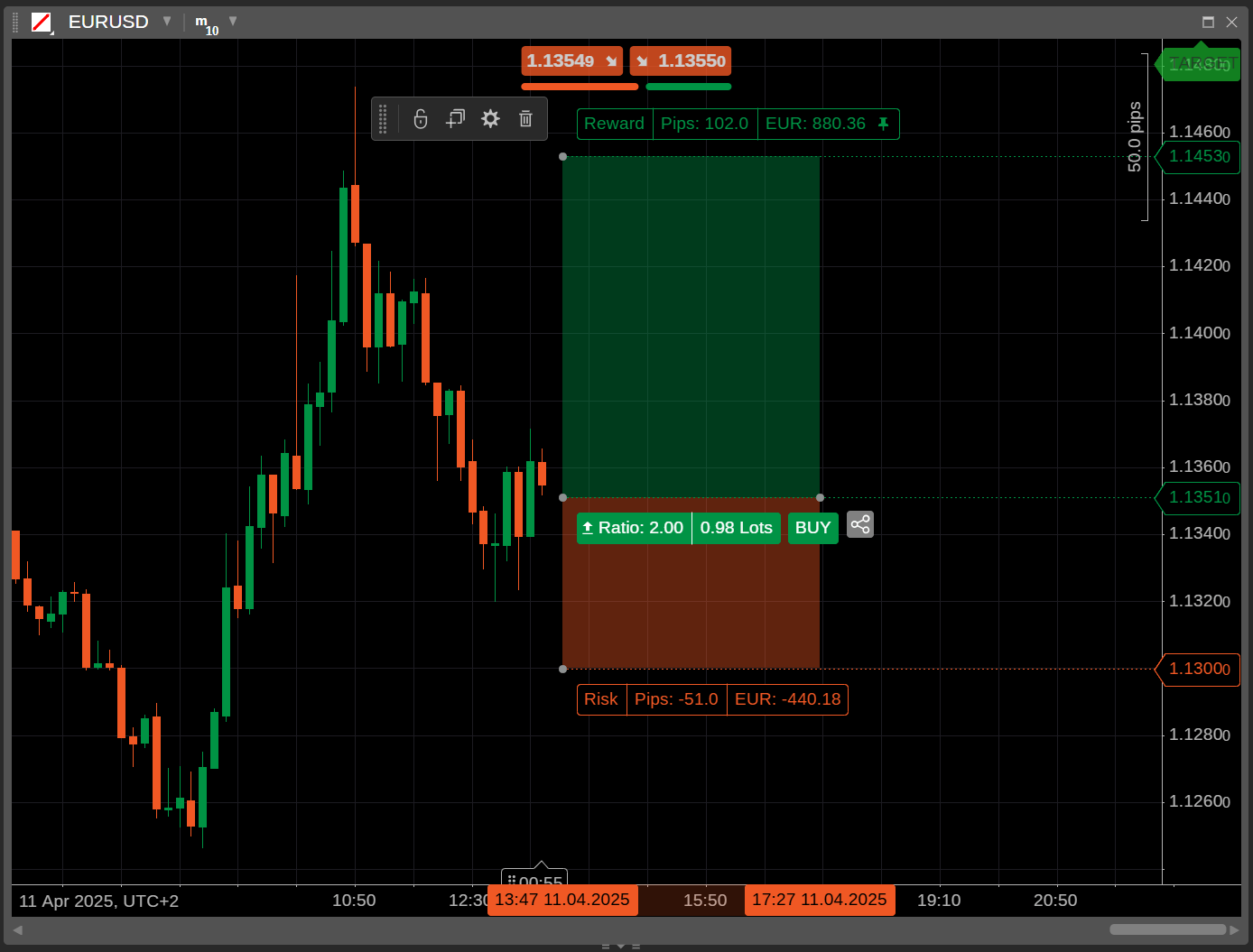
Note
When you add or move the risk-reward object to a past period along the price axis, a possible past deal (with profit or loss) is highlighted with a deeper colour.
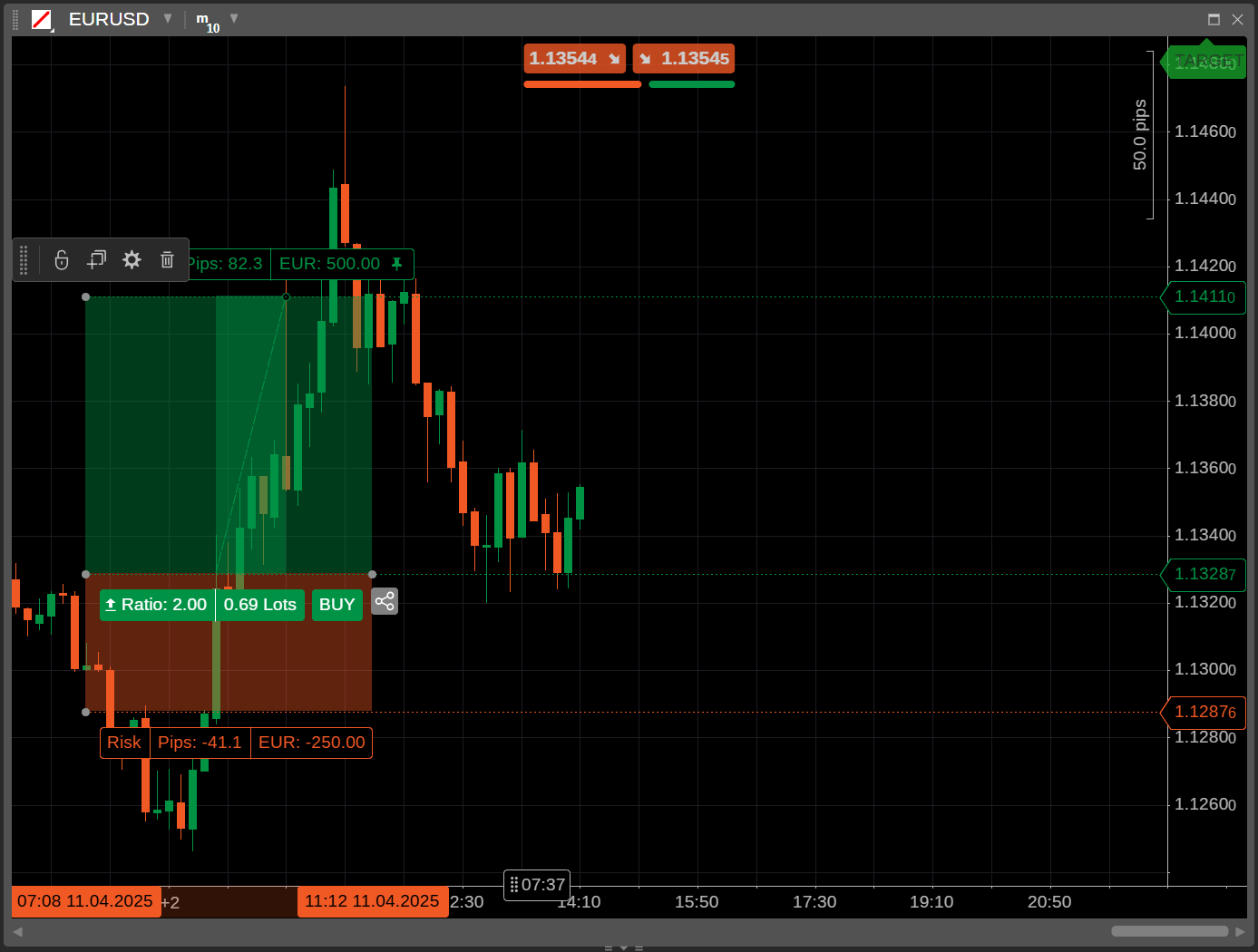
Adjust risk-reward parameters[¶](https://help.ctrader.com/ctrader-web/charts/risk-reward/#adjust-risk-reward-parameters "Permanent link")
------------------------------------------------------------------------------------------------------------------------------------------
Right-click the risk-reward object or click the **Settings** icon in the risk-reward toolbar.
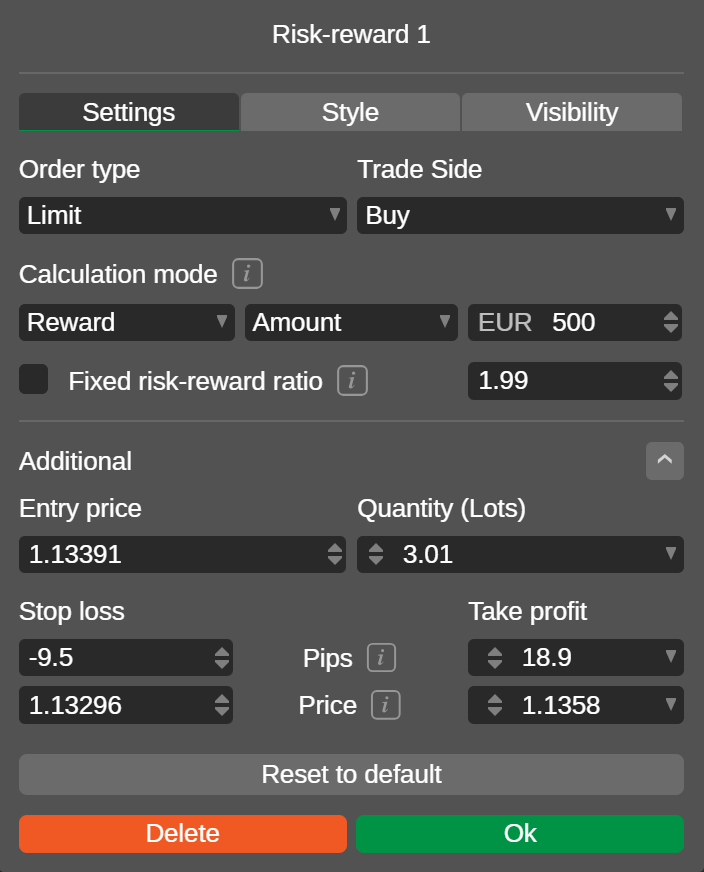
Here, you can configure the following parameters:
| Parameter | Value | Definition |
| --- | --- | --- |
| Order type | Market, limit, stop, stop-limit | Choose an [**order type**](https://help.ctrader.com/trading-with-ctrader/orders/) . |
| Trade side | Buy, sell | Choose a trade direction. |
| Calculation mode | Risk, reward, size | For risk and reward, specify the volume in units, a percentage of equity or a percentage of balance. For size, set the volume in units or the quantity in lots. |
| Risk-reward ratio | Any value (most traders prefer from 2 to 3) | Possible to lock the risk-reward ratio at a fixed value. |
| Entry price | Any value | Set the entry price (available for non-market orders only). |
| Quantity/volume | Lots/units | Specify your trade quantity or volume. |
| Stop loss | Pips, price | Set your desired [**stop-loss protection**](https://help.ctrader.com/trading-with-ctrader/orders/?h=stop+loss#stop-loss-and-take-profit) as a distance from the entry price or at a specific price level. |
| Take profit | Pips, price | Set your desired [**take-profit protection**](https://help.ctrader.com/trading-with-ctrader/orders/?h=stop+loss#stop-loss-and-take-profit) as a distance from the entry price or at a specific price level. |
Confirm your settings by clicking **OK**. Otherwise, reset to default or delete the risk-reward object.
Alternatively, you can adjust some of these parameters directly on the chart. When the risk-reward object is active, move the entire object or drag its control dots along the price and time axes.
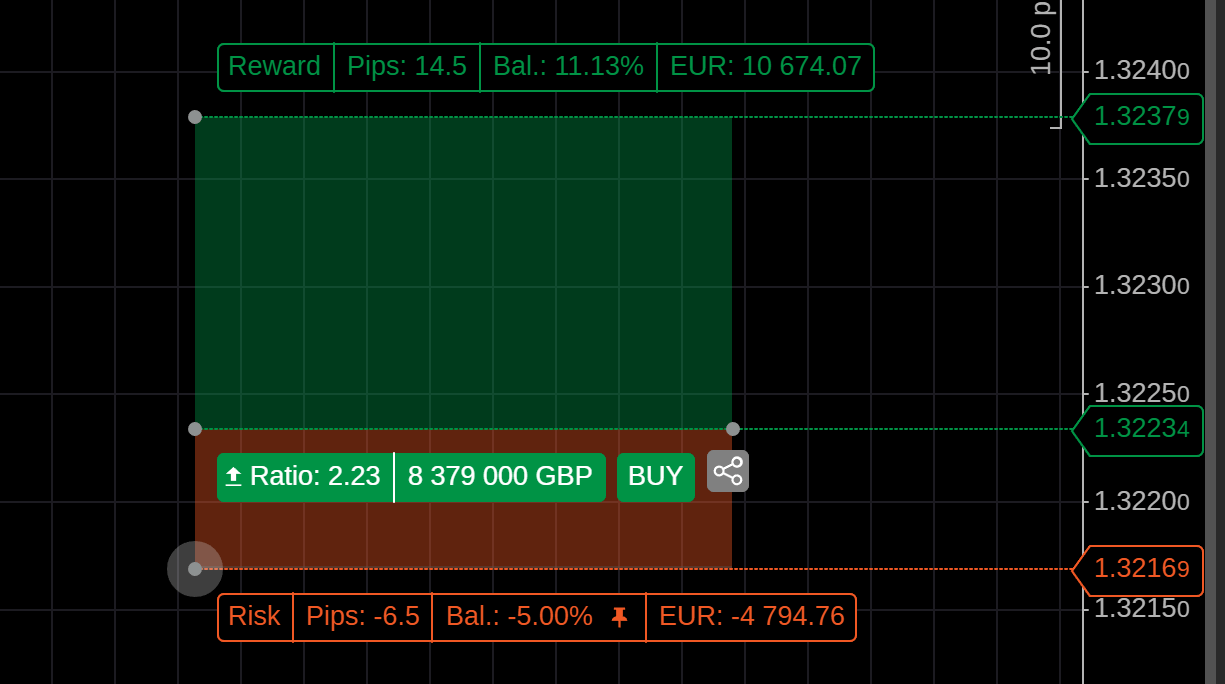
Use manual adjustments to do the following:
* Achieve a specific risk-reward ratio.
* Modify the entry price for non-market orders.
* Adjust the risk and reward areas, affecting stop-loss and take-profit parameters.
Note
Adjusting the risk-reward dimensions does not affect the pinned value of the selected calculation mode.
When the risk-reward ratio is fixed, dragging either the risk or reward area automatically adjusts the other area proportionally. The pinned value of the selected calculation mode remains unaffected.
Tip
Click the **Share** icon to copy a signal link containing the configured order parameters and protections to your clipboard. You can then share this link via social media, messaging apps or any other preferred communication channel.
Place orders with risk-reward[¶](https://help.ctrader.com/ctrader-web/charts/risk-reward/#place-orders-with-risk-reward "Permanent link")
------------------------------------------------------------------------------------------------------------------------------------------
Click **Buy** or **Sell** on the risk-reward object to place an order with the configured parameters.

Warning
A market order is executed at the current price, regardless of the position of the risk-reward object on the chart.
Manage risk-reward objects[¶](https://help.ctrader.com/ctrader-web/charts/risk-reward/#manage-risk-reward-objects "Permanent link")
------------------------------------------------------------------------------------------------------------------------------------
Options for managing risk-reward are displayed in the risk-reward toolbar.
### Customise style[¶](https://help.ctrader.com/ctrader-web/charts/risk-reward/#customise-style "Permanent link")
Navigate to the **Style** tab of the risk-reward settings. Here, you can customise the risk-reward lines and areas separately:
* Select a line type.
* Set the line thickness.
* Choose a colour and adjust the opacity.
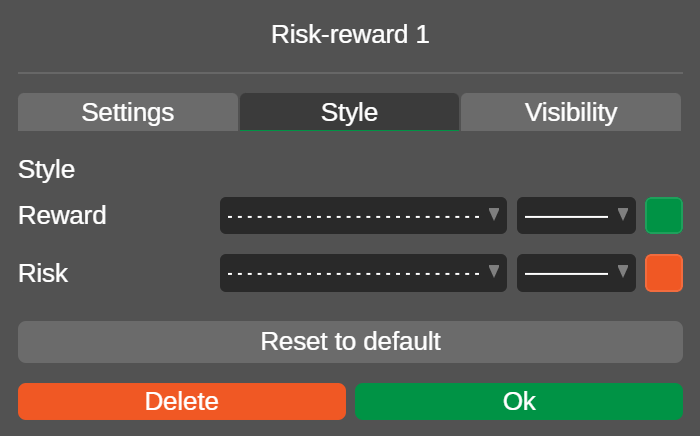
### Set visibility[¶](https://help.ctrader.com/ctrader-web/charts/risk-reward/#set-visibility "Permanent link")
In the **Visibility** tab, you can specify the chart periods for which the risk-reward object is shown on the chart. By default, it is set to display on all periods.
Example
If you set the range to 3–25 minutes and 2–4 hours, the risk-reward object will be shown on the chart only when the selected period falls within the range (e.g., m3, m5, h2, h3). The object will be hidden when periods outside the range (e.g., m1, m30, h1, h6, d1) are selected.
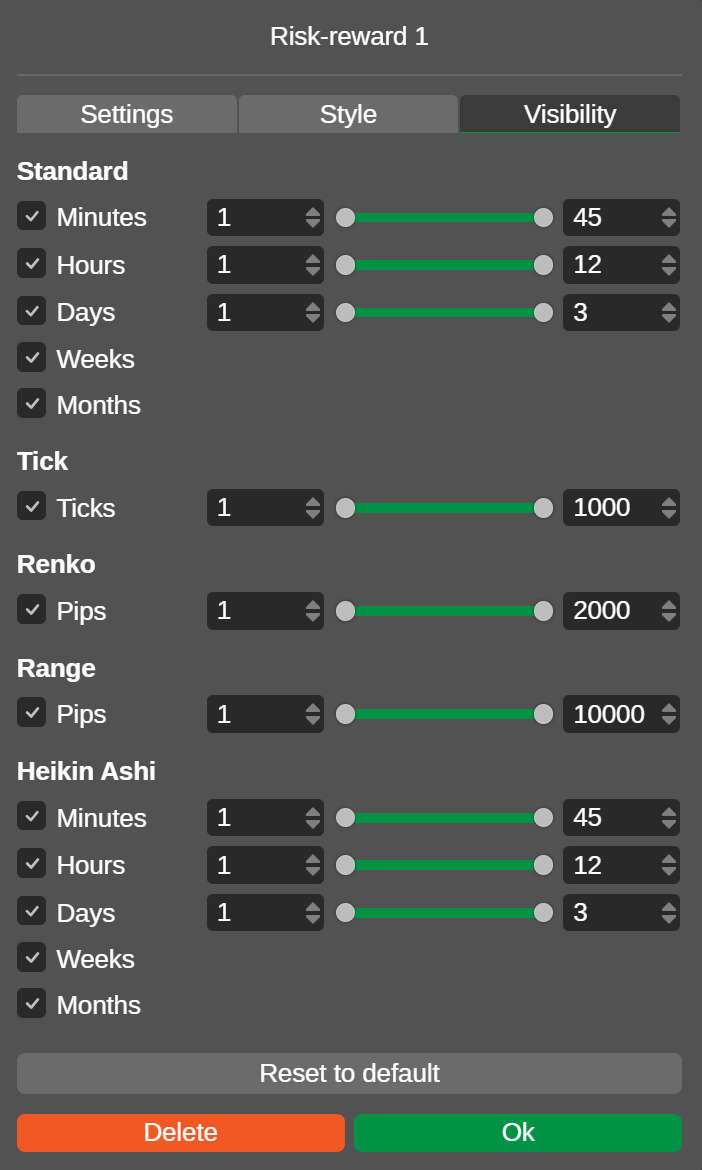
### Duplicate[¶](https://help.ctrader.com/ctrader-web/charts/risk-reward/#duplicate "Permanent link")
Click the **Duplicate** icon, and an identical risk-reward object appears on the chart.
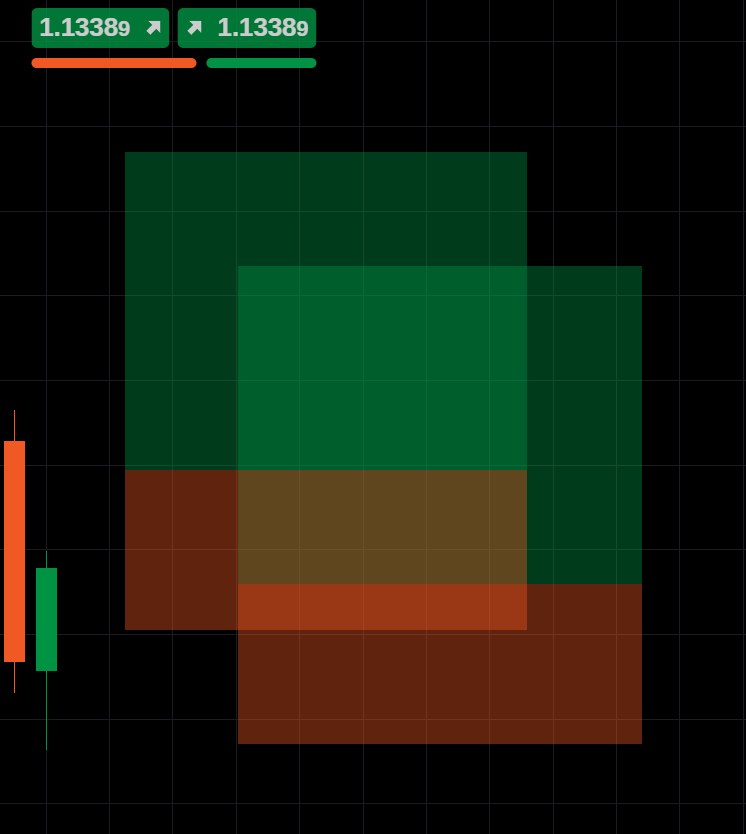
### Lock[¶](https://help.ctrader.com/ctrader-web/charts/risk-reward/#lock "Permanent link")
Click the **Lock** icon to lock the selected risk-reward object in its current position on the chart.
### Delete[¶](https://help.ctrader.com/ctrader-web/charts/risk-reward/#delete "Permanent link")
Click the **Delete** icon to remove the selected risk-reward object from the chart.
Note
You can also manage risk-reward objects on the chart by opening **Object Manager** and then selecting **Drawings**.
In addition to the actions covered above, **Object Manager** allows you to do the following:
### Apply to all symbols[¶](https://help.ctrader.com/ctrader-web/charts/risk-reward/#apply-to-all-symbols "Permanent link")
Click the **Apply to all symbols** icon, and the risk-reward object will become visible on any symbol in the chart container.
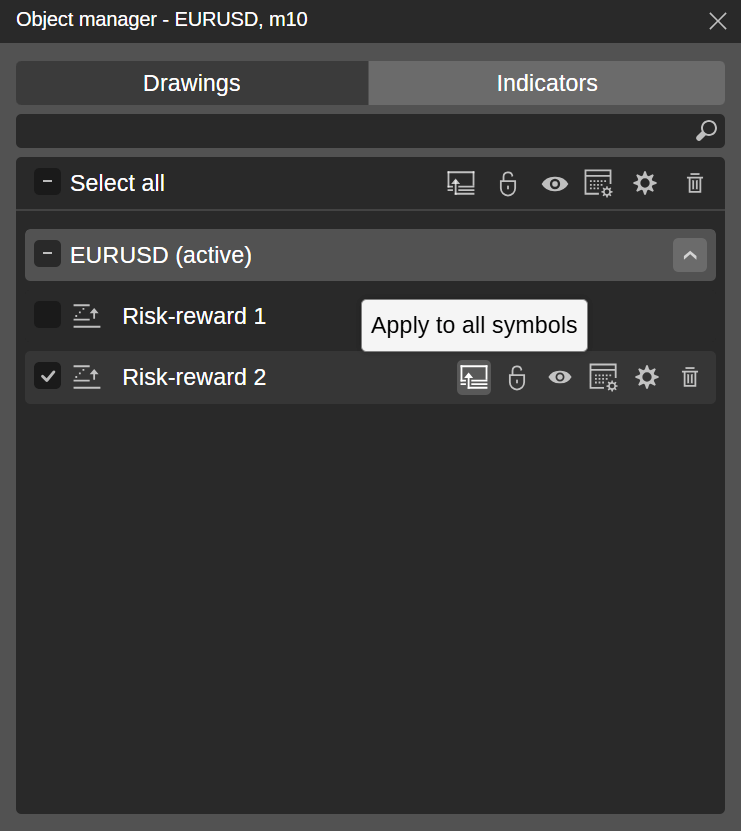
### Hide object[¶](https://help.ctrader.com/ctrader-web/charts/risk-reward/#hide-object "Permanent link")
Click the **Hide** icon to hide the risk-reward object on the chart.
---
# Invite link - cTrader Invite
[Skip to content](https://help.ctrader.com/ctrader-invite/#invite-link)
Invite link[¶](https://help.ctrader.com/ctrader-invite/#invite-link "Permanent link")
======================================================================================
What is cTrader Invite?
cTrader Invite is an all-in-one toolkit designed to help partners attract traders with appealing cTrader products and effectively convert them into referrals. Any cTrader link shared by partners attributes traders who click it, and they later become referrals in the broker's client area. The Invite app allows partners to generate invite links and QR codes, track invited traders' stats in real time, promote engaging products and set up a personal profile page that outperforms a traditional landing page.
Check our [**brochure**](https://www.spotware.com/pdf/back-office/cTrader_Invite_Brochure.pdf)
with quick instructions for partners on how to set up cTrader Invite.
cTrader Invite streamlines the process of user attribution in broker-branded applications. The **Invite link** tab is designed to generate and share invite links in just a few taps. It allows partners to manage different invite links leading to specific products from the cTrader ecosystem.
Invite link in one minute!
* Any cTrader URL that contains a special `(u)` parameter carrying a partner's username is an invite link.
* Partners can physically demonstrate a QR code, copy an invite link to the clipboard or share it directly across preferred communication channels.
* In addition to the basic invite link, the **Invite link** tab allows partners to generate and share product-specific invite links for algorithms, copy strategies and more.
* Traders who click an invite link are attributed to the partner within cTrader and later recognised as referrals in the broker's system if both are synchronised.
Types of invite links [¶](https://help.ctrader.com/ctrader-invite/#types-of-invite-links "Permanent link")
-----------------------------------------------------------------------------------------------------------
All invite links, regardless of their type, contain a special `(u)` parameter carrying a partner's username. The presence of this parameter ensures that invited traders are accurately linked to their partner within cTrader.
`https://app.ctrader.com/?u={username}`
When a trader clicks an invite link and creates a cTID (or uses an existing one), they become your invited trader unless previously invited by another partner. They may need to take an action on the platform (e.g., create a new account) to be redirected to the broker's website for registration and attribution. Depending on the [**attribution flow**](https://help.ctrader.com/ctrader-invite/settings/)
, this redirect may not be required.
MobileWeb and desktop
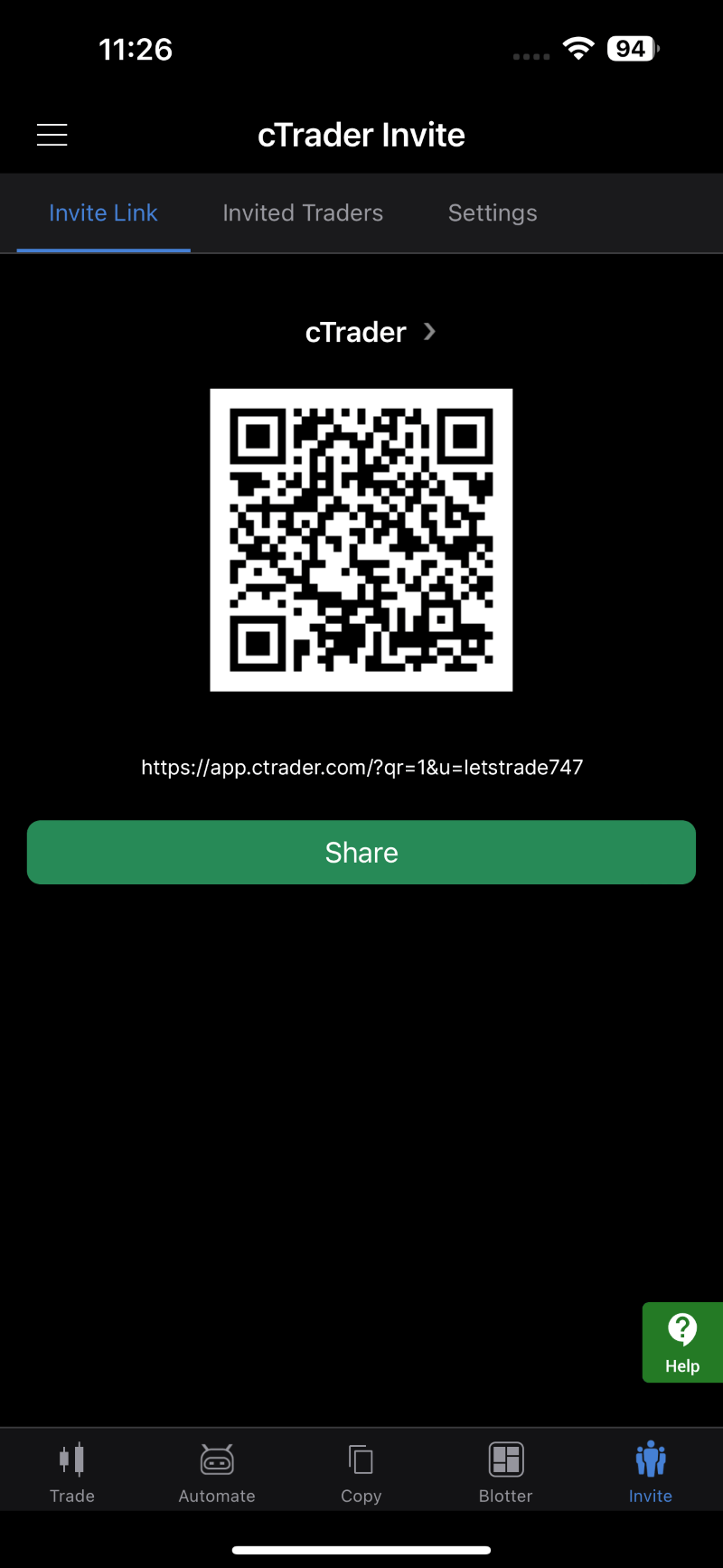
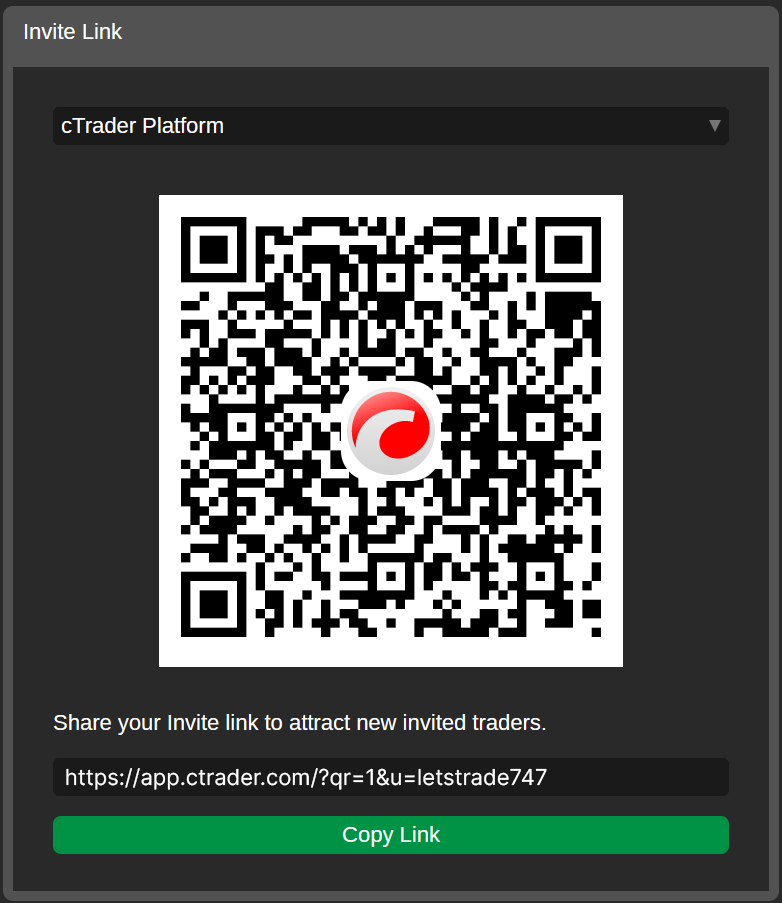
If a cTrader URL includes a `(u)` parameter, it can attribute invited traders to the partner within the application. Examples of product-specific links include algorithms, copy strategies, signal links and more.
* cBot
`https://app.ctrader.com/algo/22310?u={username}`
* Plugin
`https://app.ctrader.com/algo/141591?u={username}`
* Copy strategy
`https://app.ctrader.com/copy/strategy/66522?u={username}`
* Signal link
`https://app.ctrader.com/signal?s=EURUSD&o=stop&d=buy&p=1.20124&sl=1.19123&tp=1.21125&c=Take%20action!&ts=trade&e-utc=31-12-2030_12-12?u={username}`
Similarly, all cTrader [**deeplinks**](https://help.ctrader.com/ctrader-deeplinks/)
with a `(u)` parameter attribute users who follow them.
* Make a deposit
`https://app.ctrader.com/funds/deposit?u={username}`
* Open a live account
`https://app.ctrader.com/accounts/create-live?u={username}`
* Open transactions in Trade Watch
`https://app.ctrader.com/transactions?u={username}`
Tip
You can identify the partner just by looking at an invite link, thanks to the readable `(u)` parameter at the end. This enhances the transparency and clarity of the attribution process for all invited traders.
How to generate invite links [¶](https://help.ctrader.com/ctrader-invite/#how-to-generate-invite-links "Permanent link")
-------------------------------------------------------------------------------------------------------------------------
The **Invite link** tab of cTrader Invite enables partners to manage multiple links, thus making the attribution process more organised and tailored to specific trader needs. It is also possible to generate a customisable QR code by choosing between a basic invite link and links leading to specific partner products.
MobileWeb and desktop
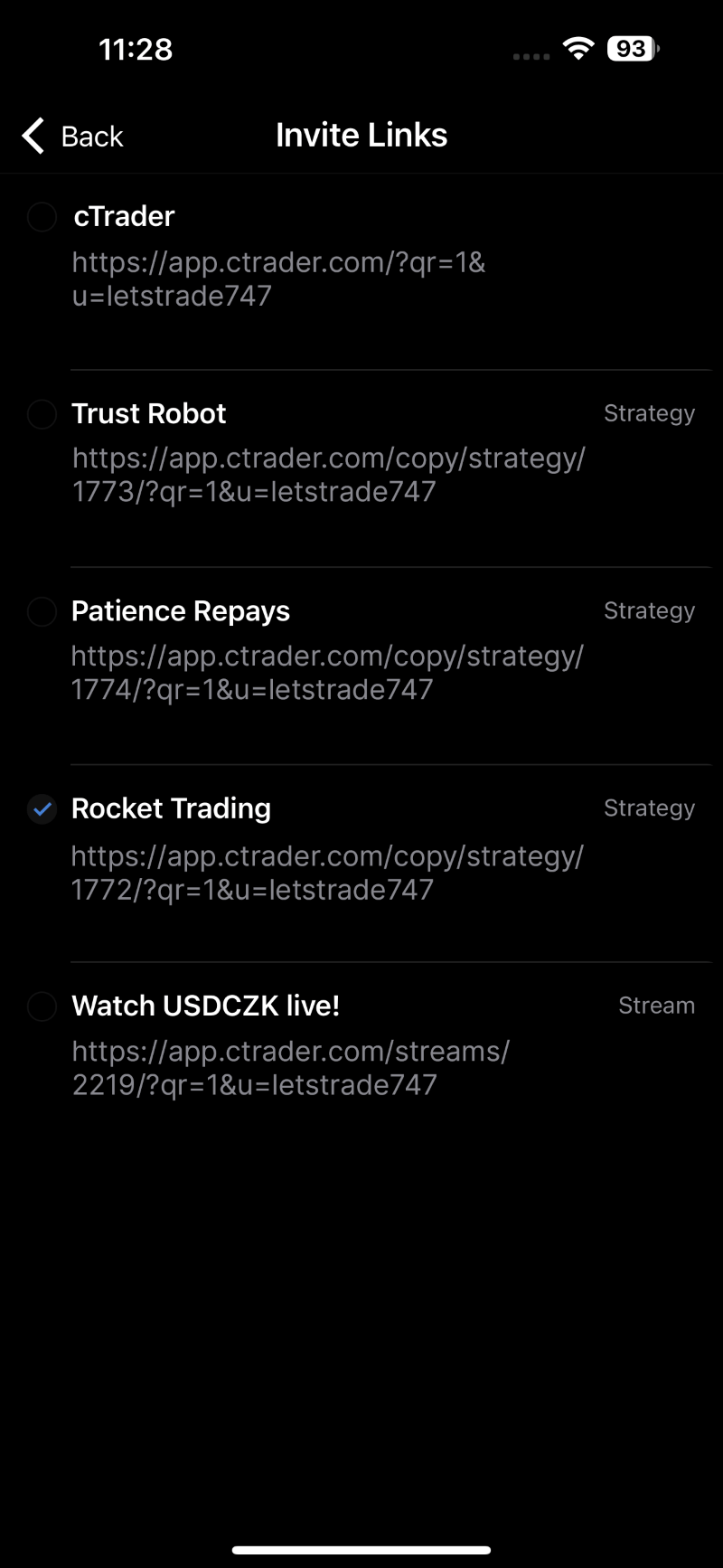
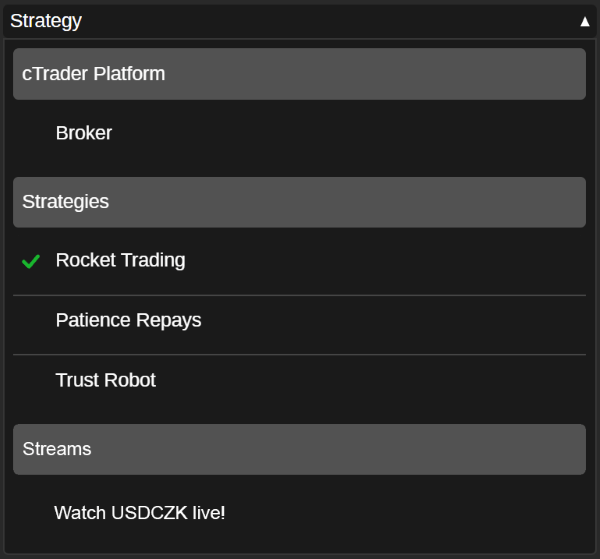
Some of the partners' products automatically appear as invite link options in the **Invite link** tab.
Tip
Beyond the options in the **Invite link** tab, you can simply share any product (e.g., a copy strategy) via the cTrader native functionality, and traders will receive your invite link. You can create a deeplink with a `(u)` parameter manually following our [**instructions**](https://help.ctrader.com/ctrader-deeplinks/cross-platform-deeplinks/)
.
How to share invite links [¶](https://help.ctrader.com/ctrader-invite/#how-to-share-invite-links "Permanent link")
-------------------------------------------------------------------------------------------------------------------
Invite links can be shared as a QR code, copied to the clipboard or sent directly to preferred communication channels via the native sharing functionality of mobile devices.
MobileWeb and desktop
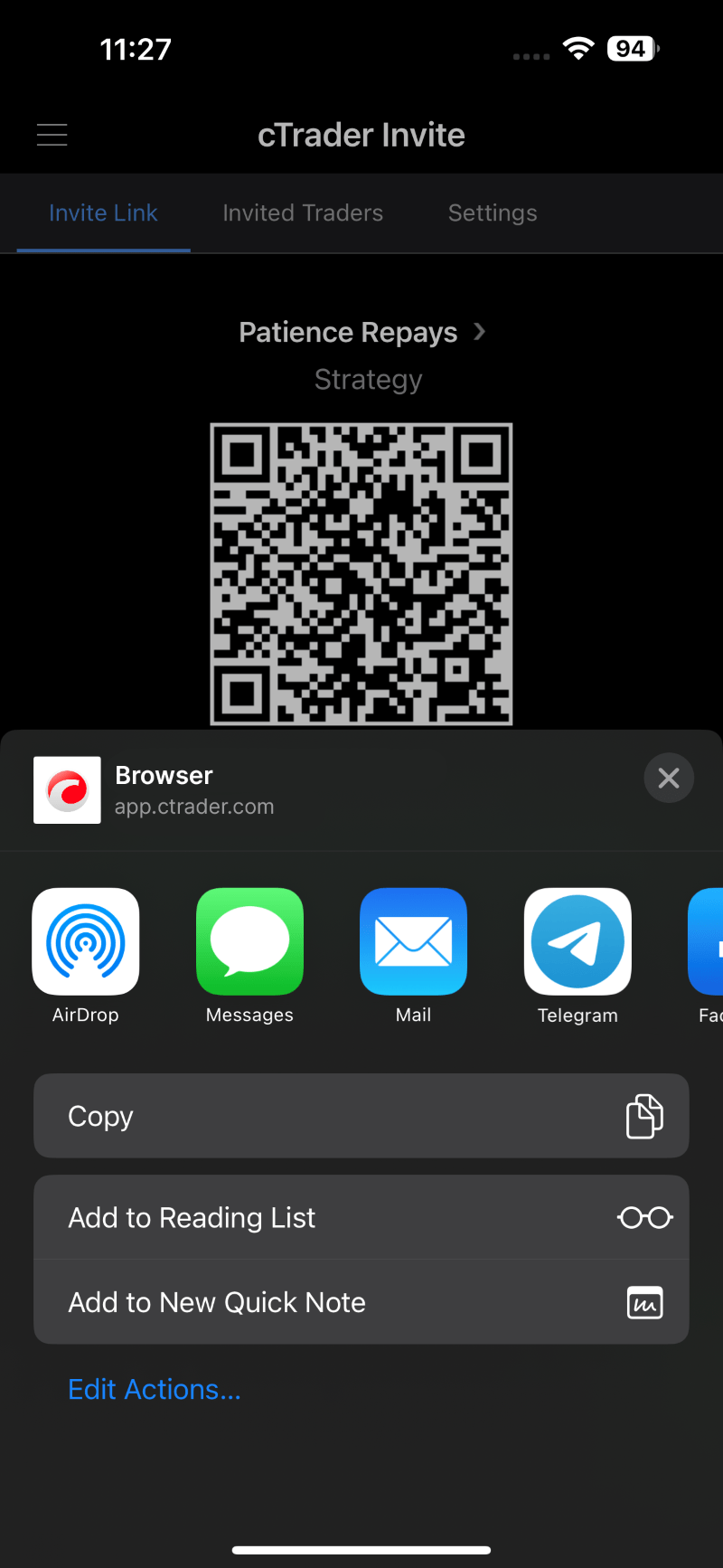
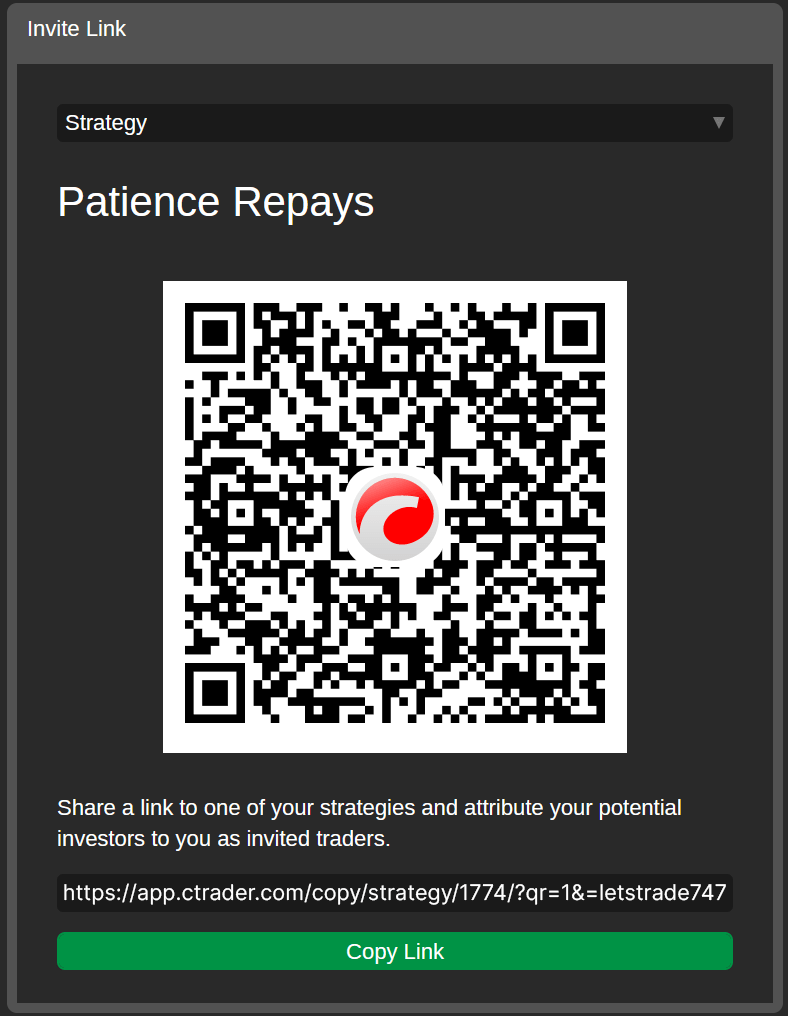
If you contact traders in person, you can demonstrate an invite QR code right on the screen. As an idea, you can add an invite QR code on your business cards and distribute them physically at trading expos and events.

If your traders are remote from you, sharing and invite link on social media would be more convenient.
Back to top
---
# Introduction - cTrader ID
[Skip to content](https://help.ctrader.com/ctrader-id/#how-ctid-works-with-trading-accounts)
Introduction
============
A cTrader ID (cTID) is a set of credentials (email/username and password) used to sign in to all client applications across cTrader brokers and other products within the cTrader ecosystem.
Example
A username is automatically generated by cTrader based on the email you provide for cTID creation.
Email: `letstrade@email.com`
Username: `letstrade`
Note
You can use either the email or the username, along with your password, for cTrader authorisation.
How cTID works with trading accounts[¶](https://help.ctrader.com/ctrader-id/#how-ctid-works-with-trading-accounts "Permanent link")
------------------------------------------------------------------------------------------------------------------------------------
Traders often use several live and demo trading accounts with a cTrader broker. A cTID serves as a single login allowing users to access all their trading accounts with just a click within a cTrader application. Traders will not have to log out and re-enter different account numbers and passwords each time they want to access their trading accounts.
The image below illustrates how a cTrader ID and trading accounts are linked.
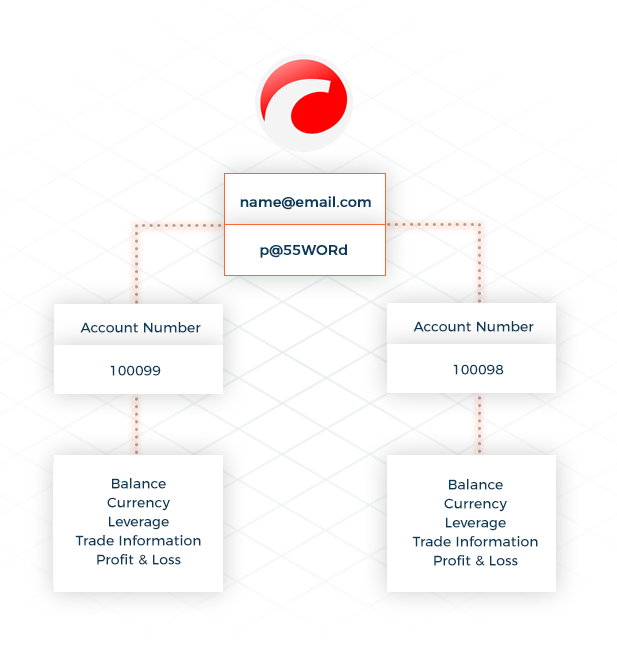
Multiple trading accounts can be linked to a single cTrader ID, enabling easy access and seamless switching between them. In addition to instant access to all your trading accounts with a specific broker, you also gain access to workspaces, watchlists, email settings, price alerts, copy-trading accounts and more.
Note
A trading account is [**specific to the broker**](https://www.spotware.com/featured-ctrader-brokers-and-prop)
with which it was created and can be used in that broker's version of cTrader. A [**cross-broker cTrader app**](https://ctrader.com/download/)
allows traders to access all trading accounts they have with all cTrader brokers within the same app.
cTID credentials are securely stored on dedicated servers with the highest level of encryption, ensuring a safe trading environment for users.
Difference between cTID and a trading account[¶](https://help.ctrader.com/ctrader-id/#difference-between-ctid-and-a-trading-account "Permanent link")
------------------------------------------------------------------------------------------------------------------------------------------------------
A trading account is identified by a seven-digit number and belongs to the broker's system. Trading accounts hold trading details, such as account balance, deposit currency, leverage, open positions, pending orders and trade history.
The table below highlights the key differences between a cTrader ID and a trading account.
| cTrader ID | Trading account |
| --- | --- |
| Used across brokers, cTrader apps and products. | Belongs to the broker and can only be used in this broker's or the cross-broker cTrader apps. |
| An email and username you can change at any time. | A seven-digit unique number you cannot change. |
| Does not store any trading or financial information. | Contains trading and financial information with the broker. |
Back to top
---
# Create a new cTID - cTrader ID
[Skip to content](https://help.ctrader.com/ctrader-id/create-a-new-ctrader-id/#sign-up)
Create a new cTID
=================
With the first launch of any cTrader application, the **Log in/Sign up** window pops up automatically.
You can log in with your existing credentials or sign up to create a new cTID.
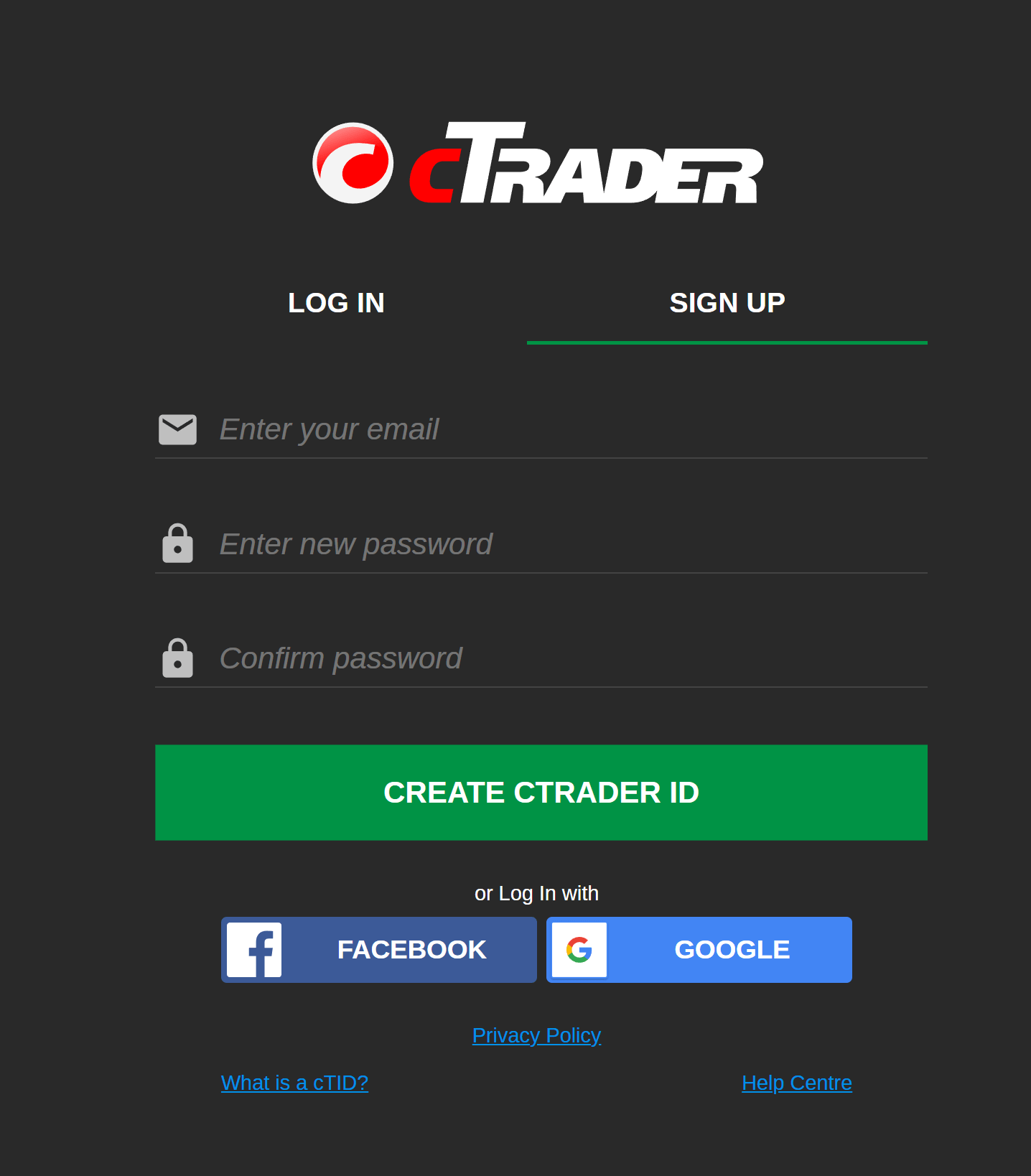
Sign up[¶](https://help.ctrader.com/ctrader-id/create-a-new-ctrader-id/#sign-up "Permanent link")
--------------------------------------------------------------------------------------------------
To create a new cTID, enter your email and a password (twice) in the **Sign up** form and then click **Create cTrader ID**.
Note
The email and password you input become your cTID credentials. A cTrader username is generated automatically based on your email. You can further modify any of these [**cTID credentials**](https://help.ctrader.com/ctrader-id/managing-ctid/credentials/)
.
If the account creation is successful, you are automatically logged in to cTrader with your new cTID, and a confirmation email is sent to your email address. You can start using cTrader, but we strongly recommend that you confirm your email to use the full functionality of your cTID.
Confirm cTrader ID[¶](https://help.ctrader.com/ctrader-id/create-a-new-ctrader-id/#confirm-ctrader-id "Permanent link")
------------------------------------------------------------------------------------------------------------------------
Proceed to your email inbox and open the confirmation message. Click the **Confirm cTrader ID** button to complete the verification.
Tip
If there is no confirmation email in the inbox, check your spam folder.
Warning
If you have not received a confirmation email, go to the [**cTID website**](https://id.ctrader.com/)
and click **Resend confirmation link**. A new confirmation request will be sent to your email.
After you confirm your cTrader ID, you will be redirected to your broker's cTrader Web.
Visit the cTID website, where you can [**manage your cTID**](https://help.ctrader.com/ctrader-id/managing-ctid/)
credentials, notifications, active sessions and accounts.
Back to top
---
# Introduction - cTrader Mac
[Skip to content](https://help.ctrader.com/ctrader-mac/#introduction)
Introduction[¶](https://help.ctrader.com/ctrader-mac/#introduction "Permanent link")
=====================================================================================
cTrader Mac is a native trading application for macOS with built-in algorithmic trading and a social trading platform.
While the platform maintains a consistent user interface across all devices, cTrader Mac offers a fully seamless experience for Mac users with familiar windows, controls, and hotkeys. On top of that, cTrader for Mac leverages hardware resources, ensuring superior app performance.
This guide is focused on essential differences of using cTrader Mac compared to other cTrader applications. Every time the user flow or interface in cTrader Mac resembles other platforms (Desktop or Web), readers will be forwarded to relared guides in the Help Centre to avoid repetition.
System Requirements[¶](https://help.ctrader.com/ctrader-mac/#system-requirements "Permanent link")
---------------------------------------------------------------------------------------------------
| System | Minimum Requirement |
| --- | --- |
| Processor | Intel Core i5 |
| Memory | 8 GB |
| Operating System | macOS 10.15 Catalina |
---
# Introduction - cTrader deeplinks
[Skip to content](https://help.ctrader.com/ctrader-deeplinks/#ctrader-deeplinks)
cTrader deeplinks[¶](https://help.ctrader.com/ctrader-deeplinks/#ctrader-deeplinks "Permanent link")
=====================================================================================================
Introduction[¶](https://help.ctrader.com/ctrader-deeplinks/#introduction "Permanent link")
-------------------------------------------------------------------------------------------
This documentation describes cTrader deeplinks, their use cases, and their benefits.
Deeplinks are special URLs that, upon being opened by a user, transfer said user to a certain screen in cTrader Web or Mobile. Using query parameters, it is possible to perform certain actions (switching the language of the cTrader application opened by a user) before the chosen screen is shown to traders.
The primary function of deeplinks is facilitating the creation of custom calls to action (CTAs) by allowing traders to be directed to certain tabs/sections inside cTrader.
Deeplinks only work for the following applications:
* cTrader Web
* cTrader Mobile (iOS and Android)
Documentation structure[¶](https://help.ctrader.com/ctrader-deeplinks/#documentation-structure "Permanent link")
-----------------------------------------------------------------------------------------------------------------
The documentation, excluding the introduction, is divided into these main sections:
* [**How deeplinks work**](https://help.ctrader.com/ctrader-deeplinks/how-deeplinks-work/)
. This section explains the core functionality of deeplinks and how deeplinks work in broker OAuth flows.
* [**Use cases**](https://help.ctrader.com/ctrader-deeplinks/use-cases/)
. This guide lists the main use cases of deeplinks.
* [**Cross-platform deeplinks**](https://help.ctrader.com/ctrader-deeplinks/cross-platform-deeplinks/)
. This page provides an extensive list of deeplinks that work on both cTrader Web and Mobile.
* [**Mobile-only deeplinks**](https://help.ctrader.com/ctrader-deeplinks/mobile-only-deeplinks/)
. This section focuses on the deeplinks that are unique to cTrader Mobile.
Back to top
---
# Market Watch - cTrader Windows
[Skip to content](https://help.ctrader.com/ctrader/interface/market-watch/#symbols)
Market Watch
============
Marketwatch is the panel to the left which contains the trading symbols and allows entering the trades in the QuickTrade mode and compound the symbols into the watchlists.
Symbols[¶](https://help.ctrader.com/ctrader/interface/market-watch/#symbols "Permanent link")
----------------------------------------------------------------------------------------------
A symbol is a financial instrument, any tradable asset purchased by an investor.
cTrader is a multi-asset-class CFD trading app that supports thousands of currency pairs, stocks, indices, commodities, Forex, ETFs, and cryptocurrencies.
All symbols are organized in the Watchlists on the MarketWatch panel to the left.
By default, there are 4 Watchlists available in the MarketWatch - Popular Markets, Metals, Crypto, and Assets.
You can add as many Watchlists to the MarketWatch as you need by clicking + Create.
New Watchlist button () to the bottom of the MarketWatch. Click on any Watchlist to expand or collapse it.
Click on a symbol in the Watchlist to expand or collapse the Symbol tile with the detailed information on it.
Note
You can expand as many Symbol tiles at a time as you need.
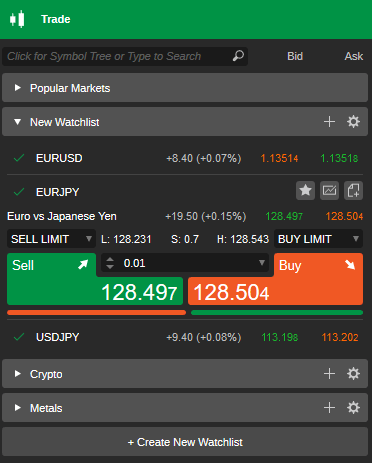
Use the Finder to the top of the Watchlist to find the desired symbol. Click in the search box to view the whole list of the asset classes and select the desired symbol.
Alternatively, use the shortcut Ctrl+f to proceed to the finder.
or type in the symbol tile or its part to find the desired symbol.
When you select a symbol from the Watchlist, it becomes a current symbol in the Active Symbol Panel to the right.
Note
If you have open positions, then you will see the positions count badge that displays the number of opened positions per symbol.
The Symbol tile displays the symbol information in real-time. The following information is available on the Symbol panel in the Watchlist:
* The symbol name to the upper left (e.g. USDJPY). The number of your open Positions for this symbol is displayed next to it.
* Daily Low - the lowest price that occurred for the symbol during the last 24 hours.
* Daily High - the highest price that occurred for the symbol during the last 24 hours.
* Daily Change - the difference between the current price of the symbol and the price a day before.
* The current Ask and Bid prices for the symbol.
* Market Sentiment - the overall attitude of investors toward the symbol. Hover over the Market Sentiment to see the percentage of client accounts that expect the price to fall or to rise.
* Spread - the difference between the Bid and Ask prices.
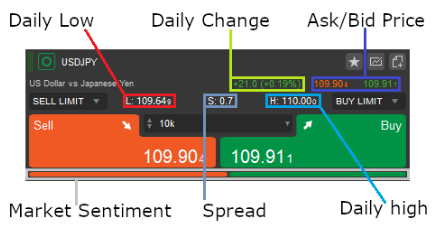
To add a symbol to the Watchlists, click the Star button (), and select the existing watchlist or create a new one where you would like to add it.
Click the New Order button () to create a new order. Click the Chart button () - to open the symbol chart.
### Manage Symbols[¶](https://help.ctrader.com/ctrader/interface/market-watch/#manage-symbols "Permanent link")
Right-click on a symbol (no matter if it is expanded or not) to expand the additional symbol options drop-down.
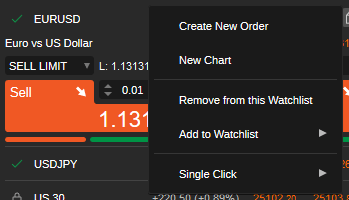
* Create New Order - click to open the New Order menu. Allows creating any kind of trading order.
* New chart - click to open a new chart for the current symbol.
* Remove from this Watchlist - click to remove the current symbol from the current watchlist.
* Add to Watchlist - add the current symbol to the desired Watchlist.
* Single Click - enable or disable expanding the symbol by a single click.
QuickTrade[¶](https://help.ctrader.com/ctrader/interface/market-watch/#quicktrade "Permanent link")
----------------------------------------------------------------------------------------------------
The WatchLists allow entering the trades by creating the Limit Orders and Market Orders using the QuickTrade option.
To start trading with the QuickTrade, click on the desired symbol to expand it, then select the volume from the drop-down (alternatively, use the toggles or type in the value , and click the Sell or Buy button to create a Market Order.
Use the Sell Limit or Buy Limit drop-downs to create a Limit order, and select the price that you want your order to be filled at.
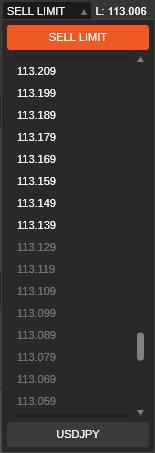
Note
In the QuickTrade mode, the Market or Limit order will be sent without any further confirmation, if the QuickTrade mode is OFF - the Create Order menu will pop.
Only the most popular symbols are available in the Watchlists.
Use the Symbol bar of the Active Symbol Panel or the Marketwatch finder to find all the available symbols.
All the symbols are grouped by asset classes: Popular Markets, Metals, Energies, Forex, Indices, EU and US Shares, Powershares ETFs, iShares ETFs, Crypto Currencies, Asia/Pacific Shares, etc.
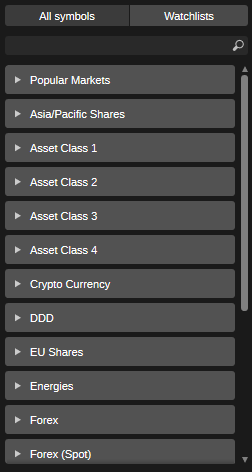
Watchlists[¶](https://help.ctrader.com/ctrader/interface/market-watch/#watchlists "Permanent link")
----------------------------------------------------------------------------------------------------
cTrader allows trading thousands of symbols depending on your broker.
A Watchlist is a customizable group of symbols where you can add or delete the symbols of your choice.
In the Watchlists tab on the MarketWatch panel, there is one watchlist available by default - the Popular Markets, which contains the most popular symbols. This Watchlist is not editable.
You can create as many Watchlists as you need. To create a new Watchlist click +Create New Watchlist, specify its name and click OK.
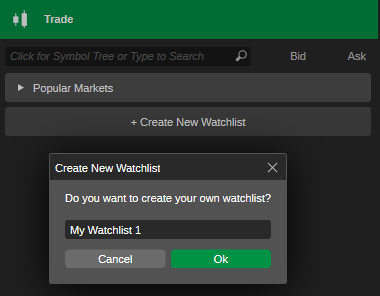
Use the "+" button on your watchlist to add as many new symbols to it as you need. Use the search box above if you don't see the desired symbol in the list.
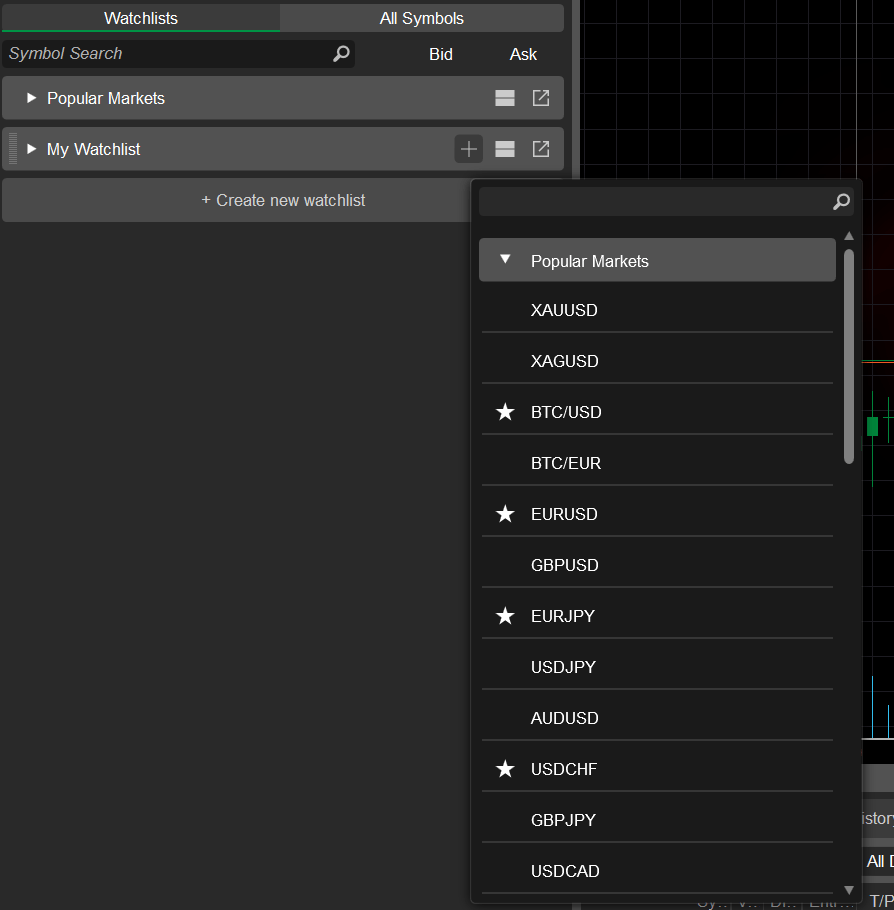
### Manage Watchlists[¶](https://help.ctrader.com/ctrader/interface/market-watch/#manage-watchlists "Permanent link")
Right-click on a Watchlist to expand its additional options.
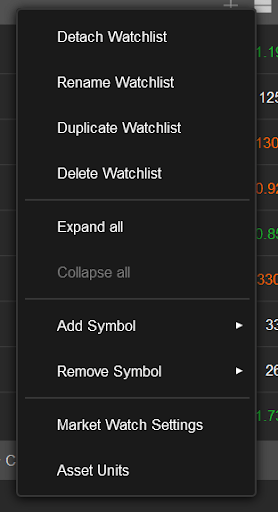
* Detach - click to detach the current watchlist.
* Rename - click Rename to rename the current watchlist. You can rename any of your Watchlists except the default Popular Markets watchlist.
* Duplicate Watchlist - click to completely duplicate the current Watchlist. The Popular Market watchlist can also be duplicated. The duplicated watchlist will appear in the bottom of the list.
* Delete Watchlist - click to completely remove the current Watchlist.
* Expand all - click to expand all symbols.
* Collapse all - click to collapse all symbols.
* Add Symbol or Remove Symbol - click to mark the desired symbols to be added or removed from the list.
* Watchlist Settings - click to enable or disable Daily Change for the symbols, and enable or disable expanding the symbol on a Single click.
* Asset Units - click to open the Asset Units settings.
To reorder a watchlist, drag and drop the symbols in the list. Drag the watchlists to reorder them, or drag the symbols from one watchlist to another.
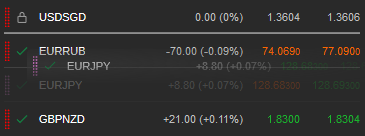
---
# Buy a product - cTrader Store
[Skip to content](https://help.ctrader.com/ctrader-store/how-tos/buy-a-product/#buy-a-product)
Buy a product[¶](https://help.ctrader.com/ctrader-store/how-tos/buy-a-product/#buy-a-product "Permanent link")
===============================================================================================================
Find an algorithm you want to buy by browsing product categories or using the search field.
Click the **Buy now** button displaying the price and proceed to the payment page.

Note
Free products are available in cTrader Store and can be downloaded instantly by clicking the **Free** button.
Before your first purchase in cTrader Store, your country is automatically detected based on your IP address. Alternatively, you can manually select and confirm your location.

Warning
Your payment card must be issued in the specified country; otherwise, the payment will not be processed.
You can pay for a product with a debit or credit card. Supported cards include Visa, MasterCard and other popular payment systems.

Note
cTrader does not collect and store your payment method details. All payments are securely processed by our trusted provider.
Back to top
---
# Getting Started - Open API
[Skip to content](https://help.ctrader.com/open-api/#getting-started)
Getting Started[¶](https://help.ctrader.com/open-api/#getting-started "Permanent link")
========================================================================================
The cTrader Open API is a service you can use to develop custom applications connected to the cTrader backend. This documentation provides everything you need to know including information about SDKs, structured tutorials, code snippets, and more.
What Is Open API?[¶](https://help.ctrader.com/open-api/#what-is-open-api "Permanent link")
-------------------------------------------------------------------------------------------
The cTrader Open API is a service that allows anyone with a cTID to create an application sending and receiving information to and from the cTrader backend. You can use this API to develop trading-oriented apps or services or integrate the cTrader backend with any existing solutions you may have.
Using this API involves sending and receiving messages to and from the cTrader backend. This is done via sending/receiving either JSON objects or [**Google Protocol Buffers (Protobufs)**](https://developers.google.com/protocol-buffers)
. Both of these means of data serialisation/deserialisation are language-neutral, meaning that you can use any programming language you want to interact with the API.
Message Names
Note that when this documentation references specific messages (e.g., [**`ProtoOAApplicationAuthReq`**](https://help.ctrader.com/open-api/messages/#protooaapplicationauthreq)
), it uses the Protobuf notation with `ProtoOA...` at the start of a message name.
The cTrader Open API is available for anyone registered with a cTrader-affiliated broker.
Use Cases
Here are just some of the possible applications you may create when interacting with the cTrader Open API.
* A custom trading application that funnels new users to create new accounts with a certain broker.
* A Telegram bot that automatically informs your followers of any new traders you may have placed.
* An app for wearables that displays the current P&L of the five most recent positions opened by the user.
* A mobile app that gives a market overview by using a generative AI service.
As you can see, the cTrader Open API is perfect for professional traders who want to go social and closely interact with their followers.
Essential Functionality[¶](https://help.ctrader.com/open-api/#essential-functionality "Permanent link")
--------------------------------------------------------------------------------------------------------
Here is a non-exhaustive list of what the cTrader Open API allows your code to do.
* Access real-time market data.
* Perform all possible types of trading operations permitted in the official cTrader applications.
* Retrieve and process information on past, current, and pending operations including deals, orders, and positions.
As shown in our [**Terms of Use**](https://help.ctrader.com/terms-of-use/)
, the API can be accessed by anyone with a cTID, and, by default, it is supported by all trading accounts of any cTrader-affiliated brokers.
Rate Limiting
Note that there exist some limits on how frequently you can perform certain requests to the cTrader backend.
* You can perform a maximum of 50 requests per second per connection for any non-historical data requests.
* You can perform a maximum of 5 requests per second per connection for any historical data requests.
Demo and Live Trading[¶](https://help.ctrader.com/open-api/#demo-and-live-trading "Permanent link")
----------------------------------------------------------------------------------------------------
You can use the cTrader Open API to trade on behalf of both Demo and Live accounts.
We recommend using Demo accounts for development and testing, and then switching to Live after making sure that your integration with the cTrader Open API works as intended.
However, there are no hard restrictions, and you may freely choose to start development and testing under a Live account.
SDKs[¶](https://help.ctrader.com/open-api/#sdks "Permanent link")
------------------------------------------------------------------
When integrating with the Open API, you can use [**either JSON or Protobufs for data serialisation/deserialisation**](https://help.ctrader.com/open-api/protocol-buffers-json/)
.
You can use any language to implement the cTrader Open API. However, if you intend to use Protobufs, we highly recommend using a language that has official SDK support from Spotware. To date, these languages are as follows.
* C# ([**access the SDK here**](https://github.com/spotware/OpenAPI.Net)
)
* Python ([**access the SDK here**](https://github.com/spotware/OpenApiPy)
)
Every official SDK listed above contains 'helper' methods and classes that make the implementation of the cTrader Open API as smooth as possible.
If you intend to use JSON, there is no need to use our SDKs as handling serialisation/deserialisation in this case is relatively simple.
---
# cTrader Help Center
All sections
[cTrader Store](https://help.ctrader.com/ctrader-store/)
[WebView plugins](https://help.ctrader.com/webview-plugins/)
[cTrader ID](https://help.ctrader.com/ctrader-id/)
[Trading with cTrader](https://help.ctrader.com/trading-with-ctrader/)
[cTrader Windows](https://help.ctrader.com/ctrader/)
[cTrader Mac](https://help.ctrader.com/ctrader-mac/)
[cTrader Web](https://help.ctrader.com/ctrader-web/)
[cTrader Mobile iOS](https://help.ctrader.com/ctrader-mobile-ios/)
[cTrader Mobile Android](https://help.ctrader.com/ctrader-mobile-android/)
[Partner tools](https://help.ctrader.com/partner-tools/)
[cTrader Invite](https://help.ctrader.com/ctrader-invite/)
[cTrader Algo](https://help.ctrader.com/ctrader-algo/)
[cTrader Copy](https://help.ctrader.com/ctrader-copy/)
[cTrader deeplinks](https://help.ctrader.com/ctrader-deeplinks/)
[cTrader Analyze](https://help.ctrader.com/ctrader-analyze/)
[cTrader bonuses](https://help.ctrader.com/bonuses/)
[Open API](https://help.ctrader.com/open-api/)
[FIX API](https://help.ctrader.com/fix/)
[Video library](https://help.ctrader.com/video-library/)
[Knowledge base](https://help.ctrader.com/knowledge-base/)
[Troubleshooting](https://help.ctrader.com/troubleshooting/)
[Join Discord](https://go.spotware.com/discord/)
[Suggestions](https://discord.com/channels/1253586345868136518/1351184739851042877/)
[cTrader Store](https://help.ctrader.com/ctrader-store/)
[WebView plugins](https://help.ctrader.com/webview-plugins/)
[cTrader ID](https://help.ctrader.com/ctrader-id/)
[Trading with cTrader](https://help.ctrader.com/trading-with-ctrader/)
[cTrader Windows](https://help.ctrader.com/ctrader/)
[cTrader Mac](https://help.ctrader.com/ctrader-mac/)
[cTrader Web](https://help.ctrader.com/ctrader-web/)
[cTrader Mobile iOS](https://help.ctrader.com/ctrader-mobile-ios/)
[cTrader Mobile Android](https://help.ctrader.com/ctrader-mobile-android/)
[Partner tools](https://help.ctrader.com/partner-tools/)
[cTrader Invite](https://help.ctrader.com/ctrader-invite/)
[cTrader Algo](https://help.ctrader.com/ctrader-algo/)
[cTrader Copy](https://help.ctrader.com/ctrader-copy/)
[cTrader deeplinks](https://help.ctrader.com/ctrader-deeplinks/)
[cTrader Analyze](https://help.ctrader.com/ctrader-analyze/)
[cTrader bonuses](https://help.ctrader.com/bonuses/)
[Open API](https://help.ctrader.com/open-api/)
[FIX API](https://help.ctrader.com/fix/)
[Video library](https://help.ctrader.com/video-library/)
[Knowledge base](https://help.ctrader.com/knowledge-base/)
[Troubleshooting](https://help.ctrader.com/troubleshooting/)
[](https://ctrader.com/brokers)
New
cTrader Store
Buy and sell algos
Check out products on cTrader Store and become a seller easily.
05/08/2024
3 min
Windows
Web
Mobile
cTrader Algo
Run cBots in Cloud
Learn how to add instances and start cBots in Cloud from mobile.
16/05/2024
3 min
Windows
Plugins
Create a plugin
Meet plugins, the new type of algorithms in cTrader.
16/05/2024
5 min

[cTrader Invite](https://help.ctrader.com/ctrader-invite/invite-link/)
See essential articles
* [Invited traders](https://help.ctrader.com/ctrader-invite/invited-traders/)
* [Partner](https://help.ctrader.com/ctrader-invite/partner/)
* [Settings](https://help.ctrader.com/ctrader-invite/settings/)
* [FAQ](https://help.ctrader.com/ctrader-invite/faq/)

[cTrader Algo](https://help.ctrader.com/ctrader-algo/how-tos-index/)
See essential articles
* [Creating and running a cBot](https://help.ctrader.com/ctrader-algo/creating-and-running-a-cbot/)
* [Creating an indicator](https://help.ctrader.com/ctrader-algo/creating-an-indicator/)
* [Creating a plugin](https://help.ctrader.com/ctrader-algo/creating-a-plugin/)
* [Sharing an algorithm](https://help.ctrader.com/ctrader-algo/synchronisation/sharing-an-algo/)

[cTrader Copy](https://help.ctrader.com/ctrader-copy/)
See essential articles
* [Investing in strategies](https://help.ctrader.com/ctrader-copy/investing-in-strategies/)
* [Becoming a strategy provider](https://help.ctrader.com/ctrader-copy/becoming-a-strategy-provider/)
* [Fees calculation](https://help.ctrader.com/ctrader-copy/fees-calculation/)
* [FAQ](https://help.ctrader.com/ctrader-copy/faq/)

[cTrader Store](https://help.ctrader.com/ctrader-store/)
See essential articles
* [Sign in](https://help.ctrader.com/ctrader-store/sign-in/)
* [Buy a product](https://help.ctrader.com/ctrader-store/how-tos/buy-a-product/)
* [Use a product](https://help.ctrader.com/ctrader-store/how-tos/use-a-product/)
* [Become a seller](https://help.ctrader.com/ctrader-store/how-tos/become-a-seller/)

[Partner tools](https://help.ctrader.com/partner-tools/)
See essential articles
* [For social traders](https://help.ctrader.com/partner-tools/for-social-traders/)
* [For educators](https://help.ctrader.com/partner-tools/for-educators/)
* [For money managers](https://help.ctrader.com/partner-tools/for-money-managers/)
* [For networkers and affiliates](https://help.ctrader.com/partner-tools/for-networkers-affiliates/)

[cTrader ID](https://help.ctrader.com/ctrader-id/)
See essential articles
* [Create a new cTID](https://help.ctrader.com/ctrader-id/create-a-new-ctrader-id/)
* [Managing cTID](https://help.ctrader.com/ctrader-id/managing-ctid/)
* [Profile](https://help.ctrader.com/ctrader-id/managing-ctid/profile/)
* [cTID credentials](https://help.ctrader.com/ctrader-id/managing-ctid/credentials/)

[cTrader Windows](https://help.ctrader.com/ctrader/)
See essential articles
* [Orders](https://help.ctrader.com/ctrader/trading/orders/)
* [Chart trading](https://help.ctrader.com/ctrader/trading/chart-trading/)
* [Market Watch](https://help.ctrader.com/ctrader/interface/market-watch/)
* [Market Replay](https://help.ctrader.com/ctrader/trading/market-replay/)

[cTrader Web](https://help.ctrader.com/ctrader-web/)
See essential articles
* [Widgets](https://help.ctrader.com/ctrader-web/embed/embedded-web/)
* [Risk-reward](https://help.ctrader.com/ctrader-web/charts/risk-reward/)
* [Chart Streams](https://help.ctrader.com/ctrader-web/sharing/streams/)
* [Price alerts](https://help.ctrader.com/ctrader-web/sharing/price-alerts/)

[cTrader Mobile (iOS)](https://help.ctrader.com/ctrader-mobile-ios/installation/)
See essential articles
* [Charts](https://help.ctrader.com/ctrader-mobile-ios/trade/charts/)
* [Orders](https://help.ctrader.com/ctrader-mobile-ios/trade/orders/)
* [Signal links](https://help.ctrader.com/ctrader-mobile-ios/signal-links-ios/)
* [Shared Access](https://help.ctrader.com/ctrader-mobile-ios/shared-access-ios/)
Popular guides
[cTrader Algo: Parameter types\
\
In this guide, we explain the key types of parameters you can use in cTrader algos.](https://help.ctrader.com/ctrader-algo/guides/parameter-types/)
[cTrader Algo: How to use custom indicators in cBots\
\
This guide explains how you can use custom indicators in cBots.](https://help.ctrader.com/ctrader-automate/articles/for-developers/how-to-use-custom-indicators-in-cbots/)
[cTrader Web: Chart Streams\
\
In this guide, we showcase how you can stream your charts.](https://help.ctrader.com/ctrader-web/sharing/streams/)
[cTrader ID: Create a new cTrader ID\
\
This article demonstrates how you can create a new cTrader ID.](https://help.ctrader.com/ctrader-id/create-a-new-ctrader-id/)
[cTrader Web: Range bars\
\
This guide discusses range bars and the benefits this chart type offers to traders.](https://help.ctrader.com/ctrader-web/charts/range-bars/)
Access cTrader
[cTrader Windows\
\
cTrader Windows for PCs. Current version: 5.0](https://spotware.ctrader.com/ctrader-spotware-setup.exe)
[cTrader Web\
\
cTrader as a web application. Current version: 5.0](https://app.ctrader.com/)
[cTrader Mobile Android\
\
cTrader for Android devices. Current version: 5.0](https://play.google.com/store/apps/details?id=com.spotware.ct)
[cTrader Mobile iOS\
\
cTrader for iOS devices. Current version: 5.0](https://itunes.apple.com/cy/app/spotware-ctrader/id767428811?mt=8)
[cTrader Mac\
\
Native cTrader app for MacOS.](https://getctradermac.com/spotware/ctrader-spotware-setup.dmg)
---
# Profile - cTrader ID
[Skip to content](https://help.ctrader.com/ctrader-id/managing-ctid/profile/#edit-profile-details)
Profile
=======
In the [**Profile**](https://id.ctrader.com/my/settings/profile)
tab of the cTID website, you can edit your personal information and contacts shown on the profile page and adjust your visibility settings.
Note
The profile page of a cTrader user can be accessed:
* Via a link `https://ctrader.com/u/username/`, where `username` is a real cTrader username, by all traders.
* In the [**Partner**](https://help.ctrader.com/ctrader-invite/partner/)
tab of cTrader Invite, by invited traders whose partner has decided to make their profile visible.
* On the algorithm author page in [**cTrader Algo**](https://help.ctrader.com/ctrader-algo/how-tos-index/)
.
* On the algorithm seller page in [**cTrader Store**](https://help.ctrader.com/ctrader-store/)
.
Edit profile details[¶](https://help.ctrader.com/ctrader-id/managing-ctid/profile/#edit-profile-details "Permanent link")
--------------------------------------------------------------------------------------------------------------------------
You can edit the following profile details and settings in the top panel.

### Cover image[¶](https://help.ctrader.com/ctrader-id/managing-ctid/profile/#cover-image "Permanent link")
Click the icon in the top-right corner of the cover image, select **Upload new image** and upload your preferred profile cover.
### Profile picture[¶](https://help.ctrader.com/ctrader-id/managing-ctid/profile/#profile-picture "Permanent link")
Click the icon on your round profile picture and choose **Upload new image**. Select a new profile picture and upload it.
### Username[¶](https://help.ctrader.com/ctrader-id/managing-ctid/profile/#username "Permanent link")
Click the edit icon to the right of your username, input a new username and then click **Save**.
### Preview[¶](https://help.ctrader.com/ctrader-id/managing-ctid/profile/#preview "Permanent link")
Click **Check how your profile appears to users** to preview your profile page.
### Visibility[¶](https://help.ctrader.com/ctrader-id/managing-ctid/profile/#visibility "Permanent link")
Manage your profile visibility with the **Make your profile public** toggle.
Warning
If you disable **Make your profile public**, all other traders, including your invited traders, will be unable to access your profile page.
Edit personal information[¶](https://help.ctrader.com/ctrader-id/managing-ctid/profile/#edit-personal-information "Permanent link")
------------------------------------------------------------------------------------------------------------------------------------
In the next section, you can add and edit your personal information.

Tip
Share your contact details so invited traders can always reach you. By staying in touch with your referral base, you will support their trading and further enhance your conversion rate.
* **About** - enter information about yourself.
Note
The character limit for this text field is 1,024.
* **Phone** - enter your phone number.
* **Instagram** - enter your Instagram username or profile link.
* **WhatsApp** - enter your phone number for WhatsApp or profile link.
* **X platform** - enter your handle, username or profile link on X (formerly Twitter).
* **Telegram** - enter your phone number for Telegram, username or profile link.
* **YouTube** - enter your YouTube channel name, username or account link.
* **Facebook** - enter your Facebook username or profile link.
Click **Save** to confirm the changes.
Adjust profile information visibility[¶](https://help.ctrader.com/ctrader-id/managing-ctid/profile/#adjust-profile-information-visibility "Permanent link")
------------------------------------------------------------------------------------------------------------------------------------------------------------
Here, you can control the visibility of information on your profile page.

* **Contact information** - enable if you want your profile page visitors to see your contact details.
* **Trading stats** - enable if you want your profile page visitors to see your trading statistics.
* **Section about** - enable if you want your profile page visitors to see the **About** section.
Any changes you make here are applied immediately.
Adjust products visibility[¶](https://help.ctrader.com/ctrader-id/managing-ctid/profile/#adjust-products-visibility "Permanent link")
--------------------------------------------------------------------------------------------------------------------------------------
Here, you can choose which products to display to other traders, including your invited traders, on your profile page.

Tip
Partners use their profile page with appealing cTrader products as a ready-to-go landing page. Once traders click on your products, they are attributed to you within cTrader and can later convert into referrals in the broker's system.
* **Your copy strategies** - enable if you want your profile page visitors to see the copy strategies you are providing.
* **Favourite copy strategies** - enable if you want your profile page visitors to see the copy strategies you have marked as favourites.
* **Your public algorithms** - enable if you want your profile page visitors to see the cTrader algorithms you are sharing via Invite.
Any changes you make here are applied immediately.
Back to top
---
# Managing cTID - cTrader ID
Managing cTID
=============
To manage your cTrader ID, sign in to the [**cTID website**](https://id.ctrader.com/)
, and the **Overview** tab will open.
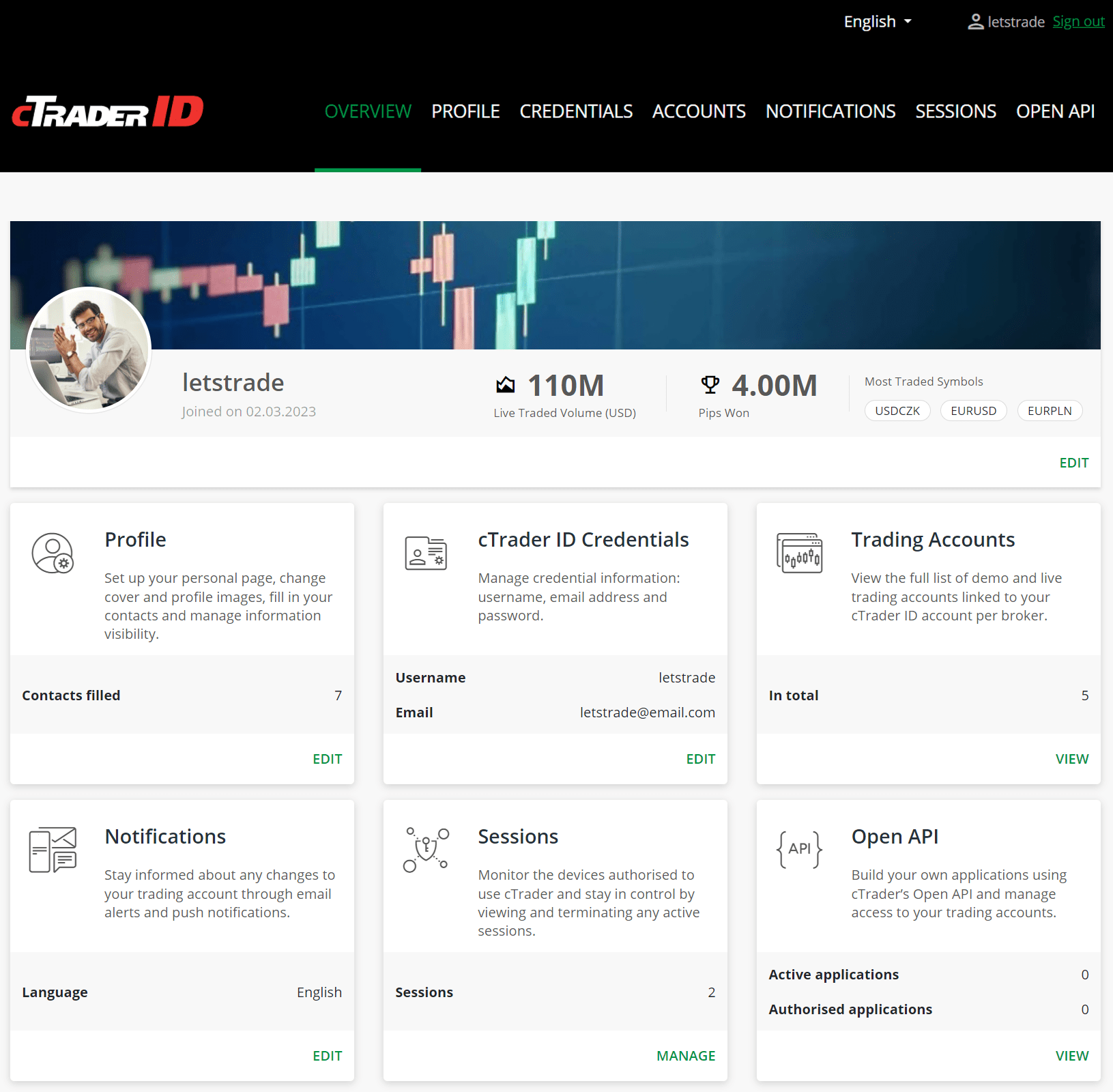
Here, you can access the following settings:
* [**Profile**](https://help.ctrader.com/ctrader-id/managing-ctid/profile/)
- edit your profile information and adjust visibility settings.
* [**cTrader ID credentials**](https://help.ctrader.com/ctrader-id/managing-ctid/credentials/)
- change cTID credentials, such as your username, email and password.
* [**Trading accounts**](https://help.ctrader.com/ctrader-id/managing-ctid/trading-accounts/)
- view and manage demo and live trading accounts per broker linked to your cTID.
* [**Notifications**](https://help.ctrader.com/ctrader-id/managing-ctid/notifications/)
- manage notification settings and subscription to cTrader news and updates.
* [**Sessions**](https://help.ctrader.com/ctrader-id/managing-ctid/active-sessions/)
- view and manage all the active sessions or instances where your cTID is being used.
* [**Open API**](https://id.ctrader.com/my/settings/openapi)
- view and manage Open API applications that have been granted access to your trading accounts.
Note
You can manage certain cTID settings directly from cTrader applications, without accessing the cTID website. Below, we explain which cTID management functionalities are available in each cTrader app.
cTrader MobilecTrader WebcTrader WindowscTrader Mac
Open the hamburger menu in the top-left corner and tap **Manage profile** in the list to access the following cTID settings.
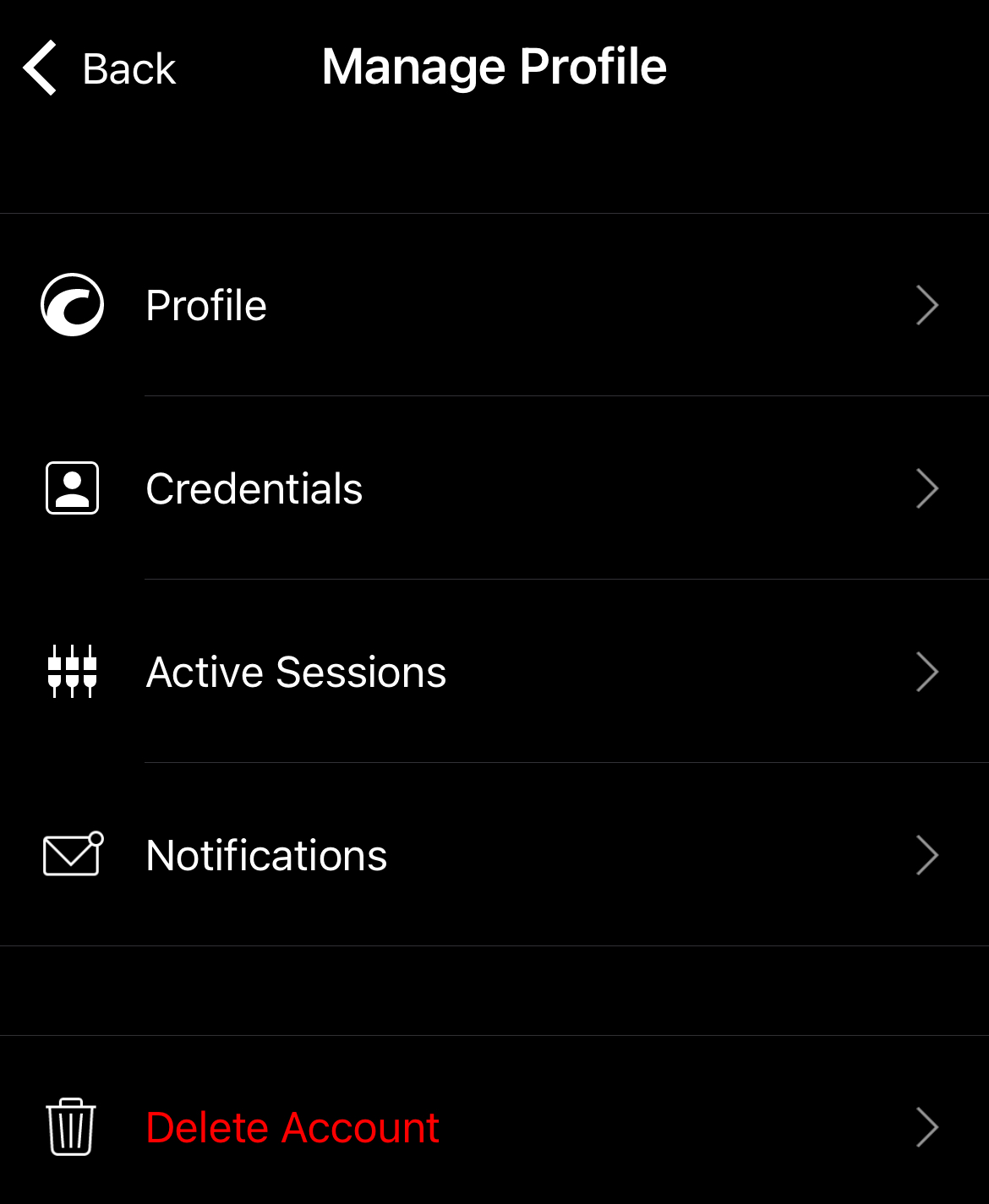
* **Profile** - edit your profile information and adjust visibility settings.
* **Change credentials** - change your cTID username, email or password.
* **Active sessions** - view and manage all the sessions or instances where your cTID is being used.
* **Notifications** - manage notification settings and subscription to cTrader news and updates.
* **Delete account** - delete demo and live trading accounts per broker linked to your cTID.
Warning
You cannot delete a trading account under Spotware if it has any open positions or pending orders. Close positions and cancel pending orders first, then delete your account.
Open the account selector in the top-right corner and access the following cTID settings under your username/email.
* **Active sessions** - view and manage all the sessions or instances where your cTID is being used.
* **Change credentials** - change your cTID username, email or password.
* **Manage profile** - edit your profile information and adjust visibility settings.
Open the account selector in the top-right corner and access the following cTID settings under your username/email.
* **Active sessions** - view and manage all the sessions or instances where your cTID is being used.
* **Change credentials** - change your cTID username, email or password.
* **Manage profile** - edit your profile information and adjust visibility settings.
Open the account selector in the top-right corner and access the following cTID settings under your username/email.
* **Active sessions** - view and manage all the sessions or instances where your cTID is being used.
* **Change credentials** - change your cTID username, email or password.
* **Manage profile** - edit your profile information and adjust visibility settings.
Back to top
---
# Sign in - cTrader Store
[Skip to content](https://help.ctrader.com/ctrader-store/sign-in/#sign-in)
Sign in[¶](https://help.ctrader.com/ctrader-store/sign-in/#sign-in "Permanent link")
=====================================================================================
Use your [**cTrader ID**](https://help.ctrader.com/ctrader-id/)
(cTID) to sign in to cTrader Store.

If you are a new user, click **Sign up** and then type in your details to register. For more information, read our dedicated guides on how to [**create a new cTID**](https://help.ctrader.com/ctrader-id/create-a-new-ctrader-id/)
or [**sign up with social accounts**](https://help.ctrader.com/ctrader-id/sign-in-with-the-social-accounts/)
.
Alternatively, you can sign up via any [**cTrader app**](https://app.ctrader.com/)
or the [**cTrader ID website**](https://id.ctrader.com/)
.
After you sign in to cTrader Store, you can immediately [**buy products**](https://help.ctrader.com/ctrader-store/how-tos/buy-a-product/)
. However, additional [**verification**](https://help.ctrader.com/ctrader-store/how-tos/become-a-seller/)
is required to [**sell products**](https://help.ctrader.com/ctrader-store/how-tos/publish-a-product/)
.
Back to top
---
# cTID credentials - cTrader ID
[Skip to content](https://help.ctrader.com/ctrader-id/managing-ctid/credentials/#change-ctid-username)
cTID credentials
================
To change your cTID username, email or password, navigate to the [**Credentials**](https://id.ctrader.com/my/settings/credentials)
tab of the cTID website.
Change cTID username[¶](https://help.ctrader.com/ctrader-id/managing-ctid/credentials/#change-ctid-username "Permanent link")
------------------------------------------------------------------------------------------------------------------------------
Enter a new name in the **New username** field and click **Change username** to update your cTID username.
Your username is changed immediately.
Change email[¶](https://help.ctrader.com/ctrader-id/managing-ctid/credentials/#change-email "Permanent link")
--------------------------------------------------------------------------------------------------------------
To modify the email linked with your cTID, enter a new email address in the **New email** field and then click **Change email**.
Note
A confirmation message will be sent to your old email address. Once you confirm the action, you will be redirected to the cTID website, where another confirmation message will be sent to your new email address. Open the message in your new email and confirm the request.
Change password[¶](https://help.ctrader.com/ctrader-id/managing-ctid/credentials/#change-password "Permanent link")
--------------------------------------------------------------------------------------------------------------------
To modify your cTID password, enter your current password and a new password (twice) in the corresponding fields.
Your password is changed immediately.
Warning
If you forgot your password and cannot access the cTID website, simply [**reset your password**](https://id.ctrader.com/reset)
. Alternatively, you can click **Forgot password** in any cTrader application. We have a separate guide detailing how to [**reset a cTID password**](https://help.ctrader.com/ctrader-id/managing-ctid/reset-ctid-password/)
.
Back to top
---
# UI operations - cTrader Algo
[Skip to content](https://help.ctrader.com/ctrader-algo/guides/ui/#ui-operations)
UI operations[¶](https://help.ctrader.com/ctrader-algo/guides/ui/#ui-operations "Permanent link")
==================================================================================================
cTrader offers several UI-related solutions to algo developers:
* **Chart controls** - are interactive feature-rich [**WPF-like**](https://learn.microsoft.com/en-us/visualstudio/designers/getting-started-with-wpf?view=vs-2022)
API members that you can use to create controls overlayed on cTrader charts. Through these controls, users can interact with your cBots and indicators.
* **Chart objects** - encompass various technical analysis tools and related UI elements. Typically, you can draw them on a chart using either C# code or the cTrader built-in chart tools.
* **WinForms** - you can use [**.NET WinForms**](https://learn.microsoft.com/en-us/dotnet/desktop/winforms/?view=netdesktop-6.0)
in your cTrader cBots and indicators. To simplify work with WinForms, we encourage you to use the Visual Studio WinForms designer.
* **WPF** - cBots, plugins and indicators also support WPF. We encourage using this option only if you are familiar with C# and .NET.
Note
WinForms and WPF only work if you are running and developing cTrader algos on a Windows machine.
Back to top
---
# Introduction - WebView Plugins
[Skip to content](https://help.ctrader.com/webview-plugins/#introduction)
Warning
This feature is in pre-release and currently under testing. Documentation is for reference only.
Introduction[¶](https://help.ctrader.com/webview-plugins/#introduction "Permanent link")
=========================================================================================
WebView (WV) plugins are versatile web-based services that integrate seamlessly across cTrader Mobile, Web, Windows and Mac apps, extending the platform UI and functionality.
WebView plugins in one minute!
* WV plugins support trading decisions and personalise your space by delivering useful services such as trading assistants, technical analysis widgets, symbol dashboards and more.
* Creators develop web apps hosted on external websites that interact with cTrader through a dedicated SDK.
* cTrader users can build WV plugins in cTrader Web, Windows or Mac and publish them directly in cTrader Store, reaching millions of traders. Optionally, they can add WV plugins only to their cTrader apps and share them via Invite, attributing other traders.
* Traders can effortlessly add WV plugins from cTrader Store, and they will be available across all their cTrader apps due to cloud synchronisation.
Explore WV plugins in [**cTrader Store**](https://ctrader.com/webview-plugins)
. Popular examples include:
* AI assistants
* Trade calculators
* Interactive dashboards
* Pattern recognition trainers
* Hashtag-based newsfeeds
* Technical analysis widgets
* Forex cross-rates tools
* Symbol notes
* And more
MobileWeb and desktop
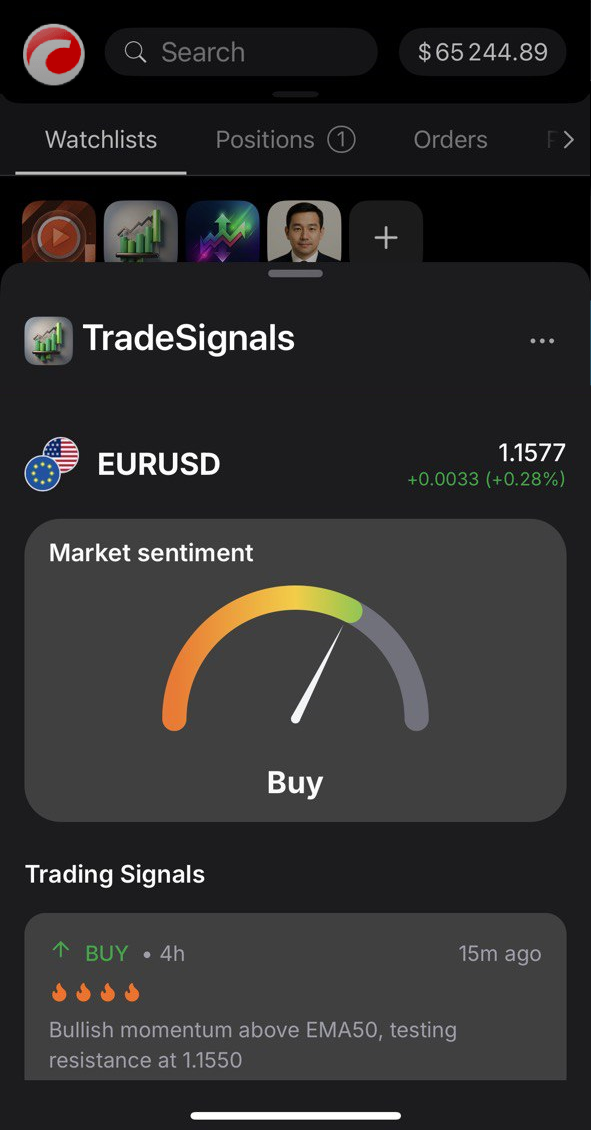
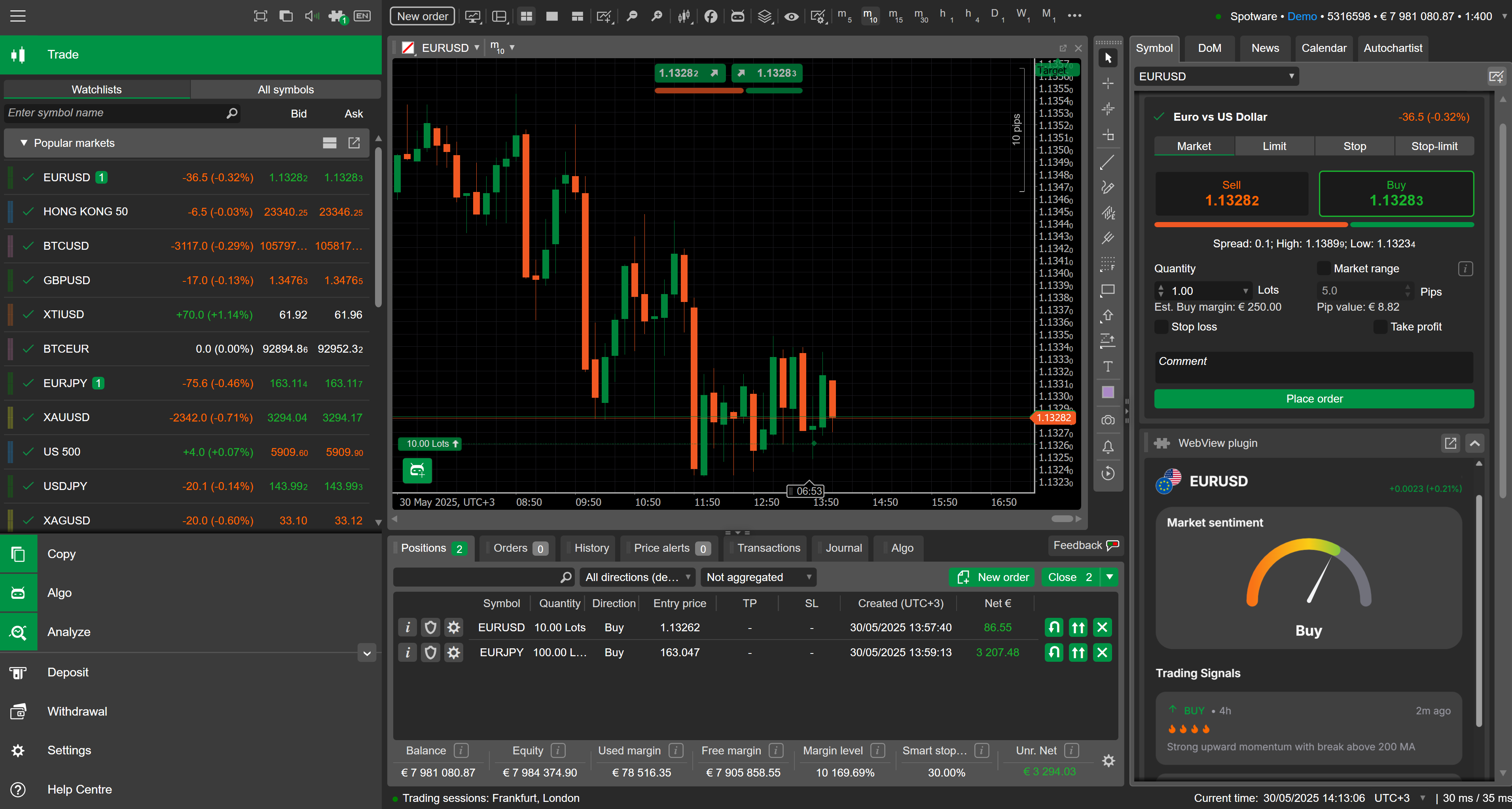
WebView plugins expand the cTrader ecosystem and differ from [**desktop plugins**](https://help.ctrader.com/ctrader-algo/plugins)
in several ways.
| Aspect | WebView plugins | Desktop plugins |
| --- | --- | --- |
| Solution | Web-based | Native |
| cTrader apps | Mobile, Web, Windows, Mac | Windows, Mac |
| Distribution method | cTrader Store, cTrader Invite | cTrader Store, cTrader Invite, files |
Back to top
---
# Introduction - cTrader Store
[Skip to content](https://help.ctrader.com/ctrader-store/#introduction)
Introduction[¶](https://help.ctrader.com/ctrader-store/#introduction "Permanent link")
=======================================================================================
[**cTrader Store**](https://ctrader.com/)
is a secure and dynamic marketplace that connects buyers and sellers of trading products.
cTrader Store in one minute!
* Any user with a [**cTrader ID**](https://help.ctrader.com/ctrader-id/)
can enter cTrader Store and obtain both free and paid trading products with a 14-day money-back period.
* Store [**buyers**](https://help.ctrader.com/ctrader-store/how-tos/buy-a-product/)
can instantly start cBots in Cloud and install WebView plugins, all without leaving their mobile device.
* Store [**sellers**](https://help.ctrader.com/ctrader-store/how-tos/publish-a-product/)
can upload their products directly from Cloud or as files, making it quick to publish them.
* By reaching millions of cTrader users worldwide, sellers gain rich monetisation opportunities in Store without marketing effort.
* cTrader Store is a secure, scam-free marketplace designed to safeguard both buyers and sellers.
Product types[¶](https://help.ctrader.com/ctrader-store/#product-types "Permanent link")
-----------------------------------------------------------------------------------------
cTrader Store offers a variety of trading products:
[**cBots**](https://ctrader.com/bots)
– trading robots that can automate any trading strategy, placing orders on your behalf.
[**Indicators**](https://ctrader.com/indicators)
– visual tools for technical analysis that identify patterns on charts and assist with trading decisions.
[**Plugins**](https://ctrader.com/plugins)
– add-ons that extend the cTrader desktop interface with helpful tools and features.
[**WebView plugins**](https://ctrader.com/webview-plugins)
– web-based tools inside mobile, web and desktop cTrader apps that support trading.
cBotsIndicatorsPluginsWebView plugins
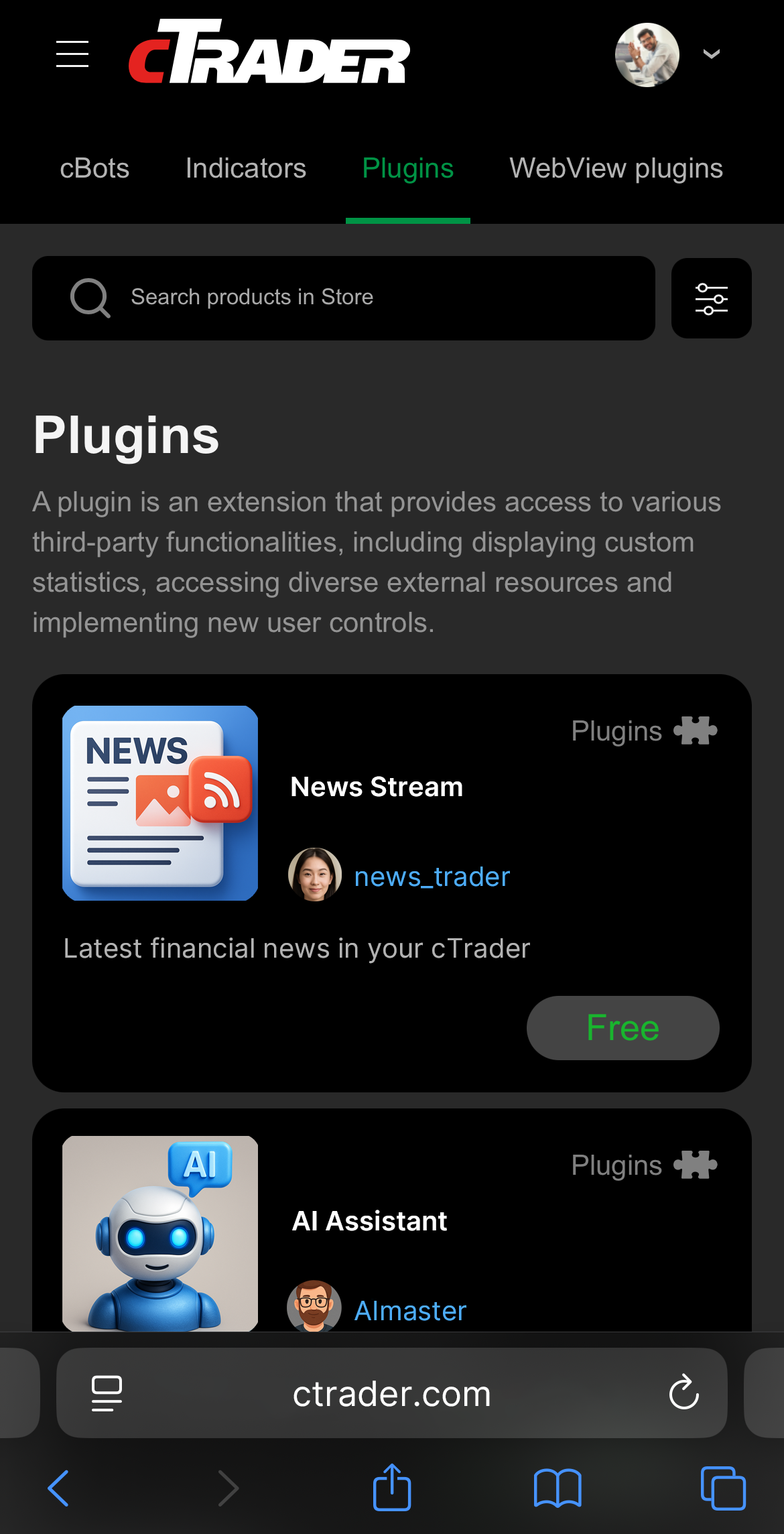
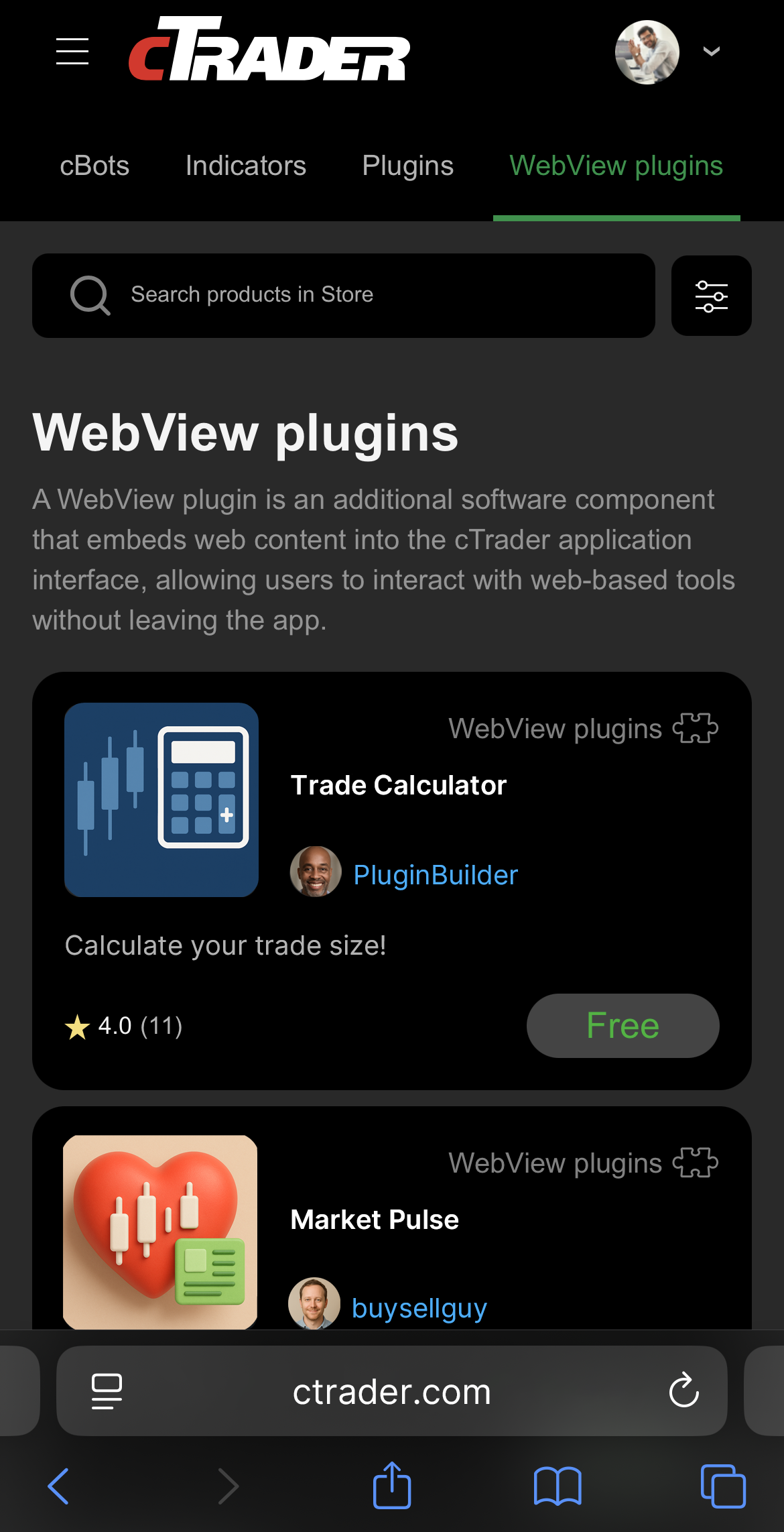
You can access and manage all your installed products from any cTrader app with [**cloud synchronisation**](https://help.ctrader.com/ctrader-algo/synchronisation/)
.
You can [**run cBots**](https://help.ctrader.com/ctrader-algo/mobile-algo/starting-stopping-deleting-instance/)
in Cloud 24/7 from any cTrader app. Desktop apps support local execution of cBots, indicators and plugins.
| **Product** | **cTrader Windows** | **cTrader Mac** | **cTrader Web** | **cTrader Mobile** |
| --- | --- | --- | --- | --- |
| cBot | Manage and run (in Cloud and locally) | Manage and run (in Cloud and locally) | Manage and run (in Cloud) | Manage and run (in Cloud) |
| Indicator | Manage and run | Manage and run | Manage | Manage |
| Plugin | Manage and run | Manage and run | Manage | Manage |
| WebView plugin | Manage and run | Manage and run | Manage and run | Manage and run |
Note
All cTrader apps include [**built-in indicators**](https://help.ctrader.com/knowledge-base/indicators/)
, but custom indicators from Store can only be installed on desktop apps.
Some indicators, plugins and WebView plugins may include trading capabilities.
Learn how to [**use products**](https://help.ctrader.com/ctrader-store/how-tos/use-a-product/)
from Store in cTrader.
Free vs paid products[¶](https://help.ctrader.com/ctrader-store/#free-vs-paid-products "Permanent link")
---------------------------------------------------------------------------------------------------------
cTrader Store offers both free and paid products, giving you flexibility based on your experience level, trading goals and budget.
Free products are a great starting point for algo trading.
* Ideal for beginners exploring strategies or trying out the interface
* Good for learning, testing and using on demo accounts
* No credit card required – start using products instantly
Paid products are designed for result-oriented live trading.
* Built for professional and performance-focused traders
* Offer advanced features and strategies for live trading
* Backed by a money-back period
Note
While free trials are not available, cTrader Store offers a 14-day money-back period for products with technical issues.
Product performance[¶](https://help.ctrader.com/ctrader-store/#product-performance "Permanent link")
-----------------------------------------------------------------------------------------------------
cBot sellers in cTrader Store can attach backtesting results to showcase the performance of their products.
Warning
Past successful performance does not guarantee future results; all trading products are used at your own risk.
Back to top
---
# Become a seller - cTrader Store
[Skip to content](https://help.ctrader.com/ctrader-store/how-tos/become-a-seller/#become-a-seller)
Become a seller[¶](https://help.ctrader.com/ctrader-store/how-tos/become-a-seller/#become-a-seller "Permanent link")
=====================================================================================================================
After you [**sign in**](https://help.ctrader.com/ctrader-store/sign-in/)
, tap the **Join as a seller** button.
You must complete the KYC (Know Your Customer) verification to offer paid or free products in [**cTrader Store**](https://ctrader.com/start-selling)
.
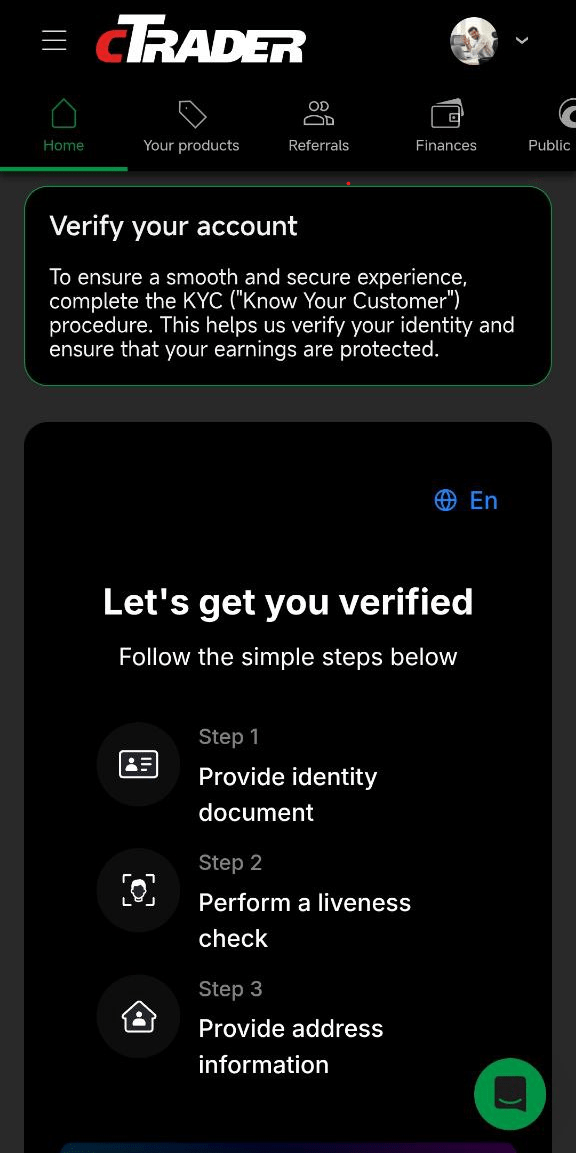
Note
KYC is handled by our trusted partner [**Sumsub**](https://sumsub.com/)
. cTrader Store does not store or process your documents.
Tip
If you have previously passed KYC with Sumsub, you can use your existing [**Sumsub ID**](https://docs.sumsub.com/docs/sumsub-id)
.
KYC verification[¶](https://help.ctrader.com/ctrader-store/how-tos/become-a-seller/#kyc-verification "Permanent link")
-----------------------------------------------------------------------------------------------------------------------
You will need to complete the following steps for the KYC process:
1. Upload a valid government-issued document such as a passport or national ID card. See the full list of [**accepted documents**](https://docs.sumsub.com/docs/qes-supported-identity-documents)
.
2. Perform a selfie (liveness) verification using a smartphone camera or a computer webcam. For more details, see Sumsub’s [**selfie verification guide**](https://docs.sumsub.com/docs/liveness)
.
3. Provide any of the following as proof of residential address:
* Utility bill (issued within the last 3 months)
* Bank statement
* Official letter from a government authority
Note
Upload scanned copies or high-quality photos of the documents.
Verification outcomes[¶](https://help.ctrader.com/ctrader-store/how-tos/become-a-seller/#verification-outcomes "Permanent link")
---------------------------------------------------------------------------------------------------------------------------------
There are three possible outcomes for your verification:
**Successful** – you are ready to publish your paid and free products in cTrader Store.
**Additional verification required** – your application is subject to additional review, typically regarding address documentation. Our team will contact you within 1-2 business days with guidance on the next steps.
**Rejected** – you can contact our support team at **[support@ctrader.com](mailto:support@ctrader.com)
** for a manual review of your application.
Once your account is verified as a seller, you can start [**publishing products**](https://help.ctrader.com/ctrader-store/how-tos/publish-a-product/)
.
Warning
Due to banking regulations, citizens of Russia and Belarus can complete KYC verification, but their registered address must be outside these countries.
If you have any questions, please contact **[support@ctrader.com](mailto:support@ctrader.com)
**.
Back to top
---
# Use a product - cTrader Store
[Skip to content](https://help.ctrader.com/ctrader-store/how-tos/use-a-product/#use-a-product)
Use a product[¶](https://help.ctrader.com/ctrader-store/how-tos/use-a-product/#use-a-product "Permanent link")
===============================================================================================================
Once you have selected a free product or purchased a paid one in Store, it is easy to start using it right away in cTrader.
Warning
A product can only be accessed by the user who purchased it or obtained it for free in cTrader Store. A user with a different cTID will not be able to open the product in cTrader.
cBot[¶](https://help.ctrader.com/ctrader-store/how-tos/use-a-product/#cbot "Permanent link")
---------------------------------------------------------------------------------------------
[**cBots**](https://ctrader.com/bots)
can be started in Cloud from any cTrader app or launched locally from desktop apps.
MobileWebWindows and Mac
1\. Tap **Start cBot** in Store.
2\. Add an instance (account, symbol and period) in cTrader.
3\. Start the cBot in Cloud.
Learn more about [**starting cBots**](https://help.ctrader.com/ctrader-algo/mobile-algo/starting-stopping-deleting-instance/)
.
1\. Click **Start cBot** in Store.
2\. Add an instance (account, symbol and period) in cTrader.
3\. Start the cBot in Cloud.
Learn more about [**starting cBots**](https://help.ctrader.com/ctrader-algo/web-algo/starting-stopping-deleting-instance/)
.

1\. Click the price or **Free** button in Store to install the cBot.
Note
When [**cloud synchronisation**](https://help.ctrader.com/ctrader-algo/synchronisation/managing-synchronisation-settings/)
is enabled, your purchased cBots become available in cTrader automatically. If cloud synchronisation is disabled, double-click the downloaded algo file to open the cBot in cTrader.
2\. Add an instance (running option, account, symbol and period).
3\. Start the cBot in Cloud or locally.
Learn more about [**installing and starting cBots**](https://help.ctrader.com/ctrader-algo/installing-algos/)
.
Indicator[¶](https://help.ctrader.com/ctrader-store/how-tos/use-a-product/#indicator "Permanent link")
-------------------------------------------------------------------------------------------------------
Custom [**indicators**](https://ctrader.com/indicators)
from Store can only be installed on cTrader Windows and Mac.
1\. Click the price or **Free** button in Store to install the indicator.
Note
When [**cloud synchronisation**](https://help.ctrader.com/ctrader-algo/synchronisation/managing-synchronisation-settings/)
is enabled, your purchased indicators become available in cTrader automatically. If cloud synchronisation is disabled, double-click the downloaded algo file to open the indicator in cTrader.
2\. Add an instance (symbol, period and parameters).
3\. Use the indicator for technical analysis.
Learn more about [**using indicators**](https://help.ctrader.com/ctrader-algo/articles/for-traders/how-to-use-indicators-in-ctrader/)
in cTrader.
Plugin[¶](https://help.ctrader.com/ctrader-store/how-tos/use-a-product/#plugin "Permanent link")
-------------------------------------------------------------------------------------------------
Desktop [**plugins**](https://ctrader.com/plugins)
from Store can only be installed on cTrader Windows and Mac.
1\. Click the price or **Free** button in Store to install the plugin.
Note
When [**cloud synchronisation**](https://help.ctrader.com/ctrader-algo/synchronisation/managing-synchronisation-settings/)
is enabled, your purchased plugins become available in cTrader automatically. If cloud synchronisation is disabled, double-click the downloaded algo file to open the plugin in cTrader.
2\. Access the plugin in the relevant cTrader UI area.
3\. Use the plugin features.
Learn more about [**using plugins**](https://help.ctrader.com/ctrader-algo/plugins/)
in cTrader.
WebView plugin[¶](https://help.ctrader.com/ctrader-store/how-tos/use-a-product/#webview-plugin "Permanent link")
-----------------------------------------------------------------------------------------------------------------
[**WebView plugins**](https://ctrader.com/webview-plugins)
can be installed on any cTrader app using the same steps, with no file operations required.
1. Tap the price or **Free** button in Store to install the WebView plugin.
2. [**Access the WebView plugin**](https://help.ctrader.com/webview-plugins/how-tos/access-wv-plugins/)
in cTrader.
3. Use the WebView plugin features.
Alternatively, you can [**add a WebView plugin**](https://help.ctrader.com/webview-plugins/how-tos/add-wv-plugins/)
by accessing Store from within your cTrader app.
Back to top
---
# Commands in plugins - cTrader Algo
[Skip to content](https://help.ctrader.com/ctrader-algo/guides/plugin-commands/#commands-in-plugins)
Commands in plugins[¶](https://help.ctrader.com/ctrader-algo/guides/plugin-commands/#commands-in-plugins "Permanent link")
===========================================================================================================================
Plugin commands allow cTrader users to add custom elements in the following areas:
* [**Chart Toolbar**](https://help.ctrader.com/ctrader/charts/chart-toolbar/)
* [**Active Symbol Panel**](https://help.ctrader.com/ctrader/interface/active-symbol-panel/)
* [**Charts**](https://help.ctrader.com/ctrader/charts/open-charts/)
* [**Trade Watch**](https://help.ctrader.com/ctrader/interface/trade-watch/)
Chart toolbar commands[¶](https://help.ctrader.com/ctrader-algo/guides/plugin-commands/#chart-toolbar-commands "Permanent link")
---------------------------------------------------------------------------------------------------------------------------------
### Action buttons[¶](https://help.ctrader.com/ctrader-algo/guides/plugin-commands/#action-buttons "Permanent link")
Add action buttons to the Chart Toolbar. When an action button is clicked, the programmed operation is executed.
### Buttons with popup menus[¶](https://help.ctrader.com/ctrader-algo/guides/plugin-commands/#buttons-with-popup-menus "Permanent link")
Add buttons with a popup menu to the Chart Toolbar. When such a button is clicked, a menu containing a form, text box or action button is displayed.
Sample code:
| | |
| --- | --- |
| 1 2 3 4 5 6 7 8 9 10 11 12 13 14 15 16 17 18 19 20 21 22 23 24 25 26 27 28 29 30 31 32 33 34 35 36 37 38 39 40 41 42 43 44 45 46 47 48 49 50 51 52 53 54 55 56 57 58 59 60 61 62 63 | `using System; using cAlgo.API; using cAlgo.API.Collections; using cAlgo.API.Indicators; using cAlgo.API.Internals; namespace cAlgo.Plugins { [Plugin(AccessRights = AccessRights.None)] public class CustomToolbarButton : Plugin { protected override void OnStart() { var icon = new SvgIcon(@""); var command = Commands.Add(CommandType.ChartContainerToolbar, OpenPositions, icon); command.ToolTip = "Open Positions"; Commands.Add(CommandType.ChartContainerToolbar, CloseAllPositions, icon); } private CommandResult CloseAllPositions (CommandArgs args) { var buttonStyle = new Style(); buttonStyle.Set(ControlProperty.Margin, new Thickness(0, 5, 0, 0)); buttonStyle.Set(ControlProperty.Width, 150); var closePositionsButton = new Button { Text = "Close All Positions", Style = buttonStyle }; closePositionsButton.Click += args => { foreach (var position in Positions) { position.Close(); } }; var stackPanel = new StackPanel(); stackPanel.AddChild(closePositionsButton); return new CommandResult(stackPanel); } private void OpenPositions(CommandArgs args) { ExecuteMarketOrder(TradeType.Buy, "EURUSD", 1000); ExecuteMarketOrder(TradeType.Buy, "USDJPY", 1000); ExecuteMarketOrder(TradeType.Buy, "EURGBP", 1000); } protected override void OnStop() { // Handle Plugin stop here } } }` |
To learn how to create plugins that add action buttons and buttons with popup menus to the Chart Toolbar, see this [**guide**](https://help.ctrader.com/ctrader-algo/articles/for-developers/how-to-add-custom-toolbar-buttons-with-plugins/)
.
Active Symbol Panel (ASP) commands[¶](https://help.ctrader.com/ctrader-algo/guides/plugin-commands/#active-symbol-panel-asp-commands "Permanent link")
-------------------------------------------------------------------------------------------------------------------------------------------------------
### Tabs[¶](https://help.ctrader.com/ctrader-algo/guides/plugin-commands/#tabs "Permanent link")
Add new tabs to display text, numbers, buttons, code, websites or WebView components in Active Symbol Panel.
### Blocks[¶](https://help.ctrader.com/ctrader-algo/guides/plugin-commands/#blocks "Permanent link")
Add new blocks to display text, numbers, buttons, code, websites or WebView components in Active Symbol Panel.
Sample code:
| | |
| --- | --- |
| 1 2 3 4 5 6 7 8 9 10 11 12 13 14 15 16 17 18 19 20 21 22 23 24 25 26 27 28 29 30 31 32 33 34 35 36 37 38 39 40 41 42 43 44 45 46 47 48 49 50 51 52 53 54 55 56 57 58 59 60 61 62 63 64 65 66 67 68 69 70 | `using System; using System.Linq; using cAlgo.API; namespace cAlgo.Plugins { [Plugin(AccessRights = AccessRights.None)] public class MyASPExample : Plugin { TextBlock _txtBuyVWAP; TextBlock _txtSellVWAP; protected override void OnStart() { var block = Asp.SymbolTab.AddBlock("ASP Section Example"); block.Index = 2; block.Height = 100; block.IsExpanded = true; var panel = new StackPanel { Orientation = Orientation.Vertical }; var textBoxStyle = new Style(); textBoxStyle.Set(ControlProperty.Margin, 5); textBoxStyle.Set(ControlProperty.FontFamily, "Cambria"); textBoxStyle.Set(ControlProperty.FontSize, 16); textBoxStyle.Set(ControlProperty.Width, 200); textBoxStyle.Set(ControlProperty.ForegroundColor, Color.Yellow, ControlState.Hover); _txtBuyVWAP = new TextBlock { ForegroundColor = Color.Green, Text = "Buy Text Box ", Style = textBoxStyle }; _txtSellVWAP = new TextBlock { ForegroundColor = Color.Red, Text = "Sell Text Box", Style = textBoxStyle }; panel.AddChild(_txtBuyVWAP); panel.AddChild(_txtSellVWAP); block.Child = panel; var buyPositions = Positions.Where(p => p.TradeType == TradeType.Buy); _txtBuyVWAP.Text = "Buy Positions VWAF: " + Math.Round((buyPositions.Sum(p => p.EntryPrice * p.VolumeInUnits) / buyPositions.Sum(p => p.VolumeInUnits)),5); var sellPositions = Positions.Where(p => p.TradeType == TradeType.Sell); _txtSellVWAP.Text = "Sell Positions VWAF: " + Math.Round((sellPositions.Sum(p => p.EntryPrice * p.VolumeInUnits) / sellPositions.Sum(p => p.VolumeInUnits)),5); Positions.Opened += Positions_Opened; } private void Positions_Opened(PositionOpenedEventArgs obj) { var buyPositions = Positions.Where(p => p.TradeType == TradeType.Buy); _txtBuyVWAP.Text = "Buy Positions VWAP: " + (buyPositions.Sum(p => p.EntryPrice * p.VolumeInUnits) / buyPositions.Sum(p => p.VolumeInUnits)); var sellPositions = Positions.Where(p => p.TradeType == TradeType.Sell); _txtSellVWAP.Text = "Sell Positions VWAP: " + (sellPositions.Sum(p => p.EntryPrice * p.VolumeInUnits) / sellPositions.Sum(p => p.VolumeInUnits)); } } }` |
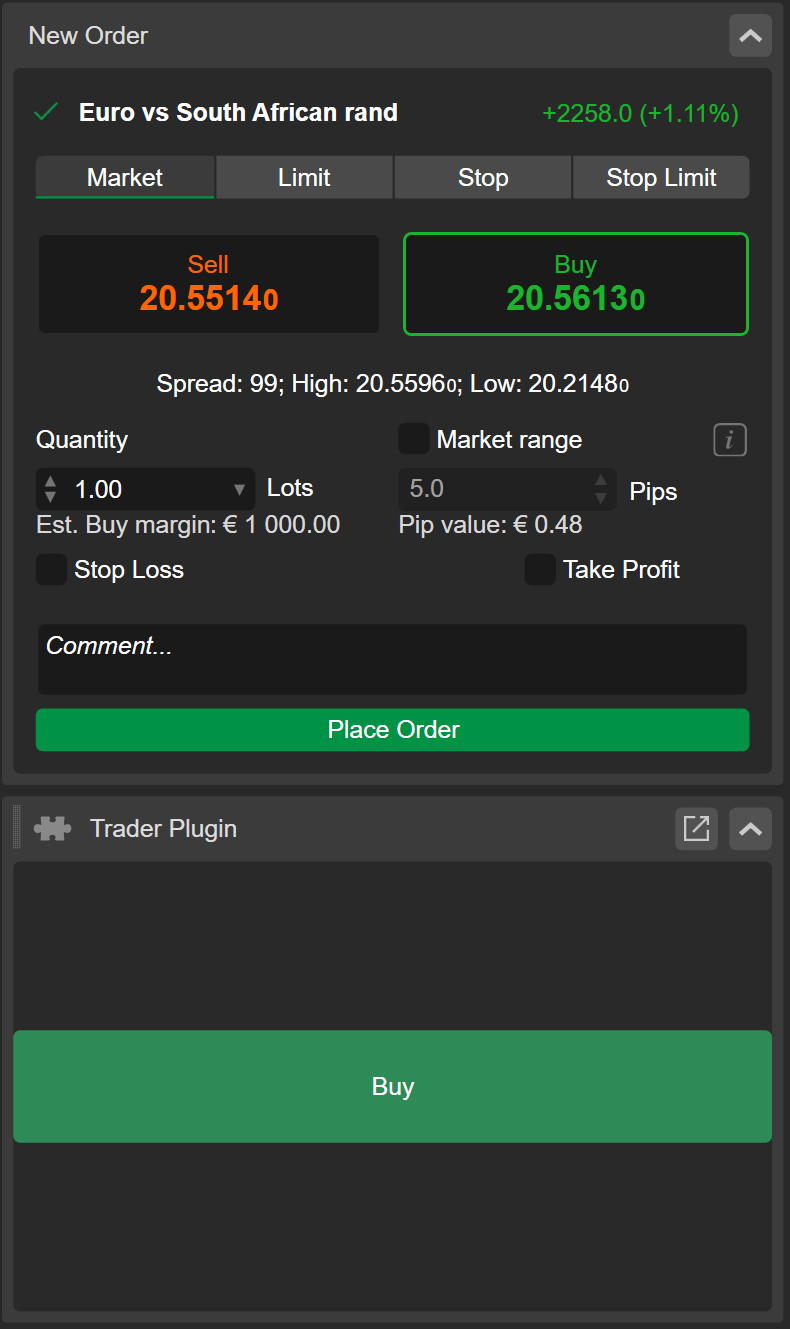
To learn how to create plugins that add websites and VWAP text boxes for open positions, see this [**guide**](https://help.ctrader.com/ctrader-algo/articles/for-developers/how-to-create-plugins-for-asp/)
.
Chart area commands[¶](https://help.ctrader.com/ctrader-algo/guides/plugin-commands/#chart-area-commands "Permanent link")
---------------------------------------------------------------------------------------------------------------------------
Add custom frames to display text, numbers, websites or WebView components as tabs in the charts area.
Sample code:
| | |
| --- | --- |
| 1 2 3 4 5 6 7 8 9 10 11 12 13 14 15 16 17 18 19 20 21 22 23 24 25 26 27 28 29 30 31 32 33 34 | `using System; using cAlgo.API; using cAlgo.API.Collections; using cAlgo.API.Indicators; using cAlgo.API.Internals; namespace cAlgo.Plugins { [Plugin(AccessRights = AccessRights.None)] public class MyCustomFrameExample : Plugin { WebView _cTraderWebView = new WebView(); protected override void OnStart() { _cTraderWebView.Loaded += _cTraderWebView_Loaded; var webViewFrame = ChartManager.AddCustomFrame("Forum"); webViewFrame.Child = _cTraderWebView; webViewFrame.ChartContainer.Mode = ChartMode.Multi; webViewFrame.Attach(); } private void _cTraderWebView_Loaded(WebViewLoadedEventArgs args) { _cTraderWebView.NavigateAsync("https://ctrader.com/forum"); } protected override void OnStop() { // Handle Plugin stop here } } }` |
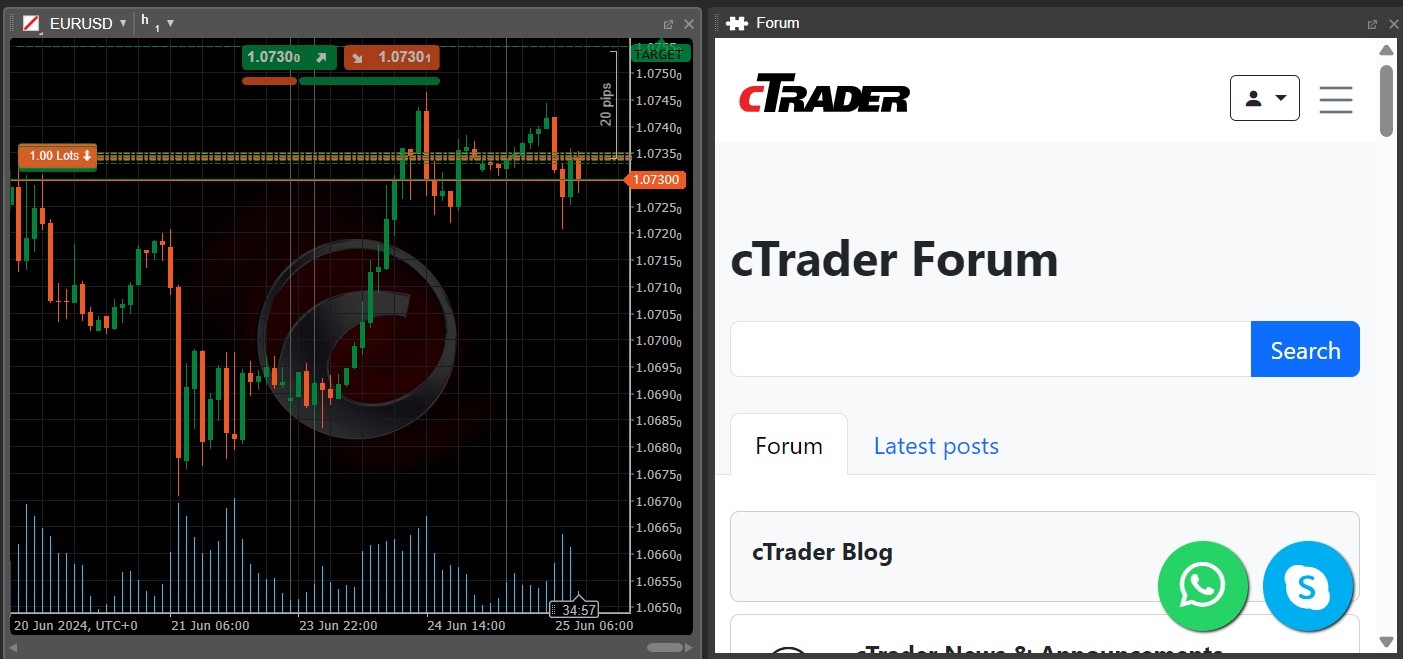
To learn how to create plugins that add websites and text boxes to the chart area, see this [**guide**](https://help.ctrader.com/ctrader-algo/articles/for-developers/how-to-create-custom-frame-plugins/)
.
Trade Watch commands[¶](https://help.ctrader.com/ctrader-algo/guides/plugin-commands/#trade-watch-commands "Permanent link")
-----------------------------------------------------------------------------------------------------------------------------
Add new tabs to display grids, text boxes, websites or WebView components in Trade Watch.
Sample code:
| | |
| --- | --- |
| 1 2 3 4 5 6 7 8 9 10 11 12 13 14 15 16 17 18 19 20 21 22 23 24 25 26 27 28 29 30 31 32 33 34 35 36 37 38 39 40 41 42 43 44 45 46 47 48 49 50 51 52 53 54 55 56 57 58 59 60 61 62 63 64 65 66 67 68 69 70 71 72 73 74 75 76 77 78 79 80 81 82 83 84 85 86 | `using System; using cAlgo.API; using cAlgo.API.Collections; using cAlgo.API.Indicators; using cAlgo.API.Internals; namespace cAlgo.Plugins { [Plugin(AccessRights = AccessRights.None)] public class PreviousBarInfo : Plugin { TextBlock _lowBlock; TextBlock _highBlock; TextBlock _closeBlock; TextBlock _openBlock; Bars _bars; protected override void OnStart() { var tradeWatchTab = TradeWatch.AddTab("Previous Bar Info"); tradeWatchTab.IsSelected = true; var grid = new Grid(2, 2) { HorizontalAlignment = HorizontalAlignment.Center, VerticalAlignment = VerticalAlignment.Center, ShowGridLines = true, Height = 150, Width = 150, }; tradeWatchTab.Child = grid; _bars = MarketData.GetBars(TimeFrame.Minute, "USDJPY"); _lowBlock = new TextBlock { Text = "Low:" + _bars.LowPrices.LastValue, HorizontalAlignment = HorizontalAlignment.Center, VerticalAlignment = VerticalAlignment.Center, }; _highBlock = new TextBlock { Text = "High:" + _bars.HighPrices.LastValue, HorizontalAlignment = HorizontalAlignment.Center, VerticalAlignment = VerticalAlignment.Center, }; _closeBlock = new TextBlock { Text = "Close:" +_bars.ClosePrices.LastValue, HorizontalAlignment = HorizontalAlignment.Center, VerticalAlignment = VerticalAlignment.Center, }; _openBlock = new TextBlock { Text = "Open:" + _bars.OpenPrices.LastValue, HorizontalAlignment = HorizontalAlignment.Center, VerticalAlignment = VerticalAlignment.Center, }; grid.AddChild(_lowBlock, 0, 0); grid.AddChild(_highBlock, 0, 1); grid.AddChild(_openBlock, 1, 0); grid.AddChild(_closeBlock, 1, 1); _bars.Tick += _bars_Tick; } private void _bars_Tick(BarsTickEventArgs obj) { _lowBlock.Text = "Low: " +_bars.LowPrices.LastValue.ToString(); _highBlock.Text = "High: " +_bars.HighPrices.LastValue.ToString(); _openBlock.Text = "Open: " +_bars.HighPrices.LastValue.ToString(); _closeBlock.Text = "Close: " +_bars.HighPrices.LastValue.ToString(); } protected override void OnStop() { // Handle Plugin stop here } } }` |
To learn how to create plugins that add websites and informative grids to Trade Watch, see this [**guide**](https://help.ctrader.com/ctrader-algo/articles/for-developers/how-to-create-plugins-for-tw/)
.
Back to top
---
# Market Sentiment - cTrader Web
Market Sentiment
================
The market sentiment is displayed below the QuickTrade buttons
The market sentiment indicates the percentage of client accounts that expect the price to rise or fall respectively.
The information is cross broker and it is collected from all available cTrader servers.
---
# TextBox - cTrader Algo
[Skip to content](https://help.ctrader.com/ctrader-algo/references/Controls/TextBox/#textbox)
TextBox[¶](https://help.ctrader.com/ctrader-algo/references/Controls/TextBox/#textbox "Permanent link")
========================================================================================================
Summary[¶](https://help.ctrader.com/ctrader-algo/references/Controls/TextBox/#summary "Permanent link")
--------------------------------------------------------------------------------------------------------
Represents the text box class.
**Signature**
| | |
| --- | --- |
| 1 | `public class TextBox : Control` |
Namespace[¶](https://help.ctrader.com/ctrader-algo/references/Controls/TextBox/#namespace "Permanent link")
------------------------------------------------------------------------------------------------------------
cAlgo.API
Examples[¶](https://help.ctrader.com/ctrader-algo/references/Controls/TextBox/#examples "Permanent link")
----------------------------------------------------------------------------------------------------------
| | |
| --- | --- |
| 1 2 3 4 5 6 7 8 9 10 11 12 13 14 15 16 17 18 19 20 21 22 23 24 25 26 27 28 29 30 31 32 33 34 35 36 37 38 | `using cAlgo.API; namespace cAlgo { // This sample indicator shows how to add a text box control on your chart [Indicator(IsOverlay = true, TimeZone = TimeZones.UTC, AccessRights = AccessRights.None)] public class TextBoxSample : Indicator { protected override void Initialize() { var stackPanel = new StackPanel { BackgroundColor = Color.Gold, HorizontalAlignment = HorizontalAlignment.Center, VerticalAlignment = VerticalAlignment.Center, Opacity = 0.6, }; var textBox = new TextBox { Text = "Enter text here...", FontWeight = FontWeight.ExtraBold, Margin = 5, ForegroundColor = Color.White, HorizontalAlignment = HorizontalAlignment.Center, Width = 150 }; textBox.TextChanged += TextBox_TextChanged; stackPanel.AddChild(textBox); Chart.AddControl(stackPanel); } private void TextBox_TextChanged(TextChangedEventArgs obj) { Print("Text box text changed to: ", obj.TextBox.Text); } public override void Calculate(int index) { } } }` |
Methods[¶](https://help.ctrader.com/ctrader-algo/references/Controls/TextBox/#methods "Permanent link")
--------------------------------------------------------------------------------------------------------
### UpdateText[¶](https://help.ctrader.com/ctrader-algo/references/Controls/TextBox/#updatetext "Permanent link")
**Signature**
| | |
| --- | --- |
| 1 | `internal void UpdateText(string updatedText)` |
**Parameters**
| Name | Type | Description |
| --- | --- | --- |
| updatedText | string | |
**Return Value**
void
### Accept[¶](https://help.ctrader.com/ctrader-algo/references/Controls/TextBox/#accept "Permanent link")
**Summary**
Gets or sets a value that indicates how the text editing control responds when the user presses the ENTER key.
**Signature**
| | |
| --- | --- |
| 1 | `internal void Accept(IChartControlVisitor visitor)` |
**Parameters**
| Name | Type | Description |
| --- | --- | --- |
| visitor | IChartControlVisitor | |
**Return Value**
void
Properties[¶](https://help.ctrader.com/ctrader-algo/references/Controls/TextBox/#properties "Permanent link")
--------------------------------------------------------------------------------------------------------------
### IsReadOnly[¶](https://help.ctrader.com/ctrader-algo/references/Controls/TextBox/#isreadonly "Permanent link")
**Summary**
Gets or sets a value indicating whether the current text box is read-only.
**Signature**
| | |
| --- | --- |
| 1 | `public bool IsReadOnly {get; set;}` |
**Return Value**
bool
### AcceptsReturn[¶](https://help.ctrader.com/ctrader-algo/references/Controls/TextBox/#acceptsreturn "Permanent link")
**Summary**
Gets or sets a value that indicates how the text editing control responds when the user presses the ENTER key.
**Signature**
| | |
| --- | --- |
| 1 | `public bool AcceptsReturn {get; set;}` |
**Return Value**
bool
### AcceptsTab[¶](https://help.ctrader.com/ctrader-algo/references/Controls/TextBox/#acceptstab "Permanent link")
**Summary**
Gets or sets a value that indicates how the text editing control responds when the user presses the TAB key.
**Signature**
| | |
| --- | --- |
| 1 | `public bool AcceptsTab {get; set;}` |
**Return Value**
bool
### Text[¶](https://help.ctrader.com/ctrader-algo/references/Controls/TextBox/#text "Permanent link")
**Summary**
Gets or sets the text.
**Signature**
| | |
| --- | --- |
| 1 | `public string Text {get; set;}` |
**Return Value**
string
### MinLines[¶](https://help.ctrader.com/ctrader-algo/references/Controls/TextBox/#minlines "Permanent link")
**Summary**
Gets or sets the minimum number of visible lines.
**Signature**
| | |
| --- | --- |
| 1 | `public int MinLines {get; set;}` |
**Return Value**
int
### MaxLines[¶](https://help.ctrader.com/ctrader-algo/references/Controls/TextBox/#maxlines "Permanent link")
**Summary**
Gets or sets the maximum number of visible lines.
**Signature**
| | |
| --- | --- |
| 1 | `public int MaxLines {get; set;}` |
**Return Value**
int
### MaxLength[¶](https://help.ctrader.com/ctrader-algo/references/Controls/TextBox/#maxlength "Permanent link")
**Summary**
Gets or sets the maximum number of characters that can be manually entered into the text box.
**Signature**
| | |
| --- | --- |
| 1 | `public int MaxLength {get; set;}` |
**Return Value**
int
### CaretColor[¶](https://help.ctrader.com/ctrader-algo/references/Controls/TextBox/#caretcolor "Permanent link")
**Summary**
Gets or sets the color of the insertion caret.
**Signature**
| | |
| --- | --- |
| 1 | `public Color CaretColor {get; set;}` |
**Return Value**
Color
### SelectionColor[¶](https://help.ctrader.com/ctrader-algo/references/Controls/TextBox/#selectioncolor "Permanent link")
**Summary**
Gets or sets the text color of the current text selection.
**Signature**
| | |
| --- | --- |
| 1 | `public Color SelectionColor {get; set;}` |
**Return Value**
Color
### BorderColor[¶](https://help.ctrader.com/ctrader-algo/references/Controls/TextBox/#bordercolor "Permanent link")
**Summary**
Gets or sets the color of the text box border.
**Signature**
| | |
| --- | --- |
| 1 | `public Color BorderColor {get; set;}` |
**Return Value**
Color
### SelectionOpacity[¶](https://help.ctrader.com/ctrader-algo/references/Controls/TextBox/#selectionopacity "Permanent link")
**Summary**
Gets or sets the opacity of the selected text.
**Signature**
| | |
| --- | --- |
| 1 | `public double SelectionOpacity {get; set;}` |
**Return Value**
double
### BorderThickness[¶](https://help.ctrader.com/ctrader-algo/references/Controls/TextBox/#borderthickness "Permanent link")
**Summary**
Gets or sets the border thickness. Property value can be set using Thickness, number, or a string new Thickness(5),new Thickness(1, 2, 3, 4), 5, "5", "1 2 3 4".
**Signature**
| | |
| --- | --- |
| 1 | `public Thickness BorderThickness {get; set;}` |
**Return Value**
Thickness
### IsReadOnlyCaretVisible[¶](https://help.ctrader.com/ctrader-algo/references/Controls/TextBox/#isreadonlycaretvisible "Permanent link")
**Summary**
Gets or sets a value that indicates whether a read-only text box displays a caret.
**Signature**
| | |
| --- | --- |
| 1 | `public bool IsReadOnlyCaretVisible {get; set;}` |
**Return Value**
bool
### CharacterCasing[¶](https://help.ctrader.com/ctrader-algo/references/Controls/TextBox/#charactercasing "Permanent link")
**Summary**
Gets or sets whether the TextBox control modifies the case of characters as they are typed.
**Signature**
| | |
| --- | --- |
| 1 | `public CharacterCasing CharacterCasing {get; set;}` |
**Return Value**
CharacterCasing
**Related Tutorials**
* [Controls](https://help.ctrader.com/ctrader-algo/guides/ui/Controls/)
### TextAlignment[¶](https://help.ctrader.com/ctrader-algo/references/Controls/TextBox/#textalignment "Permanent link")
**Summary**
Gets or sets a value that indicates the horizontal alignment of text content.
**Signature**
| | |
| --- | --- |
| 1 | `public TextAlignment TextAlignment {get; set;}` |
**Return Value**
TextAlignment
**Related Tutorials**
* \[WebView\]([https://help.ctrader.com/ctrader-algo/guides/ui/WebView/](https://help.ctrader.com/ctrader-algo/guides/ui/WebView/)
### TextWrapping[¶](https://help.ctrader.com/ctrader-algo/references/Controls/TextBox/#textwrapping "Permanent link")
**Summary**
Gets or sets how the text box should wrap text.
**Signature**
| | |
| --- | --- |
| 1 | `public TextWrapping TextWrapping {get; set;}` |
**Return Value**
TextWrapping
**Related Tutorials**
* [Controls](https://help.ctrader.com/ctrader-algo/guides/ui/Controls/)
### HorizontalScrollBarVisibility[¶](https://help.ctrader.com/ctrader-algo/references/Controls/TextBox/#horizontalscrollbarvisibility "Permanent link")
**Summary**
Defines the horizontal scroll bar visibility.
**Signature**
| | |
| --- | --- |
| 1 | `public ScrollBarVisibility HorizontalScrollBarVisibility {get; set;}` |
**Return Value**
ScrollBarVisibility
### VerticalScrollBarVisibility[¶](https://help.ctrader.com/ctrader-algo/references/Controls/TextBox/#verticalscrollbarvisibility "Permanent link")
**Summary**
Defines the vertical scroll bar visibility.
**Signature**
| | |
| --- | --- |
| 1 | `public ScrollBarVisibility VerticalScrollBarVisibility {get; set;}` |
**Return Value**
ScrollBarVisibility
Events[¶](https://help.ctrader.com/ctrader-algo/references/Controls/TextBox/#events "Permanent link")
------------------------------------------------------------------------------------------------------
### TextChanged[¶](https://help.ctrader.com/ctrader-algo/references/Controls/TextBox/#textchanged "Permanent link")
**Summary**
Occurs when the text has changed.
**Signature**
| | |
| --- | --- |
| 1 | `public event Action TextChanged;` |
Related Tutorials[¶](https://help.ctrader.com/ctrader-algo/references/Controls/TextBox/#related-tutorials "Permanent link")
----------------------------------------------------------------------------------------------------------------------------
* [Controls](https://help.ctrader.com/ctrader-algo/guides/ui/Controls/)
Back to top
---
# TextChangedEventArgs - cTrader Algo
[Skip to content](https://help.ctrader.com/ctrader-algo/references/EventArgs/TextChangedEventArgs/#textchangedeventargs)
TextChangedEventArgs[¶](https://help.ctrader.com/ctrader-algo/references/EventArgs/TextChangedEventArgs/#textchangedeventargs "Permanent link")
================================================================================================================================================
Summary[¶](https://help.ctrader.com/ctrader-algo/references/EventArgs/TextChangedEventArgs/#summary "Permanent link")
----------------------------------------------------------------------------------------------------------------------
Provides data for the TextChanged event.
**Signature**
| | |
| --- | --- |
| 1 | `public class TextChangedEventArgs` |
Namespace[¶](https://help.ctrader.com/ctrader-algo/references/EventArgs/TextChangedEventArgs/#namespace "Permanent link")
--------------------------------------------------------------------------------------------------------------------------
cAlgo.API
Examples[¶](https://help.ctrader.com/ctrader-algo/references/EventArgs/TextChangedEventArgs/#examples "Permanent link")
------------------------------------------------------------------------------------------------------------------------
| | |
| --- | --- |
| 1 2 3 4 5 6 7 8 9 10 11 12 13 14 15 16 17 18 19 20 21 22 23 24 25 26 27 28 29 30 31 32 33 34 35 36 37 38 | `using cAlgo.API; namespace cAlgo { // This sample indicator shows how to use TextChangedEventArgs [Indicator(IsOverlay = true, TimeZone = TimeZones.UTC, AccessRights = AccessRights.None)] public class TextChangedEventArgsSample : Indicator { protected override void Initialize() { var stackPanel = new StackPanel { BackgroundColor = Color.Gold, HorizontalAlignment = HorizontalAlignment.Center, VerticalAlignment = VerticalAlignment.Center, Opacity = 0.6, }; var textBox = new TextBox { Text = "Enter text here...", FontWeight = FontWeight.ExtraBold, Margin = 5, ForegroundColor = Color.White, HorizontalAlignment = HorizontalAlignment.Center, Width = 150 }; textBox.TextChanged += TextBox_TextChanged; stackPanel.AddChild(textBox); Chart.AddControl(stackPanel); } private void TextBox_TextChanged(TextChangedEventArgs obj) { Print("Text box text changed to: ", obj.TextBox.Text); } public override void Calculate(int index) { } } }` |
See Also[¶](https://help.ctrader.com/ctrader-algo/references/EventArgs/TextChangedEventArgs/#see-also "Permanent link")
------------------------------------------------------------------------------------------------------------------------
* [cAlgo.API.TextBox](https://help.ctrader.com/ctrader-algo/references/Controls/TextBox/)
Properties[¶](https://help.ctrader.com/ctrader-algo/references/EventArgs/TextChangedEventArgs/#properties "Permanent link")
----------------------------------------------------------------------------------------------------------------------------
### TextBox[¶](https://help.ctrader.com/ctrader-algo/references/EventArgs/TextChangedEventArgs/#textbox "Permanent link")
**Summary**
Gets the texbox.
**Signature**
| | |
| --- | --- |
| 1 | `public TextBox TextBox {get;}` |
**Return Value**
TextBox
**Related Tutorials**
* [Controls](https://help.ctrader.com/ctrader-algo/guides/ui/Controls/)
Back to top
---
# Tick - cTrader Algo
[Skip to content](https://help.ctrader.com/ctrader-algo/references/MarketData/Ticks/Tick/#tick)
Tick[¶](https://help.ctrader.com/ctrader-algo/references/MarketData/Ticks/Tick/#tick "Permanent link")
=======================================================================================================
Summary[¶](https://help.ctrader.com/ctrader-algo/references/MarketData/Ticks/Tick/#summary "Permanent link")
-------------------------------------------------------------------------------------------------------------
Represents the Tick object.
**Signature**
| | |
| --- | --- |
| 1 | `public sealed struct Tick : ValueType` |
Namespace[¶](https://help.ctrader.com/ctrader-algo/references/MarketData/Ticks/Tick/#namespace "Permanent link")
-----------------------------------------------------------------------------------------------------------------
cAlgo.API
See Also[¶](https://help.ctrader.com/ctrader-algo/references/MarketData/Ticks/Tick/#see-also "Permanent link")
---------------------------------------------------------------------------------------------------------------
* [cAlgo.API.Ticks](https://help.ctrader.com/ctrader-algo/references/MarketData/Ticks/Ticks/)
Methods[¶](https://help.ctrader.com/ctrader-algo/references/MarketData/Ticks/Tick/#methods "Permanent link")
-------------------------------------------------------------------------------------------------------------
### Equals (2)[¶](https://help.ctrader.com/ctrader-algo/references/MarketData/Ticks/Tick/#equals-2 "Permanent link")
**Equals (1 of 2)**
**Summary**
Returns True if two Ticks are equal otherwise False
**Signature**
| | |
| --- | --- |
| 1 | `public bool Equals(Tick other)` |
**Parameters**
| Name | Type | Description |
| --- | --- | --- |
| other | Tick | The other tick to compare with current tick |
**Return Value**
bool
**Equals (2 of 2)**
**Summary**
Returns True if two Ticks are equal otherwise False
**Signature**
| | |
| --- | --- |
| 1 | `public bool Equals(object obj)` |
**Parameters**
| Name | Type | Description |
| --- | --- | --- |
| obj | object | The other object to compare with current object |
**Return Value**
bool
### GetHashCode[¶](https://help.ctrader.com/ctrader-algo/references/MarketData/Ticks/Tick/#gethashcode "Permanent link")
**Summary**
Returns the Tick object hash code
**Signature**
| | |
| --- | --- |
| 1 | `public int GetHashCode()` |
**Return Value**
int
### ToString[¶](https://help.ctrader.com/ctrader-algo/references/MarketData/Ticks/Tick/#tostring "Permanent link")
**Summary**
Returns string representation of a Tick
**Signature**
| | |
| --- | --- |
| 1 | `public string ToString()` |
**Return Value**
string
Properties[¶](https://help.ctrader.com/ctrader-algo/references/MarketData/Ticks/Tick/#properties "Permanent link")
-------------------------------------------------------------------------------------------------------------------
### Time[¶](https://help.ctrader.com/ctrader-algo/references/MarketData/Ticks/Tick/#time "Permanent link")
**Summary**
Gets the Tick time.
**Signature**
| | |
| --- | --- |
| 1 | `public DateTime Time {get;}` |
**Return Value**
DateTime
### Bid[¶](https://help.ctrader.com/ctrader-algo/references/MarketData/Ticks/Tick/#bid "Permanent link")
**Summary**
Gets the Bid price of tick.
**Signature**
| | |
| --- | --- |
| 1 | `public double Bid {get;}` |
**Return Value**
double
### Ask[¶](https://help.ctrader.com/ctrader-algo/references/MarketData/Ticks/Tick/#ask "Permanent link")
**Summary**
Gets the Ask price of tick.
**Signature**
| | |
| --- | --- |
| 1 | `public double Ask {get;}` |
**Return Value**
double
Back to top
---
# Ticks - cTrader Algo
[Skip to content](https://help.ctrader.com/ctrader-algo/references/MarketData/Ticks/Ticks/#ticks)
Ticks[¶](https://help.ctrader.com/ctrader-algo/references/MarketData/Ticks/Ticks/#ticks "Permanent link")
==========================================================================================================
Summary[¶](https://help.ctrader.com/ctrader-algo/references/MarketData/Ticks/Ticks/#summary "Permanent link")
--------------------------------------------------------------------------------------------------------------
Represents the Ticks interface - the collection of Tick objects.
**Signature**
| | |
| --- | --- |
| 1 | `public abstract interface Ticks` |
Namespace[¶](https://help.ctrader.com/ctrader-algo/references/MarketData/Ticks/Ticks/#namespace "Permanent link")
------------------------------------------------------------------------------------------------------------------
cAlgo.API
Examples[¶](https://help.ctrader.com/ctrader-algo/references/MarketData/Ticks/Ticks/#examples "Permanent link")
----------------------------------------------------------------------------------------------------------------
| | |
| --- | --- |
| 1 2 3 4 5 6 7 8 9 10 11 12 13 14 15 16 17 18 19 20 21 22 23 24 25 26 27 28 29 30 31 32 33 34 35 36 37 38 39 40 41 | `using cAlgo.API; using cAlgo.API.Internals; namespace cAlgo { // This sample indicator shows how to get a symbol ticks data and handle its tick events [Indicator(IsOverlay = true, TimeZone = TimeZones.UTC, AccessRights = AccessRights.None)] public class TickSample : Indicator { private Ticks _ticks; [Parameter("Symbol Name", DefaultValue = "EURUSD")] public string InputSymbolName { get; set; } protected override void Initialize() { // Getting a symbol ticks data _ticks = MarketData.GetTicks(InputSymbolName); // Subscribing to upcoming ticks _ticks.Tick += Ticks_Tick; _ticks.HistoryLoaded += Ticks_HistoryLoaded; // You can also pass a callback method instead of subscribing to HistoryLoaded event //_ticks.LoadMoreHistoryAsync(Ticks_HistoryLoaded); _ticks.LoadMoreHistoryAsync(); _ticks.Reloaded += Ticks_Reloaded; } private void Ticks_Reloaded(TicksHistoryLoadedEventArgs obj) { Print("Ticks got reloaded"); } private void Ticks_HistoryLoaded(TicksHistoryLoadedEventArgs obj) { Print("New ticks loaded: #", obj.Count); } private void Ticks_Tick(TicksTickEventArgs obj) { // Printing Last tick inside Ticks collection Print(obj.Ticks.LastTick); } public override void Calculate(int index) { } } }` |
Methods[¶](https://help.ctrader.com/ctrader-algo/references/MarketData/Ticks/Ticks/#methods "Permanent link")
--------------------------------------------------------------------------------------------------------------
### Last[¶](https://help.ctrader.com/ctrader-algo/references/MarketData/Ticks/Ticks/#last "Permanent link")
**Summary**
Gets the last tick in the chart.
**Signature**
| | |
| --- | --- |
| 1 | `public abstract Tick Last(int index)` |
**Parameters**
| Name | Type | Description |
| --- | --- | --- |
| index | int | |
**Return Value**
Tick
### LoadMoreHistory[¶](https://help.ctrader.com/ctrader-algo/references/MarketData/Ticks/Ticks/#loadmorehistory "Permanent link")
**Summary**
Loads more historical ticks. Method returns the number of loaded ticks that were added to the beginning of the collection.
**Signature**
| | |
| --- | --- |
| 1 | `public abstract int LoadMoreHistory()` |
**Return Value**
int
### LoadMoreHistoryAsync (2)[¶](https://help.ctrader.com/ctrader-algo/references/MarketData/Ticks/Ticks/#loadmorehistoryasync-2 "Permanent link")
**LoadMoreHistoryAsync (1 of 2)**
**Summary**
Loads more historical ticks asynchronously.
**Signature**
| | |
| --- | --- |
| 1 | `public abstract void LoadMoreHistoryAsync()` |
**Return Value**
void
**LoadMoreHistoryAsync (2 of 2)**
**Summary**
Loads more historical ticks asynchronously.
**Signature**
| | |
| --- | --- |
| 1 | `public abstract void LoadMoreHistoryAsync(Action callback)` |
**Parameters**
| Name | Type | Description |
| --- | --- | --- |
| callback | Action | The callback that will be called after loading more history |
**Return Value**
void
### GetServerFirstTime[¶](https://help.ctrader.com/ctrader-algo/references/MarketData/Ticks/Ticks/#getserverfirsttime "Permanent link")
**Summary**
Returns the first available server tick time.
**Signature**
| | |
| --- | --- |
| 1 | `public abstract DateTime GetServerFirstTime()` |
**Return Value**
DateTime
Properties[¶](https://help.ctrader.com/ctrader-algo/references/MarketData/Ticks/Ticks/#properties "Permanent link")
--------------------------------------------------------------------------------------------------------------------
### Item[¶](https://help.ctrader.com/ctrader-algo/references/MarketData/Ticks/Ticks/#item "Permanent link")
**Signature**
| | |
| --- | --- |
| 1 | `public abstract Tick Item {get;}` |
**Return Value**
Tick
### LastTick[¶](https://help.ctrader.com/ctrader-algo/references/MarketData/Ticks/Ticks/#lasttick "Permanent link")
**Summary**
Gets the last tick in the chart.
**Signature**
| | |
| --- | --- |
| 1 | `public abstract Tick LastTick {get;}` |
**Return Value**
Tick
### Count[¶](https://help.ctrader.com/ctrader-algo/references/MarketData/Ticks/Ticks/#count "Permanent link")
**Summary**
Gets the number of objects.
**Signature**
| | |
| --- | --- |
| 1 | `public abstract int Count {get;}` |
**Return Value**
int
### SymbolName[¶](https://help.ctrader.com/ctrader-algo/references/MarketData/Ticks/Ticks/#symbolname "Permanent link")
**Summary**
Gets the symbol name.
**Signature**
| | |
| --- | --- |
| 1 | `public abstract string SymbolName {get;}` |
**Return Value**
string
Events[¶](https://help.ctrader.com/ctrader-algo/references/MarketData/Ticks/Ticks/#events "Permanent link")
------------------------------------------------------------------------------------------------------------
### HistoryLoaded[¶](https://help.ctrader.com/ctrader-algo/references/MarketData/Ticks/Ticks/#historyloaded "Permanent link")
**Summary**
Occurs when more history is loaded due to chart scroll to the left or due to API call.
**Signature**
| | |
| --- | --- |
| 1 | `public abstract event Action HistoryLoaded;` |
### Reloaded[¶](https://help.ctrader.com/ctrader-algo/references/MarketData/Ticks/Ticks/#reloaded "Permanent link")
**Summary**
Occurs when ticks are refreshed due to reconnect.
**Signature**
| | |
| --- | --- |
| 1 | `public abstract event Action Reloaded;` |
### Tick[¶](https://help.ctrader.com/ctrader-algo/references/MarketData/Ticks/Ticks/#tick "Permanent link")
**Summary**
Occurs when a new tick appears.
**Signature**
| | |
| --- | --- |
| 1 | `public abstract event Action Tick;` |
Back to top
---
# TimeFrames - cTrader Algo
[Skip to content](https://help.ctrader.com/ctrader-algo/references/Period/TimeFrames/#timeframes)
TimeFrames[¶](https://help.ctrader.com/ctrader-algo/references/Period/TimeFrames/#timeframes "Permanent link")
===============================================================================================================
Summary[¶](https://help.ctrader.com/ctrader-algo/references/Period/TimeFrames/#summary "Permanent link")
---------------------------------------------------------------------------------------------------------
Represents collection of all time frames including custom time frames.
**Signature**
| | |
| --- | --- |
| 1 | `public abstract interface TimeFrames` |
Namespace[¶](https://help.ctrader.com/ctrader-algo/references/Period/TimeFrames/#namespace "Permanent link")
-------------------------------------------------------------------------------------------------------------
cAlgo.API
See Also[¶](https://help.ctrader.com/ctrader-algo/references/Period/TimeFrames/#see-also "Permanent link")
-----------------------------------------------------------------------------------------------------------
* [cAlgo.API.TimeFrame](https://help.ctrader.com/ctrader-algo/references/Period/TimeFrame/)
Events[¶](https://help.ctrader.com/ctrader-algo/references/Period/TimeFrames/#events "Permanent link")
-------------------------------------------------------------------------------------------------------
### Added[¶](https://help.ctrader.com/ctrader-algo/references/Period/TimeFrames/#added "Permanent link")
**Summary**
Occurs when new TimeFrames are added.
**Signature**
| | |
| --- | --- |
| 1 | `public abstract event Action Added;` |
### Removed[¶](https://help.ctrader.com/ctrader-algo/references/Period/TimeFrames/#removed "Permanent link")
**Summary**
Occurs when TimeFrames are removed.
**Signature**
| | |
| --- | --- |
| 1 | `public abstract event Action Removed;` |
Back to top
---
# TextTrimming - cTrader Algo
[Skip to content](https://help.ctrader.com/ctrader-algo/references/Controls/TextTrimming/#texttrimming)
TextTrimming[¶](https://help.ctrader.com/ctrader-algo/references/Controls/TextTrimming/#texttrimming "Permanent link")
=======================================================================================================================
Summary[¶](https://help.ctrader.com/ctrader-algo/references/Controls/TextTrimming/#summary "Permanent link")
-------------------------------------------------------------------------------------------------------------
Describes how text is trimmed when it overflows the edge of its containing box.
**Signature**
| | |
| --- | --- |
| 1 | `public enum TextTrimming` |
Namespace[¶](https://help.ctrader.com/ctrader-algo/references/Controls/TextTrimming/#namespace "Permanent link")
-----------------------------------------------------------------------------------------------------------------
cAlgo.API
Examples[¶](https://help.ctrader.com/ctrader-algo/references/Controls/TextTrimming/#examples "Permanent link")
---------------------------------------------------------------------------------------------------------------
| | |
| --- | --- |
| 1 2 3 4 5 6 7 8 9 10 11 12 13 14 15 16 17 18 19 20 21 22 23 24 25 26 27 28 29 30 31 32 33 34 35 | `using cAlgo.API; namespace cAlgo { // This sample indicator shows how to use TextTrimming property to manage the text trim [Indicator(IsOverlay = true, TimeZone = TimeZones.UTC, AccessRights = AccessRights.None)] public class TextTrimmingSample : Indicator { [Parameter("Text", DefaultValue = "very long texttttttttttttttttttttt")] public string Text { get; set; } [Parameter("Trimming", DefaultValue = TextTrimming.CharacterEllipsis)] public TextTrimming TextTrimming { get; set; } protected override void Initialize() { var stackPanel = new StackPanel { BackgroundColor = Color.Gold, HorizontalAlignment = HorizontalAlignment.Center, VerticalAlignment = VerticalAlignment.Center, Opacity = 0.6, Width = 100 }; stackPanel.AddChild(new TextBlock { Text = Text, FontWeight = FontWeight.ExtraBold, ForegroundColor = Color.Blue, TextTrimming = TextTrimming }); Chart.AddControl(stackPanel); } public override void Calculate(int index) { } } }` |
Fields[¶](https://help.ctrader.com/ctrader-algo/references/Controls/TextTrimming/#fields "Permanent link")
-----------------------------------------------------------------------------------------------------------
### None[¶](https://help.ctrader.com/ctrader-algo/references/Controls/TextTrimming/#none "Permanent link")
**Summary**
Text is not trimmed.
**Signature**
| | |
| --- | --- |
| 1 | `public static TextTrimming None;` |
**Return Value**
TextTrimming
### CharacterEllipsis[¶](https://help.ctrader.com/ctrader-algo/references/Controls/TextTrimming/#characterellipsis "Permanent link")
**Summary**
Text is trimmed at a character boundary. An ellipsis (...) is drawn in place of remaining text.
**Signature**
| | |
| --- | --- |
| 1 | `public static TextTrimming CharacterEllipsis;` |
**Return Value**
TextTrimming
### WordEllipsis[¶](https://help.ctrader.com/ctrader-algo/references/Controls/TextTrimming/#wordellipsis "Permanent link")
**Summary**
Text is trimmed at a word boundary. An ellipsis (...) is drawn in place of remaining text.
**Signature**
| | |
| --- | --- |
| 1 | `public static TextTrimming WordEllipsis;` |
**Return Value**
TextTrimming
Related Tutorials[¶](https://help.ctrader.com/ctrader-algo/references/Controls/TextTrimming/#related-tutorials "Permanent link")
---------------------------------------------------------------------------------------------------------------------------------
* [Controls](https://help.ctrader.com/ctrader-algo/guides/ui/Controls/)
Back to top
---
# TextWrapping - cTrader Algo
[Skip to content](https://help.ctrader.com/ctrader-algo/references/Controls/TextWrapping/#textwrapping)
TextWrapping[¶](https://help.ctrader.com/ctrader-algo/references/Controls/TextWrapping/#textwrapping "Permanent link")
=======================================================================================================================
Summary[¶](https://help.ctrader.com/ctrader-algo/references/Controls/TextWrapping/#summary "Permanent link")
-------------------------------------------------------------------------------------------------------------
Specifies whether text wraps when it reaches the edge of the containing box.
**Signature**
| | |
| --- | --- |
| 1 | `public enum TextWrapping` |
Namespace[¶](https://help.ctrader.com/ctrader-algo/references/Controls/TextWrapping/#namespace "Permanent link")
-----------------------------------------------------------------------------------------------------------------
cAlgo.API
Examples[¶](https://help.ctrader.com/ctrader-algo/references/Controls/TextWrapping/#examples "Permanent link")
---------------------------------------------------------------------------------------------------------------
| | |
| --- | --- |
| 1 2 3 4 5 6 7 8 9 10 11 12 13 14 15 16 17 18 19 20 21 22 23 24 25 26 27 28 29 30 31 32 33 34 35 | `using cAlgo.API; namespace cAlgo { // This sample indicator shows how to use TextWrapping property to manage the text wrap [Indicator(IsOverlay = true, TimeZone = TimeZones.UTC, AccessRights = AccessRights.None)] public class TextWrappingSample : Indicator { [Parameter("Text", DefaultValue = "very long texttttttttttttttttttttt")] public string Text { get; set; } [Parameter("Wrapping", DefaultValue = TextWrapping.NoWrap)] public TextWrapping TextWrapping { get; set; } protected override void Initialize() { var stackPanel = new StackPanel { BackgroundColor = Color.Gold, HorizontalAlignment = HorizontalAlignment.Center, VerticalAlignment = VerticalAlignment.Center, Opacity = 0.6, Width = 100 }; stackPanel.AddChild(new TextBlock { Text = Text, FontWeight = FontWeight.ExtraBold, ForegroundColor = Color.Blue, TextWrapping = TextWrapping }); Chart.AddControl(stackPanel); } public override void Calculate(int index) { } } }` |
Fields[¶](https://help.ctrader.com/ctrader-algo/references/Controls/TextWrapping/#fields "Permanent link")
-----------------------------------------------------------------------------------------------------------
### WrapWithOverflow[¶](https://help.ctrader.com/ctrader-algo/references/Controls/TextWrapping/#wrapwithoverflow "Permanent link")
**Summary**
Line-breaking occurs if the line overflows beyond the available block width. However, a line may overflow beyond the block width if the line breaking algorithm cannot determine a line break opportunity, as in the case of a very long word constrained in a fixed-width container with no scrolling allowed.
**Signature**
| | |
| --- | --- |
| 1 | `public static TextWrapping WrapWithOverflow;` |
**Return Value**
TextWrapping
### NoWrap[¶](https://help.ctrader.com/ctrader-algo/references/Controls/TextWrapping/#nowrap "Permanent link")
**Summary**
No line wrapping is performed.
**Signature**
| | |
| --- | --- |
| 1 | `public static TextWrapping NoWrap;` |
**Return Value**
TextWrapping
### Wrap[¶](https://help.ctrader.com/ctrader-algo/references/Controls/TextWrapping/#wrap "Permanent link")
**Summary**
Line-breaking occurs if the line overflows beyond the available block width, even if the standard line breaking algorithm cannot determine any line break opportunity, as in the case of a very long word constrained in a fixed-width container with no scrolling allowed.
**Signature**
| | |
| --- | --- |
| 1 | `public static TextWrapping Wrap;` |
**Return Value**
TextWrapping
Related Tutorials[¶](https://help.ctrader.com/ctrader-algo/references/Controls/TextWrapping/#related-tutorials "Permanent link")
---------------------------------------------------------------------------------------------------------------------------------
* [Controls](https://help.ctrader.com/ctrader-algo/guides/ui/Controls/)
Back to top
---
# Thickness - cTrader Algo
[Skip to content](https://help.ctrader.com/ctrader-algo/references/Controls/Thickness/#thickness)
Thickness[¶](https://help.ctrader.com/ctrader-algo/references/Controls/Thickness/#thickness "Permanent link")
==============================================================================================================
Summary[¶](https://help.ctrader.com/ctrader-algo/references/Controls/Thickness/#summary "Permanent link")
----------------------------------------------------------------------------------------------------------
Defines the thickness of the frame around the rectangle.
**Signature**
| | |
| --- | --- |
| 1 | `public sealed struct Thickness : ValueType` |
Namespace[¶](https://help.ctrader.com/ctrader-algo/references/Controls/Thickness/#namespace "Permanent link")
--------------------------------------------------------------------------------------------------------------
cAlgo.API
Examples[¶](https://help.ctrader.com/ctrader-algo/references/Controls/Thickness/#examples "Permanent link")
------------------------------------------------------------------------------------------------------------
| | |
| --- | --- |
| 1 2 3 4 5 6 7 8 9 10 11 12 13 14 15 16 17 18 19 20 21 22 23 24 25 26 27 28 29 30 31 32 33 | `using cAlgo.API; namespace cAlgo { // This sample shows how to use Thickness for defining a chart control margin [Indicator(IsOverlay = true, TimeZone = TimeZones.UTC, AccessRights = AccessRights.None)] public class ThicknessSample : Indicator { protected override void Initialize() { var stackPanel = new StackPanel { HorizontalAlignment = HorizontalAlignment.Center, VerticalAlignment = VerticalAlignment.Center, BackgroundColor = Color.Gold, Opacity = 0.6 }; var rectangle = new Rectangle { StrokeColor = Color.Blue, FillColor = Color.Red, StrokeThickness = 2, Margin = new Thickness(10, 5, 10, 5), Width = 300, Height = 100, }; stackPanel.AddChild(rectangle); Chart.AddControl(stackPanel); } public override void Calculate(int index) { } } }` |
Methods[¶](https://help.ctrader.com/ctrader-algo/references/Controls/Thickness/#methods "Permanent link")
----------------------------------------------------------------------------------------------------------
### GetHashCode[¶](https://help.ctrader.com/ctrader-algo/references/Controls/Thickness/#gethashcode "Permanent link")
**Summary**
Returns the hash code for this instance.
**Signature**
| | |
| --- | --- |
| 1 | `public int GetHashCode()` |
**Return Value**
int
### Equals (2)[¶](https://help.ctrader.com/ctrader-algo/references/Controls/Thickness/#equals-2 "Permanent link")
**Equals (1 of 2)**
**Summary**
Defines whether the specified object is equal to this instance.
**Signature**
| | |
| --- | --- |
| 1 | `public bool Equals(Thickness other)` |
**Parameters**
| Name | Type | Description |
| --- | --- | --- |
| other | Thickness | The other Thickness object to compare with current instance |
**Return Value**
bool
**Equals (2 of 2)**
**Summary**
Defines whether the specified object is equal to this instance.
**Signature**
| | |
| --- | --- |
| 1 | `public bool Equals(object obj)` |
**Parameters**
| Name | Type | Description |
| --- | --- | --- |
| obj | object | The other object to compare with current instance |
**Return Value**
bool
### ValidateAndFixValue[¶](https://help.ctrader.com/ctrader-algo/references/Controls/Thickness/#validateandfixvalue "Permanent link")
**Signature**
| | |
| --- | --- |
| 1 | `private static double ValidateAndFixValue(double value, bool allowNegative, bool allowPositiveInfinity, string propertyName)` |
**Parameters**
| Name | Type | Description |
| --- | --- | --- |
| value | double | |
| allowNegative | bool | |
| allowPositiveInfinity | bool | |
| propertyName | string | |
**Return Value**
double
### IsEqual[¶](https://help.ctrader.com/ctrader-algo/references/Controls/Thickness/#isequal "Permanent link")
**Signature**
| | |
| --- | --- |
| 1 | `private static bool IsEqual(double t1Value, double t2Value)` |
**Parameters**
| Name | Type | Description |
| --- | --- | --- |
| t1Value | double | |
| t2Value | double | |
**Return Value**
bool
Properties[¶](https://help.ctrader.com/ctrader-algo/references/Controls/Thickness/#properties "Permanent link")
----------------------------------------------------------------------------------------------------------------
### Top[¶](https://help.ctrader.com/ctrader-algo/references/Controls/Thickness/#top "Permanent link")
**Summary**
Gets or sets the thickness of the top side of the retangle.
**Signature**
| | |
| --- | --- |
| 1 | `public double Top {get; set;}` |
**Return Value**
double
### Left[¶](https://help.ctrader.com/ctrader-algo/references/Controls/Thickness/#left "Permanent link")
**Summary**
Gets or sets the thickness of the left side of the retangle.
**Signature**
| | |
| --- | --- |
| 1 | `public double Left {get; set;}` |
**Return Value**
double
### Bottom[¶](https://help.ctrader.com/ctrader-algo/references/Controls/Thickness/#bottom "Permanent link")
**Summary**
Gets or sets the thickness of the bottom side of the retangle.
**Signature**
| | |
| --- | --- |
| 1 | `public double Bottom {get; set;}` |
**Return Value**
double
### Right[¶](https://help.ctrader.com/ctrader-algo/references/Controls/Thickness/#right "Permanent link")
**Summary**
Gets or sets the thickness of the right side of the retangle.
**Signature**
| | |
| --- | --- |
| 1 | `public double Right {get; set;}` |
**Return Value**
double
Related Tutorials[¶](https://help.ctrader.com/ctrader-algo/references/Controls/Thickness/#related-tutorials "Permanent link")
------------------------------------------------------------------------------------------------------------------------------
* [Controls](https://help.ctrader.com/ctrader-algo/guides/ui/Controls/)
Back to top
---
# TimeFrameManager - cTrader Algo
[Skip to content](https://help.ctrader.com/ctrader-algo/references/Plugin/TimeFrame/TimeFrameManager/#timeframemanager)
TimeFrameManager[¶](https://help.ctrader.com/ctrader-algo/references/Plugin/TimeFrame/TimeFrameManager/#timeframemanager "Permanent link")
===========================================================================================================================================
Summary[¶](https://help.ctrader.com/ctrader-algo/references/Plugin/TimeFrame/TimeFrameManager/#summary "Permanent link")
-------------------------------------------------------------------------------------------------------------------------
Provides access to TimeFrames API for plugins.
**Signature**
| | |
| --- | --- |
| 1 | `public abstract interface TimeFrameManager` |
Namespace[¶](https://help.ctrader.com/ctrader-algo/references/Plugin/TimeFrame/TimeFrameManager/#namespace "Permanent link")
-----------------------------------------------------------------------------------------------------------------------------
cAlgo.API
Properties[¶](https://help.ctrader.com/ctrader-algo/references/Plugin/TimeFrame/TimeFrameManager/#properties "Permanent link")
-------------------------------------------------------------------------------------------------------------------------------
### Custom[¶](https://help.ctrader.com/ctrader-algo/references/Plugin/TimeFrame/TimeFrameManager/#custom "Permanent link")
**Summary**
Provides access to Custom TimeFrames API.
**Signature**
| | |
| --- | --- |
| 1 | `public abstract CustomTimeFrames Custom {get;}` |
**Return Value**
CustomTimeFrames
### Favorite[¶](https://help.ctrader.com/ctrader-algo/references/Plugin/TimeFrame/TimeFrameManager/#favorite "Permanent link")
**Summary**
Provides access to Favorite TimeFrames API.
**Signature**
| | |
| --- | --- |
| 1 | `public abstract FavoriteTimeFrames Favorite {get;}` |
**Return Value**
FavoriteTimeFrames
Back to top
---
# Timer - cTrader Algo
[Skip to content](https://help.ctrader.com/ctrader-algo/references/Timer/Timer/#timer)
Timer[¶](https://help.ctrader.com/ctrader-algo/references/Timer/Timer/#timer "Permanent link")
===============================================================================================
Summary[¶](https://help.ctrader.com/ctrader-algo/references/Timer/Timer/#summary "Permanent link")
---------------------------------------------------------------------------------------------------
Schedules execution of virtual OnTimer method with specified interval.
**Signature**
| | |
| --- | --- |
| 1 | `public abstract interface Timer` |
Namespace[¶](https://help.ctrader.com/ctrader-algo/references/Timer/Timer/#namespace "Permanent link")
-------------------------------------------------------------------------------------------------------
cAlgo.API
Examples[¶](https://help.ctrader.com/ctrader-algo/references/Timer/Timer/#examples "Permanent link")
-----------------------------------------------------------------------------------------------------
| | |
| --- | --- |
| 1 2 3 4 5 6 7 8 9 10 11 12 13 14 15 16 17 18 19 20 21 22 23 24 25 26 27 28 29 30 | `using cAlgo.API; using System; namespace cAlgo.Robots { // This sample cBot shows how to use the API Timer, this timer works both on live and back test // The timer is available for both cBots and indicators // Every cBot/indicator can have one single timer // You can also use the .NET timers if you want to but those will not work properly on back test [Robot(TimeZone = TimeZones.UTC, AccessRights = AccessRights.None)] public class TimerSample : Robot { protected override void OnStart() { // You can start the cBot timer by calling Timer.Start method, for interval you can pass a time span or seconds Timer.Start(TimeSpan.FromSeconds(1)); // You can also use the TimerTick event instead of OnTimer method Timer.TimerTick += Timer_TimerTick; // To stop the timer you can call Timer.Stop method anywhere on your cBot/indicator Timer.Stop(); } private void Timer_TimerTick() { // Put your logic for timer elapsed event here } protected override void OnTimer() { // Put your logic for timer elapsed event here } } }` |
Methods[¶](https://help.ctrader.com/ctrader-algo/references/Timer/Timer/#methods "Permanent link")
---------------------------------------------------------------------------------------------------
### Start (2)[¶](https://help.ctrader.com/ctrader-algo/references/Timer/Timer/#start-2 "Permanent link")
**Start (1 of 2)**
**Summary**
Starts the Timer
**Signature**
| | |
| --- | --- |
| 1 | `public abstract void Start(TimeSpan interval)` |
**Parameters**
| Name | Type | Description |
| --- | --- | --- |
| interval | TimeSpan | Interval as a TimeSpan |
**Return Value**
void
**Start (2 of 2)**
**Summary**
Starts the Timer
**Signature**
| | |
| --- | --- |
| 1 | `public abstract void Start(int intervalInSeconds)` |
**Parameters**
| Name | Type | Description |
| --- | --- | --- |
| intervalInSeconds | int | Interval in seconds |
**Return Value**
void
### Stop[¶](https://help.ctrader.com/ctrader-algo/references/Timer/Timer/#stop "Permanent link")
**Summary**
Stops the Timer
**Signature**
| | |
| --- | --- |
| 1 | `public abstract void Stop()` |
**Return Value**
void
Properties[¶](https://help.ctrader.com/ctrader-algo/references/Timer/Timer/#properties "Permanent link")
---------------------------------------------------------------------------------------------------------
### Interval[¶](https://help.ctrader.com/ctrader-algo/references/Timer/Timer/#interval "Permanent link")
**Summary**
Gets the interval of timer. Returns -1 millisecond if the timer is stopped
**Signature**
| | |
| --- | --- |
| 1 | `public abstract TimeSpan Interval {get;}` |
**Return Value**
TimeSpan
Events[¶](https://help.ctrader.com/ctrader-algo/references/Timer/Timer/#events "Permanent link")
-------------------------------------------------------------------------------------------------
### TimerTick[¶](https://help.ctrader.com/ctrader-algo/references/Timer/Timer/#timertick "Permanent link")
**Summary**
Occurs when the interval elapses
**Signature**
| | |
| --- | --- |
| 1 | `public abstract event Action TimerTick;` |
**Examples**
| | |
| --- | --- |
| 1 2 3 4 5 6 7 8 9 | `protected override void OnStart() { Timer.TimerTick += OnTimerTick Timer.Start(1);//start timer with 1 second interval } private void OnTimerTick() { Chart.DrawStaticText("time", Time.ToString("HH:mm:ss"), VerticalAlignment.Center, HorizontalAlignment.Center, Color.Red); }` |
Back to top
---
# TimeFrame - cTrader Algo
[Skip to content](https://help.ctrader.com/ctrader-algo/references/Period/TimeFrame/#timeframe)
TimeFrame[¶](https://help.ctrader.com/ctrader-algo/references/Period/TimeFrame/#timeframe "Permanent link")
============================================================================================================
Summary[¶](https://help.ctrader.com/ctrader-algo/references/Period/TimeFrame/#summary "Permanent link")
--------------------------------------------------------------------------------------------------------
Contains supported timeframe values.
**Signature**
| | |
| --- | --- |
| 1 | `public class TimeFrame` |
Namespace[¶](https://help.ctrader.com/ctrader-algo/references/Period/TimeFrame/#namespace "Permanent link")
------------------------------------------------------------------------------------------------------------
cAlgo.API
Examples[¶](https://help.ctrader.com/ctrader-algo/references/Period/TimeFrame/#examples "Permanent link")
----------------------------------------------------------------------------------------------------------
Example 1Example 2
| | |
| --- | --- |
| 1 2 | `if (TimeFrame < TimeFrame.Daily) Print("Intraday Trading");` |
| | |
| --- | --- |
| 1 2 3 4 5 6 7 8 9 10 11 12 13 14 15 16 17 18 19 20 21 22 23 24 | `using cAlgo.API; namespace cAlgo { // This sample indicator shows how to get a time frame from user via parameters and the get that time frame bars // Also you can use the pre-defined time frames [Indicator(IsOverlay = true, TimeZone = TimeZones.UTC, AccessRights = AccessRights.None)] public class TimeFrameSample : Indicator { // Getting time frame via a parameter from user [Parameter("Time Frame", DefaultValue = "Daily")] public TimeFrame UserSelectedTimeFrame { get; set; } protected override void Initialize() { Print("Name: ", UserSelectedTimeFrame.Name, " \| Short Name: ", UserSelectedTimeFrame.ShortName); // Getting another time frame bars data, using user selected time frame var barsBasedOnUserSelectedTimeFrame = MarketData.GetBars(UserSelectedTimeFrame); // Getting another time frame bars data, using pre-defined TimeFrames var barsBasedOnOtherTimeFrame = MarketData.GetBars(TimeFrame.Day2); } public override void Calculate(int index) { } } }` |
Methods[¶](https://help.ctrader.com/ctrader-algo/references/Period/TimeFrame/#methods "Permanent link")
--------------------------------------------------------------------------------------------------------
### Equals (2)[¶](https://help.ctrader.com/ctrader-algo/references/Period/TimeFrame/#equals-2 "Permanent link")
**Equals (1 of 2)**
**Summary**
Defines whether the specified object is equal to this instance.
**Signature**
| | |
| --- | --- |
| 1 | `public bool Equals(TimeFrame other)` |
**Parameters**
| Name | Type | Description |
| --- | --- | --- |
| other | TimeFrame | The other time frame object to compare with current instance |
**Return Value**
bool
**Equals (2 of 2)**
**Summary**
Defines whether the specified object is equal to this instance.
**Signature**
| | |
| --- | --- |
| 1 | `public bool Equals(object obj)` |
**Parameters**
| Name | Type | Description |
| --- | --- | --- |
| obj | object | The other object to compare with current instance |
**Return Value**
bool
### GetHashCode[¶](https://help.ctrader.com/ctrader-algo/references/Period/TimeFrame/#gethashcode "Permanent link")
**Summary**
Returns the hash code for this instance.
**Signature**
| | |
| --- | --- |
| 1 | `public int GetHashCode()` |
**Return Value**
int
### ToString[¶](https://help.ctrader.com/ctrader-algo/references/Period/TimeFrame/#tostring "Permanent link")
**Summary**
Returns a System.String that represents this instance.
**Signature**
| | |
| --- | --- |
| 1 | `public string ToString()` |
**Return Value**
string
### Parse[¶](https://help.ctrader.com/ctrader-algo/references/Period/TimeFrame/#parse "Permanent link")
**Summary**
It parses a string and if it matched to a timeframe name it returns that time frame otherwise it throwsFormatException
**Signature**
| | |
| --- | --- |
| 1 | `public static TimeFrame Parse(string value)` |
**Parameters**
| Name | Type | Description |
| --- | --- | --- |
| value | string | Timeframe name |
**Return Value**
TimeFrame
### TryParse[¶](https://help.ctrader.com/ctrader-algo/references/Period/TimeFrame/#tryparse "Permanent link")
**Summary**
It parses a string and if it matched to a timeframe name it sets it to the passed timeFrame parameter
**Signature**
| | |
| --- | --- |
| 1 | `public static bool TryParse(string value, TimeFrame& timeFrame)` |
**Parameters**
| Name | Type | Description |
| --- | --- | --- |
| value | string | The timeframe name |
| timeFrame | TimeFrame& | The storage variable for the matching timeframe |
**Return Value**
bool
Properties[¶](https://help.ctrader.com/ctrader-algo/references/Period/TimeFrame/#properties "Permanent link")
--------------------------------------------------------------------------------------------------------------
### Name[¶](https://help.ctrader.com/ctrader-algo/references/Period/TimeFrame/#name "Permanent link")
**Summary**
Returns the name of timeframe
**Signature**
| | |
| --- | --- |
| 1 | `public string Name {get;}` |
**Return Value**
string
### ShortName[¶](https://help.ctrader.com/ctrader-algo/references/Period/TimeFrame/#shortname "Permanent link")
**Summary**
Returns the short name of timeframe
**Signature**
| | |
| --- | --- |
| 1 | `public string ShortName {get;}` |
**Return Value**
string
Fields[¶](https://help.ctrader.com/ctrader-algo/references/Period/TimeFrame/#fields "Permanent link")
------------------------------------------------------------------------------------------------------
### Tick[¶](https://help.ctrader.com/ctrader-algo/references/Period/TimeFrame/#tick "Permanent link")
**Summary**
Tick / t1
**Signature**
| | |
| --- | --- |
| 1 | `public static TimeFrame Tick;` |
**Return Value**
TimeFrame
### Tick2[¶](https://help.ctrader.com/ctrader-algo/references/Period/TimeFrame/#tick2 "Permanent link")
**Summary**
Tick2 / t2
**Signature**
| | |
| --- | --- |
| 1 | `public static TimeFrame Tick2;` |
**Return Value**
TimeFrame
### Tick3[¶](https://help.ctrader.com/ctrader-algo/references/Period/TimeFrame/#tick3 "Permanent link")
**Summary**
Tick3 / t3
**Signature**
| | |
| --- | --- |
| 1 | `public static TimeFrame Tick3;` |
**Return Value**
TimeFrame
### Tick4[¶](https://help.ctrader.com/ctrader-algo/references/Period/TimeFrame/#tick4 "Permanent link")
**Summary**
Tick4 / t4
**Signature**
| | |
| --- | --- |
| 1 | `public static TimeFrame Tick4;` |
**Return Value**
TimeFrame
### Tick5[¶](https://help.ctrader.com/ctrader-algo/references/Period/TimeFrame/#tick5 "Permanent link")
**Summary**
Tick5 / t5
**Signature**
| | |
| --- | --- |
| 1 | `public static TimeFrame Tick5;` |
**Return Value**
TimeFrame
### Tick6[¶](https://help.ctrader.com/ctrader-algo/references/Period/TimeFrame/#tick6 "Permanent link")
**Summary**
Tick6 / t6
**Signature**
| | |
| --- | --- |
| 1 | `public static TimeFrame Tick6;` |
**Return Value**
TimeFrame
### Tick7[¶](https://help.ctrader.com/ctrader-algo/references/Period/TimeFrame/#tick7 "Permanent link")
**Summary**
Tick7 / t7
**Signature**
| | |
| --- | --- |
| 1 | `public static TimeFrame Tick7;` |
**Return Value**
TimeFrame
### Tick8[¶](https://help.ctrader.com/ctrader-algo/references/Period/TimeFrame/#tick8 "Permanent link")
**Summary**
Tick8 / t8
**Signature**
| | |
| --- | --- |
| 1 | `public static TimeFrame Tick8;` |
**Return Value**
TimeFrame
### Tick9[¶](https://help.ctrader.com/ctrader-algo/references/Period/TimeFrame/#tick9 "Permanent link")
**Summary**
Tick9 / t9
**Signature**
| | |
| --- | --- |
| 1 | `public static TimeFrame Tick9;` |
**Return Value**
TimeFrame
### Tick10[¶](https://help.ctrader.com/ctrader-algo/references/Period/TimeFrame/#tick10 "Permanent link")
**Summary**
Tick10 / t10
**Signature**
| | |
| --- | --- |
| 1 | `public static TimeFrame Tick10;` |
**Return Value**
TimeFrame
### Tick15[¶](https://help.ctrader.com/ctrader-algo/references/Period/TimeFrame/#tick15 "Permanent link")
**Summary**
Tick15 / t15
**Signature**
| | |
| --- | --- |
| 1 | `public static TimeFrame Tick15;` |
**Return Value**
TimeFrame
### Tick20[¶](https://help.ctrader.com/ctrader-algo/references/Period/TimeFrame/#tick20 "Permanent link")
**Summary**
Tick20 / t20
**Signature**
| | |
| --- | --- |
| 1 | `public static TimeFrame Tick20;` |
**Return Value**
TimeFrame
### Tick25[¶](https://help.ctrader.com/ctrader-algo/references/Period/TimeFrame/#tick25 "Permanent link")
**Summary**
Tick25 / t25
**Signature**
| | |
| --- | --- |
| 1 | `public static TimeFrame Tick25;` |
**Return Value**
TimeFrame
### Tick30[¶](https://help.ctrader.com/ctrader-algo/references/Period/TimeFrame/#tick30 "Permanent link")
**Summary**
Tick30 / t30
**Signature**
| | |
| --- | --- |
| 1 | `public static TimeFrame Tick30;` |
**Return Value**
TimeFrame
### Tick40[¶](https://help.ctrader.com/ctrader-algo/references/Period/TimeFrame/#tick40 "Permanent link")
**Summary**
Tick40 / t40
**Signature**
| | |
| --- | --- |
| 1 | `public static TimeFrame Tick40;` |
**Return Value**
TimeFrame
### Tick50[¶](https://help.ctrader.com/ctrader-algo/references/Period/TimeFrame/#tick50 "Permanent link")
**Summary**
Tick50 / t50
**Signature**
| | |
| --- | --- |
| 1 | `public static TimeFrame Tick50;` |
**Return Value**
TimeFrame
### Tick60[¶](https://help.ctrader.com/ctrader-algo/references/Period/TimeFrame/#tick60 "Permanent link")
**Summary**
Tick60 / t60
**Signature**
| | |
| --- | --- |
| 1 | `public static TimeFrame Tick60;` |
**Return Value**
TimeFrame
### Tick80[¶](https://help.ctrader.com/ctrader-algo/references/Period/TimeFrame/#tick80 "Permanent link")
**Summary**
Tick80 / t80
**Signature**
| | |
| --- | --- |
| 1 | `public static TimeFrame Tick80;` |
**Return Value**
TimeFrame
### Tick90[¶](https://help.ctrader.com/ctrader-algo/references/Period/TimeFrame/#tick90 "Permanent link")
**Summary**
Tick90 / t90
**Signature**
| | |
| --- | --- |
| 1 | `public static TimeFrame Tick90;` |
**Return Value**
TimeFrame
### Tick100[¶](https://help.ctrader.com/ctrader-algo/references/Period/TimeFrame/#tick100 "Permanent link")
**Summary**
Tick100 / t100
**Signature**
| | |
| --- | --- |
| 1 | `public static TimeFrame Tick100;` |
**Return Value**
TimeFrame
### Tick150[¶](https://help.ctrader.com/ctrader-algo/references/Period/TimeFrame/#tick150 "Permanent link")
**Summary**
Tick150 / t150
**Signature**
| | |
| --- | --- |
| 1 | `public static TimeFrame Tick150;` |
**Return Value**
TimeFrame
### Tick200[¶](https://help.ctrader.com/ctrader-algo/references/Period/TimeFrame/#tick200 "Permanent link")
**Summary**
Tick200 / t200
**Signature**
| | |
| --- | --- |
| 1 | `public static TimeFrame Tick200;` |
**Return Value**
TimeFrame
### Tick250[¶](https://help.ctrader.com/ctrader-algo/references/Period/TimeFrame/#tick250 "Permanent link")
**Summary**
Tick250 / t250
**Signature**
| | |
| --- | --- |
| 1 | `public static TimeFrame Tick250;` |
**Return Value**
TimeFrame
### Tick300[¶](https://help.ctrader.com/ctrader-algo/references/Period/TimeFrame/#tick300 "Permanent link")
**Summary**
Tick300 / t300
**Signature**
| | |
| --- | --- |
| 1 | `public static TimeFrame Tick300;` |
**Return Value**
TimeFrame
### Tick500[¶](https://help.ctrader.com/ctrader-algo/references/Period/TimeFrame/#tick500 "Permanent link")
**Summary**
Tick500 / t500
**Signature**
| | |
| --- | --- |
| 1 | `public static TimeFrame Tick500;` |
**Return Value**
TimeFrame
### Tick750[¶](https://help.ctrader.com/ctrader-algo/references/Period/TimeFrame/#tick750 "Permanent link")
**Summary**
Tick750 / t750
**Signature**
| | |
| --- | --- |
| 1 | `public static TimeFrame Tick750;` |
**Return Value**
TimeFrame
### Tick1000[¶](https://help.ctrader.com/ctrader-algo/references/Period/TimeFrame/#tick1000 "Permanent link")
**Summary**
Tick1000 / t1000
**Signature**
| | |
| --- | --- |
| 1 | `public static TimeFrame Tick1000;` |
**Return Value**
TimeFrame
### Minute[¶](https://help.ctrader.com/ctrader-algo/references/Period/TimeFrame/#minute "Permanent link")
**Summary**
Minute / m1
**Signature**
| | |
| --- | --- |
| 1 | `public static TimeFrame Minute;` |
**Return Value**
TimeFrame
### Minute2[¶](https://help.ctrader.com/ctrader-algo/references/Period/TimeFrame/#minute2 "Permanent link")
**Summary**
Minute2 / m2
**Signature**
| | |
| --- | --- |
| 1 | `public static TimeFrame Minute2;` |
**Return Value**
TimeFrame
### Minute3[¶](https://help.ctrader.com/ctrader-algo/references/Period/TimeFrame/#minute3 "Permanent link")
**Summary**
Minute3 / m3
**Signature**
| | |
| --- | --- |
| 1 | `public static TimeFrame Minute3;` |
**Return Value**
TimeFrame
### Minute4[¶](https://help.ctrader.com/ctrader-algo/references/Period/TimeFrame/#minute4 "Permanent link")
**Summary**
Minute4 / m4
**Signature**
| | |
| --- | --- |
| 1 | `public static TimeFrame Minute4;` |
**Return Value**
TimeFrame
### Minute5[¶](https://help.ctrader.com/ctrader-algo/references/Period/TimeFrame/#minute5 "Permanent link")
**Summary**
Minute5 / m5
**Signature**
| | |
| --- | --- |
| 1 | `public static TimeFrame Minute5;` |
**Return Value**
TimeFrame
### Minute6[¶](https://help.ctrader.com/ctrader-algo/references/Period/TimeFrame/#minute6 "Permanent link")
**Summary**
Minute6 / m6
**Signature**
| | |
| --- | --- |
| 1 | `public static TimeFrame Minute6;` |
**Return Value**
TimeFrame
### Minute7[¶](https://help.ctrader.com/ctrader-algo/references/Period/TimeFrame/#minute7 "Permanent link")
**Summary**
Minute7 / m7
**Signature**
| | |
| --- | --- |
| 1 | `public static TimeFrame Minute7;` |
**Return Value**
TimeFrame
### Minute8[¶](https://help.ctrader.com/ctrader-algo/references/Period/TimeFrame/#minute8 "Permanent link")
**Summary**
Minute8 / m8
**Signature**
| | |
| --- | --- |
| 1 | `public static TimeFrame Minute8;` |
**Return Value**
TimeFrame
### Minute9[¶](https://help.ctrader.com/ctrader-algo/references/Period/TimeFrame/#minute9 "Permanent link")
**Summary**
Minute9 / m9
**Signature**
| | |
| --- | --- |
| 1 | `public static TimeFrame Minute9;` |
**Return Value**
TimeFrame
### Minute10[¶](https://help.ctrader.com/ctrader-algo/references/Period/TimeFrame/#minute10 "Permanent link")
**Summary**
Minute10 / m10
**Signature**
| | |
| --- | --- |
| 1 | `public static TimeFrame Minute10;` |
**Return Value**
TimeFrame
### Minute15[¶](https://help.ctrader.com/ctrader-algo/references/Period/TimeFrame/#minute15 "Permanent link")
**Summary**
Minute15 / m15
**Signature**
| | |
| --- | --- |
| 1 | `public static TimeFrame Minute15;` |
**Return Value**
TimeFrame
### Minute20[¶](https://help.ctrader.com/ctrader-algo/references/Period/TimeFrame/#minute20 "Permanent link")
**Summary**
Minute20 / m20
**Signature**
| | |
| --- | --- |
| 1 | `public static TimeFrame Minute20;` |
**Return Value**
TimeFrame
### Minute30[¶](https://help.ctrader.com/ctrader-algo/references/Period/TimeFrame/#minute30 "Permanent link")
**Summary**
Minute30 / m30
**Signature**
| | |
| --- | --- |
| 1 | `public static TimeFrame Minute30;` |
**Return Value**
TimeFrame
### Minute45[¶](https://help.ctrader.com/ctrader-algo/references/Period/TimeFrame/#minute45 "Permanent link")
**Summary**
Minute45 / m45
**Signature**
| | |
| --- | --- |
| 1 | `public static TimeFrame Minute45;` |
**Return Value**
TimeFrame
### Hour[¶](https://help.ctrader.com/ctrader-algo/references/Period/TimeFrame/#hour "Permanent link")
**Summary**
Hour / h1
**Signature**
| | |
| --- | --- |
| 1 | `public static TimeFrame Hour;` |
**Return Value**
TimeFrame
### Hour2[¶](https://help.ctrader.com/ctrader-algo/references/Period/TimeFrame/#hour2 "Permanent link")
**Summary**
Hour2 / h2
**Signature**
| | |
| --- | --- |
| 1 | `public static TimeFrame Hour2;` |
**Return Value**
TimeFrame
### Hour3[¶](https://help.ctrader.com/ctrader-algo/references/Period/TimeFrame/#hour3 "Permanent link")
**Summary**
Hour3 / h3
**Signature**
| | |
| --- | --- |
| 1 | `public static TimeFrame Hour3;` |
**Return Value**
TimeFrame
### Hour4[¶](https://help.ctrader.com/ctrader-algo/references/Period/TimeFrame/#hour4 "Permanent link")
**Summary**
Hour4 / h4
**Signature**
| | |
| --- | --- |
| 1 | `public static TimeFrame Hour4;` |
**Return Value**
TimeFrame
### Hour6[¶](https://help.ctrader.com/ctrader-algo/references/Period/TimeFrame/#hour6 "Permanent link")
**Summary**
Hour6 / h6
**Signature**
| | |
| --- | --- |
| 1 | `public static TimeFrame Hour6;` |
**Return Value**
TimeFrame
### Hour8[¶](https://help.ctrader.com/ctrader-algo/references/Period/TimeFrame/#hour8 "Permanent link")
**Summary**
Hour8 / h8
**Signature**
| | |
| --- | --- |
| 1 | `public static TimeFrame Hour8;` |
**Return Value**
TimeFrame
### Hour12[¶](https://help.ctrader.com/ctrader-algo/references/Period/TimeFrame/#hour12 "Permanent link")
**Summary**
Hour12 / h12
**Signature**
| | |
| --- | --- |
| 1 | `public static TimeFrame Hour12;` |
**Return Value**
TimeFrame
### Daily[¶](https://help.ctrader.com/ctrader-algo/references/Period/TimeFrame/#daily "Permanent link")
**Summary**
Daily / D1
**Signature**
| | |
| --- | --- |
| 1 | `public static TimeFrame Daily;` |
**Return Value**
TimeFrame
### Day2[¶](https://help.ctrader.com/ctrader-algo/references/Period/TimeFrame/#day2 "Permanent link")
**Summary**
Day2 / D2
**Signature**
| | |
| --- | --- |
| 1 | `public static TimeFrame Day2;` |
**Return Value**
TimeFrame
### Day3[¶](https://help.ctrader.com/ctrader-algo/references/Period/TimeFrame/#day3 "Permanent link")
**Summary**
Day3 / D3
**Signature**
| | |
| --- | --- |
| 1 | `public static TimeFrame Day3;` |
**Return Value**
TimeFrame
### Weekly[¶](https://help.ctrader.com/ctrader-algo/references/Period/TimeFrame/#weekly "Permanent link")
**Summary**
Weekly / W1
**Signature**
| | |
| --- | --- |
| 1 | `public static TimeFrame Weekly;` |
**Return Value**
TimeFrame
### Monthly[¶](https://help.ctrader.com/ctrader-algo/references/Period/TimeFrame/#monthly "Permanent link")
**Summary**
Monthly / Month1
**Signature**
| | |
| --- | --- |
| 1 | `public static TimeFrame Monthly;` |
**Return Value**
TimeFrame
### Renko1[¶](https://help.ctrader.com/ctrader-algo/references/Period/TimeFrame/#renko1 "Permanent link")
**Summary**
Renko1 / Re1
**Signature**
| | |
| --- | --- |
| 1 | `public static TimeFrame Renko1;` |
**Return Value**
TimeFrame
### Renko2[¶](https://help.ctrader.com/ctrader-algo/references/Period/TimeFrame/#renko2 "Permanent link")
**Summary**
Renko2 / Re2
**Signature**
| | |
| --- | --- |
| 1 | `public static TimeFrame Renko2;` |
**Return Value**
TimeFrame
### Renko3[¶](https://help.ctrader.com/ctrader-algo/references/Period/TimeFrame/#renko3 "Permanent link")
**Summary**
Renko3 / Re3
**Signature**
| | |
| --- | --- |
| 1 | `public static TimeFrame Renko3;` |
**Return Value**
TimeFrame
### Renko4[¶](https://help.ctrader.com/ctrader-algo/references/Period/TimeFrame/#renko4 "Permanent link")
**Summary**
Renko4 / Re4
**Signature**
| | |
| --- | --- |
| 1 | `public static TimeFrame Renko4;` |
**Return Value**
TimeFrame
### Renko5[¶](https://help.ctrader.com/ctrader-algo/references/Period/TimeFrame/#renko5 "Permanent link")
**Summary**
Renko5 / Re5
**Signature**
| | |
| --- | --- |
| 1 | `public static TimeFrame Renko5;` |
**Return Value**
TimeFrame
### Renko6[¶](https://help.ctrader.com/ctrader-algo/references/Period/TimeFrame/#renko6 "Permanent link")
**Summary**
Renko6 / Re6
**Signature**
| | |
| --- | --- |
| 1 | `public static TimeFrame Renko6;` |
**Return Value**
TimeFrame
### Renko7[¶](https://help.ctrader.com/ctrader-algo/references/Period/TimeFrame/#renko7 "Permanent link")
**Summary**
Renko7 / Re7
**Signature**
| | |
| --- | --- |
| 1 | `public static TimeFrame Renko7;` |
**Return Value**
TimeFrame
### Renko8[¶](https://help.ctrader.com/ctrader-algo/references/Period/TimeFrame/#renko8 "Permanent link")
**Summary**
Renko8 / Re8
**Signature**
| | |
| --- | --- |
| 1 | `public static TimeFrame Renko8;` |
**Return Value**
TimeFrame
### Renko9[¶](https://help.ctrader.com/ctrader-algo/references/Period/TimeFrame/#renko9 "Permanent link")
**Summary**
Renko9 / Re9
**Signature**
| | |
| --- | --- |
| 1 | `public static TimeFrame Renko9;` |
**Return Value**
TimeFrame
### Renko10[¶](https://help.ctrader.com/ctrader-algo/references/Period/TimeFrame/#renko10 "Permanent link")
**Summary**
Renko10 / Re10
**Signature**
| | |
| --- | --- |
| 1 | `public static TimeFrame Renko10;` |
**Return Value**
TimeFrame
### Renko15[¶](https://help.ctrader.com/ctrader-algo/references/Period/TimeFrame/#renko15 "Permanent link")
**Summary**
Renko15 / Re15
**Signature**
| | |
| --- | --- |
| 1 | `public static TimeFrame Renko15;` |
**Return Value**
TimeFrame
### Renko20[¶](https://help.ctrader.com/ctrader-algo/references/Period/TimeFrame/#renko20 "Permanent link")
**Summary**
Renko20 / Re20
**Signature**
| | |
| --- | --- |
| 1 | `public static TimeFrame Renko20;` |
**Return Value**
TimeFrame
### Renko25[¶](https://help.ctrader.com/ctrader-algo/references/Period/TimeFrame/#renko25 "Permanent link")
**Summary**
Renko25 / Re25
**Signature**
| | |
| --- | --- |
| 1 | `public static TimeFrame Renko25;` |
**Return Value**
TimeFrame
### Renko30[¶](https://help.ctrader.com/ctrader-algo/references/Period/TimeFrame/#renko30 "Permanent link")
**Summary**
Renko30 / Re30
**Signature**
| | |
| --- | --- |
| 1 | `public static TimeFrame Renko30;` |
**Return Value**
TimeFrame
### Renko35[¶](https://help.ctrader.com/ctrader-algo/references/Period/TimeFrame/#renko35 "Permanent link")
**Summary**
Renko35 / Re35
**Signature**
| | |
| --- | --- |
| 1 | `public static TimeFrame Renko35;` |
**Return Value**
TimeFrame
### Renko40[¶](https://help.ctrader.com/ctrader-algo/references/Period/TimeFrame/#renko40 "Permanent link")
**Summary**
Renko40 / Re40
**Signature**
| | |
| --- | --- |
| 1 | `public static TimeFrame Renko40;` |
**Return Value**
TimeFrame
### Renko45[¶](https://help.ctrader.com/ctrader-algo/references/Period/TimeFrame/#renko45 "Permanent link")
**Summary**
Renko45 / Re45
**Signature**
| | |
| --- | --- |
| 1 | `public static TimeFrame Renko45;` |
**Return Value**
TimeFrame
### Renko50[¶](https://help.ctrader.com/ctrader-algo/references/Period/TimeFrame/#renko50 "Permanent link")
**Summary**
Renko50 / Re50
**Signature**
| | |
| --- | --- |
| 1 | `public static TimeFrame Renko50;` |
**Return Value**
TimeFrame
### Renko100[¶](https://help.ctrader.com/ctrader-algo/references/Period/TimeFrame/#renko100 "Permanent link")
**Summary**
Renko100 / Re100
**Signature**
| | |
| --- | --- |
| 1 | `public static TimeFrame Renko100;` |
**Return Value**
TimeFrame
### Renko150[¶](https://help.ctrader.com/ctrader-algo/references/Period/TimeFrame/#renko150 "Permanent link")
**Summary**
Renko150 / Re150
**Signature**
| | |
| --- | --- |
| 1 | `public static TimeFrame Renko150;` |
**Return Value**
TimeFrame
### Renko200[¶](https://help.ctrader.com/ctrader-algo/references/Period/TimeFrame/#renko200 "Permanent link")
**Summary**
Renko200 / Re200
**Signature**
| | |
| --- | --- |
| 1 | `public static TimeFrame Renko200;` |
**Return Value**
TimeFrame
### Renko300[¶](https://help.ctrader.com/ctrader-algo/references/Period/TimeFrame/#renko300 "Permanent link")
**Summary**
Renko300 / Re300
**Signature**
| | |
| --- | --- |
| 1 | `public static TimeFrame Renko300;` |
**Return Value**
TimeFrame
### Renko500[¶](https://help.ctrader.com/ctrader-algo/references/Period/TimeFrame/#renko500 "Permanent link")
**Summary**
Renko500 / Re500
**Signature**
| | |
| --- | --- |
| 1 | `public static TimeFrame Renko500;` |
**Return Value**
TimeFrame
### Renko800[¶](https://help.ctrader.com/ctrader-algo/references/Period/TimeFrame/#renko800 "Permanent link")
**Summary**
Renko800 / Re800
**Signature**
| | |
| --- | --- |
| 1 | `public static TimeFrame Renko800;` |
**Return Value**
TimeFrame
### Renko1000[¶](https://help.ctrader.com/ctrader-algo/references/Period/TimeFrame/#renko1000 "Permanent link")
**Summary**
Renko1000 / Re1000
**Signature**
| | |
| --- | --- |
| 1 | `public static TimeFrame Renko1000;` |
**Return Value**
TimeFrame
### Renko2000[¶](https://help.ctrader.com/ctrader-algo/references/Period/TimeFrame/#renko2000 "Permanent link")
**Summary**
Renko2000 / Re2000
**Signature**
| | |
| --- | --- |
| 1 | `public static TimeFrame Renko2000;` |
**Return Value**
TimeFrame
### Range1[¶](https://help.ctrader.com/ctrader-algo/references/Period/TimeFrame/#range1 "Permanent link")
**Summary**
Range1 / Ra1
**Signature**
| | |
| --- | --- |
| 1 | `public static TimeFrame Range1;` |
**Return Value**
TimeFrame
### Range2[¶](https://help.ctrader.com/ctrader-algo/references/Period/TimeFrame/#range2 "Permanent link")
**Summary**
Range2 / Ra2
**Signature**
| | |
| --- | --- |
| 1 | `public static TimeFrame Range2;` |
**Return Value**
TimeFrame
### Range3[¶](https://help.ctrader.com/ctrader-algo/references/Period/TimeFrame/#range3 "Permanent link")
**Summary**
Range3 / Ra3
**Signature**
| | |
| --- | --- |
| 1 | `public static TimeFrame Range3;` |
**Return Value**
TimeFrame
### Range4[¶](https://help.ctrader.com/ctrader-algo/references/Period/TimeFrame/#range4 "Permanent link")
**Summary**
Range4 / Ra4
**Signature**
| | |
| --- | --- |
| 1 | `public static TimeFrame Range4;` |
**Return Value**
TimeFrame
### Range5[¶](https://help.ctrader.com/ctrader-algo/references/Period/TimeFrame/#range5 "Permanent link")
**Summary**
Range5 / Ra5
**Signature**
| | |
| --- | --- |
| 1 | `public static TimeFrame Range5;` |
**Return Value**
TimeFrame
### Range8[¶](https://help.ctrader.com/ctrader-algo/references/Period/TimeFrame/#range8 "Permanent link")
**Summary**
Range8 / Ra8
**Signature**
| | |
| --- | --- |
| 1 | `public static TimeFrame Range8;` |
**Return Value**
TimeFrame
### Range10[¶](https://help.ctrader.com/ctrader-algo/references/Period/TimeFrame/#range10 "Permanent link")
**Summary**
Range10 / Ra10
**Signature**
| | |
| --- | --- |
| 1 | `public static TimeFrame Range10;` |
**Return Value**
TimeFrame
### Range20[¶](https://help.ctrader.com/ctrader-algo/references/Period/TimeFrame/#range20 "Permanent link")
**Summary**
Range20 / Ra20
**Signature**
| | |
| --- | --- |
| 1 | `public static TimeFrame Range20;` |
**Return Value**
TimeFrame
### Range30[¶](https://help.ctrader.com/ctrader-algo/references/Period/TimeFrame/#range30 "Permanent link")
**Summary**
Range30 / Ra30
**Signature**
| | |
| --- | --- |
| 1 | `public static TimeFrame Range30;` |
**Return Value**
TimeFrame
### Range50[¶](https://help.ctrader.com/ctrader-algo/references/Period/TimeFrame/#range50 "Permanent link")
**Summary**
Range50 / Ra50
**Signature**
| | |
| --- | --- |
| 1 | `public static TimeFrame Range50;` |
**Return Value**
TimeFrame
### Range80[¶](https://help.ctrader.com/ctrader-algo/references/Period/TimeFrame/#range80 "Permanent link")
**Summary**
Range80 / Ra80
**Signature**
| | |
| --- | --- |
| 1 | `public static TimeFrame Range80;` |
**Return Value**
TimeFrame
### Range100[¶](https://help.ctrader.com/ctrader-algo/references/Period/TimeFrame/#range100 "Permanent link")
**Summary**
Range100 / Ra100
**Signature**
| | |
| --- | --- |
| 1 | `public static TimeFrame Range100;` |
**Return Value**
TimeFrame
### Range150[¶](https://help.ctrader.com/ctrader-algo/references/Period/TimeFrame/#range150 "Permanent link")
**Summary**
Range150 / Ra150
**Signature**
| | |
| --- | --- |
| 1 | `public static TimeFrame Range150;` |
**Return Value**
TimeFrame
### Range200[¶](https://help.ctrader.com/ctrader-algo/references/Period/TimeFrame/#range200 "Permanent link")
**Summary**
Range200 / Ra200
**Signature**
| | |
| --- | --- |
| 1 | `public static TimeFrame Range200;` |
**Return Value**
TimeFrame
### Range300[¶](https://help.ctrader.com/ctrader-algo/references/Period/TimeFrame/#range300 "Permanent link")
**Summary**
Range300 / Ra300
**Signature**
| | |
| --- | --- |
| 1 | `public static TimeFrame Range300;` |
**Return Value**
TimeFrame
### Range500[¶](https://help.ctrader.com/ctrader-algo/references/Period/TimeFrame/#range500 "Permanent link")
**Summary**
Range500 / Ra500
**Signature**
| | |
| --- | --- |
| 1 | `public static TimeFrame Range500;` |
**Return Value**
TimeFrame
### Range800[¶](https://help.ctrader.com/ctrader-algo/references/Period/TimeFrame/#range800 "Permanent link")
**Summary**
Range800 / Ra800
**Signature**
| | |
| --- | --- |
| 1 | `public static TimeFrame Range800;` |
**Return Value**
TimeFrame
### Range1000[¶](https://help.ctrader.com/ctrader-algo/references/Period/TimeFrame/#range1000 "Permanent link")
**Summary**
Range1000 / Ra1000
**Signature**
| | |
| --- | --- |
| 1 | `public static TimeFrame Range1000;` |
**Return Value**
TimeFrame
### Range2000[¶](https://help.ctrader.com/ctrader-algo/references/Period/TimeFrame/#range2000 "Permanent link")
**Summary**
Range2000 / Ra2000
**Signature**
| | |
| --- | --- |
| 1 | `public static TimeFrame Range2000;` |
**Return Value**
TimeFrame
### Range5000[¶](https://help.ctrader.com/ctrader-algo/references/Period/TimeFrame/#range5000 "Permanent link")
**Summary**
Range5000 / Ra5000
**Signature**
| | |
| --- | --- |
| 1 | `public static TimeFrame Range5000;` |
**Return Value**
TimeFrame
### Range7500[¶](https://help.ctrader.com/ctrader-algo/references/Period/TimeFrame/#range7500 "Permanent link")
**Summary**
Range7500 / Ra7500
**Signature**
| | |
| --- | --- |
| 1 | `public static TimeFrame Range7500;` |
**Return Value**
TimeFrame
### Range10000[¶](https://help.ctrader.com/ctrader-algo/references/Period/TimeFrame/#range10000 "Permanent link")
**Summary**
Range10000 / Ra10000
**Signature**
| | |
| --- | --- |
| 1 | `public static TimeFrame Range10000;` |
**Return Value**
TimeFrame
### HeikinMinute[¶](https://help.ctrader.com/ctrader-algo/references/Period/TimeFrame/#heikinminute "Permanent link")
**Summary**
HeikinMinute / Hm1
**Signature**
| | |
| --- | --- |
| 1 | `public static TimeFrame HeikinMinute;` |
**Return Value**
TimeFrame
### HeikinMinute2[¶](https://help.ctrader.com/ctrader-algo/references/Period/TimeFrame/#heikinminute2 "Permanent link")
**Summary**
HeikinMinute2 / Hm2
**Signature**
| | |
| --- | --- |
| 1 | `public static TimeFrame HeikinMinute2;` |
**Return Value**
TimeFrame
### HeikinMinute3[¶](https://help.ctrader.com/ctrader-algo/references/Period/TimeFrame/#heikinminute3 "Permanent link")
**Summary**
HeikinMinute3 / Hm3
**Signature**
| | |
| --- | --- |
| 1 | `public static TimeFrame HeikinMinute3;` |
**Return Value**
TimeFrame
### HeikinMinute4[¶](https://help.ctrader.com/ctrader-algo/references/Period/TimeFrame/#heikinminute4 "Permanent link")
**Summary**
HeikinMinute4 / Hm4
**Signature**
| | |
| --- | --- |
| 1 | `public static TimeFrame HeikinMinute4;` |
**Return Value**
TimeFrame
### HeikinMinute5[¶](https://help.ctrader.com/ctrader-algo/references/Period/TimeFrame/#heikinminute5 "Permanent link")
**Summary**
HeikinMinute5 / Hm5
**Signature**
| | |
| --- | --- |
| 1 | `public static TimeFrame HeikinMinute5;` |
**Return Value**
TimeFrame
### HeikinMinute6[¶](https://help.ctrader.com/ctrader-algo/references/Period/TimeFrame/#heikinminute6 "Permanent link")
**Summary**
HeikinMinute6 / Hm6
**Signature**
| | |
| --- | --- |
| 1 | `public static TimeFrame HeikinMinute6;` |
**Return Value**
TimeFrame
### HeikinMinute7[¶](https://help.ctrader.com/ctrader-algo/references/Period/TimeFrame/#heikinminute7 "Permanent link")
**Summary**
HeikinMinute7 / Hm7
**Signature**
| | |
| --- | --- |
| 1 | `public static TimeFrame HeikinMinute7;` |
**Return Value**
TimeFrame
### HeikinMinute8[¶](https://help.ctrader.com/ctrader-algo/references/Period/TimeFrame/#heikinminute8 "Permanent link")
**Summary**
HeikinMinute8 / Hm8
**Signature**
| | |
| --- | --- |
| 1 | `public static TimeFrame HeikinMinute8;` |
**Return Value**
TimeFrame
### HeikinMinute9[¶](https://help.ctrader.com/ctrader-algo/references/Period/TimeFrame/#heikinminute9 "Permanent link")
**Summary**
HeikinMinute9 / Hm9
**Signature**
| | |
| --- | --- |
| 1 | `public static TimeFrame HeikinMinute9;` |
**Return Value**
TimeFrame
### HeikinMinute10[¶](https://help.ctrader.com/ctrader-algo/references/Period/TimeFrame/#heikinminute10 "Permanent link")
**Summary**
HeikinMinute10 / Hm10
**Signature**
| | |
| --- | --- |
| 1 | `public static TimeFrame HeikinMinute10;` |
**Return Value**
TimeFrame
### HeikinMinute15[¶](https://help.ctrader.com/ctrader-algo/references/Period/TimeFrame/#heikinminute15 "Permanent link")
**Summary**
HeikinMinute15 / Hm15
**Signature**
| | |
| --- | --- |
| 1 | `public static TimeFrame HeikinMinute15;` |
**Return Value**
TimeFrame
### HeikinMinute20[¶](https://help.ctrader.com/ctrader-algo/references/Period/TimeFrame/#heikinminute20 "Permanent link")
**Summary**
HeikinMinute20 / Hm20
**Signature**
| | |
| --- | --- |
| 1 | `public static TimeFrame HeikinMinute20;` |
**Return Value**
TimeFrame
### HeikinMinute30[¶](https://help.ctrader.com/ctrader-algo/references/Period/TimeFrame/#heikinminute30 "Permanent link")
**Summary**
HeikinMinute30 / Hm30
**Signature**
| | |
| --- | --- |
| 1 | `public static TimeFrame HeikinMinute30;` |
**Return Value**
TimeFrame
### HeikinMinute45[¶](https://help.ctrader.com/ctrader-algo/references/Period/TimeFrame/#heikinminute45 "Permanent link")
**Summary**
HeikinMinute45 / Hm45
**Signature**
| | |
| --- | --- |
| 1 | `public static TimeFrame HeikinMinute45;` |
**Return Value**
TimeFrame
### HeikinHour[¶](https://help.ctrader.com/ctrader-algo/references/Period/TimeFrame/#heikinhour "Permanent link")
**Summary**
HeikinHour / Hh1
**Signature**
| | |
| --- | --- |
| 1 | `public static TimeFrame HeikinHour;` |
**Return Value**
TimeFrame
### HeikinHour2[¶](https://help.ctrader.com/ctrader-algo/references/Period/TimeFrame/#heikinhour2 "Permanent link")
**Summary**
HeikinHour2 / Hh2
**Signature**
| | |
| --- | --- |
| 1 | `public static TimeFrame HeikinHour2;` |
**Return Value**
TimeFrame
### HeikinHour3[¶](https://help.ctrader.com/ctrader-algo/references/Period/TimeFrame/#heikinhour3 "Permanent link")
**Summary**
HeikinHour3 / Hh3
**Signature**
| | |
| --- | --- |
| 1 | `public static TimeFrame HeikinHour3;` |
**Return Value**
TimeFrame
### HeikinHour4[¶](https://help.ctrader.com/ctrader-algo/references/Period/TimeFrame/#heikinhour4 "Permanent link")
**Summary**
HeikinHour4 / Hh4
**Signature**
| | |
| --- | --- |
| 1 | `public static TimeFrame HeikinHour4;` |
**Return Value**
TimeFrame
### HeikinHour6[¶](https://help.ctrader.com/ctrader-algo/references/Period/TimeFrame/#heikinhour6 "Permanent link")
**Summary**
HeikinHour6 / Hh6
**Signature**
| | |
| --- | --- |
| 1 | `public static TimeFrame HeikinHour6;` |
**Return Value**
TimeFrame
### HeikinHour8[¶](https://help.ctrader.com/ctrader-algo/references/Period/TimeFrame/#heikinhour8 "Permanent link")
**Summary**
HeikinHour8 / Hh8
**Signature**
| | |
| --- | --- |
| 1 | `public static TimeFrame HeikinHour8;` |
**Return Value**
TimeFrame
### HeikinHour12[¶](https://help.ctrader.com/ctrader-algo/references/Period/TimeFrame/#heikinhour12 "Permanent link")
**Summary**
HeikinHour12 / Hh12
**Signature**
| | |
| --- | --- |
| 1 | `public static TimeFrame HeikinHour12;` |
**Return Value**
TimeFrame
### HeikinDaily[¶](https://help.ctrader.com/ctrader-algo/references/Period/TimeFrame/#heikindaily "Permanent link")
**Summary**
HeikinDaily / HD1
**Signature**
| | |
| --- | --- |
| 1 | `public static TimeFrame HeikinDaily;` |
**Return Value**
TimeFrame
### HeikinDay2[¶](https://help.ctrader.com/ctrader-algo/references/Period/TimeFrame/#heikinday2 "Permanent link")
**Summary**
HeikinDay2 / HD2
**Signature**
| | |
| --- | --- |
| 1 | `public static TimeFrame HeikinDay2;` |
**Return Value**
TimeFrame
### HeikinDay3[¶](https://help.ctrader.com/ctrader-algo/references/Period/TimeFrame/#heikinday3 "Permanent link")
**Summary**
HeikinDay3 / HD3
**Signature**
| | |
| --- | --- |
| 1 | `public static TimeFrame HeikinDay3;` |
**Return Value**
TimeFrame
### HeikinWeekly[¶](https://help.ctrader.com/ctrader-algo/references/Period/TimeFrame/#heikinweekly "Permanent link")
**Summary**
HeikinWeekly / HW1
**Signature**
| | |
| --- | --- |
| 1 | `public static TimeFrame HeikinWeekly;` |
**Return Value**
TimeFrame
### HeikinMonthly[¶](https://help.ctrader.com/ctrader-algo/references/Period/TimeFrame/#heikinmonthly "Permanent link")
**Summary**
HeikinMonthly / HMonth1
**Signature**
| | |
| --- | --- |
| 1 | `public static TimeFrame HeikinMonthly;` |
**Return Value**
TimeFrame
Back to top
---
# TotalMarginCalculationType - cTrader Algo
[Skip to content](https://help.ctrader.com/ctrader-algo/references/Account/TotalMarginCalculationType/#totalmargincalculationtype)
TotalMarginCalculationType[¶](https://help.ctrader.com/ctrader-algo/references/Account/TotalMarginCalculationType/#totalmargincalculationtype "Permanent link")
================================================================================================================================================================
Summary[¶](https://help.ctrader.com/ctrader-algo/references/Account/TotalMarginCalculationType/#summary "Permanent link")
--------------------------------------------------------------------------------------------------------------------------
Defines types of total margin requirements per Symbol.
**Signature**
| | |
| --- | --- |
| 1 | `public enum TotalMarginCalculationType` |
Namespace[¶](https://help.ctrader.com/ctrader-algo/references/Account/TotalMarginCalculationType/#namespace "Permanent link")
------------------------------------------------------------------------------------------------------------------------------
cAlgo.API.Internals
Fields[¶](https://help.ctrader.com/ctrader-algo/references/Account/TotalMarginCalculationType/#fields "Permanent link")
------------------------------------------------------------------------------------------------------------------------
### Sum[¶](https://help.ctrader.com/ctrader-algo/references/Account/TotalMarginCalculationType/#sum "Permanent link")
**Summary**
Total margin requirements per Symbol are equal to Sum of all margin requirements of all positions of that Symbol.
**Signature**
| | |
| --- | --- |
| 1 | `public static TotalMarginCalculationType Sum;` |
**Return Value**
TotalMarginCalculationType
### Max[¶](https://help.ctrader.com/ctrader-algo/references/Account/TotalMarginCalculationType/#max "Permanent link")
**Summary**
Total margin requirements per Symbol are equal to Max margin requirements from all Long and all Short Positions of that Symbol.
**Signature**
| | |
| --- | --- |
| 1 | `public static TotalMarginCalculationType Max;` |
**Return Value**
TotalMarginCalculationType
### Net[¶](https://help.ctrader.com/ctrader-algo/references/Account/TotalMarginCalculationType/#net "Permanent link")
**Summary**
Total margin requirements per Symbol are equal to the difference between margin requirements of all Long and all Short Positions of that Symbol.
**Signature**
| | |
| --- | --- |
| 1 | `public static TotalMarginCalculationType Net;` |
**Return Value**
TotalMarginCalculationType
Back to top
---
# TimeZones - cTrader Algo
[Skip to content](https://help.ctrader.com/ctrader-algo/references/Utility/TimeZones/#timezones)
TimeZones[¶](https://help.ctrader.com/ctrader-algo/references/Utility/TimeZones/#timezones "Permanent link")
=============================================================================================================
Summary[¶](https://help.ctrader.com/ctrader-algo/references/Utility/TimeZones/#summary "Permanent link")
---------------------------------------------------------------------------------------------------------
Standard TimeZones class.
Remarks[¶](https://help.ctrader.com/ctrader-algo/references/Utility/TimeZones/#remarks "Permanent link")
---------------------------------------------------------------------------------------------------------
Sets the timezone for all the robot or indicator datetime references.
**Signature**
| | |
| --- | --- |
| 1 | `public static class TimeZones` |
Namespace[¶](https://help.ctrader.com/ctrader-algo/references/Utility/TimeZones/#namespace "Permanent link")
-------------------------------------------------------------------------------------------------------------
cAlgo.API
Examples[¶](https://help.ctrader.com/ctrader-algo/references/Utility/TimeZones/#examples "Permanent link")
-----------------------------------------------------------------------------------------------------------
Example 1Example 2
| | |
| --- | --- |
| 1 2 | `[Robot(TimeZone = TimeZones.EasternStandardTime)] public class NewsRobot : Robot` |
| | |
| --- | --- |
| 1 2 3 4 5 6 7 8 9 10 11 12 13 14 15 16 17 18 19 20 21 22 23 24 25 26 27 28 29 30 | `using cAlgo.API; using System; namespace cAlgo { // This sample indicator shows how to work with time zones // Every new cBot/Indicator default time zone is set to UTC via Indicator/Robot attributes TimeZone property // To change it you can set the attribute time zone property value to any of supported time zones // For example: // [Indicator(IsOverlay = true, TimeZone = TimeZones.EasternStandardTime, AccessRights = AccessRights.None)] // You can also work with different time zones programmatically by using .NET libraries\ [Indicator(IsOverlay = true, TimeZone = TimeZones.UTC, AccessRights = AccessRights.None)] public class TimeZoneSample : Indicator { protected override void Initialize() { // You can get user platform time zone offset like this var platformUserSelectedTimeZoneOffset = Application.UserTimeOffset; var estTime = GetEasternStandardTime(); Print(estTime.ToString("o")); } public override void Calculate(int index) { } private DateTime GetEasternStandardTime() { var easternTimeZone = TimeZoneInfo.FindSystemTimeZoneById("Eastern Standard Time"); return TimeZoneInfo.ConvertTimeFromUtc(Server.TimeInUtc, easternTimeZone); } } }` |
Fields[¶](https://help.ctrader.com/ctrader-algo/references/Utility/TimeZones/#fields "Permanent link")
-------------------------------------------------------------------------------------------------------
### DatelineStandardTime[¶](https://help.ctrader.com/ctrader-algo/references/Utility/TimeZones/#datelinestandardtime "Permanent link")
**Summary**
(GMT-12:00) International Date Line West
**Signature**
| | |
| --- | --- |
| 1 | `public static string DatelineStandardTime;` |
**Return Value**
string
### SamoaStandardTime[¶](https://help.ctrader.com/ctrader-algo/references/Utility/TimeZones/#samoastandardtime "Permanent link")
**Summary**
(GMT-11:00) Midway Island, Samoa
**Signature**
| | |
| --- | --- |
| 1 | `public static string SamoaStandardTime;` |
**Return Value**
string
### HawaiianStandardTime[¶](https://help.ctrader.com/ctrader-algo/references/Utility/TimeZones/#hawaiianstandardtime "Permanent link")
**Summary**
(GMT-10:00) Hawaii
**Signature**
| | |
| --- | --- |
| 1 | `public static string HawaiianStandardTime;` |
**Return Value**
string
### AlaskanStandardTime[¶](https://help.ctrader.com/ctrader-algo/references/Utility/TimeZones/#alaskanstandardtime "Permanent link")
**Summary**
(GMT-09:00) Alaska
**Signature**
| | |
| --- | --- |
| 1 | `public static string AlaskanStandardTime;` |
**Return Value**
string
### PacificStandardTime[¶](https://help.ctrader.com/ctrader-algo/references/Utility/TimeZones/#pacificstandardtime "Permanent link")
**Summary**
(GMT-08:00) Pacific Time (US and Canada); Tijuana
**Signature**
| | |
| --- | --- |
| 1 | `public static string PacificStandardTime;` |
**Return Value**
string
### MountainStandardTime[¶](https://help.ctrader.com/ctrader-algo/references/Utility/TimeZones/#mountainstandardtime "Permanent link")
**Summary**
(GMT-07:00) Mountain Time (US and Canada)
**Signature**
| | |
| --- | --- |
| 1 | `public static string MountainStandardTime;` |
**Return Value**
string
### CentralStandardTime[¶](https://help.ctrader.com/ctrader-algo/references/Utility/TimeZones/#centralstandardtime "Permanent link")
**Summary**
(GMT-06:00) Central Time (US and Canada
**Signature**
| | |
| --- | --- |
| 1 | `public static string CentralStandardTime;` |
**Return Value**
string
### CanadaCentralStandardTime[¶](https://help.ctrader.com/ctrader-algo/references/Utility/TimeZones/#canadacentralstandardtime "Permanent link")
**Summary**
(GMT-06:00) Saskatchewan
**Signature**
| | |
| --- | --- |
| 1 | `public static string CanadaCentralStandardTime;` |
**Return Value**
string
### CentralAmericaStandardTime[¶](https://help.ctrader.com/ctrader-algo/references/Utility/TimeZones/#centralamericastandardtime "Permanent link")
**Summary**
(GMT-06:00) Central America
**Signature**
| | |
| --- | --- |
| 1 | `public static string CentralAmericaStandardTime;` |
**Return Value**
string
### EasternStandardTime[¶](https://help.ctrader.com/ctrader-algo/references/Utility/TimeZones/#easternstandardtime "Permanent link")
**Summary**
(GMT-05:00) Eastern Time (US and Canada)
**Signature**
| | |
| --- | --- |
| 1 | `public static string EasternStandardTime;` |
**Return Value**
string
### AtlanticStandardTime[¶](https://help.ctrader.com/ctrader-algo/references/Utility/TimeZones/#atlanticstandardtime "Permanent link")
**Summary**
(GMT-04:00) Atlantic Time (Canada)
**Signature**
| | |
| --- | --- |
| 1 | `public static string AtlanticStandardTime;` |
**Return Value**
string
### ESouthAmericaStandardTime[¶](https://help.ctrader.com/ctrader-algo/references/Utility/TimeZones/#esouthamericastandardtime "Permanent link")
**Summary**
(GMT-03:00) Brasilia
**Signature**
| | |
| --- | --- |
| 1 | `public static string ESouthAmericaStandardTime;` |
**Return Value**
string
### GreenlandStandardTime[¶](https://help.ctrader.com/ctrader-algo/references/Utility/TimeZones/#greenlandstandardtime "Permanent link")
**Summary**
(GMT-03:00) Greenland
**Signature**
| | |
| --- | --- |
| 1 | `public static string GreenlandStandardTime;` |
**Return Value**
string
### MidAtlanticStandardTime[¶](https://help.ctrader.com/ctrader-algo/references/Utility/TimeZones/#midatlanticstandardtime "Permanent link")
**Summary**
(GMT-02:00) Mid-Atlantic
**Signature**
| | |
| --- | --- |
| 1 | `public static string MidAtlanticStandardTime;` |
**Return Value**
string
### AzoresStandardTime[¶](https://help.ctrader.com/ctrader-algo/references/Utility/TimeZones/#azoresstandardtime "Permanent link")
**Summary**
(GMT-01:00) Azores
**Signature**
| | |
| --- | --- |
| 1 | `public static string AzoresStandardTime;` |
**Return Value**
string
### CapeVerdeStandardTime[¶](https://help.ctrader.com/ctrader-algo/references/Utility/TimeZones/#capeverdestandardtime "Permanent link")
**Summary**
(GMT-01:00) Cape Verde Islands
**Signature**
| | |
| --- | --- |
| 1 | `public static string CapeVerdeStandardTime;` |
**Return Value**
string
### GMTStandardTime[¶](https://help.ctrader.com/ctrader-algo/references/Utility/TimeZones/#gmtstandardtime "Permanent link")
**Summary**
(GMT) Greenwich Mean Time: Dublin, Edinburgh, Lisbon, London
**Signature**
| | |
| --- | --- |
| 1 | `public static string GMTStandardTime;` |
**Return Value**
string
### GreenwichStandardTime[¶](https://help.ctrader.com/ctrader-algo/references/Utility/TimeZones/#greenwichstandardtime "Permanent link")
**Summary**
(GMT) Casablanca, Monrovia
**Signature**
| | |
| --- | --- |
| 1 | `public static string GreenwichStandardTime;` |
**Return Value**
string
### CentralEuropeStandardTime[¶](https://help.ctrader.com/ctrader-algo/references/Utility/TimeZones/#centraleuropestandardtime "Permanent link")
**Summary**
(GMT+01:00) Belgrade, Bratislava, Budapest, Ljubljana, Prague
**Signature**
| | |
| --- | --- |
| 1 | `public static string CentralEuropeStandardTime;` |
**Return Value**
string
### CentralEuropeanStandardTime[¶](https://help.ctrader.com/ctrader-algo/references/Utility/TimeZones/#centraleuropeanstandardtime "Permanent link")
**Summary**
(GMT+01:00) Sarajevo, Skopje, Warsaw, Zagreb
**Signature**
| | |
| --- | --- |
| 1 | `public static string CentralEuropeanStandardTime;` |
**Return Value**
string
### RomanceStandardTime[¶](https://help.ctrader.com/ctrader-algo/references/Utility/TimeZones/#romancestandardtime "Permanent link")
**Summary**
(GMT+01:00) Brussels, Copenhagen, Madrid, Paris
**Signature**
| | |
| --- | --- |
| 1 | `public static string RomanceStandardTime;` |
**Return Value**
string
### WEuropeStandardTime[¶](https://help.ctrader.com/ctrader-algo/references/Utility/TimeZones/#weuropestandardtime "Permanent link")
**Summary**
(GMT+01:00) Amsterdam, Berlin, Bern, Rome, Stockholm, Vienna
**Signature**
| | |
| --- | --- |
| 1 | `public static string WEuropeStandardTime;` |
**Return Value**
string
### WCentralAfricaStandardTime[¶](https://help.ctrader.com/ctrader-algo/references/Utility/TimeZones/#wcentralafricastandardtime "Permanent link")
**Summary**
(GMT+01:00) West Central Africa
**Signature**
| | |
| --- | --- |
| 1 | `public static string WCentralAfricaStandardTime;` |
**Return Value**
string
### EEuropeStandardTime[¶](https://help.ctrader.com/ctrader-algo/references/Utility/TimeZones/#eeuropestandardtime "Permanent link")
**Summary**
(GMT+02:00) Bucharest
**Signature**
| | |
| --- | --- |
| 1 | `public static string EEuropeStandardTime;` |
**Return Value**
string
### EgyptStandardTime[¶](https://help.ctrader.com/ctrader-algo/references/Utility/TimeZones/#egyptstandardtime "Permanent link")
**Summary**
(GMT+02:00) Cairo
**Signature**
| | |
| --- | --- |
| 1 | `public static string EgyptStandardTime;` |
**Return Value**
string
### FLEStandardTime[¶](https://help.ctrader.com/ctrader-algo/references/Utility/TimeZones/#flestandardtime "Permanent link")
**Summary**
(GMT+02:00) Helsinki, Kiev, Riga, Sofia, Tallinn, Vilnius
**Signature**
| | |
| --- | --- |
| 1 | `public static string FLEStandardTime;` |
**Return Value**
string
### GTBStandardTime[¶](https://help.ctrader.com/ctrader-algo/references/Utility/TimeZones/#gtbstandardtime "Permanent link")
**Summary**
(GMT+02:00) Athens, Istanbul, Minsk
**Signature**
| | |
| --- | --- |
| 1 | `public static string GTBStandardTime;` |
**Return Value**
string
### IsraelStandardTime[¶](https://help.ctrader.com/ctrader-algo/references/Utility/TimeZones/#israelstandardtime "Permanent link")
**Summary**
(GMT+02:00) Jerusalem
**Signature**
| | |
| --- | --- |
| 1 | `public static string IsraelStandardTime;` |
**Return Value**
string
### SouthAfricaStandardTime[¶](https://help.ctrader.com/ctrader-algo/references/Utility/TimeZones/#southafricastandardtime "Permanent link")
**Summary**
(GMT+02:00) Harare, Pretoria
**Signature**
| | |
| --- | --- |
| 1 | `public static string SouthAfricaStandardTime;` |
**Return Value**
string
### RussianStandardTime[¶](https://help.ctrader.com/ctrader-algo/references/Utility/TimeZones/#russianstandardtime "Permanent link")
**Summary**
(GMT+03:00) Moscow, St. Petersburg, Volgograd
**Signature**
| | |
| --- | --- |
| 1 | `public static string RussianStandardTime;` |
**Return Value**
string
### ArabStandardTime[¶](https://help.ctrader.com/ctrader-algo/references/Utility/TimeZones/#arabstandardtime "Permanent link")
**Summary**
(GMT+03:00) Kuwait, Riyadh
**Signature**
| | |
| --- | --- |
| 1 | `public static string ArabStandardTime;` |
**Return Value**
string
### EAfricaStandardTime[¶](https://help.ctrader.com/ctrader-algo/references/Utility/TimeZones/#eafricastandardtime "Permanent link")
**Summary**
(GMT+03:00) Nairobi
**Signature**
| | |
| --- | --- |
| 1 | `public static string EAfricaStandardTime;` |
**Return Value**
string
### ArabicStandardTime[¶](https://help.ctrader.com/ctrader-algo/references/Utility/TimeZones/#arabicstandardtime "Permanent link")
**Summary**
(GMT+03:00) Baghdad
**Signature**
| | |
| --- | --- |
| 1 | `public static string ArabicStandardTime;` |
**Return Value**
string
### IranStandardTime[¶](https://help.ctrader.com/ctrader-algo/references/Utility/TimeZones/#iranstandardtime "Permanent link")
**Summary**
(GMT+03:30) Tehran
**Signature**
| | |
| --- | --- |
| 1 | `public static string IranStandardTime;` |
**Return Value**
string
### ArabianStandardTime[¶](https://help.ctrader.com/ctrader-algo/references/Utility/TimeZones/#arabianstandardtime "Permanent link")
**Summary**
(GMT+04:00) Abu Dhabi, Muscat
**Signature**
| | |
| --- | --- |
| 1 | `public static string ArabianStandardTime;` |
**Return Value**
string
### CaucasusStandardTime[¶](https://help.ctrader.com/ctrader-algo/references/Utility/TimeZones/#caucasusstandardtime "Permanent link")
**Summary**
(GMT+04:00) Baku, Tbilisi, Yerevan
**Signature**
| | |
| --- | --- |
| 1 | `public static string CaucasusStandardTime;` |
**Return Value**
string
### EkaterinburgStandardTime[¶](https://help.ctrader.com/ctrader-algo/references/Utility/TimeZones/#ekaterinburgstandardtime "Permanent link")
**Summary**
(GMT+05:00) Ekaterinburg
**Signature**
| | |
| --- | --- |
| 1 | `public static string EkaterinburgStandardTime;` |
**Return Value**
string
### WestAsiaStandardTime[¶](https://help.ctrader.com/ctrader-algo/references/Utility/TimeZones/#westasiastandardtime "Permanent link")
**Summary**
(GMT+05:00) Islamabad, Karachi, Tashkent
**Signature**
| | |
| --- | --- |
| 1 | `public static string WestAsiaStandardTime;` |
**Return Value**
string
### IndiaStandardTime[¶](https://help.ctrader.com/ctrader-algo/references/Utility/TimeZones/#indiastandardtime "Permanent link")
**Summary**
(GMT+05:30) Chennai, Kolkata, Mumbai, New Delhi
**Signature**
| | |
| --- | --- |
| 1 | `public static string IndiaStandardTime;` |
**Return Value**
string
### NepalStandardTime[¶](https://help.ctrader.com/ctrader-algo/references/Utility/TimeZones/#nepalstandardtime "Permanent link")
**Summary**
(GMT+05:45) Kathmandu
**Signature**
| | |
| --- | --- |
| 1 | `public static string NepalStandardTime;` |
**Return Value**
string
### CentralAsiaStandardTime[¶](https://help.ctrader.com/ctrader-algo/references/Utility/TimeZones/#centralasiastandardtime "Permanent link")
**Summary**
(GMT+06:00) Astana, Dhaka
**Signature**
| | |
| --- | --- |
| 1 | `public static string CentralAsiaStandardTime;` |
**Return Value**
string
### SriLankaStandardTime[¶](https://help.ctrader.com/ctrader-algo/references/Utility/TimeZones/#srilankastandardtime "Permanent link")
**Summary**
(GMT+06:00) Sri Jayawardenepura
**Signature**
| | |
| --- | --- |
| 1 | `public static string SriLankaStandardTime;` |
**Return Value**
string
### NCentralAsiaStandardTime[¶](https://help.ctrader.com/ctrader-algo/references/Utility/TimeZones/#ncentralasiastandardtime "Permanent link")
**Summary**
(GMT+06:00) Almaty, Novosibirsk
**Signature**
| | |
| --- | --- |
| 1 | `public static string NCentralAsiaStandardTime;` |
**Return Value**
string
### MyanmarStandardTime[¶](https://help.ctrader.com/ctrader-algo/references/Utility/TimeZones/#myanmarstandardtime "Permanent link")
**Summary**
(GMT+06:30) Yangon Rangoon
**Signature**
| | |
| --- | --- |
| 1 | `public static string MyanmarStandardTime;` |
**Return Value**
string
### NorthAsiaStandardTime[¶](https://help.ctrader.com/ctrader-algo/references/Utility/TimeZones/#northasiastandardtime "Permanent link")
**Summary**
(GMT+07:00) Krasnoyarsk
**Signature**
| | |
| --- | --- |
| 1 | `public static string NorthAsiaStandardTime;` |
**Return Value**
string
### ChinaStandardTime[¶](https://help.ctrader.com/ctrader-algo/references/Utility/TimeZones/#chinastandardtime "Permanent link")
**Summary**
(GMT+08:00) Beijing, Chongqing, Hong Kong SAR, Urumqi
**Signature**
| | |
| --- | --- |
| 1 | `public static string ChinaStandardTime;` |
**Return Value**
string
### SingaporeStandardTime[¶](https://help.ctrader.com/ctrader-algo/references/Utility/TimeZones/#singaporestandardtime "Permanent link")
**Summary**
(GMT+08:00) Kuala Lumpur, Singapore
**Signature**
| | |
| --- | --- |
| 1 | `public static string SingaporeStandardTime;` |
**Return Value**
string
### TaipeiStandardTime[¶](https://help.ctrader.com/ctrader-algo/references/Utility/TimeZones/#taipeistandardtime "Permanent link")
**Summary**
(GMT+08:00) Taipei
**Signature**
| | |
| --- | --- |
| 1 | `public static string TaipeiStandardTime;` |
**Return Value**
string
### WAustraliaStandardTime[¶](https://help.ctrader.com/ctrader-algo/references/Utility/TimeZones/#waustraliastandardtime "Permanent link")
**Summary**
(GMT+08:00) Perth
**Signature**
| | |
| --- | --- |
| 1 | `public static string WAustraliaStandardTime;` |
**Return Value**
string
### NorthAsiaEastStandardTime[¶](https://help.ctrader.com/ctrader-algo/references/Utility/TimeZones/#northasiaeaststandardtime "Permanent link")
**Summary**
(GMT+08:00) Irkutsk, Ulaanbaatar
**Signature**
| | |
| --- | --- |
| 1 | `public static string NorthAsiaEastStandardTime;` |
**Return Value**
string
### KoreaStandardTime[¶](https://help.ctrader.com/ctrader-algo/references/Utility/TimeZones/#koreastandardtime "Permanent link")
**Summary**
(GMT+09:00) Seoul
**Signature**
| | |
| --- | --- |
| 1 | `public static string KoreaStandardTime;` |
**Return Value**
string
### TokyoStandardTime[¶](https://help.ctrader.com/ctrader-algo/references/Utility/TimeZones/#tokyostandardtime "Permanent link")
**Summary**
(GMT+09:00) Osaka, Sapporo, Tokyo
**Signature**
| | |
| --- | --- |
| 1 | `public static string TokyoStandardTime;` |
**Return Value**
string
### YakutskStandardTime[¶](https://help.ctrader.com/ctrader-algo/references/Utility/TimeZones/#yakutskstandardtime "Permanent link")
**Summary**
(GMT+09:00) Yakutsk
**Signature**
| | |
| --- | --- |
| 1 | `public static string YakutskStandardTime;` |
**Return Value**
string
### CenAustraliaStandardTime[¶](https://help.ctrader.com/ctrader-algo/references/Utility/TimeZones/#cenaustraliastandardtime "Permanent link")
**Summary**
(GMT+09:30) Adelaide
**Signature**
| | |
| --- | --- |
| 1 | `public static string CenAustraliaStandardTime;` |
**Return Value**
string
### EAustraliaStandardTime[¶](https://help.ctrader.com/ctrader-algo/references/Utility/TimeZones/#eaustraliastandardtime "Permanent link")
**Summary**
(GMT+10:00) Brisbane
**Signature**
| | |
| --- | --- |
| 1 | `public static string EAustraliaStandardTime;` |
**Return Value**
string
### TasmaniaStandardTime[¶](https://help.ctrader.com/ctrader-algo/references/Utility/TimeZones/#tasmaniastandardtime "Permanent link")
**Summary**
(GMT+10:00) Hobart
**Signature**
| | |
| --- | --- |
| 1 | `public static string TasmaniaStandardTime;` |
**Return Value**
string
### VladivostokStandardTime[¶](https://help.ctrader.com/ctrader-algo/references/Utility/TimeZones/#vladivostokstandardtime "Permanent link")
**Summary**
(GMT+10:00) Vladivostok
**Signature**
| | |
| --- | --- |
| 1 | `public static string VladivostokStandardTime;` |
**Return Value**
string
### WestPacificStandardTime[¶](https://help.ctrader.com/ctrader-algo/references/Utility/TimeZones/#westpacificstandardtime "Permanent link")
**Summary**
(GMT+10:00) Guam, Port Moresby
**Signature**
| | |
| --- | --- |
| 1 | `public static string WestPacificStandardTime;` |
**Return Value**
string
### CentralPacificStandardTime[¶](https://help.ctrader.com/ctrader-algo/references/Utility/TimeZones/#centralpacificstandardtime "Permanent link")
**Summary**
(GMT+11:00) Magadan, Solomon Islands, New Caledonia
**Signature**
| | |
| --- | --- |
| 1 | `public static string CentralPacificStandardTime;` |
**Return Value**
string
### NewZealandStandardTime[¶](https://help.ctrader.com/ctrader-algo/references/Utility/TimeZones/#newzealandstandardtime "Permanent link")
**Summary**
(GMT+12:00) Auckland, Wellington
**Signature**
| | |
| --- | --- |
| 1 | `public static string NewZealandStandardTime;` |
**Return Value**
string
### TongaStandardTime[¶](https://help.ctrader.com/ctrader-algo/references/Utility/TimeZones/#tongastandardtime "Permanent link")
**Summary**
(GMT+13:00) Nuku'alofa
**Signature**
| | |
| --- | --- |
| 1 | `public static string TongaStandardTime;` |
**Return Value**
string
### UTC[¶](https://help.ctrader.com/ctrader-algo/references/Utility/TimeZones/#utc "Permanent link")
**Summary**
Coordinated Universal Time
**Signature**
| | |
| --- | --- |
| 1 | `public static string UTC;` |
**Return Value**
string
Back to top
---
# TimeSeries - cTrader Algo
[Skip to content](https://help.ctrader.com/ctrader-algo/references/Collections/DataSeries/TimeSeries/#timeseries)
TimeSeries[¶](https://help.ctrader.com/ctrader-algo/references/Collections/DataSeries/TimeSeries/#timeseries "Permanent link")
===============================================================================================================================
Summary[¶](https://help.ctrader.com/ctrader-algo/references/Collections/DataSeries/TimeSeries/#summary "Permanent link")
-------------------------------------------------------------------------------------------------------------------------
A series of values that represent time like Bars.OpenPricesTime
**Signature**
| | |
| --- | --- |
| 1 | `public abstract interface TimeSeries` |
Namespace[¶](https://help.ctrader.com/ctrader-algo/references/Collections/DataSeries/TimeSeries/#namespace "Permanent link")
-----------------------------------------------------------------------------------------------------------------------------
cAlgo.API
Examples[¶](https://help.ctrader.com/ctrader-algo/references/Collections/DataSeries/TimeSeries/#examples "Permanent link")
---------------------------------------------------------------------------------------------------------------------------
| | |
| --- | --- |
| 1 2 3 4 5 6 7 8 9 10 11 12 13 14 15 16 17 18 19 20 21 22 23 24 | `using cAlgo.API; using cAlgo.API.Internals; namespace cAlgo { // This sample indicator shows how to use Bars OpenTimes Time Series [Indicator(IsOverlay = false, TimeZone = TimeZones.UTC, AccessRights = AccessRights.None)] public class TimeSeriesSample : Indicator { protected override void Initialize() { // Every Bars object has a time series which is the open times of bars var timeSeries = Bars.OpenTimes; Print("Count: ", timeSeries.Count); // You can get another bars index by using TimeSeries GetIndexByTime/GetIndexByExactTime methods var dailyBars = MarketData.GetBars(TimeFrame.Daily); var dailyBarsIndex = timeSeries.GetIndexByTime(dailyBars.OpenTimes.LastValue); var open = Bars.OpenPrices[dailyBarsIndex]; Print("Daily Bars Index: ", dailyBarsIndex, " \| Open: ", open); } public override void Calculate(int index) { } } }` |
Methods[¶](https://help.ctrader.com/ctrader-algo/references/Collections/DataSeries/TimeSeries/#methods "Permanent link")
-------------------------------------------------------------------------------------------------------------------------
### Last[¶](https://help.ctrader.com/ctrader-algo/references/Collections/DataSeries/TimeSeries/#last "Permanent link")
**Summary**
Gets the last value of this time series.
**Signature**
| | |
| --- | --- |
| 1 | `public abstract DateTime Last(int index)` |
**Parameters**
| Name | Type | Description |
| --- | --- | --- |
| index | int | |
**Return Value**
DateTime
**Examples**
| | |
| --- | --- |
| 1 | `DateTime openTime = Bars.OpenPricesTime.LastValue;` |
### GetIndexByExactTime[¶](https://help.ctrader.com/ctrader-algo/references/Collections/DataSeries/TimeSeries/#getindexbyexacttime "Permanent link")
**Summary**
Find the index in the different time frame series.
**Signature**
| | |
| --- | --- |
| 1 | `public abstract int GetIndexByExactTime(DateTime dateTime)` |
**Parameters**
| Name | Type | Description |
| --- | --- | --- |
| dateTime | DateTime | The open time of the bar at this index |
**Return Value**
int
**Examples**
| | |
| --- | --- |
| 1 | `var indexSeries2 = indexSeries2.OpenTime.GetIndexByExactTime(Bars.OpenPricesTime.LastValue);` |
### GetIndexByTime[¶](https://help.ctrader.com/ctrader-algo/references/Collections/DataSeries/TimeSeries/#getindexbytime "Permanent link")
**Summary**
Find the index in the different time frame series.
**Signature**
| | |
| --- | --- |
| 1 | `public abstract int GetIndexByTime(DateTime dateTime)` |
**Parameters**
| Name | Type | Description |
| --- | --- | --- |
| dateTime | DateTime | The open time of the bar at this index |
**Return Value**
int
**Examples**
| | |
| --- | --- |
| 1 | `var indexSeries2 = indexSeries2.OpenTime.GetIndexByTime(Bars.OpenPricesTime.LastValue);` |
Properties[¶](https://help.ctrader.com/ctrader-algo/references/Collections/DataSeries/TimeSeries/#properties "Permanent link")
-------------------------------------------------------------------------------------------------------------------------------
### Item[¶](https://help.ctrader.com/ctrader-algo/references/Collections/DataSeries/TimeSeries/#item "Permanent link")
**Signature**
| | |
| --- | --- |
| 1 | `public abstract DateTime Item {get;}` |
**Return Value**
DateTime
### LastValue[¶](https://help.ctrader.com/ctrader-algo/references/Collections/DataSeries/TimeSeries/#lastvalue "Permanent link")
**Summary**
Gets the last value of this time series.
**Signature**
| | |
| --- | --- |
| 1 | `public abstract DateTime LastValue {get;}` |
**Return Value**
DateTime
**Examples**
| | |
| --- | --- |
| 1 | `DateTime openTime = Bars.OpenPricesTime.LastValue;` |
### Count[¶](https://help.ctrader.com/ctrader-algo/references/Collections/DataSeries/TimeSeries/#count "Permanent link")
**Summary**
Gets the number of elements contained in the series.
**Signature**
| | |
| --- | --- |
| 1 | `public abstract int Count {get;}` |
**Return Value**
int
Back to top
---
# TickVolume - cTrader Algo
[Skip to content](https://help.ctrader.com/ctrader-algo/references/Indicators/TickVolume/#tickvolume)
TickVolume[¶](https://help.ctrader.com/ctrader-algo/references/Indicators/TickVolume/#tickvolume "Permanent link")
===================================================================================================================
Summary[¶](https://help.ctrader.com/ctrader-algo/references/Indicators/TickVolume/#summary "Permanent link")
-------------------------------------------------------------------------------------------------------------
The Tick Volume indicator shows number of ticks for each bar.
Remarks[¶](https://help.ctrader.com/ctrader-algo/references/Indicators/TickVolume/#remarks "Permanent link")
-------------------------------------------------------------------------------------------------------------
Tick Volume is the number of ticks per bar.
**Signature**
| | |
| --- | --- |
| 1 | `public abstract interface TickVolume` |
Namespace[¶](https://help.ctrader.com/ctrader-algo/references/Indicators/TickVolume/#namespace "Permanent link")
-----------------------------------------------------------------------------------------------------------------
cAlgo.API.Indicators
Examples[¶](https://help.ctrader.com/ctrader-algo/references/Indicators/TickVolume/#examples "Permanent link")
---------------------------------------------------------------------------------------------------------------
| | |
| --- | --- |
| 1 2 3 4 5 6 7 8 9 10 11 12 13 14 15 16 17 18 19 20 21 22 23 24 25 26 27 28 29 30 31 32 33 34 35 36 37 38 39 40 41 42 43 44 45 46 47 48 49 50 51 52 53 54 55 | `using cAlgo.API; using cAlgo.API.Indicators; namespace cAlgo.Robots { // This sample cBot shows how to use the Tick Volume indicator [Robot(TimeZone = TimeZones.UTC, AccessRights = AccessRights.None)] public class TickVolumeSample : Robot { private double _volumeInUnits; private TickVolume _tickVolume; [Parameter("Volume (Lots)", DefaultValue = 0.01, Group = "Trade")] public double VolumeInLots { get; set; } [Parameter("Stop Loss (Pips)", DefaultValue = 10, Group = "Trade")] public double StopLossInPips { get; set; } [Parameter("Take Profit (Pips)", DefaultValue = 10, Group = "Trade")] public double TakeProfitInPips { get; set; } [Parameter("Label", DefaultValue = "Sample", Group = "Trade")] public string Label { get; set; } public Position[] BotPositions { get { return Positions.FindAll(Label); } } protected override void OnStart() { _volumeInUnits = Symbol.QuantityToVolumeInUnits(VolumeInLots); _tickVolume = Indicators.TickVolume(); } protected override void OnBar() { if (Bars.Last(1).ClosePrice > Bars.Last(2).ClosePrice) { ClosePositions(TradeType.Sell); if (_tickVolume.Result.Last(1) > _tickVolume.Result.Last(2)) ExecuteMarketOrder(TradeType.Buy, SymbolName, _volumeInUnits, Label, StopLossInPips, TakeProfitInPips); } else if (Bars.Last(1).ClosePrice < Bars.Last(2).ClosePrice) { ClosePositions(TradeType.Buy); if (_tickVolume.Result.Last(1) > _tickVolume.Result.Last(2)) ExecuteMarketOrder(TradeType.Sell, SymbolName, _volumeInUnits, Label, StopLossInPips, TakeProfitInPips); } } private void ClosePositions(TradeType tradeType) { foreach (var position in BotPositions) { if (position.TradeType != tradeType) continue; ClosePosition(position); } } } }` |
Properties[¶](https://help.ctrader.com/ctrader-algo/references/Indicators/TickVolume/#properties "Permanent link")
-------------------------------------------------------------------------------------------------------------------
### Result[¶](https://help.ctrader.com/ctrader-algo/references/Indicators/TickVolume/#result "Permanent link")
**Summary**
The resulting time series of the calculation.
**Signature**
| | |
| --- | --- |
| 1 | `public abstract IndicatorDataSeries Result {get;}` |
**Return Value**
IndicatorDataSeries
Back to top
---
# TradeWatch - cTrader Algo
[Skip to content](https://help.ctrader.com/ctrader-algo/references/Plugin/TradeWatch/TradeWatch/#tradewatch)
TradeWatch[¶](https://help.ctrader.com/ctrader-algo/references/Plugin/TradeWatch/TradeWatch/#tradewatch "Permanent link")
==========================================================================================================================
Summary[¶](https://help.ctrader.com/ctrader-algo/references/Plugin/TradeWatch/TradeWatch/#summary "Permanent link")
--------------------------------------------------------------------------------------------------------------------
Represents the trade watch panel.
**Signature**
| | |
| --- | --- |
| 1 | `public abstract interface TradeWatch` |
Namespace[¶](https://help.ctrader.com/ctrader-algo/references/Plugin/TradeWatch/TradeWatch/#namespace "Permanent link")
------------------------------------------------------------------------------------------------------------------------
cAlgo.API
Methods[¶](https://help.ctrader.com/ctrader-algo/references/Plugin/TradeWatch/TradeWatch/#methods "Permanent link")
--------------------------------------------------------------------------------------------------------------------
### AddTab[¶](https://help.ctrader.com/ctrader-algo/references/Plugin/TradeWatch/TradeWatch/#addtab "Permanent link")
**Summary**
Adds a new tab.
**Signature**
| | |
| --- | --- |
| 1 | `public abstract TradeWatchTab AddTab(string title)` |
**Parameters**
| Name | Type | Description |
| --- | --- | --- |
| title | string | Tab title |
**Return Value**
TradeWatchTab
### RemoveTab (2)[¶](https://help.ctrader.com/ctrader-algo/references/Plugin/TradeWatch/TradeWatch/#removetab-2 "Permanent link")
**RemoveTab (1 of 2)**
**Summary**
Removes a tab by ID.
**Signature**
| | |
| --- | --- |
| 1 | `public abstract bool RemoveTab(string id)` |
**Parameters**
| Name | Type | Description |
| --- | --- | --- |
| id | string | Tab ID |
**Return Value**
bool
**RemoveTab (2 of 2)**
**Summary**
Removes a tab.
**Signature**
| | |
| --- | --- |
| 1 | `public abstract bool RemoveTab(TradeWatchTab tab)` |
**Parameters**
| Name | Type | Description |
| --- | --- | --- |
| tab | TradeWatchTab | Tab |
**Return Value**
bool
Properties[¶](https://help.ctrader.com/ctrader-algo/references/Plugin/TradeWatch/TradeWatch/#properties "Permanent link")
--------------------------------------------------------------------------------------------------------------------------
### Height[¶](https://help.ctrader.com/ctrader-algo/references/Plugin/TradeWatch/TradeWatch/#height "Permanent link")
**Summary**
Get / set height of trade watch.
**Signature**
| | |
| --- | --- |
| 1 | `public abstract double Height {get; set;}` |
**Return Value**
double
### Width[¶](https://help.ctrader.com/ctrader-algo/references/Plugin/TradeWatch/TradeWatch/#width "Permanent link")
**Summary**
Get / set width of trade watch.
**Signature**
| | |
| --- | --- |
| 1 | `public abstract double Width {get;}` |
**Return Value**
double
### IsVisible[¶](https://help.ctrader.com/ctrader-algo/references/Plugin/TradeWatch/TradeWatch/#isvisible "Permanent link")
**Summary**
Get / set visibility of trade watch.
**Signature**
| | |
| --- | --- |
| 1 | `public abstract bool IsVisible {get; set;}` |
**Return Value**
bool
Events[¶](https://help.ctrader.com/ctrader-algo/references/Plugin/TradeWatch/TradeWatch/#events "Permanent link")
------------------------------------------------------------------------------------------------------------------
### SizeChanged[¶](https://help.ctrader.com/ctrader-algo/references/Plugin/TradeWatch/TradeWatch/#sizechanged "Permanent link")
**Summary**
Occurs after trade watch size (height / width) changed.
**Signature**
| | |
| --- | --- |
| 1 | `public abstract event Action SizeChanged;` |
### IsVisibleChanged[¶](https://help.ctrader.com/ctrader-algo/references/Plugin/TradeWatch/TradeWatch/#isvisiblechanged "Permanent link")
**Summary**
Occurs after trade watch visibility (IsVisible) changed.
**Signature**
| | |
| --- | --- |
| 1 | `public abstract event Action IsVisibleChanged;` |
Back to top
---
# TradeType - cTrader Algo
[Skip to content](https://help.ctrader.com/ctrader-algo/references/Trading/TradeType/#tradetype)
TradeType[¶](https://help.ctrader.com/ctrader-algo/references/Trading/TradeType/#tradetype "Permanent link")
=============================================================================================================
Summary[¶](https://help.ctrader.com/ctrader-algo/references/Trading/TradeType/#summary "Permanent link")
---------------------------------------------------------------------------------------------------------
The direction of a trade order.
Remarks[¶](https://help.ctrader.com/ctrader-algo/references/Trading/TradeType/#remarks "Permanent link")
---------------------------------------------------------------------------------------------------------
Indicates the trade direction, whether it is a Buy or a Sell trade.
**Signature**
| | |
| --- | --- |
| 1 | `public enum TradeType` |
Namespace[¶](https://help.ctrader.com/ctrader-algo/references/Trading/TradeType/#namespace "Permanent link")
-------------------------------------------------------------------------------------------------------------
cAlgo.API
Examples[¶](https://help.ctrader.com/ctrader-algo/references/Trading/TradeType/#examples "Permanent link")
-----------------------------------------------------------------------------------------------------------
Example 1Example 2Example 3Example 4
| | |
| --- | --- |
| 1 | `ExecuteMarketOrder(TradeType.Buy, Symbol.Name, 20000);` |
| | |
| --- | --- |
| 1 | `Position position = Positions.Find("myLabel", Symbol, TradeType.Sell);` |
| | |
| --- | --- |
| 1 | `PlaceLimitOrder(TradeType.Buy, Symbol.Name, 10000, Symbol.Bid);` |
| | |
| --- | --- |
| 1 2 3 4 5 6 7 8 9 10 11 12 13 14 15 16 | `using cAlgo.API; namespace cAlgo.Robots { // This sample cBot shows how to use the TradeType // TradeType is used to set an order trade side or direction [Robot(TimeZone = TimeZones.UTC, AccessRights = AccessRights.None)] public class TradeTypeSample : Robot { [Parameter("Trade Type", DefaultValue = TradeType.Buy)] public TradeType TradeType { get; set; } protected override void OnStart() { ExecuteMarketOrder(TradeType, SymbolName, Symbol.VolumeInUnitsMin); } } }` |
Fields[¶](https://help.ctrader.com/ctrader-algo/references/Trading/TradeType/#fields "Permanent link")
-------------------------------------------------------------------------------------------------------
### Buy[¶](https://help.ctrader.com/ctrader-algo/references/Trading/TradeType/#buy "Permanent link")
**Summary**
Represents a Buy order.
**Signature**
| | |
| --- | --- |
| 1 | `public static TradeType Buy;` |
**Return Value**
TradeType
**Examples**
Example 1Example 2
| | |
| --- | --- |
| 1 | `ExecuteMarketOrder(TradeType.Buy, Symbol.Name, 10000);` |
| | |
| --- | --- |
| 1 | `var result = PlaceLimitOrder(TradeType.Buy, Symbol.Name, 10000, Symbol.Bid);` |
### Sell[¶](https://help.ctrader.com/ctrader-algo/references/Trading/TradeType/#sell "Permanent link")
**Summary**
Represents a Sell order.
**Signature**
| | |
| --- | --- |
| 1 | `public static TradeType Sell;` |
**Return Value**
TradeType
**Examples**
Example 1Example 2
| | |
| --- | --- |
| 1 | `ExecuteMarketOrder(TradeType.Sell, Symbol.Name, 10000);` |
| | |
| --- | --- |
| 1 | `var result = PlaceLimitOrder(TradeType.Sell, Symbol.Name, 10000, Symbol.Ask);` |
Back to top
---
# TradeOperation - cTrader Algo
[Skip to content](https://help.ctrader.com/ctrader-algo/references/Trading/TradeOperation/#tradeoperation)
TradeOperation[¶](https://help.ctrader.com/ctrader-algo/references/Trading/TradeOperation/#tradeoperation "Permanent link")
============================================================================================================================
Summary[¶](https://help.ctrader.com/ctrader-algo/references/Trading/TradeOperation/#summary "Permanent link")
--------------------------------------------------------------------------------------------------------------
Provides access to the properties describing an asynchronous trade operation.
**Signature**
| | |
| --- | --- |
| 1 | `public sealed class TradeOperation` |
Namespace[¶](https://help.ctrader.com/ctrader-algo/references/Trading/TradeOperation/#namespace "Permanent link")
------------------------------------------------------------------------------------------------------------------
cAlgo.API
Examples[¶](https://help.ctrader.com/ctrader-algo/references/Trading/TradeOperation/#examples "Permanent link")
----------------------------------------------------------------------------------------------------------------
Example 1Example 2Example 3
| | |
| --- | --- |
| 1 2 3 4 5 6 7 8 9 10 | `TradeOperation operation = ExecuteMarketOrderAsync(TradeType.Buy, Symbol.Name, 10000, "asynchronous"); if (operation.IsExecuting) { Print("Trade is executing"); } else { if (operation.TradeResult.IsSuccessful) Print("Trade executed"); }` |
| | |
| --- | --- |
| 1 2 3 4 5 6 7 8 9 10 11 12 13 14 15 16 17 18 19 20 | `protected override void OnStart() { Positions.Opened += PositionsOnOpened; TradeOperation operation = ExecuteMarketOrderAsync(TradeType.Buy, Symbol.Name, 10000, "asynchronous"); ExecuteMarketOrder(TradeType.Buy, Symbol.Name, 10000, "synchronous", 10, 10); if (operation.IsExecuting) { Print("Trade is executing"); } else { if (operation.TradeResult.IsSuccessful) Print("Trade executed"); } } private void PositionsOnOpened(PositionOpenedEventArgs args) { var pos = args.Position; Print("Position {0} opened at {1}", pos.Label, pos.EntryPrice); }` |
| | |
| --- | --- |
| 1 2 3 4 5 6 7 8 9 10 11 12 13 14 15 16 17 18 19 20 21 22 23 24 25 | `using cAlgo.API; namespace cAlgo.Robots { // This sample cBot shows how to use TradeOperation to monitor an async order execution/placement operation [Robot(TimeZone = TimeZones.UTC, AccessRights = AccessRights.None)] public class TradeOperationSample : Robot { protected override void OnStart() { var tradeOperation = ExecuteMarketOrderAsync(TradeType.Buy, SymbolName, Symbol.VolumeInUnitsMin, OnTradeResult); if (tradeOperation.IsExecuting) { Print("Executing"); } else { Print("Completed"); } } private void OnTradeResult(TradeResult obj) { Print("Was Trade Operation Successful: ", obj.IsSuccessful); } } }` |
Methods[¶](https://help.ctrader.com/ctrader-algo/references/Trading/TradeOperation/#methods "Permanent link")
--------------------------------------------------------------------------------------------------------------
### WithResult[¶](https://help.ctrader.com/ctrader-algo/references/Trading/TradeOperation/#withresult "Permanent link")
**Signature**
| | |
| --- | --- |
| 1 | `internal static TradeOperation WithResult(string description, TradeResult tradeResult)` |
**Parameters**
| Name | Type | Description |
| --- | --- | --- |
| description | string | |
| tradeResult | TradeResult | |
**Return Value**
TradeOperation
### SetResult[¶](https://help.ctrader.com/ctrader-algo/references/Trading/TradeOperation/#setresult "Permanent link")
**Signature**
| | |
| --- | --- |
| 1 | `internal void SetResult(TradeResult tradeResult)` |
**Parameters**
| Name | Type | Description |
| --- | --- | --- |
| tradeResult | TradeResult | |
**Return Value**
void
### ToString[¶](https://help.ctrader.com/ctrader-algo/references/Trading/TradeOperation/#tostring "Permanent link")
**Summary**
The description of a trade operation
**Signature**
| | |
| --- | --- |
| 1 | `public string ToString()` |
**Return Value**
string
**Examples**
| | |
| --- | --- |
| 1 2 | `TradeOperation operation = ExecuteMarketOrderAsync(TradeType.Buy, Symbol.Name, 10000, "asynchronous"); Print(operation.ToString());` |
Properties[¶](https://help.ctrader.com/ctrader-algo/references/Trading/TradeOperation/#properties "Permanent link")
--------------------------------------------------------------------------------------------------------------------
### IsExecuting[¶](https://help.ctrader.com/ctrader-algo/references/Trading/TradeOperation/#isexecuting "Permanent link")
**Summary**
True if a trade operation is being executed, false if it completed
**Signature**
| | |
| --- | --- |
| 1 | `public bool IsExecuting {get;}` |
**Return Value**
bool
**Examples**
| | |
| --- | --- |
| 1 2 3 4 5 6 | `TradeOperation operation = ExecuteMarketOrderAsync(TradeType.Buy, Symbol.Name, 20000, "myLabel"); // ... if (!operation.IsExecuting) { Print("Trade executed"); }` |
### TradeResult[¶](https://help.ctrader.com/ctrader-algo/references/Trading/TradeOperation/#traderesult "Permanent link")
**Summary**
The result of a trade operation
**Signature**
| | |
| --- | --- |
| 1 | `public TradeResult TradeResult {get;}` |
**Return Value**
TradeResult
**Examples**
| | |
| --- | --- |
| 1 2 3 4 5 6 | `TradeOperation operation = ExecuteMarketOrderAsync(TradeType.Buy, Symbol.Name, 20000, "myLabel"); // ... if (!operation.IsExecuting && operation.TradeResult.IsSuccessful) { Print("Trade {0} executed", operation.TradeResult.Position.Label); }` |
Back to top
---
# TradeResult - cTrader Algo
[Skip to content](https://help.ctrader.com/ctrader-algo/references/Trading/TradeResult/#traderesult)
TradeResult[¶](https://help.ctrader.com/ctrader-algo/references/Trading/TradeResult/#traderesult "Permanent link")
===================================================================================================================
Summary[¶](https://help.ctrader.com/ctrader-algo/references/Trading/TradeResult/#summary "Permanent link")
-----------------------------------------------------------------------------------------------------------
The result of a trade operation.
**Signature**
| | |
| --- | --- |
| 1 | `public sealed class TradeResult` |
Namespace[¶](https://help.ctrader.com/ctrader-algo/references/Trading/TradeResult/#namespace "Permanent link")
---------------------------------------------------------------------------------------------------------------
cAlgo.API
Examples[¶](https://help.ctrader.com/ctrader-algo/references/Trading/TradeResult/#examples "Permanent link")
-------------------------------------------------------------------------------------------------------------
Example 1Example 2
| | |
| --- | --- |
| 1 2 3 | `TradeResult result = ExecuteMarketOrder(TradeType.Sell, Symbol.Name, 20000); if (result.IsSuccessful) Print("Sell at {0}", result.Position.EntryPrice);` |
| | |
| --- | --- |
| 1 2 3 4 5 6 7 8 9 10 11 12 13 14 15 16 17 18 19 20 21 22 23 | `using cAlgo.API; namespace cAlgo.Robots { // This sample cBot shows how to get a trade operation result [Robot(TimeZone = TimeZones.UTC, AccessRights = AccessRights.None)] public class TradeResultSample : Robot { protected override void OnStart() { var tradeResult = ExecuteMarketOrder(TradeType.Buy, SymbolName, Symbol.VolumeInUnitsMin); if (tradeResult.IsSuccessful) { Print("Market order execution was successful"); var position = tradeResult.Position; Print("A new position opend with ID ", position.Id); } else { Print("Market order execution was not successful"); } } } }` |
Methods[¶](https://help.ctrader.com/ctrader-algo/references/Trading/TradeResult/#methods "Permanent link")
-----------------------------------------------------------------------------------------------------------
### ToString[¶](https://help.ctrader.com/ctrader-algo/references/Trading/TradeResult/#tostring "Permanent link")
**Summary**
The description of a trade result.
**Signature**
| | |
| --- | --- |
| 1 | `public string ToString()` |
**Return Value**
string
**Examples**
| | |
| --- | --- |
| 1 2 3 | `TradeResult result = PlaceLimitOrder(TradeType.Sell, Symbol.Name, 50000, Symbol.Ask); if (result.IsSuccessful) Print(result.ToString());` |
Properties[¶](https://help.ctrader.com/ctrader-algo/references/Trading/TradeResult/#properties "Permanent link")
-----------------------------------------------------------------------------------------------------------------
### IsSuccessful[¶](https://help.ctrader.com/ctrader-algo/references/Trading/TradeResult/#issuccessful "Permanent link")
**Summary**
True if the trade is successful, false if there is an error.
**Signature**
| | |
| --- | --- |
| 1 | `public bool IsSuccessful {get;}` |
**Return Value**
bool
**Examples**
| | |
| --- | --- |
| 1 2 3 | `TradeResult result = ExecuteMarketOrder(TradeType.Buy, Symbol.Name, 20000); if (result.IsSuccessful) Print("Buy at {0}", result.Position.EntryPrice);` |
### Error[¶](https://help.ctrader.com/ctrader-algo/references/Trading/TradeResult/#error "Permanent link")
**Summary**
The error code of an unsuccessful trade.
**Signature**
| | |
| --- | --- |
| 1 | `public ErrorCode? Error {get;}` |
**Return Value**
ErrorCode?
**Examples**
| | |
| --- | --- |
| 1 2 3 4 | `var mySymbol = MarketData.GetSymbol("EURUSD"); TradeResult result = ExecuteMarketOrder(TradeType.Sell, mySymbol, 1); if(!result.IsSuccessful) Print("Error: {0}", result.Error);` |
### Position[¶](https://help.ctrader.com/ctrader-algo/references/Trading/TradeResult/#position "Permanent link")
**Summary**
The resulting position of a trade request.
**Signature**
| | |
| --- | --- |
| 1 | `public Position Position {get;}` |
**Return Value**
Position
**Examples**
| | |
| --- | --- |
| 1 2 3 | `TradeResult result = ExecuteMarketOrder(TradeType.Sell, Symbol.Name, 50000); if (result.IsSuccessful) Print("Sell at {0}", result.Position.EntryPrice);` |
### PendingOrder[¶](https://help.ctrader.com/ctrader-algo/references/Trading/TradeResult/#pendingorder "Permanent link")
**Summary**
The resulting pending order of a trade request.
**Signature**
| | |
| --- | --- |
| 1 | `public PendingOrder PendingOrder {get;}` |
**Return Value**
PendingOrder
**Examples**
| | |
| --- | --- |
| 1 2 3 4 | `TradeResult result = PlaceLimitOrder(TradeType.Sell, Symbol.Name, 50000, Symbol.Ask, "myLabel", 10, null, ProtectionType.Relative); if(result.IsSuccessful) Print("Order placed. SL: {0}", result.PendingOrder.StopLoss);` |
Back to top
---
# TradeWatchTab - cTrader Algo
[Skip to content](https://help.ctrader.com/ctrader-algo/references/Plugin/TradeWatchTab/#tradewatchtab)
TradeWatchTab[¶](https://help.ctrader.com/ctrader-algo/references/Plugin/TradeWatchTab/#tradewatchtab "Permanent link")
========================================================================================================================
Summary[¶](https://help.ctrader.com/ctrader-algo/references/Plugin/TradeWatchTab/#summary "Permanent link")
------------------------------------------------------------------------------------------------------------
Represents a trade watch panel tab.
**Signature**
| | |
| --- | --- |
| 1 | `public abstract interface TradeWatchTab` |
Namespace[¶](https://help.ctrader.com/ctrader-algo/references/Plugin/TradeWatchTab/#namespace "Permanent link")
----------------------------------------------------------------------------------------------------------------
cAlgo.API
Methods[¶](https://help.ctrader.com/ctrader-algo/references/Plugin/TradeWatchTab/#methods "Permanent link")
------------------------------------------------------------------------------------------------------------
### Detach[¶](https://help.ctrader.com/ctrader-algo/references/Plugin/TradeWatchTab/#detach "Permanent link")
**Summary**
Detaches current tab to a separate window.
**Signature**
| | |
| --- | --- |
| 1 | `public abstract bool Detach()` |
**Return Value**
bool
### Attach[¶](https://help.ctrader.com/ctrader-algo/references/Plugin/TradeWatchTab/#attach "Permanent link")
**Summary**
Attaches current tab back to trade watch.
**Signature**
| | |
| --- | --- |
| 1 | `public abstract bool Attach()` |
**Return Value**
bool
Properties[¶](https://help.ctrader.com/ctrader-algo/references/Plugin/TradeWatchTab/#properties "Permanent link")
------------------------------------------------------------------------------------------------------------------
### Id[¶](https://help.ctrader.com/ctrader-algo/references/Plugin/TradeWatchTab/#id "Permanent link")
**Summary**
Returns unique ID of the current tab.
**Signature**
| | |
| --- | --- |
| 1 | `public abstract string Id {get;}` |
**Return Value**
string
### Title[¶](https://help.ctrader.com/ctrader-algo/references/Plugin/TradeWatchTab/#title "Permanent link")
**Summary**
Returns title of the current tab.
**Signature**
| | |
| --- | --- |
| 1 | `public abstract string Title {get;}` |
**Return Value**
string
### Child[¶](https://help.ctrader.com/ctrader-algo/references/Plugin/TradeWatchTab/#child "Permanent link")
**Summary**
Get / set content of current tab.
**Signature**
| | |
| --- | --- |
| 1 | `public abstract ControlBase Child {get; set;}` |
**Return Value**
ControlBase
### IsSelected[¶](https://help.ctrader.com/ctrader-algo/references/Plugin/TradeWatchTab/#isselected "Permanent link")
**Summary**
Get / set selected state of current tab.
**Signature**
| | |
| --- | --- |
| 1 | `public abstract bool IsSelected {get; set;}` |
**Return Value**
bool
### Width[¶](https://help.ctrader.com/ctrader-algo/references/Plugin/TradeWatchTab/#width "Permanent link")
**Summary**
Returns current width of tab.
**Signature**
| | |
| --- | --- |
| 1 | `public abstract double Width {get;}` |
**Return Value**
double
### Height[¶](https://help.ctrader.com/ctrader-algo/references/Plugin/TradeWatchTab/#height "Permanent link")
**Summary**
Returns current height of tab.
**Signature**
| | |
| --- | --- |
| 1 | `public abstract double Height {get;}` |
**Return Value**
double
### IsBalanceBarVisible[¶](https://help.ctrader.com/ctrader-algo/references/Plugin/TradeWatchTab/#isbalancebarvisible "Permanent link")
**Summary**
Get / set the visibility of balance bar for the tab.
**Signature**
| | |
| --- | --- |
| 1 | `public abstract bool IsBalanceBarVisible {get; set;}` |
**Return Value**
bool
### Index[¶](https://help.ctrader.com/ctrader-algo/references/Plugin/TradeWatchTab/#index "Permanent link")
**Summary**
Get / set the index of the tab.
**Signature**
| | |
| --- | --- |
| 1 | `public abstract int Index {get; set;}` |
**Return Value**
int
### DetachedWindow[¶](https://help.ctrader.com/ctrader-algo/references/Plugin/TradeWatchTab/#detachedwindow "Permanent link")
**Summary**
Returns detached window properties.
**Signature**
| | |
| --- | --- |
| 1 | `public abstract DetachedWindow DetachedWindow {get;}` |
**Return Value**
DetachedWindow
Events[¶](https://help.ctrader.com/ctrader-algo/references/Plugin/TradeWatchTab/#events "Permanent link")
----------------------------------------------------------------------------------------------------------
### Detached[¶](https://help.ctrader.com/ctrader-algo/references/Plugin/TradeWatchTab/#detached "Permanent link")
**Summary**
Occurs when tab detached.
**Signature**
| | |
| --- | --- |
| 1 | `public abstract event Action Detached;` |
### Attached[¶](https://help.ctrader.com/ctrader-algo/references/Plugin/TradeWatchTab/#attached "Permanent link")
**Summary**
Occurs when tab attached.
**Signature**
| | |
| --- | --- |
| 1 | `public abstract event Action Attached;` |
### IsSelectedChanged[¶](https://help.ctrader.com/ctrader-algo/references/Plugin/TradeWatchTab/#isselectedchanged "Permanent link")
**Summary**
Occurs after tab IsSelected value change.
**Signature**
| | |
| --- | --- |
| 1 | `public abstract event Action IsSelectedChanged;` |
### SizeChanged[¶](https://help.ctrader.com/ctrader-algo/references/Plugin/TradeWatchTab/#sizechanged "Permanent link")
**Summary**
Occurs after tab size (height / width) value change.
**Signature**
| | |
| --- | --- |
| 1 | `public abstract event Action SizeChanged;` |
Back to top
---
# TradingPermission - cTrader Algo
[Skip to content](https://help.ctrader.com/ctrader-algo/references/Permissions/TradingPermission/#tradingpermission)
TradingPermission[¶](https://help.ctrader.com/ctrader-algo/references/Permissions/TradingPermission/#tradingpermission "Permanent link")
=========================================================================================================================================
Summary[¶](https://help.ctrader.com/ctrader-algo/references/Permissions/TradingPermission/#summary "Permanent link")
---------------------------------------------------------------------------------------------------------------------
Trading Permission
**Signature**
| | |
| --- | --- |
| 1 | `public abstract interface TradingPermission` |
Namespace[¶](https://help.ctrader.com/ctrader-algo/references/Permissions/TradingPermission/#namespace "Permanent link")
-------------------------------------------------------------------------------------------------------------------------
cAlgo.API
Back to top
---
# Transactions - cTrader Algo
[Skip to content](https://help.ctrader.com/ctrader-algo/references/Account/Transactions/Transactions/#transactions)
Transactions[¶](https://help.ctrader.com/ctrader-algo/references/Account/Transactions/Transactions/#transactions "Permanent link")
===================================================================================================================================
Summary[¶](https://help.ctrader.com/ctrader-algo/references/Account/Transactions/Transactions/#summary "Permanent link")
-------------------------------------------------------------------------------------------------------------------------
Represents account transactions collection.
**Signature**
| | |
| --- | --- |
| 1 | `public abstract interface Transactions` |
Namespace[¶](https://help.ctrader.com/ctrader-algo/references/Account/Transactions/Transactions/#namespace "Permanent link")
-----------------------------------------------------------------------------------------------------------------------------
cAlgo.API
Properties[¶](https://help.ctrader.com/ctrader-algo/references/Account/Transactions/Transactions/#properties "Permanent link")
-------------------------------------------------------------------------------------------------------------------------------
### Item[¶](https://help.ctrader.com/ctrader-algo/references/Account/Transactions/Transactions/#item "Permanent link")
**Signature**
| | |
| --- | --- |
| 1 | `public abstract Transaction Item {get;}` |
**Return Value**
Transaction
### Count[¶](https://help.ctrader.com/ctrader-algo/references/Account/Transactions/Transactions/#count "Permanent link")
**Summary**
Gets count of transactions.
**Signature**
| | |
| --- | --- |
| 1 | `public abstract int Count {get;}` |
**Return Value**
int
Back to top
---
# Transaction - cTrader Algo
[Skip to content](https://help.ctrader.com/ctrader-algo/references/Account/Transactions/Transaction/#transaction)
Transaction[¶](https://help.ctrader.com/ctrader-algo/references/Account/Transactions/Transaction/#transaction "Permanent link")
================================================================================================================================
Summary[¶](https://help.ctrader.com/ctrader-algo/references/Account/Transactions/Transaction/#summary "Permanent link")
------------------------------------------------------------------------------------------------------------------------
Represents an account transaction.
**Signature**
| | |
| --- | --- |
| 1 | `public abstract interface Transaction` |
Namespace[¶](https://help.ctrader.com/ctrader-algo/references/Account/Transactions/Transaction/#namespace "Permanent link")
----------------------------------------------------------------------------------------------------------------------------
cAlgo.API
Properties[¶](https://help.ctrader.com/ctrader-algo/references/Account/Transactions/Transaction/#properties "Permanent link")
------------------------------------------------------------------------------------------------------------------------------
### Id[¶](https://help.ctrader.com/ctrader-algo/references/Account/Transactions/Transaction/#id "Permanent link")
**Summary**
Gets transaction Id.
**Signature**
| | |
| --- | --- |
| 1 | `public abstract long Id {get;}` |
**Return Value**
long
### Amount[¶](https://help.ctrader.com/ctrader-algo/references/Account/Transactions/Transaction/#amount "Permanent link")
**Summary**
Gets transaction amount.
**Signature**
| | |
| --- | --- |
| 1 | `public abstract double Amount {get;}` |
**Return Value**
double
### Type[¶](https://help.ctrader.com/ctrader-algo/references/Account/Transactions/Transaction/#type "Permanent link")
**Summary**
Gets transaction type.
**Signature**
| | |
| --- | --- |
| 1 | `public abstract TransactionType Type {get;}` |
**Return Value**
TransactionType
### Note[¶](https://help.ctrader.com/ctrader-algo/references/Account/Transactions/Transaction/#note "Permanent link")
**Summary**
Gets transaction note if has otherwise null.
**Signature**
| | |
| --- | --- |
| 1 | `public abstract string Note {get;}` |
**Return Value**
string
### Time[¶](https://help.ctrader.com/ctrader-algo/references/Account/Transactions/Transaction/#time "Permanent link")
**Summary**
Gets transaction time.
**Signature**
| | |
| --- | --- |
| 1 | `public abstract DateTime Time {get;}` |
**Return Value**
DateTime
### Balance[¶](https://help.ctrader.com/ctrader-algo/references/Account/Transactions/Transaction/#balance "Permanent link")
**Summary**
Gets account balance after transaction.
**Signature**
| | |
| --- | --- |
| 1 | `public abstract double Balance {get;}` |
**Return Value**
double
### Equity[¶](https://help.ctrader.com/ctrader-algo/references/Account/Transactions/Transaction/#equity "Permanent link")
**Summary**
Gets account equity after transaction or null.
**Signature**
| | |
| --- | --- |
| 1 | `public abstract double? Equity {get;}` |
**Return Value**
double?
### MinEquity[¶](https://help.ctrader.com/ctrader-algo/references/Account/Transactions/Transaction/#minequity "Permanent link")
**Summary**
Gets account min equity after transaction or null.
**Signature**
| | |
| --- | --- |
| 1 | `public abstract double? MinEquity {get;}` |
**Return Value**
double?
### MaxEquity[¶](https://help.ctrader.com/ctrader-algo/references/Account/Transactions/Transaction/#maxequity "Permanent link")
**Summary**
Gets account max equity after transaction or null.
**Signature**
| | |
| --- | --- |
| 1 | `public abstract double? MaxEquity {get;}` |
**Return Value**
double?
Back to top
---
# TransactionType - cTrader Algo
[Skip to content](https://help.ctrader.com/ctrader-algo/references/Account/Transactions/TransactionType/#transactiontype)
TransactionType[¶](https://help.ctrader.com/ctrader-algo/references/Account/Transactions/TransactionType/#transactiontype "Permanent link")
============================================================================================================================================
Summary[¶](https://help.ctrader.com/ctrader-algo/references/Account/Transactions/TransactionType/#summary "Permanent link")
----------------------------------------------------------------------------------------------------------------------------
Represents the different types of account transactions.
**Signature**
| | |
| --- | --- |
| 1 | `public enum TransactionType` |
Namespace[¶](https://help.ctrader.com/ctrader-algo/references/Account/Transactions/TransactionType/#namespace "Permanent link")
--------------------------------------------------------------------------------------------------------------------------------
cAlgo.API
See Also[¶](https://help.ctrader.com/ctrader-algo/references/Account/Transactions/TransactionType/#see-also "Permanent link")
------------------------------------------------------------------------------------------------------------------------------
* [cAlgo.API.Transaction](https://help.ctrader.com/ctrader-algo/references/Account/Transactions/Transaction/)
Fields[¶](https://help.ctrader.com/ctrader-algo/references/Account/Transactions/TransactionType/#fields "Permanent link")
--------------------------------------------------------------------------------------------------------------------------
### Deposit[¶](https://help.ctrader.com/ctrader-algo/references/Account/Transactions/TransactionType/#deposit "Permanent link")
**Summary**
Represents a deposit transaction.
**Signature**
| | |
| --- | --- |
| 1 | `public static TransactionType Deposit;` |
**Return Value**
TransactionType
### Withdrawal[¶](https://help.ctrader.com/ctrader-algo/references/Account/Transactions/TransactionType/#withdrawal "Permanent link")
**Summary**
Represents a withdrawal transaction.
**Signature**
| | |
| --- | --- |
| 1 | `public static TransactionType Withdrawal;` |
**Return Value**
TransactionType
Back to top
---
# UserTimeOffsetChangedEventArgs - cTrader Algo
[Skip to content](https://help.ctrader.com/ctrader-algo/references/Application/UserTimeOffsetChangedEventArgs/#usertimeoffsetchangedeventargs)
UserTimeOffsetChangedEventArgs[¶](https://help.ctrader.com/ctrader-algo/references/Application/UserTimeOffsetChangedEventArgs/#usertimeoffsetchangedeventargs "Permanent link")
================================================================================================================================================================================
Summary[¶](https://help.ctrader.com/ctrader-algo/references/Application/UserTimeOffsetChangedEventArgs/#summary "Permanent link")
----------------------------------------------------------------------------------------------------------------------------------
Represents the user time offset change event data.
**Signature**
| | |
| --- | --- |
| 1 | `public class UserTimeOffsetChangedEventArgs` |
Namespace[¶](https://help.ctrader.com/ctrader-algo/references/Application/UserTimeOffsetChangedEventArgs/#namespace "Permanent link")
--------------------------------------------------------------------------------------------------------------------------------------
cAlgo.API
Examples[¶](https://help.ctrader.com/ctrader-algo/references/Application/UserTimeOffsetChangedEventArgs/#examples "Permanent link")
------------------------------------------------------------------------------------------------------------------------------------
| | |
| --- | --- |
| 1 2 3 4 5 6 7 8 9 10 11 12 13 14 15 16 17 18 19 20 21 | `using cAlgo.API; namespace cAlgo { // This example shows how to use the UserTimeOffsetChangedEventArgs // Change your cTrader platform time offset/zone to see the print message [Indicator(IsOverlay = true, TimeZone = TimeZones.UTC, AccessRights = AccessRights.None)] public class UserTimeOffsetChangedEventArgsSample : Indicator { protected override void Initialize() { Application.UserTimeOffsetChanged += Application_UserTimeOffsetChanged; } private void Application_UserTimeOffsetChanged(UserTimeOffsetChangedEventArgs obj) { Print("User time offset changed to: {0}", obj.UserTimeOffset); } public override void Calculate(int index) { } } }` |
See Also[¶](https://help.ctrader.com/ctrader-algo/references/Application/UserTimeOffsetChangedEventArgs/#see-also "Permanent link")
------------------------------------------------------------------------------------------------------------------------------------
* [cAlgo.API.Application](https://help.ctrader.com/ctrader-algo/references/Application/Application/)
Properties[¶](https://help.ctrader.com/ctrader-algo/references/Application/UserTimeOffsetChangedEventArgs/#properties "Permanent link")
----------------------------------------------------------------------------------------------------------------------------------------
### UserTimeOffset[¶](https://help.ctrader.com/ctrader-algo/references/Application/UserTimeOffsetChangedEventArgs/#usertimeoffset "Permanent link")
**Summary**
Gets the user time offset.
**Signature**
| | |
| --- | --- |
| 1 | `public TimeSpan UserTimeOffset {get;}` |
**Return Value**
TimeSpan
Back to top
---
# TradingHoliday - cTrader Algo
[Skip to content](https://help.ctrader.com/ctrader-algo/references/MarketData/Symbols/TradingHoliday/#tradingholiday)
TradingHoliday[¶](https://help.ctrader.com/ctrader-algo/references/MarketData/Symbols/TradingHoliday/#tradingholiday "Permanent link")
=======================================================================================================================================
Summary[¶](https://help.ctrader.com/ctrader-algo/references/MarketData/Symbols/TradingHoliday/#summary "Permanent link")
-------------------------------------------------------------------------------------------------------------------------
Represents a symbol trading holiday.
**Signature**
| | |
| --- | --- |
| 1 | `public abstract interface TradingHoliday` |
Namespace[¶](https://help.ctrader.com/ctrader-algo/references/MarketData/Symbols/TradingHoliday/#namespace "Permanent link")
-----------------------------------------------------------------------------------------------------------------------------
cAlgo.API
Properties[¶](https://help.ctrader.com/ctrader-algo/references/MarketData/Symbols/TradingHoliday/#properties "Permanent link")
-------------------------------------------------------------------------------------------------------------------------------
### Name[¶](https://help.ctrader.com/ctrader-algo/references/MarketData/Symbols/TradingHoliday/#name "Permanent link")
**Summary**
Gets the name of the trading holiday.
**Signature**
| | |
| --- | --- |
| 1 | `public abstract string Name {get;}` |
**Return Value**
string
### StartTime[¶](https://help.ctrader.com/ctrader-algo/references/MarketData/Symbols/TradingHoliday/#starttime "Permanent link")
**Summary**
Gets the start date and time of the trading holiday.
**Signature**
| | |
| --- | --- |
| 1 | `public abstract DateTime StartTime {get;}` |
**Return Value**
DateTime
### EndTime[¶](https://help.ctrader.com/ctrader-algo/references/MarketData/Symbols/TradingHoliday/#endtime "Permanent link")
**Summary**
Gets the end date and time of the trading holiday.
**Signature**
| | |
| --- | --- |
| 1 | `public abstract DateTime EndTime {get;}` |
**Return Value**
DateTime
### IsRecurring[¶](https://help.ctrader.com/ctrader-algo/references/MarketData/Symbols/TradingHoliday/#isrecurring "Permanent link")
**Summary**
Gets a value indicating whether the trading holiday is recurring.
**Signature**
| | |
| --- | --- |
| 1 | `public abstract bool IsRecurring {get;}` |
**Return Value**
bool
Back to top
---
# TicksHistoryLoadedEventArgs - cTrader Algo
[Skip to content](https://help.ctrader.com/ctrader-algo/references/EventArgs/TicksHistoryLoadedEventArgs/#tickshistoryloadedeventargs)
TicksHistoryLoadedEventArgs[¶](https://help.ctrader.com/ctrader-algo/references/EventArgs/TicksHistoryLoadedEventArgs/#tickshistoryloadedeventargs "Permanent link")
=====================================================================================================================================================================
Summary[¶](https://help.ctrader.com/ctrader-algo/references/EventArgs/TicksHistoryLoadedEventArgs/#summary "Permanent link")
-----------------------------------------------------------------------------------------------------------------------------
Provides data for the tick history loaded event.
**Signature**
| | |
| --- | --- |
| 1 | `public class TicksHistoryLoadedEventArgs` |
Namespace[¶](https://help.ctrader.com/ctrader-algo/references/EventArgs/TicksHistoryLoadedEventArgs/#namespace "Permanent link")
---------------------------------------------------------------------------------------------------------------------------------
cAlgo.API
Examples[¶](https://help.ctrader.com/ctrader-algo/references/EventArgs/TicksHistoryLoadedEventArgs/#examples "Permanent link")
-------------------------------------------------------------------------------------------------------------------------------
| | |
| --- | --- |
| 1 2 3 4 5 6 7 8 9 10 11 12 13 14 15 16 17 18 19 20 21 22 23 24 25 26 27 28 29 30 31 32 33 34 | `using cAlgo.API; using cAlgo.API.Internals; namespace cAlgo { // This sample indicator shows how to use TicksHistoryLoadedEventArgs [Indicator(IsOverlay = true, TimeZone = TimeZones.UTC, AccessRights = AccessRights.None)] public class TicksHistoryLoadedEventArgsSample : Indicator { private Ticks _ticks; [Parameter("Symbol Name", DefaultValue = "EURUSD")] public string InputSymbolName { get; set; } protected override void Initialize() { // Getting a symbol ticks data _ticks = MarketData.GetTicks(InputSymbolName); _ticks.HistoryLoaded += Ticks_HistoryLoaded; // You can also pass a callback method instead of subscribing to HistoryLoaded event //_ticks.LoadMoreHistoryAsync(Ticks_HistoryLoaded); _ticks.LoadMoreHistoryAsync(); _ticks.Reloaded += Ticks_Reloaded; } private void Ticks_Reloaded(TicksHistoryLoadedEventArgs obj) { Print("Ticks got reloaded"); } private void Ticks_HistoryLoaded(TicksHistoryLoadedEventArgs obj) { Print("New ticks loaded: #", obj.Count); } public override void Calculate(int index) { } } }` |
See Also[¶](https://help.ctrader.com/ctrader-algo/references/EventArgs/TicksHistoryLoadedEventArgs/#see-also "Permanent link")
-------------------------------------------------------------------------------------------------------------------------------
* [cAlgo.API.Ticks](https://help.ctrader.com/ctrader-algo/references/MarketData/Ticks/Ticks/)
Properties[¶](https://help.ctrader.com/ctrader-algo/references/EventArgs/TicksHistoryLoadedEventArgs/#properties "Permanent link")
-----------------------------------------------------------------------------------------------------------------------------------
### Ticks[¶](https://help.ctrader.com/ctrader-algo/references/EventArgs/TicksHistoryLoadedEventArgs/#ticks "Permanent link")
**Summary**
Gets the tick data.
**Signature**
| | |
| --- | --- |
| 1 | `public Ticks Ticks {get;}` |
**Return Value**
Ticks
### Count[¶](https://help.ctrader.com/ctrader-algo/references/EventArgs/TicksHistoryLoadedEventArgs/#count "Permanent link")
**Summary**
Gets the number of the ticks.
**Signature**
| | |
| --- | --- |
| 1 | `public int Count {get;}` |
**Return Value**
int
Back to top
---
# ToggleButton - cTrader Algo
[Skip to content](https://help.ctrader.com/ctrader-algo/references/Controls/ToggleButton/#togglebutton)
ToggleButton[¶](https://help.ctrader.com/ctrader-algo/references/Controls/ToggleButton/#togglebutton "Permanent link")
=======================================================================================================================
Summary[¶](https://help.ctrader.com/ctrader-algo/references/Controls/ToggleButton/#summary "Permanent link")
-------------------------------------------------------------------------------------------------------------
Represents the Toggle button.
**Signature**
| | |
| --- | --- |
| 1 | `public class ToggleButton : Control` |
Namespace[¶](https://help.ctrader.com/ctrader-algo/references/Controls/ToggleButton/#namespace "Permanent link")
-----------------------------------------------------------------------------------------------------------------
cAlgo.API
Examples[¶](https://help.ctrader.com/ctrader-algo/references/Controls/ToggleButton/#examples "Permanent link")
---------------------------------------------------------------------------------------------------------------
| | |
| --- | --- |
| 1 2 3 4 5 6 7 8 9 10 11 12 13 14 15 16 17 18 19 20 21 22 23 24 25 26 27 28 29 30 31 32 33 34 35 36 37 38 39 40 41 42 43 44 45 46 | `using cAlgo.API; using System; using System.Linq; namespace cAlgo { // This sample indicator shows how to use ToggleButton control and handle its checked/unchecked events [Indicator(IsOverlay = true, TimeZone = TimeZones.UTC, AccessRights = AccessRights.None)] public class ToggleButtonSample : Indicator { protected override void Initialize() { var stackPanel = new StackPanel { HorizontalAlignment = HorizontalAlignment.Center, VerticalAlignment = VerticalAlignment.Center, BackgroundColor = Color.Gold, Opacity = 0.7 }; for (int i = 0; i < 5; i++) { var toggleButton = new ToggleButton { Text = "Toggle Button #" + i + " Unchecked", Margin = 10 }; toggleButton.Checked += ToggleButton_Checked; toggleButton.Unchecked += ToggleButton_Unchecked; stackPanel.AddChild(toggleButton); } Chart.AddControl(stackPanel); } private void ToggleButton_Checked(ToggleButtonEventArgs obj) { var textSplit = obj.ToggleButton.Text.Split(' ').TakeWhile(text => !text.Equals("Unchecked", StringComparison.OrdinalIgnoreCase)).ToArray(); obj.ToggleButton.Text = string.Join(" ", textSplit) + " Checked"; } private void ToggleButton_Unchecked(ToggleButtonEventArgs obj) { var textSplit = obj.ToggleButton.Text.Split(' ').TakeWhile(text => !text.Equals("Checked", StringComparison.OrdinalIgnoreCase)).ToArray(); obj.ToggleButton.Text = string.Join(" ", textSplit) + " Unchecked"; } public override void Calculate(int index) { } } }` |
See Also[¶](https://help.ctrader.com/ctrader-algo/references/Controls/ToggleButton/#see-also "Permanent link")
---------------------------------------------------------------------------------------------------------------
* [cAlgo.API.Control](https://help.ctrader.com/ctrader-algo/references/Controls/Control/)
Methods[¶](https://help.ctrader.com/ctrader-algo/references/Controls/ToggleButton/#methods "Permanent link")
-------------------------------------------------------------------------------------------------------------
### RaiseClick[¶](https://help.ctrader.com/ctrader-algo/references/Controls/ToggleButton/#raiseclick "Permanent link")
**Signature**
| | |
| --- | --- |
| 1 | `internal void RaiseClick()` |
**Return Value**
void
### RaiseChecked[¶](https://help.ctrader.com/ctrader-algo/references/Controls/ToggleButton/#raisechecked "Permanent link")
**Signature**
| | |
| --- | --- |
| 1 | `internal void RaiseChecked()` |
**Return Value**
void
### RaiseUnchecked[¶](https://help.ctrader.com/ctrader-algo/references/Controls/ToggleButton/#raiseunchecked "Permanent link")
**Signature**
| | |
| --- | --- |
| 1 | `internal void RaiseUnchecked()` |
**Return Value**
void
### Accept[¶](https://help.ctrader.com/ctrader-algo/references/Controls/ToggleButton/#accept "Permanent link")
**Signature**
| | |
| --- | --- |
| 1 | `internal void Accept(IChartControlVisitor visitor)` |
**Parameters**
| Name | Type | Description |
| --- | --- | --- |
| visitor | IChartControlVisitor | |
**Return Value**
void
Properties[¶](https://help.ctrader.com/ctrader-algo/references/Controls/ToggleButton/#properties "Permanent link")
-------------------------------------------------------------------------------------------------------------------
### IsChecked[¶](https://help.ctrader.com/ctrader-algo/references/Controls/ToggleButton/#ischecked "Permanent link")
**Summary**
Defines whether the Toggle button is checked.
**Signature**
| | |
| --- | --- |
| 1 | `public bool IsChecked {get; set;}` |
**Return Value**
bool
### Text[¶](https://help.ctrader.com/ctrader-algo/references/Controls/ToggleButton/#text "Permanent link")
**Summary**
Gets or sets the text.
**Signature**
| | |
| --- | --- |
| 1 | `public string Text {get; set;}` |
**Return Value**
string
### Content[¶](https://help.ctrader.com/ctrader-algo/references/Controls/ToggleButton/#content "Permanent link")
**Summary**
Gets or sets the content.
**Signature**
| | |
| --- | --- |
| 1 | `public ControlBase Content {get; set;}` |
**Return Value**
ControlBase
### CornerRadius[¶](https://help.ctrader.com/ctrader-algo/references/Controls/ToggleButton/#cornerradius "Permanent link")
**Summary**
Gets or sets the border corner radius. Property value can be set using CornerRadius, number, or a string: newCornerRadius(5), new CornerRadius(1, 2, 3, 4).
**Signature**
| | |
| --- | --- |
| 1 | `public CornerRadius CornerRadius {get; set;}` |
**Return Value**
CornerRadius
**Related Tutorials**
* [Controls](https://help.ctrader.com/ctrader-algo/guides/ui/Controls/)
### BorderColor[¶](https://help.ctrader.com/ctrader-algo/references/Controls/ToggleButton/#bordercolor "Permanent link")
**Summary**
Gets or sets the border line color.
**Signature**
| | |
| --- | --- |
| 1 | `public Color BorderColor {get; set;}` |
**Return Value**
Color
### BorderThickness[¶](https://help.ctrader.com/ctrader-algo/references/Controls/ToggleButton/#borderthickness "Permanent link")
**Summary**
Gets or sets the border thickness. Property value can be set using Thickness, number, or a string new Thickness(5),new Thickness(1, 2, 3, 4), 5, "5", "1 2 3 4".
**Signature**
| | |
| --- | --- |
| 1 | `public Thickness BorderThickness {get; set;}` |
**Return Value**
Thickness
Events[¶](https://help.ctrader.com/ctrader-algo/references/Controls/ToggleButton/#events "Permanent link")
-----------------------------------------------------------------------------------------------------------
### Click[¶](https://help.ctrader.com/ctrader-algo/references/Controls/ToggleButton/#click "Permanent link")
**Summary**
Occurs when clicked.
**Signature**
| | |
| --- | --- |
| 1 | `public event Action Click;` |
### Checked[¶](https://help.ctrader.com/ctrader-algo/references/Controls/ToggleButton/#checked "Permanent link")
**Summary**
Occurs when checked.
**Signature**
| | |
| --- | --- |
| 1 | `public event Action Checked;` |
### Unchecked[¶](https://help.ctrader.com/ctrader-algo/references/Controls/ToggleButton/#unchecked "Permanent link")
**Summary**
Occurs when unchecked.
**Signature**
| | |
| --- | --- |
| 1 | `public event Action Unchecked;` |
Related Tutorials[¶](https://help.ctrader.com/ctrader-algo/references/Controls/ToggleButton/#related-tutorials "Permanent link")
---------------------------------------------------------------------------------------------------------------------------------
* [Controls](https://help.ctrader.com/ctrader-algo/guides/ui/Controls/)
Back to top
---
# TradingSession - cTrader Algo
[Skip to content](https://help.ctrader.com/ctrader-algo/references/MarketData/Symbols/TradingSession/#tradingsession)
TradingSession[¶](https://help.ctrader.com/ctrader-algo/references/MarketData/Symbols/TradingSession/#tradingsession "Permanent link")
=======================================================================================================================================
Summary[¶](https://help.ctrader.com/ctrader-algo/references/MarketData/Symbols/TradingSession/#summary "Permanent link")
-------------------------------------------------------------------------------------------------------------------------
Trading session schedule
**Signature**
| | |
| --- | --- |
| 1 | `public abstract interface TradingSession` |
Namespace[¶](https://help.ctrader.com/ctrader-algo/references/MarketData/Symbols/TradingSession/#namespace "Permanent link")
-----------------------------------------------------------------------------------------------------------------------------
cAlgo.API.Internals
Examples[¶](https://help.ctrader.com/ctrader-algo/references/MarketData/Symbols/TradingSession/#examples "Permanent link")
---------------------------------------------------------------------------------------------------------------------------
| | |
| --- | --- |
| 1 2 3 4 5 6 7 8 9 10 11 12 13 14 15 16 17 18 19 20 21 22 23 24 25 26 27 28 29 30 31 32 33 34 35 36 37 38 39 40 41 42 43 44 45 46 47 48 49 50 51 52 53 54 55 56 57 58 59 60 61 62 63 64 65 66 | `using cAlgo.API; using cAlgo.API.Internals; using System; namespace cAlgo { // This sample indicator shows how to use a symbol TradingSession [Indicator(IsOverlay = true, TimeZone = TimeZones.UTC, AccessRights = AccessRights.None)] public class TradingSessionSample : Indicator { private TextBlock _isOpenedTextBlock; private TextBlock _timeTillCloseTextBlock; private TextBlock _timeTillOpenTextBlock; private Symbol _symbol; [Parameter("Use Current Symbol", DefaultValue = true)] public bool UseCurrentSymbol { get; set; } [Parameter("Other Symbol Name", DefaultValue = "GBPUSD")] public string OtherSymbolName { get; set; } protected override void Initialize() { var grid = new Grid(6, 2) { BackgroundColor = Color.Gold, Opacity = 0.6, HorizontalAlignment = HorizontalAlignment.Center, VerticalAlignment = VerticalAlignment.Center, }; var style = new Style(); style.Set(ControlProperty.Padding, 1); style.Set(ControlProperty.Margin, 2); style.Set(ControlProperty.BackgroundColor, Color.Black); style.Set(ControlProperty.FontSize, 8); _symbol = UseCurrentSymbol ? Symbol : Symbols.GetSymbol(OtherSymbolName); grid.AddChild(new TextBlock { Text = "Symbol Info", Style = style, HorizontalAlignment = HorizontalAlignment.Center }, 0, 0, 1, 2); grid.AddChild(new TextBlock { Text = "Time Till Open", Style = style }, 1, 0); _timeTillOpenTextBlock = new TextBlock { Text = _symbol.MarketHours.TimeTillOpen().ToString(), Style = style }; grid.AddChild(_timeTillOpenTextBlock, 1, 1); grid.AddChild(new TextBlock { Text = "Time Till Close", Style = style }, 2, 0); _timeTillCloseTextBlock = new TextBlock { Text = _symbol.MarketHours.TimeTillClose().ToString(), Style = style }; grid.AddChild(_timeTillCloseTextBlock, 2, 1); grid.AddChild(new TextBlock { Text = "Is Opened", Style = style }, 3, 0); _isOpenedTextBlock = new TextBlock { Text = _symbol.MarketHours.IsOpened().ToString(), Style = style }; grid.AddChild(_isOpenedTextBlock, 3, 1); grid.AddChild(new TextBlock { Text = "Trading Sessions #", Style = style }, 4, 0); grid.AddChild(new TextBlock { Text = _symbol.MarketHours.Sessions.Count.ToString(), Style = style }, 4, 1); grid.AddChild(new TextBlock { Text = "Trading Session Week Days", Style = style }, 5, 0); var weekDays = string.Empty; for (var iSession = 0; iSession < _symbol.MarketHours.Sessions.Count; iSession++) { var currentSessionWeekDays = string.Format("{0}({1})-{2}({3})", _symbol.MarketHours.Sessions[iSession].StartDay, _symbol.MarketHours.Sessions[iSession].StartTime, _symbol.MarketHours.Sessions[iSession].EndDay, _symbol.MarketHours.Sessions[iSession].EndTime); weekDays = iSession == 0 ? currentSessionWeekDays : string.Format("{0}, {1}", weekDays, currentSessionWeekDays); } grid.AddChild(new TextBlock { Text = weekDays, Style = style }, 5, 1); Chart.AddControl(grid); Timer.Start(TimeSpan.FromSeconds(1)); } protected override void OnTimer() { _timeTillOpenTextBlock.Text = _symbol.MarketHours.TimeTillOpen().ToString(); _timeTillCloseTextBlock.Text = _symbol.MarketHours.TimeTillClose().ToString(); _isOpenedTextBlock.Text = _symbol.MarketHours.IsOpened().ToString(); } public override void Calculate(int index) { } } }` |
See Also[¶](https://help.ctrader.com/ctrader-algo/references/MarketData/Symbols/TradingSession/#see-also "Permanent link")
---------------------------------------------------------------------------------------------------------------------------
* [cAlgo.API.Internals.TradingSession](https://help.ctrader.com/ctrader-algo/references/MarketData/Symbols/TradingSession/)
Properties[¶](https://help.ctrader.com/ctrader-algo/references/MarketData/Symbols/TradingSession/#properties "Permanent link")
-------------------------------------------------------------------------------------------------------------------------------
### StartDay[¶](https://help.ctrader.com/ctrader-algo/references/MarketData/Symbols/TradingSession/#startday "Permanent link")
**Summary**
Day of week when trading session starts
**Signature**
| | |
| --- | --- |
| 1 | `public abstract DayOfWeek StartDay {get;}` |
**Return Value**
DayOfWeek
### EndDay[¶](https://help.ctrader.com/ctrader-algo/references/MarketData/Symbols/TradingSession/#endday "Permanent link")
**Summary**
Day of week when trading session ends
**Signature**
| | |
| --- | --- |
| 1 | `public abstract DayOfWeek EndDay {get;}` |
**Return Value**
DayOfWeek
### StartTime[¶](https://help.ctrader.com/ctrader-algo/references/MarketData/Symbols/TradingSession/#starttime "Permanent link")
**Summary**
Time when trading session starts
**Signature**
| | |
| --- | --- |
| 1 | `public abstract TimeSpan StartTime {get;}` |
**Return Value**
TimeSpan
### EndTime[¶](https://help.ctrader.com/ctrader-algo/references/MarketData/Symbols/TradingSession/#endtime "Permanent link")
**Summary**
Time when trading session ends
**Signature**
| | |
| --- | --- |
| 1 | `public abstract TimeSpan EndTime {get;}` |
**Return Value**
TimeSpan
Related Tutorials[¶](https://help.ctrader.com/ctrader-algo/references/MarketData/Symbols/TradingSession/#related-tutorials "Permanent link")
---------------------------------------------------------------------------------------------------------------------------------------------
* [Trading Sessions](https://help.ctrader.com/ctrader-algo/guides/trading-sessions/)
Back to top
---
# TicksTickEventArgs - cTrader Algo
[Skip to content](https://help.ctrader.com/ctrader-algo/references/EventArgs/TicksTickEventArgs/#tickstickeventargs)
TicksTickEventArgs[¶](https://help.ctrader.com/ctrader-algo/references/EventArgs/TicksTickEventArgs/#tickstickeventargs "Permanent link")
==========================================================================================================================================
Summary[¶](https://help.ctrader.com/ctrader-algo/references/EventArgs/TicksTickEventArgs/#summary "Permanent link")
--------------------------------------------------------------------------------------------------------------------
Provides data for the tick event.
**Signature**
| | |
| --- | --- |
| 1 | `public class TicksTickEventArgs` |
Namespace[¶](https://help.ctrader.com/ctrader-algo/references/EventArgs/TicksTickEventArgs/#namespace "Permanent link")
------------------------------------------------------------------------------------------------------------------------
cAlgo.API
Examples[¶](https://help.ctrader.com/ctrader-algo/references/EventArgs/TicksTickEventArgs/#examples "Permanent link")
----------------------------------------------------------------------------------------------------------------------
| | |
| --- | --- |
| 1 2 3 4 5 6 7 8 9 10 11 12 13 14 15 16 17 18 19 20 21 22 23 24 25 26 27 28 | `using cAlgo.API; using cAlgo.API.Internals; namespace cAlgo { // This sample indicator shows how to use TicksTickEventArgs [Indicator(IsOverlay = true, TimeZone = TimeZones.UTC, AccessRights = AccessRights.None)] public class TicksTickEventArgsSample : Indicator { private Ticks _ticks; [Parameter("Symbol Name", DefaultValue = "EURUSD")] public string InputSymbolName { get; set; } protected override void Initialize() { // Getting a symbol ticks data _ticks = MarketData.GetTicks(InputSymbolName); // Subscribing to upcoming ticks _ticks.Tick += Ticks_Tick; } private void Ticks_Tick(TicksTickEventArgs obj) { // Printing Last tick inside Ticks collection Print(obj.Ticks.LastTick); } public override void Calculate(int index) { } } }` |
See Also[¶](https://help.ctrader.com/ctrader-algo/references/EventArgs/TicksTickEventArgs/#see-also "Permanent link")
----------------------------------------------------------------------------------------------------------------------
* [cAlgo.API.Ticks](https://help.ctrader.com/ctrader-algo/references/MarketData/Ticks/Ticks/)
Properties[¶](https://help.ctrader.com/ctrader-algo/references/EventArgs/TicksTickEventArgs/#properties "Permanent link")
--------------------------------------------------------------------------------------------------------------------------
### Ticks[¶](https://help.ctrader.com/ctrader-algo/references/EventArgs/TicksTickEventArgs/#ticks "Permanent link")
**Summary**
Gets the Ticks data.
**Signature**
| | |
| --- | --- |
| 1 | `public Ticks Ticks {get;}` |
**Return Value**
Ticks
Back to top
---
# TimeFramesRemovedEventArgs - cTrader Algo
[Skip to content](https://help.ctrader.com/ctrader-algo/references/EventArgs/TimeFramesRemovedEventArgs/#timeframesremovedeventargs)
TimeFramesRemovedEventArgs[¶](https://help.ctrader.com/ctrader-algo/references/EventArgs/TimeFramesRemovedEventArgs/#timeframesremovedeventargs "Permanent link")
==================================================================================================================================================================
Summary[¶](https://help.ctrader.com/ctrader-algo/references/EventArgs/TimeFramesRemovedEventArgs/#summary "Permanent link")
----------------------------------------------------------------------------------------------------------------------------
Provides data for the TimeFrames Removed event.
**Signature**
| | |
| --- | --- |
| 1 | `public class TimeFramesRemovedEventArgs` |
Namespace[¶](https://help.ctrader.com/ctrader-algo/references/EventArgs/TimeFramesRemovedEventArgs/#namespace "Permanent link")
--------------------------------------------------------------------------------------------------------------------------------
cAlgo.API
See Also[¶](https://help.ctrader.com/ctrader-algo/references/EventArgs/TimeFramesRemovedEventArgs/#see-also "Permanent link")
------------------------------------------------------------------------------------------------------------------------------
* [cAlgo.API.TimeFrames](https://help.ctrader.com/ctrader-algo/references/Period/TimeFrames/)
Properties[¶](https://help.ctrader.com/ctrader-algo/references/EventArgs/TimeFramesRemovedEventArgs/#properties "Permanent link")
----------------------------------------------------------------------------------------------------------------------------------
### TimeFrames[¶](https://help.ctrader.com/ctrader-algo/references/EventArgs/TimeFramesRemovedEventArgs/#timeframes "Permanent link")
**Summary**
Gets the removed time frames.
**Signature**
| | |
| --- | --- |
| 1 | `public TimeFrame[] TimeFrames {get;}` |
**Return Value**
TimeFrame\[\]
Back to top
---
# TimeFramesAddedEventArgs - cTrader Algo
[Skip to content](https://help.ctrader.com/ctrader-algo/references/EventArgs/TimeFramesAddedEventArgs/#timeframesaddedeventargs)
TimeFramesAddedEventArgs[¶](https://help.ctrader.com/ctrader-algo/references/EventArgs/TimeFramesAddedEventArgs/#timeframesaddedeventargs "Permanent link")
============================================================================================================================================================
Summary[¶](https://help.ctrader.com/ctrader-algo/references/EventArgs/TimeFramesAddedEventArgs/#summary "Permanent link")
--------------------------------------------------------------------------------------------------------------------------
Provides data for the TimeFrames Added event.
**Signature**
| | |
| --- | --- |
| 1 | `public class TimeFramesAddedEventArgs` |
Namespace[¶](https://help.ctrader.com/ctrader-algo/references/EventArgs/TimeFramesAddedEventArgs/#namespace "Permanent link")
------------------------------------------------------------------------------------------------------------------------------
cAlgo.API
See Also[¶](https://help.ctrader.com/ctrader-algo/references/EventArgs/TimeFramesAddedEventArgs/#see-also "Permanent link")
----------------------------------------------------------------------------------------------------------------------------
* [cAlgo.API.TimeFrames](https://help.ctrader.com/ctrader-algo/references/Period/TimeFrames/)
Properties[¶](https://help.ctrader.com/ctrader-algo/references/EventArgs/TimeFramesAddedEventArgs/#properties "Permanent link")
--------------------------------------------------------------------------------------------------------------------------------
### TimeFrames[¶](https://help.ctrader.com/ctrader-algo/references/EventArgs/TimeFramesAddedEventArgs/#timeframes "Permanent link")
**Summary**
Gets the added time frames.
**Signature**
| | |
| --- | --- |
| 1 | `public TimeFrame[] TimeFrames {get;}` |
**Return Value**
TimeFrame\[\]
Back to top
---
# TimeSeriesMovingAverage - cTrader Algo
[Skip to content](https://help.ctrader.com/ctrader-algo/references/Indicators/TimeSeriesMovingAverage/#timeseriesmovingaverage)
TimeSeriesMovingAverage[¶](https://help.ctrader.com/ctrader-algo/references/Indicators/TimeSeriesMovingAverage/#timeseriesmovingaverage "Permanent link")
==========================================================================================================================================================
Summary[¶](https://help.ctrader.com/ctrader-algo/references/Indicators/TimeSeriesMovingAverage/#summary "Permanent link")
--------------------------------------------------------------------------------------------------------------------------
A Time Series Moving Average is moving average based on linear regression forecast.
**Signature**
| | |
| --- | --- |
| 1 | `public abstract interface TimeSeriesMovingAverage` |
Namespace[¶](https://help.ctrader.com/ctrader-algo/references/Indicators/TimeSeriesMovingAverage/#namespace "Permanent link")
------------------------------------------------------------------------------------------------------------------------------
cAlgo.API.Indicators
Examples[¶](https://help.ctrader.com/ctrader-algo/references/Indicators/TimeSeriesMovingAverage/#examples "Permanent link")
----------------------------------------------------------------------------------------------------------------------------
Example 1Example 2
| | |
| --- | --- |
| 1 2 3 4 5 6 7 8 9 10 | `private TimeSeriesMovingAverage _timeSeriesMovingAverage; protected override void Initialize() { _timeSeriesMovingAverage = Indicators.TimeSeriesMovingAverage(Bars.ClosePrices, 9); } public override void Calculate(int index) { //Print the current value of TimeSeries Moving Average to the log Print("The current TimeSeries Moving Average is {0}", _timeSeriesMovingAverage.Result[index]); }` |
| | |
| --- | --- |
| 1 2 3 4 5 6 7 8 9 10 11 12 13 14 15 16 17 18 19 20 21 22 23 24 25 26 27 28 29 30 31 32 33 34 35 36 37 38 39 40 41 42 43 44 45 46 47 48 49 50 51 52 53 54 55 56 57 58 59 60 61 62 63 | `using cAlgo.API; using cAlgo.API.Indicators; namespace cAlgo.Robots { // This sample cBot shows how to use the Time Series Moving Average indicator [Robot(TimeZone = TimeZones.UTC, AccessRights = AccessRights.None)] public class TimeSeriesMovingAverageSample : Robot { private double _volumeInUnits; private TimeSeriesMovingAverage _fastTimeSeriesMovingAverage; private TimeSeriesMovingAverage _slowTimeSeriesMovingAverage; [Parameter("Source", Group = "Fast MA")] public DataSeries FastMaSource { get; set; } [Parameter("Period", DefaultValue = 9, Group = "Fast MA")] public int FastMaPeriod { get; set; } [Parameter("Source", Group = "Slow MA")] public DataSeries SlowMaSource { get; set; } [Parameter("Period", DefaultValue = 20, Group = "Slow MA")] public int SlowMaPeriod { get; set; } [Parameter("Volume (Lots)", DefaultValue = 0.01, Group = "Trade")] public double VolumeInLots { get; set; } [Parameter("Stop Loss (Pips)", DefaultValue = 10, Group = "Trade")] public double StopLossInPips { get; set; } [Parameter("Take Profit (Pips)", DefaultValue = 10, Group = "Trade")] public double TakeProfitInPips { get; set; } [Parameter("Label", DefaultValue = "Sample", Group = "Trade")] public string Label { get; set; } public Position[] BotPositions { get { return Positions.FindAll(Label); } } protected override void OnStart() { _volumeInUnits = Symbol.QuantityToVolumeInUnits(VolumeInLots); _fastTimeSeriesMovingAverage = Indicators.TimeSeriesMovingAverage(FastMaSource, FastMaPeriod); _slowTimeSeriesMovingAverage = Indicators.TimeSeriesMovingAverage(SlowMaSource, SlowMaPeriod); } protected override void OnBar() { if (_fastTimeSeriesMovingAverage.Result.HasCrossedAbove(_slowTimeSeriesMovingAverage.Result, 0)) { ClosePositions(TradeType.Sell); ExecuteMarketOrder(TradeType.Buy, SymbolName, _volumeInUnits, Label, StopLossInPips, TakeProfitInPips); } else if (_fastTimeSeriesMovingAverage.Result.HasCrossedBelow(_slowTimeSeriesMovingAverage.Result, 0)) { ClosePositions(TradeType.Buy); ExecuteMarketOrder(TradeType.Sell, SymbolName, _volumeInUnits, Label, StopLossInPips, TakeProfitInPips); } } private void ClosePositions(TradeType tradeType) { foreach (var position in BotPositions) { if (position.TradeType != tradeType) continue; ClosePosition(position); } } } }` |
Back to top
---
# TradeVolumeIndex - cTrader Algo
[Skip to content](https://help.ctrader.com/ctrader-algo/references/Indicators/TradeVolumeIndex/#tradevolumeindex)
TradeVolumeIndex[¶](https://help.ctrader.com/ctrader-algo/references/Indicators/TradeVolumeIndex/#tradevolumeindex "Permanent link")
=====================================================================================================================================
Summary[¶](https://help.ctrader.com/ctrader-algo/references/Indicators/TradeVolumeIndex/#summary "Permanent link")
-------------------------------------------------------------------------------------------------------------------
Trade Volume Index measures the amount of money flowing in and out of an asset.
Remarks[¶](https://help.ctrader.com/ctrader-algo/references/Indicators/TradeVolumeIndex/#remarks "Permanent link")
-------------------------------------------------------------------------------------------------------------------
The underlying assumption of this indicator is that there is buying pressure when the price trades near the asking price and selling pressure when it trades near the bid.
**Signature**
| | |
| --- | --- |
| 1 | `public abstract interface TradeVolumeIndex` |
Namespace[¶](https://help.ctrader.com/ctrader-algo/references/Indicators/TradeVolumeIndex/#namespace "Permanent link")
-----------------------------------------------------------------------------------------------------------------------
cAlgo.API.Indicators
Examples[¶](https://help.ctrader.com/ctrader-algo/references/Indicators/TradeVolumeIndex/#examples "Permanent link")
---------------------------------------------------------------------------------------------------------------------
Example 1Example 2
| | |
| --- | --- |
| 1 2 3 4 5 6 7 8 9 10 11 12 13 14 | `private TradeVolumeIndex _tradeVolume; [Parameter] public DataSeries Source { get; set; } [Output("Main")] public IndicatorDataSeries Result { get; set; } protected override void Initialize() { _tradeVolume = Indicators.TradeVolumeIndex(Source); } public override void Calculate(int index) { // Display Result of Indicator Result[index] = _tradeVolume.Result[index]; }` |
| | |
| --- | --- |
| 1 2 3 4 5 6 7 8 9 10 11 12 13 14 15 16 17 18 19 20 21 22 23 24 25 26 27 28 29 30 31 32 33 34 35 36 37 38 39 40 41 42 43 44 45 46 47 48 49 50 51 52 53 54 55 | `using cAlgo.API; using cAlgo.API.Indicators; namespace cAlgo.Robots { // This sample cBot shows how to use the Trade Volume Index indicator [Robot(TimeZone = TimeZones.UTC, AccessRights = AccessRights.None)] public class TradeVolumeIndexSample : Robot { private double _volumeInUnits; private TradeVolumeIndex _tradeVolumeIndex; private SimpleMovingAverage _simpleMovingAverage; [Parameter("Volume (Lots)", DefaultValue = 0.01)] public double VolumeInLots { get; set; } [Parameter("Stop Loss (Pips)", DefaultValue = 10)] public double StopLossInPips { get; set; } [Parameter("Take Profit (Pips)", DefaultValue = 10)] public double TakeProfitInPips { get; set; } [Parameter("Label", DefaultValue = "Sample")] public string Label { get; set; } public Position[] BotPositions { get { return Positions.FindAll(Label); } } protected override void OnStart() { _volumeInUnits = Symbol.QuantityToVolumeInUnits(VolumeInLots); _tradeVolumeIndex = Indicators.TradeVolumeIndex(Bars.ClosePrices); _simpleMovingAverage = Indicators.SimpleMovingAverage(_tradeVolumeIndex.Result, 14); } protected override void OnBar() { if (_tradeVolumeIndex.Result.HasCrossedAbove(_simpleMovingAverage.Result, 0)) { ClosePositions(TradeType.Sell); ExecuteMarketOrder(TradeType.Buy, SymbolName, _volumeInUnits, Label, StopLossInPips, TakeProfitInPips); } else if (_tradeVolumeIndex.Result.HasCrossedBelow(_simpleMovingAverage.Result, 0)) { ClosePositions(TradeType.Buy); ExecuteMarketOrder(TradeType.Sell, SymbolName, _volumeInUnits, Label, StopLossInPips, TakeProfitInPips); } } private void ClosePositions(TradeType tradeType) { foreach (var position in BotPositions) { if (position.TradeType != tradeType) continue; ClosePosition(position); } } } }` |
Properties[¶](https://help.ctrader.com/ctrader-algo/references/Indicators/TradeVolumeIndex/#properties "Permanent link")
-------------------------------------------------------------------------------------------------------------------------
### Result[¶](https://help.ctrader.com/ctrader-algo/references/Indicators/TradeVolumeIndex/#result "Permanent link")
**Summary**
Gets the time series of Trade Volume Index indicator.
**Signature**
| | |
| --- | --- |
| 1 | `public abstract IndicatorDataSeries Result {get; set;}` |
**Return Value**
IndicatorDataSeries
**Examples**
| | |
| --- | --- |
| 1 2 3 4 5 6 7 8 | `//... private TradeVolumeIndex _tradeVolume; //... protected override void OnBar() { var currentValue = _tradeVolume.Result.LastValue; //... }` |
Back to top
---
# TypicalPrice - cTrader Algo
[Skip to content](https://help.ctrader.com/ctrader-algo/references/Indicators/TypicalPrice/#typicalprice)
TypicalPrice[¶](https://help.ctrader.com/ctrader-algo/references/Indicators/TypicalPrice/#typicalprice "Permanent link")
=========================================================================================================================
Summary[¶](https://help.ctrader.com/ctrader-algo/references/Indicators/TypicalPrice/#summary "Permanent link")
---------------------------------------------------------------------------------------------------------------
A Typical Price is an average of high, low and close values for a single period.
Remarks[¶](https://help.ctrader.com/ctrader-algo/references/Indicators/TypicalPrice/#remarks "Permanent link")
---------------------------------------------------------------------------------------------------------------
Typical Price gives a simplified view of all prices for a period as a single series.
**Signature**
| | |
| --- | --- |
| 1 | `public abstract interface TypicalPrice` |
Namespace[¶](https://help.ctrader.com/ctrader-algo/references/Indicators/TypicalPrice/#namespace "Permanent link")
-------------------------------------------------------------------------------------------------------------------
cAlgo.API.Indicators
Examples[¶](https://help.ctrader.com/ctrader-algo/references/Indicators/TypicalPrice/#examples "Permanent link")
-----------------------------------------------------------------------------------------------------------------
Example 1Example 2
| | |
| --- | --- |
| 1 2 3 4 5 6 7 8 9 | `private TypicalPrice _result; protected override void Initialize() { _result = Indicators.TypicalPrice(); } public override void Calculate(int index) { double result = _result.Result[index]; }` |
| | |
| --- | --- |
| 1 2 3 4 5 6 7 8 9 10 11 12 13 14 15 16 17 18 19 20 21 22 23 24 25 26 27 28 29 30 31 32 33 34 35 36 37 38 39 40 41 42 43 44 45 46 47 48 49 50 51 52 53 54 55 | `using cAlgo.API; using cAlgo.API.Indicators; namespace cAlgo.Robots { // This sample cBot shows how to use the Typical Price indicator [Robot(TimeZone = TimeZones.UTC, AccessRights = AccessRights.None)] public class TypicalPriceSample : Robot { private double _volumeInUnits; private TypicalPrice _typicalPrice; private SimpleMovingAverage _simpleMovingAverage; [Parameter("Volume (Lots)", DefaultValue = 0.01)] public double VolumeInLots { get; set; } [Parameter("Stop Loss (Pips)", DefaultValue = 10)] public double StopLossInPips { get; set; } [Parameter("Take Profit (Pips)", DefaultValue = 10)] public double TakeProfitInPips { get; set; } [Parameter("Label", DefaultValue = "Sample")] public string Label { get; set; } public Position[] BotPositions { get { return Positions.FindAll(Label); } } protected override void OnStart() { _volumeInUnits = Symbol.QuantityToVolumeInUnits(VolumeInLots); _typicalPrice = Indicators.TypicalPrice(); _simpleMovingAverage = Indicators.SimpleMovingAverage(_typicalPrice.Result, 14); } protected override void OnBar() { if (_typicalPrice.Result.HasCrossedAbove(_simpleMovingAverage.Result, 0)) { ClosePositions(TradeType.Sell); ExecuteMarketOrder(TradeType.Buy, SymbolName, _volumeInUnits, Label, StopLossInPips, TakeProfitInPips); } else if (_typicalPrice.Result.HasCrossedBelow(_simpleMovingAverage.Result, 0)) { ClosePositions(TradeType.Buy); ExecuteMarketOrder(TradeType.Sell, SymbolName, _volumeInUnits, Label, StopLossInPips, TakeProfitInPips); } } private void ClosePositions(TradeType tradeType) { foreach (var position in BotPositions) { if (position.TradeType != tradeType) continue; ClosePosition(position); } } } }` |
Properties[¶](https://help.ctrader.com/ctrader-algo/references/Indicators/TypicalPrice/#properties "Permanent link")
---------------------------------------------------------------------------------------------------------------------
### Result[¶](https://help.ctrader.com/ctrader-algo/references/Indicators/TypicalPrice/#result "Permanent link")
**Summary**
Gets the resulting time series of the Typical Price indicator calculation.
**Signature**
| | |
| --- | --- |
| 1 | `public abstract IndicatorDataSeries Result {get;}` |
**Return Value**
IndicatorDataSeries
**Examples**
| | |
| --- | --- |
| 1 2 3 4 5 6 7 8 9 | `private TypicalPrice _result; protected override void Initialize() { _result = Indicators.TypicalPrice(); } public override void Calculate(int index) { double result = _result.Result[index]; }` |
Back to top
---
# TripleExponentialMovingAverage - cTrader Algo
[Skip to content](https://help.ctrader.com/ctrader-algo/references/Indicators/TripleExponentialMovingAverage/#tripleexponentialmovingaverage)
TripleExponentialMovingAverage[¶](https://help.ctrader.com/ctrader-algo/references/Indicators/TripleExponentialMovingAverage/#tripleexponentialmovingaverage "Permanent link")
===============================================================================================================================================================================
Summary[¶](https://help.ctrader.com/ctrader-algo/references/Indicators/TripleExponentialMovingAverage/#summary "Permanent link")
---------------------------------------------------------------------------------------------------------------------------------
The Triple Exponential Moving Average (TEMA) is a technical indicator that provides a smoothed representation of price data by applying three levels of exponential smoothing
**Signature**
| | |
| --- | --- |
| 1 | `public abstract interface TripleExponentialMovingAverage` |
Namespace[¶](https://help.ctrader.com/ctrader-algo/references/Indicators/TripleExponentialMovingAverage/#namespace "Permanent link")
-------------------------------------------------------------------------------------------------------------------------------------
cAlgo.API.Indicators
Back to top
---
# TriangularMovingAverage - cTrader Algo
[Skip to content](https://help.ctrader.com/ctrader-algo/references/Indicators/TriangularMovingAverage/#triangularmovingaverage)
TriangularMovingAverage[¶](https://help.ctrader.com/ctrader-algo/references/Indicators/TriangularMovingAverage/#triangularmovingaverage "Permanent link")
==========================================================================================================================================================
Summary[¶](https://help.ctrader.com/ctrader-algo/references/Indicators/TriangularMovingAverage/#summary "Permanent link")
--------------------------------------------------------------------------------------------------------------------------
The Triangular Moving Average is a moving average that gives more weith to values located in the middle of aggregated period.
**Signature**
| | |
| --- | --- |
| 1 | `public abstract interface TriangularMovingAverage` |
Namespace[¶](https://help.ctrader.com/ctrader-algo/references/Indicators/TriangularMovingAverage/#namespace "Permanent link")
------------------------------------------------------------------------------------------------------------------------------
cAlgo.API.Indicators
Examples[¶](https://help.ctrader.com/ctrader-algo/references/Indicators/TriangularMovingAverage/#examples "Permanent link")
----------------------------------------------------------------------------------------------------------------------------
Example 1Example 2
| | |
| --- | --- |
| 1 2 3 4 5 6 7 8 9 10 | `private TriangularMovingAverage _triangularMovingAverage; protected override void Initialize() { _triangularMovingAverage = Indicators.TriangularMovingAverage(Bars.ClosePrices, 9); } public override void Calculate(int index) { //Print the current value of _triangularMovingAverage to the log Print("The current Triangular Moving Average is {0}", _triangularMovingAverage.Result[index]); }` |
| | |
| --- | --- |
| 1 2 3 4 5 6 7 8 9 10 11 12 13 14 15 16 17 18 19 20 21 22 23 24 25 26 27 28 29 30 31 32 33 34 35 36 37 38 39 40 41 42 43 44 45 46 47 48 49 50 51 52 53 54 55 56 57 58 59 60 61 62 63 | `using cAlgo.API; using cAlgo.API.Indicators; namespace cAlgo.Robots { // This sample cBot shows how to use the Triangular Moving Average indicator [Robot(TimeZone = TimeZones.UTC, AccessRights = AccessRights.None)] public class TriangularMovingAverageSample : Robot { private double _volumeInUnits; private TriangularMovingAverage _fastTriangularMovingAverage; private TriangularMovingAverage _slowTriangularMovingAverage; [Parameter("Source", Group = "Fast MA")] public DataSeries FastMaSource { get; set; } [Parameter("Period", DefaultValue = 9, Group = "Fast MA")] public int FastMaPeriod { get; set; } [Parameter("Source", Group = "Slow MA")] public DataSeries SlowMaSource { get; set; } [Parameter("Period", DefaultValue = 20, Group = "Slow MA")] public int SlowMaPeriod { get; set; } [Parameter("Volume (Lots)", DefaultValue = 0.01, Group = "Trade")] public double VolumeInLots { get; set; } [Parameter("Stop Loss (Pips)", DefaultValue = 10, Group = "Trade")] public double StopLossInPips { get; set; } [Parameter("Take Profit (Pips)", DefaultValue = 10, Group = "Trade")] public double TakeProfitInPips { get; set; } [Parameter("Label", DefaultValue = "Sample", Group = "Trade")] public string Label { get; set; } public Position[] BotPositions { get { return Positions.FindAll(Label); } } protected override void OnStart() { _volumeInUnits = Symbol.QuantityToVolumeInUnits(VolumeInLots); _fastTriangularMovingAverage = Indicators.TriangularMovingAverage(FastMaSource, FastMaPeriod); _slowTriangularMovingAverage = Indicators.TriangularMovingAverage(SlowMaSource, SlowMaPeriod); } protected override void OnBar() { if (_fastTriangularMovingAverage.Result.HasCrossedAbove(_slowTriangularMovingAverage.Result, 0)) { ClosePositions(TradeType.Sell); ExecuteMarketOrder(TradeType.Buy, SymbolName, _volumeInUnits, Label, StopLossInPips, TakeProfitInPips); } else if (_fastTriangularMovingAverage.Result.HasCrossedBelow(_slowTriangularMovingAverage.Result, 0)) { ClosePositions(TradeType.Buy); ExecuteMarketOrder(TradeType.Sell, SymbolName, _volumeInUnits, Label, StopLossInPips, TakeProfitInPips); } } private void ClosePositions(TradeType tradeType) { foreach (var position in BotPositions) { if (position.TradeType != tradeType) continue; ClosePosition(position); } } } }` |
Back to top
---
# TrueRange - cTrader Algo
[Skip to content](https://help.ctrader.com/ctrader-algo/references/Indicators/TrueRange/#truerange)
TrueRange[¶](https://help.ctrader.com/ctrader-algo/references/Indicators/TrueRange/#truerange "Permanent link")
================================================================================================================
Summary[¶](https://help.ctrader.com/ctrader-algo/references/Indicators/TrueRange/#summary "Permanent link")
------------------------------------------------------------------------------------------------------------
The Average True Range is a measure of market volatility developed by Wilder.
**Signature**
| | |
| --- | --- |
| 1 | `public abstract interface TrueRange` |
Namespace[¶](https://help.ctrader.com/ctrader-algo/references/Indicators/TrueRange/#namespace "Permanent link")
----------------------------------------------------------------------------------------------------------------
cAlgo.API.Indicators
Examples[¶](https://help.ctrader.com/ctrader-algo/references/Indicators/TrueRange/#examples "Permanent link")
--------------------------------------------------------------------------------------------------------------
Example 1Example 2
| | |
| --- | --- |
| 1 2 3 4 5 | `private TrueRange tri; protected override void Initialize() { tri = Indicators.TrueRange(); }` |
| | |
| --- | --- |
| 1 2 3 4 5 6 7 8 9 10 11 12 13 14 15 16 17 18 19 20 21 22 23 24 25 26 27 28 29 30 31 32 33 34 35 36 37 38 39 40 41 42 43 44 45 46 47 48 49 50 51 52 53 54 55 56 57 | `using cAlgo.API; using cAlgo.API.Indicators; using System; namespace cAlgo.Robots { // This sample cBot shows how to use the True Range indicator [Robot(TimeZone = TimeZones.UTC, AccessRights = AccessRights.None)] public class TrueRangeSample : Robot { private double _volumeInUnits; private TrueRange _trueRange; [Parameter("Volume (Lots)", DefaultValue = 0.01)] public double VolumeInLots { get; set; } [Parameter("Label", DefaultValue = "Sample")] public string Label { get; set; } public Position[] BotPositions { get { return Positions.FindAll(Label); } } protected override void OnStart() { _volumeInUnits = Symbol.QuantityToVolumeInUnits(VolumeInLots); _trueRange = Indicators.TrueRange(); } protected override void OnBar() { if (Bars.ClosePrices.Last(1) > Bars.OpenPrices.Last(1) && Bars.ClosePrices.Last(2) < Bars.OpenPrices.Last(2)) { ClosePositions(TradeType.Sell); ExecuteOrder(TradeType.Buy); } else if (Bars.ClosePrices.Last(1) < Bars.OpenPrices.Last(1) && Bars.ClosePrices.Last(2) > Bars.OpenPrices.Last(2)) { ClosePositions(TradeType.Buy); ExecuteOrder(TradeType.Sell); } } private void ClosePositions(TradeType tradeType) { foreach (var position in BotPositions) { if (position.TradeType != tradeType) continue; ClosePosition(position); } } private void ExecuteOrder(TradeType tradeType) { var trueRangeInPips = _trueRange.Result.Last(1) * (Symbol.TickSize / Symbol.PipSize * Math.Pow(10, Symbol.Digits)); var stopLossInPips = trueRangeInPips * 2; var takeProfitInPips = stopLossInPips * 2; ExecuteMarketOrder(tradeType, SymbolName, _volumeInUnits, Label, stopLossInPips, takeProfitInPips); } } }` |
Properties[¶](https://help.ctrader.com/ctrader-algo/references/Indicators/TrueRange/#properties "Permanent link")
------------------------------------------------------------------------------------------------------------------
### Result[¶](https://help.ctrader.com/ctrader-algo/references/Indicators/TrueRange/#result "Permanent link")
**Summary**
Gets the resulting time series of the True Range indicator calculation.
**Signature**
| | |
| --- | --- |
| 1 | `public abstract IndicatorDataSeries Result {get;}` |
**Return Value**
IndicatorDataSeries
**Examples**
| | |
| --- | --- |
| 1 2 3 4 | `public override void Calculate(int index) { Result[index] = tri.Result[index]; }` |
Back to top
---
# Trix - cTrader Algo
[Skip to content](https://help.ctrader.com/ctrader-algo/references/Indicators/Trix/#trix)
Trix[¶](https://help.ctrader.com/ctrader-algo/references/Indicators/Trix/#trix "Permanent link")
=================================================================================================
Summary[¶](https://help.ctrader.com/ctrader-algo/references/Indicators/Trix/#summary "Permanent link")
-------------------------------------------------------------------------------------------------------
TRIX was developed by Jack Huton. It is a momentum oscillator that will help you filter unimportant price movement.
Remarks[¶](https://help.ctrader.com/ctrader-algo/references/Indicators/Trix/#remarks "Permanent link")
-------------------------------------------------------------------------------------------------------
When TRIX is rising, it is a good signal to buy, whether when TRIX is falling, it is a good signal to sell.
**Signature**
| | |
| --- | --- |
| 1 | `public abstract interface Trix` |
Namespace[¶](https://help.ctrader.com/ctrader-algo/references/Indicators/Trix/#namespace "Permanent link")
-----------------------------------------------------------------------------------------------------------
cAlgo.API.Indicators
Examples[¶](https://help.ctrader.com/ctrader-algo/references/Indicators/Trix/#examples "Permanent link")
---------------------------------------------------------------------------------------------------------
Example 1Example 2
| | |
| --- | --- |
| 1 2 3 4 5 6 7 8 9 | `private Trix _result; protected override void Initialize() { _result = Indicators.Trix(Bars.ClosePrices, 14); } public override void Calculate(int index) { double result = _result.Result[index]; }` |
| | |
| --- | --- |
| 1 2 3 4 5 6 7 8 9 10 11 12 13 14 15 16 17 18 19 20 21 22 23 24 25 26 27 28 29 30 31 32 33 34 35 36 37 38 39 40 41 42 43 44 45 46 47 48 49 50 51 52 53 | `using cAlgo.API; using cAlgo.API.Indicators; namespace cAlgo.Robots { // This sample cBot shows how to use the Trix indicator [Robot(TimeZone = TimeZones.UTC, AccessRights = AccessRights.None)] public class TrixSample : Robot { private double _volumeInUnits; private Trix _trix; [Parameter("Volume (Lots)", DefaultValue = 0.01)] public double VolumeInLots { get; set; } [Parameter("Stop Loss (Pips)", DefaultValue = 10)] public double StopLossInPips { get; set; } [Parameter("Take Profit (Pips)", DefaultValue = 10)] public double TakeProfitInPips { get; set; } [Parameter("Label", DefaultValue = "Sample")] public string Label { get; set; } public Position[] BotPositions { get { return Positions.FindAll(Label); } } protected override void OnStart() { _volumeInUnits = Symbol.QuantityToVolumeInUnits(VolumeInLots); _trix = Indicators.Trix(Bars.ClosePrices, 9); } protected override void OnBar() { if (_trix.Result.Last(1) > 0 && _trix.Result.Last(2) <= 0) { ClosePositions(TradeType.Sell); ExecuteMarketOrder(TradeType.Buy, SymbolName, _volumeInUnits, Label, StopLossInPips, TakeProfitInPips); } else if (_trix.Result.Last(1) < 0 && _trix.Result.Last(2) >= 0) { ClosePositions(TradeType.Buy); ExecuteMarketOrder(TradeType.Sell, SymbolName, _volumeInUnits, Label, StopLossInPips, TakeProfitInPips); } } private void ClosePositions(TradeType tradeType) { foreach (var position in BotPositions) { if (position.TradeType != tradeType) continue; ClosePosition(position); } } } }` |
Properties[¶](https://help.ctrader.com/ctrader-algo/references/Indicators/Trix/#properties "Permanent link")
-------------------------------------------------------------------------------------------------------------
### Result[¶](https://help.ctrader.com/ctrader-algo/references/Indicators/Trix/#result "Permanent link")
**Summary**
Gets the resulting time series of the Trix indicator calculation.
**Signature**
| | |
| --- | --- |
| 1 | `public abstract IndicatorDataSeries Result {get;}` |
**Return Value**
IndicatorDataSeries
**Examples**
| | |
| --- | --- |
| 1 2 3 4 5 6 7 8 9 | `private Trix _result; protected override void Initialize() { _result = Indicators.Trix(Bars.ClosePrices, 14); } public override void Calculate(int index) { double result = _result.Result[index]; }` |
Back to top
---
# VariableIndexDynamicAverage - cTrader Algo
[Skip to content](https://help.ctrader.com/ctrader-algo/references/Indicators/VariableIndexDynamicAverage/#variableindexdynamicaverage)
VariableIndexDynamicAverage[¶](https://help.ctrader.com/ctrader-algo/references/Indicators/VariableIndexDynamicAverage/#variableindexdynamicaverage "Permanent link")
======================================================================================================================================================================
Summary[¶](https://help.ctrader.com/ctrader-algo/references/Indicators/VariableIndexDynamicAverage/#summary "Permanent link")
------------------------------------------------------------------------------------------------------------------------------
The Variable Index Dynamic Average (VIDYA) indicator is a type of moving average that dynamically adjusts its smoothing period based on market volatility.
**Signature**
| | |
| --- | --- |
| 1 | `public abstract interface VariableIndexDynamicAverage` |
Namespace[¶](https://help.ctrader.com/ctrader-algo/references/Indicators/VariableIndexDynamicAverage/#namespace "Permanent link")
----------------------------------------------------------------------------------------------------------------------------------
cAlgo.API.Indicators
Back to top
---
# UltimateOscillator - cTrader Algo
[Skip to content](https://help.ctrader.com/ctrader-algo/references/Indicators/UltimateOscillator/#ultimateoscillator)
UltimateOscillator[¶](https://help.ctrader.com/ctrader-algo/references/Indicators/UltimateOscillator/#ultimateoscillator "Permanent link")
===========================================================================================================================================
Summary[¶](https://help.ctrader.com/ctrader-algo/references/Indicators/UltimateOscillator/#summary "Permanent link")
---------------------------------------------------------------------------------------------------------------------
The Ultimate Oscillator is a technical analysis oscillator based on a notion of buying or selling "pressure".
Remarks[¶](https://help.ctrader.com/ctrader-algo/references/Indicators/UltimateOscillator/#remarks "Permanent link")
---------------------------------------------------------------------------------------------------------------------
It uses the weighted average of three different time periods to reduce the volatility and false transaction signals that are associated with many other indicators that mainly rely on a single time period.
**Signature**
| | |
| --- | --- |
| 1 | `public abstract interface UltimateOscillator` |
Namespace[¶](https://help.ctrader.com/ctrader-algo/references/Indicators/UltimateOscillator/#namespace "Permanent link")
-------------------------------------------------------------------------------------------------------------------------
cAlgo.API.Indicators
Examples[¶](https://help.ctrader.com/ctrader-algo/references/Indicators/UltimateOscillator/#examples "Permanent link")
-----------------------------------------------------------------------------------------------------------------------
Example 1Example 2
| | |
| --- | --- |
| 1 2 3 4 5 6 7 8 9 10 11 12 13 14 15 16 17 | `private UltimateOscillator ultimateOscillator; [Parameter("Cycle 1", DefaultValue = 7)] public int Cycle1 { get; set; } [Parameter("Cycle 2", DefaultValue = 14)] public int Cycle2 { get; set; } [Parameter("Cycle 3", DefaultValue = 28)] public int Cycle3 { get; set; } [Output("Main", Color = Colors.Green)] public IndicatorDataSeries Result { get; set; } protected override void Initialize() { ultimateOscillator = Indicators.UltimateOscillator(Cycle1,Cycle2,Cycle3); } public override void Calculate(int index) { Result[index] = ultimateOscillator.Result[index]; }` |
| | |
| --- | --- |
| 1 2 3 4 5 6 7 8 9 10 11 12 13 14 15 16 17 18 19 20 21 22 23 24 25 26 27 28 29 30 31 32 33 34 35 36 37 38 39 40 41 42 43 44 45 46 47 48 49 50 51 52 53 | `using cAlgo.API; using cAlgo.API.Indicators; namespace cAlgo.Robots { // This sample cBot shows how to use the Ultimate Oscillator indicator [Robot(TimeZone = TimeZones.UTC, AccessRights = AccessRights.None)] public class UltimateOscillatorSample : Robot { private double _volumeInUnits; private UltimateOscillator _ultimateOscillator; [Parameter("Volume (Lots)", DefaultValue = 0.01)] public double VolumeInLots { get; set; } [Parameter("Stop Loss (Pips)", DefaultValue = 10)] public double StopLossInPips { get; set; } [Parameter("Take Profit (Pips)", DefaultValue = 10)] public double TakeProfitInPips { get; set; } [Parameter("Label", DefaultValue = "Sample")] public string Label { get; set; } public Position[] BotPositions { get { return Positions.FindAll(Label); } } protected override void OnStart() { _volumeInUnits = Symbol.QuantityToVolumeInUnits(VolumeInLots); _ultimateOscillator = Indicators.UltimateOscillator(7, 14, 28); } protected override void OnBar() { if (_ultimateOscillator.Result.Last(1) > 70 && _ultimateOscillator.Result.Last(2) < 70) { ClosePositions(TradeType.Buy); ExecuteMarketOrder(TradeType.Sell, SymbolName, _volumeInUnits, Label, StopLossInPips, TakeProfitInPips); } else if (_ultimateOscillator.Result.Last(1) < 30 && _ultimateOscillator.Result.Last(2) > 30) { ClosePositions(TradeType.Sell); ExecuteMarketOrder(TradeType.Buy, SymbolName, _volumeInUnits, Label, StopLossInPips, TakeProfitInPips); } } private void ClosePositions(TradeType tradeType) { foreach (var position in BotPositions) { if (position.TradeType != tradeType) continue; ClosePosition(position); } } } }` |
Properties[¶](https://help.ctrader.com/ctrader-algo/references/Indicators/UltimateOscillator/#properties "Permanent link")
---------------------------------------------------------------------------------------------------------------------------
### Result[¶](https://help.ctrader.com/ctrader-algo/references/Indicators/UltimateOscillator/#result "Permanent link")
**Summary**
Gets the resulting time series of the Ultimate Oscillator indicator calculation.
**Signature**
| | |
| --- | --- |
| 1 | `public abstract IndicatorDataSeries Result {get;}` |
**Return Value**
IndicatorDataSeries
**Examples**
| | |
| --- | --- |
| 1 2 3 4 5 | `public override void Calculate(int index) { double result = ultimateOscillator.Result[index]; //... }` |
Back to top
---
# TradeWatchIsVisibleChangedEventArgs - cTrader Algo
[Skip to content](https://help.ctrader.com/ctrader-algo/references/EventArgs/TradeWatchIsVisibleChangedEventArgs/#tradewatchisvisiblechangedeventargs)
TradeWatchIsVisibleChangedEventArgs[¶](https://help.ctrader.com/ctrader-algo/references/EventArgs/TradeWatchIsVisibleChangedEventArgs/#tradewatchisvisiblechangedeventargs "Permanent link")
=============================================================================================================================================================================================
Summary[¶](https://help.ctrader.com/ctrader-algo/references/EventArgs/TradeWatchIsVisibleChangedEventArgs/#summary "Permanent link")
-------------------------------------------------------------------------------------------------------------------------------------
Provides data for plugin trade watch IsVisibleChanged event.
**Signature**
| | |
| --- | --- |
| 1 | `public class TradeWatchIsVisibleChangedEventArgs` |
Namespace[¶](https://help.ctrader.com/ctrader-algo/references/EventArgs/TradeWatchIsVisibleChangedEventArgs/#namespace "Permanent link")
-----------------------------------------------------------------------------------------------------------------------------------------
cAlgo.API
Properties[¶](https://help.ctrader.com/ctrader-algo/references/EventArgs/TradeWatchIsVisibleChangedEventArgs/#properties "Permanent link")
-------------------------------------------------------------------------------------------------------------------------------------------
### TradeWatch[¶](https://help.ctrader.com/ctrader-algo/references/EventArgs/TradeWatchIsVisibleChangedEventArgs/#tradewatch "Permanent link")
**Summary**
Trade watch.
**Signature**
| | |
| --- | --- |
| 1 | `public TradeWatch TradeWatch {get;}` |
**Return Value**
TradeWatch
Back to top
---
# TradeWatchSizeChangedEventArgs - cTrader Algo
[Skip to content](https://help.ctrader.com/ctrader-algo/references/EventArgs/TradeWatchSizeChangedEventArgs/#tradewatchsizechangedeventargs)
TradeWatchSizeChangedEventArgs[¶](https://help.ctrader.com/ctrader-algo/references/EventArgs/TradeWatchSizeChangedEventArgs/#tradewatchsizechangedeventargs "Permanent link")
==============================================================================================================================================================================
Summary[¶](https://help.ctrader.com/ctrader-algo/references/EventArgs/TradeWatchSizeChangedEventArgs/#summary "Permanent link")
--------------------------------------------------------------------------------------------------------------------------------
Provides data for plugin trade watch SizeChanged event.
**Signature**
| | |
| --- | --- |
| 1 | `public class TradeWatchSizeChangedEventArgs` |
Namespace[¶](https://help.ctrader.com/ctrader-algo/references/EventArgs/TradeWatchSizeChangedEventArgs/#namespace "Permanent link")
------------------------------------------------------------------------------------------------------------------------------------
cAlgo.API
Properties[¶](https://help.ctrader.com/ctrader-algo/references/EventArgs/TradeWatchSizeChangedEventArgs/#properties "Permanent link")
--------------------------------------------------------------------------------------------------------------------------------------
### TradeWatch[¶](https://help.ctrader.com/ctrader-algo/references/EventArgs/TradeWatchSizeChangedEventArgs/#tradewatch "Permanent link")
**Summary**
Trade watch.
**Signature**
| | |
| --- | --- |
| 1 | `public TradeWatch TradeWatch {get;}` |
**Return Value**
TradeWatch
Back to top
---
# ToggleButtonEventArgs - cTrader Algo
[Skip to content](https://help.ctrader.com/ctrader-algo/references/EventArgs/ToggleButtonEventArgs/#togglebuttoneventargs)
ToggleButtonEventArgs[¶](https://help.ctrader.com/ctrader-algo/references/EventArgs/ToggleButtonEventArgs/#togglebuttoneventargs "Permanent link")
===================================================================================================================================================
Summary[¶](https://help.ctrader.com/ctrader-algo/references/EventArgs/ToggleButtonEventArgs/#summary "Permanent link")
-----------------------------------------------------------------------------------------------------------------------
Represents the toggle button event class.
**Signature**
| | |
| --- | --- |
| 1 | `public class ToggleButtonEventArgs` |
Namespace[¶](https://help.ctrader.com/ctrader-algo/references/EventArgs/ToggleButtonEventArgs/#namespace "Permanent link")
---------------------------------------------------------------------------------------------------------------------------
cAlgo.API
Examples[¶](https://help.ctrader.com/ctrader-algo/references/EventArgs/ToggleButtonEventArgs/#examples "Permanent link")
-------------------------------------------------------------------------------------------------------------------------
| | |
| --- | --- |
| 1 2 3 4 5 6 7 8 9 10 11 12 13 14 15 16 17 18 19 20 21 22 23 24 25 26 27 28 29 30 31 32 33 34 35 36 37 38 39 40 41 42 43 44 45 46 | `using cAlgo.API; using System; using System.Linq; namespace cAlgo { // This sample indicator shows how to use ToggleButtonEventArgs [Indicator(IsOverlay = true, TimeZone = TimeZones.UTC, AccessRights = AccessRights.None)] public class ToggleButtonEventArgsSample : Indicator { protected override void Initialize() { var stackPanel = new StackPanel { HorizontalAlignment = HorizontalAlignment.Center, VerticalAlignment = VerticalAlignment.Center, BackgroundColor = Color.Gold, Opacity = 0.7 }; for (int i = 0; i < 5; i++) { var toggleButton = new ToggleButton { Text = "Toggle Button #" + i + " Unchecked", Margin = 10 }; toggleButton.Checked += ToggleButton_Checked; toggleButton.Unchecked += ToggleButton_Unchecked; stackPanel.AddChild(toggleButton); } Chart.AddControl(stackPanel); } private void ToggleButton_Checked(ToggleButtonEventArgs obj) { var textSplit = obj.ToggleButton.Text.Split(' ').TakeWhile(text => !text.Equals("Unchecked", StringComparison.OrdinalIgnoreCase)).ToArray(); obj.ToggleButton.Text = string.Join(" ", textSplit) + " Checked"; } private void ToggleButton_Unchecked(ToggleButtonEventArgs obj) { var textSplit = obj.ToggleButton.Text.Split(' ').TakeWhile(text => !text.Equals("Checked", StringComparison.OrdinalIgnoreCase)).ToArray(); obj.ToggleButton.Text = string.Join(" ", textSplit) + " Unchecked"; } public override void Calculate(int index) { } } }` |
See Also[¶](https://help.ctrader.com/ctrader-algo/references/EventArgs/ToggleButtonEventArgs/#see-also "Permanent link")
-------------------------------------------------------------------------------------------------------------------------
* [cAlgo.API.ToggleButton](https://help.ctrader.com/ctrader-algo/references/Controls/ToggleButton/)
Properties[¶](https://help.ctrader.com/ctrader-algo/references/EventArgs/ToggleButtonEventArgs/#properties "Permanent link")
-----------------------------------------------------------------------------------------------------------------------------
### ToggleButton[¶](https://help.ctrader.com/ctrader-algo/references/EventArgs/ToggleButtonEventArgs/#togglebutton "Permanent link")
**Summary**
Gets the toggle button data.
**Signature**
| | |
| --- | --- |
| 1 | `public ToggleButton ToggleButton {get;}` |
**Return Value**
ToggleButton
**Related Tutorials**
* [Controls](https://help.ctrader.com/ctrader-algo/guides/ui/Controls/)
Back to top
---
# TradeWatchTabSizeChangedEventArgs - cTrader Algo
[Skip to content](https://help.ctrader.com/ctrader-algo/references/EventArgs/TradeWatchTabSizeChangedEventArgs/#tradewatchtabsizechangedeventargs)
TradeWatchTabSizeChangedEventArgs[¶](https://help.ctrader.com/ctrader-algo/references/EventArgs/TradeWatchTabSizeChangedEventArgs/#tradewatchtabsizechangedeventargs "Permanent link")
=======================================================================================================================================================================================
Summary[¶](https://help.ctrader.com/ctrader-algo/references/EventArgs/TradeWatchTabSizeChangedEventArgs/#summary "Permanent link")
-----------------------------------------------------------------------------------------------------------------------------------
Provides data for plugin trade watch tab SizeChanged event.
**Signature**
| | |
| --- | --- |
| 1 | `public class TradeWatchTabSizeChangedEventArgs` |
Namespace[¶](https://help.ctrader.com/ctrader-algo/references/EventArgs/TradeWatchTabSizeChangedEventArgs/#namespace "Permanent link")
---------------------------------------------------------------------------------------------------------------------------------------
cAlgo.API
Properties[¶](https://help.ctrader.com/ctrader-algo/references/EventArgs/TradeWatchTabSizeChangedEventArgs/#properties "Permanent link")
-----------------------------------------------------------------------------------------------------------------------------------------
### TradeWatchTab[¶](https://help.ctrader.com/ctrader-algo/references/EventArgs/TradeWatchTabSizeChangedEventArgs/#tradewatchtab "Permanent link")
**Summary**
Trade watch tab.
**Signature**
| | |
| --- | --- |
| 1 | `public TradeWatchTab TradeWatchTab {get;}` |
**Return Value**
TradeWatchTab
Back to top
---
# TradeWatchTabDetachedEventArgs - cTrader Algo
[Skip to content](https://help.ctrader.com/ctrader-algo/references/EventArgs/TradeWatchTabDetachedEventArgs/#tradewatchtabdetachedeventargs)
TradeWatchTabDetachedEventArgs[¶](https://help.ctrader.com/ctrader-algo/references/EventArgs/TradeWatchTabDetachedEventArgs/#tradewatchtabdetachedeventargs "Permanent link")
==============================================================================================================================================================================
Summary[¶](https://help.ctrader.com/ctrader-algo/references/EventArgs/TradeWatchTabDetachedEventArgs/#summary "Permanent link")
--------------------------------------------------------------------------------------------------------------------------------
Provides data for plugin trade watch tab detached event.
**Signature**
| | |
| --- | --- |
| 1 | `public class TradeWatchTabDetachedEventArgs` |
Namespace[¶](https://help.ctrader.com/ctrader-algo/references/EventArgs/TradeWatchTabDetachedEventArgs/#namespace "Permanent link")
------------------------------------------------------------------------------------------------------------------------------------
cAlgo.API
Properties[¶](https://help.ctrader.com/ctrader-algo/references/EventArgs/TradeWatchTabDetachedEventArgs/#properties "Permanent link")
--------------------------------------------------------------------------------------------------------------------------------------
### TradeWatchTab[¶](https://help.ctrader.com/ctrader-algo/references/EventArgs/TradeWatchTabDetachedEventArgs/#tradewatchtab "Permanent link")
**Summary**
Detached tab.
**Signature**
| | |
| --- | --- |
| 1 | `public TradeWatchTab TradeWatchTab {get;}` |
**Return Value**
TradeWatchTab
Back to top
---
# TradeWatchTabIsSelectedChangedEventArgs - cTrader Algo
[Skip to content](https://help.ctrader.com/ctrader-algo/references/EventArgs/TradeWatchTabIsSelectedChangedEventArgs/#tradewatchtabisselectedchangedeventargs)
TradeWatchTabIsSelectedChangedEventArgs[¶](https://help.ctrader.com/ctrader-algo/references/EventArgs/TradeWatchTabIsSelectedChangedEventArgs/#tradewatchtabisselectedchangedeventargs "Permanent link")
=========================================================================================================================================================================================================
Summary[¶](https://help.ctrader.com/ctrader-algo/references/EventArgs/TradeWatchTabIsSelectedChangedEventArgs/#summary "Permanent link")
-----------------------------------------------------------------------------------------------------------------------------------------
Provides data for plugin trade watch tab IsSelectedChanged event.
**Signature**
| | |
| --- | --- |
| 1 | `public class TradeWatchTabIsSelectedChangedEventArgs` |
Namespace[¶](https://help.ctrader.com/ctrader-algo/references/EventArgs/TradeWatchTabIsSelectedChangedEventArgs/#namespace "Permanent link")
---------------------------------------------------------------------------------------------------------------------------------------------
cAlgo.API
Properties[¶](https://help.ctrader.com/ctrader-algo/references/EventArgs/TradeWatchTabIsSelectedChangedEventArgs/#properties "Permanent link")
-----------------------------------------------------------------------------------------------------------------------------------------------
### TradeWatchTab[¶](https://help.ctrader.com/ctrader-algo/references/EventArgs/TradeWatchTabIsSelectedChangedEventArgs/#tradewatchtab "Permanent link")
**Summary**
Trade watch tab.
**Signature**
| | |
| --- | --- |
| 1 | `public TradeWatchTab TradeWatchTab {get;}` |
**Return Value**
TradeWatchTab
Back to top
---
# TradeWatchTabAttachedEventArgs - cTrader Algo
[Skip to content](https://help.ctrader.com/ctrader-algo/references/EventArgs/TradeWatchTabAttachedEventArgs/#tradewatchtabattachedeventargs)
TradeWatchTabAttachedEventArgs[¶](https://help.ctrader.com/ctrader-algo/references/EventArgs/TradeWatchTabAttachedEventArgs/#tradewatchtabattachedeventargs "Permanent link")
==============================================================================================================================================================================
Summary[¶](https://help.ctrader.com/ctrader-algo/references/EventArgs/TradeWatchTabAttachedEventArgs/#summary "Permanent link")
--------------------------------------------------------------------------------------------------------------------------------
Provides data for plugin trade watch tab attached event.
**Signature**
| | |
| --- | --- |
| 1 | `public class TradeWatchTabAttachedEventArgs` |
Namespace[¶](https://help.ctrader.com/ctrader-algo/references/EventArgs/TradeWatchTabAttachedEventArgs/#namespace "Permanent link")
------------------------------------------------------------------------------------------------------------------------------------
cAlgo.API
Properties[¶](https://help.ctrader.com/ctrader-algo/references/EventArgs/TradeWatchTabAttachedEventArgs/#properties "Permanent link")
--------------------------------------------------------------------------------------------------------------------------------------
### TradeWatchTab[¶](https://help.ctrader.com/ctrader-algo/references/EventArgs/TradeWatchTabAttachedEventArgs/#tradewatchtab "Permanent link")
**Summary**
Attached tab.
**Signature**
| | |
| --- | --- |
| 1 | `public TradeWatchTab TradeWatchTab {get;}` |
**Return Value**
TradeWatchTab
Back to top
---
# VerticalAlignment - cTrader Algo
[Skip to content](https://help.ctrader.com/ctrader-algo/references/Chart/VerticalAlignment/#verticalalignment)
VerticalAlignment[¶](https://help.ctrader.com/ctrader-algo/references/Chart/VerticalAlignment/#verticalalignment "Permanent link")
===================================================================================================================================
Summary[¶](https://help.ctrader.com/ctrader-algo/references/Chart/VerticalAlignment/#summary "Permanent link")
---------------------------------------------------------------------------------------------------------------
Describes vertical position related to an anchor point or a parent element.
**Signature**
| | |
| --- | --- |
| 1 | `public enum VerticalAlignment` |
Namespace[¶](https://help.ctrader.com/ctrader-algo/references/Chart/VerticalAlignment/#namespace "Permanent link")
-------------------------------------------------------------------------------------------------------------------
cAlgo.API
Examples[¶](https://help.ctrader.com/ctrader-algo/references/Chart/VerticalAlignment/#examples "Permanent link")
-----------------------------------------------------------------------------------------------------------------
| | |
| --- | --- |
| 1 2 3 4 5 6 7 8 9 10 11 12 13 14 15 16 17 18 19 20 21 22 23 24 | `using cAlgo.API; namespace cAlgo { // This sample shows how to use the VerticalAlignment [Indicator(IsOverlay = true, TimeZone = TimeZones.UTC, AccessRights = AccessRights.None)] public class VerticalAlignmentSample : Indicator { [Parameter("Vertical Alignment", DefaultValue = VerticalAlignment.Center)] public VerticalAlignment VerticalAlignment { get; set; } protected override void Initialize() { var textBlock = new TextBlock { Text = string.Format("Alignment: {0}", VerticalAlignment), VerticalAlignment = VerticalAlignment, HorizontalAlignment = HorizontalAlignment.Center }; Chart.AddControl(textBlock); } public override void Calculate(int index) { } } }` |
See Also[¶](https://help.ctrader.com/ctrader-algo/references/Chart/VerticalAlignment/#see-also "Permanent link")
-----------------------------------------------------------------------------------------------------------------
* [cAlgo.API.ChartVerticalLine](https://help.ctrader.com/ctrader-algo/references/Chart/Drawings/ChartVerticalLine/)
Fields[¶](https://help.ctrader.com/ctrader-algo/references/Chart/VerticalAlignment/#fields "Permanent link")
-------------------------------------------------------------------------------------------------------------
### Center[¶](https://help.ctrader.com/ctrader-algo/references/Chart/VerticalAlignment/#center "Permanent link")
**Summary**
Center vertical alignment.
**Signature**
| | |
| --- | --- |
| 1 | `public static VerticalAlignment Center;` |
**Return Value**
VerticalAlignment
### Top[¶](https://help.ctrader.com/ctrader-algo/references/Chart/VerticalAlignment/#top "Permanent link")
**Summary**
Top vertical alignment.
**Signature**
| | |
| --- | --- |
| 1 | `public static VerticalAlignment Top;` |
**Return Value**
VerticalAlignment
### Bottom[¶](https://help.ctrader.com/ctrader-algo/references/Chart/VerticalAlignment/#bottom "Permanent link")
**Summary**
Bottom vertical alignment.
**Signature**
| | |
| --- | --- |
| 1 | `public static VerticalAlignment Bottom;` |
**Return Value**
VerticalAlignment
### Stretch[¶](https://help.ctrader.com/ctrader-algo/references/Chart/VerticalAlignment/#stretch "Permanent link")
**Summary**
Stretch vertical alignment.
**Signature**
| | |
| --- | --- |
| 1 | `public static VerticalAlignment Stretch;` |
**Return Value**
VerticalAlignment
Back to top
---
# Proxies/Endpoints - Open API
[Skip to content](https://help.ctrader.com/open-api/proxies-endpoints/#proxiesendpoints)
Proxies/Endpoints[¶](https://help.ctrader.com/open-api/proxies-endpoints/#proxiesendpoints "Permanent link")
=============================================================================================================
The cTrader Open API exposes access to several proxies located in different regions so that you can minimize latency and ensure that your service functions as smoothly as possible.
Fortunately, you do not have to choose the most suitable proxy manually. By leveraging the power of the AWS Global Accelerator, our Open API allows for connecting to just one endpoint; afterward, your client will be redirected to the closes proxy we have available.
Connecting to Endpoints[¶](https://help.ctrader.com/open-api/proxies-endpoints/#connecting-to-endpoints "Permanent link")
--------------------------------------------------------------------------------------------------------------------------
The following endpoints are exposed for connecting to our Open API proxies.
| Live | Demo |
| --- | --- |
| `live.ctraderapi.com:5035` (for operating with Protobufs) | `demo.ctraderapi.com:5035` (for operating with Protobufs) |
| `live.ctraderapi.com:5036` (for operating with JSON) | `demo.ctraderapi.com:5036` (for operating with JSON) |
Protobuf vs JSON
Note that operating with Protobuf always requires a connection to port `5035` (and only this port). Operating with JSON always requires a connection with port `5036` (and only this port).
Live and Demo Environments
Note that demo and live environments are fully separated. If you connect to a live endpoint, you cannot use demo accounts in your application, and vice versa. If your application needs to operate on behalf of demo and live accounts simultaneously you would need to [**establish and maintain**](https://help.ctrader.com/open-api/connection/)
two separate connections.
TCP vs. WebSocket
The endpoints are the same for TCP and WebSocket connections. Note that ports `5035` and `5036` both support TCP and WebSocket connections.
The process of connecting to the endpoints is covered in our ['**Establishing a Connection**'](https://help.ctrader.com/open-api/connection/)
tutorial.
---
# Soalan Lazim - cTrader ID
[Langkau tajuk talian](https://help.ctrader.com/ctrader-id/ms/faq/#apakah-perbezaan-antara-ctid-dan-akaun-dagangan)
Soalan Lazim
============
### Apakah perbezaan antara cTID dan akaun dagangan? [¶](https://help.ctrader.com/ctrader-id/ms/faq/#apakah-perbezaan-antara-ctid-dan-akaun-dagangan "Permanent link")
cTID ialah set kelayakan (e-mel/nama pengguna dan kata laluan) yang digunakan untuk log masuk ke semua aplikasi pelanggan merentasi broker cTrader. Akaun dagangan ialah nombor unik tujuh digit yang khusus untuk broker yang mencipta akaun tersebut. Ketahui tentang [**perbezaan lain**](https://help.ctrader.com/ctrader-id/ms/)
.
### Bolehkah saya menukar nama pengguna cTID saya? [¶](https://help.ctrader.com/ctrader-id/ms/faq/#bolehkah-saya-menukar-nama-pengguna-ctid-saya "Permanent link")
Nama pengguna akan dijana secara automatik berdasarkan alamat e-mel anda apabila anda mencipta cTID. Walau bagaimanapun, anda boleh menukar nama pengguna tersebut pada bila-bila masa, sama seperti anda boleh menukar e-mel dan kata laluan yang dikaitkan dengan cTID anda. Ketahui cara mengubah suai [**kelayakan cTID**](https://help.ctrader.com/ctrader-id/ms/managing-ctid/credentials/)
.
### Bolehkah saya mendaftar ke cTrader menggunakan akaun media sosial saya? [¶](https://help.ctrader.com/ctrader-id/ms/faq/#bolehkah-saya-mendaftar-ke-ctrader-menggunakan-akaun-media-sosial-saya "Permanent link")
Ya, anda boleh mendaftar menggunakan akaun Google atau Apple anda. Apabila mendaftar menggunakan akaun Apple, pilih untuk berkongsi e-mel yang dikaitkan dengan Apple ID anda; jika tidak, anda mungkin menghadapi isu dengan pengecaman broker dan kesukaran untuk mengakses akaun langsung. Ketahui lebih lanjut tentang [**mendaftar menggunakan akaun media sosial**](https://help.ctrader.com/ctrader-id/ms/sign-in-with-the-social-accounts/)
.
### Bolehkah saya mengakses aplikasi cTrader broker yang berbeza dengan cTID yang sama? [¶](https://help.ctrader.com/ctrader-id/ms/faq/#bolehkah-saya-mengakses-aplikasi-ctrader-broker-yang-berbeza-dengan-ctid-yang-sama "Permanent link")
Jika anda mencipta akaun dagangan dengan beberapa orang broker cTrader dan menggunakan e-mel yang sama (dan, seterusnya cTID yang sama), kelayakan cTID anda boleh digunakan merentasi broker tersebut. Harap maklum bahawa dalam setiap aplikasi cTrader berjenama, anda hanya akan melihat akaun yang didaftarkan di bawah broker yang sepadan. [**Aplikasi cTrader broker bersilang**](https://ctrader.com/download/)
membolehkan pedagang mengakses semua akaun dagangan yang mereka miliki dengan semua broker cTrader.
### Saya telah mencipta cTID, tetapi saya masih belum menerima e-mel pengesahan. Apakah sebabnya? [¶](https://help.ctrader.com/ctrader-id/ms/faq/#saya-telah-mencipta-ctid-tetapi-saya-masih-belum-menerima-e-mel-pengesahan-apakah-sebabnya "Permanent link")
E-mel pengesahan cTID mungkin tidak sampai ke peti masuk anda atas sebab-sebab berikut:
* E-mel tersebut telah dipindahkan ke folder spam tanpa pengetahuan anda. Pergi ke folder spam dan cari e-mel tersebut. Tandakan e-mel sebagai bukan spam dan tambah **[noreply@ctrader.com](mailto:noreply@ctrader.com)
** ke senarai kenalan selamat anda untuk mengelakkan e-mel daripada alamat ini ditandakan sebagai spam pada masa hadapan.
* Isu rangkaian sementara mungkin telah menyebabkan penghantaran e-mel tertangguh. Jika anda masih belum menerima e-mel selepas beberapa ketika, lawati [**laman web cTID**](https://id.ctrader.com/my/settings/overview)
, log masuk dan klik butang **Hantar semula e-mel pengesahan**.
* Jika cadangan di atas tidak dapat menyelesaikan isu tersebut, sila hubungi kami di **[support@ctrader.com](mailto:support@ctrader.com)
**, dan pasukan kami akan berbesar hati untuk menyiasat lebih lanjut.
### Saya telah mencipta akaun saya dalam ruang klien broker, tetapi saya masih belum menerima e-mel alu-aluan cTrader ID. Apakah sebabnya? [¶](https://help.ctrader.com/ctrader-id/ms/faq/#saya-telah-mencipta-akaun-saya-dalam-ruang-klien-broker-tetapi-saya-masih-belum-menerima-e-mel-alu-aluan-ctrader-id-apakah-sebabnya "Permanent link")
E-mel pengesahan cTID mungkin tidak sampai ke peti masuk anda atas sebab-sebab berikut:
* E-mel tersebut telah dipindahkan ke folder spam tanpa pengetahuan anda. Pergi ke folder spam dan cari e-mel tersebut. Tandakan e-mel sebagai bukan spam dan tambah **[noreply@ctrader.com](mailto:noreply@ctrader.com)
** ke senarai kenalan selamat anda untuk mengelakkan e-mel daripada alamat ini ditandakan sebagai spam pada masa hadapan.
* Isu rangkaian sementara mungkin telah menyebabkan penghantaran e-mel tertangguh. Jika anda masih belum menerima e-mel selepas beberapa ketika, lawati [**laman web cTID**](https://id.ctrader.com/my/settings/overview)
, log masuk dan klik butang **Hantar semula e-mel pengesahan**.
* Jika cadangan di atas tidak dapat menyelesaikan isu tersebut, sila hubungi kami di **[support@ctrader.com](mailto:support@ctrader.com)
**, dan pasukan kami akan berbesar hati untuk menyiasat lebih lanjut.
### Saya telah mencipta akaun saya dalam ruang klien broker, tetapi saya tidak dapat melihat akaun tersebut dalam cTrader. Apakah sebabnya? [¶](https://help.ctrader.com/ctrader-id/ms/faq/#saya-telah-mencipta-akaun-saya-dalam-ruang-klien-broker-tetapi-saya-tidak-dapat-melihat-akaun-tersebut-dalam-ctrader-apakah-sebabnya "Permanent link")
Selepas anda mencipta akaun di ruang klien broker anda, anda mungkin tidak dapat melihat akaun tersebut dalam cTrader atas sebab-sebab berikut:
* Anda menggunakan aplikasi cTrader yang salah. Periksa dan sahkan bahawa anda menggunakan [**aplikasi cTrader broker bersilang**](https://ctrader.com/download/)
atau aplikasi cTrader berjenama broker anda. Anda tidak boleh mengakses akaun dagangan anda dengan Broker 1 dari aplikasi cTrader berjenama Broker 2.
* Anda telah mencipta akaun untuk platform selain cTrader. Hanya akaun cTrader boleh digunakan dalam aplikasi cTrader.
* Alamat e-mel yang anda gunakan untuk memasuki ruang klien broker anda berbeza daripada yang anda gunakan untuk log masuk ke cTrader. Apabila akaun dagangan dicipta di ruang klien broker, broker akan memautkan akaun ini dengan cTID tertentu. Jika anda log masuk ke cTrader dengan e-mel baharu, akaun dagangan yang dikaitkan dengan e-mel sebelumnya tidak akan dipaparkan.
### Saya telah mencipta akaun saya dalam cTrader, tetapi saya tidak dapat melihat akaun tersebut di ruang klien broker saya. Apakah sebabnya? [¶](https://help.ctrader.com/ctrader-id/ms/faq/#saya-telah-mencipta-akaun-saya-dalam-ctrader-tetapi-saya-tidak-dapat-melihat-akaun-tersebut-di-ruang-klien-broker-saya-apakah-sebabnya "Permanent link")
Selepas anda mencipta akaun dalam cTrader, anda mungkin tidak dapat melihat akaun tersebut di ruang klien broker anda atas sebab-sebab berikut:
* Alamat e-mel yang anda gunakan untuk memasuki ruang klien broker anda berbeza daripada yang digunakan untuk mencipta akaun anda dalam cTrader. Ruang klien broker anda memaparkan maklumat untuk cTID yang berbeza.
* Terdapat masalah, dan ruang klien broker anda tidak dimaklumkan tentang penciptaan akaun anda.
Dalam kedua-dua situasi, anda perlu menghubungi broker anda untuk memautkan akaun baharu dengan pengecam ruang klien anda.
### Saya mempunyai akaun dagangan dengan beberapa orang broker, tetapi saya tidak dapat melihat kesemua akaun tersebut di laman web cTID. Apakah sebabnya? [¶](https://help.ctrader.com/ctrader-id/ms/faq/#saya-mempunyai-akaun-dagangan-dengan-beberapa-orang-broker-tetapi-saya-tidak-dapat-melihat-kesemua-akaun-tersebut-di-laman-web-ctid-apakah-sebabnya "Permanent link")
Anda mungkin sedang menggunakan laman web cTID khusus broker, yang hanya memaparkan akaun dagangan yang didaftarkan dengan broker yang sepadan. Akses [**laman web cTID broker bersilang**](https://id.ctrader.com/my/settings/accounts)
untuk melihat semua akaun langsung dan demo anda yang dicipta di bawah semua broker cTrader.
Kembali ke atas
---
# Bahasa - cTrader ID
Bahasa
======
Tetapkan bahasa pilihan anda untuk laman web cTID, aplikasi cTrader dan pemberitahuan menggunakan menu juntai bawah yang terdapat di bahagian atas [**laman web cTID**](https://id.ctrader.com/)
.
Buka menu juntai bawah boleh tatal dan pilih bahasa baharu.

cTrader akan menggunakan bahasa yang dipilih secara automatik merentasi semua aplikasi yang cTrader ID anda digunakan. Anda juga akan mula menerima pemberitahuan dalam bahasa ini.
Pada masa ini, cTrader menyokong bahasa berikut:
* Arab
* Czech
* Jerman
* Yunani
* Inggeris
* Sepanyol
* Perancis
* Hungary
* Indonesia
* Itali
* Jepun
* Korea
* Melayu
* Poland
* Portugis
* Rusia
* Slovakia
* Slovene
* Serbia
* Thai
* Turki
* Vietnam
* Cina Ringkas
Kembali ke atas
---
# ภาษา - cTrader ID
ภาษา
====
ตั้งค่าภาษาที่คุณต้องการสำหรับเว็บไซต์ cTID แอป cTrader และการแจ้งเตือนโดยใช้เมนูแบบเลื่อนลงที่ด้านบนของ [**เว็บไซต์ cTID**](https://id.ctrader.com/)
เปิดเมนูแบบเลื่อนลงและเลือกภาษาที่ต้องการ

cTrader จะใช้ภาษาที่คุณเลือกโดยอัตโนมัติในทุกแอปพลิเคชันที่ใช้ cTrader ID ของคุณ คุณจะเริ่มได้รับแจ้งเตือนเป็นภาษานี้ด้วย
ปัจจุบัน cTrader รองรับภาษาต่อไปนี้:
* ภาษาอาหรับ
* ภาษาเช็ก
* ภาษาเยอรมัน
* ภาษากรีก
* ภาษาอังกฤษ
* ภาษาสเปน
* ภาษาฝรั่งเศส
* ภาษาฮังการี
* ภาษาอินโดนีเซีย
* ภาษาอิตาลี
* ภาษาญี่ปุ่น
* ภาษาเกาหลี
* ภาษามาเลย์
* ภาษาโปแลนด์
* ภาษาโปรตุเกส
* ภาษารัสเซีย
* ภาษาสโลวัก
* ภาษาสโลวีเนีย
* ภาษาเซอร์เบีย
* ภาษาไทย
* ภาษาตุรกี
* ภาษาเวียดนาม
* ภาษาจีนตัวย่อ
กลับไปด้านบนสุด
---
# Establishing a Connection - Open API
[Skip to content](https://help.ctrader.com/open-api/connection/#establishing-a-connection)
Establishing a Connection[¶](https://help.ctrader.com/open-api/connection/#establishing-a-connection "Permanent link")
=======================================================================================================================
You can connect to a [**cTrader Open API proxy**](https://help.ctrader.com/open-api/proxies-endpoints/)
using either the TCP protocol or the WebSocket protocol. This guide covers both of these options.
Using TCP[¶](https://help.ctrader.com/open-api/connection/#using-tcp "Permanent link")
---------------------------------------------------------------------------------------
SSL Usage
The TCP client connection must use SSL, otherwise you will not be able to connect or interact with the API.
You can establish a connection as follows using the official cTrader Open API SDKs.
C#Python
| | |
| --- | --- |
| 1 2 | `_client = new OpenClient("live1.p.ctrader.com", 5035, TimeSpan.FromSeconds(10), useWebSocket: false); await _client.Connect()` |
The `OpenClient.Connect()` method calls the `OpenClient.ConnectTcp()` method.
| | |
| --- | --- |
| 1 2 3 4 5 6 7 8 9 10 11 12 13 14 | `private async Task ConnectTcp() { _tcpClient = new TcpClient { LingerState = new LingerOption(enable: true, 10) }; await _tcpClient.ConnectAsync(Host, Port).ConfigureAwait(continueOnCapturedContext: false); _sslStream = new SslStream(_tcpClient.GetStream(), leaveInnerStreamOpen: false); await _sslStream.AuthenticateAsClientAsync(Host).ConfigureAwait(continueOnCapturedContext: false); Task.Run(delegate { ReadTcp(_cancellationTokenSource.Token); }); }` |
The Python Open API client automatically attempts to establish a connection when it is initialized.
| | |
| --- | --- |
| 1 | `client = Client("live1.p.ctrader.com", 5035, TcpProtocol)` |
Via WebSocket[¶](https://help.ctrader.com/open-api/connection/#via-websocket "Permanent link")
-----------------------------------------------------------------------------------------------
When connecting via the WebSocket protocol the [**host and port**](https://help.ctrader.com/open-api/proxies-endpoints/)
are the same as when connecting via the TCP protocol.
Here is how the official cTrader Open API SDKs establish a connection via WebSocket.
C#Python
| | |
| --- | --- |
| 1 2 | `_client = new OpenClient("live1.p.ctrader.com", 5035, TimeSpan.FromSeconds(10), useWebSocket: true); await _client.Connect()` |
The `OpenClient.Connect()` method calls the `OpenClient.ConnectWebSocket()` method
| | |
| --- | --- |
| 1 2 3 4 5 6 7 8 9 10 11 12 13 14 15 16 17 18 19 | `private async Task ConnectWebScoket() { DefaultInterpolatedStringHandler defaultInterpolatedStringHandler = new DefaultInterpolatedStringHandler(7, 2); defaultInterpolatedStringHandler.AppendLiteral("wss://"); defaultInterpolatedStringHandler.AppendFormatted(Host); defaultInterpolatedStringHandler.AppendLiteral(":"); defaultInterpolatedStringHandler.AppendFormatted(Port); Uri url = new Uri(defaultInterpolatedStringHandler.ToStringAndClear()); _websocketClient = new WebsocketClient(url, () => new ClientWebSocket()) { IsTextMessageConversionEnabled = false, ReconnectTimeout = null, IsReconnectionEnabled = false, ErrorReconnectTimeout = null }; _webSocketMessageReceivedDisposable = _websocketClient.MessageReceived.Select((ResponseMessage msg) => ProtoMessage.Parser.ParseFrom(msg.Binary)).Subscribe(new Action(OnNext)); _webSocketDisconnectionHappenedDisposable = _websocketClient.DisconnectionHappened.Subscribe(new Action(OnWebSocketDisconnectionHappened)); await _websocketClient.StartOrFail(); }` |
The Python SDK does not support the WebSocket standard.
For an example of a .NET Blazor web app that uses the WebSocket standard to establish and maintain a connection, [**click here**](https://github.com/spotware/OpenAPI.Net/tree/master/samples/Blazor.WebSocket.Sample)
.
Best Practices[¶](https://help.ctrader.com/open-api/connection/#best-practices "Permanent link")
-------------------------------------------------------------------------------------------------
Here are some guidelines that you should keep in mind when connecting to the cTrader Open API.
* At most, you should create two connections - one for demo accounts and one for live accounts. Each connection can support an unlimited number of accounts of a certain type.
* After a connection is established, you should pass the [**app authorization flow**](https://help.ctrader.com/open-api/account-authentication/)
. If you send any messages before your application is authorized, you will receive an error.
* To keep a connection alive, keep sending a heartbeat event ([**`ProtoHeartbeatEvent`**](https://help.ctrader.com/open-api/common-messages/#protoheartbeatevent)
) every 10 seconds.
* Use a message queue for sending/receiving data to avoid concurrent send/receive events.
---
# จัดการผลิตภัณฑ์ - cTrader สโตร์
[ข้ามไปที่เนื้อหา](https://help.ctrader.com/ctrader-store/th/how-tos/manage-products/#_1)
จัดการผลิตภัณฑ์[¶](https://help.ctrader.com/ctrader-store/th/how-tos/manage-products/#_1 "Permanent link")
===========================================================================================================
จัดการผลิตภัณฑ์ที่คุณกำลังขายในบัญชีของคุณ เปิด **ผลิตภัณฑ์ของคุณ** และคุณสามารถกรองตามสถานะได้
**ใช้งานอยู่** - ผลิตภัณฑ์ที่ผู้ขายลงรายการใน cTrader สโตร์
**ไม่ได้ใช้งาน** - ผลิตภัณฑ์ที่ผู้ขายนำออกจากรายการใน cTrader สโตร์
**ถูกแบน** - ผลิตภัณฑ์ที่ถูกจำกัดการขายใน cTrader สโตร์ เนื่องจากละเมิดข้อกำหนดการใช้งาน
**ถูกเก็บถาวร** - ผลิตภัณฑ์ที่ผู้ขายนำออก
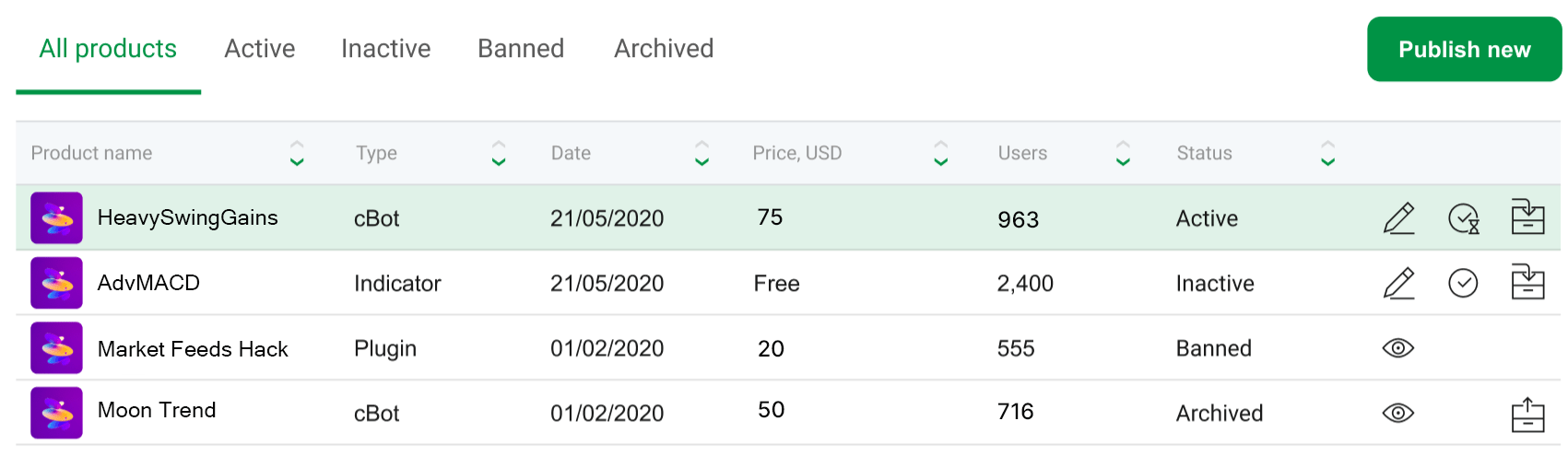
ในการจัดการผลิตภัณฑ์ คุณสามารถดำเนินการต่อไปนี้:
**แก้ไข** - ทำการเปลี่ยนแปลงคำอธิบายผลิตภัณฑ์ ราคา ฯลฯ
คำเตือน
เมื่อเผยแพร่แล้ว คุณไม่สามารถเปลี่ยนชื่อผลิตภัณฑ์หรือแทนที่ไฟล์อัลกอริทึมได้
**ซ่อน/แสดง** - ทำให้ผลิตภัณฑ์แสดง/ไม่แสดงใน cTrader สโตร์
**เก็บถาวร** - นำผลิตภัณฑ์ออกจาก cTrader สโตร์
คำเตือน
คุณไม่สามารถลบผลิตภัณฑ์ใน cTrader สโตร์ได้ เนื่องจากผู้ใช้ที่ซื้อผลิตภัณฑ์เหล่านั้นต้องสามารถเข้าถึงอัลกอริทึมเหล่านี้ผ่านบัญชีของพวกเขาได้ แทนที่จะลบ ให้เก็บถาวรผลิตภัณฑ์ที่คุณไม่ต้องการขายอีกต่อไป
กลับไปด้านบนสุด
---
# การสร้าง cTID โดยโบรกเกอร์ - cTrader ID
การสร้าง cTID โดยโบรกเกอร์
==========================
ขึ้นอยู่กับกระบวนการของโบรกเกอร์ของคุณ cTrader ID อาจถูกสร้างโดยผู้ดูแลระบบของโบรกเกอร์
ในกรณีนี้ คุณต้องให้ที่อยู่อีเมลของคุณแก่โบรกเกอร์ หลังจากที่ cTID ของคุณถูกสร้างขึ้นแล้ว ข้อความยืนยันจะถูกส่งไปยังที่อยู่อีเมลเดียวกัน เปิดข้อความและคลิกปุ่ม **ยืนยันอีเมล**

เมื่อโบรกเกอร์สร้างบัญชีเทรดให้คุณแล้ว cTrader จะแจ้งเตือนคุณทางอีเมล
หมายเหตุ
บัญชีเทรดของคุณกับโบรกเกอร์จะถูกเชื่อมโยงกับ cTID ของคุณโดยอัตโนมัติ หลังจากเข้าสู่ระบบ cTrader ด้วย cTID ของคุณ คุณจะเห็นบัญชีเทรดของโบรกเกอร์ที่เกี่ยวข้อง หากคุณได้สร้าง cTID อื่นไว้ โปรดติดต่อโบรกเกอร์ของคุณเพื่อเชื่อมโยงหรือเชื่อมโยงใหม่บัญชีเทรดที่มีอยู่กับ cTID ใหม่ของคุณ
เมื่อ cTID ของคุณถูกสร้างโดยโบรกเกอร์ คุณต้อง [**ตั้งรหัสผ่าน**](https://help.ctrader.com/ctrader-id/th/set-ctid-password/)
กลับไปด้านบนสุด
---
# Redirecting...
Redirecting...
---
# How to draw Fibonacci retracements - cTrader Algo
[Skip to content](https://help.ctrader.com/ctrader-algo/articles/for-developers/how-to-draw-fibonacci-retracements/#how-to-draw-fibonacci-retracements)
How to draw Fibonacci retracements[¶](https://help.ctrader.com/ctrader-algo/articles/for-developers/how-to-draw-fibonacci-retracements/#how-to-draw-fibonacci-retracements "Permanent link")
=============================================================================================================================================================================================
Fibonacci Retracements are a popular technical analysis tool used to identify potential levels of support and resistance in the price of an asset. By identifying support and resistance levels, traders gain a strategic edge in timing their trades, managing risk, aligning with market trends and ultimately improving their chances of profitability.
In this article and its corresponding video, you will learn how to create a cBot that draws Fibonacci Retracements on a chart and opens positions based on retracements.
Draw Fibonacci retracement on a chart[¶](https://help.ctrader.com/ctrader-algo/articles/for-developers/how-to-draw-fibonacci-retracements/#draw-fibonacci-retracement-on-a-chart "Permanent link")
---------------------------------------------------------------------------------------------------------------------------------------------------------------------------------------------------
Fibonacci Retracements implement the Fibonacci sequence, a series of numbers where each number is the sum of the two preceding ones.
Example
This is a Fibonacci sequence example: 0, 1, 1, 2, 3, 5, 8, 13, 21, 34, 55, 89, 144, …
Fibonacci Retracement levels are ratios of successive numbers derived from the Fibonacci sequence. These are the popular ratios used in technical analysis and trading: 0.236, 0.382, 0.5, 0.618 and sometimes 0.786.
We will create a cBot that draws Fibonacci Retracements on a chart. Four parameters representing the starting price, starting time, ending price and ending time will be provided in the cBot code.
In cTrader Algo, click the **New** button to create a cBot and enter a name such as "Fibonaci Retracement Strategy".
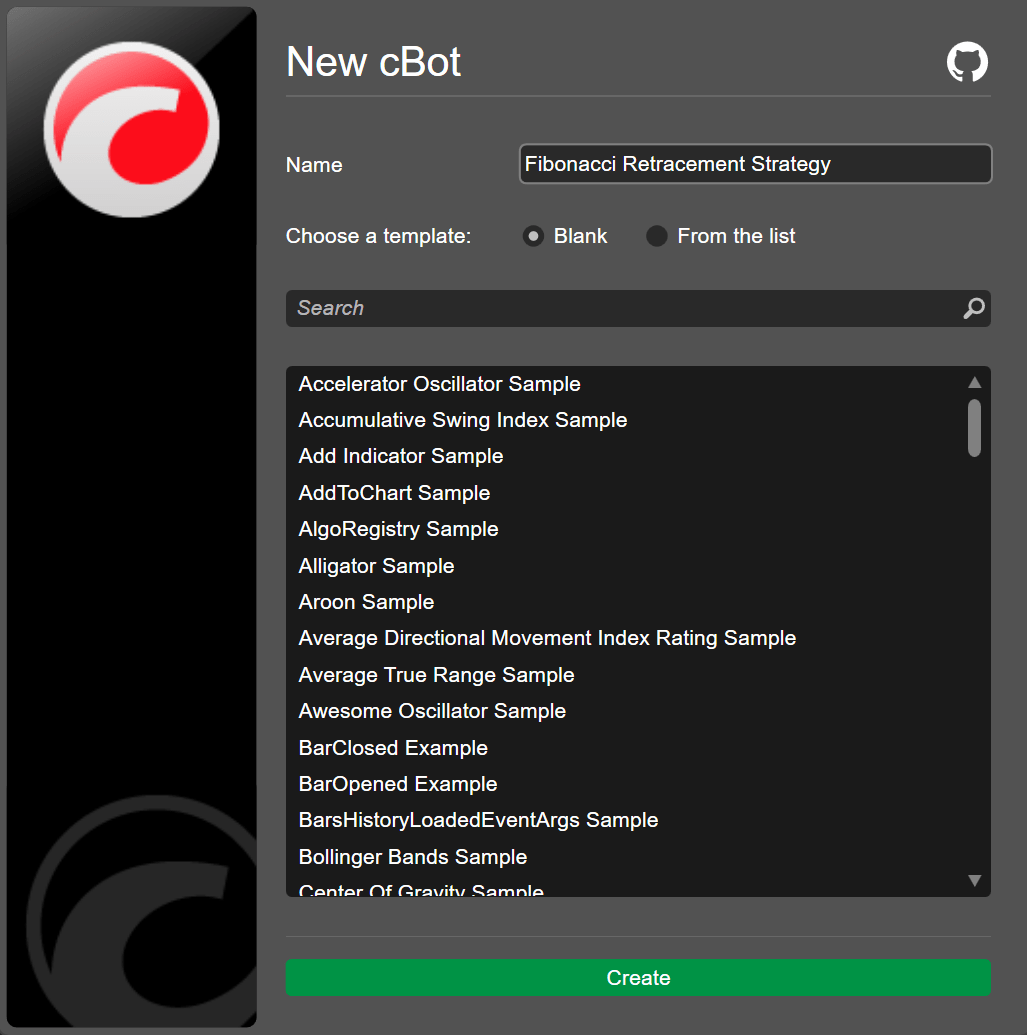
Declare the four important variables.
| | |
| --- | --- |
| 1 2 3 4 5 | `private double _max; private double _min; private int _highIndex; private int _lowIndex;` |
Code the cBot to detect the minimum and maximum prices for the last 50 bars.
| | |
| --- | --- |
| 1 2 | `_max = Bars.HighPrices.Maximum(50); _min = Bars.LowPrices.Minimum(50);` |
cTrader Algo allows users to define the time location through the absolute time or relative bar index. We will use the relative bar index to draw the Fibonacci retracement and write the code to detect the index of the high and low prices.
| | |
| --- | --- |
| 1 2 3 4 5 6 7 8 9 10 11 | `for (int i = 0; i <= 50; i++) { if (Bars.HighPrices.Last(i) == _max) _highIndex = Bars.Count - i - 1; } for (int i = 0; i <= 50; i++) { if (Bars.LowPrices.Last(i) == _min) _lowIndex = Bars.Count - i - 1; }` |
Finally, the code that draws the Fibonacci Retracements on the chart can be written. The order of the high and low prices determines the direction of the Fibonacci retracement.
| | |
| --- | --- |
| 1 2 3 4 | `if (_highIndex > _lowIndex) Chart.DrawFibonacciRetracement("fibo", _lowIndex, _min, _highIndex, _max, Color.Yellow); else Chart.DrawFibonacciRetracement("fibo", _highIndex, _max, _lowIndex, _min, Color.Yellow);` |
You can copy the full code below:
| | |
| --- | --- |
| 1 2 3 4 5 6 7 8 9 10 11 12 13 14 15 16 17 18 19 20 21 22 23 24 25 26 27 28 29 30 31 32 33 34 35 36 37 38 39 40 41 42 43 44 45 46 47 48 49 50 51 | `using System; using cAlgo.API; using cAlgo.API.Collections; using cAlgo.API.Indicators; using cAlgo.API.Internals; namespace cAlgo.Robots { [Robot(AccessRights = AccessRights.None, AddIndicators = true)] public class FibonacciRetracementStrategy : Robot { private double _max; private double _min; private int _highIndex; private int _lowIndex; protected override void OnStart() { _max = Bars.HighPrices.Maximum(50); _min = Bars.LowPrices.Minimum(50); for (int i = 0; i <= 50; i++) { if (Bars.HighPrices.Last(i) == _max) _highIndex = Bars.Count - i - 1; } for (int i = 0; i <= 50; i++) { if (Bars.LowPrices.Last(i) == _min) _lowIndex = Bars.Count - i - 1; } if (_highIndex > _lowIndex) Chart.DrawFibonacciRetracement("fibo", _lowIndex, _min, _highIndex, _max, Color.Yellow); else Chart.DrawFibonacciRetracement("fibo", _highIndex, _max, _lowIndex, _min, Color.Yellow); } protected override void OnTick() { // Handle price updates here } protected override void OnStop() { // Handle cBot stop here } } }` |
To build the cBot, use the Ctrl+B hotkey or click **Build**.
Add a local instance of the cBot: click **Add instance**, select the **Locally** option, then click **Add instance**.
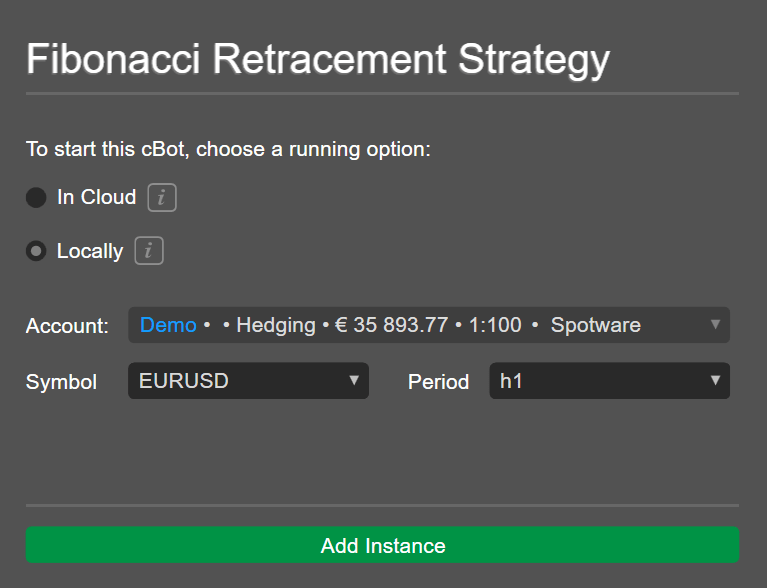
Click the instance and navigate to the **Backtesting** tab. Choose a period for the backtesting and then click the **play** icon.
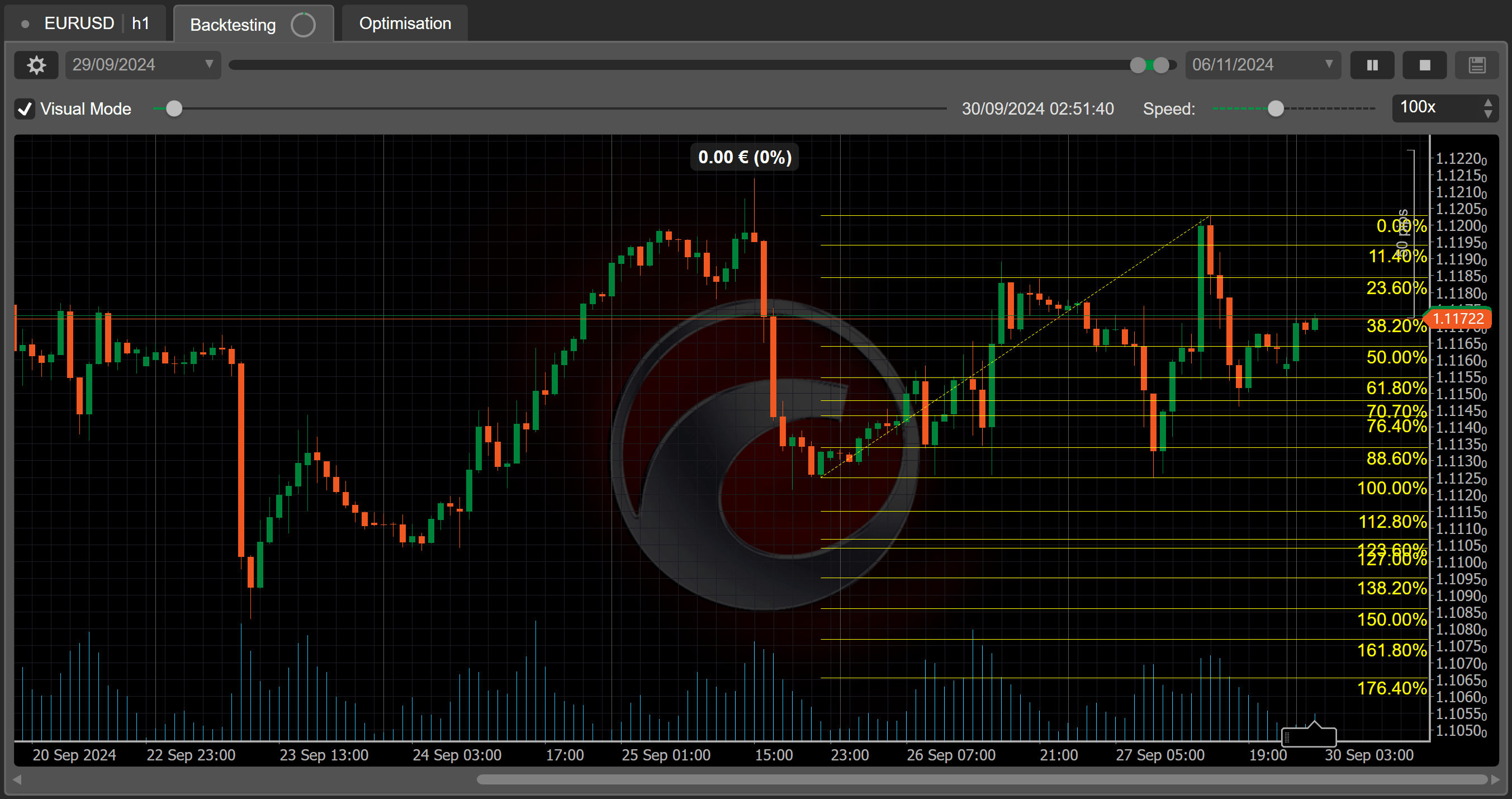
You should see the **Fibonacci Retracements** drawn on the chart.
Trade the Fibonacci retracement[¶](https://help.ctrader.com/ctrader-algo/articles/for-developers/how-to-draw-fibonacci-retracements/#trade-the-fibonacci-retracement "Permanent link")
---------------------------------------------------------------------------------------------------------------------------------------------------------------------------------------
Return to the code editor to implement a simple strategy based on the Fibonacci retracements. The strategy revolves around entering a buy position whenever the price crosses the 0.618 Fibonacci level and a bounce back is expected.
Write the code that executes the strategy in the `OnTick()` method.
| | |
| --- | --- |
| 1 2 3 4 5 | `protected override void OnTick() { if (Positions.Count == 0 && Bid < _min + ((_max - _min) * 0.618)) ExecuteMarketOrder(TradeType.Buy, SymbolName, 1000); }` |
You can copy the full code below:
| | |
| --- | --- |
| 1 2 3 4 5 6 7 8 9 10 11 12 13 14 15 16 17 18 19 20 21 22 23 24 25 26 27 28 29 30 31 32 33 34 35 36 37 38 39 40 41 42 43 44 45 46 47 48 49 50 51 52 | `using System; using cAlgo.API; using cAlgo.API.Collections; using cAlgo.API.Indicators; using cAlgo.API.Internals; namespace cAlgo.Robots { [Robot(AccessRights = AccessRights.None, AddIndicators = true)] public class FibonacciRetracementStrategy : Robot { private double _max; private double _min; private int _highIndex; private int _lowIndex; protected override void OnStart() { _max = Bars.HighPrices.Maximum(50); _min = Bars.LowPrices.Minimum(50); for (int i = 0; i <= 50; i++) { if (Bars.HighPrices.Last(i) == _max) _highIndex = Bars.Count - i - 1; } for (int i = 0; i <= 50; i++) { if (Bars.LowPrices.Last(i) == _min) _lowIndex = Bars.Count - i - 1; } if (_highIndex > _lowIndex) Chart.DrawFibonacciRetracement("fibo", _lowIndex, _min, _highIndex, _max, Color.Yellow); else Chart.DrawFibonacciRetracement("fibo", _highIndex, _max, _lowIndex, _min, Color.Yellow); } protected override void OnTick() { if (Positions.Count == 0 && Bid < _min + ((_max - _min) * 0.618)) ExecuteMarketOrder(TradeType.Buy, SymbolName, 1000); } protected override void OnStop() { // Handle cBot stop here } } }` |
Build the cBot again and then backtest it.
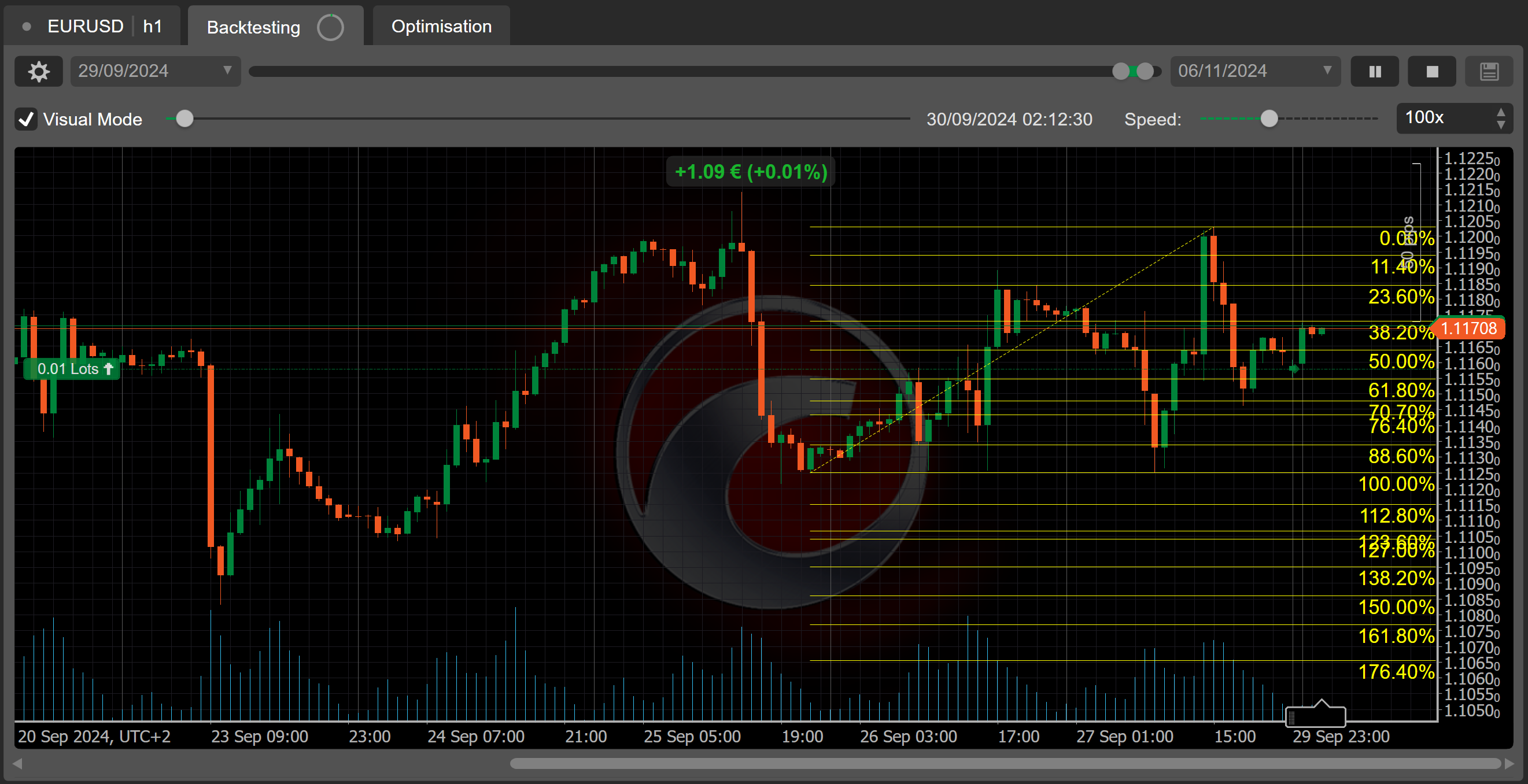
You should see positions being entered whenever the retracement level is crossed.
Summary[¶](https://help.ctrader.com/ctrader-algo/articles/for-developers/how-to-draw-fibonacci-retracements/#summary "Permanent link")
---------------------------------------------------------------------------------------------------------------------------------------
This article has explained how to draw Fibonacci retracements on a symbol chart and implement a trading strategy that relies on the retracements.
[**Subscribe to our YouTube channel**](https://www.youtube.com/channel/UCgoyyb_r8sgNrf1nqyMyo5A?sub_confirmation=1)
Back to top
---
# Sending/Receiving Protobuf Messages - Open API
[Skip to content](https://help.ctrader.com/open-api/sending-receiving-protobuf/#sendingreceiving-protobuf-messages)
Sending/Receiving Protobuf Messages[¶](https://help.ctrader.com/open-api/sending-receiving-protobuf/#sendingreceiving-protobuf-messages "Permanent link")
==========================================================================================================================================================
The process of sending and receiving a message differs between the TCP and WebSocket standards. Below, we explain this process in detail for both types of connections.
Using TCP[¶](https://help.ctrader.com/open-api/sending-receiving-protobuf/#using-tcp "Permanent link")
-------------------------------------------------------------------------------------------------------
### Sending a Message[¶](https://help.ctrader.com/open-api/sending-receiving-protobuf/#sending-a-message "Permanent link")
To send a message via a TCP connection, do the following.
1. Change the Protobuf message to an array of bytes (using the Protobuf encoding) by using the official Google Protocol Buffer SDK for your chosen programming language.
2. Get the length of the array created during Step 1. Create a new byte array created from this integer. Reverse the new byte array.
3. Concatenate the new byte array and the byte array containing the original Protobuf message.
4. Send the concatenated array to the connection stream.
The examples below demonstrate how these steps are performed in the official Open API SDKs.
C#Python
| | |
| --- | --- |
| 1 2 3 4 5 6 7 | `private async Task WriteTcp(byte[] messageByte, CancellationToken cancellationToken) { byte[] array = BitConverter.GetBytes(messageByte.Length).Reverse().Concat(messageByte) .ToArray(); await _sslStream.WriteAsync(array, 0, array.Length, cancellationToken).ConfigureAwait(continueOnCapturedContext: false); await _sslStream.FlushAsync(cancellationToken).ConfigureAwait(continueOnCapturedContext: false); }` |
| | |
| --- | --- |
| 1 2 3 | `client = Client(EndPoints.PROTOBUF_LIVE_HOST if hostType.lower() == "live" else EndPoints.PROTOBUF_DEMO_HOST, EndPoints.PROTOBUF_PORT, TcpProtocol) request = ProtoOAApplicationAuthReq() # Can be any message deferred = client.send(request)` |
The Python Example
Using Twisted, the Python example performs nearly the same operations as the C# one. The `client.send(request)` can be explained as follows.
| | |
| --- | --- |
| 1 2 3 | `request = ProtoOAApplicationAuthReq() # Can be any message requestAsString = request.SerializeToString() # This method is a part of the Google Protobuf SDK requestAsInt32String = struct.pack("!H", len(requestAsString)) # The message is concatenated with the reversed array` |
For sending the message, the Python SDK uses the `Protocol.transport.write()` method.
### Reading a Message[¶](https://help.ctrader.com/open-api/sending-receiving-protobuf/#reading-a-message "Permanent link")
Asynchronous Code
All Open API SDKs rely on asynchronous execution, meaning that they do not wait for messages to arrive but, instead, react to dynamically arriving messages. As a rresult, receiving a message is typically done via event handlers
To read a message, you will have to perform a sequence of actions that reverses the steps required for sending a message.
1. Receive the first four bytes of a byte array (remember, they denote the message length). Reverse these four bytes and change them to an integer.
2. Read `X` amount of bytes from a stream where `X` is the integer you have gotten during Step 1.
3. Use the Google Protobuf SDK to deserialize the message into a valid `ProtoMessage`.
4. Use the `payloadType` field of the `ProtoMessage` object to find its actual type. Via the Google Protobuf SDK, change the `ProtoMessage` to an object of the needed `ProtoOA...` type.
The code snippets below demonstrate how the official Open API SKDs approach reading messages.
C#Python
| | |
| --- | --- |
| 1 2 3 4 5 6 7 8 9 10 11 12 13 14 15 16 17 18 19 20 21 22 23 24 25 26 27 28 29 30 31 32 33 34 35 36 37 38 39 40 41 42 43 44 45 46 47 48 49 50 51 52 53 54 55 56 57 58 59 60 61 62 63 64 65 66 67 68 69 70 | `_tcpClient = new TcpClient { LingerState = new LingerOption(enable: true, 10) }; await _tcpClient.ConnectAsync(Host, Port).ConfigureAwait(continueOnCapturedContext: false); SslStream _sslStream = new SslStream(_tcpClient.GetStream(), leaveInnerStreamOpen: false); await _sslStream.AuthenticateAsClientAsync(Host).ConfigureAwait(continueOnCapturedContext: false); private async void ReadTcp(CancellationToken cancellationToken) { byte[] dataLength = new byte[4]; byte[] data = null; try { while (!IsDisposed) { int num = 0; do { int count = dataLength.Length - num; int num2 = num; num = num2 + await _sslStream.ReadAsync(dataLength, num, count, cancellationToken).ConfigureAwait(continueOnCapturedContext: false); if (num == 0) { throw new InvalidOperationException("Remote host closed the connection"); } } while (num < dataLength.Length); int length = GetLength(dataLength); if (length <= 0) { continue; } data = ArrayPool.Shared.Rent(length); num = 0; do { int count2 = length - num; int num2 = num; num = num2 + await _sslStream.ReadAsync(data, num, count2, cancellationToken).ConfigureAwait(continueOnCapturedContext: false); if (num == 0) { throw new InvalidOperationException("Remote host closed the connection"); } } while (num < length); ProtoMessage protoMessage = ProtoMessage.Parser.ParseFrom(data, 0, length); ArrayPool.Shared.Return(data); OnNext(protoMessage); } } catch (Exception innerException) { if (data != null) { ArrayPool.Shared.Return(data); } ReceiveException exception = new ReceiveException(innerException); OnError(exception); } } private int GetLength(byte[] lengthBytes) { Span span = lengthBytes.AsSpan(); span.Reverse(); return BitConverter.ToInt32(span); }` |
!!! "The Python Example" In the Python example, all operations with bytes on receiving messages are handled by the `dataReceived()` method as shown below.
` ```python linenums="1" def dataReceived(self, recd): """ Convert int prefixed strings into calls to stringReceived. """ self.recvd = self.recvd + recd while len(self.recvd) >= self.prefixLength and not self.paused: length ,= struct.unpack( self.structFormat, self.recvd[:self.prefixLength]) if length > self.MAX_LENGTH: self.lengthLimitExceeded(length) return if len(self.recvd) < length + self.prefixLength: break packet = self.recvd[self.prefixLength:length + self.prefixLength] self.recvd = self.recvd[length + self.prefixLength:] self.stringReceived(packet) ``` `
| | |
| --- | --- |
| 1 2 3 4 5 6 7 8 | `def stringReceived(self, data): msg = ProtoMessage() msg.ParseFromString(data) if msg.payloadType == ProtoHeartbeatEvent().payloadType: self.heartbeat() self.factory.received(msg) return data` |
Using WebSocket[¶](https://help.ctrader.com/open-api/sending-receiving-protobuf/#using-websocket "Permanent link")
-------------------------------------------------------------------------------------------------------------------
### Sending a Message[¶](https://help.ctrader.com/open-api/sending-receiving-protobuf/#sending-a-message_1 "Permanent link")
To send a message over a WebSocket connection, perform the following actions.
1. Serialize the message into any suitable data format (e.g., a string).
2. Add the serialized message to your send queue.
The examples below demonstrate how these actions are performed in the official Open API SDKs.
C#Python
The C# SDK uses the `WebsocketClient` class which is a part of the `Websocket.Client` package. As shown below, the `WebsocketClient.Send()` method works as follows.
| | |
| --- | --- |
| 1 2 3 4 5 | `public void Send(byte[] message) { Websocket.Client.Validations.Validations.ValidateInput(message, "message"); _messagesBinaryToSendQueue.Writer.TryWrite(new ArraySegment(message)); }` |
As you can see, the client simply adds an array segment to the send queue.
The Python SDK does not support the WebSocket standard.
### Receiving a Message[¶](https://help.ctrader.com/open-api/sending-receiving-protobuf/#receiving-a-message "Permanent link")
To receive a message over a WebSocket connection, do the following.
1. Retrieve the data received from the cTrader backend.
2. Deserialize data into a valid Protobuf message.
For an illustration of how this is done in the official Open API SDKs, see the below snippets.
C#Python
To receive messages, a `WebsocketClient` needs to be subscribed to a callback function that handles what the client does on accepting a new message.
| | |
| --- | --- |
| 1 2 | `var client = new WebsocketCliebnt(); client.MessageReceived.Subscribe(msg => {Console.WriteLine(msg);})` |
Before subscribing, the .NET SDK parses the message into a Protobuf message. The necessary subscriptions are added in the body of the `ConnectWebSocket()` callback.
| | |
| --- | --- |
| 1 2 3 4 5 6 7 8 9 10 11 12 13 14 15 16 17 18 19 | `private async Task ConnectWebScoket() { DefaultInterpolatedStringHandler defaultInterpolatedStringHandler = new DefaultInterpolatedStringHandler(7, 2); defaultInterpolatedStringHandler.AppendLiteral("wss://"); defaultInterpolatedStringHandler.AppendFormatted(Host); defaultInterpolatedStringHandler.AppendLiteral(":"); defaultInterpolatedStringHandler.AppendFormatted(Port); Uri url = new Uri(defaultInterpolatedStringHandler.ToStringAndClear()); _websocketClient = new WebsocketClient(url, () => new ClientWebSocket()) { IsTextMessageConversionEnabled = false, ReconnectTimeout = null, IsReconnectionEnabled = false, ErrorReconnectTimeout = null }; _webSocketMessageReceivedDisposable = _websocketClient.MessageReceived.Select((ResponseMessage msg) => ProtoMessage.Parser.ParseFrom(msg.Binary)).Subscribe(new Action(OnNext)); _webSocketDisconnectionHappenedDisposable = _websocketClient.DisconnectionHappened.Subscribe(new Action(OnWebSocketDisconnectionHappened)); await _websocketClient.StartOrFail(); }` |
In the `OnNext()` callback, the `ProtoMessage` is passed to the `MessageFactory.GetMessage()` callback.
| | |
| --- | --- |
| 1 2 3 4 5 6 7 8 9 10 11 12 13 14 15 16 17 18 19 20 21 22 23 24 25 26 | `private void OnNext(ProtoMessage protoMessage) { foreach (KeyValuePair> observer2 in _observers) { observer2.Deconstruct(out var _, out var value); IObserver observer = value; try { IMessage message = MessageFactory.GetMessage(protoMessage); if (protoMessage.HasClientMsgId \| message == null) { observer.OnNext(protoMessage); } if (message != null) { observer.OnNext(message); } } catch (Exception innerException) { ObserverException exception = new ObserverException(innerException, observer); OnError(exception); } } }` |
The Python SDK does not support the WebSocket standard.
---
# Attaining Symbol Data - Open API
[Skip to content](https://help.ctrader.com/open-api/symbol-data/#attaining-historical-data)
Attaining Historical Data[¶](https://help.ctrader.com/open-api/symbol-data/#attaining-historical-data "Permanent link")
========================================================================================================================
Attaining and interpreting symbol data (e.g., the open and close prices of all bars for a specific period) is essential in any application that has any of the following functionalities.
* **Charts**. To construct bar or line charts, you need to know both historical and live bar/quote data.
* **Market statistics**. If you want to display market statistics (such as daily price changes for individual symbols), you have to attain both historical and live prices.
* **Replays**. In your application, you may allow traders to 'go back in time' and trade on historical data. To do so, you would need to attain and process past bar and/or tick data.
In this tutorial, we will show how you can attain and process historical and live bar/tick data as well as live depth quotes.
Note that the tutorial only provides a code snippet for attaining historical bar data. As the core logic remains the same regardless of the action you are performing, you can adapt this snippet to attain other types of data.
Operating With JSON
When operating with JSON, you can still reuse code from this tutorial; however, you would need to slightly modify it depending on your approach to serialisation/deserialisation.
Attaining Historical Bar Data[¶](https://help.ctrader.com/open-api/symbol-data/#attaining-historical-bar-data "Permanent link")
--------------------------------------------------------------------------------------------------------------------------------
To receive historical bars data, perform the following actions.
* Initialise an object representing [**the `ProtoOAGetTrendbarsReq` message**](https://help.ctrader.com/open-api/messages/#protooagettrendbarsreq)
.
* Fill the object properties with the required `ctidTraderAccountId`, the `symbolId`, the `ProtoOATrendbarPeriod`, the `count` of trendars to return, and the `toTimestamp` and `fromTimestamp` Unix timestamps.
Timestamp Constraints
Note that there are some constraints on the maximum possible distance between the `toTimestamp` and the `fromTimestamp`. These constaints depend on the specified `ProtoOATrendPeriod`. To learn more, [**click here**](https://help.ctrader.com/open-api/messages/#protooagettrendbarsreq)
.
* Send the newly created message and receive a response of [**the `ProtoOAGetTrendbarsRes` type**](https://help.ctrader.com/open-api/messages/#protooagettrendbarsres)
. Access its `trendbar` field to attain a list of trend bars.
* Transform the data from the relative format to the actual symbol price. To do so, first, get the low price of a trendbar and divide it by 100000. Then, round the result to symbol digits (e.g., two numbers after the delimiter). To attain the high, open, and close prices of a trendbar, add the trendbar delta of each of these prices to the trendbar low price. Afterward, divide each number by 100000 and round the result to symbol digits.
You can complete these actions by reusing the code below.
C#Python
| | |
| --- | --- |
| 1 2 3 4 5 6 7 8 9 10 11 12 13 14 15 16 17 18 19 20 21 22 23 24 25 26 27 28 29 30 31 32 33 34 35 36 37 38 39 40 | `private static async void TrendbarRequest(ProtoOATrendbarPeriod period, int accountId, int symbolId, int days) { Console.WriteLine("Sending ProtoOAGetTrendbarsReq..."); var request = new ProtoOAGetTrendbarsReq { CtidTraderAccountId = accountId, SymbolId = symbolId, Period = period, FromTimestamp = DateTimeOffset.UtcNow.AddDays(-days).ToUnixTimeMilliseconds(), ToTimestamp = DateTimeOffset.UtcNow.ToUnixTimeMilliseconds(), }; Console.WriteLine($"FromTimestamp: {request.FromTimestamp} \| ToTimestamp: {request.ToTimestamp}"); await _client.SendMessage(request); } public static double GetPriceFromRelative(ProtoOASymbol symbol, long relative) => Math.Round(relative / 100000.0, symbol.Digits); private List OnHistoricalTrendbarsReceived(ProtoOAGetTrendbarsRes message) { var trendbars = message.Trendbar; var data = new List(); foreach (var trendbar in trendbars) { data.Add(new Trendbar { Low = GetPriceFromRelative(symbol, trendbar.Low), High = GetPriceFromRelative(symbol, trendbar.Low + (int)trendbar.DeltaHigh), Open = GetPriceFromRelative(symbol, trendbar.Low + (int)trendbar.DeltaOpen), Close = GetPriceFromRelative(symbol, trendbar.Low + (int)trendbar.DeltaClose), } ); } return data; }` |
| | |
| --- | --- |
| 1 2 3 4 5 6 7 8 9 10 11 12 13 14 15 16 17 18 19 20 21 | `def sendProtoOAGetTrendbarsReq(ctidTraderAccountId, weeks, period, symbolId, clientMsgId = None): request = ProtoOAGetTrendbarsReq() request.ctidTraderAccountId = ctidTraderAccountId request.period = ProtoOATrendbarPeriod.Value(period) request.fromTimestamp = int(calendar.timegm((datetime.datetime.utcnow() - datetime.timedelta(weeks=int(weeks))).utctimetuple())) * 1000 request.toTimestamp = int(calendar.timegm(datetime.datetime.utcnow().utctimetuple())) * 1000 request.symbolId = int(symbolId) deferred = client.send(request, clientMsgId = clientMsgId) def getPriceFromRelative(symbol, relative): round(relative / 100000.0, symbol.digits) def onHistoricalTrendbarsReceived(message): trendbars = message.trendbars data = [] for trendbar in trenbars: data.append(Trendbar(low=getPriceFromRelative(symbol, trendbar.low), high=getPriceFromRelative(symbol, trendbar.low + int(trendbar.deltaHigh)), open=getPriceFromRelative(symbol, trendbar.low + int(trendbar.deltaHigh)), close=getPriceFromRelative(symbol, trendbar.low +int(trendbar.deltaClose)))) return data` |
Attaining Historical Tick Data[¶](https://help.ctrader.com/open-api/symbol-data/#attaining-historical-tick-data "Permanent link")
----------------------------------------------------------------------------------------------------------------------------------
To receive historical tick data, perform the following actions.
* Initialise an object representing [**the `ProtoOAGetTickDataReq` message**](https://help.ctrader.com/open-api/messages/#protooagettickdatareq)
.
* Fill the object properties with the required `ctidTraderAccountId`, the `symbolId`, the quote `type` as well as the `fromTimestamp` and the `toTimestamp`.
Timestamp Constraints
It is impossible to request historical tick data for a period larger than one week. As such, the difference between the specified `toTimestamp` and the `fromTimestamp` must not be larger than `604800000`.
* Send the newly created message and receive a response of [**the `ProtoOAGetTickDataRes` type**](https://help.ctrader.com/open-api/messages/#protooagettrendbarsres)
. Access its `tickData` field to attain a list of elements of the `ProtoOATickData` type.
* Transform the data from the relative format to the actual symbol price. To do so, divide each tick by 100000 and round the result to symbol digits.
Requesting a Large Number of Ticks
There exists a limit on the number of ticks that can be returned in a `ProtoOAGetTickDataRes` message. If this limit is exceeded (e.g., there has been a significant number of ticks during the specified period), the `ProtoOAGetTickDataRes` message will only include the first X ticks, where X is a number lower than the tick limit. The exact limit depends on the configuration of the cTrader backend.
To check if there exist more ticks than have been returned in the received message, use the `hasMore` flag.
Attaining Live Bars Data[¶](https://help.ctrader.com/open-api/symbol-data/#attaining-live-bars-data "Permanent link")
----------------------------------------------------------------------------------------------------------------------
To receive live bars, perform the following actions.
* Initialise a variable representing [**the `ProtoOAGetTrendbarsReq` message**](https://help.ctrader.com/open-api/messages/#protooagettrendbarsreq)
.
* Fill the object properties with the required `ctidTraderAccountId`, the `symbolId`, the `ProtoOATrendbarPeriod`, the `count` of trendars to return, and the `toTimestamp` and `fromTimestamp` Unix timestamps.
Timestamp Constraints
Note that there are some constraints on the maximum possible distance between the `toTimestamp` and the `fromTimestamp`. These constaints depend on the specified `ProtoOATrendPeriod`. To learn more, [**click here**](https://help.ctrader.com/open-api/messages/#protooagettrendbarsreq)
.
* Send the newly created message and receive a response of [**the `ProtoOAGetTrendbarsRes` type**](https://help.ctrader.com/open-api/messages/#protooagettrendbarsres)
. Access its `trendbar` field to attain a list of trend bars.
* Transform the data from the relative format to the actual symbol price. To do so, first get the low price of a trendbar and divide it by 100000. Then, round the result to symbol digits (e.g., two numbers after the delimiter). To attain the high, open, and close prices of a trendbar, add the trendbar delta of each of these prices to the trendbar low price. Afterward, divide each number by 100000 and round the result to symbol digits.
* Initialise an object representing [**the `ProtoOASubscribeLiveTrendbarReq` message**](https://help.ctrader.com/open-api/messages/#protooasubscribelivetrendbarreq)
.
* Fill the object properties with the required `ctidTraderAccountId`, the `ProtoOATrendbarPeriod`, and the `symbolId`.
* Do the same for an object representing [**the `ProtoOASubscribeSpotsReq` message**](https://help.ctrader.com/open-api/messages/#protooasubscribespotsreq)
.
* Send the `ProtoOASubscribeSpotsReq` message and the `ProtoOASubscribeLiveTrendbarReq` message in that order and receive responses of the [**`ProtoOASubscribeSpotsRes`**](https://help.ctrader.com/open-api/messages/#protooasubscribespotsres)
and [**the `ProtoOASubscribeLiveTrenbarsRes` types**](https://help.ctrader.com/open-api/messages/#protooasubscribelivetrendbarres)
. At this point, you are subscribed to live bars data and you should receive messages of [**the `ProtoOASpotEvent` type**](https://help.ctrader.com/open-api/messages/#protooaspotevent)
.
Subscribing to Live Trendbars
Note that successfully subscribing to live trendbars first requires a subscription to spot events.
* When you receive a new `ProtoOASpotEvent` message, use its `trendbar` field to get the data for the last closed bar.
* Transform the data from the relative format to the actual symbol prices. To do so, first, get the low price of a trendbar and divide it by 100000. Then, round the result to symbol digits (e.g., two numbers after the delimiter). To attain the high, open, and close prices of a trendbar, add the trendbar delta of each of these prices to the trendbar low price. Afterward, divide each number by 100000 and round the result to symbol digits.
To unsubscribe from live trendbar data, you can always send [**the `ProtoOAUnsubscribeLiveTrendbarsReq` message**](https://help.ctrader.com/open-api/messages/#protooaunsubscribelivetrendbarreq)
containing the `symbolId`, the `period`, and your `ctidTraderAccountId`. In case your request is successful, you should receive a response of [**the `ProtoOAUnsubscribeLiveTrenbarRes` type**](https://help.ctrader.com/open-api/messages/#protooaunsubscribelivetrendbarres)
. Your subscription to spot events will still remain.
Attaining Live Quotes[¶](https://help.ctrader.com/open-api/symbol-data/#attaining-live-quotes "Permanent link")
----------------------------------------------------------------------------------------------------------------
To receive live bid/ask quotes for a symbol, perform the following actions.
* Initialise an object representing [**the `ProtoOASubscribeSpotsReq` message**](https://help.ctrader.com/open-api/messages/#protooasubscribespotsreq)
.
* Fill the object properties with the `ctidTraderAccountId`, the `symbolId`, and, optionally, the `subscribeToSpotTimestamp` bool.
* Send the newly created message and receive a response of the [**`ProtoOASubscribeSpotsRes`**](https://help.ctrader.com/open-api/messages/#protooasubscribespotsres)
type. At this point, you are subscribed to live quotes data and you should receive messages of [**the `ProtoOASpotEvent` type**](https://help.ctrader.com/open-api/messages/#protooaspotevent)
.
* When you receive a new `ProtoOASpotEvent` message, access its `bid` and/or `ask` fields to attain the latest quotes. Note that you still have to transform the data into an actual price value by dividing it by 100000 and rounding it to the symbol digits.
Bid/Ask Fields
Note that as the `bid` and `ask` fields are optional, you may not necessarily see `ProtoOASpotEvent` messages where both are specified.
To unsubscribe from quotes data, you can always send [**the `ProtoOAUnsubscribeSpotsReq` message**](https://help.ctrader.com/open-api/messages/#protooaunsubscribespotsreq)
containing the `symbolId` and your `ctidTraderAccountId`. In case your request is successful, you should receive a response of [**the `ProtoOAUnsubscribeSpotsRes` type**](https://help.ctrader.com/open-api/messages/#protooaunsubscribespotsres)
. At this point, you should stop receiving spot events.
Depth Quotes[¶](https://help.ctrader.com/open-api/symbol-data/#depth-quotes "Permanent link")
----------------------------------------------------------------------------------------------
Last but not least, you can also receive live depth or Level II quotes for a symbol. To do so, perform the following actions.
You can subscribe and receive live depth or Level II quotes for a symbol from the API.
* Initialise an object representing [**the `ProtoOASubscribeDepthQuotesReq` message**](https://help.ctrader.com/open-api/messages/#protooasubscribedepthquotesreq)
.
* Fill the object properties with the `ctidTraderAccountId` and the the `symbolId`.
* Send the newly created message and receive a response of [**the `ProtoOASubscribeDepthQuotesRes` type**](https://help.ctrader.com/open-api/messages/#protooasubscribedepthquotesres)
. At this point, you are subscribed to depth quotes, meaning that you should start receiving [**`ProtoOADepthEvent` messages**](https://help.ctrader.com/open-api/messages/#protooadepthevent)
.
* When you receive a new `ProtoOADepthEvent` message, you will need to use its `newQuotes` and `deletedQuotes` fields to get the latest depth data. You will also need to transform the data into an actual price value by dividing it by 100000 and rounding the result to the symbol digits. You will also need to transform the depth quote size into units by dividing it by 100.
To unsubscribe from depth events, you can always use [**the `ProtoOAUnsubscribeDepthQuotesReq` message**](https://help.ctrader.com/open-api/messages/#protooaunsubscribedepthquotesreq)
while specifying the `symbolId` and the `ctidTraderAccountId`. You should receive a message of [**the `ProtoOAUnsubscribeDepthQuotesRes` type**](https://help.ctrader.com/open-api/messages/#protooaunsubscribedepthquotesres)
; afterward, you should stop receiving depth events.
---
# How to use a canvas - cTrader Algo
[Skip to content](https://help.ctrader.com/ctrader-algo/articles/for-developers/how-to-use-a-canvas/#how-to-use-a-canvas)
How to use a canvas[¶](https://help.ctrader.com/ctrader-algo/articles/for-developers/how-to-use-a-canvas/#how-to-use-a-canvas "Permanent link")
================================================================================================================================================
The canvas control from the cTrader Algo API empowers traders to create custom visuals, including texts, shapes and images in cTrader. These drawings improve data visualisation for workflows and provide a more personalised trading experience.
In this article and its corresponding video, you will learn how to use the canvas control on a trading chart and implement customisable parameters.
Create canvas control[¶](https://help.ctrader.com/ctrader-algo/articles/for-developers/how-to-use-a-canvas/#create-canvas-control "Permanent link")
----------------------------------------------------------------------------------------------------------------------------------------------------
The `Canvas` class can be accessed and used by all algorithm types (cBots, indicators and plugins). In addition to drawing texts, shapes and images, the canvas control can be used to add special objects such as arrows, labels or even annotations directly to charts.
We will develop a cBot that draws a canvas on a chart. In cTrader Algo, click the **New** button to create a cBot, enter a name and click **Create**.
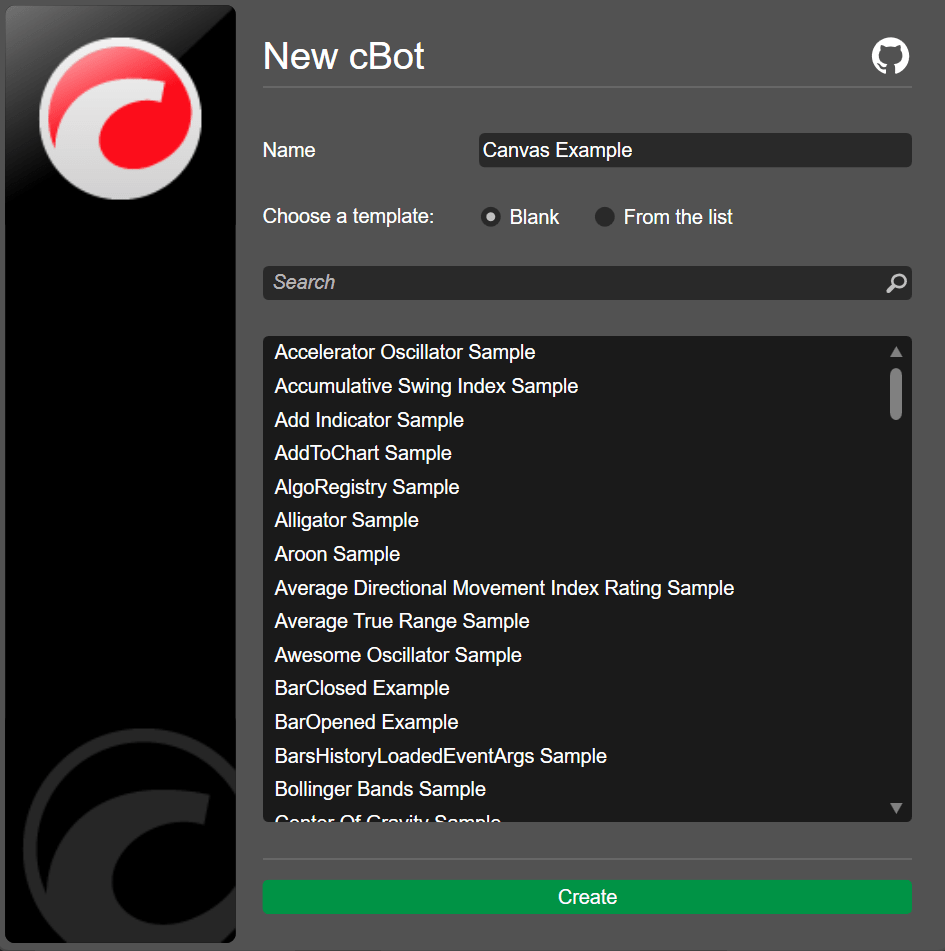
Declare a canvas.
| | |
| --- | --- |
| 1 | `private Canvas _canvas;` |
Initialise the canvas and add it to a chart.
| | |
| --- | --- |
| 1 2 | `_canvas = new Canvas(); Chart.AddControl(_canvas);` |
Draw elements inside the canvas. Use the `Left` and `Top` coordinates to position the elements.
| | |
| --- | --- |
| 1 2 3 4 5 6 7 8 9 10 11 12 13 14 15 16 17 18 19 | `var rectangle = new Rectangle { Left = 50, Top = 50, Width = 100, Height = 50, StrokeColor = Color.Blue }; _canvas.AddChild(rectangle); var text = new TextBlock { Left = 70, Top = 70, Text = "Hello Canvas!", }; _canvas.AddChild(text);` |
Note
The x and y axes here differ from those associated with chart objects or drawings. The x and y coordinates used by the `Canvas` class represent numeric values starting from (0, 0) from the top-left corner of the chart.
You can copy the full code below:
| | |
| --- | --- |
| 1 2 3 4 5 6 7 8 9 10 11 12 13 14 15 16 17 18 19 20 21 22 23 24 25 26 27 28 29 30 31 32 33 34 35 36 37 38 39 40 41 42 43 44 45 46 47 48 49 50 51 52 53 | `using System; using cAlgo.API; using cAlgo.API.Collections; using cAlgo.API.Indicators; using cAlgo.API.Internals; namespace cAlgo.Robots { [Robot(AccessRights = AccessRights.None, AddIndicators = true)] public class CanvasExample : Robot { [Parameter(DefaultValue = "Hello world!")] public string Message { get; set; } private Canvas _canvas; protected override void OnStart() { _canvas = new Canvas(); Chart.AddControl(_canvas); var rectangle = new Rectangle { Left = 50, Top = 50, Width = 100, Height = 50, StrokeColor = Color.Blue }; _canvas.AddChild(rectangle); var text = new TextBlock { Left = 70, Top = 70, Text = "Hello Canvas!", }; _canvas.AddChild(text); } protected override void OnTick() { // Handle price updates here } protected override void OnStop() { // Handle cBot stop here } } }` |
To build the cBot, use the Ctrl+B hotkey or click **Build**.
Add a local instance of the cBot by clicking **Add instance**, selecting the **Locally** option and then clicking **Add instance**.
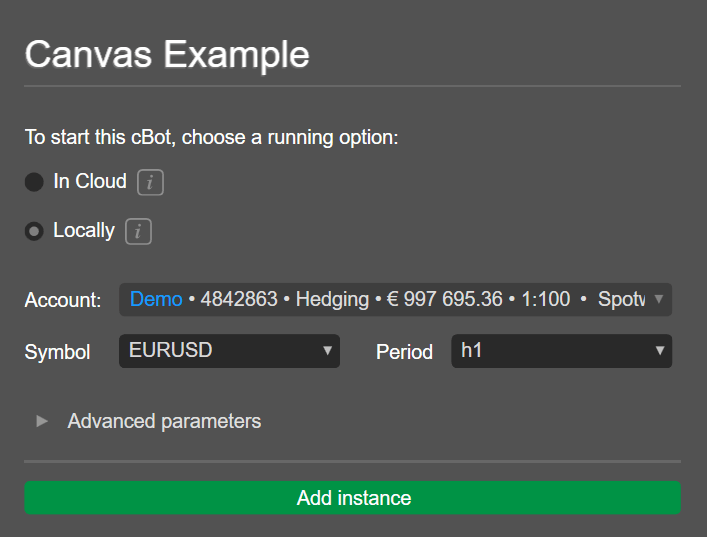
Click the **play** icon, and the canvas should appear on the chart. You should see how the elements are placed in relation to the canvas corners.
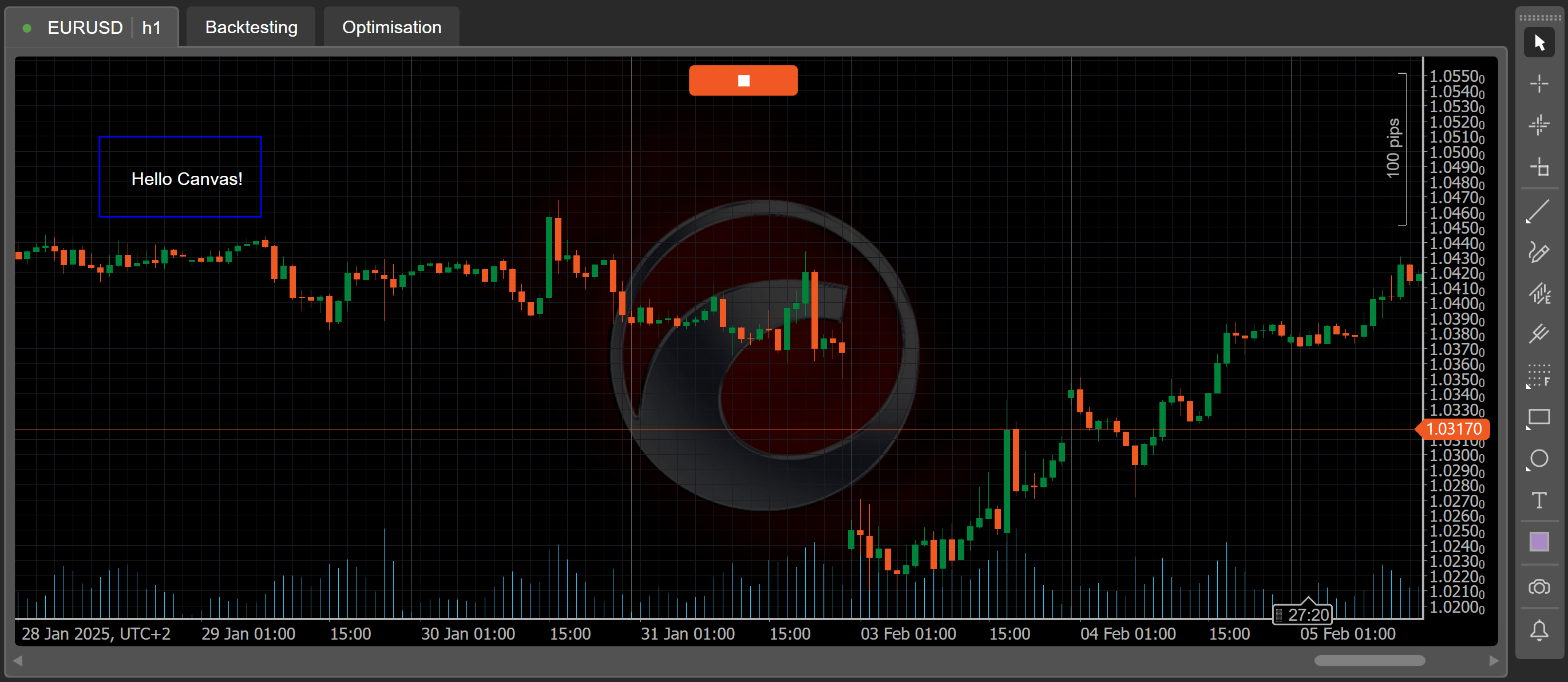
Add customisable parameters[¶](https://help.ctrader.com/ctrader-algo/articles/for-developers/how-to-use-a-canvas/#add-customisable-parameters "Permanent link")
----------------------------------------------------------------------------------------------------------------------------------------------------------------
Return to the code editor for the cBot and make changes so that the coordinates for the objects shown on the chart become customisable parameters.
Create parameters for the x and y coordinates of the rectangle.
| | |
| --- | --- |
| 1 2 3 4 5 | `[Parameter("Rectangle Left", DefaultValue = 50)] public int RectangleLeft { get; set; } [Parameter("Rectangle Top", DefaultValue = 50)] public int RectangleTop { get; set; }` |
Create parameters for the width and height of the rectangle.
| | |
| --- | --- |
| 1 2 3 4 5 | `[Parameter("Rectangle Width", DefaultValue = 100)] public int RectangleWidth { get; set; } [Parameter("Rectangle Height", DefaultValue = 50)] public int RectangleHeight { get; set; }` |
Create parameters for the x and y coordinates of the text.
| | |
| --- | --- |
| 1 2 3 4 5 | `[Parameter("Text Left", DefaultValue = 70)] public int TextLeft { get; set; } [Parameter("Text Top", DefaultValue = 70)] public int TextTop { get; set; }` |
Modify the `rectangle` code to enable it to use the new customisable parameters.
| | |
| --- | --- |
| 1 2 3 4 5 6 7 8 | `var rectangle = new Rectangle { Left = RectangleLeft, Top = RectangleTop, Width = RectangleWidth, Height = RectangleHeight, StrokeColor = Color.Blue };` |
Modify the `text` code to enable it to use the new customisable parameters.
| | |
| --- | --- |
| 1 2 3 4 5 6 | `var text = new TextBlock { Left = TextLeft, Top = TextTop, Text = "Hello Canvas!", };` |
You can copy the full code below:
| | |
| --- | --- |
| 1 2 3 4 5 6 7 8 9 10 11 12 13 14 15 16 17 18 19 20 21 22 23 24 25 26 27 28 29 30 31 32 33 34 35 36 37 38 39 40 41 42 43 44 45 46 47 48 49 50 51 52 53 54 55 56 57 58 59 60 61 62 63 64 65 66 67 68 | `using System; using cAlgo.API; using cAlgo.API.Collections; using cAlgo.API.Indicators; using cAlgo.API.Internals; namespace cAlgo.Robots { [Robot(AccessRights = AccessRights.None, AddIndicators = true)] public class CanvasExample : Robot { [Parameter("Rectangle Left", DefaultValue = 50 )] public int RectangleLeft { get; set; } [Parameter("Rectangle Top", DefaultValue = 50 )] public int RectangleTop { get; set; } [Parameter("Rectangle Width", DefaultValue = 100 )] public int RectangleWidth { get; set; } [Parameter("Rectangle Height", DefaultValue = 50 )] public int RectangleHeight { get; set; } [Parameter("Text Left", DefaultValue = 70 )] public int TextLeft { get; set; } [Parameter("Text Top", DefaultValue = 70 )] public int TextTop { get; set; } private Canvas _canvas; protected override void OnStart() { _canvas = new Canvas(); Chart.AddControl(_canvas); var rectangle = new Rectangle { Left = RectangleLeft, Top = RectangleTop, Width = RectangleWidth, Height = RectangleHeight, StrokeColor = Color.Blue }; _canvas.AddChild(rectangle); var text = new TextBlock { Left = TextLeft, Top = TextTop, Text = "Hello Canvas!", }; _canvas.AddChild(text); } protected override void OnTick() { // Handle price updates here } protected override void OnStop() { // Handle cBot stop here } } }` |
Run the cBot again, the customisable parameters for the rectangle and text should be visible.
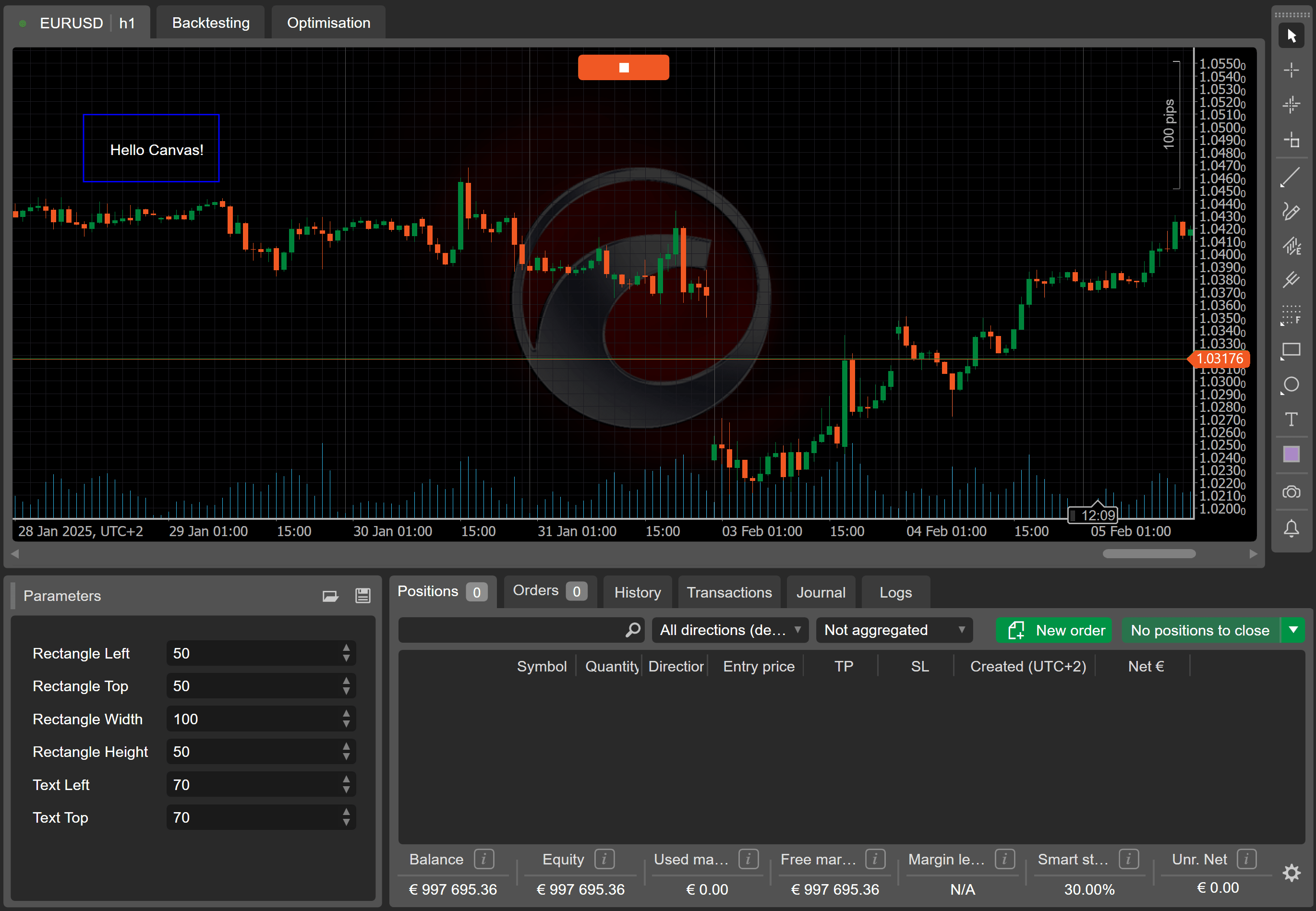
You can enter new values for any parameter, and the changes will be reflected in the chart immediately.
Set 'Rectangle Left' to 100Set 'Text Left' to 120

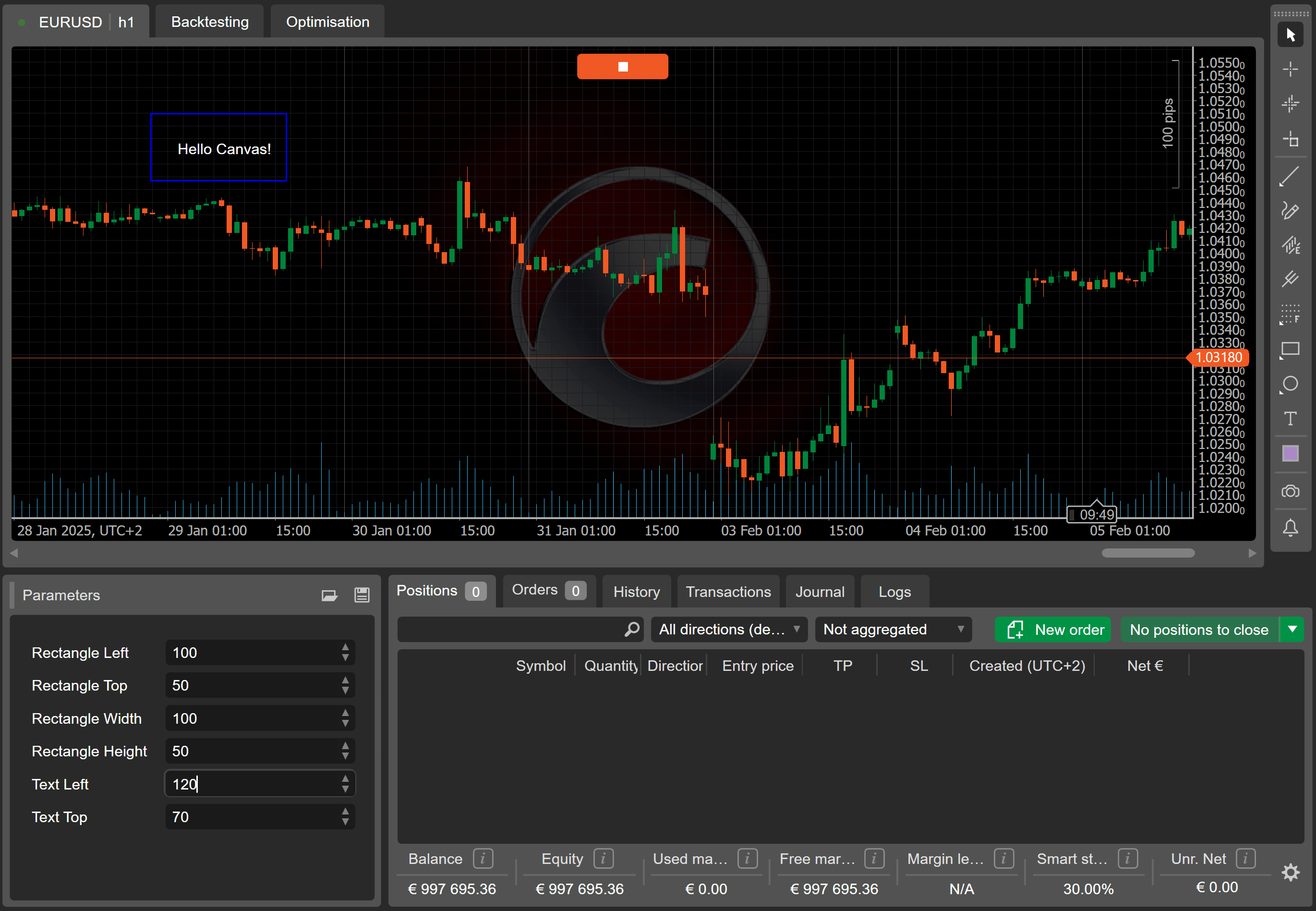
Summary[¶](https://help.ctrader.com/ctrader-algo/articles/for-developers/how-to-use-a-canvas/#summary "Permanent link")
------------------------------------------------------------------------------------------------------------------------
This article has shown you how to use the canvas control to draw objects on a trading chart and also implement customisable parameters for variables.
[Subscribe to our YouTube channel](https://www.youtube.com/channel/UCgoyyb_r8sgNrf1nqyMyo5A?sub_confirmation=1)
Back to top
---
# Symbol Rate Conversion - Open API
[Skip to content](https://help.ctrader.com/open-api/symbol-rate-conversion/#symbol-rate-conversion)
Symbol Rate Conversion[¶](https://help.ctrader.com/open-api/symbol-rate-conversion/#symbol-rate-conversion "Permanent link")
=============================================================================================================================
Symbol rate conversion is an essential action if you want your application to include any sort of functionality related to P&L calculations.
Use Cases
Performing symbol rate conversions is necessary when calculating commissions, swaps, and dividends. Commissions, swaps, and dividends are typically denoted in USD. However, depending on your broker and your preferences, your account deposit currency may be in any other asset rather than USD. To accurately define commissions, swaps, and dividends, you would need to know the exchange rate between USD and your account deposit currency.
Conversion Chains
Think of the price of each individual symbol as a conversion rate between its base asset and quote asset. The task of attaining conversion rates becomes complicated if there are no symbols that directly link a given asset to another asset. Fortunately, the cTrader backend can automatically create conversion chains that act as the shortest possible conversion paths from one asset to another.
For example, if you want to convert EUR into NZD, and there is no EURNZD symbol on the trading server, cTrader will propose a chain that will serve as intermediate steps in the conversion process. Depending on symbol availability, such a chain could look like **EURUSD-USDCAD-CADNZD**, **EURCFH-CFHUSD-USDNZD**, or even **EURCAD-CADUSD-USDCFH-CFHNZD**.
To convert between two assets, your app needs to perform the following actions.
* Access the IDs of the assets that you want to convert between.
* Attain a conversion chain that includes one or more 'light' symbols.
* Subscribe to and handle spot events.
* Follow the conversion chain and return the final conversion rate.
Below, we explain each of these actions in detail.
Access Asset IDs[¶](https://help.ctrader.com/open-api/symbol-rate-conversion/#access-asset-ids "Permanent link")
-----------------------------------------------------------------------------------------------------------------
Asset IDs can be accessed directly as properties of the 'light' symbol entity (represented by the [**`ProtoOALightSymbol` model message**](https://help.ctrader.com/open-api/model-messages/#protooalightsymbol)
). In addition, you can attain the ID of an account deposit currency directly from its related [**`ProtoOaTrader` entity**](https://help.ctrader.com/open-api/model-messages/#protooatrader)
.
Note that the below example only attain asset IDs for one symbol. To perform the same operation for multiple symbols, you would need to add a loop or use another suitable solution (e.g., a `map()` method or equivalent).
Working With JSON
When working with JSON, you can still reuse the code below and other code snippets in this tutorial. However, make sure to replace the names of `Proto...` classes with the names of your custom classes and make the necessary modifications to account for your preferred TCP/WebSocket client.
C#Python
`symbol` is a variable of the `ProtoOALightSymbol` type. If you are using JSON, it can be of any custom type representing the `ProtoOALightSymbol` message.
| | |
| --- | --- |
| 1 2 | `int baseAssetId = symbol.BaseAsset.AssetId; int quoteAssetId = symbol.QuoteAsset.AssetId;` |
In the below example, we attain the ID of the deposit currency of the `account` object which is of the `ProtoOATrader` type.
| | |
| --- | --- |
| 1 | `int depositAssetId = account.DepositAssetId;` |
`symbol` is a variable representing a message of the `ProtoOALightSymbol` type.
| | |
| --- | --- |
| 1 2 | `baseAssetId = symbol.BaseAsset.AssetId quoteAssetId = symbol.QuoteAsset.AssetId` |
In the below example, we attain the ID of the deposit currency of the `account` object which represents the `ProtoOATrader` model message.
| | |
| --- | --- |
| 1 | `depositAssetId = account.depositAssetId` |
Attain a Conversion Chain[¶](https://help.ctrader.com/open-api/symbol-rate-conversion/#attain-a-conversion-chain "Permanent link")
-----------------------------------------------------------------------------------------------------------------------------------
To attain a valid conversion chain, your app needs to send the [**`ProtoOASymbolsForConversionReq` message**](https://help.ctrader.com/open-api/messages/#protooasymbolsforconversionreq)
with its `firstAssetId` and `lastAssetId` fields set to the IDs of the assets that you want to convert between. When you receive a response of the `ProtoOASymbolsForConversionRes` type, store its repeated `symbol` field inside a collection.
Here is how you can perform this action via the official SDKs.
C#Python
| | |
| --- | --- |
| 1 2 3 4 5 6 7 8 9 10 11 12 13 14 15 16 17 18 19 20 21 22 23 24 25 26 27 28 29 30 31 32 33 34 35 | `List lightSymbolsForConversion = new List(); var symbolsResult = await GetConversionSymbols(accountId, isLive, baseAssetId, quoteAssetId); lightSymbolsForConversion.AddRange(symbolsResult); public Task GetConversionSymbols(long accountId, bool isLive, long baseAssetId, long quoteAssetId) { VerifyConnection(); var client = GetClient(isLive); var taskCompletionSource = new TaskCompletionSource(); IDisposable disposable = null; disposable = client.OfType().Where(response => response.CtidTraderAccountId == accountId) .Subscribe(response => { taskCompletionSource.SetResult(response.Symbol.ToArray()); disposable?.Dispose(); }); var requestMessage = new ProtoOASymbolsForConversionReq { CtidTraderAccountId = accountId, FirstAssetId = baseAssetId, LastAssetId = quoteAssetId }; EnqueueMessage(requestMessage, ProtoOAPayloadType.ProtoOASymbolsForConversionReq, client); return taskCompletionSource.Task; }` |
| | |
| --- | --- |
| 1 2 3 4 5 | `def sendProtoOASymbolsForConversionReq(accountId, firstAssetId, lastAssetId): request = ProtoOASymbolsForConversionReq() request.ctidTraderAccountId = accountId request.firstAssedId = firstAssetId request.lastAssetId = lastAssetId` |
Also add the following condition to the `onMessageReceived` callback.
| | |
| --- | --- |
| 1 2 3 | `elif message.payloadType == ProtoOASymbolsForConversionRes().payloadType: ProtoOASymbolsForConversionRes = Protobuf.extract(message) conversionSymbols = ProtoOASymbolsForConversionRes.symbol` |
Note
We highly recommend attaining all conversion chain symbols for each asset when you first request and receive asset data from the server. Otherwise, you will have to send the `ProtoOASymbolsForConversionReq` message every time you need to convert rates which, in some cases, may be several times per second.
Note
As `ProtoOALightSymbol` entities do not contain any fields representing bid or ask prices, we highly recommend creating custom `Symbol` classes or equivalent so you can easily create new symbols programmatically and update their properties when certain events are triggered. You will have to convert light symbols into objects of this class separately.
Subscribe to and Handle Spot Events[¶](https://help.ctrader.com/open-api/symbol-rate-conversion/#subscribe-to-and-handle-spot-events "Permanent link")
-------------------------------------------------------------------------------------------------------------------------------------------------------
To follow the conversion chain from start to finish, you need to subscribe to the `ProtoOASpotEvent` for all symbols included in the chain. This is done as follows via the official SDKs.
C#Python
Before you perform the operations listed below, create a `Symbol` class or equivalent so that you can easily create new symbols programmatically and update their properties when certain events are triggered. In the examples below, our `Symbol` class includes `ProtoOASymbol` and `ProtoOALightSymbol` objects as properties.
| | |
| --- | --- |
| 1 2 3 4 5 6 7 8 9 10 11 12 13 14 15 16 17 18 19 20 21 22 23 24 25 26 | `public Task SubscribeToSpots(long accountId, bool isLive, params long[] symbolIds) { var client = GetClient(isLive); var taskCompletionSource = new TaskCompletionSource(); IDisposable disposable = null; disposable = client.OfType().Where(response => response.CtidTraderAccountId == accountId).Subscribe(response => { taskCompletionSource.SetResult(response); disposable?.Dispose(); }); var requestMessage = new ProtoOASubscribeSpotsReq { CtidTraderAccountId = accountId, }; requestMessage.SymbolId.AddRange(symbolIds); EnqueueMessage(requestMessage, ProtoOAPayloadType.ProtoOaSubscribeSpotsReq, client); return taskCompletionSource.Task; }` |
We also have to subscribe to spot events and handle them. In the example below, we access the `symbols` collection that stores our light symbols. We find the symbol object whose ID matches the `symbolId` field of the `ProtoOASpotEvent` we have just received. Finally, we update the `bid` and `ask` properties of the `symbol` using the `GetPriceFromRelative` helper method.
| | |
| --- | --- |
| 1 2 3 4 5 6 7 8 9 10 11 12 13 14 15 16 17 18 19 20 21 22 23 24 25 | `client.OfType().Subscribe(OnSpotEvent); private void OnSpotEvent(ProtoOASpotEvent spotEvent) { var symbol = symbols.FirstOrDefault(iSymbol => iSymbol.Id == spotEvent.SymbolId); double bid; double ask; if (spotEvent.HasBid) bid = symbol.Data.GetPriceFromRelative((long)spotEvent.Bid); if (spotEvent.HasAsk) ask = symbol.Data.GetPriceFromRelative((long)spotEvent.Ask); if (bid != symbol.Bid) { symbol.Bid = bid; RaisePropertyChanged(nameof(Bid)); } if (ask != symbol.Ask) { symbol.Ask = ask RaisePropertyChanged(nameof(Ask)); } }` |
We can use the following function to subscribe to `ProtoOASpotEvent` for a particular symbol. Note that it only subscribes to one symbol, meaning that you would need to call this function for every light symbol in your collection of conversion symbols.
| | |
| --- | --- |
| 1 2 3 4 5 6 7 | `def sendProtoOASubscribeSpotsReq(symbolId, subscribeToSpotTimestamp = False, clientMsgId = None): request = ProtoOASubscribeSpotsReq() request.ctidTraderAccountId = currentAccountId request.symbolId.append(int(symbolId)) request.subscribeToSpotTimestamp = subscribeToSpotTimestamp if type(subscribeToSpotTimestamp) is bool else bool(subscribeToSpotTimestamp) deferred = client.send(request, clientMsgId = clientMsgId) deferred.addErrback(onError)` |
To handle spot events, we can add the following conditions to our `onMessageReceived` callback.
| | |
| --- | --- |
| 1 2 3 | `elif message.paloadType == ProtoOASpotEvent().payloadType: ProtoOASpotEvent = Protobuf.extract(message) onSpotEvent(ProtoOASpotEvent)` |
Finally, here is our `onSpotEvent` callback.
| | |
| --- | --- |
| 1 2 3 4 5 6 7 8 9 10 11 12 13 14 15 16 | `def onSpotEvent(ProtoOASpotEvent): iterableConversionSymbols = iter(conversionSymbols) symbol = next(s for s in iterableConversionSymbols if s.symbolId == ProtoOASpotEvent.symbolId) if symbol is None: return if ProtoOASpotEvent.hasBid == true: bid = symbol.data.getPipsFromRelative() if ProtoOASpotEvent.hasAsk == true: ask = symbol.data.getPipsFromRelative() if bid != symbol.bid: symbol.bid = bid if ask != symbol.ask symbol.ask = ask` |
In our `Symbol` class, the `getPipsFromRelative` function is defined as follows.
import math
def getPipsFromRelative(self, relative): return round((relative / 100000.0) / symbol.pipPosition, symbol.digits - symbol.pipPosition) \`\`\`
Note that the values of the `pipPosition` and `digits` properties have to be attained separately.
Follow the Conversion Chain and Return the Final Conversion Rate[¶](https://help.ctrader.com/open-api/symbol-rate-conversion/#follow-the-conversion-chain-and-return-the-final-conversion-rate "Permanent link")
-----------------------------------------------------------------------------------------------------------------------------------------------------------------------------------------------------------------
At this point, all symbols in your conversion chain should receive spot rates and you should be able to access accurate bid and ask prices for each symbol. All that is left is to 'travel' along the conversion chain and return the final rate. This can be done as follows.
C#Python
| | |
| --- | --- |
| 1 2 3 4 5 6 7 8 9 10 11 12 13 14 15 16 17 18 19 20 21 22 23 24 | `private double GetConversionRate(List conversionSymbols) { double conversionRate = 1; var currentAsset = conversionSymbols.First().BaseAsset; foreach (var symbol in conversionSymbols) { var closePrice = symbol.Bid; //Replaced by symbol.Ask when calculating P&Ls for short positions if (symbol.BaseAsset == currentAsset) { conversionRate = conversionRate * closePrice; currentAsset = symbol.QuoteAsset; } else { conversionRate = conversionRate * 1 / closePrice; currentAsset = symbol.BaseAsset; } } return conversionRate; }` |
| | |
| --- | --- |
| 1 2 3 4 5 6 7 8 9 10 11 12 13 14 | `def getConversionRate(conversionSymbols): conversionRate = 1 currentAsset = conversionSymbols[0].baseAsset for symbol in conversionSymbols: closePrice = symbol.bid #Replaced by symbol.ask when calculating P&L for short positions if symbol.baseAsset == currentAsset: conversionRate = conversionRate * closePrice currentAsset = symbol.quoteAsset else: conversionRate = conversionRate * 1 / closePrice currentAsset = symbol.baseAsset` |
---
# الجلسات - cTrader ID
الجلسات
=======
للاطّلاع على جميع حساباتك النشطة، انتقل إلى علامة التبويب [**الجلسات**](https://id.ctrader.com/my/settings/sessions)
في موقع cTID.
يُدرج هذا القسم جميع جلساتك النشطة عبر تطبيقات cTrader والوسطاء.

لإنهاء جلسة، انقر فوق الزر **إنهاء** للجلسة المحددة. سيتم تسجيل خروج cTID الخاص بك من تطبيق cTrader المقابل.
لإنهاء جميع الجلسات، انقر فوق الزر **إنهاء الكل**. سيتم تسجيل خروج cTID الخاص بك من كل مكان يُستخدَم فيه.
عد إلى الأعلى
---
# Range bar strategies in cTrader - cTrader Algo
[Skip to content](https://help.ctrader.com/ctrader-algo/articles/for-developers/range-bar-strategies/#range-bar-strategies-in-ctrader)
Range bar strategies in cTrader[¶](https://help.ctrader.com/ctrader-algo/articles/for-developers/range-bar-strategies/#range-bar-strategies-in-ctrader "Permanent link")
=========================================================================================================================================================================
A range chart is built to represent a specified range of price movements regardless of how long it takes the price to make that movement. This filters out price movements that are smaller than the range size, making trends easier to visualise. In cTrader, the process for developing automated trading strategies that make decisions based on range bars is the same as the process for creating such strategies based on standard time-based candlesticks. In this article and its corresponding video, we will demonstrate how you can develop and backtest a simple strategy based on range bars.
Define the buy and sell signals[¶](https://help.ctrader.com/ctrader-algo/articles/for-developers/range-bar-strategies/#define-the-buy-and-sell-signals "Permanent link")
-------------------------------------------------------------------------------------------------------------------------------------------------------------------------
We will briefly outline our trading logic.
* **Buy signal** - occurs when a bullish range bar that follows a bearish range bar and closes above the opening price of the bearish bar.
* **Sell signal** - occurs when a bearish range bar follows a bullish range bar and closes below the opening price of the bullish bar.
The interpretation of the buy signal is that, when a bearish trend is met with strong resistance, it is time to buy in expectation of a rebound. The reverse setup applies to the sell signal: a bullish trend is met with resistance, and we must capitalise on this by placing a sell order.
Create an example cBot[¶](https://help.ctrader.com/ctrader-algo/articles/for-developers/range-bar-strategies/#create-an-example-cbot "Permanent link")
-------------------------------------------------------------------------------------------------------------------------------------------------------
We can start creating our cBot. We will first define the necessary parameters.
| | |
| --- | --- |
| 1 2 3 4 5 6 7 8 | `[Parameter(DefaultValue = 10000)] public double Volume { get; set; } [Parameter(DefaultValue = 20)] public double StopLoss { get; set; } [Parameter(DefaultValue = 20)] public double TakeProfit { get; set; }` |
We can code our buy signal as follows.
| | |
| --- | --- |
| 1 2 3 4 | `if (Bars.Last(0).Close > Bars.Last(0).Open && Bars.Last(1).Close < Bars.Last(1).Open && Bars.Last(0).Close > Bars.Last(1).Open) { ExecuteMarketOrder(TradeType.Buy, SymbolName, Volume,InstanceId, StopLoss, TakeProfit); }` |
Our sell signal looks as follows.
| | |
| --- | --- |
| 1 2 3 4 | `if (Bars.Last(0).Close < Bars.Last(0).Open && Bars.Last(1).Close > Bars.Last(1).Open && Bars.Last(0).Close < Bars.Last(1).Open) { ExecuteMarketOrder(TradeType.Sell, SymbolName, Volume,InstanceId, StopLoss, TakeProfit); }` |
Backtest the strategy[¶](https://help.ctrader.com/ctrader-algo/articles/for-developers/range-bar-strategies/#backtest-the-strategy "Permanent link")
-----------------------------------------------------------------------------------------------------------------------------------------------------
After building our new cBot, we switch to the **Backtesting** tab and run a backtest. Here are the results.
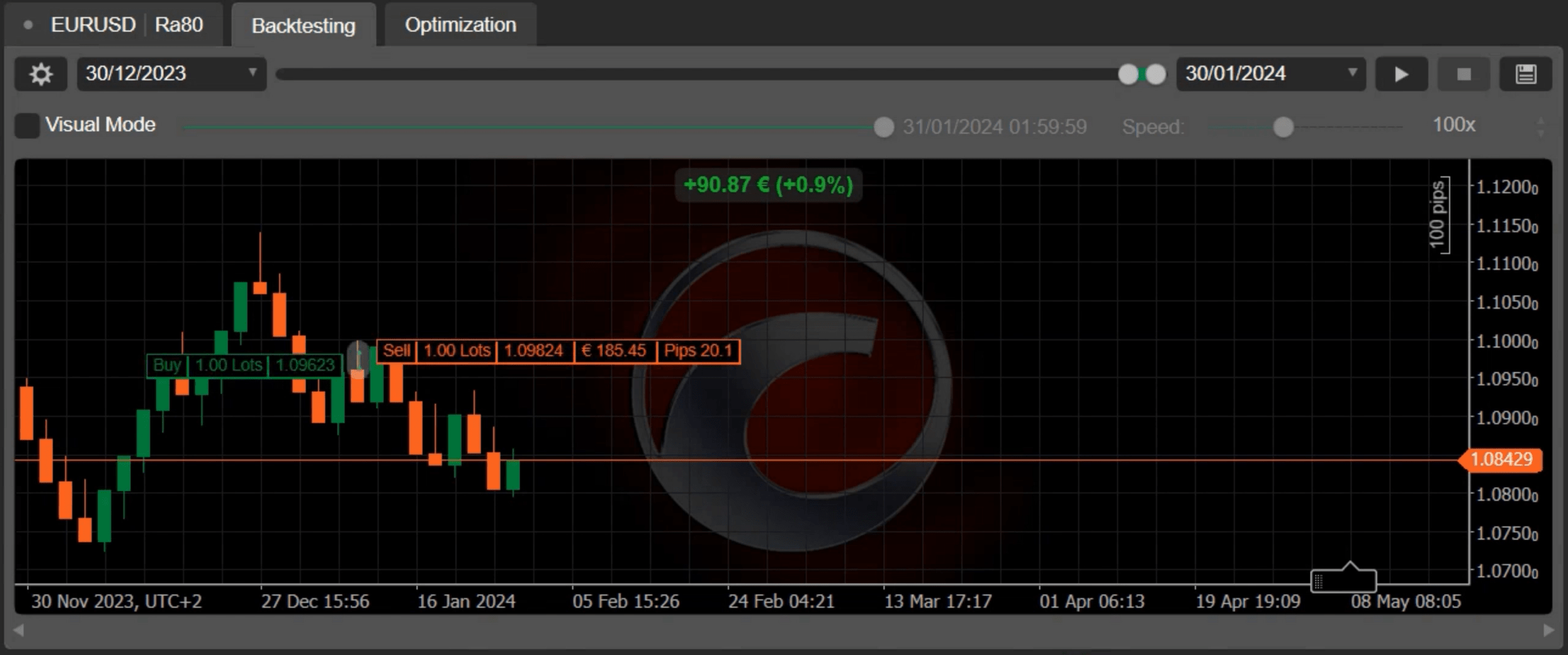
Note
Range bar strategies use the same data structures as strategies based on candlesticks. For example, we used the `Bars` collection to retrieve our range bars; we would have used the same collection when trying to retrieve candlesticks. This feature of cTrader allows you to develop strategies that can be tested and run on any chart type without the need for any modifications.
In this tutorial, we demonstrated how you can quickly develop a simple strategy based on range charts. We also suggested that such strategies can be freely reused on charts containing time-based candlesticks.
[Subscribe to our YouTube channel](https://www.youtube.com/channel/UCgoyyb_r8sgNrf1nqyMyo5A?sub_confirmation=1)
Back to top
---
# User Time Offset - cTrader Mac
[Skip to content](https://help.ctrader.com/ctrader-mac/miscellaneous/user-time-offset/#user-time-offset)
User Time Offset[¶](https://help.ctrader.com/ctrader-mac/miscellaneous/user-time-offset/#user-time-offset "Permanent link")
============================================================================================================================
The user time offset allows for choosing your time zone in cTrader Mac.
Click on '**Current Time**' at the bottom of any cTrader application and select your preferred time zone from the dropdown menu.
---
# Sesi - cTrader ID
Sesi
====
Untuk melihat semua akun aktif Anda, kunjungilah tab [**Sesi**](https://id.ctrader.com/my/settings/sessions)
pada situs web cTID.
Bagian ini mencantumkan semua sesi aktif Anda di seluruh aplikasi cTrader dan broker.

Untuk mengakhiri suatu sesi, klik tombol **Hentikan** untuk sesi tersebut. cTID Anda kemudian akan keluar dari aplikasi cTrader yang sesuai.
Untuk mengakhiri semua sesi, klik tombol **Hentikan semua**. cTID Anda akan keluar dari semua tempat yang sedang menggunakannya.
Kembali ke atas
---
# Phiên - cTrader ID
Phiên
=====
Để xem tất cả các tài khoản đang hoạt động của bạn, hãy chuyển đến tab [**Phiên**](https://id.ctrader.com/my/settings/sessions)
trên trang web cTID.
Phần này liệt kê tất cả các phiên hoạt động của bạn trên các ứng dụng cTrader và nhà môi giới.

Để kết thúc một phiên, hãy nhấp vào nút **Kết thúc** cho phiên cụ thể. cTID của bạn sau đó sẽ đăng xuất khỏi ứng dụng cTrader tương ứng.
Để kết thúc tất cả các phiên, hãy nhấp vào nút **Kết thúc tất cả**. cTID của bạn sẽ bị đăng xuất khỏi tất cả các nơi đang sử dụng.
Trở lại mục lục
---
# Working with styles - cTrader Algo
[Skip to content](https://help.ctrader.com/ctrader-algo/articles/for-developers/working-with-styles/#working-with-styles)
Working with styles[¶](https://help.ctrader.com/ctrader-algo/articles/for-developers/working-with-styles/#working-with-styles "Permanent link")
================================================================================================================================================
In this article and its corresponding video we will explain how you can use styles to change the appearance of custom UI elements created via cBots, indicators and plugins.
Create an example cBot[¶](https://help.ctrader.com/ctrader-algo/articles/for-developers/working-with-styles/#create-an-example-cbot "Permanent link")
------------------------------------------------------------------------------------------------------------------------------------------------------
Navigate to **cTader Algo** and create a new cBot. We will name it "Styles Example". In this example, we will create three text boxes and display them on the chart using a stack panel.
First, we will initialise the three text boxes. We will configure the appearance of each text box by simply setting its properties one by one.
| | |
| --- | --- |
| 1 2 3 4 5 6 7 8 9 10 11 12 13 14 15 16 17 18 19 20 21 22 23 24 25 26 27 28 29 | `var firstTextBox = new TextBox { ForegroundColor = Color.Red, Margin = 5, FontFamily = "Cambria", FontSize = 12, Text = "Type...", Width = 150 }; var secondTextBox = new TextBox { ForegroundColor = Color.Red, Margin = 5, FontFamily = "Cambria", FontSize = 12, Text = "Type...", Width = 150 }; var thirdTextBox = new TextBox { ForegroundColor = Color.Red, Margin = 5, FontFamily = "Cambria", FontSize = 12, Text = "Type...", Width = 150 };` |
We will also initialise a stack panel.
| | |
| --- | --- |
| 1 2 3 4 5 6 | `var panel = new StackPanel { Orientation = Orientation.Vertical, HorizontalAlignment = HorizontalAlignment.Center, VerticalAlignment = VerticalAlignment.Center };` |
Then, add these text boxes to the panel.
| | |
| --- | --- |
| 1 2 3 | `panel.AddChild(firstTextBox); panel.AddChild(secondTextBox); panel.AddChild(thirdTextBox);` |
Finally, add the panel to the chart.
| | |
| --- | --- |
| 1 | `Chart.AddControl(panel);` |
After we build our cBot, we should see three text boxes drawn directly on the chart.
Use the `Style` class[¶](https://help.ctrader.com/ctrader-algo/articles/for-developers/working-with-styles/#use-the-style-class "Permanent link")
--------------------------------------------------------------------------------------------------------------------------------------------------
The code of our cBot is repetitive as we configure each text box individually and repeat property initialisation for every element. Code repetition can make large projects hard to maintain and optimise. We can make our code more concise and maintainable by using styles to configure the appearance of our controls.
First, we will initialise a new object of the `Styles` class.
| | |
| --- | --- |
| 1 | `var textBoxStyle = new Style();` |
We will then configure the appearance of controls associated with this style.
| | |
| --- | --- |
| 1 2 3 4 5 | `textBoxStyle.Set(ControlProperty.ForegroundColor, Color.Red); textBoxStyle.Set(ControlProperty.Margin, 5); textBoxStyle.Set(ControlProperty.FontFamily, "Cambria"); textBoxStyle.Set(ControlProperty.FontSize, 12); textBoxStyle.Set(ControlProperty.Width, 150);` |
We will assign this style to each of our text boxes and remove the initialisation of parameters.
| | |
| --- | --- |
| 1 2 3 4 5 6 7 8 9 10 11 12 13 14 15 16 17 | `var firstTextBox = new TextBox { Text = "Type...", Style = textBoxStyle }; var secondTextBox = new TextBox { Text = "Type...", Style = textBoxStyle }; var thirdTextBox = new TextBox { Text = "Type...", Style = textBoxStyle };` |
If we build our cBot and add it to a chart, we will see that all our text boxes are displayed normally. We can go back to the code and change one of the properties of our `textBoxStyle` object, in which case all our text boxes will be styled differently.
| | |
| --- | --- |
| 1 | `textBoxStyle.Set(ControlProperty.ForegroundColor, Color.Yellow, ControlState.Hover);` |
Styles in custom windows and plugins[¶](https://help.ctrader.com/ctrader-algo/articles/for-developers/working-with-styles/#styles-in-custom-windows-and-plugins "Permanent link")
----------------------------------------------------------------------------------------------------------------------------------------------------------------------------------
Control styles also work when controls are displayed in places other than the chart, such as custom windows. We will create an example plugin that will display text boxes in a custom window and style them accordingly.
We will start by displaying our controls in a custom window.
The following is the code for our plugin:
| | |
| --- | --- |
| 1 2 3 4 5 6 7 8 9 10 11 12 13 14 15 16 17 18 19 20 21 22 23 24 25 26 27 28 29 30 31 32 33 34 35 36 37 38 39 40 41 42 43 44 45 46 47 48 49 50 51 52 53 54 55 56 57 58 59 60 61 62 63 64 65 66 67 68 69 | `using cAlgo.API; namespace cAlgo.Plugins { [Plugin(AccessRights = AccessRights.None)] public class StylesExample : Plugin { protected override void OnStart() { var block = Asp.SymbolTab.AddBlock("Styles Example"); block.Index = 2; block.Height = 500; var textBoxStyle = new Style(); textBoxStyle.Set(ControlProperty.ForegroundColor, Color.Red); textBoxStyle.Set(ControlProperty.Margin, 5); textBoxStyle.Set(ControlProperty.FontFamily, "Cambria"); textBoxStyle.Set(ControlProperty.FontSize, 12); textBoxStyle.Set(ControlProperty.Width, 150); textBoxStyle.Set(ControlProperty.ForegroundColor, Color.Yellow, ControlState.Hover); var firstTextBox = new TextBox { Text = "Type...", Style = textBoxStyle }; var secondTextBox = new TextBox { Text = "Type...", Style = textBoxStyle }; var thirdTextBox = new TextBox { Text = "Type...", Style = textBoxStyle }; var panel = new StackPanel { Orientation = Orientation.Vertical, HorizontalAlignment = HorizontalAlignment.Center, VerticalAlignment = VerticalAlignment.Center }; panel.AddChild(firstTextBox); panel.AddChild(secondTextBox); panel.AddChild(thirdTextBox); block.Child = panel; var window = new Window { Child = panel, Title = "My Window", WindowStartupLocation = WindowStartupLocation.CenterScreen, Topmost = true }; window.Show(); } } }` |
After building our plugin, we should see our text boxes in a custom window and in Active Symbol Panel.
Summary[¶](https://help.ctrader.com/ctrader-algo/articles/for-developers/working-with-styles/#summary "Permanent link")
------------------------------------------------------------------------------------------------------------------------
Styling controls is essential if you want to display custom elements to users without worrying about redundancies in your code.
[Subscribe to our YouTube channel](https://www.youtube.com/channel/UCgoyyb_r8sgNrf1nqyMyo5A?sub_confirmation=1)
Back to top
---
# Menghapus cTID - cTrader ID
[Lewati ke isi](https://help.ctrader.com/ctrader-id/id/managing-ctid/delete-ctid/#hapus-ctid)
Hapus cTID[¶](https://help.ctrader.com/ctrader-id/id/managing-ctid/delete-ctid/#hapus-ctid "Permanent link")
=============================================================================================================
Buka tab [**Ikhtisar**](https://id.ctrader.com/my/settings/overview)
atau [**Kredensial**](https://id.ctrader.com/my/settings/credentials)
di situs web cTID dan klik tombol **Hapus akun cTrader ID**.

Peringatan
cTID hanya dapat dihapus jika tidak ada akun trading yang terhubung dengannya. Pelajari cara [**hapus akun**](https://help.ctrader.com/ctrader-id/id/managing-ctid/trading-accounts/#delete-trading-accounts)
di panduan khusus kami.
Tergantung pada proses broker Anda, Anda mungkin perlu meminta broker Anda untuk menghapus cTID Anda.
Setelah itu, pesan konfirmasi akan dikirim ke email yang terhubung dengan cTID Anda. Buka pesan tersebut dan klik **Konfirmasi**. cTID Anda kemudian akan dihapus.
Anda akan menerima email lain yang mengonfirmasi keberhasilan penghapusan cTID Anda.
Kembali ke atas
---
# How to work with WebSockets in cTrader Algo - cTrader Algo
[Skip to content](https://help.ctrader.com/ctrader-algo/articles/for-developers/how-to-work-with-websockets-in-ctrader-algo/#how-to-work-with-websockets-in-ctrader-algo)
How to work with WebSockets in cTrader Algo[¶](https://help.ctrader.com/ctrader-algo/articles/for-developers/how-to-work-with-websockets-in-ctrader-algo/#how-to-work-with-websockets-in-ctrader-algo "Permanent link")
========================================================================================================================================================================================================================
The cTrader Algo API allows traders and developers to access various web services and resources through a WebSocket connection. The WebSocket protocol is more efficient than HTTP for network access because it is faster and supports real-time data transfer.
In this article and its corresponding video, you will learn how to send and receive messages through WebSockets.
Create a cBot[¶](https://help.ctrader.com/ctrader-algo/articles/for-developers/how-to-work-with-websockets-in-ctrader-algo/#create-a-cbot "Permanent link")
------------------------------------------------------------------------------------------------------------------------------------------------------------
In our example, we intend to connect to a TraderMade feed and then print the incoming information in our cBot log.
First, we navigate to the **Algo** app to create a new cBot. In the **cBots** tab, click the **New** button. Type in a name for the cBot, such as **Web Sockets Example**, and then click **Create**.

We can now modify the cBot code for our purposes. Let’s start by defining a new `WebSocketClient`.
| | |
| --- | --- |
| 1 | `private WebSocketClient _webSocketClient = new WebSocketClient();` |
Then we initialise our endpoint `Uri`, which is the location we will connect to.
| | |
| --- | --- |
| 1 | `private readonly Uri _targetUri = new Uri("wss://marketdata.tradermade.com/feedadv");` |
We need to edit the `OnStart()` method, use `Uri` to connect to the streaming service and subscribe to the `TextReceived` event. This event is raised whenever text reaches our application through the connection.
| | |
| --- | --- |
| 1 2 3 4 5 | `protected override void OnStart() { _webSocketClient.Connect(_targetUri); _webSocketClient.TextReceived += _webSocketClient_TextReceived; }` |
We want to print the received message in `TextReceived`.
| | |
| --- | --- |
| 1 2 3 4 | `private void TextReceived(WebSocketClientTextReceivedEventArgs obj) { Print(obj.Text); }` |
You can copy the full code below:
| | |
| --- | --- |
| 1 2 3 4 5 6 7 8 9 10 11 12 13 14 15 16 17 18 19 20 21 22 23 24 25 26 27 28 29 30 31 32 33 34 35 36 37 | `using System; using cAlgo.API; using cAlgo.API.Collections; using cAlgo.API.Indicators; using cAlgo.API.Internals; namespace cAlgo.Robots { [Robot(AccessRights = AccessRights.None, AddIndicators = true)] public class WebSocketsExample : Robot { private WebSocketClient _webSocketClient = new WebSocketClient(); private readonly Uri _targetUri = new Uri("wss://marketdata.tradermade.com/feedadv"); protected override void OnStart() { _webSocketClient.Connect(_targetUri); _webSocketClient.TextReceived += _webSocketClient_TextReceived; } private void _webSocketClient_TextReceived(WebSocketClientTextReceivedEventArgs obj) { Print(obj.Text); } protected override void OnTick() { // Handle price updates here } protected override void OnStop() { // Handle cBot stop here } } }` |
Click the **Build** button or use the Ctrl+B shortcut to build the cBot.
Click the **Add instance** button for the cBot. Select the **Locally** option, choose a symbol and account, and then click the **Add instance** button.

Navigate to the **Logs** tab. You should see some cBot messages that confirm the connection.

Subscribe to a symbol price feed[¶](https://help.ctrader.com/ctrader-algo/articles/for-developers/how-to-work-with-websockets-in-ctrader-algo/#subscribe-to-a-symbol-price-feed "Permanent link")
--------------------------------------------------------------------------------------------------------------------------------------------------------------------------------------------------
We return to the code editor for our Web Sockets Example cBot in the **Algo** app. Here, we want to subscribe to a symbol price feed using the service that we have recently connected to.
Write the code to send a subscription message to the service in our `OnStart()` method.
| | |
| --- | --- |
| 1 2 3 | `var data = "{\"userKey\":\"wsI4foSciCjMyCuoc2xw\", \"symbol\":\"EURUSD\"}"; _webSocketClient.Send(data);` |
Note
We obtained the code sample and token from the TraderMade website.
Modify the `Print` command to replace brackets, which cannot be used in the API `Print()` method.
| | |
| --- | --- |
| 1 | `Print(obj.Text.Replace("{", "").Replace("}","").ToString());` |
Finally, close the connection in the `OnStop()` method.
| | |
| --- | --- |
| 1 | `_webSocketClient.Close(WebSocketClientCloseStatus.NormalClosure);` |
You can copy the full code below:
| | |
| --- | --- |
| 1 2 3 4 5 6 7 8 9 10 11 12 13 14 15 16 17 18 19 20 21 22 23 24 25 26 27 28 29 30 31 32 33 34 35 36 37 38 39 40 41 | `using System; using cAlgo.API; using cAlgo.API.Collections; using cAlgo.API.Indicators; using cAlgo.API.Internals; namespace cAlgo.Robots { [Robot(AccessRights = AccessRights.None, AddIndicators = true)] public class WebSocketsExample : Robot { private WebSocketClient _webSocketClient = new WebSocketClient(); private readonly Uri _targetUri = new Uri("wss://marketdata.tradermade.com/feedadv"); protected override void OnStart() { _webSocketClient.Connect(_targetUri); _webSocketClient.TextReceived += _webSocketClient_TextReceived; var data = "{\"userKey\":\"wsI4foSciCjMyCuoc2xw\", \"symbol\":\"EURUSD\"}"; _webSocketClient.Send(data); } private void _webSocketClient_TextReceived(WebSocketClientTextReceivedEventArgs obj) { Print(obj.Text.Replace("{", "").Replace("}", "").ToString()); } protected override void OnTick() { // Handle price updates here } protected override void OnStop() { _webSocketClient.Close(WebSocketClientCloseStatus.NormalClosure); } } }` |
Rebuild the cBot and then start it again.
Navigate to the **Logs** tab as you did before. Now, you should see the symbol price streamed in real time.

This article showed you how to use WebSockets to send and receive information or messages in cTrader.
[Subscribe to our YouTube channel](https://www.youtube.com/channel/UCgoyyb_r8sgNrf1nqyMyo5A?sub_confirmation=1)
Back to top
---
# Cuentas - cTrader ID
[Saltar a contenido](https://help.ctrader.com/ctrader-id/es/managing-ctid/trading-accounts/#ver-las-cuentas-de-operaciones)
Cuentas
=======
Acceda a la pestaña [**Cuentas**](https://id.ctrader.com/my/settings/accounts)
del sitio web de cTID.
Ver las cuentas de operaciones [¶](https://help.ctrader.com/ctrader-id/es/managing-ctid/trading-accounts/#ver-las-cuentas-de-operaciones "Permanent link")
-----------------------------------------------------------------------------------------------------------------------------------------------------------
Aquí puede ver todas las cuentas reales y demo vinculadas a su cTID. El sitio web de cTID multibróker organiza las cuentas de operaciones en secciones para cada bróker.
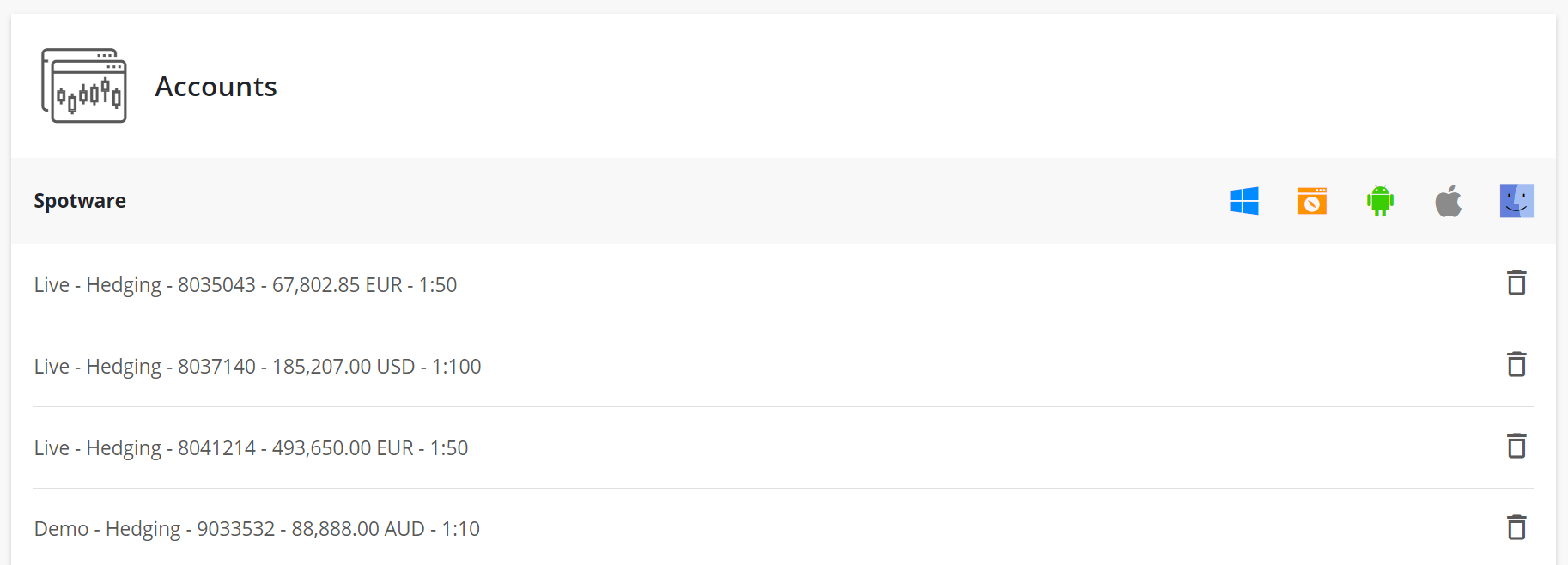
Nota
Los sitios web de cTID específicos de cada bróker muestran únicamente las cuentas de operaciones registradas con el bróker correspondiente. Consulte con su bróker cómo acceder al sitio web de cTID con su marca.
Haga clic en el icono de la plataforma junto al nombre del bróker para abrir la aplicación de cTrader con su marca.

Eliminar cuentas de operaciones [¶](https://help.ctrader.com/ctrader-id/es/managing-ctid/trading-accounts/#eliminar-cuentas-de-operaciones "Permanent link")
-------------------------------------------------------------------------------------------------------------------------------------------------------------
En función del flujo de su bróker, los pasos para eliminar las cuentas de operaciones pueden variar.
* Contacte con su bróker y solicítele eliminar sus cuentas de operaciones.
* Si su cuenta de operaciones depende de Spotware, puede eliminar cualquier cuenta demo o real directamente, haciendo clic en el icono de la papelera.
Advertencia
No puede eliminar una cuenta de operaciones que dependa de Spotware si tiene posiciones abiertas u órdenes pendientes. Cierre primero las posiciones y cancele las órdenes pendientes. Luego elimine su cuenta en el sitio web de cTID. La eliminación también está deshabilitada para las subcuentas.
Volver al principio
---
# Eliminación de un cTID - cTrader ID
[Saltar a contenido](https://help.ctrader.com/ctrader-id/es/managing-ctid/delete-ctid/#eliminar-el-ctid)
Eliminar el cTID[¶](https://help.ctrader.com/ctrader-id/es/managing-ctid/delete-ctid/#eliminar-el-ctid "Permanent link")
=========================================================================================================================
Abra las pestañas [**General**](https://id.ctrader.com/my/settings/overview)
o [**Credenciales**](https://id.ctrader.com/my/settings/credentials)
del sitio web de cTID y haga clic en **Eliminar cuenta de cTrader ID**.

Advertencia
Un cTID solo puede eliminarse si no hay cuentas de operaciones vinculadas a él. Vea cómo [**eliminar cuentas**](https://help.ctrader.com/ctrader-id/es/managing-ctid/trading-accounts/#delete-trading-accounts)
en nuestra guía al efecto.
Dependiendo del proceso de su bróker, es posible que deba solicitarle que sea él quien elimine su cTID.
A continuación, recibirá un mensaje de confirmación en la dirección de correo electrónico vinculada a su cTID. Abra el mensaje y haga clic en **Confirmar**. Su cTID se eliminará.

Recibirá otro mensaje de correo para confirmar la eliminación de su cTID.

Volver al principio
---
# Xóa cTID - cTrader ID
[Bỏ qua](https://help.ctrader.com/ctrader-id/vi/managing-ctid/delete-ctid/#xoa-ctid)
Xóa cTID[¶](https://help.ctrader.com/ctrader-id/vi/managing-ctid/delete-ctid/#xoa-ctid "Permanent link")
=========================================================================================================
Mở tab [**Tổng quan**](https://id.ctrader.com/my/settings/overview)
hoặc [**Thông tin đăng nhập**](https://id.ctrader.com/my/settings/credentials)
trên trang web cTID và nhấp vào nút **Xóa tài khoản cTrader ID**.

Cảnh báo
Một cTID chỉ có thể bị xóa nếu không có tài khoản giao dịch nào được liên kết với nó. Tìm hiểu cách [**xóa tài khoản**](https://help.ctrader.com/ctrader-id/vi/managing-ctid/trading-accounts/#delete-trading-accounts)
trong hướng dẫn chuyên dụng của chúng tôi.
Tùy thuộc vào quy trình của nhà môi giới của bạn, bạn có thể cần yêu cầu nhà môi giới xóa cTID của bạn.
Sau đó, một thông báo xác nhận sẽ được gửi đến email liên kết với cTID của bạn. Mở thông báo và nhấp vào **Xác nhận**. cTID của bạn sau đó sẽ bị xóa.

Bạn sẽ nhận được một email khác xác nhận việc xóa cTID thành công.

Trở lại mục lục
---
# Renko strategies in cTrader - cTrader Algo
[Skip to content](https://help.ctrader.com/ctrader-algo/articles/for-developers/renko-strategies/#renko-strategies-in-ctrader)
Renko strategies in cTrader[¶](https://help.ctrader.com/ctrader-algo/articles/for-developers/renko-strategies/#renko-strategies-in-ctrader "Permanent link")
=============================================================================================================================================================
A Renko chart is a type of chart that is built using only price movement. A new Renko brick is only formed once the price movement for a symbol exceeds a certain threshold of pips; the time component typically used in candlestick charts is entirely absent. cTrader allows traders to develop automated strategies based on Renko bars in the exact same way as developing such strategies for time-based candlestick bars. In this article and its corresponding video, we will create a simple cBot that uses a Renko-based strategy and backtest it.
Define the trading strategy[¶](https://help.ctrader.com/ctrader-algo/articles/for-developers/renko-strategies/#define-the-trading-strategy "Permanent link")
-------------------------------------------------------------------------------------------------------------------------------------------------------------
We will start by defining the buy signal. Since Renko bars are independent of time, they naturally filter out market noise, making them useful for identifying trend exhaustions and potential reversals. We will place a new buy order when two bearish Renko bars are followed by two bullish bars.

Our sell signal will follow the opposite setup. We will place a sell order when two bullish Renko bars are followed by two bearish bars.

Create an example cBot[¶](https://help.ctrader.com/ctrader-algo/articles/for-developers/renko-strategies/#create-an-example-cbot "Permanent link")
---------------------------------------------------------------------------------------------------------------------------------------------------
We can now proceed to code a cBot based on the above strategy. To start, we will define the parameters for the order volume and the relative stop-loss and take-profit levels.
| | |
| --- | --- |
| 1 2 3 4 5 6 7 8 | `[Parameter(DefaultValue = 10000)] public double Volume { get; set; } [Parameter(DefaultValue = 20)] public double StopLoss { get; set; } [Parameter(DefaultValue = 20)] public double TakeProfit { get; set; }` |
We will implement our trading strategy in the `OnBarClosed()` method. For our bullish setup, we will check if the bars with indices `3` and `2` have a close price lower than the open price and we will also check if the bars with indices `1` and `0` have a close price higher than the open price.
| | |
| --- | --- |
| 1 2 3 4 | `if (Bars.Last(3).Close < Bars.Last(3).Open && Bars.Last(2).Close < Bars.Last(2).Open && Bars.Last(1).Close > Bars.Last(1).Open && Bars.Last(0).Close > Bars.Last(0).Open) { ExecuteMarketOrder(TradeType.Buy, SymbolName, Volume,InstanceId, StopLoss, TakeProfit); }` |
For our bearish setup, we will check for the opposite. Bars with indices `3` and `2` have to have a higher close price than their open price; bars with indices `1` and `0` must have a higher open price than their close price.
| | |
| --- | --- |
| 1 2 3 4 | `if (Bars.Last(3).Close > Bars.Last(3).Open && Bars.Last(2).Close > Bars.Last(2).Open && Bars.Last(1).Close < Bars.Last(1).Open && Bars.Last(0).Close < Bars.Last(0).Open) { ExecuteMarketOrder(TradeType.Sell, SymbolName, Volume, InstanceId, StopLoss, TakeProfit); }` |
Backtest the cBot[¶](https://help.ctrader.com/ctrader-algo/articles/for-developers/renko-strategies/#backtest-the-cbot "Permanent link")
-----------------------------------------------------------------------------------------------------------------------------------------
After we save and build our cBot, we can proceed straight to backtesting. If we add the cBot to a chart for EURUSD with a 20-pip Renko threshold, we should get encouraging results.
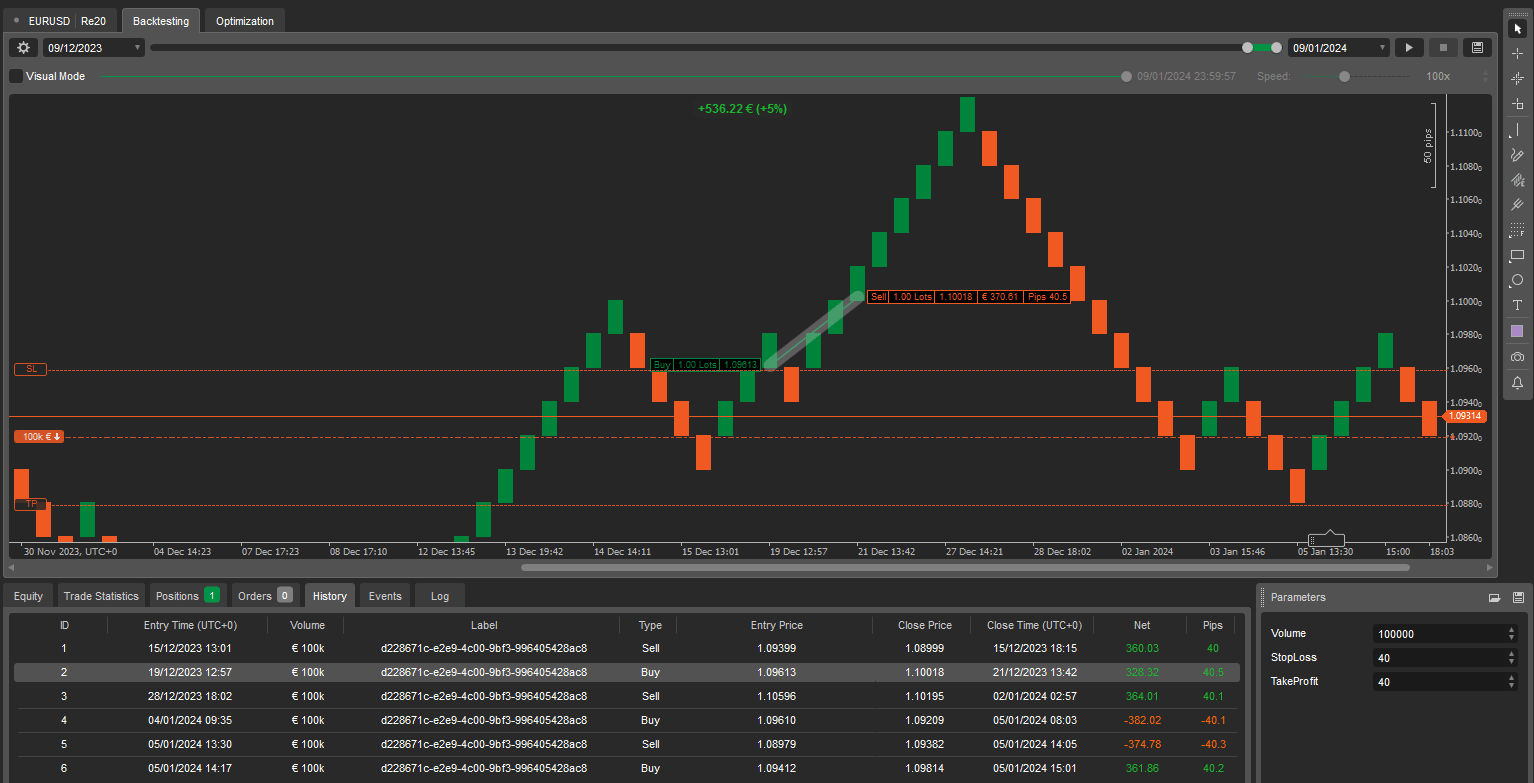
Note
Renko-based strategies use the same data structures as time-based candlesticks. For example, we have used the `Bars` collection to retrieve our Renko bars as we would have done to retrieve candles from a candlestick chart. This feature allows for developing strategies that can be tested and run on any chart type without the need for any modifications. If we backtest our cBot on a candlestick chart, all operations will still be executed according to the specified rules.
Note
Renko-based strategies can be optimised just like candlestick-based strategies in the **Optimisation** tab.
In this guide, we have created a successful Renko-based cBot with minimal effort.
[Subscribe to our YouTube channel](https://www.youtube.com/channel/UCgoyyb_r8sgNrf1nqyMyo5A?sub_confirmation=1)
Back to top
---
# Sesiones - cTrader ID
Sesiones
========
Para ver todas sus cuentas activas, vaya a la pestaña [**Sesiones**](https://id.ctrader.com/my/settings/sessions)
del sitio web de cTID.
Esta sección enumera todas sus sesiones activas en aplicaciones y brókeres de cTrader.

Para finalizar una sesión, haga clic en **Finalizar** para la sesión específica. Se cerrará la sesión de su cTID en la aplicación de cTrader correspondiente.
Para finalizar todas las sesiones, haga clic en **Finalizar todas**. Se cerrará la sesión de su cTID en todos los lugares donde se esté utilizando.
Volver al principio
---
# Calculating Profit/Loss - Open API
[Skip to content](https://help.ctrader.com/open-api/profit-loss-calculation/#calculating-profitloss)
Calculating Profit/Loss[¶](https://help.ctrader.com/open-api/profit-loss-calculation/#calculating-profitloss "Permanent link")
===============================================================================================================================
Calculating P&L is an essential use case that needs to be implemented by nearly every imaginable cTrader Open API application/service.
Manually calculating P&L is a difficult process as the calculation needs to account for the position size and the possible conversion between the quote asset of the bought/sold symbol and the account deposit currency.
Fortunately, you can simply ask the cTrader backend to calculate P&L for you by sending the [**`ProtoOAGetPositionUnrealizedPnLReq` message**](https://help.ctrader.com/open-api/messages/#protooagetpositionunrealizedpnlreq)
. You should receive the [**`ProtoOAGetPositionUnrealizedPnLRes` message**](https://help.ctrader.com/open-api/messages/#protooagetpositionunrealizedpnlres)
containing the [**`ProtoOAPositionUnrealizedPnL` model message**](https://help.ctrader.com/open-api/model-messages/#protooapositionunrealizedpnl)
in one of its fields.
Note
[**`ProtoOAGetPositionUnrealizedPnLRes`**](https://help.ctrader.com/open-api/messages/#protooagetpositionunrealizedpnlreq)
contains information about the P&Ls of all currently open positions of the account with the specified `ctidTraderAccountId` in its repeated `positionUnrealizedPnL` field.
Rate Limits
Requesting P&L is a non-historical request, meaning that you can only perform a maximum of 50 such requests per second. We recommend refreshing P&L once every two-three seconds so that there is no risk of exceeding rate limits.
To learn more about sending and receiving messages, [**click here for a tutorial on Protobufs**](https://help.ctrader.com/open-api/sending-receiving-protobuf/)
or [**here for a tutorial on JSON**](https://help.ctrader.com/open-api/sending-receiving-json/)
.
When operating with Protobuf, you could use the classes generated by the compiler for serialising/deserialising the message for attaining P&L rates. When operating with JSON, you would need to create such classes yourself. Here is how they could look like.
C#Python
| | |
| --- | --- |
| 1 2 3 4 5 6 7 8 9 10 11 12 13 14 15 16 17 18 19 20 21 22 23 24 25 26 27 28 29 30 31 32 33 34 35 36 37 38 39 40 41 42 43 44 45 46 47 48 49 50 51 52 53 54 55 56 57 58 59 60 61 62 63 64 65 66 67 68 69 70 | `public abstract class OpenAPIModelMessageBase { } public class PositionUnrealizedPnL : OpenAPIModelMessageBase { public PositionUnrealizedPnL() { } public PositionUnrealizedPnL(int positionId, int grossUnrealizedPnL, int netUnrealizedPnL) { this.PositionId = positionId; this.GrossUnrealizedPnL = grossUnrealizedPnL; this.NetUnrealizedPnL = netUnrealizedPnL; } public int PositionId { get; set; } public int GrossUnrealizedPnL { get; set; } public int NetUnrealizedPnL { get; set; } } public class GetPositionUnrealizedPnLReq : OpenAPIMessageBase { public GetPositionUnrealizedPnLReq() { } public GetPositionUnrealizedPnLReq(int ctidTraderAccountId) { this.Payload = new GetPositionUnrealizedPnLReqPayload(ctidTraderAccountId); this.ClientMsgId = Guid.NewGuid().ToString(); } public override int PayloadType => 2187; public GetPositionUnrealizedPnLReqPayload? Payload { get; set; } } public class GetPositionUnrealizedPnLReqPayload : OpenAPIMessagePayloadBase { public GetPositionUnrealizedPnLReqPayload() { } public GetPositionUnrealizedPnLReqPayload(int ctidTraderAccountId) { this.CtidTraderAccountId = ctidTraderAccountId; } public int CtidTraderAccountId { get; set; } = 0; } public class GetPositionUnrealizedPnLRes : OpenAPIMessageBase { public GetPositionUnrealizedPnLRes() { } public GetPositionUnrealizedPnLRes(int ctidTraderAccountId, int moneyDigits, List positionUnrealizedPnL) { this.Payload = new GetPositionUnrealizedPnLResPayload(ctidTraderAccountId, moneyDigits, positionUnrealizedPnL); this.ClientMsgId = Guid.NewGuid().ToString(); } public override int PayloadType => 2188; public GetPositionUnrealizedPnLResPayload? Payload { get; set; } } public class GetPositionUnrealizedPnLResPayload : OpenAPIMessagePayloadBase { public GetPositionUnrealizedPnLResPayload() { } public GetPositionUnrealizedPnLResPayload(int ctidTraderAccountId, int moneyDigits, List positionUnrealizedPnL) { this.CtidTraderAccountId = ctidTraderAccountId; this.MoneyDigits = moneyDigits; this.PositionUnrealizedPnL = positionUnrealizedPnL; } public int CtidTraderAccountId { get; set; } = 0; public int MoneyDigits { get; set; } = 0; public List PositionUnrealizedPnL { get; set; } = new List(); }` |
| | |
| --- | --- |
| 1 2 3 4 5 6 7 8 9 10 11 12 13 14 15 16 17 18 19 20 21 22 23 24 25 26 27 28 29 30 31 32 33 34 35 36 37 | `class OpenAPIModelMessage: def __init__(self): pass class PositionUnrealizedPnL(OpenAPIModelMessage): def __init__(self, position_id, gross_unrealized_pnl, net_unrealized_pnl): self.position_id = position_id self.gross_unrealized_pnl = gross_unrealized_pnl self.net_unrealized_pnl = net_unrealized_pnl class GetPositionUnrealizedPnLReq(OpenAPIMessage): def __init__(self, ctid_trader_account_id, client_msg_id = str(uuid.uuid4())): self.ctid_trader_account_id = ctid_trader_account_id self.payload_type = 2187 self.client_msg_id = client_msg_id self.payload = {"ctidTraderAccountId": self.ctid_trader_account_id} def as_json_string(self): return json.dumps({"clientMsgId": self.client_msg_id, "payloadType": self.payload_type, "payload": self.payload}) @staticmethod def from_json(json_dct): return GetPositionUnrealizedPnLReq(client_id=json_dct['payload']['clientId'], client_secret=json_dct['payload']['clientSecret'], client_msg_id=json_dct['clientMsgId']) class GetPositionUnrealizedPnLRes(OpenAPIMessage): def __init__(self, ctid_trader_account_id, position_unrealized_pnl, money_digits, client_msg_id): self.ctid_trader_account_id = ctid_trader_account_id self.position_unrealized_pnl = position_unrealized_pnl self.money_digits = money_digits self.client_msg_id = client_msg_id def as_json_string(self): return json.dumps({"clientMsgId": self.client_msg_id, "payloadType": self.payload_type, "payload": self.payload}) @staticmethod def from_json(json_dct): return GetPositionUnrealizedPnLRes(ctid_trader_account_id=json_dct['payload']['clientSecret'], position_unrealized_pnl=json_dct['payload']['positionUnrealizedPnL'], money_digits=json_dct['payload']['moneyDigits'], client_msg_id=['clientMsgId'])` |
---
# Thông báo - cTrader ID
[Bỏ qua](https://help.ctrader.com/ctrader-id/vi/managing-ctid/notifications/#tai-khoan-ctrader-id)
Thông báo
=========
cTrader sử dụng tin nhắn email và thông báo đẩy để thông báo cho nhà giao dịch về các sự kiện cụ thể và các hoạt động liên quan đến tài khoản.
Để chọn các sự kiện bạn muốn nhận thông báo, hãy điều hướng đến tab [**Thông báo**](https://id.ctrader.com/my/settings/notifications)
trên trang web cTID.
EmailThông báo đẩy
Trong tab **Email**, bạn có thể cấu hình các thông báo được gửi qua email theo các danh mục sau:
* Tài khoản cTrader ID
* Tài khoản giao dịch
* cTrader Copy: nhà cung cấp chiến lược
* cTrader Copy: nhà đầu tư
Trong tab **Thông báo đẩy**, bạn có thể cấu hình các thông báo được gửi dưới dạng tin nhắn đẩy theo các danh mục sau:
* Tài khoản giao dịch
* cTrader Copy: nhà cung cấp chiến lược
Ghi chú
Các cài đặt trong danh mục **Tài khoản giao dịch** và **cTrader Copy: nhà cung cấp chiến lược** có thể được áp dụng chi tiết cho một tài khoản demo cụ thể, tài khoản thực hoặc kết hợp các tài khoản khác nhau.
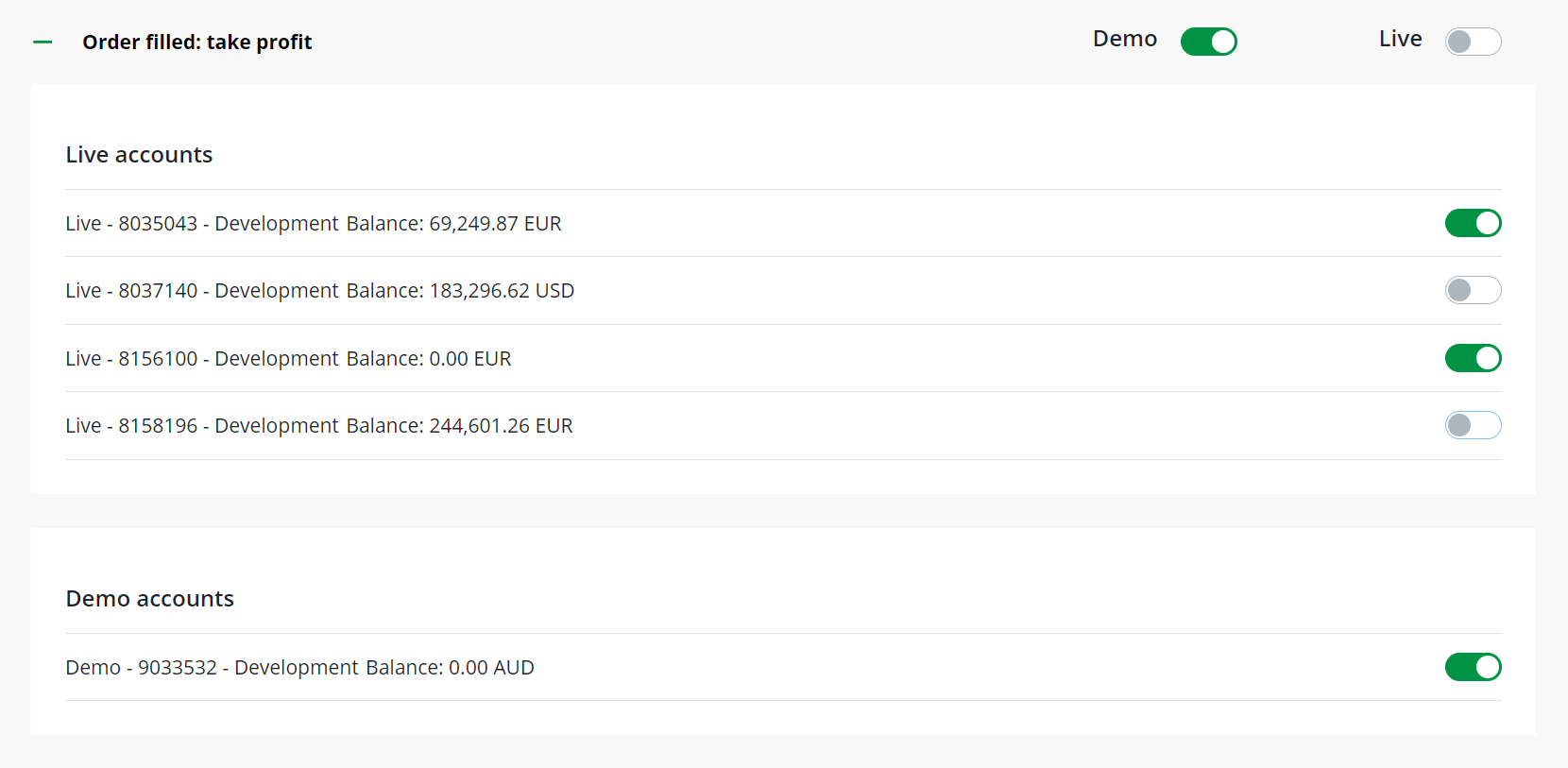
Vì một số danh mục và cài đặt thông báo trùng lặp giữa tab **Email** và **Thông báo đẩy**, chúng tôi sẽ định nghĩa chúng một cách hệ thống bên dưới.
Tài khoản cTrader ID [¶](https://help.ctrader.com/ctrader-id/vi/managing-ctid/notifications/#tai-khoan-ctrader-id "Permanent link")
------------------------------------------------------------------------------------------------------------------------------------
* **Đăng nhập thành công bằng thông tin đăng nhập cTrader ID** - bật để nhận thông báo qua email mỗi khi thông tin cTrader ID của bạn được sử dụng để đăng nhập vào bất kỳ ứng dụng cTrader nào.
Tài khoản giao dịch [¶](https://help.ctrader.com/ctrader-id/vi/managing-ctid/notifications/#tai-khoan-giao-dich "Permanent link")
----------------------------------------------------------------------------------------------------------------------------------
* **Nạp hoặc rút tiền vốn (tài khoản giao dịch)** - bật để nhận thông báo qua email hoặc thông báo đẩy khi có giao dịch nạp hoặc rút tiền.
* **Không đủ tiền vốn để thực hiện lệnh chờ** - bật để nhận thông báo qua email hoặc thông báo đẩy khi tài khoản của bạn không đủ tiền vốn để khớp lệnh.
* **Đạt ngưỡng yêu cầu bổ sung ký quỹ 1** - bật để nhận thông báo qua email hoặc thông báo đẩy khi đạt ngưỡng ký quỹ 1.
* **Đạt ngưỡng yêu cầu bổ sung ký quỹ 2** - bật để nhận thông báo qua email hoặc thông báo đẩy khi đạt ngưỡng ký quỹ 2.
* **Đạt ngưỡng yêu cầu bổ sung ký quỹ 3** - bật để nhận thông báo qua email hoặc thông báo đẩy khi đạt ngưỡng ký quỹ 3.
* **Lệnh khớp: cắt lỗ** - bật để nhận thông báo qua email hoặc thông báo đẩy khi lệnh cắt lỗ được khớp.
* **Lệnh khớp: chốt lời** - bật để nhận thông báo qua email hoặc thông báo đẩy khi lệnh chốt lời được khớp.
* **Đã khớp lệnh chờ** - bật để nhận thông báo qua email hoặc thông báo đẩy khi lệnh chờ được khớp.
* **Báo động giá** - bật để nhận thông báo email hoặc đẩy cho các báo động giá.
* **Người được giới thiệu đã liên kết** - bật để nhận thông báo email hoặc đẩy khi một người được giới thiệu liên kết với tài khoản của bạn.
* **Ngưng giao dịch** - bật để nhận thông báo qua email hoặc thông báo đẩy khi mức ngưng giao dịch được kích hoạt.
cTrader Copy: Nhà cung cấp chiến lược [¶](https://help.ctrader.com/ctrader-id/vi/managing-ctid/notifications/#ctrader-copy-nha-cung-cap-chien-luoc "Permanent link")
---------------------------------------------------------------------------------------------------------------------------------------------------------------------
* **Hoa hồng copy trading đã nhận** - bật để nhận thông báo email khi hoa hồng được thanh toán vào tài khoản của bạn.
* **Bắt đầu sao chép** - bật để nhận thông báo email khi tài khoản của bạn bật hoặc bắt đầu cho phép sao chép.
* **Dừng sao chép** - bật để nhận thông báo email khi tài khoản của bạn tắt hoặc dừng cho phép sao chép.
* **Chiến lược đã bị xóa do không hoạt động** - bật để nhận thông báo qua email hoặc thông báo đẩy khi chiến lược sao chép của bạn bị xóa do không hoạt động.
* **Chiến lược sẽ bị xóa do không hoạt động** - bật để nhận thông báo qua email hoặc thông báo đẩy khi chiến lược sao chép của bạn sắp bị xóa do không hoạt động.
cTrader Copy: nhà đầu tư [¶](https://help.ctrader.com/ctrader-id/vi/managing-ctid/notifications/#ctrader-copy-nha-au-tu "Permanent link")
------------------------------------------------------------------------------------------------------------------------------------------
* **Hoa hồng copy trading được ghi nhận** - bật để nhận thông báo qua email khi hoa hồng được ghi nhận.
* **Kích hoạt mức cắt lỗ vốn tức thời** - bật để nhận thông báo email khi mức cắt lỗ vốn tức thời cho một chiến lược được kích hoạt.
* **Tiền vốn đã nạp hoặc chuyển (chiến lược)** - bật để nhận thông báo email khi tiền vốn được nạp hoặc chuyển ra khỏi tài khoản copy trading của bạn.
* **Ngưng giao dịch** - bật để nhận thông báo email khi tài khoản copy trading của bạn chạm mức ngưng giao dịch.
* **Chiến lược bị nhà cung cấp xóa** - bật để nhận thông báo email khi chiến lược bạn đang sao chép bị nhà cung cấp xóa.
* **Chiến lược được nhà cung cấp tiếp tục** - bật để nhận thông báo email khi chiến lược bạn đang sao chép được nhà cung cấp tiếp tục sau khi tạm dừng.
* **Chiến lược bị nhà cung cấp dừng** - bật để nhận thông báo email khi chiến lược bạn đang sao chép bị nhà cung cấp dừng.
Tin tức và cập nhật cTrader [¶](https://help.ctrader.com/ctrader-id/vi/managing-ctid/notifications/#tin-tuc-va-cap-nhat-ctrader "Permanent link")
--------------------------------------------------------------------------------------------------------------------------------------------------
* **Đăng ký nhận tin tức và cập nhật cTrader** - bật để nhận thông báo email hoặc đẩy về tin tức và cập nhật cTrader.
Trở lại mục lục
---
# الإشعارات - cTrader ID
[انتقل إلى المحتوى](https://help.ctrader.com/ctrader-id/ar/managing-ctid/notifications/#ctrader-id)
الإشعارات
=========
تستخدم منصة cTrader رسائل البريد الإلكتروني وإشعارات الدفع لإعلام المتداولين بالأحداث المحددة والأنشطة المتعلقة بالحساب.
لاختيار الأحداث التي تريد أن يتم إشعارك بها، انتقل إلى علامة التبويب [**الإشعارات**](https://id.ctrader.com/my/settings/notifications)
في موقع cTID.
البريد الإلكترونيمنبثق
في علامة التبويب **البريد الإلكتروني**، يمكنك تكوين الإشعارات المرسلة كرسائل بريد إلكتروني ضمن الفئات التالية:
* حساب cTrader ID
* حسابات التداول
* cTrader Copy: مزود الإستراتيجية
* cTrader Copy: المستثمر
في علامة التبويب **منبثق**، يمكنك تكوين الإشعارات المرسلة كرسائل منبثقة ضمن الفئات التالية:
* حسابات التداول
* cTrader Copy: مزود الإستراتيجية
ملاحظة
يمكن تطبيق الإعدادات ضمن الفئات **حسابات التداول** و**cTrader Copy مزود الإستراتيجية** بشكل دقيق على حساب تجريبي محدد أو حساب حقيقي أو مجموعة من الحسابات المختلفة.

نظرًا لأن إعدادات بعض الفئات وإعدادات الإشعارات تتداخل بين علامتي التبويب **البريد الإلكتروني** و**منبثق**، فإننا نحددها أدناه بطريقة منظمة.
حساب cTrader ID [¶](https://help.ctrader.com/ctrader-id/ar/managing-ctid/notifications/#ctrader-id "Permanent link")
---------------------------------------------------------------------------------------------------------------------
* **تسجيل دخول ناجح باستخدام بيانات اعتماد cTrader ID** - مكّن الإعداد لتلقي إشعار بريد إلكتروني في كل مرة يتم فيها استخدام بيانات اعتماد cTrader ID الخاصة بك لتسجيل الدخول إلى أي تطبيق cTrader.
حسابات التداول [¶](https://help.ctrader.com/ctrader-id/ar/managing-ctid/notifications/#_1 "Permanent link")
------------------------------------------------------------------------------------------------------------
* **الأموال المودعة أو المسحوبة (حساب التداول)** - مكِّن الإعداد لتلقي إشعارات البريد الإلكتروني أو إشعارات منبثقة عند الإيداع أو السحب.
* **أموال غير كافية لتنفيذ أمر معلق** - مكِّن الإعداد لتلقي إشعارات البريد الإلكتروني أو إشعارات منبثقة عندما يفتقر حسابك إلى الأموال اللازمة لاكتمال تنفيذ أمر.
* **الوصول إلى حد نداء الهامش 1** - مكِّن الإعداد لتلقي إشعارات البريد الإلكتروني أو إشعارات منبثقة عند الوصول إلى حد نداء الهامش 1.
* **الوصول إلى حد نداء الهامش 2** - مكِّن الإعداد لتلقي إشعارات البريد الإلكتروني أو إشعارات منبثقة عند الوصول إلى حد نداء الهامش 2.
* **الوصول إلى حد نداء الهامش 3** - مكِّن الإعداد لتلقي إشعارات البريد الإلكتروني أو إشعارات منبثقة عند الوصول إلى حد نداء الهامش 3.
* **اكتمال تنفيذ الأمر: إيقاف الخسارة** - مكِّن الإعداد لتلقي إشعارات البريد الإلكتروني أو إشعارات منبثقة عند اكتمال تنفيذ أمر إيقاف الخسارة.
* **اكتمال تنفيذ الأمر: جني الأرباح** - مكِّن الإعداد لتلقي إشعارات البريد الإلكتروني أو إشعارات منبثقة عند اكتمال تنفيذ أمر جني الأرباح.
* **اكتمال تنفيذ أمر معلق** - مكِّن الإعداد لتلقي إشعارات البريد الإلكتروني أو إشعارات منبثقة عند تنفيذ أمر معلق.
* **تنبيهات الأسعار** - مكِّن الإعداد لتلقي إشعارات البريد الإلكتروني أو إشعارات منبثقة لتنبيهات الأسعار.
* **رابط إحالة** - مكِّن الإعداد لتلقي إشعارات البريد الإلكتروني أو إشعارات منبثقة عند ربط إحالة بحسابك.
* **الإغلاق الإجباري** - مكِّن الإعداد لتلقي إشعارات البريد الإلكتروني أو إشعارات منبثقة عند الوصول إلى مستوى الإغلاق الإجباري.
cTrader Copy: مزود الإستراتيجية [¶](https://help.ctrader.com/ctrader-id/ar/managing-ctid/notifications/#ctrader-copy "Permanent link")
---------------------------------------------------------------------------------------------------------------------------------------
* **تم استلام عمولات نسخ التداول** - مكِّن الإعداد لتلقي إشعارات البريد الإلكتروني عند دفع العمولات إلى حسابك.
* **بدء النسخ** - مكِّن الإعداد لتلقي إشعارات البريد الإلكتروني عند تمكين حسابك أو بدء السماح بالنسخ.
* **توقف النسخ** - مكِّن الإعداد لتلقي إشعارات البريد الإلكتروني عند تعطيل حسابك أو توقف السماح بالنسخ.
* **تم حذف الإستراتيجية بسبب عدم النشاط** - مكِّن الإعداد لتلقي إشعارات البريد الإلكتروني أو الدفع عند حذف إستراتيجية النسخ الخاصة بك بسبب عدم النشاط.
* **حذف الإستراتيجية قريبًا بسبب عدم النشاط** - مكِّن الإعداد لتلقي إشعارات البريد الإلكتروني أو الإشعارات المنبثقة عند حذف إستراتيجية النسخ الخاصة بك قريبًا بسبب عدم النشاط.
cTrader Copy: المستثمر [¶](https://help.ctrader.com/ctrader-id/ar/managing-ctid/notifications/#ctrader-copy_1 "Permanent link")
--------------------------------------------------------------------------------------------------------------------------------
* **تحقيق عمولات نسخ التداول** - مكِّن الإعداد لتلقي إشعارات البريد الإلكتروني عند تحقيق العمولات.
* **تفعيل وقف خسارة رأس المال** - مكِّن الإعداد لتلقي إشعارات البريد الإلكتروني عند تفعيل وقف خسارة رأس المال لإستراتيجية.
* **الأموال المودعة أو المنقولة (الإستراتيجية)** - مكِّن الإعداد لتلقي إشعارات البريد الإلكتروني عند إيداع الأموال أو نقلها من حساب نسخ التداول الخاص بك.
* **الإغلاق الإجباري** - مكِّن الإعداد لتلقي إشعارات البريد الإلكتروني عند الوصول إلى مستوى الإغلاق الإجباري لحساب نسخ التداول الخاص بك.
* **حذف المزود لإستراتيجية** - مكِّن الإعداد لتلقي إشعارات البريد الإلكتروني عند حذف المزود لإستراتيجية تقوم بنسخها.
* **استئناف المزود لإستراتيجية** - مكِّن الإعداد لتلقي إشعارات البريد الإلكتروني عند استئناف المزود بعد توقف لإستراتيجية تقوم بنسخها.
* **إيقاف المزود لإستراتيجية** - مكِّن الإعداد لتلقي إشعارات البريد الإلكتروني عند إيقاف المزود لإستراتيجية تقوم بنسخها.
أخبار وتحديثات cTrader [¶](https://help.ctrader.com/ctrader-id/ar/managing-ctid/notifications/#ctrader "Permanent link")
-------------------------------------------------------------------------------------------------------------------------
* **الاشتراك في أخبار وتحديثات cTrader** - مكِّن الإعداد لتلقي إشعارات البريد الإلكتروني أو إشعارات منبثقة لأخبار وتحديثات cTrader.
عد إلى الأعلى
---
# Notifikasi - cTrader ID
[Lewati ke isi](https://help.ctrader.com/ctrader-id/id/managing-ctid/notifications/#akun-ctrader-id)
Notifikasi
==========
cTrader menggunakan pesan email dan notifikasi push untuk menginformasikan trader tentang peristiwa tertentu dan aktivitas terkait akun.
Untuk memilih notifikasi peristiwa yang Anda inginkan, kunjungilah tab [**Notifikasi**](https://id.ctrader.com/my/settings/notifications)
di situs web cTID.
EmailPush
Di tab **Email**, Anda dapat mengonfigurasi notifikasi yang dikirim sebagai pesan email dengan kategori-kategori berikut:
* Akun cTrader ID
* Akun trading
* cTrader Copy: penyedia strategi
* cTrader Copy: investor
Di tab **Push**, Anda dapat mengonfigurasi notifikasi yang dikirim sebagai pesan push dengan kategori-kategori berikut:
* Akun trading
* cTrader Copy: penyedia strategi
Catatan
Pengaturan di bawah kategori **Akun trading** dan **cTrader Copy: penyedia strategi** dapat diterapkan secara granular untuk akun demo tertentu, akun riil tertentu, atau kombinasi beberapa akun.

Karena beberapa kategori dan pengaturan notifikasi tumpang tindih antara tab **Email** dan **Push**, kami mendefinisikannya secara terstruktur di bawah ini.
Akun cTrader ID [¶](https://help.ctrader.com/ctrader-id/id/managing-ctid/notifications/#akun-ctrader-id "Permanent link")
--------------------------------------------------------------------------------------------------------------------------
* **Berhasil masuk dengan kredensial cTrader ID** - aktifkan untuk menerima notifikasi email setiap kali kredensial cTrader ID Anda digunakan untuk masuk ke aplikasi cTrader mana pun.
Akun trading [¶](https://help.ctrader.com/ctrader-id/id/managing-ctid/notifications/#akun-trading "Permanent link")
--------------------------------------------------------------------------------------------------------------------
* **Dana yang didepositkan atau ditarik (akun trading)** - aktifkan untuk menerima notifikasi email atau push tentang deposit atau penarikan dana.
* **Dana tidak cukup untuk order pending** - aktifkan untuk menerima notifikasi email atau push ketika akun Anda tidak memiliki dana yang diperlukan untuk mengeksekusi order.
* **Batas Margin Call 1 tercapai** - aktifkan untuk menerima notifikasi email atau push ketika batas margin 1 tercapai.
* **Batas Margin Call 2 tercapai** - aktifkan untuk menerima notifikasi email atau push ketika batas margin 2 tercapai.
* **Batas Margin Call 3 tercapai** - aktifkan untuk menerima notifikasi email atau push ketika batas margin 3 tercapai.
* **Order tereksekusi: Stop Loss** - aktifkan untuk menerima notifikasi email atau push ketika order Stop Loss tereksekusi.
* **Order tereksekusi: Take Profit** - aktifkan untuk menerima notifikasi email atau push ketika order Take Profit tereksekusi.
* **Order pending tereksekusi** - aktifkan untuk menerima notifikasi email atau push ketika order pending tereksekusi.
* **Peringatan harga** - aktifkan untuk menerima notifikasi email atau push untuk peringatan harga.
* **Referral terhubung** - aktifkan untuk menerima notifikasi email atau push ketika referral terhubung ke akun Anda.
* **Stop Out** - aktifkan untuk menerima notifikasi email atau push ketika level Stop Out tereksekusi.
cTrader Copy: penyedia strategi [¶](https://help.ctrader.com/ctrader-id/id/managing-ctid/notifications/#ctrader-copy-penyedia-strategi "Permanent link")
---------------------------------------------------------------------------------------------------------------------------------------------------------
* **Komisi Copy Trading diterima** - aktifkan untuk menerima notifikasi email ketika komisi dibayarkan ke akun Anda.
* **Copy dimulai** - aktifkan untuk menerima notifikasi email ketika akun Anda mengaktifkan atau mulai mengizinkan Copy.
* **Copy dihentikan** - aktifkan untuk menerima notifikasi email ketika akun Anda menonaktifkan atau menghentikan izin Copy.
* **Strategi dihapus karena tidak aktif** - aktifkan untuk menerima notifikasi email atau push ketika strategi Copy Anda dihapus karena tidak aktif.
* **Strategi akan dihapus karena tidak aktif** - aktifkan untuk menerima notifikasi email atau push ketika strategi Copy Anda akan segera dihapus karena tidak aktif.
cTrader Copy: investor [¶](https://help.ctrader.com/ctrader-id/id/managing-ctid/notifications/#ctrader-copy-investor "Permanent link")
---------------------------------------------------------------------------------------------------------------------------------------
* **Komisi copy trading direalisasikan** - aktifkan untuk menerima notifikasi email ketika komisi direalisasikan.
* **Stop Loss Ekuitas terpicu** - aktifkan untuk menerima notifikasi email saat terpicunya Stop Loss Ekuitas untuk suatu strategi.
* **Dana yang didepositkan atau dipindahkan (strategi)** - aktifkan untuk menerima notifikasi email ketika dana didepositkan atau dipindahkan dari akun Copy Trading Anda.
* **Stop Out** - aktifkan untuk menerima notifikasi email ketika level Stop Out untuk akun Copy Trading Anda tercapai.
* **Strategi dihapus oleh penyedia** - aktifkan untuk menerima notifikasi email ketika strategi yang Anda salin dihapus oleh penyedianya.
* **Strategi dilanjutkan oleh penyedia** - aktifkan untuk menerima notifikasi email ketika strategi yang Anda salin dilanjutkan oleh penyedianya setelah jeda.
* **Strategi dihentikan oleh penyedia** - aktifkan untuk menerima notifikasi email ketika strategi yang Anda salin dihentikan oleh penyedianya.
Berita dan pembaruan cTrader [¶](https://help.ctrader.com/ctrader-id/id/managing-ctid/notifications/#berita-dan-pembaruan-ctrader "Permanent link")
----------------------------------------------------------------------------------------------------------------------------------------------------
* **Berlangganan berita dan pembaruan cTrader** - aktifkan untuk menerima notifikasi email atau push untuk berita dan pembaruan cTrader.
Kembali ke atas
---
# Notificaciones - cTrader ID
[Saltar a contenido](https://help.ctrader.com/ctrader-id/es/managing-ctid/notifications/#cuenta-de-ctrader-id)
Notificaciones
==============
cTrader utiliza mensajes de email y notificaciones push para informar a los operadores acerca de eventos específicos y actividades relativas a su cuenta.
Para elegir sobre qué eventos desea recibir notificaciones, vaya a la pestaña [**Notificaciones**](https://id.ctrader.com/my/settings/notifications)
en el sitio web de cTID.
EmailPush
En la pestaña **Correo**, puede configurar las notificaciones enviadas como mensajes de email para las siguientes categorías:
* Cuenta de cTrader ID
* Cuentas de operaciones
* cTrader Copy: proveedor de estrategias
* cTrader Copy: inversor
En la pestaña **Push**, puede configurar las notificaciones enviadas como mensajes push para las siguientes categorías:
* Cuentas de operaciones
* cTrader Copy: proveedor de estrategias
Nota
La configuración de las categorías **Cuentas de operaciones** y **cTrader Copy: proveedor de estrategias** puede aplicarse de forma selectiva a una cuenta demo específica, una cuenta real o una combinación de diferentes cuentas.

Dado que algunas categorías y configuraciones de notificaciones se superponen entre las pestañas **Correo** y **Push**, las definimos a continuación de manera estructurada.
Cuenta de cTrader ID [¶](https://help.ctrader.com/ctrader-id/es/managing-ctid/notifications/#cuenta-de-ctrader-id "Permanent link")
------------------------------------------------------------------------------------------------------------------------------------
* **Sesión iniciada con las credenciales de cTrader ID**: Active esta opción para recibir una notificación por email cada vez que se utilicen sus credenciales de cTrader ID para iniciar sesión en una aplicación de cTrader.
Cuentas de operaciones [¶](https://help.ctrader.com/ctrader-id/es/managing-ctid/notifications/#cuentas-de-operaciones "Permanent link")
----------------------------------------------------------------------------------------------------------------------------------------
* **Fondos depositados o retirados (cuenta de operaciones)**; Active esta opción para recibir notificaciones por email o notificaciones push sobre depósitos y retiradas.
* **Fondos insuficientes para la orden pendiente**: Active esta opción para recibir notificaciones por email o notificaciones push cuando su cuenta no tenga los fondos necesarios para completar una orden.
* **Alcanzado el umbral n.º 1 de llamada de margen**: Active esta opción para recibir notificaciones por email o notificaciones push cuando se alcance el umbral n.º 1 del margen.
* **Alcanzado el umbral n.º 2 de llamada de margen**: Active esta opción para recibir notificaciones por email o notificaciones push cuando se alcance el umbral n.º 2 del margen.
* **Alcanzado el umbral n.º 3 de llamada de margen**: Active esta opción para recibir notificaciones por email o notificaciones push cuando se alcance el umbral n.º 3 del margen.
* **Orden completada: stop loss**: Active esta opción para recibir notificaciones por email o notificaciones push cuando se complete una orden de stop loss.
* **Orden completada: take profit**: Active esta opción para recibir notificaciones por email o notificaciones push cuando se complete una orden de take profit.
* **Orden pendiente completada**: Active esta opción para recibir notificaciones por email o notificaciones push cuando se complete una orden pendiente.
* **Alerta de precio**: Active esta opción para recibir notificaciones por email o notificaciones push para las alertas de precios.
* **Referencia vinculada**: Active esta opción para recibir notificaciones por email o notificaciones push cuando se vincule una referencia a su cuenta.
* **Stop out**: Active esta opción para recibir notificaciones por email o notificaciones push cuando se complete un nivel de stop out.
cTrader Copy: proveedor de estrategias [¶](https://help.ctrader.com/ctrader-id/es/managing-ctid/notifications/#ctrader-copy-proveedor-de-estrategias "Permanent link")
-----------------------------------------------------------------------------------------------------------------------------------------------------------------------
* **Comisión por copia de operaciones recibida**: Active esta opción para recibir notificaciones por email cuando se abone una comisión en su cuenta.
* **Copia iniciada**: Active esta opción para recibir notificaciones por email cuando habilite la copia o comience a permitirla en su cuenta.
* **Copia detenida**: Active esta opción para recibir notificaciones por email cuando deshabilite la copia o deje de permitirla en su cuenta.
* **Estrategia borrada por falta de actividad**: Active esta opción para recibir notificaciones por email o notificaciones push si se elimina su estrategia de copia debido a inactividad.
* **Próxima eliminación de la estrategia por falta de actividad**: Active esta opción para recibir notificaciones por email o notificaciones push cuando su estrategia de copia esté a punto de eliminarse debido a inactividad.
cTrader Copy: inversor [¶](https://help.ctrader.com/ctrader-id/es/managing-ctid/notifications/#ctrader-copy-inversor "Permanent link")
---------------------------------------------------------------------------------------------------------------------------------------
* **Comisiones por copia de operaciones devengadas**: Active esta opción para recibir notificaciones por email cuando se devenguen comisiones.
* **Activado stop loss de capital**: Active esta opción para recibir notificaciones por email si se activa el stop loss de capital para una estrategia.
* **Fondos depositados o eliminados (estrategia)**: Active esta opción para recibir notificaciones por email si se depositan o eliminan fondos de su cuenta de copia de operaciones.
* **Stop out**: Active esta opción para recibir notificaciones por email cuando se alcance el nivel de stop out para su cuenta de copia de operaciones.
* **Estrategia eliminada por el proveedor**: Active esta opción para recibir notificaciones por email cuando el proveedor de una estrategia que esté copiando la elimine.
* **Estrategia reanudada por el proveedor**: Active esta opción para recibir notificaciones por email cuando el proveedor de una estrategia que esté copiando la reanude después de una pausa.
* **Estrategia detenida por el proveedor**: Active esta opción para recibir notificaciones por email cuando el proveedor de una estrategia que está copiando la detenga.
Noticias y actualizaciones de cTrader [¶](https://help.ctrader.com/ctrader-id/es/managing-ctid/notifications/#noticias-y-actualizaciones-de-ctrader "Permanent link")
----------------------------------------------------------------------------------------------------------------------------------------------------------------------
* **Suscribirse a noticias y actualizaciones de cTrader**: Active esta opción para recibir notificaciones por email o notificaciones push sobre noticias y actualizaciones de cTrader.
Volver al principio
---
# Help Centre - cTrader Mac
[Skip to content](https://help.ctrader.com/ctrader-mac/miscellaneous/help-centre/#help-centre)
Help Centre[¶](https://help.ctrader.com/ctrader-mac/miscellaneous/help-centre/#help-centre "Permanent link")
=============================================================================================================
The '**Help Centre**' window provides quick access to cTrader guides and materials, contacts, troubleshooting, and other useful information. Open this window by clicking on '**Help**' - '**Help Centre**' in the menu bar.
Alternatively, you can use the F1 or Cmd+Alt+Shift+T hotkeys.
Links[¶](https://help.ctrader.com/ctrader-mac/miscellaneous/help-centre/#links "Permanent link")
-------------------------------------------------------------------------------------------------
The following sections list links that are essential for users.
* Help Centre - Links to the cTrader guides per application, videos, the Spotware site, and other resources.
* cTrader.com - Links to the cTrader forum, algorithms, development jobs, suggestions, consultants, channels, etc.
* Open API - Links to the cTrader Open API references, examples, terms of use, and privacy policy.
* Useful Links - Links to other applications, social media, widgets, partners, etc.
Help CentrecTrader.comOpen APIUseful Links
[](https://help.ctrader.com/ctrader-mac/img/miscellaneous/14.png)
[](https://help.ctrader.com/ctrader-mac/img/miscellaneous/15.png)
[](https://help.ctrader.com/ctrader-mac/img/miscellaneous/16.png)
[](https://help.ctrader.com/ctrader-mac/img/miscellaneous/17.png)
Contact[¶](https://help.ctrader.com/ctrader-mac/miscellaneous/help-centre/#contact "Permanent link")
-----------------------------------------------------------------------------------------------------
The '**Contact**' section shows the telephone, fax, website, and email for contact.
Report Technical Issue[¶](https://help.ctrader.com/ctrader-mac/miscellaneous/help-centre/#report-technical-issue "Permanent link")
-----------------------------------------------------------------------------------------------------------------------------------
To report a technical issue to cTrader, describe your problem clearly and concisely in the field. If you tick the '**Contact Me about This Issue**' box, the Spotware team might contact you using your cTID email.
Press '**Submit**' to send your request.
About[¶](https://help.ctrader.com/ctrader-mac/miscellaneous/help-centre/#about "Permanent link")
-------------------------------------------------------------------------------------------------
You can always check in the '**About**' section which cTrader version you are using.
Click on '**Terms of Service**' to open the end-user licence agreement for cTrader.
---
# الحسابات - cTrader ID
[انتقل إلى المحتوى](https://help.ctrader.com/ctrader-id/ar/managing-ctid/trading-accounts/#_1)
الحسابات
========
انتقل إلى علامة التبويب [**الحسابات**](https://id.ctrader.com/my/settings/accounts)
في موقع cTID.
عرض حسابات التداول [¶](https://help.ctrader.com/ctrader-id/ar/managing-ctid/trading-accounts/#_1 "Permanent link")
-------------------------------------------------------------------------------------------------------------------
هنا، يمكنك عرض جميع حسابات التداول الحقيقية والتجريبية المرتبطة بحساب cTID الخاص بك. يُنظِّم موقع cTID متعدد الوسطاء حسابات التداول في أقسام حسب الوسيط.

ملاحظة
تعرض مواقع cTID الخاصة بالوسيط حسابات التداول المسجلة تحت الوسيط المقابل فقط. تحقق من الوسيط الخاص بك حول كيفية الوصول إلى موقع cTID الخاص به.
انقر فوق أيقونة المنصة بجوار اسم الوسيط لفتح تطبيق cTrader ذي العلامة التجارية الخاص به.

حذف حسابات التداول [¶](https://help.ctrader.com/ctrader-id/ar/managing-ctid/trading-accounts/#_2 "Permanent link")
-------------------------------------------------------------------------------------------------------------------
اعتمادًا على سير العمل لدى الوسيط الخاص بك، قد تختلف الخطوات لحذف حسابات التداول.
* اتصل بالوسيط الخاص بك واطلب حذف حسابات التداول الخاصة بك.
* إذا كان حساب التداول الخاص بك تحت Spotware، يمكنك حذف حساب تجريبي أو حقيقي مدرج بنفسك بالنقر فوق أيقونة سلة المهملات.
تحذير
لا يمكنك حذف حساب تداول تحت Spotware إذا كان يتضمن أي مراكز مفتوحة أو أوامر معلقة. أغلِق المراكز وألغِ الأوامر المعلقة أولاً، ثم احذف حسابك على موقع cTID. تم تعطيل الحذف أيضًا للحسابات الفرعية.
عد إلى الأعلى
---
# Akun - cTrader ID
[Lewati ke isi](https://help.ctrader.com/ctrader-id/id/managing-ctid/trading-accounts/#lihat-akun-trading)
Akun
====
Kunjungilah tab [**Akun**](https://id.ctrader.com/my/settings/accounts)
di situs web cTID.
Lihat akun trading [¶](https://help.ctrader.com/ctrader-id/id/managing-ctid/trading-accounts/#lihat-akun-trading "Permanent link")
-----------------------------------------------------------------------------------------------------------------------------------
Di sini, Anda dapat melihat semua akun riil dan demo yang terhubung dengan cTID Anda. Situs web cTID lintas broker mengatur akun trading ke dalam beberapa bagian berdasarkan broker.

Catatan
Situs web cTID khusus broker hanya menampilkan akun trading yang terdaftar di bawah broker yang bersangkutan. Tanyakan kepada broker Anda tentang cara mengakses situs web cTID bermerek mereka.
Klik ikon platform di sebelah nama broker untuk membuka aplikasi cTrader bermerek mereka.

Hapus akun trading [¶](https://help.ctrader.com/ctrader-id/id/managing-ctid/trading-accounts/#hapus-akun-trading "Permanent link")
-----------------------------------------------------------------------------------------------------------------------------------
Langkah-langkah untuk menghapus akun trading dapat bervariasi tergantung pada alur broker Anda.
* Hubungi broker Anda dan minta agar akun trading Anda dihapus.
* Jika akun trading Anda berada di bawah Spotware, Anda dapat menghapus sendiri akun demo atau riil yang terdaftar dengan mengeklik ikon tempat sampah.
Peringatan
Anda tidak dapat menghapus akun trading di bawah Spotware jika masih ada posisi terbuka atau order pending. Tutup posisi dan batalkan order pending terlebih dahulu, lalu hapus akun Anda di situs web cTID. Penghapusan juga dinonaktifkan untuk sub-akun.
Kembali ke atas
---
# How to manage cBots and indicators using algos - cTrader Algo
[Skip to content](https://help.ctrader.com/ctrader-algo/articles/for-developers/how-to-manage-cbots-and-indicators-using-algos/#how-to-manage-cbots-and-indicators-using-algos)
How to manage cBots and indicators using algos[¶](https://help.ctrader.com/ctrader-algo/articles/for-developers/how-to-manage-cbots-and-indicators-using-algos/#how-to-manage-cbots-and-indicators-using-algos "Permanent link")
=================================================================================================================================================================================================================================
The algorithm managing another algorithm functionality enables traders to add cBots and indicators to a chart using code. With this capability, they can plan and develop effective trading strategies, make dynamic adjustments, execute multiple strategies and apply automated risk controls.
In this article and its corresponding video, we will show you how to create and work with cBots that manage other algorithms.
Add an indicator using a cBot[¶](https://help.ctrader.com/ctrader-algo/articles/for-developers/how-to-manage-cbots-and-indicators-using-algos/#add-an-indicator-using-a-cbot "Permanent link")
-----------------------------------------------------------------------------------------------------------------------------------------------------------------------------------------------
In the **Algo** app, open the **cBots** tab. Search for and choose the **Sample Trend cBot** sample, which uses moving averages.
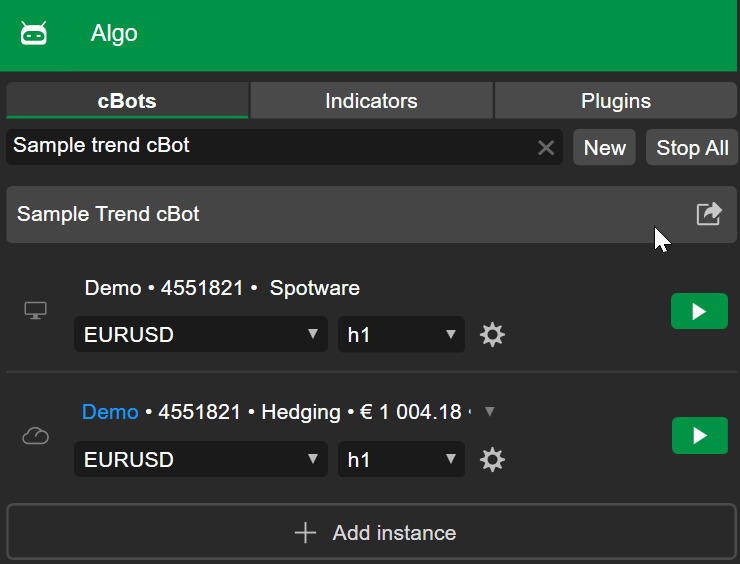
Define two indicators.
| | |
| --- | --- |
| 1 2 | `ChartIndicator _indicator1; ChartIndicator _indicator2;` |
Add two indicators to the chart.
| | |
| --- | --- |
| 1 2 | `_indicator1 = Chart.Indicators.Add("Simple Moving Average", SourceSeries, FastPeriods, MAType); _indicator2 = Chart.Indicators.Add("Simple Moving Average", SourceSeries, SlowPeriods, MAType);` |
The indicator appearance can be customised through its output line settings. Customisable options include colour, thickness and line style.
We will make the line for the first indicator red and thick.
| | |
| --- | --- |
| 1 2 | `_indicator1.Lines[0].Color = Color.Red; _indicator1.Lines[0].Thickness = 3;` |
The same operation can be applied to remove indicators from a chart at any time. We will make the changes take effect when the bar changes.
| | |
| --- | --- |
| 1 2 3 4 5 | `protected override void OnBarClosed() { Chart.Indicators.Remove(_indicator1); Chart.Indicators.Remove(_indicator2); }` |
You can copy the full code below:
| | |
| --- | --- |
| 1 2 3 4 5 6 7 8 9 10 11 12 13 14 15 16 17 18 19 20 21 22 23 24 25 26 27 28 29 30 31 32 33 34 35 36 37 38 39 40 41 42 43 44 45 46 47 48 49 50 51 52 53 54 55 56 57 58 59 60 61 62 63 64 65 66 67 68 69 70 71 72 73 74 75 76 77 78 79 80 | `using cAlgo.API; using cAlgo.API.Indicators; namespace cAlgo { [Robot(TimeZone = TimeZones.UTC, AccessRights = AccessRights.None, AddIndicators = true)] public class SampleTrendcBot : Robot { [Parameter("Quantity (Lots)", Group = "Volume", DefaultValue = 1, MinValue = 0.01, Step = 0.01)] public double Quantity { get; set; } [Parameter("MA Type", Group = "Moving Average")] public MovingAverageType MAType { get; set; } [Parameter("Source", Group = "Moving Average")] public DataSeries SourceSeries { get; set; } [Parameter("Slow Periods", Group = "Moving Average", DefaultValue = 10)] public int SlowPeriods { get; set; } [Parameter("Fast Periods", Group = "Moving Average", DefaultValue = 5)] public int FastPeriods { get; set; } private MovingAverage slowMa; private MovingAverage fastMa; private const string label = "Sample Trend cBot"; ChartIndicator _indicator1; ChartIndicator _indicator2; protected override void OnStart() { fastMa = Indicators.MovingAverage(SourceSeries, FastPeriods, MAType); slowMa = Indicators.MovingAverage(SourceSeries, SlowPeriods, MAType); _indicator1 = Chart.Indicators.Add("Simple Moving Average", SourceSeries, FastPeriods, MAType); _indicator2 = Chart.Indicators.Add("Simple Moving Average", SourceSeries, SlowPeriods, MAType); _indicator1.Lines[0].Color = Color.Red; _indicator1.Lines[0].Thickness = 3; } protected override void OnBarClosed() { Chart.Indicators.Remove(_indicator1); Chart.Indicators.Remove(_indicator2); } protected override void OnTick() { var longPosition = Positions.Find(label, SymbolName, TradeType.Buy); var shortPosition = Positions.Find(label, SymbolName, TradeType.Sell); var currentSlowMa = slowMa.Result.Last(0); var currentFastMa = fastMa.Result.Last(0); var previousSlowMa = slowMa.Result.Last(1); var previousFastMa = fastMa.Result.Last(1); if (previousSlowMa > previousFastMa && currentSlowMa <= currentFastMa && longPosition == null) { if (shortPosition != null) ClosePosition(shortPosition); ExecuteMarketOrder(TradeType.Buy, SymbolName, VolumeInUnits, label); } else if (previousSlowMa < previousFastMa && currentSlowMa >= currentFastMa && shortPosition == null) { if (longPosition != null) ClosePosition(longPosition); ExecuteMarketOrder(TradeType.Sell, SymbolName, VolumeInUnits, label); } } private double VolumeInUnits { get { return Symbol.QuantityToVolumeInUnits(Quantity); } } } }` |
To build the cBot, use the Ctrl+B hotkey or click **Build**.
Go to the **Trade** app. Select the **EURUSD** chart, click the **cBot** icon, search for and select **Sample Trend cBot**.
When the **Add instance** window appears, click **Apply** and then start the cBot.
You should see that the two moving averages used for trading have been added to the chart.
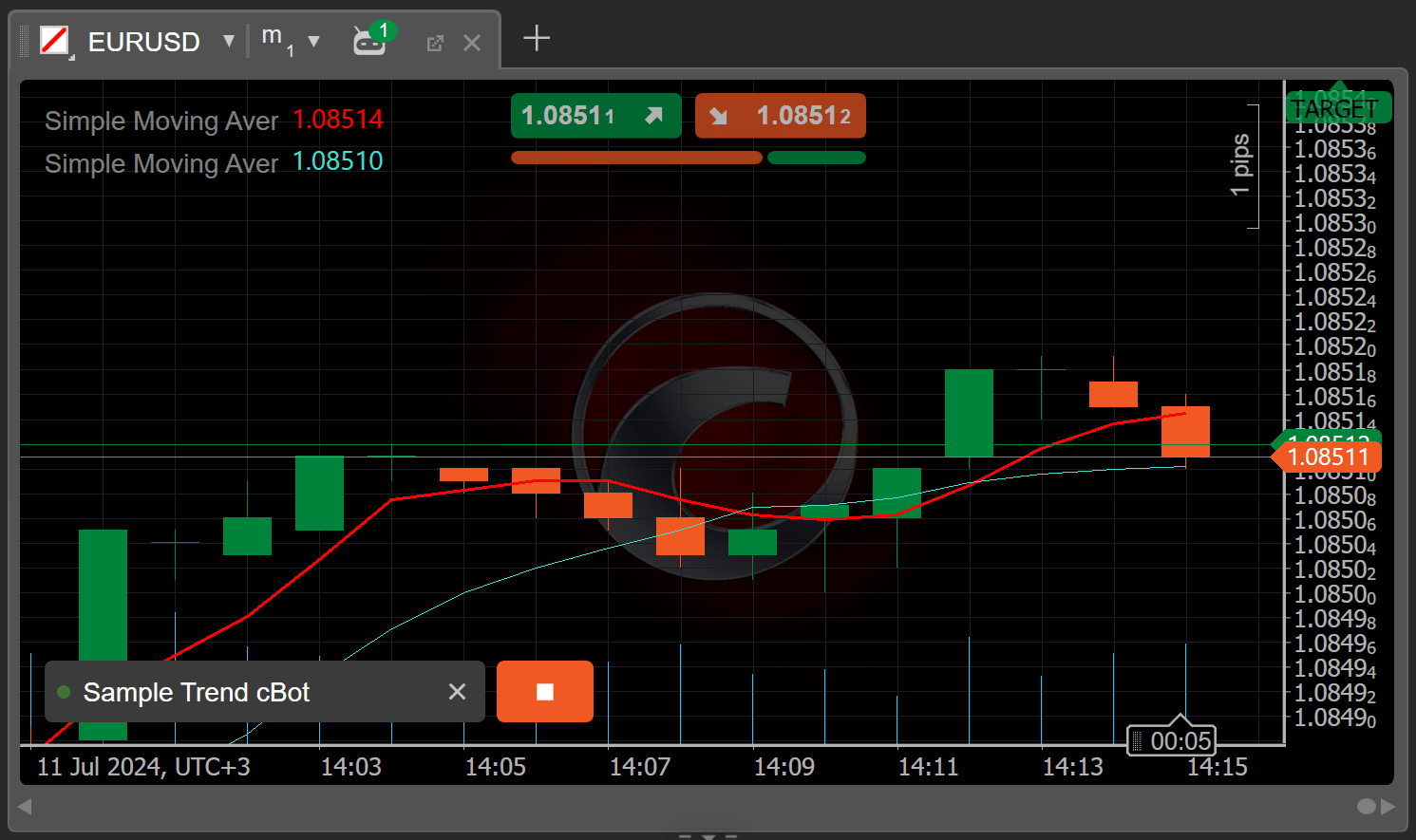
Start a cBot using another cBot[¶](https://help.ctrader.com/ctrader-algo/articles/for-developers/how-to-manage-cbots-and-indicators-using-algos/#start-a-cbot-using-another-cbot "Permanent link")
---------------------------------------------------------------------------------------------------------------------------------------------------------------------------------------------------
We will demonstrate how to manage a cBot through another cBot. This time, we will create a new empty cBot from scratch.
Go to the **Algo** app and click the **New** button under the **cBots** tab. Select the **Blank** option, enter a name such as **Add cBots** and then click **Create**.
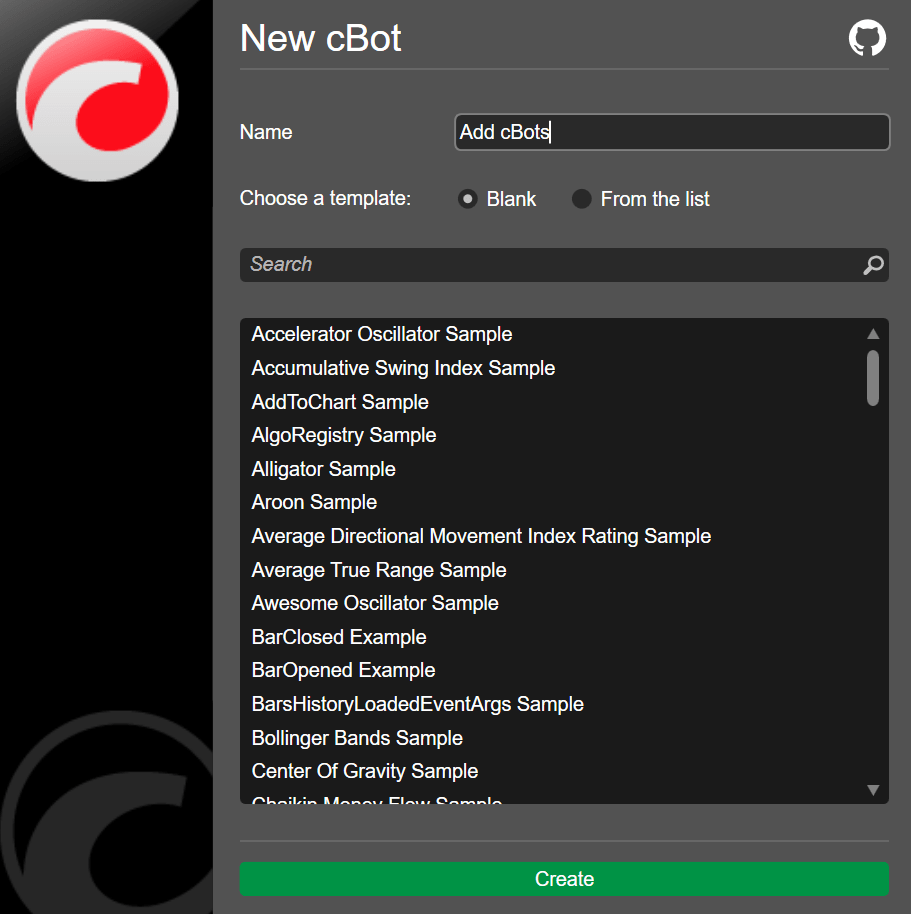
We start by defining two chart robot objects.
| | |
| --- | --- |
| 1 2 | `ChartRobot _robot1; ChartRobot _robot2;` |
We then add those robots to the chart in the `OnStart()` method.
| | |
| --- | --- |
| 1 2 | `_robot1 = Chart.Robots.Add("Sample Trend cBot", 0.01, MovingAverageType.Simple, Bars.ClosePrices, 10, 5); _robot2 = Chart.Robots.Add("Sample Trend cBot", 0.01, MovingAverageType.Simple, Bars.ClosePrices, 12, 7);` |
We can also add an event handler to print a message whenever the cBot is started.
| | |
| --- | --- |
| 1 2 3 4 5 6 | `Chart.Robots.RobotStarted += ChartRobots_RobotStarted; private void ChartRobots_RobotStarted(ChartRobotStartedEventArgs obj) { Print ("Robot Started"); }` |
Write some logic inside the `OnBarClosed()` method to start the first robot when the bar changes, stop it and then start the second robot on the next bar.
| | |
| --- | --- |
| 1 2 3 4 5 6 7 8 9 10 11 12 13 | `protected override void OnBarClosed() { if (_robot1.State == RobotState.Stopped) { _robot1.Start(); _robot2.Stop(); } else if (_robot1.State == RobotState.Running) { _robot1.Stop(); _robot2.Start(); } }` |
You can copy the full code below:
| | |
| --- | --- |
| 1 2 3 4 5 6 7 8 9 10 11 12 13 14 15 16 17 18 19 20 21 22 23 24 25 26 27 28 29 30 31 32 33 34 35 36 37 38 39 40 41 42 43 44 45 46 47 48 49 50 | `using System; using cAlgo.API; using cAlgo.API.Collections; using cAlgo.API.Indicators; using cAlgo.API.Internals; namespace cAlgo.Robots { [Robot(AccessRights = AccessRights.None, AddIndicators = true)] public class AddcBots : Robot { ChartRobot _robot1; ChartRobot _robot2; protected override void OnStart() { _robot1 = Chart.Robots.Add("Sample Trend cBot", 0.01, MovingAverageType.Simple, Bars.ClosePrices, 10, 5); _robot2 = Chart.Robots.Add("Sample Trend cBot", 0.01, MovingAverageType.Simple, Bars.ClosePrices, 12, 7); Chart.Robots.RobotStarted += ChartRobots_RobotStarted; } private void ChartRobots_RobotStarted(ChartRobotStartedEventArgs obj) { Print ("Robot Started"); } protected override void OnBarClosed() { if (_robot1.State == RobotState.Stopped) { _robot1.Start(); _robot2.Stop(); } else if (_robot1.State == RobotState.Running) { _robot2.Start(); _robot1.Stop(); } } protected override void OnStop() { // Handle cBot stop here } } }` |
After you build the cBot, return to the **Trade** app, search for and select **Add cBots** and then start the cBot.
When the **Permission request** dialogue appears, click **Allow**.
The two instances of Sample Trend cBot should appear on the chart.
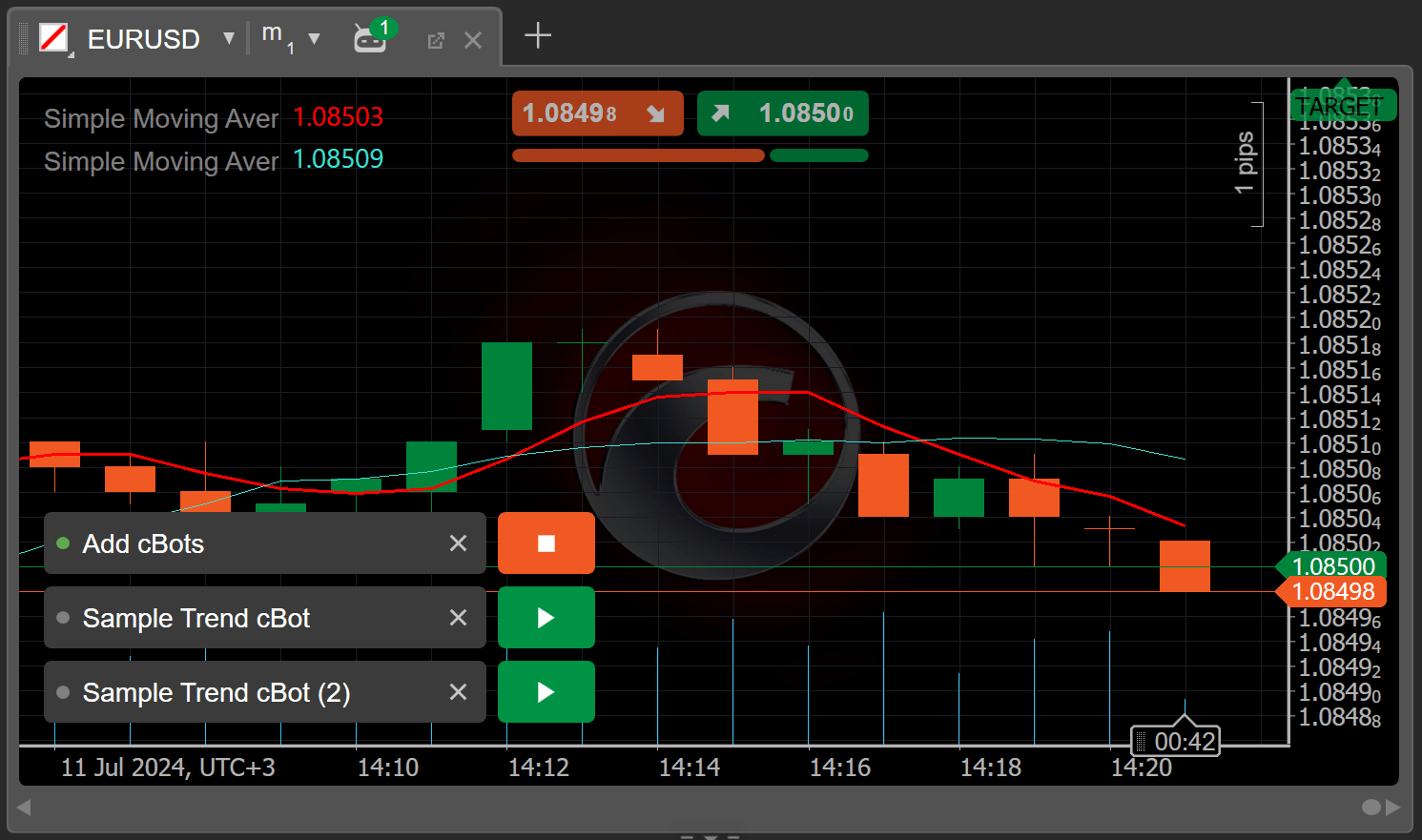
Wait for the first bar to complete and you should see the first instance of the Sample Trend cBot start automatically.
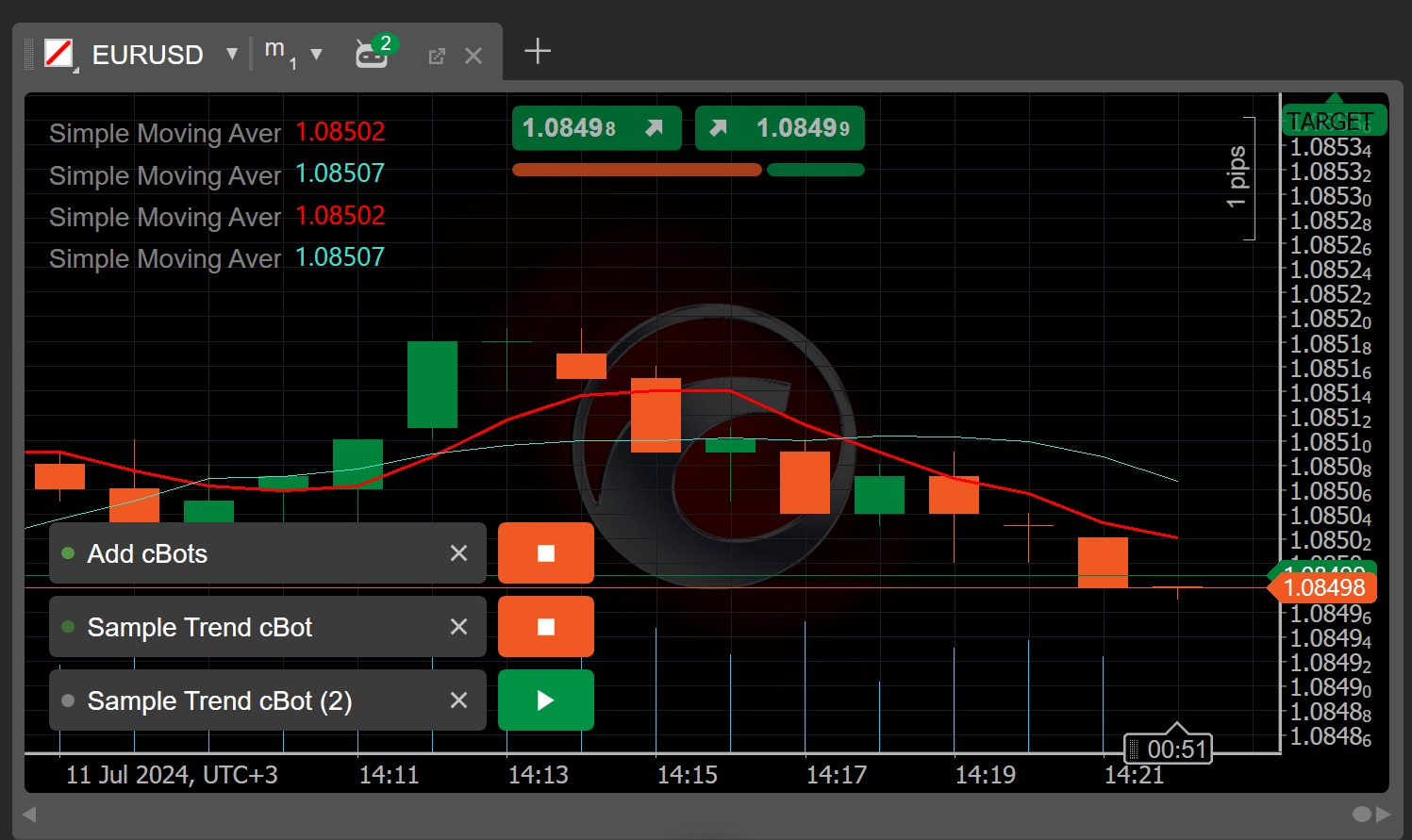
On the next bar, you should see the second instance of the Sample Trend cBot start automatically.
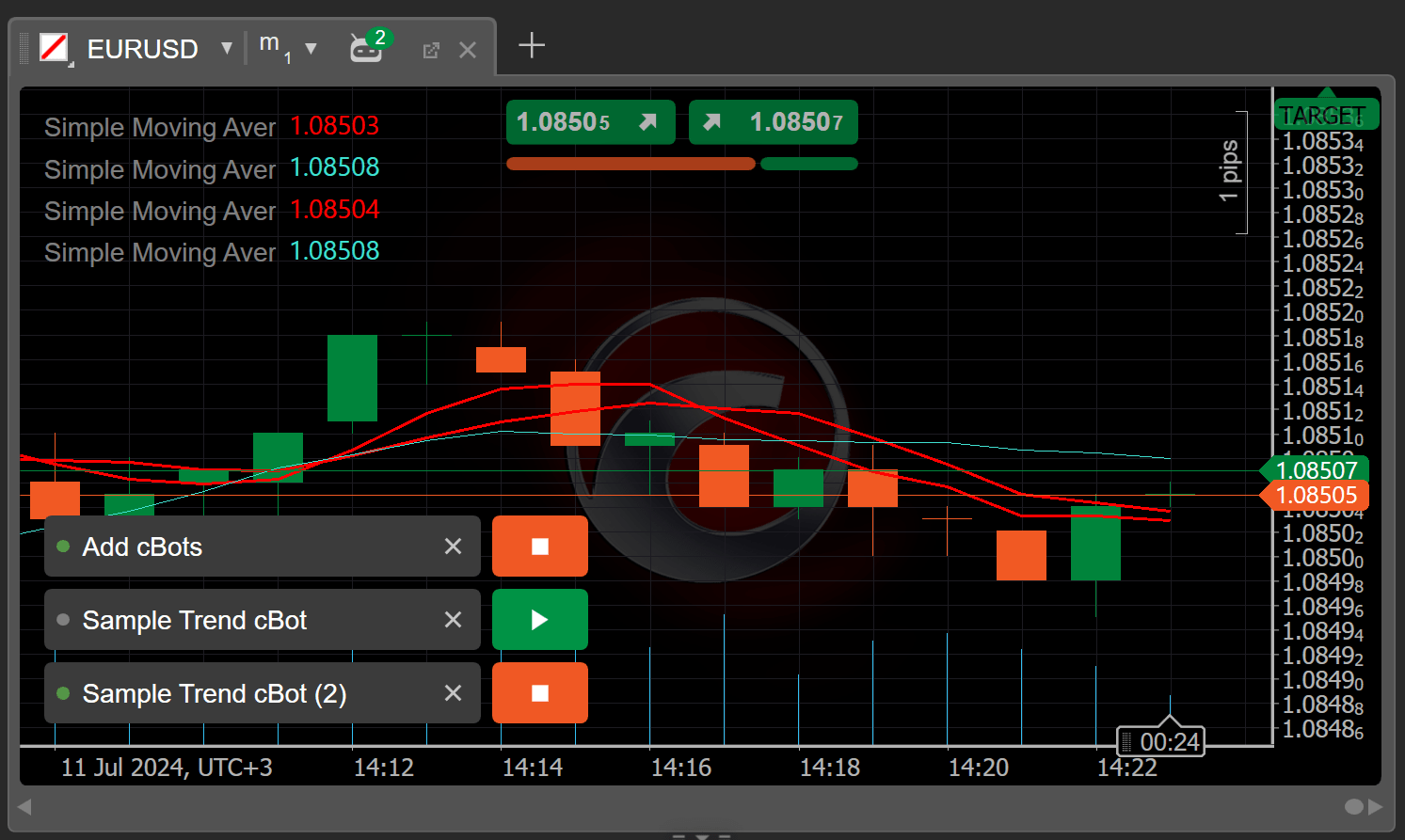
You can observe how the cBot executes our logic and manages the two other cBots based on changing conditions.
Modify cBot parameters during execution[¶](https://help.ctrader.com/ctrader-algo/articles/for-developers/how-to-manage-cbots-and-indicators-using-algos/#modify-cbot-parameters-during-execution "Permanent link")
-------------------------------------------------------------------------------------------------------------------------------------------------------------------------------------------------------------------
You might need to change the parameters of a cBot while it is running. For example, you decide to quickly update the code on the go after receiving important financial news or updates.
Rather than stopping and starting our cBot, let’s immediately modify the `SlowPeriods` parameter for the first cBot.
| | |
| --- | --- |
| 1 2 3 4 5 6 | `else if(_robot1.State == RobotState.Running) { _robot1.Stop(); _robot1.Parameters["SlowPeriods"].Value = (int)_robot2.Parameters["SlowPeriods"].Value + 1; _robot1.Start(); }` |
Now, we will rebuild the cBot.
You can copy the full code below:
| | |
| --- | --- |
| 1 2 3 4 5 6 7 8 9 10 11 12 13 14 15 16 17 18 19 20 21 22 23 24 25 26 27 28 29 30 31 32 33 34 35 36 37 38 39 40 41 42 43 44 45 46 47 48 49 50 51 | `using System; using cAlgo.API; using cAlgo.API.Collections; using cAlgo.API.Indicators; using cAlgo.API.Internals; namespace cAlgo.Robots { [Robot(AccessRights = AccessRights.None, AddIndicators = true)] public class AddcBots : Robot { ChartRobot _robot1; ChartRobot _robot2; protected override void OnStart() { _robot1 = Chart.Robots.Add("Sample Trend cBot", 0.01, MovingAverageType.Simple, Bars.ClosePrices, 10, 5); _robot2 = Chart.Robots.Add("Sample Trend cBot", 0.01, MovingAverageType.Simple, Bars.ClosePrices, 12, 7); Chart.Robots.RobotStarted += ChartRobots_RobotStarted; } private void ChartRobots_RobotStarted(ChartRobotStartedEventArgs obj) { Print ("Robot Started"); } protected override void OnBarClosed() { if (_robot1.State == RobotState.Stopped) { _robot1.Start(); _robot2.Stop(); } else if (_robot1.State == RobotState.Running) { _robot1.Stop(); _robot1.Parameters["SlowPeriods"].Value = (int)_robot2.Parameters["SlowPeriods"].Value + 1; _robot1.Start(); } } protected override void OnStop() { // Handle cBot stop here } } }` |
Navigate to the **Trade** app and start the cBot to see how the indicator value changes on each bar.
Summary[¶](https://help.ctrader.com/ctrader-algo/articles/for-developers/how-to-manage-cbots-and-indicators-using-algos/#summary "Permanent link")
---------------------------------------------------------------------------------------------------------------------------------------------------
We hope this article has helped you understand how to use algorithms to start, control and manage other algorithms.
[Subscribe to our YouTube channel](https://www.youtube.com/channel/UCgoyyb_r8sgNrf1nqyMyo5A?sub_confirmation=1)
Back to top
---
# Hotkeys - cTrader Mac
[Skip to content](https://help.ctrader.com/ctrader-mac/miscellaneous/hotkeys/#hotkeys)
Hotkeys[¶](https://help.ctrader.com/ctrader-mac/miscellaneous/hotkeys/#hotkeys "Permanent link")
=================================================================================================
cTrader Mac allows for using hotkeys to quickly and conveniently operate in the app. You can find a full list of the cTrader Mac hotkeys in the '**Hotkeys**' section of the '**Settings**' window which is called with Cmd+,. To reasssign the default hotkeys in '**Settings**', click on the desired hotkey field and press a new key or a combination of keys on your keyboard.
Global[¶](https://help.ctrader.com/ctrader-mac/miscellaneous/hotkeys/#global "Permanent link")
-----------------------------------------------------------------------------------------------
* F1 - Help Centre.
* F2 - Switch chart mode.
* F3 - Switch layout.
* F7 - Previous workspace.
* F8 - Next workspace.
* F9 - New order screen.
* Cmd+F11 - Toggle full screen.
* Cmd+Shift+M - Show/hide the main menu.
* Cmd+Shift+W - Show/hide the Trade Watch panel.
* Ctrl+Tab - Switch to the next chart.
* Shift+Ctrl+Tab - Switch to the previous chart.
* Cmd+F - Search in all symbols.
* Cmd+N - Open a new chart.
* Cmd+Shift+N - Open a new detached chart.
* Cmd+0 - Reset font size.
Chart[¶](https://help.ctrader.com/ctrader-mac/miscellaneous/hotkeys/#chart "Permanent link")
---------------------------------------------------------------------------------------------
* Left - Scroll left.
* Right - Scroll right.
* Page Up - Fast scrolling to the left.
* Page Down - Fast scrolling to the right.
* Home - Scroll to the beginning of the chart.
* End - Scroll to the end of the chart.
* + - Zoom in.
* \- - Zoom out.
* Up - Switch to the next period from favourites.
* Down - Switch to the previous period from favourites.
* Cmd+A - Select all drawings.
* Cmd+C - Copy selected drawings.
* Cmd+V - Paste drawings.
* Cmd+X - Cut selected drawings.
* Del - Delete selected drawings.
* Cmd+H - Hide/show all drawings on the chart.
* Cmd+D - Manage drawings on the chart.
* Cmd+I - Manage indicators on the chart.
* Cmd+S - Enable/disable market snapshots.
* Cmd+G - Show/hide grid.
* Cmd+B - Show/hide bid price.
* Cmd+K - Show/hide ask price.
* Option+1 - Bar chart.
* Option+2 - Candlestick chart.
* Option+3 - Line chart.
* Option+4 - Dot chart.
* Option+5 - Area chart.
* Option+6 - HLC chart.
Mouse Hotkeys[¶](https://help.ctrader.com/ctrader-mac/miscellaneous/hotkeys/#mouse-hotkeys "Permanent link")
-------------------------------------------------------------------------------------------------------------
* `Mouse wheel` - Zoom or scroll.
* Cmd + `Mouse wheel` - Scroll left/right or zoom in/out.
* `Middle mouse button` - Enable/disable crosshair.
* Shift + `Middle mouse button` - Enable/disable synchronised crosshair.
* Cmd + `Click on drawing` - Add/remove drawing to/from selection.
* Cmd + `Drag` - Duplicate drawing.
* Option + `Drag` - Move drawing with disabled magnet.
* Shift + `Line` - Draw a line at an angle multiple of 45.
* Shift + `Rectangle` - Draw square.
* Shift + `Ellipse` - Draw circle.
* Cmd + `Draw` - Hold Cmd to continue drawing.
Code Editor[¶](https://help.ctrader.com/ctrader-mac/miscellaneous/hotkeys/#code-editor "Permanent link")
---------------------------------------------------------------------------------------------------------
* F5 - Build and show instance.
* Cmd+B - Build (compile).
* Cmd+S - Save source code.
* Cmd+F - Search in source code.
* Cmd+D - Format document.
Other[¶](https://help.ctrader.com/ctrader-mac/miscellaneous/hotkeys/#other "Permanent link")
---------------------------------------------------------------------------------------------
* Option+Shift+Cmd+B - Toggle the sidebar.
* Cmd+Q - Quit cTrader.
* Cmd+Shift+D - Toggle the theme.
---
# Tài khoản - cTrader ID
[Bỏ qua](https://help.ctrader.com/ctrader-id/vi/managing-ctid/trading-accounts/#xem-tai-khoan-giao-dich)
Tài khoản
=========
Điều hướng đến tab [**Tài khoản**](https://id.ctrader.com/my/settings/accounts)
của trang web cTID.
Xem tài khoản giao dịch [¶](https://help.ctrader.com/ctrader-id/vi/managing-ctid/trading-accounts/#xem-tai-khoan-giao-dich "Permanent link")
---------------------------------------------------------------------------------------------------------------------------------------------
Tại đây, bạn có thể xem tất cả các tài khoản thực và demo được liên kết với cTID của bạn. Trang web cTID đa nhà môi giới sắp xếp các tài khoản giao dịch thành các phần theo từng nhà môi giới.

Ghi chú
Các trang web cTID dành riêng cho nhà môi giới chỉ hiển thị các tài khoản giao dịch được đăng ký với nhà môi giới tương ứng. Kiểm tra với nhà môi giới của bạn về cách truy cập trang web cTID mang thương hiệu của họ.
Nhấp vào biểu tượng nền tảng bên cạnh tên nhà môi giới để mở ứng dụng cTrader mang thương hiệu của họ.

Xóa tài khoản giao dịch [¶](https://help.ctrader.com/ctrader-id/vi/managing-ctid/trading-accounts/#xoa-tai-khoan-giao-dich "Permanent link")
---------------------------------------------------------------------------------------------------------------------------------------------
Tùy thuộc vào quy trình của nhà môi giới, các bước xóa tài khoản giao dịch có thể khác nhau.
* Liên hệ với nhà môi giới của bạn và yêu cầu xóa tài khoản giao dịch của bạn.
* Nếu tài khoản giao dịch của bạn thuộc Spotware, bạn có thể tự xóa tài khoản demo hoặc thực được liệt kê bằng cách nhấp vào biểu tượng thùng rác.
Cảnh báo
Bạn không thể xóa tài khoản giao dịch thuộc Spotware nếu còn vị thế mở hoặc lệnh chờ. Hãy đóng vị thế và hủy lệnh chờ trước, sau đó xóa tài khoản của bạn trên trang web cTID. Tính năng xóa cũng bị vô hiệu hóa đối với các tài khoản phụ.
Trở lại mục lục
---
# Working with files - cTrader Algo
[Skip to content](https://help.ctrader.com/ctrader-algo/articles/for-developers/working-with-files/#working-with-files-in-ctrader)
Working with files in cTrader[¶](https://help.ctrader.com/ctrader-algo/articles/for-developers/working-with-files/#working-with-files-in-ctrader "Permanent link")
===================================================================================================================================================================
In this article and its corresponding video, we will explain how you can work with files in cTrader. On average, users are concerned about launching cBots or indicators requesting full access rights to their device. Especially when no source code is available, it is difficult to know what the algorithm is doing with these permissions. Luckily, cTrader provides several methods that allow algos to access files on their local machine without needing elevated permissions.
Write to the algo directory[¶](https://help.ctrader.com/ctrader-algo/articles/for-developers/working-with-files/#write-to-the-algo-directory "Permanent link")
---------------------------------------------------------------------------------------------------------------------------------------------------------------
cTrader allows all algos to access a folder with this address:
`C:/Users/{username}/Documents/cAlgo/Data/{algoType}`
, where `algoType` is `cBots` or `Indicators`.
We will create an example cBot and demonstrate how you can access this directory programmatically.
| | |
| --- | --- |
| 1 2 3 4 5 6 7 8 9 10 11 12 13 14 15 16 17 18 19 20 21 22 | `using System; using System.Collections.Generic; using System.Linq; using System.Text; using cAlgo.API; using cAlgo.API.Collections; using cAlgo.API.Indicators; using cAlgo.API.Internals; using System.IO; namespace cAlgo.Robots { [Robot(AccessRights = AccessRights.None)] public class FileBot : Robot { protected override void OnStart() { File.WriteAllText("Hello World.txt", "Hello World!"); } } }` |
As usual, we save and build the cBot, then create its instance.
After the instance starts, we can navigate to the folder defined above. In it, we should see the `Hello World.txt` file containing the text we specified in our code.
Read from the algo directory[¶](https://help.ctrader.com/ctrader-algo/articles/for-developers/working-with-files/#read-from-the-algo-directory "Permanent link")
-----------------------------------------------------------------------------------------------------------------------------------------------------------------
The next step is to read the contents of a file located in the algo directory. To do so, we can rewrite our `OnStart()` method as follows.
| | |
| --- | --- |
| 1 2 3 4 | `protected override void OnStart() { Print(File.ReadAllText("Hello Word.txt")); }` |
After we build and launch our cBot, we will see that the algo prints the string from the file to the cTrader log.
Access other directories[¶](https://help.ctrader.com/ctrader-algo/articles/for-developers/working-with-files/#access-other-directories "Permanent link")
---------------------------------------------------------------------------------------------------------------------------------------------------------
Note that none of the operations our cBot performed earlier required providing it with elevated access rights. In fact, access rights were explicitly set to `None` at the class level.
We will try to write to a file located in a different directory and see what happens. We will modify our code to write to a file located in the root `Documents` directory.
| | |
| --- | --- |
| 1 2 3 4 | `protected override void OnStart() { File.WriteAllText("C://OneDrive//Documents//Hello World.txt", "Hello World!"); }` |
Once we build and run the cBot again, we will see an exception being thrown in the log indicating that we are not authorised to write in this specific directory.
To solve this, we can go back to the cBot code and change its access rights as follows.
| | |
| --- | --- |
| 1 | `[Robot(AccessRights = AccessRights.FullAccess)]` |
We build and run the cBot. Instead of throwing an exception, the bot will now access the specified directory and write to the correct file.
For one more demonstration of how access rights work, we will modify the `OnStart()` method as follows.
| | |
| --- | --- |
| 1 2 3 4 | `protected override void OnStart() { Print(File.ReadAllText("C://OneDrive//Documents//Hello World.txt")); }` |
We will also set access rights back to `None`.
| | |
| --- | --- |
| 1 | `[Robot(AccessRights = AccessRights.None)]` |
After the cBot starts running, we will see that it fails to read from the file.
[Subscribe to our YouTube channel](https://www.youtube.com/channel/UCgoyyb_r8sgNrf1nqyMyo5A?sub_confirmation=1)
Back to top
---
# Installing Algos - cTrader Mac
[Skip to content](https://help.ctrader.com/ctrader-mac/automate/installing-algos/#installing-algos)
Installing Algos[¶](https://help.ctrader.com/ctrader-mac/automate/installing-algos/#installing-algos "Permanent link")
=======================================================================================================================
In addition to sample cBots, plugins, and indicators availble in the '**Algo**' application, cTrader Mac allows you to install new algorightms in just a few simple steps.
1\. Receive and download an `.algo` file.
You can obtain algorithms from multiple sources:
* [**'cBots' section**](https://ctrader.com/algos/cbots)
on the official cTrader portal
* [**'Indicators' section**](https://ctrader.com/algos/indicators)
on the official cTrader portal
* Third-party algo developers
2\. Launch the `.algo` file.
To add a new algorithm to cTrader Mac, simply click on the file you have just downloaded.
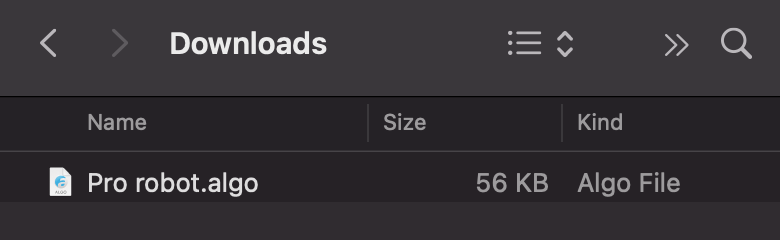
cTrader Mac will notify you when the process has ended.
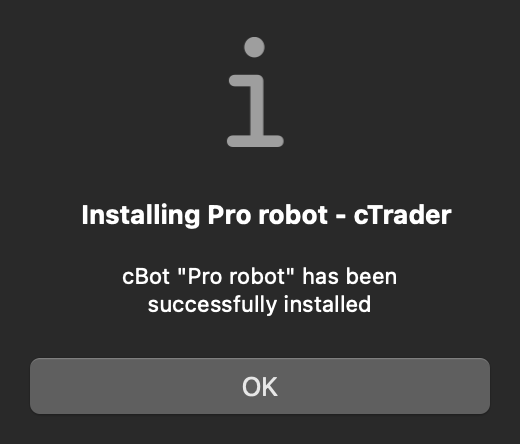
3\. Now, you can access your newly installed algorithm in the '**Algo**' application of cTrader Mac. Here, you can edit the source code, build, add and run instances.
Warning
Gaining access to viewing and editing the algorithm source code is impossible unless it is allowed by the developer.
---
# Preguntas frecuentes - cTrader ID
[Saltar a contenido](https://help.ctrader.com/ctrader-id/es/faq/#cual-es-la-diferencia-entre-un-ctid-y-una-cuenta-de-operaciones)
Preguntas frecuentes
====================
### ¿Cuál es la diferencia entre un cTID y una cuenta de operaciones? [¶](https://help.ctrader.com/ctrader-id/es/faq/#cual-es-la-diferencia-entre-un-ctid-y-una-cuenta-de-operaciones "Permanent link")
Un cTID es un conjunto de credenciales (correo electrónico/nombre de usuario y contraseña) que se utiliza para iniciar sesión en cualquier aplicación de cliente de un bróker de cTrader. Una cuenta de operaciones es un número único de siete dígitos específico del bróker con el que se creó. Descubra [**otras diferencias**](https://help.ctrader.com/ctrader-id/es/)
.
### ¿Puedo cambiar el nombre de usuario de mi cTID? [¶](https://help.ctrader.com/ctrader-id/es/faq/#puedo-cambiar-el-nombre-de-usuario-de-mi-ctid "Permanent link")
El nombre de usuario se genera automáticamente a partir de su dirección de email al crear el cTID. No obstante, puede cambiarlo en cualquier momento, al igual que puede modificar el correo electrónico y la contraseña asociados a su cTID. Descubra cómo modificar las [**credenciales del cTID**](https://help.ctrader.com/ctrader-id/es/managing-ctid/credentials/)
.
### ¿Puedo registrarme en cTrader con una cuenta de las redes sociales? [¶](https://help.ctrader.com/ctrader-id/es/faq/#puedo-registrarme-en-ctrader-con-una-cuenta-de-las-redes-sociales "Permanent link")
Sí, puede registrarse con una cuenta de Google o Apple. Al registrarse con una cuenta de Apple, elija compartir el email asociado a su Apple ID; de lo contrario, podría tener problemas para que el bróker le reconozca y le permita acceder a cuentas reales. Obtenga más información sobre el [**registro con cuentas de redes sociales**](https://help.ctrader.com/ctrader-id/es/sign-in-with-the-social-accounts/)
.
### ¿Puedo acceder a las apps de cTrader de diferentes brókeres con el mismo cTID? [¶](https://help.ctrader.com/ctrader-id/es/faq/#puedo-acceder-a-las-apps-de-ctrader-de-diferentes-brokeres-con-el-mismo-ctid "Permanent link")
Si ha creado cuentas de operaciones con varios brókeres de cTrader y ha utilizado el mismo email (y, por consiguiente, el mismo cTID), sus credenciales de cTID pueden utilizarse con estos brókeres. Tenga en cuenta que en cada app personalizada de cTrader verá únicamente las cuentas registradas con el bróker asociado. Una [**aplicación de cTrader multiplataforma**](https://ctrader.com/download/)
permite a los operadores acceder a todas las cuentas de operaciones que tienen con todos los brókeres de cTrader.
### He creado un cTID, pero no he recibido ningún email de confirmación. ¿Por qué motivo? [¶](https://help.ctrader.com/ctrader-id/es/faq/#he-creado-un-ctid-pero-no-he-recibido-ningun-email-de-confirmacion-por-que-motivo "Permanent link")
Es posible que no haya recibido un email de confirmación de cTID en su bandeja de entrada por los siguientes motivos:
* El email se ha clasificado como spam sin que lo detecte. Vaya a la carpeta de spam y trate de localizar el email. Marque el email como «no es spam» y añada **[noreply@ctrader.com](mailto:noreply@ctrader.com)
** a su lista de contactos seguros para evitar que los futuros emails remitidos desde esta dirección se clasifiquen como spam.
* Los problemas temporales de red pueden haber retrasado la recepción del email. Si sigue sin recibir el email al cabo de un cierto tiempo, visite el [**sitio web de cTID**](https://id.ctrader.com/my/settings/overview)
, inicie sesión y haga clic en **Reenviar email de confirmación**.
* Si las sugerencias anteriores no resuelven el problema, contacte con nosotros en **[support@ctrader.com](mailto:support@ctrader.com)
**; nuestro equipo estará encantado de investigar su caso más a fondo.
### He creado mi cuenta en el área de cliente del bróker, pero no he recibido ningún correo de bienvenida de cTrader ID. ¿Por qué motivo? [¶](https://help.ctrader.com/ctrader-id/es/faq/#he-creado-mi-cuenta-en-el-area-de-cliente-del-broker-pero-no-he-recibido-ningun-correo-de-bienvenida-de-ctrader-id-por-que-motivo "Permanent link")
Es posible que no haya recibido un email de confirmación de cTID en su bandeja de entrada por los siguientes motivos:
* El email se ha clasificado como spam sin que lo detecte. Vaya a la carpeta de spam y trate de localizar el email. Marque el email como «no es spam» y añada **[noreply@ctrader.com](mailto:noreply@ctrader.com)
** a su lista de contactos seguros para evitar que los futuros emails remitidos desde esta dirección se clasifiquen como spam.
* Los problemas temporales de red pueden haber retrasado la recepción del email. Si sigue sin recibir el email al cabo de un cierto tiempo, visite el [**sitio web de cTID**](https://id.ctrader.com/my/settings/overview)
, inicie sesión y haga clic en **Reenviar email de confirmación**.
* Si las sugerencias anteriores no resuelven el problema, contacte con nosotros en **[support@ctrader.com](mailto:support@ctrader.com)
**; nuestro equipo estará encantado de investigar su caso más a fondo.
### He creado mi cuenta en el área de cliente del bróker, pero no puedo verla en cTrader. ¿Por qué motivo? [¶](https://help.ctrader.com/ctrader-id/es/faq/#he-creado-mi-cuenta-en-el-area-de-cliente-del-broker-pero-no-puedo-verla-en-ctrader-por-que-motivo "Permanent link")
Después de crear una cuenta en el área de cliente de su bróker, es posible que no la vea en cTrader por los siguientes motivos:
* Está utilizando la aplicación de cTrader incorrecta. Compruebe y confirme que utiliza una [**aplicación de cTrader multiplataforma**](https://ctrader.com/download/)
o la aplicación de cTrader con la marca de su bróker. No puede acceder a la cuenta de operaciones del bróker 1 desde la aplicación de cTrader con la marca del bróker 2.
* Ha creado una cuenta para una plataforma de cTrader distinta. En las aplicaciones de cTrader solo pueden utilizarse cuentas de cTrader.
* La dirección de email que ha utilizado para acceder al área de cliente de su bróker es distinta de la utilizada para iniciar sesión en cTrader. Al crear una cuenta de operaciones en el área de cliente del bróker, dicha cuenta se vincula con un cTID específico. Si inicia sesión en cTrader con un nuevo email, no se mostrará la cuenta de operaciones asociada al email anterior.
### He creado mi cuenta en cTrader, pero no puedo verla en el área de cliente de mi bróker. ¿Por qué motivo? [¶](https://help.ctrader.com/ctrader-id/es/faq/#he-creado-mi-cuenta-en-ctrader-pero-no-puedo-verla-en-el-area-de-cliente-de-mi-broker-por-que-motivo "Permanent link")
Después de crear una cuenta en cTrader, es posible que no la vea en el área de cliente de su bróker por los siguientes motivos:
* La dirección de email que ha utilizado para entrar en el área de cliente de su bróker es distinta de la utilizada para crear su cuenta en cTrader. El área de cliente de su bróker muestra la información de un cTID diferente.
* Ha habido un problema y no se ha notificado la creación de su cuenta al área de cliente de su bróker.
En ambos casos, debe ponerse en contacto con su bróker para vincular la nueva cuenta con su identificador en el área de cliente.
### Tengo cuentas de operaciones con varios brókeres, pero no puedo verlas todas en el sitio web de cTID. ¿Por qué motivo? [¶](https://help.ctrader.com/ctrader-id/es/faq/#tengo-cuentas-de-operaciones-con-varios-brokeres-pero-no-puedo-verlas-todas-en-el-sitio-web-de-ctid-por-que-motivo "Permanent link")
Probablemente esté utilizando un sitio web de cTID específico de un bróker, que solo muestra las cuentas de operaciones registradas con dicho bróker. Acceda al [**sitio web de cTID multiplataforma**](https://id.ctrader.com/my/settings/accounts)
para ver todas las cuentas reales y demo que ha creado con los distintos brókeres de cTrader.
Volver al principio
---
# الأسئلة الشائعة - cTrader ID
[انتقل إلى المحتوى](https://help.ctrader.com/ctrader-id/ar/faq/#ctid)
الأسئلة الشائعة
===============
### ما الفرق بين cTID وحساب التداول؟ [¶](https://help.ctrader.com/ctrader-id/ar/faq/#ctid "Permanent link")
cTID هو مجموعة من بيانات الاعتماد (البريد الإلكتروني/اسم المستخدم وكلمة المرور) المستخدمة لتسجيل الدخول إلى جميع تطبيقات العملاء عبر وسطاء cTrader. حساب التداول هو رقم فريد مكون من سبعة أرقام خاص بالوسيط الذي تم إنشاؤه معه. تعرَّف على [**اختلافات أخرى**](https://help.ctrader.com/ctrader-id/ar/)
.
### هل يمكنني تغيير اسم مستخدم cTID الخاص بي؟ [¶](https://help.ctrader.com/ctrader-id/ar/faq/#ctid_1 "Permanent link")
يتم إنشاء اسم المستخدم تلقائيًا بناءً على عنوان بريدك الإلكتروني عند إنشاء cTID. ومع ذلك، يمكنك تغييره في أي وقت، تمامًا كما يمكنك تغيير البريد الإلكتروني وكلمة المرور المرتبطة بـ cTID الخاص بك. تعرَّف على كيفية تعديل [**بيانات اعتماد cTID**](https://help.ctrader.com/ctrader-id/ar/managing-ctid/credentials/)
.
### هل يمكنني التسجيل في cTrader باستخدام حساباتي الاجتماعية؟ [¶](https://help.ctrader.com/ctrader-id/ar/faq/#ctrader "Permanent link")
نعم، يمكنك التسجيل باستخدام حسابات Google أو Apple. عند التسجيل باستخدام حساب Apple، اختر مشاركة البريد الإلكتروني المرتبط بمعرف Apple الخاص بك؛ وإلا، فقد تواجه مشاكل في التعرُّف على الوسيط والوصول إلى الحسابات الحقيقية. تعرَّف على المزيد حول [**التسجيل باستخدام الحسابات الاجتماعية**](https://help.ctrader.com/ctrader-id/ar/sign-in-with-the-social-accounts/)
.
### هل يمكنني الوصول إلى تطبيقات cTrader للوسطاء المختلفين باستخدام cTID نفسه؟ [¶](https://help.ctrader.com/ctrader-id/ar/faq/#ctrader-ctid "Permanent link")
إذا قمت بإنشاء حسابات تداول مع عدة وسطاء cTrader واستخدمت البريد الإلكتروني نفسه (وبالتالي cTID نفسه)، يمكن استخدام بيانات اعتماد cTID الخاصة بك عبر هؤلاء الوسطاء. لاحظ أنه في كل تطبيق cTrader ذي العلامة التجارية، سترى فقط الحسابات المسجلة تحت الوسيط المقابل. يُتيح [**تطبيق cTrader متعدد الوسطاء**](https://ctrader.com/download/)
للمتداولين الوصول إلى جميع حسابات التداول التي لديهم مع جميع وسطاء cTrader.
### لقد أنشأتُ cTID، ولكنني لم أتلقَ رسالة تأكيد إلكترونية. لماذا؟ [¶](https://help.ctrader.com/ctrader-id/ar/faq/#ctid_2 "Permanent link")
قد لا يكون بريد التأكيد الإلكتروني لـ cTID قد وصل إلى صندوق الوارد لبريدك للأسباب التالية:
* تم نقل البريد الإلكتروني إلى البريد العشوائي دون علمك. انتقل إلى مجلد البريد العشوائي وابحث عن البريد الإلكتروني. ضع علامة على البريد الإلكتروني على أنه ليس بريدًا عشوائيًا وأضِف **[noreply@ctrader.com](mailto:noreply@ctrader.com)
** إلى قائمة جهات الاتصال الآمنة الخاصة بك لمنع أن يتم تمييز رسائل البريد الإلكتروني المستقبلية من هذا العنوان كرسائل عشوائية.
* قد تكون مشاكل الشبكة المؤقتة عطّلت وصول البريد الإلكتروني. إذا لم تتلقَ البريد الإلكتروني بعد مرور بعض الوقت، فقم بزيارة [**موقع cTID**](https://id.ctrader.com/my/settings/overview)
، وسجِّل الدخول وانقر فوق الزر **إعادة إرسال بريد التأكيد الإلكتروني**.
* إذا لم تحل الاقتراحات أعلاه المشكلة، فيُرجى الاتصال بنا على **[support@ctrader.com](mailto:support@ctrader.com)
**، وسيَسعد فريقنا بالتحقيق في الأمر.
### لقد أنشأتُ حسابي داخل منطقة العميل الخاصة بالوسيط، ولكنني لم أتلقَ رسالة ترحيب cTrader ID. لماذا؟ [¶](https://help.ctrader.com/ctrader-id/ar/faq/#ctrader-id "Permanent link")
قد لا يكون بريد التأكيد الإلكتروني لـ cTID قد وصل إلى صندوق الوارد لبريدك للأسباب التالية:
* تم نقل البريد الإلكتروني إلى البريد العشوائي دون علمك. انتقل إلى مجلد البريد العشوائي وابحث عن البريد الإلكتروني. ضع علامة على البريد الإلكتروني على أنه ليس بريدًا عشوائيًا وأضِف **[noreply@ctrader.com](mailto:noreply@ctrader.com)
** إلى قائمة جهات الاتصال الآمنة الخاصة بك لمنع أن يتم تمييز رسائل البريد الإلكتروني المستقبلية من هذا العنوان كرسائل عشوائية.
* قد تكون مشاكل الشبكة المؤقتة عطّلت وصول البريد الإلكتروني. إذا لم تتلقَ البريد الإلكتروني بعد مرور بعض الوقت، فقم بزيارة [**موقع cTID**](https://id.ctrader.com/my/settings/overview)
، وسجِّل الدخول وانقر فوق الزر **إعادة إرسال بريد التأكيد الإلكتروني**.
* إذا لم تحل الاقتراحات أعلاه المشكلة، فيُرجى الاتصال بنا على **[support@ctrader.com](mailto:support@ctrader.com)
**، وسيَسعد فريقنا بالتحقيق في الأمر.
### لقد أنشأتُ حسابي داخل منطقة العميل الخاصة بالوسيط، ولكنني لا أستطيع رؤيته في cTrader. لماذا؟ [¶](https://help.ctrader.com/ctrader-id/ar/faq/#ctrader_1 "Permanent link")
بعد إنشاء حساب في منطقة العميل الخاصة بالوسيط، قد لا تراه في cTrader للأسباب التالية:
* أنت تستخدم تطبيق cTrader خاطئًا. تحقق وتأكد من أنك تستخدم [**تطبيق cTrader متعدد الوسطاء**](https://ctrader.com/download/)
أو تطبيق cTrader ذا العلامة التجارية للوسيط. لا يمكنك الوصول إلى حساب التداول الخاص بك مع الوسيط 1 من تطبيق cTrader ذي العلامة التجارية للوسيط 2.
* أنك أنشأتَ حسابًا لمنصة أخرى غير cTrader. يمكن استخدام حسابات cTrader فقط في تطبيقات cTrader.
* يختلف عنوان البريد الإلكتروني الذي استخدمته للدخول إلى منطقة العميل الخاصة بالوسيط عن الذي استخدمته لتسجيل الدخول إلى cTrader. عند إنشاء حساب تداول في منطقة العميل الخاصة بالوسيط، يقوم الوسيط بربط هذا الحساب مع cTID محدد. إذا قمتَ بتسجيل الدخول إلى cTrader باستخدام بريد إلكتروني جديد، فلن يتم عرض حساب التداول المرتبط بالبريد الإلكتروني السابق.
### لقد أنشأتُ حسابي في cTrader، ولكنني لا أستطيع رؤيته في منطقة العميل الخاصة بالوسيط. لماذا؟ [¶](https://help.ctrader.com/ctrader-id/ar/faq/#ctrader_2 "Permanent link")
بعد إنشاء حساب في cTrader، قد لا تراه في منطقة العميل الخاصة بالوسيط للأسباب التالية:
* يختلف عنوان البريد الإلكتروني الذي استخدمته للدخول إلى منطقة العميل الخاصة بالوسيط عن الذي استخدمته لإنشاء حسابك في cTrader. تُظهر منطقة العميل الخاصة بالوسيط معلومات لـ cTID مختلف.
* حدثت مشكلة، ولم يتم إخطار منطقة العميل الخاصة بالوسيط بإنشاء حسابك.
في كلتا الحالتين، عليك الاتصال بالوسيط الخاص بك لربط الحساب الجديد بمعرف منطقة العميل الخاصة بك.
### لديّ حسابات تداول مع عدة وسطاء، ولكنني لا أستطيع رؤيتها كلها على موقع cTID. لماذا؟ [¶](https://help.ctrader.com/ctrader-id/ar/faq/#ctid_3 "Permanent link")
أنت على الأرجح تستخدم موقع cTID الخاص بالوسيط، والذي يعرض فقط حسابات التداول المسجلة مع الوسيط المقابل. قم بالوصول إلى [**موقع cTID متعدد الوسطاء**](https://id.ctrader.com/my/settings/accounts)
لعرض جميع حساباتك الحية والتجريبية التي تم إنشاؤها تحت جميع وسطاء cTrader.
عد إلى الأعلى
---
# Pertanyaan umum - cTrader ID
[Lewati ke isi](https://help.ctrader.com/ctrader-id/id/faq/#apa-perbedaan-antara-ctid-dan-akun-trading)
Pertanyaan umum
===============
### Apa perbedaan antara cTID dan akun trading? [¶](https://help.ctrader.com/ctrader-id/id/faq/#apa-perbedaan-antara-ctid-dan-akun-trading "Permanent link")
cTID adalah seperangkat kredensial (email/nama pengguna dan kata sandi) yang digunakan untuk masuk ke semua aplikasi klien pada semua broker cTrader. Akun trading adalah tujuh digit angka unik yang spesifik untuk broker tempat akun tersebut dibuat. Pelajari tentang [**perbedaan lainnya**](https://help.ctrader.com/ctrader-id/id/)
.
### Bisakah saya mengubah nama pengguna cTID saya? [¶](https://help.ctrader.com/ctrader-id/id/faq/#bisakah-saya-mengubah-nama-pengguna-ctid-saya "Permanent link")
Nama pengguna dibuat secara otomatis berdasarkan alamat email saat Anda membuat cTID. Namun, Anda dapat mengubahnya kapan saja, sama seperti Anda dapat mengubah email dan kata sandi yang terkait dengan cTID Anda. Pelajari cara memodifikasi [**kredensial cTID**](https://help.ctrader.com/ctrader-id/id/managing-ctid/credentials/)
.
### Bisakah saya mendaftar ke cTrader dengan akun media sosial saya? [¶](https://help.ctrader.com/ctrader-id/id/faq/#bisakah-saya-mendaftar-ke-ctrader-dengan-akun-media-sosial-saya "Permanent link")
Ya, Anda dapat mendaftar dengan akun Google atau Apple Anda. Saat mendaftar dengan akun Apple, pilih untuk membagikan email yang terkait dengan Apple ID Anda; jika tidak, Anda mungkin mengalami masalah dalam rekognisi broker dan akses akun riil. Pelajari lebih lanjut tentang [**mendaftar dengan akun media sosial**](https://help.ctrader.com/ctrader-id/id/sign-in-with-the-social-accounts/)
.
### Bisakah saya mengakses aplikasi cTrader dari broker yang berbeda dengan cTID yang sama? [¶](https://help.ctrader.com/ctrader-id/id/faq/#bisakah-saya-mengakses-aplikasi-ctrader-dari-broker-yang-berbeda-dengan-ctid-yang-sama "Permanent link")
Jika Anda membuat akun trading dengan beberapa broker cTrader dan menggunakan email yang sama (dan, akibatnya, cTID sama), kredensial cTID Anda dapat digunakan di semua broker ini. Perhatikan bahwa di setiap aplikasi cTrader bermerek, Anda hanya akan melihat akun yang terdaftar di bawah broker terkait. Satu [**aplikasi cTrader lintas broker**](https://ctrader.com/download/)
memungkinkan trader mengakses semua akun trading yang mereka miliki di semua broker cTrader.
### Saya telah membuat cTID, tetapi saya belum menerima email konfirmasi. Mengapa? [¶](https://help.ctrader.com/ctrader-id/id/faq/#saya-telah-membuat-ctid-tetapi-saya-belum-menerima-email-konfirmasi-mengapa "Permanent link")
Email konfirmasi cTID mungkin tidak sampai ke kotak masuk Anda karena alasan berikut:
* Email tersebut dipindahkan ke folder spam tanpa sepengetahuan Anda. Buka folder spam dan temukan email tersebut. Tandai email sebagai bukan spam dan tambahkan **[noreply@ctrader.com](mailto:noreply@ctrader.com)
** ke daftar kontak aman Anda agar email dari alamat ini tidak ditandai sebagai spam di masa depan.
* Masalah jaringan sementara mungkin menunda pengiriman email. Jika Anda masih belum menerima email setelah beberapa waktu, kunjungi [**situs web cTID**](https://id.ctrader.com/my/settings/overview)
, masuk dan klik tombol **Kirim ulang email konfirmasi**.
* Jika saran di atas tidak menyelesaikan masalah, silakan hubungi kami di **[support@ctrader.com](mailto:support@ctrader.com)
**, dan tim kami akan dengan senang hati menyelidiki lebih lanjut.
### Saya membuat akun saya di area klien broker, tetapi saya belum menerima email selamat datang cTrader ID. Mengapa? [¶](https://help.ctrader.com/ctrader-id/id/faq/#saya-membuat-akun-saya-di-area-klien-broker-tetapi-saya-belum-menerima-email-selamat-datang-ctrader-id-mengapa "Permanent link")
Email konfirmasi cTID mungkin tidak sampai ke kotak masuk Anda karena alasan berikut:
* Email tersebut dipindahkan ke folder spam tanpa sepengetahuan Anda. Buka folder spam dan temukan email tersebut. Tandai email sebagai bukan spam dan tambahkan **[noreply@ctrader.com](mailto:noreply@ctrader.com)
** ke daftar kontak aman Anda agar email dari alamat ini tidak ditandai sebagai spam di masa depan.
* Masalah jaringan sementara mungkin menunda pengiriman email. Jika Anda masih belum menerima email setelah beberapa waktu, kunjungi [**situs web cTID**](https://id.ctrader.com/my/settings/overview)
, masuk dan klik tombol **Kirim ulang email konfirmasi**.
* Jika saran di atas tidak menyelesaikan masalah, silakan hubungi kami di **[support@ctrader.com](mailto:support@ctrader.com)
**, dan tim kami akan dengan senang hati menyelidiki lebih lanjut.
### Saya membuat akun saya di area klien broker, tetapi saya tidak dapat melihatnya di cTrader. Mengapa? [¶](https://help.ctrader.com/ctrader-id/id/faq/#saya-membuat-akun-saya-di-area-klien-broker-tetapi-saya-tidak-dapat-melihatnya-di-ctrader-mengapa "Permanent link")
Setelah Anda membuat akun di area klien broker Anda, Anda mungkin tidak melihatnya di cTrader karena alasan berikut:
* Anda menggunakan aplikasi cTrader yang salah. Periksa dan pastikan Anda menggunakan [**aplikasi cTrader lintas broker**](https://ctrader.com/download/)
atau aplikasi cTrader bermerek broker Anda. Anda tidak dapat mengakses akun trading Anda dengan Broker 1 dari aplikasi cTrader bermerek Broker 2.
* Anda telah membuat akun untuk platform selain cTrader. Hanya akun cTrader yang dapat digunakan di aplikasi cTrader.
* Alamat email yang Anda gunakan untuk masuk ke area klien broker berbeda dengan yang Anda gunakan untuk masuk ke cTrader. Ketika akun trading dibuat di area klien broker, broker akan menghubungkan akun ini dengan cTID tertentu. Jika Anda masuk ke cTrader dengan email baru, akun trading yang terkait dengan email sebelumnya tidak akan ditampilkan.
### Saya membuat akun saya di cTrader, tetapi saya tidak dapat melihatnya di area klien broker saya. Mengapa? [¶](https://help.ctrader.com/ctrader-id/id/faq/#saya-membuat-akun-saya-di-ctrader-tetapi-saya-tidak-dapat-melihatnya-di-area-klien-broker-saya-mengapa "Permanent link")
Setelah Anda membuat akun di cTrader, Anda mungkin tidak melihatnya di area klien broker Anda karena alasan berikut:
* Alamat email yang Anda gunakan untuk masuk ke area klien broker berbeda dengan yang digunakan untuk membuat akun Anda di cTrader. Area klien broker Anda menampilkan informasi untuk cTID yang berbeda.
* Ada masalah, dan area klien broker Anda tidak diberitahu tentang pembuatan akun Anda.
Dalam kedua kasus tersebut, Anda perlu menghubungi broker Anda untuk menautkan akun baru dengan tanda pengenal area klien Anda.
### Saya memiliki akun trading dengan beberapa broker, tetapi saya tidak dapat melihat semuanya di situs web cTID. Mengapa? [¶](https://help.ctrader.com/ctrader-id/id/faq/#saya-memiliki-akun-trading-dengan-beberapa-broker-tetapi-saya-tidak-dapat-melihat-semuanya-di-situs-web-ctid-mengapa "Permanent link")
Anda mungkin menggunakan situs web cTID khusus broker tertentu, yang hanya menampilkan akun trading yang terdaftar dengan broker terkait. Akseslah [**situs web cTID lintas broker**](https://id.ctrader.com/my/settings/accounts)
untuk melihat semua akun riil dan demo Anda yang dibuat pada semua broker cTrader.
Kembali ke atas
---
# Network access in cTrader - cTrader Algo
[Skip to content](https://help.ctrader.com/ctrader-algo/articles/for-developers/how-to-use-network-access/#how-to-use-network-access)
How to use network access[¶](https://help.ctrader.com/ctrader-algo/articles/for-developers/how-to-use-network-access/#how-to-use-network-access "Permanent link")
==================================================================================================================================================================
Accessing the internet is a common use case for plugins, cBots and indicators. Previously, algos had to request special permissions to perform any network-related operations, which could raise some concerns from users, especially if these algos were distributed without any source code. Fortunately, cTrader now allows all algos to access web resources without having elevated access rights.
In this article and its corresponding video, we will demonstrate how to retrieve news from a free API that uses JSON for serialisation and deserialisation.
Consume an API endpoint[¶](https://help.ctrader.com/ctrader-algo/articles/for-developers/how-to-use-network-access/#consume-an-api-endpoint "Permanent link")
--------------------------------------------------------------------------------------------------------------------------------------------------------------
In our example, we will use our cBot to read news information from an external source and print it to the log. For this purpose, we will use a free API offered by NewsData.
To see how the API looks in a browser, we can simply access this link.
`https://newsdata.io/api/1/news?apikey=pub_32606381862bbdf07962c72ae7bc6135d6332&&language=en`
As we can see, the endpoint provides a sequence of key-value pairs that we can easily consume using a cBot. We will begin by adding the namespaces containing several classes and methods for deserialising and reading JSON-formatted data.
| | |
| --- | --- |
| 1 2 3 4 5 6 7 8 9 10 11 12 | `using System; using System.Collections.Generic; using System.Linq; using System.Text; using cAlgo.API; using cAlgo.API.Collections; using cAlgo.API.Indicators; using cAlgo.API.Internals; using System.Text.Json; using System.Text.Json.Serialization; using System.Net.Http.Json; using System.Net.Http;` |
We can then declare a simple `HttpClient()` that will access the Internet.
| | |
| --- | --- |
| 1 | `private static readonly HttpClient client = new HttpClient();` |
Afterwards, we will be able to read data in the `OnStart()` method.
| | |
| --- | --- |
| 1 2 3 4 | `protected override void OnStart() { HttpResponseMessage responseToGet = client.GetAsync("https://newsdata.io/api/1/news?apikey=pub_32606381862bbdf07962c72ae7bc6135d6332&q=inflation&language=en").Result; }` |
The request will return a raw response in JSON format. We can see how it looks using a `MessageBox`.
| | |
| --- | --- |
| 1 2 3 | `var stream = responseToGet.Content.ReadAsStream(); var reader = new StreamReader(stream); MessageBox.Show(reader.ReadToEnd());` |
Deserialise JSON data[¶](https://help.ctrader.com/ctrader-algo/articles/for-developers/how-to-use-network-access/#deserialise-json-data "Permanent link")
----------------------------------------------------------------------------------------------------------------------------------------------------------
To deserialise our JSON data, we will use the `JsonSerialiser` class. However, before we can do this, we will have to define the classes required for deserialisation.
* `NewsItem`\- this class represents a single news article.
* `News` - this class contains a collection of `NewsItem` objects.
| | |
| --- | --- |
| 1 2 3 4 5 6 7 8 9 | `public class NewsItem { public string title { get; set; } } public class News { public List results { get; set; } }` |
If you want to avoid writing this boilerplate code, you can also use [**an online converter from JSON into C#**](https://json2csharp.com/)
.
Using the converter, we have defined our classes as follows:
| | |
| --- | --- |
| 1 2 3 4 5 6 7 8 9 10 11 12 13 14 15 16 17 18 19 20 21 22 23 24 25 26 | `public class NewsItem { public string article_id { get; set; } public string title { get; set; } public string link { get; set; } public List keywords { get; set; } public List creator { get; set; } public object video_url { get; set; } public string description { get; set; } public string content { get; set; } public string pubDate { get; set; } public string image_url { get; set; } public string source_id { get; set; } public int source_priority { get; set; } public List country { get; set; } public List category { get; set; } public string language { get; set; } } public class News { public string status { get; set; } public int totalResults { get; set; } public List results { get; set; } public string nextPage { get; set; } }` |
We can now write our deserialisation code.
| | |
| --- | --- |
| 1 | `News news = JsonSerializer.Deserialize(responseToGet.Content.ReadAsStream());` |
In addition, we can add the following code to print news titles in the log.
| | |
| --- | --- |
| 1 2 3 4 5 6 7 | `if (responseToGet.IsSuccessful) { News news = JsonSerializer.Deserialize(responseToGet.Body); foreach (var item in news.results) Print(item.title); }` |
If we build and run our cBot, we will see an exception appears in the log. However, if we change the access rights of the cBot to `AccessRights.FullAccess`, we will see that our cBot works as intended.
Access the internet without elevated access rights[¶](https://help.ctrader.com/ctrader-algo/articles/for-developers/how-to-use-network-access/#access-the-internet-without-elevated-access-rights "Permanent link")
--------------------------------------------------------------------------------------------------------------------------------------------------------------------------------------------------------------------
To avoid having a situation where our cBot needs to request elevated access rights, we can modify our `OnStart()` method to the following.
| | |
| --- | --- |
| 1 2 3 4 | `protected override void OnStart() { var responseToGet = Http.Get("https://newsdata.io/api/1/news?apikey=pub_32606381862bbdf07962c72ae7bc6135d6332&q=inflation&language=en"); }` |
If we set access rights to `AccessRights.None` and rebuild our cBot, we should see the news titles being printed in the log without any problems. With some more effort, our cBot can be transformed into a fancy news reader available right inside any cTrader chart!
[Subscribe to our YouTube channel](https://www.youtube.com/channel/UCgoyyb_r8sgNrf1nqyMyo5A?sub_confirmation=1)
Back to top
---
# คำถามที่พบบ่อย - cTrader ID
[ข้ามไปที่เนื้อหา](https://help.ctrader.com/ctrader-id/th/faq/#ctid)
คำถามที่พบบ่อย
==============
### cTID กับบัญชีเทรดแตกต่างกันอย่างไร? [¶](https://help.ctrader.com/ctrader-id/th/faq/#ctid "Permanent link")
cTID คือชุดข้อมูลประจำตัว (อีเมล/ชื่อผู้ใช้และรหัสผ่าน) ที่ใช้ในการเข้าสู่ระบบแอปพลิเคชันไคลเอนต์ทั้งหมดของโบรกเกอร์ cTrader ส่วนบัญชีเทรดคือหมายเลขเฉพาะเจ็ดหลักที่สร้างขึ้นกับโบรกเกอร์นั้นๆ เรียนรู้เกี่ยวกับ[**ความแตกต่างอื่นๆ**](https://help.ctrader.com/ctrader-id/th/)
### ฉันสามารถเปลี่ยนชื่อผู้ใช้ cTID ได้หรือไม่? [¶](https://help.ctrader.com/ctrader-id/th/faq/#ctid_1 "Permanent link")
ชื่อผู้ใช้จะถูกสร้างขึ้นโดยอัตโนมัติจากที่อยู่อีเมลของคุณเมื่อคุณสร้าง cTID อย่างไรก็ตาม คุณสามารถเปลี่ยนได้ตลอดเวลา เช่นเดียวกับการเปลี่ยนอีเมลและรหัสผ่านที่เชื่อมโยงกับ cTID ของคุณ เรียนรู้วิธีแก้ไข[**ข้อมูลประจำตัว cTID**](https://help.ctrader.com/ctrader-id/th/managing-ctid/credentials/)
### ฉันสามารถสมัคร cTrader ด้วยบัญชีโซเชียลได้หรือไม่? [¶](https://help.ctrader.com/ctrader-id/th/faq/#ctrader "Permanent link")
ได้ คุณสามารถสมัครด้วยบัญชี Google หรือ Apple ของคุณ เมื่อสมัครด้วยบัญชี Apple ให้เลือกแชร์อีเมลที่เชื่อมโยงกับ Apple ID ของคุณ มิฉะนั้นคุณอาจพบปัญหากับการรับรู้ของโบรกเกอร์และการเข้าถึงบัญชีจริง เรียนรู้เพิ่มเติมเกี่ยวกับ [**การสมัครด้วยบัญชีโซเชียล**](https://help.ctrader.com/ctrader-id/th/sign-in-with-the-social-accounts/)
### ฉันสามารถเข้าถึงแอป cTrader ของโบรกเกอร์ต่างๆ ด้วย cTID เดียวกันได้หรือไม่? [¶](https://help.ctrader.com/ctrader-id/th/faq/#ctrader-ctid "Permanent link")
หากคุณสร้างบัญชีเทรดกับโบรกเกอร์ cTrader หลายแห่งและใช้ที่อยู่อีเมลเดียวกัน (และด้วยเหตุนี้ cTID เดียวกัน) คุณสามารถใช้ข้อมูลประจำตัว cTID ของคุณกับโบรกเกอร์เหล่านี้ได้ โปรดทราบว่าในแต่ละแอป cTrader ที่มีแบรนด์ คุณจะเห็นเฉพาะบัญชีที่ลงทะเบียนกับโบรกเกอร์นั้นๆ [**แอป cTrader ข้ามโบรกเกอร์**](https://ctrader.com/download/)
ช่วยให้นักเทรดสามารถเข้าถึงบัญชีเทรดทั้งหมดที่มีกับโบรกเกอร์ cTrader ทุกแห่ง
### ฉันสร้าง cTID แล้ว แต่ยังไม่ได้รับอีเมลยืนยัน ทำไม? [¶](https://help.ctrader.com/ctrader-id/th/faq/#ctid_2 "Permanent link")
อีเมลยืนยัน cTID อาจไม่มาถึงกล่องจดหมายของคุณด้วยเหตุผลดังต่อไปนี้:
* อีเมลถูกย้ายไปยังสแปมโดยที่คุณไม่ทราบ ไปที่โฟลเดอร์สแปมและค้นหาอีเมล ทำเครื่องหมายว่าอีเมลไม่ใช่สแปมและเพิ่ม **[noreply@ctrader.com](mailto:noreply@ctrader.com)
** ลงในรายชื่อผู้ติดต่อที่ปลอดภัยเพื่อป้องกันไม่ให้อีเมลจากที่อยู่นี้ถูกทำเครื่องหมายเป็นสแปมในอนาคต
* ปัญหาชั่วคราวของเครือข่ายอาจทำให้การส่งอีเมลล่าช้า หากคุณยังไม่ได้รับอีเมลหลังจากเวลาผ่านไป ให้ไปที่[**เว็บไซต์ cTID**](https://id.ctrader.com/my/settings/overview)
เข้าสู่ระบบและคลิกปุ่ม **ส่งอีเมลยืนยันอีกครั้ง**
* หากคำแนะนำข้างต้นไม่สามารถแก้ไขปัญหาได้ โปรดติดต่อเราที่ **[support@ctrader.com](mailto:support@ctrader.com)
** และทีมงานของเรายินดีที่จะตรวจสอบเพิ่มเติม
### ฉันสร้างบัญชีในพื้นที่ไคลเอนต์ของโบรกเกอร์ แต่ยังไม่ได้รับอีเมลต้อนรับ cTrader ID ทำไม? [¶](https://help.ctrader.com/ctrader-id/th/faq/#ctrader-id "Permanent link")
อีเมลยืนยัน cTID อาจไม่มาถึงกล่องจดหมายของคุณด้วยเหตุผลดังต่อไปนี้:
* อีเมลถูกย้ายไปยังสแปมโดยที่คุณไม่ทราบ ไปที่โฟลเดอร์สแปมและค้นหาอีเมล ทำเครื่องหมายว่าอีเมลไม่ใช่สแปมและเพิ่ม **[noreply@ctrader.com](mailto:noreply@ctrader.com)
** ลงในรายชื่อผู้ติดต่อที่ปลอดภัยเพื่อป้องกันไม่ให้อีเมลจากที่อยู่นี้ถูกทำเครื่องหมายเป็นสแปมในอนาคต
* ปัญหาชั่วคราวของเครือข่ายอาจทำให้การส่งอีเมลล่าช้า หากคุณยังไม่ได้รับอีเมลหลังจากเวลาผ่านไป ให้ไปที่[**เว็บไซต์ cTID**](https://id.ctrader.com/my/settings/overview)
เข้าสู่ระบบและคลิกปุ่ม **ส่งอีเมลยืนยันอีกครั้ง**
* หากคำแนะนำข้างต้นไม่สามารถแก้ไขปัญหาได้ โปรดติดต่อเราที่ **[support@ctrader.com](mailto:support@ctrader.com)
** และทีมงานของเรายินดีที่จะตรวจสอบเพิ่มเติม
### ฉันสร้างบัญชีในพื้นที่ไคลเอนต์ของโบรกเกอร์ แต่ไม่เห็นบัญชีใน cTrader ทำไม? [¶](https://help.ctrader.com/ctrader-id/th/faq/#ctrader_1 "Permanent link")
หลังจากที่คุณสร้างบัญชีในพื้นที่ไคลเอนต์ของโบรกเกอร์ คุณอาจไม่เห็นบัญชีใน cTrader ด้วยเหตุผลดังต่อไปนี้:
* คุณใช้แอปพลิเคชัน cTrader ที่ไม่ถูกต้อง ตรวจสอบและยืนยันว่าคุณใช้[**แอป cTrader ข้ามโบรกเกอร์**](https://ctrader.com/download/)
หรือแอป cTrader ที่มีแบรนด์ของโบรกเกอร์ของคุณ คุณไม่สามารถเข้าถึงบัญชีเทรดกับโบรกเกอร์ 1 จากแอป cTrader ที่มีแบรนด์ของโบรกเกอร์ 2
* คุณสร้างบัญชีสำหรับแพลตฟอร์มอื่นที่ไม่ใช่ cTrader เฉพาะบัญชี cTrader เท่านั้นที่สามารถใช้ในแอป cTrader ได้
* ที่อยู่อีเมลที่คุณใช้เข้าสู่พื้นที่ไคลเอนต์ของโบรกเกอร์แตกต่างจากที่คุณใช้เข้าสู่ระบบ cTrader เมื่อบัญชีเทรดถูกสร้างในพื้นที่ไคลเอนต์ของโบรกเกอร์ โบรกเกอร์จะเชื่อมโยงบัญชีนี้กับ cTID เฉพาะ หากคุณเข้าสู่ระบบ cTrader ด้วยอีเมลใหม่ บัญชีเทรดที่เชื่อมโยงกับอีเมลก่อนหน้าจะไม่แสดงขึ้น
### ฉันสร้างบัญชีใน cTrader แต่ไม่เห็นบัญชีในพื้นที่ไคลเอนต์ของโบรกเกอร์ ทำไม? [¶](https://help.ctrader.com/ctrader-id/th/faq/#ctrader_2 "Permanent link")
หลังจากที่คุณสร้างบัญชีใน cTrader คุณอาจไม่เห็นบัญชีในพื้นที่ไคลเอนต์ของโบรกเกอร์ด้วยเหตุผลดังต่อไปนี้:
* ที่อยู่อีเมลที่คุณใช้เข้าสู่พื้นที่ไคลเอนต์ของโบรกเกอร์แตกต่างจากที่ใช้สร้างบัญชีใน cTrader พื้นที่ไคลเอนต์ของโบรกเกอร์แสดงข้อมูลสำหรับ cTID อื่น
* เกิดปัญหาและพื้นที่ไคลเอนต์ของโบรกเกอร์ไม่ได้รับการแจ้งเตือนเกี่ยวกับการสร้างบัญชีของคุณ
ในทั้งสองกรณี คุณต้องติดต่อโบรกเกอร์ของคุณเพื่อเชื่อมโยงบัญชีใหม่กับตัวระบุพื้นที่ไคลเอนต์ของคุณ
### ฉันมีบัญชีเทรดกับโบรกเกอร์หลายแห่ง แต่ไม่เห็นทั้งหมดในเว็บไซต์ cTID ทำไม? [¶](https://help.ctrader.com/ctrader-id/th/faq/#ctid_3 "Permanent link")
คุณอาจใช้เว็บไซต์ cTID เฉพาะโบรกเกอร์ ซึ่งแสดงเฉพาะบัญชีเทรดที่ลงทะเบียนกับโบรกเกอร์นั้นๆ เข้าถึง[**เว็บไซต์ cTID ข้ามโบรกเกอร์**](https://id.ctrader.com/my/settings/accounts)
เพื่อดูบัญชีจริงและบัญชีทดลองทั้งหมดที่สร้างขึ้นกับโบรกเกอร์ cTrader ทุกแห่ง
กลับไปด้านบนสุด
---
# Bahasa - cTrader ID
Bahasa
======
Atur bahasa pilihan Anda untuk situs web cTID, aplikasi cTrader, dan notifikasi menggunakan menu tarik-turun di bagian atas [**situs web cTID**](https://id.ctrader.com/)
.
Buka menu tarik-turun yang dapat digulir dan pilih bahasa baru.

cTrader secara otomatis menerapkan bahasa yang dipilih di semua aplikasi tempat cTrader ID Anda digunakan. Anda juga akan mulai menerima notifikasi dalam bahasa ini.
Saat ini, cTrader mendukung bahasa-bahasa berikut:
* Arab
* Ceko
* Jerman
* Yunani
* Inggris
* Spanyol
* Prancis
* Hungaria
* Indonesia
* Italia
* Jepang
* Korea
* Melayu
* Polandia
* Portugis
* Rusia
* Slovak
* Slovenia
* Serbia
* Thai
* Turki
* Vietnam
* Mandarin Sederhana
Kembali ke atas
---
# اللغة - cTrader ID
اللغة
=====
عيّن لغتك المفضلة لموقع cTID، وتطبيقات cTrader، والإشعارات باستخدام القائمة المنسدلة في أعلى موقع [**cTID**](https://id.ctrader.com/)
.
افتح القائمة المنسدلة القابلة للتمرير وحدد لغة جديدة.

يُطبِّق cTrader تلقائيًا اللغة المحددة على جميع التطبيقات التي تستخدم فيها cTrader ID الخاص بك. ستبدأ أيضًا في تلقي الإشعارات بهذه اللغة.
يدعم cTrader حاليًا اللغات التالية:
* العربية
* التشيكية
* الألمانية
* اليونانية
* الإنجليزية
* الإسبانية
* الفرنسية
* المجرية
* الإندونيسية
* الإيطالية
* اليابانية
* الكورية
* الماليزية
* البولندية
* البرتغالية
* الروسية
* السلوفاكية
* السلوفينية
* الصربية
* التايلاندية
* التركية
* الفيتنامية
* الصينية المبسطة
عد إلى الأعلى
---
# حذف cTID - cTrader ID
[انتقل إلى المحتوى](https://help.ctrader.com/ctrader-id/ar/managing-ctid/delete-ctid/#ctid)
حذف cTID[¶](https://help.ctrader.com/ctrader-id/ar/managing-ctid/delete-ctid/#ctid "Permanent link")
=====================================================================================================
افتح علامة التبويب [**نظرة عامة**](https://id.ctrader.com/my/settings/overview)
أو [**بيانات الاعتماد**](https://id.ctrader.com/my/settings/credentials)
في موقع cTID وانقر فوق الزر **حذف حساب cTrader ID**.

تحذير
لا يمكن حذف cTID إلا إذا لم يكن هناك أي حسابات تداول مرتبطة به. تعرّف على كيفية [**حذف الحسابات**](https://help.ctrader.com/ctrader-id/ar/managing-ctid/trading-accounts/#delete-trading-accounts)
في دليلنا المخصص.
اعتمادًا على إجراءات الوسيط الخاص بك، قد يتعين عليك الطلب من الوسيط حذف cTID الخاص بك.
بعد ذلك، يتم إرسال رسالة تأكيد إلى البريد الإلكتروني المرتبط بـ cTID الخاص بك. افتح الرسالة وانقر فوق **تأكيد**. سيتم بعد ذلك حذف cTID الخاص بك.

ستتلقى رسالة بريد إلكتروني أخرى تؤكد الحذف الناجح لـ cTID الخاص بك.

عد إلى الأعلى
---
# FAQ - cTrader ID
[Ir para o conteúdo](https://help.ctrader.com/ctrader-id/pt/faq/#qual-e-a-diferenca-entre-um-ctid-e-uma-conta-de-negociacao)
FAQ
===
### Qual é a diferença entre um cTID e uma conta de negociação? [¶](https://help.ctrader.com/ctrader-id/pt/faq/#qual-e-a-diferenca-entre-um-ctid-e-uma-conta-de-negociacao "Permanent link")
Um cTID é um conjunto de credenciais (e-mail/nome de utilizador e palavra-passe) utilizado para iniciar sessão em todas as aplicações de cliente dos corretores cTrader. Uma conta de negociação é um número único de sete dígitos específico do corretor com o qual foi criada. Saiba mais sobre [**outras diferenças**](https://help.ctrader.com/ctrader-id/pt/)
.
### Posso alterar o meu nome de utilizador do cTID? [¶](https://help.ctrader.com/ctrader-id/pt/faq/#posso-alterar-o-meu-nome-de-utilizador-do-ctid "Permanent link")
É gerado automaticamente um nome de utilizador com base no seu endereço de e-mail quando cria um cTID. No entanto, pode alterá-lo a qualquer momento, tal como pode alterar o e-mail e a palavra-passe associados ao seu cTID. Saiba como modificar as [**credenciais do cTID**](https://help.ctrader.com/ctrader-id/pt/managing-ctid/credentials/)
.
### Posso registar-me no cTrader com as minhas contas de redes sociais? [¶](https://help.ctrader.com/ctrader-id/pt/faq/#posso-registar-me-no-ctrader-com-as-minhas-contas-de-redes-sociais "Permanent link")
Sim, pode registar-se com as suas contas do Google ou da Apple. Tenha em atenção que, ao registar-se com uma conta Apple, deve optar por partilhar o e-mail associado ao seu ID Apple; caso contrário, poderá ter problemas com o reconhecimento do corretor e o acesso a contas reais. Saiba mais sobre [**registar-se com contas de redes sociais**](https://help.ctrader.com/ctrader-id/pt/sign-in-with-the-social-accounts/)
.
### Posso aceder às aplicações cTrader de diferentes corretores com o mesmo cTID? [¶](https://help.ctrader.com/ctrader-id/pt/faq/#posso-aceder-as-aplicacoes-ctrader-de-diferentes-corretores-com-o-mesmo-ctid "Permanent link")
Se criou contas de negociação com vários corretores cTrader e utilizou o mesmo e-mail (e, consequentemente, o mesmo cTID), as suas credenciais cTID podem ser utilizadas em todos esses corretores. Tenha em atenção que em cada aplicação cTrader personalizada só verá as contas registadas no corretor correspondente. Uma [**aplicação cTrader multicorretor**](https://ctrader.com/download/)
permite aos traders aceder a todas as contas de negociação que têm com todos os corretores cTrader.
### Criei um cTID, mas não recebi um e-mail de confirmação. Porquê? [¶](https://help.ctrader.com/ctrader-id/pt/faq/#criei-um-ctid-mas-nao-recebi-um-e-mail-de-confirmacao-porque "Permanent link")
Um e-mail de confirmação do cTID pode não ter chegado à sua caixa de entrada pelos seguintes motivos:
* O e-mail foi movido para spam sem o seu conhecimento. Aceda à pasta de spam e encontre o e-mail. Marque o e-mail como não sendo spam e adicione **[noreply@ctrader.com](mailto:noreply@ctrader.com)
** à sua lista de contactos seguros para evitar que futuros e-mails deste endereço sejam marcados como spam.
* Problemas temporários de rede podem ter atrasado a entrega do e-mail. Se ainda não tiver recebido o e-mail após algum tempo, visite o [**website do cTID**](https://id.ctrader.com/my/settings/overview)
, inicie sessão e clique no botão **Reenviar e-mail de confirmação**.
* Se as sugestões acima não resolverem o problema, contacte-nos através de **[support@ctrader.com](mailto:support@ctrader.com)
** e a nossa equipa terá todo o gosto em investigar mais aprofundadamente.
### Criei a minha conta na área de cliente do corretor, mas não recebi um e-mail de boas-vindas do cTrader ID. Porquê? [¶](https://help.ctrader.com/ctrader-id/pt/faq/#criei-a-minha-conta-na-area-de-cliente-do-corretor-mas-nao-recebi-um-e-mail-de-boas-vindas-do-ctrader-id-porque "Permanent link")
Um e-mail de confirmação do cTID pode não ter chegado à sua caixa de entrada pelos seguintes motivos:
* O e-mail foi movido para spam sem o seu conhecimento. Aceda à pasta de spam e encontre o e-mail. Marque o e-mail como não sendo spam e adicione **[noreply@ctrader.com](mailto:noreply@ctrader.com)
** à sua lista de contactos seguros para evitar que futuros e-mails deste endereço sejam marcados como spam.
* Problemas temporários de rede podem ter atrasado a entrega do e-mail. Se ainda não tiver recebido o e-mail após algum tempo, visite o [**website do cTID**](https://id.ctrader.com/my/settings/overview)
, inicie sessão e clique no botão **Reenviar e-mail de confirmação**.
* Se as sugestões acima não resolverem o problema, contacte-nos através de **[support@ctrader.com](mailto:support@ctrader.com)
** e a nossa equipa terá todo o gosto em investigar mais aprofundadamente.
### Criei a minha conta na área de cliente do corretor, mas não consigo vê-la no cTrader. Porquê? [¶](https://help.ctrader.com/ctrader-id/pt/faq/#criei-a-minha-conta-na-area-de-cliente-do-corretor-mas-nao-consigo-ve-la-no-ctrader-porque "Permanent link")
Depois de criar uma conta na área de cliente do seu corretor, pode não a ver no cTrader pelos seguintes motivos:
* Está a utilizar uma aplicação cTrader errada. Verifique e confirme se está a utilizar uma [**aplicação cTrader multicorretor**](https://ctrader.com/download/)
ou a aplicação cTrader personalizada do seu corretor. Não pode aceder à sua conta de negociação com o Corretor 1 a partir da aplicação cTrader personalizada do Corretor 2.
* Criou uma conta para uma plataforma diferente do cTrader. Apenas as contas cTrader podem ser utilizadas em aplicações cTrader.
* O endereço de e-mail que utilizou para entrar na área de cliente do seu corretor é diferente daquele que utilizou para iniciar sessão no cTrader. Quando uma conta de negociação é criada na área de cliente do corretor, o corretor associa esta conta a um cTID específico. Se iniciar sessão no cTrader com um novo e-mail, a conta de negociação associada ao e-mail anterior não será apresentada.
### Criei a minha conta no cTrader, mas não consigo vê-la na área de cliente do meu corretor. Porquê? [¶](https://help.ctrader.com/ctrader-id/pt/faq/#criei-a-minha-conta-no-ctrader-mas-nao-consigo-ve-la-na-area-de-cliente-do-meu-corretor-porque "Permanent link")
Depois de criar uma conta no cTrader, pode não a ver na área de cliente do seu corretor pelos seguintes motivos:
* O endereço de e-mail que utilizou para entrar na área de cliente do seu corretor é diferente daquele que utilizou para criar a sua conta no cTrader. A área de cliente do seu corretor mostra a informação de um cTID diferente.
* Ocorreu um problema e a área de cliente do seu corretor não foi notificada sobre a criação da sua conta.
Em ambos os casos, precisa de contactar o seu corretor para associar a nova conta ao identificador da sua área de cliente.
### Tenho contas de negociação com vários corretores, mas não consigo vê-las todas no site do cTID. Porquê? [¶](https://help.ctrader.com/ctrader-id/pt/faq/#tenho-contas-de-negociacao-com-varios-corretores-mas-nao-consigo-ve-las-todas-no-site-do-ctid-porque "Permanent link")
Provavelmente, está a utilizar um website cTID específico do corretor, que apenas apresenta as contas de negociação registadas com o corretor correspondente. Aceda ao [**website cTID multicorretor**](https://id.ctrader.com/my/settings/accounts)
para ver todas as suas contas reais e demo criadas em todos os corretores cTrader.
Voltar ao topo
---
# Ngôn ngữ - cTrader ID
Ngôn ngữ
========
Đặt ngôn ngữ ưa thích của bạn cho trang web cTID, ứng dụng cTrader và thông báo bằng cách sử dụng menu thả xuống ở đầu [**trang web cTID**](https://id.ctrader.com/)
.
Mở menu thả xuống có thể cuộn và chọn một ngôn ngữ mới.

cTrader sẽ tự động áp dụng ngôn ngữ đã chọn cho tất cả các ứng dụng sử dụng cTrader ID của bạn. Bạn cũng sẽ bắt đầu nhận được thông báo bằng ngôn ngữ này.
Hiện tại, cTrader hỗ trợ các ngôn ngữ sau:
* Tiếng Ả Rập
* Tiếng Séc
* Tiếng Đức
* Tiếng Hy Lạp
* Tiếng Anh
* Tiếng Tây Ban Nha
* Tiếng Pháp
* Tiếng Hungary
* Tiếng Indonesia
* Tiếng Ý
* Tiếng Nhật
* Tiếng Hàn
* Tiếng Mã Lai
* Tiếng Ba Lan
* Tiếng Bồ Đào Nha
* Tiếng Nga
* Tiếng Slovak
* Tiếng Slovenia
* Tiếng Serbia
* Tiếng Thái
* Tiếng Thổ Nhĩ Kỳ
* Tiếng Việt
* Tiếng Trung Giản thể
Trở lại mục lục
---
# Penciptaan cTID oleh broker - cTrader ID
Penciptaan cTID oleh broker
===========================
Bergantung pada proses broker anda, cTrader ID mungkin dicipta oleh pentadbir broker.
Dalam situasi ini, anda perlu memberikan alamat e-mel anda kepada broker. Selepas cTID anda dicipta, mesej pengesahan akan dihantar ke alamat e-mel yang sama. Buka mesej tersebut dan klik butang **Sahkan e-mel**.

Setelah broker mencipta akaun dagangan untuk anda, cTrader akan memaklumkan anda melalui e-mel.

Nota
Akaun dagangan anda dengan broker akan dipautkan secara automatik ke cTID anda. Selepas log masuk ke cTrader dengan cTID anda, anda akan melihat akaun dagangan broker yang berkenaan. Jika anda telah mencipta cTID lain, hubungi broker anda untuk memautkan atau memautkan semula akaun dagangan sedia ada anda kepada cTID baharu anda.
Apabila cTID anda dicipta oleh broker, anda perlu [**menetapkan kata laluan**](https://help.ctrader.com/ctrader-id/ms/set-ctid-password/)
.
Kembali ke atas
---
# ลบ cTID - cTrader ID
[ข้ามไปที่เนื้อหา](https://help.ctrader.com/ctrader-id/th/managing-ctid/delete-ctid/#ctid)
ลบ cTID[¶](https://help.ctrader.com/ctrader-id/th/managing-ctid/delete-ctid/#ctid "Permanent link")
====================================================================================================
เปิดแท็บ [**ภาพรวม**](https://id.ctrader.com/my/settings/overview)
หรือ [**ข้อมูลประจำตัว**](https://id.ctrader.com/my/settings/credentials)
ของเว็บไซต์ cTID และคลิกปุ่ม **ลบบัญชี cTrader ID**

คำเตือน
cTID สามารถลบได้ก็ต่อเมื่อไม่มีบัญชีเทรดที่เชื่อมโยงอยู่ เรียนรู้วิธี [**ลบบัญชี**](https://help.ctrader.com/ctrader-id/th/managing-ctid/trading-accounts/#delete-trading-accounts)
ในคู่มือเฉพาะของเรา
ขึ้นอยู่กับกระบวนการของโบรกเกอร์ คุณอาจต้องร้องขอให้โบรกเกอร์ลบ cTID ของคุณ
หลังจากนั้น จะมีข้อความยืนยันถูกส่งไปยังอีเมลที่เชื่อมโยงกับ cTID ของคุณ เปิดข้อความและคลิก **ยืนยัน** cTID ของคุณจะถูกลบ

คุณจะได้รับอีเมลอีกฉบับเพื่อยืนยันการลบ cTID สำเร็จ

กลับไปด้านบนสุด
---
# Padam cTID - cTrader ID
[Langkau tajuk talian](https://help.ctrader.com/ctrader-id/ms/managing-ctid/delete-ctid/#padam-ctid)
Padam cTID[¶](https://help.ctrader.com/ctrader-id/ms/managing-ctid/delete-ctid/#padam-ctid "Permanent link")
=============================================================================================================
Buka tab [**Gambaran Keseluruhan**](https://id.ctrader.com/my/settings/overview)
atau [**Kelayakan**](https://id.ctrader.com/my/settings/credentials)
di laman web cTID dan klik butang **Padamkan akaun cTrader ID**.

Amaran
cTID hanya boleh dipadam jika tiada akaun dagangan yang dipautkan kepada cTID tersebut. Ketahui cara untuk [**memadamkan akaun**](https://help.ctrader.com/ctrader-id/ms/managing-ctid/trading-accounts/#delete-trading-accounts)
dalam panduan khusus kami.
Bergantung pada proses broker anda, anda mungkin perlu meminta broker anda untuk memadamkan cTID anda.
Selepas itu, mesej pengesahan akan dihantar ke e-mel yang dipautkan kepada cTID anda. Buka mesej tersebut dan klik **Sahkan**. cTID anda kemudiannya akan dipadamkan.

Anda akan menerima satu lagi e-mel yang mengesahkan bahawa cTID anda telah berjaya dipadamkan.

Kembali ke atas
---
# Creating and Adding Indicators - cTrader Mac
[Skip to content](https://help.ctrader.com/ctrader-mac/automate/indicators/#creating-and-adding-indicators)
Creating and Adding Indicators[¶](https://help.ctrader.com/ctrader-mac/automate/indicators/#creating-and-adding-indicators "Permanent link")
=============================================================================================================================================
Read our dedicated cTrader Algo guide on [**how custom indicators operate**](https://help.ctrader.com/ctrader-algo/indicators/)
.
The entire flow of [**creating and implementing a custom indicator**](https://help.ctrader.com/ctrader-algo/creating-an-indicator/)
is showcased in a comprehensive diagram in another article.
1\. To create a new indicaator, click on the '**New Indicator**' button located above the collapsible algorithms lists.
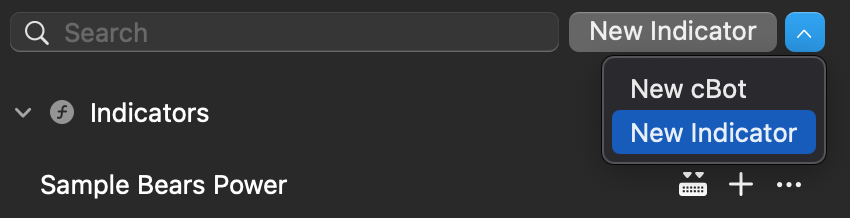
Input the name of your algorithm.
Note
If you want to create an algorithm similar to one of the sample indicators, simply use the '**Duplicate**' functionality in the algorithm actions menu.
2\. Now, you can edit the sample code in the code editor window to the right of the sidebar.
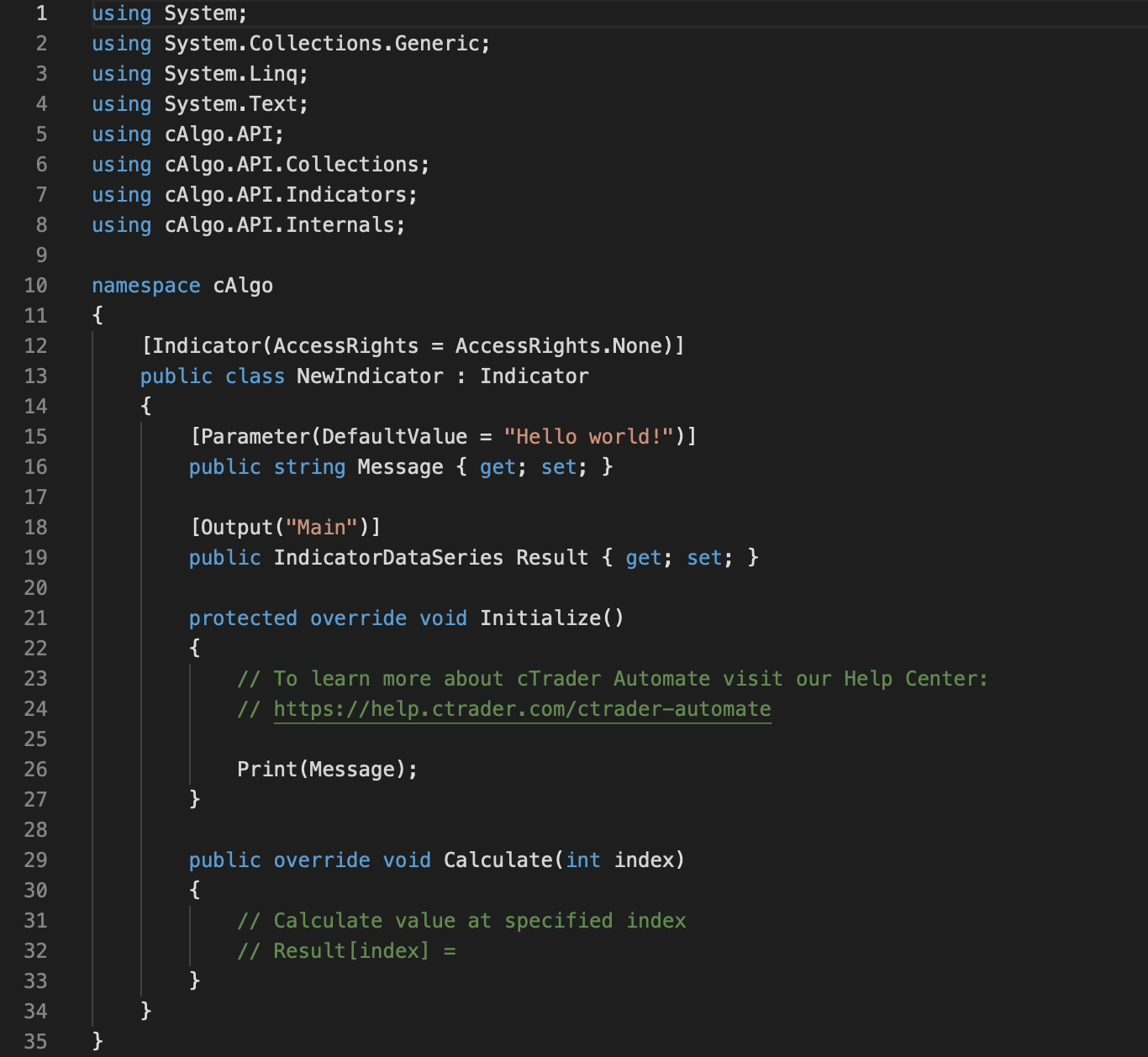
Developing custom indicators, you can use our [**code samples**](https://help.ctrader.com/ctrader-algo/indicator-code-samples/)
.
Refer to the ['**References**'](https://help.ctrader.com/ctrader-algo/references/)
section of the cTrader Algo guide to learn more about the classes, methods, and properties you can use when coding indicators. In addition, you can always choose to write custom methods as shown in our introduction to [**C# and .NET**](https://help.ctrader.com/ctrader-algo/c-net-basics/)
.
3\. Save your indicators by clicking on the '**Save**' button above the code editor window, in the context menu, or use the Cmd+S hotkey.

Click on the '**Build**' button above the code editor window, to the right of your algorithm, or in the algorithm actions menu. Alternatively, you can use the Cmd+B hotkey.
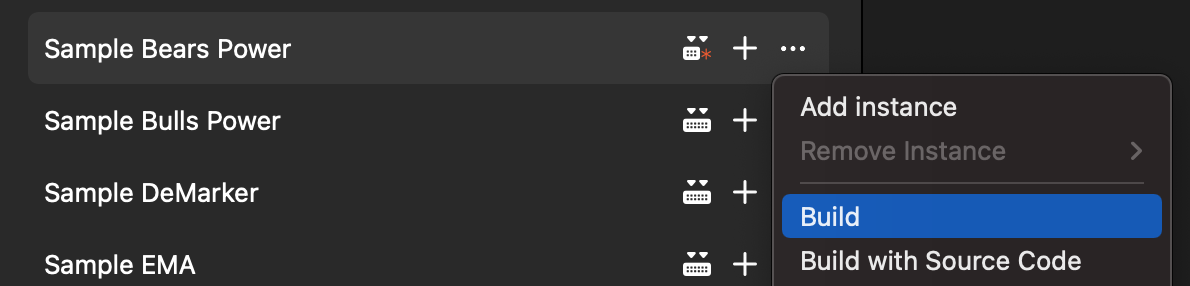
You will see the following message in the '**Build Result**' window after your indicator is built successfully.
4\. To add an instance in the cTrader Algo application, press the '**+**' icon to the right of the indicator in the algorithm list.
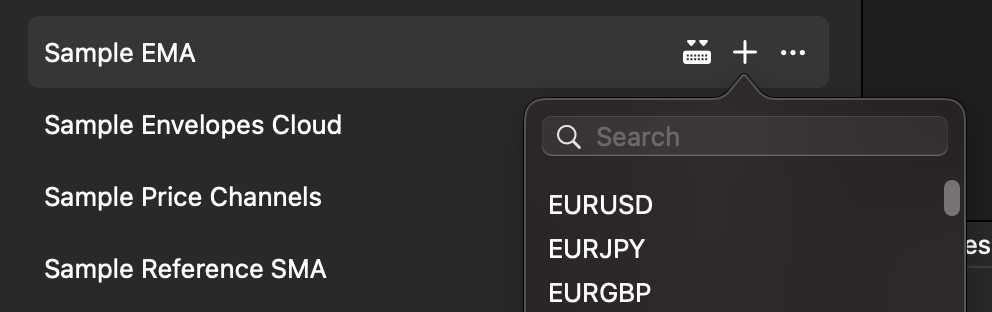
You can also add instances via the menu of indicator actions.
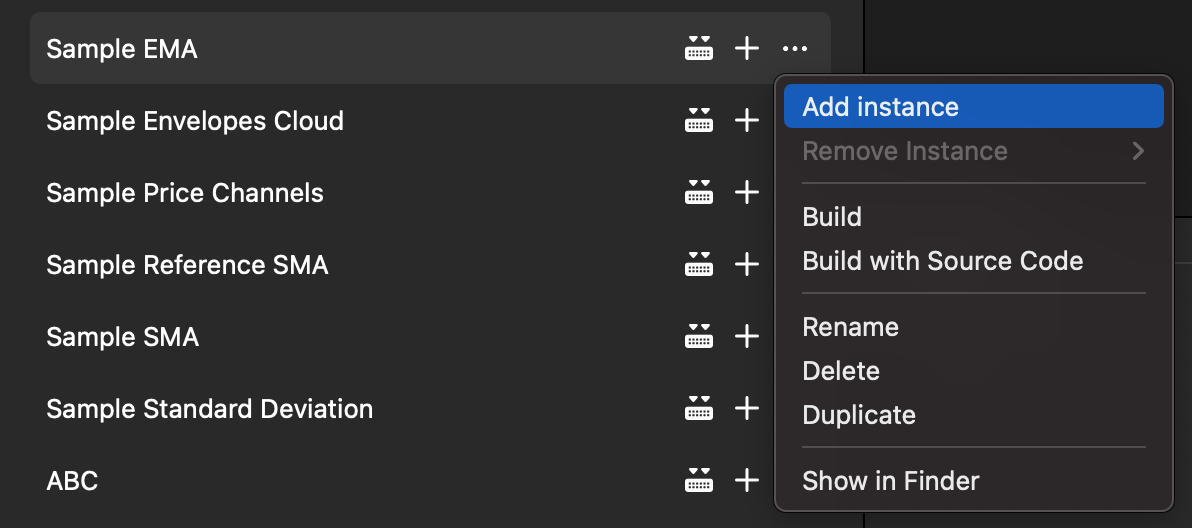
In the '**Trade**' application, you can add indicators on the active chart via the [**Chart Toolbar**](https://help.ctrader.com/ctrader-mac/trade/charts/)
functionality or the [**Chart Context Menu**](https://help.ctrader.com/ctrader-mac/trade/charts/)
.
5\. Adjust your indicator parameters (if needed) in the '**Parameters**' section below the trading chart. You can also open and save parameters by clicking on the corresponding buttons in the top right corner of this section.
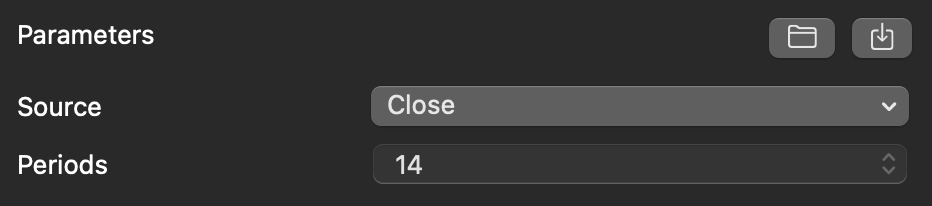
The added indicator will be displayed on the trading chart or in a separate area below it. Additionally, you can open the indicator '**Parameters**' window by right-clicking on any indicator line. In other tabs of the same window, you can customise lines, levels, and additional parameters of this indicators. Click on '**Reset**' if you want to reset the indicator parameters to defaults.
Note
Indicators are displayed on the trading chart or in a separate area below it immediately after adding an instance. Unlike cBots, they do not 'run'. Hence, you can adjust the parameters of an added indicator at any time.
---
# Tạo cTID bởi nhà môi giới - cTrader ID
Tạo cTID bởi nhà môi giới
=========================
Tùy thuộc vào quy trình của nhà môi giới, cTrader ID có thể được tạo bởi quản trị viên của nhà môi giới.
Trong trường hợp này, bạn cần cung cấp địa chỉ email của mình cho nhà môi giới. Sau khi cTID của bạn được tạo, một thông báo xác nhận sẽ được gửi đến cùng địa chỉ email đó. Mở thông báo và nhấp vào nút **Xác nhận email**.

Khi nhà môi giới tạo tài khoản giao dịch cho bạn, cTrader sẽ thông báo cho bạn qua email.

Ghi chú
Các tài khoản giao dịch của bạn với nhà môi giới sẽ tự động được liên kết với cTID của bạn. Sau khi đăng nhập vào cTrader bằng cTID của bạn, bạn sẽ thấy các tài khoản giao dịch của nhà môi giới tương ứng. Nếu bạn đã tạo một cTID khác, hãy liên hệ với nhà môi giới để liên kết hoặc liên kết lại tài khoản giao dịch hiện có của bạn với cTID mới.
Khi nhà môi giới tạo cTID cho bạn, bạn cần [**đặt mật khẩu**](https://help.ctrader.com/ctrader-id/vi/set-ctid-password/)
.
Trở lại mục lục
---
# Creación del cTID por parte de un bróker - cTrader ID
Creación del cTID por parte de un bróker
========================================
Dependiendo del proceso de su bróker, el administrador del bróker podría crear un cTrader ID.
En tal caso, debe proporcionar su dirección de correo electrónico al bróker. Después de crear su cTID, se le enviará un mensaje de confirmación a la misma dirección de correo electrónico. Abra el mensaje y haga clic en **Confirmar correo**.

Una vez que el bróker haya creado su cuenta de operaciones, cTrader se lo notificará por correo electrónico.

Nota
Sus cuentas de operaciones con el bróker se vinculan automáticamente a su cTID. Después de iniciar sesión en cTrader con su cTID, verá las cuentas de operaciones del bróker correspondiente. Si ha creado otro cTID, contacte con su bróker para vincular o revincular las cuentas de operaciones existentes a su nuevo cTID.
Cuando el bróker cree su cTID, deberá [**establecer una contraseña**](https://help.ctrader.com/ctrader-id/es/set-ctid-password/)
.
Volver al principio
---
# Criar um cTID através de um corretor - cTrader ID
Criar um cTID através de um corretor
====================================
Dependendo do processo do seu corretor, um cTrader ID pode ser criado pelo administrador do corretor.
Neste caso, terá de fornecer o seu endereço de e-mail ao corretor. Após a criação do seu cTID, será enviada uma mensagem de confirmação para o mesmo endereço de e-mail. Abra a mensagem e clique no botão **Confirmar e-mail**.

Assim que o corretor criar uma conta de negociação para si, o cTrader irá notificá-lo(a) por e-mail.

Nota
As suas contas de negociação com o corretor são automaticamente associadas ao seu cTID. Após iniciar sessão no cTrader com o seu cTID, verá as contas de negociação do respetivo corretor. Se tiver criado outro cTID, contacte o seu corretor para associar ou reassociar a(s) sua(s) conta(s) de negociação existente(s) ao seu novo cTID.
Se o seu cTID for criado pelo corretor, terá de [**definir uma palavra-passe**](https://help.ctrader.com/ctrader-id/pt/set-ctid-password/)
.
Voltar ao topo
---
# Membuat cTID melalui broker - cTrader ID
Membuat cTID melalui broker
===========================
Tergantung pada proses broker Anda, cTrader ID dapat dibuat oleh administrator broker.
Dalam hal ini, Anda perlu memberikan alamat email Anda kepada broker. Setelah cTID Anda dibuat, pesan konfirmasi akan dikirim ke alamat email yang sama. Buka pesan tersebut dan klik tombol **Konfirmasi email**.

Setelah broker membuat akun trading untuk Anda, cTrader akan memberi tahu Anda melalui email.

Catatan
Akun trading Anda dengan broker tersebut akan ditautkan ke cTID Anda secara otomatis. Setelah masuk ke cTrader dengan cTID Anda, Anda akan melihat akun trading broker yang sesuai. Jika Anda telah membuat cTID lain, hubungi broker Anda untuk menghubungkan atau menautkan ulang akun trading yang sudah ada ke cTID baru Anda.
Ketika cTID Anda dibuat oleh broker, Anda perlu [**mengatur kata sandi**](https://help.ctrader.com/ctrader-id/id/set-ctid-password/)
.
Kembali ke atas
---
# إنشاء cTID عن طريق وسيط - cTrader ID
إنشاء cTID عن طريق وسيط
=======================
اعتمادًا على عملية الوسيط الخاص بك، قد يتم إنشاء cTrader ID بواسطة المسؤول لدى الوسيط.
في هذه الحالة، عليك تقديم عنوان بريدك الإلكتروني إلى الوسيط. بعد إنشاء cTID الخاص بك، سيتم إرسال رسالة تأكيد إلى عنوان البريد الإلكتروني نفسه. افتح الرسالة وانقر فوق الزر **تأكيد البريد الإلكتروني**.

بمجرد أن يقوم الوسيط بإنشاء حساب تداول لك، سيقوم cTrader بإعلامك عبر البريد الإلكتروني.

ملاحظة
حسابات التداول الخاصة بك لدى الوسيط مرتبطة تلقائيًا بحساب cTID الخاص بك. بعد تسجيل الدخول إلى cTrader باستخدام cTID الخاص بك، سترى حسابات التداول الخاصة بالوسيط المعني. إذا كنت قد أنشأت cTID آخر، فاتصل بالوسيط الخاص بك لربط أو إعادة ربط حساب (حسابات) التداول الموجود لديك بحساب cTID الجديد الخاص بك.
عندما يتم إنشاء cTID الخاص بك عن طريق الوسيط، عليك [**تعيين كلمة مرور**](https://help.ctrader.com/ctrader-id/ar/set-ctid-password/)
.
عد إلى الأعلى
---
# Restablecimiento de contraseña - cTrader ID
Restablecimiento de contraseña
==============================
Si ha olvidado la contraseña de su cTID, puede restablecerla. Haga clic en **¿Ha olvidado su contraseña?** en la página de inicio de sesión del [**sitio web de cTID**](https://id.ctrader.com/)
, o siga [**este enlace**](https://id.ctrader.com/reset)
.
Como alternativa, puede usar la función **¿Ha olvidado su contraseña?** en cualquier aplicación de cTrader.
En cualquier caso, se le redirigirá a la pantalla para restablecer su contraseña. Introduzca la dirección de email que utilizó para crear su cTID, marque la casilla de reCAPTCHA y luego haga clic en **Restablecer contraseña**.
Se enviará una solicitud para restablecer la contraseña de su cTID a su correo electrónico. Haga clic en el botón **Restablecer contraseña** que contiene.
Consejo
Si no localiza el correo electrónico para restablecer la contraseña en su bandeja de entrada, revise su carpeta de spam.
Se le redirigirá para que pueda definir una nueva contraseña. Introduzca una nueva contraseña, repítala y haga clic en **Restablecer contraseña**.
cTrader le enviará un correo electrónico para confirmar que su contraseña se ha modificado correctamente.
Advertencia
Si intenta restablecer la contraseña de su cTID durante el fin de semana, la operación puede retrasarse debido a operaciones de mantenimiento programadas.
Volver al principio
---
# Pemberitahuan - cTrader ID
[Langkau tajuk talian](https://help.ctrader.com/ctrader-id/ms/managing-ctid/notifications/#akaun-ctrader-id)
Pemberitahuan
=============
cTrader menggunakan mesej e-mel dan pemberitahuan tolak untuk memaklumkan pedagang tentang peristiwa tertentu dan aktiviti berkaitan akaun.
Untuk memilih peristiwa yang anda ingin terima pemberitahuan, navigasi ke tab [**Pemberitahuan**](https://id.ctrader.com/my/settings/notifications)
di laman web cTID.
E-melTolak
Dalam tab **E-mel**, anda boleh mengkonfigurasi pemberitahuan yang dihantar sebagai mesej e-mel di bawah kategori berikut:
* Akaun cTrader ID
* Akaun dagangan
* cTrader Copy: penyedia strategi
* cTrader Copy: pelabur
Dalam tab **Tolak**, anda boleh mengkonfigurasi pemberitahuan yang dihantar sebagai mesej tolak di bawah kategori berikut:
* Akaun dagangan
* cTrader Copy: penyedia strategi
Nota
Tetapan di bawah kategori **Akaun dagangan** dan **cTrader Copy: penyedia strategi** boleh digunakan secara terperinci untuk akaun demo tertentu, akaun langsung atau gabungan akaun yang berbeza.

Memandangkan beberapa kategori dan tetapan pemberitahuan bertindih antara tab **E-mel** dan **Tolak**, kami menyusun senarai berikut dengan cara berstruktur.
Akaun cTrader ID [¶](https://help.ctrader.com/ctrader-id/ms/managing-ctid/notifications/#akaun-ctrader-id "Permanent link")
----------------------------------------------------------------------------------------------------------------------------
* **Log masuk berjaya dengan kelayakan cTrader ID** - dayakan pilihan ini untuk menerima pemberitahuan e-mel setiap kali kelayakan cTrader ID anda digunakan untuk log masuk ke mana-mana aplikasi cTrader.
Akaun dagangan [¶](https://help.ctrader.com/ctrader-id/ms/managing-ctid/notifications/#akaun-dagangan "Permanent link")
------------------------------------------------------------------------------------------------------------------------
* **Dana yang didepositkan atau dikeluarkan (akaun dagangan)** - dayakan pilihan ini untuk menerima pemberitahuan e-mel atau tolak apabila terdapat deposit atau pengeluaran.
* **Dana tidak mencukupi untuk pesanan tertangguh** - dayakan pilihan ini untuk menerima pemberitahuan e-mel atau tolak apabila akaun anda kekurangan dana yang diperlukan untuk mengisi sesuatu pesanan.
* **Ambang panggilan margin 1 dicapai** - dayakan pilihan ini untuk menerima pemberitahuan e-mel atau tolak apabila ambang margin 1 dicapai.
* **Ambang panggilan margin 2 dicapai** - dayakan pilihan ini untuk menerima pemberitahuan e-mel atau tolak apabila ambang margin 2 dicapai.
* **Ambang panggilan margin 3 dicapai** - dayakan pilihan ini untuk menerima pemberitahuan e-mel atau tolak apabila ambang margin 3 dicapai.
* **Pesanan diisi: henti rugi** - dayakan pilihan ini untuk menerima pemberitahuan e-mel atau tolak apabila pesanan henti rugi diisi.
* **Pesanan diisi: ambilan untung** - dayakan pilihan ini untuk menerima pemberitahuan e-mel atau tolak apabila pesanan ambilan untung diisi.
* **Pesanan tertangguh diisi** - dayakan pilihan ini untuk menerima pemberitahuan e-mel atau tolak apabila pesanan tertangguh diisi.
* **Pemakluman harga** - dayakan pilihan ini untuk menerima pemberitahuan e-mel atau tolak untuk pemakluman harga.
* **Pautan rujukan** - dayakan pilihan ini untuk menerima pemberitahuan e-mel atau tolak apabila rujukan dipautkan ke akaun anda.
* **Stop out** - dayakan pilihan ini untuk menerima pemberitahuan e-mel atau tolak apabila tahap stop out diisi.
cTrader Copy: penyedia strategi [¶](https://help.ctrader.com/ctrader-id/ms/managing-ctid/notifications/#ctrader-copy-penyedia-strategi "Permanent link")
---------------------------------------------------------------------------------------------------------------------------------------------------------
* **Komisen copy-trading diterima** - dayakan pilihan ini untuk menerima pemberitahuan e-mel apabila komisen dibayar ke akaun anda.
* **Penyalinan bermula** - dayakan pilihan ini untuk menerima pemberitahuan e-mel apabila akaun anda mendayakan atau mula membenarkan penyalinan.
* **Penyalinan berhenti** - dayakan pilihan ini untuk menerima pemberitahuan e-mel apabila akaun anda menyahdayakan atau berhenti membenarkan penyalinan.
* **Strategi dipadamkan kerana tidak aktif** - dayakan pilihan ini untuk menerima pemberitahuan e-mel atau tolak apabila strategi salinan anda dipadamkan kerana tidak aktif.
* **Pemadaman strategi akan dilakukan kerana tidak aktif** - dayakan pilihan ini untuk menerima pemberitahuan e-mel atau tolak apabila strategi salinan anda akan dipadamkan kerana tidak aktif.
cTrader Copy: pelabur [¶](https://help.ctrader.com/ctrader-id/ms/managing-ctid/notifications/#ctrader-copy-pelabur "Permanent link")
-------------------------------------------------------------------------------------------------------------------------------------
* **Komisen copy-trading terealisasi** - dayakan pilihan ini untuk menerima pemberitahuan e-mel apabila komisen direalisasikan.
* **Henti rugi ekuiti telah dicetuskan** - dayakan pilihan ini untuk menerima pemberitahuan e-mel apabila henti rugi ekuiti untuk strategi dicetuskan.
* **Dana didepositkan atau dialih keluar (strategi)** - dayakan pilihan ini untuk menerima pemberitahuan e-mel apabila dana didepositkan atau dialih keluar daripada akaun copy-trading anda.
* **Stop out** - dayakan pilihan ini untuk menerima pemberitahuan e-mel apabila tahap stop out untuk akaun copy-trading anda dicapai.
* **Strategi dipadamkan oleh penyedia** - dayakan pilihan ini untuk menerima pemberitahuan e-mel apabila strategi yang anda salin dipadamkan oleh penyedia strategi tersebut.
* **Strategi disambung semula oleh penyedia** - dayakan pilihan ini untuk menerima pemberitahuan e-mel apabila strategi yang anda salin disambung semula oleh penyedia strategi tersebut selepas dijeda.
* **Strategi dihentikan oleh penyedia** - dayakan pilihan ini untuk menerima pemberitahuan e-mel apabila strategi yang anda salin dihentikan oleh penyedia strategi tersebut.
Berita dan kemas kini cTrader [¶](https://help.ctrader.com/ctrader-id/ms/managing-ctid/notifications/#berita-dan-kemas-kini-ctrader "Permanent link")
------------------------------------------------------------------------------------------------------------------------------------------------------
* **Langgan berita dan kemas kini cTrader** - dayakan pilihan ini untuk menerima pemberitahuan e-mel atau tolak untuk berita dan kemas kini cTrader.
Kembali ke atas
---
# Idioma - cTrader ID
Idioma
======
Configure su idioma preferido para el sitio web de cTID, las aplicaciones de cTrader y las notificaciones mediante el menú desplegable situado en la parte superior del [**sitio web de cTID**](https://id.ctrader.com/)
.
Abra el menú desplegable desplazable y seleccione un nuevo idioma.

cTrader activará el idioma seleccionado automáticamente en todas las aplicaciones donde utilice su cTrader ID. También comenzará a enviarle las notificaciones en ese idioma.
Actualmente, cTrader admite los siguientes idiomas:
* Árabe
* Checo
* Alemán
* Griego
* Inglés
* Español
* Francés
* Húngaro
* Indonesio
* Italiano
* Japonés
* Coreano
* Malayo
* Polaco
* Portugués
* Ruso
* Eslovaco
* Esloveno
* Serbio
* Tailandés
* Turco
* Vietnamita
* Chino simplificado
Volver al principio
---
# การแจ้งเตือน - cTrader ID
[ข้ามไปที่เนื้อหา](https://help.ctrader.com/ctrader-id/th/managing-ctid/notifications/#ctrader-id)
การแจ้งเตือน
============
cTrader ใช้ข้อความอีเมลและการแจ้งเตือนแบบพุชเพื่อแจ้งให้นักเทรดทราบเกี่ยวกับเหตุการณ์เฉพาะและกิจกรรมที่เกี่ยวข้องกับบัญชี
หากต้องการเลือกเหตุการณ์ที่คุณต้องการรับการแจ้งเตือน ให้ไปที่แท็บ [**การแจ้งเตือน**](https://id.ctrader.com/my/settings/notifications)
บนเว็บไซต์ cTID
อีเมลพุช
ในแท็บ **อีเมล** คุณสามารถกำหนดค่าการแจ้งเตือนที่ส่งเป็นข้อความอีเมลภายใต้หมวดหมู่ต่อไปนี้:
* บัญชี cTrader ID
* บัญชีเทรด
* cTrader Copy: ผู้ให้บริการกลยุทธ์
* cTrader Copy: นักลงทุน
ในแท็บ **พุช** คุณสามารถกำหนดค่าการแจ้งเตือนที่ส่งเป็นข้อความพุชภายใต้หมวดหมู่ต่อไปนี้:
* บัญชีเทรด
* cTrader Copy: ผู้ให้บริการกลยุทธ์
หมายเหตุ
การตั้งค่าภายใต้หมวดหมู่ **บัญชีเทรด** และ **cTrader Copy: ผู้ให้บริการกลยุทธ์** สามารถนำไปใช้อย่างละเอียดกับบัญชีทดลอง บัญชีจริง หรือการรวมกันของบัญชีต่าง ๆ ได้

เนื่องจากบางหมวดหมู่และการตั้งค่าการแจ้งเตือนทับซ้อนกันระหว่างแท็บ **อีเมล** และ **พุช** เราจึงกำหนดไว้ด้านล่างในรูปแบบที่มีโครงสร้าง
บัญชี cTrader ID [¶](https://help.ctrader.com/ctrader-id/th/managing-ctid/notifications/#ctrader-id "Permanent link")
----------------------------------------------------------------------------------------------------------------------
* **การเข้าสู่ระบบด้วยข้อมูลประจำตัว cTrader ID ประสบความสำเร็จ** - เปิดใช้งานเพื่อรับการแจ้งเตือนทางอีเมลทุกครั้งที่ใช้ข้อมูลประจำตัว cTrader ID ของคุณเพื่อเข้าสู่ระบบแอป cTrader ใด ๆ
บัญชีเทรด [¶](https://help.ctrader.com/ctrader-id/th/managing-ctid/notifications/#_1 "Permanent link")
-------------------------------------------------------------------------------------------------------
* **เงินทุนถูกฝากหรือถูกถอน (บัญชีเทรด)** - เปิดใช้งานเพื่อรับการแจ้งเตือนทางอีเมลหรือพุชเกี่ยวกับการฝากหรือถอนเงิน
* **เงินทุนไม่เพียงพอสำหรับคำสั่งที่รอดำเนินการ** - เปิดใช้งานเพื่อรับการแจ้งเตือนทางอีเมลหรือพุชเมื่อบัญชีของคุณขาดเงินทุนที่จำเป็นในการจับคู่คำสั่ง
* **ถึงเกณฑ์มาร์จิ้นคอล 1** - เปิดใช้งานเพื่อรับการแจ้งเตือนทางอีเมลหรือพุชเมื่อถึงเกณฑ์มาร์จิ้นคอล 1
* **ถึงเกณฑ์มาร์จิ้นคอล 2** - เปิดใช้งานเพื่อรับการแจ้งเตือนทางอีเมลหรือพุชเมื่อถึงเกณฑ์มาร์จิ้นคอล 2
* **ถึงเกณฑ์มาร์จิ้นคอล 3** - เปิดใช้งานเพื่อรับการแจ้งเตือนทางอีเมลหรือพุชเมื่อถึงเกณฑ์มาร์จิ้นคอล 3
* **คำสั่งจับคู่แล้ว: Stop Loss** - เปิดใช้งานเพื่อรับการแจ้งเตือนทางอีเมลหรือพุชเมื่อคำสั่ง Stop Loss ถูกจับคู่
* **คำสั่งจับคู่แล้ว: Take Profit** - เปิดใช้งานเพื่อรับการแจ้งเตือนทางอีเมลหรือพุชเมื่อคำสั่ง Take Profit ถูกจับคู่
* **คำสั่งที่รอดำเนินการถูกจับคู่** - เปิดใช้งานเพื่อรับการแจ้งเตือนทางอีเมลหรือพุชเมื่อคำสั่งที่รอดำเนินการถูกจับคู่
* **แจ้งเตือนราคา** - เปิดใช้งานเพื่อรับการแจ้งเตือนทางอีเมลหรือพุชสำหรับการแจ้งเตือนราคา
* **ลิงก์แนะนำ** - เปิดใช้งานเพื่อรับการแจ้งเตือนทางอีเมลหรือพุชเมื่อมีลิงก์แนะนำเชื่อมโยงกับบัญชีของคุณ
* **Stop Out** - เปิดใช้งานเพื่อรับการแจ้งเตือนทางอีเมลหรือพุชเมื่อถึงระดับ Stop Out
cTrader Copy: ผู้ให้บริการกลยุทธ์ [¶](https://help.ctrader.com/ctrader-id/th/managing-ctid/notifications/#ctrader-copy "Permanent link")
-----------------------------------------------------------------------------------------------------------------------------------------
* **รับค่าคอมมิชชันการก๊อปปี้เทรดแล้ว** - เปิดใช้งานเพื่อรับการแจ้งเตือนทางอีเมลเมื่อมีการจ่ายค่าคอมมิชชันเข้าบัญชีของคุณ
* **เริ่มต้นการก๊อปปี้** - เปิดใช้งานเพื่อรับการแจ้งเตือนทางอีเมลเมื่อบัญชีของคุณเปิดใช้งานหรือเริ่มต้นการก๊อปปี้
* **หยุดการก๊อปปี้** - เปิดใช้งานเพื่อรับการแจ้งเตือนทางอีเมลเมื่อบัญชีของคุณปิดใช้งานหรือหยุดการก๊อปปี้
* **กลยุทธ์ถูกลบแล้วเนื่องจากไม่มีการใช้งาน** - เปิดใช้งานเพื่อรับการแจ้งเตือนทางอีเมลหรือพุชเมื่อกลยุทธ์การก๊อปปี้ของคุณถูกลบเนื่องจากไม่มีการใช้งาน
* **กำลังจะมีการลบกลยุทธ์เนื่องจากไม่มีการใช้งาน** - เปิดใช้งานเพื่อรับการแจ้งเตือนทางอีเมลหรือพุชเมื่อกลยุทธ์การก๊อปปี้ของคุณกำลังจะถูกลบเนื่องจากไม่มีการใช้งาน
cTrader Copy: นักลงทุน [¶](https://help.ctrader.com/ctrader-id/th/managing-ctid/notifications/#ctrader-copy_1 "Permanent link")
--------------------------------------------------------------------------------------------------------------------------------
* **รับรู้ค่าคอมมิชชันการก๊อปปี้เทรดแล้ว** - เปิดใช้งานเพื่อรับการแจ้งเตือนทางอีเมลเมื่อมีการรับรู้ค่าคอมมิชชัน
* **Stop Loss อิควิตี้ ถูกทริกเกอร์** - เปิดใช้งานเพื่อรับการแจ้งเตือนทางอีเมลเมื่อ Stop Loss อิควิตี้สำหรับกลยุทธ์ถูกทริกเกอร์
* **เงินทุนถูกฝากหรือถูกนำออก (กลยุทธ์)** - เปิดใช้งานเพื่อรับการแจ้งเตือนทางอีเมลเมื่อมีการฝากหรือนำเงินออกจากบัญชีก๊อปปี้เทรดของคุณ
* **Stop Out** - เปิดใช้งานเพื่อรับการแจ้งเตือนทางอีเมลเมื่อถึงระดับ Stop Out สำหรับบัญชีก๊อปปี้เทรดของคุณ
* **กลยุทธ์ถูกลบโดยผู้ให้บริการ** - เปิดใช้งานเพื่อรับการแจ้งเตือนทางอีเมลเมื่อกลยุทธ์ที่คุณกำลังก๊อปปี้ถูกลบโดยผู้ให้บริการ
* **กลยุทธ์ถูกดำเนินการต่อโดยผู้ให้บริการ** - เปิดใช้งานเพื่อรับการแจ้งเตือนทางอีเมลเมื่อกลยุทธ์ที่คุณกำลังก๊อปปี้ถูกดำเนินการต่อโดยผู้ให้บริการหลังจากหยุดชั่วคราว
* **กลยุทธ์ถูกหยุดโดยผู้ให้บริการ** - เปิดใช้งานเพื่อรับการแจ้งเตือนทางอีเมลเมื่อกลยุทธ์ที่คุณกำลังก๊อปปี้ถูกหยุดโดยผู้ให้บริการ
ข่าวสารและอัปเดต cTrader [¶](https://help.ctrader.com/ctrader-id/th/managing-ctid/notifications/#ctrader "Permanent link")
---------------------------------------------------------------------------------------------------------------------------
* **สมัครรับข่าวสารและอัปเดต cTrader** - เปิดใช้งานเพื่อรับการแจ้งเตือนทางอีเมลหรือพุชสำหรับข่าวสารและอัปเดต cTrader
กลับไปด้านบนสุด
---
# Sesi - cTrader ID
Sesi
====
Untuk melihat semua akaun aktif anda, navigasi ke tab [**Sesi**](https://id.ctrader.com/my/settings/sessions)
di laman web cTID.
Bahagian ini menyenaraikan semua sesi aktif anda merentasi aplikasi cTrader dan broker.

Untuk menamatkan sesi, klik butang **Hentikan** untuk sesi tertentu. cTID anda kemudiannya akan dilog keluar daripada aplikasi cTrader yang sepadan.
Untuk menamatkan semua sesi, klik butang **Hentikan semua**. cTID anda akan dilog keluar dari semua tempat yang sedang menggunakan cTID tersebut.
Kembali ke atas
---
# เซสชัน - cTrader ID
เซสชัน
======
หากต้องการดูบัญชีที่ใช้งานอยู่ทั้งหมดของคุณ ให้ไปที่แท็บ [**เซสชัน**](https://id.ctrader.com/my/settings/sessions)
ของเว็บไซต์ cTID
ส่วนนี้จะแสดงรายการเซสชันที่ใช้งานอยู่ทั้งหมดของคุณในแอปพลิเคชัน cTrader และโบรกเกอร์ต่างๆ

หากต้องการยุติเซสชัน ให้คลิกปุ่ม **ยุติ** สำหรับเซสชันที่ต้องการ cTID ของคุณจะถูกออกจากระบบจากแอปพลิเคชัน cTrader ที่เกี่ยวข้อง
หากต้องการยุติเซสชันทั้งหมด ให้คลิกปุ่ม **ยุติทั้งหมด** cTID ของคุณจะถูกออกจากระบบทุกที่ที่ใช้งานอยู่
กลับไปด้านบนสุด
---
# How to create custom window plugins - cTrader Algo
[Skip to content](https://help.ctrader.com/ctrader-algo/articles/for-developers/how-to-create-custom-window-plugins/#how-to-create-custom-window-plugins)
How to create custom window plugins[¶](https://help.ctrader.com/ctrader-algo/articles/for-developers/how-to-create-custom-window-plugins/#how-to-create-custom-window-plugins "Permanent link")
================================================================================================================================================================================================
Plugins allow you to create custom windows containing websites, tools or buttons that execute specific operations when clicked. In this article and its corresponding video, we will show you how to create custom windows containing action buttons using a plugin.
Create a plugin[¶](https://help.ctrader.com/ctrader-algo/articles/for-developers/how-to-create-custom-window-plugins/#create-a-plugin "Permanent link")
--------------------------------------------------------------------------------------------------------------------------------------------------------
We will create a custom window with a button that, when clicked, sets a [**take profit**](https://help.ctrader.com/ctrader/trading/orders/#stop-loss-and-take-profit)
for all open positions. We will start with the window and button elements.
Select the **Algo** app and go to the **Plugins** tab. Click the **New** button. Ensure the **Blank** template is selected. Enter a name for your plugin, such as "Custom Window Plugin", then click **Create**.

Declare the button and the window.
| | |
| --- | --- |
| 1 2 | `private Button _buttonAddTakeProfit; private Window _window;` |
Initialise the button.
| | |
| --- | --- |
| 1 2 3 4 5 6 | `_buttonAddTakeProfit = new Button { BackgroundColor = Color.SeaGreen, Height = 50, Text = "Add Take Profit" };` |
Initialise the window and add the button as a child to it.
| | |
| --- | --- |
| 1 2 3 4 5 6 7 8 9 | `_window = new Window { Height = 150, Width = 150, Padding = new Thickness(5, 10, 10, 5) }; _window.Child = _buttonAddTakeProfit; _window.Show();` |
You can copy the full code below:
| | |
| --- | --- |
| 1 2 3 4 5 6 7 8 9 10 11 12 13 14 15 16 17 18 19 20 21 22 23 24 25 26 27 28 29 30 31 32 33 34 35 36 37 38 39 40 41 42 43 44 | `using System; using cAlgo.API; using cAlgo.API.Collections; using cAlgo.API.Indicators; using cAlgo.API.Internals; namespace cAlgo.Plugins { [Plugin(AccessRights = AccessRights.None)] public class CustomWindowPlugin : Plugin { private Button _buttonAddTakeProfit; private Window _window; protected override void OnStart() { _buttonAddTakeProfit = new Button { BackgroundColor = Color.SeaGreen, Height = 50, Text = "Add Take Profit" }; _window = new Window { Height = 150, Width = 150, Padding = new Thickness(5, 10, 10, 5) }; _window.Child = _buttonAddTakeProfit; _window.Show(); } protected override void OnStop() { // Handle Plugin stop here } } }` |
Click the **Build** button or use the Ctrl+B hotkeys to build the plugin. A custom window with the **Add Take Profit** button should appear.

You can move, hide, resize or close the window.
Refine the plugin[¶](https://help.ctrader.com/ctrader-algo/articles/for-developers/how-to-create-custom-window-plugins/#refine-the-plugin "Permanent link")
------------------------------------------------------------------------------------------------------------------------------------------------------------
We will refine the plugin by returning to our source code and adding an event that handles the button-click event.
| | |
| --- | --- |
| 1 | `_buttonAddTakeProfit.Click += _buttonAddTakeProfit_Click;` |
Add the logic for setting a take-profit option to any position that lacks it.
| | |
| --- | --- |
| 1 2 3 4 5 6 7 8 9 10 | `private void _buttonAddTakeProfit_Click(ButtonClickEventArgs args) { foreach (var position in Positions) { if (position.TakeProfit is null) { position.ModifyTakeProfitPips(20); } } }` |
You can copy the full code below:
| | |
| --- | --- |
| 1 2 3 4 5 6 7 8 9 10 11 12 13 14 15 16 17 18 19 20 21 22 23 24 25 26 27 28 29 30 31 32 33 34 35 36 37 38 39 40 41 42 43 44 45 46 47 48 49 50 51 52 53 54 | `using System; using cAlgo.API; using cAlgo.API.Collections; using cAlgo.API.Indicators; using cAlgo.API.Internals; namespace cAlgo.Plugins { [Plugin(AccessRights = AccessRights.None)] public class CustomWindowPlugin : Plugin { private Button _buttonAddTakeProfit; private Window _window; protected override void OnStart() { _buttonAddTakeProfit = new Button { BackgroundColor = Color.SeaGreen, Height = 50, Text = "Add Take Profit" }; _buttonAddTakeProfit.Click += _buttonAddTakeProfit_Click; _window = new Window { Height = 150, Width = 150, Padding = new Thickness(5, 10, 10, 5) }; _window.Child = _buttonAddTakeProfit; _window.Show(); } private void _buttonAddTakeProfit_Click(ButtonClickEventArgs args) { foreach (var position in Positions) { if (position.TakeProfit is null) { position.ModifyTakeProfitPips(20); } } } protected override void OnStop() { // Handle Plugin stop here } } }` |
Build the plugin. Go to the **Trade** app, open some positions if you have none open and use the **Add Take Profit** button to confirm that the button works.
Summary[¶](https://help.ctrader.com/ctrader-algo/articles/for-developers/how-to-create-custom-window-plugins/#summary "Permanent link")
----------------------------------------------------------------------------------------------------------------------------------------
We believe this article has taught you how to create custom windows containing buttons for operations and other useful elements.
[Subscribe to our YouTube channel](https://www.youtube.com/channel/UCgoyyb_r8sgNrf1nqyMyo5A?sub_confirmation=1)
Back to top
---
# Câu hỏi thường gặp - cTrader ID
[Bỏ qua](https://help.ctrader.com/ctrader-id/vi/faq/#su-khac-biet-giua-ctid-va-tai-khoan-giao-dich-la-gi)
Câu hỏi thường gặp
==================
### Sự khác biệt giữa cTID và tài khoản giao dịch là gì? [¶](https://help.ctrader.com/ctrader-id/vi/faq/#su-khac-biet-giua-ctid-va-tai-khoan-giao-dich-la-gi "Permanent link")
cTID là một bộ thông tin đăng nhập (email/tên người dùng và mật khẩu) được sử dụng để đăng nhập vào tất cả các ứng dụng khách của các nhà môi giới cTrader. Tài khoản giao dịch là một số duy nhất gồm bảy chữ số, chỉ dành riêng cho nhà môi giới mà nó được tạo ra. Tìm hiểu thêm về [**điểm khác biệt khác**](https://help.ctrader.com/ctrader-id/vi/)
.
### Tôi có thể thay đổi tên người dùng cTID không? [¶](https://help.ctrader.com/ctrader-id/vi/faq/#toi-co-the-thay-oi-ten-nguoi-dung-ctid-khong "Permanent link")
Tên người dùng được tự động tạo dựa trên địa chỉ email của bạn khi bạn tạo cTID. Tuy nhiên, bạn có thể thay đổi nó bất kỳ lúc nào, giống như bạn có thể thay đổi email và mật khẩu liên kết với cTID của mình. Tìm hiểu cách thay đổi [**thông tin đăng nhập cTID**](https://help.ctrader.com/ctrader-id/vi/managing-ctid/credentials/)
.
### Tôi có thể đăng ký cTrader bằng tài khoản mạng xã hội không? [¶](https://help.ctrader.com/ctrader-id/vi/faq/#toi-co-the-ang-ky-ctrader-bang-tai-khoan-mang-xa-hoi-khong "Permanent link")
Có, bạn có thể đăng ký bằng tài khoản Google hoặc Apple của mình. Khi đăng ký bằng tài khoản Apple, hãy chọn chia sẻ email được liên kết với Apple ID của bạn; nếu không, bạn có thể gặp sự cố trong việc nhận diện nhà môi giới và truy cập tài khoản thực. Tìm hiểu thêm về [**đăng ký bằng tài khoản mạng xã hội**](https://help.ctrader.com/ctrader-id/vi/sign-in-with-the-social-accounts/)
.
### Tôi có thể truy cập các ứng dụng cTrader của các nhà môi giới khác nhau bằng cùng một cTID không? [¶](https://help.ctrader.com/ctrader-id/vi/faq/#toi-co-the-truy-cap-cac-ung-dung-ctrader-cua-cac-nha-moi-gioi-khac-nhau-bang-cung-mot-ctid-khong "Permanent link")
Nếu bạn đã tạo tài khoản giao dịch với nhiều nhà môi giới cTrader và sử dụng cùng một email (và do đó, cùng một cTID), thông tin đăng nhập cTID của bạn có thể được sử dụng với tất cả các nhà môi giới này. Lưu ý rằng trong mỗi ứng dụng cTrader mang thương hiệu riêng, bạn sẽ chỉ thấy các tài khoản được đăng ký dưới nhà môi giới tương ứng. [**Ứng dụng cTrader đa nhà môi giới**](https://ctrader.com/download/)
cho phép các nhà giao dịch truy cập tất cả các tài khoản giao dịch mà họ có với tất cả các nhà môi giới cTrader.
### Tôi đã tạo cTID, nhưng tôi chưa nhận được email xác nhận. Tại sao? [¶](https://help.ctrader.com/ctrader-id/vi/faq/#toi-a-tao-ctid-nhung-toi-chua-nhan-uoc-email-xac-nhan-tai-sao "Permanent link")
Email xác nhận cTID có thể không đến hộp thư của bạn vì các lý do sau:
* Email đã bị chuyển vào thư rác mà bạn không biết. Hãy vào thư mục thư rác và tìm email. Đánh dấu email là không phải thư rác và thêm **[noreply@ctrader.com](mailto:noreply@ctrader.com)
** vào danh sách liên hệ an toàn của bạn để ngăn các email từ địa chỉ này bị đánh dấu là thư rác trong tương lai.
* Các sự cố mạng tạm thời có thể đã làm chậm việc gửi email. Nếu sau một thời gian bạn vẫn chưa nhận được email, hãy truy cập [**trang web cTID**](https://id.ctrader.com/my/settings/overview)
, đăng nhập và nhấp vào nút **Gửi lại email xác nhận**.
* Nếu các gợi ý trên không giải quyết được vấn đề, vui lòng liên hệ với chúng tôi tại **[support@ctrader.com](mailto:support@ctrader.com)
**, và đội ngũ của chúng tôi sẽ sẵn lòng điều tra thêm.
### Tôi đã tạo tài khoản trong khu vực khách hàng của nhà môi giới, nhưng tôi chưa nhận được email chào mừng cTrader ID. Tại sao? [¶](https://help.ctrader.com/ctrader-id/vi/faq/#toi-a-tao-tai-khoan-trong-khu-vuc-khach-hang-cua-nha-moi-gioi-nhung-toi-chua-nhan-uoc-email-chao-mung-ctrader-id-tai-sao "Permanent link")
Email xác nhận cTID có thể không đến hộp thư của bạn vì các lý do sau:
* Email đã bị chuyển vào thư rác mà bạn không biết. Hãy vào thư mục thư rác và tìm email. Đánh dấu email là không phải thư rác và thêm **[noreply@ctrader.com](mailto:noreply@ctrader.com)
** vào danh sách liên hệ an toàn của bạn để ngăn các email từ địa chỉ này bị đánh dấu là thư rác trong tương lai.
* Các sự cố mạng tạm thời có thể đã làm chậm việc gửi email. Nếu sau một thời gian bạn vẫn chưa nhận được email, hãy truy cập [**trang web cTID**](https://id.ctrader.com/my/settings/overview)
, đăng nhập và nhấp vào nút **Gửi lại email xác nhận**.
* Nếu các gợi ý trên không giải quyết được vấn đề, vui lòng liên hệ với chúng tôi tại **[support@ctrader.com](mailto:support@ctrader.com)
**, và đội ngũ của chúng tôi sẽ sẵn lòng điều tra thêm.
### Tôi đã tạo tài khoản trong khu vực khách hàng của nhà môi giới, nhưng tôi không thể thấy nó trong cTrader. Tại sao? [¶](https://help.ctrader.com/ctrader-id/vi/faq/#toi-a-tao-tai-khoan-trong-khu-vuc-khach-hang-cua-nha-moi-gioi-nhung-toi-khong-the-thay-no-trong-ctrader-tai-sao "Permanent link")
Sau khi bạn tạo tài khoản trong khu vực khách hàng của nhà môi giới, bạn có thể không thấy tài khoản trong cTrader vì các lý do sau:
* Bạn đang sử dụng sai ứng dụng cTrader. Kiểm tra và xác nhận rằng bạn đang sử dụng [**ứng dụng cTrader đa nhà môi giới**](https://ctrader.com/download/)
hoặc ứng dụng cTrader mang thương hiệu của nhà môi giới của bạn. Bạn không thể truy cập tài khoản giao dịch của mình với Nhà môi giới 1 từ ứng dụng cTrader mang thương hiệu của Nhà môi giới 2.
* Bạn đã tạo tài khoản cho một nền tảng khác ngoài cTrader. Chỉ các tài khoản cTrader mới có thể được sử dụng trong các ứng dụng cTrader.
* Địa chỉ email bạn sử dụng để đăng nhập vào khu vực khách hàng của nhà môi giới khác với địa chỉ email bạn sử dụng để đăng nhập vào cTrader. Khi một tài khoản giao dịch được tạo trong khu vực khách hàng của nhà môi giới, nhà môi giới sẽ liên kết tài khoản này với một cTID cụ thể. Nếu bạn đăng nhập vào cTrader bằng một email mới, tài khoản giao dịch liên kết với email trước đó sẽ không được hiển thị.
### Tôi đã tạo tài khoản trong cTrader, nhưng tôi không thể thấy tài khoản trong khu vực khách hàng của nhà môi giới. Tại sao? [¶](https://help.ctrader.com/ctrader-id/vi/faq/#toi-a-tao-tai-khoan-trong-ctrader-nhung-toi-khong-the-thay-tai-khoan-trong-khu-vuc-khach-hang-cua-nha-moi-gioi-tai-sao "Permanent link")
Sau khi bạn tạo tài khoản trong cTrader, bạn có thể không thấy tài khoản trong khu vực khách hàng của nhà môi giới vì các lý do sau:
* Địa chỉ email bạn sử dụng để đăng nhập vào khu vực khách hàng của nhà môi giới khác với địa chỉ email được sử dụng để tạo tài khoản của bạn trong cTrader. Khu vực khách hàng của nhà môi giới của bạn hiển thị thông tin của một cTID khác.
* Đã xảy ra sự cố và khu vực khách hàng của nhà môi giới không được thông báo về việc tạo tài khoản của bạn.
Trong cả hai trường hợp, bạn cần liên hệ với nhà môi giới của mình để liên kết tài khoản mới với định danh khu vực khách hàng của bạn.
### Tôi có tài khoản giao dịch với một số nhà môi giới, nhưng không thể xem tất cả chúng trên trang web cTID. Tại sao? [¶](https://help.ctrader.com/ctrader-id/vi/faq/#toi-co-tai-khoan-giao-dich-voi-mot-so-nha-moi-gioi-nhung-khong-the-xem-tat-ca-chung-tren-trang-web-ctid-tai-sao "Permanent link")
Có thể bạn đang sử dụng trang web cTID dành riêng cho nhà môi giới, chỉ hiển thị các tài khoản giao dịch được đăng ký với nhà môi giới tương ứng. Truy cập [**trang web cTID đa nhà môi giới**](https://id.ctrader.com/my/settings/accounts)
để xem tất cả các tài khoản thực và demo của bạn được tạo dưới tất cả các nhà môi giới cTrader.
Trở lại mục lục
---
# Sending/Receiving JSON - Open API
[Skip to content](https://help.ctrader.com/open-api/sending-receiving-json/#sendingreceiving-json)
Sending/Receiving JSON[¶](https://help.ctrader.com/open-api/sending-receiving-json/#sendingreceiving-json "Permanent link")
============================================================================================================================
In this tutorial, we explain how you can send and receive JSON messages.
TCP and WebSocket
When working with JSON, you can use either a TCP connection or a WebSocket connection.
Sending JSON[¶](https://help.ctrader.com/open-api/sending-receiving-json/#sending-json "Permanent link")
---------------------------------------------------------------------------------------------------------
If you choose to use JSON in your integration, you will have to send strings containing valid JSON to the cTrader backend. The JSON objects passed as these strings have to contain the following keys.
| Key | Value Data Type | Definition |
| --- | --- | --- |
| `"clientMsgId"` | string | The unique ID of a message. This ID has to be generated and assigned by on the client side. |
| `"payloadType"` | integer | The integer representing the message message. A full list of valid payload types is included in the [**`ProtoOAPayloadType`**](https://help.ctrader.com/open-api/model-messages/#protooapayloadtype) . |
| `"payload"` | JSON object | A nested JSON object containing the actual contents of the message. |
An example of a valid string (representing the [**`ProtoOAApplicationAuthReq`**](https://help.ctrader.com/open-api/messages/#protooaapplicationauthreq)
message) can be found below.
`"{"clientMsgId": "cm_id_2", "payloadType": 2100, "payload": {"clientId": "34Rsd_T098asHkl","clientSecret": "validClientSecret"}}"`
To send correct JSON strings, you will need to create a custom mechanism for serialisation in your chosen programming language.
In the below examples, we define just several approaches to handling serialisation. You can (and should) implement your own depending on your preferred programming language and design pattern(s).
C#Python
Below, we define two base classes and then create a custom representation of the [**`ProtoOAApplicationAuthReq`**](https://help.ctrader.com/open-api/messages/#protooaapplicationauthreq)
message.
| | |
| --- | --- |
| 1 2 3 4 5 6 7 8 9 10 11 12 13 14 15 16 17 18 19 20 21 22 23 24 25 26 27 28 29 30 31 32 33 | `public abstract class OpenAPIMessageBase { public string ClientMsgId { get; set; } public abstract int PayloadType { get; } } public abstract class OpenAPIMessagePayloadBase { } public class ApplicationAuthReq : OpenAPIMessageBase { public ApplicationAuthReq() { } public ApplicationAuthReq(string clientId, string clientSecret) { this.Payload = new ApplicationAuthReqPayload(clientId, clientSecret); this.ClientMsgId = Guid.NewGuid().ToString(); } public override int PayloadType => 2100; public ApplicationAuthReqPayload? Payload { get; set; } } public class ApplicationAuthReqPayload : OpenAPIMessagePayloadBase { public ApplicationAuthReqPayload() { } public ApplicationAuthReqPayload(string clientId, string clientSecret) { this.ClientId = clientId; this.ClientSecret = clientSecret; } public string ClientId { get; set; } = string.Empty; public string ClientSecret { get; set; } = string.Empty; }` |
We create a base class for all Open API messages and, for demonstration purposes, define the class for [**`ProtoOAApplicationAuthReq`**](https://help.ctrader.com/open-api/messages/#protooaapplicationauthreq)
.
| | |
| --- | --- |
| 1 2 3 4 5 6 7 8 9 10 11 12 13 14 15 16 17 18 19 20 21 22 23 24 25 26 27 28 29 30 31 | `import uuid import json class OpenAPIMessage: def payloadType(self): pass def payload(self): pass def clientMsgId(self): pass def asJsonString(self): pass class ApplicationAuthReq(OpenAPIMessage): def __init__(self, clientId, clientSecret, clientMsgId = str(uuid.uuid4())): self.clientId = clientId self.clientSecret = client_secret self.payloadType = 2100 self.clientMsgId = clientMsgId self.payload = {"clientId": self.clientId, "clientSecret": self.clientSecret} def asJsonString(self): return json.dumps({"clientMsgId": self.clientMsgId, "payloadType": self.payloadType, "payload": self.payload})` |
After implementing the required logic, you should be able to send new messages to the cTrader backend by creating new instances of the classes representing these messages and then passing them to your preferred TCP or WebSocket client.
Receiving JSON[¶](https://help.ctrader.com/open-api/sending-receiving-json/#receiving-json "Permanent link")
-------------------------------------------------------------------------------------------------------------
To receive and process JSON messages, you have to implement a method for deserialising a JSON string into an representation of an Open API message.
To implement this method, you may find it helpful to initialise a map (or a dictionary) where payload types can be keys with the names of classes representing messages acting as values. For exception handling purposes, you may want to verify whether the payload type of the message you have received is a key in this map or dictionary. If such a key exists, you can deserialise the message using any suitable logics.
After implementing such a method, you may use it as a callback that is triggered every time you receive a new message.
C#Python
Note that in the example below `TMessage` is a generic type.
| | |
| --- | --- |
| 1 2 3 4 5 6 7 8 9 10 11 12 13 14 15 16 17 18 19 20 21 | `public static class MessageReceivedCallbacks { public static Dictionary messages = new Dictionary { {2100, typeof(ApplicationAuthReq) }, }; public static TMessage ReadMessage(string jsonString) where TMessage : OpenAPIMessageBase { JsonDocument doc = JsonDocument.Parse(jsonString); int payloadType = doc.RootElement.GetProperty("payloadType").GetInt32(); if (!messages.TryGetValue(payloadType, out var type)) throw new Exception("This payload type is not supported"); var result = JsonSerializer.Deserialize(jsonString, type) as TMessage; return result; } }` |
Downcasting
The `ReadMessage()` method does not actually return a specific message class; you will need to handle downcasting separately when receiving a message.
We add the following method to our `ApplicationAuthReq` class.
| | |
| --- | --- |
| 1 2 3 | `@staticmethod def fromJson(jsonDct): return ApplicationAuthReq(clientId=jsonDct['payload']['clientId'], clientSecret=jsonDct['payload']['clientSecret'], clientMsgId=jsonDct['clientMsgId'])` |
We then add our `readMessage` callback and retrieve a payload from a dictionary.
| | |
| --- | --- |
| 1 2 3 4 5 6 7 8 9 | `class MessageReceivedCallbacks: messagesDict = {2100: ApplicationAuthReq} @staticmethod def readMessage(jsonString): json_dct = json.loads(jsonString) payloadType = jsonDct['payloadType'] return MessageReceivedCallbacks.messagesDict[payloadType].fromJson(jsonDct)` |
Downcasting
As Python is duck-typed, there is no need to handle downcasting separately. You can deserialise the JSON string into the required type when receiving it.
---
# How to draw Andrews' Pitchfork - cTrader Algo
[Skip to content](https://help.ctrader.com/ctrader-algo/articles/for-developers/how-to-draw-andrews-pitchfork/#how-to-draw-andrews-pitchfork)
How to draw Andrews' Pitchfork[¶](https://help.ctrader.com/ctrader-algo/articles/for-developers/how-to-draw-andrews-pitchfork/#how-to-draw-andrews-pitchfork "Permanent link")
===============================================================================================================================================================================
Andrews' pitchfork is a popular technical analysis tool used, sometimes with other indicators, to identify potential support and resistance levels in a trending market. These levels serve as a critical foundation for successful trading strategies, giving traders clarity, structure and confidence in their decisions.
This article and its corresponding video will demonstrate how to create a cBot that draws Andrews' Pitchfork on a chart, and code the pitchfork to automatically update as the chart changes.
Draw Andrews' Pitchfork on a chart[¶](https://help.ctrader.com/ctrader-algo/articles/for-developers/how-to-draw-andrews-pitchfork/#draw-andrews-pitchfork-on-a-chart "Permanent link")
---------------------------------------------------------------------------------------------------------------------------------------------------------------------------------------
Andrews' Pitchfork consists of a median line (centerline) and two parallel lines that form a channel. These objects help traders visualise trends, forecast price movements and identify potential entry and exit points for trades.
Andrews' Pitchfork is drawn on a price chart using three key points: a high, a low, and a subsequent high or low point. Price movement within this channel often oscillates between the upper and lower lines, while the median line serves as a reversion point.
We will create a cBot that draws an uptrending Andrews' Pitchfork, which typically requires two lows and a high in between. The reverse is the case for a downtrending Andrews' Pitchfork: two highs and a low in between would be needed.
In cTrader Algo, click the **New** button to create a cBot and input a name for it, then click **Create**.
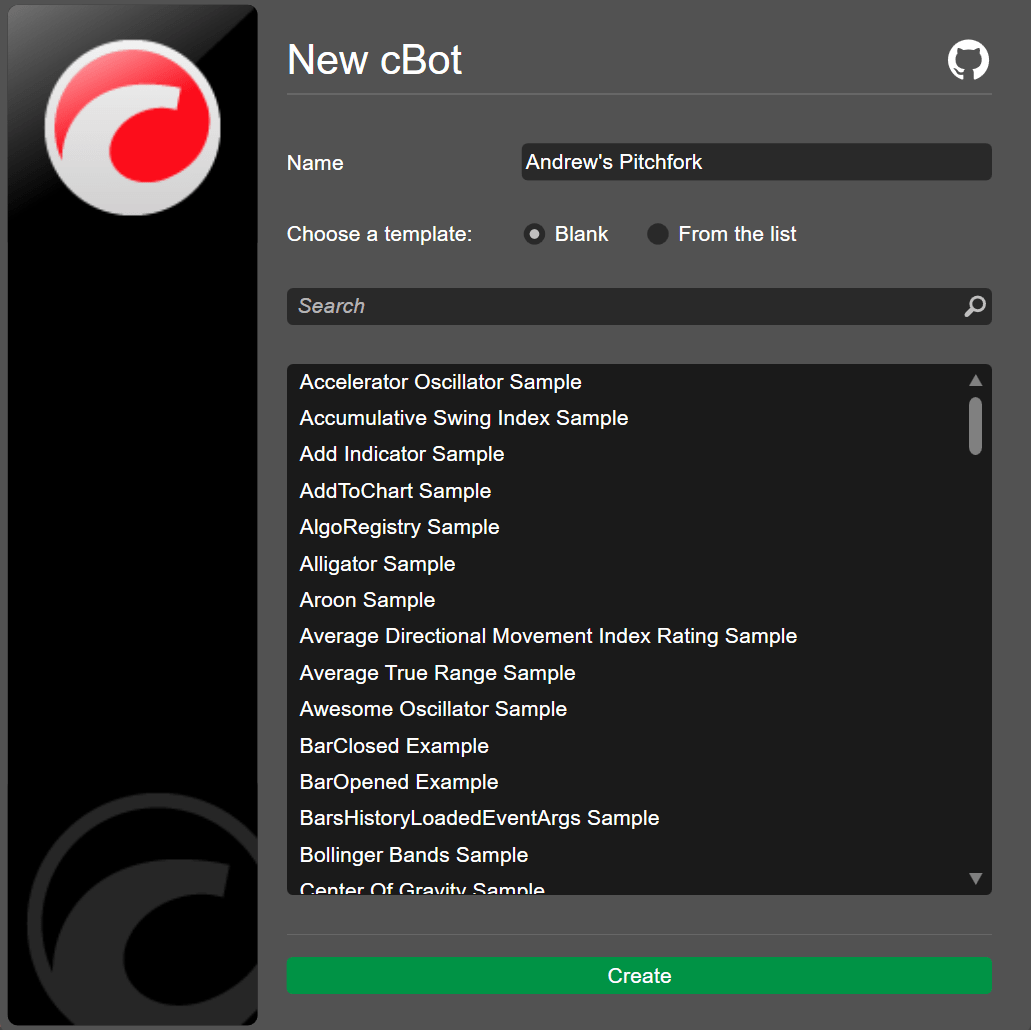
Andrews's Pitchfork requires six parameters to store the following: indices of the high and two lows, two minimum prices and a high price. Declare the six parameters.
| | |
| --- | --- |
| 1 2 3 4 5 6 | `private int _highIndex; private int _lowIndex1; private int _lowIndex2; private double _max; private double _min1; private double _min2;` |
Detect the two minimum prices and the high price needed for the pitchfork points.
| | |
| --- | --- |
| 1 2 3 | `_max = Bars.HighPrices.Maximum(50); _min1 = Bars.LowPrices.Minimum(50); _min2 = Bars.LowPrices.Minimum(10);` |
cTrader Algo allows you to define the time location through methods providing either the absolute time or the relative bar index. The method used to draw the pitchfork on the chart introduces the relevant overrides. In this case, we chose the relative bar index.
Write the code to detect the indices of the high and low prices.
| | |
| --- | --- |
| 1 2 3 4 5 6 7 8 9 10 11 12 13 14 15 16 17 | `for (int i = 0; i <= 50; i++) { if (Bars.HighPrices.Last(i) == _max) _highIndex = Bars.Count - i - 1; } for (int i = 0; i <= 50; i++) { if (Bars.LowPrices.Last(i) == _min1) _lowIndex1 = Bars.Count - i - 1; } for (int i = 0; i <= 10; i++) { if (Bars.LowPrices.Last(i) == _min2) _lowIndex2 = Bars.Count - i - 1; }` |
Draw the pitchfork on the chart.
| | |
| --- | --- |
| 1 | `Chart.DrawAndrewsPitchfork("AndrewsPitchfork", _lowIndex1, _min1, _highIndex, _max, _lowIndex2, _min2, Color.Red);` |
You can copy the full code below:
| | |
| --- | --- |
| 1 2 3 4 5 6 7 8 9 10 11 12 13 14 15 16 17 18 19 20 21 22 23 24 25 26 27 28 29 30 31 32 33 34 35 36 37 38 39 40 41 42 43 44 45 46 47 48 49 50 51 52 53 54 55 56 57 | `using System; using cAlgo.API; using cAlgo.API.Collections; using cAlgo.API.Indicators; using cAlgo.API.Internals; namespace cAlgo.Robots { [Robot(AccessRights = AccessRights.None, AddIndicators = true)] public class AndrewsPitchfork : Robot { private int _highIndex; private int _lowIndex1; private int _lowIndex2; private double _max; private double _min1; private double _min2; protected override void OnStart() { _max = Bars.HighPrices.Maximum(50); _min1 = Bars.LowPrices.Minimum(50); _min2 = Bars.LowPrices.Minimum(10); for (int i = 0; i <= 50; i++) { if (Bars.HighPrices.Last(i) == _max) _highIndex = Bars.Count - i - 1; } for (int i = 0; i <= 50; i++) { if (Bars.LowPrices.Last(i) == _min1) _lowIndex1 = Bars.Count - i - 1; } for (int i = 0; i <= 10; i++) { if (Bars.LowPrices.Last(i) == _min2) _lowIndex2 = Bars.Count - i - 1; } Chart.DrawAndrewsPitchfork("AndrewsPitchfork", _lowIndex1, _min1, _highIndex, _max, _lowIndex2, _min2, Color.Red); } protected override void OnTick() { // Handle price updates here } protected override void OnStop() { // Handle cBot stop here } } }` |
To build the cBot, use the Ctrl+B hotkey or click **Build**.
Add a local instance of the cBot: click **Add instance**, select the **Locally** option, then click **Add instance**.
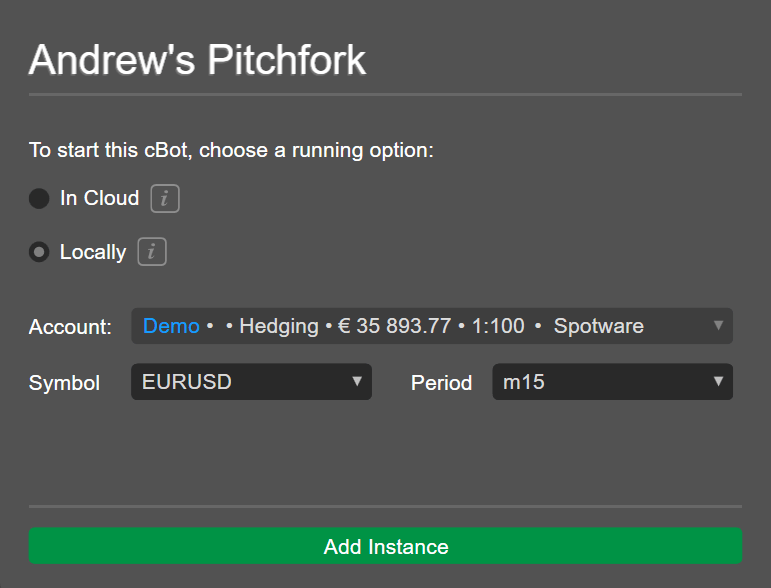
Click the instance and navigate to the **Backtesting** tab. Select a period for the backtesting, enable the **Visual mode** option and then click the play icon.
You should see the **Andrews' Pitchfork** drawn on the chart.
Update Andrews' Pitchfork[¶](https://help.ctrader.com/ctrader-algo/articles/for-developers/how-to-draw-andrews-pitchfork/#update-andrews-pitchfork "Permanent link")
---------------------------------------------------------------------------------------------------------------------------------------------------------------------
Return to the **Algo** app and code the cBot to update the pitchfork as the chart changes.
Create a new method to draw the pitchfork and move the original logic into that method.
| | |
| --- | --- |
| 1 2 3 4 5 6 7 8 9 10 11 12 13 14 15 16 17 18 19 20 21 22 23 24 25 26 27 | `private void DrawAndrewsPitchfork() { _max = Bars.HighPrices.Maximum(50); _min1 = Bars.LowPrices.Minimum(50); _min2 = Bars.LowPrices.Minimum(10); for (int i = 0; i <= 50; i++) { if (Bars.HighPrices.Last(i) == _max) _highIndex = Bars.Count - i - 1; } for (int i = 0; i <= 50; i++) { if (Bars.LowPrices.Last(i) == _min1) _lowIndex1 = Bars.Count - i - 1; } for (int i = 0; i <= 10; i++) { if (Bars.LowPrices.Last(i) == _min2) _lowIndex2 = Bars.Count - i - 1; } if (_lowIndex1 < _highIndex && _highIndex < _lowIndex2) Chart.DrawAndrewsPitchfork("AndrewsPitchfork", _lowIndex1, _min1, _highIndex, _max, _lowIndex2, _min2, Color.Red); }` |
Call the new method in the `OnBar()` method.
| | |
| --- | --- |
| 1 2 3 4 | `protected override void OnBar() { DrawAndrewsPitchfork(); }` |
Since only uptrend setups are needed, write the conditional logic that verifies that minimums and maximums are in the correct order.
| | |
| --- | --- |
| 1 2 | `if (_lowIndex1 < _highIndex && _highIndex < _lowIndex2) Chart.DrawAndrewsPitchfork("AndrewsPitchfork", _lowIndex1, _min1, _highIndex, _max, _lowIndex2, _min2, Color.Red);` |
You can copy the full code below:
| | |
| --- | --- |
| 1 2 3 4 5 6 7 8 9 10 11 12 13 14 15 16 17 18 19 20 21 22 23 24 25 26 27 28 29 30 31 32 33 34 35 36 37 38 39 40 41 42 43 44 45 46 47 48 49 50 51 52 53 54 55 56 57 58 59 60 61 62 63 64 | `using System; using cAlgo.API; using cAlgo.API.Collections; using cAlgo.API.Indicators; using cAlgo.API.Internals; namespace cAlgo.Robots { [Robot(AccessRights = AccessRights.None, AddIndicators = true)] public class AndrewsPitchfork : Robot { private int _highIndex; private int _lowIndex1; private int _lowIndex2; private double _max; private double _min1; private double _min2; protected override void OnStart() { DrawAndrewsPitchfork(); } private void DrawAndrewsPitchfork() { _max = Bars.HighPrices.Maximum(50); _min1 = Bars.LowPrices.Minimum(50); _min2 = Bars.LowPrices.Minimum(10); for (int i = 0; i <= 50; i++) { if (Bars.HighPrices.Last(i) == _max) _highIndex = Bars.Count - i - 1; } for (int i = 0; i <= 50; i++) { if (Bars.LowPrices.Last(i) == _min1) _lowIndex1 = Bars.Count - i - 1; } for (int i = 0; i <= 10; i++) { if (Bars.LowPrices.Last(i) == _min2) _lowIndex2 = Bars.Count - i - 1; } if (_lowIndex1 < _highIndex && _highIndex < _lowIndex2) Chart.DrawAndrewsPitchfork("AndrewsPitchfork", _lowIndex1, _min1, _highIndex, _max, _lowIndex2, _min2, Color.Red); } protected override void OnBar() { DrawAndrewsPitchfork(); } protected override void OnStop() { // Handle cBot stop here } } }` |
Build the cBot again and backtest it.
Increase the speed of the visual mode and click the **play** icon.
This time, you should see how the pitchfork is constantly redrawn as the chart changes.
Summary[¶](https://help.ctrader.com/ctrader-algo/articles/for-developers/how-to-draw-andrews-pitchfork/#summary "Permanent link")
----------------------------------------------------------------------------------------------------------------------------------
This article has explained how to draw Andrews' Pitchfork on a symbol chart and code the pitchfork to update itself as the chart changes.
[Subscribe to our YouTube channel](https://www.youtube.com/channel/UCgoyyb_r8sgNrf1nqyMyo5A?sub_confirmation=1)
Back to top
---
# Tutorials and References - cTrader Mac
[Skip to content](https://help.ctrader.com/ctrader-mac/automate/tutorials/#tutorials-and-references)
Tutorials and References[¶](https://help.ctrader.com/ctrader-mac/automate/tutorials/#tutorials-and-references "Permanent link")
================================================================================================================================
Our cTrader Algo tutorials offer a detailed walkthrough for everyone who wants to learn more about algo trading and development.
Note
You can conveniently access the Help Centre in a sidebar to the right of the code editor window in cTrader Algo. To show/hide the sidebar, use the Shift+Cmd+E hotkeys.
* [**How-tos**](https://help.ctrader.com/ctrader-algo/articles/)
with step-by-step instructions on how to create and use cBots, plugins, and indicators.
* [**Video tutorials**](https://www.youtube.com/watch?v=8W8-1E0_Dog&list=PLu_M4_N3SBoIZcPqNaYj_N1xU34UabmkH)
on Youtube.
* [**API guides**](https://help.ctrader.com/ctrader-algo/guides/parameter-types/)
.
* [**References**](https://help.ctrader.com/ctrader-algo/references/)
to the classes, methods, and properties you can use when coding cBots, plugins, and indicators.
---
# Đặt lại mật khẩu - cTrader ID
Đặt lại mật khẩu
================
Nếu bạn quên mật khẩu cTID, bạn có thể đặt lại nó. Nhấp vào **Quên mật khẩu** trên trang đăng nhập của [**trang web cTID**](https://id.ctrader.com/)
, hoặc truy cập [**liên kết này**](https://id.ctrader.com/reset)
.

Ngoài ra, bạn có thể sử dụng tính năng **Quên mật khẩu** trong bất kỳ ứng dụng cTrader nào.

Trong cả hai trường hợp, bạn sẽ được chuyển hướng đến màn hình đặt lại mật khẩu. Nhập địa chỉ email bạn đã sử dụng để tạo cTID, tích vào hộp kiểm reCAPTCHA và sau đó nhấp vào **Đặt lại mật khẩu**.

Một yêu cầu đặt lại mật khẩu cTID sẽ được gửi đến email của bạn. Nhấp vào nút **Đặt lại mật khẩu** trong email đó.

Mẹo
Nếu bạn không thể tìm thấy email đặt lại mật khẩu trong hộp thư đến, hãy kiểm tra hộp thư rác.
Bạn sẽ được chuyển hướng để đặt mật khẩu mới. Nhập mật khẩu mới, nhập lại mật khẩu và sau đó nhấp vào **Đặt lại mật khẩu**.

cTrader sẽ gửi cho bạn một email xác nhận rằng mật khẩu của bạn đã được thay đổi thành công.
Cảnh báo
Nếu bạn cố gắng đặt lại mật khẩu cTID vào cuối tuần, thao tác này có thể bị trì hoãn do bảo trì theo lịch trình.
Trở lại mục lục
---
# Mengatur ulang kata sandi - cTrader ID
Mengatur ulang kata sandi
=========================
Jika Anda lupa kata sandi cTID Anda, Anda dapat mengatur ulang. Klik **Lupa kata sandi** pada halaman login [**situs web cTID**](https://id.ctrader.com/)
, atau ikuti [**tautan ini**](https://id.ctrader.com/reset)
.

Atau, Anda dapat menggunakan fungsi **Lupa kata sandi** di aplikasi cTrader mana pun.

Dalam kedua kasus tersebut, Anda akan dialihkan ke layar pengaturan ulang kata sandi. Masukkan alamat email yang Anda gunakan untuk membuat cTID Anda, centang kotak reCAPTCHA, lalu klik **Atur ulang kata sandi**.

Permintaan untuk mengatur ulang kata sandi cTID Anda akan dikirim ke email Anda. Klik tombol **Atur ulang kata sandi** di sana.

Kiat
Jika Anda tidak dapat menemukan email pengaturan ulang kata sandi di kotak masuk Anda, periksa kotak spam Anda.
Anda akan dialihkan untuk mengatur kata sandi baru. Masukkan kata sandi baru, ulangi, lalu klik **Atur ulang kata sandi**.

cTrader akan mengirimkan email kepada Anda untuk mengonfirmasi bahwa kata sandi Anda telah berhasil diubah.
Peringatan
Jika Anda mencoba mengatur ulang kata sandi cTID Anda selama akhir pekan, operasi tersebut mungkin tertunda karena pemeliharaan terjadwal.
Kembali ke atas
---
# إعادة تعيين كلمة المرور - cTrader ID
إعادة تعيين كلمة المرور
=======================
إذا نسيت كلمة مرور cTID، فيمكنك إعادة تعيينها. انقر فوق **هل نسيت كلمة المرور** على صفحة تسجيل الدخول لموقع [**cTID**](https://id.ctrader.com/)
، أو اتبع [**هذا الرابط**](https://id.ctrader.com/reset)
.

بشكل بديل، يمكنك استخدام وظيفة **هل نسيت كلمة المرور** في أي تطبيق cTrader.

في كلتا الحالتين، ستتم إعادة توجيهك إلى شاشة إعادة تعيين كلمة المرور. أدخِل عنوان البريد الإلكتروني الذي استخدمته لإنشاء cTID، وحدد مربع الاختيار reCAPTCHA ثم انقر فوق **إعادة تعيين كلمة المرور**.

سيتم إرسال طلب لإعادة تعيين كلمة مرور cTID إلى بريدك الإلكتروني. انقر فوق الزر **إعادة تعيين كلمة المرور** هناك.

نصيحة
إذا لم تتمكن من العثور على بريد إعادة تعيين كلمة المرور في صندوق الوارد، فتحقق من صندوق البريد العشوائي.
ستتم إعادة توجيهك لتعيين كلمة مرور جديدة. أدخِل كلمة مرور جديدة، كررها ثم انقر فوق **إعادة تعيين كلمة المرور**.

سيُرسل إليك cTrader بريدًا إلكترونيًا يؤكد أنه قد تم تغيير كلمة مرورك بنجاح.
تحذير
إذا حاولت إعادة تعيين كلمة مرور cTID خلال عطلة نهاية الأسبوع، فقد يتأخر الإجراء بسبب الصيانة المجدولة.
عد إلى الأعلى
---
# How to work with local storage - cTrader Algo
[Skip to content](https://help.ctrader.com/ctrader-algo/articles/for-developers/how-to-work-with-local-storage/#how-to-work-with-local-storage)
How to work with local storage[¶](https://help.ctrader.com/ctrader-algo/articles/for-developers/how-to-work-with-local-storage/#how-to-work-with-local-storage "Permanent link")
=================================================================================================================================================================================
In this article and its corresponding video, we will explain what local storage is and how it can be used in your cTrader algos. We will also provide useful examples and explain how local storage scope works.
Why use local storage[¶](https://help.ctrader.com/ctrader-algo/articles/for-developers/how-to-work-with-local-storage/#why-use-local-storage "Permanent link")
---------------------------------------------------------------------------------------------------------------------------------------------------------------
There are many cases when you want your algo to save something to or access something from the local file system. For example, you may want to save a log of all cBot operations. However, this usually requires the algo to have elevated access rights (`AccessRights.FullAccess`), which is less than ideal for users. If an algo requests a user to provide elevated permissions, the user is much less likely to trust the algo, especially if it is distributed without its source code. Local storage is a convenient way to safely access the local file system without introducing any security concerns. Using local storage allows developers to keep the access rights of their algos set to `AccessRights.None`.
How to save strings in local storage[¶](https://help.ctrader.com/ctrader-algo/articles/for-developers/how-to-work-with-local-storage/#how-to-save-strings-in-local-storage "Permanent link")
---------------------------------------------------------------------------------------------------------------------------------------------------------------------------------------------
Every type of cTrader algo has a `LocalStorage` property that allows for executing read and write operations. To demonstrate how local storage works, we will create a new cBot. In its `OnStart` handler, we will use the `LocalStorage.SetString(string key, string value)` method. As you can see, it takes two arguments, namely a key under which information should be saved and the value to be saved.
| | |
| --- | --- |
| 1 | `LocalStorage.SetString("Message", Message);` |
To retrieve the value, we will use the `GetString(string key)` method in the `OnTick` handler of the cBot.
| | |
| --- | --- |
| 1 | `Print(LocalStorage.GetString("Message"));` |
As long as `Message` is not null, we can build the cBot and see the retrieved value being correctly printed in the log.
How to save objects in local storage[¶](https://help.ctrader.com/ctrader-algo/articles/for-developers/how-to-work-with-local-storage/#how-to-save-objects-in-local-storage "Permanent link")
---------------------------------------------------------------------------------------------------------------------------------------------------------------------------------------------
Beyond string, you can use local storage to save any kind of object. Behind the scenes, cTrader serialises and deserialises objects in local storage which allows for sharing any kind of data. To demonstrate this, we can create a new class to store information, save it and later retrieve it. We will name this class `Signal`.
| | |
| --- | --- |
| 1 2 3 4 5 6 | `class Signal { public TradeType TradeType { get; set; } public double SL { get; set; } public double TP { get; set; } }` |
In the `OnStart()` method, we will create a new instance of this class and initialise its properties.
| | |
| --- | --- |
| 1 2 3 4 5 | `var signal = new Signal{ TradeType = TradeType.Sell, SL = 50, TP = 50, };` |
We will use the `SetObject(string key, Object object)` method to save and retrieve the account balance.
| | |
| --- | --- |
| 1 2 3 4 5 6 7 8 9 10 11 12 13 14 15 16 17 18 19 20 21 | `protected override void OnStart() { var signal = new Signal{ TradeType = TradeType.Sell, SL = 50, TP = 50, }; LocalStorage.SetString("Message",Message); LocalStorage.SetObject("Signal 1", signal); } protected override void OnTick() { Print(LocalStorage.GetString("Message")); var signal = LocalStorage.GetObject("Signal 1"); Print(signal.TradeType); Print(signal.SL); Print(signal.TP); }` |
If we build our cBot and launch it, we should see the correct values being printed in the log.
Scopes of local storage[¶](https://help.ctrader.com/ctrader-algo/articles/for-developers/how-to-work-with-local-storage/#scopes-of-local-storage "Permanent link")
-------------------------------------------------------------------------------------------------------------------------------------------------------------------
When using local storage you can also define the scope in which the saved values are exposed for future retrieval. There are three different scopes available:
* **Instance scope** - saved values are only available to a specific instance.
* **Type scope** - saved values are available to all instances of a specific algorithm.
* **Device scope** - saved values are available to all algorithms regardless of their types.
Here is how using instance scope could look like.
| | |
| --- | --- |
| 1 2 3 4 5 6 7 8 9 10 11 12 13 14 15 16 17 18 19 20 | `[Parameter()] public bool IsWriter { get; set; } protected override void OnStart() { if(IsWriter) { LocalStorage.SetString("Message",Message, LocalStorageScope.Instance); } } protected override void OnTick() { if(!IsWriter) { if(LocalStorage.GetString("Message") != string.Empty) Print(LocalStorage.GetString("Message")); } }` |
Note that we have explicitly specified the scope in the `SetString()` method.
We can add several instances of this cBot and configure them so that one writes to local storage while another one retrieves information. In this case, reading information should be impossible. However, if just one instance is set up to execute both write and read operations, the cBot should work as intended.
Here is an example of using type scope.
| | |
| --- | --- |
| 1 2 3 4 5 6 7 8 9 10 11 12 13 14 15 16 | `protected override void OnStart() { if(IsWriter) { LocalStorage.SetString("Message",Message, LocalStorageScope.Type); } } protected override void OnTick() { if(!IsWriter) { if(LocalStorage.GetString("Message", LocalStorageScope.Type) != string.Empty) Print(LocalStorage.GetString("Message")); } }` |
If we create two instances of this bot and set them up so that one instance writes to local storage and another reads the saved value, everything should work without raising any errors.
Last but not least, device scope allows for exchanging information between different algos. Here is an example of using this scope type.
| | |
| --- | --- |
| 1 2 3 4 5 6 7 8 9 10 11 12 13 14 15 16 | `protected override void OnStart() { if(IsWriter) { LocalStorage.SetString("Message",Message, LocalStorageScope.Device); } } protected override void OnTick() { if(!IsWriter) { if(LocalStorage.GetString("Message", LocalStorageScope.Device) != string.Empty) Print(LocalStorage.GetString("Message")); } }` |
We can build several cBots that all use the same code. If we set them up correctly, one cBot can save information to local storage while another one retrieves it. As long as the scope is equal to `LocalStorageScope.Device`, our system should work as intended.
Use `Flush()` and `Reload()` methods[¶](https://help.ctrader.com/ctrader-algo/articles/for-developers/how-to-work-with-local-storage/#use-flush-and-reload-methods "Permanent link")
-------------------------------------------------------------------------------------------------------------------------------------------------------------------------------------
If you want to share information between several instances of cTrader, call the `Flush()` and `Reload()` methods.
| | |
| --- | --- |
| 1 2 3 4 5 6 7 8 9 10 11 12 13 14 15 16 17 18 | `protected override void OnStart() { if(IsWriter) { LocalStorage.SetString("Message",Message, LocalStorageScope.Device); LocalStorage.Flush(LocalStorageScope.Device); } } protected override void OnTick() { if(!IsWriter) { LocalStorage.Reload(LocalStorageScope.Device); if(LocalStorage.GetString("Message", LocalStorageScope.Device) != string.Empty) Print(LocalStorage.GetString("Message")); } }` |
If we build several cBots with this code and conduct an experiment to share information between different instances of cTrader, we will see that our saved values are persisted as intended.
[Subscribe to our YouTube channel](https://www.youtube.com/channel/UCgoyyb_r8sgNrf1nqyMyo5A?sub_confirmation=1)
Back to top
---
# ดีพลิงก์ข้ามแพลตฟอร์ม - ดีปลิงก์ cTrader
[ข้ามไปที่เนื้อหา](https://help.ctrader.com/ctrader-deeplinks/th/cross-platform-deeplinks/#ctrader)
ดีปลิงก์ cTrader ข้ามแพลตฟอร์ม[¶](https://help.ctrader.com/ctrader-deeplinks/th/cross-platform-deeplinks/#ctrader "Permanent link")
====================================================================================================================================
ในคู่มือนี้ เราจะกำหนดดีปลิงก์ cTrader ที่ใช้งานได้ทั้งบน cTrader Web และ Mobile ดีปลิงก์เหล่านี้ถูกจัดกลุ่มตามพื้นที่ของ cTrader ที่จะนำนักเทรดไป
โปรดทราบว่าทุกลิงก์ที่แสดงในหน้านี้สามารถมีพารามิเตอร์เพิ่มเติมต่อไปนี้
| พารามิเตอร์ | ค่าที่เป็นไปได้ | คำจำกัดความ |
| --- | --- | --- |
| `?acc` | หมายเลขบัญชีที่ถูกต้อง | หากมีพารามิเตอร์นี้รวมอยู่ด้วย cTrader จะสลับไปยังบัญชีที่มีหมายเลขที่ระบุก่อนที่จะดำเนินการไปยังพื้นที่ที่ระบุในดีปลิงก์ |
| `?lang` | รหัสประเทศสองตัวอักษรที่ถูกต้องตาม Alpha-2 (ISO 3166-1) | หากมีพารามิเตอร์นี้รวมอยู่ด้วย cTrader จะสลับ UI เป็นภาษาที่ระบุก่อนที่จะดำเนินการไปยังพื้นที่ที่ระบุในดีปลิงก์ |
หมายเหตุ
ดีปลิงก์หลายรายการมีค่าที่ระบุในวงเล็บปีกกา (เช่น `/orders/create-market-order/{symbol}`) ค่าเหล่านี้ช่วยให้สามารถระบุพื้นที่ที่ผู้ใช้ที่คลิกดีปลิงก์ควรถูกโอนย้ายไปได้แคบลง ตัวอย่างเช่น `/orders/create-market-order/{symbol}` จะโอนย้ายผู้ใช้ไปยังหน้าจอ **สร้างคำสั่ง Market** สำหรับสัญลักษณ์ที่มีชื่อตรงกับข้อความที่พิมพ์แทน `{symbol}` โปรดทราบว่าวงเล็บปีกกามีไว้เพื่อเป็นตัวอย่างเท่านั้น ไม่ได้รวมอยู่ในดีปลิงก์จริง
เมนูหลัก [¶](https://help.ctrader.com/ctrader-deeplinks/th/cross-platform-deeplinks/#_1 "Permanent link")
----------------------------------------------------------------------------------------------------------
| ลิงก์ | คำจำกัดความ |
| --- | --- |
| `/finder` | เปิดแท็บ **สัญลักษณ์ทั้งหมด** |
| `/watchlists` | เปิดแท็บ **วอตช์ลิสต์** |
| `/symbols/filter/{filterText}` | เปิดแท็บ **สัญลักษณ์ทั้งหมด** โดยกรองสัญลักษณ์ให้ตรงกับข้อความที่ระบุใน `{filterText}` |
ข้อมูลสัญลักษณ์และกราฟ [¶](https://help.ctrader.com/ctrader-deeplinks/th/cross-platform-deeplinks/#_2 "Permanent link")
------------------------------------------------------------------------------------------------------------------------
| ลิงก์ | คำจำกัดความ |
| --- | --- |
| `/symbols/{symbol}/info` | เปิด **ข้อมูลสัญลักษณ์/ภาพรวมสัญลักษณ์** สำหรับสัญลักษณ์ที่มีชื่อตรงกับ `{symbol}` |
| `/symbols/{symbol}/chart` | เปิดกราฟเทรดใหม่สำหรับสัญลักษณ์ที่มีชื่อตรงกับ `{symbol}` หากมีกราฟดังกล่าวเปิดอยู่แล้ว จะทำให้กราฟนั้นใช้งานอยู่ |
Trade Watch [¶](https://help.ctrader.com/ctrader-deeplinks/th/cross-platform-deeplinks/#trade-watch "Permanent link")
----------------------------------------------------------------------------------------------------------------------
| ลิงก์ | คำจำกัดความ |
| --- | --- |
| `/positions` | เปิดแท็บ **โพสิชัน** ใน **Trade Watch** |
| `/orders` | เปิดแท็บ **คำสั่ง** ใน **Trade Watch** |
| `/history` | เปิดแท็บ **ประวัติ** ใน **Trade Watch** |
| `/deals` | เปิดแท็บ **ประวัติ** ใน **Trade Watch** ซ้ำกับ `/history` |
| `/transactions` | เปิดแท็บ **ธุรกรรม** ใน **Trade Watch** |
| `/news` | เปิดแท็บ **ข่าว** ใน **Trade Watch** |
| `/bonus` | เปิดแท็บ **โบนัส** ใน **Trade Watch** |
บัญชี [¶](https://help.ctrader.com/ctrader-deeplinks/th/cross-platform-deeplinks/#_3 "Permanent link")
-------------------------------------------------------------------------------------------------------
| ลิงก์ | คำจำกัดความ |
| --- | --- |
| `/accounts/sign-in` | เปิดตัวเลือกบัญชี |
| `/accounts/sign-up-demo` | เปิดหน้าจอ **บัญชีเทรดทดลองใหม่** |
| `/accounts/create-demo` | เปิดหน้าจอ **บัญชีเทรดทดลองใหม่** |
| `/accounts/create-live` | เปิดหน้าจอ **บัญชีเทรดจริงใหม่** |
ส่งคำสั่งใหม่ [¶](https://help.ctrader.com/ctrader-deeplinks/th/cross-platform-deeplinks/#_4 "Permanent link")
---------------------------------------------------------------------------------------------------------------
| ลิงก์ | คำจำกัดความ |
| --- | --- |
| `/orders/create-market-order` | เปิดหน้าจอ **ส่งคำสั่ง Market** สำหรับสัญลักษณ์ที่กราฟกำลังใช้งานอยู่ |
| `/orders/create-market-order/{symbol}` | เปิดหน้าจอ **ส่งคำสั่ง Market** สำหรับสัญลักษณ์ที่มีชื่อตรงกับ `{symbol}` |
| `/orders/create-limit-order` | เปิดหน้าจอ **ส่งคำสั่ง Limit** สำหรับสัญลักษณ์ที่กราฟกำลังใช้งานอยู่ |
| `/orders/create-limit-order/{symbol}` | เปิดหน้าจอ **ส่งคำสั่ง Limit** สำหรับสัญลักษณ์ที่มีชื่อตรงกับ `{symbol}` |
| `/orders/create-stop-order` | เปิดหน้าจอ **ส่งคำสั่ง Stop** สำหรับสัญลักษณ์ที่กราฟกำลังใช้งานอยู่ |
| `/orders/create-stop-order/{symbol}` | เปิดหน้าจอ **ส่งคำสั่ง Stop** สำหรับสัญลักษณ์ที่มีชื่อตรงกับ `{symbol}` |
| `/orders/create-stop-limit-order` | เปิดหน้าจอ **ส่งคำสั่ง Stop-limit** สำหรับสัญลักษณ์ที่กราฟกำลังใช้งานอยู่ |
| `/orders/create-stop-limit-order/{symbol}` | เปิดหน้าจอ **ส่งคำสั่ง Stop-limit** สำหรับสัญลักษณ์ที่มีชื่อตรงกับ `{symbol}` |
แก้ไขคำสั่งและข้อมูลคำสั่ง [¶](https://help.ctrader.com/ctrader-deeplinks/th/cross-platform-deeplinks/#_5 "Permanent link")
----------------------------------------------------------------------------------------------------------------------------
| ลิงก์ | คำจำกัดความ |
| --- | --- |
| `/orders/modify` | เปิดหน้าจอ **แก้ไขคำสั่ง** สำหรับคำสั่งแรกในรายการ **คำสั่ง** |
| `/orders/{id}/modify` | เปิดหน้าจอ **แก้ไขคำสั่ง** สำหรับคำสั่งที่มีตัวระบุตรงกับ `{id}` |
| `/orders/{id}/details` | เปิดหน้าจอ **ข้อมูลคำสั่ง** สำหรับคำสั่งที่มีตัวระบุตรงกับ `{id}` |
โพสิชัน [¶](https://help.ctrader.com/ctrader-deeplinks/th/cross-platform-deeplinks/#_6 "Permanent link")
---------------------------------------------------------------------------------------------------------
| ลิงก์ | คำจำกัดความ |
| --- | --- |
| `/positions/modify` | เปิดหน้าจอ **แก้ไขโพสิชัน** สำหรับโพสิชันแรกในรายการ **โพสิชัน** |
| `/positions/{id}/modify` | เปิดหน้าจอ **แก้ไขโพสิชัน** สำหรับโพสิชันที่มีตัวระบุตรงกับ `{id}` |
| `/positions/{id}/details` | เปิดหน้าจอ **ข้อมูลโพสิชัน** สำหรับโพสิชันที่มีตัวระบุตรงกับ `{id}` |
| `/positions/{id}/protect` | เปิดหน้าจอ **การป้องกันขั้นสูง** สำหรับโพสิชันที่มีตัวระบุตรงกับ `{id}` |
เงินทุน [¶](https://help.ctrader.com/ctrader-deeplinks/th/cross-platform-deeplinks/#_7 "Permanent link")
---------------------------------------------------------------------------------------------------------
| ลิงก์ | คำจำกัดความ |
| --- | --- |
| `/funds/withdrawal` | เปิดหน้าจอ **ถอน** |
| `/funds/deposit` | เปิดหน้าจอ **ฝาก** |
| `/funds/fundonline` | เปิดหน้าจอ **ฝาก** |
| `/funds/bankwire` | เปิดหน้าจอ **ฝาก** |
ก๊อปปี้ [¶](https://help.ctrader.com/ctrader-deeplinks/th/cross-platform-deeplinks/#_8 "Permanent link")
---------------------------------------------------------------------------------------------------------
| ลิงก์ | คำจำกัดความ |
| --- | --- |
| `/copy/` | เปิด cTrader Copy |
| `/copy/favorites` | เปิดแท็บ **รายการโปรด** ใน cTrader Copy |
| `/copy/strategy/{strategyID}` | เปิดหน้ากลยุทธ์สำหรับกลยุทธ์ที่มีตัวระบุตรงกับ `{strategyID}` |
| `/copy/account/{accountID}` | เปิดหน้าสถิติสำหรับบัญชีที่มีหมายเลขตรงกับ `{accountID}` |
| `/copy/copyingAccount/{accountID}` | เปิดหน้า **สถิติการลงทุน** สำหรับบัญชีย่อยที่มีหมายเลขตรงกับ `{accountID}` |
เบ็ดเตล็ด [¶](https://help.ctrader.com/ctrader-deeplinks/th/cross-platform-deeplinks/#_9 "Permanent link")
-----------------------------------------------------------------------------------------------------------
| ลิงก์ | คำจำกัดความ |
| --- | --- |
| `/chat` | เปิด **แชท** |
| `/whats-new` | เปิด **มีอะไรใหม่** สำหรับแอปเวอร์ชันล่าสุด |
| `/profiles/{sharingCode}` | เปิด **การเข้าถึงนักลงทุน** สำหรับบัญชีที่สร้าง `{sharingCode}` |
กลับไปด้านบนสุด
---
# Urus produk - cTrader Store
[Langkau tajuk talian](https://help.ctrader.com/ctrader-store/ms/how-tos/manage-products/#urus-produk)
Urus produk[¶](https://help.ctrader.com/ctrader-store/ms/how-tos/manage-products/#urus-produk "Permanent link")
================================================================================================================
Urus produk yang anda jual dalam akaun anda. Buka **Produk anda** dan anda boleh menapis mengikut status.
**Aktif** - Produk yang disenaraikan oleh penjual di cTrader Store.
**Tidak aktif** - Produk yang dinyahsenarai oleh penjual di cTrader Store.
**Diharamkan** - Produk yang dilarang daripada dijual di cTrader Store kerana melanggar syarat penggunaan.
**Diarkibkan** - Produk yang dialih keluar oleh penjual.

Dalam pengurusan produk, anda boleh melakukan tindakan berikut:
**Edit** - Buat perubahan pada keterangan produk, harga, dan lain-lain.
Amaran
Setelah diterbitkan, anda tidak boleh menukar nama produk anda atau menggantikan fail algoritma.
**Sembunyikan/Tunjukkan** - Menyenaraikan atau menyahsenaraikan produk di cTrader Store.
**Diarkibkan** - Alih keluar produk di cTrader Store.
Amaran
Anda tidak boleh memadam produk di cTrader Store, kerana pengguna yang telah membelinya perlu mengekalkan akses kepada algoritma tersebut melalui akaun mereka. Sebaliknya, arkibkan produk yang anda tidak mahu jual lagi.
Kembali ke atas
---
# Creating and Running cBots - cTrader Mac
[Skip to content](https://help.ctrader.com/ctrader-mac/automate/cbots/#creating-and-running-cbots)
Creating and Running cBots[¶](https://help.ctrader.com/ctrader-mac/automate/cbots/#creating-and-running-cbots "Permanent link")
================================================================================================================================
Read our dedicated cTrader Algo guide on [**how cBots operate**](https://help.ctrader.com/ctrader-algo/cbots/)
.
The entire flow of [**creating and running a cBot**](https://help.ctrader.com/ctrader-algo/creating-and-running-a-cbot/)
is showcased in a comprehensive diagram in another article.
1\. To create a new cBot, click on the '**New cBot**' button located above the collapsible algorithm lists.
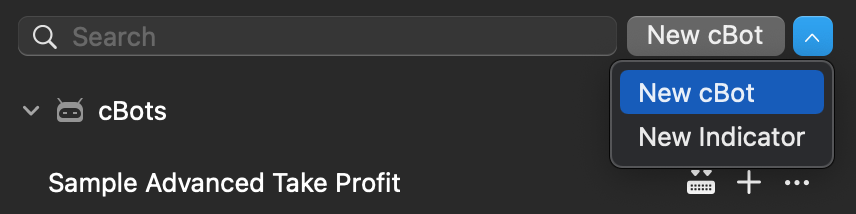
Input the name of your algorithm.
Note
If you want to create an algorithm similar to one of the sample cBots, simply use the '**Duplicate**' functionality in the algorithm actions menu.
2\. Now, you can edit the sample code in the code editor window to the right of the sidebar.
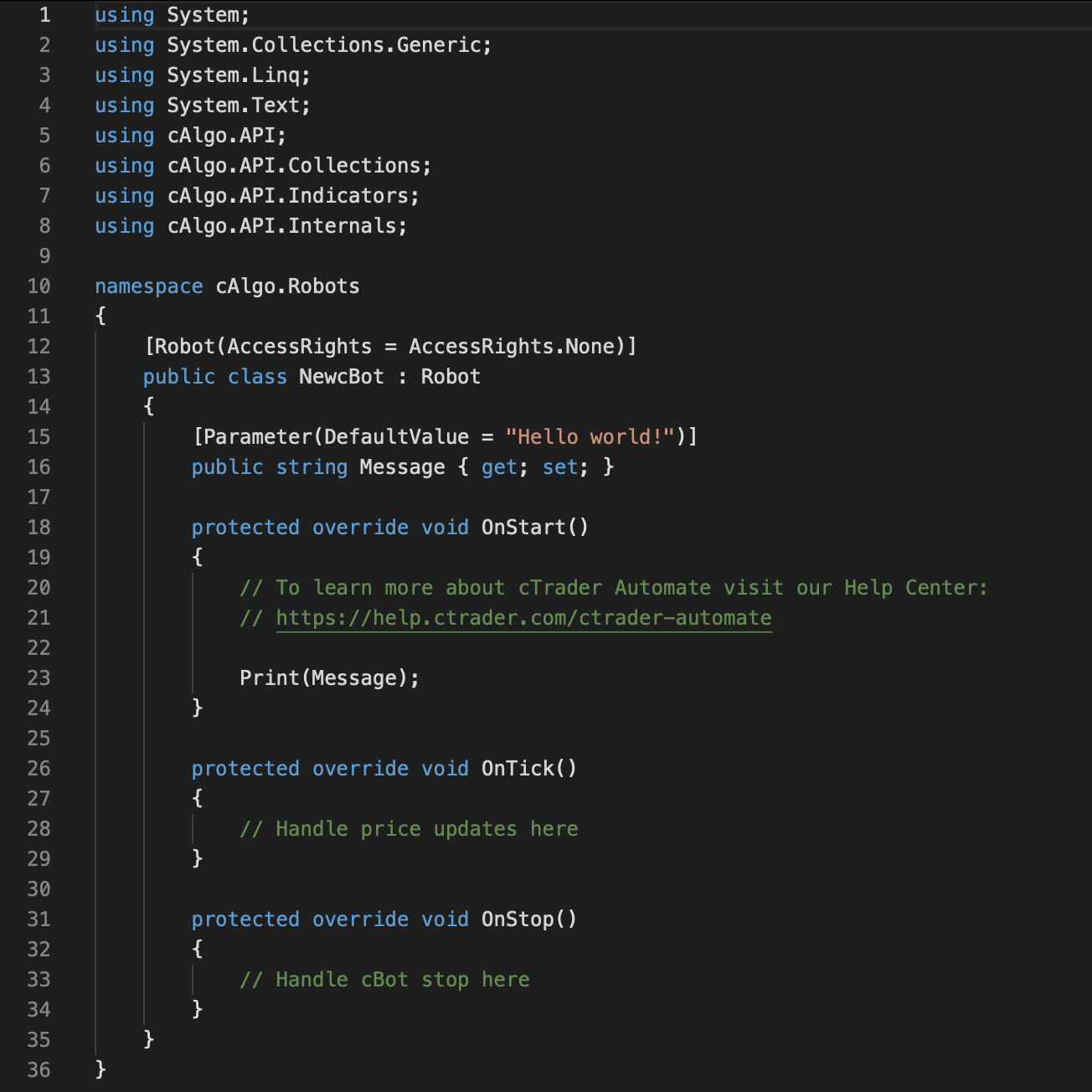
Developing cBots, you can use our [**code snippets**](https://help.ctrader.com/ctrader-algo/cbot-code-samples/)
.
Refer to the ['**References**'](https://help.ctrader.com/ctrader-algo/references/)
section of the cTrader Algo guide to learn more about the classes, methods, and properties you can use when coding cBots. In addition, you can always choose to write custom methods as shown in our introduction to [**C# and .NET**](https://help.ctrader.com/ctrader-algo/c-net-basics/)
.
3\. Save your cBot by clicking on the '**Save**' button above the code editor window, in the context menu, or use the Cmd+S hotkey.

Click on the '**Build**' button above the code editor window, to the right of your algorithm, or in the algorithm actions menu. Alternatively, you can use the Cmd+B hotkey.
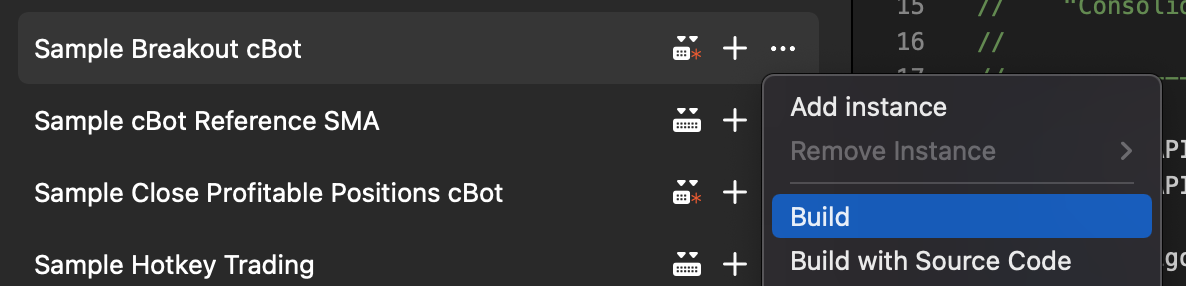
You will see the following message in the '**Build Result**' window after your cBot is built successfully.

4\. To add an instance in the cTrader Algo application, press the '**+**' icon to the right of the cBot in the algorithm list.
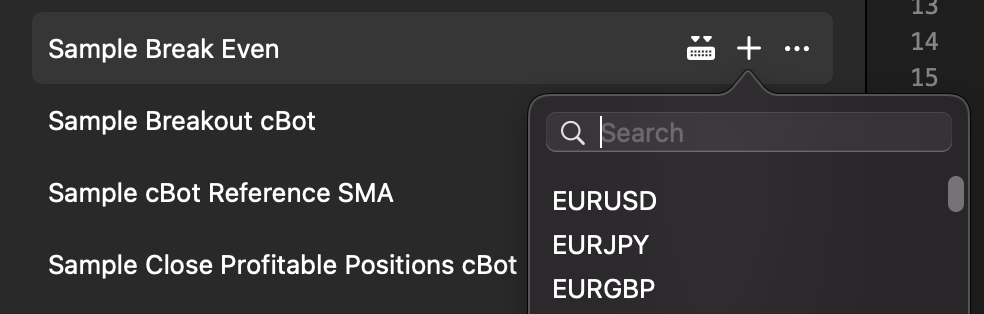
You can also add instances via the menu of cBot actions.
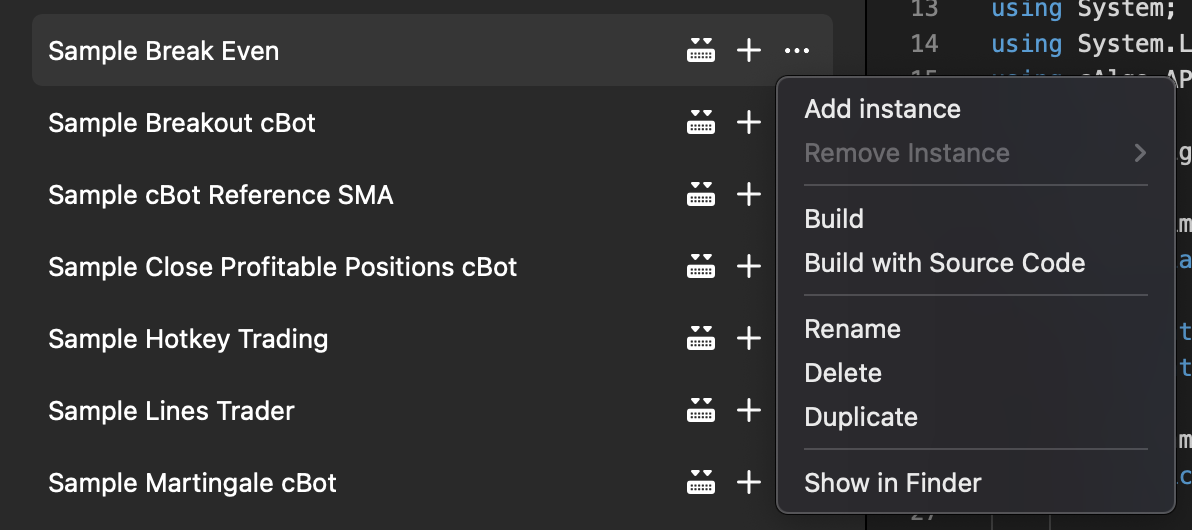
In the '**Trade**' application, you can add cBots on the active chart via the [**Chart Toolbar**](https://help.ctrader.com/ctrader-mac/trade/charts/)
functionality.
5\. Before running an instance, adjust your cBot parameters (if needed) in the '**Parameters**' section below the trading chart. You can also open and save parameters by clicking on the corresponding buttons in the top right corner of this section.
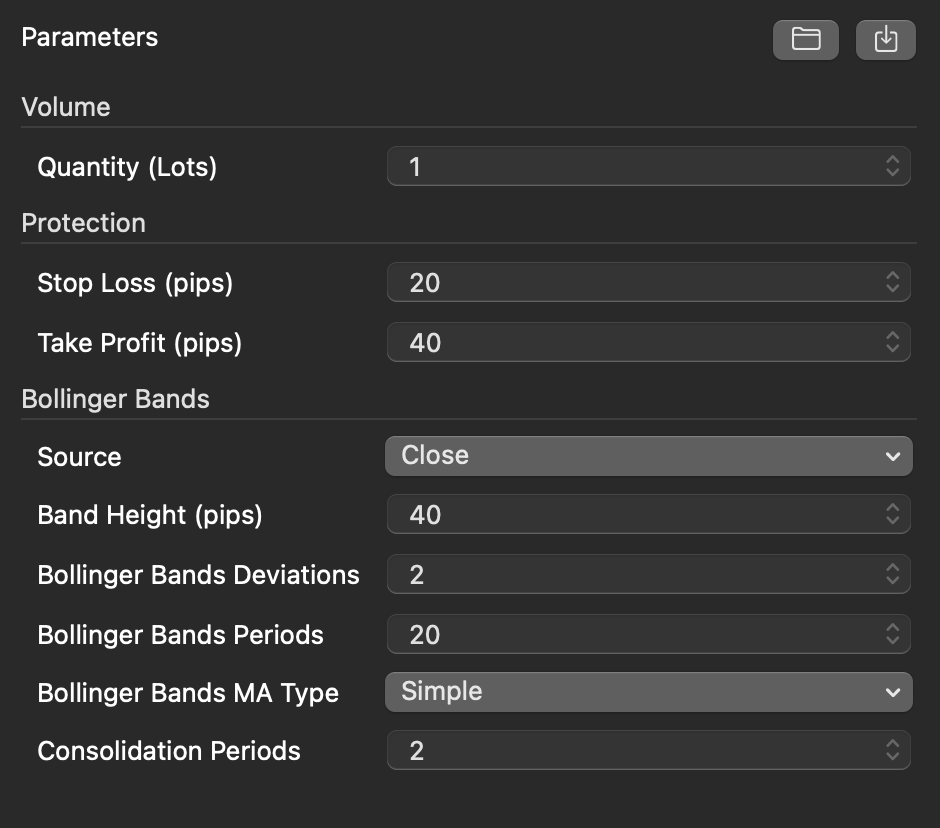
If you run a cBot from the '**Trade**' application, you will be able to customise its parameters in a separate window.
6\. Finally, run the cBot instance by clicking on the green '**Start**' button to the right of the instance in the algorithm list. Here, you can also adjust the symbol and the time frame.

Or click on the '**Start**' button at the top of the trading chart.
To stop the cBot, press the orange '**Stop**' button located in the same places.
Warning
You cannot change the symbol, timeframe, and parameters of a running instance. First stop your cBot and then make adjustments.
---
# Mengatur produk - Toko cTrader
[Lewati ke isi](https://help.ctrader.com/ctrader-store/id/how-tos/manage-products/#mengatur-produk)
Mengatur produk[¶](https://help.ctrader.com/ctrader-store/id/how-tos/manage-products/#mengatur-produk "Permanent link")
========================================================================================================================
Mengatur produk yang Anda jual pada akun Anda. Buka **Produk Anda** dan Anda dapat memfilternya berdasarkan status.
**Aktif** - Produk yang telah didaftarkan oleh penjual di Toko cTrader.
**Nonaktif** - Produk yang tidak didaftarkan oleh penjual di Toko cTrader.
**Dilarang** - Produk yang dibatasi penjualannya di Toko cTrader karena melanggar ketentuan penggunaan.
**Diarsipkan** - Produk yang dihapus oleh penjual.

Dalam mengatur produk, Anda dapat melakukan tindakan-tindakan berikut:
**Edit** - Membuat perubahan pada deskripsi produk, harga, dll.
Peringatan
Setelah dipublikasikan, Anda tidak dapat mengubah nama produk Anda atau mengganti berkas algoritma.
**Sembunyikan/Tunjukkan** - Membuat produk terdaftar/tidak terdaftar di Toko cTrader.
**Arsipkan** - Menghapus produk di Toko cTrader.
Peringatan
Anda tidak dapat menghapus produk di Toko cTrader, karena pengguna yang telah membelinya perlu mempertahankan akses ke algoritma tersebut melalui akun mereka. Sebagai gantinya, arsipkan produk yang tidak ingin Anda jual lagi.
Kembali ke atas
---
# Administrar productos - cTrader Store
[Saltar a contenido](https://help.ctrader.com/ctrader-store/es/how-tos/manage-products/#gestionar-productos)
Gestionar productos[¶](https://help.ctrader.com/ctrader-store/es/how-tos/manage-products/#gestionar-productos "Permanent link")
================================================================================================================================
Gestione los productos que vende en su cuenta. Abra **Sus productos** y podrá filtrarlos por estado.
**Activos**: Productos publicados por el vendedor en cTrader Store.
**Inactivos**: Productos retirados por el vendedor de cTrader Store.
**Prohibidos**: Productos restringidos para la venta en cTrader Store por infringir las condiciones de uso.
**Archivados**: Productos eliminados por el vendedor.

Al gestionar productos, puede realizar las siguientes acciones:
**Editar**: Modificar la descripción del producto, precio, etc.
Advertencia
Una vez publicado, no podrá cambiar el nombre de un producto ni reemplazar el archivo del algoritmo.
**Ocultar/Mostrar**: Configurar que el producto aparezca/no aparezca en cTrader Store.
**Archivar**: Eliminar el producto de cTrader Store.
Advertencia
No puede eliminar productos en cTrader Store, ya que los usuarios que los han comprado deben mantener el acceso a dichos algoritmos a través de su cuenta. En su lugar, archive los productos que no desee seguir vendiendo.
Volver al principio
---
# Menetapkan semula kata laluan - cTrader ID
Menetapkan semula kata laluan
=============================
Jika anda terlupa kata laluan cTID anda, anda boleh menetapkan semula kata laluan tersebut. Klik **Terlupa kata laluan** pada halaman log masuk [**laman web cTID**](https://id.ctrader.com/)
, atau ikuti [**pautan ini**](https://id.ctrader.com/reset)
.

Sebagai alternatif, anda boleh menggunakan fungsian **Terlupa kata laluan** dalam mana-mana aplikasi cTrader.

Dalam mana-mana situasi, anda akan diubah hala ke skrin tetapan semula kata laluan. Masukkan alamat e-mel yang anda gunakan untuk mencipta cTID anda, tandai kotak reCAPTCHA dan kemudian klik **Tetapkan semula kata laluan**.

Permintaan untuk menetapkan semula kata laluan cTID anda akan dihantar ke e-mel anda. Klik butang **Tetapkan semula kata laluan** di sana.

Petua
Jika anda tidak dapat menemukan e-mel tetapan semula kata laluan dalam peti masuk anda, semak kotak spam anda.
Anda akan diubah hala untuk menetapkan kata laluan baharu. Masukkan kata laluan baharu, ulangi langkah tersebut dan kemudian klik **Tetapkan semula kata laluan**.

cTrader akan menghantar e-mel kepada anda untuk mengesahkan bahawa kata laluan anda telah berjaya diubah.
Amaran
Jika anda cuba menetapkan semula kata laluan cTID anda pada hujung minggu, operasi tersebut mungkin akan tertangguh disebabkan penyelenggaraan berjadual.
Kembali ke atas
---
# บัญชี - cTrader ID
[ข้ามไปที่เนื้อหา](https://help.ctrader.com/ctrader-id/th/managing-ctid/trading-accounts/#_1)
บัญชี
=====
ไปที่แท็บ [**บัญชี**](https://id.ctrader.com/my/settings/accounts)
ของเว็บไซต์ cTID
ดูบัญชีเทรด [¶](https://help.ctrader.com/ctrader-id/th/managing-ctid/trading-accounts/#_1 "Permanent link")
------------------------------------------------------------------------------------------------------------
ที่นี่ คุณสามารถดูบัญชีจริงและบัญชีทดลองทั้งหมดที่เชื่อมโยงกับ cTID ของคุณได้ เว็บไซต์ cTID ที่ใช้งานได้หลายโบรกเกอร์จะจัดระเบียบบัญชีเทรดเป็นส่วนๆ ตามโบรกเกอร์

หมายเหตุ
เว็บไซต์ cTID เฉพาะโบรกเกอร์จะแสดงเฉพาะบัญชีเทรดที่ลงทะเบียนกับโบรกเกอร์นั้นๆ ตรวจสอบกับโบรกเกอร์ของคุณเกี่ยวกับวิธีการเข้าถึงเว็บไซต์ cTID ที่มีตราสินค้าของพวกเขา
คลิกไอคอนแพลตฟอร์มถัดจากชื่อโบรกเกอร์เพื่อเปิดแอปพลิเคชัน cTrader ที่มีตราสินค้าของพวกเขา

ลบบัญชีเทรด [¶](https://help.ctrader.com/ctrader-id/th/managing-ctid/trading-accounts/#_2 "Permanent link")
------------------------------------------------------------------------------------------------------------
ขั้นตอนการลบบัญชีเทรดอาจแตกต่างกันไปตามขั้นตอนของโบรกเกอร์ของคุณ
* ติดต่อโบรกเกอร์ของคุณและขอให้ลบบัญชีเทรดของคุณ
* หากบัญชีเทรดของคุณอยู่ภายใต้ Spotware คุณสามารถลบบัญชีทดลองหรือบัญชีจริงที่แสดงอยู่ในรายการได้ด้วยตนเองโดยคลิกไอคอนถังขยะ
คำเตือน
คุณไม่สามารถลบบัญชีเทรดภายใต้ Spotware ได้หากมีโพสิชันที่เปิดอยู่หรือคำสั่งที่รอดำเนินการ ปิดโพสิชันและยกเลิกคำสั่งที่รอดำเนินการก่อน จากนั้นจึงลบบัญชีของคุณบนเว็บไซต์ cTID การลบยังถูกปิดใช้งานสำหรับบัญชีย่อย
กลับไปด้านบนสุด
---
# Akaun - cTrader ID
[Langkau tajuk talian](https://help.ctrader.com/ctrader-id/ms/managing-ctid/trading-accounts/#lihat-akaun-dagangan)
Akaun
=====
Navigasi ke tab [**Akaun**](https://id.ctrader.com/my/settings/accounts)
di laman web cTID.
Lihat akaun dagangan [¶](https://help.ctrader.com/ctrader-id/ms/managing-ctid/trading-accounts/#lihat-akaun-dagangan "Permanent link")
---------------------------------------------------------------------------------------------------------------------------------------
Di sini, anda boleh melihat semua akaun langsung dan demo yang dipautkan kepada cTID anda. Laman web cTID broker bersilang menyusun akaun dagangan mengikut bahagian berdasarkan broker.

Nota
Laman web cTID khusus broker hanya memaparkan akaun dagangan yang didaftarkan di bawah broker yang sepadan. Semak dengan broker anda cara untuk mengakses laman web cTID berjenama mereka.
Klik ikon platform di sebelah nama broker untuk membuka aplikasi cTrader berjenama mereka.

Padam akaun dagangan [¶](https://help.ctrader.com/ctrader-id/ms/managing-ctid/trading-accounts/#padam-akaun-dagangan "Permanent link")
---------------------------------------------------------------------------------------------------------------------------------------
Bergantung pada aliran proses broker anda, langkah untuk memadamkan akaun dagangan mungkin berbeza-beza.
* Hubungi broker anda dan minta agar akaun dagangan anda dipadamkan.
* Jika akaun dagangan anda berada di bawah Spotware, anda boleh memadamkan sendiri akaun demo atau akaun langsung yang tersenarai dengan mengklik ikon tong sampah.
Amaran
Anda tidak boleh memadamkan akaun dagangan di bawah Spotware jika akaun tersebut mempunyai sebarang posisi terbuka atau pesanan tertangguh. Tutup posisi dan batalkan pesanan tertangguh terlebih dahulu, kemudian padamkan akaun anda di laman web cTID. Pemadaman juga dinyahdayakan untuk subakaun.
Kembali ke atas
---
# รีเซ็ตรหัสผ่าน - cTrader ID
รีเซ็ตรหัสผ่าน
==============
หากคุณลืมรหัสผ่าน cTID ของคุณ คุณสามารถรีเซ็ตได้ คลิก **ลืมรหัสผ่าน** บนหน้าล็อกอินของ[**เว็บไซต์ cTID**](https://id.ctrader.com/)
หรือไปที่[**ลิงก์นี้**](https://id.ctrader.com/reset)

หรือคุณสามารถใช้ฟังก์ชัน **ลืมรหัสผ่าน** ในแอปพลิเคชัน cTrader ใดก็ได้

ไม่ว่าจะเลือกวิธีใด คุณจะถูกนำไปยังหน้าจอรีเซ็ตรหัสผ่าน กรอกที่อยู่อีเมลที่คุณใช้สร้าง cTID ของคุณ ติ๊กช่อง reCAPTCHA แล้วคลิก **รีเซ็ตรหัสผ่าน**

คำขอรีเซ็ตรหัสผ่าน cTID ของคุณจะถูกส่งไปยังอีเมลของคุณ คลิกปุ่ม **รีเซ็ตรหัสผ่าน** ในอีเมลดังกล่าว

เคล็ดลับ
หากคุณไม่พบอีเมลรีเซ็ตรหัสผ่านในกล่องจดหมายเข้าของคุณ ให้ตรวจสอบกล่องสแปม
คุณจะถูกนำไปยังหน้าตั้งรหัสผ่านใหม่ กรอกรหัสผ่านใหม่ กรอกอีกครั้ง แล้วคลิก **รีเซ็ตรหัสผ่าน**

cTrader จะส่งอีเมลยืนยันให้คุณว่ารหัสผ่านของคุณถูกเปลี่ยนเรียบร้อยแล้ว
คำเตือน
หากคุณพยายามรีเซ็ตรหัสผ่าน cTID ของคุณในช่วงสุดสัปดาห์ การดำเนินการอาจล่าช้าเนื่องจากมีการบำรุงรักษาตามกำหนด
กลับไปด้านบนสุด
---
# Gerir produtos - cTrader Store
[Ir para o conteúdo](https://help.ctrader.com/ctrader-store/pt/how-tos/manage-products/#gerir-produtos)
Gerir produtos[¶](https://help.ctrader.com/ctrader-store/pt/how-tos/manage-products/#gerir-produtos "Permanent link")
======================================================================================================================
Faça a gestão dos produtos que está a vender na sua conta. Abra **Os seus produtos**. Em seguida, pode filtrá-los por estado.
**Ativos** - Produtos listados pelo vendedor na cTrader Store.
**Inativos** - Produtos não listados pelo vendedor na cTrader Store.
**Interditos** - Produtos com restrição de venda na cTrader Store devido a violações dos termos de utilização.
**Arquivados** - Produtos retirados pelo vendedor.

Ao gerir produtos, pode realizar as seguintes ações:
**Editar** - Fazer alterações da descrição do produto, do preço, etc.
Aviso
Após a publicação, não pode alterar o nome do seu produto nem substituir o ficheiro do algoritmo.
**Ocultar/Mostrar** - Fazer com que o produto fique listado/não listado na cTrader Store.
**Arquivar** - Retirar o produto da cTrader Store.
Aviso
Não pode eliminar produtos na cTrader Store, uma vez que os utilizadores que os compraram têm de manter o acesso a estes algoritmos através das contas deles. Em alternativa, arquive os produtos que já não pretende vender.
Voltar ao topo
---
# إدارة المنتجات - متجر cTrader
[انتقل إلى المحتوى](https://help.ctrader.com/ctrader-store/ar/how-tos/manage-products/#_1)
إدارة المنتجات[¶](https://help.ctrader.com/ctrader-store/ar/how-tos/manage-products/#_1 "Permanent link")
==========================================================================================================
إدارة المنتجات التي تبيعها في حسابك. افتح **منتجاتك** ويمكنك تصفيتها حسب الحالة.
**نشطة** - المنتجات المدرجة من البائع في متجر cTrader.
**غير نشطة** - المنتجات غير المدرجة من البائع في متجر cTrader.
**محظورة** - المنتجات المحظورة من البيع في متجر cTrader بسبب انتهاكات شروط الاستخدام.
**مؤرشفة** - المنتجات التي أزالها البائع.

عند إدارة المنتجات، يمكنك تنفيذ الإجراءات التالية:
**تحرير** - إجراء تغييرات على وصف المنتج، السعر، وما إلى ذلك.
تحذير
بمجرد النشر، لا يمكنك تغيير اسم منتجك أو استبدال ملف الخوارزمية.
**إخفاء/إظهار** - جعل المنتج مدرجًا/غير مدرج في متجر cTrader.
**الأرشفة** - إزالة المنتج من متجر cTrader.
تحذير
لا يمكنك حذف المنتجات في متجر cTrader، حيث يجب أن يحتفظ المستخدمون الذين اشتروها بالوصول إلى هذه الخوارزميات عبر حساباتهم. بدلاً من ذلك، قم بأرشفة المنتجات التي لم تعُد ترغب في بيعها.
عد إلى الأعلى
---
# ตั้งรหัสผ่าน cTID - cTrader ID
ตั้งรหัสผ่าน cTID
=================
เมื่อ cTID ถูก[**สร้างโดยโบรกเกอร์ของคุณ**](https://help.ctrader.com/ctrader-id/th/creating-a-ctrader-id-by-a-broker/)
คุณจะได้รับอีเมลแจ้งเตือนเพื่อตั้งรหัสผ่านของคุณ คลิก **ตั้งรหัสผ่าน** ในอีเมล
คุณจะถูกนำไปยังเว็บไซต์ cTrader ID ที่ซึ่งคุณสามารถกรอกรหัสผ่านใหม่ของคุณได้
หมายเหตุ
คุณสามารถ[**เปลี่ยนรหัสผ่านของคุณ**](https://id.ctrader.com/my/settings/credentials)
บนเว็บไซต์ cTrader ID หรือ[**รีเซ็ตรหัสผ่าน**](https://id.ctrader.com/reset)
หากคุณลืมรหัสผ่านได้ เรามีคำแนะนำโดยละเอียดเกี่ยวกับวิธีการจัดการ[**ข้อมูลประจำตัว cTID**](https://help.ctrader.com/ctrader-id/th/managing-ctid/credentials/)
หลังจากที่คุณตั้งรหัสผ่านแล้ว cTrader จะส่งอีเมลอีกฉบับเพื่อยืนยันว่าการดำเนินการสำเร็จแล้ว
กลับไปด้านบนสุด
---
# How to reference third-party libraries in cTrader Algo - cTrader Algo
[Skip to content](https://help.ctrader.com/ctrader-algo/articles/for-developers/how-to-reference-third-party-libraries/#how-to-reference-third-party-libraries-in-ctrader-algo)
How to reference third-party libraries in cTrader Algo[¶](https://help.ctrader.com/ctrader-algo/articles/for-developers/how-to-reference-third-party-libraries/#how-to-reference-third-party-libraries-in-ctrader-algo "Permanent link")
=========================================================================================================================================================================================================================================
Third-party libraries enable users to expand and improve the functionality of their cBots, indicators and plugins. Since cTrader Algo is developed with .NET 6.0, users can add and use third-party libraries built with .NET 6.0 in their algo projects.
In this article and the corresponding video, you will learn how to reference third-party libraries in the cTrader Algo API. Using the Discord.Net library, we will demonstrate how to send messages to a Discord channel.
Add a reference by installing a NuGet package[¶](https://help.ctrader.com/ctrader-algo/articles/for-developers/how-to-reference-third-party-libraries/#add-a-reference-by-installing-a-nuget-package "Permanent link")
-----------------------------------------------------------------------------------------------------------------------------------------------------------------------------------------------------------------------
In our first example, we plan to add a reference in our cBot project by installing a package from the NuGet library. NuGet is the official package manager for the .NET platform used to create, consume and distribute packages or libraries.
Note
If you develop algorithms in Visual Studio, use the method of adding a reference described below. Otherwise, navigate to the [**next section**](https://help.ctrader.com/ctrader-algo/articles/for-developers/how-to-reference-third-party-libraries/#add-a-reference-through-the-ctrader-ui)
of this article.
In cTrader Algo, create a cBot. Click the **New** button, enter a name such as "Discord Message Example", then click the **Create** button.

Next, go to the [**NuGet website**](https://www.nuget.org/)
, type **Discord** in the text field and select the Discord.Net library from the results.
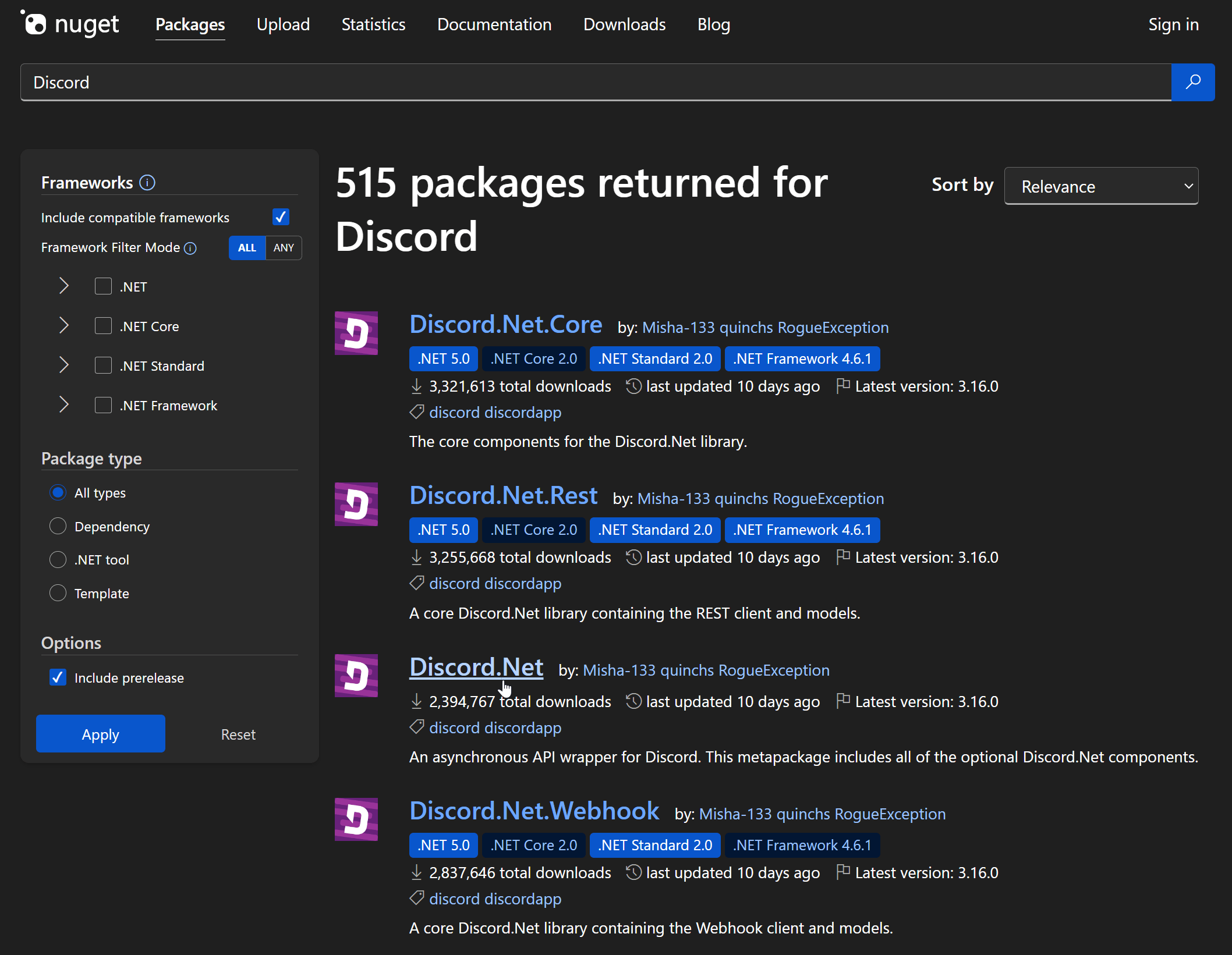
Click the **Package manager** tab and then copy the command there.
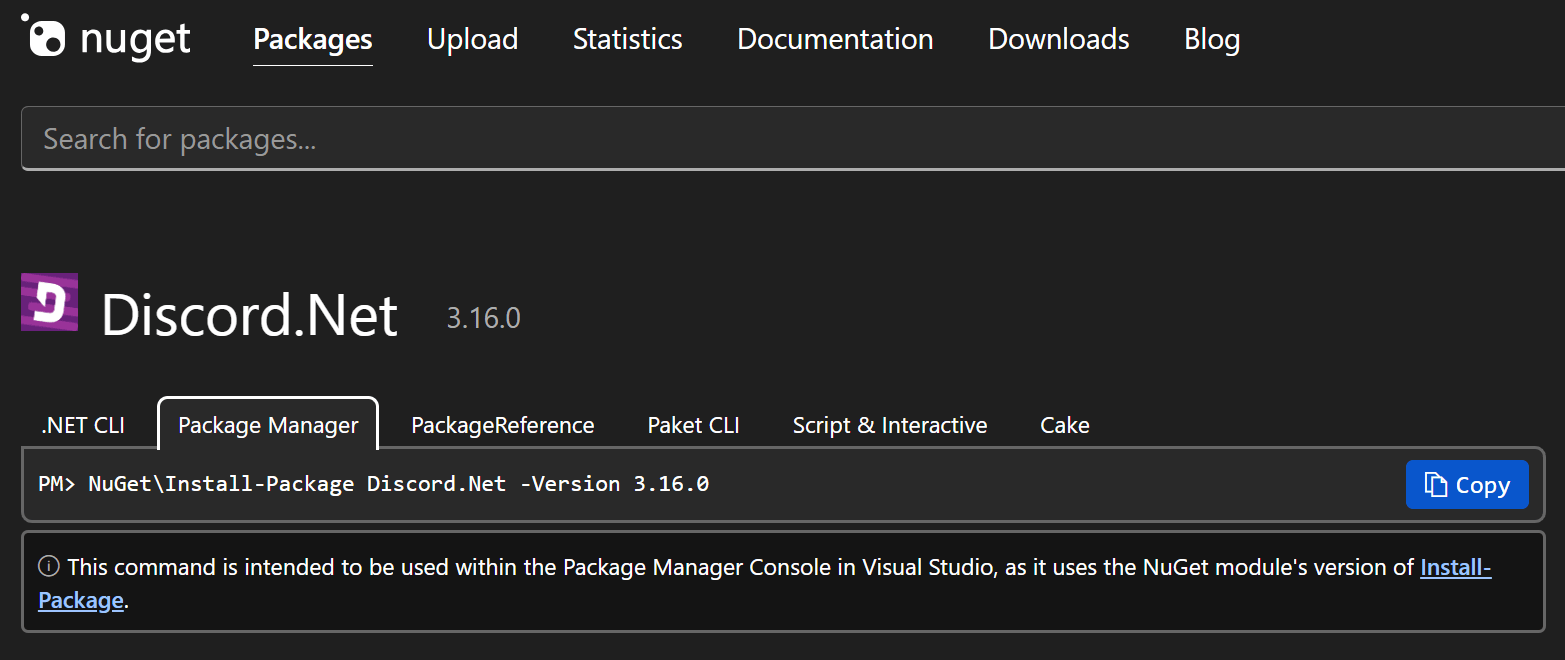
Return to cTrader and click **Edit in Visual Studio**.

Your cBot project should open in the Visual Studio application on your computer.
In Visual Studio, open the **Tools** menu, select **NuGet package manager**, then **Package manager console**.
Paste the command you copied earlier from the NuGet website and run it.
| | |
| --- | --- |
| 1 | `NuGet\Install-Package Discord.Net -Version 3.16.0` |
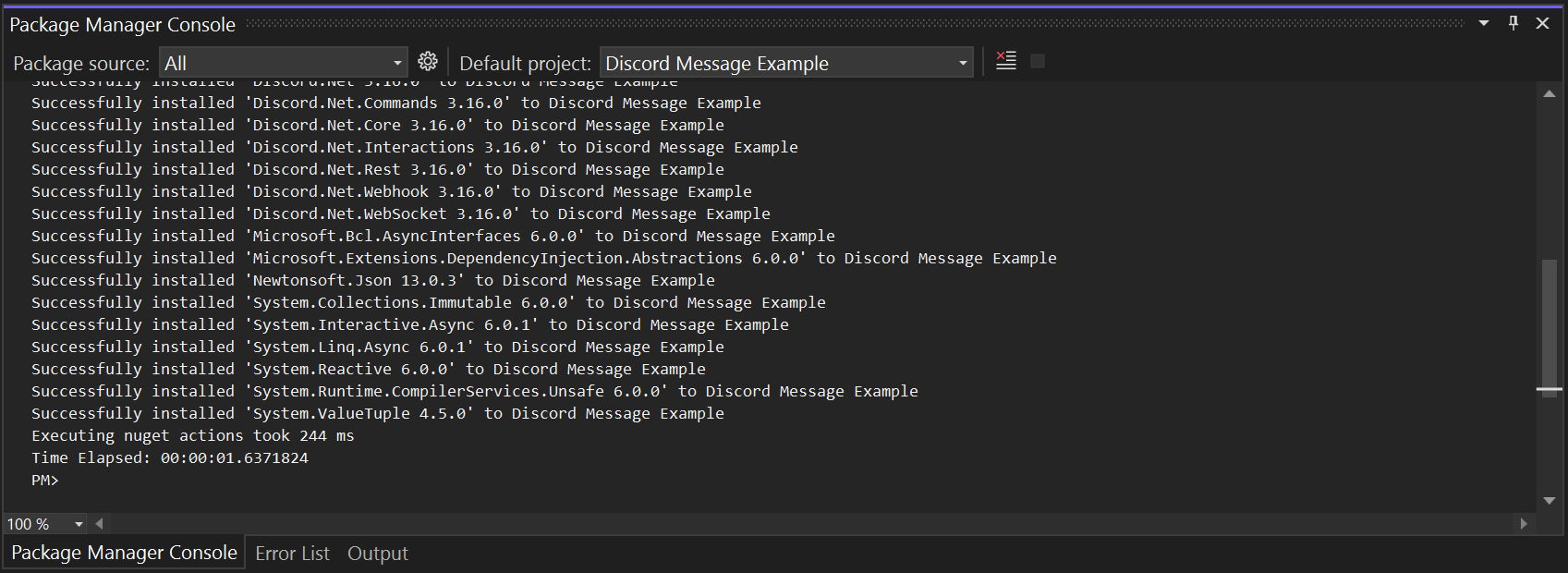
Having installed the required package, we can proceed to develop our cBot example.
Start by declaring important parameters, such as the Discord bot token and channel ID.
| | |
| --- | --- |
| 1 2 3 4 5 | `[Parameter("Discord Bot Token")] public string BotToken { get; set; } [Parameter("Discord Channel ID")] public string ChannelID { get; set; }` |
Then declare a Discord client object and a message channel object.
| | |
| --- | --- |
| 1 2 | `DiscordSocketClient _discordSocketClient; IMessageChannel _channel;` |
In our `OnStart()` method, write a simple code to send a message to our channel when the cBot starts.
| | |
| --- | --- |
| 1 2 3 4 5 6 7 8 9 10 | `protected override void OnStart() { _discordSocketClient = new DiscordSocketClient(); _discordSocketClient.LoginAsync(TokenType.Bot, BotToken); _discordSocketClient.StartAsync(); var channelID = Convert.ToUInt64(ChannelID); _channel = _discordSocketClient.GetChannelAsync(channelID).Result as IMessageChannel; _channel.SendMessageAsync("Example cBot Started"); }` |
You can copy the full code below:
| | |
| --- | --- |
| 1 2 3 4 5 6 7 8 9 10 11 12 13 14 15 16 17 18 19 20 21 22 23 24 25 26 27 28 29 30 31 32 33 34 35 36 37 38 39 40 41 42 43 44 | `using System; using cAlgo.API; using cAlgo.API.Collections; using cAlgo.API.Indicators; using cAlgo.API.Internals; using Discord.WebSocket; using Discord; namespace cAlgo.Robots { [Robot(AccessRights = AccessRights.None, AddIndicators = true)] public class DiscordMessageExample : Robot { [Parameter("Discord Bot Token")] public string BotToken { get; set; } [Parameter("Discord Channel ID")] public string ChannelID { get; set; } DiscordSocketClient _discordSocketClient; IMessageChannel _channel; protected override void OnStart() { _discordSocketClient = new DiscordSocketClient(); _discordSocketClient.LoginAsync(TokenType.Bot, BotToken); _discordSocketClient.StartAsync(); var channelID = Convert.ToUInt64(ChannelID); _channel = _discordSocketClient.GetChannelAsync(channelID).Result as IMessageChannel; _channel.SendMessageAsync("Example cBot Started"); } protected override void OnTick() { // Handle price updates here } protected override void OnStop() { // Handle cBot stop here } } }` |
Now, build the cBot.
Return to cTrader. Click **Add instance**, specify your preferred parameters in the window and then click the **Add instance** button.
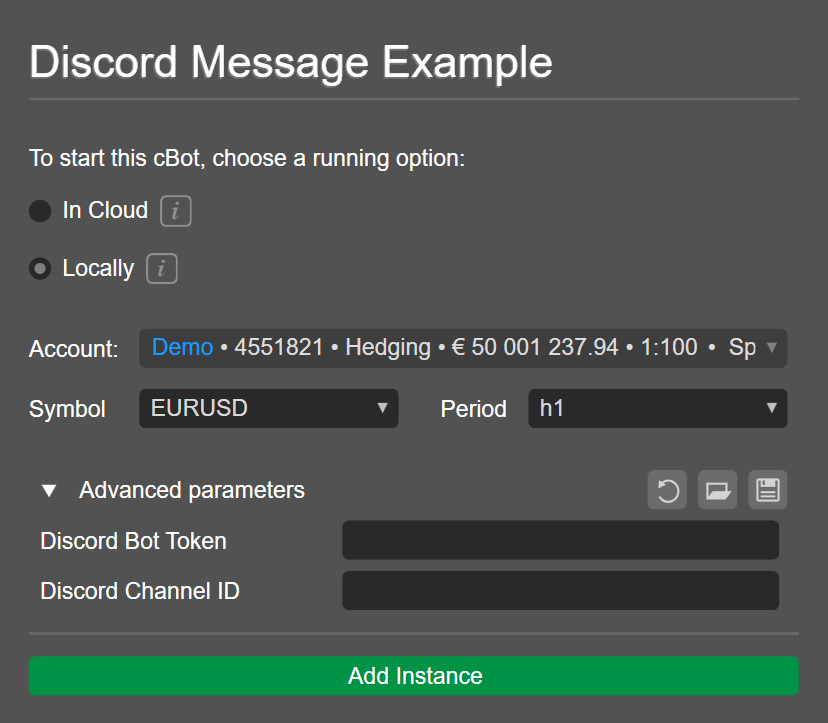
Enter your Discord bot token and channel ID.
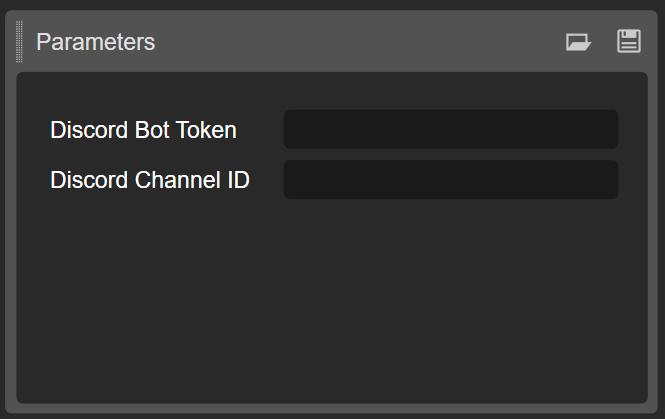
Start the cBot instance. When the **Access request** window appears, click **Allow** to continue.
The cBot should start running, and you should see a message arrive in the Discord channel.
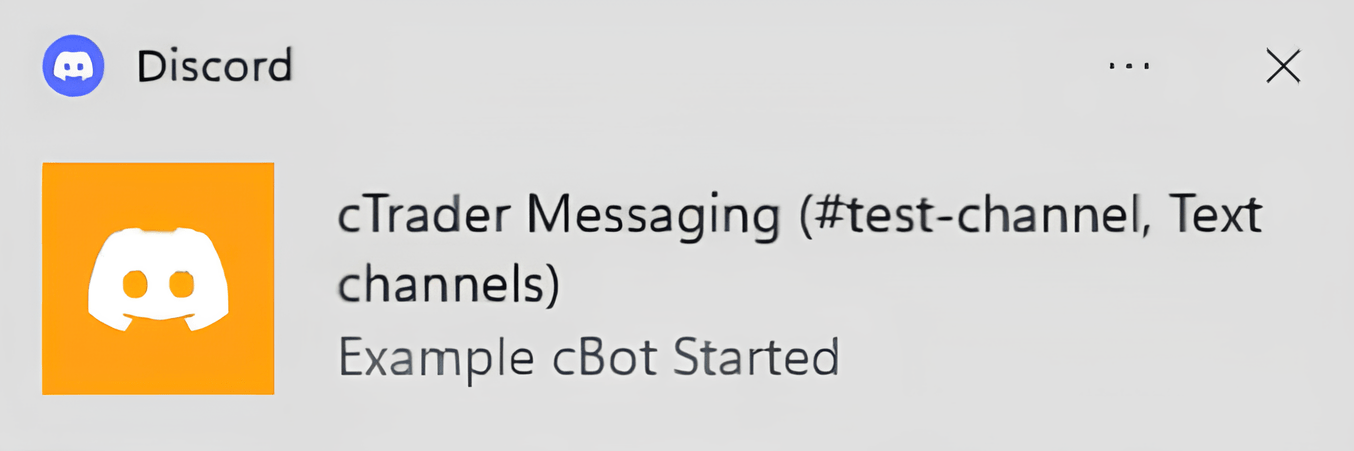
Add a reference through the cTrader UI[¶](https://help.ctrader.com/ctrader-algo/articles/for-developers/how-to-reference-third-party-libraries/#add-a-reference-through-the-ctrader-ui "Permanent link")
---------------------------------------------------------------------------------------------------------------------------------------------------------------------------------------------------------
Some libraries are not available as NuGet packages. If you plan to use such libraries in your cBot project, you have to add their DLL files directly as references.
Here, we will demonstrate how you can reference the same Discord.Net library by adding its DLL files.
Return to Visual Studio and uninstall the Discord.Net library we installed in the previous subsection. Open the NuGet Package Manager Console as you did before and run the following command:
| | |
| --- | --- |
| 1 | `NuGet\Uninstall-Package Discord.Net -Version 3.16.0` |
The Discord packages will be removed as references in our Discord Message Example cBot. If the cBot is rebuilt now, the build will end with several error messages due to the missing libraries.
Go back to cTrader and add the required libraries using the **Manage references** functionality at the top.

When the **Reference manager** window appears, navigate to **Browse** then click the **Browse** button. Select the DLL file and then perform the same action for all the DLL files you want to reference.
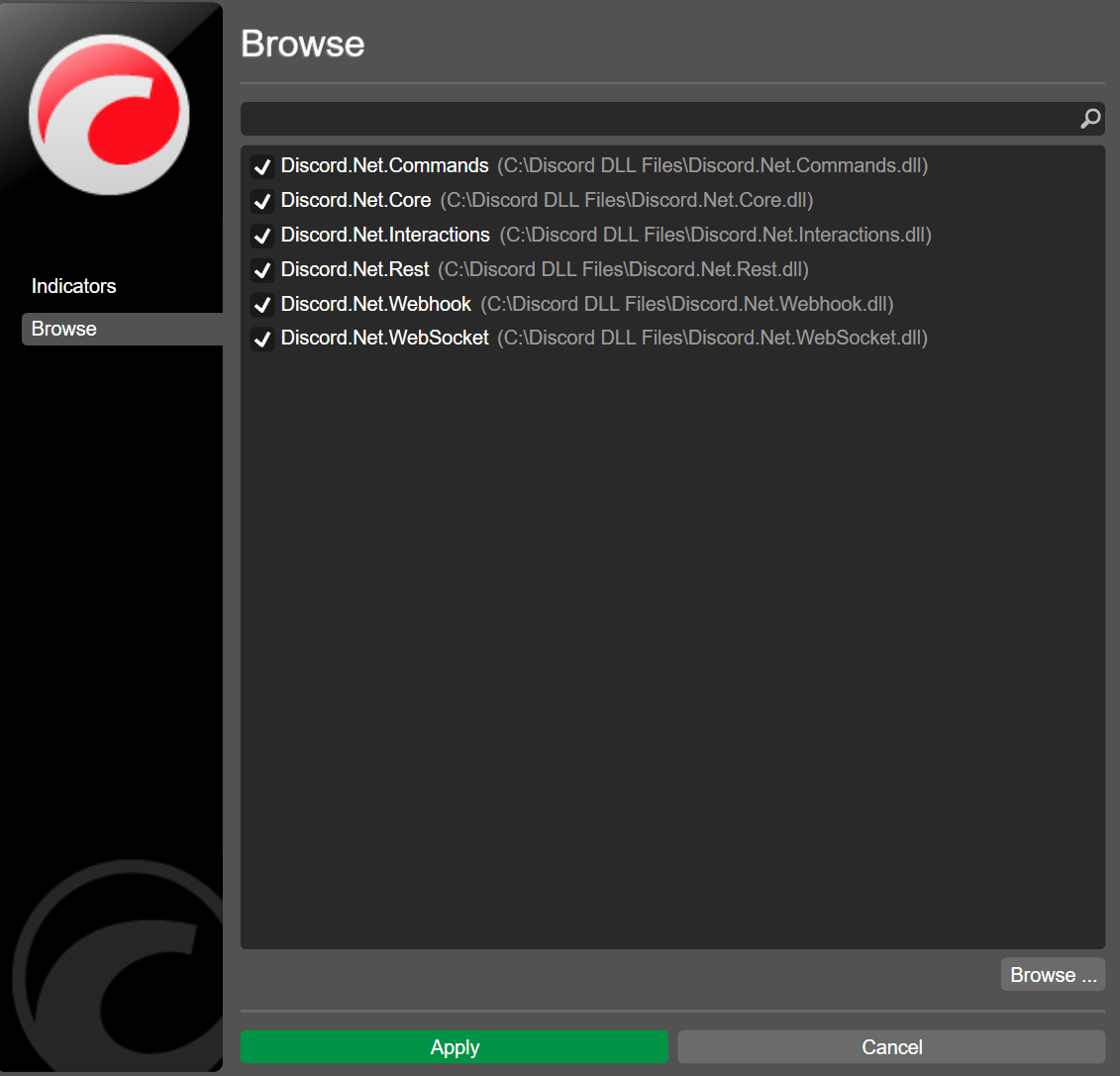
Click **Apply** and build the cBot again.
Now, when you run a cBot instance, the build will be completed without errors, and you should see the message arrive in the Discord channel.
This article has demonstrated how to reference third-party libraries in cTrader Algo using two different methods.
[Subscribe to our YouTube channel](https://www.youtube.com/channel/UCgoyyb_r8sgNrf1nqyMyo5A?sub_confirmation=1)
Back to top
---
# App and Account Authentication - Open API
[Skip to content](https://help.ctrader.com/open-api/account-authentication/#app-and-account-authentication)
App and Account Authentication[¶](https://help.ctrader.com/open-api/account-authentication/#app-and-account-authentication "Permanent link")
=============================================================================================================================================
The cTrader Open API authentication process is based on [**the OAuth 2.0 standard**](https://oauth.net/2/)
.
This framework allows third-party applications to attain limited access to a service either on behalf of the resource owner, by orchestrating an approval interaction between the resources owner and the service, or by allowing a third-party application to attain access on its own behalf.
Authentication Flow[¶](https://help.ctrader.com/open-api/account-authentication/#authentication-flow "Permanent link")
-----------------------------------------------------------------------------------------------------------------------
As per the OAuth 2.0 standard, account authentication requires both an authorization code and an access token.
Defining Tokens
An **authorization code** is a short-term token that is issued for an individual cTID. Its expiration time is one minute. An **access token** is a long-term token that allows an application to send and receive messages to and from the cTrader backend. After receiving it, an authorization code must be quickly exchanged with an access token; afterward, all messages sent to the cTrader backend have to be signed with the received access token to authenticate your application. The expiration time of an access token is 2,628,000 seconds (approximately 30 days). After it is expired, a new access token can be generated using a **refresh token**. The refresh token does not have an expiration time.
Typically, the process of someone new starting to use your application for the first time looks as follows.
1\. A user with a certain cTID accesses your application wherever it is deployed; the user interacts with an action button or equivalent.
2\. The application uses an embedded browser (or any other suitable means) to redirect the user to a specific URI where they will give the app the necessary permissions.
Gaining Trust
Before redirecting the user to this URI, make sure that the user trusts your app and is aware of the fact that they will need to provide additional permissions.
3\. The user is transferred to a predefined redirect URL. This URL contains the access token as the value of the `code` query parameter.
4\. The user is transferred back to the app either of their own accord or automatically. The app is informed of the value of the `code` parameter.
5\. The app sends a request for exchanging the authorization code with an access token to a specific endpoint.
6\. The app receives a response containing the access token as the value of the `"accessToken"` key.
7\. The app sends the [**`ProtoOAApplicationAuthReq` message**](https://help.ctrader.com/open-api/messages/#protooaapplicationauthreq)
containing the `clientId` and `clientSecret` fields.
8\. The app sends the [**`ProtoOAGetAccountListByAccessTokenReq` message**](https://help.ctrader.com/open-api/messages/#protooagetaccountlistbyaccesstokenreq)
containing the `accessToken` field. The response ([**`ProtoOAGetAccountListByAccessTokenRes`**](https://help.ctrader.com/open-api/messages/#protooagetaccountlistbyaccesstokenres)
) contains the repeated `ctidTraderAccountId` field.
9\. After receiving a response, the app sends the [**`ProtoOAAccountAuthReq` message**](https://help.ctrader.com/open-api/messages/)
containing the `ctidTraderAccountId` and `accessToken` fields.
Afterward, the user should be authenticated under the account the `ctidTraderAccountId` of which matches the `ctidTraderAccountId` provided during Step 8.
The below diagram explains how the basic authentication flow works from the perspective of your Open API application.
graph TB
A([Redirect the user to a specific URI]) ==> B([Receive the authorization code]);
B ==> C([Send a request for attaining an access code]);
C ==> D([Send the ProOAApplicationAuthReq message]);
D ==> E([Send the ProtoOAAccountAuthReq message]);
In the sub-sections below, we explain the key steps of the authentication flow in detail.
### Adding a Redirect URI[¶](https://help.ctrader.com/open-api/account-authentication/#adding-a-redirect-uri "Permanent link")
As shown previously, your app needs to attain an authorization code after a user is sent to a certain redirect URI. This URI will include the authorization code as the value of the `code` query parameter.
To add a new redirect URI, do the following.
1\. Open the '**Applications**' page in the Open API portal.
2\. Click on the '**Edit**' button in the row with the application to which you would like to add a redirect URL.
3\. In the newly appeared screen, scroll down to the '**Redirect URIs**' section.
4\. Add a redirect URL in an available empty text input field. In case no available fields are shown, click on the '**Add Redirect URI**' button.
5\. Click on the '**Save**' button at the bottom of the page to apply your changes.
Managing Redirect URIs
The very first redirect URI is for the playground service that allows you to test your application before giving regular users access to it. Note that it must never be used for a production application. You can add an unlimited number of redirect URIs if required.
### Attaining the Authorization Code[¶](https://help.ctrader.com/open-api/account-authentication/#attaining-the-authorization-code "Permanent link")
To receive an authorization code for a specific cTID, your app will need to send a user to the following URI.
`https://id.ctrader.com/my/settings/openapi/grantingaccess/?client_id={clientId}&redirect_uri={your_redirectURI}&scope={scope}&product=web`
Note
At this stage, the user will need to permit your application/service to access their trading accounts. As a result, it is imperative you provide the user with full understanding of what using your application/service will entail in terms of permissions and data storage/processing.
This URI has the following query parameters.
| **Parameter** | **Required?** | **Definition** |
| --- | --- | --- |
| `client_id` | Yes | The unique identifier of your Open API application. |
| `redirect_uri` | Yes | A valid redirect URI specified in the settings of your application. |
| `scope` | Yes | The scope of the permissions that you would like to be given to your application. The following values are accepted. `accounts`. 'View only' access is given. Your application will be able to access account information and statistics; performing trading operations will be impossible. `trading`. Full access is given to account information and statistics as well as all permitted trading operations. |
| `product` | No | If this parameter is specified and set to `web`, the authorization screen lacks the header and footer, which makes it look better on mobile devices. While the parameter is optional, we recommend setting it to `web`. |
To view your `client_id`, go to the '**Applications**' page and click on the '**View**' button in the '**Credentials**' column.
After a user is sent to the URI above (and as long as both parameters are valid), they should see a login/signup screen prompting them to authorize under their cTID. Following that, a user will be shown a dialog where they will be able to permit the application to gain access to one or more accounts linked to their cTID.
When the user clicks on the '**Allow Access**' button, they will be redirected to the `redirect_uri` you had specified originally. As shown in the below example, the authorization code will be added to this URI as a query parameter.
`https://my-redirect-uri.com/?code=123ASDASffdg_as234_GCllkoq14adRB7_tvN`
At this point, your application would need to access and store the value of the `code` parameter. It must be quickly exchanged with an access token before the authorization code expires.
Additional Accounts
If a user creates additional accounts after completing the actions described above, these accounts will not be authorized inside the application. Instead, the user would need to be redirected back to the URL provided above so that they could give the application access to any additional accounts that they have created since last login.
Authentication via Google
If the above URI is opened via WebView and the user chooses Google to sign in, Google will display an '**Access Blocked**' page, preventing the user from proceeding further.
To prevent this, make sure that the `user-agent` signature of the device opening the page looks as follows.
`'user-agent': 'Mozilla/5.0 (Windows NT 10.0; Win64; x64) AppleWebKit/537.36 (KHTML, like Gecko) Chrome/120.0.0.0 Safari/537.36'`
### Attaining an Access Token[¶](https://help.ctrader.com/open-api/account-authentication/#attaining-an-access-token "Permanent link")
To get an access token, perform the following REST API call.
Relative URL
The request URL is relative to `https://openapi.ctrader.com`.
| **Method** | **URL** |
| --- | --- |
| `GET` | `apps/token` |
This request has the below query parameters.
| **Parameter** | **Required?** | **Definition** |
| --- | --- | --- |
| `grant_type` | Yes | The type of the token send to this endpoint. The following values are accepted. `authorization_code`. An authorization code is sent to the endpoint to exchange it with an access token. `refresh_token`. A refresh token is sent to the endpoint to refresh an existing access token. |
| `code` | No | The token sent to the endpoint. This parameter is mandatory if `grant_type=authorization_code`. |
| `redirect_uri` | No | A valid redirect URI specified in the settings of your application. This parameter is mandatory if `grant_type=authorization_code`. |
| `client_id` | Yes | The unique identifier of your Open API application. |
| `client_secret` | Yes | The secret key assigned to your Open API application. |
The request example can be found below.
`curl -X GET 'https://openapi.ctrader.com/apps/token?grant_type=authorization_code&code=0ssdgds98as9_QSF56FVC_22dfdf&redirect_uri=https://spotware.com&client_id=5430012&client_secret=012sds23dlkjQsd' -H 'Accept: application/json' -H 'Content-Type: application/json'`
To view your `client_secret`, return to the '**Applications**' page and press the '**View**' button in the '**Credentials**' column.
Upon a successful request, you should receive a response with the following keys.
| **Key** | **Value Type** | **Definition** |
| --- | --- | --- |
| `"accessToken"` | string | The access token that your application will use to authenticate the messages sent to the cTrader Open API. |
| `"tokenType"` | string | The type of the access token (`"bearer"` should be the value of this key as the REST standard is used to make the request). |
| `"expiresIn"` | integer | The number of seconds that must pass before the access token expires (by default, the value of this key equals `2628000`). |
| `"refreshToken"` | string | The refresh token that must be used for renewing the access token once it expires. The refresh token has no expiry time itself. |
| `"errorCode"` | string/null | The error code that describes why a request was unsuccessful. For a successfull request, the value of this key should be `null`. |
| `"description"` | string/null | The descroption of an error that has occured during an unsuccessful request. For a successful request, the value of this key should be `null`. |
For an example of a successful response, see the below snippet.
`{ "accessToken":"mos8Bw3D4EG0fRPd4Eqq0JxaFT4zjd8e4YijNezh_ag", "tokenType":"bearer", "expiresIn":2628000, "refreshToken":"VCuafFhy81AFZjsWkbuEzdOhhRj5YTWz8fWUwHam7KM", "errorCode":null, "description":null, }`
### Sending the Required ProtoBuf Messages[¶](https://help.ctrader.com/open-api/account-authentication/#sending-the-required-protobuf-messages "Permanent link")
After receiving a valid access code, your application will need to send the `ProtoOAApplicationAuthReq`, `ProtoOAGetAccountListByAccessTokenReq`, and `ProtoOAAccountAuthReq` messages. This can be done as follows.
C#Python
| | |
| --- | --- |
| 1 2 3 4 5 6 7 8 9 10 11 12 13 14 15 16 17 18 19 20 21 22 23 24 25 26 27 28 29 30 31 32 33 34 35 36 37 38 39 40 | `private static RepeatedField _ctidTraderAccounts; List _disposables = new(); _disposables.Add(_client.OfType().Subscribe(OnAccountIdReceived)); private static void OnAccountIdReceived(ProtoOAGetAccountListByAccessTokenRes response) { Console.WriteLine($"\nMessage Received:\n{response}"); _ctidTraderAccounts = response.CtidTraderAccount; var accountAuthReq = new ProtoOAAccountAuthReq { CtidTraderAccountId = (long)_ctidTraderAccounts[0].CtidTraderAccountId, AccessToken = _token.AccessToken, }; _client.SendMessage(accountAuthReq); } var _client = new OpenClient(host, ApiInfo.Port, TimeSpan.FromSeconds(10), useWebSocket: false); var applicationAuthReq = new ProtoOAApplicationAuthReq { ClientId = {your_client_id}, // Add your client ID here ClientSecret = {your_app_secret}, // Add your app secret here }; await _client.SendMessage(applicationAuthReq); await Task.Delay(5000); var getAccountListByAccessToken = new ProtoOAGetAccountListByAccessTokenReq { AccessToken = {access_token} // Add your access token here } var accountAuthReq = new ProtoOAAccountAuthReq { ctidTraderAccountId = {account_id}, // Add the ctidTraderAccountId of the account you want to authorize here AccessToken = {access_token} // Add your access token here }; await _client.SendMessage(accountAuthReq);` |
| | |
| --- | --- |
| 1 2 3 4 5 6 7 8 9 10 11 12 13 14 15 16 17 18 19 20 21 22 23 24 25 26 27 28 29 30 31 32 33 34 35 36 37 38 39 40 41 42 43 44 45 | `currentAccountId = None client = Client(EndPoints.PROTOBUF_LIVE_HOST if hostType.lower() == "live" else EndPoints.PROTOBUF_DEMO_HOST, EndPoints.PROTOBUF_PORT, TcpProtocol) def connected(client): # Callback for client connection print("\nConnected") request = ProtoOAApplicationAuthReq() request.clientId = appClientId request.clientSecret = appClientSecret deferred = client.send(request) def disconnected(client, reason): # Callback for client disconnection print("\nDisconnected: ", reason) def onMessageReceived(client, message): # Callback for receiving all messages global currentAccountId if message.payloadType in [ProtoOASubscribeSpotsRes().payloadType, ProtoOAAccountLogoutRes().payloadType, ProtoHeartbeatEvent().payloadType]: return elif message.payloadType == ProtoOAApplicationAuthRes().payloadType: print("API Application authorized\n") if currentAccountId is not None: sendProtoOAAccountAuthReq() return accountListReq = ProtoOAGetAccountListByAccessTokenReq() accountListReq.accessToken = accessToken deferred = client.send(accountListReq) elif message.payloadType == ProtoOAGetAccountListByAccessTokenRes().payloadType: protoOAGetAccountListByAccessTokenRes = Protobuf.extract(message) currentAccountId = int(protoOAGetAccountListByAccessTokenRes.ctidTraderAccount[0].ctidTraderAccountId) accountAuthReq = ProtoOAAccountAuthReq() accountAuthReq.ctidTraderAccountId = currentAccountId accountAuthReq.accessToken = accessToken deferred = client.send(accountAuthReq) elif message.payloadType == ProtoOAAccountAuthRes().payloadType: protoOAAccountAuthRes = Protobuf.extract(message) print(f"Account {protoOAAccountAuthRes.ctidTraderAccountId} has been authorized\n") print("This acccount will be used for all future requests\n") else: print("Message received: \n", Protobuf.extract(message)) reactor.callLater(3, callable=executeUserCommand) def onError(failure): # Call back for errors print("Message Error: ", failure) reactor.callLater(3, callable=executeUserCommand)` |
### Refreshing the Access Token[¶](https://help.ctrader.com/open-api/account-authentication/#refreshing-the-access-token "Permanent link")
After an access token expires, you will have to renew it using the `refreshToken` you have gotten earlier. You can perform this action via two different ways.
#### Sending an HTTP Request[¶](https://help.ctrader.com/open-api/account-authentication/#sending-an-http-request "Permanent link")
To attain a new access token (and, subsequently, a new refresh token), you can perform the same HTTP request [**covered above**](https://help.ctrader.com/open-api/account-authentication/#attaining-an-access-token)
. As shown in the below example, you would have to set the `grant_type` query parameter to `refresh_token`.
`curl -X POST 'https://openapi.ctrader.com/apps/token?grant_type=refresh_token&refresh_token=asdXCVCVAS_218kjashf_asdasd2ASD_223x&client_id=5430012&client_secret=012sds23dlkjQsd' -H 'Accept: application/json' -H 'Content-Type: application/json'`
You will receive a response containing the new values of the `"accessToken"` and `"refreshToken"` keys. You can safely use these new values while the old values of the same keys are automatically invalidated.
#### Sending a Protobuf Message[¶](https://help.ctrader.com/open-api/account-authentication/#sending-a-protobuf-message "Permanent link")
Alternatively, you can send the `ProtoOARefreshTokenReq` and receive the `ProtoOARefreshTokenRes` message containing new valid tokens.
C#Python
| | |
| --- | --- |
| 1 2 3 4 5 6 7 8 9 10 11 12 13 14 15 16 | `_disposables.Add(_client.OfType().Subscribe(OnRefreshTokenResponse)); private static void OnRefreshTokenResponse(ProtoOARefreshTokenRes response) { _token = new Token { AccessToken = response.AccessToken, RefreshToken = response.RefreshToken, ExpiresIn = DateTimeOffset.FromUnixTimeMilliseconds(response.ExpiresIn), TokenType = response.TokenType, } } var refreshTokenReq = new ProtoOARefreshTokenReq { refreshToken = {your_refresh_token}, // Add your refresh token here }; await _client.SendMessage(applicationAuthReq);` |
| | |
| --- | --- |
| 1 | `newToken = auth.refreshToken("refresh_Token")` |
Using the Playground[¶](https://help.ctrader.com/open-api/account-authentication/#using-the-playground "Permanent link")
-------------------------------------------------------------------------------------------------------------------------
The playground provides a quick means for attaining an access token for your own cTID, allowing you to quickly and easily develop and test your app before distributing it among its target audience.
To access the playground, go to the '**Applications**' page and click on the '**Playground**' button. In the newly appeared window, select the scope of the application and press the '**Get Token**' button.
Afterward, you should see the following page.
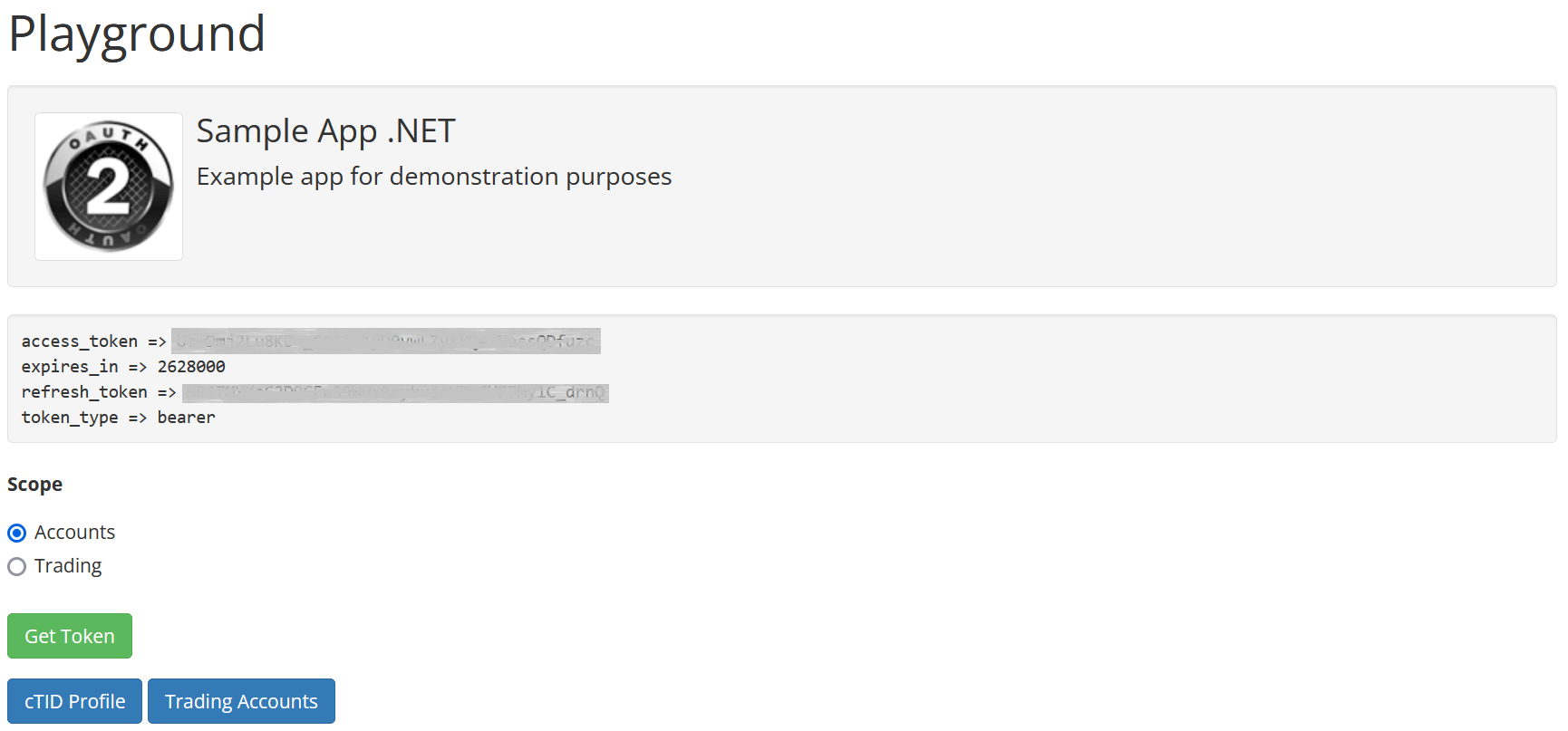
You can use the access token and the refresh token for sending messages to the API while authenticated under your own cTID.
---
# Idioma - cTrader ID
Idioma
======
Defina o seu idioma preferido para o website do cTID, aplicações cTrader e notificações utilizando o menu pendente na parte superior do [**website do cTID**](https://id.ctrader.com/)
.
Abra o menu pendente deslizável e selecione um novo idioma.

O cTrader aplica automaticamente o idioma selecionado em todas as aplicações onde o seu cTrader ID é utilizado. Também começará a receber notificações neste idioma.
Atualmente, o cTrader suporta os seguintes idiomas:
* Árabe
* Checo
* Alemão
* Grego
* Inglês
* Espanhol
* Francês
* Húngaro
* Indonésio
* Italiano
* Japonês
* Coreano
* Malaio
* Polaco
* Português
* Russo
* Eslovaco
* Esloveno
* Sérvio
* Tailandês
* Turco
* Vietnamita
* Chinês simplificado
Voltar ao topo
---
# Working with custom windows - cTrader Algo
[Skip to content](https://help.ctrader.com/ctrader-algo/articles/for-developers/working-with-custom-windows/#working-with-custom-windows-in-ctrader-algo)
Working with custom windows in cTrader Algo[¶](https://help.ctrader.com/ctrader-algo/articles/for-developers/working-with-custom-windows/#working-with-custom-windows-in-ctrader-algo "Permanent link")
========================================================================================================================================================================================================
In this article and its corresponding video, we will talk about working with custom windows when creating cTrader algos. We will explain what custom windows are and how they can be used in your cBots and indicators. We will also create an example of using a custom window in a cBot.
Custom window example[¶](https://help.ctrader.com/ctrader-algo/articles/for-developers/working-with-custom-windows/#custom-window-example "Permanent link")
------------------------------------------------------------------------------------------------------------------------------------------------------------
We will now switch to the **Algo** app to see an illustration of how custom windows can be used in your cBots and indicators. We will create a new indicator; in it, we will simply use a ready-made example from the documentation. [**Click here**](https://help.ctrader.com/ctrader-algo/guides/ui/Window/#how-to-create-complex-windows)
to access it.
Copy and paste the code from the documentation into the code editor window. Then, build the indicator and [**add an instance**](https://help.ctrader.com/ctrader-algo/creating-an-indicator/)
of it to a chart.
As soon as the indicator is added, we should see a custom window popping up. This window contains a complex form displaying information about the symbol to which chart the indicator is currently attached. This form is a great example of what can be achieved with custom windows.
Custom windows vs. WPF and WinForms
There are a couple of reasons why using custom windows is better than using [**WPF**](https://help.ctrader.com/ctrader-algo/guides/ui/WPF/)
or [**WinForms**](https://help.ctrader.com/ctrader-algo/guides/ui/WinForms/)
. cTrader custom windows already come with a native style that matches the cTrader look and feel. WinForms and WPF windows require special handling and advanced programming skills since they run on different threads. Such issues are fully avoided when using the cTrader custom windows.
How to create a custom window[¶](https://help.ctrader.com/ctrader-algo/articles/for-developers/working-with-custom-windows/#how-to-create-a-custom-window "Permanent link")
----------------------------------------------------------------------------------------------------------------------------------------------------------------------------
We will now demonstrate how you can create a custom window from scratch. We will create a new indicator and call it "Custom Window Example". In this example, we will add a custom window and then add some custom controls to it. The window itself will be declared in the `Initialize()` method; to show the window, we will call the `window.Show()` method.
| | |
| --- | --- |
| 1 2 3 4 5 6 7 8 9 10 11 | `protected override void Initialize() { var window = new Window { Title = "My Window", WindowStartupLocation = WindowStartupLocation.CenterScreen, Topmost = true }; window.Show(); }` |
To see the window, we can build the indicator and add it to a chart.
How to add controls to a window[¶](https://help.ctrader.com/ctrader-algo/articles/for-developers/working-with-custom-windows/#how-to-add-controls-to-a-window "Permanent link")
--------------------------------------------------------------------------------------------------------------------------------------------------------------------------------
We will now add custom controls to the window. These controls will take the form of a text box containing some text.
| | |
| --- | --- |
| 1 2 3 4 5 6 7 8 9 10 11 12 13 14 15 16 | `var window = new Window { Child = new TextBlock { Text = "Hi, This is my Window!", VerticalAlignment = VerticalAlignment.Center, HorizontalAlignment = HorizontalAlignment.Center, FontSize = 20, FontWeight = FontWeight.UltraBold }, Title = "My Window", WindowStartupLocation = WindowStartupLocation.CenterScreen, Topmost = true }; window.Show();` |
We will rebuild the indicator and add a new instance to see what our custom controls look like.
How to modify window properties[¶](https://help.ctrader.com/ctrader-algo/articles/for-developers/working-with-custom-windows/#how-to-modify-window-properties "Permanent link")
--------------------------------------------------------------------------------------------------------------------------------------------------------------------------------
| | |
| --- | --- |
| 1 2 3 4 5 6 7 8 9 10 11 12 13 14 15 16 17 18 | `var window = new Window { Child = new TextBlock { Text = "Hi, This is my Window!", VerticalAlignment = VerticalAlignment.Center, HorizontalAlignment = HorizontalAlignment.Center, FontSize = 20, FontWeight = FontWeight.UltraBold }, Title = "My Window", WindowStartupLocation = WindowStartupLocation.CenterScreen, Topmost = true, Width = 800, Height = 800 }; window.Show();` |
We will once again rebuild our indicator and add an instance. Now our window area is a rectangle with a width and height of 800 pixels.
The next change will be to add a range in which the window can be resized. To do so, we will add the `MinHeight`, `MaxHeight`, `MinWidth` and `MaxWidth` parameters.
| | |
| --- | --- |
| 1 2 3 4 5 6 7 8 9 10 11 12 13 14 15 16 17 18 19 20 21 22 | `var window = new Window { Child = new TextBlock { Text = "Hi, This is my Window!", VerticalAlignment = VerticalAlignment.Center, HorizontalAlignment = HorizontalAlignment.Center, FontSize = 20, FontWeight = FontWeight.UltraBold }, Title = "My Window", WindowStartupLocation = WindowStartupLocation.CenterScreen, Topmost = true, Width = 800, Height = 800, MinHeight = 600, MaxHeight = 800, MinWidth = 600, MaxWidth = 800 }; window.Show();` |
We will rebuild the indicator and, after an instance is added, we can attempt to try its size. Resizing is only possible within the specified width and height range.
We can also change the background colour of a window and make it non-resizable.
| | |
| --- | --- |
| 1 2 3 4 5 6 7 8 9 10 11 12 13 14 15 16 17 18 19 20 21 22 | `var window = new Window { Child = new TextBlock { Text = "Hi, This is my Window!", VerticalAlignment = VerticalAlignment.Center, HorizontalAlignment = HorizontalAlignment.Center, FontSize = 20, FontWeight = FontWeight.UltraBold }, Title = "My Window", WindowStartupLocation = WindowStartupLocation.CenterScreen, Topmost = true, Width = 800, Height = 800, MinHeight = 600, MaxHeight = 800, MinWidth = 600, MaxWidth = 800, BackgroundColor = Color.Black, ResizeMode = ResizeMode.NoResize };` |
After we perform the usual actions (rebuilding the indicator and adding an instance), the window should have a new background colour.
Summary[¶](https://help.ctrader.com/ctrader-algo/articles/for-developers/working-with-custom-windows/#summary "Permanent link")
--------------------------------------------------------------------------------------------------------------------------------
cTrader custom windows are flexible and can be customised to a high degree. In addition to the properties mentioned above, you can also change margins and padding, the visibility of custom windows and whether they are active under certain conditions. cTrader custom windows also expose methods to show, hide and close them in addition to several other event handlers.
[Subscribe to our YouTube channel](https://www.youtube.com/channel/UCgoyyb_r8sgNrf1nqyMyo5A?sub_confirmation=1)
Back to top
---
# How to add methods to the cTrader API - cTrader Algo
[Skip to content](https://help.ctrader.com/ctrader-algo/articles/for-developers/how-to-add-methods-to-ctrader-api/#how-to-add-methods-to-the-ctrader-api)
How to add methods to the cTrader API[¶](https://help.ctrader.com/ctrader-algo/articles/for-developers/how-to-add-methods-to-ctrader-api/#how-to-add-methods-to-the-ctrader-api "Permanent link")
==================================================================================================================================================================================================
Extension methods are a crucial tool if you want to add new functionality to the cTrader API. Using relatively simple syntax, you can add new behaviours to any pre-defined API class, such as `Symbol` or `Position`. After you define an extension method, you can call it from any object of the class that you extended.
Use case for extension methods[¶](https://help.ctrader.com/ctrader-algo/articles/for-developers/how-to-add-methods-to-ctrader-api/#use-case-for-extension-methods "Permanent link")
------------------------------------------------------------------------------------------------------------------------------------------------------------------------------------
First, we will conduct a quick demonstration of why you might want to use extension methods.
Using a cBot, we want to be able to access the size of a given position in lots as this information directly affects our preferred trading strategy. To do so, we can try to initialise a variable of the `Position` class and then try to access its `Lots()` method.
| | |
| --- | --- |
| 1 2 | `Position position = Positions.Last(); Print(position.Lots());` |
If we simply type the code as is, we will receive an error suggesting that the `Lots()` accessor does not exist in the API. But what if there was a way to add a new method to an existing API member without affecting any other functionalities?
Assuming this method existed, we could have created a simple cBot that, on every bar, would iterate over a list of all current positions and print their size in lots in the log. We would define the `OnBar()` method as follows.
| | |
| --- | --- |
| 1 2 3 4 5 6 | `protected override void OnBar() { foreach (var position in Positions) { Print(position.Lots()); } }` |
Extension methods allow us to add the `Lots()` functionality in just a few lines of code and then reuse it whenever we want on any object of the `Position` class. Below, we explain how you can create one and provide several examples of algos using them.
How extension methods work[¶](https://help.ctrader.com/ctrader-algo/articles/for-developers/how-to-add-methods-to-ctrader-api/#how-extension-methods-work "Permanent link")
----------------------------------------------------------------------------------------------------------------------------------------------------------------------------
When working with extension methods, be mindful of the following rules.
* Extension methods are always static.
To declare a static method, all you have to do is use the `static` keyword. Below, declare the `Lots()` method with an empty body.
| | |
| --- | --- |
| 1 2 3 4 | `public static class MyExtensions { public static double Lots() {} }` |
* Extension methods can have any number of arguments but the first argument always has to designate the data type/class for which the method is supposed to be called preceded by the keyword `this`.
We will add an object of the `Position` class as the first and only argument of the `Lots()` method. As a `Position` object also contains information about the symbol for which the position is opened, we do not need any other arguments.
| | |
| --- | --- |
| 1 2 3 | `public static class MyExtensions { public static double Lots(this Position position) {} }` |
* Extension methods can contain any logic suitable for the provided arguments.
There is no need to use special syntax when defining the body of an extension method. We can treat it as any other method and, therefore, can define its body as follows.
| | |
| --- | --- |
| 1 2 3 4 5 | `public static class MyExtensions { public static double Lots(this Position position) { return position.VolumeInUnits / position.Symbol.LotSize; } }` |
* Extension methods can be called as instance methods or static methods.
There are two possible ways to call our extension method in the code of a cBot.
When using the instance method syntax, we call the method from any suitable object of the `Position` type.
| | |
| --- | --- |
| 1 2 | `var position = Positions.Last(); Print(position.Lots());` |
When using the static method syntax, we can call our extension method after fully specifying its corresponding static class.
| | |
| --- | --- |
| 1 2 | `var position = Positions.Last(); Print(MyExtensions.Lots(position));` |
It is up to you to determine which method of calling extension methods is the most convenient.
Method signatures
When using instance syntax, avoid cases where your extension methods have the same signatures as any of the built-in API methods (such as `Position.Close()`). In these situations, a built-in method will be called every time you attempt to call an extension method with the matching signature.
IntelliSense
When we attempt to call an extension method, IntelliSense uses a special icon to distinguish it from built-in API members.
To demonstrate our new method in action, we can create a cBot that places three orders on start, each with a different volume. On every bar, the cBot prints the volume of all currently open positions in lots.
| | |
| --- | --- |
| 1 2 3 4 5 6 7 8 9 10 11 12 13 | `protected override void OnStart() { ExecuteMarketOrder(TradeType.Buy, SymbolName, 10000); ExecuteMarketOrder(TradeType.Buy, SymbolName, 100000); ExecuteMarketOrder(TradeType.Buy, SymbolName, 50000); } protected override void OnBar() { foreach (var position in Positions) { Print(position.Lots()); } }` |
After building and launching our cBot, we should see the correct values being printed in the log.
Use extension methods in cBots[¶](https://help.ctrader.com/ctrader-algo/articles/for-developers/how-to-add-methods-to-ctrader-api/#use-extension-methods-in-cbots "Permanent link")
------------------------------------------------------------------------------------------------------------------------------------------------------------------------------------
We will now try to create a more complex cBot. On every bar, our algo will go over the list of currently open positions and adjust their stop-loss levels so that they are at break-even. To do so, we will need to create a `BreakEven()` extension method for the `Position` class.
We create a new cBot and rename it. Afterwards, we delete all the code that we do not need and add the `MyExtensions` class.
| | |
| --- | --- |
| 1 2 3 | `public static class MyExtensions { }` |
Our code for the `BreakEven()` method is relatively simple. We check if a position has a stop loss, whether its gross profit is greater than zero and whether the currently set stop loss is not equal to the position entry price. If all of these conditions are true, we modify the stop loss of the position so that it is equal to the position entry price.
| | |
| --- | --- |
| 1 2 3 4 5 6 7 | `public static class MyExtensions { public static void BreakEven(this Position position) { if (position.StopLoss is not null && position.GrossProfit > 0 && position.StopLoss != position.EntryPrice) { position.ModifyStopLossPrice(position.EntryPrice); } } }` |
In the cBot itself, we do not need to use any method other than `OnBar()`. On every bar we ask the cBot to perform a simple operation, namely iterate over the `Positions` collection and call the new `BreakEven()` method for each element in it.
| | |
| --- | --- |
| 1 2 3 4 5 6 | `protected override void OnBar() { foreach (var position in Positions) { position.BreakEven(); } }` |
After we build and launch our cBot, we can see it in action. It can be a useful trading assistant, especially when managing many open positions.
Use extension methods in indicators[¶](https://help.ctrader.com/ctrader-algo/articles/for-developers/how-to-add-methods-to-ctrader-api/#use-extension-methods-in-indicators "Permanent link")
----------------------------------------------------------------------------------------------------------------------------------------------------------------------------------------------
We will also create a useful indicator that relies on extension methods. The indicator will measure volatility by plotting the percentage by which the price of a symbol has changed on each bar compared to the opening price of that bar.
To do so, we will create a new indicator and rename it. In the code editor window, we will create the `MyExtensions` class to extend the `Bar` class.
| | |
| --- | --- |
| 1 2 3 | `public static class MyExtensions { }` |
We will also add the `PercentageChange()` method. In the `priceChange` variable, we subtract the close price of a bar from its opening price. The method returns our price change divided by the open price and multiplied by 100.
| | |
| --- | --- |
| 1 2 3 4 5 6 7 8 | `public static class MyExtensions { public static double PercentageChange(this Bar bar) { var priceChange = bar.Open - bar.Close; return priceChange / bar.Open * 100; } }` |
In the indicator code itself, we have no need for the `Initialize()` method and unnecessary parameters. In the body of the `Calculate()` method, we simply call our new `PercentageChange()` method on every bar.
| | |
| --- | --- |
| 1 2 3 4 5 6 7 8 | `[Output("Main")] public IndicatorDataSeries Result { get; set; } public override void Calculate(int index) { Result[index] = Bars[index].PercentageChange(); }` |
Afterwards, we save and build our indicator. After creating an instance of it, we should see the correct percentage changes being plotted. They can be used to determine short and long-term volatility, benefitting all kinds of trading strategies.
Summary[¶](https://help.ctrader.com/ctrader-algo/articles/for-developers/how-to-add-methods-to-ctrader-api/#summary "Permanent link")
--------------------------------------------------------------------------------------------------------------------------------------
To conclude, extension methods are a valuable tool if you want to create reausable code that adds new functionalities to the cTrader API. We highly recommend experimenting with extension methods as they can make your algos more efficient and easier to maintain.
[Subscribe to our YouTube channel](https://www.youtube.com/channel/UCgoyyb_r8sgNrf1nqyMyo5A?sub_confirmation=1)
Back to top
---
# ดีพลิงก์สำหรับมือถือเท่านั้น - ดีปลิงก์ cTrader
[ข้ามไปที่เนื้อหา](https://help.ctrader.com/ctrader-deeplinks/th/mobile-only-deeplinks/#ctrader)
ดีพลิงก์ cTrader สำหรับมือถือเท่านั้น[¶](https://help.ctrader.com/ctrader-deeplinks/th/mobile-only-deeplinks/#ctrader "Permanent link")
========================================================================================================================================
ดีพลิงก์ด้านล่างนี้ใช้งานได้เฉพาะเมื่อเข้าถึงบนอุปกรณ์มือถือเท่านั้น
เมนูหลัก [¶](https://help.ctrader.com/ctrader-deeplinks/th/mobile-only-deeplinks/#_1 "Permanent link")
-------------------------------------------------------------------------------------------------------
| ลิงก์ | คำจำกัดความ |
| --- | --- |
| `/price-alerts` | เปิดแท็บ **แจ้งเตือนราคา** |
| `/price-alerts/create/{symbol}` | เปิดหน้าจอ **สร้างการแจ้งเตือน** สำหรับสัญลักษณ์ที่มีชื่อตรงกับ `{symbol}` |
| `/search` | เปิดหน้าจอ **ค้นหาและเพิ่มสัญลักษณ์** |
| `/symbols` | เปิดแท็บ **วอตช์ลิสต์** |
| `/symbols/add` | หาก **ตลาดยอดนิยม** เป็นวอตช์ลิสต์ที่เปิดอยู่ในปัจจุบัน (ซึ่งเป็นค่าเริ่มต้น) จะเปิดป๊อปอัป **โคลนตลาดยอดนิยม** หากมีวอตช์ลิสต์ที่กำหนดเองเปิดอยู่ จะเปิดหน้าจอ **ค้นหาและเพิ่มสัญลักษณ์** |
Trade Watch [¶](https://help.ctrader.com/ctrader-deeplinks/th/mobile-only-deeplinks/#trade-watch "Permanent link")
-------------------------------------------------------------------------------------------------------------------
| ลิงก์ | คำจำกัดความ |
| --- | --- |
| `/deal/{dealID}` | เปิดหน้าจอรายละเอียดดีลสำหรับดีลที่มีตัวระบุตรงกับ `{dealID}` |
เงินทุน [¶](https://help.ctrader.com/ctrader-deeplinks/th/mobile-only-deeplinks/#_2 "Permanent link")
------------------------------------------------------------------------------------------------------
| ลิงก์ | คำจำกัดความ |
| --- | --- |
| `/deposit` | เปิดหน้าจอ **ฝาก** |
กลับไปด้านบนสุด
---
# กรณีการใช้งาน - ดีปลิงก์ cTrader
[ข้ามไปที่เนื้อหา](https://help.ctrader.com/ctrader-deeplinks/th/use-cases/#_1)
กรณีการใช้งาน[¶](https://help.ctrader.com/ctrader-deeplinks/th/use-cases/#_1 "Permanent link")
===============================================================================================
คู่มือนี้แสดงรายการกรณีการใช้งานทั่วไปสำหรับดีพลิงก์ของ cTrader
วิธีทั่วไปในการแชร์ดีพลิงก์
วิธีทั่วไปในการแชร์ดีพลิงก์ของ cTrader มีดังต่อไปนี้
* ดีพลิงก์สามารถเพิ่มลงในองค์ประกอบที่คลิกได้ใดๆ ที่คุณใช้เพื่ออำนวยความสะดวกในการเรียกร้องให้ดำเนินการที่กำหนดเอง เช่น ปุ่มในอีเมลหรือหน้าแลนดิ้งเพจ
* ดีพลิงก์สามารถแชร์โดยตรงบนโซเชียลมีเดียหรือช่องทางแชทของคุณ (เช่น กลุ่ม Telegram)
* ดีพลิงก์สามารถใช้เป็นไฮเปอร์ลิงก์ในเนื้อหาข้อความใดๆ ที่คุณกำลังเผยแพร่ โดยเฉพาะอย่างยิ่งบทความบล็อกหรือเอกสารการศึกษา
กรณีทางธุรกิจทั่วไปของดีพลิงก์ cTrader มีดังต่อไปนี้
* **สร้างแรงจูงใจในการเทรด** ผ่านดีพลิงก์ คุณสามารถส่งผู้ใช้ไปยังหน้าจอ **คำสั่งใหม่** ใน cTrader ได้โดยตรง การใช้ดีพลิงก์อย่างมีประสิทธิภาพควรสร้างแรงจูงใจในการส่งคำสั่งใหม่
* **นำทางนักเทรดไปยังพื้นที่เฉพาะของ cTrader** เมื่อใช้ดีพลิงก์ คุณสามารถนำทางนักเทรดไปยังหน้าจอ **ฝาก** **ถอน** และ **โบนัส** ใน cTrader สำหรับทุกคนที่สื่อสารโดยตรงกับนักเทรด ดีพลิงก์เป็นเครื่องมือที่มีค่าในการส่งเสริมการดำเนินการบางอย่าง
* **นำนักเทรดไปยังตราสารบางอย่าง** หากคุณต้องการให้นักเทรดมุ่งความสนใจไปที่สัญลักษณ์ที่กำลังจะเกิดความผันผวน (EURUSD หลังจากข่าว US CPI) คุณสามารถแชร์ดีพลิงก์ที่นำไปยังหน้าจอ **ข้อมูลสัญลักษณ์** หรือ **สร้างคำสั่งใหม่** สำหรับสัญลักษณ์ที่เลือก
* **ให้ความรู้นักเทรด** ดีพลิงก์สามารถนำทางนักเทรดไปยังฟีเจอร์ที่เป็นประโยชน์ของ cTrader โดยเฉพาะอย่างยิ่งหน้าจอ **การป้องกันขั้นสูง** สำหรับโพสิชันที่กำหนด ดังนั้น ดีพลิงก์สามารถใช้เพื่อแจ้งเตือนนักเทรดเกี่ยวกับเครื่องมือต่างๆ ของ cTrader และกระตุ้นการเรียนรู้ด้วยตนเอง
* **โปรโมทตัวคุณเองหรือนักเทรดมืออาชีพรายอื่น** ดีพลิงก์สามารถนำไปยังกลยุทธ์ cTrader Copy บางอย่างหรือ Investor Access ของผลการเทรดของตนเอง ซึ่งทำให้เป็นเครื่องมือที่สมบูรณ์แบบสำหรับการโปรโมทตัวเองหรือนักเทรดมืออาชีพรายอื่น
ด้านล่างนี้ เราแสดงตัวอย่างหลายๆ แบบของการแชร์ดีพลิงก์เมื่อใช้ช่องทางต่างๆ
สร้างการเรียกร้องให้ดำเนินการที่กำหนดเอง [¶](https://help.ctrader.com/ctrader-deeplinks/th/use-cases/#_2 "Permanent link")
---------------------------------------------------------------------------------------------------------------------------
เมื่อเพิ่มปุ่มลงในเทมเพลตอีเมลหรือหน้าแลนดิ้งเพจของคุณ คุณสามารถใช้ดีพลิงก์ของ cTrader เพื่อสร้างแรงจูงใจในการดำเนินการบางอย่าง ดูตัวอย่างด้านล่างสำหรับปุ่มที่นำไปยังพื้นที่ต่างๆ ของ cTrader เมื่อคลิก
เปิดกราฟสัญลักษณ์เปิดแท็บโบนัสเปิดบัญชีทดลอง
[เทรด EURUSD](https://app.ctrader.com/symbols/EURUSD/chart)
[ดูโบนัสของคุณ](https://app.ctrader.com/bonus)
[เปิดบัญชีทดลอง](https://app.ctrader.com/accounts/create-demo)
แชร์ผ่านโซเชียลมีเดียและแอปแชท [¶](https://help.ctrader.com/ctrader-deeplinks/th/use-cases/#_3 "Permanent link")
-----------------------------------------------------------------------------------------------------------------
ดีพลิงก์สามารถแชร์ได้อย่างอิสระบนโซเชียลมีเดียหรือเมื่อใช้แอปแชทต่างๆ เช่น Telegram ภาพหน้าจอด้านล่างแสดงตัวอย่างหลายๆ แบบของสิ่งนี้
จัดการกลยุทธ์ที่ชื่นชอบทำการฝากส่งคำสั่ง Limit
ใช้ไฮเปอร์ลิงก์ [¶](https://help.ctrader.com/ctrader-deeplinks/th/use-cases/#_4 "Permanent link")
--------------------------------------------------------------------------------------------------
ดีพลิงก์ของ cTrader สามารถใช้เป็นไฮเปอร์ลิงก์เมื่อใดก็ตามที่คุณเห็นว่าเหมาะสม โปรดดูแท็บด้านล่างสำหรับตัวอย่างที่ถูกต้องของการฝังดีพลิงก์ในเนื้อหาข้อความ
ส่งคำสั่ง Stopแก้ไขคำสั่งที่รอดำเนินการดูสัญลักษณ์ทั้งหมด
หลังจากเรียนรู้เกี่ยวกับวิธีการทำงานของคำสั่ง Stop คุณสามารถลองส่ง [**คำสั่ง Stop สำหรับ EURUSD**](https://app.ctrader.com/orders/create-stop-order/EURUSD)
โปรดทราบว่าคำสั่งที่รอดำเนินการ [**สามารถแก้ไขได้**](https://app.ctrader.com/orders/modify)
เพื่อให้สอดคล้องกับกลยุทธ์ของคุณ
เลือกสัญลักษณ์จาก [**สัญลักษณ์ทั้งหมด**](https://app.ctrader.com/finder)
เพื่อเทรด
กลับไปด้านบนสุด
---
# Parameter rentetan pertanyaan - Plugin WebView
[Langkau tajuk talian](https://help.ctrader.com/webview-plugins/ms/query-string-parameters/#parameter-rentetan-pertanyaan)
Amaran
Ciri ini dalam fasa prapelancaran dan sedang diuji. Dokumentasi adalah untuk rujukan sahaja.
Parameter rentetan pertanyaan[¶](https://help.ctrader.com/webview-plugins/ms/query-string-parameters/#parameter-rentetan-pertanyaan "Permanent link")
======================================================================================================================================================
Anda boleh menggunakan parameter rentetan pertanyaan untuk menyesuaikan dan mengkonfigurasi tingkah laku kontekstual plugin WebView. Parameter yang anda hantar digunakan setiap kali pengguna melancarkan atau memuat semula plugin.
| **Parameter** | **Penerangan** | **Nilai yang mungkin** |
| --- | --- | --- |
| `theme` | Tema cTrader | `light`, `dark` |
| `symbol` | Simbol aktif (semasa) | `EURUSD`, `GBPJPY`, `USDCAD`, etc |
| `lang` | Bahasa pelanggan cTrader | `ar`, `cs`, `de`, `el`, `en`, `es`, `fr`, `hu`, `id`, `it`, `ja`, `ko`, `ms`, `pl`, `pt`, `ru`, `sk`, `sl`, `sr`, `th`, `tr`, `vi`, `zh` |
| `platform` | Platform tempat cTrader dijalankan | `web`, `windows`, `macos`, `android`, `ios` |
| `placement` | Penempatan tetingkap plugin | `wl_bs`, `so_bs`, `so_eb`, `chart`, `asp_b`, `asp_t`, `tw_t`, `custom_w` |
| `id` | ID plugin unik untuk perlindungan terhadap penyalinan | Contohnya, `17238`, `26047`, `18359`, dll. |
Penerangan penempatan [¶](https://help.ctrader.com/webview-plugins/ms/query-string-parameters/#penerangan-penempatan "Permanent link")
---------------------------------------------------------------------------------------------------------------------------------------
| **Penempatan** | **Penerangan** | **Platform** | **Gunakan simbol aktif (`symbol`) dalam rentetan pertanyaan**? |
| --- | --- | --- | --- |
| `wl_bs` | Helaian bawah tab dagangan | `android`, `ios` | Tidak |
| `so_bs` | Helaian bawah gambaran keseluruhan simbol | `android`, `ios` | Ya |
| `so_eb` | Blok terbenam gambaran keseluruhan simbol | `android`, `ios` | Ya |
| `chart` | Ruang carta | `web`, `windows`, `macos` | Tidak |
| `asp_b` | Blok ASP | `web`, `windows`, `macos` | Ya |
| `asp_t` | Tab ASP | `web`, `windows`, `macos` | Ya |
| `tw_t` | Tab Pantau Dagangan | `web`, `windows`, `macos` | Tidak |
| `custom_w` | Tetingkap tersuai | `web`, `windows`, `macos` | Tidak |
Nota
Bagi melindungi harta intelek anda dan mencegah berlakunya penyalinan, anda boleh melaksanakan satu mekanisme yang mewajibkan plugin anda menghantar ID unik plugin (`id`) melalui parameter `GET` semasa dilancarkan. Sahkan `id` setiap kali plugin dijalankan, dan sekat plugin daripada dilaksanakan sekiranya `id` plugin tersebut tidak sepadan dengan nilai yang dijangkakan.
Contoh [¶](https://help.ctrader.com/webview-plugins/ms/query-string-parameters/#contoh "Permanent link")
---------------------------------------------------------------------------------------------------------
Contoh mudah (tanpa simbol)
`https://example.com/ctrader_web_app_plugin?theme=dark&lang=en&platform=web&placement=chart&id=abc123`
Mudah alih, tema cerah, Bahasa Portugis dan EURUSD sebagai simbol aktif
`https://example.com/ctrader_web_app_plugin?theme=light&symbol=EURUSD&lang=pt&platform=android&placement=wl_bs&id=def456`
Desktop dengan blok ASP, tema gelap, Bahasa Jerman dan GBPJPY sebagai simbol aktif
`https://example.com/ctrader_web_app_plugin?theme=dark&symbol=GBPJPY&lang=de&platform=windows&placement=asp_b&id=xyz789`
Kembali ke atas
---
# วิธีการทำงานของดีพลิงก์ - ดีปลิงก์ cTrader
[ข้ามไปที่เนื้อหา](https://help.ctrader.com/ctrader-deeplinks/th/how-deeplinks-work/#_1)
ดีปลิงก์ทำงานอย่างไร[¶](https://help.ctrader.com/ctrader-deeplinks/th/how-deeplinks-work/#_1 "Permanent link")
===============================================================================================================
ฟังก์ชันและเงื่อนไขของดีปลิงก์ [¶](https://help.ctrader.com/ctrader-deeplinks/th/how-deeplinks-work/#_2 "Permanent link")
--------------------------------------------------------------------------------------------------------------------------
ดีปลิงก์ทั้งหมดที่อธิบายในเอกสารนี้เป็นแบบสัมพัทธ์กับ URL ที่ใช้โฮสต์แอปพลิเคชัน cTrader ของคุณ โดยทั่วไป URL เหล่านี้จะเป็นไปตามรูปแบบ `app.{brokerName}.com` หรือ `ct.{brokerName}.com` โดย `brokerName` คือชื่อที่กำหนดไว้ล่วงหน้าของโบรกเกอร์เฉพาะ
ตัวอย่าง: เปิดบัญชีจริง
ลิงก์ `https://app.ctrader.com/accounts/create-live` นำไปสู่หน้าจอการสร้างบัญชีจริงในแอปพลิเคชัน cTrader ที่ไม่มีแบรนด์
ดีปลิงก์ส่วนใหญ่เป็น [**ข้ามแพลตฟอร์ม**](https://help.ctrader.com/ctrader-deeplinks/th/cross-platform-deeplinks/)
ซึ่งหมายความว่าพวกมันยังคงฟังก์ชันการทำงานไม่ว่าจะเปิดบนแพลตฟอร์มใดก็ตาม อย่างไรก็ตาม ดีปลิงก์บางอันเป็น [**มือถือเท่านั้น**](https://help.ctrader.com/ctrader-deeplinks/th/mobile-only-deeplinks/)
ในกรณีที่ผู้ใช้ที่ไม่ได้ติดตั้ง cTrader Mobile บนอุปกรณ์ของตนพยายามเปิดดีปลิงก์ พวกเขาจะถูกนำไปยังวิธีการดาวน์โหลด cTrader Mobile เฉพาะแพลตฟอร์มของตน หลังจากติดตั้งและเปิดแอปพลิเคชันแล้ว และผู้ใช้เข้าสู่ระบบด้วยบัญชีใดบัญชีหนึ่งของตน พวกเขาจะถูกนำไปยังหน้าจอที่ดีปลิงก์นำไปในตอนแรก
โปรดทราบว่า UX ของ cTrader แตกต่างกันระหว่างแอปพลิเคชันมือถือและเว็บ พิจารณาตัวอย่างต่อไปนี้
* เมื่อคลิกปุ่ม **ส่งคำสั่ง** ผู้ใช้ cTrader Web จะถูกนำไปยังหน้าต่าง **คำสั่งใหม่**
* เมื่อแตะ **คำสั่งใหม่** ผู้ใช้ cTrader Mobile จะถูกนำไปยังหน้าจอ **สร้างคำสั่ง**
เมื่อผู้ใช้ไปที่ลิงก์ `https://app.ctrader.com/orders/create-market-order` บนเว็บ พวกเขาจะเห็นหน้าต่าง **คำสั่งใหม่** ที่แจ้งให้ส่งคำสั่ง Market บนมือถือ ผู้ใช้จะถูกนำไปยังหน้าจอ **สร้างคำสั่ง** ที่อนุญาตให้ส่งคำสั่ง Market แทน
กล่าวอีกนัยหนึ่ง ดีปลิงก์ทำงานได้อย่างถูกต้องโดยไม่คำนึงถึงความแตกต่างด้าน UX ระหว่าง cTrader Web และมือถือ เอกสารนี้ใช้คำศัพท์เช่นกล่องโต้ตอบ **สร้างคำสั่ง Market** เป็นสัญลักษณ์ร่วมเพื่อแสดงถึงฟังก์ชันที่คล้ายกันระหว่างแอปพลิเคชันเหล่านี้
ดีปลิงก์ cTrader และ OAuth ของโบรกเกอร์ [¶](https://help.ctrader.com/ctrader-deeplinks/th/how-deeplinks-work/#ctrader-oauth "Permanent link")
----------------------------------------------------------------------------------------------------------------------------------------------
ในกรณีที่แอปพลิเคชัน cTrader ใช้โฟลว์ OAuth [**ลิงก์ข้ามแพลตฟอร์ม**](https://help.ctrader.com/ctrader-deeplinks/th/cross-platform-deeplinks/)
ทั้งหมดจะเปิดหน้าจอ OAuth ที่มีแบรนด์ที่ถูกต้องเมื่อเปิดโดย cTrader Web
เมื่อเปิดโดยใช้ cTrader Mobile ดีปลิงก์ cTrader จะแสดงกล่องโต้ตอบ cTrader ปกติแทนที่จะเป็นหน้าจอ OAuth ที่มีแบรนด์
กลับไปด้านบนสุด
---
# Pautan khusus merentas platform - Deeplink cTrader
[Langkau tajuk talian](https://help.ctrader.com/ctrader-deeplinks/ms/cross-platform-deeplinks/#pautan-khusus-ctrader-merentas-platforms)
Pautan khusus cTrader merentas platforms[¶](https://help.ctrader.com/ctrader-deeplinks/ms/cross-platform-deeplinks/#pautan-khusus-ctrader-merentas-platforms "Permanent link")
===============================================================================================================================================================================
Dalam panduan ini, kami menentukan pautan khusus cTrader yang berfungsi untuk cTrader Web dan Mobile. Pautan khusus ini dikelompokkan berdasarkan ruang dalam cTrader yang dituju oleh pedagang.
Harap maklum bahawa setiap pautan yang disenaraikan di halaman ini boleh mempunyai parameter pertanyaan tambahan seperti berikut.
| Parameter | Nilai yang mungkin | Definisi |
| --- | --- | --- |
| `?acc` | Nombor akaun yang sah. | Jika parameter ini dimasukkan, cTrader akan bertukar kepada akaun dengan nombor yang dinyatakan sebelum meneruskan ke ruang yang ditetapkan dalam pautan khusus. |
| `?lang` | Kod negara dua huruf Alpha-2 (ISO 3166-1) yang sah. | Jika parameter ini dimasukkan, cTrader akan menukar Antara Muka Pengguna (UI) kepada bahasa yang dinyatakan sebelum meneruskan ke ruang yang ditetapkan dalam pautan khusus. |
Nota
Beberapa pautan khusus termasuk nilai yang dinyatakan dalam kurungan ikal (cth., `/orders/create-market-order/{symbol}`). Nilai-nilai ini membolehkan penentuan lebih tepat bagi ruang yang pengguna akan dialihkan apabila mereka mengklik pautan khusus. Sebagai contoh, `/orders/create-market-order/{symbol}` memindahkan pengguna ke skrin **Cipta pesanan pasaran** untuk simbol yang nama sepadan dengan teks yang ditaip menggantikan `{symbol}`. Harap maklum bahawa kurungan ikal hanya digunakan sebagai contoh; tidak termasuk dalam pautan khusus sebenar.
Menu utama [¶](https://help.ctrader.com/ctrader-deeplinks/ms/cross-platform-deeplinks/#menu-utama "Permanent link")
--------------------------------------------------------------------------------------------------------------------
| Pautan | Definisi |
| --- | --- |
| `/finder` | Membuka tab **Semua simbol**. |
| `/watchlists` | Membuka tab **Senarai pantau**. |
| `/symbols/filter/{filterText}` | Membuka tab **Semua simbol** dengan simbol yang ditapis untuk dipadankan dengan teks yang dinyatakan dalam `{filterText}`. |
Maklumat simbol dan carta [¶](https://help.ctrader.com/ctrader-deeplinks/ms/cross-platform-deeplinks/#maklumat-simbol-dan-carta "Permanent link")
--------------------------------------------------------------------------------------------------------------------------------------------------
| Pautan | Definisi |
| --- | --- |
| `/symbols/{symbol}/info` | Membuka **Maklumat simbol/Gambaran keseluruhan simbol** untuk simbol yang sepadan dengan `{symbol}`. |
| `/symbols/{symbol}/chart` | Membuka carta dagangan baharu untuk simbol yang sepadan dengan `{symbol}`. Jika carta sedemikian sudah dibuka, carta tersebut akan diaktifkan. |
Pantau Dagangan [¶](https://help.ctrader.com/ctrader-deeplinks/ms/cross-platform-deeplinks/#pantau-dagangan "Permanent link")
------------------------------------------------------------------------------------------------------------------------------
| Pautan | Definisi |
| --- | --- |
| `/positions` | Membuka tab **Posisi** dalam **Pantau Dagangan**. |
| `/orders` | Membuka tab **Pesanan** dalam **Pantau Dagangan**. |
| `/history` | Membuka tab **Sejarah** dalam **Pantau Dagangan**. |
| `/deals` | Membuka tab **Sejarah** dalam **Pantau Dagangan**. Menduplikasi `/history`. |
| `/transactions` | Membuka tab **Transaksi** dalam **Pantau Dagangan**. |
| `/news` | Membuka tab **Berita** dalam **Pantau Dagangan**. |
| `/bonus` | Membuka tab **Bonus** dalam **Pantau Dagangan**. |
Akaun [¶](https://help.ctrader.com/ctrader-deeplinks/ms/cross-platform-deeplinks/#akaun "Permanent link")
----------------------------------------------------------------------------------------------------------
| Pautan | Definisi |
| --- | --- |
| `/accounts/sign-in` | Membuka pemilih akaun. |
| `/accounts/sign-up-demo` | Membuka skrin **Akaun dagangan demo baharu**. |
| `/accounts/create-demo` | Membuka skrin **Akaun dagangan demo baharu**. |
| `/accounts/create-live` | Membuka skrin **Akaun dagangan langsung baharu**. |
Buat pesanan baharu [¶](https://help.ctrader.com/ctrader-deeplinks/ms/cross-platform-deeplinks/#buat-pesanan-baharu "Permanent link")
--------------------------------------------------------------------------------------------------------------------------------------
| Pautan | Definisi |
| --- | --- |
| `/orders/create-market-order` | Membuka skrin **Buat pesanan pasaran** untuk simbol dengan carta yang sedang aktif. |
| `/orders/create-market-order/{symbol}` | Membuka skrin **Buat pesanan pasaran** untuk simbol yang sepadan dengan `{symbol}`. |
| `/orders/create-limit-order` | Membuka skrin **Buat pesanan had** untuk simbol dengan carta yang sedang aktif. |
| `/orders/create-limit-order/{symbol}` | Membuka skrin **Buat pesanan had** untuk simbol yang sepadan dengan `{symbol}`. |
| `/orders/create-stop-order` | Membuka skrin **Buat pesanan henti** untuk simbol dengan carta yang sedang aktif. |
| `/orders/create-stop-order/{symbol}` | Membuka skrin **Buat pesanan henti** untuk simbol yang sepadan dengan `{symbol}`. |
| `/orders/create-stop-limit-order` | Membuka skrin **Buat pesanan henti had** untuk simbol dengan carta yang sedang aktif. |
| `/orders/create-stop-limit-order/{symbol}` | Membuka skrin **Buat pesanan henti had** untuk simbol yang sepadan dengan `{symbol}`. |
Ubah suai pesanan dan maklumat pesanan [¶](https://help.ctrader.com/ctrader-deeplinks/ms/cross-platform-deeplinks/#ubah-suai-pesanan-dan-maklumat-pesanan "Permanent link")
----------------------------------------------------------------------------------------------------------------------------------------------------------------------------
| Pautan | Definisi |
| --- | --- |
| `/orders/modify` | Membuka skrin **Ubah suai pesanan** untuk pesanan pertama dalam senarai **Pesanan**. |
| `/orders/{id}/modify` | Membuka skrin **Ubah suai pesanan** untuk pesanan dengan pengecam yang sepadan dengan `{id}`. |
| `/orders/{id}/details` | Membuka skrin **Maklumat pesanan** untuk pesanan dengan pengecam yang sepadan dengan `{id}`. |
Posisi [¶](https://help.ctrader.com/ctrader-deeplinks/ms/cross-platform-deeplinks/#posisi "Permanent link")
------------------------------------------------------------------------------------------------------------
| Pautan | Definisi |
| --- | --- |
| `/positions/modify` | Membuka skrin **Ubah suai posisi** untuk posisi pertama dalam senarai **Posisi**. |
| `/positions/{id}/modify` | Membuka skrin **Ubah suai posisi** untuk posisi dengan pengecam yang sepadan dengan `{id}`. |
| `/positions/{id}/details` | Membuka skrin **Maklumat posisi** untuk posisi dengan pengecam yang sepadan dengan `{id}`. |
| `/positions/{id}/protect` | Membuka skrin **Perlindungan lanjutan** untuk posisi dengan pengecam yang sepadan dengan `{id}`. |
Dana [¶](https://help.ctrader.com/ctrader-deeplinks/ms/cross-platform-deeplinks/#dana "Permanent link")
--------------------------------------------------------------------------------------------------------
| Pautan | Definisi |
| --- | --- |
| `/funds/withdrawal` | Membuka skrin **Pengeluaran**. |
| `/funds/deposit` | Membuka skrin **Deposit**. |
| `/funds/fundonline` | Membuka skrin **Deposit**. |
| `/funds/bankwire` | Membuka skrin **Deposit**. |
Copy [¶](https://help.ctrader.com/ctrader-deeplinks/ms/cross-platform-deeplinks/#copy "Permanent link")
--------------------------------------------------------------------------------------------------------
| Pautan | Definisi |
| --- | --- |
| `/copy/` | Membuka cTrader Copy. |
| `/copy/favorites` | Membuka tab **Kegemaran** dalam cTrader Copy. |
| `/copy/strategy/{strategyID}` | Membuka halaman strategi untuk strategi dengan pengecam yang sepadan dengan `{strategyID}`. |
| `/copy/account/{accountID}` | Membuka halaman statistik untuk akaun dengan nombor yang sepadan dengan `{accountID}`. |
| `/copy/copyingAccount/{accountID}` | Membuka halaman **Statistik pelaburan** untuk subakaun dengan nombor yang sepadan dengan `{accountID}`. |
Pelbagai [¶](https://help.ctrader.com/ctrader-deeplinks/ms/cross-platform-deeplinks/#pelbagai "Permanent link")
----------------------------------------------------------------------------------------------------------------
| Pautan | Definisi |
| --- | --- |
| `/chat` | Membuka **Sembang**. |
| `/whats-new` | Membuka **Terbaru** untuk keluaran aplikasi terkini. |
| `/profiles/{sharingCode}` | Membuka **Akses pelabur** untuk akaun yang telah menjana `{sharingCode}`. |
Kembali ke atas
---
# วงจรชีวิตของปลั๊กอิน WV - ปลั๊กอิน WebView
[ข้ามไปที่เนื้อหา](https://help.ctrader.com/webview-plugins/th/wv-plugin-lifecycle/#webview)
คำเตือน
คุณลักษณะนี้อยู่ในขั้นตอนก่อนการเปิดตัวและกำลังอยู่ระหว่างการทดสอบ เอกสารนี้มีไว้เพื่อการอ้างอิงเท่านั้น
วงจรชีวิตปลั๊กอิน WebView[¶](https://help.ctrader.com/webview-plugins/th/wv-plugin-lifecycle/#webview "Permanent link")
========================================================================================================================
ปลั๊กอิน WebView ทุกตัวผ่านขั้นตอนต่างๆ หลายขั้นตอน โดยมีหลายฝ่ายเกี่ยวข้องตลอดทาง
graph TB
A([สร้างเว็บแอป]) ==> B([สร้างปลั๊กอิน WV]);
B ==> C([เผยแพร่ในสโตร์]);
C ==> D([เพิ่มจากสโตร์]);
D ==> E([เข้าถึงในแอป cTrader ทั้งหมด พร้อมการซิงค์บนคลาวด์]);
E ==> F([ใช้งานปลั๊กอิน WV]);
%% เส้นทางสำรองจากการสร้างด้วยลูกศรประ
B -.-> B1([เพิ่มไปยังแอป cTrader ของคุณ]);
B1 -.-> B2([แชร์ผ่านการเชิญ]);
B2 -.-> E;
1. นักพัฒนาสร้างเว็บแอปโดยใช้[**เมธอด API**](https://help.ctrader.com/webview-plugins/th/references/public-server-message/)
ที่ช่วยให้สามารถสื่อสารกับ cTrader ได้ จากนั้นโฮสต์บริการบนโดเมนแยกต่างหาก
2. โดยใช้ URL ของบริการที่โฮสต์ไว้ ผู้ใช้[**สร้างปลั๊กอิน WV**](https://help.ctrader.com/webview-plugins/th/how-tos/build-wv-plugins/)
ใน cTrader Web, Windows หรือ Mac
หมายเหตุ
หลังจากสร้างปลั๊กอิน WV แล้ว ผู้ใช้สามารถเลือกที่จะเพิ่มลงในแอป cTrader ของตนเองเท่านั้นเพื่อการทดสอบ
เคล็ดลับ
พาร์ทเนอร์ (IBs) สามารถแชร์ปลั๊กอิน WV ของตนผ่าน [**cTrader Invite**](https://help.ctrader.com/ctrader-invite/th)
ได้อย่างง่ายดายเพื่อดึงดูดนักเทรดเพิ่มเติมและเพิ่มการแปลงผู้แนะนำ
3. ผู้ใช้เผยแพร่ปลั๊กอิน WV ใน [**cTrader สโตร์**](https://ctrader.com/webview-plugins)
เพื่อการกระจายที่กว้างขวางและมีประสิทธิภาพในชุมชนการเทรด
4. นักเทรดคนอื่นๆ [**เพิ่มปลั๊กอิน WV**](https://help.ctrader.com/webview-plugins/th/how-tos/add-wv-plugins/)
จาก cTrader สโตร์ไปยังแอป cTrader ใดก็ได้ของพวกเขา
5. เมื่อเพิ่มแล้ว ปลั๊กอิน WV จะสามารถเข้าถึงได้ในแอป cTrader ทั้งหมดของนักเทรดผ่านการซิงค์คลาวด์อัตโนมัติ
6. นักเทรด [**ใช้ปลั๊กอิน WebView**](https://help.ctrader.com/webview-plugins/th/how-tos/access-wv-plugins/)
เพื่อรับประโยชน์จากประสบการณ์การเทรดที่ดีขึ้น เป็นส่วนตัวมากขึ้น และสะดวกสบายมากขึ้น
กลับไปด้านบนสุด
---
# Daftar menggunakan akaun media sosial - cTrader ID
[Langkau tajuk talian](https://help.ctrader.com/ctrader-id/ms/sign-in-with-the-social-accounts/#google)
Daftar menggunakan akaun media sosial
=====================================
Sebagai alternatif, anda boleh menggunakan akaun Google atau Apple sedia ada anda untuk mencipta [**cTID**](https://help.ctrader.com/ctrader-id/ms/)
.

Nota
Apabila anda mendaftar menggunakan akaun Google anda, cTID anda akan dicipta berdasarkan kelayakan Google anda. cTrader tidak akan sekali-kali menyiarkan atau menerbitkan apa-apa pada akaun media sosial anda, dan aktiviti dagangan anda tidak akan dipaparkan di media sosial.
Google [¶](https://help.ctrader.com/ctrader-id/ms/sign-in-with-the-social-accounts/#google "Permanent link")
-------------------------------------------------------------------------------------------------------------
Untuk mendaftar menggunakan akaun Google, klik butang **Google** dalam tetingkap **Log masuk/Daftar**.
Jika anda sudah log masuk ke akaun Google, anda akan diminta untuk mengesahkan menggunakan akaun media sosial anda. Jika tidak, Google akan memaparkan gesaan untuk anda memasukkan kelayakan anda dan kemudian log masuk.
Setelah proses pendaftaran selesai, anda akan log masuk ke cTrader secara automatik. Anda juga akan menerima mesej di alamat Gmail yang dikaitkan, yang mencadangkan agar anda melancarkan cTrader.
Kini, anda boleh [**mengurus tetapan cTID**](https://help.ctrader.com/ctrader-id/ms/managing-ctid/)
anda di [**laman web cTID**](https://id.ctrader.com/)
.
Apple [¶](https://help.ctrader.com/ctrader-id/ms/sign-in-with-the-social-accounts/#apple "Permanent link")
-----------------------------------------------------------------------------------------------------------
Nota
Anda hanya boleh mendaftar menggunakan akaun Apple pada peranti iOS.
Untuk mencipta cTID menggunakan akaun Apple, ketik butang **Apple** pada skrin pengesahan cTrader.
Pilih pilihan **Kongsi e-mel saya** supaya cTID anda menggunakan alamat e-mel Apple ID anda.
Amaran
Jika anda memilih pilihan **Sembunyikan e-mel saya** semasa mendaftar menggunakan akaun Apple, anda mungkin akan menghadapi isu pengecaman dalam sistem broker dan kesukaran untuk mengakses akaun langsung.
Jika e-mel Apple ID anda disembunyikan, anda akan melihat amaran ini dalam cTrader.
Kami menyarankan agar anda melengkapkan langkah berikut untuk menyelesaikan isu ini.
1. Buka tetapan peranti Apple anda dan pilih untuk berhenti menggunakan Apple ID bagi aplikasi cTrader. Lihat [**arahan penuh**](https://support.apple.com/en-us/102571)
.
2. Buka aplikasi cTrader dan daftar menggunakan akaun Apple sekali lagi.
3. Pilih pilihan **Kongsi e-mel saya** kali ini.
Anda akan log masuk ke cTrader secara automatik dan menerima mesej pengesahan di alamat e-mel yang dipautkan ke akaun Apple anda.
Kini, anda boleh [**mengurus tetapan cTID**](https://help.ctrader.com/ctrader-id/ms/managing-ctid/)
anda di [**laman web cTID**](https://id.ctrader.com/)
.
Kembali ke atas
---
# Pautan khusus yang khusus untuk mudah alih - Deeplink cTrader
[Langkau tajuk talian](https://help.ctrader.com/ctrader-deeplinks/ms/mobile-only-deeplinks/#pautan-khusus-ctrader-yang-khusus-untuk-mudah-alih)
Pautan khusus cTrader yang khusus untuk mudah alih[¶](https://help.ctrader.com/ctrader-deeplinks/ms/mobile-only-deeplinks/#pautan-khusus-ctrader-yang-khusus-untuk-mudah-alih "Permanent link")
================================================================================================================================================================================================
Pautan khusus yang disenaraikan di bawah hanya berfungsi apabila diakses pada peranti mudah alih.
Menu utama [¶](https://help.ctrader.com/ctrader-deeplinks/ms/mobile-only-deeplinks/#menu-utama "Permanent link")
-----------------------------------------------------------------------------------------------------------------
| Pautan | Definisi |
| --- | --- |
| `/price-alerts` | Membuka tab **Pemakluman harga**. |
| `/price-alerts/create/{symbol}` | Membuka skrin **Cipta makluman** untuk simbol yang sepadan dengan `{symbol}`. |
| `/search` | Membuka skrin **Cari dan tambah simbol**. |
| `/symbols` | Membuka tab **Senarai pantau**. |
| `/symbols/add` | Jika **Pasaran popular** ialah senarai pantau yang sedang dibuka (yang merupakan tetapan lalai), pautan tersebut akan membuka tetingkap timbul **Klon pasaran popular**. Jika mana-mana senarai pantau tersuai sedang dibuka, pautan tersebut akan membuka skrin **Cari dan tambah simbol**. |
Pantau Dagangan [¶](https://help.ctrader.com/ctrader-deeplinks/ms/mobile-only-deeplinks/#pantau-dagangan "Permanent link")
---------------------------------------------------------------------------------------------------------------------------
| Pautan | Definisi |
| --- | --- |
| `/deal/{dealID}` | Membuka skrin butiran dagangan untuk dagangan dengan pengecam yang sepadan dengan `{dealID}`. |
Dana [¶](https://help.ctrader.com/ctrader-deeplinks/ms/mobile-only-deeplinks/#dana "Permanent link")
-----------------------------------------------------------------------------------------------------
| Pautan | Definisi |
| --- | --- |
| `/deposit` | Membuka skrin **Deposit**. |
Kembali ke atas
---
# ลงชื่อเข้าใช้ด้วยโซเชียล - cTrader ID
[ข้ามไปที่เนื้อหา](https://help.ctrader.com/ctrader-id/th/sign-in-with-the-social-accounts/#google)
ลงชื่อเข้าใช้ด้วยโซเชียล
========================
หรือคุณสามารถใช้บัญชี Google หรือ Apple ที่มีอยู่เพื่อสร้าง [**cTID**](https://help.ctrader.com/ctrader-id/th/)

หมายเหตุ
เมื่อคุณลงทะเบียนโดยใช้บัญชี Google cTID ของคุณจะถูกสร้างขึ้นโดยใช้ข้อมูลประจำตัวจาก Google cTrader จะไม่โพสต์หรือเผยแพร่สิ่งใดบนบัญชีโซเชียลของคุณ และกิจกรรมการเทรดของคุณจะไม่ปรากฏบนโซเชียลมีเดีย
Google [¶](https://help.ctrader.com/ctrader-id/th/sign-in-with-the-social-accounts/#google "Permanent link")
-------------------------------------------------------------------------------------------------------------
หากต้องการลงทะเบียนด้วย Google ให้คลิกปุ่ม **Google** ในหน้าต่าง **เข้าสู่ระบบ/ลงทะเบียน**
หากคุณเข้าสู่ระบบ Google อยู่แล้ว คุณจะถูกขอให้ยืนยันโดยใช้บัญชีโซเชียลของคุณ มิฉะนั้น Google จะขอให้คุณป้อนข้อมูลประจำตัวและเข้าสู่ระบบ

เมื่อกระบวนการลงทะเบียนเสร็จสิ้น คุณจะเข้าสู่ระบบ cTrader โดยอัตโนมัติ คุณจะได้รับข้อความที่ที่อยู่อีเมล Gmail ที่เชื่อมโยงกับบัญชีของคุณ เพื่อแนะนำให้คุณเปิดใช้ cTrader
ตอนนี้คุณสามารถ [**จัดการการตั้งค่า cTID**](https://help.ctrader.com/ctrader-id/th/managing-ctid/)
ของคุณได้บน [**เว็บไซต์ cTID**](https://id.ctrader.com/)
Apple [¶](https://help.ctrader.com/ctrader-id/th/sign-in-with-the-social-accounts/#apple "Permanent link")
-----------------------------------------------------------------------------------------------------------
หมายเหตุ
คุณสามารถลงทะเบียนด้วย Apple ได้เฉพาะบนอุปกรณ์ iOS เท่านั้น
หากต้องการสร้าง cTID ด้วย Apple ให้แตะปุ่ม **Apple** บนหน้าจอการอนุญาตของ cTrader

เลือกตัวเลือก **แชร์อีเมลของฉัน** เพื่อให้ cTID ของคุณใช้ที่อยู่อีเมล Apple ID ของคุณ
คำเตือน
หากคุณเลือกตัวเลือก **ซ่อนอีเมลของฉัน** เมื่อลงทะเบียนด้วย Apple คุณอาจพบปัญหากับการรับรู้ในระบบของโบรกเกอร์และการเข้าถึงบัญชีจริง
หากที่อยู่อีเมล Apple ID ของคุณถูกซ่อน คุณจะเห็นคำเตือนนี้ใน cTrader

เราขอแนะนำให้คุณทำตามขั้นตอนต่อไปนี้เพื่อแก้ไขปัญหา
1. เปิดการตั้งค่าอุปกรณ์ Apple ของคุณและเลือกหยุดใช้ Apple ID สำหรับแอป cTrader ดู [**คำแนะนำเต็ม**](https://support.apple.com/en-us/102571)
2. เปิดแอป cTrader และลงทะเบียนด้วย Apple อีกครั้ง
3. เลือกตัวเลือก **แชร์อีเมลของฉัน** ในครั้งนี้
คุณจะเข้าสู่ระบบ cTrader โดยอัตโนมัติและได้รับข้อความยืนยันที่ที่อยู่อีเมลที่เชื่อมโยงกับบัญชี Apple ของคุณ
ตอนนี้คุณสามารถ [**จัดการการตั้งค่า cTID**](https://help.ctrader.com/ctrader-id/th/managing-ctid/)
ของคุณได้บน [**เว็บไซต์ cTID**](https://id.ctrader.com/)
กลับไปด้านบนสุด
---
# How to use cTrader Algo references and guides - cTrader Algo
[Skip to content](https://help.ctrader.com/ctrader-algo/articles/for-traders/how-to-use-refs-and-guides/#how-to-use-ctrader-algo-references-and-guides)
How to use cTrader Algo references and guides[¶](https://help.ctrader.com/ctrader-algo/articles/for-traders/how-to-use-refs-and-guides/#how-to-use-ctrader-algo-references-and-guides "Permanent link")
========================================================================================================================================================================================================
cTrader comes equipped with a full set of supplementary materials including extensive documentation (part of which you are currently reading) and educational videos. In this article, we explain how you can use this treasure trove of information effectively. The algo API has many members, and knowing how to quickly get information on what you need is essential.
Documentation updates
The documentation is updated regularly to match new cTrader releases. In some cases, you may see the documentation discussing API improvements that you cannot access in cTrader just yet. You can consider such cases as sneak peeks of what is to come in future versions of cTrader.
How to access documentation and guides[¶](https://help.ctrader.com/ctrader-algo/articles/for-traders/how-to-use-refs-and-guides/#how-to-access-documentation-and-guides "Permanent link")
------------------------------------------------------------------------------------------------------------------------------------------------------------------------------------------
You can easily find educational materials straight in cTrader Windows. To do so, open the **Algo** application and select any algorithm. In the column to the right of the code editor window, you should see the API documentation fully integrated inside the platform.

In fact, there is a high chance you may be reading this article while inside cTrader.
Alternatively, you can visit the [**cTrader Help Centre**](https://help.ctrader.com/)
and open the section covering algo trading. In it, you should see the same interface and structure as you would in regular cTrader Windows. Last but not least, you can visit our [**YouTube channel**](https://www.youtube.com/spotware)
where you can watch video guides covering cTrader algorithms. Note that all of these guides are also available as embedded videos in the Help Centre and in the integrated API documentation.
How to navigate across documentation[¶](https://help.ctrader.com/ctrader-algo/articles/for-traders/how-to-use-refs-and-guides/#how-to-navigate-across-documentation "Permanent link")
--------------------------------------------------------------------------------------------------------------------------------------------------------------------------------------
The documentation contains several essential sections.
[**C# and .NET basics**](https://help.ctrader.com/ctrader-algo/c-net-basics/)
. This brief intro to the core principles of C# and .NET is perfect for anyone looking to get started with creating custom algorithms.
[**cBots**](https://help.ctrader.com/ctrader-algo/cbots/)
and [**Indicators**](https://help.ctrader.com/ctrader-algo/indicators/)
. These guides cover the process of creating cBots and indicators from scratch and provide several code snippets that you can freely reuse when making your own algos.
[**Working with algos**](https://help.ctrader.com/ctrader-algo/articles/workingwith/index.md)
. This section covers everything related to making working with cTrader algorithms even smoother including using external IDEs, compiling and building, debugging and thread safety.
[**API features**](https://help.ctrader.com/ctrader-algo/guides/parameter-types/)
. The documentation in this section details how you can work with several major features of the Algo API, most notably network access and local storage. The [**Advanced cBot operations**](https://help.ctrader.com/ctrader-algo/guides/trading/)
and [**Advanced indicator operations**](https://help.ctrader.com/ctrader-algo/guides/indicators/)
guides contain code snippets for complex types of cTrader algos such as nested indicators.
[**User guides**](https://help.ctrader.com/ctrader-algo/articles/articles/index.md)
. This section contains articles and videos that cover how you can perform specific actions (such as handling key events in the lifecycle of a custom indicator). This is also where the article you are reading right now is located.
[**References**](https://help.ctrader.com/ctrader-algo/references/)
. The API references contain descriptions of every single API member, meaning that you can read information about what you can get or set via certain properties, the possible values of various `enum`'s, and what certain methods return. The same information is provided in the code editor window when you hover over a specific API member.
How to use code snippets[¶](https://help.ctrader.com/ctrader-algo/articles/for-traders/how-to-use-refs-and-guides/#how-to-use-code-snippets "Permanent link")
--------------------------------------------------------------------------------------------------------------------------------------------------------------
Extensive code snippets are one of the key features of this documentation. Regardless of the type of algorithms you want to create, there is a high chance that the documentation contains code that you can freely reuse. To demonstrate this, we can create a simple cBot that runs almost entirely on code taken from the documentation with some small modifications.
To do that, we will first create a new cBot. This is done by clicking the **New cBot** button or, if you cannot see it, opening the dropdown menu at the top of the algorithm list and selecting the same option.
We will create a simple cBot that trades multiple symbols. We want to trade news, so it makes sense to have an algorithm that trades all symbols related to that news.
To do so, we will open the integrated Algo API docs and type "multiple symbols" into its search bar. As shown by the search results, there is a sub-section discussing trading other symbols in the [**Advanced operations with cBots**](https://help.ctrader.com/ctrader-algo/guides/trading/)
guide. If we click on this specific result, we will immediately be taken to the relevant code snippet as well as some supplementary information. We can immediately copy and paste the snippet into our cBot.
| | |
| --- | --- |
| 1 2 3 4 5 6 7 8 9 10 11 12 13 | `[Robot()] public class Sample_cBot : Robot { protected override void OnStart() { var symbol = Symbols.GetSymbol("GBPUSD"); if (symbol is not null) { _ = ExecuteMarketOrder(TradeType.Sell, symbol.Name, symbol.VolumeInUnitsMin); } } }` |
The information above the code snippet tells us that we can use the `Symbols` collection to find the symbols that we want. Suppose the US Treasury is delivering another speech on the interest rate cycle and we want to open sell positions on start for several US-based indices (but not for the symbol to which our cBot is attached).
| | |
| --- | --- |
| 1 2 3 4 5 6 7 8 9 10 11 12 13 14 15 16 17 18 19 | `[Robot()] public class Sample_cBot : Robot { protected override void OnStart() { var symbolOne = Symbols.GetSymbol("US 500"); var symbolTwo = Symbols.GetSymbol("US 30"); var symbolThree = Symbols.GetSymbol("US TECH 100"); if (symbolOne is not null && symbolTwo is not null && symbolThree is not null) { ExecuteMarketOrder(TradeType.Sell, symbolOne.Name, symbolOne.VolumeInUnitsMin); ExecuteMarketOrder(TradeType.Sell, symbolTwo.Name, symbolTwo.VolumeInUnitsMin); ExecuteMarketOrder(TradeType.Sell, symbolThree.Name, symbolThree.VolumeInUnitsMin); } } }` |
On start, our cBot will execute the required operations. Referring to the API docs has allowed us to save a lot of time by reusing existing code and only slightly modifying it to suit our needs.
Summary[¶](https://help.ctrader.com/ctrader-algo/articles/for-traders/how-to-use-refs-and-guides/#summary "Permanent link")
----------------------------------------------------------------------------------------------------------------------------
cTrader allows you to access the API documentation in several different places, most notably within the platform itself. It is an incredibly convenient way to empower your algos as you can simply reuse code snippets from the documentation after introducing the required modifications. We also highly recommend subscribing to our YouTube channel so that you are updated every time we release a new educational video.
[Subscribe to our YouTube channel](https://www.youtube.com/channel/UCgoyyb_r8sgNrf1nqyMyo5A?sub_confirmation=1)
Back to top
---
# Tetapkan kata laluan cTID - cTrader ID
Tetapkan kata laluan cTID
=========================
Apabila cTID [**dicipta oleh broker anda**](https://help.ctrader.com/ctrader-id/ms/creating-a-ctrader-id-by-a-broker/)
, anda akan menerima pemberitahuan e-mel untuk menetapkan kata laluan anda. Klik **Tetapkan kata laluan** dalam e-mel tersebut.

Anda akan diubah hala ke laman web cTrader ID untuk anda memasukkan kata laluan baharu anda.

Nota
Anda boleh kemudiannya [**menukar kata laluan anda**](https://id.ctrader.com/my/settings/credentials)
di laman web cTrader ID atau [**menetapkan semula kata laluan**](https://id.ctrader.com/reset)
jika anda terlupa. Kami menawarkan panduan terperinci tentang cara mengurus [**kelayakan cTID**](https://help.ctrader.com/ctrader-id/ms/managing-ctid/credentials/)
.
Selepas anda menetapkan kata laluan, cTrader akan menghantar satu lagi e-mel kepada anda untuk mengesahkan bahawa operasi tersebut telah berjaya.

Kembali ke atas
---
# 상품 관리하기 - cTrader 스토어
[콘텐츠로 이동](https://help.ctrader.com/ctrader-store/ko/how-tos/manage-products/#_1)
**상품 관리하기**[¶](https://help.ctrader.com/ctrader-store/ko/how-tos/manage-products/#_1 "Permanent link")
=======================================================================================================
계정에서 판매 중인 상품을 관리하세요. **내 상품**을 열어 상품을 상태별로 필터링할 수 있습니다.
**활성** - 판매자가 cTrader 스토어에 등록한 상품입니다.
**비활성** - 판매자가 cTrader 스토어에서 등록 해제한 상품입니다.
**금지됨** - 이용 약관 위반으로 인하여 cTrader 스토어에서 판매가 제한된 상품입니다.
**아카이브됨** - 판매자가 제거한 상품입니다.

상품을 관리할 때 다음과 같은 작업을 수행할 수 있습니다.
**편집** - 상품 설명, 가격 등을 변경합니다.
경고
게시된 후에는 상품 이름을 변경하거나 알고리즘 파일을 교체할 수 없습니다.
**숨기기/표시** - cTrader 스토어에서 상품을 등록/등록 해제합니다.
**아카이브** - cTrader 스토어에서 상품을 제거합니다.
경고
구매한 사용자가 계정을 통해 이 알고리즘에 계속 액세스할 수 있어야 하므로 cTrader 스토어에서 상품을 삭제할 수 없습니다. 대신 더 이상 판매하지 않으려는 상품은 아카이브하세요.
맨위로
---
# Quản lý sản phẩm - cTrader Store
[Bỏ qua](https://help.ctrader.com/ctrader-store/vi/how-tos/manage-products/#quan-ly-san-pham)
Quản lý sản phẩm[¶](https://help.ctrader.com/ctrader-store/vi/how-tos/manage-products/#quan-ly-san-pham "Permanent link")
==========================================================================================================================
Quản lý các sản phẩm bạn đang bán trong tài khoản của mình. Mở **Sản phẩm của bạn** và bạn có thể lọc sản phẩm theo trạng thái.
**Đang hoạt động** - Sản phẩm được người bán đăng trên cTrader Store.
**Không hoạt động** - Sản phẩm bị người bán gỡ khỏi cTrader Store.
**Bị cấm** - Sản phẩm bị hạn chế bán trên cTrader Store do vi phạm điều khoản sử dụng.
**Đã lưu trữ** - Sản phẩm đã bị người bán gỡ bỏ.

Khi quản lý sản phẩm, bạn có thể thực hiện các thao tác sau:
**Chỉnh sửa** - Thay đổi mô tả sản phẩm, giá cả, v.v.
Cảnh báo
Sau khi xuất, bạn sẽ không thể thay đổi tên sản phẩm hoặc thay thế tệp thuật toán.
**Ẩn/Hiện** - Đăng/gỡ sản phẩm trên cTrader Store.
**Lưu trữ** - Gỡ bỏ sản phẩm trên cTrader Store.
Cảnh báo
Bạn không thể xóa sản phẩm trên cTrader Store, vì người dùng đã mua chúng cần duy trì quyền truy cập vào các thuật toán này thông qua tài khoản của họ. Thay vào đó, hãy lưu trữ những sản phẩm mà bạn không còn muốn bán.
Trở lại mục lục
---
# 管理产品 - cTrader 商店
[跳转至](https://help.ctrader.com/ctrader-store/zh/how-tos/manage-products/#_1)
**管理产品**[¶](https://help.ctrader.com/ctrader-store/zh/how-tos/manage-products/#_1 "Permanent link")
====================================================================================================
管理账户正在销售的产品。 打开**您的产品**,即可按状态筛选。
**已上架** - 卖家在 cTrader 商店上架的产品。
**已下架** - 卖家在 cTrader 商店下架的产品。
**已封禁** - 因违反使用条款,而被限制在 cTrader 商店销售的产品。
**已归档** - 卖家移除的产品。

管理产品时,可以执行以下操作:
**编辑** - 修改产品描述、价格等。
警告
产品发布后,无法更改产品名称或替换算法文件。
**隐藏/显示** - 在 cTrader 商店上架/下架产品。
**归档** - 在 cTrader 商店移除产品。
警告
您无法在 cTrader 商店删除产品,因为购买产品的用户需要通过其账户保留对这些算法的访问权限。相反,您可以归档不想再销售的产品。
回到页面顶部
---
# คำถามที่พบบ่อย - cTrader สโตร์
[ข้ามไปที่เนื้อหา](https://help.ctrader.com/ctrader-store/th/faq/#_1)
คำถามที่พบบ่อย
==============
สำหรับผู้ซื้อ[¶](https://help.ctrader.com/ctrader-store/th/faq/#_1 "Permanent link")
-------------------------------------------------------------------------------------
### ฉันจะเริ่มซื้อผลิตภัณฑ์บน cTrader สโตร์ได้อย่างไร?
เข้าสู่ระบบ cTrader สโตร์ด้วยข้อมูลประจำตัว [**cTrader ID**](https://help.ctrader.com/ctrader-id/th)
ของคุณเพื่อซื้ออัลกอริทึมหรือดาวน์โหลดผลิตภัณฑ์ฟรี
### ฉันจะชำระเงินสำหรับผลิตภัณฑ์ได้อย่างไร?
คุณสามารถชำระเงินสำหรับผลิตภัณฑ์โดยใช้บัตรเดบิตหรือเครดิตจาก Visa, MasterCard และผู้ให้บริการบัตรรายอื่น ประเทศของผู้ออกบัตรชำระเงินของคุณต้องตรงกับประเทศที่[**เลือกไว้ในบัญชีของคุณ**](https://help.ctrader.com/ctrader-store/th/how-tos/buy-a-product/)
บน cTrader สโตร์
### ฉันสามารถใช้บัตรเดบิตหรือเครดิตที่ไม่ใช่ของฉันได้หรือไม่?
ในฐานะผู้ซื้อ คุณสามารถใช้บัตรเดบิตหรือเครดิตที่ถูกต้องใดก็ได้เพื่อซื้อผลิตภัณฑ์ ตรวจสอบให้แน่ใจว่าคุณมีเงินทุนเพียงพอที่จะทำธุรกรรมให้สำเร็จ
### ใครสามารถใช้ผลิตภัณฑ์ที่ซื้อบน cTrader สโตร์ได้บ้าง?
ผลิตภัณฑ์สามารถเข้าถึงได้เฉพาะผู้ใช้ที่ซื้อหรือได้รับมาฟรีบน cTrader สโตร์เท่านั้น ผู้ใช้ที่มี cTrader ID อื่นจะไม่สามารถเปิดใน cTrader ได้
### ฉันสามารถรายงานผลิตภัณฑ์ที่น่าสงสัยได้หรือไม่?
ได้ ทั้งผู้ซื้อและผู้ขายสามารถรายงานผลิตภัณฑ์ที่ไม่เป็นไปตาม[**กฎการเผยแพร่**](https://help.ctrader.com/ctrader-store/th/how-tos/publish-a-product/#publishing-rules)
ของ cTrader สโตร์
สำหรับผู้ขาย[¶](https://help.ctrader.com/ctrader-store/th/faq/#_2 "Permanent link")
------------------------------------------------------------------------------------
### ฉันจะเริ่มขายผลิตภัณฑ์บน cTrader สโตร์ได้อย่างไร?
ในการ[**เผยแพร่**](https://help.ctrader.com/ctrader-store/th/how-tos/publish-a-product/)
ผลิตภัณฑ์แบบมีค่าใช้จ่าย คุณต้อง[**ยืนยันบัญชีของคุณ**](https://help.ctrader.com/ctrader-store/th/how-tos/become-a-seller/)
ก่อน โปรดทราบว่าการเผยแพร่ผลิตภัณฑ์ฟรีบน cTrader สโตร์ไม่จำเป็นต้องยืนยันบัญชี
### ฉันต้องใช้เอกสารอะไรบ้างสำหรับการยืนยัน?
แสดงหลักฐานยืนยันตัวตนที่ถูกต้อง (เช่น บัตรประจำตัวประชาชน หนังสือเดินทาง ใบอนุญาตมีถิ่นที่อยู่ หรือใบขับขี่) และทำการตรวจสอบความมีชีวิต
### ฉันจะเป็นผู้ขายที่ประสบความสำเร็จบน cTrader สโตร์ได้อย่างไร?
ดู[**เคล็ดลับสำหรับผู้ขาย**](https://help.ctrader.com/ctrader-store/th/how-tos/publish-a-product/#tips-for-sellers)
ของเราเพื่อใช้ประโยชน์จาก cTrader สโตร์ให้ได้มากที่สุด
### ทำไมผลิตภัณฑ์ของฉันจึงถูกแบน?
ก่อนอื่น ตรวจสอบให้แน่ใจว่าผลิตภัณฑ์ของคุณเป็นไปตาม[**กฎการเผยแพร่**](https://help.ctrader.com/ctrader-store/th/how-tos/publish-a-product/#publishing-rules)
ของ cTrader สโตร์ หากคุณมีคำถามเพิ่มเติม คุณสามารถติดต่อเราผ่านแชทสนับสนุนบน[**cTrader สโตร์**](https://ctrader.com/th/)
หรือทาง[**อีเมล**](mailto:support@ctrader.com)
### cTrader เรียกเก็บค่าธรรมเนียมจากผู้ขายหรือไม่?
cTrader เรียกเก็บค่าคอมมิชชัน 30% จากผลิตภัณฑ์แบบมีค่าใช้จ่ายทั้งหมดที่ขายผ่าน cTrader สโตร์ ในฐานะผู้ขาย คุณยังต้องรับผิดชอบในการชำระภาษีตามกฎหมายของประเทศที่คุณพำนักอีกด้วย
### ฉันจะถอนยอดคงเหลือที่มีอยู่ได้อย่างไร?
คุณสามารถขอถอนเงินได้ในส่วน **การเงิน** ของบัญชี cTrader สโตร์ของคุณ
### มีวิธีการถอนเงินแบบใดบ้าง?
วิธีการถอนเงินที่มีให้ใช้ได้แก่บัตรเดบิตหรือเครดิตจาก Visa, MasterCard และผู้ให้บริการบัตรรายอื่น
### จำนวนเงินขั้นต่ำในการถอนคือเท่าไร?
จำนวนเงินขั้นต่ำในการถอนคือ USD 500
### ฉันสามารถถอนเงินทุนไปยังบัญชีบัตรที่ไม่ใช่ของฉันได้หรือไม่?
เพื่อความปลอดภัยทางการเงิน การถอนเงินสามารถทำได้เฉพาะกับบัญชีบัตรส่วนตัวของคุณเท่านั้น
### ฉันสามารถอัปโหลดอัลกอริทึมที่มีสิทธิ์ในการเข้าถึงเต็มรูปแบบได้หรือไม่?
cTrader สโตร์ไม่อนุญาตให้เผยแพร่ผลิตภัณฑ์ที่มี[**สิทธิ์ในการเข้าถึงเต็มรูปแบบ**](https://help.ctrader.com/ctrader-algo/th/guides/access-rights#the-accessrights-class-property)
เนื่องจากเราให้ความสำคัญกับความปลอดภัยของผู้ซื้อ
กลับไปด้านบนสุด
---
# Kes penggunaan - Deeplink cTrader
[Langkau tajuk talian](https://help.ctrader.com/ctrader-deeplinks/ms/use-cases/#kes-penggunaan)
Kes penggunaan[¶](https://help.ctrader.com/ctrader-deeplinks/ms/use-cases/#kes-penggunaan "Permanent link")
============================================================================================================
Panduan ini menyenaraikan kes penggunaan biasa untuk pautan khusus cTrader.
Cara biasa untuk berkongsi pautan khusus
Cara biasa untuk berkongsi pautan khusus cTrader termasuk yang berikut.
* Pautan khusus boleh ditambah pada mana-mana elemen boleh klik yang anda gunakan untuk memudahkan CTA tersuai seperti butang dalam e-mel atau halaman pendaratan.
* Pautan khusus boleh dikongsi terus di media sosial atau saluran pemesejan anda (seperti kumpulan Telegram).
* Pautan khusus boleh digunakan sebagai hiperpautan dalam mana-mana kandungan teks yang anda edarkan, terutamanya siaran blog atau bahan pendidikan.
Beberapa kes perniagaan biasa pautan khusus cTrader termasuk yang berikut.
* **Menggalakkan dagangan**. Melalui pautan khusus, anda boleh menghantar pengguna terus ke skrin **Pesanan baharu** dalam cTrader. Penggunaan pautan khusus yang berkesan sepatutnya dapat menggalakkan pedagang untuk membuat pesanan baharu.
* **Menghalakan pedagang ke ruang tertentu cTrader**. Apabila menggunakan pautan khusus, anda boleh menghalakan pedagang ke skrin **Deposit**, **Pengeluaran** dan **Bonus** dalam cTrader. Bagi sesiapa yang berkomunikasi terus dengan pedagang, pautan khusus ialah alat yang berguna untuk menggalakkan tindakan tertentu.
* **Menyalurkan pedagang kepada instrumen tertentu**. Jika anda ingin pedagang memberi tumpuan kepada simbol yang bakal mengalami ketaktentuan (seperti EURUSD ekoran daripada berita CPI AS), anda boleh berkongsi pautan khusus yang membawa ke skrin **Maklumat simbol** atau **Cipta pesanan baharu** untuk simbol yang dipilih.
* **Mendidik pedagang**. Pautan khusus boleh menghalakan pedagang ke ciri cTrader yang berguna, terutamanya skrin **Perlindungan lanjutan** untuk posisi tertentu. Oleh itu, pautan khusus boleh digunakan untuk memberitahu pedagang tentang pelbagai alat cTrader dan menggalakkan pembelajaran autonomi.
* **Mempromosikan diri sendiri atau pedagang profesional lain**. Pautan khusus boleh digunakan untuk mengakses strategi cTrader Copy tertentu atau prestasi dagangan seseorang melalui Investor Access. Ini menjadikan pautan khusus alat yang sempurna untuk mempromosikan diri sendiri atau pedagang profesional lain.
Di bawah ini, kami berikan beberapa contoh cara perkongsian pautan khusus dipaparkan apabila menggunakan saluran yang berbeza.
Cipta CTA tersuai [¶](https://help.ctrader.com/ctrader-deeplinks/ms/use-cases/#cipta-cta-tersuai "Permanent link")
-------------------------------------------------------------------------------------------------------------------
Apabila menambah butang pada templat e-mel atau halaman pendaratan anda, anda boleh menggunakan pautan khusus cTrader untuk menggalakkan tindakan tertentu. Lihat di bawah untuk contoh butang yang membawa ke pelbagai ruang cTrader apabila diklik.
Buka carta simbolBuka tab BonusBuka akaun demo
[Berdagang EURUSD](https://app.ctrader.com/symbols/EURUSD/chart)
[Lihat bonus anda](https://app.ctrader.com/bonus)
[Buka akaun demo](https://app.ctrader.com/accounts/create-demo)
Kongsi melalui media sosial dan aplikasi pemesejan [¶](https://help.ctrader.com/ctrader-deeplinks/ms/use-cases/#kongsi-melalui-media-sosial-dan-aplikasi-pemesejan "Permanent link")
-------------------------------------------------------------------------------------------------------------------------------------------------------------------------------------
Pautan khusus boleh dikongsi secara bebas di media sosial atau apabila menggunakan pelbagai aplikasi pemesejan seperti Telegram. Tangkap skrin di bawah memberikan beberapa contoh tentang ini.
Urus strategi kegemaranBuat depositBuat pesanan had



Gunakan hiperpautan [¶](https://help.ctrader.com/ctrader-deeplinks/ms/use-cases/#gunakan-hiperpautan "Permanent link")
-----------------------------------------------------------------------------------------------------------------------
Pautan khusus cTrader juga boleh digunakan sebagai hiperpautan pada bila-bila masa anda fikirkan sesuai. Sila lihat tab di bawah untuk beberapa contoh sah tentang membenamkan pautan khusus dalam kandungan teks.
Buat pesanan hentiUbah suai pesanan tertangguhLihat semua simbol
Selepas mempelajari tentang cara pesanan henti berfungsi, anda boleh cuba membuat [**pesanan henti baharu untuk EURUSD**](https://app.ctrader.com/orders/create-stop-order/EURUSD)
.
Harap maklum bahawa pesanan tertangguh [**boleh diubah suai**](https://app.ctrader.com/orders/modify)
agar selaras dengan strategi anda.
Pilih simbol daripada [**Semua simbol**](https://app.ctrader.com/finder)
untuk didagangkan.
Kembali ke atas
---
# พารามิเตอร์สตริงค์คิวรี - ปลั๊กอิน WebView
[ข้ามไปที่เนื้อหา](https://help.ctrader.com/webview-plugins/th/query-string-parameters/#_1)
คำเตือน
คุณลักษณะนี้อยู่ในขั้นตอนก่อนการเปิดตัวและกำลังอยู่ระหว่างการทดสอบ เอกสารนี้มีไว้เพื่อการอ้างอิงเท่านั้น
พารามิเตอร์สตริงคิวรี[¶](https://help.ctrader.com/webview-plugins/th/query-string-parameters/#_1 "Permanent link")
===================================================================================================================
คุณสามารถใช้พารามิเตอร์สตริงคิวรีเพื่อปรับแต่งและกำหนดค่าพฤติกรรมตามบริบทของปลั๊กอิน WebView พารามิเตอร์ที่คุณส่งจะถูกนำไปใช้เมื่อผู้ใช้เปิดหรือโหลดปลั๊กอินใหม่
| **พารามิเตอร์** | **คำอธิบาย** | **ค่าที่เป็นไปได้** |
| --- | --- | --- |
| `theme` | ธีม cTrader | `light`, `dark` |
| `symbol` | สัญลักษณ์ที่ใช้งานอยู่ (ปัจจุบัน) | `EURUSD`, `GBPJPY`, `USDCAD`, etc |
| `lang` | ภาษาไคลเอนต์ของ cTrader | `ar`, `cs`, `de`, `el`, `en`, `es`, `fr`, `hu`, `id`, `it`, `ja`, `ko`, `ms`, `pl`, `pt`, `ru`, `sk`, `sl`, `sr`, `th`, `tr`, `vi`, `zh` |
| `platform` | แพลตฟอร์มที่ cTrader กำลังทำงาน | `web`, `windows`, `macos`, `android`, `ios` |
| `placement` | ตำแหน่งหน้าต่างปลั๊กอิน | `wl_bs`, `so_bs`, `so_eb`, `chart`, `asp_b`, `asp_t`, `tw_t`, `custom_w` |
| `id` | ID ปลั๊กอินที่ไม่ซ้ำกันสำหรับป้องกันการคัดลอก | เช่น `17238`, `26047`, `18359` เป็นต้น |
คำอธิบายตำแหน่ง [¶](https://help.ctrader.com/webview-plugins/th/query-string-parameters/#_2 "Permanent link")
--------------------------------------------------------------------------------------------------------------
| **ตำแหน่ง** | **คำอธิบาย** | **แพลตฟอร์ม** | **ใช้สัญลักษณ์ที่ใช้งานอยู่ (`symbol`) ในสตริงคิวรีหรือไม่**? |
| --- | --- | --- | --- |
| `wl_bs` | แผ่นล่างแท็บเทรด | `android`, `ios` | ไม่ |
| `so_bs` | แผ่นล่างภาพรวมสัญลักษณ์ | `android`, `ios` | ใช่ |
| `so_eb` | บล็อกฝังตัวภาพรวมสัญลักษณ์ | `android`, `ios` | ใช่ |
| `chart` | พื้นที่กราฟ | `web`, `windows`, `macos` | ไม่ |
| `asp_b` | บล็อก ASP | `web`, `windows`, `macos` | ใช่ |
| `asp_t` | แท็บ ASP | `web`, `windows`, `macos` | ใช่ |
| `tw_t` | แท็บ Trade Watch | `web`, `windows`, `macos` | ไม่ |
| `custom_w` | หน้าต่างกำหนดเอง | `web`, `windows`, `macos` | ไม่ |
หมายเหตุ
เพื่อปกป้องทรัพย์สินทางปัญญาของคุณและป้องกันการคัดลอก คุณสามารถใช้กลไกที่กำหนดให้ปลั๊กอินของคุณต้องส่ง ID ที่ไม่ซ้ำกัน (`id`) ผ่านพารามิเตอร์ `GET` เมื่อเริ่มต้น ตรวจสอบ `id` ทุกครั้งที่ปลั๊กอินทำงาน และบล็อกไม่ให้ปลั๊กอินทำงานหาก `id` ไม่ตรงกับค่าที่คาดหวัง
ตัวอย่าง [¶](https://help.ctrader.com/webview-plugins/th/query-string-parameters/#_3 "Permanent link")
-------------------------------------------------------------------------------------------------------
ตัวอย่างง่ายๆ (ไม่มีสัญลักษณ์)
`https://example.com/ctrader_web_app_plugin?theme=dark&lang=en&platform=web&placement=chart&id=abc123`
มือถือ ธีมสว่าง ภาษาโปรตุเกส และ EURUSD เป็นสัญลักษณ์ที่ใช้งานอยู่
`https://example.com/ctrader_web_app_plugin?theme=light&symbol=EURUSD&lang=pt&platform=android&placement=wl_bs&id=def456`
เดสก์ท็อปพร้อมบล็อก ASP ธีมมืด ภาษาเยอรมัน และ GBPJPY เป็นสัญลักษณ์ที่ใช้งานอยู่
`https://example.com/ctrader_web_app_plugin?theme=dark&symbol=GBPJPY&lang=de&platform=windows&placement=asp_b&id=xyz789`
กลับไปด้านบนสุด
---
# Soalan Lazim - cTrader Store
[Langkau tajuk talian](https://help.ctrader.com/ctrader-store/ms/faq/#untuk-pembeli)
Soalan Lazim
============
Untuk pembeli[¶](https://help.ctrader.com/ctrader-store/ms/faq/#untuk-pembeli "Permanent link")
------------------------------------------------------------------------------------------------
### Bagaimana saya boleh mula membeli produk di cTrader Store?
Log masuk ke cTrader Store dengan kelayakan [**cTrader ID**](https://help.ctrader.com/ctrader-id/ms)
anda untuk membeli algoritma atau memuat turun produk percuma.
### Bagaimana saya boleh membayar untuk produk?
Anda boleh membuat pembayaran menggunakan kad debit atau kredit daripada Visa, MasterCard dan penyedia kad lain. Negara pengeluar kad pembayaran anda mestilah sama dengan yang [**dipilih dalam akaun anda**](https://help.ctrader.com/ctrader-store/ms/how-tos/buy-a-product/)
di cTrader Store.
### Bolehkah saya menggunakan kad debit atau kredit yang bukan milik saya?
Sebagai pembeli, anda boleh menggunakan mana-mana kad debit atau kredit yang sah untuk membeli produk. Pastikan anda mempunyai dana yang mencukupi untuk melaksanakan transaksi dengan berjaya.
### Siapa yang boleh menggunakan produk yang dibeli di cTrader Store?
Produk hanya boleh diakses oleh pengguna yang membelinya atau mendapatkannya secara percuma di cTrader Store. Pengguna dengan cTrader ID yang berbeza tidak akan dapat membukanya dalam cTrader.
### Bolehkah saya melaporkan produk yang mencurigakan?
Ya, pembeli dan penjual boleh melaporkan produk yang tidak mematuhi [**peraturan penerbitan**](https://help.ctrader.com/ctrader-store/ms/how-tos/publish-a-product/#publishing-rules)
cTrader Store.
Untuk penjual[¶](https://help.ctrader.com/ctrader-store/ms/faq/#untuk-penjual "Permanent link")
------------------------------------------------------------------------------------------------
### Bagaimana saya boleh mula menjual produk di cTrader Store?
Untuk [**menerbitkan**](https://help.ctrader.com/ctrader-store/ms/how-tos/publish-a-product/)
produk berbayar, anda perlu [**mengesahkan akaun anda**](https://help.ctrader.com/ctrader-store/ms/how-tos/become-a-seller/)
terlebih dahulu. Ambil perhatian bahawa penerbitan produk percuma di cTrader Store tidak memerlukan pengesahan akaun.
### Apakah dokumen yang perlu saya sediakan untuk pengesahan?
Sediakan bukti pengenalan yang sah (contohnya, kad pengenalan, pasport, permit mastautin atau lesen memandu) dan lakukan pemeriksaan kesahihan identiti.
### Bagaimana saya boleh menjadi penjual yang berjaya di cTrader Store?
Semak [**petua untuk penjual**](https://help.ctrader.com/ctrader-store/ms/how-tos/publish-a-product/#tips-for-sellers)
kami untuk memanfaatkan cTrader Store sepenuhnya.
### Mengapa produk saya disekat?
Pertama, pastikan produk anda mematuhi [**peraturan penerbitan**](https://help.ctrader.com/ctrader-store/ms/how-tos/publish-a-product/#publishing-rules)
cTrader Store. Jika anda mempunyai sebarang pertanyaan lanjut, anda boleh menghubungi kami melalui sembang sokongan di [**cTrader Store**](https://ctrader.com/ms/)
atau melalui [**e-mel**](mailto:support@ctrader.com)
.
### Adakah cTrader mengenakan sebarang yuran daripada penjual?
cTrader mengenakan komisen 30% ke atas semua produk berbayar yang dijual melalui cTrader Store. Sebagai penjual, anda turut bertanggungjawab membayar cukai mengikut undang-undang negara tempat tinggal anda.
### Bagaimana saya boleh mengeluarkan baki yang ada?
Anda boleh meminta pengeluaran dalam bahagian **Kewangan** akaun cTrader Store anda.
### Apakah kaedah pengeluaran yang tersedia?
Kaedah pengeluaran yang tersedia termasuk kad debit atau kredit daripada Visa, MasterCard, dan penyedia kad lain.
### Berapakah jumlah pengeluaran minimum?
Jumlah pengeluaran minimum ialah USD 500.
### Bolehkah saya mengeluarkan dana ke akaun kad yang bukan milik saya?
Untuk memastikan keselamatan kewangan, pengeluaran hanya boleh dibuat ke akaun kad peribadi anda.
### Bolehkah saya memuat naik algoritma dengan hak akses penuh?
cTrader Store tidak membenarkan produk dengan [**hak akses penuh**](https://help.ctrader.com/ctrader-algo/ms/guides/access-rights#the-accessrights-class-property)
diterbitkan, kerana kami mengutamakan keselamatan pembeli kami.
Kembali ke atas
---
# Cara pautan khusus berfungsi - Deeplink cTrader
[Langkau tajuk talian](https://help.ctrader.com/ctrader-deeplinks/ms/how-deeplinks-work/#cara-pautan-khusus-berfungsi)
Cara pautan khusus berfungsi[¶](https://help.ctrader.com/ctrader-deeplinks/ms/how-deeplinks-work/#cara-pautan-khusus-berfungsi "Permanent link")
=================================================================================================================================================
Fungsi dan istilah pautan khusus [¶](https://help.ctrader.com/ctrader-deeplinks/ms/how-deeplinks-work/#fungsi-dan-istilah-pautan-khusus "Permanent link")
----------------------------------------------------------------------------------------------------------------------------------------------------------
Semua pautan khusus yang diterangkan dalam dokumentasi ini adalah relatif kepada URL tertentu yang digunakan untuk mengehoskan aplikasi cTrader anda. Secara amnya, URL ini mengikut konvensyen `app.{brokerName}.com` atau `ct.{brokerName}.com`, dengan `brokerName` merujuk kepada penetapan pratakrif untuk broker tertentu.
Contoh: Buka akaun langsung
Pautan `https://app.ctrader.com/accounts/create-live` membawa kepada skrin penciptaan akaun langsung dalam aplikasi cTrader tanpa jenama.
Kebanyakan pautan khusus ialah pautan [**merentas platform**](https://help.ctrader.com/ctrader-deeplinks/ms/cross-platform-deeplinks/)
, bermakna pautan tersebut mengekalkan fungsi tanpa mengira platform yang pautan tersebut dibuka. Walau bagaimanapun, sesetengah pautan khusus adalah [**khusus untuk mudah alih**](https://help.ctrader.com/ctrader-deeplinks/ms/mobile-only-deeplinks/)
.
Sekiranya pengguna yang tidak memasang cTrader Mobile pada peranti mereka cuba membuka pautan khusus, mereka akan dialihkan ke halaman muat turun cTrader Mobile yang khusus mengikut platform peranti mereka. Selepas aplikasi dipasang dan dibuka, dan pengguna log masuk menggunakan salah satu daripada akaun mereka, mereka akan dialihkan ke skrin yang pada asalnya dituju oleh pautan khusus tersebut.
Harap maklum bahawa pengalaman pengguna (UX) cTrader adalah berbeza antara aplikasi Mudah Alih dan Web. Pertimbangkan contoh berikut.
* Apabila mengklik butang **Buat pesanan**, pengguna cTrader Web akan dibawa ke tetingkap **Pesanan baharu**.
* Apabila mengetik **Pesanan baharu**, pengguna cTrader Mobile dibawa ke skrin **Cipta pesanan**.
Apabila pengguna mengakses pautan `https://app.ctrader.com/orders/create-market-order` di Web, tetingkap **Pesanan baharu** akan dipaparkan kepada mereka, yang menggesa mereka untuk membuat pesanan pasaran. Di platform Mobile, pengguna sebaliknya akan dialihkan ke skrin **Cipta pesanan** yang membolehkan mereka membuat pesanan pasaran.
Dalam erti kata lain, pautan khusus berfungsi dengan baik tanpa mengira perbezaan berkaitan pengalaman pengguna (UX) antara cTrader Web dan Mobile. Dokumentasi ini menggunakan istilah seperti dialog **Cipta pesanan pasaran** sebagai notasi bersama untuk merujuk kepada fungsi yang serupa merentasi aplikasi ini.
Pautan khusus cTrader dan OAuth broker [¶](https://help.ctrader.com/ctrader-deeplinks/ms/how-deeplinks-work/#pautan-khusus-ctrader-dan-oauth-broker "Permanent link")
----------------------------------------------------------------------------------------------------------------------------------------------------------------------
Sekiranya aplikasi cTrader menggunakan aliran OAuth, semua [**pautan merentas platform**](https://help.ctrader.com/ctrader-deeplinks/ms/cross-platform-deeplinks/)
akan membuka skrin OAuth berjenama yang betul apabila dibuka oleh cTrader Web.
Apabila dibuka menggunakan cTrader Mobile, pautan khusus cTrader sebaliknya akan memaparkan dialog cTrader biasa dan bukannya skrin OAuth berjenama.
Kembali ke atas
---
# Kitaran hayat plugin WV - Plugin WebView
[Langkau tajuk talian](https://help.ctrader.com/webview-plugins/ms/wv-plugin-lifecycle/#kitaran-hayat-plugin-webview)
Amaran
Ciri ini dalam fasa prapelancaran dan sedang diuji. Dokumentasi adalah untuk rujukan sahaja.
Kitaran hayat plugin WebView[¶](https://help.ctrader.com/webview-plugins/ms/wv-plugin-lifecycle/#kitaran-hayat-plugin-webview "Permanent link")
================================================================================================================================================
Setiap plugin WebView melalui beberapa peringkat langkah, yang melibatkan pelbagai pihak sepanjang proses tersebut.
graph TB
A([Mencipta aplikasi web]) ==> B([Membina plugin WV]);
B ==> C([Menerbitkan dalam Store]);
C ==> D([Menambah daripada Store]);
D ==> E([Mengakses dalam semua aplikasi cTrader dengan penyegerakan awan]);
E ==> F([Menggunakan plugin WV]);
%% Alternate path from Build with dotted arrow
B -.-> B1([Menambah ke aplikasi cTrader anda]);
B1 -.-> B2([Kongsi melalui Invite]);
B2 -.-> E;
1. Pembangun mencipta aplikasi web menggunakan [**kaedah API**](https://help.ctrader.com/webview-plugins/ms/references/public-server-message/)
yang membolehkan komunikasi dengan cTrader, kemudian mengehoskan perkhidmatan tersebut pada domain kendiri.
2. Dengan menggunakan URL perkhidmatan yang dihoskan, pengguna [**membina plugin WV**](https://help.ctrader.com/webview-plugins/ms/how-tos/build-wv-plugins/)
dalam cTrader Web, Windows atau Mac.
Nota
Selepas membina plugin WV, pengguna boleh memilih untuk menambahkan plugin tersebut hanya pada aplikasi cTrader mereka sendiri untuk tujuan ujian.
Petua
Rakan kongsi (IB) boleh berkongsi plugin WV mereka dengan mudah melalui [**cTrader Invite**](https://help.ctrader.com/ctrader-invite/ms)
untuk mendapatkan penglibatan lebih ramai pedagang dan meningkatkan penukaran rujukan.
3. Pengguna menerbitkan plugin WV di [**cTrader Store**](https://ctrader.com/webview-plugins)
untuk pengedaran yang meluas dan berkesan dalam kalangan komuniti dagangan.
4. Pedagang lain [**menambah plugin WV**](https://help.ctrader.com/webview-plugins/ms/how-tos/add-wv-plugins/)
dari cTrader Store ke mana-mana aplikasi cTrader mereka.
5. Setelah ditambah, plugin WV boleh diakses di semua aplikasi cTrader pedagang melalui penyegerakan awan automatik.
6. Pedagang [**menggunakan plugin WebView**](https://help.ctrader.com/webview-plugins/ms/how-tos/access-wv-plugins/)
untuk mendapat manfaat daripada pengalaman dagangan yang dipertingkatkan, diperibadikan dan lebih mudah.
Kembali ke atas
---
# Soalan Lazim - Plugin WebView
[Langkau tajuk talian](https://help.ctrader.com/webview-plugins/ms/faq/#soalan-lazim)
Amaran
Ciri ini dalam fasa prapelancaran dan sedang diuji. Dokumentasi adalah untuk rujukan sahaja.
Soalan Lazim[¶](https://help.ctrader.com/webview-plugins/ms/faq/#soalan-lazim "Permanent link")
================================================================================================
Untuk pedagang [¶](https://help.ctrader.com/webview-plugins/ms/faq/#untuk-pedagang "Permanent link")
-----------------------------------------------------------------------------------------------------
### Bolehkah saya menggunakan plugin WV pada akaun demo?
Jika anda menggunakan akaun demo Spotware, anda boleh mengakses senarai penuh plugin awam.
### Di manakah saya boleh memaparkan plugin WV?
Anda boleh menentukan dalam bahagian [**tetapan**](https://help.ctrader.com/webview-plugins/ms/how-tos/manage-wv-plugins/)
ruang antara muka yang setiap plugin WebView akan dipaparkan.
### Apakah perbezaan antara plugin WV awam dan peribadi?
Plugin WV awam tersedia di [**cTrader Store**](https://ctrader.com/webview-plugins)
dan boleh dilihat oleh semua pedagang, manakala plugin WV peribadi hanya boleh dilihat oleh pengguna yang menambah plugin tersebut, tetapi boleh dikongsi melalui ciri Invite atau apabila dijadikan umum kemudian.
### Adakah plugin saya disegerakkan merentasi aplikasi cTrader saya?
Ya, akses kepada plugin WV dan tetapan plugin tersebut disegerakkan secara automatik merentasi semua aplikasi cTrader (Mobile, Web, Windows dan Mac) yang anda gunakan dengan [**cTrader ID**](https://help.ctrader.com/ctrader-id/ms)
anda.
### Bolehkah plugin WV menjalankan aktiviti dagangan?
Ya, sesetengah plugin WV boleh menggunakan [**kaedah API**](https://help.ctrader.com/webview-plugins/ms/references/public-server-message/)
untuk mengakses maklumat akaun, mendapatkan sejarah dagangan, membuat atau mengubah suai pesanan dan melanggan sebut harga masa nyata. Tindakan ini berlaku dengan selamat dan menggunakan kelayakan anda.
Untuk pencipta [¶](https://help.ctrader.com/webview-plugins/ms/faq/#untuk-pencipta "Permanent link")
-----------------------------------------------------------------------------------------------------
### Apakah teknologi yang digunakan untuk mencipta plugin WV?
Anda boleh membangunkan plugin WV menggunakan tindanan web standard HTML, CSS dan JavaScript. Plugin dijalankan dalam persekitaran medan ujian, membolehkan interaksi selamat dengan sistem bahagian belakang cTrader melalui [**kaedah API**](https://help.ctrader.com/webview-plugins/ms/references/public-server-message/)
.
### Adakah perlu menggunakan kaedah API semasa mencipta plugin WV?
Gunakan [**kaedah API**](https://help.ctrader.com/webview-plugins/ms/references/public-server-message/)
jika anda mahu plugin WV anda berinteraksi dengan cTrader (mengakses maklumat akaun, membuat pesanan, dsb).
### Bolehkah saya mengkonfigurasi tingkah laku plugin WV?
Ya, gunakan [**parameter rentetan pertanyaan**](https://help.ctrader.com/webview-plugins/ms/query-string-parameters/)
untuk menyesuaikan tema plugin, simbol, bahasa, platform, penempatan dan banyak lagi.
### Bolehkah saya mencipta plugin WV menggunakan AI?
Ya, dengan bantuan [**prom yang tepat**](https://help.ctrader.com/webview-plugins/ms/how-tos/create-wv-plugins-with-ai/)
, anda boleh mencipta plugin WebView tanpa memerlukan sebarang pengetahuan atau kemahiran pengaturcaraan.
### Adakah sebarang sekatan kandungan atau peraturan platform yang perlu saya patuhi semasa mencipta plugin WV?
Sebarang plugin WV yang anda cipta hendaklah mematuhi [**peraturan cTrader Store**](https://ctrader.com/terms-of-use)
, App Store dan Google Play. Paling penting, perkhidmatan web anda tidak boleh mengandungi borang pengesahan atau pembayaran.
### Apakah yang berlaku apabila saya mengemaskinikan plugin saya?
Kemas kini anda dilaksanakan dengan serta-merta, manakala pengguna plugin anda akan melihat versi baharu apabila dilancarkan semula.
Kembali ke atas
---
# 商品を管理する - cTraderストア
[コンテンツにスキップ](https://help.ctrader.com/ctrader-store/ja/how-tos/manage-products/#_1)
**商品を管理する**[¶](https://help.ctrader.com/ctrader-store/ja/how-tos/manage-products/#_1 "Permanent link")
=======================================================================================================
ご自身のアカウントで販売している商品を管理します。 **自分の商品**を開くと、ステータスで商品をフィルタリングできます。
**アクティブ** - 販売者がcTraderストアに掲載している商品。
**非アクティブ** - 販売者がcTraderストアで掲載していない商品。
**禁止** - 利用規約違反によりcTraderストアでの販売が制限された商品。
**アーカイブ** - 販売者が削除した商品。

商品の管理では、次のアクションを実行できます。
**編集** - 商品の説明や価格などを変更します。
警告
公開後は、商品名やアルゴリズムファイルを変更することはできません。
**非表示/表示** - cTraderストアでの商品の掲載と非掲載を切り替えます。
**アーカイブ** - cTraderストアから商品を削除します。
警告
商品を購入したユーザーがそれぞれのアカウントからアルゴリズムにアクセスできる状態を維持する必要があるため、cTraderストアの商品を完全に削除することはできません。その代わりとして、販売を終了したい商品をアーカイブしてください。
ページトップへ戻る
---
# Chart Trading - cTrader Mac
[Skip to content](https://help.ctrader.com/ctrader-mac/trade/chart-trading/#chart-trading)
Chart Trading[¶](https://help.ctrader.com/ctrader-mac/trade/chart-trading/#chart-trading "Permanent link")
===========================================================================================================
cTrader Mac allows users to create new orders and modify positions, pending orders and price alerts directly in the chart area. It is possible to set and adjust the stop loss (SL) and take profit (TP) protections from the chart as well.
These functionalities go beyond the [**Chart Context Menu**](https://help.ctrader.com/ctrader-mac/trade/charts/)
described in another guide.
Quick Trade[¶](https://help.ctrader.com/ctrader-mac/trade/chart-trading/#quick-trade "Permanent link")
-------------------------------------------------------------------------------------------------------
You can place market and pending orders immediately with the Quick Trade buttons located at the top of a symbol chart. The '**Sell**' and '**Buy**' buttons indicate valid entry prices, and you can specify trading quantity or volume in the field above.
To place a quick market order, click the '**Sell**' or '**Buy**' button.
To place a pending order, hover over the '**Sell**' or '**Buy**' button and then drag and drop the resulting control onto the chart.
Note
The resulting order depends on the trade direction (buy or sell) and the placement of the control. A buy pending order becomes a stop order when the control is placed above the current price or a limit order when placed below, while the reverse is the case for a sell pending order.
In the '[**Quick Trade**](https://help.ctrader.com/ctrader-mac/miscellaneous/settings/)
' section of the '**Settings**' menu, you can set whether a market order will open with a single click or a double click. Alternatively, you can open the '**Create Order**' window on click.
cTrader Mac displays open positions on the chart and in the '**Positions**' tab of the Trade Watch panel.
Positions[¶](https://help.ctrader.com/ctrader-mac/trade/chart-trading/#positions "Permanent link")
---------------------------------------------------------------------------------------------------
When you open a position, the position badge becomes visible on the symbol chart. If you hover over the badge or click on it, it will show the traded quantity, pips, net profit/loss, position management buttons and protection controls.
The position management buttons to the right of the badge allow traders to quickly reverse the position in the opposite trade direction, double the position size and close the position.
You can add or adjust the SL and TP protections with the corresponding controls by dragging them vertically along the price axis.
By double-clicking on the position badge, you can always open the '**Modify Position**' window.
Pending Orders[¶](https://help.ctrader.com/ctrader-mac/trade/chart-trading/#pending-orders "Permanent link")
-------------------------------------------------------------------------------------------------------------
Similarly to positions, pending orders are displayed in the chart area.
By dragging the order label vertically along the price axis, you can modify the entry price. Drag the protection controls to set stop loss and take profit for the pending order.
You can instantly cancel a pending order by pressing the '**X**' button.
Price Alerts[¶](https://help.ctrader.com/ctrader-mac/trade/chart-trading/#price-alerts "Permanent link")
---------------------------------------------------------------------------------------------------------
cTrader Mac also displays price alerts on the chart with noticeable yellow lines and labels.
Drag the price alert vertically along the price axis to adjust it right from the chart. You can also delete it by pressing the bin icon.
---
# Tindakan lain - cTrader Store
[Langkau tajuk talian](https://help.ctrader.com/ctrader-store/ms/how-tos/other-actions/#minta-pengeluaran)
Tindakan lain
=============
Minta pengeluaran[¶](https://help.ctrader.com/ctrader-store/ms/how-tos/other-actions/#minta-pengeluaran "Permanent link")
--------------------------------------------------------------------------------------------------------------------------
Untuk mengemukakan meminta pengeluaran, buka **Kewangan** dalam akaun anda dan klik butang **Minta pengeluaran**.
Tentukan jumlah yang anda mahu keluarkan dan kemudian klik **Minta**.
Nota
Jumlah pengeluaran minimum ialah USD 500.
Laporkan produk[¶](https://help.ctrader.com/ctrader-store/ms/how-tos/other-actions/#laporkan-produk "Permanent link")
----------------------------------------------------------------------------------------------------------------------
Pembeli dan penjual boleh melaporkan produk.
Pilih sebab untuk laporan anda dan kemudian berikan maklumat tambahan dalam medan yang diperlukan.
Setelah selesai, klik butang **Hantar**.
Kembali ke atas
---
# คำถามที่พบบ่อย - ปลั๊กอิน WebView
[ข้ามไปที่เนื้อหา](https://help.ctrader.com/webview-plugins/th/faq/#_1)
คำเตือน
คุณลักษณะนี้อยู่ในขั้นตอนก่อนการเปิดตัวและกำลังอยู่ระหว่างการทดสอบ เอกสารนี้มีไว้เพื่อการอ้างอิงเท่านั้น
คำถามที่พบบ่อย[¶](https://help.ctrader.com/webview-plugins/th/faq/#_1 "Permanent link")
========================================================================================
สำหรับนักเทรด [¶](https://help.ctrader.com/webview-plugins/th/faq/#_2 "Permanent link")
----------------------------------------------------------------------------------------
### ฉันสามารถใช้ปลั๊กอิน WV บนบัญชีทดลองได้หรือไม่?
หากคุณใช้บัญชีทดลองของ Spotware คุณสามารถเข้าถึงรายการปลั๊กอินสาธารณะทั้งหมดได้
### ฉันสามารถแสดงปลั๊กอิน WV ที่ไหนได้บ้าง?
คุณสามารถระบุใน[**การตั้งค่า**](https://help.ctrader.com/webview-plugins/th/how-tos/manage-wv-plugins/)
ว่าปลั๊กอิน WebView แต่ละตัวจะปรากฏในพื้นที่อินเทอร์เฟซใดบ้าง
### ความแตกต่างระหว่างปลั๊กอิน WV สาธารณะและส่วนตัวคืออะไร?
ปลั๊กอิน WV สาธารณะมีอยู่ใน[**cTrader สโตร์**](https://ctrader.com/webview-plugins)
และมองเห็นได้สำหรับนักเทรดทุกคน ในขณะที่ปลั๊กอิน WV ส่วนตัวจะมองเห็นได้เฉพาะผู้ใช้ที่เพิ่มเข้ามาเท่านั้น แต่สามารถแชร์ผ่านการเชิญหรือทำให้เป็นสาธารณะในภายหลังได้
### ปลั๊กอินของฉันซิงค์ข้ามแอป cTrader ของฉันหรือไม่?
ใช่ การเข้าถึงปลั๊กอิน WV และการตั้งค่าจะซิงค์โดยอัตโนมัติในแอป cTrader ทั้งหมด (Mobile, Web, Windows และ Mac) ที่คุณใช้กับ [**cTrader ID**](https://help.ctrader.com/ctrader-id/th)
ของคุณ
### ปลั๊กอิน WV สามารถเทรดได้หรือไม่?
ได้ ปลั๊กอิน WV บางตัวสามารถใช้[**API เมธอด**](https://help.ctrader.com/webview-plugins/th/references/public-server-message/)
เพื่อเข้าถึงข้อมูลบัญชี ดึงประวัติการเทรด วางหรือแก้ไขคำสั่ง และสมัครรับราคาแบบเรียลไทม์ การดำเนินการเหล่านี้เกิดขึ้นอย่างปลอดภัยและใช้ข้อมูลประจำตัวของคุณ
สำหรับผู้สร้าง [¶](https://help.ctrader.com/webview-plugins/th/faq/#_3 "Permanent link")
-----------------------------------------------------------------------------------------
### เทคโนโลยีใดที่ใช้ในการสร้างปลั๊กอิน WV?
คุณสามารถพัฒนาปลั๊กอิน WV โดยใช้ชุดเว็บมาตรฐานของ HTML, CSS และ JavaScript ปลั๊กอินทำงานในสภาพแวดล้อมแบบแซนด์บ็อกซ์ ช่วยให้สามารถโต้ตอบกับแบ็กเอนด์ของ cTrader ได้อย่างปลอดภัยผ่าน[**วิธีการ API**](https://help.ctrader.com/webview-plugins/th/references/public-server-message/)
### จำเป็นต้องใช้วิธีการ API เมื่อสร้างปลั๊กอิน WV หรือไม่?
ใช้[**วิธีการ API**](https://help.ctrader.com/webview-plugins/th/references/public-server-message/)
หากคุณต้องการให้ปลั๊กอิน WV ของคุณโต้ตอบกับ cTrader (เข้าถึงข้อมูลบัญชี ส่งคำสั่ง ฯลฯ)
### ฉันสามารถกำหนดค่าพฤติกรรมของปลั๊กอิน WV ได้หรือไม่?
ได้ ใช้[**พารามิเตอร์สตริงคิวรี**](https://help.ctrader.com/webview-plugins/th/query-string-parameters/)
เพื่อปรับแต่งธีมปลั๊กอิน สัญลักษณ์ ภาษา แพลตฟอร์ม และอื่นๆ
### สามารถสร้างปลั๊กอิน WV ด้วย AI ได้หรือไม่?
ได้ ด้วยความช่วยเหลือของ [**ชุดคำสั่งที่แม่นยำ**](https://help.ctrader.com/webview-plugins/th/how-tos/create-wv-plugins-with-ai/)
คุณสามารถสร้างปลั๊กอิน WebView ได้โดยไม่จำเป็นต้องมีความรู้หรือทักษะด้านการเขียนโปรแกรม
### มีข้อจำกัดด้านเนื้อหาหรือกฎของแพลตฟอร์มที่ฉันต้องปฏิบัติตามเมื่อสร้างปลั๊กอิน WV หรือไม่?
ปลั๊กอิน WV ใดๆ ที่คุณสร้างต้องเป็นไปตาม [**กฎของ cTrader สโตร์**](https://ctrader.com/terms-of-use)
, App Store และ Google Play ที่สำคัญที่สุดคือ บริการเว็บของคุณต้องไม่รวมแบบฟอร์มการตรวจสอบสิทธิ์หรือการชำระเงิน
### เกิดอะไรขึ้นเมื่อฉันอัปเดตปลั๊กอินของฉัน?
การอัปเดตของคุณจะถูกส่งทันที ในขณะที่ผู้ใช้ปลั๊กอินของคุณจะเห็นเวอร์ชันใหม่เมื่อเปิดใหม่
กลับไปด้านบนสุด
---
# Terbitkan produk - cTrader Store
[Langkau tajuk talian](https://help.ctrader.com/ctrader-store/ms/how-tos/publish-a-product/#petua-untuk-penjual)
Terbitkan produk
================
Nota
Hanya [**akaun yang disahkan**](https://help.ctrader.com/ctrader-store/ms/how-tos/become-a-seller/)
boleh menerbitkan produk.
Pergi ke **Akaun**, kemudian buka **Produk anda** dan klik butang **Terbitkan baharu**.
Isi borang dan berikan butiran yang diperlukan pada halaman **Terbitkan produk baharu**.
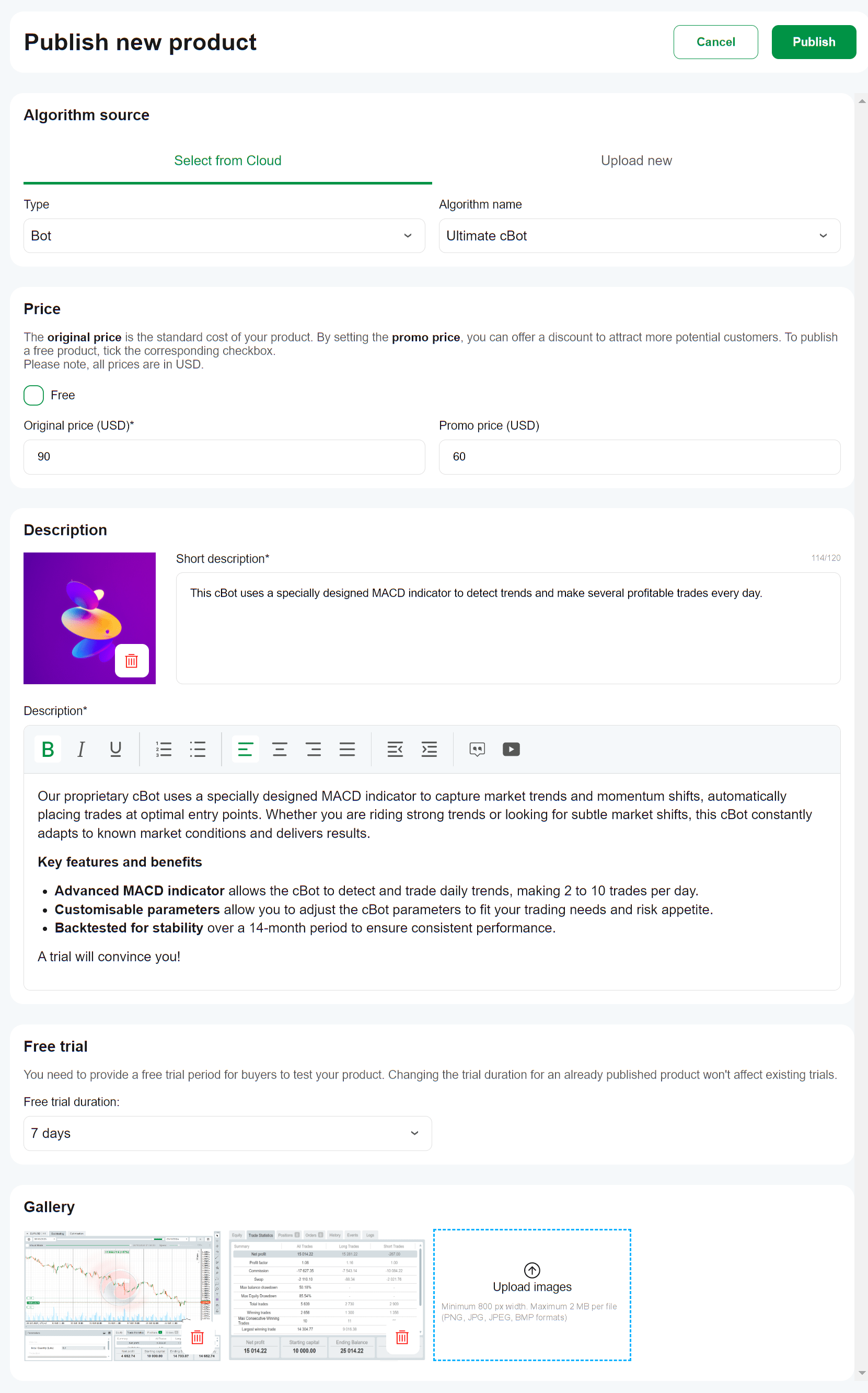
Klik butang **Terbitkan** setelah anda selesai.
Amaran
cTrader mengenakan komisen 30% ke atas semua algoritma berbayar yang dijual melalui cTrader Store. Selepas anda menerima pendapatan sebagai penjual, anda diwajibkan membayar cukai mengikut bidang kuasa anda.
Petua untuk penjual [¶](https://help.ctrader.com/ctrader-store/ms/how-tos/publish-a-product/#petua-untuk-penjual "Permanent link")
-----------------------------------------------------------------------------------------------------------------------------------
Petua ini akan membantu anda berjaya sebagai penjual di cTrader Store:
* Berikan maklumat yang tepat dan terperinci tentang produk anda, serta pastikan penerangannya sepadan dengan apa yang diterima oleh pembeli.
* Gunakan logo unik untuk setiap produk bagi mengelakkan kekeliruan dalam kalangan pembeli.
* Muat naik imej berkualiti tinggi yang mempamerkan ciri-ciri dan menunjukkan nilai produk anda.
* Pertimbangkan untuk mengekalkan gaya yang konsisten dalam visual produk bagi mewujudkan penampilan yang seragam dan meningkatkan pengenalan jenama kepada pelanggan.
* Tetapkan harga yang adil dan telus untuk produk. Uji bagaimana penambahan harga promosi mempengaruhi jualan anda.
* Tambah maklumat hubungan dan pautan media sosial anda ke [**halaman profil**](https://help.ctrader.com/ctrader-id/ms/managing-ctid/profile)
cTrader dan bukannya memasukkannya dalam penerangan produk.
Peraturan penerbitan [¶](https://help.ctrader.com/ctrader-store/ms/how-tos/publish-a-product/#peraturan-penerbitan "Permanent link")
-------------------------------------------------------------------------------------------------------------------------------------
Sila patuhi peraturan ini untuk memastikan produk anda tidak disekat dari cTrader Store:
1. Jangan gunakan dalam nama dan penerangan produk:
2. Bahasa eksplisit atau kandungan tidak sesuai
3. Nama platform atau tanda dagangan selain cTrader
4. Pautan ke aplikasi pesanan atau media sosial, sumber luaran, nombor telefon atau butiran hubungan lain.
5. Jangan gunakan imej eksplisit atau tidak sesuai untuk logo dan galeri produk.
6. Jangan tambahkan pelesenan pihak ketiga, skim pembayaran, pengewangan, pengiklanan, butiran hubungan, atau pautan luaran pada produk anda.
7. Jangan muat naik algoritma yang dikunci kepada pengguna cTrader tertentu.
Nota
Walaupun anda mengeksport algoritma dari cTrader Desktop/Mac dengan kod sumber dan kemudian memuat naiknya ke cTrader Store sebagai fail, kod sumber akan kekal tidak tersedia kepada pembeli, melindungi harta intelek anda.
Kembali ke atas
---
# การดำเนินการอื่นๆ - cTrader สโตร์
[ข้ามไปที่เนื้อหา](https://help.ctrader.com/ctrader-store/th/how-tos/other-actions/#_1)
การดำเนินการอื่นๆ
=================
ขอถอนเงิน[¶](https://help.ctrader.com/ctrader-store/th/how-tos/other-actions/#_1 "Permanent link")
---------------------------------------------------------------------------------------------------
หากต้องการขอถอนเงิน ให้เปิด **การเงิน** ในบัญชีของคุณและคลิกปุ่ม **ขอถอน**
ระบุจำนวนเงินที่คุณต้องการถอนแล้วคลิก **ขอ**

หมายเหตุ
จำนวนเงินขั้นต่ำในการถอนคือ USD 500
รายงานผลิตภัณฑ์[¶](https://help.ctrader.com/ctrader-store/th/how-tos/other-actions/#_2 "Permanent link")
---------------------------------------------------------------------------------------------------------
ทั้งผู้ซื้อและผู้ขายสามารถรายงานผลิตภัณฑ์ได้
เลือกเหตุผลสำหรับรายงานของคุณ จากนั้นให้ข้อมูลเพิ่มเติมในช่องที่จำเป็น

เมื่อเสร็จแล้ว ให้คลิกปุ่ม **ส่ง**
กลับไปด้านบนสุด
---
# Contas - cTrader ID
[Ir para o conteúdo](https://help.ctrader.com/ctrader-id/pt/managing-ctid/trading-accounts/#ver-contas-de-negociacao)
Contas
======
Aceda ao separador [**Contas**](https://id.ctrader.com/my/settings/accounts)
do site do cTID.
Ver contas de negociação [¶](https://help.ctrader.com/ctrader-id/pt/managing-ctid/trading-accounts/#ver-contas-de-negociacao "Permanent link")
-----------------------------------------------------------------------------------------------------------------------------------------------
Aqui, pode ver todas as contas reais e demo associadas ao seu cTID. O site cTID multicorretor organiza as contas de negociação em secções por corretor.

Nota
Os sites do cTID específicos dos corretores mostram apenas as contas de negociação registadas no respetivo corretor. Verifique junto do seu corretor como aceder ao seu site do cTID personalizado.
Clique no ícone da plataforma junto ao nome de um corretor para abrir a sua aplicação cTrader personalizada.

Eliminar contas de negociação [¶](https://help.ctrader.com/ctrader-id/pt/managing-ctid/trading-accounts/#eliminar-contas-de-negociacao "Permanent link")
---------------------------------------------------------------------------------------------------------------------------------------------------------
Dependendo do processo do seu corretor, os passos para eliminar contas de negociação podem variar.
* Contacte o seu corretor e solicite que as suas contas de negociação sejam eliminadas.
* Se a sua conta de negociação estiver na Spotware, pode eliminar uma conta demo ou real apresentada, clicando no ícone do caixote do lixo.
Aviso
Não pode eliminar uma conta de negociação na Spotware se tiver posições abertas ou ordens pendentes. Primeiro feche as posições e cancele as ordens pendentes e, em seguida, elimine a sua conta no site do cTID. A eliminação também está desativada para subcontas.
Voltar ao topo
---
# เผยแพร่ผลิตภัณฑ์ - cTrader สโตร์
[ข้ามไปที่เนื้อหา](https://help.ctrader.com/ctrader-store/th/how-tos/publish-a-product/#_1)
เผยแพร่ผลิตภัณฑ์
================
หมายเหตุ
เฉพาะ[**บัญชีที่ยืนยันแล้ว**](https://help.ctrader.com/ctrader-store/th/how-tos/become-a-seller/)
เท่านั้นที่สามารถเผยแพร่ผลิตภัณฑ์ได้
ไปที่ **บัญชี** จากนั้นเปิด **ผลิตภัณฑ์ของคุณ** และคลิกปุ่ม **เผยแพร่ใหม่**
กรอกแบบฟอร์มและให้รายละเอียดที่จำเป็นในหน้า **เผยแพร่ผลิตภัณฑ์ใหม่**

คลิกปุ่ม **เผยแพร่** เมื่อคุณดำเนินการเสร็จสิ้น
คำเตือน
cTrader เรียกเก็บค่าคอมมิชชัน 30% จากอัลกอริทึมแบบมีค่าใช้จ่ายทั้งหมดที่ขายผ่าน cTrader สโตร์ หลังจากที่คุณได้รับรายได้ในฐานะผู้ขาย คุณมีหน้าที่ต้องชำระภาษีตามเขตอำนาจศาลของคุณ
เคล็ดลับสำหรับผู้ขาย [¶](https://help.ctrader.com/ctrader-store/th/how-tos/publish-a-product/#_1 "Permanent link")
-------------------------------------------------------------------------------------------------------------------
เคล็ดลับเหล่านี้จะช่วยให้คุณประสบความสำเร็จในฐานะผู้ขายบน cTrader สโตร์:
* ให้ข้อมูลที่ถูกต้องและละเอียดเกี่ยวกับผลิตภัณฑ์ของคุณ โดยตรวจสอบให้แน่ใจว่าคำอธิบายตรงกับสิ่งที่ผู้ซื้อได้รับ
* ใช้โลโก้ที่ไม่ซ้ำกันสำหรับแต่ละผลิตภัณฑ์เพื่อป้องกันความสับสนในหมู่ผู้ซื้อ
* อัปโหลดภาพคุณภาพสูงที่แสดงให้เห็นคุณสมบัติและแสดงให้เห็นคุณค่าของผลิตภัณฑ์ของคุณ
* พิจารณาใช้สไตล์ที่สอดคล้องกันในภาพผลิตภัณฑ์เพื่อให้ได้ลุคที่กลมกลืนและเพิ่มการจดจำของลูกค้า
* กำหนดราคาที่เป็นธรรมและโปร่งใสสำหรับผลิตภัณฑ์ ทดสอบว่าการเพิ่มราคาโปรโมชันส่งผลต่อยอดขายของคุณอย่างไร
* เพิ่มข้อมูลการติดต่อและลิงก์โซเชียลมีเดียของคุณใน[**หน้าโปรไฟล์**](https://help.ctrader.com/ctrader-id/th/managing-ctid/profile)
cTrader แทนที่จะรวมไว้ในคำอธิบายผลิตภัณฑ์
กฎการเผยแพร่ [¶](https://help.ctrader.com/ctrader-store/th/how-tos/publish-a-product/#_2 "Permanent link")
-----------------------------------------------------------------------------------------------------------
โปรดปฏิบัติตามกฎเหล่านี้เพื่อให้แน่ใจว่าผลิตภัณฑ์ของคุณจะไม่ถูกแบนจาก cTrader สโตร์:
1. ห้ามใช้ในชื่อผลิตภัณฑ์และคำอธิบาย:
2. ภาษาที่โจ่งแจ้งหรือเนื้อหาที่ไม่เหมาะสม
3. ชื่อแพลตฟอร์มหรือเครื่องหมายการค้าอื่นนอกเหนือจาก cTrader
4. ลิงก์ไปยังแอปส่งข้อความหรือโซเชียลมีเดีย แหล่งข้อมูลภายนอก หมายเลขโทรศัพท์ หรือรายละเอียดการติดต่ออื่นๆ
5. ห้ามใช้ภาพที่โจ่งแจ้งหรือไม่เหมาะสมสำหรับโลโก้ผลิตภัณฑ์และแกลเลอรี
6. ห้ามเพิ่มการอนุญาตใช้งานของบุคคลที่สาม การชำระเงิน การสร้างรายได้ และโครงการโฆษณา รายละเอียดการติดต่อ หรือลิงก์ภายนอกไปยังผลิตภัณฑ์ของคุณ
7. ห้ามอัปโหลดอัลกอริทึมที่ล็อกไว้สำหรับผู้ใช้ cTrader เฉพาะราย

หมายเหตุ
แม้ว่าคุณจะส่งออกอัลกอริทึมจาก cTrader Desktop/Mac พร้อมซอร์สโค้ด และจากนั้นอัปโหลดไปยัง cTrader สโตร์เป็นไฟล์ ซอร์สโค้ดจะยังคงไม่สามารถเข้าถึงได้สำหรับผู้ซื้อ ซึ่งเป็นการรักษาความปลอดภัยทรัพย์สินทางปัญญาของคุณ
กลับไปด้านบนสุด
---
# Sessões - cTrader ID
Sessões
=======
Para ver todas as suas contas ativas, aceda ao separador [**Sessões**](https://id.ctrader.com/my/settings/sessions)
do site do cTID.
Esta secção apresenta todas as suas sessões ativas em aplicações e corretores cTrader.

Para terminar uma sessão, clique no botão **Encerrar** da sessão específica. O seu cTID será então terminado na aplicação cTrader correspondente.
Para terminar todas as sessões, clique no botão **Encerrar todas**. O seu cTID será terminado em todos os locais onde estiver a ser utilizado.
Voltar ao topo
---
# Custom - cTrader Algo
[Skip to content](https://help.ctrader.com/ctrader-algo/references/Plugin/Symbol/Custom/#custom)
Custom[¶](https://help.ctrader.com/ctrader-algo/references/Plugin/Symbol/Custom/#custom "Permanent link")
==========================================================================================================
| Name | Description |
| --- | --- |
| [CustomSymbol](https://help.ctrader.com/ctrader-algo/references/Plugin/Symbol/Custom/CustomSymbol/) | Represents a custom symbol. |
| [CustomSymbolBarsNeededArgs](https://help.ctrader.com/ctrader-algo/references/Plugin/Symbol/Custom/CustomSymbolBarsNeededArgs/) | Provides data for custom symbol BarsNeeded handler. |
| [CustomSymbolFuturesSettings](https://help.ctrader.com/ctrader-algo/references/Plugin/Symbol/Custom/CustomSymbolFuturesSettings/) | Represents a custom symbol futures settings. |
| [CustomSymbolLeverageTier](https://help.ctrader.com/ctrader-algo/references/Plugin/Symbol/Custom/CustomSymbolLeverageTier/) | Custom symbol tier of dynamic leverage. |
| [CustomSymbolMarketHours](https://help.ctrader.com/ctrader-algo/references/Plugin/Symbol/Custom/CustomSymbolMarketHours/) | Access to custom symbol's trading sessions schedule. |
| [CustomSymbols](https://help.ctrader.com/ctrader-algo/references/Plugin/Symbol/Custom/CustomSymbols/) | Represents collection of custom symbols. |
| [CustomSymbolSentiment](https://help.ctrader.com/ctrader-algo/references/Plugin/Symbol/Custom/CustomSymbolSentiment/) | Represents a custom symbol sentiment. |
| [CustomSymbolTradingHoliday](https://help.ctrader.com/ctrader-algo/references/Plugin/Symbol/Custom/CustomSymbolTradingHoliday/) | Represents a custom symbol trading holiday. |
| [CustomSymbolTradingSession](https://help.ctrader.com/ctrader-algo/references/Plugin/Symbol/Custom/CustomSymbolTradingSession/) | Custom symbol trading session schedule. |
Back to top
---
# Mesej pelayan awam - Plugin WebView
[Langkau tajuk talian](https://help.ctrader.com/webview-plugins/ms/references/public-server-message/#mesej-pelayan-awam)
Mesej pelayan awam[¶](https://help.ctrader.com/webview-plugins/ms/references/public-server-message/#mesej-pelayan-awam "Permanent link")
=========================================================================================================================================
ProtoCancelOrderReq [¶](https://help.ctrader.com/webview-plugins/ms/references/public-server-message/#protocancelorderreq "Permanent link")
--------------------------------------------------------------------------------------------------------------------------------------------
Permintaan untuk membatalkan pesanan tertangguh sedia ada.
Jangkakan acara ProtoExecutionEvent{executionType = ORDER\_CANCELLED} jika berjaya, atau ProtoOrderErrorEvent jika pengesahan gagal
| Medan | Jenis | Label | Penerangan |
| --- | --- | --- | --- |
| payloadType | [ProtoPublicServerPayloadType](https://help.ctrader.com/webview-plugins/ms/references/public-server-message/#protopublicserverpayloadtype) | Pilihan | Kod yang disertakan dalam setiap mesej yang memberitahu cTrader dan plugin WebView permintaan, respons atau peristiwa khusus yang sedang dihantar supaya ia boleh dihalakan dan diproses dengan betul |
| orderId | int64 | Diperlukan | ID pesanan yang akan dibatalkan |
| originalClientOrderId | rentetan | Pilihan | ID pesanan yang ditetapkan oleh pelanggan untuk pesanan yang dibatalkan, digunakan untuk menjejaki pesanan dalam sistem pelanggan |
| clientOrderId | rentetan | Pilihan | ID baru yang ditetapkan oleh pelanggan untuk permintaan pembatalan ini, digunakan untuk menjejaki operasi pembatalan |
| clientMsgId | rentetan | Diperlukan | Pengecam unik yang dijana untuk setiap mesej, digunakan untuk mengaitkan permintaan dengan respons yang sepadan dan sebarang acara berkaitan |
ProtoClosePositionReq [¶](https://help.ctrader.com/webview-plugins/ms/references/public-server-message/#protoclosepositionreq "Permanent link")
------------------------------------------------------------------------------------------------------------------------------------------------
Permintaan untuk menutup posisi terbuka sedia ada mengikut positionId.
Jangkakan ProtoExecutionEvent{executionType = ORDER\_ACCEPTED} jika berjaya, atau ProtoOrderErrorEvent jika pengesahan gagal.
Permintaan ini memastikan posisi akan mempunyai volum 0.
Perhatikan bahawa ia masih boleh berada dalam status "CREATED" jika terdapat pesanan tertangguh dengan positionId yang sama
| Medan | Jenis | Label | Penerangan |
| --- | --- | --- | --- |
| payloadType | [ProtoPublicServerPayloadType](https://help.ctrader.com/webview-plugins/ms/references/public-server-message/#protopublicserverpayloadtype) | Pilihan | Kod yang disertakan dalam setiap mesej yang memberitahu cTrader dan plugin WebView permintaan, respons atau peristiwa khusus yang sedang dihantar supaya ia boleh dihalakan dan diproses dengan betul |
| positionId | int64 | Diperlukan | ID Posisi yang akan ditutup sepenuhnya atau sebahagian |
| volume | int64 | Diperlukan | Volum yang akan ditutup, dinyatakan dalam "sen" (\*100). Posisi boleh ditutup sebahagian |
| channel | rentetan | Pilihan | Saluran yang ditetapkan oleh pelanggan untuk tujuan pelaporan |
| stake | int64 | Pilihan | Saiz dagangan, bukannya volum, untuk akaun dengan ProtoAccountType = SPREAD\_BETTING. Nilai 1 sentiasa 0.01 |
| desiredVWAP | berganda | Pilihan | nilai harga untuk mengira gelinciran pada pelaksanaan. Dinyatakan oleh pelanggan sebagai VWAP Pasaran untuk volum yang dikehendaki pada masa penjanaan permintaan |
| closeWithPID | int64 | Pilihan | ID Posisi yang akan dipaparkan dalam UI sebagai posisi bertentangan yang digunakan untuk menutup posisi ini, digunakan untuk pengelompokan visual dalam antara muka |
| clientMsgId | rentetan | Diperlukan | Pengecam unik yang dijana untuk setiap mesej, digunakan untuk mengaitkan permintaan dengan respons yang sepadan dan sebarang acara berkaitan |
ProtoCreateNewOrderReq [¶](https://help.ctrader.com/webview-plugins/ms/references/public-server-message/#protocreateneworderreq "Permanent link")
--------------------------------------------------------------------------------------------------------------------------------------------------
Permintaan untuk menghantar pesanan baharu: jika berjaya, ProtoExecutionEvent dengan executionType = ORDER\_ACCEPTED akan dikembalikan; jika pengesahan gagal, ProtoOrderErrorEvent akan diterima.
| Medan | Jenis | Label | Penerangan |
| --- | --- | --- | --- |
| payloadType | [ProtoPublicServerPayloadType](https://help.ctrader.com/webview-plugins/ms/references/public-server-message/#protopublicserverpayloadtype) | Pilihan | Kod yang disertakan dalam setiap mesej yang memberitahu cTrader dan plugin WebView permintaan, respons atau peristiwa khusus yang sedang dihantar supaya ia boleh dihalakan dan diproses dengan betul |
| symbolId | int64 | Diperlukan | SymbolID yang dikehendaki untuk berdagang |
| orderType | [ProtoOrderType](https://help.ctrader.com/webview-plugins/ms/references/public-server-model/#protoordertype) | Diperlukan | MARKET, LIMIT, STOP, MARKET\_RANGE, STOP\_LIMIT |
| tradeSide | [ProtoTradeSide](https://help.ctrader.com/webview-plugins/ms/references/public-server-model/#prototradeside) | Diperlukan | BELI, JUAL |
| volume | int64 | Diperlukan | Volum Dagangan, dinyatakan dalam "sen" (\*100) |
| limitPrice | berganda | Pilihan | Harga pesanan. Sah untuk orderType = Limit |
| stopPrice | berganda | Pilihan | Harga pesanan. Sah untuk orderType = STOP dan STOP\_LIMIT |
| timeInForce | [ProtoTimeInForce](https://help.ctrader.com/webview-plugins/ms/references/public-server-model/#prototimeinforce) | Pilihan | hanya MARKET\_ON\_OPEN boleh dinyatakan di sini untuk orderType = MARKET. Jika tidak, pelayan akan menetapkan TIF mengikut logik dalaman |
| expirationTimestamp | int64 | Pilihan | Masa tamat tempoh UNIX untuk pesanan HAD, HENTI dan HENTI\_HAD. Pelayan akan menetapkan ProtoTimeInForce = GOOD\_TILL\_DATE dalam kes ini |
| stopLoss | berganda | Pilihan | harga henti rugi mutlak (contohnya 1.23456). Tidak termasuk medan takeProfitInPips. Tidak disokong untuk pesanan PASARAN dan JULAT\_PASARAN |
| takeProfit | berganda | Pilihan | harga ambilan untung mutlak (contohnya 1.23456). Tidak termasuk medan takeProfitInPips. Tidak disokong untuk pesanan PASARAN |
| comment | rentetan | Pilihan | Komen yang ditetapkan pengguna |
| method | rentetan | Pilihan | butang Dagangan Pantas, skrin Pesanan, Dagangan Carta, dan sebagainya. |
| baseSlippagePrice | berganda | Pilihan | Harga asas untuk mengira harga gelinciran relatif |
| label | rentetan | Pilihan | Label yang ditetapkan pengguna |
| channel | rentetan | Pilihan | Saluran yang ditetapkan oleh pelanggan untuk tujuan pelaporan |
| positionId | int64 | Pilihan | ID Posisi sekiranya dagangan mesti dilakukan ke dalam posisi terbuka khusus yang sedia ada |
| clientOrderId | rentetan | Pilihan | ClientOrderId khusus pengguna pilihan (serupa dengan FIX ClOrderID). PanjangMaksimum = 50 aksara |
| relativeStopLoss | int64 | Pilihan | jarak antara harga pembukaan posisi dan Henti Rugi yang dikehendaki. Nilai 1 sentiasa 0.00001 daripada harga |
| relativeTakeProfit | int64 | Pilihan | jarak antara harga pembukaan posisi dan Ambilan Untung yang dikehendaki. nilai 1 sentiasa 0.00001 daripada harga |
| stake | int64 | Pilihan | unit dagangan dan bukannya volum untuk akaun dengan ProtoAccountType = SPREAD\_BETTING. Nilai 1 sentiasa 0.01 |
| desiredVWAP | berganda | Pilihan | nilai harga untuk mengira gelinciran pada pelaksanaan. Dinyatakan oleh pelanggan sebagai VWAP Pasaran untuk volum yang dikehendaki pada masa penjanaan permintaan |
| guaranteedStopLoss | bool | Pilihan | Jika BENAR maka hentiRugi adalah terjamin. Perlu ditetapkan kepada TRUE untuk akaun Risiko Terhad (ProtoTrader.isLimitedRisk = true). |
| checkTolerance | bool | Pilihan | menentukan jika pelayan harus melakukan pemeriksaan terhadap ProtoProtectionProfile.tolerance. |
| trailingStopLoss | bool | Pilihan | menentukan jika Henti Rugi yang ditetapkan adalah trailing. |
| stopTriggerMethod | [ProtoOrderTriggerMethod](https://help.ctrader.com/webview-plugins/ms/references/public-server-model/#protoordertriggermethod) | Pilihan | Kaedah pencetus untuk pesanan tertangguh utama |
| stopLossTriggerMethod | [ProtoOrderTriggerMethod](https://help.ctrader.com/webview-plugins/ms/references/public-server-model/#protoordertriggermethod) | Pilihan | Kaedah pencetus henti untuk pesanan SL/TP |
| slippageInPoints | int32 | Pilihan | gelinciran maksimum yang dibenarkan untuk pesanan JULAT\_PASARAN dan HENTI\_HAD. Nilai 1 ialah 1/10^digit Simbol. Untuk EURJPY ia akan menjadi 0.001, untuk EURUSD 0.00001 |
| desiredOpenTimestamp | int64 | Pilihan | cap masa permulaan sesi yang dikehendaki untuk melaksanakan Pesanan Pasaran. Mesti sama dengan masa, berkaitan dengan ProtoInterval dengan isGlobalSessionStart = true. |
| clientMsgId | rentetan | Diperlukan | Pengecam unik yang dijana untuk setiap mesej, digunakan untuk mengaitkan permintaan dengan respons yang sepadan dan sebarang acara berkaitan |
ProtoErrorRes [¶](https://help.ctrader.com/webview-plugins/ms/references/public-server-message/#protoerrorres "Permanent link")
--------------------------------------------------------------------------------------------------------------------------------
| Medan | Jenis | Label | Penerangan |
| --- | --- | --- | --- |
| payloadType | [ProtoPublicServerPayloadType](https://help.ctrader.com/webview-plugins/ms/references/public-server-message/#protopublicserverpayloadtype) | Pilihan | Kod yang disertakan dalam setiap mesej yang memberitahu cTrader dan plugin WebView permintaan, respons atau peristiwa khusus yang sedang dihantar supaya ia boleh dihalakan dan diproses dengan betul |
| clientMsgId | rentetan | Diperlukan | Pengecam unik yang dijana untuk setiap mesej, digunakan untuk mengaitkan permintaan dengan respons yang sepadan dan sebarang acara berkaitan |
ProtoExecutionEvent [¶](https://help.ctrader.com/webview-plugins/ms/references/public-server-message/#protoexecutionevent "Permanent link")
--------------------------------------------------------------------------------------------------------------------------------------------
Acara yang dihantar selepas penerimaan atau pelaksanaan Pesanan yang berjaya.
Bertindak sebagai respons kepada ProtoNewOrderReq, ProtoCancelOrderReq, ProtoAmendOrderReq, ProtoAmendPositionSLTPReq, ProtoClosePositionReq.
| Medan | Jenis | Label | Penerangan |
| --- | --- | --- | --- |
| payloadType | [ProtoPublicServerPayloadType](https://help.ctrader.com/webview-plugins/ms/references/public-server-message/#protopublicserverpayloadtype) | Pilihan | Kod yang disertakan dalam setiap mesej yang memberitahu cTrader dan plugin WebView permintaan, respons atau peristiwa khusus yang sedang dihantar supaya ia boleh dihalakan dan diproses dengan betul |
| executionType | [ProtoExecutionType](https://help.ctrader.com/webview-plugins/ms/references/public-server-model/#protoexecutiontype) | Diperlukan | Jenis acara yang berlaku |
| position | [ProtoPosition](https://help.ctrader.com/webview-plugins/ms/references/public-server-model/#protoposition) | Pilihan | Rujukan kepada Posisi yang dikaitkan dengan pelaksanaan |
| order | [ProtoOrder](https://help.ctrader.com/webview-plugins/ms/references/public-server-model/#protoorder) | Pilihan | Rujukan kepada Pesanan yang dikaitkan dengan pelaksanaan |
| errorCode | rentetan | Pilihan | Nama ProtoErrorCode atau ErrorCodes tersuai lain sekiranya operasi tidak berjaya |
| depositWithdraw | [ProtoDepositWithdraw](https://help.ctrader.com/webview-plugins/ms/references/public-server-model/#protodepositwithdraw) | Pilihan | Rujukan kepada operasi Deposit atau Pengeluaran yang dikaitkan dengan pelaksanaan |
| deal | [ProtoDeal](https://help.ctrader.com/webview-plugins/ms/references/public-server-model/#protodeal) | Pilihan | Rujukan kepada Dagangan yang dikaitkan dengan pelaksanaan |
| eventId | uint64 | Pilihan | ID acara pelaksanaan |
| bonusDepositWithdraw | [ProtoBonusDepositWithdraw](https://help.ctrader.com/webview-plugins/ms/references/public-server-model/#protobonusdepositwithdraw) | Pilihan | Rujukan kepada operasi Deposit Bonus atau Pengeluaran Bonus yang dikaitkan dengan pelaksanaan |
| isServerEvent | bool | Pilihan | Jika BENAR maka acara dijana oleh logik cServer dan bukannya permintaan Pedagang. (contohnya Stop Out) |
| depositToUsdRate | berganda | Pilihan | Kadar penukaran daripada mata wang deposit kepada USD |
| notifyBigVolume | bool | Pilihan | Dikembalikan sebagai BENAR jika volum yang dilaksanakan cukup besar mengikut Profil Pemberitahuan Dagangan |
| usedMargin | int64 | Pilihan | margin akaun yang digunakan |
| clientMsgId | rentetan | Diperlukan | Pengecam unik yang dijana untuk setiap mesej, digunakan untuk mengaitkan permintaan dengan respons yang sepadan dan sebarang acara berkaitan |
ProtoGetAccountGroupInformationReq [¶](https://help.ctrader.com/webview-plugins/ms/references/public-server-message/#protogetaccountgroupinformationreq "Permanent link")
--------------------------------------------------------------------------------------------------------------------------------------------------------------------------
Permintaan untuk mendapatkan tetapan kumpulan komprehensif (parameter dagangan, keperluan margin, fi, komisen, kadar penukaran bonus, tahap stop-out, fi ketidakaktifan, bendera keizinan, dan maklumat entiti serantau/undang-undang) untuk akaun yang disahkan semasa.
Mengembalikan objek ProtoGroup yang mengandungi ID kumpulan, nama, status, profil komisen, tetapan bonus, fi ketidakaktifan, dan butiran entiti undang-undang, bersama dengan mata wang deposit akaun.
| Medan | Jenis | Label | Penerangan |
| --- | --- | --- | --- |
| payloadType | [ProtoPublicServerPayloadType](https://help.ctrader.com/webview-plugins/ms/references/public-server-message/#protopublicserverpayloadtype) | Pilihan | Kod yang disertakan dalam setiap mesej yang memberitahu cTrader dan plugin WebView permintaan, respons atau peristiwa khusus yang sedang dihantar supaya ia boleh dihalakan dan diproses dengan betul |
| clientMsgId | rentetan | Diperlukan | Pengecam unik yang dijana untuk setiap mesej, digunakan untuk mengaitkan permintaan dengan respons yang sepadan dan sebarang acara berkaitan |
ProtoGetAccountGroupInformationRes [¶](https://help.ctrader.com/webview-plugins/ms/references/public-server-message/#protogetaccountgroupinformationres "Permanent link")
--------------------------------------------------------------------------------------------------------------------------------------------------------------------------
| Medan | Jenis | Label | Penerangan |
| --- | --- | --- | --- |
| payloadType | [ProtoPublicServerPayloadType](https://help.ctrader.com/webview-plugins/ms/references/public-server-message/#protopublicserverpayloadtype) | Pilihan | Kod yang disertakan dalam setiap mesej yang memberitahu cTrader dan plugin WebView permintaan, respons atau peristiwa khusus yang sedang dihantar supaya ia boleh dihalakan dan diproses dengan betul |
| group | [ProtoGroup](https://help.ctrader.com/webview-plugins/ms/references/public-server-model/#protogroup) | Diperlukan | Maklumat Kumpulan untuk akaun yang dibenarkan semasa |
| depositCurrency | rentetan | Diperlukan | Nama Aset deposit Pedagang |
| enabled | bool | Pilihan | BENAR jika Kumpulan Pedagang diaktifkan |
| clientMsgId | rentetan | Diperlukan | Pengecam unik yang dijana untuk setiap mesej, digunakan untuk mengaitkan permintaan dengan respons yang sepadan dan sebarang acara berkaitan |
ProtoGetAccountInformationReq [¶](https://help.ctrader.com/webview-plugins/ms/references/public-server-message/#protogetaccountinformationreq "Permanent link")
----------------------------------------------------------------------------------------------------------------------------------------------------------------
Permintaan untuk mendapatkan maklumat komprehensif tentang akaun dagangan yang disahkan, untuk mendapatkan butiran akaun termasuk baki, keperluan margin, status akaun, dan keizinan dagangan.
| Medan | Jenis | Label | Penerangan |
| --- | --- | --- | --- |
| payloadType | [ProtoPublicServerPayloadType](https://help.ctrader.com/webview-plugins/ms/references/public-server-message/#protopublicserverpayloadtype) | Pilihan | Kod yang disertakan dalam setiap mesej yang memberitahu cTrader dan plugin WebView permintaan, respons atau peristiwa khusus yang sedang dihantar supaya ia boleh dihalakan dan diproses dengan betul |
| clientMsgId | rentetan | Diperlukan | Pengecam unik yang dijana untuk setiap mesej, digunakan untuk mengaitkan permintaan dengan respons yang sepadan dan sebarang acara berkaitan |
ProtoGetAccountInformationRes [¶](https://help.ctrader.com/webview-plugins/ms/references/public-server-message/#protogetaccountinformationres "Permanent link")
----------------------------------------------------------------------------------------------------------------------------------------------------------------
| Medan | Jenis | Label | Penerangan |
| --- | --- | --- | --- |
| payloadType | [ProtoPublicServerPayloadType](https://help.ctrader.com/webview-plugins/ms/references/public-server-message/#protopublicserverpayloadtype) | Pilihan | Kod yang disertakan dalam setiap mesej yang memberitahu cTrader dan plugin WebView permintaan, respons atau peristiwa khusus yang sedang dihantar supaya ia boleh dihalakan dan diproses dengan betul |
| trader | [ProtoTrader](https://help.ctrader.com/webview-plugins/ms/references/public-server-model/#prototrader) | Diperlukan | Maklumat akaun pedagang komprehensif termasuk ID, baki, tetapan margin, dan status akaun |
| clientMsgId | rentetan | Diperlukan | Pengecam unik yang dijana untuk setiap mesej, digunakan untuk mengaitkan permintaan dengan respons yang sepadan dan sebarang acara berkaitan |
ProtoGetDealListReq [¶](https://help.ctrader.com/webview-plugins/ms/references/public-server-message/#protogetdeallistreq "Permanent link")
--------------------------------------------------------------------------------------------------------------------------------------------
Permintaan untuk mengembalikan senarai dagangan penutupan dalam cap masa
| Medan | Jenis | Label | Penerangan |
| --- | --- | --- | --- |
| payloadType | [ProtoPublicServerPayloadType](https://help.ctrader.com/webview-plugins/ms/references/public-server-message/#protopublicserverpayloadtype) | Pilihan | Kod yang disertakan dalam setiap mesej yang memberitahu cTrader dan plugin WebView permintaan, respons atau peristiwa khusus yang sedang dihantar supaya ia boleh dihalakan dan diproses dengan betul |
| fromTimestamp | int64 | Diperlukan | Masa UNIX dalam milisaat. fromTimestamp <= deal.execution\_timestamp <= toTimestamp |
| toTimestamp | int64 | Diperlukan | Masa UNIX dalam milisaat |
| clientMsgId | rentetan | Diperlukan | Pengecam unik yang dijana untuk setiap mesej, digunakan untuk mengaitkan permintaan dengan respons yang sepadan dan sebarang acara berkaitan |
ProtoGetDealListRes [¶](https://help.ctrader.com/webview-plugins/ms/references/public-server-message/#protogetdeallistres "Permanent link")
--------------------------------------------------------------------------------------------------------------------------------------------
| Medan | Jenis | Label | Penerangan |
| --- | --- | --- | --- |
| payloadType | [ProtoPublicServerPayloadType](https://help.ctrader.com/webview-plugins/ms/references/public-server-message/#protopublicserverpayloadtype) | Pilihan | Kod yang disertakan dalam setiap mesej yang memberitahu cTrader dan plugin WebView permintaan, respons atau peristiwa khusus yang sedang dihantar supaya ia boleh dihalakan dan diproses dengan betul |
| deal | [RepeatedField](https://help.ctrader.com/webview-plugins/ms/references/public-server-model/#protodeal) | Berulang | Senarai dagangan penutupan, disusun mengikut utcLastUpdateTimestamp dalam susunan menurun (terbaharu dahulu) |
| hasMore | bool | Diperlukan | Jika BENAR maka pelayan mempunyai lebih banyak entiti untuk tempoh yang dikehendaki daripada yang dikembalikan dan permintaan lain mesti dihantar untuk mendapatkan yang selebihnya |
| clientMsgId | rentetan | Diperlukan | Pengecam unik yang dijana untuk setiap mesej, digunakan untuk mengaitkan permintaan dengan respons yang sepadan dan sebarang acara berkaitan |
ProtoGetDynamicLeverageReq [¶](https://help.ctrader.com/webview-plugins/ms/references/public-server-message/#protogetdynamicleveragereq "Permanent link")
----------------------------------------------------------------------------------------------------------------------------------------------------------
Permintaan untuk mendapatkan konfigurasi leveraj dinamik untuk simbol tertentu.
Anda mesti membekalkan nilai leverageId yang dikembalikan dalam ProtoSymbol daripada ProtoGetSymbolReq.
| Medan | Jenis | Label | Penerangan |
| --- | --- | --- | --- |
| payloadType | [ProtoPublicServerPayloadType](https://help.ctrader.com/webview-plugins/ms/references/public-server-message/#protopublicserverpayloadtype) | Pilihan | Kod yang disertakan dalam setiap mesej yang memberitahu cTrader dan plugin WebView permintaan, respons atau peristiwa khusus yang sedang dihantar supaya ia boleh dihalakan dan diproses dengan betul |
| leverageId | uint64 | Diperlukan | Pengecam unik yang dikembalikan dalam ProtoSymbol oleh ProtoGetSymbolReq |
| clientMsgId | rentetan | Diperlukan | Pengecam unik yang dijana untuk setiap mesej, digunakan untuk mengaitkan permintaan dengan respons yang sepadan dan sebarang acara berkaitan |
ProtoGetDynamicLeverageRes [¶](https://help.ctrader.com/webview-plugins/ms/references/public-server-message/#protogetdynamicleverageres "Permanent link")
----------------------------------------------------------------------------------------------------------------------------------------------------------
| Medan | Jenis | Label | Penerangan |
| --- | --- | --- | --- |
| payloadType | [ProtoPublicServerPayloadType](https://help.ctrader.com/webview-plugins/ms/references/public-server-message/#protopublicserverpayloadtype) | Pilihan | Kod yang disertakan dalam setiap mesej yang memberitahu cTrader dan plugin WebView permintaan, respons atau peristiwa khusus yang sedang dihantar supaya ia boleh dihalakan dan diproses dengan betul |
| leverage | [ProtoDynamicLeverage](https://help.ctrader.com/webview-plugins/ms/references/public-server-model/#protodynamicleverage) | Diperlukan | Konfigurasi leveraj dinamik untuk simbol yang diminta, mengandungi peringkat volum dan nilai leveraj yang sepadan |
| clientMsgId | rentetan | Diperlukan | Pengecam unik yang dijana untuk setiap mesej, digunakan untuk mengaitkan permintaan dengan respons yang sepadan dan sebarang acara berkaitan |
ProtoGetLightSymbolListReq [¶](https://help.ctrader.com/webview-plugins/ms/references/public-server-message/#protogetlightsymbollistreq "Permanent link")
----------------------------------------------------------------------------------------------------------------------------------------------------------
Permintaan untuk mendapatkan senarai simbol dagangan yang tersedia dengan maklumat penting.
| Medan | Jenis | Label | Penerangan |
| --- | --- | --- | --- |
| payloadType | [ProtoPublicServerPayloadType](https://help.ctrader.com/webview-plugins/ms/references/public-server-message/#protopublicserverpayloadtype) | Pilihan | Kod yang disertakan dalam setiap mesej yang memberitahu cTrader dan plugin WebView permintaan, respons atau peristiwa khusus yang sedang dihantar supaya ia boleh dihalakan dan diproses dengan betul |
| includeArchivedSymbols | bool | Pilihan | Apabila BENAR, respons akan merangkumi simbol yang tidak lagi aktif tetapi mempunyai data sejarah |
| clientMsgId | rentetan | Diperlukan | Pengecam unik yang dijana untuk setiap mesej, digunakan untuk mengaitkan permintaan dengan respons yang sepadan dan sebarang acara berkaitan |
ProtoGetLightSymbolListRes [¶](https://help.ctrader.com/webview-plugins/ms/references/public-server-message/#protogetlightsymbollistres "Permanent link")
----------------------------------------------------------------------------------------------------------------------------------------------------------
| Medan | Jenis | Label | Penerangan |
| --- | --- | --- | --- |
| payloadType | [ProtoPublicServerPayloadType](https://help.ctrader.com/webview-plugins/ms/references/public-server-message/#protopublicserverpayloadtype) | Pilihan | Kod yang disertakan dalam setiap mesej yang memberitahu cTrader dan plugin WebView permintaan, respons atau peristiwa khusus yang sedang dihantar supaya ia boleh dihalakan dan diproses dengan betul |
| symbol | [RepeatedField](https://help.ctrader.com/webview-plugins/ms/references/public-server-model/#protolightsymbol) | Berulang | Senarai simbol dagangan aktif dengan parameter penting |
| archivedSymbol | [RepeatedField](https://help.ctrader.com/webview-plugins/ms/references/public-server-model/#protoarchivedsymbol) | Berulang | Senarai simbol yang diarkibkan jika includeArchivedSymbols adalah BENAR dalam permintaan |
| clientMsgId | rentetan | Diperlukan | Pengecam unik yang dijana untuk setiap mesej, digunakan untuk mengaitkan permintaan dengan respons yang sepadan dan sebarang acara berkaitan |
ProtoGetSymbolReq [¶](https://help.ctrader.com/webview-plugins/ms/references/public-server-message/#protogetsymbolreq "Permanent link")
----------------------------------------------------------------------------------------------------------------------------------------
Permintaan untuk mendapatkan maklumat terperinci untuk simbol tertentu mengikut ID (yang perlu diperoleh terlebih dahulu melalui ProtoGetLightSymbolListReq).
| Medan | Jenis | Label | Penerangan |
| --- | --- | --- | --- |
| payloadType | [ProtoPublicServerPayloadType](https://help.ctrader.com/webview-plugins/ms/references/public-server-message/#protopublicserverpayloadtype) | Pilihan | Kod yang disertakan dalam setiap mesej yang memberitahu cTrader dan plugin WebView permintaan, respons atau peristiwa khusus yang sedang dihantar supaya ia boleh dihalakan dan diproses dengan betul |
| symbolId | RepeatedField | Berulang | ID Simbol, diterima daripada ProtoLightSymbol, untuk mendapatkan maklumat terperinci |
| clientMsgId | rentetan | Diperlukan | Pengecam unik yang dijana untuk setiap mesej, digunakan untuk mengaitkan permintaan dengan respons yang sepadan dan sebarang acara berkaitan |
ProtoGetSymbolRes [¶](https://help.ctrader.com/webview-plugins/ms/references/public-server-message/#protogetsymbolres "Permanent link")
----------------------------------------------------------------------------------------------------------------------------------------
| Medan | Jenis | Label | Penerangan |
| --- | --- | --- | --- |
| payloadType | [ProtoPublicServerPayloadType](https://help.ctrader.com/webview-plugins/ms/references/public-server-message/#protopublicserverpayloadtype) | Pilihan | Kod yang disertakan dalam setiap mesej yang memberitahu cTrader dan plugin WebView permintaan, respons atau peristiwa khusus yang sedang dihantar supaya ia boleh dihalakan dan diproses dengan betul |
| symbol | [RepeatedField](https://help.ctrader.com/webview-plugins/ms/references/public-server-model/#protosymbol) | Berulang | Senarai maklumat terperinci untuk simbol aktif yang diminta mengikut ID mereka |
| archivedSymbol | [RepeatedField](https://help.ctrader.com/webview-plugins/ms/references/public-server-model/#protoarchivedsymbol) | Berulang | Senarai simbol yang diarkibkan (tidak lagi aktif) jika mana-mana ID yang diminta adalah untuk simbol yang diarkibkan |
| clientMsgId | rentetan | Diperlukan | Pengecam unik yang dijana untuk setiap mesej, digunakan untuk mengaitkan permintaan dengan respons yang sepadan dan sebarang acara berkaitan |
ProtoModifyOrderProtectionReq [¶](https://help.ctrader.com/webview-plugins/ms/references/public-server-message/#protomodifyorderprotectionreq "Permanent link")
----------------------------------------------------------------------------------------------------------------------------------------------------------------
Permintaan untuk menukar SL/TP untuk posisi sedia ada mengikut positionId, menjangkakan ProtoExecutionEvent, executionType = acara ORDER\_REPLACED sekiranya berjaya, atau ProtoOrderErrorEvent sekiranya pengesahan gagal, atau ProtoExecutionEvent dengan executionType = ORDER\_CANCELLED sekiranya membuang semua perlindungan
| Medan | Jenis | Label | Penerangan |
| --- | --- | --- | --- |
| payloadType | [ProtoPublicServerPayloadType](https://help.ctrader.com/webview-plugins/ms/references/public-server-message/#protopublicserverpayloadtype) | Pilihan | Kod yang disertakan dalam setiap mesej yang memberitahu cTrader dan plugin WebView permintaan, respons atau peristiwa khusus yang sedang dihantar supaya ia boleh dihalakan dan diproses dengan betul |
| positionId | int64 | Diperlukan | ID Posisi untuk meminda perlindungan |
| stopLoss | berganda | Pilihan | Harga henti rugi mutlak (contohnya 1.23456). Hantar kosong untuk membuang SL. Sekiranya semua perlindungan dibuang, jangkakan acara ORDER\_CANCELLED |
| takeProfit | berganda | Pilihan | Harga ambilan untung mutlak (contohnya 1.26543). Hantar kosong untuk membuang TP. Sekiranya semua perlindungan dibuang, jangkakan acara ORDER\_CANCELLED |
| channel | rentetan | Pilihan | Saluran yang ditetapkan oleh pelanggan untuk tujuan pelaporan |
| guaranteedStopLoss | bool | Pilihan | Jika BENAR maka hentiRugi adalah terjamin. Perlu ditetapkan kepada TRUE untuk akaun Risiko Terhad (ProtoTrader.isLimitedRisk = true). |
| trailingStopLoss | bool | Pilihan | Menentukan sama ada Henti Rugi yang dinyatakan adalah trailing. |
| stopLossTriggerMethod | [ProtoOrderTriggerMethod](https://help.ctrader.com/webview-plugins/ms/references/public-server-model/#protoordertriggermethod) | Pilihan | Kaedah pencetus henti untuk pesanan SL/TP |
| clientMsgId | rentetan | Diperlukan | Pengecam unik yang dijana untuk setiap mesej, digunakan untuk mengaitkan permintaan dengan respons yang sepadan dan sebarang acara berkaitan |
ProtoModifyOrderReq [¶](https://help.ctrader.com/webview-plugins/ms/references/public-server-message/#protomodifyorderreq "Permanent link")
--------------------------------------------------------------------------------------------------------------------------------------------
Permintaan untuk menukar pesanan tertangguh sedia ada mengikut orderId: jika berjaya, ProtoExecutionEvent dengan executionType = ORDER\_REPLACED, atau ProtoOrderErrorEvent sekiranya pengesahan gagal
| Medan | Jenis | Label | Penerangan |
| --- | --- | --- | --- |
| payloadType | [ProtoPublicServerPayloadType](https://help.ctrader.com/webview-plugins/ms/references/public-server-message/#protopublicserverpayloadtype) | Pilihan | Kod yang disertakan dalam setiap mesej yang memberitahu cTrader dan plugin WebView permintaan, respons atau peristiwa khusus yang sedang dihantar supaya ia boleh dihalakan dan diproses dengan betul |
| orderId | int64 | Diperlukan | Pengecam unik pesanan sedia ada yang akan diubah suai |
| limitPrice | berganda | Pilihan | Harga pesanan. Sah untuk orderType = Limit |
| stopPrice | berganda | Pilihan | Harga pesanan. Sah untuk orderType = STOP dan STOP\_LIMIT |
| expirationTimestamp | int64 | Pilihan | Masa tamat tempoh UNIX untuk pesanan HAD, HENTI dan HENTI\_HAD. Pelayan akan menetapkan ProtoTimeInForce = GOOD\_TILL\_DATE dalam kes ini |
| stopLoss | berganda | Pilihan | harga henti rugi mutlak (contohnya 1.23456). Tidak termasuk medan takeProfitInPips. Tidak disokong untuk pesanan PASARAN |
| takeProfit | berganda | Pilihan | harga ambilan untung mutlak (contohnya 1.23456). Tidak termasuk medan takeProfitInPips. Tidak disokong untuk pesanan PASARAN |
| channel | rentetan | Pilihan | Saluran yang ditetapkan oleh pelanggan untuk tujuan pelaporan |
| relativeStopLoss | int64 | Pilihan | jarak antara harga pembukaan posisi dan Henti Rugi yang dikehendaki. Nilai 1 sentiasa 0.00001 daripada harga |
| relativeTakeProfit | int64 | Pilihan | jarak antara harga pembukaan posisi dan Ambilan Untung yang dikehendaki. nilai 1 sentiasa 0.00001 daripada harga |
| volume | int64 | Pilihan | Volum Dagangan, dinyatakan dalam "sen" (\*100) |
| guaranteedStopLoss | bool | Pilihan | Jika BENAR maka hentiRugi adalah terjamin. Perlu ditetapkan kepada TRUE untuk akaun Risiko Terhad (ProtoTrader.isLimitedRisk = true). |
| stake | int64 | Pilihan | Saiz dagangan, bukannya volum, untuk akaun dengan ProtoAccountType = SPREAD\_BETTING. Nilai 1 sentiasa 0.01 |
| trailingStopLoss | bool | Pilihan | Menentukan sama ada Henti Rugi yang dinyatakan adalah trailing. |
| stopTriggerMethod | [ProtoOrderTriggerMethod](https://help.ctrader.com/webview-plugins/ms/references/public-server-model/#protoordertriggermethod) | Pilihan | Kaedah pencetus untuk pesanan tertangguh utama |
| stopLossTriggerMethod | [ProtoOrderTriggerMethod](https://help.ctrader.com/webview-plugins/ms/references/public-server-model/#protoordertriggermethod) | Pilihan | Kaedah pencetus henti untuk pesanan SL/TP |
| slippageInPoints | int32 | Pilihan | Gelinciran maksimum yang dibenarkan untuk pesanan MARKET\_RANGE dan STOP\_LIMIT. Nilai 1 ialah 1/10^digit Simbol. Untuk EURJPY ia akan menjadi 0.001, untuk EURUSD 0.00001 |
| desiredOpenTimestamp | int64 | Pilihan | Cap masa permulaan sesi yang dikehendaki untuk melaksanakan Pesanan Pasaran. Mesti sama dengan masa, berkaitan dengan ProtoInterval dengan isGlobalSessionStart = true |
| clientMsgId | rentetan | Diperlukan | Pengecam unik yang dijana untuk setiap mesej, digunakan untuk mengaitkan permintaan dengan respons yang sepadan dan sebarang acara berkaitan |
ProtoOrderErrorRes [¶](https://help.ctrader.com/webview-plugins/ms/references/public-server-message/#protoordererrorres "Permanent link")
------------------------------------------------------------------------------------------------------------------------------------------
| Medan | Jenis | Label | Penerangan |
| --- | --- | --- | --- |
| payloadType | [ProtoPublicServerPayloadType](https://help.ctrader.com/webview-plugins/ms/references/public-server-message/#protopublicserverpayloadtype) | Pilihan | Kod yang disertakan dalam setiap mesej yang memberitahu cTrader dan plugin WebView permintaan, respons atau peristiwa khusus yang sedang dihantar supaya ia boleh dihalakan dan diproses dengan betul |
| errorCode | rentetan | Diperlukan | Kod ralat terpiawai yang mengenal pasti ralat khusus yang berlaku semasa pemprosesan pesanan |
| orderId | int32 | Pilihan | Pengecam unik pesanan yang berkaitan dengan ralat ini, jika berkenaan |
| traderId | int32 | Pilihan | Pengecam unik pedagang yang tindakannya mencetuskan ralat ini |
| positionId | int32 | Pilihan | Pengecam unik posisi yang berkaitan dengan ralat ini, jika berkenaan |
| description | rentetan | Pilihan | Penjelasan ralat, memberikan butiran tambahan tentang masalah tersebut |
| clientMsgId | rentetan | Diperlukan | Pengecam unik yang dijana untuk setiap mesej, digunakan untuk mengaitkan permintaan dengan respons yang sepadan dan sebarang acara berkaitan |
ProtoPublicServerPayloadType [¶](https://help.ctrader.com/webview-plugins/ms/references/public-server-message/#protopublicserverpayloadtype "Permanent link")
--------------------------------------------------------------------------------------------------------------------------------------------------------------
| Nama | Nilai | Penerangan |
| --- | --- | --- |
| QUOTE\_EVENT | 3 | |
| ERROR\_RES | 50 | |
| GET\_ACCOUNT\_INFORMATION\_RES | 124 | |
| GET\_ACCOUNT\_GROUP\_INFORMATION\_RES | 125 | |
| ORDER\_ERROR\_RES | 138 | |
| CREATE\_NEW\_ORDER\_REQ | 143 | |
| CANCEL\_ORDER\_REQ | 144 | |
| MODIFY\_ORDER\_REQ | 145 | |
| CLOSE\_POSITION\_REQ | 146 | |
| MODIFY\_ORDER\_PROTECTION\_REQ | 147 | |
| GET\_SYMBOL\_REQ | 163 | |
| GET\_SYMBOL\_RES | 164 | |
| GET\_ACCOUNT\_INFORMATION\_REQ | 175 | |
| GET\_ACCOUNT\_GROUP\_INFORMATION\_REQ | 176 | |
| EXECUTION\_EVENT | 300 | |
| GET\_DEAL\_LIST\_REQ | 477 | |
| GET\_DEAL\_LIST\_RES | 478 | |
| SUBSCRIBE\_QUOTES\_REQ | 601 | |
| SUBSCRIBE\_QUOTES\_RES | 602 | |
| UNSUBSCRIBE\_QUOTES\_REQ | 608 | |
| UNSUBSCRIBE\_QUOTES\_RES | 609 | |
| GET\_LIGHT\_SYMBOL\_LIST\_REQ | 841 | |
| GET\_LIGHT\_SYMBOL\_LIST\_RES | 842 | |
| GET\_DYNAMIC\_LEVERAGE\_REQ | 858 | |
| GET\_DYNAMIC\_LEVERAGE\_RES | 859 | |
ProtoQuoteEvent [¶](https://help.ctrader.com/webview-plugins/ms/references/public-server-message/#protoquoteevent "Permanent link")
------------------------------------------------------------------------------------------------------------------------------------
Acara yang mengandungi kemas kini harga masa nyata untuk simbol yang dilanggan.
Acara ini dihantar secara automatik kepada pelanggan yang telah membuat langganan menggunakan ProtoSubscribeQuotesReq.
Acara pertama selepas langganan mengandungi harga terkini yang tersedia, walaupun pasaran kini ditutup.
| Medan | Jenis | Label | Penerangan |
| --- | --- | --- | --- |
| payloadType | [ProtoPublicServerPayloadType](https://help.ctrader.com/webview-plugins/ms/references/public-server-message/#protopublicserverpayloadtype) | Pilihan | Kod yang disertakan dalam setiap mesej yang memberitahu cTrader dan plugin WebView permintaan, respons atau peristiwa khusus yang sedang dihantar supaya ia boleh dihalakan dan diproses dengan betul |
| symbolId | int64 | Diperlukan | ID Simbol |
| bid | uint64 | Pilihan | Harga bidaan (jual) semasa dalam format 1/100,000 (contohnya, 1.23 diwakili sebagai 123000) |
| ask | uint64 | Pilihan | Harga tawaran (beli) semasa dalam format 1/100,000 (contohnya, 1.23 diwakili sebagai 123000) |
| high | uint64 | Pilihan | Harga tertinggi dalam sesi dagangan semasa dalam format 1/100,000 |
| low | uint64 | Pilihan | Harga terendah dalam sesi dagangan semasa dalam format 1/100,000 |
| sessionClose | uint64 | Pilihan | Harga penutup sesi terakhir dalam format 1/100,000 |
| trendbar | [RepeatedField](https://help.ctrader.com/webview-plugins/ms/references/public-server-model/#prototrendbar) | Berulang | Bar carta berasaskan masa jika dilanggan kepada data carta |
| timestamp | int64 | Pilihan | Cap masa UNIX tepat dalam milisaat apabila kemas kini harga ini berlaku |
| tickbar | [RepeatedField](https://help.ctrader.com/webview-plugins/ms/references/public-server-model/#prototickbar) | Berulang | Bar carta berasaskan tick jika dilanggan kepada data tick |
| depth | [RepeatedField](https://help.ctrader.com/webview-plugins/ms/references/public-server-model/#protodepthquote) | Berulang | Data kedalaman pasaran yang menunjukkan kecairan pada tahap harga berbeza jika dilanggan kepada DoM |
| hasGap | bool | Pilihan | Menunjukkan sama ada terdapat jurang dalam kesinambungan harga (kemas kini sebelumnya digugurkan) |
| clientMsgId | rentetan | Diperlukan | Pengecam unik yang dijana untuk setiap mesej, digunakan untuk mengaitkan permintaan dengan respons yang sepadan dan sebarang acara berkaitan |
ProtoSubscribeQuotesReq [¶](https://help.ctrader.com/webview-plugins/ms/references/public-server-message/#protosubscribequotesreq "Permanent link")
----------------------------------------------------------------------------------------------------------------------------------------------------
Permintaan untuk membuat langganan untuk sebut harga masa nyata untuk simbol dagangan tertentu mengikut ID-nya (yang perlu diperoleh terlebih dahulu melalui ProtoGetLightSymbolListReq).
Selepas langganan disahkan, pelanggan akan mula menerima mesej ProtoQuoteEvent dengan kemas kini harga terkini.
Acara awal dengan harga semasa akan dihantar serta-merta selepas langganan, walaupun pasaran ditutup.
| Medan | Jenis | Label | Penerangan |
| --- | --- | --- | --- |
| payloadType | [ProtoPublicServerPayloadType](https://help.ctrader.com/webview-plugins/ms/references/public-server-message/#protopublicserverpayloadtype) | Pilihan | Kod yang disertakan dalam setiap mesej yang memberitahu cTrader dan plugin WebView permintaan, respons atau peristiwa khusus yang sedang dihantar supaya ia boleh dihalakan dan diproses dengan betul |
| symbolId | RepeatedField | Berulang | ID Simbol, diterima daripada ProtoLightSymbol, untuk mendapatkan maklumat terperinci |
| enableStaleQuotesFiltering | bool | Pilihan | Apabila BENAR, mendayakan data snapshot kedalaman pasaran (DoM) dalam acara sebut harga |
| subscribeToSpotTimestamp | bool | Pilihan | Apabila BENAR, menyertakan cap masa tepat dalam acara sebut harga, berguna untuk aplikasi carta |
| clientMsgId | rentetan | Diperlukan | Pengecam unik yang dijana untuk setiap mesej, digunakan untuk mengaitkan permintaan dengan respons yang sepadan dan sebarang acara berkaitan |
ProtoSubscribeQuotesRes [¶](https://help.ctrader.com/webview-plugins/ms/references/public-server-message/#protosubscribequotesres "Permanent link")
----------------------------------------------------------------------------------------------------------------------------------------------------
| Medan | Jenis | Label | Penerangan |
| --- | --- | --- | --- |
| payloadType | [ProtoPublicServerPayloadType](https://help.ctrader.com/webview-plugins/ms/references/public-server-message/#protopublicserverpayloadtype) | Pilihan | Kod yang disertakan dalam setiap mesej yang memberitahu cTrader dan plugin WebView permintaan, respons atau peristiwa khusus yang sedang dihantar supaya ia boleh dihalakan dan diproses dengan betul |
| clientMsgId | rentetan | Diperlukan | Pengecam unik yang dijana untuk setiap mesej, digunakan untuk mengaitkan permintaan dengan respons yang sepadan dan sebarang acara berkaitan |
ProtoUnsubscribeQuotesReq [¶](https://help.ctrader.com/webview-plugins/ms/references/public-server-message/#protounsubscribequotesreq "Permanent link")
--------------------------------------------------------------------------------------------------------------------------------------------------------
Permintaan untuk membatalkan langganan sedia ada kepada sebut harga masa nyata untuk simbol tertentu mengikut ID-nya (yang perlu diperoleh terlebih dahulu melalui ProtoGetLightSymbolListReq).
Selepas membatalkan langganan, pelanggan akan berhenti menerima mesej ProtoQuoteEvent untuk simbol yang dinyatakan.
| Medan | Jenis | Label | Penerangan |
| --- | --- | --- | --- |
| payloadType | [ProtoPublicServerPayloadType](https://help.ctrader.com/webview-plugins/ms/references/public-server-message/#protopublicserverpayloadtype) | Pilihan | Kod yang disertakan dalam setiap mesej yang memberitahu cTrader dan plugin WebView permintaan, respons atau peristiwa khusus yang sedang dihantar supaya ia boleh dihalakan dan diproses dengan betul |
| symbolId | RepeatedField | Berulang | Pengecam unik Simbol dalam persekitaran pelayan khusus dalam platform cTrader. |
| clientMsgId | rentetan | Diperlukan | Pengecam unik yang dijana untuk setiap mesej, digunakan untuk mengaitkan permintaan dengan respons yang sepadan dan sebarang acara berkaitan |
ProtoUnsubscribeQuotesRes [¶](https://help.ctrader.com/webview-plugins/ms/references/public-server-message/#protounsubscribequotesres "Permanent link")
--------------------------------------------------------------------------------------------------------------------------------------------------------
| Medan | Jenis | Label | Penerangan |
| --- | --- | --- | --- |
| payloadType | [ProtoPublicServerPayloadType](https://help.ctrader.com/webview-plugins/ms/references/public-server-message/#protopublicserverpayloadtype) | Pilihan | Kod yang disertakan dalam setiap mesej yang memberitahu cTrader dan plugin WebView permintaan, respons atau peristiwa khusus yang sedang dihantar supaya ia boleh dihalakan dan diproses dengan betul |
| clientMsgId | rentetan | Diperlukan | Pengecam unik yang dijana untuk setiap mesej, digunakan untuk mengaitkan permintaan dengan respons yang sepadan dan sebarang acara berkaitan |
PublicServerMessageEmpty [¶](https://help.ctrader.com/webview-plugins/ms/references/public-server-message/#publicservermessageempty "Permanent link")
------------------------------------------------------------------------------------------------------------------------------------------------------
| Medan | Jenis | Label | Penerangan |
| --- | --- | --- | --- |
| | | | |
Kembali ke atas
---
# ข้อความสาธารณะของเซิร์ฟเวอร์ - ปลั๊กอิน WebView
[ข้ามไปที่เนื้อหา](https://help.ctrader.com/webview-plugins/th/references/public-server-message/#_1)
ข้อความเซิร์ฟเวอร์สาธารณะ[¶](https://help.ctrader.com/webview-plugins/th/references/public-server-message/#_1 "Permanent link")
================================================================================================================================
ProtoCancelOrderReq [¶](https://help.ctrader.com/webview-plugins/th/references/public-server-message/#protocancelorderreq "Permanent link")
--------------------------------------------------------------------------------------------------------------------------------------------
คำขอยกเลิกคำสั่งที่รอดำเนินการที่มีอยู่
คาดว่าจะได้รับเหตุการณ์ ProtoExecutionEvent{executionType = ORDER\_CANCELLED} ในกรณีที่สำเร็จ หรือ ProtoOrderErrorEvent ในกรณีที่การตรวจสอบล้มเหลว
| ฟิลด์ | ประเภท | ป้ายกำกับ | คำอธิบาย |
| --- | --- | --- | --- |
| payloadType | [ProtoPublicServerPayloadType](https://help.ctrader.com/webview-plugins/th/references/public-server-message/#protopublicserverpayloadtype) | ตัวเลือก | รหัสที่รวมอยู่ในแต่ละข้อความที่บอก cTrader และปลั๊กอิน WebView ว่ากำลังส่งคำขอ การตอบสนอง หรือเหตุการณ์เฉพาะใด เพื่อให้สามารถจัดเส้นทางและประมวลผลได้อย่างถูกต้อง |
| orderId | int64 | จำเป็น | ID คำสั่งที่จะถูกยกเลิก |
| originalClientOrderId | สตริง | ตัวเลือก | ID คำสั่งที่ไคลเอนต์กำหนดของคำสั่งที่กำลังถูกยกเลิก ใช้สำหรับติดตามคำสั่งในระบบของไคลเอนต์ |
| clientOrderId | สตริง | ตัวเลือก | ID ใหม่ที่ไคลเอนต์กำหนดสำหรับคำขอยกเลิกนี้ ใช้สำหรับติดตามการดำเนินการยกเลิก |
| clientMsgId | สตริง | จำเป็น | ตัวระบุเอกลักษณ์ที่สร้างขึ้นสำหรับแต่ละข้อความ ใช้เพื่อเชื่อมโยงคำขอกับการตอบสนองที่ตรงกันและเหตุการณ์ที่เกี่ยวข้อง |
ProtoClosePositionReq [¶](https://help.ctrader.com/webview-plugins/th/references/public-server-message/#protoclosepositionreq "Permanent link")
------------------------------------------------------------------------------------------------------------------------------------------------
คำขอปิดโพสิชันที่เปิดอยู่โดยใช้ positionId
คาดว่าจะได้รับ ProtoExecutionEvent{executionType = ORDER\_ACCEPTED} ในกรณีที่สำเร็จ หรือ ProtoOrderErrorEvent ในกรณีที่การตรวจสอบล้มเหลว
คำขอนี้รับประกันว่าโพสิชันจะมีปริมาณเป็น 0
โปรดทราบว่ายังคงอาจอยู่ในสถานะ "CREATED" หากมีคำสั่งที่รอดำเนินการที่มี positionId เดียวกัน
| ฟิลด์ | ประเภท | ป้ายกำกับ | คำอธิบาย |
| --- | --- | --- | --- |
| payloadType | [ProtoPublicServerPayloadType](https://help.ctrader.com/webview-plugins/th/references/public-server-message/#protopublicserverpayloadtype) | ตัวเลือก | รหัสที่รวมอยู่ในแต่ละข้อความที่บอก cTrader และปลั๊กอิน WebView ว่ากำลังส่งคำขอ การตอบสนอง หรือเหตุการณ์เฉพาะใด เพื่อให้สามารถจัดเส้นทางและประมวลผลได้อย่างถูกต้อง |
| positionId | int64 | จำเป็น | ID โพสิชันที่จะปิดทั้งหมดหรือบางส่วน |
| volume | int64 | จำเป็น | ปริมาณที่จะปิด ระบุเป็น "เซ็นต์" (\*100) โพสิชันสามารถปิดได้บางส่วน |
| channel | สตริง | ตัวเลือก | ช่องทางที่ไคลเอนต์ระบุสำหรับวัตถุประสงค์ในการรายงาน |
| stake | int64 | ตัวเลือก | ขนาดการเทรด แทนปริมาณ สำหรับบัญชีที่มี ProtoAccountType = SPREAD\_BETTING ค่า 1 จะเป็น 0.01 เสมอ |
| desiredVWAP | double | ตัวเลือก | ค่าราคาเพื่อคำนวณการเลื่อนไหลในการดำเนินการ ระบุโดยไคลเอนต์เป็น Market VWAP สำหรับปริมาณที่ต้องการ ณ ช่วงเวลาที่สร้างคำขอ |
| closeWithPID | int64 | ตัวเลือก | ID โพสิชันที่จะแสดงในส่วนติดต่อผู้ใช้เป็นโพสิชันตรงข้ามที่ใช้ในการปิดโพสิชันนี้ ใช้สำหรับการจัดกลุ่มแบบภาพในอินเทอร์เฟซ |
| clientMsgId | สตริง | จำเป็น | ตัวระบุเอกลักษณ์ที่สร้างขึ้นสำหรับแต่ละข้อความ ใช้เพื่อเชื่อมโยงคำขอกับการตอบสนองที่ตรงกันและเหตุการณ์ที่เกี่ยวข้อง |
ProtoCreateNewOrderReq [¶](https://help.ctrader.com/webview-plugins/th/references/public-server-message/#protocreateneworderreq "Permanent link")
--------------------------------------------------------------------------------------------------------------------------------------------------
คำขอเพื่อส่งคำสั่งใหม่: เมื่อสำเร็จ ProtoExecutionEvent ที่มี executionType = ORDER\_ACCEPTED จะถูกส่งคืน หากการตรวจสอบล้มเหลว จะได้รับ ProtoOrderErrorEvent
| ฟิลด์ | ประเภท | ป้ายกำกับ | คำอธิบาย |
| --- | --- | --- | --- |
| payloadType | [ProtoPublicServerPayloadType](https://help.ctrader.com/webview-plugins/th/references/public-server-message/#protopublicserverpayloadtype) | ตัวเลือก | รหัสที่รวมอยู่ในแต่ละข้อความที่บอก cTrader และปลั๊กอิน WebView ว่ากำลังส่งคำขอ การตอบสนอง หรือเหตุการณ์เฉพาะใด เพื่อให้สามารถจัดเส้นทางและประมวลผลได้อย่างถูกต้อง |
| symbolId | int64 | จำเป็น | SymbolID ที่ต้องการเทรด |
| orderType | [ProtoOrderType](https://help.ctrader.com/webview-plugins/th/references/public-server-model/#protoordertype) | จำเป็น | MARKET, LIMIT, STOP, MARKET\_RANGE, STOP\_LIMIT |
| tradeSide | [ProtoTradeSide](https://help.ctrader.com/webview-plugins/th/references/public-server-model/#prototradeside) | จำเป็น | ซื้อ, ขาย |
| volume | int64 | จำเป็น | ปริมาณการเทรด ระบุเป็น "เซ็นต์" (\*100) |
| limitPrice | double | ตัวเลือก | ราคาของคำสั่ง ใช้ได้สำหรับ orderType = Limit |
| stopPrice | double | ตัวเลือก | ราคาของคำสั่ง ใช้ได้สำหรับ orderType = STOP และ STOP\_LIMIT |
| timeInForce | [ProtoTimeInForce](https://help.ctrader.com/webview-plugins/th/references/public-server-model/#prototimeinforce) | ตัวเลือก | เฉพาะ MARKET\_ON\_OPEN เท่านั้นที่สามารถระบุที่นี่สำหรับ orderType = MARKET มิฉะนั้นเซิร์ฟเวอร์จะตั้งค่า TIF ตามตรรกะภายใน |
| expirationTimestamp | int64 | ตัวเลือก | เวลาหมดอายุ UNIX สำหรับคำสั่ง LIMIT, STOP และ STOP\_LIMIT เซิร์ฟเวอร์จะตั้งค่า ProtoTimeInForce = GOOD\_TILL\_DATE ในกรณีนี้ |
| stopLoss | double | ตัวเลือก | ราคา Stop Loss แบบสัมบูรณ์ (เช่น 1.23456) ไม่รวมฟิลด์ takeProfitInPips ไม่รองรับสำหรับคำสั่ง MARKET และ MARKET\_RANGE |
| takeProfit | double | ตัวเลือก | ราคา Take Profit แบบสัมบูรณ์ (เช่น 1.23456) ไม่รวมฟิลด์ takeProfitInPips ไม่รองรับสำหรับคำสั่ง MARKET |
| comment | สตริง | ตัวเลือก | ความคิดเห็นที่ผู้ใช้ระบุ |
| method | สตริง | ตัวเลือก | ปุ่ม Quick Trade, หน้าจอคำสั่ง, การเทรดบนแผนภูมิ ฯลฯ |
| baseSlippagePrice | double | ตัวเลือก | ราคาฐานสำหรับคำนวณราคา Slippage แบบสัมพัทธ์ |
| label | สตริง | ตัวเลือก | ป้ายกำกับที่ผู้ใช้ระบุ |
| channel | สตริง | ตัวเลือก | ช่องทางที่ไคลเอนต์ระบุสำหรับวัตถุประสงค์ในการรายงาน |
| positionId | int64 | ตัวเลือก | ID ของโพสิชันในกรณีที่ต้องทำการเทรดเข้าไปในโพสิชันเปิดที่มีอยู่เฉพาะ |
| clientOrderId | สตริง | ตัวเลือก | clientOrderId ที่ผู้ใช้ระบุเป็นตัวเลือก (คล้ายกับ FIX ClOrderID) ความยาวสูงสุด = 50 ตัวอักษร |
| relativeStopLoss | int64 | ตัวเลือก | ระยะห่างระหว่างราคาเปิดโพสิชันและ Stop Loss ที่ต้องการ ค่า 1 เท่ากับ 0.00001 ของราคาเสมอ |
| relativeTakeProfit | int64 | ตัวเลือก | ระยะห่างระหว่างราคาเปิดโพสิชันและ Take Profit ที่ต้องการ ค่า 1 เท่ากับ 0.00001 ของราคาเสมอ |
| stake | int64 | ตัวเลือก | หน่วยการเทรดแทนปริมาณสำหรับบัญชีที่มี ProtoAccountType = SPREAD\_BETTING ค่า 1 จะเป็น 0.01 เสมอ |
| desiredVWAP | double | ตัวเลือก | ค่าราคาเพื่อคำนวณการเลื่อนไหลในการดำเนินการ ระบุโดยไคลเอนต์เป็น Market VWAP สำหรับปริมาณที่ต้องการ ณ ช่วงเวลาที่สร้างคำขอ |
| guaranteedStopLoss | บูลีน | ตัวเลือก | หากเป็น TRUE แสดงว่า Stop Loss ได้รับการรับประกัน จำเป็นต้องตั้งค่าเป็น TRUE สำหรับบัญชีจำกัดความเสี่ยง (ProtoTrader.isLimitedRisk = true) |
| checkTolerance | บูลีน | ตัวเลือก | กำหนดว่าเซิร์ฟเวอร์ควรทำการตรวจสอบกับ ProtoProtectionProfile.tolerance หรือไม่ |
| trailingStopLoss | บูลีน | ตัวเลือก | กำหนดว่า Stop Loss ที่ระบุเป็นแบบ Trailing หรือไม่ |
| stopTriggerMethod | [ProtoOrderTriggerMethod](https://help.ctrader.com/webview-plugins/th/references/public-server-model/#protoordertriggermethod) | ตัวเลือก | วิธีการทริกเกอร์สำหรับคำสั่งรอดำเนินการหลัก |
| stopLossTriggerMethod | [ProtoOrderTriggerMethod](https://help.ctrader.com/webview-plugins/th/references/public-server-model/#protoordertriggermethod) | ตัวเลือก | วิธีการทริกเกอร์ Stop สำหรับคำสั่ง SL/TP |
| slippageInPoints | int32 | ตัวเลือก | Slippage สูงสุดที่อนุญาตสำหรับคำสั่ง MARKET\_RANGE และ STOP\_LIMIT ค่า 1 คือ 1/10^digits ของสัญลักษณ์ สำหรับ EURJPY จะเป็น 0.001 สำหรับ EURUSD จะเป็น 0.00001 |
| desiredOpenTimestamp | int64 | ตัวเลือก | ตราประทับเวลาของการเริ่มต้นเซสชันที่ต้องการเพื่อดำเนินการคำสั่ง Market ต้องเท่ากับเวลาที่เกี่ยวข้องกับ ProtoInterval ที่มี isGlobalSessionStart = true |
| clientMsgId | สตริง | จำเป็น | ตัวระบุเอกลักษณ์ที่สร้างขึ้นสำหรับแต่ละข้อความ ใช้เพื่อเชื่อมโยงคำขอกับการตอบสนองที่ตรงกันและเหตุการณ์ที่เกี่ยวข้อง |
ProtoErrorRes [¶](https://help.ctrader.com/webview-plugins/th/references/public-server-message/#protoerrorres "Permanent link")
--------------------------------------------------------------------------------------------------------------------------------
| ฟิลด์ | ประเภท | ป้ายกำกับ | คำอธิบาย |
| --- | --- | --- | --- |
| payloadType | [ProtoPublicServerPayloadType](https://help.ctrader.com/webview-plugins/th/references/public-server-message/#protopublicserverpayloadtype) | ตัวเลือก | รหัสที่รวมอยู่ในแต่ละข้อความที่บอก cTrader และปลั๊กอิน WebView ว่ากำลังส่งคำขอ การตอบสนอง หรือเหตุการณ์เฉพาะใด เพื่อให้สามารถจัดเส้นทางและประมวลผลได้อย่างถูกต้อง |
| clientMsgId | สตริง | จำเป็น | ตัวระบุเอกลักษณ์ที่สร้างขึ้นสำหรับแต่ละข้อความ ใช้เพื่อเชื่อมโยงคำขอกับการตอบสนองที่ตรงกันและเหตุการณ์ที่เกี่ยวข้อง |
ProtoExecutionEvent [¶](https://help.ctrader.com/webview-plugins/th/references/public-server-message/#protoexecutionevent "Permanent link")
--------------------------------------------------------------------------------------------------------------------------------------------
เหตุการณ์ที่ถูกส่งหลังจากการยอมรับหรือดำเนินการคำสั่งสำเร็จ
ทำหน้าที่เป็นการตอบสนองต่อ ProtoNewOrderReq, ProtoCancelOrderReq, ProtoAmendOrderReq, ProtoAmendPositionSLTPReq, ProtoClosePositionReq
| ฟิลด์ | ประเภท | ป้ายกำกับ | คำอธิบาย |
| --- | --- | --- | --- |
| payloadType | [ProtoPublicServerPayloadType](https://help.ctrader.com/webview-plugins/th/references/public-server-message/#protopublicserverpayloadtype) | ตัวเลือก | รหัสที่รวมอยู่ในแต่ละข้อความที่บอก cTrader และปลั๊กอิน WebView ว่ากำลังส่งคำขอ การตอบสนอง หรือเหตุการณ์เฉพาะใด เพื่อให้สามารถจัดเส้นทางและประมวลผลได้อย่างถูกต้อง |
| executionType | [ProtoExecutionType](https://help.ctrader.com/webview-plugins/th/references/public-server-model/#protoexecutiontype) | จำเป็น | ประเภทของเหตุการณ์ที่เกิดขึ้น |
| position | [ProtoPosition](https://help.ctrader.com/webview-plugins/th/references/public-server-model/#protoposition) | ตัวเลือก | การอ้างอิงถึงโพซิชันที่เชื่อมโยงกับการดำเนินการ |
| order | [ProtoOrder](https://help.ctrader.com/webview-plugins/th/references/public-server-model/#protoorder) | ตัวเลือก | การอ้างอิงถึงคำสั่งที่เชื่อมโยงกับการดำเนินการ |
| errorCode | สตริง | ตัวเลือก | ชื่อของ ProtoErrorCode หรือ ErrorCodes แบบกำหนดเองอื่นๆ ในกรณีที่การดำเนินการไม่สำเร็จ |
| depositWithdraw | [ProtoDepositWithdraw](https://help.ctrader.com/webview-plugins/th/references/public-server-model/#protodepositwithdraw) | ตัวเลือก | การอ้างอิงถึงการดำเนินการฝากหรือถอนที่เชื่อมโยงกับการดำเนินการ |
| deal | [ProtoDeal](https://help.ctrader.com/webview-plugins/th/references/public-server-model/#protodeal) | ตัวเลือก | การอ้างอิงถึงดีลที่เชื่อมโยงกับการดำเนินการ |
| eventId | uint64 | ตัวเลือก | ID ของเหตุการณ์การดำเนินการ |
| bonusDepositWithdraw | [ProtoBonusDepositWithdraw](https://help.ctrader.com/webview-plugins/th/references/public-server-model/#protobonusdepositwithdraw) | ตัวเลือก | การอ้างอิงถึงการดำเนินการฝากโบนัสหรือถอนโบนัสที่เชื่อมโยงกับการดำเนินการ |
| isServerEvent | บูลีน | ตัวเลือก | หากเป็น TRUE แสดงว่าเหตุการณ์ถูกสร้างขึ้นโดยตรรกะของ cServer แทนที่จะเป็นคำขอของนักเทรด (เช่น Stop Out) |
| depositToUsdRate | double | ตัวเลือก | อัตราแลกเปลี่ยนจากสกุลเงินฝากเป็น USD |
| notifyBigVolume | บูลีน | ตัวเลือก | ส่งคืนเป็น TRUE หากปริมาณที่ดำเนินการมีขนาดใหญ่พอตามโปรไฟล์การแจ้งเตือนการเทรด |
| usedMargin | int64 | ตัวเลือก | มาร์จิ้นที่ใช้ของบัญชี |
| clientMsgId | สตริง | จำเป็น | ตัวระบุเอกลักษณ์ที่สร้างขึ้นสำหรับแต่ละข้อความ ใช้เพื่อเชื่อมโยงคำขอกับการตอบสนองที่ตรงกันและเหตุการณ์ที่เกี่ยวข้อง |
ProtoGetAccountGroupInformationReq [¶](https://help.ctrader.com/webview-plugins/th/references/public-server-message/#protogetaccountgroupinformationreq "Permanent link")
--------------------------------------------------------------------------------------------------------------------------------------------------------------------------
คำขอเพื่อดึงการตั้งค่ากลุ่มแบบครอบคลุม (พารามิเตอร์การเทรด, ข้อกำหนดมาร์จิ้น, ค่าธรรมเนียม, ค่าคอมมิชชัน, อัตราการแปลงโบนัส, ระดับ stop-out, ค่าธรรมเนียมการไม่ใช้งาน, สถานะการอนุญาต และข้อมูลนิติบุคคล/ภูมิภาค) สำหรับบัญชีที่ได้รับการตรวจสอบสิทธิ์ในปัจจุบัน
ส่งคืนวัตถุ ProtoGroup ที่มี ID ของกลุ่ม, ชื่อ, สถานะ, โปรไฟล์ค่าคอมมิชชัน, การตั้งค่าโบนัส, ค่าธรรมเนียมการไม่ใช้งาน และรายละเอียดนิติบุคคล พร้อมกับสกุลเงินฝากของบัญชี
| ฟิลด์ | ประเภท | ป้ายกำกับ | คำอธิบาย |
| --- | --- | --- | --- |
| payloadType | [ProtoPublicServerPayloadType](https://help.ctrader.com/webview-plugins/th/references/public-server-message/#protopublicserverpayloadtype) | ตัวเลือก | รหัสที่รวมอยู่ในแต่ละข้อความที่บอก cTrader และปลั๊กอิน WebView ว่ากำลังส่งคำขอ การตอบสนอง หรือเหตุการณ์เฉพาะใด เพื่อให้สามารถจัดเส้นทางและประมวลผลได้อย่างถูกต้อง |
| clientMsgId | สตริง | จำเป็น | ตัวระบุเอกลักษณ์ที่สร้างขึ้นสำหรับแต่ละข้อความ ใช้เพื่อเชื่อมโยงคำขอกับการตอบสนองที่ตรงกันและเหตุการณ์ที่เกี่ยวข้อง |
ProtoGetAccountGroupInformationRes [¶](https://help.ctrader.com/webview-plugins/th/references/public-server-message/#protogetaccountgroupinformationres "Permanent link")
--------------------------------------------------------------------------------------------------------------------------------------------------------------------------
| ฟิลด์ | ประเภท | ป้ายกำกับ | คำอธิบาย |
| --- | --- | --- | --- |
| payloadType | [ProtoPublicServerPayloadType](https://help.ctrader.com/webview-plugins/th/references/public-server-message/#protopublicserverpayloadtype) | ตัวเลือก | รหัสที่รวมอยู่ในแต่ละข้อความที่บอก cTrader และปลั๊กอิน WebView ว่ากำลังส่งคำขอ การตอบสนอง หรือเหตุการณ์เฉพาะใด เพื่อให้สามารถจัดเส้นทางและประมวลผลได้อย่างถูกต้อง |
| group | [ProtoGroup](https://help.ctrader.com/webview-plugins/th/references/public-server-model/#protogroup) | จำเป็น | ข้อมูลกลุ่มสำหรับบัญชีที่ได้รับอนุญาตในปัจจุบัน |
| depositCurrency | สตริง | จำเป็น | ชื่อของสินทรัพย์ฝากของนักเทรด |
| enabled | บูลีน | ตัวเลือก | TRUE หากกลุ่มของนักเทรดถูกเปิดใช้งาน |
| clientMsgId | สตริง | จำเป็น | ตัวระบุเอกลักษณ์ที่สร้างขึ้นสำหรับแต่ละข้อความ ใช้เพื่อเชื่อมโยงคำขอกับการตอบสนองที่ตรงกันและเหตุการณ์ที่เกี่ยวข้อง |
ProtoGetAccountInformationReq [¶](https://help.ctrader.com/webview-plugins/th/references/public-server-message/#protogetaccountinformationreq "Permanent link")
----------------------------------------------------------------------------------------------------------------------------------------------------------------
คำขอเพื่อดึงข้อมูลแบบครอบคลุมเกี่ยวกับบัญชีเทรดที่ได้รับการตรวจสอบสิทธิ์ เพื่อรับรายละเอียดบัญชีรวมถึงยอดคงเหลือ ข้อกำหนดมาร์จิ้น สถานะบัญชี และสิทธิ์ในการเทรด
| ฟิลด์ | ประเภท | ป้ายกำกับ | คำอธิบาย |
| --- | --- | --- | --- |
| payloadType | [ProtoPublicServerPayloadType](https://help.ctrader.com/webview-plugins/th/references/public-server-message/#protopublicserverpayloadtype) | ตัวเลือก | รหัสที่รวมอยู่ในแต่ละข้อความที่บอก cTrader และปลั๊กอิน WebView ว่ากำลังส่งคำขอ การตอบสนอง หรือเหตุการณ์เฉพาะใด เพื่อให้สามารถจัดเส้นทางและประมวลผลได้อย่างถูกต้อง |
| clientMsgId | สตริง | จำเป็น | ตัวระบุเอกลักษณ์ที่สร้างขึ้นสำหรับแต่ละข้อความ ใช้เพื่อเชื่อมโยงคำขอกับการตอบสนองที่ตรงกันและเหตุการณ์ที่เกี่ยวข้อง |
ProtoGetAccountInformationRes [¶](https://help.ctrader.com/webview-plugins/th/references/public-server-message/#protogetaccountinformationres "Permanent link")
----------------------------------------------------------------------------------------------------------------------------------------------------------------
| ฟิลด์ | ประเภท | ป้ายกำกับ | คำอธิบาย |
| --- | --- | --- | --- |
| payloadType | [ProtoPublicServerPayloadType](https://help.ctrader.com/webview-plugins/th/references/public-server-message/#protopublicserverpayloadtype) | ตัวเลือก | รหัสที่รวมอยู่ในแต่ละข้อความที่บอก cTrader และปลั๊กอิน WebView ว่ากำลังส่งคำขอ การตอบสนอง หรือเหตุการณ์เฉพาะใด เพื่อให้สามารถจัดเส้นทางและประมวลผลได้อย่างถูกต้อง |
| trader | [ProtoTrader](https://help.ctrader.com/webview-plugins/th/references/public-server-model/#prototrader) | จำเป็น | ข้อมูลบัญชีนักเทรดแบบครอบคลุมรวมถึง ID ยอดคงเหลือ การตั้งค่ามาร์จิ้น และสถานะบัญชี |
| clientMsgId | สตริง | จำเป็น | ตัวระบุเอกลักษณ์ที่สร้างขึ้นสำหรับแต่ละข้อความ ใช้เพื่อเชื่อมโยงคำขอกับการตอบสนองที่ตรงกันและเหตุการณ์ที่เกี่ยวข้อง |
ProtoGetDealListReq [¶](https://help.ctrader.com/webview-plugins/th/references/public-server-message/#protogetdeallistreq "Permanent link")
--------------------------------------------------------------------------------------------------------------------------------------------
คำขอสำหรับการส่งคืนรายการดีลที่ปิดภายในช่วงเวลา
| ฟิลด์ | ประเภท | ป้ายกำกับ | คำอธิบาย |
| --- | --- | --- | --- |
| payloadType | [ProtoPublicServerPayloadType](https://help.ctrader.com/webview-plugins/th/references/public-server-message/#protopublicserverpayloadtype) | ตัวเลือก | รหัสที่รวมอยู่ในแต่ละข้อความที่บอก cTrader และปลั๊กอิน WebView ว่ากำลังส่งคำขอ การตอบสนอง หรือเหตุการณ์เฉพาะใด เพื่อให้สามารถจัดเส้นทางและประมวลผลได้อย่างถูกต้อง |
| fromTimestamp | int64 | จำเป็น | เวลา UNIX เป็นมิลลิวินาที fromTimestamp <= deal.execution\_timestamp <= toTimestamp |
| toTimestamp | int64 | จำเป็น | เวลา UNIX เป็นมิลลิวินาที |
| clientMsgId | สตริง | จำเป็น | ตัวระบุเอกลักษณ์ที่สร้างขึ้นสำหรับแต่ละข้อความ ใช้เพื่อเชื่อมโยงคำขอกับการตอบสนองที่ตรงกันและเหตุการณ์ที่เกี่ยวข้อง |
ProtoGetDealListRes [¶](https://help.ctrader.com/webview-plugins/th/references/public-server-message/#protogetdeallistres "Permanent link")
--------------------------------------------------------------------------------------------------------------------------------------------
| ฟิลด์ | ประเภท | ป้ายกำกับ | คำอธิบาย |
| --- | --- | --- | --- |
| payloadType | [ProtoPublicServerPayloadType](https://help.ctrader.com/webview-plugins/th/references/public-server-message/#protopublicserverpayloadtype) | ตัวเลือก | รหัสที่รวมอยู่ในแต่ละข้อความที่บอก cTrader และปลั๊กอิน WebView ว่ากำลังส่งคำขอ การตอบสนอง หรือเหตุการณ์เฉพาะใด เพื่อให้สามารถจัดเส้นทางและประมวลผลได้อย่างถูกต้อง |
| deal | [RepeatedField](https://help.ctrader.com/webview-plugins/th/references/public-server-model/#protodeal) | ซ้ำ | รายการดีลที่ปิด เรียงลำดับตาม utcLastUpdateTimestamp แบบลำดับลดลง (ใหม่สุดก่อน) |
| hasMore | บูลีน | จำเป็น | หากเป็น TRUE แสดงว่าเซิร์ฟเวอร์มีเอนทิตีสำหรับช่วงเวลาที่ต้องการมากกว่าที่ส่งคืนและต้องส่งคำขออื่นเพื่อรับส่วนที่เหลือ |
| clientMsgId | สตริง | จำเป็น | ตัวระบุเอกลักษณ์ที่สร้างขึ้นสำหรับแต่ละข้อความ ใช้เพื่อเชื่อมโยงคำขอกับการตอบสนองที่ตรงกันและเหตุการณ์ที่เกี่ยวข้อง |
ProtoGetDynamicLeverageReq [¶](https://help.ctrader.com/webview-plugins/th/references/public-server-message/#protogetdynamicleveragereq "Permanent link")
----------------------------------------------------------------------------------------------------------------------------------------------------------
คำขอเพื่อดึงการกำหนดค่าเลเวอเรจแบบไดนามิกสำหรับสัญลักษณ์เฉพาะ
คุณต้องระบุค่า leverageId ที่ส่งคืนใน ProtoSymbol จาก ProtoGetSymbolReq
| ฟิลด์ | ประเภท | ป้ายกำกับ | คำอธิบาย |
| --- | --- | --- | --- |
| payloadType | [ProtoPublicServerPayloadType](https://help.ctrader.com/webview-plugins/th/references/public-server-message/#protopublicserverpayloadtype) | ตัวเลือก | รหัสที่รวมอยู่ในแต่ละข้อความที่บอก cTrader และปลั๊กอิน WebView ว่ากำลังส่งคำขอ การตอบสนอง หรือเหตุการณ์เฉพาะใด เพื่อให้สามารถจัดเส้นทางและประมวลผลได้อย่างถูกต้อง |
| leverageId | uint64 | จำเป็น | ตัวระบุเอกลักษณ์ที่ส่งคืนใน ProtoSymbol โดย ProtoGetSymbolReq |
| clientMsgId | สตริง | จำเป็น | ตัวระบุเอกลักษณ์ที่สร้างขึ้นสำหรับแต่ละข้อความ ใช้เพื่อเชื่อมโยงคำขอกับการตอบสนองที่ตรงกันและเหตุการณ์ที่เกี่ยวข้อง |
ProtoGetDynamicLeverageRes [¶](https://help.ctrader.com/webview-plugins/th/references/public-server-message/#protogetdynamicleverageres "Permanent link")
----------------------------------------------------------------------------------------------------------------------------------------------------------
| ฟิลด์ | ประเภท | ป้ายกำกับ | คำอธิบาย |
| --- | --- | --- | --- |
| payloadType | [ProtoPublicServerPayloadType](https://help.ctrader.com/webview-plugins/th/references/public-server-message/#protopublicserverpayloadtype) | ตัวเลือก | รหัสที่รวมอยู่ในแต่ละข้อความที่บอก cTrader และปลั๊กอิน WebView ว่ากำลังส่งคำขอ การตอบสนอง หรือเหตุการณ์เฉพาะใด เพื่อให้สามารถจัดเส้นทางและประมวลผลได้อย่างถูกต้อง |
| leverage | [ProtoDynamicLeverage](https://help.ctrader.com/webview-plugins/th/references/public-server-model/#protodynamicleverage) | จำเป็น | การกำหนดค่าเลเวอเรจแบบไดนามิกสำหรับสัญลักษณ์ที่ร้องขอ ซึ่งมีระดับปริมาณและค่าเลเวอเรจที่สอดคล้องกัน |
| clientMsgId | สตริง | จำเป็น | ตัวระบุเอกลักษณ์ที่สร้างขึ้นสำหรับแต่ละข้อความ ใช้เพื่อเชื่อมโยงคำขอกับการตอบสนองที่ตรงกันและเหตุการณ์ที่เกี่ยวข้อง |
ProtoGetLightSymbolListReq [¶](https://help.ctrader.com/webview-plugins/th/references/public-server-message/#protogetlightsymbollistreq "Permanent link")
----------------------------------------------------------------------------------------------------------------------------------------------------------
คำขอเพื่อดึงรายการสัญลักษณ์การเทรดที่มีอยู่พร้อมข้อมูลที่จำเป็น
| ฟิลด์ | ประเภท | ป้ายกำกับ | คำอธิบาย |
| --- | --- | --- | --- |
| payloadType | [ProtoPublicServerPayloadType](https://help.ctrader.com/webview-plugins/th/references/public-server-message/#protopublicserverpayloadtype) | ตัวเลือก | รหัสที่รวมอยู่ในแต่ละข้อความที่บอก cTrader และปลั๊กอิน WebView ว่ากำลังส่งคำขอ การตอบสนอง หรือเหตุการณ์เฉพาะใด เพื่อให้สามารถจัดเส้นทางและประมวลผลได้อย่างถูกต้อง |
| includeArchivedSymbols | บูลีน | ตัวเลือก | เมื่อเป็น TRUE การตอบสนองจะรวมถึงสัญลักษณ์ที่ไม่ได้ใช้งานอีกต่อไปแต่มีข้อมูลในอดีต |
| clientMsgId | สตริง | จำเป็น | ตัวระบุเอกลักษณ์ที่สร้างขึ้นสำหรับแต่ละข้อความ ใช้เพื่อเชื่อมโยงคำขอกับการตอบสนองที่ตรงกันและเหตุการณ์ที่เกี่ยวข้อง |
ProtoGetLightSymbolListRes [¶](https://help.ctrader.com/webview-plugins/th/references/public-server-message/#protogetlightsymbollistres "Permanent link")
----------------------------------------------------------------------------------------------------------------------------------------------------------
| ฟิลด์ | ประเภท | ป้ายกำกับ | คำอธิบาย |
| --- | --- | --- | --- |
| payloadType | [ProtoPublicServerPayloadType](https://help.ctrader.com/webview-plugins/th/references/public-server-message/#protopublicserverpayloadtype) | ตัวเลือก | รหัสที่รวมอยู่ในแต่ละข้อความที่บอก cTrader และปลั๊กอิน WebView ว่ากำลังส่งคำขอ การตอบสนอง หรือเหตุการณ์เฉพาะใด เพื่อให้สามารถจัดเส้นทางและประมวลผลได้อย่างถูกต้อง |
| symbol | [RepeatedField](https://help.ctrader.com/webview-plugins/th/references/public-server-model/#protolightsymbol) | ซ้ำ | รายการสัญลักษณ์การเทรดที่ใช้งานอยู่พร้อมพารามิเตอร์ที่จำเป็น |
| archivedSymbol | [RepeatedField](https://help.ctrader.com/webview-plugins/th/references/public-server-model/#protoarchivedsymbol) | ซ้ำ | รายการสัญลักษณ์ที่ถูกเก็บถาวรหาก includeArchivedSymbols เป็น TRUE ในคำขอ |
| clientMsgId | สตริง | จำเป็น | ตัวระบุเอกลักษณ์ที่สร้างขึ้นสำหรับแต่ละข้อความ ใช้เพื่อเชื่อมโยงคำขอกับการตอบสนองที่ตรงกันและเหตุการณ์ที่เกี่ยวข้อง |
ProtoGetSymbolReq [¶](https://help.ctrader.com/webview-plugins/th/references/public-server-message/#protogetsymbolreq "Permanent link")
----------------------------------------------------------------------------------------------------------------------------------------
คำขอเพื่อดึงข้อมูลโดยละเอียดสำหรับสัญลักษณ์เฉพาะตาม ID ของมัน (ซึ่งต้องได้รับผ่าน ProtoGetLightSymbolListReq ก่อน)
| ฟิลด์ | ประเภท | ป้ายกำกับ | คำอธิบาย |
| --- | --- | --- | --- |
| payloadType | [ProtoPublicServerPayloadType](https://help.ctrader.com/webview-plugins/th/references/public-server-message/#protopublicserverpayloadtype) | ตัวเลือก | รหัสที่รวมอยู่ในแต่ละข้อความที่บอก cTrader และปลั๊กอิน WebView ว่ากำลังส่งคำขอ การตอบสนอง หรือเหตุการณ์เฉพาะใด เพื่อให้สามารถจัดเส้นทางและประมวลผลได้อย่างถูกต้อง |
| symbolId | RepeatedField | ซ้ำ | ID ของสัญลักษณ์ที่ได้รับจาก ProtoLightSymbol ซึ่งต้องการดึงข้อมูลโดยละเอียด |
| clientMsgId | สตริง | จำเป็น | ตัวระบุเอกลักษณ์ที่สร้างขึ้นสำหรับแต่ละข้อความ ใช้เพื่อเชื่อมโยงคำขอกับการตอบสนองที่ตรงกันและเหตุการณ์ที่เกี่ยวข้อง |
ProtoGetSymbolRes [¶](https://help.ctrader.com/webview-plugins/th/references/public-server-message/#protogetsymbolres "Permanent link")
----------------------------------------------------------------------------------------------------------------------------------------
| ฟิลด์ | ประเภท | ป้ายกำกับ | คำอธิบาย |
| --- | --- | --- | --- |
| payloadType | [ProtoPublicServerPayloadType](https://help.ctrader.com/webview-plugins/th/references/public-server-message/#protopublicserverpayloadtype) | ตัวเลือก | รหัสที่รวมอยู่ในแต่ละข้อความที่บอก cTrader และปลั๊กอิน WebView ว่ากำลังส่งคำขอ การตอบสนอง หรือเหตุการณ์เฉพาะใด เพื่อให้สามารถจัดเส้นทางและประมวลผลได้อย่างถูกต้อง |
| symbol | [RepeatedField](https://help.ctrader.com/webview-plugins/th/references/public-server-model/#protosymbol) | ซ้ำ | รายการข้อมูลโดยละเอียดสำหรับสัญลักษณ์ที่ใช้งานอยู่ตามที่ร้องขอด้วย ID ของพวกมัน |
| archivedSymbol | [RepeatedField](https://help.ctrader.com/webview-plugins/th/references/public-server-model/#protoarchivedsymbol) | ซ้ำ | รายการสัญลักษณ์ที่ถูกเก็บถาวร (ไม่ได้ใช้งานอีกต่อไป) หากมี ID ที่ร้องขอเป็นของสัญลักษณ์ที่ถูกเก็บถาวร |
| clientMsgId | สตริง | จำเป็น | ตัวระบุเอกลักษณ์ที่สร้างขึ้นสำหรับแต่ละข้อความ ใช้เพื่อเชื่อมโยงคำขอกับการตอบสนองที่ตรงกันและเหตุการณ์ที่เกี่ยวข้อง |
ProtoModifyOrderProtectionReq [¶](https://help.ctrader.com/webview-plugins/th/references/public-server-message/#protomodifyorderprotectionreq "Permanent link")
----------------------------------------------------------------------------------------------------------------------------------------------------------------
คำขอสำหรับการเปลี่ยน SL/TP สำหรับโพสิชันที่มีอยู่โดย positionId คาดหวัง ProtoExecutionEvent, executionType = ORDER\_REPLACED ในกรณีที่สำเร็จ หรือ ProtoOrderErrorEvent ในกรณีที่การตรวจสอบล้มเหลว หรือ ProtoExecutionEvent ที่มี executionType = ORDER\_CANCELLED ในกรณีที่ลบการป้องกันทั้งหมด
| ฟิลด์ | ประเภท | ป้ายกำกับ | คำอธิบาย |
| --- | --- | --- | --- |
| payloadType | [ProtoPublicServerPayloadType](https://help.ctrader.com/webview-plugins/th/references/public-server-message/#protopublicserverpayloadtype) | ตัวเลือก | รหัสที่รวมอยู่ในแต่ละข้อความที่บอก cTrader และปลั๊กอิน WebView ว่ากำลังส่งคำขอ การตอบสนอง หรือเหตุการณ์เฉพาะใด เพื่อให้สามารถจัดเส้นทางและประมวลผลได้อย่างถูกต้อง |
| positionId | int64 | จำเป็น | ID ของโพสิชันเพื่อแก้ไขการป้องกัน |
| stopLoss | double | ตัวเลือก | ราคา Stop Loss แบบสัมบูรณ์ (ตัวอย่างเช่น 1.23456) ส่งค่าว่างเพื่อลบ SL ในกรณีที่ลบการป้องกันทั้งหมด คาดหวังเหตุการณ์ ORDER\_CANCELLED |
| takeProfit | double | ตัวเลือก | ราคา Take Profit แบบสัมบูรณ์ (ตัวอย่างเช่น 1.26543) ส่งค่าว่างเพื่อลบ TP ในกรณีที่ลบการป้องกันทั้งหมด คาดหวังเหตุการณ์ ORDER\_CANCELLED |
| channel | สตริง | ตัวเลือก | ช่องทางที่ไคลเอนต์ระบุสำหรับวัตถุประสงค์ในการรายงาน |
| guaranteedStopLoss | บูลีน | ตัวเลือก | หากเป็น TRUE แสดงว่า Stop Loss ได้รับการรับประกัน จำเป็นต้องตั้งค่าเป็น TRUE สำหรับบัญชีจำกัดความเสี่ยง (ProtoTrader.isLimitedRisk = true) |
| trailingStopLoss | บูลีน | ตัวเลือก | กำหนดว่า Stop Loss ที่ระบุเป็นแบบ Trailing หรือไม่ |
| stopLossTriggerMethod | [ProtoOrderTriggerMethod](https://help.ctrader.com/webview-plugins/th/references/public-server-model/#protoordertriggermethod) | ตัวเลือก | วิธีการทริกเกอร์ Stop สำหรับคำสั่ง SL/TP |
| clientMsgId | สตริง | จำเป็น | ตัวระบุเอกลักษณ์ที่สร้างขึ้นสำหรับแต่ละข้อความ ใช้เพื่อเชื่อมโยงคำขอกับการตอบสนองที่ตรงกันและเหตุการณ์ที่เกี่ยวข้อง |
ProtoModifyOrderReq [¶](https://help.ctrader.com/webview-plugins/th/references/public-server-message/#protomodifyorderreq "Permanent link")
--------------------------------------------------------------------------------------------------------------------------------------------
คำขอเพื่อเปลี่ยนคำสั่งที่รอดำเนินการที่มีอยู่โดย orderId: เมื่อสำเร็จ ProtoExecutionEvent ที่มี executionType = ORDER\_REPLACED หรือ ProtoOrderErrorEvent ในกรณีที่การตรวจสอบล้มเหลว
| ฟิลด์ | ประเภท | ป้ายกำกับ | คำอธิบาย |
| --- | --- | --- | --- |
| payloadType | [ProtoPublicServerPayloadType](https://help.ctrader.com/webview-plugins/th/references/public-server-message/#protopublicserverpayloadtype) | ตัวเลือก | รหัสที่รวมอยู่ในแต่ละข้อความที่บอก cTrader และปลั๊กอิน WebView ว่ากำลังส่งคำขอ การตอบสนอง หรือเหตุการณ์เฉพาะใด เพื่อให้สามารถจัดเส้นทางและประมวลผลได้อย่างถูกต้อง |
| orderId | int64 | จำเป็น | ตัวระบุเอกลักษณ์ของคำสั่งที่มีอยู่ที่จะถูกแก้ไข |
| limitPrice | double | ตัวเลือก | ราคาของคำสั่ง ใช้ได้สำหรับ orderType = Limit |
| stopPrice | double | ตัวเลือก | ราคาของคำสั่ง ใช้ได้สำหรับ orderType = STOP และ STOP\_LIMIT |
| expirationTimestamp | int64 | ตัวเลือก | เวลาหมดอายุ UNIX สำหรับคำสั่ง LIMIT, STOP และ STOP\_LIMIT เซิร์ฟเวอร์จะตั้งค่า ProtoTimeInForce = GOOD\_TILL\_DATE ในกรณีนี้ |
| stopLoss | double | ตัวเลือก | ราคา Stop Loss แบบสัมบูรณ์ (เช่น 1.23456) ไม่รวมฟิลด์ takeProfitInPips ไม่รองรับสำหรับคำสั่ง MARKET |
| takeProfit | double | ตัวเลือก | ราคา Take Profit แบบสัมบูรณ์ (เช่น 1.23456) ไม่รวมฟิลด์ takeProfitInPips ไม่รองรับสำหรับคำสั่ง MARKET |
| channel | สตริง | ตัวเลือก | ช่องทางที่ไคลเอนต์ระบุสำหรับวัตถุประสงค์ในการรายงาน |
| relativeStopLoss | int64 | ตัวเลือก | ระยะห่างระหว่างราคาเปิดโพสิชันและ Stop Loss ที่ต้องการ ค่า 1 เท่ากับ 0.00001 ของราคาเสมอ |
| relativeTakeProfit | int64 | ตัวเลือก | ระยะห่างระหว่างราคาเปิดโพสิชันและ Take Profit ที่ต้องการ ค่า 1 เท่ากับ 0.00001 ของราคาเสมอ |
| volume | int64 | ตัวเลือก | ปริมาณการเทรด ระบุเป็น "เซ็นต์" (\*100) |
| guaranteedStopLoss | บูลีน | ตัวเลือก | หากเป็น TRUE แสดงว่า Stop Loss ได้รับการรับประกัน จำเป็นต้องตั้งค่าเป็น TRUE สำหรับบัญชีจำกัดความเสี่ยง (ProtoTrader.isLimitedRisk = true) |
| stake | int64 | ตัวเลือก | ขนาดการเทรด แทนปริมาณ สำหรับบัญชีที่มี ProtoAccountType = SPREAD\_BETTING ค่า 1 จะเป็น 0.01 เสมอ |
| trailingStopLoss | บูลีน | ตัวเลือก | กำหนดว่า Stop Loss ที่ระบุเป็นแบบ Trailing หรือไม่ |
| stopTriggerMethod | [ProtoOrderTriggerMethod](https://help.ctrader.com/webview-plugins/th/references/public-server-model/#protoordertriggermethod) | ตัวเลือก | วิธีการทริกเกอร์สำหรับคำสั่งรอดำเนินการหลัก |
| stopLossTriggerMethod | [ProtoOrderTriggerMethod](https://help.ctrader.com/webview-plugins/th/references/public-server-model/#protoordertriggermethod) | ตัวเลือก | วิธีการทริกเกอร์ Stop สำหรับคำสั่ง SL/TP |
| slippageInPoints | int32 | ตัวเลือก | ค่าสูงสุดของ slippage ที่อนุญาตสำหรับคำสั่ง MARKET\_RANGE และ STOP\_LIMIT ค่า 1 คือ 1/10^digits ของสัญลักษณ์ สำหรับ EURJPY จะเป็น 0.001 สำหรับ EURUSD จะเป็น 0.00001 |
| desiredOpenTimestamp | int64 | ตัวเลือก | ตราประทับเวลาของการเริ่มต้นเซสชันที่ต้องการเพื่อดำเนินการคำสั่ง Market ต้องเท่ากับเวลาที่เกี่ยวข้องกับ ProtoInterval ที่มี isGlobalSessionStart = true |
| clientMsgId | สตริง | จำเป็น | ตัวระบุเอกลักษณ์ที่สร้างขึ้นสำหรับแต่ละข้อความ ใช้เพื่อเชื่อมโยงคำขอกับการตอบสนองที่ตรงกันและเหตุการณ์ที่เกี่ยวข้อง |
ProtoOrderErrorRes [¶](https://help.ctrader.com/webview-plugins/th/references/public-server-message/#protoordererrorres "Permanent link")
------------------------------------------------------------------------------------------------------------------------------------------
| ฟิลด์ | ประเภท | ป้ายกำกับ | คำอธิบาย |
| --- | --- | --- | --- |
| payloadType | [ProtoPublicServerPayloadType](https://help.ctrader.com/webview-plugins/th/references/public-server-message/#protopublicserverpayloadtype) | ตัวเลือก | รหัสที่รวมอยู่ในแต่ละข้อความที่บอก cTrader และปลั๊กอิน WebView ว่ากำลังส่งคำขอ การตอบสนอง หรือเหตุการณ์เฉพาะใด เพื่อให้สามารถจัดเส้นทางและประมวลผลได้อย่างถูกต้อง |
| errorCode | สตริง | จำเป็น | รหัสข้อผิดพลาดมาตรฐานที่ระบุข้อผิดพลาดเฉพาะที่เกิดขึ้นระหว่างการประมวลผลคำสั่ง |
| orderId | int32 | ตัวเลือก | ตัวระบุเอกลักษณ์ของคำสั่งที่เกี่ยวข้องกับข้อผิดพลาดนี้ หากมี |
| traderId | int32 | ตัวเลือก | ตัวระบุเอกลักษณ์ของนักเทรดที่การกระทำของเขาทำให้เกิดข้อผิดพลาดนี้ |
| positionId | int32 | ตัวเลือก | ตัวระบุเอกลักษณ์ของตำแหน่งที่เกี่ยวข้องกับข้อผิดพลาดนี้ หากมี |
| description | สตริง | ตัวเลือก | คำอธิบายของข้อผิดพลาด ให้รายละเอียดเพิ่มเติมเกี่ยวกับปัญหา |
| clientMsgId | สตริง | จำเป็น | ตัวระบุเอกลักษณ์ที่สร้างขึ้นสำหรับแต่ละข้อความ ใช้เพื่อเชื่อมโยงคำขอกับการตอบสนองที่ตรงกันและเหตุการณ์ที่เกี่ยวข้อง |
ProtoPublicServerPayloadType [¶](https://help.ctrader.com/webview-plugins/th/references/public-server-message/#protopublicserverpayloadtype "Permanent link")
--------------------------------------------------------------------------------------------------------------------------------------------------------------
| ชื่อ | ค่า | คำอธิบาย |
| --- | --- | --- |
| QUOTE\_EVENT | 3 | |
| ERROR\_RES | 50 | |
| GET\_ACCOUNT\_INFORMATION\_RES | 124 | |
| GET\_ACCOUNT\_GROUP\_INFORMATION\_RES | 125 | |
| ORDER\_ERROR\_RES | 138 | |
| CREATE\_NEW\_ORDER\_REQ | 143 | |
| CANCEL\_ORDER\_REQ | 144 | |
| MODIFY\_ORDER\_REQ | 145 | |
| CLOSE\_POSITION\_REQ | 146 | |
| MODIFY\_ORDER\_PROTECTION\_REQ | 147 | |
| GET\_SYMBOL\_REQ | 163 | |
| GET\_SYMBOL\_RES | 164 | |
| GET\_ACCOUNT\_INFORMATION\_REQ | 175 | |
| GET\_ACCOUNT\_GROUP\_INFORMATION\_REQ | 176 | |
| EXECUTION\_EVENT | 300 | |
| GET\_DEAL\_LIST\_REQ | 477 | |
| GET\_DEAL\_LIST\_RES | 478 | |
| SUBSCRIBE\_QUOTES\_REQ | 601 | |
| SUBSCRIBE\_QUOTES\_RES | 602 | |
| UNSUBSCRIBE\_QUOTES\_REQ | 608 | |
| UNSUBSCRIBE\_QUOTES\_RES | 609 | |
| GET\_LIGHT\_SYMBOL\_LIST\_REQ | 841 | |
| GET\_LIGHT\_SYMBOL\_LIST\_RES | 842 | |
| GET\_DYNAMIC\_LEVERAGE\_REQ | 858 | |
| GET\_DYNAMIC\_LEVERAGE\_RES | 859 | |
ProtoQuoteEvent [¶](https://help.ctrader.com/webview-plugins/th/references/public-server-message/#protoquoteevent "Permanent link")
------------------------------------------------------------------------------------------------------------------------------------
เหตุการณ์ที่มีการอัปเดตราคาแบบเรียลไทม์สำหรับสัญลักษณ์ที่สมัครสมาชิก
เหตุการณ์เหล่านี้จะถูกส่งโดยอัตโนมัติไปยังไคลเอนต์ที่ได้สร้างการสมัครสมาชิกโดยใช้ ProtoSubscribeQuotesReq
เหตุการณ์แรกหลังจากการสมัครสมาชิกจะมีราคาล่าสุดที่มีอยู่ แม้ว่าตลาดจะปิดอยู่ในขณะนั้น
| ฟิลด์ | ประเภท | ป้ายกำกับ | คำอธิบาย |
| --- | --- | --- | --- |
| payloadType | [ProtoPublicServerPayloadType](https://help.ctrader.com/webview-plugins/th/references/public-server-message/#protopublicserverpayloadtype) | ตัวเลือก | รหัสที่รวมอยู่ในแต่ละข้อความที่บอก cTrader และปลั๊กอิน WebView ว่ากำลังส่งคำขอ การตอบสนอง หรือเหตุการณ์เฉพาะใด เพื่อให้สามารถจัดเส้นทางและประมวลผลได้อย่างถูกต้อง |
| symbolId | int64 | จำเป็น | ID ของสัญลักษณ์ |
| bid | uint64 | ตัวเลือก | ราคา Bid (ขาย) ปัจจุบันในรูปแบบ 1/100,000 (เช่น 1.23 แสดงเป็น 123000) |
| ask | uint64 | ตัวเลือก | ราคา Ask (ซื้อ) ปัจจุบันในรูปแบบ 1/100,000 (เช่น 1.23 แสดงเป็น 123000) |
| high | uint64 | ตัวเลือก | ราคาสูงสุดในเซสชันการเทรดปัจจุบันในรูปแบบ 1/100,000 |
| low | uint64 | ตัวเลือก | ราคาต่ำสุดในเซสชันการเทรดปัจจุบันในรูปแบบ 1/100,000 |
| sessionClose | uint64 | ตัวเลือก | ราคาปิดของเซสชันล่าสุดในรูปแบบ 1/100,000 |
| trendbar | [RepeatedField](https://help.ctrader.com/webview-plugins/th/references/public-server-model/#prototrendbar) | ซ้ำ | แท่งกราฟตามเวลาหากสมัครสมาชิกข้อมูลแผนภูมิ |
| timestamp | int64 | ตัวเลือก | ตราประทับเวลา UNIX ที่แม่นยำในมิลลิวินาทีเมื่อการอัปเดตราคานี้เกิดขึ้น |
| tickbar | [RepeatedField](https://help.ctrader.com/webview-plugins/th/references/public-server-model/#prototickbar) | ซ้ำ | แท่งกราฟตาม tick หากสมัครสมาชิกข้อมูล tick |
| depth | [RepeatedField](https://help.ctrader.com/webview-plugins/th/references/public-server-model/#protodepthquote) | ซ้ำ | ข้อมูล Depth of Market ที่แสดงสภาพคล่องที่ระดับราคาต่างๆ หากสมัครสมาชิก DoM |
| hasGap | บูลีน | ตัวเลือก | แสดงว่ามีช่องว่างในความต่อเนื่องของราคาหรือไม่ (การอัปเดตก่อนหน้าถูกลบ) |
| clientMsgId | สตริง | จำเป็น | ตัวระบุเอกลักษณ์ที่สร้างขึ้นสำหรับแต่ละข้อความ ใช้เพื่อเชื่อมโยงคำขอกับการตอบสนองที่ตรงกันและเหตุการณ์ที่เกี่ยวข้อง |
ProtoSubscribeQuotesReq [¶](https://help.ctrader.com/webview-plugins/th/references/public-server-message/#protosubscribequotesreq "Permanent link")
----------------------------------------------------------------------------------------------------------------------------------------------------
คำขอเพื่อสร้างการสมัครสมาชิกสำหรับราคาเสนอซื้อขายแบบเรียลไทม์สำหรับสัญลักษณ์การเทรดเฉพาะโดย ID ของมัน (ซึ่งต้องได้รับก่อนผ่าน ProtoGetLightSymbolListReq)
หลังจากยืนยันการสมัครสมาชิก ไคลเอนต์จะเริ่มได้รับข้อความ ProtoQuoteEvent พร้อมการอัปเดตราคาล่าสุด
เหตุการณ์เริ่มต้นพร้อมราคาปัจจุบันจะถูกส่งทันทีหลังจากการสมัครสมาชิก แม้ว่าตลาดจะปิด
| ฟิลด์ | ประเภท | ป้ายกำกับ | คำอธิบาย |
| --- | --- | --- | --- |
| payloadType | [ProtoPublicServerPayloadType](https://help.ctrader.com/webview-plugins/th/references/public-server-message/#protopublicserverpayloadtype) | ตัวเลือก | รหัสที่รวมอยู่ในแต่ละข้อความที่บอก cTrader และปลั๊กอิน WebView ว่ากำลังส่งคำขอ การตอบสนอง หรือเหตุการณ์เฉพาะใด เพื่อให้สามารถจัดเส้นทางและประมวลผลได้อย่างถูกต้อง |
| symbolId | RepeatedField | ซ้ำ | ID ของสัญลักษณ์ที่ได้รับจาก ProtoLightSymbol ซึ่งต้องการดึงข้อมูลโดยละเอียด |
| enableStaleQuotesFiltering | บูลีน | ตัวเลือก | เมื่อเป็น TRUE จะเปิดใช้งานข้อมูลสแนปช็อต Depth of Market (DoM) ในเหตุการณ์ราคาเสนอซื้อขาย |
| subscribeToSpotTimestamp | บูลีน | ตัวเลือก | เมื่อเป็น TRUE จะรวมตราประทับเวลาที่แม่นยำในเหตุการณ์ราคาเสนอซื้อขาย ซึ่งมีประโยชน์สำหรับแอปพลิเคชันการสร้างแผนภูมิ |
| clientMsgId | สตริง | จำเป็น | ตัวระบุเอกลักษณ์ที่สร้างขึ้นสำหรับแต่ละข้อความ ใช้เพื่อเชื่อมโยงคำขอกับการตอบสนองที่ตรงกันและเหตุการณ์ที่เกี่ยวข้อง |
ProtoSubscribeQuotesRes [¶](https://help.ctrader.com/webview-plugins/th/references/public-server-message/#protosubscribequotesres "Permanent link")
----------------------------------------------------------------------------------------------------------------------------------------------------
| ฟิลด์ | ประเภท | ป้ายกำกับ | คำอธิบาย |
| --- | --- | --- | --- |
| payloadType | [ProtoPublicServerPayloadType](https://help.ctrader.com/webview-plugins/th/references/public-server-message/#protopublicserverpayloadtype) | ตัวเลือก | รหัสที่รวมอยู่ในแต่ละข้อความที่บอก cTrader และปลั๊กอิน WebView ว่ากำลังส่งคำขอ การตอบสนอง หรือเหตุการณ์เฉพาะใด เพื่อให้สามารถจัดเส้นทางและประมวลผลได้อย่างถูกต้อง |
| clientMsgId | สตริง | จำเป็น | ตัวระบุเอกลักษณ์ที่สร้างขึ้นสำหรับแต่ละข้อความ ใช้เพื่อเชื่อมโยงคำขอกับการตอบสนองที่ตรงกันและเหตุการณ์ที่เกี่ยวข้อง |
ProtoUnsubscribeQuotesReq [¶](https://help.ctrader.com/webview-plugins/th/references/public-server-message/#protounsubscribequotesreq "Permanent link")
--------------------------------------------------------------------------------------------------------------------------------------------------------
คำขอเพื่อยกเลิกการสมัครสมาชิกที่มีอยู่สำหรับราคาเสนอซื้อขายแบบเรียลไทม์สำหรับสัญลักษณ์เฉพาะโดย ID ของมัน (ซึ่งต้องได้รับก่อนผ่าน ProtoGetLightSymbolListReq)
หลังจากยกเลิกการสมัคร ไคลเอนต์จะหยุดรับข้อความ ProtoQuoteEvent สำหรับสัญลักษณ์ที่ระบุ
| ฟิลด์ | ประเภท | ป้ายกำกับ | คำอธิบาย |
| --- | --- | --- | --- |
| payloadType | [ProtoPublicServerPayloadType](https://help.ctrader.com/webview-plugins/th/references/public-server-message/#protopublicserverpayloadtype) | ตัวเลือก | รหัสที่รวมอยู่ในแต่ละข้อความที่บอก cTrader และปลั๊กอิน WebView ว่ากำลังส่งคำขอ การตอบสนอง หรือเหตุการณ์เฉพาะใด เพื่อให้สามารถจัดเส้นทางและประมวลผลได้อย่างถูกต้อง |
| symbolId | RepeatedField | ซ้ำ | ตัวระบุเอกลักษณ์ของสัญลักษณ์ในสภาพแวดล้อมเซิร์ฟเวอร์เฉพาะภายในแพลตฟอร์ม cTrader |
| clientMsgId | สตริง | จำเป็น | ตัวระบุเอกลักษณ์ที่สร้างขึ้นสำหรับแต่ละข้อความ ใช้เพื่อเชื่อมโยงคำขอกับการตอบสนองที่ตรงกันและเหตุการณ์ที่เกี่ยวข้อง |
ProtoUnsubscribeQuotesRes [¶](https://help.ctrader.com/webview-plugins/th/references/public-server-message/#protounsubscribequotesres "Permanent link")
--------------------------------------------------------------------------------------------------------------------------------------------------------
| ฟิลด์ | ประเภท | ป้ายกำกับ | คำอธิบาย |
| --- | --- | --- | --- |
| payloadType | [ProtoPublicServerPayloadType](https://help.ctrader.com/webview-plugins/th/references/public-server-message/#protopublicserverpayloadtype) | ตัวเลือก | รหัสที่รวมอยู่ในแต่ละข้อความที่บอก cTrader และปลั๊กอิน WebView ว่ากำลังส่งคำขอ การตอบสนอง หรือเหตุการณ์เฉพาะใด เพื่อให้สามารถจัดเส้นทางและประมวลผลได้อย่างถูกต้อง |
| clientMsgId | สตริง | จำเป็น | ตัวระบุเอกลักษณ์ที่สร้างขึ้นสำหรับแต่ละข้อความ ใช้เพื่อเชื่อมโยงคำขอกับการตอบสนองที่ตรงกันและเหตุการณ์ที่เกี่ยวข้อง |
PublicServerMessageEmpty [¶](https://help.ctrader.com/webview-plugins/th/references/public-server-message/#publicservermessageempty "Permanent link")
------------------------------------------------------------------------------------------------------------------------------------------------------
| ฟิลด์ | ประเภท | ป้ายกำกับ | คำอธิบาย |
| --- | --- | --- | --- |
| | | | |
กลับไปด้านบนสุด
---
# Menambah plugin WV - Plugin WebView
[Langkau tajuk talian](https://help.ctrader.com/webview-plugins/ms/how-tos/add-wv-plugins/#tambah-plugin-webview)
Amaran
Ciri ini dalam fasa prapelancaran dan sedang diuji. Dokumentasi adalah untuk rujukan sahaja.
Tambah plugin WebView[¶](https://help.ctrader.com/webview-plugins/ms/how-tos/add-wv-plugins/#tambah-plugin-webview "Permanent link")
=====================================================================================================================================
Untuk menggunakan plugin WebView, anda perlu menambah plugin tersebut terlebih dahulu. Sebarang plugin yang anda tambah akan dikaitkan dengan [**cTrader ID (cTID)**](https://help.ctrader.com/ctrader-id/ms)
yang sedang berada dalam log sistem komputer aplikasi cTrader anda.
Petua
Anda boleh meneroka dan menambah plugin terus dari [**cTrader Store**](https://ctrader.com/webview-plugins)
. Setelah ditambah, plugin akan tersedia secara automatik dalam semua aplikasi cTrader yang cTID anda aktif.
Dalam aplikasi **Dagangan** atau **Gambaran Keseluruhan** bagi mana-mana simbol, tarik turun untuk melihat panel plugin WebView, kemudian ketik ikon **Tambah**.
Helaian bawah akan terbuka memaparkan plugin WV yang tersedia di cTrader Store.
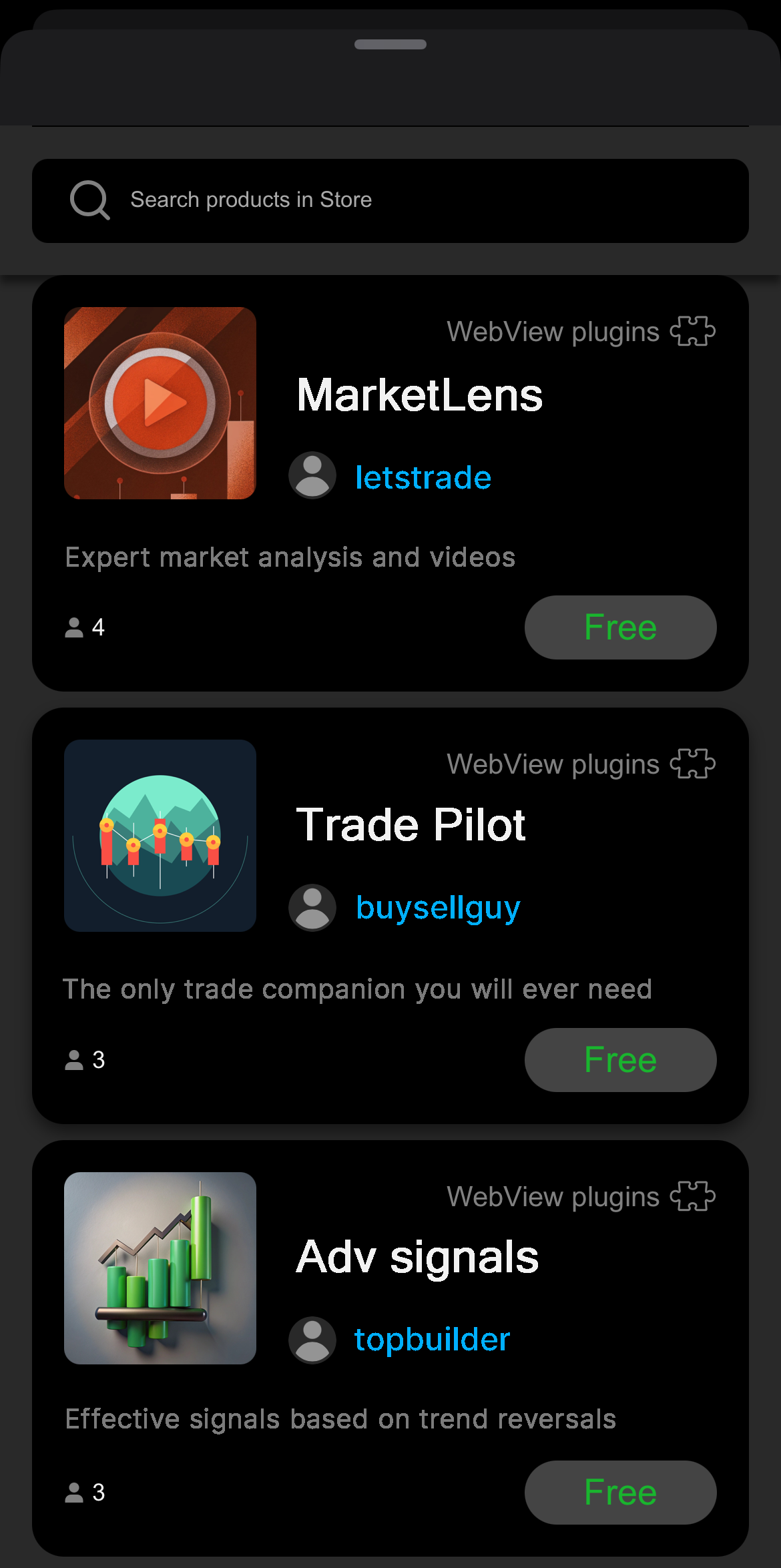
Dalam senarai plugin WV, pilih plugin untuk membuka halaman butiran, kemudian ketik butang harga atau **Percuma** untuk menambah plugin ini. Jika tidak, kembali ke senarai plugin.
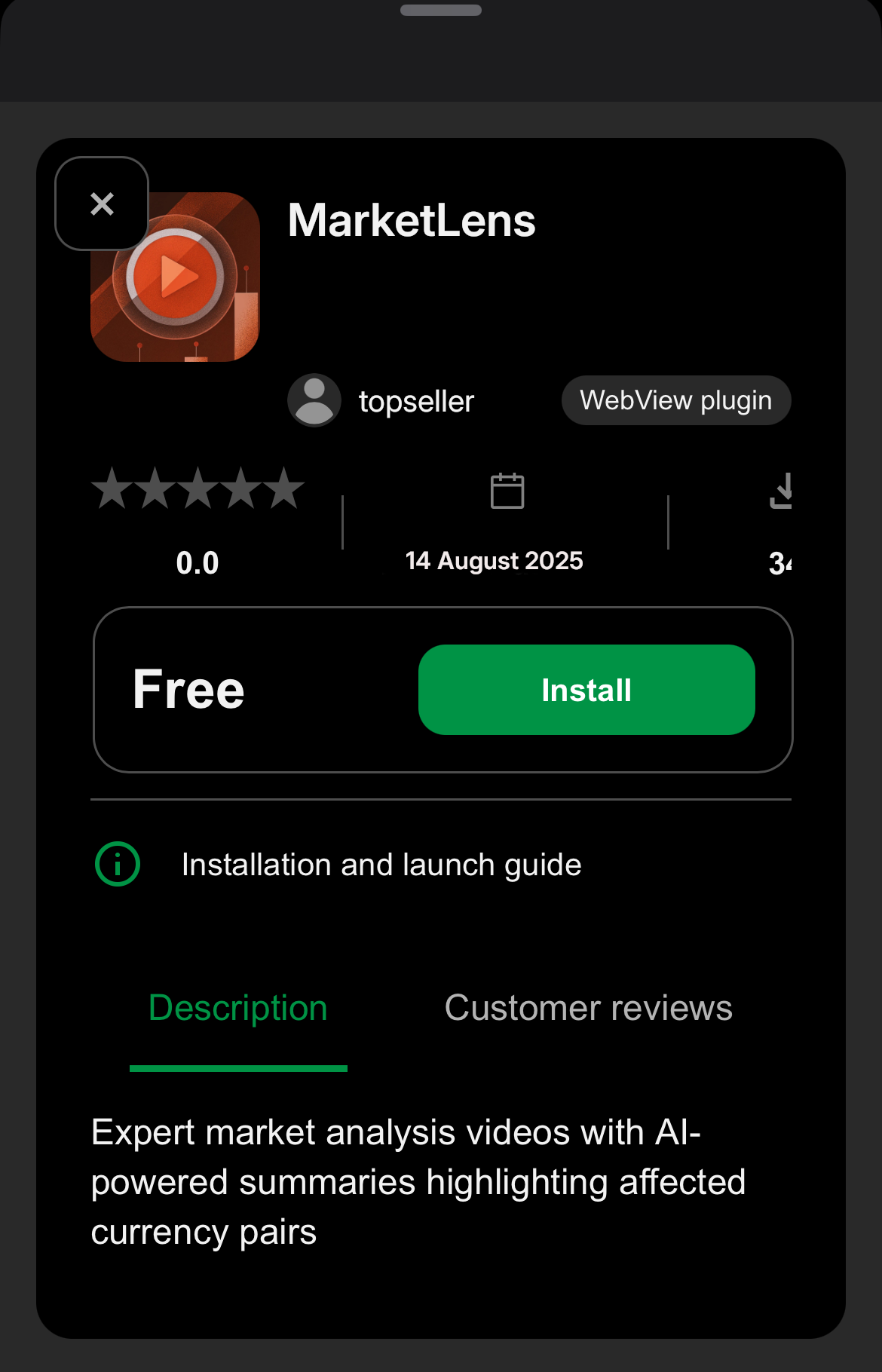
Setelah berjaya ditambah, butang hijau bertukar kepada **Telah Dipasang**, dan anda boleh menutup tetingkap dengan meleret ke bawah.
Plugin yang baru ditambah akan dipaparkan.
Jika anda tidak melihat plugin tersebut, mulakan semula aplikasi cTrader.
Kembali ke atas
---
# Notificações - cTrader ID
[Ir para o conteúdo](https://help.ctrader.com/ctrader-id/pt/managing-ctid/notifications/#conta-ctrader-id)
Notificações
============
O cTrader utiliza mensagens de e-mail e notificações push para informar os traders sobre eventos específicos e atividades relacionadas com a conta.
Para escolher sobre quais eventos pretende ser notificado, aceda ao separador [**Notificações**](https://id.ctrader.com/my/settings/notifications)
do site cTID.
E-mailPush
No separador **E-mail**, pode configurar as notificações enviadas como mensagens de e-mail nas seguintes categorias:
* Conta cTrader ID
* Contas de negociação
* cTrader Copy: fornecedor de estratégia
* cTrader Copy: investidor
No separador **Push**, pode configurar as notificações enviadas como mensagens push nas seguintes categorias:
* Contas de negociação
* cTrader Copy: fornecedor de estratégia
Nota
As definições nas categorias **Contas de negociação** e **cTrader Copy: fornecedor de estratégia** podem ser aplicadas de forma granular a uma conta demo específica, a uma conta real ou uma combinação de diferentes contas.

Uma vez que algumas categorias e definições de notificação se sobrepõem entre os separadores **E-mail** e **Push**, definimo-las abaixo de forma estruturada.
Conta cTrader ID [¶](https://help.ctrader.com/ctrader-id/pt/managing-ctid/notifications/#conta-ctrader-id "Permanent link")
----------------------------------------------------------------------------------------------------------------------------
* **Início de sessão bem-sucedido com as credenciais cTrader ID** - ative para receber uma notificação por e-mail sempre que as suas credenciais cTrader ID forem utilizadas para iniciar sessão em qualquer aplicação cTrader.
Contas de negociação [¶](https://help.ctrader.com/ctrader-id/pt/managing-ctid/notifications/#contas-de-negociacao "Permanent link")
------------------------------------------------------------------------------------------------------------------------------------
* **Fundos depositados ou levantados (conta de negociação)** - ative para receber notificações por e-mail ou push sobre depósitos ou levantamentos.
* **Fundos insuficientes para ordem pendente** - ative para receber notificações por e-mail ou push quando a sua conta não tiver os fundos necessários para completar uma ordem.
* **Limiar n.º 1 de pedido de cobertura atingido** - ative para receber notificações por e-mail ou push quando o primeiro limiar de margem for atingido.
* **Limiar n.º 2 de pedido de cobertura atingido** - ative para receber notificações por e-mail ou push quando o segundo limiar de margem for atingido.
* **Limiar n.º 3 de pedido de cobertura atingido** - ative para receber notificações por e-mail ou push quando o terceiro limiar de margem for atingido.
* **Ordem completada: stop loss** - ative para receber notificações por e-mail ou push quando uma ordem de stop loss for completada.
* **Ordem completada: take profit** - ative para receber notificações por e-mail ou push quando uma ordem de take profit for completada.
* **Ordem pendente completada** - ative para receber notificações por e-mail ou push quando uma ordem pendente for completada.
* **Alerta de preço** - ative para receber notificações por e-mail ou push para alertas de preço.
* **Recomendação associada** - ative para receber notificações por e-mail ou push quando uma recomendação for associada à sua conta.
* **Stop out** - ative para receber notificações por e-mail ou push quando um nível de stop out for atingido.
cTrader Copy: fornecedor de estratégia [¶](https://help.ctrader.com/ctrader-id/pt/managing-ctid/notifications/#ctrader-copy-fornecedor-de-estrategia "Permanent link")
-----------------------------------------------------------------------------------------------------------------------------------------------------------------------
* **Comissão de copy trading recebida** - ative para receber notificações por e-mail quando forem pagas comissões na sua conta.
* **Cópia iniciada** - ative para receber notificações por e-mail quando a sua conta ativar ou começar a permitir cópia.
* **Cópia interrompida** - ative para receber notificações por e-mail quando a sua conta desativar ou parar de permitir cópia.
* **Estratégia eliminada devido a inatividade** - ative para receber notificações por e-mail ou push quando a sua estratégia de cópia for eliminada devido a inatividade.
* **A estratégia será eliminada devido a inatividade** - ative para receber notificações por e-mail ou push quando a sua estratégia de cópia estiver prestes a ser eliminada devido a inatividade.
cTrader Copy: investidor [¶](https://help.ctrader.com/ctrader-id/pt/managing-ctid/notifications/#ctrader-copy-investidor "Permanent link")
-------------------------------------------------------------------------------------------------------------------------------------------
* **Comissões de copy-trading realizadas** - ative para receber notificações por e-mail quando forem realizadas comissões.
* **Stop loss do capital ativado** - ative para receber notificações por e-mail quando o stop loss do capital para uma estratégia for ativado.
* **Fundos depositados ou retirados (estratégia)** - ative para receber notificações por e-mail quando os fundos forem depositados ou retirados da sua conta de copy trading.
* **Stop out** - ative para receber notificações por e-mail quando o nível de stop out para a sua conta de copy trading for atingido.
* **Estratégia eliminada pelo fornecedor** - ative para receber notificações por e-mail quando uma estratégia que está a copiar for eliminada pelo seu fornecedor.
* **Estratégia retomada pelo fornecedor** - ative para receber notificações por e-mail quando uma estratégia que está a copiar for retomada pelo seu fornecedor após uma pausa.
* **Estratégia interrompida pelo fornecedor** - ative para receber notificações por e-mail quando uma estratégia que está a copiar for interrompida pelo seu fornecedor.
Notícias e atualizações do cTrader [¶](https://help.ctrader.com/ctrader-id/pt/managing-ctid/notifications/#noticias-e-atualizacoes-do-ctrader "Permanent link")
----------------------------------------------------------------------------------------------------------------------------------------------------------------
* **Subscrever notícias e atualizações do cTrader** - ative para receber notificações por e-mail ou push sobre notícias e atualizações do cTrader.
Voltar ao topo
---
# Eliminar um cTID - cTrader ID
[Ir para o conteúdo](https://help.ctrader.com/ctrader-id/pt/managing-ctid/delete-ctid/#eliminar-ctid)
Eliminar cTID[¶](https://help.ctrader.com/ctrader-id/pt/managing-ctid/delete-ctid/#eliminar-ctid "Permanent link")
===================================================================================================================
Abra os separadores [**Visão Geral**](https://id.ctrader.com/my/settings/overview)
ou [**Credenciais**](https://id.ctrader.com/my/settings/credentials)
do site do cTID e clique no botão **Eliminar conta cTrader ID**.

Aviso
Um cTID só pode ser eliminado se não houver contas de negociação associadas. Saiba como [**eliminar contas**](https://help.ctrader.com/ctrader-id/pt/managing-ctid/trading-accounts/#delete-trading-accounts)
no nosso guia dedicado.
Dependendo do processo do seu corretor, poderá ter de solicitar ao seu corretor que elimine o seu cTID.
Em seguida, é enviada uma mensagem de confirmação para o e-mail associado ao seu cTID. Abra a mensagem e clique em **Confirmar**. O seu cTID será então eliminado.

Receberá outro e-mail a confirmar a eliminação bem-sucedida do seu cTID.

Voltar ao topo
---
# Repor palavra-passe - cTrader ID
Repor palavra-passe
===================
Se se esqueceu da palavra-passe do cTID, pode redefini-la. Clique em **Esqueceu-se da palavra-passe** na página de início de sessão do [**website do cTID**](https://id.ctrader.com/)
, ou siga [**este link**](https://id.ctrader.com/reset)
.

Em alternativa, pode utilizar a funcionalidade **Esqueceu-se da palavra-passe** em qualquer aplicação cTrader.

Em qualquer dos casos, será redirecionado para o ecrã de redefinição da palavra-passe. Introduza o endereço de e-mail que utilizou para criar o seu cTID, assinale a caixa reCAPTCHA e, em seguida, clique em **Redefinir a palavra-passe**.

Será enviado para o seu e-mail um pedido para redefinir a palavra-passe do cTID. Clique no botão **Redefinir a palavra-passe** aí.

Dica
Se não encontrar o e-mail de redefinição da palavra-passe na sua caixa de entrada, verifique a pasta de spam.
Será redirecionado para definir uma nova palavra-passe. Introduza uma nova palavra-passe, repita-a e depois clique em **Redefinir a palavra-passe**.

O cTrader irá enviar-lhe um e-mail a confirmar que a sua palavra-passe foi alterada com sucesso.
Aviso
Se tentar redefinir a palavra-passe do cTID durante o fim de semana, a operação poderá ser atrasada devido a manutenção programada.
Voltar ao topo
---
# เพิ่มปลั๊กอิน WV - ปลั๊กอิน WebView
[ข้ามไปที่เนื้อหา](https://help.ctrader.com/webview-plugins/th/how-tos/add-wv-plugins/#webview)
คำเตือน
คุณลักษณะนี้อยู่ในขั้นตอนก่อนการเปิดตัวและกำลังอยู่ระหว่างการทดสอบ เอกสารนี้มีไว้เพื่อการอ้างอิงเท่านั้น
เพิ่มปลั๊กอิน WebView[¶](https://help.ctrader.com/webview-plugins/th/how-tos/add-wv-plugins/#webview "Permanent link")
=======================================================================================================================
หากต้องการใช้ปลั๊กอิน WebView คุณต้องเพิ่มก่อน ปลั๊กอินใดๆ ที่คุณเพิ่มจะเชื่อมโยงกับ [**cTrader ID (cTID)**](https://help.ctrader.com/ctrader-id/th)
ที่เข้าสู่ระบบในแอป cTrader ของคุณในขณะนั้น
เคล็ดลับ
คุณสามารถสำรวจและเพิ่มปลั๊กอินได้โดยตรงจาก [**cTrader สโตร์**](https://ctrader.com/webview-plugins)
เมื่อเพิ่มแล้ว ปลั๊กอินจะพร้อมใช้งานโดยอัตโนมัติในแอป cTrader ทั้งหมดที่ cTID ของคุณใช้งานอยู่
ในแอป **เทรด** หรือ **ภาพรวม** ของสัญลักษณ์ใดๆ ให้ดึงลงเพื่อดูแผงปลั๊กอิน WebView จากนั้นแตะไอคอน **เพิ่ม**

แผ่นด้านล่างจะเปิดขึ้นแสดงปลั๊กอิน WV ที่มีอยู่ใน cTrader สโตร์

ในรายการปลั๊กอิน WV ให้เลือกปลั๊กอินเพื่อเปิดหน้ารายละเอียด จากนั้นแตะที่ราคาหรือปุ่ม **ฟรี** เพื่อเพิ่มปลั๊กอินนี้ มิฉะนั้น ให้กลับไปที่รายการปลั๊กอิน

เมื่อเพิ่มสำเร็จ ปุ่มสีเขียวจะเปลี่ยนเป็น **ติดตั้งแล้ว** และคุณสามารถปิดหน้าต่างโดยการปัดลง
ปลั๊กอินที่เพิ่มใหม่จะปรากฏขึ้น

หากคุณไม่เห็นปลั๊กอิน ให้รีสตาร์ทแอป cTrader
กลับไปด้านบนสุด
---
# Ciclo de vida de los plugins WV - Plugins de WebView
[Saltar a contenido](https://help.ctrader.com/webview-plugins/es/wv-plugin-lifecycle/#ciclo-de-vida-de-los-plugins-de-webview)
Advertencia
Esta función está en fase de prelanzamiento y actualmente en pruebas. La documentación es solo como referencia.
Ciclo de vida de los plugins de WebView[¶](https://help.ctrader.com/webview-plugins/es/wv-plugin-lifecycle/#ciclo-de-vida-de-los-plugins-de-webview "Permanent link")
======================================================================================================================================================================
Cada plugin de WebView atraviesa una serie de pasos que involucran a múltiples partes.
graph TB
A([Crear una aplicación web]) ==> B([Construir un plugin WV]);
B ==> C([Publicar en Store]);
C ==> D([Añadir desde Store]);
D ==> E([Acceder desde cualquier aplicación de cTrader con sincronización en la nube]);
E ==> F([Usar el plugin WV]);
%% Ruta alternativa desde Construir con flecha punteada
B -.-> B1([Añadir a su aplicación de cTrader]);
B1 -.-> B2([Compartir vía Invite]);
B2 -.-> E;
1. Un desarrollador crea una aplicación web utilizando [**métodos de API**](https://help.ctrader.com/webview-plugins/es/references/public-server-message/)
que permiten la comunicación con cTrader, y luego aloja el servicio en un dominio independiente.
2. Con la URL del servicio alojado, el usuario [**construye un plugin WV**](https://help.ctrader.com/webview-plugins/es/how-tos/build-wv-plugins/)
en cTrader Web, Windows o Mac.
Nota
Después de construir un plugin WV, el usuario puede optar por añadirlo únicamente a su propia app de cTrader con fines de prueba.
Consejo
Los socios (IB) pueden compartir fácilmente sus plugins WV a través de [**cTrader Invite**](https://help.ctrader.com/ctrader-invite/es)
para atraer a más operadores y aumentar las conversiones de referencias.
3. El usuario publica el plugin WV en [**cTrader Store**](https://ctrader.com/webview-plugins)
para distribuirlo de forma amplia y eficaz entre toda la comunidad de operadores.
4. Otros operadores pueden [**añadir el plugin WV**](https://help.ctrader.com/webview-plugins/es/how-tos/add-wv-plugins/)
desde cTrader Store a cualquiera de sus apps de cTrader.
5. Una vez añadido, el plugin WV se vuelve accesible en todas las apps de cTrader del operador, gracias a la sincronización automática en la nube.
6. Los operadores [**usan el plugin de WebView**](https://help.ctrader.com/webview-plugins/es/how-tos/access-wv-plugins/)
para disfrutar de operaciones mejoradas, personalizadas y más cómodas.
Volver al principio
---
# Configuración de contraseña del cTID - cTrader ID
Configuración de contraseña del cTID
====================================
Cuando su bróker [**cree un cTID**](https://help.ctrader.com/ctrader-id/es/creating-a-ctrader-id-by-a-broker/)
, recibirá una notificación por email para establecer su contraseña. Haga clic en **Establecer contraseña** en el mensaje de correo electrónico.

Se le redirigirá al sitio web de cTrader ID, donde podrá introducir su nueva contraseña.

Nota
Posteriormente podrá [**cambiar su contraseña**](https://id.ctrader.com/my/settings/credentials)
en el sitio web de cTrader ID o [**restablecer la contraseña**](https://id.ctrader.com/reset)
si la olvida. Ofrecemos guías detalladas para administrar las [**credenciales de cTID**](https://help.ctrader.com/ctrader-id/es/managing-ctid/credentials/)
.
Después de establecer una contraseña, cTrader le enviará otro email confirmando que la operación se ha llevado a cabo correctamente.

Volver al principio
---
# Otras acciones - cTrader Store
[Saltar a contenido](https://help.ctrader.com/ctrader-store/es/how-tos/other-actions/#solicitar-una-retirada)
Otras acciones
==============
Solicitar una retirada[¶](https://help.ctrader.com/ctrader-store/es/how-tos/other-actions/#solicitar-una-retirada "Permanent link")
------------------------------------------------------------------------------------------------------------------------------------
Para solicitar una retirada, abra **Finanzas** en su cuenta y haga clic en **Solicitar retirada**.
Especifique la cantidad que desea retirar y luego haga clic en **Solicitar**.

Nota
El importe de retirada mínimo es de 500 USD.
Informar sobre un producto[¶](https://help.ctrader.com/ctrader-store/es/how-tos/other-actions/#informar-sobre-un-producto "Permanent link")
--------------------------------------------------------------------------------------------------------------------------------------------
Tanto compradores como vendedores pueden informar sobre un producto.
Elija un motivo para su informe y proporcione información adicional en los campos requeridos.

Una vez que haya terminado, haga clic en **Enviar**.
Volver al principio
---
# Parameter string kueri - Plugin WebView
[Lewati ke isi](https://help.ctrader.com/webview-plugins/id/query-string-parameters/#parameter-string-kueri)
Peringatan
Fitur ini masih dalam pra-rilis dan sedang dalam pengujian. Dokumentasi hanya untuk referensi.
Parameter string kueri[¶](https://help.ctrader.com/webview-plugins/id/query-string-parameters/#parameter-string-kueri "Permanent link")
========================================================================================================================================
Anda dapat menggunakan parameter string kueri untuk menyesuaikan dan mengonfigurasi perilaku kontekstual plugin WebView. Parameter yang Anda berikan akan diterapkan setiap kali pengguna meluncurkan atau memuat ulang plugin.
| **Parameter** | **Deskripsi** | **Nilai yang mungkin** |
| --- | --- | --- |
| `theme` | Tema cTrader | `light`, `dark` |
| `symbol` | Simbol aktif (saat ini) | `EURUSD`, `GBPJPY`, `USDCAD`, etc |
| `lang` | Bahasa klien cTrader | `ar`, `cs`, `de`, `el`, `en`, `es`, `fr`, `hu`, `id`, `it`, `ja`, `ko`, `ms`, `pl`, `pt`, `ru`, `sk`, `sl`, `sr`, `th`, `tr`, `vi`, `zh` |
| `platform` | Platform tempat cTrader dijalankan | `web`, `windows`, `macos`, `android`, `ios` |
| `placement` | Penempatan jendela plugin | `wl_bs`, `so_bs`, `so_eb`, `chart`, `asp_b`, `asp_t`, `tw_t`, `custom_w` |
| `id` | ID plugin unik untuk proteksi terhadap penyalinan | Misalnya, `17238`, `26047`, `18359`, dll. |
Deskripsi penempatan [¶](https://help.ctrader.com/webview-plugins/id/query-string-parameters/#deskripsi-penempatan "Permanent link")
-------------------------------------------------------------------------------------------------------------------------------------
| **Penempatan** | **Deskripsi** | **Platform** | **Gunakan simbol aktif (`simbol`) dalam string kueri**? |
| --- | --- | --- | --- |
| `wl_bs` | Lapisan bawah tab trading | `android`, `ios` | Tidak |
| `so_bs` | Lapisan bawah ikhtisar simbol | `android`, `ios` | Ya |
| `so_eb` | Blok tersemat ikhtisar simbol | `android`, `ios` | Ya |
| `chart` | Area grafik | `web`, `windows`, `macos` | Tidak |
| `asp_b` | Blok ASP | `web`, `windows`, `macos` | Ya |
| `asp_t` | Tab ASP | `web`, `windows`, `macos` | Ya |
| `tw_t` | Tab Pemantau Trading | `web`, `windows`, `macos` | Tidak |
| `custom_w` | Jendela kustom | `web`, `windows`, `macos` | Tidak |
Catatan
Untuk melindungi kekayaan intelektual Anda dan mencegah penyalinan, Anda dapat menerapkan mekanisme yang mengharuskan plugin Anda menyampaikan ID uniknya (`id`) melalui parameter `GET` saat diluncurkan. Validasi `id` setiap kali plugin dijalankan, dan memblokir plugin dari eksekusi jika `id`\-nya tidak cocok dengan nilai yang diharapkan.
Contoh [¶](https://help.ctrader.com/webview-plugins/id/query-string-parameters/#contoh "Permanent link")
---------------------------------------------------------------------------------------------------------
Contoh sederhana (tanpa simbol)
`https://example.com/ctrader_web_app_plugin?theme=dark&lang=en&platform=web&placement=chart&id=abc123`
Mobile, tema terang, Portugis dan EURUSD sebagai simbol aktif
`https://example.com/ctrader_web_app_plugin?theme=light&symbol=EURUSD&lang=pt&platform=android&placement=wl_bs&id=def456`
Desktop dengan blok ASP, tema gelap, Jerman dan GBPJPY sebagai simbol aktif
`https://example.com/ctrader_web_app_plugin?theme=dark&symbol=GBPJPY&lang=de&platform=windows&placement=asp_b&id=xyz789`
Kembali ke atas
---
# Ciclo de vida do plugin WV - Plugins WebView
[Ir para o conteúdo](https://help.ctrader.com/webview-plugins/pt/wv-plugin-lifecycle/#ciclo-de-vida-do-plugin-webview)
Aviso
Esta funcionalidade está em pré-lançamento e atualmente em fase de testes. A documentação serve apenas como referência.
Ciclo de vida do plugin WebView[¶](https://help.ctrader.com/webview-plugins/pt/wv-plugin-lifecycle/#ciclo-de-vida-do-plugin-webview "Permanent link")
======================================================================================================================================================
Cada plugin WebView passa por uma série de etapas, envolvendo várias partes ao longo do processo.
graph TB
A([Criar uma aplicação web]) ==> B([Construir um plugin WV]);
B ==> C([Publicar na Store]);
C ==> D([Adicionar da Store]);
D ==> E([Aceder em todas as aplicações cTrader com sincronização na nuvem]);
E ==> F([Usar o plugin WV]);
%% Caminho alternativo de Construir com seta pontilhada
B -.-> B1([Adicionar à sua aplicação cTrader]);
B1 -.-> B2([Partilhar via Invite]);
B2 -.-> E;
1. Um programador cria uma aplicação web utilizando [**métodos API**](https://help.ctrader.com/webview-plugins/pt/references/public-server-message/)
que permitem a comunicação com o cTrader e, em seguida, aloja o serviço num domínio independente.
2. Utilizando o URL do serviço alojado, o utilizador [**cria um plugin WV**](https://help.ctrader.com/webview-plugins/pt/how-tos/build-wv-plugins/)
no cTrader Web, Windows ou Mac.
Nota
Após criarem um plugin WV, os utilizadores podem optar por adicioná-lo apenas à sua própria aplicação cTrader para fins de teste.
Dica
Os parceiros (IB) podem partilhar facilmente os seus plugins WV através do [**cTrader Invite**](https://help.ctrader.com/ctrader-invite/pt)
para envolver mais traders e aumentar as conversões de recomendação.
3. O utilizador publica o plugin WV na [**cTrader Store**](https://ctrader.com/webview-plugins)
para uma distribuição ampla e eficaz em toda a comunidade de negociação.
4. Outros traders [**adicionam o plugin WV**](https://help.ctrader.com/webview-plugins/pt/how-tos/add-wv-plugins/)
da cTrader Store a qualquer uma das suas aplicações cTrader.
5. Uma vez adicionado, o plugin WV fica acessível em todas as aplicações cTrader do trader através da sincronização automática na nuvem.
6. Os traders [**utilizam o plugin WebView**](https://help.ctrader.com/webview-plugins/pt/how-tos/access-wv-plugins/)
para beneficiarem de experiências de negociação melhoradas, personalizadas e mais práticas.
Voltar ao topo
---
# Volatility - Knowledge base
[Skip to content](https://help.ctrader.com/knowledge-base/indicators/volatility/#volatility)
Volatility[¶](https://help.ctrader.com/knowledge-base/indicators/volatility/#volatility "Permanent link")
==========================================================================================================
Definition and key features[¶](https://help.ctrader.com/knowledge-base/indicators/volatility/#definition-and-key-features "Permanent link")
--------------------------------------------------------------------------------------------------------------------------------------------
Volatility indicators are essential tools in technical analysis for forex trading, helping traders measure the speed and magnitude of price changes within a specified period. These indicators track price fluctuations, with higher volatility indicating rapid changes and lower volatility reflecting more stable price action. Understanding volatility is critical for managing risk, as it reflects potential price unpredictability. During high volatility, price swings are more frequent, while low volatility suggests more consistent, narrow price movements. Volatility indicators help traders anticipate periods of market expansion or contraction, guiding them in adjusting trading strategies.
Popular indicators[¶](https://help.ctrader.com/knowledge-base/indicators/volatility/#popular-indicators "Permanent link")
--------------------------------------------------------------------------------------------------------------------------
Common volatility indicators include the [**Average True Range (ATR)**](https://help.ctrader.com/knowledge-base/indicators/volatility/average-true-range/)
, which calculates the average price range over a specific period, signalling volatility shifts. The [**Bollinger Bands**](https://help.ctrader.com/knowledge-base/indicators/volatility/bollinger-bands/)
are widely used to track price deviations from a moving average, visually representing high and low volatility through expanding and contracting bands. The [**Keltner Channels**](https://help.ctrader.com/knowledge-base/indicators/volatility/keltner-channels/)
and the [**Donchian Channels**](https://help.ctrader.com/knowledge-base/indicators/volatility/donchian-channel/)
are other popular tools that capture price channels, while the [**Standard Deviation**](https://help.ctrader.com/knowledge-base/indicators/volatility/standard-deviation/)
indicator provides a quantitative measure of volatility.
Application and interpretation[¶](https://help.ctrader.com/knowledge-base/indicators/volatility/#application-and-interpretation "Permanent link")
--------------------------------------------------------------------------------------------------------------------------------------------------
Traders use volatility indicators to tailor strategies based on market conditions, adjusting risk exposure and positioning accordingly. For example, in periods of high volatility, traders may increase stop-loss distances or trade smaller positions to account for sudden price movements. In low-volatility phases, tighter stops and smaller targets are common, as price moves tend to be more limited. By understanding volatility dynamics, traders can align their approach with the current market environment, utilising volatility indicators as a key tool for risk management and entry or exit timing.
Back to top
---
# Other - Knowledge base
[Skip to content](https://help.ctrader.com/knowledge-base/indicators/other/#other)
Other[¶](https://help.ctrader.com/knowledge-base/indicators/other/#other "Permanent link")
===========================================================================================
Definition and key features[¶](https://help.ctrader.com/knowledge-base/indicators/other/#definition-and-key-features "Permanent link")
---------------------------------------------------------------------------------------------------------------------------------------
This group of indicators in cTrader encompasses a diverse set of technical analysis tools that do not fit neatly into the standard categories of trend, oscillator, volatility or volume indicators. These tools often combine unique methods or specialised calculations, offering insights into market conditions, price equilibrium or trend shifts from various perspectives. These indicators may analyse a combination of price, averages or specific market patterns, providing traders with non-traditional approaches to assessing market behaviour and refining entry or exit strategies.
Popular indicators[¶](https://help.ctrader.com/knowledge-base/indicators/other/#popular-indicators "Permanent link")
---------------------------------------------------------------------------------------------------------------------
Notable indicators in this group include the [**Ichimoku Kinko Hyo**](https://help.ctrader.com/knowledge-base/indicators/other/ichimoku-kinko-hyo/)
, a multi-faceted tool providing information on trend, support and resistance. The [**Alligator**](https://help.ctrader.com/knowledge-base/indicators/other/alligator/)
indicator uses multiple moving averages to indicate potential trend changes, while the [**Center of Gravity**](https://help.ctrader.com/knowledge-base/indicators/other/center-of-gravity/)
and the [**Median Price**](https://help.ctrader.com/knowledge-base/indicators/other/median-price/)
indicators give insight into mean price levels. Other indicators like the [**Fractals**](https://help.ctrader.com/knowledge-base/indicators/other/fractals/)
identify potential turning points, while tools such as the [**Typical Price**](https://help.ctrader.com/knowledge-base/indicators/other/typical-price/)
and the [**Weighted Close**](https://help.ctrader.com/knowledge-base/indicators/other/weighted-close/)
average specific price points for a balanced view of price action.
Application and interpretation[¶](https://help.ctrader.com/knowledge-base/indicators/other/#application-and-interpretation "Permanent link")
---------------------------------------------------------------------------------------------------------------------------------------------
Traders utilise these indicators to add unique perspectives to their analysis, often combining them with other standard indicators for a more comprehensive view. These indicators provide alternative ways to view price movements, volatility or support and resistance levels, allowing traders to refine their strategies and adapt to varying market conditions with additional tools tailored for specific insights.
Back to top
---
# Volume - Knowledge base
[Skip to content](https://help.ctrader.com/knowledge-base/indicators/volume/#volume)
Volume[¶](https://help.ctrader.com/knowledge-base/indicators/volume/#volume "Permanent link")
==============================================================================================
Definition and key features[¶](https://help.ctrader.com/knowledge-base/indicators/volume/#definition-and-key-features "Permanent link")
----------------------------------------------------------------------------------------------------------------------------------------
Volume indicators are tools in technical analysis that assess the strength behind price movements by analysing trading volume. In forex markets, where traditional volume data is unavailable, these indicators often rely on tick volume (the number of price changes within a specified period) to gauge market interest and potential price momentum. For stocks and other securities, volume typically represents the number of shares or contracts traded. Volume indicators help traders understand the level of activity and confirm trends, as high volume can validate price movements, while low volume may indicate weaker or unsustainable trends.
Popular indicators[¶](https://help.ctrader.com/knowledge-base/indicators/volume/#popular-indicators "Permanent link")
----------------------------------------------------------------------------------------------------------------------
Key volume indicators include the [**On Balance Volume (OBV)**](https://help.ctrader.com/knowledge-base/indicators/volume/on-balance-volume/)
, which accumulates volume based on price direction to show buying and selling pressure, and the [**Chaikin Money Flow (CMF)**](https://help.ctrader.com/knowledge-base/indicators/volume/chaikin-money-flow/)
, which uses both price and volume to track buying pressure over a specified period. The [**Money Flow Index (MFI)**](https://help.ctrader.com/knowledge-base/indicators/volume/money-flow-index/)
is another popular tool, integrating volume and price to identify overbought and oversold conditions. The [**Volume Oscillator**](https://help.ctrader.com/knowledge-base/indicators/volume/volume-oscillator/)
and the [**Price Volume Trend (PVT)**](https://help.ctrader.com/knowledge-base/indicators/volume/price-volume-trend/)
are commonly used to measure volume changes in relation to price and indicate shifts in momentum.
Application and interpretation[¶](https://help.ctrader.com/knowledge-base/indicators/volume/#application-and-interpretation "Permanent link")
----------------------------------------------------------------------------------------------------------------------------------------------
Volume indicators are used to confirm trends, identify reversals and measure momentum. High volume generally supports a price movement, indicating stronger trends or the likelihood of continuation, whereas low volume can signal caution. Traders might use volume indicators to detect potential breakout points or confirm trend strength before entering or exiting trades. By interpreting volume data, traders gain insight into market sentiment and can adjust their strategies to align with current activity levels, enhancing decision-making in both trending and ranging markets.
Back to top
---
# Trend - Knowledge base
[Skip to content](https://help.ctrader.com/knowledge-base/indicators/trend/#trend)
Trend[¶](https://help.ctrader.com/knowledge-base/indicators/trend/#trend "Permanent link")
===========================================================================================
Definition and key features[¶](https://help.ctrader.com/knowledge-base/indicators/trend/#definition-and-key-features "Permanent link")
---------------------------------------------------------------------------------------------------------------------------------------
Trend indicators are crucial tools in technical analysis, helping traders identify the market's prevailing direction, determine entry and exit points and assess potential trend reversals. By evaluating historical price data, these indicators reveal the overall trajectory of a currency pair, indicating whether it is moving in an upward, downward or sideways trend. When a trend is strong and stable, traders may choose to ride the movement, capitalising on predictable price shifts. However, in the absence of a trend, market movement may be choppy or range-bound, which can make trend indicators less effective, signalling caution for traders.
Popular indicators[¶](https://help.ctrader.com/knowledge-base/indicators/trend/#popular-indicators "Permanent link")
---------------------------------------------------------------------------------------------------------------------
Many trend indicators use averaging or smoothing techniques to filter out short-term fluctuations and focus on the broader trend. Moving averages, such as the [**Simple**](https://help.ctrader.com/knowledge-base/indicators/trend/simple-moving-average/)
, [**Exponential**](https://help.ctrader.com/knowledge-base/indicators/trend/exponential-moving-average/)
and [**Weighted**](https://help.ctrader.com/knowledge-base/indicators/trend/weighted-moving-average/)
, form a foundational part of this category, smoothing data over a set period to better show price trends. Indicators like the [**Average Directional Movement Index (ADX)**](https://help.ctrader.com/knowledge-base/indicators/trend/average-directional-movement-index-rating/)
and the [**Aroon**](https://help.ctrader.com/knowledge-base/indicators/trend/aroon/)
assess trend strength, distinguishing between strong and weak trends, while the [**Parabolic SAR**](https://help.ctrader.com/knowledge-base/indicators/trend/parabolic-sar/)
can indicate potential reversal points, signalling when a trend might weaken or shift. Newer indicators like the [**Supertrend**](https://help.ctrader.com/knowledge-base/indicators/trend/supertrend/)
combine trend direction with volatility, providing traders with insights tailored to modern market dynamics.
Application and interpretation[¶](https://help.ctrader.com/knowledge-base/indicators/trend/#application-and-interpretation "Permanent link")
---------------------------------------------------------------------------------------------------------------------------------------------
By filtering out short-term fluctuations, these tools allow traders to track price trends across various periods, supporting strategies that align with the overall market direction. Understanding how to apply and interpret trend indicators is crucial, as it enables traders to adapt their positions to evolving market conditions and identify key turning points. Overall, these indicators offer forex traders valuable insights into market momentum and potential shifts in direction, providing a framework to understand trend strength and direction.
Back to top
---
# Oscillators - Knowledge base
[Skip to content](https://help.ctrader.com/knowledge-base/indicators/oscillators/#oscillators)
Oscillators[¶](https://help.ctrader.com/knowledge-base/indicators/oscillators/#oscillators "Permanent link")
=============================================================================================================
Definition and key features[¶](https://help.ctrader.com/knowledge-base/indicators/oscillators/#definition-and-key-features "Permanent link")
---------------------------------------------------------------------------------------------------------------------------------------------
Oscillators are essential tools in technical analysis, primarily used in forex markets to identify overbought or oversold conditions, especially in ranging or non-trending markets. They help traders assess when a currency pair may be due for a reversal by measuring the momentum behind price movements. Oscillators typically fluctuate within a bounded range, often between 0 and 100 or -100 and 100, enabling traders to gauge when prices have moved to extreme levels, where a pullback or reversal is likely. In range-bound conditions, oscillators become especially effective, signalling when prices may soon pivot.
Popular indicators[¶](https://help.ctrader.com/knowledge-base/indicators/oscillators/#popular-indicators "Permanent link")
---------------------------------------------------------------------------------------------------------------------------
Common oscillators include the [**Relative Strength Index (RSI)**](https://help.ctrader.com/knowledge-base/indicators/oscillators/relative-strength-index/)
and the [**Stochastic Oscillator**](https://help.ctrader.com/knowledge-base/indicators/oscillators/stochastic-oscillator/)
, which are known for identifying overbought and oversold levels. The [**Moving Average Convergence Divergence (MACD)**](https://help.ctrader.com/knowledge-base/indicators/oscillators/macd-crossover/)
is popular for its trend and momentum insights, using signal line crossovers for entry and exit points. Other indicators, such as the [**Commodity Channel Index (CCI)**](https://help.ctrader.com/knowledge-base/indicators/oscillators/commodity-channel-index/)
, [**Ultimate Oscillator**](https://help.ctrader.com/knowledge-base/indicators/oscillators/ultimate-oscillator/)
and [**Williams %R**](https://help.ctrader.com/knowledge-base/indicators/oscillators/williams-pctr/)
, also play key roles in gauging price strength, momentum and potential reversals within a price range.
Application and interpretation[¶](https://help.ctrader.com/knowledge-base/indicators/oscillators/#application-and-interpretation "Permanent link")
---------------------------------------------------------------------------------------------------------------------------------------------------
Traders use oscillators to make sense of price momentum and take advantage of market reversals, particularly in range-bound markets where trends are unclear. By observing overbought and oversold levels, traders can anticipate shifts, planning entries when prices appear oversold and potential exits when prices approach overbought conditions. Since oscillators function well in non-trending conditions, they offer traders insight into short-term market fluctuations, helping refine trading decisions in uncertain or consolidating markets.
Back to top
---
# 기타 작업 - cTrader 스토어
[콘텐츠로 이동](https://help.ctrader.com/ctrader-store/ko/how-tos/other-actions/#_1)
**기타 작업**[¶](https://help.ctrader.com/ctrader-store/ko/how-tos/other-actions/#_1 "Permanent link")
===================================================================================================
**출금 요청**[¶](https://help.ctrader.com/ctrader-store/ko/how-tos/other-actions/#_2 "Permanent link")
---------------------------------------------------------------------------------------------------
출금을 요청하려면 계정에서 **재무**를 열고 **출금 요청** 버튼을 클릭하세요.
출금하려는 금액을 지정한 다음 **요청**을 클릭하세요.

참고
최소 출금 금액은 500 USD입니다.
**상품 신고**[¶](https://help.ctrader.com/ctrader-store/ko/how-tos/other-actions/#_3 "Permanent link")
---------------------------------------------------------------------------------------------------
구매자와 판매자 모두 상품을 신고할 수 있습니다.
신고 사유를 선택하고 필수 필드에 추가 정보를 입력하세요.

작성이 완료되면 **보내기** 버튼을 클릭하세요.
맨위로
---
# よくあるご質問 - cTraderストア
[コンテンツにスキップ](https://help.ctrader.com/ctrader-store/ja/faq/#_1)
**よくあるご質問**[¶](https://help.ctrader.com/ctrader-store/ja/faq/#_1 "Permanent link")
===================================================================================
**購入者向け**[¶](https://help.ctrader.com/ctrader-store/ja/faq/#_2 "Permanent link")
---------------------------------------------------------------------------------
### cTraderストアで商品の購入を開始するにはどうすればよいですか?
[**cTrader ID**](https://help.ctrader.com/ctrader-id/ja)
の認証情報でcTraderストアにログインすると、アルゴリズムを購入したり、無料商品をダウンロードしたりできます。
### 支払い方法を教えてください。
Visa、MasterCardなどのカード会社のデビットカードまたはクレジットカードでお支払いができます。 お支払いに使用するカード発行会社の国は、cTraderストアの[**ご自身のアカウントで選択した国**](https://help.ctrader.com/ctrader-store/ja/how-tos/buy-a-product/)
と一致している必要があります。
### 本人名義以外のデビットカードやクレジットカードは使用できますか?
購入者は、すべての有効なデビットカードまたはクレジットカードをお使いいただけます。 取引を正常に実行するのに十分な資金があることを確認してください。
### cTraderストアで購入した商品は誰が使用できますか?
商品にアクセスできるのは、cTraderストアで購入または無料で入手したユーザーのみです。 異なるcTrader IDを持つユーザーは、cTraderでその商品を開くことはできません。
### 不審な商品を報告できますか?
はい、購入者と販売者の双方が、cTraderストアの[**公開ルール**](https://help.ctrader.com/ctrader-store/ja/how-tos/publish-a-product/#publishing-rules)
に準拠していない商品を報告できます。
**販売者向け**[¶](https://help.ctrader.com/ctrader-store/ja/faq/#_3 "Permanent link")
---------------------------------------------------------------------------------
### cTraderストアで商品の販売を開始するにはどうすればよいですか?
有料商品を[**公開**](https://help.ctrader.com/ctrader-store/ja/how-tos/publish-a-product/)
するには、まず[**アカウントの認証**](https://help.ctrader.com/ctrader-store/ja/how-tos/become-a-seller/)
が必要です。 なお、cTraderストアで無料商品を公開する場合は、アカウントの認証は必要ありません。
### 認証に必要な書類は何ですか?
有効な身分証明書(IDカード、パスポート、在留許可証、運転免許証など)を提出し、ライブネスチェックを行ってください。
### cTraderストアで成功する販売者になるにはどうすればよいですか?
cTraderストアを最大限に活用するには、[**販売者向けのヒント**](https://help.ctrader.com/ctrader-store/ja/how-tos/publish-a-product/#tips-for-sellers)
をご確認ください。
### 自分の商品が禁止されたのはなぜですか?
まず、ご自身の商品がcTraderストアの[**公開ルール**](https://help.ctrader.com/ctrader-store/ja/how-tos/publish-a-product/#publishing-rules)
に準拠していることをご確認ください。 ご不明な点がございましたら、[**cTraderストア**](https://ctrader.com/ja/)
のサポートチャットまたは[**Eメール**](mailto:support@ctrader.com)
でお問い合わせください。
### cTraderは販売者に手数料を請求しますか?
cTraderは、cTraderストアを通じて販売された有料商品すべてに対して、30%の手数料を請求します。 また、販売者は居住国の法律に従って納税する責任があります。
### 出金するにはどうすればよいですか?
cTraderストアでご自身のアカウントの**ファイナンス**セクションで出金をリクエストできます。
### 利用可能な出金方法にはどのようなものがありますか?
利用可能な出金方法には、Visa、MasterCardなどのカード会社のデビットカードやクレジットカードがあります。
### 最低出金額はいくらですか?
最低出金額は500 USDです。
### 自分以外のカード口座に出金できますか?
金銭面の安全性を確保するため、出金はアカウント所有者様個人のカード口座にのみ行うことができます。
### 完全なアクセス権付きでアルゴリズムをアップロードできますか?
cTraderストアは、購入者の安全を最優先事項としているため、[**完全なアクセス権**](https://help.ctrader.com/ctrader-algo/ja/guides/access-rights#the-accessrights-class-property)
付きの商品の公開を許可していません。
ページトップへ戻る
---
# Donchian Channel - Knowledge base
[Skip to content](https://help.ctrader.com/knowledge-base/indicators/volatility/donchian-channel/#donchian-channel)
Donchian Channel[¶](https://help.ctrader.com/knowledge-base/indicators/volatility/donchian-channel/#donchian-channel "Permanent link")
=======================================================================================================================================
Definition[¶](https://help.ctrader.com/knowledge-base/indicators/volatility/donchian-channel/#definition "Permanent link")
---------------------------------------------------------------------------------------------------------------------------
The Donchian Channel is a technical analysis tool used to measure price volatility and identify trends. It consists of three lines: the top channel, the bottom channel and the middle line, which represent the highest high, the lowest low and the average price over a specified period, respectively. These channels help traders assess potential breakout points and reversals by observing price movements within or outside the channels.
MobileDesktop
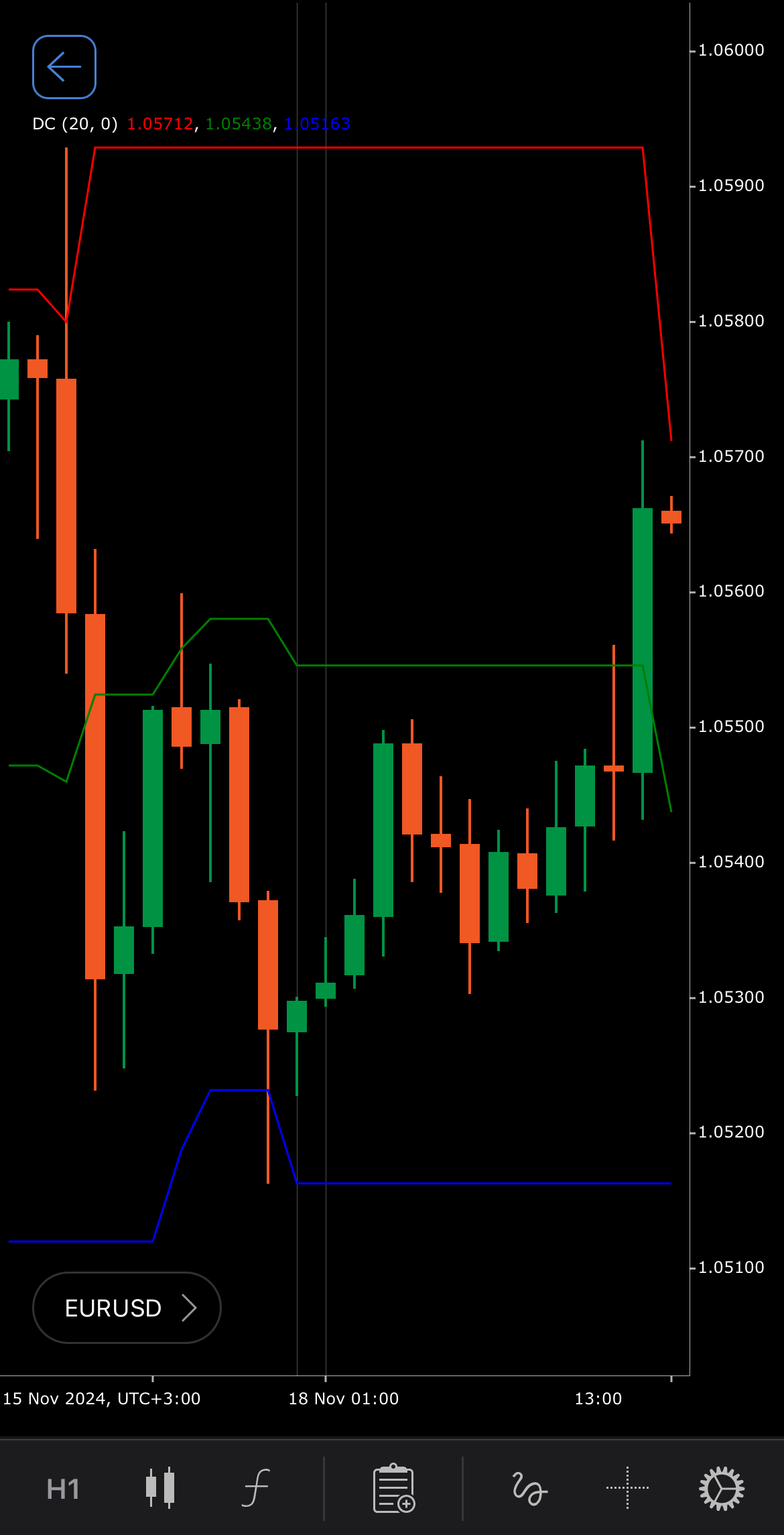
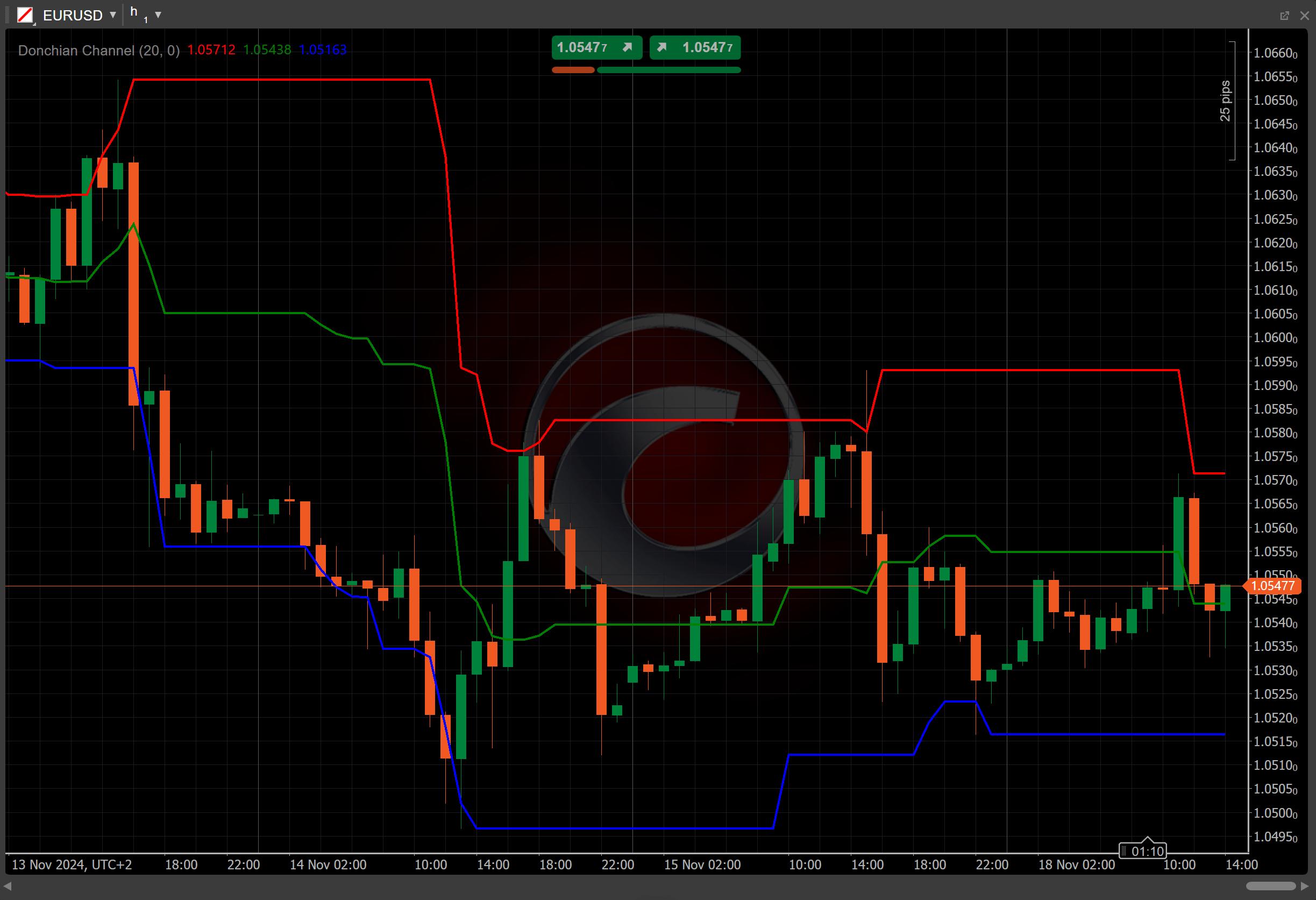
[Open live account](https://ctrader.com/brokers)
[Download cTrader](https://ctrader.com/download/)
History[¶](https://help.ctrader.com/knowledge-base/indicators/volatility/donchian-channel/#history "Permanent link")
---------------------------------------------------------------------------------------------------------------------
The Donchian Channel was developed by Richard Donchian, a pioneer in technical analysis and one of the early advocates of systematic trend-following strategies. He introduced the concept in the 1970s as part of his broader work on trend-following systems. Donchian's contributions laid the foundation for many modern trend-following techniques used today.
Calculations[¶](https://help.ctrader.com/knowledge-base/indicators/volatility/donchian-channel/#calculations "Permanent link")
-------------------------------------------------------------------------------------------------------------------------------
Donchian Channels are calculated by identifying the highest high and lowest low over a specified period, with the middle line as their average.
* **Top band** – the highest price over the past \\(n\\) periods.
\\\[ Top = { max\\ (High\\ (n)) } \\\]
* **Bottom band** – the lowest price over the past \\(n\\) periods.
\\\[ Bottom = { min\\ (Low\\ (n)) } \\\]
* **Middle band** – the average of the top and bottom bands.
\\\[ Middle = { { Top + Bottom } \\over 2 } \\\]
Interpretation[¶](https://help.ctrader.com/knowledge-base/indicators/volatility/donchian-channel/#interpretation "Permanent link")
-----------------------------------------------------------------------------------------------------------------------------------
Donchian Channels are calculated over a specified period, typically 20 days. They help to identify breakouts, trend reversals and volatility levels.
* **Breakouts** – price closing above the top channel indicates a potential buy signal or bullish breakout, suggesting the asset might enter an upward trend. Price closing below the bottom channel indicates a potential sell signal or bearish breakout, suggesting the asset might enter a downward trend.
* **Trend confirmation** – rising top and bottom channels confirm an upward trend. Falling top and bottom channels confirm a downward trend. Flat channels indicate a sideways or range-bound market.
* **Volatility analysis** – wider channels indicate higher volatility in the market. Narrower channels indicate lower volatility and potential consolidation.
* **Shift** – by adjusting the shift parameter to alter the alignment of the Donchian Channel indicator with price data on the chart, you can explore how the Donchian Channel readings correspond to past or future price movements.
Application[¶](https://help.ctrader.com/knowledge-base/indicators/volatility/donchian-channel/#application "Permanent link")
-----------------------------------------------------------------------------------------------------------------------------
The Donchian Channel can be applied in several ways.
* **Buy signal** – traders might consider entering a buy position when the price breaks above the top band, signalling potential upward momentum.
* **Sell signal** – a sell position could be indicated when the price falls below the bottom band, signalling potential downward momentum.
* **Stop-loss placement** – traders may place stop-loss levels just below the bottom band for long positions or above the top band for short positions to manage risk.
Note
You can take advantage of algo trading, with cBots executing trades based on the signals from this indicator, as shown in our [**examples**](https://help.ctrader.com/ctrader-algo/references/Indicators/DonchianChannel/)
. Learn more about how to [**use indicators in cBots**](https://help.ctrader.com/ctrader-algo/articles/for-developers/how-to-use-indicators-in-cbots/)
.
Limitations[¶](https://help.ctrader.com/knowledge-base/indicators/volatility/donchian-channel/#limitations "Permanent link")
-----------------------------------------------------------------------------------------------------------------------------
The Donchian Channel is based on historical price data and may provide delayed signals in rapidly changing markets. It may generate false breakouts in range-bound or choppy markets. Additionally, the channels provide no information on the strength of a trend, only the direction.
Summary[¶](https://help.ctrader.com/knowledge-base/indicators/volatility/donchian-channel/#summary "Permanent link")
---------------------------------------------------------------------------------------------------------------------
The Donchian Channel is a trend-following indicator that helps traders identify potential breakouts, trends and volatility levels by plotting the highest high, lowest low and the middle line over a specified period. It is particularly useful for identifying entry and exit points in trending markets.
[Open live account](https://ctrader.com/brokers)
[Download cTrader](https://ctrader.com/download/)
Back to top
---
# その他の操作 - cTraderストア
[コンテンツにスキップ](https://help.ctrader.com/ctrader-store/ja/how-tos/other-actions/#_1)
**その他の操作**[¶](https://help.ctrader.com/ctrader-store/ja/how-tos/other-actions/#_1 "Permanent link")
====================================================================================================
**出金をリクエストする**[¶](https://help.ctrader.com/ctrader-store/ja/how-tos/other-actions/#_2 "Permanent link")
--------------------------------------------------------------------------------------------------------
出金をリクエストするには、ご自身のアカウントの**ファイナンス**を開き、**出金をリクエスト**ボタンをクリックします。
出金金額を指定し、**リクエスト**をクリックします。

注意
最低出金額は500 USDです。
**商品を報告する**[¶](https://help.ctrader.com/ctrader-store/ja/how-tos/other-actions/#_3 "Permanent link")
-----------------------------------------------------------------------------------------------------
購入者と販売者の双方が商品を報告できます。
報告の理由を選択し、必須フィールドに追加情報を入力します。

入力が完了したら、**送信**ボタンをクリックします。
ページトップへ戻る
---
# Redirecting...
Redirecting...
---
# Liên kết sâu chỉ dành cho thiết bị di động - Liên kết sâu cTrader
[Bỏ qua](https://help.ctrader.com/ctrader-deeplinks/vi/mobile-only-deeplinks/#lien-ket-sau-ctrader-chi-danh-cho-thiet-bi-di-ong)
Liên kết sâu cTrader chỉ dành cho thiết bị di động[¶](https://help.ctrader.com/ctrader-deeplinks/vi/mobile-only-deeplinks/#lien-ket-sau-ctrader-chi-danh-cho-thiet-bi-di-ong "Permanent link")
===============================================================================================================================================================================================
Các liên kết sâu được liệt kê dưới đây chỉ hoạt động khi truy cập trên thiết bị di động.
Menu chính [¶](https://help.ctrader.com/ctrader-deeplinks/vi/mobile-only-deeplinks/#menu-chinh "Permanent link")
-----------------------------------------------------------------------------------------------------------------
| Liên kết | Định nghĩa |
| --- | --- |
| `/price-alerts` | Mở tab **Báo động giá**. |
| `/price-alerts/create/{symbol}` | Mở màn hình **Tạo báo động** cho ký hiệu có tên khớp với `{symbol}`. |
| `/search` | Mở màn hình **Tìm và thêm ký hiệu**. |
| `/symbols` | Mở tab **Danh sách theo dõi**. |
| `/symbols/add` | Nếu **Thị trường phổ biến** là danh sách theo dõi đang mở (mặc định), cửa sổ bật lên **Sao chép thị trường phổ biến** sẽ hiển thị. Nếu một danh sách theo dõi tùy chỉnh đang được mở, màn hình **Tìm và thêm ký hiệu** sẽ được hiển thị. |
Màn hình theo dõi giao dịch [¶](https://help.ctrader.com/ctrader-deeplinks/vi/mobile-only-deeplinks/#man-hinh-theo-doi-giao-dich "Permanent link")
---------------------------------------------------------------------------------------------------------------------------------------------------
| Liên kết | Định nghĩa |
| --- | --- |
| `/deal/{dealID}` | Mở màn hình chi tiết giao dịch cho giao dịch có định danh khớp với `{dealID}`. |
Tiền vốn [¶](https://help.ctrader.com/ctrader-deeplinks/vi/mobile-only-deeplinks/#tien-von "Permanent link")
-------------------------------------------------------------------------------------------------------------
| Liên kết | Định nghĩa |
| --- | --- |
| `/deposit` | Mở màn hình **Nạp tiền**. |
Trở lại mục lục
---
# Cara kerja deeplink - Deeplink cTrader
[Lewati ke isi](https://help.ctrader.com/ctrader-deeplinks/id/how-deeplinks-work/#cara-kerja-deeplink)
Cara kerja deeplink[¶](https://help.ctrader.com/ctrader-deeplinks/id/how-deeplinks-work/#cara-kerja-deeplink "Permanent link")
===============================================================================================================================
Istilah dan fungsi deeplink [¶](https://help.ctrader.com/ctrader-deeplinks/id/how-deeplinks-work/#istilah-dan-fungsi-deeplink "Permanent link")
------------------------------------------------------------------------------------------------------------------------------------------------
Semua penjelasan deeplink dalam dokumentasi ini bersifat relatif terhadap URL tertentu yang digunakan untuk hosting aplikasi cTrader Anda. Secara umum, URL ini mengikuti konvensi `app.{brokerName}.com` atau `ct.{brokerName}.com`, di mana `brokerName` adalah penunjukan yang telah ditentukan untuk broker tertentu.
Contoh: Buka akun riil
Tautan `https://app.ctrader.com/accounts/create-live` mengarah ke layar pembuatan akun riil dalam aplikasi cTrader yang tidak bermerek.
Mayoritas deeplink bersifat [**lintas platform**](https://help.ctrader.com/ctrader-deeplinks/id/cross-platform-deeplinks/)
, yang berarti bahwa mereka mempertahankan fungsinya pada semua platform tempat mereka dibuka. Namun, beberapa deeplink hanya untuk [**mobile saja**](https://help.ctrader.com/ctrader-deeplinks/id/mobile-only-deeplinks/)
.
Jika pengguna yang tidak memiliki cTrader Mobile terpasang di perangkat mereka mencoba membuka deeplink, mereka akan dialihkan ke cara mengunduh cTrader Mobile yang spesifik untuk platform mereka. Setelah aplikasi terinstal dan dibuka, lalu pengguna masuk menggunakan salah satu akunnya, kemudian mereka akan dialihkan ke layar yang awalnya dituju oleh deeplink tersebut.
Perhatikan bahwa UX cTrader berbeda antara aplikasi Mobile dan Web. Perhatikan contoh berikut.
* Setelah mengeklik tombol **Pasang order**, pengguna cTrader Web dibawa ke jendela **Order baru**.
* Setelah mengetuk **Order baru**, pengguna cTrader Mobile dibawa ke layar **Buat order**.
Ketika pengguna membuka tautan `https://app.ctrader.com/orders/create-market-order` di Web, mereka akan melihat jendela **Order baru** yang mengingatkan mereka untuk memasang order pasar. Pada Mobile, pengguna akan dialihkan ke layar **Buat order** yang memungkinkan mereka memasang order pasar.
Dengan kata lain, deeplink bekerja dengan benar terlepas dari perbedaan UX antara cTrader Web dan Mobile. Dokumentasi ini menggunakan istilah-istilah seperti dialog **Buat order pasar** sebagai notasi gabungan untuk menunjukkan fungsi yang serupa di semua aplikasi ini.
Deeplink cTrader dan OAuth broker [¶](https://help.ctrader.com/ctrader-deeplinks/id/how-deeplinks-work/#deeplink-ctrader-dan-oauth-broker "Permanent link")
------------------------------------------------------------------------------------------------------------------------------------------------------------
Jika aplikasi cTrader menggunakan alur OAuth, semua [**tautan lintas platform**](https://help.ctrader.com/ctrader-deeplinks/id/cross-platform-deeplinks/)
akan membuka layar OAuth bermerek yang benar ketika dibuka oleh cTrader Web.
Ketika dibuka menggunakan cTrader Mobile, deeplink cTrader akan menampilkan dialog cTrader biasa alih-alih layar OAuth bermerek.
Kembali ke atas
---
# Tham số chuỗi truy vấn - Plugin WebView
[Bỏ qua](https://help.ctrader.com/webview-plugins/vi/query-string-parameters/#tham-so-chuoi-truy-van)
Cảnh báo
Tính năng này đang trong giai đoạn tiền phát hành và hiện đang được thử nghiệm. Tài liệu chỉ mang tính tham khảo.
Tham số chuỗi truy vấn[¶](https://help.ctrader.com/webview-plugins/vi/query-string-parameters/#tham-so-chuoi-truy-van "Permanent link")
========================================================================================================================================
Bạn có thể sử dụng các tham số chuỗi truy vấn để tùy chỉnh và cấu hình hành vi theo ngữ cảnh của plugin WebView. Các tham số bạn truyền sẽ được áp dụng mỗi khi người dùng khởi chạy hoặc tải lại plugin.
| **Tham số** | **Mô tả** | **Giá trị khả dụng** |
| --- | --- | --- |
| `theme` | Giao diện cTrader | `light`, `dark` |
| `symbol` | Ký hiệu đang hoạt động (hiện tại) | `EURUSD`, `GBPJPY`, `USDCAD`, etc |
| `lang` | Ngôn ngữ khách hàng cTrader | `ar`, `cs`, `de`, `el`, `en`, `es`, `fr`, `hu`, `id`, `it`, `ja`, `ko`, `ms`, `pl`, `pt`, `ru`, `sk`, `sl`, `sr`, `th`, `tr`, `vi`, `zh` |
| `platform` | Nền tảng cTrader đang chạy | `web`, `windows`, `macos`, `android`, `ios` |
| `placement` | Vị trí hiển thị cửa sổ plugin | `wl_bs`, `so_bs`, `so_eb`, `chart`, `asp_b`, `asp_t`, `tw_t`, `custom_w` |
| `id` | ID plugin duy nhất nhằm ngăn chặn việc sao chép | Ví dụ: `17238`, `26047`, `18359`, v.v. |
Mô tả vị trí hiển thị [¶](https://help.ctrader.com/webview-plugins/vi/query-string-parameters/#mo-ta-vi-tri-hien-thi "Permanent link")
---------------------------------------------------------------------------------------------------------------------------------------
| **Vị trí hiển thị** | **Mô tả** | **Nền tảng** | **Sử dụng ký hiệu đang hoạt động (`symbol`) trong chuỗi truy vấn**? |
| --- | --- | --- | --- |
| `wl_bs` | Bảng trượt dưới trong tab Trade | `android`, `ios` | Không |
| `so_bs` | Bảng trượt dưới trong tổng quan ký hiệu | `android`, `ios` | Có |
| `so_eb` | Khối tích hợp trong tổng quan ký hiệu | `android`, `ios` | Có |
| `chart` | Khu vực biểu đồ | `web`, `windows`, `macos` | Không |
| `asp_b` | Khối ASP | `web`, `windows`, `macos` | Có |
| `asp_t` | Tab ASP | `web`, `windows`, `macos` | Có |
| `tw_t` | Tab Màn hình theo dõi giao dịch | `web`, `windows`, `macos` | Không |
| `custom_w` | Cửa sổ tùy chỉnh | `web`, `windows`, `macos` | Không |
Ghi chú
Để bảo vệ quyền sở hữu trí tuệ và ngăn chặn hành vi sao chép, bạn có thể thiết lập cơ chế yêu cầu plugin phải truyền ID duy nhất (`id`) thông qua tham số `GET` khi khởi chạy. Xác thực `id` mỗi khi plugin chạy và chặn không cho plugin thực thi nếu `id` không khớp với giá trị mong muốn.
Ví dụ [¶](https://help.ctrader.com/webview-plugins/vi/query-string-parameters/#vi-du "Permanent link")
-------------------------------------------------------------------------------------------------------
Ví dụ đơn giản (không có ký hiệu)
`https://example.com/ctrader_web_app_plugin?theme=dark&lang=en&platform=web&placement=chart&id=abc123`
Mobile, giao diện sáng, tiếng Bồ Đào Nha và EURUSD là ký hiệu đang hoạt động
`https://example.com/ctrader_web_app_plugin?theme=light&symbol=EURUSD&lang=pt&platform=android&placement=wl_bs&id=def456`
Desktop với khối ASP, giao diện tối, tiếng Đức và GBPJPY là ký hiệu đang hoạt động
`https://example.com/ctrader_web_app_plugin?theme=dark&symbol=GBPJPY&lang=de&platform=windows&placement=asp_b&id=xyz789`
Trở lại mục lục
---
# Cách thức hoạt động của liên kết sâu - Liên kết sâu cTrader
[Bỏ qua](https://help.ctrader.com/ctrader-deeplinks/vi/how-deeplinks-work/#cach-thuc-hoat-ong-cua-lien-ket-sau)
Cách thức hoạt động của liên kết sâu[¶](https://help.ctrader.com/ctrader-deeplinks/vi/how-deeplinks-work/#cach-thuc-hoat-ong-cua-lien-ket-sau "Permanent link")
================================================================================================================================================================
Chức năng và thuật ngữ liên quan đến liên kết sâu [¶](https://help.ctrader.com/ctrader-deeplinks/vi/how-deeplinks-work/#chuc-nang-va-thuat-ngu-lien-quan-en-lien-ket-sau "Permanent link")
-------------------------------------------------------------------------------------------------------------------------------------------------------------------------------------------
Tất cả các liên kết sâu được mô tả trong tài liệu này đều liên quan đến một URL nhất định được sử dụng để lưu trữ ứng dụng cTrader của bạn. Nhìn chung, các URL này tuân theo quy ước `app.{brokerName}.com` hoặc `ct.{brokerName}.com`, trong đó `brokerName` là tên được định trước của một công ty môi giới cụ thể.
Ví dụ: Mở tài khoản thực
Liên kết `https://app.ctrader.com/accounts/create-live` dẫn đến màn hình tạo tài khoản thực trong các ứng dụng cTrader phiên bản không mang thương hiệu.
Phần lớn các liên kết sâu là [**đa nền tảng**](https://help.ctrader.com/ctrader-deeplinks/vi/cross-platform-deeplinks/)
, nghĩa là chúng giữ nguyên chức năng bất kể được mở trên nền tảng nào. Tuy nhiên, một số liên kết sâu [**chỉ dành cho thiết bị di động**](https://help.ctrader.com/ctrader-deeplinks/vi/mobile-only-deeplinks/)
.
Trong trường hợp người dùng chưa cài đặt cTrader Mobile trên thiết bị của mình và cố gắng mở một liên kết sâu, họ sẽ được chuyển hướng đến nền tảng tải cTrader Mobile phù hợp với thiết bị của họ. Sau khi cài đặt và mở ứng dụng, và người dùng đăng nhập vào một trong các tài khoản của họ, họ sẽ được chuyển đến màn hình mà liên kết sâu ban đầu dẫn tới.
Lưu ý rằng trải nghiệm người dùng cTrader khác nhau giữa ứng dụng Mobile và Web. Hãy xem xét ví dụ sau.
* Khi nhấp vào nút **Đặt lệnh**, người dùng cTrader Web sẽ được chuyển đến cửa sổ **Lệnh mới**.
* Khi chạm vào **Lệnh mới**, người dùng cTrader Mobile sẽ được chuyển đến màn hình **Tạo lệnh**.
Khi người dùng truy cập liên kết `https://app.ctrader.com/orders/create-market-order` trên Web, họ sẽ thấy cửa sổ **Lệnh mới** để đặt lệnh thị trường. Trên Mobile, thay vào đó, người dùng sẽ được chuyển đến màn hình **Tạo lệnh** cho phép họ đặt lệnh thị trường.
Nói cách khác, liên kết sâu vẫn hoạt động chính xác dù có sự khác biệt về trải nghiệm người dùng giữa cTrader Web và Mobile. Tài liệu này sử dụng các thuật ngữ như hộp thoại **Tạo lệnh thị trường** như một cách gọi chung để chỉ các chức năng tương tự trên các ứng dụng này.
Liên kết sâu cTrader và OAuth của nhà môi giới [¶](https://help.ctrader.com/ctrader-deeplinks/vi/how-deeplinks-work/#lien-ket-sau-ctrader-va-oauth-cua-nha-moi-gioi "Permanent link")
--------------------------------------------------------------------------------------------------------------------------------------------------------------------------------------
Nếu ứng dụng cTrader sử dụng quy trình OAuth, tất cả [**liên kết đa nền tảng**](https://help.ctrader.com/ctrader-deeplinks/vi/cross-platform-deeplinks/)
sẽ mở đúng màn hình OAuth mang thương hiệu tương ứng khi được truy cập từ cTrader Web.
Khi mở bằng cTrader Mobile, liên kết sâu cTrader sẽ hiển thị các hộp thoại thông thường của cTrader thay vì màn hình OAuth có thương hiệu.
Trở lại mục lục
---
# Liên kết sâu đa nền tảng - Liên kết sâu cTrader
[Bỏ qua](https://help.ctrader.com/ctrader-deeplinks/vi/cross-platform-deeplinks/#lien-ket-sau-ctrader-a-nen-tang)
Liên kết sâu cTrader đa nền tảng[¶](https://help.ctrader.com/ctrader-deeplinks/vi/cross-platform-deeplinks/#lien-ket-sau-ctrader-a-nen-tang "Permanent link")
==============================================================================================================================================================
Trong hướng dẫn này, chúng tôi định nghĩa các liên kết sâu của cTrader có thể sử dụng được trên cả cTrader Web và Mobile. Các liên kết sâu này được nhóm theo các khu vực của cTrader mà chúng chuyển hướng nhà giao dịch đến.
Lưu ý rằng mỗi liên kết được liệt kê trên trang này đều có thể kèm theo các tham số truy vấn bổ sung sau đây.
| Tham số | Giá trị khả dụng | Định nghĩa |
| --- | --- | --- |
| `?acc` | Một số tài khoản hợp lệ. | Nếu tham số này được bao gồm, cTrader sẽ chuyển sang tài khoản có số được chỉ định trước khi điều hướng đến khu vực được xác định trong liên kết sâu. |
| `?lang` | Mã quốc gia hợp lệ gồm hai chữ cái theo chuẩn Alpha-2 (ISO 3166-1). | Nếu tham số này được bao gồm, cTrader sẽ chuyển giao diện người dùng sang ngôn ngữ được chỉ định trước khi điều hướng đến khu vực được xác định trong liên kết sâu. |
Ghi chú
Một số liên kết sâu bao gồm các giá trị được đặt trong dấu ngoặc nhọn (ví dụ: `/orders/create-market-order/{symbol}`). Các giá trị này cho phép thu hẹp phạm vi khu vực mà người dùng sẽ được chuyển đến khi nhấp vào liên kết sâu. Ví dụ, `/orders/create-market-order/{symbol}` sẽ chuyển người dùng đến màn hình **Tạo lệnh thị trường** cho ký hiệu có tên trùng với phần văn bản thay thế cho `{symbol}`. Lưu ý rằng dấu ngoặc nhọn chỉ dùng cho mục đích minh họa và không bao gồm trong các liên kết sâu thực tế.
Menu chính [¶](https://help.ctrader.com/ctrader-deeplinks/vi/cross-platform-deeplinks/#menu-chinh "Permanent link")
--------------------------------------------------------------------------------------------------------------------
| Liên kết | Định nghĩa |
| --- | --- |
| `/finder` | Mở tab **Tất cả ký hiệu**. |
| `/watchlists` | Mở tab **Danh sách theo dõi**. |
| `/symbols/filter/{filterText}` | Mở tab **Tất cả ký hiệu** với các ký hiệu được lọc để khớp với văn bản được chỉ định trong `{filterText}`. |
Thông tin ký hiệu và biểu đồ [¶](https://help.ctrader.com/ctrader-deeplinks/vi/cross-platform-deeplinks/#thong-tin-ky-hieu-va-bieu-o "Permanent link")
-------------------------------------------------------------------------------------------------------------------------------------------------------
| Liên kết | Định nghĩa |
| --- | --- |
| `/symbols/{symbol}/info` | Mở **Thông tin ký hiệu/Tổng quan ký hiệu** cho ký hiệu có tên khớp với `{symbol}`. |
| `/symbols/{symbol}/chart` | Mở biểu đồ giao dịch mới cho ký hiệu có tên khớp với `{symbol}`. Nếu biểu đồ này đã được mở, nó sẽ được chuyển sang trạng thái hoạt động. |
Màn hình theo dõi giao dịch [¶](https://help.ctrader.com/ctrader-deeplinks/vi/cross-platform-deeplinks/#man-hinh-theo-doi-giao-dich "Permanent link")
------------------------------------------------------------------------------------------------------------------------------------------------------
| Liên kết | Định nghĩa |
| --- | --- |
| `/positions` | Mở tab **Vị thế** trong **Màn hình theo dõi giao dịch**. |
| `/orders` | Mở tab **Lệnh** trong **Màn hình theo dõi giao dịch**. |
| `/history` | Mở tab **Lịch sử** trong **Màn hình theo dõi giao dịch**. |
| `/deals` | Mở tab **Lịch sử** trong **Màn hình theo dõi giao dịch**. Trùng lặp với `/history`. |
| `/transactions` | Mở tab **Giao dịch** trong **Màn hình theo dõi giao dịch**. |
| `/news` | Mở tab **Tin tức** trong **Màn hình theo dõi giao dịch**. |
| `/bonus` | Mở tab **Thưởng** trong **Màn hình theo dõi giao dịch**. |
Tài khoản [¶](https://help.ctrader.com/ctrader-deeplinks/vi/cross-platform-deeplinks/#tai-khoan "Permanent link")
------------------------------------------------------------------------------------------------------------------
| Liên kết | Định nghĩa |
| --- | --- |
| `/accounts/sign-in` | Mở bộ chọn tài khoản. |
| `/accounts/sign-up-demo` | Mở màn hình **Tài khoản giao dịch demo mới**. |
| `/accounts/create-demo` | Mở màn hình **Tài khoản giao dịch demo mới**. |
| `/accounts/create-live` | Mở màn hình **Tài khoản giao dịch thực mới**. |
Đặt lệnh mới [¶](https://help.ctrader.com/ctrader-deeplinks/vi/cross-platform-deeplinks/#at-lenh-moi "Permanent link")
-----------------------------------------------------------------------------------------------------------------------
| Liên kết | Định nghĩa |
| --- | --- |
| `/orders/create-market-order` | Mở màn hình **Đặt lệnh thị trường** cho ký hiệu có biểu đồ đang hoạt động. |
| `/orders/create-market-order/{symbol}` | Mở màn hình **Đặt lệnh thị trường** cho ký hiệu có tên khớp với `{symbol}`. |
| `/orders/create-limit-order` | Mở màn hình **Đặt lệnh giới hạn** cho ký hiệu có biểu đồ đang hoạt động. |
| `/orders/create-limit-order/{symbol}` | Mở màn hình **Đặt lệnh giới hạn** cho ký hiệu có tên khớp với `{symbol}`. |
| `/orders/create-stop-order` | Mở màn hình **Đặt lệnh dừng** cho ký hiệu có biểu đồ đang hoạt động. |
| `/orders/create-stop-order/{symbol}` | Mở màn hình **Đặt lệnh dừng** cho ký hiệu có tên khớp với `{symbol}`. |
| `/orders/create-stop-limit-order` | Mở màn hình **Đặt lệnh dừng-giới hạn** cho ký hiệu có biểu đồ đang hoạt động. |
| `/orders/create-stop-limit-order/{symbol}` | Mở màn hình **Đặt lệnh dừng-giới hạn** cho ký hiệu có tên khớp với `{symbol}`. |
Chỉnh sửa lệnh và thông tin lệnh [¶](https://help.ctrader.com/ctrader-deeplinks/vi/cross-platform-deeplinks/#chinh-sua-lenh-va-thong-tin-lenh "Permanent link")
----------------------------------------------------------------------------------------------------------------------------------------------------------------
| Liên kết | Định nghĩa |
| --- | --- |
| `/orders/modify` | Mở màn hình **Chỉnh sửa lệnh** cho lệnh đầu tiên trong danh sách **Lệnh**. |
| `/orders/{id}/modify` | Mở màn hình **Chỉnh sửa lệnh** cho lệnh có mã định danh khớp với `{id}`. |
| `/orders/{id}/details` | Mở màn hình **Thông tin lệnh** cho lệnh có mã định danh khớp với `{id}`. |
Vị thế [¶](https://help.ctrader.com/ctrader-deeplinks/vi/cross-platform-deeplinks/#vi-the "Permanent link")
------------------------------------------------------------------------------------------------------------
| Liên kết | Định nghĩa |
| --- | --- |
| `/positions/modify` | Mở màn hình **Chỉnh sửa vị thế** cho vị thế đầu tiên trong danh sách **Vị thế**. |
| `/positions/{id}/modify` | Mở màn hình **Chỉnh sửa vị thế** cho vị thế có mã định danh khớp với `{id}`. |
| `/positions/{id}/details` | Mở màn hình **Thông tin vị thế** cho vị thế có mã định danh khớp với `{id}`. |
| `/positions/{id}/protect` | Mở màn hình **Bảo vệ nâng cao** cho vị thế có mã định danh khớp với `{id}`. |
Tiền vốn [¶](https://help.ctrader.com/ctrader-deeplinks/vi/cross-platform-deeplinks/#tien-von "Permanent link")
----------------------------------------------------------------------------------------------------------------
| Liên kết | Định nghĩa |
| --- | --- |
| `/funds/withdrawal` | Mở màn hình **Rút tiền**. |
| `/funds/deposit` | Mở màn hình **Nạp tiền**. |
| `/funds/fundonline` | Mở màn hình **Nạp tiền**. |
| `/funds/bankwire` | Mở màn hình **Nạp tiền**. |
Copy [¶](https://help.ctrader.com/ctrader-deeplinks/vi/cross-platform-deeplinks/#copy "Permanent link")
--------------------------------------------------------------------------------------------------------
| Liên kết | Định nghĩa |
| --- | --- |
| `/copy/` | Mở cTrader Copy. |
| `/copy/favorites` | Mở tab **Mục yêu thích** trong cTrader Copy. |
| `/copy/strategy/{strategyID}` | Mở trang chiến lược cho chiến lược có mã định danh khớp với `{strategyID}`. |
| `/copy/account/{accountID}` | Mở trang thống kê cho tài khoản có số khớp với `{accountID}`. |
| `/copy/copyingAccount/{accountID}` | Mở trang **Thống kê đầu tư** cho tài khoản phụ có số khớp với `{accountID}`. |
Khác [¶](https://help.ctrader.com/ctrader-deeplinks/vi/cross-platform-deeplinks/#khac "Permanent link")
--------------------------------------------------------------------------------------------------------
| Liên kết | Định nghĩa |
| --- | --- |
| `/chat` | Mở **Trò chuyện**. |
| `/whats-new` | Mở **Có gì mới** cho phiên bản ứng dụng mới nhất. |
| `/profiles/{sharingCode}` | Mở **Quyền truy cập nhà đầu tư** cho tài khoản đã tạo `{sharingCode}`. |
Trở lại mục lục
---
# Trường hợp sử dụng - Liên kết sâu cTrader
[Bỏ qua](https://help.ctrader.com/ctrader-deeplinks/vi/use-cases/#truong-hop-su-dung)
Trường hợp sử dụng[¶](https://help.ctrader.com/ctrader-deeplinks/vi/use-cases/#truong-hop-su-dung "Permanent link")
====================================================================================================================
Hướng dẫn này liệt kê các trường hợp sử dụng phổ biến của liên kết sâu cTrader.
Các cách phổ biến để chia sẻ liên kết sâu
Các cách phổ biến để chia sẻ liên kết sâu cTrader bao gồm những phương thức sau.
* Liên kết sâu có thể được thêm vào bất kỳ phần tử có thể nhấp nào mà bạn sử dụng để tạo CTA tùy chỉnh, chẳng hạn như nút trong email hoặc trang đích.
* Liên kết sâu có thể được chia sẻ trực tiếp trên mạng xã hội hoặc các kênh nhắn tin của bạn (như nhóm Telegram).
* Liên kết sâu có thể được sử dụng dưới dạng siêu liên kết trong bất kỳ nội dung văn bản nào mà bạn phân phối, đặc biệt là trong các bài viết blog hoặc tài liệu đào tạo.
Một số tình huống kinh doanh điển hình khi sử dụng liên kết sâu cTrader gồm những trường hợp sau.
* **Khuyến khích giao dịch**. Thông qua liên kết sâu, bạn có thể dẫn người dùng trực tiếp đến màn hình **Lệnh mới** trong cTrader. Việc sử dụng liên kết sâu hiệu quả sẽ khuyến khích đặt lệnh mới.
* **Điều hướng nhà giao dịch đến các khu vực cụ thể của cTrader**. Sử dụng liên kết sâu cho phép bạn điều hướng nhà giao dịch đến màn hình **Nạp tiền**, **Rút tiền** và **Tiền thưởng** trong cTrader. Đối với những người tương tác trực tiếp với nhà giao dịch, liên kết sâu là một công cụ hữu ích để thúc đẩy các hành động cụ thể.
* **Thu hút nhà giao dịch đến các công cụ nhất định**. Nếu bạn muốn nhà giao dịch tập trung vào những ký hiệu sắp có biến động (ví dụ EURUSD sau khi có tin CPI của Mỹ), bạn có thể chia sẻ liên kết sâu dẫn đến màn hình **Thông tin ký hiệu** hoặc **Tạo lệnh mới** cho ký hiệu đã chọn.
* **Đào tạo nhà giao dịch**. Liên kết sâu có thể dẫn nhà giao dịch đến các tính năng hữu ích của cTrader, đặc biệt là màn hình **Bảo vệ nâng cao** cho một vị thế nhất định. Do đó, liên kết sâu có thể được sử dụng để giới thiệu các công cụ cTrader khác nhau tới nhà giao dịch và thúc đẩy việc tự học.
* **Quảng bá bản thân hoặc các nhà giao dịch chuyên nghiệp khác**. Liên kết sâu có thể dẫn đến một số chiến lược cTrader Copy cụ thể hoặc phần Quyền truy cập nhà đầu tư để xem hiệu suất giao dịch của người dùng. Điều này khiến chúng trở thành công cụ hoàn hảo để quảng bá bản thân hoặc các nhà giao dịch chuyên nghiệp khác.
Dưới đây là một số ví dụ minh họa cách chia sẻ liên kết sâu qua các kênh khác nhau.
Tạo CTA tùy chỉnh [¶](https://help.ctrader.com/ctrader-deeplinks/vi/use-cases/#tao-cta-tuy-chinh "Permanent link")
-------------------------------------------------------------------------------------------------------------------
Khi thêm nút vào mẫu email hoặc trang đích của bạn, bạn có thể sử dụng các liên kết sâu cTrader để khuyến khích các hành động nhất định. Xem bên dưới để biết ví dụ về các nút dẫn đến các khu vực khác nhau của cTrader khi nhấp vào.
Mở biểu đồ ký hiệuMở tab Tiền thưởngMở tài khoản demo
[Giao dịch EURUSD](https://app.ctrader.com/symbols/EURUSD/chart)
[Xem tiền thưởng của bạn](https://app.ctrader.com/bonus)
[Mở tài khoản demo](https://app.ctrader.com/accounts/create-demo)
Chia sẻ qua mạng xã hội và ứng dụng nhắn tin [¶](https://help.ctrader.com/ctrader-deeplinks/vi/use-cases/#chia-se-qua-mang-xa-hoi-va-ung-dung-nhan-tin "Permanent link")
-------------------------------------------------------------------------------------------------------------------------------------------------------------------------
Liên kết sâu có thể được chia sẻ tự do trên mạng xã hội hoặc qua các ứng dụng nhắn tin như Telegram. Các ảnh chụp màn hình dưới đây cung cấp một số ví dụ về điều này.
Quản lý chiến lược yêu thíchNạp tiềnĐặt lệnh giới hạn



Sử dụng liên kết [¶](https://help.ctrader.com/ctrader-deeplinks/vi/use-cases/#su-dung-lien-ket "Permanent link")
-----------------------------------------------------------------------------------------------------------------
Liên kết sâu cTrader cũng có thể được sử dụng như các siêu liên kết bất cứ khi nào bạn thấy phù hợp. Vui lòng xem các tab bên dưới để tham khảo một số ví dụ hợp lệ về cách tích hợp liên kết sâu vào nội dung văn bản.
Đặt lệnh dừngChỉnh sửa lệnh chờXem tất cả ký hiệu
Sau khi tìm hiểu về cách thức hoạt động của lệnh dừng, bạn có thể thử đặt [**lệnh dừng cho EURUSD**](https://app.ctrader.com/orders/create-stop-order/EURUSD)
.
Lưu ý rằng lệnh chờ [**có thể được sửa đổi**](https://app.ctrader.com/orders/modify)
để phù hợp với chiến lược của bạn.
Chọn một ký hiệu từ [**Tất cả ký hiệu**](https://app.ctrader.com/finder)
để giao dịch.
Trở lại mục lục
---
# Enlaces profundos solo para Mobile - Enlaces profundos de cTrader
[Saltar a contenido](https://help.ctrader.com/ctrader-deeplinks/es/mobile-only-deeplinks/#enlaces-profundos-de-ctrader-solo-para-mobile)
Enlaces profundos de cTrader solo para Mobile[¶](https://help.ctrader.com/ctrader-deeplinks/es/mobile-only-deeplinks/#enlaces-profundos-de-ctrader-solo-para-mobile "Permanent link")
======================================================================================================================================================================================
Los enlaces profundos que se enumeran a continuación solo funcionan cuando se accede a la aplicación en un dispositivo móvil.
Menú principal [¶](https://help.ctrader.com/ctrader-deeplinks/es/mobile-only-deeplinks/#menu-principal "Permanent link")
-------------------------------------------------------------------------------------------------------------------------
| Enlace | Definición |
| --- | --- |
| `/price-alerts` | Abre la pestaña **Alertas de precio**. |
| `/price-alerts/create/{symbol}` | Abre la pantalla **Crear alerta** para el símbolo cuyo nombre coincide con `{symbol}`. |
| `/search` | Abre la pantalla **Buscar y añadir símbolos**. |
| `/symbols` | Abre la pestaña **Listas de seguimiento**. |
| `/symbols/add` | Si **Mercados populares** es la lista de seguimiento abierta en ese momento (opción predeterminada), abre la ventana emergente **Clonar mercados populares**. Si hay una lista de seguimiento personalizada abierta en ese momento, abre la pantalla **Buscar y añadir símbolos**. |
Visualización de operaciones [¶](https://help.ctrader.com/ctrader-deeplinks/es/mobile-only-deeplinks/#visualizacion-de-operaciones "Permanent link")
-----------------------------------------------------------------------------------------------------------------------------------------------------
| Enlace | Definición |
| --- | --- |
| `/deal/{dealID}` | Abre la pantalla de los detalles de la transacción cuyo identificador coincide con `{dealID}`. |
Fondos [¶](https://help.ctrader.com/ctrader-deeplinks/es/mobile-only-deeplinks/#fondos "Permanent link")
---------------------------------------------------------------------------------------------------------
| Enlace | Definición |
| --- | --- |
| `/deposit` | Abre la pantalla **Depósito**. |
Volver al principio
---
# Enlaces profundos multiplataforma - Enlaces profundos de cTrader
[Saltar a contenido](https://help.ctrader.com/ctrader-deeplinks/es/cross-platform-deeplinks/#enlaces-profundos-multiplataforma-de-ctrader)
Enlaces profundos multiplataforma de cTrader[¶](https://help.ctrader.com/ctrader-deeplinks/es/cross-platform-deeplinks/#enlaces-profundos-multiplataforma-de-ctrader "Permanent link")
=======================================================================================================================================================================================
En esta guía, definimos los enlaces profundos de cTrader que funcionan tanto para cTrader Web como para Mobile. Estos enlaces profundos se agrupan en función de las áreas de cTrader a las que dirigen a los operadores.
Cada enlace indicado en esta página puede llevar los siguientes parámetros de consulta adicionales.
| Parámetro | Valor posible | Definición |
| --- | --- | --- |
| `?acc` | Un número de cuenta válido. | Si se incluye este parámetro, cTrader cambia a la cuenta del número especificado antes de proceder al área indicada en el enlace profundo. |
| `?lang` | Un código de país de dos caracteres Alpha-2 (ISO 3166-1) válido. | Si se incluye este parámetro, cTrader cambia la interfaz de usuario al idioma especificado antes de proceder al área indicada en el enlace profundo. |
Nota
Varios enlaces profundos incluyen valores especificados entre corchetes (por ejemplo, `/orders/create-market-order/{symbol}`). Estos valores permiten delimitar el área a la que hay que transferir al usuario cuando hace clic en un enlace profundo. Por ejemplo, `/orders/create-market-order/{symbol}` transfiere a los usuarios a la pantalla **Crear orden de mercado** para el símbolo que coincide con el texto que sustituya a `{symbol}`. Los corchetes se añaden solo en los ejemplos; los enlaces profundos reales no deben contenerlos.
Menú principal [¶](https://help.ctrader.com/ctrader-deeplinks/es/cross-platform-deeplinks/#menu-principal "Permanent link")
----------------------------------------------------------------------------------------------------------------------------
| Enlace | Definición |
| --- | --- |
| `/finder` | Abre la pestaña **Todos los símbolos**. |
| `/watchlists` | Abre la pestaña **Listas de seguimiento**. |
| `/symbols/filter/{filterText}` | Abre la pestaña **Todos los símbolos** con los símbolos filtrados, que coincidan con el texto especificado en `{filterText}`. |
Información de símbolos y gráficos [¶](https://help.ctrader.com/ctrader-deeplinks/es/cross-platform-deeplinks/#informacion-de-simbolos-y-graficos "Permanent link")
--------------------------------------------------------------------------------------------------------------------------------------------------------------------
| Enlace | Definición |
| --- | --- |
| `/symbols/{symbol}/info` | Abre **Información del símbolo/Resumen del símbolo** para el símbolo cuyo nombre coincide con `{symbol}`. |
| `/symbols/{symbol}/chart` | Abre un nuevo gráfico de operaciones para el símbolo cuyo nombre coincide con `{symbol}`. Si dicho gráfico ya está abierto, se activa. |
Visualización de operaciones [¶](https://help.ctrader.com/ctrader-deeplinks/es/cross-platform-deeplinks/#visualizacion-de-operaciones "Permanent link")
--------------------------------------------------------------------------------------------------------------------------------------------------------
| Enlace | Definición |
| --- | --- |
| `/positions` | Abre la pestaña **Posiciones** en **Visualización de operaciones**. |
| `/orders` | Abre la pestaña **Órdenes** en **Visualización de operaciones**. |
| `/history` | Abre la pestaña **Historial** en **Visualización de operaciones**. |
| `/deals` | Abre la pestaña **Historial** en **Visualización de operaciones**. Duplica `/history`. |
| `/transactions` | Abre la pestaña **Transacciones** en **Visualización de operaciones**. |
| `/news` | Abre la pestaña **Noticias** en **Visualización de operaciones**. |
| `/bonus` | Abre la pestaña **Bonificaciones** en **Visualización de operaciones**. |
Cuentas [¶](https://help.ctrader.com/ctrader-deeplinks/es/cross-platform-deeplinks/#cuentas "Permanent link")
--------------------------------------------------------------------------------------------------------------
| Enlace | Definición |
| --- | --- |
| `/accounts/sign-in` | Abre el selector de cuenta. |
| `/accounts/sign-up-demo` | Abre la pantalla **Nueva cuenta demo de operaciones**. |
| `/accounts/create-demo` | Abre la pantalla **Nueva cuenta demo de operaciones**. |
| `/accounts/create-live` | Abre la pantalla **Nueva cuenta real de operaciones**. |
Colocar una nueva orden [¶](https://help.ctrader.com/ctrader-deeplinks/es/cross-platform-deeplinks/#colocar-una-nueva-orden "Permanent link")
----------------------------------------------------------------------------------------------------------------------------------------------
| Enlace | Definición |
| --- | --- |
| `/orders/create-market-order` | Abre la pantalla **Colocar orden de mercado** para el símbolo cuyo gráfico está actualmente activo. |
| `/orders/create-market-order/{symbol}` | Abre la pantalla **Colocar orden de mercado** para el símbolo cuyo nombre coincide con `{symbol}`. |
| `/orders/create-limit-order` | Abre la pantalla **Colocar orden limitada** para el símbolo cuyo gráfico está actualmente activo. |
| `/orders/create-limit-order/{symbol}` | Abre la pantalla **Colocar orden limitada** para el símbolo cuyo nombre coincide con `{symbol}`. |
| `/orders/create-stop-order` | Abre la pantalla **Colocar orden de stop** para el símbolo cuyo gráfico está actualmente activo. |
| `/orders/create-stop-order/{symbol}` | Abre la pantalla **Colocar orden de stop** para el símbolo cuyo nombre coincide con `{symbol}`. |
| `/orders/create-stop-limit-order` | Abre la pantalla **Colocar orden de stop limitada** para el símbolo cuyo gráfico está actualmente activo. |
| `/orders/create-stop-limit-order/{symbol}` | Abre la pantalla **Colocar orden de stop limitada** para el símbolo cuyo nombre coincide con `{symbol}`. |
Modificar una orden e información de la orden [¶](https://help.ctrader.com/ctrader-deeplinks/es/cross-platform-deeplinks/#modificar-una-orden-e-informacion-de-la-orden "Permanent link")
------------------------------------------------------------------------------------------------------------------------------------------------------------------------------------------
| Enlace | Definición |
| --- | --- |
| `/orders/modify` | Abre la pantalla **Modificar órdenes** para la primera orden de la lista **Órdenes**. |
| `/orders/{id}/modify` | Abre la pantalla **Modificar órdenes** para la orden cuyo identificador coincide con `{id}`. |
| `/orders/{id}/details` | Abre la pantalla **Información de la orden** para la orden cuyo identificador coincide con `{id}`. |
Posiciones [¶](https://help.ctrader.com/ctrader-deeplinks/es/cross-platform-deeplinks/#posiciones "Permanent link")
--------------------------------------------------------------------------------------------------------------------
| Enlace | Definición |
| --- | --- |
| `/positions/modify` | Abre la pantalla **Modificar posición** para la primera posición de la lista **Posiciones**. |
| `/positions/{id}/modify` | Abre la pantalla **Modificar posición** para la posición cuyo identificador coincide con `{id}`. |
| `/positions/{id}/details` | Abre la pantalla **Información de la posición** para la posición cuyo identificador coincide con `{id}`. |
| `/positions/{id}/protect` | Abre la pantalla **Protección avanzada** para la posición cuyo identificador coincide con `{id}`. |
Fondos [¶](https://help.ctrader.com/ctrader-deeplinks/es/cross-platform-deeplinks/#fondos "Permanent link")
------------------------------------------------------------------------------------------------------------
| Enlace | Definición |
| --- | --- |
| `/funds/withdrawal` | Abre la pantalla **Retirada**. |
| `/funds/deposit` | Abre la pantalla **Depósito**. |
| `/funds/fundonline` | Abre la pantalla **Depósito**. |
| `/funds/bankwire` | Abre la pantalla **Depósito**. |
Copy [¶](https://help.ctrader.com/ctrader-deeplinks/es/cross-platform-deeplinks/#copy "Permanent link")
--------------------------------------------------------------------------------------------------------
| Enlace | Definición |
| --- | --- |
| `/copy/` | Abre cTrader Copy. |
| `/copy/favorites` | Abre la pestaña **Favoritas** en cTrader Copy. |
| `/copy/strategy/{strategyID}` | Abre la página de la estrategia cuyo identificador coincide con `{strategyID}`. |
| `/copy/account/{accountID}` | Abre la página de estadísticas para la cuenta cuyo número coincide con `{accountID}`. |
| `/copy/copyingAccount/{accountID}` | Abre la página **Estadísticas de inversión** para la subcuenta cuyo número coincide con `{accountID}`. |
Varios [¶](https://help.ctrader.com/ctrader-deeplinks/es/cross-platform-deeplinks/#varios "Permanent link")
------------------------------------------------------------------------------------------------------------
| Enlace | Definición |
| --- | --- |
| `/chat` | Abre el **Chat**. |
| `/whats-new` | Abre **Novedades** para la última versión de la aplicación. |
| `/profiles/{sharingCode}` | Abre **Investor Access** para la cuenta que ha generado `{sharingCode}`. |
Volver al principio
---
# Market Watch - cTrader Mac
[Skip to content](https://help.ctrader.com/ctrader-mac/trade/market-watch/#watchlists)
Market Watch
============
Market Watch is a collapsible sidebar (Option+Shift+Cmd+B) located to the left of the trading chart that lists trading symbols and allows users to create orders and open charts for them via the context menu functionality.
You can also create charts instantly by dragging symbols from Market Watch and dropping them into the chart area.
The symbols are grouped into asset classes, such as:
* Popular Markets
* Metals
* Energies
* Forex
* Indices
* iShares ETFs
* EU Shares
* Asia/Pacific Shares
* US Shares
* Crypto Currency
* Disabled
Watchlists[¶](https://help.ctrader.com/ctrader-mac/trade/market-watch/#watchlists "Permanent link")
----------------------------------------------------------------------------------------------------
A watchlist is a customisable list of symbols provided under Market Watch in the '**Trade**' app. Watchlists facilitate quick access to a select group of symbols, and cTrader allows traders to create as many watchlists as they need.
To create a new watchlist, click the '**Create new watchlist**' button, enter a name for your watchlist and then click '**OK**'.
After you create a watchlist, you can add your preferred symbols to the list, remove symbols, rename the watchlist, delete the watchlist and perform other actions.
To add a symbol to a watchlist, click the `+` icon on the watchlist and select the symbol. All the available symbols are listed, and you can search for a symbol in the textbox.
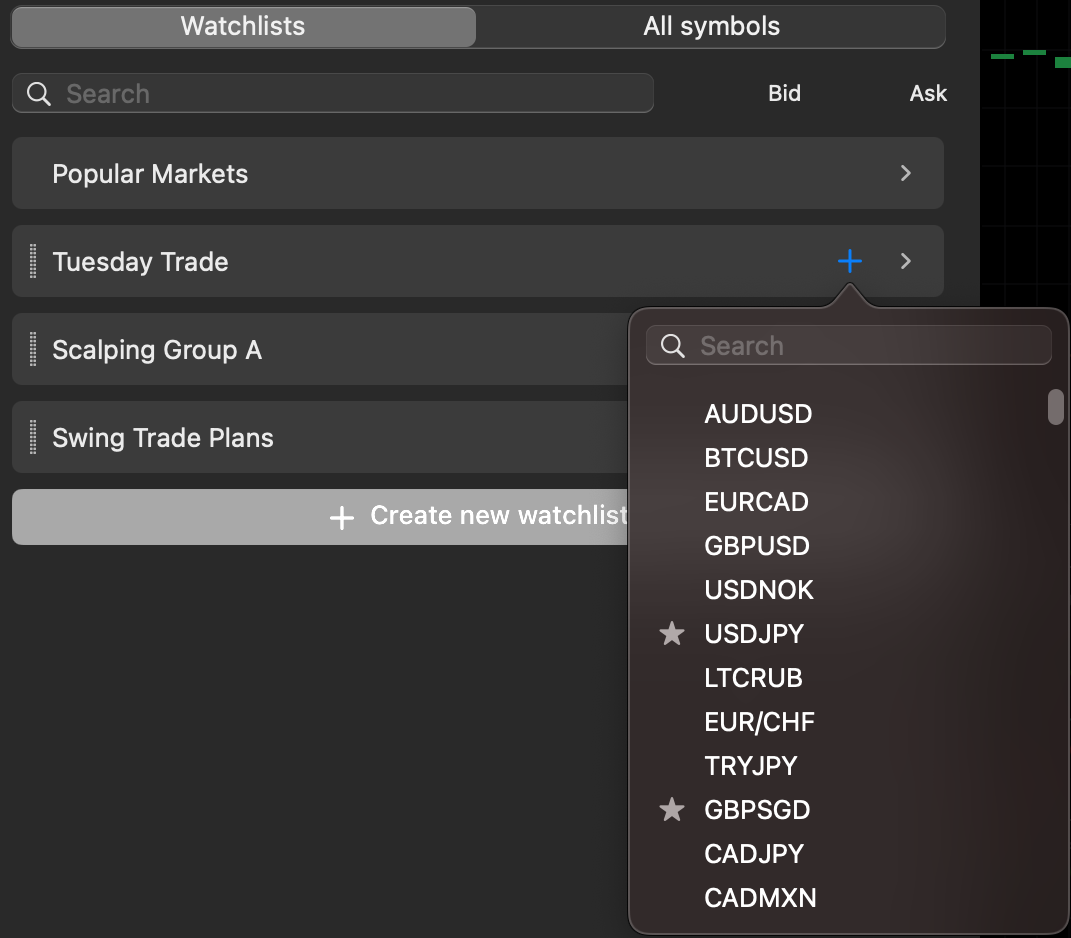
To expand or collapse a watchlist, click the `>` icon on the watchlist.
Popular Markets is the only watchlist available by default. This watchlist contains the most popular symbols, and it can not be edited or deleted.
You can move the symbols in a watchlist up/down and reorder them by dragging and dropping them. You can also move watchlists up/down and reorder them by dragging and dropping them.
When you right-click a symbol inside a watchlist, you see options that allow you to place a new order for this symbol, open a new chart, remove the symbol or add it to another watchlist.
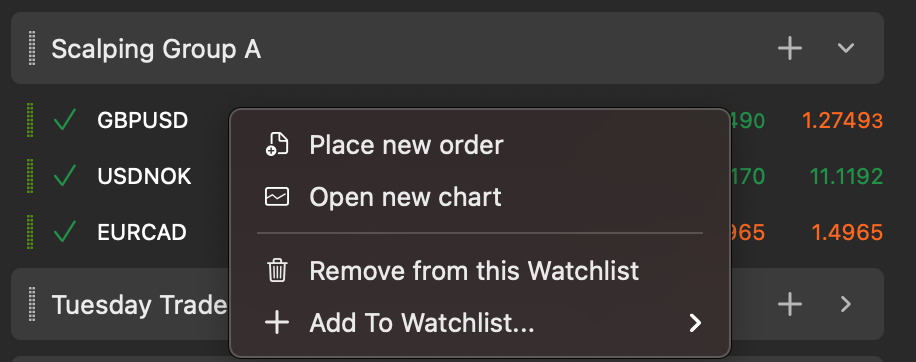
Managing Watchlists[¶](https://help.ctrader.com/ctrader-mac/trade/market-watch/#managing-watchlists "Permanent link")
----------------------------------------------------------------------------------------------------------------------
Right-click a watchlist to see the options available for managing it.
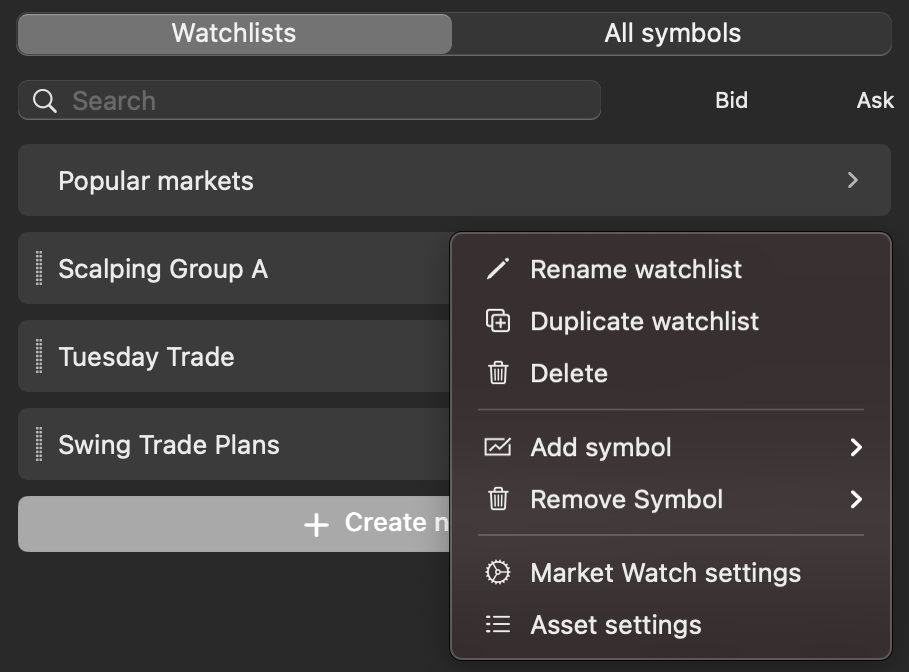
These are the available actions:
* '**Rename**' - Give the watchlist a new name.
* '**Duplicate**' - Create a copy of the watchlist with another name.
* '**Delete**' - Remove the watchlist.
* '**Add symbol**' - Add a symbol to the watchlist.
* '**Remove symbol**' - Remove a symbol from the watchlist.
These parameters or settings are applied to all watchlists:
* '**Market Watch settings**' - Allows you to enable or disable '**Daily Change**' for symbols and specify what the '**Double click**' and '**Drag out**' actions do.
* '**Asset settings**' - Allows you to choose the unit settings for assets.
---
# Deeplinks multiplataforma - Deeplinks do cTrader
[Ir para o conteúdo](https://help.ctrader.com/ctrader-deeplinks/pt/cross-platform-deeplinks/#deeplinks-multiplataforma-do-ctrader)
Deeplinks multiplataforma do cTrader[¶](https://help.ctrader.com/ctrader-deeplinks/pt/cross-platform-deeplinks/#deeplinks-multiplataforma-do-ctrader "Permanent link")
=======================================================================================================================================================================
Neste guia, definimos os deeplinks do cTrader que funcionam tanto para o cTrader Web como para o cTrader Mobile. Estes deeplinks estão agrupados de acordo com as áreas do cTrader para onde direcionam os traders.
Note que cada link listado nesta página pode ter os seguintes parâmetros de consulta adicionais.
| Parâmetro | Valor possível | Definição |
| --- | --- | --- |
| `?acc` | Um número de conta válido. | Se este parâmetro for incluído, o cTrader muda para a conta com o número especificado antes de prosseguir para a área indicada no deeplink. |
| `?lang` | Um código de país de duas letras Alpha-2 (ISO 3166-1) válido. | Se este parâmetro for incluído, o cTrader muda a sua interface para o idioma especificado antes de prosseguir para a área indicada no deeplink. |
Nota
Vários deeplinks incluem valores especificados entre chavetas (por exemplo, `/orders/create-market-order/{symbol}`). Estes valores permitem restringir a área para a qual deve ser direcionado o utilizador que clica num deeplink. Por exemplo, `/orders/create-market-order/{symbol}` direciona os utilizadores para o ecrã **Criar ordem de mercado** para o símbolo cujo nome corresponde ao texto digitado em vez de `{symbol}`. Note que as chavetas são apenas para fins de exemplo; não são incluídas nos deeplinks reais.
Menu principal [¶](https://help.ctrader.com/ctrader-deeplinks/pt/cross-platform-deeplinks/#menu-principal "Permanent link")
----------------------------------------------------------------------------------------------------------------------------
| Link | Definição |
| --- | --- |
| `/finder` | Abre o separador **Todos os símbolos**. |
| `/watchlists` | Abre o separador **Listas de observação**. |
| `/symbols/filter/{filterText}` | Abre o separador **Todos os símbolos** com os símbolos filtrados para corresponder ao texto especificado em `{filterText}`. |
Informação do símbolo e gráficos [¶](https://help.ctrader.com/ctrader-deeplinks/pt/cross-platform-deeplinks/#informacao-do-simbolo-e-graficos "Permanent link")
----------------------------------------------------------------------------------------------------------------------------------------------------------------
| Link | Definição |
| --- | --- |
| `/symbols/{symbol}/info` | Abre **Informação do símbolo/Visão geral do símbolo** para o símbolo cujo nome corresponde a `{symbol}`. |
| `/symbols/{symbol}/chart` | Abre um novo gráfico de negociação para o símbolo cujo nome corresponde a `{symbol}`. Se esse gráfico já estiver aberto, torna-se ativo. |
Observação da Negociação [¶](https://help.ctrader.com/ctrader-deeplinks/pt/cross-platform-deeplinks/#observacao-da-negociacao "Permanent link")
------------------------------------------------------------------------------------------------------------------------------------------------
| Link | Definição |
| --- | --- |
| `/positions` | Abre o separador **Posições** na **Observação da Negociação**. |
| `/orders` | Abre o separador **Ordens** na **Observação da Negociação**. |
| `/history` | Abre o separador **Histórico** na **Observação da Negociação**. |
| `/deals` | Abre o separador **Histórico** na **Observação da Negociação**. Duplica `/history`. |
| `/transactions` | Abre o separador **Transações** na **Observação da Negociação**. |
| `/news` | Abre o separador **Notícias** na **Observação da Negociação**. |
| `/bonus` | Abre o separador **Bónus** na **Observação da Negociação**. |
Contas [¶](https://help.ctrader.com/ctrader-deeplinks/pt/cross-platform-deeplinks/#contas "Permanent link")
------------------------------------------------------------------------------------------------------------
| Link | Definição |
| --- | --- |
| `/accounts/sign-in` | Abre o seletor de conta. |
| `/accounts/sign-up-demo` | Abre o ecrã **Nova conta de negociação demo**. |
| `/accounts/create-demo` | Abre o ecrã **Nova conta de negociação demo**. |
| `/accounts/create-live` | Abre o ecrã **Nova conta de negociação real**. |
Colocar nova ordem [¶](https://help.ctrader.com/ctrader-deeplinks/pt/cross-platform-deeplinks/#colocar-nova-ordem "Permanent link")
------------------------------------------------------------------------------------------------------------------------------------
| Link | Definição |
| --- | --- |
| `/orders/create-market-order` | Abre o ecrã **Colocar ordem de mercado** para o símbolo cujo gráfico está atualmente ativo. |
| `/orders/create-market-order/{symbol}` | Abre o ecrã **Colocar ordem de mercado** para o símbolo cujo nome corresponde a `{symbol}`. |
| `/orders/create-limit-order` | Abre o ecrã **Colocar ordem de limite** para o símbolo cujo gráfico está atualmente ativo. |
| `/orders/create-limit-order/{symbol}` | Abre o ecrã **Colocar ordem de limite** para o símbolo cujo nome corresponde a `{symbol}`. |
| `/orders/create-stop-order` | Abre o ecrã **Colocar ordem de stop** para o símbolo cujo gráfico está atualmente ativo. |
| `/orders/create-stop-order/{symbol}` | Abre o ecrã **Colocar ordem de stop** para o símbolo cujo nome corresponde a `{symbol}`. |
| `/orders/create-stop-limit-order` | Abre o ecrã **Colocar ordem de stop-limit** para o símbolo cujo gráfico está atualmente ativo. |
| `/orders/create-stop-limit-order/{symbol}` | Abre o ecrã **Colocar ordem de stop-limit** para o símbolo cujo nome corresponde a `{symbol}`. |
Modificar uma ordem e informação da ordem [¶](https://help.ctrader.com/ctrader-deeplinks/pt/cross-platform-deeplinks/#modificar-uma-ordem-e-informacao-da-ordem "Permanent link")
----------------------------------------------------------------------------------------------------------------------------------------------------------------------------------
| Link | Definição |
| --- | --- |
| `/orders/modify` | Abre o ecrã **Modificar ordens** para a primeira ordem na lista **Ordens**. |
| `/orders/{id}/modify` | Abre o ecrã **Modificar ordens** para a ordem cujo identificador corresponde a `{id}`. |
| `/orders/{id}/details` | Abre o ecrã **Informação da ordem** para a ordem cujo identificador corresponde a `{id}`. |
Posições [¶](https://help.ctrader.com/ctrader-deeplinks/pt/cross-platform-deeplinks/#posicoes "Permanent link")
----------------------------------------------------------------------------------------------------------------
| Link | Definição |
| --- | --- |
| `/positions/modify` | Abre o ecrã **Modificar posição** para a primeira posição na lista **Posições**. |
| `/positions/{id}/modify` | Abre o ecrã **Modificar posição** para a posição cujo identificador corresponde a `{id}`. |
| `/positions/{id}/details` | Abre o ecrã **Informação da posição** para a posição cujo identificador corresponde a `{id}`. |
| `/positions/{id}/protect` | Abre o ecrã **Proteção avançada** para a posição cujo identificador corresponde a `{id}`. |
Fundos [¶](https://help.ctrader.com/ctrader-deeplinks/pt/cross-platform-deeplinks/#fundos "Permanent link")
------------------------------------------------------------------------------------------------------------
| Link | Definição |
| --- | --- |
| `/funds/withdrawal` | Abre o ecrã **Levantamento**. |
| `/funds/deposit` | Abre o ecrã **Depósito**. |
| `/funds/fundonline` | Abre o ecrã **Depósito**. |
| `/funds/bankwire` | Abre o ecrã **Depósito**. |
Copy [¶](https://help.ctrader.com/ctrader-deeplinks/pt/cross-platform-deeplinks/#copy "Permanent link")
--------------------------------------------------------------------------------------------------------
| Link | Definição |
| --- | --- |
| `/copy/` | Abre o cTrader Copy. |
| `/copy/favorites` | Abre o separador **Favoritos** no cTrader Copy. |
| `/copy/strategy/{strategyID}` | Abre a página da estratégia para a estratégia cujo identificador corresponde a `{strategyID}`. |
| `/copy/account/{accountID}` | Abre a página de estatísticas para a conta cujo número corresponde a `{accountID}`. |
| `/copy/copyingAccount/{accountID}` | Abre a página **Estatísticas de investimento** para a subconta cujo número corresponde a `{accountID}`. |
Diversos [¶](https://help.ctrader.com/ctrader-deeplinks/pt/cross-platform-deeplinks/#diversos "Permanent link")
----------------------------------------------------------------------------------------------------------------
| Link | Definição |
| --- | --- |
| `/chat` | Abre o **Chat**. |
| `/whats-new` | Abre as **Novidades** para a última versão da aplicação. |
| `/profiles/{sharingCode}` | Abre o **Acesso do investidor** para a conta que gerou `{sharingCode}`. |
Voltar ao topo
---
# حالات الاستخدام - الروابط العميقة لـ cTrader
[انتقل إلى المحتوى](https://help.ctrader.com/ctrader-deeplinks/ar/use-cases/#_1)
حالات الاستخدام[¶](https://help.ctrader.com/ctrader-deeplinks/ar/use-cases/#_1 "Permanent link")
=================================================================================================
يسرد هذا الدليل حالات الاستخدام الشائعة لروابط cTrader العميقة.
الطرق الشائعة لمشاركة الروابط العميقة
تتضمن الطرق الشائعة لمشاركة روابط cTrader العميقة ما يلي.
* يمكن إضافة الروابط العميقة إلى أي عناصر قابلة للنقر تستخدمها لتسهيل الدعوات إلى اتخاذ إجراء المخصصة مثل الأزرار في رسائل البريد الإلكتروني أو الصفحات المقصودة.
* يمكن مشاركة الروابط العميقة مباشرة على وسائل التواصل الاجتماعي أو قنوات المراسلة الخاصة بك (مثل مجموعات Telegram).
* يمكن استخدام الروابط العميقة كروابط تشعبية في أي محتوى نصي تقوم بتوزيعه، وخاصة المدونات أو المواد التعليمية.
تتضمن بعض الحالات التجارية الشائعة لروابط cTrader العميقة ما يلي.
* **تحفيز التداول**. عبر الروابط العميقة، يمكنك توجيه المستخدمين مباشرة إلى الشاشة **أمر جديد** في cTrader. يجب أن يُحفّز الاستخدام الفعّال للروابط العميقة إدراج أوامر جديدة.
* **توجيه المتداولين إلى مناطق محددة في cTrader**. عند استخدام الروابط العميقة، يمكنك توجيه المتداولين إلى شاشات **الإيداع** و\*\*السحب\*\* و\*\*المكافآت\*\* في cTrader. بالنسبة لأي شخص يتواصل مباشرة مع المتداولين، تُعدّ الروابط العميقة أداة قيّمة لتشجيع القيام بإجراءات معيّنة.
* **توجيه المتداولين إلى أدوات مُعيّنة**. إذا كنت تريد أن يُركِّز المتداولون اهتمامهم على الرموز التي على وشك أن تشهد بعض التقلبات (EURUSD في أعقاب أخبار مؤشر أسعار المستهلك الأمريكي)، يمكنك مشاركة روابط عميقة تؤدي إلى شاشات **معلومات الرمز** أو **إنشاء أمر جديد** للرمز المختار.
* **تثقيف المتداولين**. يمكن للروابط العميقة توجيه المتداولين إلى ميزات cTrader المفيدة، وخاصة شاشة **الحماية المتقدمة** لمركز مُعيّن. لذلك، يمكن استخدام الروابط العميقة لتنبيه المتداولين إلى أدوات cTrader المختلفة وتحفيز التعلم الذاتي.
* **الترويج لنفسك أو للمتداولين المحترفين الآخرين**. يمكن أن تؤدي الروابط العميقة إلى إستراتيجيات مُعيّنة في cTrader Copy أو وصول المستثمر لأداء التداول الخاص به. وهذا يجعلها أداة مثالية للترويج لنفسك أو للمتداولين المحترفين الآخرين.
فيما يلي، نُقدِّم عدة أمثلة على كيفية ظهور مشاركة الروابط العميقة عند استخدام قنوات مختلفة.
إنشاء دعوات لاتخاذ إجراء مخصصة[¶](https://help.ctrader.com/ctrader-deeplinks/ar/use-cases/#_2 "Permanent link")
----------------------------------------------------------------------------------------------------------------
عند إضافة أزرار إلى قوالب البريد الإلكتروني أو صفحاتك المقصودة، يمكنك استخدام روابط cTrader العميقة لتحفيز إجراءات مُعيّنة. انظر أدناه لأمثلة على الأزرار التي تؤدي إلى مناطق مختلفة من cTrader عند النقر عليها.
فتح الرسم البياني لرمزفتح علامة التبويب المكافأةفتح حساب تجريبي
[تداول EURUSD](https://app.ctrader.com/symbols/EURUSD/chart)
[شاهد مكافأتك](https://app.ctrader.com/bonus)
[فتح حساب تجريبي](https://app.ctrader.com/accounts/create-demo)
المشاركة عبر وسائل التواصل الاجتماعي وتطبيقات المراسلة [¶](https://help.ctrader.com/ctrader-deeplinks/ar/use-cases/#_3 "Permanent link")
-----------------------------------------------------------------------------------------------------------------------------------------
يمكن مشاركة الروابط العميقة بحُرية على وسائل التواصل الاجتماعي أو عند استخدام تطبيقات المراسلة المختلفة مثل Telegram. تُقدِّم لقطات الشاشة أدناه عدة أمثلة على ذلك.
إدارة الإستراتيجيات المفضلةإجراء إيداعإدراج أمر حد



استخدام الروابط التشعبية [¶](https://help.ctrader.com/ctrader-deeplinks/ar/use-cases/#_4 "Permanent link")
-----------------------------------------------------------------------------------------------------------
يمكن أيضًا استخدام روابط cTrader العميقة كروابط تشعبية متى رأيت ذلك مناسبًا. يُرجى الاطّلاع على علامات التبويب أدناه لبعض الأمثلة الصالحة لتضمين الروابط العميقة في المحتوى النصي.
إدراج أمر إيقافتعديل أمر معلقعرض كل الرموز
بعد التعرّف على كيفية عمل أوامر الإيقاف، يمكنك تجربة إدراج [**أمر إيقاف جديد لـ EURUSD**](https://app.ctrader.com/orders/create-stop-order/EURUSD)
.
لاحظ أنه يمكن [**تعديل الأوامر المعلقة**](https://app.ctrader.com/orders/modify)
لتتوافق مع إستراتيجيتك.
حدد رمزًا من [**كل الرموز**](https://app.ctrader.com/finder)
لتداوله.
عد إلى الأعلى
---
# معلمات سلسلة الاستعلام - إضافات WebView
[انتقل إلى المحتوى](https://help.ctrader.com/webview-plugins/ar/query-string-parameters/#_1)
تحذير
هذه الميزة في مرحلة ما قبل الإصدار وقيد الاختبار حاليًا. الوثائق للرجوع إليها فقط.
معلمات سلسلة الاستعلام[¶](https://help.ctrader.com/webview-plugins/ar/query-string-parameters/#_1 "Permanent link")
====================================================================================================================
يمكنك استخدام معلمات سلسلة الاستعلام لتخصيص السلوك السياقي لملحق WebView وتكوينه. يتم تطبيق المعلمات التي تكررها كلما قام المستخدم بتشغيل الإضافة أو إعادة تحميلها.
| **المعلمة** | **الوصف** | **القيم الممكنة** |
| --- | --- | --- |
| `theme` | نسق cTrader | `light`, `dark` |
| `symbol` | الرمز النشط (الحالي) | `EURUSD`, `GBPJPY`, `USDCAD`, etc |
| `lang` | لغة عميل cTrader | `ar`, `cs`, `de`, `el`, `en`, `es`, `fr`, `hu`, `id`, `it`, `ja`, `ko`, `ms`, `pl`, `pt`, `ru`, `sk`, `sl`, `sr`, `th`, `tr`, `vi`, `zh` |
| `platform` | المنصة التي يتم تشغيل cTrader عليها | `web`, `windows`, `macos`, `android`, `ios` |
| `placement` | موضع نافذة الإضافة | `wl_bs`, `so_bs`, `so_eb`, `chart`, `asp_b`, `asp_t`, `tw_t`, `custom_w` |
| `id` | معرّف الإضافة الفريد للحماية من النسخ | مثال، `17238`، `26047`، `18359`، وما إلى ذلك. |
أوصاف المواضع [¶](https://help.ctrader.com/webview-plugins/ar/query-string-parameters/#_2 "Permanent link")
------------------------------------------------------------------------------------------------------------
| **الموضع** | **الوصف** | **المنصة** | **استخدام الرمز النشط (`symbol`) في سلسلة الاستعلام**؟ |
| --- | --- | --- | --- |
| `wl_bs` | لوحة أسفل علامات تبويب Trade | `android`، `ios` | لا |
| `so_bs` | لوحة أسفل نظرة عامة على الرمز | `android`، `ios` | نعم |
| `so_eb` | كتلة مضمنة لنظرة عامة على الرمز | `android`، `ios` | نعم |
| `chart` | منطقة الرسم البياني | `web`، `windows`، `macos` | لا |
| `asp_b` | كتلة ASP | `web`، `windows`، `macos` | نعم |
| `asp_t` | علامة تبويب ASP | `web`، `windows`، `macos` | نعم |
| `tw_t` | علامة تبويب Trade Watch | `web`، `windows`، `macos` | لا |
| `custom_w` | نافذة مخصصة | `web`، `windows`، `macos` | لا |
ملاحظة
لحماية ملكيتك الفكرية ومنع النسخ، يمكنك تنفيذ آلية تتطلب من الإضافة تكرار معرّفها الفريد (`id`) عبر معلمة `GET` عند التشغيل. تحقق من صحة `id` في كل مرة يتم فيها تشغيل الإضافة، وامنع تنفيذ الإضافة إذا كان `id` الخاص بها لا يتطابق مع القيمة المتوقعة.
أمثلة [¶](https://help.ctrader.com/webview-plugins/ar/query-string-parameters/#_3 "Permanent link")
----------------------------------------------------------------------------------------------------
مثال بسيط (بدون رمز)
`https://example.com/ctrader_web_app_plugin?theme=dark&lang=en&platform=web&placement=chart&id=abc123`
Mobile، النسق الفاتح، البرتغالية وEURUSD كرمز نشط
`https://example.com/ctrader_web_app_plugin?theme=light&symbol=EURUSD&lang=pt&platform=android&placement=wl_bs&id=def456`
Desktop مع كتلة ASP، النسق الداكن، الألمانية وGBPJPY كرمز نشط
`https://example.com/ctrader_web_app_plugin?theme=dark&symbol=GBPJPY&lang=de&platform=windows&placement=asp_b&id=xyz789`
عد إلى الأعلى
---
# Orders - cTrader Mac
[Skip to content](https://help.ctrader.com/ctrader-mac/trade/orders/#orders)
Orders[¶](https://help.ctrader.com/ctrader-mac/trade/orders/#orders "Permanent link")
======================================================================================
Creating Orders[¶](https://help.ctrader.com/ctrader-mac/trade/orders/#creating-orders "Permanent link")
--------------------------------------------------------------------------------------------------------
cTrader Mac offers several functionalities to place a new order.
Click the '**New Order**' button located in the Chart Toolbar, '**Positions**' tab, or '**Orders**' tab of the Trade Watch panel, and the '**Create Order**' window will open.
Chart ToolbarPositionsOrders
[](https://help.ctrader.com/ctrader-mac/img/trade/16.png)
[](https://help.ctrader.com/ctrader-mac/img/trade/17.png)
[](https://help.ctrader.com/ctrader-mac/img/trade/18.png)
Alternatively, click '**Create New Order**' in the context menu after right-clicking on a symbol in Market Watch or simply right-clicking inside the '**Positions**' and '**Orders**' tabs of Trade Watch.
Market WatchTrade Watch
[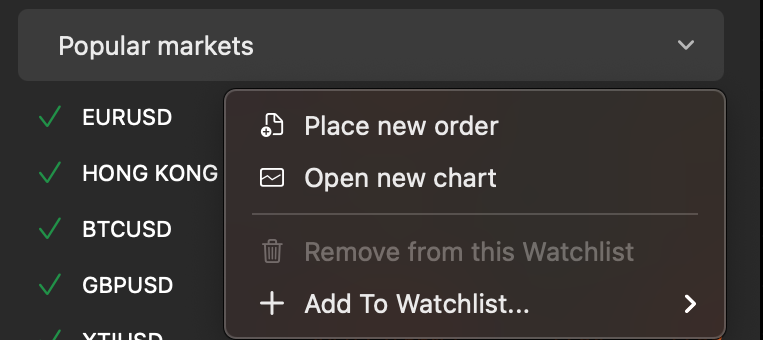](https://help.ctrader.com/ctrader-mac/img/trade/new-order-watchlist.png)
[](https://help.ctrader.com/ctrader-mac/img/trade/20.png)
You can also click the '**New Order**' button in the Active Symbol Panel (ASP) and proceed to place an order in the expanded menu.
A new order may also be placed from the [**Chart Context Menu**](https://help.ctrader.com/ctrader-mac/trade/charts/)
for the symbol displayed on the chart or through the [**Quick Trade**](https://help.ctrader.com/ctrader-mac/trade/chart-trading/)
buttons.
Use the F9 hotkey to quickly place an order.
In the '**Create Order**' window or expanded ASP menu, you can place [**orders of different types**](https://help.ctrader.com/trading-with-ctrader/orders/)
and select parameters for them. Entry points and risk levels for the order are visualised on the mini chart.
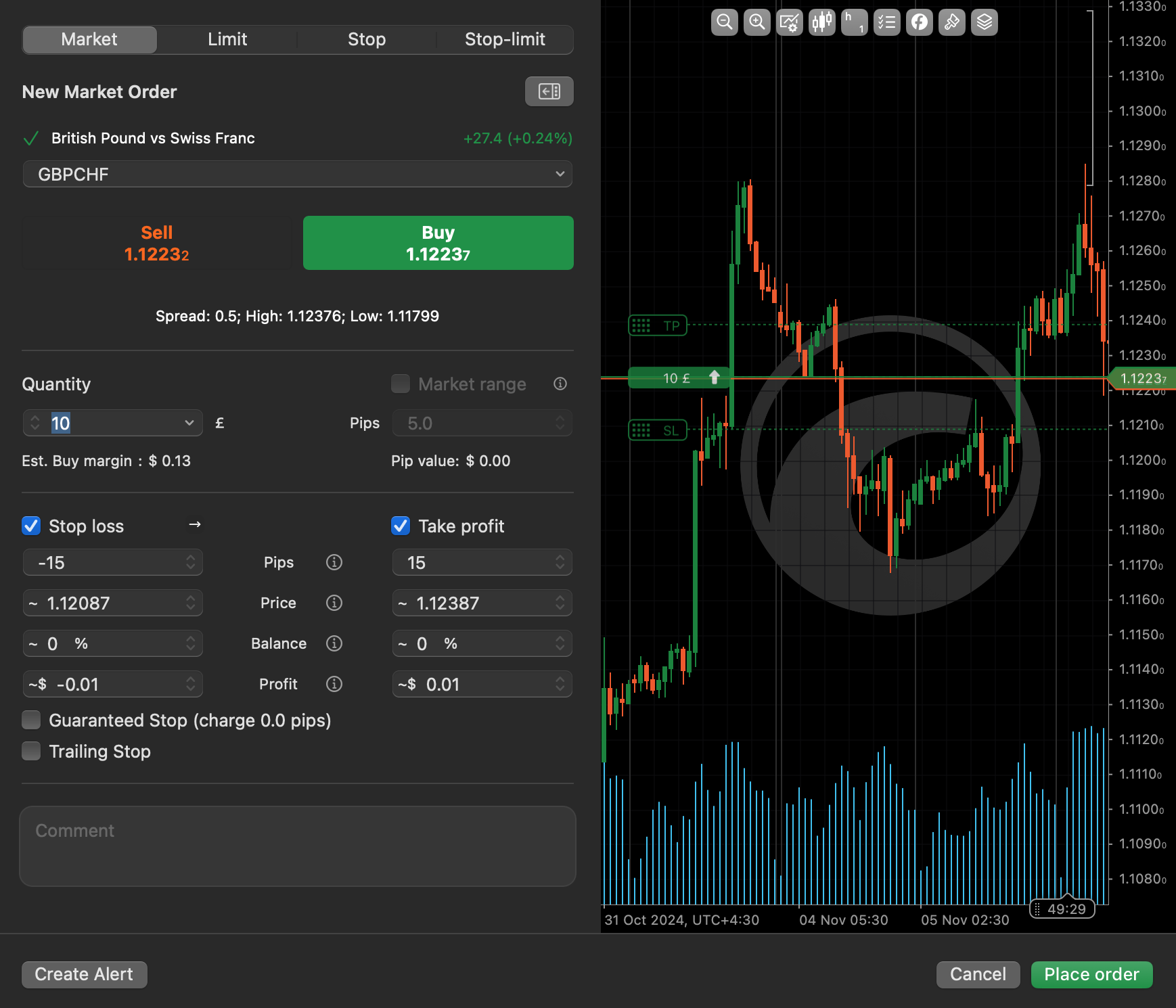
Managing Pending Orders[¶](https://help.ctrader.com/ctrader-mac/trade/orders/#managing-pending-orders "Permanent link")
------------------------------------------------------------------------------------------------------------------------
All pending orders are listed in the '**Orders**' tab of [**Trade Watch**](https://help.ctrader.com/ctrader-mac/trade/trade-watch/)
. Here you can modify and cancel pending orders.
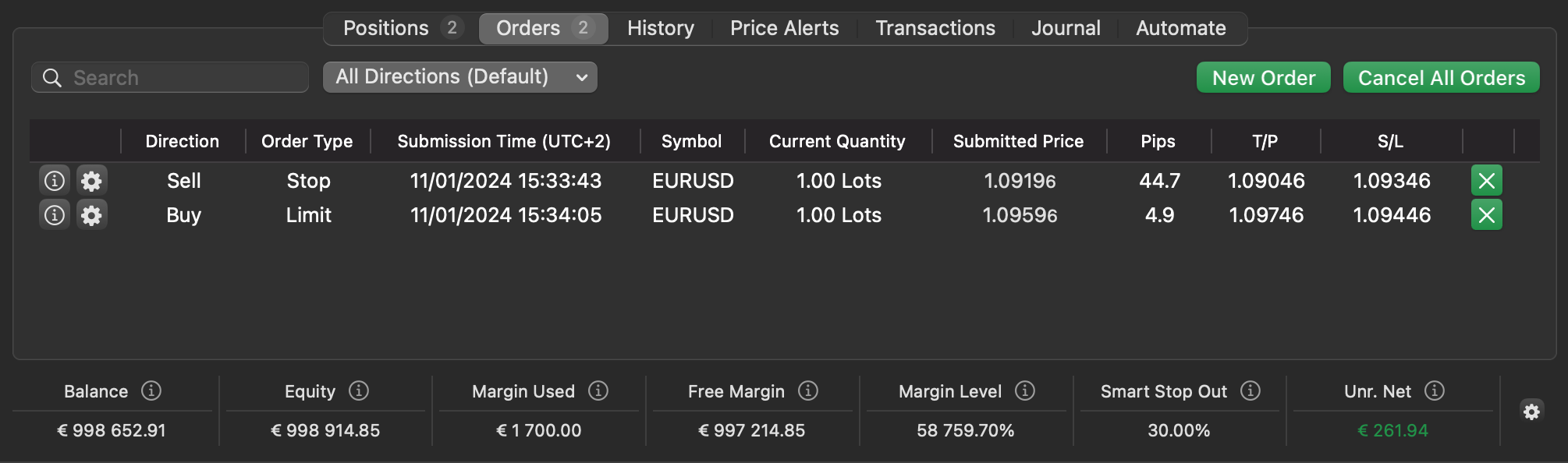
Right-click on an order in the list to access the order management options.
Additionally, you can modify a pending order by double-clicking on it or pressing the cog icon of the needed order in the '**Orders**' tab of the Trade Watch panel. The '**Modify Order**' window will open where you can alter the order parameters.
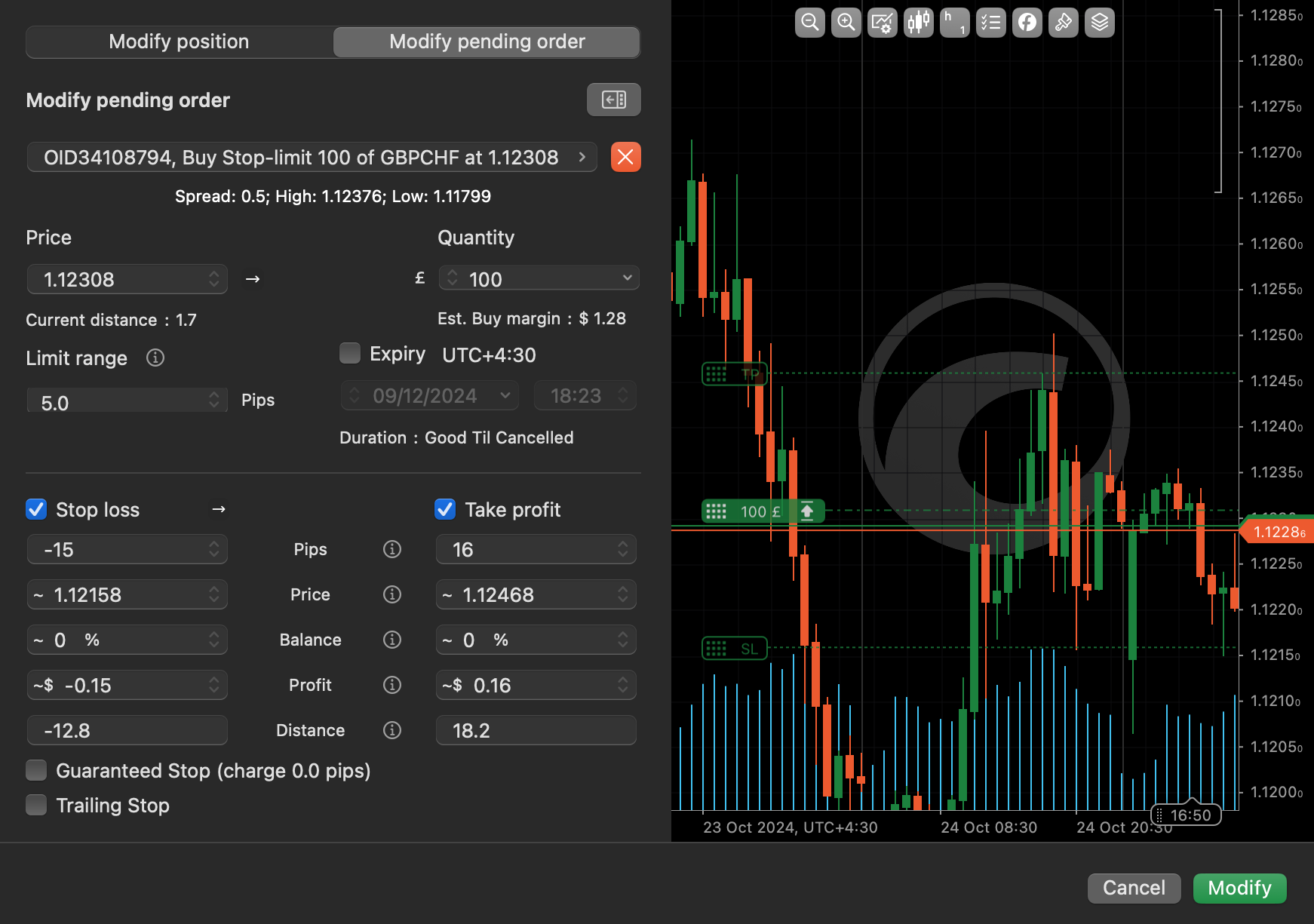
You can cancel an individual order from this window as well. To cancel all pending orders altogether, click the '**Cancel All Orders**' button located in the top right corner of the '**Orders**' tab.
More functionalities of managing orders from the chart area are described in the [**'Chart Trading'**](https://help.ctrader.com/ctrader-mac/trade/chart-trading/)
section.
Stop Loss and Take Profit[¶](https://help.ctrader.com/ctrader-mac/trade/orders/#stop-loss-and-take-profit "Permanent link")
----------------------------------------------------------------------------------------------------------------------------
Stop loss (SL) is an option that automatically limits investor's losses for an open position if the market moves unfavourably. If a security falls to the specified level, the stop loss order is triggered and the position is closed for a loss.
Take profit (TP) is an option similar to stop loss, but it will close an open position when a predetermined level of gain is reached. If a security rises to the specified level, the take profit triggers and the position is closed for a gain.
You can set up SL and/or TP when placing any order type in the '**Create Order**' window by entering values or dragging protections on the mini chart.
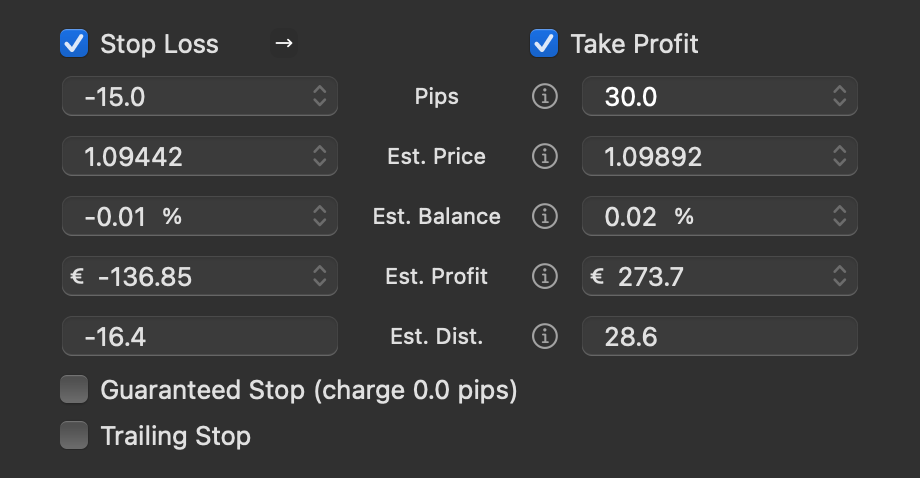
To modify the SL and TP securities for an open position or pending order, open the '**Modify Position/Order**' window.
cTrader provides relative and absolute protection options for stop loss and take profit:
* Relative protection - stop loss and take profit are set as values in pips.
* Absolute protection - stop loss and take profit are set as values in price, balance, profit or distance.
Learn more about [**stop loss and take profit**](https://help.ctrader.com/trading-with-ctrader/orders/#stop-loss-and-take-profit)
in our dedicated guide.
---
# Deeplinks exclusivos para dispositivos móveis - Deeplinks do cTrader
[Ir para o conteúdo](https://help.ctrader.com/ctrader-deeplinks/pt/mobile-only-deeplinks/#deeplinks-do-ctrader-exclusivos-para-dispositivos-moveis)
Deeplinks do cTrader exclusivos para dispositivos móveis[¶](https://help.ctrader.com/ctrader-deeplinks/pt/mobile-only-deeplinks/#deeplinks-do-ctrader-exclusivos-para-dispositivos-moveis "Permanent link")
============================================================================================================================================================================================================
Os deeplinks listados abaixo só funcionam quando acedidos em dispositivos móveis.
Menu principal [¶](https://help.ctrader.com/ctrader-deeplinks/pt/mobile-only-deeplinks/#menu-principal "Permanent link")
-------------------------------------------------------------------------------------------------------------------------
| Link | Definição |
| --- | --- |
| `/price-alerts` | Abre o separador **Alertas de preço**. |
| `/price-alerts/create/{symbol}` | Abre o ecrã **Criar alerta** para o símbolo cujo nome corresponde a `{symbol}`. |
| `/search` | Abre o ecrã **Procurar e adicionar símbolos**. |
| `/symbols` | Abre o separador **Listas de observação**. |
| `/symbols/add` | Se a lista de observação atualmente aberta for **Mercados populares** (que é a predefinição), abre a janela de contexto **Clonar mercados populares**. Se qualquer lista de observação personalizada estiver atualmente aberta, abre o ecrã **Procurar e adicionar símbolos**. |
Observação da Negociação [¶](https://help.ctrader.com/ctrader-deeplinks/pt/mobile-only-deeplinks/#observacao-da-negociacao "Permanent link")
---------------------------------------------------------------------------------------------------------------------------------------------
| Link | Definição |
| --- | --- |
| `/deal/{dealID}` | Abre o ecrã de detalhes da negociação para a negociação cujo identificador corresponde a `{dealID}`. |
Fundos [¶](https://help.ctrader.com/ctrader-deeplinks/pt/mobile-only-deeplinks/#fundos "Permanent link")
---------------------------------------------------------------------------------------------------------
| Link | Definição |
| --- | --- |
| `/deposit` | Abre o ecrã **Depósito**. |
Voltar ao topo
---
# Parâmetros de string de consulta - Plugins WebView
[Ir para o conteúdo](https://help.ctrader.com/webview-plugins/pt/query-string-parameters/#parametros-da-string-de-consulta)
Aviso
Esta funcionalidade está em pré-lançamento e atualmente em fase de testes. A documentação serve apenas como referência.
Parâmetros da string de consulta[¶](https://help.ctrader.com/webview-plugins/pt/query-string-parameters/#parametros-da-string-de-consulta "Permanent link")
============================================================================================================================================================
Pode usar parâmetros da string de consulta para personalizar e configurar o comportamento contextual de um plugin WebView. Os parâmetros que transfere são aplicados sempre que um utilizador inicia ou recarrega o plugin.
| **Parâmetro** | **Descrição** | **Valores possíveis** |
| --- | --- | --- |
| `theme` | Tema do cTrader | `light`, `dark` |
| `symbol` | Símbolo ativo (atual) | `EURUSD`, `GBPJPY`, `USDCAD`, etc |
| `lang` | Idioma do cliente cTrader | `ar`, `cs`, `de`, `el`, `en`, `es`, `fr`, `hu`, `id`, `it`, `ja`, `ko`, `ms`, `pl`, `pt`, `ru`, `sk`, `sl`, `sr`, `th`, `tr`, `vi`, `zh` |
| `platform` | Plataforma onde o cTrader está a ser executado | `web`, `windows`, `macos`, `android`, `ios` |
| `placement` | Posicionamento da janela do plugin | `wl_bs`, `so_bs`, `so_eb`, `chart`, `asp_b`, `asp_t`, `tw_t`, `custom_w` |
| `id` | ID único do plugin para proteção contra cópia | Por exemplo, `17238`, `26047`, `18359`, etc. |
Descrições de posicionamento [¶](https://help.ctrader.com/webview-plugins/pt/query-string-parameters/#descricoes-de-posicionamento "Permanent link")
-----------------------------------------------------------------------------------------------------------------------------------------------------
| **Posicionamento** | **Descrição** | **Plataforma** | **Usar símbolo ativo (`symbol`) na string de consulta**? |
| --- | --- | --- | --- |
| `wl_bs` | Folha inferior dos separadores de negociação | `android`, `ios` | Não |
| `so_bs` | Folha inferior da visão geral do símbolo | `android`, `ios` | Sim |
| `so_eb` | Bloco incorporado da visão geral do símbolo | `android`, `ios` | Sim |
| `chart` | Área do gráfico | `web`, `windows`, `macos` | Não |
| `asp_b` | Bloco ASP | `web`, `windows`, `macos` | Sim |
| `asp_t` | Separador ASP | `web`, `windows`, `macos` | Sim |
| `tw_t` | Separador Observação da Negociação | `web`, `windows`, `macos` | Não |
| `custom_w` | Janela personalizada | `web`, `windows`, `macos` | Não |
Nota
Para proteger a sua propriedade intelectual e evitar cópias, pode implementar um mecanismo que exija que o seu plugin transmita o seu ID único (`id`) através de um parâmetro `GET` no momento do lançamento. Valide o `id` sempre que o plugin for executado e bloqueie a execução do plugin se o seu `id` não corresponder ao valor esperado.
Exemplos [¶](https://help.ctrader.com/webview-plugins/pt/query-string-parameters/#exemplos "Permanent link")
-------------------------------------------------------------------------------------------------------------
Exemplo simples (sem símbolo)
`https://example.com/ctrader_web_app_plugin?theme=dark&lang=en&platform=web&placement=chart&id=abc123`
Mobile, tema claro, português e EURUSD como símbolo ativo
`https://example.com/ctrader_web_app_plugin?theme=light&symbol=EURUSD&lang=pt&platform=android&placement=wl_bs&id=def456`
Desktop com bloco ASP, tema escuro, alemão e GBPJPY como símbolo ativo
`https://example.com/ctrader_web_app_plugin?theme=dark&symbol=GBPJPY&lang=de&platform=windows&placement=asp_b&id=xyz789`
Voltar ao topo
---
# Casos de uso - Enlaces profundos de cTrader
[Saltar a contenido](https://help.ctrader.com/ctrader-deeplinks/es/use-cases/#casos-de-uso)
Casos de uso[¶](https://help.ctrader.com/ctrader-deeplinks/es/use-cases/#casos-de-uso "Permanent link")
========================================================================================================
Esta guía enumera los casos de uso comunes para los enlaces profundos de cTrader.
Formas habituales de compartir enlaces profundos
Las formas habituales de compartir enlaces profundos de cTrader incluyen las opciones indicadas a continuación.
* Los enlaces profundos se pueden añadir a cualquier elemento en el que se pueda hacer clic con el fin de crear CTA personalizadas, por ejemplo, botones en correos electrónicos o páginas de llegada.
* Los enlaces profundos se pueden compartir directamente en las redes sociales o canales de mensajería (por ejemplo, grupos de Telegram).
* Los enlaces profundos se pueden usar como hipervínculos en cualquier contenido de texto que se distribuya, especialmente en publicaciones de blog o materiales educativos.
Algunos de los casos de uso empresarial habituales para los enlaces profundos de cTrader incluyen los siguientes.
* **Incentivar las operaciones**. A través de enlaces profundos, es posible redirigir a los usuarios directamente a la pantalla **Nueva orden** en cTrader. El uso efectivo de enlaces profundos puede incentivar la colocación de nuevas órdenes.
* **Dirigir a los operadores a áreas específicas de cTrader**. Al usar enlaces profundos, puede dirigir a los operadores a las pantallas de **Depósito**, **Retirada** y **Bonificaciones** en cTrader. Para cualquier persona que se comunique directamente con operadores, los enlaces profundos son una herramienta valiosa para fomentar acciones concretas.
* **Canalizar a los operadores hacia ciertos instrumentos**. Si desea que los operadores centren su atención en símbolos que están a punto de experimentar cierta volatilidad (EURUSD tras las noticias del IPC de EE. UU.), puede compartir enlaces profundos que redirijan a las pantallas **Información del símbolo** o **Crear nueva orden** para el símbolo elegido.
* **Educar a los operadores**. Los enlaces profundos pueden redirigir a los operadores hacia funciones útiles de cTrader, especialmente a la pantalla **Protección avanzada** para una posición determinada. Por lo tanto, los enlaces profundos se pueden usar para alertar a los operadores sobre varias herramientas de cTrader y promover el aprendizaje de forma autodidacta.
* **Promoción propia o de otros operadores profesionales**. Los enlaces profundos pueden redirigir a ciertas estrategias de cTrader Copy o a Investor Access del rendimiento de las operaciones propias. Por tanto, son una herramienta perfecta para promocionarse o dar a conocer a otros operadores profesionales.
A continuación, encontrará varios ejemplos de enlaces profundos compartidos a través de diferentes canales.
Crear CTA personalizados [¶](https://help.ctrader.com/ctrader-deeplinks/es/use-cases/#crear-cta-personalizados "Permanent link")
---------------------------------------------------------------------------------------------------------------------------------
Al añadir botones a las plantillas de correo electrónico o páginas de llegada, puede usar enlaces profundos de cTrader para incentivar ciertas acciones. A continuación se muestran ejemplos de botones que redirigen a varias áreas de cTrader al hacer clic en ellos.
Abrir un gráfico de símboloAbrir la pestaña BonificacionesAbrir una cuenta demo
[Operar en EURUSD](https://app.ctrader.com/symbols/EURUSD/chart)
[Ver sus bonificaciones](https://app.ctrader.com/bonus)
[Abrir una cuenta demo](https://app.ctrader.com/accounts/create-demo)
Compartir a través de redes sociales y aplicaciones de mensajería [¶](https://help.ctrader.com/ctrader-deeplinks/es/use-cases/#compartir-a-traves-de-redes-sociales-y-aplicaciones-de-mensajeria "Permanent link")
-------------------------------------------------------------------------------------------------------------------------------------------------------------------------------------------------------------------
Los enlaces profundos se pueden compartir sin restricciones en las redes sociales o a través de varios servicios de mensajería, como Telegram. En las capturas de pantalla siguientes se muestran varios ejemplos.
Gestionar estrategias favoritasHacer un depósitoColocar una orden limitada



Usar hipervínculos [¶](https://help.ctrader.com/ctrader-deeplinks/es/use-cases/#usar-hipervinculos "Permanent link")
---------------------------------------------------------------------------------------------------------------------
Los enlaces profundos de cTrader también se pueden usar como hipervínculos cuando se considere adecuado. Consulte las pestañas a continuación para ver ejemplos válidos para incrustar enlaces profundos en contenido de texto.
Colocar una orden de stopModificar una orden pendienteVer todos los símbolos
Después de aprender cómo funcionan las órdenes de stop, puede probar a colocar una nueva [**orden de stop para EURUSD**](https://app.ctrader.com/orders/create-stop-order/EURUSD)
.
Las órdenes pendientes [**se pueden modificar**](https://app.ctrader.com/orders/modify)
para adecuarse a su estrategia.
Seleccione un símbolo en [**Todos los símbolos**](https://app.ctrader.com/finder)
para operar con él.
Volver al principio
---
# Cómo funcionan los enlaces profundos - Enlaces profundos de cTrader
[Saltar a contenido](https://help.ctrader.com/ctrader-deeplinks/es/how-deeplinks-work/#como-funcionan-los-enlaces-profundos)
Cómo funcionan los enlaces profundos[¶](https://help.ctrader.com/ctrader-deeplinks/es/how-deeplinks-work/#como-funcionan-los-enlaces-profundos "Permanent link")
=================================================================================================================================================================
Funcionalidad y condiciones de enlaces profundos [¶](https://help.ctrader.com/ctrader-deeplinks/es/how-deeplinks-work/#funcionalidad-y-condiciones-de-enlaces-profundos "Permanent link")
------------------------------------------------------------------------------------------------------------------------------------------------------------------------------------------
Todos los enlaces profundos descritos en esta documentación son relativos a una URL determinada que se utiliza para alojar su aplicación de cTrader. En general, estas URL siguen la convención `app.{brokerName}.com` o `ct.{brokerName}.com`, donde `brokerName` es la designación predefinida de un bróker específico.
Ejemplo: Abrir una cuenta real
El enlace `https://app.ctrader.com/accounts/create-live` lleva a la pantalla de creación de una cuenta real en aplicaciones de cTrader sin marca.
La mayoría de los enlaces profundos son [**multiplataforma**](https://help.ctrader.com/ctrader-deeplinks/es/cross-platform-deeplinks/)
, lo que significa que mantienen su funcionalidad independientemente de la plataforma en que se abran. Sin embargo, algunos enlaces profundos son [**solo para Mobile**](https://help.ctrader.com/ctrader-deeplinks/es/mobile-only-deeplinks/)
.
En caso de que un usuario que no tenga instalado cTrader Mobile en su dispositivo intente abrir un enlace profundo, se le redirigirá a la plataforma propia de su equipo para descargar cTrader Mobile. Una vez instalada y abierta la aplicación, cuando el usuario inicie sesión en una de sus cuentas, se le transferirá a la pantalla a la que conducía inicialmente el enlace profundo.
Tenga en cuenta que la experiencia de usuario de cTrader es diferente entre las aplicaciones Mobile y Web. Considere el siguiente ejemplo.
* Al hacer clic en el botón **Colocar orden**, los usuarios de cTrader Web acceden a la ventana **Nueva orden**.
* Al tocar **Nueva orden**, los usuarios de cTrader Mobile acceden a la pantalla **Crear orden**.
Cuando un usuario acceda al enlace `https://app.ctrader.com/orders/create-market-order` en Web, se le presentará la ventana **Nueva orden** solicitándole que coloque una orden de mercado. En Mobile, en cambio, los usuarios se transferirán a la pantalla **Crear orden**, que les permite colocar una orden de mercado.
En otras palabras, los enlaces profundos funcionan correctamente a pesar de las diferencias propias de la experiencia de usuario entre cTrader Web y Mobile. Esta documentación utiliza términos como el diálogo **Crear orden de mercado** para referirse a las funciones equivalentes de ambas aplicaciones.
Enlaces profundos de cTrader y OAuth del bróker [¶](https://help.ctrader.com/ctrader-deeplinks/es/how-deeplinks-work/#enlaces-profundos-de-ctrader-y-oauth-del-broker "Permanent link")
----------------------------------------------------------------------------------------------------------------------------------------------------------------------------------------
En caso de que una aplicación cTrader utilice flujos OAuth, todos los [**enlaces multiplataforma**](https://help.ctrader.com/ctrader-deeplinks/es/cross-platform-deeplinks/)
abrirán la pantalla OAuth con marca correcta cuando se abran mediante cTrader Web.
En cambio, al abrirse con cTrader Mobile, los enlaces profundos de cTrader mostrarán los diálogos habituales de cTrader en lugar de las pantallas OAuth de la marca.
Volver al principio
---
# Como funcionam os deeplinks - Deeplinks do cTrader
[Ir para o conteúdo](https://help.ctrader.com/ctrader-deeplinks/pt/how-deeplinks-work/#como-funcionam-os-deeplinks)
Como funcionam os deeplinks[¶](https://help.ctrader.com/ctrader-deeplinks/pt/how-deeplinks-work/#como-funcionam-os-deeplinks "Permanent link")
===============================================================================================================================================
Funcionalidade e termos dos deeplinks [¶](https://help.ctrader.com/ctrader-deeplinks/pt/how-deeplinks-work/#funcionalidade-e-termos-dos-deeplinks "Permanent link")
--------------------------------------------------------------------------------------------------------------------------------------------------------------------
Todos os deeplinks descritos nesta documentação são relativos a um determinado URL que é usado para alojar a sua aplicação cTrader. Em geral, estes URLs seguem a convenção `app.{brokerName}.com` ou `ct.{brokerName}.com`, onde `brokerName` é a designação predefinida de uma empresa de corretagem específica.
Exemplo: Abrir uma conta real
O link `https://app.ctrader.com/accounts/create-live` direciona para o ecrã de criação de conta real nas aplicações cTrader sem marca.
A maioria dos deeplinks são [**multiplataforma**](https://help.ctrader.com/ctrader-deeplinks/pt/cross-platform-deeplinks/)
, o que significa que mantêm a sua funcionalidade independentemente da plataforma onde foram abertos. No entanto, alguns deeplinks são [**exclusivos para dispositivos móveis**](https://help.ctrader.com/ctrader-deeplinks/pt/mobile-only-deeplinks/)
.
Caso um utilizador que não tenha o cTrader Mobile instalado no seu dispositivo tente abrir um deeplink, será direcionado para os meios específicos da sua plataforma para descarregar o cTrader Mobile. Depois de a aplicação ser instalada e aberta, e o utilizador iniciar sessão numa das suas contas, este será direcionado para o ecrã para o qual o deeplink direcionava originalmente.
Note que a experiência do utilizador do cTrader é diferente entre as aplicações Mobile e Web. Considere o seguinte exemplo.
* Ao clicarem no botão **Colocar ordem**, os utilizadores do cTrader Web são direcionados para a janela **Nova ordem**.
* Ao tocarem em **Nova ordem**, os utilizadores do cTrader Mobile são direcionados para o ecrã **Criar ordem**.
Quando um utilizador acede ao link `https://app.ctrader.com/orders/create-market-order` na Web, será apresentada a janela **Nova ordem** solicitando que coloque uma ordem de mercado. No Mobile, os utilizadores serão, em vez disso, direcionados para o ecrã **Criar ordem**, permitindo-lhes colocar uma ordem de mercado.
Por outras palavras, os deeplinks funcionam corretamente, independentemente das diferenças de experiência do utilizador entre o cTrader Web e Mobile. Esta documentação utiliza termos como a caixa de diálogo **Criar ordem de mercado** como notações conjuntas para indicar funcionalidades análogas entre estas aplicações.
Deeplinks do cTrader e OAuth do corretor [¶](https://help.ctrader.com/ctrader-deeplinks/pt/how-deeplinks-work/#deeplinks-do-ctrader-e-oauth-do-corretor "Permanent link")
--------------------------------------------------------------------------------------------------------------------------------------------------------------------------
Caso uma aplicação cTrader utilize fluxos OAuth, todos os [**links multiplataforma**](https://help.ctrader.com/ctrader-deeplinks/pt/cross-platform-deeplinks/)
abrirão o ecrã OAuth com marca correto quando abertos pelo cTrader Web.
Quando abertos utilizando o cTrader Mobile, os deeplinks do cTrader irão, em vez disso, exibir as caixas de diálogo habituais do cTrader em vez dos ecrãs OAuth com marca.
Voltar ao topo
---
# Parámetros de cadena de consulta - Plugins de WebView
[Saltar a contenido](https://help.ctrader.com/webview-plugins/es/query-string-parameters/#parametros-de-cadena-de-consulta)
Advertencia
Esta función está en fase de prelanzamiento y actualmente en pruebas. La documentación es solo como referencia.
Parámetros de cadena de consulta[¶](https://help.ctrader.com/webview-plugins/es/query-string-parameters/#parametros-de-cadena-de-consulta "Permanent link")
============================================================================================================================================================
Puede usar parámetros de cadena de consulta para personalizar y configurar la conducta de un plugin de WebView en contexto. Los parámetros que se pasen se aplicarán cada vez que un usuario ejecute o actualice el plugin.
| **Parámetro** | **Descripción** | **Valores posibles** |
| --- | --- | --- |
| `theme` | Tema de cTrader | `light`, `dark` |
| `symbol` | Símbolo activo (actual) | `EURUSD`, `GBPJPY`, `USDCAD`, etc |
| `lang` | Idioma del cliente cTrader | `ar`, `cs`, `de`, `el`, `en`, `es`, `fr`, `hu`, `id`, `it`, `ja`, `ko`, `ms`, `pl`, `pt`, `ru`, `sk`, `sl`, `sr`, `th`, `tr`, `vi`, `zh` |
| `platform` | Plataforma donde se ejecuta cTrader | `web`, `windows`, `macos`, `android`, `ios` |
| `placement` | Ubicación de la ventana del plugin | `wl_bs`, `so_bs`, `so_eb`, `chart`, `asp_b`, `asp_t`, `tw_t`, `custom_w` |
| `id` | ID único del plugin para protección anticopia | Por ejemplo, `17238`, `26047`, `18359`, etc. |
Descripciones de ubicación [¶](https://help.ctrader.com/webview-plugins/es/query-string-parameters/#descripciones-de-ubicacion "Permanent link")
-------------------------------------------------------------------------------------------------------------------------------------------------
| **Ubicación** | **Descripción** | **Plataforma** | **¿Uso del símbolo activo (`symbol`) en la cadena de consulta**? |
| --- | --- | --- | --- |
| `wl_bs` | Recuadro inferior en las pestañas de Trade | `android`, `ios` | No |
| `so_bs` | Recuadro inferior en la página General del símbolo | `android`, `ios` | Sí |
| `so_eb` | Bloque incrustado en la página General del símbolo | `android`, `ios` | Sí |
| `chart` | Área del gráfico | `web`, `windows`, `macos` | No |
| `asp_b` | Bloque ASP | `web`, `windows`, `macos` | Sí |
| `asp_t` | Pestaña ASP | `web`, `windows`, `macos` | Sí |
| `tw_t` | Pestaña Visualización de operaciones | `web`, `windows`, `macos` | No |
| `custom_w` | Ventana personalizada | `web`, `windows`, `macos` | No |
Nota
Para proteger su propiedad intelectual y evitar copias, puede implementar un mecanismo que requiera que su plugin transmita su ID único (`id`) a través de un parámetro `GET` al iniciarse. Valide el `id` cada vez que se ejecute el plugin e impida su ejecución si el `id` no coincide con el valor esperado.
Ejemplos [¶](https://help.ctrader.com/webview-plugins/es/query-string-parameters/#ejemplos "Permanent link")
-------------------------------------------------------------------------------------------------------------
Ejemplo simple (sin símbolo)
`https://example.com/ctrader_web_app_plugin?theme=dark&lang=en&platform=web&placement=chart&id=abc123`
Móvil, tema claro, portugués y EURUSD como símbolo activo
`https://example.com/ctrader_web_app_plugin?theme=light&symbol=EURUSD&lang=pt&platform=android&placement=wl_bs&id=def456`
Escritorio con bloque ASP, tema oscuro, alemán y GBPJPY como símbolo activo
`https://example.com/ctrader_web_app_plugin?theme=dark&symbol=GBPJPY&lang=de&platform=windows&placement=asp_b&id=xyz789`
Volver al principio
---
# Casos de uso - Deeplinks do cTrader
[Ir para o conteúdo](https://help.ctrader.com/ctrader-deeplinks/pt/use-cases/#casos-de-uso)
Casos de uso[¶](https://help.ctrader.com/ctrader-deeplinks/pt/use-cases/#casos-de-uso "Permanent link")
========================================================================================================
Este guia lista os casos de uso comuns para deeplinks do cTrader.
Formas comuns de partilhar deeplinks
As formas comuns de partilhar deeplinks do cTrader incluem o seguinte.
* Os deeplinks podem ser adicionados a quaisquer elementos clicáveis que utilize para facilitar CTAs personalizados, como botões em e-mails ou páginas de destino.
* Os deeplinks podem ser partilhados diretamente nas suas redes sociais ou nos seus canais de mensagens (como grupos do Telegram).
* Os deeplinks podem ser usados como hiperligações em qualquer conteúdo de texto que esteja a distribuir, principalmente em publicações de blogue ou materiais educativos.
Alguns dos casos de negócio comuns dos deeplinks do cTrader incluem o seguinte.
* **Incentivar a negociação**. Através dos deeplinks, pode direcionar utilizadores diretamente para o ecrã **Nova ordem** no cTrader. O uso eficaz dos deeplinks deve incentivar a colocação de novas ordens.
* **Direcionar traders para áreas específicas do cTrader**. Ao usar deeplinks, pode direcionar traders para os ecrãs **Depositar**, **Levantamento** e **Bónus** no cTrader. Para qualquer pessoa que comunique diretamente com traders, os deeplinks são uma ferramenta valiosa para incentivar determinadas ações.
* **Direcionar traders para determinados instrumentos**. Se quiser que os traders centrem a sua atenção em símbolos que estão prestes a experimentar alguma volatilidade (EURUSD na sequência das notícias do IPC dos EUA), pode partilhar deeplinks que direcionem para os ecrãs **Informação do símbolo** ou **Criar nova ordem** para o símbolo escolhido.
* **Educar traders**. Os deeplinks podem direcionar traders para funcionalidades úteis do cTrader, principalmente o ecrã **Proteção avançada** para uma determinada posição. Portanto, os deeplinks podem ser usados para alertar os traders sobre várias ferramentas do cTrader e promover a aprendizagem autónoma.
* **Promover-se a si próprio ou outros traders profissionais**. Os deeplinks podem direcionar para determinadas estratégias do cTrader Copy ou ao Acesso do Investidor ao desempenho de negociação de alguém. Isto torna-os uma ferramenta perfeita para promover-se a si próprio ou outros traders profissionais.
Abaixo, fornecemos vários exemplos do possível aspeto da partilha de deeplinks usando diferentes canais.
Criar CTAs personalizados [¶](https://help.ctrader.com/ctrader-deeplinks/pt/use-cases/#criar-ctas-personalizados "Permanent link")
-----------------------------------------------------------------------------------------------------------------------------------
Ao adicionar botões aos seus modelos de e-mail ou às suas páginas de destino, pode usar deeplinks do cTrader para incentivar determinadas ações. Veja abaixo exemplos de botões que direcionam para várias áreas do cTrader ao clicar.
Abrir um gráfico de símboloAbrir o separador BónusAbrir uma conta demo
[Negociar EURUSD](https://app.ctrader.com/symbols/EURUSD/chart)
[Ver o seu bónus](https://app.ctrader.com/bonus)
[Abrir uma conta demo](https://app.ctrader.com/accounts/create-demo)
Partilhar através das redes sociais e de serviços de mensagens [¶](https://help.ctrader.com/ctrader-deeplinks/pt/use-cases/#partilhar-atraves-das-redes-sociais-e-de-servicos-de-mensagens "Permanent link")
-------------------------------------------------------------------------------------------------------------------------------------------------------------------------------------------------------------
Os deeplinks podem ser livremente partilhados nas redes sociais ou ao usar vários serviços de mensagens como o Telegram. As capturas de ecrã abaixo fornecem vários exemplos.
Gerir estratégias favoritasFazer um depósitoColocar uma ordem de limite



Usar hiperligações [¶](https://help.ctrader.com/ctrader-deeplinks/pt/use-cases/#usar-hiperligacoes "Permanent link")
---------------------------------------------------------------------------------------------------------------------
Os deeplinks do cTrader também podem ser usados como hiperligações sempre que considerar adequado. Os separadores abaixo contêm alguns exemplos válidos de incorporação de deeplinks em conteúdo de texto.
Colocar uma ordem de stopModificar uma ordem pendenteVer todos os símbolos
Depois de aprender como funcionam as ordens de stop, pode tentar colocar uma nova [**ordem de stop para EURUSD**](https://app.ctrader.com/orders/create-stop-order/EURUSD)
.
Note que as ordens pendentes [**podem ser modificadas**](https://app.ctrader.com/orders/modify)
para se alinharem com a sua estratégia.
Selecione um símbolo de [**Todos os símbolos**](https://app.ctrader.com/finder)
para negociá-lo.
Voltar ao topo
---
# Trade Watch - cTrader Mac
[Skip to content](https://help.ctrader.com/ctrader-mac/trade/trade-watch/#trade-watch)
Trade Watch[¶](https://help.ctrader.com/ctrader-mac/trade/trade-watch/#trade-watch "Permanent link")
=====================================================================================================
The Trade Watch panel is located below the chart area and can be toggled with the Shift+Cmd+W hotkeys.
It contains the following tabs:
* Positions
* Orders
* History
* Price Alerts
* Transactions
* Journal
* Algo
PositionsOrdersHistoryPrice AlertsTransactionsJournalAlgo
[](https://help.ctrader.com/ctrader-mac/img/trade/27.png)
[](https://help.ctrader.com/ctrader-mac/img/trade/28.png)
[](https://help.ctrader.com/ctrader-mac/img/trade/29.png)
[](https://help.ctrader.com/ctrader-mac/img/trade/30.png)
[](https://help.ctrader.com/ctrader-mac/img/trade/31.png)
[](https://help.ctrader.com/ctrader-mac/img/trade/32.png)
[](https://help.ctrader.com/ctrader-mac/img/trade/33.png)
Read our full guide dedicated to the [**Trade Watch**](https://help.ctrader.com/ctrader/interface/trade-watch/)
panel for other details.
---
# Deeplink lintas platform - Deeplink cTrader
[Lewati ke isi](https://help.ctrader.com/ctrader-deeplinks/id/cross-platform-deeplinks/#deeplink-lintas-platform-ctrader)
Deeplink lintas platform cTrader[¶](https://help.ctrader.com/ctrader-deeplinks/id/cross-platform-deeplinks/#deeplink-lintas-platform-ctrader "Permanent link")
===============================================================================================================================================================
Dalam panduan ini, kami mendefinisikan deeplink cTrader yang berfungsi untuk cTrader Web dan Mobile. Deeplink ini dikelompokkan berdasarkan area cTrader yang mengarahkan trader ke sana.
Perhatikan bahwa setiap tautan yang tercantum di halaman ini dapat memiliki parameter kueri tambahan berikut.
| Parameter | Nilai yang mungkin | Definisi |
| --- | --- | --- |
| `?acc` | Nomor akun yang valid. | Jika parameter ini disertakan, cTrader beralih ke akun dengan nomor yang ditentukan sebelum melanjutkan ke area yang ditunjukkan dalam deeplink. |
| `?lang` | Kode negara dua huruf Alpha-2 (ISO 3166-1) yang valid. | Jika parameter ini disertakan, cTrader mengalihkan UI-nya ke bahasa yang ditentukan sebelum melanjutkan ke area yang ditunjukkan dalam deeplink. |
Catatan
Beberapa deeplink menyertakan nilai yang ditentukan dalam tanda kurung kurawal (misalnya, `/orders/create-market-order/{symbol}`). Nilai-nilai ini memungkinkan penyempitan area tempat pengguna yang mengeklik deeplink harus ditransfer. Misalnya, `/orders/create-market-order/{symbol}` mentransfer pengguna ke layar **Buat order pasar** untuk simbol yang namanya cocok dengan teks yang diketik sebagai pengganti `{symbol}`. Perhatikan bahwa tanda kurung kurawal hanya untuk percontohan; tidak termasuk dalam deeplink yang sebenarnya.
Menu utama [¶](https://help.ctrader.com/ctrader-deeplinks/id/cross-platform-deeplinks/#menu-utama "Permanent link")
--------------------------------------------------------------------------------------------------------------------
| Tautan | Definisi |
| --- | --- |
| `/finder` | Membuka tab **Semua simbol**. |
| `/watchlists` | Membuka tab **Daftar pantau**. |
| `/symbols/filter/{filterText}` | Membuka tab **Semua simbol** dengan simbol yang difilter agar sesuai dengan teks yang ditentukan dalam `{filterText}`. |
Info simbol dan grafik [¶](https://help.ctrader.com/ctrader-deeplinks/id/cross-platform-deeplinks/#info-simbol-dan-grafik "Permanent link")
--------------------------------------------------------------------------------------------------------------------------------------------
| Tautan | Definisi |
| --- | --- |
| `/symbols/{symbol}/info` | Membuka **Info Simbol/Ikhtisar Simbol** untuk simbol yang namanya cocok dengan `{symbol}`. |
| `/symbols/{symbol}/chart` | Membuka grafik trading baru untuk simbol yang namanya cocok dengan `{symbol}`. Jika grafik tersebut sudah terbuka, maka akan diaktifkan. |
Pemantau Trading [¶](https://help.ctrader.com/ctrader-deeplinks/id/cross-platform-deeplinks/#pemantau-trading "Permanent link")
--------------------------------------------------------------------------------------------------------------------------------
| Tautan | Definisi |
| --- | --- |
| `/positions` | Membuka tab **Posisi** di **Pemantau Trading**. |
| `/orders` | Membuka tab **Order** di **Pemantau Trading**. |
| `/history` | Membuka tab **Riwayat** di **Pemantau Trading**. |
| `/deals` | Membuka tab **Riwayat** di **Pemantau Trading**. Duplikat `/history`. |
| `/transactions` | Membuka tab **Transaksi** di **Pemantau Trading**. |
| `/news` | Membuka tab **Berita** di **Pemantau Trading**. |
| `/bonus` | Membuka tab **Bonus** di **Pemantau Trading**. |
Akun [¶](https://help.ctrader.com/ctrader-deeplinks/id/cross-platform-deeplinks/#akun "Permanent link")
--------------------------------------------------------------------------------------------------------
| Tautan | Definisi |
| --- | --- |
| `/accounts/sign-in` | Membuka penyeleksi akun. |
| `/accounts/sign-up-demo` | Membuka layar **Akun trading demo baru**. |
| `/accounts/create-demo` | Membuka layar **Akun trading demo baru**. |
| `/accounts/create-live` | Membuka layar **Akun trading riil baru**. |
Pasang order baru [¶](https://help.ctrader.com/ctrader-deeplinks/id/cross-platform-deeplinks/#pasang-order-baru "Permanent link")
----------------------------------------------------------------------------------------------------------------------------------
| Tautan | Definisi |
| --- | --- |
| `/orders/create-market-order` | Membuka layar **Pasang order pasar** untuk simbol yang grafiknya sedang aktif. |
| `/orders/create-market-order/{symbol}` | Membuka layar **Pasang order pasar** untuk simbol yang namanya cocok dengan `{symbol}`. |
| `/orders/create-limit-order` | Membuka layar **Pasang order limit** untuk simbol yang grafiknya sedang aktif. |
| `/orders/create-limit-order/{symbol}` | Membuka layar **Pasang order limit** untuk simbol yang namanya cocok dengan `{symbol}`. |
| `/orders/create-stop-order` | Membuka layar **Pasang order stop** untuk simbol yang grafiknya sedang aktif. |
| `/orders/create-stop-order/{symbol}` | Membuka layar **Pasang order stop** untuk simbol yang namanya cocok dengan `{symbol}`. |
| `/orders/create-stop-limit-order` | Membuka layar **Pasang order stop-limit** untuk simbol yang grafiknya sedang aktif. |
| `/orders/create-stop-limit-order/{symbol}` | Membuka layar **Pasang order stop-limit** untuk simbol yang namanya cocok dengan `{symbol}`. |
Modifikasi order dan info order [¶](https://help.ctrader.com/ctrader-deeplinks/id/cross-platform-deeplinks/#modifikasi-order-dan-info-order "Permanent link")
--------------------------------------------------------------------------------------------------------------------------------------------------------------
| Tautan | Definisi |
| --- | --- |
| `/orders/modify` | Membuka layar **Modifikasi order** untuk order pertama dalam daftar **Order**. |
| `/orders/{id}/modify` | Membuka layar **Modifikasi order** untuk order yang identifikasinya cocok dengan `{id}`. |
| `/orders/{id}/details` | Membuka layar **Info order** untuk order yang identifikasinya cocok dengan `{id}`. |
Posisi [¶](https://help.ctrader.com/ctrader-deeplinks/id/cross-platform-deeplinks/#posisi "Permanent link")
------------------------------------------------------------------------------------------------------------
| Tautan | Definisi |
| --- | --- |
| `/positions/modify` | Membuka layar **Modifikasi posisi** untuk posisi pertama dalam daftar **Posisi**. |
| `/positions/{id}/modify` | Membuka layar **Modifikasi posisi** untuk posisi yang identifikasinya cocok dengan `{id}`. |
| `/positions/{id}/details` | Membuka layar **Info posisi** untuk posisi yang identifikasinya cocok dengan `{id}`. |
| `/positions/{id}/protect` | Membuka layar **Proteksi lanjutan** untuk posisi yang identifikasinya cocok dengan `{id}`. |
Dana [¶](https://help.ctrader.com/ctrader-deeplinks/id/cross-platform-deeplinks/#dana "Permanent link")
--------------------------------------------------------------------------------------------------------
| Tautan | Definisi |
| --- | --- |
| `/funds/withdrawal` | Membuka layar **Penarikan dana**. |
| `/funds/deposit` | Membuka layar **Deposit**. |
| `/funds/fundonline` | Membuka layar **Deposit**. |
| `/funds/bankwire` | Membuka layar **Deposit**. |
Copy [¶](https://help.ctrader.com/ctrader-deeplinks/id/cross-platform-deeplinks/#copy "Permanent link")
--------------------------------------------------------------------------------------------------------
| Tautan | Definisi |
| --- | --- |
| `/copy/` | Membuka cTrader Copy. |
| `/copy/favorites` | Membuka tab **Favorit** di cTrader Copy. |
| `/copy/strategy/{strategyID}` | Membuka halaman strategi untuk strategi yang identifikasinya cocok dengan `{strategyID}`. |
| `/copy/account/{accountID}` | Membuka halaman statistik untuk akun yang nomornya cocok dengan `{accountID}`. |
| `/copy/copyingAccount/{accountID}` | Membuka halaman **Statistik investasi** untuk sub-akun yang nomornya cocok dengan `{accountID}`. |
Lain-lain [¶](https://help.ctrader.com/ctrader-deeplinks/id/cross-platform-deeplinks/#lain-lain "Permanent link")
------------------------------------------------------------------------------------------------------------------
| Tautan | Definisi |
| --- | --- |
| `/chat` | Membuka **Obrolan**. |
| `/whats-new` | Membuka **Kabar baru** untuk rilis aplikasi terbaru. |
| `/profiles/{sharingCode}` | Membuka **Akses investor** untuk akun yang telah menghasilkan `{sharingCode}`. |
Kembali ke atas
---
# كيفية عمل الروابط العميقة - الروابط العميقة لـ cTrader
[انتقل إلى المحتوى](https://help.ctrader.com/ctrader-deeplinks/ar/how-deeplinks-work/#_1)
كيفية عمل الروابط العميقة[¶](https://help.ctrader.com/ctrader-deeplinks/ar/how-deeplinks-work/#_1 "Permanent link")
====================================================================================================================
وظائف الروابط العميقة والمصطلحات [¶](https://help.ctrader.com/ctrader-deeplinks/ar/how-deeplinks-work/#_2 "Permanent link")
----------------------------------------------------------------------------------------------------------------------------
جميع الروابط العميقة الموضحة في هذا التوثيق مرتبطة بعنوان URL مُعيّن يُستخدَم لاستضافة تطبيق cTrader الخاص بك. بشكل عام، تتبع عناوين URL هذه اصطلاح `app.{brokerName}.com` أو `ct.{brokerName}.com`، حيث `brokerName` هو التعيين المحدد مسبقًا لشركة وساطة محددة.
مثال: فتح حساب حقيقي
يؤدي الرابط `https://app.ctrader.com/accounts/create-live` إلى شاشة إنشاء الحساب الحقيقي في تطبيقات cTrader التي لا تحمل العلامة التجارية.
غالبية الروابط العميقة هي [**عبر المنصات**](https://help.ctrader.com/ctrader-deeplinks/ar/cross-platform-deeplinks/)
، ممّا يعني أنها تحتفظ بوظائفها بغض النظر عن المنصة التي تم فتحها فيها. ومع ذلك، بعض الروابط العميقة [**للهاتف المحمول فقط**](https://help.ctrader.com/ctrader-deeplinks/ar/mobile-only-deeplinks/)
.
في حالة محاولة مستخدم لا يملك cTrader Mobile مثبتًا على جهازه فتح رابط عميق، سيتم نقله إلى وسائل تنزيل cTrader Mobile الخاصة بمنصته. بعد تثبيت التطبيق وفتحه، وتسجيل دخول المستخدم تحت أحد حساباته، سيتم نقله إلى الشاشة التي كان يؤدي إليها الرابط العميق في الأصل.
لاحظ أن تجربة المستخدم في cTrader مختلفة بين تطبيقات Mobile وWeb. ضع في اعتبارك المثال التالي.
* عند النقر فوق الزر **إدراج أمر**، يتم نقل مستخدمي cTrader Web إلى النافذة **أمر جديد**.
* عند الضغط على **أمر جديد**، يتم نقل مستخدمي cTrader Mobile إلى الشاشة **إنشاء أمر**.
عندما ينتقل المستخدم إلى الرابط `https://app.ctrader.com/orders/create-market-order` على الويب، سيتم عرض النافذة **أمر جديد** تطلب منه إدراج أمر سوق. على Mobile، سيتم نقل المستخدمين، بدلاً من ذلك، إلى الشاشة **إنشاء أمر** تُتيح لهم إدراج أمر سوق.
بمعنى آخر، تعمل الروابط العميقة بشكل صحيح بغض النظر عن الاختلافات المتعلقة بتجربة المستخدم بين cTrader Web وMobile. يستخدم هذا التوثيق مصطلحات مثل مربع الحوار **إنشاء أمر سوق** كمصطلحات مشتركة للإشارة إلى الوظائف المماثلة عبر هذه التطبيقات.
الروابط العميقة لـ cTrader وOAuth للوسيط [¶](https://help.ctrader.com/ctrader-deeplinks/ar/how-deeplinks-work/#ctrader-oauth "Permanent link")
-----------------------------------------------------------------------------------------------------------------------------------------------
في حالة استخدام تطبيق cTrader لتدفقات OAuth، ستفتح جميع [**الروابط عبر المنصات**](https://help.ctrader.com/ctrader-deeplinks/ar/cross-platform-deeplinks/)
شاشة OAuth التي تحمل العلامة التجارية الصحيحة عند فتحها بواسطة cTrader Web.
عند فتحها باستخدام cTrader Mobile، ستعرض الروابط العميقة لـ cTrader، بدلاً من ذلك، مربعات حوار cTrader المعتادة بدلاً من شاشات OAuth التي تحمل العلامة التجارية.
عد إلى الأعلى
---
# Deeplink khusus mobile - Deeplink cTrader
[Lewati ke isi](https://help.ctrader.com/ctrader-deeplinks/id/mobile-only-deeplinks/#deeplink-ctrader-khusus-mobile)
Deeplink cTrader khusus Mobile[¶](https://help.ctrader.com/ctrader-deeplinks/id/mobile-only-deeplinks/#deeplink-ctrader-khusus-mobile "Permanent link")
========================================================================================================================================================
Deeplink yang tercantum di bawah ini hanya berfungsi saat diakses pada perangkat mobile.
Menu utama [¶](https://help.ctrader.com/ctrader-deeplinks/id/mobile-only-deeplinks/#menu-utama "Permanent link")
-----------------------------------------------------------------------------------------------------------------
| Tautan | Definisi |
| --- | --- |
| `/price-alerts` | Membuka tab **Peringatan harga**. |
| `/price-alerts/create/{symbol}` | Membuka layar **Buat peringatan** untuk simbol yang namanya cocok dengan `{symbol}`. |
| `/search` | Membuka layar **Cari dan tambahkan simbol**. |
| `/symbols` | Membuka tab **Daftar pantau**. |
| `/symbols/add` | Membuka popup **Duplikat pasar populer** jika **Pasar populer** adalah daftar pantau yang sedang terbuka (sesuai situasi default). Membuka layar **Cari dan tambahkan simbol** jika daftar pantau kustom sedang terbuka. |
Pemantau Trading [¶](https://help.ctrader.com/ctrader-deeplinks/id/mobile-only-deeplinks/#pemantau-trading "Permanent link")
-----------------------------------------------------------------------------------------------------------------------------
| Tautan | Definisi |
| --- | --- |
| `/deal/{dealID}` | Membuka layar detail deal untuk deal yang identifikasinya cocok dengan `{dealID}`. |
Dana [¶](https://help.ctrader.com/ctrader-deeplinks/id/mobile-only-deeplinks/#dana "Permanent link")
-----------------------------------------------------------------------------------------------------
| Tautan | Definisi |
| --- | --- |
| `/deposit` | Membuka layar **Deposit**. |
Kembali ke atas
---
# روابط عميقة للهاتف المحمول فقط - الروابط العميقة لـ cTrader
[انتقل إلى المحتوى](https://help.ctrader.com/ctrader-deeplinks/ar/mobile-only-deeplinks/#ctrader)
الروابط العميقة لـ cTrader للهاتف المحمول فقط[¶](https://help.ctrader.com/ctrader-deeplinks/ar/mobile-only-deeplinks/#ctrader "Permanent link")
================================================================================================================================================
تعمل الروابط العميقة المدرجة أدناه فقط عند الوصول إليها على الأجهزة المحمولة.
القائمة الرئيسية [¶](https://help.ctrader.com/ctrader-deeplinks/ar/mobile-only-deeplinks/#_1 "Permanent link")
---------------------------------------------------------------------------------------------------------------
| الرابط | التعريف |
| --- | --- |
| `price-alerts/` | يفتح علامة التبويب **تنبيهات الأسعار**. |
| `price-alerts/create/{symbol}/` | يفتح الشاشة **إنشاء تنبيه** للرمز الذي يتطابق اسمه مع `{symbol}`. |
| `search/` | يفتح الشاشة **بحث عن الرموز وإضافتها**. |
| `symbols/` | يفتح علامة التبويب **قوائم المراقبة**. |
| `symbols/add/` | إذا كانت **الأسواق الشائعة** هي قائمة المراقبة المفتوحة حاليًا (وهو الوضع الافتراضي)، يفتح النافذة المنبثقة **نسخ الأسواق الشائعة**. إذا كانت أي قائمة مراقبة مخصصة مفتوحة حاليًا، يفتح الشاشة **بحث عن الرموز وإضافتها**. |
Trade Watch [¶](https://help.ctrader.com/ctrader-deeplinks/ar/mobile-only-deeplinks/#trade-watch "Permanent link")
-------------------------------------------------------------------------------------------------------------------
| الرابط | التعريف |
| --- | --- |
| `deal/{dealID}/` | يفتح شاشة تفاصيل الصفقة للصفقة التي يتطابق مُعرّفها مع `{dealID}`. |
الأموال [¶](https://help.ctrader.com/ctrader-deeplinks/ar/mobile-only-deeplinks/#_2 "Permanent link")
------------------------------------------------------------------------------------------------------
| الرابط | التعريف |
| --- | --- |
| `deposit/` | يفتح الشاشة **الإيداع**. |
عد إلى الأعلى
---
# Contoh penggunaan - Deeplink cTrader
[Lewati ke isi](https://help.ctrader.com/ctrader-deeplinks/id/use-cases/#contoh-penggunaan)
Contoh penggunaan[¶](https://help.ctrader.com/ctrader-deeplinks/id/use-cases/#contoh-penggunaan "Permanent link")
==================================================================================================================
Panduan ini mencantumkan beberapa contoh penggunaan umum untuk deeplink cTrader.
Cara umum membagikan deeplink
Cara umum untuk membagikan deeplink cTrader mencakup hal-hal berikut.
* Deeplink dapat ditambahkan ke semua elemen yang dapat diklik dan Anda gunakan untuk memfasilitasi CTA kustom seperti tombol dalam email atau laman landas.
* Deeplink dapat dibagikan langsung di media sosial atau kanal perpesanan Anda (seperti grup Telegram).
* Deeplink dapat digunakan sebagai hyperlink dalam semua konten teks yang Anda distribusikan, terutama posting blog atau materi edukasi.
Beberapa contoh bisnis umum dari deeplink cTrader mencakup hal-hal berikut.
* **Mendorong trading**. Melalui deeplink, Anda dapat mengirim pengguna langsung ke layar **Order baru** di cTrader. Penggunaan deeplink yang efektif harus memberikan insentif bagi pemasangan order baru.
* **Mengarahkan trader ke area tertentu di cTrader**. Saat menggunakan deeplink, Anda dapat mengarahkan trader ke layar **Deposit**, **Penarikan dana**, dan **Bonus** di cTrader. Bagi siapa pun yang berkomunikasi langsung dengan trader, deeplink adalah alat yang berharga untuk mendorong tindakan tertentu.
* **Mengarahkan trader ke instrumen tertentu**. Jika Anda ingin trader memfokuskan perhatian mereka pada simbol-simbol yang akan mengalami volatilitas (EURUSD menyusul berita IHK AS), Anda dapat membagikan deeplink yang mengarah ke layar **Info simbol** atau **Buat order baru** untuk simbol yang dipilih.
* **Mengedukasi trader**. Deeplink dapat mengarahkan trader ke fitur cTrader yang berguna, terutama layar **Proteksi lanjutan** untuk posisi tertentu. Oleh karena itu, deeplink dapat digunakan untuk memberi tahu trader tentang berbagai alat cTrader dan mendorong pembelajaran mandiri.
* **Mempromosikan diri Anda atau trader profesional lainnya**. Deeplink dapat mengarah ke strategi cTrader Copy tertentu atau Akses Investor dari performa trading seseorang. Ini menjadikannya alat yang sempurna untuk mempromosikan diri sendiri atau trader profesional lainnya.
Di bawah ini, kami memberikan beberapa contoh kemungkinan tampilan berbagi deeplink saat menggunakan kanal yang berbeda-beda.
Buat CTA kustom [¶](https://help.ctrader.com/ctrader-deeplinks/id/use-cases/#buat-cta-kustom "Permanent link")
---------------------------------------------------------------------------------------------------------------
Saat menambahkan tombol ke template email atau laman landas Anda, Anda dapat menggunakan deeplink cTrader untuk mendorong tindakan tertentu. Lihat di bawah ini untuk contoh tombol yang mengarah ke berbagai area cTrader saat diklik.
Buka grafik simbolBuka tab BonusBuka akun demo
[Trading EURUSD](https://app.ctrader.com/symbols/EURUSD/chart)
[Lihat bonus Anda](https://app.ctrader.com/bonus)
[Buka akun demo](https://app.ctrader.com/accounts/create-demo)
Bagikan melalui media sosial dan aplikasi perpesanan [¶](https://help.ctrader.com/ctrader-deeplinks/id/use-cases/#bagikan-melalui-media-sosial-dan-aplikasi-perpesanan "Permanent link")
-----------------------------------------------------------------------------------------------------------------------------------------------------------------------------------------
Deeplink dapat dibagikan secara bebas di media sosial atau saat menggunakan berbagai aplikasi perpesanan seperti Telegram. Tangkapan layar di bawah ini menunjukkan beberapa contohnya.
Atur strategi favoritSetorkan depositPasang order limit



Gunakan hyperlink [¶](https://help.ctrader.com/ctrader-deeplinks/id/use-cases/#gunakan-hyperlink "Permanent link")
-------------------------------------------------------------------------------------------------------------------
Deeplink cTrader juga dapat digunakan sebagai hyperlink kapan pun Anda anggap sesuai. Silakan lihat tab di bawah ini untuk beberapa contoh valid penyematan deeplink dalam konten teks.
Pasang order stopModifikasi order pendingLihat semua simbol
Setelah mempelajari cara kerja order stop, Anda dapat mencoba memasang [**order stop untuk EURUSD**](https://app.ctrader.com/orders/create-stop-order/EURUSD)
baru.
Perhatikan bahwa order pending [**dapat dimodifikasi**](https://app.ctrader.com/orders/modify)
agar sesuai dengan strategi Anda.
Pilih simbol dari [**Semua simbol**](https://app.ctrader.com/finder)
untuk melakukan trading.
Kembali ke atas
---
# روابط عميقة عبر المنصات - الروابط العميقة لـ cTrader
[انتقل إلى المحتوى](https://help.ctrader.com/ctrader-deeplinks/ar/cross-platform-deeplinks/#ctrader)
روابط cTrader العميقة عبر المنصات[¶](https://help.ctrader.com/ctrader-deeplinks/ar/cross-platform-deeplinks/#ctrader "Permanent link")
=======================================================================================================================================
في هذا الدليل، نحدد روابط cTrader العميقة التي تعمل في كل من cTrader Web وMobile. يتم تجميع هذه الروابط العميقة وفقًا لمناطق cTrader التي توجه المتداولين إليها.
لاحظ أن كل رابط مدرج في هذه الصفحة يمكن أن يحتوي على معلمات الاستعلام الإضافية التالية.
| المعلمة | القيمة المحتملة | التعريف |
| --- | --- | --- |
| `acc?` | رقم حساب صالح. | إذا تم تضمين هذه المعلمة، يقوم cTrader بالتبديل إلى الحساب ذي الرقم المحدد قبل المتابعة إلى المنطقة المُشار إليها في الرابط العميق. |
| `lang?` | رمز بلد مكون من حرفين صالح (ISO 3166-1) Alpha-2. | إذا تم تضمين هذه المعلمة، يقوم cTrader بتبديل واجهة المستخدم إلى اللغة المحددة قبل المتابعة إلى المنطقة المُشار إليها في الرابط العميق. |
ملاحظة
يتضمن العديد من الروابط العميقة قيمًا محددة في أقواس معقوفة (مثل `orders/create-market-order/{symbol}/`). تُتيح هذه القيم تضييق نطاق المنطقة التي يجب نقل المستخدم الذي ينقر فوق رابط عميق إليها. على سبيل المثال، `orders/create-market-order/{symbol}/` ينقل المستخدمين إلى شاشة **إنشاء أمر السوق** للرمز الذي يتطابق اسمه مع النص المكتوب بدلاً من `{symbol}`. لاحظ أن الأقواس المعقوفة هي لأغراض المثال فقط؛ وهي غير مضمنة في الروابط العميقة الفعلية.
القائمة الرئيسية [¶](https://help.ctrader.com/ctrader-deeplinks/ar/cross-platform-deeplinks/#_1 "Permanent link")
------------------------------------------------------------------------------------------------------------------
| الرابط | التعريف |
| --- | --- |
| `finder/` | يفتح علامة التبويب **كل الرموز**. |
| `watchlists/` | يفتح علامة التبويب **قوائم المراقبة**. |
| `symbols/filter/{filterText}/` | يفتح علامة التبويب **كل الرموز** مع تصفية الرموز لتتطابق مع النص المحدد في `{filterText}`. |
معلومات الرمز والرسوم البيانية [¶](https://help.ctrader.com/ctrader-deeplinks/ar/cross-platform-deeplinks/#_2 "Permanent link")
--------------------------------------------------------------------------------------------------------------------------------
| الرابط | التعريف |
| --- | --- |
| `symbols/{symbol}/info/` | يفتح **معلومات الرمز/نظرة عامة على الرمز** للرمز الذي يتطابق اسمه مع `{symbol}`. |
| `symbols/{symbol}/chart/` | يفتح رسمًا بيانيًا جديدًا للتداول للرمز الذي يتطابق اسمه مع `{symbol}`. إذا كان هذا الرسم البياني مفتوحًا بالفعل، يتم تنشيطه. |
Trade Watch [¶](https://help.ctrader.com/ctrader-deeplinks/ar/cross-platform-deeplinks/#trade-watch "Permanent link")
----------------------------------------------------------------------------------------------------------------------
| الرابط | التعريف |
| --- | --- |
| `positions/` | يفتح علامة التبويب **المراكز** في **Trade Watch**. |
| `orders/` | يفتح علامة التبويب **الأوامر** في **Trade Watch**. |
| `history/` | يفتح علامة التبويب **السجل** في **Trade Watch**. |
| `deals/` | يفتح علامة التبويب **السجل** في **Trade Watch**. يكرر `history/`. |
| `transactions/` | يفتح علامة التبويب **المعاملات** في **Trade Watch**. |
| `news/` | يفتح علامة تبويب **الأخبار** في **Trade Watch**. |
| `bonus/` | يفتح علامة التبويب **المكافأة** في **Trade Watch**. |
الحسابات [¶](https://help.ctrader.com/ctrader-deeplinks/ar/cross-platform-deeplinks/#_3 "Permanent link")
----------------------------------------------------------------------------------------------------------
| الرابط | التعريف |
| --- | --- |
| `accounts/sign-in/` | يفتح محدد الحساب. |
| `accounts/sign-up-demo/` | يفتح الشاشة **حساب تداول تجريبي جديد**. |
| `accounts/create-demo/` | يفتح الشاشة **حساب تداول تجريبي جديد**. |
| `accounts/create-live/` | يفتح الشاشة **حساب تداول حقيقي جديد**. |
إدراج أمر جديد [¶](https://help.ctrader.com/ctrader-deeplinks/ar/cross-platform-deeplinks/#_4 "Permanent link")
----------------------------------------------------------------------------------------------------------------
| الرابط | التعريف |
| --- | --- |
| `orders/create-market-order/` | يفتح الشاشة **إدراج أمر السوق** للرمز الذي يكون رسمه البياني نشطًا حاليًا. |
| `orders/create-market-order/{symbol}/` | يفتح الشاشة **إدراج أمر السوق** للرمز الذي يتطابق اسمه مع `{symbol}`. |
| `orders/create-limit-order/` | يفتح الشاشة **إدراج أمر الحد** للرمز الذي يكون رسمه البياني نشطًا حاليًا. |
| `orders/create-limit-order/{symbol}/` | يفتح الشاشة **إدراج أمر الحد** للرمز الذي يتطابق اسمه مع `{symbol}`. |
| `orders/create-stop-order/` | يفتح الشاشة **إدراج أمر الإيقاف** للرمز الذي يكون رسمه البياني نشطًا حاليًا. |
| `orders/create-stop-order/{symbol}/` | يفتح الشاشة **إدراج أمر الإيقاف** للرمز الذي يتطابق اسمه مع `{symbol}`. |
| `orders/create-stop-limit-order/` | يفتح شاشة **إدراج أمر حد الإيقاف** للرمز الذي يكون رسمه البياني نشطًا حاليًا. |
| `orders/create-stop-limit-order/{symbol}/` | يفتح الشاشة **إدراج أمر حد الإيقاف** للرمز الذي يتطابق اسمه مع `{symbol}`. |
تعديل أمر ومعلومات الأمر [¶](https://help.ctrader.com/ctrader-deeplinks/ar/cross-platform-deeplinks/#_5 "Permanent link")
--------------------------------------------------------------------------------------------------------------------------
| الرابط | التعريف |
| --- | --- |
| `orders/modify/` | يفتح الشاشة **تعديل الأوامر** للأمر الأول في القائمة **الأوامر**. |
| `orders/{id}/modify/` | يفتح الشاشة **تعديل الأوامر** للأمر الذي يتطابق مُعرّفه مع `{id}`. |
| `orders/{id}/details/` | يفتح الشاشة **معلومات الأمر** للأمر الذي يتطابق مُعرّفه مع `{id}`. |
المراكز [¶](https://help.ctrader.com/ctrader-deeplinks/ar/cross-platform-deeplinks/#_6 "Permanent link")
---------------------------------------------------------------------------------------------------------
| الرابط | التعريف |
| --- | --- |
| `positions/modify/` | يفتح الشاشة **تعديل المركز** للمركز الأول في القائمة **المراكز**. |
| `positions/{id}/modify/` | يفتح الشاشة **تعديل المركز** للمركز الذي يطابق مُعرّفه `{id}`. |
| `positions/{id}/details/` | يفتح الشاشة **معلومات المركز** للمركز الذي يطابق مُعرّفه `{id}`. |
| `positions/{id}/protect/` | يفتح الشاشة **الحماية المتقدمة** للمركز الذي يطابق مُعرّفه `{id}`. |
الأموال [¶](https://help.ctrader.com/ctrader-deeplinks/ar/cross-platform-deeplinks/#_7 "Permanent link")
---------------------------------------------------------------------------------------------------------
| الرابط | التعريف |
| --- | --- |
| `funds/withdrawal/` | يفتح الشاشة **السحب**. |
| `funds/deposit/` | يفتح الشاشة **الإيداع**. |
| `funds/fundonline/` | يفتح الشاشة **الإيداع**. |
| `funds/bankwire/` | يفتح الشاشة **الإيداع**. |
Copy [¶](https://help.ctrader.com/ctrader-deeplinks/ar/cross-platform-deeplinks/#copy "Permanent link")
--------------------------------------------------------------------------------------------------------
| الرابط | التعريف |
| --- | --- |
| `copy/` | يفتح cTrader Copy. |
| `copy/favorites/` | يفتح علامة التبويب **المفضلات** في cTrader Copy. |
| `copy/strategy/{strategyID}/` | يفتح صفحة الإستراتيجية للإستراتيجية التي يطابق مُعرّفها `{strategyID}`. |
| `copy/account/{accountID}/` | يفتح صفحة الإحصائيات للحساب الذي يطابق رقمه `{accountID}`. |
| `copy/copyingAccount/{accountID}/` | يفتح الصفحة **إحصائيات الاستثمار** للحساب الفرعي الذي يطابق رقمه `{accountID}`. |
متنوعات [¶](https://help.ctrader.com/ctrader-deeplinks/ar/cross-platform-deeplinks/#_8 "Permanent link")
---------------------------------------------------------------------------------------------------------
| الرابط | التعريف |
| --- | --- |
| `chat/` | يفتح **الدردشة**. |
| `whats-new/` | يفتح **ما الجديد** لأحدث إصدار للتطبيق. |
| `profiles/{sharingCode}/` | يفتح **وصول المستثمر** للحساب الذي أنشأ `{sharingCode}`. |
عد إلى الأعلى
---
# Đăng nhập bằng mạng xã hội - cTrader ID
[Bỏ qua](https://help.ctrader.com/ctrader-id/vi/sign-in-with-the-social-accounts/#google)
Đăng nhập bằng mạng xã hội
==========================
Ngoài ra, bạn có thể sử dụng tài khoản Google hoặc Apple hiện có của mình để tạo [**cTID**](https://help.ctrader.com/ctrader-id/vi/)
.

Ghi chú
Khi bạn đăng ký bằng tài khoản Google, cTID của bạn sẽ được tạo dựa trên thông tin đăng nhập Google của bạn. cTrader sẽ không bao giờ đăng tải hay công khai bất kỳ nội dung nào lên các tài khoản mạng xã hội của bạn, và hoạt động giao dịch của bạn cũng sẽ không hiển thị trên mạng xã hội.
Google [¶](https://help.ctrader.com/ctrader-id/vi/sign-in-with-the-social-accounts/#google "Permanent link")
-------------------------------------------------------------------------------------------------------------
Để đăng ký bằng Google, hãy nhấp vào nút **Google** trong cửa sổ **Đăng nhập/Đăng ký**.
Nếu bạn đã đăng nhập vào Google, bạn sẽ được yêu cầu xác nhận bằng tài khoản mạng xã hội của mình. Nếu không, Google sẽ yêu cầu bạn nhập thông tin đăng nhập và sau đó đăng nhập.

Khi quá trình đăng ký hoàn tất, bạn sẽ tự động đăng nhập vào cTrader. Bạn cũng sẽ nhận được một tin nhắn đến địa chỉ Gmail được liên kết, gợi ý bạn khởi chạy cTrader.
Bây giờ, bạn có thể [**quản lý cTID**](https://help.ctrader.com/ctrader-id/vi/managing-ctid/)
phần cài đặt trên [**trang web cTID**](https://id.ctrader.com/)
.
Apple [¶](https://help.ctrader.com/ctrader-id/vi/sign-in-with-the-social-accounts/#apple "Permanent link")
-----------------------------------------------------------------------------------------------------------
Ghi chú
Bạn chỉ có thể đăng ký bằng Apple trên các thiết bị iOS.
Để tạo cTID bằng Apple, hãy nhấn vào nút **Apple** trên màn hình ủy quyền của cTrader.

Chọn tùy chọn **Chia sẻ email của tôi** để cTID của bạn sử dụng địa chỉ email Apple ID của bạn.
Cảnh báo
Nếu bạn chọn tùy chọn **Ẩn email của tôi** khi đăng ký bằng Apple, bạn có thể gặp vấn đề với việc nhận diện trong hệ thống của nhà môi giới và truy cập vào các tài khoản thực.
Nếu email Apple ID của bạn bị ẩn, bạn sẽ thấy cảnh báo này trong cTrader.

Chúng tôi khuyên bạn nên hoàn thành các bước sau để giải quyết vấn đề.
1. Mở cài đặt thiết bị Apple của bạn và chọn dừng sử dụng Apple ID cho ứng dụng cTrader. Xem [**hướng dẫn đầy đủ**](https://support.apple.com/en-us/102571)
.
2. Mở ứng dụng cTrader và đăng ký bằng Apple một lần nữa.
3. Lần này, hãy chọn tùy chọn **Chia sẻ email của tôi**.
Bạn sẽ tự động đăng nhập vào cTrader và nhận được thông báo xác nhận tại địa chỉ email được liên kết với tài khoản Apple của bạn.
Bây giờ, bạn có thể [**quản lý cTID**](https://help.ctrader.com/ctrader-id/vi/managing-ctid/)
phần cài đặt trên [**trang web cTID**](https://id.ctrader.com/)
.
Trở lại mục lục
---
# Đặt mật khẩu cTID - cTrader ID
Đặt mật khẩu cTID
=================
Khi cTID được [**tạo bởi nhà môi giới**](https://help.ctrader.com/ctrader-id/vi/creating-a-ctrader-id-by-a-broker/)
, bạn sẽ nhận được thông báo qua email để đặt mật khẩu. Nhấp vào **Cài mật khẩu** trong email.

Bạn sẽ được chuyển hướng đến trang web cTrader ID, nơi bạn có thể nhập mật khẩu mới của mình.

Ghi chú
Bạn có thể [**thay đổi mật khẩu**](https://id.ctrader.com/my/settings/credentials)
sau này trên trang web cTrader ID hoặc [**đặt lại mật khẩu**](https://id.ctrader.com/reset)
nếu bạn quên mật khẩu. Chúng tôi cung cấp hướng dẫn chi tiết về cách quản lý [**thông tin đăng nhập cTID**](https://help.ctrader.com/ctrader-id/vi/managing-ctid/credentials/)
.
Sau khi bạn đặt mật khẩu, cTrader sẽ gửi cho bạn một email khác để xác nhận rằng thao tác đã thành công.

Trở lại mục lục
---
# Registro con cuentas de redes sociales - cTrader ID
[Saltar a contenido](https://help.ctrader.com/ctrader-id/es/sign-in-with-the-social-accounts/#google)
Registro con cuentas de redes sociales
======================================
Como alternativa, puede usar una cuenta existente de Google o Apple para crear un [**cTID**](https://help.ctrader.com/ctrader-id/es/)
.

Nota
Si se registra usando su cuenta de Google, su cTID se creará basándose en sus credenciales de Google. cTrader nunca publicará en sus cuentas sociales y su actividad de operaciones no aparecerá en las redes.
Google [¶](https://help.ctrader.com/ctrader-id/es/sign-in-with-the-social-accounts/#google "Permanent link")
-------------------------------------------------------------------------------------------------------------
Para registrarse con Google, haga clic en **Google** en la ventana **Iniciar sesión/Registrarse**.
Si ya ha iniciado sesión en Google, se le pedirá que confirme usando su cuenta social. De lo contrario, Google le pedirá que introduzca sus credenciales e inicie sesión.

Una vez completado el proceso de registro, se iniciará sesión en cTrader automáticamente. También recibirá un mensaje en su dirección de Gmail asociada, sugiriéndole que inicie cTrader.
Ahora puede [**administrar su configuración de cTID**](https://help.ctrader.com/ctrader-id/es/managing-ctid/)
en el [**sitio web de cTID**](https://id.ctrader.com/)
.
Apple [¶](https://help.ctrader.com/ctrader-id/es/sign-in-with-the-social-accounts/#apple "Permanent link")
-----------------------------------------------------------------------------------------------------------
Nota
Solo puede registrarse con Apple en dispositivos con iOS.
Para crear un cTID con Apple, pulse **Apple** en la pantalla de autorización de cTrader.

Seleccione la opción **Compartir mi correo electrónico** para que su cTID use la dirección de correo electrónico de su Apple ID.
Advertencia
Si selecciona la opción **Ocultar mi correo electrónico** al registrarse con Apple, puede tener problemas de reconocimiento en el sistema del bróker y para acceder a cuentas reales.
Si el correo electrónico de su Apple ID está oculto, verá esta advertencia en cTrader.

Le recomendamos que complete los siguientes pasos para resolver el problema.
1. Abra la configuración de su dispositivo Apple y elija dejar de usar Apple ID para la aplicación de cTrader. Consulte las [**instrucciones completas**](https://support.apple.com/es-es/102571)
.
2. Abra la aplicación de cTrader y regístrese con Apple de nuevo.
3. Seleccione la opción **Compartir mi correo electrónico** esta vez.
Se iniciará sesión en cTrader automáticamente y recibirá un mensaje de confirmación en la dirección de correo electrónico vinculada a su cuenta de Apple.
Ahora puede [**administrar su configuración de cTID**](https://help.ctrader.com/ctrader-id/es/managing-ctid/)
en el [**sitio web de cTID**](https://id.ctrader.com/)
.
Volver al principio
---
# Preguntas frecuentes - Plugins de WebView
[Saltar a contenido](https://help.ctrader.com/webview-plugins/es/faq/#preguntas-frecuentes)
Advertencia
Esta función está en fase de prelanzamiento y actualmente en pruebas. La documentación es solo como referencia.
Preguntas frecuentes[¶](https://help.ctrader.com/webview-plugins/es/faq/#preguntas-frecuentes "Permanent link")
================================================================================================================
Para operadores [¶](https://help.ctrader.com/webview-plugins/es/faq/#para-operadores "Permanent link")
-------------------------------------------------------------------------------------------------------
### ¿Puedo usar plugins WV en una cuenta demo?
Si está usando una cuenta demo de Spotware, puede acceder a la lista completa de plugins públicos.
### ¿Dónde puedo mostrar un plugin WV?
En la [**configuración**](https://help.ctrader.com/webview-plugins/es/how-tos/manage-wv-plugins/)
es posible especificar en qué áreas de la interfaz aparecerá cada plugin de WebView.
### ¿Qué diferencia hay entre los plugins WV públicos y los privados?
Los plugins WV públicos están disponibles en [**cTrader Store**](https://ctrader.com/webview-plugins)
y son visibles para todos los operadores, mientras que los plugins WV privados solo son visibles para el usuario que los añadió, pero se pueden compartir a través de Invite o hacerse públicos más tarde.
### ¿Se sincronizan los plugins entre las aplicaciones de cTrader?
Sí, el acceso a los plugins WV y su configuración se sincronizan automáticamente entre todas las aplicaciones de cTrader (Mobile, Web, Windows y Mac) que use con su [**cTrader ID**](https://help.ctrader.com/ctrader-id/es)
.
### ¿Pueden los plugins WV ejecutar operaciones?
Sí, algunos plugins WV pueden usar los [**métodos de API**](https://help.ctrader.com/webview-plugins/es/references/public-server-message/)
para acceder a la información de la cuenta, obtener el historial de operaciones, colocar o modificar órdenes y suscribirse a cotizaciones en tiempo real. Estas acciones se llevan a cabo forma segura, usando sus credenciales.
Para creadores [¶](https://help.ctrader.com/webview-plugins/es/faq/#para-creadores "Permanent link")
-----------------------------------------------------------------------------------------------------
### ¿Qué tecnología se usa para crear un plugin WV?
Puede desarrollar plugins WV con la pila estándar de tecnologías web: HTML, CSS y JavaScript. Los plugins se ejecutan en un entorno aislado, que permite interactuar de forma segura con el backend de cTrader a través de [**métodos de API**](https://help.ctrader.com/webview-plugins/es/references/public-server-message/)
.
### ¿Es necesario usar métodos de API al crear un plugin WV?
Use [**métodos de API**](https://help.ctrader.com/webview-plugins/es/references/public-server-message/)
si desea que su plugin WV interactúe con cTrader (p. ej., acceder a la información de la cuenta, colocar órdenes, etc.).
### ¿Puedo configurar la conducta de un plugin WV?
Sí, puede usar [**parámetros de cadena de consulta**](https://help.ctrader.com/webview-plugins/es/query-string-parameters/)
para personalizar el tema del plugin, el símbolo, el idioma, la plataforma, la ubicación y mucho más.
### ¿Puedo crear plugins WV con inteligencia artificial?
Sí, con la ayuda de [**indicaciones precisas**](https://help.ctrader.com/webview-plugins/es/how-tos/create-wv-plugins-with-ai/)
, puede crear plugins de WebView sin necesidad de conocimientos o habilidades de programación.
### ¿Hay restricciones de contenido o reglas de la plataforma que deba seguir a la hora de crear un plugin WV?
Cualquier plugin WV que cree debe cumplir las [**reglas de cTrader Store**](https://ctrader.com/terms-of-use)
, el App Store y Google Play. Lo principal es que su servicio web no incluya autenticación ni formularios de pago.
### ¿Qué sucederá si actualizo mi plugin?
Sus actualizaciones se implementarán al instante y los usuarios del plugin verán la nueva versión al reiniciar la aplicación.
Volver al principio
---
# Definir uma palavra-passe do cTID - cTrader ID
Definir uma palavra-passe do cTID
=================================
Se um cTID for [**criado pelo seu corretor**](https://help.ctrader.com/ctrader-id/pt/creating-a-ctrader-id-by-a-broker/)
, receberá uma notificação por e-mail para definir a sua palavra-passe. Clique em **Definir palavra-passe** no e-mail.

Será reencaminhado(a) para o site do cTrader ID, onde poderá introduzir a sua nova palavra-passe.

Nota
Posteriormente, poderá [**alterar a sua palavra-passe**](https://id.ctrader.com/my/settings/credentials)
no site do cTrader ID ou [**redefinir a palavra-passe**](https://id.ctrader.com/reset)
caso se esqueça da mesma. Disponibilizamos guias detalhados sobre como gerir as [**credenciais do cTID**](https://help.ctrader.com/ctrader-id/pt/managing-ctid/credentials/)
.
Depois de definir uma palavra-passe, o cTrader enviar-lhe-á outro e-mail a confirmar que a operação foi bem-sucedida.

Voltar ao topo
---
# Câu hỏi thường gặp - cTrader Store
[Bỏ qua](https://help.ctrader.com/ctrader-store/vi/faq/#danh-cho-nguoi-mua)
Câu hỏi thường gặp
==================
Dành cho người mua[¶](https://help.ctrader.com/ctrader-store/vi/faq/#danh-cho-nguoi-mua "Permanent link")
----------------------------------------------------------------------------------------------------------
### Làm thế nào để bắt đầu mua sản phẩm trên cTrader Store?
Đăng nhập vào cTrader Store bằng thông tin đăng nhập [**cTrader ID**](https://help.ctrader.com/ctrader-id/vi)
của bạn để mua thuật toán hoặc tải xuống sản phẩm miễn phí.
### Làm thế nào để thanh toán cho sản phẩm?
Bạn có thể thanh toán sản phẩm bằng thẻ ghi nợ hoặc thẻ tín dụng từ Visa, MasterCard và các nhà cung cấp thẻ khác. Quốc gia của ngân hàng phát hành thẻ thanh toán của bạn phải trùng khớp với quốc gia [**đã chọn trong tài khoản**](https://help.ctrader.com/ctrader-store/vi/how-tos/buy-a-product/)
của bạn trên cTrader Store.
### Tôi có thể sử dụng thẻ ghi nợ hoặc thẻ tín dụng không phải của mình không?
Là người mua, bạn có thể sử dụng bất kỳ thẻ ghi nợ hoặc thẻ tín dụng hợp lệ nào để mua sản phẩm. Hãy đảm bảo bạn có đủ tiền vốn để thực hiện giao dịch thành công.
### Ai có thể sử dụng sản phẩm đã mua trên cTrader Store?
Sản phẩm chỉ có thể được truy cập bởi người dùng đã mua hoặc nhận miễn phí trên cTrader Store. Người dùng có cTrader ID khác sẽ không thể mở sản phẩm trong cTrader.
### Tôi có thể báo cáo sản phẩm đáng ngờ không?
Có, cả người mua và người bán đều có thể báo cáo sản phẩm không tuân thủ [**quy tắc xuất**](https://help.ctrader.com/ctrader-store/vi/how-tos/publish-a-product/#publishing-rules)
của cTrader Store.
Dành cho người bán[¶](https://help.ctrader.com/ctrader-store/vi/faq/#danh-cho-nguoi-ban "Permanent link")
----------------------------------------------------------------------------------------------------------
### Làm thế nào để bắt đầu bán sản phẩm trên cTrader Store?
Để [**xuất**](https://help.ctrader.com/ctrader-store/vi/how-tos/publish-a-product/)
sản phẩm có phí, trước tiên bạn cần [**xác minh tài khoản**](https://help.ctrader.com/ctrader-store/vi/how-tos/become-a-seller/)
. Lưu ý rằng việc xuất sản phẩm miễn phí trên cTrader Store không yêu cầu xác minh tài khoản.
### Tôi cần cung cấp những giấy tờ gì để xác minh?
Cung cấp giấy tờ tùy thân hợp lệ (ví dụ: thẻ căn cước, hộ chiếu, thẻ cư trú hoặc bằng lái xe) và thực hiện kiểm tra xác minh sinh trắc học.
### Làm thế nào để trở thành người bán thành công trên cTrader Store?
Hãy xem [**lời khuyên cho người bán**](https://help.ctrader.com/ctrader-store/vi/how-tos/publish-a-product/#tips-for-sellers)
của chúng tôi để tận dụng tối đa cTrader Store.
### Tại sao sản phẩm của tôi bị cấm?
Trước tiên, hãy đảm bảo sản phẩm của bạn tuân thủ [**quy tắc xuất**](https://help.ctrader.com/ctrader-store/vi/how-tos/publish-a-product/#publishing-rules)
của cTrader Store. Nếu bạn có bất kỳ câu hỏi nào khác, bạn có thể liên hệ với chúng tôi qua trò chuyện hỗ trợ trên [**cTrader Store**](https://ctrader.com/vi/)
hoặc qua [**email**](mailto:support@ctrader.com)
.
### cTrader có tính phí đối với người bán không?
cTrader tính hoa hồng 30% trên tất cả các sản phẩm có phí được bán qua cTrader Store. Là người bán, bạn cũng có trách nhiệm nộp thuế theo luật pháp của quốc gia cư trú của mình.
### Làm thế nào để rút tiền số dư khả dụng của tôi?
Bạn có thể yêu cầu rút tiền trong phần **Tài chính** của tài khoản cTrader Store.
### Có những phương thức rút tiền nào?
Các phương thức rút tiền có sẵn bao gồm thẻ ghi nợ hoặc thẻ tín dụng từ Visa, MasterCard và các nhà cung cấp thẻ khác.
### Số tiền rút tối thiểu là bao nhiêu?
Số tiền rút tối thiểu là USD 500.
### Tôi có thể rút tiền vốn về tài khoản thẻ không phải của mình không?
Để đảm bảo an toàn tài chính, việc rút tiền chỉ có thể thực hiện về tài khoản thẻ cá nhân của bạn.
### Tôi có thể tải lên thuật toán có quyền truy cập đầy đủ không?
cTrader Store không cho phép xuất sản phẩm có [**quyền truy cập đầy đủ**](https://help.ctrader.com/ctrader-algo/vi/guides/access-rights#the-accessrights-class-property)
, vì chúng tôi ưu tiên sự an toàn của người mua.
Trở lại mục lục
---
# Registar com redes sociais - cTrader ID
[Ir para o conteúdo](https://help.ctrader.com/ctrader-id/pt/sign-in-with-the-social-accounts/#google)
Registar com redes sociais
==========================
Em alternativa, pode utilizar a sua conta existente do Google ou da Apple para criar um [**cTID**](https://help.ctrader.com/ctrader-id/pt/)
.

Nota
Quando se regista utilizando a sua conta do Google, o seu cTID é criado com base nas suas credenciais do Google. O cTrader nunca irá publicar nada nas suas contas sociais e a sua atividade de negociação não aparecerá nas redes sociais.
Google [¶](https://help.ctrader.com/ctrader-id/pt/sign-in-with-the-social-accounts/#google "Permanent link")
-------------------------------------------------------------------------------------------------------------
Para se registar com o Google, clique no botão **Google** na janela **Iniciar sessão/Registar**.
Se já tiver iniciado sessão no Google, ser-lhe-á pedido para confirmar utilizando a sua conta social. Caso contrário, o Google irá pedir-lhe para introduzir as suas credenciais e iniciar sessão.

Assim que o processo de registo estiver concluído, iniciará sessão automaticamente no cTrader. Também receberá uma mensagem no seu endereço Gmail associado, sugerindo que inicie o cTrader.
Agora, pode [**gerir as definições do seu cTID**](https://help.ctrader.com/ctrader-id/pt/managing-ctid/)
no [**site do cTID**](https://id.ctrader.com/)
.
Apple [¶](https://help.ctrader.com/ctrader-id/pt/sign-in-with-the-social-accounts/#apple "Permanent link")
-----------------------------------------------------------------------------------------------------------
Nota
Só pode registar-se com a Apple em dispositivos iOS.
Para criar um cTID com a Apple, toque no botão **Apple** no ecrã de autorização do cTrader.

Selecione a opção **Partilhar o meu e-mail** para que o seu cTID utilize o endereço de e-mail do seu ID Apple.
Aviso
Se selecionar a opção **Ocultar o meu e-mail** ao registar-se com a Apple, poderá encontrar problemas com o reconhecimento no sistema do corretor e o acesso a contas reais.
Se o seu e-mail do ID Apple estiver oculto, verá este aviso no cTrader.

Recomendamos que siga os seguintes passos para resolver o problema.
1. Abra as definições do seu dispositivo Apple e escolha deixar de usar o ID Apple para a aplicação cTrader. Consulte as [**instruções completas**](https://support.apple.com/en-us/102571)
.
2. Abra a aplicação cTrader e registe-se novamente com a Apple.
3. Desta vez, selecione a opção **Partilhar o meu e-mail**.
Iniciará sessão automaticamente no cTrader e receberá uma mensagem de confirmação no endereço de e-mail associado à sua conta Apple.
Agora, pode [**gerir as definições do seu cTID**](https://help.ctrader.com/ctrader-id/pt/managing-ctid/)
no [**site do cTID**](https://id.ctrader.com/)
.
Voltar ao topo
---
# التسجيل باستخدام الحسابات الاجتماعية - cTrader ID
[انتقل إلى المحتوى](https://help.ctrader.com/ctrader-id/ar/sign-in-with-the-social-accounts/#google)
التسجيل باستخدام الحسابات الاجتماعية
====================================
بدلاً من ذلك، يمكنك استخدام حسابك الحالي على Google أو Apple لإنشاء [**cTID**](https://help.ctrader.com/ctrader-id/ar/)
.

ملاحظة
عند التسجيل باستخدام حسابك على Google، يتم إنشاء cTID بناءً على بيانات اعتماد Google الخاصة بك. لن يقوم cTrader أبدًا بالنشر أو نشر أي شيء على حساباتك الاجتماعية، ولن تظهر نشاطات التداول الخاصة بك على وسائل التواصل الاجتماعي.
Google [¶](https://help.ctrader.com/ctrader-id/ar/sign-in-with-the-social-accounts/#google "Permanent link")
-------------------------------------------------------------------------------------------------------------
للتسجيل باستخدام Google، انقر فوق الزر **Google** في النافذة **تسجيل الدخول/التسجيل**.
إذا كنت قد سجلت الدخول بالفعل إلى Google، فسيُطلب منك تأكيد ذلك باستخدام حسابك الاجتماعي. بخلاف ذلك، سيطالبك Google بإدخال بيانات الاعتماد الخاصة بك وتسجيل الدخول.

بمجرد اكتمال عملية التسجيل، سيتم تسجيل دخولك إلى cTrader تلقائيًا. ستتلقى أيضًا رسالة على عنوان بريدك الإلكتروني المرتبط بـ Gmail، تقترح عليك تشغيل cTrader.
الآن، يمكنك [**إدارة إعدادات cTID**](https://help.ctrader.com/ctrader-id/ar/managing-ctid/)
على [**موقع cTID**](https://id.ctrader.com/)
.
Apple [¶](https://help.ctrader.com/ctrader-id/ar/sign-in-with-the-social-accounts/#apple "Permanent link")
-----------------------------------------------------------------------------------------------------------
ملاحظة
يمكنك التسجيل باستخدام Apple فقط على أجهزة iOS.
لإنشاء cTID باستخدام Apple، اضغط على الزر **Apple** على شاشة مصادقة cTrader.

حدد خيار **مشاركة بريدي الإلكتروني** حتى يستخدم cTID عنوان بريدك الإلكتروني الخاص بـ Apple ID.
تحذير
إذا اخترت الخيار **إخفاء بريدي الإلكتروني** عند التسجيل باستخدام Apple، فقد تواجه مشاكل في التعرف في نظام الوسيط والوصول إلى الحسابات الحقيقية.
إذا كان بريدك الإلكتروني الخاص بـ Apple ID مخفيًا، فسترى هذا التحذير في cTrader.

نوصي بإكمال الخطوات التالية لحل المشكلة.
1. افتح إعدادات جهاز Apple الخاص بك واختر إيقاف استخدام Apple ID لتطبيق cTrader. ارجع إلى [**التعليمات الكاملة**](https://support.apple.com/en-us/102571)
.
2. افتح تطبيق cTrader وسجل الدخول باستخدام Apple مرة أخرى.
3. حدد خيار **مشاركة بريدي الإلكتروني** هذه المرة.
سيتم تسجيل دخولك إلى cTrader تلقائيًا وستتلقى رسالة تأكيد على عنوان البريد الإلكتروني المرتبط بحسابك على Apple.
الآن، يمكنك [**إدارة إعدادات cTID**](https://help.ctrader.com/ctrader-id/ar/managing-ctid/)
على [**موقع cTID**](https://id.ctrader.com/)
.
عد إلى الأعلى
---
# Mendaftar dengan akun sosial - cTrader ID
[Lewati ke isi](https://help.ctrader.com/ctrader-id/id/sign-in-with-the-social-accounts/#google)
Mendaftar dengan akun sosial
============================
Sebagai alternatif, Anda dapat menggunakan akun Google atau Apple yang sudah ada untuk membuat [**cTID**](https://help.ctrader.com/ctrader-id/id/)
.

Catatan
Saat Anda mendaftar menggunakan akun Google, cTID Anda akan dibuat berdasarkan kredensial Google Anda. cTrader tidak akan pernah memposting atau mempublikasikan apa pun di akun sosial Anda, dan aktivitas trading Anda tidak akan muncul di media sosial.
Google [¶](https://help.ctrader.com/ctrader-id/id/sign-in-with-the-social-accounts/#google "Permanent link")
-------------------------------------------------------------------------------------------------------------
Untuk mendaftar dengan Google, klik tombol **Google** di jendela **Masuk/Daftar**.
Jika Anda sudah masuk ke Google, Anda akan diminta untuk mengonfirmasi menggunakan akun sosial Anda. Jika tidak, Google akan meminta Anda untuk memasukkan kredensial dan kemudian masuk.

Setelah proses pendaftaran selesai, Anda akan otomatis masuk ke cTrader. Anda juga akan menerima pesan pada alamat Gmail terkait, yang menyarankan Anda untuk membuka cTrader.
Sekarang, Anda dapat [**mengatur cTID Anda**](https://help.ctrader.com/ctrader-id/id/managing-ctid/)
di [**situs web cTID**](https://id.ctrader.com/)
.
Apple [¶](https://help.ctrader.com/ctrader-id/id/sign-in-with-the-social-accounts/#apple "Permanent link")
-----------------------------------------------------------------------------------------------------------
Catatan
Anda hanya dapat mendaftar dengan Apple di perangkat iOS.
Untuk membuat cTID dengan Apple, ketuk tombol **Apple** di layar otorisasi cTrader.

Pilih opsi **Bagikan email saya** agar cTID Anda menggunakan alamat email Apple ID Anda.
Peringatan
Jika Anda memilih opsi **Sembunyikan email saya** saat mendaftar dengan Apple, Anda mungkin akan mengalami masalah rekognisi dalam sistem broker dan akses akun live.
Jika email Apple ID Anda disembunyikan, Anda akan melihat peringatan ini di cTrader.

Kami menyarankan agar Anda menyelesaikan langkah-langkah berikut untuk mengatasi masalah ini.
1. Buka pengaturan perangkat Apple Anda dan pilih berhenti menggunakan Apple ID untuk aplikasi cTrader. Lihat [**instruksi lengkap**](https://support.apple.com/en-us/102571)
.
2. Buka aplikasi cTrader dan daftar dengan Apple lagi.
3. Pilih opsi **Bagikan email saya** kali ini.
Anda akan otomatis masuk ke cTrader dan menerima pesan konfirmasi di alamat email yang terhubung dengan akun Apple Anda.
Sekarang, Anda dapat [**mengatur cTID Anda**](https://help.ctrader.com/ctrader-id/id/managing-ctid/)
di [**situs web cTID**](https://id.ctrader.com/)
.
Kembali ke atas
---
# FAQ - Plugin WebView
[Lewati ke isi](https://help.ctrader.com/webview-plugins/id/faq/#pertanyaan-umum)
Peringatan
Fitur ini masih dalam pra-rilis dan sedang dalam pengujian. Dokumentasi hanya untuk referensi.
Pertanyaan Umum[¶](https://help.ctrader.com/webview-plugins/id/faq/#pertanyaan-umum "Permanent link")
======================================================================================================
Untuk trader [¶](https://help.ctrader.com/webview-plugins/id/faq/#untuk-trader "Permanent link")
-------------------------------------------------------------------------------------------------
### Bisakah saya menggunakan plugin WV pada akun demo?
Jika Anda menggunakan akun demo Spotware, Anda dapat mengakses daftar lengkap plugin publik.
### Di mana saya dapat menampilkan plugin WV?
Anda dapat menentukan di [**pengaturan**](https://help.ctrader.com/webview-plugins/id/how-tos/manage-wv-plugins/)
di area antarmuka mana setiap plugin WebView akan muncul.
### Apa perbedaan antara plugin WV publik dan privat?
Plugin WV publik tersedia di [**Toko cTrader**](https://ctrader.com/webview-plugins)
dan terlihat oleh semua trader; sedangkan plugin WV privat hanya terlihat oleh pengguna yang menambahkannya, tetapi dapat dibagikan melalui Invite atau dijadikan publik di lain waktu.
### Apakah plugin saya tersinkronisasi di seluruh aplikasi cTrader saya?
Ya, akses ke plugin WV dan pengaturannya tersinkronisasi secara otomatis di semua aplikasi cTrader (Mobile, Web, Windows, dan Mac) yang Anda gunakan dengan [**cTrader ID**](https://help.ctrader.com/ctrader-id/id)
Anda.
### Bisakah plugin WV melakukan trading?
Ya, beberapa plugin WV dapat menggunakan [**metode API**](https://help.ctrader.com/webview-plugins/id/references/public-server-message/)
untuk mengakses informasi akun, mengambil riwayat trading, memasang atau memodifikasi order, dan berlangganan kuotasi real-time. Tindakan-tindakan ini terjadi dengan aman dan menggunakan kredensial Anda.
Untuk pembuat [¶](https://help.ctrader.com/webview-plugins/id/faq/#untuk-pembuat "Permanent link")
---------------------------------------------------------------------------------------------------
### Teknologi apa yang digunakan untuk membuat plugin WV?
Anda dapat mengembangkan plugin WV dengan menggunakan tumpukan web standar HTML, CSS, dan JavaScript. Plugin dijalankan di lingkungan sandbox, memungkinkan interaksi yang aman dengan backend cTrader melalui [**metode API**](https://help.ctrader.com/webview-plugins/id/references/public-server-message/)
.
### Apakah perlu menggunakan metode API saat membuat plugin WV?
Gunakan [**metode API**](https://help.ctrader.com/webview-plugins/id/references/public-server-message/)
jika Anda menginginkan plugin WV berinteraksi dengan cTrader (mengakses informasi akun, memasang order, dll).
### Bisakah saya mengonfigurasi perilaku plugin WV?
Ya, gunakan [**parameter string kueri**](https://help.ctrader.com/webview-plugins/id/query-string-parameters/)
untuk menyesuaikan tema plugin, simbol, bahasa, platform, penempatan, dan lain-lain.
### Bisakah saya membuat plugin WV dengan AI?
Ya, dengan bantuan [**prompt yang akurat**](https://help.ctrader.com/webview-plugins/id/how-tos/create-wv-plugins-with-ai/)
, Anda dapat membuat plugin WebView tanpa memerlukan pengetahuan atau keterampilan pemrograman.
### Apakah ada batasan konten atau aturan platform yang perlu saya ikuti saat membuat plugin WV?
Setiap plugin WV yang Anda buat harus mematuhi [**aturan Toko cTrader**](https://ctrader.com/terms-of-use)
, App Store, dan Google Play. Yang terpenting, layanan web Anda tidak boleh menyertakan formulir autentikasi atau pembayaran.
### Apa yang terjadi ketika saya memperbarui plugin saya?
Pembaruan Anda langsung diterapkan, sementara pengguna plugin Anda akan melihat versi baru setelah peluncuran ulang.
Kembali ke atas
---
# Mensajes públicos del servidor - Plugins de WebView
[Saltar a contenido](https://help.ctrader.com/webview-plugins/es/references/public-server-message/#mensaje-publico-del-servidor)
Mensaje público del servidor[¶](https://help.ctrader.com/webview-plugins/es/references/public-server-message/#mensaje-publico-del-servidor "Permanent link")
=============================================================================================================================================================
ProtoCancelOrderReq [¶](https://help.ctrader.com/webview-plugins/es/references/public-server-message/#protocancelorderreq "Permanent link")
--------------------------------------------------------------------------------------------------------------------------------------------
Solicitud para cancelar una orden pendiente existente.
Esperar evento ProtoExecutionEvent{executionType = ORDER\_CANCELLED} en caso de éxito, o ProtoOrderErrorEvent en caso de que falle la validación
| Campo | Tipo | Etiqueta | Descripción |
| --- | --- | --- | --- |
| payloadType | [ProtoPublicServerPayloadType](https://help.ctrader.com/webview-plugins/es/references/public-server-message/#protopublicserverpayloadtype) | Opcional | Código incluido en cada mensaje que indica a cTrader y a los plugins de WebView qué solicitud, respuesta o evento específico se está enviando para que pueda ser enrutado y procesado correctamente |
| orderId | int64 | Obligatorio | ID de la orden a cancelar |
| originalClientOrderId | string | Opcional | El ID de orden asignado por el cliente de la orden que se está cancelando, utilizado para el seguimiento de órdenes en sistemas del cliente |
| clientOrderId | string | Opcional | Un nuevo ID asignado por el cliente para esta solicitud de cancelación, utilizado para rastrear la operación de cancelación |
| clientMsgId | string | Obligatorio | Un identificador único generado para cada mensaje, utilizado para correlacionar solicitudes con sus respuestas coincidentes y cualquier evento relacionado |
ProtoClosePositionReq [¶](https://help.ctrader.com/webview-plugins/es/references/public-server-message/#protoclosepositionreq "Permanent link")
------------------------------------------------------------------------------------------------------------------------------------------------
Solicitud para cerrar una posición abierta existente por positionId.
Esperar ProtoExecutionEvent{executionType = ORDER\_ACCEPTED} en caso de éxito, o ProtoOrderErrorEvent en caso de que falle la validación.
Esta solicitud asegura que la posición tendrá volumen 0.
Tenga en cuenta que aún puede estar en estado "CREATED" si hay órdenes pendientes con el mismo positionId
| Campo | Tipo | Etiqueta | Descripción |
| --- | --- | --- | --- |
| payloadType | [ProtoPublicServerPayloadType](https://help.ctrader.com/webview-plugins/es/references/public-server-message/#protopublicserverpayloadtype) | Opcional | Código incluido en cada mensaje que indica a cTrader y a los plugins de WebView qué solicitud, respuesta o evento específico se está enviando para que pueda ser enrutado y procesado correctamente |
| positionId | int64 | Obligatorio | ID de posición a cerrar total o parcialmente |
| volume | int64 | Obligatorio | Volumen a cerrar, especificado en "centavos" (\*100). La posición podría cerrarse parcialmente |
| channel | string | Opcional | Canal especificado por el cliente para fines de informes |
| stake | int64 | Opcional | Tamaño de operación, en lugar de volumen, para cuentas con ProtoAccountType = SPREAD\_BETTING. El valor 1 es siempre 0.01 |
| desiredVWAP | doble | Opcional | valor del precio para calcular el deslizamiento en la ejecución. Especificado por el cliente como VWAP de mercado para el volumen deseado en el momento de generación de la solicitud |
| closeWithPID | int64 | Opcional | ID de posición que se mostrará en la interfaz de usuario como la posición opuesta utilizada para cerrar esta posición, usado para agrupación visual en la interfaz |
| clientMsgId | string | Obligatorio | Un identificador único generado para cada mensaje, utilizado para correlacionar solicitudes con sus respuestas coincidentes y cualquier evento relacionado |
ProtoCreateNewOrderReq [¶](https://help.ctrader.com/webview-plugins/es/references/public-server-message/#protocreateneworderreq "Permanent link")
--------------------------------------------------------------------------------------------------------------------------------------------------
Una solicitud para enviar una nueva orden: en caso de éxito, se devolverá ProtoExecutionEvent con executionType = ORDER\_ACCEPTED; si falla la validación, se recibirá ProtoOrderErrorEvent.
| Campo | Tipo | Etiqueta | Descripción |
| --- | --- | --- | --- |
| payloadType | [ProtoPublicServerPayloadType](https://help.ctrader.com/webview-plugins/es/references/public-server-message/#protopublicserverpayloadtype) | Opcional | Código incluido en cada mensaje que indica a cTrader y a los plugins de WebView qué solicitud, respuesta o evento específico se está enviando para que pueda ser enrutado y procesado correctamente |
| symbolId | int64 | Obligatorio | SymbolID deseado para operar |
| orderType | [ProtoOrderType](https://help.ctrader.com/webview-plugins/es/references/public-server-model/#protoordertype) | Obligatorio | MARKET, LIMIT, STOP, MARKET\_RANGE, STOP\_LIMIT |
| tradeSide | [ProtoTradeSide](https://help.ctrader.com/webview-plugins/es/references/public-server-model/#prototradeside) | Obligatorio | COMPRAR, VENDER |
| volume | int64 | Obligatorio | Volumen de operación, especificado en "centavos" (\*100) |
| limitPrice | doble | Opcional | Precio de la orden. Válido para orderType = Limit |
| stopPrice | doble | Opcional | Precio de la orden. Válido para orderType = STOP y STOP\_LIMIT |
| timeInForce | [ProtoTimeInForce](https://help.ctrader.com/webview-plugins/es/references/public-server-model/#prototimeinforce) | Opcional | solo MARKET\_ON\_OPEN puede especificarse aquí para orderType = MARKET. De lo contrario, el servidor establecerá TIF según la lógica interna |
| expirationTimestamp | int64 | Opcional | Tiempo de vencimiento UNIX para órdenes LIMIT, STOP y STOP\_LIMIT. El servidor establecerá ProtoTimeInForce = GOOD\_TILL\_DATE en este caso |
| stopLoss | doble | Opcional | precio absoluto de stop loss (por ejemplo, 1.23456). Excluye el campo takeProfitInPips. No compatible con órdenes MARKET y MARKET\_RANGE |
| takeProfit | doble | Opcional | precio absoluto de take profit (por ejemplo, 1.23456). Excluye el campo takeProfitInPips. No compatible con órdenes MARKET |
| comment | string | Opcional | Comentario especificado por el usuario |
| method | string | Opcional | botón Quick Trade, pantalla de Orden, operaciones en Gráfico, etc. |
| baseSlippagePrice | doble | Opcional | Precio base para calcular el precio de deslizamiento relativo |
| label | string | Opcional | Etiqueta especificada por el usuario |
| channel | string | Opcional | Canal especificado por el cliente para fines de informes |
| positionId | int64 | Opcional | ID de posición en caso de que la operación deba realizarse en una posición abierta específica existente |
| clientOrderId | string | Opcional | ClientOrderId opcional específico del usuario (similar a FIX ClOrderID). Longitud máxima = 50 caracteres |
| relativeStopLoss | int64 | Opcional | distancia entre el precio de apertura de la posición y el Stop Loss deseado. El valor 1 es siempre 0.00001 del precio |
| relativeTakeProfit | int64 | Opcional | distancia entre el precio de apertura de la posición y el Take Profit deseado. el valor 1 es siempre 0.00001 del precio |
| stake | int64 | Opcional | unidad de operación en lugar de volumen para cuentas con ProtoAccountType = SPREAD\_BETTING. El valor 1 es siempre 0.01 |
| desiredVWAP | doble | Opcional | valor del precio para calcular el deslizamiento en la ejecución. Especificado por el cliente como VWAP de mercado para el volumen deseado en el momento de generación de la solicitud |
| guaranteedStopLoss | booleano | Opcional | Si es TRUE, entonces el stopLoss está garantizado. Debe establecerse en TRUE para las cuentas de Riesgo Limitado (ProtoTrader.isLimitedRisk = true). |
| checkTolerance | booleano | Opcional | define si el servidor debe realizar la comprobación contra ProtoProtectionProfile.tolerance. |
| trailingStopLoss | booleano | Opcional | define si el Stop Loss especificado es dinámico. |
| stopTriggerMethod | [ProtoOrderTriggerMethod](https://help.ctrader.com/webview-plugins/es/references/public-server-model/#protoordertriggermethod) | Opcional | Método de activación para la orden pendiente principal |
| stopLossTriggerMethod | [ProtoOrderTriggerMethod](https://help.ctrader.com/webview-plugins/es/references/public-server-model/#protoordertriggermethod) | Opcional | Método de activación de stop para orden SL/TP |
| slippageInPoints | int32 | Opcional | deslizamiento máximo permitido para órdenes MARKET\_RANGE y STOP\_LIMIT. El valor 1 es 1/10^dígitos del Símbolo. Para EURJPY será 0.001, para EURUSD 0.00001 |
| desiredOpenTimestamp | int64 | Opcional | marca de tiempo del inicio de sesión deseado para ejecutar la Orden de Mercado. Debe ser igual al tiempo, relacionado con ProtoInterval con isGlobalSessionStart = true. |
| clientMsgId | string | Obligatorio | Un identificador único generado para cada mensaje, utilizado para correlacionar solicitudes con sus respuestas coincidentes y cualquier evento relacionado |
ProtoErrorRes [¶](https://help.ctrader.com/webview-plugins/es/references/public-server-message/#protoerrorres "Permanent link")
--------------------------------------------------------------------------------------------------------------------------------
| Campo | Tipo | Etiqueta | Descripción |
| --- | --- | --- | --- |
| payloadType | [ProtoPublicServerPayloadType](https://help.ctrader.com/webview-plugins/es/references/public-server-message/#protopublicserverpayloadtype) | Opcional | Código incluido en cada mensaje que indica a cTrader y a los plugins de WebView qué solicitud, respuesta o evento específico se está enviando para que pueda ser enrutado y procesado correctamente |
| clientMsgId | string | Obligatorio | Un identificador único generado para cada mensaje, utilizado para correlacionar solicitudes con sus respuestas coincidentes y cualquier evento relacionado |
ProtoExecutionEvent [¶](https://help.ctrader.com/webview-plugins/es/references/public-server-message/#protoexecutionevent "Permanent link")
--------------------------------------------------------------------------------------------------------------------------------------------
Evento que se envía después de la aceptación o ejecución exitosa de la Orden.
Actúa como respuesta a ProtoNewOrderReq, ProtoCancelOrderReq, ProtoAmendOrderReq, ProtoAmendPositionSLTPReq, ProtoClosePositionReq.
| Campo | Tipo | Etiqueta | Descripción |
| --- | --- | --- | --- |
| payloadType | [ProtoPublicServerPayloadType](https://help.ctrader.com/webview-plugins/es/references/public-server-message/#protopublicserverpayloadtype) | Opcional | Código incluido en cada mensaje que indica a cTrader y a los plugins de WebView qué solicitud, respuesta o evento específico se está enviando para que pueda ser enrutado y procesado correctamente |
| executionType | [ProtoExecutionType](https://help.ctrader.com/webview-plugins/es/references/public-server-model/#protoexecutiontype) | Obligatorio | Tipo del evento ocurrido |
| position | [ProtoPosition](https://help.ctrader.com/webview-plugins/es/references/public-server-model/#protoposition) | Opcional | Referencia a la Posición vinculada con la ejecución |
| order | [ProtoOrder](https://help.ctrader.com/webview-plugins/es/references/public-server-model/#protoorder) | Opcional | Referencia a la Orden vinculada con la ejecución |
| errorCode | string | Opcional | El nombre del ProtoErrorCode u otros ErrorCodes personalizados en caso de operación fallida |
| depositWithdraw | [ProtoDepositWithdraw](https://help.ctrader.com/webview-plugins/es/references/public-server-model/#protodepositwithdraw) | Opcional | Referencia a la operación de Depósito o Retirada vinculada con la ejecución |
| deal | [ProtoDeal](https://help.ctrader.com/webview-plugins/es/references/public-server-model/#protodeal) | Opcional | Referencia al Deal vinculado con la ejecución |
| eventId | uint64 | Opcional | ID del evento de ejecución |
| bonusDepositWithdraw | [ProtoBonusDepositWithdraw](https://help.ctrader.com/webview-plugins/es/references/public-server-model/#protobonusdepositwithdraw) | Opcional | Referencia a la operación de Depósito de Bonificación o Retirada de Bonificación vinculada con la ejecución |
| isServerEvent | booleano | Opcional | Si es TRUE entonces el evento fue generado por la lógica del cServer en lugar de la solicitud del Operador. (por ejemplo, Stop Out) |
| depositToUsdRate | doble | Opcional | Tasa de conversión de la moneda del depósito a USD |
| notifyBigVolume | booleano | Opcional | Se devuelve como TRUE si el volumen ejecutado es lo suficientemente grande según el Perfil de Notificación de Operaciones |
| usedMargin | int64 | Opcional | margen utilizado de la cuenta |
| clientMsgId | string | Obligatorio | Un identificador único generado para cada mensaje, utilizado para correlacionar solicitudes con sus respuestas coincidentes y cualquier evento relacionado |
ProtoGetAccountGroupInformationReq [¶](https://help.ctrader.com/webview-plugins/es/references/public-server-message/#protogetaccountgroupinformationreq "Permanent link")
--------------------------------------------------------------------------------------------------------------------------------------------------------------------------
Solicitud para recuperar la configuración completa del grupo (parámetros de operaciones, requisitos de margen, tarifas, comisiones, tasas de conversión de bonificaciones, niveles de stop-out, tarifas por inactividad, indicadores de permisos e información de entidad legal/regional) para la cuenta autenticada actualmente.
Devuelve un objeto ProtoGroup que contiene el ID del grupo, nombre, estado, perfiles de comisión, configuración de bonificaciones, tarifas por inactividad y detalles de entidad legal, junto con la moneda de depósito de la cuenta.
| Campo | Tipo | Etiqueta | Descripción |
| --- | --- | --- | --- |
| payloadType | [ProtoPublicServerPayloadType](https://help.ctrader.com/webview-plugins/es/references/public-server-message/#protopublicserverpayloadtype) | Opcional | Código incluido en cada mensaje que indica a cTrader y a los plugins de WebView qué solicitud, respuesta o evento específico se está enviando para que pueda ser enrutado y procesado correctamente |
| clientMsgId | string | Obligatorio | Un identificador único generado para cada mensaje, utilizado para correlacionar solicitudes con sus respuestas coincidentes y cualquier evento relacionado |
ProtoGetAccountGroupInformationRes [¶](https://help.ctrader.com/webview-plugins/es/references/public-server-message/#protogetaccountgroupinformationres "Permanent link")
--------------------------------------------------------------------------------------------------------------------------------------------------------------------------
| Campo | Tipo | Etiqueta | Descripción |
| --- | --- | --- | --- |
| payloadType | [ProtoPublicServerPayloadType](https://help.ctrader.com/webview-plugins/es/references/public-server-message/#protopublicserverpayloadtype) | Opcional | Código incluido en cada mensaje que indica a cTrader y a los plugins de WebView qué solicitud, respuesta o evento específico se está enviando para que pueda ser enrutado y procesado correctamente |
| group | [ProtoGroup](https://help.ctrader.com/webview-plugins/es/references/public-server-model/#protogroup) | Obligatorio | Información del grupo para la cuenta actualmente autorizada |
| depositCurrency | string | Obligatorio | Nombre del Activo de depósito del Operador |
| enabled | booleano | Opcional | TRUE si el Grupo del Operador está habilitado |
| clientMsgId | string | Obligatorio | Un identificador único generado para cada mensaje, utilizado para correlacionar solicitudes con sus respuestas coincidentes y cualquier evento relacionado |
ProtoGetAccountInformationReq [¶](https://help.ctrader.com/webview-plugins/es/references/public-server-message/#protogetaccountinformationreq "Permanent link")
----------------------------------------------------------------------------------------------------------------------------------------------------------------
Solicitud para recuperar información completa sobre la cuenta de operaciones autenticada, para obtener detalles de la cuenta incluyendo saldo, requisitos de margen, estado de la cuenta y permisos de operaciones.
| Campo | Tipo | Etiqueta | Descripción |
| --- | --- | --- | --- |
| payloadType | [ProtoPublicServerPayloadType](https://help.ctrader.com/webview-plugins/es/references/public-server-message/#protopublicserverpayloadtype) | Opcional | Código incluido en cada mensaje que indica a cTrader y a los plugins de WebView qué solicitud, respuesta o evento específico se está enviando para que pueda ser enrutado y procesado correctamente |
| clientMsgId | string | Obligatorio | Un identificador único generado para cada mensaje, utilizado para correlacionar solicitudes con sus respuestas coincidentes y cualquier evento relacionado |
ProtoGetAccountInformationRes [¶](https://help.ctrader.com/webview-plugins/es/references/public-server-message/#protogetaccountinformationres "Permanent link")
----------------------------------------------------------------------------------------------------------------------------------------------------------------
| Campo | Tipo | Etiqueta | Descripción |
| --- | --- | --- | --- |
| payloadType | [ProtoPublicServerPayloadType](https://help.ctrader.com/webview-plugins/es/references/public-server-message/#protopublicserverpayloadtype) | Opcional | Código incluido en cada mensaje que indica a cTrader y a los plugins de WebView qué solicitud, respuesta o evento específico se está enviando para que pueda ser enrutado y procesado correctamente |
| trader | [ProtoTrader](https://help.ctrader.com/webview-plugins/es/references/public-server-model/#prototrader) | Obligatorio | Información completa de la cuenta del operador incluyendo ID, saldo, configuración de margen y estado de la cuenta |
| clientMsgId | string | Obligatorio | Un identificador único generado para cada mensaje, utilizado para correlacionar solicitudes con sus respuestas coincidentes y cualquier evento relacionado |
ProtoGetDealListReq [¶](https://help.ctrader.com/webview-plugins/es/references/public-server-message/#protogetdeallistreq "Permanent link")
--------------------------------------------------------------------------------------------------------------------------------------------
Solicitud para devolver lista de deals de cierre dentro de las marcas de tiempo
| Campo | Tipo | Etiqueta | Descripción |
| --- | --- | --- | --- |
| payloadType | [ProtoPublicServerPayloadType](https://help.ctrader.com/webview-plugins/es/references/public-server-message/#protopublicserverpayloadtype) | Opcional | Código incluido en cada mensaje que indica a cTrader y a los plugins de WebView qué solicitud, respuesta o evento específico se está enviando para que pueda ser enrutado y procesado correctamente |
| fromTimestamp | int64 | Obligatorio | Tiempo UNIX en milisegundos. fromTimestamp <= deal.execution\_timestamp <= toTimestamp |
| toTimestamp | int64 | Obligatorio | Tiempo UNIX en milisegundos |
| clientMsgId | string | Obligatorio | Un identificador único generado para cada mensaje, utilizado para correlacionar solicitudes con sus respuestas coincidentes y cualquier evento relacionado |
ProtoGetDealListRes [¶](https://help.ctrader.com/webview-plugins/es/references/public-server-message/#protogetdeallistres "Permanent link")
--------------------------------------------------------------------------------------------------------------------------------------------
| Campo | Tipo | Etiqueta | Descripción |
| --- | --- | --- | --- |
| payloadType | [ProtoPublicServerPayloadType](https://help.ctrader.com/webview-plugins/es/references/public-server-message/#protopublicserverpayloadtype) | Opcional | Código incluido en cada mensaje que indica a cTrader y a los plugins de WebView qué solicitud, respuesta o evento específico se está enviando para que pueda ser enrutado y procesado correctamente |
| deal | [RepeatedField](https://help.ctrader.com/webview-plugins/es/references/public-server-model/#protodeal) | Repetido | Lista de deals de cierre, ordenados por utcLastUpdateTimestamp en orden descendente (los más nuevos primero) |
| hasMore | booleano | Obligatorio | Si es TRUE entonces el servidor tiene más entidades para el período deseado que las devueltas y debe enviarse otra solicitud para obtener el resto |
| clientMsgId | string | Obligatorio | Un identificador único generado para cada mensaje, utilizado para correlacionar solicitudes con sus respuestas coincidentes y cualquier evento relacionado |
ProtoGetDynamicLeverageReq [¶](https://help.ctrader.com/webview-plugins/es/references/public-server-message/#protogetdynamicleveragereq "Permanent link")
----------------------------------------------------------------------------------------------------------------------------------------------------------
Solicitud para obtener la configuración de apalancamiento dinámico para un símbolo específico.
Debe proporcionar el valor leverageId devuelto en ProtoSymbol desde ProtoGetSymbolReq.
| Campo | Tipo | Etiqueta | Descripción |
| --- | --- | --- | --- |
| payloadType | [ProtoPublicServerPayloadType](https://help.ctrader.com/webview-plugins/es/references/public-server-message/#protopublicserverpayloadtype) | Opcional | Código incluido en cada mensaje que indica a cTrader y a los plugins de WebView qué solicitud, respuesta o evento específico se está enviando para que pueda ser enrutado y procesado correctamente |
| leverageId | uint64 | Obligatorio | Identificador único devuelto en ProtoSymbol por ProtoGetSymbolReq |
| clientMsgId | string | Obligatorio | Un identificador único generado para cada mensaje, utilizado para correlacionar solicitudes con sus respuestas coincidentes y cualquier evento relacionado |
ProtoGetDynamicLeverageRes [¶](https://help.ctrader.com/webview-plugins/es/references/public-server-message/#protogetdynamicleverageres "Permanent link")
----------------------------------------------------------------------------------------------------------------------------------------------------------
| Campo | Tipo | Etiqueta | Descripción |
| --- | --- | --- | --- |
| payloadType | [ProtoPublicServerPayloadType](https://help.ctrader.com/webview-plugins/es/references/public-server-message/#protopublicserverpayloadtype) | Opcional | Código incluido en cada mensaje que indica a cTrader y a los plugins de WebView qué solicitud, respuesta o evento específico se está enviando para que pueda ser enrutado y procesado correctamente |
| leverage | [ProtoDynamicLeverage](https://help.ctrader.com/webview-plugins/es/references/public-server-model/#protodynamicleverage) | Obligatorio | La configuración de apalancamiento dinámico para el símbolo solicitado, que contiene niveles de volumen y valores de apalancamiento correspondientes |
| clientMsgId | string | Obligatorio | Un identificador único generado para cada mensaje, utilizado para correlacionar solicitudes con sus respuestas coincidentes y cualquier evento relacionado |
ProtoGetLightSymbolListReq [¶](https://help.ctrader.com/webview-plugins/es/references/public-server-message/#protogetlightsymbollistreq "Permanent link")
----------------------------------------------------------------------------------------------------------------------------------------------------------
Solicitud para recuperar una lista de símbolos de operaciones disponibles con información esencial.
| Campo | Tipo | Etiqueta | Descripción |
| --- | --- | --- | --- |
| payloadType | [ProtoPublicServerPayloadType](https://help.ctrader.com/webview-plugins/es/references/public-server-message/#protopublicserverpayloadtype) | Opcional | Código incluido en cada mensaje que indica a cTrader y a los plugins de WebView qué solicitud, respuesta o evento específico se está enviando para que pueda ser enrutado y procesado correctamente |
| includeArchivedSymbols | booleano | Opcional | Cuando es TRUE, la respuesta incluirá símbolos que ya no están activos pero tienen datos históricos |
| clientMsgId | string | Obligatorio | Un identificador único generado para cada mensaje, utilizado para correlacionar solicitudes con sus respuestas coincidentes y cualquier evento relacionado |
ProtoGetLightSymbolListRes [¶](https://help.ctrader.com/webview-plugins/es/references/public-server-message/#protogetlightsymbollistres "Permanent link")
----------------------------------------------------------------------------------------------------------------------------------------------------------
| Campo | Tipo | Etiqueta | Descripción |
| --- | --- | --- | --- |
| payloadType | [ProtoPublicServerPayloadType](https://help.ctrader.com/webview-plugins/es/references/public-server-message/#protopublicserverpayloadtype) | Opcional | Código incluido en cada mensaje que indica a cTrader y a los plugins de WebView qué solicitud, respuesta o evento específico se está enviando para que pueda ser enrutado y procesado correctamente |
| symbol | [RepeatedField](https://help.ctrader.com/webview-plugins/es/references/public-server-model/#protolightsymbol) | Repetido | Lista de símbolos de operaciones activos con parámetros esenciales |
| archivedSymbol | [RepeatedField](https://help.ctrader.com/webview-plugins/es/references/public-server-model/#protoarchivedsymbol) | Repetido | Lista de símbolos archivados si includeArchivedSymbols fue TRUE en la solicitud |
| clientMsgId | string | Obligatorio | Un identificador único generado para cada mensaje, utilizado para correlacionar solicitudes con sus respuestas coincidentes y cualquier evento relacionado |
ProtoGetSymbolReq [¶](https://help.ctrader.com/webview-plugins/es/references/public-server-message/#protogetsymbolreq "Permanent link")
----------------------------------------------------------------------------------------------------------------------------------------
Solicitud para recuperar información detallada de un símbolo específico por su ID (que primero debe obtenerse a través de ProtoGetLightSymbolListReq).
| Campo | Tipo | Etiqueta | Descripción |
| --- | --- | --- | --- |
| payloadType | [ProtoPublicServerPayloadType](https://help.ctrader.com/webview-plugins/es/references/public-server-message/#protopublicserverpayloadtype) | Opcional | Código incluido en cada mensaje que indica a cTrader y a los plugins de WebView qué solicitud, respuesta o evento específico se está enviando para que pueda ser enrutado y procesado correctamente |
| symbolId | RepeatedField | Repetido | ID del símbolo, recibido de ProtoLightSymbol, del cual recuperar información detallada |
| clientMsgId | string | Obligatorio | Un identificador único generado para cada mensaje, utilizado para correlacionar solicitudes con sus respuestas coincidentes y cualquier evento relacionado |
ProtoGetSymbolRes [¶](https://help.ctrader.com/webview-plugins/es/references/public-server-message/#protogetsymbolres "Permanent link")
----------------------------------------------------------------------------------------------------------------------------------------
| Campo | Tipo | Etiqueta | Descripción |
| --- | --- | --- | --- |
| payloadType | [ProtoPublicServerPayloadType](https://help.ctrader.com/webview-plugins/es/references/public-server-message/#protopublicserverpayloadtype) | Opcional | Código incluido en cada mensaje que indica a cTrader y a los plugins de WebView qué solicitud, respuesta o evento específico se está enviando para que pueda ser enrutado y procesado correctamente |
| symbol | [RepeatedField](https://help.ctrader.com/webview-plugins/es/references/public-server-model/#protosymbol) | Repetido | Lista de información detallada de los símbolos activos solicitados por sus IDs |
| archivedSymbol | [RepeatedField](https://help.ctrader.com/webview-plugins/es/references/public-server-model/#protoarchivedsymbol) | Repetido | Lista de símbolos archivados (ya no activos) si alguno de los IDs solicitados correspondía a símbolos archivados |
| clientMsgId | string | Obligatorio | Un identificador único generado para cada mensaje, utilizado para correlacionar solicitudes con sus respuestas coincidentes y cualquier evento relacionado |
ProtoModifyOrderProtectionReq [¶](https://help.ctrader.com/webview-plugins/es/references/public-server-message/#protomodifyorderprotectionreq "Permanent link")
----------------------------------------------------------------------------------------------------------------------------------------------------------------
Solicitud para cambiar SL/TP de una posición existente por positionId, espera evento ProtoExecutionEvent, executionType = ORDER\_REPLACED en caso de éxito, o ProtoOrderErrorEvent en caso de fallo de validación, o ProtoExecutionEvent con executionType = ORDER\_CANCELLED en caso de eliminar todas las protecciones
| Campo | Tipo | Etiqueta | Descripción |
| --- | --- | --- | --- |
| payloadType | [ProtoPublicServerPayloadType](https://help.ctrader.com/webview-plugins/es/references/public-server-message/#protopublicserverpayloadtype) | Opcional | Código incluido en cada mensaje que indica a cTrader y a los plugins de WebView qué solicitud, respuesta o evento específico se está enviando para que pueda ser enrutado y procesado correctamente |
| positionId | int64 | Obligatorio | ID de posición para modificar protecciones |
| stopLoss | doble | Opcional | Precio absoluto de stop loss (por ejemplo 1,23456). Enviar vacío para eliminar SL. En caso de que se eliminen todas las protecciones, esperar evento ORDER\_CANCELLED |
| takeProfit | doble | Opcional | Precio absoluto de take profit (por ejemplo 1,26543). Enviar vacío para eliminar TP. En caso de que se eliminen todas las protecciones, esperar evento ORDER\_CANCELLED |
| channel | string | Opcional | Canal especificado por el cliente para fines de informes |
| guaranteedStopLoss | booleano | Opcional | Si es TRUE, entonces el stopLoss está garantizado. Debe establecerse en TRUE para las cuentas de Riesgo Limitado (ProtoTrader.isLimitedRisk = true). |
| trailingStopLoss | booleano | Opcional | Define si el Stop Loss especificado es dinámico. |
| stopLossTriggerMethod | [ProtoOrderTriggerMethod](https://help.ctrader.com/webview-plugins/es/references/public-server-model/#protoordertriggermethod) | Opcional | Método de activación de stop para orden SL/TP |
| clientMsgId | string | Obligatorio | Un identificador único generado para cada mensaje, utilizado para correlacionar solicitudes con sus respuestas coincidentes y cualquier evento relacionado |
ProtoModifyOrderReq [¶](https://help.ctrader.com/webview-plugins/es/references/public-server-message/#protomodifyorderreq "Permanent link")
--------------------------------------------------------------------------------------------------------------------------------------------
Solicitud para cambiar una orden pendiente existente por orderId: en caso de éxito, ProtoExecutionEvent con executionType = ORDER\_REPLACED, o ProtoOrderErrorEvent en caso de fallo de validación
| Campo | Tipo | Etiqueta | Descripción |
| --- | --- | --- | --- |
| payloadType | [ProtoPublicServerPayloadType](https://help.ctrader.com/webview-plugins/es/references/public-server-message/#protopublicserverpayloadtype) | Opcional | Código incluido en cada mensaje que indica a cTrader y a los plugins de WebView qué solicitud, respuesta o evento específico se está enviando para que pueda ser enrutado y procesado correctamente |
| orderId | int64 | Obligatorio | Identificador único de la orden existente a modificar |
| limitPrice | doble | Opcional | Precio de la orden. Válido para orderType = Limit |
| stopPrice | doble | Opcional | Precio de la orden. Válido para orderType = STOP y STOP\_LIMIT |
| expirationTimestamp | int64 | Opcional | Tiempo de vencimiento UNIX para órdenes LIMIT, STOP y STOP\_LIMIT. El servidor establecerá ProtoTimeInForce = GOOD\_TILL\_DATE en este caso |
| stopLoss | doble | Opcional | precio absoluto de stop loss (por ejemplo, 1.23456). Excluye el campo takeProfitInPips. No compatible con órdenes MARKET |
| takeProfit | doble | Opcional | precio absoluto de take profit (por ejemplo, 1.23456). Excluye el campo takeProfitInPips. No compatible con órdenes MARKET |
| channel | string | Opcional | Canal especificado por el cliente para fines de informes |
| relativeStopLoss | int64 | Opcional | distancia entre el precio de apertura de la posición y el Stop Loss deseado. El valor 1 es siempre 0.00001 del precio |
| relativeTakeProfit | int64 | Opcional | distancia entre el precio de apertura de la posición y el Take Profit deseado. el valor 1 es siempre 0.00001 del precio |
| volume | int64 | Opcional | Volumen de operación, especificado en "centavos" (\*100) |
| guaranteedStopLoss | booleano | Opcional | Si es TRUE, entonces el stopLoss está garantizado. Debe establecerse en TRUE para las cuentas de Riesgo Limitado (ProtoTrader.isLimitedRisk = true). |
| stake | int64 | Opcional | Tamaño de operación, en lugar de volumen, para cuentas con ProtoAccountType = SPREAD\_BETTING. El valor 1 es siempre 0.01 |
| trailingStopLoss | booleano | Opcional | Define si el Stop Loss especificado es dinámico. |
| stopTriggerMethod | [ProtoOrderTriggerMethod](https://help.ctrader.com/webview-plugins/es/references/public-server-model/#protoordertriggermethod) | Opcional | Método de activación para la orden pendiente principal |
| stopLossTriggerMethod | [ProtoOrderTriggerMethod](https://help.ctrader.com/webview-plugins/es/references/public-server-model/#protoordertriggermethod) | Opcional | Método de activación de stop para orden SL/TP |
| slippageInPoints | int32 | Opcional | Deslizamiento máximo permitido para órdenes MARKET\_RANGE y STOP\_LIMIT. El valor 1 es 1/10^dígitos del Símbolo. Para EURJPY será 0.001, para EURUSD 0.00001 |
| desiredOpenTimestamp | int64 | Opcional | Marca de tiempo del inicio de sesión deseado para ejecutar la Orden de Mercado. Debe ser igual al tiempo, relacionado con ProtoInterval con isGlobalSessionStart = true |
| clientMsgId | string | Obligatorio | Un identificador único generado para cada mensaje, utilizado para correlacionar solicitudes con sus respuestas coincidentes y cualquier evento relacionado |
ProtoOrderErrorRes [¶](https://help.ctrader.com/webview-plugins/es/references/public-server-message/#protoordererrorres "Permanent link")
------------------------------------------------------------------------------------------------------------------------------------------
| Campo | Tipo | Etiqueta | Descripción |
| --- | --- | --- | --- |
| payloadType | [ProtoPublicServerPayloadType](https://help.ctrader.com/webview-plugins/es/references/public-server-message/#protopublicserverpayloadtype) | Opcional | Código incluido en cada mensaje que indica a cTrader y a los plugins de WebView qué solicitud, respuesta o evento específico se está enviando para que pueda ser enrutado y procesado correctamente |
| errorCode | string | Obligatorio | Código de error estandarizado que identifica el error específico que ocurrió durante el procesamiento de la orden |
| orderId | int32 | Opcional | El identificador único de la orden asociada con este error, si corresponde |
| traderId | int32 | Opcional | El identificador único del operador cuya acción provocó este error |
| positionId | int32 | Opcional | El identificador único de la posición asociada con este error, si corresponde |
| description | string | Opcional | Explicación del error, proporcionando detalles adicionales sobre el problema |
| clientMsgId | string | Obligatorio | Un identificador único generado para cada mensaje, utilizado para correlacionar solicitudes con sus respuestas coincidentes y cualquier evento relacionado |
ProtoPublicServerPayloadType [¶](https://help.ctrader.com/webview-plugins/es/references/public-server-message/#protopublicserverpayloadtype "Permanent link")
--------------------------------------------------------------------------------------------------------------------------------------------------------------
| Nombre | Valor | Descripción |
| --- | --- | --- |
| QUOTE\_EVENT | 3 | |
| ERROR\_RES | 50 | |
| GET\_ACCOUNT\_INFORMATION\_RES | 124 | |
| GET\_ACCOUNT\_GROUP\_INFORMATION\_RES | 125 | |
| ORDER\_ERROR\_RES | 138 | |
| CREATE\_NEW\_ORDER\_REQ | 143 | |
| CANCEL\_ORDER\_REQ | 144 | |
| MODIFY\_ORDER\_REQ | 145 | |
| CLOSE\_POSITION\_REQ | 146 | |
| MODIFY\_ORDER\_PROTECTION\_REQ | 147 | |
| GET\_SYMBOL\_REQ | 163 | |
| GET\_SYMBOL\_RES | 164 | |
| GET\_ACCOUNT\_INFORMATION\_REQ | 175 | |
| GET\_ACCOUNT\_GROUP\_INFORMATION\_REQ | 176 | |
| EXECUTION\_EVENT | 300 | |
| GET\_DEAL\_LIST\_REQ | 477 | |
| GET\_DEAL\_LIST\_RES | 478 | |
| SUBSCRIBE\_QUOTES\_REQ | 601 | |
| SUBSCRIBE\_QUOTES\_RES | 602 | |
| UNSUBSCRIBE\_QUOTES\_REQ | 608 | |
| UNSUBSCRIBE\_QUOTES\_RES | 609 | |
| GET\_LIGHT\_SYMBOL\_LIST\_REQ | 841 | |
| GET\_LIGHT\_SYMBOL\_LIST\_RES | 842 | |
| GET\_DYNAMIC\_LEVERAGE\_REQ | 858 | |
| GET\_DYNAMIC\_LEVERAGE\_RES | 859 | |
ProtoQuoteEvent [¶](https://help.ctrader.com/webview-plugins/es/references/public-server-message/#protoquoteevent "Permanent link")
------------------------------------------------------------------------------------------------------------------------------------
Evento que contiene actualizaciones de precios en tiempo real para un símbolo suscrito.
Estos eventos se envían automáticamente a los clientes que han establecido una suscripción usando ProtoSubscribeQuotesReq.
El primer evento después de la suscripción contiene los últimos precios disponibles, incluso si el mercado está actualmente cerrado.
| Campo | Tipo | Etiqueta | Descripción |
| --- | --- | --- | --- |
| payloadType | [ProtoPublicServerPayloadType](https://help.ctrader.com/webview-plugins/es/references/public-server-message/#protopublicserverpayloadtype) | Opcional | Código incluido en cada mensaje que indica a cTrader y a los plugins de WebView qué solicitud, respuesta o evento específico se está enviando para que pueda ser enrutado y procesado correctamente |
| symbolId | int64 | Obligatorio | ID del símbolo |
| bid | uint64 | Opcional | Precio actual de oferta (venta) en formato 1/100.000 (por ejemplo, 1.23 se representa como 123000) |
| ask | uint64 | Opcional | Precio actual de demanda (compra) en formato 1/100.000 (por ejemplo, 1.23 se representa como 123000) |
| high | uint64 | Opcional | Precio más alto en la sesión de operación actual en formato 1/100.000 |
| low | uint64 | Opcional | Precio más bajo en la sesión de operación actual en formato 1/100.000 |
| sessionClose | uint64 | Opcional | Precio de cierre de la última sesión en formato 1/100.000 |
| trendbar | [RepeatedField](https://help.ctrader.com/webview-plugins/es/references/public-server-model/#prototrendbar) | Repetido | Barras de gráfico basadas en tiempo si está suscrito a datos de gráfico |
| timestamp | int64 | Opcional | Marca de tiempo UNIX precisa en milisegundos cuando ocurrió esta actualización de precio |
| tickbar | [RepeatedField](https://help.ctrader.com/webview-plugins/es/references/public-server-model/#prototickbar) | Repetido | Barras de gráfico basadas en tics si está suscrito a datos de tics |
| depth | [RepeatedField](https://help.ctrader.com/webview-plugins/es/references/public-server-model/#protodepthquote) | Repetido | Datos de profundidad del mercado que muestran liquidez en diferentes niveles de precio si está suscrito a DoM |
| hasGap | booleano | Opcional | Indica si hubo una brecha en la continuidad del precio (se descartó la actualización anterior) |
| clientMsgId | string | Obligatorio | Un identificador único generado para cada mensaje, utilizado para correlacionar solicitudes con sus respuestas coincidentes y cualquier evento relacionado |
ProtoSubscribeQuotesReq [¶](https://help.ctrader.com/webview-plugins/es/references/public-server-message/#protosubscribequotesreq "Permanent link")
----------------------------------------------------------------------------------------------------------------------------------------------------
Solicitud para establecer una suscripción para cotizaciones de precios en tiempo real para un símbolo de operación específico por su ID (que primero debe obtener a través de ProtoGetLightSymbolListReq).
Después de confirmar la suscripción, el cliente comenzará a recibir mensajes ProtoQuoteEvent con las últimas actualizaciones de precios.
Se enviará un evento inicial con los precios actuales inmediatamente después de la suscripción, incluso si el mercado está cerrado.
| Campo | Tipo | Etiqueta | Descripción |
| --- | --- | --- | --- |
| payloadType | [ProtoPublicServerPayloadType](https://help.ctrader.com/webview-plugins/es/references/public-server-message/#protopublicserverpayloadtype) | Opcional | Código incluido en cada mensaje que indica a cTrader y a los plugins de WebView qué solicitud, respuesta o evento específico se está enviando para que pueda ser enrutado y procesado correctamente |
| symbolId | RepeatedField | Repetido | ID del símbolo, recibido de ProtoLightSymbol, del cual recuperar información detallada |
| enableStaleQuotesFiltering | booleano | Opcional | Cuando es TRUE, habilita datos de instantánea de profundidad del mercado (DoM) en eventos de cotización |
| subscribeToSpotTimestamp | booleano | Opcional | Cuando es TRUE, incluye marca de tiempo precisa en eventos de cotización, útil para aplicaciones de gráficos |
| clientMsgId | string | Obligatorio | Un identificador único generado para cada mensaje, utilizado para correlacionar solicitudes con sus respuestas coincidentes y cualquier evento relacionado |
ProtoSubscribeQuotesRes [¶](https://help.ctrader.com/webview-plugins/es/references/public-server-message/#protosubscribequotesres "Permanent link")
----------------------------------------------------------------------------------------------------------------------------------------------------
| Campo | Tipo | Etiqueta | Descripción |
| --- | --- | --- | --- |
| payloadType | [ProtoPublicServerPayloadType](https://help.ctrader.com/webview-plugins/es/references/public-server-message/#protopublicserverpayloadtype) | Opcional | Código incluido en cada mensaje que indica a cTrader y a los plugins de WebView qué solicitud, respuesta o evento específico se está enviando para que pueda ser enrutado y procesado correctamente |
| clientMsgId | string | Obligatorio | Un identificador único generado para cada mensaje, utilizado para correlacionar solicitudes con sus respuestas coincidentes y cualquier evento relacionado |
ProtoUnsubscribeQuotesReq [¶](https://help.ctrader.com/webview-plugins/es/references/public-server-message/#protounsubscribequotesreq "Permanent link")
--------------------------------------------------------------------------------------------------------------------------------------------------------
Solicitud para cancelar una suscripción existente a cotizaciones de precios en tiempo real para un símbolo específico por su ID (que primero debe obtener a través de ProtoGetLightSymbolListReq).
Después de cancelar la suscripción, el cliente dejará de recibir mensajes ProtoQuoteEvent para los símbolos especificados.
| Campo | Tipo | Etiqueta | Descripción |
| --- | --- | --- | --- |
| payloadType | [ProtoPublicServerPayloadType](https://help.ctrader.com/webview-plugins/es/references/public-server-message/#protopublicserverpayloadtype) | Opcional | Código incluido en cada mensaje que indica a cTrader y a los plugins de WebView qué solicitud, respuesta o evento específico se está enviando para que pueda ser enrutado y procesado correctamente |
| symbolId | RepeatedField | Repetido | El identificador único del Símbolo en un entorno de servidor específico dentro de la plataforma cTrader. |
| clientMsgId | string | Obligatorio | Un identificador único generado para cada mensaje, utilizado para correlacionar solicitudes con sus respuestas coincidentes y cualquier evento relacionado |
ProtoUnsubscribeQuotesRes [¶](https://help.ctrader.com/webview-plugins/es/references/public-server-message/#protounsubscribequotesres "Permanent link")
--------------------------------------------------------------------------------------------------------------------------------------------------------
| Campo | Tipo | Etiqueta | Descripción |
| --- | --- | --- | --- |
| payloadType | [ProtoPublicServerPayloadType](https://help.ctrader.com/webview-plugins/es/references/public-server-message/#protopublicserverpayloadtype) | Opcional | Código incluido en cada mensaje que indica a cTrader y a los plugins de WebView qué solicitud, respuesta o evento específico se está enviando para que pueda ser enrutado y procesado correctamente |
| clientMsgId | string | Obligatorio | Un identificador único generado para cada mensaje, utilizado para correlacionar solicitudes con sus respuestas coincidentes y cualquier evento relacionado |
PublicServerMessageEmpty [¶](https://help.ctrader.com/webview-plugins/es/references/public-server-message/#publicservermessageempty "Permanent link")
------------------------------------------------------------------------------------------------------------------------------------------------------
| Campo | Tipo | Etiqueta | Descripción |
| --- | --- | --- | --- |
| | | | |
Volver al principio
---
# FAQ - Plugins WebView
[Ir para o conteúdo](https://help.ctrader.com/webview-plugins/pt/faq/#faq)
Aviso
Esta funcionalidade está em pré-lançamento e atualmente em fase de testes. A documentação serve apenas como referência.
FAQ[¶](https://help.ctrader.com/webview-plugins/pt/faq/#faq "Permanent link")
==============================================================================
Para traders [¶](https://help.ctrader.com/webview-plugins/pt/faq/#para-traders "Permanent link")
-------------------------------------------------------------------------------------------------
### Posso usar plugins WV numa conta demo?
Se estiver a usar uma conta demo Spotware, pode aceder à lista completa de plugins públicos.
### Onde posso exibir um plugin WV?
Pode especificar nas [**definições**](https://help.ctrader.com/webview-plugins/pt/how-tos/manage-wv-plugins/)
em que áreas da interface cada plugin WebView irá aparecer.
### Qual é a diferença entre plugins WV públicos e privados?
Os plugins WV públicos estão disponíveis na [**cTrader Store**](https://ctrader.com/webview-plugins)
e são visíveis para todos os traders, enquanto os plugins WV privados são visíveis apenas para o utilizador que os adicionou, mas podem ser partilhados através do Invite ou tornados públicos posteriormente.
### Os meus plugins são sincronizados em todas as minhas aplicações cTrader?
Sim, o acesso aos plugins WV e as suas definições são automaticamente sincronizados em todas as aplicações cTrader (Mobile, Web, Windows e Mac) que utiliza com o seu [**cTrader ID**](https://help.ctrader.com/ctrader-id/pt)
.
### Os plugins WV podem negociar?
Sim, alguns plugins WV podem usar os [**métodos API**](https://help.ctrader.com/webview-plugins/pt/references/public-server-message/)
para aceder a informações da conta, obter histórico de negociação, colocar ou modificar ordens e subscrever cotações em tempo real. Estas ações acontecem de forma segura e usando as suas credenciais.
Para criadores [¶](https://help.ctrader.com/webview-plugins/pt/faq/#para-criadores "Permanent link")
-----------------------------------------------------------------------------------------------------
### Que tecnologia é usada para criar um plugin WV?
Pode desenvolver plugins WV usando o conjunto padrão de tecnologias web HTML, CSS e JavaScript. Os plugins são executados num ambiente isolado, permitindo uma interação segura com o backend do cTrader através de [**métodos API**](https://help.ctrader.com/webview-plugins/pt/references/public-server-message/)
.
### É necessário usar métodos API ao criar um plugin WV?
Use [**métodos API**](https://help.ctrader.com/webview-plugins/pt/references/public-server-message/)
se quiser que o seu plugin WV interaja com o cTrader (aceder a informações da conta, colocar ordens, etc).
### Posso configurar o comportamento de um plugin WV?
Sim, use [**parâmetros de consulta**](https://help.ctrader.com/webview-plugins/pt/query-string-parameters/)
para personalizar o tema do plugin, o símbolo, o idioma, a plataforma, o posicionamento e mais.
### Posso criar plugins WV com IA?
Sim, com a ajuda de [**prompts precisos**](https://help.ctrader.com/webview-plugins/pt/how-tos/create-wv-plugins-with-ai/)
, pode criar plugins WebView sem necessitar de conhecimentos ou competências de programação.
### Existem restrições de conteúdo ou regras da plataforma que preciso de seguir ao criar um plugin WV?
Qualquer plugin WV que criar deve cumprir as [**regras da cTrader Store**](https://ctrader.com/terms-of-use)
, da App Store e do Google Play. Mais importante ainda, o seu serviço Web não deve incluir formulários de autenticação ou de pagamento.
### O que acontece quando atualizo o meu plugin?
As suas atualizações são implementadas instantaneamente, enquanto os utilizadores do seu plugin verão a nova versão ao reiniciar.
Voltar ao topo
---
# Mengatur kata sandi cTID - cTrader ID
Mengatur kata sandi cTID
========================
Ketika cTID [**dibuat oleh broker Anda**](https://help.ctrader.com/ctrader-id/id/creating-a-ctrader-id-by-a-broker/)
, Anda akan menerima notifikasi email untuk mengatur kata sandi Anda. Klik **Atur kata sandi** dalam email tersebut.

Anda akan dialihkan ke situs web cTrader ID, di mana Anda dapat memasukkan kata sandi baru Anda.

Catatan
Anda dapat [**mengubah kata sandi Anda**](https://id.ctrader.com/my/settings/credentials)
belakangan di situs web cTrader ID atau [**mengatur ulang kata sandi**](https://id.ctrader.com/reset)
jika Anda lupa. Kami menawarkan panduan terperinci tentang cara mengelola [**kredensial cTID**](https://help.ctrader.com/ctrader-id/id/managing-ctid/credentials/)
.
Setelah Anda mengatur kata sandi, cTrader akan mengirimkan email lain kepada Anda untuk mengonfirmasi bahwa operasi tersebut berhasil.

Kembali ke atas
---
# تعيين كلمة مرور cTID - cTrader ID
تعيين كلمة مرور cTID
====================
عندما يتم [**إنشاء cTID بواسطة الوسيط الخاص بك**](https://help.ctrader.com/ctrader-id/ar/creating-a-ctrader-id-by-a-broker/)
، ستتلقى إشعارًا عبر البريد الإلكتروني لتعيين كلمة المرور الخاصة بك. انقر فوق **تعيين كلمة المرور** في البريد الإلكتروني.

ستتم إعادة توجيهك إلى موقع cTrader ID، حيث يمكنك إدخال كلمة المرور الجديدة.

ملاحظة
يمكنك لاحقًا [**تغيير كلمة المرور**](https://id.ctrader.com/my/settings/credentials)
على موقع cTrader ID أو [**إعادة تعيين كلمة المرور**](https://id.ctrader.com/reset)
إذا نسيتها. نقدم أدلة تفصيلية حول كيفية إدارة [**بيانات اعتماد cTID**](https://help.ctrader.com/ctrader-id/ar/managing-ctid/credentials/)
.
بعد تعيين كلمة المرور، سيرسل لك cTrader بريدًا إلكترونيًا آخر يؤكد نجاح العملية.

عد إلى الأعلى
---
# دورة حياة إضافة WV - إضافات WebView
[انتقل إلى المحتوى](https://help.ctrader.com/webview-plugins/ar/wv-plugin-lifecycle/#webview)
تحذير
هذه الميزة في مرحلة ما قبل الإصدار وقيد الاختبار حاليًا. الوثائق للرجوع إليها فقط.
دورة إضافة WebView[¶](https://help.ctrader.com/webview-plugins/ar/wv-plugin-lifecycle/#webview "Permanent link")
=================================================================================================================
تمر كل إضافة WebView بسلسلة من الخطوات، تتضمن أطرافًا متعددة على طول الطريق.
graph TB
A([إنشاء تطبيق ويب]) ==> B([إنشاء إضافة WV]);
B ==> C([النشر في المتجر]);
C ==> D([الإضافة من المتجر]);
D ==> E([الوصول إلى جميع تطبيقات cTrader مع المزامنة السحابية]);
E ==> F([استخدام إضافة WV]);
%% مسار بديل من الإنشاء باستخدام سهم منقط
B -.-> B1([الإضافة إلى تطبيق cTrader الخاص بك]);
B1 -.-> B2([المشاركة عبر الدعوة]);
B2 -.-> E;
1. يقوم المطور بإنشاء تطبيق ويب باستخدام [**طرق API**](https://help.ctrader.com/webview-plugins/ar/references/public-server-message/)
التي تُمكّن التواصل مع cTrader، ثم يستضيف الخدمة على نطاق مستقل.
2. باستخدام عنوان URL للخدمة المستضافة، يقوم المستخدم [**بإنشاء إضافة WV**](https://help.ctrader.com/webview-plugins/ar/how-tos/build-wv-plugins/)
في cTrader Web أو Windows أو Mac.
ملاحظة
بعد إنشاء إضافة WV، يمكن للمستخدمين اختيار إضافتها فقط إلى تطبيق cTrader الخاص بهم لأغراض الاختبار.
نصيحة
يمكن للشركاء (الوسطاء المعرّفون) مشاركة إضافات WV الخاصة بهم بسهولة عبر [**cTrader Invite**](https://help.ctrader.com/ctrader-invite/ar)
لإشراك المزيد من المتداولين وتعزيز تحويلات الإحالات.
3. يقوم المستخدم بنشر إضافة WV في [**متجر cTrader**](https://ctrader.com/webview-plugins)
لتوزيعها على نحو واسع وفعّال عبر مجتمع التداول.
4. يقوم المتداولون الآخرون [**بإضافة إضافة WV**](https://help.ctrader.com/webview-plugins/ar/how-tos/add-wv-plugins/)
من متجر cTrader إلى أي من تطبيقات cTrader الخاصة بهم.
5. بمجرد إضافتها، تصبح إضافة WV متاحة عبر جميع تطبيقات cTrader الخاصة بالمتداول من خلال المزامنة السحابية التلقائية.
6. يقوم المتداولون [**باستخدام إضافة WebView**](https://help.ctrader.com/webview-plugins/ar/how-tos/access-wv-plugins/)
للاستفادة من تجارب تداول مُحسَّنة ومخصصَّة وأكثر ملاءمة.
عد إلى الأعلى
---
# Mensagens do servidor público - Plugins WebView
[Ir para o conteúdo](https://help.ctrader.com/webview-plugins/pt/references/public-server-message/#mensagem-publica-do-servidor)
Mensagem pública do servidor[¶](https://help.ctrader.com/webview-plugins/pt/references/public-server-message/#mensagem-publica-do-servidor "Permanent link")
=============================================================================================================================================================
ProtoCancelOrderReq [¶](https://help.ctrader.com/webview-plugins/pt/references/public-server-message/#protocancelorderreq "Permanent link")
--------------------------------------------------------------------------------------------------------------------------------------------
Pedido para cancelar ordem pendente existente.
Esperar evento ProtoExecutionEvent{executionType = ORDER\_CANCELLED} em caso de sucesso, ou ProtoOrderErrorEvent em caso de falha na validação
| Campo | Tipo | Etiqueta | Descrição |
| --- | --- | --- | --- |
| payloadType | [ProtoPublicServerPayloadType](https://help.ctrader.com/webview-plugins/pt/references/public-server-message/#protopublicserverpayloadtype) | Opcional | Código incluído em cada mensagem que informa o cTrader e os plugins WebView sobre qual pedido, resposta ou evento específico está a ser enviado para que possa ser encaminhado e processado corretamente |
| orderId | int64 | Obrigatório | ID da ordem a ser cancelada |
| originalClientOrderId | string | Opcional | O ID da ordem atribuído pelo cliente da ordem a ser cancelada, usado para rastreamento de ordens nos sistemas do cliente |
| clientOrderId | string | Opcional | Um novo ID atribuído pelo cliente para este pedido de cancelamento, usado para rastrear a operação de cancelamento |
| clientMsgId | string | Obrigatório | Um identificador único gerado para cada mensagem, usado para correlacionar pedidos com as suas respostas correspondentes e quaisquer eventos relacionados |
ProtoClosePositionReq [¶](https://help.ctrader.com/webview-plugins/pt/references/public-server-message/#protoclosepositionreq "Permanent link")
------------------------------------------------------------------------------------------------------------------------------------------------
Pedido para fechar posição aberta existente por positionId.
Esperar ProtoExecutionEvent{executionType = ORDER\_ACCEPTED} em caso de sucesso, ou ProtoOrderErrorEvent em caso de falha na validação.
Este pedido garante que a posição terá volume 0.
Note que ainda pode estar no estado "CREATED" se existirem ordens pendentes com o mesmo positionId
| Campo | Tipo | Etiqueta | Descrição |
| --- | --- | --- | --- |
| payloadType | [ProtoPublicServerPayloadType](https://help.ctrader.com/webview-plugins/pt/references/public-server-message/#protopublicserverpayloadtype) | Opcional | Código incluído em cada mensagem que informa o cTrader e os plugins WebView sobre qual pedido, resposta ou evento específico está a ser enviado para que possa ser encaminhado e processado corretamente |
| positionId | int64 | Obrigatório | ID da posição a ser fechada total ou parcialmente |
| volume | int64 | Obrigatório | Volume a ser fechado, especificado em "cêntimos" (\*100). A posição pode ser fechada parcialmente |
| channel | string | Opcional | Canal especificado pelo cliente para fins de relatório |
| stake | int64 | Opcional | Tamanho da negociação, em vez de volume, para contas com ProtoAccountType = SPREAD\_BETTING. O valor 1 é sempre 0.01 |
| desiredVWAP | duplo | Opcional | valor do preço para calcular a derrapagem na execução. Especificado pelo cliente como VWAP de Mercado para o volume desejado no momento da geração do pedido |
| closeWithPID | int64 | Opcional | ID da posição que será exibido na interface como a posição oposta usada para fechar esta posição, usado para agrupamento visual na interface |
| clientMsgId | string | Obrigatório | Um identificador único gerado para cada mensagem, usado para correlacionar pedidos com as suas respostas correspondentes e quaisquer eventos relacionados |
ProtoCreateNewOrderReq [¶](https://help.ctrader.com/webview-plugins/pt/references/public-server-message/#protocreateneworderreq "Permanent link")
--------------------------------------------------------------------------------------------------------------------------------------------------
Um pedido para submeter uma nova ordem: em caso de sucesso, será retornado ProtoExecutionEvent com executionType = ORDER\_ACCEPTED; se a validação falhar, será recebido ProtoOrderErrorEvent.
| Campo | Tipo | Etiqueta | Descrição |
| --- | --- | --- | --- |
| payloadType | [ProtoPublicServerPayloadType](https://help.ctrader.com/webview-plugins/pt/references/public-server-message/#protopublicserverpayloadtype) | Opcional | Código incluído em cada mensagem que informa o cTrader e os plugins WebView sobre qual pedido, resposta ou evento específico está a ser enviado para que possa ser encaminhado e processado corretamente |
| symbolId | int64 | Obrigatório | SymbolID desejado para negociar |
| orderType | [ProtoOrderType](https://help.ctrader.com/webview-plugins/pt/references/public-server-model/#protoordertype) | Obrigatório | MARKET, LIMIT, STOP, MARKET\_RANGE, STOP\_LIMIT |
| tradeSide | [ProtoTradeSide](https://help.ctrader.com/webview-plugins/pt/references/public-server-model/#prototradeside) | Obrigatório | COMPRAR, VENDER |
| volume | int64 | Obrigatório | Volume de negociação, especificado em "centavos" (\*100) |
| limitPrice | duplo | Opcional | Preço da ordem. Válido para orderType = Limite |
| stopPrice | duplo | Opcional | Preço da ordem. Válido para orderType = STOP e STOP\_LIMIT |
| timeInForce | [ProtoTimeInForce](https://help.ctrader.com/webview-plugins/pt/references/public-server-model/#prototimeinforce) | Opcional | apenas MARKET\_ON\_OPEN pode ser especificado aqui para orderType = MARKET. Caso contrário, o servidor definirá o TIF de acordo com a lógica interna |
| expirationTimestamp | int64 | Opcional | Tempo de expiração UNIX para ordens LIMIT, STOP e STOP\_LIMIT. O servidor definirá ProtoTimeInForce = GOOD\_TILL\_DATE neste caso |
| stopLoss | duplo | Opcional | preço absoluto de stop loss (por exemplo, 1,23456). Exclui o campo takeProfitInPips. Não suportado para ordens MARKET e MARKET\_RANGE |
| takeProfit | duplo | Opcional | preço absoluto de take profit (por exemplo, 1,23456). Exclui o campo takeProfitInPips. Não suportado para ordens MARKET |
| comment | string | Opcional | Comentário especificado pelo utilizador |
| method | string | Opcional | botão de Negociação Rápida, ecrã de Ordem, Negociação em Gráfico, etc. |
| baseSlippagePrice | duplo | Opcional | Preço base para calcular o preço de slippage relativo |
| label | string | Opcional | Etiqueta especificada pelo utilizador |
| channel | string | Opcional | Canal especificado pelo cliente para fins de relatório |
| positionId | int64 | Opcional | ID da Posição caso a negociação deva ser feita numa posição aberta específica existente |
| clientOrderId | string | Opcional | ClientOrderId opcional específico do utilizador (semelhante ao FIX ClOrderID). Comprimento máximo = 50 caracteres |
| relativeStopLoss | int64 | Opcional | distância entre o preço de abertura da posição e o Stop Loss desejado. O valor 1 é sempre 0,00001 do preço |
| relativeTakeProfit | int64 | Opcional | distância entre o preço de abertura da posição e o Take Profit desejado. o valor 1 é sempre 0,00001 do preço |
| stake | int64 | Opcional | unidade de negociação em vez de volume para contas com ProtoAccountType = SPREAD\_BETTING. O valor 1 é sempre 0.01 |
| desiredVWAP | duplo | Opcional | valor do preço para calcular a derrapagem na execução. Especificado pelo cliente como VWAP de Mercado para o volume desejado no momento da geração do pedido |
| guaranteedStopLoss | booleano | Opcional | Se TRUE, então o stopLoss é garantido. Necessário ser definido como TRUE para as contas de Risco Limitado (ProtoTrader.isLimitedRisk = true). |
| checkTolerance | booleano | Opcional | define se o servidor deve realizar verificação contra ProtoProtectionProfile.tolerance. |
| trailingStopLoss | booleano | Opcional | define se o Stop Loss especificado é móvel. |
| stopTriggerMethod | [ProtoOrderTriggerMethod](https://help.ctrader.com/webview-plugins/pt/references/public-server-model/#protoordertriggermethod) | Opcional | Método de ativação para a ordem pendente principal |
| stopLossTriggerMethod | [ProtoOrderTriggerMethod](https://help.ctrader.com/webview-plugins/pt/references/public-server-model/#protoordertriggermethod) | Opcional | Método de ativação de stop para ordem SL/TP |
| slippageInPoints | int32 | Opcional | slippage máximo permitido para ordens MARKET\_RANGE e STOP\_LIMIT. O valor 1 é 1/10^dígitos do Símbolo. Para EURJPY será 0,001, para EURUSD 0,00001 |
| desiredOpenTimestamp | int64 | Opcional | carimbo de data/hora do início da sessão desejada para executar a Ordem de Mercado. Deve ser igual ao tempo, relacionado com ProtoInterval com isGlobalSessionStart = true. |
| clientMsgId | string | Obrigatório | Um identificador único gerado para cada mensagem, usado para correlacionar pedidos com as suas respostas correspondentes e quaisquer eventos relacionados |
ProtoErrorRes [¶](https://help.ctrader.com/webview-plugins/pt/references/public-server-message/#protoerrorres "Permanent link")
--------------------------------------------------------------------------------------------------------------------------------
| Campo | Tipo | Etiqueta | Descrição |
| --- | --- | --- | --- |
| payloadType | [ProtoPublicServerPayloadType](https://help.ctrader.com/webview-plugins/pt/references/public-server-message/#protopublicserverpayloadtype) | Opcional | Código incluído em cada mensagem que informa o cTrader e os plugins WebView sobre qual pedido, resposta ou evento específico está a ser enviado para que possa ser encaminhado e processado corretamente |
| clientMsgId | string | Obrigatório | Um identificador único gerado para cada mensagem, usado para correlacionar pedidos com as suas respostas correspondentes e quaisquer eventos relacionados |
ProtoExecutionEvent [¶](https://help.ctrader.com/webview-plugins/pt/references/public-server-message/#protoexecutionevent "Permanent link")
--------------------------------------------------------------------------------------------------------------------------------------------
Evento que é enviado após a aceitação ou execução bem-sucedida da Ordem.
Atua como resposta ao ProtoNewOrderReq, ProtoCancelOrderReq, ProtoAmendOrderReq, ProtoAmendPositionSLTPReq, ProtoClosePositionReq.
| Campo | Tipo | Etiqueta | Descrição |
| --- | --- | --- | --- |
| payloadType | [ProtoPublicServerPayloadType](https://help.ctrader.com/webview-plugins/pt/references/public-server-message/#protopublicserverpayloadtype) | Opcional | Código incluído em cada mensagem que informa o cTrader e os plugins WebView sobre qual pedido, resposta ou evento específico está a ser enviado para que possa ser encaminhado e processado corretamente |
| executionType | [ProtoExecutionType](https://help.ctrader.com/webview-plugins/pt/references/public-server-model/#protoexecutiontype) | Obrigatório | Tipo do evento ocorrido |
| position | [ProtoPosition](https://help.ctrader.com/webview-plugins/pt/references/public-server-model/#protoposition) | Opcional | Referência à Posição vinculada à execução |
| order | [ProtoOrder](https://help.ctrader.com/webview-plugins/pt/references/public-server-model/#protoorder) | Opcional | Referência à Ordem vinculada à execução |
| errorCode | string | Opcional | O nome do ProtoErrorCode ou outros ErrorCodes personalizados em caso de operação mal sucedida |
| depositWithdraw | [ProtoDepositWithdraw](https://help.ctrader.com/webview-plugins/pt/references/public-server-model/#protodepositwithdraw) | Opcional | Referência à operação de Depósito ou Levantamento vinculada à execução |
| deal | [ProtoDeal](https://help.ctrader.com/webview-plugins/pt/references/public-server-model/#protodeal) | Opcional | Referência ao Deal vinculado à execução |
| eventId | uint64 | Opcional | ID do evento de execução |
| bonusDepositWithdraw | [ProtoBonusDepositWithdraw](https://help.ctrader.com/webview-plugins/pt/references/public-server-model/#protobonusdepositwithdraw) | Opcional | Referência à operação de Depósito de Bónus ou Levantamento de Bónus vinculada à execução |
| isServerEvent | booleano | Opcional | Se VERDADEIRO, então o evento foi gerado pela lógica do cServer em vez do pedido do Trader. (por exemplo, Stop Out) |
| depositToUsdRate | duplo | Opcional | Taxa de conversão da moeda do depósito para USD |
| notifyBigVolume | booleano | Opcional | Retornado como VERDADEIRO se o volume executado for suficientemente grande conforme o Perfil de Notificação de Negociação |
| usedMargin | int64 | Opcional | margem utilizada da conta |
| clientMsgId | string | Obrigatório | Um identificador único gerado para cada mensagem, usado para correlacionar pedidos com as suas respostas correspondentes e quaisquer eventos relacionados |
ProtoGetAccountGroupInformationReq [¶](https://help.ctrader.com/webview-plugins/pt/references/public-server-message/#protogetaccountgroupinformationreq "Permanent link")
--------------------------------------------------------------------------------------------------------------------------------------------------------------------------
Pedido para obter configurações abrangentes do grupo (parâmetros de negociação, requisitos de margem, comissões, taxas, taxas de conversão de bónus, níveis de stop-out, comissões de inatividade, sinalizadores de permissão e informações regionais/entidade legal) para a conta atualmente autenticada.
Retorna um objeto ProtoGroup contendo o ID do grupo, nome, estado, perfis de comissão, configurações de bónus, comissões de inatividade e detalhes da entidade legal, juntamente com a moeda de depósito da conta.
| Campo | Tipo | Etiqueta | Descrição |
| --- | --- | --- | --- |
| payloadType | [ProtoPublicServerPayloadType](https://help.ctrader.com/webview-plugins/pt/references/public-server-message/#protopublicserverpayloadtype) | Opcional | Código incluído em cada mensagem que informa o cTrader e os plugins WebView sobre qual pedido, resposta ou evento específico está a ser enviado para que possa ser encaminhado e processado corretamente |
| clientMsgId | string | Obrigatório | Um identificador único gerado para cada mensagem, usado para correlacionar pedidos com as suas respostas correspondentes e quaisquer eventos relacionados |
ProtoGetAccountGroupInformationRes [¶](https://help.ctrader.com/webview-plugins/pt/references/public-server-message/#protogetaccountgroupinformationres "Permanent link")
--------------------------------------------------------------------------------------------------------------------------------------------------------------------------
| Campo | Tipo | Etiqueta | Descrição |
| --- | --- | --- | --- |
| payloadType | [ProtoPublicServerPayloadType](https://help.ctrader.com/webview-plugins/pt/references/public-server-message/#protopublicserverpayloadtype) | Opcional | Código incluído em cada mensagem que informa o cTrader e os plugins WebView sobre qual pedido, resposta ou evento específico está a ser enviado para que possa ser encaminhado e processado corretamente |
| group | [ProtoGroup](https://help.ctrader.com/webview-plugins/pt/references/public-server-model/#protogroup) | Obrigatório | Informações do grupo para a conta atualmente autorizada |
| depositCurrency | string | Obrigatório | Nome do Ativo de depósito do Trader |
| enabled | booleano | Opcional | VERDADEIRO se o Grupo do Trader estiver ativado |
| clientMsgId | string | Obrigatório | Um identificador único gerado para cada mensagem, usado para correlacionar pedidos com as suas respostas correspondentes e quaisquer eventos relacionados |
ProtoGetAccountInformationReq [¶](https://help.ctrader.com/webview-plugins/pt/references/public-server-message/#protogetaccountinformationreq "Permanent link")
----------------------------------------------------------------------------------------------------------------------------------------------------------------
Pedido para obter informações abrangentes sobre a conta de negociação autenticada, para obter detalhes da conta incluindo saldo, requisitos de margem, estado da conta e permissões de negociação.
| Campo | Tipo | Etiqueta | Descrição |
| --- | --- | --- | --- |
| payloadType | [ProtoPublicServerPayloadType](https://help.ctrader.com/webview-plugins/pt/references/public-server-message/#protopublicserverpayloadtype) | Opcional | Código incluído em cada mensagem que informa o cTrader e os plugins WebView sobre qual pedido, resposta ou evento específico está a ser enviado para que possa ser encaminhado e processado corretamente |
| clientMsgId | string | Obrigatório | Um identificador único gerado para cada mensagem, usado para correlacionar pedidos com as suas respostas correspondentes e quaisquer eventos relacionados |
ProtoGetAccountInformationRes [¶](https://help.ctrader.com/webview-plugins/pt/references/public-server-message/#protogetaccountinformationres "Permanent link")
----------------------------------------------------------------------------------------------------------------------------------------------------------------
| Campo | Tipo | Etiqueta | Descrição |
| --- | --- | --- | --- |
| payloadType | [ProtoPublicServerPayloadType](https://help.ctrader.com/webview-plugins/pt/references/public-server-message/#protopublicserverpayloadtype) | Opcional | Código incluído em cada mensagem que informa o cTrader e os plugins WebView sobre qual pedido, resposta ou evento específico está a ser enviado para que possa ser encaminhado e processado corretamente |
| trader | [ProtoTrader](https://help.ctrader.com/webview-plugins/pt/references/public-server-model/#prototrader) | Obrigatório | Informações abrangentes da conta do trader incluindo ID, saldo, configurações de margem e estado da conta |
| clientMsgId | string | Obrigatório | Um identificador único gerado para cada mensagem, usado para correlacionar pedidos com as suas respostas correspondentes e quaisquer eventos relacionados |
ProtoGetDealListReq [¶](https://help.ctrader.com/webview-plugins/pt/references/public-server-message/#protogetdeallistreq "Permanent link")
--------------------------------------------------------------------------------------------------------------------------------------------
Pedido para retornar lista de deals de fecho dentro dos carimbos de data/hora
| Campo | Tipo | Etiqueta | Descrição |
| --- | --- | --- | --- |
| payloadType | [ProtoPublicServerPayloadType](https://help.ctrader.com/webview-plugins/pt/references/public-server-message/#protopublicserverpayloadtype) | Opcional | Código incluído em cada mensagem que informa o cTrader e os plugins WebView sobre qual pedido, resposta ou evento específico está a ser enviado para que possa ser encaminhado e processado corretamente |
| fromTimestamp | int64 | Obrigatório | Tempo UNIX em milissegundos. fromTimestamp <= deal.execution\_timestamp <= toTimestamp |
| toTimestamp | int64 | Obrigatório | Tempo UNIX em milissegundos |
| clientMsgId | string | Obrigatório | Um identificador único gerado para cada mensagem, usado para correlacionar pedidos com as suas respostas correspondentes e quaisquer eventos relacionados |
ProtoGetDealListRes [¶](https://help.ctrader.com/webview-plugins/pt/references/public-server-message/#protogetdeallistres "Permanent link")
--------------------------------------------------------------------------------------------------------------------------------------------
| Campo | Tipo | Etiqueta | Descrição |
| --- | --- | --- | --- |
| payloadType | [ProtoPublicServerPayloadType](https://help.ctrader.com/webview-plugins/pt/references/public-server-message/#protopublicserverpayloadtype) | Opcional | Código incluído em cada mensagem que informa o cTrader e os plugins WebView sobre qual pedido, resposta ou evento específico está a ser enviado para que possa ser encaminhado e processado corretamente |
| deal | [RepeatedField](https://help.ctrader.com/webview-plugins/pt/references/public-server-model/#protodeal) | Repetido | Lista de deals de fecho, ordenados por utcLastUpdateTimestamp em ordem decrescente (mais recentes primeiro) |
| hasMore | booleano | Obrigatório | Se VERDADEIRO, então o servidor tem mais entidades para o período desejado do que as retornadas e outro pedido deve ser enviado para obter o resto |
| clientMsgId | string | Obrigatório | Um identificador único gerado para cada mensagem, usado para correlacionar pedidos com as suas respostas correspondentes e quaisquer eventos relacionados |
ProtoGetDynamicLeverageReq [¶](https://help.ctrader.com/webview-plugins/pt/references/public-server-message/#protogetdynamicleveragereq "Permanent link")
----------------------------------------------------------------------------------------------------------------------------------------------------------
Pedido para obter a configuração de alavancagem dinâmica para um símbolo específico.
Deve fornecer o valor leverageId retornado no ProtoSymbol do ProtoGetSymbolReq.
| Campo | Tipo | Etiqueta | Descrição |
| --- | --- | --- | --- |
| payloadType | [ProtoPublicServerPayloadType](https://help.ctrader.com/webview-plugins/pt/references/public-server-message/#protopublicserverpayloadtype) | Opcional | Código incluído em cada mensagem que informa o cTrader e os plugins WebView sobre qual pedido, resposta ou evento específico está a ser enviado para que possa ser encaminhado e processado corretamente |
| leverageId | uint64 | Obrigatório | Identificador único retornado no ProtoSymbol pelo ProtoGetSymbolReq |
| clientMsgId | string | Obrigatório | Um identificador único gerado para cada mensagem, usado para correlacionar pedidos com as suas respostas correspondentes e quaisquer eventos relacionados |
ProtoGetDynamicLeverageRes [¶](https://help.ctrader.com/webview-plugins/pt/references/public-server-message/#protogetdynamicleverageres "Permanent link")
----------------------------------------------------------------------------------------------------------------------------------------------------------
| Campo | Tipo | Etiqueta | Descrição |
| --- | --- | --- | --- |
| payloadType | [ProtoPublicServerPayloadType](https://help.ctrader.com/webview-plugins/pt/references/public-server-message/#protopublicserverpayloadtype) | Opcional | Código incluído em cada mensagem que informa o cTrader e os plugins WebView sobre qual pedido, resposta ou evento específico está a ser enviado para que possa ser encaminhado e processado corretamente |
| leverage | [ProtoDynamicLeverage](https://help.ctrader.com/webview-plugins/pt/references/public-server-model/#protodynamicleverage) | Obrigatório | A configuração de alavancagem dinâmica para o símbolo solicitado, contendo níveis de volume e valores de alavancagem correspondentes |
| clientMsgId | string | Obrigatório | Um identificador único gerado para cada mensagem, usado para correlacionar pedidos com as suas respostas correspondentes e quaisquer eventos relacionados |
ProtoGetLightSymbolListReq [¶](https://help.ctrader.com/webview-plugins/pt/references/public-server-message/#protogetlightsymbollistreq "Permanent link")
----------------------------------------------------------------------------------------------------------------------------------------------------------
Pedido para obter uma lista de símbolos de negociação disponíveis com informações essenciais.
| Campo | Tipo | Etiqueta | Descrição |
| --- | --- | --- | --- |
| payloadType | [ProtoPublicServerPayloadType](https://help.ctrader.com/webview-plugins/pt/references/public-server-message/#protopublicserverpayloadtype) | Opcional | Código incluído em cada mensagem que informa o cTrader e os plugins WebView sobre qual pedido, resposta ou evento específico está a ser enviado para que possa ser encaminhado e processado corretamente |
| includeArchivedSymbols | booleano | Opcional | Quando VERDADEIRO, a resposta incluirá símbolos que já não estão ativos mas têm dados históricos |
| clientMsgId | string | Obrigatório | Um identificador único gerado para cada mensagem, usado para correlacionar pedidos com as suas respostas correspondentes e quaisquer eventos relacionados |
ProtoGetLightSymbolListRes [¶](https://help.ctrader.com/webview-plugins/pt/references/public-server-message/#protogetlightsymbollistres "Permanent link")
----------------------------------------------------------------------------------------------------------------------------------------------------------
| Campo | Tipo | Etiqueta | Descrição |
| --- | --- | --- | --- |
| payloadType | [ProtoPublicServerPayloadType](https://help.ctrader.com/webview-plugins/pt/references/public-server-message/#protopublicserverpayloadtype) | Opcional | Código incluído em cada mensagem que informa o cTrader e os plugins WebView sobre qual pedido, resposta ou evento específico está a ser enviado para que possa ser encaminhado e processado corretamente |
| symbol | [RepeatedField](https://help.ctrader.com/webview-plugins/pt/references/public-server-model/#protolightsymbol) | Repetido | Lista de símbolos de negociação ativos com parâmetros essenciais |
| archivedSymbol | [RepeatedField](https://help.ctrader.com/webview-plugins/pt/references/public-server-model/#protoarchivedsymbol) | Repetido | Lista de símbolos arquivados se includeArchivedSymbols foi VERDADEIRO no pedido |
| clientMsgId | string | Obrigatório | Um identificador único gerado para cada mensagem, usado para correlacionar pedidos com as suas respostas correspondentes e quaisquer eventos relacionados |
ProtoGetSymbolReq [¶](https://help.ctrader.com/webview-plugins/pt/references/public-server-message/#protogetsymbolreq "Permanent link")
----------------------------------------------------------------------------------------------------------------------------------------
Pedido para obter informações detalhadas para um símbolo específico pelo seu ID (que primeiro precisa de obter via ProtoGetLightSymbolListReq).
| Campo | Tipo | Etiqueta | Descrição |
| --- | --- | --- | --- |
| payloadType | [ProtoPublicServerPayloadType](https://help.ctrader.com/webview-plugins/pt/references/public-server-message/#protopublicserverpayloadtype) | Opcional | Código incluído em cada mensagem que informa o cTrader e os plugins WebView sobre qual pedido, resposta ou evento específico está a ser enviado para que possa ser encaminhado e processado corretamente |
| symbolId | RepeatedField | Repetido | ID do símbolo, recebido do ProtoLightSymbol, para o qual obter informações detalhadas |
| clientMsgId | string | Obrigatório | Um identificador único gerado para cada mensagem, usado para correlacionar pedidos com as suas respostas correspondentes e quaisquer eventos relacionados |
ProtoGetSymbolRes [¶](https://help.ctrader.com/webview-plugins/pt/references/public-server-message/#protogetsymbolres "Permanent link")
----------------------------------------------------------------------------------------------------------------------------------------
| Campo | Tipo | Etiqueta | Descrição |
| --- | --- | --- | --- |
| payloadType | [ProtoPublicServerPayloadType](https://help.ctrader.com/webview-plugins/pt/references/public-server-message/#protopublicserverpayloadtype) | Opcional | Código incluído em cada mensagem que informa o cTrader e os plugins WebView sobre qual pedido, resposta ou evento específico está a ser enviado para que possa ser encaminhado e processado corretamente |
| symbol | [RepeatedField](https://help.ctrader.com/webview-plugins/pt/references/public-server-model/#protosymbol) | Repetido | Lista de informações detalhadas para símbolos ativos solicitados pelos seus IDs |
| archivedSymbol | [RepeatedField](https://help.ctrader.com/webview-plugins/pt/references/public-server-model/#protoarchivedsymbol) | Repetido | Lista de símbolos arquivados (não mais ativos) se algum dos IDs solicitados era para símbolos arquivados |
| clientMsgId | string | Obrigatório | Um identificador único gerado para cada mensagem, usado para correlacionar pedidos com as suas respostas correspondentes e quaisquer eventos relacionados |
ProtoModifyOrderProtectionReq [¶](https://help.ctrader.com/webview-plugins/pt/references/public-server-message/#protomodifyorderprotectionreq "Permanent link")
----------------------------------------------------------------------------------------------------------------------------------------------------------------
Pedido para alterar SL/TP para posição existente por positionId, esperar evento ProtoExecutionEvent, executionType = ORDER\_REPLACED em caso de sucesso, ou ProtoOrderErrorEvent em caso de falha na validação, ou ProtoExecutionEvent com executionType = ORDER\_CANCELLED em caso de remoção de todas as proteções
| Campo | Tipo | Etiqueta | Descrição |
| --- | --- | --- | --- |
| payloadType | [ProtoPublicServerPayloadType](https://help.ctrader.com/webview-plugins/pt/references/public-server-message/#protopublicserverpayloadtype) | Opcional | Código incluído em cada mensagem que informa o cTrader e os plugins WebView sobre qual pedido, resposta ou evento específico está a ser enviado para que possa ser encaminhado e processado corretamente |
| positionId | int64 | Obrigatório | ID da posição para alterar proteções |
| stopLoss | duplo | Opcional | Preço absoluto de stop loss (por exemplo, 1,23456). Enviar vazio para remover SL. Caso todas as proteções sejam removidas, esperar evento ORDER\_CANCELLED |
| takeProfit | duplo | Opcional | Preço absoluto de take profit (por exemplo, 1,26543). Enviar vazio para remover TP. Caso todas as proteções sejam removidas, esperar evento ORDER\_CANCELLED |
| channel | string | Opcional | Canal especificado pelo cliente para fins de relatório |
| guaranteedStopLoss | booleano | Opcional | Se TRUE, então o stopLoss é garantido. Necessário ser definido como TRUE para as contas de Risco Limitado (ProtoTrader.isLimitedRisk = true). |
| trailingStopLoss | booleano | Opcional | Define se o Stop Loss especificado é móvel. |
| stopLossTriggerMethod | [ProtoOrderTriggerMethod](https://help.ctrader.com/webview-plugins/pt/references/public-server-model/#protoordertriggermethod) | Opcional | Método de ativação de stop para ordem SL/TP |
| clientMsgId | string | Obrigatório | Um identificador único gerado para cada mensagem, usado para correlacionar pedidos com as suas respostas correspondentes e quaisquer eventos relacionados |
ProtoModifyOrderReq [¶](https://help.ctrader.com/webview-plugins/pt/references/public-server-message/#protomodifyorderreq "Permanent link")
--------------------------------------------------------------------------------------------------------------------------------------------
Pedido para alterar ordem pendente existente por orderId: em caso de sucesso, ProtoExecutionEvent com executionType = ORDER\_REPLACED, ou ProtoOrderErrorEvent em caso de falha na validação
| Campo | Tipo | Etiqueta | Descrição |
| --- | --- | --- | --- |
| payloadType | [ProtoPublicServerPayloadType](https://help.ctrader.com/webview-plugins/pt/references/public-server-message/#protopublicserverpayloadtype) | Opcional | Código incluído em cada mensagem que informa o cTrader e os plugins WebView sobre qual pedido, resposta ou evento específico está a ser enviado para que possa ser encaminhado e processado corretamente |
| orderId | int64 | Obrigatório | Identificador único da ordem existente a ser modificada |
| limitPrice | duplo | Opcional | Preço da ordem. Válido para orderType = Limit |
| stopPrice | duplo | Opcional | Preço da ordem. Válido para orderType = STOP e STOP\_LIMIT |
| expirationTimestamp | int64 | Opcional | Tempo de expiração UNIX para ordens LIMIT, STOP e STOP\_LIMIT. O servidor definirá ProtoTimeInForce = GOOD\_TILL\_DATE neste caso |
| stopLoss | duplo | Opcional | preço absoluto de stop loss (por exemplo, 1,23456). Exclui o campo takeProfitInPips. Não suportado para ordens MARKET |
| takeProfit | duplo | Opcional | preço absoluto de take profit (por exemplo, 1,23456). Exclui o campo takeProfitInPips. Não suportado para ordens MARKET |
| channel | string | Opcional | Canal especificado pelo cliente para fins de relatório |
| relativeStopLoss | int64 | Opcional | distância entre o preço de abertura da posição e o Stop Loss desejado. O valor 1 é sempre 0,00001 do preço |
| relativeTakeProfit | int64 | Opcional | distância entre o preço de abertura da posição e o Take Profit desejado. o valor 1 é sempre 0,00001 do preço |
| volume | int64 | Opcional | Volume de negociação, especificado em "centavos" (\*100) |
| guaranteedStopLoss | booleano | Opcional | Se TRUE, então o stopLoss é garantido. Necessário ser definido como TRUE para as contas de Risco Limitado (ProtoTrader.isLimitedRisk = true). |
| stake | int64 | Opcional | Tamanho da negociação, em vez de volume, para contas com ProtoAccountType = SPREAD\_BETTING. O valor 1 é sempre 0.01 |
| trailingStopLoss | booleano | Opcional | Define se o Stop Loss especificado é móvel. |
| stopTriggerMethod | [ProtoOrderTriggerMethod](https://help.ctrader.com/webview-plugins/pt/references/public-server-model/#protoordertriggermethod) | Opcional | Método de ativação para a ordem pendente principal |
| stopLossTriggerMethod | [ProtoOrderTriggerMethod](https://help.ctrader.com/webview-plugins/pt/references/public-server-model/#protoordertriggermethod) | Opcional | Método de ativação de stop para ordem SL/TP |
| slippageInPoints | int32 | Opcional | Deslizamento máximo permitido para ordens MARKET\_RANGE e STOP\_LIMIT. O valor 1 é 1/10^dígitos do Símbolo. Para EURJPY será 0,001, para EURUSD 0,00001 |
| desiredOpenTimestamp | int64 | Opcional | Timestamp do início da sessão desejada para executar a Ordem de Mercado. Deve ser igual ao tempo, relacionado com ProtoInterval com isGlobalSessionStart = true |
| clientMsgId | string | Obrigatório | Um identificador único gerado para cada mensagem, usado para correlacionar pedidos com as suas respostas correspondentes e quaisquer eventos relacionados |
ProtoOrderErrorRes [¶](https://help.ctrader.com/webview-plugins/pt/references/public-server-message/#protoordererrorres "Permanent link")
------------------------------------------------------------------------------------------------------------------------------------------
| Campo | Tipo | Etiqueta | Descrição |
| --- | --- | --- | --- |
| payloadType | [ProtoPublicServerPayloadType](https://help.ctrader.com/webview-plugins/pt/references/public-server-message/#protopublicserverpayloadtype) | Opcional | Código incluído em cada mensagem que informa o cTrader e os plugins WebView sobre qual pedido, resposta ou evento específico está a ser enviado para que possa ser encaminhado e processado corretamente |
| errorCode | string | Obrigatório | Código de erro padronizado que identifica o erro específico que ocorreu durante o processamento da ordem |
| orderId | int32 | Opcional | O identificador único da ordem associada a este erro, se aplicável |
| traderId | int32 | Opcional | O identificador único do trader cuja ação desencadeou este erro |
| positionId | int32 | Opcional | O identificador único da posição associada a este erro, se aplicável |
| description | string | Opcional | Explicação do erro, fornecendo detalhes adicionais sobre o problema |
| clientMsgId | string | Obrigatório | Um identificador único gerado para cada mensagem, usado para correlacionar pedidos com as suas respostas correspondentes e quaisquer eventos relacionados |
ProtoPublicServerPayloadType [¶](https://help.ctrader.com/webview-plugins/pt/references/public-server-message/#protopublicserverpayloadtype "Permanent link")
--------------------------------------------------------------------------------------------------------------------------------------------------------------
| Nome | Valor | Descrição |
| --- | --- | --- |
| QUOTE\_EVENT | 3 | |
| ERROR\_RES | 50 | |
| GET\_ACCOUNT\_INFORMATION\_RES | 124 | |
| GET\_ACCOUNT\_GROUP\_INFORMATION\_RES | 125 | |
| ORDER\_ERROR\_RES | 138 | |
| CREATE\_NEW\_ORDER\_REQ | 143 | |
| CANCEL\_ORDER\_REQ | 144 | |
| MODIFY\_ORDER\_REQ | 145 | |
| CLOSE\_POSITION\_REQ | 146 | |
| MODIFY\_ORDER\_PROTECTION\_REQ | 147 | |
| GET\_SYMBOL\_REQ | 163 | |
| GET\_SYMBOL\_RES | 164 | |
| GET\_ACCOUNT\_INFORMATION\_REQ | 175 | |
| GET\_ACCOUNT\_GROUP\_INFORMATION\_REQ | 176 | |
| EXECUTION\_EVENT | 300 | |
| GET\_DEAL\_LIST\_REQ | 477 | |
| GET\_DEAL\_LIST\_RES | 478 | |
| SUBSCRIBE\_QUOTES\_REQ | 601 | |
| SUBSCRIBE\_QUOTES\_RES | 602 | |
| UNSUBSCRIBE\_QUOTES\_REQ | 608 | |
| UNSUBSCRIBE\_QUOTES\_RES | 609 | |
| GET\_LIGHT\_SYMBOL\_LIST\_REQ | 841 | |
| GET\_LIGHT\_SYMBOL\_LIST\_RES | 842 | |
| GET\_DYNAMIC\_LEVERAGE\_REQ | 858 | |
| GET\_DYNAMIC\_LEVERAGE\_RES | 859 | |
ProtoQuoteEvent [¶](https://help.ctrader.com/webview-plugins/pt/references/public-server-message/#protoquoteevent "Permanent link")
------------------------------------------------------------------------------------------------------------------------------------
Evento contendo atualizações de preços em tempo real para um símbolo subscrito.
Estes eventos são enviados automaticamente para clientes que estabeleceram uma subscrição usando ProtoSubscribeQuotesReq.
O primeiro evento após a subscrição contém os preços mais recentes disponíveis, mesmo que o mercado esteja atualmente fechado.
| Campo | Tipo | Etiqueta | Descrição |
| --- | --- | --- | --- |
| payloadType | [ProtoPublicServerPayloadType](https://help.ctrader.com/webview-plugins/pt/references/public-server-message/#protopublicserverpayloadtype) | Opcional | Código incluído em cada mensagem que informa o cTrader e os plugins WebView sobre qual pedido, resposta ou evento específico está a ser enviado para que possa ser encaminhado e processado corretamente |
| symbolId | int64 | Obrigatório | ID do Símbolo |
| bid | uint64 | Opcional | Preço de venda (bid) atual no formato 1/100.000 (por exemplo, 1.23 é representado como 123000) |
| ask | uint64 | Opcional | Preço de compra (ask) atual no formato 1/100.000 (por exemplo, 1.23 é representado como 123000) |
| high | uint64 | Opcional | Preço mais alto na sessão de negociação atual no formato 1/100.000 |
| low | uint64 | Opcional | Preço mais baixo na sessão de negociação atual no formato 1/100.000 |
| sessionClose | uint64 | Opcional | Preço de fecho da última sessão no formato 1/100.000 |
| trendbar | [RepeatedField](https://help.ctrader.com/webview-plugins/pt/references/public-server-model/#prototrendbar) | Repetido | Barras do gráfico baseadas no tempo se subscrito a dados do gráfico |
| timestamp | int64 | Opcional | Timestamp UNIX preciso em milissegundos quando esta atualização de preço ocorreu |
| tickbar | [RepeatedField](https://help.ctrader.com/webview-plugins/pt/references/public-server-model/#prototickbar) | Repetido | Barras do gráfico baseadas em ticks se subscrito a dados de ticks |
| depth | [RepeatedField](https://help.ctrader.com/webview-plugins/pt/references/public-server-model/#protodepthquote) | Repetido | Dados de Profundidade do Mercado mostrando liquidez em diferentes níveis de preço se subscrito ao DoM |
| hasGap | booleano | Opcional | Indica se houve uma lacuna na continuidade do preço (atualização anterior foi descartada) |
| clientMsgId | string | Obrigatório | Um identificador único gerado para cada mensagem, usado para correlacionar pedidos com as suas respostas correspondentes e quaisquer eventos relacionados |
ProtoSubscribeQuotesReq [¶](https://help.ctrader.com/webview-plugins/pt/references/public-server-message/#protosubscribequotesreq "Permanent link")
----------------------------------------------------------------------------------------------------------------------------------------------------
Pedido para estabelecer uma subscrição para cotações de preços em tempo real para um símbolo de negociação específico pelo seu ID (que primeiro precisa obter via ProtoGetLightSymbolListReq).
Após a confirmação da subscrição, o cliente começará a receber mensagens ProtoQuoteEvent com as últimas atualizações de preços.
Um evento inicial com os preços atuais será enviado imediatamente após a subscrição, mesmo que o mercado esteja fechado.
| Campo | Tipo | Etiqueta | Descrição |
| --- | --- | --- | --- |
| payloadType | [ProtoPublicServerPayloadType](https://help.ctrader.com/webview-plugins/pt/references/public-server-message/#protopublicserverpayloadtype) | Opcional | Código incluído em cada mensagem que informa o cTrader e os plugins WebView sobre qual pedido, resposta ou evento específico está a ser enviado para que possa ser encaminhado e processado corretamente |
| symbolId | RepeatedField | Repetido | ID do símbolo, recebido do ProtoLightSymbol, para o qual obter informações detalhadas |
| enableStaleQuotesFiltering | booleano | Opcional | Quando TRUE, ativa dados de snapshot de profundidade do mercado (DoM) em eventos de cotação |
| subscribeToSpotTimestamp | booleano | Opcional | Quando TRUE, inclui timestamp preciso em eventos de cotação, útil para aplicações de gráficos |
| clientMsgId | string | Obrigatório | Um identificador único gerado para cada mensagem, usado para correlacionar pedidos com as suas respostas correspondentes e quaisquer eventos relacionados |
ProtoSubscribeQuotesRes [¶](https://help.ctrader.com/webview-plugins/pt/references/public-server-message/#protosubscribequotesres "Permanent link")
----------------------------------------------------------------------------------------------------------------------------------------------------
| Campo | Tipo | Etiqueta | Descrição |
| --- | --- | --- | --- |
| payloadType | [ProtoPublicServerPayloadType](https://help.ctrader.com/webview-plugins/pt/references/public-server-message/#protopublicserverpayloadtype) | Opcional | Código incluído em cada mensagem que informa o cTrader e os plugins WebView sobre qual pedido, resposta ou evento específico está a ser enviado para que possa ser encaminhado e processado corretamente |
| clientMsgId | string | Obrigatório | Um identificador único gerado para cada mensagem, usado para correlacionar pedidos com as suas respostas correspondentes e quaisquer eventos relacionados |
ProtoUnsubscribeQuotesReq [¶](https://help.ctrader.com/webview-plugins/pt/references/public-server-message/#protounsubscribequotesreq "Permanent link")
--------------------------------------------------------------------------------------------------------------------------------------------------------
Pedido para cancelar uma subscrição existente de cotações de preços em tempo real para um símbolo específico através do seu ID (que primeiro precisa de ser obtido via ProtoGetLightSymbolListReq).
Após cancelar a subscrição, o cliente deixará de receber mensagens ProtoQuoteEvent para os símbolos especificados.
| Campo | Tipo | Etiqueta | Descrição |
| --- | --- | --- | --- |
| payloadType | [ProtoPublicServerPayloadType](https://help.ctrader.com/webview-plugins/pt/references/public-server-message/#protopublicserverpayloadtype) | Opcional | Código incluído em cada mensagem que informa o cTrader e os plugins WebView sobre qual pedido, resposta ou evento específico está a ser enviado para que possa ser encaminhado e processado corretamente |
| symbolId | RepeatedField | Repetido | O identificador único do Símbolo num ambiente de servidor específico dentro da plataforma cTrader. |
| clientMsgId | string | Obrigatório | Um identificador único gerado para cada mensagem, usado para correlacionar pedidos com as suas respostas correspondentes e quaisquer eventos relacionados |
ProtoUnsubscribeQuotesRes [¶](https://help.ctrader.com/webview-plugins/pt/references/public-server-message/#protounsubscribequotesres "Permanent link")
--------------------------------------------------------------------------------------------------------------------------------------------------------
| Campo | Tipo | Etiqueta | Descrição |
| --- | --- | --- | --- |
| payloadType | [ProtoPublicServerPayloadType](https://help.ctrader.com/webview-plugins/pt/references/public-server-message/#protopublicserverpayloadtype) | Opcional | Código incluído em cada mensagem que informa o cTrader e os plugins WebView sobre qual pedido, resposta ou evento específico está a ser enviado para que possa ser encaminhado e processado corretamente |
| clientMsgId | string | Obrigatório | Um identificador único gerado para cada mensagem, usado para correlacionar pedidos com as suas respostas correspondentes e quaisquer eventos relacionados |
PublicServerMessageEmpty [¶](https://help.ctrader.com/webview-plugins/pt/references/public-server-message/#publicservermessageempty "Permanent link")
------------------------------------------------------------------------------------------------------------------------------------------------------
| Campo | Tipo | Etiqueta | Descrição |
| --- | --- | --- | --- |
| | | | |
Voltar ao topo
---
# الأسئلة الشائعة - إضافات WebView
[انتقل إلى المحتوى](https://help.ctrader.com/webview-plugins/ar/faq/#_1)
تحذير
هذه الميزة في مرحلة ما قبل الإصدار وقيد الاختبار حاليًا. الوثائق للرجوع إليها فقط.
الأسئلة الشائعة[¶](https://help.ctrader.com/webview-plugins/ar/faq/#_1 "Permanent link")
=========================================================================================
للمتداولين [¶](https://help.ctrader.com/webview-plugins/ar/faq/#_2 "Permanent link")
-------------------------------------------------------------------------------------
### هل يمكنني استخدام إضافات WV على حساب تجريبي؟
إذا كنت تستخدم حسابًا تجريبيًا من Spotware، فيمكنك الوصول إلى القائمة الكاملة للإضافات العامة.
### أين يمكنني عرض إضافة WV؟
يمكنك تحديد في [**الإعدادات**](https://help.ctrader.com/webview-plugins/ar/how-tos/manage-wv-plugins/)
مناطق الواجهة التي ستظهر فيها كل إضافة WebView.
### ما الفرق بين إضافات WV العامة والخاصة؟
إضافات WV العامة متاحة في [**متجر cTrader**](https://ctrader.com/webview-plugins)
ومرئية لجميع المتداولين، في حين أن إضافات WV الخاصة مرئية فقط للمستخدم الذي أضافها، ولكن يمكن مشاركتها عبر الدعوة أو جعلها عامة لاحقًا.
### هل تتم مزامنة إضافاتي عبر تطبيقات cTrader الخاصة بي؟
نعم، تتم مزامنة الوصول إلى إضافات WV وإعداداتها تلقائيًا عبر جميع تطبيقات cTrader (Mobile وWeb وWindows وMac) التي تستخدمها مع [**cTrader ID**](https://help.ctrader.com/ctrader-id/ar)
الخاص بك.
### هل يمكن لإضافات WV التداول؟
نعم، يمكن لبعض إضافات WV استخدام [**طرق API**](https://help.ctrader.com/webview-plugins/ar/references/public-server-message/)
للوصول إلى معلومات الحساب، واسترجاع سجل التداول، وإدراج الأوامر أو تعديلها والاشتراك في التسعير في الوقت الفعلي. تحدث هذه الإجراءات بشكل آمن وباستخدام بيانات اعتمادك.
للمنشئين [¶](https://help.ctrader.com/webview-plugins/ar/faq/#_3 "Permanent link")
-----------------------------------------------------------------------------------
### ما التقنية المستخدَمة لإنشاء إضافة WV؟
يمكنك تطوير إضافات WV باستخدام مجموعة الويب القياسية لـ HTML وCSS وJavaScript. تعمل الإضافات في بيئة معزولة، ممّا يُتيح التفاعل الآمن مع الواجهة الخلفية لـ cTrader من خلال [**طرق API**](https://help.ctrader.com/webview-plugins/ar/references/public-server-message/)
.
### هل من الضروري استخدام طرق API عند إنشاء إضافة WV؟
استخدم [**طرق API**](https://help.ctrader.com/webview-plugins/ar/references/public-server-message/)
إذا كنت تريد أن تتفاعل إضافة WV الخاصة بك مع cTrader (الوصول إلى معلومات الحساب، وإدراج الأوامر، وما إلى ذلك).
### هل يمكنني تكوين سلوك إضافة WV؟
نعم، استخدم [**معلمات سلسلة الاستعلام**](https://help.ctrader.com/webview-plugins/ar/query-string-parameters/)
لتخصيص سمة الإضافة والرمز واللغة والمنصة والموضع والمزيد.
### هل يمكنني إنشاء إضافات WV باستخدام الذكاء الاصطناعي؟
نعم، بمساعدة [**المطالبات الدقيقة**](https://help.ctrader.com/webview-plugins/ar/how-tos/create-wv-plugins-with-ai/)
، يمكنك إنشاء إضافات WebView دون الحاجة إلى أي معرفة أو مهارات برمجية.
### هل هناك أي قيود على المحتوى أو قواعد للمنصة يجب اتباعها عند إنشاء إضافة WV؟
يجب أن تمتثل أي إضافة WV تُنشئها [**لقواعد متجر cTrader**](https://ctrader.com/terms-of-use)
وApp Store وGoogle Play. والأهم من ذلك، يجب ألّا تتضمن خدمة الويب الخاصة بك نماذج المصادقة أو الدفع.
### ماذا يحدث عندما أقوم بتحديث إضافتي؟
يتم دفع تحديثاتك على الفور، بينما سيرى مستخدمو إضافتك الإصدار الجديد عند إعادة التشغيل.
عد إلى الأعلى
---
# FAQ - cTrader Store
[Ir para o conteúdo](https://help.ctrader.com/ctrader-store/pt/faq/#para-compradores)
FAQ
===
Para compradores[¶](https://help.ctrader.com/ctrader-store/pt/faq/#para-compradores "Permanent link")
------------------------------------------------------------------------------------------------------
### Como posso começar a comprar produtos na cTrader Store?
Inicie sessão na cTrader Store com as suas credenciais [**cTrader ID**](https://help.ctrader.com/ctrader-id/pt)
para comprar algoritmos ou transferir produtos gratuitos.
### Como posso pagar os produtos?
Pode pagar um produto utilizando um cartão de débito ou crédito da Visa, MasterCard e outros fornecedores de cartões. O país do emitente do seu cartão de pagamento deve corresponder ao [**selecionado na sua conta**](https://help.ctrader.com/ctrader-store/pt/how-tos/buy-a-product/)
na cTrader Store.
### Posso utilizar um cartão de débito ou crédito que não me pertence?
Como comprador, pode utilizar qualquer cartão de débito ou crédito válido para comprar um produto. Certifique-se de que tem fundos suficientes para executar a transação com êxito.
### Quem pode utilizar um produto comprado na cTrader Store?
Um produto só pode ser acedido pelo utilizador que o comprou ou obteve gratuitamente na cTrader Store. Os utilizadores com um cTrader ID diferente não poderão abri-lo no cTrader.
### Posso denunciar um produto suspeito?
Sim, tanto os compradores como os vendedores podem denunciar um produto que não cumpra as [**regras de publicação**](https://help.ctrader.com/ctrader-store/pt/how-tos/publish-a-product/#publishing-rules)
da cTrader Store.
Para vendedores[¶](https://help.ctrader.com/ctrader-store/pt/faq/#para-vendedores "Permanent link")
----------------------------------------------------------------------------------------------------
### Como posso começar a vender produtos na cTrader Store?
Para [**publicar**](https://help.ctrader.com/ctrader-store/pt/how-tos/publish-a-product/)
produtos pagos, primeiro tem de [**verificar a sua conta**](https://help.ctrader.com/ctrader-store/pt/how-tos/become-a-seller/)
. Note que a publicação de produtos gratuitos na cTrader Store não requer verificação da conta.
### Que documentos devo fornecer para a verificação?
Forneça um comprovativo de identidade válido (por exemplo, cartão de identificação, passaporte, autorização de residência ou carta de condução) e efetue uma verificação de vivacidade.
### Como posso tornar-me um vendedor bem-sucedido na cTrader Store?
Consulte as nossas [**dicas para vendedores**](https://help.ctrader.com/ctrader-store/pt/how-tos/publish-a-product/#tips-for-sellers)
para tirar o máximo partido da cTrader Store.
### Por que razão está o meu produto interditado?
Primeiro, certifique-se de que o seu produto cumpre as [**regras de publicação**](https://help.ctrader.com/ctrader-store/pt/how-tos/publish-a-product/#publishing-rules)
da cTrader Store. Se tiver mais perguntas, pode contactar-nos através do chat de apoio na [**cTrader Store**](https://ctrader.com/pt/)
ou por [**e-mail**](mailto:support@ctrader.com)
.
### A cTrader cobra alguma taxa aos vendedores?
A cTrader cobra uma comissão de 30% sobre todos os produtos pagos vendidos através da cTrader Store. Como vendedor, também é responsável pelo pagamento de impostos em conformidade com as leis do seu país de residência.
### Como posso levantar o meu saldo disponível?
Pode solicitar um levantamento na secção **Finanças** da sua conta cTrader Store.
### Quais são os métodos de levantamento disponíveis?
Os métodos de levantamento disponíveis incluem cartões de débito ou crédito da Visa, MasterCard e outros fornecedores de cartões.
### Qual é o montante mínimo de levantamento?
O montante mínimo de levantamento é de 500 USD.
### Posso levantar fundos para uma conta de cartão que não seja minha?
Para garantir a segurança financeira, os levantamentos só podem ser feitos para as suas contas de cartão pessoais.
### Posso carregar um algoritmo com direitos de acesso total?
A cTrader Store não permite a publicação de produtos com [**direitos de acesso total**](https://help.ctrader.com/ctrader-algo/pt/guides/access-rights#the-accessrights-class-property)
, pois damos prioridade à segurança dos nossos compradores.
Voltar ao topo
---
# Siklus hidup plugin WV - Plugin WebView
[Lewati ke isi](https://help.ctrader.com/webview-plugins/id/wv-plugin-lifecycle/#siklus-hidup-plugin-webview)
Peringatan
Fitur ini masih dalam pra-rilis dan sedang dalam pengujian. Dokumentasi hanya untuk referensi.
Siklus hidup plugin WebView[¶](https://help.ctrader.com/webview-plugins/id/wv-plugin-lifecycle/#siklus-hidup-plugin-webview "Permanent link")
==============================================================================================================================================
Setiap plugin WebView melewati serangkaian langkah yang melibatkan beberapa pihak sepanjang prosesnya.
graph TB
A([Buat aplikasi web]) ==> B([Buat plugin WV]);
B ==> C([Publikasikan di Toko]);
C ==> D([Tambahkan dari Toko]);
D ==> E([Akses di semua aplikasi cTrader dengan sinkronisasi cloud]);
E ==> F([Gunakan plugin WV]);
%% Alternate path from Build with dotted arrow
B -.-> B1([Tambahkan ke aplikasi cTrader Anda]);
B1 -.-> B2([Bagikan melalui Invite]);
B2 -.-> E;
1. Pengembang membuat aplikasi web menggunakan [**metode API**](https://help.ctrader.com/webview-plugins/id/references/public-server-message/)
yang memungkinkan komunikasi dengan cTrader, kemudian meng-host layanan tersebut di domain yang berdiri sendiri.
2. Menggunakan URL layanan yang di-host, pengguna [**membuat plugin WV**](https://help.ctrader.com/webview-plugins/id/how-tos/build-wv-plugins/)
di cTrader Web, Windows atau Mac.
Catatan
Setelah membuat plugin WV, pengguna dapat memilih untuk menambahkannya hanya ke aplikasi cTrader mereka sendiri untuk tujuan pengujian.
Kiat
Mitra (IB) dapat membagikan plugin WV mereka dengan mudah melalui [**cTrader Invite**](https://help.ctrader.com/ctrader-invite/id)
untuk melibatkan lebih banyak trader dan meningkatkan konversi referral.
3. Pengguna mempublikasikan plugin WV di [**Toko cTrader**](https://ctrader.com/webview-plugins)
untuk distribusi yang luas dan efektif di seluruh komunitas trading.
4. Trader lain [**menambahkan plugin WV**](https://help.ctrader.com/webview-plugins/id/how-tos/add-wv-plugins/)
dari Toko cTrader ke salah satu aplikasi cTrader mereka.
5. Setelah ditambahkan, plugin WV menjadi dapat diakses di semua aplikasi cTrader trader melalui sinkronisasi cloud otomatis.
6. Trader [**menggunakan plugin WebView**](https://help.ctrader.com/webview-plugins/id/how-tos/access-wv-plugins/)
untuk mendapatkan manfaat dari pengalaman trading yang lebih baik, lebih personal, dan lebih nyaman.
Kembali ke atas
---
# Preguntas frecuentes - cTrader Store
[Saltar a contenido](https://help.ctrader.com/ctrader-store/es/faq/#para-compradores)
Preguntas frecuentes
====================
Para compradores[¶](https://help.ctrader.com/ctrader-store/es/faq/#para-compradores "Permanent link")
------------------------------------------------------------------------------------------------------
### ¿Cómo puedo empezar a comprar productos en cTrader Store?
Inicie sesión en cTrader Store con sus credenciales de [**cTrader ID**](https://help.ctrader.com/ctrader-id/es)
para comprar algoritmos o descargar productos gratuitos.
### ¿Cómo puedo pagar los productos?
Podrá pagar un producto mediante tarjeta de débito o crédito Visa, MasterCard o de otros proveedores. El país emisor de su tarjeta de pago debe coincidir con el [**seleccionado en su cuenta**](https://help.ctrader.com/ctrader-store/es/how-tos/buy-a-product/)
de cTrader Store.
### ¿Puedo usar una tarjeta de débito o crédito que no me pertenece?
Como comprador, puede utilizar cualquier tarjeta de débito o crédito válida para comprar un producto. Asegúrese de tener fondos suficientes para ejecutar la transacción correctamente.
### ¿Quién puede usar un producto comprado en cTrader Store?
Únicamente el usuario que ha comprado un producto o lo ha obtenido de forma gratuita en cTrader Store puede utilizarlo. Los usuarios con un cTrader ID diferente no podrán abrir el producto en cTrader.
### ¿Puedo informar sobre un producto sospechoso?
Sí, tanto compradores como vendedores pueden informar sobre un producto que infringe las [**reglas de publicación**](https://help.ctrader.com/ctrader-store/es/how-tos/publish-a-product/#publishing-rules)
de cTrader Store.
Para vendedores[¶](https://help.ctrader.com/ctrader-store/es/faq/#para-vendedores "Permanent link")
----------------------------------------------------------------------------------------------------
### ¿Cómo puedo empezar a vender productos en cTrader Store?
Para [**publicar**](https://help.ctrader.com/ctrader-store/es/how-tos/publish-a-product/)
productos de pago, primero deberá [**verificar su cuenta**](https://help.ctrader.com/ctrader-store/es/how-tos/become-a-seller/)
. Tenga en cuenta que publicar productos gratuitos en cTrader Store no requiere verificación de cuenta.
### ¿Qué documentos debo proporcionar para la verificación?
Proporcione una prueba de identidad válida (por ejemplo, documento de identidad, pasaporte, permiso de residencia o licencia de conducir) y supere una verificación en vivo.
### ¿Cómo puedo convertirme en vendedor de éxito en cTrader Store?
Consulte nuestros [**consejos para vendedores**](https://help.ctrader.com/ctrader-store/es/how-tos/publish-a-product/#tips-for-sellers)
a fin de aprovechar al máximo cTrader Store.
### ¿Por qué está prohibido mi producto?
Primero, compruebe si su producto cumple las [**reglas de publicación**](https://help.ctrader.com/ctrader-store/es/how-tos/publish-a-product/#publishing-rules)
de cTrader Store. Si tiene alguna pregunta, puede ponerse en contacto con nosotros a través del chat de soporte en [**cTrader Store**](https://ctrader.com/es/)
o por [**email**](mailto:support@ctrader.com)
.
### ¿Cobra cTrader alguna comisión a los vendedores?
cTrader aplica una comisión del 30% a todos los productos de pago vendidos a través de cTrader Store. Como vendedor, usted es también responsable de pagar impuestos de acuerdo con las leyes de su país de residencia.
### ¿Cómo puedo retirar el saldo disponible?
Puede solicitar una retirada en la sección **Finanzas** de su cuenta de cTrader Store.
### ¿Qué métodos de retirada están disponibles?
Los métodos de retirada disponibles incluyen tarjetas de débito o crédito Visa, MasterCard y otros proveedores.
### ¿Cuál es el importe mínimo de retirada?
El importe mínimo de retirada es de 500 USD.
### ¿Puedo retirar fondos a la cuenta de una tarjeta que no sea mía?
Para garantizar la seguridad financiera, las retiradas solo se pueden realizar a sus cuentas de tarjetas personales.
### ¿Puedo subir un algoritmo con plenos derechos de acceso?
cTrader Store no permite publicar productos con [**plenos derechos de acceso**](https://help.ctrader.com/ctrader-algo/es/guides/access-rights#the-accessrights-class-property)
, ya que priorizamos la seguridad de nuestros compradores.
Volver al principio
---
# رسائل الخادم العامة - إضافات WebView
[انتقل إلى المحتوى](https://help.ctrader.com/webview-plugins/ar/references/public-server-message/#_1)
رسالة خادم عامة[¶](https://help.ctrader.com/webview-plugins/ar/references/public-server-message/#_1 "Permanent link")
======================================================================================================================
ProtoCancelOrderReq [¶](https://help.ctrader.com/webview-plugins/ar/references/public-server-message/#protocancelorderreq "Permanent link")
--------------------------------------------------------------------------------------------------------------------------------------------
طلب إلغاء أمر معلق موجود.
توقع حدث ProtoExecutionEvent{executionType = ORDER\_CANCELLED} في حالة النجاح، أو ProtoOrderErrorEvent في حالة فشل التحقق
| الحقل | النوع | التسمية | الوصف |
| --- | --- | --- | --- |
| payloadType | [ProtoPublicServerPayloadType](https://help.ctrader.com/webview-plugins/ar/references/public-server-message/#protopublicserverpayloadtype) | اختياري | الرمز المضمن في كل رسالة يخبر cTrader وإضافات WebView بأي طلب أو استجابة أو حدث محدد يتم إرساله حتى يمكن توجيهه ومعالجته بشكل صحيح |
| orderId | int64 | مطلوب | معرف الأمر المراد إلغاؤه |
| originalClientOrderId | سلسلة | اختياري | معرف الأمر المعين من قبل العميل للأمر الذي يتم إلغاؤه، يستخدم لتتبع الأوامر في أنظمة العميل |
| clientOrderId | سلسلة | اختياري | معرف جديد معين من قبل العميل لطلب الإلغاء هذا، يستخدم لتتبع عملية الإلغاء |
| clientMsgId | سلسلة | مطلوب | معرف فريد يتم إنشاؤه لكل رسالة، يستخدم لربط الطلبات مع استجاباتها المطابقة وأي أحداث ذات صلة |
ProtoClosePositionReq [¶](https://help.ctrader.com/webview-plugins/ar/references/public-server-message/#protoclosepositionreq "Permanent link")
------------------------------------------------------------------------------------------------------------------------------------------------
طلب إغلاق مركز مفتوح موجود حسب معرف المركز.
توقع حدث ProtoExecutionEvent{executionType = ORDER\_ACCEPTED} في حالة النجاح، أو ProtoOrderErrorEvent في حالة فشل التحقق.
يضمن هذا الطلب أن المركز سيكون له حجم 0.
لاحظ أنه قد يظل في حالة "CREATED" إذا كانت هناك أوامر معلقة بنفس معرف المركز
| الحقل | النوع | التسمية | الوصف |
| --- | --- | --- | --- |
| payloadType | [ProtoPublicServerPayloadType](https://help.ctrader.com/webview-plugins/ar/references/public-server-message/#protopublicserverpayloadtype) | اختياري | الرمز المضمن في كل رسالة يخبر cTrader وإضافات WebView بأي طلب أو استجابة أو حدث محدد يتم إرساله حتى يمكن توجيهه ومعالجته بشكل صحيح |
| positionId | int64 | مطلوب | معرف المركز المراد إغلاقه بالكامل أو جزئياً |
| volume | int64 | مطلوب | الحجم المراد إغلاقه، محدد بـ "السنتات" (\*100). يمكن إغلاق المركز جزئياً |
| channel | سلسلة | اختياري | قناة محددة من قبل العميل لأغراض التقارير |
| stake | int64 | اختياري | حجم التداول، بدلاً من الحجم، للحسابات مع ProtoAccountType = SPREAD\_BETTING. القيمة 1 هي دائماً 0.01 |
| desiredVWAP | مزدوج | اختياري | قيمة السعر لحساب الانزلاق عند التنفيذ. محدد من قبل العميل كـ VWAP السوق للحجم المطلوب في لحظة إنشاء الطلب |
| closeWithPID | int64 | اختياري | معرف المركز الذي سيتم عرضه في واجهة المستخدم كمركز معارض يستخدم لإغلاق هذا المركز، يستخدم للتجميع المرئي في الواجهة |
| clientMsgId | سلسلة | مطلوب | معرف فريد يتم إنشاؤه لكل رسالة، يستخدم لربط الطلبات مع استجاباتها المطابقة وأي أحداث ذات صلة |
ProtoCreateNewOrderReq [¶](https://help.ctrader.com/webview-plugins/ar/references/public-server-message/#protocreateneworderreq "Permanent link")
--------------------------------------------------------------------------------------------------------------------------------------------------
طلب لتقديم أمر جديد: عند النجاح، سيتم إرجاع ProtoExecutionEvent مع executionType = ORDER\_ACCEPTED؛ إذا فشل التحقق، سيتم استلام ProtoOrderErrorEvent.
| الحقل | النوع | التسمية | الوصف |
| --- | --- | --- | --- |
| payloadType | [ProtoPublicServerPayloadType](https://help.ctrader.com/webview-plugins/ar/references/public-server-message/#protopublicserverpayloadtype) | اختياري | الرمز المضمن في كل رسالة يخبر cTrader وإضافات WebView بأي طلب أو استجابة أو حدث محدد يتم إرساله حتى يمكن توجيهه ومعالجته بشكل صحيح |
| symbolId | int64 | مطلوب | معرف الرمز المطلوب للتداول |
| orderType | [ProtoOrderType](https://help.ctrader.com/webview-plugins/ar/references/public-server-model/#protoordertype) | مطلوب | السوق، الحد، الإيقاف، نطاق\_السوق، حد\_الإيقاف |
| tradeSide | [ProtoTradeSide](https://help.ctrader.com/webview-plugins/ar/references/public-server-model/#prototradeside) | مطلوب | شراء، بيع |
| volume | int64 | مطلوب | حجم التداول، محدد بـ "السنتات" (\*100) |
| limitPrice | مزدوج | اختياري | سعر الأمر. صالح لـ orderType = Limit |
| stopPrice | مزدوج | اختياري | سعر الأمر. صالح لـ orderType = STOP و STOP\_LIMIT |
| timeInForce | [ProtoTimeInForce](https://help.ctrader.com/webview-plugins/ar/references/public-server-model/#prototimeinforce) | اختياري | يمكن تحديد MARKET\_ON\_OPEN فقط هنا لـ orderType = MARKET. وإلا سيقوم الخادم بتعيين TIF وفقًا للمنطق الداخلي |
| expirationTimestamp | int64 | اختياري | وقت انتهاء UNIX لأوامر LIMIT و STOP و STOP\_LIMIT. سيقوم الخادم بتعيين ProtoTimeInForce = GOOD\_TILL\_DATE في هذه الحالة |
| stopLoss | مزدوج | اختياري | سعر إيقاف الخسارة المطلق (1.23456 على سبيل المثال). يستثني حقل takeProfitInPips. غير مدعوم لأوامر MARKET و MARKET\_RANGE |
| takeProfit | مزدوج | اختياري | سعر جني الأرباح المطلق (1.23456 على سبيل المثال). يستثني حقل takeProfitInPips. غير مدعوم لأوامر MARKET |
| comment | سلسلة | اختياري | تعليق محدد من قبل المستخدم |
| method | سلسلة | اختياري | زر Quick Trade، شاشة الأوامر، تداول الرسم البياني، إلخ. |
| baseSlippagePrice | مزدوج | اختياري | السعر الأساسي لحساب سعر الانزلاق النسبي |
| label | سلسلة | اختياري | تسمية محددة من قبل المستخدم |
| channel | سلسلة | اختياري | قناة محددة من قبل العميل لأغراض التقارير |
| positionId | int64 | اختياري | معرف المركز في حالة وجوب إجراء التداول في مركز مفتوح محدد موجود |
| clientOrderId | سلسلة | اختياري | معرف الأمر المحدد من قبل العميل الاختياري (مشابه لـ FIX ClOrderID). الحد الأقصى للطول = 50 حرفًا |
| relativeStopLoss | int64 | اختياري | المسافة بين سعر فتح المركز وإيقاف الخسارة المطلوب. القيمة 1 هي دائمًا 0.00001 من السعر |
| relativeTakeProfit | int64 | اختياري | المسافة بين سعر فتح المركز وجني الأرباح المطلوب. القيمة 1 هي دائمًا 0.00001 من السعر |
| stake | int64 | اختياري | وحدة التداول بدلاً من الحجم للحسابات مع ProtoAccountType = SPREAD\_BETTING. القيمة 1 هي دائماً 0.01 |
| desiredVWAP | مزدوج | اختياري | قيمة السعر لحساب الانزلاق عند التنفيذ. محدد من قبل العميل كـ VWAP السوق للحجم المطلوب في لحظة إنشاء الطلب |
| guaranteedStopLoss | منطقي | اختياري | إذا كان TRUE فإن إيقاف الخسارة مضمون. مطلوب تعيينه على TRUE لحسابات المخاطر المحدودة (ProtoTrader.isLimitedRisk = true). |
| checkTolerance | منطقي | اختياري | يحدد ما إذا كان يجب على الخادم إجراء فحص مقابل ProtoProtectionProfile.tolerance. |
| trailingStopLoss | منطقي | اختياري | يحدد ما إذا كان إيقاف الخسارة المحدد متحركًا. |
| stopTriggerMethod | [ProtoOrderTriggerMethod](https://help.ctrader.com/webview-plugins/ar/references/public-server-model/#protoordertriggermethod) | اختياري | طريقة التفعيل للأمر المعلق الرئيسي |
| stopLossTriggerMethod | [ProtoOrderTriggerMethod](https://help.ctrader.com/webview-plugins/ar/references/public-server-model/#protoordertriggermethod) | اختياري | طريقة تفعيل الإيقاف لأمر إيقاف الخسارة/جني الأرباح |
| slippageInPoints | int32 | اختياري | أقصى انزلاق مسموح به لأوامر MARKET\_RANGE و STOP\_LIMIT. القيمة 1 هي 1/10^digits للرمز. لـ EURJPY ستكون 0.001، لـ EURUSD 0.00001 |
| desiredOpenTimestamp | int64 | اختياري | الطابع الزمني لبداية الجلسة المطلوبة لتنفيذ أمر السوق. يجب أن يكون مساويًا للوقت المرتبط بـ ProtoInterval مع isGlobalSessionStart = true. |
| clientMsgId | سلسلة | مطلوب | معرف فريد يتم إنشاؤه لكل رسالة، يستخدم لربط الطلبات مع استجاباتها المطابقة وأي أحداث ذات صلة |
ProtoErrorRes [¶](https://help.ctrader.com/webview-plugins/ar/references/public-server-message/#protoerrorres "Permanent link")
--------------------------------------------------------------------------------------------------------------------------------
| الحقل | النوع | التسمية | الوصف |
| --- | --- | --- | --- |
| payloadType | [ProtoPublicServerPayloadType](https://help.ctrader.com/webview-plugins/ar/references/public-server-message/#protopublicserverpayloadtype) | اختياري | الرمز المضمن في كل رسالة يخبر cTrader وإضافات WebView بأي طلب أو استجابة أو حدث محدد يتم إرساله حتى يمكن توجيهه ومعالجته بشكل صحيح |
| clientMsgId | سلسلة | مطلوب | معرف فريد يتم إنشاؤه لكل رسالة، يستخدم لربط الطلبات مع استجاباتها المطابقة وأي أحداث ذات صلة |
ProtoExecutionEvent [¶](https://help.ctrader.com/webview-plugins/ar/references/public-server-message/#protoexecutionevent "Permanent link")
--------------------------------------------------------------------------------------------------------------------------------------------
حدث يتم إرساله بعد قبول الأمر بنجاح أو تنفيذه.
يعمل كاستجابة لـ ProtoNewOrderReq و ProtoCancelOrderReq و ProtoAmendOrderReq و ProtoAmendPositionSLTPReq و ProtoClosePositionReq.
| الحقل | النوع | التسمية | الوصف |
| --- | --- | --- | --- |
| payloadType | [ProtoPublicServerPayloadType](https://help.ctrader.com/webview-plugins/ar/references/public-server-message/#protopublicserverpayloadtype) | اختياري | الرمز المضمن في كل رسالة يخبر cTrader وإضافات WebView بأي طلب أو استجابة أو حدث محدد يتم إرساله حتى يمكن توجيهه ومعالجته بشكل صحيح |
| executionType | [ProtoExecutionType](https://help.ctrader.com/webview-plugins/ar/references/public-server-model/#protoexecutiontype) | مطلوب | نوع الحدث الذي وقع |
| position | [ProtoPosition](https://help.ctrader.com/webview-plugins/ar/references/public-server-model/#protoposition) | اختياري | مرجع إلى المركز المرتبط بالتنفيذ |
| order | [ProtoOrder](https://help.ctrader.com/webview-plugins/ar/references/public-server-model/#protoorder) | اختياري | مرجع إلى الأمر المرتبط بالتنفيذ |
| errorCode | سلسلة | اختياري | اسم ProtoErrorCode أو رموز الخطأ المخصصة الأخرى في حالة فشل العملية |
| depositWithdraw | [ProtoDepositWithdraw](https://help.ctrader.com/webview-plugins/ar/references/public-server-model/#protodepositwithdraw) | اختياري | مرجع إلى عملية الإيداع أو السحب المرتبطة بالتنفيذ |
| deal | [ProtoDeal](https://help.ctrader.com/webview-plugins/ar/references/public-server-model/#protodeal) | اختياري | مرجع إلى الصفقة المرتبطة بالتنفيذ |
| eventId | uint64 | اختياري | معرف حدث التنفيذ |
| bonusDepositWithdraw | [ProtoBonusDepositWithdraw](https://help.ctrader.com/webview-plugins/ar/references/public-server-model/#protobonusdepositwithdraw) | اختياري | مرجع إلى عملية إيداع المكافأة أو سحب المكافأة المرتبطة بالتنفيذ |
| isServerEvent | منطقي | اختياري | إذا كانت TRUE فإن الحدث تم إنشاؤه بواسطة منطق cServer بدلاً من طلب المتداول (مثل الإغلاق الإجباري) |
| depositToUsdRate | مزدوج | اختياري | معدل التحويل من عملة الإيداع إلى الدولار الأمريكي |
| notifyBigVolume | منطقي | اختياري | يتم إرجاعها كـ TRUE إذا كان حجم التنفيذ كبيرًا بما يكفي وفقًا لملف تعريف إخطارات التداول |
| usedMargin | int64 | اختياري | الهامش المستخدم للحساب |
| clientMsgId | سلسلة | مطلوب | معرف فريد يتم إنشاؤه لكل رسالة، يستخدم لربط الطلبات مع استجاباتها المطابقة وأي أحداث ذات صلة |
ProtoGetAccountGroupInformationReq [¶](https://help.ctrader.com/webview-plugins/ar/references/public-server-message/#protogetaccountgroupinformationreq "Permanent link")
--------------------------------------------------------------------------------------------------------------------------------------------------------------------------
طلب لاسترداد إعدادات المجموعة الشاملة (معلمات التداول، متطلبات الهامش، الرسوم، العمولات، معدلات تحويل المكافآت، مستويات الإغلاق الإجباري، رسوم عدم النشاط، أذونات الصلاحيات، ومعلومات الكيان القانوني/الإقليمي) للحساب المصادق عليه حالياً.
يعيد كائن ProtoGroup يحتوي على معرف المجموعة واسمها وحالتها وملفات تعريف العمولة وإعدادات المكافآت ورسوم عدم النشاط وتفاصيل الكيان القانوني، إلى جانب عملة إيداع الحساب.
| الحقل | النوع | التسمية | الوصف |
| --- | --- | --- | --- |
| payloadType | [ProtoPublicServerPayloadType](https://help.ctrader.com/webview-plugins/ar/references/public-server-message/#protopublicserverpayloadtype) | اختياري | الرمز المضمن في كل رسالة يخبر cTrader وإضافات WebView بأي طلب أو استجابة أو حدث محدد يتم إرساله حتى يمكن توجيهه ومعالجته بشكل صحيح |
| clientMsgId | سلسلة | مطلوب | معرف فريد يتم إنشاؤه لكل رسالة، يستخدم لربط الطلبات مع استجاباتها المطابقة وأي أحداث ذات صلة |
ProtoGetAccountGroupInformationRes [¶](https://help.ctrader.com/webview-plugins/ar/references/public-server-message/#protogetaccountgroupinformationres "Permanent link")
--------------------------------------------------------------------------------------------------------------------------------------------------------------------------
| الحقل | النوع | التسمية | الوصف |
| --- | --- | --- | --- |
| payloadType | [ProtoPublicServerPayloadType](https://help.ctrader.com/webview-plugins/ar/references/public-server-message/#protopublicserverpayloadtype) | اختياري | الرمز المضمن في كل رسالة يخبر cTrader وإضافات WebView بأي طلب أو استجابة أو حدث محدد يتم إرساله حتى يمكن توجيهه ومعالجته بشكل صحيح |
| group | [ProtoGroup](https://help.ctrader.com/webview-plugins/ar/references/public-server-model/#protogroup) | مطلوب | معلومات المجموعة للحساب المصرح به حالياً |
| depositCurrency | سلسلة | مطلوب | اسم أصل إيداع المتداول |
| enabled | منطقي | اختياري | TRUE إذا كانت مجموعة المتداول مفعلة |
| clientMsgId | سلسلة | مطلوب | معرف فريد يتم إنشاؤه لكل رسالة، يستخدم لربط الطلبات مع استجاباتها المطابقة وأي أحداث ذات صلة |
ProtoGetAccountInformationReq [¶](https://help.ctrader.com/webview-plugins/ar/references/public-server-message/#protogetaccountinformationreq "Permanent link")
----------------------------------------------------------------------------------------------------------------------------------------------------------------
طلب لاسترداد معلومات شاملة عن حساب التداول المصادق عليه، للحصول على تفاصيل الحساب بما في ذلك الرصيد ومتطلبات الهامش وحالة الحساب وأذونات التداول.
| الحقل | النوع | التسمية | الوصف |
| --- | --- | --- | --- |
| payloadType | [ProtoPublicServerPayloadType](https://help.ctrader.com/webview-plugins/ar/references/public-server-message/#protopublicserverpayloadtype) | اختياري | الرمز المضمن في كل رسالة يخبر cTrader وإضافات WebView بأي طلب أو استجابة أو حدث محدد يتم إرساله حتى يمكن توجيهه ومعالجته بشكل صحيح |
| clientMsgId | سلسلة | مطلوب | معرف فريد يتم إنشاؤه لكل رسالة، يستخدم لربط الطلبات مع استجاباتها المطابقة وأي أحداث ذات صلة |
ProtoGetAccountInformationRes [¶](https://help.ctrader.com/webview-plugins/ar/references/public-server-message/#protogetaccountinformationres "Permanent link")
----------------------------------------------------------------------------------------------------------------------------------------------------------------
| الحقل | النوع | التسمية | الوصف |
| --- | --- | --- | --- |
| payloadType | [ProtoPublicServerPayloadType](https://help.ctrader.com/webview-plugins/ar/references/public-server-message/#protopublicserverpayloadtype) | اختياري | الرمز المضمن في كل رسالة يخبر cTrader وإضافات WebView بأي طلب أو استجابة أو حدث محدد يتم إرساله حتى يمكن توجيهه ومعالجته بشكل صحيح |
| trader | [ProtoTrader](https://help.ctrader.com/webview-plugins/ar/references/public-server-model/#prototrader) | مطلوب | معلومات شاملة عن حساب المتداول بما في ذلك المعرف والرصيد وإعدادات الهامش وحالة الحساب |
| clientMsgId | سلسلة | مطلوب | معرف فريد يتم إنشاؤه لكل رسالة، يستخدم لربط الطلبات مع استجاباتها المطابقة وأي أحداث ذات صلة |
ProtoGetDealListReq [¶](https://help.ctrader.com/webview-plugins/ar/references/public-server-message/#protogetdeallistreq "Permanent link")
--------------------------------------------------------------------------------------------------------------------------------------------
طلب لإرجاع قائمة صفقات الإغلاق ضمن الطوابع الزمنية
| الحقل | النوع | التسمية | الوصف |
| --- | --- | --- | --- |
| payloadType | [ProtoPublicServerPayloadType](https://help.ctrader.com/webview-plugins/ar/references/public-server-message/#protopublicserverpayloadtype) | اختياري | الرمز المضمن في كل رسالة يخبر cTrader وإضافات WebView بأي طلب أو استجابة أو حدث محدد يتم إرساله حتى يمكن توجيهه ومعالجته بشكل صحيح |
| fromTimestamp | int64 | مطلوب | وقت UNIX بالميلي ثانية. fromTimestamp <= deal.execution\_timestamp <= toTimestamp |
| toTimestamp | int64 | مطلوب | وقت UNIX بالميلي ثانية |
| clientMsgId | سلسلة | مطلوب | معرف فريد يتم إنشاؤه لكل رسالة، يستخدم لربط الطلبات مع استجاباتها المطابقة وأي أحداث ذات صلة |
ProtoGetDealListRes [¶](https://help.ctrader.com/webview-plugins/ar/references/public-server-message/#protogetdeallistres "Permanent link")
--------------------------------------------------------------------------------------------------------------------------------------------
| الحقل | النوع | التسمية | الوصف |
| --- | --- | --- | --- |
| payloadType | [ProtoPublicServerPayloadType](https://help.ctrader.com/webview-plugins/ar/references/public-server-message/#protopublicserverpayloadtype) | اختياري | الرمز المضمن في كل رسالة يخبر cTrader وإضافات WebView بأي طلب أو استجابة أو حدث محدد يتم إرساله حتى يمكن توجيهه ومعالجته بشكل صحيح |
| deal | [RepeatedField](https://help.ctrader.com/webview-plugins/ar/references/public-server-model/#protodeal) | مكرر | قائمة صفقات الإغلاق، مرتبة حسب utcLastUpdateTimestamp بترتيب تنازلي (الأحدث أولاً) |
| hasMore | منطقي | مطلوب | إذا كانت TRUE فإن الخادم لديه المزيد من الكيانات للفترة المطلوبة أكثر مما تم إرجاعه ويجب إرسال طلب آخر للحصول على البقية |
| clientMsgId | سلسلة | مطلوب | معرف فريد يتم إنشاؤه لكل رسالة، يستخدم لربط الطلبات مع استجاباتها المطابقة وأي أحداث ذات صلة |
ProtoGetDynamicLeverageReq [¶](https://help.ctrader.com/webview-plugins/ar/references/public-server-message/#protogetdynamicleveragereq "Permanent link")
----------------------------------------------------------------------------------------------------------------------------------------------------------
طلب لجلب تكوين الرافعة المالية الديناميكية لرمز معين.
يجب عليك توفير قيمة leverageId التي تم إرجاعها في ProtoSymbol من ProtoGetSymbolReq.
| الحقل | النوع | التسمية | الوصف |
| --- | --- | --- | --- |
| payloadType | [ProtoPublicServerPayloadType](https://help.ctrader.com/webview-plugins/ar/references/public-server-message/#protopublicserverpayloadtype) | اختياري | الرمز المضمن في كل رسالة يخبر cTrader وإضافات WebView بأي طلب أو استجابة أو حدث محدد يتم إرساله حتى يمكن توجيهه ومعالجته بشكل صحيح |
| leverageId | uint64 | مطلوب | معرف فريد تم إرجاعه في ProtoSymbol بواسطة ProtoGetSymbolReq |
| clientMsgId | سلسلة | مطلوب | معرف فريد يتم إنشاؤه لكل رسالة، يستخدم لربط الطلبات مع استجاباتها المطابقة وأي أحداث ذات صلة |
ProtoGetDynamicLeverageRes [¶](https://help.ctrader.com/webview-plugins/ar/references/public-server-message/#protogetdynamicleverageres "Permanent link")
----------------------------------------------------------------------------------------------------------------------------------------------------------
| الحقل | النوع | التسمية | الوصف |
| --- | --- | --- | --- |
| payloadType | [ProtoPublicServerPayloadType](https://help.ctrader.com/webview-plugins/ar/references/public-server-message/#protopublicserverpayloadtype) | اختياري | الرمز المضمن في كل رسالة يخبر cTrader وإضافات WebView بأي طلب أو استجابة أو حدث محدد يتم إرساله حتى يمكن توجيهه ومعالجته بشكل صحيح |
| leverage | [ProtoDynamicLeverage](https://help.ctrader.com/webview-plugins/ar/references/public-server-model/#protodynamicleverage) | مطلوب | تكوين الرافعة المالية الديناميكية للرمز المطلوب، يحتوي على مستويات الحجم وقيم الرافعة المالية المقابلة |
| clientMsgId | سلسلة | مطلوب | معرف فريد يتم إنشاؤه لكل رسالة، يستخدم لربط الطلبات مع استجاباتها المطابقة وأي أحداث ذات صلة |
ProtoGetLightSymbolListReq [¶](https://help.ctrader.com/webview-plugins/ar/references/public-server-message/#protogetlightsymbollistreq "Permanent link")
----------------------------------------------------------------------------------------------------------------------------------------------------------
طلب لاسترداد قائمة رموز التداول المتاحة مع المعلومات الأساسية.
| الحقل | النوع | التسمية | الوصف |
| --- | --- | --- | --- |
| payloadType | [ProtoPublicServerPayloadType](https://help.ctrader.com/webview-plugins/ar/references/public-server-message/#protopublicserverpayloadtype) | اختياري | الرمز المضمن في كل رسالة يخبر cTrader وإضافات WebView بأي طلب أو استجابة أو حدث محدد يتم إرساله حتى يمكن توجيهه ومعالجته بشكل صحيح |
| includeArchivedSymbols | منطقي | اختياري | عندما تكون TRUE، ستتضمن الاستجابة الرموز التي لم تعد نشطة ولكن لديها بيانات تاريخية |
| clientMsgId | سلسلة | مطلوب | معرف فريد يتم إنشاؤه لكل رسالة، يستخدم لربط الطلبات مع استجاباتها المطابقة وأي أحداث ذات صلة |
ProtoGetLightSymbolListRes [¶](https://help.ctrader.com/webview-plugins/ar/references/public-server-message/#protogetlightsymbollistres "Permanent link")
----------------------------------------------------------------------------------------------------------------------------------------------------------
| الحقل | النوع | التسمية | الوصف |
| --- | --- | --- | --- |
| payloadType | [ProtoPublicServerPayloadType](https://help.ctrader.com/webview-plugins/ar/references/public-server-message/#protopublicserverpayloadtype) | اختياري | الرمز المضمن في كل رسالة يخبر cTrader وإضافات WebView بأي طلب أو استجابة أو حدث محدد يتم إرساله حتى يمكن توجيهه ومعالجته بشكل صحيح |
| symbol | [RepeatedField](https://help.ctrader.com/webview-plugins/ar/references/public-server-model/#protolightsymbol) | مكرر | قائمة رموز التداول النشطة مع المعلمات الأساسية |
| archivedSymbol | [RepeatedField](https://help.ctrader.com/webview-plugins/ar/references/public-server-model/#protoarchivedsymbol) | مكرر | قائمة الرموز المؤرشفة إذا كان includeArchivedSymbols بقيمة TRUE في الطلب |
| clientMsgId | سلسلة | مطلوب | معرف فريد يتم إنشاؤه لكل رسالة، يستخدم لربط الطلبات مع استجاباتها المطابقة وأي أحداث ذات صلة |
ProtoGetSymbolReq [¶](https://help.ctrader.com/webview-plugins/ar/references/public-server-message/#protogetsymbolreq "Permanent link")
----------------------------------------------------------------------------------------------------------------------------------------
طلب لاسترداد معلومات مفصلة لرمز محدد بواسطة معرفه (الذي يجب الحصول عليه أولاً عبر ProtoGetLightSymbolListReq)
| الحقل | النوع | التسمية | الوصف |
| --- | --- | --- | --- |
| payloadType | [ProtoPublicServerPayloadType](https://help.ctrader.com/webview-plugins/ar/references/public-server-message/#protopublicserverpayloadtype) | اختياري | الرمز المضمن في كل رسالة يخبر cTrader وإضافات WebView بأي طلب أو استجابة أو حدث محدد يتم إرساله حتى يمكن توجيهه ومعالجته بشكل صحيح |
| symbolId | RepeatedField | مكرر | معرف الرمز، المستلم من ProtoLightSymbol، المطلوب استرداد معلومات مفصلة عنه |
| clientMsgId | سلسلة | مطلوب | معرف فريد يتم إنشاؤه لكل رسالة، يستخدم لربط الطلبات مع استجاباتها المطابقة وأي أحداث ذات صلة |
ProtoGetSymbolRes [¶](https://help.ctrader.com/webview-plugins/ar/references/public-server-message/#protogetsymbolres "Permanent link")
----------------------------------------------------------------------------------------------------------------------------------------
| الحقل | النوع | التسمية | الوصف |
| --- | --- | --- | --- |
| payloadType | [ProtoPublicServerPayloadType](https://help.ctrader.com/webview-plugins/ar/references/public-server-message/#protopublicserverpayloadtype) | اختياري | الرمز المضمن في كل رسالة يخبر cTrader وإضافات WebView بأي طلب أو استجابة أو حدث محدد يتم إرساله حتى يمكن توجيهه ومعالجته بشكل صحيح |
| symbol | [RepeatedField](https://help.ctrader.com/webview-plugins/ar/references/public-server-model/#protosymbol) | مكرر | قائمة معلومات مفصلة للرموز النشطة المطلوبة بواسطة معرفاتها |
| archivedSymbol | [RepeatedField](https://help.ctrader.com/webview-plugins/ar/references/public-server-model/#protoarchivedsymbol) | مكرر | قائمة الرموز المؤرشفة (غير النشطة) إذا كان أي من المعرفات المطلوبة لرموز مؤرشفة |
| clientMsgId | سلسلة | مطلوب | معرف فريد يتم إنشاؤه لكل رسالة، يستخدم لربط الطلبات مع استجاباتها المطابقة وأي أحداث ذات صلة |
ProtoModifyOrderProtectionReq [¶](https://help.ctrader.com/webview-plugins/ar/references/public-server-message/#protomodifyorderprotectionreq "Permanent link")
----------------------------------------------------------------------------------------------------------------------------------------------------------------
طلب لتغيير إيقاف الخسارة/جني الأرباح لمركز قائم بواسطة positionId، توقع حدث ProtoExecutionEvent، executionType = ORDER\_REPLACED في حالة النجاح، أو ProtoOrderErrorEvent في حالة فشل التحقق، أو ProtoExecutionEvent مع executionType = ORDER\_CANCELLED في حالة إزالة جميع الحمايات
| الحقل | النوع | التسمية | الوصف |
| --- | --- | --- | --- |
| payloadType | [ProtoPublicServerPayloadType](https://help.ctrader.com/webview-plugins/ar/references/public-server-message/#protopublicserverpayloadtype) | اختياري | الرمز المضمن في كل رسالة يخبر cTrader وإضافات WebView بأي طلب أو استجابة أو حدث محدد يتم إرساله حتى يمكن توجيهه ومعالجته بشكل صحيح |
| positionId | int64 | مطلوب | معرف المركز لتعديل الحمايات |
| stopLoss | مزدوج | اختياري | سعر إيقاف الخسارة المطلق (1.23456 على سبيل المثال). أرسل فارغاً لإزالة إيقاف الخسارة. في حالة إزالة جميع الحمايات، توقع حدث ORDER\_CANCELLED |
| takeProfit | مزدوج | اختياري | سعر جني الأرباح المطلق (1.26543 على سبيل المثال). أرسل فارغاً لإزالة جني الأرباح. في حالة إزالة جميع الحمايات، توقع حدث ORDER\_CANCELLED |
| channel | سلسلة | اختياري | قناة محددة من قبل العميل لأغراض التقارير |
| guaranteedStopLoss | منطقي | اختياري | إذا كان TRUE فإن إيقاف الخسارة مضمون. مطلوب تعيينه على TRUE لحسابات المخاطر المحدودة (ProtoTrader.isLimitedRisk = true). |
| trailingStopLoss | منطقي | اختياري | يحدد ما إذا كان إيقاف الخسارة المحدد متحركاً. |
| stopLossTriggerMethod | [ProtoOrderTriggerMethod](https://help.ctrader.com/webview-plugins/ar/references/public-server-model/#protoordertriggermethod) | اختياري | طريقة تفعيل الإيقاف لأمر إيقاف الخسارة/جني الأرباح |
| clientMsgId | سلسلة | مطلوب | معرف فريد يتم إنشاؤه لكل رسالة، يستخدم لربط الطلبات مع استجاباتها المطابقة وأي أحداث ذات صلة |
ProtoModifyOrderReq [¶](https://help.ctrader.com/webview-plugins/ar/references/public-server-message/#protomodifyorderreq "Permanent link")
--------------------------------------------------------------------------------------------------------------------------------------------
طلب لتغيير أمر معلق قائم بواسطة orderId: عند النجاح، ProtoExecutionEvent مع executionType = ORDER\_REPLACED، أو ProtoOrderErrorEvent في حالة فشل التحقق
| الحقل | النوع | التسمية | الوصف |
| --- | --- | --- | --- |
| payloadType | [ProtoPublicServerPayloadType](https://help.ctrader.com/webview-plugins/ar/references/public-server-message/#protopublicserverpayloadtype) | اختياري | الرمز المضمن في كل رسالة يخبر cTrader وإضافات WebView بأي طلب أو استجابة أو حدث محدد يتم إرساله حتى يمكن توجيهه ومعالجته بشكل صحيح |
| orderId | int64 | مطلوب | معرف فريد للأمر القائم المراد تعديله |
| limitPrice | مزدوج | اختياري | سعر الأمر. صالح لـ orderType = Limit |
| stopPrice | مزدوج | اختياري | سعر الأمر. صالح لـ orderType = STOP و STOP\_LIMIT |
| expirationTimestamp | int64 | اختياري | وقت انتهاء UNIX لأوامر LIMIT و STOP و STOP\_LIMIT. سيقوم الخادم بتعيين ProtoTimeInForce = GOOD\_TILL\_DATE في هذه الحالة |
| stopLoss | مزدوج | اختياري | سعر إيقاف الخسارة المطلق (1.23456 على سبيل المثال). يستثني حقل takeProfitInPips. غير مدعوم لأوامر MARKET |
| takeProfit | مزدوج | اختياري | سعر جني الأرباح المطلق (1.23456 على سبيل المثال). يستثني حقل takeProfitInPips. غير مدعوم لأوامر MARKET |
| channel | سلسلة | اختياري | قناة محددة من قبل العميل لأغراض التقارير |
| relativeStopLoss | int64 | اختياري | المسافة بين سعر فتح المركز وإيقاف الخسارة المطلوب. القيمة 1 هي دائمًا 0.00001 من السعر |
| relativeTakeProfit | int64 | اختياري | المسافة بين سعر فتح المركز وجني الأرباح المطلوب. القيمة 1 هي دائمًا 0.00001 من السعر |
| volume | int64 | اختياري | حجم التداول، محدد بـ "السنتات" (\*100) |
| guaranteedStopLoss | منطقي | اختياري | إذا كان TRUE فإن إيقاف الخسارة مضمون. مطلوب تعيينه على TRUE لحسابات المخاطر المحدودة (ProtoTrader.isLimitedRisk = true). |
| stake | int64 | اختياري | حجم التداول، بدلاً من الحجم، للحسابات مع ProtoAccountType = SPREAD\_BETTING. القيمة 1 هي دائماً 0.01 |
| trailingStopLoss | منطقي | اختياري | يحدد ما إذا كان إيقاف الخسارة المحدد متحركاً. |
| stopTriggerMethod | [ProtoOrderTriggerMethod](https://help.ctrader.com/webview-plugins/ar/references/public-server-model/#protoordertriggermethod) | اختياري | طريقة التفعيل للأمر المعلق الرئيسي |
| stopLossTriggerMethod | [ProtoOrderTriggerMethod](https://help.ctrader.com/webview-plugins/ar/references/public-server-model/#protoordertriggermethod) | اختياري | طريقة تفعيل الإيقاف لأمر إيقاف الخسارة/جني الأرباح |
| slippageInPoints | int32 | اختياري | أقصى انزلاق سعري مسموح به لأوامر MARKET\_RANGE و STOP\_LIMIT. القيمة 1 هي 1/10^digits للرمز. لـ EURJPY ستكون 0.001، لـ EURUSD 0.00001 |
| desiredOpenTimestamp | int64 | اختياري | الطابع الزمني لبداية الجلسة المطلوبة لتنفيذ أمر السوق. يجب أن يكون مساوياً للوقت، المرتبط بـ ProtoInterval مع isGlobalSessionStart = true |
| clientMsgId | سلسلة | مطلوب | معرف فريد يتم إنشاؤه لكل رسالة، يستخدم لربط الطلبات مع استجاباتها المطابقة وأي أحداث ذات صلة |
ProtoOrderErrorRes [¶](https://help.ctrader.com/webview-plugins/ar/references/public-server-message/#protoordererrorres "Permanent link")
------------------------------------------------------------------------------------------------------------------------------------------
| الحقل | النوع | التسمية | الوصف |
| --- | --- | --- | --- |
| payloadType | [ProtoPublicServerPayloadType](https://help.ctrader.com/webview-plugins/ar/references/public-server-message/#protopublicserverpayloadtype) | اختياري | الرمز المضمن في كل رسالة يخبر cTrader وإضافات WebView بأي طلب أو استجابة أو حدث محدد يتم إرساله حتى يمكن توجيهه ومعالجته بشكل صحيح |
| errorCode | سلسلة | مطلوب | رمز خطأ موحد يحدد الخطأ المحدد الذي حدث أثناء معالجة الأمر |
| orderId | int32 | اختياري | المعرف الفريد للأمر المرتبط بهذا الخطأ، إن وجد |
| traderId | int32 | اختياري | المعرف الفريد للمتداول الذي تسبب إجراؤه في هذا الخطأ |
| positionId | int32 | اختياري | المعرف الفريد للصفقة المرتبطة بهذا الخطأ، إن وجد |
| description | سلسلة | اختياري | شرح الخطأ، مع تقديم تفاصيل إضافية عن المشكلة |
| clientMsgId | سلسلة | مطلوب | معرف فريد يتم إنشاؤه لكل رسالة، يستخدم لربط الطلبات مع استجاباتها المطابقة وأي أحداث ذات صلة |
ProtoPublicServerPayloadType [¶](https://help.ctrader.com/webview-plugins/ar/references/public-server-message/#protopublicserverpayloadtype "Permanent link")
--------------------------------------------------------------------------------------------------------------------------------------------------------------
| الاسم | القيمة | الوصف |
| --- | --- | --- |
| QUOTE\_EVENT | 3 | |
| ERROR\_RES | 50 | |
| GET\_ACCOUNT\_INFORMATION\_RES | 124 | |
| GET\_ACCOUNT\_GROUP\_INFORMATION\_RES | 125 | |
| ORDER\_ERROR\_RES | 138 | |
| CREATE\_NEW\_ORDER\_REQ | 143 | |
| CANCEL\_ORDER\_REQ | 144 | |
| MODIFY\_ORDER\_REQ | 145 | |
| CLOSE\_POSITION\_REQ | 146 | |
| MODIFY\_ORDER\_PROTECTION\_REQ | 147 | |
| GET\_SYMBOL\_REQ | 163 | |
| GET\_SYMBOL\_RES | 164 | |
| GET\_ACCOUNT\_INFORMATION\_REQ | 175 | |
| GET\_ACCOUNT\_GROUP\_INFORMATION\_REQ | 176 | |
| EXECUTION\_EVENT | 300 | |
| GET\_DEAL\_LIST\_REQ | 477 | |
| GET\_DEAL\_LIST\_RES | 478 | |
| SUBSCRIBE\_QUOTES\_REQ | 601 | |
| SUBSCRIBE\_QUOTES\_RES | 602 | |
| UNSUBSCRIBE\_QUOTES\_REQ | 608 | |
| UNSUBSCRIBE\_QUOTES\_RES | 609 | |
| GET\_LIGHT\_SYMBOL\_LIST\_REQ | 841 | |
| GET\_LIGHT\_SYMBOL\_LIST\_RES | 842 | |
| GET\_DYNAMIC\_LEVERAGE\_REQ | 858 | |
| GET\_DYNAMIC\_LEVERAGE\_RES | 859 | |
ProtoQuoteEvent [¶](https://help.ctrader.com/webview-plugins/ar/references/public-server-message/#protoquoteevent "Permanent link")
------------------------------------------------------------------------------------------------------------------------------------
حدث يحتوي على تحديثات الأسعار في الوقت الفعلي للرمز المشترك.
يتم إرسال هذه الأحداث تلقائياً إلى العملاء الذين أنشأوا اشتراكاً باستخدام ProtoSubscribeQuotesReq.
يحتوي الحدث الأول بعد الاشتراك على أحدث الأسعار المتاحة، حتى إذا كان السوق مغلقاً حالياً.
| الحقل | النوع | التسمية | الوصف |
| --- | --- | --- | --- |
| payloadType | [ProtoPublicServerPayloadType](https://help.ctrader.com/webview-plugins/ar/references/public-server-message/#protopublicserverpayloadtype) | اختياري | الرمز المضمن في كل رسالة يخبر cTrader وإضافات WebView بأي طلب أو استجابة أو حدث محدد يتم إرساله حتى يمكن توجيهه ومعالجته بشكل صحيح |
| symbolId | int64 | مطلوب | معرف الرمز |
| bid | uint64 | اختياري | سعر العرض (البيع) الحالي بتنسيق 1/100,000 (مثال: 1.23 يتم تمثيله كـ 123000) |
| ask | uint64 | اختياري | سعر الطلب (الشراء) الحالي بتنسيق 1/100,000 (مثال: 1.23 يتم تمثيله كـ 123000) |
| high | uint64 | اختياري | أعلى سعر في جلسة التداول الحالية بتنسيق 1/100,000 |
| low | uint64 | اختياري | أدنى سعر في جلسة التداول الحالية بتنسيق 1/100,000 |
| sessionClose | uint64 | اختياري | سعر الإغلاق للجلسة السابقة بتنسيق 1/100,000 |
| trendbar | [RepeatedField](https://help.ctrader.com/webview-plugins/ar/references/public-server-model/#prototrendbar) | مكرر | أعمدة الرسم البياني الزمنية إذا كان مشتركاً في بيانات الرسم البياني |
| timestamp | int64 | اختياري | طابع زمني دقيق بالميللي ثانية عند حدوث تحديث السعر هذا |
| tickbar | [RepeatedField](https://help.ctrader.com/webview-plugins/ar/references/public-server-model/#prototickbar) | مكرر | أعمدة الرسم البياني بالتيك إذا كان مشتركاً في بيانات التيك |
| depth | [RepeatedField](https://help.ctrader.com/webview-plugins/ar/references/public-server-model/#protodepthquote) | مكرر | بيانات عمق السوق التي تظهر السيولة عند مستويات الأسعار المختلفة إذا كان مشتركاً في DoM |
| hasGap | منطقي | اختياري | يشير إلى ما إذا كان هناك فجوة في استمرارية السعر (تم إسقاط التحديث السابق) |
| clientMsgId | سلسلة | مطلوب | معرف فريد يتم إنشاؤه لكل رسالة، يستخدم لربط الطلبات مع استجاباتها المطابقة وأي أحداث ذات صلة |
ProtoSubscribeQuotesReq [¶](https://help.ctrader.com/webview-plugins/ar/references/public-server-message/#protosubscribequotesreq "Permanent link")
----------------------------------------------------------------------------------------------------------------------------------------------------
طلب لإنشاء اشتراك لأسعار في الوقت الفعلي لرمز تداول محدد بواسطة معرفه (والذي يجب الحصول عليه أولاً عبر ProtoGetLightSymbolListReq).
بعد تأكيد الاشتراك، سيبدأ العميل في تلقي رسائل ProtoQuoteEvent مع أحدث تحديثات الأسعار.
سيتم إرسال حدث أولي بالأسعار الحالية مباشرة بعد الاشتراك، حتى إذا كان السوق مغلقاً.
| الحقل | النوع | التسمية | الوصف |
| --- | --- | --- | --- |
| payloadType | [ProtoPublicServerPayloadType](https://help.ctrader.com/webview-plugins/ar/references/public-server-message/#protopublicserverpayloadtype) | اختياري | الرمز المضمن في كل رسالة يخبر cTrader وإضافات WebView بأي طلب أو استجابة أو حدث محدد يتم إرساله حتى يمكن توجيهه ومعالجته بشكل صحيح |
| symbolId | RepeatedField | مكرر | معرف الرمز، المستلم من ProtoLightSymbol، المطلوب استرداد معلومات مفصلة عنه |
| enableStaleQuotesFiltering | منطقي | اختياري | عند TRUE، يمكّن بيانات لقطة عمق السوق (DoM) في أحداث الأسعار |
| subscribeToSpotTimestamp | منطقي | اختياري | عند TRUE، يتضمن طابعاً زمنياً دقيقاً في أحداث الأسعار، مفيد لتطبيقات الرسم البياني |
| clientMsgId | سلسلة | مطلوب | معرف فريد يتم إنشاؤه لكل رسالة، يستخدم لربط الطلبات مع استجاباتها المطابقة وأي أحداث ذات صلة |
ProtoSubscribeQuotesRes [¶](https://help.ctrader.com/webview-plugins/ar/references/public-server-message/#protosubscribequotesres "Permanent link")
----------------------------------------------------------------------------------------------------------------------------------------------------
| الحقل | النوع | التسمية | الوصف |
| --- | --- | --- | --- |
| payloadType | [ProtoPublicServerPayloadType](https://help.ctrader.com/webview-plugins/ar/references/public-server-message/#protopublicserverpayloadtype) | اختياري | الرمز المضمن في كل رسالة يخبر cTrader وإضافات WebView بأي طلب أو استجابة أو حدث محدد يتم إرساله حتى يمكن توجيهه ومعالجته بشكل صحيح |
| clientMsgId | سلسلة | مطلوب | معرف فريد يتم إنشاؤه لكل رسالة، يستخدم لربط الطلبات مع استجاباتها المطابقة وأي أحداث ذات صلة |
ProtoUnsubscribeQuotesReq [¶](https://help.ctrader.com/webview-plugins/ar/references/public-server-message/#protounsubscribequotesreq "Permanent link")
--------------------------------------------------------------------------------------------------------------------------------------------------------
طلب إلغاء اشتراك حالي في أسعار الأسعار في الوقت الفعلي لرمز محدد عن طريق معرفه (والذي يجب الحصول عليه أولاً عبر ProtoGetLightSymbolListReq).
بعد إلغاء الاشتراك، سيتوقف العميل عن تلقي رسائل ProtoQuoteEvent للرموز المحددة.
| الحقل | النوع | التسمية | الوصف |
| --- | --- | --- | --- |
| payloadType | [ProtoPublicServerPayloadType](https://help.ctrader.com/webview-plugins/ar/references/public-server-message/#protopublicserverpayloadtype) | اختياري | الرمز المضمن في كل رسالة يخبر cTrader وإضافات WebView بأي طلب أو استجابة أو حدث محدد يتم إرساله حتى يمكن توجيهه ومعالجته بشكل صحيح |
| symbolId | RepeatedField | مكرر | المعرف الفريد للرمز في بيئة خادم محددة داخل منصة cTrader. |
| clientMsgId | سلسلة | مطلوب | معرف فريد يتم إنشاؤه لكل رسالة، يستخدم لربط الطلبات مع استجاباتها المطابقة وأي أحداث ذات صلة |
ProtoUnsubscribeQuotesRes [¶](https://help.ctrader.com/webview-plugins/ar/references/public-server-message/#protounsubscribequotesres "Permanent link")
--------------------------------------------------------------------------------------------------------------------------------------------------------
| الحقل | النوع | التسمية | الوصف |
| --- | --- | --- | --- |
| payloadType | [ProtoPublicServerPayloadType](https://help.ctrader.com/webview-plugins/ar/references/public-server-message/#protopublicserverpayloadtype) | اختياري | الرمز المضمن في كل رسالة يخبر cTrader وإضافات WebView بأي طلب أو استجابة أو حدث محدد يتم إرساله حتى يمكن توجيهه ومعالجته بشكل صحيح |
| clientMsgId | سلسلة | مطلوب | معرف فريد يتم إنشاؤه لكل رسالة، يستخدم لربط الطلبات مع استجاباتها المطابقة وأي أحداث ذات صلة |
PublicServerMessageEmpty [¶](https://help.ctrader.com/webview-plugins/ar/references/public-server-message/#publicservermessageempty "Permanent link")
------------------------------------------------------------------------------------------------------------------------------------------------------
| الحقل | النوع | التسمية | الوصف |
| --- | --- | --- | --- |
| | | | |
عد إلى الأعلى
---
# 其他操作 - cTrader 商店
[跳转至](https://help.ctrader.com/ctrader-store/zh/how-tos/other-actions/#_1)
**其他操作**[¶](https://help.ctrader.com/ctrader-store/zh/how-tos/other-actions/#_1 "Permanent link")
==================================================================================================
**申请提款**[¶](https://help.ctrader.com/ctrader-store/zh/how-tos/other-actions/#_2 "Permanent link")
--------------------------------------------------------------------------------------------------
要申请提款,请打开账户中的**资金**并点击**申请提款**按钮。
输入提款金额,然后点击**申请**。

注意
最低提款金额为 500 USD。
**举报产品**[¶](https://help.ctrader.com/ctrader-store/zh/how-tos/other-actions/#_3 "Permanent link")
--------------------------------------------------------------------------------------------------
买家和卖家都可以举报产品。
选择举报原因,然后在必填字段中提供补充信息。

完成后,点击**发送**按钮。
回到页面顶部
---
# Vòng đời plugin WV - Plugin WebView
[Bỏ qua](https://help.ctrader.com/webview-plugins/vi/wv-plugin-lifecycle/#vong-oi-plugin-webview)
Cảnh báo
Tính năng này đang trong giai đoạn tiền phát hành và hiện đang được thử nghiệm. Tài liệu chỉ mang tính tham khảo.
Vòng đời plugin WebView[¶](https://help.ctrader.com/webview-plugins/vi/wv-plugin-lifecycle/#vong-oi-plugin-webview "Permanent link")
=====================================================================================================================================
Mỗi plugin WebView sẽ trải qua nhiều bước, với sự tham gia của nhiều bên liên quan.
graph TB
A([Tạo ứng dụng web]) ==> B([Xây dựng plugin WV]);
B ==> C([Xuất trong Store]);
C ==> D([Thêm từ Store]);
D ==> E([Truy cập trong tất cả ứng dụng cTrader với đồng bộ hóa đám mây]);
E ==> F([Sử dụng plugin WV]);
%% Alternate path from Build with dotted arrow
B -.-> B1([Thêm vào ứng dụng cTrader của bạn]);
B1 -.-> B2([Chia sẻ qua Invite]);
B2 -.-> E;
1. Nhà phát triển tạo một ứng dụng web sử dụng [**phương thức API**](https://help.ctrader.com/webview-plugins/vi/references/public-server-message/)
cho phép giao tiếp với cTrader, sau đó lưu trữ dịch vụ trên một tên miền độc lập.
2. Bằng cách sử dụng URL của dịch vụ được lưu trữ, người dùng [**xây dựng plugin WV**](https://help.ctrader.com/webview-plugins/vi/how-tos/build-wv-plugins/)
trong cTrader Web, Windows hoặc Mac.
Ghi chú
Sau khi xây dựng plugin WV, người dùng có thể chọn chỉ thêm nó vào ứng dụng cTrader cá nhân của mình để phục vụ mục đích thử nghiệm.
Mẹo
Đối tác (IB) có thể dễ dàng chia sẻ plugin WV của họ thông qua [**cTrader Invite**](https://help.ctrader.com/ctrader-invite/vi)
để thu hút thêm nhà giao dịch và tăng tỷ lệ chuyển đổi người được giới thiệu.
3. Người dùng xuất plugin WV trong [**cTrader Store**](https://ctrader.com/webview-plugins)
để phân phối rộng rãi và hiệu quả trong cộng đồng giao dịch.
4. Các nhà giao dịch khác [**thêm plugin WV**](https://help.ctrader.com/webview-plugins/vi/how-tos/add-wv-plugins/)
từ cTrader Store vào bất kỳ ứng dụng cTrader nào của họ.
5. Sau khi được thêm, plugin WV sẽ tự động đồng bộ qua đám mây và có thể truy cập từ tất cả ứng dụng cTrader của nhà giao dịch.
6. Nhà giao dịch [**sử dụng plugin WebView**](https://help.ctrader.com/webview-plugins/vi/how-tos/access-wv-plugins/)
để tận hưởng trải nghiệm giao dịch nâng cao, cá nhân hóa và thuận tiện hơn.
Trở lại mục lục
---
# Pertanyaan umum - Toko cTrader
[Lewati ke isi](https://help.ctrader.com/ctrader-store/id/faq/#untuk-pembeli)
Pertanyaan umum
===============
Untuk pembeli[¶](https://help.ctrader.com/ctrader-store/id/faq/#untuk-pembeli "Permanent link")
------------------------------------------------------------------------------------------------
### Bagaimana cara saya mulai membeli produk di Toko cTrader?
Masuk ke Toko cTrader dengan kredensial [**cTrader ID**](https://help.ctrader.com/ctrader-id/id)
Anda untuk membeli algoritma atau mengunduh produk gratis.
### Bagaimana cara saya membayar produk?
Anda dapat membayar produk menggunakan kartu debit atau kredit dari Visa, MasterCard dan penyedia kartu lainnya. Negara penerbit kartu pembayaran Anda harus sesuai dengan yang [**dipilih dalam akun Anda**](https://help.ctrader.com/ctrader-store/id/how-tos/buy-a-product/)
di Toko cTrader.
### Bisakah saya menggunakan kartu debit atau kredit yang bukan milik saya?
Sebagai pembeli, Anda dapat menggunakan kartu debit atau kredit yang valid untuk membeli produk. Pastikan Anda memiliki dana yang cukup untuk menyelesaikan transaksi dengan sukses.
### Siapa yang dapat menggunakan produk yang dibeli di Toko cTrader?
Produk hanya dapat diakses oleh pengguna yang membelinya atau mendapatkannya secara gratis di Toko cTrader. Pengguna dengan cTrader ID yang berbeda tidak akan dapat membukanya di cTrader.
### Bisakah saya melaporkan produk yang mencurigakan?
Ya, pembeli dan penjual dapat melaporkan produk yang tidak mematuhi [**aturan publikasi**](https://help.ctrader.com/ctrader-store/id/how-tos/publish-a-product/#publishing-rules)
Toko cTrader.
Untuk penjual[¶](https://help.ctrader.com/ctrader-store/id/faq/#untuk-penjual "Permanent link")
------------------------------------------------------------------------------------------------
### Bagaimana cara saya mulai menjual produk di Toko cTrader?
Untuk [**publikasikan**](https://help.ctrader.com/ctrader-store/id/how-tos/publish-a-product/)
produk berbayar, Anda perlu [**memverifikasi akun Anda**](https://help.ctrader.com/ctrader-store/id/how-tos/become-a-seller/)
terlebih dahulu. Perlu diketahui bahwa publikasi produk gratis di Toko cTrader tidak memerlukan verifikasi akun.
### Dokumen apa yang harus saya sediakan untuk verifikasi?
Sediakan bukti identitas yang valid (misalnya, kartu identitas, paspor, izin tinggal atau SIM) dan lakukan pemeriksaan keaktifan.
### Bagaimana cara saya menjadi penjual sukses di Toko cTrader?
Lihat [**tips untuk penjual**](https://help.ctrader.com/ctrader-store/id/how-tos/publish-a-product/#tips-for-sellers)
kami untuk memanfaatkan Toko cTrader secara optimal.
### Mengapa produk saya dilarang?
Pertama, pastikan produk Anda mematuhi [**aturan publikasi**](https://help.ctrader.com/ctrader-store/id/how-tos/publish-a-product/#publishing-rules)
Toko cTrader. Jika Anda memiliki pertanyaan lebih lanjut, Anda dapat menghubungi kami melalui obrolan layanan pelanggan di [**Toko cTrader**](https://ctrader.com/id/)
atau melalui [**email**](mailto:support@ctrader.com)
.
### Apakah cTrader mengenakan biaya dari penjual?
cTrader mengenakan komisi 30% untuk semua produk berbayar yang dijual melalui Toko cTrader. Sebagai penjual, Anda juga bertanggung jawab untuk membayar pajak sesuai dengan perundang-undangan negara tempat tinggal Anda.
### Bagaimana cara saya menarik saldo yang tersedia?
Anda dapat meminta penarikan dana di bagian **Keuangan** pada akun Toko cTrader Anda.
### Apa saja metode penarikan dana yang tersedia?
Metode penarikan dana yang tersedia termasuk kartu debit atau kredit dari Visa, MasterCard dan penyedia kartu lainnya.
### Berapa jumlah minimum penarikan dana?
Jumlah minimum penarikan dana adalah USD 500.
### Bisakah saya menarik dana ke rekening kartu yang bukan milik saya?
Untuk memastikan keamanan finansial, penarikan dana hanya dapat dilakukan ke rekening kartu pribadi Anda.
### Bisakah saya mengunggah algoritma dengan hak akses penuh?
Toko cTrader tidak mengizinkan produk dengan [**hak akses penuh**](https://help.ctrader.com/ctrader-algo/id/guides/access-rights#the-accessrights-class-property)
untuk dipublikasikan, karena kami memprioritaskan keamanan pembeli kami.
Kembali ke atas
---
# الأسئلة الشائعة - متجر cTrader
[انتقل إلى المحتوى](https://help.ctrader.com/ctrader-store/ar/faq/#_1)
الأسئلة الشائعة
===============
للمشترين[¶](https://help.ctrader.com/ctrader-store/ar/faq/#_1 "Permanent link")
--------------------------------------------------------------------------------
### كيف يمكنني البدء في شراء المنتجات على متجر cTrader؟
سجِّل الدخول إلى متجر cTrader باستخدام بيانات اعتماد [**cTrader ID**](https://help.ctrader.com/ctrader-id/ar)
لشراء الخوارزميات أو تنزيل المنتجات المجانية.
### كيف يمكنني الدفع مقابل المنتجات؟
يمكنك الدفع مقابل المنتج باستخدام بطاقة خصم أو ائتمان من Visa أو MasterCard أو مزودي بطاقات آخرين. يجب أن يتطابق بلد إصدار بطاقة الدفع الخاصة بك مع البلد [**المحدد في حسابك**](https://help.ctrader.com/ctrader-store/ar/how-tos/buy-a-product/)
على متجر cTrader.
### هل يمكنني استخدام بطاقة خصم أو ائتمان لا تخصني؟
بصفتك مشتريًا، يمكنك استخدام أي بطاقة خصم أو ائتمان صالحة لشراء منتج. تأكد أن لديك أموالاً كافية لتنفيذ المعاملة بنجاح.
### من يمكنه استخدام منتج تم شراؤه على متجر cTrader؟
لا يمكن الوصول إلى المنتج إلا للمستخدم الذي اشتراه أو حصل عليه مجانًا على متجر cTrader. لن يتمكن المستخدمون الذين لديهم cTrader ID مختلف من فتحه في cTrader.
### هل يمكنني الإبلاغ عن منتج مشبوه؟
نعم، يمكن لكل من المشترين والبائعين الإبلاغ عن منتج لا يمتثل لقواعد النشر في متجر cTrader [**قواعد النشر**](https://help.ctrader.com/ctrader-store/ar/how-tos/publish-a-product/#publishing-rules)
.
للبائعين[¶](https://help.ctrader.com/ctrader-store/ar/faq/#_2 "Permanent link")
--------------------------------------------------------------------------------
### كيف يمكنني البدء في بيع المنتجات على متجر cTrader؟
لـ [**نشر**](https://help.ctrader.com/ctrader-store/ar/how-tos/publish-a-product/)
المنتجات المدفوعة، يجب عليك أولاً [**إثبات ملكية حسابك**](https://help.ctrader.com/ctrader-store/ar/how-tos/become-a-seller/)
. لاحظ أن نشر المنتجات المجانية على متجر cTrader لا يتطلب إثبات ملكية الحساب.
### ما هي المستندات التي يجب أن أقدمها لإثبات الملكية؟
قدِّم إثباتًا صالحًا للهوية (مثل بطاقة الهوية أو جواز السفر أو تصريح إقامة أو رخصة القيادة) وأجرِ فحص التحقق الحيوي.
### كيف يمكنني أن أصبح بائعًا ناجحًا على متجر cTrader؟
اطّلع على [**نصائح للبائعين**](https://help.ctrader.com/ctrader-store/ar/how-tos/publish-a-product/#tips-for-sellers)
لتحقيق أقصى استفادة من متجر cTrader.
### لماذا تم حظر منتجي؟
أولاً، تأكد من أن منتجك يمتثل لقواعد النشر في متجر cTrader [**قواعد النشر**](https://help.ctrader.com/ctrader-store/ar/how-tos/publish-a-product/#publishing-rules)
. إذا كان لديك أي أسئلة أخرى، يمكنك التواصل معنا عبر دردشة الدعم على [**متجر cTrader**](https://ctrader.com/ar/)
أو عبر [**البريد الإلكتروني**](mailto:support@ctrader.com)
.
### هل تفرض cTrader أي رسوم على البائعين؟
تفرض cTrader عمولة بنسبة 30% على جميع المنتجات المدفوعة التي يتم بيعها عبر متجر cTrader. بصفتك بائعًا، فأنت مسؤول أيضًا عن دفع الضرائب وفقًا لقوانين بلد إقامتك.
### كيف يمكنني سحب رصيدي المتاح؟
يمكنك طلب السحب في قسم **الشؤون المالية** في حساب متجر cTrader لديك.
### ما هي طرق السحب المتاحة؟
تشمل طرق السحب المتاحة بطاقات الخصم أو الائتمان من Visa وMasterCard ومزودي بطاقات آخرين.
### ما الحد الأدنى لمبلغ السحب؟
الحد الأدنى لمبلغ السحب هو 500 دولار أمريكي.
### هل يمكنني سحب الأموال إلى حساب بطاقة لا تخصني؟
لضمان الأمان المالي، لا يمكن إجراء عمليات السحب إلا إلى حسابات بطاقاتك الشخصية.
### هل يمكنني تحميل خوارزمية بحقوق الوصول الكاملة؟
لا يسمح متجر cTrader بنشر المنتجات ذات [**حقوق الوصول الكاملة**](https://help.ctrader.com/ctrader-algo/ar/guides/access-rights#the-accessrights-class-property)
، حيث نولي الأولوية لأمان المشترين.
عد إلى الأعلى
---
# Các thao tác khác - cTrader Store
[Bỏ qua](https://help.ctrader.com/ctrader-store/vi/how-tos/other-actions/#yeu-cau-rut-tien)
Các thao tác khác
=================
Yêu cầu rút tiền[¶](https://help.ctrader.com/ctrader-store/vi/how-tos/other-actions/#yeu-cau-rut-tien "Permanent link")
------------------------------------------------------------------------------------------------------------------------
Để yêu cầu rút tiền, hãy mở **Tài chính** trong tài khoản của bạn và nhấp vào nút **Yêu cầu rút tiền**.
Xác định số tiền bạn muốn rút rồi nhấp vào **Yêu cầu**.

Ghi chú
Số tiền rút tối thiểu là USD 500.
Báo cáo sản phẩm[¶](https://help.ctrader.com/ctrader-store/vi/how-tos/other-actions/#bao-cao-san-pham "Permanent link")
------------------------------------------------------------------------------------------------------------------------
Cả người mua và người bán đều có thể báo cáo sản phẩm.
Chọn lý do báo cáo của bạn rồi cung cấp thông tin bổ sung vào các trường bắt buộc.

Sau khi hoàn tất, nhấp vào nút **Gửi**.
Trở lại mục lục
---
# Outras ações - cTrader Store
[Ir para o conteúdo](https://help.ctrader.com/ctrader-store/pt/how-tos/other-actions/#solicitar-um-levantamento)
Outras ações
============
Solicitar um levantamento[¶](https://help.ctrader.com/ctrader-store/pt/how-tos/other-actions/#solicitar-um-levantamento "Permanent link")
------------------------------------------------------------------------------------------------------------------------------------------
Para solicitar um levantamento, na sua conta, abra **Finanças** e clique no botão **Solicitar levantamento**.
Especifique o montante que pretende levantar e, em seguida, clique em **Solicitar**.

Nota
O montante mínimo de levantamento é de 500 USD.
Denunciar um produto[¶](https://help.ctrader.com/ctrader-store/pt/how-tos/other-actions/#denunciar-um-produto "Permanent link")
--------------------------------------------------------------------------------------------------------------------------------
Tanto os compradores como os vendedores podem denunciar um produto.
Escolha um motivo para a sua denúncia e, em seguida, forneça informações adicionais nos campos obrigatórios.

Quando terminar, clique no botão **Enviar**.
Voltar ao topo
---
# Xuất sản phẩm - cTrader Store
[Bỏ qua](https://help.ctrader.com/ctrader-store/vi/how-tos/publish-a-product/#loi-khuyen-cho-nguoi-ban)
Xuất sản phẩm
=============
Ghi chú
Chỉ [**tài khoản đã xác minh**](https://help.ctrader.com/ctrader-store/vi/how-tos/become-a-seller/)
mới có thể xuất sản phẩm.
Đi tới **Tài khoản**, sau đó mở **Sản phẩm của bạn** và nhấp vào nút **Xuất mới**.
Điền vào biểu mẫu và cung cấp các thông tin chi tiết cần thiết trên trang **Xuất sản phẩm mới**.

Nhấp vào nút **Xuất** khi bạn đã hoàn tất.
Cảnh báo
cTrader tính phí hoa hồng 30% trên tất cả các thuật toán có phí được bán qua cTrader Store. Sau khi nhận được thu nhập với tư cách là người bán, bạn có nghĩa vụ nộp thuế theo quy định của khu vực tài phán của mình.
Lời khuyên cho người bán [¶](https://help.ctrader.com/ctrader-store/vi/how-tos/publish-a-product/#loi-khuyen-cho-nguoi-ban "Permanent link")
---------------------------------------------------------------------------------------------------------------------------------------------
Những lời khuyên này sẽ giúp bạn thành công với tư cách là người bán trên cTrader Store:
* Cung cấp thông tin chính xác và chi tiết về sản phẩm của bạn, đảm bảo mô tả khớp với những gì người mua nhận được.
* Sử dụng logo riêng cho từng sản phẩm để tránh gây nhầm lẫn cho người mua.
* Tải lên hình ảnh chất lượng cao thể hiện các tính năng và chứng minh giá trị của sản phẩm của bạn.
* Cân nhắc sử dụng phong cách nhất quán cho hình ảnh sản phẩm để tạo ra vẻ ngoài thống nhất và tăng khả năng nhận diện của khách hàng.
* Đặt giá sản phẩm hợp lý và minh bạch. Kiểm tra xem việc thêm giá khuyến mãi ảnh hưởng như thế nào đến doanh số bán hàng.
* Thêm thông tin liên hệ và liên kết mạng xã hội của bạn vào [**trang hồ sơ**](https://help.ctrader.com/ctrader-id/vi/managing-ctid/profile)
cTrader thay vì đưa chúng vào mô tả sản phẩm.
Quy tắc xuất [¶](https://help.ctrader.com/ctrader-store/vi/how-tos/publish-a-product/#quy-tac-xuat "Permanent link")
---------------------------------------------------------------------------------------------------------------------
Vui lòng tuân thủ các quy tắc sau để đảm bảo sản phẩm của bạn không bị cấm khỏi cTrader Store:
1. Không được sử dụng trong tên và mô tả sản phẩm:
2. Ngôn ngữ tục tĩu hoặc nội dung không phù hợp
3. Tên nền tảng hoặc thương hiệu khác ngoài cTrader
4. Liên kết đến các ứng dụng nhắn tin hoặc mạng xã hội, nguồn tài nguyên bên ngoài, số điện thoại hoặc thông tin liên hệ khác.
5. Không sử dụng hình ảnh tục tĩu hoặc không phù hợp cho logo và thư viện sản phẩm.
6. Không thêm giấy phép, phương thức thanh toán, kiếm tiền và quảng cáo của bên thứ ba, thông tin liên hệ hoặc liên kết bên ngoài vào sản phẩm của bạn.
7. Không tải lên thuật toán bị khóa cho một người dùng cTrader cụ thể.

Ghi chú
Ngay cả khi bạn xuất thuật toán từ cTrader Windows/Mac với mã nguồn và sau đó tải lên cTrader Store dưới dạng tệp, mã nguồn sẽ vẫn không khả dụng cho người mua, bảo vệ quyền sở hữu trí tuệ của bạn.
Trở lại mục lục
---
# Menambahkan plugin WV - Plugin WebView
[Lewati ke isi](https://help.ctrader.com/webview-plugins/id/how-tos/add-wv-plugins/#menambahkan-plugin-webview)
Peringatan
Fitur ini masih dalam pra-rilis dan sedang dalam pengujian. Dokumentasi hanya untuk referensi.
Menambahkan plugin WebView[¶](https://help.ctrader.com/webview-plugins/id/how-tos/add-wv-plugins/#menambahkan-plugin-webview "Permanent link")
===============================================================================================================================================
Untuk menggunakan suatu plugin WebView, Anda harus menambahkannya terlebih dahulu. Setiap plugin yang Anda tambahkan akan dikaitkan dengan [**cTrader ID (cTID)**](https://help.ctrader.com/ctrader-id/id)
yang saat ini masuk ke aplikasi cTrader Anda.
Kiat
Anda dapat menjelajahi dan menambahkan plugin langsung dari [**Toko cTrader**](https://ctrader.com/webview-plugins)
. Setelah ditambahkan, plugin akan secara otomatis tersedia di semua aplikasi cTrader di mana cTID Anda aktif.
Di aplikasi **Trade** atau **Ikhtisar** setiap simbol, tariklah ke bawah untuk melihat panel plugin WebView, lalu ketuk ikon **Tambah**.

Lembar bawah terbuka menampilkan plugin WV yang tersedia di Toko cTrader.

Dalam daftar plugin WV, pilih plugin untuk membuka halaman detailnya, lalu ketuk tombol harga atau **Gratis** untuk menambahkan plugin ini. Jika tidak, kembali ke daftar plugin.

Setelah berhasil ditambahkan, tombol hijau berubah menjadi **Terinstal**, dan Anda dapat menutup jendela dengan menggeser ke bawah.
Kemudian plugin yang baru ditambahkan akan muncul.

Jika Anda tidak melihat plugin tersebut, mulai ulang aplikasi cTrader.
Kembali ke atas
---
# Câu hỏi thường gặp - Plugin WebView
[Bỏ qua](https://help.ctrader.com/webview-plugins/vi/faq/#cau-hoi-thuong-gap)
Cảnh báo
Tính năng này đang trong giai đoạn tiền phát hành và hiện đang được thử nghiệm. Tài liệu chỉ mang tính tham khảo.
Câu hỏi thường gặp[¶](https://help.ctrader.com/webview-plugins/vi/faq/#cau-hoi-thuong-gap "Permanent link")
============================================================================================================
Dành cho nhà giao dịch [¶](https://help.ctrader.com/webview-plugins/vi/faq/#danh-cho-nha-giao-dich "Permanent link")
---------------------------------------------------------------------------------------------------------------------
### Tôi có thể sử dụng plugin WV trên tài khoản demo không?
Nếu bạn đang sử dụng tài khoản demo Spotware, bạn có thể truy cập toàn bộ danh sách plugin công khai.
### Tôi có thể hiển thị plugin WV ở đâu?
Bạn có thể chỉ định khu vực giao diện mà từng plugin WebView sẽ hiển thị trong phần [**cài đặt**](https://help.ctrader.com/webview-plugins/vi/how-tos/manage-wv-plugins/)
.
### Plugin WV công khai và riêng tư khác nhau như thế nào?
Plugin WV công khai có sẵn trên [**cTrader Store**](https://ctrader.com/webview-plugins)
và hiển thị với tất cả nhà giao dịch, trong khi plugin WV riêng tư chỉ hiển thị với người dùng đã thêm chúng, nhưng có thể được chia sẻ qua Invite hoặc công khai sau này.
### Plugin của tôi có được đồng bộ hóa trên các ứng dụng cTrader không?
Có, quyền truy cập vào plugin WV và cài đặt của chúng được tự động đồng bộ hóa trên tất cả các ứng dụng cTrader (Mobile, Web, Windows và Mac) mà bạn sử dụng với [**cTrader ID**](https://help.ctrader.com/ctrader-id/vi)
của mình.
### Plugin WV có thể giao dịch không?
Có, một số plugin WV có thể sử dụng [**phương thức API**](https://help.ctrader.com/webview-plugins/vi/references/public-server-message/)
để truy cập thông tin tài khoản, truy xuất lịch sử giao dịch, đặt hoặc sửa đổi lệnh và đăng ký báo giá theo thời gian thực. Thao tác này được thực hiện một cách an toàn và sử dụng thông tin đăng nhập của bạn.
Dành cho người sáng tạo [¶](https://help.ctrader.com/webview-plugins/vi/faq/#danh-cho-nguoi-sang-tao "Permanent link")
-----------------------------------------------------------------------------------------------------------------------
### Công nghệ nào được sử dụng để tạo plugin WV?
Bạn có thể phát triển plugin WV bằng bộ công nghệ web tiêu chuẩn gồm HTML, CSS và JavaScript. Plugin chạy trong môi trường sandbox, cho phép tương tác an toàn với backend của cTrader thông qua [**phương thức API**](https://help.ctrader.com/webview-plugins/vi/references/public-server-message/)
.
### Có cần thiết phải sử dụng phương thức API khi tạo plugin WV không?
Sử dụng [**phương thức API**](https://help.ctrader.com/webview-plugins/vi/references/public-server-message/)
nếu bạn muốn plugin WV của mình tương tác với cTrader (truy cập thông tin tài khoản, đặt lệnh, v.v.).
### Tôi có thể cấu hình cách hoạt động của plugin WV không?
Có, sử dụng [**tham số chuỗi truy vấn**](https://help.ctrader.com/webview-plugins/vi/query-string-parameters/)
để tùy chỉnh giao diện plugin, ký hiệu, ngôn ngữ, nền tảng, vị trí hiển thị và nhiều hơn nữa.
### Tôi có thể tạo plugin WV bằng AI không?
Có, với sự hỗ trợ của [**những câu lệnh chính xác**](https://help.ctrader.com/webview-plugins/vi/how-tos/create-wv-plugins-with-ai/)
, bạn có thể tạo plugin WebView mà không cần kiến thức hoặc kỹ năng lập trình.
### Khi tạo một plugin WV, tôi có cần tuân thủ quy định nội dung hoặc quy tắc nền tảng nào không?
Mọi plugin WV bạn tạo phải tuân thủ [**quy tắc của cTrader Store**](https://ctrader.com/terms-of-use)
, App Store và Google Play. Quan trọng nhất là dịch vụ web của bạn không được bao gồm biểu mẫu xác thực hoặc thanh toán.
### Điều gì xảy ra khi tôi cập nhật plugin của mình?
Các bản cập nhật của bạn sẽ được đẩy lên ngay lập tức, và người dùng plugin sẽ thấy phiên bản mới khi họ khởi động lại.
Trở lại mục lục
---
# Tin nhắn máy chủ công khai - Plugin WebView
[Bỏ qua](https://help.ctrader.com/webview-plugins/vi/references/public-server-message/#tin-nhan-may-chu-cong-khai)
Tin nhắn máy chủ công khai[¶](https://help.ctrader.com/webview-plugins/vi/references/public-server-message/#tin-nhan-may-chu-cong-khai "Permanent link")
=========================================================================================================================================================
ProtoCancelOrderReq [¶](https://help.ctrader.com/webview-plugins/vi/references/public-server-message/#protocancelorderreq "Permanent link")
--------------------------------------------------------------------------------------------------------------------------------------------
Yêu cầu hủy lệnh chờ hiện có.
Mong đợi sự kiện ProtoExecutionEvent{executionType = ORDER\_CANCELLED} trong trường hợp thành công, hoặc ProtoOrderErrorEvent trong trường hợp xác thực thất bại
| Trường | Loại | Nhãn | Mô tả |
| --- | --- | --- | --- |
| payloadType | [ProtoPublicServerPayloadType](https://help.ctrader.com/webview-plugins/vi/references/public-server-message/#protopublicserverpayloadtype) | Tùy chọn | Mã được bao gồm trong mỗi tin nhắn cho biết cTrader và plugin WebView biết yêu cầu, phản hồi hoặc sự kiện cụ thể nào đang được gửi để có thể được định tuyến và xử lý chính xác |
| orderId | int64 | Bắt buộc | ID lệnh cần hủy |
| originalClientOrderId | chuỗi | Tùy chọn | ID lệnh do khách hàng chỉ định của lệnh đang bị hủy, được sử dụng để theo dõi lệnh trong hệ thống khách hàng |
| clientOrderId | chuỗi | Tùy chọn | ID mới do khách hàng chỉ định cho yêu cầu hủy này, được sử dụng để theo dõi thao tác hủy |
| clientMsgId | chuỗi | Bắt buộc | Định danh duy nhất được tạo cho mỗi tin nhắn, được sử dụng để liên kết các yêu cầu với các phản hồi tương ứng và các sự kiện liên quan |
ProtoClosePositionReq [¶](https://help.ctrader.com/webview-plugins/vi/references/public-server-message/#protoclosepositionreq "Permanent link")
------------------------------------------------------------------------------------------------------------------------------------------------
Yêu cầu đóng vị thế mở hiện có theo positionId.
Mong đợi sự kiện ProtoExecutionEvent{executionType = ORDER\_ACCEPTED} trong trường hợp thành công, hoặc ProtoOrderErrorEvent trong trường hợp xác thực thất bại.
Yêu cầu này đảm bảo rằng vị thế sẽ có khối lượng bằng 0.
Lưu ý rằng nó vẫn có thể ở trạng thái "CREATED" nếu có các lệnh chờ với cùng positionId
| Trường | Loại | Nhãn | Mô tả |
| --- | --- | --- | --- |
| payloadType | [ProtoPublicServerPayloadType](https://help.ctrader.com/webview-plugins/vi/references/public-server-message/#protopublicserverpayloadtype) | Tùy chọn | Mã được bao gồm trong mỗi tin nhắn cho biết cTrader và plugin WebView biết yêu cầu, phản hồi hoặc sự kiện cụ thể nào đang được gửi để có thể được định tuyến và xử lý chính xác |
| positionId | int64 | Bắt buộc | ID vị thế cần đóng toàn bộ hoặc một phần |
| volume | int64 | Bắt buộc | Khối lượng cần đóng, được chỉ định bằng "xu" (\*100). Vị thế có thể được đóng một phần |
| channel | chuỗi | Tùy chọn | Kênh do khách hàng chỉ định cho mục đích báo cáo |
| stake | int64 | Tùy chọn | Kích thước giao dịch, thay vì khối lượng, cho các tài khoản có ProtoAccountType = SPREAD\_BETTING. Giá trị 1 luôn là 0.01 |
| desiredVWAP | số thực kép | Tùy chọn | giá trị giá để tính toán trượt giá khi thực hiện. Được chỉ định bởi khách hàng là VWAP thị trường cho khối lượng mong muốn tại thời điểm tạo yêu cầu |
| closeWithPID | int64 | Tùy chọn | ID vị thế sẽ được hiển thị trong giao diện người dùng như là vị thế đối ứng được sử dụng để đóng vị thế này, dùng để nhóm trực quan trong giao diện |
| clientMsgId | chuỗi | Bắt buộc | Định danh duy nhất được tạo cho mỗi tin nhắn, được sử dụng để liên kết các yêu cầu với các phản hồi tương ứng và các sự kiện liên quan |
ProtoCreateNewOrderReq [¶](https://help.ctrader.com/webview-plugins/vi/references/public-server-message/#protocreateneworderreq "Permanent link")
--------------------------------------------------------------------------------------------------------------------------------------------------
Yêu cầu gửi một lệnh mới: khi thành công, ProtoExecutionEvent với executionType = ORDER\_ACCEPTED sẽ được trả về; nếu xác thực thất bại, ProtoOrderErrorEvent sẽ được nhận
| Trường | Loại | Nhãn | Mô tả |
| --- | --- | --- | --- |
| payloadType | [ProtoPublicServerPayloadType](https://help.ctrader.com/webview-plugins/vi/references/public-server-message/#protopublicserverpayloadtype) | Tùy chọn | Mã được bao gồm trong mỗi tin nhắn cho biết cTrader và plugin WebView biết yêu cầu, phản hồi hoặc sự kiện cụ thể nào đang được gửi để có thể được định tuyến và xử lý chính xác |
| symbolId | int64 | Bắt buộc | SymbolID mong muốn để giao dịch |
| orderType | [ProtoOrderType](https://help.ctrader.com/webview-plugins/vi/references/public-server-model/#protoordertype) | Bắt buộc | THỊ TRƯỜNG, GIỚI HẠN, DỪNG, PHẠM VI THỊ TRƯỜNG, DỪNG GIỚI HẠN |
| tradeSide | [ProtoTradeSide](https://help.ctrader.com/webview-plugins/vi/references/public-server-model/#prototradeside) | Bắt buộc | MUA, BÁN |
| volume | int64 | Bắt buộc | Khối lượng giao dịch, được chỉ định theo "xu" (\*100) |
| limitPrice | số thực kép | Tùy chọn | Giá của lệnh. Hợp lệ cho orderType = Limit |
| stopPrice | số thực kép | Tùy chọn | Giá của lệnh. Hợp lệ cho orderType = STOP và STOP\_LIMIT |
| timeInForce | [ProtoTimeInForce](https://help.ctrader.com/webview-plugins/vi/references/public-server-model/#prototimeinforce) | Tùy chọn | chỉ có thể chỉ định MARKET\_ON\_OPEN ở đây cho orderType = MARKET. Nếu không máy chủ sẽ đặt TIF theo logic nội bộ |
| expirationTimestamp | int64 | Tùy chọn | Thời gian hết hạn UNIX cho các lệnh LIMIT, STOP và STOP\_LIMIT. Máy chủ sẽ đặt ProtoTimeInForce = GOOD\_TILL\_DATE trong trường hợp này |
| stopLoss | số thực kép | Tùy chọn | giá cắt lỗ tuyệt đối (ví dụ 1,23456). Loại trừ trường takeProfitInPips. Không hỗ trợ cho các lệnh MARKET và MARKET\_RANGE |
| takeProfit | số thực kép | Tùy chọn | giá chốt lời tuyệt đối (ví dụ 1,23456). Loại trừ trường takeProfitInPips. Không hỗ trợ cho các lệnh MARKET |
| comment | chuỗi | Tùy chọn | Nhận xét do người dùng chỉ định |
| method | chuỗi | Tùy chọn | nút giao dịch nhanh, màn hình Lệnh, Giao dịch trên Biểu đồ, v.v. |
| baseSlippagePrice | số thực kép | Tùy chọn | Giá cơ sở để tính toán giá trượt tương đối |
| label | chuỗi | Tùy chọn | Nhãn do người dùng chỉ định |
| channel | chuỗi | Tùy chọn | Kênh do khách hàng chỉ định cho mục đích báo cáo |
| positionId | int64 | Tùy chọn | ID vị thế trong trường hợp giao dịch phải được thực hiện vào vị thế mở cụ thể hiện có |
| clientOrderId | chuỗi | Tùy chọn | ClientOrderId tùy chọn do người dùng chỉ định (tương tự như FIX ClOrderID). Độ dài tối đa = 50 ký tự |
| relativeStopLoss | int64 | Tùy chọn | khoảng cách giữa giá mở vị thế và mức Cắt lỗ mong muốn. Giá trị 1 luôn là 0,00001 của giá |
| relativeTakeProfit | int64 | Tùy chọn | khoảng cách giữa giá mở vị thế và mức Chốt lời mong muốn. giá trị 1 luôn là 0,00001 của giá |
| stake | int64 | Tùy chọn | đơn vị giao dịch thay vì khối lượng cho tài khoản có ProtoAccountType = SPREAD\_BETTING. Giá trị 1 luôn là 0.01 |
| desiredVWAP | số thực kép | Tùy chọn | giá trị giá để tính toán trượt giá khi thực hiện. Được chỉ định bởi khách hàng là VWAP thị trường cho khối lượng mong muốn tại thời điểm tạo yêu cầu |
| guaranteedStopLoss | kiểu boolean | Tùy chọn | Nếu TRUE thì stopLoss được đảm bảo. Yêu cầu phải được đặt thành TRUE cho các tài khoản Hạn chế Rủi ro (ProtoTrader.isLimitedRisk = true). |
| checkTolerance | kiểu boolean | Tùy chọn | xác định xem máy chủ có nên thực hiện kiểm tra đối với ProtoProtectionProfile.tolerance hay không. |
| trailingStopLoss | kiểu boolean | Tùy chọn | xác định xem Cắt lỗ được chỉ định có phải là dịch chuyển hay không. |
| stopTriggerMethod | [ProtoOrderTriggerMethod](https://help.ctrader.com/webview-plugins/vi/references/public-server-model/#protoordertriggermethod) | Tùy chọn | Phương thức kích hoạt cho lệnh chờ chính |
| stopLossTriggerMethod | [ProtoOrderTriggerMethod](https://help.ctrader.com/webview-plugins/vi/references/public-server-model/#protoordertriggermethod) | Tùy chọn | Phương thức kích hoạt dừng cho lệnh SL/TP |
| slippageInPoints | int32 | Tùy chọn | độ trượt giá tối đa cho phép đối với các lệnh MARKET\_RANGE và STOP\_LIMIT. Giá trị 1 là 1/10^digits của Symbol. Đối với EURJPY sẽ là 0,001, đối với EURUSD là 0,00001 |
| desiredOpenTimestamp | int64 | Tùy chọn | dấu thời gian của phiên bắt đầu mong muốn để thực hiện Lệnh Thị trường. Phải bằng thời gian, liên quan đến ProtoInterval với isGlobalSessionStart = true. |
| clientMsgId | chuỗi | Bắt buộc | Định danh duy nhất được tạo cho mỗi tin nhắn, được sử dụng để liên kết các yêu cầu với các phản hồi tương ứng và các sự kiện liên quan |
ProtoErrorRes [¶](https://help.ctrader.com/webview-plugins/vi/references/public-server-message/#protoerrorres "Permanent link")
--------------------------------------------------------------------------------------------------------------------------------
| Trường | Loại | Nhãn | Mô tả |
| --- | --- | --- | --- |
| payloadType | [ProtoPublicServerPayloadType](https://help.ctrader.com/webview-plugins/vi/references/public-server-message/#protopublicserverpayloadtype) | Tùy chọn | Mã được bao gồm trong mỗi tin nhắn cho biết cTrader và plugin WebView biết yêu cầu, phản hồi hoặc sự kiện cụ thể nào đang được gửi để có thể được định tuyến và xử lý chính xác |
| clientMsgId | chuỗi | Bắt buộc | Định danh duy nhất được tạo cho mỗi tin nhắn, được sử dụng để liên kết các yêu cầu với các phản hồi tương ứng và các sự kiện liên quan |
ProtoExecutionEvent [¶](https://help.ctrader.com/webview-plugins/vi/references/public-server-message/#protoexecutionevent "Permanent link")
--------------------------------------------------------------------------------------------------------------------------------------------
Sự kiện được gửi sau khi Lệnh được chấp nhận hoặc thực hiện thành công.
Hoạt động như phản hồi cho ProtoNewOrderReq, ProtoCancelOrderReq, ProtoAmendOrderReq, ProtoAmendPositionSLTPReq, ProtoClosePositionReq.
| Trường | Loại | Nhãn | Mô tả |
| --- | --- | --- | --- |
| payloadType | [ProtoPublicServerPayloadType](https://help.ctrader.com/webview-plugins/vi/references/public-server-message/#protopublicserverpayloadtype) | Tùy chọn | Mã được bao gồm trong mỗi tin nhắn cho biết cTrader và plugin WebView biết yêu cầu, phản hồi hoặc sự kiện cụ thể nào đang được gửi để có thể được định tuyến và xử lý chính xác |
| executionType | [ProtoExecutionType](https://help.ctrader.com/webview-plugins/vi/references/public-server-model/#protoexecutiontype) | Bắt buộc | Loại sự kiện đã xảy ra |
| position | [ProtoPosition](https://help.ctrader.com/webview-plugins/vi/references/public-server-model/#protoposition) | Tùy chọn | Tham chiếu đến Vị thế liên kết với lệnh thực thi |
| order | [ProtoOrder](https://help.ctrader.com/webview-plugins/vi/references/public-server-model/#protoorder) | Tùy chọn | Tham chiếu đến Lệnh liên kết với lệnh thực thi |
| errorCode | chuỗi | Tùy chọn | Tên của ProtoErrorCode hoặc các ErrorCode tùy chỉnh khác trong trường hợp thao tác không thành công |
| depositWithdraw | [ProtoDepositWithdraw](https://help.ctrader.com/webview-plugins/vi/references/public-server-model/#protodepositwithdraw) | Tùy chọn | Tham chiếu đến thao tác Nạp tiền hoặc Rút tiền liên kết với lệnh thực thi |
| deal | [ProtoDeal](https://help.ctrader.com/webview-plugins/vi/references/public-server-model/#protodeal) | Tùy chọn | Tham chiếu đến Giao dịch liên kết với lệnh thực thi |
| eventId | uint64 | Tùy chọn | ID của sự kiện thực thi |
| bonusDepositWithdraw | [ProtoBonusDepositWithdraw](https://help.ctrader.com/webview-plugins/vi/references/public-server-model/#protobonusdepositwithdraw) | Tùy chọn | Tham chiếu đến thao tác Nạp tiền Thưởng hoặc Rút tiền Thưởng liên kết với lệnh thực thi |
| isServerEvent | kiểu boolean | Tùy chọn | Nếu là TRUE thì sự kiện được tạo bởi logic cServer thay vì yêu cầu của Nhà giao dịch. (ví dụ: Ngưng giao dịch) |
| depositToUsdRate | số thực kép | Tùy chọn | Tỷ giá quy đổi từ tiền nạp sang USD |
| notifyBigVolume | kiểu boolean | Tùy chọn | Trả về TRUE nếu khối lượng thực thi đủ lớn theo Hồ sơ Thông báo Giao dịch |
| usedMargin | int64 | Tùy chọn | ký quỹ đã sử dụng của tài khoản |
| clientMsgId | chuỗi | Bắt buộc | Định danh duy nhất được tạo cho mỗi tin nhắn, được sử dụng để liên kết các yêu cầu với các phản hồi tương ứng và các sự kiện liên quan |
ProtoGetAccountGroupInformationReq [¶](https://help.ctrader.com/webview-plugins/vi/references/public-server-message/#protogetaccountgroupinformationreq "Permanent link")
--------------------------------------------------------------------------------------------------------------------------------------------------------------------------
Yêu cầu truy xuất cài đặt nhóm toàn diện (thông số giao dịch, yêu cầu ký quỹ, phí, hoa hồng, tỷ giá quy đổi thưởng, mức ngưng giao dịch, phí không hoạt động, cờ quyền hạn và thông tin pháp nhân/khu vực) cho tài khoản đã xác thực hiện tại.
Trả về đối tượng ProtoGroup chứa ID nhóm, tên, trạng thái, hồ sơ hoa hồng, cài đặt thưởng, phí không hoạt động và chi tiết pháp nhân, cùng với tiền nạp của tài khoản.
| Trường | Loại | Nhãn | Mô tả |
| --- | --- | --- | --- |
| payloadType | [ProtoPublicServerPayloadType](https://help.ctrader.com/webview-plugins/vi/references/public-server-message/#protopublicserverpayloadtype) | Tùy chọn | Mã được bao gồm trong mỗi tin nhắn cho biết cTrader và plugin WebView biết yêu cầu, phản hồi hoặc sự kiện cụ thể nào đang được gửi để có thể được định tuyến và xử lý chính xác |
| clientMsgId | chuỗi | Bắt buộc | Định danh duy nhất được tạo cho mỗi tin nhắn, được sử dụng để liên kết các yêu cầu với các phản hồi tương ứng và các sự kiện liên quan |
ProtoGetAccountGroupInformationRes [¶](https://help.ctrader.com/webview-plugins/vi/references/public-server-message/#protogetaccountgroupinformationres "Permanent link")
--------------------------------------------------------------------------------------------------------------------------------------------------------------------------
| Trường | Loại | Nhãn | Mô tả |
| --- | --- | --- | --- |
| payloadType | [ProtoPublicServerPayloadType](https://help.ctrader.com/webview-plugins/vi/references/public-server-message/#protopublicserverpayloadtype) | Tùy chọn | Mã được bao gồm trong mỗi tin nhắn cho biết cTrader và plugin WebView biết yêu cầu, phản hồi hoặc sự kiện cụ thể nào đang được gửi để có thể được định tuyến và xử lý chính xác |
| group | [ProtoGroup](https://help.ctrader.com/webview-plugins/vi/references/public-server-model/#protogroup) | Bắt buộc | Thông tin Nhóm cho tài khoản được ủy quyền hiện tại |
| depositCurrency | chuỗi | Bắt buộc | Tên Tài sản nạp của Nhà giao dịch |
| enabled | kiểu boolean | Tùy chọn | TRUE nếu Nhóm của Nhà giao dịch được kích hoạt |
| clientMsgId | chuỗi | Bắt buộc | Định danh duy nhất được tạo cho mỗi tin nhắn, được sử dụng để liên kết các yêu cầu với các phản hồi tương ứng và các sự kiện liên quan |
ProtoGetAccountInformationReq [¶](https://help.ctrader.com/webview-plugins/vi/references/public-server-message/#protogetaccountinformationreq "Permanent link")
----------------------------------------------------------------------------------------------------------------------------------------------------------------
Yêu cầu truy xuất thông tin toàn diện về tài khoản giao dịch đã xác thực, để lấy chi tiết tài khoản bao gồm số dư, yêu cầu ký quỹ, trạng thái tài khoản và quyền hạn giao dịch.
| Trường | Loại | Nhãn | Mô tả |
| --- | --- | --- | --- |
| payloadType | [ProtoPublicServerPayloadType](https://help.ctrader.com/webview-plugins/vi/references/public-server-message/#protopublicserverpayloadtype) | Tùy chọn | Mã được bao gồm trong mỗi tin nhắn cho biết cTrader và plugin WebView biết yêu cầu, phản hồi hoặc sự kiện cụ thể nào đang được gửi để có thể được định tuyến và xử lý chính xác |
| clientMsgId | chuỗi | Bắt buộc | Định danh duy nhất được tạo cho mỗi tin nhắn, được sử dụng để liên kết các yêu cầu với các phản hồi tương ứng và các sự kiện liên quan |
ProtoGetAccountInformationRes [¶](https://help.ctrader.com/webview-plugins/vi/references/public-server-message/#protogetaccountinformationres "Permanent link")
----------------------------------------------------------------------------------------------------------------------------------------------------------------
| Trường | Loại | Nhãn | Mô tả |
| --- | --- | --- | --- |
| payloadType | [ProtoPublicServerPayloadType](https://help.ctrader.com/webview-plugins/vi/references/public-server-message/#protopublicserverpayloadtype) | Tùy chọn | Mã được bao gồm trong mỗi tin nhắn cho biết cTrader và plugin WebView biết yêu cầu, phản hồi hoặc sự kiện cụ thể nào đang được gửi để có thể được định tuyến và xử lý chính xác |
| trader | [ProtoTrader](https://help.ctrader.com/webview-plugins/vi/references/public-server-model/#prototrader) | Bắt buộc | Thông tin tài khoản nhà giao dịch toàn diện bao gồm ID, số dư, cài đặt ký quỹ và trạng thái tài khoản |
| clientMsgId | chuỗi | Bắt buộc | Định danh duy nhất được tạo cho mỗi tin nhắn, được sử dụng để liên kết các yêu cầu với các phản hồi tương ứng và các sự kiện liên quan |
ProtoGetDealListReq [¶](https://help.ctrader.com/webview-plugins/vi/references/public-server-message/#protogetdeallistreq "Permanent link")
--------------------------------------------------------------------------------------------------------------------------------------------
Yêu cầu trả về danh sách các giao dịch đóng trong khoảng thời gian
| Trường | Loại | Nhãn | Mô tả |
| --- | --- | --- | --- |
| payloadType | [ProtoPublicServerPayloadType](https://help.ctrader.com/webview-plugins/vi/references/public-server-message/#protopublicserverpayloadtype) | Tùy chọn | Mã được bao gồm trong mỗi tin nhắn cho biết cTrader và plugin WebView biết yêu cầu, phản hồi hoặc sự kiện cụ thể nào đang được gửi để có thể được định tuyến và xử lý chính xác |
| fromTimestamp | int64 | Bắt buộc | Thời gian UNIX tính bằng mili giây. fromTimestamp <= deal.execution\_timestamp <= toTimestamp |
| toTimestamp | int64 | Bắt buộc | Thời gian UNIX tính bằng mili giây |
| clientMsgId | chuỗi | Bắt buộc | Định danh duy nhất được tạo cho mỗi tin nhắn, được sử dụng để liên kết các yêu cầu với các phản hồi tương ứng và các sự kiện liên quan |
ProtoGetDealListRes [¶](https://help.ctrader.com/webview-plugins/vi/references/public-server-message/#protogetdeallistres "Permanent link")
--------------------------------------------------------------------------------------------------------------------------------------------
| Trường | Loại | Nhãn | Mô tả |
| --- | --- | --- | --- |
| payloadType | [ProtoPublicServerPayloadType](https://help.ctrader.com/webview-plugins/vi/references/public-server-message/#protopublicserverpayloadtype) | Tùy chọn | Mã được bao gồm trong mỗi tin nhắn cho biết cTrader và plugin WebView biết yêu cầu, phản hồi hoặc sự kiện cụ thể nào đang được gửi để có thể được định tuyến và xử lý chính xác |
| deal | [RepeatedField](https://help.ctrader.com/webview-plugins/vi/references/public-server-model/#protodeal) | Lặp lại | Danh sách các giao dịch đóng, được sắp xếp theo utcLastUpdateTimestamp theo thứ tự giảm dần (mới nhất trước) |
| hasMore | kiểu boolean | Bắt buộc | Nếu TRUE thì máy chủ có nhiều thực thể cho khoảng thời gian mong muốn hơn số lượng đã trả về và phải gửi một yêu cầu khác để lấy phần còn lại |
| clientMsgId | chuỗi | Bắt buộc | Định danh duy nhất được tạo cho mỗi tin nhắn, được sử dụng để liên kết các yêu cầu với các phản hồi tương ứng và các sự kiện liên quan |
ProtoGetDynamicLeverageReq [¶](https://help.ctrader.com/webview-plugins/vi/references/public-server-message/#protogetdynamicleveragereq "Permanent link")
----------------------------------------------------------------------------------------------------------------------------------------------------------
Yêu cầu lấy cấu hình đòn bẩy động cho một biểu tượng cụ thể.
Bạn phải cung cấp giá trị leverageId được trả về trong ProtoSymbol từ ProtoGetSymbolReq.
| Trường | Loại | Nhãn | Mô tả |
| --- | --- | --- | --- |
| payloadType | [ProtoPublicServerPayloadType](https://help.ctrader.com/webview-plugins/vi/references/public-server-message/#protopublicserverpayloadtype) | Tùy chọn | Mã được bao gồm trong mỗi tin nhắn cho biết cTrader và plugin WebView biết yêu cầu, phản hồi hoặc sự kiện cụ thể nào đang được gửi để có thể được định tuyến và xử lý chính xác |
| leverageId | uint64 | Bắt buộc | Định danh duy nhất được trả về trong ProtoSymbol bởi ProtoGetSymbolReq |
| clientMsgId | chuỗi | Bắt buộc | Định danh duy nhất được tạo cho mỗi tin nhắn, được sử dụng để liên kết các yêu cầu với các phản hồi tương ứng và các sự kiện liên quan |
ProtoGetDynamicLeverageRes [¶](https://help.ctrader.com/webview-plugins/vi/references/public-server-message/#protogetdynamicleverageres "Permanent link")
----------------------------------------------------------------------------------------------------------------------------------------------------------
| Trường | Loại | Nhãn | Mô tả |
| --- | --- | --- | --- |
| payloadType | [ProtoPublicServerPayloadType](https://help.ctrader.com/webview-plugins/vi/references/public-server-message/#protopublicserverpayloadtype) | Tùy chọn | Mã được bao gồm trong mỗi tin nhắn cho biết cTrader và plugin WebView biết yêu cầu, phản hồi hoặc sự kiện cụ thể nào đang được gửi để có thể được định tuyến và xử lý chính xác |
| leverage | [ProtoDynamicLeverage](https://help.ctrader.com/webview-plugins/vi/references/public-server-model/#protodynamicleverage) | Bắt buộc | Cấu hình đòn bẩy động cho biểu tượng được yêu cầu, chứa các mức khối lượng và giá trị đòn bẩy tương ứng |
| clientMsgId | chuỗi | Bắt buộc | Định danh duy nhất được tạo cho mỗi tin nhắn, được sử dụng để liên kết các yêu cầu với các phản hồi tương ứng và các sự kiện liên quan |
ProtoGetLightSymbolListReq [¶](https://help.ctrader.com/webview-plugins/vi/references/public-server-message/#protogetlightsymbollistreq "Permanent link")
----------------------------------------------------------------------------------------------------------------------------------------------------------
Yêu cầu truy xuất danh sách các biểu tượng giao dịch khả dụng với thông tin thiết yếu.
| Trường | Loại | Nhãn | Mô tả |
| --- | --- | --- | --- |
| payloadType | [ProtoPublicServerPayloadType](https://help.ctrader.com/webview-plugins/vi/references/public-server-message/#protopublicserverpayloadtype) | Tùy chọn | Mã được bao gồm trong mỗi tin nhắn cho biết cTrader và plugin WebView biết yêu cầu, phản hồi hoặc sự kiện cụ thể nào đang được gửi để có thể được định tuyến và xử lý chính xác |
| includeArchivedSymbols | kiểu boolean | Tùy chọn | Khi là TRUE, phản hồi sẽ bao gồm các ký hiệu không còn hoạt động nhưng có dữ liệu lịch sử |
| clientMsgId | chuỗi | Bắt buộc | Định danh duy nhất được tạo cho mỗi tin nhắn, được sử dụng để liên kết các yêu cầu với các phản hồi tương ứng và các sự kiện liên quan |
ProtoGetLightSymbolListRes [¶](https://help.ctrader.com/webview-plugins/vi/references/public-server-message/#protogetlightsymbollistres "Permanent link")
----------------------------------------------------------------------------------------------------------------------------------------------------------
| Trường | Loại | Nhãn | Mô tả |
| --- | --- | --- | --- |
| payloadType | [ProtoPublicServerPayloadType](https://help.ctrader.com/webview-plugins/vi/references/public-server-message/#protopublicserverpayloadtype) | Tùy chọn | Mã được bao gồm trong mỗi tin nhắn cho biết cTrader và plugin WebView biết yêu cầu, phản hồi hoặc sự kiện cụ thể nào đang được gửi để có thể được định tuyến và xử lý chính xác |
| symbol | [RepeatedField](https://help.ctrader.com/webview-plugins/vi/references/public-server-model/#protolightsymbol) | Lặp lại | Danh sách các ký hiệu giao dịch đang hoạt động với các thông số thiết yếu |
| archivedSymbol | [RepeatedField](https://help.ctrader.com/webview-plugins/vi/references/public-server-model/#protoarchivedsymbol) | Lặp lại | Danh sách các ký hiệu đã lưu trữ nếu includeArchivedSymbols là TRUE trong yêu cầu |
| clientMsgId | chuỗi | Bắt buộc | Định danh duy nhất được tạo cho mỗi tin nhắn, được sử dụng để liên kết các yêu cầu với các phản hồi tương ứng và các sự kiện liên quan |
ProtoGetSymbolReq [¶](https://help.ctrader.com/webview-plugins/vi/references/public-server-message/#protogetsymbolreq "Permanent link")
----------------------------------------------------------------------------------------------------------------------------------------
Yêu cầu để lấy thông tin chi tiết cho ký hiệu cụ thể theo ID của nó (cần phải lấy trước thông qua ProtoGetLightSymbolListReq).
| Trường | Loại | Nhãn | Mô tả |
| --- | --- | --- | --- |
| payloadType | [ProtoPublicServerPayloadType](https://help.ctrader.com/webview-plugins/vi/references/public-server-message/#protopublicserverpayloadtype) | Tùy chọn | Mã được bao gồm trong mỗi tin nhắn cho biết cTrader và plugin WebView biết yêu cầu, phản hồi hoặc sự kiện cụ thể nào đang được gửi để có thể được định tuyến và xử lý chính xác |
| symbolId | RepeatedField | Lặp lại | ID của ký hiệu, nhận được từ ProtoLightSymbol, để lấy thông tin chi tiết |
| clientMsgId | chuỗi | Bắt buộc | Định danh duy nhất được tạo cho mỗi tin nhắn, được sử dụng để liên kết các yêu cầu với các phản hồi tương ứng và các sự kiện liên quan |
ProtoGetSymbolRes [¶](https://help.ctrader.com/webview-plugins/vi/references/public-server-message/#protogetsymbolres "Permanent link")
----------------------------------------------------------------------------------------------------------------------------------------
| Trường | Loại | Nhãn | Mô tả |
| --- | --- | --- | --- |
| payloadType | [ProtoPublicServerPayloadType](https://help.ctrader.com/webview-plugins/vi/references/public-server-message/#protopublicserverpayloadtype) | Tùy chọn | Mã được bao gồm trong mỗi tin nhắn cho biết cTrader và plugin WebView biết yêu cầu, phản hồi hoặc sự kiện cụ thể nào đang được gửi để có thể được định tuyến và xử lý chính xác |
| symbol | [RepeatedField](https://help.ctrader.com/webview-plugins/vi/references/public-server-model/#protosymbol) | Lặp lại | Danh sách thông tin chi tiết cho các ký hiệu đang hoạt động được yêu cầu theo ID của chúng |
| archivedSymbol | [RepeatedField](https://help.ctrader.com/webview-plugins/vi/references/public-server-model/#protoarchivedsymbol) | Lặp lại | Danh sách các ký hiệu đã lưu trữ (không còn hoạt động) nếu bất kỳ ID nào được yêu cầu là cho các ký hiệu đã lưu trữ |
| clientMsgId | chuỗi | Bắt buộc | Định danh duy nhất được tạo cho mỗi tin nhắn, được sử dụng để liên kết các yêu cầu với các phản hồi tương ứng và các sự kiện liên quan |
ProtoModifyOrderProtectionReq [¶](https://help.ctrader.com/webview-plugins/vi/references/public-server-message/#protomodifyorderprotectionreq "Permanent link")
----------------------------------------------------------------------------------------------------------------------------------------------------------------
Yêu cầu thay đổi cắt lỗ/chốt lời cho vị thế hiện có theo positionId, mong đợi sự kiện ProtoExecutionEvent, executionType = ORDER\_REPLACED trong trường hợp thành công, hoặc ProtoOrderErrorEvent trong trường hợp xác thực thất bại, hoặc ProtoExecutionEvent với executionType = ORDER\_CANCELLED trong trường hợp xóa tất cả các bảo vệ
| Trường | Loại | Nhãn | Mô tả |
| --- | --- | --- | --- |
| payloadType | [ProtoPublicServerPayloadType](https://help.ctrader.com/webview-plugins/vi/references/public-server-message/#protopublicserverpayloadtype) | Tùy chọn | Mã được bao gồm trong mỗi tin nhắn cho biết cTrader và plugin WebView biết yêu cầu, phản hồi hoặc sự kiện cụ thể nào đang được gửi để có thể được định tuyến và xử lý chính xác |
| positionId | int64 | Bắt buộc | ID vị thế để sửa đổi bảo vệ |
| stopLoss | số thực kép | Tùy chọn | Giá cắt lỗ tuyệt đối (ví dụ: 1.23456). Gửi trống để xóa cắt lỗ. Trong trường hợp tất cả bảo vệ bị xóa, mong đợi sự kiện ORDER\_CANCELLED |
| takeProfit | số thực kép | Tùy chọn | Giá chốt lời tuyệt đối (ví dụ: 1.26543). Gửi trống để xóa chốt lời. Trong trường hợp tất cả bảo vệ bị xóa, mong đợi sự kiện ORDER\_CANCELLED |
| channel | chuỗi | Tùy chọn | Kênh do khách hàng chỉ định cho mục đích báo cáo |
| guaranteedStopLoss | kiểu boolean | Tùy chọn | Nếu TRUE thì stopLoss được đảm bảo. Yêu cầu phải được đặt thành TRUE cho các tài khoản Hạn chế Rủi ro (ProtoTrader.isLimitedRisk = true). |
| trailingStopLoss | kiểu boolean | Tùy chọn | Xác định nếu cắt lỗ được chỉ định là dịch chuyển. |
| stopLossTriggerMethod | [ProtoOrderTriggerMethod](https://help.ctrader.com/webview-plugins/vi/references/public-server-model/#protoordertriggermethod) | Tùy chọn | Phương thức kích hoạt dừng cho lệnh SL/TP |
| clientMsgId | chuỗi | Bắt buộc | Định danh duy nhất được tạo cho mỗi tin nhắn, được sử dụng để liên kết các yêu cầu với các phản hồi tương ứng và các sự kiện liên quan |
ProtoModifyOrderReq [¶](https://help.ctrader.com/webview-plugins/vi/references/public-server-message/#protomodifyorderreq "Permanent link")
--------------------------------------------------------------------------------------------------------------------------------------------
Yêu cầu thay đổi lệnh chờ hiện có theo orderId: khi thành công, ProtoExecutionEvent với executionType = ORDER\_REPLACED, hoặc ProtoOrderErrorEvent trong trường hợp xác thực thất bại
| Trường | Loại | Nhãn | Mô tả |
| --- | --- | --- | --- |
| payloadType | [ProtoPublicServerPayloadType](https://help.ctrader.com/webview-plugins/vi/references/public-server-message/#protopublicserverpayloadtype) | Tùy chọn | Mã được bao gồm trong mỗi tin nhắn cho biết cTrader và plugin WebView biết yêu cầu, phản hồi hoặc sự kiện cụ thể nào đang được gửi để có thể được định tuyến và xử lý chính xác |
| orderId | int64 | Bắt buộc | Định danh duy nhất của lệnh hiện có cần được sửa đổi |
| limitPrice | số thực kép | Tùy chọn | Giá của lệnh. Hợp lệ cho orderType = Limit |
| stopPrice | số thực kép | Tùy chọn | Giá của lệnh. Hợp lệ cho orderType = STOP và STOP\_LIMIT |
| expirationTimestamp | int64 | Tùy chọn | Thời gian hết hạn UNIX cho các lệnh LIMIT, STOP và STOP\_LIMIT. Máy chủ sẽ đặt ProtoTimeInForce = GOOD\_TILL\_DATE trong trường hợp này |
| stopLoss | số thực kép | Tùy chọn | giá cắt lỗ tuyệt đối (ví dụ 1,23456). Loại trừ trường takeProfitInPips. Không hỗ trợ cho các lệnh MARKET |
| takeProfit | số thực kép | Tùy chọn | giá chốt lời tuyệt đối (ví dụ 1,23456). Loại trừ trường takeProfitInPips. Không hỗ trợ cho các lệnh MARKET |
| channel | chuỗi | Tùy chọn | Kênh do khách hàng chỉ định cho mục đích báo cáo |
| relativeStopLoss | int64 | Tùy chọn | khoảng cách giữa giá mở vị thế và mức Cắt lỗ mong muốn. Giá trị 1 luôn là 0,00001 của giá |
| relativeTakeProfit | int64 | Tùy chọn | khoảng cách giữa giá mở vị thế và mức Chốt lời mong muốn. giá trị 1 luôn là 0,00001 của giá |
| volume | int64 | Tùy chọn | Khối lượng giao dịch, được chỉ định theo "xu" (\*100) |
| guaranteedStopLoss | kiểu boolean | Tùy chọn | Nếu TRUE thì stopLoss được đảm bảo. Yêu cầu phải được đặt thành TRUE cho các tài khoản Hạn chế Rủi ro (ProtoTrader.isLimitedRisk = true). |
| stake | int64 | Tùy chọn | Kích thước giao dịch, thay vì khối lượng, cho các tài khoản có ProtoAccountType = SPREAD\_BETTING. Giá trị 1 luôn là 0.01 |
| trailingStopLoss | kiểu boolean | Tùy chọn | Xác định nếu cắt lỗ được chỉ định là dịch chuyển. |
| stopTriggerMethod | [ProtoOrderTriggerMethod](https://help.ctrader.com/webview-plugins/vi/references/public-server-model/#protoordertriggermethod) | Tùy chọn | Phương thức kích hoạt cho lệnh chờ chính |
| stopLossTriggerMethod | [ProtoOrderTriggerMethod](https://help.ctrader.com/webview-plugins/vi/references/public-server-model/#protoordertriggermethod) | Tùy chọn | Phương thức kích hoạt dừng cho lệnh SL/TP |
| slippageInPoints | int32 | Tùy chọn | Mức trượt giá tối đa cho phép đối với các lệnh MARKET\_RANGE và STOP\_LIMIT. Giá trị 1 là 1/10^digits của Symbol. Đối với EURJPY sẽ là 0,001, đối với EURUSD là 0,00001 |
| desiredOpenTimestamp | int64 | Tùy chọn | Mốc thời gian bắt đầu phiên giao dịch mong muốn để thực hiện Lệnh thị trường. Phải bằng thời gian liên quan đến ProtoInterval với isGlobalSessionStart = true |
| clientMsgId | chuỗi | Bắt buộc | Định danh duy nhất được tạo cho mỗi tin nhắn, được sử dụng để liên kết các yêu cầu với các phản hồi tương ứng và các sự kiện liên quan |
ProtoOrderErrorRes [¶](https://help.ctrader.com/webview-plugins/vi/references/public-server-message/#protoordererrorres "Permanent link")
------------------------------------------------------------------------------------------------------------------------------------------
| Trường | Loại | Nhãn | Mô tả |
| --- | --- | --- | --- |
| payloadType | [ProtoPublicServerPayloadType](https://help.ctrader.com/webview-plugins/vi/references/public-server-message/#protopublicserverpayloadtype) | Tùy chọn | Mã được bao gồm trong mỗi tin nhắn cho biết cTrader và plugin WebView biết yêu cầu, phản hồi hoặc sự kiện cụ thể nào đang được gửi để có thể được định tuyến và xử lý chính xác |
| errorCode | chuỗi | Bắt buộc | Mã lỗi chuẩn hóa xác định lỗi cụ thể đã xảy ra trong quá trình xử lý lệnh |
| orderId | int32 | Tùy chọn | Định danh duy nhất của lệnh liên quan đến lỗi này, nếu có |
| traderId | int32 | Tùy chọn | Định danh duy nhất của nhà giao dịch có hành động gây ra lỗi này |
| positionId | int32 | Tùy chọn | Định danh duy nhất của vị thế liên quan đến lỗi này, nếu có |
| description | chuỗi | Tùy chọn | Giải thích về lỗi, cung cấp thêm chi tiết về vấn đề |
| clientMsgId | chuỗi | Bắt buộc | Định danh duy nhất được tạo cho mỗi tin nhắn, được sử dụng để liên kết các yêu cầu với các phản hồi tương ứng và các sự kiện liên quan |
ProtoPublicServerPayloadType [¶](https://help.ctrader.com/webview-plugins/vi/references/public-server-message/#protopublicserverpayloadtype "Permanent link")
--------------------------------------------------------------------------------------------------------------------------------------------------------------
| Tên | Giá trị | Mô tả |
| --- | --- | --- |
| QUOTE\_EVENT | 3 | |
| ERROR\_RES | 50 | |
| GET\_ACCOUNT\_INFORMATION\_RES | 124 | |
| GET\_ACCOUNT\_GROUP\_INFORMATION\_RES | 125 | |
| ORDER\_ERROR\_RES | 138 | |
| CREATE\_NEW\_ORDER\_REQ | 143 | |
| CANCEL\_ORDER\_REQ | 144 | |
| MODIFY\_ORDER\_REQ | 145 | |
| CLOSE\_POSITION\_REQ | 146 | |
| MODIFY\_ORDER\_PROTECTION\_REQ | 147 | |
| GET\_SYMBOL\_REQ | 163 | |
| GET\_SYMBOL\_RES | 164 | |
| GET\_ACCOUNT\_INFORMATION\_REQ | 175 | |
| GET\_ACCOUNT\_GROUP\_INFORMATION\_REQ | 176 | |
| EXECUTION\_EVENT | 300 | |
| GET\_DEAL\_LIST\_REQ | 477 | |
| GET\_DEAL\_LIST\_RES | 478 | |
| SUBSCRIBE\_QUOTES\_REQ | 601 | |
| SUBSCRIBE\_QUOTES\_RES | 602 | |
| UNSUBSCRIBE\_QUOTES\_REQ | 608 | |
| UNSUBSCRIBE\_QUOTES\_RES | 609 | |
| GET\_LIGHT\_SYMBOL\_LIST\_REQ | 841 | |
| GET\_LIGHT\_SYMBOL\_LIST\_RES | 842 | |
| GET\_DYNAMIC\_LEVERAGE\_REQ | 858 | |
| GET\_DYNAMIC\_LEVERAGE\_RES | 859 | |
ProtoQuoteEvent [¶](https://help.ctrader.com/webview-plugins/vi/references/public-server-message/#protoquoteevent "Permanent link")
------------------------------------------------------------------------------------------------------------------------------------
Sự kiện chứa các cập nhật giá theo thời gian thực cho một cặp tiền đã đăng ký.
Các sự kiện này được tự động gửi đến khách hàng đã thiết lập đăng ký bằng ProtoSubscribeQuotesReq.
Sự kiện đầu tiên sau khi đăng ký chứa giá mới nhất có sẵn, ngay cả khi thị trường hiện đang đóng cửa.
| Trường | Loại | Nhãn | Mô tả |
| --- | --- | --- | --- |
| payloadType | [ProtoPublicServerPayloadType](https://help.ctrader.com/webview-plugins/vi/references/public-server-message/#protopublicserverpayloadtype) | Tùy chọn | Mã được bao gồm trong mỗi tin nhắn cho biết cTrader và plugin WebView biết yêu cầu, phản hồi hoặc sự kiện cụ thể nào đang được gửi để có thể được định tuyến và xử lý chính xác |
| symbolId | int64 | Bắt buộc | ID ký hiệu |
| bid | uint64 | Tùy chọn | Giá bid (bán) hiện tại ở định dạng 1/100.000 (ví dụ: 1.23 được biểu thị là 123000) |
| ask | uint64 | Tùy chọn | Giá ask (mua) hiện tại ở định dạng 1/100.000 (ví dụ: 1.23 được biểu thị là 123000) |
| high | uint64 | Tùy chọn | Giá cao nhất trong phiên giao dịch hiện tại ở định dạng 1/100.000 |
| low | uint64 | Tùy chọn | Giá thấp nhất trong phiên giao dịch hiện tại ở định dạng 1/100.000 |
| sessionClose | uint64 | Tùy chọn | Giá đóng cửa phiên trước ở định dạng 1/100.000 |
| trendbar | [RepeatedField](https://help.ctrader.com/webview-plugins/vi/references/public-server-model/#prototrendbar) | Lặp lại | Các cột biểu đồ theo thời gian nếu đăng ký dữ liệu biểu đồ |
| timestamp | int64 | Tùy chọn | Mốc thời gian UNIX chính xác tính bằng mili giây khi cập nhật giá này xảy ra |
| tickbar | [RepeatedField](https://help.ctrader.com/webview-plugins/vi/references/public-server-model/#prototickbar) | Lặp lại | Các cột biểu đồ dựa trên tick nếu đăng ký dữ liệu tick |
| depth | [RepeatedField](https://help.ctrader.com/webview-plugins/vi/references/public-server-model/#protodepthquote) | Lặp lại | Dữ liệu độ sâu thị trường hiển thị thanh khoản ở các mức giá khác nhau nếu đăng ký DoM |
| hasGap | kiểu boolean | Tùy chọn | Cho biết có khoảng trống trong tính liên tục của giá hay không (cập nhật trước đó bị bỏ qua) |
| clientMsgId | chuỗi | Bắt buộc | Định danh duy nhất được tạo cho mỗi tin nhắn, được sử dụng để liên kết các yêu cầu với các phản hồi tương ứng và các sự kiện liên quan |
ProtoSubscribeQuotesReq [¶](https://help.ctrader.com/webview-plugins/vi/references/public-server-message/#protosubscribequotesreq "Permanent link")
----------------------------------------------------------------------------------------------------------------------------------------------------
Yêu cầu thiết lập đăng ký báo giá thời gian thực cho cặp tiền giao dịch cụ thể theo ID của nó (cần phải lấy trước thông qua ProtoGetLightSymbolListReq).
Sau khi xác nhận đăng ký, khách hàng sẽ bắt đầu nhận các tin nhắn ProtoQuoteEvent với các cập nhật giá mới nhất.
Một sự kiện ban đầu với giá hiện tại sẽ được gửi ngay sau khi đăng ký, ngay cả khi thị trường đóng cửa.
| Trường | Loại | Nhãn | Mô tả |
| --- | --- | --- | --- |
| payloadType | [ProtoPublicServerPayloadType](https://help.ctrader.com/webview-plugins/vi/references/public-server-message/#protopublicserverpayloadtype) | Tùy chọn | Mã được bao gồm trong mỗi tin nhắn cho biết cTrader và plugin WebView biết yêu cầu, phản hồi hoặc sự kiện cụ thể nào đang được gửi để có thể được định tuyến và xử lý chính xác |
| symbolId | RepeatedField | Lặp lại | ID của ký hiệu, nhận được từ ProtoLightSymbol, để lấy thông tin chi tiết |
| enableStaleQuotesFiltering | kiểu boolean | Tùy chọn | Khi TRUE, kích hoạt dữ liệu ảnh chụp độ sâu thị trường (DoM) trong các sự kiện báo giá |
| subscribeToSpotTimestamp | kiểu boolean | Tùy chọn | Khi TRUE, bao gồm mốc thời gian chính xác trong các sự kiện báo giá, hữu ích cho các ứng dụng biểu đồ |
| clientMsgId | chuỗi | Bắt buộc | Định danh duy nhất được tạo cho mỗi tin nhắn, được sử dụng để liên kết các yêu cầu với các phản hồi tương ứng và các sự kiện liên quan |
ProtoSubscribeQuotesRes [¶](https://help.ctrader.com/webview-plugins/vi/references/public-server-message/#protosubscribequotesres "Permanent link")
----------------------------------------------------------------------------------------------------------------------------------------------------
| Trường | Loại | Nhãn | Mô tả |
| --- | --- | --- | --- |
| payloadType | [ProtoPublicServerPayloadType](https://help.ctrader.com/webview-plugins/vi/references/public-server-message/#protopublicserverpayloadtype) | Tùy chọn | Mã được bao gồm trong mỗi tin nhắn cho biết cTrader và plugin WebView biết yêu cầu, phản hồi hoặc sự kiện cụ thể nào đang được gửi để có thể được định tuyến và xử lý chính xác |
| clientMsgId | chuỗi | Bắt buộc | Định danh duy nhất được tạo cho mỗi tin nhắn, được sử dụng để liên kết các yêu cầu với các phản hồi tương ứng và các sự kiện liên quan |
ProtoUnsubscribeQuotesReq [¶](https://help.ctrader.com/webview-plugins/vi/references/public-server-message/#protounsubscribequotesreq "Permanent link")
--------------------------------------------------------------------------------------------------------------------------------------------------------
Yêu cầu hủy đăng ký báo giá thời gian thực hiện có cho ký hiệu cụ thể theo ID của nó (trước tiên cần lấy thông qua ProtoGetLightSymbolListReq).
Sau khi hủy đăng ký, khách hàng sẽ ngừng nhận tin nhắn ProtoQuoteEvent cho các ký hiệu đã chỉ định.
| Trường | Loại | Nhãn | Mô tả |
| --- | --- | --- | --- |
| payloadType | [ProtoPublicServerPayloadType](https://help.ctrader.com/webview-plugins/vi/references/public-server-message/#protopublicserverpayloadtype) | Tùy chọn | Mã được bao gồm trong mỗi tin nhắn cho biết cTrader và plugin WebView biết yêu cầu, phản hồi hoặc sự kiện cụ thể nào đang được gửi để có thể được định tuyến và xử lý chính xác |
| symbolId | RepeatedField | Lặp lại | Mã định danh duy nhất của Ký hiệu trong môi trường máy chủ cụ thể trong nền tảng cTrader. |
| clientMsgId | chuỗi | Bắt buộc | Định danh duy nhất được tạo cho mỗi tin nhắn, được sử dụng để liên kết các yêu cầu với các phản hồi tương ứng và các sự kiện liên quan |
ProtoUnsubscribeQuotesRes [¶](https://help.ctrader.com/webview-plugins/vi/references/public-server-message/#protounsubscribequotesres "Permanent link")
--------------------------------------------------------------------------------------------------------------------------------------------------------
| Trường | Loại | Nhãn | Mô tả |
| --- | --- | --- | --- |
| payloadType | [ProtoPublicServerPayloadType](https://help.ctrader.com/webview-plugins/vi/references/public-server-message/#protopublicserverpayloadtype) | Tùy chọn | Mã được bao gồm trong mỗi tin nhắn cho biết cTrader và plugin WebView biết yêu cầu, phản hồi hoặc sự kiện cụ thể nào đang được gửi để có thể được định tuyến và xử lý chính xác |
| clientMsgId | chuỗi | Bắt buộc | Định danh duy nhất được tạo cho mỗi tin nhắn, được sử dụng để liên kết các yêu cầu với các phản hồi tương ứng và các sự kiện liên quan |
PublicServerMessageEmpty [¶](https://help.ctrader.com/webview-plugins/vi/references/public-server-message/#publicservermessageempty "Permanent link")
------------------------------------------------------------------------------------------------------------------------------------------------------
| Trường | Loại | Nhãn | Mô tả |
| --- | --- | --- | --- |
| | | | |
Trở lại mục lục
---
# Pesan server publik - Plugin WebView
[Lewati ke isi](https://help.ctrader.com/webview-plugins/id/references/public-server-message/#pesan-server-publik)
Pesan server publik[¶](https://help.ctrader.com/webview-plugins/id/references/public-server-message/#pesan-server-publik "Permanent link")
===========================================================================================================================================
ProtoCancelOrderReq [¶](https://help.ctrader.com/webview-plugins/id/references/public-server-message/#protocancelorderreq "Permanent link")
--------------------------------------------------------------------------------------------------------------------------------------------
Permintaan untuk membatalkan order pending yang ada.
Mengharapkan event ProtoExecutionEvent{executionType = ORDER\_CANCELLED} jika berhasil, atau ProtoOrderErrorEvent jika validasi gagal
| Bidang | Tipe | Label | Deskripsi |
| --- | --- | --- | --- |
| payloadType | [ProtoPublicServerPayloadType](https://help.ctrader.com/webview-plugins/id/references/public-server-message/#protopublicserverpayloadtype) | Opsional | Kode yang disertakan dalam setiap pesan yang memberi tahu cTrader dan plugin WebView permintaan, respons, atau peristiwa spesifik mana yang sedang dikirim sehingga dapat diarahkan dan diproses dengan benar |
| orderId | int64 | Wajib | ID order yang akan dibatalkan |
| originalClientOrderId | string | Opsional | ID order yang ditetapkan klien dari order yang dibatalkan, digunakan untuk pelacakan order dalam sistem klien |
| clientOrderId | string | Opsional | ID baru yang ditetapkan klien untuk permintaan pembatalan ini, digunakan untuk melacak operasi pembatalan |
| clientMsgId | string | Wajib | Pengidentifikasi unik yang dibuat untuk setiap pesan, digunakan untuk menghubungkan permintaan dengan respons yang sesuai dan setiap event terkait |
ProtoClosePositionReq [¶](https://help.ctrader.com/webview-plugins/id/references/public-server-message/#protoclosepositionreq "Permanent link")
------------------------------------------------------------------------------------------------------------------------------------------------
Permintaan untuk menutup posisi terbuka yang ada berdasarkan positionId.
Mengharapkan ProtoExecutionEvent{executionType = ORDER\_ACCEPTED} jika berhasil, atau ProtoOrderErrorEvent jika validasi gagal.
Permintaan ini memastikan bahwa posisi akan memiliki volume 0.
Perhatikan bahwa statusnya masih bisa "CREATED" jika ada order pending dengan positionId yang sama
| Bidang | Tipe | Label | Deskripsi |
| --- | --- | --- | --- |
| payloadType | [ProtoPublicServerPayloadType](https://help.ctrader.com/webview-plugins/id/references/public-server-message/#protopublicserverpayloadtype) | Opsional | Kode yang disertakan dalam setiap pesan yang memberi tahu cTrader dan plugin WebView permintaan, respons, atau peristiwa spesifik mana yang sedang dikirim sehingga dapat diarahkan dan diproses dengan benar |
| positionId | int64 | Wajib | ID Posisi yang akan ditutup sepenuhnya atau sebagian |
| volume | int64 | Wajib | Volume yang akan ditutup, ditentukan dalam "sen" (\*100). Posisi dapat ditutup sebagian |
| channel | string | Opsional | Saluran yang ditentukan klien untuk tujuan pelaporan |
| stake | int64 | Opsional | Ukuran trading, alih-alih volume, untuk akun dengan ProtoAccountType = SPREAD\_BETTING. Nilai 1 selalu 0.01 |
| desiredVWAP | ganda | Opsional | nilai harga untuk menghitung slippage pada eksekusi. Ditentukan oleh klien sebagai VWAP Pasar untuk volume yang diinginkan pada saat pembuatan permintaan |
| closeWithPID | int64 | Opsional | ID Posisi yang akan ditampilkan di UI sebagai posisi berlawanan yang digunakan untuk menutup posisi ini, digunakan untuk pengelompokan visual dalam antarmuka |
| clientMsgId | string | Wajib | Pengidentifikasi unik yang dibuat untuk setiap pesan, digunakan untuk menghubungkan permintaan dengan respons yang sesuai dan setiap event terkait |
ProtoCreateNewOrderReq [¶](https://help.ctrader.com/webview-plugins/id/references/public-server-message/#protocreateneworderreq "Permanent link")
--------------------------------------------------------------------------------------------------------------------------------------------------
Permintaan untuk mengirimkan order baru: jika berhasil, ProtoExecutionEvent dengan executionType = ORDER\_ACCEPTED akan dikembalikan; jika validasi gagal, ProtoOrderErrorEvent akan diterima.
| Bidang | Tipe | Label | Deskripsi |
| --- | --- | --- | --- |
| payloadType | [ProtoPublicServerPayloadType](https://help.ctrader.com/webview-plugins/id/references/public-server-message/#protopublicserverpayloadtype) | Opsional | Kode yang disertakan dalam setiap pesan yang memberi tahu cTrader dan plugin WebView permintaan, respons, atau peristiwa spesifik mana yang sedang dikirim sehingga dapat diarahkan dan diproses dengan benar |
| symbolId | int64 | Wajib | SymbolID yang diinginkan untuk trading |
| orderType | [ProtoOrderType](https://help.ctrader.com/webview-plugins/id/references/public-server-model/#protoordertype) | Wajib | MARKET, LIMIT, STOP, MARKET\_RANGE, STOP\_LIMIT |
| tradeSide | [ProtoTradeSide](https://help.ctrader.com/webview-plugins/id/references/public-server-model/#prototradeside) | Wajib | BELI, JUAL |
| volume | int64 | Wajib | Volume Trading, ditentukan dalam "sen" (\*100) |
| limitPrice | ganda | Opsional | Harga order. Valid untuk orderType = Limit |
| stopPrice | ganda | Opsional | Harga order. Valid untuk orderType = STOP dan STOP\_LIMIT |
| timeInForce | [ProtoTimeInForce](https://help.ctrader.com/webview-plugins/id/references/public-server-model/#prototimeinforce) | Opsional | hanya MARKET\_ON\_OPEN yang dapat ditentukan di sini untuk orderType = MARKET. Jika tidak, server akan mengatur TIF sesuai dengan logika internal |
| expirationTimestamp | int64 | Opsional | Waktu kedaluwarsa UNIX untuk order LIMIT, STOP dan STOP\_LIMIT. Server akan mengatur ProtoTimeInForce = GOOD\_TILL\_DATE dalam kasus ini |
| stopLoss | ganda | Opsional | harga Stop Loss absolut (misalnya 1,23456). Tidak termasuk field takeProfitInPips. Tidak didukung untuk order MARKET dan MARKET\_RANGE |
| takeProfit | ganda | Opsional | harga Take Profit absolut (misalnya 1,23456). Tidak termasuk field takeProfitInPips. Tidak didukung untuk order MARKET |
| comment | string | Opsional | Komentar yang ditentukan pengguna |
| method | string | Opsional | tombol Trading Cepat, layar Order, Trading Grafik, dll. |
| baseSlippagePrice | ganda | Opsional | Harga dasar untuk menghitung harga slippage relatif |
| label | string | Opsional | Label yang ditentukan pengguna |
| channel | string | Opsional | Saluran yang ditentukan klien untuk tujuan pelaporan |
| positionId | int64 | Opsional | ID Posisi jika trading harus dilakukan ke posisi terbuka spesifik yang ada |
| clientOrderId | string | Opsional | ClientOrderId spesifik pengguna opsional (mirip dengan FIX ClOrderID). Panjang Maksimum = 50 karakter |
| relativeStopLoss | int64 | Opsional | jarak antara harga pembukaan posisi dan Stop Loss yang diinginkan. Nilai 1 selalu 0,00001 dari harga |
| relativeTakeProfit | int64 | Opsional | jarak antara harga pembukaan posisi dan Take Profit yang diinginkan. nilai 1 selalu 0,00001 dari harga |
| stake | int64 | Opsional | unit trading alih-alih volume untuk akun dengan ProtoAccountType = SPREAD\_BETTING. Nilai 1 selalu 0.01 |
| desiredVWAP | ganda | Opsional | nilai harga untuk menghitung slippage pada eksekusi. Ditentukan oleh klien sebagai VWAP Pasar untuk volume yang diinginkan pada saat pembuatan permintaan |
| guaranteedStopLoss | bool | Opsional | Jika TRUE maka Stop Loss terjamin. Wajib diatur ke TRUE untuk akun Risiko Terbatas (ProtoTrader.isLimitedRisk = true). |
| checkTolerance | bool | Opsional | menentukan apakah server harus melakukan pemeriksaan terhadap ProtoProtectionProfile.tolerance. |
| trailingStopLoss | bool | Opsional | menentukan apakah Stop Loss yang ditentukan adalah trailing. |
| stopTriggerMethod | [ProtoOrderTriggerMethod](https://help.ctrader.com/webview-plugins/id/references/public-server-model/#protoordertriggermethod) | Opsional | Metode pemicu untuk order pending utama |
| stopLossTriggerMethod | [ProtoOrderTriggerMethod](https://help.ctrader.com/webview-plugins/id/references/public-server-model/#protoordertriggermethod) | Opsional | Metode pemicu Stop untuk order SL/TP |
| slippageInPoints | int32 | Opsional | slippage maksimum yang diizinkan untuk order MARKET\_RANGE dan STOP\_LIMIT. Nilai 1 adalah 1/10^digit dari Simbol. Untuk EURJPY akan menjadi 0,001, untuk EURUSD 0,00001 |
| desiredOpenTimestamp | int64 | Opsional | timestamp awal sesi yang diinginkan untuk mengeksekusi Order Market. Harus sama dengan waktu, terkait dengan ProtoInterval dengan isGlobalSessionStart = true. |
| clientMsgId | string | Wajib | Pengidentifikasi unik yang dibuat untuk setiap pesan, digunakan untuk menghubungkan permintaan dengan respons yang sesuai dan setiap event terkait |
ProtoErrorRes [¶](https://help.ctrader.com/webview-plugins/id/references/public-server-message/#protoerrorres "Permanent link")
--------------------------------------------------------------------------------------------------------------------------------
| Bidang | Tipe | Label | Deskripsi |
| --- | --- | --- | --- |
| payloadType | [ProtoPublicServerPayloadType](https://help.ctrader.com/webview-plugins/id/references/public-server-message/#protopublicserverpayloadtype) | Opsional | Kode yang disertakan dalam setiap pesan yang memberi tahu cTrader dan plugin WebView permintaan, respons, atau peristiwa spesifik mana yang sedang dikirim sehingga dapat diarahkan dan diproses dengan benar |
| clientMsgId | string | Wajib | Pengidentifikasi unik yang dibuat untuk setiap pesan, digunakan untuk menghubungkan permintaan dengan respons yang sesuai dan setiap event terkait |
ProtoExecutionEvent [¶](https://help.ctrader.com/webview-plugins/id/references/public-server-message/#protoexecutionevent "Permanent link")
--------------------------------------------------------------------------------------------------------------------------------------------
Event yang dikirim setelah penerimaan atau eksekusi Order berhasil.
Bertindak sebagai respons untuk ProtoNewOrderReq, ProtoCancelOrderReq, ProtoAmendOrderReq, ProtoAmendPositionSLTPReq, ProtoClosePositionReq.
| Bidang | Tipe | Label | Deskripsi |
| --- | --- | --- | --- |
| payloadType | [ProtoPublicServerPayloadType](https://help.ctrader.com/webview-plugins/id/references/public-server-message/#protopublicserverpayloadtype) | Opsional | Kode yang disertakan dalam setiap pesan yang memberi tahu cTrader dan plugin WebView permintaan, respons, atau peristiwa spesifik mana yang sedang dikirim sehingga dapat diarahkan dan diproses dengan benar |
| executionType | [ProtoExecutionType](https://help.ctrader.com/webview-plugins/id/references/public-server-model/#protoexecutiontype) | Wajib | Tipe event yang terjadi |
| position | [ProtoPosition](https://help.ctrader.com/webview-plugins/id/references/public-server-model/#protoposition) | Opsional | Referensi ke Posisi yang terkait dengan eksekusi |
| order | [ProtoOrder](https://help.ctrader.com/webview-plugins/id/references/public-server-model/#protoorder) | Opsional | Referensi ke Order yang terkait dengan eksekusi |
| errorCode | string | Opsional | Nama ProtoErrorCode atau ErrorCode kustom lainnya jika operasi tidak berhasil |
| depositWithdraw | [ProtoDepositWithdraw](https://help.ctrader.com/webview-plugins/id/references/public-server-model/#protodepositwithdraw) | Opsional | Referensi ke operasi Deposit atau Penarikan dana yang terkait dengan eksekusi |
| deal | [ProtoDeal](https://help.ctrader.com/webview-plugins/id/references/public-server-model/#protodeal) | Opsional | Referensi ke Deal yang terkait dengan eksekusi |
| eventId | uint64 | Opsional | ID dari event eksekusi |
| bonusDepositWithdraw | [ProtoBonusDepositWithdraw](https://help.ctrader.com/webview-plugins/id/references/public-server-model/#protobonusdepositwithdraw) | Opsional | Referensi ke operasi Deposit Bonus atau Penarikan Bonus yang terkait dengan eksekusi |
| isServerEvent | bool | Opsional | Jika TRUE maka event dihasilkan oleh logika cServer bukan dari permintaan Trader. (contoh: Stop Out) |
| depositToUsdRate | ganda | Opsional | Nilai konversi dari mata uang deposit ke USD |
| notifyBigVolume | bool | Opsional | Dikembalikan sebagai TRUE jika volume yang dieksekusi cukup besar sesuai dengan Profil Notifikasi Trading |
| usedMargin | int64 | Opsional | margin yang digunakan pada akun |
| clientMsgId | string | Wajib | Pengidentifikasi unik yang dibuat untuk setiap pesan, digunakan untuk menghubungkan permintaan dengan respons yang sesuai dan setiap event terkait |
ProtoGetAccountGroupInformationReq [¶](https://help.ctrader.com/webview-plugins/id/references/public-server-message/#protogetaccountgroupinformationreq "Permanent link")
--------------------------------------------------------------------------------------------------------------------------------------------------------------------------
Permintaan untuk mengambil pengaturan grup lengkap (parameter trading, persyaratan margin, biaya, komisi, nilai konversi bonus, level stop-out, biaya ketidakaktifan, flag izin, dan informasi entitas regional/hukum) untuk akun yang saat ini terautentikasi.
Mengembalikan objek ProtoGroup yang berisi ID grup, nama, status, profil komisi, pengaturan bonus, biaya ketidakaktifan, dan detail entitas hukum, beserta mata uang deposit akun.
| Bidang | Tipe | Label | Deskripsi |
| --- | --- | --- | --- |
| payloadType | [ProtoPublicServerPayloadType](https://help.ctrader.com/webview-plugins/id/references/public-server-message/#protopublicserverpayloadtype) | Opsional | Kode yang disertakan dalam setiap pesan yang memberi tahu cTrader dan plugin WebView permintaan, respons, atau peristiwa spesifik mana yang sedang dikirim sehingga dapat diarahkan dan diproses dengan benar |
| clientMsgId | string | Wajib | Pengidentifikasi unik yang dibuat untuk setiap pesan, digunakan untuk menghubungkan permintaan dengan respons yang sesuai dan setiap event terkait |
ProtoGetAccountGroupInformationRes [¶](https://help.ctrader.com/webview-plugins/id/references/public-server-message/#protogetaccountgroupinformationres "Permanent link")
--------------------------------------------------------------------------------------------------------------------------------------------------------------------------
| Bidang | Tipe | Label | Deskripsi |
| --- | --- | --- | --- |
| payloadType | [ProtoPublicServerPayloadType](https://help.ctrader.com/webview-plugins/id/references/public-server-message/#protopublicserverpayloadtype) | Opsional | Kode yang disertakan dalam setiap pesan yang memberi tahu cTrader dan plugin WebView permintaan, respons, atau peristiwa spesifik mana yang sedang dikirim sehingga dapat diarahkan dan diproses dengan benar |
| group | [ProtoGroup](https://help.ctrader.com/webview-plugins/id/references/public-server-model/#protogroup) | Wajib | Informasi Grup untuk akun yang saat ini terotorisasi |
| depositCurrency | string | Wajib | Nama Aset deposit Trader |
| enabled | bool | Opsional | TRUE jika Grup Trader diaktifkan |
| clientMsgId | string | Wajib | Pengidentifikasi unik yang dibuat untuk setiap pesan, digunakan untuk menghubungkan permintaan dengan respons yang sesuai dan setiap event terkait |
ProtoGetAccountInformationReq [¶](https://help.ctrader.com/webview-plugins/id/references/public-server-message/#protogetaccountinformationreq "Permanent link")
----------------------------------------------------------------------------------------------------------------------------------------------------------------
Permintaan untuk mengambil informasi lengkap tentang akun trading yang terautentikasi, untuk mendapatkan detail akun termasuk saldo, persyaratan margin, status akun, dan izin trading.
| Bidang | Tipe | Label | Deskripsi |
| --- | --- | --- | --- |
| payloadType | [ProtoPublicServerPayloadType](https://help.ctrader.com/webview-plugins/id/references/public-server-message/#protopublicserverpayloadtype) | Opsional | Kode yang disertakan dalam setiap pesan yang memberi tahu cTrader dan plugin WebView permintaan, respons, atau peristiwa spesifik mana yang sedang dikirim sehingga dapat diarahkan dan diproses dengan benar |
| clientMsgId | string | Wajib | Pengidentifikasi unik yang dibuat untuk setiap pesan, digunakan untuk menghubungkan permintaan dengan respons yang sesuai dan setiap event terkait |
ProtoGetAccountInformationRes [¶](https://help.ctrader.com/webview-plugins/id/references/public-server-message/#protogetaccountinformationres "Permanent link")
----------------------------------------------------------------------------------------------------------------------------------------------------------------
| Bidang | Tipe | Label | Deskripsi |
| --- | --- | --- | --- |
| payloadType | [ProtoPublicServerPayloadType](https://help.ctrader.com/webview-plugins/id/references/public-server-message/#protopublicserverpayloadtype) | Opsional | Kode yang disertakan dalam setiap pesan yang memberi tahu cTrader dan plugin WebView permintaan, respons, atau peristiwa spesifik mana yang sedang dikirim sehingga dapat diarahkan dan diproses dengan benar |
| trader | [ProtoTrader](https://help.ctrader.com/webview-plugins/id/references/public-server-model/#prototrader) | Wajib | Informasi akun trader lengkap termasuk ID, saldo, pengaturan margin, dan status akun |
| clientMsgId | string | Wajib | Pengidentifikasi unik yang dibuat untuk setiap pesan, digunakan untuk menghubungkan permintaan dengan respons yang sesuai dan setiap event terkait |
ProtoGetDealListReq [¶](https://help.ctrader.com/webview-plugins/id/references/public-server-message/#protogetdeallistreq "Permanent link")
--------------------------------------------------------------------------------------------------------------------------------------------
Permintaan untuk mengembalikan daftar deal penutupan dalam rentang waktu
| Bidang | Tipe | Label | Deskripsi |
| --- | --- | --- | --- |
| payloadType | [ProtoPublicServerPayloadType](https://help.ctrader.com/webview-plugins/id/references/public-server-message/#protopublicserverpayloadtype) | Opsional | Kode yang disertakan dalam setiap pesan yang memberi tahu cTrader dan plugin WebView permintaan, respons, atau peristiwa spesifik mana yang sedang dikirim sehingga dapat diarahkan dan diproses dengan benar |
| fromTimestamp | int64 | Wajib | Waktu UNIX dalam milidetik. fromTimestamp <= deal.execution\_timestamp <= toTimestamp |
| toTimestamp | int64 | Wajib | Waktu UNIX dalam milidetik |
| clientMsgId | string | Wajib | Pengidentifikasi unik yang dibuat untuk setiap pesan, digunakan untuk menghubungkan permintaan dengan respons yang sesuai dan setiap event terkait |
ProtoGetDealListRes [¶](https://help.ctrader.com/webview-plugins/id/references/public-server-message/#protogetdeallistres "Permanent link")
--------------------------------------------------------------------------------------------------------------------------------------------
| Bidang | Tipe | Label | Deskripsi |
| --- | --- | --- | --- |
| payloadType | [ProtoPublicServerPayloadType](https://help.ctrader.com/webview-plugins/id/references/public-server-message/#protopublicserverpayloadtype) | Opsional | Kode yang disertakan dalam setiap pesan yang memberi tahu cTrader dan plugin WebView permintaan, respons, atau peristiwa spesifik mana yang sedang dikirim sehingga dapat diarahkan dan diproses dengan benar |
| deal | [RepeatedField](https://help.ctrader.com/webview-plugins/id/references/public-server-model/#protodeal) | Berulang | Daftar deal penutupan, diurutkan berdasarkan utcLastUpdateTimestamp secara menurun (terbaru lebih dulu) |
| hasMore | bool | Wajib | Jika TRUE maka server memiliki lebih banyak entitas untuk periode yang diinginkan daripada yang dikembalikan dan permintaan lain harus dikirim untuk mendapatkan sisanya |
| clientMsgId | string | Wajib | Pengidentifikasi unik yang dibuat untuk setiap pesan, digunakan untuk menghubungkan permintaan dengan respons yang sesuai dan setiap event terkait |
ProtoGetDynamicLeverageReq [¶](https://help.ctrader.com/webview-plugins/id/references/public-server-message/#protogetdynamicleveragereq "Permanent link")
----------------------------------------------------------------------------------------------------------------------------------------------------------
Permintaan untuk mengambil konfigurasi leverage dinamis untuk simbol tertentu.
Anda harus menyertakan nilai leverageId yang dikembalikan dalam ProtoSymbol dari ProtoGetSymbolReq.
| Bidang | Tipe | Label | Deskripsi |
| --- | --- | --- | --- |
| payloadType | [ProtoPublicServerPayloadType](https://help.ctrader.com/webview-plugins/id/references/public-server-message/#protopublicserverpayloadtype) | Opsional | Kode yang disertakan dalam setiap pesan yang memberi tahu cTrader dan plugin WebView permintaan, respons, atau peristiwa spesifik mana yang sedang dikirim sehingga dapat diarahkan dan diproses dengan benar |
| leverageId | uint64 | Wajib | Pengenal unik yang dikembalikan dalam ProtoSymbol oleh ProtoGetSymbolReq |
| clientMsgId | string | Wajib | Pengidentifikasi unik yang dibuat untuk setiap pesan, digunakan untuk menghubungkan permintaan dengan respons yang sesuai dan setiap event terkait |
ProtoGetDynamicLeverageRes [¶](https://help.ctrader.com/webview-plugins/id/references/public-server-message/#protogetdynamicleverageres "Permanent link")
----------------------------------------------------------------------------------------------------------------------------------------------------------
| Bidang | Tipe | Label | Deskripsi |
| --- | --- | --- | --- |
| payloadType | [ProtoPublicServerPayloadType](https://help.ctrader.com/webview-plugins/id/references/public-server-message/#protopublicserverpayloadtype) | Opsional | Kode yang disertakan dalam setiap pesan yang memberi tahu cTrader dan plugin WebView permintaan, respons, atau peristiwa spesifik mana yang sedang dikirim sehingga dapat diarahkan dan diproses dengan benar |
| leverage | [ProtoDynamicLeverage](https://help.ctrader.com/webview-plugins/id/references/public-server-model/#protodynamicleverage) | Wajib | Konfigurasi leverage dinamis untuk simbol yang diminta, berisi tingkatan volume dan nilai leverage yang sesuai |
| clientMsgId | string | Wajib | Pengidentifikasi unik yang dibuat untuk setiap pesan, digunakan untuk menghubungkan permintaan dengan respons yang sesuai dan setiap event terkait |
ProtoGetLightSymbolListReq [¶](https://help.ctrader.com/webview-plugins/id/references/public-server-message/#protogetlightsymbollistreq "Permanent link")
----------------------------------------------------------------------------------------------------------------------------------------------------------
Permintaan untuk mengambil daftar simbol trading yang tersedia dengan informasi penting.
| Bidang | Tipe | Label | Deskripsi |
| --- | --- | --- | --- |
| payloadType | [ProtoPublicServerPayloadType](https://help.ctrader.com/webview-plugins/id/references/public-server-message/#protopublicserverpayloadtype) | Opsional | Kode yang disertakan dalam setiap pesan yang memberi tahu cTrader dan plugin WebView permintaan, respons, atau peristiwa spesifik mana yang sedang dikirim sehingga dapat diarahkan dan diproses dengan benar |
| includeArchivedSymbols | bool | Opsional | Jika TRUE, respons akan menyertakan simbol yang tidak lagi aktif tetapi memiliki data historis |
| clientMsgId | string | Wajib | Pengidentifikasi unik yang dibuat untuk setiap pesan, digunakan untuk menghubungkan permintaan dengan respons yang sesuai dan setiap event terkait |
ProtoGetLightSymbolListRes [¶](https://help.ctrader.com/webview-plugins/id/references/public-server-message/#protogetlightsymbollistres "Permanent link")
----------------------------------------------------------------------------------------------------------------------------------------------------------
| Bidang | Tipe | Label | Deskripsi |
| --- | --- | --- | --- |
| payloadType | [ProtoPublicServerPayloadType](https://help.ctrader.com/webview-plugins/id/references/public-server-message/#protopublicserverpayloadtype) | Opsional | Kode yang disertakan dalam setiap pesan yang memberi tahu cTrader dan plugin WebView permintaan, respons, atau peristiwa spesifik mana yang sedang dikirim sehingga dapat diarahkan dan diproses dengan benar |
| symbol | [RepeatedField](https://help.ctrader.com/webview-plugins/id/references/public-server-model/#protolightsymbol) | Berulang | Daftar simbol trading aktif dengan parameter penting |
| archivedSymbol | [RepeatedField](https://help.ctrader.com/webview-plugins/id/references/public-server-model/#protoarchivedsymbol) | Berulang | Daftar simbol terarsip jika includeArchivedSymbols bernilai TRUE dalam permintaan |
| clientMsgId | string | Wajib | Pengidentifikasi unik yang dibuat untuk setiap pesan, digunakan untuk menghubungkan permintaan dengan respons yang sesuai dan setiap event terkait |
ProtoGetSymbolReq [¶](https://help.ctrader.com/webview-plugins/id/references/public-server-message/#protogetsymbolreq "Permanent link")
----------------------------------------------------------------------------------------------------------------------------------------
Permintaan untuk mengambil informasi detail untuk simbol tertentu berdasarkan ID-nya (yang pertama perlu diperoleh melalui ProtoGetLightSymbolListReq).
| Bidang | Tipe | Label | Deskripsi |
| --- | --- | --- | --- |
| payloadType | [ProtoPublicServerPayloadType](https://help.ctrader.com/webview-plugins/id/references/public-server-message/#protopublicserverpayloadtype) | Opsional | Kode yang disertakan dalam setiap pesan yang memberi tahu cTrader dan plugin WebView permintaan, respons, atau peristiwa spesifik mana yang sedang dikirim sehingga dapat diarahkan dan diproses dengan benar |
| symbolId | RepeatedField | Berulang | ID simbol, diterima dari ProtoLightSymbol, yang akan diambil informasi detailnya |
| clientMsgId | string | Wajib | Pengidentifikasi unik yang dibuat untuk setiap pesan, digunakan untuk menghubungkan permintaan dengan respons yang sesuai dan setiap event terkait |
ProtoGetSymbolRes [¶](https://help.ctrader.com/webview-plugins/id/references/public-server-message/#protogetsymbolres "Permanent link")
----------------------------------------------------------------------------------------------------------------------------------------
| Bidang | Tipe | Label | Deskripsi |
| --- | --- | --- | --- |
| payloadType | [ProtoPublicServerPayloadType](https://help.ctrader.com/webview-plugins/id/references/public-server-message/#protopublicserverpayloadtype) | Opsional | Kode yang disertakan dalam setiap pesan yang memberi tahu cTrader dan plugin WebView permintaan, respons, atau peristiwa spesifik mana yang sedang dikirim sehingga dapat diarahkan dan diproses dengan benar |
| symbol | [RepeatedField](https://help.ctrader.com/webview-plugins/id/references/public-server-model/#protosymbol) | Berulang | Daftar informasi detail untuk simbol aktif yang diminta berdasarkan ID mereka |
| archivedSymbol | [RepeatedField](https://help.ctrader.com/webview-plugins/id/references/public-server-model/#protoarchivedsymbol) | Berulang | Daftar simbol terarsip (tidak lagi aktif) jika ada ID yang diminta untuk simbol terarsip |
| clientMsgId | string | Wajib | Pengidentifikasi unik yang dibuat untuk setiap pesan, digunakan untuk menghubungkan permintaan dengan respons yang sesuai dan setiap event terkait |
ProtoModifyOrderProtectionReq [¶](https://help.ctrader.com/webview-plugins/id/references/public-server-message/#protomodifyorderprotectionreq "Permanent link")
----------------------------------------------------------------------------------------------------------------------------------------------------------------
Permintaan untuk mengubah SL/TP untuk posisi yang ada berdasarkan positionId, mengharapkan ProtoExecutionEvent, executionType = ORDER\_REPLACED event jika berhasil, atau ProtoOrderErrorEvent jika validasi gagal, atau ProtoExecutionEvent dengan executionType = ORDER\_CANCELLED jika menghapus semua proteksi
| Bidang | Tipe | Label | Deskripsi |
| --- | --- | --- | --- |
| payloadType | [ProtoPublicServerPayloadType](https://help.ctrader.com/webview-plugins/id/references/public-server-message/#protopublicserverpayloadtype) | Opsional | Kode yang disertakan dalam setiap pesan yang memberi tahu cTrader dan plugin WebView permintaan, respons, atau peristiwa spesifik mana yang sedang dikirim sehingga dapat diarahkan dan diproses dengan benar |
| positionId | int64 | Wajib | ID Posisi untuk mengubah proteksi |
| stopLoss | ganda | Opsional | Harga Stop Loss absolut (misalnya 1,23456). Kirim kosong untuk menghapus SL. Jika semua proteksi dihapus, harap tunggu event ORDER\_CANCELLED |
| takeProfit | ganda | Opsional | Harga Take Profit absolut (misalnya 1,26543). Kirim kosong untuk menghapus TP. Jika semua proteksi dihapus, harap tunggu event ORDER\_CANCELLED |
| channel | string | Opsional | Saluran yang ditentukan klien untuk tujuan pelaporan |
| guaranteedStopLoss | bool | Opsional | Jika TRUE maka Stop Loss terjamin. Wajib diatur ke TRUE untuk akun Risiko Terbatas (ProtoTrader.isLimitedRisk = true). |
| trailingStopLoss | bool | Opsional | Menentukan apakah Stop Loss yang ditentukan adalah trailing. |
| stopLossTriggerMethod | [ProtoOrderTriggerMethod](https://help.ctrader.com/webview-plugins/id/references/public-server-model/#protoordertriggermethod) | Opsional | Metode pemicu Stop untuk order SL/TP |
| clientMsgId | string | Wajib | Pengidentifikasi unik yang dibuat untuk setiap pesan, digunakan untuk menghubungkan permintaan dengan respons yang sesuai dan setiap event terkait |
ProtoModifyOrderReq [¶](https://help.ctrader.com/webview-plugins/id/references/public-server-message/#protomodifyorderreq "Permanent link")
--------------------------------------------------------------------------------------------------------------------------------------------
Permintaan untuk mengubah order pending yang ada berdasarkan orderId: jika berhasil, ProtoExecutionEvent dengan executionType = ORDER\_REPLACED, atau ProtoOrderErrorEvent jika validasi gagal
| Bidang | Tipe | Label | Deskripsi |
| --- | --- | --- | --- |
| payloadType | [ProtoPublicServerPayloadType](https://help.ctrader.com/webview-plugins/id/references/public-server-message/#protopublicserverpayloadtype) | Opsional | Kode yang disertakan dalam setiap pesan yang memberi tahu cTrader dan plugin WebView permintaan, respons, atau peristiwa spesifik mana yang sedang dikirim sehingga dapat diarahkan dan diproses dengan benar |
| orderId | int64 | Wajib | Pengenal unik dari order yang ada yang akan dimodifikasi |
| limitPrice | ganda | Opsional | Harga order. Valid untuk orderType = Limit |
| stopPrice | ganda | Opsional | Harga order. Valid untuk orderType = STOP dan STOP\_LIMIT |
| expirationTimestamp | int64 | Opsional | Waktu kedaluwarsa UNIX untuk order LIMIT, STOP dan STOP\_LIMIT. Server akan mengatur ProtoTimeInForce = GOOD\_TILL\_DATE dalam kasus ini |
| stopLoss | ganda | Opsional | harga Stop Loss absolut (misalnya 1,23456). Tidak termasuk field takeProfitInPips. Tidak didukung untuk order MARKET |
| takeProfit | ganda | Opsional | harga Take Profit absolut (misalnya 1,23456). Tidak termasuk field takeProfitInPips. Tidak didukung untuk order MARKET |
| channel | string | Opsional | Saluran yang ditentukan klien untuk tujuan pelaporan |
| relativeStopLoss | int64 | Opsional | jarak antara harga pembukaan posisi dan Stop Loss yang diinginkan. Nilai 1 selalu 0,00001 dari harga |
| relativeTakeProfit | int64 | Opsional | jarak antara harga pembukaan posisi dan Take Profit yang diinginkan. nilai 1 selalu 0,00001 dari harga |
| volume | int64 | Opsional | Volume Trading, ditentukan dalam "sen" (\*100) |
| guaranteedStopLoss | bool | Opsional | Jika TRUE maka Stop Loss terjamin. Wajib diatur ke TRUE untuk akun Risiko Terbatas (ProtoTrader.isLimitedRisk = true). |
| stake | int64 | Opsional | Ukuran trading, alih-alih volume, untuk akun dengan ProtoAccountType = SPREAD\_BETTING. Nilai 1 selalu 0.01 |
| trailingStopLoss | bool | Opsional | Menentukan apakah Stop Loss yang ditentukan adalah trailing. |
| stopTriggerMethod | [ProtoOrderTriggerMethod](https://help.ctrader.com/webview-plugins/id/references/public-server-model/#protoordertriggermethod) | Opsional | Metode pemicu untuk order pending utama |
| stopLossTriggerMethod | [ProtoOrderTriggerMethod](https://help.ctrader.com/webview-plugins/id/references/public-server-model/#protoordertriggermethod) | Opsional | Metode pemicu Stop untuk order SL/TP |
| slippageInPoints | int32 | Opsional | Slippage maksimum yang diizinkan untuk order MARKET\_RANGE dan STOP\_LIMIT. Nilai 1 adalah 1/10^digit dari Simbol. Untuk EURJPY akan menjadi 0,001, untuk EURUSD 0,00001 |
| desiredOpenTimestamp | int64 | Opsional | Timestamp dari awal sesi yang diinginkan untuk mengeksekusi Order Market. Harus sama dengan waktu, terkait dengan ProtoInterval dengan isGlobalSessionStart = true |
| clientMsgId | string | Wajib | Pengidentifikasi unik yang dibuat untuk setiap pesan, digunakan untuk menghubungkan permintaan dengan respons yang sesuai dan setiap event terkait |
ProtoOrderErrorRes [¶](https://help.ctrader.com/webview-plugins/id/references/public-server-message/#protoordererrorres "Permanent link")
------------------------------------------------------------------------------------------------------------------------------------------
| Bidang | Tipe | Label | Deskripsi |
| --- | --- | --- | --- |
| payloadType | [ProtoPublicServerPayloadType](https://help.ctrader.com/webview-plugins/id/references/public-server-message/#protopublicserverpayloadtype) | Opsional | Kode yang disertakan dalam setiap pesan yang memberi tahu cTrader dan plugin WebView permintaan, respons, atau peristiwa spesifik mana yang sedang dikirim sehingga dapat diarahkan dan diproses dengan benar |
| errorCode | string | Wajib | Kode error standar yang mengidentifikasi error spesifik yang terjadi selama pemrosesan order |
| orderId | int32 | Opsional | Pengenal unik dari order yang terkait dengan error ini, jika berlaku |
| traderId | int32 | Opsional | Pengenal unik dari trader yang tindakannya memicu error ini |
| positionId | int32 | Opsional | Pengenal unik dari posisi yang terkait dengan error ini, jika berlaku |
| description | string | Opsional | Penjelasan error, memberikan detail tambahan tentang masalah |
| clientMsgId | string | Wajib | Pengidentifikasi unik yang dibuat untuk setiap pesan, digunakan untuk menghubungkan permintaan dengan respons yang sesuai dan setiap event terkait |
ProtoPublicServerPayloadType [¶](https://help.ctrader.com/webview-plugins/id/references/public-server-message/#protopublicserverpayloadtype "Permanent link")
--------------------------------------------------------------------------------------------------------------------------------------------------------------
| Nama | Nilai | Deskripsi |
| --- | --- | --- |
| QUOTE\_EVENT | 3 | |
| ERROR\_RES | 50 | |
| GET\_ACCOUNT\_INFORMATION\_RES | 124 | |
| GET\_ACCOUNT\_GROUP\_INFORMATION\_RES | 125 | |
| ORDER\_ERROR\_RES | 138 | |
| CREATE\_NEW\_ORDER\_REQ | 143 | |
| CANCEL\_ORDER\_REQ | 144 | |
| MODIFY\_ORDER\_REQ | 145 | |
| CLOSE\_POSITION\_REQ | 146 | |
| MODIFY\_ORDER\_PROTECTION\_REQ | 147 | |
| GET\_SYMBOL\_REQ | 163 | |
| GET\_SYMBOL\_RES | 164 | |
| GET\_ACCOUNT\_INFORMATION\_REQ | 175 | |
| GET\_ACCOUNT\_GROUP\_INFORMATION\_REQ | 176 | |
| EXECUTION\_EVENT | 300 | |
| GET\_DEAL\_LIST\_REQ | 477 | |
| GET\_DEAL\_LIST\_RES | 478 | |
| SUBSCRIBE\_QUOTES\_REQ | 601 | |
| SUBSCRIBE\_QUOTES\_RES | 602 | |
| UNSUBSCRIBE\_QUOTES\_REQ | 608 | |
| UNSUBSCRIBE\_QUOTES\_RES | 609 | |
| GET\_LIGHT\_SYMBOL\_LIST\_REQ | 841 | |
| GET\_LIGHT\_SYMBOL\_LIST\_RES | 842 | |
| GET\_DYNAMIC\_LEVERAGE\_REQ | 858 | |
| GET\_DYNAMIC\_LEVERAGE\_RES | 859 | |
ProtoQuoteEvent [¶](https://help.ctrader.com/webview-plugins/id/references/public-server-message/#protoquoteevent "Permanent link")
------------------------------------------------------------------------------------------------------------------------------------
Event yang berisi pembaruan harga real-time untuk simbol yang dilanggan.
Event ini dikirim secara otomatis ke klien yang telah membuat langganan menggunakan ProtoSubscribeQuotesReq.
Event pertama setelah berlangganan berisi harga terbaru yang tersedia, bahkan jika pasar saat ini tutup.
| Bidang | Tipe | Label | Deskripsi |
| --- | --- | --- | --- |
| payloadType | [ProtoPublicServerPayloadType](https://help.ctrader.com/webview-plugins/id/references/public-server-message/#protopublicserverpayloadtype) | Opsional | Kode yang disertakan dalam setiap pesan yang memberi tahu cTrader dan plugin WebView permintaan, respons, atau peristiwa spesifik mana yang sedang dikirim sehingga dapat diarahkan dan diproses dengan benar |
| symbolId | int64 | Wajib | ID Simbol |
| bid | uint64 | Opsional | Harga Bid (jual) saat ini dalam format 1/100.000 (misalnya, 1,23 direpresentasikan sebagai 123000) |
| ask | uint64 | Opsional | Harga Ask (beli) saat ini dalam format 1/100.000 (misalnya, 1,23 direpresentasikan sebagai 123000) |
| high | uint64 | Opsional | Harga tertinggi dalam sesi trading saat ini dalam format 1/100.000 |
| low | uint64 | Opsional | Harga terendah dalam sesi trading saat ini dalam format 1/100.000 |
| sessionClose | uint64 | Opsional | Harga penutupan sesi terakhir dalam format 1/100.000 |
| trendbar | [RepeatedField](https://help.ctrader.com/webview-plugins/id/references/public-server-model/#prototrendbar) | Berulang | Bar grafik berbasis waktu jika berlangganan data grafik |
| timestamp | int64 | Opsional | Timestamp UNIX yang tepat dalam milidetik saat pembaruan harga ini terjadi |
| tickbar | [RepeatedField](https://help.ctrader.com/webview-plugins/id/references/public-server-model/#prototickbar) | Berulang | Bar grafik berbasis tick jika berlangganan data tick |
| depth | [RepeatedField](https://help.ctrader.com/webview-plugins/id/references/public-server-model/#protodepthquote) | Berulang | Data Depth of Market yang menunjukkan likuiditas pada level harga berbeda jika berlangganan DoM |
| hasGap | bool | Opsional | Menunjukkan apakah ada kesenjangan dalam kontinuitas harga (pembaruan sebelumnya dihapus) |
| clientMsgId | string | Wajib | Pengidentifikasi unik yang dibuat untuk setiap pesan, digunakan untuk menghubungkan permintaan dengan respons yang sesuai dan setiap event terkait |
ProtoSubscribeQuotesReq [¶](https://help.ctrader.com/webview-plugins/id/references/public-server-message/#protosubscribequotesreq "Permanent link")
----------------------------------------------------------------------------------------------------------------------------------------------------
Permintaan untuk membuat langganan untuk kutipan harga real-time untuk simbol trading tertentu berdasarkan ID-nya (yang pertama perlu diperoleh melalui ProtoGetLightSymbolListReq).
Setelah langganan dikonfirmasi, klien akan mulai menerima pesan ProtoQuoteEvent dengan pembaruan harga terbaru.
Event awal dengan harga saat ini akan dikirim segera setelah berlangganan, bahkan jika pasar tutup.
| Bidang | Tipe | Label | Deskripsi |
| --- | --- | --- | --- |
| payloadType | [ProtoPublicServerPayloadType](https://help.ctrader.com/webview-plugins/id/references/public-server-message/#protopublicserverpayloadtype) | Opsional | Kode yang disertakan dalam setiap pesan yang memberi tahu cTrader dan plugin WebView permintaan, respons, atau peristiwa spesifik mana yang sedang dikirim sehingga dapat diarahkan dan diproses dengan benar |
| symbolId | RepeatedField | Berulang | ID simbol, diterima dari ProtoLightSymbol, yang akan diambil informasi detailnya |
| enableStaleQuotesFiltering | bool | Opsional | Saat TRUE, mengaktifkan data snapshot Depth of Market (DoM) dalam event kutipan |
| subscribeToSpotTimestamp | bool | Opsional | Saat TRUE, menyertakan timestamp yang tepat dalam event kutipan, berguna untuk aplikasi pembuatan grafik |
| clientMsgId | string | Wajib | Pengidentifikasi unik yang dibuat untuk setiap pesan, digunakan untuk menghubungkan permintaan dengan respons yang sesuai dan setiap event terkait |
ProtoSubscribeQuotesRes [¶](https://help.ctrader.com/webview-plugins/id/references/public-server-message/#protosubscribequotesres "Permanent link")
----------------------------------------------------------------------------------------------------------------------------------------------------
| Bidang | Tipe | Label | Deskripsi |
| --- | --- | --- | --- |
| payloadType | [ProtoPublicServerPayloadType](https://help.ctrader.com/webview-plugins/id/references/public-server-message/#protopublicserverpayloadtype) | Opsional | Kode yang disertakan dalam setiap pesan yang memberi tahu cTrader dan plugin WebView permintaan, respons, atau peristiwa spesifik mana yang sedang dikirim sehingga dapat diarahkan dan diproses dengan benar |
| clientMsgId | string | Wajib | Pengidentifikasi unik yang dibuat untuk setiap pesan, digunakan untuk menghubungkan permintaan dengan respons yang sesuai dan setiap event terkait |
ProtoUnsubscribeQuotesReq [¶](https://help.ctrader.com/webview-plugins/id/references/public-server-message/#protounsubscribequotesreq "Permanent link")
--------------------------------------------------------------------------------------------------------------------------------------------------------
Permintaan untuk membatalkan langganan yang ada untuk kutipan harga real-time untuk simbol tertentu berdasarkan ID-nya (yang pertama perlu diperoleh melalui ProtoGetLightSymbolListReq).
Setelah berhenti berlangganan, klien akan berhenti menerima pesan ProtoQuoteEvent untuk simbol yang ditentukan.
| Bidang | Tipe | Label | Deskripsi |
| --- | --- | --- | --- |
| payloadType | [ProtoPublicServerPayloadType](https://help.ctrader.com/webview-plugins/id/references/public-server-message/#protopublicserverpayloadtype) | Opsional | Kode yang disertakan dalam setiap pesan yang memberi tahu cTrader dan plugin WebView permintaan, respons, atau peristiwa spesifik mana yang sedang dikirim sehingga dapat diarahkan dan diproses dengan benar |
| symbolId | RepeatedField | Berulang | Pengenal unik dari Simbol dalam lingkungan server tertentu dalam platform cTrader. |
| clientMsgId | string | Wajib | Pengidentifikasi unik yang dibuat untuk setiap pesan, digunakan untuk menghubungkan permintaan dengan respons yang sesuai dan setiap event terkait |
ProtoUnsubscribeQuotesRes [¶](https://help.ctrader.com/webview-plugins/id/references/public-server-message/#protounsubscribequotesres "Permanent link")
--------------------------------------------------------------------------------------------------------------------------------------------------------
| Bidang | Tipe | Label | Deskripsi |
| --- | --- | --- | --- |
| payloadType | [ProtoPublicServerPayloadType](https://help.ctrader.com/webview-plugins/id/references/public-server-message/#protopublicserverpayloadtype) | Opsional | Kode yang disertakan dalam setiap pesan yang memberi tahu cTrader dan plugin WebView permintaan, respons, atau peristiwa spesifik mana yang sedang dikirim sehingga dapat diarahkan dan diproses dengan benar |
| clientMsgId | string | Wajib | Pengidentifikasi unik yang dibuat untuk setiap pesan, digunakan untuk menghubungkan permintaan dengan respons yang sesuai dan setiap event terkait |
PublicServerMessageEmpty [¶](https://help.ctrader.com/webview-plugins/id/references/public-server-message/#publicservermessageempty "Permanent link")
------------------------------------------------------------------------------------------------------------------------------------------------------
| Bidang | Tipe | Label | Deskripsi |
| --- | --- | --- | --- |
| | | | |
Kembali ke atas
---
# الإجراءات الأخرى - متجر cTrader
[انتقل إلى المحتوى](https://help.ctrader.com/ctrader-store/ar/how-tos/other-actions/#_1)
الإجراءات الأخرى
================
طلب سحب[¶](https://help.ctrader.com/ctrader-store/ar/how-tos/other-actions/#_1 "Permanent link")
-------------------------------------------------------------------------------------------------
لطلب سحب، افتح **الشؤون المالية** في حسابك وانقر فوق الزر **طلب سحب**.
حدد المبلغ الذي تريد سحبه ثم انقر فوق **طلب**.

ملاحظة
الحد الأدنى لمبلغ السحب هو 500 دولار أمريكي.
الإبلاغ عن منتج[¶](https://help.ctrader.com/ctrader-store/ar/how-tos/other-actions/#_2 "Permanent link")
---------------------------------------------------------------------------------------------------------
يمكن لكل من المشترين والبائعين الإبلاغ عن منتج.
اختر سببًا لإبلاغك ثم قدم معلومات إضافية في الحقول المطلوبة.

بمجرد الانتهاء، انقر فوق الزر **إرسال**.
عد إلى الأعلى
---
# 기타 작업 - cTrader 스토어
[콘텐츠로 이동](https://help.ctrader.com/ctrader-store/ko/how-tos/other-actions/?q=#_1)
**기타 작업**[¶](https://help.ctrader.com/ctrader-store/ko/how-tos/other-actions/?q=#_1 "Permanent link")
======================================================================================================
**출금 요청**[¶](https://help.ctrader.com/ctrader-store/ko/how-tos/other-actions/?q=#_2 "Permanent link")
------------------------------------------------------------------------------------------------------
출금을 요청하려면 계정에서 **재무**를 열고 **출금 요청** 버튼을 클릭하세요.
출금하려는 금액을 지정한 다음 **요청**을 클릭하세요.

참고
최소 출금 금액은 500 USD입니다.
**상품 신고**[¶](https://help.ctrader.com/ctrader-store/ko/how-tos/other-actions/?q=#_3 "Permanent link")
------------------------------------------------------------------------------------------------------
구매자와 판매자 모두 상품을 신고할 수 있습니다.
신고 사유를 선택하고 필수 필드에 추가 정보를 입력하세요.

작성이 완료되면 **보내기** 버튼을 클릭하세요.
맨위로
---
# 자주 묻는 질문(FAQ) - cTrader 스토어
[콘텐츠로 이동](https://help.ctrader.com/ctrader-store/ko/faq/#faq)
**자주 묻는 질문(FAQ)**[¶](https://help.ctrader.com/ctrader-store/ko/faq/#faq "Permanent link")
==========================================================================================
**구매자를 위한 안내**[¶](https://help.ctrader.com/ctrader-store/ko/faq/#_1 "Permanent link")
--------------------------------------------------------------------------------------
### cTrader 스토어에서 어떻게 상품 구매를 시작할 수 있나요?
[**cTrader ID**](https://help.ctrader.com/ctrader-id/ko)
자격 증명으로 cTrader 스토어에 로그인하여 알고리즘을 구매하거나 무료 상품을 다운로드할 수 있습니다.
### 상품 결제는 어떻게 할 수 있나요?
Visa, MasterCard 및 기타 카드 회사의 직불 카드 또는 신용 카드로 상품을 결제할 수 있습니다. 결제 카드 발급사의 국가는 cTrader 스토어의 [**계정에서 선택한 국가**](https://help.ctrader.com/ctrader-store/ko/how-tos/buy-a-product/)
와 일치해야 합니다.
### 본인 명의가 아닌 직불카드나 신용카드를 사용할 수 있나요?
구매자는 유효한 직불 카드 또는 신용 카드를 사용하여 상품을 구매할 수 있습니다. 거래가 성공적으로 이루어질 수 있도록 충분한 자금이 있는지 확인하세요.
### cTrader 스토어에서 구매한 상품은 누가 사용할 수 있나요?
상품은 cTrader 스토어에서 구매하거나 무료로 취득한 사용자만 사용할 수 있습니다. 다른 cTrader ID를 가진 사용자는 cTrader에서 해당 상품을 열 수 없습니다.
### 의심스러운 상품을 신고할 수 있나요?
네, 구매자와 판매자 모두 cTrader 스토어 [**게시 규칙**](https://help.ctrader.com/ctrader-store/ko/how-tos/publish-a-product/#publishing-rules)
을 준수하지 않는 상품을 신고할 수 있습니다.
**판매자를 위한 안내**[¶](https://help.ctrader.com/ctrader-store/ko/faq/#_2 "Permanent link")
--------------------------------------------------------------------------------------
### cTrader 스토어에서 상품 판매를 어떻게 시작할 수 있나요?
유료 상품을 [**게시**](https://help.ctrader.com/ctrader-store/ko/how-tos/publish-a-product/)
하려면 먼저 [**계정을 인증**](https://help.ctrader.com/ctrader-store/ko/how-tos/become-a-seller/)
해야 합니다. cTrader 스토어에 무료 상품을 게시할 때는 계정 인증이 필요하지 않습니다.
### 인증을 위해 어떤 서류를 제출해야 하나요?
유효한 신분 증명(예: 신분증, 여권, 거주 허가증 또는 운전면허증)을 제출하고 실시간 검사를 수행하세요.
### cTrader 스토어에서 성공적인 판매자가 되려면 어떻게 해야 하나요?
cTrader 스토어를 최대한 활용하려면 [**판매자를 위한 팁**](https://help.ctrader.com/ctrader-store/ko/how-tos/publish-a-product/#tips-for-sellers)
을 참조하세요.
### 내 상품이 금지된 이유는 무엇인가요?
먼저 상품이 cTrader 스토어 [**게시 규칙**](https://help.ctrader.com/ctrader-store/ko/how-tos/publish-a-product/#publishing-rules)
을 준수하는지 확인하세요. 추가 문의 사항이 있으시면 [**cTrader 스토어**](https://ctrader.com/ko/)
의 지원 채팅이나 [**이메일**](mailto:support@ctrader.com)
을 통해 저희에게 연락하실 수 있습니다.
### cTrader는 판매자에게 수수료를 부과하나요?
cTrader는 cTrader 스토어를 통해 판매되는 모든 유료 상품에 대해 30% 수수료를 부과합니다. 또한 판매자는 거주 국가의 법률에 따라 세금을 납부할 책임이 있습니다.
### 사용 가능한 잔고를 어떻게 출금할 수 있나요?
cTrader 스토어 계정의 **재무** 섹션에서 출금을 요청할 수 있습니다.
### 사용 가능한 출금 방법에는 어떤 것이 있나요?
Visa, MasterCard 및 기타 카드 회사의 직불 카드 또는 신용 카드로 출금할 수 있습니다.
### 최소 출금 금액은 얼마인가요?
최소 출금 금액은 500 USD입니다.
### 본인 소유가 아닌 카드 계좌로 출금할 수 있나요?
금융 보안을 위해 본인 명의의 카드 계좌로만 출금이 가능합니다.
### 전체 액세스 권한이 있는 알고리즘을 업로드할 수 있나요?
cTrader 스토어는 구매자의 안전을 우선시하므로 [**전체 액세스 권한**](https://help.ctrader.com/ctrader-algo/ko/guides/access-rights#the-accessrights-class-property)
이 있는 상품의 게시를 허용하지 않습니다.
맨위로
---
# 常见问题 - cTrader 商店
[跳转至](https://help.ctrader.com/ctrader-store/zh/faq/#_1)
**常见问题**[¶](https://help.ctrader.com/ctrader-store/zh/faq/#_1 "Permanent link")
================================================================================
**买家须知**[¶](https://help.ctrader.com/ctrader-store/zh/faq/#_2 "Permanent link")
--------------------------------------------------------------------------------
### 如何开始在 cTrader 商店购买产品?
使用您的 [**cTrader ID**](https://help.ctrader.com/ctrader-id/zh)
凭证登录 cTrader 商店,即可购买算法或下载免费产品。
### 如何支付产品费用?
您可以使用 Visa、MasterCard 和其他发卡机构的借记卡或信用卡支付产品费用。 您的支付卡发卡机构所在国家/地区必须与您在 cTrader 商店[**账户中选择的国家/地区**](https://help.ctrader.com/ctrader-store/zh/how-tos/buy-a-product/)
一致。
### 我可以使用不是以我的名字登记的借记卡或信用卡吗?
作为买家,您可以使用任何有效的借记卡或信用卡购买产品。 请确保您有足够的资金成功执行交易。
### 在 cTrader 商店购买的产品,谁可以使用?
仅限在 cTrader 商店购买或免费获取该产品的用户使用。 使用不同 cTrader ID 的用户将无法在 cTrader 中打开该产品。
### 我可以举报可疑产品吗?
可以,无论是买家还是卖家,都可以举报不符合 cTrader 商店[**发布规则**](https://help.ctrader.com/ctrader-store/zh/how-tos/publish-a-product/#publishing-rules)
的产品。
**卖家须知**[¶](https://help.ctrader.com/ctrader-store/zh/faq/#_3 "Permanent link")
--------------------------------------------------------------------------------
### 如何开始在 cTrader 商店销售产品?
要[**发布**](https://help.ctrader.com/ctrader-store/zh/how-tos/publish-a-product/)
付费产品,首先需要[**验证账户**](https://help.ctrader.com/ctrader-store/zh/how-tos/become-a-seller/)
。 请注意,在 cTrader 商店发布免费产品不需要验证账户。
### 进行账户验证需要提供哪些文件?
需要提供有效的身份证明(如身份证、护照、居留证或驾驶证),并进行活体检测。
### 如何成为 cTrader 商店的成功卖家?
查看我们的[**卖家建议**](https://help.ctrader.com/ctrader-store/zh/how-tos/publish-a-product/#tips-for-sellers)
,充分利用 cTrader 商店。
### 为什么我的产品被封禁了?
首先,确保您的产品符合 cTrader 商店的[**发布规则**](https://help.ctrader.com/ctrader-store/zh/how-tos/publish-a-product/#publishing-rules)
。 如果您有任何其他问题,可以通过 [**cTrader 商店**](https://ctrader.com/zh/)
的支持聊天或[**电子邮件**](mailto:support@ctrader.com)
联系我们。
### cTrader 是否向卖家收取费用?
cTrader 对通过 cTrader 商店销售的所有付费产品收取 30% 的佣金。 作为卖家,您还需要依据居住国家/地区的法律缴纳税款。
### 如何提取可用余额?
您可以在 cTrader 商店账户的**资金**部分申请提款。
### 目前支持哪些提款方式?
目前支持的提款方式包括: Visa、MasterCard 和其他发卡机构的借记卡或信用卡。
### 最低提款金额是多少?
最低提款金额为 500 USD。
### 可以将资金提取到他人银行卡账户吗?
为确保资金安全,提款仅限于您本人名下的银行卡账户。
### 可以上传具有完全访问权限的算法吗?
出于对买家安全的高度重视,cTrader 商店不允许发布具有[**完全访问权限**](https://help.ctrader.com/ctrader-algo/zh/guides/access-rights#the-accessrights-class-property)
的产品。
回到页面顶部
---
# Publicar un producto - cTrader Store
[Saltar a contenido](https://help.ctrader.com/ctrader-store/es/how-tos/publish-a-product/#consejos-para-vendedores)
Publicar un producto
====================
Nota
Solo las [**cuentas verificadas**](https://help.ctrader.com/ctrader-store/es/how-tos/become-a-seller/)
pueden publicar productos.
Vaya a **Cuenta**, abra **Sus productos** y haga clic en **Publicar nuevo**.
Rellene el formulario e introduzca los datos necesarios en la página **Publicar nuevo producto**.

Cuando haya terminado, haga clic **Publicar**.
Advertencia
cTrader aplica una comisión del 30% a todos los algoritmos de pago vendidos a través de cTrader Store. Después de recibir ingresos como vendedor, deberá abonar los impuestos aplicables en función de su jurisdicción.
Consejos para vendedores [¶](https://help.ctrader.com/ctrader-store/es/how-tos/publish-a-product/#consejos-para-vendedores "Permanent link")
---------------------------------------------------------------------------------------------------------------------------------------------
Estos consejos le ayudarán a tener éxito como vendedor en cTrader Store:
* Proporcione información precisa y detallada sobre su producto, asegurándose de que la descripción coincida con lo que reciben los compradores.
* Use un logotipo único para cada producto a fin de evitar confusiones entre los compradores.
* Suba imágenes de alta calidad que muestren las características de su producto y demuestren su valor.
* Considere usar un estilo coherente en los elementos visuales de los productos para lograr un aspecto uniforme y mejorar el reconocimiento por parte del cliente.
* Establezca precios justos y transparentes para los productos. Evalúe cómo influye en sus ventas la incorporación de un precio promocional.
* Añada su información de contacto y enlaces a redes sociales en la [**página de perfil**](https://help.ctrader.com/ctrader-id/es/managing-ctid/profile)
de cTrader, en lugar de incluirlos en la descripción del producto.
Reglas de publicación [¶](https://help.ctrader.com/ctrader-store/es/how-tos/publish-a-product/#reglas-de-publicacion "Permanent link")
---------------------------------------------------------------------------------------------------------------------------------------
Cumpla las siguientes reglas para evitar que se excluya su producto de cTrader Store:
1. No utilice en el nombre y la descripción del producto:
2. Lenguaje explícito o contenido inapropiado
3. Nombres de plataformas o marcas comerciales distintas de cTrader
4. Enlaces a mensajería o redes sociales, recursos externos, números de teléfono u otros datos de contacto.
5. No use imágenes explícitas o inapropiadas para el logotipo y la galería de productos.
6. No añada programas de licencias, pagos, monetización y publicidad de terceros, datos de contacto o enlaces externos a su producto.
7. No suba algoritmos preasignados a usuarios específicos de cTrader.

Nota
Incluso si exporta un algoritmo desde cTrader Desktop/Mac con el código fuente y luego lo sube a cTrader Store como archivo, el código fuente se mantendrá fuera del acceso de los compradores para proteger su propiedad intelectual.
Volver al principio
---
# Tindakan lain - Toko cTrader
[Lewati ke isi](https://help.ctrader.com/ctrader-store/id/how-tos/other-actions/#ajukan-penarikan-dana)
Tindakan lain
=============
Ajukan penarikan dana[¶](https://help.ctrader.com/ctrader-store/id/how-tos/other-actions/#ajukan-penarikan-dana "Permanent link")
----------------------------------------------------------------------------------------------------------------------------------
Untuk mengajukan penarikan dana, buka **Keuangan** di akun Anda dan klik tombol **Ajukan penarikan dana**.
Tentukan jumlah yang ingin Anda tarik dan kemudian klik **Ajukan**.

Catatan
Jumlah minimum penarikan dana adalah USD 500.
Laporkan produk[¶](https://help.ctrader.com/ctrader-store/id/how-tos/other-actions/#laporkan-produk "Permanent link")
----------------------------------------------------------------------------------------------------------------------
Pembeli dan penjual dapat melaporkan produk.
Pilih alasan untuk laporan Anda, lalu berikan informasi tambahan dalam kolom yang perlu diisi.

Setelah selesai, klik tombol **Kirim**.
Kembali ke atas
---
# Adicionar plugins WV - Plugins WebView
[Ir para o conteúdo](https://help.ctrader.com/webview-plugins/pt/how-tos/add-wv-plugins/#adicionar-plugins-webview)
Aviso
Esta funcionalidade está em pré-lançamento e atualmente em fase de testes. A documentação serve apenas como referência.
Adicionar plugins WebView[¶](https://help.ctrader.com/webview-plugins/pt/how-tos/add-wv-plugins/#adicionar-plugins-webview "Permanent link")
=============================================================================================================================================
Para utilizar um plugin WebView, tem de adicioná-lo primeiro. Qualquer plugin que adicionar será associado ao [**cTrader ID (cTID)**](https://help.ctrader.com/ctrader-id/pt)
com o qual tem atualmente sessão iniciada na sua aplicação cTrader.
Dica
Pode explorar e adicionar plugins diretamente a partir da [**cTrader Store**](https://ctrader.com/webview-plugins)
. Depois de adicionado, o plugin ficará automaticamente disponível em todas as aplicações cTrader onde o seu cTID estiver ativo.
Na aplicação **Trade** ou na **Visão geral** de qualquer símbolo, puxe para baixo para ver o painel de plugins WebView e, em seguida, toque no ícone **Adicionar**.

Abre-se uma folha inferior que mostra os plugins WV disponíveis na cTrader Store.

Na lista de plugins WV, selecione um plugin para abrir a sua página de detalhes e, em seguida, toque no botão de preço ou em **Gratuito** para adicionar este plugin. Caso contrário, volte à lista de plugins.

Após a adição bem-sucedida, o botão verde muda para **Instalado** e pode fechar a janela deslizando para baixo.
O plugin recém-adicionado aparecerá então.

Se não vir o plugin, reinicie a aplicação cTrader.
Voltar ao topo
---
# نشر منتج - متجر cTrader
[انتقل إلى المحتوى](https://help.ctrader.com/ctrader-store/ar/how-tos/publish-a-product/#_1)
نشر منتج
========
ملاحظة
لا يمكن نشر المنتجات إلا للحسابات [**الموثقة**](https://help.ctrader.com/ctrader-store/ar/how-tos/become-a-seller/)
.
انتقل إلى **الحساب**، ثم افتح **منتجاتك** وانقر فوق الزر **نشر جديد**.
املأ النموذج وقدِّم التفاصيل اللازمة في الصفحة **نشر منتج جديد**.

انقر فوق الزر **نشر** بعد الانتهاء.
تحذير
تفرض cTrader عمولة بنسبة 30% على جميع الخوارزميات المدفوعة التي يتم بيعها من خلال متجر cTrader. وبعد استلام الدخل كبائع، تكون ملزمًا بدفع الضرائب وفقًا لولايتك القضائية.
نصائح للبائعين[¶](https://help.ctrader.com/ctrader-store/ar/how-tos/publish-a-product/#_1 "Permanent link")
------------------------------------------------------------------------------------------------------------
ستساعدك هذه النصائح على النجاح كبائع في متجر cTrader:
* قدِّم معلومات دقيقة ومفصلة حول منتجك، مع التأكد من أن الوصف يتطابق مع ما يحصل عليه المشترون.
* استخدم شعارًا فريدًا لكل منتج لمنع حدوث التباس بين المشترين.
* قم بتحميل صور عالية الجودة تعرض الميزات وتوضح قيمة منتجك.
* ضع في اعتبارك استخدام نمط متسق عبر العناصر المرئية للمنتجات لتحقيق مظهر متناسق وزيادة تعرُّف العملاء على منتجاتك.
* حدد أسعارًا عادلة وتتسم بالشفافية للمنتجات. اختبر كيف يؤثر إضافة سعر ترويجي على مبيعاتك.
* أضف معلومات الاتصال الخاصة بك وروابط وسائل التواصل الاجتماعي إلى صفحة [**الملف التعريفي**](https://help.ctrader.com/ctrader-id/ar/managing-ctid/profile)
بدلاً من تضمينها في وصف المنتج.
قواعد النشر[¶](https://help.ctrader.com/ctrader-store/ar/how-tos/publish-a-product/#_2 "Permanent link")
---------------------------------------------------------------------------------------------------------
يُرجى الالتزام بهذه القواعد لضمان عدم حظر منتجك من متجر cTrader:
1. لا تستخدم في اسم المنتج ووصفه:
2. لغة غير لائقة أو محتوى غير لائق
3. أسماء المنصات أو العلامات التجارية الأخرى غير cTrader
4. روابط إلى تطبيقات المراسلة أو وسائل التواصل الاجتماعي أو الموارد الخارجية أو أرقام الهواتف أو معلومات الاتصال الأخرى.
5. لا تستخدم صورًا غير أخلاقية أو غير لائقة لشعار المنتج والمعرض.
6. لا تُضِف تراخيص جهة أخرى أو خطط الدفع أو التسييل والإعلان أو تفاصيل الاتصال أو الروابط الخارجية إلى منتجك.
7. لا تقم بتحميل خوارزمية مقفلة لمستخدم cTrader معين.

ملاحظة
حتى إذا قمت بتصدير خوارزمية من cTrader Desktop/Mac مع التعليمة البرمجية المصدر ثم تحميلها إلى متجر cTrader كملف، ستظل التعليمة البرمجية المصدر غير متاحة للمشترين، مما يضمن حماية ملكيتك الفكرية.
عد إلى الأعلى
---
# Publicar um produto - cTrader Store
[Ir para o conteúdo](https://help.ctrader.com/ctrader-store/pt/how-tos/publish-a-product/#dicas-para-vendedores)
Publicar um produto
===================
Nota
Apenas [**contas verificadas**](https://help.ctrader.com/ctrader-store/pt/how-tos/become-a-seller/)
podem publicar produtos.
Aceda a **Conta** e, em seguida, abra **Os seus produtos** e clique no botão **Publicar novo**.
Preencha o formulário e forneça os detalhes necessários na página **Publicar novo produto**.

Quando terminar, clique no botão **Publicar**.
Aviso
O cTrader cobra uma comissão de 30% sobre todos os algoritmos pagos vendidos através da cTrader Store. Depois de receber rendimentos como vendedor, é obrigado a pagar impostos de acordo com a sua jurisdição.
Dicas para vendedores [¶](https://help.ctrader.com/ctrader-store/pt/how-tos/publish-a-product/#dicas-para-vendedores "Permanent link")
---------------------------------------------------------------------------------------------------------------------------------------
As dicas seguintes vão ajudá-lo a ter sucesso como vendedor na cTrader Store:
* Forneça informações precisas e detalhadas sobre o seu produto, garantindo que a descrição corresponde ao que os compradores recebem.
* Utilize um logótipo único para cada produto para evitar confusão entre os compradores.
* Carregue imagens de alta qualidade que mostrem as funcionalidades e demonstrem o valor do seu produto.
* Considere utilizar um estilo consistente em todos os elementos visuais do produto para alcançar um aspeto coeso e melhorar o reconhecimento por parte dos clientes.
* Defina preços justos e transparentes para os produtos. Teste como a adição de um preço promocional afeta as suas vendas.
* Adicione as suas informações de contacto e links para redes sociais na [**página de perfil**](https://help.ctrader.com/ctrader-id/pt/managing-ctid/profile)
do cTrader em vez de os incluir na descrição do produto.
Regras de publicação [¶](https://help.ctrader.com/ctrader-store/pt/how-tos/publish-a-product/#regras-de-publicacao "Permanent link")
-------------------------------------------------------------------------------------------------------------------------------------
Siga estas regras para garantir que o seu produto não é banido da cTrader Store:
1. No nome e na descrição do produto, não utilize:
2. Linguagem explícita ou conteúdo inapropriado
3. Nomes de plataformas ou marcas registadas que não sejam cTrader
4. Links para sistemas de mensagens ou redes sociais, recursos externos, números de telefone ou outras informações de contacto.
5. Não utilize imagens explícitas ou inapropriadas para o logótipo e a galeria do produto.
6. Não adicione licenciamento de terceiros, pagamento, esquemas de monetização e publicidade, informações de contacto ou links externos ao seu produto.
7. Não carregue um algoritmo que esteja bloqueado para um utilizador específico do cTrader.

Nota
Mesmo que exporte um algoritmo do cTrader Desktop/Mac com o código-fonte e depois o carregue para a cTrader Store como um ficheiro, o código-fonte permanecerá indisponível para os compradores, protegendo a sua propriedade intelectual.
Voltar ao topo
---
# Añadir plugins WV - Plugins de WebView
[Saltar a contenido](https://help.ctrader.com/webview-plugins/es/how-tos/add-wv-plugins/#anadir-plugins-de-webview)
Advertencia
Esta función está en fase de prelanzamiento y actualmente en pruebas. La documentación es solo como referencia.
Añadir plugins de WebView[¶](https://help.ctrader.com/webview-plugins/es/how-tos/add-wv-plugins/#anadir-plugins-de-webview "Permanent link")
=============================================================================================================================================
Antes de usar un plugin de WebView, debe añadirlo. Cualquier plugin que añada se asociará con el [**cTrader ID (cTID)**](https://help.ctrader.com/ctrader-id/es)
que tenga iniciada la sesión en ese momento en su aplicación de cTrader.
Consejo
Puede explorar y añadir plugins directamente desde [**cTrader Store**](https://ctrader.com/webview-plugins)
. Una vez añadidos, los plugins estarán disponibles automáticamente en todas las apps de cTrader donde su cTID esté activo.
En la app **Trade** o en la pestaña **General** de cualquier símbolo, arrastre la pantalla hacia abajo para ver el panel de plugins de WebView, y pulse el icono **Añadir**.

Se abrirá un recuadro inferior, que muestra los plugins WV disponibles en cTrader Store.

En la lista de plugins WV, seleccione el plugin cuya página de detalles quiera abrir y pulse el botón de precio o **Gratis** para añadirlo. De lo contrario, regrese a la lista de plugins.

Tras añadirlo correctamente, el botón verde cambiará a **Instalado** y podrá cerrar la ventana deslizándola hacia abajo.
El plugin recién añadido aparecerá.

Si no ve el plugin, reinicie la aplicación de cTrader.
Volver al principio
---
# إضافة إضافات WV - إضافات WebView
[انتقل إلى المحتوى](https://help.ctrader.com/webview-plugins/ar/how-tos/add-wv-plugins/#webview)
تحذير
هذه الميزة في مرحلة ما قبل الإصدار وقيد الاختبار حاليًا. الوثائق للرجوع إليها فقط.
إضافة إضافات WebView[¶](https://help.ctrader.com/webview-plugins/ar/how-tos/add-wv-plugins/#webview "Permanent link")
======================================================================================================================
لاستخدام إضافة WebView، يجب عليك إضافتها أولاً. ستكون أي إضافة تضيفها مرتبطة بـ [**cTrader ID (cTID)**](https://help.ctrader.com/ctrader-id/ar)
المسجل حاليًا في تطبيق cTrader الخاص بك.
نصيحة
يمكنك استكشاف الإضافات وإضافتها مباشرة من [**متجر cTrader**](https://ctrader.com/webview-plugins)
. ستكون الإضافة بمجرد إضافتها متاحة تلقائيًا في جميع تطبيقات cTrader حيث يكون cTID الخاص بك نشطًا.
في تطبيق **Trade** أو **نظرة عامة** لأي رمز، اسحب لأسفل لرؤية لوحة إضافات WebView، ثم انقر على الأيقونة **إضافة**.

تفتح لوحة سفلية تعرض إضافات WV المتوفرة في متجر cTrader.

في قائمة إضافات WV، حدد إضافة لفتح صفحة تفاصيلها، ثم انقر فوق السعر أو الزر **مجاني** لإضافة هذه الإضافة. وبخلاف ذلك، عُد إلى قائمة الإضافات.

عند نجاح إضافة الإضافة، يتغير الزر الأخضر إلى **مثبت**، ويمكنك إغلاق النافذة عن طريق السحب لأسفل.
ستظهر الإضافة المضافة حديثًا بعد ذلك.

إذا لم تظهر الإضافة، فأعِد تشغيل تطبيق cTrader.
عد إلى الأعلى
---
# Mempublikasikan produk - Toko cTrader
[Lewati ke isi](https://help.ctrader.com/ctrader-store/id/how-tos/publish-a-product/#tips-untuk-penjual)
Mempublikasikan produk
======================
Catatan
Hanya [**akun terverifikasi**](https://help.ctrader.com/ctrader-store/id/how-tos/become-a-seller/)
yang dapat mempublikasikan produk.
Buka **Akun**, lalu buka **Produk Anda** dan klik tombol **Publikasikan baru**.
Isilah formulir dan berikan detail yang diperlukan pada halaman **Publikasikan produk baru**.

Klik tombol **Publikasikan** setelah Anda selesai.
Peringatan
cTrader membebankan komisi 30% untuk semua algoritma berbayar yang dijual melalui Toko cTrader. Setelah Anda menerima penghasilan sebagai penjual, Anda wajib membayar pajak sesuai dengan yurisdiksi Anda.
Tips untuk penjual [¶](https://help.ctrader.com/ctrader-store/id/how-tos/publish-a-product/#tips-untuk-penjual "Permanent link")
---------------------------------------------------------------------------------------------------------------------------------
Tips berikut akan membantu Anda sukses sebagai penjual di Toko cTrader:
* Berikan informasi yang akurat dan terperinci tentang produk Anda, pastikan deskripsi sesuai dengan yang diterima pembeli.
* Gunakanlah logo unik bagi setiap produk untuk mencegah kebingungan di antara para pembeli.
* Unggah gambar berkualitas tinggi yang menampilkan fitur dan menunjukkan nilai produk Anda.
* Pertimbangkanlah penggunaan gaya yang konsisten pada visual produk untuk menghasilkan tampilan yang kohesif dan meningkatkan pengenalan pelanggan.
* Tetapkan harga yang adil dan transparan untuk produk. Ujilah pengaruh penambahan harga promo terhadap penjualan Anda.
* Tambahkan informasi kontak dan tautan media sosial Anda ke [**halaman profil**](https://help.ctrader.com/ctrader-id/id/managing-ctid/profile)
cTrader alih-alih menyertakannya dalam deskripsi produk.
Aturan publikasi [¶](https://help.ctrader.com/ctrader-store/id/how-tos/publish-a-product/#aturan-publikasi "Permanent link")
-----------------------------------------------------------------------------------------------------------------------------
Harap patuhi aturan berikut untuk memastikan produk Anda tidak dilarang oleh Toko cTrader:
1. Jangan gunakan dalam nama dan deskripsi produk:
2. Bahasa eksplisit atau konten yang tidak pantas
3. Nama platform atau merek dagang selain cTrader
4. Tautan ke aplikasi pesan atau media sosial, sumber daya eksternal, nomor telepon, atau detail kontak lainnya.
5. Jangan gunakan gambar eksplisit atau tidak pantas untuk logo dan galeri produk.
6. Jangan menambahkan skema lisensi, pembayaran, monetisasi dan periklanan pihak ketiga, detail kontak, atau tautan eksternal ke produk Anda.
7. Jangan mengunggah algoritma yang terkunci untuk pengguna cTrader tertentu.

Catatan
Meski Anda mengekspor algoritma dari cTrader Desktop/Mac dengan kode sumber lalu mengunggahnya ke Toko cTrader sebagai berkas, kode sumber akan tetap tidak tersedia bagi pembeli, sehingga mengamankan kekayaan intelektual Anda.
Kembali ke atas
---
# Membina plugin WV - Plugin WebView
[Langkau tajuk talian](https://help.ctrader.com/webview-plugins/ms/how-tos/build-wv-plugins/#bina-plugin-webview)
Amaran
Ciri ini dalam fasa prapelancaran dan sedang diuji. Dokumentasi adalah untuk rujukan sahaja.
Bina plugin WebView[¶](https://help.ctrader.com/webview-plugins/ms/how-tos/build-wv-plugins/#bina-plugin-webview "Permanent link")
===================================================================================================================================
Untuk bina plugin WebView, buka aplikasi **Algo** dalam cTrader Web, Windows atau Mac dan navigasi ke tab **Plugin WebView**.
Nota
Pembina plugin WebView hanya tersedia dalam aplikasi cTrader Web, Windows dan Mac.
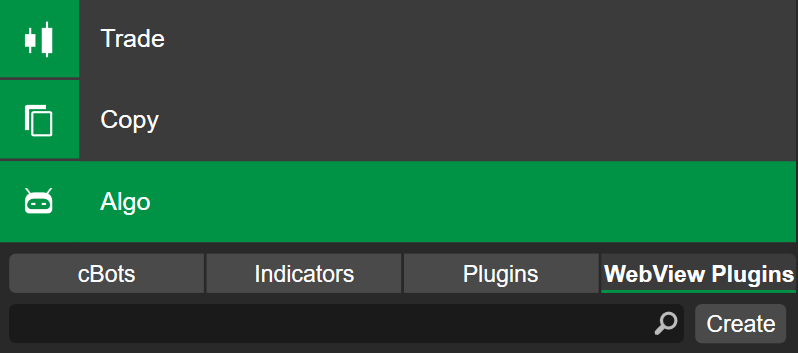
Klik **Cipta**, kemudian isi butiran untuk plugin anda.
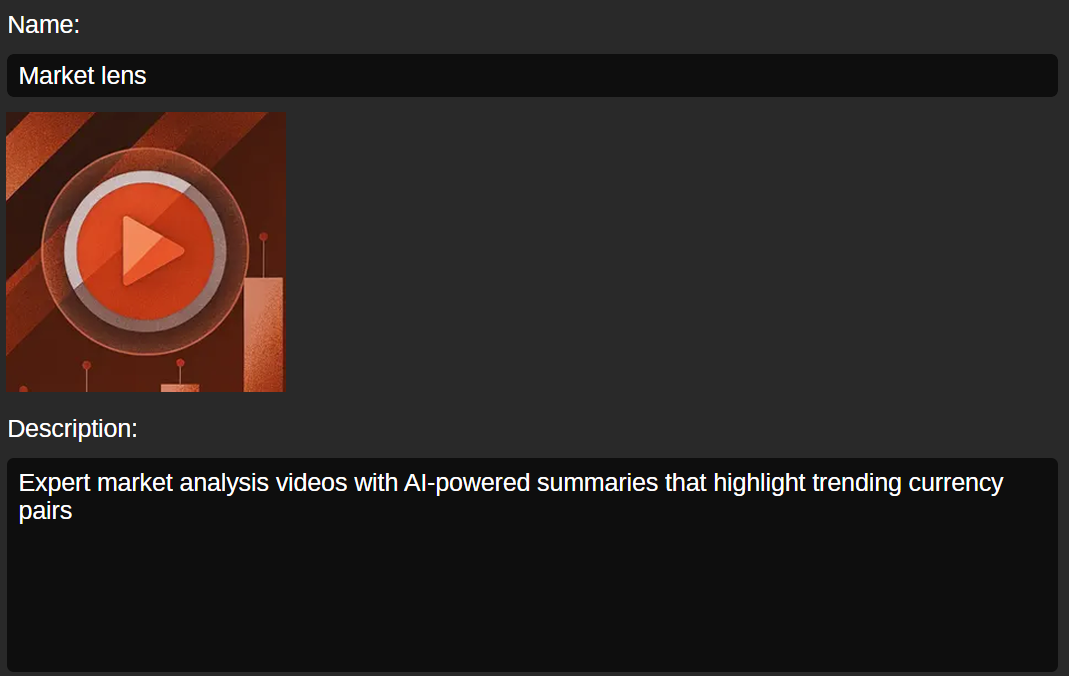
* **Nama** - masukkan nama yang anda mahu pedagang lihat untuk plugin anda.
* **Imej (300 × 300 piksel)** - pilih imej daripada komputer anda. Pedagang akan melihat imej ini semasa melihat pratonton plugin anda.
* **Penerangan** - terangkan secara ringkas fungsi plugin anda. Penerangan ringkas ini akan dipaparkan kepada pengguna apabila mereka membuka skrin **Maklumat** plugin dalam cTrader Mobile.
Sekarang, tentukan penempatan untuk peranti mudah alih. Jika anda mahu plugin anda dipaparkan di ruang antara muka pengguna (UI) tertentu, dayakan kotak semak untuk lokasi ini.
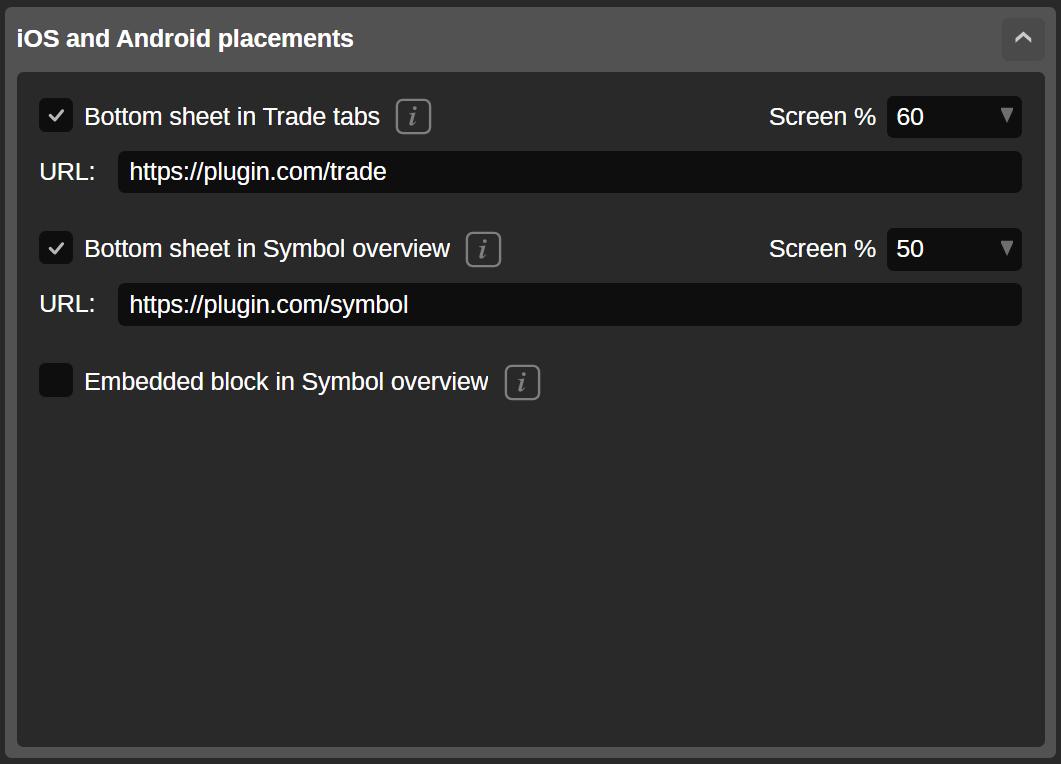
Dalam bahagian **Penempatan iOS dan Android**, lokasi berikut disediakan:
* Helaian bawah tersedia daripada tab aplikasi **Dagangan**
* Helaian bawah tersedia daripada tab **Gambaran Keseluruhan** simbol
* Blok terbenam dalam tab **Gambaran Keseluruhan** simbol
Tetapkan peratusan skrin (atau pilih saiz) yang akan digunakan oleh plugin, kemudian masukkan URL yang diperlukan.
Nota
Peratusan skrin yang tersedia ialah 20, 40, 50, 60, 80 dan 100, manakala saiz yang tersedia untuk **Blok terbenam dalam gambaran keseluruhan simbol** ialah S, M dan L.
Apabila anda mendayakan penempatan peranti mudah alih dan memberikan butiran yang diperlukan, model peranti mudah alih akan memaparkan pratonton plugin WebView anda.
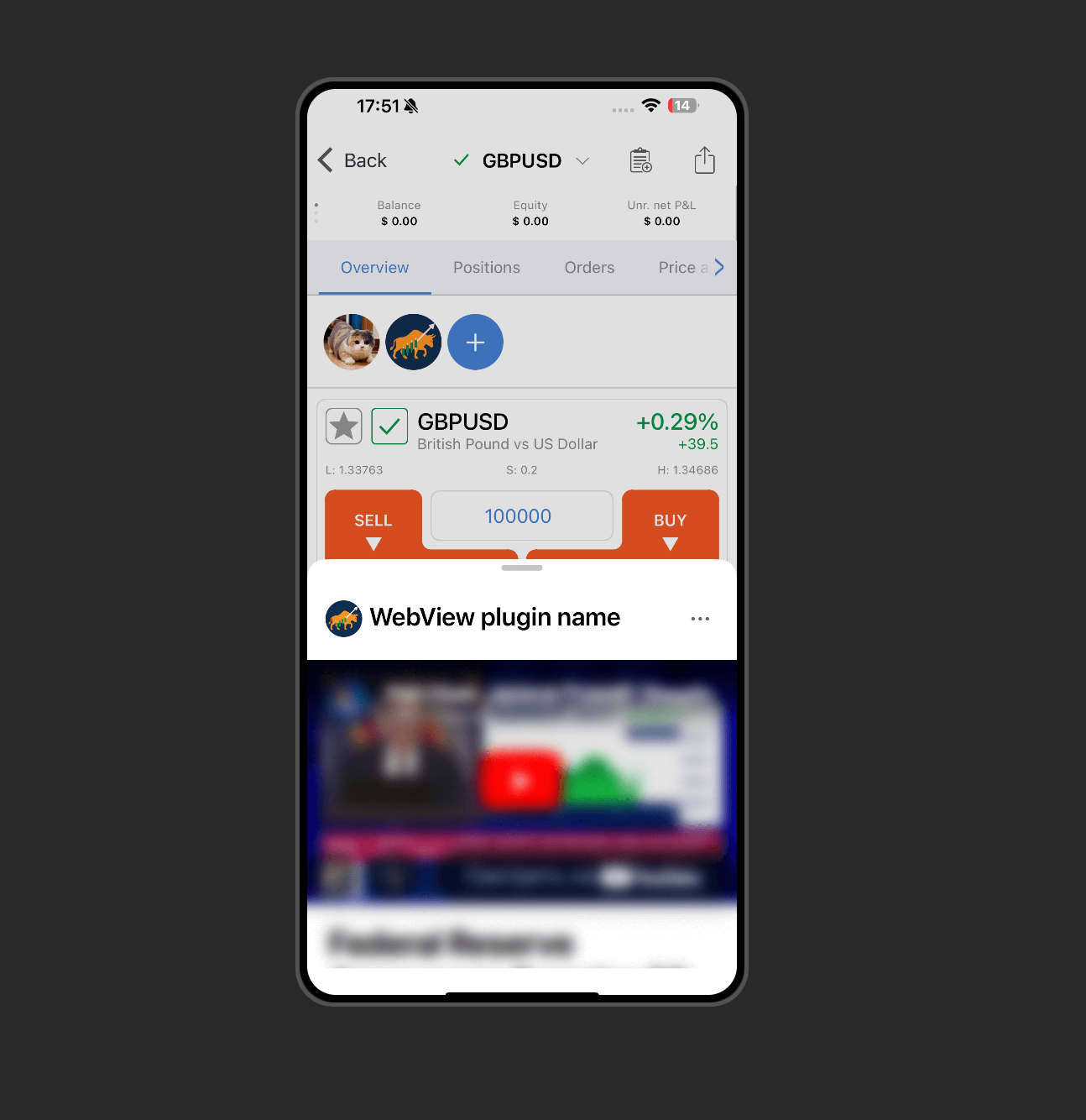
Petua
Salin pautan langsung ke paparan dengan mengklik butang **Salin pautan** yang terletak di atas visualisasi skrin peranti mudah alih. Pautan yang disalin termasuk semua [**rentetan pertanyaan**](https://help.ctrader.com/webview-plugins/ms/query-string-parameters/)
yang tersedia untuk penempatan, dan anda boleh buka pautan dalam pelayar web anda untuk melihat pratonton kandungan yang terhasil.
Kemudian, tentukan penempatan untuk aplikasi desktop. Jika anda mahu plugin anda dipaparkan di ruang antara muka pengguna (UI) tertentu, dayakan kotak semak untuk lokasi ini.
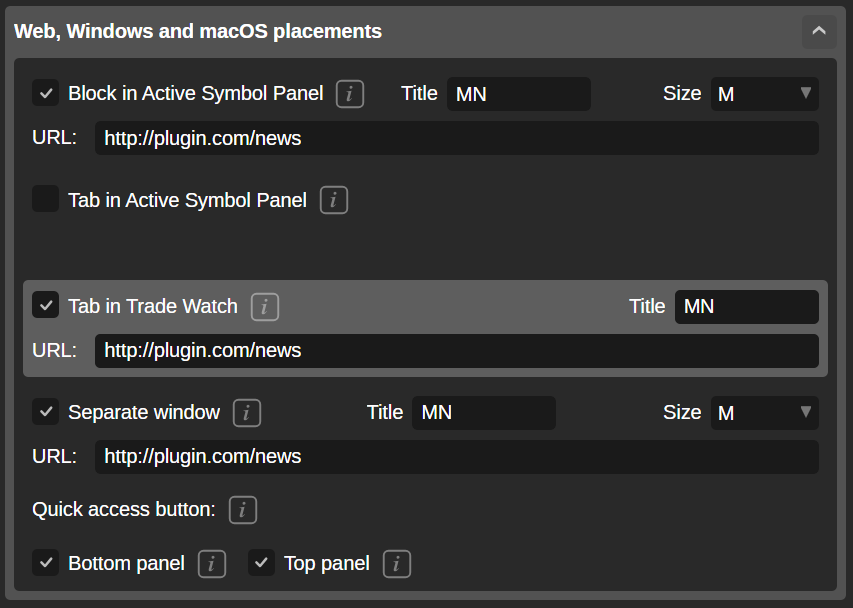
Dalam bahagian **Penempatan Web, Windows dan macOS**, lokasi berikut disediakan:
* Ruang carta
* Blok dalam Panel Simbol Aktif
* Tab dalam Panel Simbol Aktif
* Tab dalam Pantau Dagangan
Bergantung pada medan yang tersedia, anda mungkin perlu masukkan tajuk, pilih saiz (S, M, atau L) dan berikan URL yang diperlukan.
Setelah selesai, klik **Terbitkan dalam cTrader Store** di penjuru kanan atas pembina.

Penyerahan anda akan disemak, dan setelah diluluskan, plugin WebView anda akan dipaparkan dalam [**cTrader Store**](https://ctrader.com/webview-plugins)
.
Kembali ke atas
---
# Construir plugins WV - Plugins WebView
[Ir para o conteúdo](https://help.ctrader.com/webview-plugins/pt/how-tos/build-wv-plugins/#criar-plugins-webview)
Aviso
Esta funcionalidade está em pré-lançamento e atualmente em fase de testes. A documentação serve apenas como referência.
Criar plugins WebView[¶](https://help.ctrader.com/webview-plugins/pt/how-tos/build-wv-plugins/#criar-plugins-webview "Permanent link")
=======================================================================================================================================
Para criar um plugin WebView, abra a aplicação **Algo** no cTrader Web, Windows ou Mac e navegue até ao separador **Plugins WebView**.
Nota
O criador de plugins WebView está disponível apenas nas aplicações cTrader Web, Windows e Mac.

Clique em **Criar** e, em seguida, introduza os detalhes do seu plugin.

* **Nome** - introduza o nome que pretende que os traders vejam para o seu plugin.
* **Imagem (300 × 300 px)** - selecione uma imagem do seu computador. Os traders verão esta imagem ao pré-visualizarem o seu plugin.
* **Descrição** - explique brevemente o que o seu plugin faz. Esta breve descrição aparece aos utilizadores quando abrem o ecrã **Informações** de um plugin no cTrader Mobile.
Agora, especifique as localizações para dispositivos móveis. Se pretender que o seu plugin seja mostrado numa área específica da interface do utilizador, ative a caixa de verificação para esta localização.

Na secção **Localizações iOS e Android**, são fornecidas as seguintes localizações:
* Folha inferior disponível nos separadores da aplicação **Trade**
* Folha inferior disponível no separador **Visão geral** do símbolo
* Bloco incorporado no separador **Visão geral** do símbolo
Defina a percentagem do ecrã (ou selecione um tamanho) que o plugin irá ocupar e, em seguida, introduza o URL necessário.
Nota
As percentagens de ecrã disponíveis são 20, 40, 50, 60, 80 e 100, enquanto os tamanhos disponíveis para **Bloco incorporado na visão geral do símbolo** são S, M e L.
Quando ativa as localizações móveis e fornece os detalhes necessários, uma simulação móvel mostra uma pré-visualização do seu plugin WebView.

Dica
Copie um link direto para a vista clicando no botão **Copiar link** acima da visualização do ecrã móvel. O link copiado inclui todas as [**strings de consulta**](https://help.ctrader.com/webview-plugins/pt/query-string-parameters/)
disponíveis para a localização, e pode abrir o link no seu browser para pré-visualizar o conteúdo resultante.
Em seguida, especifique as localizações para aplicações de desktop. Se pretender que o seu plugin seja mostrado numa área específica da interface do utilizador, ative a caixa de verificação para esta localização.

Na secção **Localizações Web, Windows e macOS**, são fornecidas as seguintes localizações:
* Área do gráfico
* Bloco no Painel de Símbolo Ativo
* Separador no Painel de Símbolo Ativo
* Separador na Observação da Negociação
Dependendo dos campos disponíveis, poderá ter de inserir um título, escolher um tamanho (P, M ou G) e fornecer o URL necessário.
Quando terminar, clique em **Publicar na cTrader Store** no canto superior direito do construtor.

A sua submissão será revista e, após aprovação, o seu plugin WebView aparecerá na [**cTrader Store**](https://ctrader.com/webview-plugins)
.
Voltar ao topo
---
# Construir plugins WV - Plugins de WebView
[Saltar a contenido](https://help.ctrader.com/webview-plugins/es/how-tos/build-wv-plugins/#crear-plugins-de-webview)
Advertencia
Esta función está en fase de prelanzamiento y actualmente en pruebas. La documentación es solo como referencia.
Crear plugins de WebView[¶](https://help.ctrader.com/webview-plugins/es/how-tos/build-wv-plugins/#crear-plugins-de-webview "Permanent link")
=============================================================================================================================================
Para crear un plugin de WebView, abra la aplicación **Algo** en cTrader Web, Windows o Mac y desplácese hasta la pestaña **Plugins de WebView**.
Nota
El creador de plugins de WebView solo está disponible en las aplicaciones de cTrader Web, Windows y Mac.

Haga clic en **Crear** y luego rellene los detalles del plugin.

* **Nombre**: introduzca el nombre para su plugin que quiera que vean los operadores.
* **Imagen (300 × 300 px)**: seleccione una imagen en su ordenador. Los operadores verán esta imagen al previsualizar el plugin.
* **Descripción**: explique brevemente para qué sirve su plugin. Esta descripción breve se mostrará a los usuarios al abrir la pantalla **Información** de un plugin en cTrader Mobile.
A continuación, especifique las ubicaciones para los dispositivos móviles. Si quiere que su plugin se muestre en un área específica de la interfaz de usuario, active la casilla de dicha ubicación.

En la sección **Ubicaciones en iOS y Android**, se proporcionan las siguientes ubicaciones:
* Recuadro inferior disponible en las pestañas de la aplicación **Trade**
* Recuadro inferior disponible en la pestaña **General** del símbolo
* Bloque integrado en la pestaña \*\* General\*\* del símbolo
Establezca el porcentaje de pantalla que ocupará el plugin (o seleccione un tamaño) e introduzca la URL requerida.
Nota
Los porcentajes de pantalla disponibles son 20, 40, 50, 60, 80 y 100, mientras que los tamaños disponibles para el **Bloque integrado en la página General del símbolo** son S, M y L.
En cuanto habilite las ubicaciones en móviles y proporcione los detalles requeridos, una maqueta para móviles le mostrará una vista previa de su plugin de WebView.

Consejo
Para copiar un enlace directo a la vista, haga clic en el botón **Copiar enlace** en la visualización de la pantalla móvil. El enlace copiado incluye todas las [**cadenas de consulta**](https://help.ctrader.com/webview-plugins/es/query-string-parameters/)
disponibles para la ubicación. Podrá abrir el enlace en su navegador web para previsualizar el contenido resultante.
Luego, especifique las ubicaciones en las aplicaciones de escritorio. Si quiere que su plugin se muestre en un área específica de la interfaz de usuario, active la casilla de dicha ubicación.

En la sección **Ubicaciones en Web, Windows y macOS**, se proporcionan las siguientes ubicaciones:
* Área del gráfico
* Bloque en Panel de símbolo activo
* Pestaña en Panel de símbolo activo
* Pestaña en Visualización de operaciones
En función de los campos disponibles, deberá introducir un título, elegir un tamaño (S, M o L) y proporcionar la URL requerida.
Cuando haya terminado, haga clic en **Publicar en cTrader Store** en la esquina superior derecha del asistente.

Su envío se revisará y, una vez aprobado, su plugin de WebView aparecerá en [**cTrader Store**](https://ctrader.com/webview-plugins)
.
Volver al principio
---
# สร้างปลั๊กอิน WV - ปลั๊กอิน WebView
[ข้ามไปที่เนื้อหา](https://help.ctrader.com/webview-plugins/th/how-tos/build-wv-plugins/#webview)
คำเตือน
คุณลักษณะนี้อยู่ในขั้นตอนก่อนการเปิดตัวและกำลังอยู่ระหว่างการทดสอบ เอกสารนี้มีไว้เพื่อการอ้างอิงเท่านั้น
สร้างปลั๊กอิน WebView[¶](https://help.ctrader.com/webview-plugins/th/how-tos/build-wv-plugins/#webview "Permanent link")
=========================================================================================================================
หากต้องการสร้างปลั๊กอิน WebView ให้เปิดแอป **Algo** ใน cTrader Web, Windows หรือ Mac และไปที่แท็บ **WebView plugins**
หมายเหตุ
ตัวสร้างปลั๊กอิน WebView มีให้ใช้งานเฉพาะในแอป cTrader Web, Windows และ Mac เท่านั้น

คลิก **สร้าง** จากนั้นกรอกรายละเอียดสำหรับปลั๊กอินของคุณ

* **ชื่อ** - ป้อนชื่อที่คุณต้องการให้นักเทรดเห็นสำหรับปลั๊กอินของคุณ
* **รูปภาพ (300 × 300 พิกเซล)** - เลือกรูปภาพจากคอมพิวเตอร์ของคุณ นักเทรดจะเห็นรูปภาพนี้เมื่อพวกเขาดูตัวอย่างปลั๊กอินของคุณ
* **คำอธิบาย** - อธิบายสั้นๆ ว่าปลั๊กอินของคุณทำอะไร คำอธิบายสั้นๆ นี้จะปรากฏให้ผู้ใช้เห็นเมื่อพวกเขาเปิดหน้าจอ **ข้อมูล** ของปลั๊กอินใน cTrader Mobile
ตอนนี้ ให้ระบุตำแหน่งสำหรับอุปกรณ์มือถือ หากคุณต้องการให้ปลั๊กอินของคุณแสดงในพื้นที่ UI เฉพาะ ให้เปิดใช้งานช่องทำเครื่องหมายสำหรับตำแหน่งนี้

ในส่วน **ตำแหน่งสำหรับ iOS และ Android** มีตำแหน่งต่อไปนี้:
* แผ่นด้านล่างที่สามารถเข้าถึงได้จากแท็บของแอป \*_เทรด_
* แผ่นด้านล่างที่สามารถเข้าถึงได้จากแท็บ **ภาพรวม** ของสัญลักษณ์
* บล็อกฝังตัวในแท็บ **ภาพรวม** ของสัญลักษณ์
กำหนดเปอร์เซ็นต์หน้าจอ (หรือเลือกขนาด) ที่ปลั๊กอินจะครอบคลุม จากนั้นป้อน URL ที่ต้องการ
หมายเหตุ
เปอร์เซ็นต์หน้าจอที่มีให้เลือกคือ 20, 40, 50, 60, 80 และ 100 ในขณะที่ขนาดที่มีให้เลือกสำหรับ **บล็อกฝังตัวในภาพรวมของสัญลักษณ์** คือ S, M และ L
เมื่อคุณเปิดใช้งานตำแหน่งบนมือถือและให้รายละเอียดที่จำเป็น จะมีการแสดงตัวอย่างปลั๊กอิน WebView ของคุณในรูปแบบจำลองมือถือ

เคล็ดลับ
คัดลอกลิงก์โดยตรงไปยังมุมมองโดยคลิกปุ่ม **คัดลอกลิงก์** ด้านบนการแสดงผลหน้าจอมือถือ ลิงก์ที่คัดลอกจะรวม [**พารามิเตอร์สตริงคิวรี**](https://help.ctrader.com/webview-plugins/th/query-string-parameters/)
ที่มีอยู่ทั้งหมดสำหรับตำแหน่ง และคุณสามารถเปิดลิงก์ในเว็บเบราว์เซอร์ของคุณเพื่อดูตัวอย่างเนื้อหาที่เป็นผลลัพธ์ได้
จากนั้น ระบุตำแหน่งสำหรับแอปเดสก์ท็อป หากคุณต้องการให้ปลั๊กอินของคุณแสดงในพื้นที่ UI เฉพาะ ให้เปิดใช้งานช่องทำเครื่องหมายสำหรับตำแหน่งนี้

ในส่วน **ตำแหน่งสำหรับ Web, Windows และ macOS** มีตำแหน่งต่อไปนี้:
* พื้นที่กราฟ
* บล็อกในแผงสัญลักษณ์ที่ใช้งานอยู่
* แท็บในแผงสัญลักษณ์ที่ใช้งานอยู่
* แท็บใน Trade Watch
ขึ้นอยู่กับฟิลด์ที่มีอยู่ คุณอาจต้องป้อนชื่อ เลือกขนาด (S, M หรือ L) และให้ URL ที่ต้องการ
เมื่อเสร็จแล้ว ให้คลิก **เผยแพร่ใน cTrader สโตร์** ที่มุมขวาบนของตัวสร้าง

การส่งของคุณจะได้รับการตรวจสอบ และเมื่อได้รับการอนุมัติ ปลั๊กอิน WebView ของคุณจะปรากฏใน [**cTrader สโตร์**](https://ctrader.com/webview-plugins)
กลับไปด้านบนสุด
---
# Standard Deviation - Knowledge base
[Skip to content](https://help.ctrader.com/knowledge-base/indicators/volatility/standard-deviation/#standard-deviation)
Standard Deviation[¶](https://help.ctrader.com/knowledge-base/indicators/volatility/standard-deviation/#standard-deviation "Permanent link")
=============================================================================================================================================
Definition[¶](https://help.ctrader.com/knowledge-base/indicators/volatility/standard-deviation/#definition "Permanent link")
-----------------------------------------------------------------------------------------------------------------------------
The Standard Deviation (SD) indicator measures the volatility of a symbol by assessing how much closing prices deviate from their average over a specific period. A higher SD indicates greater price fluctuations, suggesting increased market volatility, while a lower SD signifies stability. Traders use this indicator to identify potential trading opportunities, set risk management levels, and gauge overall market sentiment.
MobileDesktop


[Open live account](https://ctrader.com/brokers)
[Download cTrader](https://ctrader.com/download/)
History[¶](https://help.ctrader.com/knowledge-base/indicators/volatility/standard-deviation/#history "Permanent link")
-----------------------------------------------------------------------------------------------------------------------
The concept of the Standard Deviation became prominent through works like "Technical Analysis of Stock Trends" by Robert D. Edwards and John Magee (first published in 1948), which integrated statistical measures into trading. Eugene Fama's research in the 1970s emphasised volatility's role in market efficiency, cementing the SD indicator as a fundamental tool in technical analysis for assessing risk and identifying trading opportunities.
Calculations[¶](https://help.ctrader.com/knowledge-base/indicators/volatility/standard-deviation/#calculations "Permanent link")
---------------------------------------------------------------------------------------------------------------------------------
The Standard Deviation is calculated by taking the square root of the variance, which measures the dispersion of closing prices from their collective mean over a specified period:
\\\[ SD = { \\sqrt { { \\sum\_{i=1}^n { ( x\_i - {\\bar{x}} ) } ^2 } \\over { n - 1 } } } \\\]
\\(x\_i\\) – the closing prices
\\(\\bar{x}\\) – the mean of the closing prices over the specified periods
\\(n\\) – the number of periods
Interpretation[¶](https://help.ctrader.com/knowledge-base/indicators/volatility/standard-deviation/#interpretation "Permanent link")
-------------------------------------------------------------------------------------------------------------------------------------
By default, the number of periods for the SD indicator is set to 14, but it can be adjusted depending on the trader strategy and the period of analysis.
The main patterns of the indicator behaviour can be interpreted as follows:
* **Rising and falling** – a rising SD indicates increasing volatility, suggesting a potential breakout or trend formation. A falling SD reflects decreasing volatility, often associated with consolidation or range-bound markets.
* **Reversal points** – extremely low SD values may indicate market complacency, often preceding sharp price moves or reversals. Conversely, extremely high SD values may indicate heightened market volatility, often occurring during sharp price movements, such as breakouts or strong trends.
* **Divergence** – while the SD indicator does not directly show divergence, significant changes in the SD compared to price trends can hint at shifts in momentum.
Application[¶](https://help.ctrader.com/knowledge-base/indicators/volatility/standard-deviation/#application "Permanent link")
-------------------------------------------------------------------------------------------------------------------------------
* **Buy signal** – traders may enter a long position when the SD increases sharply, indicating rising volatility, and the price breaks above a resistance level.
* **Sell signal** – traders may enter a short position when the SD rises while the price breaks below a key support level, pointing to increased downward momentum.
* **Stop-loss placement** – traders can use the SD to set dynamic stop-loss levels based on market volatility. A higher SD suggests placing a wider stop-loss level to avoid premature exits during volatile conditions, while a lower SD warrants a tighter stop loss.
* **Exit strategies** – spikes in the SD may signal trend exhaustion, prompting traders to exit positions before volatility fades, helping secure profits and avoid potential reversals.
* **Confirming trades** – the SD works well with trend indicators like moving averages. For instance, combining the SD with a moving average crossover helps confirm whether a breakout has enough volatility to sustain a trend.
Note
You can take advantage of algo trading, with cBots executing trades based on the signals from this indicator, as shown in our [**examples**](https://help.ctrader.com/ctrader-algo/references/Indicators/StandardDeviation/)
. Learn more about how to [**use indicators in cBots**](https://help.ctrader.com/ctrader-algo/articles/for-developers/how-to-use-indicators-in-cbots/)
.
Limitations[¶](https://help.ctrader.com/knowledge-base/indicators/volatility/standard-deviation/#limitations "Permanent link")
-------------------------------------------------------------------------------------------------------------------------------
The SD indicator relies on historical data, which may not accurately predict future volatility, leading to potential misinterpretations. Additionally, the SD can lag in rapidly changing markets, causing delayed signals that might result in missed opportunities. Furthermore, the SD does not provide directional bias, making it essential to combine it with other indicators for better trading decisions.
Summary[¶](https://help.ctrader.com/knowledge-base/indicators/volatility/standard-deviation/#summary "Permanent link")
-----------------------------------------------------------------------------------------------------------------------
The Standard Deviation is a crucial technical indicator used to measure market volatility by assessing the dispersion of price data over a specified period. It helps traders gauge market risk and identify potential price swings, making it a valuable tool for assessing volatility. By providing insights into price fluctuations, the SD assists traders in making informed decisions about entry and exit points. Additionally, the SD can be combined with other indicators to create effective trading strategies that account for market conditions.
[Open live account](https://ctrader.com/brokers)
[Download cTrader](https://ctrader.com/download/)
Back to top
---
# True Range - Knowledge base
[Skip to content](https://help.ctrader.com/knowledge-base/indicators/volatility/true-range/#true-range)
True Range[¶](https://help.ctrader.com/knowledge-base/indicators/volatility/true-range/#true-range "Permanent link")
=====================================================================================================================
Definition[¶](https://help.ctrader.com/knowledge-base/indicators/volatility/true-range/#definition "Permanent link")
---------------------------------------------------------------------------------------------------------------------
The True Range (TR) indicator is a technical tool that calculates the volatility of currency pairs over a specified period. It is especially useful for identifying price fluctuations, helping traders understand market dynamics and potential price movements. The TR results indicate market volatility by showing the greatest price movement over the selected period. This insight helps traders adapt their strategies according to prevailing market conditions.
MobileDesktop
[Open live account](https://ctrader.com/brokers)
[Download cTrader](https://ctrader.com/download/)
History[¶](https://help.ctrader.com/knowledge-base/indicators/volatility/true-range/#history "Permanent link")
---------------------------------------------------------------------------------------------------------------
The TR indicator was developed by J. Welles Wilder Jr. and introduced in his 1978 book "New Concepts in Technical Trading Systems". Wilder created this indicator to address the limitations of traditional range-based volatility measures by factoring in gaps and price changes between sessions. It remains a foundational tool in technical analysis, especially for forex and commodity markets.
Calculations[¶](https://help.ctrader.com/knowledge-base/indicators/volatility/true-range/#calculations "Permanent link")
-------------------------------------------------------------------------------------------------------------------------
The True Range value is determined as the greatest value of the following:
\\\[ TR = { Max\\ \[(H − L), (H - C\_y), (L - C\_y)\] } \\\]
\\(H\\) – today's highest price
\\(L\\) – today's lowest price
\\(C\_y\\) – yesterday's closing price
Interpretation[¶](https://help.ctrader.com/knowledge-base/indicators/volatility/true-range/#interpretation "Permanent link")
-----------------------------------------------------------------------------------------------------------------------------
The TR indicator primarily reflects market volatility. It does not have divergence and convergence or other kinds of patterns. Instead, it is interpreted through rising and falling values:
* A rising TR indicates increasing volatility, often signalling potential market instability or breakouts.
* A falling TR suggests reduced volatility, typically pointing to consolidation or quieter market conditions.
This helps traders anticipate breakouts from periods of low volatility and adjust their strategies accordingly.
Application[¶](https://help.ctrader.com/knowledge-base/indicators/volatility/true-range/#application "Permanent link")
-----------------------------------------------------------------------------------------------------------------------
* **Stop-loss placement** – traders often place a stop loss beyond the recent TR values to account for market volatility, reducing the chance of premature exits.
* **Confirming trades** – the TR helps in combining with other indicators like the [**Average True Range (ATR)**](https://help.ctrader.com/knowledge-base/indicators/volatility/average-true-range/)
to set volatility-based exit points or confirm trade setups by identifying when the market is prone to significant price movements.
Note
You can take advantage of algo trading, with cBots executing trades based on the signals from this indicator, as shown in our [**examples**](https://help.ctrader.com/ctrader-algo/references/Indicators/TrueRange/)
. Learn more about how to [**use indicators in cBots**](https://help.ctrader.com/ctrader-algo/articles/for-developers/how-to-use-indicators-in-cbots/)
.
Limitations[¶](https://help.ctrader.com/knowledge-base/indicators/volatility/true-range/#limitations "Permanent link")
-----------------------------------------------------------------------------------------------------------------------
The TR indicator reflects only volatility, offering no direct buy or sell signals. It can be reactive rather than predictive, as a rising TR indicates volatility after it occurs. The TR may also generate noise during erratic market conditions, making it less effective without complementary indicators or strategies for confirmation.
Summary[¶](https://help.ctrader.com/knowledge-base/indicators/volatility/true-range/#summary "Permanent link")
---------------------------------------------------------------------------------------------------------------
The True Range indicator measures market volatility by capturing the largest price movement between a currency pair's high, low and previous close. It helps traders to understand price fluctuations and potential market instability. The TR is widely used for stop-loss placement, exit strategies and as part of volatility-based trading systems.
[Open live account](https://ctrader.com/brokers)
[Download cTrader](https://ctrader.com/download/)
Back to top
---
# 상품 게시하기 - cTrader 스토어
[콘텐츠로 이동](https://help.ctrader.com/ctrader-store/ko/how-tos/publish-a-product/#_1)
**상품 게시하기**[¶](https://help.ctrader.com/ctrader-store/ko/how-tos/publish-a-product/#_1 "Permanent link")
=========================================================================================================
참고
[**인증된 계정**](https://help.ctrader.com/ctrader-store/ko/how-tos/become-a-seller/)
만 상품을 게시할 수 있습니다.
**계정**으로 이동한 다음 **내 상품**을 열고 **새로 게시** 버튼을 클릭하세요.
**새 상품 게시** 페이지에서 양식을 작성하고 필요한 세부 정보를 입력하세요.

작성이 완료되면 **게시** 버튼을 클릭하세요.
경고
cTrader는 cTrader 스토어를 통해 판매되는 모든 유료 알고리즘에 대해 30% 수수료를 부과합니다. 판매자로서 수입이 발생하면 관할 지역의 법률에 따라 세금을 납부해야 합니다.
**판매자를 위한 팁** [¶](https://help.ctrader.com/ctrader-store/ko/how-tos/publish-a-product/#_2 "Permanent link")
------------------------------------------------------------------------------------------------------------
다음은 cTrader 스토어에서 판매자로서 성공하는 데 도움이 되는 팁입니다.
* 구매자가 받게 되는 것과 일치하도록 정확하고 상세한 상품 정보를 제공하세요.
* 구매자의 혼란을 방지하기 위해 각 상품마다 고유한 로고를 사용하세요.
* 상품의 기능을 보여주고 가치를 입증하는 고품질 이미지를 업로드하세요.
* 고객 인지도를 높이기 위해 상품 이미지 전반에 걸쳐 일관된 스타일을 사용하는 것을 고려하세요.
* 공정하고 투명한 상품 가격을 설정하세요. 프로모션 가격이 판매에 미치는 영향을 테스트해 보세요.
* 연락처 정보와 소셜 미디어 링크는 상품 설명이 아닌 cTrader [**프로필 페이지**](https://help.ctrader.com/ctrader-id/ko/managing-ctid/profile)
에 추가하세요.
**게시 규칙** [¶](https://help.ctrader.com/ctrader-store/ko/how-tos/publish-a-product/#_3 "Permanent link")
--------------------------------------------------------------------------------------------------------
상품이 cTrader 스토어에서 금지되지 않도록 다음 규칙을 준수하세요.
1. 상품 이름과 설명에 다음 항목을 사용하지 마세요.
2. 노골적인 언어 또는 부적절한 내용
3. cTrader 이외의 플랫폼 이름이나 상표
4. 메신저나 소셜 미디어 링크, 외부 리소스, 전화번호 또는 기타 연락처 정보
5. 상품 로고와 갤러리에 노골적이거나 부적절한 이미지를 사용하지 마세요.
6. 상품에 제3자 라이선스, 결제, 수익화 및 광고 책략, 연락처 정보 또는 외부 링크를 추가하지 마세요.
7. 특정 cTrader 사용자를 대상으로 하는 알고리즘을 업로드하지 마세요.

참고
cTrader Desktop/Mac에서 소스 코드와 함께 알고리즘을 내보내서 cTrader 스토어에 파일로 업로드하더라도 소스 코드는 구매자에게 공개되지 않아 귀하의 지적 재산권이 보호됩니다.
맨위로
---
# 发布产品 - cTrader 商店
[跳转至](https://help.ctrader.com/ctrader-store/zh/how-tos/publish-a-product/#_1)
**发布产品**[¶](https://help.ctrader.com/ctrader-store/zh/how-tos/publish-a-product/#_1 "Permanent link")
======================================================================================================
注意
只有[**已验证账户**](https://help.ctrader.com/ctrader-store/zh/how-tos/become-a-seller/)
才能发布产品。
前往**账户**,然后打开**您的产品**并点击**发布新产品**按钮。
在**发布新产品**页面填写表单并提供所需详细信息。

完成后点击**发布**按钮。
警告
cTrader 商店对所有付费算法收取 30% 的佣金。作为卖家,在获取收入后,您有义务根据所在地区的法律规定缴纳税款。
**卖家建议** [¶](https://help.ctrader.com/ctrader-store/zh/how-tos/publish-a-product/#_2 "Permanent link")
-------------------------------------------------------------------------------------------------------
这些建议将帮助您成为 cTrader 商店的成功卖家:
* 提供准确详细的产品信息,确保描述与买家收到的产品相符。
* 为每个产品使用独特的标志,以防买家混淆。
* 上传高质量图片,展示产品特点和价值。
* 考虑在产品视觉效果中使用统一的风格,以实现一致的外观并提高客户认知度。
* 为产品设定公平透明的价格。 测试设置促销价,观察它对销量的影响。
* 在 cTrader [**个人资料页面**](https://help.ctrader.com/ctrader-id/zh/managing-ctid/profile)
添加您的联系信息和社交媒体链接,而不是写在产品描述中。
**发布规则** [¶](https://help.ctrader.com/ctrader-store/zh/how-tos/publish-a-product/#_3 "Permanent link")
-------------------------------------------------------------------------------------------------------
请遵守以下规则,以确保产品不会被 cTrader 商店封禁:
1. 请勿在产品名称和描述中使用:
2. 不当用语或不适当内容
3. 除 cTrader 以外的平台名称或商标
4. 通讯软件或社交媒体链接、外部资源、电话号码或其他联系方式。
5. 请勿使用不当或不恰当的图片作为产品标志和图库。
6. 请勿在产品中添加第三方许可、支付、盈利和广告方案、联系方式或外部链接。
7. 请勿上传仅限特定 cTrader 用户使用的算法。

注意
即使您从 cTrader Desktop/Mac 版本导出带有源代码的算法,然后将其作为文件上传到 cTrader 商店,买价也无法访问源代码,从而保护您的知识产权。
回到页面顶部
---
# 商品を公開する - cTraderストア
[コンテンツにスキップ](https://help.ctrader.com/ctrader-store/ja/how-tos/publish-a-product/#_1)
**商品を公開する**[¶](https://help.ctrader.com/ctrader-store/ja/how-tos/publish-a-product/#_1 "Permanent link")
=========================================================================================================
注意
[**認証済みアカウント**](https://help.ctrader.com/ctrader-store/ja/how-tos/become-a-seller/)
のみが商品を公開できます。
**アカウント**に移動し、**自分の商品**を開いて**新しい商品を公開**ボタンをクリックします。
**新しい商品を公開**ページでフォームに記入し、必要な詳細情報を入力します。

完了したら**公開**ボタンをクリックします。
警告
cTraderは、cTraderストアを通じて販売された有料アルゴリズムすべてに対し、30%の手数料を請求します。販売者として収入を得た場合は、該当する管轄区域の法律に従って納税する義務があります。
**販売者向けのヒント** [¶](https://help.ctrader.com/ctrader-store/ja/how-tos/publish-a-product/#_2 "Permanent link")
------------------------------------------------------------------------------------------------------------
以下のヒントは、cTraderストアで販売者として成功を収めるのに役立ちます。
* 商品の正確で詳細な情報を指定して、その説明が、購入者が受け取る内容と一致するようにしてください。
* 購入者が混乱しないように、各商品に固有のロゴを使用してください。
* 商品の機能を紹介し、その価値を示す品質の高い画像をアップロードしてください。
* 統一感のある外観を実現し、顧客の認知度を高めるために、商品のビジュアルに一貫したスタイルを使用することを検討してください。
* 商品に公正で透明性の高い価格を設定してください。 プロモーション価格を設定することで、売上にどのような影響があるかテストしてください。
* 連絡先情報やソーシャルメディアのリンクは、商品の説明に含めずに、cTraderの[**プロフィールページ**](https://help.ctrader.com/ctrader-id/ja/managing-ctid/profile)
に追加するようにしてください。
**公開ルール** [¶](https://help.ctrader.com/ctrader-store/ja/how-tos/publish-a-product/#_3 "Permanent link")
--------------------------------------------------------------------------------------------------------
商品がcTraderストアで禁止されないよう、以下のルールを遵守してください。
1. 商品名と説明文で以下を使用しないでください。
2. 露骨な表現や不適切な内容
3. cTrader以外のプラットフォーム名や商標
4. メッセンジャーやソーシャルメディアへのリンク、外部リソース、電話番号やその他の連絡先の詳細情報
5. 商品のロゴやギャラリーに露骨または不適切な画像を使用しないでください。
6. サードパーティのライセンス、支払い、収益化、広告スキーム、連絡先の詳細情報、または外部リンクを商品に追加しないでください。
7. 特定のcTraderユーザーに限定されているアルゴリズムをアップロードしないでください。

注意
cTrader DesktopまたはcTrader Macからソースコード付きでアルゴリズムをエクスポートし、それをファイルとしてcTraderストアにアップロードしても、ソースコードは購入者には利用できないままとなり、知的財産は保護されます。
ページトップへ戻る
---
# Thêm plugin WV - Plugin WebView
[Bỏ qua](https://help.ctrader.com/webview-plugins/vi/how-tos/add-wv-plugins/#them-plugin-webview)
Cảnh báo
Tính năng này đang trong giai đoạn tiền phát hành và hiện đang được thử nghiệm. Tài liệu chỉ mang tính tham khảo.
Thêm plugin WebView[¶](https://help.ctrader.com/webview-plugins/vi/how-tos/add-wv-plugins/#them-plugin-webview "Permanent link")
=================================================================================================================================
Để sử dụng plugin WebView, trước tiên bạn phải thêm plugin. Bất kỳ plugin nào bạn thêm sẽ được liên kết với [**cTrader ID (cTID)**](https://help.ctrader.com/ctrader-id/vi)
hiện đang đăng nhập vào ứng dụng cTrader của bạn.
Mẹo
Bạn có thể khám phá và thêm plugin trực tiếp từ [**cTrader Store**](https://ctrader.com/webview-plugins)
. Khi đã được thêm, plugin sẽ tự động khả dụng trong tất cả các ứng dụng cTrader mà cTID của bạn đang hoạt động.
Trong ứng dụng **Trade** hoặc **Tổng quan** của bất kỳ ký hiệu nào, kéo xuống để xem bảng điều khiển plugin WebView, sau đó chạm vào biểu tượng **Thêm**.

Một bảng điều khiển phía dưới sẽ mở ra hiển thị các plugin WV có sẵn trong cTrader Store.

Trong danh sách plugin WV, chọn một plugin để mở trang chi tiết của plugin đó, sau đó chạm vào giá hoặc nút **Miễn phí** để thêm plugin này. Nếu không, hãy quay lại danh sách plugin.

Sau khi thêm thành công, nút màu xanh lá cây sẽ chuyển thành **Đã cài đặt**, và bạn có thể đóng cửa sổ bằng cách vuốt xuống.
Plugin mới thêm sẽ xuất hiện.

Nếu bạn không thấy plugin, hãy khởi động lại ứng dụng cTrader.
Trở lại mục lục
---
# Aceder a plugins WV - Plugins WebView
[Ir para o conteúdo](https://help.ctrader.com/webview-plugins/pt/how-tos/access-wv-plugins/#aceder-a-plugins-webview)
Aviso
Esta funcionalidade está em pré-lançamento e atualmente em fase de testes. A documentação serve apenas como referência.
Aceder a plugins WebView[¶](https://help.ctrader.com/webview-plugins/pt/how-tos/access-wv-plugins/#aceder-a-plugins-webview "Permanent link")
==============================================================================================================================================
Depois de [**adicionar um plugin WV**](https://help.ctrader.com/webview-plugins/pt/how-tos/add-wv-plugins/)
, este fica imediatamente utilizável.
Na aplicação **Trade**, puxe para baixo para aceder a todos os plugins WebView associados ao seu [**cTID**](https://help.ctrader.com/ctrader-id/pt)
.
Dica
O gesto de puxar para baixo no dispositivo móvel para mostrar o painel de plugins WV funciona em todos os separadores da aplicação **Trade**, bem como no separador **Visão geral** de qualquer símbolo.
Pode tocar num plugin para abrir a sua folha inferior e aceder ao seu conteúdo.
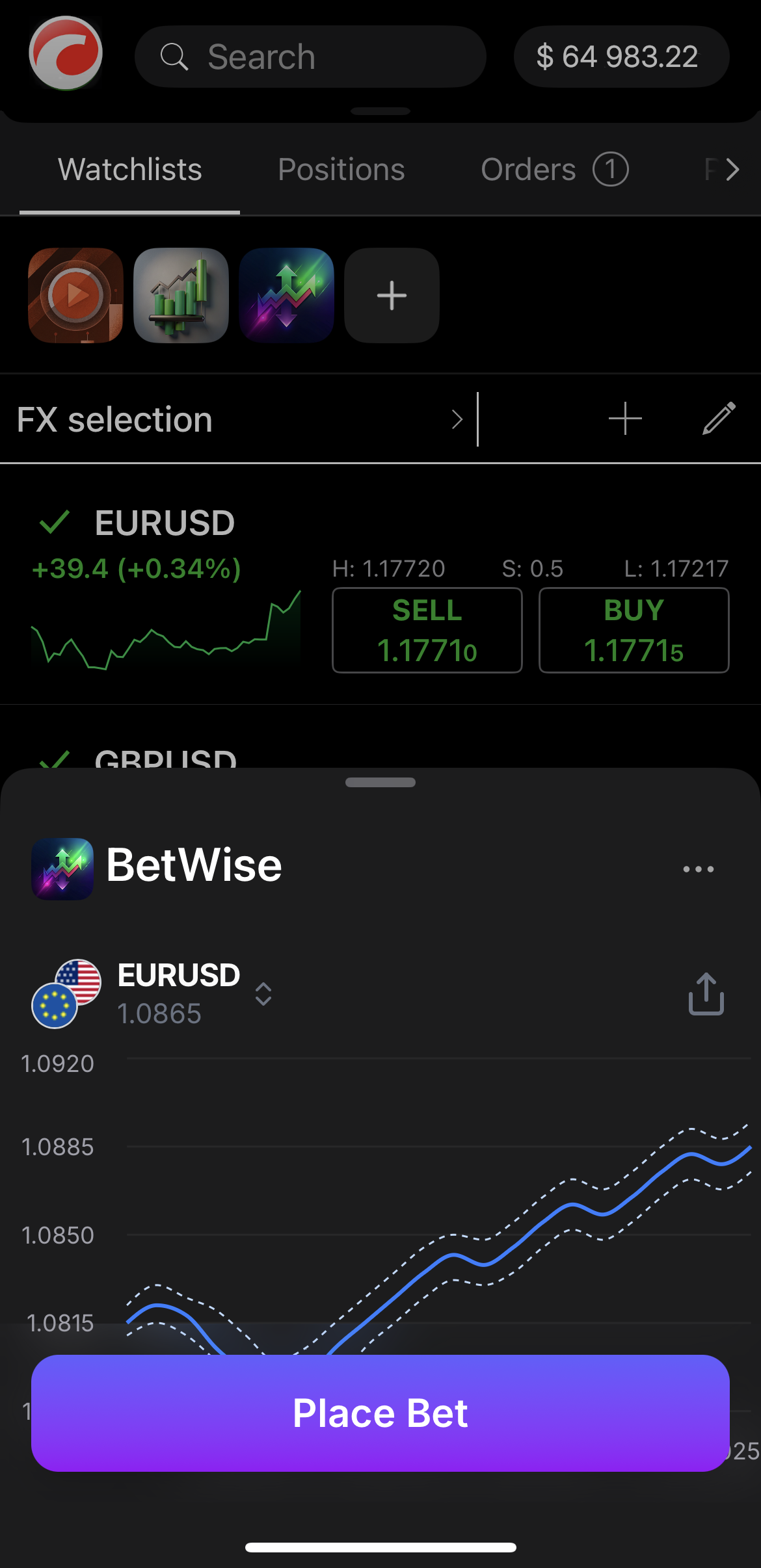
Para fechar a folha inferior do plugin, toque em qualquer lugar fora da mesma ou simplesmente puxe para baixo.
No separador **Visão geral** de qualquer símbolo, o deslocamento para baixo revela uma vista expandida de cada plugin WebView.
Voltar ao topo
---
# Mesej awam - Plugin WebView
[Langkau tajuk talian](https://help.ctrader.com/webview-plugins/ms/references/public-message/#mesej-awam)
Mesej awam[¶](https://help.ctrader.com/webview-plugins/ms/references/public-message/#mesej-awam "Permanent link")
==================================================================================================================
ProtoGetServerDataReq [¶](https://help.ctrader.com/webview-plugins/ms/references/public-message/#protogetserverdatareq "Permanent link")
-----------------------------------------------------------------------------------------------------------------------------------------
| Medan | Jenis | Label | Penerangan |
| --- | --- | --- | --- |
| payloadType | [PublicMessagePayloadType](https://help.ctrader.com/webview-plugins/ms/references/public-message/#publicmessagepayloadtype) | Pilihan | Kod yang disertakan dalam setiap mesej yang memberitahu cTrader dan plugin WebView permintaan, respons atau peristiwa khusus yang sedang dihantar supaya ia boleh dihalakan dan diproses dengan betul |
| data | rentetan | Diperlukan | Parameter permintaan yang diserialisasikan sebagai rentetan untuk mendapatkan data pelayan tertentu dari platform cTrader |
| clientMsgId | rentetan | Diperlukan | Pengecam unik yang dijana untuk setiap mesej, digunakan untuk mengaitkan permintaan dengan respons yang sepadan dan sebarang acara berkaitan |
ProtoGetServerDataRes [¶](https://help.ctrader.com/webview-plugins/ms/references/public-message/#protogetserverdatares "Permanent link")
-----------------------------------------------------------------------------------------------------------------------------------------
| Medan | Jenis | Label | Penerangan |
| --- | --- | --- | --- |
| payloadType | [PublicMessagePayloadType](https://help.ctrader.com/webview-plugins/ms/references/public-message/#publicmessagepayloadtype) | Pilihan | Kod yang disertakan dalam setiap mesej yang memberitahu cTrader dan plugin WebView permintaan, respons atau peristiwa khusus yang sedang dihantar supaya ia boleh dihalakan dan diproses dengan betul |
| data | rentetan | Diperlukan | Data respons dari pelayan yang diserialisasikan sebagai rentetan yang mengandungi maklumat yang diminta |
| clientMsgId | rentetan | Diperlukan | Pengecam unik yang dijana untuk setiap mesej, digunakan untuk mengaitkan permintaan dengan respons yang sepadan dan sebarang acara berkaitan |
ProtoOpenInternalUrlReq [¶](https://help.ctrader.com/webview-plugins/ms/references/public-message/#protoopeninternalurlreq "Permanent link")
---------------------------------------------------------------------------------------------------------------------------------------------
| Medan | Jenis | Label | Penerangan |
| --- | --- | --- | --- |
| payloadType | [PublicMessagePayloadType](https://help.ctrader.com/webview-plugins/ms/references/public-message/#publicmessagepayloadtype) | Pilihan | Kod yang disertakan dalam setiap mesej yang memberitahu cTrader dan plugin WebView permintaan, respons atau peristiwa khusus yang sedang dihantar supaya ia boleh dihalakan dan diproses dengan betul |
| url | rentetan | Diperlukan | Muatan data yang dikembalikan oleh pelayan yang sepadan dengan permintaan asal. |
| clientMsgId | rentetan | Diperlukan | Pengecam unik yang dijana untuk setiap mesej, digunakan untuk mengaitkan permintaan dengan respons yang sepadan dan sebarang acara berkaitan |
ProtoOpenInternalUrlRes [¶](https://help.ctrader.com/webview-plugins/ms/references/public-message/#protoopeninternalurlres "Permanent link")
---------------------------------------------------------------------------------------------------------------------------------------------
| Medan | Jenis | Label | Penerangan |
| --- | --- | --- | --- |
| payloadType | [PublicMessagePayloadType](https://help.ctrader.com/webview-plugins/ms/references/public-message/#publicmessagepayloadtype) | Pilihan | Kod yang disertakan dalam setiap mesej yang memberitahu cTrader dan plugin WebView permintaan, respons atau peristiwa khusus yang sedang dihantar supaya ia boleh dihalakan dan diproses dengan betul |
| clientMsgId | rentetan | Diperlukan | Pengecam unik yang dijana untuk setiap mesej, digunakan untuk mengaitkan permintaan dengan respons yang sepadan dan sebarang acara berkaitan |
ProtoPublicConfirmEvent [¶](https://help.ctrader.com/webview-plugins/ms/references/public-message/#protopublicconfirmevent "Permanent link")
---------------------------------------------------------------------------------------------------------------------------------------------
| Medan | Jenis | Label | Penerangan |
| --- | --- | --- | --- |
| payloadType | [PublicMessagePayloadType](https://help.ctrader.com/webview-plugins/ms/references/public-message/#publicmessagepayloadtype) | Diperlukan | Kod yang disertakan dalam setiap mesej yang memberitahu cTrader dan plugin WebView permintaan, respons atau peristiwa khusus yang sedang dihantar supaya ia boleh dihalakan dan diproses dengan betul |
| clientMsgId | rentetan | Diperlukan | Pengecam unik yang dijana untuk setiap mesej, digunakan untuk mengaitkan permintaan dengan respons yang sepadan dan sebarang acara berkaitan |
ProtoPublicMessageErrorRes [¶](https://help.ctrader.com/webview-plugins/ms/references/public-message/#protopublicmessageerrorres "Permanent link")
---------------------------------------------------------------------------------------------------------------------------------------------------
| Medan | Jenis | Label | Penerangan |
| --- | --- | --- | --- |
| payloadType | [PublicMessagePayloadType](https://help.ctrader.com/webview-plugins/ms/references/public-message/#publicmessagepayloadtype) | Pilihan | Kod yang disertakan dalam setiap mesej yang memberitahu cTrader dan plugin WebView permintaan, respons atau peristiwa khusus yang sedang dihantar supaya ia boleh dihalakan dan diproses dengan betul |
| clientMsgId | rentetan | Diperlukan | Pengecam unik yang dijana untuk setiap mesej, digunakan untuk mengaitkan permintaan dengan respons yang sepadan dan sebarang acara berkaitan |
ProtoPublicRegisterEvent [¶](https://help.ctrader.com/webview-plugins/ms/references/public-message/#protopublicregisterevent "Permanent link")
-----------------------------------------------------------------------------------------------------------------------------------------------
| Medan | Jenis | Label | Penerangan |
| --- | --- | --- | --- |
| payloadType | [PublicMessagePayloadType](https://help.ctrader.com/webview-plugins/ms/references/public-message/#publicmessagepayloadtype) | Diperlukan | Kod yang disertakan dalam setiap mesej yang memberitahu cTrader dan plugin WebView permintaan, respons atau peristiwa khusus yang sedang dihantar supaya ia boleh dihalakan dan diproses dengan betul |
| uuid | rentetan | Diperlukan | Pengecam unik sejagat untuk tika aplikasi pelanggan |
| clientMsgId | rentetan | Diperlukan | Pengecam unik yang dijana untuk setiap mesej, digunakan untuk mengaitkan permintaan dengan respons yang sepadan dan sebarang acara berkaitan |
ProtoServerDataEvent [¶](https://help.ctrader.com/webview-plugins/ms/references/public-message/#protoserverdataevent "Permanent link")
---------------------------------------------------------------------------------------------------------------------------------------
| Medan | Jenis | Label | Penerangan |
| --- | --- | --- | --- |
| payloadType | [PublicMessagePayloadType](https://help.ctrader.com/webview-plugins/ms/references/public-message/#publicmessagepayloadtype) | Pilihan | Kod yang disertakan dalam setiap mesej yang memberitahu cTrader dan plugin WebView permintaan, respons atau peristiwa khusus yang sedang dihantar supaya ia boleh dihalakan dan diproses dengan betul |
| data | rentetan | Diperlukan | Data yang ditolak pelayan diserialisasikan sebagai rentetan yang mengandungi kemas kini masa nyata atau pemberitahuan dari platform cTrader |
| clientMsgId | rentetan | Diperlukan | Pengecam unik yang dijana untuk setiap mesej, digunakan untuk mengaitkan permintaan dengan respons yang sepadan dan sebarang acara berkaitan |
PublicMessagePayloadType [¶](https://help.ctrader.com/webview-plugins/ms/references/public-message/#publicmessagepayloadtype "Permanent link")
-----------------------------------------------------------------------------------------------------------------------------------------------
| Nama | Nilai | Penerangan |
| --- | --- | --- |
| REGISTER\_EVENT | 2000 | Plugin ke hos: permulaan berjabat tangan |
| CONFIRM\_EVENT | 2001 | Plugin ke hos: pengesahan berjabat tangan |
| GET\_SERVER\_DATA\_REQ | 2100 | Plugin ke hos: permintaan RPC. Digunakan dalam pengambilan data atau memanggil operasi (cth. `GetAccountInfo`). |
| GET\_SERVER\_DATA\_RES | 2101 | Hos ke plugin: respons RPC (hasil) |
| SERVER\_DATA\_EVENT | 2102 | Hos ke plugin: acara sehala (eventName + data) |
| OPEN\_INTERNAL\_URL\_REQ | 2103 | Plugin ke hos: permintaan untuk membuka URL |
| OPEN\_INTERNAL\_URL\_RES | 2104 | Hos ke plugin: perakuan pembukaan URL |
| PUBLIC\_ERROR\_RES | 2500 | Hos ke plugin: pembalut ralat generik |
Kembali ke atas
---
# ข้อความสาธารณะ - ปลั๊กอิน WebView
[ข้ามไปที่เนื้อหา](https://help.ctrader.com/webview-plugins/th/references/public-message/#_1)
ข้อความสาธารณะ[¶](https://help.ctrader.com/webview-plugins/th/references/public-message/#_1 "Permanent link")
==============================================================================================================
ProtoGetServerDataReq [¶](https://help.ctrader.com/webview-plugins/th/references/public-message/#protogetserverdatareq "Permanent link")
-----------------------------------------------------------------------------------------------------------------------------------------
| ฟิลด์ | ประเภท | ป้ายกำกับ | คำอธิบาย |
| --- | --- | --- | --- |
| payloadType | [PublicMessagePayloadType](https://help.ctrader.com/webview-plugins/th/references/public-message/#publicmessagepayloadtype) | ตัวเลือก | รหัสที่รวมอยู่ในแต่ละข้อความที่บอก cTrader และปลั๊กอิน WebView ว่ากำลังส่งคำขอ การตอบสนอง หรือเหตุการณ์เฉพาะใด เพื่อให้สามารถจัดเส้นทางและประมวลผลได้อย่างถูกต้อง |
| data | สตริง | จำเป็น | พารามิเตอร์คำขอที่แปลงเป็นสตริงเพื่อดึงข้อมูลเซิร์ฟเวอร์เฉพาะจากแพลตฟอร์ม cTrader |
| clientMsgId | สตริง | จำเป็น | ตัวระบุเอกลักษณ์ที่สร้างขึ้นสำหรับแต่ละข้อความ ใช้เพื่อเชื่อมโยงคำขอกับการตอบสนองที่ตรงกันและเหตุการณ์ที่เกี่ยวข้อง |
ProtoGetServerDataRes [¶](https://help.ctrader.com/webview-plugins/th/references/public-message/#protogetserverdatares "Permanent link")
-----------------------------------------------------------------------------------------------------------------------------------------
| ฟิลด์ | ประเภท | ป้ายกำกับ | คำอธิบาย |
| --- | --- | --- | --- |
| payloadType | [PublicMessagePayloadType](https://help.ctrader.com/webview-plugins/th/references/public-message/#publicmessagepayloadtype) | ตัวเลือก | รหัสที่รวมอยู่ในแต่ละข้อความที่บอก cTrader และปลั๊กอิน WebView ว่ากำลังส่งคำขอ การตอบสนอง หรือเหตุการณ์เฉพาะใด เพื่อให้สามารถจัดเส้นทางและประมวลผลได้อย่างถูกต้อง |
| data | สตริง | จำเป็น | ข้อมูลการตอบสนองจากเซิร์ฟเวอร์ที่แปลงเป็นสตริงซึ่งมีข้อมูลที่ร้องขอ |
| clientMsgId | สตริง | จำเป็น | ตัวระบุเอกลักษณ์ที่สร้างขึ้นสำหรับแต่ละข้อความ ใช้เพื่อเชื่อมโยงคำขอกับการตอบสนองที่ตรงกันและเหตุการณ์ที่เกี่ยวข้อง |
ProtoOpenInternalUrlReq [¶](https://help.ctrader.com/webview-plugins/th/references/public-message/#protoopeninternalurlreq "Permanent link")
---------------------------------------------------------------------------------------------------------------------------------------------
| ฟิลด์ | ประเภท | ป้ายกำกับ | คำอธิบาย |
| --- | --- | --- | --- |
| payloadType | [PublicMessagePayloadType](https://help.ctrader.com/webview-plugins/th/references/public-message/#publicmessagepayloadtype) | ตัวเลือก | รหัสที่รวมอยู่ในแต่ละข้อความที่บอก cTrader และปลั๊กอิน WebView ว่ากำลังส่งคำขอ การตอบสนอง หรือเหตุการณ์เฉพาะใด เพื่อให้สามารถจัดเส้นทางและประมวลผลได้อย่างถูกต้อง |
| url | สตริง | จำเป็น | ข้อมูลที่เซิร์ฟเวอร์ส่งกลับมาซึ่งสอดคล้องกับคำขอเดิม |
| clientMsgId | สตริง | จำเป็น | ตัวระบุเอกลักษณ์ที่สร้างขึ้นสำหรับแต่ละข้อความ ใช้เพื่อเชื่อมโยงคำขอกับการตอบสนองที่ตรงกันและเหตุการณ์ที่เกี่ยวข้อง |
ProtoOpenInternalUrlRes [¶](https://help.ctrader.com/webview-plugins/th/references/public-message/#protoopeninternalurlres "Permanent link")
---------------------------------------------------------------------------------------------------------------------------------------------
| ฟิลด์ | ประเภท | ป้ายกำกับ | คำอธิบาย |
| --- | --- | --- | --- |
| payloadType | [PublicMessagePayloadType](https://help.ctrader.com/webview-plugins/th/references/public-message/#publicmessagepayloadtype) | ตัวเลือก | รหัสที่รวมอยู่ในแต่ละข้อความที่บอก cTrader และปลั๊กอิน WebView ว่ากำลังส่งคำขอ การตอบสนอง หรือเหตุการณ์เฉพาะใด เพื่อให้สามารถจัดเส้นทางและประมวลผลได้อย่างถูกต้อง |
| clientMsgId | สตริง | จำเป็น | ตัวระบุเอกลักษณ์ที่สร้างขึ้นสำหรับแต่ละข้อความ ใช้เพื่อเชื่อมโยงคำขอกับการตอบสนองที่ตรงกันและเหตุการณ์ที่เกี่ยวข้อง |
ProtoPublicConfirmEvent [¶](https://help.ctrader.com/webview-plugins/th/references/public-message/#protopublicconfirmevent "Permanent link")
---------------------------------------------------------------------------------------------------------------------------------------------
| ฟิลด์ | ประเภท | ป้ายกำกับ | คำอธิบาย |
| --- | --- | --- | --- |
| payloadType | [PublicMessagePayloadType](https://help.ctrader.com/webview-plugins/th/references/public-message/#publicmessagepayloadtype) | จำเป็น | รหัสที่รวมอยู่ในแต่ละข้อความที่บอก cTrader และปลั๊กอิน WebView ว่ากำลังส่งคำขอ การตอบสนอง หรือเหตุการณ์เฉพาะใด เพื่อให้สามารถจัดเส้นทางและประมวลผลได้อย่างถูกต้อง |
| clientMsgId | สตริง | จำเป็น | ตัวระบุเอกลักษณ์ที่สร้างขึ้นสำหรับแต่ละข้อความ ใช้เพื่อเชื่อมโยงคำขอกับการตอบสนองที่ตรงกันและเหตุการณ์ที่เกี่ยวข้อง |
ProtoPublicMessageErrorRes [¶](https://help.ctrader.com/webview-plugins/th/references/public-message/#protopublicmessageerrorres "Permanent link")
---------------------------------------------------------------------------------------------------------------------------------------------------
| ฟิลด์ | ประเภท | ป้ายกำกับ | คำอธิบาย |
| --- | --- | --- | --- |
| payloadType | [PublicMessagePayloadType](https://help.ctrader.com/webview-plugins/th/references/public-message/#publicmessagepayloadtype) | ตัวเลือก | รหัสที่รวมอยู่ในแต่ละข้อความที่บอก cTrader และปลั๊กอิน WebView ว่ากำลังส่งคำขอ การตอบสนอง หรือเหตุการณ์เฉพาะใด เพื่อให้สามารถจัดเส้นทางและประมวลผลได้อย่างถูกต้อง |
| clientMsgId | สตริง | จำเป็น | ตัวระบุเอกลักษณ์ที่สร้างขึ้นสำหรับแต่ละข้อความ ใช้เพื่อเชื่อมโยงคำขอกับการตอบสนองที่ตรงกันและเหตุการณ์ที่เกี่ยวข้อง |
ProtoPublicRegisterEvent [¶](https://help.ctrader.com/webview-plugins/th/references/public-message/#protopublicregisterevent "Permanent link")
-----------------------------------------------------------------------------------------------------------------------------------------------
| ฟิลด์ | ประเภท | ป้ายกำกับ | คำอธิบาย |
| --- | --- | --- | --- |
| payloadType | [PublicMessagePayloadType](https://help.ctrader.com/webview-plugins/th/references/public-message/#publicmessagepayloadtype) | จำเป็น | รหัสที่รวมอยู่ในแต่ละข้อความที่บอก cTrader และปลั๊กอิน WebView ว่ากำลังส่งคำขอ การตอบสนอง หรือเหตุการณ์เฉพาะใด เพื่อให้สามารถจัดเส้นทางและประมวลผลได้อย่างถูกต้อง |
| uuid | สตริง | จำเป็น | ตัวระบุเอกลักษณ์สากลสำหรับอินสแตนซ์ของแอปพลิเคชันไคลเอนต์ |
| clientMsgId | สตริง | จำเป็น | ตัวระบุเอกลักษณ์ที่สร้างขึ้นสำหรับแต่ละข้อความ ใช้เพื่อเชื่อมโยงคำขอกับการตอบสนองที่ตรงกันและเหตุการณ์ที่เกี่ยวข้อง |
ProtoServerDataEvent [¶](https://help.ctrader.com/webview-plugins/th/references/public-message/#protoserverdataevent "Permanent link")
---------------------------------------------------------------------------------------------------------------------------------------
| ฟิลด์ | ประเภท | ป้ายกำกับ | คำอธิบาย |
| --- | --- | --- | --- |
| payloadType | [PublicMessagePayloadType](https://help.ctrader.com/webview-plugins/th/references/public-message/#publicmessagepayloadtype) | ตัวเลือก | รหัสที่รวมอยู่ในแต่ละข้อความที่บอก cTrader และปลั๊กอิน WebView ว่ากำลังส่งคำขอ การตอบสนอง หรือเหตุการณ์เฉพาะใด เพื่อให้สามารถจัดเส้นทางและประมวลผลได้อย่างถูกต้อง |
| data | สตริง | จำเป็น | ข้อมูลที่เซิร์ฟเวอร์ส่งมาซึ่งแปลงเป็นสตริงที่มีการอัปเดตแบบเรียลไทม์หรือการแจ้งเตือนจากแพลตฟอร์ม cTrader |
| clientMsgId | สตริง | จำเป็น | ตัวระบุเอกลักษณ์ที่สร้างขึ้นสำหรับแต่ละข้อความ ใช้เพื่อเชื่อมโยงคำขอกับการตอบสนองที่ตรงกันและเหตุการณ์ที่เกี่ยวข้อง |
PublicMessagePayloadType [¶](https://help.ctrader.com/webview-plugins/th/references/public-message/#publicmessagepayloadtype "Permanent link")
-----------------------------------------------------------------------------------------------------------------------------------------------
| ชื่อ | ค่า | คำอธิบาย |
| --- | --- | --- |
| REGISTER\_EVENT | 2000 | ปลั๊กอินถึงโฮสต์: เริ่มต้นการแฮนด์เชค |
| CONFIRM\_EVENT | 2001 | ปลั๊กอินถึงโฮสต์: ยืนยันการแฮนด์เชค |
| GET\_SERVER\_DATA\_REQ | 2100 | ปลั๊กอินถึงโฮสต์: คำขอ RPC ใช้ในการดึงข้อมูลหรือเรียกใช้การดำเนินการ (เช่น `GetAccountInfo`) |
| GET\_SERVER\_DATA\_RES | 2101 | โฮสต์ถึงปลั๊กอิน: การตอบสนอง RPC (result) |
| SERVER\_DATA\_EVENT | 2102 | โฮสต์ถึงปลั๊กอิน: อีเวนต์ทางเดียว (eventName + data) |
| OPEN\_INTERNAL\_URL\_REQ | 2103 | ปลั๊กอินถึงโฮสต์: คำขอเปิด URL |
| OPEN\_INTERNAL\_URL\_RES | 2104 | โฮสต์ถึงปลั๊กอิน: การยืนยันการเปิด URL |
| PUBLIC\_ERROR\_RES | 2500 | โฮสต์ถึงปลั๊กอิน: wrapper ข้อผิดพลาดทั่วไป |
กลับไปด้านบนสุด
---
# High Minus Low - Knowledge base
[Skip to content](https://help.ctrader.com/knowledge-base/indicators/other/high-minus-low/#high-minus-low)
High Minus Low[¶](https://help.ctrader.com/knowledge-base/indicators/other/high-minus-low/#high-minus-low "Permanent link")
============================================================================================================================
Definition[¶](https://help.ctrader.com/knowledge-base/indicators/other/high-minus-low/#definition "Permanent link")
--------------------------------------------------------------------------------------------------------------------
The High Minus Low (HML) is a simple technical analysis tool that calculates the difference between the highest and lowest prices of an asset over a specified period. It is primarily used to measure market volatility, as the range between the high and low can indicate how much the price of an asset fluctuates within a given period.
MobileDesktop
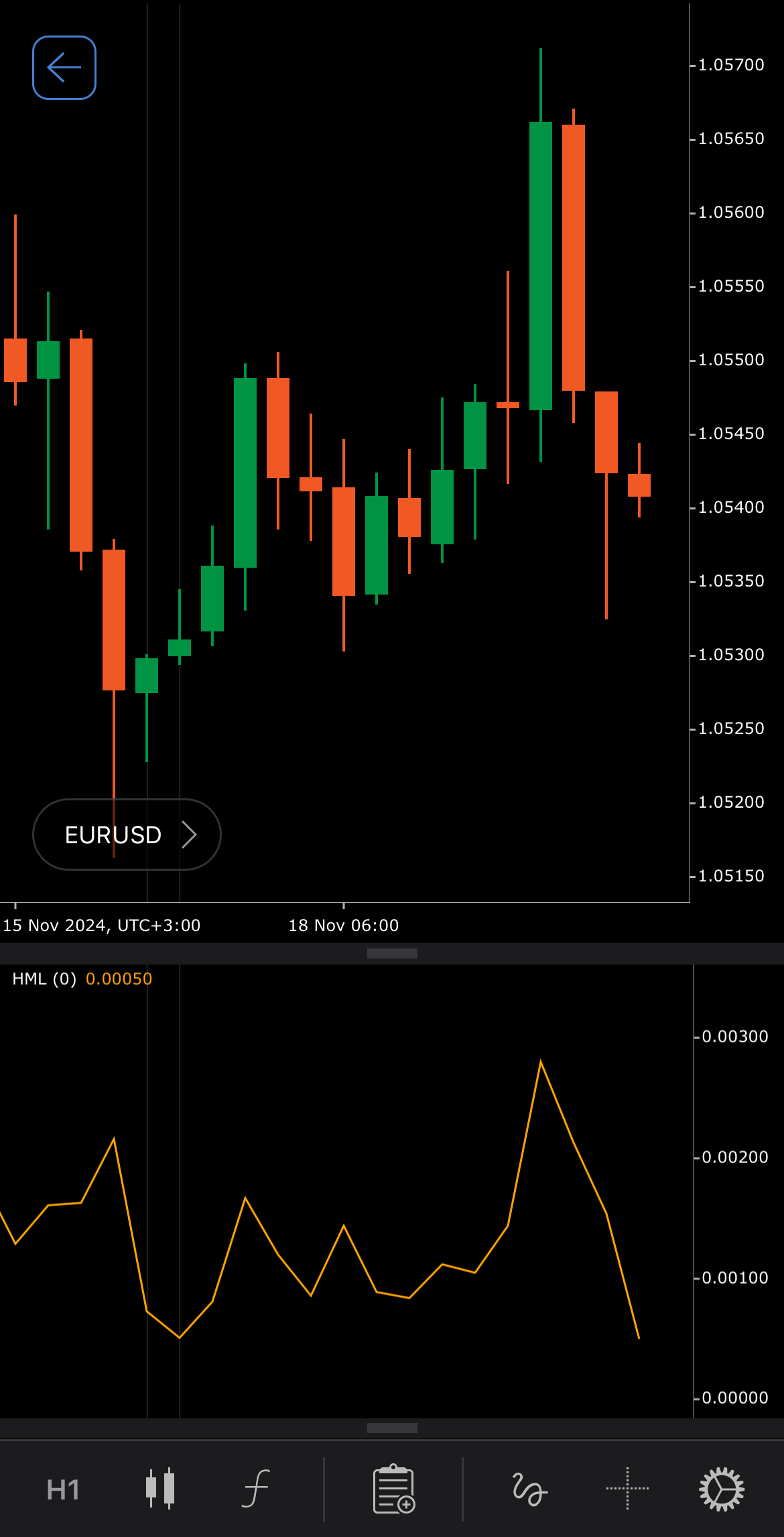
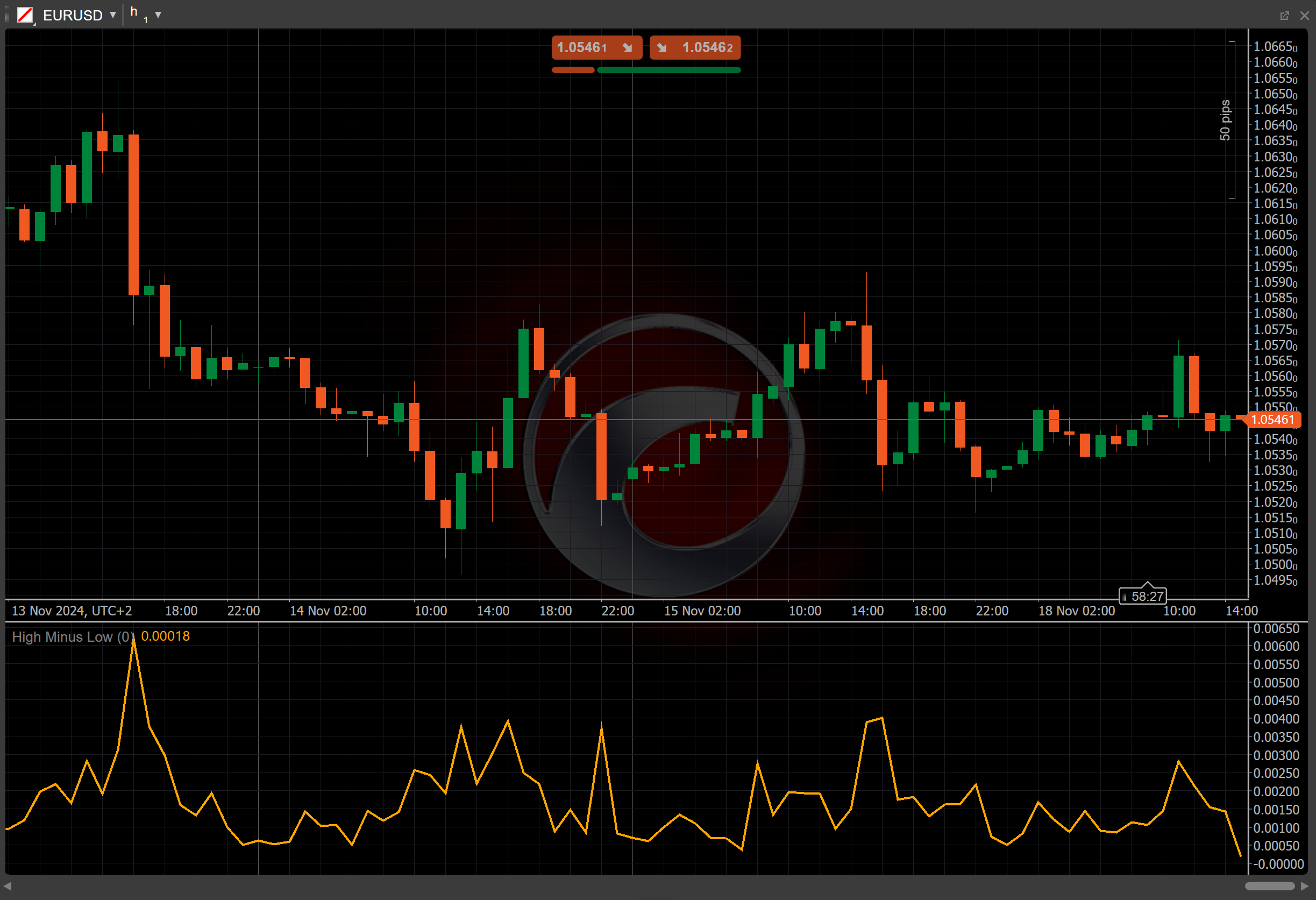
[Open live account](https://ctrader.com/brokers)
[Download cTrader](https://ctrader.com/download/)
History[¶](https://help.ctrader.com/knowledge-base/indicators/other/high-minus-low/#history "Permanent link")
--------------------------------------------------------------------------------------------------------------
The High Minus Low has been used for decades as a straightforward method to measure price volatility. Though not attributed to a specific individual, the concept of calculating the range between high and low prices has long been a core element of technical analysis. It is commonly used by traders in conjunction with other indicators to gauge market conditions and assess potential entry or exit points.
Calculations[¶](https://help.ctrader.com/knowledge-base/indicators/other/high-minus-low/#calculations "Permanent link")
------------------------------------------------------------------------------------------------------------------------
The calculation for the High Minus Low is straightforward. This value is calculated for each period (daily, weekly, etc.) and represents the price range within that period.
\\\[ HML\_t = { Round\\ (High\_t - Low\_t, Precision) } \\\]
\\(High\_t\\) – the high price of the current period \\(t\\)
\\(Low\_t\\) – the low price of the current period \\(t\\)
\\(Precision\\) – the decimal precision based on the symbol settings
Interpretation[¶](https://help.ctrader.com/knowledge-base/indicators/other/high-minus-low/#interpretation "Permanent link")
----------------------------------------------------------------------------------------------------------------------------
* **Rising values** – indicates increasing market volatility, which can signal the potential for significant price movements. This often suggests that the market may be preparing for a breakout or heightened activity.
* **Breakouts** – a sharp increase in the HML values can indicate that the market may be moving towards a breakout phase, which can present trading opportunities.
* **Reversal points** – consistently high readings followed by a sudden drop may suggest that the current trend is losing momentum, potentially indicating an upcoming reversal.
* **Shift** – by adjusting the shift parameter to alter the alignment of the HML indicator with price data on the chart, you can explore how the HML readings correspond to past or future price movements.
Application[¶](https://help.ctrader.com/knowledge-base/indicators/other/high-minus-low/#application "Permanent link")
----------------------------------------------------------------------------------------------------------------------
* **Buy signal** – traders might consider entering a buy position if the HML shows rising values alongside other bullish signals, as this can suggest increased volatility with upward potential.
* **Sell signal** – a sell position may be considered when the indicator shows consistently high values followed by a decrease, signalling a potential shift in momentum and the possibility of a downtrend.
* **Stop-loss placement** – use the HML range to set stop-loss orders just outside the recent high or low, allowing for protection against unexpected price swings during volatile periods.
Note
You can take advantage of algo trading, with cBots executing trades based on the signals from this indicator, as shown in our [**examples**](https://help.ctrader.com/ctrader-algo/references/Indicators/HighMinusLow/)
. Learn more about how to [**use indicators in cBots**](https://help.ctrader.com/ctrader-algo/articles/for-developers/how-to-use-indicators-in-cbots/)
.
Limitations[¶](https://help.ctrader.com/knowledge-base/indicators/other/high-minus-low/#limitations "Permanent link")
----------------------------------------------------------------------------------------------------------------------
The High Minus Low does not provide any directional insight into price movement. It only measures the volatility range. The indicator may produce false signals during periods of erratic price movement without an actual trend.
Summary[¶](https://help.ctrader.com/knowledge-base/indicators/other/high-minus-low/#summary "Permanent link")
--------------------------------------------------------------------------------------------------------------
The High Minus Low measures the price range between the highest and lowest values over a given period, providing insight into market volatility. Larger values indicate greater price fluctuations, while smaller values suggest lower volatility or consolidation. As simple as the concept may be, it remains an integral part of technical analysis used by many traders and professionals.
[Open live account](https://ctrader.com/brokers)
[Download cTrader](https://ctrader.com/download/)
Back to top
---
# Keltner Channels - Knowledge base
[Skip to content](https://help.ctrader.com/knowledge-base/indicators/volatility/keltner-channels/#keltner-channels)
Keltner Channels[¶](https://help.ctrader.com/knowledge-base/indicators/volatility/keltner-channels/#keltner-channels "Permanent link")
=======================================================================================================================================
Definition[¶](https://help.ctrader.com/knowledge-base/indicators/volatility/keltner-channels/#definition "Permanent link")
---------------------------------------------------------------------------------------------------------------------------
The Keltner Channels indicator is a volatility-based tool used in technical analysis to identify potential trend directions and price reversals. Composed of a central moving average with two bands set above and below, the Keltner Channels expand and contract based on the [**Average True Range (ATR)**](https://help.ctrader.com/knowledge-base/indicators/volatility/average-true-range/)
, highlighting periods of high and low volatility.
MobileDesktop
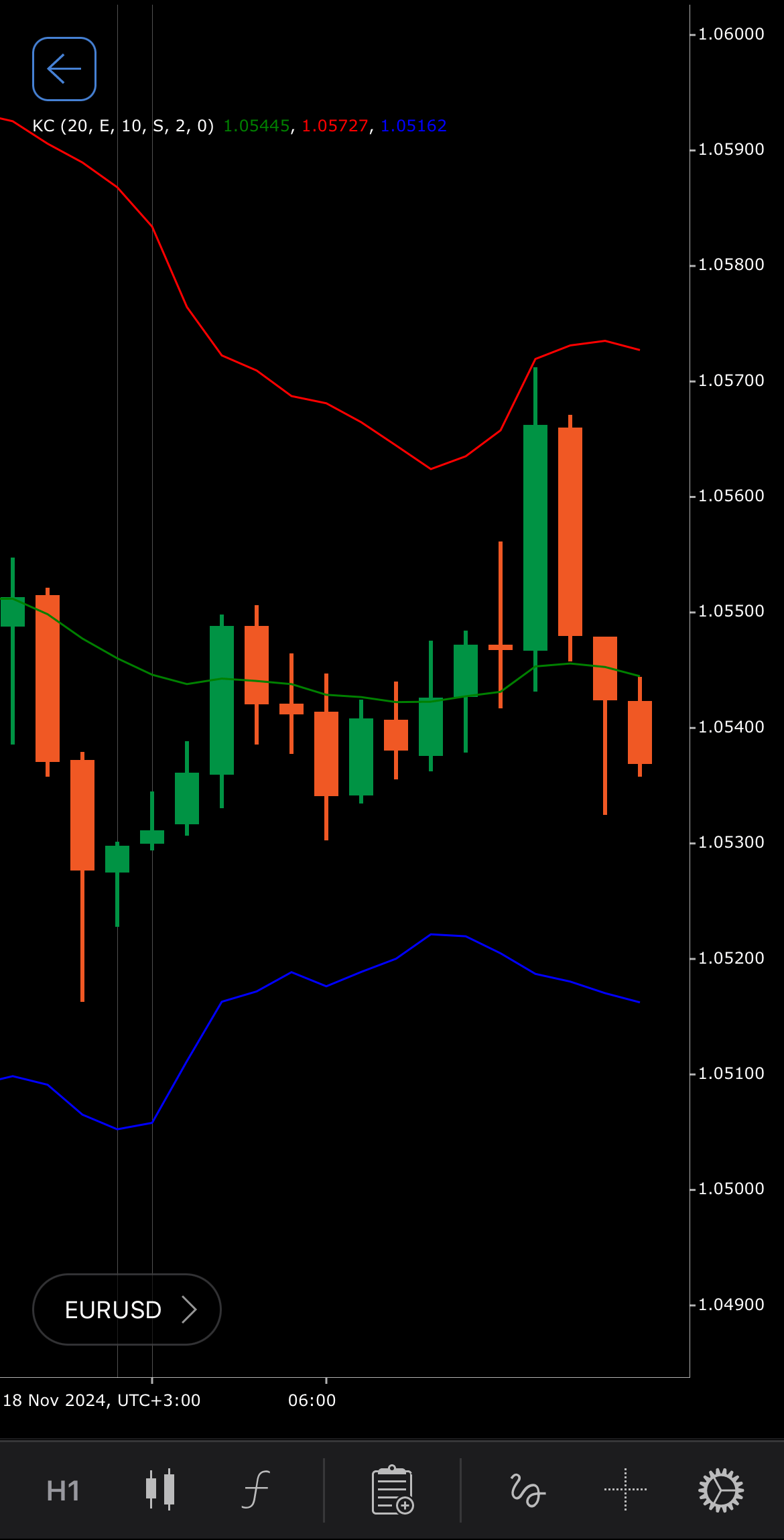
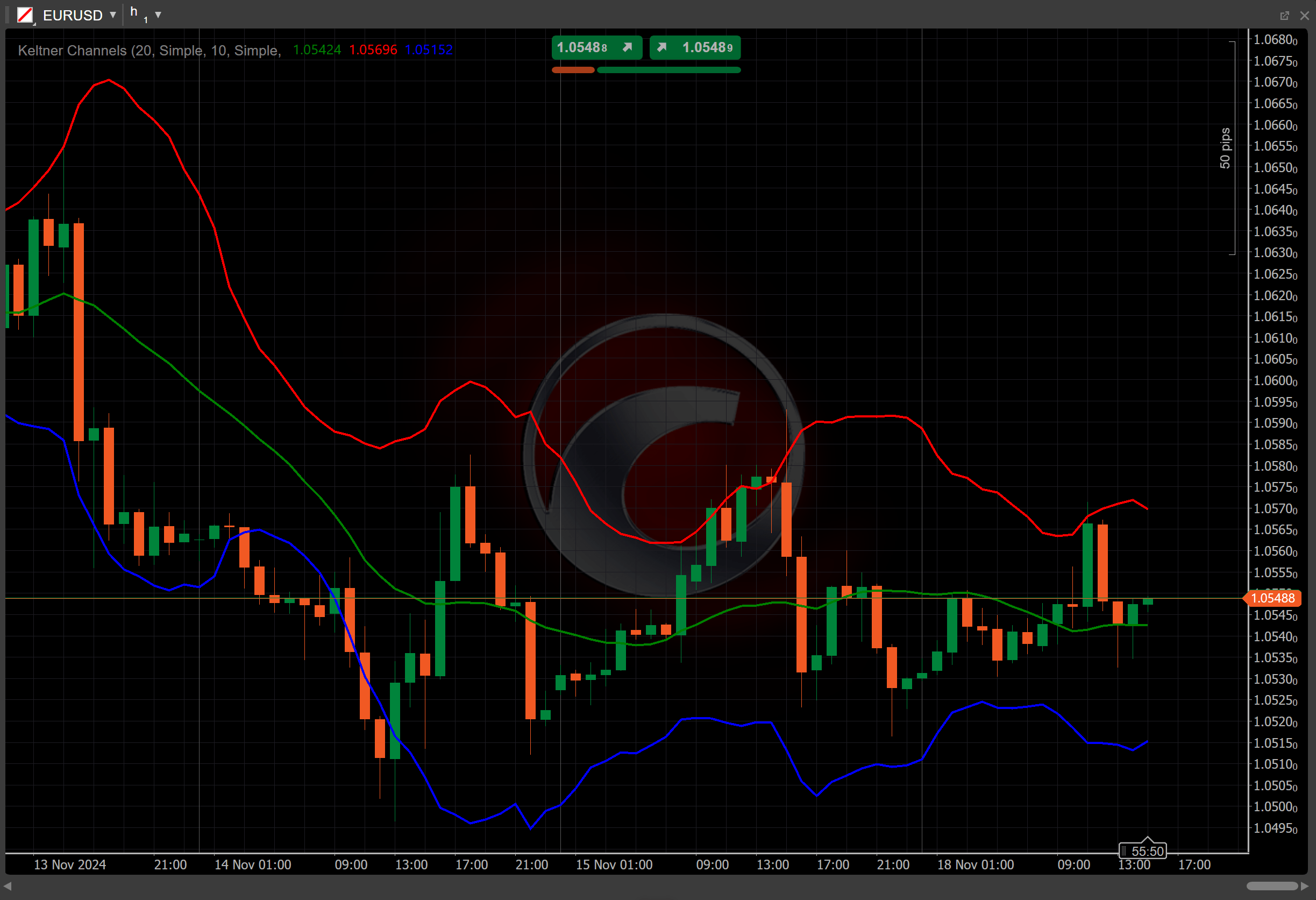
[Open live account](https://ctrader.com/brokers)
[Download cTrader](https://ctrader.com/download/)
History[¶](https://help.ctrader.com/knowledge-base/indicators/volatility/keltner-channels/#history "Permanent link")
---------------------------------------------------------------------------------------------------------------------
Chester W. Keltner, a commodities trader, first introduced the Keltner Channels in the 1960s. Originally based on a 10-day moving average and typical price, modern versions incorporate the different moving averages and the ATR values for enhanced accuracy in trend and reversal detection.
Calculations[¶](https://help.ctrader.com/knowledge-base/indicators/volatility/keltner-channels/#calculations "Permanent link")
-------------------------------------------------------------------------------------------------------------------------------
The Keltner Channels are calculated using three elements.
* **Middle band** – the moving average of the closing price over the specified MA period using the chosen MA type.
\\\[ Main = { MA\\ ( Close,\\ MAPeriod,\\ MAType ) } \\\]
* **Top band** – calculated by adding the product of the band distance and the ATR to the middle band.
\\\[ Top = { Main + (BandDistance \\times ATR) } \\\]
* **Bottom band** – calculated by subtracting the product of the band distance and the ATR from the middle band.
\\\[ Bottom = { Main - (BandDistance \\times ATR) } \\\]
\\(BandDistance\\) – the band distance multiplier, which adjusts the width of the channels
\\(ATR\\) – the Average True Range, given over the specified ATR period using the chosen ATR MA type
Interpretation[¶](https://help.ctrader.com/knowledge-base/indicators/volatility/keltner-channels/#interpretation "Permanent link")
-----------------------------------------------------------------------------------------------------------------------------------
The default parameter values for the Keltner Channels calculation are as follows:
* The default number of periods for MA calculation is 20, with the [**Simple Moving Average (SMA)**](https://help.ctrader.com/knowledge-base/indicators/trend/simple-moving-average/)
as the default type of MA.
* The default number of periods for ATR calculation is 10, with the SMA as the default type of ATR MA.
* The default band distance value is set to 2.
The main patterns of the indicator behaviour can be interpreted as follows:
* **Price breakouts** – breaking out above the upper band shows a potential overbought condition or breakout, possibly signalling an upward trend. Breaking out below the lower band shows a potential oversold condition or breakout, possibly indicating a downward trend.
* **Trend direction** – sustained movement near the upper band generally indicates an uptrend. Sustained movement near the lower band suggests a downtrend.
* **Reversals** – divergences, where the price and the indicator direction differ, can signal potential reversals.
* **Shift** – by adjusting the shift parameter to alter the alignment of the Keltner Channels with price data on the chart, you can explore how the indicator readings correspond to past or future price movements.
Application[¶](https://help.ctrader.com/knowledge-base/indicators/volatility/keltner-channels/#application "Permanent link")
-----------------------------------------------------------------------------------------------------------------------------
* **Buy signal** – consider entering a buy position when the price breaks above the upper channel, signalling strong bullish momentum.
* **Sell signal** – a sell position may be considered when the price breaks below the lower channel, indicating bearish momentum.
* **Stop-loss placement** – traders can place a stop loss just outside the opposite channel line to manage risk during potential reversals.
Note
You can take advantage of algo trading, with cBots executing trades based on the signals from this indicator, as shown in our [**examples**](https://help.ctrader.com/ctrader-algo/references/Indicators/KeltnerChannels/)
. Learn more about how to [**use indicators in cBots**](https://help.ctrader.com/ctrader-algo/articles/for-developers/how-to-use-indicators-in-cbots/)
.
Limitations[¶](https://help.ctrader.com/knowledge-base/indicators/volatility/keltner-channels/#limitations "Permanent link")
-----------------------------------------------------------------------------------------------------------------------------
The Keltner Channels can produce misleading signals in sideways or low-volatility markets. The indicator may also lag during rapid price changes due to its reliance on historical data. These factors make it susceptible to false signals in choppy conditions, particularly when used alone.
Summary[¶](https://help.ctrader.com/knowledge-base/indicators/volatility/keltner-channels/#summary "Permanent link")
---------------------------------------------------------------------------------------------------------------------
The Keltner Channels is a volatility-based tool that uses a central moving average and two bands derived from the [**Average True Range**](https://help.ctrader.com/knowledge-base/indicators/volatility/average-true-range/)
to identify trends, price reversals and overbought or oversold conditions. Movements near the upper or lower bands highlight potential trend strength or shifts, while the central band acts as a trend indicator. Useful in trending markets, the Keltner Channels allow traders to identify breakout opportunities and gauge market volatility effectively.
[Open live account](https://ctrader.com/brokers)
[Download cTrader](https://ctrader.com/download/)
Back to top
---
# Ichimoku Kinko Hyo - Knowledge base
[Skip to content](https://help.ctrader.com/knowledge-base/indicators/other/ichimoku-kinko-hyo/#ichimoku-kinko-hyo)
Ichimoku Kinko Hyo[¶](https://help.ctrader.com/knowledge-base/indicators/other/ichimoku-kinko-hyo/#ichimoku-kinko-hyo "Permanent link")
========================================================================================================================================
Definition[¶](https://help.ctrader.com/knowledge-base/indicators/other/ichimoku-kinko-hyo/#definition "Permanent link")
------------------------------------------------------------------------------------------------------------------------
The Ichimoku Kinko Hyo is a comprehensive technical analysis indicator designed to provide a view of market trends, momentum and support and resistance levels in a single chart. Commonly used in forex and stock markets, it consists of five lines that work together to provide insights into potential price movements, making it a powerful tool for identifying trends and reversals.
MobileDesktop


[Open live account](https://ctrader.com/brokers)
[Download cTrader](https://ctrader.com/download/)
History[¶](https://help.ctrader.com/knowledge-base/indicators/other/ichimoku-kinko-hyo/#history "Permanent link")
------------------------------------------------------------------------------------------------------------------
The Ichimoku Kinko Hyo was developed by Goichi Hosoda, a Japanese journalist, in the late 1930s. He intended to create an indicator that would allow traders to gauge market conditions at a glance. After years of refinement, the indicator was publicly introduced in the 1960s and has since become widely popular for its ability to provide a quick and comprehensive market view.
Calculations[¶](https://help.ctrader.com/knowledge-base/indicators/other/ichimoku-kinko-hyo/#calculations "Permanent link")
----------------------------------------------------------------------------------------------------------------------------
The Ichimoku Kinko Hyo consists of five main lines, each calculated to provide different insights into the market.
1\. **Tenkan Sen (conversion line)** – provides a short-term view of the market.
\\\[ Tenkan\\ Sen = { { Highest\\ High + Lowest\\ Low } \\over 2 }\\ over\\ n\\ periods\\ (typically\\ 9) \\\]
2\. **Kijun Sen (base line)** – gives a medium-term trend.
\\\[ Kijun\\ Sen = { { Highest\\ High + Lowest\\ Low } \\over 2 }\\ over\\ m\\ periods\\ (typically\\ 26) \\\]
3\. **Chikou Span (lagging span)** – the closing price shifted backward by 26 periods. This line helps identify the relationship between current price and past price levels.
\\\[ Chikou\\ Span\_{-m} = Current\\ Close \\\]
4\. **Senkou Span A (leading span A)** – forms one edge of the cloud and represents future support or resistance.
\\\[ Senkou\\ Span\\ A = { { Tenkan Sen + Kijun Sen } \\over 2 }\\ projected\\ forward\\ by\\ m\\ periods\\ (typically\\ 26) \\\]
5\. **Senkou Span B (leading span B)** – forms the opposite edge of the cloud and represents a longer-term perspective on support and resistance.
\\\[ Senkou\\ Span\\ B = { { Highest\\ High + Lowest\\ Low } \\over 2 }\\ over\\ p\\ periods\\ (typically\\ 52),\\ projected\\ forward\\ by\\ 26\\ periods \\\]
Interpretation[¶](https://help.ctrader.com/knowledge-base/indicators/other/ichimoku-kinko-hyo/#interpretation "Permanent link")
--------------------------------------------------------------------------------------------------------------------------------
* **Trend identification** – when prices are above the cloud, it indicates an uptrend, while prices below the cloud suggest a downtrend. The thickness of the cloud indicates the strength of the trend.
* **Crossovers** – crosses between the Tenkan Sen and the Kijun Sen can serve as potential buy or sell signals.
* **Cloud colour** – the cloud colour (based on which span is higher) can indicate whether the market sentiment is bullish or bearish.
* **Support and resistance** – the cloud also acts as dynamic support and resistance, with thicker clouds indicating stronger barriers.
* **Shift** – by adjusting the shift parameter to alter the alignment of the Ichimoku Kinko Hyo with price data on the chart, you can explore how the indicator readings correspond to past or future price movements.
Application[¶](https://help.ctrader.com/knowledge-base/indicators/other/ichimoku-kinko-hyo/#application "Permanent link")
--------------------------------------------------------------------------------------------------------------------------
* **Trend confirmation** – traders use the indicator to confirm trends, paying attention to price positions relative to the cloud.
* **Entry and exit signals** – crossovers between the Tenkan Sen and the Kijun Sen or between price and the cloud, provide entry or exit signals.
* **Support and resistance zones** – the cloud itself can act as a buffer zone, with prices often bouncing off these levels in trending markets.
Note
You can take advantage of algo trading, with cBots executing trades based on the signals from this indicator, as shown in our [**examples**](https://help.ctrader.com/ctrader-algo/references/Indicators/IchimokuKinkoHyo/)
. Learn more about how to [**use indicators in cBots**](https://help.ctrader.com/ctrader-algo/articles/for-developers/how-to-use-indicators-in-cbots/)
.
Limitations[¶](https://help.ctrader.com/knowledge-base/indicators/other/ichimoku-kinko-hyo/#limitations "Permanent link")
--------------------------------------------------------------------------------------------------------------------------
The Ichimoku Kinko Hyo uses multiple lagging and leading indicators, meaning it may produce delayed signals in volatile or rapidly changing markets. It may provide limited clarity in short-term trading. Additionally, the cloud can sometimes appear too complex for novice traders.
Summary[¶](https://help.ctrader.com/knowledge-base/indicators/other/ichimoku-kinko-hyo/#summary "Permanent link")
------------------------------------------------------------------------------------------------------------------
The Ichimoku Kinko Hyo is a comprehensive trend-following indicator developed by Goichi Hosoda, designed to provide a quick view of market trends, momentum and support and resistance levels. With its combination of moving averages and the unique Kumo cloud, it helps traders make informed trading decisions. It consists of five lines that work together to provide insights into potential price movements, making it a powerful tool for identifying trends and reversals. Moreover, the indicator shows a cloud that changes in colour to reflect market sentiment.
[Open live account](https://ctrader.com/brokers)
[Download cTrader](https://ctrader.com/download/)
Back to top
---
# Fractal Chaos Bands - Knowledge base
[Skip to content](https://help.ctrader.com/knowledge-base/indicators/volatility/fractal-chaos-bands/#fractal-chaos-bands)
Fractal Chaos Bands[¶](https://help.ctrader.com/knowledge-base/indicators/volatility/fractal-chaos-bands/#fractal-chaos-bands "Permanent link")
================================================================================================================================================
Definition[¶](https://help.ctrader.com/knowledge-base/indicators/volatility/fractal-chaos-bands/#definition "Permanent link")
------------------------------------------------------------------------------------------------------------------------------
The Fractal Chaos Bands (FCB) indicator is a volatility-based tool designed to identify price trends and potential reversals by marking key high and low points in the market using fractals. These fractals are created by examining recent price extremes and the bands help highlight market direction, distinguishing between trending and ranging (sideways) market conditions.
MobileDesktop
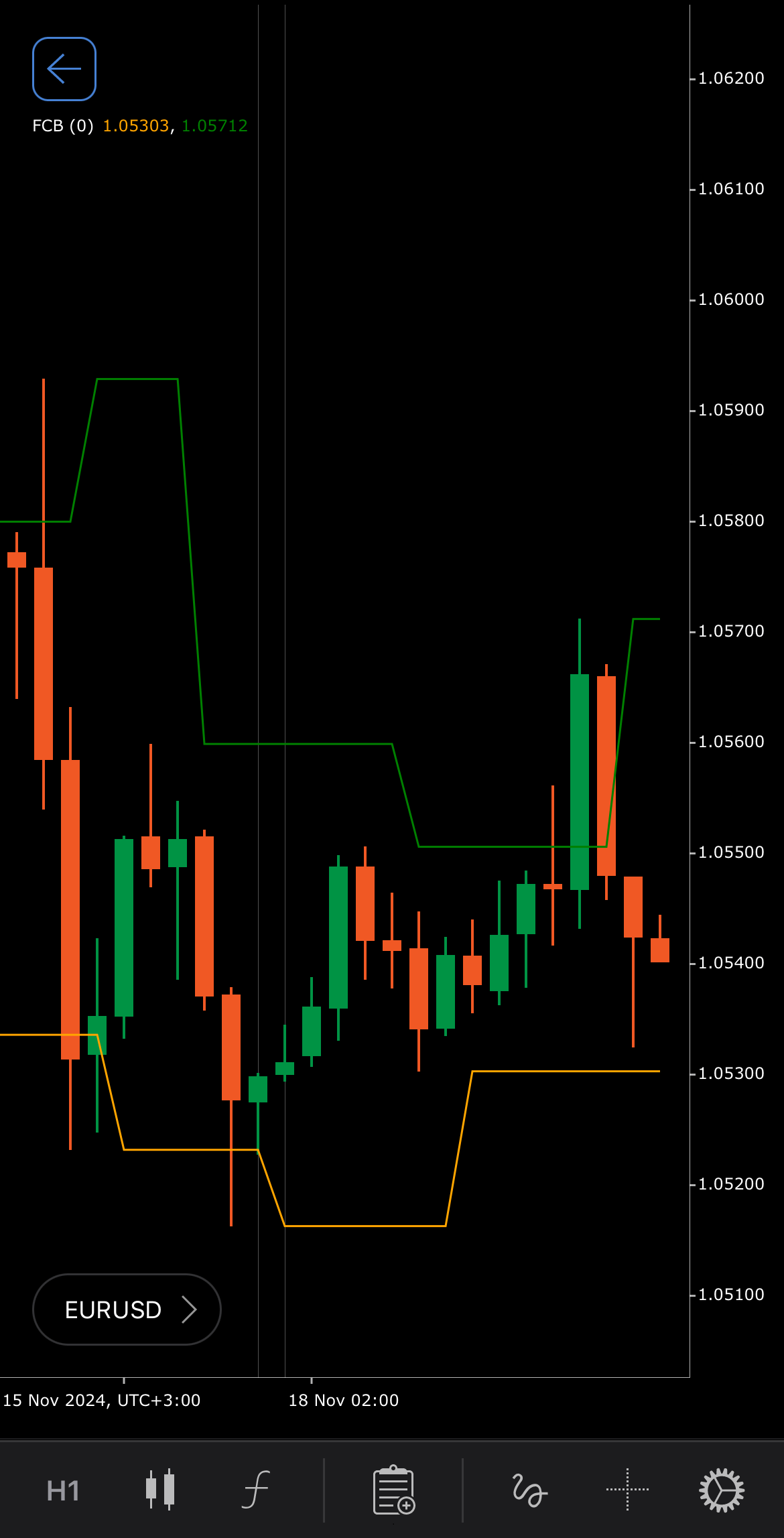
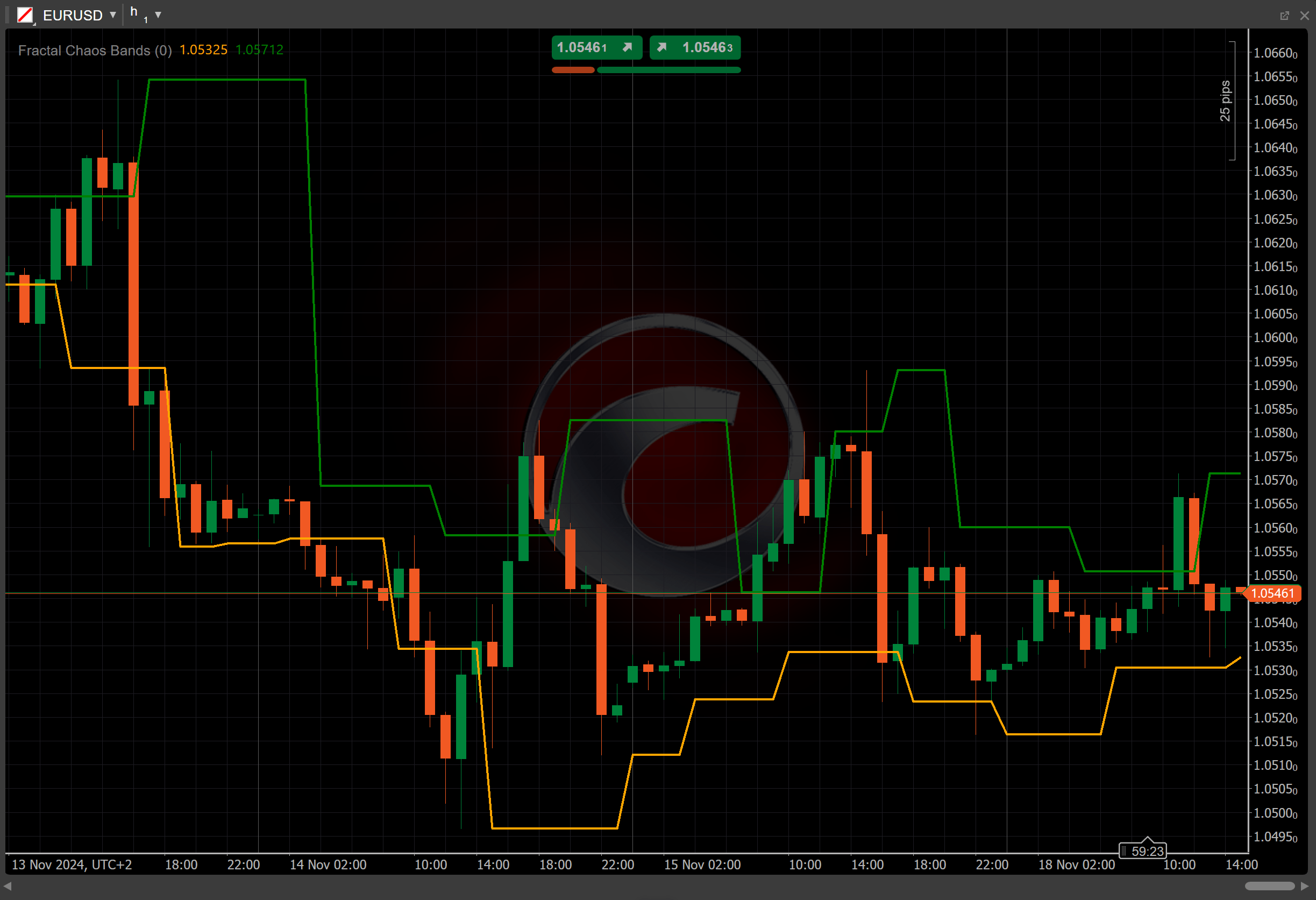
[Open live account](https://ctrader.com/brokers)
[Download cTrader](https://ctrader.com/download/)
History[¶](https://help.ctrader.com/knowledge-base/indicators/volatility/fractal-chaos-bands/#history "Permanent link")
------------------------------------------------------------------------------------------------------------------------
The Fractal Chaos Bands indicator is inspired by fractal geometry, introduced by Benoît Mandelbrot, which is applied to finance and market price movements. The indicator utilises fractals to represent repetitive patterns in the price structure and to detect market trends. Its development is influenced by the use of fractals in various trading strategies that analyse price behaviour through self-similar patterns at different periods.
Calculations[¶](https://help.ctrader.com/knowledge-base/indicators/volatility/fractal-chaos-bands/#calculations "Permanent link")
----------------------------------------------------------------------------------------------------------------------------------
The calculation of the Fractal Chaos Bands involves identifying the most recent fractals; specific points where the price forms a local high (high fractal) or local low (low fractal). The bands are formed by plotting these fractal points across the chart, creating a boundary between upper and lower price levels.
* **High fractal** – is determined when the current price is higher than the surrounding prices over a defined period.
* **Low fractal** – is calculated when the current price is lower than the surrounding prices over a defined period.
The bands adjust dynamically as new fractals are identified, with the upper band following the high fractals and the lower band following the low fractals.
Interpretation[¶](https://help.ctrader.com/knowledge-base/indicators/volatility/fractal-chaos-bands/#interpretation "Permanent link")
--------------------------------------------------------------------------------------------------------------------------------------
* **Breakouts** – price breaking the upper band suggests potential bullish momentum and the possibility of an uptrend. Price breaking the lower band suggests potential bearish momentum and the possibility of a downtrend.
* **Trend identification** – when bands slope upward it indicates an uptrend. When bands slope downward it indicates a downtrend.
* **Sideways movement** – when the bands move horizontally without significant slope, it signals a range-bound or consolidating market.
* **Shift** – by adjusting the shift parameter to alter the alignment of the Fractal Chaos Bands with price data on the chart, you can explore how the indicator readings correspond to past or future price movements.
Application[¶](https://help.ctrader.com/knowledge-base/indicators/volatility/fractal-chaos-bands/#application "Permanent link")
--------------------------------------------------------------------------------------------------------------------------------
* **Buy signal** – traders might consider buying when the price approaches the lower band, as this could indicate oversold conditions and a potential upward reversal.
* **Sell signal** – a sell signal might be triggered when the price moves towards the upper band, signalling overbought conditions or a potential reversal downward.
* **Breakouts** – when the price breaks above the upper band or below the lower band, it could signal the start of a new trend, offering a trading opportunity in the direction of the breakout.
* **Combining with other indicators** – to increase the reliability of signals, traders often use the Fractal Chaos Bands with other indicators such as the [**Relative Strength Index (RSI)**](https://help.ctrader.com/knowledge-base/indicators/oscillators/relative-strength-index/)
for momentum or the moving average to confirm trend direction and filter out false signals during consolidation phases.
Note
You can take advantage of algo trading, with cBots executing trades based on the signals from this indicator, as shown in our [**examples**](https://help.ctrader.com/ctrader-algo/references/Indicators/FractalChaosBands/)
. Learn more about how to [**use indicators in cBots**](https://help.ctrader.com/ctrader-algo/articles/for-developers/how-to-use-indicators-in-cbots/)
.
Limitations[¶](https://help.ctrader.com/knowledge-base/indicators/volatility/fractal-chaos-bands/#limitations "Permanent link")
--------------------------------------------------------------------------------------------------------------------------------
The Fractal Chaos Bands indicator may lag during periods of extreme volatility, or when markets are moving quickly due to its reliance on historical price data to identify fractals. In addition, during range-bound or choppy markets, the bands may generate false signals.
Summary[¶](https://help.ctrader.com/knowledge-base/indicators/volatility/fractal-chaos-bands/#summary "Permanent link")
------------------------------------------------------------------------------------------------------------------------
The Fractal Chaos Bands provide a unique way to visualise market trends and volatility by tracking price extremes using fractals. The bands highlight potential trend directions and reversal points, making them useful for both trend-following and range-bound strategies. The indicator relies on fractals, points where the price forms a local high or local low. This helps represent repetitive patterns in the price structure and detect market trends.
[Open live account](https://ctrader.com/brokers)
[Download cTrader](https://ctrader.com/download/)
Back to top
---
# Ease of Movement - Knowledge base
[Skip to content](https://help.ctrader.com/knowledge-base/indicators/volume/ease-of-movement/#ease-of-movement)
Ease of Movement[¶](https://help.ctrader.com/knowledge-base/indicators/volume/ease-of-movement/#ease-of-movement "Permanent link")
===================================================================================================================================
Definition[¶](https://help.ctrader.com/knowledge-base/indicators/volume/ease-of-movement/#definition "Permanent link")
-----------------------------------------------------------------------------------------------------------------------
The Ease of Movement (EMV) is a volume-based technical analysis indicator that measures the relationship between price and volume to gauge the ease with which an asset’s price moves. It helps traders identify whether price movements are happening with little or much effort from the market participants.
MobileDesktop

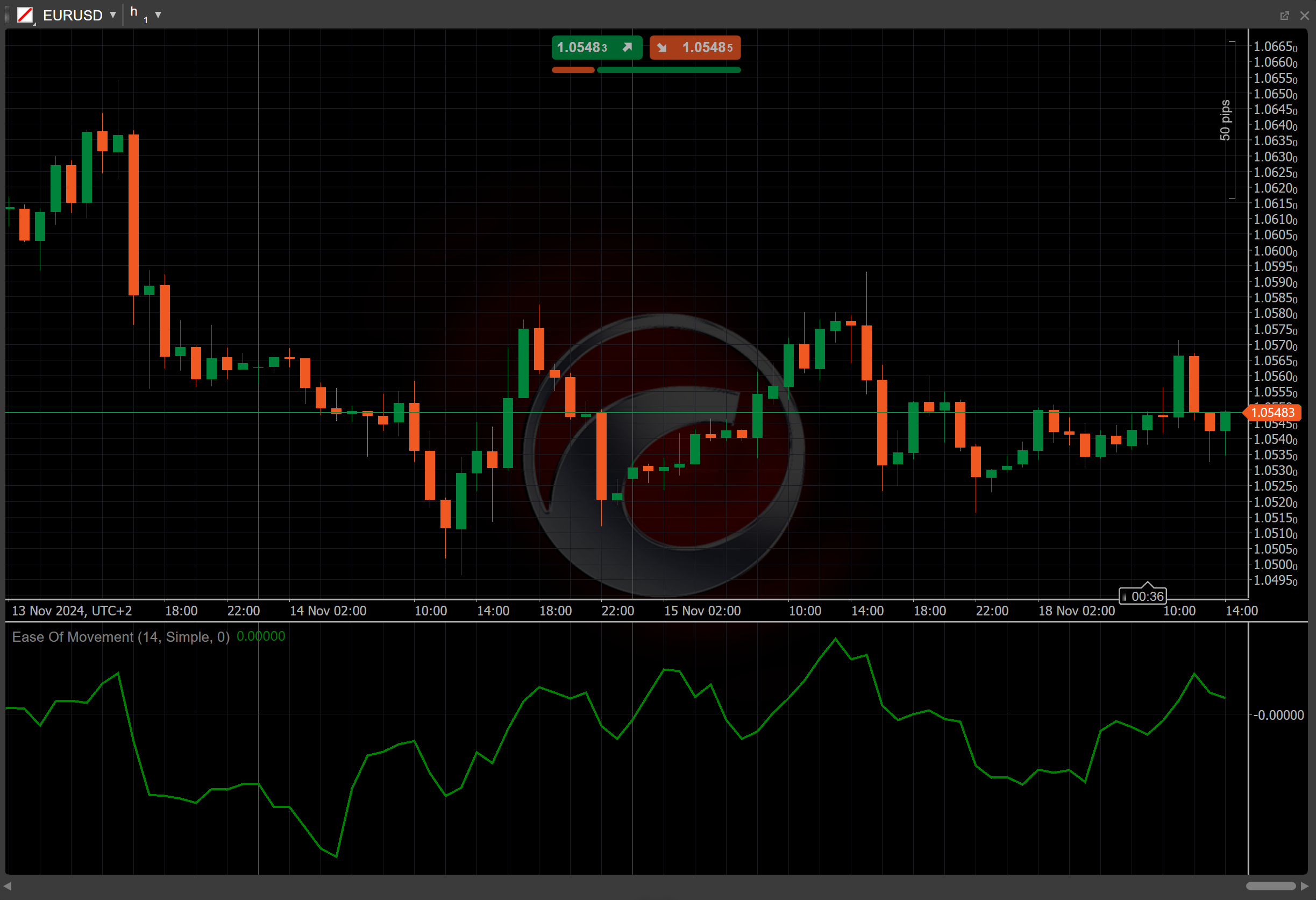
[Open live account](https://ctrader.com/brokers)
[Download cTrader](https://ctrader.com/download/)
History[¶](https://help.ctrader.com/knowledge-base/indicators/volume/ease-of-movement/#history "Permanent link")
-----------------------------------------------------------------------------------------------------------------
The Ease of Movement was developed by Richard W. Arms in the 1990s. Arms, known for his work on other volume-based indicators such as the Arms Index (TRIN), designed the EMV to combine both price and volume in a straightforward calculation, providing a unique perspective on market momentum.
Calculations[¶](https://help.ctrader.com/knowledge-base/indicators/volume/ease-of-movement/#calculations "Permanent link")
---------------------------------------------------------------------------------------------------------------------------
The Ease of Movement formula consists of several components.
First, the midpoints of the high and low prices for the current and previous periods are calculated.
\\\[ Midpoint = { { High + Low } \\over 2 } \\\]
Then, their difference is divided by the volume and scaled by the current high-low price range.
\\\[ EMV = { { ( { Midpoint - Midpoint\_{prev} } ) } \\times { { High - Low } \\over Volume } } \\\]
This is then multiplied by 10,000 to adjust the scale. Finally, the result is smoothed by applying a moving average over the specified period.
Interpretation[¶](https://help.ctrader.com/knowledge-base/indicators/volume/ease-of-movement/#interpretation "Permanent link")
-------------------------------------------------------------------------------------------------------------------------------
* **Value** – a positive EMV indicates that prices are rising with ease and buying pressure is dominant. A negative EMV shows that prices are falling easily, suggesting selling pressure.
* **Zero-line crossovers** – the zero line acts as a critical threshold. When EMV crosses above zero, it signals a possible start of an upward trend and when it crosses below zero, it indicates potential bearish movement.
* **Divergence** – a bullish divergence occurs when the price hits a lower low while the EMV makes a higher low, indicating weakening selling pressure and a potential reversal upward. A bearish divergence happens when the price hits a higher high but the EMV makes a lower high.
Application[¶](https://help.ctrader.com/knowledge-base/indicators/volume/ease-of-movement/#application "Permanent link")
-------------------------------------------------------------------------------------------------------------------------
* **Buy signal** – consider entering a long position when the EMV crosses above the zero line, indicating upward price movement with ease.
* **Sell signal** – consider entering a short position when the EMV crosses below the zero line, signalling downward movement with ease.
* **Stop-loss placement** – traders might place stop-loss orders below significant support levels for long positions or above resistance levels for short positions to manage risk.
* **Combining with other indicators** – traders typically use the EMV with other tools like the [**Relative Strength Index (RSI)**](https://help.ctrader.com/knowledge-base/indicators/oscillators/relative-strength-index/)
to confirm whether an asset is overbought or oversold or with moving averages to smooth out short-term noise.
Note
You can take advantage of algo trading, with cBots executing trades based on the signals from this indicator, as shown in our [**examples**](https://help.ctrader.com/ctrader-algo/references/Indicators/EaseOfMovement/)
. Learn more about how to [**use indicators in cBots**](https://help.ctrader.com/ctrader-algo/articles/for-developers/how-to-use-indicators-in-cbots/)
.
Limitations[¶](https://help.ctrader.com/knowledge-base/indicators/volume/ease-of-movement/#limitations "Permanent link")
-------------------------------------------------------------------------------------------------------------------------
The Ease of Movement can produce false signals in low-volume markets or during periods of market consolidation. It may not always be ideal for predicting short-term reversals, but rather for confirming ongoing trends.
Summary[¶](https://help.ctrader.com/knowledge-base/indicators/volume/ease-of-movement/#summary "Permanent link")
-----------------------------------------------------------------------------------------------------------------
The Ease of Movement provides insight into how effortlessly price movements occur based on volume. Positive EMV values suggest price rises with relative ease, while negative values signal ease of price declines. As the zero line determines its base value, a crossing over it signals an upward price movement with ease. Alternatively, a crossing below the zero line signals a downward movement with ease.
[Open live account](https://ctrader.com/brokers)
[Download cTrader](https://ctrader.com/download/)
Back to top
---
# Money Flow Index - Knowledge base
[Skip to content](https://help.ctrader.com/knowledge-base/indicators/volume/money-flow-index/#money-flow-index)
Money Flow Index[¶](https://help.ctrader.com/knowledge-base/indicators/volume/money-flow-index/#money-flow-index "Permanent link")
===================================================================================================================================
Definition[¶](https://help.ctrader.com/knowledge-base/indicators/volume/money-flow-index/#definition "Permanent link")
-----------------------------------------------------------------------------------------------------------------------
The Money Flow Index (MFI) indicator is a momentum oscillator that calculates buying and selling pressure using both price and volume analysis. It oscillates between 0 and 100; a rising MFI reflects stronger buying pressure, while a falling MFI points to increasing selling pressure. The MFI indicator is typically used to identify trend reversals and price extremes.
MobileDesktop
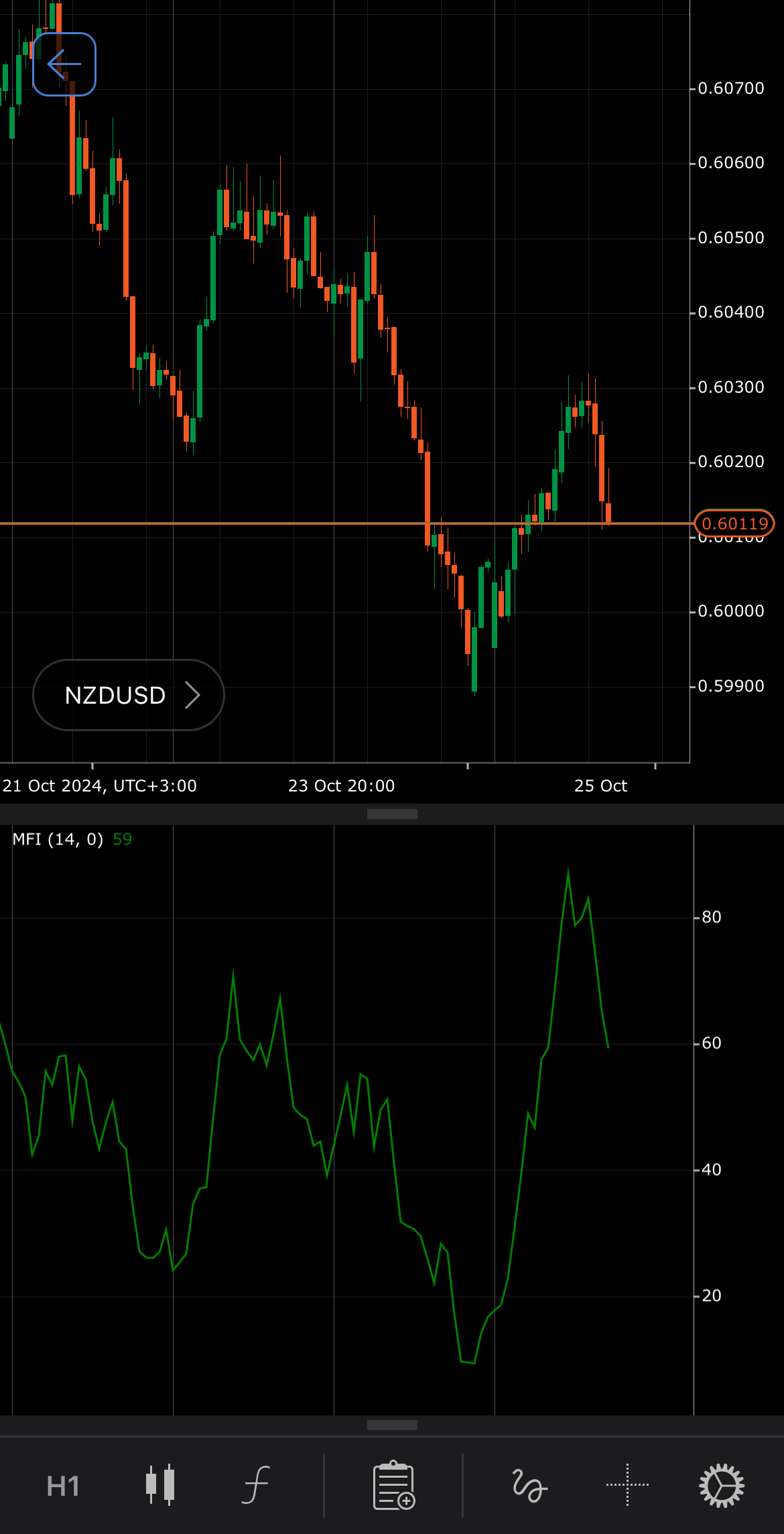
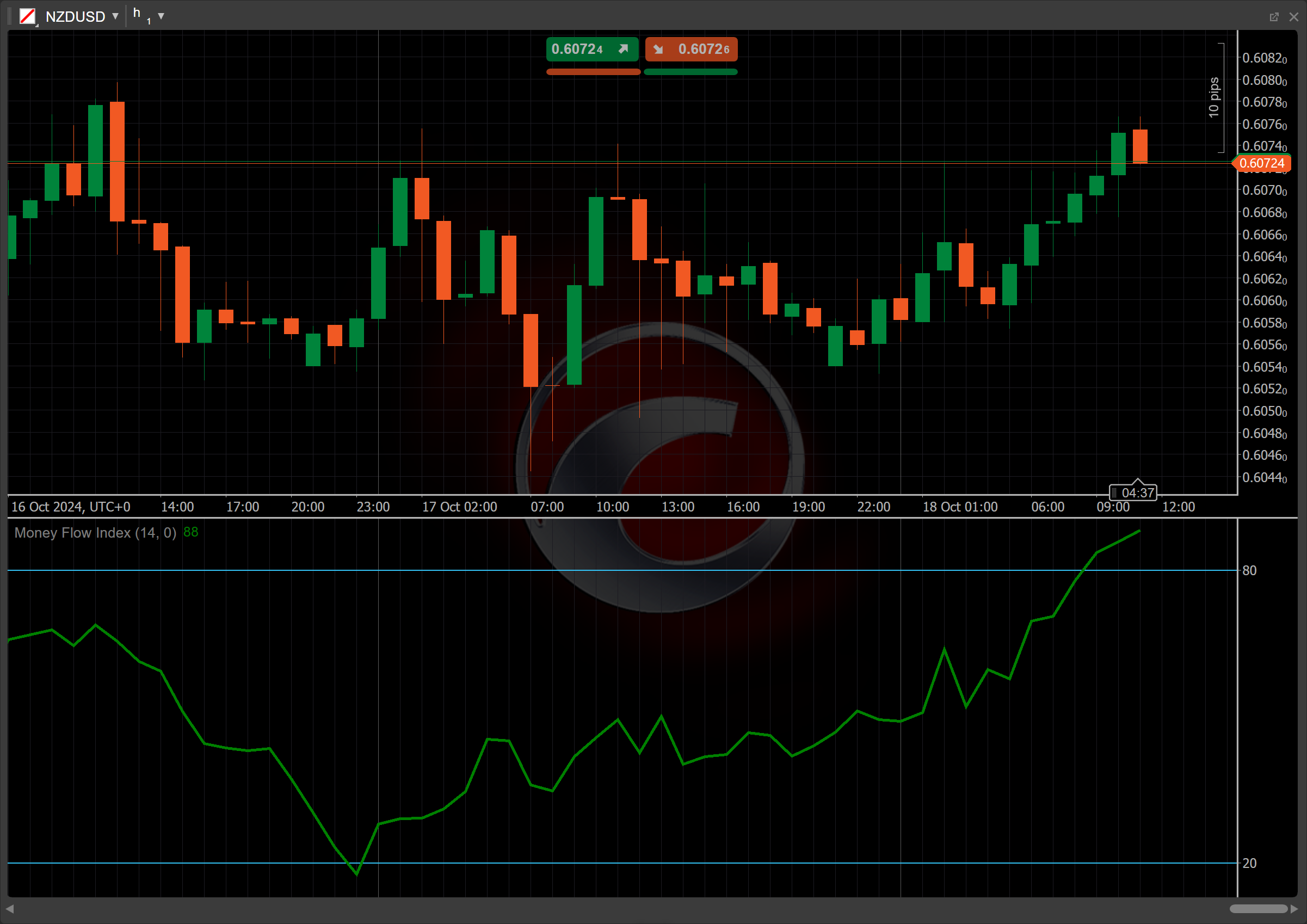
[Open live account](https://ctrader.com/brokers)
[Download cTrader](https://ctrader.com/download/)
History[¶](https://help.ctrader.com/knowledge-base/indicators/volume/money-flow-index/#history "Permanent link")
-----------------------------------------------------------------------------------------------------------------
The Money Flow Index was created in the late 1980s by Gene Quong and Avrum Soudack, both experienced technical analysts. They designed the MFI to improve upon traditional momentum indicators by incorporating volume data into price analysis, offering traders a more comprehensive view of market strength compared to the widely used [**Relative Strength Index (RSI)**](https://help.ctrader.com/knowledge-base/indicators/oscillators/relative-strength-index/)
.
Calculations[¶](https://help.ctrader.com/knowledge-base/indicators/volume/money-flow-index/#calculations "Permanent link")
---------------------------------------------------------------------------------------------------------------------------
In most cases, the MFI value is calculated using the following steps:
1\. The Typical Price is calculated as the average of the high, low and closing prices for each period.
\\\[ Typical\\ Price = { {High + Low + Close} \\over 3 } \\\]
2\. The Raw Money Flow is calculated by multiplying the Typical Price by the volume for a given period.
\\\[ Raw\\ Money\\ Flow = { Typical\\ Price \\times Volume } \\\]
3\. The Money Flow Ratio (MFR) is calculated as the ratio of the Positive Money Flow to the Negative Money Flow.
\\\[ MFR = { {Positive\\ Money\\ Flow} \\over {Negative\\ Money\\ Flow} } \\\]
\\(Positive\\) \\(Money\\) \\(Flow\\) – the sum of the Raw Money Flow on the days when the Typical Price is higher than the previous day
\\(Negative\\) \\(Money\\) \\(Flow\\) – the sum of the Raw Money Flow on the days when the Typical Price is lower than the previous day
4\. The Money Flow Index is calculated by the following formula:
\\\[ MFI = { 100 - {100 \\over {1 + MFR} } } \\\]
Interpretation[¶](https://help.ctrader.com/knowledge-base/indicators/volume/money-flow-index/#interpretation "Permanent link")
-------------------------------------------------------------------------------------------------------------------------------
The MFI indicator is calculated using 14 periods by default, but other periods can be adjusted based on the strategy.
The main patterns of the indicator behaviour can be interpreted as follows:
* **Crossovers** – the MFI values range between 0 and 100. Readings above 80 are typically considered overbought, suggesting a potential price correction, such as a downward pullback or a consolidation phase. Conversely, values below 20 are seen as oversold, signalling possible upward price momentum.
* **Divergence** – when the MFI indicator moves in the opposite direction to the symbol price, this can signal potential reversals. For instance, if prices rise while the MFI falls, it may indicate weakening buying pressure. The opposite behaviour, when the price makes a new high but the MFI shows a lower high, suggests diminishing strength in the upward trend, potentially forecasting a price decline.
* **Failure swings** – failure swings can signal potential price reversals, functioning independently of price changes and focusing solely on the MFI. They can indicate either a bullish or bearish trend according to the swing direction. A bullish trend occurs when the MFI drops below 20 and then rebounds above it, maintaining strength. Conversely, a bearish trend happens when the MFI rises above 80, drops back and then dips below its previous low.
* **Shift** – by adjusting the shift parameter to alter the alignment of the MFI indicator with price data on the chart, you can explore how the MFI readings correspond to past or future price movements.
Application[¶](https://help.ctrader.com/knowledge-base/indicators/volume/money-flow-index/#application "Permanent link")
-------------------------------------------------------------------------------------------------------------------------
* **Buy signal** – traders can consider entering a buy position when the MFI value drops below 20, indicating oversold conditions, then rebounds above it, suggesting increased buying pressure.
* **Sell signal** – traders can consider entering a sell position when the MFI value rises above 80, indicating overbought conditions, and then falls below this level, indicating potential selling pressure.
* **Stop-loss placement** – it is recommended to set a stop loss slightly below the recent swing low for buy signals and above the recent swing high for sell signals.
* **Confirming trades** – to confirm the MFI signals, traders frequently utilise additional indicators like price action and trend analysis, as described above, to enhance their decision-making process.
Note
You can take advantage of algo trading, with cBots executing trades based on the signals from this indicator, as shown in our [**examples**](https://help.ctrader.com/ctrader-algo/references/Indicators/MoneyFlowIndex/)
. Learn more about how to [**use indicators in cBots**](https://help.ctrader.com/ctrader-algo/articles/for-developers/how-to-use-indicators-in-cbots/)
.
Limitations[¶](https://help.ctrader.com/knowledge-base/indicators/volume/money-flow-index/#limitations "Permanent link")
-------------------------------------------------------------------------------------------------------------------------
The Money Flow Index has several limitations, including its reliance on historical data, which can delay signals. It may produce false positives in choppy markets and is less effective during extreme market conditions. Additionally, the MFI can lag price movements, leading to missed opportunities. Traders should combine the MFI with other indicators for more robust analysis and risk management.
Summary[¶](https://help.ctrader.com/knowledge-base/indicators/volume/money-flow-index/#summary "Permanent link")
-----------------------------------------------------------------------------------------------------------------
The Money Flow Index is a momentum indicator that measures the buying and selling pressure based on price and volume over a specific period, typically 14 days. It ranges from 0 to 100, with values above 80 indicating overbought conditions and those below 20 signalling oversold conditions. Traders utilise the MFI to identify potential reversals and market strength, helping them make informed trading decisions.
[Open live account](https://ctrader.com/brokers)
[Download cTrader](https://ctrader.com/download/)
Back to top
---
# Median Price - Knowledge base
[Skip to content](https://help.ctrader.com/knowledge-base/indicators/other/median-price/#median-price)
Median Price[¶](https://help.ctrader.com/knowledge-base/indicators/other/median-price/#median-price "Permanent link")
======================================================================================================================
Definition[¶](https://help.ctrader.com/knowledge-base/indicators/other/median-price/#definition "Permanent link")
------------------------------------------------------------------------------------------------------------------
The Median Price indicator is a technical analysis tool that defines the midpoint of price data over a specified period. It is calculated by ordering the symbol prices within a specific period and finding the average value, making it less sensitive to outliers than the average. Traders use this indicator to assess market trends and identify potential support and resistance levels.
MobileDesktop
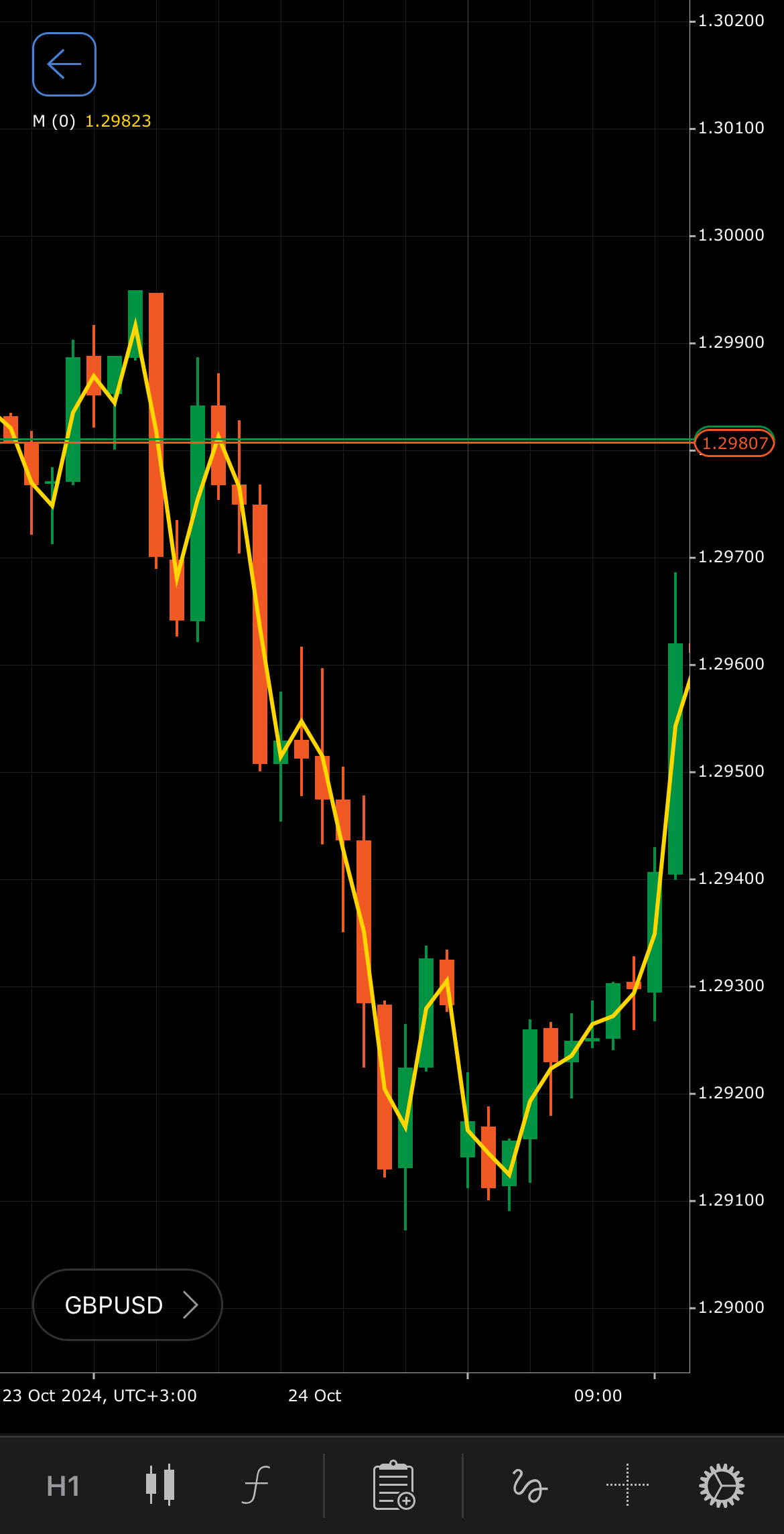
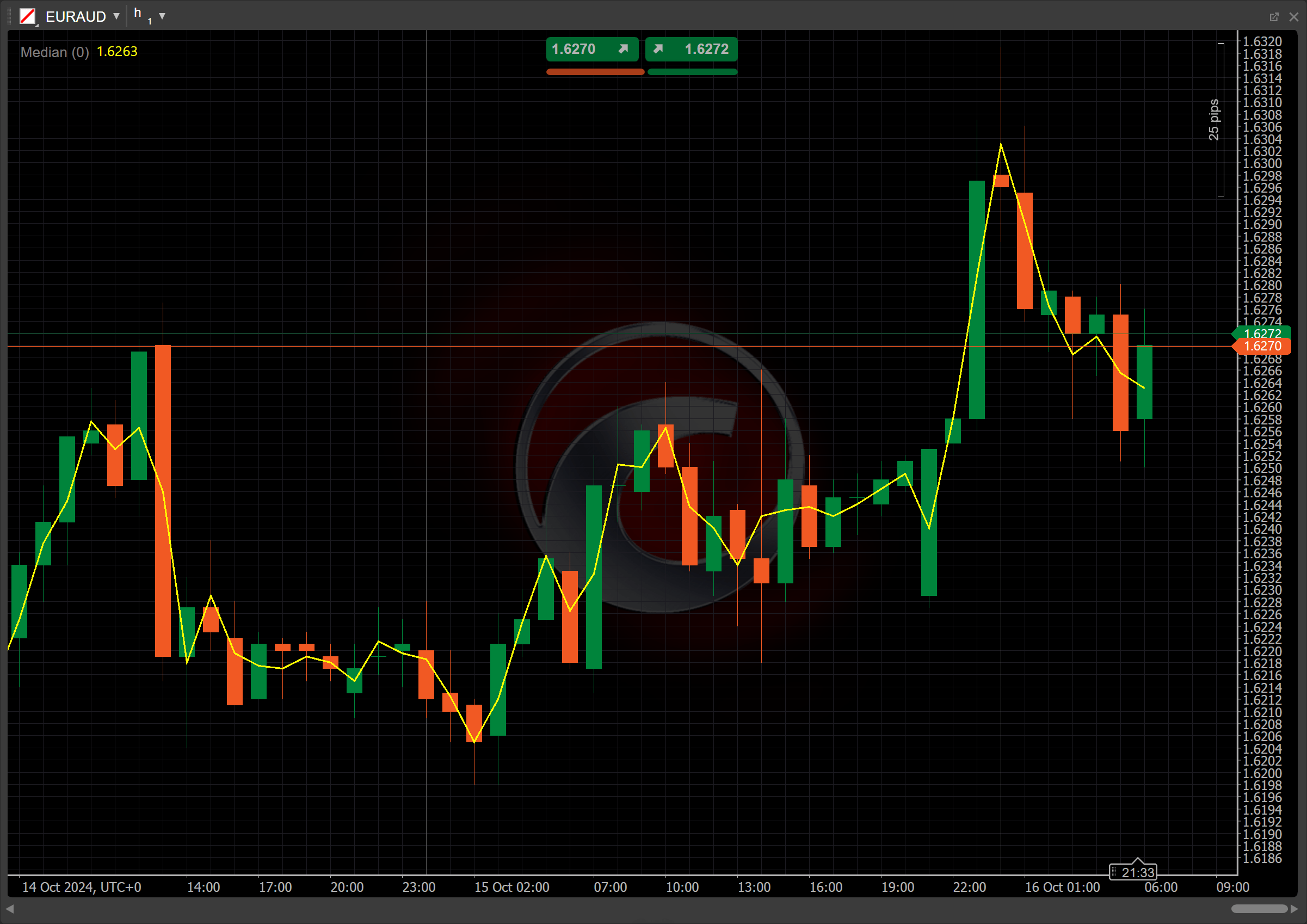
[Open live account](https://ctrader.com/brokers)
[Download cTrader](https://ctrader.com/download/)
History[¶](https://help.ctrader.com/knowledge-base/indicators/other/median-price/#history "Permanent link")
------------------------------------------------------------------------------------------------------------
The Median Price indicator was developed to provide a more reliable measure of central tendency in financial markets. It gained prominence as traders sought to mitigate the impact of outliers affecting average prices. Over time, it has become a standard tool in technical analysis, helping traders identify market trends, support and resistance levels.
Calculations[¶](https://help.ctrader.com/knowledge-base/indicators/other/median-price/#calculations "Permanent link")
----------------------------------------------------------------------------------------------------------------------
To define the Median Price for a given period, first calculate the median price for each day and then calculate the average median price over the desired period.
\\\[ Median\\ Price = { {High + Low} \\over 2 } \\\]
\\(High\\) – the highest price over a specified period
\\(Low\\) – the lowest price over a specified period
Interpretation[¶](https://help.ctrader.com/knowledge-base/indicators/other/median-price/#interpretation "Permanent link")
--------------------------------------------------------------------------------------------------------------------------
Traders typically use the Median Price indicator over various periods, with the most common settings being 14, 21 or 30 periods. These durations provide a balance between capturing short-term price movements and maintaining relevance to longer trends. Once the period is selected, the following interpretations of the indicator are generally applicable:
* **Rising and falling** – a rising Median Price indicates a bullish trend with generally increasing prices, while a falling Median Price indicates a bearish trend with generally decreasing prices.
* **Crossovers** – when the price line crosses above the median line, it may indicate a potential buying opportunity. Conversely, if the price line crosses below the median line, it could signal a selling opportunity.
* **Divergence and convergence** – if the price is making new highs or lows while the Median Price does not reflect the same movement, it may suggest weakening momentum and a potential reversal. If the price is moving in the same direction as the Median Price, it indicates strong momentum in that direction, reinforcing the trend.
Application[¶](https://help.ctrader.com/knowledge-base/indicators/other/median-price/#application "Permanent link")
--------------------------------------------------------------------------------------------------------------------
* **Buy signal** – traders can look for buying opportunities when the price crosses above the Median Price line. This crossover suggests a potential bullish trend, indicating that buyers are gaining control.
* **Sell signal** – conversely, a sell signal may arise when the price crosses below the Median Price line. This crossover indicates a potential bearish trend, signalling that sellers are dominating the market.
* **Stop-loss placement** – for long positions, traders might set a stop loss just below the Median Price, using it as a support level. For short positions, placing a stop loss just above the Median Price can serve as a resistance level, helping to manage risk effectively.
* **Confirming trades** – supporting indicators for the Median Price include moving averages, which filter buy and sell signals by confirming price movements above or below the median, and the [**Relative Strength Index (RSI)**](https://help.ctrader.com/knowledge-base/indicators/oscillators/relative-strength-index/)
, which helps confirm overbought or oversold conditions alongside the median levels.
Note
You can take advantage of algo trading, with cBots executing trades based on the signals from this indicator, as shown in our [**examples**](https://help.ctrader.com/ctrader-algo/references/Indicators/MedianPrice/)
. Learn more about how to [**use indicators in cBots**](https://help.ctrader.com/ctrader-algo/articles/for-developers/how-to-use-indicators-in-cbots/)
.
Limitations[¶](https://help.ctrader.com/knowledge-base/indicators/other/median-price/#limitations "Permanent link")
--------------------------------------------------------------------------------------------------------------------
The Median Price indicator is classified as a lagging indicator, similar to other moving averages, which can diminish its effectiveness in fast-moving market conditions. While it helps reduce market noise, it can still generate false or misleading signals, particularly in choppy markets. Additionally, the indicator is most effective in trending conditions; when markets are range-bound or moving sideways, it may not provide clear, actionable signals for traders.
Summary[¶](https://help.ctrader.com/knowledge-base/indicators/other/median-price/#summary "Permanent link")
------------------------------------------------------------------------------------------------------------
The Median Price indicator is calculated by averaging the highest and lowest prices over a specified period. This indicator helps traders identify trends, potential support and resistance levels, as well as market sentiment. The Median Price is particularly effective in trending markets and serves as a valuable tool for confirming signals when combined with other indicators like moving averages and the Relative Strength Index (RSI). Its simplicity makes it accessible, but it is crucial to use it alongside additional indicators to enhance accuracy and reduce false signals.
[Open live account](https://ctrader.com/brokers)
[Download cTrader](https://ctrader.com/download/)
Back to top
---
# Tick Volume - Knowledge base
[Skip to content](https://help.ctrader.com/knowledge-base/indicators/volume/tick-volume/#tick-volume)
Tick Volume[¶](https://help.ctrader.com/knowledge-base/indicators/volume/tick-volume/#tick-volume "Permanent link")
====================================================================================================================
Definition[¶](https://help.ctrader.com/knowledge-base/indicators/volume/tick-volume/#definition "Permanent link")
------------------------------------------------------------------------------------------------------------------
The Tick Volume is a technical indicator that measures the number of price changes (ticks) for a given asset within a specific period. Unlike traditional volume indicators, which track the number of shares or contracts traded, the Tick Volume counts the frequency of price movements, providing insights into market activity. A higher tick volume indicates increased market participation and potential volatility, while a lower tick volume suggests reduced activity. Traders use the Tick Volume to confirm price trends or reversals, as significant movements in tick volume may precede notable price changes.
MobileDesktop
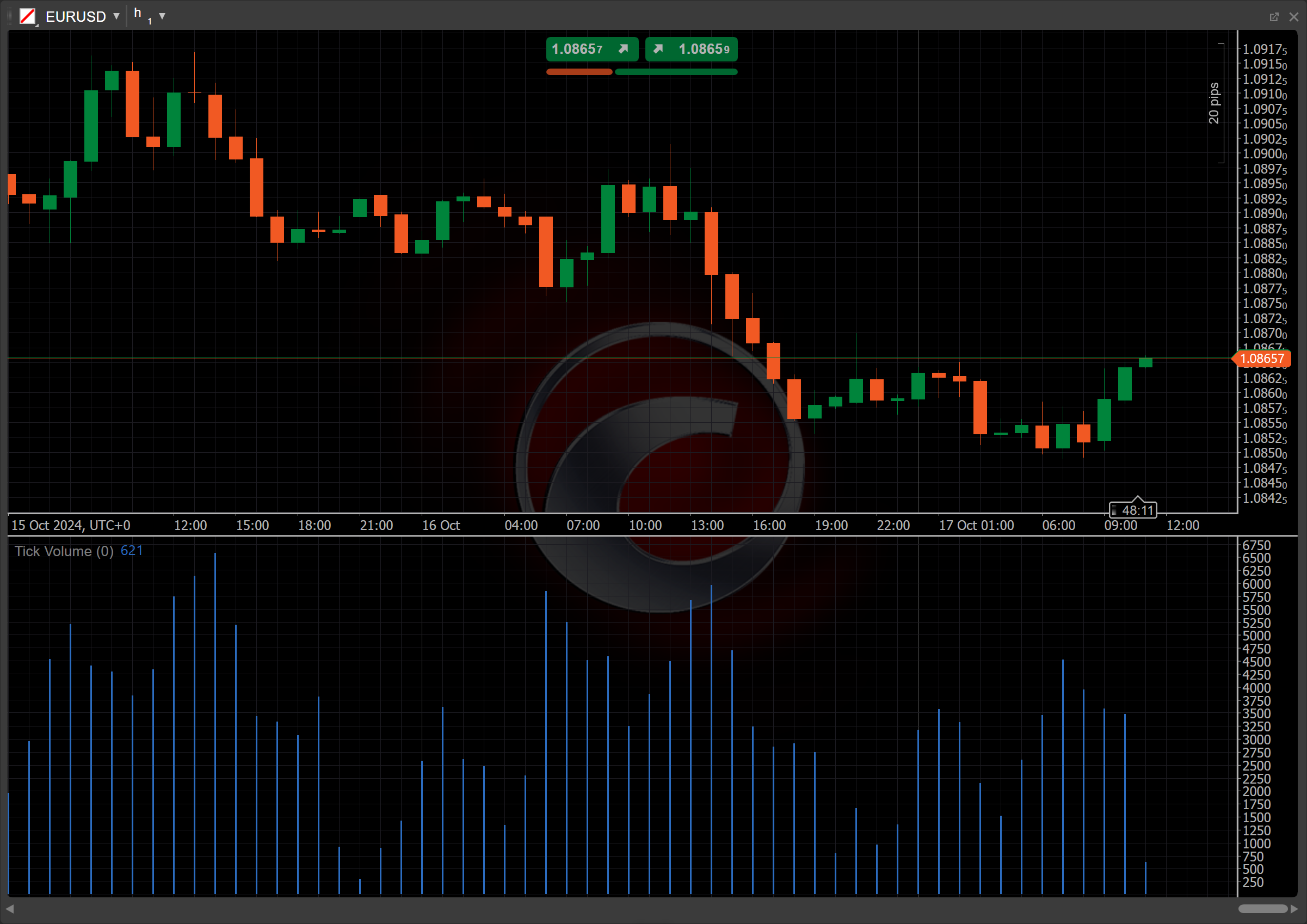
[Open live account](https://ctrader.com/brokers)
[Download cTrader](https://ctrader.com/download/)
History[¶](https://help.ctrader.com/knowledge-base/indicators/volume/tick-volume/#history "Permanent link")
------------------------------------------------------------------------------------------------------------
The Tick Volume indicator gained prominence with the rise of electronic trading and forex markets, where traditional volume data is often unavailable. It provides an alternative measure of market activity by counting price changes. Traders began using the Tick Volume in the late 1990s to gauge market momentum and refine trade decisions.
Calculations[¶](https://help.ctrader.com/knowledge-base/indicators/volume/tick-volume/#calculations "Permanent link")
----------------------------------------------------------------------------------------------------------------------
The Tick Volume is calculated by counting the number of price changes (ticks) that occur during a specified period and is updated with each price movement within that period.
Interpretation[¶](https://help.ctrader.com/knowledge-base/indicators/volume/tick-volume/#interpretation "Permanent link")
--------------------------------------------------------------------------------------------------------------------------
* **Growing and shrinking bars** – a growing Tick Volume suggests heightened market activity and increased momentum, potentially supporting a trend, while shrinking bars indicate reduced activity, signalling a possible decline in momentum or weakening of the current trend.
* **Divergence and convergence** – when the price is making new highs or lows while the Tick Volume does not confirm the movement, it suggests a potential reversal. When both the price and the Tick Volume move in the same direction, it indicates strong trend support.
* **Breakouts** – a significant spike in the Tick Volume during a price breakout often indicates strong conviction behind the movement, suggesting that the breakout may be sustained.
* **Shift** – by adjusting the shift parameter to alter the alignment of the Tick Volume bars with price data on the chart, you can explore how the Tick Volume readings correspond to past or future price movements.
Application[¶](https://help.ctrader.com/knowledge-base/indicators/volume/tick-volume/#application "Permanent link")
--------------------------------------------------------------------------------------------------------------------
* **Buy signal** – when the closing price exceeds the previous close, and the Tick Volume increases, indicating rising market participation and potential upward momentum, consider buying.
* **Sell signal** – when the closing price is lower than the previous closing price, and the Tick Volume rises, suggesting stronger bearish momentum, consider selling.
* **Exit strategies** – you may decide to exit a position when the Tick Volume starts to shrink, indicating declining momentum, which suggests the trend might be losing strength. Alternatively, you can use the Tick Volume spikes during volatile price movements as an alert to lock in profits.
* **Confirming trades** – the Tick Volume is often used alongside trend-following indicators like moving averages or the [**Relative Strength Index (RSI)**](https://help.ctrader.com/knowledge-base/indicators/oscillators/relative-strength-index/)
. For example, an increasing Tick Volume during a moving average crossover can confirm the strength of a new trend. Additionally, traders use the Tick Volume divergence to detect potential reversals when the price is rising, but the Tick Volume is declining.
Note
You can take advantage of algo trading, with cBots executing trades based on the signals from this indicator, as shown in our [**examples**](https://help.ctrader.com/ctrader-algo/references/Indicators/TickVolume/)
. Learn more about how to [**use indicators in cBots**](https://help.ctrader.com/ctrader-algo/articles/for-developers/how-to-use-indicators-in-cbots/)
.
Limitations[¶](https://help.ctrader.com/knowledge-base/indicators/volume/tick-volume/#limitations "Permanent link")
--------------------------------------------------------------------------------------------------------------------
The Tick Volume reflects the frequency of price changes, not the actual traded volume, which may limit its accuracy in certain markets. It can also generate false signals during low liquidity periods or erratic market conditions. Additionally, it may not fully represent institutional trading activity.
Summary[¶](https://help.ctrader.com/knowledge-base/indicators/volume/tick-volume/#summary "Permanent link")
------------------------------------------------------------------------------------------------------------
The Tick Volume indicator measures market activity by counting price changes (ticks) over a specific period. It offers insights into momentum, trend strength, and potential reversals. Though useful for confirming trends and detecting breakouts, it reflects price movements rather than actual trade volume, which may limit its reliability, especially in volatile or low-liquidity markets.
[Open live account](https://ctrader.com/brokers)
[Download cTrader](https://ctrader.com/download/)
Back to top
---
# Positive Volume Index - Knowledge base
[Skip to content](https://help.ctrader.com/knowledge-base/indicators/volume/positive-volume-index/#positive-volume-index)
Positive Volume Index[¶](https://help.ctrader.com/knowledge-base/indicators/volume/positive-volume-index/#positive-volume-index "Permanent link")
==================================================================================================================================================
Definition[¶](https://help.ctrader.com/knowledge-base/indicators/volume/positive-volume-index/#definition "Permanent link")
----------------------------------------------------------------------------------------------------------------------------
The Positive Volume Index (PVI) is a technical analysis indicator that tracks price movements based on periods of increasing trading volume. It is often paired with the [**Negative Volume Index (NVI)**](https://help.ctrader.com/knowledge-base/indicators/volume/negative-volume-index/)
to assess market conditions. The PVI focuses on days when trading volume rises, under the assumption that uninformed or reactive traders are more active during high-volume periods. The PVI helps identify price trends in bullish markets and can signal shifts in market momentum when combined with other indicators.
MobileDesktop
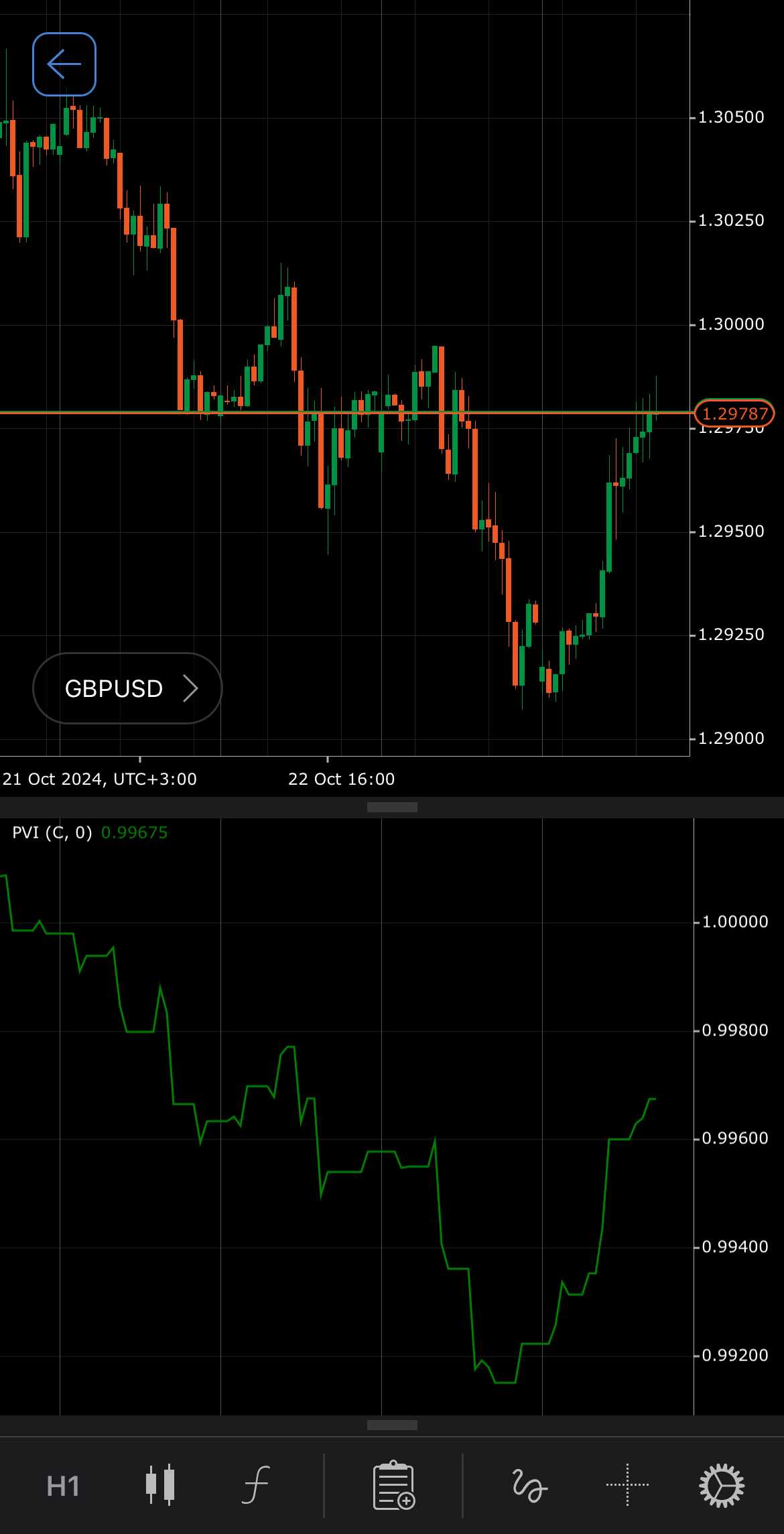
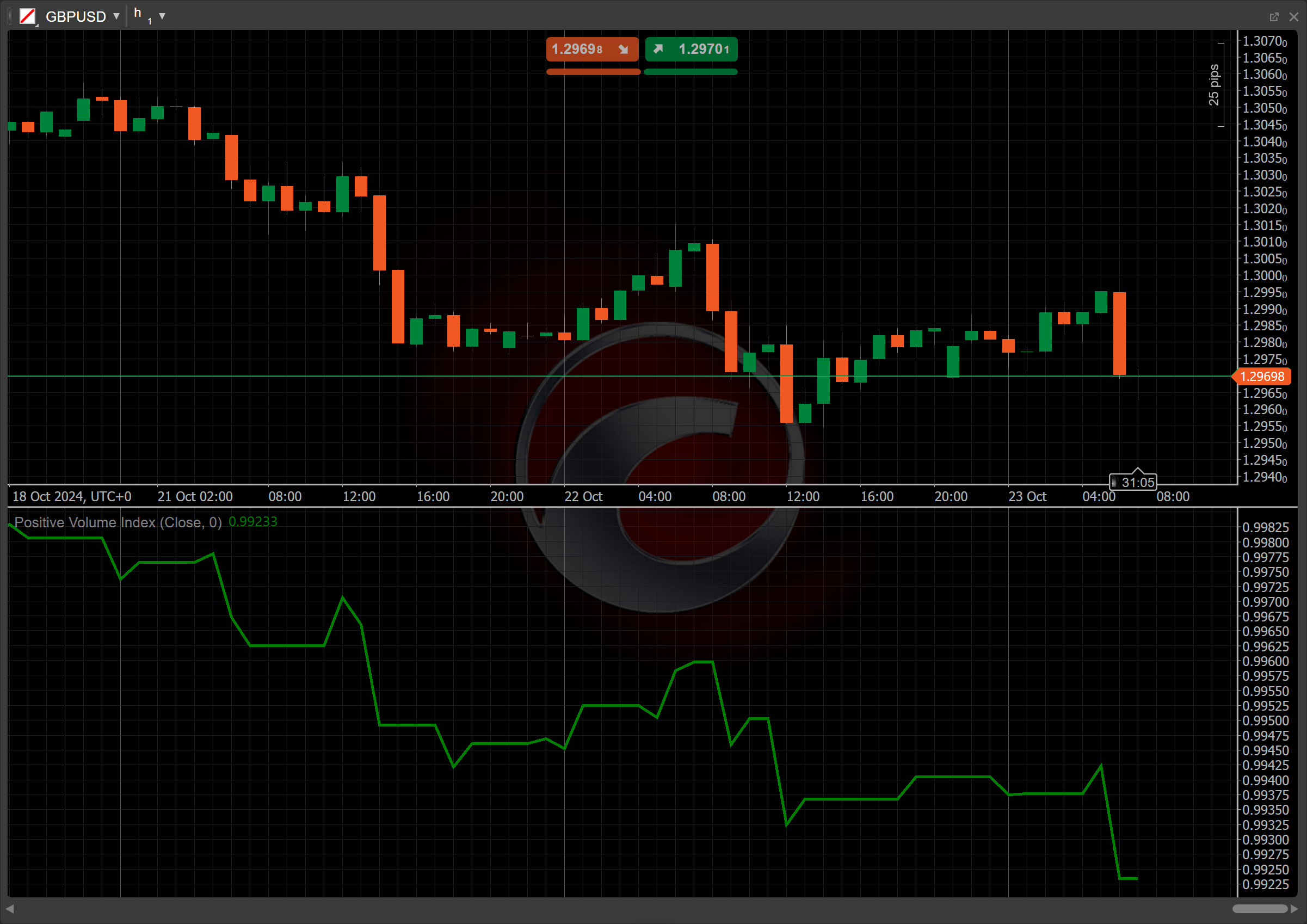
[Open live account](https://ctrader.com/brokers)
[Download cTrader](https://ctrader.com/download/)
History[¶](https://help.ctrader.com/knowledge-base/indicators/volume/positive-volume-index/#history "Permanent link")
----------------------------------------------------------------------------------------------------------------------
The PVI indicator was developed alongside the NVI indicator by Paul L. Dysart in the 1930s, focusing on price movements during periods of increasing trading volume. While Dysart emphasised informed trading on low-volume days with the NVI, the PVI was created to capture price changes driven by higher-volume activity. In 1965, Norman G. Fosback expanded on Dysart’s work, popularising both indices as complementary tools in technical analysis. The PVI is now widely used to identify market trends and shifts during high-volume periods.
Calculations[¶](https://help.ctrader.com/knowledge-base/indicators/volume/positive-volume-index/#calculations "Permanent link")
--------------------------------------------------------------------------------------------------------------------------------
To begin, the PVI baseline is set to a round number (usually 1000, 100 or 1) on the start date.
If the volume decreases in the following period, the PVI for that period will remain the same as that of the previous period. Conversely, if the volume increases during a given period, the PVI is calculated using the following formula:
\\\[ PVI\_t = PVI\_{t-1} + { { {P\_t - P\_{t-1} } \\over P\_{t-1} } \\times PVI\_{t-1} } \\\]
\\(PVI\_t\\) – the Positive Volume Index for the current period
\\(PVI\_{t-1}\\) – the Positive Volume Index for the previous period
\\(P\_t\\) – the closing price for the current period
\\(P\_{t-1}\\) – the closing price for the previous period
Interpretation[¶](https://help.ctrader.com/knowledge-base/indicators/volume/positive-volume-index/#interpretation "Permanent link")
------------------------------------------------------------------------------------------------------------------------------------
The default initial value of the PVI indicator is set to 1.
The main patterns of the indicator behaviour can be interpreted as follows:
* **Baseline crossovers** – when the PVI is above the baseline, it suggests that the price is rising during high-volume periods, which indicates strong market participation and bullish sentiment. When the PVI is below the baseline, it signals weaker price performance during periods of rising volume, suggesting bearish sentiment or increased selling pressure.
* **Crossovers** – when the PVI crosses above a moving average, such as a 255-day [**Simple Moving Average (SMA)**](https://help.ctrader.com/knowledge-base/indicators/trend/simple-moving-average/)
, it signals market strength and the potential start of a bullish trend. A crossover below the SMA indicates market weakness and the possibility of a bearish trend.
* **Divergence** – if prices are rising while the PVI is falling, it may indicate underlying weakness in the market, signalling a potential downward reversal. Conversely, if prices are falling while the PVI is rising, it could suggest hidden strength and a possible upward reversal.
* **Reversal points** – significant changes in the PVI, particularly when paired with other indicators or volume surges, may signal that the current trend (either bullish or bearish) is about to reverse.
* **Shift** – by adjusting the shift parameter to alter the alignment of the PVI indicator with price data on the chart, you can explore how the PVI readings correspond to past or future price movements.
Application[¶](https://help.ctrader.com/knowledge-base/indicators/volume/positive-volume-index/#application "Permanent link")
------------------------------------------------------------------------------------------------------------------------------
* **Buy signal** – consider placing a buy order when the PVI crosses above a moving average, indicating bullish momentum during high-volume periods. A bullish divergence (for example, rising PVI or falling price) can also signal a potential buy opportunity.
* **Sell signal** – consider placing a sell order when the PVI crosses below a moving average or during a bearish divergence (for example, falling PVI or rising price), indicating potential weakness.
* **Stop-loss placement** – for buy positions, a stop loss can be set just below key support levels, recent lows, or where the PVI crosses above the moving average. For sell positions, a stop loss is placed above resistance levels or just above the point where the PVI crosses below the moving average.
* **Exit strategies** – for long positions, consider exiting when the PVI flattens or starts to fall after a period of rising, especially if it drops below a moving average or shows a bearish divergence. For short positions, an exit might be appropriate when the PVI begins to rise or crosses back above a moving average, signalling a potential bullish reversal.
* **Confirming trades** – consider combining the PVI with the NVI for stronger trade signals during complementary moves. Using moving averages (SMA or EMA) can confirm signals, particularly when both the PVI and the price are above or below the moving average.
Note
You can take advantage of algo trading, with cBots executing trades based on the signals from this indicator, as shown in our [**examples**](https://help.ctrader.com/ctrader-algo/references/Indicators/PositiveVolumeIndex/)
. Learn more about how to [**use indicators in cBots**](https://help.ctrader.com/ctrader-algo/articles/for-developers/how-to-use-indicators-in-cbots/)
.
Limitations[¶](https://help.ctrader.com/knowledge-base/indicators/volume/positive-volume-index/#limitations "Permanent link")
------------------------------------------------------------------------------------------------------------------------------
The reliance on volume data means the PVI may not consistently capture true market sentiment, leading to possible misinterpretations. Additionally, the PVI can lag in signalling trends, resulting in delayed responses to market movements. It may generate false signals during periods of high volatility, as price movements can be influenced by factors unrelated to volume, limiting its effectiveness in rapidly changing markets. Furthermore, the PVI may overlook important price actions that occur during low-volume periods, potentially missing critical market shifts.
Summary[¶](https://help.ctrader.com/knowledge-base/indicators/volume/positive-volume-index/#summary "Permanent link")
----------------------------------------------------------------------------------------------------------------------
The Positive Volume Index indicator tracks price changes on high-volume days, based on the premise that uninformed traders react during these periods. If the volume increases, the PVI is adjusted using the percentage change in price; if the volume decreases, it remains unchanged. The PVI helps identify long-term trends, with a rising PVI indicating bullish conditions. It is frequently used alongside other indicators, such as the Negative Volume Index, to confirm trends or reversals in the market.
[Open live account](https://ctrader.com/brokers)
[Download cTrader](https://ctrader.com/download/)
Back to top
---
# Negative Volume Index - Knowledge base
[Skip to content](https://help.ctrader.com/knowledge-base/indicators/volume/negative-volume-index/#negative-volume-index)
Negative Volume Index[¶](https://help.ctrader.com/knowledge-base/indicators/volume/negative-volume-index/#negative-volume-index "Permanent link")
==================================================================================================================================================
Definition[¶](https://help.ctrader.com/knowledge-base/indicators/volume/negative-volume-index/#definition "Permanent link")
----------------------------------------------------------------------------------------------------------------------------
The Negative Volume Index (NVI) is a technical analysis indicator that measures price trends based on changes in trading volume. This indicator is often used in conjunction with the [**Positive Volume Index (PVI)**](https://help.ctrader.com/knowledge-base/indicators/volume/positive-volume-index/)
to identify bull markets. It focuses specifically on days when volume decreases, under the premise that informed investors are more likely to trade during these periods. The indicator helps identify long-term market trends and potential reversals.
MobileDesktop
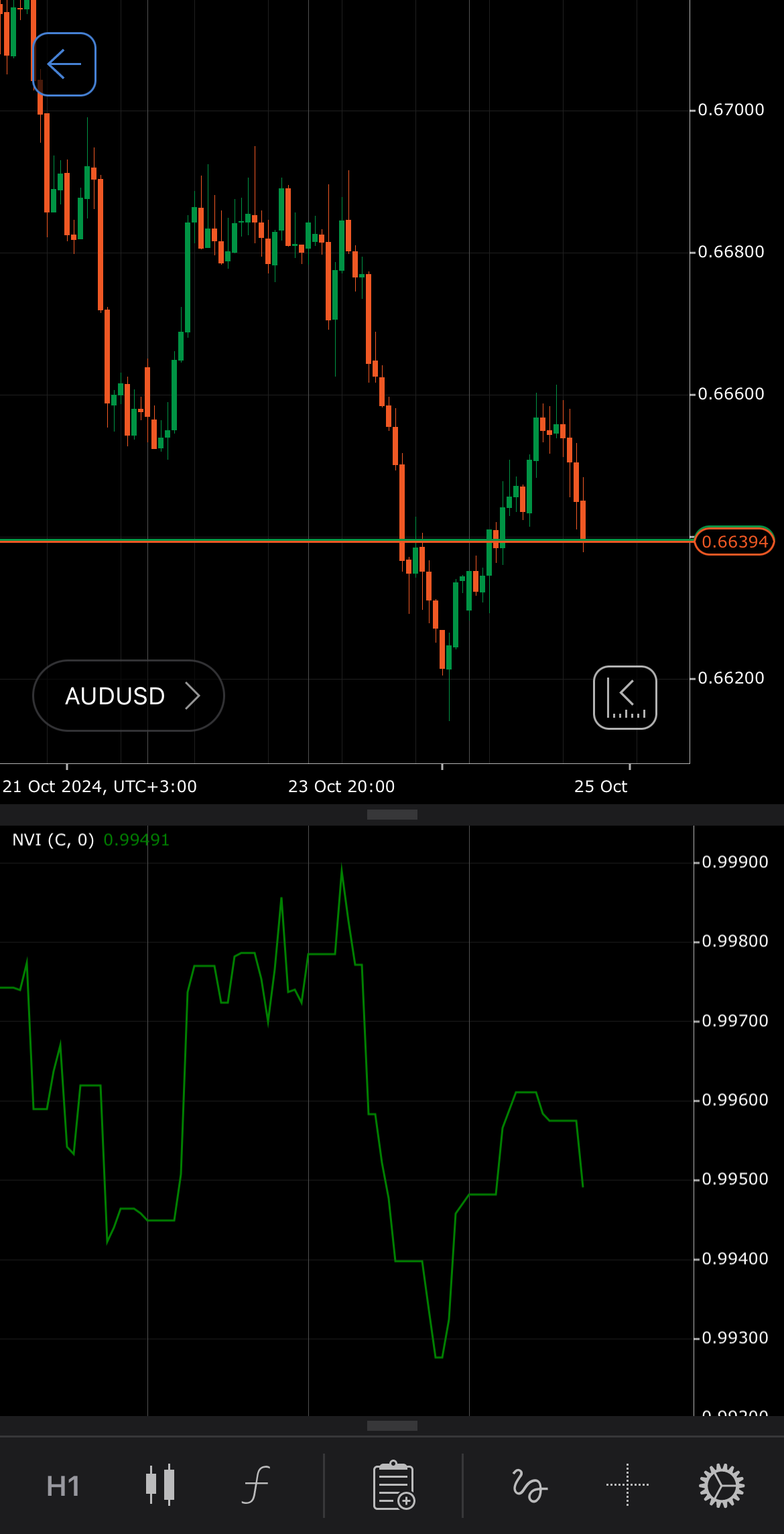
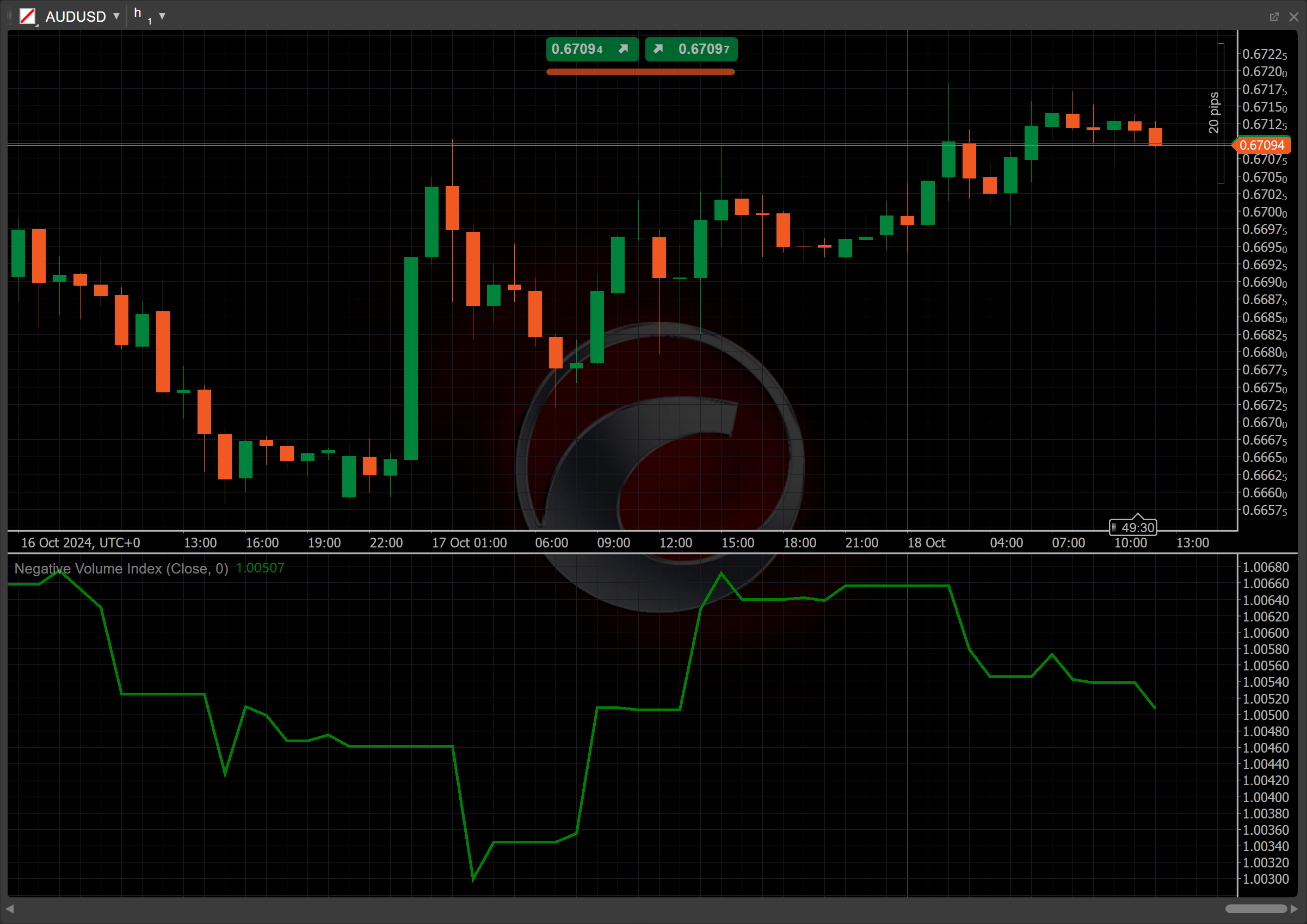
[Open live account](https://ctrader.com/brokers)
[Download cTrader](https://ctrader.com/download/)
History[¶](https://help.ctrader.com/knowledge-base/indicators/volume/negative-volume-index/#history "Permanent link")
----------------------------------------------------------------------------------------------------------------------
The NVI indicator was first developed by Paul L. Dysart in the 1930s, focusing on the relationship between price movements and trading volume. Dysart theorised that significant price changes occur on days of low trading volume, indicating informed trading. In 1965, Norman G. Fosback popularised the NVI, expanding its application in technical analysis. This indicator has since become essential for traders to identify market trends based on volume dynamics.
Calculations[¶](https://help.ctrader.com/knowledge-base/indicators/volume/negative-volume-index/#calculations "Permanent link")
--------------------------------------------------------------------------------------------------------------------------------
To begin, the NVI baseline is set to a round number (usually 1000, 100 or 1) on the start date.
If the volume increases in the following period, the NVI for that period will remain the same as that of the previous period. Conversely, if the volume decreases during a given period, the NVI is calculated using the following formula:
\\\[ NVI\_t = NVI\_{t-1} + { { {P\_t - P\_{t-1} } \\over P\_{t-1} } \\times NVI\_{t-1} } \\\]
\\(NVI\_t\\) – the Negative Volume Index for the current period
\\(NVI\_{t-1}\\) – the Negative Volume Index for the previous period
\\(P\_t\\) – the closing price for the current period
\\(P\_{t-1}\\) – the closing price for the previous period
Interpretation[¶](https://help.ctrader.com/knowledge-base/indicators/volume/negative-volume-index/#interpretation "Permanent link")
------------------------------------------------------------------------------------------------------------------------------------
In our particular case, the default initial value of the NVI indicator is set to 1.
The main patterns of the indicator behaviour can be interpreted as follows:
* **Baseline crossovers** – when the NVI is above baseline, it suggests that the price is performing well during periods of declining volume, which may indicate a positive trend. A higher NVI generally points to bullish market sentiment and long-term strength. When the NVI is below baseline, it can indicate weakness in the market. Price performance during periods of declining volume is poor, which may suggest bearish sentiment.
* **Crossovers** – when the NVI crosses above a moving average, such as a 255-day [**Simple Moving Average (SMA)**](https://help.ctrader.com/knowledge-base/indicators/trend/simple-moving-average/)
, it signals strength in the market and could indicate the start of a bullish trend. A crossover below the SMA suggests weakness and potential for a bearish trend.
* **Divergence** – if prices are falling while the NVI is rising, this could indicate hidden strength in the market, and a potential upward reversal might follow. If prices are rising while the NVI is falling, it suggests underlying weakness, and the trend might reverse downwards.
* **Reversal points** – significant moves in the NVI, especially when paired with other indicators or volume surges, may indicate that the current trend (either bullish or bearish) is about to reverse.
* **Shift** – by adjusting the shift parameter to alter the alignment of the NVI indicator with price data on the chart, you can explore how the NVI readings correspond to past or future price movements.
Application[¶](https://help.ctrader.com/knowledge-base/indicators/volume/negative-volume-index/#application "Permanent link")
------------------------------------------------------------------------------------------------------------------------------
* **Buy signal** – traders can look for buying opportunities when the NVI crosses above a moving average, indicating bullish momentum during low-volume periods. A bullish divergence between a rising NVI and a falling price can also signal a buy.
* **Sell signal** – traders can look for selling opportunities when the NVI crosses below a moving average or during a bearish divergence between a falling NVI and a rising price, suggesting weakness.
* **Stop-loss placement** – a stop loss for buy positions can be set just below key support levels, recent lows or where the NVI crosses above the moving average. For sell positions, a stop loss is placed above resistance levels or just above where the NVI crosses below the moving average.
* **Exit strategies** – for long positions, consider exiting when the NVI starts to flatten or fall after a period of rising, particularly if it drops below a moving average or if there is a bearish divergence. For short positions, an exit might be appropriate when the NVI begins to rise or crosses back above a moving average, signalling a potential reversal of the bearish trend.
* **Confirming trades** – consider combining the NVI with the PVI to strengthen trade signals during complementary moves. Using moving averages (SMA or EMA) can also confirm signals, especially when both the NVI and the price are above or below the moving average.
Note
You can take advantage of algo trading, with cBots executing trades based on the signals from this indicator, as shown in our [**examples**](https://help.ctrader.com/ctrader-algo/references/Indicators/NegativeVolumeIndex/)
. Learn more about how to [**use indicators in cBots**](https://help.ctrader.com/ctrader-algo/articles/for-developers/how-to-use-indicators-in-cbots/)
.
Limitations[¶](https://help.ctrader.com/knowledge-base/indicators/volume/negative-volume-index/#limitations "Permanent link")
------------------------------------------------------------------------------------------------------------------------------
The reliance on volume data means the indicator may not always reflect true market sentiment, leading to potential misinterpretations. Additionally, the NVI can lag in signalling trends, providing delayed responses to market movements. It may also generate false signals during low-volume periods, limiting its effectiveness in volatile or rapidly changing markets.
Summary[¶](https://help.ctrader.com/knowledge-base/indicators/volume/negative-volume-index/#summary "Permanent link")
----------------------------------------------------------------------------------------------------------------------
The Negative Volume Index indicator tracks price changes on low-volume days, based on the idea that informed traders act during these periods. If the volume decreases, the NVI is adjusted using the percentage change in price; if the volume increases, it remains unchanged. The NVI helps identify long-term trends, with a rising NVI suggesting bullish conditions. It is often used alongside other indicators, such as the PVI, to confirm trends or reversals in markets.
[Open live account](https://ctrader.com/brokers)
[Download cTrader](https://ctrader.com/download/)
Back to top
---
# On Balance Volume - Knowledge base
[Skip to content](https://help.ctrader.com/knowledge-base/indicators/volume/on-balance-volume/#on-balance-volume)
On Balance Volume[¶](https://help.ctrader.com/knowledge-base/indicators/volume/on-balance-volume/#on-balance-volume "Permanent link")
======================================================================================================================================
Definition[¶](https://help.ctrader.com/knowledge-base/indicators/volume/on-balance-volume/#definition "Permanent link")
------------------------------------------------------------------------------------------------------------------------
The On Balance Volume (OBV) is a technical analysis indicator that uses the volume flow to predict symbol price movements. It operates on the principle that volume precedes price changes; an increasing OBV suggests strong buying pressure, while a decreasing OBV indicates selling pressure. By analysing the OBV line alongside price trends, traders can confirm potential reversals or continuations in the market, enhancing their trading strategies.
MobileDesktop
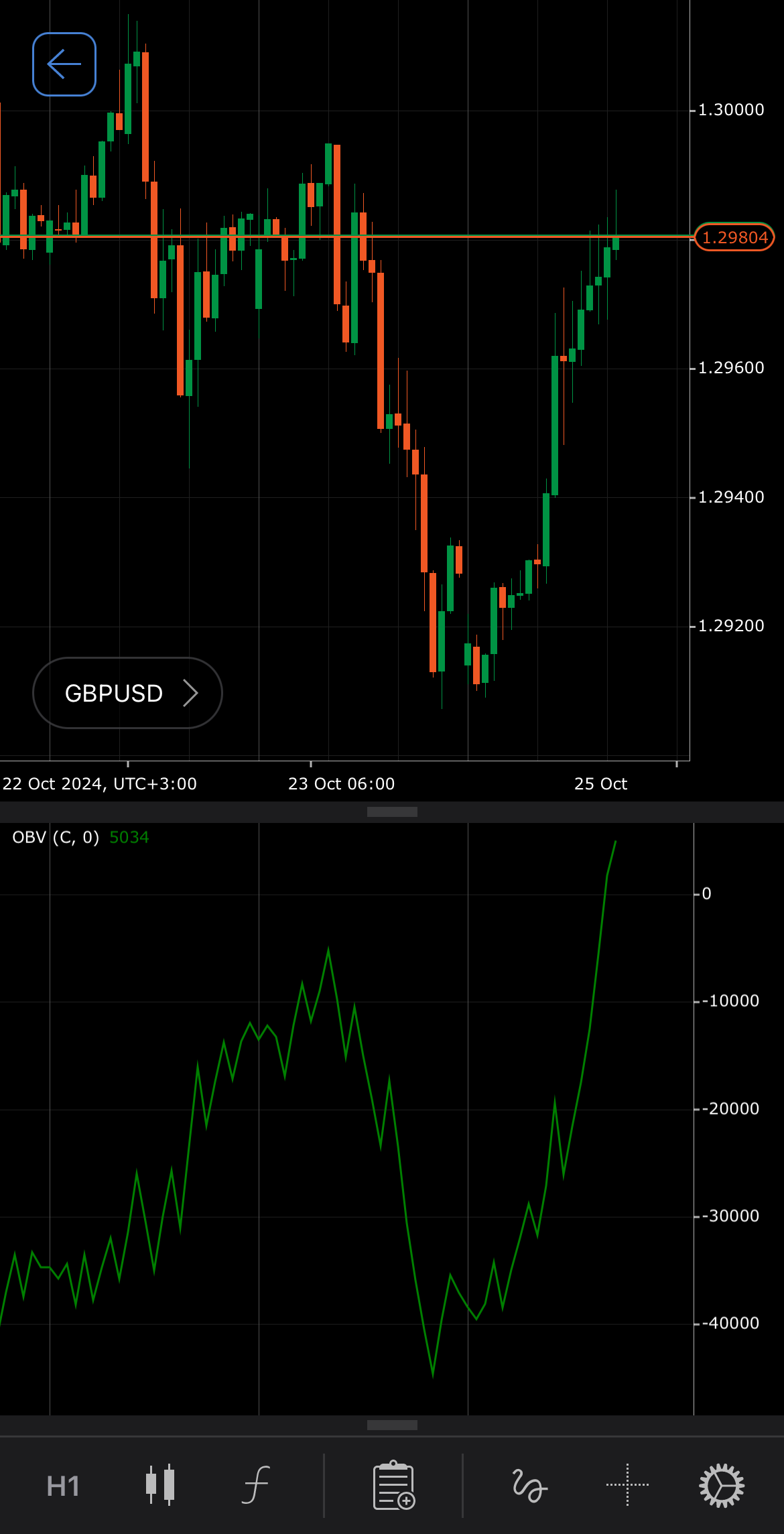
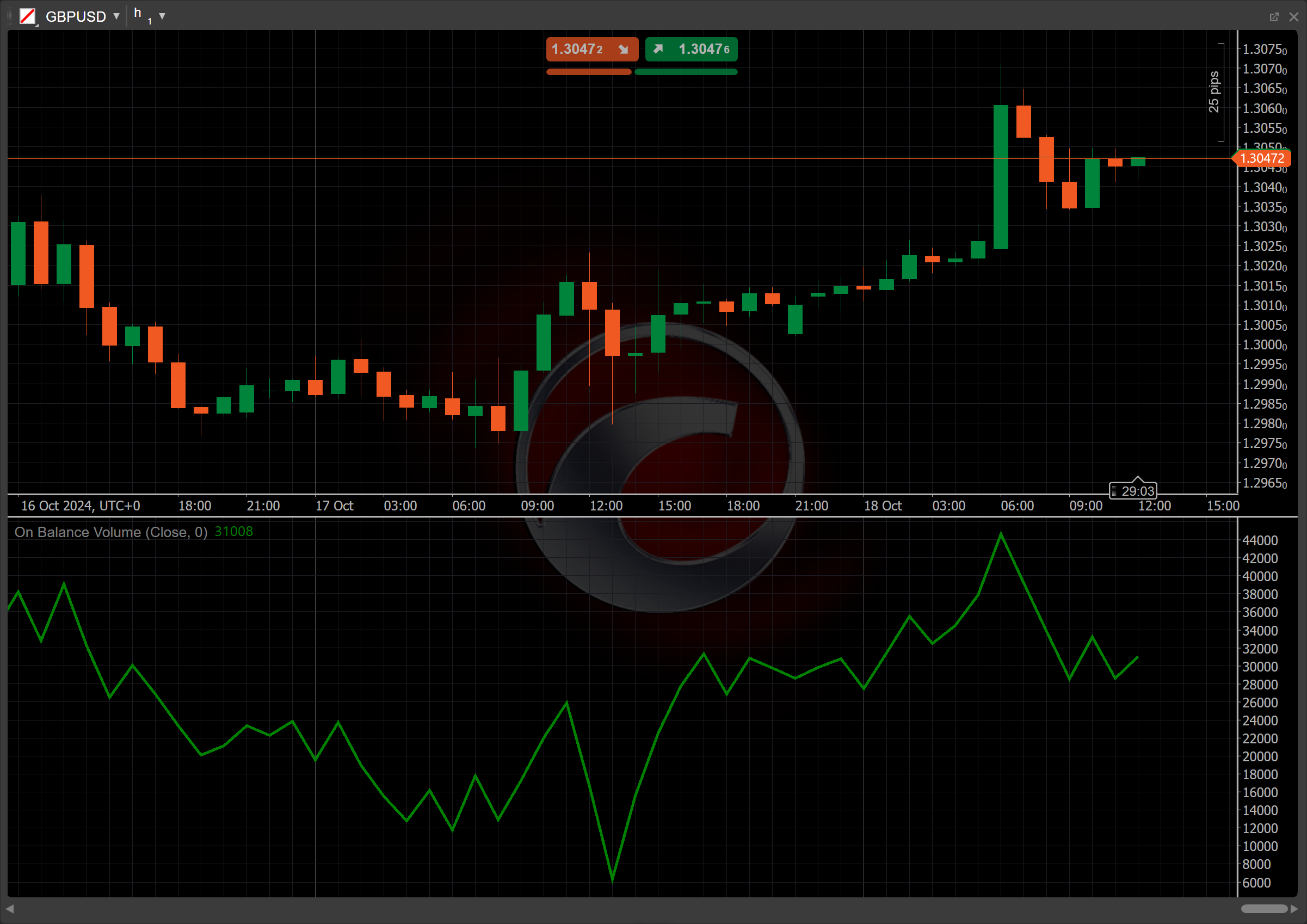
[Open live account](https://ctrader.com/brokers)
[Download cTrader](https://ctrader.com/download/)
History[¶](https://help.ctrader.com/knowledge-base/indicators/volume/on-balance-volume/#history "Permanent link")
------------------------------------------------------------------------------------------------------------------
The OBV indicator was described by Joseph Granville in his 1963 book, "Granville's New Key to Stock Market Profits". Granville asserted that volume is a crucial factor and a dependable indicator of stock price movements. He introduced the concept of On Balance Volume as a means to relate volume to price movements. In his book, he described the predictions generated by the OBV as “a spring being wound tightly”.
Calculations[¶](https://help.ctrader.com/knowledge-base/indicators/volume/on-balance-volume/#calculations "Permanent link")
----------------------------------------------------------------------------------------------------------------------------
The calculation of the OBV indicator is based on the current closing price of the symbol compared to the closing price of the previous period:
1. If \\(Close \\gt Close\_{prev}\\) then \\(OBV\\) = \\(OBV\_{prev}\\) + \\(TickVolume\\)
2. If \\(Close = Close\_{prev}\\) then \\(OBV\\) = \\(OBV\_{prev}\\)
3. If \\(Close \\lt Close\_{prev}\\) then \\(OBV\\) = \\(OBV\_{prev}\\) - \\(TickVolume\\)
\\(OBV\\) – the current on-balance volume level
\\(OBV\_{prev}\\) – the previous on-balance volume level
\\(Close\\) – the current closing price
\\(Close\_{prev}\\) – the previous closing price
\\(TickVolume\\) – the current tick volume
Interpretation[¶](https://help.ctrader.com/knowledge-base/indicators/volume/on-balance-volume/#interpretation "Permanent link")
--------------------------------------------------------------------------------------------------------------------------------
The initial value of the OBV is typically set at zero, serving as the baseline for subsequent calculations. The following interpretations of the indicator are generally applicable:
* **Rising and falling** – an increasing OBV reflects strong buying interest and positive volume pressure that imply that prices are likely to rise. Conversely, a declining OBV reflects negative volume pressure that can foreshadow lower prices.
* **Divergence** – prices are likely to rise when the OBV is increasing while prices are flat or declining, indicating a potential bullish trend. Conversely, prices are likely to fall if the OBV is decreasing while prices are flat or rising, suggesting a potential bearish trend.
Application[¶](https://help.ctrader.com/knowledge-base/indicators/volume/on-balance-volume/#application "Permanent link")
--------------------------------------------------------------------------------------------------------------------------
* **Buy signal** – a potential buying opportunity occurs when the OBV rises while the price is flat or in a downtrend, indicating building buying pressure. Traders may enter a long position when the price breaks above a recent resistance level, confirming the bullish sentiment from rising OBV.
* **Sell signal** – a potential selling opportunity arises when the OBV declines while the price is flat or trending upward, signalling increasing selling pressure. Traders might consider short positions when the price breaks below a support level, validating the bearish outlook suggested by falling OBV.
* **Stop-loss placement** – for long positions, a stop loss can be set below recent swing lows or support levels to exit if the price falls and the OBV declines. For shorts, a stop loss can be placed above swing highs or resistance levels to limit losses if the OBV starts to rise.
* **Exit strategies** – for long positions, if the OBV falls while prices rise, it may indicate a weakening trend, suggesting an exit. For short positions, rising OBV after a price drop may indicate a good exit point, as increased buying interest could lead to price rises.
* **Confirming trades** – as with all indicators, it is important to use the OBV in conjunction with other aspects of technical analysis. The OBV can be combined with basic pattern analysis or to confirm signals from momentum oscillators. Also, the [**Simple Moving Average (SMA)**](https://help.ctrader.com/knowledge-base/indicators/trend/simple-moving-average/)
of the OBV line can help filter false signals and provide further confirmation of trends.
Note
You can take advantage of algo trading, with cBots executing trades based on the signals from this indicator, as shown in our [**examples**](https://help.ctrader.com/ctrader-algo/references/Indicators/OnBalanceVolume/)
. Learn more about how to [**use indicators in cBots**](https://help.ctrader.com/ctrader-algo/articles/for-developers/how-to-use-indicators-in-cbots/)
.
Limitations[¶](https://help.ctrader.com/knowledge-base/indicators/volume/on-balance-volume/#limitations "Permanent link")
--------------------------------------------------------------------------------------------------------------------------
The OBV indicator has limitations as a leading indicator, providing predictions without insights into past price movements, leading to potential false signals. To improve accuracy, it can be combined with lagging indicators, such as moving averages, to confirm breakouts. Furthermore, significant volume spikes due to events like earnings surprises or index changes can skew the OBV, reducing its reliability for identifying trends.
Summary[¶](https://help.ctrader.com/knowledge-base/indicators/volume/on-balance-volume/#summary "Permanent link")
------------------------------------------------------------------------------------------------------------------
The On Balance Volume is a technical analysis indicator that correlates volume with price movement to forecast trends. Based on the premise that volume precedes price changes, a rising OBV indicates buying pressure, while a falling OBV suggests selling pressure. Traders use the OBV for discovering buy and sell signals to enhance decision-making in various market conditions and to identify potential price reversals and the strength of trends.
[Open live account](https://ctrader.com/brokers)
[Download cTrader](https://ctrader.com/download/)
Back to top
---
# Fractals - Knowledge base
[Skip to content](https://help.ctrader.com/knowledge-base/indicators/other/fractals/#fractals)
Fractals[¶](https://help.ctrader.com/knowledge-base/indicators/other/fractals/#fractals "Permanent link")
==========================================================================================================
Definition[¶](https://help.ctrader.com/knowledge-base/indicators/other/fractals/#definition "Permanent link")
--------------------------------------------------------------------------------------------------------------
The Fractals indicator is a technical analysis tool that identifies potential turning points or reversal patterns in a market by highlighting local highs and lows (called fractals) over a specified period. It helps traders spot patterns in price action that signal shifts in market direction, such as tops (up fractals) and bottoms (down fractals).
MobileDesktop
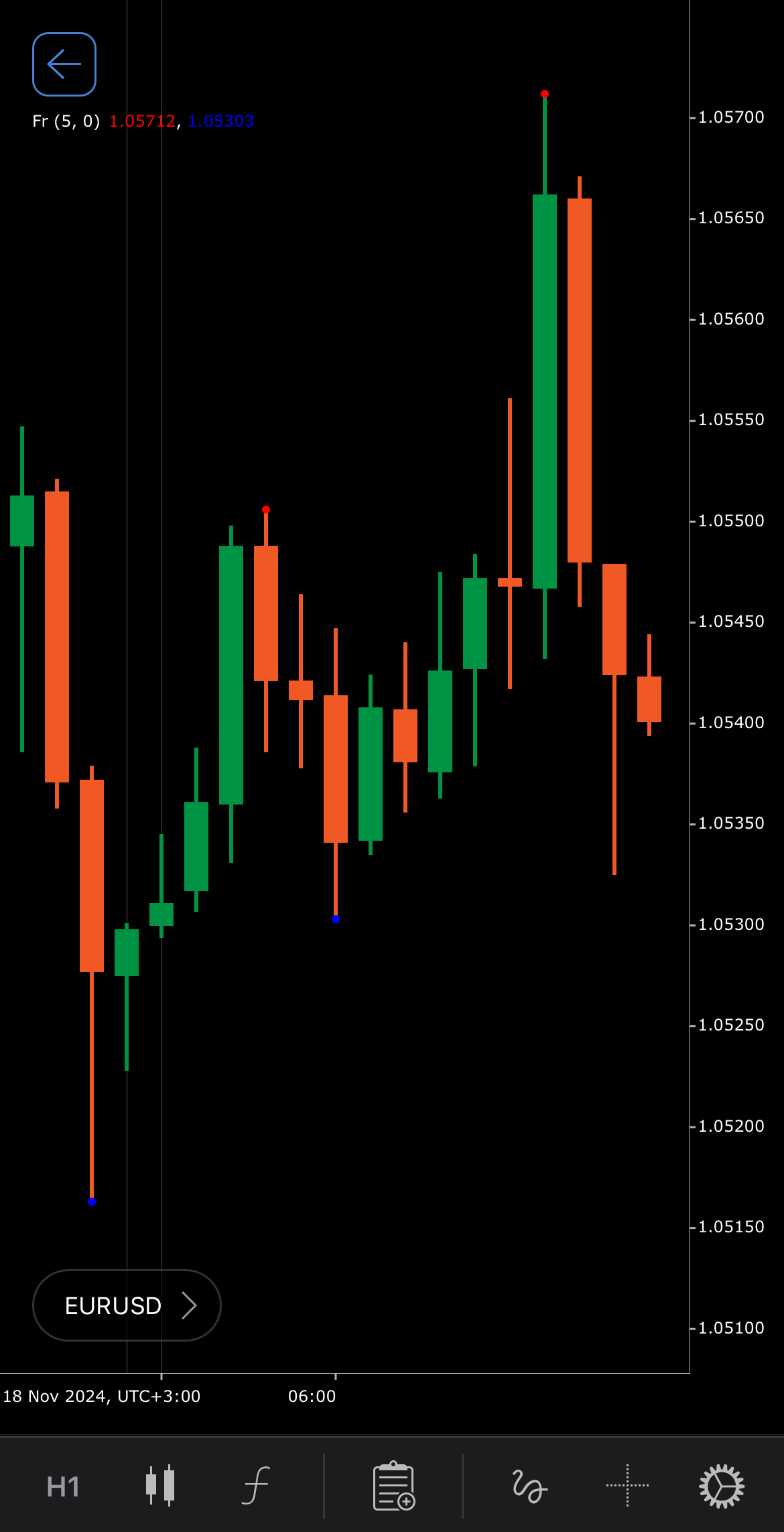
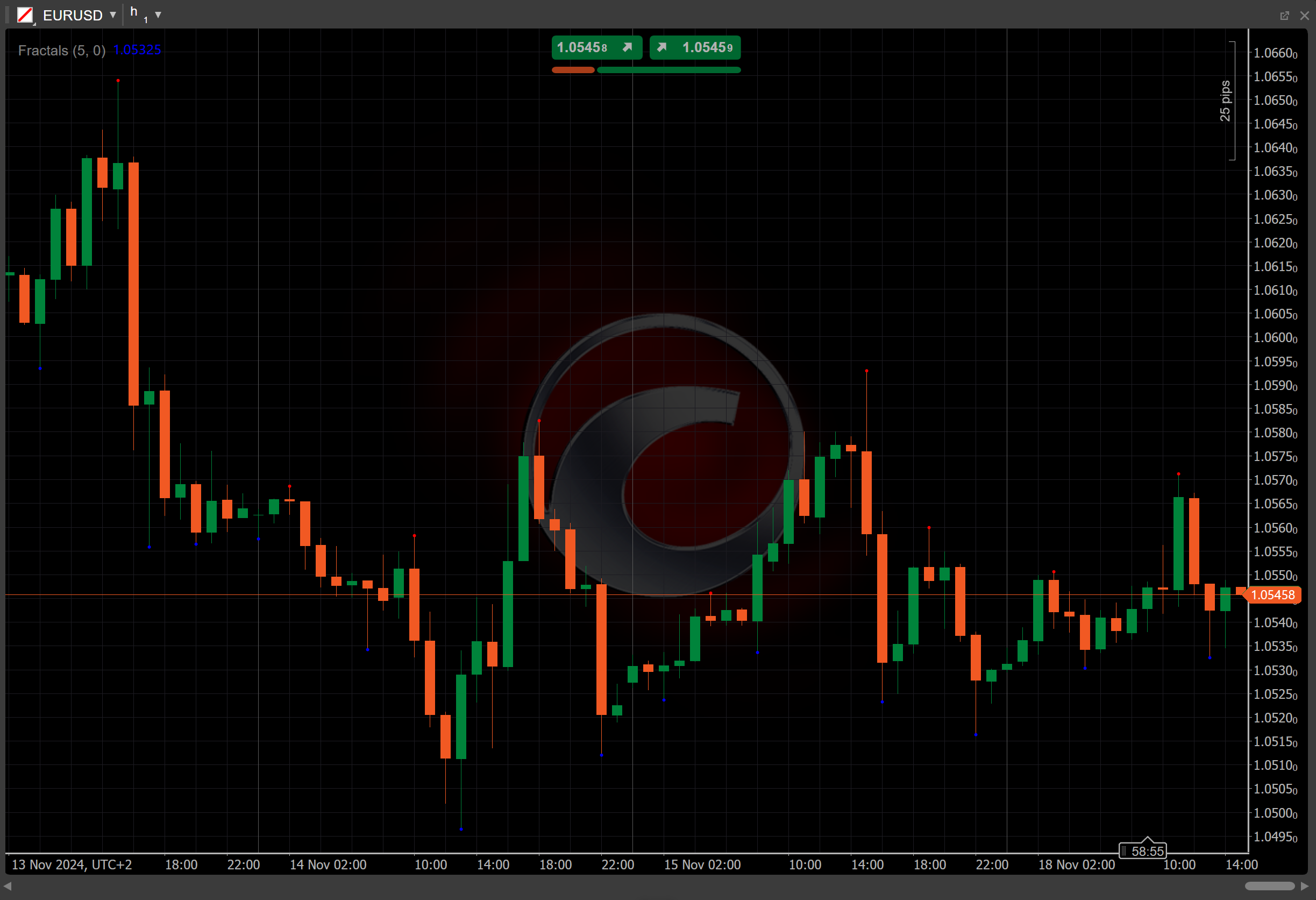
[Open live account](https://ctrader.com/brokers)
[Download cTrader](https://ctrader.com/download/)
History[¶](https://help.ctrader.com/knowledge-base/indicators/other/fractals/#history "Permanent link")
--------------------------------------------------------------------------------------------------------
The Fractals indicator was developed by Bill Williams, a well-known trader and author who introduced the indicator in his book "Trading Chaos", published in 1995. The concept of fractals stems from fractal geometry, which is used to analyse repeating patterns in nature. Williams applied this concept to financial markets to create an indicator that identifies key points where market reversals may occur.
Calculations[¶](https://help.ctrader.com/knowledge-base/indicators/other/fractals/#calculations "Permanent link")
------------------------------------------------------------------------------------------------------------------
\\(Up\\) \\(Fractal\\) – the middle price in the given period must be higher than the prices on both sides of it. If this condition is met, the middle price is marked as an up fractal.
\\\[ Middle\\ Price\\ at\\ i > High\\ at\\ (i−1),\\ (i+1),\\ (i−2),\\ (i+2),\\ …,\\ (i−(n−1)),\\ (i+(n−1)) \\\]
\\(Down\\) \\(Fractal\\) – the middle price in the given period must be lower than the prices on both sides of it. If this condition is met, the middle price is marked as a down fractal.
\\\[ Middle\\ Price\\ at\\ i < Low\\ at\\ (i−1),\\ (i+1),\\ (i−2),\\ (i+2),\\ …,\\ (i−(n−1)),\\ (i+(n−1)) \\\]
\\(n\\) – the number of periods (usually odd)
\\(i\\) – the index or the individual period
Interpretation[¶](https://help.ctrader.com/knowledge-base/indicators/other/fractals/#interpretation "Permanent link")
----------------------------------------------------------------------------------------------------------------------
* **Up Fractals** – an up fractal appears when the price has reached a local high. Traders may use this as a potential sell signal or to identify resistance levels in the market.
* **Down Fractals** – a down fractal forms when the price hits a local low, potentially signalling a buy opportunity or highlighting support levels.
* **Shift** – by adjusting the shift parameter to alter the alignment of the Fractals with price data on the chart, you can explore how the indicator readings correspond to past or future price movements.
Application[¶](https://help.ctrader.com/knowledge-base/indicators/other/fractals/#application "Permanent link")
----------------------------------------------------------------------------------------------------------------
* **Buy signal** – traders might consider buying when a down fractal is identified, suggesting a potential reversal to the upside.
* **Sell signal** – an up fractal can signal a potential reversal to the downside, giving traders an opportunity to sell or exit long positions.
* **Trend confirmation** – the Fractals can be used to confirm trends, particularly when combined with other indicators like moving averages to filter out noise and false signals.
* **Combining with other indicators** – traders are often advised to combine the Fractals with other indicators such as the [**Alligator**](https://help.ctrader.com/knowledge-base/indicators/other/alligator/)
, moving averages and the [**Bollinger Bands**](https://help.ctrader.com/knowledge-base/indicators/volatility/bollinger-bands/)
for improved accuracy.
Note
You can take advantage of algo trading, with cBots executing trades based on the signals from this indicator, as shown in our [**examples**](https://help.ctrader.com/ctrader-algo/references/Indicators/Fractals/)
. Learn more about how to [**use indicators in cBots**](https://help.ctrader.com/ctrader-algo/articles/for-developers/how-to-use-indicators-in-cbots/)
.
Limitations[¶](https://help.ctrader.com/knowledge-base/indicators/other/fractals/#limitations "Permanent link")
----------------------------------------------------------------------------------------------------------------
Fractals may generate lagging signals because it relies on historical price data to identify patterns. This lag may lead to delayed signals in fast-moving or volatile markets. In addition, it can produce false signals during periods of low volatility or sideways markets, where the price fluctuates without clear trends.
Summary[¶](https://help.ctrader.com/knowledge-base/indicators/other/fractals/#summary "Permanent link")
--------------------------------------------------------------------------------------------------------
The Fractals indicator helps traders identify potential market reversals by marking local highs and lows. Developed by Bill Williams, it is widely used to spot key turning points and confirm trends. Williams derived the concept of fractals from fractal geometry, which is used to analyse repeating patterns in nature. The Fractals indicator identifies up fractals and down fractals by comparing the current bar's high or low to the highs or lows of surrounding bars within a specified period.
[Open live account](https://ctrader.com/brokers)
[Download cTrader](https://ctrader.com/download/)
Back to top
---
# Chaikin Volatility - Knowledge base
[Skip to content](https://help.ctrader.com/knowledge-base/indicators/volatility/chaikin-volatility/#chaikin-volatility)
Chaikin Volatility[¶](https://help.ctrader.com/knowledge-base/indicators/volatility/chaikin-volatility/#chaikin-volatility "Permanent link")
=============================================================================================================================================
Definition[¶](https://help.ctrader.com/knowledge-base/indicators/volatility/chaikin-volatility/#definition "Permanent link")
-----------------------------------------------------------------------------------------------------------------------------
The Chaikin Volatility indicator (CV) is a technical analysis tool that measures the volatility of an asset by comparing the spread between high and low prices over a specified period. Unlike other volatility indicators, it does not track price direction but focuses solely on volatility changes, providing insights into potential market reversals or breakouts.
MobileDesktop
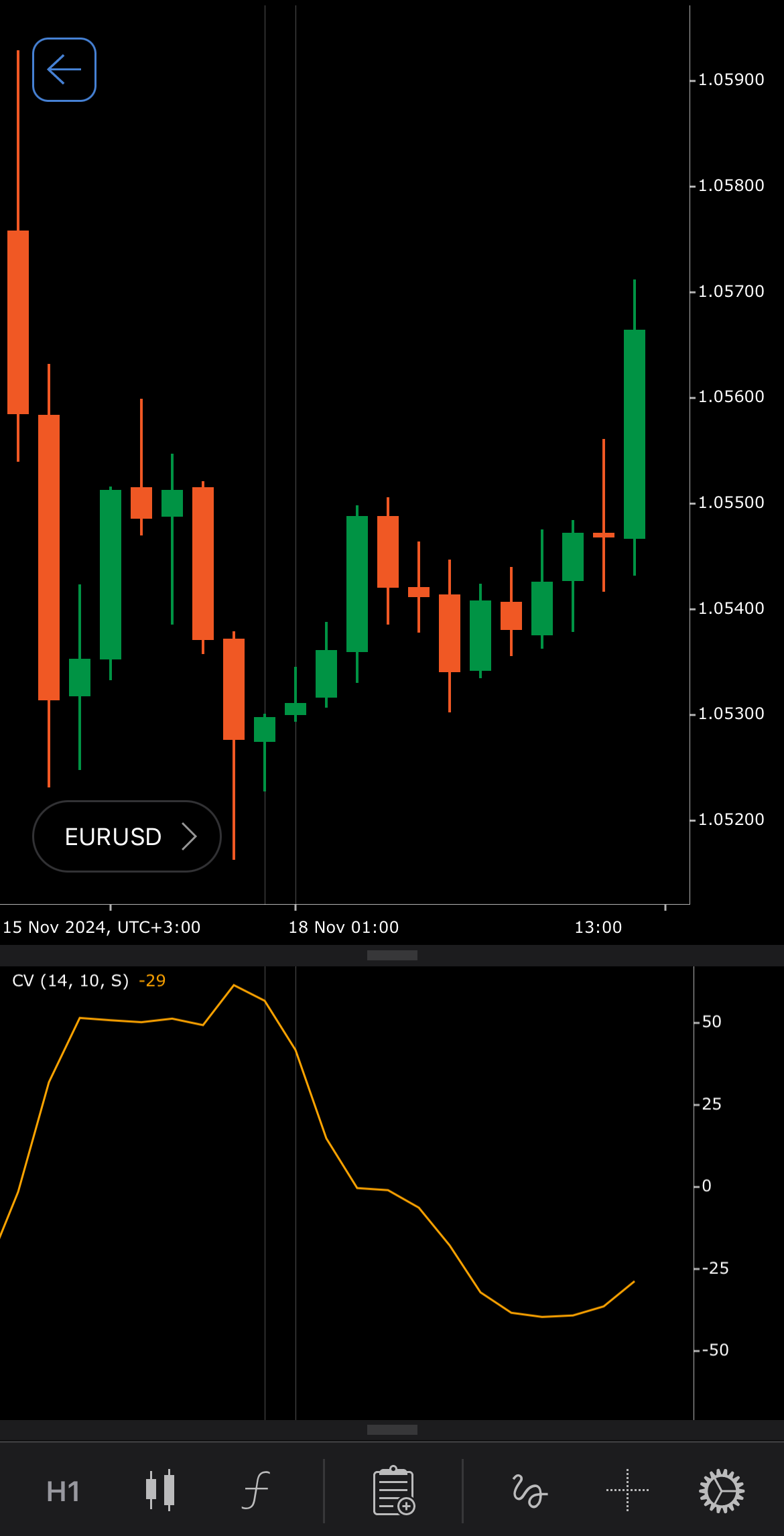
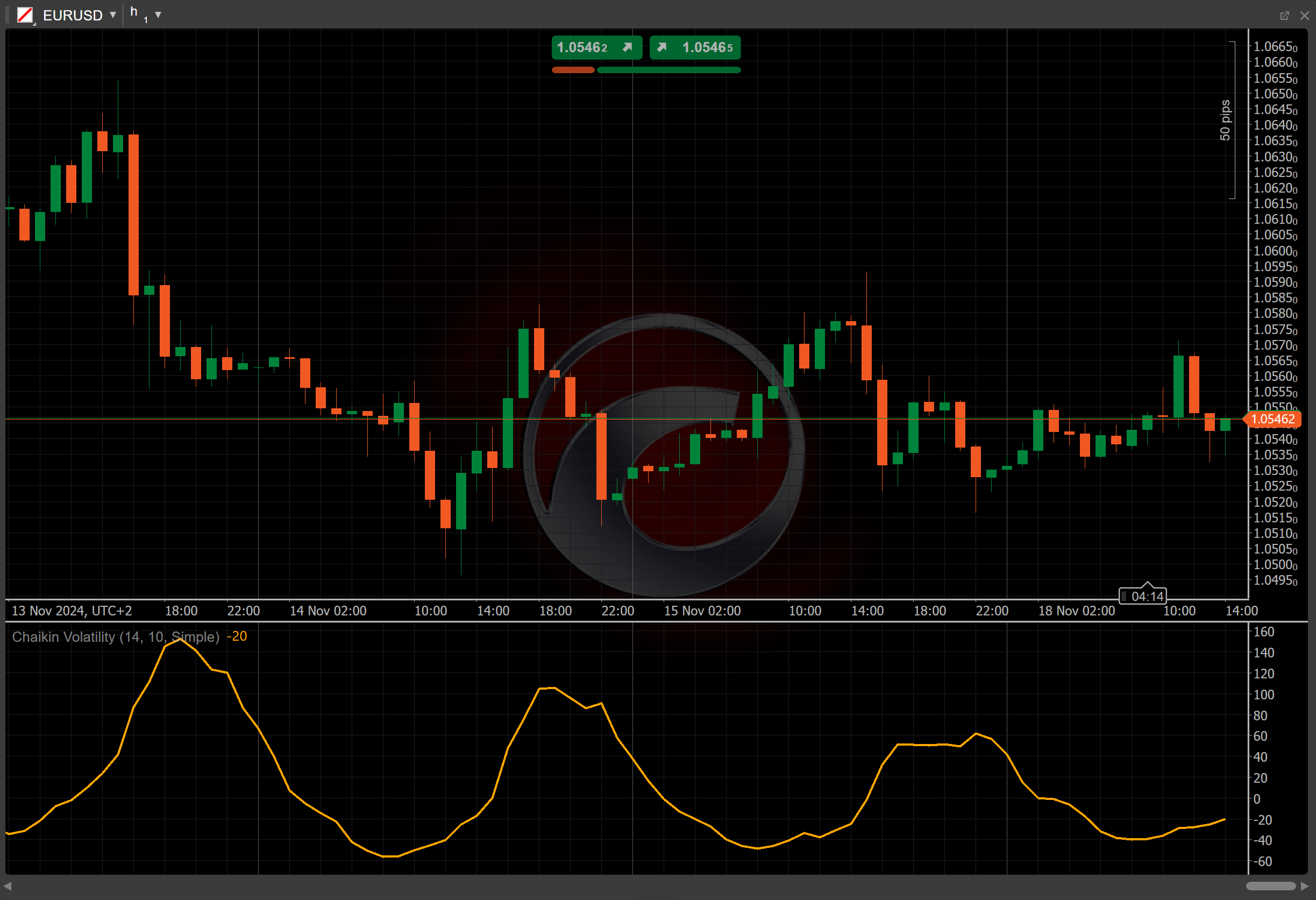
[Open live account](https://ctrader.com/brokers)
[Download cTrader](https://ctrader.com/download/)
History[¶](https://help.ctrader.com/knowledge-base/indicators/volatility/chaikin-volatility/#history "Permanent link")
-----------------------------------------------------------------------------------------------------------------------
The Chaikin Volatility indicator was developed by Marc Chaikin, a well-known market analyst who also created indicators like the [**Chaikin Money Flow (CMF)**](https://help.ctrader.com/knowledge-base/indicators/volume/chaikin-money-flow/)
and the Chaikin Oscillator, which were introduced in the 1970s. The Chaikin Volatility helps traders detect shifts in market volatility, often signalling potential breakouts or trend reversals.
Calculations[¶](https://help.ctrader.com/knowledge-base/indicators/volatility/chaikin-volatility/#calculations "Permanent link")
---------------------------------------------------------------------------------------------------------------------------------
The Chaikin Volatility is calculated by measuring the percentage rate of change in the moving average of the high-low price range over a specified period.
\\\[ CV = { { MA\_{current} − MA\_{ROC} } \\over MA\_{ROC} } \\times 100 \\\]
\\( MA\_{current} = Moving\\ Average ( {H - L, Periods})\_{current} \\) – the moving average for the current period
\\( MA\_{ROC} = Moving\\ Average ( {H - L, Periods})\_{current - ROC} \\) – the moving average for the Rate of Change (ROC) period
\\( ( H - L ) \\) – the difference between the high and low prices
\\(Periods\\) – the specified period for the moving average
Interpretation[¶](https://help.ctrader.com/knowledge-base/indicators/volatility/chaikin-volatility/#interpretation "Permanent link")
-------------------------------------------------------------------------------------------------------------------------------------
By default, the [**Simple Moving Average**](https://help.ctrader.com/knowledge-base/indicators/trend/simple-moving-average/)
over a 14-period is used to calculate the moving average values and the ROC shift is set to 10 periods. These parameters can be adjusted to suit different market conditions and trading strategies.
The Chaikin Volatility does not provide buy or sell signals directly, but it can give traders valuable insights into market conditions.
* **Rising** – an increase in the CV indicates expanding trading ranges, suggesting heightened market volatility. This scenario often precedes significant price movements, as increased volatility can signal potential breakouts or breakdowns.
* **Falling** – a decrease in the CV suggests narrowing trading ranges, indicating reduced market volatility. This condition may precede periods of consolidation or trend reversals, as diminishing volatility can reflect a lack of market momentum.
* **Divergence** – a divergence between the CV and the price movement can signal potential trend reversals. For instance, if the price is rising while the CV is falling, it may indicate weakening momentum and a possible upcoming downturn.
Application[¶](https://help.ctrader.com/knowledge-base/indicators/volatility/chaikin-volatility/#application "Permanent link")
-------------------------------------------------------------------------------------------------------------------------------
The Chaikin Volatility is often used to evaluate market volatility and assist with timing trades.
* **Buy signal** – a significant increase in volatility, as indicated by a sharp rise in the CV, may suggest the potential for a market bottom. This is because heightened volatility often occurs during periods of market panic or capitulation, which can precede a reversal to the upside. Traders might consider this as a buy signal, anticipating a rebound.
* **Sell signal** – conversely, a substantial decrease in volatility, reflected by a sharp decline in the CV, can indicate a potential market top. This scenario suggests that the market is becoming complacent and a reversal to the downside may be imminent. Traders might interpret this as a sell signal, preparing for a potential downturn.
* **Stop-loss placement** – the CV can assist in setting stop-loss levels by providing insights into current market volatility. In periods of high volatility, traders might opt for wider stop-loss levels to accommodate larger price swings, thereby avoiding premature exits. During low volatility, tighter stop-loss levels could be appropriate, as price movements are more subdued. Adjusting stop-loss placements based on volatility helps in managing risk more effectively.
Note
You can take advantage of algo trading, with cBots executing trades based on the signals from this indicator, as shown in our [**examples**](https://help.ctrader.com/ctrader-algo/references/Indicators/ChaikinVolatility/)
. Learn more about how to [**use indicators in cBots**](https://help.ctrader.com/ctrader-algo/articles/for-developers/how-to-use-indicators-in-cbots/)
.
Limitations[¶](https://help.ctrader.com/knowledge-base/indicators/volatility/chaikin-volatility/#limitations "Permanent link")
-------------------------------------------------------------------------------------------------------------------------------
The Chaikin Volatility indicator may provide false signals in range-bound markets by not providing specific buy or sell signals. The CV is also highly sensitive to the chosen period.
Summary[¶](https://help.ctrader.com/knowledge-base/indicators/volatility/chaikin-volatility/#summary "Permanent link")
-----------------------------------------------------------------------------------------------------------------------
The Chaikin Volatility indicator does not track price direction but measures market volatility by comparing the spread between high and low prices over a period. It helps traders identify potential breakouts and trend reversals by highlighting periods of increasing or decreasing volatility.
[Open live account](https://ctrader.com/brokers)
[Download cTrader](https://ctrader.com/download/)
Back to top
---
# Average Directional Movement Index Rating - Knowledge base
[Skip to content](https://help.ctrader.com/knowledge-base/indicators/trend/average-directional-movement-index-rating/#average-directional-movement-index-rating)
Average Directional Movement Index Rating[¶](https://help.ctrader.com/knowledge-base/indicators/trend/average-directional-movement-index-rating/#average-directional-movement-index-rating "Permanent link")
=============================================================================================================================================================================================================
Definition[¶](https://help.ctrader.com/knowledge-base/indicators/trend/average-directional-movement-index-rating/#definition "Permanent link")
-----------------------------------------------------------------------------------------------------------------------------------------------
The Average Directional Movement Index Rating (ADXR) measures the strength of the Average Directional Movement Index (ADX). The ADX works in conjunction with two additional indicators; the Positive Directional Indicator and the Negative Directional Indicator to determine the direction of the trend.
MobileDesktop
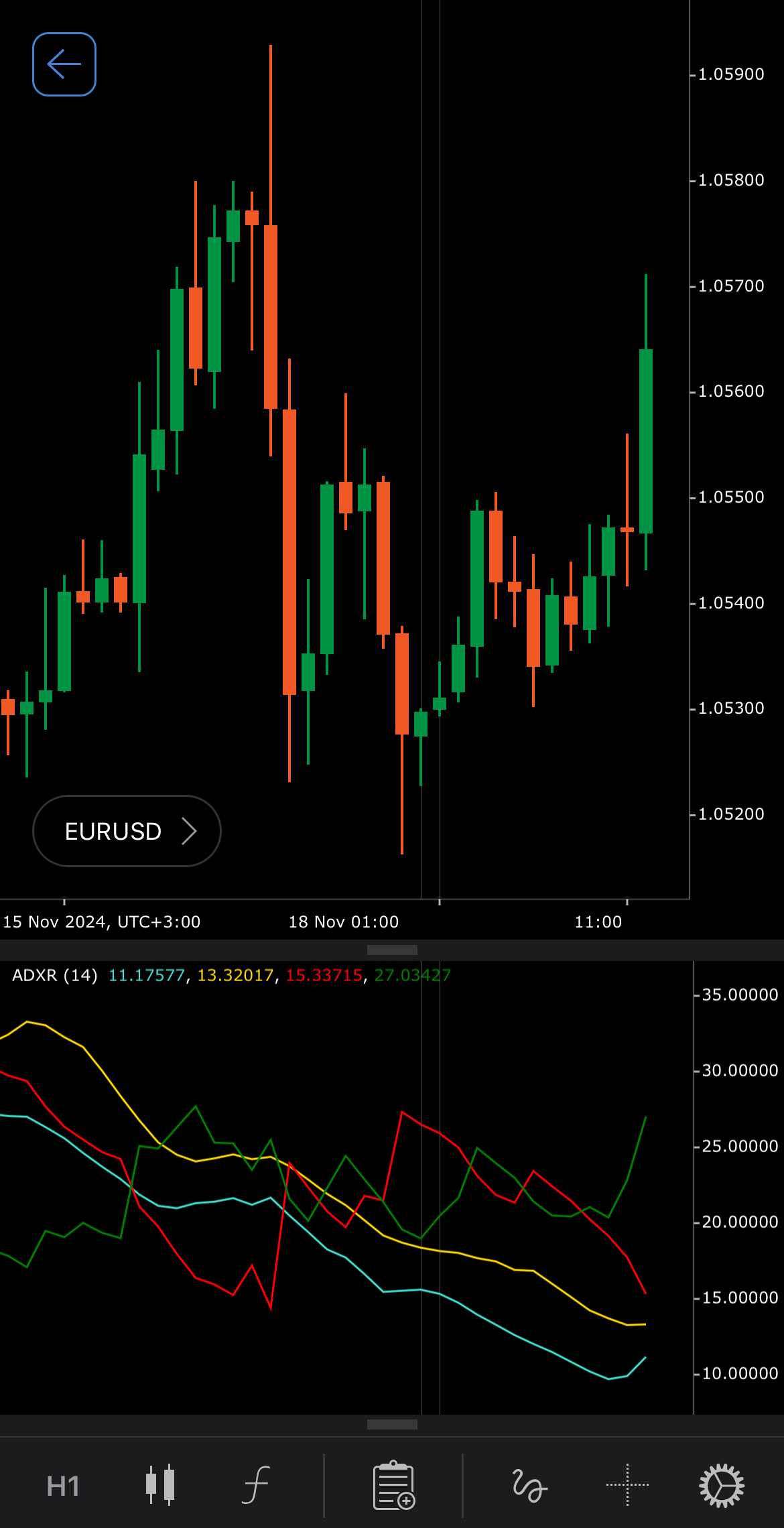
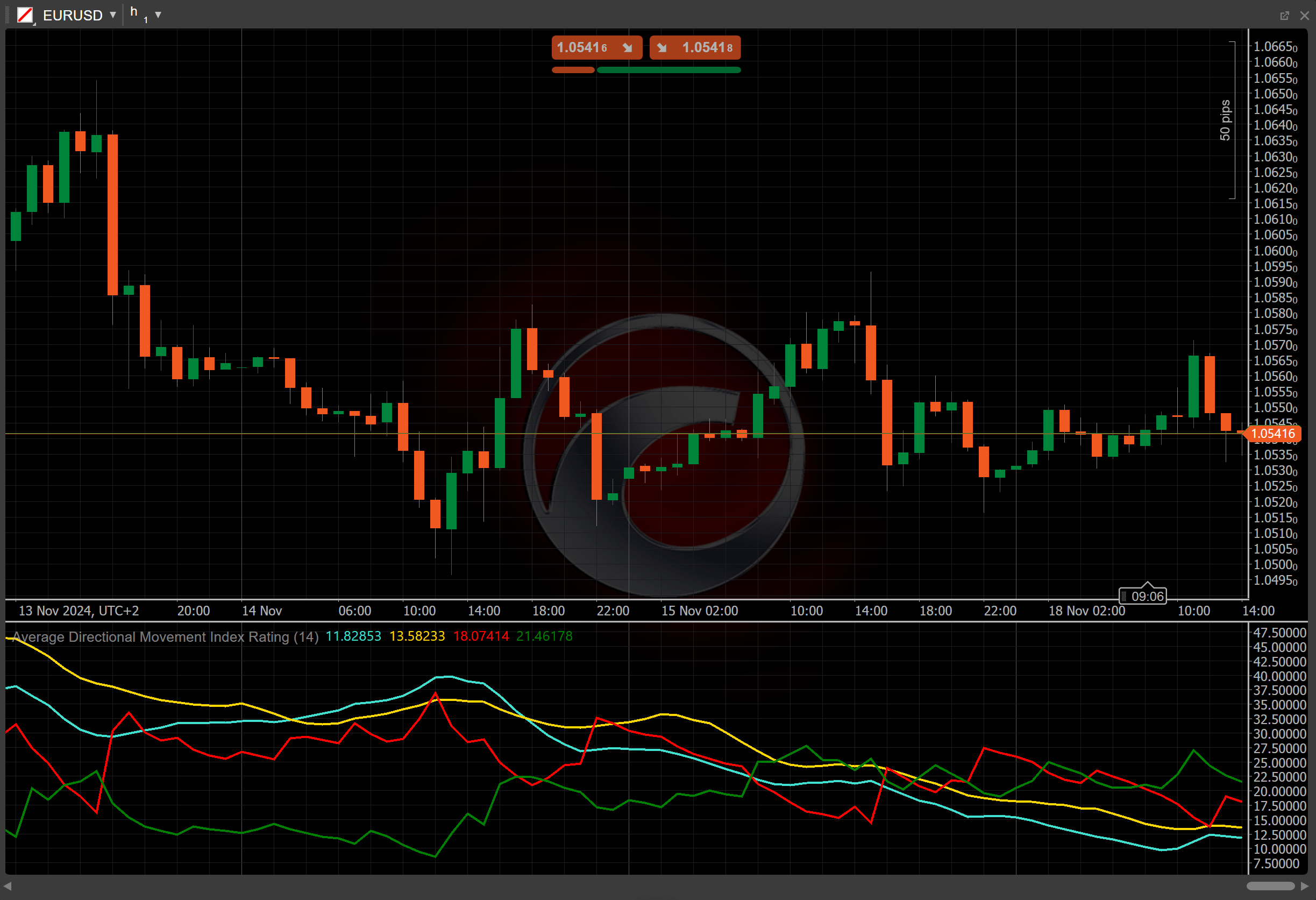
[Open live account](https://ctrader.com/brokers)
[Download cTrader](https://ctrader.com/download/)
History[¶](https://help.ctrader.com/knowledge-base/indicators/trend/average-directional-movement-index-rating/#history "Permanent link")
-----------------------------------------------------------------------------------------------------------------------------------------
Trader, engineer and author J. Welles Wilder Jr. developed the Average Directional Movement Index Rating and introduced it in his influential book "New Concepts in Technical Trading Systems", published in 1978. In the same book, Wilder also introduced the [**Accumulative Swing Index**](https://help.ctrader.com/knowledge-base/indicators/trend/accumulative-swing-index/)
, a powerful indicator that measures the strength of price movements over time.
Calculations[¶](https://help.ctrader.com/knowledge-base/indicators/trend/average-directional-movement-index-rating/#calculations "Permanent link")
---------------------------------------------------------------------------------------------------------------------------------------------------
The ADXR value is calculated using the following steps:
1\. The Positive and Negative Directional Movements (DM+ and DM-) are determined by the difference between the current and previous highs or lows.
* If the current high minus the previous high is greater than the current low minus the previous low, DM+ is the difference between the current high and the previous high. Otherwise, DM+ is zero.
\\\[ DM^+ = { Current\\ High - Previous\\ High } \\\]
* If the current low minus the previous low is greater than the current high minus the previous high, DM- is the difference between the previous low and the current low. Otherwise, DM- is zero.
\\\[ DM^- = { Previous\\ Low - Current\\ Low } \\\]
2\. The Positive and Negative Directional Indicators (DI+ and DI-) are collected as the ratio of smoothed directional movements to the Average True Range.
\\\[ DI^± = { { Smoothed\\ (DM^±) \\over ATR } \\times 100 } \\\]
3\. The Directional Movement Index (DX) is the ratio of the difference between DI+ and DI- to their sum.
\\\[ DX = { { { | DI^+ - DI^- | } \\over { DI^+ + DI^- } } \\times 100 } \\\]
4\. The Average Directional Movement Index (ADX) is calculated as a moving average of the DX over \\(n\\) periods.
\\\[ ADX = { MA\_{n} (DX) } \\\]
5\. The Average Directional Movement Index Rating is the average value of the current ADX and the ADX value \\(n\\)\-periods ago.
\\\[ ADXR = { { ADX + ADX\_{-n} } \\over 2 } \\\]
Interpretation[¶](https://help.ctrader.com/knowledge-base/indicators/trend/average-directional-movement-index-rating/#interpretation "Permanent link")
-------------------------------------------------------------------------------------------------------------------------------------------------------
To calculate ADX, a typical lookback of 14 periods is used. The [**Wilder Smoothing Moving Average**](https://help.ctrader.com/knowledge-base/indicators/trend/welles-wilder-smoothing/)
serves as a type of moving average.
The following interpretations of the indicator are generally applicable:
* **Crossovers** – when the ADXR crosses above the ADX, it may signal a strengthening trend, reinforcing the potential for continuation in the current direction. The ADXR crossing below the ADX suggests a weakening trend, indicating that the current market momentum may be slowing down.
* **Divergence** – look for divergences between the ADXR and the price movement. For example, if the price is making new highs but the ADXR is falling, this could indicate a weakening trend and a potential reversal.
Application[¶](https://help.ctrader.com/knowledge-base/indicators/trend/average-directional-movement-index-rating/#application "Permanent link")
-------------------------------------------------------------------------------------------------------------------------------------------------
* **Buy signals** – traders may consider entering a buy position when the ADXR is rising, suggesting that the trend is gaining strength. Confirmation from the ADX, as well as checking +DI and -DI, helps ensure the trend direction.
* **Sell signals** – a falling ADXR could signal weakening momentum in an existing trend, making it a good time to consider selling or exiting positions, particularly if the ADXR crosses below the ADX.
* **Stop-loss placement** – traders might set a stop loss based on the ADXR crossovers. For example, when the ADXR begins to fall from a high point, a stop loss could be used to protect profits in case the trend reverses.
* **Exit strategies** – if the ADXR begins to decline, traders may consider exiting positions as the trend loses strength. This is particularly useful in trend-following strategies where momentum is a key factor in holding a position.
Note
You can take advantage of algo trading with cBots executing trades based on the signals from this indicator, as shown in our [**examples**](https://help.ctrader.com/ctrader-algo/references/Indicators/AverageDirectionalMovementIndexRating/)
. Learn more about how to [**use indicators in cBots**](https://help.ctrader.com/ctrader-algo/articles/for-developers/how-to-use-indicators-in-cbots/)
.
Limitations[¶](https://help.ctrader.com/knowledge-base/indicators/trend/average-directional-movement-index-rating/#limitations "Permanent link")
-------------------------------------------------------------------------------------------------------------------------------------------------
The Average Directional Movement Index Rating does not indicate the direction of the trend on its own. Its reliance on historical data can result in delayed signals, especially in fast-moving markets. Furthermore, the ADXR alone may not give a full picture of market dynamics, requiring additional context to interpret signals accurately.
Summary[¶](https://help.ctrader.com/knowledge-base/indicators/trend/average-directional-movement-index-rating/#summary "Permanent link")
-----------------------------------------------------------------------------------------------------------------------------------------
The Average Directional Movement Index Rating is a smoothed extension of the Average Directional Movement Index that measures trend strength over a specified period. Ranging from 0 to 100, higher values indicate stronger trends, while lower values suggest weaker trends or market consolidation. The ADXR is commonly used to confirm trends identified by ADX and to assess potential reversals. It is advised to use the ADXR in combination with the Positive Directional Indicator and the Negative Directional Indicator to determine the direction of the trend.
[Open live account](https://ctrader.com/brokers)
[Download cTrader](https://ctrader.com/download/)
Back to top
---
# Price Volume Trend - Knowledge base
[Skip to content](https://help.ctrader.com/knowledge-base/indicators/volume/price-volume-trend/#price-volume-trend)
Price Volume Trend[¶](https://help.ctrader.com/knowledge-base/indicators/volume/price-volume-trend/#price-volume-trend "Permanent link")
=========================================================================================================================================
Definition[¶](https://help.ctrader.com/knowledge-base/indicators/volume/price-volume-trend/#definition "Permanent link")
-------------------------------------------------------------------------------------------------------------------------
The Price Volume Trend (PVT) is a technical indicator that combines price movement and trading volume to assess the strength of a trend. It calculates a cumulative total that increases with rising prices and decreases with falling prices, weighted by the volume. The PVT provides insight into the relationship between price and volume, helping traders identify potential trend reversals and confirm ongoing trends. It is particularly useful for detecting bullish or bearish signals, making it a valuable tool in technical analysis.
MobileDesktop
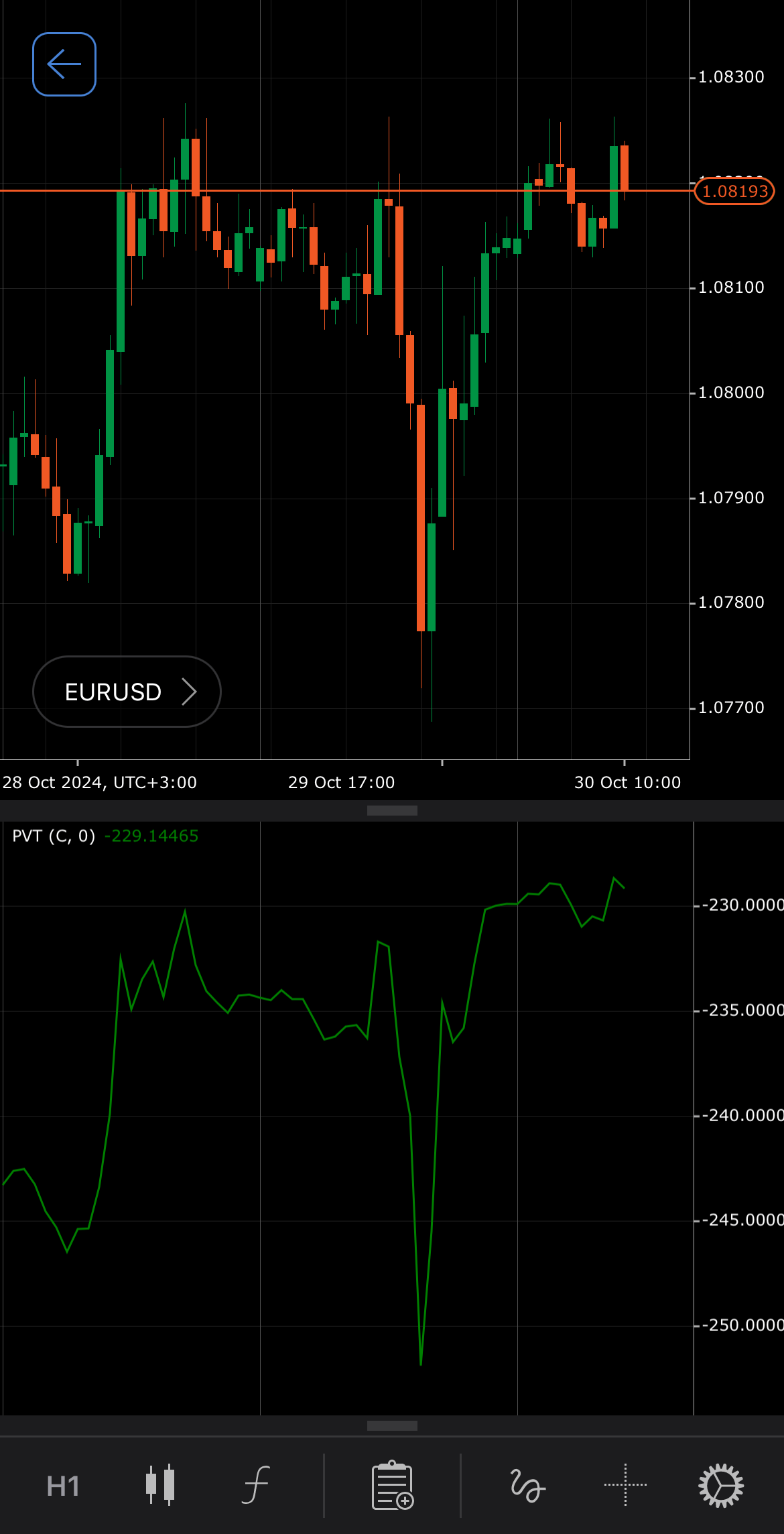
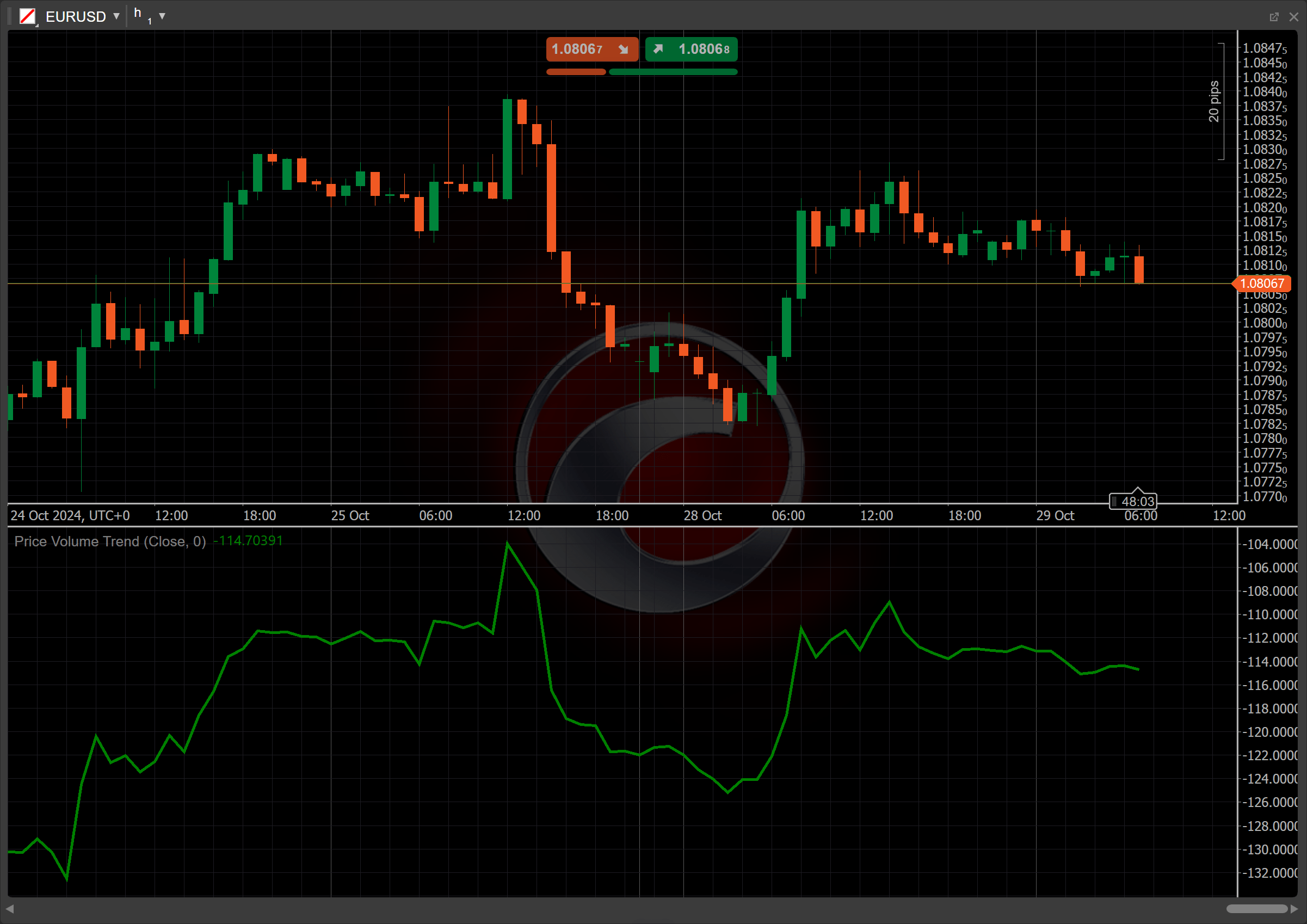
[Open live account](https://ctrader.com/brokers)
[Download cTrader](https://ctrader.com/download/)
History[¶](https://help.ctrader.com/knowledge-base/indicators/volume/price-volume-trend/#history "Permanent link")
-------------------------------------------------------------------------------------------------------------------
The Price Volume Trend indicator was developed in the 1960s by the trader and author, J. Welles Wilder Jr., who is also known for creating other popular indicators like the [**Relative Strength Index (RSI)**](https://help.ctrader.com/knowledge-base/indicators/oscillators/relative-strength-index/)
. Similar to the [**On Balance Volume (OBV)**](https://help.ctrader.com/knowledge-base/indicators/volume/on-balance-volume/)
indicator, which accumulates volume based on daily price changes, PVT enhances this approach by only adding or subtracting a portion of daily volume. This makes the PVT particularly useful for confirming trends and identifying potential trading signals, especially when divergences occur, providing traders with deeper insights into market dynamics.
Calculations[¶](https://help.ctrader.com/knowledge-base/indicators/volume/price-volume-trend/#calculations "Permanent link")
-----------------------------------------------------------------------------------------------------------------------------
The PVT indicator is calculated using the following formula:
\\\[ PVT = PVT\_{prev} + { { {Close - Close\_{prev} } \\over Close\_{prev} } \\times TickVolume } \\\]
\\(PVT\\) – the current Price Volume Trend level
\\(PVT\_{prev}\\) – the previous Price Volume Trend level
\\(Close\\) – the current closing price
\\(Close\_{prev}\\) – the previous closing price
\\(TickVolume\\) – the current tick volume
Interpretation[¶](https://help.ctrader.com/knowledge-base/indicators/volume/price-volume-trend/#interpretation "Permanent link")
---------------------------------------------------------------------------------------------------------------------------------
The initial value of the PVT is typically set at zero, serving as the baseline for subsequent calculations.
The following interpretations of the indicator are generally applicable:
* **Crossovers** – crossovers between the PVT line and a moving average (such as the [**Simple Moving Average**](https://help.ctrader.com/knowledge-base/indicators/trend/simple-moving-average/)
) can provide trading signals. A bullish crossover occurs when the PVT crosses above a moving average, while a bearish crossover happens when it crosses below.
* **Rising and falling** – a rising PVT indicates that the price is increasing along with volume, suggesting a strong uptrend. A falling PVT implies decreasing prices and volume, which may indicate a downtrend or weakening trend.
* **Divergence** – if prices are making new highs while the PVT fails to follow suit, it indicates weakening momentum and a potential reversal to the downside. Conversely, if prices make new lows while the PVT rises, it suggests a possible bullish reversal.
* **Reversal points** – significant changes in PVT, particularly when paired with other indicators or volume surges, may signal that the current trend (either bullish or bearish) is about to reverse.
* **Shift** – by adjusting the shift parameter to alter the alignment of the PVT indicator with price data on the chart, you can explore how the PVT readings correspond to past or future price movements.
Application[¶](https://help.ctrader.com/knowledge-base/indicators/volume/price-volume-trend/#application "Permanent link")
---------------------------------------------------------------------------------------------------------------------------
* **Buy signal** – consider placing a buy order when the PVT crosses above a specified moving average, indicating increasing buying pressure. Additionally, if the PVT rises while the price makes higher lows, this further strengthens the buy signal, suggesting potential bullish momentum.
* **Sell signal** – consider placing a sell order when the PVT crosses below a moving average, signalling rising selling pressure. This is especially effective if the price is making lower highs while the PVT is declining, indicating bearish momentum and potential trend continuation.
* **Stop-loss placement** – a stop loss can be strategically placed below recent swing lows for buy positions or above swing highs for sell positions. This helps protect against adverse price movements and can be adjusted based on the PVT trends.
* **Exit strategies** – traders can consider exit positions when the PVT shows signs of divergence from price action, indicating a potential reversal. Additionally, if the PVT crosses back below a moving average in a long position or above it in a short position, it can signal an exit point.
* **Confirming trades** – a bullish crossover of the PVT above the Simple Moving Average (SMA) signals a potential buy, while a bearish crossover below indicates a sell, allowing traders to assess trend strength and dynamically adjust strategies based on market conditions.
Note
You can take advantage of algo trading, with cBots executing trades based on the signals from this indicator, as shown in our [**examples**](https://help.ctrader.com/ctrader-algo/references/Indicators/PriceVolumeTrend/)
. Learn more about how to [**use indicators in cBots**](https://help.ctrader.com/ctrader-algo/articles/for-developers/how-to-use-indicators-in-cbots/)
.
Limitations[¶](https://help.ctrader.com/knowledge-base/indicators/volume/price-volume-trend/#limitations "Permanent link")
---------------------------------------------------------------------------------------------------------------------------
The Price Volume Trend indicator has limitations, including lagging signals due to its reliance on past price and volume data, which may delay responses to sudden market changes. Additionally, the PVT can produce false signals in volatile or choppy markets, making it essential for traders to combine it with other indicators for improved accuracy and context in decision-making.
Summary[¶](https://help.ctrader.com/knowledge-base/indicators/volume/price-volume-trend/#summary "Permanent link")
-------------------------------------------------------------------------------------------------------------------
The Price Volume Trend indicator is a valuable tool for analysing the relationship between price movements and trading and helps traders identify trends and potential reversals. The PVT calculates its value based on the proportion of volume adjusted for price changes, providing insights into market momentum and signalling buy or sell opportunities through crossovers with moving averages. While effective for confirming trades, it is best used alongside other indicators to mitigate limitations such as lagging signals and false readings in volatile markets.
[Open live account](https://ctrader.com/brokers)
[Download cTrader](https://ctrader.com/download/)
Back to top
---
# Trade Volume Index - Knowledge base
[Skip to content](https://help.ctrader.com/knowledge-base/indicators/volume/trade-volume-index/#trade-volume-index)
Trade Volume Index[¶](https://help.ctrader.com/knowledge-base/indicators/volume/trade-volume-index/#trade-volume-index "Permanent link")
=========================================================================================================================================
Definition[¶](https://help.ctrader.com/knowledge-base/indicators/volume/trade-volume-index/#definition "Permanent link")
-------------------------------------------------------------------------------------------------------------------------
The Trade Volume Index (TVI) is a technical indicator that measures the flow of money based on price changes and volume. It helps identify whether buyers or sellers dominate by accumulating volume when prices rise and subtracting it when prices fall. Unlike traditional volume indicators, the TVI emphasises price confirmation through volume movements, aiding in trend analysis and reversals.
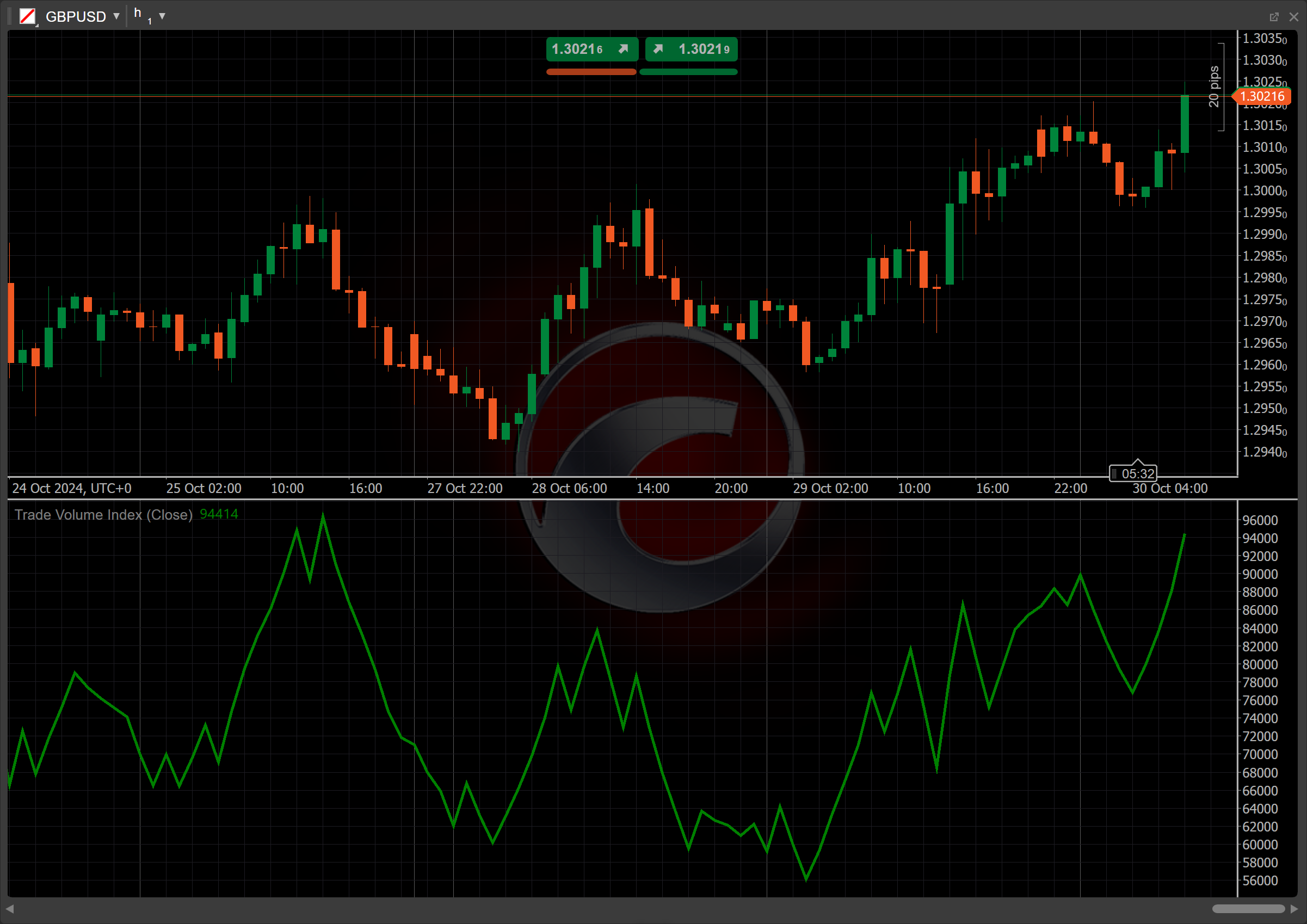
[Open live account](https://ctrader.com/brokers)
[Download cTrader](https://ctrader.com/download/)
History[¶](https://help.ctrader.com/knowledge-base/indicators/volume/trade-volume-index/#history "Permanent link")
-------------------------------------------------------------------------------------------------------------------
The TVI was introduced to combine price action with volume, providing insights into market sentiment and momentum. It was popularised in the 1970s by Richard W. Arms Jr., known for his work on volume-based indicators and gained further traction in the 1980s when traders sought tools to better interpret volume data alongside price trends.
Calculations[¶](https://help.ctrader.com/knowledge-base/indicators/volume/trade-volume-index/#calculations "Permanent link")
-----------------------------------------------------------------------------------------------------------------------------
The TVI indicator is calculated using the following formula:
1. \\( TVI = { TVI\_{prev} + TickVolume } \\) if the direction of TVI is accumulative, such as the price has increased significantly (greater than \\(Pip\\))
2. \\( TVI = { TVI\_{prev} - TickVolume } \\) if the direction of TVI is distribute, such as the price has decreased significantly (less than -\\(Pip\\))
3. \\( TVI = { TVI\_{prev} } \\) if change in price is between \\(Pip\\) and -\\(Pip\\)
\\(TVI\\) – the current Trade Volume Index level
\\(TVI\_{prev}\\) – the previous Trade Volume Index level
\\(TickVolume\\) – the current tick volume
\\(Pip\\) – the unit of price movement for the symbol
Interpretation[¶](https://help.ctrader.com/knowledge-base/indicators/volume/trade-volume-index/#interpretation "Permanent link")
---------------------------------------------------------------------------------------------------------------------------------
The initial value of the TVI is typically set at zero, serving as the baseline for subsequent calculations.
The following interpretations of the indicator are generally applicable:
* **Crossovers** – the TVI crossovers with a moving average (such as the [**Simple Moving Average (SMA)**](https://help.ctrader.com/knowledge-base/indicators/trend/simple-moving-average/)
) can generate trade signals. A crossover above the SMA suggests an emerging uptrend, while a crossover below indicates a potential downtrend.
* **Rising and falling** – a rising TVI reflects growing buying momentum, whereas a falling TVI indicates increasing selling pressure.
* **Divergence and convergence** – divergence between the TVI and the price can signal potential trend reversals. For example, if the price rises but the TVI falls, it may indicate weakening buying strength.
* **Reversal points** – sudden changes in the TVI direction, especially near extremes, can act as early indicators of potential market reversals.
Application[¶](https://help.ctrader.com/knowledge-base/indicators/volume/trade-volume-index/#application "Permanent link")
---------------------------------------------------------------------------------------------------------------------------
* **Buy signal** – when the TVI crosses above a moving average, indicating increasing buying pressure and the potential start of an uptrend, it may prompt traders to enter a long position.
* **Sell signal** – when the TVI crosses below a moving average, suggesting rising selling pressure and the potential for a downtrend, it may prompt traders to enter a short position.
* **Stop-loss placement** – it is recommended to set a stop loss above recent highs for buy positions and below recent lows for sell positions. Additionally, consider a tighter stop loss in cases of the TVI divergence from price action, and implement a trailing stop loss to secure profits as trends develop.
* **Exit strategies** – exiting positions when the TVI reverses direction or crosses back below or above the moving average can help lock in profits and reduce exposure to trend reversals.
* **Confirming trades** – the TVI works well with trend-following indicators like moving averages or momentum indicators. For example, pairing it with the [**Relative Strength Index (RSI)**](https://help.ctrader.com/knowledge-base/indicators/oscillators/relative-strength-index/)
can help confirm whether buying or selling signals are supported by volume trends, adding confidence to trades.
Note
You can take advantage of algo trading, with cBots executing trades based on the signals from this indicator, as shown in our [**examples**](https://help.ctrader.com/ctrader-algo/references/Indicators/TradeVolumeIndex/)
. Learn more about how to [**use indicators in cBots**](https://help.ctrader.com/ctrader-algo/articles/for-developers/how-to-use-indicators-in-cbots/)
.
Limitations[¶](https://help.ctrader.com/knowledge-base/indicators/volume/trade-volume-index/#limitations "Permanent link")
---------------------------------------------------------------------------------------------------------------------------
The Trade Volume Index has limitations, including its reliance on historical price and volume data, which may not accurately predict future price movements. It can generate false signals in volatile markets and may lag in rapidly changing conditions. Additionally, the TVI should not be used in isolation; combining it with other indicators is essential for a comprehensive analysis.
Summary[¶](https://help.ctrader.com/knowledge-base/indicators/volume/trade-volume-index/#summary "Permanent link")
-------------------------------------------------------------------------------------------------------------------
The Trade Volume Index is a valuable technical indicator that measures buying and selling pressure through the relationship between price movements and volume. By identifying trends and confirming market sentiment, the TVI is particularly useful for spotting potential reversals and assessing market strength. To maximise its effectiveness, traders should complement the TVI with other market insights and indicators to improve their overall strategy.
[Open live account](https://ctrader.com/brokers)
[Download cTrader](https://ctrader.com/download/)
Back to top
---
# VIDYA - Knowledge base
[Skip to content](https://help.ctrader.com/knowledge-base/indicators/other/vidya/#variable-index-dynamic-average)
Variable Index Dynamic Average[¶](https://help.ctrader.com/knowledge-base/indicators/other/vidya/#variable-index-dynamic-average "Permanent link")
===================================================================================================================================================
Definition[¶](https://help.ctrader.com/knowledge-base/indicators/other/vidya/#definition "Permanent link")
-----------------------------------------------------------------------------------------------------------
The Variable Index Dynamic Average (VIDYA) indicator is a dynamic moving average that adjusts its smoothing factor based on market volatility. It utilises the Chande Momentum Oscillator (CMO) to determine the sensitivity of the average. This allows it to respond more effectively to price changes compared to traditional moving averages, making it a valuable tool for trend-following traders.
MobileDesktop
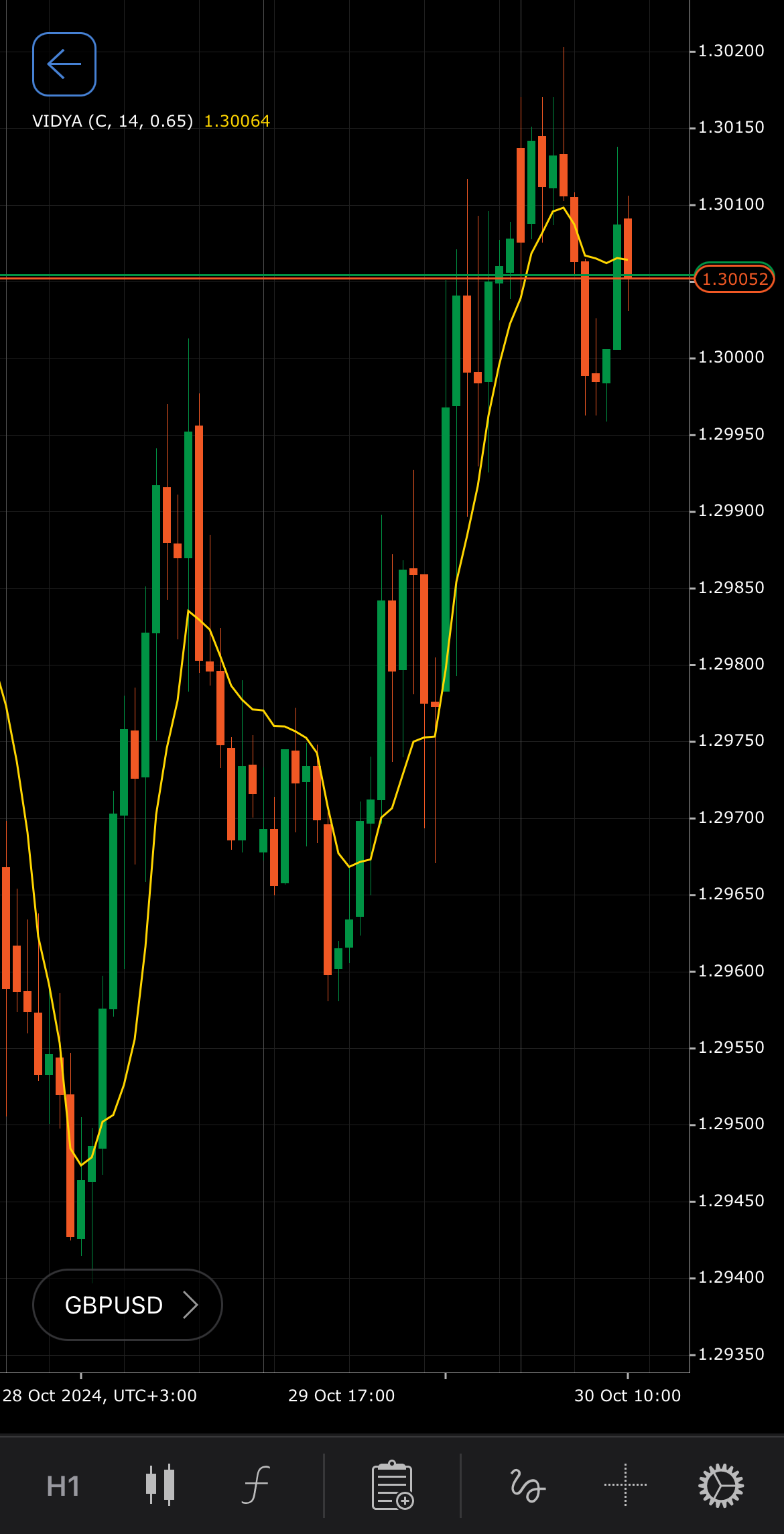
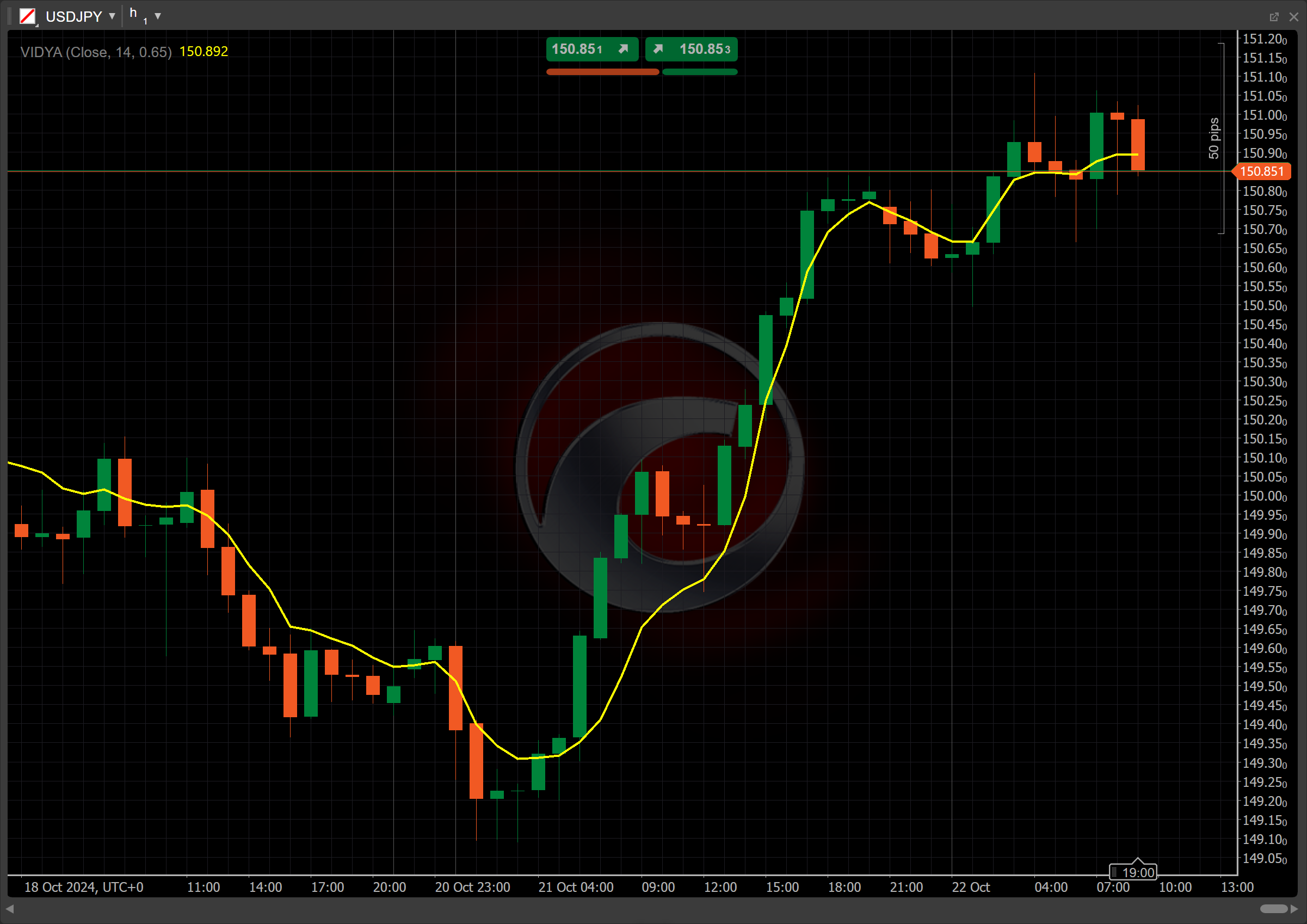
[Open live account](https://ctrader.com/brokers)
[Download cTrader](https://ctrader.com/download/)
History[¶](https://help.ctrader.com/knowledge-base/indicators/other/vidya/#history "Permanent link")
-----------------------------------------------------------------------------------------------------
The VIDYA was introduced by Tushar Chande in the 1990s, specifically in his book "Beyond Technical Analysis", published in 1996. The indicator was designed to address the shortcomings of traditional moving averages by incorporating volatility into the calculation. Chande's work emphasised the importance of adapting trading strategies to market conditions, leading to the development of the VIDYA as a more responsive tool for traders.
Calculations[¶](https://help.ctrader.com/knowledge-base/indicators/other/vidya/#calculations "Permanent link")
---------------------------------------------------------------------------------------------------------------
The VIDYA calculation formula looks like this:
\\\[ VIDYA\_t = { k \\times Price\_t + (1 - k) \\times VIDYA\_{t-1} } \\\]
\\(VIDYA\_t\\) – the current value of the VIDYA indicator
\\(VIDYA\_{t-1}\\) – the previous value of the VIDYA indicator
\\(Price\_t\\) – the current price
\\( k = { \\Sigma \\times CMO\_t } \\) – a smoothing factor that takes the following into account:
\\(\\Sigma\\) (sigma) – a parameter that determines the sensitivity of the VIDYA (between 0.1 and 0.95)
\\(CMO\_t\\) – the Chande Momentum Oscillator, reflecting the momentum of price movements
Interpretation[¶](https://help.ctrader.com/knowledge-base/indicators/other/vidya/#interpretation "Permanent link")
-------------------------------------------------------------------------------------------------------------------
By default, the number of periods for the VIDYA calculation is set to 14, and the sensitivity parameter is set to 0.65. However, both values can be adjusted based on the trader strategy and the period for analysis.
The main patterns of the indicator behaviour can be interpreted as follows:
* **Crossovers** – the VIDYA indicator can be used in a crossover strategy when paired with another moving average (such as a slower VIDYA or another type of moving average). When a faster VIDYA crosses above a slower VIDYA, it indicates a potential upward trend, while a crossover below a slower VIDYA suggests a potential downward trend.
* **Rising and falling** – when the VIDYA line is consistently rising, it signals an upward trend and increasing bullish momentum. A downward-sloping VIDYA line indicates a downward trend and increasing bearish momentum.
* **Reversal points** – the VIDYA can help identify potential trend reversal points when the slope of the line shifts direction. A flattening or change in the slope may signal a trend weakening or a reversal of market direction.
* **Breakouts** – when price moves sharply away from the VIDYA line, it could indicate a potential breakout from previous price consolidation, suggesting a strong directional move.
Note
You can take advantage of algo trading, with cBots executing trades based on the signals from this indicator, as shown in our [**examples**](https://help.ctrader.com/ctrader-algo/references/Indicators/Vidya/)
. Learn more about how to [**use indicators in cBots**](https://help.ctrader.com/ctrader-algo/articles/for-developers/how-to-use-indicators-in-cbots/)
.
Application[¶](https://help.ctrader.com/knowledge-base/indicators/other/vidya/#application "Permanent link")
-------------------------------------------------------------------------------------------------------------
* **Buy signal** – a potential buying opportunity arises when a faster VIDYA crosses above a slower one or another moving average.
* **Sell signal** – a potential selling opportunity occurs when a faster VIDYA crosses below a slower one or another moving average.
* **Stop-loss placement** – a common strategy is to place a stop loss below the recent low (for a buy trade) or above the recent high (for a sell trade).
* **Exit strategies** – consider exiting a position when the VIDYA slope changes direction, signalling a potential weakening or reversal of the trend. Another strategy is to exit when a fast VIDYA crosses back below a slow one (for long trades) or crosses back above a slow one (for short trades).
* **Confirming trades** – the VIDYA can be combined with momentum indicators like the [**Relative Strength Index (RSI)**](https://help.ctrader.com/knowledge-base/indicators/oscillators/relative-strength-index/)
or the [**MACD**](https://help.ctrader.com/knowledge-base/indicators/oscillators/macd-crossover/)
to confirm trends. For example, if the VIDYA indicates an uptrend and the RSI is above 50, it can provide stronger confirmation for a long trade.
Limitations[¶](https://help.ctrader.com/knowledge-base/indicators/other/vidya/#limitations "Permanent link")
-------------------------------------------------------------------------------------------------------------
The sensitivity of the VIDYA to price movements can lead to whipsaws in choppy markets, generating false signals. Additionally, it may lag during significant market shifts due to its reliance on past price data. Traders should be cautious and consider using the VIDYA in conjunction with other indicators to confirm signals and reduce the risk of false entries or exits.
Summary[¶](https://help.ctrader.com/knowledge-base/indicators/other/vidya/#summary "Permanent link")
-----------------------------------------------------------------------------------------------------
The VIDYA indicator was designed to adapt to changing market conditions by incorporating volatility into its calculations. Its ability to adjust the smoothing factor allows traders to capture trends more effectively. As a result, the VIDYA can enhance trading strategies, particularly in volatile environments. By providing clearer signals during price movements, it offers traders a valuable tool for identifying potential entry and exit points in their trades.
[Open live account](https://ctrader.com/brokers)
[Download cTrader](https://ctrader.com/download/)
Back to top
---
# Typical Price - Knowledge base
[Skip to content](https://help.ctrader.com/knowledge-base/indicators/other/typical-price/#typical-price)
Typical Price[¶](https://help.ctrader.com/knowledge-base/indicators/other/typical-price/#typical-price "Permanent link")
=========================================================================================================================
Definition[¶](https://help.ctrader.com/knowledge-base/indicators/other/typical-price/#definition "Permanent link")
-------------------------------------------------------------------------------------------------------------------
The Typical Price (TP) indicator provides the average of high, low and close prices for each period. It offers a single value that reflects the general price level, smoothing out short-term fluctuations. Commonly used in combination with other indicators like the [**Simple Moving Average (SMA)**](https://help.ctrader.com/knowledge-base/indicators/trend/simple-moving-average/)
or the [**Money Flow Index (MFI)**](https://help.ctrader.com/knowledge-base/indicators/volume/money-flow-index/)
, the TP helps identify trends or pivot points by simplifying raw price movements.
MobileDesktop
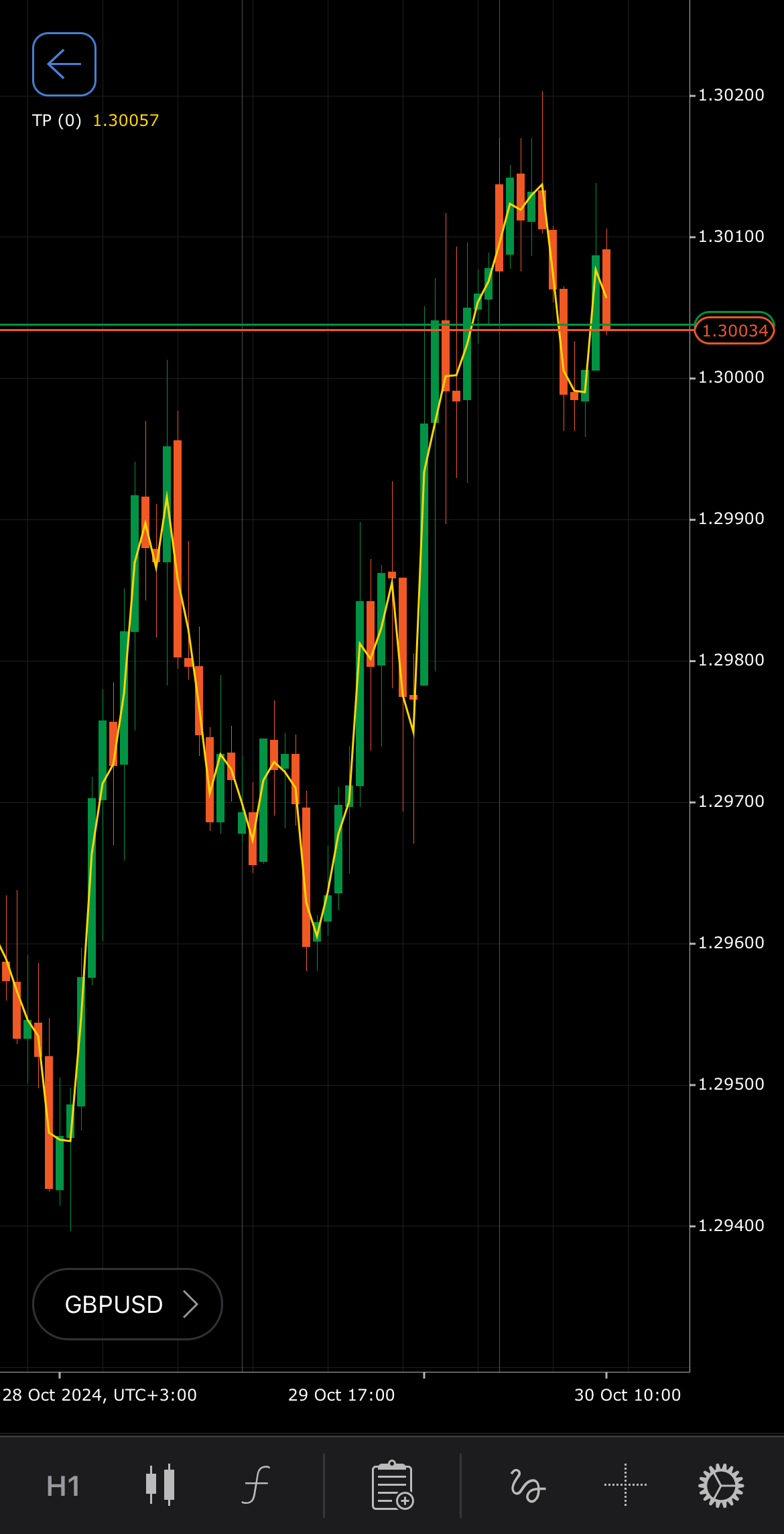
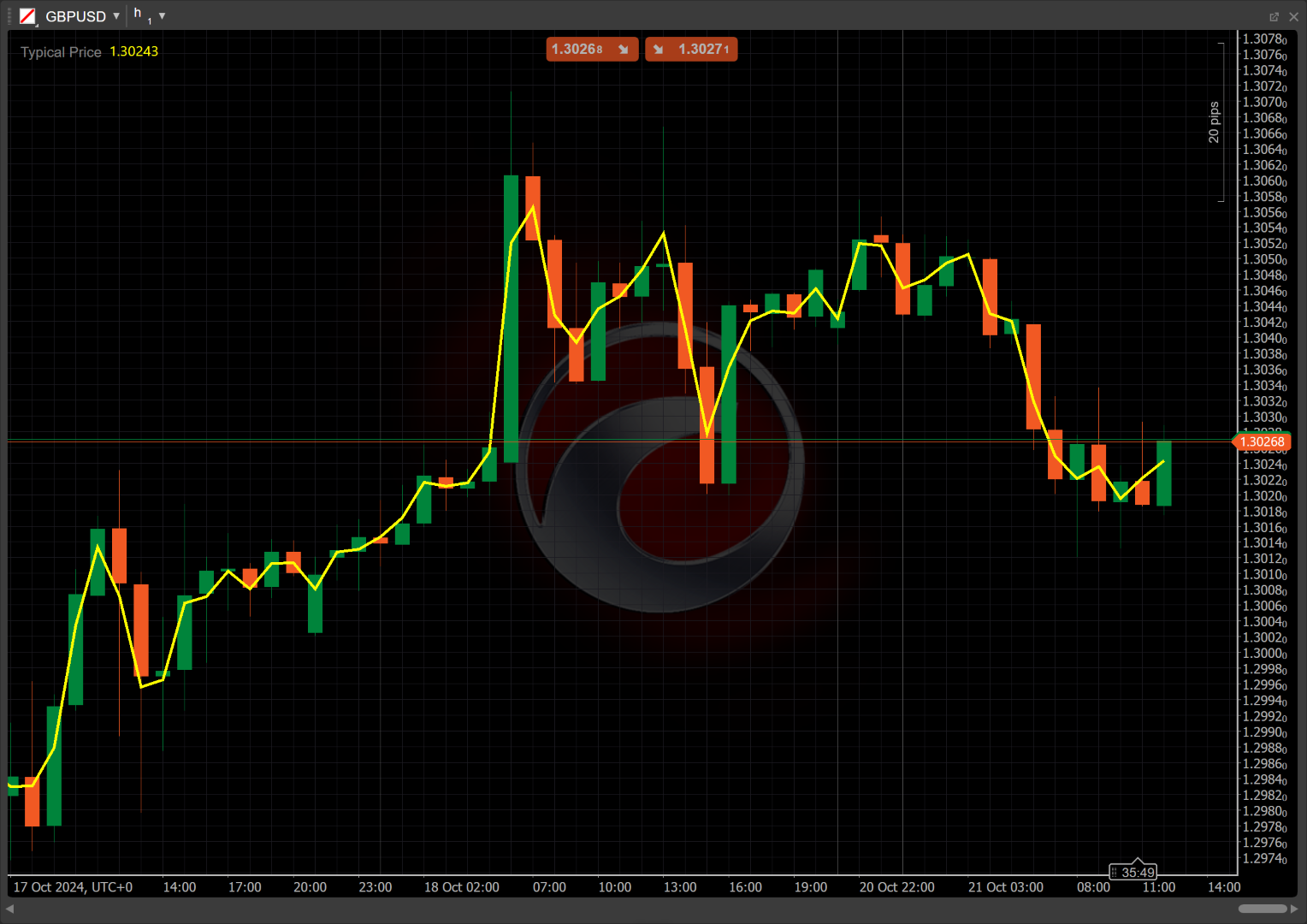
[Open live account](https://ctrader.com/brokers)
[Download cTrader](https://ctrader.com/download/)
History[¶](https://help.ctrader.com/knowledge-base/indicators/other/typical-price/#history "Permanent link")
-------------------------------------------------------------------------------------------------------------
The TP indicator emerged as a straightforward tool in technical analysis, gaining traction in the 1980s alongside the development of volume-based indicators. Traders sought to create a simple metric that averaged key price levels, making it easier to gauge market behaviour. Its simplicity and utility made it a foundation for more complex indicators.
Calculations[¶](https://help.ctrader.com/knowledge-base/indicators/other/typical-price/#calculations "Permanent link")
-----------------------------------------------------------------------------------------------------------------------
The TP indicator calculates the average of the high, low and close prices for each period:
\\\[ TypicalPrice = { { High + Low + Close } \\over 3 } \\\]
\\(High\\) – the highest price of the period
\\(Low\\) – the lowest price of the period
\\(Close\\) – the closing price of the period
Interpretation[¶](https://help.ctrader.com/knowledge-base/indicators/other/typical-price/#interpretation "Permanent link")
---------------------------------------------------------------------------------------------------------------------------
* **Crossovers** – when the Typical Price crosses above a moving average (such as the SMA), it may suggest a potential buying opportunity. Conversely, crossing below a moving average could signal a selling opportunity.
* **Rising and falling** – a rising TP indicates increasing average price levels, suggesting bullish market sentiment. Conversely, a falling TP signals decreasing average price levels, indicating bearish sentiment.
* **Divergence and convergence** – divergence between the TP and the price action may suggest potential trend reversals. For example, if the TP is rising while the symbol price is falling, it could signal weakening momentum.
* **Reversal points** – a sudden shift in the TP direction can indicate potential reversal points in the market, especially when combined with other indicators.
Application[¶](https://help.ctrader.com/knowledge-base/indicators/other/typical-price/#application "Permanent link")
---------------------------------------------------------------------------------------------------------------------
* **Buy signal** – the Typical Price crossing above a predefined moving average (like the 14-period Simple Moving Average) can be interpreted as an opportunity to enter a long position.
* **Sell signal** – the Typical Price crossing below a moving average can be interpreted as an opportunity to enter a short position.
* **Stop-loss placement** – traders can place a stop loss below recent swing lows when entering a buy position or above recent swing highs when entering a sell position.
* **Exit strategies** – traders may consider exiting a position when the TP crosses back below the moving average in a buy scenario or above the moving average in a sell scenario.
* **Confirming trades** – the TP indicator can be effectively combined with the MFI, MACD or SMA indicators to confirm trade signals. For instance, when the Typical Price crosses above the SMA, it may signal a potential buy opportunity, especially if accompanied by increasing volume or positive market sentiment.
Note
You can take advantage of algo trading, with cBots executing trades based on the signals from this indicator, as shown in our [**examples**](https://help.ctrader.com/ctrader-algo/references/Indicators/TypicalPrice/)
. Learn more about how to [**use indicators in cBots**](https://help.ctrader.com/ctrader-algo/articles/for-developers/how-to-use-indicators-in-cbots/)
.
Limitations[¶](https://help.ctrader.com/knowledge-base/indicators/other/typical-price/#limitations "Permanent link")
---------------------------------------------------------------------------------------------------------------------
The Typical Price indicator, while useful, does not account for volatility, which can lead to false signals during choppy market conditions. Additionally, the TP may lag behind price movements, causing delays in signal generation. Relying solely on the TP without confirmation from other indicators can increase risk.
Summary[¶](https://help.ctrader.com/knowledge-base/indicators/other/typical-price/#summary "Permanent link")
-------------------------------------------------------------------------------------------------------------
The Typical Price indicator is a valuable tool in technical analysis that calculates the average of high, low and close prices for each period. It provides a simplified view of market trends, helping traders identify potential entry and exit points. The TP is particularly useful for gauging market sentiment and spotting trends. Its ease of interpretation makes it accessible for both novice and experienced traders looking to enhance their trading strategies.
[Open live account](https://ctrader.com/brokers)
[Download cTrader](https://ctrader.com/download/)
Back to top
---
# Hull Moving Average - Knowledge base
[Skip to content](https://help.ctrader.com/knowledge-base/indicators/trend/hull-moving-average/#hull-moving-average)
Hull Moving Average[¶](https://help.ctrader.com/knowledge-base/indicators/trend/hull-moving-average/#hull-moving-average "Permanent link")
===========================================================================================================================================
Definition[¶](https://help.ctrader.com/knowledge-base/indicators/trend/hull-moving-average/#definition "Permanent link")
-------------------------------------------------------------------------------------------------------------------------
The Hull Moving Average (HMA) is a technical analysis indicator that reduces lag and increases responsiveness compared to traditional moving averages. It achieves this by using the [**Weighted Moving Averages (WMA)**](https://help.ctrader.com/knowledge-base/indicators/trend/weighted-moving-average/)
and applying a unique calculation to smooth out the data while still reflecting recent price changes, making it a valuable tool for trend identification and reversals.
MobileDesktop
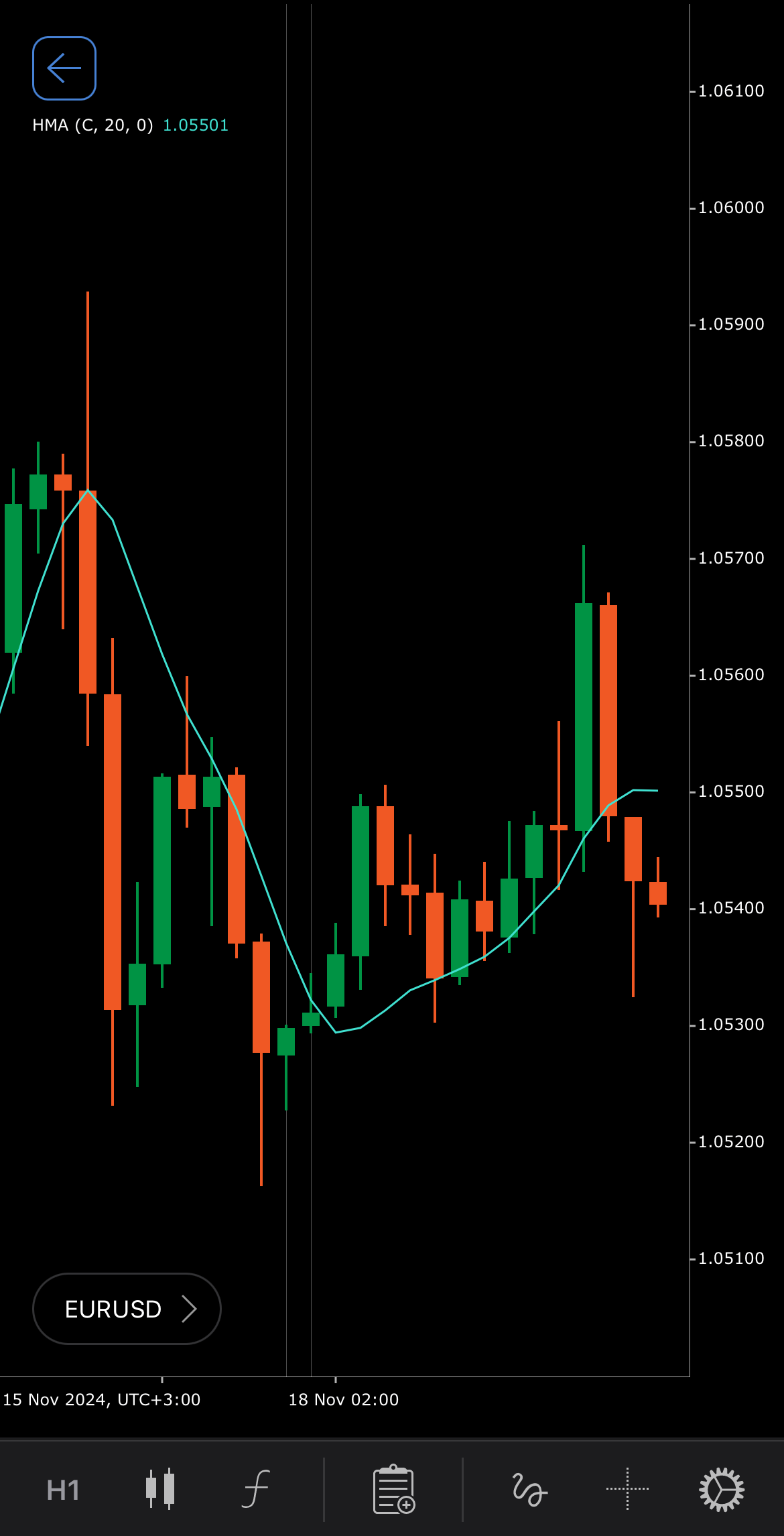
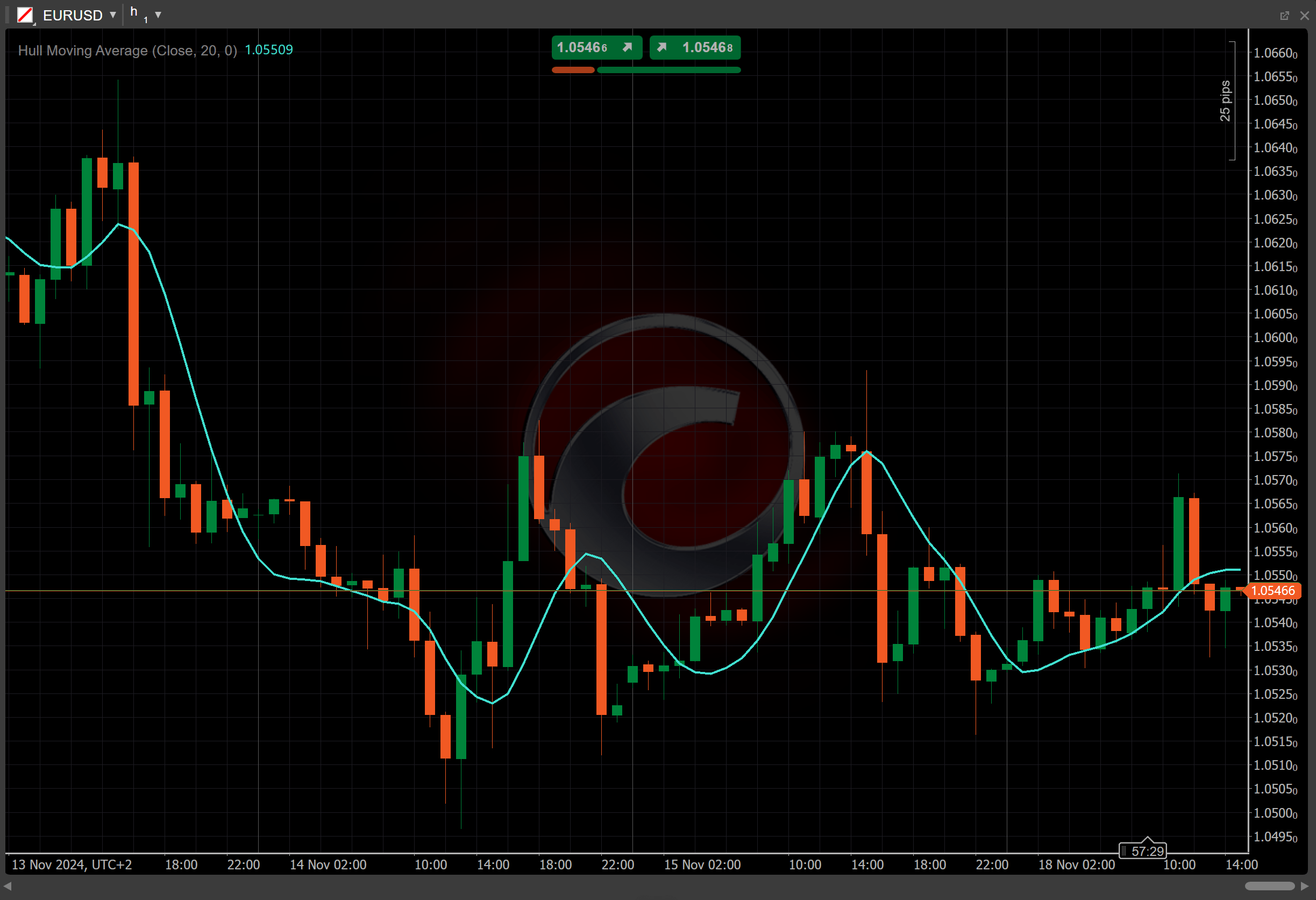
[Open live account](https://ctrader.com/brokers)
[Download cTrader](https://ctrader.com/download/)
History[¶](https://help.ctrader.com/knowledge-base/indicators/trend/hull-moving-average/#history "Permanent link")
-------------------------------------------------------------------------------------------------------------------
The Hull Moving Average was developed by Alan Hull, an Australian trader and mathematician, as an improvement to conventional moving averages. The goal was to create a more responsive moving average that could filter out noise in price data without introducing significant lag. Since its development, the HMA has been widely adopted by traders looking for a more efficient trend-following tool.
Calculations[¶](https://help.ctrader.com/knowledge-base/indicators/trend/hull-moving-average/#calculations "Permanent link")
-----------------------------------------------------------------------------------------------------------------------------
The Hull Moving Average is calculated through a series of weighted moving averages and involves a specific process to enhance responsiveness while maintaining smoothness.
1\. Intermediate WMA calculations.
* Computing the first WMA over half the period:
\\\[ WMA\_1 = { WMA\\ (Source,\\ { Periods / 2 } ) } \\\]
* Computing the second WMA over the full period:
\\\[ WMA\_2 = { WMA\\ (Source,\\ Periods ) } \\\]
2\. Intermediate series. Combining the two WMAs to generate an intermediate series:
\\\[ I = { 2 \\times WMA\_1 - WMA\_2 } \\\]
3\. Final WMA calculation. Applying a WMA to the intermediate series over the square root of the period:
\\\[ HMA = { WMA\\ ( I, \\sqrt{Periods} ) } \\\]
Interpretation[¶](https://help.ctrader.com/knowledge-base/indicators/trend/hull-moving-average/#interpretation "Permanent link")
---------------------------------------------------------------------------------------------------------------------------------
* **Rising and falling** – a rising HMA indicates a potential uptrend or bullish market condition. A falling HMA suggests a downtrend or bearish market condition.
* **Crossovers** – when the price crosses above the HMA it signals a potential buy signal as it may indicate the start of an uptrend. When the price crosses below the HMA it is a possible sell signal, suggesting a downtrend.
* **Smoothing and lag** – The HMA smooths price data more effectively than traditional moving averages, reducing noise and providing clearer trend signals.
* **Shift** – by adjusting the shift parameter to alter the alignment of the HMA indicator with price data on the chart, you can explore how the HMA readings correspond to past or future price movements.
Application[¶](https://help.ctrader.com/knowledge-base/indicators/trend/hull-moving-average/#application "Permanent link")
---------------------------------------------------------------------------------------------------------------------------
* **Buy signal** – consider a buy position when the price crosses above the HMA, indicating a potential shift to an uptrend. Confirm with other trend or momentum indicators for stronger validation.
* **Sell signal** – a sell position may be considered when the price crosses below the HMA, suggesting a potential shift to a downtrend.
* **Stop-loss placement** – traders can use the HMA line as a dynamic stop-loss guide, placing stops slightly below the HMA in an uptrend or above it in a downtrend to manage risk.
Note
You can take advantage of algo trading, with cBots executing trades based on the signals from this indicator, as shown in our [**examples**](https://help.ctrader.com/ctrader-algo/references/Indicators/HullMovingAverage/)
. Learn more about how to [**use indicators in cBots**](https://help.ctrader.com/ctrader-algo/articles/for-developers/how-to-use-indicators-in-cbots/)
.
Limitations[¶](https://help.ctrader.com/knowledge-base/indicators/trend/hull-moving-average/#limitations "Permanent link")
---------------------------------------------------------------------------------------------------------------------------
The Hull Moving Average is based on historical data and remains a lagging indicator, meaning it cannot predict future price movements with certainty. It may generate false signals during periods of low volatility or erratic price movements. Additionally, the choice of the period parameter can affect the responsiveness and accuracy of the HMA.
Summary[¶](https://help.ctrader.com/knowledge-base/indicators/trend/hull-moving-average/#summary "Permanent link")
-------------------------------------------------------------------------------------------------------------------
The Hull Moving Average, developed by Alan Hull, is a powerful trend-following indicator that minimises lag and improves responsiveness compared to traditional moving averages. It uses a combination of the Weighted Moving Averages to achieve smooth yet quick reactions to price changes, helping traders identify trends and potential reversals with greater accuracy. The HMA creates a moving average that could filter out noise in price data without introducing significant lag.
[Open live account](https://ctrader.com/brokers)
[Download cTrader](https://ctrader.com/download/)
Back to top
---
# Center of Gravity - Knowledge base
[Skip to content](https://help.ctrader.com/knowledge-base/indicators/other/center-of-gravity/#center-of-gravity)
Center of Gravity[¶](https://help.ctrader.com/knowledge-base/indicators/other/center-of-gravity/#center-of-gravity "Permanent link")
=====================================================================================================================================
Definition[¶](https://help.ctrader.com/knowledge-base/indicators/other/center-of-gravity/#definition "Permanent link")
-----------------------------------------------------------------------------------------------------------------------
The Center of Gravity (CoG) is a technical analysis tool used to identify potential price reversals. The CoG specialises in pinpointing instances where price reversals are expected. The indicator borrows its name from the physics concept which represents the balance point of a distribution of mass.
MobileDesktop
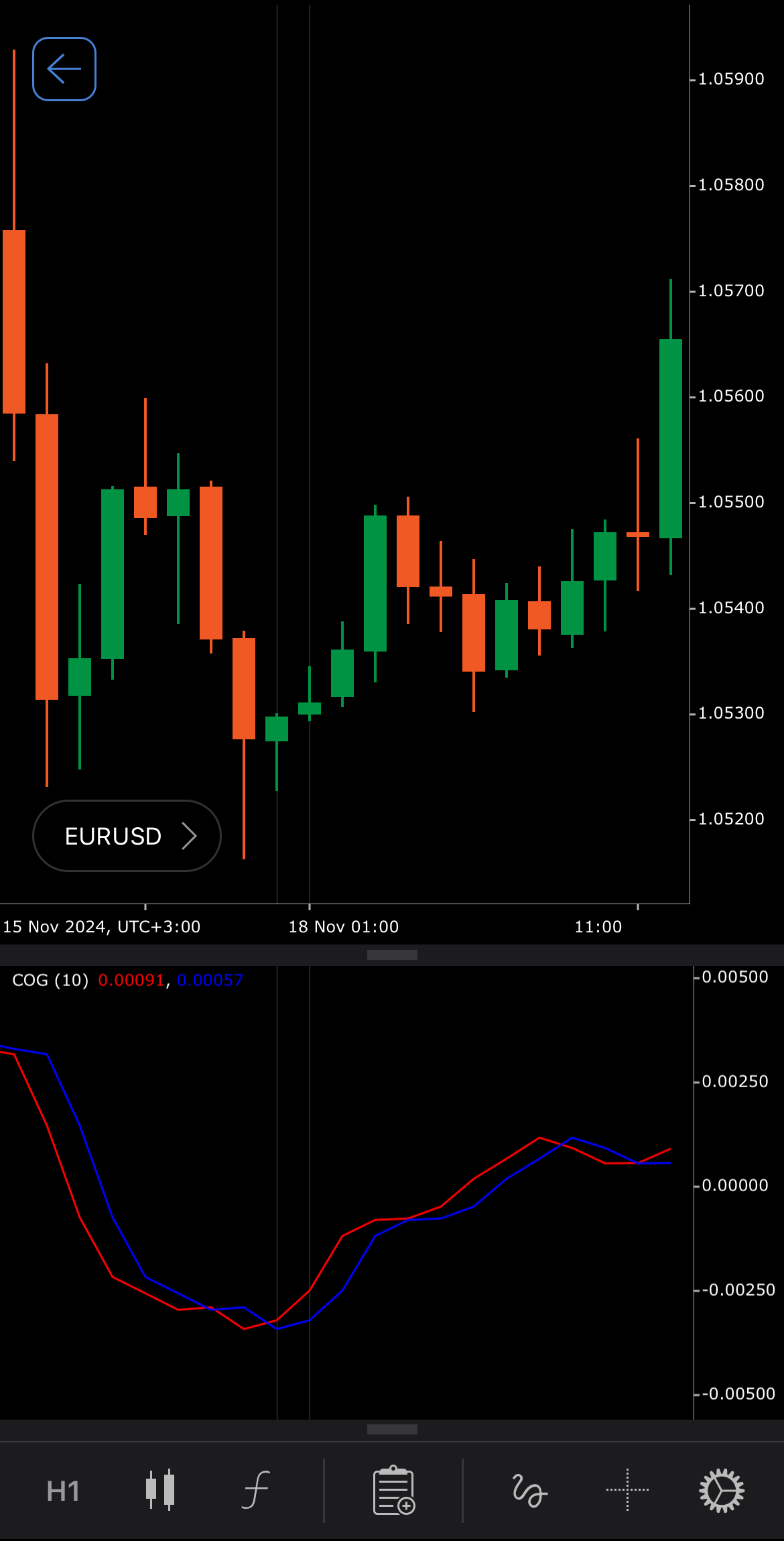
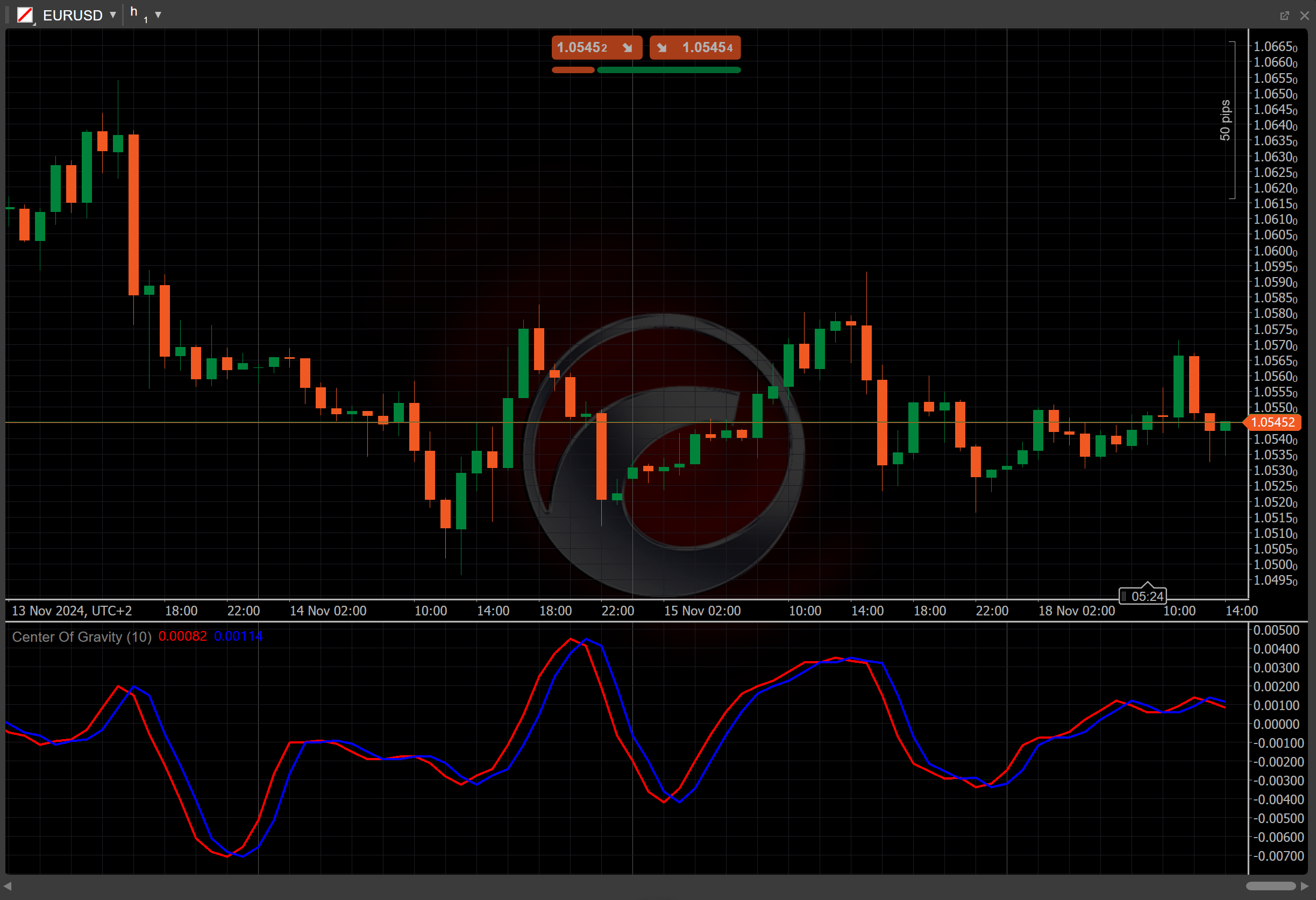
[Open live account](https://ctrader.com/brokers)
[Download cTrader](https://ctrader.com/download/)
History[¶](https://help.ctrader.com/knowledge-base/indicators/other/center-of-gravity/#history "Permanent link")
-----------------------------------------------------------------------------------------------------------------
The CoG was developed by John Ehlers, a notable figure in technical analysis. Ehlers introduced the CoG in his book "Rocket Science for Traders", published in 2001, aiming to create a more effective indicator for identifying price reversals.
Calculations[¶](https://help.ctrader.com/knowledge-base/indicators/other/center-of-gravity/#calculations "Permanent link")
---------------------------------------------------------------------------------------------------------------------------
The Center of Gravity is calculated by dividing the weighted sum of prices over a defined period by the sum of the weights, similar to finding the center of mass. The formula’s negative sign simply orients the CoG in a way that aligns with trading conventions, giving the CoG line its shape.
\\\[ CoG = { - { { \\sum\_{i=0}^{Length-1} { (1 + i) \\cdot Median\\ Price\_{t-i} } } \\over { \\sum\_{i=0}^{Length-1} { Median\\ Price\_{t-i} } } } + { {Length + 1} \\over 2 } } \\\]
\\(Median\\) \\(Price\_{t-i}\\) – the [**Median Price**](https://help.ctrader.com/knowledge-base/indicators/other/median-price/)
at index \\(t-i\\)
\\(Length\\) – the number of periods used in the calculation, default is 10
\\(t\\) – the specific period index, from 0 to \\( ( Length - 1 ) \\), relative to the current period
\\(i\\) – the loop index used to calculate the weighted sum over those periods
The lag represents the previous value of the CoG, essentially acting as a shifted version of the CoG line. It helps to visualise the previous value of the Center of Gravity, offering a comparison to the current CoG value. This comparison can help in identifying trends and potential reversals in price movement.
\\\[ Lag = CoG\_{t-1} \\\]
Interpretation[¶](https://help.ctrader.com/knowledge-base/indicators/other/center-of-gravity/#interpretation "Permanent link")
-------------------------------------------------------------------------------------------------------------------------------
* **Crossovers** – a price crossing above the CoG suggests bullish momentum while crossing below indicates bearish momentum.
* **Reversal points** – a price approaching the CoG from above may act as support, whereas approaches from below may serve as resistance.
* **Divergence** – divergences between the price action and the CoG line may signal potential trend reversals.
Application[¶](https://help.ctrader.com/knowledge-base/indicators/other/center-of-gravity/#application "Permanent link")
-------------------------------------------------------------------------------------------------------------------------
* **Buy signal** – traders may consider buying when the price crosses above the CoG line, as this can indicate bullish momentum.
* **Sell signal** – a sell signal may occur when the price crosses below the CoG line, suggesting potential bearish momentum.
* **Stop-loss placement** – traders might set a stop loss near the CoG level to manage risk, as the indicator often acts as a dynamic support or resistance level.
* **Exit strategies** – divergences between the price and the CoG line can act as signals for exiting positions, as these divergences often precede reversals.
Note
You can take advantage of algo trading, with cBots executing trades based on the signals from this indicator, as shown in our [**examples**](https://help.ctrader.com/ctrader-algo/references/Indicators/CenterOfGravity/)
. Learn more about how to [**use indicators in cBots**](https://help.ctrader.com/ctrader-algo/articles/for-developers/how-to-use-indicators-in-cbots/)
.
Limitations[¶](https://help.ctrader.com/knowledge-base/indicators/other/center-of-gravity/#limitations "Permanent link")
-------------------------------------------------------------------------------------------------------------------------
The Center of Gravity relies on historical price data, which can cause signal delays, especially in fast-moving markets. Its effectiveness may also vary significantly depending on the selected calculation period, leading to false signals in volatile conditions.
Summary[¶](https://help.ctrader.com/knowledge-base/indicators/other/center-of-gravity/#summary "Permanent link")
-----------------------------------------------------------------------------------------------------------------
The Center of Gravity is used to identify potential price reversals by calculating a weighted average of past price data. It serves as a dynamic support or resistance level, helping traders assess market conditions. Values above the CoG indicate bullish sentiment, while values below suggest bearish sentiment. The indicator is heavily inspired by the physics-based understanding of gravity.
[Open live account](https://ctrader.com/brokers)
[Download cTrader](https://ctrader.com/download/)
Back to top
---
# Aroon - Knowledge base
[Skip to content](https://help.ctrader.com/knowledge-base/indicators/trend/aroon/#aroon)
Aroon[¶](https://help.ctrader.com/knowledge-base/indicators/trend/aroon/#aroon "Permanent link")
=================================================================================================
Definition[¶](https://help.ctrader.com/knowledge-base/indicators/trend/aroon/#definition "Permanent link")
-----------------------------------------------------------------------------------------------------------
The Aroon helps traders identify trends and potential reversals in the market. The Aroon consists of two lines, the Aroon Up and the Aroon Down, that measure the duration between the most recent highs and lows within a specified period.
MobileDesktop
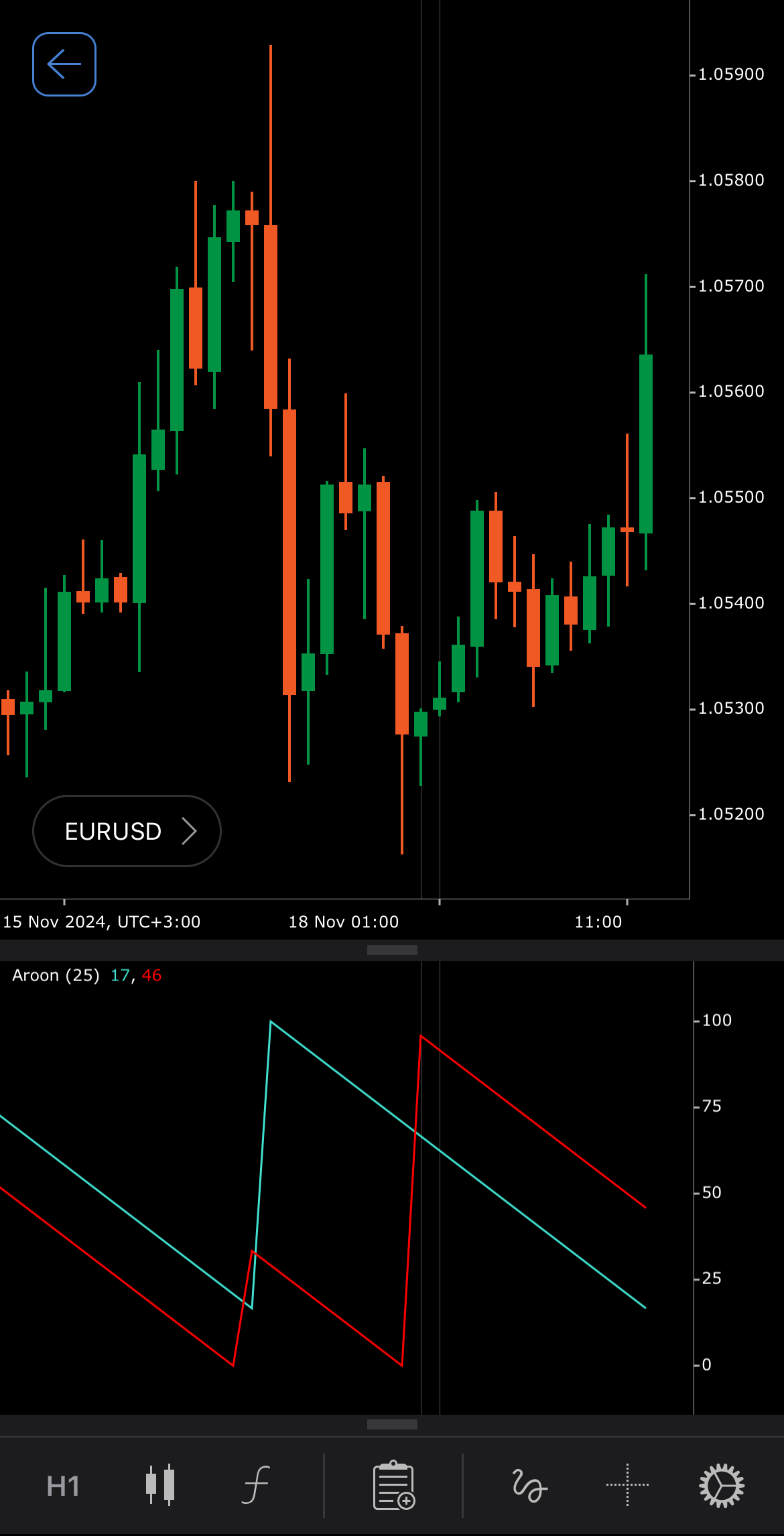
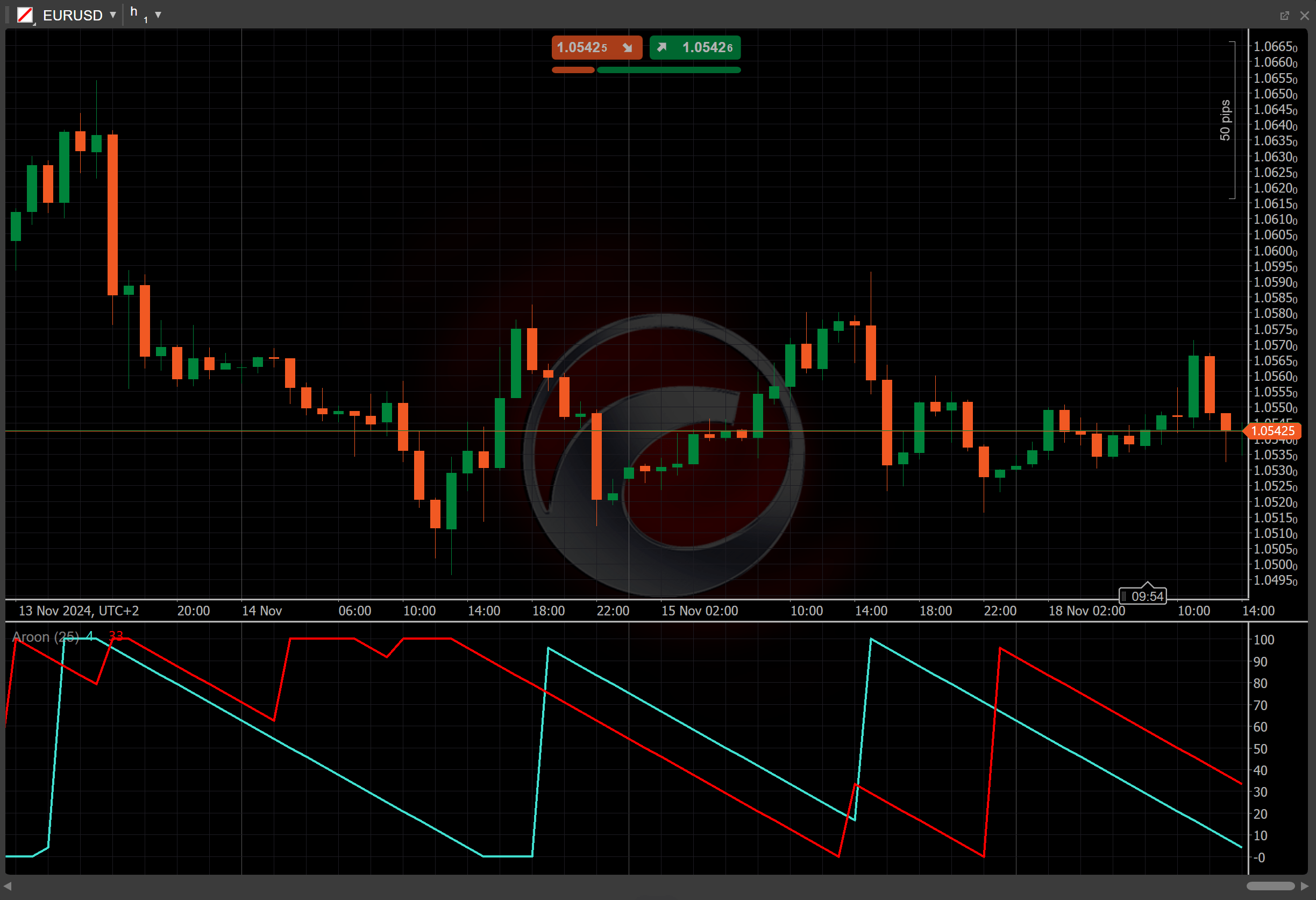
[Open live account](https://ctrader.com/brokers)
[Download cTrader](https://ctrader.com/download/)
History[¶](https://help.ctrader.com/knowledge-base/indicators/trend/aroon/#history "Permanent link")
-----------------------------------------------------------------------------------------------------
Tushar Chande, a well-known trader and author with a strong background in technical analysis and quantitative methods, developed the Aroon in 1995 to create effective tools for technical analysis. Chande introduced the Aroon in his book "The New Technical Trader" where he sought to provide traders with tools to identify trends and reversals more effectively.
Calculations[¶](https://help.ctrader.com/knowledge-base/indicators/trend/aroon/#calculations "Permanent link")
---------------------------------------------------------------------------------------------------------------
The Aroon is calculated based on two lines:
\\\[ Aroon\\ Up = { { { n - Periods\\ since\\ High\\ within\\ n } \\over n } \\times 100 } \\\]
\\\[ Aroon\\ Down = { { { n- Periods\\ since\\ Low\\ within\\ n } \\over n } \\times 100 } \\\]
\\(Periods\\) \\(since\\) \\(High\\) \\(within\\) \\(n\\) – the number of periods since the highest price within the lookback period
\\(Periods\\) \\(since\\) \\(Low\\) \\(within\\) \\(n\\) – the number of periods since the lowest price within the lookback period
\\(n\\) – the lookback period
Interpretation[¶](https://help.ctrader.com/knowledge-base/indicators/trend/aroon/#interpretation "Permanent link")
-------------------------------------------------------------------------------------------------------------------
By default, the Aroon is calculated with a 25-period lookback.
The main patterns of the indicator behaviour can be interpreted as follows:
* **Zero-line crossovers** – when the indicator crosses above the zero line, it suggests a potential bullish trend, signalling rising momentum. Conversely, a cross below zero indicates a shift towards bearish momentum, highlighting increasing selling pressure.
* **Divergence** – divergences between the indicator and price movement can signal potential reversals. Bullish divergence occurs when prices make lower lows while the indicator makes higher lows, suggesting weakening downward momentum. Bearish divergence, on the other hand, occurs when prices make higher highs while the indicator makes lower highs, indicating potential selling pressure ahead.
* **Breakouts** – a sudden increase in the indicator reading may indicate a breakout from a previous range, suggesting a new trend direction. This can serve as a cue for traders to watch for further confirmation before acting on a breakout signal.
Application[¶](https://help.ctrader.com/knowledge-base/indicators/trend/aroon/#application "Permanent link")
-------------------------------------------------------------------------------------------------------------
* **Buy signal** – traders may consider entering a buy position when the Aroon Up crosses above the Aroon Down, suggesting the start of a bullish trend.
* **Sell signal** – a sell signal might be generated when the Aroon Down crosses above the Aroon Up, indicating the beginning of a bearish trend.
* **Stop-loss placement** – traders might use the Aroon Indicator to place stop-loss orders. In a long position, a stop loss could be placed below the most recent low or a crossover point between the Aroon Up and the Aroon Down, while in a short position, a stop loss might be placed above the most recent high.
* **Exit strategies** – if the Aroon Up or the Aroon Down begins to decline from the 70-100 range, it might indicate a weakening trend. Traders could consider exiting positions as the trend starts losing strength.
Note
You can take advantage of algo trading, with cBots executing trades based on signals from this indicator, as shown in our [**examples**](https://help.ctrader.com/ctrader-algo/references/Indicators/Aroon/)
. Learn more about how to [**use indicators in cBots**](https://help.ctrader.com/ctrader-algo/articles/for-developers/how-to-use-indicators-in-cbots/)
.
Limitations[¶](https://help.ctrader.com/knowledge-base/indicators/trend/aroon/#limitations "Permanent link")
-------------------------------------------------------------------------------------------------------------
The Aroon may produce delayed signals, especially in fast-moving markets. It is also sensitive to the period length chosen. Moreover, the Aroon indicator offers limited insight into market strength or volatility.
Summary[¶](https://help.ctrader.com/knowledge-base/indicators/trend/aroon/#summary "Permanent link")
-----------------------------------------------------------------------------------------------------
The Aroon is used to identify trends and potential reversals by measuring the time since the last significant high and low within a specified period. It consists of two lines (the Aroon Up and the Aroon Down) ranging from 0 to 100, with values above 70 indicating strong trends. Traders use the Aroon to assess trend strength and detect potential reversals.
[Open live account](https://ctrader.com/brokers)
[Download cTrader](https://ctrader.com/download/)
Back to top
---
# Bollinger Bands - Knowledge base
[Skip to content](https://help.ctrader.com/knowledge-base/indicators/volatility/bollinger-bands/#bollinger-bands)
Bollinger Bands[¶](https://help.ctrader.com/knowledge-base/indicators/volatility/bollinger-bands/#bollinger-bands "Permanent link")
====================================================================================================================================
Definition[¶](https://help.ctrader.com/knowledge-base/indicators/volatility/bollinger-bands/#definition "Permanent link")
--------------------------------------------------------------------------------------------------------------------------
The Bollinger Bands is a popular indicator designed to measure market volatility by considering the [**Simple Moving Averages (SMA)**](https://help.ctrader.com/knowledge-base/indicators/trend/simple-moving-average/)
and the [**Standard Deviation (SD)**](https://help.ctrader.com/knowledge-base/indicators/volatility/standard-deviation/)
. The Bollinger Bands appears on a chart in the form of three lines.
MobileDesktop
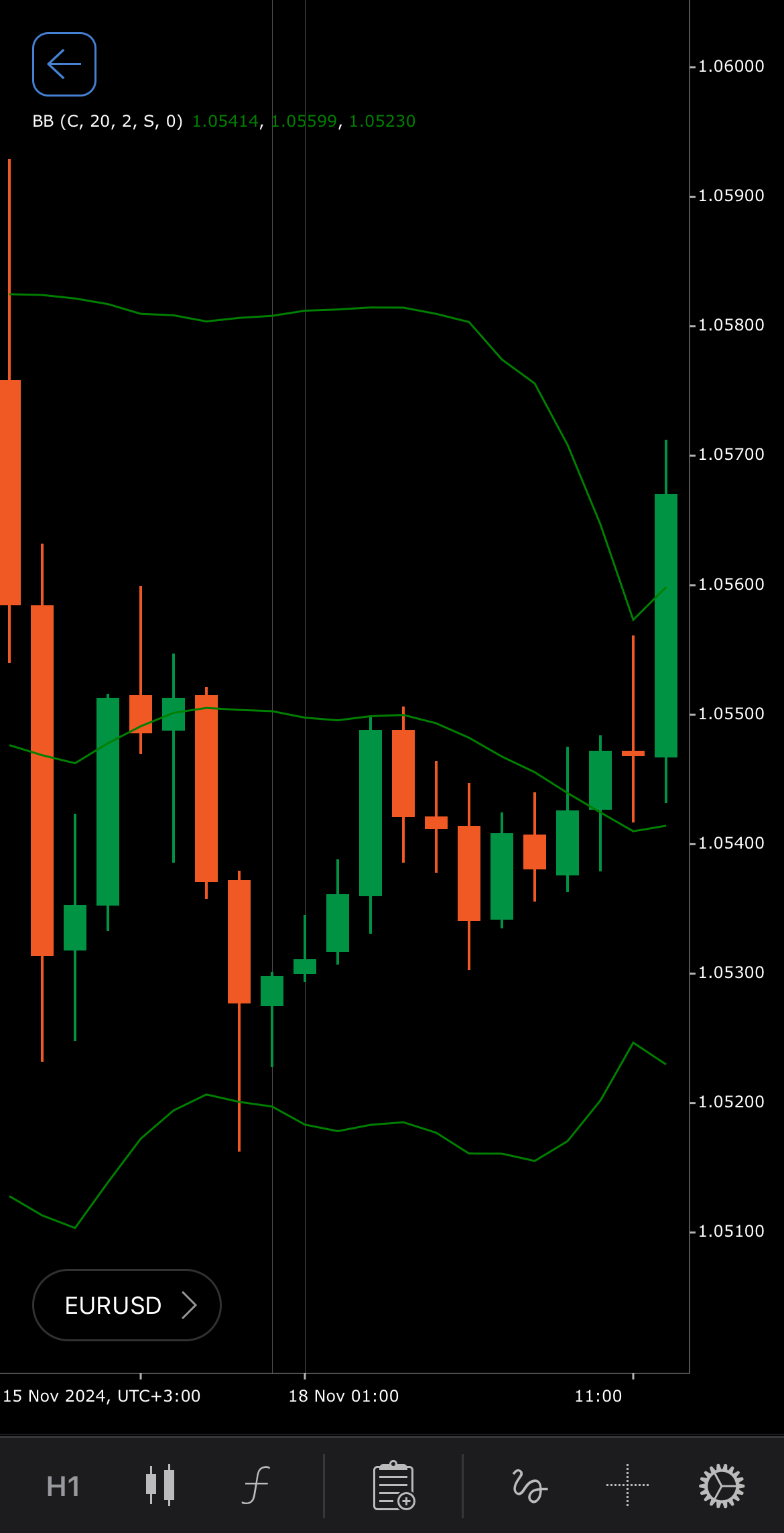
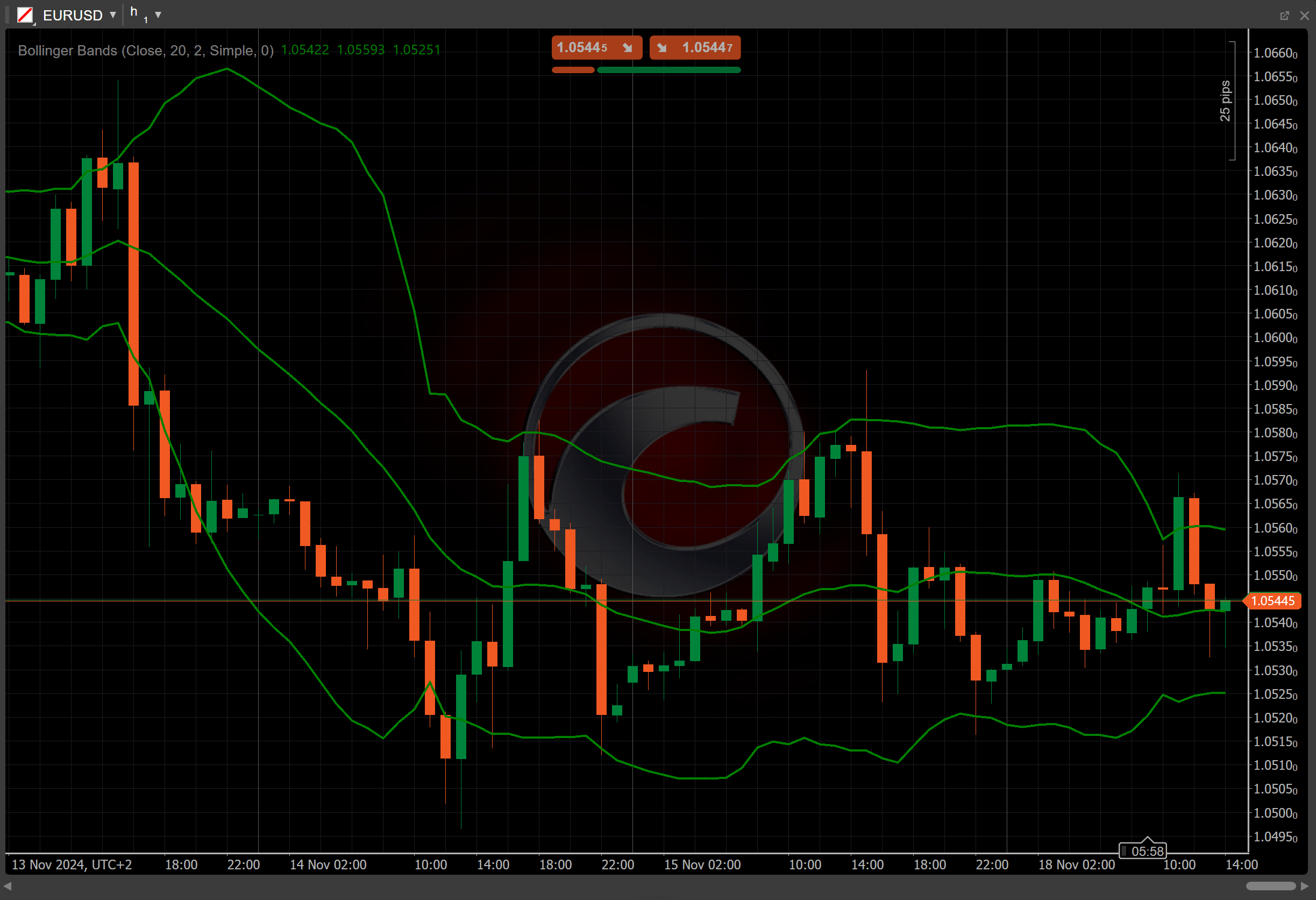
[Open live account](https://ctrader.com/brokers)
[Download cTrader](https://ctrader.com/download/)
History[¶](https://help.ctrader.com/knowledge-base/indicators/volatility/bollinger-bands/#history "Permanent link")
--------------------------------------------------------------------------------------------------------------------
John Bollinger, a well-renowned financial analyst, developed the Bollinger Bands in the 1980s. Bollinger then detailed his work in his book "Bollinger on Bollinger Bands", published in 2001. The book explains the theory behind the bands as well as their applications in detail. The Bollinger Bands are often displayed on top of the price chart, as a result, there are instances where the prices may touch top and bottom Bollinger bands.
Calculations[¶](https://help.ctrader.com/knowledge-base/indicators/volatility/bollinger-bands/#calculations "Permanent link")
------------------------------------------------------------------------------------------------------------------------------
The Bollinger Bands consist of 3 lines:
* **Middle band** – defined as a moving average over the specified period, using the source price data.
\\\[ Main = Moving\\ Average\\ (Price, Periods) \\\]
* **Top band** – determined by adding the deviation shift to the middle band.
\\\[ Top = { Main + Deviation\\ Shift } \\\]
* **Bottom band** – determined by subtracting the deviation shift from the middle band.
\\\[ Bottom = { Main - Deviation\\ Shift } \\\]
The deviation shift is calculated by multiplying the standard deviation of the price data over the same period by the multiplier (typically 2):
\\\[ Deviation\\ Shift = SD \\times k \\\]
Interpretation[¶](https://help.ctrader.com/knowledge-base/indicators/volatility/bollinger-bands/#interpretation "Permanent link")
----------------------------------------------------------------------------------------------------------------------------------
By default, the Simple Moving Average over a 20-period is used to calculate the moving average value. However, it can be adjusted based on the trader strategy and the period of analysis.
The main patterns of the indicator behaviour can be interpreted as follows:
* **Breakouts** – a close above the top band may indicate strong bullish momentum. A close below the bottom band may indicate strong bearish momentum.
* **Divergence** – if the price makes new highs or lows while the bands do not follow, it may indicate weakening momentum.
* **Shift** – by adjusting the shift parameter to alter the alignment of the Bollinger Bands with price data on the chart, you can explore how the indicator readings correspond to past or future price movements.
Application[¶](https://help.ctrader.com/knowledge-base/indicators/volatility/bollinger-bands/#application "Permanent link")
----------------------------------------------------------------------------------------------------------------------------
The Bollinger Bands can be used in several trading strategies to identify volatility and potential market direction.
* **Buy signals** – traders may consider entering buy positions when the price touches or exceeds the bottom band, indicating oversold conditions. A confirmed reversal can signal a good entry point.
* **Sell signals** – a sell signal may occur when the price touches or exceeds the top band, indicating overbought conditions and a potential reversal.
* **Stop-loss placement** – traders can use the Bollinger Bands to set a stop loss at or near the top or bottom bands, depending on their market position, to manage risk.
* **Exit strategies** – if prices close above or below the bands and then retreat back within them, it may signal that the momentum is weakening and traders might consider exiting positions.
Note
You can take advantage of algo trading, with cBots executing trades based on the signals from this indicator, as shown in our [**examples**](https://help.ctrader.com/ctrader-algo/references/Indicators/BollingerBands/)
. Learn more about how to [**use indicators in cBots**](https://help.ctrader.com/ctrader-algo/articles/for-developers/how-to-use-indicators-in-cbots/)
.
Limitations[¶](https://help.ctrader.com/knowledge-base/indicators/volatility/bollinger-bands/#limitations "Permanent link")
----------------------------------------------------------------------------------------------------------------------------
The Bollinger Bands may lag behind fast-moving markets. Additionally, because they are sensitive to volatility, the bands may either understate market movements in low-volatility conditions or exaggerate them in high-volatility environments.
Summary[¶](https://help.ctrader.com/knowledge-base/indicators/volatility/bollinger-bands/#summary "Permanent link")
--------------------------------------------------------------------------------------------------------------------
The Bollinger Bands are a powerful indicator, helping traders identify the price volatility of an asset by calculating its simple moving average and its standard deviations. The indicator consists of three bands; the middle one indicates the SMA and the top and bottom ones count for a specified number of standard deviations to identify potential bullish or bearish momentum.
[Open live account](https://ctrader.com/brokers)
[Download cTrader](https://ctrader.com/download/)
Back to top
---
# Chaikin Money Flow - Knowledge base
[Skip to content](https://help.ctrader.com/knowledge-base/indicators/volume/chaikin-money-flow/#chaikin-money-flow)
Chaikin Money Flow[¶](https://help.ctrader.com/knowledge-base/indicators/volume/chaikin-money-flow/#chaikin-money-flow "Permanent link")
=========================================================================================================================================
Definition[¶](https://help.ctrader.com/knowledge-base/indicators/volume/chaikin-money-flow/#definition "Permanent link")
-------------------------------------------------------------------------------------------------------------------------
The Chaikin Money Flow (CMF) indicator combines price and volume to measure the buying and selling pressure in a market over a specific period. The CMF aims to quantify the flow of money into and out of a security, providing insights into the strength of trends and potential reversals.
MobileDesktop
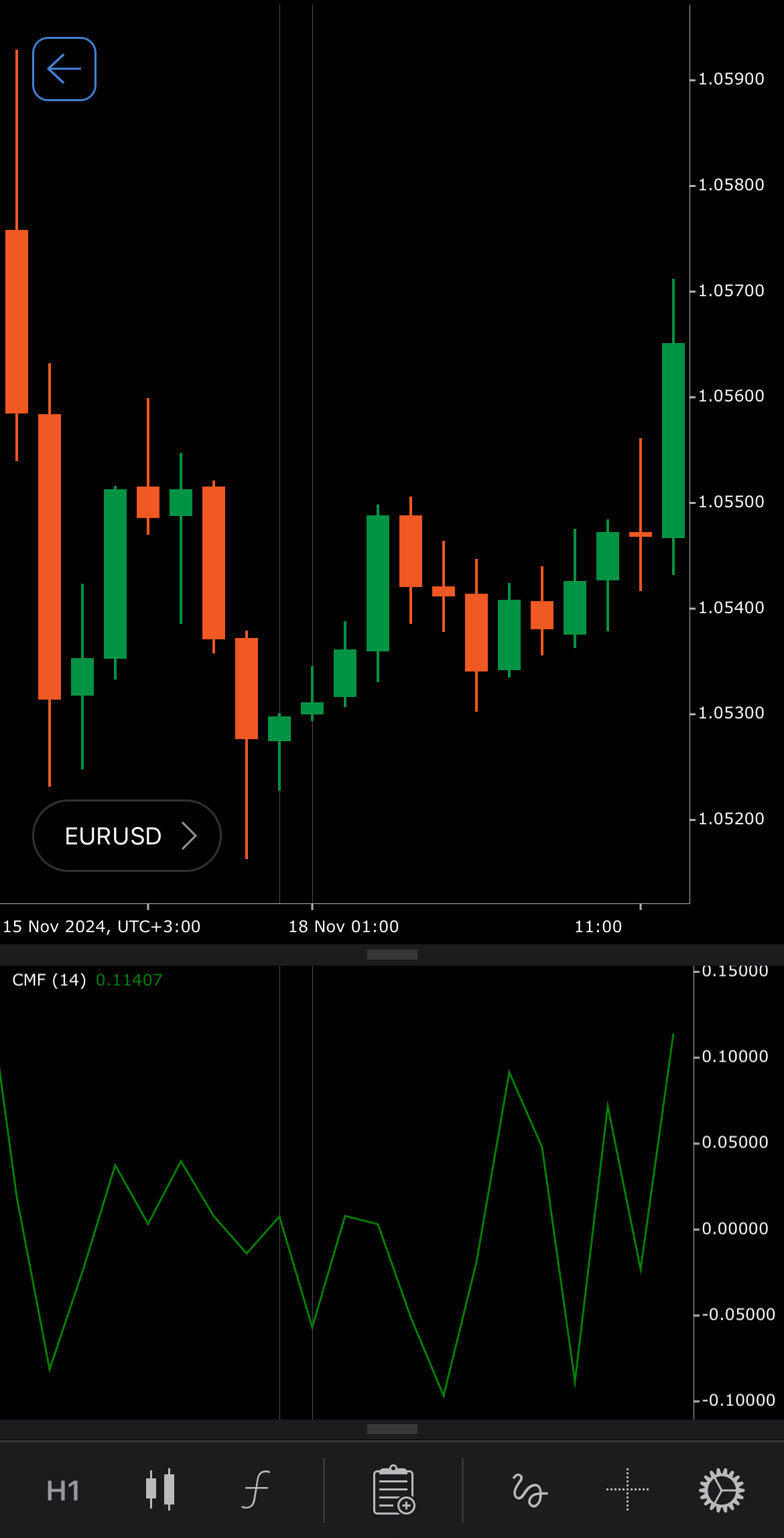
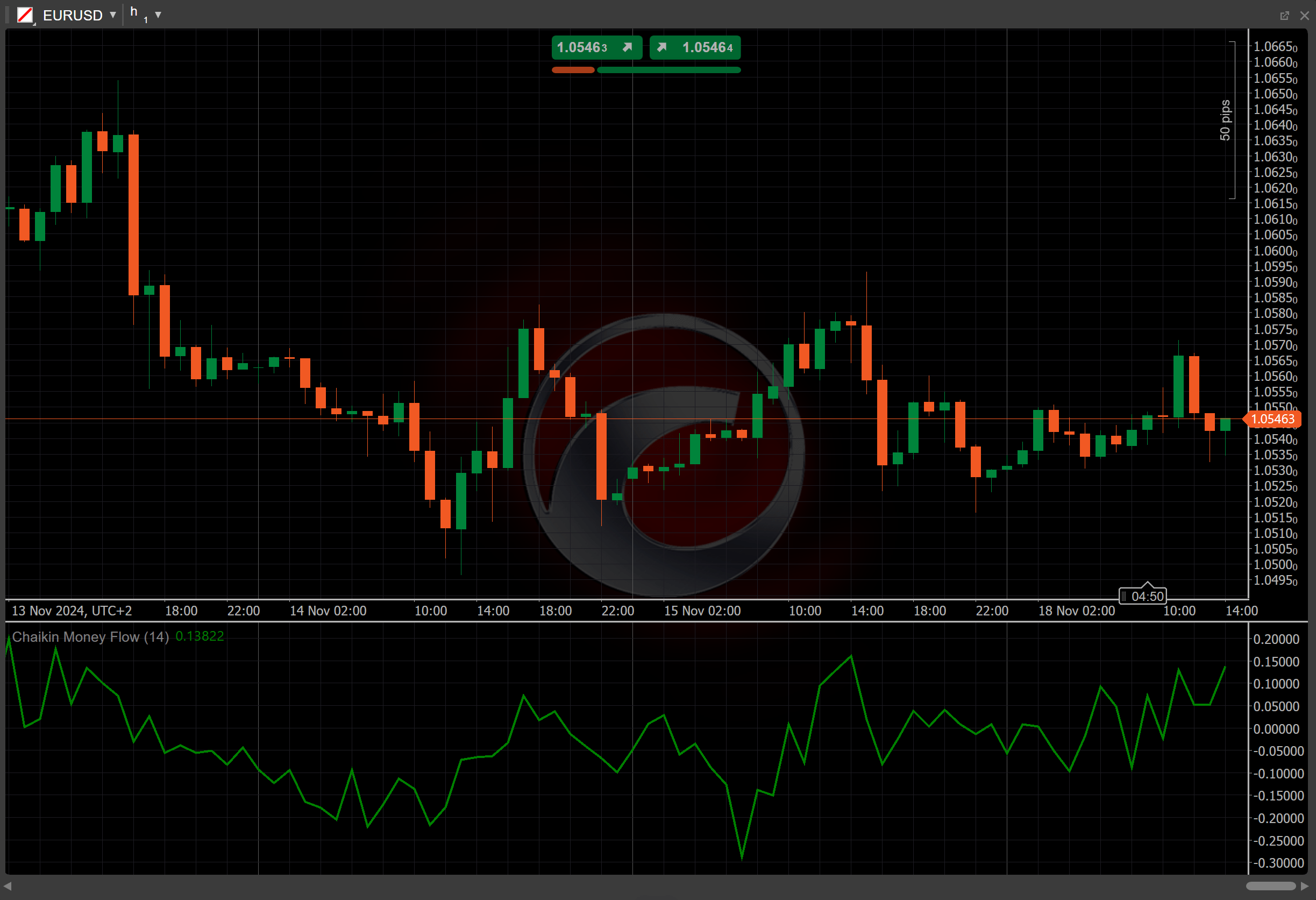
[Open live account](https://ctrader.com/brokers)
[Download cTrader](https://ctrader.com/download/)
History[¶](https://help.ctrader.com/knowledge-base/indicators/volume/chaikin-money-flow/#history "Permanent link")
-------------------------------------------------------------------------------------------------------------------
The CMF was developed by Marc Chaikin, a well-known trader, market analyst and developer of various trading tools and indicators, including the Chaikin Oscillator and the Chaikin Power Gauge. Marc Chaikin developed the indicator in the 1980s and featured it in his book "Chaikin Analytics: A New Approach to Trading".
Calculations[¶](https://help.ctrader.com/knowledge-base/indicators/volume/chaikin-money-flow/#calculations "Permanent link")
-----------------------------------------------------------------------------------------------------------------------------
1\. The Money Flow Multiplier (MFM) is defined as the relative position of the closing price within the high-low range for a given period.
\\\[ MFM = { { ( Close - Low ) - ( High - Close) } \\over { High - Low } } \\\]
2\. The Money Flow Volume (MFV) is calculated by multiplying the MFM by the volume.
\\\[ MFV = { MFM \\times Volume } \\\]
3\. The Chaikin Money Flow is the sum of the MFV divided by the volume over the chosen period (by default, 14).
\\\[ CMF = { { \\sum\_{i=1}^n { MFV\_i } } \\over { \\sum\_{i=1}^n { Volume\_i } } } \\\]
\\(High\\) and \\(Low\\) – the current high and low prices
\\(Close\\) – the previous closing price
\\(n\\) – the number of periods
Interpretation[¶](https://help.ctrader.com/knowledge-base/indicators/volume/chaikin-money-flow/#interpretation "Permanent link")
---------------------------------------------------------------------------------------------------------------------------------
* **Zero-line crossovers** – a crossover of the CMF line above the zero line indicates that buying pressure is stronger than selling pressure, suggesting potential upward momentum. A crossover below the zero line signals that selling pressure is greater, indicating potential downward momentum.
* **Divergence** – if the price is making lower lows while the CMF is making higher lows, this may signal weakening selling pressure and a potential reversal to the upside. If the price is making higher highs while the CMF is making lower highs, this suggests weakening buying pressure and a potential reversal to the downside.
* **Strength of the indicator** – the distance of the CMF from the zero line can indicate the strength of the buying or selling pressure. Larger values suggest stronger momentum, while values closer to zero indicate weakening momentum.
* **Trend confirmation** – traders often use the CMF in conjunction with price action and other indicators. A rising CMF in an uptrend can confirm the strength of the trend, while a declining CMF in a downtrend may indicate the trend is weakening.
Application[¶](https://help.ctrader.com/knowledge-base/indicators/volume/chaikin-money-flow/#application "Permanent link")
---------------------------------------------------------------------------------------------------------------------------
* **Buy signal** – traders may consider entering a buy position when the CMF crosses above the zero line, signalling increasing buying pressure.
* **Sell signal** – a sell signal can occur when the CMF crosses below the zero line, indicating increasing selling pressure.
* **Stop-loss placement** – traders can use the CMF to set stop losses by assessing the strength of momentum and placing stop losses in accordance with shifts in buying or selling pressure.
* **Exit strategies** – divergences between the price and the CMF values can serve as signals to exit positions, especially when momentum starts to weaken.
Note
You can take advantage of algo trading, with cBots executing trades based on the signals from this indicator, as shown in our [**examples**](https://help.ctrader.com/ctrader-algo/references/Indicators/ChaikinMoneyFlow/)
. Learn more about how to [**use indicators in cBots**](https://help.ctrader.com/ctrader-algo/articles/for-developers/how-to-use-indicators-in-cbots/)
.
Limitations[¶](https://help.ctrader.com/knowledge-base/indicators/volume/chaikin-money-flow/#limitations "Permanent link")
---------------------------------------------------------------------------------------------------------------------------
The CMF may produce signal delays in fast-moving markets. Rapid price movements may lead to erratic readings, especially in volatile or choppy markets. Additionally, the effectiveness of the CMF can be highly sensitive to the selected period of calculation.
Summary[¶](https://help.ctrader.com/knowledge-base/indicators/volume/chaikin-money-flow/#summary "Permanent link")
-------------------------------------------------------------------------------------------------------------------
The Chaikin Money Flow measures the buying and selling pressure in a market over a specified period, combining price and volume data. A crossover of the CMF line above the zero line indicates that buying pressure is stronger than selling pressure. A crossover below the zero line signals that selling pressure is greater, indicating potential downward momentum. The main purpose of the CMF is to quantify the flow of money into and out of a security, providing insights into the strength of trends and potential reversals.
[Open live account](https://ctrader.com/brokers)
[Download cTrader](https://ctrader.com/download/)
Back to top
---
# จัดการปลั๊กอิน WV - ปลั๊กอิน WebView
[ข้ามไปที่เนื้อหา](https://help.ctrader.com/webview-plugins/th/how-tos/manage-wv-plugins/#webview)
คำเตือน
คุณลักษณะนี้อยู่ในขั้นตอนก่อนการเปิดตัวและกำลังอยู่ระหว่างการทดสอบ เอกสารนี้มีไว้เพื่อการอ้างอิงเท่านั้น
จัดการปลั๊กอิน WebView[¶](https://help.ctrader.com/webview-plugins/th/how-tos/manage-wv-plugins/#webview "Permanent link")
===========================================================================================================================
เพื่อจัดการปลั๊กอิน WV ทั้งหมดที่เชื่อมโยงกับ cTID ของคุณในที่เดียว ให้เปิดเมนูหลักของ cTrader จากนั้นเลือก **จัดการปลั๊กอิน**
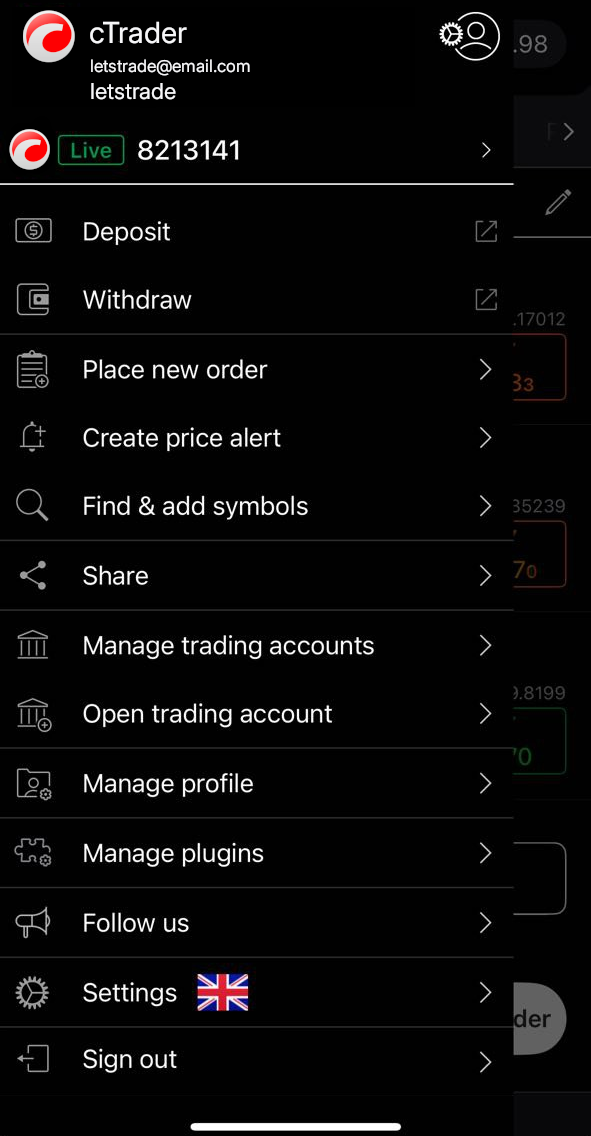
ที่นี่ คุณสามารถเข้าถึงการตั้งค่าของแต่ละปลั๊กอินหรือลบออกโดยแตะที่ไอคอนที่เกี่ยวข้อง
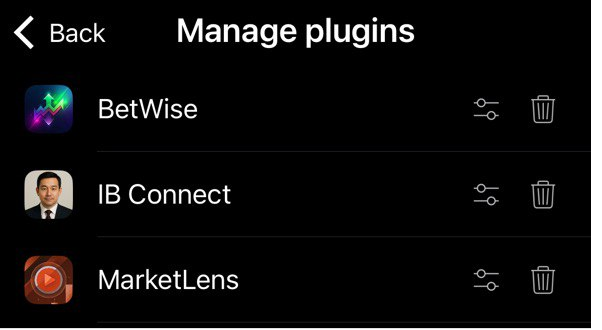
หรือคุณสามารถเข้าถึงหน้าจอ **การตั้งค่า** สำหรับปลั๊กอินเฉพาะผ่านขั้นตอนใดขั้นตอนหนึ่งต่อไปนี้:
* กดค้างที่ปลั๊กอินในแผงปลั๊กอิน WV

* เปิดชีตด้านล่างของปลั๊กอิน แตะไอคอน **เพิ่มเติม** และเลือก **การตั้งค่า**
* ในแท็บ **ภาพรวม** ของสัญลักษณ์ใดๆ ให้แตะไอคอน **เพิ่มเติม** ของปลั๊กอิน จากนั้นเลือก **การตั้งค่า**
ใน **การตั้งค่า** คุณสามารถเปิดหรือปิดใช้งานปลั๊กอิน WV ดูข้อมูลของปลั๊กอิน เข้าถึงหน้าจอ **จัดลำดับใหม่** และระบุว่าควรแสดงปลั๊กอินที่ใด
เปิด/ปิดใช้งาน [¶](https://help.ctrader.com/webview-plugins/th/how-tos/manage-wv-plugins/#_1 "Permanent link")
---------------------------------------------------------------------------------------------------------------
สลับเพื่อเปิดหรือปิดใช้งานปลั๊กอิน
คำเตือน
ปลั๊กอิน WV ที่ปิดใช้งานจะไม่แสดงที่ใดในแอป **เทรด** คุณสามารถเปิดใช้งานปลั๊กอินอีกครั้งได้เฉพาะในหน้าจอ **จัดการปลั๊กอิน** ที่เข้าถึงจากเมนูหลักเท่านั้น
ดูข้อมูลปลั๊กอิน [¶](https://help.ctrader.com/webview-plugins/th/how-tos/manage-wv-plugins/#_2 "Permanent link")
-----------------------------------------------------------------------------------------------------------------
แตะ **ข้อมูล** เพื่อดูผู้สร้างปลั๊กอินและรายละเอียดเพิ่มเติม
จัดลำดับปลั๊กอินใหม่ [¶](https://help.ctrader.com/webview-plugins/th/how-tos/manage-wv-plugins/#_3 "Permanent link")
---------------------------------------------------------------------------------------------------------------------
แตะ **จัดลำดับใหม่** จากนั้นลากตัวควบคุมปลั๊กอินขึ้นหรือลงเพื่อกำหนดตำแหน่งใหม่สำหรับปลั๊กอิน
หมายเหตุ
ลำดับที่ระบุจะถูกใช้ในทุกพื้นที่อินเทอร์เฟซที่แสดงปลั๊กอิน WV
ระบุตำแหน่ง [¶](https://help.ctrader.com/webview-plugins/th/how-tos/manage-wv-plugins/#_4 "Permanent link")
------------------------------------------------------------------------------------------------------------
เลือกพื้นที่อินเทอร์เฟซที่คุณต้องการให้แสดงปลั๊กอิน
* **แท็บเทรด** - แสดงปลั๊กอินในแผงปลั๊กอิน WV ในทุกแท็บของแอป **เทรด** ในขณะที่เนื้อหาของปลั๊กอินจะเปิดในชีตด้านล่างในแอป **เทรด**
* **ภาพรวมสัญลักษณ์** - แสดงปลั๊กอินในแผงปลั๊กอิน WV ในแท็บ **ภาพรวม** ของทุกสัญลักษณ์ ในขณะที่เนื้อหาของปลั๊กอินจะเปิดในชีตด้านล่างในแท็บ **ภาพรวม**
* **ภาพรวมสัญลักษณ์ (ฝัง)** - แสดงมุมมองปลั๊กอินแบบขยายในแท็บ **ภาพรวม** ของทุกสัญลักษณ์
กลับไปด้านบนสุด
---
# Public server messages - WebView Plugins
[Skip to content](https://help.ctrader.com/webview-plugins/references/public-server-message/#public-server-message)
Warning
This feature is in pre-release and currently under testing. Documentation is for reference only.
Public server message[¶](https://help.ctrader.com/webview-plugins/references/public-server-message/#public-server-message "Permanent link")
============================================================================================================================================
ProtoCancelOrderReq[¶](https://help.ctrader.com/webview-plugins/references/public-server-message/#protocancelorderreq "Permanent link")
----------------------------------------------------------------------------------------------------------------------------------------
Request to cancel existing pending order.
Expect ProtoExecutionEvent{executionType = ORDER\_CANCELLED} event in case of success, or ProtoOrderErrorEvent in case validation failed
| Field | Type | Label | Description |
| --- | --- | --- | --- |
| payloadType | [ProtoPublicServerPayloadType](https://help.ctrader.com/webview-plugins/references/public-server-message/#protopublicserverpayloadtype) | Optional | Code included in each message that tells cTrader and WebView plugins which specific request, response, or event is being sent so it can be routed and processed correctly |
| orderId | int64 | Required | order Id to be cancelled |
| originalClientOrderId | string | Optional | The client-assigned order ID of the order being cancelled, used for order tracking in client systems |
| clientOrderId | string | Optional | A new client-assigned ID for this cancellation request, used for tracking the cancellation operation |
| clientMsgId | string | Required | A unique identifier generated for each message, used to correlate requests with their matching responses and any related events |
ProtoClosePositionReq[¶](https://help.ctrader.com/webview-plugins/references/public-server-message/#protoclosepositionreq "Permanent link")
--------------------------------------------------------------------------------------------------------------------------------------------
Request to close existing open position by positionId.
Expect ProtoExecutionEvent{executionType = ORDER\_ACCEPTED} in case of success, or ProtoOrderErrorEvent in case validation failed.
This request ensures that position will have 0 volume.
Note that it can still be in status "CREATED" if there are pending orders with same positionId
| Field | Type | Label | Description |
| --- | --- | --- | --- |
| payloadType | [ProtoPublicServerPayloadType](https://help.ctrader.com/webview-plugins/references/public-server-message/#protopublicserverpayloadtype) | Optional | Code included in each message that tells cTrader and WebView plugins which specific request, response, or event is being sent so it can be routed and processed correctly |
| positionId | int64 | Required | Position Id to be closed fully or partially |
| volume | int64 | Required | Volume to be closed, specified in "cents" (\*100). Position could be closed partially |
| channel | string | Optional | Client-specified channel for reporting purposes |
| stake | int64 | Optional | Trading size, instead of volume, for accounts with ProtoAccountType = SPREAD\_BETTING. Value 1 is always 0.01 |
| desiredVWAP | double | Optional | price value to calculate slippage on execution. Specified by the client as Market VWAP for the desired volume at the moment of generation of request |
| closeWithPID | int64 | Optional | Position ID that will be displayed in the UI as the opposing position used to close this position, used for visual grouping in the interface |
| clientMsgId | string | Required | A unique identifier generated for each message, used to correlate requests with their matching responses and any related events |
ProtoCreateNewOrderReq[¶](https://help.ctrader.com/webview-plugins/references/public-server-message/#protocreateneworderreq "Permanent link")
----------------------------------------------------------------------------------------------------------------------------------------------
A request to submit a new order: on success, ProtoExecutionEvent with executionType = ORDER\_ACCEPTED will be returned; if validation fails, ProtoOrderErrorEvent will be received.
| Field | Type | Label | Description |
| --- | --- | --- | --- |
| payloadType | [ProtoPublicServerPayloadType](https://help.ctrader.com/webview-plugins/references/public-server-message/#protopublicserverpayloadtype) | Optional | Code included in each message that tells cTrader and WebView plugins which specific request, response, or event is being sent so it can be routed and processed correctly |
| symbolId | int64 | Required | Desired SymbolID to trade |
| orderType | [ProtoOrderType](https://help.ctrader.com/webview-plugins/references/public-server-model/#protoordertype) | Required | MARKET, LIMIT, STOP, MARKET\_RANGE, STOP\_LIMIT |
| tradeSide | [ProtoTradeSide](https://help.ctrader.com/webview-plugins/references/public-server-model/#prototradeside) | Required | BUY, SELL |
| volume | int64 | Required | Trade Volume, specified in "cents" (\*100) |
| limitPrice | double | Optional | Price of the order. Valid for orderType = Limit |
| stopPrice | double | Optional | Price of the order. Valid for orderType = STOP and STOP\_LIMIT |
| timeInForce | [ProtoTimeInForce](https://help.ctrader.com/webview-plugins/references/public-server-model/#prototimeinforce) | Optional | only MARKET\_ON\_OPEN could be specified here for orderType = MARKET. Otherwise server will set TIF according to internal logics |
| expirationTimestamp | int64 | Optional | UNIX expiration time for LIMIT, STOP and STOP\_LIMIT orders. Server will set ProtoTimeInForce = GOOD\_TILL\_DATE in this case |
| stopLoss | double | Optional | absolute stop loss price (1.23456 for example). Excludes takeProfitInPips field. Unsupported for MARKET and MARKET\_RANGE orders |
| takeProfit | double | Optional | absolute take profit price (1.23456 for example). Excludes takeProfitInPips field. Unsupported for MARKET orders |
| comment | string | Optional | User-specified comment |
| method | string | Optional | quickTrade button, Order screen, Chart trading, etc. |
| baseSlippagePrice | double | Optional | Base price to calculate relative slippage price |
| label | string | Optional | User-specified label |
| channel | string | Optional | Client-specified channel for reporting purposes |
| positionId | int64 | Optional | Position Id in case trade must be done into specific existing open position |
| clientOrderId | string | Optional | Optional User-specific clientOrderId (similar to FIX ClOrderID). MaxLength = 50 chars |
| relativeStopLoss | int64 | Optional | distance between position open price and desired Stop Loss. Value 1 is always 0.00001 of price |
| relativeTakeProfit | int64 | Optional | distance between position open price and desired Take Profit. value 1 is always 0.00001 of price |
| stake | int64 | Optional | trading unt instead of volume for accounts with ProtoAccountType = SPREAD\_BETTING. Value 1 is always 0.01 |
| desiredVWAP | double | Optional | price value to calculate slippage on execution. Specified by the client as Market VWAP for the desired volume at the moment of generation of request |
| guaranteedStopLoss | bool | Optional | If TRUE then stopLoss is guaranteed. Required to be set to TRUE for the Limited Risk accounts (ProtoTrader.isLimitedRisk = true). |
| checkTolerance | bool | Optional | defines if server should perform check against ProtoProtectionProfile.tolerance. |
| trailingStopLoss | bool | Optional | defines if specified Stop Loss is trailing. |
| stopTriggerMethod | [ProtoOrderTriggerMethod](https://help.ctrader.com/webview-plugins/references/public-server-model/#protoordertriggermethod) | Optional | Trigger method for main pending order |
| stopLossTriggerMethod | [ProtoOrderTriggerMethod](https://help.ctrader.com/webview-plugins/references/public-server-model/#protoordertriggermethod) | Optional | Stop trigger method for SL/TP order |
| slippageInPoints | int32 | Optional | max allowed slippage for MARKET\_RANGE and STOP\_LIMIT orders. Value 1 is 1/10^digits of the Symbol. For EURJPY it will be 0.001, for EURUSD 0.00001 |
| desiredOpenTimestamp | int64 | Optional | timestamp of the desired session start to execute Market Order. Must be equal to time, related to ProtoInterval with isGlobalSessionStart = true. |
| clientMsgId | string | Required | A unique identifier generated for each message, used to correlate requests with their matching responses and any related events |
ProtoErrorRes[¶](https://help.ctrader.com/webview-plugins/references/public-server-message/#protoerrorres "Permanent link")
----------------------------------------------------------------------------------------------------------------------------
| Field | Type | Label | Description |
| --- | --- | --- | --- |
| payloadType | [ProtoPublicServerPayloadType](https://help.ctrader.com/webview-plugins/references/public-server-message/#protopublicserverpayloadtype) | Optional | Code included in each message that tells cTrader and WebView plugins which specific request, response, or event is being sent so it can be routed and processed correctly |
| clientMsgId | string | Required | A unique identifier generated for each message, used to correlate requests with their matching responses and any related events |
ProtoExecutionEvent[¶](https://help.ctrader.com/webview-plugins/references/public-server-message/#protoexecutionevent "Permanent link")
----------------------------------------------------------------------------------------------------------------------------------------
Event that is sent following the successful Order acceptance or execution.
Acts as response to the ProtoNewOrderReq, ProtoCancelOrderReq, ProtoAmendOrderReq, ProtoAmendPositionSLTPReq, ProtoClosePositionReq.
| Field | Type | Label | Description |
| --- | --- | --- | --- |
| payloadType | [ProtoPublicServerPayloadType](https://help.ctrader.com/webview-plugins/references/public-server-message/#protopublicserverpayloadtype) | Optional | Code included in each message that tells cTrader and WebView plugins which specific request, response, or event is being sent so it can be routed and processed correctly |
| executionType | [ProtoExecutionType](https://help.ctrader.com/webview-plugins/references/public-server-model/#protoexecutiontype) | Required | Type of the happened event |
| position | [ProtoPosition](https://help.ctrader.com/webview-plugins/references/public-server-model/#protoposition) | Optional | Reference to the Position linked with the execution |
| order | [ProtoOrder](https://help.ctrader.com/webview-plugins/references/public-server-model/#protoorder) | Optional | Reference to the Order linked with the execution |
| errorCode | string | Optional | The name of the ProtoErrorCode or the other custom ErrorCodes in case of unsuccessful operation |
| depositWithdraw | [ProtoDepositWithdraw](https://help.ctrader.com/webview-plugins/references/public-server-model/#protodepositwithdraw) | Optional | Reference to the Deposit or Withdrawal operation linked with the execution |
| deal | [ProtoDeal](https://help.ctrader.com/webview-plugins/references/public-server-model/#protodeal) | Optional | Reference to the Deal linked with the execution |
| eventId | uint64 | Optional | ID of the execution event |
| bonusDepositWithdraw | [ProtoBonusDepositWithdraw](https://help.ctrader.com/webview-plugins/references/public-server-model/#protobonusdepositwithdraw) | Optional | Reference to the Bonus Deposit or Bonus Withdrawal operation linked with the execution |
| isServerEvent | bool | Optional | If TRUE then the event generated by the cServer logic instead of the Trader's request. (e.g. Stop Out) |
| depositToUsdRate | double | Optional | Conversion rate from the deposit currency to USD |
| notifyBigVolume | bool | Optional | Returned as TRUE if executed volume is big enough as per Trade Notification Profile |
| usedMargin | int64 | Optional | used margin of account |
| clientMsgId | string | Required | A unique identifier generated for each message, used to correlate requests with their matching responses and any related events |
ProtoGetAccountGroupInformationReq[¶](https://help.ctrader.com/webview-plugins/references/public-server-message/#protogetaccountgroupinformationreq "Permanent link")
----------------------------------------------------------------------------------------------------------------------------------------------------------------------
Request to retrieve comprehensive group settings (trading parameters, margin requirements, fees, commissions, bonus conversion rates, stop-out levels, inactivity fees, permission flags, and regional/legal entity information) for the currently authenticated account.
Returns a ProtoGroup object containing the group’s ID, name, status, commission profiles, bonus settings, inactivity fees, and legal entity details, along with the account’s deposit currency.
| Field | Type | Label | Description |
| --- | --- | --- | --- |
| payloadType | [ProtoPublicServerPayloadType](https://help.ctrader.com/webview-plugins/references/public-server-message/#protopublicserverpayloadtype) | Optional | Code included in each message that tells cTrader and WebView plugins which specific request, response, or event is being sent so it can be routed and processed correctly |
| clientMsgId | string | Required | A unique identifier generated for each message, used to correlate requests with their matching responses and any related events |
ProtoGetAccountGroupInformationRes[¶](https://help.ctrader.com/webview-plugins/references/public-server-message/#protogetaccountgroupinformationres "Permanent link")
----------------------------------------------------------------------------------------------------------------------------------------------------------------------
| Field | Type | Label | Description |
| --- | --- | --- | --- |
| payloadType | [ProtoPublicServerPayloadType](https://help.ctrader.com/webview-plugins/references/public-server-message/#protopublicserverpayloadtype) | Optional | Code included in each message that tells cTrader and WebView plugins which specific request, response, or event is being sent so it can be routed and processed correctly |
| group | [ProtoGroup](https://help.ctrader.com/webview-plugins/references/public-server-model/#protogroup) | Required | Group's information for currently authorized account |
| depositCurrency | string | Required | Name of Trader's deposit Asset |
| enabled | bool | Optional | TRUE if Trader's Group is enabled |
| clientMsgId | string | Required | A unique identifier generated for each message, used to correlate requests with their matching responses and any related events |
ProtoGetAccountInformationReq[¶](https://help.ctrader.com/webview-plugins/references/public-server-message/#protogetaccountinformationreq "Permanent link")
------------------------------------------------------------------------------------------------------------------------------------------------------------
Request to retrieve comprehensive information about the authenticated trading account, to obtain account details including balance, margin requirements, account status, and trading permissions.
| Field | Type | Label | Description |
| --- | --- | --- | --- |
| payloadType | [ProtoPublicServerPayloadType](https://help.ctrader.com/webview-plugins/references/public-server-message/#protopublicserverpayloadtype) | Optional | Code included in each message that tells cTrader and WebView plugins which specific request, response, or event is being sent so it can be routed and processed correctly |
| clientMsgId | string | Required | A unique identifier generated for each message, used to correlate requests with their matching responses and any related events |
ProtoGetAccountInformationRes[¶](https://help.ctrader.com/webview-plugins/references/public-server-message/#protogetaccountinformationres "Permanent link")
------------------------------------------------------------------------------------------------------------------------------------------------------------
| Field | Type | Label | Description |
| --- | --- | --- | --- |
| payloadType | [ProtoPublicServerPayloadType](https://help.ctrader.com/webview-plugins/references/public-server-message/#protopublicserverpayloadtype) | Optional | Code included in each message that tells cTrader and WebView plugins which specific request, response, or event is being sent so it can be routed and processed correctly |
| trader | [ProtoTrader](https://help.ctrader.com/webview-plugins/references/public-server-model/#prototrader) | Required | Comprehensive trader account information including ID, balance, margin settings, and account status |
| clientMsgId | string | Required | A unique identifier generated for each message, used to correlate requests with their matching responses and any related events |
ProtoGetDealListReq[¶](https://help.ctrader.com/webview-plugins/references/public-server-message/#protogetdeallistreq "Permanent link")
----------------------------------------------------------------------------------------------------------------------------------------
Request for returning list of closing deals within timestamps
| Field | Type | Label | Description |
| --- | --- | --- | --- |
| payloadType | [ProtoPublicServerPayloadType](https://help.ctrader.com/webview-plugins/references/public-server-message/#protopublicserverpayloadtype) | Optional | Code included in each message that tells cTrader and WebView plugins which specific request, response, or event is being sent so it can be routed and processed correctly |
| fromTimestamp | int64 | Required | UNIX time in milliseconds. fromTimestamp <= deal.execution\_timestamp <= toTimestamp |
| toTimestamp | int64 | Required | UNIX time in milliseconds |
| clientMsgId | string | Required | A unique identifier generated for each message, used to correlate requests with their matching responses and any related events |
ProtoGetDealListRes[¶](https://help.ctrader.com/webview-plugins/references/public-server-message/#protogetdeallistres "Permanent link")
----------------------------------------------------------------------------------------------------------------------------------------
| Field | Type | Label | Description |
| --- | --- | --- | --- |
| payloadType | [ProtoPublicServerPayloadType](https://help.ctrader.com/webview-plugins/references/public-server-message/#protopublicserverpayloadtype) | Optional | Code included in each message that tells cTrader and WebView plugins which specific request, response, or event is being sent so it can be routed and processed correctly |
| deal | [RepeatedField](https://help.ctrader.com/webview-plugins/references/public-server-model/#protodeal) | Repeated | List of closing deals, sorted by utcLastUpdateTimestamp in descending order (newest first) |
| hasMore | bool | Required | If TRUE then server has more entities for the desired period than returned and another request must be sent to get the rest |
| clientMsgId | string | Required | A unique identifier generated for each message, used to correlate requests with their matching responses and any related events |
ProtoGetDynamicLeverageReq[¶](https://help.ctrader.com/webview-plugins/references/public-server-message/#protogetdynamicleveragereq "Permanent link")
------------------------------------------------------------------------------------------------------------------------------------------------------
Request to fetch the dynamic leverage configuration for a specific symbol.
You must supply the leverageId value returned in ProtoSymbol from ProtoGetSymbolReq.
| Field | Type | Label | Description |
| --- | --- | --- | --- |
| payloadType | [ProtoPublicServerPayloadType](https://help.ctrader.com/webview-plugins/references/public-server-message/#protopublicserverpayloadtype) | Optional | Code included in each message that tells cTrader and WebView plugins which specific request, response, or event is being sent so it can be routed and processed correctly |
| leverageId | uint64 | Required | Unique identifier returned in ProtoSymbol by ProtoGetSymbolReq |
| clientMsgId | string | Required | A unique identifier generated for each message, used to correlate requests with their matching responses and any related events |
ProtoGetDynamicLeverageRes[¶](https://help.ctrader.com/webview-plugins/references/public-server-message/#protogetdynamicleverageres "Permanent link")
------------------------------------------------------------------------------------------------------------------------------------------------------
| Field | Type | Label | Description |
| --- | --- | --- | --- |
| payloadType | [ProtoPublicServerPayloadType](https://help.ctrader.com/webview-plugins/references/public-server-message/#protopublicserverpayloadtype) | Optional | Code included in each message that tells cTrader and WebView plugins which specific request, response, or event is being sent so it can be routed and processed correctly |
| leverage | [ProtoDynamicLeverage](https://help.ctrader.com/webview-plugins/references/public-server-model/#protodynamicleverage) | Required | The dynamic leverage configuration for the requested symbol, containing volume tiers and corresponding leverage values |
| clientMsgId | string | Required | A unique identifier generated for each message, used to correlate requests with their matching responses and any related events |
ProtoGetLightSymbolListReq[¶](https://help.ctrader.com/webview-plugins/references/public-server-message/#protogetlightsymbollistreq "Permanent link")
------------------------------------------------------------------------------------------------------------------------------------------------------
Request to retrieve a list of available trading symbols with essential information.
| Field | Type | Label | Description |
| --- | --- | --- | --- |
| payloadType | [ProtoPublicServerPayloadType](https://help.ctrader.com/webview-plugins/references/public-server-message/#protopublicserverpayloadtype) | Optional | Code included in each message that tells cTrader and WebView plugins which specific request, response, or event is being sent so it can be routed and processed correctly |
| includeArchivedSymbols | bool | Optional | When TRUE, response will include symbols that are no longer active but have historical data |
| clientMsgId | string | Required | A unique identifier generated for each message, used to correlate requests with their matching responses and any related events |
ProtoGetLightSymbolListRes[¶](https://help.ctrader.com/webview-plugins/references/public-server-message/#protogetlightsymbollistres "Permanent link")
------------------------------------------------------------------------------------------------------------------------------------------------------
| Field | Type | Label | Description |
| --- | --- | --- | --- |
| payloadType | [ProtoPublicServerPayloadType](https://help.ctrader.com/webview-plugins/references/public-server-message/#protopublicserverpayloadtype) | Optional | Code included in each message that tells cTrader and WebView plugins which specific request, response, or event is being sent so it can be routed and processed correctly |
| symbol | [RepeatedField](https://help.ctrader.com/webview-plugins/references/public-server-model/#protolightsymbol) | Repeated | List of active trading symbols with essential parameters |
| archivedSymbol | [RepeatedField](https://help.ctrader.com/webview-plugins/references/public-server-model/#protoarchivedsymbol) | Repeated | List of archived symbols if includeArchivedSymbols was TRUE in the request |
| clientMsgId | string | Required | A unique identifier generated for each message, used to correlate requests with their matching responses and any related events |
ProtoGetSymbolReq[¶](https://help.ctrader.com/webview-plugins/references/public-server-message/#protogetsymbolreq "Permanent link")
------------------------------------------------------------------------------------------------------------------------------------
Request to retrieve detailed information for specific symbol by its ID (which first need to obtain via ProtoGetLightSymbolListReq).
| Field | Type | Label | Description |
| --- | --- | --- | --- |
| payloadType | [ProtoPublicServerPayloadType](https://help.ctrader.com/webview-plugins/references/public-server-message/#protopublicserverpayloadtype) | Optional | Code included in each message that tells cTrader and WebView plugins which specific request, response, or event is being sent so it can be routed and processed correctly |
| symbolId | RepeatedField | Repeated | Symbol's ID, received from ProtoLightSymbol, for which to retrieve detailed information |
| clientMsgId | string | Required | A unique identifier generated for each message, used to correlate requests with their matching responses and any related events |
ProtoGetSymbolRes[¶](https://help.ctrader.com/webview-plugins/references/public-server-message/#protogetsymbolres "Permanent link")
------------------------------------------------------------------------------------------------------------------------------------
| Field | Type | Label | Description |
| --- | --- | --- | --- |
| payloadType | [ProtoPublicServerPayloadType](https://help.ctrader.com/webview-plugins/references/public-server-message/#protopublicserverpayloadtype) | Optional | Code included in each message that tells cTrader and WebView plugins which specific request, response, or event is being sent so it can be routed and processed correctly |
| symbol | [RepeatedField](https://help.ctrader.com/webview-plugins/references/public-server-model/#protosymbol) | Repeated | List of detailed information for active symbols requested by their IDs |
| archivedSymbol | [RepeatedField](https://help.ctrader.com/webview-plugins/references/public-server-model/#protoarchivedsymbol) | Repeated | List of archived symbols (no longer active) if any of the requested IDs were for archived symbols |
| clientMsgId | string | Required | A unique identifier generated for each message, used to correlate requests with their matching responses and any related events |
ProtoModifyOrderProtectionReq[¶](https://help.ctrader.com/webview-plugins/references/public-server-message/#protomodifyorderprotectionreq "Permanent link")
------------------------------------------------------------------------------------------------------------------------------------------------------------
Request for changing SL/TP for existing position by positionId, expect ProtoExecutionEvent, executionType = ORDER\_REPLACED event in case of success, or ProtoOrderErrorEvent in case validation failed, or ProtoExecutionEvent with executionType = ORDER\_CANCELLED in case of removing all protections
| Field | Type | Label | Description |
| --- | --- | --- | --- |
| payloadType | [ProtoPublicServerPayloadType](https://help.ctrader.com/webview-plugins/references/public-server-message/#protopublicserverpayloadtype) | Optional | Code included in each message that tells cTrader and WebView plugins which specific request, response, or event is being sent so it can be routed and processed correctly |
| positionId | int64 | Required | Position Id to amend protections |
| stopLoss | double | Optional | Absolute stop loss price (1.23456 for example). Send empty to remove SL. In case all protections are removed, expect ORDER\_CANCELLED event |
| takeProfit | double | Optional | Absolute take profit price (1.26543 for example). Send empty to remove TP. In case all protections are removed, expect ORDER\_CANCELLED event |
| channel | string | Optional | Client-specified channel for reporting purposes |
| guaranteedStopLoss | bool | Optional | If TRUE then stopLoss is guaranteed. Required to be set to TRUE for the Limited Risk accounts (ProtoTrader.isLimitedRisk = true). |
| trailingStopLoss | bool | Optional | Defines if specified Stop Loss is trailing. |
| stopLossTriggerMethod | [ProtoOrderTriggerMethod](https://help.ctrader.com/webview-plugins/references/public-server-model/#protoordertriggermethod) | Optional | Stop trigger method for SL/TP order |
| clientMsgId | string | Required | A unique identifier generated for each message, used to correlate requests with their matching responses and any related events |
ProtoModifyOrderReq[¶](https://help.ctrader.com/webview-plugins/references/public-server-message/#protomodifyorderreq "Permanent link")
----------------------------------------------------------------------------------------------------------------------------------------
Request to change existing pending order by orderId: on success, ProtoExecutionEvent with executionType = ORDER\_REPLACED, or ProtoOrderErrorEvent in case validation failed
| Field | Type | Label | Description |
| --- | --- | --- | --- |
| payloadType | [ProtoPublicServerPayloadType](https://help.ctrader.com/webview-plugins/references/public-server-message/#protopublicserverpayloadtype) | Optional | Code included in each message that tells cTrader and WebView plugins which specific request, response, or event is being sent so it can be routed and processed correctly |
| orderId | int64 | Required | Unique identifier of the existing order to be modified |
| limitPrice | double | Optional | Price of the order. Valid for orderType = Limit |
| stopPrice | double | Optional | Price of the order. Valid for orderType = STOP and STOP\_LIMIT |
| expirationTimestamp | int64 | Optional | UNIX expiration time for LIMIT, STOP and STOP\_LIMIT orders. Server will set ProtoTimeInForce = GOOD\_TILL\_DATE in this case |
| stopLoss | double | Optional | absolute stop loss price (1.23456 for example). Excludes takeProfitInPips field. Unsupported for MARKET orders |
| takeProfit | double | Optional | absolute take profit price (1.23456 for example). Excludes takeProfitInPips field. Unsupported for MARKET orders |
| channel | string | Optional | Client-specified channel for reporting purposes |
| relativeStopLoss | int64 | Optional | distance between position open price and desired Stop Loss. Value 1 is always 0.00001 of price |
| relativeTakeProfit | int64 | Optional | distance between position open price and desired Take Profit. value 1 is always 0.00001 of price |
| volume | int64 | Optional | Trade Volume, specified in "cents" (\*100) |
| guaranteedStopLoss | bool | Optional | If TRUE then stopLoss is guaranteed. Required to be set to TRUE for the Limited Risk accounts (ProtoTrader.isLimitedRisk = true). |
| stake | int64 | Optional | Trading size, instead of volume, for accounts with ProtoAccountType = SPREAD\_BETTING. Value 1 is always 0.01 |
| trailingStopLoss | bool | Optional | Defines if specified Stop Loss is trailing. |
| stopTriggerMethod | [ProtoOrderTriggerMethod](https://help.ctrader.com/webview-plugins/references/public-server-model/#protoordertriggermethod) | Optional | Trigger method for main pending order |
| stopLossTriggerMethod | [ProtoOrderTriggerMethod](https://help.ctrader.com/webview-plugins/references/public-server-model/#protoordertriggermethod) | Optional | Stop trigger method for SL/TP order |
| slippageInPoints | int32 | Optional | Max allowed slippage for MARKET\_RANGE and STOP\_LIMIT orders. Value 1 is 1/10^digits of the Symbol. For EURJPY it will be 0.001, for EURUSD 0.00001 |
| desiredOpenTimestamp | int64 | Optional | Timestamp of the desired session start to execute Market Order. Must be equal to time, related to ProtoInterval with isGlobalSessionStart = true |
| clientMsgId | string | Required | A unique identifier generated for each message, used to correlate requests with their matching responses and any related events |
ProtoOrderErrorRes[¶](https://help.ctrader.com/webview-plugins/references/public-server-message/#protoordererrorres "Permanent link")
--------------------------------------------------------------------------------------------------------------------------------------
| Field | Type | Label | Description |
| --- | --- | --- | --- |
| payloadType | [ProtoPublicServerPayloadType](https://help.ctrader.com/webview-plugins/references/public-server-message/#protopublicserverpayloadtype) | Optional | Code included in each message that tells cTrader and WebView plugins which specific request, response, or event is being sent so it can be routed and processed correctly |
| errorCode | string | Required | Standardized error code identifying the specific error that occurred during order processing |
| orderId | int32 | Optional | The unique identifier of the order associated with this error, if applicable |
| traderId | int32 | Optional | The unique identifier of the trader whose action triggered this error |
| positionId | int32 | Optional | The unique identifier of the position associated with this error, if applicable |
| description | string | Optional | Explanation of the error, providing additional details about the problem |
| clientMsgId | string | Required | A unique identifier generated for each message, used to correlate requests with their matching responses and any related events |
ProtoPublicServerPayloadType[¶](https://help.ctrader.com/webview-plugins/references/public-server-message/#protopublicserverpayloadtype "Permanent link")
----------------------------------------------------------------------------------------------------------------------------------------------------------
| Name | Value | Description |
| --- | --- | --- |
| QUOTE\_EVENT | 3 | |
| ERROR\_RES | 50 | |
| GET\_ACCOUNT\_INFORMATION\_RES | 124 | |
| GET\_ACCOUNT\_GROUP\_INFORMATION\_RES | 125 | |
| ORDER\_ERROR\_RES | 138 | |
| CREATE\_NEW\_ORDER\_REQ | 143 | |
| CANCEL\_ORDER\_REQ | 144 | |
| MODIFY\_ORDER\_REQ | 145 | |
| CLOSE\_POSITION\_REQ | 146 | |
| MODIFY\_ORDER\_PROTECTION\_REQ | 147 | |
| GET\_SYMBOL\_REQ | 163 | |
| GET\_SYMBOL\_RES | 164 | |
| GET\_ACCOUNT\_INFORMATION\_REQ | 175 | |
| GET\_ACCOUNT\_GROUP\_INFORMATION\_REQ | 176 | |
| EXECUTION\_EVENT | 300 | |
| GET\_DEAL\_LIST\_REQ | 477 | |
| GET\_DEAL\_LIST\_RES | 478 | |
| SUBSCRIBE\_QUOTES\_REQ | 601 | |
| SUBSCRIBE\_QUOTES\_RES | 602 | |
| UNSUBSCRIBE\_QUOTES\_REQ | 608 | |
| UNSUBSCRIBE\_QUOTES\_RES | 609 | |
| GET\_LIGHT\_SYMBOL\_LIST\_REQ | 841 | |
| GET\_LIGHT\_SYMBOL\_LIST\_RES | 842 | |
| GET\_DYNAMIC\_LEVERAGE\_REQ | 858 | |
| GET\_DYNAMIC\_LEVERAGE\_RES | 859 | |
ProtoQuoteEvent[¶](https://help.ctrader.com/webview-plugins/references/public-server-message/#protoquoteevent "Permanent link")
--------------------------------------------------------------------------------------------------------------------------------
Event containing real-time price updates for a subscribed symbol.
These events are sent automatically to clients who have established a subscription using ProtoSubscribeQuotesReq.
The first event after subscription contains the latest available prices, even if the market is currently closed.
| Field | Type | Label | Description |
| --- | --- | --- | --- |
| payloadType | [ProtoPublicServerPayloadType](https://help.ctrader.com/webview-plugins/references/public-server-message/#protopublicserverpayloadtype) | Optional | Code included in each message that tells cTrader and WebView plugins which specific request, response, or event is being sent so it can be routed and processed correctly |
| symbolId | int64 | Required | Symbol ID |
| bid | uint64 | Optional | Current bid (sell) price in 1/100,000 format (e.g., 1.23 is represented as 123000) |
| ask | uint64 | Optional | Current ask (buy) price in 1/100,000 format (e.g., 1.23 is represented as 123000) |
| high | uint64 | Optional | Highest price in current trading session in 1/100,000 format |
| low | uint64 | Optional | Lowest price in current trading session in 1/100,000 format |
| sessionClose | uint64 | Optional | Last session's closing price in 1/100,000 format |
| trendbar | [RepeatedField](https://help.ctrader.com/webview-plugins/references/public-server-model/#prototrendbar) | Repeated | Time-based chart bars if subscribed to chart data |
| timestamp | int64 | Optional | Precise UNIX timestamp in milliseconds when this price update occurred |
| tickbar | [RepeatedField](https://help.ctrader.com/webview-plugins/references/public-server-model/#prototickbar) | Repeated | Tick-based chart bars if subscribed to tick data |
| depth | [RepeatedField](https://help.ctrader.com/webview-plugins/references/public-server-model/#protodepthquote) | Repeated | Depth of market data showing liquidity at different price levels if subscribed to DoM |
| hasGap | bool | Optional | Indicates whether there was a gap in price continuity (previous update was dropped) |
| clientMsgId | string | Required | A unique identifier generated for each message, used to correlate requests with their matching responses and any related events |
ProtoSubscribeQuotesReq[¶](https://help.ctrader.com/webview-plugins/references/public-server-message/#protosubscribequotesreq "Permanent link")
------------------------------------------------------------------------------------------------------------------------------------------------
Request to establish a subscription for real-time price quotes for specific trading symbol by its ID (which first need to obtain via ProtoGetLightSymbolListReq).
After subscription is confirmed, the client will begin receiving ProtoQuoteEvent messages with the latest price updates.
An initial event with the current prices will be sent immediately after subscription, even if the market is closed.
| Field | Type | Label | Description |
| --- | --- | --- | --- |
| payloadType | [ProtoPublicServerPayloadType](https://help.ctrader.com/webview-plugins/references/public-server-message/#protopublicserverpayloadtype) | Optional | Code included in each message that tells cTrader and WebView plugins which specific request, response, or event is being sent so it can be routed and processed correctly |
| symbolId | RepeatedField | Repeated | Symbol's ID, received from ProtoLightSymbol, for which to retrieve detailed information |
| enableStaleQuotesFiltering | bool | Optional | When TRUE, enables depth of market (DoM) snapshot data in quote events |
| subscribeToSpotTimestamp | bool | Optional | When TRUE, includes precise timestamp in quote events, useful for charting applications |
| clientMsgId | string | Required | A unique identifier generated for each message, used to correlate requests with their matching responses and any related events |
ProtoSubscribeQuotesRes[¶](https://help.ctrader.com/webview-plugins/references/public-server-message/#protosubscribequotesres "Permanent link")
------------------------------------------------------------------------------------------------------------------------------------------------
| Field | Type | Label | Description |
| --- | --- | --- | --- |
| payloadType | [ProtoPublicServerPayloadType](https://help.ctrader.com/webview-plugins/references/public-server-message/#protopublicserverpayloadtype) | Optional | Code included in each message that tells cTrader and WebView plugins which specific request, response, or event is being sent so it can be routed and processed correctly |
| clientMsgId | string | Required | A unique identifier generated for each message, used to correlate requests with their matching responses and any related events |
ProtoUnsubscribeQuotesReq[¶](https://help.ctrader.com/webview-plugins/references/public-server-message/#protounsubscribequotesreq "Permanent link")
----------------------------------------------------------------------------------------------------------------------------------------------------
Request to cancel an existing subscription to real-time price quotes for specific symbol by its ID (which first need to obtain via ProtoGetLightSymbolListReq).
After unsubscribing, the client will stop receiving ProtoQuoteEvent messages for the specified symbols.
| Field | Type | Label | Description |
| --- | --- | --- | --- |
| payloadType | [ProtoPublicServerPayloadType](https://help.ctrader.com/webview-plugins/references/public-server-message/#protopublicserverpayloadtype) | Optional | Code included in each message that tells cTrader and WebView plugins which specific request, response, or event is being sent so it can be routed and processed correctly |
| symbolId | RepeatedField | Repeated | The unique identifier of the Symbol in specific server environment within cTrader platform. |
| clientMsgId | string | Required | A unique identifier generated for each message, used to correlate requests with their matching responses and any related events |
ProtoUnsubscribeQuotesRes[¶](https://help.ctrader.com/webview-plugins/references/public-server-message/#protounsubscribequotesres "Permanent link")
----------------------------------------------------------------------------------------------------------------------------------------------------
| Field | Type | Label | Description |
| --- | --- | --- | --- |
| payloadType | [ProtoPublicServerPayloadType](https://help.ctrader.com/webview-plugins/references/public-server-message/#protopublicserverpayloadtype) | Optional | Code included in each message that tells cTrader and WebView plugins which specific request, response, or event is being sent so it can be routed and processed correctly |
| clientMsgId | string | Required | A unique identifier generated for each message, used to correlate requests with their matching responses and any related events |
Back to top
---
# Weighted Close - Knowledge base
[Skip to content](https://help.ctrader.com/knowledge-base/indicators/other/weighted-close/#weighted-close)
Weighted Close[¶](https://help.ctrader.com/knowledge-base/indicators/other/weighted-close/#weighted-close "Permanent link")
============================================================================================================================
Definition[¶](https://help.ctrader.com/knowledge-base/indicators/other/weighted-close/#definition "Permanent link")
--------------------------------------------------------------------------------------------------------------------
The Weighted Close (WC) indicator is a technical analysis tool that provides a smoothed measure of a symbol price, reflecting more weight on the closing price compared to the high and low prices. By emphasising the closing price, it helps traders assess market sentiment and identify potential price trends more accurately. This indicator is particularly useful in evaluating price movements over a specific period, aiding in making informed trading decisions.
MobileDesktop
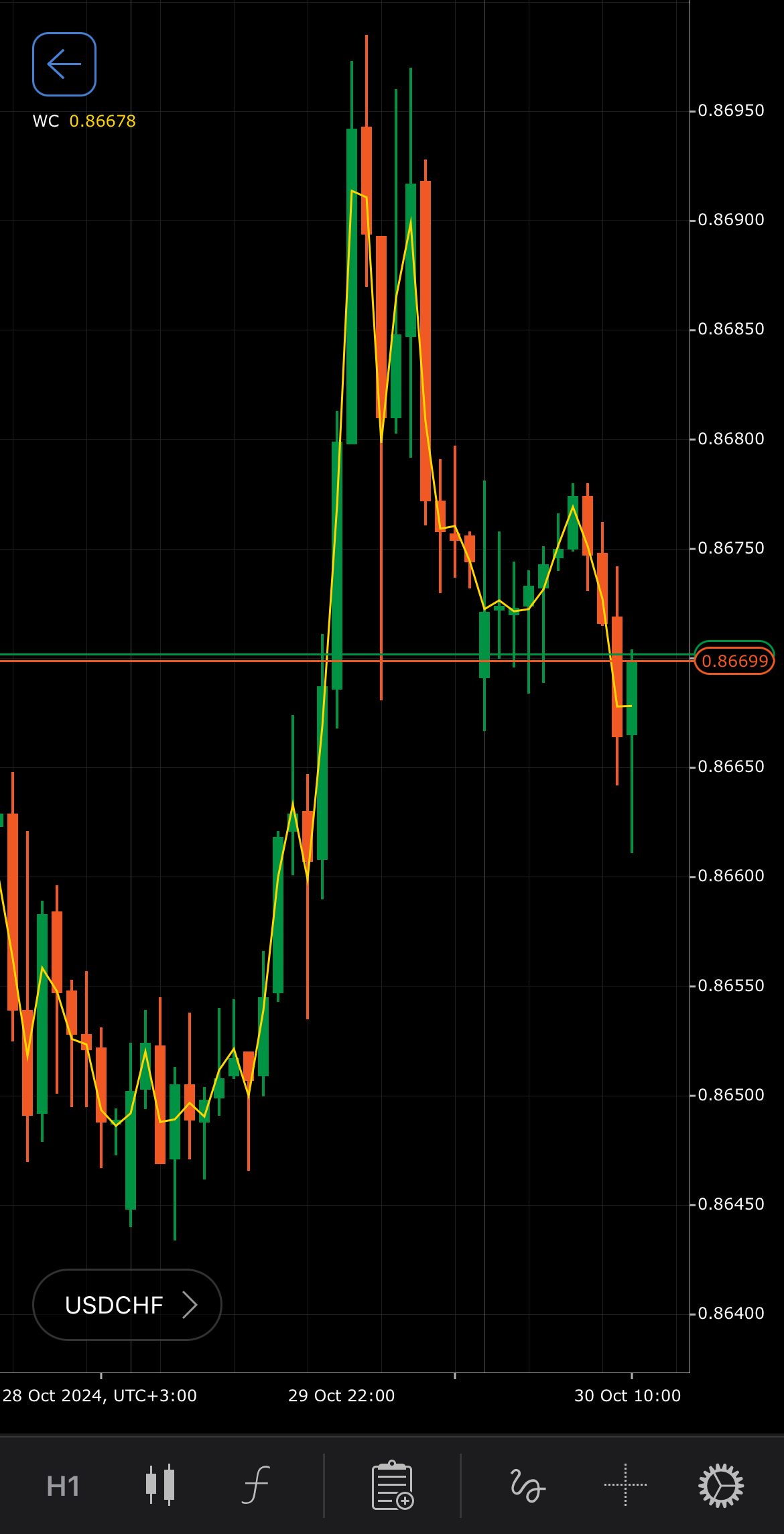
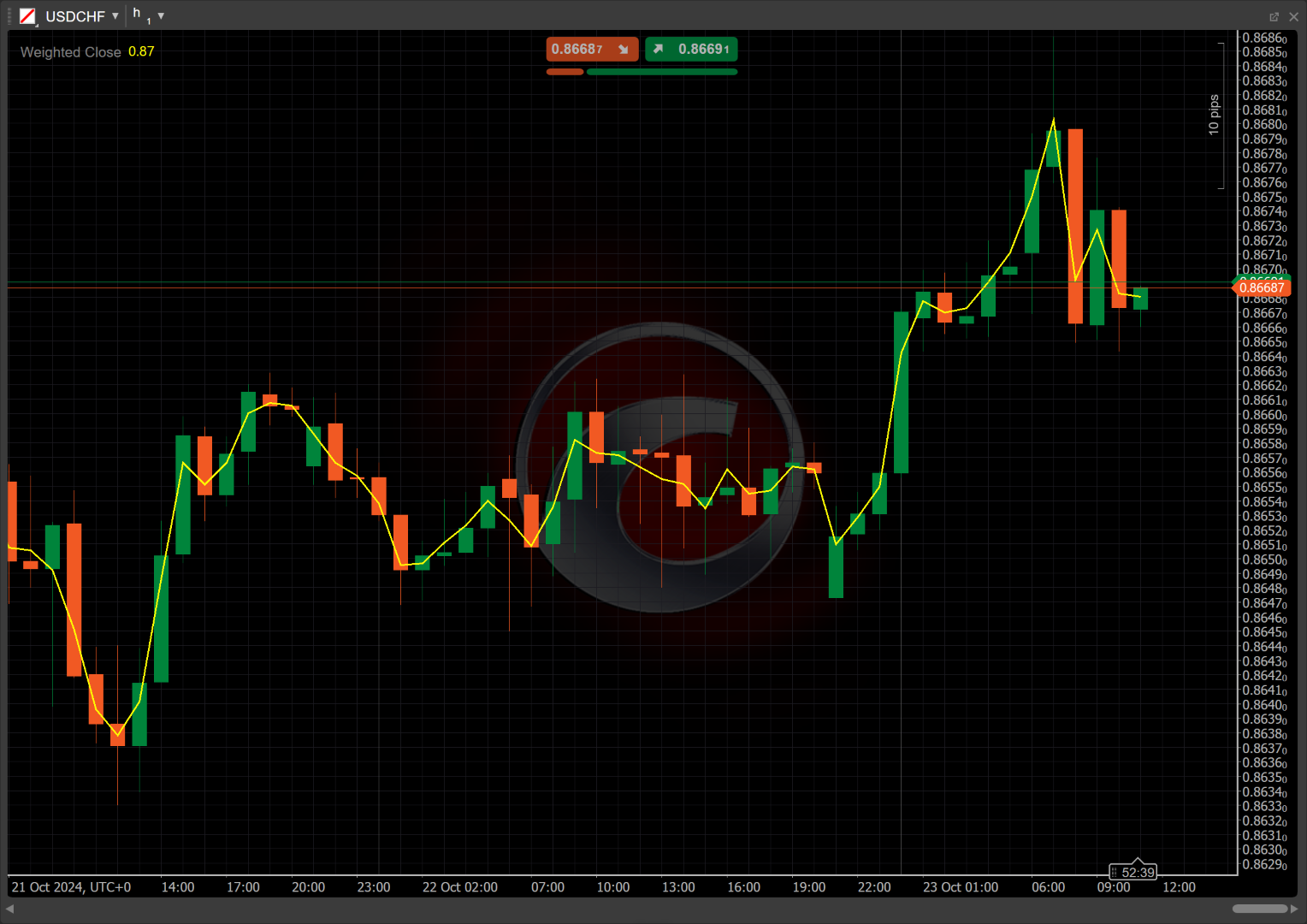
[Open live account](https://ctrader.com/brokers)
[Download cTrader](https://ctrader.com/download/)
History[¶](https://help.ctrader.com/knowledge-base/indicators/other/weighted-close/#history "Permanent link")
--------------------------------------------------------------------------------------------------------------
The Weighted Close emerged from the evolution of technical analysis in the late 20th century, aiming to provide a more accurate reflection of price trends. It gained traction among traders seeking effective analysis methods that incorporated closing prices. Influential texts like John J. Murphy's "Technical Analysis of the Financial Markets" popularised it, solidifying its role in trading strategies.
Calculations[¶](https://help.ctrader.com/knowledge-base/indicators/other/weighted-close/#calculations "Permanent link")
------------------------------------------------------------------------------------------------------------------------
The Weighted Close value calculates the average of the high, low and double the closing prices for each period:
\\\[ WC = { { ( 2 \\times Close ) + High + Low } \\over 4 } \\\]
\\(Close\\) – the closing price of the period
\\(High\\) – the highest price of the period
\\(Low\\) – the lowest price of the period
Interpretation[¶](https://help.ctrader.com/knowledge-base/indicators/other/weighted-close/#interpretation "Permanent link")
----------------------------------------------------------------------------------------------------------------------------
* **Crossovers** – if the WC crosses above a moving average (such as the [**Simple Moving Average**](https://help.ctrader.com/knowledge-base/indicators/trend/simple-moving-average/)
), it may indicate a shift towards bullish momentum. Conversely, a cross below the moving average could indicate a shift in trend towards bearish momentum.
* **Rising and falling** – the direction of the Weighted Close line can indicate the overall trend of the currency pair. A rising WC suggests bullish momentum, while a falling WC indicates bearish momentum.
* **Divergence** – when the WC diverges from the price action (for example, prices making new highs while the WC fails to do so), it can signal a potential reversal or weakening trend and alert traders to proceed with caution.
* **Reversal points** – changes in the direction of the WC may highlight potential reversal points in price trends. A sharp decline in the WC following an uptrend could suggest an impending bearish reversal, while a significant rise after a downtrend might indicate a bullish reversal.
Application[¶](https://help.ctrader.com/knowledge-base/indicators/other/weighted-close/#application "Permanent link")
----------------------------------------------------------------------------------------------------------------------
* **Buy signal** – traders can consider entering a buy position when the Weighted Close crosses above a specified moving average (such as the Simple Moving Average).
* **Sell signal** – conversely, traders can consider entering a sell position when the Weighted Close crosses below a moving average.
* **Stop-loss placement** – traders might place a stop loss below a recent low or below the WC value if they enter a long position. When entering a short position, traders can place a stop loss above a recent high or above the WC value.
* **Exit strategies** – an exit strategy could involve selling when the WC indicates a reversal, such as crossing below a moving average after a bullish trend, or when it shows significant divergence from price action.
* **Confirming trades** – the Weighted Close can be combined with other indicators, such as the [**Relative Strength Index (RSI)**](https://help.ctrader.com/knowledge-base/indicators/oscillators/relative-strength-index/)
or the [**MACD**](https://help.ctrader.com/knowledge-base/indicators/oscillators/macd-crossover/)
, to confirm signals. For instance, a buy signal from the WC, confirmed by a bullish RSI divergence, could strengthen the trade decision.
Note
You can take advantage of algo trading, with cBots executing trades based on the signals from this indicator, as shown in our [**examples**](https://help.ctrader.com/ctrader-algo/references/Indicators/WeightedClose/)
. Learn more about how to [**use indicators in cBots**](https://help.ctrader.com/ctrader-algo/articles/for-developers/how-to-use-indicators-in-cbots/)
.
Limitations[¶](https://help.ctrader.com/knowledge-base/indicators/other/weighted-close/#limitations "Permanent link")
----------------------------------------------------------------------------------------------------------------------
The Weighted Close primarily reflects historical price data and may lag behind current market movements, potentially missing real-time shifts in sentiment. Additionally, the indicator is sensitive to price fluctuations, which can lead to misleading signals during volatile market conditions. Traders should use it alongside other indicators for a more comprehensive analysis.
Summary[¶](https://help.ctrader.com/knowledge-base/indicators/other/weighted-close/#summary "Permanent link")
--------------------------------------------------------------------------------------------------------------
The Weighted Close indicator is designed to provide a refined measure of the currency pair price, incorporating greater weight on closing values to enhance trend analysis. This tool is particularly beneficial for traders looking to gain insights into market sentiment and price movements. Its focus on closing prices allows for better trend identification, making it a valuable addition to any technical analysis toolkit, especially for those emphasising the importance of closing data.
[Open live account](https://ctrader.com/brokers)
[Download cTrader](https://ctrader.com/download/)
Back to top
---
# Acceder a plugins WV - Plugins de WebView
[Saltar a contenido](https://help.ctrader.com/webview-plugins/es/how-tos/access-wv-plugins/#acceder-a-plugins-de-webview)
Advertencia
Esta función está en fase de prelanzamiento y actualmente en pruebas. La documentación es solo como referencia.
Acceder a plugins de WebView[¶](https://help.ctrader.com/webview-plugins/es/how-tos/access-wv-plugins/#acceder-a-plugins-de-webview "Permanent link")
======================================================================================================================================================
Después de [**añadir un plugin de WebView**](https://help.ctrader.com/webview-plugins/es/how-tos/add-wv-plugins/)
, puede usarlo inmediatamente.
En la app **Trade**, deslice la pantalla hacia abajo para acceder a todos los plugins de WebView (WV) asociados con su [**cTID**](https://help.ctrader.com/ctrader-id/es)
.
Consejo
La opción de deslizar hacia abajo en el móvil para mostrar el panel de plugins WV funciona en todas las pestañas de la aplicación **Trade**, así como en la pestaña **General** de cualquier símbolo.

Puede pulsar un plugin para abrir su recuadro inferior y acceder a su contenido.

Para cerrar el recuadro inferior del plugin, pulse en cualquier lugar externo o simplemente arrastre la pantalla hacia abajo.
En la pestaña **General** de cualquier símbolo, al desplazarse hacia abajo se muestra una vista expandida de cada plugin de WebView.

Volver al principio
---
# Pautan khusus - Plugin WebView
[Langkau tajuk talian](https://help.ctrader.com/webview-plugins/ms/references/deeplinks/#pautan-khusus)
Amaran
Ciri ini dalam fasa prapelancaran dan sedang diuji. Dokumentasi adalah untuk rujukan sahaja.
Pautan khusus[¶](https://help.ctrader.com/webview-plugins/ms/references/deeplinks/#pautan-khusus "Permanent link")
===================================================================================================================
| Pautan | Definisi |
| --- | --- |
| `/symbols/{symbol}/info` | Membuka skrin **Gambaran keseluruhan simbol** untuk simbol yang sepadan dengan `{symbol}`. |
| `/orders/create-market-order/{symbol}` | Membuka skrin **Buat pesanan pasaran** untuk simbol yang sepadan dengan `{symbol}`. |
Kembali ke atas
---
# Simple Moving Average - Knowledge base
[Skip to content](https://help.ctrader.com/knowledge-base/indicators/trend/simple-moving-average/#simple-moving-average)
Simple Moving Average[¶](https://help.ctrader.com/knowledge-base/indicators/trend/simple-moving-average/#simple-moving-average "Permanent link")
=================================================================================================================================================
Definition[¶](https://help.ctrader.com/knowledge-base/indicators/trend/simple-moving-average/#definition "Permanent link")
---------------------------------------------------------------------------------------------------------------------------
The Simple Moving Average (SMA) is a technical indicator used to smooth out price data over a specified period, helping to identify trends by filtering out short-term fluctuations. The SMA is calculated by averaging the prices (typically closing prices) of a symbol over a fixed number of periods. It provides a straightforward way to assess the direction of a trend and is commonly used to confirm trend reversals, identify support and resistance levels, and generate buy or sell signals when compared with other moving averages or the current price.
MobileDesktop
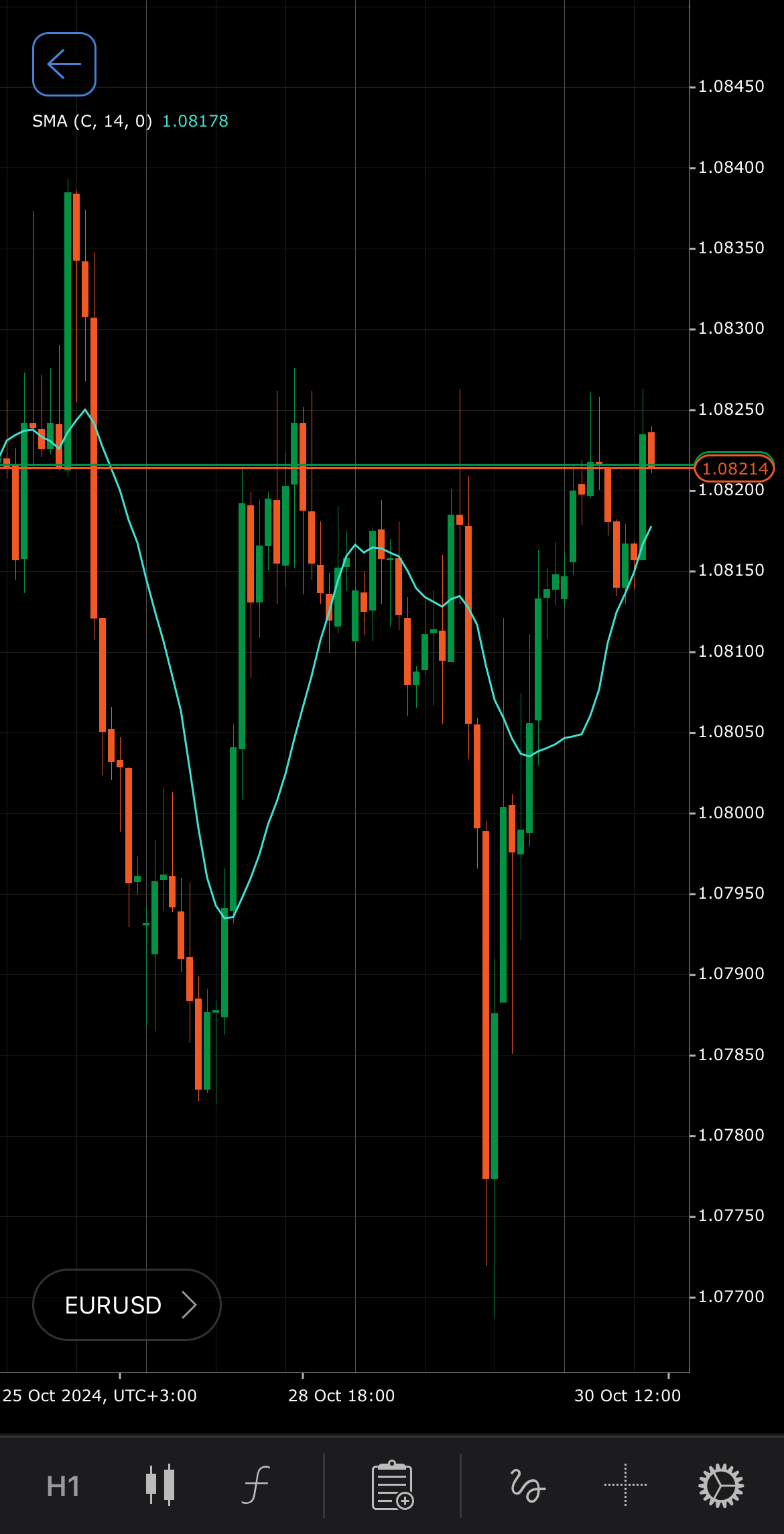
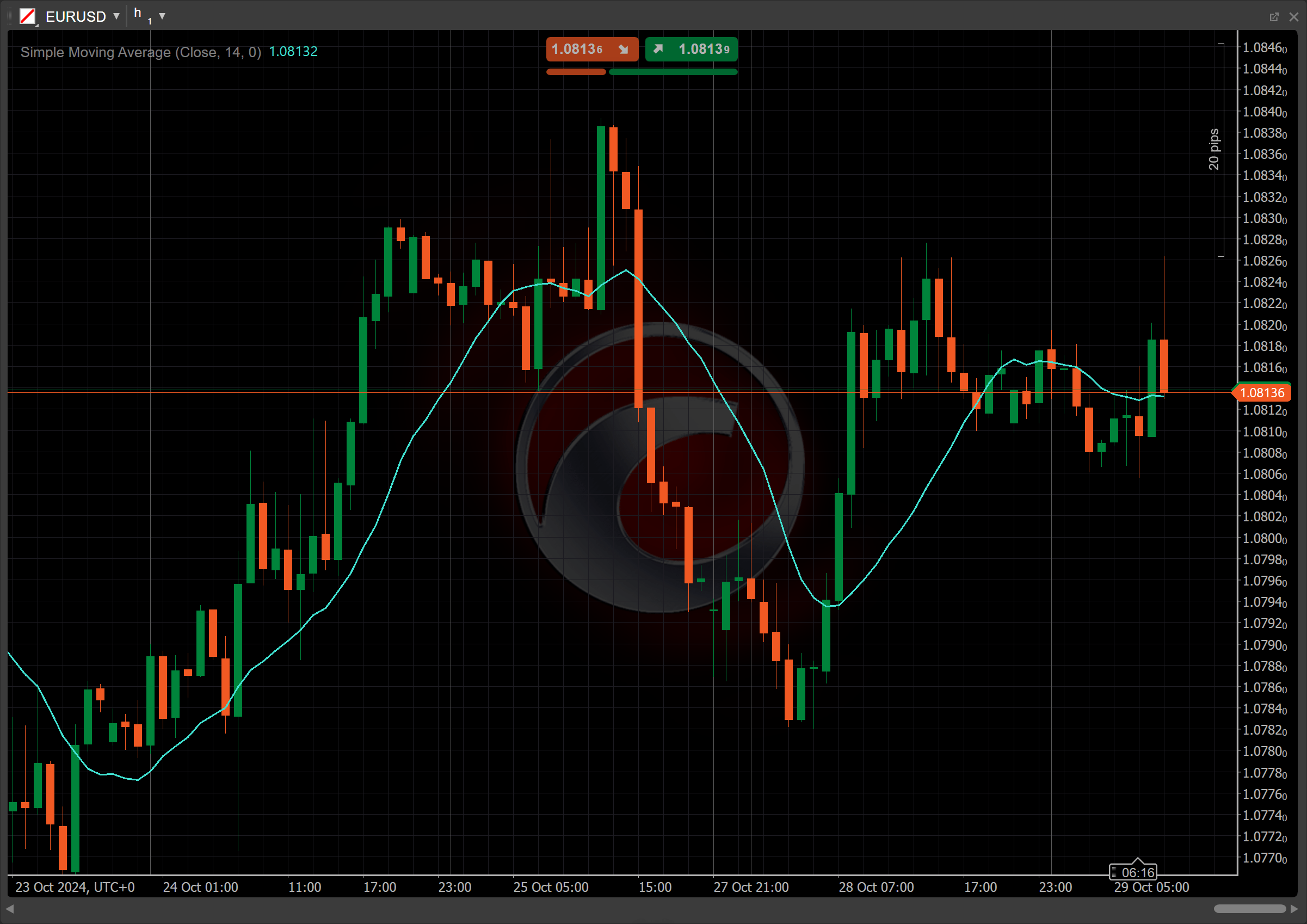
[Open live account](https://ctrader.com/brokers)
[Download cTrader](https://ctrader.com/download/)
History[¶](https://help.ctrader.com/knowledge-base/indicators/trend/simple-moving-average/#history "Permanent link")
---------------------------------------------------------------------------------------------------------------------
The SMA indicator is one of the oldest and most fundamental tools in technical analysis, with roots tracing back to early market analysis methods. It has been used for decades by traders and analysts to identify trends by smoothing out price fluctuations over time. Its simplicity and effectiveness have made it a cornerstone in trading strategies, and it remains widely accessible on most trading platforms and financial markets, including but not limited to forex.
Calculations[¶](https://help.ctrader.com/knowledge-base/indicators/trend/simple-moving-average/#calculations "Permanent link")
-------------------------------------------------------------------------------------------------------------------------------
The Simple Moving Average is an arithmetic moving average calculated by the following formula:
\\\[ SMA = { 1 \\over n } { \\sum\_{i=1}^n { A\_i } } \\\]
\\(A\_i\\) – the closing price at \\(i\\) period
\\(n\\) – the number of periods
Interpretation[¶](https://help.ctrader.com/knowledge-base/indicators/trend/simple-moving-average/#interpretation "Permanent link")
-----------------------------------------------------------------------------------------------------------------------------------
By default, the number of periods for the SMA indicator is set to 14 (short-term SMA), but it can be adjusted across a wide range, such as 10, 50 or 200 periods, depending on the trader strategy and the period of analysis.
The main patterns of the indicator behaviour can be interpreted as follows:
* **Price line crossovers** – the crossover between a short-term SMA and the price line can signal momentum shifts. When the price crosses above the SMA, it suggests the start of an uptrend or a potential buy signal, while a crossover below the SMA indicates weakening momentum and may signal a downtrend or a sell opportunity.
* **Crossovers** – a bullish crossover occurs when a short-term SMA (such as 20-day) crosses above a longer-term SMA (such as 50-day), suggesting an upward trend or buy signal. A bearish crossover occurs when a short-term SMA crosses below a longer-term SMA, indicating a potential downtrend or sell signal.
* **Rising and falling** – a rising SMA indicates that prices are generally trending higher, and market sentiment may be bullish. A falling SMA signals that prices are trending downward, often associated with bearish sentiment.
* **Reversal points** – when the price moves far above or below the SMA, it may suggest that the asset is overbought or oversold, potentially indicating an upcoming reversal or correction.
* **Shift** – adjusting the shift parameter alters the alignment of the SMA indicator with price data on the chart, helping you explore how the readings correspond to past or future price movements.
Application[¶](https://help.ctrader.com/knowledge-base/indicators/trend/simple-moving-average/#application "Permanent link")
-----------------------------------------------------------------------------------------------------------------------------
* **Buy signal** – a potential buying opportunity occurs when the price crosses above a short-term SMA (such as 14-period) or when a short-term SMA crosses above a longer-term SMA (such as 50-period), indicating upward momentum.
* **Sell signal** – a potential selling opportunity arises when the price drops below the SMA or when a short-term SMA crosses below a longer-term SMA, suggesting downward momentum.
* **Stop-loss placement** – traders may place a stop loss just below the SMA to limit losses in case of a sudden reversal, as a break below the SMA can signal weakening momentum.
* **Exit strategies** – an exit signal can be triggered when the price falls back below the SMA after a period of trading above it, or when two SMAs cross in the opposite direction from the entry signal.
* **Confirming trades** – the SMA signals are often combined with other indicators, such as the [**Relative Strength Index (RSI)**](https://help.ctrader.com/knowledge-base/indicators/oscillators/relative-strength-index/)
or the [**MACD**](https://help.ctrader.com/knowledge-base/indicators/oscillators/macd-crossover/)
, to confirm trends and avoid false signals. Long-term SMAs (such as 200-day) are also used to confirm the direction of the overall market trend.
Note
You can take advantage of algo trading, with cBots executing trades based on the signals from this indicator, as shown in our [**examples**](https://help.ctrader.com/ctrader-algo/references/Indicators/SimpleMovingAverage/)
. Learn more about how to [**use indicators in cBots**](https://help.ctrader.com/ctrader-algo/articles/for-developers/how-to-use-indicators-in-cbots/)
.
Limitations[¶](https://help.ctrader.com/knowledge-base/indicators/trend/simple-moving-average/#limitations "Permanent link")
-----------------------------------------------------------------------------------------------------------------------------
The SMA indicator reacts slowly to price changes, making it less effective during volatile markets or rapid trend reversals. It can also generate false signals, especially in ranging markets, leading to potential whipsaws. The lag of the SMA indicator can cause delays in entry and exit points, which limits its responsiveness to sudden shifts.
Summary[¶](https://help.ctrader.com/knowledge-base/indicators/trend/simple-moving-average/#summary "Permanent link")
---------------------------------------------------------------------------------------------------------------------
The Simple Moving Average is a widely used technical indicator that smooths price data over a specified period, assisting traders in identifying trends and potential reversals. By averaging past prices, the SMA filters out market noise and provides a clearer picture of market direction. It is valuable for assessing momentum and can indicate support and resistance levels. Additionally, the SMA can serve as the basis for other indicators, guiding entry and exit points and making it an essential component of effective trading strategies.
[Open live account](https://ctrader.com/brokers)
[Download cTrader](https://ctrader.com/download/)
Back to top
---
# Directional Movement System - Knowledge base
[Skip to content](https://help.ctrader.com/knowledge-base/indicators/trend/directional-movement-system/#directional-movement-system)
Directional Movement System[¶](https://help.ctrader.com/knowledge-base/indicators/trend/directional-movement-system/#directional-movement-system "Permanent link")
===================================================================================================================================================================
Definition[¶](https://help.ctrader.com/knowledge-base/indicators/trend/directional-movement-system/#definition "Permanent link")
---------------------------------------------------------------------------------------------------------------------------------
The Directional Movement System (DMS) is a technical analysis tool designed to help traders determine the strength and direction of a market trend. The system includes three key components: the Positive Directional Indicator, the Negative Directional Indicator and the Average Directional Index. These indicators together provide insights into whether a market is trending and the strength of that trend.
MobileDesktop
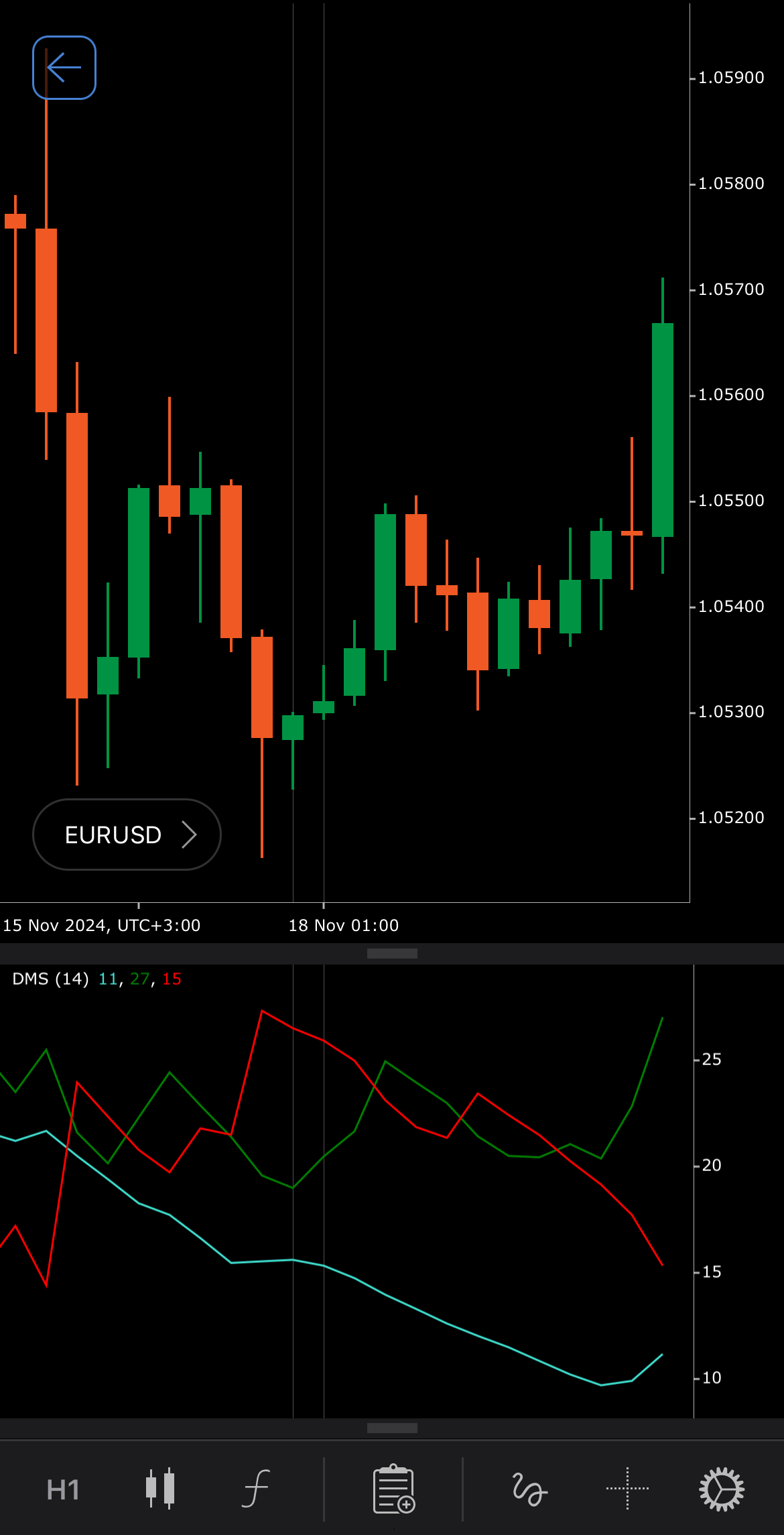
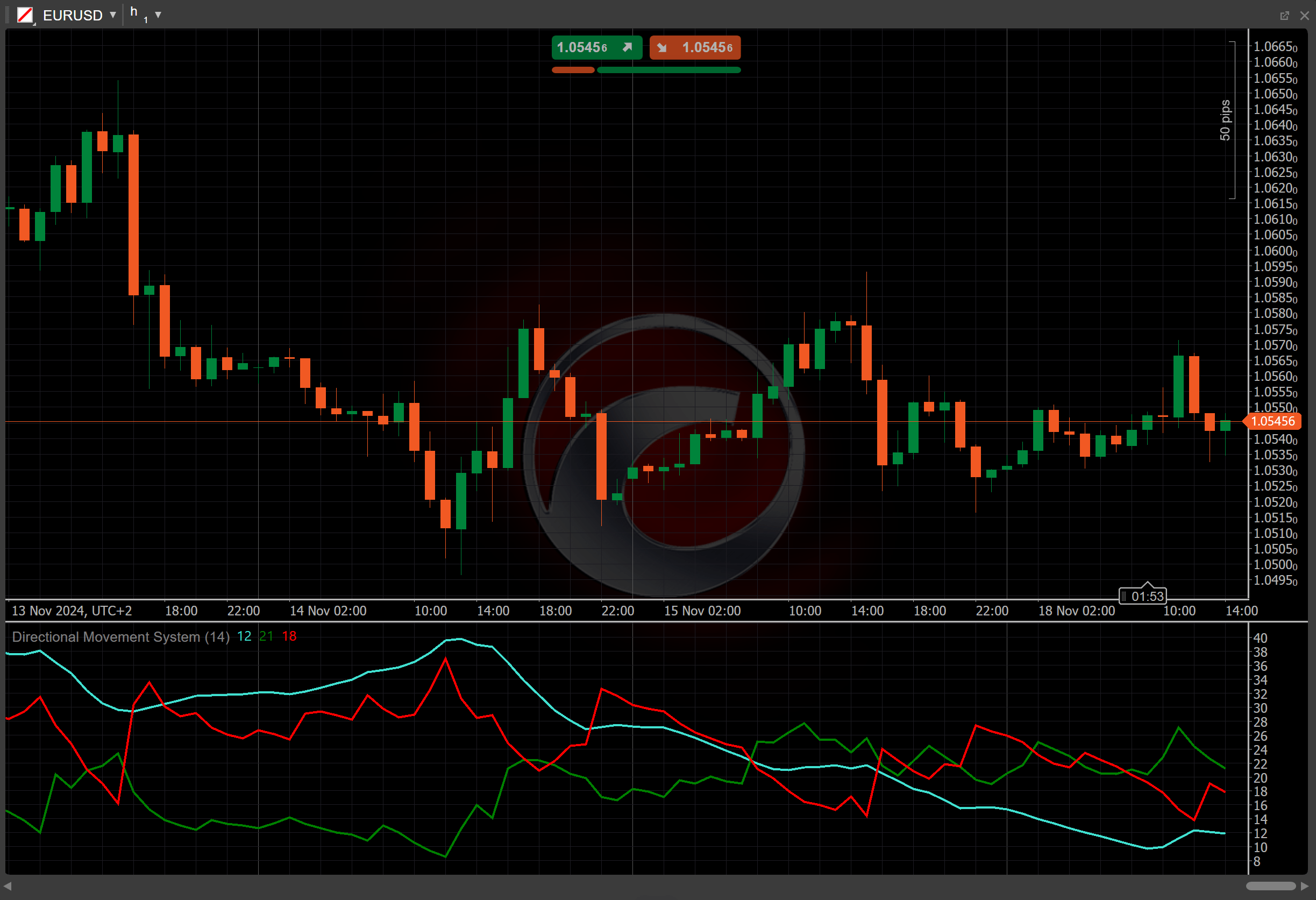
[Open live account](https://ctrader.com/brokers)
[Download cTrader](https://ctrader.com/download/)
History[¶](https://help.ctrader.com/knowledge-base/indicators/trend/directional-movement-system/#history "Permanent link")
---------------------------------------------------------------------------------------------------------------------------
The Directional Movement System was developed by J. Welles Wilder, a prominent figure in the world of technical analysis and was introduced in his book "New Concepts in Technical Trading Systems" in 1978. This book also introduced several other important indicators, such as the [**Relative Strength Index (RSI)**](https://help.ctrader.com/knowledge-base/indicators/oscillators/relative-strength-index/)
and the [**Average True Range (ATR)**](https://help.ctrader.com/knowledge-base/indicators/volatility/average-true-range/)
. The DMS has since become one of the most widely used trend-following systems in trading.
Calculations[¶](https://help.ctrader.com/knowledge-base/indicators/trend/directional-movement-system/#calculations "Permanent link")
-------------------------------------------------------------------------------------------------------------------------------------
1\. The Positive and Negative Directional Movements (DM+ and DM-) are determined by the difference between the current and previous highs or lows.
* If the current high minus the previous high is greater than the current low minus the previous low, DM+ is the difference between the current high and the previous high. Otherwise, DM+ is zero.
\\\[ DM^+ = { Current\\ High - Previous\\ High } \\\]
* If the current low minus the previous low is greater than the current high minus the previous high, DM- is the difference between the previous low and the current low. Otherwise, DM- is zero.
\\\[ DM^- = { Previous\\ Low - Current\\ Low } \\\]
2\. The Positive and Negative Directional Indicators (DI+ and DI-) are collected as the ratio of smoothed directional movements to the Average True Range.
\\\[ DI^± = { { Smoothed\\ (DM^±) \\over ATR } \\times 100 } \\\]
3\. The Directional Movement Index (DX) is the ratio of the difference between DI+ and DI- to their sum.
\\\[ DX = { { { | DI^+ - DI^- | } \\over { DI^+ + DI^- } } \\times 100 } \\\]
4\. The Average Directional Movement Index (ADX) is calculated as a moving average of the DX over \\(n\\) periods.
\\\[ ADX = { MA\_{n} (DX) } \\\]
Interpretation[¶](https://help.ctrader.com/knowledge-base/indicators/trend/directional-movement-system/#interpretation "Permanent link")
-----------------------------------------------------------------------------------------------------------------------------------------
To calculate ADX, a typical lookback of 14 periods is used. The [**Wilder Smoothing Moving Average**](https://help.ctrader.com/knowledge-base/indicators/trend/welles-wilder-smoothing/)
serves as a type of moving average.
The Directional Movement System provides a comprehensive view of trend direction and strength.
* **Directional indicators (+DI and -DI)** – when the +DI is above the -DI, it indicates that the upward trend is stronger, suggesting potential buy signals. When the -DI is above the +DI, it suggests a downward trend, indicating potential sell signals.
* **Average Directional Index** – an ADX value above 25 generally indicates a strong trend, while values below 20 suggest no significant trend or ranging market.
* **Crossovers** – when the +DI crosses above the -DI, it suggests buying opportunities, especially if the ADX is rising. When the -DI crosses above the +DI, it signals selling opportunities, especially if the ADX is also rising.
Application[¶](https://help.ctrader.com/knowledge-base/indicators/trend/directional-movement-system/#application "Permanent link")
-----------------------------------------------------------------------------------------------------------------------------------
The Directional Movement System can be used in various trading strategies.
* **Identifying trend strength** – traders use the ADX to assess whether the market is trending strongly. An ADX above 25 often indicates a strong trend, providing a favourable environment for trend-following strategies.
* **Buy and sell signals** – when the +DI is above the -DI and the ADX is rising, traders often enter buy positions. Conversely, when the -DI is above the +DI and the ADX is rising, it signals sell opportunities.
* **Stop-loss placement** – traders can use the ADX levels to place a stop loss. For example, setting a stop loss below recent lows in an uptrend confirmed by the ADX or above recent highs in a downtrend.
Note
You can take advantage of algo trading, with cBots executing trades based on the signals from this indicator, as shown in our [**examples**](https://help.ctrader.com/ctrader-algo/references/Indicators/DirectionalMovementSystem/)
. Learn more about how to [**use indicators in cBots**](https://help.ctrader.com/ctrader-algo/articles/for-developers/how-to-use-indicators-in-cbots/)
.
Limitations[¶](https://help.ctrader.com/knowledge-base/indicators/trend/directional-movement-system/#limitations "Permanent link")
-----------------------------------------------------------------------------------------------------------------------------------
The Directional Movement System relies on past price data, which can result in lagging signals, especially in fast-moving markets. It is also less effective in ranging or choppy markets, as it tends to generate false signals when no clear trend is present. Additionally, the ADX does not indicate the direction of the trend, only its strength, which means traders still need to rely on the +DI and the -DI for directional cues.
Summary[¶](https://help.ctrader.com/knowledge-base/indicators/trend/directional-movement-system/#summary "Permanent link")
---------------------------------------------------------------------------------------------------------------------------
The Directional Movement System, developed by J. Welles Wilder, is a powerful tool for identifying the direction and strength of a market trend. The system consists of three components: the Positive Directional Indicator, the Negative Directional Indicator and the Average Directional Index. The strength of the DMS lies within the data provided by those components. Gathering values from each of them and providing a holistic value enables the DMS to not only provide insights into whether a market is trending but also the strength of that trend.
[Open live account](https://ctrader.com/brokers)
[Download cTrader](https://ctrader.com/download/)
Back to top
---
# Supertrend - Knowledge base
[Skip to content](https://help.ctrader.com/knowledge-base/indicators/trend/supertrend/#supertrend)
Supertrend[¶](https://help.ctrader.com/knowledge-base/indicators/trend/supertrend/#supertrend "Permanent link")
================================================================================================================
Definition[¶](https://help.ctrader.com/knowledge-base/indicators/trend/supertrend/#definition "Permanent link")
----------------------------------------------------------------------------------------------------------------
The Supertrend indicator is a trend-following tool designed to calculate dynamic support and resistance levels. By combining price action with the [**Average True Range (ATR)**](https://help.ctrader.com/knowledge-base/indicators/volatility/average-true-range/)
values, the Supertrend provides a responsive approach to trend identification. Its visual representation, typically shown as a dotted line on price charts, allows traders to quickly assess market conditions.
MobileDesktop
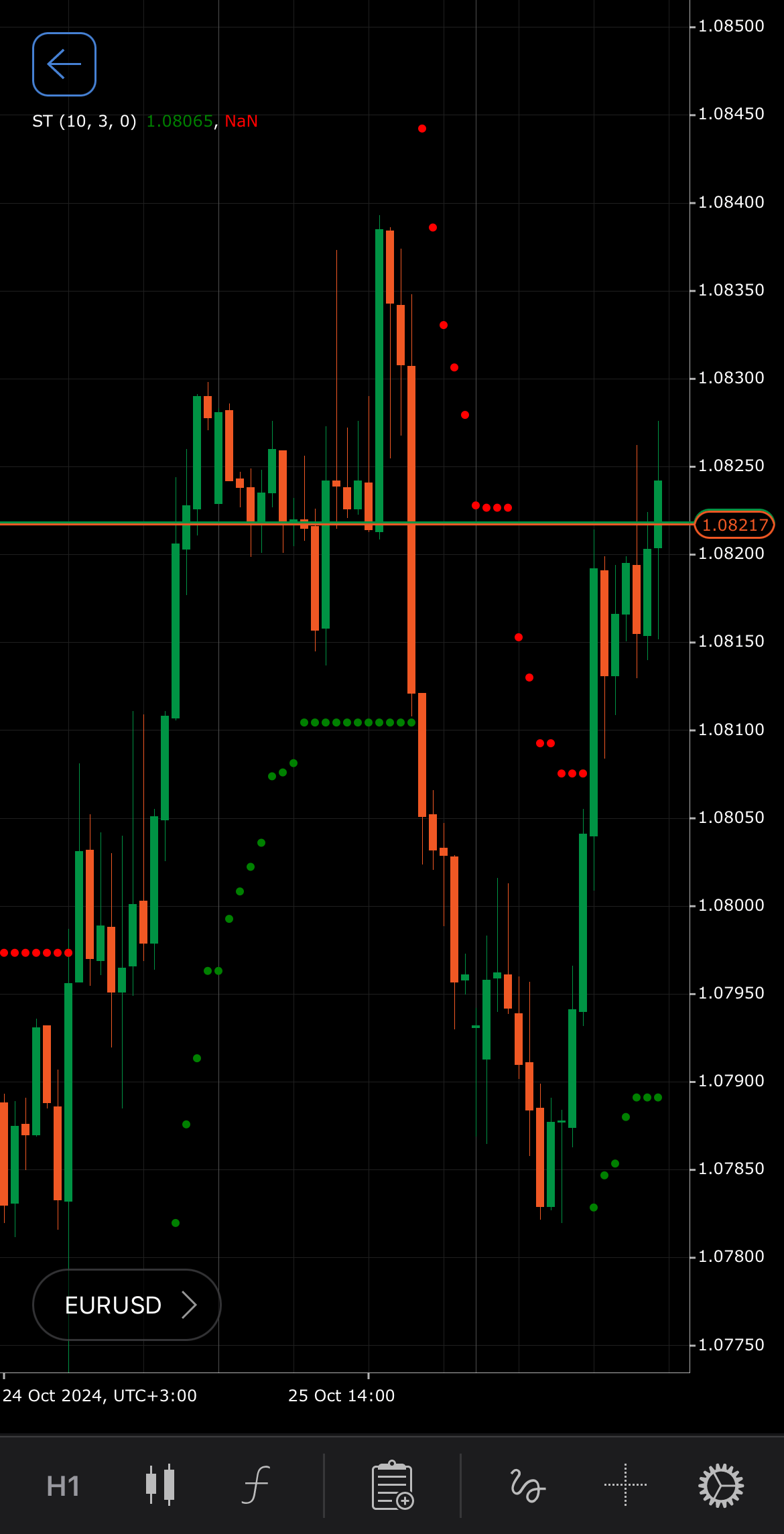
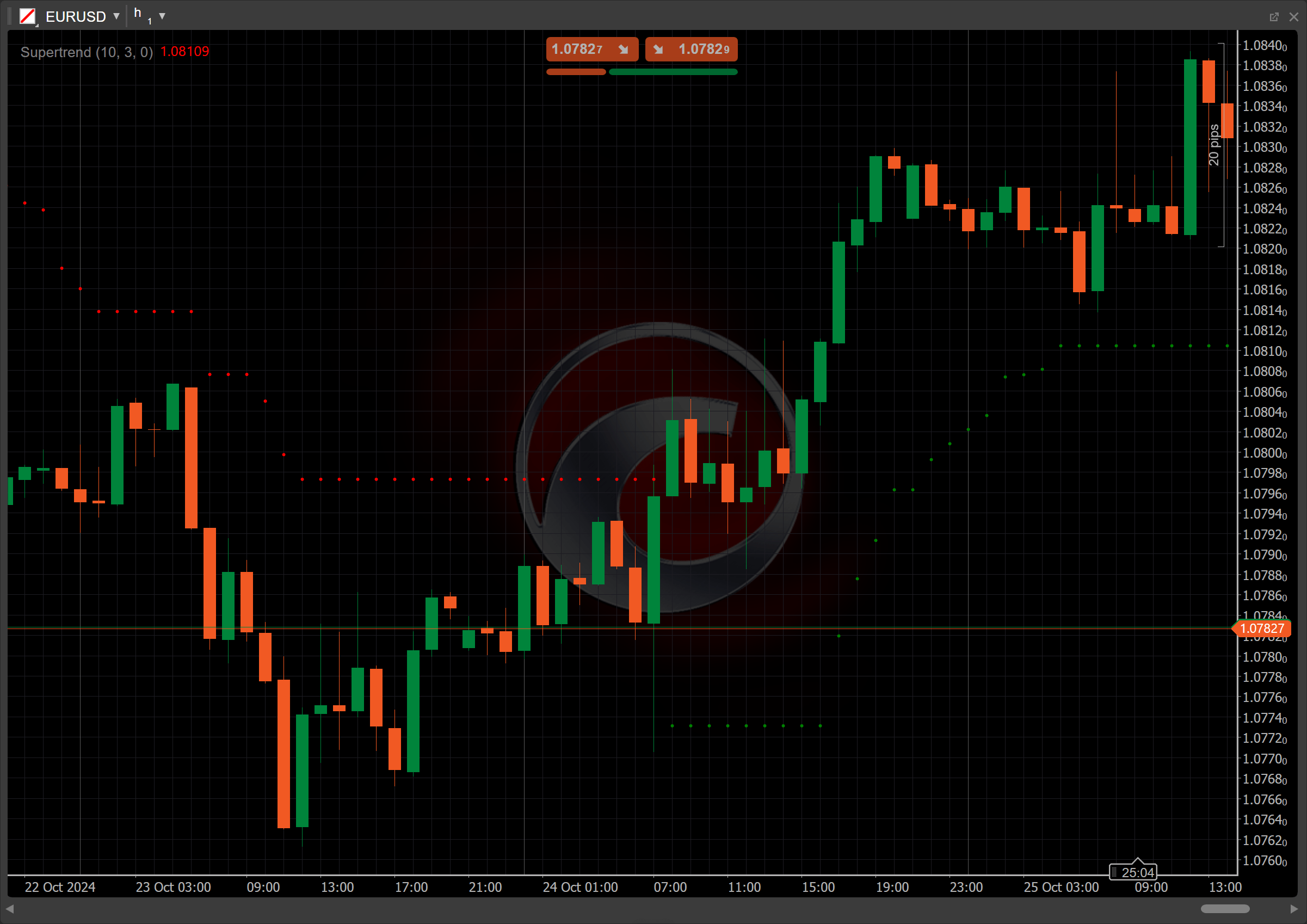
[Open live account](https://ctrader.com/brokers)
[Download cTrader](https://ctrader.com/download/)
History[¶](https://help.ctrader.com/knowledge-base/indicators/trend/supertrend/#history "Permanent link")
----------------------------------------------------------------------------------------------------------
The Supertrend was developed by Olivier Seban and is primarily used to identify trends in the market. Introduced in the early 2000s, it gained popularity among traders for its effectiveness in signalling potential buy and sell opportunities. Over the years, the Supertrend indicator has been widely adopted in various trading strategies across different asset classes, becoming a staple in technical analysis.
Calculations[¶](https://help.ctrader.com/knowledge-base/indicators/trend/supertrend/#calculations "Permanent link")
--------------------------------------------------------------------------------------------------------------------
The Supertrend is calculated based on two lines:
\\\[ Upper\\ band = { Average + ( Multiplier \\times ATR ) } \\\]
\\\[ Lower\\ band = { Average - ( Multiplier \\times ATR ) } \\\]
\\(Average\\) – the average between the highest and the lowest prices during a specific period
\\(Multiplier\\) – a constant, making the indicator more or less sensitive to price movements
\\(ATR\\) – the Average True Range value, calculated over a specific period
Interpretation[¶](https://help.ctrader.com/knowledge-base/indicators/trend/supertrend/#interpretation "Permanent link")
------------------------------------------------------------------------------------------------------------------------
By default, the number of periods for the Supertrend indicator is set to 10 and the multiplier value is set to 3, but it can be adjusted depending on the trader strategy and the period of analysis.
The main patterns of the indicator behaviour can be interpreted as follows:
* **Rising and falling** – the Supertrend indicator is considered rising when the price is above the Supertrend line, signalling a bullish trend. Conversely, it is falling when the price is below the Supertrend line, indicating a bearish trend.
* **Reversal points** – when the Supertrend line changes from green to red or vice versa, it signals a potential reversal in market direction.
* **Shift** – by adjusting the shift parameter to alter the alignment of the Supertrend line with price data on the chart, you can explore how the Supertrend readings correspond to past or future price movements.
Application[¶](https://help.ctrader.com/knowledge-base/indicators/trend/supertrend/#application "Permanent link")
------------------------------------------------------------------------------------------------------------------
* **Buy signal** – a potential buying opportunity occurs when the price crosses above the Supertrend line, which typically changes to green.
* **Sell signal** – a potential selling opportunity occurs when the price crosses below the Supertrend line, which changes to red.
* **Stop-loss placement** – for long positions, a stop loss is usually set just below the Supertrend line to protect against adverse price movements. Conversely, for short positions, a stop loss can be placed just above the Supertrend line.
* **Exit strategies** – traders may exit long positions when the Supertrend line changes from green to red, indicating a potential trend reversal. For short positions, exiting may occur when the Supertrend line changes from red to green.
* **Confirming trades** – the Supertrend indicator can be effectively combined with other indicators, such as the [**Relative Strength Index (RSI)**](https://help.ctrader.com/knowledge-base/indicators/oscillators/relative-strength-index/)
or moving averages, to confirm trade signals. For example, a buy signal from the Supertrend can be confirmed if the RSI is above a certain level (such as 50), indicating bullish momentum.
Note
You can take advantage of algo trading, with cBots executing trades based on the signals from this indicator, as shown in our [**examples**](https://help.ctrader.com/ctrader-algo/references/Indicators/Supertrend/)
. Learn more about how to [**use indicators in cBots**](https://help.ctrader.com/ctrader-algo/articles/for-developers/how-to-use-indicators-in-cbots/)
.
Limitations[¶](https://help.ctrader.com/knowledge-base/indicators/trend/supertrend/#limitations "Permanent link")
------------------------------------------------------------------------------------------------------------------
The Supertrend can produce false signals in choppy or sideways markets, leading to potential losses. Additionally, its lagging nature means it may react slowly to price changes, causing missed opportunities or delayed entries and exits. The effectiveness of the Supertrend can also vary depending on the chosen parameters and market conditions.
Summary[¶](https://help.ctrader.com/knowledge-base/indicators/trend/supertrend/#summary "Permanent link")
----------------------------------------------------------------------------------------------------------
The Supertrend indicator is a powerful tool in technical analysis, designed to help traders identify market trends and make informed trading decisions. Unlike many traditional indicators, the Supertrend is relatively new but is continuously gaining trust and popularity among traders. It utilises the values of the Average True Range to calculate dynamic support and resistance levels. By providing clear buy and sell signals based on price action relative to its two calculated bands, it effectively guides traders through various market conditions and enhances their strategy execution.
[Open live account](https://ctrader.com/brokers)
[Download cTrader](https://ctrader.com/download/)
Back to top
---
# Exponential Moving Average - Knowledge base
[Skip to content](https://help.ctrader.com/knowledge-base/indicators/trend/exponential-moving-average/#exponential-moving-average)
Exponential Moving Average[¶](https://help.ctrader.com/knowledge-base/indicators/trend/exponential-moving-average/#exponential-moving-average "Permanent link")
================================================================================================================================================================
Definition[¶](https://help.ctrader.com/knowledge-base/indicators/trend/exponential-moving-average/#definition "Permanent link")
--------------------------------------------------------------------------------------------------------------------------------
The Exponential Moving Average (EMA) is a type of moving average that places a higher weight on recent data points to make it more responsive to new information. It is commonly used in trading to smooth out price data and generate buy and sell signals based on price trends.
MobileDesktop

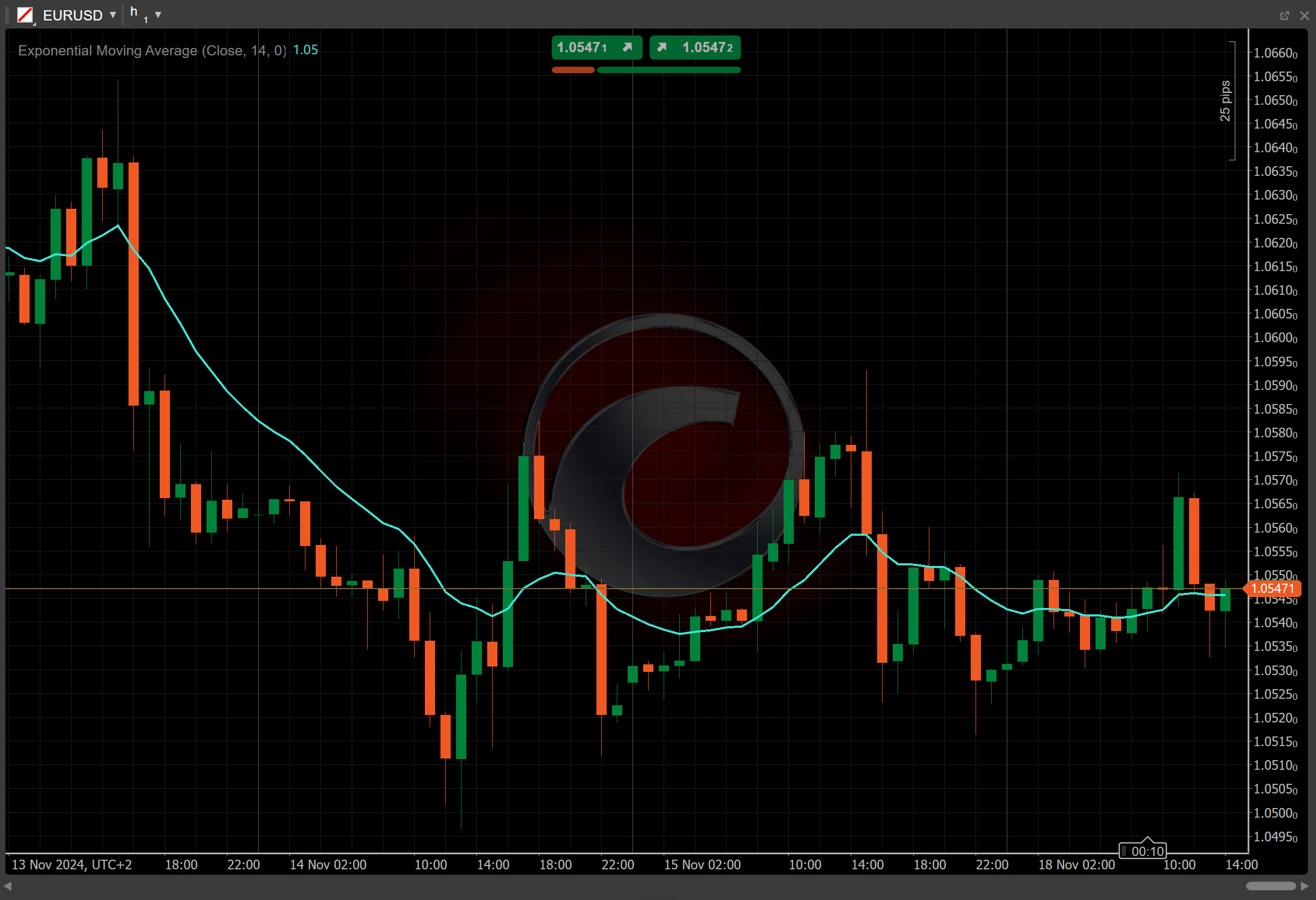
[Open live account](https://ctrader.com/brokers)
[Download cTrader](https://ctrader.com/download/)
History[¶](https://help.ctrader.com/knowledge-base/indicators/trend/exponential-moving-average/#history "Permanent link")
--------------------------------------------------------------------------------------------------------------------------
The EMA has roots in technical analysis, where moving averages have been a staple since the early 20th century. However, the formula for the Exponential Moving Average was refined during the 1950s to address lag issues found in the [**Simple Moving Average (SMA)**](https://help.ctrader.com/knowledge-base/indicators/trend/simple-moving-average/)
. It gained popularity with the rise of algorithmic trading and was further popularised in the trading community by technical analysts such as Welles Wilder and his work in "New Concepts in Technical Trading Systems", published in 1978.
Calculations[¶](https://help.ctrader.com/knowledge-base/indicators/trend/exponential-moving-average/#calculations "Permanent link")
------------------------------------------------------------------------------------------------------------------------------------
The EMA calculation involves both the current price and the previous EMA value, where more weight is given to recent price. The formula is as follows:
\\\[ EMA\_i = { \\alpha \\times ( Price\_{i} - EMA\_{i-1} ) + EMA\_{i-1} } \\\]
\\(EMA\_{i}\\) – the current EMA value
\\(EMA\_{i-1}\\) – the EMA value from the previous period
\\(Price\_i\\) – the current closing price
\\( \\alpha = { 2 \\over {n + 1} } \\) – the smoothing factor calculated over \\(n\\) periods
Interpretation[¶](https://help.ctrader.com/knowledge-base/indicators/trend/exponential-moving-average/#interpretation "Permanent link")
----------------------------------------------------------------------------------------------------------------------------------------
* **Rising and falling** – a rising EMA indicates a bullish trend, where recent prices are moving higher than older prices, suggesting increasing momentum. A falling EMA signals a bearish trend, where recent prices are moving lower, indicating downward momentum.
* **Shift** – by adjusting the shift parameter to alter the alignment of the EMA indicator with price data on the chart, you can explore how the EMA readings correspond to past or future price movements.
Application[¶](https://help.ctrader.com/knowledge-base/indicators/trend/exponential-moving-average/#application "Permanent link")
----------------------------------------------------------------------------------------------------------------------------------
* **Crossover strategy** – traders often use two EMAs with different time periods (such as a 50-day EMA and a 200-day EMA). A bullish signal occurs when the shorter-term EMA crosses above the longer-term EMA (called a golden cross). Conversely, a bearish signal (called a death cross) occurs when the shorter EMA crosses below the longer EMA.
* **Support and resistance** – the EMAs can act as dynamic support or resistance levels, where the price tends to bounce off these lines.
* **Buy signal** – a buy signal may occur when the price crosses above a rising EMA, indicating an upward trend.
* **Sell signal** – conversely, a sell signal might occur when the price drops below a declining EMA, signalling bearish momentum.
* **Stop-loss placement** – traders often use the EMA line as a stop-loss reference, placing stop orders just below the EMA line for long positions and just above it for short positions.
* **Combining with other indicators** – to improve the accuracy of signals, traders often combine the EMAs with other indicators such as the [**Relative Strength Index (RSI)**](https://help.ctrader.com/knowledge-base/indicators/oscillators/relative-strength-index/)
to confirm momentum or the [**Moving Average Convergence Divergence (MACD)**](https://help.ctrader.com/knowledge-base/indicators/oscillators/macd-crossover/)
for trend strength and reversals.
Note
You can take advantage of algo trading, with cBots executing trades based on the signals from this indicator, as shown in our [**examples**](https://help.ctrader.com/ctrader-algo/references/Indicators/ExponentialMovingAverage/)
. Learn more about how to [**use indicators in cBots**](https://help.ctrader.com/ctrader-algo/articles/for-developers/how-to-use-indicators-in-cbots/)
.
Limitations[¶](https://help.ctrader.com/knowledge-base/indicators/trend/exponential-moving-average/#limitations "Permanent link")
----------------------------------------------------------------------------------------------------------------------------------
The EMA, like other moving averages, lags behind price action, meaning it may produce delayed signals, particularly in fast-moving or highly volatile markets. Additionally, in sideways or choppy markets, the EMA can generate false signals, leading traders into losing positions.
Summary[¶](https://help.ctrader.com/knowledge-base/indicators/trend/exponential-moving-average/#summary "Permanent link")
--------------------------------------------------------------------------------------------------------------------------
The Exponential Moving Average is a widely used indicator that places greater emphasis on recent price data to provide a clearer picture of momentum and trend direction. Traders use it to identify trends, generate buy and sell signals and manage risk. Its development process involved addressing lag issues found in the Simple Moving Average. The EMA continued to garner popularity alongside the rise and development of algorithmic trading.
[Open live account](https://ctrader.com/brokers)
[Download cTrader](https://ctrader.com/download/)
Back to top
---
# Average True Range - Knowledge base
[Skip to content](https://help.ctrader.com/knowledge-base/indicators/volatility/average-true-range/#average-true-range)
Average True Range[¶](https://help.ctrader.com/knowledge-base/indicators/volatility/average-true-range/#average-true-range "Permanent link")
=============================================================================================================================================
Definition[¶](https://help.ctrader.com/knowledge-base/indicators/volatility/average-true-range/#definition "Permanent link")
-----------------------------------------------------------------------------------------------------------------------------
The Average True Range (ATR) is an indicator that focuses on the market volatility of a given asset. It measures market volatility by calculating the average range between the high and low prices over a specific period, typically 14 days.
MobileDesktop
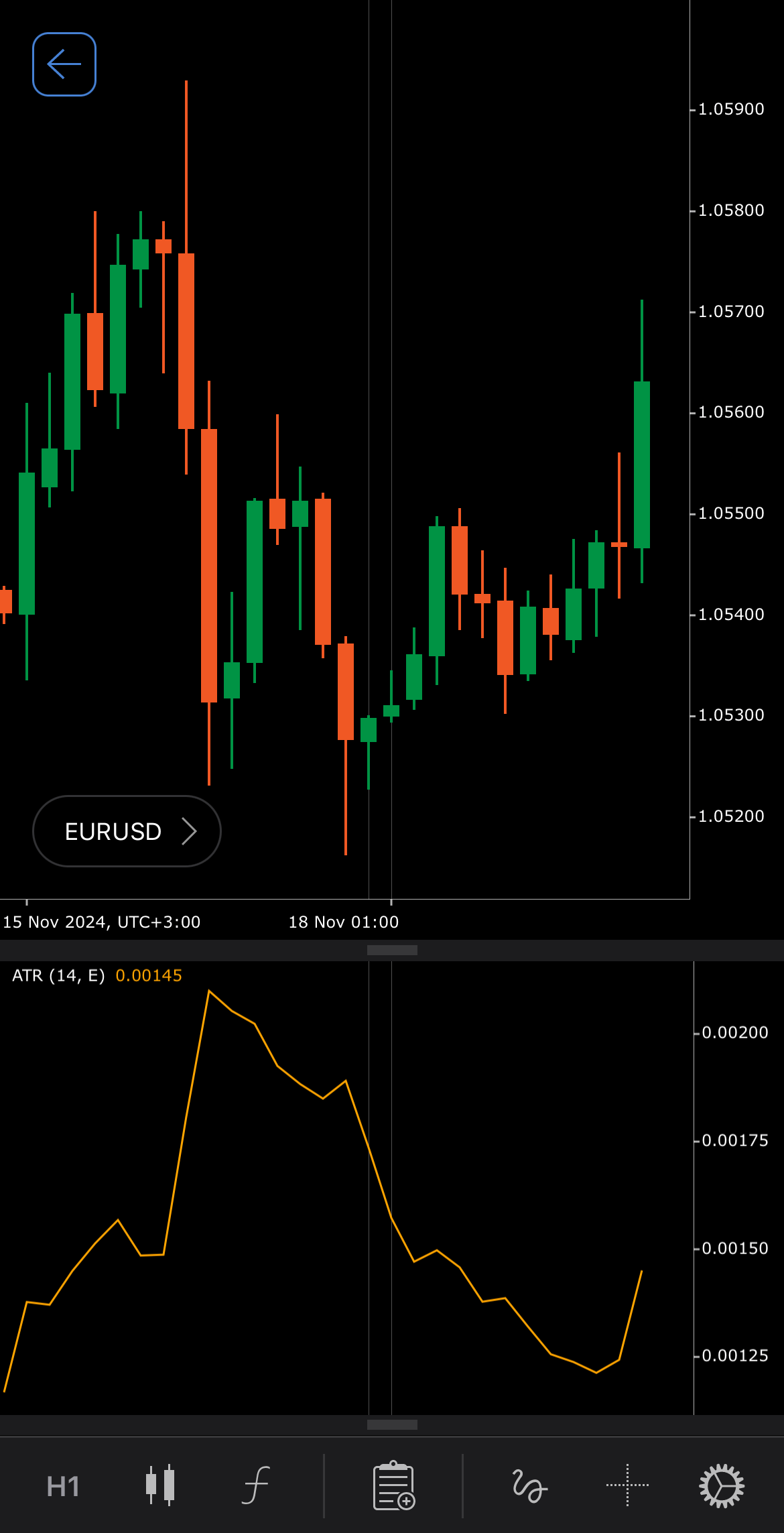
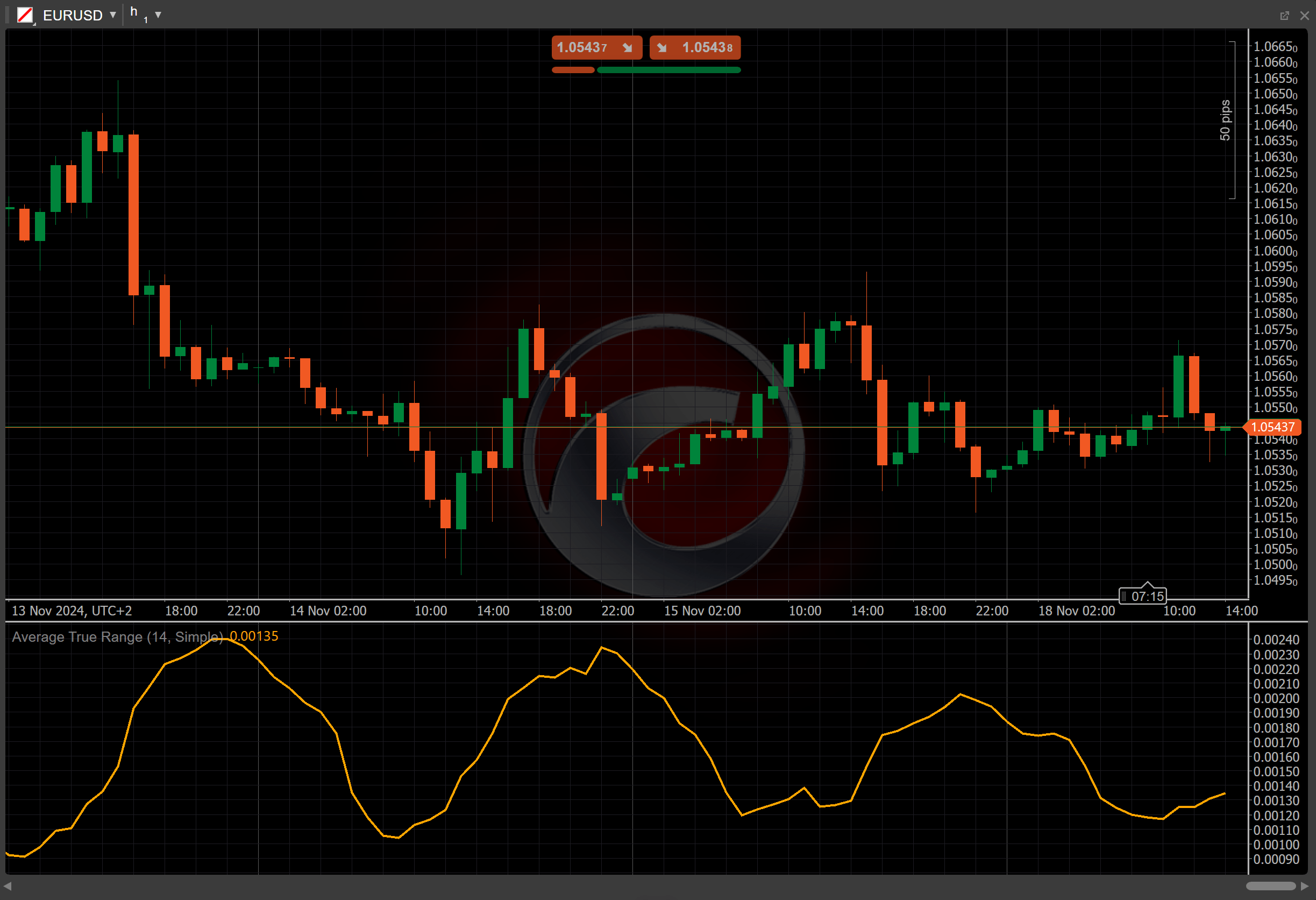
[Open live account](https://ctrader.com/brokers)
[Download cTrader](https://ctrader.com/download/)
History[¶](https://help.ctrader.com/knowledge-base/indicators/volatility/average-true-range/#history "Permanent link")
-----------------------------------------------------------------------------------------------------------------------
In his book "New Concepts in Technical Trading Systems" J. Welles Wilder introduced the ATR, initially as a tool to measure the volatility of commodities as they are often more volatile than stocks. However, the ATR is now widely used by traders and analysts for various assets. The book published in 1978 featured other key trading indicators such as the [**Directional Movement Index (ADX)**](https://help.ctrader.com/knowledge-base/indicators/trend/average-directional-movement-index-rating/)
and the [**Accumulative Swing Index (ASI)**](https://help.ctrader.com/knowledge-base/indicators/trend/accumulative-swing-index/)
.
Calculations[¶](https://help.ctrader.com/knowledge-base/indicators/volatility/average-true-range/#calculations "Permanent link")
---------------------------------------------------------------------------------------------------------------------------------
The ATR value is calculated as the moving average of the [**True Range (TR)**](https://help.ctrader.com/knowledge-base/indicators/volatility/true-range/)
over a specified number of periods.
\\\[ ATR = { Moving\\ Average\\ (TR, n) } \\\]
\\(TR\\) – the current True Range value
\\(n\\) – the number of periods
Interpretation[¶](https://help.ctrader.com/knowledge-base/indicators/volatility/average-true-range/#interpretation "Permanent link")
-------------------------------------------------------------------------------------------------------------------------------------
By default, the [**Simple Moving Average (SMA)**](https://help.ctrader.com/knowledge-base/indicators/trend/simple-moving-average/)
is used with a 14-period to calculate the ATR value.
When interpreting the ATR data, traders should focus on changes in absolute values.
* **Rising** – an increasing ATR indicates growing volatility, which can signal potential breakout opportunities or significant market moves.
* **Falling** – a declining ATR suggests decreasing volatility, which may indicate a consolidation phase. This can signal potential reversal points or a lack of momentum.
As different assets may carry different values and, as a result, different levels of volatility, ATR values should not be compared across multiple markets.
Application[¶](https://help.ctrader.com/knowledge-base/indicators/volatility/average-true-range/#application "Permanent link")
-------------------------------------------------------------------------------------------------------------------------------
The ATR is widely used in risk management and volatility analysis.
* **Buy signals** – a rising ATR can signal a potential breakout, indicating an increase in volatility that may offer buying opportunities. Traders may look for confirmation from other indicators before entering a position.
* **Sell signals** – if the ATR is falling, it could suggest a period of low volatility and consolidation. Traders might use this as a signal to exit positions or prepare for potential reversals.
* **Stop-loss placement** – the ATR is commonly used to set stop losses at multiples of the ATR value (such as 2x ATR), helping traders accommodate the expected price fluctuations and protect against sudden market reversals.
* **Exit strategies** – a falling ATR may suggest that volatility is decreasing, potentially indicating an end to a trend. Traders can use the ATR values to plan their exit points from trades.
Note
You can take advantage of algo trading, with cBots executing trades based on the signals from this indicator, as shown in our [**examples**](https://help.ctrader.com/ctrader-algo/references/Indicators/AverageTrueRange/)
. Learn more about how to [**use indicators in cBots**](https://help.ctrader.com/ctrader-algo/articles/for-developers/how-to-use-indicators-in-cbots/)
.
Limitations[¶](https://help.ctrader.com/knowledge-base/indicators/volatility/average-true-range/#limitations "Permanent link")
-------------------------------------------------------------------------------------------------------------------------------
The ATR does not indicate the direction of price movement, only the degree of volatility. The ATR reflects past market volatility, which may not always accurately predict future market conditions. Additionally, the ATR may provide less meaningful information in low-volume or illiquid markets, where price movements can be erratic.
Summary[¶](https://help.ctrader.com/knowledge-base/indicators/volatility/average-true-range/#summary "Permanent link")
-----------------------------------------------------------------------------------------------------------------------
The Average True Range indicator measures market volatility by focusing on price changes of a specific asset over a period. The ATR data is always absolute, meaning it does not account for the direction of price movements. A rising ATR indicates increasing volatility, which may signal potential breakout opportunities. A falling ATR indicates decreasing volatility, which may signal potential reversal points.
[Open live account](https://ctrader.com/brokers)
[Download cTrader](https://ctrader.com/download/)
Back to top
---
# ดีพลิงค์ - ปลั๊กอิน WebView
[ข้ามไปที่เนื้อหา](https://help.ctrader.com/webview-plugins/th/references/deeplinks/#deeplink)
คำเตือน
คุณลักษณะนี้อยู่ในขั้นตอนก่อนการเปิดตัวและกำลังอยู่ระหว่างการทดสอบ เอกสารนี้มีไว้เพื่อการอ้างอิงเท่านั้น
Deeplink[¶](https://help.ctrader.com/webview-plugins/th/references/deeplinks/#deeplink "Permanent link")
=========================================================================================================
| ลิงก์ | คำจำกัดความ |
| --- | --- |
| `/symbols/{symbol}/info` | เปิดหน้าจอ **ภาพรวมสัญลักษณ์** ของสัญลักษณ์ที่มีชื่อตรงกับ `{symbol}` |
| `/orders/create-market-order/{symbol}` | เปิดหน้าจอ **ส่งคำสั่ง Market** สำหรับสัญลักษณ์ที่มีชื่อตรงกับ `{symbol}` |
กลับไปด้านบนสุด
---
# โมเดล - ปลั๊กอิน WebView
[ข้ามไปที่เนื้อหา](https://help.ctrader.com/webview-plugins/th/references/public-server-model/#_1)
โมเดลเซิร์ฟเวอร์สาธารณะ[¶](https://help.ctrader.com/webview-plugins/th/references/public-server-model/#_1 "Permanent link")
============================================================================================================================
ProtoAccessRights [¶](https://help.ctrader.com/webview-plugins/th/references/public-server-model/#protoaccessrights "Permanent link")
--------------------------------------------------------------------------------------------------------------------------------------
| ชื่อ | ค่า | คำอธิบาย |
| --- | --- | --- |
| FULL\_ACCESS | 0 | การเข้าถึงบัญชีอย่างเต็มที่ |
| CLOSE\_ONLY | 1 | อนุญาตเฉพาะการเทรดที่ลดปริมาณของโพสิชันเท่านั้น ดีลที่เพิ่มปริมาณของโพสิชันจะถูกปฏิเสธด้วยข้อผิดพลาด "ปิดใช้งานการเทรดสำหรับบัญชี" |
| NO\_TRADING | 2 | ไม่อนุญาตให้มีการเทรดสำหรับบัญชีนี้ ดีลใหม่ทั้งหมดจะถูกปฏิเสธด้วยข้อผิดพลาด "ปิดใช้งานการเทรดสำหรับบัญชี" รวมถึง SL/TP และ Stop Out |
| NO\_LOGIN | 3 | ไม่อนุญาตให้เข้าสู่ระบบสำหรับบัญชีนี้ คำสั่งที่รอดำเนินการและคำสั่งอื่น ๆ ยังคงดำเนินการต่อไป |
ProtoAccountLifetimeType [¶](https://help.ctrader.com/webview-plugins/th/references/public-server-model/#protoaccountlifetimetype "Permanent link")
----------------------------------------------------------------------------------------------------------------------------------------------------
ประเภทบัญชีตามอายุการใช้งาน
| ชื่อ | ค่า | คำอธิบาย |
| --- | --- | --- |
| UNLIMITED | 1 | ประเภทเริ่มต้นสำหรับบัญชีจริงและบัญชีย่อย ยกเว้นจากการหมดอายุ |
| LIMITED\_INACTIVITY | 2 | บัญชีที่หมดอายุตามการไม่ใช้งาน |
| LIMITED\_CREATION | 3 | บัญชีที่มีอายุการใช้งานที่กำหนดไว้ล่วงหน้าจากเวลาที่สร้าง |
| LIMITED\_CREATION\_FREE | 4 | บัญชีที่มีอายุการใช้งานที่กำหนดไว้ล่วงหน้าจากเวลาที่สร้าง แต่ฟรีโดยชัดเจนสำหรับบริษัท Prop ที่มีข้อจำกัดในการฝาก/ถอน (ต้องมีให้ใช้งานเฉพาะสำหรับเซิร์ฟเวอร์ที่มี setting.PROP\_TRADING != 0 |
ProtoAccountType [¶](https://help.ctrader.com/webview-plugins/th/references/public-server-model/#protoaccounttype "Permanent link")
------------------------------------------------------------------------------------------------------------------------------------
กำหนดประเภทของบัญชีเทรดซึ่งกำหนดวิธีการจัดการโพสิชัน
| ชื่อ | ค่า | คำอธิบาย |
| --- | --- | --- |
| HEDGED | 0 | อนุญาตให้มีหลายโพสิชันในเครื่องมือเดียวกันในทิศทางตรงกันข้าม (ซื้อและขาย) พร้อมกัน |
| NETTED | 1 | รวมโพสิชันทั้งหมดในเครื่องมือเดียวกันเป็นโพสิชันสุทธิเดียว |
| SPREAD\_BETTING | 2 | บัญชีที่ช่วยให้สามารถเก็งกำไรจากการเคลื่อนไหวของราคาผ่านสเปรดแทนการเป็นเจ้าของสินทรัพย์อ้างอิง |
ProtoArchivedSymbol [¶](https://help.ctrader.com/webview-plugins/th/references/public-server-model/#protoarchivedsymbol "Permanent link")
------------------------------------------------------------------------------------------------------------------------------------------
| ฟิลด์ | ประเภท | ป้ายกำกับ | คำอธิบาย |
| --- | --- | --- | --- |
| symbolId | int64 | จำเป็น | ตัวระบุเอกลักษณ์ของสัญลักษณ์ในสภาพแวดล้อมเซิร์ฟเวอร์เฉพาะภายในแพลตฟอร์ม cTrader |
| name | สตริง | จำเป็น | รหัสสัญลักษณ์หรือสัญลักษณ์ย่อที่ใช้สำหรับการระบุ (เช่น "EURUSD", "BTCUSD") |
| utcLastUpdateTimestamp | int64 | จำเป็น | เวลา UNIX เป็นมิลลิวินาทีที่ระบุเมื่อมีการอัปเดตข้อมูลสัญลักษณ์ครั้งล่าสุด |
| description | สตริง | ตัวเลือก | คำอธิบายที่มนุษย์อ่านได้ของเครื่องมือการเทรด |
| digits | int32 | จำเป็น | จำนวนตำแหน่งทศนิยมในการแสดงราคาของสัญลักษณ์ |
| pipPosition | int32 | จำเป็น | ตำแหน่งของหลักพิปในราคา (เช่น สำหรับ EURUSD ที่มีราคา 1.12345, pipPosition=4 หมายถึงหลักที่ '4') |
| lotSize | int64 | จำเป็น | ขนาดล็อตมาตรฐานสำหรับเครื่องมือ แสดงในหน่วยพื้นฐาน |
| measurementUnits | สตริง | ตัวเลือก | หน่วยวัดสำหรับเครื่องมือ (เช่น "USD", "Barrels", "Troy Ounces") |
| baseAssetId | int64 | จำเป็น | ตัวระบุของสินทรัพย์ฐาน (สกุลเงินแรกในคู่หรือสินทรัพย์อ้างอิง) |
| unifiedSymbolId | int32 | ตัวเลือก | ตัวระบุมาตรฐานข้ามโบรกเกอร์สำหรับเครื่องมือทางการเงินเดียวกัน |
ProtoBonusDepositWithdraw [¶](https://help.ctrader.com/webview-plugins/th/references/public-server-model/#protobonusdepositwithdraw "Permanent link")
------------------------------------------------------------------------------------------------------------------------------------------------------
| ฟิลด์ | ประเภท | ป้ายกำกับ | คำอธิบาย |
| --- | --- | --- | --- |
| operationType | [ProtoChangeBonusType](https://help.ctrader.com/webview-plugins/th/references/public-server-model/#protochangebonustype) | จำเป็น | ประเภทของการดำเนินการเปลี่ยนแปลงโบนัส (ฝากหรือถอน) |
| bonusHistoryId | int64 | จำเป็น | ตัวระบุเอกลักษณ์สำหรับบันทึกประวัติโบนัสนี้ |
| traderId | int64 | จำเป็น | ID ของนักเทรดที่กำลังมีการแก้ไขโบนัส |
| managerBonus | int64 | จำเป็น | จำนวนโบนัสผู้จัดการทั้งหมดหลังจากการดำเนินการเป็นเซ็นต์ |
| managerDelta | int64 | จำเป็น | การเปลี่ยนแปลงจำนวนโบนัสผู้จัดการเป็นเซ็นต์ |
| ibBonus | int64 | จำเป็น | จำนวนโบนัสโบรกเกอร์แนะนำทั้งหมดหลังจากการดำเนินการเป็นเซ็นต์ |
| ibDelta | int64 | จำเป็น | การเปลี่ยนแปลงจำนวนโบนัสโบรกเกอร์แนะนำเป็นเซ็นต์ |
| changeBonusTimestamp | int64 | จำเป็น | createTimestamp ของการดำเนินการประวัติโบนัสนี้ |
| externalNote | สตริง | ตัวเลือก | บันทึกที่มองเห็นได้สำหรับผู้ใช้ภายนอกและนักเทรด |
| introducingBrokerId | int64 | ตัวเลือก | ID ของโบรกเกอร์แนะนำที่เกี่ยวข้องกับการดำเนินการโบนัสนี้ |
| moneyDigits | uint32 | ตัวเลือก | จำนวนตำแหน่งทศนิยมสำหรับค่าเงิน |
ProtoBookType [¶](https://help.ctrader.com/webview-plugins/th/references/public-server-model/#protobooktype "Permanent link")
------------------------------------------------------------------------------------------------------------------------------
| ชื่อ | ค่า | คำอธิบาย |
| --- | --- | --- |
| BOOK\_A | 1 | สมุดคำสั่งหลักที่ใช้สำหรับการเทรดมาตรฐาน |
| BOOK\_B | 2 | สมุดคำสั่งรองที่ใช้สำหรับเงื่อนไขการเทรดพิเศษ |
ProtoChangeBalanceType [¶](https://help.ctrader.com/webview-plugins/th/references/public-server-model/#protochangebalancetype "Permanent link")
------------------------------------------------------------------------------------------------------------------------------------------------
| ชื่อ | ค่า | คำอธิบาย |
| --- | --- | --- |
| BALANCE\_DEPOSIT | 0 | การดำเนินการฝากด้วยตนเอง หรือการดำเนินการฝากเริ่มต้นสำหรับบัญชีทดลอง สามารถเริ่มต้นผ่านปุ่ม "ฝาก" ของ cBroker ผ่านปุ่ม "ฝาก" ของแอปพลิเคชันไคลเอนต์สำหรับบัญชีทดลอง ผ่านจุดสิ้นสุด API |
| BALANCE\_WITHDRAW | 1 | การดำเนินการถอนด้วยตนเอง |
| BALANCE\_CLOSE\_POSITION | 2 | การอัปเดตยอดคงเหลือภายในเมื่อปิดโพสิชัน |
| BALANCE\_DEPOSIT\_STRATEGY\_COMMISSION\_INNER | 3 | ใช้สำหรับการชำระค่าธรรมเนียม Copy ให้กับผู้ให้บริการจากผู้ติดตามของ brokerName เดียวกัน |
| BALANCE\_WITHDRAW\_STRATEGY\_COMMISSION\_INNER | 4 | ใช้สำหรับการถอนค่าธรรมเนียมผลการดำเนินงานและการจัดการก๊อปปี้จากผู้ติดตามไปยังผู้ให้บริการจากโบรกเกอร์เดียวกัน |
| BALANCE\_DEPOSIT\_IB\_COMMISSIONS | 5 | ค่าคอมมิชชัน IB โดยตรงที่จ่ายให้ IB โดยนักเทรด ดำเนินการด้วยงานประจำคืน |
| BALANCE\_WITHDRAW\_IB\_SHARED\_PERCENTAGE | 6 | ค่าคอมมิชชันที่จ่ายโดย IB ให้กับ IB ตัวหลักหรือให้กับโบรกเกอร์ ดำเนินการด้วยงานประจำคืน |
| BALANCE\_DEPOSIT\_IB\_SHARED\_PERCENTAGE\_FROM\_SUB\_IB | 7 | ค่าคอมมิชชันที่ได้รับโดย IB ตัวหลักจาก sub-ibs ของเขา ดำเนินการด้วยงานประจำคืน |
| BALANCE\_DEPOSIT\_IB\_SHARED\_PERCENTAGE\_FROM\_BROKER | 8 | ค่าคอมมิชชันที่จ่ายโดยโบรกเกอร์ให้กับ IB |
| BALANCE\_DEPOSIT\_REBATE | 9 | การฝากเงินคืนจากการเทรดเข้าบัญชีของนักเทรด |
| BALANCE\_WITHDRAW\_REBATE | 10 | การถอนเงินคืนจากการเทรดออกจากบัญชีของนักเทรด |
| BALANCE\_DEPOSIT\_STRATEGY\_COMMISSION\_OUTER | 11 | ใช้สำหรับการจ่ายค่าธรรมเนียมก๊อปปี้ให้กับผู้ให้บริการจากผู้ติดตามของโบรกเกอร์อื่น |
| BALANCE\_WITHDRAW\_STRATEGY\_COMMISSION\_OUTER | 12 | ใช้สำหรับการถอนค่าธรรมเนียมผลการดำเนินงานและการจัดการก๊อปปี้จากผู้ติดตามไปยังผู้ให้บริการจากโบรกเกอร์อื่น |
| BALANCE\_WITHDRAW\_BONUS\_COMPENSATION | 13 | การถอนเพื่อชดเชยเงินโบนัส |
| BALANCE\_WITHDRAW\_IB\_SHARED\_PERCENTAGE\_TO\_BROKER | 14 | ค่าคอมมิชชันที่จ่ายโดย IB ให้กับโบรกเกอร์ |
| BALANCE\_DEPOSIT\_DIVIDENDS | 15 | การฝากเงินปันผลเข้าบัญชีของนักเทรด |
| BALANCE\_WITHDRAW\_DIVIDENDS | 16 | การถอนเงินปันผลออกจากบัญชีของนักเทรด |
| BALANCE\_WITHDRAW\_GSL\_CHARGE | 17 | การถอนค่าธรรมเนียมรับประกัน Stop Loss |
| BALANCE\_WITHDRAW\_ROLLOVER | 18 | การถอนค่าธรรมเนียมการโรลโอเวอร์สำหรับบัญชีปลอดสว็อป |
| BALANCE\_DEPOSIT\_NONWITHDRAWABLE\_BONUS | 19 | การฝากเงินโบนัสที่ไม่สามารถถอนได้ |
| BALANCE\_WITHDRAW\_NONWITHDRAWABLE\_BONUS | 20 | การถอนเงินโบนัสที่ไม่สามารถถอนได้ |
| BALANCE\_DEPOSIT\_SWAP | 21 | ใช้สำหรับบัญชีความเสี่ยงจำกัดเท่านั้น SWAP สำหรับบัญชีทั่วไปขึ้นอยู่กับ swapCalculationEvents |
| BALANCE\_WITHDRAW\_SWAP | 22 | ใช้สำหรับบัญชีความเสี่ยงจำกัดเท่านั้น |
| BALANCE\_WITHDRAW\_INVESTMENT\_TO\_STRATEGY | 23 | การถอนสำหรับการลงทุนในกลยุทธ์ก๊อปปี้เทรด |
| BALANCE\_DEPOSIT\_FROM\_INVESTOR | 24 | การฝากที่ได้รับจากนักลงทุนเข้าสู่กลยุทธ์ |
| BALANCE\_DEPOSIT\_RETURNED\_INVESTMENT | 25 | การฝากเงินลงทุนที่ได้รับคืนจากกลยุทธ์ |
| BALANCE\_WITHDRAW\_BY\_INVESTOR | 26 | การถอนโดยนักลงทุนจากกลยุทธ์ |
| BALANCE\_DEPOSIT\_MANAGEMENT\_FEE | 27 | การฝากค่าธรรมเนียมการจัดการให้กับผู้ให้บริการกลยุทธ์ |
| BALANCE\_WITHDRAW\_MANAGEMENT\_FEE | 28 | การถอนค่าธรรมเนียมการจัดการจากนักลงทุน |
| BALANCE\_DEPOSIT\_PERFORMANCE\_FEE | 29 | การฝากค่าธรรมเนียมผลการดำเนินงานให้กับผู้ให้บริการกลยุทธ์ |
| BALANCE\_WITHDRAW\_FOR\_SUBACCOUNT | 30 | การถอนจากบัญชีหลักเพื่อเติมเงินในบัญชีย่อย |
| BALANCE\_DEPOSIT\_TO\_SUBACCOUNT | 31 | การฝากเข้าบัญชีย่อยจากบัญชีหลัก |
| BALANCE\_WITHDRAW\_FROM\_SUBACCOUNT | 32 | การถอนจากบัญชีย่อย |
| BALANCE\_DEPOSIT\_FROM\_SUBACCOUNT | 33 | การฝากจากบัญชีย่อยเข้าบัญชีหลัก |
| BALANCE\_WITHDRAW\_COPY\_FEE | 34 | การถอนค่าธรรมเนียมก๊อปปี้เทรด |
| BALANCE\_WITHDRAW\_INACTIVITY\_FEE | 35 | การถอนค่าธรรมเนียมความไม่เคลื่อนไหวจากยอดคงเหลือ |
| BALANCE\_DEPOSIT\_TRANSFER | 36 | การฝากจากการโอนภายใน |
| BALANCE\_WITHDRAW\_TRANSFER | 37 | การถอนสำหรับการโอนภายใน |
| BALANCE\_DEPOSIT\_CONVERTED\_BONUS | 38 | การฝากเงินโบนัสที่แปลงเป็นยอดคงเหลือจริง |
| BALANCE\_DEPOSIT\_NEGATIVE\_BALANCE\_PROTECTION | 39 | การฝากเพื่อรีเซ็ตยอดคงเหลือติดลบเป็นศูนย์สำหรับบัญชีที่ได้รับการคุ้มครอง |
| BALANCE\_RESERVED1 | 40 | สงวนไว้สำหรับการใช้งานในอนาคต |
| BALANCE\_RESERVED2 | 41 | สงวนไว้สำหรับการใช้งานในอนาคต |
| BALANCE\_RESERVED3 | 42 | สงวนไว้สำหรับการใช้งานในอนาคต |
ProtoChangeBonusType [¶](https://help.ctrader.com/webview-plugins/th/references/public-server-model/#protochangebonustype "Permanent link")
--------------------------------------------------------------------------------------------------------------------------------------------
| ชื่อ | ค่า | คำอธิบาย |
| --- | --- | --- |
| BONUS\_DEPOSIT | 0 | การเพิ่มเงินโบนัสเข้าบัญชีของนักเทรด |
| BONUS\_WITHDRAW | 1 | การลบเงินโบนัสออกจากบัญชีของนักเทรด |
ProtoClosePositionDetail [¶](https://help.ctrader.com/webview-plugins/th/references/public-server-model/#protoclosepositiondetail "Permanent link")
----------------------------------------------------------------------------------------------------------------------------------------------------
| ฟิลด์ | ประเภท | ป้ายกำกับ | คำอธิบาย |
| --- | --- | --- | --- |
| entryPrice | double | จำเป็น | ราคาโพสิชัน ขึ้นอยู่กับ vwap ของดีลที่เปิดทั้งหมดที่เชื่อมโยงกับโพสิชันนี้ ณ เวลาที่ทำการปิดคำสั่ง |
| profit | int64 | จำเป็น | กำไรขั้นต้นที่เกิดขึ้นจริงที่เกี่ยวข้องกับการปิดส่วนชดเชยของดีลที่เปิด |
| swap | int64 | จำเป็น | สว็อปที่เกิดขึ้นจริง |
| commission | int64 | จำเป็น | ค่าคอมมิชชันที่เกิดขึ้นจริง |
| balance | int64 | จำเป็น | ยอดคงเหลือของนักเทรดที่เป็นผลจากการดำเนินการปิดดีล |
| comment | สตริง | ตัวเลือก | ความคิดเห็นของผู้ใช้หรือระบบที่แนบมากับการปิดโพสิชัน |
| stopLoss | double | ตัวเลือก | ระดับราคา Stop Loss ณ เวลาที่ปิด |
| takeProfit | double | ตัวเลือก | ระดับราคา Take Profit ณ เวลาที่ปิด |
| quoteToDepositConversionRate | double | ตัวเลือก | ณ เวลาที่ส่งดีลปิดไปดำเนินการ |
| closedVolume | int64 | ตัวเลือก | ปริมาณที่ถูกปิดในการดำเนินการนี้เป็นเซ็นต์ |
| balanceVersion | int64 | ตัวเลือก | หมายเลขเวอร์ชันสำหรับการติดตามการเปลี่ยนแปลงยอดคงเหลือ |
| introducingBrokerCommission | int64 | ตัวเลือก | ค่าคอมมิชชันที่จ่ายให้กับโบรกเกอร์แนะนำเป็นเซ็นต์ |
| pocketCommission | int64 | ตัวเลือก | มูลค่าเป็นเซ็นต์ USD |
| pocketMarkup | int64 | ตัวเลือก | มูลค่าเป็นเซ็นต์ USD |
| equity | int64 | ตัวเลือก | อิควิตี้ของนักเทรดที่เป็นผลจากการดำเนินการปิดดีล |
| netProfit | int64 | ตัวเลือก | กำไรสุทธิที่เกิดขึ้นจริงที่เกี่ยวข้องกับการปิดส่วนชดเชยของดีลที่เปิด |
| mirroringCommission | int64 | ตัวเลือก | ในสกุลเงินฝาก เป็นเซ็นต์ |
| depositToIbDepositRate | double | ตัวเลือก | อัตราแลกเปลี่ยนจากสกุลเงินฝากเป็นสกุลเงินฝากของ IB |
| minEquity | int64 | ตัวเลือก | ค่าอิควิตี้ต่ำสุดนับจากการดำเนินการประวัติยอดคงเหลือครั้งก่อนหน้าล่าสุดและก่อนที่จะใช้การดำเนินการประวัติยอดคงเหลือปิดโพสิชัน |
| maxEquity | int64 | ตัวเลือก | ค่าอิควิตี้สูงสุดนับจากการดำเนินการประวัติยอดคงเหลือครั้งก่อนหน้าล่าสุดและก่อนที่จะใช้การดำเนินการประวัติยอดคงเหลือปิดโพสิชัน |
| rebate | int64 | ตัวเลือก | ในสกุลเงินฝาก เป็นเซ็นต์ |
| balanceHistoryId | int64 | ตัวเลือก | ID ของบันทึกประวัติยอดคงเหลือสำหรับการปิดนี้ |
| markup | int64 | ตัวเลือก | ในเซ็นต์ USD |
| equityBasedRoi | double | ตัวเลือก | ผลตอบแทนจากการลงทุนตามอิควิตี้บัญชี |
| closedStake | uint64 | ตัวเลือก | จำนวนเงินเดิมพันที่ปิดสำหรับบัญชีเดิมพันส่วนต่าง |
| ibCommissionsPaid | บูลีน | ตัวเลือก | หากเป็น TRUE ค่าคอมมิชชันโบรกเกอร์แนะนำได้ถูกจ่ายแล้ว |
| nonWithdrawableBonus | int64 | ตัวเลือก | จำนวนเครดิตที่มีให้นักเทรดหลังจากการดำเนินการ สามารถใช้สำหรับการเทรดได้แต่ไม่สามารถถอนได้ |
| stopLossTriggerMethod | [ProtoOrderTriggerMethod](https://help.ctrader.com/webview-plugins/th/references/public-server-model/#protoordertriggermethod) | ตัวเลือก | วิธีการทริกเกอร์ Stop สำหรับคำสั่ง SL/TP |
| offsetDealTimestamp | int64 | ตัวเลือก | เวลาดำเนินการของดีลชดเชยแรกสำหรับดีลปิดนี้ |
| moneyDigits | uint32 | ตัวเลือก | จำนวนตำแหน่งทศนิยมสำหรับค่าเงิน |
| pnlConversionFee | int64 | ตัวเลือก | นี่คือค่าธรรมเนียมจริงที่ใช้กับดีลในสกุลเงินของบัญชี |
ProtoCommissionType [¶](https://help.ctrader.com/webview-plugins/th/references/public-server-model/#protocommissiontype "Permanent link")
------------------------------------------------------------------------------------------------------------------------------------------
| ชื่อ | ค่า | คำอธิบาย |
| --- | --- | --- |
| USD\_PER\_MILLION\_USD | 1 | USD ต่อปริมาณล้าน USD - มักใช้สำหรับ FX ตัวอย่าง: 50 USD สำหรับปริมาณการเทรด 1 ล้าน USD ใน 10^8 |
| USD\_PER\_LOT | 2 | USD ต่อ 1 ล็อต - มักใช้สำหรับ CFD และฟิวเจอร์สสำหรับสินค้าโภคภัณฑ์และดัชนี ตัวอย่าง: 15 USD สำหรับ 1 สัญญา ใน 10^8 |
| PERCENTAGE\_OF\_VALUE | 3 | เปอร์เซ็นต์ของปริมาณการเทรด - มักใช้สำหรับหุ้น ตัวอย่าง: 0.005% ของปริมาณการเทรดที่แท้จริง คูณด้วย 100000 |
| QUOTE\_CCY\_PER\_LOT | 4 | สกุลเงินอ้างอิงของสัญลักษณ์ต่อ 1 ล็อต - จะใช้สำหรับ CFD และฟิวเจอร์สสำหรับสินค้าโภคภัณฑ์และดัชนี ตัวอย่าง: 15 EUR สำหรับ 1 สัญญาของ DAX ใน 10^8 |
ProtoDayOfWeek [¶](https://help.ctrader.com/webview-plugins/th/references/public-server-model/#protodayofweek "Permanent link")
--------------------------------------------------------------------------------------------------------------------------------
| ชื่อ | ค่า | คำอธิบาย |
| --- | --- | --- |
| NONE | 0 | ไม่มีวันเฉพาะ หรือไม่มีวันที่เกี่ยวข้อง |
| MONDAY | 1 | วันแรกของสัปดาห์การเทรด |
| TUESDAY | 2 | วันที่สองของสัปดาห์การเทรด |
| WEDNESDAY | 3 | วันที่สามของสัปดาห์การเทรด |
| THURSDAY | 4 | วันที่สี่ของสัปดาห์การเทรด |
| FRIDAY | 5 | วันที่ห้าของสัปดาห์การเทรด |
| SATURDAY | 6 | วันสุดสัปดาห์ ชั่วโมงการเทรดจำกัด |
| SUNDAY | 7 | วันสุดสัปดาห์ การเตรียมการเปิดตลาด |
ProtoDeal [¶](https://help.ctrader.com/webview-plugins/th/references/public-server-model/#protodeal "Permanent link")
----------------------------------------------------------------------------------------------------------------------
| ฟิลด์ | ประเภท | ป้ายกำกับ | คำอธิบาย |
| --- | --- | --- | --- |
| dealId | int64 | จำเป็น | ตัวระบุเฉพาะสำหรับดีล |
| orderId | int64 | จำเป็น | ตัวระบุของคำสั่งที่สร้างดีลนี้ |
| positionId | int64 | จำเป็น | ตัวระบุของตำแหน่งที่เกี่ยวข้องกับดีลนี้ |
| volume | int64 | จำเป็น | ปริมาณรวมของดีลเป็นเซ็นต์ |
| filledVolume | int64 | จำเป็น | ปริมาณจริงที่ถูกเติมเต็มเป็นเซ็นต์ |
| symbolId | int64 | จำเป็น | ตัวระบุของสัญลักษณ์การเทรด |
| createTimestamp | int64 | จำเป็น | ตราประทับเวลาเมื่อดีลถูกสร้าง |
| executionTimestamp | int64 | จำเป็น | ตราประทับเวลาเมื่อดีลถูกดำเนินการ |
| executionPrice | double | ตัวเลือก | ราคาที่ดีลถูกดำเนินการ |
| tradeSide | [ProtoTradeSide](https://help.ctrader.com/webview-plugins/th/references/public-server-model/#prototradeside) | จำเป็น | ทิศทางการซื้อหรือขายของดีล |
| dealStatus | [ProtoDealStatus](https://help.ctrader.com/webview-plugins/th/references/public-server-model/#protodealstatus) | จำเป็น | สถานะปัจจุบันของดีล |
| dealType | [ProtoDealType](https://help.ctrader.com/webview-plugins/th/references/public-server-model/#protodealtype) | จำเป็น | ประเภทของดีล (ตลาดหรือจำกัด) |
| commission | int64 | ตัวเลือก | ค่าคอมมิชชั่นที่เรียกเก็บสำหรับดีลเป็นเซ็นต์ของสกุลเงินฝาก |
| label | สตริง | ตัวเลือก | ค่าฟิลด์ป้ายกำกับจากคำสั่งที่เกี่ยวข้อง ใช้โดยบอท cAlgo เพื่อระบุคำสั่งของตัวเอง ความยาวสูงสุด 100 |
| channel | สตริง | ตัวเลือก | ช่องทางที่ดีลถูกดำเนินการ |
| comment | สตริง | ตัวเลือก | ความคิดเห็นของผู้ใช้หรือระบบที่แนบมากับดีล |
| priceSnapshotId | int64 | ตัวเลือก | การอ้างอิงถึงสแนปช็อตราคา ณ เวลาที่ดำเนินการ |
| baseToUsdConversionRate | double | ตัวเลือก | อัตราแลกเปลี่ยนจากสกุลเงินฐานเป็น USD |
| closePositionDetail | [ProtoLightClosePositionDetail](https://help.ctrader.com/webview-plugins/th/references/public-server-model/#protolightclosepositiondetail) | ตัวเลือก | รายละเอียดหากดีลนี้ปิดตำแหน่ง |
| introducingBrokerCommission | int64 | ตัวเลือก | ค่าคอมมิชชันที่จ่ายให้กับโบรกเกอร์แนะนำเป็นเซ็นต์ |
| mirroringCommission | int64 | ตัวเลือก | ค่าคอมมิชชั่นสำหรับการก๊อปปี้เทรดเป็นเซ็นต์ของสกุลเงินฝาก |
| lotSize | int64 | ตัวเลือก | ขนาดล็อตมาตรฐานสำหรับสัญลักษณ์เป็นเซ็นต์ |
| stake | int64 | ตัวเลือก | จำนวนเงินเดิมพันสำหรับบัญชี Spread Betting |
| offsetDeals | [RepeatedField](https://help.ctrader.com/webview-plugins/th/references/public-server-model/#protolightoffsetdeal) | ซ้ำ | รายการดีลที่หักล้างดีลนี้ |
| moneyDigits | uint32 | ตัวเลือก | จำนวนตำแหน่งทศนิยมสำหรับค่าเงิน |
| marginRate | double | ตัวเลือก | อัตราฐานถึงเงินฝากที่คำนวณก่อนส่งดีลไปดำเนินการ |
ProtoDealStatus [¶](https://help.ctrader.com/webview-plugins/th/references/public-server-model/#protodealstatus "Permanent link")
----------------------------------------------------------------------------------------------------------------------------------
| ชื่อ | ค่า | คำอธิบาย |
| --- | --- | --- |
| FILLED | 2 | คำสั่งหรือดีลถูกดำเนินการเต็มจำนวนตามปริมาณที่ร้องขอ |
| PARTIALLY\_FILLED | 3 | คำสั่งหรือดีลถูกดำเนินการบางส่วนโดยมีปริมาณบางส่วนเหลืออยู่ |
| REJECTED | 4 | คำสั่งถูกปฏิเสธโดยระบบก่อนการดำเนินการ |
| INTERNALLY\_REJECTED | 5 | คำสั่งถูกปฏิเสธภายในโดยระบบของโบรกเกอร์ |
| ERROR | 6 | เกิดข้อผิดพลาดระหว่างการประมวลผลคำสั่ง |
| MISSED | 7 | คำสั่งถูกพลาดหรือไม่ได้ประมวลผลเนื่องจากสภาวะตลาด |
ProtoDealType [¶](https://help.ctrader.com/webview-plugins/th/references/public-server-model/#protodealtype "Permanent link")
------------------------------------------------------------------------------------------------------------------------------
| ชื่อ | ค่า | คำอธิบาย |
| --- | --- | --- |
| MARKET\_DEAL | 1 | ดีลดำเนินการที่ราคาตลาดปัจจุบัน |
| LIMIT\_DEAL | 2 | ดีลดำเนินการที่ราคาจำกัดเฉพาะที่กำหนดโดยนักเทรด |
ProtoDepositWithdraw [¶](https://help.ctrader.com/webview-plugins/th/references/public-server-model/#protodepositwithdraw "Permanent link")
--------------------------------------------------------------------------------------------------------------------------------------------
| ฟิลด์ | ประเภท | ป้ายกำกับ | คำอธิบาย |
| --- | --- | --- | --- |
| operationType | [ProtoChangeBalanceType](https://help.ctrader.com/webview-plugins/th/references/public-server-model/#protochangebalancetype) | จำเป็น | ประเภทของการดำเนินการเปลี่ยนแปลงยอดคงเหลือ |
| balanceHistoryId | int64 | จำเป็น | ตัวระบุที่ไม่ซ้ำกันสำหรับบันทึกประวัติยอดคงเหลือนี้ |
| traderId | int64 | จำเป็น | ID ของนักเทรดที่ยอดคงเหลือกำลังถูกแก้ไข |
| balance | int64 | จำเป็น | ยอดคงเหลือที่เกิดขึ้นหลังจากการใช้ประวัติยอดคงเหลือนี้ |
| delta | int64 | จำเป็น | ความแตกต่างระหว่างจำนวนยอดคงเหลือก่อนและหลังการใช้การดำเนินการประวัติยอดคงเหลือนี้ |
| changeBalanceTimestamp | int64 | จำเป็น | ตราประทับเวลาสร้างของการดำเนินการประวัติยอดคงเหลือนี้ |
| comment | สตริง | ตัวเลือก | ความคิดเห็นภายในสำหรับการดำเนินการยอดคงเหลือ |
| externalNote | สตริง | ตัวเลือก | บันทึกที่มองเห็นได้สำหรับผู้ใช้ภายนอกและนักเทรด |
| balanceVersion | int64 | ตัวเลือก | หมายเลขเวอร์ชันสำหรับการติดตามการเปลี่ยนแปลงยอดคงเหลือ |
| equity | int64 | ตัวเลือก | ค่าอิควิตี้ที่เกิดจากการใช้การดำเนินการประวัติยอดคงเหลือนี้ อิควิตี้อาจน้อยกว่า minEquity |
| minEquity | int64 | ตัวเลือก | ค่าอิควิตี้ขั้นต่ำเริ่มจากการดำเนินการประวัติยอดคงเหลือครั้งก่อนหน้าล่าสุดและก่อนการใช้การดำเนินการประวัติยอดคงเหลือนี้ |
| maxEquity | int64 | ตัวเลือก | ค่าอิควิตี้สูงสุดเริ่มจากการดำเนินการประวัติยอดคงเหลือครั้งก่อนหน้าล่าสุดและก่อนการใช้การดำเนินการประวัติยอดคงเหลือนี้ |
| nonWithdrawableBonus | int64 | ตัวเลือก | จำนวนเครดิตที่มีให้สำหรับนักเทรด สามารถใช้สำหรับการเทรดได้แต่ไม่สามารถถอนได้ |
| source | สตริง | ตัวเลือก | แหล่งที่มาของการดำเนินการยอดคงเหลือ (ระบบ, ด้วยตนเอง, ฯลฯ) |
| externalId | สตริง | ตัวเลือก | ตัวระบุภายนอกสำหรับวัตถุประสงค์ในการกระทบยอด |
| moneyDigits | uint32 | ตัวเลือก | จำนวนตำแหน่งทศนิยมสำหรับค่าเงิน |
ProtoDepthQuote [¶](https://help.ctrader.com/webview-plugins/th/references/public-server-model/#protodepthquote "Permanent link")
----------------------------------------------------------------------------------------------------------------------------------
| ฟิลด์ | ประเภท | ป้ายกำกับ | คำอธิบาย |
| --- | --- | --- | --- |
| id | uint64 | ตัวเลือก | ตัวระบุที่ไม่ซ้ำกันสำหรับการเสนอราคา Depth of Market |
| size | uint64 | จำเป็น | ขนาดในหน่วยเต็ม (เช่น USD 1000.20 จะมีขนาด = 1\_000) |
| bid | uint64 | ตัวเลือก | ราคา Bid ในรูปแบบราคาภายในของแพลตฟอร์ม |
| ask | uint64 | ตัวเลือก | ราคา Ask ในรูปแบบราคาภายในของแพลตฟอร์ม |
| fractionalSize | uint32 | ตัวเลือก | ค่าของส่วนเศษของปริมาณ (ขนาด) เป็นเซ็นต์ (เช่น 1000.20 = 20) |
ProtoDynamicCommission [¶](https://help.ctrader.com/webview-plugins/th/references/public-server-model/#protodynamiccommission "Permanent link")
------------------------------------------------------------------------------------------------------------------------------------------------
| ฟิลด์ | ประเภท | ป้ายกำกับ | คำอธิบาย |
| --- | --- | --- | --- |
| monthlyVolume | int64 | จำเป็น | เกณฑ์ปริมาณการเทรดรายเดือนเป็นเซ็นต์ USD ที่กระตุ้นระดับค่าคอมมิชชั่นนี้ |
| discount | int64 | จำเป็น | เปอร์เซ็นต์ส่วนลดที่ใช้กับค่าคอมมิชชั่นเมื่อปริมาณรายเดือนเกินเกณฑ์ คูณด้วย 10^6 |
ProtoDynamicLeverage [¶](https://help.ctrader.com/webview-plugins/th/references/public-server-model/#protodynamicleverage "Permanent link")
--------------------------------------------------------------------------------------------------------------------------------------------
| ฟิลด์ | ประเภท | ป้ายกำกับ | คำอธิบาย |
| --- | --- | --- | --- |
| leverageId | int64 | จำเป็น | ตัวระบุที่ไม่ซ้ำกันที่ส่งคืนใน ProtoSymbol โดย ProtoGetSymbolReq |
| name | สตริง | จำเป็น | อัตราเลเวอเรจ |
| description | สตริง | ตัวเลือก | หมวดหมู่สัญลักษณ์หรืออัตราเลเวอเรจ |
| tiers | [RepeatedField](https://help.ctrader.com/webview-plugins/th/references/public-server-model/#protodynamicleveragetier) | ซ้ำ | ระดับของ Dynamic Leverage |
| utcLastUpdateTimestamp | int64 | ตัวเลือก | ตราประทับเวลา UNIX เป็นมิลลิวินาทีเมื่อบันทึกถูกอัปเดต |
ProtoDynamicLeverageTier [¶](https://help.ctrader.com/webview-plugins/th/references/public-server-model/#protodynamicleveragetier "Permanent link")
----------------------------------------------------------------------------------------------------------------------------------------------------
เอนทิตีระดับ Dynamic Leverage
| ฟิลด์ | ประเภท | ป้ายกำกับ | คำอธิบาย |
| --- | --- | --- | --- |
| volume | int64 | จำเป็น | ขนาดตำแหน่งสูงสุดเป็น USD สำหรับระดับนี้ เมื่อขนาดตำแหน่งเกินค่านี้ เลเวอเรจของระดับถัดไปจะถูกนำมาใช้ |
| leverage | int32 | จำเป็น | อัตราเลเวอเรจสำหรับระดับนี้แสดงเป็นหนึ่งในร้อย (เช่น 1000 = 1:10, 2000 = 1:20) |
ProtoExecutionType [¶](https://help.ctrader.com/webview-plugins/th/references/public-server-model/#protoexecutiontype "Permanent link")
----------------------------------------------------------------------------------------------------------------------------------------
ประเภทการดำเนินการ ENUM
| ชื่อ | ค่า | คำอธิบาย |
| --- | --- | --- |
| ORDER\_ACCEPTED | 2 | ส่งเมื่อคำสั่งถูกยอมรับโดยเซิร์ฟเวอร์ และการตรวจสอบเบื้องต้นผ่าน |
| ORDER\_FILLED | 3 | ส่งเมื่อคำสั่งถูกเติมเต็ม - อาจเป็นการเปิดตำแหน่งใหม่ ปิดตำแหน่งที่มีอยู่ เปลี่ยนปริมาณหรือทิศทางของตำแหน่ง |
| ORDER\_REPLACED | 4 | ส่งเมื่อคำสั่งที่มีอยู่ถูกแก้ไข - ในกรณีส่วนใหญ่ เนื่องจากการเปลี่ยนแปลงในคำสั่งที่รอดำเนินการ (ราคา, ด้าน, TIF) |
| ORDER\_CANCELLED | 5 | ส่งเมื่อคำสั่งถูกยกเลิก - ในกรณีที่เติมเต็มไม่สมบูรณ์ หรือเนื่องจากคำขอของลูกค้าสำหรับคำสั่งที่รอดำเนินการ |
| ORDER\_EXPIRED | 6 | ส่งเมื่อคำสั่งที่มี ProtoTimeInForce = GOOD\_TILL\_DATE หมดอายุ |
| ORDER\_REJECTED | 7 | ส่งเมื่อคำสั่งถูกปฏิเสธเนื่องจากการตรวจสอบล้มเหลวหรือสภาวะตลาด |
| ORDER\_CANCEL\_REJECTED | 8 | ส่งเมื่อเราไม่สามารถยกเลิกคำสั่งได้ (ตัวอย่างเช่น มันถูกส่งไปยัง LP เพื่อดำเนินการแล้วและกำลังถูกประมวลผลอยู่) |
| SWAP | 9 | ส่งเมื่อสวอปถูกเรียกเก็บหรือเครดิต |
| DEPOSIT\_WITHDRAW | 10 | ส่งเมื่อมีการฝากหรือถอนเงินจากบัญชี |
| ORDER\_PARTIAL\_FILL | 11 | ส่งเมื่อคำสั่งถูกเติมเต็มบางส่วนโดยมีปริมาณบางส่วนเหลืออยู่ |
| BONUS\_DEPOSIT\_WITHDRAW | 12 | ส่งเมื่อเงินโบนัสถูกเพิ่มหรือลบออกจากบัญชี |
ProtoFuturesSettings [¶](https://help.ctrader.com/webview-plugins/th/references/public-server-model/#protofuturessettings "Permanent link")
--------------------------------------------------------------------------------------------------------------------------------------------
| ฟิลด์ | ประเภท | ป้ายกำกับ | คำอธิบาย |
| --- | --- | --- | --- |
| datesTimeZone | สตริง | จำเป็น | เขตเวลาที่ใช้สำหรับการคำนวณวันที่ในอนาคต |
| lastTradeTimestampInMinutes | uint32 | จำเป็น | เพื่อให้ได้เวลา epoch เป็นมิลลิวินาที ควรคูณด้วย 60000 เราไม่ต้องการความละเอียดระดับมิลลิวินาที จึงตัดสินใจที่จะปรับปรุงเล็กน้อยเหมือนใน ProtoTrendbar |
| expirationTimestampInMinutes | uint32 | จำเป็น | เพื่อให้ได้เวลา epoch เป็นมิลลิวินาที ควรคูณด้วย 60000 เราไม่ต้องการความละเอียดระดับมิลลิวินาที จึงตัดสินใจที่จะปรับปรุงเล็กน้อยเหมือนใน ProtoTrendbar |
| maintenanceMargin | int64 | ตัวเลือก | จำนวนของสินทรัพย์อ้างอิงต่อ 1 ล็อตที่เทรด 1 ค่าโปรโตคอลเท่ากับ 0.00000001 เสมอ ถ้าไม่ใช่ NULL ต้องมีค่า >0 |
ProtoGroup [¶](https://help.ctrader.com/webview-plugins/th/references/public-server-model/#protogroup "Permanent link")
------------------------------------------------------------------------------------------------------------------------
| ฟิลด์ | ประเภท | ป้ายกำกับ | คำอธิบาย |
| --- | --- | --- | --- |
| groupId | int64 | จำเป็น | ตัวระบุที่ไม่ซ้ำกันสำหรับกลุ่มนักเทรด |
| name | สตริง | ตัวเลือก | ชื่อที่แสดงของกลุ่ม |
| enabled | บูลีน | ตัวเลือก | ถ้าเป็น TRUE กลุ่มจะใช้งานได้และสามารถใช้ได้ |
| swapEnabled | บูลีน | ตัวเลือก | ถ้าเป็น TRUE ค่าสวอปจะถูกใช้กับตำแหน่งที่ถือข้ามคืน |
| swapAndDividendProfileId | int64 | ตัวเลือก | การอ้างอิง ID ไปยังโปรไฟล์สวอปและเงินปันผลที่ใช้กับกลุ่มนี้ |
| marginStopout | double | ตัวเลือก | เปอร์เซ็นต์ระดับมาร์จิ้นที่ตำแหน่งจะถูกปิดโดยอัตโนมัติ |
| description | สตริง | ตัวเลือก | คำอธิบายโดยละเอียดเกี่ยวกับวัตถุประสงค |
| utcLastUpdateTimestamp | int64 | ตัวเลือก | ตราประทับเวลาของการอัปเดตล่าสุดสำหรับการตั้งค่าของกลุ่มนี้ |
| priceStreamId | int64 | ตัวเลือก | การอ้างอิง ID ไปยังสตรีมราคาที่ใช้สำหรับกลุ่มนี้ |
| deleted | บูลีน | ตัวเลือก | หากเป็น TRUE กลุ่มจะถูกทำเครื่องหมายว่าถูกลบแต่ยังคงเก็บไว้เพื่อวัตถุประสงค์ทางประวัติศาสตร์ |
| hasAccess | บูลีน | ตัวเลือก | แสดงว่าผู้ใช้ปัจจุบันมีสิทธิ์เข้าถึงกลุ่มนี้หรือไม่ |
| symbol | [RepeatedField](https://help.ctrader.com/webview-plugins/th/references/public-server-model/#protogroupsymbol) | ซ้ำ | รายการสัญลักษณ์การเทรดที่มีให้สำหรับกลุ่มนี้ |
| dynamicCommission | [RepeatedField](https://help.ctrader.com/webview-plugins/th/references/public-server-model/#protodynamiccommission) | ซ้ำ | ระดับค่าคอมมิชชันตามปริมาณสำหรับกลุ่มนี้ |
| bonusConversionRate | int64 | ตัวเลือก | อัตราที่โบนัสถูกแปลงเป็นยอดคงเหลือจริง |
| bonusConvertLots | บูลีน | ตัวเลือก | หากเป็น TRUE โบนัสจะถูกแปลงตามปริมาณการเทรดในล็อต |
| bonusConversionRateLots | int64 | ตัวเลือก | อัตราที่โบนัสถูกแปลงตามล็อตที่เทรด |
| isDealingDesk | บูลีน | ตัวเลือก | หากเป็น TRUE คำสั่งในกลุ่มนี้จะถูกดำเนินการด้วยตนเองตามกฎของ Dealing Desk และโปรไฟล์ขนาดการดำเนินการอัตโนมัติสูงสุด |
| maxAutoExecutionSizeProfileId | int64 | ตัวเลือก | การอ้างอิง ID ไปยังโปรไฟล์ที่กำหนดขนาดคำสั่งสูงสุดสำหรับการดำเนินการอัตโนมัติ |
| blockedChannels | สตริง | ตัวเลือก | มีรายการช่องทางที่คั่นด้วยเครื่องหมายอัฒภาค (;) ซึ่งควรถูกบล็อกสำหรับการเทรด (ตัวอย่างเช่น "cTrader Copy", "cBot Cloud", "cTrader Web") หากคำขอคำสั่งใหม่มีช่องทางจากรายการ มันจะถูกปฏิเสธด้วยข้อผิดพลาด CHANNEL\_IS\_BLOCKED "การดำเนินการผ่านช่องทางปัจจุบันถูกบล็อกโดยโบรกเกอร์ของคุณ" หากผู้จัดการระบุ "openAPI" การเทรดทั้งหมดที่เกี่ยวข้องกับ Open API จะถูกปฏิเสธ |
| fairStopOut | บูลีน | ตัวเลือก | หากเป็น TRUE - โพสิชันจะถูกปิดทั้งหมดเมื่อเกิด Stop Out หากเป็น FALSE - จะใช้ Stop Out แบบสมาร์ท (การปิดบางส่วน) ProtoTrader.fairStopOut จะมีผลเหนือการตั้งค่านี้สำหรับนักเทรด หาก ProtoTrader.fairStopOut ไม่ได้ระบุไว้ จะใช้ ProtoGroup.fairStopOut |
| regionId | int64 | ตัวเลือก | ใช้ภายในเท่านั้น ตรรกะอยู่ที่ฝั่ง CID |
| copyDisabled | บูลีน | ตัวเลือก | หากเป็น TRUE นักเทรดของกลุ่มจะไม่สามารถสร้างบัญชีย่อยได้ (ProtoCreateSubAccountReq และ InternalCreateSubAccountReq) |
| stopoutDisabled | บูลีน | ตัวเลือก | หากเป็น TRUE บัญชีจะไม่ถูกตรวจสอบการละเมิดระดับ Stop-Out |
| inactivityGracePeriod | int32 | ตัวเลือก | ระยะเวลาผ่อนผันเป็นวันซึ่งไม่มีการเรียกเก็บค่าธรรมเนียมการไม่ใช้งานสำหรับบัญชีนับจากตราประทับเวลาการดำเนินการของดีลที่เติมเต็มล่าสุด หากเป็น 0 ค่าธรรมเนียมการไม่ใช้งานจะถูกเรียกเก็บทันทีหลังจากสิ้นสุดระยะเวลาผ่อนผัน |
| inactivityChargePeriod | int32 | ตัวเลือก | ระยะเวลาเป็นวันหลังจากที่ค่าธรรมเนียมการไม่ใช้งานจะถูกเรียกเก็บ หากเป็น 0 จะไม่มีการเรียกเก็บค่าธรรมเนียมการไม่ใช้งาน |
| inactivityFeeAmount | int32 | ตัวเลือก | จำนวนค่าธรรมเนียมการไม่ใช้งานเป็นเซ็นต์ ระบุเป็น USD และแปลงเป็นสกุลเงินฝากของบัญชี การดำเนินการเรียกเก็บค่าธรรมเนียมการไม่ใช้งานจะปรากฏพร้อมคำอธิบาย=externalNote=ค่าธรรมเนียมการไม่ใช้งาน |
| copyProvidingDisabled | บูลีน | ตัวเลือก | หากเป็น TRUE นักเทรดของกลุ่มจะไม่สามารถเป็นผู้ให้บริการก๊อปปี้ได้ ตรรกะอยู่ที่ฝั่ง JM |
| legalEntityId | int64 | ตัวเลือก | ระบุนิติบุคคลที่รายงานสำหรับนักเทรดทั้งหมดในกลุ่ม |
| disablePasswordLogin | บูลีน | ตัวเลือก | ใช้หลักๆ เพื่อปิดใช้งานการเข้าสู่ระบบ FIX API |
| allowWorseGSL | บูลีน | ตัวเลือก | อนุญาตให้เพิ่มความเสี่ยงสำหรับโพสิชันที่มีการรับประกันการหยุดขาดทุน |
| isFakeSpreadBetting | บูลีน | ตัวเลือก | จำเป็นสำหรับ UI เพื่อให้เข้าใจว่าพวกเขาต้องแสดงบัญชี CFD ปกติเป็น Spread-betting และแสดง "stakes" ทุกที่ |
| negativeBalanceProtection | บูลีน | ตัวเลือก | หากเป็น TRUE บัญชีที่ไม่มีโพสิชันและมียอดคงเหลือติดลบในกลุ่มนี้จะมีการดำเนินการยอดคงเหลือเพิ่มเติมเพื่อทำให้ยอดคงเหลือของพวกเขา = 0 ในกรณีที่ยอดคงเหลือของพวกเขาติดลบ การดำเนินการดังกล่าวจะปรากฏพร้อมคำอธิบาย=externalNote=การป้องกันยอดคงเหลือติดลบ |
| allowTraderChangeSO | บูลีน | ตัวเลือก | หากเป็น FALSE นักเทรดไม่สามารถเปลี่ยนกลยุทธ์ Stop Out ของพวกเขาได้ ค่า Null ใน ProtoCrudGroupReq จะถูกตีความว่าเป็นการคงค่าปัจจุบันของ allowTraderChangeSO |
| sharedAccessEnabled | บูลีน | ตัวเลือก | หากเป็นจริง จะอนุญาตให้แบ่งปันการเข้าถึงบัญชีที่เป็นของกลุ่มกับผู้ใช้ cTrader คนอื่นๆ |
| stopOutStrategy | [ProtoStopOutStrategy](https://help.ctrader.com/webview-plugins/th/references/public-server-model/#protostopoutstrategy) | ตัวเลือก | กลยุทธ์ Stop Out ที่ใช้เมื่อไม่ได้เลือกกลยุทธ์ Stop Out สำหรับเอนทิตีนักเทรด |
| negativeBalanceProtectionLimitUsd | int32 | ตัวเลือก | หากยอดคงเหลือในบัญชีต่ำกว่า negativeBalanceProtectionLimitUsd จะไม่มีการใช้ negativeBalanceProtection และจะไม่มีการดำเนินการประเภท BALANCE\_DEPOSIT\_NEGATIVE\_BALANCE\_PROTECTION ซึ่งตั้งค่ายอดคงเหลือเป็น 0 หาก negativeBalanceProtection<>TRUE แล้ว negativeBalanceProtectionLimitUsd จะถูกตั้งค่าเป็นไม่ระบุ |
ProtoGroupSymbol [¶](https://help.ctrader.com/webview-plugins/th/references/public-server-model/#protogroupsymbol "Permanent link")
------------------------------------------------------------------------------------------------------------------------------------
| ฟิลด์ | ประเภท | ป้ายกำกับ | คำอธิบาย |
| --- | --- | --- | --- |
| symbolId | int64 | จำเป็น | ตัวระบุเอกลักษณ์สำหรับสัญลักษณ์การเทรด |
| enabled | บูลีน | จำเป็น | หากเป็น TRUE สัญลักษณ์นี้จะพร้อมใช้งานสำหรับนักเทรดปลายทางและจะถูกส่งในการตอบสนองรายการสัญลักษณ์ มิฉะนั้นเราจะทำเหมือนสัญลักษณ์นี้ไม่มีอยู่ |
| leverageId | uint64 | ตัวเลือก | ID ของโปรไฟล์ Dynamic Leverage ที่เกี่ยวข้อง |
| gslScheduleId | uint64 | ตัวเลือก | ID ของโปรไฟล์ GSL Schedule ที่เกี่ยวข้อง |
| commissionProfileId | int64 | ตัวเลือก | ID ของโปรไฟล์ Commission ที่เกี่ยวข้อง |
| volumeProfileId | int64 | ตัวเลือก | ID ของโปรไฟล์ Volume ที่เกี่ยวข้อง |
| executionProfileId | int64 | ตัวเลือก | ID ของโปรไฟล์ Execution ที่เกี่ยวข้อง |
| protectionProfileId | int64 | ตัวเลือก | ID ของโปรไฟล์ Protection ที่เกี่ยวข้อง |
| swapFreeProfileId | int64 | ตัวเลือก | ID ของโปรไฟล์ Swap Free ที่เกี่ยวข้อง |
| tradeNotificationProfileId | int64 | ตัวเลือก | ID ของโปรไฟล์ Trade Notification ที่เกี่ยวข้อง |
ProtoHoliday [¶](https://help.ctrader.com/webview-plugins/th/references/public-server-model/#protoholiday "Permanent link")
----------------------------------------------------------------------------------------------------------------------------
| ฟิลด์ | ประเภท | ป้ายกำกับ | คำอธิบาย |
| --- | --- | --- | --- |
| holidayId | int64 | จำเป็น | ตัวระบุเอกลักษณ์สำหรับรายการวันหยุด |
| name | สตริง | จำเป็น | ชื่อที่แสดงของวันหยุด |
| description | สตริง | ตัวเลือก | คำอธิบายโดยละเอียดของวันหยุด |
| scheduleTimeZone | สตริง | จำเป็น | เขตเวลาสำหรับตารางวันหยุด |
| holidayDate | int64 | จำเป็น | EpochMillis / 86400000 (มิลลิวินาที \* วินาที \* นาที \* ชั่วโมง) |
| isRecurring | บูลีน | จำเป็น | หากเป็น TRUE วันหยุดจะซ้ำทุกปี |
| startSecond | int32 | ตัวเลือก | จำนวนวินาทีจาก 00:00:00 ของวันหยุดเมื่อวันหยุดเริ่มต้นจริง |
| endSecond | int32 | ตัวเลือก | จำนวนวินาทีจาก 00:00:00 ของวันหยุดเมื่อวันหยุดสิ้นสุดจริง |
ProtoIbCommissionSymbolCategory [¶](https://help.ctrader.com/webview-plugins/th/references/public-server-model/#protoibcommissionsymbolcategory "Permanent link")
------------------------------------------------------------------------------------------------------------------------------------------------------------------
| ฟิลด์ | ประเภท | ป้ายกำกับ | คำอธิบาย |
| --- | --- | --- | --- |
| symbolCategoryId | int64 | จำเป็น | ตัวระบุเอกลักษณ์สำหรับหมวดหมู่ของสัญลักษณ์การเทรด |
| introducingBrokerCommissionRate | int32 | จำเป็น | อัตราค่าคอมมิชชันที่จ่ายให้กับโบรกเกอร์แนะนำสำหรับการเทรดในหมวดหมู่นี้ |
| pocketCommissionRate | int32 | จำเป็น | อัตราค่าคอมมิชชันที่จ่ายให้กับบัญชีกระเป๋าของนักเทรดสำหรับการเทรดในหมวดหมู่นี้ |
| pocketMarkupRate | int32 | จำเป็น | อัตรามาร์กอัพที่ใช้กับการเทรดในหมวดหมู่นี้สำหรับบัญชีกระเป๋า |
| ibCommissionsType | [ProtoCommissionType](https://help.ctrader.com/webview-plugins/th/references/public-server-model/#protocommissiontype) | จำเป็น | ประเภทของการคำนวณค่าคอมมิชชันที่ใช้สำหรับค่าคอมมิชชัน IB ในหมวดหมู่นี้ |
ProtoInterval [¶](https://help.ctrader.com/webview-plugins/th/references/public-server-model/#protointerval "Permanent link")
------------------------------------------------------------------------------------------------------------------------------
แสดงถึงกรอบเวลาของเซสชันสัญลักษณ์
| ฟิลด์ | ประเภท | ป้ายกำกับ | คำอธิบาย |
| --- | --- | --- | --- |
| startSecond | uint32 | จำเป็น | วินาทีจากจุดเริ่มต้นของวันอาทิตย์ 00:00:00 |
| endSecond | uint32 | จำเป็น | วินาทีจากจุดเริ่มต้นของวันอาทิตย์ 00:00:00 |
| isGlobalSessionStart | บูลีน | ตัวเลือก | หากเป็น TRUE การเริ่มต้นเซสชันจะถือว่าเป็นการเริ่มต้นของเซสชันทั่วโลก ใช้สำหรับการตรวจสอบตราประทับเวลาที่ต้องการของ MOO |
| isGlobalSessionEnd | บูลีน | ตัวเลือก | หากเป็น TRUE การสิ้นสุดเซสชันจะถือว่าเป็นการสิ้นสุดของเซสชันทั่วโลก spotEvent.sessionClose,high,low จะถูกสร้างขึ้น |
ProtoLightClosePositionDetail [¶](https://help.ctrader.com/webview-plugins/th/references/public-server-model/#protolightclosepositiondetail "Permanent link")
--------------------------------------------------------------------------------------------------------------------------------------------------------------
| ฟิลด์ | ประเภท | ป้ายกำกับ | คำอธิบาย |
| --- | --- | --- | --- |
| entryPrice | double | จำเป็น | ราคาโพสิชัน ขึ้นอยู่กับ vwap ของดีลที่เปิดทั้งหมดที่เชื่อมโยงกับโพสิชันนี้ ณ เวลาที่ทำการปิดคำสั่ง |
| profit | int64 | จำเป็น | กำไรขั้นต้นที่เกิดขึ้นจริงที่เกี่ยวข้องกับการปิดส่วนชดเชยของดีลที่เปิด |
| swap | int64 | จำเป็น | สวอปที่เกิดขึ้นจริง |
| commission | int64 | จำเป็น | ค่าคอมมิชชันที่เกิดขึ้นจริง |
| balance | int64 | จำเป็น | ยอดคงเหลือของนักเทรดที่เป็นผลจากการดำเนินการปิดดีล |
| quoteToDepositConversionRate | double | ตัวเลือก | อัตรา ณ เวลาที่ดีลปิดถูกส่งไปดำเนินการ |
| closedVolume | int64 | ตัวเลือก | ปริมาณที่ถูกปิดในการดำเนินการนี้เป็นเซ็นต์ |
| balanceVersion | int64 | ตัวเลือก | หมายเลขเวอร์ชันสำหรับการติดตามการเปลี่ยนแปลงยอดคงเหลือ |
| introducingBrokerCommission | int64 | ตัวเลือก | ค่าคอมมิชชันที่จ่ายให้กับโบรกเกอร์แนะนำเป็นเซ็นต์ |
| mirroringCommission | int64 | ตัวเลือก | ค่าคอมมิชชั่นสำหรับการก๊อปปี้เทรดเป็นเซ็นต์ของสกุลเงินฝาก |
| minEquity | int64 | ตัวเลือก | ค่าอิควิตี้ต่ำสุดนับจากการดำเนินการประวัติยอดคงเหลือครั้งก่อนหน้าล่าสุดและก่อนที่จะใช้การดำเนินการประวัติยอดคงเหลือปิดโพสิชัน |
| maxEquity | int64 | ตัวเลือก | ค่าอิควิตี้สูงสุดนับจากการดำเนินการประวัติยอดคงเหลือครั้งก่อนหน้าล่าสุดและก่อนที่จะใช้การดำเนินการประวัติยอดคงเหลือปิดโพสิชัน |
| closedStake | int64 | ตัวเลือก | ใช้สำหรับบัญชี SB ปริมาณที่ปิดในเซนต์เดิมพัน |
| moneyDigits | uint32 | ตัวเลือก | จำนวนตำแหน่งทศนิยมสำหรับค่าเงิน |
| pnlConversionFee | int64 | ตัวเลือก | นี่คือค่าธรรมเนียมจริงที่ใช้กับดีลในสกุลเงินของบัญชี |
ProtoLightOffsetDeal [¶](https://help.ctrader.com/webview-plugins/th/references/public-server-model/#protolightoffsetdeal "Permanent link")
--------------------------------------------------------------------------------------------------------------------------------------------
| ฟิลด์ | ประเภท | ป้ายกำกับ | คำอธิบาย |
| --- | --- | --- | --- |
| dealId | int64 | จำเป็น | ตัวระบุที่ไม่ซ้ำกันสำหรับดีลชดเชย |
| filledVolume | int64 | จำเป็น | ปริมาณจริงที่เติมในดีลชดเชยนี้เป็นเซนต์ |
| executionTimestamp | int64 | จำเป็น | ตราประทับเวลาเมื่อดีลชดเชยถูกดำเนินการ |
| executionPrice | double | ตัวเลือก | ราคาที่ดีลชดเชยถูกดำเนินการ |
| stake | uint64 | ตัวเลือก | จำนวนเงินเดิมพันสำหรับบัญชี Spread Betting |
ProtoLightSymbol [¶](https://help.ctrader.com/webview-plugins/th/references/public-server-model/#protolightsymbol "Permanent link")
------------------------------------------------------------------------------------------------------------------------------------
| ฟิลด์ | ประเภท | ป้ายกำกับ | คำอธิบาย |
| --- | --- | --- | --- |
| id | int64 | จำเป็น | ตัวระบุเอกลักษณ์สำหรับสัญลักษณ์การเทรด |
| symbolCategoryId | int64 | จำเป็น | ตัวระบุหมวดหมู่สำหรับการจัดกลุ่มสัญลักษณ์ที่เกี่ยวข้อง |
| sortingNumber | double | จำเป็น | ตัวเลขที่ใช้ในการเรียงลำดับสัญลักษณ์ในรายการและการแสดงผล |
| name | สตริง | ตัวเลือก | ชื่อที่แสดงของสัญลักษณ์ (เช่น "EURUSD") |
| description | สตริง | ตัวเลือก | คำอธิบายสัญลักษณ์ที่มนุษย์อ่านได้ |
| tags | สตริง | ตัวเลือก | รายการแท็กที่คั่นด้วยเครื่องหมายจุลภาคสำหรับการจัดหมวดหมู่และกรองสัญลักษณ์ |
| favorite | บูลีน | ตัวเลือก | แสดงว่าสัญลักษณ์ถูกทำเครื่องหมายเป็นรายการโปรดสำหรับผู้ใช้หรือไม่ |
| enabled | บูลีน | ตัวเลือก | แสดงว่าการเทรดเปิดใช้งานสำหรับสัญลักษณ์นี้หรือไม่ |
| baseAssetId | int64 | ตัวเลือก | ID ของสินทรัพย์ฐาน (สกุลเงินแรกในคู่หรือสินทรัพย์จริง) |
| quoteAssetId | int64 | ตัวเลือก | ID ของสินทรัพย์อ้างอิง (สกุลเงินที่สองในคู่หรือสกุลเงินที่ใช้กำหนดราคา) |
| translation | สตริง | ตัวเลือก | ชื่อสัญลักษณ์ที่แปลเป็นภาษาของผู้ใช้ |
| unifiedSymbolId | int32 | ตัวเลือก | ตัวระบุข้ามโบรกเกอร์สำหรับเครื่องมือเดียวกัน |
ProtoLimitedRiskMarginCalculationStrategy [¶](https://help.ctrader.com/webview-plugins/th/references/public-server-model/#protolimitedriskmargincalculationstrategy "Permanent link")
--------------------------------------------------------------------------------------------------------------------------------------------------------------------------------------
| ชื่อ | ค่า | คำอธิบาย |
| --- | --- | --- |
| ACCORDING\_TO\_LEVERAGE | 0 | คำนวณมาร์จิ้นตามการตั้งค่าเลเวอเรจของบัญชีเท่านั้น |
| ACCORDING\_TO\_GSL | 1 | คำนวณมาร์จิ้นตามระดับรับประกัน Stop Loss เท่านั้น |
| ACCORDING\_TO\_GSL\_AND\_LEVERAGE | 2 | รวมทั้งเลเวอเรจและรับประกัน Stop Loss สำหรับการคำนวณมาร์จิ้น |
ProtoLocalization [¶](https://help.ctrader.com/webview-plugins/th/references/public-server-model/#protolocalization "Permanent link")
--------------------------------------------------------------------------------------------------------------------------------------
| ฟิลด์ | ประเภท | ป้ายกำกับ | คำอธิบาย |
| --- | --- | --- | --- |
| locale | สตริง | จำเป็น | รหัสภาษาและภูมิภาคในรูปแบบ ISO |
| title | สตริง | จำเป็น | ข้อความที่แปลสำหรับชื่อเรื่องในภาษาที่ระบุ |
ProtoMinCommissionType [¶](https://help.ctrader.com/webview-plugins/th/references/public-server-model/#protomincommissiontype "Permanent link")
------------------------------------------------------------------------------------------------------------------------------------------------
| ชื่อ | ค่า | คำอธิบาย |
| --- | --- | --- |
| CURRENCY | 1 | ใช้สกุลเงินฝากของบัญชีสำหรับค่าคอมมิชชันขั้นต่ำ |
| QUOTE\_CURRENCY | 2 | ใช้สกุลเงินอ้างอิงของสัญลักษณ์สำหรับค่าคอมมิชชันขั้นต่ำ |
ProtoOrder [¶](https://help.ctrader.com/webview-plugins/th/references/public-server-model/#protoorder "Permanent link")
------------------------------------------------------------------------------------------------------------------------
| ฟิลด์ | ประเภท | ป้ายกำกับ | คำอธิบาย |
| --- | --- | --- | --- |
| orderId | int64 | จำเป็น | ตัวระบุที่ไม่ซ้ำกันสำหรับคำสั่ง |
| tradeData | [ProtoTradeData](https://help.ctrader.com/webview-plugins/th/references/public-server-model/#prototradedata) | จำเป็น | ข้อมูลการเทรดที่เกี่ยวข้องกับคำสั่งนี้ |
| orderType | [ProtoOrderType](https://help.ctrader.com/webview-plugins/th/references/public-server-model/#protoordertype) | จำเป็น | ประเภทของคำสั่ง (market, limit, stop ฯลฯ) |
| orderStatus | [ProtoOrderStatus](https://help.ctrader.com/webview-plugins/th/references/public-server-model/#protoorderstatus) | จำเป็น | สถานะปัจจุบันของคำสั่ง (สร้าง, เติม, ปฏิเสธ ฯลฯ) |
| expirationTimestamp | int64 | ตัวเลือก | ตราประทับเวลาเมื่อคำสั่งหมดอายุถ้าไม่ได้ดำเนินการ |
| executionPrice | double | ตัวเลือก | ราคาที่คำสั่งถูกดำเนินการ |
| executedVolume | int64 | ตัวเลือก | ปริมาณที่ถูกดำเนินการจากปริมาณคำสั่งทั้งหมด |
| stopLoss | double | ตัวเลือก | ค่าที่ตั้งจาก ProtoClosePositionDetail สำหรับการปิดคำสั่ง Market |
| takeProfit | double | ตัวเลือก | ค่าที่ตั้งจาก ProtoClosePositionDetail สำหรับการปิดคำสั่ง Market |
| utcLastUpdateTimestamp | int64 | ตัวเลือก | ตราประทับเวลาของการอัปเดตล่าสุดสำหรับคำสั่งนี้ |
| bookType | [ProtoBookType](https://help.ctrader.com/webview-plugins/th/references/public-server-model/#protobooktype) | ตัวเลือก | ประเภทของสมุดคำสั่งที่ใช้สำหรับการดำเนินการ |
| method | สตริง | ตัวเลือก | ปุ่ม Quick Trade, หน้าจอคำสั่ง, การเทรดบนแผนภูมิ ฯลฯ |
| baseSlippagePrice | double | ตัวเลือก | ราคาฐานที่ใช้สำหรับการคำนวณสลิปเพจ |
| closingOrder | บูลีน | ตัวเลือก | ถ้าเป็น TRUE คำสั่งนี้กำลังปิดโพสิชันที่มีอยู่ |
| limitPrice | double | ตัวเลือก | ราคาที่คำสั่ง Limit จะถูกดำเนินการ |
| stopPrice | double | ตัวเลือก | ราคาที่คำสั่ง Stop จะถูกทริกเกอร์ |
| clientOrderId | สตริง | ตัวเลือก | clientOrderId ที่เป็นตัวเลือก ความยาวสูงสุด = 50 ตัวอักษร |
| commission | int64 | ตัวเลือก | ค่าคอมมิชชันการเทรดที่เรียกเก็บในสกุลเงินฝากเป็นเซนต์ |
| clientToken | สตริง | ตัวเลือก | clientToken ที่เป็นตัวเลือก ความยาวสูงสุด = 100 ตัวอักษร |
| timeInForce | [ProtoTimeInForce](https://help.ctrader.com/webview-plugins/th/references/public-server-model/#prototimeinforce) | ตัวเลือก | ระบุระยะเวลาที่คำสั่งยังคงใช้งานได้ |
| positionId | int64 | ตัวเลือก | ID ของโพสิชันที่คำสั่งนี้เกี่ยวข้อง |
| relativeStopLoss | int64 | ตัวเลือก | ระดับ Stop Loss สัมพัทธ์ในจุดหรือเปอร์เซ็นต์ |
| relativeTakeProfit | int64 | ตัวเลือก | ระดับ Take Profit สัมพัทธ์ในจุดหรือเปอร์เซ็นต์ |
| introducingBrokerCommission | int64 | ตัวเลือก | ค่าคอมมิชชันที่จ่ายให้กับโบรกเกอร์แนะนำเป็นเซ็นต์ |
| pocketCommission | int64 | ตัวเลือก | ค่าคอมมิชชันที่จ่ายให้บัญชีกระเป๋าของเทรดเดอร์เป็นเซนต์ |
| pocketMarkup | int64 | ตัวเลือก | มาร์กอัพที่ใช้กับบัญชีกระเป๋าของเทรดเดอร์เป็นเซนต์ |
| mirroringCommission | int64 | ตัวเลือก | ค่าคอมมิชชั่นสำหรับการก๊อปปี้เทรดเป็นเซ็นต์ของสกุลเงินฝาก |
| originalClientOrderId | สตริง | ตัวเลือก | ID คำสั่งของลูกค้าเดิมสำหรับคำสั่งที่แก้ไข |
| checkTolerance | บูลีน | ตัวเลือก | ถ้าเป็น TRUE ราคาที่ดำเนินการจะถูกตรวจสอบกับค่าความคลาดเคลื่อนที่ยอมรับได้ |
| login | int64 | ตัวเลือก | การเข้าสู่ระบบของเทรดเดอร์ที่เกี่ยวข้องกับคำสั่งนี้ |
| name | สตริง | ตัวเลือก | ชื่อของเทรดเดอร์ที่วางคำสั่ง |
| lastName | สตริง | ตัวเลือก | นามสกุลของเทรดเดอร์ที่วางคำสั่ง |
| isStopOut | บูลีน | ตัวเลือก | ถ้าเป็น TRUE คำสั่งนี้ถูกทริกเกอร์โดย Stop Out |
| trailingStopLoss | บูลีน | ตัวเลือก | ถ้าเป็น TRUE Stop Loss จะปรับอัตโนมัติเมื่อราคาเคลื่อนที่ในทางที่ดีขึ้น |
| closeWithPID | int64 | ตัวเลือก | ID ตำแหน่งที่จะปิดด้วยคำสั่งนี้ |
| stopTriggerMethod | [ProtoOrderTriggerMethod](https://help.ctrader.com/webview-plugins/th/references/public-server-model/#protoordertriggermethod) | ตัวเลือก | วิธีการทริกเกอร์สำหรับคำสั่งรอดำเนินการหลัก |
| stopLossTriggerMethod | [ProtoOrderTriggerMethod](https://help.ctrader.com/webview-plugins/th/references/public-server-model/#protoordertriggermethod) | ตัวเลือก | วิธีการทริกเกอร์ Stop สำหรับคำสั่ง SL/TP |
| slippageInPoints | int32 | ตัวเลือก | ค่าสลิปเพจสูงสุดที่อนุญาตในหน่วยจุดราคา |
| desiredOpenTimestamp | int64 | ตัวเลือก | ตราประทับเวลาที่ต้องการสำหรับการเปิดคำสั่ง |
| ocoOrderId | int64 | ตัวเลือก | ID ของคำสั่งที่เกี่ยวข้องแบบยกเลิกซึ่งกันและกัน |
| moneyDigits | uint32 | ตัวเลือก | จำนวนตำแหน่งทศนิยมสำหรับค่าเงิน |
ProtoOrderStatus [¶](https://help.ctrader.com/webview-plugins/th/references/public-server-model/#protoorderstatus "Permanent link")
------------------------------------------------------------------------------------------------------------------------------------
| ชื่อ | ค่า | คำอธิบาย |
| --- | --- | --- |
| ORDER\_STATUS\_CREATED | 0 | คำสั่งถูกสร้างในระบบแล้วแต่ยังไม่ได้ประมวลผล |
| ORDER\_STATUS\_ACCEPTED | 1 | คำสั่งได้รับการยอมรับจากระบบและทำงานอยู่ |
| ORDER\_STATUS\_FILLED | 2 | คำสั่งถูกดำเนินการเสร็จสมบูรณ์แล้ว |
| ORDER\_STATUS\_REJECTED | 3 | คำสั่งถูกปฏิเสธโดยระบบ |
| ORDER\_STATUS\_EXPIRED | 4 | คำสั่งถึงเวลาหมดอายุแล้วและไม่ทำงานอีกต่อไป |
| ORDER\_STATUS\_CANCELLED | 5 | คำสั่งถูกยกเลิกโดยเทรดเดอร์หรือระบบ |
| ORDER\_STATUS\_RESERVED | 6 | สถานะคำสั่งสำรองไว้สำหรับการใช้งานในอนาคต |
ProtoOrderTriggerMethod [¶](https://help.ctrader.com/webview-plugins/th/references/public-server-model/#protoordertriggermethod "Permanent link")
--------------------------------------------------------------------------------------------------------------------------------------------------
| ชื่อ | ค่า | คำอธิบาย |
| --- | --- | --- |
| TRADE | 1 | ทริกเกอร์โดยราคาเทรดที่ตัดผ่านระดับทริกเกอร์ |
| OPPOSITE | 2 | ทริกเกอร์โดยราคาจากฝั่งตรงข้าม (bid สำหรับคำสั่งซื้อ Stop, ask สำหรับคำสั่งขาย Stop) |
| DOUBLE\_TRADE | 3 | ต้องการราคาเทรดสองราคาติดต่อกันที่ตัดผ่านระดับทริกเกอร์ |
| DOUBLE\_OPPOSITE | 4 | ต้องการราคาฝั่งตรงข้ามสองราคาติดต่อกันที่ตัดผ่านระดับทริกเกอร์ |
ProtoOrderType [¶](https://help.ctrader.com/webview-plugins/th/references/public-server-model/#protoordertype "Permanent link")
--------------------------------------------------------------------------------------------------------------------------------
| ชื่อ | ค่า | คำอธิบาย |
| --- | --- | --- |
| MARKET | 1 | ดำเนินการทันทีที่ราคาตลาดปัจจุบัน |
| LIMIT | 2 | ดำเนินการที่ราคาที่ระบุหรือดีกว่า |
| STOP | 3 | กลายเป็นคำสั่ง Market เมื่อราคาถึงระดับที่กำหนด |
| STOP\_LOSS\_TAKE\_PROFIT | 4 | ใช้เพื่อแก้ไขหรือวาง SL/TP บนตำแหน่งที่มีอยู่ |
| MARKET\_RANGE | 5 | คำสั่ง Market ที่มีช่วงราคาที่อนุญาต |
| STOP\_LIMIT | 6 | วางคำสั่ง Limit เมื่อถึงราคา Stop |
ProtoPosition [¶](https://help.ctrader.com/webview-plugins/th/references/public-server-model/#protoposition "Permanent link")
------------------------------------------------------------------------------------------------------------------------------
| ฟิลด์ | ประเภท | ป้ายกำกับ | คำอธิบาย |
| --- | --- | --- | --- |
| positionId | int64 | จำเป็น | ตัวระบุเฉพาะสำหรับตำแหน่ง |
| tradeData | [ProtoTradeData](https://help.ctrader.com/webview-plugins/th/references/public-server-model/#prototradedata) | จำเป็น | ข้อมูลการเทรดที่เกี่ยวข้องกับตำแหน่งนี้ |
| positionStatus | [ProtoPositionStatus](https://help.ctrader.com/webview-plugins/th/references/public-server-model/#protopositionstatus) | จำเป็น | สถานะปัจจุบันของตำแหน่ง (เปิด, ปิด, ฯลฯ) |
| swap | int64 | จำเป็น | ค่าสว็อปสะสม/เครดิตในหน่วยเซ็นต์ของสกุลเงินฝาก |
| price | double | ตัวเลือก | ราคา VWAP แสดงเป็นราคาเข้าใน cTrader |
| stopLoss | double | ตัวเลือก | ระดับราคาที่ตำแหน่งจะถูกปิดเพื่อจำกัดการขาดทุน |
| takeProfit | double | ตัวเลือก | ระดับราคาที่ตำแหน่งจะถูกปิดเพื่อรักษากำไร |
| utcLastUpdateTimestamp | int64 | ตัวเลือก | ตราประทับเวลาของการอัปเดตล่าสุดสำหรับตำแหน่งนี้ |
| bookType | [ProtoBookType](https://help.ctrader.com/webview-plugins/th/references/public-server-model/#protobooktype) | ตัวเลือก | ประเภทของสมุดคำสั่งที่ใช้สำหรับการดำเนินการ |
| commission | int64 | ตัวเลือก | ค่าคอมมิชชันการเทรดที่เรียกเก็บในสกุลเงินฝากเป็นเซนต์ |
| marginRate | double | ตัวเลือก | อัตราที่ใช้คำนวณมาร์จิ้นที่ต้องการสำหรับตำแหน่งนี้ |
| introducingBrokerCommission | int64 | ตัวเลือก | ค่าคอมมิชชันที่จ่ายให้กับโบรกเกอร์แนะนำเป็นเซ็นต์ |
| pocketCommission | int64 | ตัวเลือก | ค่าคอมมิชชันที่จ่ายให้บัญชีกระเป๋าของเทรดเดอร์เป็นเซนต์ |
| pocketMarkup | int64 | ตัวเลือก | มาร์กอัพที่ใช้กับบัญชีกระเป๋าของเทรดเดอร์เป็นเซนต์ |
| mirroringCommission | int64 | ตัวเลือก | ค่าคอมมิชชั่นสำหรับการก๊อปปี้เทรดเป็นเซ็นต์ของสกุลเงินฝาก |
| guaranteedStopLoss | บูลีน | ตัวเลือก | ถ้าเป็น TRUE, Stop Loss รับประกันที่ระดับราคาที่แน่นอน |
| usedMargin | uint64 | ตัวเลือก | จำนวนมาร์จิ้นที่ต้องการเพื่อรักษาตำแหน่งนี้ |
| trailingStopLoss | บูลีน | ตัวเลือก | ถ้าเป็น TRUE Stop Loss จะปรับอัตโนมัติเมื่อราคาเคลื่อนที่ในทางที่ดีขึ้น |
| stopLossTriggerMethod | [ProtoOrderTriggerMethod](https://help.ctrader.com/webview-plugins/th/references/public-server-model/#protoordertriggermethod) | ตัวเลือก | วิธีการทริกเกอร์ Stop สำหรับคำสั่ง SL/TP |
| moneyDigits | uint32 | ตัวเลือก | จำนวนตำแหน่งทศนิยมสำหรับค่าเงิน |
| pnlConversionFeeRate | int32 | ตัวเลือก | อัตราค่าธรรมเนียมสำหรับการแปลงกำไร/ขาดทุนเป็นสกุลเงินฝาก |
ProtoPositionStatus [¶](https://help.ctrader.com/webview-plugins/th/references/public-server-model/#protopositionstatus "Permanent link")
------------------------------------------------------------------------------------------------------------------------------------------
อธิบายสถานะตำแหน่ง
| ชื่อ | ค่า | คำอธิบาย |
| --- | --- | --- |
| POSITION\_STATUS\_OPEN | 1 | ตำแหน่งกำลังทำงานอยู่ในตลาด |
| POSITION\_STATUS\_CLOSED | 2 | ตำแหน่งถูกปิดและไม่ทำงานอีกต่อไป |
| POSITION\_STATUS\_CREATED | 3 | ตำแหน่งถูกสร้างแล้วแต่ยังไม่ได้เปิดในตลาด |
| POSITION\_STATUS\_ERROR | 4 | เกิดข้อผิดพลาดระหว่างการประมวลผลตำแหน่ง |
ProtoStopOutStrategy [¶](https://help.ctrader.com/webview-plugins/th/references/public-server-model/#protostopoutstrategy "Permanent link")
--------------------------------------------------------------------------------------------------------------------------------------------
กลยุทธ์ในการเลือกตำแหน่งที่จะปิดระหว่าง Stop Out
| ชื่อ | ค่า | คำอธิบาย |
| --- | --- | --- |
| MOST\_MARGIN\_USED\_FIRST | 0 | กลยุทธ์ Stop Out ที่ปิดตำแหน่งที่มีมาร์จิ้นที่ใช้มากที่สุด |
| MOST\_LOSING\_FIRST | 1 | กลยุทธ์ Stop Out ที่ปิดตำแหน่งที่มี PnL น้อยที่สุด |
ProtoSwapCalculationType [¶](https://help.ctrader.com/webview-plugins/th/references/public-server-model/#protoswapcalculationtype "Permanent link")
----------------------------------------------------------------------------------------------------------------------------------------------------
| ชื่อ | ค่า | คำอธิบาย |
| --- | --- | --- |
| PIPS | 0 | ระบุประเภทการคำนวณ SWAP เป็น PIPS (0): swap = (volume \* swapInPips) / (10 ^ Symbol.pipPosition) \* dayOfWeekMultiplier \* quoteToDeposit, ปัดเศษแบบ HALF\_UP |
| PERCENTAGE | 1 | ระบุประเภทการคำนวณ SWAP เป็น PERCENTAGE (1, รายปี, เป็นเปอร์เซ็นต์): swap = (volume \* bid \* swapInPips / 100 / 365) \* dayOfWeekMultiplier \* quoteToDeposit, ปัดเศษแบบ HALF\_UP, สำหรับบัญชี Spread-Betting: swap = stake \* swapInPips, ปัดเศษแบบ HALF\_UP |
| POINTS | 2 | ระบุประเภทการคำนวณ SWAP เป็น POINTS (2): swap = (volume \* swapInPips) / (10 ^ Symbol.digits) \* dayOfWeekMultiplier \* quoteToDeposit, ปัดเศษแบบ HALF\_UP |
ProtoSymbol [¶](https://help.ctrader.com/webview-plugins/th/references/public-server-model/#protosymbol "Permanent link")
--------------------------------------------------------------------------------------------------------------------------
| ฟิลด์ | ประเภท | ป้ายกำกับ | คำอธิบาย |
| --- | --- | --- | --- |
| symbolId | int64 | จำเป็น | ตัวระบุเอกลักษณ์สำหรับสัญลักษณ์การเทรด |
| name | สตริง | จำเป็น | ชื่อที่แสดงของสัญลักษณ์ (เช่น "EURUSD", "GOLD") |
| digits | int32 | จำเป็น | จำนวนตำแหน่งทศนิยมที่แสดงในราคาของสัญลักษณ์ |
| pipPosition | int32 | จำเป็น | ตำแหน่งทศนิยมของ pip (เช่น 4 สำหรับ forex หมายถึง 0.0001 คือหนึ่ง pip) |
| lpEnabled | บูลีน | ตัวเลือก | หากเป็น TRUE สัญลักษณ์จะถูกเปิดใช้งานและสมัครสมาชิกกับผู้ให้สภาพคล่อง |
| enabled | บูลีน | ตัวเลือก | หากเป็น TRUE สัญลักษณ์จะถูกเปิดใช้งานสำหรับการเทรดบนแพลตฟอร์ม |
| swapRollover3Days | [ProtoDayOfWeek](https://help.ctrader.com/webview-plugins/th/references/public-server-model/#protodayofweek) | ตัวเลือก | วันในสัปดาห์ที่จำนวนค่าธรรมเนียม SWAP จะเพิ่มขึ้นสามเท่า ไม่มีผลต่อค่าคอมมิชชั่นโรลโอเวอร์ |
| swapLong | double | ตัวเลือก | อัตราสวอปเป็น pip ต่อ 100K สำหรับโพสิชัน Long ที่ถือข้ามคืน |
| swapShort | double | ตัวเลือก | อัตราสวอปเป็น pip ต่อ 100K สำหรับโพสิชัน Short ที่ถือข้ามคืน |
| description | สตริง | ตัวเลือก | description |
| utcLastUpdateTimestamp | int64 | ตัวเลือก | ตราประทับเวลาของการอัปเดตการตั้งค่าสัญลักษณ์ครั้งล่าสุด |
| maxVolume | int64 | ตัวเลือก | เป็นเซ็นต์ ปริมาณสูงสุดที่อนุญาตเป็นเซ็นต์สำหรับคำสั่งที่มีสัญลักษณ์ ไม่รวมคำสั่งปิดโพสิชัน |
| minVolume | int64 | ตัวเลือก | เป็นเซ็นต์ ปริมาณขั้นต่ำที่อนุญาตเป็นเซ็นต์สำหรับคำสั่งที่มีสัญลักษณ์ ไม่รวมคำสั่งปิดโพสิชัน |
| schedule | [RepeatedField](https://help.ctrader.com/webview-plugins/th/references/public-server-model/#protointerval) | ซ้ำ | ตารางการเทรดที่กำหนดเวลาที่สามารถเทรดสัญลักษณ์ได้ |
| sortingNumber | double | ตัวเลือก | ตัวเลขที่ใช้ในการเรียงลำดับสัญลักษณ์ในรายการและการแสดงผล |
| measurementUnits | สตริง | ตัวเลือก | OZ (ออนซ์), BBL (บาร์เรล), BTU (หน่วยความร้อนอังกฤษ) |
| lotSize | int64 | ตัวเลือก | ขนาดล็อตมาตรฐานเป็นเซ็นต์สำหรับสัญลักษณ์ |
| enableShortSelling | บูลีน | ตัวเลือก | หากเป็น TRUE อนุญาตให้ขายโดยไม่ต้องเป็นเจ้าของสินทรัพย์ |
| internalAlias | สตริง | ตัวเลือก | ชื่อแทนสัญลักษณ์ที่ใช้เพื่อวัตถุประสงค์ทางเทคนิค |
| symbolCategoryId | int64 | ตัวเลือก | ตัวระบุหมวดหมู่ที่สัญลักษณ์นั้นอยู่ (เช่น Forex, ดัชนี, สินค้าโภคภัณฑ์) |
| favorite | บูลีน | ตัวเลือก | หากเป็น TRUE สัญลักษณ์จะถูกทำเครื่องหมายเป็นรายการโปรดสำหรับผู้ใช้ |
| tolerance | int32 | ตัวเลือก | ค่าเบี่ยงเบนที่อนุญาตเป็นจุดจากราคาที่ร้องขอสำหรับการดำเนินการคำสั่ง |
| minStake | int64 | ตัวเลือก | เดิมพันขั้นต่ำเป็นเซ็นต์ ขั้นต่ำ - 1 |
| maxStake | int64 | ตัวเลือก | เดิมพันสูงสุดเป็นเซ็นต์ ค่าเริ่มต้น - 10000000 |
| guaranteedStopLoss | บูลีน | ตัวเลือก | สัญลักษณ์นี้อนุญาตให้มีคำสั่งรับประกัน Stop Loss หรือไม่ |
| commissionType | [ProtoCommissionType](https://help.ctrader.com/webview-plugins/th/references/public-server-model/#protocommissiontype) | ตัวเลือก | |
| slDistance | uint32 | ตัวเลือก | ระยะห่างขั้นต่ำเป็นจุดที่ต้องการระหว่างราคาปัจจุบันและระดับ Stop Loss |
| tpDistance | uint32 | ตัวเลือก | ระยะห่างขั้นต่ำเป็นจุดที่ต้องการระหว่างราคาปัจจุบันและระดับ Take Profit |
| gslDistance | uint32 | ตัวเลือก | ระยะห่างขั้นต่ำเป็นจุดที่ต้องการระหว่างราคาปัจจุบันและระดับรับประกัน Stop Loss |
| gslCharge | int64 | ตัวเลือก | ค่าธรรมเนียมที่เรียกเก็บเมื่อรับประกัน Stop Loss ถูกทริกเกอร์ เป็นเซ็นต์ในสกุลเงินฝาก |
| tags | สตริง | ตัวเลือก | รายการแท็กที่คั่นด้วยเครื่องหมายจุลภาคสำหรับการจัดหมวดหมู่และกรองสัญลักษณ์ |
| minCommissionType | [ProtoMinCommissionType](https://help.ctrader.com/webview-plugins/th/references/public-server-model/#protomincommissiontype) | ตัวเลือก | |
| minCommissionAsset | สตริง | ตัวเลือก | |
| baseAssetId | int64 | ตัวเลือก | ID ของสินทรัพย์ฐาน (สกุลเงินแรกในคู่หรือสินทรัพย์จริง) |
| quoteAssetId | int64 | ตัวเลือก | ID ของสินทรัพย์อ้างอิง (สกุลเงินที่สองในคู่หรือสกุลเงินที่ใช้กำหนดราคา) |
| stepVolume | int64 | ตัวเลือก | การเพิ่มปริมาณขั้นต่ำที่อนุญาตสำหรับคำสั่งเป็นเซ็นต์ |
| stepStake | int64 | ตัวเลือก | การเพิ่มเดิมพันขั้นต่ำที่อนุญาตสำหรับคำสั่งเดิมพันส่วนต่างเป็นเซ็นต์ |
| maxExposure | uint64 | ตัวเลือก | ความเสี่ยงสูงสุดที่อนุญาตเป็นเซ็นต์ USD ต่อการรวมกันของสัญลักษณ์และบัญชี |
| rolloverCommission | int64 | ตัวเลือก | ค่าธรรมเนียมการบริหาร เรียกเก็บแทนสวอปหากบัญชีถูกทำเครื่องหมายเป็น "ชารีอะห์คอมไพลแอนซ์ (ปลอดสวอป)" ค่าธรรมเนียมการบริหารจะถูกเรียกเก็บรายวันเป็น USD ต่อปริมาณโพสิชันที่เปิดอยู่ในปัจจุบันเป็นล็อต บัญชีถูกเรียกเก็บในสกุลเงินฝาก |
| skipRolloverDays | int32 | ตัวเลือก | เลื่อนค่าคอมมิชชั่นโรลโอเวอร์ตาม skipRolloverDays รวมวันหยุดสุดสัปดาห์ |
| leverageId | int64 | ตัวเลือก | ID ของโปรไฟล์เลเวอเรจแบบไดนามิกที่ใช้กับสัญลักษณ์นี้ |
| scheduleTimeZone | สตริง | ตัวเลือก | เขตเวลาที่ใช้สำหรับตารางการเทรดของสัญลักษณ์ |
| gslScheduleId | int64 | ตัวเลือก | ID ของโปรไฟล์ตารางรับประกัน Stop Loss ที่ใช้กับสัญลักษณ์นี้ |
| tradingMode | [ProtoTradingMode](https://help.ctrader.com/webview-plugins/th/references/public-server-model/#prototradingmode) | ตัวเลือก | |
| distanceSetIn | [ProtoSymbolDistanceType](https://help.ctrader.com/webview-plugins/th/references/public-server-model/#protosymboldistancetype) | ตัวเลือก | |
| translation | [RepeatedField](https://help.ctrader.com/webview-plugins/th/references/public-server-model/#protolocalization) | ซ้ำ | |
| rolloverChargePeriod | int32 | ตัวเลือก | ระยะเวลาการชำระเงินของ rolloverCommission เป็นจำนวนวัน (ค่าเริ่มต้น = 1) 1 (หรือ 0) หมายถึงการชำระเงินรายวัน 2 หมายถึงทุกวันที่สอง โรลโอเวอร์ 3 เท่าใช้กับการชำระเงินรายวันเท่านั้น |
| rolloverCommission3Days | [ProtoDayOfWeek](https://help.ctrader.com/webview-plugins/th/references/public-server-model/#protodayofweek) | ตัวเลือก | วันในสัปดาห์ (ใน UTC) ที่จำนวนค่าธรรมเนียมการบริหารจะเพิ่มขึ้นสามเท่า ใช้เฉพาะเมื่อระยะเวลาการเรียกเก็บโรลโอเวอร์ = 0 หรือ 1 |
| swapCalculationType | [ProtoSwapCalculationType](https://help.ctrader.com/webview-plugins/th/references/public-server-model/#protoswapcalculationtype) | ตัวเลือก | ระบุประเภทของการคำนวณ SWAP |
| autochartistAlias | สตริง | ตัวเลือก | ชื่อแทนสัญลักษณ์ที่ใช้สำหรับการรวม Autochartist pattern recognition |
| tradingCentralAlias | สตริง | ตัวเลือก | ชื่อแทนสัญลักษณ์ที่ใช้สำหรับการรวมการวิเคราะห์ Trading Central |
| unifiedSymbolId | int32 | ตัวเลือก | ตัวระบุข้ามโบรกเกอร์สำหรับเครื่องมือเดียวกัน |
| holiday | [RepeatedField](https://help.ctrader.com/webview-plugins/th/references/public-server-model/#protoholiday) | ซ้ำ | |
| preciseTradingCommissionRate | int64 | ตัวเลือก | อัตราค่าคอมมิชชั่นการเทรดที่มีความแม่นยำสูงขึ้น ในรูปแบบภายในของแพลตฟอร์ม |
| preciseMinCommission | int64 | ตัวเลือก | จำนวนค่าคอมมิชชั่นขั้นต่ำที่มีความแม่นยำสูงขึ้น ในรูปแบบภายในของแพลตฟอร์ม |
| bbspAlias | สตริง | ตัวเลือก | ชื่อแทนสัญลักษณ์ที่ใช้สำหรับการรวม Bloomberg Best Sell Price |
| pnlConversionFeeRate | int32 | ตัวเลือก | อัตราค่าธรรมเนียมที่ใช้เมื่อแปลงกำไร/ขาดทุนเป็นสกุลเงินฝาก ค่าเปอร์เซ็นต์ที่ 1 = 0.01% |
| futuresSettings | [ProtoFuturesSettings](https://help.ctrader.com/webview-plugins/th/references/public-server-model/#protofuturessettings) | ตัวเลือก | |
| swapTime | int32 | ตัวเลือก | เวลาของวันเป็นวินาทีจากเที่ยงคืนเมื่อมีการเรียกเก็บค่าสวอป |
| swapPeriod | int32 | ตัวเลือก | ระยะเวลาเป็นวันระหว่างการเรียกเก็บค่าสวอป (ค่าเริ่มต้นคือ 1 สำหรับการเรียกเก็บรายวัน) |
| skipSWAPPeriods | int32 | ตัวเลือก | จำนวนรอบสวอปที่ข้ามก่อนการเรียกเก็บครั้งแรก |
| chargeSwapAtWeekends | บูลีน | ตัวเลือก | หากเป็น TRUE จะมีการเรียกเก็บค่าสวอปในวันหยุดสุดสัปดาห์ |
| lastManualChartInvalidateTimestamp | int64 | ตัวเลือก | ตราประทับเวลาของการอัปเดตกราฟด้วยตนเองครั้งล่าสุด |
ProtoSymbolDistanceType [¶](https://help.ctrader.com/webview-plugins/th/references/public-server-model/#protosymboldistancetype "Permanent link")
--------------------------------------------------------------------------------------------------------------------------------------------------
| ชื่อ | ค่า | คำอธิบาย |
| --- | --- | --- |
| SYMBOL\_DISTANCE\_IN\_POINTS | 1 | ระยะห่างวัดเป็นจุดราคา |
| SYMBOL\_DISTANCE\_IN\_PERCENTAGE | 2 | ระยะห่างวัดเป็นเปอร์เซ็นต์ของราคาปัจจุบัน |
ProtoTickbar [¶](https://help.ctrader.com/webview-plugins/th/references/public-server-model/#prototickbar "Permanent link")
----------------------------------------------------------------------------------------------------------------------------
| ฟิลด์ | ประเภท | ป้ายกำกับ | คำอธิบาย |
| --- | --- | --- | --- |
| period | [ProtoTickbarPeriod](https://help.ctrader.com/webview-plugins/th/references/public-server-model/#prototickbarperiod) | ตัวเลือก | การตั้งค่าช่วงเวลารวม tick ค่าเริ่มต้นจัดการข้อบกพร่องของตัวสร้าง .Net protobuf |
| low | uint64 | จำเป็น | ราคาต่ำสุดสำหรับช่วง tick ในรูปแบบราคาภายในของแพลตฟอร์ม |
| deltaOpen | uint64 | จำเป็น | เดลต้าระหว่างราคาเปิดและราคาต่ำสุดในรูปแบบราคาภายในของแพลตฟอร์ม |
| deltaClose | uint64 | ตัวเลือก | เดลต้าระหว่างราคาปิดและราคาต่ำสุดในรูปแบบราคาภายในของแพลตฟอร์ม |
| deltaHigh | uint64 | จำเป็น | เดลต้าระหว่างราคาสูงสุดและราคาต่ำสุดในรูปแบบราคาภายในของแพลตฟอร์ม |
| createTimestamp | uint64 | จำเป็น | ตราประทับเวลาการสร้างเป็นมิลลิวินาทีนับจากจุดเริ่มต้น |
| volume | uint32 | ตัวเลือก | จำนวน tick ในแท่ง |
ProtoTickbarPeriod [¶](https://help.ctrader.com/webview-plugins/th/references/public-server-model/#prototickbarperiod "Permanent link")
----------------------------------------------------------------------------------------------------------------------------------------
| ชื่อ | ค่า | คำอธิบาย |
| --- | --- | --- |
| T2 | 2 | กราฟที่อิงจาก 2 tick |
| T3 | 3 | กราฟที่อิงจาก 3 tick |
| T4 | 4 | กราฟที่อิงจาก 4 tick |
| T5 | 5 | กราฟที่อิงจาก 5 tick |
| T6 | 6 | กราฟที่อิงจาก 6 tick |
| T7 | 7 | กราฟที่อิงจาก 7 tick |
| T8 | 8 | กราฟที่อิงจาก 8 tick |
| T9 | 9 | กราฟที่อิงจาก 9 tick |
| T10 | 10 | กราฟที่อิงจาก 10 tick |
| T15 | 15 | กราฟที่อิงจาก 15 tick |
| T20 | 20 | กราฟที่อิงจาก 20 tick |
| T25 | 25 | กราฟที่อิงจาก 25 tick |
| T30 | 30 | กราฟที่อิงจาก 30 tick |
| T40 | 40 | กราฟที่อิงจาก 40 tick |
| T50 | 50 | กราฟที่อิงจาก 50 tick |
| T60 | 60 | กราฟที่อิงจาก 60 tick |
| T80 | 80 | กราฟที่อิงจาก 80 tick |
| T90 | 90 | กราฟที่อิงจาก 90 tick |
| T100 | 100 | กราฟที่อิงจาก 100 tick |
| T150 | 150 | กราฟที่อิงจาก 150 tick |
| T200 | 200 | กราฟที่อิงจาก 200 tick |
| T250 | 250 | กราฟที่อิงจาก 250 tick |
| T300 | 300 | กราฟที่อิงจาก 300 tick |
| T500 | 500 | กราฟที่อิงจาก 500 tick |
| T750 | 750 | กราฟที่อิงจาก 750 tick |
| T1000 | 1000 | กราฟที่อิงจาก 1000 tick |
ProtoTimeInForce [¶](https://help.ctrader.com/webview-plugins/th/references/public-server-model/#prototimeinforce "Permanent link")
------------------------------------------------------------------------------------------------------------------------------------
| ชื่อ | ค่า | คำอธิบาย |
| --- | --- | --- |
| GOOD\_TILL\_DATE | 1 | คำสั่งยังคงใช้งานได้จนถึงวันที่และเวลาที่ระบุ |
| GOOD\_TILL\_CANCEL | 2 | คำสั่งยังคงใช้งานได้จนกว่าจะถูกยกเลิกอย่างชัดเจน |
| IMMEDIATE\_OR\_CANCEL | 3 | ดำเนินการทันที บางส่วนหรือทั้งหมด และยกเลิกส่วนที่ไม่ได้เติมเต็ม |
| FILL\_OR\_KILL | 4 | ดำเนินการทันทีและสมบูรณ์หรือไม่ดำเนินการเลย |
| MARKET\_ON\_OPEN | 5 | ดำเนินการที่ราคาเปิดตลาด |
ProtoTotalMarginCalculationType [¶](https://help.ctrader.com/webview-plugins/th/references/public-server-model/#protototalmargincalculationtype "Permanent link")
------------------------------------------------------------------------------------------------------------------------------------------------------------------
| ชื่อ | ค่า | คำอธิบาย |
| --- | --- | --- |
| MAX | 0 | ใช้ความต้องการมาร์จิ้นสูงสุดจากทุกตำแหน่ง |
| SUM | 1 | รวมความต้องการมาร์จิ้นจากทุกตำแหน่ง |
| NET | 2 | คำนวณมาร์จิ้นตามการเปิดรับสุทธิในทุกตำแหน่ง |
ProtoTradeData [¶](https://help.ctrader.com/webview-plugins/th/references/public-server-model/#prototradedata "Permanent link")
--------------------------------------------------------------------------------------------------------------------------------
แสดงตำแหน่งการเทรดที่เกี่ยวข้องกับคำสั่งหรือตำแหน่งเฉพาะ
| ฟิลด์ | ประเภท | ป้ายกำกับ | คำอธิบาย |
| --- | --- | --- | --- |
| symbolId | int64 | จำเป็น | ตัวระบุเอกลักษณ์ของสัญลักษณ์ในสภาพแวดล้อมเซิร์ฟเวอร์เฉพาะภายในแพลตฟอร์ม cTrader |
| volume | int64 | จำเป็น | ปริมาณในหน่วยเซ็นต์ |
| tradeSide | [ProtoTradeSide](https://help.ctrader.com/webview-plugins/th/references/public-server-model/#prototradeside) | จำเป็น | ซื้อ, ขาย |
| traderId | int64 | ตัวเลือก | ID ของนักเทรด |
| openTimestamp | int64 | ตัวเลือก | เวลา UNIX เป็นมิลลิวินาทีเมื่อตำแหน่งถูกเปิดหรือคำสั่งถูกสร้าง |
| closeTimestamp | int64 | ตัวเลือก | เวลา UNIX เป็นมิลลิวินาทีเมื่อตำแหน่งถูกปิด |
| label | สตริง | ตัวเลือก | ป้ายข้อความที่ระบุระหว่างคำขอคำสั่ง ใช้โดยบอท cAlgo เพื่อระบุคำสั่งของตัวเอง ความยาวสูงสุด 100 |
| comment | สตริง | ตัวเลือก | ความคิดเห็นที่ระบุระหว่างคำขอคำสั่ง ความยาวสูงสุด 512 |
| channel | สตริง | ตัวเลือก | ช่องทางที่ระบุระหว่างคำขอคำสั่ง ความยาวสูงสุด 100 สำหรับไคลเอนต์ Open API มีคำนำหน้า "OpenAPI\_" |
| measurementUnits | สตริง | ตัวเลือก | หน่วยวัดสำหรับสัญลักษณ์ |
| lotSize | int64 | ตัวเลือก | ขนาดล็อตของสัญลักษณ์ (ในหน่วยเซ็นต์) |
| spreadBetting | บูลีน | ตัวเลือก | TRUE สำหรับเอนทิตี้ Spread Betting |
| stake | int64 | ตัวเลือก | เดิมพันสำหรับ Spread Betting |
| desiredVWAP | double | ตัวเลือก | ราคาที่ลูกค้าต้องการเป็นราคาดำเนินการ ใช้ถ้า checkTolerance = TRUE และสำหรับ Book B |
| guaranteedStopLoss | บูลีน | ตัวเลือก | ถ้า TRUE แล้ว Stop Loss ของตำแหน่ง/คำสั่งคือ Guaranteed Stop Loss (GSL) จำเป็นสำหรับบัญชีที่มีความเสี่ยงจำกัด (ProtoTrader.isLimitedRisk=true) |
ProtoTrader [¶](https://help.ctrader.com/webview-plugins/th/references/public-server-model/#prototrader "Permanent link")
--------------------------------------------------------------------------------------------------------------------------
| ฟิลด์ | ประเภท | ป้ายกำกับ | คำอธิบาย |
| --- | --- | --- | --- |
| traderId | int64 | จำเป็น | ตัวระบุเอกลักษณ์สำหรับนักเทรด |
| login | int64 | จำเป็น | ข้อมูลเข้าสู่ระบบสำหรับบัญชีของนักเทรด |
| groupId | int64 | จำเป็น | การอ้างอิงถึงกลุ่มนักเทรดที่นักเทรดนี้สังกัดอยู่ |
| balance | int64 | จำเป็น | ยอดคงเหลือในบัญชีปัจจุบันในหน่วยเซ็นต์ |
| accountType | [ProtoAccountType](https://help.ctrader.com/webview-plugins/th/references/public-server-model/#protoaccounttype) | ตัวเลือก | ประเภทบัญชีที่กำหนดพฤติกรรมการจัดการตำแหน่ง |
| name | สตริง | ตัวเลือก | ชื่อของนักเทรด |
| passwordHash | สตริง | ตัวเลือก | รหัสผ่านที่ถูกแฮชเพื่อความปลอดภัยของบัญชี |
| description | สตริง | ตัวเลือก | บันทึกเพิ่มเติมหรือคำอธิบายเกี่ยวกับนักเทรด |
| status | สตริง | ตัวเลือก | สถานะปัจจุบันของบัญชีนักเทรด |
| countryId | int64 | ตัวเลือก | การอ้างอิงถึงประเทศที่อยู่อาศัย |
| state | สตริง | ตัวเลือก | รัฐหรือจังหวัดที่อยู่อาศัย |
| city | สตริง | ตัวเลือก | เมืองที่อยู่อาศัย |
| address | สตริง | ตัวเลือก | ที่อยู่ถนน |
| zipCode | สตริง | ตัวเลือก | รหัสไปรษณีย์ |
| phone | สตริง | ตัวเลือก | หมายเลขโทรศัพท์ติดต่อ |
| phonePassword | สตริง | ตัวเลือก | รหัสผ่านที่ใช้สำหรับการยืนยันทางโทรศัพท์ |
| email | สตริง | ตัวเลือก | ที่อยู่อีเมลติดต่อ |
| documentId | สตริง | ตัวเลือก | SSN (IRD) |
| registrationTimestamp | int64 | ตัวเลือก | เวลาที่บัญชีนักเทรดถูกลงทะเบียน |
| lastConnectTimestamp | int64 | ตัวเลือก | เวลาของการเชื่อมต่อครั้งล่าสุดกับแพลตฟอร์ม |
| online | บูลีน | ตัวเลือก | ถ้า TRUE นักเทรดกำลังออนไลน์และเชื่อมต่ออยู่ |
| utcLastUpdateTimestamp | int64 | ตัวเลือก | เวลาของการอัปเดตล่าสุดของบันทึกนักเทรดนี้ |
| deleted | บูลีน | ตัวเลือก | ถ้า TRUE แล้วบัญชีถูกลบ |
| balanceVersion | int64 | ตัวเลือก | หมายเลขเวอร์ชันสำหรับการติดตามการเปลี่ยนแปลงยอดคงเหลือ |
| introducingBroker | บูลีน | ตัวเลือก | ถ้า TRUE บัญชีนักเทรดนี้เป็นโบรกเกอร์แนะนำ |
| parentIntroducingBrokerIdIsNull | บูลีน | ตัวเลือก | ถ้า TRUE นักเทรดนี้ไม่มีโบรกเกอร์แนะนำหลัก |
| parentIntroducingBrokerId | int64 | ตัวเลือก | ID ของโบรกเกอร์แนะนำหลักถ้ามี |
| introducingBrokerCommissionRate | int32 | ตัวเลือก | อัตราค่าคอมมิชชันที่จ่ายให้นักเทรดนี้ในฐานะโบรกเกอร์แนะนำ |
| pocketCommissionRate | int32 | ตัวเลือก | อัตราค่าคอมมิชชันที่จ่ายให้บัญชี pocket ของนักเทรดนี้ |
| pocketMarkupRate | int32 | ตัวเลือก | อัตรามาร์กอัพที่ใช้กับบัญชี pocket ของนักเทรดนี้ |
| defaultIntroducingBrokerCommissionRate | int32 | ตัวเลือก | อัตราค่าคอมมิชชันเริ่มต้นสำหรับโบรกเกอร์แนะนำ |
| defaultPocketCommissionRate | int32 | ตัวเลือก | อัตราค่าคอมมิชชันเริ่มต้นสำหรับบัญชี pocket |
| defaultPocketMarkupRate | int32 | ตัวเลือก | อัตรามาร์กอัพเริ่มต้นสำหรับบัญชี pocket |
| defaultRebateRate | int32 | ตัวเลือก | อัตราเงินคืนเริ่มต้นสำหรับกิจกรรมการเทรด |
| defaultIbCommissionsType | [ProtoCommissionType](https://help.ctrader.com/webview-plugins/th/references/public-server-model/#protocommissiontype) | ตัวเลือก | ประเภทค่าคอมมิชชันเริ่มต้นสำหรับโบรกเกอร์แนะนำ |
| ibCommissionsType | [ProtoCommissionType](https://help.ctrader.com/webview-plugins/th/references/public-server-model/#protocommissiontype) | ตัวเลือก | ประเภทค่าคอมมิชชันที่ใช้สำหรับโบรกเกอร์แนะนำนี้ |
| managerBonus | int64 | ตัวเลือก | จำนวนโบนัสที่เพิ่มโดยผู้จัดการบัญชีในหน่วยเซ็นต์ |
| ibBonus | int64 | ตัวเลือก | จำนวนโบนัสที่เพิ่มโดยโบรกเกอร์แนะนำในหน่วยเซ็นต์ |
| showPersonalData | บูลีน | ตัวเลือก | ถ้า TRUE ข้อมูลส่วนบุคคลมองเห็นได้โดยผู้จัดการโบรกเกอร์ |
| splitRevenue | บูลีน | ตัวเลือก | ถ้า TRUE รายได้ถูกแบ่งกับโบรกเกอร์แนะนำหลัก |
| rankIdIsNull | บูลีน | ตัวเลือก | ถ้า TRUE นักเทรดนี้ไม่มีอันดับที่กำหนด |
| rankId | int32 | ตัวเลือก | ID ของระดับอันดับที่กำหนดให้นักเทรดนี้ |
| hasRank | บูลีน | ตัวเลือก | ถ้า TRUE นักเทรดนี้มีอันดับที่กำหนด |
| rank | [RepeatedField](https://help.ctrader.com/webview-plugins/th/references/public-server-model/#prototraderrank) | ซ้ำ | รายการอันดับที่มีให้สำหรับนักเทรดนี้ |
| lastName | สตริง | ตัวเลือก | นามสกุลของนักเทรด |
| defaultSplitRevenue | บูลีน | ตัวเลือก | การตั้งค่าเริ่มต้นสำหรับการแบ่งรายได้ |
| accessRights | [ProtoAccessRights](https://help.ctrader.com/webview-plugins/th/references/public-server-model/#protoaccessrights) | ตัวเลือก | ระดับสิทธิ์การเข้าถึงบัญชี |
| sendOwnStatement | บูลีน | ตัวเลือก | ถ้า TRUE รายงานจะถูกส่งไปยังอีเมลของนักเทรด |
| depositAssetId | int64 | ตัวเลือก | ฟิลด์ที่จำเป็น อ้างอิงถึงสกุลเงินฝากของบัญชี |
| swapFree | บูลีน | ตัวเลือก | ถ้า TRUE แล้วใช้ rolloverCommission แทน swap |
| nonWithdrawableBonus | int64 | ตัวเลือก | จำนวนเครดิตที่มีอยู่ในปัจจุบันสำหรับนักเทรด สามารถใช้สำหรับการเทรดได้แต่ไม่สามารถถอนได้ |
| leverageInCents | uint32 | ตัวเลือก | เลเวอเรจบัญชีคูณด้วย 100 (เช่น 500 = 5:1) |
| moveToIBGroup | บูลีน | ตัวเลือก | ถ้า TRUE นักเทรดจะถูกย้ายไปยังกลุ่ม IB เมื่อกลายเป็น IB |
| totalMarginCalculationType | [ProtoTotalMarginCalculationType](https://help.ctrader.com/webview-plugins/th/references/public-server-model/#protototalmargincalculationtype) | ตัวเลือก | วิธีที่ใช้ในการคำนวณความต้องการมาร์จิ้นทั้งหมด |
| brokerName | สตริง | ตัวเลือก | ชื่อของโบรกเกอร์ที่บัญชีนักเทรดนี้สังกัด |
| maxLeverage | uint32 | ตัวเลือก | เลเวอเรจสูงสุดที่อนุญาตสำหรับบัญชีนี้ |
| freeTrades | บูลีน | ตัวเลือก | ถ้า TRUE ไม่มีการเรียกเก็บค่าคอมมิชชันสำหรับการเทรด |
| strategyProviderId | int64 | ตัวเลือก | ID ของผู้ให้บริการกลยุทธ์ถ้านี่เป็นบัญชีคัดลอกการเทรด |
| version | int64 | ตัวเลือก | หมายเลขเวอร์ชันสำหรับติดตามการเปลี่ยนแปลงบัญชี |
| subAccountOf | int64 | ตัวเลือก | ไม่เป็นค่าว่างสำหรับบัญชีย่อย |
| maxNOP | uint32 | ตัวเลือก | ค่า = 1 เท่ากับ 0.01% |
| disablePasswordLogin | บูลีน | ตัวเลือก | ใช้หลักๆ เพื่อปิดใช้งานการเข้าสู่ระบบ FIX API |
| isLimitedRisk | บูลีน | ตัวเลือก | ถ้า TRUE บัญชีมีคุณสมบัติความเสี่ยงจำกัดเปิดใช้งาน |
| limitedRiskMarginCalculationStrategy | [ProtoLimitedRiskMarginCalculationStrategy](https://help.ctrader.com/webview-plugins/th/references/public-server-model/#protolimitedriskmargincalculationstrategy) | ตัวเลือก | กลยุทธ์ที่ใช้สำหรับการคำนวณมาร์จิ้นบนบัญชีที่มีความเสี่ยงจำกัด |
| moneyDigits | uint32 | ตัวเลือก | จำนวนตำแหน่งทศนิยมสำหรับค่าเงิน |
| managementFee | int64 | ตัวเลือก | ค่าธรรมเนียมการจัดการสำหรับการคัดลอกการเทรดในหน่วยเซ็นต์ |
| sendStatementToBroker | บูลีน | ตัวเลือก | เปิดใช้งานการส่งรายงาน EOD ไปยังอีเมลรองที่ระบุในการตั้งค่ารายงาน |
| defaultIbCommissionSymbolCategory | [RepeatedField](https://help.ctrader.com/webview-plugins/th/references/public-server-model/#protoibcommissionsymbolcategory) | ซ้ำ | จะถูกคัดลอกไปยังลูกค้าของ IB เมื่อเชื่อมโยง |
| ibCommissionSymbolCategory | [RepeatedField](https://help.ctrader.com/webview-plugins/th/references/public-server-model/#protoibcommissionsymbolcategory) | ซ้ำ | ใช้เพื่อแทนที่ค่าคอมมิชชัน IB ตามหมวดหมู่สัญลักษณ์ |
| fairStopOut | บูลีน | ตัวเลือก | ถ้าเป็น TRUE - โพสิชันจะถูกปิดทั้งหมดเมื่อ Stop Out โดยไม่คำนึงถึง ProtoGroup.fairStopOut ถ้าเป็น FALSE - จะใช้ Stop Out แบบสมาร์ท (ปิดบางส่วน) ถ้าไม่ได้ระบุ - รูปแบบ Stop Out จะถูกกำหนดโดย ProtoGroup.fairStopOut |
| strategyProviderName | สตริง | ตัวเลือก | ชื่อของผู้ให้บริการกลยุทธ์ถ้ามี |
| usedMargin | int64 | ตัวเลือก | มาร์จิ้นที่ใช้จะถูกเติมเฉพาะในการเชื่อมต่อของนักเทรด |
| stopOutStrategy | [ProtoStopOutStrategy](https://help.ctrader.com/webview-plugins/th/references/public-server-model/#protostopoutstrategy) | ตัวเลือก | กลยุทธ์ Stop Out ที่ใช้สำหรับนักเทรดนี้ ค่านี้จะแทนที่ค่าที่ระบุในระดับกลุ่ม นักเทรดสามารถเปลี่ยนค่าในอินเทอร์เฟซผู้ใช้ของ cTrader ได้หาก allowTraderChangeSO ไม่ได้เป็น FALSE ในระดับกลุ่ม |
| accountLifetimeType | [ProtoAccountLifetimeType](https://help.ctrader.com/webview-plugins/th/references/public-server-model/#protoaccountlifetimetype) | ตัวเลือก | นโยบายการหมดอายุบัญชี: "UNLIMITED", "LIMITED\_CREATION", "LIMITED\_INACTIVITY", "LIMITED\_CREATION\_FREE" |
ProtoTraderRank [¶](https://help.ctrader.com/webview-plugins/th/references/public-server-model/#prototraderrank "Permanent link")
----------------------------------------------------------------------------------------------------------------------------------
| ฟิลด์ | ประเภท | ป้ายกำกับ | คำอธิบาย |
| --- | --- | --- | --- |
| id | int32 | จำเป็น | ตัวระบุเฉพาะสำหรับระดับอันดับนักเทรด |
| name | สตริง | จำเป็น | ชื่อที่แสดงของระดับอันดับ |
| volume | int64 | จำเป็น | ปริมาณการเทรดที่ต้องการเป็นเซนต์ดอลลาร์สหรัฐเพื่อให้ได้อันดับนี้ |
| parentIbPercentage | int32 | จำเป็น | เปอร์เซ็นต์ของค่าคอมมิชชันที่แบ่งปันกับโบรกเกอร์แนะนำหลักในอันดับนี้ |
| brokerPercentage | int32 | จำเป็น | เปอร์เซ็นต์ของค่าคอมมิชชันที่โบรกเกอร์เก็บไว้สำหรับนักเทรดในอันดับนี้ |
ProtoTradeSide [¶](https://help.ctrader.com/webview-plugins/th/references/public-server-model/#prototradeside "Permanent link")
--------------------------------------------------------------------------------------------------------------------------------
| ชื่อ | ค่า | คำอธิบาย |
| --- | --- | --- |
| BUY | 1 | โพสิชัน Long - นักเทรดได้กำไรเมื่อราคาเพิ่มขึ้น |
| SELL | 2 | โพสิชัน Short - นักเทรดได้กำไรเมื่อราคาลดลง |
ProtoTradingMode [¶](https://help.ctrader.com/webview-plugins/th/references/public-server-model/#prototradingmode "Permanent link")
------------------------------------------------------------------------------------------------------------------------------------
| ชื่อ | ค่า | คำอธิบาย |
| --- | --- | --- |
| ENABLED | 0 | การเข้าถึงแบบเต็ม สามารถเทรดสัญลักษณ์ได้อย่างอิสระ |
| DISABLED\_WITHOUT\_PENDINGS\_EXECUTION | 1 | ปิดเท่านั้น ไม่สามารถเปิดโพสิชันใหม่สำหรับสัญลักษณ์นี้ได้ โพสิชันที่เปิดไว้ก่อนหน้านี้ยังสามารถปิดได้ |
| DISABLED\_WITH\_PENDINGS\_EXECUTION | 2 | ไม่สามารถเทรดสัญลักษณ์ได้ แต่คำสั่งที่รอดำเนินการจะยังคงถูกดำเนินการ |
| CLOSE\_ONLY\_MODE | 3 | ไม่อนุญาตทั้งหมด ไม่สามารถเทรดสัญลักษณ์ได้ คำสั่งที่รอดำเนินการจะถูกยกเลิกโดยอัตโนมัติ |
ProtoTrendbar [¶](https://help.ctrader.com/webview-plugins/th/references/public-server-model/#prototrendbar "Permanent link")
------------------------------------------------------------------------------------------------------------------------------
| ฟิลด์ | ประเภท | ป้ายกำกับ | คำอธิบาย |
| --- | --- | --- | --- |
| volume | int64 | จำเป็น | ปริมาณแท่งเทียนในติ๊ก |
| period | [ProtoTrendbarPeriod](https://help.ctrader.com/webview-plugins/th/references/public-server-model/#prototrendbarperiod) | ตัวเลือก | ช่วงเวลาของแท่งเทียน ค่าเริ่มต้นถูกตั้งไว้สำหรับจัดการบั๊กของตัวสร้าง .Net protobuf |
| low | int64 | ตัวเลือก | ราคาต่ำสุดสำหรับช่วงเวลา ระบุใน 1/100000 ของหน่วยราคา 107716 หมายถึง 1.07716, 47452000 หมายถึง 474.52 |
| deltaOpen | uint64 | ตัวเลือก | ความต่างระหว่างราคาเปิดและราคาต่ำสุด Open = low + deltaOpen. ระบุใน 1/100000 ของหน่วยราคา 107716 หมายถึง 1.07716, 47452000 หมายถึง 474.52 |
| deltaClose | uint64 | ตัวเลือก | ความต่างระหว่างราคาปิดและราคาต่ำสุด Close = low + deltaClose. ระบุใน 1/100000 ของหน่วยราคา 107716 หมายถึง 1.07716, 47452000 หมายถึง 474.52 |
| deltaHigh | uint64 | ตัวเลือก | ความต่างระหว่างราคาสูงสุดและราคาต่ำสุด High = low + deltaHigh. ระบุใน 1/100000 ของหน่วยราคา 107716 หมายถึง 1.07716, 47452000 หมายถึง 474.52 |
| utcTimestampInMinutes | uint32 | ตัวเลือก | เวลา UNIX ของแท่งเทียน เป็นนาที เท่ากับเวลาที่เปิดของแท่งเทียน (เช่น ถ้าติ๊กแรกสำหรับ H1 มาที่ 12:24:12 แล้ว utcTimestampInMinutes = 12:00:00 สำหรับวันที่นั้น) |
| utcLastUpdateTimestamp | uint64 | ตัวเลือก | เวลา UNIX ของการอัปเดตล่าสุดเป็นมิลลิวินาที มีเฉพาะในการสมัครแท่งเทียนแบบสด ไม่มีสำหรับแท่งเทียนในอดีต |
ProtoTrendbarPeriod [¶](https://help.ctrader.com/webview-plugins/th/references/public-server-model/#prototrendbarperiod "Permanent link")
------------------------------------------------------------------------------------------------------------------------------------------
| ชื่อ | ค่า | คำอธิบาย |
| --- | --- | --- |
| M1 | 1 | ช่วงเวลากราฟ 1 นาที |
| M2 | 2 | ช่วงเวลากราฟ 2 นาที |
| M3 | 3 | ช่วงเวลากราฟ 3 นาที |
| M4 | 4 | ช่วงเวลากราฟ 4 นาที |
| M5 | 5 | ช่วงเวลากราฟ 5 นาที |
| M10 | 6 | ช่วงเวลากราฟ 10 นาที |
| M15 | 7 | ช่วงเวลากราฟ 15 นาที |
| M30 | 8 | ช่วงเวลากราฟ 30 นาที |
| H1 | 9 | ช่วงเวลากราฟ 1 ชั่วโมง |
| H4 | 10 | ช่วงเวลากราฟ 4 ชั่วโมง |
| H12 | 11 | ช่วงเวลากราฟ 12 ชั่วโมง |
| D1 | 12 | ช่วงเวลากราฟ 1 วัน |
| W1 | 13 | ช่วงเวลากราฟ 1 สัปดาห์ |
| MN1 | 14 | ช่วงเวลากราฟ 1 เดือน |
กลับไปด้านบนสุด
---
# Alligator - Knowledge base
[Skip to content](https://help.ctrader.com/knowledge-base/indicators/other/alligator/#alligator)
Alligator[¶](https://help.ctrader.com/knowledge-base/indicators/other/alligator/#alligator "Permanent link")
=============================================================================================================
Definition[¶](https://help.ctrader.com/knowledge-base/indicators/other/alligator/#definition "Permanent link")
---------------------------------------------------------------------------------------------------------------
The Alligator is a trend-following technical tool used to identify market trends and potential reversals. It consists of three moving averages with different periods, representing the Alligator's jaw, teeth and lips. The indicator helps traders gauge the strength and direction of a trend by examining the alignment and interaction between these lines.
MobileDesktop
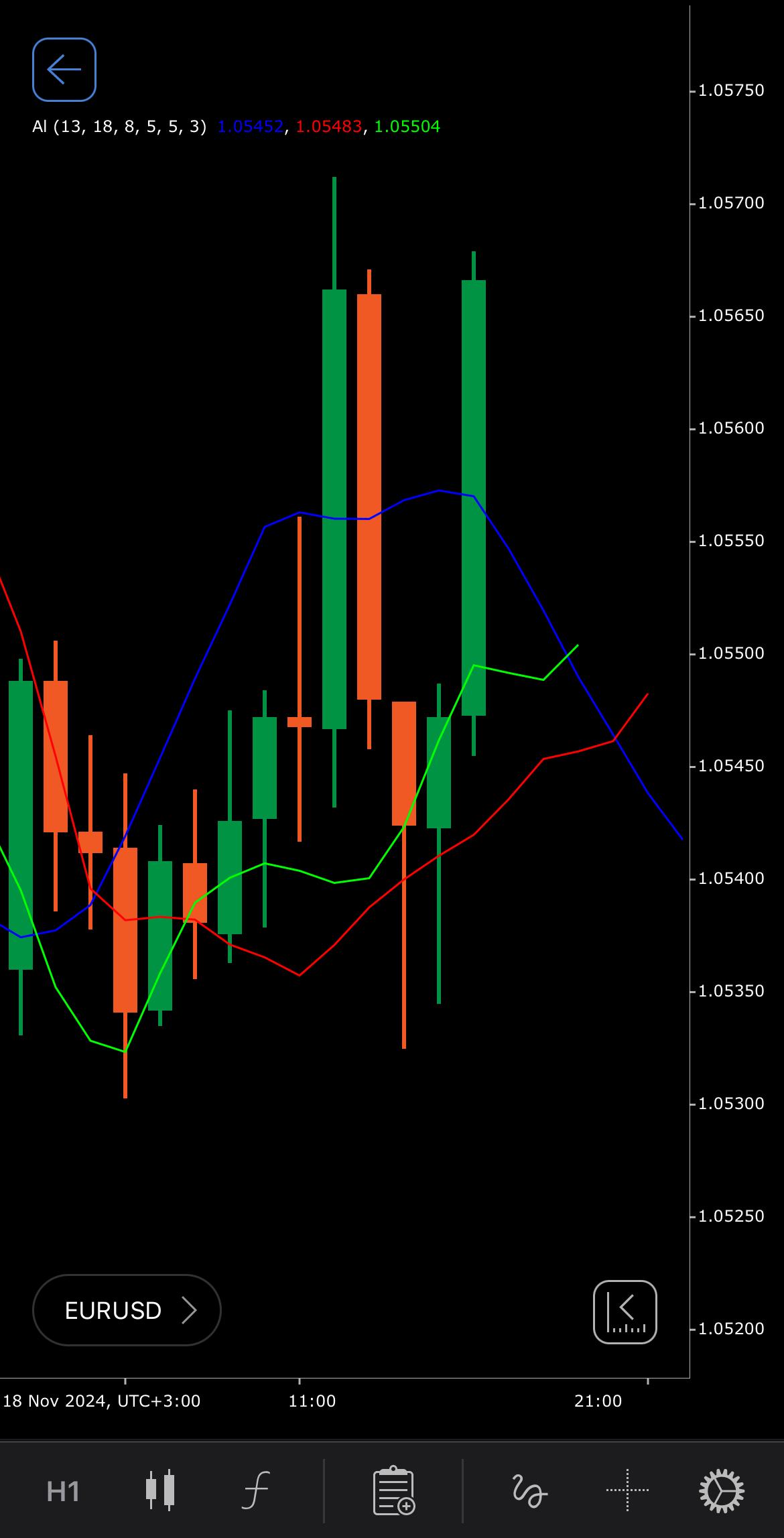
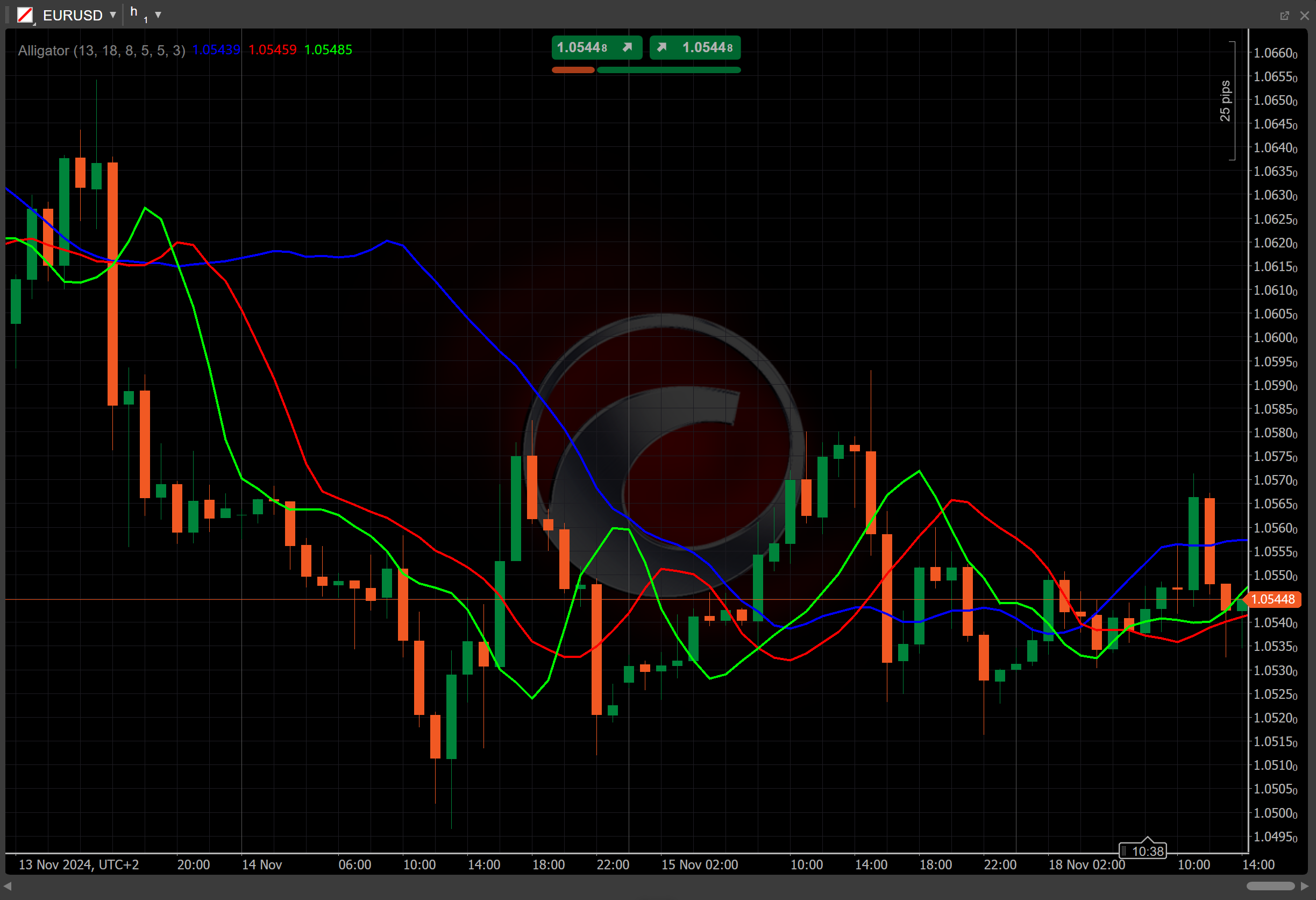
[Open live account](https://ctrader.com/brokers)
[Download cTrader](https://ctrader.com/download/)
History[¶](https://help.ctrader.com/knowledge-base/indicators/other/alligator/#history "Permanent link")
---------------------------------------------------------------------------------------------------------
The Alligator was developed by Bill Williams, a well-known trader and author, who introduced it in his 1995 book "Trading Chaos". Williams designed the Alligator as part of a broader trading strategy to help traders stay aligned with market trends and avoid false signals in ranging markets.
Calculations[¶](https://help.ctrader.com/knowledge-base/indicators/other/alligator/#calculations "Permanent link")
-------------------------------------------------------------------------------------------------------------------
The Alligator consists of three smoothed moving averages of the price series:
* \\(Jaws\\) – a moving average of the source price data over \\(P\_j\\) periods, shifted forward by \\(S\_j\\) bars.
\\\[ Jaws\\ (t + S\_j ) = { MA\\ (Source, P\_j, MAType) } \\\]
* \\(Teeth\\) – a moving average of the source price data over \\(P\_t\\) periods, shifted forward by \\(S\_t\\) bars.
\\\[ Teeth\\ (t + S\_t ) = { MA\\ (Source, P\_t, MAType) } \\\]
* \\(Lips\\) – a moving average of the source price data over \\(P\_l\\) periods, shifted forward by \\(S\_l\\) bars.
\\\[ Lips\\ (t + S\_l ) = { MA\\ (Source, P\_l, MAType) } \\\]
Interpretation[¶](https://help.ctrader.com/knowledge-base/indicators/other/alligator/#interpretation "Permanent link")
-----------------------------------------------------------------------------------------------------------------------
The [**Simple Moving Average**](https://help.ctrader.com/knowledge-base/indicators/trend/simple-moving-average/)
is the default type of moving average, and the [**Median Price**](https://help.ctrader.com/knowledge-base/indicators/other/median-price/)
serves as the data source. Other customisable parameters for the Alligator calculation are set to the following by default:
\\(Jaws\\) – a 13-period moving average, shifted forward by 8 bars
\\(Teeth\\) – an 8-period moving average, shifted forward by 5 bars
\\(Lips\\) – a 5-period moving average, shifted forward by 3 bars
The main patterns of the indicator behaviour can be interpreted as follows:
* **Crossovers** – when the Lips line crosses above the Teeth line, it indicates a bullish trend. When the Lips line crosses below the Teeth line, it indicates a bearish trend.
* **Intertwined lines** – when the Lips, Teeth and Jaw lines are intertwined or close together it indicates low volatility and a lack of clear trend. It is also commonly known as the Alligator sleep mode.
Application[¶](https://help.ctrader.com/knowledge-base/indicators/other/alligator/#application "Permanent link")
-----------------------------------------------------------------------------------------------------------------
The Alligator can be applied in several trading strategies for spotting buying, selling and managing risk.
* **Buy signal** – traders might consider entering a buy position when the Lips cross above the Teeth, signalling a possible start of a bullish trend.
* **Sell signal** – a sell signal could be generated when the Lips cross below the Teeth, signalling the start of a bearish trend.
* **Stop-loss placement** – traders may use the Alligator lines to help place stop-loss orders. For example, in a buy position, a stop loss might be set just below the last crossover (Lips below Teeth) to limit risk. In a sell position, the stop loss could be set above the last crossover.
* **Exit strategies** – the Alligator can also signal potential exit points. If the Alligator lines start to tighten or intertwine, indicating a loss of momentum, traders may choose to exit their positions, as it suggests the market may enter a consolidation phase.
* **Combining with other indicators** – traders are advised to use the Alligator alongside other tools such as the [**Relative Strength Index (RSI)**](https://help.ctrader.com/knowledge-base/indicators/oscillators/relative-strength-index/)
, [**Moving Average Convergence Divergence (MACD)**](https://help.ctrader.com/knowledge-base/indicators/oscillators/macd-crossover/)
and [**Bollinger Bands**](https://help.ctrader.com/knowledge-base/indicators/volatility/bollinger-bands/)
.
Note
You can take advantage of algo trading, with cBots executing trades based on the signals from this indicator, as shown in our [**examples**](https://help.ctrader.com/ctrader-algo/references/Indicators/Alligator/)
. Learn more about how to [**use indicators in cBots**](https://help.ctrader.com/ctrader-algo/articles/for-developers/how-to-use-indicators-in-cbots/)
.
Limitations[¶](https://help.ctrader.com/knowledge-base/indicators/other/alligator/#limitations "Permanent link")
-----------------------------------------------------------------------------------------------------------------
The Alligator lags due to reliance on moving averages. The indicator may also produce false signals in choppy or sideways markets. Visual interpretation of crossovers may be subjective. Moreover, the Alligator fails to deliver effective information in low-volatility markets.
Summary[¶](https://help.ctrader.com/knowledge-base/indicators/other/alligator/#summary "Permanent link")
---------------------------------------------------------------------------------------------------------
The Alligator indicator is a technical analysis tool that uses three smoothed moving averages (Jaw, Teeth and Lips) to identify market trends and potential reversals. It generates bullish signals when the Jaw line crosses above the Teeth line, above the Lips line. It generates bearish signals when the Lips cross above the Teeth line, above the Jaw line.
[Open live account](https://ctrader.com/brokers)
[Download cTrader](https://ctrader.com/download/)
Back to top
---
# Accumulative Swing Index - Knowledge base
[Skip to content](https://help.ctrader.com/knowledge-base/indicators/trend/accumulative-swing-index/#accumulative-swing-index)
Accumulative Swing Index[¶](https://help.ctrader.com/knowledge-base/indicators/trend/accumulative-swing-index/#accumulative-swing-index "Permanent link")
==========================================================================================================================================================
Definition[¶](https://help.ctrader.com/knowledge-base/indicators/trend/accumulative-swing-index/#definition "Permanent link")
------------------------------------------------------------------------------------------------------------------------------
The Accumulative Swing Index (ASI) is a technical analysis indicator that measures the cumulative strength and direction of price movements over time. It is particularly useful in identifying trends and potential trend reversals, offering traders insight into market momentum by assessing cumulative swing values.
MobileDesktop
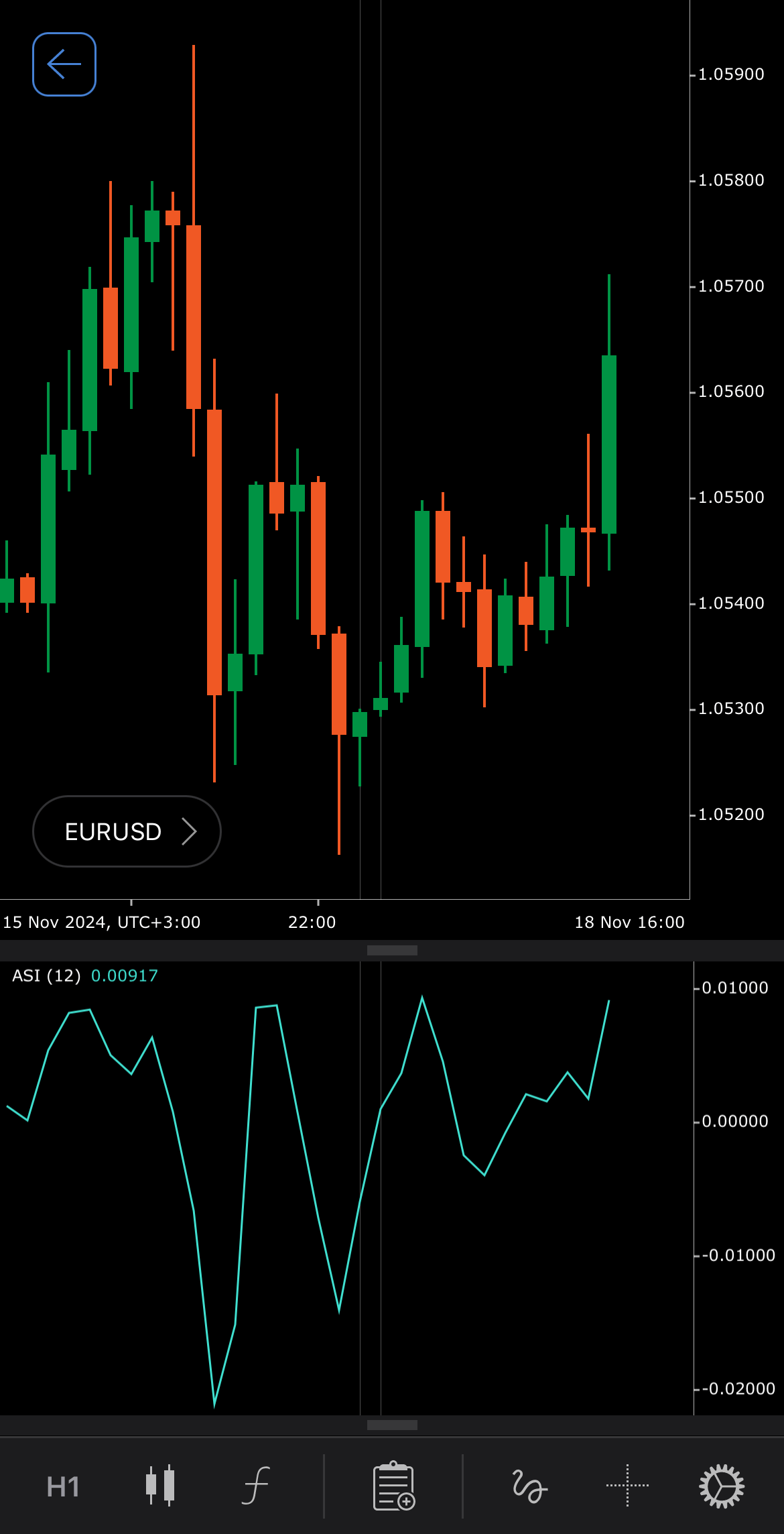
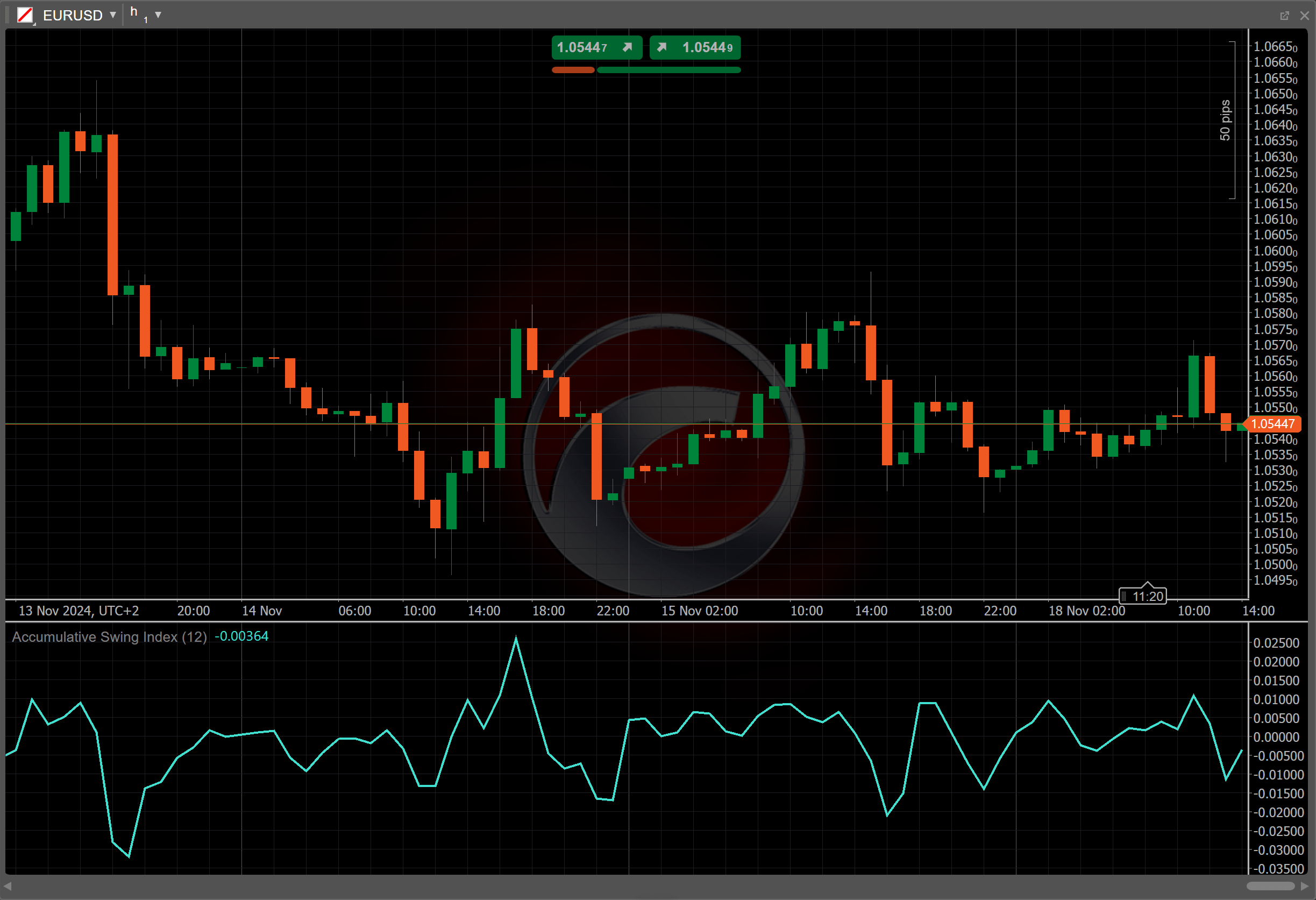
[Open live account](https://ctrader.com/brokers)
[Download cTrader](https://ctrader.com/download/)
History[¶](https://help.ctrader.com/knowledge-base/indicators/trend/accumulative-swing-index/#history "Permanent link")
------------------------------------------------------------------------------------------------------------------------
The Accumulative Swing Index was developed by J. Welles Wilder, a prominent engineer and trader known for his technical indicators. Wilder introduced the ASI in his 1978 book, "New Concepts in Technical Trading Systems", alongside other popular indicators like the [**Relative Strength Index (RSI)**](https://help.ctrader.com/knowledge-base/indicators/oscillators/relative-strength-index/)
and the [**Average True Range (ATR)**](https://help.ctrader.com/knowledge-base/indicators/volatility/average-true-range/)
. His work aimed to provide traders with tools to gauge market behaviour and identify trends more effectively.
Calculations[¶](https://help.ctrader.com/knowledge-base/indicators/trend/accumulative-swing-index/#calculations "Permanent link")
----------------------------------------------------------------------------------------------------------------------------------
The Accumulative Swing Index is typically calculated using the following formula:
\\\[ ASI\_t = { ASI\_{t-1} + SI\_t } \\\]
\\(ASI\_t\\) – the ASI value for the current period
\\(ASI\_{t-1}\\) – the ASI value for the previous period, starting with \\(ASI\_{0}\\) = \\(0\\)
\\(SI\_t\\) – the [**Swing Index**](https://help.ctrader.com/knowledge-base/indicators/other/swing-index/)
for the current period, which measures each price swing strength based on price changes from one bar to the next
Interpretation[¶](https://help.ctrader.com/knowledge-base/indicators/trend/accumulative-swing-index/#interpretation "Permanent link")
--------------------------------------------------------------------------------------------------------------------------------------
* **Rising and falling** – when the ASI is trending upward, it suggests the security is in an uptrend, whereas a downward-trending ASI signals a potential downtrend.
* **Reversal points** – sudden changes in the ASI direction may indicate an upcoming trend reversal.
Application[¶](https://help.ctrader.com/knowledge-base/indicators/trend/accumulative-swing-index/#application "Permanent link")
--------------------------------------------------------------------------------------------------------------------------------
The Accumulative Swing Index provides useful signals for traders looking to assess buying and selling opportunities.
* **Buy signal** – traders may consider entering a buy position when the ASI crosses above zero, indicating increasing bullish momentum. This is especially strong when the price has broken above a key resistance level and ASI confirms the breakout.
* **Sell signal** – a sell position might be considered when the ASI crosses below zero, indicating a shift towards bearish momentum. This may align with the price breaking below support, suggesting a stronger downtrend.
* **Stop-loss placement** – traders could place stop losses just below the last low in the ASI for long positions or above the last high for short positions, to manage risk in case the market reverses.
* **Exit strategies** – the ASI can help confirm exit points in a trade. If ASI starts to flatten or fall while in a long position, it may indicate weakening momentum, prompting traders to consider taking profits. The opposite applies for short positions if the ASI shows signs of rising.
Note
You can take advantage of algo trading, with cBots executing trades based on the signals from this indicator, as shown in our [**examples**](https://help.ctrader.com/ctrader-algo/references/Indicators/AccumulativeSwingIndex/)
. Learn more about how to [**use indicators in cBots**](https://help.ctrader.com/ctrader-algo/articles/for-developers/how-to-use-indicators-in-cbots/)
.
Limitations[¶](https://help.ctrader.com/knowledge-base/indicators/trend/accumulative-swing-index/#limitations "Permanent link")
--------------------------------------------------------------------------------------------------------------------------------
The Accumulative Swing Index has a lagging nature, which can cause it to confirm trends after significant price changes have already occurred. The formula is relatively complex, making it less user-friendly compared to simpler indicators. Additionally, the ASI can produce misleading signals in highly volatile markets. Finally, it does not inherently indicate overall trend direction.
Summary[¶](https://help.ctrader.com/knowledge-base/indicators/trend/accumulative-swing-index/#summary "Permanent link")
------------------------------------------------------------------------------------------------------------------------
The Accumulative Swing Index is a cumulative indicator used to determine price trends, leveraging individual price swings (such as differences between high, low and closing prices) to provide a broader trend perspective. It is useful for trend-following strategies and can indicate potential reversals when it diverges from price action. However, its reliance on historical data can result in delayed signals, making it beneficial to use in conjunction with other indicators for improved accuracy.
[Open live account](https://ctrader.com/brokers)
[Download cTrader](https://ctrader.com/download/)
Back to top
---
# Menggunakan SDK plugin WV - Plugin WebView
[Langkau tajuk talian](https://help.ctrader.com/webview-plugins/ms/how-tos/use-wv-plugins-sdk/#gunakan-sdk-plugin-wv)
Amaran
Ciri ini dalam fasa prapelancaran dan sedang diuji. Dokumentasi adalah untuk rujukan sahaja.
Gunakan SDK plugin WV[¶](https://help.ctrader.com/webview-plugins/ms/how-tos/use-wv-plugins-sdk/#gunakan-sdk-plugin-wv "Permanent link")
=========================================================================================================================================
Untuk menyokong pengambilan data pengguna, pelaksanaan dagangan, pengendalian acara dan banyak lagi, plugin WebView (klien) mesti menjalinkan komunikasi yang boleh dipercayai dengan aplikasi cTrader (hos). SDK plugin WebView memudahkan interaksi ini dengan cTrader, dan panduan ini menerangkan saluran komunikasi antara klien dan hos.
Pemasangan SDK [¶](https://help.ctrader.com/webview-plugins/ms/how-tos/use-wv-plugins-sdk/#pemasangan-sdk "Permanent link")
----------------------------------------------------------------------------------------------------------------------------
SDK plugin WebView tersedia sebagai [**pakej npm**](https://www.npmjs.com/package/@spotware-web-team/sdk)
. Untuk memasang SDK, navigasi ke direktori projek anda dalam tetingkap terminal dan kemudian jalankan arahan ini:
`npm install @spotware-web-team/sdk`
Penyegerakan klien-hos [¶](https://help.ctrader.com/webview-plugins/ms/how-tos/use-wv-plugins-sdk/#penyegerakan-klien-hos "Permanent link")
--------------------------------------------------------------------------------------------------------------------------------------------
Nota
Protokol yang berkaitan tersedia sebagai rujukan [**mesej**](https://help.ctrader.com/webview-plugins/ms/references/public-message/)
.
Sebelum sebarang pertukaran mesej boleh dilakukan, saluran komunikasi mesti diwujudkan terlebih dahulu. Operasi yang lazim termasuk:
1. Pada permulaan komunikasi, pertukaran acara aktif berlaku apabila klien dan hos menghantar acara masing-masing.
2. Hos menghantar acara pendaftaran (`payloadType = 2000`). Contoh:
`window.dispatchEvent(new MessageEvent('message-from-host', { data: {"clientMsgId": "152cf2d4-bfb6-4426-a303-9243b6a0daf4", "payload": {}, "payloadType": 2000} }))`
3. Plugin WebView menghantar acara pengesahan (`payloadType = 2001`). Contoh:
`window.dispatchEvent(new MessageEvent('message-to-host', { data: {"clientMsgId": "152cf2d4-bfb6-4426-a303-9243b6a0daf4", "payload": {}, "payloadType": 2001} }))`
4. Bagi setiap acara pengesahan baharu, acara pendaftaran baharu dihantar untuk memastikan penyegerakan, walaupun plugin ditetapkan pada keadaan asal.
Nota
Jika mana-mana pihak gagal menerima acara aktif yang sepadan, plugin tidak akan dipasang. Bagi mengelakkan berlakunya gelung, plugin mesti menghantar acara pengesahan hanya sekali dan menjejaki aliran mesej.
Amaran
Menghantar berbilang acara pengesahan akan mencetuskan acara pendaftaran berulang, yang berpotensi mengakibatkan gelung yang tidak disengajakan.
Permintaan [¶](https://help.ctrader.com/webview-plugins/ms/how-tos/use-wv-plugins-sdk/#permintaan "Permanent link")
--------------------------------------------------------------------------------------------------------------------
Setelah penyegerakan selesai, plugin boleh berinteraksi dengan perkhidmatan cTrader dengan memanggil [**kaedah SDK**](https://help.ctrader.com/webview-plugins/ms/references/public-server-message/)
yang berkomunikasi secara dalaman dengan hos.
1. Plugin memanggil kaedah SDK. Sebagai contoh, plugin boleh meminta [**maklumat akaun**](https://help.ctrader.com/webview-plugins/ms/references/public-server-message/#protogetaccountinformationreq)
pengguna.
2. Plugin WebView menghantar permintaan. Contoh:
`{ "payloadType": 2100, "payload": { "payloadType": 175, "clientMsgId": "asd1-asd1" }, "clientMsgId": "asd2-asd2" }`
Secara dalaman, plugin menetapkan dua medan `clientMsgId` (dalam dan luar):
* Medan yang dalam mengenal pasti permintaan khusus dalam muat beban dan digunakan oleh cTrader untuk memadankan permintaan tersebut dengan respons yang sepadan dan sebarang acara berkaitan.
* Medan yang luar (apabila digunakan bersama medan yang dalam) menjejaki aliran mesej keseluruhan antara klien dan hos.
3. Hos mendengar permintaan:
`window.addEventListener('message-to-host', function (event) {})`
Nota
Semua kaedah SDK untuk menghantar permintaan dan menerima respons tersedia sebagai rujukan [**mesej pelayan**](https://help.ctrader.com/webview-plugins/ms/references/public-server-message/)
, manakala butiran tentang medan berulang dalam permintaan dan respons disediakan sebagai [**model**](https://help.ctrader.com/webview-plugins/ms/references/public-server-model/)
.
Respons [¶](https://help.ctrader.com/webview-plugins/ms/how-tos/use-wv-plugins-sdk/#respons "Permanent link")
--------------------------------------------------------------------------------------------------------------
1. Hos menghantar respons:
`window.dispatchEvent(new MessageEvent('message-from-host', { data }))`
Setiap respons termasuk `clientMsgId` asal untuk menghubungkan respons dengan permintaan. Respons adalah berdasarkan struktur ini:
`payloadType: 2101 clientMsgId: ""`
Respons masa nyata atau berbilang menjana acara baharu menggunakan:
`payloadType: 2102 clientMsgId: ""`
2. Klien mendengar respons:
`window.addEventListener('message-from-host', function (event) {})`
Acara dan langganan [¶](https://help.ctrader.com/webview-plugins/ms/how-tos/use-wv-plugins-sdk/#acara-dan-langganan "Permanent link")
--------------------------------------------------------------------------------------------------------------------------------------
Plugin WebView boleh melanggan data masa nyata seperti [**sebut harga**](https://help.ctrader.com/webview-plugins/ms/references/public-server-message/#protosubscribequotesreq)
, [**kemas kini dagangan**](https://help.ctrader.com/webview-plugins/ms/references/public-server-message/#protogetdeallistreq)
, [**acara pelaksanaan**](https://help.ctrader.com/webview-plugins/ms/references/public-server-message/#protoexecutionevent)
dan banyak lagi.
1. Langgan data sebut harga dengan menghantar permintaan:
`{ "payloadType": 2100, // indicates a request "payload": { "payloadType": 601, "symbolId": ["EURUSD_ID"], "clientMsgId": "quote-sub-123" }, "clientMsgId": "asd2-asd2" // outer message ID }`
2. Langganan mencetuskan hos untuk menghantar respons berkala:
`{ "payloadType": 2102, // indicates an event "payload": { "payloadType": 3, // mapped to QUOTE_EVENT "payload": { "ask": 85274, "bid": 85271, "depth": [], "high": 85340, "low": 84932, "sessionClose": 85133, "symbolId": 9, "tickbar": [], "timestamp": 1750162811236, "trendbar": [] }, "clientMsgId": "asd1-asd1" // inner message ID }, "clientMsgId": "asd2-asd2" // outer message ID }`
Pautan khusus [¶](https://help.ctrader.com/webview-plugins/ms/how-tos/use-wv-plugins-sdk/#pautan-khusus "Permanent link")
--------------------------------------------------------------------------------------------------------------------------
Plugin boleh meminta cTrader untuk membuka [**pautan khusus**](https://help.ctrader.com/ctrader-deeplinks/ms)
(URL dalaman) dengan menghantar permintaan ini:
`payloadType: 2103 clientMsgId: ""`
Plugin kemudian mendengar respons:
`payloadType: 2104 clientMsgId: ""`
Plugin WebView boleh melaksanakan [**pautan khusus yang disokong**](https://help.ctrader.com/webview-plugins/ms/references/deeplinks/)
seperti yang ditunjukkan di bawah:
`// Open EURUSD symbol overview const openEURUSDInfo = useCallback(() => { const url = baseUrl ? ${baseUrl}symbols/EURUSD/info : 'symbols/EURUSD/info'; openUrl(url); }, [baseUrl, openUrl]);`
Ringkasan mesej [¶](https://help.ctrader.com/webview-plugins/ms/how-tos/use-wv-plugins-sdk/#ringkasan-mesej "Permanent link")
------------------------------------------------------------------------------------------------------------------------------
Jadual di bawah meringkaskan mesej protokol.
| **Jenis** | **Jenis muat beban** | **Permulaan** | **Kes penggunaan** |
| --- | --- | --- | --- |
| Kitaran hayat/berjabat tangan | `2000` (acara pendaftaran),`2001` (acara pengesahan) | Diperlukan untuk memulakan komunikasi plugin. Hos menghantar acara pendaftaran, plugin bertindak balas dengan acara pengesahan. | Persediaan saluran, pemasangan, kesediaan komunikasi. |
| Acara (sehala) | `2102` | Dimulakan oleh pelayan. Acara yang dihantar tanpa permintaan terlebih dahulu daripada pelanggan. Hos menjana satu `clientMsgId`; sistem bahagian belakang cTrader memasukkan satu lagi. | Sebut harga pasaran, kemas kini pelaksanaan dagangan, pemakluman harga. |
| Permintaan navigasi dalaman | `2103` (OpenInternalUrlReq), `2104` (OpenInternalUrlRes) | Permintaan yang dimulakan oleh plugin untuk menavigasi dalam aplikasi cTrader. Hos memproses dan mengesahkan melalui respons berpasangan. | Membuka gambaran keseluruhan simbol, membuka skrin pesanan untuk simbol. |
| Permintaan/respons | `2100` (req), `2101` (res) | Dimulakan oleh plugin. Digunakan untuk operasi respons tunggal. Kedua-dua `clientMsgId` dalam dan luar digunakan semula dalam respons. | Mendapatkan maklumat akaun, simbol atau dagangan. |
| Permintaan/berbilang acara | `2100` (permintaan), kemudian berbilang `2102` (acara) | Satu permintaan mencetuskan strim acara berkaitan. Acara menggunakan semula `clientMsgId` asal (bahagian dalam), dan ID acara baharu dijana oleh hos. | Membuat pesanan, melanggan kemas kini selepas arahan. |
| Respons ralat | `2500` (PublicErrorRes) | Hos atau cTrader menggunakan ini untuk melaporkan sebarang kegagalan memproses permintaan. Termasuk `clientMsgId` luar dan dalam. | Muat beban tidak sah, akses tanpa kebenaran, permintaan SDK yang salah format. |
Pengendalian ralat [¶](https://help.ctrader.com/webview-plugins/ms/how-tos/use-wv-plugins-sdk/#pengendalian-ralat "Permanent link")
------------------------------------------------------------------------------------------------------------------------------------
Amaran
Sebab umum untuk ralat termasuk plugin yang tidak dikenali atau tidak berdaftar, format permintaan tidak sah dan kegagalan pengesahan di bahagian pelayan.
Jika sesuatu yang tidak kena berlaku, hos mengeluarkan respons ralat berstruktur:
`payloadType: 2500 clientMsgId: `
`{ "payloadType": 2500, "clientMsgId": "", "error": "InvalidPayload" }`
SDK mengendalikan ralat dan mengemukakan ralat tersebut kepada pencipta plugin.
Kembali ke atas
---
# ใช้ SDK ของปลั๊กอิน WV - ปลั๊กอิน WebView
[ข้ามไปที่เนื้อหา](https://help.ctrader.com/webview-plugins/th/how-tos/use-wv-plugins-sdk/#sdk-wv)
คำเตือน
คุณลักษณะนี้อยู่ในขั้นตอนก่อนการเปิดตัวและกำลังอยู่ระหว่างการทดสอบ เอกสารนี้มีไว้เพื่อการอ้างอิงเท่านั้น
ใช้ SDK ของปลั๊กอิน WV[¶](https://help.ctrader.com/webview-plugins/th/how-tos/use-wv-plugins-sdk/#sdk-wv "Permanent link")
===========================================================================================================================
เพื่อสนับสนุนการดึงข้อมูลผู้ใช้ การดำเนินการเทรด การจัดการเหตุการณ์ และอื่นๆ ปลั๊กอิน WebView (ไคลเอ็นต์) ต้องสร้างการสื่อสารที่เชื่อถือได้กับแอปพลิเคชัน cTrader (โฮสต์) SDK ของปลั๊กอิน WebView ช่วยอำนวยความสะดวกในการโต้ตอบเหล่านี้กับ cTrader และคู่มือนี้จะอธิบายถึงไปป์ไลน์การสื่อสารระหว่างไคลเอ็นต์และโฮสต์
การติดตั้ง SDK [¶](https://help.ctrader.com/webview-plugins/th/how-tos/use-wv-plugins-sdk/#sdk "Permanent link")
-----------------------------------------------------------------------------------------------------------------
SDK ของปลั๊กอิน WebView มีให้ใช้งานเป็น [**แพ็คเกจ npm**](https://www.npmjs.com/package/@spotware-web-team/sdk)
ในการติดตั้ง SDK ให้นำทางไปยังไดเรกทอรีโปรเจกต์ของคุณในหน้าต่างเทอร์มินัล แล้วรันคำสั่งนี้:
`npm install @spotware-web-team/sdk`
การซิงโครไนซ์ระหว่างไคลเอ็นต์และโฮสต์ [¶](https://help.ctrader.com/webview-plugins/th/how-tos/use-wv-plugins-sdk/#_1 "Permanent link")
---------------------------------------------------------------------------------------------------------------------------------------
หมายเหตุ
โปรโตคอลที่เกี่ยวข้องมีให้อ้างอิงเป็น [**ข้อความ**](https://help.ctrader.com/webview-plugins/th/references/public-message/)
ก่อนที่จะมีการแลกเปลี่ยนข้อความใดๆ จะต้องมีการสร้างช่องทางการสื่อสารก่อน การดำเนินการทั่วไปประกอบด้วย:
1. ในช่วงเริ่มต้นของการสื่อสาร จะมีการแลกเปลี่ยนเหตุการณ์ alive ที่ทั้งไคลเอ็นต์และโฮสต์ส่งเหตุการณ์
2. โฮสต์ส่งเหตุการณ์การลงทะเบียน (`payloadType = 2000`) ตัวอย่าง:
`window.dispatchEvent(new MessageEvent('message-from-host', { data: {"clientMsgId": "152cf2d4-bfb6-4426-a303-9243b6a0daf4", "payload": {}, "payloadType": 2000} }))`
3. ปลั๊กอิน WebView ส่งเหตุการณ์การยืนยัน (`payloadType = 2001`) ตัวอย่าง:
`window.dispatchEvent(new MessageEvent('message-to-host', { data: {"clientMsgId": "152cf2d4-bfb6-4426-a303-9243b6a0daf4", "payload": {}, "payloadType": 2001} }))`
4. สำหรับเหตุการณ์การยืนยันใหม่แต่ละครั้ง จะมีการส่งเหตุการณ์การลงทะเบียนใหม่เพื่อให้แน่ใจว่ามีการซิงโครไนซ์ แม้ว่าปลั๊กอินจะเริ่มต้นใหม่ก็ตาม
หมายเหตุ
หากฝ่ายใดฝ่ายหนึ่งไม่ได้รับเหตุการณ์ alive ที่เกี่ยวข้อง ปลั๊กอินจะไม่ถูกติดตั้ง เพื่อหลีกเลี่ยงการวนซ้ำ ปลั๊กอินต้องส่งเหตุการณ์การยืนยันเพียงครั้งเดียวและติดตามการไหลของข้อความ
คำเตือน
การส่งเหตุการณ์การยืนยันหลายครั้งจะทำให้เกิดเหตุการณ์การลงทะเบียนซ้ำๆ ซึ่งอาจส่งผลให้เกิดการวนซ้ำที่ไม่ต้องการ
คำขอ [¶](https://help.ctrader.com/webview-plugins/th/how-tos/use-wv-plugins-sdk/#_2 "Permanent link")
------------------------------------------------------------------------------------------------------
เมื่อการซิงโครไนซ์เสร็จสมบูรณ์ ปลั๊กอินสามารถโต้ตอบกับบริการ cTrader โดยเรียกใช้ [**เมธอด SDK**](https://help.ctrader.com/webview-plugins/th/references/public-server-message/)
ที่สื่อสารภายในกับโฮสต์
1. ปลั๊กอินเรียกใช้เมธอด SDK ตัวอย่างเช่น สามารถขอ [**ข้อมูลบัญชี**](https://help.ctrader.com/webview-plugins/th/references/public-server-message/#protogetaccountinformationreq)
ของผู้ใช้
2. ปลั๊กอิน WebView ส่งคำขอ ตัวอย่าง:
`{ "payloadType": 2100, "payload": { "payloadType": 175, "clientMsgId": "asd1-asd1" }, "clientMsgId": "asd2-asd2" }`
ภายในจะกำหนดฟิลด์ `clientMsgId` สองฟิลด์ (ภายในและภายนอก):
* ฟิลด์ภายในระบุคำขอเฉพาะภายในเพย์โหลดและถูกใช้โดย cTrader เพื่อจับคู่คำขอนั้นกับการตอบสนองที่เกี่ยวข้องและเหตุการณ์ที่เกี่ยวข้อง
* ฟิลด์ภายนอก (เมื่อใช้ร่วมกับฟิลด์ภายใน) ติดตามการไหลของข้อความโดยรวมระหว่างไคลเอ็นต์และโฮสต์
3. โฮสต์รับฟังคำขอ:
`window.addEventListener('message-to-host', function (event) {})`
หมายเหตุ
เมธอด SDK ทั้งหมดสำหรับการส่งคำขอและรับการตอบสนองมีให้อ้างอิงเป็น [**ข้อความเซิร์ฟเวอร์**](https://help.ctrader.com/webview-plugins/th/references/public-server-message/)
ในขณะที่รายละเอียดเกี่ยวกับฟิลด์ที่ซ้ำกันภายในคำขอและการตอบสนองมีให้เป็น [**โมเดล**](https://help.ctrader.com/webview-plugins/th/references/public-server-model/)
การตอบสนอง [¶](https://help.ctrader.com/webview-plugins/th/how-tos/use-wv-plugins-sdk/#_3 "Permanent link")
------------------------------------------------------------------------------------------------------------
1. โฮสต์ส่งการตอบสนอง:
`window.dispatchEvent(new MessageEvent('message-from-host', { data }))`
การตอบสนองแต่ละครั้งจะรวม `clientMsgId` ต้นฉบับเพื่อเชื่อมโยงกับคำขอ การตอบสนองอิงตามโครงสร้างนี้:
`payloadType: 2101 clientMsgId: ""`
การตอบสนองแบบเรียลไทม์หรือหลายครั้งจะสร้างเหตุการณ์ใหม่โดยใช้:
`payloadType: 2102 clientMsgId: ""`
2. ไคลเอ็นต์รับฟังการตอบสนอง:
`window.addEventListener('message-from-host', function (event) {})`
เหตุการณ์และการซับสไครบ์ [¶](https://help.ctrader.com/webview-plugins/th/how-tos/use-wv-plugins-sdk/#_4 "Permanent link")
--------------------------------------------------------------------------------------------------------------------------
ปลั๊กอิน WebView สามารถซับสไครบ์ข้อมูลแบบเรียลไทม์ เช่น [**ราคา**](https://help.ctrader.com/webview-plugins/th/references/public-server-message/#protosubscribequotesreq)
[**การอัปเดตดีล**](https://help.ctrader.com/webview-plugins/th/references/public-server-message/#protogetdeallistreq)
[**เหตุการณ์การดำเนินการ**](https://help.ctrader.com/webview-plugins/th/references/public-server-message/#protoexecutionevent)
และอื่นๆ
1. ซับสไครบ์ข้อมูลราคาโดยส่งคำขอ:
`{ "payloadType": 2100, // indicates a request "payload": { "payloadType": 601, "symbolId": ["EURUSD_ID"], "clientMsgId": "quote-sub-123" }, "clientMsgId": "asd2-asd2" // outer message ID }`
2. การซับสไครบ์ทำให้โฮสต์ส่งการตอบสนองเป็นระยะ:
`{ "payloadType": 2102, // indicates an event "payload": { "payloadType": 3, // mapped to QUOTE_EVENT "payload": { "ask": 85274, "bid": 85271, "depth": [], "high": 85340, "low": 84932, "sessionClose": 85133, "symbolId": 9, "tickbar": [], "timestamp": 1750162811236, "trendbar": [] }, "clientMsgId": "asd1-asd1" // inner message ID }, "clientMsgId": "asd2-asd2" // outer message ID }`
ดีปลิงก์ [¶](https://help.ctrader.com/webview-plugins/th/how-tos/use-wv-plugins-sdk/#_5 "Permanent link")
----------------------------------------------------------------------------------------------------------
ปลั๊กอินสามารถขอให้ cTrader เปิด [**ดีปลิงก์**](https://help.ctrader.com/ctrader-deeplinks/th)
(URL ภายใน) โดยส่งคำขอนี้:
`payloadType: 2103 clientMsgId: ""`
จากนั้นปลั๊กอินจะรับฟังการตอบสนอง:
`payloadType: 2104 clientMsgId: ""`
ปลั๊กอิน WebView สามารถใช้ [**ดีปลิงก์ที่รองรับ**](https://help.ctrader.com/webview-plugins/th/references/deeplinks/)
ตามที่แสดงด้านล่าง:
`// Open EURUSD symbol overview const openEURUSDInfo = useCallback(() => { const url = baseUrl ? ${baseUrl}symbols/EURUSD/info : 'symbols/EURUSD/info'; openUrl(url); }, [baseUrl, openUrl]);`
สรุปข้อความ [¶](https://help.ctrader.com/webview-plugins/th/how-tos/use-wv-plugins-sdk/#_6 "Permanent link")
-------------------------------------------------------------------------------------------------------------
ตารางด้านล่างสรุปข้อความโปรโตคอล
| **ประเภท** | **ประเภทเพย์โหลด** | **การเริ่มต้น** | **กรณีการใช้งาน** |
| --- | --- | --- | --- |
| วงจรชีวิต/แฮนด์เชค | `2000` (เหตุการณ์การลงทะเบียน),`2001` (เหตุการณ์การยืนยัน) | จำเป็นต้องเริ่มต้นการสื่อสารปลั๊กอิน โฮสต์ส่งเหตุการณ์การลงทะเบียน ปลั๊กอินตอบกลับด้วยเหตุการณ์การยืนยัน | การตั้งค่าช่องทาง การติดตั้ง ความพร้อมในการสื่อสาร |
| เหตุการณ์ (ทางเดียว) | `2102` | เริ่มต้นจากเซิร์ฟเวอร์ เหตุการณ์ที่ส่งโดยไม่มีคำขอจากไคลเอ็นต์ก่อนหน้า โฮสต์สร้าง `clientMsgId` หนึ่งรายการ; แบ็กเอนด์ cTrader รวมอีกหนึ่งรายการ | ราคาตลาด การอัปเดตการดำเนินการเทรด การแจ้งเตือนราคา |
| คำขอการนำทางภายใน | `2103` (OpenInternalUrlReq), `2104` (OpenInternalUrlRes) | คำขอที่เริ่มต้นจากปลั๊กอินเพื่อนำทางภายในแอป cTrader โฮสต์ประมวลผลและยืนยันผ่านการตอบสนองที่จับคู่ | การเปิดภาพรวมของสัญลักษณ์ การเปิดหน้าจอคำสั่งสำหรับสัญลักษณ์ |
| คำขอ/การตอบสนอง | `2100` (req), `2101` (res) | เริ่มต้นโดยปลั๊กอิน ใช้สำหรับการดำเนินการที่มีการตอบสนองครั้งเดียว ทั้ง `clientMsgId` ภายในและภายนอกถูกนำมาใช้ซ้ำในการตอบสนอง | การรับข้อมูลบัญชี สัญลักษณ์ หรือดีล |
| คำขอ/หลายเหตุการณ์ | `2100` (คำขอ) จากนั้นหลาย `2102` (เหตุการณ์) | หนึ่งคำขอทำให้เกิดสตรีมของเหตุการณ์ที่เกี่ยวข้อง เหตุการณ์นำ `clientMsgId` (ภายใน) มาใช้ซ้ำ และ ID เหตุการณ์ใหม่ถูกสร้างโดยโฮสต์ | การวางคำสั่ง การซับสไครบ์การอัปเดตหลังจากคำสั่ง |
| การตอบสนองข้อผิดพลาด | `2500` (PublicErrorRes) | โฮสต์หรือ cTrader ใช้สิ่งนี้เพื่อรายงานความล้มเหลวในการประมวลผลคำขอ รวม `clientMsgId` ภายนอกและภายใน | เพย์โหลดไม่ถูกต้อง การเข้าถึงที่ไม่ได้รับอนุญาต คำขอ SDK ที่ผิดรูปแบบ |
การจัดการข้อผิดพลาด [¶](https://help.ctrader.com/webview-plugins/th/how-tos/use-wv-plugins-sdk/#_7 "Permanent link")
---------------------------------------------------------------------------------------------------------------------
คำเตือน
สาเหตุทั่วไปของข้อผิดพลาดรวมถึงปลั๊กอินที่ไม่รู้จักหรือไม่ได้ลงทะเบียน รูปแบบคำขอไม่ถูกต้อง และการตรวจสอบความถูกต้องฝั่งเซิร์ฟเวอร์ล้มเหลว
หากมีบางอย่างผิดพลาด โฮสต์จะออกการตอบสนองข้อผิดพลาดที่มีโครงสร้าง:
`payloadType: 2500 clientMsgId: `
`{ "payloadType": 2500, "clientMsgId": "", "error": "InvalidPayload" }`
SDK จัดการข้อผิดพลาดและแสดงให้ผู้สร้างปลั๊กอินเห็น
กลับไปด้านบนสุด
---
# Mengurus plugin WV - Plugin WebView
[Langkau tajuk talian](https://help.ctrader.com/webview-plugins/ms/how-tos/manage-wv-plugins/#urus-plugin-webview)
Amaran
Ciri ini dalam fasa prapelancaran dan sedang diuji. Dokumentasi adalah untuk rujukan sahaja.
Urus plugin WebView[¶](https://help.ctrader.com/webview-plugins/ms/how-tos/manage-wv-plugins/#urus-plugin-webview "Permanent link")
====================================================================================================================================
Untuk mengurus semua plugin WV yang dikaitkan dengan cTID anda di satu tempat, buka menu utama cTrader, kemudian pilih **Urus plugin**.

Di sini, anda boleh mengakses tetapan setiap plugin atau memadamkan plugin tersebut dengan mengetik ikon yang berkaitan.

Sebagai alternatif, anda boleh mengakses skrin **Tetapan** untuk plugin tertentu melalui mana-mana langkah ini:
* Tekan dan tahan plugin dalam panel plugin WV.

* Buka helaian bawah plugin, ketik ikon **Lagi** dan pilih **Tetapan**.

* Dalam tab **Gambaran Keseluruhan** bagi mana-mana simbol, ketik ikon **Lagi** plugin, kemudian pilih **Tetapan**.

Dalam **Tetapan**, anda boleh mendayakan atau menyahdayakan plugin WV, melihat maklumat plugin tersebut, mengakses skrin **Susun Semula** dan menentukan lokasi plugin harus dipaparkan.

Dayakan/nyahdayakan [¶](https://help.ctrader.com/webview-plugins/ms/how-tos/manage-wv-plugins/#dayakannyahdayakan "Permanent link")
------------------------------------------------------------------------------------------------------------------------------------
Togol untuk mendayakan atau menyahdayakan plugin.
Amaran
Plugin WV yang dinyahdayakan tidak akan dipaparkan di mana-mana dalam aplikasi **Dagangan**. Anda hanya boleh mendayakan semula plugin dalam skrin **Urus plugin** yang diakses melalui menu utama.
Lihat maklumat plugin [¶](https://help.ctrader.com/webview-plugins/ms/how-tos/manage-wv-plugins/#lihat-maklumat-plugin "Permanent link")
-----------------------------------------------------------------------------------------------------------------------------------------
Ketik **Maklumat** untuk melihat pencipta plugin dan butiran tambahan.
Susun semula plugin [¶](https://help.ctrader.com/webview-plugins/ms/how-tos/manage-wv-plugins/#susun-semula-plugin "Permanent link")
-------------------------------------------------------------------------------------------------------------------------------------
Ketik **Susun Semula**, kemudian seret kawalan plugin ke atas atau ke bawah untuk menetapkan kedudukan baharu bagi plugin.

Nota
Susunan yang ditetapkan ini digunakan di semua ruang antara muka yang memaparkan plugin WV.
Tentukan penempatan [¶](https://help.ctrader.com/webview-plugins/ms/how-tos/manage-wv-plugins/#tentukan-penempatan "Permanent link")
-------------------------------------------------------------------------------------------------------------------------------------
Pilih ruang antara muka yang anda ingin plugin tersebut dipaparkan.
* **Tab dagangan** - paparkan plugin dalam panel plugin WV di semua tab aplikasi **Dagangan**, manakala kandungan plugin dibuka dalam helaian bawah dalam aplikasi **Dagangan**.
* **Gambaran keseluruhan simbol** - paparkan plugin dalam panel plugin WV di tab **Gambaran Keseluruhan** bagi semua simbol, manakala kandungan plugin akan dibuka dalam helaian bawah di tab **Gambaran Keseluruhan**.
* **Gambaran keseluruhan simbol (terbenam)** - paparkan pandangan plugin yang dikembangkan di tab **Gambaran Keseluruhan** bagi semua simbol.
Kembali ke atas
---
# Melaporkan plugin WV - Plugin WebView
[Langkau tajuk talian](https://help.ctrader.com/webview-plugins/ms/how-tos/report-wv-plugins/#laporkan-plugin-webview)
Amaran
Ciri ini dalam fasa prapelancaran dan sedang diuji. Dokumentasi adalah untuk rujukan sahaja.
Laporkan plugin WebView[¶](https://help.ctrader.com/webview-plugins/ms/how-tos/report-wv-plugins/#laporkan-plugin-webview "Permanent link")
============================================================================================================================================
Untuk melaporkan plugin yang mencurigakan, buka pandangan dikembangkan plugin tersebut, ketik ikon **Lagi**, kemudian pilih **Lapor**.

Pilih sebab, dan laporan anda akan dihantar secara automatik.
Plugin yang dilaporkan akan dipadam secara automatik daripada cTID anda dan turut dialih keluar daripada aplikasi ini serta semua aplikasi cTrader lain yang cTID anda aktif.
Kembali ke atas
---
# รายงานปลั๊กอิน WV - ปลั๊กอิน WebView
[ข้ามไปที่เนื้อหา](https://help.ctrader.com/webview-plugins/th/how-tos/report-wv-plugins/#webview)
คำเตือน
คุณลักษณะนี้อยู่ในขั้นตอนก่อนการเปิดตัวและกำลังอยู่ระหว่างการทดสอบ เอกสารนี้มีไว้เพื่อการอ้างอิงเท่านั้น
รายงานปลั๊กอิน WebView[¶](https://help.ctrader.com/webview-plugins/th/how-tos/report-wv-plugins/#webview "Permanent link")
===========================================================================================================================
หากต้องการรายงานปลั๊กอินที่น่าสงสัย ให้เปิดมุมมองขยาย แตะไอคอน **เพิ่มเติม** แล้วเลือก **รายงาน**

เลือกเหตุผล และรายงานของคุณจะถูกส่งโดยอัตโนมัติ

ปลั๊กอินที่ถูกรายงานจะถูกลบโดยอัตโนมัติจาก cTID ของคุณและถูกลบออกจากแอปนี้และแอป cTrader อื่นๆ ที่ cTID ของคุณใช้งานอยู่
กลับไปด้านบนสุด
---
# Polynomial Regression Channels - Knowledge base
[Skip to content](https://help.ctrader.com/knowledge-base/indicators/volatility/polynomial-regression-channels/#polynomial-regression-channels)
Polynomial Regression Channels[¶](https://help.ctrader.com/knowledge-base/indicators/volatility/polynomial-regression-channels/#polynomial-regression-channels "Permanent link")
=================================================================================================================================================================================
Definition[¶](https://help.ctrader.com/knowledge-base/indicators/volatility/polynomial-regression-channels/#definition "Permanent link")
-----------------------------------------------------------------------------------------------------------------------------------------
The Polynomial Regression Channels (PRC) is an indicator that draws a best-fit n-degree polynomial regression line to recent price data and creates a channel around it. Bands are drawn above and below the regression line at user-specified multiples of standard deviation, automatically adjusting to reflect changes in volatility. This indicator helps identify the overall trend of a security, as well as potential support and resistance levels.
MobileDesktop
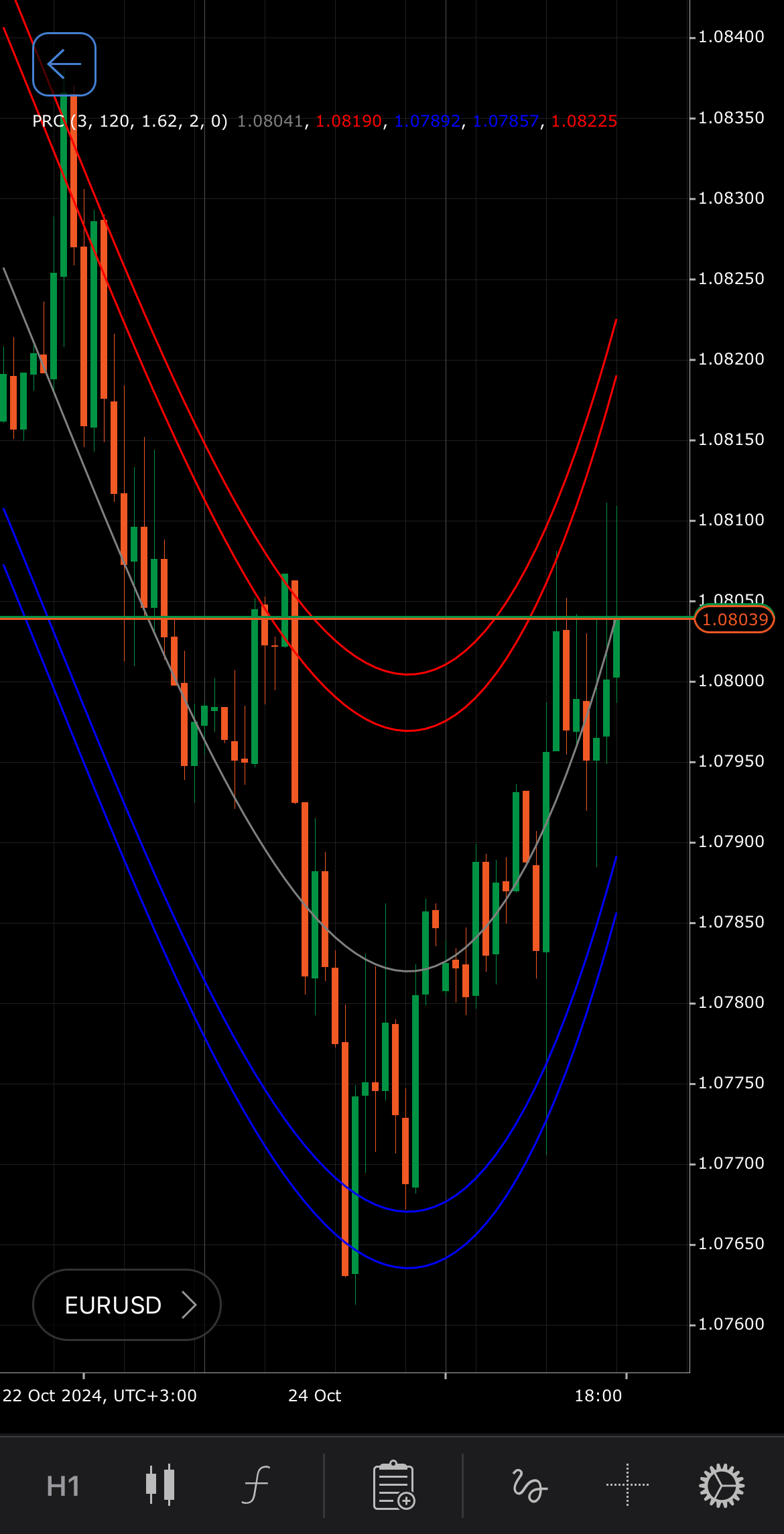
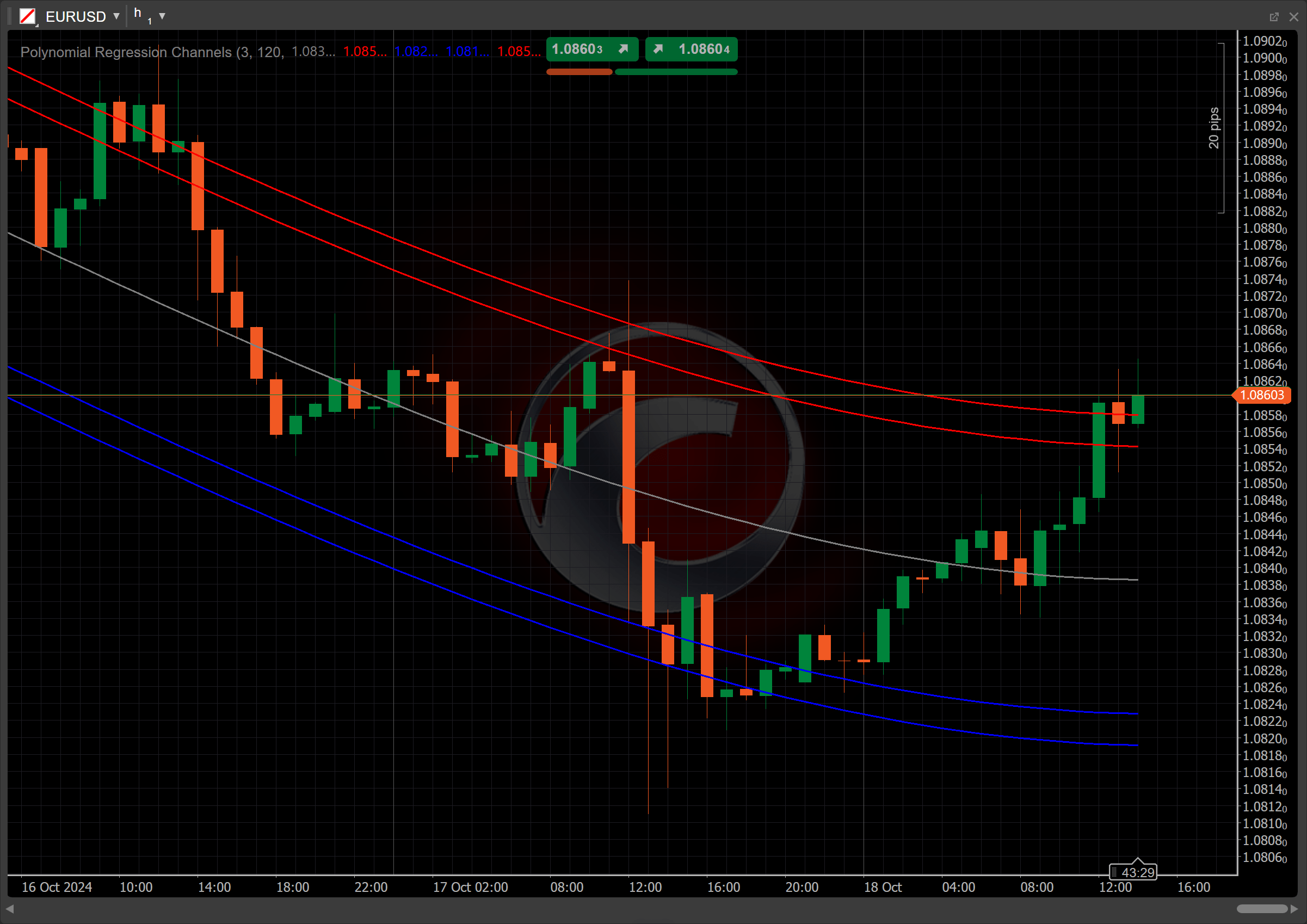
[Open live account](https://ctrader.com/brokers)
[Download cTrader](https://ctrader.com/download/)
History[¶](https://help.ctrader.com/knowledge-base/indicators/volatility/polynomial-regression-channels/#history "Permanent link")
-----------------------------------------------------------------------------------------------------------------------------------
The PRC indicator traces its roots to the broader concept of regression analysis, which dates back to the 19th century with the work of Francis Galton and Karl Pearson. Polynomial regression, an extension of linear regression, is a method of analysis that models the relationship between an independent variable and a dependent variable using an n-degree polynomial. Thus, polynomial regression creates a polynomial function that approximates a set of data points.
Calculations[¶](https://help.ctrader.com/knowledge-base/indicators/volatility/polynomial-regression-channels/#calculations "Permanent link")
---------------------------------------------------------------------------------------------------------------------------------------------
Upper Channel of PRC:
\\\[ SQH = { PRL + ( k \\times StdDev ) } \\\]
Lower Channel of PRC:
\\\[ SQL = { PRL - ( k \\times StdDev ) } \\\]
\\(PRL\\) – the polynomial regression line, a polynomial function fitted to the price data over a given period:
\\\[ y = { a\_0 + a\_1 x^2 ... a\_n x^n } \\\]
\\(y\\) – the price (dependent variable)
\\(x\\) – the time (bar index)
\\(a\_0\\) – the constant term (intercept)
\\(a\_1, a\_2 ... a\_n\\) – the coefficients for the polynomial terms
\\(n\\) – the degree of PRL
\\(k\\) – a user-defined multiplier that determines how far away the channels are from PRL
\\(StdDev\\) – the [**Standard Deviation**](https://help.ctrader.com/knowledge-base/indicators/volatility/standard-deviation/)
multiples, calculated from the residuals, which are the differences between the actual price data points and the values predicted by the polynomial regression line.
Interpretation[¶](https://help.ctrader.com/knowledge-base/indicators/volatility/polynomial-regression-channels/#interpretation "Permanent link")
-------------------------------------------------------------------------------------------------------------------------------------------------
Bands will be drawn between two standard deviation multiples on both sides of the polynomial regression line. The default parameter values for the calculation are as follows:
* The default number of bars to analyse is set to 120. The period specified dictates the number of most recent bars which are used in the computation of the polynomial regression. As new bars form, the polynomial regression will dynamically adjust to the most recent period of bars.
* The default degree of PRL is set to 3. Traders may choose from the 1st to the 6th degree.
* The multiplier for the Upper Channel is set to 2, while the multiplier for the Lower Channel is set to 1.62.
The main patterns of the indicator behaviour can be interpreted as follows:
* **Crossovers** – when the price crosses above the Upper Channel, it indicates potential upward momentum. Conversely, when the price crosses below the Lower Channel, it suggests downward pressure.
* **Rising and falling** – if the PRL is rising, it indicates a bullish trend, suggesting that prices are likely to continue increasing. If the PRL is falling, it signifies a bearish trend, indicating that prices may continue to decline.
* **Divergence and convergence** – if the price makes a new high while the PRL does not, it may signal a potential reversal or weakening momentum. This divergence suggests that the trend might be losing strength. If both the price and the PRL make new highs or lows simultaneously, it indicates that the current trend is likely to continue.
* **Shift** – by adjusting the shift parameter to alter the alignment of the PRC indicator with price data on the chart, you can explore how the PRC readings correspond to past or future price movements.
Application[¶](https://help.ctrader.com/knowledge-base/indicators/volatility/polynomial-regression-channels/#application "Permanent link")
-------------------------------------------------------------------------------------------------------------------------------------------
* **Buy signal** – when the low price crosses below the lower regression channel (support), it can be interpreted as a possibility to enter a long position.
* **Sell signal** – when the high price crosses above the upper regression channel (resistance), it can be interpreted as a possibility to enter a short position.
* **Stop-loss placement** – to protect against a breakout, consider placing a stop loss just below the lower channel line for long positions and above the upper channel line for short positions.
* **Exit strategies** – consider exiting when the price reaches the upper channel line, especially if there are signs of reversal, such as bearish candlestick patterns. Similarly, you can exit when the price approaches the lower channel line, particularly if there are indications of a bullish reversal.
* **Confirming trades** – to confirm signals generated by the PRC, look for additional indicators such as the [**Relative Strength Index (RSI)**](https://help.ctrader.com/knowledge-base/indicators/oscillators/relative-strength-index/)
or moving averages. The RSI indicator helps to identify overbought or oversold conditions; for example, an RSI below 30 can support a buy signal at the lower channel line. Also, a price crossing above a moving average while touching the lower channel line may strengthen a buy signal.
Note
You can take advantage of algo trading, with cBots executing trades based on the signals from this indicator, as shown in our [**examples**](https://help.ctrader.com/ctrader-algo/references/Indicators/PolynomialRegressionChannels/)
. Learn more about how to [**use indicators in cBots**](https://help.ctrader.com/ctrader-algo/articles/for-developers/how-to-use-indicators-in-cbots/)
.
Limitations[¶](https://help.ctrader.com/knowledge-base/indicators/volatility/polynomial-regression-channels/#limitations "Permanent link")
-------------------------------------------------------------------------------------------------------------------------------------------
The PRC indicator has limitations, including its sensitivity to outliers, which can distort trend lines and lead to false signals. Additionally, the PRC may lag in volatile markets, resulting in delayed entries or exits. It relies heavily on historical price data, making it less effective in predicting sudden market changes or news-driven events.
Summary[¶](https://help.ctrader.com/knowledge-base/indicators/volatility/polynomial-regression-channels/#summary "Permanent link")
-----------------------------------------------------------------------------------------------------------------------------------
The Polynomial Regression Channels indicator utilises polynomial regression to create upper and lower channel lines that capture price trends and key support and resistance levels. By analysing historical price data, the PRC helps traders identify potential entry and exit points based on price interactions with the channel lines. It effectively highlights trends and supports informed decision-making, making it a valuable tool when used alongside other indicators for enhanced market analysis.
[Open live account](https://ctrader.com/brokers)
[Download cTrader](https://ctrader.com/download/)
Back to top
---
# Momentum Oscillator - Knowledge base
[Skip to content](https://help.ctrader.com/knowledge-base/indicators/oscillators/momentum-oscillator/#momentum-oscillator)
Momentum Oscillator[¶](https://help.ctrader.com/knowledge-base/indicators/oscillators/momentum-oscillator/#momentum-oscillator "Permanent link")
=================================================================================================================================================
Definition[¶](https://help.ctrader.com/knowledge-base/indicators/oscillators/momentum-oscillator/#definition "Permanent link")
-------------------------------------------------------------------------------------------------------------------------------
The Momentum Oscillator (MO) is a technical indicator that measures the speed or rate of a price change over a specified period. It compares the current price to the price from a previous period, helping identify overbought or oversold conditions. Traders use it to detect trend strength and potential reversals by analysing the oscillator crossing points with a moving average or specific thresholds.
MobileDesktop
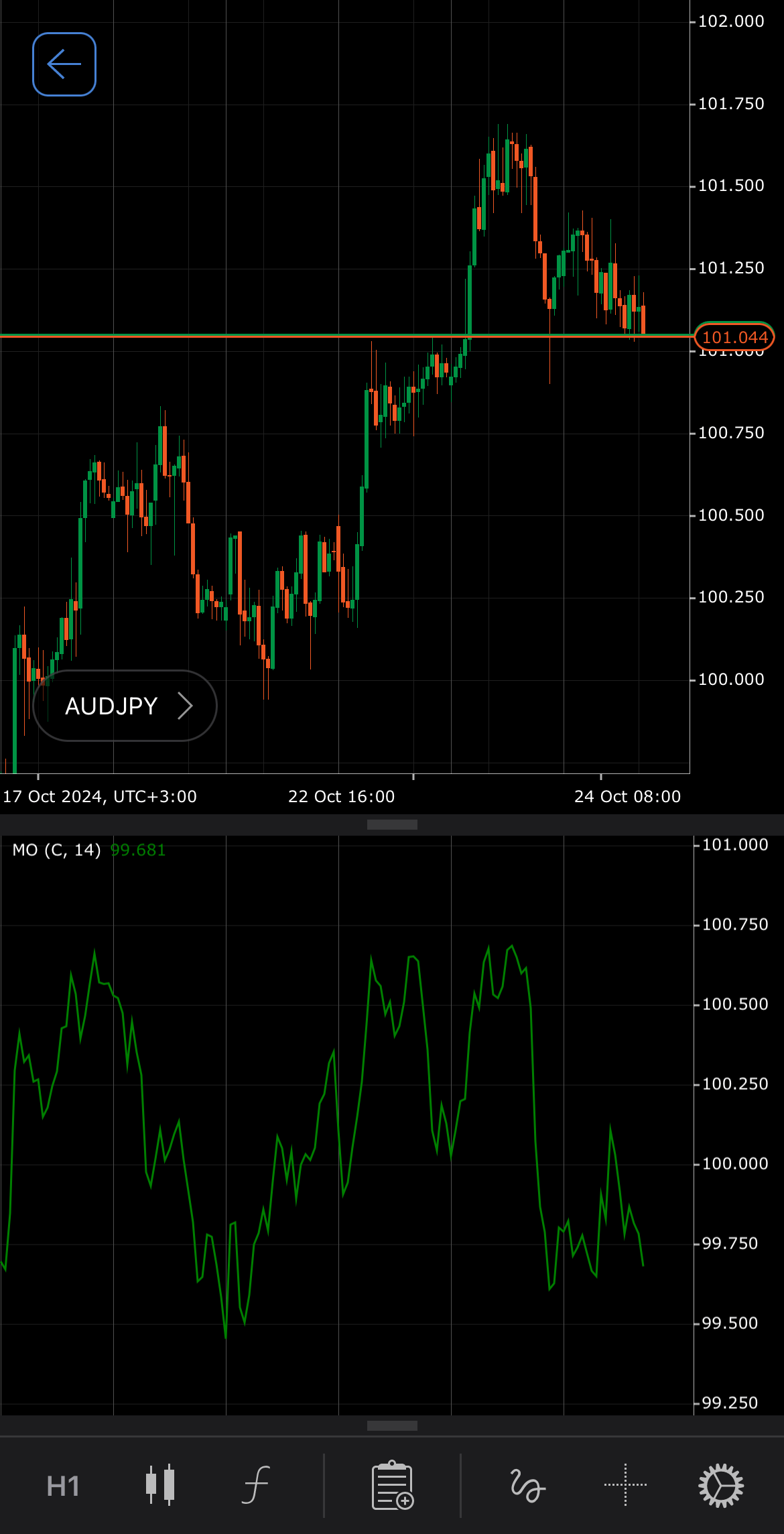
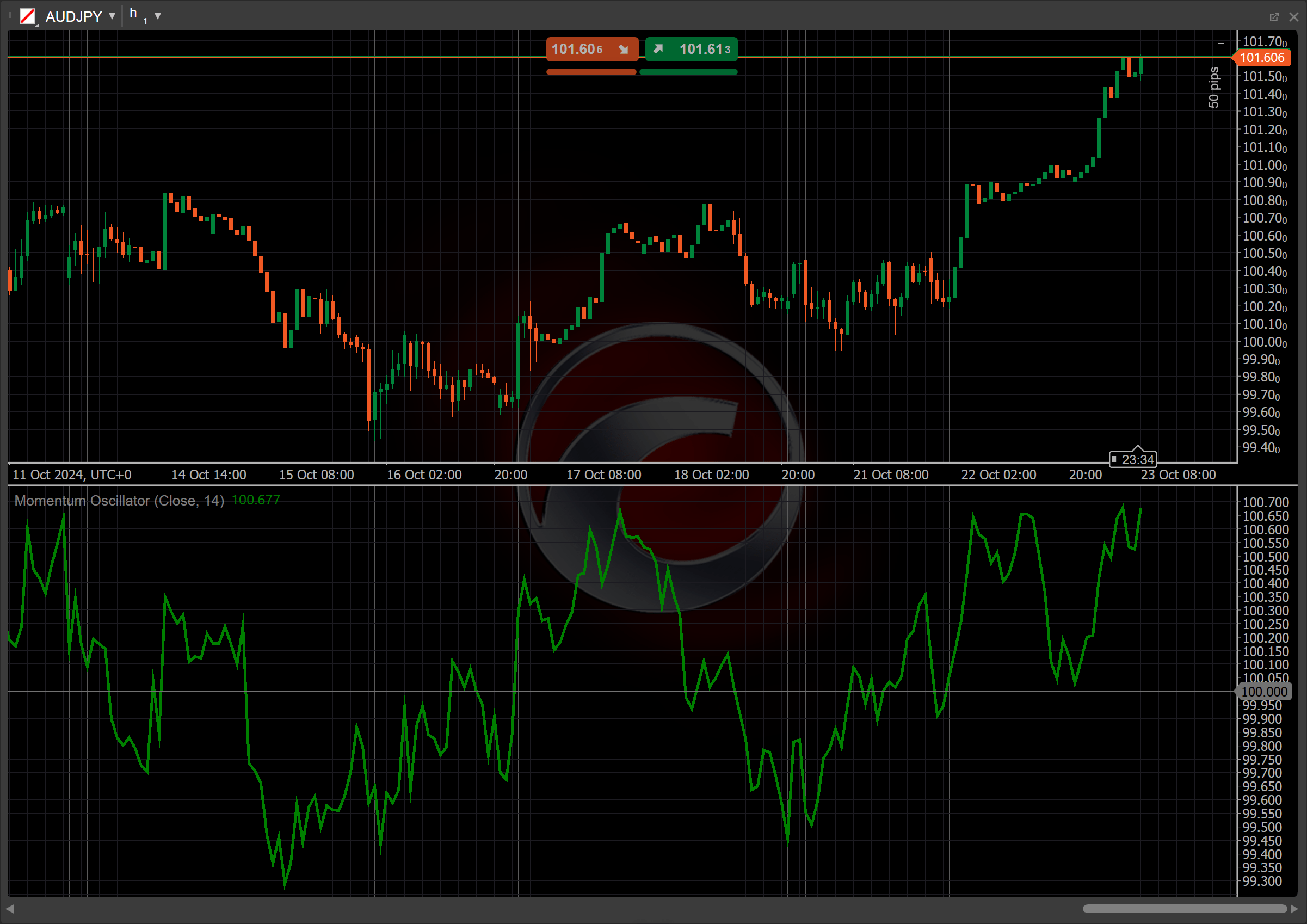
[Open live account](https://ctrader.com/brokers)
[Download cTrader](https://ctrader.com/download/)
History[¶](https://help.ctrader.com/knowledge-base/indicators/oscillators/momentum-oscillator/#history "Permanent link")
-------------------------------------------------------------------------------------------------------------------------
This class of momentum indicators includes at least 20 technical indicators. The basic idea behind all these indicators, applied to financial markets by analysts in the 1960s and 1970s, is rooted in the concept of inertia, where prices in motion tend to stay in motion unless acted upon by external forces (reflecting Newton's First Law). Though the exact originator of the Momentum Oscillator formula is not well-documented, this indicator has become a staple of technical analysis for its simplicity and ability to highlight price acceleration or deceleration, making it useful for trend-following strategies.
Calculations[¶](https://help.ctrader.com/knowledge-base/indicators/oscillators/momentum-oscillator/#calculations "Permanent link")
-----------------------------------------------------------------------------------------------------------------------------------
The Momentum Oscillator is calculated as the most recent closing price divided by the closing price from a previous period, then multiplied by 100:
\\\[ MO = { { {ClosePrice\\ (today)} \\over ClosePrice\\ (n\\ periods\\ ago) } \\times 100 } \\\]
\\(ClosePrice\\) (\\(today\\)) – the current closing price
\\(ClosePrice\\) (\\(n\\) \\(periods\\) \\(ago\\)) – the closing price \\(n\\) periods ago
\\(n\\) – the number of periods
Interpretation[¶](https://help.ctrader.com/knowledge-base/indicators/oscillators/momentum-oscillator/#interpretation "Permanent link")
---------------------------------------------------------------------------------------------------------------------------------------
The Momentum Oscillator is calculated using a 14-day lookback by default, but other periods can be adjusted based on the strategy. The main patterns of the indicator behaviour can be interpreted as follows:
* **Crossovers** – the oscillator returns values centred around 100. Values above 100 indicate upward momentum, while values below 100 show downward momentum.
* **Divergence** – if the price is making new highs while the Momentum Oscillator does not, this bearish divergence can indicate a potential reversal to the downside. Conversely, if the price makes new lows while the MO does not, this bullish divergence can signal a potential reversal to the upside.
Application[¶](https://help.ctrader.com/knowledge-base/indicators/oscillators/momentum-oscillator/#application "Permanent link")
---------------------------------------------------------------------------------------------------------------------------------
* **Buy signal** – traders can consider entering a buy position when the oscillator crosses above a certain threshold (100 by default) and shows rising momentum, indicating strong bullish strength.
* **Sell signal** – traders can consider entering a sell position when the oscillator crosses below a certain threshold and displays falling momentum, suggesting bearish pressure in the market.
* **Stop-loss placement** – for buy trades, it is recommended to set a stop loss below support levels where the oscillator shows weakening momentum. For sell trades, traders usually place a stop loss above resistance levels with a declining oscillator.
* **Exit strategies** – consider exiting when a divergence occurs between the price movement and the oscillator, as this suggests a potential reversal.
* **Confirming trades** – while using the oscillator to confirm trade entries check for divergence or convergence with price trends. If the indicator moves in tandem with price (both rising or falling), it reinforces the trade validity. Conversely, if there is divergence (price making new highs or lows while the oscillator does not), be cautious, as it may indicate a reversal.
* **Combining indicators** – for effective trend confirmation, use the [**Simple Moving Average (SMA)**](https://help.ctrader.com/knowledge-base/indicators/trend/simple-moving-average/)
of the MO indicator. Consider entering buy positions when the MO crosses above the SMA, showing rising momentum, and sell position when the MO drops below the SMA, indicating weakening momentum.
Note
You can take advantage of algo trading, with cBots executing trades based on the signals from this indicator, as shown in our [**examples**](https://help.ctrader.com/ctrader-algo/references/Indicators/MomentumOscillator/)
. Learn more about how to [**use indicators in cBots**](https://help.ctrader.com/ctrader-algo/articles/for-developers/how-to-use-indicators-in-cbots/)
.
Limitations[¶](https://help.ctrader.com/knowledge-base/indicators/oscillators/momentum-oscillator/#limitations "Permanent link")
---------------------------------------------------------------------------------------------------------------------------------
The Momentum Oscillator has limitations, including lagging signals due to its reliance on past prices, which can lead to delayed entries or exits. It may also produce false signals during volatile or sideways markets, where price action does not reflect true momentum. Additionally, the indicator can struggle in trending markets if used in isolation, as it may not capture the full market context.
Summary[¶](https://help.ctrader.com/knowledge-base/indicators/oscillators/momentum-oscillator/#summary "Permanent link")
-------------------------------------------------------------------------------------------------------------------------
The Momentum Oscillator is an indicator used in technical analysis to assess how quickly a symbol price is changing over a defined period, with the most frequent value of 14. By evaluating the current price against a prior price, the oscillator helps identify whether the market is experiencing bullish or bearish momentum. Also, the indicator signals buying or selling opportunities through crossovers and divergences with price movements.
[Open live account](https://ctrader.com/brokers)
[Download cTrader](https://ctrader.com/download/)
Back to top
---
# Detrended Price Oscillator - Knowledge base
[Skip to content](https://help.ctrader.com/knowledge-base/indicators/oscillators/detrended-price-oscillator/#detrended-price-oscillator)
Detrended Price Oscillator[¶](https://help.ctrader.com/knowledge-base/indicators/oscillators/detrended-price-oscillator/#detrended-price-oscillator "Permanent link")
======================================================================================================================================================================
Definition[¶](https://help.ctrader.com/knowledge-base/indicators/oscillators/detrended-price-oscillator/#definition "Permanent link")
--------------------------------------------------------------------------------------------------------------------------------------
The Detrended Price Oscillator (DPO) is a technical analysis tool used to eliminate long-term trends from the price data of an asset, allowing traders to focus on short-term price cycles. The DPO compares the price of an asset to a moving average, highlighting deviations from this average, which helps traders identify overbought and oversold conditions.
MobileDesktop
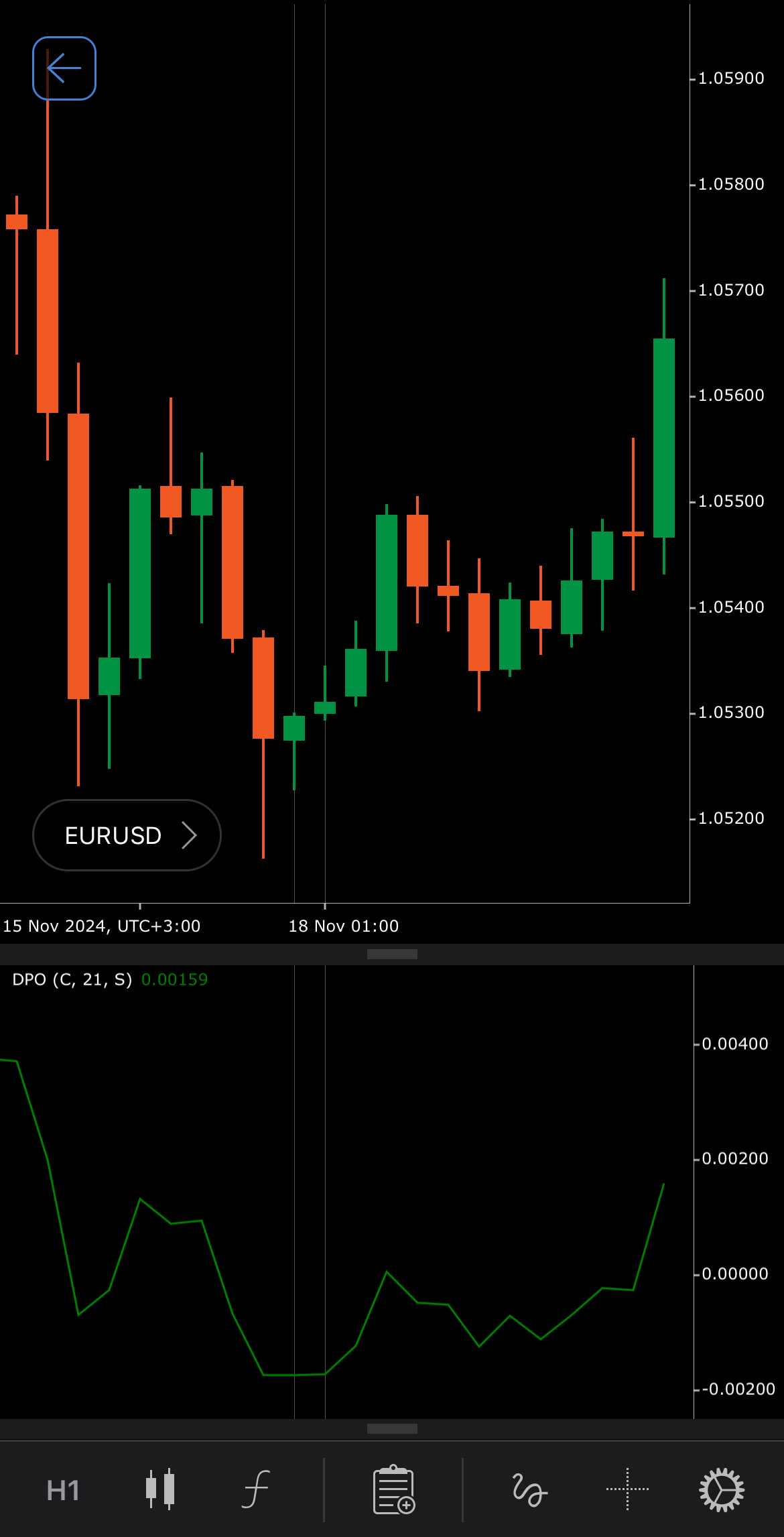
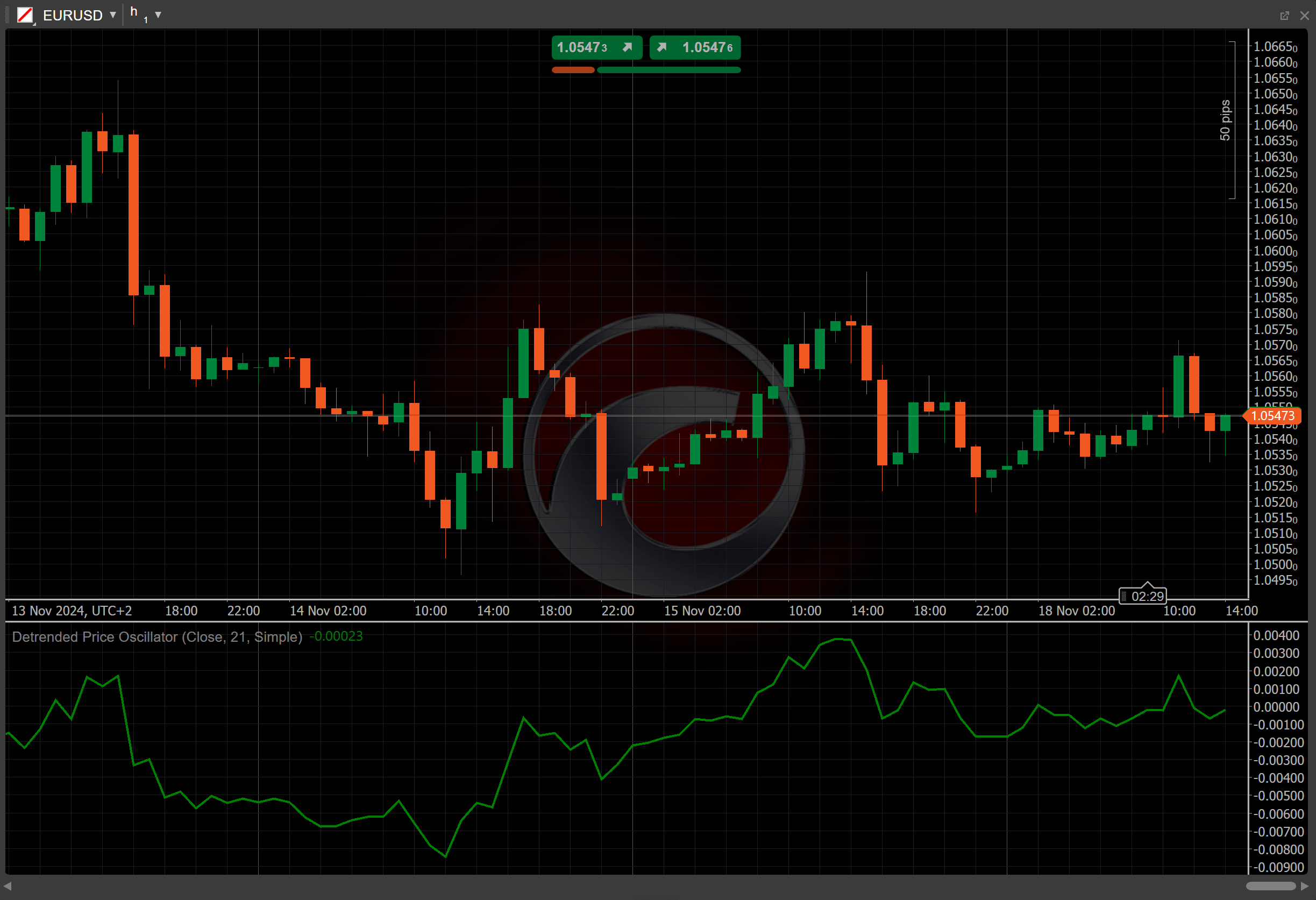
[Open live account](https://ctrader.com/brokers)
[Download cTrader](https://ctrader.com/download/)
History[¶](https://help.ctrader.com/knowledge-base/indicators/oscillators/detrended-price-oscillator/#history "Permanent link")
--------------------------------------------------------------------------------------------------------------------------------
The Detrended Price Oscillator was developed by John Ehlers and introduced in his book "Rocket Science for Traders" in 2001. Ehlers created the DPO to help traders remove long-term trends and focus on short-term price cycles. Known for his contributions to technical analysis, Ehlers also developed other tools like the [**Cyber Cycle**](https://help.ctrader.com/knowledge-base/indicators/oscillators/cyber-cycle/)
and Fisher Transform to assist in advanced trading strategies.
Calculations[¶](https://help.ctrader.com/knowledge-base/indicators/oscillators/detrended-price-oscillator/#calculations "Permanent link")
------------------------------------------------------------------------------------------------------------------------------------------
The DPO is calculated by subtracting a moving average from the price and shifting it back by a certain number of periods.
\\\[ DPO = { Price\_i - MA\_{i - ( { n \\over 2 } + 1 ) } } \\\]
\\(Price\_i\\) – the source price at \\(i\\) period
\\( MA\_i = Moving\\ Average\\ (Price\_i, n) \\) – the moving average of the source price over the specified number of periods \\(n\\)
\\(MA\_{i - ( {n \\over 2} + 1 ) }\\) – the moving average value lagged by \\( ( { n \\over 2 } + 1 ) \\) periods
\\(n\\) – the number of periods for the moving average
Interpretation[¶](https://help.ctrader.com/knowledge-base/indicators/oscillators/detrended-price-oscillator/#interpretation "Permanent link")
----------------------------------------------------------------------------------------------------------------------------------------------
The [**Simple Moving Average (SMA)**](https://help.ctrader.com/knowledge-base/indicators/trend/simple-moving-average/)
serves as the type of moving average by default. The 21-period and closing prices are used by default to calculate the SMA value.
The Detrended Price Oscillator helps traders identify overbought and oversold conditions by focusing on short-term price cycles. The following interpretations of the indicator are generally applicable:
* **Zero-line crossovers** – when the DPO crosses above the zero line, it suggests that the price is above its moving average, indicating potential overbought conditions. When the DPO crosses below the zero line, it suggests that the price is below its moving average, indicating potential oversold conditions.
* **Overbought and oversold levels** – extreme positive values indicate overbought conditions, suggesting a potential price pullback. Extreme negative values indicate oversold conditions, suggesting a potential price rally.
* **Divergences** – bullish divergence occurs when the price makes a lower low while the DPO makes a higher low, indicating weakening selling pressure. Bearish divergence occurs when the price makes a higher high while the DPO makes a lower high, signalling weakening buying pressure.
Application[¶](https://help.ctrader.com/knowledge-base/indicators/oscillators/detrended-price-oscillator/#application "Permanent link")
----------------------------------------------------------------------------------------------------------------------------------------
The Detrended Price Oscillator can be applied in several trading strategies.
* **Identifying overbought and oversold conditions** – when the DPO reaches extreme positive levels, traders may consider selling, as the price may be overbought. When the DPO reaches extreme negative levels, traders may consider buying, as the price may be oversold.
* **Zero-line crossover** – a crossover above zero suggests bullish momentum, while a crossover below zero suggests bearish momentum.
* **Stop-loss placement** – traders often place stop losses near extreme levels of the DPO. For instance, stop losses for sell positions can be placed at the overbought level, while for buy positions, they can be placed at the oversold level.
Note
You can take advantage of algo trading, with cBots executing trades based on the signals from this indicator, as shown in our [**examples**](https://help.ctrader.com/ctrader-algo/references/Indicators/DetrendedPriceOscillator/)
. Learn more about how to [**use indicators in cBots**](https://help.ctrader.com/ctrader-algo/articles/for-developers/how-to-use-indicators-in-cbots/)
.
Limitations[¶](https://help.ctrader.com/knowledge-base/indicators/oscillators/detrended-price-oscillator/#limitations "Permanent link")
----------------------------------------------------------------------------------------------------------------------------------------
The Detrended Price Oscillator focuses on short-term price movements, which makes it less effective for detecting long-term trends. The DPO may generate false signals during periods of high volatility or sudden price changes, especially when the market is trending strongly.
Summary[¶](https://help.ctrader.com/knowledge-base/indicators/oscillators/detrended-price-oscillator/#summary "Permanent link")
--------------------------------------------------------------------------------------------------------------------------------
The Detrended Price Oscillator, developed as part of the innovations by John Ehlers in his book "Rocket Science for Traders" (2001), helps traders isolate short-term price cycles by removing the influence of long-term trends. It highlights overbought and oversold conditions by comparing the price of an asset to a moving average, highlighting deviations from this average, making it a useful tool for short-term trading strategies.
[Open live account](https://ctrader.com/brokers)
[Download cTrader](https://ctrader.com/download/)
Back to top
---
# Cyber Cycle - Knowledge base
[Skip to content](https://help.ctrader.com/knowledge-base/indicators/oscillators/cyber-cycle/#cyber-cycle)
Cyber Cycle[¶](https://help.ctrader.com/knowledge-base/indicators/oscillators/cyber-cycle/#cyber-cycle "Permanent link")
=========================================================================================================================
Definition[¶](https://help.ctrader.com/knowledge-base/indicators/oscillators/cyber-cycle/#definition "Permanent link")
-----------------------------------------------------------------------------------------------------------------------
The Cyber Cycle is a technical analysis tool developed to detect price cycles and assist traders in identifying potential reversals. It uses an advanced smoothing algorithm to minimise lag, making it highly responsive to cyclical price movements. Unlike traditional momentum indicators, the Cyber Cycle adapts to changing market conditions by dynamically adjusting to price fluctuations, making it suitable for both trending and range-bound markets.
MobileDesktop
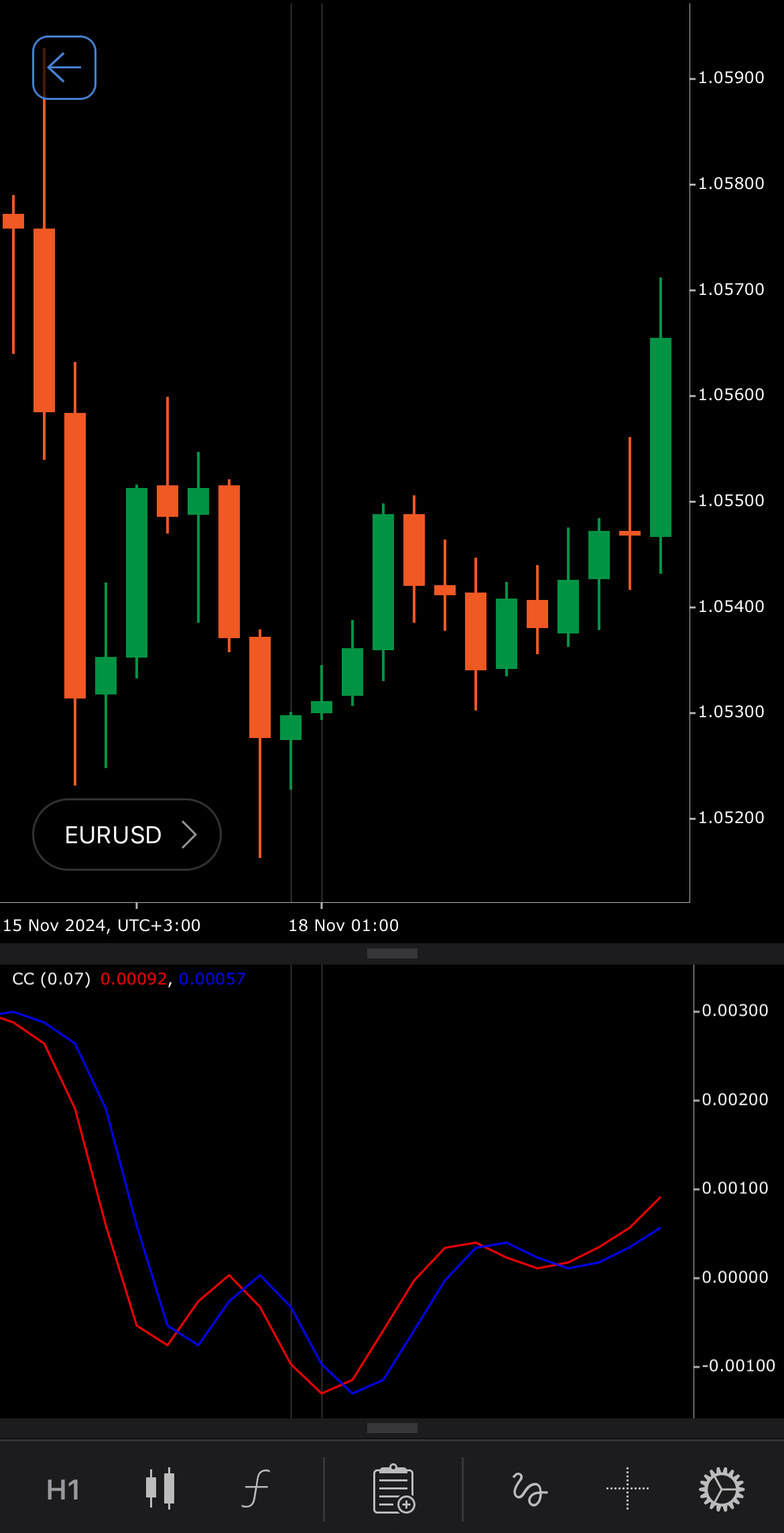
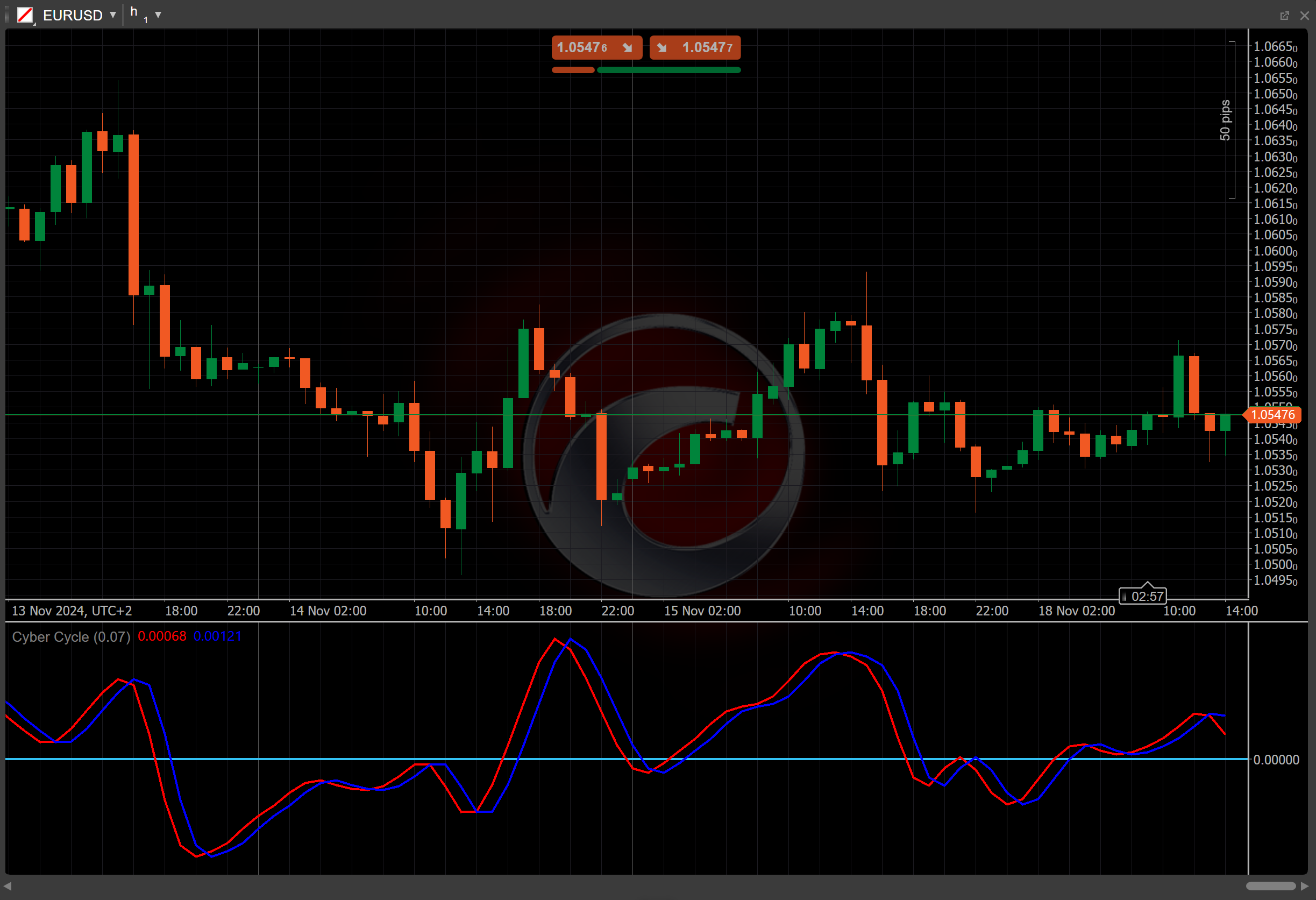
[Open live account](https://ctrader.com/brokers)
[Download cTrader](https://ctrader.com/download/)
History[¶](https://help.ctrader.com/knowledge-base/indicators/oscillators/cyber-cycle/#history "Permanent link")
-----------------------------------------------------------------------------------------------------------------
The Cyber Cycle was introduced by John Ehlers, a notable figure in the field of technical analysis and digital signal processing applied to markets. Ehlers introduced the Cyber Cycle in his book "Cybernetic Analysis for Stocks and Futures", published in 2004, which explores the use of modern signal processing techniques to analyse financial data and market cycles. His focus was to provide traders with an indicator that could minimise lag and accurately reflect market cycles.
Calculations[¶](https://help.ctrader.com/knowledge-base/indicators/oscillators/cyber-cycle/#calculations "Permanent link")
---------------------------------------------------------------------------------------------------------------------------
The Cyber Cycle uses a smoothing process to filter out price noise, which is achieved through digital signal processing. The formula for the Cyber Cycle involves multiple steps.
1\. Smooth the [**Median Price**](https://help.ctrader.com/knowledge-base/indicators/other/median-price/)
using a weighted average.
\\\[ Smooth\_i = { 1 \\over 6 } \\times ( { MedianPrice\_i + 2 \\times MedianPrice\_{i-1} + 2 \\times MedianPrice\_{i-2} + MedianPrice\_{i-3} } ) \\\]
2\. Calculate the Cyber Cycle using the \\(\\alpha\\) constant, which defaults to 0.07.
\\\[ Cycle\_i = { (1 - { \\alpha \\over 2 } ) ^2 } \\times (Smooth\_i - 2 \\times Smooth\_{i-1} + Smooth\_{i-2} ) + 2 \\times (1 - \\alpha) \\times Cycle\_{i-1} - (1 - \\alpha) ^2 \\times Cycle\_{i-2} \\\]
3\. For the first few indices (where \\(i\\) < 7), apply a simpler formula for the Cyber Cycle.
\\\[ Cycle\_i = { 1 \\over 4 } \\times { ( MedianPrice\_i - 2 \\times MedianPrice\_{i-1} + MedianPrice\_{i-2} ) } \\\]
4\. Define the Trigger line.
\\\[ Trigger\_i = Cycle\_{i-1} \\\]
Interpretation[¶](https://help.ctrader.com/knowledge-base/indicators/oscillators/cyber-cycle/#interpretation "Permanent link")
-------------------------------------------------------------------------------------------------------------------------------
* **Cyclical behaviour** – when the Cyber Cycle is near its peak or trough, it suggests a potential market reversal. Peaks indicate a potential downturn, while troughs suggest a price rally.
* **Zero-line crossovers** – crossing above zero signals a potential uptrend, with increasing upward momentum. Crossing below zero signals a potential downtrend, with growing downward momentum.
* **Divergence** – when the price makes lower lows while the Cyber Cycle forms higher lows, it suggests weakening selling pressure and a potential upside reversal. When the price makes higher highs while the Cyber Cycle forms lower highs, it signals weakening buying pressure and a potential downside reversal.
Note
You can take advantage of algo trading, with cBots executing trades based on the signals from this indicator, as shown in our [**examples**](https://help.ctrader.com/ctrader-algo/references/Indicators/CyberCycle/)
. Learn more about how to [**use indicators in cBots**](https://help.ctrader.com/ctrader-algo/articles/for-developers/how-to-use-indicators-in-cbots/)
.
Application[¶](https://help.ctrader.com/knowledge-base/indicators/oscillators/cyber-cycle/#application "Permanent link")
-------------------------------------------------------------------------------------------------------------------------
The Cyber Cycle can be applied to multiple trading strategies.
* **Identifying reversals** – traders can use the Cyber Cycle peaks and troughs to identify potential market reversals. A trough can signal a buying opportunity, while a peak can indicate the market is overextended, presenting a potential sell signal.
* **Zero-line crossover** – crossing above the zero line signals that momentum is shifting to the upside, providing a potential buy opportunity. Crossing below the zero line suggests the onset of downward momentum, making it a potential sell signal.
* **Stop-loss placement** – traders may use the Cyber Cycle turning points to adjust stop-loss orders. For example, setting a stop loss below the most recent trough in an upward cycle, or above the peak in a downward cycle, helps manage risk.
Limitations[¶](https://help.ctrader.com/knowledge-base/indicators/oscillators/cyber-cycle/#limitations "Permanent link")
-------------------------------------------------------------------------------------------------------------------------
The Cyber Cycle may produce false signals in choppy or low-volume markets. Additionally, the indicator reliance on historical data can lead to lag in fast-moving markets.
Summary[¶](https://help.ctrader.com/knowledge-base/indicators/oscillators/cyber-cycle/#summary "Permanent link")
-----------------------------------------------------------------------------------------------------------------
The Cyber Cycle indicator is a momentum and cycle detection tool designed to identify reversals and cyclical behaviour in the market. Developed by John Ehlers, it uses advanced smoothing techniques to filter out noise and provide a clearer view of price movements. The Cyber Cycle helps traders identify potential market tops and bottoms.
[Open live account](https://ctrader.com/brokers)
[Download cTrader](https://ctrader.com/download/)
Back to top
---
# Commodity Channel Index - Knowledge base
[Skip to content](https://help.ctrader.com/knowledge-base/indicators/oscillators/commodity-channel-index/#commodity-channel-index)
Commodity Channel Index[¶](https://help.ctrader.com/knowledge-base/indicators/oscillators/commodity-channel-index/#commodity-channel-index "Permanent link")
=============================================================================================================================================================
Definition[¶](https://help.ctrader.com/knowledge-base/indicators/oscillators/commodity-channel-index/#definition "Permanent link")
-----------------------------------------------------------------------------------------------------------------------------------
The Commodity Channel Index (CCI) is a versatile momentum-based technical analysis indicator that measures the deviation of an asset's price from its average price over a specific period. Although originally developed for commodities, the CCI is now widely applied to other asset classes, including stocks and forex, to identify overbought and oversold conditions.
MobileDesktop
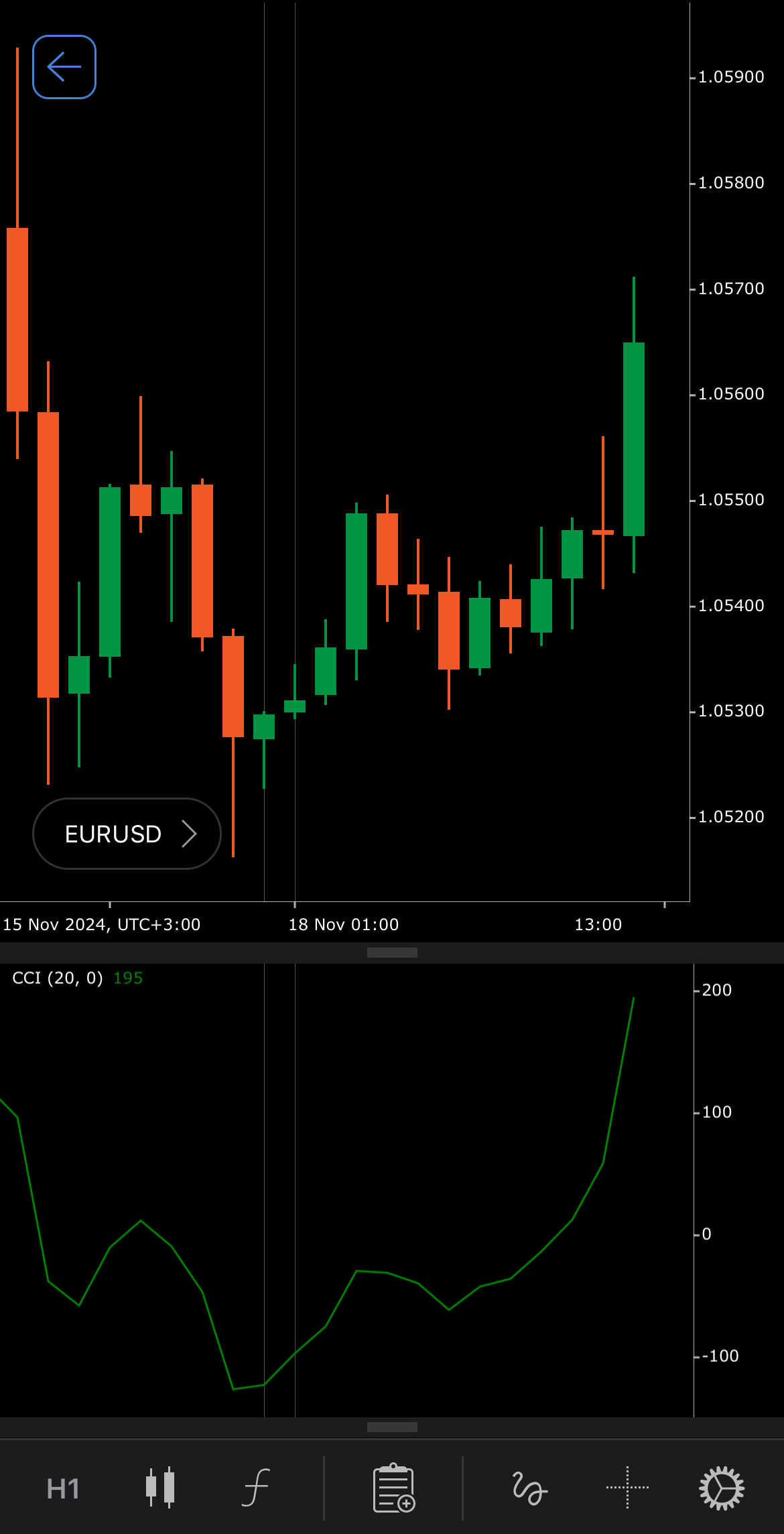
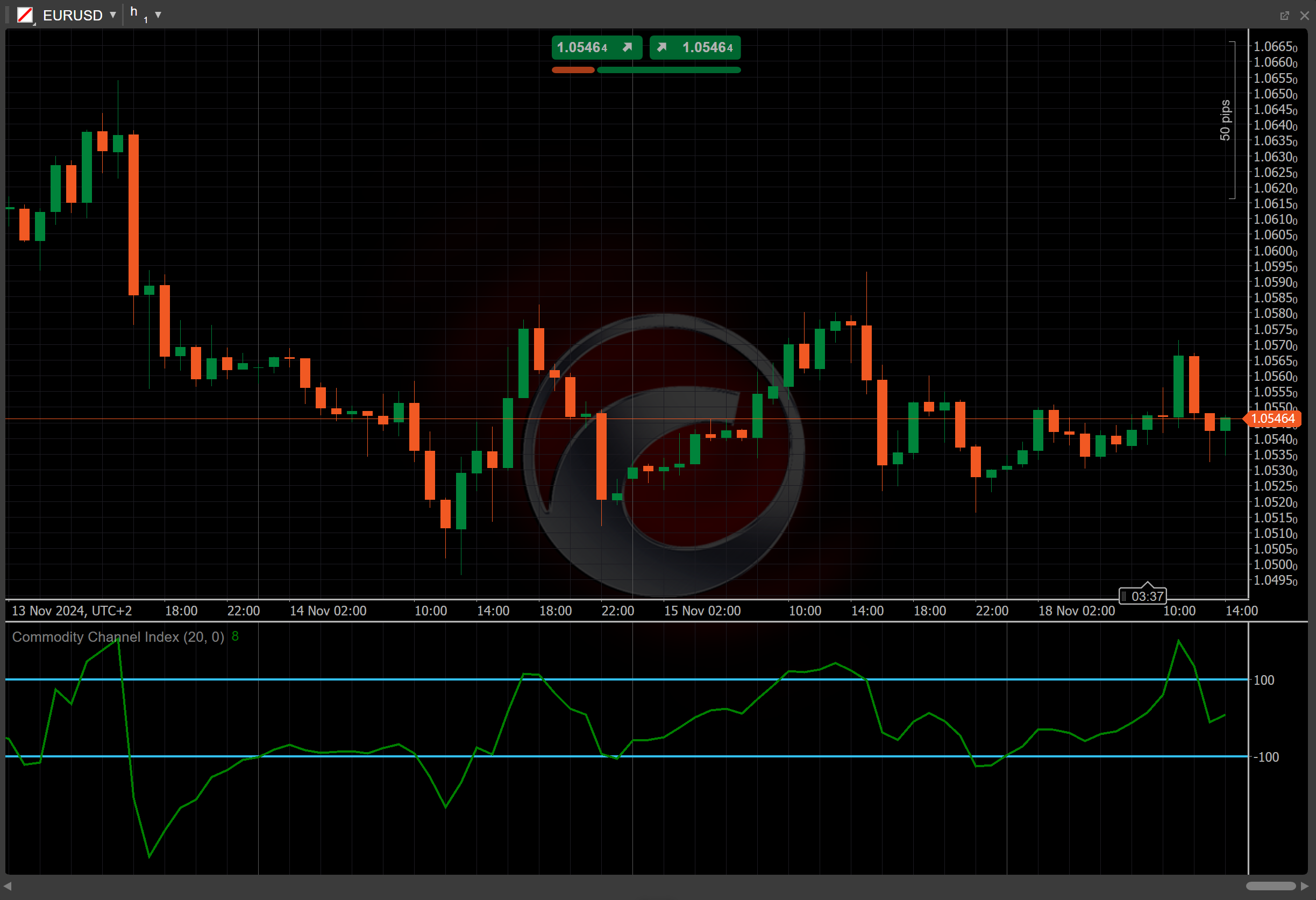
[Open live account](https://ctrader.com/brokers)
[Download cTrader](https://ctrader.com/download/)
History[¶](https://help.ctrader.com/knowledge-base/indicators/oscillators/commodity-channel-index/#history "Permanent link")
-----------------------------------------------------------------------------------------------------------------------------
The CCI was developed by Donald Lambert, a technical analyst and introduced in his 1980 article in Commodities magazine (now known as Futures). Lambert designed the indicator to identify cyclical price patterns in commodities, but it has since gained broader use across various financial markets due to its effectiveness in measuring market trends and reversals.
Calculations[¶](https://help.ctrader.com/knowledge-base/indicators/oscillators/commodity-channel-index/#calculations "Permanent link")
---------------------------------------------------------------------------------------------------------------------------------------
1\. First, the [**Simple Moving Average (SMA)**](https://help.ctrader.com/knowledge-base/indicators/trend/simple-moving-average/)
of the [**Typical Price (TP)**](https://help.ctrader.com/knowledge-base/indicators/other/typical-price/)
over the specified number of periods \\(n\\) needs to be determined.
\\\[ SMA (TP) = { 1 \\over n } { \\sum\_{i=0}^{n-1} { TP\_{t-1} } } \\\]
2\. Then, the mean absolute deviation of the source from the SMA over the same period should be calculated.
\\\[ Mean\\ Deviation = { { \\sum\_{i=0}^{n=1} | TP\_{t-1} - {SMA (TP)} | } \\over n } \\\]
3\. Finally, the Commodity Channel Index is computed, using the SMA and mean deviation.
\\\[ CCI = { { TP\_t - SMA (TP) } \\over { 0.015 \\times Mean\\ Deviation} } \\\]
\\(t\\) is the current index and 0.015 is a constant used to standardise the CCI values, allowing most results to fall between +100 and -100.
Interpretation[¶](https://help.ctrader.com/knowledge-base/indicators/oscillators/commodity-channel-index/#interpretation "Permanent link")
-------------------------------------------------------------------------------------------------------------------------------------------
By default, the number of periods for the CCI calculation is set to 20.
The CCI is used to identify overbought or oversold conditions, as well as potential reversals in price trends.
* **Overbought and oversold levels** – the CCI above +100 is considered overbought, suggesting a potential downward correction or reversal. The CCI below -100 is considered oversold, indicating a potential upward reversal.
* **Zero-line crossover** – crossing above zero suggests positive momentum and potentially signals the beginning of an uptrend. Crossing below zero indicates negative momentum, suggesting a possible downtrend.
* **Divergence** – bullish divergence occurs when the price makes lower lows, but the CCI makes higher lows, indicating weakening downward momentum and a potential reversal. Bearish divergence occurs when the price makes higher highs, but the CCI makes lower highs, indicating weakening upward momentum and a potential reversal.
* **Shift** – by adjusting the shift parameter to alter the alignment of the CCI indicator with price data on the chart, you can explore how the CCI readings correspond to past or future price movements.
Application[¶](https://help.ctrader.com/knowledge-base/indicators/oscillators/commodity-channel-index/#application "Permanent link")
-------------------------------------------------------------------------------------------------------------------------------------
The CCI can be applied to several trading strategies.
* **Buy signals** – when the CCI moves from below -100 to above -100, it suggests that the asset is emerging from an oversold condition, potentially signalling a buying opportunity. A move above +100 indicates strong upward momentum, suggesting the beginning of a new uptrend. This can be interpreted as a buy signal, with the position held until the CCI moves back below +100.
* **Sell signals** – when the CCI moves from above +100 to below +100, it may indicate that the asset is exiting an overbought condition, signalling a potential sell opportunity. This may indicate a good opportunity to close long positions or initiate short positions. A move below -100 suggests strong downward momentum, indicating the beginning of a new downtrend. This can be interpreted as a sell signal, with the position held until the CCI moves back above -100.
* **Trend confirmation** – the CCI values crossing the zero line can confirm the strength of a current trend, allowing traders to enter positions early in the trend development.
* **Stop-loss placement** – traders can place stop-loss orders based on the CCI signals, setting stops below oversold levels in a potential uptrend or above overbought levels during a potential downtrend.
Note
You can take advantage of algo trading, with cBots executing trades based on the signals from this indicator, as shown in our [**examples**](https://help.ctrader.com/ctrader-algo/references/Indicators/CommodityChannelIndex/)
. Learn more about how to [**use indicators in cBots**](https://help.ctrader.com/ctrader-algo/articles/for-developers/how-to-use-indicators-in-cbots/)
.
Limitations[¶](https://help.ctrader.com/knowledge-base/indicators/oscillators/commodity-channel-index/#limitations "Permanent link")
-------------------------------------------------------------------------------------------------------------------------------------
The CCI may generate false signals in choppy or sideways markets. Additionally, the CCI's effectiveness is highly dependent on the selected period and can vary across different assets.
Summary[¶](https://help.ctrader.com/knowledge-base/indicators/oscillators/commodity-channel-index/#summary "Permanent link")
-----------------------------------------------------------------------------------------------------------------------------
The Commodity Channel Index is a versatile momentum indicator that helps traders identify overbought and oversold conditions, as well as potential trend reversals. By comparing an asset price to its average over a specified period, the CCI provides key signals for entering and exiting trades.
[Open live account](https://ctrader.com/brokers)
[Download cTrader](https://ctrader.com/download/)
Back to top
---
# MACD Crossover - Knowledge base
[Skip to content](https://help.ctrader.com/knowledge-base/indicators/oscillators/macd-crossover/#macd-crossover)
MACD Crossover[¶](https://help.ctrader.com/knowledge-base/indicators/oscillators/macd-crossover/#macd-crossover "Permanent link")
==================================================================================================================================
Definition[¶](https://help.ctrader.com/knowledge-base/indicators/oscillators/macd-crossover/#definition "Permanent link")
--------------------------------------------------------------------------------------------------------------------------
The Moving Average Convergence/Divergence (MACD) Crossover indicator is a technical analysis tool that identifies potential buy and sell signals by tracking the relationship between two key lines: the MACD line and the Signal line.
* The MACD line is a trend-following momentum indicator that shows the relationship between two [**Exponential Moving Averages (EMAs)**](https://help.ctrader.com/knowledge-base/indicators/trend/exponential-moving-average/)
of a symbol price.
* The Signal line is an EMA of the MACD line over a specified period.
When these lines intersect, an upward crossover suggests a potential buying opportunity, while a downward crossover indicates a possible selling opportunity.
MobileDesktop
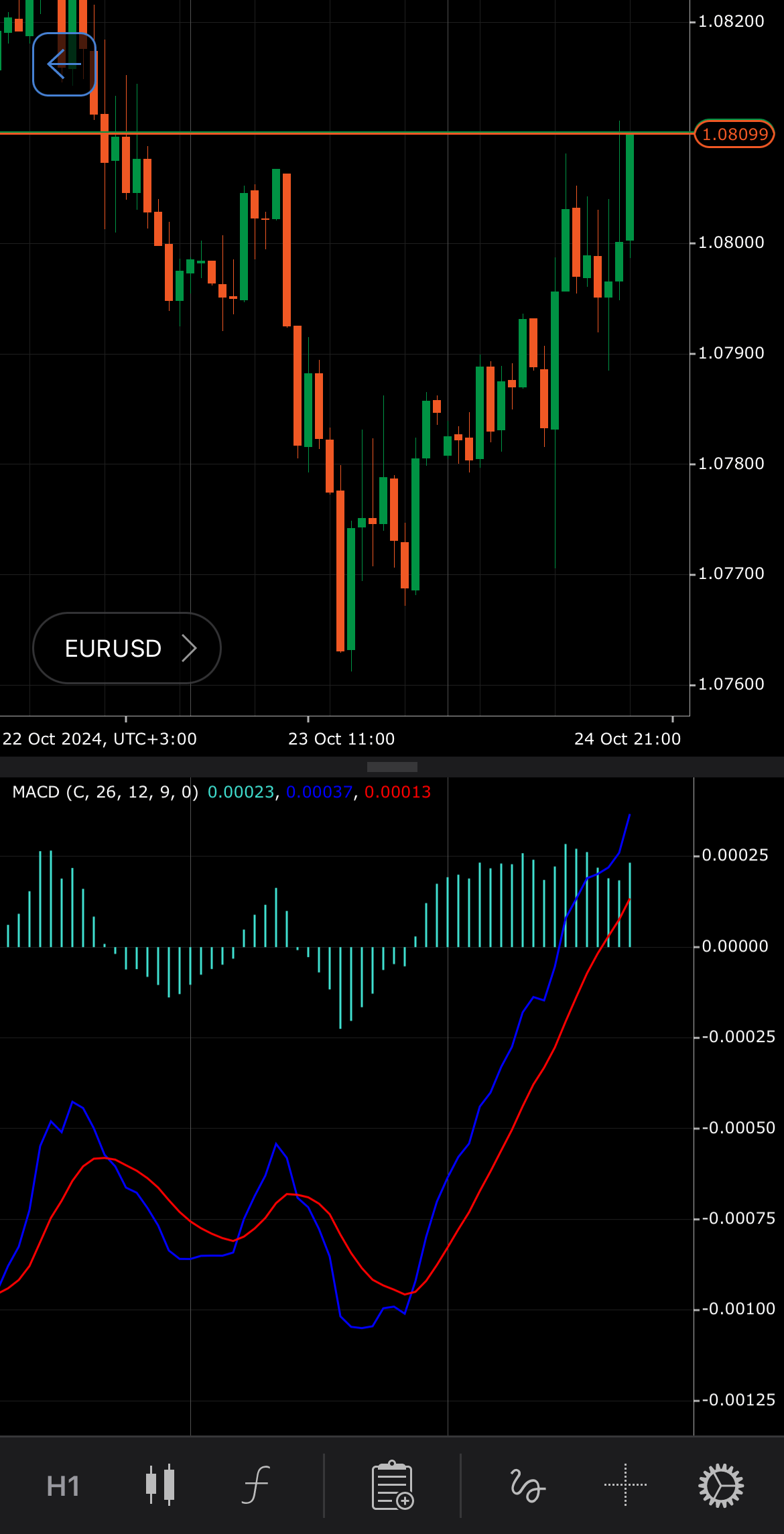
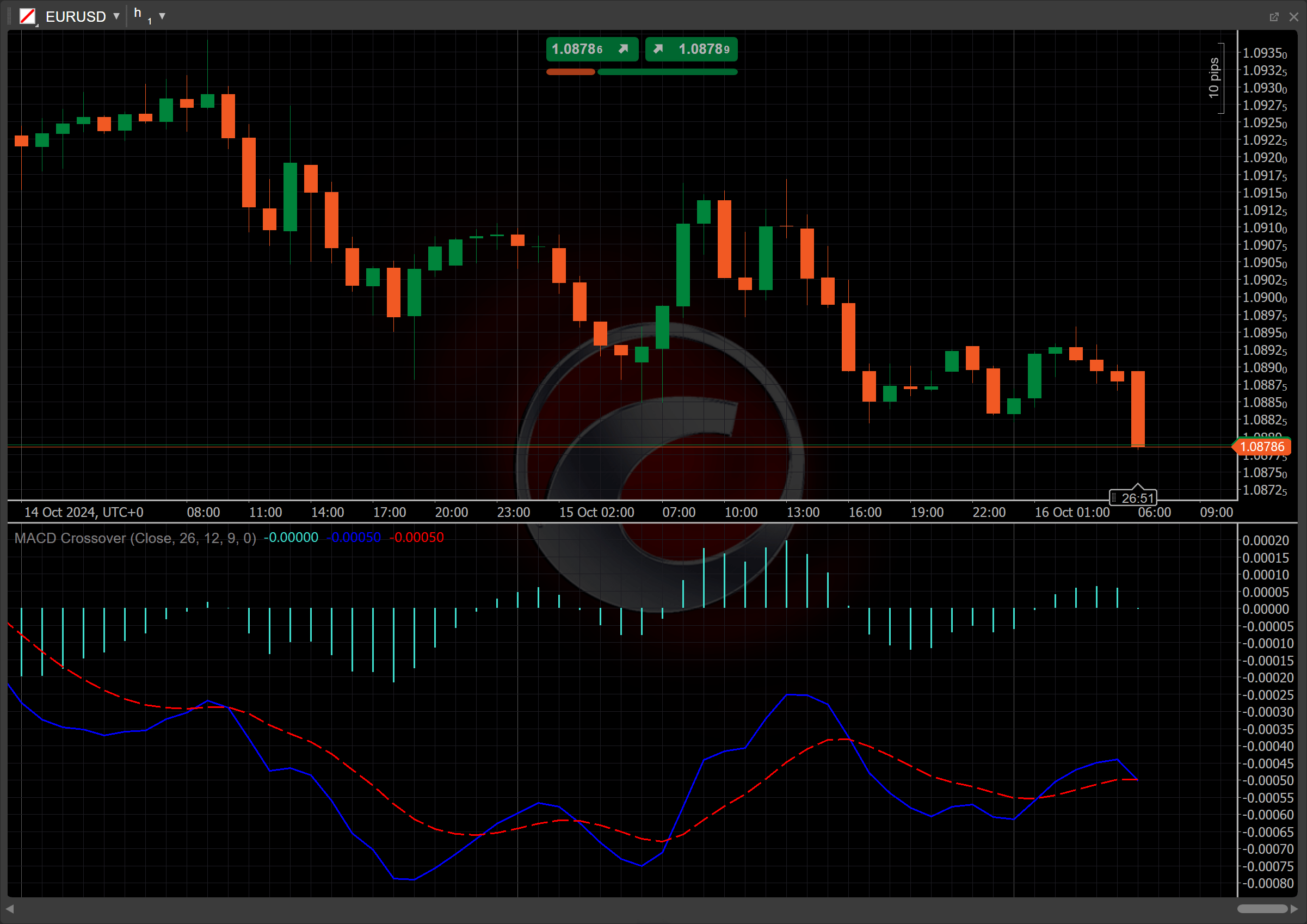
[Open live account](https://ctrader.com/brokers)
[Download cTrader](https://ctrader.com/download/)
History[¶](https://help.ctrader.com/knowledge-base/indicators/oscillators/macd-crossover/#history "Permanent link")
--------------------------------------------------------------------------------------------------------------------
The MACD was created in the 1970s by Gerald Appel and has become one of the most widely used technical tools, easily accessible on most trading platforms provided by online stock brokers. It aimed to identify changes in the intensity, direction, momentum and duration of a stock price trend. By complementing the MACD line with its Signal line, traders are able to track appropriate buy and sell signals depending on the direction in which these lines cross.
Calculations[¶](https://help.ctrader.com/knowledge-base/indicators/oscillators/macd-crossover/#calculations "Permanent link")
------------------------------------------------------------------------------------------------------------------------------
The Signal line is calculated as an EMA of the MACD line over a specified period:
\\\[ Signal\\ Line = { EMA\_n ( MACD\\ Line ) } \\\]
\\(MACD\\) \\(Line\\) – the difference between the short-period and the long-period EMAs
\\(EMA\_n\\) (\\(MACD\\) \\(Line\\)) – the \\(n\\)\-period EMA of the MACD line
Interpretation[¶](https://help.ctrader.com/knowledge-base/indicators/oscillators/macd-crossover/#interpretation "Permanent link")
----------------------------------------------------------------------------------------------------------------------------------
The MACD Crossover indicator is most commonly used with the following parameter values: a 12-day period for the short-term EMA, a 26-day period for the long-term EMA and a 9-day period for the EMA of the MACD line.
The main patterns of the indicator behaviour can be interpreted as follows:
* **Crossovers** – when the MACD line turns upward, crossing over the Signal line, and continues or stays above it, a bullish crossover has occurred. This is a signal that a symbol price is on the rise. The exact opposite is true when the MACD line crosses down over the Signal line. This is a bearish crossover and if the MACD line continues to drop below the Signal line, it is a good indication that the bears are taking over. Crossovers are more reliable when they conform to the prevailing trend.
* **Divergence** – an increasing divergence between the MACD line and its Signal line suggests strengthening momentum in the current trend, signalling that the trend is likely to continue.
Application[¶](https://help.ctrader.com/knowledge-base/indicators/oscillators/macd-crossover/#application "Permanent link")
----------------------------------------------------------------------------------------------------------------------------
* **Buy signal** – when the MACD line crosses above the Signal line, it indicates a potential buying opportunity. This is typically seen as a bullish crossover, signalling that upward momentum is gaining strength.
* **Sell signal** – when the MACD line crosses below the Signal line, it generates a potential sell signal. This bearish crossover suggests increasing downward momentum and can signal a good time to exit long positions or enter short trades.
* **Stop-loss placement** – to manage risk, traders usually place a stop loss below a recent support level for buy signals or above a recent resistance level for sell signals. The stop loss ensures protection in case the crossover fails to result in a sustained trend.
* **Exit strategies** – consider exit when the MACD line crosses below the Signal line after a bullish crossover, indicating a potential reversal.
* **Confirming trades** – traders often use additional indicators such as the [**Relative Strength Index (RSI)**](https://help.ctrader.com/knowledge-base/indicators/oscillators/relative-strength-index/)
, [**Simple (SMA)**](https://help.ctrader.com/knowledge-base/indicators/trend/simple-moving-average/)
or [**Exponential Moving Average (EMA)**](https://help.ctrader.com/knowledge-base/indicators/trend/exponential-moving-average/)
to confirm the strength of the MACD signal before committing to the trade. This reduces the likelihood of acting on false signals.
Note
You can take advantage of algo trading, with cBots executing trades based on the signals from this indicator, as shown in our [**examples**](https://help.ctrader.com/ctrader-algo/references/Indicators/MacdCrossOver/)
. Learn more about how to [**use indicators in cBots**](https://help.ctrader.com/ctrader-algo/articles/for-developers/how-to-use-indicators-in-cbots/)
.
Limitations[¶](https://help.ctrader.com/knowledge-base/indicators/oscillators/macd-crossover/#limitations "Permanent link")
----------------------------------------------------------------------------------------------------------------------------
The MACD Crossover does not provide context about the overall market trend or strength, making it essential to combine it with other indicators for more reliable analysis. Crossovers can also generate false signals, particularly in volatile or sideways trends, leading to premature trades that may not result in significant price movement.
Summary[¶](https://help.ctrader.com/knowledge-base/indicators/oscillators/macd-crossover/#summary "Permanent link")
--------------------------------------------------------------------------------------------------------------------
The MACD Crossover indicator identifies potential trend reversals by signalling when the shorter-term moving average crosses above or below the longer-term moving average. This indicator is based on the relationship between the MACD line and its Signal line, with crossovers indicating bullish or bearish momentum. An upward crossover suggests a potential buying opportunity, while a downward crossover indicates a possible selling opportunity. While effective for detecting changes in market direction, traders should be cautious of false signals, particularly in volatile or sideways conditions.
[Open live account](https://ctrader.com/brokers)
[Download cTrader](https://ctrader.com/download/)
Back to top
---
# Mass Index - Knowledge base
[Skip to content](https://help.ctrader.com/knowledge-base/indicators/oscillators/mass-index/#mass-index)
Mass Index[¶](https://help.ctrader.com/knowledge-base/indicators/oscillators/mass-index/#mass-index "Permanent link")
======================================================================================================================
Definition[¶](https://help.ctrader.com/knowledge-base/indicators/oscillators/mass-index/#definition "Permanent link")
----------------------------------------------------------------------------------------------------------------------
The Mass Index (MI) is a technical indicator that examines the fluctuations between high and low stock prices over a specific period. It suggests that a reversal of the current trend is likely when the range expands beyond a certain threshold and then subsequently narrows.
MobileDesktop
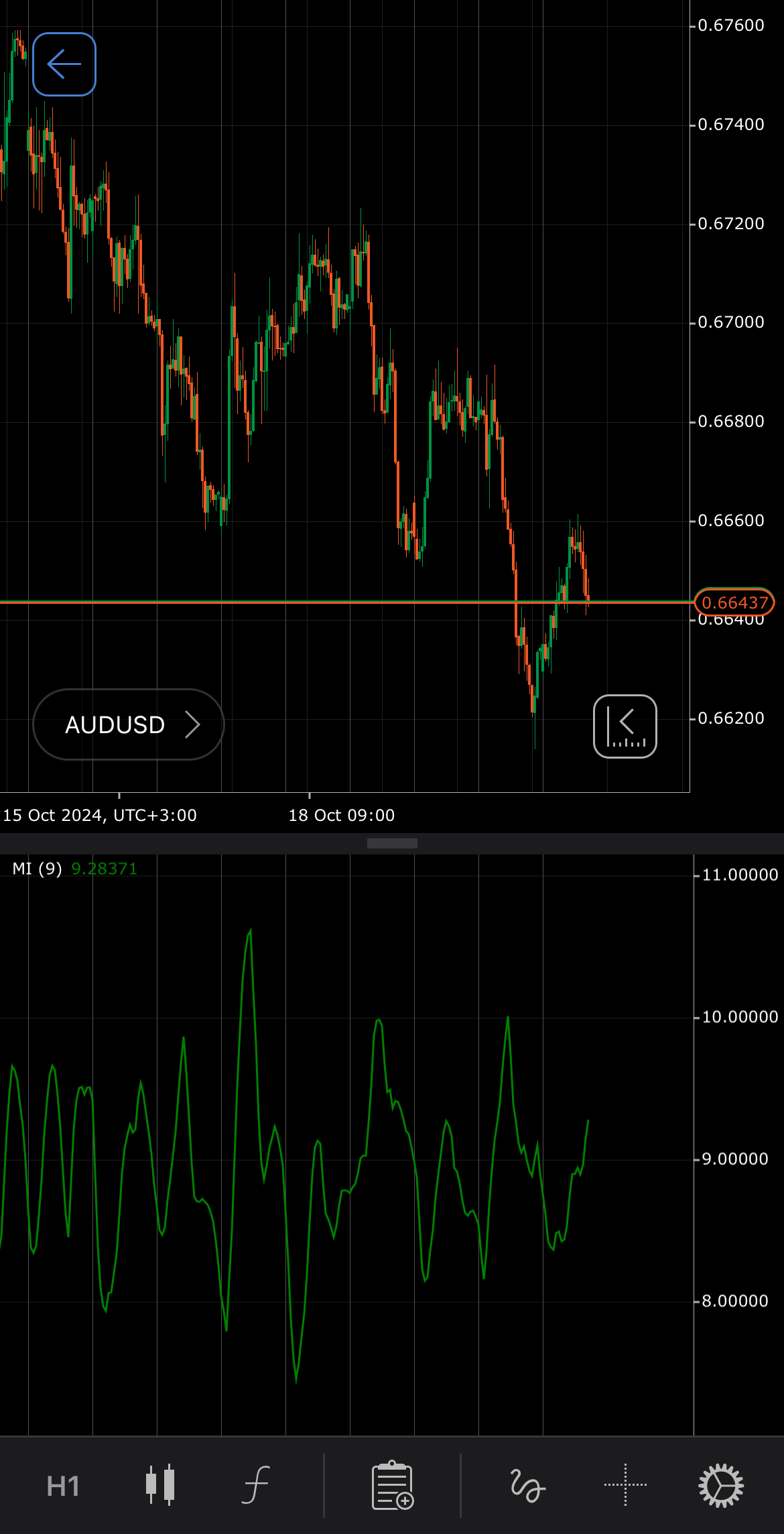
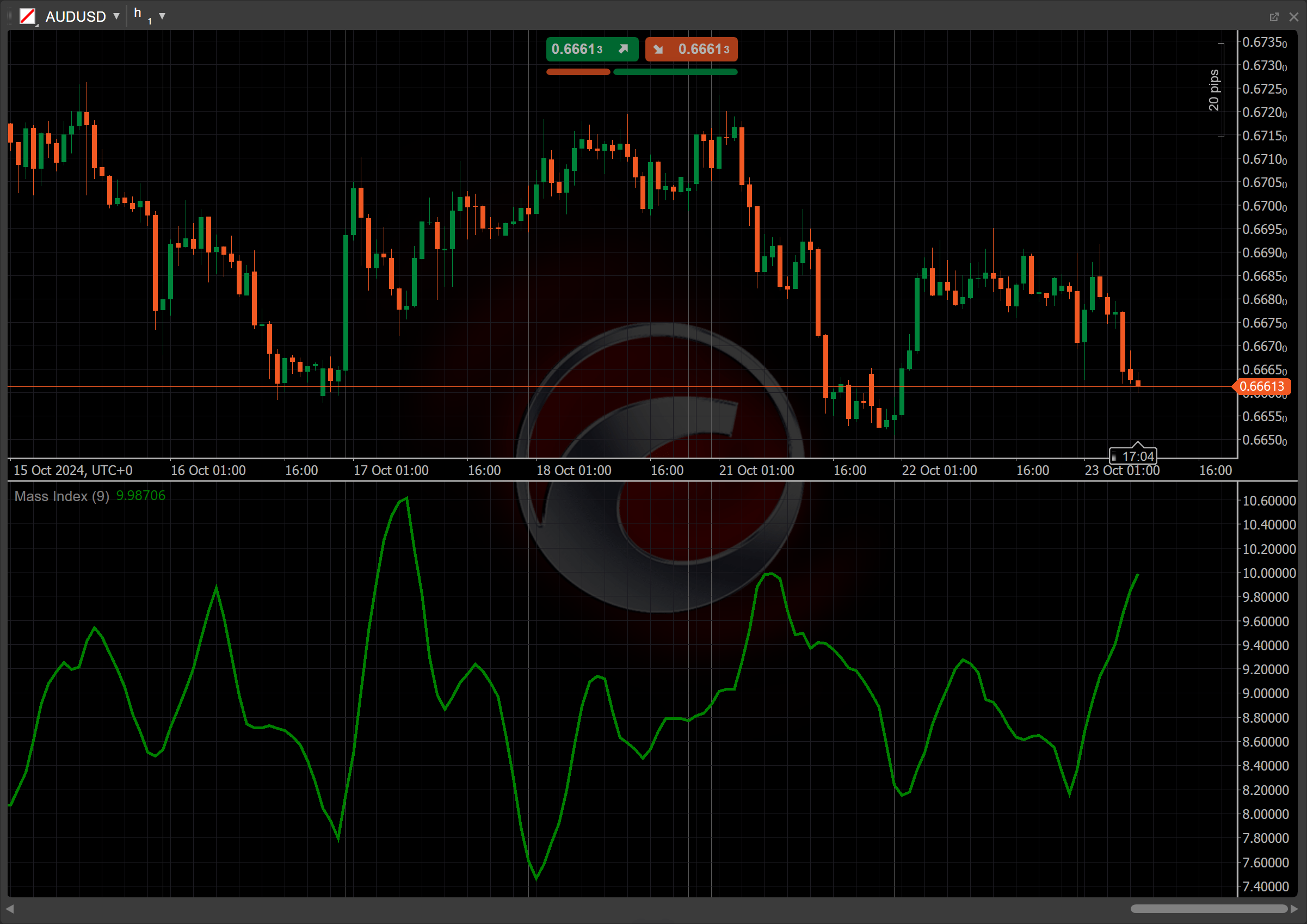
[Open live account](https://ctrader.com/brokers)
[Download cTrader](https://ctrader.com/download/)
History[¶](https://help.ctrader.com/knowledge-base/indicators/oscillators/mass-index/#history "Permanent link")
----------------------------------------------------------------------------------------------------------------
The Mass Index was developed by Donald Dorsey in the early 1990s as a tool for identifying potential trend reversals in financial markets. It was first introduced in his book "The New Trading Dimensions" published in 1994, where he emphasised the importance of price volatility in market analysis.
Calculations[¶](https://help.ctrader.com/knowledge-base/indicators/oscillators/mass-index/#calculations "Permanent link")
--------------------------------------------------------------------------------------------------------------------------
The Mass Index is calculated by first determining its [**Exponential Moving Average (EMA)**](https://help.ctrader.com/knowledge-base/indicators/trend/exponential-moving-average/)
, followed by the Exponential Moving Average of this EMA (a double average). The ratio of these two averages is then summed over a specified number of periods.
\\\[ Mass\\ Index = \\sum\_{i=1}^n { {EMA\\ (High - Low)} \\over {EMA\\ (EMA\\ (High - Low))} } \\\]
\\(n\\) – the number of periods
\\((High - Low)\\) – the range for each period
\\(EMA\\) \\((High - Low)\\) – the EMA of the range
\\(EMA\\) \\((EMA\\) \\((High - Low))\\) – the EMA of the above
Interpretation[¶](https://help.ctrader.com/knowledge-base/indicators/oscillators/mass-index/#interpretation "Permanent link")
------------------------------------------------------------------------------------------------------------------------------
The Mass Index indicator is most commonly used with the 9-day period for the EMA and 25 days for the Mass Index calculation period. A Mass Index value below 26.5 typically suggests that the market is in a stable condition without significant volatility. In this range, there may not be an imminent trend reversal. When the Mass Index rises above a key threshold and then falls below it, it signals a possible trend reversal.
Application[¶](https://help.ctrader.com/knowledge-base/indicators/oscillators/mass-index/#application "Permanent link")
------------------------------------------------------------------------------------------------------------------------
While monitoring the Mass Index, the key trading signal is the so-called "reversal bulge". This occurs when the 25-period Mass Index rises above 27 and then falls back below 26.5. Such behaviour is interpreted as a probable signal of trend reversal (regardless of the trend direction).
* **Buy signal** – after a reversal bulge in the Mass Index, if the price crosses above the 9-day EMA. This indicates that the price is gaining upward momentum, suggesting a buy opportunity, as the market may be entering an upward trend.
* **Sell signal** – after a reversal bulge in the Mass Index, if the price crosses below the 9-day EMA. This signals that the price is weakening and could be entering a downtrend, suggesting a sell opportunity.
* **Stop-loss placement** – placing a stop loss just below recent support levels or the moving average helps protect against losses if the market moves against a bullish signal from the Mass Index. Conversely, a stop loss is typically set just above recent resistance levels or the moving average to buffer against unexpected upward movements following a bearish signal from the Mass Index.
* **Confirming trades** – traders often enhance their decision-making by using the MI alongside other technical indicators, such as the [**Simple Moving Average (SMA)**](https://help.ctrader.com/knowledge-base/indicators/trend/simple-moving-average/)
, to confirm potential reversal signals. Also, a confirmation from the [**Relative Strength Index (RSI)**](https://help.ctrader.com/knowledge-base/indicators/oscillators/relative-strength-index/)
indicating the oversold or overbought conditions can strengthen the signal derived from the Mass Index.
Note
You can take advantage of algo trading, with cBots executing trades based on the signals from this indicator, as shown in our [**examples**](https://help.ctrader.com/ctrader-algo/references/Indicators/MassIndex/)
. Learn more about how to [**use indicators in cBots**](https://help.ctrader.com/ctrader-algo/articles/for-developers/how-to-use-indicators-in-cbots/)
.
Limitations[¶](https://help.ctrader.com/knowledge-base/indicators/oscillators/mass-index/#limitations "Permanent link")
------------------------------------------------------------------------------------------------------------------------
Since the Mass Index does not specify the direction of market movement, it is recommended to use it in conjunction with other indicators to confirm potential reversal signals (see application section). In strongly trending markets, the Mass Index may not provide valuable signals, as it focuses more on volatility rather than the direction of the trend.
Summary[¶](https://help.ctrader.com/knowledge-base/indicators/oscillators/mass-index/#summary "Permanent link")
----------------------------------------------------------------------------------------------------------------
The Mass Index indicator is designed to detect potential trend reversals by measuring the range between the high and low prices over time. It is a volatility-based indicator that focuses on the expansion and contraction of price ranges, without providing directional signals. Traders often look for specific patterns, such as a reversal bulge, where the index rises above a certain value (such as 27) and then falls back below a threshold (such as 26.5), signalling a potential reversal in the current price trend.
[Open live account](https://ctrader.com/brokers)
[Download cTrader](https://ctrader.com/download/)
Back to top
---
# Awesome Oscillator - Knowledge base
[Skip to content](https://help.ctrader.com/knowledge-base/indicators/oscillators/awesome-oscillator/#awesome-oscillator)
Awesome Oscillator[¶](https://help.ctrader.com/knowledge-base/indicators/oscillators/awesome-oscillator/#awesome-oscillator "Permanent link")
==============================================================================================================================================
Definition[¶](https://help.ctrader.com/knowledge-base/indicators/oscillators/awesome-oscillator/#definition "Permanent link")
------------------------------------------------------------------------------------------------------------------------------
The Awesome Oscillator (AO) is a technical analysis tool designed to help traders assess market momentum and potential price reversals. A common utility for AO is to affirm the validity of trends perceived through price data. The AO is particularly useful for short-term trading strategies, such as day trading and scalping.
MobileDesktop
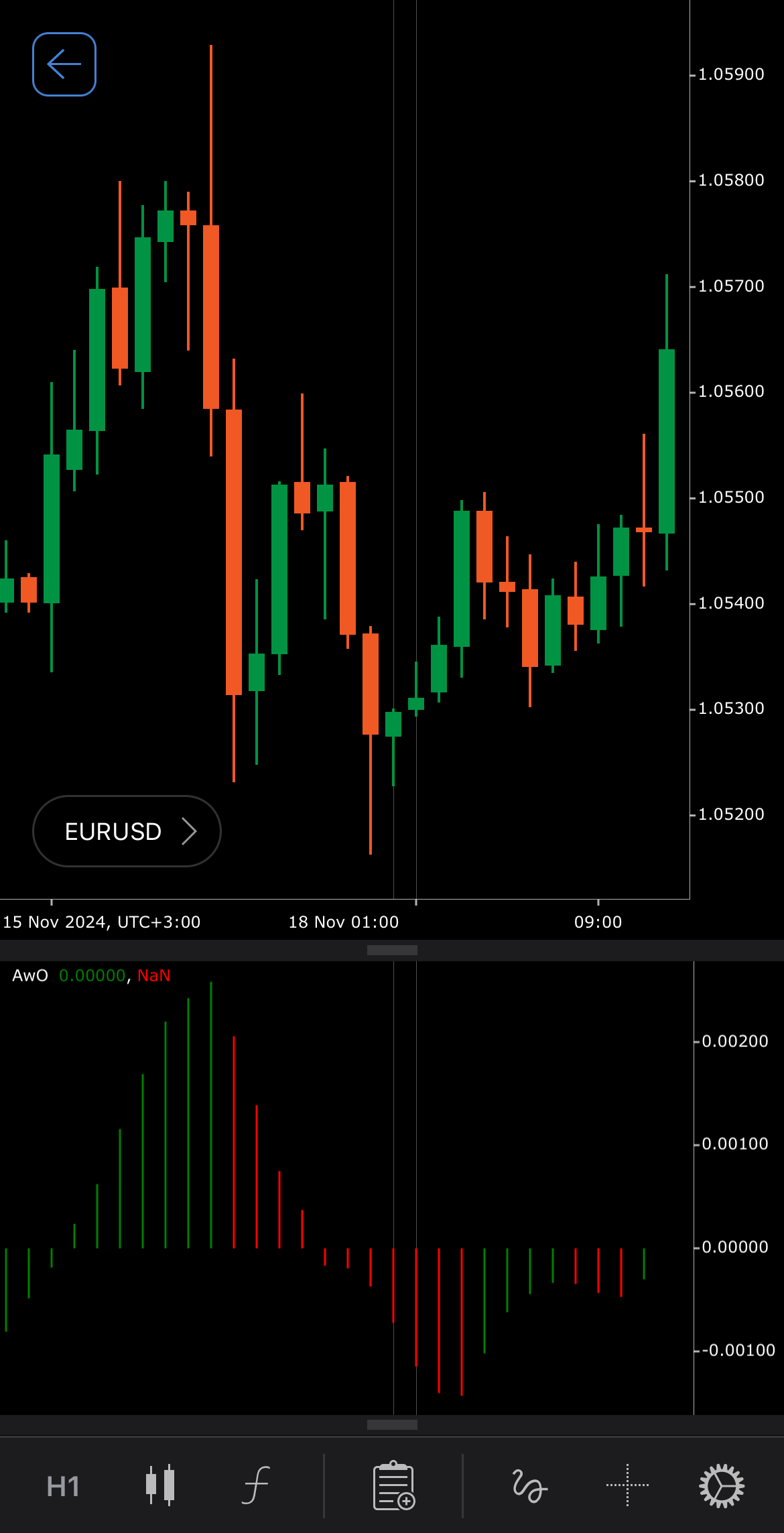
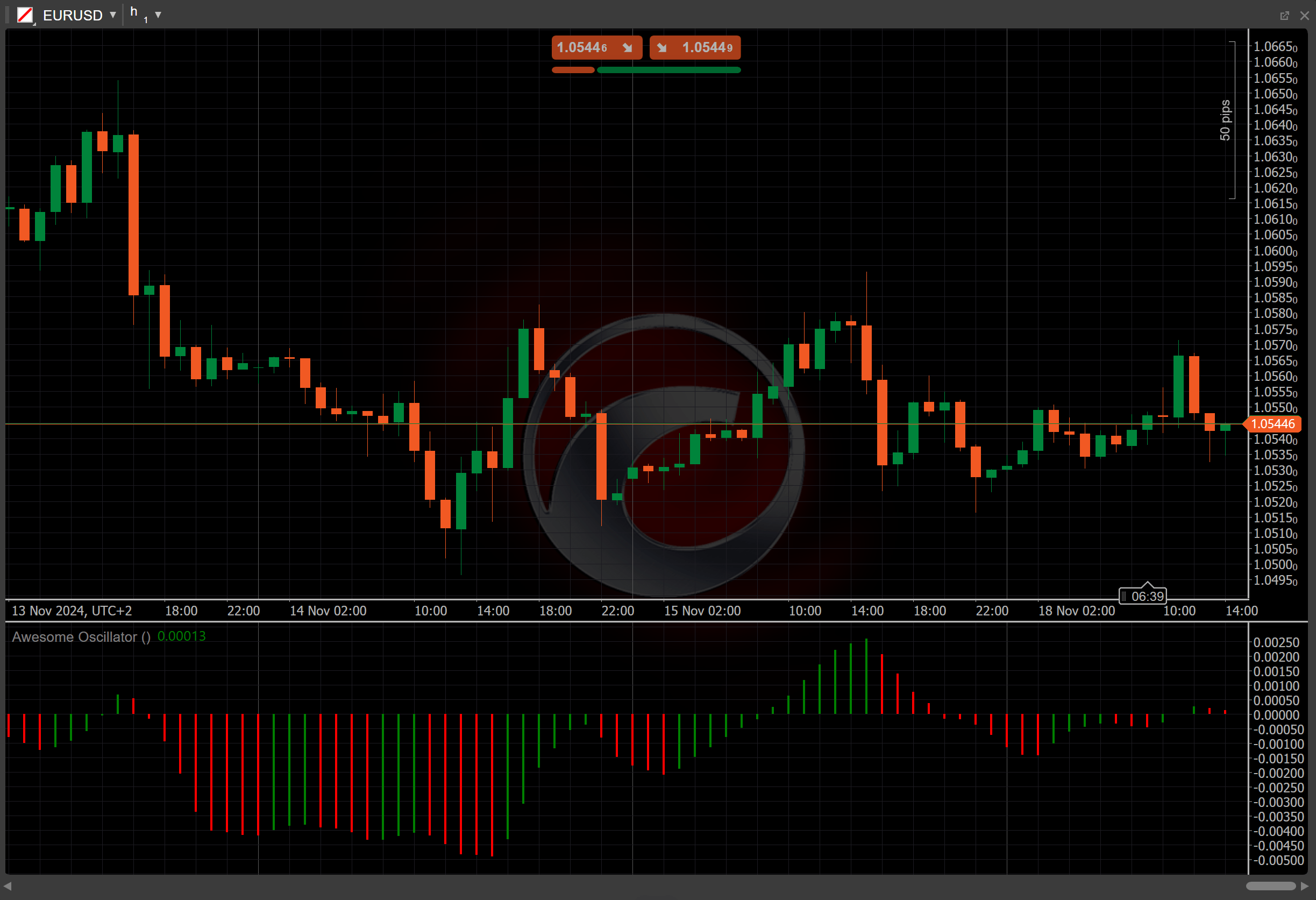
[Open live account](https://ctrader.com/brokers)
[Download cTrader](https://ctrader.com/download/)
History[¶](https://help.ctrader.com/knowledge-base/indicators/oscillators/awesome-oscillator/#history "Permanent link")
------------------------------------------------------------------------------------------------------------------------
Bill Williams developed the Awesome Oscillator and introduced it in his book "New Trading Dimensions", published in 1998. The AO builds upon the [**Accelerator Oscillator (AC)**](https://help.ctrader.com/knowledge-base/indicators/oscillators/accelerator-oscillator/)
, an indicator Williams developed and introduced in his book "Trading Chaos", published in 1995.
Calculations[¶](https://help.ctrader.com/knowledge-base/indicators/oscillators/awesome-oscillator/#calculations "Permanent link")
----------------------------------------------------------------------------------------------------------------------------------
The Awesome Oscillator considers the [**Simple Moving Average**](https://help.ctrader.com/knowledge-base/indicators/trend/simple-moving-average/)
of two periods: 5-period and 34-period. It then subtracts the latter from the former.
\\\[ AO = { SMA\_5 - SMA\_{34} } \\\]
Interpretation[¶](https://help.ctrader.com/knowledge-base/indicators/oscillators/awesome-oscillator/#interpretation "Permanent link")
--------------------------------------------------------------------------------------------------------------------------------------
The [**Median Prices**](https://help.ctrader.com/knowledge-base/indicators/other/median-price/)
are utilised in calculating the Simple Moving Averages for the AO indicator.
The main patterns of the indicator behaviour can be interpreted as follows:
* **Zero-line crossovers** – the AO crossing above the zero line indicates potential upward momentum. The AO crossing below the zero line suggests potential downward momentum.
* **Divergence** – when the price makes new highs while the AO makes lower highs, this can signal a potential trend reversal. When the price makes new lows while the AO makes higher lows, this may indicate a potential reversal to the upside.
Application[¶](https://help.ctrader.com/knowledge-base/indicators/oscillators/awesome-oscillator/#application "Permanent link")
--------------------------------------------------------------------------------------------------------------------------------
* **Buy signal** – traders might consider entering a buy position when the AO crosses above the zero line, suggesting upward momentum. Confirmation from other tools like moving averages can help verify the signal.
* **Sell signal** – a sell signal may occur when the AO crosses below the zero line, indicating potential downward momentum.
* **Stop-loss placement** – traders might set a stop loss below significant lows when using the AO in bullish trends or above significant highs in bearish trends to manage risk.
* **Exit strategies** – the AO can help confirm exit points when momentum weakens. If the AO begins to approach the zero line after a strong movement, it may indicate a loss of momentum, suggesting an opportunity to exit the trade.
Note
You can take advantage of algo trading, with cBots executing trades based on the signals from this indicator, as shown in our [**examples**](https://help.ctrader.com/ctrader-algo/references/Indicators/AwesomeOscillator/)
. Learn more about how to [**use indicators in cBots**](https://help.ctrader.com/ctrader-algo/articles/for-developers/how-to-use-indicators-in-cbots/)
.
Limitations[¶](https://help.ctrader.com/knowledge-base/indicators/oscillators/awesome-oscillator/#limitations "Permanent link")
--------------------------------------------------------------------------------------------------------------------------------
While the AO helps assess momentum, it only measures historical data, which can result in delayed signals. Additionally, the AO does not provide exact entry or exit points and relying solely on it might lead to false signals in choppy markets.
Summary[¶](https://help.ctrader.com/knowledge-base/indicators/oscillators/awesome-oscillator/#summary "Permanent link")
------------------------------------------------------------------------------------------------------------------------
The Awesome Oscillator is a momentum indicator that helps traders assess market momentum by comparing the difference between two Simple Moving Averages of different periods. It oscillates above and below a zero line, indicating bullish or bearish momentum. The AO is particularly useful in identifying potential market reversals and can be effectively combined with other indicators, such as the [**Bollinger Bands**](https://help.ctrader.com/knowledge-base/indicators/volatility/bollinger-bands/)
, to enhance trading decisions and confirm signals. When using the AO, traders should consider its limitations, such as false signals in choppy markets.
[Open live account](https://ctrader.com/brokers)
[Download cTrader](https://ctrader.com/download/)
Back to top
---
# Accelerator Oscillator - Knowledge base
[Skip to content](https://help.ctrader.com/knowledge-base/indicators/oscillators/accelerator-oscillator/#accelerator-oscillator)
Accelerator Oscillator[¶](https://help.ctrader.com/knowledge-base/indicators/oscillators/accelerator-oscillator/#accelerator-oscillator "Permanent link")
==========================================================================================================================================================
Definition[¶](https://help.ctrader.com/knowledge-base/indicators/oscillators/accelerator-oscillator/#definition "Permanent link")
----------------------------------------------------------------------------------------------------------------------------------
The Accelerator Oscillator (AC) is a technical analysis tool that tracks the speed of changes in price momentum. It shows whether the market driving force accelerates or decelerates, helping traders anticipate potential reversals. By identifying these momentum shifts early, traders can better time their entries and exits before price changes become apparent.
MobileDesktop
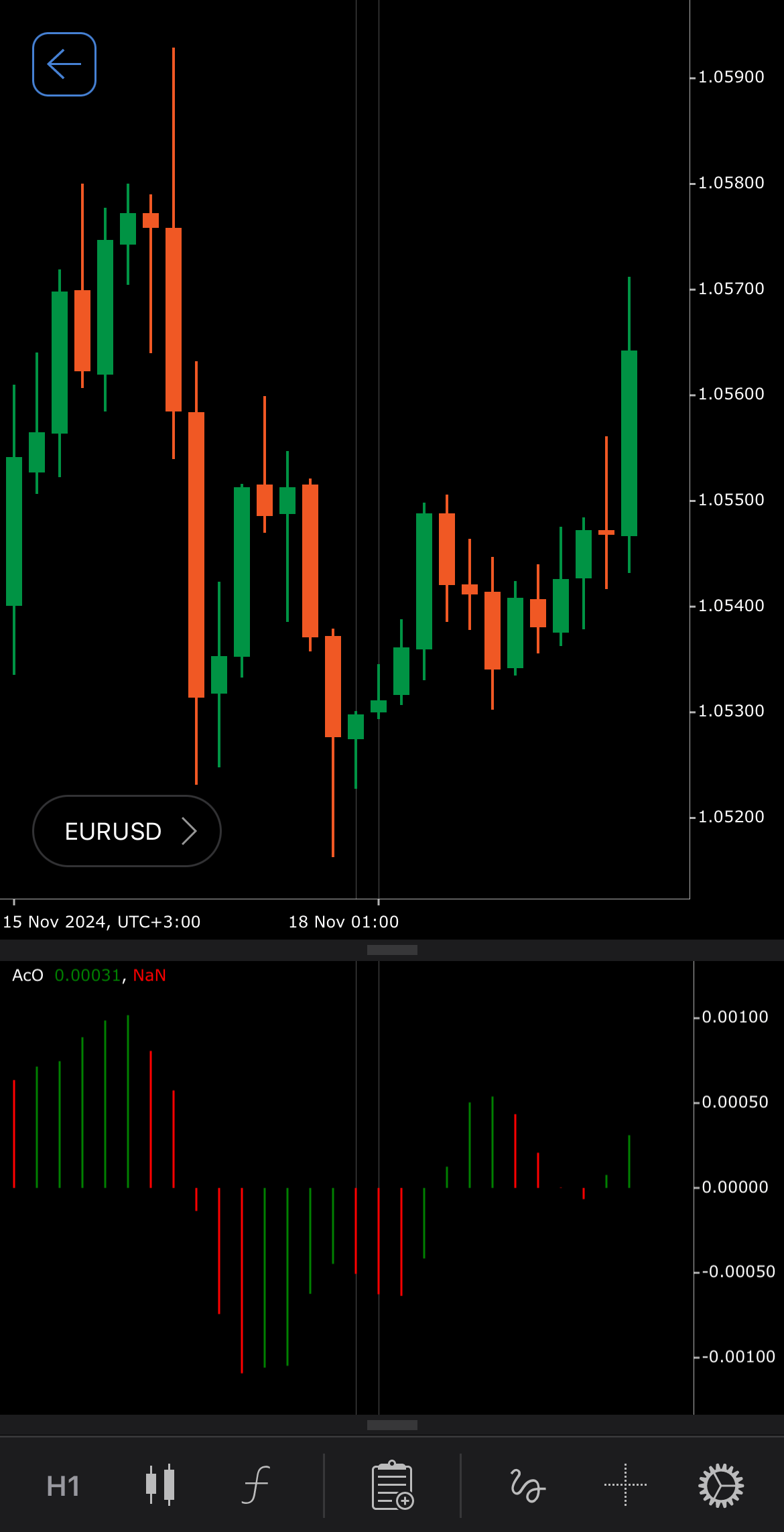
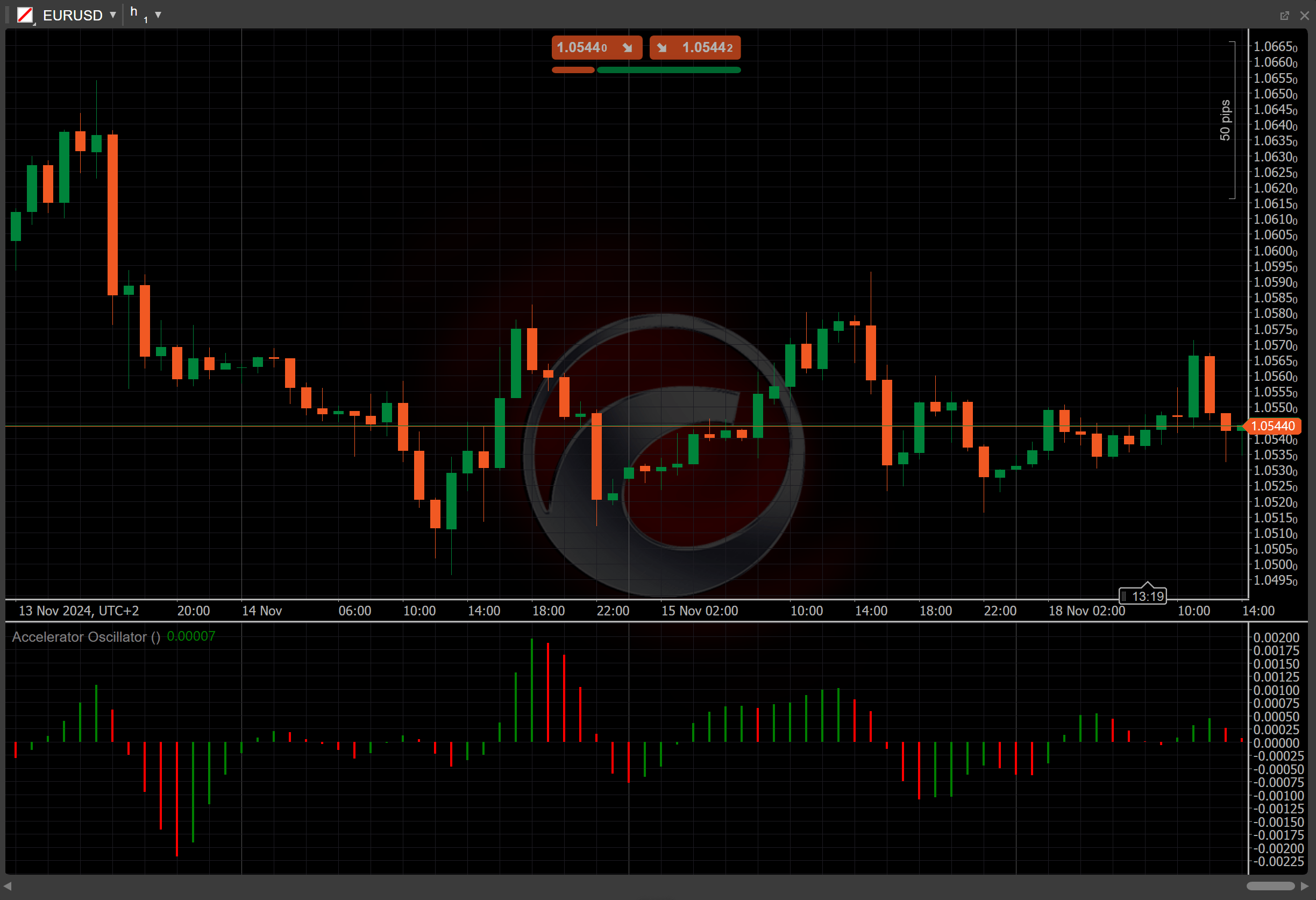
[Open live account](https://ctrader.com/brokers)
[Download cTrader](https://ctrader.com/download/)
History[¶](https://help.ctrader.com/knowledge-base/indicators/oscillators/accelerator-oscillator/#history "Permanent link")
----------------------------------------------------------------------------------------------------------------------------
Bill Williams introduced the Accelerator Oscillator in his 1995 book "Trading Chaos" as part of his broader trading methodology. Williams later developed the [**Awesome Oscillator (AO)**](https://help.ctrader.com/knowledge-base/indicators/oscillators/awesome-oscillator/)
and introduced it in his book "New Trading Dimensions", published in 1998. The AO builds on data provided by the AC.
Calculations[¶](https://help.ctrader.com/knowledge-base/indicators/oscillators/accelerator-oscillator/#calculations "Permanent link")
--------------------------------------------------------------------------------------------------------------------------------------
The Accelerator Oscillator is calculated by subtracting a 5-period [**Simple Moving Average (SMA)**](https://help.ctrader.com/knowledge-base/indicators/trend/simple-moving-average/)
of the Awesome Oscillator from the AO itself.
\\\[ AC = { AO - SMA\\ ( AO,\\ 5 ) } \\\]
\\(AO\\) – the Awesome Oscillator, which is the difference between a 34-period and 5-period SMA applied to the [**Median Price**](https://help.ctrader.com/knowledge-base/indicators/other/median-price/)
\\(SMA\\) ( \\(AO\\), \\(5\\) ) – the 5-period Simple Moving Average of the Awesome Oscillator
Interpretation[¶](https://help.ctrader.com/knowledge-base/indicators/oscillators/accelerator-oscillator/#interpretation "Permanent link")
------------------------------------------------------------------------------------------------------------------------------------------
* **Zero-line crossovers** – a cross above zero suggests growing bullish momentum, while a cross below signals increasing bearish momentum.
* **Growing bars** – consecutive rising bars above or below zero confirm the strength of an ongoing trend (uptrend or downtrend).
Application[¶](https://help.ctrader.com/knowledge-base/indicators/oscillators/accelerator-oscillator/#application "Permanent link")
------------------------------------------------------------------------------------------------------------------------------------
The Accelerator Oscillator can offer insights into potential buy and sell opportunities based on momentum shifts.
* **Buy signal** – traders might consider entering a buy position when the AC crosses above the zero line, which could indicate increasing bullish momentum. Growing green bars may further suggest sustained upward momentum, potentially confirming the trade.
* **Sell signal** – a sell position could be considered when the AC crosses below the zero line, signalling the possibility of increasing bearish momentum. Falling red bars might suggest continued downward pressure, offering additional confirmation.
* **Stop-loss placement** – traders may choose to place a stop loss just below the zero line for buy positions or just above the zero line for sell positions, as a way to manage risk in case of a momentum reversal.
* **Confirming trades** – to improve the reliability of signals, traders may opt to combine the AC with other indicators, such as moving averages, the [**Relative Strength Index (RSI)**](https://help.ctrader.com/knowledge-base/indicators/oscillators/relative-strength-index/)
or the [**MACD**](https://help.ctrader.com/knowledge-base/indicators/oscillators/macd-crossover/)
, to help confirm the direction and strength of momentum before entering a position.
Note
You can take advantage of algo trading, with cBots executing trades based on the signals from this indicator, as shown in our [**examples**](https://help.ctrader.com/ctrader-algo/references/Indicators/AcceleratorOscillator/)
. Learn more about how to [**use indicators in cBots**](https://help.ctrader.com/ctrader-algo/articles/for-developers/how-to-use-indicators-in-cbots/)
.
Limitations[¶](https://help.ctrader.com/knowledge-base/indicators/oscillators/accelerator-oscillator/#limitations "Permanent link")
------------------------------------------------------------------------------------------------------------------------------------
The Accelerator Oscillator tends to produce false signals in choppy or range-bound markets. Additionally, it does not indicate trend direction. The indicator can also lag in highly volatile conditions.
Summary[¶](https://help.ctrader.com/knowledge-base/indicators/oscillators/accelerator-oscillator/#summary "Permanent link")
----------------------------------------------------------------------------------------------------------------------------
The Accelerator Oscillator helps identify early momentum shifts to predict potential reversals. It signals bullish or bearish momentum based on its position relative to the zero line, calculated by subtracting a 5-period Simple Moving Average of the Awesome Oscillator from the AO itself. The AC is an effective and popular tool that helps identify accelerations or decelerations in the market driving force.
[Open live account](https://ctrader.com/brokers)
[Download cTrader](https://ctrader.com/download/)
Back to top
---
# How to use indicators in cBots - cTrader Algo
[Skip to content](https://help.ctrader.com/ctrader-algo/articles/for-developers/how-to-use-indicators-in-cbots/#how-to-use-indicators-in-cbots)
How to use indicators in cBots[¶](https://help.ctrader.com/ctrader-algo/articles/for-developers/how-to-use-indicators-in-cbots/#how-to-use-indicators-in-cbots "Permanent link")
=================================================================================================================================================================================
In this article and its corresponding video, we explain how you can use built-in indicators in your cBots. Using indicators in a cBot is typically done for a variety of purposes, most notably making cBots take trading decisions depending on indicator outputs. To demonstrate this, we will develop a simple [**automated trading strategy**](https://help.ctrader.com/ctrader-algo/articles/for-traders/key-types-of-cbots/)
based on the Relative Strength Index (RSI).
Create a new cBot[¶](https://help.ctrader.com/ctrader-algo/articles/for-developers/how-to-use-indicators-in-cbots/#create-a-new-cbot "Permanent link")
-------------------------------------------------------------------------------------------------------------------------------------------------------
To create a new cBot, switch to the **Algo** tab and click **New cBot**.
We will rename our cBot to "RSI cBot". Here is how our automated trading strategy will function.
* The bot will enter buy positions when the RSI indicator moves below a predefined threshold.
* The bot will enter sell positions when the RSI indicator moves above a predefined threshold.
Define and initialise the indicator[¶](https://help.ctrader.com/ctrader-algo/articles/for-developers/how-to-use-indicators-in-cbots/#define-and-initialise-the-indicator "Permanent link")
-------------------------------------------------------------------------------------------------------------------------------------------------------------------------------------------
The first thing we need to do is define the RSI indicator in our cBot class. To do so, we declare a new field.
| | |
| --- | --- |
| 1 | `private RelativeStrengthIndicator rsi;` |
Using private class members
We can safely make the `rsi` field private as it will only be used in our cBot.
All cTrader indicators need to be initialised before we can use them. This is best done in the body of the `OnStart()` method so that the cBot has access to the indicator output after it begins running. cTrader offers a handy class that allows you to easily initialise built-in indicators using ready-made constructors. Before we can see how this is done, we will add two parameters necessary for initialising the RSI indicator.
| | |
| --- | --- |
| 1 2 3 4 5 | `[Parameter("Source", Group = "RSI")] public DataSeries Source { get; set; } [Parameter("Periods", Group = "RSI", DefaultValue = 14)] public int Periods { get; set; }` |
Now that we have added our parameters, we are ready to initialise the indicator.
| | |
| --- | --- |
| 1 2 3 4 | `protected override void OnStart() { rsi = Indicators.RelativeStrengthIndex(Source, Periods); }` |
Implement trading logic[¶](https://help.ctrader.com/ctrader-algo/articles/for-developers/how-to-use-indicators-in-cbots/#implement-trading-logic "Permanent link")
-------------------------------------------------------------------------------------------------------------------------------------------------------------------
As we have already initialised the indicator, we can call it and use it in our trading logic. In the case of the RSI indicator, we can read the outputs using the `Results` collection.
To do so, we will use the `OnBar()` method and implement the following conditions.
* If the current RSI value is below the RSI buy threshold, enter a new buy position.
* If the current RSI value is above the RSI sell threshold, enter a new sell position.
Because we rely on predefined thresholds to execute our trading logic, we will add two more parameters to our cBot.
| | |
| --- | --- |
| 1 2 3 4 5 | `[Parameter("Buy Level", Group = "RSI", DefaultValue = 30)] public int BuyLevel { get; set; } [Parameter("Sell Level", Group = "RSI", DefaultValue = 70)] public int SellLevel { get; set; }` |
Next, we will implement our conditions in the cBot code.
| | |
| --- | --- |
| 1 2 3 4 5 6 7 8 9 10 11 | `protected override void OnBarClosed() { if (rsi.Result.LastValue < BuyLevel) { // Enter buy position } else if (rsi.Result.LastValue > SellLevel) { // Enter sell position } }` |
It is time to implement auxiliary methods for executing trading orders. This is done to create an additional level of abstraction in the code, improving readability and reusability.
We start by adding one more cBot parameter that allows you to set the traded volume.
| | |
| --- | --- |
| 1 2 | `[Parameter("Quantity (Lots)", Group = "Volume", DefaultValue = 1, MinValue = 0.01, Step = 0.01)] public double Quantity { get; set; }` |
Afterwards, we will add the `Open()` and `Close()` methods for entering a new position and closing all positions opened by the cBot in a given direction.
| | |
| --- | --- |
| 1 2 3 4 5 6 7 8 9 10 11 12 13 14 | `private void Open(TradeType tradeType) { var position = Positions.Find("SampleRSI", SymbolName, tradeType); var volumeInUnits = Symbol.QuantityToVolumeInUnits(Quantity); if (position == null) ExecuteMarketOrder(tradeType, SymbolName, volumeInUnits, "RSI cBot"); } private void Close(TradeType tradeType) { foreach (var position in Positions.FindAll("SampleRSI", SymbolName, tradeType)) ClosePosition(position); }` |
We can use our auxiliary methods to complete the automated trading strategy.
| | |
| --- | --- |
| 1 2 3 4 5 6 7 8 9 10 11 12 13 | `protected override void OnTick() { if (rsi.Result.LastValue < BuyLevel) { Close(TradeType.Sell); Open(TradeType.Buy); } else if (rsi.Result.LastValue > SellLevel) { Close(TradeType.Buy); Open(TradeType.Sell); } }` |
Backtest the cBot[¶](https://help.ctrader.com/ctrader-algo/articles/for-developers/how-to-use-indicators-in-cbots/#backtest-the-cbot "Permanent link")
-------------------------------------------------------------------------------------------------------------------------------------------------------
After we finish coding the cBot, we can build it and switch to the **Backtesting** tab to see how it performs on historical data. [**Click here**](https://help.ctrader.com/ctrader-algo/articles/for-traders/how-to-backtest-a-cbot/)
to learn more about backtesting.
We can also attach the RSI indicator to the current chart to see whether the trades executed by the cBot match the intended entry points.
[Subscribe to our YouTube channel](https://www.youtube.com/channel/UCgoyyb_r8sgNrf1nqyMyo5A?sub_confirmation=1)
Back to top
---
# Create WV plugins with AI - WebView Plugins
[Skip to content](https://help.ctrader.com/webview-plugins/how-tos/create-wv-plugins-with-ai/#create-webview-plugins-with-ai)
Warning
This feature is in pre-release and currently under testing. Documentation is for reference only.
Create WebView plugins with AI[¶](https://help.ctrader.com/webview-plugins/how-tos/create-wv-plugins-with-ai/#create-webview-plugins-with-ai "Permanent link")
===============================================================================================================================================================
In just a few steps, you can easily create a web service for your WebView plugin with AI. No programming knowledge or skills are required.
Brainstorm plugin ideas[¶](https://help.ctrader.com/webview-plugins/how-tos/create-wv-plugins-with-ai/#brainstorm-plugin-ideas "Permanent link")
-------------------------------------------------------------------------------------------------------------------------------------------------
If you already know what type of web service you want to create, skip this section and move on to the next.
Alternatively, you can ask your preferred AI to brainstorm ideas.
Prompt
`I want to create a web app that will be displayed as a WebView plugin within cTrader. Suggest useful ideas that will enhance my trading experience.`
Answer
* Smart trade assistant
* Trade calculator
* Custom symbol dashboard
* Symbol notes & collaboration tool
* Risk management dashboard
* News impact tracker
* Session heatmap tool
* Trade co-pilot (AI notes & feedback)
Generate the website code[¶](https://help.ctrader.com/webview-plugins/how-tos/create-wv-plugins-with-ai/#generate-the-website-code "Permanent link")
-----------------------------------------------------------------------------------------------------------------------------------------------------
WebView plugins in cTrader require externally hosted websites that use the standard stack of JavaScript, HTML, CSS and (if necessary) WebView SDK methods.
For a more accurate response, provide the AI with the following input data:
* [**General information**](https://help.ctrader.com/webview-plugins/)
about WebView plugins
* [**SDK references**](https://help.ctrader.com/webview-plugins/references/public-server-message/)
for WebView plugins
* cTrader Store [**terms of use**](https://ctrader.com/terms-of-use)
* App Store and Google Play rules
Warning
Any WebView plugin you create must comply with the rules of cTrader Store, App Store and Google Play. Most importantly, your web service must not include authentication or payment forms.
For your convenience, you can [**download**](https://help.ctrader.com/webview-plugins/assets/introduction-and-references.zip)
the WebView plugin documentation and cTrader Store rules, in case you prefer to upload them as files for the AI to reference.
Prompt
`I want to create a trade calculator web app to be used as a WebView plugin in cTrader. The website should be built using only JavaScript, HTML, CSS and the SDK methods for WebView plugins. No additional libraries should be required. The website must comply with the rules of cTrader Store, Apple's App Store and Google’s Play Store. The website must not include authentication or payment forms. Provide a single piece of code that contains everything necessary to build the website without any additional setup.`
Answer
`` Trade Calculator