# Table of Contents
- [Welcome to Zep! | Zep Documentation](#welcome-to-zep-zep-documentation)
- [Memory | Zep Documentation](#memory-zep-documentation)
- [Key Concepts | Zep Documentation](#key-concepts-zep-documentation)
- [Quickstart | Zep Documentation](#quickstart-zep-documentation)
- [Building a Chatbot with Zep | Zep Documentation](#building-a-chatbot-with-zep-zep-documentation)
- [Sessions | Zep Documentation](#sessions-zep-documentation)
- [Projects | Zep Documentation](#projects-zep-documentation)
- [Users | Zep Documentation](#users-zep-documentation)
- [Groups | Zep Documentation](#groups-zep-documentation)
- [Understanding the Graph | Zep Documentation](#understanding-the-graph-zep-documentation)
- [Utilizing Facts and Summaries | Zep Documentation](#utilizing-facts-and-summaries-zep-documentation)
- [Customizing Graph Structure with Entity Types | Zep Documentation](#customizing-graph-structure-with-entity-types-zep-documentation)
- [Adding Data to the Graph | Zep Documentation](#adding-data-to-the-graph-zep-documentation)
- [Reading Data from the Graph | Zep Documentation](#reading-data-from-the-graph-zep-documentation)
- [Searching the Graph | Zep Documentation](#searching-the-graph-zep-documentation)
- [Deleting Data from the Graph | Zep Documentation](#deleting-data-from-the-graph-zep-documentation)
- [Check Data Ingestion Status | Zep Documentation](#check-data-ingestion-status-zep-documentation)
- [Customize Your Memory Context String | Zep Documentation](#customize-your-memory-context-string-zep-documentation)
- [Add User Specific Business Data to User Graphs | Zep Documentation](#add-user-specific-business-data-to-user-graphs-zep-documentation)
- [Get Most Relevant Facts for an Arbitrary Query | Zep Documentation](#get-most-relevant-facts-for-an-arbitrary-query-zep-documentation)
- [Share Memory Across Users Using Group Graphs | Zep Documentation](#share-memory-across-users-using-group-graphs-zep-documentation)
- [Find Facts Relevant to a Specific Node | Zep Documentation](#find-facts-relevant-to-a-specific-node-zep-documentation)
- [Performance Optimization Guide | Zep Documentation](#performance-optimization-guide-zep-documentation)
- [Adding JSON Best Practices | Zep Documentation](#adding-json-best-practices-zep-documentation)
- [Structured Outputs from Messages | Zep Documentation](#structured-outputs-from-messages-zep-documentation)
---
# Welcome to Zep! | Zep Documentation
Give your AI IDE access to Zep’s documentation using our [llms.txt](https://llmstxt.org/)
files: ([short .txt](/llms.txt)
, [long .txt](/llms-full.txt)
)
Zep is a memory layer for AI assistants and agents that continuously learns from user interactions and changing business data. Zep ensures that your Agent has a complete and holistic view of the user, enabling you to build more personalized and accurate user experiences.
[Key Concepts\
\
Learn about Zep’s core concepts including memory, knowledge graphs, and how they work together.](/concepts)
[Quickstart\
\
Get up and running with Zep in minutes, whether you code in Python, TypeScript, or Go.](/quickstart)
[Cookbooks\
\
Discover practical recipes and patterns for common use cases with Zep.](/cookbook/customize-your-memory-context-string)
[SDK Reference\
\
Comprehensive API documentation for Zep’s SDKs in Python, TypeScript, and Go.](/sdk-reference)
---
# Memory | Zep Documentation
Zep makes memory management extremely simple: you add memory with a single line, retrieve memory with a single line, and then can immediately use the retrieved memory in your next LLM call.
The Memory API is high-level and opinionated. For a more customizable, low-level way to add and retrieve memory, see the [Graph API](/understanding-the-graph)
.
Adding memory
-------------
Add your chat history to Zep using the `memory.add` method. `memory.add` is session-specific and expects data in chat message format, including a `role` name (e.g., user’s real name), `role_type` (AI, human, tool), and message `content`. Zep stores the chat history and builds a user-level knowledge graph from the messages.
For best results, add chat history to Zep on every chat turn. That is, add both the AI and human messages in a single operation and in the order that the messages were created.
The example below adds messages to Zep’s memory for the user in the given session:
###### Python
###### TypeScript
###### Go
` | | | | --- | --- | | 1 | from zep_cloud.client import AsyncZep | | 2 | from zep_cloud.types import Message | | 3 | | | 4 | zep_client = AsyncZep( | | 5 | api_key=API_KEY, | | 6 | ) | | 7 | | | 8 | messages = [ | | 9 | Message( | | 10 | role="Jane", | | 11 | role_type="user", | | 12 | content="Who was Octavia Butler?", | | 13 | ) | | 14 | ] | | 15 | | | 16 | await zep_client.memory.add(session_id, messages=messages) | `
You can find additional arguments to `memory.add` in the [SDK reference](/sdk-reference/memory/add)
. Notably, for latency sensitive applications, you can set `return_context` to true which will make `memory.add` return a context string in the way that `memory.get` does (discussed below).
If you are looking to add JSON or unstructured text as memory to the graph, you will need to use our [Graph API](/adding-data-to-the-graph)
.
### Ignore assistant messages
You can also pass in a list of role types to ignore when adding data to the graph using the `ignore_roles` argument. For example, you may not want assistant messages to be added to the user graph; providing the assistant messages in the `memory.add` call while setting `ignore_roles` to include “assistant” will make it so that only the user messages are ingested into the graph, but the assistant messages are still used to contextualize the user messages. This is important in case the user message itself does not have enough context, such as the message “Yes.” Additionally, the assistant messages will still be added to the session’s message history.
Retrieving memory
-----------------
The `memory.get()` method is a user-friendly, high-level API for retrieving relevant context from Zep. It uses the latest messages of the _given session_ to determine what information is most relevant from the user’s knowledge graph and returns that information in a [context string](/concepts#memory-context)
for your prompt. Note that although `memory.get()` only requires a session ID, it is able to return memory derived from any session of that user. The session is just used to determine what’s relevant.
`memory.get` also returns recent chat messages and raw facts that may provide additional context for your agent. We recommend using these raw messages when you call your LLM provider (see below). The `memory.get` method is user and session-specific and cannot retrieve data from group graphs.
The example below gets the `memory.context` string for the given session:
###### Python
###### TypeScript
###### Go
` | | | | --- | --- | | 1 | memory = zep_client.memory.get(session_id="session_id") | | 2 | # the context field described above | | 3 | context = memory.context | `
You can find additional arguments to `memory.get` in the [SDK reference](/sdk-reference/memory/get)
. Notably, you can specify a minimum [fact rating](/facts#rating-facts-for-relevancy)
which will filter out any retrieved facts with a rating below the threshold, if you are using fact ratings.
If you are looking to customize how memory is retrieved, you will need to [search the graph](/searching-the-graph)
and construct a [custom memory context string](/cookbook/customize-your-memory-context-string)
. For example, `memory.get` uses the last few messages as the search query on the graph, but using the graph API you can use whatever query you want, as well as experiment with other search parameters such as re-ranker used.
Using memory
------------
Once you’ve retrieved the [memory context string](/concepts#memory-context)
, or [constructed your own context string](/cookbook/customize-your-memory-context-string)
by [searching the graph](/searching-the-graph)
, you can include this string in your system prompt:
| MessageType | Content |
| --- | --- |
| `System` | Your system prompt
`{Zep context string}` |
| `Assistant` | An assistant message stored in Zep |
| `User` | A user message stored in Zep |
| … | … |
| `User` | The latest user message |
You should also include the last 4 to 6 messages of the session when calling your LLM provider. Because Zep’s ingestion can take a few minutes, the context string may not include information from the last few messages; and so the context string acts as the “long-term memory,” and the last few messages serve as the raw, short-term memory.
In latency sensitive applications such as voice chat bots, you can use the context string returned from `memory.add` to avoid making two API calls.
Customizing memory
------------------
The Memory API is our high level, easy-to-use API for adding and retrieving memory. If you want to add business data or documents to memory, or further customize how memory is retrieved, you should refer to our Guides on using the graph, such as [adding data to the graph](/adding-data-to-the-graph)
and [searching the graph](/searching-the-graph)
. We also have a cookbook on [creating a custom context string](/cookbook/customize-your-memory-context-string)
using the graph API.
Additionally, [group graphs](/groups)
can be used to store non-user-specific memory.
---
# Key Concepts | Zep Documentation
Looking to just get coding? Check out our [Quickstart](/quickstart)
.
Zep is a memory layer for AI assistants and agents that continuously learns from user interactions and changing business data. Zep ensures that your Agent has a complete and holistic view of the user, enabling you to build more personalized and accurate user experiences.
Using [user chat histories and business data](/concepts#business-data-vs-chat-message-data)
, Zep automatically constructs a [knowledge graph](/concepts#the-knowledge-graph)
for each of your users. The knowledge graph contains entities, relationships, and facts related to your user. As facts change or are superseded, [Zep updates the graph](/concepts#managing-changes-in-facts-over-time)
to reflect their new state. Using Zep, you can [build prompts](/concepts#how-zep-fits-into-your-application)
that provide your agent with the information it needs to personalize responses and solve problems. Ensuring your prompts have the right information reduces hallucinations, improves recall, and reduces the cost of LLM calls.
This guide covers key concepts for using Zep effectively:
* [How Zep fits into your application](/concepts#how-zep-fits-into-your-application)
* [The Zep Knowledge Graph](/concepts#the-knowledge-graph)
* [User vs Group graphs](/concepts#user-vs-group-graphs)
* [Managing changes in facts over time](/concepts#managing-changes-in-facts-over-time)
* [Business data vs Chat Message data](/concepts#business-data-vs-chat-message-data)
* [Users and Chat Sessions](/concepts#users-and-chat-sessions)
* [Adding Memory](/concepts#adding-memory)
* [Retrieving memory](/concepts#retrieving-memory)
* [Improving Fact Quality](/concepts#improving-fact-quality)
* [Using Zep as an agentic tool](/concepts#using-zep-as-an-agentic-tool)
* [Other Zep Features](/concepts#other-zep-features)
How Zep fits into your application
----------------------------------
Your application sends Zep messages and other interactions your agent has with a human. Zep can also ingest data from your business sources in JSON, text, or chat message format. These sources may include CRM applications, emails, billing data, or conversations on other communication platforms like Slack.
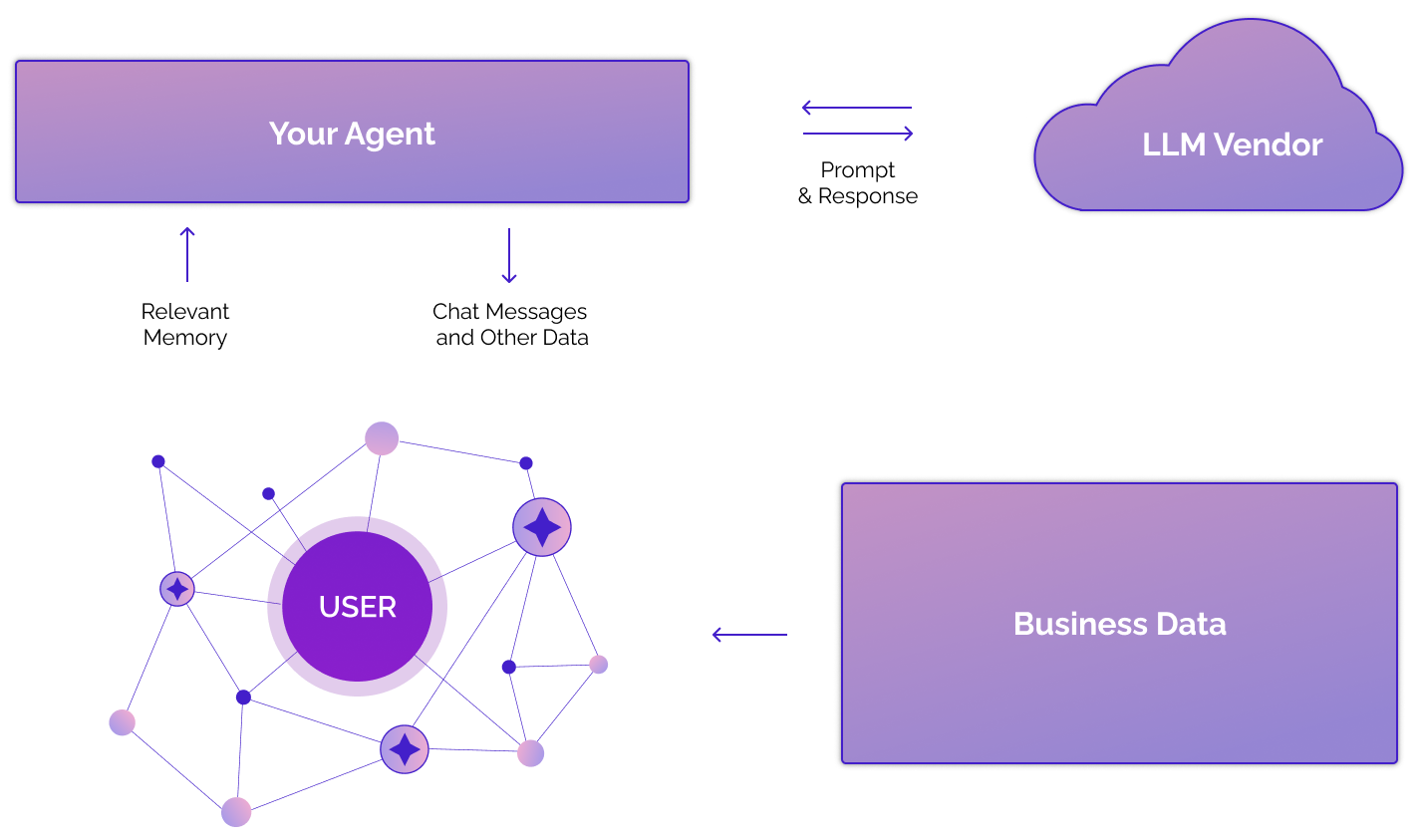
Zep fuses this data together on a knowledge graph, building a holistic view of the user’s world and the relationships between entities. Zep offers a number of APIs for [adding and retrieving memory](/concepts#retrieving-memory)
. In addition to populating a prompt with Zep’s memory, Zep’s search APIs can be used to build [agentic tools](/concepts#using-zep-as-an-agentic-tool)
.
The example below shows Zep’s `memory.context` field resulting from a call to `memory.get()`. This is an opinionated, easy to use context string that can be added to your prompt and contains facts and graph entities relevant to the current conversation with a user. For more about the temporal context of facts, see [Managing changes in facts over time](/concepts#managing-changes-in-facts-over-time)
.
Zep also returns a number of other artifacts in the `memory.get()` response, including raw `facts` objects. Zep’s search methods can also be used to retrieve nodes, edges, and facts.
### Memory Context
Memory context is a string containing relevant facts and entities for the session. It is always present in the result of `memory.get()` call and can be optionally [received with the response of `memory.add()` call](/docs/performance/performance-best-practices#get-the-memory-context-string-sooner)
.
###### Python
` | | | | --- | --- | | 1 | # pass in the session ID of the conversation thread | | 2 | memory = zep_client.memory.get(session_id="session_id") | | 3 | print(memory.context) | `
` | | | --- | | FACTS and ENTITIES represent relevant context to the current conversation. | | | | # These are the most relevant facts and their valid date ranges | | | | # format: FACT (Date range: from - to) | | | | | | - Emily is experiencing issues with logging in. (2024-11-14 02:13:19+00:00 - | | present) | | - User account Emily0e62 has a suspended status due to payment failure. | | (2024-11-14 02:03:58+00:00 - present) | | - user has the id of Emily0e62 (2024-11-14 02:03:54 - present) | | - The failed transaction used a card with last four digits 1234. (2024-09-15 | | 00:00:00+00:00 - present) | | - The reason for the transaction failure was 'Card expired'. (2024-09-15 | | 00:00:00+00:00 - present) | | - user has the name of Emily Painter (2024-11-14 02:03:54 - present) | | - Account Emily0e62 made a failed transaction of 99.99. (2024-07-30 | | 00:00:00+00:00 - 2024-08-30 00:00:00+00:00) | | | | | | # These are the most relevant entities | | | | # ENTITY_NAME: entity summary | | | | | | - Emily0e62: Emily0e62 is a user account associated with a transaction, | | currently suspended due to payment failure, and is also experiencing issues | | with logging in. | | - Card expired: The node represents the reason for the transaction failure, | | which is indicated as 'Card expired'. | | - Magic Pen Tool: The tool being used by the user that is malfunctioning. | | - User: user | | - Support Agent: Support agent responding to the user's bug report. | | - SupportBot: SupportBot is the virtual assistant providing support to the user, | | Emily, identified as SupportBot. | | - Emily Painter: Emily is a user reporting a bug with the magic pen tool, | | similar to Emily Painter, who is expressing frustration with the AI art | | generation tool and seeking assistance regarding issues with the PaintWiz app. | | | `
You can then include this context in your system prompt:
| MessageType | Content |
| --- | --- |
| `System` | Your system prompt
`{Zep context string}` |
| `Assistant` | An assistant message stored in Zep |
| `User` | A user message stored in Zep |
| … | … |
| `User` | The latest user message |
The Knowledge Graph
-------------------
What is a Knowledge Graph?
A knowledge graph is a network of interconnected facts, such as _“Kendra loves Adidas shoes.”_ Each fact is a _“triplet”_ represented by two entities, or nodes (_“Kendra”, “Adidas shoes”_), and their relationship, or edge (_“loves”_).
Knowledge Graphs have been explored extensively for information retrieval. What makes Zep unique is its ability to autonomously build a knowledge graph while handling changing relationships and maintaining historical context.
Zep automatically constructs a knowledge graph for each of your users. The knowledge graph contains entities, relationships, and facts related to your user, while automatically handling changing relationships and facts.
Here’s an example of how Zep might extract graph data from a chat message, and then update the graph once new information is available:

Each node and edge contains certain attributes - notably, a fact is always stored as an edge attribute. There are also datetime attributes for when the fact becomes [valid and when it becomes invalid](/concepts#managing-changes-in-facts-over-time)
.
User vs Group graphs
--------------------
Zep automatically creates a knowledge graph for each User of your application. You as the developer can also create a [“group graph”](/groups)
(which is best thought of as an “arbitrary graph”) for memory to be used by a group of Users, or for a more complicated use case.
For example, you could create a group graph for your company’s product information or even messages related to a group chat. This avoids having to add the same data to each user graph. To do so, you’d use the `graph.add()` and `graph.search()` methods (see [Retrieving memory](/concepts#retrieving-memory)
).
Group knowledge is not retrieved via the `memory.get()` method and is not included in the `memory.context` string. To use user and group graphs simultaneously, you need to add group-specific context to your prompt alongside the `memory.context` string.
Read more about groups [here](/groups)
.
Managing changes in facts over time
-----------------------------------
When incorporating new data, Zep looks for existing nodes and edges in graph and decides whether to add new nodes/edges or to update existing ones. An update could mean updating an edge (for example, indicating the previous fact is no longer valid).
For example, in the [animation above](/concepts#the-knowledge-graph)
, Kendra initially loves Adidas shoes. She later is angry that the shoes broke and states a preference for Puma shoes. As a result, Zep invalidates the fact that Kendra loves Adidas shoes and creates two new facts: “Kendra’s Adidas shoes broke” and “Kendra likes Puma shoes”.
Zep also looks for dates in all ingested data, such as the timestamp on a chat message or an article’s publication date, informing how Zep sets the following edge attributes. This assists your agent in reasoning with time.
| Edge attribute | Example |
| --- | --- |
| **created\_at** | The time Zep learned that the user got married |
| **valid\_at** | The time the user got married |
| **invalid\_at** | The time the user got divorced |
| **expired\_at** | The time Zep learned that the user got divorced |
The `valid_at` and `invalid_at` attributes for each fact are then included in the `memory.context` string which is given to your agent:
` | | | --- | | # format: FACT (Date range: from - to) | | User account Emily0e62 has a suspended status due to payment failure. (2024-11-14 02:03:58+00:00 - present) | `
Business data vs Chat Message data
----------------------------------
Zep can ingest either unstructured text (e.g. documents, articles, chat messages) or JSON data (e.g. business data, or any other form of structured data). Conversational data is ingested through `memory.add()` in structured chat message format, and all other data is ingested through the `graph.add()` method.
Users and Chat Sessions
-----------------------
A Session is a series of chat messages (e.g., between a user and your agent). [Users](/users)
may have multiple Sessions.
Entities, relationships, and facts are extracted from the messages in a Session and added to the user’s knowledge graph. All of a user’s Sessions contribute to a single, shared knowledge graph for that user. Read more about sessions [here](/sessions)
.
`SessionIDs` are arbitrary identifiers that you can map to relevant business objects in your app, such as users or a conversation a user might have with your app.
For code examples of how to create users and sessions, see the [Quickstart Guide](/quickstart#create-a-user-and-session)
.
Adding Memory
-------------
There are two ways to add data to Zep: `memory.add()` and `graph.add()`.
### Using `memory.add()`
Add your chat history to Zep using the `memory.add()` method. `memory.add` is session-specific and expects data in chat message format, including a `role` name (e.g., user’s real name), `role_type` (AI, human, tool), and message `content`. Zep stores the chat history and builds a user-level knowledge graph from the messages.
For code examples of how to add messages to Zep’s memory, see the [Quickstart Guide](/quickstart#adding-messages-and-retrieving-context)
.
For best results, add chat history to Zep on every chat turn. That is, add both the AI and human messages in a single operation and in the order that the messages were created.
Additionally, for latency-sensitive applications, you can request the memory context directly in the response to the `memory.add` call. Read more [here](/docs/performance/performance-best-practices#get-the-memory-context-string-sooner)
.
### Using `graph.add()`
The `graph.add()` method enables you to add business data as a JSON object or unstructured text. It also supports adding data to Group graphs by passing in a `group_id` as opposed to a `user_id`.
For code examples of how to add business data to the graph, see the [Quickstart Guide](/quickstart#adding-business-data-to-a-graph)
.
Retrieving memory
-----------------
There are three ways to retrieve memory from Zep: `memory.get()`, `graph.search()`, and methods for retrieving specific nodes, edges, or episodes using UUIDs.
### Using `memory.get()`
The `memory.get()` method is a user-friendly, high-level API for retrieving relevant context from Zep. It uses the latest messages of the _given session_ to determine what information is most relevant from the user’s knowledge graph and returns that information in a [context string](/concepts#memory-context)
for your prompt. Note that although `memory.get()` only requires a session ID, it is able to return memory derived from any session of that user. The session is just used to determine what’s relevant.
`memory.get` also returns recent chat messages and raw facts that may provide additional context for your agent. It is user and session-specific and cannot retrieve data from group graphs.
For code examples of how to retrieve memory context for a session, see the [Quickstart Guide](/quickstart#retrieving-context-with-memoryget)
.
### Using `graph.search()`
The `graph.search()` method lets you search the graph directly, returning raw edges and/or nodes (defaults to edges), as opposed to facts. You can customize search parameters, such as the reranker used. For more on how search works, visit the [Graph Search](/searching-the-graph)
guide. This method works for both User and Group graphs.
For code examples of how to search the graph, see the [Quickstart Guide](/quickstart#searching-the-graph)
.
### Retrieving specific nodes, edges, and episodes
Zep offers several utility methods for retrieving specific nodes, edges, or episodes by UUID, or all elements for a user or group. To retrieve a fact, you just need to retrieve its edge, since a fact is always the attribute of some edge. See the [Graph SDK reference](/sdk-reference/graph)
for more.
Improving Fact Quality
----------------------
By using Zep’s fact rating feature, you can make Zep automatically assign a rating to every fact using your own custom rating instruction. Then, when retrieving memory, you can set a minimum rating threshold so that the memory only contains the highest quality facts for your use case. Read more [here](/facts#fact-ratings---prioritizing-relevance)
.
Using Zep as an agentic tool
----------------------------
Zep’s memory retrieval methods can be used as agentic tools, enabling your agent to query Zep for relevant information. This allows your agent to access the user’s knowledge graph and retrieve facts, entities, and relationships that are relevant to the current conversation.
For a complete code example of how to use Zep as an agentic tool, see the [Quickstart Guide](/quickstart#using-zep-as-an-agentic-tool)
.
Other Zep Features
------------------
Additionally, Zep builds on Zep’s memory layer with tools to help you build more deterministic and accurate applications:
* [Dialog Classification](/dialog-classification)
is a flexible low-latency API for understanding intent, segmenting users, determining the state of a conversation and more, allowing you to select appropriate prompts and models, and manage application flow.
* [Structured Data Extraction](/structured-data-extraction)
extracts data from conversations with high-fidelity and low-latency, enabling you to confidently populate your data store, call third-party applications, and build custom workflows.
---
# Quickstart | Zep Documentation
Looking for a more in-depth understanding? Check out our [Key Concepts](/concepts)
page.
This quickstart guide will help you get up and running with Zep quickly. We will:
* Obtain an API key
* Install the SDK
* Initialize the client
* Create a user and session
* Add and retrieve messages
* View your knowledge graph
* Add business data to a user or group graph
* Search for edges or nodes in the graph
Obtain an API Key
-----------------
[Create a free Zep account](https://app.getzep.com/)
and you will be prompted to create an API key.
Install the SDK
---------------
### Python
Set up your Python project, ideally with [a virtual environment](https://medium.com/@vkmauryavk/managing-python-virtual-environments-with-uv-a-comprehensive-guide-ac74d3ad8dff)
, and then:
###### pip
###### uv
` | | | | --- | --- | | $ | pip install zep-cloud | `
### TypeScript
Set up your TypeScript project and then:
###### npm
###### yarn
###### pnpm
` | | | | --- | --- | | $ | npm install @getzep/zep-cloud | `
### Go
Set up your Go project and then:
` | | | | --- | --- | | $ | go get github.com/getzep/zep-go/v2 | `
Initialize the Client
---------------------
First, make sure you have a [.env file](https://metaschool.so/articles/what-are-env-files)
with your API key:
` ZEP_API_KEY=your_api_key_here `
After creating your .env file, you’ll need to source it in your terminal session:
` | | | | --- | --- | | $ | source .env | `
Then, initialize the client with your API key:
PythonTypeScriptGo
` | | | | --- | --- | | 1 | import os | | 2 | from zep_cloud.client import Zep | | 3 | | | 4 | API_KEY = os.environ.get('ZEP_API_KEY') | | 5 | | | 6 | client = Zep( | | 7 | api_key=API_KEY, | | 8 | ) | `
**The Python SDK Supports Async Use**
The Python SDK supports both synchronous and asynchronous usage. For async operations, import `AsyncZep` instead of `Zep` and remember to `await` client calls in your async code.
Create a User and Session
-------------------------
Before adding messages, you need to create a user and a session. A session is a chat thread - a container for messages between a user and an assistant. A user can have multiple sessions (different conversation threads).
While messages are stored in sessions, the knowledge extracted from these messages is stored at the user level. This means that facts and entities learned in one session are available across all of the user’s sessions. When you use `memory.get()`, Zep returns the most relevant memory from the user’s entire knowledge graph, not just from the current session.
### Create a User
PythonTypeScriptGo
` | | | | --- | --- | | 1 | # Create a new user | | 2 | user_id = "user123" | | 3 | new_user = client.user.add( | | 4 | user_id=user_id, | | 5 | email="[[email protected]](/cdn-cgi/l/email-protection)
", | | 6 | first_name="Jane", | | 7 | last_name="Smith", | | 8 | ) | `
### Create a Session
PythonTypeScriptGo
` | | | | --- | --- | | 1 | import uuid | | 2 | | | 3 | # Generate a unique session ID | | 4 | session_id = uuid.uuid4().hex | | 5 | | | 6 | # Create a new session for the user | | 7 | client.memory.add_session( | | 8 | session_id=session_id, | | 9 | user_id=user_id, | | 10 | ) | `
Add Messages with memory.add
----------------------------
Add chat messages to a session using the `memory.add` method. These messages will be stored in the session history and used to build the user’s knowledge graph.
PythonTypeScriptGo
` | | | | --- | --- | | 1 | # Define messages to add | | 2 | from zep_cloud.types import Message | | 3 | | | 4 | messages = [ | | 5 | Message( | | 6 | role="Jane", | | 7 | content="Hi, my name is Jane Smith and I work at Acme Corp.", | | 8 | role_type="user", | | 9 | ), | | 10 | Message( | | 11 | role="AI Assistant", | | 12 | content="Hello Jane! Nice to meet you. How can I help you with Acme Corp today?", | | 13 | role_type="assistant", | | 14 | ) | | 15 | ] | | 16 | | | 17 | # Add messages to the session | | 18 | client.memory.add(session_id, messages=messages) | `
Retrieve Context with memory.get
--------------------------------
Use the `memory.get` method to retrieve relevant context for a session. This includes a context string with facts and entities and recent messages that can be used in your prompt.
PythonTypeScriptGo
` | | | | --- | --- | | 1 | # Get memory for the session | | 2 | memory = client.memory.get(session_id=session_id) | | 3 | | | 4 | # Access the context string (for use in prompts) | | 5 | context_string = memory.context | | 6 | print(context_string) | | 7 | | | 8 | # Access recent messages | | 9 | recent_messages = memory.messages | | 10 | for msg in recent_messages: | | 11 | print(f"{msg.role}: {msg.content}") | `
View your Knowledge Graph
-------------------------
Since you’ve created memory, you can view your knowledge graph by navigating to [the Zep Dashboard](https://app.getzep.com/)
, then Users > “user123” > View Graph. You can also click the “View Episodes” button to see when data is finished being added to the knowledge graph.
Add Business Data to a Graph
----------------------------
You can add business data directly to a user’s graph or to a group graph using the `graph.add` method. This data can be in the form of messages, text, or JSON.
PythonTypeScriptGo
` | | | | --- | --- | | 1 | # Add text data to a user's graph | | 2 | new_episode = client.graph.add( | | 3 | user_id=user_id, | | 4 | type="text", | | 5 | data="Jane Smith is a senior software engineer who has been with Acme Corp for 5 years." | | 6 | ) | | 7 | print("New episode created:", new_episode) | | 8 | # Add JSON data to a user's graph | | 9 | import json | | 10 | json_data = { | | 11 | "employee": { | | 12 | "name": "Jane Smith", | | 13 | "position": "Senior Software Engineer", | | 14 | "department": "Engineering", | | 15 | "projects": ["Project Alpha", "Project Beta"] | | 16 | } | | 17 | } | | 18 | client.graph.add( | | 19 | user_id=user_id, | | 20 | type="json", | | 21 | data=json.dumps(json_data) | | 22 | ) | | 23 | | | 24 | # Add data to a group graph (shared across users) | | 25 | group_id = "engineering_team" | | 26 | client.graph.add( | | 27 | group_id=group_id, | | 28 | type="text", | | 29 | data="The engineering team is working on Project Alpha and Project Beta." | | 30 | ) | `
Search the Graph
----------------
Use the `graph.search` method to search for edges or nodes in the graph. This is useful for finding specific information about a user or group.
PythonTypeScriptGo
` | | | | --- | --- | | 1 | # Search for edges in a user's graph | | 2 | edge_results = client.graph.search( | | 3 | user_id=user_id, | | 4 | query="What projects is Jane working on?", | | 5 | scope="edges", # Default is "edges" | | 6 | limit=5 | | 7 | ) | | 8 | | | 9 | # Search for nodes in a user's graph | | 10 | node_results = client.graph.search( | | 11 | user_id=user_id, | | 12 | query="Jane Smith", | | 13 | scope="nodes", | | 14 | limit=5 | | 15 | ) | | 16 | | | 17 | # Search in a group graph | | 18 | group_results = client.graph.search( | | 19 | group_id=group_id, | | 20 | query="Project Alpha", | | 21 | scope="edges", | | 22 | limit=5 | | 23 | ) | `
Use Zep as an Agentic Tool
--------------------------
Zep’s memory retrieval methods can be used as agentic tools, enabling your agent to query Zep for relevant information. The example below shows how to create a LangChain LangGraph tool to search for facts in a user’s graph.
Python
` | | | | --- | --- | | 1 | from zep_cloud.client import AsyncZep | | 2 | | | 3 | from langchain_core.tools import tool | | 4 | from langchain_openai import ChatOpenAI | | 5 | from langgraph.graph import StateGraph, MessagesState | | 6 | from langgraph.prebuilt import ToolNode | | 7 | | | 8 | zep = AsyncZep(api_key=os.environ.get('ZEP_API_KEY')) | | 9 | | | 10 | @tool | | 11 | async def search_facts(state: MessagesState, query: str, limit: int = 5): | | 12 | """Search for facts in all conversations had with a user. | | 13 | | | 14 | Args: | | 15 | state (MessagesState): The Agent's state. | | 16 | query (str): The search query. | | 17 | limit (int): The number of results to return. Defaults to 5. | | 18 | Returns: | | 19 | list: A list of facts that match the search query. | | 20 | """ | | 21 | search_results = await zep.graph.search( | | 22 | user_id=state['user_name'], | | 23 | query=query, | | 24 | limit=limit, | | 25 | ) | | 26 | | | 27 | return [edge.fact for edge in search_results.edges] | | 28 | | | 29 | tools = [search_facts] | | 30 | tool_node = ToolNode(tools) | | 31 | llm = ChatOpenAI(model='gpt-4o-mini', temperature=0).bind_tools(tools) | `
Next Steps
----------
Now that you’ve learned the basics of using Zep, you can:
* Learn more about [Key Concepts](/concepts)
* Explore the [Graph API](/adding-data-to-the-graph)
for adding and retrieving data
* Understand [Users and Sessions](/users)
in more detail
* Learn about [Memory Context](/concepts#memory-context)
for building better prompts
* Explore [Graph Search](/searching-the-graph)
for advanced search capabilities
---
# Building a Chatbot with Zep | Zep Documentation
For an introduction to Zep’s memory layer, Knowledge Graph, and other key concepts, see the [Concepts Guide](/concepts)
.
A Jupyter notebook version of this guide is [available here](https://github.com/getzep/zep-python/blob/main/examples/quickstart/quickstart.ipynb)
.
In this guide, we’ll walk through a simple example of how to use Zep Cloud to build a chatbot. We’re going to upload a number of datasets to Zep, building a graph of data about a user.
Then we’ll use the Zep Python SDK to retrieve and search the data.
Finally, we’ll build a simple chatbot that uses Zep to retrieve and search data to respond to a user.
Set up your environment
-----------------------
1. Sign up for a [Zep Cloud](https://www.getzep.com/)
account.
2. Ensure you install required dependencies into your Python environment before running this notebook. See [Installing Zep SDKs](/sdks.mdx)
for more information. Optionally create your environment in a `virtualenv`.
` | | | | --- | --- | | $ | pip install zep-cloud openai rich python-dotenv | `
3. Ensure that you have a `.env` file in your working directory that includes your `ZEP_API_KEY` and `OPENAI_API_KEY`:
Zep API keys are specific to a project. You can create multiple keys for a single project. Visit `Project Settings` in the Zep dashboard to manage your API keys.
` | | | --- | | ZEP_API_KEY= | | OPENAI_API_KEY= | `
###### Python
###### Typescript
` | | | | --- | --- | | 1 | import os | | 2 | import json | | 3 | import uuid | | 4 | | | 5 | from openai import OpenAI | | 6 | import rich | | 7 | | | 8 | from dotenv import load_dotenv | | 9 | from zep_cloud.client import Zep | | 10 | from zep_cloud import Message | | 11 | | | 12 | load_dotenv() | | 13 | | | 14 | zep = Zep(api_key=os.environ.get("ZEP_API_KEY")) | | 15 | | | 16 | oai_client = OpenAI( | | 17 | api_key=os.getenv("OPENAI_API_KEY"), | | 18 | ) | `
We also provide an [Asynchronous Python client](/sdks#initialize-client)
.
Create User and add a Session
-----------------------------
Users in Zep may have one or more chat sessions. These are threads of messages between the user and an agent.
Include the user’s **full name** and **email address** when creating a user. This improves Zep’s ability to associate data, such as emails or documents, with a user.
###### Python
###### Typescript
` | | | | --- | --- | | 1 | bot_name = "SupportBot" | | 2 | user_name = "Emily" | | 3 | user_id = user_name + str(uuid.uuid4())[:4] | | 4 | session_id = str(uuid.uuid4()) | | 5 | | | 6 | zep.user.add( | | 7 | user_id=user_id, | | 8 | email=f"{user_name}@painters.com", | | 9 | first_name=user_name, | | 10 | last_name="Painter", | | 11 | ) | | 12 | | | 13 | zep.memory.add_session( | | 14 | user_id=user_id, | | 15 | session_id=session_id, | | 16 | ) | `
Datasets
--------
We’re going to use the [memory](/concepts#using-memoryadd)
and [graph](/adding-data-to-the-graph)
APIs to upload an assortment of data to Zep. These include past dialog with the agent, CRM support cases, and billing data.
###### Python
###### Typescript
` | | | | --- | --- | | 1 | support_cases = [ | | 2 | { | | 3 | "subject": "Bug: Magic Pen Tool Drawing Goats Instead of Boats", | | 4 | "messages": [ | | 5 | { | | 6 | "role": "user", | | 7 | "content": "Whenever I use the magic pen tool to draw boats, it ends up drawing goats instead.", | | 8 | "timestamp": "2024-03-16T14:20:00Z", | | 9 | }, | | 10 | { | | 11 | "role": "support_agent", | | 12 | "content": f"Hi {user_name}, that sounds like a bug! Thanks for reporting it. Could you let me know exactly how you're using the tool when this happens?", | | 13 | "timestamp": "2024-03-16T14:22:00Z", | | 14 | }, | | 15 | { | | 16 | "role": "user", | | 17 | "content": "Sure, I select the magic pen, draw a boat shape, and it just replaces the shape with goats.", | | 18 | "timestamp": "2024-03-16T14:25:00Z", | | 19 | }, | | 20 | { | | 21 | "role": "support_agent", | | 22 | "content": "Got it! We'll escalate this to our engineering team. In the meantime, you can manually select the boat shape from the options rather than drawing it with the pen.", | | 23 | "timestamp": "2024-03-16T14:27:00Z", | | 24 | }, | | 25 | { | | 26 | "role": "user", | | 27 | "content": "Okay, thanks. I hope it gets fixed soon!", | | 28 | "timestamp": "2024-03-16T14:30:00Z", | | 29 | }, | | 30 | ], | | 31 | "status": "escalated", | | 32 | }, | | 33 | ] | | 34 | | | 35 | chat_history = [ | | 36 | { | | 37 | "role": "assistant", | | 38 | "name": bot_name, | | 39 | "content": f"Hello {user_name}, welcome to PaintWiz support. How can I assist you today?", | | 40 | "timestamp": "2024-03-15T10:00:00Z", | | 41 | }, | | 42 | { | | 43 | "role": "user", | | 44 | "name": user_name, | | 45 | "content": "I'm absolutely furious! Your AI art generation is completely broken!", | | 46 | "timestamp": "2024-03-15T10:02:00Z", | | 47 | }, | | 48 | { | | 49 | "role": "assistant", | | 50 | "name": bot_name, | | 51 | "content": f"I'm sorry to hear that you're experiencing issues, {user_name}. Can you please provide more details about what's going wrong?", | | 52 | "timestamp": "2024-03-15T10:03:00Z", | | 53 | }, | | 54 | { | | 55 | "role": "user", | | 56 | "name": user_name, | | 57 | "content": "Every time I try to draw mountains, your stupid app keeps turning them into fountains! And what's worse, all the people in my drawings have six fingers! It's ridiculous!", | | 58 | "timestamp": "2024-03-15T10:05:00Z", | | 59 | }, | | 60 | { | | 61 | "role": "assistant", | | 62 | "name": bot_name, | | 63 | "content": f"I sincerely apologize for the frustration this is causing you, {user_name}. That certainly sounds like a significant glitch in our system. I understand how disruptive this can be to your artistic process. Can you tell me which specific tool or feature you're using when this occurs?", | | 64 | "timestamp": "2024-03-15T10:06:00Z", | | 65 | }, | | 66 | { | | 67 | "role": "user", | | 68 | "name": user_name, | | 69 | "content": "I'm using the landscape generator and the character creator. Both are completely messed up. How could you let this happen?", | | 70 | "timestamp": "2024-03-15T10:08:00Z", | | 71 | }, | | 72 | ] | | 73 | | | 74 | transactions = [ | | 75 | { | | 76 | "date": "2024-07-30", | | 77 | "amount": 99.99, | | 78 | "status": "Success", | | 79 | "account_id": user_id, | | 80 | "card_last_four": "1234", | | 81 | }, | | 82 | { | | 83 | "date": "2024-08-30", | | 84 | "amount": 99.99, | | 85 | "status": "Failed", | | 86 | "account_id": user_id, | | 87 | "card_last_four": "1234", | | 88 | "failure_reason": "Card expired", | | 89 | }, | | 90 | { | | 91 | "date": "2024-09-15", | | 92 | "amount": 99.99, | | 93 | "status": "Failed", | | 94 | "account_id": user_id, | | 95 | "card_last_four": "1234", | | 96 | "failure_reason": "Card expired", | | 97 | }, | | 98 | ] | | 99 | | | 100 | account_status = { | | 101 | "user_id": user_id, | | 102 | "account": { | | 103 | "account_id": user_id, | | 104 | "account_status": { | | 105 | "status": "suspended", | | 106 | "reason": "payment failure", | | 107 | }, | | 108 | }, | | 109 | } | | 110 | | | 111 | def convert_to_zep_messages(chat_history: list[dict[str, str \| None]]) -> list[Message]: | | 112 | """ | | 113 | Convert chat history to Zep messages. | | 114 | | | 115 | Args: | | 116 | chat_history (list): List of dictionaries containing chat messages. | | 117 | | | 118 | Returns: | | 119 | list: List of Zep Message objects. | | 120 | """ | | 121 | return [ | | 122 | Message( | | 123 | role_type=msg["role"], | | 124 | role=msg.get("name", None), | | 125 | content=msg["content"], | | 126 | ) | | 127 | for msg in chat_history | | 128 | ] | | 129 | | | 130 | # Zep's high-level API allows us to add a list of messages to a session. | | 131 | zep.memory.add( | | 132 | session_id=session_id, messages=convert_to_zep_messages(chat_history) | | 133 | ) | | 134 | | | 135 | # The lower-level data API allows us to add arbitrary data to a user's Knowledge Graph. | | 136 | for tx in transactions: | | 137 | zep.graph.add(user_id=user_id, data=json.dumps(tx), type="json") | | 138 | | | 139 | zep.graph.add( | | 140 | user_id=user_id, data=json.dumps(account_status), type="json" | | 141 | ) | | 142 | | | 143 | for case in support_cases: | | 144 | zep.graph.add(user_id=user_id, data=json.dumps(case), type="json") | `
### Wait a minute or two!
We’ve batch uploaded a number of datasets that need to be ingested into Zep’s graph before they can be queried. In ordinary operation, this data would stream into Zep and ingestion latency would be negligible.
Retrieve data from Zep
----------------------
We’ll start with getting a list of facts, which are stored on the edges of the graph. We’ll see the temporal data associated with facts as well as the graph nodes the fact is related to.
This data is also viewable in the Zep Web application.
###### Python
###### Typescript
` | | | | --- | --- | | 1 | all_user_edges = zep.graph.edge.get_by_user_id(user_id=user_id) | | 2 | rich.print(all_user_edges[:3]) | `
` | | | --- | | [ | | EntityEdge( | | created_at='2025-02-20T20:31:01.769332Z', | | episodes=['0d3a35c7-ebd3-427d-89a6-1a8dabd2df64'], | | expired_at='2025-02-20T20:31:18.742184Z', | | fact='The transaction failed because the card expired.', | | invalid_at='2024-09-15T00:00:00Z', | | name='HAS_FAILURE_REASON', | | source_node_uuid='06c61c00-9101-474f-9bca-42b4308ec378', | | target_node_uuid='07efd834-f07a-4c3c-9b32-d2fd9362afd5', | | uuid_='fb5ee0df-3aa0-44f3-889d-5bb163971b07', | | valid_at='2024-08-30T00:00:00Z', | | graph_id='8e5686fc-f175-4da9-8778-ad8d60fc469a' | | ), | | EntityEdge( | | created_at='2025-02-20T20:31:33.771557Z', | | episodes=['60d1d20e-ed6c-4966-b1da-3f4ca274a524'], | | expired_at=None, | | fact='Emily uses the magic pen tool to draw boats.', | | invalid_at=None, | | name='USES_TOOL', | | source_node_uuid='36f5c5c6-eb16-4ebb-9db0-fd34809482f5', | | target_node_uuid='e337522d-3a62-4c45-975d-904e1ba25667', | | uuid_='f9eb0a98-1624-4932-86ca-be75a3c248e5', | | valid_at='2025-02-20T20:29:40.217412Z', | | graph_id='8e5686fc-f175-4da9-8778-ad8d60fc469a' | | ), | | EntityEdge( | | created_at='2025-02-20T20:30:28.499178Z', | | episodes=['b8e4da4c-dd5e-4c48-bdbc-9e6568cd2d2e'], | | expired_at=None, | | fact="SupportBot understands how disruptive the glitch in the AI art generation can be to Emily's artistic process.", | | invalid_at=None, | | name='UNDERSTANDS', | | source_node_uuid='fd4ab1f0-e19e-40b7-aaec-78bd97571725', | | target_node_uuid='8e5686fc-f175-4da9-8778-ad8d60fc469a', | | uuid_='f8c52a21-e938-46a3-b930-04671d0c018a', | | valid_at='2025-02-20T20:29:39.08846Z', | | graph_id='8e5686fc-f175-4da9-8778-ad8d60fc469a' | | ) | | ] | `
The high-level [memory API](/concepts#using-memoryget)
provides an easy way to retrieve memory relevant to the current conversation by using the last 4 messages and their proximity to the User node.
The `memory.get` method is a good starting point for retrieving relevant conversation context. It shortcuts passing recent messages to the `graph.search` API and returns a [context string](/concepts#memory-context)
, raw facts, and historical chat messages, providing everything needed for your agent’s prompts.
###### Python
###### Typescript
` | | | | --- | --- | | 1 | memory = zep.memory.get(session_id=session_id) | | 2 | rich.print(memory.context) | `
` | | | --- | | FACTS and ENTITIES represent relevant context to the current conversation. | | | | # These are the most relevant facts and their valid date ranges | | # format: FACT (Date range: from - to) | | | | - SupportBot understands how disruptive the glitch in the AI art generation can be to Emily's artistic process. (2025-02-20 20:29:39 - present) | | - SupportBot sincerely apologizes to Emily for the frustration caused by the issues with the AI art generation. (2025-02-20 20:29:39 - present) | | - Emily has contacted SupportBot for assistance regarding issues she is experiencing. (2025-02-20 20:29:39 - present) | | - The user Emily reported a bug regarding the magic pen tool drawing goats instead of boats. (2024-03-16 14:20:00 - present) | | - The bug report has been escalated to the engineering team. (2024-03-16 14:27:00 - present) | | - Emily is a user of the AI art generation. (2025-02-20 20:29:39 - present) | | - user has the name of Emily Painter (2025-02-20 20:29:39 - present) | | - Emily5e57 is using the landscape generator. (2025-02-20 20:29:39 - 2025-02-20 20:29:39) | | - user has the id of Emily5e57 (2025-02-20 20:29:39 - present) | | - user has the email of [[email protected]](/cdn-cgi/l/email-protection)
(2025-02-20 20:29:39 - present) | | - Emily is furious about the stupid app. (2025-02-20 20:29:39 - present) | | - Emily claims that the AI art generation is completely broken. (2025-02-20 20:29:39 - present) | | | | | | # These are the most relevant entities | | # ENTITY_NAME: entity summary | | | | - Emily Painter: Emily Painter contacted PaintWiz support for assistance, where she was welcomed by the support bot that inquired about the specific issues she was facing to provide better help. | | - [[email protected]](/cdn-cgi/l/email-protection)
: user with the email of [[email protected]](/cdn-cgi/l/email-protection) | | - Emily5e57: Emily5e57, a user of the PaintWiz AI art generation tool, successfully processed a transaction of $99.99 on July 30, 2024, using a card ending in '1234'. However, she is experiencing | | significant frustration with the application due to malfunctions, such as the landscape generator incorrectly transforming mountains into fountains and characters being depicted with six fingers. | | These issues have led her to question the reliability of the tool, and she considers it to be completely broken. Emily has reached out to PaintWiz support for assistance, as these problems are | | severely disrupting her artistic process. | | - PaintWiz support: PaintWiz is an AI art generation platform that provides tools for users to create art. Recently, a user named Emily reported significant issues with the service, claiming that | | the AI art generation is not functioning properly. The support bot responded to her concerns, apologizing for the disruption to her artistic process and asking for more details about the specific | | tool or feature she was using. This interaction highlights PaintWiz's commitment to customer support, as they actively seek to assist users with their inquiries and problems related to their | | products. | | - SupportBot: A support agent named Emily addressed a user's report about a bug in a drawing application where the magic pen tool incorrectly produced goats instead of boats. After confirming the | | issue, she escalated it to the engineering team and suggested a temporary workaround of manually selecting the boat shape. Meanwhile, SupportBot, a virtual assistant for PaintWiz, also assisted | | another user named Emily who was frustrated with the AI art generation feature, acknowledging her concerns and requesting more details to help resolve the problem. | | - AI art generation: Emily, a user, expressed her frustration regarding the AI art generation, stating that it is completely broken. | | - options: The user reported a bug with the magic pen tool, stating that when attempting to draw boats, the tool instead draws goats. The support agent acknowledged the issue and requested more | | details about how the user was utilizing the tool. The user explained that they select the magic pen and draw a boat shape, but it gets replaced with goats. The support agent confirmed they would | | escalate the issue to the engineering team and suggested that the user manually select the boat shape from the options instead of drawing it with the pen. The user expressed hope for a quick | | resolution. | | | `
###### Python
###### Typescript
` | | | | --- | --- | | 1 | rich.print(memory.messages) | `
` | | | --- | | [ | | Message( | | content='Hello Emily, welcome to PaintWiz support. How can I assist you today?', | | created_at='2025-02-20T20:29:39.08846Z', | | metadata=None, | | role='SupportBot', | | role_type='assistant', | | token_count=0, | | updated_at='0001-01-01T00:00:00Z', | | uuid_='e2b86f93-84d6-4270-adbc-e421f39b6f90' | | ), | | Message( | | content="I'm absolutely furious! Your AI art generation is completely broken!", | | created_at='2025-02-20T20:29:39.08846Z', | | metadata=None, | | role='Emily', | | role_type='user', | | token_count=0, | | updated_at='0001-01-01T00:00:00Z', | | uuid_='ec39e501-6dcc-4f8c-b300-f586d66005d8' | | ) | | ] | `
We can also use the [graph API](/searching-the-graph)
to search edges/facts for arbitrary text. This API offers more options, including the ability to search node summaries and various re-rankers.
###### Python
###### Typescript
` | | | | --- | --- | | 1 | r = zep.graph.search(user_id=user_id, query="Why are there so many goats?", limit=4, scope="edges") | | 2 | rich.print(r.edges) | `
` | | | --- | | [ | | EntityEdge( | | created_at='2025-02-20T20:31:33.771566Z', | | episodes=['60d1d20e-ed6c-4966-b1da-3f4ca274a524'], | | expired_at=None, | | fact='The magic pen tool draws goats instead of boats when used by Emily.', | | invalid_at=None, | | name='DRAWS_INSTEAD_OF', | | source_node_uuid='e337522d-3a62-4c45-975d-904e1ba25667', | | target_node_uuid='9814a57f-53a4-4d4a-ad5a-15331858ce18', | | uuid_='022687b6-ae08-4fef-9d6e-17afb07acdea', | | valid_at='2025-02-20T20:29:40.217412Z', | | graph_id='8e5686fc-f175-4da9-8778-ad8d60fc469a' | | ), | | EntityEdge( | | created_at='2025-02-20T20:31:33.771528Z', | | episodes=['60d1d20e-ed6c-4966-b1da-3f4ca274a524'], | | expired_at=None, | | fact='The user Emily reported a bug regarding the magic pen tool drawing goats instead of boats.', | | invalid_at=None, | | name='REPORTED_BY', | | source_node_uuid='36f5c5c6-eb16-4ebb-9db0-fd34809482f5', | | target_node_uuid='cff4e758-d1a4-4910-abe7-20101a1f0d77', | | uuid_='5c3124ec-b4a3-4564-a38f-02338e3db4c4', | | valid_at='2024-03-16T14:20:00Z', | | graph_id='8e5686fc-f175-4da9-8778-ad8d60fc469a' | | ), | | EntityEdge( | | created_at='2025-02-20T20:30:19.910797Z', | | episodes=['ff9eba8b-9e90-4765-a0ce-15eb44410f70'], | | expired_at=None, | | fact='The stupid app generates mountains.', | | invalid_at=None, | | name='GENERATES', | | source_node_uuid='b6e5a0ee-8823-4647-b536-5e6af0ba113a', | | target_node_uuid='43aaf7c9-628c-4bf0-b7cb-02d3e9c1a49c', | | uuid_='3514a3ad-1ed5-42c7-9f70-02834e8904bf', | | valid_at='2025-02-20T20:29:39.08846Z', | | graph_id='8e5686fc-f175-4da9-8778-ad8d60fc469a' | | ), | | EntityEdge( | | created_at='2025-02-20T20:30:19.910816Z', | | episodes=['ff9eba8b-9e90-4765-a0ce-15eb44410f70'], | | expired_at=None, | | fact='The stupid app keeps turning mountains into fountains.', | | invalid_at=None, | | name='TRANSFORMS_INTO', | | source_node_uuid='43aaf7c9-628c-4bf0-b7cb-02d3e9c1a49c', | | target_node_uuid='0c90b42c-2b9f-4998-aa67-cc968f9002d3', | | uuid_='2f113810-3597-47a4-93c5-96d8002366fa', | | valid_at='2025-02-20T20:29:39.08846Z', | | graph_id='8e5686fc-f175-4da9-8778-ad8d60fc469a' | | ) | | ] | `
Creating a simple Chatbot
-------------------------
In the next cells, Emily starts a new chat session with a support agent and complains that she can’t log in. Our simple chatbot will, given relevant facts retrieved from Zep’s graph, respond accordingly.
Here, the support agent is provided with Emily’s billing information and account status, which Zep retrieves as most relevant to Emily’s login issue.
###### Python
###### Typescript
` | | | | --- | --- | | 1 | new_session_id = str(uuid.uuid4()) | | 2 | | | 3 | emily_message = "Hi, I can't log in!" | | 4 | | | 5 | # We start a new session indicating that Emily has started a new chat with the support agent. | | 6 | zep.memory.add_session(user_id=user_id, session_id=new_session_id) | | 7 | | | 8 | # We need to add the Emily's message to the session in order for memory.get to return | | 9 | # relevant facts related to the message | | 10 | zep.memory.add( | | 11 | session_id=new_session_id, | | 12 | messages=[Message(role_type="user", role=user_name, content=emily_message)], | | 13 | ) | `
###### Python
###### Typescript
` | | | | --- | --- | | 1 | system_message = """ | | 2 | You are a customer support agent. Carefully review the facts about the user below and respond to the user's question. | | 3 | Be helpful and friendly. | | 4 | """ | | 5 | | | 6 | memory = zep.memory.get(session_id=new_session_id) | | 7 | | | 8 | messages = [ | | 9 | { | | 10 | "role": "system", | | 11 | "content": system_message, | | 12 | }, | | 13 | { | | 14 | "role": "assistant", | | 15 | # The context field is an opinionated string that contains facts and entities relevant to the current conversation. | | 16 | "content": memory.context, | | 17 | }, | | 18 | { | | 19 | "role": "user", | | 20 | "content": emily_message, | | 21 | }, | | 22 | ] | | 23 | | | 24 | response = oai_client.chat.completions.create( | | 25 | model="gpt-4o-mini", | | 26 | messages=messages, | | 27 | temperature=0, | | 28 | ) | | 29 | | | 30 | print(response.choices[0].message.content) | `
` | | | --- | | Hi Emily! I'm here to help you. It looks like your account is currently suspended due to a payment failure. This might be the reason you're unable to log in. | | | | The last transaction on your account failed because the card you were using has expired. If you update your payment information, we can help you get your account reactivated. Would you like assistance with that? | `
Let’s look at the memory context string Zep retrieved for the above `memory.get` call.
###### Python
###### Typescript
` | | | | --- | --- | | 1 | rich.print(memory.context) | `
` | | | --- | | FACTS and ENTITIES represent relevant context to the current conversation. | | | | # These are the most relevant facts and their valid date ranges | | # format: FACT (Date range: from - to) | | | | - Account with ID 'Emily1c2e' has a status of 'suspended'. (2025-02-24 23:24:29 - present) | | - user has the id of Emily1c2e (2025-02-24 23:24:29 - present) | | - User with ID 'Emily1c2e' has an account with ID 'Emily1c2e'. (2025-02-24 23:24:29 - present) | | - The bug report has been escalated to the engineering team. (2024-03-16 14:27:00 - present) | | - user has the name of Emily Painter (2025-02-24 23:24:29 - present) | | - Emily is the person being assisted by SupportBot. (2025-02-24 23:24:28 - present) | | - Emily1c2e is using the character creator. (2025-02-24 23:24:28 - present) | | - The reason for the account status 'suspended' is 'payment failure'. (2025-02-24 23:24:29 - present) | | - SupportBot is part of PaintWiz support. (2025-02-24 23:24:28 - present) | | - user has the email of [[email protected]](/cdn-cgi/l/email-protection)
(2025-02-24 23:24:29 - present) | | - Emily is a user of PaintWiz. (2025-02-24 23:24:28 - present) | | - The support agent suggested that Emily manually select the boat shape from the options. (2025-02-24 23:24:29 - | | present) | | - All the people in Emily1c2e's drawings have six fingers. (2025-02-24 23:24:28 - present) | | - Emily1c2e is using the landscape generator. (2025-02-24 23:24:28 - present) | | - Emily is a user of the AI art generation. (2025-02-24 23:24:28 - present) | | - Emily states that the AI art generation is completely broken. (2025-02-24 23:24:28 - present) | | - The magic pen tool draws goats instead of boats when used by Emily. (2025-02-24 23:24:29 - present) | | - Emily1c2e tries to draw mountains. (2025-02-24 23:24:28 - present) | | | | | | # These are the most relevant entities | | # ENTITY_NAME: entity summary | | | | - goats: In a recent support interaction, a user reported a bug with the magic pen tool in a drawing application, | | where attempting to draw boats resulted in the tool drawing goats instead. The user, Emily, described the issue, | | stating that whenever she selects the magic pen and draws a boat shape, it is replaced with a goat shape. The | | support agent acknowledged the problem and confirmed it would be escalated to the engineering team for resolution. | | In the meantime, the agent suggested that Emily could manually select the boat shape from the available options | | instead of using the pen tool. Emily expressed her hope for a quick fix to the issue. | | - failure_reason: Two transactions failed due to expired cards: one on September 15, 2024, and another on August | | 30, 2024, for the amount of $99.99 associated with account ID 'Emily1c2e'. | | - status: User account "Emily1c2e" is suspended due to a payment failure. A transaction of $99.99 on September | | 15, 2024, failed because the card ending in "1234" had expired. This card had previously been used successfully for | | the same amount on July 30, 2024, but a failure on August 30, 2024, resulted in the account's suspension. | | - bug: A user reported a bug with the magic pen tool, stating that when attempting to draw boats, the tool | | instead draws goats. The support agent acknowledged the issue and requested more details about how the user was | | utilizing the tool. The user explained that they select the magic pen and draw a boat shape, but it gets replaced | | with goats. The support agent confirmed the bug and stated that it would be escalated to the engineering team for | | resolution. In the meantime, they suggested that the user manually select the boat shape from the options instead | | of using the pen. The user expressed hope for a quick fix. | | - user_id: Emily reported a bug with the magic pen tool in a drawing application, where attempting to draw boats | | resulted in goats being drawn instead. A support agent acknowledged the issue and requested more details. Emily | | explained her process, and the agent confirmed the bug, stating it would be escalated to the engineering team. As a | | temporary workaround, the agent suggested manually selecting the boat shape. Emily expressed hope for a quick | | resolution. Additionally, it was noted that another user, identified as "Emily1c2e," has a suspended account due to | | a payment failure. | | - people: Emily is frustrated with the AI art generation feature of PaintWiz, specifically mentioning that the | | people in her drawings are depicted with six fingers, which she finds ridiculous. | | - character creator: Emily is experiencing significant issues with the character creator feature of the app. She | | reports that when using the landscape generator and character creator, the app is malfunctioning, resulting in | | bizarre outcomes such as people in her drawings having six fingers. Emily expresses her frustration, stating that | | the AI art generation is completely broken and is not functioning as expected. | | | `
---
# Sessions | Zep Documentation
Sessions represent a conversation. Each [User](/users)
can have multiple sessions, and each session is a sequence of chat messages.
Chat messages are added to sessions using [`memory.add`](/concepts#using-memoryadd)
, which both adds those messages to the session history and ingests those messages into the user-level knowledge graph. The user knowledge graph contains data from all of that user’s sessions to create an integrated understanding of the user.
The knowledge graph does not separate the data from different sessions, but integrates the data together to create a unified picture of the user. So the [get session memory](/sdk-reference/memory/get)
endpoint and the associated [`memory.get`](/concepts#using-memoryget)
method don’t return memory derived only from that session, but instead return whatever user-level memory is most relevant to that session, based on the session’s most recent messages.
Adding a Session
----------------
`SessionIDs` are arbitrary identifiers that you can map to relevant business objects in your app, such as users or a conversation a user might have with your app. Before you create a session, make sure you have [created a user](/users#adding-a-user)
first. Then create a session with:
###### Python
###### TypeScript
` | | | | --- | --- | | 1 | client = Zep( | | 2 | api_key=API_KEY, | | 3 | ) | | 4 | session_id = uuid.uuid4().hex # A new session identifier | | 5 | | | 6 | client.memory.add_session( | | 7 | session_id=session_id, | | 8 | user_id=user_id, | | 9 | ) | `
Getting a Session
-----------------
###### Python
###### TypeScript
` | | | | --- | --- | | 1 | session = client.memory.get_session(session_id) | | 2 | print(session.dict()) | `
Deleting a Session
------------------
Deleting a session deletes it and its associated messages. It does not however delete the associated data in the user’s knowledge graph. To remove data from the graph, see [deleting data from the graph](/deleting-data-from-the-graph)
.
###### Python
###### TypeScript
` | | | | --- | --- | | 1 | client.memory.delete(session_id) | `
Listing Sessions
----------------
You can list all Sessions in the Zep Memory Store with page\_size and page\_number parameters for pagination.
###### Python
###### TypeScript
` | | | | --- | --- | | 1 | # List the first 10 Sessions | | 2 | result = client.memory.list_sessions(page_size=10, page_number=1) | | 3 | for session in result.sessions: | | 4 | print(session) | `
---
# Projects | Zep Documentation
API keys are specific to a project. You can create multiple keys for a single project. Visit `Project Settings` in the Zep dashboard to manage your API keys.
Projects bundle elements like Users, Sessions, Groups, Knowledge Graphs, and settings, helping you organize data by service, environment (e.g., development or production), or other relevant criteria.
Creating a Project
------------------
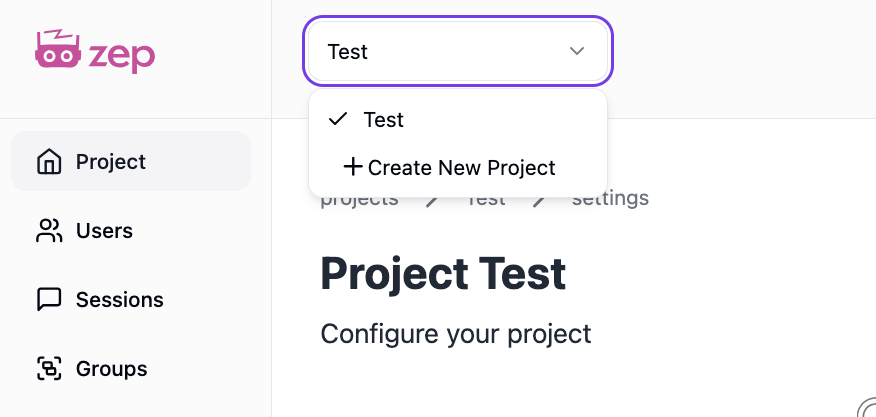
When you sign up for Zep, your first project is automatically created. You’ll be asked to configure a few project-specific settings (details below). If you need more projects, you can create them anytime through the [Zep Web App](https://app.getzep.com/projects/create)
.
### Project Essentials
* Unique Project Name: Choose a unique name for your project.
* Description (Optional): Optionally add a brief description of your project.
> **You can modify your project settings later from the Dashboard.**
---
# Users | Zep Documentation
A User represents an individual interacting with your application. Each User can have multiple Sessions associated with them, allowing you to track and manage their interactions over time.
The unique identifier for each user is their `UserID`. This can be any string value, such as a username, email address, or UUID.
The User object and its associated Sessions provide a powerful way to manage and understand user behavior. By associating Sessions with Users, you can track the progression of conversations and interactions over time, providing valuable context and history.
In the following sections, you will learn how to manage Users and their associated Sessions.
**Users Enable Simple User Privacy Management**
Deleting a User will delete all Sessions and session artifacts associated with that User with a single API call, making it easy to handle Right To Be Forgotten requests.
Ensuring your User data is correctly mapped to the Zep knowledge graph
----------------------------------------------------------------------
Adding your user’s `email`, `first_name`, and `last_name` ensures that chat messages and business data are correctly mapped to the user node in the Zep knowledge graph.
For e.g., if business data contains your user’s email address, it will be related directly to the user node.
You can associate rich business context with a User:
* `user_id`: A unique identifier of the user that maps to your internal User ID.
* `email`: The user’s email.
* `first_name`: The user’s first name.
* `last_name`: The user’s last name.
Adding a User
-------------
You can add a new user by providing the user details.
###### Python
###### TypeScript
` | | | | --- | --- | | 1 | from zep_cloud.client import Zep | | 2 | | | 3 | client = Zep(api_key=API_KEY) | | 4 | | | 5 | new_user = client.user.add( | | 6 | user_id=user_id, | | 7 | email="[[email protected]](/cdn-cgi/l/email-protection)
", | | 8 | first_name="Jane", | | 9 | last_name="Smith", | | 10 | ) | `
> Learn how to associate [Sessions with Users](/sessions)
Getting a User
--------------
You can retrieve a user by their ID.
###### Python
###### TypeScript
` | | | | --- | --- | | 1 | user = client.user.get("user123") | `
Updating a User
---------------
You can update a user’s details by providing the updated user details.
###### Python
###### TypeScript
` | | | | --- | --- | | 1 | updated_user = client.user.update( | | 2 | user_id=user_id, | | 3 | email="[[email protected]](/cdn-cgi/l/email-protection)
", | | 4 | first_name="Jane", | | 5 | last_name="Smith", | | 6 | ) | `
Deleting a User
---------------
You can delete a user by their ID.
###### Python
###### TypeScript
` | | | | --- | --- | | 1 | client.user.delete("user123") | `
Getting a User’s Sessions
-------------------------
You can retrieve all Sessions for a user by their ID.
###### Python
###### TypeScript
` | | | | --- | --- | | 1 | sessions = client.user.get_sessions("user123") | `
Listing Users
-------------
You can list all users, with optional limit and cursor parameters for pagination.
###### Python
###### TypeScript
` | | | | --- | --- | | 1 | # List the first 10 users | | 2 | result = client.user.list_ordered(page_size=10, page_number=1) | `
Get the User Node
-----------------
You can also retrieve the user’s node from their graph:
###### Python
###### TypeScript
` | | | | --- | --- | | 1 | results = client.user.get_node(user_id=user_id) | | 2 | user_node = results.node | | 3 | print(user_node.summary) | `
The user node might be used to get a summary of the user or to get facts related to the user (see [“How to find facts relevant to a specific node”](/cookbook/how-to-find-facts-relevant-to-a-specific-node)
).
---
# Groups | Zep Documentation
A user graph is tied to a specific user; a group graph is just like a user graph, except it is not tied to a specific user. It is best thought of as an “arbitrary graph” which, for example, can be used as memory for a group of users, or for a more complex use case.
For example, a group graph could store information about a company’s product, which you might not want to add to every user’s graph, because that would be redundant. And when your chatbot responds, it could utilize a memory context string from both that user’s graph as well as from the product group graph. See our [cookbook on this](/cookbook/how-to-share-memory-across-users-using-group-graphs)
for an example.
A more complicated use case could be to create a group graph which is used when a certain topic is mentioned as opposed to when certain users require a response. For instance, anytime any user mentions “pizza” in a chat, that could trigger a call to a group graph about pizza.
You do not need to add/register users with a group. Instead, you just retrieve memory from the group graph when responding to any of the users you want in the group.
Creating a Group
----------------
###### Python
###### TypeScript
` | | | | --- | --- | | 1 | group = client.group.add( | | 2 | group_id="some-group-id", | | 3 | description="This is a description.", | | 4 | name="Group Name" | | 5 | ) | `
Adding Data to a Group Graph
----------------------------
Adding data to a group graph requires using the `graph.add` method. Below is an example, and for more on this method, see [Adding Data to the Graph](/adding-data-to-the-graph)
and our [SDK Reference](/sdk-reference/graph/add)
.
###### Python
###### TypeScript
` | | | | --- | --- | | 1 | client.graph.add( | | 2 | group_id=group_id, | | 3 | data="Hello world!", | | 4 | type="text", | | 5 | ) | `
Searching a Group Graph
-----------------------
Searching a group graph requires using the `graph.search` method. Below is an example, and for more on this method, see [Searching the Graph](/searching-the-graph)
and our [SDK Reference](/sdk-reference/graph/search)
.
###### Python
###### TypeScript
` | | | | --- | --- | | 1 | search_results = client.graph.search( | | 2 | group_id=group_id, | | 3 | query="Banana", | | 4 | scope="nodes", | | 5 | ) | `
Deleting a Group
----------------
###### Python
###### TypeScript
` | | | | --- | --- | | 1 | client.group.delete(group_id) | `
---
# Understanding the Graph | Zep Documentation
Zep’s knowledge graph powers its facts and memory capabilities. Zep’s graph is built on [Graphiti](/graphiti/graphiti/overview)
, Zep’s open-source temporal graph library, which is fully integrated into Zep. Developers do not need to interact directly with Graphiti or understand its underlying implementation.
Zep’s graph database stores data in three main types:
1. Entity edges (edges): Represent relationships between nodes and include semantic facts representing the relationship between the edge’s nodes.
2. Entity nodes (nodes): Represent entities extracted from episodes, containing summaries of relevant information.
3. Episodic nodes (episodes): Represent raw data stored in Zep, either through chat history or the `graph.add` endpoint.
Working with the Graph
----------------------
To learn more about interacting with Zep’s graph, refer to the following sections:
* [Adding Data to the Graph](/adding-data-to-the-graph)
: Learn how to add new data to the graph.
* [Reading Data from the Graph](/reading-data-from-the-graph)
: Discover how to retrieve information from the graph.
* [Searching the Graph](/searching-the-graph)
: Explore techniques for efficiently searching the graph.
These guides will help you leverage the full power of Zep’s knowledge graph in your applications.
---
# Utilizing Facts and Summaries | Zep Documentation
Understanding Facts and Summaries in Zep
----------------------------------------
### Facts are Precise and Time-Stamped Information
A `fact` is stored on an [edge](/sdk-reference/graph/edge/get)
and captures a detailed relationship about specific events. It includes `valid_at` and `invalid_at` timestamps, ensuring temporal accuracy and preserving a clear history of changes over time. This makes facts reliable sources of truth for critical information retrieval, providing the authoritative context needed for accurate decision-making and analysis by your agent.
### Summaries are High-Level Overviews of Entities or Concepts
A `summary` resides on a [node](/sdk-reference/graph/node/get)
and provides a broad snapshot of an entity or concept and its relationships to other nodes. Summaries offer an aggregated and concise representation, making it easier to understand key information at a glance.
##### Choosing Between Facts and Summaries
Zep does not recommend relying solely on summaries for grounding LLM responses. While summaries provide a high-level overview, they lack the temporal accuracy necessary for precise reasoning. Instead, the [memory context](/concepts#memory-context)
should be used since it includes relevant facts (each with valid and invalid timestamps). This ensures that conversations are based on up-to-date and contextually accurate information.
Context String
--------------
When calling [Get Session Memory](/sdk-reference/memory/get)
, Zep employs a sophisticated search strategy to surface the most pertinent information. The system first examines recent context by analyzing the last 4 messages (2 complete chat turns). It then utilizes multiple search techniques, with reranking steps to identify and prioritize the most contextually significant details for the current conversation.
The returned, `context` is structured as a string, optimized for language model prompts, making it easy to integrate into AI workflows. For more details, see [Key Concepts](/concepts#memory-context)
. In addition to the `context`, the API response includes an array of the identified `relevant_facts` with their supporting details.
Rating Facts for Relevancy
--------------------------
Not all `relevant_facts` are equally important to your specific use-case. For example, a relationship coach app may need to recall important facts about a user’s family, but what the user ate for breakfast Friday last week is unimportant.
Fact ratings are a way to help Zep understand the importance of `relevant_facts` to your particular use case. After implementing fact ratings, you can specify a `minRating` when retrieving `relevant_facts` from Zep, ensuring that the memory `context` string contains customized content.
### Implementing Fact Ratings
The `fact_rating_instruction` framework consists of an instruction and three example facts, one for each of a `high`, `medium`, and `low` rating. These are passed when [Adding a User](/sdk-reference/user/add)
or [Adding a Group](/sdk-reference/group/add)
and become a property of the User or Group.
### Example: Fact Rating Implementation
###### Rating Facts for Poignancy
###### Use Case-Specific Fact Rating
` | | | | --- | --- | | 1 | fact_rating_instruction = """Rate the facts by poignancy. Highly poignant | | 2 | facts have a significant emotional impact or relevance to the user. | | 3 | Facts with low poignancy are minimally relevant or of little emotional | | 4 | significance.""" | | 5 | fact_rating_examples = FactRatingExamples( | | 6 | high="The user received news of a family member's serious illness.", | | 7 | medium="The user completed a challenging marathon.", | | 8 | low="The user bought a new brand of toothpaste.", | | 9 | ) | | 10 | client.user.add( | | 11 | user_id=user_id, | | 12 | fact_rating_instruction=FactRatingInstruction( | | 13 | instruction=fact_rating_instruction, | | 14 | examples=fact_rating_examples, | | 15 | ), | | 16 | ) | `
All facts are rated on a scale between 0 and 1. You can access `rating` when retrieving `relevant_facts` from [Get Session Memory](/sdk-reference/memory/get)
.
### Limiting Memory Recall to High-Rating Facts
You can filter `relevant_facts` by setting the `minRating` parameter in [Get Session Memory](/sdk-reference/memory/get)
.
` | | | | --- | --- | | 1 | result = client.memory.get(session_id, min_rating=0.7) | `
Adding or Deleting Facts or Summaries
-------------------------------------
Facts and summaries are generated as part of the ingestion process. If you follow the directions for [adding data to the graph](/adding-data-to-the-graph)
, new facts and summaries will be created.
Deleting facts and summaries is handled by deleting data from the graph. Facts and summaries will be deleted when you [delete the edge or node](/deleting-data-from-the-graph)
they exist on.
APIs related to Facts and Summaries
-----------------------------------
You can extract facts and summaries using the following methods:
| Method | Description |
| --- | --- |
| [Get Session Memory](/sdk-reference/memory/get) | Retrieves the `context` string and `relevant_facts` |
| [Add User](/sdk-reference/user/add)
[Update User](/sdk-reference/user/update)
[Create Group](/sdk-reference/group/add)
[Update Group](/sdk-reference/group/update) | Allows specifying `fact_rating_instruction` |
| [Get User](/sdk-reference/user/get)
[Get Users](/sdk-reference/user/list-ordered)
[Get Group](/sdk-reference/group/get-group)
[Get All Groups](/sdk-reference/group/get-all-groups) | Retrieves `fact_rating_instruction` for each user or group |
| [Search the Graph](/sdk-reference/graph/search) | Returns a list. Each item is an `edge` or `node` and has an associated `fact` or `summary` |
| [Get User Edges](/sdk-reference/graph/edge/get-by-user-id)
[Get Group Edges](/sdk-reference/graph/edge/get-by-group-id)
[Get Edge](/sdk-reference/graph/edge/get) | Retrieves `fact` on each `edge` |
| [Get User Nodes](/sdk-reference/graph/node/get-by-user-id)
[Get Group Nodes](/sdk-reference/graph/node/get-by-group-id)
[Get Node](/sdk-reference/graph/node/get) | Retrieves `summary` on each `node` |
---
# Customizing Graph Structure with Entity Types | Zep Documentation
Zep enables the use of rich, domain-specific data structures in graphs through Entity Types, replacing generic graph nodes with detailed models.
Zep classifies newly created nodes as one of the default or custom entity types or leaves them unclassified. For example, a node representing a preference is classified as a Preference node, and attributes specific to that type are automatically populated. You may restrict graph queries to nodes of a specific type, such as Preference.
The default entity types are applied to all graphs by default, but you may define additional custom types as needed.
Each node is classified as a single entity type only. Multiple classifications are not supported.
Default Entity Types
--------------------
The default entity types are:
* **User**: A human that is part of the current chat thread.
* **Preference**: One of the User’s preferences.
* **Procedure**: A multi-step instruction informing the agent how to behave (e.g. ‘When the user asks for code, respond only with code snippets followed by a bullet point explanation’)
Default entity types only apply to user graphs (not group graphs). All nodes in any user graph will be classified into one of these types or none.
When we add data to the graph, default entity types are automatically created:
PythonTypeScriptGo
` | | | | --- | --- | | 1 | from zep_cloud.types import Message | | 2 | | | 3 | message = {"role": "John Doe", "role_type": "user", "content": "I really like pop music, and I don't like metal"} | | 4 | | | 5 | client.memory.add(session_id=session_id, messages=[Message(**message)]) | `
When searching nodes in the graph, you can provide a list of types to filter the search by. The provided types are ORed together. Search results will only include nodes that satisfy one of the provided types:
PythonTypeScriptGo
` | | | | --- | --- | | 1 | from zep_cloud.types import SearchFilters | | 2 | | | 3 | search_results = client.graph.search( | | 4 | user_id=user_id, | | 5 | query="the user's music preferences", | | 6 | scope="nodes", | | 7 | search_filters=SearchFilters( | | 8 | node_labels=["Preference"] | | 9 | ) | | 10 | ) | | 11 | for i, node in enumerate(search_results.nodes): | | 12 | preference = node.attributes | | 13 | print(f"Preference {i+1}:{preference}") | `
` | | | --- | | Preference 1: {'category': 'Music', 'description': 'Pop Music is a genre of music characterized by its catchy melodies and widespread appeal.', 'labels': ['Entity', 'Preference']} | | Preference 2: {'category': 'Music', 'description': 'Metal Music is a genre of music characterized by its heavy sound and complex compositions.', 'labels': ['Entity', 'Preference']} | `
Custom Entity Types
-------------------
In addition to the default entity types, you can specify your own custom entity types. You need to provide a description of the type and a description for each of the fields. Note that the syntax for this is different for each language.
You may not create more than 10 custom `EntityModels` per project. Each model may have up to 10 fields.
When creating custom entity types, you may not use the following attribute names (including in Go struct tags), as they conflict with default node attributes: `uuid`, `name`, `group_id`, `name_embedding`, `summary`, and `created_at`.
PythonTypeScriptGo
` | | | | --- | --- | | 1 | from pydantic import Field | | 2 | from zep_cloud.external_clients.ontology import EntityModel, EntityText, EntityInt | | 3 | | | 4 | class ApartmentComplex(EntityModel): | | 5 | """ | | 6 | Represents an apartment complex. | | 7 | """ | | 8 | complex_name: EntityText = Field( | | 9 | description="The name of the apartment complex", | | 10 | default=None | | 11 | ) | | 12 | price_of_rent: EntityInt = Field( | | 13 | description="The price of rent for the apartment complex", | | 14 | default=None | | 15 | ) | | 16 | | | 17 | class Restaurant(EntityModel): | | 18 | """ | | 19 | Represents a restaurant. | | 20 | """ | | 21 | restaurant_name: EntityText = Field( | | 22 | description="The name of the restaurant", | | 23 | default=None | | 24 | ) | `
You can then set these as the custom entity types for your current [Zep project](/projects)
:
PythonTypeScriptGo
` | | | | --- | --- | | 1 | client.graph.set_entity_types( | | 2 | entities={ | | 3 | "ApartmentComplex": ApartmentComplex, | | 4 | "Restaurant": Restaurant | | 5 | } | | 6 | ) | `
Now, when we add data to the graph, new nodes are classified into exactly one of the overall set of entity types or none:
PythonTypeScriptGo
` | | | | --- | --- | | 1 | from zep_cloud.types import Message | | 2 | import json | | 3 | | | 4 | messages = [ | | 5 | {"role": "John Doe", "role_type": "user", "content": "The last apartment complex I lived in was Oasis"}, | | 6 | {"role": "John Doe", "role_type": "user", "content": "There were really great restaurants near Oasis, such as The Biscuit"} | | 7 | ] | | 8 | | | 9 | apartment_complexes = [ | | 10 | {"name": "Oasis", "description": "An apartment complex", "price_of_rent": 1050}, | | 11 | {"name": "Sanctuary", "description": "An apartment complex", "price_of_rent": 1100}, | | 12 | {"name": "Harbor View", "description": "An apartment complex", "price_of_rent": 1250}, | | 13 | {"name": "Greenwood", "description": "An apartment complex", "price_of_rent": 950}, | | 14 | {"name": "Skyline", "description": "An apartment complex", "price_of_rent": 1350} | | 15 | ] | | 16 | | | 17 | for apartment_complex in apartment_complexes: | | 18 | client.graph.add( | | 19 | user_id=user_id, | | 20 | type="json", | | 21 | data=json.dumps(apartment_complex) | | 22 | ) | | 23 | | | 24 | client.memory.add(session_id=session_id, messages=[Message(**m) for m in messages]) | `
Now that we have created a graph with custom entity types, we can filter node search results by entity type. In this case, we are able to get a structured answer (an `ApartmentComplex` object) to an open ended query (the apartment complex the user previously resided in) where the answer required fusing together the chat history and the JSON data:
PythonTypeScriptGo
` | | | | --- | --- | | 1 | from zep_cloud.types import SearchFilters | | 2 | | | 3 | search_results = client.graph.search( | | 4 | user_id=user_id, | | 5 | query="The apartment complex the user previously resided in", | | 6 | scope="nodes", | | 7 | limit=1, | | 8 | search_filters=SearchFilters( | | 9 | node_labels=["ApartmentComplex"] | | 10 | ) | | 11 | ) | | 12 | previous_apartment_complex = ApartmentComplex(**search_results.nodes[0].attributes) | | 13 | print(f"{previous_apartment_complex}") | `
` complex_name='Oasis' price_of_rent=1050 `
The search filter ORs together the provided types, so search results will only include nodes that satisfy one of the provided types.
You can also retrieve all nodes of a specific type:
PythonTypeScriptGo
`| | | | --- | --- | | 1 | nodes = client.graph.node.get_by_user_id(user_id) | | 2 | for node in nodes: | | 3 | if "ApartmentComplex" in node.labels: | | 4 | apartment_complex = ApartmentComplex(**node.attributes) | | 5 | print(f"{apartment_complex}") |`
` | | | --- | | complex_name='Oasis' price_of_rent=1050 | | complex_name='Sanctuary' price_of_rent=1100 | | complex_name='Greenwood' price_of_rent=950 | | complex_name='Skyline' price_of_rent=1350 | | complex_name='Harbor View' price_of_rent=1250 | `
### Important Notes/Tips
Some notes regarding custom entity types:
* The `set_entity_types` method overwrites any previously defined custom entity types, so the set of custom entity types is always the list of types provided in the last `set_entity_types` method call
* The overall set of entity types for a project includes both the custom entity types you set and the default entity types
* You can overwrite the default entity types by providing custom entity types with the same names
* Changing the custom entity types will not update previously created nodes. The classification and attributes of existing nodes will stay the same. The only thing that can change existing classifications or attributes is adding data that provides new information.
* When creating custom entity types, avoid using the following attribute names (including in Go struct tags), as they conflict with default node attributes: `uuid`, `name`, `group_id`, `name_embedding`, `summary`, and `created_at`
* **Tip**: Design custom entity types to represent entities/nouns as opposed to relationships/verbs. Your type might be represented in the graph as an edge more often than as a node
* **Tip**: If you have overlapping entity types (e.g. ‘Hobby’ and ‘Hiking’), you can prioritize one type over another by mentioning which to prioritize in the entity type descriptions
---
# Adding Data to the Graph | Zep Documentation
Overview
--------
Requests to add data to the same graph are completed sequentially to ensure the graph is built correctly. A large number of calls to add data to the same graph may result in lengthy processing times.
In addition to incorporating memory through chat history, Zep offers the capability to add data directly to the graph. Zep supports three distinct data types: message, text, and JSON.
The message type is ideal for adding data in the form of chat messages that are not directly associated with a Zep [Session’s](/sessions)
chat history. This encompasses any communication with a designated speaker, such as emails or previous chat logs.
The text type is designed for raw text data without a specific speaker attribution. This category includes content from internal documents, wiki articles, or company handbooks. It’s important to note that Zep does not process text directly from links or files.
The JSON type may be used to add any JSON document to Zep. This may include REST API responses or JSON-formatted business data.
The `graph.add` endpoint has a data size limit of 10,000 characters.
You can add data to either a user graph by providing a `user_id`, or to a [group graph](/groups)
by specifying a `group_id`.
Adding Message Data
-------------------
Here’s an example demonstrating how to add message data to the graph:
###### Python
###### TypeScript
` | | | | --- | --- | | 1 | from zep_cloud.client import Zep | | 2 | | | 3 | client = Zep( | | 4 | api_key=API_KEY, | | 5 | ) | | 6 | | | 7 | message = "Paul (user): I went to Eric Clapton concert last night" | | 8 | | | 9 | new_episode = client.graph.add( | | 10 | user_id="user123", # Optional user ID | | 11 | type="message", # Specify type as "message" | | 12 | data=message | | 13 | ) | `
Adding Text Data
----------------
Here’s an example demonstrating how to add text data to the graph:
###### Python
###### TypeScript
` | | | | --- | --- | | 1 | from zep_cloud.client import Zep | | 2 | | | 3 | client = Zep( | | 4 | api_key=API_KEY, | | 5 | ) | | 6 | | | 7 | new_episode = client.graph.add( | | 8 | user_id="user123", # Optional user ID | | 9 | type="text", # Specify type as "text" | | 10 | data="The user is an avid fan of Eric Clapton" | | 11 | ) | `
Adding JSON Data
----------------
Here’s an example demonstrating how to add JSON data to the graph:
###### Python
###### TypeScript
` | | | | --- | --- | | 1 | from zep_cloud.client import Zep | | 2 | import json | | 3 | | | 4 | client = Zep( | | 5 | api_key=API_KEY, | | 6 | ) | | 7 | | | 8 | json_data = {"name": "Eric Clapton", "age": 78, "genre": "Rock"} | | 9 | json_string = json.dumps(json_data) | | 10 | new_episode = client.graph.add( | | 11 | user_id=user_id, | | 12 | type="json", | | 13 | data=json_string, | | 14 | ) | `
Adding Custom Fact/Node Triplets
--------------------------------
You can also add manually specified fact/node triplets to the graph. You need only specify the fact, the target node name, and the source node name. Zep will then create a new corresponding edge and nodes, or use an existing edge/nodes if they exist and seem to represent the same nodes or edge you send as input. And if this new fact invalidates an existing fact, it will mark the existing fact as invalid and add the new fact triplet.
###### Python
###### TypeScript
` | | | | --- | --- | | 1 | from zep_cloud.client import Zep | | 2 | | | 3 | client = Zep( | | 4 | api_key=API_KEY, | | 5 | ) | | 6 | | | 7 | client.graph.add_fact_triple( | | 8 | user_id=user_id, | | 9 | fact="Paul met Eric", | | 10 | fact_name="MET", | | 11 | target_node_name="Eric Clapton", | | 12 | source_node_name="Paul", | | 13 | ) | `
You can also specify the node summaries, edge temporal data, and UUIDs. See the [associated SDK reference](/sdk-reference/graph/add-fact-triple)
.
Managing Your Data on the Graph
-------------------------------
The `graph.add` method returns the [episode](/graphiti/graphiti/adding-episodes)
that was created in the graph from adding that data. You can use this to maintain a mapping between your data and its corresponding episode in the graph and to delete specific data from the graph using the [delete episode](/deleting-data-from-the-graph#delete-an-episode)
method.
---
# Reading Data from the Graph | Zep Documentation
Zep provides APIs to read Edges, Nodes, and Episodes from the graph. These elements can be retrieved individually using their `UUID`, or as lists associated with a specific `user_id` or `group_id`. The latter method returns all objects within the user’s or group’s graph.
Examples of each retrieval method are provided below.
Reading Edges
-------------
###### Python
###### TypeScript
` | | | | --- | --- | | 1 | from zep_cloud.client import Zep | | 2 | | | 3 | client = Zep( | | 4 | api_key=API_KEY, | | 5 | ) | | 6 | | | 7 | edge = client.graph.edge.get(edge_uuid) | `
Reading Nodes
-------------
###### Python
###### TypeScript
` | | | | --- | --- | | 1 | from zep_cloud.client import Zep | | 2 | | | 3 | client = Zep( | | 4 | api_key=API_KEY, | | 5 | ) | | 6 | | | 7 | node = client.graph.node.get_by_user(user_uuid) | `
Reading Episodes
----------------
###### Python
###### TypeScript
` | | | | --- | --- | | 1 | from zep_cloud.client import Zep | | 2 | | | 3 | client = Zep( | | 4 | api_key=API_KEY, | | 5 | ) | | 6 | | | 7 | episode = client.graph.episode.get_by_group(group_uuid) | `
---
# Searching the Graph | Zep Documentation
Zep employs hybrid search, combining semantic similarity with BM25 full-text. Results are merged and [ranked](/searching-the-graph#reranking-search-results)
. Additional details can be found in the [SDK Reference](https://help.getzep.com/sdk-reference/graph/search)
.
The example below demonstrates a simple search.
###### Python
###### TypeScript
` | | | | --- | --- | | 1 | from zep_cloud.client import Zep | | 2 | | | 3 | client = Zep( | | 4 | api_key=API_KEY, | | 5 | ) | | 6 | | | 7 | search_results = client.graph.search( | | 8 | user_id=user_id, | | 9 | query=query, | | 10 | ) | `
> Read more about [chat message history search](/concepts#using-memorysearch_sessions)
> .
##### Best Practices
Keep queries short: they are truncated at 8,192 tokens. Long queries may increase latency without improving search quality. Break down complex searches into smaller, targeted queries. Use precise, contextual queries rather than generic ones
Configurable Search Parameters
------------------------------
Zep allows several parameters to fine-tune search behavior:
| Parameter | Description | Default |
| --- | --- | --- |
| `user_id` or `group_id` | **Required.** Specifies whether to search user-specific or group graphs | \- |
| `scope` | Controls search [scope](/searching-the-graph#search-scopes)
- either `"edges"` or `"nodes"` | `"edges"` |
| `reranker` | Method to [rerank](/searching-the-graph#reranking-search-results)
results: `"rrf"`, `"mmr"`, `"node_distance"`, `"episode_mentions"`, or `"cross_encoder"` | `"rrf"` |
| `limit` | Maximum number of results to return | `10` |
Search Scopes
-------------
Nodes are connection points in the graph that represent either:
* Chat history entities
* Business data added through the [Graph API](/adding-data-to-the-graph)
Each node maintains a summary of facts from its connections (edges), giving you a quick overview of things related to that node.
Edges represent individual connections between nodes, containing specific interactions or pieces of information. Edge search (the default) is best for finding specific details or conversations, while node search helps you understand the broader context around entities in your graph.
The example below demonstrates a node search.
###### Python
###### TypeScript
` | | | | --- | --- | | 1 | from zep_cloud.client import Zep | | 2 | | | 3 | client = Zep( | | 4 | api_key=API_KEY, | | 5 | ) | | 6 | | | 7 | search_results = client.graph.search( | | 8 | group_id=group_id, | | 9 | query=query, | | 10 | scope="nodes", | | 11 | ) | `
Reranking Search Results
------------------------
[](/searching-the-graph)
Besides the default Reciprocal Rank Fusion (`rrf`) which combines results from semantic and BM25, Zep supports several reranking methods to improve search results:
* [Maximal Marginal Relevance](/searching-the-graph#maximal-marginal-re-ranking)
* [Node Distance](/searching-the-graph#node-distance)
* [Episode Mention](/searching-the-graph#episode-mentions)
* [Cross Encoder](/searching-the-graph#cross-encoder)
### Maximal Marginal Relevance Re-Ranking
[](/searching-the-graph)
Standard similarity searches often return highly similar top results, potentially limiting the information added to a prompt. `mmr` addresses this by re-ranking results to promote diversity, downranking similar results in favor of relevant but distinct alternatives.
> Required: `mmr_lambda` - tunes the balance between relevance and diversity
Example of MMR search:
###### Python
###### TypeScript
` | | | | --- | --- | | 1 | from zep_cloud.client import Zep | | 2 | | | 3 | client = Zep( | | 4 | api_key=API_KEY, | | 5 | ) | | 6 | | | 7 | search_results = client.graph.search( | | 8 | user_id=user_id, | | 9 | query=query, | | 10 | reranker="mmr", | | 11 | mmr_lambda=0.5, # tune diversity vs relevance | | 12 | ) | `
### Node Distance
`node_distance` re-ranks search results based on the number of hops between the search result and a center node. This can be useful for finding facts related to a specific node, such as a user or a topic.
> Required: `center_node_uuid` - UUID of the node to use as the center of the search
Example of Node Distance search:
###### Python
###### TypeScript
` | | | | --- | --- | | 1 | from zep_cloud.client import Zep | | 2 | | | 3 | client = Zep( | | 4 | api_key=API_KEY, | | 5 | ) | | 6 | | | 7 | search_results = client.graph.search( | | 8 | user_id=user_id, | | 9 | query=query, | | 10 | reranker="node_distance", | | 11 | center_node_uuid=center_node_uuid, | | 12 | ) | `
### Episode Mentions
`episode_mentions` re-ranks search results based on the number of times the node or edge has been mentioned in the chat history.
Example of Episode Mentions search:
###### Python
###### TypeScript
` | | | | --- | --- | | 1 | from zep_cloud.client import Zep | | 2 | | | 3 | client = Zep( | | 4 | api_key=API_KEY, | | 5 | ) | | 6 | | | 7 | search_results = client.graph.search( | | 8 | user_id=user_id, | | 9 | query=query, | | 10 | reranker="episode_mentions", | | 11 | ) | `
### Cross Encoder
`cross_encoder` re-ranks search results by using a specialized model that jointly analyzes the query and each search result together, providing more accurate relevance scoring than traditional methods that analyze them separately.
Example of Cross Encoder search:
###### Python
###### TypeScript
` | | | | --- | --- | | 1 | from zep_cloud.client import Zep | | 2 | | | 3 | client = Zep( | | 4 | api_key=API_KEY, | | 5 | ) | | 6 | | | 7 | search_results = client.graph.search( | | 8 | user_id=user_id, | | 9 | query=query, | | 10 | reranker="cross_encoder", | | 11 | ) | `
---
# Deleting Data from the Graph | Zep Documentation
Delete an Edge
--------------
Here’s how to delete an edge from a graph:
###### Python
###### TypeScript
` | | | | --- | --- | | 1 | from zep_cloud.client import Zep | | 2 | | | 3 | client = Zep( | | 4 | api_key=API_KEY, | | 5 | ) | | 6 | | | 7 | client.graph.edge.delete(uuid_="your_edge_uuid") | `
Note that when you delete an edge, it never deletes the associated nodes, even if it means there will be a node with no edges. And currently, nodes with no edges will not appear in the graph explorer, but they will still exist in the graph and be retrievable in memory.
Delete an Episode
-----------------
Deleting an episode does not regenerate the names or summaries of nodes shared with other episodes. This episode information may still exist within these nodes. If an episode invalidates a fact, and the episode is deleted, the fact will remain marked as invalidated.
When you delete an [episode](/graphiti/graphiti/adding-episodes)
, it will delete all the edges associated with it, and it will delete any nodes that are only attached to that episode. Nodes that are also attached to another episode will not be deleted.
Here’s how to delete an episode from a graph:
###### Python
###### TypeScript
` | | | | --- | --- | | 1 | from zep_cloud.client import Zep | | 2 | | | 3 | client = Zep( | | 4 | api_key=API_KEY, | | 5 | ) | | 6 | | | 7 | client.graph.episode.delete(uuid_="episode_uuid") | `
Delete a Node
-------------
This feature is coming soon.
---
# Check Data Ingestion Status | Zep Documentation
Data added to Zep is processed asynchronously and can take a few seconds to a few minutes to finish processing. In this recipe, we show how to check whether a given data upload request (also known as an [Episode](/graphiti/graphiti/adding-episodes)
) is finished processing by polling Zep with the `graph.episode.get` method.
First, let’s create a user:
PythonTypeScriptGo
` | | | | --- | --- | | 1 | import os | | 2 | import uuid | | 3 | import time | | 4 | from dotenv import find_dotenv, load_dotenv | | 5 | from zep_cloud.client import Zep | | 6 | | | 7 | load_dotenv(dotenv_path=find_dotenv()) | | 8 | | | 9 | client = Zep(api_key=os.environ.get("ZEP_API_KEY")) | | 10 | uuid_value = uuid.uuid4().hex[:4] | | 11 | user_id = "-" + uuid_value | | 12 | client.user.add( | | 13 | user_id=user_id, | | 14 | first_name = "John", | | 15 | last_name = "Doe", | | 16 | email="[[email protected]](/cdn-cgi/l/email-protection)
" | | 17 | ) | `
Now, let’s add some data and immediately try to search for that data; because data added to Zep is processed asynchronously and can take a few seconds to a few minutes to finish processing, our search results do not have the data we just added:
PythonTypeScriptGo
` | | | | --- | --- | | 1 | episode = client.graph.add( | | 2 | user_id=user_id, | | 3 | type="text", | | 4 | data="The user is an avid fan of Eric Clapton" | | 5 | ) | | 6 | | | 7 | search_results = client.graph.search( | | 8 | user_id=user_id, | | 9 | query="Eric Clapton", | | 10 | scope="nodes", | | 11 | limit=1, | | 12 | reranker="cross_encoder", | | 13 | ) | | 14 | | | 15 | print(search_results.nodes) | `
` None `
We can check the status of the episode to see when it has finished processing, using the episode returned from the `graph.add` method and the `graph.episode.get` method:
PythonTypeScriptGo
` | | | | --- | --- | | 1 | while True: | | 2 | episode = client.graph.episode.get( | | 3 | uuid_=episode.uuid_, | | 4 | ) | | 5 | if episode.processed: | | 6 | print("Episode processed successfully") | | 7 | break | | 8 | print("Waiting for episode to process...") | | 9 | time.sleep(1) | `
` | | | --- | | Waiting for episode to process... | | Waiting for episode to process... | | Waiting for episode to process... | | Waiting for episode to process... | | Waiting for episode to process... | | Episode processed successfully | `
Now that the episode has finished processing, we can search for the data we just added, and this time we get a result:
PythonTypeScriptGo
` | | | | --- | --- | | 1 | search_results = client.graph.search( | | 2 | user_id=user_id, | | 3 | query="Eric Clapton", | | 4 | scope="nodes", | | 5 | limit=1, | | 6 | reranker="cross_encoder", | | 7 | ) | | 8 | | | 9 | print(search_results.nodes) | `
` [EntityNode(attributes={'category': 'Music', 'labels': ['Entity', 'Preference']}, created_at='2025-04-05T00:17:59.66565Z', labels=['Entity', 'Preference'], name='Eric Clapton', summary='The user is an avid fan of Eric Clapton.', uuid_='98808054-38ad-4cba-ba07-acd5f7a12bc0', graph_id='6961b53f-df05-48bb-9b8d-b2702dd72045')] `
---
# Customize Your Memory Context String | Zep Documentation
In this recipe, we will demonstrate how to build a custom memory context string using the [graph search API](/searching-the-graph)
. This is necessary when using group graphs, or if you want to further customize the context string. We will create and add data to a group graph, and then search the edges and nodes to create a custom context string.
First, we create a group and add some example data:
###### Python
###### TypeScript
` | | | | --- | --- | | 1 | import os | | 2 | import uuid | | 3 | import time | | 4 | from dotenv import find_dotenv, load_dotenv | | 5 | from zep_cloud.client import Zep | | 6 | import json | | 7 | | | 8 | load_dotenv(dotenv_path=find_dotenv()) | | 9 | API_KEY = os.environ.get("ZEP_API_KEY") or "YOUR_API_KEY" | | 10 | | | 11 | client = Zep(api_key=API_KEY) | | 12 | uuid_value = uuid.uuid4().hex | | 13 | group_id = "MyGroup" + uuid_value | | 14 | group = client.group.add(group_id=group_id) | | 15 | | | 16 | car_inventory_description = { | | 17 | "entity": "Car inventory", | | 18 | "description": "This is a list of cars in the inventory. Each car has a maker, model, and gas mileage." | | 19 | } | | 20 | car_inventory_list = [ | | 21 | { | | 22 | "maker": "Toyota", | | 23 | "model": "Sedan-01", | | 24 | "gas_mileage": "25 mpg", | | 25 | }, | | 26 | { | | 27 | "maker": "Ford", | | 28 | "model": "SUV-01", | | 29 | "gas_mileage": "20 mpg", | | 30 | }, | | 31 | { | | 32 | "maker": "Ford", | | 33 | "model": "SUV-02", | | 34 | "gas_mileage": "22 mpg", | | 35 | }, | | 36 | { | | 37 | "maker": "Chevrolet", | | 38 | "model": "Truck-01", | | 39 | "gas_mileage": "25 mpg", | | 40 | }, | | 41 | ] | | 42 | | | 43 | json_string = json.dumps(car_inventory_description) | | 44 | client.graph.add( | | 45 | group_id=group_id, | | 46 | type="json", | | 47 | data=json_string, | | 48 | ) | | 49 | for item in car_inventory_list: | | 50 | # This helps contextualize the car items in the graph | | 51 | item["description"] = "This is one of the cars in the car inventory" | | 52 | json_string = json.dumps(item) | | 53 | client.graph.add( | | 54 | group_id=group_id, | | 55 | type="json", | | 56 | data=json_string, | | 57 | ) | | 58 | | | 59 | # Wait a minute or two | | 60 | time.sleep(120) | `
Next, we search the graph for edges and nodes relevant to our custom query. Note that the default [memory context string](/concepts#memory-context)
returned by `memory.get` uses the past few messages as the query instead.
###### Python
###### TypeScript
` | | | | --- | --- | | 1 | query = "What Ford cars do we have in stock and what are there gas mileages?" | | 2 | node_search_results = client.graph.search( | | 3 | group_id=group_id, | | 4 | query=query, | | 5 | scope="nodes", | | 6 | limit=3, | | 7 | reranker="cross_encoder", | | 8 | ) | | 9 | edge_search_results = client.graph.search( | | 10 | group_id=group_id, | | 11 | query=query, | | 12 | scope="edges", | | 13 | limit=3, | | 14 | reranker="cross_encoder", | | 15 | ) | `
Lastly, we use the search results to build a custom context string:
###### Python
###### TypeScript
` | | | | --- | --- | | 1 | custom_context_string = "Below are facts and entities related to what Ford cars we have in stock:\n" | | 2 | | | 3 | custom_context_string += "\n" | | 4 | for edge in edge_search_results.edges: | | 5 | custom_context_string += f"- {edge.fact}\n" | | 6 | custom_context_string += "\n" | | 7 | | | 8 | custom_context_string += "\n" | | 9 | for node in node_search_results.nodes: | | 10 | custom_context_string += f"- {node.name}: {node.summary}\n" | | 11 | custom_context_string += "\n" | | 12 | | | 13 | print(custom_context_string) | `
This recipe demonstrated how to build a custom memory context string using the [graph search API](/searching-the-graph)
. We created a group and added some example data, and then searched the edges and nodes to create a custom context string.
---
# Add User Specific Business Data to User Graphs | Zep Documentation
This guide demonstrates how to add user-specific business data to a user’s knowledge graph. We’ll create a user, fetch their business data, and add it to their graph.
First, we will initialize our client and create a new user:
` | | | | --- | --- | | 1 | # Initialize the Zep client | | 2 | zep_client = AsyncZep(api_key=API_KEY) | | 3 | | | 4 | # Add one example user | | 5 | user_id_zep = uuid.uuid4().hex | | 6 | await zep_client.user.add( | | 7 | user_id=user_id_zep, | | 8 | email="[[email protected]](/cdn-cgi/l/email-protection)
" | | 9 | ) | `
Then, we will fetch and format the user’s business data. Note that the functionality to fetch a users business data will depend on your codebase.
Also note that you could make your Zep user IDs equal to whatever internal user IDs you use to make things easier to manage. Generally, Zep user IDs, session IDs, Group IDs, etc. can be arbitrary strings, and can map to your app’s data schema.
` | | | | --- | --- | | 1 | # Define the function to fetch user business data | | 2 | async def get_user_business_data(user_id_business): | | 3 | # This function returns JSON data for the given user | | 4 | # This would vary based on your codebase | | 5 | return {} | | 6 | | | 7 | # Placeholder for business user id | | 8 | user_id_business = "placeholder_user_id" # This would vary based on your codebase | | 9 | | | 10 | # Retrieve the user-specific business data | | 11 | user_data_json = await get_user_business_data(user_id_business) | | 12 | | | 13 | # Convert the business data to a string | | 14 | json_string = json.dumps(user_data_json) | `
Lastly, we will add the formatted data to the user’s graph using the [graph API](/adding-data-to-the-graph)
:
` | | | | --- | --- | | 1 | # Add the JSON data to the user's graph | | 2 | await zep_client.graph.add( | | 3 | user_id=user_id_zep, | | 4 | type="json", | | 5 | data=json_string, | | 6 | ) | `
Here, we use `type="json"`, but the graph API also supports `type="text"` and `type="message"`. The `type="text"` option is useful for adding background information that is in unstructured text such as internal documents or web copy. The `type="message"` option is useful for adding data that is in a message format but is not your user’s chat history, such as emails. [Read more about this here](/adding-data-to-the-graph)
.
Also, note that when adding data to the graph, you should consider the size of the data you are adding and our payload limits. [Read more about this here](/docs/performance/performance-best-practices#optimizing-memory-operations)
.
You have now successfully added user-specific business data to a user’s knowledge graph, which can be used alongside chat history to create comprehensive user memory.
---
# Get Most Relevant Facts for an Arbitrary Query | Zep Documentation
In this recipe, we demonstrate how to retrieve the most relevant facts from the knowledge graph using an arbitrary search query.
First, we perform a [search](/searching-the-graph)
on the knowledge graph using a sample query:
` | | | | --- | --- | | 1 | zep_client = AsyncZep(api_key=API_KEY) | | 2 | results = await client.graph.search(user_id="some user_id", query="Some search query", scope="edges") | `
Then, we get the edges from the search results and construct our fact list. We also include the temporal validity data to each fact string:
` | | | | --- | --- | | 1 | # Build list of formatted facts | | 2 | relevant_edges = results.edges | | 3 | formatted_facts = [] | | 4 | for edge in relevant_edges: | | 5 | valid_at = edge.valid_at if edge.valid_at is not None else "date unknown" | | 6 | invalid_at = edge.invalid_at if edge.invalid_at is not None else "present" | | 7 | formatted_fact = f"{edge.fact} (Date range: {valid_at} - {invalid_at})" | | 8 | formatted_facts.append(formatted_fact) | | 9 | | | 10 | # Print the results | | 11 | print("\nFound facts:") | | 12 | for fact in formatted_facts: | | 13 | print(f"- {fact}") | `
We demonstrated how to retrieve the most relevant facts for an arbitrary query using the Zep client. Adjust the query and parameters as needed to tailor the search for your specific use case.
---
# Share Memory Across Users Using Group Graphs | Zep Documentation
In this recipe, we will demonstrate how to share memory across different users by utilizing group graphs. We will set up a user session, add group-specific data, and integrate the OpenAI client to show how to use both user and group memory to enhance the context of a chatbot.
First, we initialize the Zep client, create a user, and create a session:
` | | | | --- | --- | | 1 | # Initialize the Zep client | | 2 | zep_client = AsyncZep(api_key="YOUR_API_KEY") # Ensure your API key is set appropriately | | 3 | | | 4 | # Add one example user | | 5 | user_id = uuid.uuid4().hex | | 6 | await zep_client.user.add( | | 7 | user_id=user_id, | | 8 | email="[[email protected]](/cdn-cgi/l/email-protection)
" | | 9 | ) | | 10 | | | 11 | # Create a new session for the user | | 12 | session_id = uuid.uuid4().hex | | 13 | await zep_client.memory.add_session( | | 14 | session_id=session_id, | | 15 | user_id=user_id, | | 16 | ) | `
Next, we create a new group and add structured business data to the graph, in the form of a JSON string. This step uses the [groups API](/groups)
and the [graph API](/adding-data-to-the-graph)
:
` | | | | --- | --- | | 1 | group_id = uuid.uuid4().hex | | 2 | await zep_client.group.add(group_id=group_id) | | 3 | | | 4 | product_json_data = [ | | 5 | { | | 6 | "type": "Sedan", | | 7 | "gas_mileage": "25 mpg", | | 8 | "maker": "Toyota" | | 9 | }, | | 10 | # ... more cars | | 11 | ] | | 12 | | | 13 | json_string = json.dumps(product_json_data) | | 14 | await zep_client.graph.add( | | 15 | group_id=group_id, | | 16 | type="json", | | 17 | data=json_string, | | 18 | ) | `
Finally, we initialize the OpenAI client and define a `chatbot_response` function that retrieves user and group memory, constructs a system/developer message, and generates a contextual response. This leverages the [memory API](/concepts#using-memoryget)
, [graph API](/searching-the-graph)
, and the OpenAI chat completions endpoint.
` | | | | --- | --- | | 1 | # Initialize the OpenAI client | | 2 | oai_client = OpenAI() | | 3 | | | 4 | async def chatbot_response(user_message, session_id): | | 5 | # Retrieve user memory | | 6 | user_memory = await zep_client.memory.get(session_id) | | 7 | | | 8 | # Search the group graph using the user message as the query | | 9 | results = await zep_client.graph.search(group_id=group_id, query=user_message, scope="edges") | | 10 | relevant_group_edges = results.edges | | 11 | product_context_string = "Below are some facts related to our car inventory that may help you respond to the user: \n" | | 12 | for edge in relevant_group_edges: | | 13 | product_context_string += f"{edge.fact}\n" | | 14 | | | 15 | # Combine context strings for the developer message | | 16 | developer_message = f"You are a helpful chat bot assistant for a car sales company. Answer the user's message while taking into account the following background information:\n{user_memory.context}\n{product_context_string}" | | 17 | | | 18 | # Generate a response using the OpenAI API | | 19 | completion = oai_client.chat.completions.create( | | 20 | model="gpt-4o-mini", | | 21 | messages=[ | | 22 | {"role": "developer", "content": developer_message}, | | 23 | {"role": "user", "content": user_message} | | 24 | ] | | 25 | ) | | 26 | response = completion.choices[0].message | | 27 | | | 28 | # Add the conversation to memory | | 29 | messages = [ | | 30 | Message(role="user", role_type="user", content=user_message), | | 31 | Message(role="assistant", role_type="assistant", content=response) | | 32 | ] | | 33 | await zep_client.memory.add(session_id, messages=messages) | | 34 | | | 35 | return response | `
This recipe demonstrated how to share memory across users by utilizing group graphs with Zep. We set up user sessions, added structured group data, and integrated the OpenAI client to generate contextual responses, providing a robust approach to memory sharing across different users.
---
# Find Facts Relevant to a Specific Node | Zep Documentation
Below, we will go through how to retrieve facts which are related to a specific node in a Zep knowledge graph. First, we will go through some methods for determining the UUID of the node you are interested in. Then, we will go through some methods for retrieving the facts related to that node.
If you are interested in the user’s node specifically, we have a convenience method that [returns the user’s node](/users#get-the-user-node)
which includes the UUID.
An easy way to determine the UUID for other nodes is to use the graph explorer in the [Zep Web app](https://app.getzep.com/)
.
You can also programmatically retrieve all the nodes for a given user using our [get nodes by user API](/sdk-reference/graph/node/get-by-user-id)
, and then manually examine the nodes and take note of the UUID of the node of interest:
` | | | | --- | --- | | 1 | # Initialize the Zep client | | 2 | zep_client = AsyncZep(api_key=API_KEY) | | 3 | nodes = await zep_client.graph.node.get_by_user_id(user_id="some user ID") | | 4 | print(nodes) | `
` | | | | --- | --- | | 1 | center_node_uuid = "your chosen center node UUID" | `
Lastly, if your user has a lot of nodes to look through, you can narrow down the search by only looking at the nodes relevant to a specific query, using our [graph search API](/searching-the-graph)
:
` | | | | --- | --- | | 1 | results = await zep_client.graph.search( | | 2 | user_id="some user ID", | | 3 | query="shoe", # To help narrow down the nodes you have to manually search | | 4 | scope="nodes" | | 5 | ) | | 6 | relevant_nodes = results.nodes | | 7 | print(relevant_nodes) | `
` | | | | --- | --- | | 1 | center_node_uuid = "your chosen center node UUID" | `
The most straightforward way to get facts related to your node is to retrieve all facts that are connected to your chosen node using the [get edges by user API](/sdk-reference/graph/edge/get-by-user-id)
:
` | | | | --- | --- | | 1 | edges = await zep_client.graph.edge.get_by_user_id(user_id="some user ID") | | 2 | connected_edges = [edge for edge in edges if edge.source_node_uuid == center_node_uuid or edge.target_node_uuid == center_node_uuid] | | 3 | relevant_facts = [edge.fact for edge in connected_edges] | `
You can also retrieve facts relevant to your node by using the [graph search API](/searching-the-graph)
with the node distance re-ranker:
` | | | | --- | --- | | 1 | results = await zep_client.graph.search( | | 2 | user_id="some user ID", | | 3 | query="some query", | | 4 | reranker="node_distance", | | 5 | center_node_uuid=center_node_uuid, | | 6 | ) | | 7 | relevant_edges = results.edges | | 8 | relevant_facts = [edge.fact for edge in relevant_edges] | `
In this recipe, we went through how to retrieve facts which are related to a specific node in a Zep knowledge graph. We first went through some methods for determining the UUID of the node you are interested in. Then, we went through some methods for retrieving the facts related to that node.
---
# Performance Optimization Guide | Zep Documentation
This guide covers best practices for optimizing Zep’s performance in production environments.
Reuse the Zep SDK Client
------------------------
The Zep SDK client maintains an HTTP connection pool that enables connection reuse, significantly reducing latency by avoiding the overhead of establishing new connections. To optimize performance:
* Create a single client instance and reuse it across your application
* Avoid creating new client instances for each request or function
* Consider implementing a client singleton pattern in your application
* For serverless environments, initialize the client outside the handler function
Optimizing Memory Operations
----------------------------
The `memory.add` and `memory.get` methods are optimized for conversational messages and low-latency retrieval. For optimal performance:
* Keep individual messages under 10K characters
* Use `graph.add` for larger documents, tool outputs, or business data
* Consider chunking large documents before adding them to the graph (the `graph.add` endpoint has a 10,000 character limit)
* Remove unnecessary metadata or content before persistence
* For bulk document ingestion, process documents in parallel while respecting rate limits
` | | | | --- | --- | | 1 | # Recommended for conversations | | 2 | zep_client.memory.add( | | 3 | session_id="session_123", | | 4 | message={ | | 5 | "role": "human", | | 6 | "content": "What's the weather like today?" | | 7 | } | | 8 | ) | | 9 | | | 10 | # Recommended for large documents | | 11 | await zep_client.graph.add( | | 12 | data=document_content, # Your chunked document content | | 13 | user_id=user_id, # Or group_id for group graphs | | 14 | type="text" # Can be "text", "message", or "json" | | 15 | ) | `
### Get the memory context string sooner
Additionally, you can request the memory context directly in the response to the `memory.add()` call. This optimization eliminates the need for a separate `memory.get()` if you happen to only need the context. Read more about [Memory Context](/concepts#memory-context)
.
In this scenario you can pass in the `return_context=True` flag to the `memory.add()` method. Zep will perform a user graph search right after persisting the memory and return the context relevant to the recently added memory.
###### Python
###### TypeScript
###### Go
` | | | | --- | --- | | 1 | memory_response = await zep_client.memory.add( | | 2 | session_id=session_id, | | 3 | messages=messages, | | 4 | return_context=True | | 5 | ) | | 6 | | | 7 | context = memory_response.context | `
Read more in the [Memory SDK Reference](/sdk-reference/memory#add)
Optimizing Search Queries
-------------------------
Zep uses hybrid search combining semantic similarity and BM25 full-text search. For optimal performance:
* Keep your queries concise. Queries are automatically truncated to 8,192 tokens (approximately 32,000 Latin characters)
* Longer queries may not improve search quality and will increase latency
* Consider breaking down complex searches into smaller, focused queries
* Use specific, contextual queries rather than generic ones
Best practices for search:
* Keep search queries concise and specific
* Structure queries to target relevant information
* Use natural language queries for better semantic matching
* Consider the scope of your search (user vs group graphs)
` | | | | --- | --- | | 1 | # Recommended - concise query | | 2 | results = await zep_client.graph.search( | | 3 | user_id=user_id, # Or group_id for group graphs | | 4 | query="project requirements discussion" | | 5 | ) | | 6 | | | 7 | # Not recommended - overly long query | | 8 | results = await zep_client.graph.search( | | 9 | user_id=user_id, | | 10 | query="very long text with multiple paragraphs..." # Will be truncated | | 11 | ) | `
Summary
-------
* Reuse Zep SDK client instances to optimize connection management
* Use appropriate methods for different types of content (`memory.add` for conversations, `graph.add` for large documents)
* Keep search queries focused and under the token limit for optimal performance
---
# Adding JSON Best Practices | Zep Documentation
Adding JSON to Zep without adequate preparation can lead to unexpected results. For instance, adding a large JSON without dividing it up can lead to a graph with very few nodes. Below, we go over what type of JSON works best with Zep, and techniques you can use to ensure your JSON fits these criteria.
Key Criteria
------------
At a high level, ingestion of JSON into Zep works best when these criteria are met:
1. **JSON is not too large**: Large JSON should be divided into pieces, adding each piece separately to Zep.
2. **JSON is not deeply nested**: Deeply nested JSON (more than 3 to 4 levels) should be flattened while preserving information.
3. **JSON is understandable in isolation**: The JSON should include all the information needed to understand the data it represents. This might mean adding descriptions or understandable attribute names where relevant.
4. **JSON represents a unified entity**: The JSON should ideally represent a unified entity, with ID, name, and description fields. Zep treats the JSON as a whole as a “first class entity”, creating branching entities off of the main JSON entity from the JSON’s attributes.
JSON that is too large
----------------------
### JSON with too many attributes
**Recommendation**: Split up the properties among several instances of the object. Each instance should duplicate the `id`, `name`, and `description` fields, or similar fields that tie each chunk to the same object, and then have 3 to 4 additional properties.
### JSON with too many list elements
**Recommendation**: Split up the list into its elements, ensuring you add additional fields to contextualize each element if needed. For instance, if the key of the list is “cars”, then you should add a field which indicates that the list item is a car.
### JSON with large strings
**Recommendation**: A very long string might be better added to the graph as unstructured text instead of JSON. You may need to add a sentence or two to contextualize the unstructured text with respect to the rest of the JSON, since they would be added separately. And if it is very long, you would want to employ document chunking methods, such as described by Anthropic [here](https://www.anthropic.com/news/contextual-retrieval)
.
JSON that is deeply nested
--------------------------
**Recommendation**: For each deeply nested value In the JSON, create a flattened JSON piece for that value specifically. For instance, if your JSON alternates between dictionaries and lists for 5 to 6 levels with a single value at the bottom, then the flattened version would have an attribute for the value, and an attribute to convey any information from each of the keys from the original JSON.
JSON that is not understandable in isolation
--------------------------------------------
**Recommendation**: Add descriptions or helpful/interpretable attribute names where relevant.
JSON that is not a unified entity
---------------------------------
**Recommendation**: Add an `id`, `name`, and `description` field to the JSON. Additionally, if the JSON essentially represents two or more objects, split it up.
Dealing with a combination of the above
---------------------------------------
**Recommendation**: First, deal with the fact that the JSON is too large and/or too deeply nested by iteratively applying these recommendations (described above) from the top down: splitting up attributes, splitting up lists, flattening deeply nested JSON, splitting out any large text documents. For example, if your JSON has a lot of attributes and one of those attributes is a long list, then you should first split up the JSON by the attributes, and then split up the JSON piece that contains the long list by splitting the list elements.
After applying the iterative transformations, you should have a list of candidate JSON, each of which is not too large or too deeply nested. As the last step, you should ensure that each JSON in the list is understandable in isolation and represents a unified entity by applying the recommendations above.
---
# Structured Outputs from Messages | Zep Documentation
Structured Data Extraction for Python **requires `pydantic` version 2** installed and is not compatible with `pydantic` v1.
Many business and consumer apps need to extract structured data from conversation between an Assistant and human user. Often, the extracted data is the objective of the conversation.
Often, you will want to identify the data values you have collected and which values you still need to collect in order to prompt the LLM to request the latter.
This can be a slow and inaccurate exercise, and frustrating to your users. If you’re making multiple calls to an LLM to extract and validate data on every chat turn, you’re likely adding seconds to your response time.
Zep’s structured data extraction (SDE) is a [low-latency, high-fidelity tool](/structured-data-extraction#latency-and-accuracy-baselines)
for generating structured output from Chat History stored in Zep. For many multi-field extraction tasks you can expect latency of under 400ms, with the addition of fields increasing latency sub-linearly.
Quick Start
-----------
An end-to-end SDE example (in Python) can be found in the [Zep By Example repo](https://github.com/getzep/zep-by-example/blob/main/structured-data-extraction/python/sales_order.ipynb)
.
The example covers:
* defining a model using many of the field types that SDE supports
* extracting data from a Chat History
* and provides an example of how to merge newly extracted data with an already partially populated model.
SDE vs JSON or Structured Outputs Mode
--------------------------------------
Many model providers offer a JSON and/or Structured Outputs inference mode that guarantees the output will be well-formed JSON, or in the case of Structured Output, is valid according to a provided schema.
However:
1. When using JSON Mode, there are no guarantees that the field values themselves will conform to your JSON Schema.
2. When using Structured Outputs Mode, there are no guarantees that the field values themselves will conform to your JSON Schema, beyond primitive data types such as strings, numbers, booleans, etc.
3. There are no guarantees that the field values are correct (vs. being hallucinated).
4. All fields are extracted in a single inference call, with additional fields adding linearly or greater to extraction latency.
#### SDE’s Preprocessing, Guided LLM Output, and Validation
Zep uses a combination of dialog preprocessing, guided LLM output, and post-inference validation to ensure that the extracted data is in the format you expect and is valid given the current dialog. When using a structured Field Type (such as `ZepDate`, `ZepEmail`, `ZepRegex`), you will not receive back data in an incorrect format.
While there are limits to the accuracy of extraction when the conversation is very nuanced or ambiguous, with careful crafting of field descriptions, you can achieve high accuracy in most cases.
#### Concurrent Extraction Scales Sub-Linearly
SDE’s extraction latency scales sub-linearly with the number of fields in your model. That is, you may add additional fields with low marginal increase in latency. You can expect extraction times of 400ms or lower when extracting fairly complex models for a 500 character dialog (which includes both message content and your Role and RoleType designations).
Defining Your Model
-------------------
To extract data with Zep, you will need to define a model of the data you require from a Chat History. Each model is composed of a set of fields, each of which has a type and description. Key to successful extraction of data is careful construction of the field description.
###### Python
###### TypeScript
` | | | | --- | --- | | 1 | from pydantic import Field | | 2 | from zep_cloud.extractor import ZepModel, ZepText, ZepEmail, ZepDate | | 3 | | | 4 | class SalesLead(ZepModel): | | 5 | company_name: Optional[ZepText] = Field( | | 6 | description="The company name", | | 7 | default=None | | 8 | ) | | 9 | lead_name: Optional[ZepText] = Field( | | 10 | description="The lead's name", | | 11 | default=None | | 12 | ) | | 13 | lead_email: Optional[ZepEmail] = Field( | | 14 | description="The lead's email", | | 15 | default=None | | 16 | ) | | 17 | lead_phone: Optional[ZepPhoneNumber] = Field( | | 18 | description="The lead's phone number", | | 19 | default=None | | 20 | ) | | 21 | budget: Optional[ZepFloat] = Field( | | 22 | description="The lead's budget for the product", | | 23 | default=None | | 24 | ) | | 25 | product_name: Optional[ZepRegex] = Field( | | 26 | description="The name of the product the lead is interested in", | | 27 | pattern=r"(TimeMachine\|MagicTransporter)", | | 28 | default=None | | 29 | ) | | 30 | zip_code: Optional[ZepZipCode] = Field( | | 31 | description="The company zip code", | | 32 | default=None | | 33 | ) | `
When using Python, your model will subclass `ZepModel`. Zep builds on `pydantic` and requires correctly typing fields and using the `Field` class from `pydantic` to define the field description, default value, and `pattern` when using a `ZepRegex` field.
Executing an Extraction
-----------------------
To execute an extraction, you will need to call the `extract` method on the memory client. This method requires a `session_id` and a model schema that specifies the types and structures of data to be extracted based on field descriptions.
The `lastN` parameter, or Python equivalent `last_n`, specifies the number prior messages in the Session’s Chart History to look back at for data extraction.
The `validate` parameter specifies whether to optionally run an additional validation step on the extracted data.
The `currentDateTime` parameter, or Python equivalent `current_date_time`, specifies your user’s current date and time. This is used when extracting dates and times from relative phrases like _“yesterday”_ or _“last week”_ and to correctly set the timezone of the extracted data.
###### Python
###### TypeScript
` | | | | --- | --- | | 1 | extracted_data: SalesLead = client.memory.extract( | | 2 | session_id, | | 3 | SalesLead, | | 4 | last_n=8, | | 5 | validate=False, | | 6 | current_date_time=datetime.now(ZoneInfo('America/New_York')) | | 7 | ) | `
Using Progressive Data Extraction To Guide LLMs
-----------------------------------------------
Your application may need to collect a number of fields in order to accomplish a task. You can guide the LLM through this process by calling `extract` on every chat turn, identifying which fields are still needed, providing a partially populated model to the LLM, and directing the LLM to collect the remaining data.
Example Prompt
` | | | | --- | --- | | 1 | You have already collected the following data: | | 2 | - Company name: Acme Inc. | | 3 | - Lead name: John Doe | | 4 | - Lead email: [[email protected]](/cdn-cgi/l/email-protection) | | 5 | | | 6 | You still need to collect the following data: | | 7 | - Lead phone number | | 8 | - Lead budget | | 9 | - Product name | | 10 | - Zip code | | 11 | | | 12 | Do not ask for all fields at once. Rather, work the fields | | 13 | into your conversation with the user and gradually collect the data. | `
As each field is populated, you may copy these values into an immutable data structure. Alternatively, if existing values change as the conversation progresses, you can apply a heuristic informed by your business rules to update the data structure with the new values.
Supported Field Types
---------------------
Zep supports a wide variety of field types natively. Where Zep does not support a native field type, you can use a `ZepRegex` field to extract a string that matches a structure you define.
| Type | Description | Python Type | TypeScript Type |
| --- | --- | --- | --- |
| Text | Plain text values without a set format. | `ZepText` | `zepFields.text` |
| Number | Integer values. | `ZepNumber` | `zepFields.number` |
| Float | Floating-point numbers. | `ZepFloat` | `zepFields.float` |
| Regex | Strings matching a regex pattern. | `ZepRegex` | `zepFields.regex` |
| DateTime | Date and time values returned as an ISO 8601 string using your local timezone. | `ZepDateTime` | `zepFields.dateTime` |
| Date | Date values returned as an ISO 8601 string using your local timezone. | `ZepDate` | `zepFields.date` |
| Email | Email addresses. | `ZepEmail` | `zepFields.email` |
| Phone | Phone numbers in North American Numbering Plan format. | `ZepPhoneNumber` | `zepFields.phoneNumber` |
| Zip Code | Postal codes in North American ZIP or ZIP+4 format, if available. | `ZepZipCode` | `zepFields.zipCode` |
Improving Accuracy
------------------
Extraction accuracy may be improved by experimenting with different descriptions and using Zep’s built-in field validation.
### Improving Descriptions
When describing fields, ensure that you’ve been both specific and clear as to what value you’d like to extract. You may also provide few-shot examples in your description.
| Bad ❌ | Good ✅ |
| --- | --- |
| name | the name of the customer |
| phone | the customer’s phone number |
| address | street address |
| address | postal address |
| product name | product name: “WidgetA” or “WidgetB” |
### Validating Extracted Data
When `validation` is enabled on your `extract` call, Zep will run an additional LLM validation step on the extracted data. This provides improved accuracy and reduces the risk of hallucinated values. The downside to enabling field validation is increased extraction latency and an increased risk of false negatives (empty fields where the data may be present in the dialog).
We recommend running without field validation first to gauge accuracy and latency and only enable field validation if you’ve determined that it is needed given your use case.
Working with Dates
------------------
Zep understands a wide variety of date and time formats, including relative times such as “yesterday” or “last week”. It is also able to parse partial dates and times, such as “at 3pm” or “on the 15th”. All dates and times are returned in ISO 8601 format and use the timezone of the `currentDateTime` parameter passed to the `extract` call.
If you are extracting datetime and date fields it is important that you provide a `currentDateTime` value in your `extract` call and ensure that it is in the correct timezone for your user (or the base timezone your application uses internally).
Extracting from Speech Transcripts
----------------------------------
Zep is able to understand and extract data from machine-translated transcripts. Spelled out numbers and dates will be parsed as if written language. Utterances such as “uh” or “um” are ignored.
| Description | From | To |
| --- | --- | --- |
| Apartment size in square feet | It is a three bedroom with approximately one thousand two hundred and fifty two square feet | 1252 |
| Meeting date and time | I’m available on the uh fifteenth at uh three pm | 2024-06-15T15:00:00 |
| The user’s phone number | It’s uh two five five two three four five six seven uh eight | (255) 234-5678 |
We are constantly improving transcript extraction. Let us know if you have a use case where this does not work well!
Multilingual Data Support
-------------------------
Zep’s Structured Data Extraction supports most major languages.
Tips, Tricks, and Best Practices
--------------------------------
### Limit the number of Messages from which you extract data
If your use case is latency sensitive, limit the number of messages from which you extract data. The higher the last `N` messages, the longer the extraction will take.
### Always make fields optional in Python models
Always make fields optional in your Python model. This will prevent runtime errors when the data is not present in the conversation.
### Using Regex when Zep doesn’t support your data type
The `ZepRegex` field type is a swiss army knife for extracting data. It allows you to extract any string that matches a regex pattern defined by you.
###### Python
###### TypeScript
` | | | | --- | --- | | 1 | class OrderInfo(ZepModel): | | 2 | order_id: Optional[ZepRegex] = Field( | | 3 | description="The order ID in format ABC-12345", | | 4 | pattern=r"[A-Z]{3}-\d{5}" | | 5 | ) | `
### Implementing Enum Fields
The `ZepRegex` field type can be used to extract data from a list of enums provided in a capture group.
` | | | | --- | --- | | 1 | order_currency: Optional[ZepRegex] = Field( | | 2 | description="The order currency: USD, GBP, or UNKNOWN", | | 3 | default=None, | | 4 | pattern=r"(UNKNOWN\|USD\|GBP)" | | 5 | ) | `
Results in:
` "USD" `
### Comma Separated Lists
You can extract comma separated lists using the `ZepRegex` field type:
` | | | | --- | --- | | 1 | brand_preferences: Optional[ZepRegex] = Field( | | 2 | description="The customer's preferred brands as a comma-separated list", | | 3 | default=None, | | 4 | pattern=r"\w+(, \w+)+" | | 5 | ) | `
Results in:
` "Nike, Adidas, Puma" `
### Unsupported Regex Patterns
The following Regex tokens and features are unsupported when using the Regex field type:
* Start of and end of string anchors (`^` and `$`) and absolute positioning (`\A` and `\Z`).
* Named groups (`(?P...)`).
* Backreferences (`\g`).
* Lookaheads and lookbehinds (`(?=...)`, `(?!...)`, `(?<=...)`, `(?