# Table of Contents
- [Documentation | DocuSeal](#documentation-docuseal)
- [Embedded Signature Maker | DocuSeal Docs](#embedded-signature-maker-docuseal-docs)
- [Update DocuSeal on Render | DocuSeal Docs](#update-docuseal-on-render-docuseal-docs)
- [Welcome to DocuSeal | DocuSeal Docs](#welcome-to-docuseal-docuseal-docs)
- [Update DocuSeal to the latest version in Docker | DocuSeal Docs](#update-docuseal-to-the-latest-version-in-docker-docuseal-docs)
- [Configuring with environment variables | DocuSeal Docs](#configuring-with-environment-variables-docuseal-docs)
- [Update DocuSeal on Heroku | DocuSeal Docs](#update-docuseal-on-heroku-docuseal-docs)
- [Update DocuSeal on Railway | DocuSeal Docs](#update-docuseal-on-railway-docuseal-docs)
- [Deploying DocuSeal on Azure web apps | DocuSeal Docs](#deploying-docuseal-on-azure-web-apps-docuseal-docs)
- [Deploying DocuSeal on Google Cloud Run | DocuSeal Docs](#deploying-docuseal-on-google-cloud-run-docuseal-docs)
- [Embedded Signing Form | DocuSeal Docs](#embedded-signing-form-docuseal-docs)
- [Update DocuSeal on DigitalOcean | DocuSeal Docs](#update-docuseal-on-digitalocean-docuseal-docs)
- [On-premises server requirements | DocuSeal Docs](#on-premises-server-requirements-docuseal-docs)
- [Configuring SAML with Okta | DocuSeal Docs](#configuring-saml-with-okta-docuseal-docs)
- [Configuring DocuSeal behind an existing Reverse proxy (nginx) | DocuSeal Docs](#configuring-docuseal-behind-an-existing-reverse-proxy-nginx-docuseal-docs)
- [Convert legacy .p12 .pfx files to support OpenSSL 3 | DocuSeal Docs](#convert-legacy-p12-pfx-files-to-support-openssl-3-docuseal-docs)
- [Embedded Form Builder | DocuSeal Docs](#embedded-form-builder-docuseal-docs)
- [Configuring SAML with Keycloak | DocuSeal Docs](#configuring-saml-with-keycloak-docuseal-docs)
- [Configure SAML with Authentic | DocuSeal Docs](#configure-saml-with-authentic-docuseal-docs)
- [Configuring SAML with Google Workspace | DocuSeal Docs](#configuring-saml-with-google-workspace-docuseal-docs)
- [Configuring SAML with Microsoft Entra ID | DocuSeal Docs](#configuring-saml-with-microsoft-entra-id-docuseal-docs)
- [API Reference | DocuSeal Docs](#api-reference-docuseal-docs)
---
# Documentation | DocuSeal
Welcome to the DocuSeal Documentation Hub
=========================================
Ask AI
[Developer Guides\
----------------\
\
Step-by-step guides on DocuSeal's functionalities. Learn to set up, integrate, and optimize your document processes efficiently.\
\
Open](https://www.docuseal.com/guides)
[API and Webhooks\
----------------\
\
Detailed documentation on DocuSeal's API endpoints and webhook configurations.\
\
Open](https://www.docuseal.com/docs/api)
[Embedded\
--------\
\
Documentation and examples of how to integrate a signing form and document builder\
\
Open](https://www.docuseal.com/docs/embedded/form)
[How-To's\
--------\
\
Detailed tutorials on how to use DocuSeal features.\
\
Open](https://www.docuseal.com/resources)
[On-premises\
-----------\
\
Documentation and guides specifically for on-premises deployment.\
\
Open](https://www.docuseal.com/docs/welcome-to-docuseal)
Community and Support
---------------------
Engage with our developer community for insights, troubleshooting, and best practices.
[Join Now](https://discord.gg/qygYCDGck9)
---
# Embedded Signature Maker | DocuSeal Docs
Menu
Copy as Markdown Copy as Markdown Copied
Copy as Markdown Copy as Markdown Copied
Copy as Markdown Copy as Markdown Copied
[Signing Form](https://www.docuseal.com/docs/embedded/form)
[Form Builder](https://www.docuseal.com/docs/embedded/builder)
[Signature Maker](https://www.docuseal.com/docs/embedded/signature)
This component allows you to seamlessly add drawing signature functionality to your website or mobile app. It supports [JS+HTML](https://github.com/docusealco/signature-maker-js)
, [Vue](https://github.com/docusealco/signature-maker-vue)
and [React](https://github.com/docusealco/signature-maker-react)
.
* JavaScript
* React
* Vue Copy Copied
[View LIVE DEMO](https://www.docuseal.com/docs/embedded/signature#live_example)
### Attributes
data-download-on-save Boolean
Set \`false\` to disable downloading the signature image on save. It's useful when you want to handle the image data yourself.
Default: false
data-with-typed Boolean
Set \`false\` to disable text signature input panel.
Default: true
data-with-drawn Boolean
Set \`false\` to disable drawing signature panel.
Default: true
data-with-upload Boolean
Set \`false\` to disable uploading signature image panel.
Default: true
data-with-color-select Boolean
Set \`false\` to disable color selection. Only black color will be available.
Default: true
data-with-submit Boolean
Set \`false\` to disable the submit button. Any changes will be available as a base64 string in the \`change\` event. Custom event 'save' will be triggered on clicking the submit button.
Default: true
data-save-button-text String
Default: Submit
data-control-buttons-container-class String
Custom CSS class for the control buttons container.
Example: flex gap-2
data-control-buttons-container-style String
Custom CSS styles for the control buttons container. Default CSS styles will be disabled
Default: display: flex; align-items: center; justify-content: space-between; text-align: center; margin: 1rem 0;
data-save-button-class String
Custom CSS class for the save button
Example: btn btn-neutral text-white text-base w-full
data-save-button-style String
Custom CSS styles for the save button
Default: color: #ffffff; font-family: ui-sans-serif, system-ui, sans-serif font-size: 16px; font-weight: 600; line-height: 24px; padding: 0px 16px; text-transform: uppercase; background-color: #222222; cursor: pointer; align-items: center; border-radius: 8px; gap: 8px; display: inline-flex; flex-shrink: 0; flex-wrap: wrap; height: 48px; justify-content: center; outline-color: #222222; text-align: center; text-decoration-line: none; width: 100%; border: 1px solid #222222;
data-save-button-disabled-class String
Custom CSS class for the disabled save button.
Example: btn-disabled
data-save-button-disabled-style String
Custom CSS styles for the disabled save button.
Default: background-color: #D3D3D3; color: #808080; cursor: not-allowed; border: 0;
data-undo-button-text String
Default: Undo
data-undo-button-class String
Custom CSS class for the undo button.
Example: btn btn-outline btn-sm font-medium
data-undo-button-style String
Custom CSS styles for the undo button.
Default: color: #222222; background-color: transparent; font-family: ui-sans-serif, system-ui, sans-serif; font-size: 14px; font-weight: 500; line-height: 14px; padding: 0px 12px; text-transform: uppercase; appearance: button; cursor: pointer; align-items: center; border-radius: 8px; gap: 8px; display: inline-flex; flex-shrink: 0; flex-wrap: wrap; height: 32px; justify-content: center; outline-color: #222222; text-align: center; border: 1px solid #222222;
data-clear-button-text String
Custom text for the clear button.
Default: Clear
data-clear-button-class String
Custom CSS class for the clear button.
Example: btn btn-outline btn-sm font-medium
data-clear-button-style String
Custom CSS styles for the clear button.
Default: color: #222222; background-color: transparent; font-family: ui-sans-serif, system-ui, sans-serif; font-size: 14px; font-weight: 500; line-height: 14px; padding: 0px 12px; text-transform: uppercase; appearance: button; cursor: pointer; align-items: center; border-radius: 8px; gap: 8px; display: inline-flex; flex-shrink: 0; flex-wrap: wrap; height: 32px; justify-content: center; outline-color: #222222; text-align: center; border: 1px solid #222222;
data-text-input-placeholder String
Custom placeholder text for the text input field.
Default: Type signature here
data-text-input-class String
Custom CSS class for the text input field.
Example: input mb-4 input-bordered bg-white text-2xl w-full h-14 rounded-2xl
data-text-input-style String
Custom CSS styles for the text input field.
Default: color: #222222; font-family: ui-sans-serif, system-ui, sans-serif; font-size: 24px; font-weight: 400; line-height: 32px; margin: 0px 0px 16px; padding: 0px 16px; background-color: #ffffff; border-radius: 8px; flex-shrink: 1; height: 56px; outline: #222222 none 0px; outline-offset: 0px; width: 100%; text-align: start; border: 1px solid #D3D3D3;
data-canvas-class String
Custom CSS class for the canvas element.
Example: bg-white border border-base-300 rounded-2xl w-full
data-canvas-style String
Custom CSS styles for the canvas element.
Default: display: block; vertical-align: middle; width: 100%; border-radius: 8px; background-color: #ffffff; padding: 1px; touch-action: none; user-select: none; text-align: center; line-height: 24px; border: 1px solid #D3D3D3;
data-type-buttons-container-class String
Custom CSS class for the type buttons container.
Example: flex gap-2 mb-4 justify-center
data-type-buttons-container-style String
Custom CSS styles for the type buttons container.
Default: margin-bottom: 1rem; display: flex; justify-content: center; flex-wrap: wrap; gap: 0.5rem;
data-draw-type-button-text String
Custom text for the draw type button.
Default: Draw
data-draw-type-button-class String
Custom CSS class for the draw type button.
Example: flex items-center justify-center py-3 w-40 uppercase border-neutral-focus space-x-2 border rounded-3xl cursor-pointer hover:bg-neutral hover:text-white hover:font-semibold
data-draw-type-button-style String
Custom CSS styles for the draw type button.
Default: color: #222222; font-family: ui-sans-serif, system-ui, sans-serif; font-size: 16px; font-weight: 500; line-height: 24px; padding: 0px 40px; text-transform: uppercase; background-color: transparent; cursor: pointer; align-items: center; border-radius: 8px; gap: 8px; display: inline-flex; flex-shrink: 0; flex-wrap: wrap; height: 48px; justify-content: center; outline-color: #222222; text-align: center; border: 1px solid #222222;
data-draw-type-button-active-class String
Custom CSS class for the active draw type button.
Example: bg-neutral text-white font-semibold
data-draw-type-button-active-style String
Custom CSS styles for the active draw type button.
Default: color: #fff; background-color: #222222; font-weight: 500;
data-text-type-button-text String
Custom text for the text type button.
Default: Type
data-text-type-button-class String
Custom CSS class for the text type button.
Example: flex items-center justify-center py-3 w-40 uppercase border-neutral-focus space-x-2 border rounded-3xl cursor-pointer hover:bg-neutral hover:text-white hover:font-semibold
data-text-type-button-style String
Custom CSS styles for the text type button.
Default: color: #222222; font-family: ui-sans-serif, system-ui, sans-serif; font-size: 16px; font-weight: 500; line-height: 24px; padding: 0px 40px; text-transform: uppercase; background-color: transparent; cursor: pointer; align-items: center; border-radius: 8px; gap: 8px; display: inline-flex; flex-shrink: 0; flex-wrap: wrap; height: 48px; justify-content: center; outline-color: #222222; text-align: center; border: 1px solid #222222;
data-text-type-button-active-class String
Custom CSS class for the active text type button.
Example: bg-neutral text-white font-semibold
data-text-type-button-active-style String
Custom CSS styles for the active text type button.
Default: color: #fff; background-color: #222222; font-weight: 500;
data-upload-type-button-text String
Custom text for the upload type button.
Default: Type
data-upload-type-button-class String
Custom CSS class for the upload type button.
Example: flex items-center justify-center py-3 w-40 uppercase border-neutral-focus space-x-2 border rounded-3xl cursor-pointer hover:bg-neutral hover:text-white hover:font-semibold
data-upload-type-button-style String
Custom CSS styles for the upload type button.
Default: color: #222222; font-family: ui-sans-serif, system-ui, sans-serif; font-size: 16px; font-weight: 500; line-height: 24px; padding: 0px 40px; text-transform: uppercase; background-color: transparent; cursor: pointer; align-items: center; border-radius: 8px; gap: 8px; display: inline-flex; flex-shrink: 0; flex-wrap: wrap; height: 48px; justify-content: center; outline-color: #222222; text-align: center; border: 1px solid #222222;
data-upload-type-button-active-class String
Custom CSS class for the active upload type button.
Example: bg-neutral text-white font-semibold
data-upload-type-button-active-style String
Custom CSS styles for the active upload type button.
Default: color: #fff; background-color: #222222; font-weight: 500;
data-font-url String
Custom font URL to be used for the text signature input panel.
Default: https://cdn.jsdelivr.net/npm/@fontsource/dancing-script/files/dancing-script-latin-400-normal.woff
### Callbacks
change Event
Custom event to be triggered every time a change to the signature is made.
Example: document.querySelector('signature-maker').addEventListener('change', (e) => e.detail)
save Event
Custom event to be triggered on saving changes of the signature. data-with-submit attribute should be enabled to trigger this event.
Example: document.querySelector('signature-maker').addEventListener('save', (e) => e.detail) Copy Copied
import React from 'react'
import { SignatureMaker } from '@docuseal/signature-maker-react'
export function App() {
return (
console.log(data)}
onChange={(data) => console.log(data)}
/>
);
}
[View LIVE DEMO](https://www.docuseal.com/docs/embedded/signature#live_example)
### Attributes
downloadOnSave Boolean
Set \`false\` to disable downloading the signature image on save. It's useful when you want to handle the image data yourself.
Default: false
withTyped Boolean
Set \`false\` to disable text signature input panel.
Default: true
withDrawn Boolean
Set \`false\` to disable drawing signature panel.
Default: true
withUpload Boolean
Set \`false\` to disable uploading signature image panel.
Default: true
withColorSelect Boolean
Set \`false\` to disable color selection. Only black color will be available.
Default: true
withSubmit Boolean
Set \`false\` to disable the submit button. Any changes will be available as a base64 string in the \`change\` event. Custom event 'save' will be triggered on clicking the submit button.
Default: true
saveButtonText String
Default: Submit
controlButtonsContainerClass String
Custom CSS class for the control buttons container.
Example: flex gap-2
controlButtonsContainerStyle String
Custom CSS styles for the control buttons container. Default CSS styles will be disabled
Default: display: flex; align-items: center; justify-content: space-between; text-align: center; margin: 1rem 0;
saveButtonClass String
Custom CSS class for the save button
Example: btn btn-neutral text-white text-base w-full
saveButtonStyle String
Custom CSS styles for the save button
Default: color: #ffffff; font-family: ui-sans-serif, system-ui, sans-serif; font-size: 16px; font-weight: 600; line-height: 24px; padding: 0px 16px; text-transform: uppercase; background-color: #222222; cursor: pointer; align-items: center; border-radius: 8px; gap: 8px; display: inline-flex; flex-shrink: 0; flex-wrap: wrap; height: 48px; justify-content: center; outline-color: #222222; text-align: center; text-decoration-line: none; width: 100%; border: 1px solid #222222;
saveButtonDisabledClass String
Custom CSS class for the disabled save button.
Example: btn-disabled
saveButtonDisabledStyle String
Custom CSS styles for the disabled save button.
Default: background-color: #D3D3D3; color: #808080; cursor: not-allowed; border: 0;
undoButtonText String
Default: Undo
undoButtonClass String
Custom CSS class for the undo button.
Example: btn btn-outline btn-sm font-medium
undoButtonStyle String
Custom CSS styles for the undo button.
Default: color: #222222; background-color: transparent; font-family: ui-sans-serif, system-ui, sans-serif; font-size: 14px; font-weight: 500; line-height: 14px; padding: 0px 12px; text-transform: uppercase; appearance: button; cursor: pointer; align-items: center; border-radius: 8px; gap: 8px; display: inline-flex; flex-shrink: 0; flex-wrap: wrap; height: 32px; justify-content: center; outline-color: #222222; text-align: center; border: 1px solid #222222;
clearButtonText String
Custom text for the clear button.
Default: Clear
clearButtonClass String
Custom CSS class for the clear button.
Example: btn btn-outline btn-sm font-medium
clearButtonStyle String
Custom CSS styles for the clear button.
Default: color: #222222; background-color: transparent; font-family: ui-sans-serif, system-ui, sans-serif; font-size: 14px; font-weight: 500; line-height: 14px; padding: 0px 12px; text-transform: uppercase; appearance: button; cursor: pointer; align-items: center; border-radius: 8px; gap: 8px; display: inline-flex; flex-shrink: 0; flex-wrap: wrap; height: 32px; justify-content: center; outline-color: #222222; text-align: center; border: 1px solid #222222;
textInputPlaceholder String
Custom placeholder text for the text input field.
Default: Type signature here
textInputClass String
Custom CSS class for the text input field.
Example: input mb-4 input-bordered bg-white text-2xl w-full h-14 rounded-2xl
textInputStyle String
Custom CSS styles for the text input field.
Default: color: #222222; font-family: ui-sans-serif, system-ui, sans-serif; font-size: 24px; font-weight: 400; line-height: 32px; margin: 0px 0px 16px; padding: 0px 16px; background-color: #ffffff; border-radius: 8px; flex-shrink: 1; height: 56px; outline: #222222 none 0px; outline-offset: 0px; width: 100%; text-align: start; border: 1px solid #D3D3D3;
canvasClass String
Custom CSS class for the canvas element.
Example: bg-white border border-base-300 rounded-2xl w-full
canvasStyle String
Custom CSS styles for the canvas element.
Default: display: block; vertical-align: middle; width: 100%; border-radius: 8px; background-color: #ffffff; padding: 1px; touch-action: none; user-select: none; text-align: center; line-height: 24px; border: 1px solid #D3D3D3;
typeButtonsContainerClass String
Custom CSS class for the type buttons container.
Example: flex gap-2 mb-4 justify-center
typeButtonsContainerStyle String
Custom CSS styles for the type buttons container.
Default: margin-bottom: 1rem; display: flex; justify-content: center; flex-wrap: wrap; gap: 0.5rem;
drawTypeButtonText String
Custom text for the draw type button.
Default: Draw
drawTypeButtonClass String
Custom CSS class for the draw type button.
Example: flex items-center justify-center py-3 w-40 uppercase border-neutral-focus space-x-2 border rounded-3xl cursor-pointer hover:bg-neutral hover:text-white hover:font-semibold
drawTypeButtonStyle String
Custom CSS styles for the draw type button.
Default: color: #222222; font-family: ui-sans-serif, system-ui, sans-serif; font-size: 16px; font-weight: 500; line-height: 24px; padding: 0px 40px; text-transform: uppercase; background-color: transparent; cursor: pointer; align-items: center; border-radius: 8px; gap: 8px; display: inline-flex; flex-shrink: 0; flex-wrap: wrap; height: 48px; justify-content: center; outline-color: #222222; text-align: center; border: 1px solid #222222;
drawTypeButtonActiveClass String
Custom CSS class for the active draw type button.
Example: bg-neutral text-white font-semibold
drawTypeButtonActiveStyle String
Custom CSS styles for the active draw type button.
Default: color: #fff; background-color: #222222; font-weight: 500;
textTypeButtonText String
Custom text for the text type button.
Default: Type
textTypeButtonClass String
Custom CSS class for the text type button.
Example: flex items-center justify-center py-3 w-40 uppercase border-neutral-focus space-x-2 border rounded-3xl cursor-pointer hover:bg-neutral hover:text-white hover:font-semibold
textTypeButtonStyle String
Custom CSS styles for the text type button.
Default: color: #222222; font-family: ui-sans-serif, system-ui, sans-serif; font-size: 16px; font-weight: 500; line-height: 24px; padding: 0px 40px; text-transform: uppercase; background-color: transparent; cursor: pointer; align-items: center; border-radius: 8px; gap: 8px; display: inline-flex; flex-shrink: 0; flex-wrap: wrap; height: 48px; justify-content: center; outline-color: #222222; text-align: center; border: 1px solid #222222;
textTypeButtonActiveClass String
Custom CSS class for the active text type button.
Example: bg-neutral text-white font-semibold
textTypeButtonActiveStyle String
Custom CSS styles for the active text type button.
Default: color: #fff; background-color: #222222; font-weight: 500;
uploadTypeButtonText String
Custom text for the upload type button.
Default: Upload
uploadTypeButtonClass String
Custom CSS class for the upload type button.
Example: flex items-center justify-center py-3 w-40 uppercase border-neutral-focus space-x-2 border rounded-3xl cursor-pointer hover:bg-neutral hover:text-white hover:font-semibold
uploadTypeButtonStyle String
Custom CSS styles for the upload type button.
Default: color: #222222; font-family: ui-sans-serif, system-ui, sans-serif; font-size: 16px; font-weight: 500; line-height: 24px; padding: 0px 40px; text-transform: uppercase; background-color: transparent; cursor: pointer; align-items: center; border-radius: 8px; gap: 8px; display: inline-flex; flex-shrink: 0; flex-wrap: wrap; height: 48px; justify-content: center; outline-color: #222222; text-align: center; border: 1px solid #222222;
uploadTypeButtonActiveClass String
Custom CSS class for the active upload type button.
Example: bg-neutral text-white font-semibold
uploadTypeButtonActiveStyle String
Custom CSS styles for the active upload type button.
Default: color: #fff; background-color: #222222; font-weight: 500;
fontUrl String
Custom font URL to be used for the text signature input panel.
Default: https://cdn.jsdelivr.net/npm/@fontsource/dancing-script/files/dancing-script-latin-400-normal.woff
### Callbacks
onChange Function
Function to be called when changes are made to the signature.
Example: (data) => { console.log(data) }
onSave Function
Function to be called on saving changes of the signature. withSubmit attribute should be enabled to trigger this function.
Example: (data) => { console.log(data) } Copy Copied
[View LIVE DEMO](https://www.docuseal.com/docs/embedded/signature#live_example)
### Attributes
download-on-save Boolean
Set \`false\` to disable downloading the signature image on save. It's useful when you want to handle the image data yourself.
Default: false
with-typed Boolean
Set \`false\` to disable text signature input panel.
Default: true
with-drawn Boolean
Set \`false\` to disable drawing signature panel.
Default: true
with-upload Boolean
Set \`false\` to disable uploading signature image panel.
Default: true
with-color-select Boolean
Set \`false\` to disable color selection. Only black color will be available.
Default: true
with-submit Boolean
Set \`false\` to disable the submit button. Any changes will be available as a base64 string in the \`change\` event. Custom event 'save' will be triggered on clicking the submit button.
Default: true
save-button-text String
Default: Submit
control-buttons-container-class String
Custom CSS class for the control buttons container.
Example: flex gap-2
control-buttons-container-style String
Custom CSS styles for the control buttons container. Default CSS styles will be disabled
Default: display: flex; align-items: center; justify-content: space-between; text-align: center; margin: 1rem 0;
save-button-class String
Custom CSS class for the save button
Example: btn btn-neutral text-white text-base w-full
save-button-style String
Custom CSS styles for the save button
Default: color: #ffffff; font-family: ui-sans-serif, system-ui, sans-serif font-size: 16px; font-weight: 600; line-height: 24px; padding: 0px 16px; text-transform: uppercase; background-color: #222222; cursor: pointer; align-items: center; border-radius: 8px; gap: 8px; display: inline-flex; flex-shrink: 0; flex-wrap: wrap; height: 48px; justify-content: center; outline-color: #222222; text-align: center; text-decoration-line: none; width: 100%; border: 1px solid #222222;
save-button-disabled-class String
Custom CSS class for the disabled save button.
Example: btn-disabled
save-button-disabled-style String
Custom CSS styles for the disabled save button.
Default: background-color: #D3D3D3; color: #808080; cursor: not-allowed; border: 0;
undo-button-text String
Default: Undo
undo-button-class String
Custom CSS class for the undo button.
Example: btn btn-outline btn-sm font-medium
undo-button-style String
Custom CSS styles for the undo button.
Default: color: #222222; background-color: transparent; font-family: ui-sans-serif, system-ui, sans-serif; font-size: 14px; font-weight: 500; line-height: 14px; padding: 0px 12px; text-transform: uppercase; appearance: button; cursor: pointer; align-items: center; border-radius: 8px; gap: 8px; display: inline-flex; flex-shrink: 0; flex-wrap: wrap; height: 32px; justify-content: center; outline-color: #222222; text-align: center; border: 1px solid #222222;
clear-button-text String
Custom text for the clear button.
Default: Clear
clear-button-class String
Custom CSS class for the clear button.
Example: btn btn-outline btn-sm font-medium
clear-button-style String
Custom CSS styles for the clear button.
Default: color: #222222; background-color: transparent; font-family: ui-sans-serif, system-ui, sans-serif; font-size: 14px; font-weight: 500; line-height: 14px; padding: 0px 12px; text-transform: uppercase; appearance: button; cursor: pointer; align-items: center; border-radius: 8px; gap: 8px; display: inline-flex; flex-shrink: 0; flex-wrap: wrap; height: 32px; justify-content: center; outline-color: #222222; text-align: center; border: 1px solid #222222;
text-input-placeholder String
Custom placeholder text for the text input field.
Default: Type signature here
text-input-class String
Custom CSS class for the text input field.
Example: input mb-4 input-bordered bg-white text-2xl w-full h-14 rounded-2xl
text-input-style String
Custom CSS styles for the text input field.
Default: color: #222222; font-family: ui-sans-serif, system-ui, sans-serif; font-size: 24px; font-weight: 400; line-height: 32px; margin: 0px 0px 16px; padding: 0px 16px; background-color: #ffffff; border-radius: 8px; flex-shrink: 1; height: 56px; outline: #222222 none 0px; outline-offset: 0px; width: 100%; text-align: start; border: 1px solid #D3D3D3;
canvas-class String
Custom CSS class for the canvas element.
Example: bg-white border border-base-300 rounded-2xl w-full
canvas-style String
Custom CSS styles for the canvas element.
Default: display: block; vertical-align: middle; width: 100%; border-radius: 8px; background-color: #ffffff; padding: 1px; touch-action: none; user-select: none; text-align: center; line-height: 24px; border: 1px solid #D3D3D3;
type-buttons-container-class String
Custom CSS class for the type buttons container.
Example: flex gap-2 mb-4 justify-center
type-buttons-container-style String
Custom CSS styles for the type buttons container.
Default: margin-bottom: 1rem; display: flex; justify-content: center; flex-wrap: wrap; gap: 0.5rem;
draw-type-button-text String
Custom text for the draw type button.
Default: Draw
draw-type-button-class String
Custom CSS class for the draw type button.
Example: flex items-center justify-center py-3 w-40 uppercase border-neutral-focus space-x-2 border rounded-3xl cursor-pointer hover:bg-neutral hover:text-white hover:font-semibold
draw-type-button-style String
Custom CSS styles for the draw type button.
Default: color: #222222; font-family: ui-sans-serif, system-ui, sans-serif; font-size: 16px; font-weight: 500; line-height: 24px; padding: 0px 40px; text-transform: uppercase; background-color: transparent; cursor: pointer; align-items: center; border-radius: 8px; gap: 8px; display: inline-flex; flex-shrink: 0; flex-wrap: wrap; height: 48px; justify-content: center; outline-color: #222222; text-align: center; border: 1px solid #222222;
draw-type-button-active-class String
Custom CSS class for the active draw type button.
Example: bg-neutral text-white font-semibold
draw-type-button-active-style String
Custom CSS styles for the active draw type button.
Default: color: #fff; background-color: #222222; font-weight: 500;
text-type-button-text String
Custom text for the text type button.
Default: Type
text-type-button-class String
Custom CSS class for the text type button.
Example: flex items-center justify-center py-3 w-40 uppercase border-neutral-focus space-x-2 border rounded-3xl cursor-pointer hover:bg-neutral hover:text-white hover:font-semibold
text-type-button-style String
Custom CSS styles for the text type button.
Default: color: #222222; font-family: ui-sans-serif, system-ui, sans-serif; font-size: 16px; font-weight: 500; line-height: 24px; padding: 0px 40px; text-transform: uppercase; background-color: transparent; cursor: pointer; align-items: center; border-radius: 8px; gap: 8px; display: inline-flex; flex-shrink: 0; flex-wrap: wrap; height: 48px; justify-content: center; outline-color: #222222; text-align: center; border: 1px solid #222222;
text-type-button-active-class String
Custom CSS class for the active text type button.
Example: bg-neutral text-white font-semibold
text-type-button-active-style String
Custom CSS styles for the active text type button.
Default: color: #fff; background-color: #222222; font-weight: 500;
upload-type-button-text String
Custom text for the upload type button.
Default: Type
upload-type-button-class String
Custom CSS class for the upload type button.
Example: flex items-center justify-center py-3 w-40 uppercase border-neutral-focus space-x-2 border rounded-3xl cursor-pointer hover:bg-neutral hover:text-white hover:font-semibold
upload-type-button-style String
Custom CSS styles for the upload type button.
Default: color: #222222; font-family: ui-sans-serif, system-ui, sans-serif; font-size: 16px; font-weight: 500; line-height: 24px; padding: 0px 40px; text-transform: uppercase; background-color: transparent; cursor: pointer; align-items: center; border-radius: 8px; gap: 8px; display: inline-flex; flex-shrink: 0; flex-wrap: wrap; height: 48px; justify-content: center; outline-color: #222222; text-align: center; border: 1px solid #222222;
upload-type-button-active-class String
Custom CSS class for the active upload type button.
Example: bg-neutral text-white font-semibold
upload-type-button-active-style String
Custom CSS styles for the active upload type button.
Default: color: #fff; background-color: #222222; font-weight: 500;
font-url String
Custom font URL to be used for the text signature input panel.
Default: https://cdn.jsdelivr.net/npm/@fontsource/dancing-script/files/dancing-script-latin-400-normal.woff
### Callbacks
@save Function
Function to be called on saving the signature. data-with-submit attribute should be enabled to trigger this function.
Example: onSignatureSave
@change Function
Function to be called on changing the signature.
Example: onSignatureChange
Live Example
------------
Text Signature Drawing Signature Upload Signature Color Selection Submit Button Download on Save
---
# Update DocuSeal on Render | DocuSeal Docs
Menu
Update DocuSeal on Render
=========================
**Step 1: Open the dashboard and select the deployed DocuSeal instance**
To begin, go to the following link to access the dashboard
https://dashboard.render.com/blueprints
**Step 2: Select the deployed DocuSeal instance**
In the table of instances, locate and click on the deployed DocuSeal instance that you wish to update.
**Step 3: Click on the “Manual Deploy” drop-down menu**
Once you are on the instance dashboard, locate and click on the “Manual Deploy” drop-down menu. It should be located in the top right corner of the page.
**Step 4: Wait for the deployment process to complete**
Please wait patiently for it to complete. The time taken for deployment may vary depending on the complexity of the application.
Once the deployment process is finished, your DocuSeal instance will be successfully deployed and ready to use. You can now access and utilize it as needed.
---
# Welcome to DocuSeal | DocuSeal Docs
Menu
Welcome to DocuSeal
===================
DocuSeal is an open-source platform that provides a secure and efficient solution for digital document signing and processing. It’s a modern web platform that allows you to create, fill, and sign digital documents, offering a user-friendly alternative to platforms like DocuSign and PandaDoc.
Key Features
------------
* **PDF Form Builder**: A powerful WYSIWYG builder allows you to create complex fillable PDF forms. With 10 field types available, such as Checkbox, Image, Date, Multi-select, and Cells, you can customize your forms to fit your needs.
* **Multiple Submitters**: DocuSeal supports multiple submitters per document. Two or more parties can review, fill, and sign the documents. Each of them will receive their own copy of filled and signed files.
* **Automated Emails**: With SMTP settings, users can receive automated emails from the platform with an invitation to sign the documents or with a copy of their signed documents.
* **Automatic eSignature**: All documents are automatically signed with a digital industry-standard PDF eSignature. Signed files can be verified through the platform for authenticity.
* **Mobile Optimization**: Review and sign digital documents online from any device. DocuSeal document forms are optimized for screens of all sizes.
* **Users Management**: Invite your team members into the platform to create, share, and manage documents with ease.
* **Robust File Storage**: Files can be stored locally on disk or on your private AWS S3, Google Cloud Storage, or Azure Storage.
* **Security**: You can host DocuSeal on your hardware under a VPN to ensure that important documents can be accessed only within your organization.
* **Easy to Start**: You can run DocuSeal on your own host using a Docker container, or deploy it on your favorite managed PaaS with a single click.
DocuSeal is designed to be easy to use, yet powerful enough to handle any document signing task. It’s the perfect solution for businesses of all sizes, and because it’s open-source, it’s constantly improving and evolving.
Thank you for your interest in DocuSeal. We’re excited to see how you’ll use this platform to streamline your document handling process. For more information, please visit our [website](https://www.docuseal.com/)
or our [GitHub repository](https://github.com/docusealco/docuseal)
.
---
# Update DocuSeal to the latest version in Docker | DocuSeal Docs
Menu
Update DocuSeal to the latest version in Docker
===============================================
Using basic Docker commands:
----------------------------
**Step 1: Pull the Latest Image**
Use the following command to download the latest image:
docker pull docuseal/docuseal
**Step 2: Recreate the container**
* If you have an existing container, you’ll need to remove it first and then create a new one using the latest image:
docker rm docuseal -f
* Run a new container with the latest image:
docker run --name docuseal -p 3000:3000 -v.:/data docuseal/docuseal
Using Docker-Compose:
---------------------
If you’re using docker-compose, you can simply use the following command to recreate the container with the latest image:
docker-compose up --force-recreate
---
# Configuring with environment variables | DocuSeal Docs
Menu
Configuring with environment variables
======================================
General Configuration
---------------------
* `DATABASE_URL` - The URL for connecting to the database.
* `SECRET_KEY_BASE` - A secret key used for various security purposes in the application. Can be generated with `openssl rand -hex 64`.
* `FORCE_SSL` - Set to `true` to enforce SSL.
* `HOST` - The domain name for your application.
SMTP Configuration
------------------
* `SMTP_USERNAME` - The username for the SMTP server for sending emails.
* `SMTP_ADDRESS` - The address of the SMTP server.
* `SMTP_PORT` - The port number for the SMTP server.
* `SMTP_DOMAIN` - The domain used in the HELO command.
* `SMTP_PASSWORD` - The password for authenticating with the SMTP server.
* `SMTP_AUTHENTICATION` - The authentication method for the SMTP server (**plain** or **login**).
* `SMTP_FROM` - Email address to send emails from.
* `SMTP_ENABLE_STARTTLS` - Pass `false` to disable STARTTLS. Enabled by default.
* `SMTP_SSL_VERIFY` - Pass `false` to disable trusted certificate chain verification. Enabled by default.
AWS S3 Configuration
--------------------
* `AWS_ACCESS_KEY_ID` - The AWS access key ID for S3.
* `AWS_SECRET_ACCESS_KEY` - The AWS secret access key for S3.
* `AWS_REGION` - The AWS region where the S3 bucket is located.
* `S3_ATTACHMENTS_BUCKET` - The name of the S3 bucket for storing attachments.
GCP Storage Configuration
-------------------------
* `GCS_CREDENTIALS` - JSON string containing GCP credentials.
* `GCS_PROJECT` - The GCP project ID.
* `GCS_BUCKET` - The name of the GCP Storage bucket.
Azure Cloud Configuration
-------------------------
* `AZURE_STORAGE_ACCOUNT_NAME` - The name of the Azure Storage account.
* `AZURE_STORAGE_ACCESS_KEY` - The access key for the Azure Storage account.
* `AZURE_CONTAINER` - The name of the Azure Storage container.
Misc (optional)
---------------
* `WEB_CONCURRENCY` - the number of web processes to launch. By default, 1 process is launched, which utilizes 1 CPU core.
* `SESSION_REMEMBER_DAYS` - login session duration in days, default 730 days
* `PRESIGNED_URLS_EXPIRE_MINUTES` - expiration duration of presigned file urls, default 240 minutes
* `STRIPE_SECRET_KEY` - Stripe API key
* `GOTENBERG_URL` - Gotenberg app URL for DOCX and HTML support (Pro)
---
# Update DocuSeal on Heroku | DocuSeal Docs
Menu
Update DocuSeal on Heroku
=========================
**Step 0: Make sure you have the Heroku CLI installed.**
If you don’t have the Heroku CLI installed, you can follow the instructions provided here:
https://devcenter.heroku.com/articles/heroku-cli#install-the-heroku-cli
**Step 1: Log in to the Heroku CLI**
heroku login
**Step 2: Clone [the repository](https://github.com/docusealco/docuseal-heroku)
**
git clone https://github.com/docusealco/docuseal-heroku.git
**Step 3: Go to the folder**
cd docuseal-heroku
**Step 4: Change the last commit**
git commit --amend --no-edit
**Step 5: Deploy the changes to your Heroku instance**
You can find the git URL in the settings of your Heroku instance: _Settings_ -> _App Information section_ -> _Heroku git URL_
git push YOUR_HEROKU_GIT_URL master -f
---
# Update DocuSeal on Railway | DocuSeal Docs
Menu
Update DocuSeal on Railway
==========================
**Step 1: Open the dashboard and select the deployed DocuSeal instance**
To get started, access the dashboard by visiting the following link:
https://railway.app/dashboard
**Step 2: Go to the Deployment tab**
After accessing the dashboard, navigate to the “Deployment” tab.
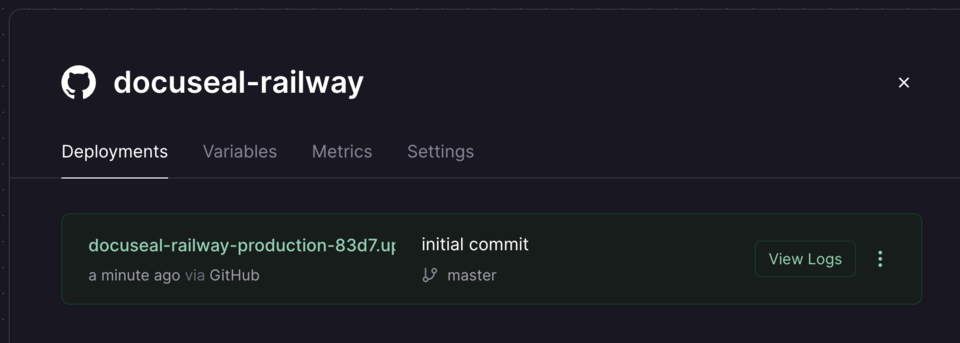
**Step 3: Select “Redeploy” from the last active commit drop-down menu**
Once you are in the “Deployment” tab, locate the last active commit drop-down menu. Click on it and choose the option labeled “Redeploy.”
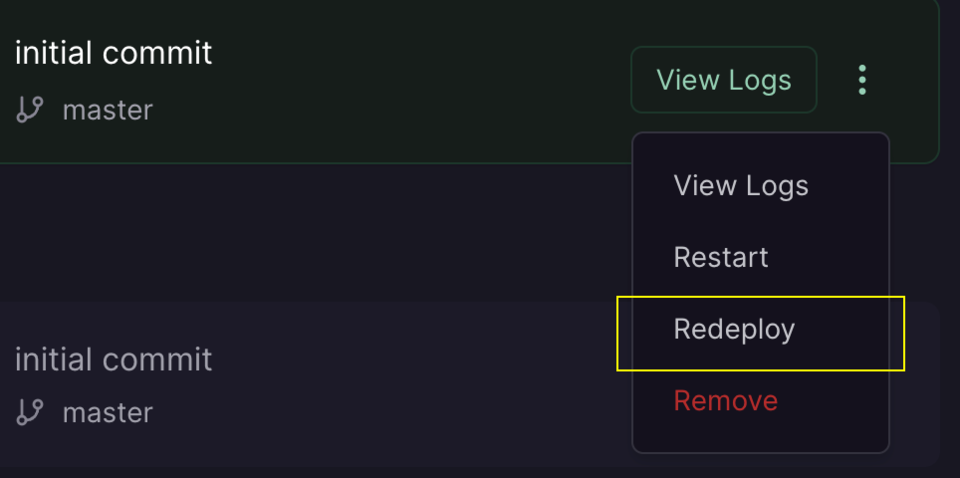
**Step 4: Wait for the deployment process to complete**
After selecting “Redeploy,” the deployment process will commence. Please be patient and wait for the process to complete. The duration of deployment may vary depending on the complexity of the application and the server’s performance.
Once the deployment process is finished, the DocuSeal instance will be successfully redeployed, and any changes in the last active commit will be applied to the application. You can now use the updated version as needed.
---
# Deploying DocuSeal on Azure web apps | DocuSeal Docs
Menu
Deploying DocuSeal on Azure web apps
====================================
Before you begin, ensure that you have an active Azure account. If you do not have one, you can create it on the [Azure website](https://azure.microsoft.com/)
. Although DocuSeal is open-source, you will still incur costs for using Azure services, such as PostgreSQL databases, servers, and file storage. The total cost will vary depending on your specific needs. However, DocuSeal operates efficiently even on smaller servers, so you can opt for the smallest server offering from Azure.
How to deploy DocuSeal on Azure?
--------------------------------
1. [Create a resource group](https://www.docuseal.com/docs/deploying-docuseal-on-azure-web-apps#create-a-resource-group)
2. [Create a PostgreSQL server](https://www.docuseal.com/docs/deploying-docuseal-on-azure-web-apps#create-a-postgresql-server)
3. [Create a web app](https://www.docuseal.com/docs/deploying-docuseal-on-azure-web-apps#create-a-web-app)
4. [Configure environment variables](https://www.docuseal.com/docs/deploying-docuseal-on-azure-web-apps#configure-environment-variables)
5. [Create file storage](https://www.docuseal.com/docs/deploying-docuseal-on-azure-web-apps#create-file-storage)
6. [Set up access to storage](https://www.docuseal.com/docs/deploying-docuseal-on-azure-web-apps#set-up-access-to-storage)
### Create a resource group
Before creating any resources, you need to establish a resource group. A resource group is a container that holds various resources you create on Azure, facilitating better interaction among them. To create a resource group, go to the [Azure website](https://portal.azure.com/)
, log into your account, and navigate to the **Resource groups** page. You can also locate this page using the search function.
1. On the **Resource groups** page, click the **Create** button.
2. This will open the resource group creation page.
3. Enter a name for your resource group. You can choose any name, but it should be unique and allow you to quickly identify resources associated with DocuSeal.
4. Select the region. Choose a region based on your location or the location of your target audience. 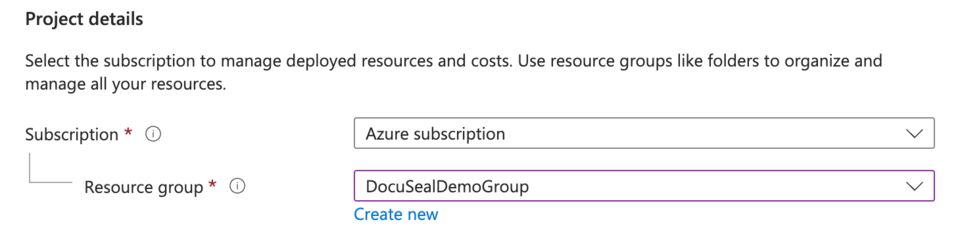
5. Click the **Review + create** button.
6. Review the information and then click the **Create** button.
### Create a PostgreSQL server
After creating the resource group, you need to set up a PostgreSQL server. This will serve as the database used by DocuSeal.
1. Navigate to the **Azure Database for PostgreSQL servers** page via the search function.
2. On the **Azure Database for PostgreSQL servers** page, click the **Create** button.
3. On the PostgreSQL server creation page, select the resource group you previously created.
4. Also, select the region. It is recommended that the region of the resource group and the PostgreSQL server be the same to optimize performance and reduce latency. 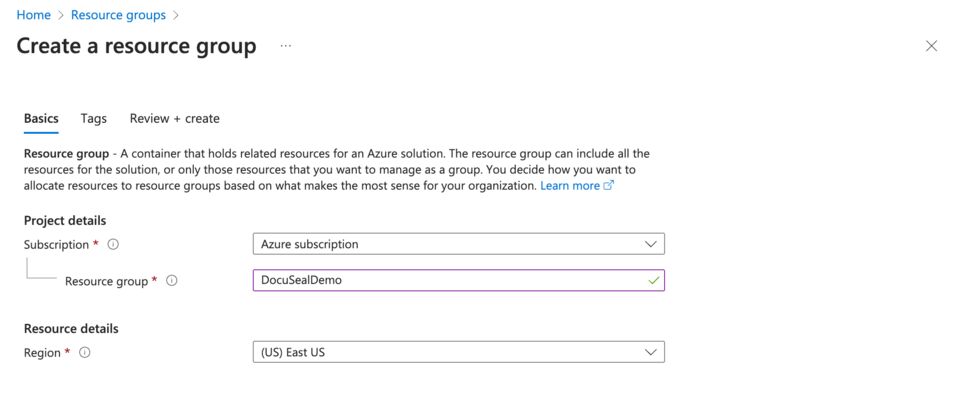
5. Select the version of PostgreSQL. It is recommended to choose the latest available version for better performance and security features.
6. Enter a name for the server. This can be any name, but it should be unique and clearly identifiable within the context of your project.
7. Then, choose the type of workload you intend to use. This decision depends on your specific needs, but keep in mind that it’s usually better to opt for a larger capacity rather than more power, as DocuSeal does not require high computing power. 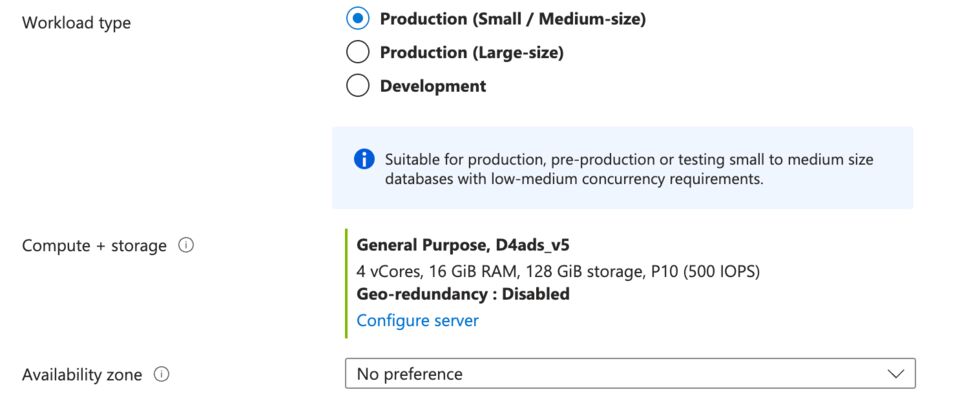
8. For authentication, select **“PostgreSQL authentication only”** if your company’s security policy allows the use of passwords. Otherwise, choose the option that applies to your company’s standards.
9. Enter a username and password. This will be the database administrator credentials (you can change this password later). 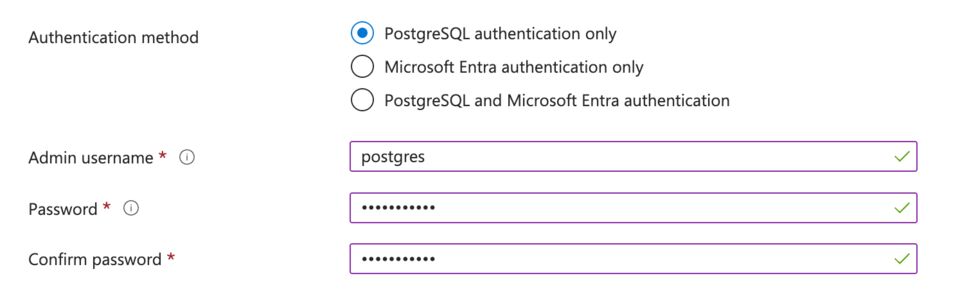
10. Click the **Review + create** button.
11. Review the details and click the **Create** button.
12. After successfully creating the PostgreSQL server, go to the PostgreSQL server page and navigate to the **Settings** - **Databases** tab.
13. You need to create a database. To do this, click the **Add** button. 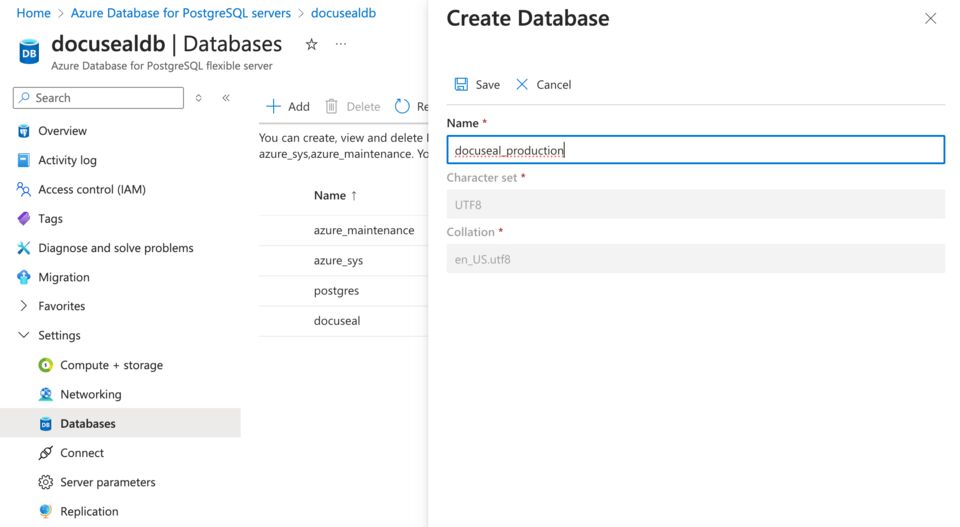
14. Enter the desired name for the database and click the **Save** button.
15. Now you need to configure access to the database. To do this, go to your PostgreSQL server page and navigate to the **Favorites** - **Networking** tab.
16. Check the box next to **Allow public access to this resource through the internet using a public IP address** and **Allow public access from any Azure service within Azure to this server**. Also, click on the link **\+ Add 0.0.0.0 - 255.255.255.255** to open access to the database from any IP address, but ensure it meets your security requirements and that you are using a strong, complex password for database access. 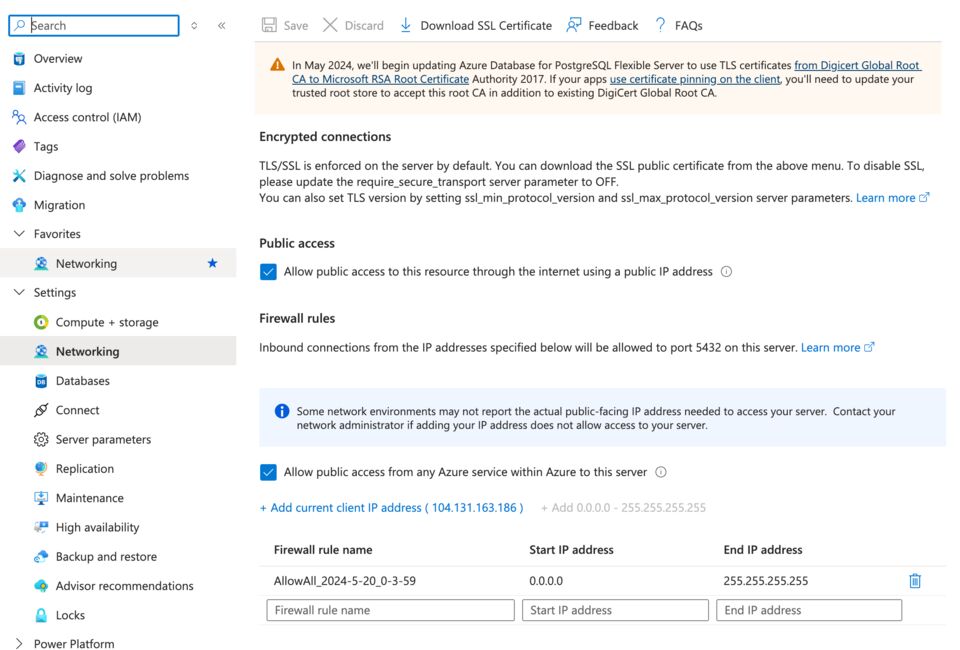
17. Click the **Save** button.
18. Done! You now have a PostgreSQL server and a database set up.
### Create a web app
Now you have everything you need to deploy a web application. We’ll use Azure Web Apps and Docker for this.
1. Go to the **App Services** page either through search or from the Azure homepage by selecting **Create a resource** and then find **Web App**.
2. Click the **Create** button.
3. On the web app creation page, select the resource group you created earlier.
4. Enter a name for the web app. It can be any name but must be unique (possibly even a unique set of characters).
5. For the **Publish** option, choose **“Container”** and select the **“Linux”** operating system.
6. Also, select the region. It is recommended that the region for the resource group and the web app be the same. 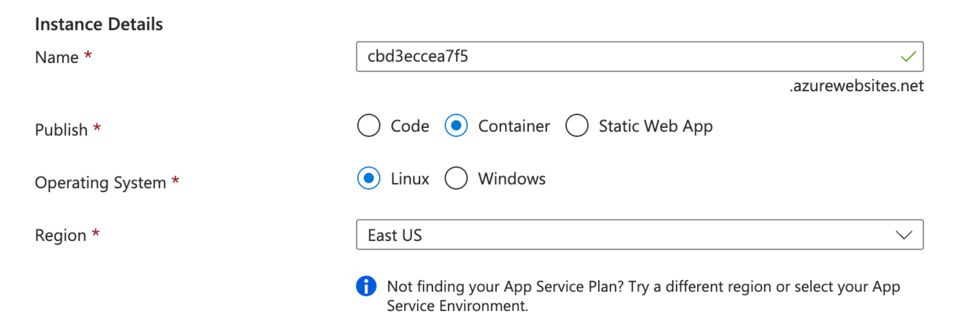
7. Click the **Next: Container** button.
8. In the opened tab, select **Docker Hub and other registries**.
9. Subsequently, an additional field called **Options** will appear where you should choose **“Single Container”**.
10. Choose **“Public”** for **Access type**.
11. Leave the **Server URL** unchanged.
12. Enter the name of the DocuSeal image for **Image and tag**:
docuseal/docuseal:latest
You can use any version of the image, but it is recommended to use the latest one. 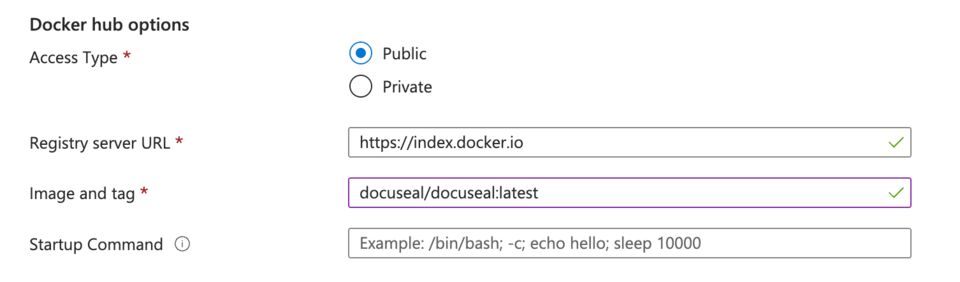
13. Click the **Review + create** button.
14. Review the information and click the **Create** button.
15. Wait for the web app to finish deploying.
### Configure environment variables
To ensure that DocuSeal operates on Azure, you need to configure just 2 environment variables - **DATABASE\_URL** and **SECRET\_KEY\_BASE**.
1. First, generate the **SECRET\_KEY\_BASE** using the command:
openssl rand -hex 64
Save this value, as you will use it later. Note that you can use any other method to generate this key.
2. After that, gather all the necessary information for connecting to the PostgreSQL database.
3. Go to your PostgreSQL server page. You can do this by searching for **Azure Database for PostgreSQL servers** and selecting your server. You can also find this page via the **Resource groups** page.
4. On the PostgreSQL server page, navigate to the **Settings** - **Connect** tab and in the database name selector, choose your database. 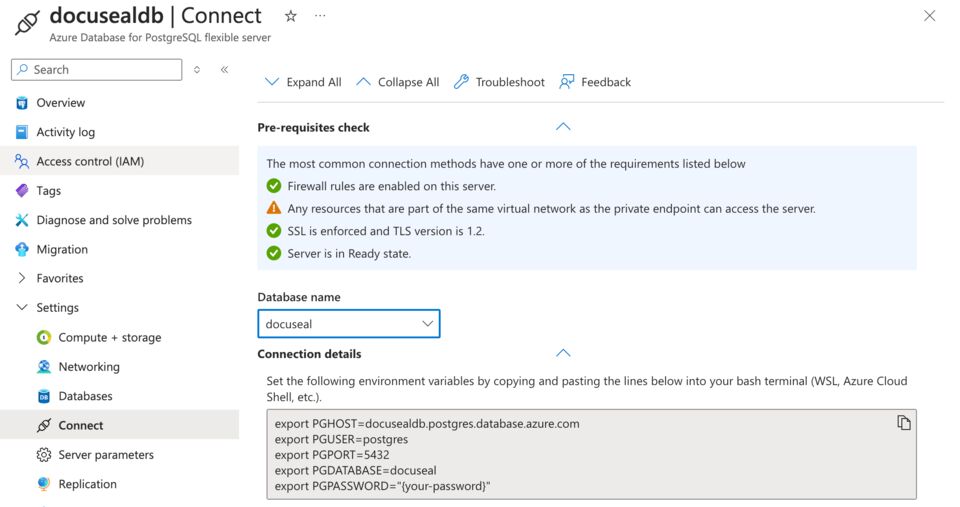
5. You will be provided with the connection details for the database, such as PGHOST, PGPORT, PGUSER, PGPASSWORD, and PGDATABASE. 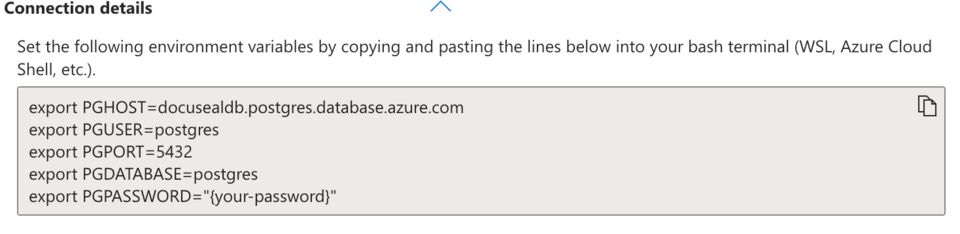
6. Once you have gathered all the data, you need to construct the connection URL for the database. The URL should be formatted as follows:
postgres://[PGUSER]:[PGPASSWORD]@[PGHOST]:[PGPORT]/[PGDATABASE]
As a result, you will obtain a URL that looks something like this:
postgres://ds_admin:123456789@docusealdb.postgres.database.azure.com:5432/docuseal
7. Save this URL, as you will need it later.
8. Navigate to your web app’s page.
9. In the left menu, select **Settings** - **Configuration**.
10. Click the **New application setting** button.
11. Enter the variable name **DATABASE\_URL** and input the value you previously constructed. 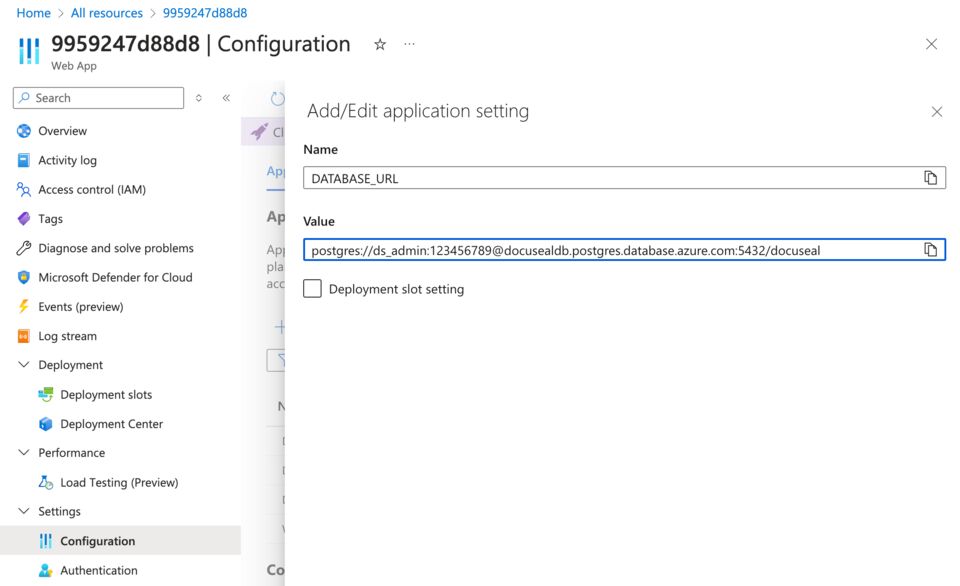
12. Click the **OK** button. After this, the new environment variable **DATABASE\_URL** will appear in the list of environment settings.
13. Click the **Save** button.
14. Similarly, create a new environment variable **SECRET\_KEY\_BASE** and enter the value you generated previously.
15. Navigate to the **Overview** page and click the **Restart** button to restart the web application.
16. Done! Your web application is now ready to operate.
### Create file storage
DocuSeal offers several methods for file storage, but since Azure has its own file storage service, you can utilize it. Here’s how to set it up:
1. Navigate to the **Storage accounts** page either through search or from the Azure homepage by selecting **Create a resource** and then finding **Storage account**.
2. On the storage account creation page, select the resource group to which your deployed DocuSeal and PostgreSQL server belong.
3. Enter a name for the storage account. It can be any name, but it must be unique. Save this name, as you will need it later.
4. Select the region. It is recommended that the region for the resource group and the storage account be the same to optimize performance and reduce latency. 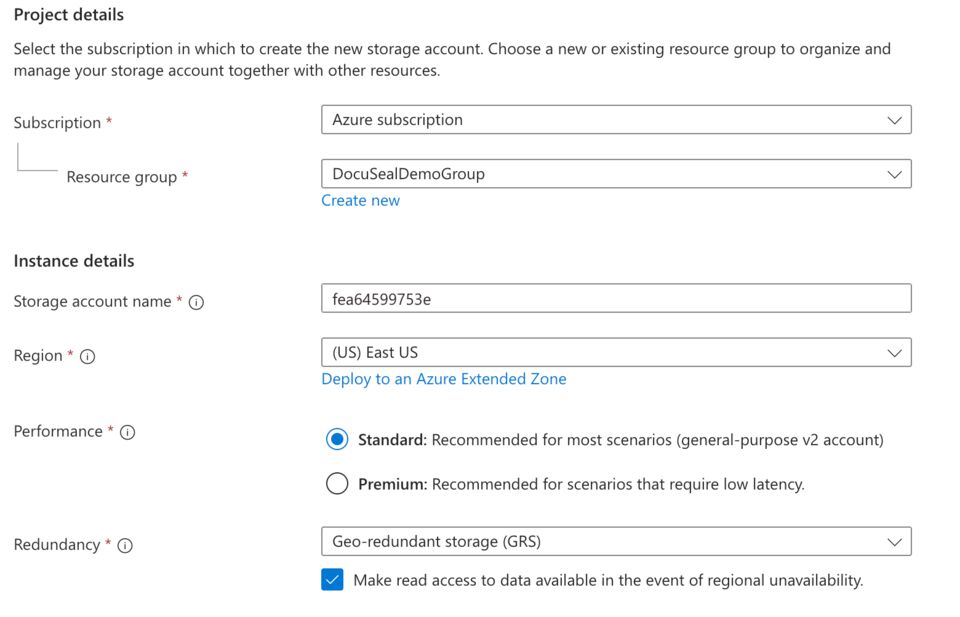
5. For the **Performance** option, select **Standard**.
6. Click the **Review + create** button.
7. Review the details and click the **Create** button.
8. Wait for the storage account to be created.
9. Once created, open the storage account page and navigate to the **Data storage** - **Containers** tab.
10. Click on **Container** and enter a name for the container. This can be any name, but it must be unique. Save this name, as you will need it later. 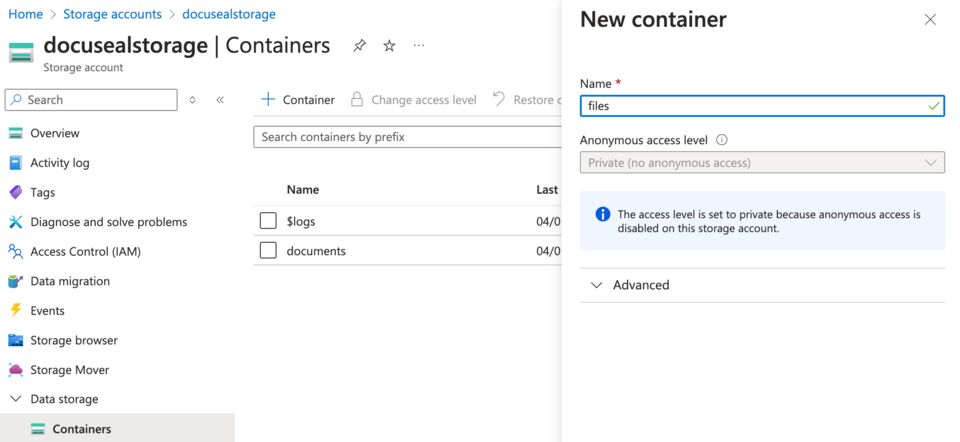
11. Click the **Create** button.
12. Now you have a file storage container that can be accessed from DocuSeal.
13. Next, you need to obtain the access key for this storage to enable DocuSeal to access it. To do this, go to the **Data storage** - **Access keys** tab in the storage account. Save this key, as you will need it later. 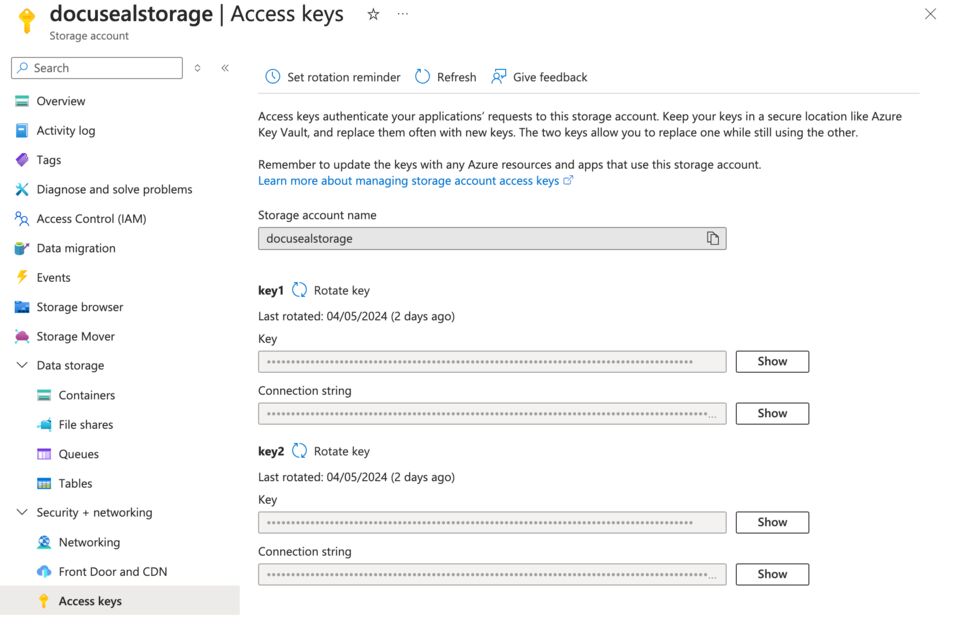
### Set up access to storage
1. Log in to DocuSeal as an administrator.
2. Navigate to the **Settings** - **Storage** page.
3. Select **Azure** under the **Storage** section.
4. Enter the storage account name, container name, and access key that you previously saved. 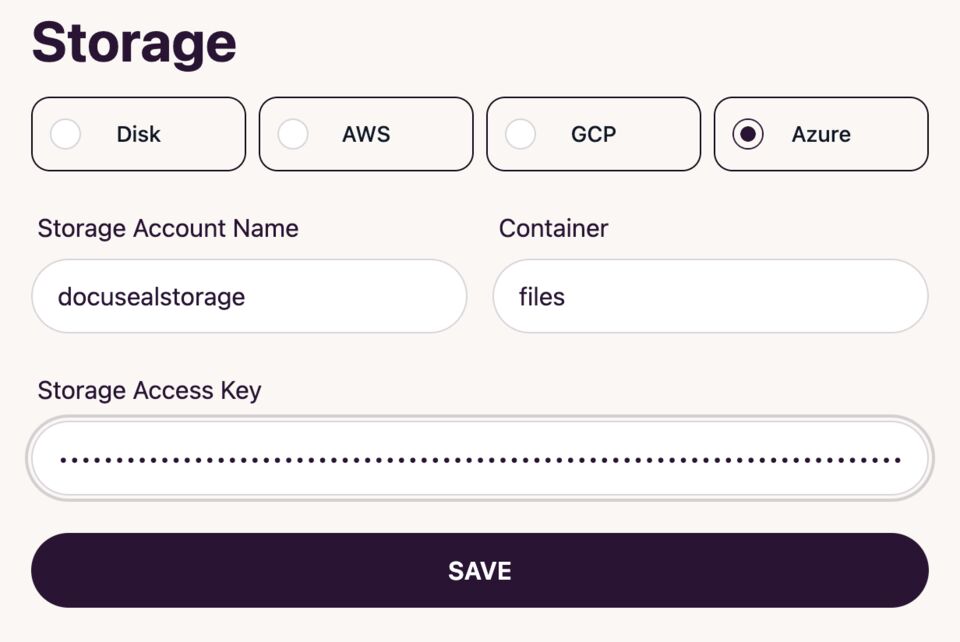
5. Click the **Save** button.
6. Done! DocuSeal can now store files in the Azure storage.
In this guide, we explored how to deploy DocuSeal on Azure, but it’s important to remember that this is just one of the deployment options available. Your company might use other methods to organize resources and access them.
---
# Deploying DocuSeal on Google Cloud Run | DocuSeal Docs
Menu
Deploying DocuSeal on Google Cloud Run
======================================
Before you start, make sure you have an active Google Cloud account. If you don’t have one yet, you can sign up on the [Google Cloud website](https://cloud.google.com/)
. Although DocuSeal is open-source, you will incur expenses for utilizing Google Cloud services, such as PostgreSQL databases, compute instances, and storage. The overall cost will depend on your specific requirements. However, DocuSeal is optimized to run efficiently on smaller instances, so you can choose the most affordable server option from Google Cloud.
How to deploy DocuSeal on Google Cloud Run?
-------------------------------------------
1. [Create a new project on Google Cloud Platform](https://www.docuseal.com/docs/deploying-docuseal-on-google-cloud-run#create-a-new-project-on-google-cloud-platform)
2. [Create a PostgreSQL server](https://www.docuseal.com/docs/deploying-docuseal-on-google-cloud-run#create-a-postgresql-server)
3. [Create a Cloud Run Service](https://www.docuseal.com/docs/deploying-docuseal-on-google-cloud-run#create-a-cloud-run-service)
4. [Create file storage](https://www.docuseal.com/docs/deploying-docuseal-on-google-cloud-run#create-file-storage)
5. [Set up access to storage](https://www.docuseal.com/docs/deploying-docuseal-on-google-cloud-run#set-up-access-to-storage)
### Create a new project on Google Cloud Platform
Before you begin, you need to create a new project on the Google Cloud platform. To do this, go to the [Google Cloud website](https://cloud.google.com/)
and sign in to your account. To create a new project, click on the **Console** button in the upper right corner of the screen and select **New Project**.
1. On the **New Project** page, enter the name of your project. You can choose any name, but it must be unique.
2. If the project should be part of an organization, select the appropriate organization in the **Organization** dropdown. 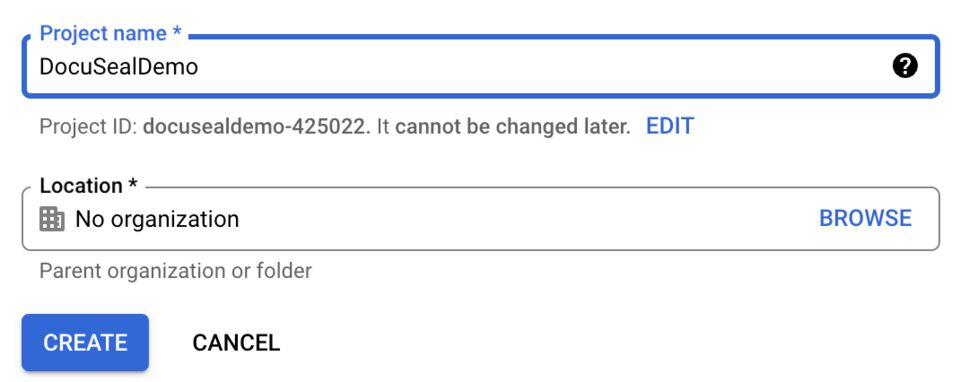
3. Click on the **Create** button to create a new project.
### Create a PostgreSQL server
After creating the resource group, you need to set up a PostgreSQL server. This will serve as the database used by DocuSeal.
1. Navigate to **SQL** in the **Databases** menu on the Google Cloud toolbar or use the search function.
2. Click on the **Create Instance** button to create a new PostgreSQL server.
3. Select PostgreSQL as the database type.
4. On the page that opens, enter the instance name and the password for the database administrator. Do not use the symbols **!, ‘, or “** in the password, as they may cause the application to malfunction.
5. Select the version of PostgreSQL. It is recommended to choose the latest available version for better performance and security features. 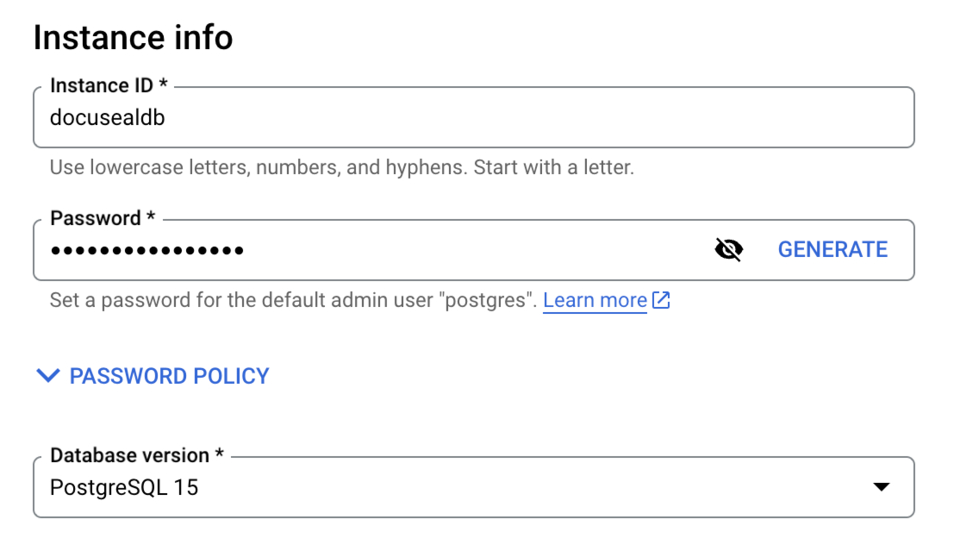
6. Next, choose the Cloud SQL edition. We recommend selecting the cheaper option (e.g., Enterprise) as DocuSeal operates efficiently on smaller servers.
7. Select a region for the server location. We recommend choosing a region closest to your users’ location.
8. Go to the **Storage** tab and select the disk size for the database. We recommend using a small server to save costs but enabling automatic disk space increase. 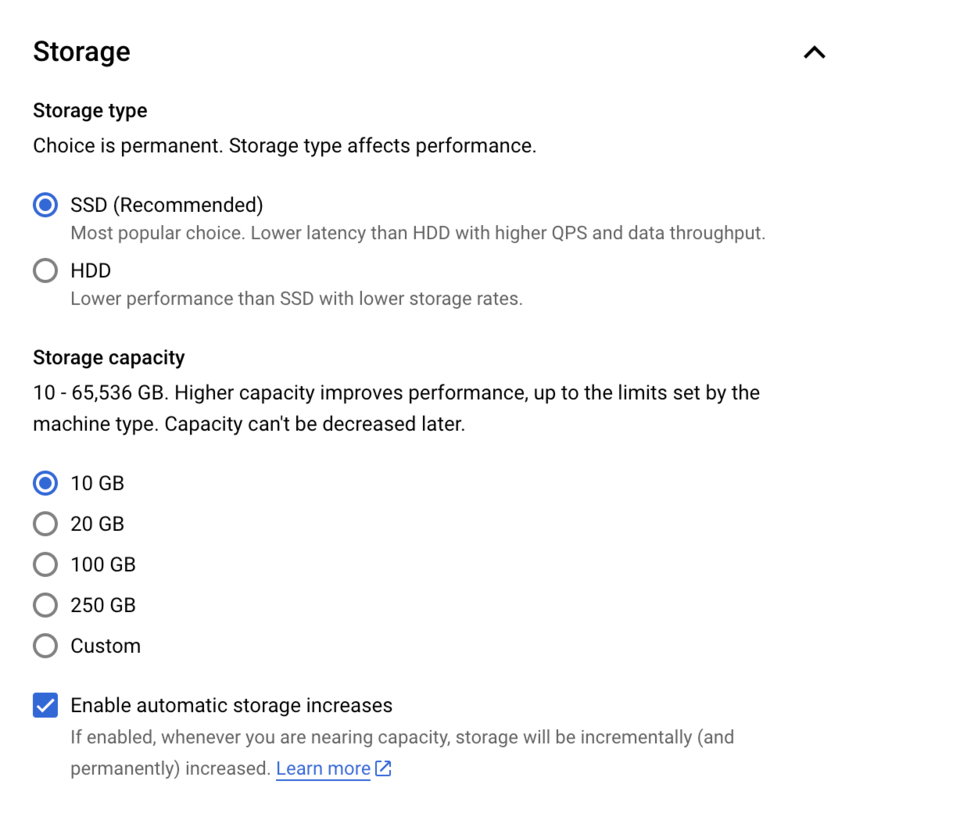
9. Go to the **Connections** tab and select **Public IP** for internet access to the database. 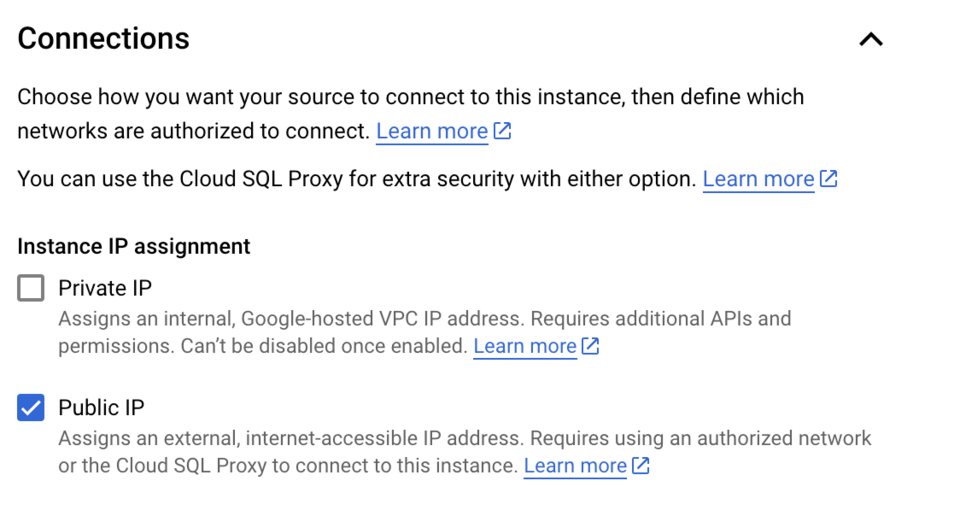
10. Click on the **Add a network** button and enter the following value for **Network**:
0.0.0.0/0
Note: If your organization’s security policy does not allow internet access to the database, skip this step. In this case, you will need to enter the IP address of your server (which you will create later) or network in this field. 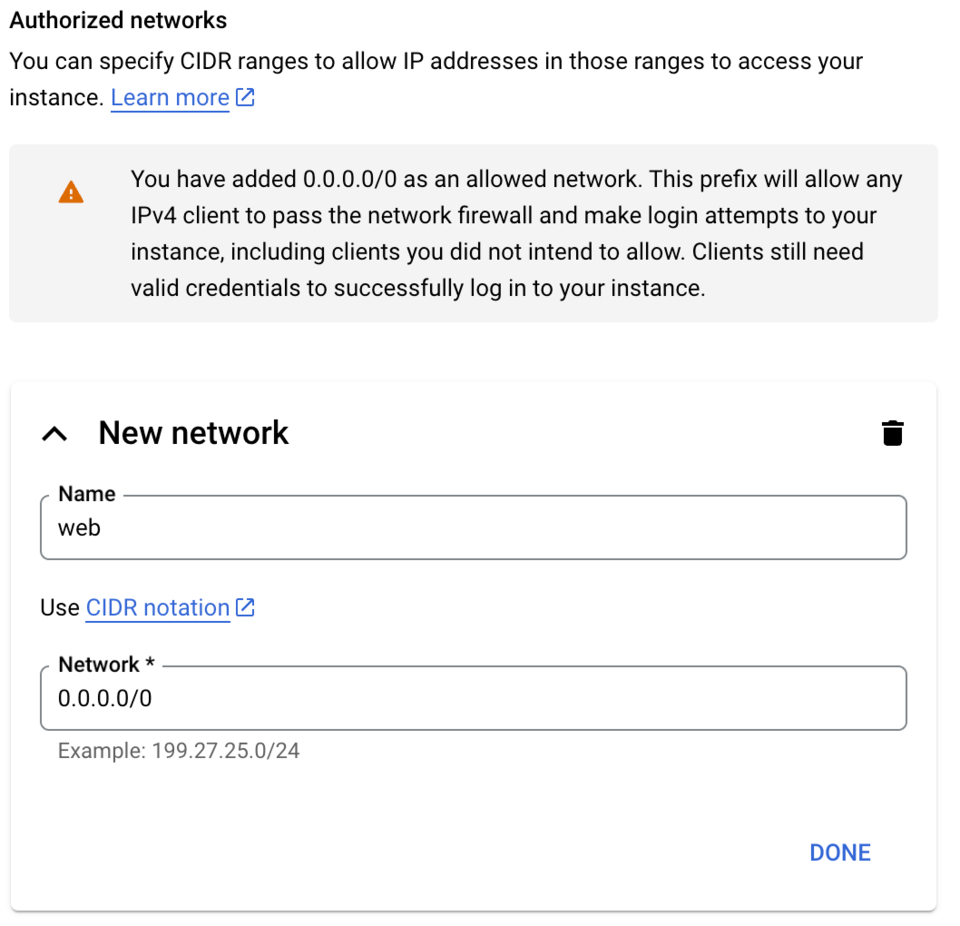
11. If needed, select additional options for the database and click on the **Create Instance** button to create the PostgreSQL server.
12. Now you need to create a database for DocuSeal. Open the page of the instance you created and go to the **Databases** tab.
13. On the opened page, click on the **Create database** button and enter the desired name for the database. 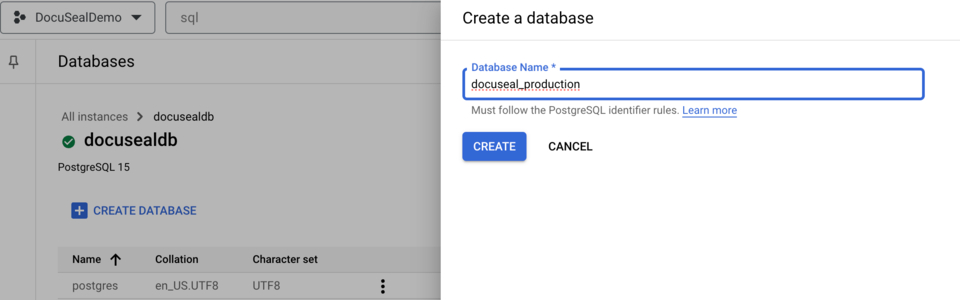
14. Now you need to create the database connection string. To do this, go to the **Overview** tab and copy the value of **Public IP address**.
15. Next, you need to create the database connection string. Use the value of **Public IP address** which can be found on the **Connections** or **Overview** page of the PostgreSQL instance.
16. Form the database connection string in the format:
postgresql://postgres:password@ip:5432/database
As a result, you will obtain a URL that looks something like this:
postgresql://postgres:123456789@35.193.16.230:5432/docuseal_production
* **postgres** - this is the database username (default is **postgres**). You can create another user on the **Users** page of the PostgreSQL instance.
* **password** - this is the database user’s password that you specified when creating the PostgreSQL server.
* **ip** - this is the IP address of the PostgreSQL server which you found on the **Connections** or **Overview** page.
* **database** - this is the name of the database you created for DocuSeal.
17. Save the formed database connection string, as you will need it later.
### Create a Cloud Run Service
1. Navigate to **Cloud Run** on the Google Cloud toolbar or use the search function.
2. Click on the **Create Service** button to create a new Cloud Run service.
3. Select **Deploy one revision from an existing container image**.
4. Enter the Container image URL:
docker.io/docuseal/docuseal:latest
You can use any version of the image, but it is recommended to use the latest one.
_To deploy the Pro Docker image, it is required to use a [Remote Repository](https://cloud.google.com/artifact-registry/docs/repositories/remote-repo)
._
5. Enter the service name. It can be any name, but it must be unique.
6. Select a region for the service location. We recommend choosing a region closest to your users’ location. 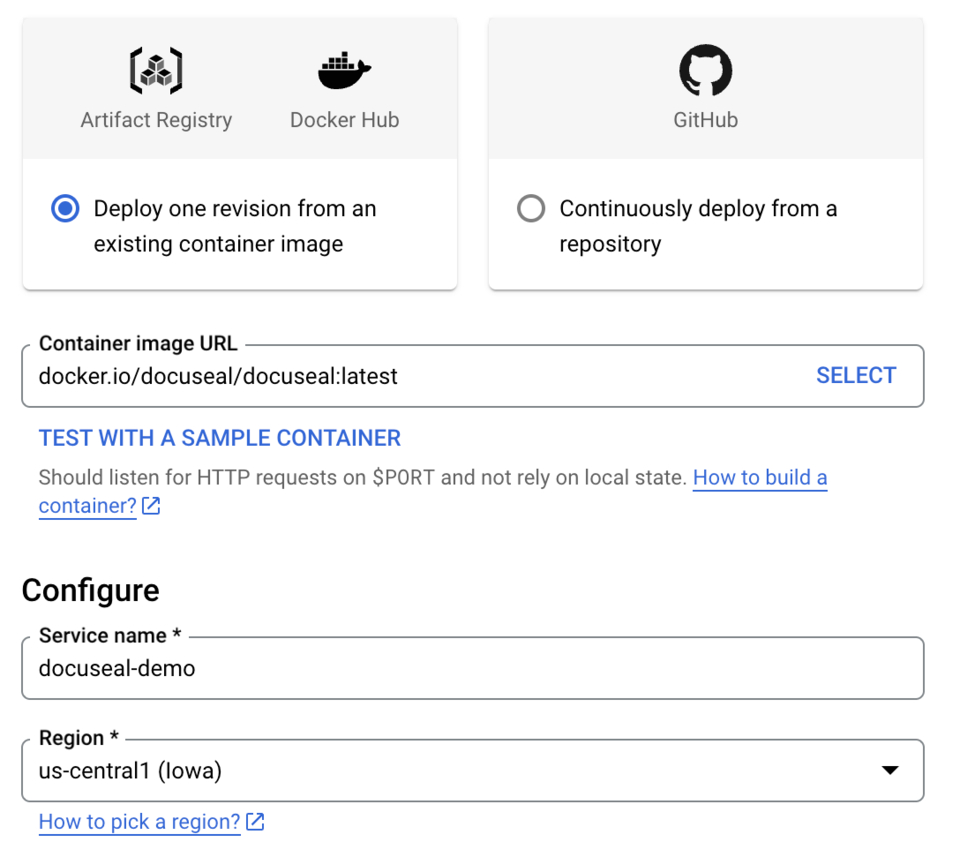
7. Select **Allow unauthenticated invocations** for Authentication to allow access to the service without authorization.
8. After this, select **All** for Ingress control to allow access to the service from the internet.
9. Now you need to configure the port and environment variables for the service. To do this, go to **Container(s), Volumes, Networking, Security** and select the **Container(s)** tab.
10. In the opened tab, enter 3000 for **Container port**. This is the port on which DocuSeal operates.
11. Go to the **Variables & Secrets** tab. You need to set up two environment variables - **DATABASE\_URL** and **SECRET\_KEY\_BASE**.
12. First, let’s generate **SECRET\_KEY\_BASE**. Open the console and enter the following command:
openssl rand -hex 64
Copy the generated key and paste it into the **SECRET\_KEY\_BASE** environment variable. Note that you can use any other method to generate the key.
13. Next, paste the database connection string you generated earlier into the **DATABASE\_URL** environment variable. 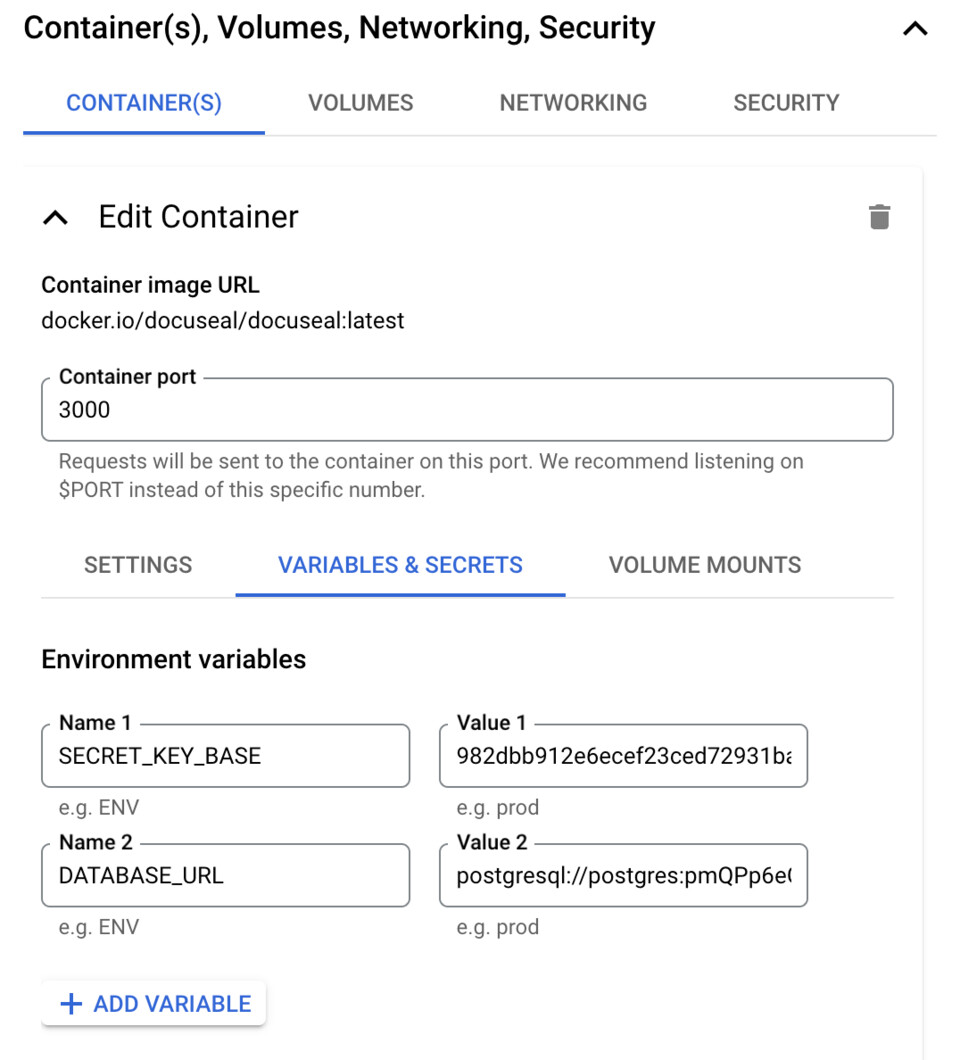
14. Click on the **Create** button to create the Cloud Run service.
### Create file storage
DocuSeal offers several methods for file storage, but since Google Cloud has its own file storage service, you can utilize it. Here’s how to set it up:
1. Navigate to the **Cloud Storage** section on the Google Cloud Platform dashboard or use the search bar.
2. Click on the **Create Bucket** button to create a new storage bucket.
3. Enter the name of the bucket. You can choose any name, but it must be unique.
4. If needed, select a region for file storage. We recommend choosing a region closest to your users’ location. 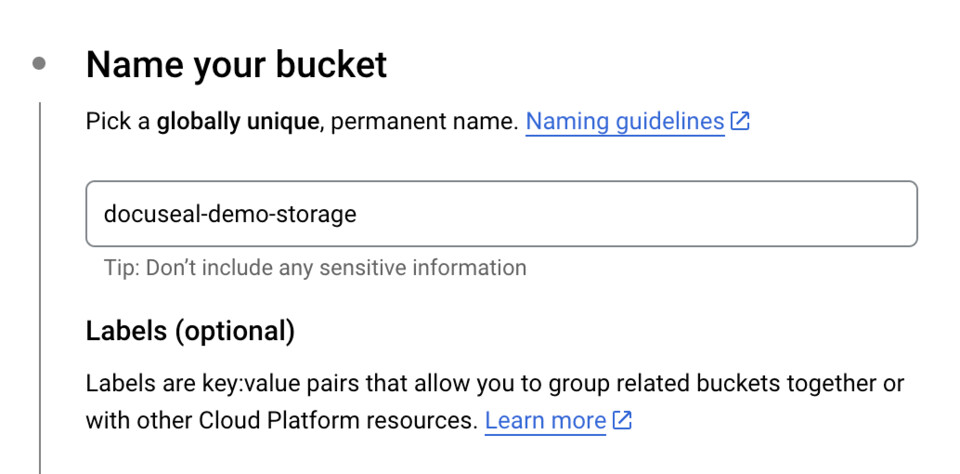
5. Click on the **Create** button to create a new bucket.
6. Now you need to configure access to the bucket. To do this, go to **APIs & Services** and select **Credentials**.
7. Click on the **Create credentials** button and select the required service account. If it does not exist, create a new service account.
8. On the service account page, go to the **Keys** tab and click on the **Add Key** button to create a new access key.
9. In the window that appears, select **JSON** as the key format and click on the **Create** button to create a new access key. 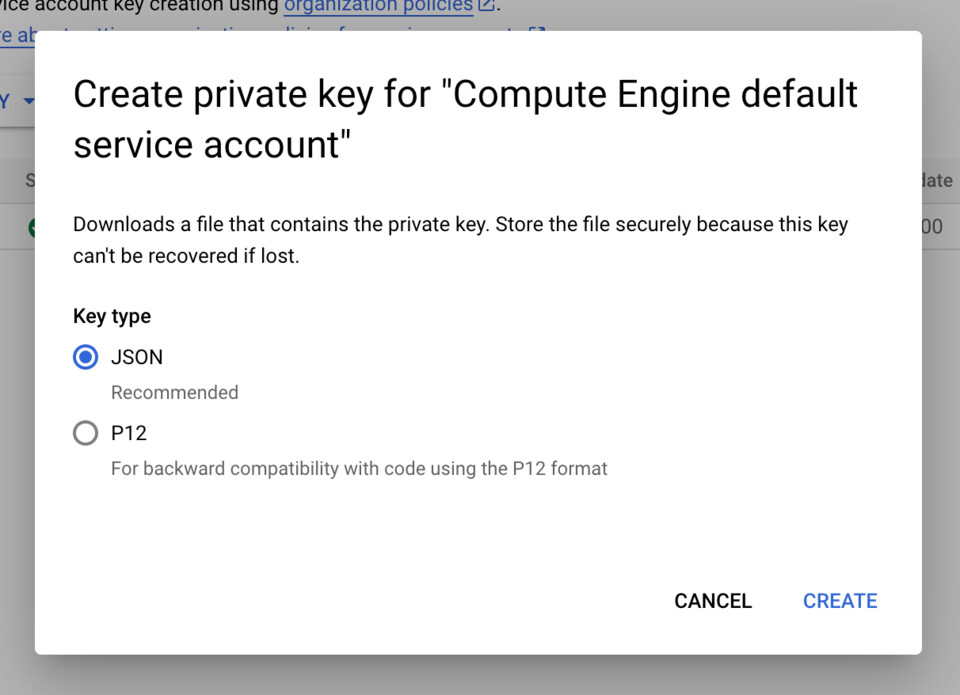
10. After this, a file with the access key will be downloaded. Save it, as you will need it later.
### Set up access to storage
1. Log in to DocuSeal as an administrator.
2. Navigate to the **Settings** - **Storage** page.
3. Select **GCP** under the **Storage** section.
4. Enter the project id, bucket name, and credentials that you previously created.
* Project ID - the ID of the project you created on Google Cloud Platform.
* Bucket name - the name of the bucket you created on Google Cloud Storage.
* Credentials - the secret key you generated for the bucket. 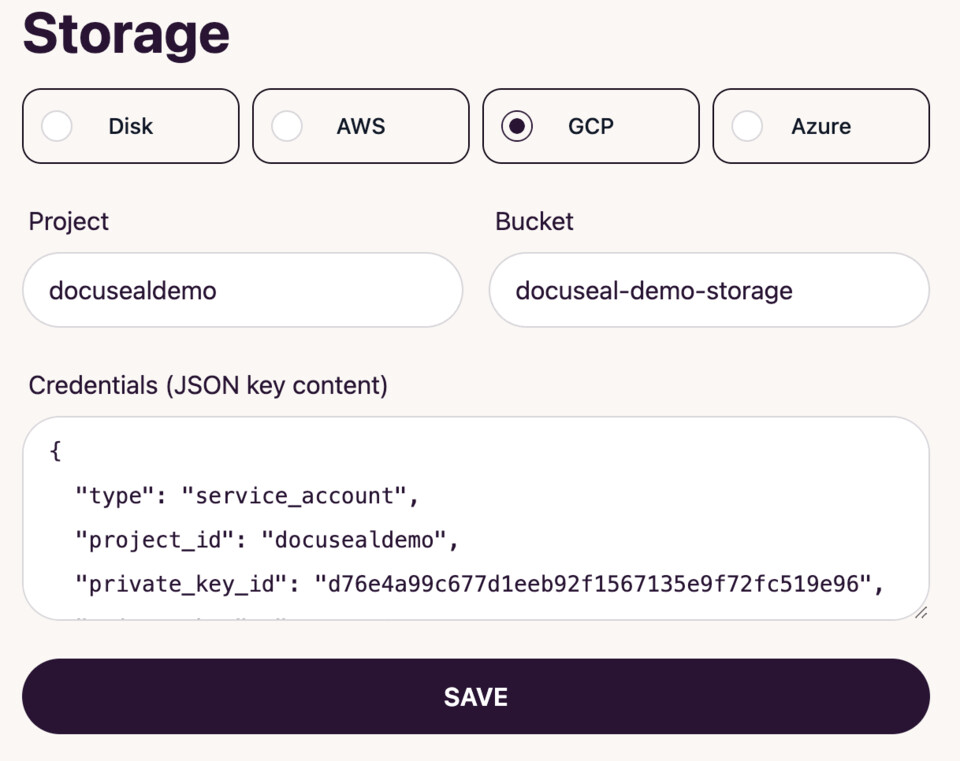
5. Click the **Save** button.
6. Done! DocuSeal can now store files in the Google Cloud storage.
In this guide, we explored how to deploy DocuSeal on Google Cloud Run, but it’s important to remember that this is just one of the deployment options available. Your company might use other methods to organize resources and access them.
---
# Embedded Signing Form | DocuSeal Docs
Menu
Copy as Markdown Copy as Markdown Copied
Copy as Markdown Copy as Markdown Copied
Copy as Markdown Copy as Markdown Copied
Copy as Markdown Copy as Markdown Copied
[Signing Form](https://www.docuseal.com/docs/embedded/form)
[Form Builder](https://www.docuseal.com/docs/embedded/builder)
This component enables seamless integration of a signing form within any section of your website or application. It offers compatibility with **JS+HTML**, **Vue**, **Angular** and **React**, providing you with versatile options for integration.
* JavaScript
* React
* Vue
* Angular Copy Copied
[View LIVE DEMO](https://www.docuseal.com/docs/embedded/form#live_example)
### Related Guides
[Embed document signing into web app with JavaScript](https://www.docuseal.com/guides/embed-document-signing-into-web-app-with-javascript)
### Attributes
data-src String required
Public URL of the document signing form. There are two types of URLs:
* `/d/{slug}` - template form signing URL can be copied from the template page in the admin dashboard. Also template "slug" key can be obtained via the `/templates` API.
* `/s/{slug}` - individual signer URL. Signer "slug" key can be obtained via the `/submissions` API which is used to initiate signature requests for a template form with recipients.
data-email String
Email address of the signer. Additional email form step will be displayed if the email attribute is not specified.
data-name String
Name of the signer.
data-role String
The role name or title of the signer.
Example: First Party
data-token String
JSON Web Token (JWT HS256) with a payload signed using the API key. **JWT can be generated only on the backend.**.
slug String required
Template or Submitter slug. When Submitter slug is used no need to pass additional email param.
email String
Email address of the signer. Additional email form step will be displayed if the email attribute is not specified with Template slug.
external\_id String
Your application-specific unique string key to identify signer within your app.
preview Boolean
Show form in preview mode without ability to submit it.
Default: false
Show All
data-preview Boolean
Show form in preview mode without ability to submit it. Completed documents embedded in preview mode require \`data-token\` authentication.
Default: false
data-expand Boolean
Expand form on open.
Default: true
data-minimize Boolean
Set to \`true\` to always minimize form fields. Requires to click on the field to expand the form.
Default: false
data-order-as-on-page Boolean
Order form fields based on their position on the pages.
Default: false
data-logo String
Public logo image URL to use in the signing form.
data-language String
UI language: en, es, it, de, fr, nl, pl, uk, cs, pt, he, ar, kr, ja languages are available. By default the form is displayed in the user browser language automatically.
data-i18n String
JSON encoded string that contains i18n keys to replace the default UI text with custom values. See [submission\_form/i18n.js](https://github.com/docusealco/docuseal/blob/master/app/javascript/submission_form/i18n.js)
for available i18n keys.
Default: {}
data-go-to-last Boolean
Navigate to the last unfinished step.
Default: true
data-skip-fields Boolean
Allow skipping form fields.
Default: false
data-autoscroll-fields Boolean
Set \`false\` to disable auto-scrolling to the next document field.
Default: true
data-send-copy-email Boolean
Set \`false\` to disable automatic email sending with signed documents to the signers. Emails with signed documents are sent to the signers by default.
Default: true
data-with-title Boolean
Set \`false\` to remove the document title from the form.
Default: true
data-with-decline Boolean
Set \`true\` to display the decline button in the form.
Default: false
data-with-field-names Boolean
Set \`false\` to hide field name. Hiding field names can be useful for when they are not in the human readable format. Field names are displayed by default.
Default: true
data-with-field-placeholder Boolean
Set \`true\` to display field name placeholders instead of the field type icons.
Default: false
data-with-download-button Boolean
Set \`false\` to remove the signed document download button from the completed form card.
Default: true
data-with-send-copy-button Boolean
Set \`false\` to remove the signed document send email button from the completed form card.
Default: true
data-with-complete-button Boolean
Set \`true\` to display the complete button in the form header.
Default: false
data-only-required-fields Boolean
Set to \`true\` to display only required fields in the step-by-step form, hiding all optional fields.
Default: false
data-allow-to-resubmit Boolean
Set \`false\` to disallow users to re-submit the form.
Default: true
data-allow-typed-signature Boolean
Set \`false\` to disallow users to type their signature.
Default: true
data-signature String
Allows pre-filling signature fields. The value can be a base64 encoded image string, a public URL to an image, or plain text that will be rendered as a typed signature using a standard font.
data-remember-signature Boolean
Allows to specify whether the signature should be remembered for future use. Remembered signatures are stored in the signer's browser local storage and can be automatically reused to prefill signature fields in new forms for the signer when the value is set to \`true\`.
data-reuse-signature Boolean
Set \`false\` to not reuse the signature in the second signature field and collect a new one.
Default: true
data-background-color String
Form background color. Only HEX color codes are supported.
Example: #d9d9d9
data-values Object
Pre-assigned values for form fields.
Example: {"First Name":"Jon","Last Name":"Doe"}
data-external-id String
Your application-specific unique string key to identify signer within your app.
data-metadata Object
Signer metadata Object in JSON format.
Example: {"customData":"customValue"}
data-readonly-fields String
Comma separated read-only field names
Example: First Name,Last Name
data-completed-redirect-url String
URL to redirect to after the submission completion.
Example: https://docuseal.com/success
data-completed-message-title String
Message title displayed after the form completion.
Example: Documents have been completed
data-completed-message-body String
Message body displayed after the form completion.
Example: If you have any questions, please contact us.
data-completed-button-title String
Button title displayed after the form completion.
Example: Go Back
data-completed-button-url String
URL of the button displayed after the form completion.
Example: https://example.com
data-custom-css String
Custom CSS styles to be applied to the form.
Example: #submit\_form\_button { background-color: #d9d9d9; }
### Callbacks
init Event
Custom event to be triggered on initializing the form component.
Example: document.querySelector('docuseal-form').addEventListener('init', () => console.log('init'))
load Event
Custom event to be triggered on loading the form data.
Example: document.querySelector('docuseal-form').addEventListener('load', (e) => e.detail)
completed Event
Custom event to be triggered after form completion.
Example: document.querySelector('docuseal-form').addEventListener('completed', (e) => e.detail)
declined Event
Custom event to be triggered after form decline.
Example: document.querySelector('docuseal-form').addEventListener('declined', (e) => e.detail) Copy Copied
import React from "react"
import { DocusealForm } from '@docuseal/react'
export function App() {
return (
console.log(data)}
/>
);
}
[View LIVE DEMO](https://www.docuseal.com/docs/embedded/form#live_example)
### Related Guides
[Embed document signing into React app](https://www.docuseal.com/guides/embed-document-signing-into-react-app)
[Embed document signing into React Native app](https://www.docuseal.com/guides/embed-document-signing-into-react-native-app)
### Attributes
src String required
Public URL of the document signing form. There are two types of URLs:
* `/d/{slug}` - template form signing URL can be copied from the template page in the admin dashboard. Also template "slug" key can be obtained via the `/templates` API.
* `/s/{slug}` - individual signer URL. Signer "slug" key can be obtained via the `/submissions` API which is used to initiate signature requests for a template form with recipients.
email String
Email address of the signer. Additional email form step will be displayed if the email attribute is not specified.
name String
Name of the signer.
role String
The role name or title of the signer.
Example: First Party
token String
JSON Web Token (JWT HS256) with a payload signed using the API key. **JWT can be generated only on the backend.**.
slug String required
Template or Submitter slug. When Submitter slug is used no need to pass additional email param.
email String
Email address of the signer. Additional email form step will be displayed if the email attribute is not specified with Template slug.
external\_id String
Your application-specific unique string key to identify signer within your app.
preview Boolean
Show form in preview mode without ability to submit it.
Default: false
Show All
preview Boolean
Show form in preview mode without ability to submit it. Completed documents embedded in preview mode require \`token\` authentication.
Default: false
expand Boolean
Expand form on open.
Default: true
minimize Boolean
Set to \`true\` to always minimize form fields. Requires to click on the field to expand the form.
Default: false
orderAsOnPage Boolean
Order form fields based on their position on the pages.
Default: false
logo String
Public logo image URL to use in the signing form.
language String
UI language: en, es, it, de, fr, nl, pl, uk, cs, pt, he, ar, kr, ja languages are available. By default the form is displayed in the user browser language automatically.
i18n Object
Object that contains i18n keys to replace the default UI text with custom values. See [submission\_form/i18n.js](https://github.com/docusealco/docuseal/blob/master/app/javascript/submission_form/i18n.js)
for available i18n keys.
Default: {}
goToLast Boolean
Navigate to the last unfinished step.
Default: true
withFieldNames Boolean
Set \`false\` to hide field name. Hiding field names can be useful for when they are not in the human readable format. Field names are displayed by default.
Default: true
withFieldPlaceholder Boolean
Set \`true\` to display field name placeholders instead of the field type icons.
Default: false
skipFields Boolean
Allow skipping form fields.
Default: false
autoscrollFields Boolean
Set \`false\` to disable auto-scrolling to the next document field.
Default: true
sendCopyEmail Boolean
Set \`false\` to disable automatic email sending with signed documents to the signers. Emails with signed documents are sent to the signers by default.
backgroundColor String
Form background color. Only HEX color codes are supported.
Example: #d9d9d9
completedRedirectUrl String
URL to redirect to after the submission completion.
Example: https://docuseal.com/success
completedMessage Object
Message displayed after the form completion.
title String
Message title.
Example: Documents have been signed!
body String
Message content.
Example: If you have any questions, please contact us.
completedButton Object
Customizable button after form completion.
title String required
Button label.
Example: Go Back
url String required
Button link. Only absolute URLs are supported.
Example: https://example.com
withTitle Boolean
Set \`false\` to remove the document title from the form.
Default: true
withDecline Boolean
Set \`true\` to display the decline button in the form.
Default: false
withDownloadButton Boolean
Set \`false\` to remove the signed document download button from the completed form card.
Default: true
withSendCopyButton Boolean
Set \`false\` to remove the signed document send email button from the completed form card.
Default: true
withCompleteButton Boolean
Set \`true\` to display the complete button in the form header.
Default: false
onlyRequiredFields Boolean
Set to \`true\` to display only required fields in the step-by-step form, hiding all optional fields.
Default: false
allowToResubmit Boolean
Set \`false\` to disallow user to re-submit the form.
Default: true
allowTypedSignature Boolean
Set \`false\` to disallow users to type their signature.
Default: true
signature String
Allows pre-filling signature fields. The value can be a base64 encoded image string, a public URL to an image, or plain text that will be rendered as a typed signature using a standard font.
rememberSignature Boolean
Allows to specify whether the signature should be remembered for future use. Remembered signatures are stored in the signer's browser local storage and can be automatically reused to prefill signature fields in new forms for the signer when the value is set to \`true\`.
reuseSignature Boolean
Set \`false\` to not reuse the signature in the second signature field and collect a new one.
Default: true
values Object
Pre-assigned values for form fields.
Example: { 'First Name': 'Jon', 'Last Name': 'Doe' }
externalId String
Your application-specific unique string key to identify signer within your app.
metadata Object
Metadata object with additional signer information.
Example: { customData: 'custom value' }
readonlyFields Array
List of read-only fields.
Example: \['First Name','Last Name'\]
customCss String
Custom CSS styles to be applied to the form.
Example: #submit\_form\_button { background-color: #d9d9d9; }
### Callbacks
onInit Function
Function to be called on initializing the form component.
Example: () => { console.log("Loaded") }
onLoad Function
Function to be called on loading the form data.
Example: (data) => { console.log(data) }
onComplete Function
Function to be called after the form completion.
Example: (data) => { console.log(data) }
onDecline Function
Function to be called after the form decline.
Example: (data) => { console.log(data) } Copy Copied
[View LIVE DEMO](https://www.docuseal.com/docs/embedded/form#live_example)
### Related Guides
[Embed document signing into Vue app](https://www.docuseal.com/guides/embed-document-signing-into-vue-app)
### Attributes
src String required
Public URL of the document signing form. There are two types of URLs:
* `/d/{slug}` - template form signing URL can be copied from the template page in the admin dashboard. Also template "slug" key can be obtained via the `/templates` API.
* `/s/{slug}` - individual signer URL. Signer "slug" key can be obtained via the `/submissions` API which is used to initiate signature requests for a template form with recipients.
email String
Email address of the signer. Additional email form step will be displayed if the email attribute is not specified.
name String
Name of the signer.
role String
The role name or title of the signer.
Example: First Party
token String
JSON Web Token (JWT HS256) with a payload signed using the API key. **JWT can be generated only on the backend.**.
slug String required
Template or Submitter slug. When Submitter slug is used no need to pass additional email param.
email String
Email address of the signer. Additional email form step will be displayed if the email attribute is not specified with Template slug.
external\_id String
Your application-specific unique string key to identify signer within your app.
preview Boolean
Show form in preview mode without ability to submit it.
Default: false
Show All
preview Boolean
Show form in preview mode without ability to submit it. Completed documents embedded in preview mode require \`data-token\` authentication.
Default: false
expand Boolean
Expand form on open.
Default: true
minimize Boolean
Set to \`true\` to always minimize form fields. Requires to click on the field to expand the form.
Default: false
order-as-on-page Boolean
Order form fields based on their position on the pages.
Default: false
logo String
Public logo image URL to use in the signing form.
language String
UI language: en, es, it, de, fr, nl, pl, uk, cs, pt, he, ar, kr, ja languages are available. By default the form is displayed in the user browser language automatically.
i18n Object
Object that contains i18n keys to replace the default UI text with custom values. See [submission\_form/i18n.js](https://github.com/docusealco/docuseal/blob/master/app/javascript/submission_form/i18n.js)
for available i18n keys.
Default: {}
go-to-last Boolean
Navigate to the last unfinished step.
Default: true
skip-fields Boolean
Allow skipping form fields.
Default: false
autoscroll-fields Boolean
Set \`false\` to disable auto-scrolling to the next document field.
Default: true
with-field-names Boolean
Set \`false\` to hide field name. Hiding field names can be useful for when they are not in the human readable format. Field names are displayed by default.
Default: true
with-field-placeholder Boolean
Set \`true\` to display field name placeholders instead of the field type icons.
Default: false
send-copy-email Boolean
Set \`false\` to disable automatic email sending with signed documents to the signers. Emails with signed documents are sent to the signers by default.
Default: true
background-color String
Form background color. Only HEX color codes are supported.
Example: #d9d9d9
with-title Boolean
Set \`false\` to remove the document title from the form.
Default: true
with-decline Boolean
Set \`true\` to display the decline button in the form.
Default: false
with-download-button Boolean
Set \`false\` to remove the signed document download button from the completed form card.
Default: true
with-send-copy-button Boolean
Set \`false\` to remove the signed document send email button from the completed form card.
Default: true
with-complete-button Boolean
Set \`true\` to display the complete button in the form header.
Default: false
only-required-fields Boolean
Set to \`true\` to display only required fields in the step-by-step form, hiding all optional fields.
Default: false
allow-to-resubmit Boolean
Set \`false\` to disallow user to re-submit the form.
Default: true
signature String
Allows pre-filling signature fields. The value can be a base64 encoded image string, a public URL to an image, or plain text that will be rendered as a typed signature using a standard font.
remember-signature Boolean
Allows to specify whether the signature should be remembered for future use. Remembered signatures are stored in the signer's browser local storage and can be automatically reused to prefill signature fields in new forms for the signer when the value is set to \`true\`.
reuse-signature Boolean
Set \`false\` to not reuse the signature in the second signature field and collect a new one.
Default: true
allow-typed-signature Boolean
Set \`false\` to disallow users to type their signature.
Default: true
completed-redirect-url String
URL to redirect to after the submission completion.
Example: https://docuseal.com/success
completed-message Object
Message displayed after the form completion.
title String
Message title.
Example: Documents have been signed!
body String
Message content.
Example: If you have any questions, please contact us.
completed-button Object
Customizable button after form completion.
title String required
Button label.
Example: Go Back
url String required
Button link. Only absolute URLs are supported.
Example: https://example.com
values Object
Pre-assigned values for form fields.
Example: { 'First Name': 'Jon', 'Last Name': 'Doe' }
external-id String
Your application-specific unique string key to identify signer within your app.
metadata Object
Metadata object with additional signer information.
Example: { customData: 'custom value' }
readonly-fields Array
List of read-only fields.
Example: \['First Name','Last Name'\]
custom-css String
Custom CSS styles to be applied to the form.
Example: #submit\_form\_button { background-color: #d9d9d9; }
### Callbacks
@init Function
Function to be called on initializing the form component.
Example: onFormLoad
@load Function
Function to be called on loading the form data.
Example: onFormLoad
@complete Function
Function to be called after the form completion.
Example: onFormComplete
@decline Function
Function to be called after the form decline.
Example: onFormDecline Copy Copied
import { Component } from '@angular/core';
import { DocusealFormComponent } from '@docuseal/angular';
@Component({
selector: 'app-root',
standalone: true,
imports: [DocusealFormComponent],
template: `
`
})
export class AppComponent {}
[View LIVE DEMO](https://www.docuseal.com/docs/embedded/form#live_example)
### Related Guides
[Embed document signing into Angular app](https://www.docuseal.com/guides/embed-document-signing-into-angular-app)
### Attributes
src String required
Public URL of the document signing form. There are two types of URLs:
* `/d/{slug}` - template form signing URL can be copied from the template page in the admin dashboard. Also template "slug" key can be obtained via the `/templates` API.
* `/s/{slug}` - individual signer URL. Signer "slug" key can be obtained via the `/submissions` API which is used to initiate signature requests for a template form with recipients.
email String
Email address of the signer. Additional email form step will be displayed if the email attribute is not specified.
name String
Name of the signer.
role String
The role name or title of the signer.
Example: First Party
token String
JSON Web Token (JWT HS256) with a payload signed using the API key. **JWT can be generated only on the backend.**.
slug String required
Template or Submitter slug. When Submitter slug is used no need to pass additional email param.
email String
Email address of the signer. Additional email form step will be displayed if the email attribute is not specified with Template slug.
external\_id String
Your application-specific unique string key to identify signer within your app.
preview Boolean
Show form in preview mode without ability to submit it.
Default: false
Show All
preview Boolean
Show form in preview mode without ability to submit it. Completed documents embedded in preview mode require \`data-token\` authentication.
Default: false
expand Boolean
Expand form on open.
Default: true
minimize Boolean
Set to \`true\` to always minimize form fields. Requires to click on the field to expand the form.
Default: false
orderAsOnPage Boolean
Order form fields based on their position on the pages.
Default: false
logo String
Public logo image URL to use in the signing form.
language String
UI language: en, es, it, de, fr, nl, pl, uk, cs, pt, he, ar, kr, ja languages are available. By default the form is displayed in the user browser language automatically.
i18n Object
Object that contains i18n keys to replace the default UI text with custom values. See [submission\_form/i18n.js](https://github.com/docusealco/docuseal/blob/master/app/javascript/submission_form/i18n.js)
for available i18n keys.
Default: {}
goToLast Boolean
Navigate to the last unfinished step.
Default: true
withFieldNames Boolean
Set \`false\` to hide field name. Hiding field names can be useful for when they are not in the human readable format. Field names are displayed by default.
Default: true
withFieldPlaceholder Boolean
Set \`true\` to display field name placeholders instead of the field type icons.
Default: false
skipFields Boolean
Allow skipping form fields.
Default: false
autoscrollFields Boolean
Set \`false\` to disable auto-scrolling to the next document field.
Default: true
sendCopyEmail Boolean
Set \`false\` to disable automatic email sending with signed documents to the signers. Emails with signed documents are sent to the signers by default.
backgroundColor String
Form background color. Only HEX color codes are supported.
Example: #d9d9d9
completedRedirectUrl String
URL to redirect to after the submission completion.
Example: https://docuseal.com/success
completedMessage Object
Message displayed after the form completion.
title String
Message title.
Example: Documents have been signed!
body String
Message content.
Example: If you have any questions, please contact us.
completedButton Object
Customizable button after form completion.
title String required
Button label.
Example: Go Back
url String required
Button link. Only absolute URLs are supported.
Example: https://example.com
withTitle Boolean
Set \`false\` to remove the document title from the form.
Default: true
withDecline Boolean
Set \`true\` to display the decline button in the form.
Default: false
withDownloadButton Boolean
Set \`false\` to remove the signed document download button from the completed form card.
Default: true
withSendCopyButton Boolean
Set \`false\` to remove the signed document send email button from the completed form card.
Default: true
withCompleteButton Boolean
Set \`true\` to display the complete button in the form header.
Default: false
onlyRequiredFields Boolean
Set to \`true\` to display only required fields in the step-by-step form, hiding all optional fields.
Default: false
allowToResubmit Boolean
Set \`false\` to disallow user to re-submit the form.
Default: true
signature String
Allows pre-filling signature fields. The value can be a base64 encoded image string, a public URL to an image, or plain text that will be rendered as a typed signature using a standard font.
rememberSignature Boolean
Allows to specify whether the signature should be remembered for future use. Remembered signatures are stored in the signer's browser local storage and can be automatically reused to prefill signature fields in new forms for the signer when the value is set to \`true\`.
reuseSignature Boolean
Set \`false\` to not reuse the signature in the second signature field and collect a new one.
Default: true
allowTypedSignature Boolean
Set \`false\` to disallow users to type their signature.
Default: true
values Object
Pre-assigned values for form fields.
Example: { 'First Name': 'Jon', 'Last Name': 'Doe' }
externalId String
Your application-specific unique string key to identify signer within your app.
metadata Object
Metadata object with additional signer information.
Example: { customData: 'custom value' }
readonlyFields Array
List of read-only fields.
Example: \['First Name','Last Name'\]
customCss String
Custom CSS styles to be applied to the form.
Example: #submit\_form\_button { background-color: #d9d9d9; }
### Callbacks
onInit Event emitter
Event emitted on initializing the form component.
Example: handleInit($event)
onLoad Event emitter
Event emitted on loading the form data.
Example: handleLoad($event)
onComplete Event emitter
Event emitted on form completion.
Example: handleComplete($event)
onDecline Event emitter
Event emitted after the form decline.
Example: handleDecline($event)
Live Example
------------
Email passed Custom Logo Document Title Language Custom CSS
---
# Update DocuSeal on DigitalOcean | DocuSeal Docs
Menu
Update DocuSeal on DigitalOcean
===============================
**Step 1: Open the dashboard and select the deployed DocuSeal instance**
To begin, go to the following link to access the dashboard:
https://cloud.digitalocean.com/apps
**Step 2: Click on the “Actions” drop-down menu**
Once you are on the dashboard, find and click on the “Actions” drop-down menu. It is typically located next to or above the listed applications.
**Step 3: Click on the “Force Rebuild & Deploy” option**
From the “Actions” drop-down menu, select the “Force Rebuild & Deploy” option. This action will initiate the rebuild and deployment process for the selected DocuSeal instance.
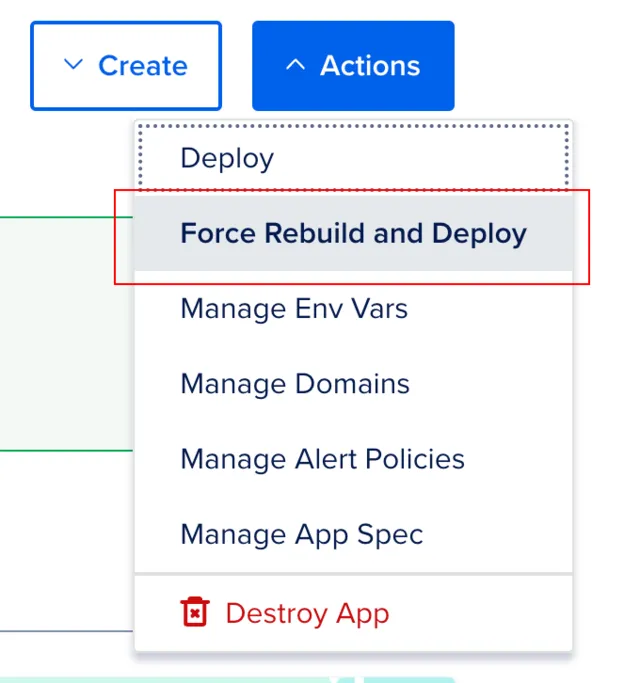
**Step 4: Wait for the deployment process to complete**
Once you have clicked on “Force Rebuild & Deploy,” the deployment process will begin. The duration of the process may vary depending on the complexity of the application and server resources.
Please be patient and allow the deployment process to complete. After completion, the DocuSeal instance will be successfully rebuilt and deployed with the latest changes. You can now use the updated version of the application.
---
# On-premises server requirements | DocuSeal Docs
Menu
On-premises server requirements
===============================
The DocuSeal app is well-optimized to run on servers with limited resources. However, certain scenarios might demand more resources than others. For example, processing large files or handling a significant number of files simultaneously can substantially impact resource requirements.
Let’s explore the main use cases of the DocuSeal app and the corresponding resource requirements for each.
Requirements
------------
* **Avg Document Size**: This indicates the average size of documents that the DocuSeal app will process.
* **vCPU**: The number of virtual CPUs required for document processing.
* **RAM**: The amount of memory needed to process documents.
* **Disk**: The amount of disk space necessary to store documents and other data.
These requirements are calculated for storing 10000 signed documents
### Scenario 1: Each template is used only once and has only one signer
| Average document size | vCPU | RAM | Disk |
| --- | --- | --- | --- |
| 500 KB | 1 | 1 GB | 12 GB |
| 5 MB | 1 | 2 GB | 125 GB |
| 100 MB | 2 | 4 GB | 2250 GB |
### Scenario 2: Each template is used only once and has multiple signers
| Average document size | vCPU | RAM | Disk |
| --- | --- | --- | --- |
| 500 KB | 1 | 1 GB | 25 GB |
| 5 MB | 1 | 2 GB | 225 GB |
| 100 MB | 2 | 4 GB | 4500 GB |
### Scenario 3: Each template is reused and has only one signer
| Average document size | vCPU | RAM | Disk |
| --- | --- | --- | --- |
| 500 KB | 1 | 1 GB | 6 GB |
| 5 MB | 1 | 2 GB | 60 GB |
| 100 MB | 2 | 4 GB | 1100 GB |
### Scenario 4: Each template is reused and has multiple signers per document
| Average document size | vCPU | RAM | Disk |
| --- | --- | --- | --- |
| 500 KB | 1 | 1 GB | 18 GB |
| 5 MB | 1 | 2 GB | 175 GB |
| 100 MB | 2 | 4 GB | 3500 GB |
The specified requirements are approximate and may vary depending on the specific usage conditions of the DocuSeal app. They are intended to provide a general understanding of resource requirements.
Database requirements
---------------------
DocuSeal’s primary and recommended database is **PostgreSQL**. **SQLite** and **MySQL** are supported with partial compatibility.
* **Small business or personal use (fewer than 1,000 documents per year):** PostgreSQL, SQLite, and MySQL are all suitable options.
* **Production API and embedding use:** PostgreSQL is recommended for heavy production workloads with 1,000+ documents per year.
**Note about MySQL:** MySQL support is limited due to text field length constraints, lack of full-text search support, and lack of partial indexes.
Additional recommendations
--------------------------
* We recommend using more RAM if you plan to process large files or a large number of files simultaneously.
* Use SSD disks if you plan to process large files.
---
# Configuring SAML with Okta | DocuSeal Docs
Menu
Configuring SAML with Okta
==========================
### Step 1: Create a new SAML app in Okta
1. Log in to your Okta admin dashboard.
2. Navigate to **Applications** and click **Create App Integration**.
3. Select **SAML 2.0** as the sign-on method and click **Next**.
4. Enter the **App Name** and optionally add a logo. Click **Next**.
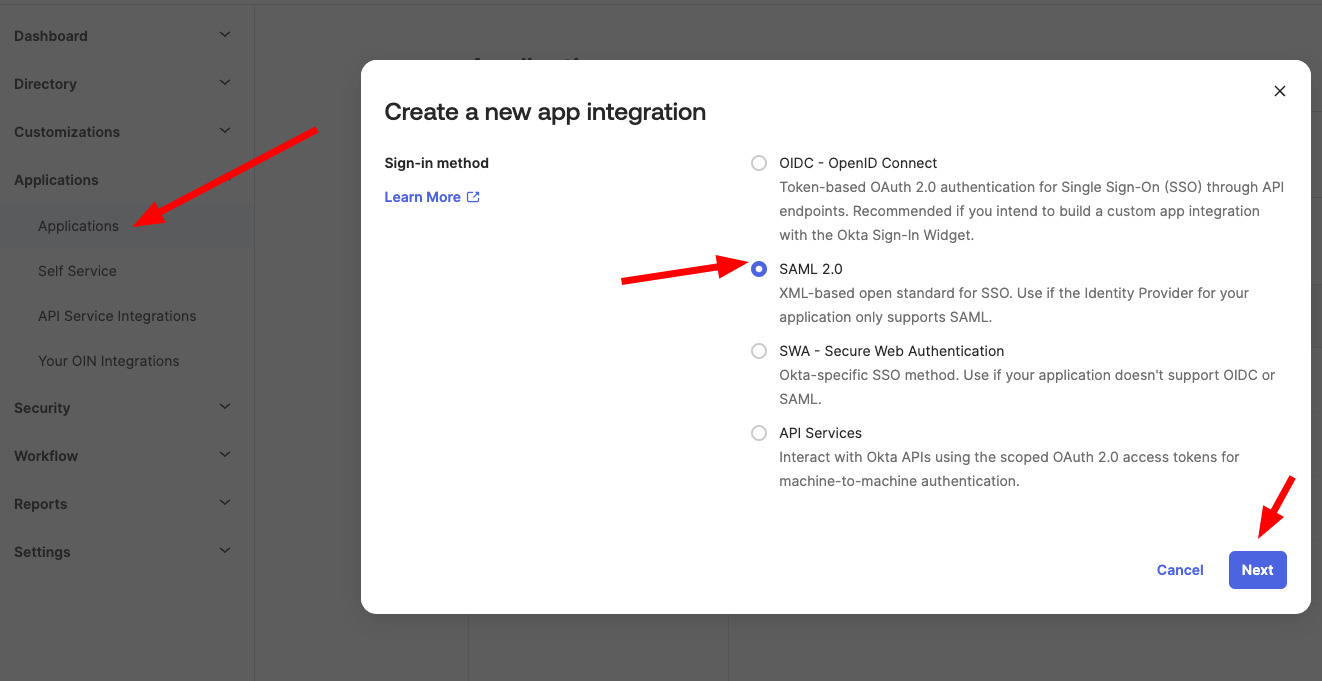
### Step 2: Configure SAML settings
1. In the **General Settings**, pass the SSO URL and Metadata URL from the DocuSeal application settings found on the [DocuSeal SAML SSO](https://docuseal.com/settings/sso)
page.
* **SSO URL**: Paste the SSO URL provided by DocuSeal.
* **Entity ID**: Use the Metadata URL from DocuSeal.
2. Set the **Name ID Format** to **EmailAddress** and ensure that the **Application username** is also set to **Email**.
3. Click **Next** to proceed to the feedback section.
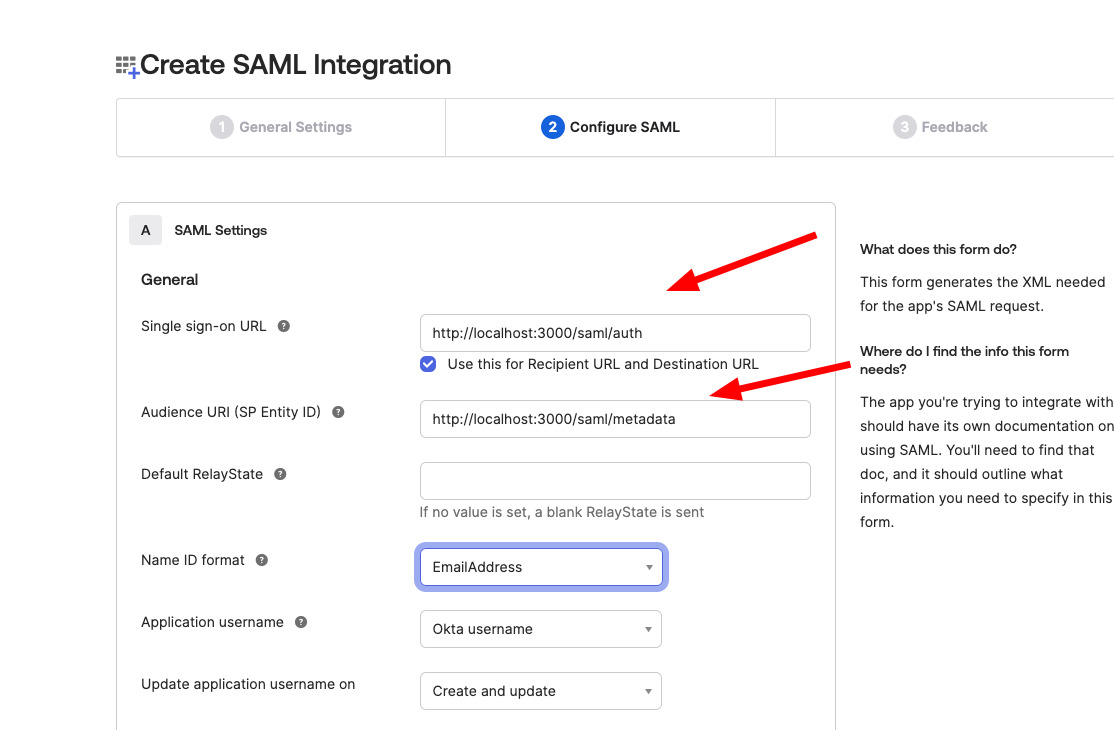
### Step 3: Application feedback
1. Select **I’m an Okta customer adding an internal app**.
2. Check the box **This is an internal app that we have created**.
3. Click **Finish**.
### Step 4: Retrieve Okta Sign-On URL
1. Expand the **Sign-On** tab in the newly created SAML app settings.
2. Copy the **Okta Sign-On URL**.
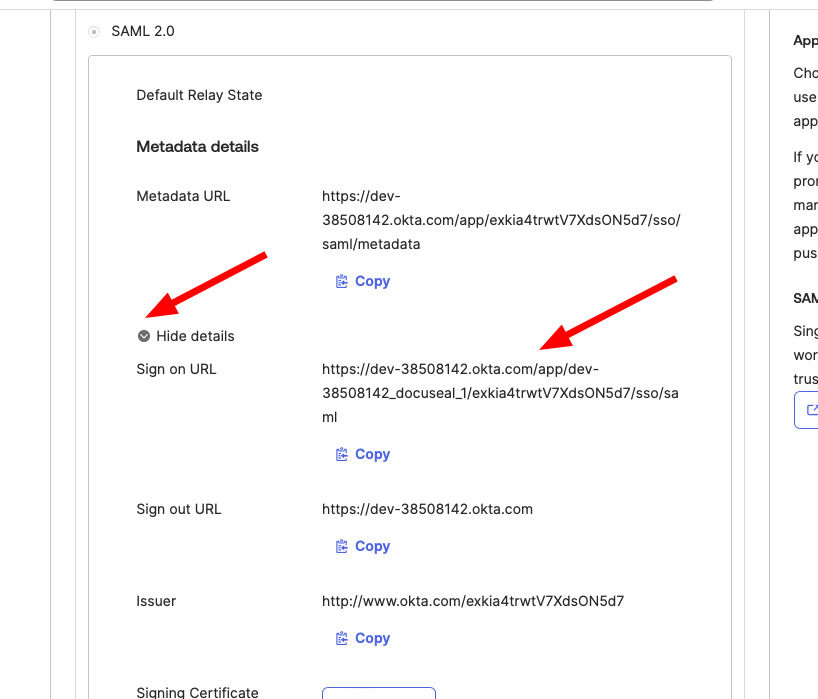
### Step 5: Configure DocuSeal with Okta information
1. In the [DocuSeal SAML SSO](https://docuseal.com/settings/sso)
page, paste the copied **Sign-On URL** to the **SSO Service URL** field.
2. Additionally, download the certificate from Okta:
* Go to the **Sign-On** tab and click on **View Setup Instructions**.
* Download the certificate in **.pem** format.
* Open the **.pem** file in a text editor and copy its contents.
3. Paste the copied certificate content into the **Certificate** field in the [DocuSeal SAML SSO](https://docuseal.com/settings/sso)
page.
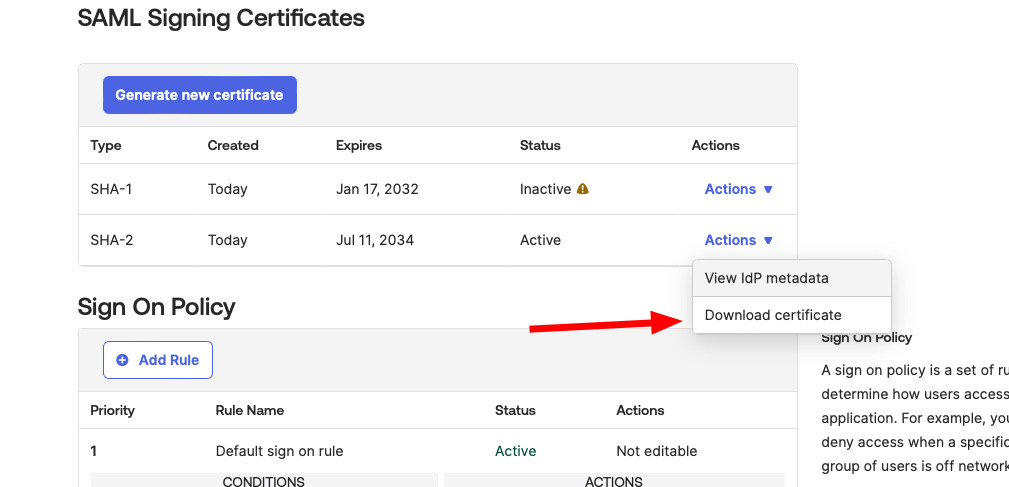
### Step 6: Assign users to the SAML app
1. Go back to the application settings in Okta.
2. Navigate to the **Assignments** tab.
3. Click **Assign** and choose **Assign to People** or **Assign to Groups**.
4. Select the users or groups you want to assign to this SAML app.
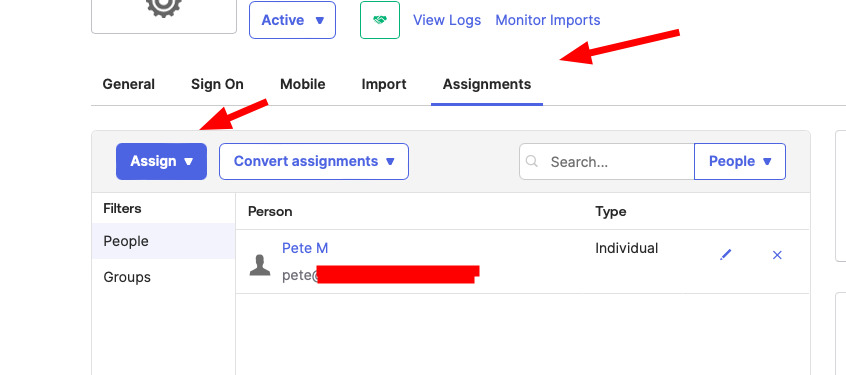
Ensure that the email addresses of your users in DocuSeal match the assigned Okta user email addresses.
This is crucial for the SAML SSO to function correctly.
---
# Configuring DocuSeal behind an existing Reverse proxy (nginx) | DocuSeal Docs
Menu
Configuring DocuSeal behind an existing Reverse proxy (nginx)
=============================================================
If you’re deploying DocuSeal behind an existing reverse proxy (such as nginx), you need to ensure that specific headers are set to ensure the proper functioning of the application. Failure to set these headers might result in a 422 error page. If you encounter this issue, you might see the following log entry:
ActionController::InvalidAuthenticityToken (HTTP Origin header (https://docuseal.mydomain.com) didn't match request.base_url (http://docuseal.mydomain.com)):
To resolve this issue add the following configuration settings inside the `location`:
location / {
proxy_pass http://yourdocuseal.internal.hostname:3000/;
proxy_set_header X-Forwarded-For $proxy_add_x_forwarded_for;
proxy_set_header X-Forwarded-Proto $scheme;
proxy_set_header X-Forwarded-Host $host;
}
---
# Convert legacy .p12 .pfx files to support OpenSSL 3 | DocuSeal Docs
Menu
Convert legacy .p12 .pfx files to support OpenSSL 3
===================================================
With OpenSSL 3, certain encryption algorithms have been deprecated or removed to prioritize stronger security measures and streamline the library’s codebase.
OpenSSL::PKCS12::PKCS12Error (PKCS12_parse: unsupported (Global default library context, Algorithm (RC2-40-CBC : 0), Properties ()))
This error message indicates that your .p12 file uses a legacy algorithm not supported by OpenSSL 3.0. Follow these steps to convert your certificate to the new format compatible with the latest OpenSSL version.
### 1\. Creating a temporary legacy certificate copy:
Replace **CERTIFICATE\_FILE\_NAME** with the actual name of your PKCS12 certificate file.
cp CERTIFICATE_FILE_NAME.p12 temp_certificate.p12
### 2\. Conversion to PEM Format:
Convert the **temp\_certificate.p12** file from PKCS12 format to a **temp\_certificate.pem** file in PEM format without encrypting the private key in the output file. Replace **CERTIFICATE\_PASSWORD** with the actual password of the certificate.
openssl pkcs12 -legacy -in temp_certificate.p12 -out temp_certificate.pem -nodes -passin pass:CERTIFICATE_PASSWORD
### 3\. Extracting the Private key:
Extract the private key from the **temp\_certificate.p12** file in PKCS12 format and store it in the **temp\_certificate.key** file. The private key in the output file will be encrypted.
openssl pkcs12 -legacy -in temp_certificate.p12 -nocerts -out temp_certificate.key -passin pass:CERTIFICATE_PASSWORD -passout pass:'CERTIFICATE_PASSWORD'
### 4\. Creating a new certificate:
Generate a new **new\_certificate.p12** file in PKCS12 format based on the private key from the **temp\_certificate.key** file and the certificate from the **temp\_certificate.pem** file.
openssl pkcs12 -export -out new_certificate.p12 -inkey temp_certificate.key -in temp_certificate.pem -passin pass:CERTIFICATE_PASSWORD -passout pass:CERTIFICATE_PASSWORD
### 5\. Deleting temporary files:
rm -rf temp_certificate.p12 temp_certificate.pem temp_certificate.key
Done! Your certificate is now ready and named **new\_certificate.p12**. You can utilize it for document signing.
---
# Embedded Form Builder | DocuSeal Docs
Menu
Copy as Markdown Copy as Markdown Copied
Copy as Markdown Copy as Markdown Copied
Copy as Markdown Copy as Markdown Copied
Copy as Markdown Copy as Markdown Copied
[Signing Form](https://www.docuseal.com/docs/embedded/form)
[Form Builder](https://www.docuseal.com/docs/embedded/builder)
This component allows you to seamlessly integrate an entire document creation and signing form anywhere on your website or application. It supports **JS+HTML**, **Vue**, **Angular** and **React**.
* JavaScript
* React
* Vue
* Angular Copy Copied
[View LIVE DEMO](https://www.docuseal.com/docs/embedded/builder#live_example)
### Related Guides
[Complete document creation and signing process in your SaaS with JavaScript](https://www.docuseal.com/guides/complete-document-creation-and-signing-process-in-your-saas-with-javascript)
### Attributes
data-token String required
JSON Web Token (JWT HS256) with a payload signed using the API key.
**Ensure that the JWT token is generated on the backend to prevent unauthorized access to your documents**.
user\_email String required
Email of the owner of the API signing key - admin user email.
integration\_email String
Email of the user to create a template for.
Example: signer@example.com
template\_id Number
ID of the template to open in the form builder. Optional when \`document\_urls\` are specified.
external\_id String
Your application-specific unique string key to identify this template within your app.
folder\_name String
The folder name in which the template should be created.
document\_urls Array
An Array of URLs with PDF files to open in the form builder. Optional when \`template\_id\` is specified.
Example: \['https://www.irs.gov/pub/irs-pdf/fw9.pdf'\]
name String
New template name when creating a template with document\_urls specified.
Example: Integration W-9 Test Form
extract\_fields Boolean
Pass \`false\` to disable automatic PDF form fields extraction. PDF fields are automatically added by default.
Show All
data-host String
DocuSeal host domain name. Only use this attribute if you are using the on-premises DocuSeal installation or docuseal.eu Cloud.
Example: yourdomain.com
data-roles String
Comma separated submitter role names to be used by default in the form.
Example: Company,Customer
data-fields String
A list of default custom fields with \`name\` to be added to the document. Should contain an array of field properties as a JSON encoded string.
Example: \[{ "name": "FIELD\_1", "type": "date", "role": "Customer", "default\_value": "2021-01-01" }\]
Child parameters
name String required
Field name.
type String
Field type.
Possible values: heading, text, signature, initials, date, number, image, checkbox, multiple, file, radio, select, cells, stamp, payment, phone, verification, kba, strikethrough
role String
Submitter role name for the field.
default\_value String
Default value of the field.
title String
Field title displayed to the user instead of the name, shown on the signing form. Supports Markdown.
description String
Field description displayed on the signing form. Supports Markdown.
width Number
Field width in pixels.
height Number
Field height in pixels.
format String
Field format. Depends on the field type.
options Array
Field options. Required for the select field type.
validation Object
Field validation rules.
pattern String
Field pattern.
Example: ^\[0-9\]{5}$
message String
Validation error message.
Show All
data-submitters String
A list of default submitters with \`role\` name to be added to the document. Should contain an array of field properties as a JSON encoded string.
Example: \[{ "email": "example@company.com", "name": "John Doe", "phone": "+1234567890", "role": "Customer" }\]
Child parameters
email String
Submitter email.
role String required
Submitter role name.
name String
Submitter name.
phone String
Submitter phone number, formatted according to the E.164 standard.
Show All
data-required-fields String
A list of required default custom fields with \`name\` that should be added to the document. Should contain an array of field properties as a JSON encoded string.
Example: \[{ "name": "FIELD\_1", "type": "date", "role": "Customer", "default\_value": "2021-01-01" }\]
Child parameters
name String required
Field name.
type String
Field type.
Possible values: heading, text, signature, initials, date, number, image, checkbox, multiple, file, radio, select, cells, stamp, payment, phone, verification, kba, strikethrough
role String
Submitter role name for the field.
default\_value String
Default value of the field.
title String
Field title displayed to the user instead of the name, shown on the signing form. Supports Markdown.
description String
Field description displayed on the signing form. Supports Markdown.
width Number
Field width in pixels.
height Number
Field height in pixels.
format String
Field format. Depends on the field type.
options Array
Field options. Required for the select field type.
validation Object
Field validation rules.
pattern String
Field pattern.
Example: ^\[0-9\]{5}$
message String
Validation error message.
Show All
data-field-types String
Comma separated field type names to be used in the form builder. All field types are used by default.
Possible values: heading, text, signature, initials, date, datenow, number, image, checkbox, multiple, file, radio, select, cells, stamp, payment, phone, verification, kba, strikethrough
Example: text,date
data-draw-field-type String
Field type to be used by default with the field drawing tool.
Default: text
Example: signature
data-custom-button-title String
Custom button title. This button will be displayed on the top right corner of the form builder.
data-custom-button-url String
Custom button URL. Only absolute URLs are supported.
data-with-title Boolean
Set \`false\` to remove document title from the builder.
Default: true
email-subject String
Email subject for the signature request. Required if \`email-body\` specified
email-body String
Email body for the signature request. Required if \`email-subject\` specified
data-with-send-button Boolean
Show the "Recipients" button.
Default: true
data-with-upload-button Boolean
Show the "Upload" button.
Default: true
data-with-add-page-button Boolean
Show the "Add Blank Page" button.
Default: false
data-with-sign-yourself-button Boolean
Show the "Sign Yourself" button.
Default: true
data-with-documents-list Boolean
Set \`false\` to not show the documents list on the left. Documents list is displayed by default.
Default: true
data-with-fields-list Boolean
Set \`false\` to not show the fields list on the right. Fields list is displayed by default.
Default: true
data-with-fields-detection Boolean
Display a button to automatically detect and add fields to the document with AI.
Default: false
data-with-field-placeholder Boolean
Set \`true\` to display field name placeholders instead of the field type icons.
Default: false
data-with-signature-id Boolean
Set to \`true\` to enable Signature ID by default for newly added fields. If set to \`false\`, the Signature ID toggle will be displayed under field settings, with the Signature ID turned off by default.
data-preview Boolean
Show template in preview mode without ability to edit it.
Default: false
data-input-mode Boolean
Open template in data input mode to prefill fields with default values.
Default: false
data-only-defined-fields Boolean
Allow to add fields only defined in the \`data-fields\` attribute.
Default: false
data-autosave Boolean
Set \`false\` to disable form changes autosaving.
Default: true
data-i18n String
JSON encoded string that contains i18n keys to replace the default UI text with custom values. See [template\_builder/i18n.js](https://github.com/docusealco/docuseal/blob/master/app/javascript/template_builder/i18n.js)
for available i18n keys.
Default: {}
data-language String
UI language, 'en', 'es', 'de', 'fr', 'pt', 'nl', 'he', 'ar' languages are available.
Default: en
data-background-color String
The form builder background color. Only HEX color codes are supported.
Example: #ffffff
data-custom-css String
Custom CSS styles to be applied to the form builder.
Example: #sign\_yourself\_button { background-color: #FFA500; }
### Callbacks
load Event
Custom event to be triggered on loading the form builder template data.
Example: document.querySelector('docuseal-builder').addEventListener('load', (e) => e.detail)
upload Event
Custom event to be triggered on uploading a document to the template.
Example: document.querySelector('docuseal-builder').addEventListener('upload', (e) => e.detail)
send Event
Custom event to be triggered on sending documents for signature to recipients.
Example: document.querySelector('docuseal-builder').addEventListener('send', (e) => e.detail)
change Event
Custom event to be triggered every time a change to the template is made.
Example: document.querySelector('docuseal-builder').addEventListener('change', (e) => e.detail)
save Event
Custom event to be triggered on saving changes of the template form.
Example: document.querySelector('docuseal-builder').addEventListener('save', (e) => e.detail)Frontend Backend
Frontend Backend
Copy Copied
import React, { useState, useEffect } from 'react';
import { DocusealBuilder } from '@docuseal/react'
const App = () => {
const [token, setToken] = useState();
useEffect(() => {
fetch('/api/docuseal/builder_token', {
method: 'POST',
})
.then((response) => response.json())
.then((data) => {
setToken(data.token);
});
}, []);
return token && ;
};
const jwt = require('jsonwebtoken');
const token = jwt.sign({
user_email: 'admin_user@example.com',
integration_email: 'signer@example.com',
external_id: 'TestForm123',
name: 'Integration W-9 Test Form',
document_urls: ['https://www.irs.gov/pub/irs-pdf/fw9.pdf'],
}, 'API_KEY');
[View LIVE DEMO](https://www.docuseal.com/docs/embedded/builder#live_example)
### Related Guides
[Complete document creation and signing process in your React SaaS](https://www.docuseal.com/guides/complete-document-creation-and-signing-process-in-your-react-saas)
### Attributes
token String required
JSON Web Token (JWT HS256) with a payload signed using the API key.
**Ensure that the JWT token is generated on the backend to prevent unauthorized access to your documents**.
user\_email String required
Email of the owner of the API signing key - admin user email.
integration\_email String
Email of the user to create a template for.
Example: signer@example.com
template\_id Number
ID of the template to open in the form builder. Optional when \`document\_urls\` are specified.
external\_id String
Your application-specific unique string key to identify this template within your app.
folder\_name String
The folder name in which the template should be created.
document\_urls Array
An Array of URLs with PDF files to open in the form builder. Optional when \`template\_id\` is specified.
Example: \['https://www.irs.gov/pub/irs-pdf/fw9.pdf'\]
name String
New template name when creating a template with document\_urls specified.
Example: Integration W-9 Test Form
extract\_fields Boolean
Pass \`false\` to disable automatic PDF form fields extraction. PDF fields are automatically added by default.
Show All
host String
DocuSeal host domain name. Only use this attribute if you are using the on-premises DocuSeal installation or docuseal.eu Cloud.
Example: yourdomain.com
customButton Object
Custom button will be displayed on the top right corner of the form builder.
title String required
Custom button title.
url String required
Custom button URL. Only absolute URLs are supported.
roles Array
Submitter role names to be used by default in the form.
fieldTypes Array
Field type names to be used in the form builder. All field types are used by default.
Possible values: heading, text, signature, initials, date, datenow, number, image, checkbox, multiple, file, radio, select, cells, stamp, payment, phone, verification, kba, strikethrough
drawFieldType String
Field type to be used by default with the field drawing tool.
Default: text
Example: signature
fields Array
An array of default custom field properties with \`name\` to be added to the document.
Child parameters
name String required
Field name.
type String
Field type.
Possible values: heading, text, signature, initials, date, number, image, checkbox, multiple, file, radio, select, cells, stamp, payment, phone, verification, kba, strikethrough
role String
Submitter role name for the field.
default\_value String
Default value of the field.
title String
Field title displayed to the user instead of the name, shown on the signing form. Supports Markdown.
description String
Field description displayed on the signing form. Supports Markdown.
width Number
Field width in pixels.
height Number
Field height in pixels.
format String
Field format. Depends on the field type.
options Array
Field options. Required for the select field type.
validation Object
Field validation rules.
pattern String
Field pattern.
Example: ^\[0-9\]{5}$
message String
Validation error message.
Show All
submitters Array
An array of default submitters with \`role\` name to be added to the document.
Child parameters
email String
Submitter email.
role String required
Submitter role name.
name String
Submitter name.
phone String
Submitter phone number, formatted according to the E.164 standard.
Show All
requiredFields Array
An array of default required custom field properties with \`name\` that should be added to the document.
Child parameters
name String required
Field name.
type String
Field type.
Possible values: heading, text, signature, initials, date, number, image, checkbox, multiple, file, radio, select, cells, stamp, payment, phone, verification, kba, strikethrough
role String
Submitter role name for the field.
default\_value String
Default value of the field.
title String
Field title displayed to the user instead of the name, shown on the signing form. Supports Markdown.
description String
Field description displayed on the signing form. Supports Markdown.
width Number
Field width in pixels.
height Number
Field height in pixels.
format String
Field format. Depends on the field type.
options Array
Field options. Required for the select field type.
validation Object
Field validation rules.
pattern String
Field pattern.
Example: ^\[0-9\]{5}$
message String
Validation error message.
Show All
emailMessage Object
Email subject and body for the signature request.
subject String required
Email subject for the signature request.
body String required
Email body for the signature request.
withTitle Boolean
Set \`false\` to remove document title from the builder.
Default: true
withSendButton Boolean
Show the "Send" button.
Default: true
withUploadButton Boolean
Show the "Upload" button.
Default: true
withAddPageButton Boolean
Show the "Add Blank Page" button.
Default: false
withSignYourselfButton Boolean
Show the "Sign Yourself" button.
Default: true
withDocumentsList Boolean
Set \`false\` to not show the documents list on the left. Documents list is displayed by default.
Default: true
withFieldsList Boolean
Set \`false\` to not show the fields list on the right. Fields list is displayed by default.
Default: true
withFieldsDetection Boolean
Display a button to automatically detect and add fields to the document with AI.
Default: false
withFieldPlaceholder Boolean
Set \`true\` to display field name placeholders instead of the field type icons.
Default: false
withSignatureId Boolean
Set to \`true\` to enable Signature ID by default for newly added fields. If set to \`false\`, the Signature ID toggle will be displayed under field settings, with the Signature ID turned off by default.
onlyDefinedFields Boolean
Allow to add fields only defined in the \`fields\` prop.
Default: false
preview Boolean
Show template in preview mode without ability to edit it.
Default: false
inputMode Boolean
Open template in data input mode to prefill fields with default values.
Default: false
autosave Boolean
Set \`false\` to disable form changes autosaving.
Default: true
language String
UI language, 'en', 'es', 'de', 'fr', 'pt', 'nl', 'he', 'ar' languages are available.
Default: en
i18n Object
Object that contains i18n keys to replace the default UI text with custom values. See [template\_builder/i18n.js](https://github.com/docusealco/docuseal/blob/master/app/javascript/template_builder/i18n.js)
for available i18n keys.
Default: {}
backgroundColor String
The form builder background color. Only HEX color codes are supported.
Example: #ffffff
customCss String
Custom CSS styles to be applied to the form builder.
Example: #sign\_yourself\_button { background-color: #FFA500; }
### Callbacks
onLoad Function
Function to be called on loading the form builder template data.
Example: (data) => { console.log(data) }
onUpload Function
Function to be called on uploading a document to the template.
Example: (data) => { console.log(data) }
onSend Function
Function to be called on sending documents for signature to recipients.
Example: (data) => { console.log(data) }
onChange Function
Function to be called when changes are made to the template form.
Example: (data) => { console.log(data) }
onSave Function
Function to be called on saving changes of the template form.
Example: (data) => { console.log(data) }
Frontend Backend
Frontend Backend
Copy Copied
const jwt = require('jsonwebtoken');
const token = jwt.sign({
user_email: 'admin_user@example.com',
integration_email: 'signer@example.com',
external_id: 'TestForm123',
name: 'Integration W-9 Test Form',
document_urls: ['https://www.irs.gov/pub/irs-pdf/fw9.pdf'],
}, 'API_KEY');
[View LIVE DEMO](https://www.docuseal.com/docs/embedded/builder#live_example)
### Related Guides
[Complete document creation and signing process in your Vue SaaS](https://www.docuseal.com/guides/complete-document-creation-and-signing-process-in-your-vue-saas)
### Attributes
token String required
JSON Web Token (JWT HS256) with a payload signed using the API key.
**Ensure that the JWT token is generated on the backend to prevent unauthorized access to your documents**.
user\_email String required
Email of the owner of the API signing key - admin user email.
integration\_email String
Email of the user to create a template for.
Example: signer@example.com
template\_id Number
ID of the template to open in the form builder. Optional when \`document\_urls\` are specified.
external\_id String
Your application-specific unique string key to identify this template within your app.
folder\_name String
The folder name in which the template should be created.
document\_urls Array
An Array of URLs with PDF files to open in the form builder. Optional when \`template\_id\` is specified.
Example: \['https://www.irs.gov/pub/irs-pdf/fw9.pdf'\]
name String
New template name when creating a template with document\_urls specified.
Example: Integration W-9 Test Form
extract\_fields Boolean
Pass \`false\` to disable automatic PDF form fields extraction. PDF fields are automatically added by default.
Show All
host String
DocuSeal host domain name. Only use this attribute if you are using the on-premises DocuSeal installation or docuseal.eu Cloud.
Example: yourdomain.com
custom-button Object
Custom button will be displayed on the top right corner of the form builder.
title String required
Custom button title.
url String required
Custom button URL. Only absolute URLs are supported.
only-defined-fields Boolean
Allow to add fields only defined in the \`:fields\` prop.
Default: false
with-send-button Boolean
Show the "Recipients" button.
Default: true
roles Array
Submitter role names to be used by default in the form.
field-types Array
Field type names to be used in the form builder. All field types are used by default.
Possible values: heading, text, signature, initials, date, datenow, number, image, checkbox, multiple, file, radio, select, cells, stamp, payment, phone, verification, kba, strikethrough
draw-field-type String
Field type to be used by default with the field drawing tool.
Default: text
Example: signature
fields Array
An array of default custom field properties with \`name\` to be added to the document.
Child parameters
name String required
Field name.
type String
Field type.
Possible values: heading, text, signature, initials, date, number, image, checkbox, multiple, file, radio, select, cells, stamp, payment, phone, verification, kba, strikethrough
role String
Submitter role name for the field.
default\_value String
Default value of the field.
title String
Field title displayed to the user instead of the name, shown on the signing form. Supports Markdown.
description String
Field description displayed on the signing form. Supports Markdown.
width Number
Field width in pixels.
height Number
Field height in pixels.
format String
Field format. Depends on the field type.
options Array
Field options. Required for the select field type.
validation Object
Field validation rules.
pattern String
Field pattern.
Example: ^\[0-9\]{5}$
message String
Validation error message.
Show All
submitters Array
An array of default submitters with \`role\` name to be added to the document.
Child parameters
email String
Submitter email.
role String required
Submitter role name.
name String
Submitter name.
phone String
Submitter phone number, formatted according to the E.164 standard.
Show All
required-fields Array
An array of default required custom field properties with \`name\` that should be added to the document.
Child parameters
name String required
Field name.
type String
Field type.
Possible values: heading, text, signature, initials, date, number, image, checkbox, multiple, file, radio, select, cells, stamp, payment, phone, verification, kba, strikethrough
role String
Submitter role name for the field.
default\_value String
Default value of the field.
title String
Field title displayed to the user instead of the name, shown on the signing form. Supports Markdown.
description String
Field description displayed on the signing form. Supports Markdown.
width Number
Field width in pixels.
height Number
Field height in pixels.
format String
Field format. Depends on the field type.
options Array
Field options. Required for the select field type.
validation Object
Field validation rules.
pattern String
Field pattern.
Example: ^\[0-9\]{5}$
message String
Validation error message.
Show All
email-message Object
Email subject and body for the signature request.
subject String required
Email subject for the signature request.
body String required
Email body for the signature request.
with-title Boolean
Set \`false\` to remove document title from the builder.
Default: true
with-upload-button Boolean
Show the "Upload" button.
Default: true
with-add-page-button Boolean
Show the "Add Blank Page" button.
Default: false
with-sign-yourself-button Boolean
Show the "Sign Yourself" button.
Default: true
with-documents-list Boolean
Set \`false\` to not show the documents list on the left. Documents list is displayed by default.
Default: true
with-fields-list Boolean
Set \`false\` to not show the fields list on the right. Fields list is displayed by default.
Default: true
with-fields-detection Boolean
Display a button to automatically detect and add fields to the document with AI.
Default: false
with-field-placeholder Boolean
Set \`true\` to display field name placeholders instead of the field type icons.
Default: false
with-signature-id Boolean
Set to \`true\` to enable Signature ID by default for newly added fields. If set to \`false\`, the Signature ID toggle will be displayed under field settings, with the Signature ID turned off by default.
autosave Boolean
Set \`false\` to disable form changes autosaving.
Default: true
preview Boolean
Show template in preview mode without ability to edit it.
Default: false
input-mode Boolean
Open template in data input mode to prefill fields with default values.
Default: false
language String
UI language, 'en', 'es', 'de', 'fr', 'pt', 'nl', 'he', 'ar' languages are available.
Default: en
i18n Object
Object that contains i18n keys to replace the default UI text with custom values. See [template\_builder/i18n.js](https://github.com/docusealco/docuseal/blob/master/app/javascript/template_builder/i18n.js)
for available i18n keys.
Default: {}
background-color String
The form builder background color. Only HEX color codes are supported.
Example: #ffffff
custom-css String
Custom CSS styles to be applied to the form builder.
Example: #sign\_yourself\_button { background-color: #FFA500; }
### Callbacks
@load Function
Function to be called on loading the form builder template data.
Example: onBuilderLoad
@upload Function
Function to be called on uploading a document to the template.
Example: onBuilderUpload
@send Function
Function to be called on sending documents for signature to recipients.
Example: onBuilderSend
@change Function
Function to be called when changes are made to the template form.
Example: onBuilderChange
@save Function
Function to be called on saving changes of the template form.
Example: onBuilderSave
Frontend Backend
Frontend Backend
Copy Copied
import { Component, OnInit } from '@angular/core';
import { HttpClient } from '@angular/common/http';
import { DocusealBuilderComponent } from '@docuseal/angular';
@Component({
selector: 'app-root',
standalone: true,
imports: [DocusealBuilderComponent],
template: `
`
})
export class AppComponent implements OnInit {
token: string = ''
constructor(private http: HttpClient) {}
ngOnInit() {
this.http.post('/api/docuseal/builder_token', {}).subscribe((data: any) => {
this.token = data.token;
});
}
}
const jwt = require('jsonwebtoken');
const token = jwt.sign({
user_email: 'admin_user@example.com',
integration_email: 'signer@example.com',
external_id: 'TestForm123',
name: 'Integration W-9 Test Form',
document_urls: ['https://www.irs.gov/pub/irs-pdf/fw9.pdf'],
}, 'API_KEY');
[View LIVE DEMO](https://www.docuseal.com/docs/embedded/builder#live_example)
### Related Guides
[Complete document creation and signing process in your Angular SaaS](https://www.docuseal.com/guides/complete-document-creation-and-signing-process-in-your-angular-saas)
### Attributes
token String required
JSON Web Token (JWT HS256) with a payload signed using the API key.
**Ensure that the JWT token is generated on the backend to prevent unauthorized access to your documents**.
user\_email String required
Email of the owner of the API signing key - admin user email.
integration\_email String
Email of the user to create a template for.
Example: signer@example.com
template\_id Number
ID of the template to open in the form builder. Optional when \`document\_urls\` are specified.
external\_id String
Your application-specific unique string key to identify this template within your app.
folder\_name String
The folder name in which the template should be created.
document\_urls Array
An Array of URLs with PDF files to open in the form builder. Optional when \`template\_id\` is specified.
Example: \['https://www.irs.gov/pub/irs-pdf/fw9.pdf'\]
name String
New template name when creating a template with document\_urls specified.
Example: Integration W-9 Test Form
extract\_fields Boolean
Pass \`false\` to disable automatic PDF form fields extraction. PDF fields are automatically added by default.
Show All
host String
DocuSeal host domain name. Only use this attribute if you are using the on-premises DocuSeal installation or docuseal.eu Cloud.
Example: yourdomain.com
customButton Object
Custom button will be displayed on the top right corner of the form builder.
title String required
Custom button title.
url String required
Custom button URL. Only absolute URLs are supported.
roles Array
Submitter role names to be used by default in the form.
fieldTypes Array
Field type names to be used in the form builder. All field types are used by default.
Possible values: heading, text, signature, initials, date, datenow, number, image, checkbox, multiple, file, radio, select, cells, stamp, payment, phone, verification, kba, strikethrough
drawFieldType String
Field type to be used by default with the field drawing tool.
Default: text
Example: signature
fields Array
An array of default custom field properties with \`name\` to be added to the document.
Child parameters
name String required
Field name.
type String
Field type.
Possible values: heading, text, signature, initials, date, number, image, checkbox, multiple, file, radio, select, cells, stamp, payment, phone, verification, kba, strikethrough
role String
Submitter role name for the field.
default\_value String
Default value of the field.
title String
Field title displayed to the user instead of the name, shown on the signing form. Supports Markdown.
description String
Field description displayed on the signing form. Supports Markdown.
width Number
Field width in pixels.
height Number
Field height in pixels.
format String
Field format. Depends on the field type.
options Array
Field options. Required for the select field type.
validation Object
Field validation rules.
pattern String
Field pattern.
Example: ^\[0-9\]{5}$
message String
Validation error message.
Show All
submitters Array
An array of default submitters with \`role\` name to be added to the document.
Child parameters
email String
Submitter email.
role String required
Submitter role name.
name String
Submitter name.
phone String
Submitter phone number, formatted according to the E.164 standard.
Show All
requiredFields Array
An array of default required custom field properties with \`name\` that should be added to the document.
Child parameters
name String required
Field name.
type String
Field type.
Possible values: heading, text, signature, initials, date, number, image, checkbox, multiple, file, radio, select, cells, stamp, payment, phone, verification, kba, strikethrough
role String
Submitter role name for the field.
default\_value String
Default value of the field.
title String
Field title displayed to the user instead of the name, shown on the signing form. Supports Markdown.
description String
Field description displayed on the signing form. Supports Markdown.
width Number
Field width in pixels.
height Number
Field height in pixels.
format String
Field format. Depends on the field type.
options Array
Field options. Required for the select field type.
validation Object
Field validation rules.
pattern String
Field pattern.
Example: ^\[0-9\]{5}$
message String
Validation error message.
Show All
emailMessage Object
Email subject and body for the signature request.
subject String required
Email subject for the signature request.
body String required
Email body for the signature request.
withTitle Boolean
Set \`false\` to remove document title from the builder.
Default: true
withSendButton Boolean
Show the "Send" button.
Default: true
withUploadButton Boolean
Show the "Upload" button.
Default: true
withAddPageButton Boolean
Show the "Add Blank Page" button.
Default: false
withSignYourselfButton Boolean
Show the "Sign Yourself" button.
Default: true
withDocumentsList Boolean
Set \`false\` to not show the documents list on the left. Documents list is displayed by default.
Default: true
withFieldsList Boolean
Set \`false\` to not show the fields list on the right. Fields list is displayed by default.
Default: true
withFieldsDetection Boolean
Display a button to automatically detect and add fields to the document with AI.
Default: false
withFieldPlaceholder Boolean
Set \`true\` to display field name placeholders instead of the field type icons.
Default: false
withSignatureId Boolean
Set to \`true\` to enable Signature ID by default for newly added fields. If set to \`false\`, the Signature ID toggle will be displayed under field settings, with the Signature ID turned off by default.
onlyDefinedFields Boolean
Allow to add fields only defined in the \`fields\` prop.
Default: false
preview Boolean
Show template in preview mode without ability to edit it.
Default: false
inputMode Boolean
Open template in data input mode to prefill fields with default values.
Default: false
autosave Boolean
Set \`false\` to disable form changes autosaving.
Default: true
language String
UI language, 'en', 'es', 'de', 'fr', 'pt', 'nl', 'he', 'ar' languages are available.
Default: en
i18n Object
Object that contains i18n keys to replace the default UI text with custom values. See [template\_builder/i18n.js](https://github.com/docusealco/docuseal/blob/master/app/javascript/template_builder/i18n.js)
for available i18n keys.
Default: {}
backgroundColor String
The form builder background color. Only HEX color codes are supported.
Example: #ffffff
customCss String
Custom CSS styles to be applied to the form builder.
Example: #sign\_yourself\_button { background-color: #FFA500; }
### Callbacks
onLoad Event emitter
Event emitted on loading the form builder template data.
Example: handleLoad($event)
onUpload Event emitter
Event emitted on uploading a document to the template.
Example: handleUpload($event)
onSend Event emitter
Event emitted on sending documents for signature to recipients.
Example: handleSend($event)
onChange Function
Function to be called when changes are made to the template form.
Example: handleChange($event)
onSave Event emitter
Event emitted on saving changes of the template form.
Example: handleSave($event)
Live Example
------------
Custom Fields Required Fields Only Defined Fields Preview Autosave Sign Yourself Button Custom CSS Language
---
# Configuring SAML with Keycloak | DocuSeal Docs
Menu
Configuring SAML with Keycloak
==============================
### Step 1: Create a new client in Keycloak
1. Log in to your Keycloak admin console.
2. Navigate to the **Clients** section and click **Create**.
3. In the **Client ID** field, enter the **Metadata URL** from the [DocuSeal SAML SSO](https://docuseal.com/settings/sso)
page.
4. In the **Home URL** field, enter the **Single Sign On URL** from the [DocuSeal SAML SSO](https://docuseal.com/settings/sso)
page.
5. In the **Valid Redirect URIs** field, enter your domain URL with a wildcard, such as:
http://your-domain/*
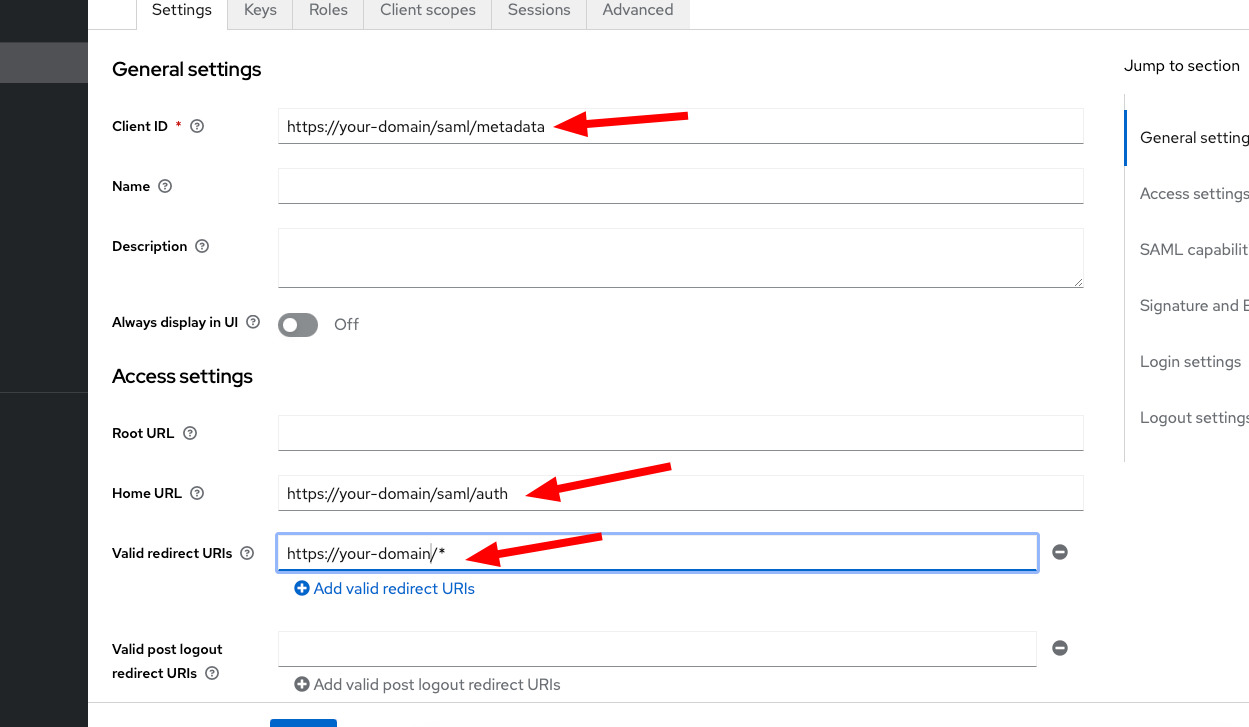
### Step 2: Configure client settings
1. In the newly created client settings, set the **Name ID Format** to **email** . 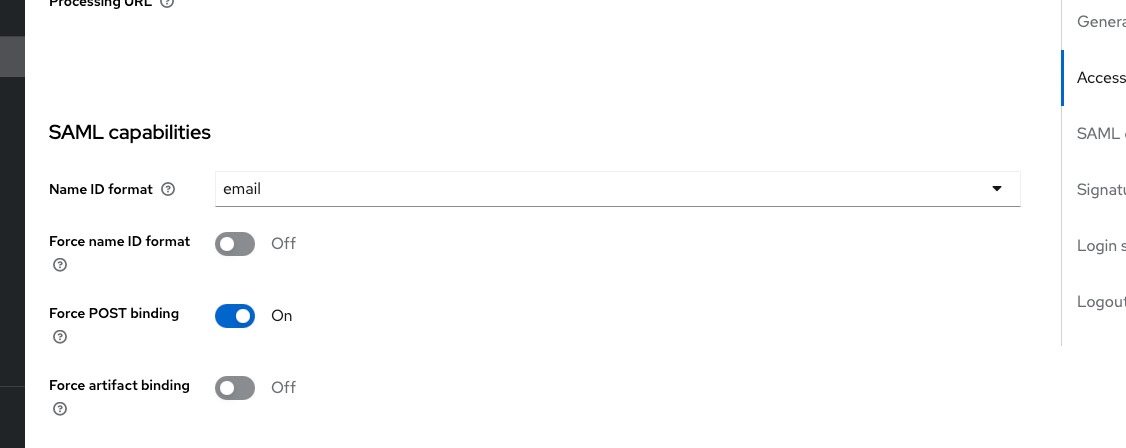
2. Disable the **Client Signature Required** option in the **Client** > **Keys** section. 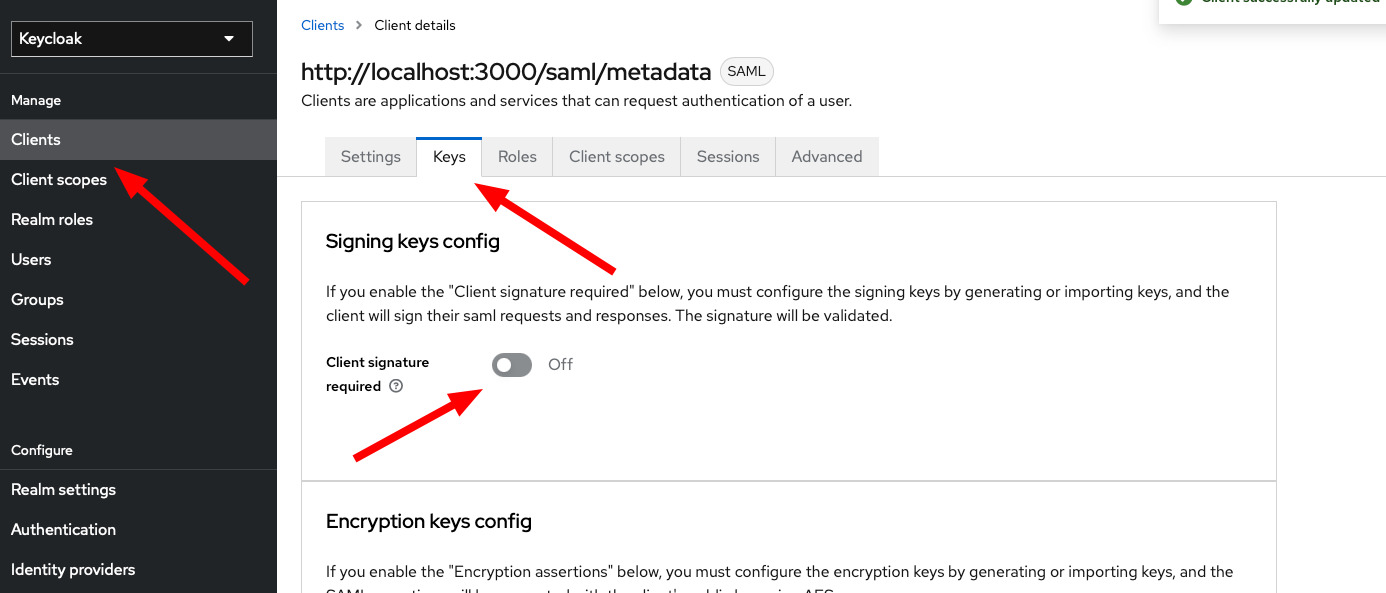
### Step 3: Retrieve SAML XML metadata
1. Go to your **Realm Settings** and open the **SAML XML Metadata**. 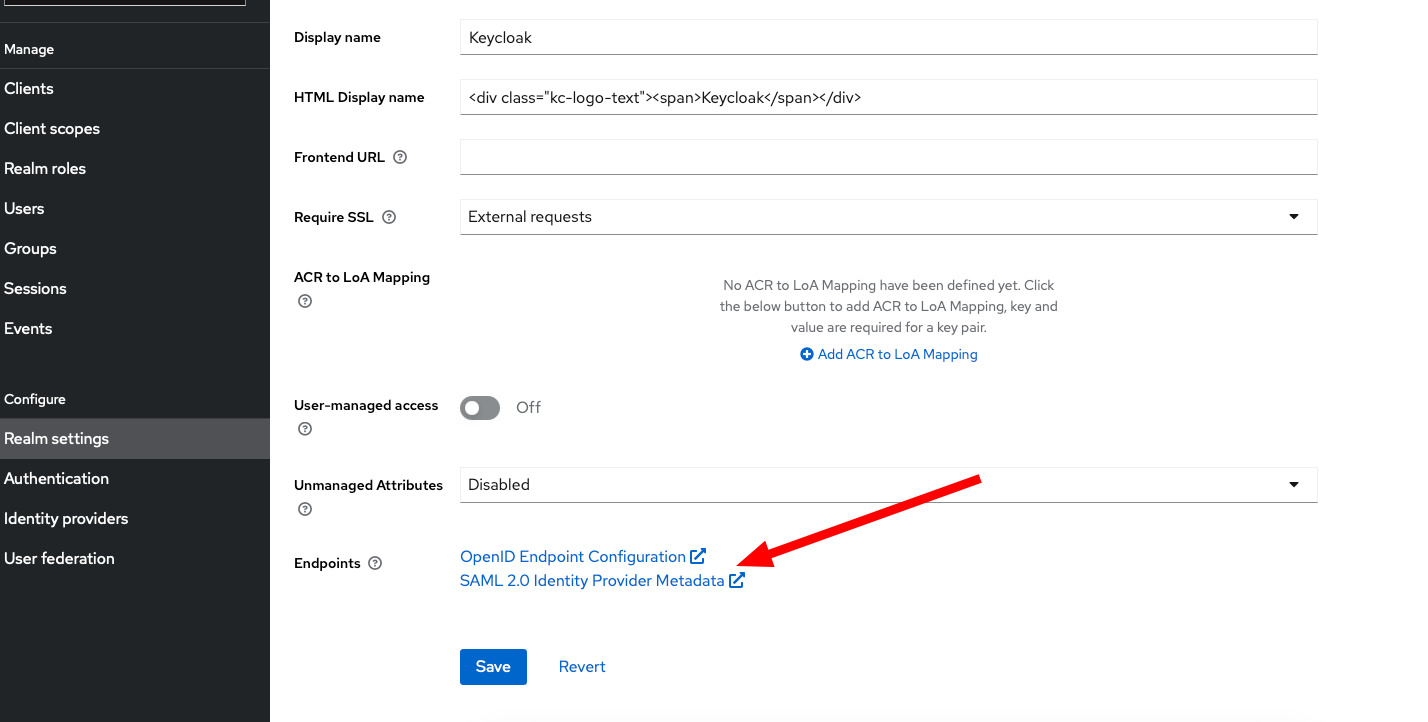
2. Copy the **Realm** location URL from the XML and save this URL in the DocuSeal **SSO Service URL** form field. This URL will look something like this:
https://your-domain-keycloak.com/realms/Realm-Name/protocol/saml
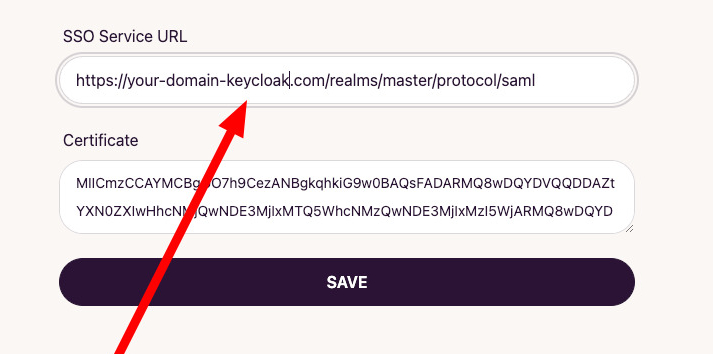
### Step 4: Retrieve and configure the certificate
1. Go to your **Realm** and navigate to the **Keys** section.
2. Copy the certificate and save it in the DocuSeal application SAML form.
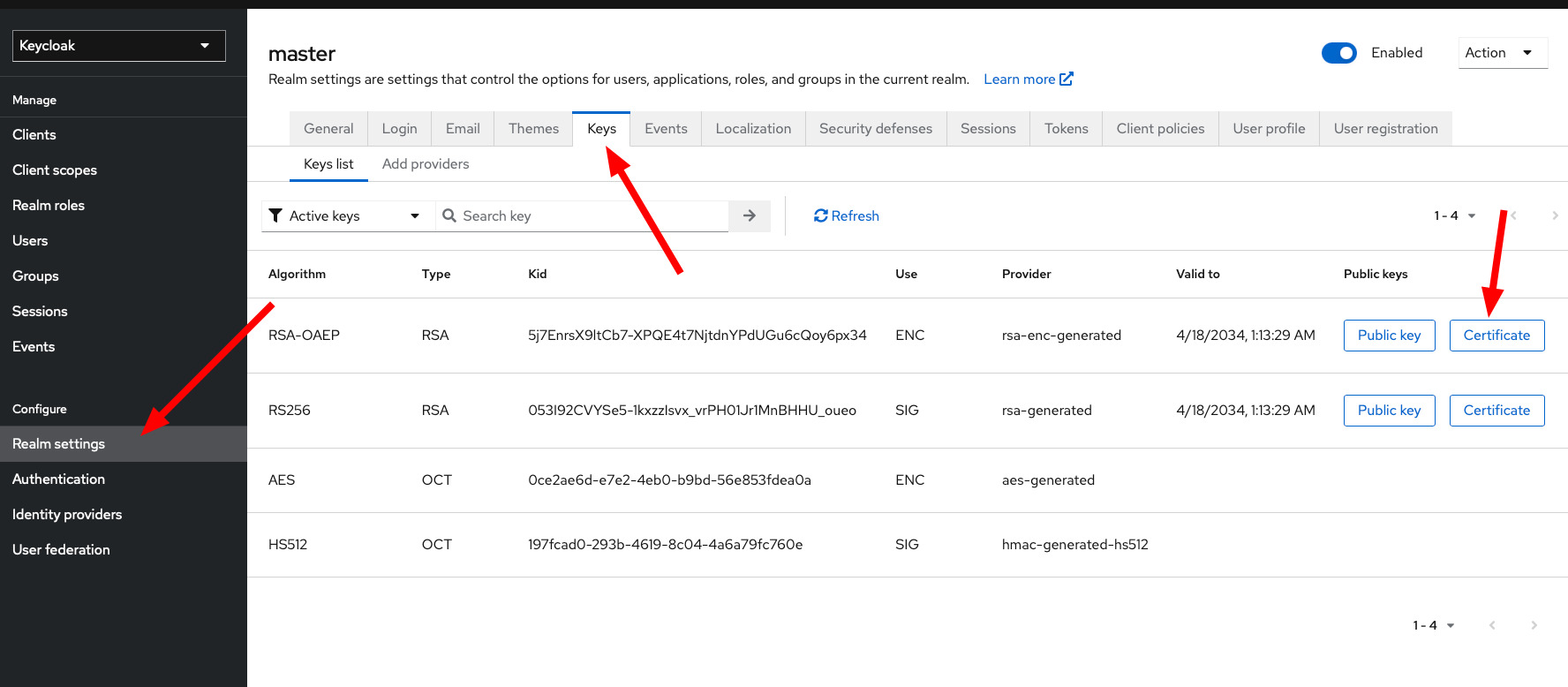
Ensure that the email addresses of your users in DocuSeal match the assigned Keycloak user email addresses.
This is crucial for the SAML SSO to function correctly.
---
# Configure SAML with Authentic | DocuSeal Docs
Menu
Configure SAML with Authentic
=============================
### Step 1: Create a new SAML service provider in Authentic
1. Log in to your Authentic admin dashboard.
2. Navigate to **Applications** > **Providers** and click **Create**.
3. Choose **SAML Provider** as the provider type and click **Next**.
4. Fill in the following fields:
* **Name**: Enter a name for your service provider, e.g., **docuseal-saml**
* **Authentication Flow**: Select the appropriate authentication flow.
* **Authorization Flow**: Select the appropriate authorization flow.
* **ACS URL**: Enter the **Single Sign On URL** from the [DocuSeal SAML SSO](https://docuseal.com/settings/sso)
page.
* **Service Provider Binding**: Select the POST binding.
* **Audience**: Enter the **Metadata URL** from the [DocuSeal SAML SSO](https://docuseal.com/settings/sso)
page.
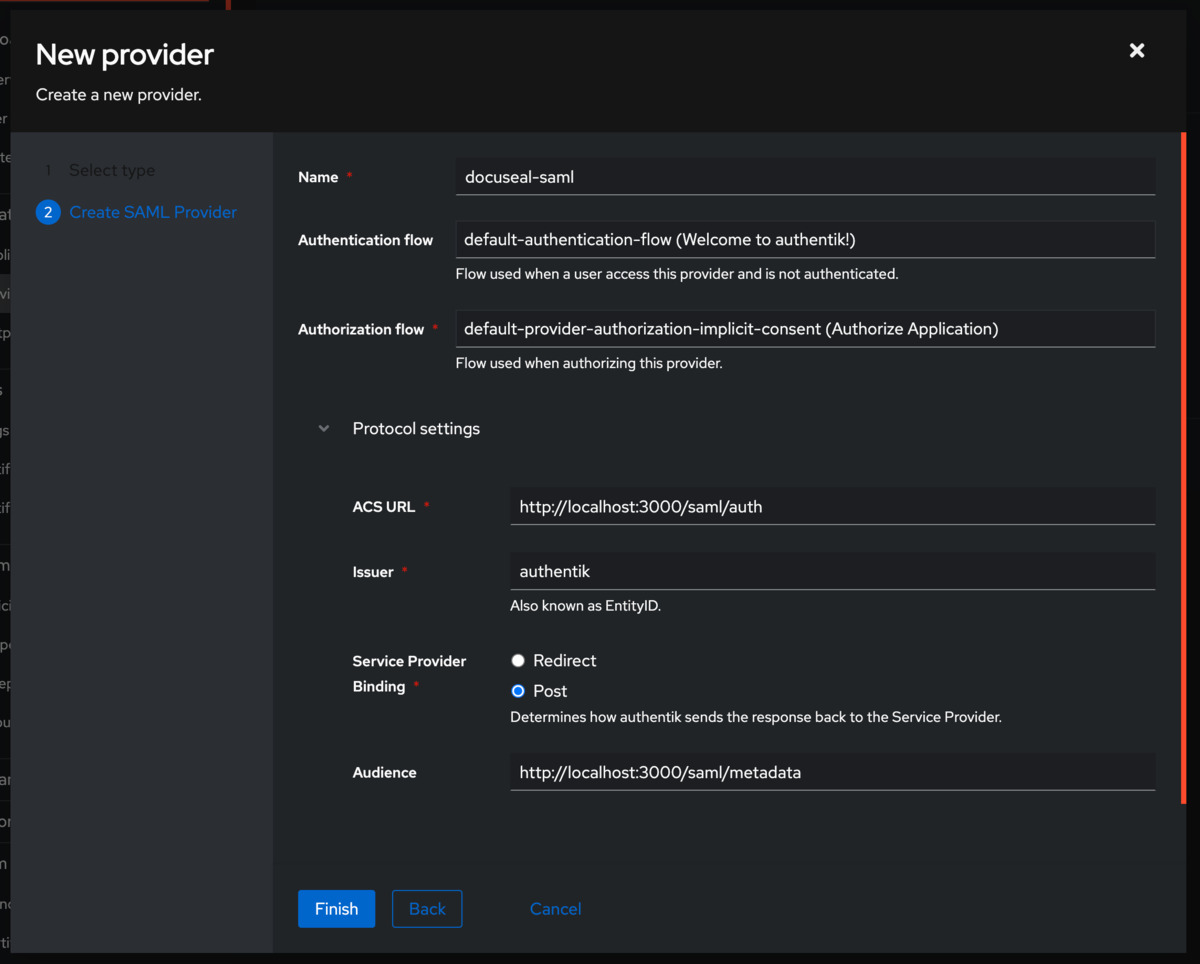
### Step 2: Configure advanced SAML settings
1. Expand the **Advanced protocol settings** section.
2. Choose appropriate **Signing Certificate** and **Verification Certificate**.
3. Set the **Email** for the **Property mappings** and for the **Name ID Property Mapping**.
4. Click **Finish** to create the service provider.
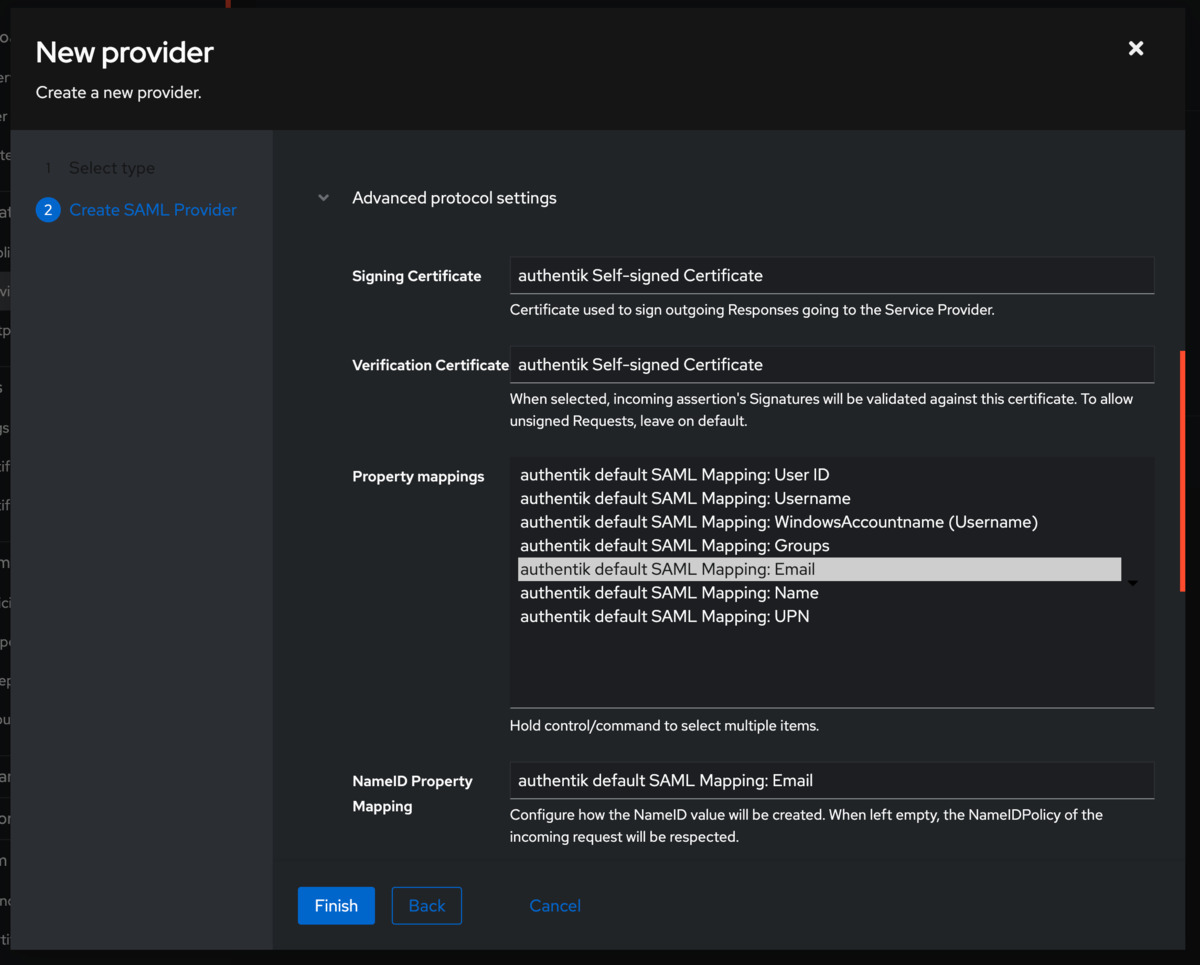
### Step 3: Create an application
1. Navigate to the **Applications** > **Applications** and click **Create**.
2. Fill in the following fields:
* **Name**: Enter a name for your application, e.g., **DocuSeal**
* **Slug**: Enter a slug for your application, e.g., **docuseal**
* **Provider**: Select the SAML provider you created earlier.
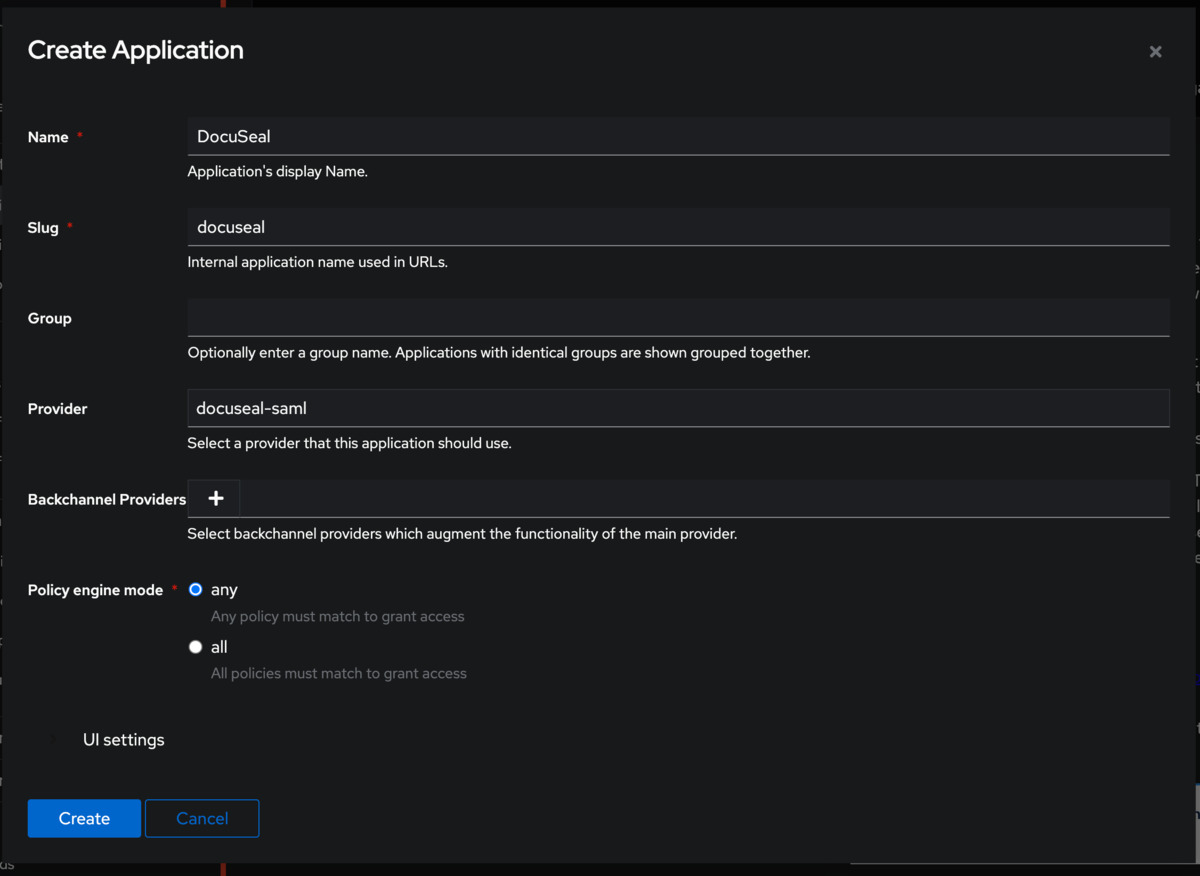
### Step 4: Configure DocuSeal with Authentic information
1. Navigate to the **System** > **Certificates** section in Authentic.
2. Click on the certificate that you selected for the SAML provider.
3. Download the certificate in **.pem** format.
4. Open the **.pem** file in a text editor and copy its contents.
5. Paste the copied certificate content into the **Certificate** field in the [DocuSeal SAML SSO](https://docuseal.com/settings/sso)
page.
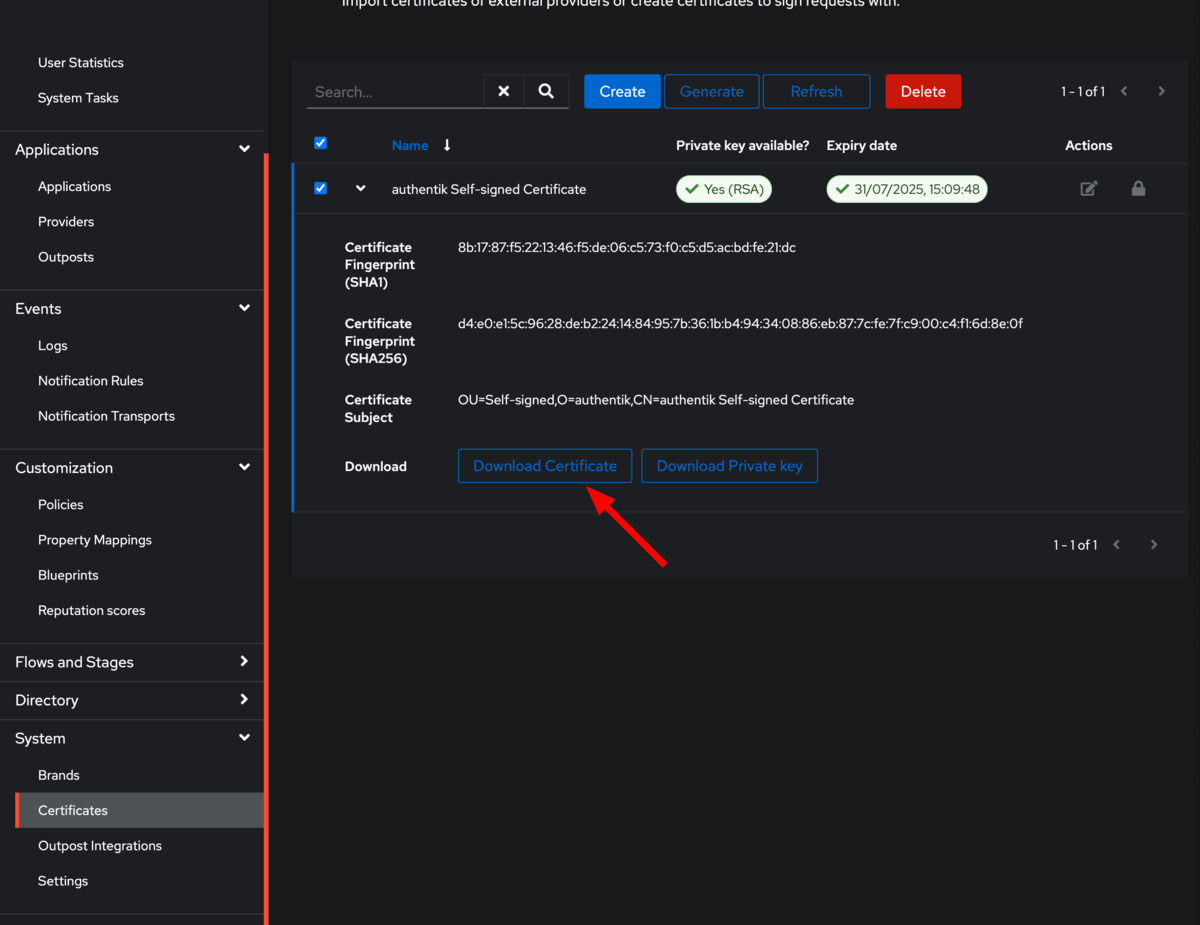
Ensure that the email addresses of your users in DocuSeal match the assigned Authentic user email addresses.
This is crucial for the SAML SSO to function correctly.
---
# Configuring SAML with Google Workspace | DocuSeal Docs
Menu
Configuring SAML with Google Workspace
======================================
### Step 1: Add custom SAML app in Google Admin Console
1. Log in to [Google Admin Console](https://admin.google.com/)
.
2. Navigate to Apps: Go to **Apps** > **Web and mobile apps**.
3. Add Custom SAML App: Click **Add App** and select **Add custom SAML app**.
4. Enter App Details:
* **App Name**: Enter a name for your app.
* **App Icon**: Optionally, upload an icon.

### Step 2: Google Identity Provider details
1. On the **Google Identity Provider details** page copy SSO URL and Entity ID and the Certificate
2. Copy **SSO URL** and paste it into the **SSO Service URL** field in the [DocuSeal SAML SSO](https://docuseal.com/settings/sso)
page.
3. Copy **Certificate** and paste it into the **Certificate** field in the [DocuSeal SAML SSO](https://docuseal.com/settings/sso)
page.
4. Click **Continue**.
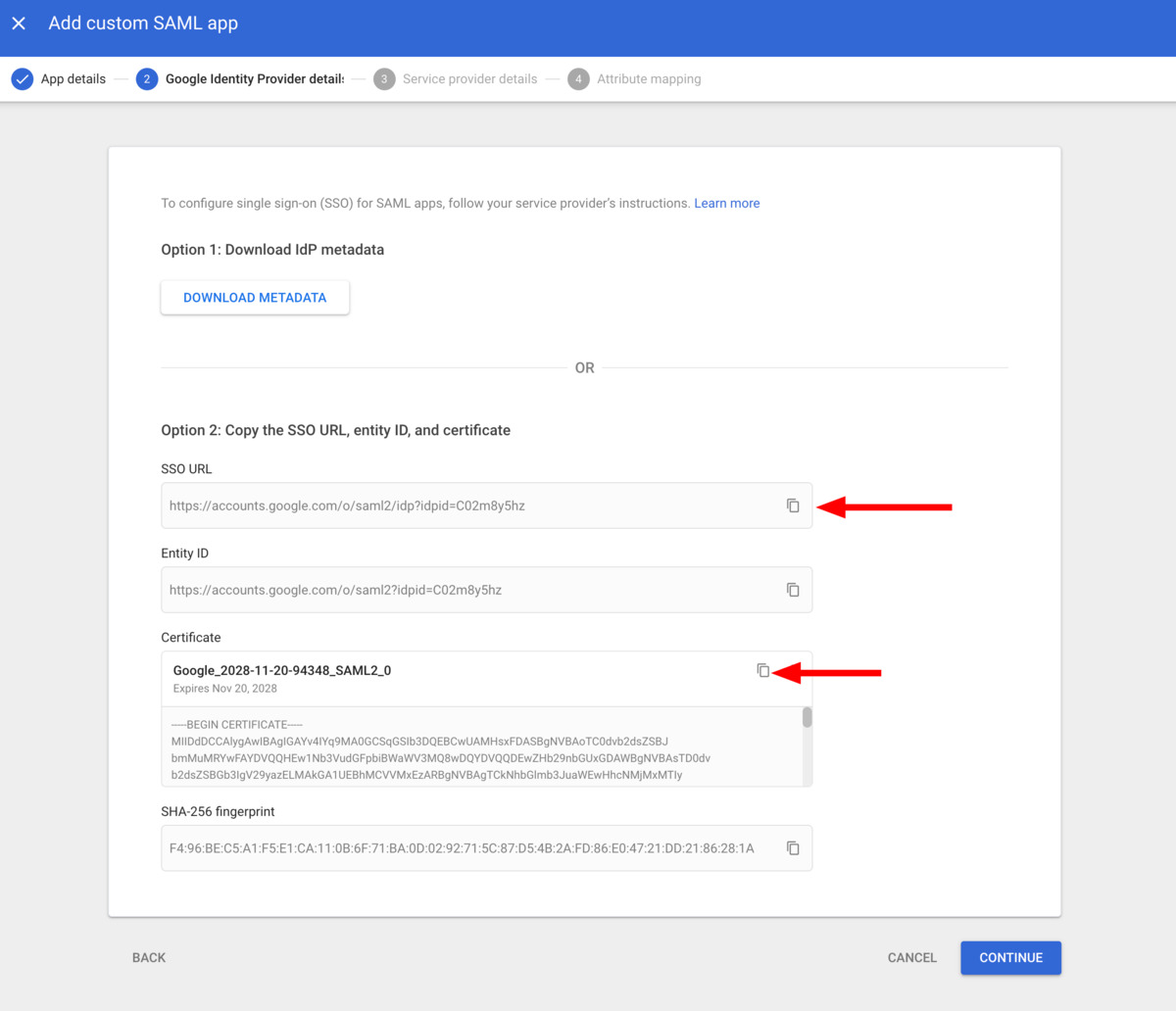
### Step 3: Service provider details
1. Enter DocuSeal Information:
* **ACS URL**: Enter the **Single Sign-On URL** from DocuSeal.
* **Entity ID**: Enter the **Metadata URL** from DocuSeal.
* **Start URL**: Optionally, enter a URL to redirect users after authentication.
* **Name ID Format**: Set to **Email**.
* **Name ID**: Select the **Primary Email**.
2. Click **Continue**.
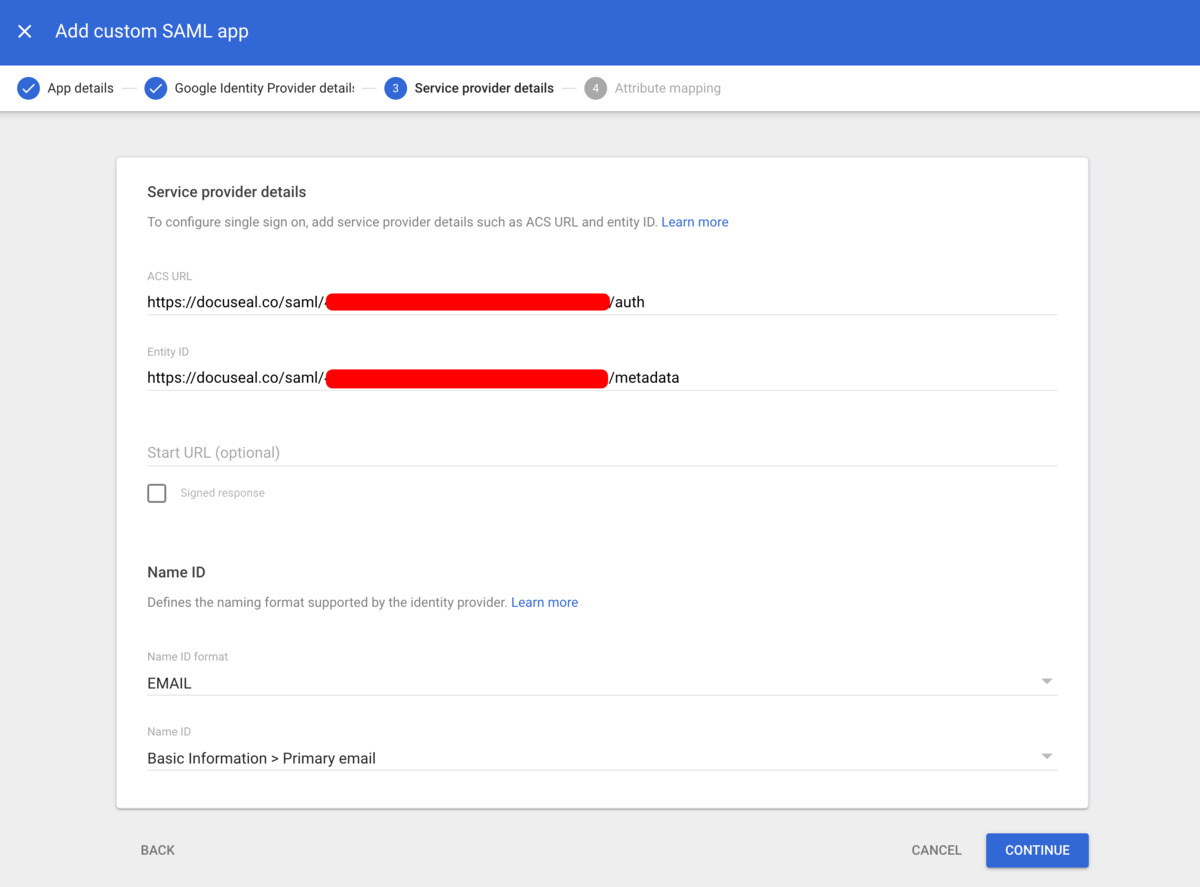
### Step 4: Attribute mapping
1. DocuSeal does not require any attribute mapping. Click **Finish** to complete the setup.
2. Done! You have successfully configured SAML SSO with Google.
Ensure that the email addresses of your users in DocuSeal match the assigned Google user email addresses.
This is crucial for the SAML SSO to function correctly.
---
# Configuring SAML with Microsoft Entra ID | DocuSeal Docs
Menu
Configuring SAML with Microsoft Entra ID
========================================
### Step 1: Create a new Entra ID SAML application
1. Log in to [Azure Portal](https://portal.azure.com/)
as an administrator.
2. Click on **Microsoft Entra ID** in the control panel, or use the search bar at the top.
3. In the left-hand menu, select **Enterprise applications**.
4. Click on **New application** and choose **Create your own application**.
5. Enter a name for your application and select **Integrate any other application you don’t find in the gallery (Non-gallery)**. 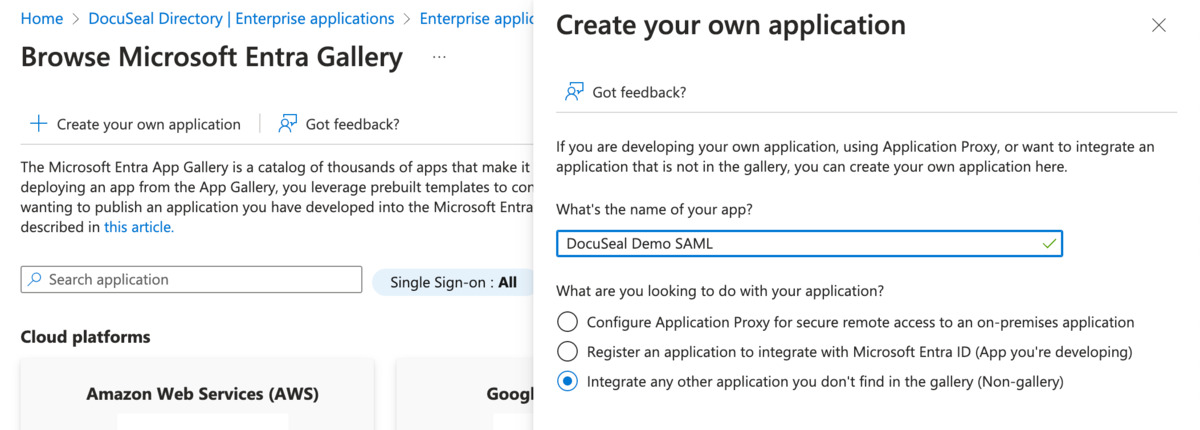
6. Click **Create** and wait for the application creation process to complete.
7. Once the application is created, go to the application’s page and click on **Set up single sign-on**.
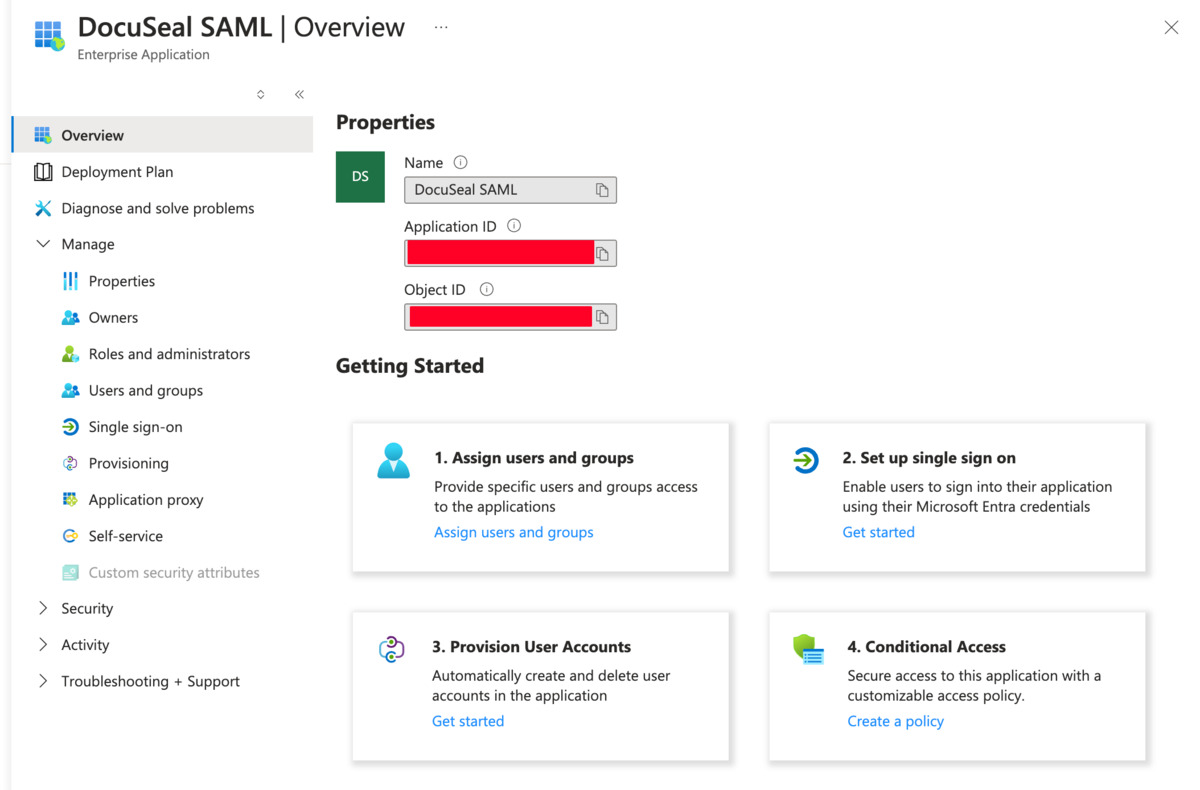
### Step 2: Basic SAML Configuration
1. Click on the edit icon in the top right corner of the **Basic SAML Configuration** block.
2. Enter DocuSeal Information:
* **Identifier (Entity ID)**: Enter the **Metadata URL** from the [DocuSeal SAML SSO](https://docuseal.com/settings/sso)
page.
* **Reply URL (Assertion Consumer Service URL)**: Enter the **Single Sign-On URL** from the [DocuSeal SAML SSO](https://docuseal.com/settings/sso)
page.
3. Click **Save**.
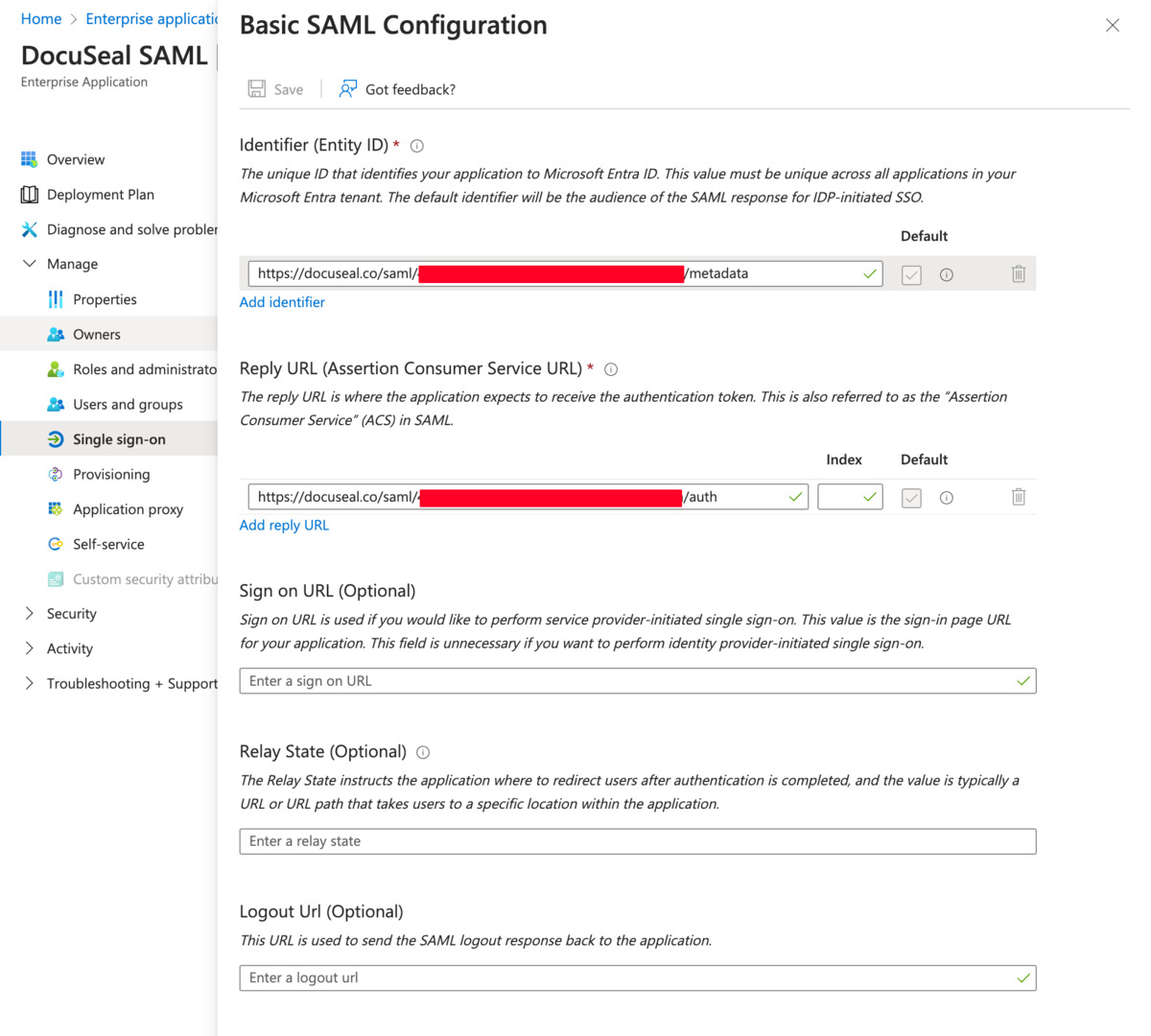
### Step 3: Attributes & Claims
1. Click on **Edit** in the **Attributes & Claims** block.
2. Select the **Unique User Identifier (Name ID)** field.
3. For the **Name identifier format**, choose **Email Address**.
4. For the **Source attribute**, select **user.userprincipalname**
5. Click **Save**.
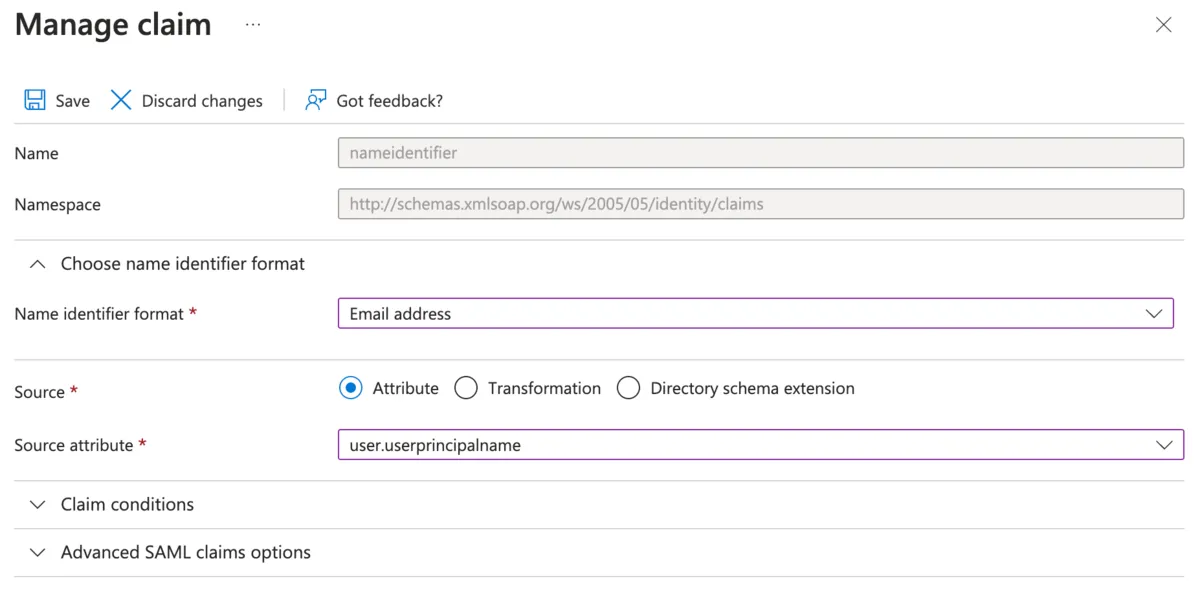
### Step 4: SAML Certificates
1. Click on **Download** next to **Certificate (Base64)** and save the file.
2. Open the **.cer** file in a text editor and copy its contents.
3. Paste the copied certificate content into the **Certificate** field in the [DocuSeal SAML SSO](https://docuseal.com/settings/sso)
page.
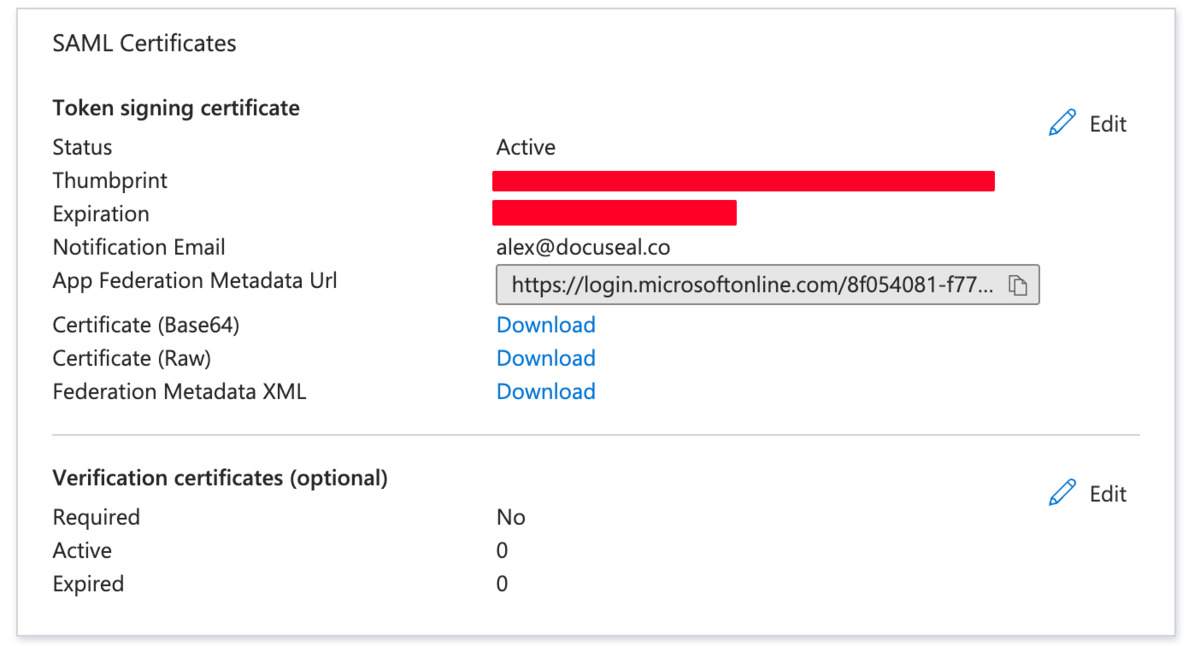
### Step 5: Set up Login URL
1. Copy **Login URL** and paste it into the **SSO Service URL** field in the [DocuSeal SAML SSO](https://docuseal.com/settings/sso)
page.
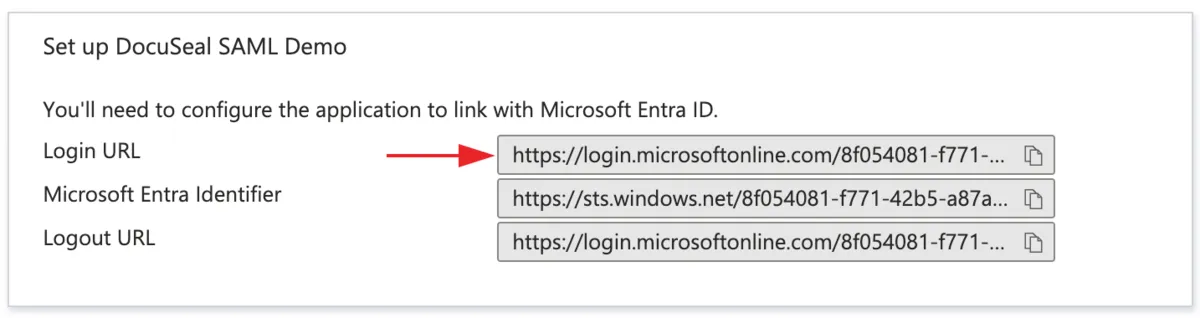
### Step 6: Test single sign-on
1. Click on **Test** at the bottom of the page.
2. In the panel that opens on the right, click on **Test sign in**.
3. If everything is working correctly, you will be redirected to the DocuSeal dashboard. If you encounter an error indicating that you don’t have access, complete step 7 and try again.
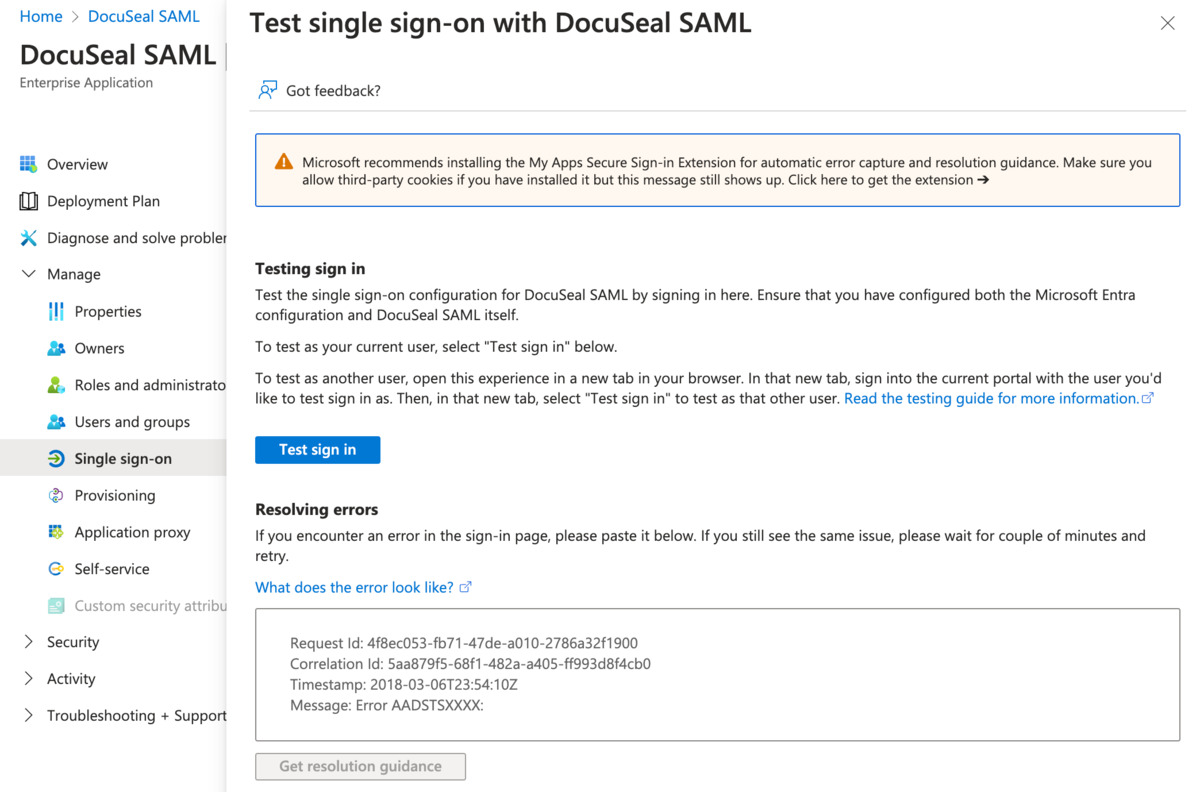
### Step 7: Assign users
1. Click on **Users and groups** in the left-hand menu.
2. Click on **Add user/group** and select the users who should have access to DocuSeal.
3. Click **Select** then **Assign**.
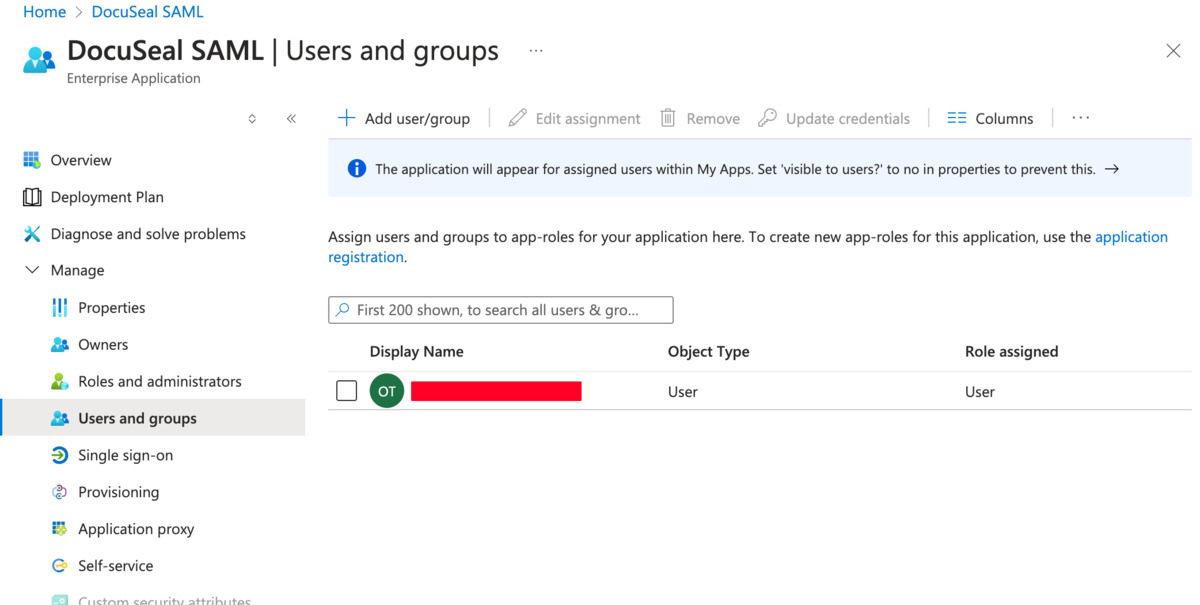
Ensure that the email addresses of your users in DocuSeal match the assigned Microsoft user email addresses.
This is crucial for the SAML SSO to function correctly.
---
# API Reference | DocuSeal Docs
Menu
[Send signature request\
\
Learn More →](https://www.docuseal.com/docs/api#create-a-submission)
[Upload PDFs to sign\
\
Learn More →](https://www.docuseal.com/docs/api#create-a-submission-from-pdf)
[Download signed PDFs\
\
Learn More →](https://www.docuseal.com/docs/api#webhooks_title)
[HTML to signing form\
\
Learn More →](https://www.docuseal.com/docs/api#create-a-submission-from-html)
[Learn from Guides →](https://www.docuseal.com/guides)
Explore our API
You can also discover our API with Postman and OpenAPI.
[Get API key](https://docuseal.com/sign_up?redir=https%3A%2F%2Fconsole.docuseal.com%2Fapi)
[Run in Postman](https://www.postman.com/docuseal/docuseal/collection/baauu23/docuseal-api)
[OpenAPI Specs](https://editor.swagger.io/?url=https%3A%2F%2Fconsole.docuseal.com%2Fopenapi.yml)
MCP
Choose your language
image/svg+xml Official PHP Logo image/svg+xml Official PHP Logo Colin Viebrock Copyright Colin Viebrock 1997 - All rights reserved. 1997
[Github](https://www.docuseal.com/docs/api)
Copy Copied
curl https://api.docuseal.com/templates -H 'X-Auth-Token: API_KEY'
Submissions
-----------
Signature requests can be initiated with Submissions API. Submissions can contain one submitter if signed by a single party or multiple submitters if the document template form contains signatures and fields to be collected and filled by multiple parties. Initiate new submissions to request signatures for specified submitters via email or phone number.
get
/submissions
get
/submissions/{id}
get
/submissions/{id}/documents
post
/submissions
post
/submissions/pdf
post
/submissions/docx
post
/submissions/html
delete
/submissions/{id}
### List all submissions
Copy as Markdown Copy as Markdown Copied
get
/submissions
The API endpoint provides the ability to retrieve a list of available submissions.
Parameters
template\_id Integer
The template ID allows you to receive only the submissions created from that specific template.
status String
Filter submissions by status.
Possible values: pending, completed, declined, expired
q String
Filter submissions based on submitters name, email or phone partial match.
slug String
Filter submissions by unique slug.
Example: NtLDQM7eJX2ZMd
template\_folder String
Filter submissions by template folder name.
archived Boolean
Returns only archived submissions when \`true\` and only active submissions when \`false\`.
limit Integer
The number of submissions to return. Default value is 10. Maximum value is 100.
after Integer
The unique identifier of the submission to start the list from. It allows you to receive only submissions with an ID greater than the specified value. Pass ID value from the \`pagination.next\` response to load the next batch of submissions.
before Integer
The unique identifier of the submission that marks the end of the list. It allows you to receive only submissions with an ID less than the specified value.
Node.js JavaScript TypeScript Python Ruby PHP PHP (cURL) Go C# Java cURL CLI Copy Copied
const fetch = require("node-fetch");
const resp = await fetch("https://api.docuseal.com/submissions", {
method: "GET",
headers: {
"X-Auth-Token": "API_KEY"
}
});
const { data, pagination } = await resp.json();
Example Response Copy Copied
{
"data": [\
{\
"id": 1,\
"name": null,\
"source": "link",\
"submitters_order": "random",\
"slug": "VyL4szTwYoSvXq",\
"status": "completed",\
"audit_log_url": "https://docuseal.com/file/hash/example.pdf",\
"combined_document_url": null,\
"expire_at": null,\
"completed_at": "2023-12-10T15:49:21.895Z",\
"created_at": "2023-12-10T15:48:17.166Z",\
"updated_at": "2023-12-10T15:49:21.895Z",\
"archived_at": null,\
"submitters": [\
{\
"id": 1,\
"submission_id": 1,\
"uuid": "0954d146-db8c-4772-aafe-2effc7c0e0c0",\
"email": "submitter@example.com",\
"slug": "dsEeWrhRD8yDXT",\
"sent_at": "2023-12-14T15:45:49.011Z",\
"opened_at": "2023-12-14T15:48:23.011Z",\
"completed_at": "2023-12-14T15:49:21.701Z",\
"declined_at": null,\
"created_at": "2023-12-10T15:48:17.173Z",\
"updated_at": "2023-12-14T15:50:21.799Z",\
"name": "John Doe",\
"phone": "+1234567890",\
"status": "completed",\
"role": "First Party",\
"metadata": {},\
"preferences": {}\
}\
],\
"template": {\
"id": 1,\
"name": "Example Template",\
"external_id": "Temp123",\
"folder_name": "Default",\
"created_at": "2023-12-14T15:50:21.799Z",\
"updated_at": "2023-12-14T15:50:21.799Z"\
},\
"created_by_user": {\
"id": 1,\
"first_name": "Bob",\
"last_name": "Smith",\
"email": "bob.smith@example.com"\
}\
}\
],
"pagination": {
"count": 1,
"next": 1,
"prev": 1
}
}
### Get a submission
Copy as Markdown Copy as Markdown Copied
get
/submissions/{id}
The API endpoint provides the functionality to retrieve information about a submission.
Parameters
id Integer required
The unique identifier of the submission.
Example: 1001
Node.js JavaScript TypeScript Python Ruby PHP PHP (cURL) Go C# Java cURL CLI Copy Copied
const fetch = require("node-fetch");
const resp = await fetch("https://api.docuseal.com/submissions/1001", {
method: "GET",
headers: {
"X-Auth-Token": "API_KEY"
}
});
const submission = await resp.json();
Example Response Copy Copied
{
"id": 1,
"name": null,
"source": "link",
"submitters_order": "random",
"slug": "VyL4szTwYoSvXq",
"audit_log_url": "https://docuseal.com/blobs/proxy/hash/example.pdf",
"combined_document_url": null,
"completed_at": "2023-12-14T15:49:21.701Z",
"expire_at": null,
"created_at": "2023-12-10T15:48:17.166Z",
"updated_at": "2023-12-10T15:49:21.895Z",
"archived_at": null,
"submitters": [\
{\
"id": 1,\
"submission_id": 1,\
"uuid": "0954d146-db8c-4772-aafe-2effc7c0e0c0",\
"email": "submitter@example.com",\
"slug": "dsEeWrhRD8yDXT",\
"sent_at": "2023-12-14T15:45:49.011Z",\
"opened_at": "2023-12-14T15:48:23.011Z",\
"completed_at": "2023-12-14T15:49:21.701Z",\
"declined_at": null,\
"created_at": "2023-12-14T15:48:17.173Z",\
"updated_at": "2023-12-14T15:50:21.799Z",\
"name": "John Doe",\
"phone": "+1234567890",\
"external_id": null,\
"status": "completed",\
"metadata": {},\
"values": [\
{\
"field": "Full Name",\
"value": "John Doe"\
}\
],\
"documents": [\
{\
"name": "example",\
"url": "https://docuseal.com/blobs/proxy/hash/example.pdf"\
}\
],\
"role": "First Party"\
}\
],
"template": {
"id": 1,
"name": "Example Template",
"external_id": "Temp123",
"folder_name": "Default",
"created_at": "2023-12-14T15:50:21.799Z",
"updated_at": "2023-12-14T15:50:21.799Z"
},
"created_by_user": {
"id": 1,
"first_name": "Bob",
"last_name": "Smith",
"email": "bob.smith@example.com"
},
"submission_events": [\
{\
"id": 1,\
"submitter_id": 2,\
"event_type": "view_form",\
"event_timestamp": "2023-12-14T15:47:24.566Z",\
"data": {}\
}\
],
"documents": [\
{\
"name": "example",\
"url": "https://docuseal.com/file/hash/example.pdf"\
}\
],
"status": "completed"
}
### Get submission documents
Copy as Markdown Copy as Markdown Copied
get
/submissions/{id}/documents
This endpoint returns a list of partially filled documents for a submission. If the submission has been completed, the final signed documents are returned.
Parameters
id Integer required
The unique identifier of the submission.
Example: 1001
merge Boolean
When \`true\`, merges all documents into a single PDF.
Node.js JavaScript TypeScript Python Ruby PHP PHP (cURL) Go C# Java cURL CLI Copy Copied
const fetch = require("node-fetch");
const resp = await fetch("https://api.docuseal.com/submissions/1001/documents", {
method: "GET",
headers: {
"X-Auth-Token": "API_KEY"
}
});
const submission = await resp.json();
Example Response Copy Copied
{
"id": 1,
"documents": [\
{\
"name": "example",\
"url": "https://docuseal.com/file/hash/example.pdf"\
}\
]
}
### Create a submission
Copy as Markdown Copy as Markdown Copied
post
/submissions
This API endpoint allows you to create signature requests (submissions) for a document template and send them to the specified submitters (signers).
**Related Guides**
[Send documents for signature via API](https://www.docuseal.com/guides/send-documents-for-signature-via-api)
[Pre-fill PDF document form fields with API](https://www.docuseal.com/guides/pre-fill-pdf-document-form-fields-with-api)
Request Body Properties
template\_id Integer required
The unique identifier of the template. Document template forms can be created via the Web UI, [PDF and DOCX API](https://www.docuseal.com/guides/use-embedded-text-field-tags-in-the-pdf-to-create-a-fillable-form)
, or [HTML API](https://www.docuseal.com/guides/create-pdf-document-fillable-form-with-html-api)
.
Example: 1000001
send\_email Boolean
Set \`false\` to disable signature request emails sending.
Default: true
send\_sms Boolean
Set \`true\` to send signature request via phone number and SMS.
Default: false
order String
Pass 'random' to send signature request emails to all parties right away. The order is 'preserved' by default so the second party will receive a signature request email only after the document is signed by the first party.
Default: preserved
Possible values: preserved, random
completed\_redirect\_url String
Specify URL to redirect to after the submission completion.
bcc\_completed String
Specify BCC address to send signed documents to after the completion.
reply\_to String
Specify Reply-To address to use in the notification emails.
expire\_at String
Specify the expiration date and time after which the submission becomes unavailable for signature.
Example: 2024-09-01 12:00:00 UTC
variables Object
Dynamic content variables object. Variable values can be strings, numbers, arrays, objects, or HTML content used to generate styled text, paragraphs, and tables in dynamic template documents.
Example: {"variable\_name":"value"}
message Object
subject String
Custom signature request email subject.
body String
Custom signature request email body. Can include the following variables: {{template.name}}, {{submitter.link}}, {{account.name}}.
submitters Array required
The list of submitters for the submission.
Child parameters
name String
The name of the submitter.
role String
The role name or title of the submitter.
Example: First Party
email String
The email address of the submitter.
Example: john.doe@example.com
phone String
The phone number of the submitter, formatted according to the E.164 standard.
Example: +1234567890
values Object
An object with pre-filled values for the submission. Use field names for keys of the object. For more configurations see \`fields\` param.
external\_id String
Your application-specific unique string key to identify this submitter within your app.
completed Boolean
Pass \`true\` to mark submitter as completed and auto-signed via API.
metadata Object
Metadata object with additional submitter information.
Example: { "customField": "value" }
send\_email Boolean
Set \`false\` to disable signature request emails sending only for this submitter.
Default: true
send\_sms Boolean
Set \`true\` to send signature request via phone number and SMS.
Default: false
reply\_to String
Specify Reply-To address to use in the notification emails for this submitter.
completed\_redirect\_url String
Submitter specific URL to redirect to after the submission completion.
order Integer
The order of the submitter in the workflow (e.g., 0 for the first signer, 1 for the second, etc.). Use the same order number to create order groups. By default, submitters are ordered as in the submitters array.
require\_phone\_2fa Boolean
Set to \`true\` to require phone 2FA verification via a one-time code sent to the phone number in order to access the documents.
Default: false
require\_email\_2fa Boolean
Set to \`true\` to require email 2FA verification via a one-time code sent to the email address in order to access the documents.
Default: false
message Object
subject String
Custom signature request email subject for the submitter.
body String
Custom signature request email body for the submitter. Can include the following variables: {{template.name}}, {{submitter.link}}, {{account.name}}.
fields Array
A list of configurations for template document form fields.
Child parameters
name String required
Document template field name.
Example: First Name
default\_value String | Number | Boolean | Array
Default value of the field. Use base64 encoded file or a public URL to the image file to set default signature or image fields.
Example: Acme
readonly Boolean
Set \`true\` to make it impossible for the submitter to edit predefined field value.
Default: false
required Boolean
Set \`true\` to make the field required.
title String
Field title displayed to the user instead of the name, shown on the signing form. Supports Markdown.
description String
Field description displayed on the signing form. Supports Markdown.
validation Object
pattern String
HTML field validation pattern string based on [https://developer.mozilla.org/en-US/docs/Web/HTML/Attributes/pattern](https://developer.mozilla.org/en-US/docs/Web/HTML/Attributes/pattern)
specification.
Example: \[A-Z\]{4}
message String
A custom error message to display on validation failure.
min Number | String
Minimum allowed number value or date depending on field type.
max Number | String
Maximum allowed number value or date depending on field type.
step Number
Increment step for number field. Pass 1 to accept only integers, or 0.01 to accept decimal currency.
preferences Object
font\_size Integer
Font size of the field value in pixels.
Example: 12
font\_type String
Font type of the field value.
Possible values: bold, italic, bold\_italic
font String
Font family of the field value.
Possible values: Times, Helvetica, Courier
color String
Font color of the field value.
Default: black
Possible values: black, white, blue
background String
Field box background color.
Possible values: black, white, blue
align String
Horizontal alignment of the field text value.
Default: left
Possible values: left, center, right
valign String
Vertical alignment of the field text value.
Default: center
Possible values: top, center, bottom
format String
The data format for different field types.
\- Date field: accepts formats such as DD/MM/YYYY (default: MM/DD/YYYY).
\- Signature field: accepts drawn, typed, drawn\_or\_typed (default), or upload.
\- Number field: accepts currency formats such as usd, eur, gbp.
Example: DD/MM/YYYY
price Number
Price value of the payment field. Only for payment fields.
Example: 99.99
currency String
Currency value of the payment field. Only for payment fields.
Default: USD
Possible values: USD, EUR, GBP, CAD, AUD
mask Integer | Boolean
Set \`true\` to make sensitive data masked on the document.
Default: false
reasons Array
An array of signature reasons to choose from.
Show All
roles Array
A list of roles for the submitter. Use this param to merge multiple roles into one submitter.
Node.js JSON JavaScript TypeScript Python Ruby PHP PHP (cURL) Go C# Java cURL CLI Copy Copied
const fetch = require("node-fetch");
const resp = await fetch("https://api.docuseal.com/submissions", {
method: "POST",
headers: {
"X-Auth-Token": "API_KEY"
},
body: JSON.stringify({
template_id: 1000001,
send_email: true,
submitters: [\
{\
role: "First Party",\
email: "john.doe@example.com"\
}\
]
})
});
const submitters = await resp.json();
Example Response Copy Copied
[\
{\
"id": 1,\
"submission_id": 1,\
"uuid": "884d545b-3396-49f1-8c07-05b8b2a78755",\
"email": "john.doe@example.com",\
"slug": "pAMimKcyrLjqVt",\
"sent_at": "2023-12-13T23:04:04.252Z",\
"opened_at": null,\
"completed_at": null,\
"declined_at": null,\
"created_at": "2023-12-14T15:50:21.799Z",\
"updated_at": "2023-12-14T15:50:21.799Z",\
"name": "string",\
"phone": "+1234567890",\
"external_id": "2321",\
"metadata": {\
"customData": "custom value"\
},\
"status": "sent",\
"values": [\
{\
"field": "Full Name",\
"value": "John Doe"\
}\
],\
"preferences": {\
"send_email": true,\
"send_sms": false\
},\
"role": "First Party",\
"embed_src": "https://docuseal.com/s/pAMimKcyrLjqVt"\
}\
]
### Create a submission from PDF
[Pro](https://www.docuseal.com/pricing)
Copy as Markdown Copy as Markdown Copied
post
/submissions/pdf
The API endpoint provides the functionality to create one-off submission request from a PDF. Use `{{Field Name;role=Signer1;type=date}}` text tags to define fillable fields in the document. See [https://www.docuseal.com/examples/fieldtags.pdf](https://www.docuseal.com/examples/fieldtags.pdf)
for more text tag formats. Or specify the exact pixel coordinates of the document fields using \`fields\` param.
**Related Guides**
[Use embedded text field tags to create a fillable form](https://www.docuseal.com/guides/use-embedded-text-field-tags-in-the-pdf-to-create-a-fillable-form)
Request Body Properties
name String
Name of the document submission.
Example: Test Submission Document
send\_email Boolean
Set \`false\` to disable signature request emails sending.
Default: true
send\_sms Boolean
Set \`true\` to send signature request via phone number and SMS.
Default: false
order String
Pass 'random' to send signature request emails to all parties right away. The order is 'preserved' by default so the second party will receive a signature request email only after the document is signed by the first party.
Default: preserved
Possible values: preserved, random
completed\_redirect\_url String
Specify URL to redirect to after the submission completion.
bcc\_completed String
Specify BCC address to send signed documents to after the completion.
reply\_to String
Specify Reply-To address to use in the notification emails.
expire\_at String
Specify the expiration date and time after which the submission becomes unavailable for signature.
Example: 2024-09-01 12:00:00 UTC
template\_ids Array
An optional array of template IDs to use in the submission along with the provided documents. This can be used to create multi-document submissions when some of the required documents exist within templates.
documents Array required
Child parameters
name String required
Name of the document.
file String required
Base64-encoded content of the PDF file or downloadable file URL.
Example: base64
fields Array
Fields are optional if you use {{...}} text tags to define fields in the document.
Child parameters
name String
Name of the field.
type String
Type of the field (e.g., text, signature, date, initials).
Possible values: heading, text, signature, initials, date, number, image, checkbox, multiple, file, radio, select, cells, stamp, payment, phone, verification, kba, strikethrough
role String
Role name of the signer.
required Boolean
Indicates if the field is required.
title String
Field title displayed to the user instead of the name, shown on the signing form. Supports Markdown.
description String
Field description displayed on the signing form. Supports Markdown.
areas Array
Child parameters
x Number required
X-coordinate of the field area.
y Number required
Y-coordinate of the field area.
w Number required
Width of the field area.
h Number required
Height of the field area.
page Integer required
Page number of the field area. Starts from 1.
Example: 1
option String
Option string value for 'radio' and 'multiple' select field types.
options Array
An array of option values for 'select' field type.
Example: \["Option A","Option B"\]
Show All
position Integer
Document position in the submission. If not specified, the document will be added in the order it appears in the documents array.
submitters Array required
The list of submitters for the submission.
Child parameters
name String
The name of the submitter.
role String
The role name or title of the submitter.
Example: First Party
email String
The email address of the submitter.
Example: john.doe@example.com
phone String
The phone number of the submitter, formatted according to the E.164 standard.
Example: +1234567890
values Object
An object with pre-filled values for the submission. Use field names for keys of the object. For more configurations see \`fields\` param.
external\_id String
Your application-specific unique string key to identify this submitter within your app.
completed Boolean
Pass \`true\` to mark submitter as completed and auto-signed via API.
metadata Object
Metadata object with additional submitter information.
Example: { "customField": "value" }
send\_email Boolean
Set \`false\` to disable signature request emails sending only for this submitter.
Default: true
send\_sms Boolean
Set \`true\` to send signature request via phone number and SMS.
Default: false
reply\_to String
Specify Reply-To address to use in the notification emails for this submitter.
completed\_redirect\_url String
Submitter specific URL to redirect to after the submission completion.
order Integer
The order of the submitter in the workflow (e.g., 0 for the first signer, 1 for the second, etc.). Use the same order number to create order groups. By default, submitters are ordered as in the submitters array.
require\_phone\_2fa Boolean
Set to \`true\` to require phone 2FA verification via a one-time code sent to the phone number in order to access the documents.
Default: false
require\_email\_2fa Boolean
Set to \`true\` to require email 2FA verification via a one-time code sent to the email address in order to access the documents.
Default: false
invite\_by String
Set the role name of the previous party that should invite this party via email.
fields Array
A list of configurations for document form fields.
Child parameters
name String required
Document field name.
Example: First Name
default\_value String | Number | Boolean | Array
Default value of the field. Use base64 encoded file or a public URL to the image file to set default signature or image fields.
Example: Acme
readonly Boolean
Set \`true\` to make it impossible for the submitter to edit predefined field value.
Default: false
required Boolean
Set \`true\` to make the field required.
title String
Field title displayed to the user instead of the name, shown on the signing form. Supports Markdown.
description String
Field description displayed on the signing form. Supports Markdown.
validation Object
pattern String
HTML field validation pattern string based on [https://developer.mozilla.org/en-US/docs/Web/HTML/Attributes/pattern](https://developer.mozilla.org/en-US/docs/Web/HTML/Attributes/pattern)
specification.
Example: \[A-Z\]{4}
message String
A custom error message to display on validation failure.
min Number | String
Minimum allowed number value or date depending on field type.
max Number | String
Maximum allowed number value or date depending on field type.
step Number
Increment step for number field. Pass 1 to accept only integers, or 0.01 to accept decimal currency.
preferences Object
font\_size Integer
Font size of the field value in pixels.
Example: 12
font\_type String
Font type of the field value.
Possible values: bold, italic, bold\_italic
font String
Font family of the field value.
Possible values: Times, Helvetica, Courier
color String
Font color of the field value.
Default: black
Possible values: black, white, blue
background String
Field box background color.
Possible values: black, white, blue
align String
Horizontal alignment of the field text value.
Default: left
Possible values: left, center, right
valign String
Vertical alignment of the field text value.
Default: center
Possible values: top, center, bottom
format String
The data format for different field types.
\- Date field: accepts formats such as DD/MM/YYYY (default: MM/DD/YYYY).
\- Signature field: accepts drawn, typed, drawn\_or\_typed (default), or upload.
\- Number field: accepts currency formats such as usd, eur, gbp.
Example: DD/MM/YYYY
price Number
Price value of the payment field. Only for payment fields.
Example: 99.99
currency String
Currency value of the payment field. Only for payment fields.
Default: USD
Possible values: USD, EUR, GBP, CAD, AUD
mask Integer | Boolean
Set \`true\` to make sensitive data masked on the document.
Default: false
reasons Array
An array of signature reasons to choose from.
Show All
roles Array
A list of roles for the submitter. Use this param to merge multiple roles into one submitter.
message Object
subject String
Custom signature request email subject.
body String
Custom signature request email body. Can include the following variables: {{submission.name}}, {{submitter.link}}, {{account.name}}.
flatten Boolean
Remove PDF form fields from the documents.
Default: false
merge\_documents Boolean
Set \`true\` to merge the documents into a single PDF file.
Default: false
remove\_tags Boolean
Pass \`false\` to disable the removal of {{text}} tags from the PDF. This can be used along with transparent text tags for faster and more robust PDF processing.
Default: true
Node.js JSON JavaScript TypeScript Python Ruby PHP PHP (cURL) Go C# Java cURL CLI Copy Copied
const fetch = require("node-fetch");
const resp = await fetch("https://api.docuseal.com/submissions/pdf", {
method: "POST",
headers: {
"X-Auth-Token": "API_KEY"
},
body: JSON.stringify({
name: "Test Submission Document",
documents: [\
{\
name: "string",\
file: "base64",\
fields: [\
{\
name: "string",\
areas: [\
{\
x: 0,\
y: 0,\
w: 0,\
h: 0,\
page: 1\
}\
]\
}\
]\
}\
],
submitters: [\
{\
role: "First Party",\
email: "john.doe@example.com"\
}\
]
})
});
const submission = await resp.json();
Example Response Copy Copied
{
"id": 5,
"name": "Test Submission",
"submitters": [\
{\
"id": 1,\
"uuid": "884d545b-3396-49f1-8c07-05b8b2a78755",\
"email": "john.doe@example.com",\
"slug": "pAMimKcyrLjqVt",\
"sent_at": "2025-06-02T15:55:51.310Z",\
"opened_at": null,\
"completed_at": null,\
"declined_at": null,\
"created_at": "2025-06-02T15:55:50.320Z",\
"updated_at": "2025-06-02T15:55:50.320Z",\
"name": "string",\
"phone": "+1234567890",\
"external_id": "2321",\
"metadata": {\
"customData": "custom value"\
},\
"status": "sent",\
"values": [\
{\
"field": "Full Name",\
"value": "John Doe"\
}\
],\
"preferences": {\
"send_email": true,\
"send_sms": false,\
"reply_to": "reply@example.com",\
"completed_redirect_url": "https://example.com/"\
},\
"role": "First Party",\
"embed_src": "https://docuseal.com/s/pAMimKcyrLjqVt"\
}\
],
"source": "api",
"submitters_order": "preserved",
"status": "pending",
"schema": [\
{\
"name": "Demo PDF",\
"attachment_uuid": "48d2998f-266b-47e4-beb2-250ab7ccebdf"\
}\
],
"fields": [\
{\
"name": "Name",\
"type": "text",\
"required": true,\
"uuid": "d0bf3c0c-1928-40c8-80f9-d9f3c6ad4eff",\
"submitter_uuid": "0b0bff58-bc9a-475d-b4a9-2f3e5323faf7",\
"areas": [\
{\
"page": 1,\
"attachment_uuid": "48d2998f-266b-47e4-beb2-250ab7ccebdf",\
"x": 0.403158189124654,\
"y": 0.04211750189825361,\
"w": 0.100684625476058,\
"h": 0.01423690205011389\
}\
]\
}\
],
"expire_at": null,
"created_at": "2025-06-02T15:55:50.270Z"
}
### Create a submission from DOCX
[Pro](https://www.docuseal.com/pricing)
Copy as Markdown Copy as Markdown Copied
post
/submissions/docx
The API endpoint provides functionality to create a one-off submission request from a DOCX file with dynamic content variables. Use `[[variable_name]]` text tags to define dynamic content variables in the document. See [https://www.docuseal.com/examples/demo\_template.docx](https://www.docuseal.com/examples/demo_template.docx)
for the specific text variable syntax, including dynamic content tables and list. You can also use the `{{signature}}` field syntax to define fillable fields, as in a PDF.
**Related Guides**
[Use dynamic content variables in DOCX to create personalized documents](https://www.docuseal.com/guides/use-dynamic-content-variables-in-docx-to-create-personalized-documents)
Request Body Properties
name String
Name of the document submission.
Example: Test Submission Document
send\_email Boolean
Set \`false\` to disable signature request emails sending.
Default: true
send\_sms Boolean
Set \`true\` to send signature request via phone number and SMS.
Default: false
variables Object
Dynamic content variables object. Variable values can be strings, numbers, arrays, objects, or HTML content used to generate styled text, paragraphs, and tables in DOCX.
Example: {"variable\_name":"value"}
order String
Pass 'random' to send signature request emails to all parties right away. The order is 'preserved' by default so the second party will receive a signature request email only after the document is signed by the first party.
Default: preserved
Possible values: preserved, random
completed\_redirect\_url String
Specify URL to redirect to after the submission completion.
bcc\_completed String
Specify BCC address to send signed documents to after the completion.
reply\_to String
Specify Reply-To address to use in the notification emails.
expire\_at String
Specify the expiration date and time after which the submission becomes unavailable for signature.
Example: 2024-09-01 12:00:00 UTC
template\_ids Array
An optional array of template IDs to use in the submission along with the provided documents. This can be used to create multi-document submissions when some of the required documents exist within templates.
documents Array required
Child parameters
name String required
Name of the document.
file String required
Base64-encoded content of the PDF or DOCX file or downloadable file URL.
Example: base64
position Integer
Document position in the submission. If not specified, the document will be added in the order it appears in the documents array.
submitters Array required
The list of submitters for the submission.
Child parameters
name String
The name of the submitter.
role String
The role name or title of the submitter.
Example: First Party
email String
The email address of the submitter.
Example: john.doe@example.com
phone String
The phone number of the submitter, formatted according to the E.164 standard.
Example: +1234567890
values Object
An object with pre-filled values for the submission. Use field names for keys of the object. For more configurations see \`fields\` param.
external\_id String
Your application-specific unique string key to identify this submitter within your app.
completed Boolean
Pass \`true\` to mark submitter as completed and auto-signed via API.
metadata Object
Metadata object with additional submitter information.
Example: { "customField": "value" }
send\_email Boolean
Set \`false\` to disable signature request emails sending only for this submitter.
Default: true
send\_sms Boolean
Set \`true\` to send signature request via phone number and SMS.
Default: false
reply\_to String
Specify Reply-To address to use in the notification emails for this submitter.
completed\_redirect\_url String
Submitter specific URL to redirect to after the submission completion.
order Integer
The order of the submitter in the workflow (e.g., 0 for the first signer, 1 for the second, etc.). Use the same order number to create order groups. By default, submitters are ordered as in the submitters array.
require\_phone\_2fa Boolean
Set to \`true\` to require phone 2FA verification via a one-time code sent to the phone number in order to access the documents.
Default: false
require\_email\_2fa Boolean
Set to \`true\` to require email 2FA verification via a one-time code sent to the email address in order to access the documents.
Default: false
invite\_by String
Set the role name of the previous party that should invite this party via email.
fields Array
A list of configurations for document form fields.
Child parameters
name String required
Document field name.
Example: First Name
default\_value String | Number | Boolean | Array
Default value of the field. Use base64 encoded file or a public URL to the image file to set default signature or image fields.
Example: Acme
readonly Boolean
Set \`true\` to make it impossible for the submitter to edit predefined field value.
Default: false
required Boolean
Set \`true\` to make the field required.
title String
Field title displayed to the user instead of the name, shown on the signing form. Supports Markdown.
description String
Field description displayed on the signing form. Supports Markdown.
validation Object
pattern String
HTML field validation pattern string based on [https://developer.mozilla.org/en-US/docs/Web/HTML/Attributes/pattern](https://developer.mozilla.org/en-US/docs/Web/HTML/Attributes/pattern)
specification.
Example: \[A-Z\]{4}
message String
A custom error message to display on validation failure.
min Number | String
Minimum allowed number value or date depending on field type.
max Number | String
Maximum allowed number value or date depending on field type.
step Number
Increment step for number field. Pass 1 to accept only integers, or 0.01 to accept decimal currency.
preferences Object
font\_size Integer
Font size of the field value in pixels.
Example: 12
font\_type String
Font type of the field value.
Possible values: bold, italic, bold\_italic
font String
Font family of the field value.
Possible values: Times, Helvetica, Courier
color String
Font color of the field value.
Default: black
Possible values: black, white, blue
background String
Field box background color.
Possible values: black, white, blue
align String
Horizontal alignment of the field text value.
Default: left
Possible values: left, center, right
valign String
Vertical alignment of the field text value.
Default: center
Possible values: top, center, bottom
format String
The data format for different field types.
\- Date field: accepts formats such as DD/MM/YYYY (default: MM/DD/YYYY).
\- Signature field: accepts drawn, typed, drawn\_or\_typed (default), or upload.
\- Number field: accepts currency formats such as usd, eur, gbp.
Example: DD/MM/YYYY
price Number
Price value of the payment field. Only for payment fields.
Example: 99.99
currency String
Currency value of the payment field. Only for payment fields.
Default: USD
Possible values: USD, EUR, GBP, CAD, AUD
mask Integer | Boolean
Set \`true\` to make sensitive data masked on the document.
Default: false
reasons Array
An array of signature reasons to choose from.
Show All
roles Array
A list of roles for the submitter. Use this param to merge multiple roles into one submitter.
message Object
subject String
Custom signature request email subject.
body String
Custom signature request email body. Can include the following variables: {{submission.name}}, {{submitter.link}}, {{account.name}}.
merge\_documents Boolean
Set \`true\` to merge the documents into a single PDF file.
Default: false
remove\_tags Boolean
Pass \`false\` to disable the removal of {{text}} tags from the PDF. This can be used along with transparent text tags for faster and more robust PDF processing.
Default: true
Node.js JSON JavaScript TypeScript Python Ruby PHP PHP (cURL) Go C# Java cURL CLI Copy Copied
const fetch = require("node-fetch");
const resp = await fetch("https://api.docuseal.com/submissions/docx", {
method: "POST",
headers: {
"X-Auth-Token": "API_KEY"
},
body: JSON.stringify({
name: "Test Submission Document",
variables: {
variable_name: "value"
},
documents: [\
{\
name: "string",\
file: "base64"\
}\
],
submitters: [\
{\
role: "First Party",\
email: "john.doe@example.com"\
}\
]
})
});
const submitters = await resp.json();
Example Response Copy Copied
{
"id": 5,
"name": "Test Submission",
"submitters": [\
{\
"id": 1,\
"uuid": "884d545b-3396-49f1-8c07-05b8b2a78755",\
"email": "john.doe@example.com",\
"slug": "pAMimKcyrLjqVt",\
"sent_at": "2025-06-02T15:55:51.310Z",\
"opened_at": null,\
"completed_at": null,\
"declined_at": null,\
"created_at": "2025-06-02T15:55:50.320Z",\
"updated_at": "2025-06-02T15:55:50.320Z",\
"name": "string",\
"phone": "+1234567890",\
"external_id": "2321",\
"metadata": {\
"customData": "custom value"\
},\
"status": "sent",\
"values": [\
{\
"field": "Full Name",\
"value": "John Doe"\
}\
],\
"preferences": {\
"send_email": true,\
"send_sms": false,\
"reply_to": "reply@example.com",\
"completed_redirect_url": "https://example.com/"\
},\
"role": "First Party",\
"embed_src": "https://docuseal.com/s/pAMimKcyrLjqVt"\
}\
],
"source": "api",
"submitters_order": "preserved",
"status": "pending",
"schema": [\
{\
"name": "Demo PDF",\
"attachment_uuid": "48d2998f-266b-47e4-beb2-250ab7ccebdf"\
}\
],
"fields": [\
{\
"name": "Name",\
"type": "text",\
"required": true,\
"uuid": "d0bf3c0c-1928-40c8-80f9-d9f3c6ad4eff",\
"submitter_uuid": "0b0bff58-bc9a-475d-b4a9-2f3e5323faf7",\
"areas": [\
{\
"page": 1,\
"attachment_uuid": "48d2998f-266b-47e4-beb2-250ab7ccebdf",\
"x": 0.403158189124654,\
"y": 0.04211750189825361,\
"w": 0.100684625476058,\
"h": 0.01423690205011389\
}\
]\
}\
],
"expire_at": null,
"created_at": "2025-06-02T15:55:50.270Z"
}
### Create a submission from HTML
[Pro](https://www.docuseal.com/pricing)
Copy as Markdown Copy as Markdown Copied
post
/submissions/html
This API endpoint allows you to create a one-off submission request document using the provided HTML content, with special field tags rendered as a fillable and signable form.
**Related Guides**
[Create PDF document fillable form with HTML](https://www.docuseal.com/guides/create-pdf-document-fillable-form-with-html-api)
Request Body Properties
name String
Name of the document submission
Example: Test Submission Document
send\_email Boolean
Set \`false\` to disable signature request emails sending.
Default: true
send\_sms Boolean
Set \`true\` to send signature request via phone number and SMS.
Default: false
order String
Pass 'random' to send signature request emails to all parties right away. The order is 'preserved' by default so the second party will receive a signature request email only after the document is signed by the first party.
Default: preserved
Possible values: preserved, random
completed\_redirect\_url String
Specify URL to redirect to after the submission completion.
bcc\_completed String
Specify BCC address to send signed documents to after the completion.
reply\_to String
Specify Reply-To address to use in the notification emails.
expire\_at String
Specify the expiration date and time after which the submission becomes unavailable for signature.
Example: 2024-09-01 12:00:00 UTC
template\_ids Array
An optional array of template IDs to use in the submission along with the provided documents. This can be used to create multi-document submissions when some of the required documents exist within templates.
documents Array required
The list of documents built from HTML. Can be used to create a submission with multiple documents.
Child parameters
name String
Document name. Random uuid will be assigned when not specified.
Example: Test Document
html String required
HTML document content with field tags.
Example: Lorem Ipsum is simply dummy text of the and typesetting industry
html\_header String
HTML document content of the header to be displayed on every page.
html\_footer String
HTML document content of the footer to be displayed on every page.
size String
Page size. Letter 8.5 x 11 will be assigned when not specified.
Default: Letter
Possible values: Letter, Legal, Tabloid, Ledger, A0, A1, A2, A3, A4, A5, A6
Example: A4
position Integer
Document position in the submission. If not specified, the document will be added in the order it appears in the documents array.
submitters Array required
The list of submitters for the submission.
Child parameters
name String
The name of the submitter.
role String
The role name or title of the submitter.
Example: First Party
email String
The email address of the submitter.
Example: john.doe@example.com
phone String
The phone number of the submitter, formatted according to the E.164 standard.
Example: +1234567890
values Object
An object with pre-filled values for the submission. Use field names for keys of the object. For more configurations see \`fields\` param.
external\_id String
Your application-specific unique string key to identify this submitter within your app.
completed Boolean
Pass \`true\` to mark submitter as completed and auto-signed via API.
metadata Object
Metadata object with additional submitter information.
Example: { "customField": "value" }
send\_email Boolean
Set \`false\` to disable signature request emails sending only for this submitter.
Default: true
send\_sms Boolean
Set \`true\` to send signature request via phone number and SMS.
Default: false
reply\_to String
Specify Reply-To address to use in the notification emails for this submitter.
completed\_redirect\_url String
Submitter specific URL to redirect to after the submission completion.
order Integer
The order of the submitter in the workflow (e.g., 0 for the first signer, 1 for the second, etc.). Use the same order number to create order groups. By default, submitters are ordered as in the submitters array.
require\_phone\_2fa Boolean
Set to \`true\` to require phone 2FA verification via a one-time code sent to the phone number in order to access the documents.
Default: false
require\_email\_2fa Boolean
Set to \`true\` to require email 2FA verification via a one-time code sent to the email address in order to access the documents.
Default: false
invite\_by String
Set the role name of the previous party that should invite this party via email.
fields Array
A list of configurations for document form fields.
Child parameters
name String required
Document field name.
Example: First Name
default\_value String | Number | Boolean | Array
Default value of the field. Use base64 encoded file or a public URL to the image file to set default signature or image fields.
Example: Acme
readonly Boolean
Set \`true\` to make it impossible for the submitter to edit predefined field value.
Default: false
required Boolean
Set \`true\` to make the field required.
title String
Field title displayed to the user instead of the name, shown on the signing form. Supports Markdown.
description String
Field description displayed on the signing form. Supports Markdown.
validation Object
pattern String
HTML field validation pattern string based on [https://developer.mozilla.org/en-US/docs/Web/HTML/Attributes/pattern](https://developer.mozilla.org/en-US/docs/Web/HTML/Attributes/pattern)
specification.
Example: \[A-Z\]{4}
message String
A custom error message to display on validation failure.
min Number | String
Minimum allowed number value or date depending on field type.
max Number | String
Maximum allowed number value or date depending on field type.
step Number
Increment step for number field. Pass 1 to accept only integers, or 0.01 to accept decimal currency.
preferences Object
font\_size Integer
Font size of the field value in pixels.
Example: 12
font\_type String
Font type of the field value.
Possible values: bold, italic, bold\_italic
font String
Font family of the field value.
Possible values: Times, Helvetica, Courier
color String
Font color of the field value.
Default: black
Possible values: black, white, blue
background String
Field box background color.
Possible values: black, white, blue
align String
Horizontal alignment of the field text value.
Default: left
Possible values: left, center, right
valign String
Vertical alignment of the field text value.
Default: center
Possible values: top, center, bottom
format String
The data format for different field types.
\- Date field: accepts formats such as DD/MM/YYYY (default: MM/DD/YYYY).
\- Signature field: accepts drawn, typed, drawn\_or\_typed (default), or upload.
\- Number field: accepts currency formats such as usd, eur, gbp.
Example: DD/MM/YYYY
price Number
Price value of the payment field. Only for payment fields.
Example: 99.99
currency String
Currency value of the payment field. Only for payment fields.
Default: USD
Possible values: USD, EUR, GBP, CAD, AUD
mask Integer | Boolean
Set \`true\` to make sensitive data masked on the document.
Default: false
reasons Array
An array of signature reasons to choose from.
Show All
roles Array
A list of roles for the submitter. Use this param to merge multiple roles into one submitter.
message Object
subject String
Custom signature request email subject.
body String
Custom signature request email body. Can include the following variables: {{submission.name}}, {{submitter.link}}, {{account.name}}.
merge\_documents Boolean
Set \`true\` to merge the documents into a single PDF file.
Default: false
Node.js JSON JavaScript TypeScript Python Ruby PHP PHP (cURL) Go C# Java cURL CLI Copy Copied
const fetch = require("node-fetch");
const resp = await fetch("https://api.docuseal.com/submissions/html", {
method: "POST",
headers: {
"X-Auth-Token": "API_KEY"
},
body: JSON.stringify({
name: "Test Submission Document",
documents: [\
{\
name: "Test Document",\
html: `Lorem Ipsum is simply dummy text of the\
\
\
and typesetting industry
\
`\
}\
],
submitters: [\
{\
role: "First Party",\
email: "john.doe@example.com"\
}\
]
})
});
const submission = await resp.json();
Example Response Copy Copied
{
"id": 5,
"name": "Test Submission",
"submitters": [\
{\
"id": 1,\
"uuid": "884d545b-3396-49f1-8c07-05b8b2a78755",\
"email": "john.doe@example.com",\
"slug": "pAMimKcyrLjqVt",\
"sent_at": "2025-06-02T15:55:51.310Z",\
"opened_at": null,\
"completed_at": null,\
"declined_at": null,\
"created_at": "2025-06-02T15:55:50.320Z",\
"updated_at": "2025-06-02T15:55:50.320Z",\
"name": "string",\
"phone": "+1234567890",\
"external_id": "2321",\
"metadata": {\
"customData": "custom value"\
},\
"status": "sent",\
"values": [\
{\
"field": "Full Name",\
"value": "John Doe"\
}\
],\
"preferences": {\
"send_email": true,\
"send_sms": false,\
"reply_to": "reply@example.com",\
"completed_redirect_url": "https://example.com/"\
},\
"role": "First Party",\
"embed_src": "https://docuseal.com/s/pAMimKcyrLjqVt"\
}\
],
"source": "api",
"submitters_order": "preserved",
"status": "pending",
"schema": [\
{\
"name": "Demo PDF",\
"attachment_uuid": "48d2998f-266b-47e4-beb2-250ab7ccebdf"\
}\
],
"fields": [\
{\
"name": "Name",\
"type": "text",\
"required": true,\
"uuid": "d0bf3c0c-1928-40c8-80f9-d9f3c6ad4eff",\
"submitter_uuid": "0b0bff58-bc9a-475d-b4a9-2f3e5323faf7",\
"areas": [\
{\
"page": 1,\
"attachment_uuid": "48d2998f-266b-47e4-beb2-250ab7ccebdf",\
"x": 0.403158189124654,\
"y": 0.04211750189825361,\
"w": 0.100684625476058,\
"h": 0.01423690205011389\
}\
]\
}\
],
"expire_at": null,
"created_at": "2025-06-02T15:55:50.270Z"
}
### Archive a submission
Copy as Markdown Copy as Markdown Copied
delete
/submissions/{id}
The API endpoint allows you to archive a submission.
Parameters
id Integer required
The unique identifier of the submission.
Example: 1001
Node.js JavaScript TypeScript Python Ruby PHP PHP (cURL) Go C# Java cURL CLI Copy Copied
const fetch = require("node-fetch");
const resp = await fetch("https://api.docuseal.com/submissions/1001", {
method: "DELETE",
headers: {
"X-Auth-Token": "API_KEY"
}
});
await resp.json();
Example Response Copy Copied
{
"id": 1,
"archived_at": "2023-12-14T15:50:21.799Z"
}
Submitters
----------
Submitters API allows you to load all details provided by the signer of the document.
get
/submitters
get
/submitters/{id}
put
/submitters/{id}
### List all submitters
Copy as Markdown Copy as Markdown Copied
get
/submitters
The API endpoint provides the ability to retrieve a list of submitters.
Parameters
submission\_id Integer
The submission ID allows you to receive only the submitters related to that specific submission.
q String
Filter submitters on name, email or phone partial match.
slug String
Filter submitters by unique slug.
Example: zAyL9fH36Havvm
completed\_after String
The date and time string value to filter submitters that completed the submission after the specified date and time.
Example: 2024-03-05 9:32:20
completed\_before String
The date and time string value to filter submitters that completed the submission before the specified date and time.
Example: 2024-03-06 19:32:20
external\_id String
The unique applications-specific identifier provided for a submitter when initializing a signature request. It allows you to receive only submitters with a specified external id.
limit Integer
The number of submitters to return. Default value is 10. Maximum value is 100.
after Integer
The unique identifier of the submitter to start the list from. It allows you to receive only submitters with id greater than the specified value. Pass ID value from the \`pagination.next\` response to load the next batch of submitters.
before Integer
The unique identifier of the submitter to end the list with. It allows you to receive only submitters with id less than the specified value.
Node.js JavaScript TypeScript Python Ruby PHP PHP (cURL) Go C# Java cURL CLI Copy Copied
const fetch = require("node-fetch");
const resp = await fetch("https://api.docuseal.com/submitters", {
method: "GET",
headers: {
"X-Auth-Token": "API_KEY"
}
});
const { data, pagination } = await resp.json();
Example Response Copy Copied
{
"data": [\
{\
"id": 7,\
"submission_id": 3,\
"uuid": "0954d146-db8c-4772-aafe-2effc7c0e0c0",\
"email": "submitter@example.com",\
"slug": "dsEeWrhRD8yDXT",\
"sent_at": "2023-12-14T15:45:49.011Z",\
"opened_at": "2023-12-14T15:48:23.011Z",\
"completed_at": "2023-12-14T15:49:21.701Z",\
"declined_at": null,\
"created_at": "2023-12-14T15:48:17.173Z",\
"updated_at": "2023-12-14T15:50:21.799Z",\
"name": "John Doe",\
"phone": "+1234567890",\
"status": "completed",\
"external_id": null,\
"preferences": {},\
"metadata": {},\
"template": {\
"id": 2,\
"name": "Example Template",\
"created_at": "2023-12-14T15:50:21.799Z",\
"updated_at": "2023-12-14T15:50:21.799Z"\
},\
"submission_events": [\
{\
"id": 12,\
"submitter_id": 7,\
"event_type": "view_form",\
"event_timestamp": "2023-12-14T15:48:17.351Z",\
"data": {}\
}\
],\
"values": [\
{\
"field": "Full Name",\
"value": "John Doe"\
}\
],\
"documents": [\
{\
"name": "sample-document",\
"url": "https://docuseal.com/file/eyJfcmFpbHMiOnsiIiwiZXhwIjpudWxsLCJwdXIiOiJibG9iX2lkIn19--f9758362acced0f3c86cdffad02800e/sample-document.pdf"\
}\
],\
"role": "First Party"\
}\
],
"pagination": {
"count": 1,
"next": 1,
"prev": 1
}
}
### Get a submitter
Copy as Markdown Copy as Markdown Copied
get
/submitters/{id}
The API endpoint provides functionality to retrieve information about a submitter, along with the submitter documents and field values.
Parameters
id Integer required
The unique identifier of the submitter.
Example: 500001
Node.js JavaScript TypeScript Python Ruby PHP PHP (cURL) Go C# Java cURL CLI Copy Copied
const fetch = require("node-fetch");
const resp = await fetch("https://api.docuseal.com/submitters/500001", {
method: "GET",
headers: {
"X-Auth-Token": "API_KEY"
}
});
const submitter = await resp.json();
Example Response Copy Copied
{
"id": 7,
"submission_id": 3,
"uuid": "0954d146-db8c-4772-aafe-2effc7c0e0c0",
"email": "submitter@example.com",
"slug": "dsEeWrhRD8yDXT",
"sent_at": "2023-12-14T15:45:49.011Z",
"opened_at": "2023-12-14T15:48:23.011Z",
"completed_at": "2023-12-10T15:49:21.701Z",
"declined_at": null,
"created_at": "2023-12-14T15:48:17.173Z",
"updated_at": "2023-12-14T15:50:21.799Z",
"name": "John Doe",
"phone": "+1234567890",
"status": "completed",
"external_id": null,
"metadata": {},
"preferences": {},
"template": {
"id": 2,
"name": "Example Template",
"created_at": "2023-12-14T15:50:21.799Z",
"updated_at": "2023-12-14T15:50:21.799Z"
},
"submission_events": [\
{\
"id": 12,\
"submitter_id": 7,\
"event_type": "view_form",\
"event_timestamp": "2023-12-14T15:47:17.351Z",\
"data": {}\
}\
],
"values": [\
{\
"field": "Full Name",\
"value": "John Doe"\
}\
],
"documents": [\
{\
"name": "sample-document",\
"url": "https://docuseal.com/file/hash/sample-document.pdf"\
}\
],
"role": "First Party"
}
### Update a submitter
Copy as Markdown Copy as Markdown Copied
put
/submitters/{id}
The API endpoint allows you to update submitter details, pre-fill or update field values and re-send emails.
**Related Guides**
[Automatically sign documents via API](https://www.docuseal.com/guides/pre-fill-pdf-document-form-fields-with-api#automatically_sign_documents_via_api)
Parameters
id Integer required
The unique identifier of the submitter.
Example: 500001
Request Body Properties
name String
The name of the submitter.
email String
The email address of the submitter.
Example: john.doe@example.com
phone String
The phone number of the submitter, formatted according to the E.164 standard.
Example: +1234567890
values Object
An object with pre-filled values for the submission. Use field names for keys of the object. For more configurations see \`fields\` param.
external\_id String
Your application-specific unique string key to identify this submitter within your app.
send\_email Boolean
Set \`true\` to re-send signature request emails.
send\_sms Boolean
Set \`true\` to re-send signature request via phone number SMS.
Default: false
reply\_to String
Specify Reply-To address to use in the notification emails.
completed Boolean
Pass \`true\` to mark submitter as completed and auto-signed via API.
metadata Object
Metadata object with additional submitter information.
Example: { "customField": "value" }
completed\_redirect\_url String
Submitter specific URL to redirect to after the submission completion.
require\_phone\_2fa Boolean
Set to \`true\` to require phone 2FA verification via a one-time code sent to the phone number in order to access the documents.
Default: false
require\_email\_2fa Boolean
Set to \`true\` to require email 2FA verification via a one-time code sent to the email address in order to access the documents.
Default: false
message Object
subject String
Custom signature request email subject.
body String
Custom signature request email body. Can include the following variables: {{template.name}}, {{submitter.link}}, {{account.name}}.
fields Array
A list of configurations for template document form fields.
Child parameters
name String required
Document template field name.
Example: First Name
default\_value String | Number | Boolean | Array
Default value of the field. Use base64 encoded file or a public URL to the image file to set default signature or image fields.
Example: Acme
readonly Boolean
Set \`true\` to make it impossible for the submitter to edit predefined field value.
Default: false
required Boolean
Set \`true\` to make the field required.
validation Object
pattern String
HTML field validation pattern string based on [https://developer.mozilla.org/en-US/docs/Web/HTML/Attributes/pattern](https://developer.mozilla.org/en-US/docs/Web/HTML/Attributes/pattern)
specification.
Example: \[A-Z\]{4}
message String
A custom error message to display on validation failure.
min Number | String
Minimum allowed number value or date depending on field type.
max Number | String
Maximum allowed number value or date depending on field type.
step Number
Increment step for number field. Pass 1 to accept only integers, or 0.01 to accept decimal currency.
preferences Object
font\_size Integer
Font size of the field value in pixels.
Example: 12
font\_type String
Font type of the field value.
Possible values: bold, italic, bold\_italic
font String
Font family of the field value.
Possible values: Times, Helvetica, Courier
color String
Font color of the field value.
Default: black
Possible values: black, white, blue
background String
Field box background color.
Possible values: black, white, blue
align String
Horizontal alignment of the field text value.
Default: left
Possible values: left, center, right
valign String
Vertical alignment of the field text value.
Default: center
Possible values: top, center, bottom
format String
The data format for different field types.
\- Date field: accepts formats such as DD/MM/YYYY (default: MM/DD/YYYY).
\- Signature field: accepts drawn, typed, drawn\_or\_typed (default), or upload.
\- Number field: accepts currency formats such as usd, eur, gbp.
Example: DD/MM/YYYY
price Number
Price value of the payment field. Only for payment fields.
Example: 99.99
currency String
Currency value of the payment field. Only for payment fields.
Default: USD
Possible values: USD, EUR, GBP, CAD, AUD
mask Integer | Boolean
Set \`true\` to make sensitive data masked on the document.
Default: false
reasons Array
An array of signature reasons to choose from.
Show All
Node.js JSON JavaScript TypeScript Python Ruby PHP PHP (cURL) Go C# Java cURL CLI Copy Copied
const fetch = require("node-fetch");
const resp = await fetch("https://api.docuseal.com/submitters/500001", {
method: "PUT",
headers: {
"X-Auth-Token": "API_KEY"
},
body: JSON.stringify({
email: "john.doe@example.com",
fields: [\
{\
name: "First Name",\
default_value: "Acme"\
}\
]
})
});
const submitter = await resp.json();
Example Response Copy Copied
{
"id": 1,
"submission_id": 12,
"uuid": "0954d146-db8c-4772-aafe-2effc7c0e0c0",
"email": "submitter@example.com",
"slug": "dsEeWrhRD8yDXT",
"sent_at": "2023-12-14T15:45:49.011Z",
"opened_at": "2023-12-14T15:48:23.011Z",
"completed_at": "2023-12-10T15:49:21.701Z",
"declined_at": null,
"created_at": "2023-12-14T15:48:17.173Z",
"updated_at": "2023-12-14T15:50:21.799Z",
"name": "John Doe",
"phone": "+1234567890",
"status": "completed",
"external_id": null,
"metadata": {},
"preferences": {},
"values": [\
{\
"field": "Full Name",\
"value": "John Doe"\
}\
],
"documents": [],
"role": "First Party",
"embed_src": "https://docuseal.com/s/pAMimKcyrLjqVt"
}
Templates
---------
Templates represent reusable document signing forms with fields and signatures to be collected. It's possible to create unique template forms with fields and signatures using HTML or with tagged PDFs.
get
/templates
get
/templates/{id}
post
/templates/pdf
post
/templates/docx
post
/templates/html
post
/templates/{id}/clone
post
/templates/merge
put
/templates/{id}
put
/templates/{id}/documents
delete
/templates/{id}
### List all templates
Copy as Markdown Copy as Markdown Copied
get
/templates
The API endpoint provides the ability to retrieve a list of available document templates.
Parameters
q String
Filter templates based on the name partial match.
slug String
Filter templates by unique slug.
Example: opaKWh8WWTAcVG
external\_id String
The unique applications-specific identifier provided for the template via API or Embedded template form builder. It allows you to receive only templates with your specified external id.
folder String
Filter templates by folder name.
archived Boolean
Get only archived templates instead of active ones.
limit Integer
The number of templates to return. Default value is 10. Maximum value is 100.
after Integer
The unique identifier of the template to start the list from. It allows you to receive only templates with id greater than the specified value. Pass ID value from the \`pagination.next\` response to load the next batch of templates.
before Integer
The unique identifier of the template to end the list with. It allows you to receive only templates with id less than the specified value.
Node.js JavaScript TypeScript Python Ruby PHP PHP (cURL) Go C# Java cURL CLI Copy Copied
const fetch = require("node-fetch");
const resp = await fetch("https://api.docuseal.com/templates", {
method: "GET",
headers: {
"X-Auth-Token": "API_KEY"
}
});
const { data, pagination } = await resp.json();
Example Response Copy Copied
{
"data": [\
{\
"id": 1,\
"slug": "iRgjDX7WDK6BRo",\
"name": "Example Template",\
"preferences": {},\
"schema": [\
{\
"attachment_uuid": "d94e615f-76e3-46d5-8f98-36bdacb8664a",\
"name": "example-document"\
}\
],\
"fields": [\
{\
"uuid": "594bdf04-d941-4ca6-aa73-93e61d625c02",\
"submitter_uuid": "0954d146-db8c-4772-aafe-2effc7c0e0c0",\
"name": "Full Name",\
"type": "text",\
"required": true,\
"preferences": {},\
"areas": [\
{\
"x": 0.2638888888888889,\
"y": 0.168958742632613,\
"w": 0.325,\
"h": 0.04616895874263263,\
"attachment_uuid": "d94e615f-76e3-46d5-8f98-36bdacb8664a",\
"page": 0\
}\
]\
}\
],\
"submitters": [\
{\
"name": "First Party",\
"uuid": "0954d146-db8c-4772-aafe-2effc7c0e0c0"\
}\
],\
"author_id": 1,\
"archived_at": null,\
"created_at": "2023-12-14T15:21:57.375Z",\
"updated_at": "2023-12-14T15:22:55.094Z",\
"source": "native",\
"folder_id": 1,\
"folder_name": "Default",\
"external_id": "c248ffba-ef81-48b7-8e17-e3cecda1c1c5",\
"shared_link": true,\
"author": {\
"id": 1,\
"first_name": "John",\
"last_name": "Doe",\
"email": "john.doe@example.com"\
},\
"documents": [\
{\
"id": 5,\
"uuid": "d94e615f-76e3-46d5-8f98-36bdacb8664a",\
"url": "https://docuseal.com/file/hash/sample-document.pdf",\
"preview_image_url": "https://docuseal.com/file/hash/0.jpg",\
"filename": "example-document.pdf"\
}\
]\
}\
],
"pagination": {
"count": 1,
"next": 1,
"prev": 2
}
}
### Get a template
Copy as Markdown Copy as Markdown Copied
get
/templates/{id}
The API endpoint provides the functionality to retrieve information about a document template.
Parameters
id Integer required
The unique identifier of the document template.
Example: 1000001
Node.js JavaScript TypeScript Python Ruby PHP PHP (cURL) Go C# Java cURL CLI Copy Copied
const fetch = require("node-fetch");
const resp = await fetch("https://api.docuseal.com/templates/1000001", {
method: "GET",
headers: {
"X-Auth-Token": "API_KEY"
}
});
const template = await resp.json();
Example Response Copy Copied
{
"id": 1,
"slug": "iRgjDX7WDK6BRo",
"name": "Example Template",
"preferences": {},
"schema": [\
{\
"attachment_uuid": "d94e615f-76e3-46d5-8f98-36bdacb8664a",\
"name": "example-document"\
}\
],
"fields": [\
{\
"uuid": "594bdf04-d941-4ca6-aa73-93e61d625c02",\
"submitter_uuid": "0954d146-db8c-4772-aafe-2effc7c0e0c0",\
"name": "Full Name",\
"type": "text",\
"required": true,\
"preferences": {},\
"areas": [\
{\
"x": 0.2638888888888889,\
"y": 0.168958742632613,\
"w": 0.325,\
"h": 0.04616895874263263,\
"attachment_uuid": "d94e615f-76e3-46d5-8f98-36bdacb8664a",\
"page": 0\
}\
]\
}\
],
"submitters": [\
{\
"name": "First Party",\
"uuid": "0954d146-db8c-4772-aafe-2effc7c0e0c0"\
}\
],
"author_id": 1,
"archived_at": null,
"created_at": "2023-12-14T15:21:57.375Z",
"updated_at": "2023-12-14T15:22:55.094Z",
"source": "native",
"folder_id": 1,
"folder_name": "Default",
"external_id": "c248ffba-ef81-48b7-8e17-e3cecda1c1c5",
"shared_link": true,
"author": {
"id": 1,
"first_name": "John",
"last_name": "Doe",
"email": "john.doe@example.com"
},
"documents": [\
{\
"id": 5,\
"uuid": "d94e615f-76e3-46d5-8f98-36bdacb8664a",\
"url": "https://docuseal.com/file/hash/sample-document.pdf",\
"preview_image_url": "https://docuseal.com/file/hash/0.jpg",\
"filename": "example-document.pdf"\
}\
]
}
### Create a template from PDF
[Pro](https://www.docuseal.com/pricing)
Copy as Markdown Copy as Markdown Copied
post
/templates/pdf
The API endpoint provides the functionality to create a fillable document template for a PDF file. Use `{{Field Name;role=Signer1;type=date}}` text tags to define fillable fields in the document. See [https://www.docuseal.com/examples/fieldtags.pdf](https://www.docuseal.com/examples/fieldtags.pdf)
for more text tag formats. Or specify the exact pixel coordinates of the document fields using \`fields\` param.
**Related Guides**
[Use embedded text field tags to create a fillable form](https://www.docuseal.com/guides/use-embedded-text-field-tags-in-the-pdf-to-create-a-fillable-form)
Request Body Properties
name String
Name of the template
Example: Test PDF
folder\_name String
The folder's name in which the template should be created.
external\_id String
Your application-specific unique string key to identify this template within your app. Existing template with specified \`external\_id\` will be updated with a new PDF.
Example: unique-key
shared\_link Boolean
Set to \`true\` to make the template available via a shared link. This will allow anyone with the link to create a submission from this template.
Default: true
documents Array required
Child parameters
name String required
Name of the document.
file String required
Base64-encoded content of the PDF file or downloadable file URL.
Example: base64
fields Array
Fields are optional if you use {{...}} text tags to define fields in the document.
Child parameters
name String
Name of the field.
type String
Type of the field (e.g., text, signature, date, initials).
Possible values: heading, text, signature, initials, date, number, image, checkbox, multiple, file, radio, select, cells, stamp, payment, phone, verification, kba, strikethrough
role String
Role name of the signer.
required Boolean
Indicates if the field is required.
title String
Field title displayed to the user instead of the name, shown on the signing form. Supports Markdown.
description String
Field description displayed on the signing form. Supports Markdown.
areas Array
Child parameters
x Number required
X-coordinate of the field area.
y Number required
Y-coordinate of the field area.
w Number required
Width of the field area.
h Number required
Height of the field area.
page Integer required
Page number of the field area. Starts from 1.
Example: 1
option String
Option string value for 'radio' and 'multiple' select field types.
options Array
An array of option values for 'select' field type.
Example: \["Option A","Option B"\]
validation Object
pattern String
HTML field validation pattern string based on [https://developer.mozilla.org/en-US/docs/Web/HTML/Attributes/pattern](https://developer.mozilla.org/en-US/docs/Web/HTML/Attributes/pattern)
specification.
Example: \[A-Z\]{4}
message String
A custom error message to display on validation failure.
min Number | String
Minimum allowed number value or date depending on field type.
max Number | String
Maximum allowed number value or date depending on field type.
step Number
Increment step for number field. Pass 1 to accept only integers, or 0.01 to accept decimal currency.
preferences Object
font\_size Integer
Font size of the field value in pixels.
Example: 12
font\_type String
Font type of the field value.
Possible values: bold, italic, bold\_italic
font String
Font family of the field value.
Possible values: Times, Helvetica, Courier
color String
Font color of the field value.
Default: black
Possible values: black, white, blue
background String
Field box background color.
Possible values: black, white, blue
align String
Horizontal alignment of the field text value.
Default: left
Possible values: left, center, right
valign String
Vertical alignment of the field text value.
Default: center
Possible values: top, center, bottom
format String
The data format for different field types.
\- Date field: accepts formats such as DD/MM/YYYY (default: MM/DD/YYYY).
\- Signature field: accepts drawn, typed, drawn\_or\_typed (default), or upload.
\- Number field: accepts currency formats such as usd, eur, gbp.
Example: DD/MM/YYYY
price Number
Price value of the payment field. Only for payment fields.
Example: 99.99
currency String
Currency value of the payment field. Only for payment fields.
Default: USD
Possible values: USD, EUR, GBP, CAD, AUD
mask Integer | Boolean
Set \`true\` to make sensitive data masked on the document.
Default: false
reasons Array
An array of signature reasons to choose from.
Show All
flatten Boolean
Remove PDF form fields from the documents.
Default: false
remove\_tags Boolean
Pass \`false\` to disable the removal of {{text}} tags from the PDF. This can be used along with transparent text tags for faster and more robust PDF processing.
Default: true
Node.js JSON JavaScript TypeScript Python Ruby PHP PHP (cURL) Go C# Java cURL CLI Copy Copied
const fetch = require("node-fetch");
const resp = await fetch("https://api.docuseal.com/templates/pdf", {
method: "POST",
headers: {
"X-Auth-Token": "API_KEY"
},
body: JSON.stringify({
name: "Test PDF",
documents: [\
{\
name: "string",\
file: "base64",\
fields: [\
{\
name: "string",\
areas: [\
{\
x: 0,\
y: 0,\
w: 0,\
h: 0,\
page: 1\
}\
]\
}\
]\
}\
]
})
});
const template = await resp.json();
Example Response Copy Copied
{
"id": 5,
"slug": "s3ff992CoPjvaX",
"name": "Demo PDF",
"schema": [\
{\
"name": "Demo PDF",\
"attachment_uuid": "48d2998f-266b-47e4-beb2-250ab7ccebdf"\
}\
],
"fields": [\
{\
"name": "Name",\
"type": "text",\
"required": true,\
"uuid": "d0bf3c0c-1928-40c8-80f9-d9f3c6ad4eff",\
"submitter_uuid": "0b0bff58-bc9a-475d-b4a9-2f3e5323faf7",\
"areas": [\
{\
"page": 1,\
"attachment_uuid": "48d2998f-266b-47e4-beb2-250ab7ccebdf",\
"x": 0.403158189124654,\
"y": 0.04211750189825361,\
"w": 0.100684625476058,\
"h": 0.01423690205011389\
}\
]\
}\
],
"submitters": [\
{\
"name": "Submitter",\
"uuid": "0b0bff58-bc9a-475d-b4a9-2f3e5323faf7"\
}\
],
"author_id": 1,
"archived_at": null,
"created_at": "2023-12-14T15:50:21.799Z",
"updated_at": "2023-12-14T15:50:21.799Z",
"source": "api",
"folder_id": 1,
"folder_name": "Default",
"external_id": "c248ffba-ef81-48b7-8e17-e3cecda1c1c5",
"shared_link": true,
"author": {
"id": 1,
"first_name": "John",
"last_name": "Doe",
"email": "john.doe@example.com"
},
"documents": [\
{\
"id": 7,\
"uuid": "48d2998f-266b-47e4-beb2-250ab7ccebdf",\
"url": "https://docuseal.com/file/hash/Demo%20PDF.pdf"\
}\
]
}
### Create a template from Word DOCX
[Pro](https://www.docuseal.com/pricing)
Copy as Markdown Copy as Markdown Copied
post
/templates/docx
The API endpoint provides the functionality to create a fillable document template for existing Microsoft Word document. Use `{{Field Name;role=Signer1;type=date}}` text tags to define fillable fields in the document. See [https://www.docuseal.com/examples/fieldtags.docx](https://www.docuseal.com/examples/fieldtags.docx)
for more text tag formats. Or specify the exact pixel coordinates of the document fields using \`fields\` param.
**Related Guides**
[Use embedded text field tags to create a fillable form](https://www.docuseal.com/guides/use-embedded-text-field-tags-in-the-pdf-to-create-a-fillable-form)
Request Body Properties
name String
Name of the template
Example: Test DOCX
external\_id String
Your application-specific unique string key to identify this template within your app. Existing template with specified \`external\_id\` will be updated with a new document.
Example: unique-key
folder\_name String
The folder's name in which the template should be created.
shared\_link Boolean
Set to \`true\` to make the template available via a shared link. This will allow anyone with the link to create a submission from this template.
Default: true
documents Array required
Child parameters
name String required
Name of the document.
file String required
Base64-encoded content of the DOCX file or downloadable file URL
Example: base64
fields Array
Fields are optional if you use {{...}} text tags to define fields in the document.
Child parameters
name String
Name of the field.
type String
Type of the field (e.g., text, signature, date, initials).
Possible values: heading, text, signature, initials, date, number, image, checkbox, multiple, file, radio, select, cells, stamp, payment, phone, verification, kba, strikethrough
role String
Role name of the signer.
required Boolean
Indicates if the field is required.
title String
Field title displayed to the user instead of the name, shown on the signing form. Supports Markdown.
description String
Field description displayed on the signing form. Supports Markdown.
areas Array
Child parameters
x Number
X-coordinate of the field area.
y Number
Y-coordinate of the field area.
w Number
Width of the field area.
h Number
Height of the field area.
page Integer
Page number of the field area. Starts from 1.
option String
Option string value for 'radio' and 'multiple' select field types.
options Array
An array of option values for 'select' field type.
Example: \["Option A","Option B"\]
validation Object
pattern String
HTML field validation pattern string based on [https://developer.mozilla.org/en-US/docs/Web/HTML/Attributes/pattern](https://developer.mozilla.org/en-US/docs/Web/HTML/Attributes/pattern)
specification.
Example: \[A-Z\]{4}
message String
A custom error message to display on validation failure.
min Number | String
Minimum allowed number value or date depending on field type.
max Number | String
Maximum allowed number value or date depending on field type.
step Number
Increment step for number field. Pass 1 to accept only integers, or 0.01 to accept decimal currency.
preferences Object
font\_size Integer
Font size of the field value in pixels.
Example: 12
font\_type String
Font type of the field value.
Possible values: bold, italic, bold\_italic
font String
Font family of the field value.
Possible values: Times, Helvetica, Courier
color String
Font color of the field value.
Default: black
Possible values: black, white, blue
background String
Field box background color.
Possible values: black, white, blue
align String
Horizontal alignment of the field text value.
Default: left
Possible values: left, center, right
valign String
Vertical alignment of the field text value.
Default: center
Possible values: top, center, bottom
format String
The data format for different field types.
\- Date field: accepts formats such as DD/MM/YYYY (default: MM/DD/YYYY).
\- Signature field: accepts drawn, typed, drawn\_or\_typed (default), or upload.
\- Number field: accepts currency formats such as usd, eur, gbp.
Example: DD/MM/YYYY
price Number
Price value of the payment field. Only for payment fields.
Example: 99.99
currency String
Currency value of the payment field. Only for payment fields.
Default: USD
Possible values: USD, EUR, GBP, CAD, AUD
mask Integer | Boolean
Set \`true\` to make sensitive data masked on the document.
Default: false
reasons Array
An array of signature reasons to choose from.
Show All
Node.js JSON JavaScript TypeScript Python Ruby PHP PHP (cURL) Go C# Java cURL CLI Copy Copied
const fetch = require("node-fetch");
const resp = await fetch("https://api.docuseal.com/templates/docx", {
method: "POST",
headers: {
"X-Auth-Token": "API_KEY"
},
body: JSON.stringify({
name: "Test DOCX",
documents: [\
{\
name: "string",\
file: "base64"\
}\
]
})
});
const template = await resp.json();
Example Response Copy Copied
{
"id": 5,
"slug": "s3ff992CoPjvaX",
"name": "Demo PDF",
"schema": [\
{\
"name": "Demo PDF",\
"attachment_uuid": "48d2998f-266b-47e4-beb2-250ab7ccebdf"\
}\
],
"fields": [\
{\
"name": "Name",\
"type": "text",\
"required": true,\
"uuid": "d0bf3c0c-1928-40c8-80f9-d9f3c6ad4eff",\
"submitter_uuid": "0b0bff58-bc9a-475d-b4a9-2f3e5323faf7",\
"areas": [\
{\
"page": 1,\
"attachment_uuid": "48d2998f-266b-47e4-beb2-250ab7ccebdf",\
"x": 0.403158189124654,\
"y": 0.04211750189825361,\
"w": 0.100684625476058,\
"h": 0.01423690205011389\
}\
]\
}\
],
"submitters": [\
{\
"name": "Submitter",\
"uuid": "0b0bff58-bc9a-475d-b4a9-2f3e5323faf7"\
}\
],
"author_id": 1,
"archived_at": null,
"created_at": "2023-12-14T15:50:21.799Z",
"updated_at": "2023-12-14T15:50:21.799Z",
"source": "api",
"folder_id": 1,
"folder_name": "Default",
"external_id": "c248ffba-ef81-48b7-8e17-e3cecda1c1c5",
"shared_link": true,
"author": {
"id": 1,
"first_name": "John",
"last_name": "Doe",
"email": "john.doe@example.com"
},
"documents": [\
{\
"id": 7,\
"uuid": "48d2998f-266b-47e4-beb2-250ab7ccebdf",\
"url": "https://docuseal.com/hash/DemoPDF.pdf"\
}\
]
}
### Create a template from HTML
[Pro](https://www.docuseal.com/pricing)
Copy as Markdown Copy as Markdown Copied
post
/templates/html
The API endpoint provides the functionality to seamlessly generate a PDF document template by utilizing the provided HTML content while incorporating pre-defined fields.
**Related Guides**
[Create PDF document fillable form with HTML](https://www.docuseal.com/guides/create-pdf-document-fillable-form-with-html-api)
Request Body Properties
html String required
HTML template with field tags.
Example: Lorem Ipsum is simply dummy text of the and typesetting industry
html\_header String
HTML template of the header to be displayed on every page.
html\_footer String
HTML template of the footer to be displayed on every page.
name String
Template name. Random uuid will be assigned when not specified.
Example: Test Template
size String
Page size. Letter 8.5 x 11 will be assigned when not specified.
Default: Letter
Possible values: Letter, Legal, Tabloid, Ledger, A0, A1, A2, A3, A4, A5, A6
Example: A4
external\_id String
Your application-specific unique string key to identify this template within your app. Existing template with specified \`external\_id\` will be updated with a new HTML.
Example: 714d974e-83d8-11ee-b962-0242ac120002
folder\_name String
The folder's name in which the template should be created.
shared\_link Boolean
Set to \`true\` to make the template available via a shared link. This will allow anyone with the link to create a submission from this template.
Default: true
documents Array
The list of documents built from HTML. Can be used to create a template with multiple documents. Leave \`documents\` param empty when using a top-level \`html\` param for a template with a single document.
Child parameters
html String required
HTML template with field tags.
Example: Lorem Ipsum is simply dummy text of the and typesetting industry
name String
Document name. Random uuid will be assigned when not specified.
Example: Test Document
Node.js JSON JavaScript TypeScript Python Ruby PHP PHP (cURL) Go C# Java cURL CLI Copy Copied
const fetch = require("node-fetch");
const resp = await fetch("https://api.docuseal.com/templates/html", {
method: "POST",
headers: {
"X-Auth-Token": "API_KEY"
},
body: JSON.stringify({
html: `Lorem Ipsum is simply dummy text of the
and typesetting industry
`,
name: "Test Template"
})
});
const template = await resp.json();
Example Response Copy Copied
{
"id": 3,
"slug": "ZQpF222rFBv71q",
"name": "Demo Template",
"schema": [\
{\
"name": "Demo Template",\
"attachment_uuid": "09a8bc73-a7a9-4fd9-8173-95752bdf0af5"\
}\
],
"fields": [\
{\
"name": "Name",\
"required": false,\
"type": "text",\
"uuid": "a06c49f6-4b20-4442-ac7f-c1040d2cf1ac",\
"submitter_uuid": "93ba628c-5913-4456-a1e9-1a81ad7444b3",\
"areas": [\
{\
"page": 0,\
"attachment_uuid": "09a8bc73-a7a9-4fd9-8173-95752bdf0af5",\
"x": 0.403158189124654,\
"y": 0.04211750189825361,\
"w": 0.100684625476058,\
"h": 0.01423690205011389\
}\
]\
}\
],
"submitters": [\
{\
"name": "Submitter",\
"uuid": "93ba628c-5913-4456-a1e9-1a81ad7444b3"\
}\
],
"author_id": 1,
"archived_at": null,
"created_at": "2023-12-14T15:50:21.799Z",
"updated_at": "2023-12-14T15:50:21.799Z",
"source": "api",
"folder_id": 1,
"folder_name": "Default",
"external_id": "f0b4714f-e44b-4993-905b-68b4451eef8c",
"shared_link": true,
"author": {
"id": 1,
"first_name": "John",
"last_name": "Doe",
"email": "john.doe@example.com"
},
"documents": [\
{\
"id": 3,\
"uuid": "09a8bc73-a7a9-4fd9-8173-95752bdf0af5",\
"url": "https://docuseal.com/file/hash/Test%20Template.pdf"\
}\
]
}
### Clone a template
Copy as Markdown Copy as Markdown Copied
post
/templates/{id}/clone
The API endpoint allows you to clone an existing template into a new template.
Parameters
id Integer required
The unique identifier of the documents template.
Example: 1000001
Request Body Properties
name String
Template name. Existing name with (Clone) suffix will be used if not specified.
Example: Cloned Template
folder\_name String
The folder's name to which the template should be cloned.
external\_id String
Your application-specific unique string key to identify this template within your app.
Node.js JSON JavaScript TypeScript Python Ruby PHP PHP (cURL) Go C# Java cURL CLI Copy Copied
const fetch = require("node-fetch");
const resp = await fetch("https://api.docuseal.com/templates/1000001/clone", {
method: "POST",
headers: {
"X-Auth-Token": "API_KEY"
},
body: JSON.stringify({
name: "Cloned Template"
})
});
const template = await resp.json();
Example Response Copy Copied
{
"id": 6,
"slug": "Xc7opTqwwV9P7x",
"name": "Cloned Template",
"schema": [\
{\
"attachment_uuid": "68aa0716-61f0-4535-9ba4-6c00f835b080",\
"name": "sample-document"\
}\
],
"fields": [\
{\
"uuid": "93c7065b-1b19-4551-b67b-9946bf1c11c9",\
"submitter_uuid": "ad128012-756d-4d17-b728-6f6b1d482bb5",\
"name": "Name",\
"type": "text",\
"required": true,\
"areas": [\
{\
"page": 0,\
"attachment_uuid": "09a8bc73-a7a9-4fd9-8173-95752bdf0af5",\
"x": 0.403158189124654,\
"y": 0.04211750189825361,\
"w": 0.100684625476058,\
"h": 0.01423690205011389\
}\
]\
}\
],
"submitters": [\
{\
"name": "First Party",\
"uuid": "ad128012-756d-4d17-b728-6f6b1d482bb5"\
}\
],
"author_id": 1,
"archived_at": null,
"created_at": "2023-12-14T15:50:21.799Z",
"updated_at": "2023-12-14T15:50:21.799Z",
"source": "api",
"folder_id": 2,
"folder_name": "Default",
"external_id": null,
"shared_link": true,
"author": {
"id": 1,
"first_name": "John",
"last_name": "Doe",
"email": "john.doe@example.com"
},
"documents": [\
{\
"id": 9,\
"uuid": "ded62277-9705-4fac-b5dc-58325d4102eb",\
"url": "https://docuseal.com/file/hash/sample-document.pdf",\
"filename": "sample-document.pdf"\
}\
]
}
### Merge templates
[Pro](https://www.docuseal.com/pricing)
Copy as Markdown Copy as Markdown Copied
post
/templates/merge
The API endpoint allows you to merge multiple templates with documents and fields into a new combined template.
Request Body Properties
template\_ids Array required
An array of template ids to merge into a new template.
Example: \[321,432\]
name String
Template name. Existing name with (Merged) suffix will be used if not specified.
Example: Merged Template
folder\_name String
The name of the folder in which the merged template should be placed.
external\_id String
Your application-specific unique string key to identify this template within your app.
shared\_link Boolean
Set to \`true\` to make the template available via a shared link. This will allow anyone with the link to create a submission from this template.
Default: true
roles Array
An array of submitter role names to be used in the merged template.
Example: \["Agent","Customer"\]
Node.js JSON JavaScript TypeScript Python Ruby PHP PHP (cURL) Go C# Java cURL CLI Copy Copied
const fetch = require("node-fetch");
const resp = await fetch("https://api.docuseal.com/templates/merge", {
method: "POST",
headers: {
"X-Auth-Token": "API_KEY"
},
body: JSON.stringify({
template_ids: [\
321,\
432\
],
name: "Merged Template"
})
});
const template = await resp.json();
Example Response Copy Copied
{
"id": 6,
"slug": "Xc7opTqwwV9P7x",
"name": "Merged Template",
"schema": [\
{\
"attachment_uuid": "68aa0716-61f0-4535-9ba4-6c00f835b080",\
"name": "sample-document"\
}\
],
"fields": [\
{\
"uuid": "93c7065b-1b19-4551-b67b-9946bf1c11c9",\
"submitter_uuid": "ad128012-756d-4d17-b728-6f6b1d482bb5",\
"name": "Name",\
"type": "text",\
"required": true,\
"areas": [\
{\
"page": 0,\
"attachment_uuid": "09a8bc73-a7a9-4fd9-8173-95752bdf0af5",\
"x": 0.403158189124654,\
"y": 0.04211750189825361,\
"w": 0.100684625476058,\
"h": 0.01423690205011389\
}\
]\
}\
],
"submitters": [\
{\
"name": "First Party",\
"uuid": "ad128012-756d-4d17-b728-6f6b1d482bb5"\
}\
],
"author_id": 1,
"archived_at": null,
"created_at": "2023-12-14T15:50:21.799Z",
"updated_at": "2023-12-14T15:50:21.799Z",
"source": "api",
"folder_id": 2,
"folder_name": "Default",
"external_id": null,
"shared_link": true,
"author": {
"id": 1,
"first_name": "John",
"last_name": "Doe",
"email": "john.doe@example.com"
},
"documents": [\
{\
"id": 9,\
"uuid": "ded62277-9705-4fac-b5dc-58325d4102eb",\
"url": "https://docuseal.com/file/hash/sample-document.pdf",\
"filename": "sample-document.pdf"\
}\
]
}
### Update a template
Copy as Markdown Copy as Markdown Copied
put
/templates/{id}
The API endpoint provides the functionality to move a document template to a different folder and update the name of the template.
Parameters
id Integer required
The unique identifier of the document template.
Example: 1000001
Request Body Properties
name String
The name of the template
Example: New Document Name
folder\_name String
The folder's name to which the template should be moved.
Example: New Folder
roles Array
An array of submitter role names to update the template with.
Example: \["Agent","Customer"\]
archived Boolean
Set \`false\` to unarchive template.
Node.js JSON JavaScript TypeScript Python Ruby PHP PHP (cURL) Go C# Java cURL CLI Copy Copied
const fetch = require("node-fetch");
const resp = await fetch("https://api.docuseal.com/templates/1000001", {
method: "PUT",
headers: {
"X-Auth-Token": "API_KEY"
},
body: JSON.stringify({
name: "New Document Name",
folder_name: "New Folder"
})
});
const template = await resp.json();
Example Response Copy Copied
{
"id": 1,
"updated_at": "2023-12-14T15:50:21.799Z"
}
### Update template documents
[Pro](https://www.docuseal.com/pricing)
Copy as Markdown Copy as Markdown Copied
put
/templates/{id}/documents
The API endpoint allows you to add, remove or replace documents in the template with provided PDF/DOCX file or HTML content.
Parameters
id Integer required
The unique identifier of the documents template.
Example: 1000001
Request Body Properties
documents Array
The list of documents to add or replace in the template.
Child parameters
name String
Document name. Random uuid will be assigned when not specified.
Example: Test Template
file String
Base64-encoded content of the PDF or DOCX file or downloadable file URL. Leave it empty if you create a new document using HTML param.
html String
HTML template with field tags. Leave it empty if you add a document via PDF or DOCX base64 encoded file param or URL.
position Integer
Position of the document. By default will be added as the last document in the template.
Example: 0
replace Boolean
Set to \`true\` to replace existing document with a new file at \`position\`. Existing document fields will be transferred to the new document if it doesn't contain any fields.
Default: false
remove Boolean
Set to \`true\` to remove existing document at given \`position\` or with given \`name\`.
Default: false
merge Boolean
Set to \`true\` to merge all existing and new documents into a single PDF document in the template.
Default: false
Node.js JSON JavaScript TypeScript Python Ruby PHP PHP (cURL) Go C# Java cURL CLI Copy Copied
const fetch = require("node-fetch");
const resp = await fetch("https://api.docuseal.com/templates/1000001/documents", {
method: "PUT",
headers: {
"X-Auth-Token": "API_KEY"
},
body: JSON.stringify({
documents: [\
{\
file: "string"\
}\
]
})
});
const template = await resp.json();
Example Response Copy Copied
{
"id": 3,
"slug": "ZQpF222rFBv71q",
"name": "Demo Template",
"schema": [\
{\
"name": "Demo Template",\
"attachment_uuid": "09a8bc73-a7a9-4fd9-8173-95752bdf0af5"\
}\
],
"fields": [\
{\
"name": "Name",\
"required": false,\
"type": "text",\
"uuid": "a06c49f6-4b20-4442-ac7f-c1040d2cf1ac",\
"submitter_uuid": "93ba628c-5913-4456-a1e9-1a81ad7444b3",\
"areas": [\
{\
"page": 0,\
"attachment_uuid": "09a8bc73-a7a9-4fd9-8173-95752bdf0af5",\
"x": 0.403158189124654,\
"y": 0.04211750189825361,\
"w": 0.100684625476058,\
"h": 0.01423690205011389\
}\
]\
}\
],
"submitters": [\
{\
"name": "Submitter",\
"uuid": "93ba628c-5913-4456-a1e9-1a81ad7444b3"\
}\
],
"author_id": 1,
"archived_at": null,
"created_at": "2023-12-14T15:50:21.799Z",
"updated_at": "2023-12-14T15:50:21.799Z",
"source": "api",
"folder_id": 1,
"folder_name": "Default",
"external_id": "f0b4714f-e44b-4993-905b-68b4451eef8c",
"author": {
"id": 1,
"first_name": "John",
"last_name": "Doe",
"email": "john.doe@example.com"
},
"documents": [\
{\
"id": 3,\
"uuid": "09a8bc73-a7a9-4fd9-8173-95752bdf0af5",\
"url": "https://docuseal.com/file/hash/Test%20Template.pdf"\
}\
]
}
### Archive a template
Copy as Markdown Copy as Markdown Copied
delete
/templates/{id}
The API endpoint allows you to archive a document template.
Parameters
id Integer required
The unique identifier of the document template.
Example: 1000001
Node.js JavaScript TypeScript Python Ruby PHP PHP (cURL) Go C# Java cURL CLI Copy Copied
const fetch = require("node-fetch");
const resp = await fetch("https://api.docuseal.com/templates/1000001", {
method: "DELETE",
headers: {
"X-Auth-Token": "API_KEY"
}
});
await resp.json();
Example Response Copy Copied
{
"id": 1,
"archived_at": "2023-12-14T15:50:21.799Z"
}
Webhooks
--------
Send document signing events to a preconfigured webhook URL. You can use this feature to capture and process document-related events in real-time.
[Set Webhook URL](https://console.docuseal.com/webhooks)
Form Webhook
------------
During the form filling and signing process, 4 types of events may occur and are dispatched at different stages:
* **'form.viewed'** event is triggered when the submitter first opens the form.
* **'form.started'** event is triggered when the submitter initiates filling out the form.
* **'form.completed'** event is triggered upon successful form completion and signing by one of the parties.
* **'form.declined'** event is triggered when a signer declines the submission.
It's important to note that each of these events contain information available at the time of dispatch, so some data may be missing or incomplete depending on the specific event. Failed webhook requests (4xx, 5xx) are automatically retried multiple times within 48 hours (every 2^attempt minutes) for all production accounts.
**Related Guides**
[Download Signed Documents](https://www.docuseal.com/guides/download-signed-documents)
event\_type String
The event type.
Possible values: form.viewed, form.started, form.completed, form.declined
timestamp String
The event timestamp.
Example: 2023-09-24T11:20:42Z
data Object
Submitted data object.
id Number
The submitter's unique identifier.
email String
The submitter's email address
Example: john.doe@example.com
ua String
The user agent string that provides information about the submitter's web browser.
Example: Mozilla/5.0 (Macintosh; Intel Mac OS X 10\_15\_7) AppleWebKit/537.36 (KHTML, like Gecko) Chrome/116.0.0.0 Safari/537.36
ip String
The submitter's IP address.
name String
The submitter's name.
phone String
The submitter's phone number, formatted according to the E.164 standard.
Example: +1234567890
role String
The submitter's role name or title.
Example: First Party
external\_id String
Your application-specific unique string key to identify submitter within your app.
decline\_reason String
Submitter provided decline message.
sent\_at String
The date and time when the signing request was sent to the submitter.
status String
The submitter status.
Possible values: completed, declined, opened, sent, awaiting
opened\_at String
The date and time when the submitter opened the signing form.
completed\_at String
The date and time when the submitter completed the signing form.
declined\_at String
The date and time when the submitter declined the signing form.
created\_at String
The date and time when the submitter was created.
updated\_at String
The date and time when the submitter was last updated.
submission Object
The submission details.
id Number
The submission's unique identifier.
audit\_log\_url String
The audit log PDF URL. Available only if the submission was completed by all submitters.
combined\_document\_url String
The URL of the combined documents with audit log. Combined documents can be enabled via [/settings/accounts](https://docuseal.com/settings/account)
.
status String
The submission status.
Possible values: completed, declined, expired, pending
url String
The submission URL.
variables Object
Dynamic content variables object.
created\_at String
The submission creation date.
template Object
Base template details.
id Number
The template's unique identifier.
name String
The template's name.
external\_id String
Your application-specific unique string key to identify template within your app.
created\_at String
updated\_at String
folder\_name String
Template folder name.
preferences Object
Submitter preferences for notifications.
send\_email Boolean
The flag indicating whether the submitter has opted to receive an email.
send\_sms Boolean
The flag indicating whether the submitter has opted to receive an SMS.
values Array
List of the filled values passed by the submitter.
Child parameters
field String
The field name.
value String
The field value.
metadata Object
Metadata object with additional submitter information.
audit\_log\_url String
The audit log PDF URL. Available only if the submission was completed by all submitters.
submission\_url String
The submission URL.
documents Array
List of completed documents signed by the submitter.
Child parameters
name String
The document file name.
url String
The document file URL.
Copy as Markdown Copy as Markdown Copied
Copy Copied
{
"event_type": "form.completed",
"timestamp": "2023-09-24T13:48:36Z",
"data": {
"id": 1,
"email": "john.doe@example.com",
"ua": "Mozilla/5.0 (Macintosh; Intel Mac OS X 10_15_7) AppleWebKit/537.36 (KHTML, like Gecko) Chrome/116.0.0.0 Safari/537.36",
"ip": "132.216.88.83",
"sent_at": "2023-08-20T10:09:05.459Z",
"opened_at": "2023-08-20T10:10:00.451Z",
"completed_at": "2023-08-20T10:12:47.579Z",
"declined_at": null,
"created_at": "2023-08-20T10:09:02.459Z",
"updated_at": "2023-08-20T10:12:47.907Z",
"name": null,
"phone": null,
"role": "First Party",
"external_id": null,
"decline_reason": null,
"status": "completed",
"preferences": {
"send_email": true,
"send_sms": false
},
"submission": {
"id": 12,
"audit_log_url": "https://docuseal.com/blobs/proxy/eyJfcmFpbHMiOnsib/audit-log.pdf",
"combined_document_url": "https://docuseal.com/blobs/proxy/eyJfcmFpbHMiOnsib/document.pdf",
"status": "completed",
"url": "https://docuseal.com/e/N5JsdkFGPeQF7J",
"variables": {
"custom_variable": "value"
},
"created_at": "2023-08-20T10:09:05.258Z"
},
"template": {
"id": 6,
"name": "Invoice",
"external_id": null,
"created_at": "2023-08-19T11:09:21.487Z",
"updated_at": "2023-08-19T11:11:47.804Z",
"folder_name": "Default"
},
"values": [\
{\
"field": "First Name",\
"value": "John"\
},\
{\
"field": "Last Name",\
"value": "Doe"\
},\
{\
"field": "Signature",\
"value": "https://docuseal.com/blobs/proxy/eyJfcmFpbHMiOnsib/signature.png"\
},\
{\
"field": "Signature",\
"value": "John Doe"\
}\
],
"metadata": {
"customData": "custom value"
},
"audit_log_url": "https://docuseal.com/blobs/proxy/eyJfcmFpbHMiOnsib/audit-log.pdf",
"submission_url": "https://docuseal.com/e/N5JsdkFGPeQF7J",
"documents": [\
{\
"name": "sample-document",\
"url": "https://docuseal.com/blobs/proxy/eyJfcmFpbHMiOnsib/sample-document.pdf"\
}\
]
}
}
Submission Webhook
------------------
Get submission creation, completion, expiration, and archiving notifications using these events:
* **'submission.created'** event is triggered when the submission is created.
* **'submission.completed'** event is triggered when the submission is completed by all signing parties.
* **'submission.expired'** event is triggered when the submission expires.
* **'submission.archived'** event is triggered when the submission is archived.
event\_type String
The event type.
Possible values: submission.created, submission.archived
timestamp String
The event timestamp.
Example: 2023-09-24T11:20:42Z
data Object
Submitted data object.
id Number
The submission's unique identifier.
name String
Name of the document submission.
slug String
Unique slug of the submission.
expire\_at String
The date and time when the submission will expire.
archived\_at String
The submission archive date.
created\_at String
The submission creation date.
updated\_at String
The submission update date.
source String
The submission source.
Possible values: invite, bulk, api, embed, link
submitters\_order String
The submitters order.
Possible values: random, preserved
audit\_log\_url String
Audit log file URL.
combined\_document\_url String
Combined PDF file URL with documents and Audit Log.
submitters Array
The list of submitters for the submission.
Child parameters
id Number
The submitter's unique identifier.
submission\_id Number
The unique submission identifier.
uuid String
The submitter UUID.
email String
The email address of the submitter.
Example: john.doe@example.com
slug String
The unique slug of the document template.
sent\_at String
The date and time when the signing request was sent to the submitter.
opened\_at String
The date and time when the submitter opened the signing form.
completed\_at String
The date and time when the submitter completed the signing form.
declined\_at String
The date and time when the submitter declined the signing form.
created\_at String
The date and time when the submitter was created.
updated\_at String
The date and time when the submitter was last updated.
name String
The name of the submitter.
phone String
The phone number of the submitter, formatted according to the E.164 standard.
Example: +1234567890
role String
The role name or title of the submitter.
Example: First Party
external\_id String
Your application-specific unique string key to identify this submitter within your app.
metadata Object
Metadata object with additional submitter information.
Example: { 'customField': 'value' }
status String
The submitter status.
Possible values: completed, declined, opened, sent, awaiting
ua String
The user agent string that provides information about the submitter's web browser.
ip String
The submitter's IP address.
decline\_reason String
Submitter provided decline message.
values Object
An object with pre-filled values for the submission. Use field names for keys of the object. For more configurations see \`fields\` param.
documents Array
The list of documents for the submission.
Child parameters
name String
The document file name.
url String
The document file URL.
preferences Object
The submitter preferences.
template Object
Base template details.
id Number
The template's unique identifier.
name String
The template's name.
external\_id String
Your application-specific unique string key to identify template within your app.
folder\_name String
The folder name.
created\_at String
The date and time when the template was created.
updated\_at String
The date and time when the template was last updated.
variables Object
Dynamic content variables object.
created\_by\_user Object
User who created the submission.
id Integer
Unique identifier of the user who created the submission.
first\_name String
The first name of the user who created the submission.
last\_name String
The last name of the user who created the submission.
email String
The email address of the user who created the submission.
submission\_events Array
List of submission events.
Child parameters
id Integer
Submission event unique ID number.
submitter\_id Integer
Unique identifier of the submitter that triggered the event.
event\_type String
Event type.
Possible values: send\_email, bounce\_email, complaint\_email, send\_reminder\_email, send\_sms, send\_2fa\_sms, open\_email, click\_email, click\_sms, phone\_verified, start\_form, start\_verification, complete\_verification, view\_form, invite\_party, complete\_form, decline\_form, api\_complete\_form
event\_timestamp String
Date and time when the event was triggered.
data Object
Additional event details object.
documents Array
Child parameters
name String
Document name.
url String
Document URL.
status String
The status of the submission.
Possible values: completed, declined, expired, pending
completed\_at String
The date and time when the submission was fully completed.
Copy as Markdown Copy as Markdown Copied
Copy Copied
{
"event_type": "submission.created",
"timestamp": "2024-05-26T17:32:33.518Z",
"data": {
"id": 1,
"name": "Sample Submission",
"slug": "VyL4szTwYoSvXq",
"expire_at": null,
"archived_at": null,
"created_at": "2024-05-26T17:32:33.447Z",
"updated_at": "2024-05-26T17:32:33.447Z",
"source": "invite",
"submitters_order": "random",
"audit_log_url": null,
"combined_document_url": null,
"submitters": [\
{\
"id": 1,\
"submission_id": 1,\
"uuid": "6b92a2d0-b511-4678-bccf-1e8a131f5030",\
"email": "mike@example.com",\
"slug": "S6fWFYRZus6suW",\
"sent_at": null,\
"opened_at": null,\
"completed_at": null,\
"declined_at": null,\
"created_at": "2024-05-26T17:32:33.466Z",\
"updated_at": "2024-05-26T17:32:33.466Z",\
"name": null,\
"phone": null,\
"external_id": null,\
"metadata": {},\
"status": "awaiting",\
"ua": "Mozilla/5.0 (Macintosh; Intel Mac OS X 10_15_7) AppleWebKit/537.36 (KHTML, like Gecko) Chrome/120.0.0.0 Safari/537.36",\
"ip": "156.195.105.196",\
"decline_reason": null,\
"values": [],\
"documents": [],\
"preferences": {},\
"role": "First Party"\
}\
],
"template": {
"id": 1,
"name": "Sample Document",
"created_at": "2024-05-26T16:57:28.092Z",
"updated_at": "2024-05-26T16:58:07.314Z",
"external_id": null,
"folder_name": "Default"
},
"variables": {
"custom_variable": "value"
},
"created_by_user": {
"id": 1,
"first_name": "John",
"last_name": "Doe",
"email": "john.doe@example.com"
},
"submission_events": [],
"documents": [],
"status": "pending",
"completed_at": null
}
}
Template Webhook
----------------
Get template creation and update notifications using these events:
* **'template.created'** is triggered when the template is created.
* **'template.updated'** is triggered when the template is updated.
* **'template.archived'** is triggered when the template is archived.
event\_type String
The event type.
Possible values: template.created, template.updated, template.archived
timestamp String
The event timestamp.
Example: 2023-09-24T11:20:42Z
data Object
Submitted data object.
id Number
The template's unique identifier.
slug String
The template's unique slug.
name String
The template's name.
schema Array
The template document files.
Child parameters
attachment\_uuid String
The attachment UUID.
name String
The attachment name.
fields Array
The template fields.
Child parameters
uuid String
The field UUID.
submitter\_uuid String
The submitter role UUID.
name String
The field name.
type String
The field type.
Possible values: heading, text, signature, initials, date, number, image, checkbox, multiple, file, radio, select, cells, stamp, payment, phone, verification, kba, strikethrough
required Boolean
The flag indicating whether the field is required.
preferences Object
The field preferences.
areas Array
List of areas where the field is located in the document.
Child parameters
x Number
X coordinate of the area where the field is located in the document.
y Number
Y coordinate of the area where the field is located in the document.
w Number
Width of the area where the field is located in the document.
h Number
Height of the area where the field is located in the document.
attachment\_uuid String
Unique identifier of the attached document where the field is located.
page Integer
Page number of the attached document where the field is located.
Show All
submitters Array
List of submitter roles defined in the template.
Child parameters
name String
Submitter name.
uuid String
Unique identifier of the submitter.
author\_id Integer
Unique identifier of the author of the template.
archived\_at String
Date and time when the template was archived.
created\_at String
Date and time when the template was created.
updated\_at String
Date and time when the template was updated.
source String
Source of the template.
Possible values: native, api, embed
external\_id String
Identifier of the template in the external system.
folder\_id Integer
Unique identifier of the folder where the template is placed.
folder\_name String
Folder name where the template is placed.
preferences Object
Template preferences object.
shared\_link Boolean
Flag indicating whether the shared link is enabled for the template.
author Object
Author of the template.
id Integer
Unique identifier of the author.
first\_name String
First name of the author.
last\_name String
Last name of the author.
email String
Author email.
documents Array
List of documents attached to the template.
Child parameters
id Integer
Unique identifier of the document.
uuid String
Unique identifier of the document.
url String
URL of the document.
preview\_image\_url String
Document preview image URL.
filename String
Document filename.
Copy as Markdown Copy as Markdown Copied
Copy Copied
{
"event_type": "template.created",
"timestamp": "2024-05-26T16:59:47.237Z",
"data": {
"id": 1,
"slug": "UwRU9ir5dvhSRY",
"name": "Sample Document",
"schema": [\
{\
"attachment_uuid": "84fa7c01-8b89-47e2-83f0-8623e7e4aa1c",\
"name": "sample-document"\
}\
],
"fields": [\
{\
"uuid": "f86dbf07-2d84-490c-b372-1aaaaf0549c1",\
"submitter_uuid": "6b92a2d0-b511-4678-bccf-1e8a131f5030",\
"name": "First Name",\
"type": "text",\
"required": true,\
"preferences": {},\
"areas": [\
{\
"x": 0.2541666666666667,\
"y": 0.2266854052667579,\
"w": 0.3132975260416667,\
"h": 0.04878270348837208,\
"attachment_uuid": "84fa7c01-8b89-47e2-83f0-8623e7e4aa1c",\
"page": 0\
}\
]\
},\
{\
"uuid": "1b41711b-f765-41c5-b2b9-000b88b96c6e",\
"submitter_uuid": "6b92a2d0-b511-4678-bccf-1e8a131f5030",\
"name": "Last Name",\
"type": "text",\
"required": true,\
"preferences": {},\
"areas": [\
{\
"x": 0.5419813368055556,\
"y": 0.3057829599863201,\
"w": 0.2188802083333333,\
"h": 0.05516843365253077,\
"attachment_uuid": "84fa7c01-8b89-47e2-83f0-8623e7e4aa1c",\
"page": 0\
}\
]\
}\
],
"submitters": [\
{\
"name": "First Party",\
"uuid": "6b92a2d0-b511-4678-bccf-1e8a131f5030"\
}\
],
"author_id": 1,
"archived_at": null,
"created_at": "2024-05-26T16:57:28.092Z",
"updated_at": "2024-05-26T16:57:28.092Z",
"source": "native",
"folder_id": 1,
"external_id": null,
"preferences": {},
"shared_link": false,
"folder_name": "Default",
"author": {
"id": 1,
"first_name": "John",
"last_name": "Doe",
"email": "john.doe@example.com"
},
"documents": [\
{\
"id": 12,\
"uuid": "84fa7c01-8b89-47e2-83f0-8623e7e4aa1c",\
"url": "https://docuseal.com/file/hash/sample-document.pdf",\
"preview_image_url": "https://docuseal.com/file/hash/0.jpg",\
"filename": "sample-document.pdf"\
}\
]
}
}
---