# Table of Contents
- [Front-end integration - Meilisearch Documentation](#front-end-integration-meilisearch-documentation)
- [Meilisearch & Model Context Protocol - Talk to Meilisearch with Claude desktop - Meilisearch Documentation](#meilisearch-model-context-protocol-talk-to-meilisearch-with-claude-desktop-meilisearch-documentation)
- [Computing Hugging Face embeddings with the GPU - Meilisearch Documentation](#computing-hugging-face-embeddings-with-the-gpu-meilisearch-documentation)
- [Semantic Search with Cloudflare Worker AI Embeddings - Meilisearch Documentation](#semantic-search-with-cloudflare-worker-ai-embeddings-meilisearch-documentation)
- [Using Meilisearch with Docker - Meilisearch Documentation](#using-meilisearch-with-docker-meilisearch-documentation)
- [Semantic Search with AWS Bedrock Embeddings - Meilisearch Documentation](#semantic-search-with-aws-bedrock-embeddings-meilisearch-documentation)
- [Semantic Search with Hugging Face Inference Endpoints - Meilisearch Documentation](#semantic-search-with-hugging-face-inference-endpoints-meilisearch-documentation)
- [Vue3 quick start - Meilisearch Documentation](#vue3-quick-start-meilisearch-documentation)
- [Semantic Search with Gemini Embeddings - Meilisearch Documentation](#semantic-search-with-gemini-embeddings-meilisearch-documentation)
- [Semantic Search with OpenAI Embeddings - Meilisearch Documentation](#semantic-search-with-openai-embeddings-meilisearch-documentation)
- [Semantic Search with Cohere Embeddings - Meilisearch Documentation](#semantic-search-with-cohere-embeddings-meilisearch-documentation)
- [Semantic Search with Mistral Embeddings - Meilisearch Documentation](#semantic-search-with-mistral-embeddings-meilisearch-documentation)
- [React quick start - Meilisearch Documentation](#react-quick-start-meilisearch-documentation)
- [Semantic Search with Voyage AI Embeddings - Meilisearch Documentation](#semantic-search-with-voyage-ai-embeddings-meilisearch-documentation)
- [Unknown](#unknown)
---
# Front-end integration - Meilisearch Documentation
[Skip to main content](https://www.meilisearch.com/docs/guides/front_end/front_end_integration#content-area)
[Meilisearch Documentation home page](https://www.meilisearch.com/docs)
latest
Search...
⌘K
Search...
Navigation
Front end
Front-end integration
In the [quick start tutorial](https://www.meilisearch.com/docs/learn/self_hosted/getting_started_with_self_hosted_meilisearch)
, you learned how to launch Meilisearch and make a search request. This article will teach you how to create a simple front-end interface to search through your dataset. Using [`instant-meilisearch`](https://github.com/meilisearch/instant-meilisearch)
is the easiest way to build a front-end interface for search. `instant-meilisearch` is a plugin that establishes communication between a Meilisearch instance and [InstantSearch](https://github.com/algolia/instantsearch.js)
. InstantSearch, an open-source project developed by Algolia, renders all the components needed to start searching.
1. Create an empty file and name it `index.html`
2. Open it in a text editor like Notepad, Sublime Text, or Visual Studio Code
3. Copy-paste one the code sample below
4. Open `index.html` in your browser by double-clicking it in your folder
Copy
Here’s what’s happening:
* The first four lines of the `` add two container elements: `#searchbox` and `#hits`. `instant-meilisearch` creates the search bar inside `#searchbox` and lists search results in `#hits`
* The first two`
These URL and API key point to a public Meilisearch instance that contains data from Steam video games. The `ais-instant-search` widget is the mandatory wrapper that allows you to configure your search. It takes two props: the `search-client` and the [`index-name`](https://www.meilisearch.com/docs/learn/getting_started/indexes#index-uid)
.
[](https://www.meilisearch.com/docs/guides/front_end/vue_quick_start#5-add-a-search-bar-and-list-search-results)
5\. Add a search bar and list search results
-----------------------------------------------------------------------------------------------------------------------------------------------------------------
Add the `ais-search-box` and `ais-hits` widgets inside the `ais-instant-search` wrapper widget. Import the CSS library to style the search components.
Copy
{{ item.name }}
{{ item.description }}
Use the slot directive to customize how each search result is rendered.
Use the following CSS classes to add custom styles to your components: `.ais-InstantSearch`, `.ais-SearchBox`, `.ais-InfiniteHits-list`, `.ais-InfiniteHits-item`
[](https://www.meilisearch.com/docs/guides/front_end/vue_quick_start#6-start-the-app-and-search-as-you-type)
6.Start the app and search as you type
-------------------------------------------------------------------------------------------------------------------------------------------------------
Start the app by running:
Copy
npm run dev
Now open your browser, navigate to your Vue app URL (e.g., `localhost:5173`), and start searching.
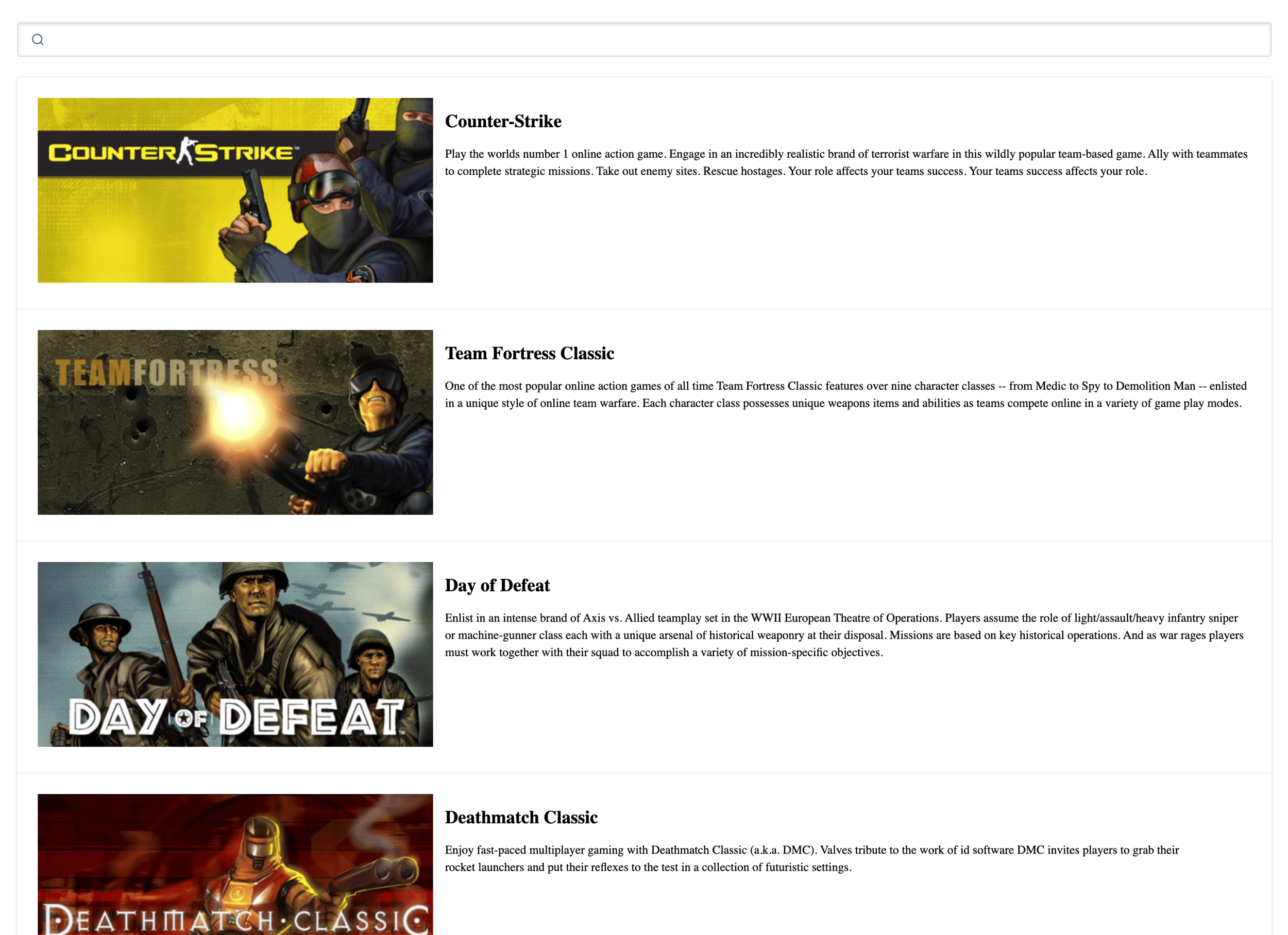
Encountering issues? Check out the code in action in our [live demo](https://codesandbox.io/p/sandbox/ms-vue3-is-forked-wsrkl8)
!
[](https://www.meilisearch.com/docs/guides/front_end/vue_quick_start#next-steps)
Next steps
-----------------------------------------------------------------------------------------------
Want to search through your own data? [Create a project](https://cloud.meilisearch.com/)
in the Meilisearch Dashboard. Check out our [getting started guide](https://www.meilisearch.com/docs/learn/getting_started/cloud_quick_start)
for step-by-step instructions.
Was this page helpful?
YesNo
[React quick start](https://www.meilisearch.com/docs/guides/front_end/react_quick_start)
[Integrate a relevant search bar to your documentation](https://www.meilisearch.com/docs/guides/front_end/search_bar_for_docs)
⌘I
---
# Semantic Search with Gemini Embeddings - Meilisearch Documentation
[Skip to main content](https://www.meilisearch.com/docs/guides/embedders/gemini#content-area)
[Meilisearch Documentation home page](https://www.meilisearch.com/docs)
latest
Search...
⌘K
Search...
Navigation
Artificial intelligence
Semantic Search with Gemini Embeddings
On this page
* [Requirements](https://www.meilisearch.com/docs/guides/embedders/gemini#requirements)
* [Setting up Meilisearch](https://www.meilisearch.com/docs/guides/embedders/gemini#setting-up-meilisearch)
* [Testing semantic search](https://www.meilisearch.com/docs/guides/embedders/gemini#testing-semantic-search)
* [Conclusion](https://www.meilisearch.com/docs/guides/embedders/gemini#conclusion)
[](https://www.meilisearch.com/docs/guides/embedders/gemini#requirements)
Requirements
------------------------------------------------------------------------------------------
To follow this guide, you’ll need:
* A [Meilisearch Cloud](https://www.meilisearch.com/cloud)
project running version >=1.13
* A Google account with an API key for embedding generation. You can sign up for a Google account at [Google](https://google.com/)
[](https://www.meilisearch.com/docs/guides/embedders/gemini#setting-up-meilisearch)
Setting up Meilisearch
--------------------------------------------------------------------------------------------------------------
To set up an embedder in Meilisearch, you need to configure it to your settings. You can refer to the [Meilisearch documentation](https://www.meilisearch.com/docs/reference/api/settings/list-all-settings)
for more details on updating the embedder settings. While using Gemini to generate embeddings, you’ll need to use the model `gemini-embedding-001`. Unlike some other services, Gemini currently offers only one embedding model. Here’s an example of embedder settings for Gemini:
Copy
{
"gemini": {
"source": "rest",
"dimensions": 3072,
"documentTemplate": "",
"headers": {
"Content-Type": "application/json",
"x-goog-api-key": ""
},
"url": "https://generativelanguage.googleapis.com/v1beta/models/gemini-embedding-001:batchEmbedContents",
"request": {
"requests": [\
{\
"model": "models/gemini-embedding-001",\
"content": {\
"parts": [\
{ "text": "{{text}}" }\
]\
}\
},\
"{{..}}"\
]
},
"response": {
"embeddings": [\
{ "values": "{{embedding}}" },\
"{{..}}"\
]
}
}
}
In this configuration:
* `source`: Specifies the source of the embedder, which is set to “rest” for using a REST API.
* `headers`: Replace `` with your actual Google API key.
* `dimensions`: Specifies the dimensions of the embeddings, set to 3072 for the `gemini-embedding-001` model.
* `documentTemplate`: Optionally, you can provide a [custom template](https://www.meilisearch.com/docs/learn/ai_powered_search/getting_started_with_ai_search)
for generating embeddings from your documents.
* `url`: Specifies the URL of the Gemini API endpoint.
* `request`: Defines the request structure for the Gemini API, including the model name and input parameters.
* `response`: Defines the expected response structure from the Gemini API, including the embedding data.
Once you’ve configured the embedder settings, Meilisearch will automatically generate embeddings for your documents and store them in the vector store. Please note that most third-party tools have rate limiting, which is managed by Meilisearch. If you have a free account, the indexation process may take some time, but Meilisearch will handle it with a retry strategy. It’s recommended to monitor the tasks queue to ensure everything is running smoothly. You can access the tasks queue using the Cloud UI or the [Meilisearch API](https://www.meilisearch.com/docs/reference/api/async-task-management/list-tasks)
.
[](https://www.meilisearch.com/docs/guides/embedders/gemini#testing-semantic-search)
Testing semantic search
----------------------------------------------------------------------------------------------------------------
With the embedder set up, you can now perform semantic searches using Meilisearch. When you send a search query, Meilisearch will generate an embedding for the query using the configured embedder and then use it to find the most semantically similar documents in the vector store. To perform a semantic search, you simply need to make a normal search request but include the hybrid parameter:
Copy
{
"q": "",
"hybrid": {
"semanticRatio": 1,
"embedder": "gemini"
}
}
In this request:
* `q`: Represents the user’s search query.
* `hybrid`: Specifies the configuration for the hybrid search.
* `semanticRatio`: Allows you to control the balance between semantic search and traditional search. A value of 1 indicates pure semantic search, while a value of 0 represents full-text search. You can adjust this parameter to achieve a hybrid search experience.
* `embedder`: The name of the embedder used for generating embeddings. Make sure to use the same name as specified in the embedder configuration, which in this case is “gemini”.
You can use the Meilisearch API or client libraries to perform searches and retrieve the relevant documents based on semantic similarity.
[](https://www.meilisearch.com/docs/guides/embedders/gemini#conclusion)
Conclusion
--------------------------------------------------------------------------------------
By following this guide, you should now have Meilisearch set up with Gemini embedding, enabling you to leverage semantic search capabilities in your application. Meilisearch’s auto-batching and efficient handling of embeddings make it a powerful choice for integrating semantic search into your project. To explore further configuration options for embedders, consult the [detailed documentation about the embedder setting possibilities](https://www.meilisearch.com/docs/reference/api/settings/list-all-settings)
.
Was this page helpful?
YesNo
[Semantic Search with Voyage AI Embeddings](https://www.meilisearch.com/docs/guides/embedders/voyage)
[Computing Hugging Face embeddings with the GPU](https://www.meilisearch.com/docs/guides/computing_hugging_face_embeddings_gpu)
⌘I
---
# Semantic Search with OpenAI Embeddings - Meilisearch Documentation
[Skip to main content](https://www.meilisearch.com/docs/guides/embedders/openai#content-area)
[Meilisearch Documentation home page](https://www.meilisearch.com/docs)
latest
Search...
⌘K
Search...
Navigation
Artificial intelligence
Semantic Search with OpenAI Embeddings
On this page
* [Introduction](https://www.meilisearch.com/docs/guides/embedders/openai#introduction)
* [Requirements](https://www.meilisearch.com/docs/guides/embedders/openai#requirements)
* [Setting up Meilisearch](https://www.meilisearch.com/docs/guides/embedders/openai#setting-up-meilisearch)
* [Testing semantic search](https://www.meilisearch.com/docs/guides/embedders/openai#testing-semantic-search)
* [Conclusion](https://www.meilisearch.com/docs/guides/embedders/openai#conclusion)
[](https://www.meilisearch.com/docs/guides/embedders/openai#introduction)
Introduction
------------------------------------------------------------------------------------------
This guide will walk you through the process of setting up Meilisearch with OpenAI embeddings to enable semantic search capabilities. By leveraging Meilisearch’s AI features and OpenAI’s embedding API, you can enhance your search experience and retrieve more relevant results.
[](https://www.meilisearch.com/docs/guides/embedders/openai#requirements)
Requirements
------------------------------------------------------------------------------------------
To follow this guide, you’ll need:
* A [Meilisearch Cloud](https://www.meilisearch.com/cloud)
project running version >=1.13
* An OpenAI account with an API key for embedding generation. You can sign up for an OpenAI account at [OpenAI](https://openai.com/)
.
* No backend required.
[](https://www.meilisearch.com/docs/guides/embedders/openai#setting-up-meilisearch)
Setting up Meilisearch
--------------------------------------------------------------------------------------------------------------
To set up an embedder in Meilisearch, you need to configure it to your settings. You can refer to the [Meilisearch documentation](https://www.meilisearch.com/docs/reference/api/settings/list-all-settings)
for more details on updating the embedder settings. OpenAI offers three main embedding models:
* `text-embedding-3-large`: 3,072 dimensions
* `text-embedding-3-small`: 1,536 dimensions
* `text-embedding-ada-002`: 1,536 dimensions
Here’s an example of embedder settings for OpenAI:
Copy
{
"openai": {
"source": "openAi",
"apiKey": "",
"dimensions": 1536,
"documentTemplate": "",
"model": "text-embedding-3-small"
}
}
In this configuration:
* `source`: Specifies the source of the embedder, which is set to “openAi” for using OpenAI’s API.
* `apiKey`: Replace `` with your actual OpenAI API key.
* `dimensions`: Specifies the dimensions of the embeddings. Set to 1536 for `text-embedding-3-small` and `text-embedding-ada-002`, or 3072 for `text-embedding-3-large`.
* `documentTemplate`: Optionally, you can provide a [custom template](https://www.meilisearch.com/docs/learn/ai_powered_search/getting_started_with_ai_search)
for generating embeddings from your documents.
* `model`: Specifies the OpenAI model to use for generating embeddings. Choose from `text-embedding-3-large`, `text-embedding-3-small`, or `text-embedding-ada-002`.
Once you’ve configured the embedder settings, Meilisearch will automatically generate embeddings for your documents and store them in the vector store. Please note that OpenAI has rate limiting, which is managed by Meilisearch. If you have a free account, the indexation process may take some time, but Meilisearch will handle it with a retry strategy. It’s recommended to monitor the tasks queue to ensure everything is running smoothly. You can access the tasks queue using the Cloud UI or the [Meilisearch API](https://www.meilisearch.com/docs/reference/api/async-task-management/list-tasks)
[](https://www.meilisearch.com/docs/guides/embedders/openai#testing-semantic-search)
Testing semantic search
----------------------------------------------------------------------------------------------------------------
With the embedder set up, you can now perform semantic searches using Meilisearch. When you send a search query, Meilisearch will generate an embedding for the query using the configured embedder and then use it to find the most semantically similar documents in the vector store. To perform a semantic search, you simply need to make a normal search request but include the hybrid parameter:
Copy
{
"q": "",
"hybrid": {
"semanticRatio": 1,
"embedder": "openai"
}
}
In this request:
* `q`: Represents the user’s search query.
* `hybrid`: Specifies the configuration for the hybrid search.
* `semanticRatio`: Allows you to control the balance between semantic search and traditional search. A value of 1 indicates pure semantic search, while a value of 0 represents full-text search. You can adjust this parameter to achieve a hybrid search experience.
* `embedder`: The name of the embedder used for generating embeddings. Make sure to use the same name as specified in the embedder configuration, which in this case is “openai”.
You can use the Meilisearch API or client libraries to perform searches and retrieve the relevant documents based on semantic similarity.
[](https://www.meilisearch.com/docs/guides/embedders/openai#conclusion)
Conclusion
--------------------------------------------------------------------------------------
By following this guide, you should now have Meilisearch set up with OpenAI embedding, enabling you to leverage semantic search capabilities in your application. Meilisearch’s auto-batching and efficient handling of embeddings make it a powerful choice for integrating semantic search into your project. To explore further configuration options for embedders, consult the [detailed documentation about the embedder setting possibilities](https://www.meilisearch.com/docs/reference/api/settings/list-all-settings)
.
Was this page helpful?
YesNo
[Meilisearch & Model Context Protocol - Talk to Meilisearch with Claude desktop](https://www.meilisearch.com/docs/guides/ai/mcp)
[Implementing semantic search with LangChain](https://www.meilisearch.com/docs/guides/langchain)
⌘I
---
# Semantic Search with Cohere Embeddings - Meilisearch Documentation
[Skip to main content](https://www.meilisearch.com/docs/guides/embedders/cohere#content-area)
[Meilisearch Documentation home page](https://www.meilisearch.com/docs)
latest
Search...
⌘K
Search...
Navigation
Artificial intelligence
Semantic Search with Cohere Embeddings
On this page
* [Introduction](https://www.meilisearch.com/docs/guides/embedders/cohere#introduction)
* [Requirements](https://www.meilisearch.com/docs/guides/embedders/cohere#requirements)
* [Setting up Meilisearch](https://www.meilisearch.com/docs/guides/embedders/cohere#setting-up-meilisearch)
* [Testing semantic search](https://www.meilisearch.com/docs/guides/embedders/cohere#testing-semantic-search)
* [Conclusion](https://www.meilisearch.com/docs/guides/embedders/cohere#conclusion)
[](https://www.meilisearch.com/docs/guides/embedders/cohere#introduction)
Introduction
------------------------------------------------------------------------------------------
This guide will walk you through the process of setting up Meilisearch with Cohere embeddings to enable semantic search capabilities. By leveraging Meilisearch’s AI features and Cohere’s embedding API, you can enhance your search experience and retrieve more relevant results.
[](https://www.meilisearch.com/docs/guides/embedders/cohere#requirements)
Requirements
------------------------------------------------------------------------------------------
To follow this guide, you’ll need:
* A [Meilisearch Cloud](https://www.meilisearch.com/cloud)
project running version >=1.13
* A Cohere account with an API key for embedding generation. You can sign up for a Cohere account at [Cohere](https://cohere.com/)
.
* No backend required.
[](https://www.meilisearch.com/docs/guides/embedders/cohere#setting-up-meilisearch)
Setting up Meilisearch
--------------------------------------------------------------------------------------------------------------
To set up an embedder in Meilisearch, you need to configure it to your settings. You can refer to the [Meilisearch documentation](https://www.meilisearch.com/docs/reference/api/settings/list-all-settings)
for more details on updating the embedder settings. Cohere offers multiple embedding models:
* `embed-english-v3.0` and `embed-multilingual-v3.0`: 1024 dimensions
* `embed-english-light-v3.0` and `embed-multilingual-light-v3.0`: 384 dimensions
Here’s an example of embedder settings for Cohere:
Copy
{
"cohere": {
"source": "rest",
"apiKey": "",
"dimensions": 1024,
"documentTemplate": "",
"url": "https://api.cohere.com/v1/embed",
"request": {
"model": "embed-english-v3.0",
"texts": [\
"{{text}}",\
"{{..}}"\
],
"input_type": "search_document"
},
"response": {
"embeddings": [\
"{{embedding}}",\
"{{..}}"\
]
},
}
}
In this configuration:
* `source`: Specifies the source of the embedder, which is set to “rest” for using a REST API.
* `apiKey`: Replace `` with your actual Cohere API key.
* `dimensions`: Specifies the dimensions of the embeddings, set to 1024 for the `embed-english-v3.0` model.
* `documentTemplate`: Optionally, you can provide a [custom template](https://www.meilisearch.com/docs/learn/ai_powered_search/getting_started_with_ai_search)
for generating embeddings from your documents.
* `url`: Specifies the URL of the Cohere API endpoint.
* `request`: Defines the request structure for the Cohere API, including the model name and input parameters.
* `response`: Defines the expected response structure from the Cohere API, including the embedding data.
Once you’ve configured the embedder settings, Meilisearch will automatically generate embeddings for your documents and store them in the vector store. Please note that most third-party tools have rate limiting, which is managed by Meilisearch. If you have a free account, the indexation process may take some time, but Meilisearch will handle it with a retry strategy. It’s recommended to monitor the tasks queue to ensure everything is running smoothly. You can access the tasks queue using the Cloud UI or the [Meilisearch API](https://www.meilisearch.com/docs/reference/api/async-task-management/list-tasks)
.
[](https://www.meilisearch.com/docs/guides/embedders/cohere#testing-semantic-search)
Testing semantic search
----------------------------------------------------------------------------------------------------------------
With the embedder set up, you can now perform semantic searches using Meilisearch. When you send a search query, Meilisearch will generate an embedding for the query using the configured embedder and then use it to find the most semantically similar documents in the vector store. To perform a semantic search, you simply need to make a normal search request but include the hybrid parameter:
Copy
{
"q": "",
"hybrid": {
"semanticRatio": 1,
"embedder": "cohere"
}
}
In this request:
* `q`: Represents the user’s search query.
* `hybrid`: Specifies the configuration for the hybrid search.
* `semanticRatio`: Allows you to control the balance between semantic search and traditional search. A value of 1 indicates pure semantic search, while a value of 0 represents full-text search. You can adjust this parameter to achieve a hybrid search experience.
* `embedder`: The name of the embedder used for generating embeddings. Make sure to use the same name as specified in the embedder configuration, which in this case is “cohere”.
You can use the Meilisearch API or client libraries to perform searches and retrieve the relevant documents based on semantic similarity.
[](https://www.meilisearch.com/docs/guides/embedders/cohere#conclusion)
Conclusion
--------------------------------------------------------------------------------------
By following this guide, you should now have Meilisearch set up with Cohere embedding, enabling you to leverage semantic search capabilities in your application. Meilisearch’s auto-batching and efficient handling of embeddings make it a powerful choice for integrating semantic search into your project. To explore further configuration options for embedders, consult the [detailed documentation about the embedder setting possibilities](https://www.meilisearch.com/docs/reference/api/settings/list-all-settings)
.
Was this page helpful?
YesNo
[Semantic Search with Cloudflare Worker AI Embeddings](https://www.meilisearch.com/docs/guides/embedders/cloudflare)
[Semantic Search with Mistral Embeddings](https://www.meilisearch.com/docs/guides/embedders/mistral)
⌘I
---
# Semantic Search with Mistral Embeddings - Meilisearch Documentation
[Skip to main content](https://www.meilisearch.com/docs/guides/embedders/mistral#content-area)
[Meilisearch Documentation home page](https://www.meilisearch.com/docs)
latest
Search...
⌘K
Search...
Navigation
Artificial intelligence
Semantic Search with Mistral Embeddings
On this page
* [Introduction](https://www.meilisearch.com/docs/guides/embedders/mistral#introduction)
* [Requirements](https://www.meilisearch.com/docs/guides/embedders/mistral#requirements)
* [Setting up Meilisearch](https://www.meilisearch.com/docs/guides/embedders/mistral#setting-up-meilisearch)
* [Testing semantic search](https://www.meilisearch.com/docs/guides/embedders/mistral#testing-semantic-search)
* [Conclusion](https://www.meilisearch.com/docs/guides/embedders/mistral#conclusion)
[](https://www.meilisearch.com/docs/guides/embedders/mistral#introduction)
Introduction
-------------------------------------------------------------------------------------------
This guide will walk you through the process of setting up Meilisearch with Mistral embeddings to enable semantic search capabilities. By leveraging Meilisearch’s AI features and Mistral’s embedding API, you can enhance your search experience and retrieve more relevant results.
[](https://www.meilisearch.com/docs/guides/embedders/mistral#requirements)
Requirements
-------------------------------------------------------------------------------------------
To follow this guide, you’ll need:
* A [Meilisearch Cloud](https://www.meilisearch.com/cloud)
project running version >=1.13
* A Mistral account with an API key for embedding generation. You can sign up for a Mistral account at [Mistral](https://mistral.ai/)
.
* No backend required.
[](https://www.meilisearch.com/docs/guides/embedders/mistral#setting-up-meilisearch)
Setting up Meilisearch
---------------------------------------------------------------------------------------------------------------
To set up an embedder in Meilisearch, you need to configure it to your settings. You can refer to the [Meilisearch documentation](https://www.meilisearch.com/docs/reference/api/settings/list-all-settings)
for more details on updating the embedder settings. While using Mistral to generate embeddings, you’ll need to use the model `mistral-embed`. Unlike some other services, Mistral currently offers only one embedding model. Here’s an example of embedder settings for Mistral:
Copy
{
"mistral": {
"source": "rest",
"apiKey": "",
"dimensions": 1024,
"documentTemplate": "",
"url": "https://api.mistral.ai/v1/embeddings",
"request": {
"model": "mistral-embed",
"input": ["{{text}}", "{{..}}"]
},
"response": {
"data": [\
{\
"embedding": "{{embedding}}"\
},\
"{{..}}"\
]
}
}
}
In this configuration:
* `source`: Specifies the source of the embedder, which is set to “rest” for using a REST API.
* `apiKey`: Replace `` with your actual Mistral API key.
* `dimensions`: Specifies the dimensions of the embeddings, set to 1024 for the `mistral-embed` model.
* `documentTemplate`: Optionally, you can provide a [custom template](https://www.meilisearch.com/docs/learn/ai_powered_search/getting_started_with_ai_search)
for generating embeddings from your documents.
* `url`: Specifies the URL of the Mistral API endpoint.
* `request`: Defines the request structure for the Mistral API, including the model name and input parameters.
* `response`: Defines the expected response structure from the Mistral API, including the embedding data.
Once you’ve configured the embedder settings, Meilisearch will automatically generate embeddings for your documents and store them in the vector store. Please note that most third-party tools have rate limiting, which is managed by Meilisearch. If you have a free account, the indexation process may take some time, but Meilisearch will handle it with a retry strategy. It’s recommended to monitor the tasks queue to ensure everything is running smoothly. You can access the tasks queue using the Cloud UI or the [Meilisearch API](https://www.meilisearch.com/docs/reference/api/async-task-management/list-tasks)
[](https://www.meilisearch.com/docs/guides/embedders/mistral#testing-semantic-search)
Testing semantic search
-----------------------------------------------------------------------------------------------------------------
With the embedder set up, you can now perform semantic searches using Meilisearch. When you send a search query, Meilisearch will generate an embedding for the query using the configured embedder and then use it to find the most semantically similar documents in the vector store. To perform a semantic search, you simply need to make a normal search request but include the hybrid parameter:
Copy
{
"q": "",
"hybrid": {
"semanticRatio": 1,
"embedder": "mistral"
}
}
In this request:
* `q`: Represents the user’s search query.
* `hybrid`: Specifies the configuration for the hybrid search.
* `semanticRatio`: Allows you to control the balance between semantic search and traditional search. A value of 1 indicates pure semantic search, while a value of 0 represents full-text search. You can adjust this parameter to achieve a hybrid search experience.
* `embedder`: The name of the embedder used for generating embeddings. Make sure to use the same name as specified in the embedder configuration, which in this case is “mistral”.
You can use the Meilisearch API or client libraries to perform searches and retrieve the relevant documents based on semantic similarity.
[](https://www.meilisearch.com/docs/guides/embedders/mistral#conclusion)
Conclusion
---------------------------------------------------------------------------------------
By following this guide, you should now have Meilisearch set up with Mistral embedding, enabling you to leverage semantic search capabilities in your application. Meilisearch’s auto-batching and efficient handling of embeddings make it a powerful choice for integrating semantic search into your project. To explore further configuration options for embedders, consult the [detailed documentation about the embedder setting possibilities](https://www.meilisearch.com/docs/reference/api/settings/list-all-settings)
.
Was this page helpful?
YesNo
[Semantic Search with Cohere Embeddings](https://www.meilisearch.com/docs/guides/embedders/cohere)
[Semantic Search with Voyage AI Embeddings](https://www.meilisearch.com/docs/guides/embedders/voyage)
⌘I
---
# React quick start - Meilisearch Documentation
[Skip to main content](https://www.meilisearch.com/docs/guides/front_end/react_quick_start#content-area)
[Meilisearch Documentation home page](https://www.meilisearch.com/docs)
latest
Search...
⌘K
Search...
Navigation
Front end
React quick start
On this page
* [1\. Create a React application](https://www.meilisearch.com/docs/guides/front_end/react_quick_start#1-create-a-react-application)
* [2\. Install the library of search components](https://www.meilisearch.com/docs/guides/front_end/react_quick_start#2-install-the-library-of-search-components)
* [3\. Initialize the search client](https://www.meilisearch.com/docs/guides/front_end/react_quick_start#3-initialize-the-search-client)
* [4\. Add the InstantSearch provider](https://www.meilisearch.com/docs/guides/front_end/react_quick_start#4-add-the-instantsearch-provider)
* [5\. Add a search bar and list search results](https://www.meilisearch.com/docs/guides/front_end/react_quick_start#5-add-a-search-bar-and-list-search-results)
* [6\. Start the app and search as you type](https://www.meilisearch.com/docs/guides/front_end/react_quick_start#6-start-the-app-and-search-as-you-type)
* [Next steps](https://www.meilisearch.com/docs/guides/front_end/react_quick_start#next-steps)
Integrate a search-as-you-type experience into your React app.
[](https://www.meilisearch.com/docs/guides/front_end/react_quick_start#1-create-a-react-application)
1\. Create a React application
---------------------------------------------------------------------------------------------------------------------------------------
Create your React application using a [Vite](https://vitejs.dev/)
template:
Copy
npm create vite@latest my-app -- --template react
[](https://www.meilisearch.com/docs/guides/front_end/react_quick_start#2-install-the-library-of-search-components)
2\. Install the library of search components
-------------------------------------------------------------------------------------------------------------------------------------------------------------------
Navigate to your React app and install `react-instantsearch`, `@meilisearch/instant-meilisearch`, and `instantsearch.css`.
Copy
npm install react-instantsearch @meilisearch/instant-meilisearch instantsearch.css
* [React InstantSearch](https://github.com/algolia/instantsearch/)
: front-end tools to customize your search environment
* [instant-meilisearch](https://github.com/meilisearch/meilisearch-js-plugins/tree/main/packages/instant-meilisearch)
: Meilisearch client to connect with React InstantSearch
* [instantsearch.css](https://github.com/algolia/instantsearch/tree/master/packages/instantsearch.css)
(optional): CSS library to add basic styles to the search components
[](https://www.meilisearch.com/docs/guides/front_end/react_quick_start#3-initialize-the-search-client)
3\. Initialize the search client
-------------------------------------------------------------------------------------------------------------------------------------------
Use the following URL and API key to connect to a Meilisearch instance containing data from Steam video games.
Copy
import React from 'react';
import { instantMeiliSearch } from '@meilisearch/instant-meilisearch';
const { searchClient } = instantMeiliSearch(
'https://ms-adf78ae33284-106.lon.meilisearch.io',
'a63da4928426f12639e19d62886f621130f3fa9ff3c7534c5d179f0f51c4f303'
);
[](https://www.meilisearch.com/docs/guides/front_end/react_quick_start#4-add-the-instantsearch-provider)
4\. Add the InstantSearch provider
-----------------------------------------------------------------------------------------------------------------------------------------------
`` is the root provider component for the InstantSearch library. It takes two props: the `searchClient` and the [index name](https://www.meilisearch.com/docs/learn/getting_started/indexes#index-uid)
.
Copy
import React from 'react';
import { InstantSearch } from 'react-instantsearch';
import { instantMeiliSearch } from '@meilisearch/instant-meilisearch';
const { searchClient } = instantMeiliSearch(
'https://ms-adf78ae33284-106.lon.meilisearch.io',
'a63da4928426f12639e19d62886f621130f3fa9ff3c7534c5d179f0f51c4f303'
);
const App = () => (
);
export default App
[](https://www.meilisearch.com/docs/guides/front_end/react_quick_start#5-add-a-search-bar-and-list-search-results)
5\. Add a search bar and list search results
-------------------------------------------------------------------------------------------------------------------------------------------------------------------
Add the `SearchBox` and `InfiniteHits` components inside the `InstantSearch` wrapper component. The Hits component accepts a custom Hit component via the `hitComponent` prop, which allows customizing how each search result is rendered. Import the CSS library to style the search components.
Copy
import React from 'react';
import { InstantSearch, SearchBox, InfiniteHits } from 'react-instantsearch';
import { instantMeiliSearch } from '@meilisearch/instant-meilisearch';
import 'instantsearch.css/themes/satellite.css';
const { searchClient } = instantMeiliSearch(
'https://ms-adf78ae33284-106.lon.meilisearch.io',
'a63da4928426f12639e19d62886f621130f3fa9ff3c7534c5d179f0f51c4f303'
);
const App = () => (
);
const Hit = ({ hit }) => (
{hit.name}
${hit.description}
);
export default App
Use the following CSS classes to add custom styles to your components: `.ais-InstantSearch`, `.ais-SearchBox`, `.ais-InfiniteHits-list`, `.ais-InfiniteHits-item`
[](https://www.meilisearch.com/docs/guides/front_end/react_quick_start#6-start-the-app-and-search-as-you-type)
6\. Start the app and search as you type
-----------------------------------------------------------------------------------------------------------------------------------------------------------
Start the app by running:
Copy
npm run dev
Now open your browser and navigate to your React app URL (e.g. `localhost:3000`), and start searching.

Encountering issues? Check out the code in action in our [live demo](https://codesandbox.io/p/sandbox/eager-dust-f98w2w)
!
[](https://www.meilisearch.com/docs/guides/front_end/react_quick_start#next-steps)
Next steps
-------------------------------------------------------------------------------------------------
Want to search through your own data? [Create a project](https://cloud.meilisearch.com/)
in the Meilisearch Dashboard. Check out our [getting started guide](https://www.meilisearch.com/docs/learn/getting_started/cloud_quick_start)
for step-by-step instructions.
Was this page helpful?
YesNo
[Front-end integration](https://www.meilisearch.com/docs/guides/front_end/front_end_integration)
[Vue3 quick start](https://www.meilisearch.com/docs/guides/front_end/vue_quick_start)
⌘I
---
# Semantic Search with Voyage AI Embeddings - Meilisearch Documentation
[Skip to main content](https://www.meilisearch.com/docs/guides/embedders/voyage#content-area)
[Meilisearch Documentation home page](https://www.meilisearch.com/docs)
latest
Search...
⌘K
Search...
Navigation
Artificial intelligence
Semantic Search with Voyage AI Embeddings
On this page
* [Introduction](https://www.meilisearch.com/docs/guides/embedders/voyage#introduction)
* [Requirements](https://www.meilisearch.com/docs/guides/embedders/voyage#requirements)
* [Setting up Meilisearch](https://www.meilisearch.com/docs/guides/embedders/voyage#setting-up-meilisearch)
* [Testing semantic search](https://www.meilisearch.com/docs/guides/embedders/voyage#testing-semantic-search)
* [Conclusion](https://www.meilisearch.com/docs/guides/embedders/voyage#conclusion)
[](https://www.meilisearch.com/docs/guides/embedders/voyage#introduction)
Introduction
------------------------------------------------------------------------------------------
This guide will walk you through the process of setting up Meilisearch with Voyage AI embeddings to enable semantic search capabilities. By leveraging Meilisearch’s AI features and Voyage AI’s embedding API, you can enhance your search experience and retrieve more relevant results.
[](https://www.meilisearch.com/docs/guides/embedders/voyage#requirements)
Requirements
------------------------------------------------------------------------------------------
To follow this guide, you’ll need:
* A [Meilisearch Cloud](https://www.meilisearch.com/cloud)
project running version >=1.13
* A Voyage AI account with an API key for embedding generation. You can sign up for a Voyage AI account at [Voyage AI](https://www.voyageai.com/)
.
* No backend required.
[](https://www.meilisearch.com/docs/guides/embedders/voyage#setting-up-meilisearch)
Setting up Meilisearch
--------------------------------------------------------------------------------------------------------------
To set up an embedder in Meilisearch, you need to configure it to your settings. You can refer to the [Meilisearch documentation](https://www.meilisearch.com/docs/reference/api/settings/list-all-settings)
for more details on updating the embedder settings. Voyage AI offers the following embedding models:
* `voyage-large-2-instruct`: 1024 dimensions
* `voyage-multilingual-2`: 1024 dimensions
* `voyage-large-2`: 1536 dimensions
* `voyage-2`: 1024 dimensions
Here’s an example of embedder settings for Voyage AI:
Copy
{
"voyage": {
"source": "rest",
"apiKey": "",
"dimensions": 1024,
"documentTemplate": "",
"url": "https://api.voyageai.com/v1/embeddings",
"request": {
"model": "voyage-2",
"input": ["{{text}}", "{{..}}"]
},
"response": {
"data": [\
{\
"embedding": "{{embedding}}"\
},\
"{{..}}"\
]
}
}
}
In this configuration:
* `source`: Specifies the source of the embedder, which is set to “rest” for using a REST API.
* `apiKey`: Replace `` with your actual Voyage AI API key.
* `dimensions`: Specifies the dimensions of the embeddings. Set to 1024 for `voyage-2`, `voyage-large-2-instruct`, and `voyage-multilingual-2`, or 1536 for `voyage-large-2`.
* `documentTemplate`: Optionally, you can provide a [custom template](https://www.meilisearch.com/docs/learn/ai_powered_search/getting_started_with_ai_search)
for generating embeddings from your documents.
* `url`: Specifies the URL of the Voyage AI API endpoint.
* `request`: Defines the request structure for the Voyage AI API, including the model name and input parameters.
* `response`: Defines the expected response structure from the Voyage AI API, including the embedding data.
Once you’ve configured the embedder settings, Meilisearch will automatically generate embeddings for your documents and store them in the vector store. Please note that most third-party tools have rate limiting, which is managed by Meilisearch. If you have a free account, the indexation process may take some time, but Meilisearch will handle it with a retry strategy. It’s recommended to monitor the tasks queue to ensure everything is running smoothly. You can access the tasks queue using the Cloud UI or the [Meilisearch API](https://www.meilisearch.com/docs/reference/api/async-task-management/list-tasks)
.
[](https://www.meilisearch.com/docs/guides/embedders/voyage#testing-semantic-search)
Testing semantic search
----------------------------------------------------------------------------------------------------------------
With the embedder set up, you can now perform semantic searches using Meilisearch. When you send a search query, Meilisearch will generate an embedding for the query using the configured embedder and then use it to find the most semantically similar documents in the vector store. To perform a semantic search, you simply need to make a normal search request but include the hybrid parameter:
Copy
{
"q": "",
"hybrid": {
"semanticRatio": 1,
"embedder": "voyage"
}
}
In this request:
* `q`: Represents the user’s search query.
* `hybrid`: Specifies the configuration for the hybrid search.
* `semanticRatio`: Allows you to control the balance between semantic search and traditional search. A value of 1 indicates pure semantic search, while a value of 0 represents full-text search. You can adjust this parameter to achieve a hybrid search experience.
* `embedder`: The name of the embedder used for generating embeddings. Make sure to use the same name as specified in the embedder configuration, which in this case is “voyage”.
You can use the Meilisearch API or client libraries to perform searches and retrieve the relevant documents based on semantic similarity.
[](https://www.meilisearch.com/docs/guides/embedders/voyage#conclusion)
Conclusion
--------------------------------------------------------------------------------------
By following this guide, you should now have Meilisearch set up with Voyage AI embedding, enabling you to leverage semantic search capabilities in your application. Meilisearch’s auto-batching and efficient handling of embeddings make it a powerful choice for integrating semantic search into your project. To explore further configuration options for embedders, consult the [detailed documentation about the embedder setting possibilities](https://www.meilisearch.com/docs/reference/api/settings/list-all-settings)
.
Was this page helpful?
YesNo
[Semantic Search with Mistral Embeddings](https://www.meilisearch.com/docs/guides/embedders/mistral)
[Semantic Search with Gemini Embeddings](https://www.meilisearch.com/docs/guides/embedders/gemini)
⌘I
---
# Unknown
```json
[
{
"id": 0,
"name": "Wooden spoon",
"price": 1.50
},
{
"id": 1,
"name": "Microwave lid",
"price": 1.00
},
{
"id": 2,
"name": "Wooden chopping board",
"price": 9.50
},
{
"id": 3,
"name": "Plastic chopping board",
"price": 1.50
},
{
"id": 4,
"name": "Rolling pin",
"price": 2.50
}
]
```
---