# Table of Contents
- [TaskPaper Reference · GitBook](#taskpaper-reference-gitbook)
- [Introduction · GitBook](#introduction-gitbook)
- [Why TaskPaper? · GitBook](#why-taskpaper-gitbook)
- [Getting Started · GitBook](#getting-started-gitbook)
- [Screencasts · GitBook](#screencasts-gitbook)
- [Using TaskPaper · GitBook](#using-taskpaper-gitbook)
- [Fold, Focus, & Filter · GitBook](#fold-focus-filter-gitbook)
- [Making Lists · GitBook](#making-lists-gitbook)
- [Using the Sidebar · GitBook](#using-the-sidebar-gitbook)
- [Using the Searchbar · GitBook](#using-the-searchbar-gitbook)
- [Using Windows & Tabs · GitBook](#using-windows-tabs-gitbook)
- [Using StyleSheets · GitBook](#using-stylesheets-gitbook)
- [Using Scripts · GitBook](#using-scripts-gitbook)
- [Using Dates & Reminders · GitBook](#using-dates-reminders-gitbook)
- [Customizing TaskPaper · GitBook](#customizing-taskpaper-gitbook)
- [Creating StyleSheets · GitBook](#creating-stylesheets-gitbook)
- [Creating Scripts · GitBook](#creating-scripts-gitbook)
- [Links · GitBook](#links-gitbook)
- [Searches · GitBook](#searches-gitbook)
- [Scripting API · GitBook](#scripting-api-gitbook)
- [Dates · GitBook](#dates-gitbook)
- [StyleSheets · GitBook](#stylesheets-gitbook)
- [Item · GitBook](#item-gitbook)
- [Mutation · GitBook](#mutation-gitbook)
- [Outline · GitBook](#outline-gitbook)
- [DateTime · GitBook](#datetime-gitbook)
- [ItemSerializer · GitBook](#itemserializer-gitbook)
- [AttributedString · GitBook](#attributedstring-gitbook)
- [OutlineEditor · GitBook](#outlineeditor-gitbook)
- [Selection · GitBook](#selection-gitbook)
- [TaskPaper – Plain text to-do lists for Mac](#taskpaper-plain-text-to-do-lists-for-mac)
- [TaskPaper – Plain text to-do lists for Mac](#taskpaper-plain-text-to-do-lists-for-mac)
---
# TaskPaper Reference · GitBook
[TaskPaper Reference](https://www.taskpaper.com/guide/)
========================================================
TaskPaper Reference
===================
If you've made it this far you are either being very productive or have a big project that you are avoiding. I hope you are having fun either way!
* [Links](https://www.taskpaper.com/guide/reference/links/)
* [Dates](https://www.taskpaper.com/guide/reference/dates)
* [Searches](https://www.taskpaper.com/guide/reference/searches)
* [StyleSheets](https://www.taskpaper.com/guide/reference/stylesheets)
* [Scripting API](https://www.taskpaper.com/guide/reference/scripting)
results matching ""
===================
No results matching ""
======================
---
# Introduction · GitBook
[Introduction](https://www.taskpaper.com/guide/)
=================================================
TaskPaper 3 User's Guide
========================
For list makers. [TaskPaper](http://www.taskpaper.com/)
is a plain text list maker for macOS 10.11+. If you have questions that are not answered in this guide please see:
* [TaskPaper FAQ](http://support.hogbaysoftware.com/t/taskpaper-frequently-asked-questions/949)
* [TaskPaper Support Forums](http://support.hogbaysoftware.com/c/taskpaper)
results matching ""
===================
No results matching ""
======================
---
# Why TaskPaper? · GitBook
[Why TaskPaper?](https://www.taskpaper.com/guide/)
===================================================
Why TaskPaper?
==============
From 2001 to 2007 I created and worked on another program called Mori. My goal was to create the perfect information manager. I added all the feature that I thought I wanted, but for some reason it never worked well for me.
Instead of using Mori I would find myself writing my notes and to-do's in plain text files on my Desktop. As you might guess this was a little frustrating. I tried to use Mori, but I kept going back to my text files. In the end I sold Mori, and continued to make my lists in text files.
But, text files aren't perfect. My to-do list text files were always messy. Being free to make a mess is important to me, but without any structure I got overwhelmed as my lists grew large.
To get more organized I started adding the simplest structure that I could think of to my lists. For each project, I typed the project name and ended that line with a colon. For each task, I Tab indented it under its project and started the line with a dash followed by a space.
project 1:
- task1
- task2
- task3
I typed everything else in free form and called those lines notes.
That small amount of structure made a big difference. I could still be as messy as I wanted to be, but I always had this simple structure to fall back on. My lists now had a structure, even if some parts were still messy.
I continued to tweak the system and turned it into TaskPaper. TaskPaper now has more tricks, but at its core it's a simple system for list making in a plain text file.
— Jesse
results matching ""
===================
No results matching ""
======================
---
# Getting Started · GitBook
[Getting Started](https://www.taskpaper.com/guide/)
====================================================
Getting Started
===============
TaskPaper knows about four things: **projects**, **tasks**, **notes**, and **tags**. As you type, these items are auto-formatted so that your lists are easier to read.
* To create a **project**, type a line ending with a colon:
`Groceries:`
* To create a **task**, type a line starting with a dash followed by a space:
`- Milk`
* To create a **note**, type any line that isn't recognized as a project or task:
`This is a note that I added.`
* To create a **tag**, type the @ symbol followed by a name. Tags can optionally have a value (or list of comma separated values) in parentheses after the tag name:
`@priority` or
`@priority(1)` or
`@priority(1,2)`
Use Tabs to indent items under other items and create structure. Use Shift-Tab to undo this structure. Put these things together to make lists:
Groceries:
- Eggs
- Lettuce
- Milk @priority(1)
Type your lists in this simple plain text format, and TaskPaper makes them look nice. TaskPaper doesn't force a particular system on you; it provides basic list making elements for you to use as you see fit.
results matching ""
===================
No results matching ""
======================
---
# Screencasts · GitBook
[Screencasts](https://www.taskpaper.com/guide/)
================================================
Screencasts
===========
I'm in the process of making screencasts to illustrate TaskPaper's main features. The screencasts will quickly show you what TaskPaper can do. Then come back here to the users guide to learn the details as needed. Follow [Hog Bay Software](https://medium.com/hog-bay-software)
on Medium to learn about new screencasts as they are posted.
* [Getting Started with TaskPaper](https://medium.com/hog-bay-software/getting-started-with-taskpaper-60606f55a446#.1lctstj60)
* [Using @tags in TaskPaper](https://medium.com/hog-bay-software/using-tags-in-taskpaper-ae7e34f75e53#.4899lweev)
* [Scheduling @due dates in TaskPaper](https://medium.com/hog-bay-software/scheduling-due-dates-in-taskpaper-6153d6812521#.ormgg6qox)
* [Using TaskPaper with Reminders](https://medium.com/hog-bay-software/using-taskpaper-with-reminders-57caa08124a9#.vgc5r7qhu)
results matching ""
===================
No results matching ""
======================
---
# Using TaskPaper · GitBook
[Using TaskPaper](https://www.taskpaper.com/guide/)
====================================================
Using TaskPaper
===============
First make sure you've read [Getting Started](https://www.taskpaper.com/guide/getting-started)
.
* [Making Lists](https://www.taskpaper.com/guide/using-taskpaper/making-lists.html)
* [Fold, Focus, & Filter](https://www.taskpaper.com/guide/using-taskpaper/fold-focus-and-filter.html)
* [Using the Sidebar](https://www.taskpaper.com/guide/using-taskpaper/using-the-sidebar.html)
* [Using the Searchbar](https://www.taskpaper.com/guide/using-taskpaper/using-the-searchbar.html)
* [Using Dates & Reminders](https://www.taskpaper.com/guide/using-taskpaper/using-dates-and-reminders.html)
* [Using Windows & Tabs](https://www.taskpaper.com/guide/using-taskpaper/using-windows-and-tabs.html)
* [Using StyleSheets](https://www.taskpaper.com/guide/using-taskpaper/using-stylesheets.html)
* [Using Scripts](https://www.taskpaper.com/guide/using-taskpaper/using-scripts.html)
results matching ""
===================
No results matching ""
======================
---
# Fold, Focus, & Filter · GitBook
[Fold, Focus, & Filter](https://www.taskpaper.com/guide/)
==========================================================
Fold, Focus, & Filter
=====================
TaskPaper gives you three ways to filter your lists; fold, focus, and filter.
Folding
-------
Expand and collapse items to control the level of detail that you see.
* Click an item's handle to expand/collapse its sub-list.
* Use Outline > Expand Items (Command-0) to expand items.
* Use Outline > Collapse Items (Command-9) to collapse items.
* When you move a collapsed item its children move along with it.
* Use Outline > Expand All By Level (Shift-Command-0) to expand one level at a time.
* Use Outline > Collapse All By Level (Shift-Command-9) to collapse one level at a time.
Each Expand/Collapse command has a "Completely" variant that you can see and access by holding down the Option key. For example Option-Command-0 will expand the current item completely. Expanding it and all descendant items.
Focusing
--------
Focusing zooms you into a particular project hiding everything else.
* Click a project in the sidebar to focus it.
* Click the "Home" item in the sidebar to unfocus and show your entire list.
* Use Option-Click on a projects handle to focus the project.
* Use Palette > Go to Anything (Command-P) to choose a project to focus.
Filtering
---------
Filtering hides items that don't match the search in the searchbar.
* Use View > Begin Editor Search (Command+Shift+F) to start searching.
* Click a @tag in your list to search based on that tag.
* Click a @tag's associated value in your list to search based on that tag and value.
* Use Palette > Go to Anything (Command-P) to choose a saved search or tag to filter by.
You can create logical searches:
* `not @done` – Shows all items that are not tagged with @done.
* `@done and @today` – Shows all items tagged with @done AND with @today.
For more search techniques please see the [Search](https://www.taskpaper.com/guide/reference/searches)
reference.
results matching ""
===================
No results matching ""
======================
---
# Making Lists · GitBook
[Making Lists](https://www.taskpaper.com/guide/)
=================================================
Making Lists
============
In [Getting Started](https://www.taskpaper.com/guide/getting-started)
you learned to make lists of projects, tasks, and notes. This section doesn't add any new parts, it just shows ways to make and organize your lists faster.
Items
-----
In TaskPaper each line makes a new item.
1. Use Return to create a new item.
2. TaskPaper will auto-format and indent your lists. Press Option-Return to avoid auto-formatting.
3. Use Item > New to create new project, task, or note items.
Organize with Lists
-------------------
TaskPaper uses lists of lists (outlines) to organize items.
1. Use Tab to indent selected items into a sub-list.
2. Use Shift-Tab to un-indent selected items out of a sub-list.
3. Drag and drop item using the dot handle that shows on the item's left.
4. Use Item > Group Items to group items under a new item.
5. Use Item > Duplicate Items (Shift-Command-D) to duplicate items.
6. Use Item > Format to change the type of existing items.
7. Use Item > Move (Control-Command-Arrows) to move items in your lists.
8. Use Item > Move to Project… (Command-\\) to move items to a project.
9. Use Item > Delete Items (Shift-Control-K) to delete items.
When using Item > Move to Project… you can move to a new project by typing the new project name into the "Move to Project" palette and pressing Enter.
Organize More with Tags
-----------------------
Tags provide another way to organize (and later search for) items.
1. Use Item > Tag With… (Command-T) to apply existing tags.
2. Use Item > Tag With… then Shift-UP/Down arrows to apply multiple tags.
3. Use Item > Tag With… then type new tag name and press Enter to create new tags.
4. Or just type the `@` symbol in the editor followed by a tagname to create a tag.
Tags are great if you need them, but they are not always necessary. You can make great use of TaskPaper without using tags at all. It all depends on how much structure you want.
Use @done Tags to Create Todo Lists
-----------------------------------
TaskPaper has some simple conventions for working with "todo" style lists.
1. If you have something "todo" add it to your list as a task.
2. When you complete a task cross it out by applying the `@done` tag (Command-D). Items tagged with @done are visually crossed out. This is because of a style rule in the default stylesheet. You can setup similar styling rules in your own stylesheets.
3. Use Tag > Archive @done Items to move all `@done` items and the items they contain to the "Archive:" project (Command-Shift-A). If this "Archive" project doesn't already exist in your outline TaskPaper creates it for you.
results matching ""
===================
No results matching ""
======================
---
# Using the Sidebar · GitBook
[Using the Sidebar](https://www.taskpaper.com/guide/)
======================================================
Using the Sidebar
=================
Use the sidebar to focus projects, activate searches, or filter by tag.
The sidebar has three sections: projects, searches, and tags. You can hide any section by clicking the "Hide" button that shows to the right of the section title when you move your mouse over it.
Projects
--------
1. To focus a project select it in the sidebar.
2. Drag and drop to reorder projects in the sidebar.
3. You can also drag and drop items from the editor onto projects in the sidebar.
4. Double-click on project in sidebar to "hoist". Hide the item, but show its descendants.
Searches
========
The searches section shows saved searches.
1. To create a saved search right-click on the "Searches" sidebar heading and choose New Search.
2. To edit a saved search right-click on the search in the sidebar and choose Edit Search.
3. In the search edit sheet there's a checkbox that determines where the search gets saved. Embedded in the current document, or saved into a common "searches" configuration file.
TaskPaper stored saved searches using `@search` tags. Here's an example that you can paste into your own document:
Todo @search(@today and not @done)
There are some quirks when editing `@search` tags. In particular if your search has a `(` or `)` you **must** escape them by preceding them with a `\` character.
Use the View > New Sidebar Search to show a search editing sheet that avoid this issue.
Tags
====
The tags section shows tags from the current document and the "tags" configuration file. Try it, enter a `@newtag` into your document and note that it shows up in the sidebar.
Configuration Files
===================
To view and edit the above described configuration files:
1. Choose the menu item: Window > StyleSheet > Open StyleSheet Folder
2. Locate the "Configurations" folder, which is a sibling to the "StyleSheets" folder
3. Edit the contained "searches" or "tags" configuration file. As soon as you save your edits TaskPaper's sidebar should reflect the changes.
results matching ""
===================
No results matching ""
======================
---
# Using the Searchbar · GitBook
[Using the Searchbar](https://www.taskpaper.com/guide/)
========================================================
Using the Searchbar
===================
TaskPaper's searchbar shows when a search becomes active.
**To begin a search:**
* Use View > Begin Editor Search (Command+Shift+F)
* Use Control-Command-P to select a saved search
**To cancel a search:**
* Use Escape when the searchbar has focus.
* Click the X at the far right in the searchbar.
If your search has a formatting error the error highlights red in the searchbar.
For advanced search techniques please see the [Search](https://www.taskpaper.com/guide/reference/searches)
reference.
results matching ""
===================
No results matching ""
======================
---
# Using Windows & Tabs · GitBook
[Using Windows & Tabs](https://www.taskpaper.com/guide/)
=========================================================
Using Windows & Tabs
====================
TaskPaper can open more then one window or tab (macOS 10.12+) view on the same document.
**To create new windows & tabs:**
1. Use File > New Window (Shift-Command-N) to create new windows
2. Use File > New Tab (Option-Command-N) to create new tabs
TaskPaper can remember (and restore next time) windows and tabs that are open when you quit.
**To restore windows & tabs:**
1. Quit TaskPaper without first closing your documents.
2. Make sure System Preferences > General > Close windows when quitting an app is not checked.
results matching ""
===================
No results matching ""
======================
---
# Using StyleSheets · GitBook
[Using StyleSheets](https://www.taskpaper.com/guide/)
======================================================
Using StyleSheets
=================
Use StyleSheets to set the fonts, colors, and other settings that TaskPaper uses to display and print your lists. You can find existing TaskPaper stylesheets on TaskPaper's [extensions wiki](http://support.hogbaysoftware.com/t/taskpaper-extensions-wiki/1628)
.
##### To install a stylesheet:
1. Choose Window > StyleSheet > Open StyleSheet Folder
2. Move the stylesheet file (ends with `.less`) into that folder
3. The style will then show in the Window > StyleSheet menu where you may select it.
##### To choose a printing stylesheet:
1. Choose File > Print
2. Click "Show Details" in printing sheet if they are not already showing
3. In the "TaskPaper" details section you can choose the stylesheet to use for printing
TaskPaper stylesheets use [Less/CSS](http://lesscss.org/)
syntax from the world of web browsers and HTML. But TaskPaper documents are not HTML documents. And TaskPaper stylesheets support a different and more limited set of attributes. Same syntax, but different model.
See the [StyleSheets](https://www.taskpaper.com/guide/reference/stylesheets)
reference for specific elements and properties.
results matching ""
===================
No results matching ""
======================
---
# Using Scripts · GitBook
[Using Scripts](https://www.taskpaper.com/guide/)
==================================================
Using Scripts
=============
Use scripts to automate TaskPaper and integrate with other apps. You can find existing TaskPaper scripts on TaskPaper's [extension wiki](http://support.hogbaysoftware.com/t/taskpaper-extensions-wiki/1628)
.
##### To try a script:
1. Create a new test document in TaskPaper
2. Open the "Script Editor" app and paste the script into a new "Script Editor" document
3. Scripts are in either JavaScript (more likely) or AppleScript. There's a pop up in the upper left of the Script Editor allowing you to choose the scripts format.
4. Press the green "Run" button to run the script
##### To install a script in TaskPaper's Command Pallet:
1. Open TaskPaper > Preferences
2. Click the "Open Scripts Folder" button
3. Choose "Select Script Folder" to show TaskPaper's scripts folder
4. Place the script file into that folder
5. Use Palette > Command to run the script
##### To install a script in the system script menu:
Open the "ScriptEditor" app and choose Help > Script Editor Help. Search for the help section "Access your scripts using the Script menu". That will lead you through the steps of enabling and saving scripts into the system script menu.
You can also use [FastScripts](http://www.red-sweater.com/fastscripts/)
or [Keyboard Maestro](http://www.keyboardmaestro.com/main/)
to run your scripts with keyboard shortcuts.
results matching ""
===================
No results matching ""
======================
---
# Using Dates & Reminders · GitBook
[Using Dates & Reminders](https://www.taskpaper.com/guide/)
============================================================
Using Dates & Reminders
=======================
Use TaskPaper to insert dates into your lists. Export these dated items to [Reminders](https://support.apple.com/en-us/HT205890)
app. Or go the other way. Import items that you've captured in Reminders (maybe using Siri) into TaskPaper and they will include due dates and priorities.
Inserting Dates
---------------
TaskPaper stores dates in the [ISO 8601](https://en.wikipedia.org/wiki/ISO_8601)
format. It's a good standard, but typing out full ISO dates is a pain. TaskPaper includes a palette to make inserting dates easier.
**To Insert Dates:**
1. Edit > Insert Date…
2. Use Arrow Keys to select a date in the palette
3. Or, enter a date using TaskPaper's [date & time](https://www.taskpaper.com/reference/dates/index.html)
syntax in the palette's text field
There are some tags that TaskPaper (by convention) associates with dates. For example `@due` tags are expected to include a due date. When you enter a tag that also expects a date (`@due` and `@start`) TaskPaper automatically show the date palette for date entry.
**To Insert Tags and Dates:**
1. Tag > Due
2. Or, Tag > Tag With… (and select @due)
3. In either case the data palette shows and an ISO date is inserted with the tag.
Import/Export with Reminders app
--------------------------------
Reminders is the standard app that Apple provides for reminders. It's good at idea capture with your phone and notifications, both areas where TaskPaper is weak. But you can have the best of both worlds by importing and exporting between TaskPaper and Reminders.
Imagine you are driving and have only your phone with you. Then you've got a good idea for a project you are tracking in TaskPaper. Use Siri to "Remind me…" about the great idea. Later when you are back on your Mac you can import this reminder into your TaskPaper document in a few easy keystrokes:
**To Import Items from Reminders app:**
1. File > Import Reminders
2. Select the reminders you wish to import
3. Select multiple reminders using Shift key or command clicking items
4. Once you've select the reminders that you want press Return
Or imagine you are about to go on a vacation that you've planned in TaskPaper. You decide to leave your Mac at home, but will take your phone, and want your trip reminders too.
**To Export TaskPaper Items to Reminders app:**
1. Select the items that you wish to export
2. Choose Item > Export to Reminders (or Export Copies to Reminders)
3. The items are moved from your TaskPaper document into Reminders app.
results matching ""
===================
No results matching ""
======================
---
# Customizing TaskPaper · GitBook
[Customizing TaskPaper](https://www.taskpaper.com/guide/)
==========================================================
Customizing TaskPaper
=====================
I think TaskPaper's greatest strength is simplicity. At the core it's just a plain text file with a four formatting rules. StyleSheets and scripts allow for much flexibility, but they can also distract. Use what you need!
* [Creating StyleSheets](https://www.taskpaper.com/guide/customizing-taskpaper/creating-stylesheets.html)
* [Creating Scripts](https://www.taskpaper.com/guide/customizing-taskpaper/creating-scripts.html)
results matching ""
===================
No results matching ""
======================
---
# Creating StyleSheets · GitBook
[Creating StyleSheets](https://www.taskpaper.com/guide/)
=========================================================
Creating StyleSheets
====================
Use stylesheets to set the fonts, colors, and other settings that TaskPaper uses to display and print your lists. To create your own custom StyleSheet:
1. Choose Window > StyleSheet > Open StyleSheet Folder
2. Inside that folder find (or create) a `.less` file and open it in a text editor.
3. Edit that file to create your own stylesheet.
TaskPaper stylesheets are live. Use this to your advantage. Make small changes and save often. TaskPaper's window will update right away.
Example StyleSheets
-------------------
For each example:
1. Replace the content of your stylesheet with the example text.
2. Save your changes.
3. TaskPaper's windows should update with the new style.
// This example increases the font size and tint color.
@user-font-size: 20;
@tint-color: green;
// This example increases project font size and colors them red.
item[data-type=project] {
font-size: 20;
color: rgb(255, 0, 0);
}
// This example colors items tagged with @today red
item[data-today] {
color: rgb(255, 0, 0);
}
// This example colors the tag text @today ... red!
run[tag=data-today] {
color: rgb(255, 0, 0);
}
// This example colors items whose text starts with ">>" red
item[bodyContent^=">>"] {
color: red;
}
// This example enables typewritter scrolling in the editor
editor {
top-padding-percent: 25%;
bottom-padding-percent: 50%;
typewriter-scroll-percent: 50%;
}
// This example enables text wrap in the editor
editor {
editor-wrap-to-column: 100;
item-wrap-to-column: 66;
}
results matching ""
===================
No results matching ""
======================
---
# Creating Scripts · GitBook
[Creating Scripts](https://www.taskpaper.com/guide/)
=====================================================
Create Scripts
==============
Create scripts to automate TaskPaper and integrate with other apps.
Getting Started
---------------
function TaskPaperContextScript(editor, options) {
return editor.selection.selectedItems.map(
function (item) {
return item.bodyString
}
)
}
Application("TaskPaper").documents[0].evaluate({
script: TaskPaperContextScript.toString()
})
1. Open the "AppleScript Editor" application.
2. Paste the above script into a new editor window.
3. Make sure that the scripting language is set to "JavaScript".
4. Run the script and the text of each selected item displays in the AppleScript Editor Results area. You've run a script!
See the [Scripting API](https://www.taskpaper.com/guide/reference/scripting)
for API level documentation.
TaskPaper's JavaScript Context
------------------------------
TaskPaper specific scripting happens in TaskPaper's JavaScript context.
Use the `evaluate` command to pass JavaScript code into TaskPaper's JavaScript Context. The script that you pass in is then evaluated and run within TaskPaper in a JavaScript context.
In the Script Editor context:
1. Your script is running within Script Editor.
2. Your script can interact with other scriptable applications.
3. Your script can access TaskPaper's standard scripting suite objects such as the documents list.
4. Your script makes calls to TaskPaper's `evaluate` command.
5. Your script may use JavaScript or AppleScript syntax.
In the TaskPaper JavaScript context:
1. Your script must use JavaScript syntax.
2. TaskPaper uses Javascript's `eval` function to create a function from your script.
3. Your script is then run from within TaskPaper's JavaScript context.
4. Your script can interact with TaskPaper's model objects such as the OutlineEditor.
5. Your can use TaskPaper's Window > JavaScript Debugger to debug your script.
Debugging TaskPaper's JavaScript Context
----------------------------------------
To debug your script:
First you need to add hock sign your local copy of TaskPaper and give it the `com.apple.security.get-task-allow` entitlement. This is required so that the debugger can connect to it. It also makes TaskPaper less secure, that's why TaskPaper isn't distributed with that entitlement.
First create an `entitlements.xml` file with the following content:
com.apple.security.cs.disable-library-validation
com.apple.security.get-task-allow
Next save that `entitlements.xml` file into the same directory as TaskPaper.app and then run:
codesign --entitlements entitlements.xml -f -s "-" --options runtime TaskPaper.app
Once TaskPaper has the `get-task-allow` entitlement you can debug like this:
1. Open Safari
2. Open TaskPaper
3. Ensure Safari’s “Develop” menu is showing.
4. Choose Safari > Develop > Computer > TaskPaper > BirchOutlineJavascriptContext
You should now see a debug window for TaskPaper’s JavaScript context. Add a `debugger` statement to your script and your script will pause at that point in the debugger window. For example:
function TaskPaperContextScript(editor, options) {
debugger;
}
Application("TaskPaper").documents[0].evaluate({
script: TaskPaperContextScript.toString()
})
Cross-Platform Scripts
----------------------
[Birch-outline](https://github.com/jessegrosjean/birch-outline)
enables cross-platform scripting for TaskPaper.
Use birch-outline to parse, process, and save TaskPaper files wherever you have JavaScript. It's not just a parser. Birch-outline also includes TaskPaper's runtime model–Giving you the same scripting behavior that you have when scripting TaskPaper.app.
results matching ""
===================
No results matching ""
======================
---
# Links · GitBook
[Links](https://www.taskpaper.com/guide/)
==========================================
Links
=====
TaskPaper auto-creates clickable links when it recognizes link text. Here are some examples of the links that it recognizes:
### URLs
* `www.taskpaper.com`
* `http://www.taskpaper.com`
### Emails
* `jesse@hogbaysoftware.com`
* `mailto:jesse@hogbaysoftware.com`
Generally TaskPaper will recognize URIs of the form `scheme:path`. When you click on such a link the URI is handed off to macOS to resolve. In the case of `mailto:address` links the system will open your email program.
### File Links
* `file:///Users/jesse/Desktop/myfile.txt`
* `/Users/jesse/Desktop/myfile.txt`
* `./myfile.txt`
You can create absolute links (starting with `/`) by dragging and dropping files onto your TaskPaper document. Relative links (starting with `./`) are relative to the location where your TaskPaper document is saved. Note, often Finder will hide file extensions such as `.txt`. For TaskPaper links to work you must type in the exact file name, including any file extensions.
You must escape spaces in file links using `\`. For example to create a relative link to the file "my file.txt" you will need this link: `./my\ file.txt`
In the direct download version of TaskPaper clicking a file link will open that file in its associated application. In the Mac App Store version of TaskPaper clicking a link will reveal that file in the Finder. (Sandbox restrictions don't allow TaskPaper to automatically open it)
results matching ""
===================
No results matching ""
======================
---
# Searches · GitBook
[Searches](https://www.taskpaper.com/guide/)
=============================================
Searches
========
The first thing to know about searches in TaskPaper is that _you may never need to think about them_. Most of the time you can just type in the text you are looking for and that's it. Looking for socks? Then type "socks" into the searchbar and you will see all items that contain the text "socks".
TaskPaper searches work on the part of the outline that you have selected project in the sidebar. If you want to limit your search to a particular project select it in the sidebar. If you want to search your entire outline first select "Home" in the sidebar.
If you have more complex searching needs skim this chapter to see what's available. And then refer to it when you need to look up a specific syntax.
Predicates
----------
Search predicates describe what you are looking for. Try these searches:
* `socks` – All items that contain the text "socks" (and their parent items) display while the view hides everything else.
* `not socks` – Notice that `not` gets highlighted. This is because it's a keyword that effects the logic of the search. This search hides all items that contain the text "sock".
* `socks or` – Notice that the searchbar shows an error for this search because the syntax is not complete. `or` is also a keyword and the search needs to know what else you are search for before it is valid. Complete the search by typing `socks or shoes` and the error goes away.
### Predicate Pattern
The full predicate pattern looks like this:
@
The attribute describes what attribute to search for on each item. The relation describes how to text for matches. The search term gives the value to compare.
But you don't need to repeat that entire pattern every time you want to search for something. Predicates use default values when part of the pattern is missing. For example the following predicates are equal:
Inbox
@text Inbox
contains Inbox
@text contains Inbox
They are all equal because `@text` is the default attribute and `contains` is the default relation.
### Attributes
Predicates start with the attribute that you want to test. The examples in this section have all queried the built in `@text` attribute. But we can test against other attributes too. For example:
1. Add the tag `@status(complete)` to one if your items.
2. That item now has an attribute named "status" whose value is "complete".
3. Click on the "complete" text and notice that TaskPaper sets the search to `@status = complete`.
That search says to look for and match all items that have a status attribute with an associated value of "complete". If instead you wanted to match all items that have a "status" attribute no matter what the value you can search for just `@status`.
#### Built in Attributes
TaskPaper includes some built in attributes that you can query. These attributes will have values even when there is no associated `@tag` in the item's text.
* `@type` - Item's type: project, task, or note.
* `@text` - Item's full line of text.
* `@id` - Item's unique ID.
### Relations
Relations determine the test that the predicate performs.
`=` : True if the attribute and search term are equal.
`!=` : True if the attribute and search term are not equal.
`<` : True if the attribute is less than the search term.
`>` : True if the attribute is greater than the search term.
`<=` : True if the attribute is less than or equal to the search term.
`>=` : True if the attribute is greater than or equal to the search term.
`contains` : True if the attribute contains the search term.
`beginswith` : True if the attribute begins with the search term.
`endswith` : True if the attribute ends with the search term.
`matches` : True if the attribute matches the search term after the search term is converted to a [regular expression](http://www.w3schools.com/jsref/jsref_obj_regexp.asp)
.
#### Relation Modifiers
The values used when making these comparisons are case insensitive strings. So for example the predicate `@text = mOOse` will match an item whose text is `mooSE`. Relations ignore case differences by default.
You can change this behavior by providing a modifier after the relation:
@text = [modifier] value
The available modifiers are:
`i` : Case insensitive compare. (the default)
`s` : Case sensitive compare.
`n` : Numeric compare. Both sides of the compare are converted to dates before comparing. This means `01` will equal `1`, which is not true when doing the default string compare.
`d` : Date compare. Both sides of the compare are converted to dates before comparing. The date format is described in the [Dates](https://www.taskpaper.com/guide/reference/dates)
reference section.
`l` : List compare. Both sides of the compare are converted to lists (comma separated) before comparing.
For instance say you have the tag `@job(Jane,John)`. If you want to find all jobs with "John" you might try searching for `@job = John`. But that won't work because the tag value is really the string "Jane,John". (You could search for `@job contains John` and that would work in this case, but would also match `@job(Johny)` etc)
Instead to do this use the list modifier and say `@job contains[l] John`. With the list modifier present the tag value is converted to a list before comparison and will only return matches that contain the list value "John". If you want to do a case sensitive search you can also include the `s` modifier like this: `@job contains[sl] John`.
### Values
Sometimes you might need a value that has special meaning in the search syntax.
For example you might want to search for the word "and". But since "and" is part of the predicate syntax the search will be invalid. To resolve this enclose your the value in quotes.
_Invalid_ because "and" is a keyword:
contains and
_Valid_ because "and" is in quotes:
contains "and"
### Boolean expressions
You can combine predicates with logical `and`, `or`, and `not` operators. This search will match items that contain the text "one" or "two", but do not contain "three":
(one or two) and not three
Shortcuts
---------
It's common to search TaskPaper items based on there type: project, task, or note.
For example you might want to find the "Inbox" project. The default way to do this would be:
@type = project and Inbox
TaskPaper adds a shortcut for type based searches. The shortcut version of this search is:
project Inbox
These are the shortcut forms and what they expand to:
* `project` expands to `@type = project and`
* `task` expands to `@type = task and`
* `note` expands to `@type = note and`
Item Paths
----------
Item paths control which parts of the outline to search. For example if we only wanted to search within a particular project we could use item paths. The item path concept comes from [Xpath](http://www.w3schools.com/xpath/)
.
The examples so far have all uses the default "search everywhere" path. That's the path used when no other path is specified. Next we'll learn how to limit our searches based on the outline structure.
### Steps
Item paths are make from a series of steps. Each step consists of an axis and a predicate. The axis determines which items to consider, and the predicate selects from those items. Each step selects items based on the results of the previous step.
Item paths work like file system paths:
/my heading/subhead
This path evaluates:
1. The first step `/my heading` considers all top level items and selects ones that contain `my heading`.
2. The second step `/subhead` considers all direct children of the items selected in the fist step. It selects those that contain `subhead`.
3. The children selected in the last step are the match results.
In the above example each step considered items along the `/` "child" axis. Here's an example that searches along another axis:
/my heading//subhead
Notice the extra `/` in `//subhead`. That syntax means that the second step should search along the `descendant` axis. It will consider "my heading" descendants instead of just the direct children.
It's sometimes useful to select all items along a particular axis. In that case you can use the wild card predicate `*`. Here's an example:
/*
That item path says to select all top level items.
### Axes
Generally item paths follow the same [axis rules and syntaxes](http://www.w3schools.com/xpath/xpath_axes.asp)
as defined by Xpath. It is seldom that you will need any axis beyond the children `/`, descendants `//`, or descendant-or-self `///` axis, but here they all are for completeness.
`ancestor` : Returns all ancestors matching predicate. For example `/my heading/ancestor::*`
`ancestor-or-self` : Returns items and their ancestors matching predicate. For example `/my heading/ancestor-or-self::*`
`descendant` : Returns all descendants matching predicate. Same as '//' operator. For example `/my heading/descendant::*`
`descendant-or-self` : Returns items and their descendants matching predicate. For example `/my heading/descendant-or-self::*`
`following` : Returns all items following each of the previously matched items. For example `/my heading/following::*`
`following-sibling` : Returns sibling items following each of the previously matched items. For example `/my heading/following-sibling::*`
`preceding` : Returns all items preceding each of the previously matched items. For example `/my heading/preceding::*`
`preceding-sibling` : Returns sibling items preceding each of the previously matched items. For example `/my heading/preceding-sibling::*`
`child` : Searches child item, same as '/' operator. For example `/my heading/child::*`
`parent` : Searches parent item, same as '..' operator. For example `/my heading/parent::*`
Set Operations
--------------
Item paths support the set operations `union`, `intersect`, and `except`.
(project Inbox//* union //@today) except //@done
This path matches all items in the "Inbox" project. Combines those with all items in the outline tagged "@today". And then removes all item items tagged with "@done".
Slicing Results
---------------
Sometimes you don't want all the results of your item path. In that case you can "slice" the results.
Determining your "next actions" for each project is one place where you might use this. This is what our outline looks like:
Project 1:
- task 1 @done
- task 2
- task 3
Project 2:
- task 1 @done
- task 2 @done
- task 3
Here's a first try for showing next actions:
project *//not @done
It says:
1. For each project with any `*` text
2. Show me all contained items that are not @done
That's close, but it shows more then we want. We don't want to see all things we need to do in each project, just the _first_ thing, the next action. This is where slicing can help:
project *//not @done[0]
I've added `[0]` to the end of the second step, and now the path matches only the first not @done item for each project. Our next actions!
You can slice the results of a particular step, as shown above, or you can slice the results of an entire item path like this:
(project *//not @done)[0]
That path matches only the first incomplete item in the outline.
You can slice the results of a single predicate as in the first example. Or you can slice the results of an item path expression in parentheses as in the second example.
The full slice syntax is:
[start:end] // slices from start to end - 1
[start:] // slices from start through the rest of the list
[:end] // slices from the beginning to end - 1
[:] // slices through the entire list
[index] // slices item at given index
results matching ""
===================
No results matching ""
======================
---
# Scripting API · GitBook
[Scripting API](https://www.taskpaper.com/guide/)
==================================================
Scripting API
=============
Use TaskPaper's scripting API to automate and extend TaskPaper.
1. The listed classes are all declared in the global namespace of your script.
2. Click on class API members to expand and see documentation.
3. Static class members that start with `.`.
4. Instance class members start with `::`.
5. Optional parameters end with `?`.
6. You can instantiate classes that declare a `::constructor`.
Classes
-------
Model:
* [Item](https://www.taskpaper.com/guide/reference/scripting/Item.html)
* [Outline](https://www.taskpaper.com/guide/reference/scripting/Outline.html)
* [Mutation](https://www.taskpaper.com/guide/reference/scripting/Mutation.html)
* [AttributedString](https://www.taskpaper.com/guide/reference/scripting/AttributedString.html)
* [ItemSerializer](https://www.taskpaper.com/guide/reference/scripting/ItemSerializer.html)
* [DateTime](https://www.taskpaper.com/guide/reference/scripting/DateTime.html)
View:
* [OutlineEditor](https://www.taskpaper.com/guide/reference/scripting/OutlineEditor.html)
* [Selection](https://www.taskpaper.com/guide/reference/scripting/Selection.html)
Class Diagram
-------------

results matching ""
===================
No results matching ""
======================
---
# Dates · GitBook
[Dates](https://www.taskpaper.com/guide/)
==========================================
Dates
=====
Use TaskPaper's date and time format to store dates and to perform date `[d]` searches.
TaskPaper has a good foundation to support dates, but it's missing convenience. It still needs things like a easy user interface for inputting dates. As it stands now I would recommend dates for those who like to mess around and experiment. Otherwise they might cause you more pain and confusion then benefit as this point.
Example
-------
- Order seeds @due(2016-03-16)
- Go to movies @due(2016-03-18 7pm)
Using date based searches (notice the `[d]`) you can find both items like this:
@due <=[d] March 18 7pm
Try changing the `7pm` to `6pm` and you will no longer find the second item. Even better you can also use relative dates in your searches.
For example try:
@due <=[d] today + 24h
If today is March 18th (it is for me right now!) then that search will find the first item. `today` starts at midnight, so I add the `24h` to cover the entire day. Relative dates are great for saved searches.
Date/Time Formats
-----------------
These examples show the different formats that you can use when entering dates and times.
### Dates
Dates resolve to midnight of the given date:
* `2016`
* `2016-01`
* `2016-01-10`
* `today`
* `tomorrow`
* `next Week`
* `next Month`
* `next Monday`
* `last June`
* `June`
* `next June`
* `next June 3`
**Note** `week` resolves to ISO standard weeks that start on Monday, not Sunday.
### Times
Times are relative to the current date:
* `6 am`
* `3:15 pm`
* `16:15`
### Durations
Durations offset from the current time:
* `2 days`
* `+1 week`
* `-6 hours`
* `2 days 6 hours`
### Combinations
You can combine dates, times, and durations:
* `tomorrow 9am`
* `Nov 26 3:15 +1day`
### ISO 8601 Strings
If TaskPaper's date and time parser doesn't recognize a date it uses the [momentjs](http://momentjs.com/docs/#/parsing/string/)
library to parse the date. This gives support for ISO 8601 strings.
results matching ""
===================
No results matching ""
======================
---
# StyleSheets · GitBook
[StyleSheets](https://www.taskpaper.com/guide/)
================================================
Stylesheets
===========
TaskPaper uses the [LESS](http://lesscss.org/)
CSS pre-processor to build style sheets. This is a reference, see [Creating StyleSheets](https://www.taskpaper.com/guide/customizing-taskpaper/creating-stylesheets.html)
for an introduction.
The set of style-able elements and attributes is different and limited compared to CSS/DOM styling. TaskPaper styling doesn't have a uniform set of element attributes and style properties. Instead different elements supports the attributes listed below.
To see TaskPaper's default stylesheet rules open `TaskPaper.app/Content/Resources/base-stylesheet.less`. This is also good general stylesheet formatting reference.
Variables
---------
Base Size:
* `@base-font-size`: Float;
* `@user-font-size`: Float;
* Set by the View > Zoom In and View > Zoom Out menu commands. If you set to a fixed value in your stylesheet then those commands will stop working.
* `@ui-scale`: Float;
* Ratio of `@user-font-size / @base-font-size`. You don't want to set this value, but you may want to use the variable to help calculate other values in your stylesheet. For example the base stylesheet adjust the default indent per level by this value, so indents scale larger as you zoom in.
UI Colors:
* `@tint-color`: Color;
* `@selection-color`: Color;
* `@invisibles-color`: Color;
* `@background-color`: Color;
Base Text:
* `@font-family`: Comma separated list of font names;
* The strings should be the "generic" name of your desired font. For example use "Times" not "Times Italic". If you want to use the italic version of the font use the `font-style` attribute described below. TaskPaper uses the first available font from the list of font names.
* `@text-color`: Color;
* `@line-height-multiple:` Number;
Handles:
* `@handle-size`: Float;
* `@handle-color`: Color;
* `@handle-secondary-color`: Color;
Elements
--------
Each element has a name, attributes, and style properties.
* **Name**: The element name, used by selectors to select the element.
* **Attributes**: The attributes that `[attribute]` selectors may target.
* **Style Properties**: The properties that you can style on the element.
### Window Element
Target the `window` element to style the window.
* Style Properties:
* `appearance`: AppearanceStyle;
### Sidebar Element
Target the `sidebar` element to style the project list sidebar.
* Style Properties:
* `appearance`: AppearanceStyle;
### Searchbar Element
Target the `searchbar` element to style the editor searchbar.
* Style Properties:
* `appearance`: AppearanceStyle;
* `color`: Color;
* `secondary-text-color`: Color;
* `error-text-color`: Color;
* `placeholder-color`: Color;
* `background-color`: Color;
### Editor Element
Target the `editor` element to style the outline editor text area. Contains `item` elements.
* Style Properties:
* `item-indent`: Float;
* `caret-color`: Color;
* `drop-indicator-color`: Color;
* `selection-background-color`: Color;
* `guide-line-color`: Color;
* `guide-line-width`: Float;
* `fold-color`: Color;
* `editor-wrap-to-column`: Float;
* `item-wrap-to-column`: Float;
* `top-padding-percent`: Float%; // for example `50%`
* `bottom-padding-percent`: Float%;
* `typewriter-scroll-percent`: Float%;
### Item Element
Target the `item` element to style items. Contains `run` elements. For styling purposes does _not_ contain other `item` elements.
* Attributes:
* `depth` - Item depth in outline.
* `bodyContent` - Item's text content minus project and task syntax and minus trialing tags syntax. Useful if you want to change styling of an item based on your own custom syntax. For example make an item that starts with `>>` red.
* `focused` - True if is focused item.
* `mouseOver` - True if mouse is over item.
* `mouseOverHandle` - True if mouse is over item's handle.
* `leaf` - True if item has no children.
* `expanded` - True for expanded items.
* `collapsed` - True for collapsed items.
* `filtered` - True for items that are not showing all children because those children are filtered.
* `empty` - True for items with no body text and no children.
* Each `@tagname(value)` in the item's body text is exposed as `data-[tagname]`.
* Style Properties:
* `handle-size`: Float;
* `handle-color`: Color;
* `handle-border-color`: Color;
* `handle-border-width`: Float;
* `line-height-multiple`: Float;
* `paragraph-spacing-before`: Float;
* `paragraph-spacing-after`: Float;
* `color`: Color; _inherited_
* `font-family`: Font; _inherited_
* `font-style`: normal | italic; _inherited_
* `font-weight`: normal | bold; _inherited_
* `font-size`: Float; _inherited_
* `cursor`: default | pointer | text;
* `background-color`: Color;
* `text-decoration`: none | underline | line-through;
* `text-underline`: LineStyle;
* `text-underline-color`: Color;
* `text-strikethrough`: LineStyle;
* `text-strikethrough-color`: Color;
* `text-baseline-offset`: Float;
* `text-expansion`: Float;
### Run Element
Target the `run` element to style item body text runs. Run attributes allow you to style individual ranges of item text, instead of styling all item text the same.
* Attributes:
* `link` - Associated value is URL string.
* `tag` - Associated value is tag name, applies to full tag range.
* `tagname` - Associated value is tag name, applies to tag name range only.
* `tagvalue` - Associated value is tag value, applies to tag value range only.
* `lead` - No associated value, applies to a task's leading dash + space.
* `content` - Marker with empty string value. This attribute is applied to an item's full text excluding:
* Task's leading dash + space.
* Project's trailing colon.
* Any item's trailing tags.
* Style Properties:
* `color`: Color; _inherited_
* `font-family`: Font; _inherited_
* `font-style`: normal | italic; _inherited_
* `font-weight`: normal | bold; _inherited_
* `font-size`: Float; _inherited_
* `cursor`: default | pointer | text;
* `background-color`: Color;
* `text-decoration`: none | underline | line-through;
* `text-underline`: LineStyle;
* `text-underline-color`: Color;
* `text-strikethrough`: LineStyle;
* `text-strikethrough-color`: Color;
* `text-baseline-offset`: Float;
* `text-expansion`: Float;
Style Property Value Formats
----------------------------
* `Float`: Floating point number.
* `String`: Quoted or unquoted text string.
* `Font`: Comma separated list of font names.
* `Color`: A standard CSS color declaration. See [CSS Colors](http://www.w3schools.com/css/css_colors.asp)
for more information.
* `AppearanceStyle`: `NSAppearanceNameVibrantLight` or `NSAppearanceNameVibrantDark`
* `LineStyle`: A space separated list of the following items. Each listed item combines with the other listed items to create a final line style. See [NSUnderlineStyle](https://developer.apple.com/library/prerelease/ios/documentation/UIKit/Reference/NSAttributedString_UIKit_Additions/index.html#//apple_ref/c/tdef/NSUnderlineStyle)
for more information.
* NSUnderlineStyleNone
* NSUnderlineStyleSingle
* NSUnderlineStyleThick
* NSUnderlineStyleDouble
* NSUnderlinePatternSolid
* NSUnderlinePatternDot
* NSUnderlinePatternDash
* NSUnderlinePatternDashDot
* NSUnderlinePatternDashDotDot
* NSUnderlineByWord
results matching ""
===================
No results matching ""
======================
---
# Item · GitBook
[Item](https://www.taskpaper.com/guide/)
=========================================
Item
====
A paragraph of text in an [`Outline`](https://www.taskpaper.com/guide/reference/scripting/Outline.html)
.
Items cannot be created directly. Use [`Outline::createItem`](https://www.taskpaper.com/guide/reference/scripting/Outline.html#instance-createItem)
to create items.
Items may contain other child items to form a hierarchy. When you move an item its children move with it. See the “Structure” and “Mutate Structure” sections for associated APIs. To move an item while leaving it’s children in place see the methods in [`Outline`](https://www.taskpaper.com/guide/reference/scripting/Outline.html)
s “Insert & Remove Items”.
Items may have associated attributes. You can add your own attributes by using the APIs described in the “Item Attributes” section. For example you might add a due date using the `data-due-date` attribute.
Items have an associated paragraph of body text. You can access it as plain text or as an immutable [`AttributedString`](https://www.taskpaper.com/guide/reference/scripting/AttributedString.html)
. You can also add and remove attributes from ranges of body text. See “Item Body Text” for associated APIs. While you can add these attributes at runtime, TaskPaper won’t save them to disk since it saved in plain text without associated text run attributes.
Examples
--------
Create Items:
var item = outline.createItem('Hello World!');
outline.root.appendChildren(item);
Add attributes to body text:
var item = outline.createItem('Hello World!');
item.addBodyAttributeInRange('B', {}, 6, 5);
item.addBodyAttributeInRange('I', {}, 0, 11);
Reading attributes from body text:
var effectiveRange = {};
var textLength = item.bodyString.length;
var index = 0;
while (index < textLength) {
console.log(item.getBodyAttributesAtIndex(index, effectiveRange));
index += effectiveRange.length;
}
Properties
----------
`::id`
Read-only unique [`String`](https://developer.mozilla.org/en-US/docs/Web/JavaScript/Reference/Global_Objects/String)
identifier.
`::outline`
Read-only [`Outline`](https://www.taskpaper.com/guide/reference/scripting/Outline.html)
that this item belongs to.
Clone
-----
`::clone(deep?)`
Clones this item.
| Argument | Description |
| --- | --- |
| `deep?` | defaults to true. |
| Return Values |
| --- |
| Returns a duplicate [`Item`](https://www.taskpaper.com/guide/reference/scripting/Item.html)
with a new [`::id`](https://www.taskpaper.com/guide/reference/scripting/Item.html#instance-id)
. |
Structure
---------
`::isInOutline`
Read-only true if item is contained by root of owning [`Outline`](https://www.taskpaper.com/guide/reference/scripting/Outline.html)
.
`::isOutlineRoot`
Read-only true if is [`::outline`](https://www.taskpaper.com/guide/reference/scripting/Item.html#instance-outline)
root [`Item`](https://www.taskpaper.com/guide/reference/scripting/Item.html)
.
`::depth`
Read-only depth of [`Item`](https://www.taskpaper.com/guide/reference/scripting/Item.html)
in outline structure. Calculated by summing the [`Item::indent`](https://www.taskpaper.com/guide/reference/scripting/Item.html#instance-indent)
of this item and it’s ancestors.
`::parent`
Read-only parent [`Item`](https://www.taskpaper.com/guide/reference/scripting/Item.html)
.
`::firstChild`
Read-only first child [`Item`](https://www.taskpaper.com/guide/reference/scripting/Item.html)
.
`::lastChild`
Read-only last child [`Item`](https://www.taskpaper.com/guide/reference/scripting/Item.html)
.
`::previousSibling`
Read-only previous sibling [`Item`](https://www.taskpaper.com/guide/reference/scripting/Item.html)
.
`::nextSibling`
Read-only next sibling [`Item`](https://www.taskpaper.com/guide/reference/scripting/Item.html)
.
`::previousBranch`
Read-only previous branch [`Item`](https://www.taskpaper.com/guide/reference/scripting/Item.html)
.
`::nextBranch`
Read-only next branch [`Item`](https://www.taskpaper.com/guide/reference/scripting/Item.html)
.
`::ancestors`
Read-only [`Array`](https://developer.mozilla.org/en-US/docs/Web/JavaScript/Reference/Global_Objects/Array)
of ancestor [`Item`](https://www.taskpaper.com/guide/reference/scripting/Item.html)
s.
`::descendants`
Read-only [`Array`](https://developer.mozilla.org/en-US/docs/Web/JavaScript/Reference/Global_Objects/Array)
of descendant [`Item`](https://www.taskpaper.com/guide/reference/scripting/Item.html)
s.
`::lastDescendant`
Read-only last descendant [`Item`](https://www.taskpaper.com/guide/reference/scripting/Item.html)
.
`::branchItems`
Read-only [`Array`](https://developer.mozilla.org/en-US/docs/Web/JavaScript/Reference/Global_Objects/Array)
of this [`Item`](https://www.taskpaper.com/guide/reference/scripting/Item.html)
and its descendants.
`::lastBranchItem`
Last [`Item`](https://www.taskpaper.com/guide/reference/scripting/Item.html)
in branch rooted at this item.
`::previousItem`
Read-only previous [`Item`](https://www.taskpaper.com/guide/reference/scripting/Item.html)
in the outline.
`::nextItem`
Read-only next [`Item`](https://www.taskpaper.com/guide/reference/scripting/Item.html)
in the outline.
`::hasChildren`
Read-only has children [`Boolean`](https://developer.mozilla.org/en-US/docs/Web/JavaScript/Reference/Global_Objects/Boolean)
.
`::children`
Read-only [`Array`](https://developer.mozilla.org/en-US/docs/Web/JavaScript/Reference/Global_Objects/Array)
of child [`Item`](https://www.taskpaper.com/guide/reference/scripting/Item.html)
s.
`.getCommonAncestors(items)`
Given an array of items determines and returns the common ancestors of those items.
| Argument | Description |
| --- | --- |
| `items` | [`Array`](https://developer.mozilla.org/en-US/docs/Web/JavaScript/Reference/Global_Objects/Array)
of [`Item`](https://www.taskpaper.com/guide/reference/scripting/Item.html)
s. |
| Return Values |
| --- |
| Returns a [`Array`](https://developer.mozilla.org/en-US/docs/Web/JavaScript/Reference/Global_Objects/Array)
of common ancestor [`Item`](https://www.taskpaper.com/guide/reference/scripting/Item.html)
s. |
`::contains(item)`
Determines if this item contains the given item.
| Argument | Description |
| --- | --- |
| `item` | The [`Item`](https://www.taskpaper.com/guide/reference/scripting/Item.html)
to check for containment. |
| Return Values |
| --- |
| Returns [`Boolean`](https://developer.mozilla.org/en-US/docs/Web/JavaScript/Reference/Global_Objects/Boolean)
. |
Mutate Structure
----------------
`::indent`
Visual indent of [`Item`](https://www.taskpaper.com/guide/reference/scripting/Item.html)
relative to parent. Normally this will be 1 for children with a parent as they are indented one level beyond there parent. But items can be visually over-indented in which case this value would be greater then 1.
`::insertChildrenBefore(children, referenceSibling?)`
Insert the new children before the referenced sibling in this item’s list of children. If referenceSibling isn’t defined the new children are inserted at the end. This method resets the indent of children to match referenceSibling’s indent or to 1.
| Argument | Description |
| --- | --- |
| `children` | [`Item`](https://www.taskpaper.com/guide/reference/scripting/Item.html)
or [`Array`](https://developer.mozilla.org/en-US/docs/Web/JavaScript/Reference/Global_Objects/Array)
of [`Item`](https://www.taskpaper.com/guide/reference/scripting/Item.html)
s to insert. |
| `referenceSibling?` | The referenced sibling [`Item`](https://www.taskpaper.com/guide/reference/scripting/Item.html)
to insert before. |
`::appendChildren(children)`
Append the new children to this item’s list of children.
| Argument | Description |
| --- | --- |
| `children` | [`Item`](https://www.taskpaper.com/guide/reference/scripting/Item.html)
or [`Array`](https://developer.mozilla.org/en-US/docs/Web/JavaScript/Reference/Global_Objects/Array)
of [`Item`](https://www.taskpaper.com/guide/reference/scripting/Item.html)
s to append. |
`::removeChildren(children)`
Remove the children from this item’s list of children. When an item is removed its the parent’s [`::depth`](https://www.taskpaper.com/guide/reference/scripting/Item.html#instance-depth)
is added to the removed item’s [`::indent`](https://www.taskpaper.com/guide/reference/scripting/Item.html#instance-indent)
, preserving the removed items depth if needed later.
| Argument | Description |
| --- | --- |
| `children` | [`Item`](https://www.taskpaper.com/guide/reference/scripting/Item.html)
or [`Array`](https://developer.mozilla.org/en-US/docs/Web/JavaScript/Reference/Global_Objects/Array)
of child [`Item`](https://www.taskpaper.com/guide/reference/scripting/Item.html)
s to remove. |
`::removeFromParent()`
Remove this item from it’s parent item if it has a parent.
Item Attributes
---------------
`::attributes`
Read-only key/value object of the attributes associated with this [`Item`](https://www.taskpaper.com/guide/reference/scripting/Item.html)
.
`::attributeNames`
Read-only [`Array`](https://developer.mozilla.org/en-US/docs/Web/JavaScript/Reference/Global_Objects/Array)
of this [`Item`](https://www.taskpaper.com/guide/reference/scripting/Item.html)
‘s attribute names.
`::hasAttribute(name)`
Return [`Boolean`](https://developer.mozilla.org/en-US/docs/Web/JavaScript/Reference/Global_Objects/Boolean)
`true` if this item has the given attribute.
| Argument | Description |
| --- | --- |
| `name` | The [`String`](https://developer.mozilla.org/en-US/docs/Web/JavaScript/Reference/Global_Objects/String)
attribute name. |
`::getAttribute(name, clazz?, array?)`
Return the value of the given attribute. If the attribute does not exist will return `null`. Attribute values are always stored as [`String`](https://developer.mozilla.org/en-US/docs/Web/JavaScript/Reference/Global_Objects/String)
s. Use the `class` and `array` parameters to parse the string values to other types before returning.
| Argument | Description |
| --- | --- |
| `name` | The [`String`](https://developer.mozilla.org/en-US/docs/Web/JavaScript/Reference/Global_Objects/String)
attribute name. |
| `clazz?` | Class ( [`Number`](https://developer.mozilla.org/en-US/docs/Web/JavaScript/Reference/Global_Objects/Number)
or [`Date`](https://developer.mozilla.org/en-US/docs/Web/JavaScript/Reference/Global_Objects/Date)
) to parse string values to objects of given class. |
| `array?` | [`Boolean`](https://developer.mozilla.org/en-US/docs/Web/JavaScript/Reference/Global_Objects/Boolean)
true if should split comma separated string value to create an array. |
| Return Values |
| --- |
| Returns attribute value. |
`::setAttribute(name, value)`
Adds a new attribute or changes the value of an existing attribute. `id` is reserved and an exception is thrown if you try to set it. Setting an attribute to `null` or `undefined` removes the attribute. Generally all item attribute names should start with `data-` to avoid conflict with built in attribute names.
Attribute values are always stored as [`String`](https://developer.mozilla.org/en-US/docs/Web/JavaScript/Reference/Global_Objects/String)
s so they will stay consistent through any serialization process. For example if you set an attribute to the Number `1.0` when you [`::getAttribute`](https://www.taskpaper.com/guide/reference/scripting/Item.html#instance-getAttribute)
the value is the [`String`](https://developer.mozilla.org/en-US/docs/Web/JavaScript/Reference/Global_Objects/String)
`"1.0"`. See [`::getAttribute`](https://www.taskpaper.com/guide/reference/scripting/Item.html#instance-getAttribute)
for options to automatically convert the stored [`String`](https://developer.mozilla.org/en-US/docs/Web/JavaScript/Reference/Global_Objects/String)
back to a [`Number`](https://developer.mozilla.org/en-US/docs/Web/JavaScript/Reference/Global_Objects/Number)
or [`Date`](https://developer.mozilla.org/en-US/docs/Web/JavaScript/Reference/Global_Objects/Date)
.
| Argument | Description |
| --- | --- |
| `name` | The [`String`](https://developer.mozilla.org/en-US/docs/Web/JavaScript/Reference/Global_Objects/String)
attribute name. |
| `value` | The new attribute value. |
`::removeAttribute(name)`
Removes an item attribute.
| Argument | Description |
| --- | --- |
| `name` | The [`String`](https://developer.mozilla.org/en-US/docs/Web/JavaScript/Reference/Global_Objects/String)
attribute name. |
Item Body Text
--------------
`::bodyString`
Body text as plain text [`String`](https://developer.mozilla.org/en-US/docs/Web/JavaScript/Reference/Global_Objects/String)
.
`::bodyContentString`
Body “content” text as plain text [`String`](https://developer.mozilla.org/en-US/docs/Web/JavaScript/Reference/Global_Objects/String)
. Excludes trailing tags and leading syntax. For example used when displaying items to user’s in menus.
`::bodyAttributedString`
Body text as immutable [`AttributedString`](https://www.taskpaper.com/guide/reference/scripting/AttributedString.html)
. Do not modify this AttributedString, instead use the other methods in this “Body Text” section. They will both modify the string and create the appropriate [`Mutation`](https://www.taskpaper.com/guide/reference/scripting/Mutation.html)
events needed to keep the outline valid.
`::bodyHighlightedAttributedString`
Syntax highlighted body text as immutable [`AttributedString`](https://www.taskpaper.com/guide/reference/scripting/AttributedString.html)
. Unlike `bodyAttributedString` this string contains attributes created by syntax highlighting such as tag name and value ranges.
Do not modify this AttributedString, instead use the other methods in this “Body Text” section. They will both modify the string and create the appropriate [`Mutation`](https://www.taskpaper.com/guide/reference/scripting/Mutation.html)
events needed to keep the outline valid.
`::getBodyAttributesAtIndex(characterIndex, effectiveRange?, longestEffectiveRange?)`
| Argument | Description |
| --- | --- |
| `characterIndex` | The character index. |
| `effectiveRange?` | [`Object`](https://developer.mozilla.org/en-US/docs/Web/JavaScript/Reference/Global_Objects/Object)
whose `location` and `length` properties are set to effective range of the attributes. |
| `longestEffectiveRange?` | [`Object`](https://developer.mozilla.org/en-US/docs/Web/JavaScript/Reference/Global_Objects/Object)
whose `location` and `length` properties are set to longest effective range of the attributes. |
| Return Values |
| --- |
| Returns an [`Object`](https://developer.mozilla.org/en-US/docs/Web/JavaScript/Reference/Global_Objects/Object)
with keys for each attribute at the given character characterIndex, and by reference the range over which the attributes apply. |
`::getBodyAttributeAtIndex(attribute, characterIndex, effectiveRange?, longestEffectiveRange?)`
| Argument | Description |
| --- | --- |
| `attribute` | Attribute [`String`](https://developer.mozilla.org/en-US/docs/Web/JavaScript/Reference/Global_Objects/String)
name. |
| `characterIndex` | The character index. |
| `effectiveRange?` | [`Object`](https://developer.mozilla.org/en-US/docs/Web/JavaScript/Reference/Global_Objects/Object)
whose `location` and `length` properties are set to effective range of the attribute. |
| `longestEffectiveRange?` | [`Object`](https://developer.mozilla.org/en-US/docs/Web/JavaScript/Reference/Global_Objects/Object)
whose `location` and `length` properties are set to longest effective range of the attribute. |
| Return Values |
| --- |
| Returns the value for an attribute with a given name of the character at a given characterIndex, and by reference the range over which the attribute applies. |
`::addBodyAttributeInRange(attribute, value, location, length)`
Adds an attribute to the characters in the given range.
| Argument | Description |
| --- | --- |
| `attribute` | The [`String`](https://developer.mozilla.org/en-US/docs/Web/JavaScript/Reference/Global_Objects/String)
attribute name. |
| `value` | The attribute value. |
| `location` | Start character index. |
| `length` | Range length. |
`::addBodyAttributesInRange(attributes, location, length)`
Adds attributes to the characters in the given range.
| Argument | Description |
| --- | --- |
| `attributes` | [`Object`](https://developer.mozilla.org/en-US/docs/Web/JavaScript/Reference/Global_Objects/Object)
with keys and values for each attribute |
| `location` | Start index. |
| `length` | Range length. |
`::removeBodyAttributeInRange(attribute, location, length)`
Removes the attribute from the given range.
| Argument | Description |
| --- | --- |
| `attribute` | The [`String`](https://developer.mozilla.org/en-US/docs/Web/JavaScript/Reference/Global_Objects/String)
attribute name |
| `location` | Start character index. |
| `length` | Range length. |
`::replaceBodyRange(location, length, insertedText)`
Replace body text in the given range.
| Argument | Description |
| --- | --- |
| `location` | Start character index. |
| `length` | Range length. |
| `insertedText` | [`String`](https://developer.mozilla.org/en-US/docs/Web/JavaScript/Reference/Global_Objects/String)
or [`AttributedString`](https://www.taskpaper.com/guide/reference/scripting/AttributedString.html) |
`::appendBody(text)`
Append body text.
| Argument | Description |
| --- | --- |
| `text` | [`String`](https://developer.mozilla.org/en-US/docs/Web/JavaScript/Reference/Global_Objects/String)
or [`AttributedString`](https://www.taskpaper.com/guide/reference/scripting/AttributedString.html) |
Debug
-----
`::branchToString()`
| Return Values |
| --- |
| Returns debug string for this item and it’s descendants. |
`::toString()`
| Return Values |
| --- |
| Returns debug string for this item. |
results matching ""
===================
No results matching ""
======================
---
# Mutation · GitBook
[Mutation](https://www.taskpaper.com/guide/)
=============================================
Mutation
========
A record of a single change in an [`Item`](https://www.taskpaper.com/guide/reference/scripting/Item.html)
.
A new mutation is created to record each attribute set, body text change, and child item update. Use [`Outline::onDidChange`](https://www.taskpaper.com/guide/reference/scripting/Outline.html#instance-onDidChange)
to receive this mutation record so you can track what changes as an outline is edited.
Constants
---------
`.ATTRIBUTE_CHANGED`
ATTRIBUTE\_CHANGED Mutation type constant.
`.BODY_CHANGED`
BODY\_CHANGED Mutation type constant.
`.CHILDREN_CHANGED`
CHILDREN\_CHANGED Mutation type constant.
Attribute
---------
`::target`
Read-only [`Item`](https://www.taskpaper.com/guide/reference/scripting/Item.html)
target of the mutation.
`::type`
Read-only type of change. [`Mutation.ATTRIBUTE_CHANGED`](https://www.taskpaper.com/guide/reference/scripting/Mutation.html#static-ATTRIBUTE_CHANGED)
, [`Mutation.BODY_CHANGED`](https://www.taskpaper.com/guide/reference/scripting/Mutation.html#static-BODY_CHANGED)
, or [`Mutation.CHILDREN_CHANGED`](https://www.taskpaper.com/guide/reference/scripting/Mutation.html#static-CHILDREN_CHANGED)
.
`::attributeName`
Read-only name of changed attribute in the target [`Item`](https://www.taskpaper.com/guide/reference/scripting/Item.html)
, or null.
`::attributeOldValue`
Read-only previous value of changed attribute in the target [`Item`](https://www.taskpaper.com/guide/reference/scripting/Item.html)
, or null.
`::insertedTextLocation`
Read-only value of the body text location where the insert started in the target [`Item`](https://www.taskpaper.com/guide/reference/scripting/Item.html)
, or null.
`::insertedTextLength`
Read-only value of length of the inserted body text in the target [`Item`](https://www.taskpaper.com/guide/reference/scripting/Item.html)
, or null.
`::replacedText`
Read-only [`AttributedString`](https://www.taskpaper.com/guide/reference/scripting/AttributedString.html)
of replaced body text in the target [`Item`](https://www.taskpaper.com/guide/reference/scripting/Item.html)
, or null.
`::addedItems`
Read-only [`Array`](https://developer.mozilla.org/en-US/docs/Web/JavaScript/Reference/Global_Objects/Array)
of child [`Item`](https://www.taskpaper.com/guide/reference/scripting/Item.html)
s added to the target.
`::removedItems`
Read-only [`Array`](https://developer.mozilla.org/en-US/docs/Web/JavaScript/Reference/Global_Objects/Array)
of child [`Item`](https://www.taskpaper.com/guide/reference/scripting/Item.html)
s removed from the target.
`::previousSibling`
Read-only previous sibling [`Item`](https://www.taskpaper.com/guide/reference/scripting/Item.html)
of the added or removed Items, or null.
`::nextSibling`
Read-only next sibling [`Item`](https://www.taskpaper.com/guide/reference/scripting/Item.html)
of the added or removed Items, or null.
results matching ""
===================
No results matching ""
======================
---
# Outline · GitBook
[Outline](https://www.taskpaper.com/guide/)
============================================
Outline
=======
A mutable outline of [`Item`](https://www.taskpaper.com/guide/reference/scripting/Item.html)
s.
Use outlines to create new items, find existing items, watch for changes in items, and add/remove items.
When you add/remove items using the outline’s methods the items children are left in place. For example if you remove an item, it’s chilren stay in the outline and are reasigned to a new parent item.
Examples
--------
Group multiple changes:
outline.groupUndoAndChanges(function() {
root = outline.root;
root.appendChildren(outline.createItem());
root.appendChildren(outline.createItem());
root.firstChild.bodyString = 'first';
root.lastChild.bodyString = 'last';
});
Watch for outline changes:
disposable = outline.onDidChange(function(mutation) {
switch(mutation.type) {
case Mutation.ATTRIBUTE_CHANGED:
console.log(mutation.attributeName);
break;
case Mutation.BODY_CHANGED:
console.log(mutation.target.bodyString);
break;
case Mutation.CHILDREN_CHANGED:
console.log(mutation.addedItems);
console.log(mutation.removedItems);
break;
}
});
...
disposable.dispose()
Construction
------------
`.createTaskPaperOutline(content)`
The outline is configured to handle TaskPaper content at runtime. For example when you set attributes through the [`Item`](https://www.taskpaper.com/guide/reference/scripting/Item.html)
API they are encoded in the item body text as @tags. And when you modify the body text @tags are parsed out and stored as attributes.
| Argument | Description |
| --- | --- |
| `content` | [`String`](https://developer.mozilla.org/en-US/docs/Web/JavaScript/Reference/Global_Objects/String)
(optional) outline content in TaskPaper format. |
| Return Values |
| --- |
| Returns a TaskPaper [`Outline`](https://www.taskpaper.com/guide/reference/scripting/Outline.html)
. |
`::constructor(type?, serialization?)`
Create a new outline.
| Argument | Description |
| --- | --- |
| `type?` | [`String`](https://developer.mozilla.org/en-US/docs/Web/JavaScript/Reference/Global_Objects/String)
outline type. Default to [`ItemSerializer.TEXTType`](https://www.taskpaper.com/guide/reference/scripting/ItemSerializer.html#static-TEXTType)
. |
| `serialization?` | [`String`](https://developer.mozilla.org/en-US/docs/Web/JavaScript/Reference/Global_Objects/String)
Serialized outline content of `type` to load. |
Finding Outlines
----------------
`::id`
Read-only unique (not persistent) [`String`](https://developer.mozilla.org/en-US/docs/Web/JavaScript/Reference/Global_Objects/String)
outline ID.
`.getOutlines()`
Retrieves all open [`Outline`](https://www.taskpaper.com/guide/reference/scripting/Outline.html)
s.
| Return Values |
| --- |
| Returns an [`Array`](https://developer.mozilla.org/en-US/docs/Web/JavaScript/Reference/Global_Objects/Array)
of [`Outline`](https://www.taskpaper.com/guide/reference/scripting/Outline.html)
s. |
`.getOutlineForID(id)`
| Argument | Description |
| --- | --- |
| `id` | [`String`](https://developer.mozilla.org/en-US/docs/Web/JavaScript/Reference/Global_Objects/String)
outline id. |
| Return Values |
| --- |
| Returns existing [`Outline`](https://www.taskpaper.com/guide/reference/scripting/Outline.html)
with the given outline id. |
Events
------
`::onDidBeginChanges(callback)`
Invoke the given callback when the outline begins a series of changes.
| Argument | Description |
| --- | --- |
| `callback` | [`Function`](https://developer.mozilla.org/en-US/docs/Web/JavaScript/Reference/Global_Objects/Function)
to be called when the outline begins updating. |
| Return Values |
| --- |
| Returns a [`Disposable`](https://atom.io/docs/api/latest/Disposable)
on which `.dispose()` can be called to unsubscribe. |
`::onWillChange(callback)`
Invoke the given callback _before_ the outline changes.
| Argument | Description |
| --- | --- |
| `callback` | [`Function`](https://developer.mozilla.org/en-US/docs/Web/JavaScript/Reference/Global_Objects/Function)
to be called when the outline will change.
* `mutation` — [`Mutation`](https://www.taskpaper.com/guide/reference/scripting/Mutation.html)
describing the change. |
| Return Values |
| --- |
| Returns a [`Disposable`](https://atom.io/docs/api/latest/Disposable)
on which `.dispose()` can be called to unsubscribe. |
`::onDidChange(callback)`
Invoke the given callback when the outline changes.
See [`Outline`](https://www.taskpaper.com/guide/reference/scripting/Outline.html)
Examples for an example of subscribing to this event.
| Argument | Description |
| --- | --- |
| `callback` | [`Function`](https://developer.mozilla.org/en-US/docs/Web/JavaScript/Reference/Global_Objects/Function)
to be called when the outline changes.
* `mutation` — [`Mutation`](https://www.taskpaper.com/guide/reference/scripting/Mutation.html)
describing the changes. |
| Return Values |
| --- |
| Returns a [`Disposable`](https://atom.io/docs/api/latest/Disposable)
on which `.dispose()` can be called to unsubscribe. |
`::onDidEndChanges(callback)`
Invoke the given callback when the outline ends a series of changes.
| Argument | Description |
| --- | --- |
| `callback` | [`Function`](https://developer.mozilla.org/en-US/docs/Web/JavaScript/Reference/Global_Objects/Function)
to be called when the outline ends updating.
* `changes` — [`Array`](https://developer.mozilla.org/en-US/docs/Web/JavaScript/Reference/Global_Objects/Array)
of [`Mutation`](https://www.taskpaper.com/guide/reference/scripting/Mutation.html)
s. |
| Return Values |
| --- |
| Returns a [`Disposable`](https://atom.io/docs/api/latest/Disposable)
on which `.dispose()` can be called to unsubscribe. |
`::onDidUpdateChangeCount(callback)`
Invoke the given callback when the outline’s change count is updated.
| Argument | Description |
| --- | --- |
| `callback` | [`Function`](https://developer.mozilla.org/en-US/docs/Web/JavaScript/Reference/Global_Objects/Function)
to be called when change count is updated.
* `changeType` — The type of change made to the document. |
| Return Values |
| --- |
| Returns a [`Disposable`](https://atom.io/docs/api/latest/Disposable)
on which `.dispose()` can be called to unsubscribe. |
`::onDidDestroy(callback)`
Invoke the given callback when the outline is destroyed.
| Argument | Description |
| --- | --- |
| `callback` | [`Function`](https://developer.mozilla.org/en-US/docs/Web/JavaScript/Reference/Global_Objects/Function)
to be called when the outline is destroyed. |
| Return Values |
| --- |
| Returns a [`Disposable`](https://atom.io/docs/api/latest/Disposable)
on which `.dispose()` can be called to unsubscribe. |
Reading Items
-------------
`::root`
Read-only root [`Item`](https://www.taskpaper.com/guide/reference/scripting/Item.html)
in the outline.
`::items`
Read-only [`Array`](https://developer.mozilla.org/en-US/docs/Web/JavaScript/Reference/Global_Objects/Array)
[`Item`](https://www.taskpaper.com/guide/reference/scripting/Item.html)
s in the outline (except the root).
`::getItemForID(id)`
| Argument | Description |
| --- | --- |
| `id` | [`String`](https://developer.mozilla.org/en-US/docs/Web/JavaScript/Reference/Global_Objects/String)
id. |
| Return Values |
| --- |
| Returns [`Item`](https://www.taskpaper.com/guide/reference/scripting/Item.html)
for given id. |
`::evaluateItemPath(itemPath, contextItem?)`
Evaluate the [item path search](https://www.taskpaper.com/guide/reference/searches/)
starting from this outline’s [`Outline.root`](https://www.taskpaper.com/guide/reference/scripting/Outline.html#static-root)
item or from the passed in `contextItem` if present.
| Argument | Description |
| --- | --- |
| `itemPath` | [`String`](https://developer.mozilla.org/en-US/docs/Web/JavaScript/Reference/Global_Objects/String)
itempath expression. |
| `contextItem?` | defaults to [`Outline.root`](https://www.taskpaper.com/guide/reference/scripting/Outline.html#static-root)
. |
| Return Values |
| --- |
| Returns an [`Array`](https://developer.mozilla.org/en-US/docs/Web/JavaScript/Reference/Global_Objects/Array)
of matching [`Item`](https://www.taskpaper.com/guide/reference/scripting/Item.html)
s. |
Creating Items
--------------
`::createItem(text?)`
Create a new item. The new item is owned by this outline, but is not yet inserted into it so it won’t be visible until you insert it.
| Argument | Description |
| --- | --- |
| `text?` | [`String`](https://developer.mozilla.org/en-US/docs/Web/JavaScript/Reference/Global_Objects/String)
or [`AttributedString`](https://www.taskpaper.com/guide/reference/scripting/AttributedString.html)
. |
`::cloneItem(item, deep?)`
The cloned item is owned by this outline, but is not yet inserted into it so it won’t be visible until you insert it.
| Argument | Description |
| --- | --- |
| `item` | [`Item`](https://www.taskpaper.com/guide/reference/scripting/Item.html)
to clone. |
| `deep?` | defaults to true. |
| Return Values |
| --- |
| Returns Clone of the given [`Item`](https://www.taskpaper.com/guide/reference/scripting/Item.html)
. |
`::importItem(item, deep?)`
Creates a clone of the given [`Item`](https://www.taskpaper.com/guide/reference/scripting/Item.html)
from an external outline that can be inserted into the current outline.
| Argument | Description |
| --- | --- |
| `item` | [`Item`](https://www.taskpaper.com/guide/reference/scripting/Item.html)
to import. |
| `deep?` | defaults to true. |
| Return Values |
| --- |
| Returns [`Item`](https://www.taskpaper.com/guide/reference/scripting/Item.html)
clone. |
Insert & Remove Items
---------------------
`::insertItemsBefore(items, referenceItem)`
Insert the items before the given `referenceItem`. If the reference item isn’t defined insert at the end of this outline.
Unlike [`Item::insertChildrenBefore`](https://www.taskpaper.com/guide/reference/scripting/Item.html#instance-insertChildrenBefore)
this method uses [`Item::indent`](https://www.taskpaper.com/guide/reference/scripting/Item.html#instance-indent)
to determine where in the outline structure to insert the items. Depending on the indent value these items may become referenceItem’s parent, previous sibling, or unrelated.
| Argument | Description |
| --- | --- |
| `items` | [`Item`](https://www.taskpaper.com/guide/reference/scripting/Item.html)
or [`Array`](https://developer.mozilla.org/en-US/docs/Web/JavaScript/Reference/Global_Objects/Array)
of [`Item`](https://www.taskpaper.com/guide/reference/scripting/Item.html)
s to insert. |
| `referenceItem` | Reference [`Item`](https://www.taskpaper.com/guide/reference/scripting/Item.html)
to insert before. |
`::removeItems(items)`
Remove the items but leave their child items in the outline and give them new parents.
| Argument | Description |
| --- | --- |
| `items` | [`Item`](https://www.taskpaper.com/guide/reference/scripting/Item.html)
or [`Item`](https://www.taskpaper.com/guide/reference/scripting/Item.html)
[`Array`](https://developer.mozilla.org/en-US/docs/Web/JavaScript/Reference/Global_Objects/Array)
to remove. |
Changes
-------
`::isChanging`
Read-only [`Boolean`](https://developer.mozilla.org/en-US/docs/Web/JavaScript/Reference/Global_Objects/Boolean)
true if outline is changing.
`::isChanged()`
Determine if the outline is changed.
| Return Values |
| --- |
| Returns a [`Boolean`](https://developer.mozilla.org/en-US/docs/Web/JavaScript/Reference/Global_Objects/Boolean)
. |
`::updateChangeCount()`
Updates the receiver’s change count according to the given change type.
`::groupChanges(callback)`
Group changes to the outline for better performance.
| Argument | Description |
| --- | --- |
| `callback` | Callback that contains code to change [`Item`](https://www.taskpaper.com/guide/reference/scripting/Item.html)
s in this [`Outline`](https://www.taskpaper.com/guide/reference/scripting/Outline.html)
. |
Undo
----
`::groupUndo(callback)`
Group multiple changes into a single undo group.
| Argument | Description |
| --- | --- |
| `callback` | Callback that contains code to change [`Item`](https://www.taskpaper.com/guide/reference/scripting/Item.html)
s in this [`Outline`](https://www.taskpaper.com/guide/reference/scripting/Outline.html)
. |
`::groupUndoAndChanges(callback)`
Group multiple changes into a single undo and change group. This is a shortcut for:
outline.groupUndo(function() {
outline.groupChanges(function() {
console.log('all grouped up!');
});
});
| Argument | Description |
| --- | --- |
| `callback` | Callback that contains code to change [`Item`](https://www.taskpaper.com/guide/reference/scripting/Item.html)
s in this [`Outline`](https://www.taskpaper.com/guide/reference/scripting/Outline.html)
. |
`::undo()`
Undo the last undo group.
`::redo()`
Redo the last undo group.
Serialization
-------------
`::serialize(options?)`
Return a serialized [`String`](https://developer.mozilla.org/en-US/docs/Web/JavaScript/Reference/Global_Objects/String)
version of this Outline’s content.
| Argument | Description |
| --- | --- |
| `options?` | Serialization options as defined in [](https://www.taskpaper.com/guide/reference/scripting/Outline.html)
. `type` key defaults to [](https://www.taskpaper.com/guide/reference/scripting/Outline.html)
. |
`::reloadSerialization(serialization, options?)`
Reload the content of this outline using the given string serilaization.
| Argument | Description |
| --- | --- |
| `serialization` | [`String`](https://developer.mozilla.org/en-US/docs/Web/JavaScript/Reference/Global_Objects/String)
outline serialization. |
| `options?` | Deserialization options as defined in [](https://www.taskpaper.com/guide/reference/scripting/Outline.html)
. `type` key defaults to [](https://www.taskpaper.com/guide/reference/scripting/Outline.html)
. |
Debug
-----
`::toString()`
| Return Values |
| --- |
| Returns debug string for this item. |
results matching ""
===================
No results matching ""
======================
---
# DateTime · GitBook
[DateTime](https://www.taskpaper.com/guide/)
=============================================
DateTime
========
Date and time parsing and conversion.
`.parse(string)`
Parse the given string and return associated [`Date`](https://developer.mozilla.org/en-US/docs/Web/JavaScript/Reference/Global_Objects/Date)
.
| Argument | Description |
| --- | --- |
| `string` | The date/time [`String`](https://developer.mozilla.org/en-US/docs/Web/JavaScript/Reference/Global_Objects/String)
. |
| Return Values |
| --- |
| Returns [`Date`](https://developer.mozilla.org/en-US/docs/Web/JavaScript/Reference/Global_Objects/Date)
or null. |
`.format(dateOrString)`
Format the given date/time [`String`](https://developer.mozilla.org/en-US/docs/Web/JavaScript/Reference/Global_Objects/String)
or [`Date`](https://developer.mozilla.org/en-US/docs/Web/JavaScript/Reference/Global_Objects/Date)
as a minimal absolute date/time [`String`](https://developer.mozilla.org/en-US/docs/Web/JavaScript/Reference/Global_Objects/String)
.
| Argument | Description |
| --- | --- |
| `dateOrString` | The date/time [`String`](https://developer.mozilla.org/en-US/docs/Web/JavaScript/Reference/Global_Objects/String)
or [`Date`](https://developer.mozilla.org/en-US/docs/Web/JavaScript/Reference/Global_Objects/Date)
to format. |
| Return Values |
| --- |
| Returns [`String`](https://developer.mozilla.org/en-US/docs/Web/JavaScript/Reference/Global_Objects/String)
. |
results matching ""
===================
No results matching ""
======================
---
# ItemSerializer · GitBook
[ItemSerializer](https://www.taskpaper.com/guide/)
===================================================
ItemSerializer
==============
A class for serializing and deserializing [`Item`](https://www.taskpaper.com/guide/reference/scripting/Item.html)
s.
Format Constants
----------------
`.ItemReferencesType`
Outline and item ID JSON for the pasteboard.
`.BMLType`
BML type constant.
* HTML subset for representing outlines in HTML.
`.OPMLType`
OPML type constant.
* See [https://en.wikipedia.org/wiki/OPML](https://en.wikipedia.org/wiki/OPML)
`.TaskPaperType`
TaskPaper text type constant.
* Encode item structure with tabs.
* Encode item `data-*` attributes with `tag(value)` pattern.
`.TEXTType`
Plain text type constant.
* Encode item structure with tabs.
Serialize & Deserialize Items
-----------------------------
`.serializeItems(items, options?)`
Serialize items into a supported format.
| Argument | Description |
| --- | --- |
| `items` | [`Item`](https://www.taskpaper.com/guide/reference/scripting/Item.html)
[`Array`](https://developer.mozilla.org/en-US/docs/Web/JavaScript/Reference/Global_Objects/Array)
to serialize. |
| `options?` | Serialization options.
* `type` — [`String`](https://developer.mozilla.org/en-US/docs/Web/JavaScript/Reference/Global_Objects/String)
(default: ItemSerializer.BMLType)
* `startOffset` — [`Number`](https://developer.mozilla.org/en-US/docs/Web/JavaScript/Reference/Global_Objects/Number)
(default: 0) Offset into first into to start at.
* `endOffset` — [`Number`](https://developer.mozilla.org/en-US/docs/Web/JavaScript/Reference/Global_Objects/Number)
(default: lastItem.bodyString.length) Offset from end of last item to end at.
* `expandedItems` — [`Item`](https://www.taskpaper.com/guide/reference/scripting/Item.html)
[`Array`](https://developer.mozilla.org/en-US/docs/Web/JavaScript/Reference/Global_Objects/Array)
of expanded items |
`.deserializeItems(itemsData, outline, options)`
Deserialize items from a supported format.
| Argument | Description |
| --- | --- |
| `itemsData` | [`String`](https://developer.mozilla.org/en-US/docs/Web/JavaScript/Reference/Global_Objects/String)
to deserialize. |
| `outline` | [`Outline`](https://www.taskpaper.com/guide/reference/scripting/Outline.html)
to use when creating deserialized items. |
| `options` | Deserialization options.
* `type` — [`String`](https://developer.mozilla.org/en-US/docs/Web/JavaScript/Reference/Global_Objects/String)
(default: ItemSerializer.TEXTType) |
| Return Values |
| --- |
| Returns [`Array`](https://developer.mozilla.org/en-US/docs/Web/JavaScript/Reference/Global_Objects/Array)
of [`Item`](https://www.taskpaper.com/guide/reference/scripting/Item.html)
s. |
results matching ""
===================
No results matching ""
======================
---
# AttributedString · GitBook
[AttributedString](https://www.taskpaper.com/guide/)
=====================================================
AttributedString
================
A container holding both characters and associated attributes.
Examples
--------
Enumerate attribute ranges:
var effectiveRange = {};
var textLength = attributedString.length;
var index = 0;
while (index < textLength) {
console.log(attributedString.getAttributesAtIndex(index, effectiveRange));
index += effectiveRange.length;
}
Creating
--------
`::constructor(text)`
Create a new AttributedString with the given text.
| Argument | Description |
| --- | --- |
| `text` | Text content for the AttributedString. |
`::clone()`
Return a clone of this AttributedString. The attributes are shallow copied.
Characters
----------
`::string`
Read-only string
`::deleteRange(location, length)`
Delete characters and attributes in range.
| Argument | Description |
| --- | --- |
| `location` | Range start character index. |
| `length` | Range length. |
`::insertText(location, text)`
Insert text into the string.
| Argument | Description |
| --- | --- |
| `location` | Location to insert at. |
| `text` | text to insert. |
`::appendText(text)`
Append text to the end of the string.
| Argument | Description |
| --- | --- |
| `text` | text to insert. |
`::replaceRange(location, length, text)`
Replace existing text range with new text.
| Argument | Description |
| --- | --- |
| `location` | Replace range start character index. |
| `length` | Replace range length. |
| `text` | text to insert. |
Attributes
----------
`::getAttributesAtIndex(index, effectiveRange?, longestEffectiveRange?)`
| Argument | Description |
| --- | --- |
| `index` | The character index. |
| `effectiveRange?` | [`Object`](https://developer.mozilla.org/en-US/docs/Web/JavaScript/Reference/Global_Objects/Object)
whose `location` and `length` properties are set to effective range of the attributes. |
| `longestEffectiveRange?` | [`Object`](https://developer.mozilla.org/en-US/docs/Web/JavaScript/Reference/Global_Objects/Object)
whose `location` and `length` properties are set to longest effective range of the attributes. |
| Return Values |
| --- |
| Returns an [`Object`](https://developer.mozilla.org/en-US/docs/Web/JavaScript/Reference/Global_Objects/Object)
with keys for each attribute at the given character index, and by reference the range over which the attributes apply. |
`::getAttributeAtIndex(attribute, index, effectiveRange?, longestEffectiveRange?)`
| Argument | Description |
| --- | --- |
| `attribute` | Attribute [`String`](https://developer.mozilla.org/en-US/docs/Web/JavaScript/Reference/Global_Objects/String)
name. |
| `index` | The character index. |
| `effectiveRange?` | [`Object`](https://developer.mozilla.org/en-US/docs/Web/JavaScript/Reference/Global_Objects/Object)
whose `location` and `length` properties are set to effective range of the attribute. |
| `longestEffectiveRange?` | [`Object`](https://developer.mozilla.org/en-US/docs/Web/JavaScript/Reference/Global_Objects/Object)
whose `location` and `length` properties are set to longest effective range of the attribute. |
| Return Values |
| --- |
| Returns the value for an attribute with a given name of the character at a given character index, and by reference the range over which the attribute applies. |
`::addAttributeInRange(attribute, value, index, length)`
Adds an attribute to the characters in the given range.
| Argument | Description |
| --- | --- |
| `attribute` | The [`String`](https://developer.mozilla.org/en-US/docs/Web/JavaScript/Reference/Global_Objects/String)
attribute name. |
| `value` | The attribute value. |
| `index` | Start character index. |
| `length` | Range length. |
`::addAttributesInRange(attributes, index, length)`
Adds attributes to the characters in the given range.
| Argument | Description |
| --- | --- |
| `attributes` | [`Object`](https://developer.mozilla.org/en-US/docs/Web/JavaScript/Reference/Global_Objects/Object)
with keys and values for each attribute |
| `index` | Start index. |
| `length` | Range length. |
`::removeAttributeInRange(attribute, index, length)`
Removes the attribute from the given range.
| Argument | Description |
| --- | --- |
| `attribute` | The [`String`](https://developer.mozilla.org/en-US/docs/Web/JavaScript/Reference/Global_Objects/String)
attribute name |
| `index` | Start character index. |
| `length` | Range length. |
Extracting a Substring
----------------------
`::attributedSubstringFromRange(location?, length?)`
| Argument | Description |
| --- | --- |
| `location?` | Range start character index. Defaults to 0. |
| `length?` | Range length. Defaults to end of string. |
| Return Values |
| --- |
| Returns an [`AttributedString`](https://www.taskpaper.com/guide/reference/scripting/AttributedString.html)
object consisting of the characters and attributes within a given range in the receiver. |
Debug
-----
`::toString()`
| Return Values |
| --- |
| Returns debug string for this item. |
results matching ""
===================
No results matching ""
======================
---
# OutlineEditor · GitBook
[OutlineEditor](https://www.taskpaper.com/guide/)
==================================================
OutlineEditor
=============
Maps an [`Outline`](https://www.taskpaper.com/guide/reference/scripting/Outline.html)
into an editable text buffer.
The outline editor maintains the hoisted item, folded items, filter path, and selected items. It uses this state to determine which items are displayed and selected in the text buffer.
Finding Outline Editors
-----------------------
`.getOutlineEditors()`
Retrieves all open [`OutlineEditor`](https://www.taskpaper.com/guide/reference/scripting/OutlineEditor.html)
s.
| Return Values |
| --- |
| Returns an [`Array`](https://developer.mozilla.org/en-US/docs/Web/JavaScript/Reference/Global_Objects/Array)
of [`OutlineEditor`](https://www.taskpaper.com/guide/reference/scripting/OutlineEditor.html)
s. |
`.getOutlineEditorsForOutline(outline)`
Return [`Array`](https://developer.mozilla.org/en-US/docs/Web/JavaScript/Reference/Global_Objects/Array)
of all [`OutlineEditor`](https://www.taskpaper.com/guide/reference/scripting/OutlineEditor.html)
s associated with the given [`Outline`](https://www.taskpaper.com/guide/reference/scripting/Outline.html)
.
| Argument | Description |
| --- | --- |
| `outline` | Edited [`Outline`](https://www.taskpaper.com/guide/reference/scripting/Outline.html)
. |
Outline
-------
`::outline`
[`Outline`](https://www.taskpaper.com/guide/reference/scripting/Outline.html)
that is edited.
State
-----
`::hoistedItem`
Root of all items displayed in the text buffer.
`::focusedItem`
Focused item in the text buffer. Similar to [`::hoistedItem`](https://www.taskpaper.com/guide/reference/scripting/OutlineEditor.html#instance-hoistedItem)
, but the hoisted item is never displayed in the text buffer, while [`::focusedItem`](https://www.taskpaper.com/guide/reference/scripting/OutlineEditor.html#instance-focusedItem)
is displayed (and temporarily expanded) to show any children.
`::itemPathFilter`
Item path formatted [`String`](https://developer.mozilla.org/en-US/docs/Web/JavaScript/Reference/Global_Objects/String)
. When set only matching items display in the text buffer.
Folding Items
-------------
`::fold()`
Toggle folding status of current selection.
`::isExpanded(item)`
Return true of the given item is expanded.
| Argument | Description |
| --- | --- |
| `item` | [`Item`](https://www.taskpaper.com/guide/reference/scripting/Item.html)
to check. |
`::isFiltered(item)`
Return true of the given item has some of its children visible and others hidden.
| Argument | Description |
| --- | --- |
| `item` | [`Item`](https://www.taskpaper.com/guide/reference/scripting/Item.html)
to check. |
`::isCollapsed(item)`
Return true of the given item is collapsed.
| Argument | Description |
| --- | --- |
| `item` | [`Item`](https://www.taskpaper.com/guide/reference/scripting/Item.html)
to check. |
`::setExpanded(items)`
Expand the given item(s).
| Argument | Description |
| --- | --- |
| `items` | [`Item`](https://www.taskpaper.com/guide/reference/scripting/Item.html)
or [`Array`](https://developer.mozilla.org/en-US/docs/Web/JavaScript/Reference/Global_Objects/Array)
of items to expand. |
`::setCollapsed(items)`
Collapse the given item(s).
| Argument | Description |
| --- | --- |
| `items` | [`Item`](https://www.taskpaper.com/guide/reference/scripting/Item.html)
or [`Array`](https://developer.mozilla.org/en-US/docs/Web/JavaScript/Reference/Global_Objects/Array)
of items to collapse. |
Displayed Items
---------------
`::displayedItems`
[`Array`](https://developer.mozilla.org/en-US/docs/Web/JavaScript/Reference/Global_Objects/Array)
of visible [`Item`](https://www.taskpaper.com/guide/reference/scripting/Item.html)
s in editor (readonly).
`::firstDisplayedItem`
First displayed [`Item`](https://www.taskpaper.com/guide/reference/scripting/Item.html)
in editor (readonly).
`::lastDisplayedItem`
Last displayed [`Item`](https://www.taskpaper.com/guide/reference/scripting/Item.html)
in editor (readonly).
`::isDisplayed(item)`
Determine if an [`Item`](https://www.taskpaper.com/guide/reference/scripting/Item.html)
is displayed in the editor’s text buffer. A displayed item isn’t neccessarily visible because it might be scrolled off screen. Displayed means that its body text is present and editable in the buffer.
| Argument | Description |
| --- | --- |
| `item` | [`Item`](https://www.taskpaper.com/guide/reference/scripting/Item.html)
to test. |
| Return Values |
| --- |
| Returns [`Boolean`](https://developer.mozilla.org/en-US/docs/Web/JavaScript/Reference/Global_Objects/Boolean)
indicating if item is displayed. |
`::forceDisplayed(item, showAncestors?)`
Force the given [`Item`](https://www.taskpaper.com/guide/reference/scripting/Item.html)
to display in the editor’s text buffer, expanding ancestors, removing filters, and unhoisting items as needed.
| Argument | Description |
| --- | --- |
| `item` | [`Item`](https://www.taskpaper.com/guide/reference/scripting/Item.html)
to make displayed. |
| `showAncestors?` | [`Boolean`](https://developer.mozilla.org/en-US/docs/Web/JavaScript/Reference/Global_Objects/Boolean)
defaults to false. |
`::forceHidden(item, hideDescendants?)`
Remove the given [`Item`](https://www.taskpaper.com/guide/reference/scripting/Item.html)
(s) from display in the editor’s text buffer, leaving all other items in place.
| Argument | Description |
| --- | --- |
| `item` | [`Item`](https://www.taskpaper.com/guide/reference/scripting/Item.html)
(s) to hide. |
| `hideDescendants?` | [`Boolean`](https://developer.mozilla.org/en-US/docs/Web/JavaScript/Reference/Global_Objects/Boolean)
defaults to false. |
`::getNextDisplayedItem(item)`
| Argument | Description |
| --- | --- |
| `item` | [`Item`](https://www.taskpaper.com/guide/reference/scripting/Item.html) |
| Return Values |
| --- |
| Returns next displayed [`Item`](https://www.taskpaper.com/guide/reference/scripting/Item.html)
relative to given item. |
`::getPreviousDisplayedItem(item)`
| Argument | Description |
| --- | --- |
| `item` | [`Item`](https://www.taskpaper.com/guide/reference/scripting/Item.html) |
| Return Values |
| --- |
| Returns previous displayed [`Item`](https://www.taskpaper.com/guide/reference/scripting/Item.html)
relative to given item. |
Text Buffer
-----------
`::textLength`
Read-only text buffer [`Number`](https://developer.mozilla.org/en-US/docs/Web/JavaScript/Reference/Global_Objects/Number)
length.
`::getItemOffsetForLocation(location)`
Translate from a text buffer location to an [`Item`](https://www.taskpaper.com/guide/reference/scripting/Item.html)
offset.
| Argument | Description |
| --- | --- |
| `location` | Text buffer character [`Number`](https://developer.mozilla.org/en-US/docs/Web/JavaScript/Reference/Global_Objects/Number)
location. |
| Return Values |
| --- |
| Returns [`Object`](https://developer.mozilla.org/en-US/docs/Web/JavaScript/Reference/Global_Objects/Object)
with `item` and `offset` properties. |
`::getLocationForItemOffset(item, offset)`
Translate from item offset to the nearest valid text buffer location.
| Argument | Description |
| --- | --- |
| `item` | [`Item`](https://www.taskpaper.com/guide/reference/scripting/Item.html)
to lookup. |
| `offset` | [`Number`](https://developer.mozilla.org/en-US/docs/Web/JavaScript/Reference/Global_Objects/Number)
offset into the items text. |
| Return Values |
| --- |
| Returns text buffer character offset [`Number`](https://developer.mozilla.org/en-US/docs/Web/JavaScript/Reference/Global_Objects/Number)
. |
`::getTextInRange(location, length)`
Get text in the given range.
| Argument | Description |
| --- | --- |
| `location` | [`Number`](https://developer.mozilla.org/en-US/docs/Web/JavaScript/Reference/Global_Objects/Number)
character location. |
| `length` | [`Number`](https://developer.mozilla.org/en-US/docs/Web/JavaScript/Reference/Global_Objects/Number)
character range length. |
`::replaceRangeWithString(location, length, string)`
Replace the given range with a string.
| Argument | Description |
| --- | --- |
| `location` | [`Number`](https://developer.mozilla.org/en-US/docs/Web/JavaScript/Reference/Global_Objects/Number)
character location. |
| `length` | [`Number`](https://developer.mozilla.org/en-US/docs/Web/JavaScript/Reference/Global_Objects/Number)
character range length. |
| `string` | [`String`](https://developer.mozilla.org/en-US/docs/Web/JavaScript/Reference/Global_Objects/String)
to insert. |
`::replaceRangeWithItems(location, length, items)`
Replace the given range with a items.
| Argument | Description |
| --- | --- |
| `location` | [`Number`](https://developer.mozilla.org/en-US/docs/Web/JavaScript/Reference/Global_Objects/Number)
character location. |
| `length` | [`Number`](https://developer.mozilla.org/en-US/docs/Web/JavaScript/Reference/Global_Objects/Number)
character range length. |
| `items` | [`Array`](https://developer.mozilla.org/en-US/docs/Web/JavaScript/Reference/Global_Objects/Array)
of [`Item`](https://www.taskpaper.com/guide/reference/scripting/Item.html)
s to insert. |
Selection
---------
`::selection`
Read-only [`Selection`](https://www.taskpaper.com/guide/reference/scripting/Selection.html)
snapshot.
`::moveSelectionToRange(focusLocation, anchorLocation?)`
Set selection by character locations in text buffer.
| Argument | Description |
| --- | --- |
| `focusLocation` | Selection focus character [`Number`](https://developer.mozilla.org/en-US/docs/Web/JavaScript/Reference/Global_Objects/Number)
location. |
| `anchorLocation?` | Selection anchor character [`Number`](https://developer.mozilla.org/en-US/docs/Web/JavaScript/Reference/Global_Objects/Number)
location. |
`::moveSelectionToItems(headItem, headOffset?, anchorItem?, anchorOffset?)`
Set selection by [`Item`](https://www.taskpaper.com/guide/reference/scripting/Item.html)
.
| Argument | Description |
| --- | --- |
| `headItem` | Selection head [`Item`](https://www.taskpaper.com/guide/reference/scripting/Item.html) |
| `headOffset?` | Selection head offset index. Or `undefined` when selecting at item level. |
| `anchorItem?` | Selection anchor [`Item`](https://www.taskpaper.com/guide/reference/scripting/Item.html) |
| `anchorOffset?` | Selection anchor offset index. Or `undefined` when selecting at item level. |
Scrolling
---------
`::scrollBy(xDelta, yDelta)`
Adjust [`::scrollPoint`](https://www.taskpaper.com/guide/reference/scripting/OutlineEditor.html#instance-scrollPoint)
by the given delta.
| Argument | Description |
| --- | --- |
| `xDelta` | [`Number`](https://developer.mozilla.org/en-US/docs/Web/JavaScript/Reference/Global_Objects/Number)
scroll point x delta. |
| `yDelta` | [`Number`](https://developer.mozilla.org/en-US/docs/Web/JavaScript/Reference/Global_Objects/Number)
scroll point y delta. |
`::scrollRangeToVisible(location, length)`
Scroll the given range to visible in the text buffer.
| Argument | Description |
| --- | --- |
| `location` | [`Number`](https://developer.mozilla.org/en-US/docs/Web/JavaScript/Reference/Global_Objects/Number)
character location. |
| `length` | [`Number`](https://developer.mozilla.org/en-US/docs/Web/JavaScript/Reference/Global_Objects/Number)
character range length. |
`::getRectForRange(location, length)`
Get rectangle for the given character range.
| Argument | Description |
| --- | --- |
| `location` | [`Number`](https://developer.mozilla.org/en-US/docs/Web/JavaScript/Reference/Global_Objects/Number)
character location. |
| `length` | [`Number`](https://developer.mozilla.org/en-US/docs/Web/JavaScript/Reference/Global_Objects/Number)
character range length. |
| Return Values |
| --- |
| Returns [`Object`](https://developer.mozilla.org/en-US/docs/Web/JavaScript/Reference/Global_Objects/Object)
with `x`, `y`, `width`, and `height` keys. |
`::getCharacterIndexForPoint(x, y)`
Get character index for the given point.
| Argument | Description |
| --- | --- |
| `x` | [`Number`](https://developer.mozilla.org/en-US/docs/Web/JavaScript/Reference/Global_Objects/Number)
x position. |
| `y` | [`Number`](https://developer.mozilla.org/en-US/docs/Web/JavaScript/Reference/Global_Objects/Number)
y position. |
| Return Values |
| --- |
| Returns [`Number`](https://developer.mozilla.org/en-US/docs/Web/JavaScript/Reference/Global_Objects/Number)
character index. |
Item Serialization
------------------
`::serializeRange(location, length, options)`
Get item serialization from the given range.
| Argument | Description |
| --- | --- |
| `location` | [`Number`](https://developer.mozilla.org/en-US/docs/Web/JavaScript/Reference/Global_Objects/Number)
character location. |
| `length` | [`Number`](https://developer.mozilla.org/en-US/docs/Web/JavaScript/Reference/Global_Objects/Number)
character range length. |
| `options` | Serialization options as defined in [`ItemSerializer`](https://www.taskpaper.com/guide/reference/scripting/ItemSerializer.html)
. |
results matching ""
===================
No results matching ""
======================
---
# Selection · GitBook
[Selection](https://www.taskpaper.com/guide/)
==============================================
Selection
=========
Read-only selection snapshot from [`OutlineEditor::selection`](https://www.taskpaper.com/guide/reference/scripting/OutlineEditor.html#instance-selection)
.
This selection can not be changed and will not update when the outline or editor selection changes. Use [`OutlineEditor::moveSelectionToItems`](https://www.taskpaper.com/guide/reference/scripting/OutlineEditor.html#instance-moveSelectionToItems)
or [`OutlineEditor::moveSelectionToRange`](https://www.taskpaper.com/guide/reference/scripting/OutlineEditor.html#instance-moveSelectionToRange)
to change the editor’s selection.
The selection character offsets are always valid, but in some cases the selection endpoint [`Item`](https://www.taskpaper.com/guide/reference/scripting/Item.html)
s maybe be null. For instance if the [`OutlineEditor`](https://www.taskpaper.com/guide/reference/scripting/OutlineEditor.html)
has hoisted an item that has no children then the character selection will be `0,0`, but [`::startItem`](https://www.taskpaper.com/guide/reference/scripting/Selection.html#instance-startItem)
and [`::endItem`](https://www.taskpaper.com/guide/reference/scripting/Selection.html#instance-endItem)
will be `null`.
The [`::endItem`](https://www.taskpaper.com/guide/reference/scripting/Selection.html#instance-endItem)
end point isn’t always the last item in [`::selectedItems`](https://www.taskpaper.com/guide/reference/scripting/Selection.html#instance-selectedItems)
. For example if [`::endItem`](https://www.taskpaper.com/guide/reference/scripting/Selection.html#instance-endItem)
doesn’t equal [`::startItem`](https://www.taskpaper.com/guide/reference/scripting/Selection.html#instance-startItem)
and [`::endOffset`](https://www.taskpaper.com/guide/reference/scripting/Selection.html#instance-endOffset)
is 0 then [`::endItem`](https://www.taskpaper.com/guide/reference/scripting/Selection.html#instance-endItem)
isn’t included in the selected items because it doesn’t overlap the selection, it’s just an endpoint anchor, not a selcted item.
Selection
---------
`::isCollapsed`
Read-only true if selection start equals end.
`::isFullySelectingItems`
Read-only true if selection starts at item start boundary and ends at item end boundary.
Characters
----------
`::start`
Read-only selection start character offset.
`::end`
Read-only selection end character offset.
`::location`
Read-only selection character location offset.
`::length`
Read-only selection character length.
Items
-----
`::startItem`
Read-only selection start [`Item`](https://www.taskpaper.com/guide/reference/scripting/Item.html)
(or null) in outline order.
`::startOffset`
Read-only text offset in the [`::startItem`](https://www.taskpaper.com/guide/reference/scripting/Selection.html#instance-startItem)
where selection starts.
`::endItem`
Read-only selection endpoint [`Item`](https://www.taskpaper.com/guide/reference/scripting/Item.html)
(or null) in outline order.
`::endOffset`
Read-only text offset endpoint in [`::endItem`](https://www.taskpaper.com/guide/reference/scripting/Selection.html#instance-endItem)
or undefined.
`::selectedItems`
Read-only [`Array`](https://developer.mozilla.org/en-US/docs/Web/JavaScript/Reference/Global_Objects/Array)
of [`Item`](https://www.taskpaper.com/guide/reference/scripting/Item.html)
s intersecting the selection. Does not include [`::endItem`](https://www.taskpaper.com/guide/reference/scripting/Selection.html#instance-endItem)
if [`::endItem`](https://www.taskpaper.com/guide/reference/scripting/Selection.html#instance-endItem)
doesn’t equal [`::startItem`](https://www.taskpaper.com/guide/reference/scripting/Selection.html#instance-startItem)
and [`::endOffset`](https://www.taskpaper.com/guide/reference/scripting/Selection.html#instance-endOffset)
is 0. Does include all overlapped outline items, including folded and hidden ones, between the start and end items.
`::displayedSelectedItems`
Read-only [`Array`](https://developer.mozilla.org/en-US/docs/Web/JavaScript/Reference/Global_Objects/Array)
of displayed [`Item`](https://www.taskpaper.com/guide/reference/scripting/Item.html)
s intersecting the selection. Does not include [`::endItem`](https://www.taskpaper.com/guide/reference/scripting/Selection.html#instance-endItem)
if [`::endItem`](https://www.taskpaper.com/guide/reference/scripting/Selection.html#instance-endItem)
doesn’t equal [`::startItem`](https://www.taskpaper.com/guide/reference/scripting/Selection.html#instance-startItem)
and [`::endOffset`](https://www.taskpaper.com/guide/reference/scripting/Selection.html#instance-endOffset)
is 0. Does not include items that the selection overlaps but that are hidden in the editor.
`::displayedAncestorSelectedItems`
Read-only [`Array`](https://developer.mozilla.org/en-US/docs/Web/JavaScript/Reference/Global_Objects/Array)
of displayed [`Item`](https://www.taskpaper.com/guide/reference/scripting/Item.html)
s intersecting the selection. Does not include [`::endItem`](https://www.taskpaper.com/guide/reference/scripting/Selection.html#instance-endItem)
if [`::endItem`](https://www.taskpaper.com/guide/reference/scripting/Selection.html#instance-endItem)
doesn’t equal [`::startItem`](https://www.taskpaper.com/guide/reference/scripting/Selection.html#instance-startItem)
and [`::endOffset`](https://www.taskpaper.com/guide/reference/scripting/Selection.html#instance-endOffset)
is 0. Does include items that overlap the selection by that are not visible.
`::selectedItemsCommonAncestors`
Read-only [`Array`](https://developer.mozilla.org/en-US/docs/Web/JavaScript/Reference/Global_Objects/Array)
of the common ancestors of [`::selectedItems`](https://www.taskpaper.com/guide/reference/scripting/Selection.html#instance-selectedItems)
.
results matching ""
===================
No results matching ""
======================
---
# TaskPaper – Plain text to-do lists for Mac
TaskPaper
=========
Plain text to-do lists for Mac
For rich text try out my new app: [Bike Outliner: Outline writing tool, lists & notes](https://www.hogbaysoftware.com/bike/)
TaskPaper is finished software. It's polished, balanced, and updated to the latest version of macOS. I do not expect to add big new features. TaskPaper's [source code](https://github.com/jessegrosjean/TaskPaper)
is availible to license holders. Pull requests are welcome and may be included in future TaskPaper releases.
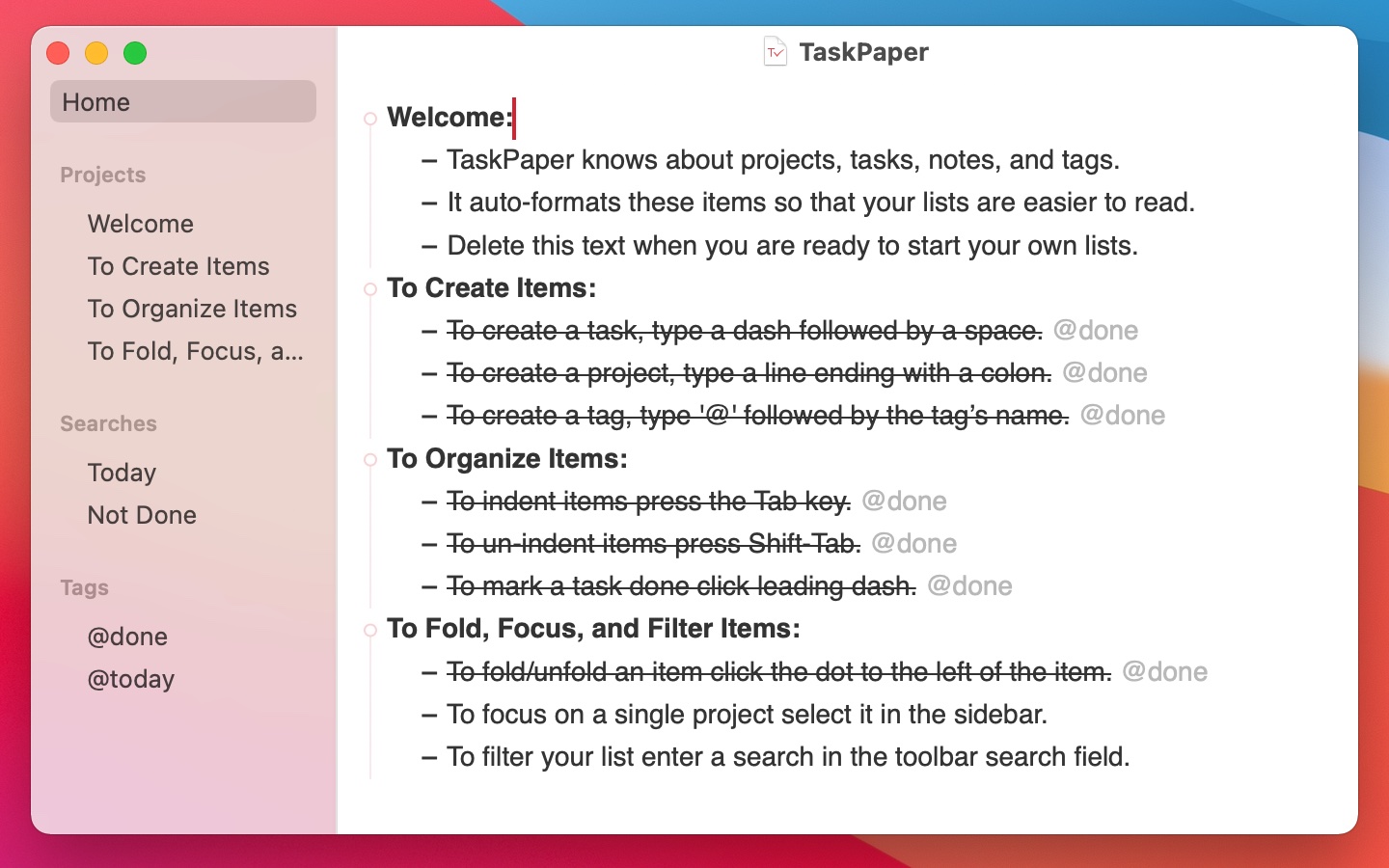
**Make lists and get organized**. TaskPaper is a plain text to-do list that’s surprisingly adept. Getting things done since 2006.
[Buy Now](https://www.taskpaper.com/#!)
[Download](https://www.taskpaper.com/assets/app/TaskPaper.dmg)
**Text editor with outlining power**. TaskPaper feels like a plain text editor, but it is backed by a powerful outliner.
* **Plain text**
Keyboard friendly. Type your lists into TaskPaper and each line is formatted into a project, task, or note.
* **No locks**
TaskPaper files are future proof. Edit them in any text editor or use one of the many TaskPaper compatible apps created by other developers.
* **Outliner power**
Fold, focus, and filter to cut big lists down to size. Use saved searches to quickly filter the items in your lists.
* **No limits**
TaskPaper doesn’t force a particular system on you; it provides basic list elements to use as you see fit. Go beyond with scripts and themes.
**Use text** to make lists.
**Use search** to filter lists.
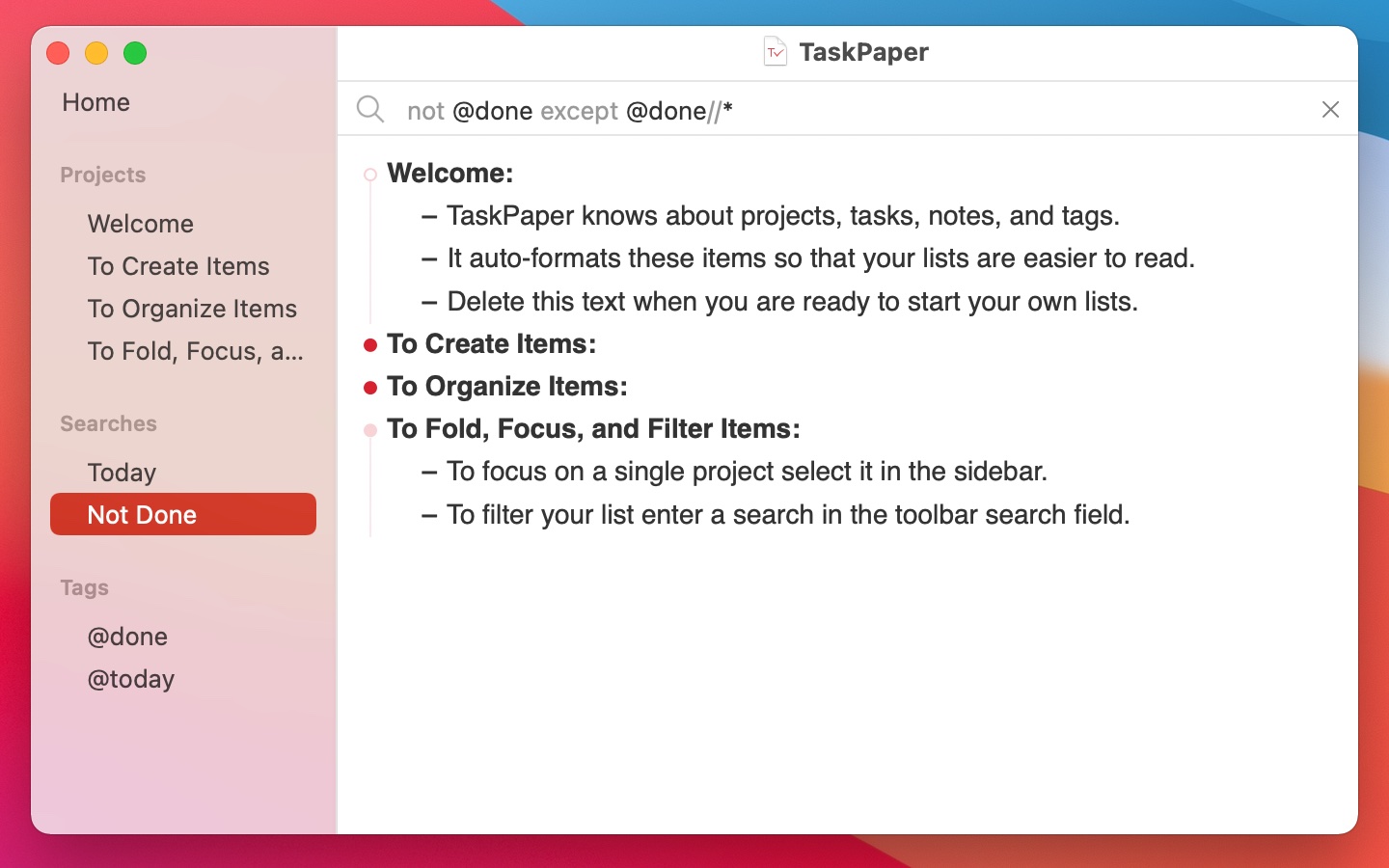
**Use palettes** to navigate quickly.
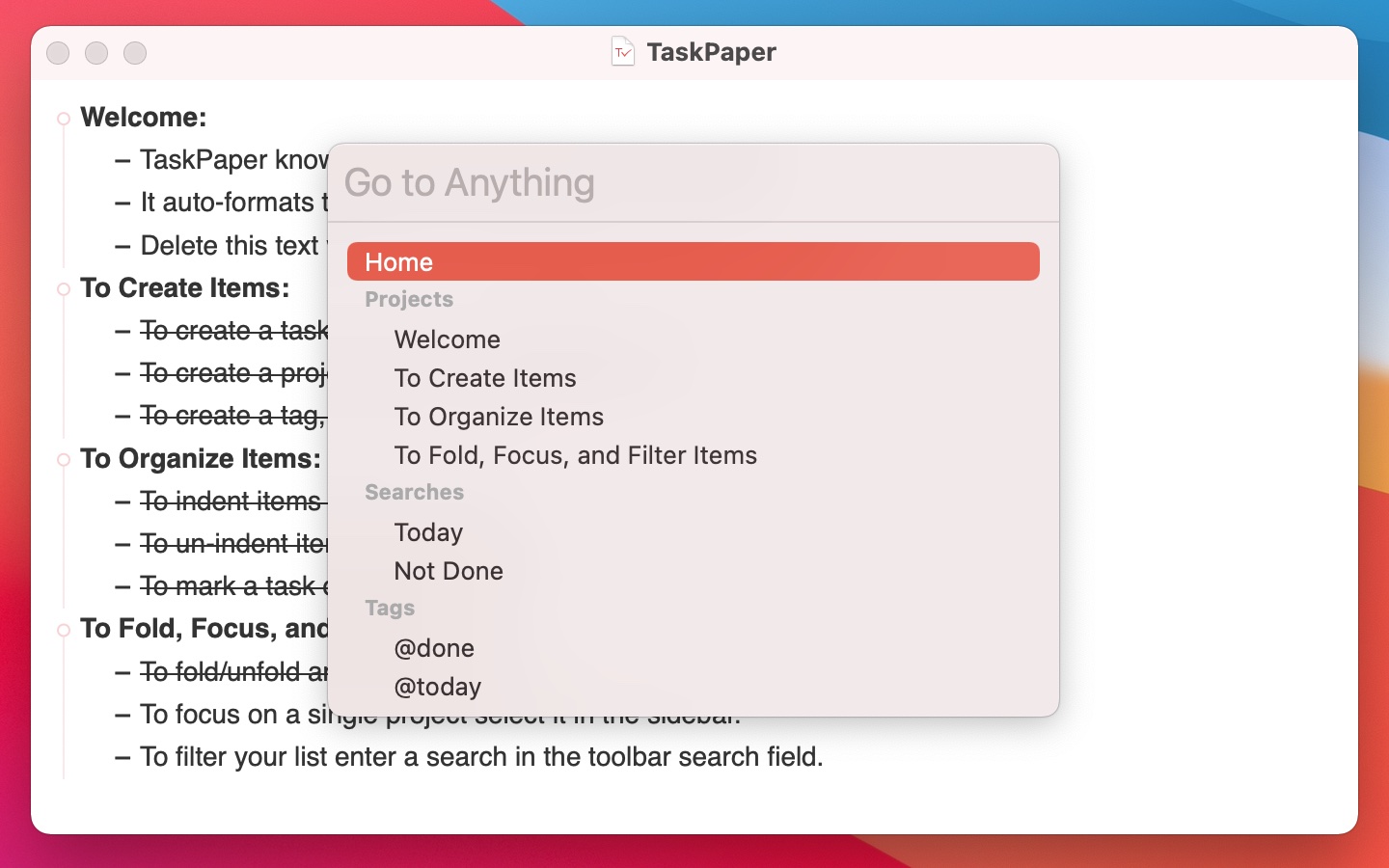
**Use dates** to schedule tasks.
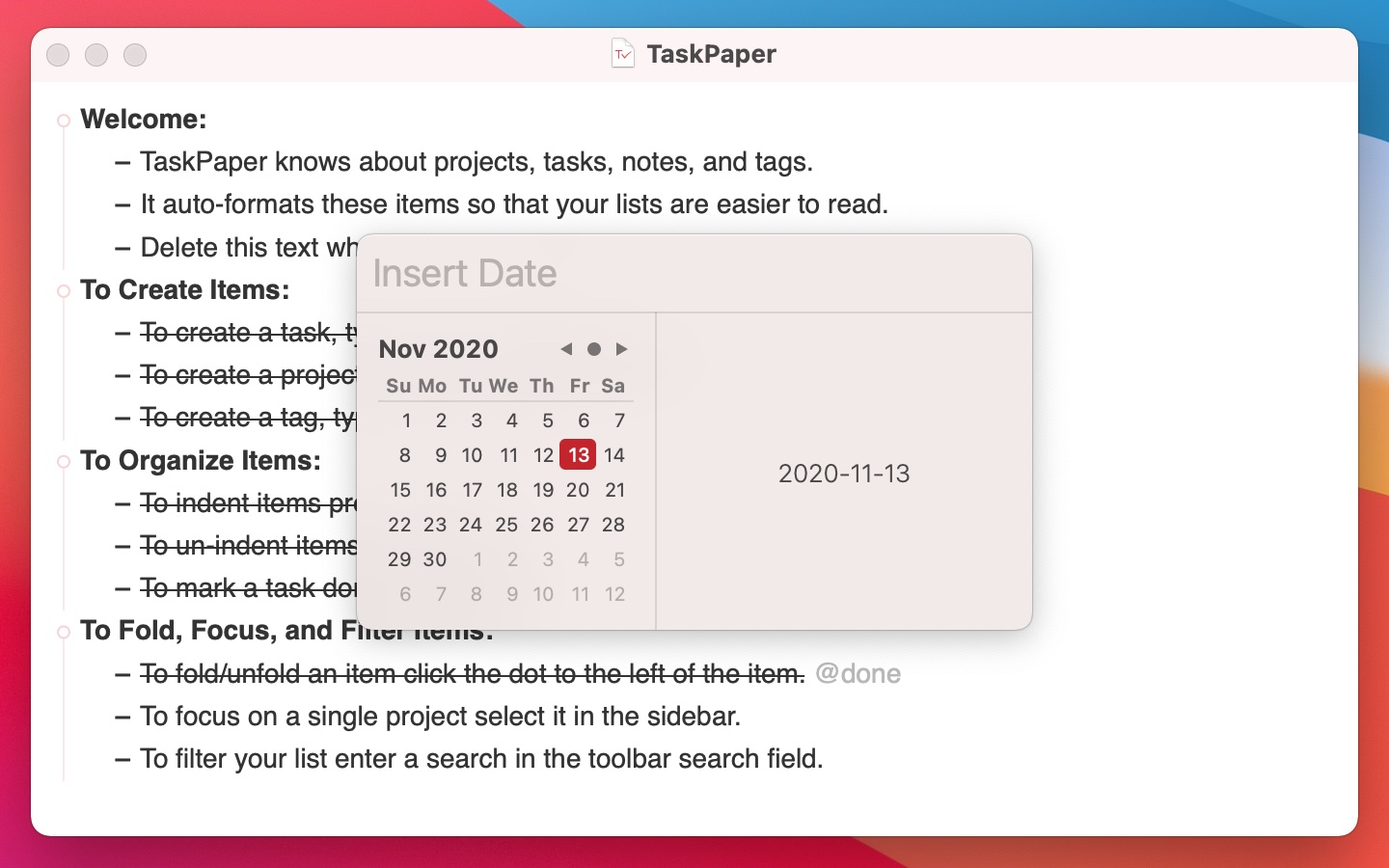
**Use Dark Mode** to look cool.
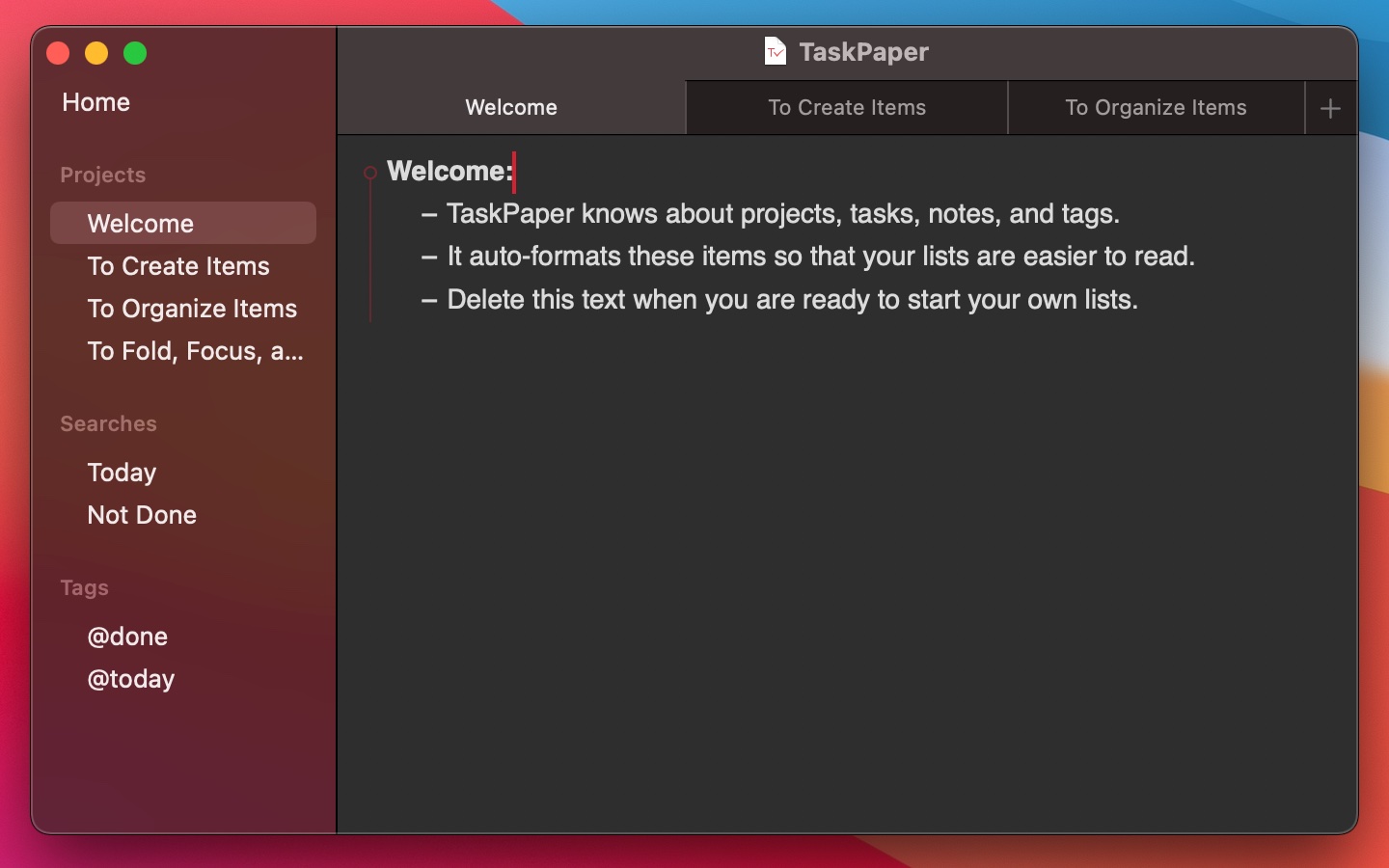
[Previous](https://www.taskpaper.com/#carousel-example-generic-2)
[Next](https://www.taskpaper.com/#carousel-example-generic-2)
**Thoroughly modernized**. TaskPaper 3 is all new, while retaining the original plain text foundation that’s worked since 2006.
* **Key Features**
* Plain text files; edit anywhere
* Type and your lists are auto formatted
* Organize projects:, - tasks, notes, and @tags
* Filter your lists by @tag, type, or content
* Fold, focus, and filter to make big lists small
* Fast keyboard navigation & commands
* **Supporting Features**
* Drag and drop to organize your lists
* Manage dates and times in plain text
* Import/Export with Reminders.app (Siri)
* Active support community ready to help
* LESS/CSS powered stylesheets for theming
* Extensive Javascript API for scripting
> “For the most part, the applications that are specifically designed for project organizing are way too complex, with too much horsepower to really be functional for 98 percent of what most people need to manage.”
>
> David Allen, Getting Things Done
---
# TaskPaper – Plain text to-do lists for Mac
Releases
========
TaskPaper 3.9.4 – Nov 6, 2025 [Download](https://www.taskpaper.com/assets/app/TaskPaper-3.9.4.dmg)
---------------------------------------------------------------------------------------------------
* Require macOS 11
* Fixed crash on macOS 26.1
* Disable Insert Date/Calendar keyboard focus
* Enable double-click on Date/Calendar to insert date
TaskPaper 3.9.3 – Nov 12, 2024 [Download](https://www.taskpaper.com/assets/app/TaskPaper-3.9.3.dmg)
----------------------------------------------------------------------------------------------------
* Fixed text selection drawing glitches
TaskPaper 3.9.2 – Sep 23, 2024 [Download](https://www.taskpaper.com/assets/app/TaskPaper-3.9.2.dmg)
----------------------------------------------------------------------------------------------------
* Fixed text caret drawing glitches
* Fixed text caret moving to next line when remove tags
* Fixed handle and guide positions when theme uses `paragraph-spacing-before`
* Removed ability to change text caret width through stylesheet
TaskPaper 3.9.1 – Mar 30, 2023 [Download](https://www.taskpaper.com/assets/app/TaskPaper-3.9.1.dmg)
----------------------------------------------------------------------------------------------------
* Fixed sidebar search selections and tab titles when restoring a window
TaskPaper 3.9 – Oct 24, 2022 [Download](https://www.taskpaper.com/assets/app/TaskPaper-3.9.dmg)
------------------------------------------------------------------------------------------------
* New for macOS Ventura
* Added ability to style based on item’s `bodyContent`
* Added branch move commands (Option to see in Item menu)
* Updated instructions in user’s guide for debugging scripts
* Fixed crash when failing to decode utf8 TaskPaper document
* Improved select existing tab behavior when selecting item in sidebar
With the styling addition you can now invent your own mini syntaxes in TaskPaper. For example the following style rule makes it so that any item that starts with `>>` will have red text:
item[bodyContent^=">>"] {
color: red;
}
TaskPaper 3.8.17 – Feb 15, 2022 [Download](https://www.taskpaper.com/assets/app/TaskPaper-3.8.17.dmg)
------------------------------------------------------------------------------------------------------
* Added Window > Float on Top menu option
* Fixed email highlighter to recognize longer extensions such as `.legal`
* Fixed disable multiple range text selection since it’s not supported by TaskPaper’s model.
TaskPaper 3.8.16 – Mar 18, 2021 [Download](https://www.taskpaper.com/assets/app/TaskPaper-3.8.16.dmg)
------------------------------------------------------------------------------------------------------
* Added support for clickable relative “~/” file paths
* Fixed clickable file paths that contain non ascii characters
* Fixed cases where Copy Link wasn’t working correctly (some path syntaxes)
* Fixed cases where Open/Copy Link was showing in context menu when it shouldn’t (tags, leading dash in task)
* Fixed “Export Reminders” to always show list picker when no default list is set in Reminders.app
* Fixed AppleScript read/write access to document’s “textContent”
TaskPaper 3.8.15 – Feb 9, 2021 [Download](https://www.taskpaper.com/assets/app/TaskPaper-3.8.15.dmg)
-----------------------------------------------------------------------------------------------------
* Fixed search bar layout bug when hiding/showing window tab bar
TaskPaper 3.8.13 – Dec 15, 2020 [Download](https://www.taskpaper.com/assets/app/TaskPaper-3.8.13.dmg)
------------------------------------------------------------------------------------------------------
* Updated icon for macOS Big Sur
TaskPaper 3.8.12 – Nov 12, 2020 [Download](https://www.taskpaper.com/assets/app/TaskPaper-3.8.12.dmg)
------------------------------------------------------------------------------------------------------
* Updated for macOS Big Sur
* Universal Binary for Apple Silicon
* Disable “Copy Displayed” when selection is empty
* Added “poof” animation for menu Item > Delete Items
* Select existing tab (if exists) when selected item in sidebar
* Command click file link to reveal the file in Finder instead of open
* Changed format to ignore seldom used task start chars + and \*.
* Fixed indentation of Home item in Sidebar
* Fixed user guide links
TaskPaper 3.8.10 – Feb 13, 2020 [Download](https://www.taskpaper.com/assets/app/TaskPaper-3.8.10.dmg)
------------------------------------------------------------------------------------------------------
* Fixed crash on start that was effecting some users
* Changed to standard drag and drop behavior unless dragging items
TaskPaper 3.8.8 – Feb 8, 2020 [Download](https://www.taskpaper.com/assets/app/TaskPaper-3.8.8.dmg)
---------------------------------------------------------------------------------------------------
* Fixed Tag > Remove Tags command
* Fixed Tag > Tag With… to not include values
* Fixed Edit > Insert Date “now” to use minutes instead of milliseconds resolution
* Added TaskPaper preference allowing sidebar size to follow System Preferences > General > Sidebar Icon Size setting
TaskPaper 3.8.6 – Jun 13, 2019 [Download](https://www.taskpaper.com/assets/app/TaskPaper-3.8.6.dmg)
----------------------------------------------------------------------------------------------------
* Fixed sidebar to display tag value lists such as @priority(1, 2, 3)
* Fixed crash when tag name matched another tag-value name. For example @a(a) and @a-a
TaskPaper 3.8.5 – May 5, 2019 [Download](https://www.taskpaper.com/assets/app/TaskPaper-3.8.5.dmg)
---------------------------------------------------------------------------------------------------
* TaskPaper is now notarized by Apple to increase security
* Fixed tab titles to include focused project name (requres macOS 10.13 or later)
* Removed `debugger` statement from javascript code
* Updated to Swift 5
TaskPaper 3.8.4 – Feb 5, 2019 [Download](https://www.taskpaper.com/assets/app/TaskPaper-3.8.4.dmg)
---------------------------------------------------------------------------------------------------
* Tag values in sidebar are ordered by name
* Replace all is now stored under single undo grouping
* Should no longer be asked for keychain password when updating
TaskPaper 3.8.3 – Jan 9, 2019 [Download](https://www.taskpaper.com/assets/app/TaskPaper-3.8.3.dmg)
---------------------------------------------------------------------------------------------------
* Fixed incorrect search when selecting tag value in sidebar
* Fixed invalid searches when clicking on tag values that include search syntax by quoting all values
TaskPaper 3.8.2 – Nov 15, 2018 [Download](https://www.taskpaper.com/assets/app/TaskPaper-3.8.2.dmg)
----------------------------------------------------------------------------------------------------
* Updated licensing framework
* Fixed crash that could happen when archiving items
* Fixed bug where some stylesheet attributes were not applied to editor
* Fixed performance bug the caused long delay when using accessibly API in long documents
* Fixed case where empty line leading tab indentation was lost when document saved and reloaded
TaskPaper 3.8.1 – Oct 1, 2018 [Download](https://www.taskpaper.com/assets/app/TaskPaper-3.8.1.dmg)
---------------------------------------------------------------------------------------------------
* Fix bug where it wasn’t possible to drag file links into TaskPaper document.
TaskPaper 3.8 – Sep 19, 2018 [Download](https://www.taskpaper.com/assets/app/TaskPaper-3.8.dmg)
------------------------------------------------------------------------------------------------
* Added support for macOS Mojave
* Added option to “Import Reminder Copies”
* Added dark mode support to TaskPaper stylesheets
* Fixed sorting of Window > Stylesheet list
* Fixed text blurriness that could occur when focus-in and focus-out
* Fixed bug where option-click on item handle would focus wrong item
TaskPaper 3.7.7 – Jul 1, 2018 [Download](https://www.taskpaper.com/assets/app/TaskPaper-3.7.7.dmg)
---------------------------------------------------------------------------------------------------
* Added View > Show Sidebar And Expand Completely
* Fixes print margins to be smaller
* Fixes “sentence” command spelling
* Fixes crash that could occur when using `ancestor-or-self::` in search
* Fixes undo bug where undoing moves might put items at wrong indentation
TaskPaper 3.7.6 – Nov 21, 2017 [Download](https://www.taskpaper.com/assets/app/TaskPaper-3.7.6.dmg)
----------------------------------------------------------------------------------------------------
* Adds support for tag value lists.
TaskPaper allows you to create tags by typing `@` followed by a tag name. You can also include an optional value after the tag like this: @mytag(my value).
The new feature is that TaskPaper now understands lists of comma separated values. For example you can now type @job(jack,jane) and TaskPaper understands that there’s a list of values associated with the tag. When you click on “jack” your lists will be filtered to show all tasks where “jack” is listed on the job.
TaskPaper 3.7.5 – Nov 10, 2017 [Download](https://www.taskpaper.com/assets/app/TaskPaper-3.7.5.dmg)
----------------------------------------------------------------------------------------------------
* Added warning that imported reminders are removed from Reminders.app
* Added warning when trying to work with Reminders.app without access granted
* Fixed keyboard focus problem when closing searchbar
* Fixed problems styling and updating searchbar
TaskPaper 3.7.4 – Aug 14, 2017 [Download](https://www.taskpaper.com/assets/app/TaskPaper-3.7.4.dmg)
----------------------------------------------------------------------------------------------------
* Added TaskPaper > Recover License to direct download version
* Fixes crash that could occure when placing cursor in empty line
TaskPaper 3.7.3 – Jun 8, 2017 [Download](https://www.taskpaper.com/assets/app/TaskPaper-3.7.3.dmg)
---------------------------------------------------------------------------------------------------
* Fixes copying of last item in a filtered view
* Fixes comparing against empty string (“”) in search syntax
TaskPaper 3.7.2 – May 11, 2017 [Download](https://www.taskpaper.com/assets/app/TaskPaper-3.7.2.dmg)
----------------------------------------------------------------------------------------------------
* Fixes crash that could happen when opening new documents.
TaskPaper 3.7.1 – Apr 28, 2017 [Download](https://www.taskpaper.com/assets/app/TaskPaper-3.7.1.dmg)
----------------------------------------------------------------------------------------------------
* Fixes a auto-save bug where changes in last line of text might not save.
TaskPaper 3.7 – Apr 27, 2017 [Download](https://www.taskpaper.com/assets/app/TaskPaper-3.7.dmg)
------------------------------------------------------------------------------------------------
TaskPaper 3.7 improves how filtered items work in two ways:
1. Filtered items are now selected only when a visible ancestor item is also selected.
2. It’s now easier to see when you’ve selected filtered items so you don’t accidentally delete them.
Also this release:
* Remembers and restores which outline items are expanded in sidebar
* Fixed crash when pasting text that contained non “\\n” newline characters
* Fixed crash when option (to create copy) dragging items from one document to another
TaskPaper 3.6.2 – Jan 23, 2017 [Download](https://www.taskpaper.com/assets/app/TaskPaper-3.6.2.dmg)
----------------------------------------------------------------------------------------------------
* Item > Move to Project no longer moves the selection along with the moved project
* When moving items in a filtered view don’t reveal hidden items when performing the move
* Fixed Pasting page break character no longer crashes TaskPaper
* Fixed Clicking file links in Mac App Store version new reveals files in Finder
* Fixed Edit > Selection > Select Sentence to not select the trailing newline after the sentence
* Fixed unwanted scrolling that could occur when (Shift-Tab) moving items to the left
* Fixed no longer autocomplete when inserting `@` within existing words
TaskPaper 3.6.1 – Jan 18, 2017 [Download](https://www.taskpaper.com/assets/app/TaskPaper-3.6.1.dmg)
----------------------------------------------------------------------------------------------------
* Better detection (and distinction) between click and drag on item handles
* Changed to only show projects in sidebar when all ancestors items are also projects
* Changed DateTime formatting term “week” to refer to ISO week (starts on Monday instead of Sunday)
* Fixed Tag > Tag With to only add leading space before added tag when needed
* Fixed broken File > Revert To > Browse All Versions views
* Fixed poor performance on new MacBooks with Touch Bar
* Fixed crash when importing reminders with newlines in titles
* Fixed crash when loading malformed stylesheet
TaskPaper 3.6 – Nov 15, 2016 [Download](https://www.taskpaper.com/assets/app/TaskPaper-3.6.dmg)
------------------------------------------------------------------------------------------------
Reminders: Quickly import items from (or export to) Reminders.app. Create reminders on the go with Siri then move them into TaskPaper at your Mac. Or export TaskPaper items to Reminders on your Phone.
Palettes: Create new items or select multiple items from the standard palette UI. Use Edit > Tag With… to apply multiple tags at once. Use Item > Move to Project… to both create a new project and move items to it in a single step.
* Added Edit > Insert Date…
* Added File > Import Reminders… to import from Reminders.app
* Added Item > Export to Reminders… to export items to Reminders.app
* Tag > Tag With… prompts for date when tagging with @due and @start
* Edit > Find commands now work when sidebar has focus, redirecting focus to editor
* Removed category text for each command when showing command palette
* Maintain focus item and search when open TaskPaper file is modified by another app
* Removed unused font, color, orientation items from editor context menu
* Fixed iCloud Drive to include TaskPaper folder
* Fixed Refresh of “Hoisted” item search works correctly
* Fixed Date parsing to support ISO week and day formats like 2016-W51-4
* Fixed `top-padding-percent` stylesheet attribute
* Fixed scrollbar jumping in cases involving wrapped lines
* Fixed search case where `union`, `intersect`, and `except` caused problems
* Fixed problem in palettes where filtering could place items in wrong group
TaskPaper 3.5.1 – Oct 13, 2016 [Download](https://www.taskpaper.com/assets/app/TaskPaper-3.5.1.dmg)
----------------------------------------------------------------------------------------------------
* Fixed Bug in 2-Set Korean input method
* Fixed Crash when editing stylesheet in VIM
* Fixed Crash when archiving first visible item
* Fixed Add checkmark to View > Show Sidebar when it’s visible
* Fixed Item > Move to Project to insert item at start of project’s items
TaskPaper 3.5 – Oct 11, 2016 [Download](https://www.taskpaper.com/assets/app/TaskPaper-3.5.dmg)
------------------------------------------------------------------------------------------------
Due to changes in TaskPaper’s bundle identifier TaskPaper 3.5 cannot auto-update itself. You will need to download again directly from using the following link. This is a free update, just re-enter your existing license key if prompted.
App
* New Icon, thanks @sdw!
* New Code, rewrote native layer in Swift 3
* New Requirements, now requires OS X 10.11 or later
Sidebar
* Added Projects, Searches, and Tags sections
* Ability to Show/Hide sidebar sections
* Ability to Expand/Collapse Individual Projects
* Double-click on project in sidebar to “hoist”, show only it’s descendants
* Tags configuration file, allowing you to choose tags shown/hidden in the sidebar
* Searches configuration file, allowing you to choose searches shown in the sidebar
* Context menu (and main menu) items for creating, editing, and deleting saved searches
* Saved searches may be embedded in current document, or saved separately
Searchbar
* Larger, can more easily display complex searches
* Only shows when active (preference to change this behavior)
* Attention getting, you should never miss the fact that a search is active (changeable in stylesheet)
* Much faster search results in large documents with complex search logic
Palettes
* New Palettes UI, faster keyboard navigation
* Replaced “Go to” popup menu’s with new palette UI
* Added “Go to Anything” Palette
* Added “Command palette” with ability to add your own script commands
* Changed keyboard shortcuts so all palettes use a form of Command-P
Tabs/Windows
* Ability to open multiple windows (or tabs on macOS 10.12) on a single document
* Added “Open in New Window” popup item for sidebar items
* Added “Open in New Tab” popup item for sidebar items (macOS 10.12)
* Reorganized menu items to better fit macOS 10.12’s “Show Tab Bar” item
Stylesheets
* Ability to switch between stylesheets
* Each window can now have a different (Window > Style) style
* Printing panel has it’s own separate stylesheet setting
* Renamed `display` span stylesheet attribute to `content`
* New options including text wrap and typewriter scrolling (see user’s guide for details)
Other
* Added Allow delete backward to un-indent items preference
* Added Preference to maintain search when select project changes
* Added Preference to maintain project when select search changes in sidebar
* Added scripting API to get all OutlineEditors associated with a given outline
* Removed “New Document” preferences (spelling, etc), those settings now apply to all documents
* Changed direct download bundle ID to avoid conflicts with app store version
* Direct download version recognizes App Store licenses (must run App Store version once first)
* Improved folded state persistence in documents that are edited outside TaskPaper
* Improved Drawing of split cursor text insertion point
* Changed default font to system reported “user font”
* Fixed file and icon associations
TaskPaper 3.3.2 – Jul 11, 2016 [Download](https://www.taskpaper.com/assets/app/TaskPaper-3.3.2.dmg)
----------------------------------------------------------------------------------------------------
* Updated to work on macOS Sierra Beta
* Disabled dragging the root item from the sidebar
* Disabled dragging items into the outline view when it is empty
* Fixed error when dragging into the sidebar when outline view is empty
The release frequency has slowed as I’ve taken a step back to work on some larger changes.
First, I’ve just finished restructuring TaskPaper’s code so that I’m able to open source the model layer (see links below). This makes it possible for other scripters and developers to process TaskPaper files on macOS, iOS, and anywhere else where there’s JavaScript.
Second, I’m now in the process of updating the user interface code to use Apple’s new Swift programming language. This will put TaskPaper on a better foundation to keep up with whatever changes Apple brings in the future. It’s also giving/forcing me to look through every line of code and fix all the dumb stuff that I did! I’m still a ways from done, but I’m making good progress.
Open Source Model Layer:
* [JavaScript](https://github.com/jessegrosjean/birch-outline)
* [Swift (macOS/iOS)](https://github.com/jessegrosjean/BirchOutline)
TaskPaper 3.3.1 – May 25, 2016 [Download](https://www.taskpaper.com/assets/app/TaskPaper-3.3.1.dmg)
----------------------------------------------------------------------------------------------------
* Clicking on task dash (to toggle @done) no longer scrolls to selected text
TaskPaper 3.3 – May 19, 2016 [Download](https://www.taskpaper.com/assets/app/TaskPaper-3.3.dmg)
------------------------------------------------------------------------------------------------
Added Expand/Collapse Commands:
* Added View > Expand Items
* Added View > Collapse Items
* Added View > Expand All By Level
* Added View > Collapse All By Level
Hold down “Option” key for a “Completely” variant of each item.
Removed Redundant Commands:
* Removed View > Fold
* Removed Items > Indent
* Removed Items > Un-Indent
Please use the explicit Expand/Collapse commands for folding. Use “Tab” and “Shift-Tab” instead of the Indent and Un-Indent menu items. I think any short term pain this causes will make TaskPaper a more nimble and focused app long term.
Improved Item Movement in Filtered Views:
1. Moving items should never “capture” hidden items as children.
2. No additional items should appear on screen when moving items.
Added New ”filtered” Item Handle State:
This state joins the existing “Expanded” and “Collapsed” states. Filtered state indicates that some children are visible and others are filtered out of the display. Click a filtered handle to expand it to show all children.
1. Expanded – Dim empty circle
2. Collapsed – Bright filed circle
3. Filtered – Dim filled circle
Other Changes:
* Improved alert messaging when opening invalid file links.
* Fixed leading spaces from being removed from pasted text.
* Fixed periodic broken “Tag With…” toolbar popup menu state.
* Fix crash when inserting new item into empty document.
* Maintain full line selection when move item to end of list.
Theme Additions:
* Added `filtered` item attribute for themes to query.
* Added `handle-size` item style property.
* Added `handle-border-color` item style property.
* Added `handle-border-width` item style property.
TaskPaper 3.2.1 – May 6, 2016 [Download](https://www.taskpaper.com/assets/app/TaskPaper-3.2.1.dmg)
---------------------------------------------------------------------------------------------------
* Editor better maintains current scroll position when editing.
* Pasting into end of focused project now inserts items correctly.
* “Share Item” in toolbar is fixed to share the the selected text.
* Don’t scroll to selection when performing drag and drop operations.
* Include “More…” option in toolbar “Share Item” popup menu.
* Fixed how leading spaces are converted into item indent levels.
* Preview badge now includes version number and isn’t shown in notification style.
* Archive Done command now includes all containing projects in `@projects` tag.
* Use “TaskPaper Generic” file type to save without `.taskpaper` file extension.
* Fixed problem where text caret would display in wrong position or not at all.
* Search field text on OS X 10.10 no longer remains centered after clicking tag.
* Return only autocompletes to formatted tasks when current line _starts_ with `-` .
* Delete last item then followed by Undo and then Redo no longer causes crash.
* Selection now draws correctly behind paragraph break invisible characters.
* Edit > Copy Displayed (Option-Command-C) works when last item is fully selected.
TaskPaper 3.2 – Apr 22, 2016 [Download](https://www.taskpaper.com/assets/app/TaskPaper-3.2.dmg)
------------------------------------------------------------------------------------------------
* Added header and footer printing options to print panel.
* Track expanded/collapsed state in extended file attribute.
* Edit > Copy Displayed (Option-Command-C) for only displayed items.
* Added right margin padding to balance default left margin padding.
* Escape in empty toolbar search field shows recent searches menu.
* Control-Tab and Shift-Control-Tab now move focus of toolbar search field.
* `ShowPreviewBadge` defaults key to hide “Prev” badge in TaskPaper’s preview version.
* Tag autocompletions are now case insensitive.
* Tag autocompletions only popup when editing at end of tag.
* Move “Saved Searches” to top of toolbar search field popup.
* Require that both `(` and `)` be escaped with `\` when used in tag values.
* Apply tag and similar commands only effect displayed items, not collapsed or filtered.
* Hidden items with no visible ancestor are no longer effected by edits.
* It’s now possible to fully select the last displayed item, so you can cut/copy its collapsed items.
* Changed script debug process, see user guide “Creating Scripts” section.
* Renamed theme ‘display’ text style attribute to ‘content’.
* Items > Format As to work when item is a project with trailing tags.
* Document name (instead of always “Untitled”) now displays in printed header.
* Guide lines now draw for items with hidden parents but visible ancestors.
* Escape in toolbar search field clears text without losing focus.
Scripting API
* `Outline.getOutlines()`
* `OutlineEditor.getOutlineEditors()`
* `OutlineEditor.getOutlineEditorForOutline(outline)`
* `selection.selectedItems`
* `selection.displayedSelectedItems`
* `selection.displayedAncestorSelectedItems`
TaskPaper 3.1 – Apr 1, 2016 [Download](https://www.taskpaper.com/assets/app/TaskPaper-3.1.dmg)
-----------------------------------------------------------------------------------------------
* Added TaskPaper > Show License menu item.
* Added Help > Email, FAQ and Release Notes items.
* Added Hold down shift to drop items “on” other items.
* Added Drag and drop projects in sidebar to reorder.
* Added Saved searches to search field Recents menu.
* Added Drop text, URLs, etc into sidebar.
* Changed “Move to Project” to add at top of list.
* Changed Drop on sidebar to add at top of list.
* Changed Default theme to hide handles of empty items.
* Changed Use document filename as label instead of “Home”.
* Changed Don’t show saved search when search text is empty.
* Changed Command-L (Go to Project…) to always use popup. Use Control-Shift-Tab for sidebar.
* Changed Option-click on item handle now focuses item instead of only its children.
* Changed Don’t show @ before tag names in menu items, so type to select works better.
* Fixed (another) incorrect selection when using Option-Return.
* Fixed Do nothing when drag and drop item to original location.
* Fixed projects popup to removing trailing tags.
* Fixed Strip trailing tags and : from Archive Done project name.
* Fixed Printing to always print same view that you see (even when searching).
Theme Additions:
* Added `depth` item attribute for themes to query:
* Added `paragraph-spacing-before` item style property.
* Added `paragraph-spacing-after` item style property.
* Added `guide-line-width` editor style property.
* Added `item-handle-size` editor style property.
Theme Additions Demo:
editor {
guide-line-width: 2;
item-handle-size: 8;
}
item[depth=1][data-type=project] {
paragraph-spacing-before: 10;
paragraph-spacing-after: 20;
}
TaskPaper 3.0.1 – Mar 23, 2016 [Download](https://www.taskpaper.com/assets/app/TaskPaper-3.0.1.dmg)
----------------------------------------------------------------------------------------------------
* Fixed Click on Home in the sidebar will now clear any active searches.
* Fixed Delete will now scroll text caret to visible if it’s not already visible.
* Fixed Incorrect text caret position when using Option-Return to create a new item.
* Fixed Better maintain scroll position when editing the outline.
* Fixed Crash when reloading a theme soon after closing a document.
* Fixed Crash when loading a theme with syntax errors.
* Fixed Single pixel wide sidebar on OS X 10.10.
TaskPaper 3 – Mar 16, 2016 [Download](https://www.taskpaper.com/assets/app/TaskPaper-3.dmg)
--------------------------------------------------------------------------------------------
* All new modernized app
* Flexible and unique folding UI
* More powerful outliner and text editor
* Saved searches; one click away in sidebar
* Relative date and time based searches
* More powerful hierarchical searches
* LESS/CSS powered themes
* Extensive Javascript API
Historical
----------
Download [old and unsupported](https://support.hogbaysoftware.com/t/where-can-i-download-older-versions-of-taskpaper/1754?u=jessegrosjean)
versions of TaskPaper.
---