# Table of Contents
- [Recall Documentation - Recall](#recall-documentation-recall)
- [1. Access Recall - Recall](#1-access-recall-recall)
- [3. Interact with Content - Recall](#3-interact-with-content-recall)
- [2. Add Content - Recall](#2-add-content-recall)
- [4. Organize Content - Recall](#4-organize-content-recall)
- [6. Remember Content - Recall](#6-remember-content-recall)
- [5. Connect Content - Recall](#5-connect-content-recall)
- [7. Exporting Content - Recall](#7-exporting-content-recall)
- [All Supported Content - Recall](#all-supported-content-recall)
- [Bookmark Imports - Recall](#bookmark-imports-recall)
- [Augmented Browsing - Recall](#augmented-browsing-recall)
- [Pocket Imports - Recall](#pocket-imports-recall)
- [Chat with Knowledge Base - Recall](#chat-with-knowledge-base-recall)
---
# Recall Documentation - Recall
Introduction
Introduction
============
Welcome to Recall - your personal AI encyclopedia.
Here you can find all the essential information you need to effectively use Recall - designed to help you get more out of the content you consume. Whether you're a student, professional, or lifelong learner, Recall offers innovative features to enable you to **learn faster and retain more.**
Why Recall[](https://docs.getrecall.ai/#why-recall)
----------------------------------------------------
In today's digital age, we are inundated with information from diverse sources such as YouTube videos, news, podcasts, and blogs. This immense volume of content presents a unique challenge: how to capture the essence of what we consume without getting overwhelmed and how to recall it when it's needed again.
**Recall tackles this challenge by:**
### Capturing Original Content[](https://docs.getrecall.ai/#capturing-original-content)
Recall stores the full content, so you can use Recall as your Read-It-Later app. It works best with Articles, PDFs, Google Docs & YouTube. _(Podcasts and more [coming soon. (opens in a new tab)](https://feedback.getrecall.ai/feature-requests?_gl=1%2Augytsg%2A_gcl_aw%2AR0NMLjE3MzkyNzk2MTcuQ2owS0NRaUEtNWE5QmhDQkFSSXNBQ3dNa0o2ellqTS10MTdOTFVGQkd0ZUdSenhkaWhWOGNhYmFLUENNQk9OdFV1OERIQ3hTMkxDSjZFMGFBcF9ZRUFMd193Y0I.%2A_gcl_ag%2AMi4xLmswQUFBQUFxMkFDRzNWYnRIS3kxelNwUkJZM1pUYm5DdnpkJGkxNzM5Mjc4MDczJGJPc0hmQ00yaDRZb2FFTzJRZ093cQ..%2A_gcl_au%2AMTI1NjI3NzAwMi4xNzM1OTA4MjYxLjY3NDkxMTcwNi4xNzM4ODI4NzA2LjE3Mzg4Mjg3MDY.&sort=top)
)_
### Summarization & Chat[](https://docs.getrecall.ai/#summarization--chat)
Get high-quality concise or detailed AI summaries and ask questions for deeper insights. When chatting with content, it's important to remember that you are interacting only with the specific content source – not the entire internet. This ensures responses are highly relevant and specific to the content you've stored.
### Connections & Augmented Browsing[](https://docs.getrecall.ai/#connections--augmented-browsing)
Recall is built on a graph database, meaning that related content is automatically linked together. Whenever you add content to Recall, the system extracts and enriches keywords from the content. In our newest feature, Augmented Browsing, these connections resurface as you browse, helping you discover connections in your knowledge.
You can also link content together yourself - Just type "/" or use the ⚡ icon when highlighting text in the **Recall Notebook.**
### Customized Notes[](https://docs.getrecall.ai/#customized-notes)
Save and edit your summaries and chats in your **Recall Notebook.** It is fully editable, so you can take your own notes, highlight and customize based on your needs.
### Self-Organizing Knowledge Base[](https://docs.getrecall.ai/#self-organizing-knowledge-base)
Content saved to Recall gets automatically assigned a tag. This tag then corresponds to a structure in the left panel of the app. The tag is based on any existing tags you already have in your knowledge base and the core focus of the content - that way we keep things organized for you, while maintaining your intended structure.
### Improving your Knowledge Retention[](https://docs.getrecall.ai/#improving-your-knowledge-retention)
Recall helps you retain the information you consume by employing spaced repetition and active recall strategies ensuring that the key points are not just captured but also remembered. Run a quiz on any content you save into Recall and click "Review" to access your personalized learning schedule.
Last updated on July 31, 2025
[1\. Access Recall](https://docs.getrecall.ai/getting-started/1-start-here "1. Access Recall")
---
# 1. Access Recall - Recall
Getting Started
1\. Access Recall
Access Recall
=============
Recall is designed to be accessible whenever and wherever you need it. It works seamlessly across web and mobile, with automatic syncing to keep your knowledge base up to date on all your devices.
**Your knowledge base** is where all your content is stored and organized. You can access it via our web app and beta mobile apps, ensuring you have everything you need at your fingertips.
**The browser extension** offers a powerful way to add content directly into Recall. It enables one-click summaries, lets you chat with your content in your browser, and—most importantly—establishes real-time connections to the content stored in your knowledge base through **Augmented Browsing.**
[Learn more about Augmented Browsing. (opens in a new tab)](https://docs.getrecall.ai/deep-dives/recall-augmented-browsing)
### Platforms[](https://docs.getrecall.ai/getting-started/1-start-here#platforms)
* **Browser Extension:** [Chrome (opens in a new tab)](https://chrome.google.com/webstore/detail/recall-web-extension/ldbooahljamnocpaahaidnmlgfklbben)
, [Firefox (opens in a new tab)](https://addons.mozilla.org/en-US/firefox/addon/getrecall/)
, _Safari coming soon_
* **Web App:** Log in on the [Website. (opens in a new tab)](https://www.getrecall.ai/)
* **_Beta_ Mobile Apps:** [App Store (opens in a new tab)](https://fdhjbgj.r.af.d.sendibt2.com/tr/cl/tyIpZkkqthJnH2No5hzQLaJqCyrONztrLSJKWixAe8T_ZaaMM5zPSgaTJicTNVC_-nEFXoWD5St8O8Ek8X2XayBeDCQ_9wBq6VAJkdEWVpjcnVOL2oPSBV1P8OEBHOZK8p2D23GWMfs7fQUP9uzRQ01RiUvg-bZUWU1ywsGkqgVXjyv1WeM_JzneDMM-VAEEHTNKQruknE6aDU4O61Bj1WHUduuuTw8mXoH6CzMVYR4QyzOFsEpJ4pmVQE0NgXc5DaU62NYRniWOgLMPTzzL6dyXTxU89FenlAsCzQyypM-ljMK8eOsRKhx1gQhjF4N7vjhNuV59cLgfY5ZhLA)
, [Google Play (opens in a new tab)](https://fdhjbgj.r.af.d.sendibt2.com/tr/cl/RQEb5fSpapst0KiG7-kIKuZ1J7knARs2SqiI9VvStQdAbphpGAUrks26yW0ZBwykWKc8z8YjgUC2AwFHfaORqHTl148FZltOEXNB5QkHClMpjN3kWxc-yCqV7hPrl81a-5pbwNgkNO3umJ0A53Xnld83iBUqfYdZsZj_iJrmfdGg0iaozE58PEDdY6BjDJinunt-l0kXtgD5SzaYQWMCbpSOxe6sdQ5LBSOcrj4NLXX-P0s_5yVJ0zZW58Ks5rcYfIo3mB8-0eAvJKfFK0OD8y4WyJG0hOSuMrqk2IFYHOQRpalSzGpMEoNP91tiHfW_uML0cNrnGwTvuhmj)
To truly experience the power of Recall, you simply must try the browser extension.
Last updated on July 31, 2025
[Introduction](https://docs.getrecall.ai/ "Introduction")
[2\. Add Content](https://docs.getrecall.ai/getting-started/2-add-content "2. Add Content")
---
# 3. Interact with Content - Recall
Getting Started
3\. Interact with Content
Read, Summarize, Chat & Customize your content
==============================================
Once you add content into Recall, they transform into **Recall Cards**. Recall cards have several powerful features. In this section of the docs, we will cover the Reader, Chat & Notebook tabs within a Recall card. [Learn more about Recall Cards. (opens in a new tab)](https://youtu.be/2s81mlFtHio?t=89)
* **Reader Tab:** This tab preserves the original content in a read-only format, allowing you to use Recall as your reliable "Read-It Later" app. Revisit your content anytime exactly as it was saved.
* **Chat Tab:** Use the Chat Tab to interact with your content. It provides AI-powered actions to create summaries and an interactive chatbot to answer your questions.
* **Notebook Tab:** This is where you can truly make the content your own and tailor it to your unique needs. Any summaries and chats can be saved to your notebook, where you can fully edit them and create links to other knowledge cards. For more details on linking, see [the Linking Section (opens in a new tab)](https://docs.getrecall.ai/getting-started/5-linking-content)
.
_Note: By default, Recall will create a concise summary and automatically save it to your notebook. You can adjust this in your settings._
Recall Reader[](https://docs.getrecall.ai/getting-started/3-summarize-and-chat-with-content#recall-reader)
-----------------------------------------------------------------------------------------------------------
The Recall Reader is designed to securely store your complete original content within Recall. This feature allows you to use Recall as a reliable read-it-later app, ensuring that your content is always available when you need it. It also provides the foundation for our interactive chat capabilities, enabling you to engage with your content without losing any detail.
A few things to note:
* The Recall Reader is **read-only**; use the Notebook tab to add your personal notes and annotations.
* Regenerate the reader by clicking the 🪄 (wand) symbol on your Recall card. This is available for all content except YouTube videos and PDFs.
* Expand & Collapse the reader by clicking the icon in the bottom right of your Recall card.
Summarize content[](https://docs.getrecall.ai/getting-started/3-summarize-and-chat-with-content#summarize-content)
-------------------------------------------------------------------------------------------------------------------
By default, Recall summarizes content. However, you can customize this setting to suit your needs. Choose from:
1. **Reader:** Only Store Full Content – Saves the original content without summarization.
2. **Concise Summary:** Provides a brief, to-the-point summary.
3. **Detailed Summary:** Generates a more in-depth summary.
_Note: Configure your language preferences in the settings._
Chat with content[](https://docs.getrecall.ai/getting-started/3-summarize-and-chat-with-content#chat-with-content)
-------------------------------------------------------------------------------------------------------------------
When chatting with content, it's important to remember that you are interacting only with the specific content source – not the entire internet. This ensures responses are highly relevant and specific to the content you've stored.
**Steps to Chat with Content**
1. Open the chat interface:
* Click the Chat icon in the Browser Extension.
* Navigate to the Chat tab in the Web or Mobile App.
2. Ask any question related to your saved content.
3. Save the chat output to your Recall Notebook.
4. In your Notebook, you can edit and customize the output to your preference.
_Note: We will soon launch a Chat with Your Entire Knowledge Base feature – stay tuned!_
Customize content[](https://docs.getrecall.ai/getting-started/3-summarize-and-chat-with-content#customize-content)
-------------------------------------------------------------------------------------------------------------------
Within the Notebook tab, you'll find a full-featured text editor that empowers you to personalize your content. You can create new notes or save and edit outputs from your summaries and chats. The Notebook is designed to help you enrich the material you consume with your own insights and learnings.
A standout feature of the Notebook is the ability to **link your notes together.** You can do this in two easy ways:
* Highlight text and click the ⚡ lightning bolt: Instantly open a drop-down menu with linking options.
* Type “/” in the Notebook: This shortcut also brings up the linking menu.
From the drop-down, you can link to:
* Another card in your knowledge base.
* A web-enriched note (an entity from Wikipedia).
* A new blank card (select "Create empty note").
[Learn more about connections. (opens in a new tab)](https://docs.getrecall.ai/getting-started/5-linking-content)
Last updated on July 31, 2025
[2\. Add Content](https://docs.getrecall.ai/getting-started/2-add-content "2. Add Content")
[4\. Organize Content](https://docs.getrecall.ai/getting-started/4-organizing-content "4. Organize Content")
---
# 2. Add Content - Recall
Getting Started
2\. Add Content
Start building your knowledge base
==================================
Once you create a Recall account, you're ready to start adding content into Recall and building your network of knowledge. Adding content automatically creates a **Recall Card.**
A Recall Card contains a read-only version of the original content, a notebook to take your own notes, and unlocks powerful AI features such as:
* Creating summaries
* Chatting with your content
* Visualizing content in a graph
* Reviewing content on a spaced repetition schedule
Add content into Recall[](https://docs.getrecall.ai/getting-started/2-add-content#add-content-into-recall)
-----------------------------------------------------------------------------------------------------------
Skip to [this section in our tutorial (opens in a new tab)](https://youtu.be/2s81mlFtHio?t=46)
for a walkthrough of how to add content.
There are three main ways to add content into Recall.
**1\. The best way:** Install the [Recall browser extension (opens in a new tab)](https://chromewebstore.google.com/detail/recall-summarize-anything/ldbooahljamnocpaahaidnmlgfklbben?hl=en)
, pin it, and click it.
**2\. In-app:** Add content by clicking the create card button in the app.
**3\. On mobile:** Share content directly with the Recall app
📌
**Supported content:** YouTube videos with transcripts, PDFs, Google documents & Google slides, Blogs, Articles, Websites, etc. We are actively working on supporting more content. Have a request for something specific? [Request it! (opens in a new tab)](https://feedback.getrecall.ai/feature-requests?_gl=1%2A15raigi%2A_gcl_aw%2AR0NMLjE3MzkyNzk2MTcuQ2owS0NRaUEtNWE5QmhDQkFSSXNBQ3dNa0o2ellqTS10MTdOTFVGQkd0ZUdSenhkaWhWOGNhYmFLUENNQk9OdFV1OERIQ3hTMkxDSjZFMGFBcF9ZRUFMd193Y0I.%2A_gcl_ag%2AMi4xLmswQUFBQUFxMkFDRzNWYnRIS3kxelNwUkJZM1pUYm5DdnpkJGkxNzM5Mjc4MDczJGJPc0hmQ00yaDRZb2FFTzJRZ093cQ..%2A_gcl_au%2AMTI1NjI3NzAwMi4xNzM1OTA4MjYxLjY3NDkxMTcwNi4xNzM4ODI4NzA2LjE3Mzg4Mjg3MDY.&sort=top)
### 1\. Through the browser extension[](https://docs.getrecall.ai/getting-started/2-add-content#1-through-the-browser-extension)
1. Install the browser extension: [Chrome (opens in a new tab)](https://chrome.google.com/webstore/detail/recall-web-extension/ldbooahljamnocpaahaidnmlgfklbben)
, [Firefox (opens in a new tab)](https://addons.mozilla.org/en-US/firefox/addon/getrecall/)
, _Safari coming soon_
2. Pin it to your toolbar _(so it's easily accessible)_
3. Browse to the content you would like to engage with, and click the browser extension.
4. Boom! You can now:
* Save the full content
* Summarize and chat with your content
* Save it to the **Recall Notebook** where you can edit your summaries and take your own notes.
Your browser does not support the video tag.
### 2\. In-App: click create card[](https://docs.getrecall.ai/getting-started/2-add-content#2-in-app-click-create-card)
This can be done on the web or mobile apps. When clicking "Create Card" in the top right-hand corner of the app, you will see several ways to add different types of content into Recall.
* Paste in the URL of any online content
* Search Wikipedia - this is a great way to add books, movies, people, etc.
* Upload a PDF
* Import bookmarks
* Add a blank card that you can customize as your own note
Your browser does not support the video tag.
### 3\. Sharing content with Recall on mobile[](https://docs.getrecall.ai/getting-started/2-add-content#3-sharing-content-with-recall-on-mobile)
When browsing on your mobile device, you can share content directly with Recall. Hit the share icon on your browser page and select Recall.
Your browser does not support the video tag.
_If Recall does not show up in your share list:_
1. Navigate to a browser page / YouTube video that you want to share with Recall
2. Click the share icon
3. Click "More"
4. When you come to the list of content to share with, click "Edit"
5. Make sure that Recall is included in the "Suggestions".
Last updated on July 31, 2025
[1\. Access Recall](https://docs.getrecall.ai/getting-started/1-start-here "1. Access Recall")
[3\. Interact with Content](https://docs.getrecall.ai/getting-started/3-summarize-and-chat-with-content "3. Interact with Content")
---
# 4. Organize Content - Recall
Getting Started
4\. Organize Content
Your Self-Organizing Knowledge Base
===================================
Content saved to Recall gets automatically assigned a tag. This tag then corresponds to a structure in the left panel of the app.
* The tag is based on any existing tags you already have in your knowledge base and the core focus of the content. This way, we keep things organized for you while maintaining your intended structure.
* Tags, unlike folders, allow you to store a card in multiple places at once. This is useful when a card is relevant to multiple topics.
Your browser does not support the video tag.
### **Add More Tags**[](https://docs.getrecall.ai/getting-started/4-organizing-content#add-more-tags)
Add more tags to a card by clicking the plus button and entering the tag name. If the tag already exists, Recall will suggest it to you; otherwise, it will create a new tag.
### **Nest Tags**[](https://docs.getrecall.ai/getting-started/4-organizing-content#nest-tags)
In Recall, you can have nested tags, which allow you to organize tags in a hierarchical manner, where each tag can have sub-tags, creating layers of specificity. Simply type in "/" to nest a tag.
_Example: "Movies/Thrillers" will nest Thrillers under Movies._
### **Edit Existing Tags**[](https://docs.getrecall.ai/getting-started/4-organizing-content#edit-existing-tags)
To edit an existing tag, click the edit icon next to the tag in the left panel.
Last updated on July 31, 2025
[3\. Interact with Content](https://docs.getrecall.ai/getting-started/3-summarize-and-chat-with-content "3. Interact with Content")
[5\. Connect Content](https://docs.getrecall.ai/getting-started/5-linking-content "5. Connect Content")
---
# 6. Remember Content - Recall
Getting Started
6\. Remember Content
Active Recall and Spaced Repetition
===================================
Recall utilizes two scientifically proven learning techniques, Active Recall and Spaced Repetition, to enhance information retention for the content that you save to your knowledge base. This system prompts you with questions generated from your saved content, following a schedule that optimizes memory strength over time.
See the review in action [here (opens in a new tab)](https://youtu.be/2s81mlFtHio?t=222)
.
Your browser does not support the video tag.
What is Active Recall?[](https://docs.getrecall.ai/getting-started/6-review-content#what-is-active-recall)
-----------------------------------------------------------------------------------------------------------
Active Recall is a learning method where you try to remember information without referencing the material. This technique has been shown to significantly enhance long-term retention compared to passive reading. Actively retrieving information helps strengthen neural pathways, thereby improving recall and promoting the transfer of knowledge to long-term memory.
What is Spaced Repetition?[](https://docs.getrecall.ai/getting-started/6-review-content#what-is-spaced-repetition)
-------------------------------------------------------------------------------------------------------------------
Spaced Repetition involves reviewing information at progressively increasing intervals. This method leverages the psychological spacing effect, where revisiting material just before it is forgotten enhances memory retention. By strategically timing reviews, Spaced Repetition helps cement information in memory.
How Recall Implements These Techniques[](https://docs.getrecall.ai/getting-started/6-review-content#how-recall-implements-these-techniques)
--------------------------------------------------------------------------------------------------------------------------------------------
### A single card review[](https://docs.getrecall.ai/getting-started/6-review-content#a-single-card-review)
To generate questions for a knowledge card and add it to your Recall Review:
**1\. Click the Quiz Tab** on the card you want to review.
**2\. Select Generate Questions** to create quiz questions that will be added to your Recall Review Queue.
**3\. Clicking Review Now** to quiz yourself on just this card.
**4\. Manage Questions** by generating more, adding your own, or edit/delete existing ones.
💡
Repeat this for other cards that you want added to your spaced repetition schedule.
### Your spaced repetition schedule[](https://docs.getrecall.ai/getting-started/6-review-content#your-spaced-repetition-schedule)
Start your Recall Review by clicking the Review icon (top-left of the screen). Here you can see which cards have questions in your next review, track your progress and manage your questions.
Simply click **Start Review** to begin your spaced repetition session.
The Review Schedule[](https://docs.getrecall.ai/getting-started/6-review-content#the-review-schedule)
------------------------------------------------------------------------------------------------------
An important aspect of a spaced repetition system is the review schedule that determines the frequency that you are presented with questions. Questions are scheduled for review at specific intervals to reinforce the learning curve and solidify information in long-term memory.
In Recall, the review schedule is as follows:
* **Immediate Review**: When the questions are generated they are scheduled for review immediately.
* **Subsequent Reviews**: Provided you get the questions correct, the subsequent reviews are scheduled for 7 days, 30 days, and 6 months post each correct response.
* **Incorrect Responses**: Questions answered incorrectly are rescheduled for review the next day regardless of where they currently are in the review schedule.
Each review phase is designed to reinforce the learning curve and aid in solidifying information in long-term memory.
Last updated on July 31, 2025
[5\. Connect Content](https://docs.getrecall.ai/getting-started/5-linking-content "5. Connect Content")
[7\. Exporting Content](https://docs.getrecall.ai/getting-started/7-exporting-content "7. Exporting Content")
---
# 5. Connect Content - Recall
Getting Started
5\. Connect Content
Your Network of Knowledge
=========================
Recall is built on a graph database, meaning that related content is automatically linked together. Whenever you create a knowledge card in Recall, the system extracts and enriches keywords from the content. The connections between knowledge cards are just as important as the cards themselves. We use the terms entities, keywords, and links interchangeably to describe these connections. They all refer to the way information is dynamically linked across your knowledge base. These links help you:
* Discover relationships between different pieces of content.
* Resurface past insights when new content mentions the same topics.
* Navigate your knowledge easily, without needing to manually organize everything.
See connections in action [here. (opens in a new tab)](https://youtu.be/2s81mlFtHio?t=154)
Your browser does not support the video tag.
### **Where to Find Connections**[](https://docs.getrecall.ai/getting-started/5-linking-content#where-to-find-connections)
Connections are present across the Recall platform.
1. **The Connections Tab** on a Recall card lists all associated keywords. The number next to a keyword shows how many other cards mention it. Click to view all related cards.
2. **The Reader and Notebook Tabs** on every card highlight connections with underlined, colored text—click to expand them!
3. **Graph View** provides a visual representation of your connections. Click Graph on a card for its specific links or explore your entire knowledge base by selecting Graph View in the web app and drilling into topics in the left panel.
4. **(Beta) Augmented Browsing** resurfaces connections as you browse. With the Browser Extension, keywords from your Recall knowledge base automatically light up, helping you spot connected keywords effortlessly. [Learn more on Augmented Browsing here. (opens in a new tab)](https://docs.getrecall.ai/deep-dives/recall-augmented-browsing)
### **Create Your Own Connections**[](https://docs.getrecall.ai/getting-started/5-linking-content#create-your-own-connections)
Enhance your notes and build a personalized system of organization by linking your cards.
In the **Recall Notebook Tab**, you can create connections in two ways:
1. Highlight text and click the ⚡ lightning bolt.
2. Type “/” in the notebook.
Both options open a drop-down where you can link to:
* Another card in your knowledge base.
* A web-enriched note (an entity from Wikipedia).
* A new blank card (select “Create Blank Card”).
### **Grow Your Knowledge**[](https://docs.getrecall.ai/getting-started/5-linking-content#grow-your-knowledge)
A powerful way to expand your knowledge on a topic is by digging deeper into your connections and **transforming a connection into a Recall Card:**
1. **Open the connection** to view its details.
2. **Click Expand** in the top right corner to enrich it with more content from the web.
### **Backlinks vs. Outgoing Links**[](https://docs.getrecall.ai/getting-started/5-linking-content#backlinks-vs-outgoing-links)
Links are categorized as either incoming links (backlinks) or outgoing links:
* **Outgoing Links:** The more outgoing links a card has, the more it connects to other content. This means it's well-referenced and can serve as a hub for navigating related topics.
* **Backlinks (Incoming Links):** The more backlinks a card has, the more other content is referencing it. A high number of backlinks indicates that the card is important and serves as a key piece of knowledge within the network.
More outgoing links → More connected to other ideas
More backlinks → More authoritative and central
Last updated on July 31, 2025
[4\. Organize Content](https://docs.getrecall.ai/getting-started/4-organizing-content "4. Organize Content")
[6\. Remember Content](https://docs.getrecall.ai/getting-started/6-review-content "6. Remember Content")
---
# 7. Exporting Content - Recall
Getting Started
7\. Exporting Content
Exporting Markdown
==================
Exporting your knowledge base from Recall, gives you peace of mind and control over your content. Recall allows you to export your knowledge base in Markdown format, which is a plain text format that is easy to read and can be opened in any text editor, and many other note taking tools.
There are two ways to export your knowledge base in Recall: exporting a single page or exporting your entire knowledge base.
ℹ️
The **Export to Markdown** button is only available in the Recall Web App and not in the mobile app.
Exporting a Single Page[](https://docs.getrecall.ai/getting-started/7-exporting-content#exporting-a-single-page)
-----------------------------------------------------------------------------------------------------------------
To export a single page from Recall, follow these steps:
1. Open the Recall card you want to export.
2. Click on the **Export to Markdown** button located in the card menu at the top-right of the card as shown below.
Exporting Your Entire Knowledge Base[](https://docs.getrecall.ai/getting-started/7-exporting-content#exporting-your-entire-knowledge-base)
-------------------------------------------------------------------------------------------------------------------------------------------
To export your entire knowledge base from Recall, follow these steps:
1. Click on the main app menu, select **Settings**.
2. In the settings menu, click the **Export** button. This will download a zip file containing all your knowledge cards in Markdown format.
_Note: If you have trouble unzipping your file, use 7zip or winRAR._
Last updated on July 31, 2025
[6\. Remember Content](https://docs.getrecall.ai/getting-started/6-review-content "6. Remember Content")
[Augmented Browsing](https://docs.getrecall.ai/deep-dives/recall-augmented-browsing "Augmented Browsing")
---
# All Supported Content - Recall
Supported Content
All Supported Content
Content Support in Recall
=========================
At Recall, we're committed to supporting as much content as possible to help you build a truly comprehensive personal knowledge management system. This document outlines:
* What's currently supported: The types of content you can already use with Recall.
* Known limitations: Any restrictions or caveats in the current system.
* What's coming next: Upcoming improvements and new content types on our roadmap.
Our goal is to continuously expand the range of supported content formats—so you can capture, connect, and recall knowledge from wherever it lives.
### **Currently Supported Content**[](https://docs.getrecall.ai/supported-content/all-supported-content#currently-supported-content)
Below is the list of content that we actively support today along with its limitations that we are working on improving.
| Content | Category | State | Limitation |
| --- | --- | --- | --- |
| YouTube Videos with and without transcripts | Online Video | Live | • Private & Members' content is not supported |
| YouTube Shorts | Online Video | Live | • Private & Members' content is not supported |
| TikTok | Online Video | Live | • Timestamps are not included
• Private videos are not supported |
| Vimeo | Online Video | Live | |
| PDFs | Documentation | Live | • 100 MB file size limit |
| Google Docs and Slides | Documentation | Live | • 100 MB file size limit |
| Online Websites, Articles, Blogs | Online Text | Live | • Landing Pages may not work as well
• Paywall content requires the browser extension to access it |
| Apple Podcasts | Online Audio | Live | • Timestamps are not included
• Paid podcasts are not supported
• Share Icon from mobile does not work. Please paste the URL into the Recall app or use the browser extension |
| Spotify Podcasts | Online Audio | Live | • Timestamps are not included
• Spotify Exclusive and paid content are not supported |
| Bookmarks | Bulk Imports | Live | • Import up to 1000 bookmarks at a time
• Upload more in sequential batches which will be automatically de-duplicated |
| Pocket Saves | Bulk Imports | Live | • Import up to 1000 Pocket Saves at a time
• Upload more in sequential batches which will be automatically de-duplicated |
| Markdown Notes | Bulk Imports | Live | • Import up to 10000 Markdown notes from Notion or Obsidian |
### **Content In Review**[](https://docs.getrecall.ai/supported-content/all-supported-content#content-in-review)
Below is the list of content that we are actively reviewing and testing. These should be released in the coming weeks.
| Content | Category | State |
| --- | --- | --- |
| X Posts | Social Text | In review |
| X Videos | Social Video | In review |
| LinkedIn Posts | Social Text | In review |
| LinkedIn Videos | Social Video | In review |
### **Content on the Roadmap**[](https://docs.getrecall.ai/supported-content/all-supported-content#content-on-the-roadmap)
Below is the list of content that we are prioritizing and will begin working our way through. To stay up to date with the latest content we support, please upvote this [feature request (opens in a new tab)](https://feedback.getrecall.ai/feature-requests/p/summarize-audio-videos-from-other-websites-outside-of-youtube)
which we will use to keep you posted.
| Content | Category | State |
| --- | --- | --- |
| Threads Posts | Social Text | Not optimized as yet |
| Threads Videos | Social Video | Not optimized as yet |
| Facebook Posts | Social Text | Not optimized as yet |
| Facebook Videos | Social Video | Not optimized as yet |
| Instagram Reels | Social Video | Not optimized as yet |
| Perplexity | Chatbots | Not optimized as yet |
| ChatGPT | Chatbots | Not optimized as yet |
| Gemini | Chatbots | Not optimized as yet |
| Coursera | Online Video | Not optimized as yet |
| Udemy | Online Video | Not optimized as yet |
| Paste in text | Offline Text | Not optimized as yet |
| .mp4 uploads | Offline Video | Not optimized as yet |
| Audio uploads | Offline Audio | Not optimized as yet |
Last updated on August 11, 2025
[Chat with Knowledge Base](https://docs.getrecall.ai/deep-dives/chat-with-all-your-content "Chat with Knowledge Base")
[Bookmark Imports](https://docs.getrecall.ai/supported-content/bookmark-imports "Bookmark Imports")
---
# Bookmark Imports - Recall
Supported Content
Bookmark Imports
Import Your Bookmarks
=====================
Even if you already have a bunch of content bookmarked, this is a quick way to get both existing and new content into Recall:
1. Install the **Recall browser extension**: \[[Chrome (opens in a new tab)](https://chrome.google.com/webstore/detail/recall-web-extension/ldbooahljamnocpaahaidnmlgfklbben)\
, [Firefox (opens in a new tab)](https://addons.mozilla.org/en-US/firefox/addon/getrecall/)\
\]. _Upvote the [request for a Safari Extension (opens in a new tab)](https://feedback.getrecall.ai/feature-requests/p/safari-extension)
to help get it on the roadmap._
2. Open a new browser window on your desktop.
3. Open all the content you want to load into Recall, such as:
* A full YouTube playlist
* Articles on a topic you're exploring
* Your favorite recipes
4. Use your browser's **"Bookmark all tabs"** feature to save everything at once.
5. Open Recall on your desktop and click **"+ Create Card"** in the top-right corner.
6. In the pop-up window, **select "Import" & choose "Import Bookmarks."**
7. Recall will automatically detect your bookmarks. Select the folder or specific bookmarks you want to import.
You can import up to 1,000 bookmarks at a time. If you have more, just repeat the process—Recall will automatically deduplicate previously imported content and only add what's new.
### From Bookmarks to Recall: What to Expect After Importing[](https://docs.getrecall.ai/supported-content/bookmark-imports#from-bookmarks-to-recall-what-to-expect-after-importing)
Once your Bookmarks are imported into Recall, they're instantly transformed into interactive knowledge cards—allowing you to move from passive reading & watching to engaging with your content in the way that works best for you.
Here's what you can do with your imported bookmarks:
* **AI Summaries:** Each piece of content is distilled into a concise summary that captures the main points, allowing you to absorb key ideas at a glance. If you prefer a detailed summary, you can select that in the chat tab or change it in your default settings.
* **Automatic Categorization:** Your content is automatically tagged by topic using Recall's AI, so you don't need to manually organize them. If your bookmark already had a specific folder, the folder name will be used as the tag.
* **Chat With Your Content:** Want to dive deeper or clarify something? You can chat with your content like you would with an AI tutor—ask questions, get insights, and explore ideas further.
* **See the Bigger Picture:** Recall connects your imported content to other cards in your knowledge graph, revealing meaningful relationships and helping you make sense of complex topics over time.
* **Test Your Understanding:** Turn your cards into quizzes to actively reinforce what you've learned. It's a powerful way to retain insights and track your progress.
📌
**Note:** On the free version of Recall, you can only import up to 10 Bookmarks. To import more, you'll need to upgrade to a [Premium Plan (opens in a new tab)](https://www.getrecall.ai/pricing)
.
Last updated on July 31, 2025
[All Supported Content](https://docs.getrecall.ai/supported-content/all-supported-content "All Supported Content")
[Pocket Imports](https://docs.getrecall.ai/supported-content/pocket-imports "Pocket Imports")
---
# Augmented Browsing - Recall
Deep Dives
Augmented Browsing
Never wonder where you have seen something before
=================================================
This feature sparked Recall's inception. While reading, Paul often wondered, "Where have I seen this before?" Digging through a mess of past notes wasted time and led to frustration. What if, in real time, he could instantly see where keywords appeared in his knowledge base?
Introducing **Recall's Augmented Browsing** — Enhance your learning and research by resurfacing related content from your knowledge base as you browse. Key features include:
**1\. Real-Time Connections to past content:** As you browse, Recall instantly highlights keywords that are related to saved content, helping you connect new insights with what you already know.
**2\. Precise Keyword Placement:** Identifies the exact place in past content where those keywords were mentioned.
**3\. Local-First & Private:** Your knowledge stays on your device, ensuring privacy and security. Recall doesn't send your data to the cloud unless you explicitly save it.
**4\. Recall widget:** Displays the number of connections on a given page. Use the arrows to navigate through your connections or as a shortcut to create a specific summary.
📌
**Note: Augmented Browsing is off by default & still in Beta:**
* Turn on Augmented Browsing in your Recall browser extension settings.
* It is still in Beta, we’re actively improving the relevance of the keywords extracted as you browse. Since Augmented Browsing is local-first, keyword extraction doesn’t rely on an LLM. Instead, it uses our own in-browser model, which we’re continuously fine-tuning to surface more meaningful connections. Our goal is to give you a glimpse of what’s to come.
### **How to experience Augmented Browsing**[](https://docs.getrecall.ai/deep-dives/recall-augmented-browsing#how-to-experience-augmented-browsing)
1. Install the Recall Browser Extension: [Chrome Web Store (opens in a new tab)](https://chrome.google.com/webstore/detail/recall-web-extension/ldbooahljamnocpaahaidnmlgfklbben)
, [Firefox Add-ons page (opens in a new tab)](https://addons.mozilla.org/en-US/firefox/addon/getrecall/)
, _Safari coming soon_
2. Save a few cards into your Recall knowledge. They should all be based on a similar topic that you're interested in.
3. Browse a related article on the same topic.
4. Check the Recall Browser Extension Widget – it will display the number of connections that page has to your saved content.
5. Click through the connections to explore related insights.
6. Hover over a keyword to see how it links to your saved knowledge.
7. Click on any related content to jump directly to the exact section where the keyword was mentioned in your knowledge base.
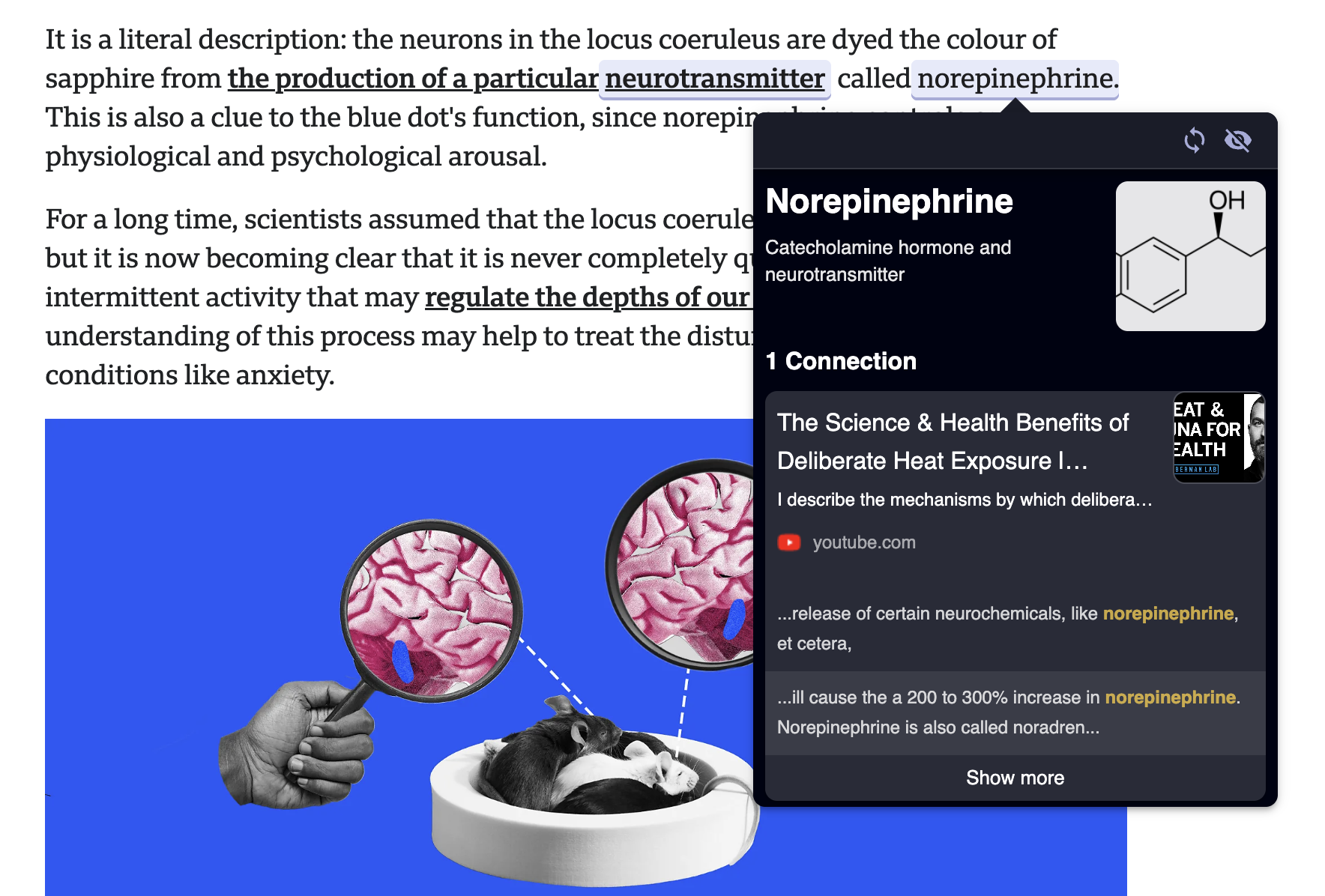
**Here is a simple example:**
1. Save this [YouTube video (opens in a new tab)](https://www.youtube.com/watch?v=EQ3GjpGq5Y8)
on sauna into your Recall knowledge base.
2. Open this [Article (opens in a new tab)](https://www.bbc.com/future/article/20250131-how-the-brains-blue-dot-regulates-your-sleep)
on regulating sleep.
3. You will see the word "Norepinephrine" highlighted - that word was mentioned in the first card on Sauna. This shows the connection between Sauna and the release of this chemical and its relationship to sleep!
### **Controls and Settings**[](https://docs.getrecall.ai/deep-dives/recall-augmented-browsing#controls-and-settings)
_Note that you can access settings within the app or directly from the widget._
**Remove a keyword from showing up again:**
* **Directly in the browser:** Click the eye icon on any keyword that you hover over that you no longer want to see connected.
* **In Settings:** Add the words to the section titled "Hidden Entities"
**Remove sites:** You can disable the widget and Augmented browsing on any websites.
* **Directly in the browser:** Go to the website you no longer want Augmented Browsing and the widget to show up on. Click the Recall Widget and select "Disable website"
* **In Settings:** Add the website URL to the "Disabled Websites" section.
**Disable the widget across all sites:**
* **Directly in the browser:** Click the widget and select "Disable globally"
* **In Settings:** Tick the box labeled "Globally disable widget" under the "Widget Options" section.
**Disable Augmented Browsing across all sites:**
* **In Settings:** Tick the box labeled "Disable Augmented Browser" under the "Augmented Browsing" section.
Last updated on July 31, 2025
[7\. Exporting Content](https://docs.getrecall.ai/getting-started/7-exporting-content "7. Exporting Content")
[Chat with Knowledge Base](https://docs.getrecall.ai/deep-dives/chat-with-all-your-content "Chat with Knowledge Base")
---
# Pocket Imports - Recall
Supported Content
Pocket Imports
Import your Pocket Saves
========================
With many Pocket users hunting for alternatives, we fast-tracked a Pocket import feature—and it's here. You can now import up to 1000 Pocket saves at a time directly into Recall, enabling you to use Recall as your Pocket alternative and experience an AI-powered read-it-later app. This is just the first version, and we're excited to improve it based on your feedback.
Your browser does not support the video tag.
### **How to import your Pocket Saves**[](https://docs.getrecall.ai/supported-content/pocket-imports#how-to-import-your-pocket-saves)
1. Open Recall on a desktop. Imports via the mobile app are not possible.
2. Click "+Create Card" in the top-right corner of the Recall app.
3. Select Import in the pop-up window.
4. Choose "Import From Pocket."
5. Select your pocket.zip file — make sure it's the .zip file and not the unzipped folder.
6. You can import up to 1,000 Pocket Saves at a time. If you have more than 1,000, simply re-upload the same .zip file — Recall will automatically deduplicate previously uploaded items and import the remaining ones. Imports are processed by recency, so the most recent Pocket Saves are imported first.
### **From Pocket to Recall: What to Expect After Importing**[](https://docs.getrecall.ai/supported-content/pocket-imports#from-pocket-to-recall-what-to-expect-after-importing)
Once your Pocket Saves are imported into Recall, they're instantly transformed into interactive knowledge cards — allowing you to move from passive reading to engaging with your content in the way that works best for you.
Here's what you can do with your imported Pocket Saves:
* **Automatic Categorization:** Your articles are automatically tagged by topic using Recall's AI, so you don't need to manually organize them. If your Pocket Save already had a tag, it will be added as the tag in Recall.
* **AI Summaries:** Each article is distilled into a concise summary that captures the main points, allowing you to absorb key ideas at a glance. If you prefer a detailed summary, you can select that in the chat tab or change it in your default settings.
* **Chat With Your Content:** Want to dive deeper or clarify something? You can chat with your Pocket Saves like you would with an AI tutor — ask questions, get insights, and explore ideas further.
* **See the Bigger Picture:** Recall connects your imported content to other cards in your knowledge graph, revealing meaningful relationships and helping you make sense of complex topics over time.
* **Test Your Understanding:** Turn your cards into quizzes to actively reinforce what you've learned. It's a powerful way to retain insights and track your progress.
📌
**Note:** On the free version of Recall, you can only import up to 10 Pocket Saves. To import more, you'll need to upgrade to a [Premium Plan (opens in a new tab)](https://www.getrecall.ai/pricing)
. If you prefer not to upgrade and still want to use Recall as a free read-it-later app, simply change the default setting your app to "Reader".
Last updated on July 31, 2025
[Bookmark Imports](https://docs.getrecall.ai/supported-content/bookmark-imports "Bookmark Imports")
---
# Chat with Knowledge Base - Recall
Deep Dives
Chat with Knowledge Base
Chat with all the content you read, watch and listen to in one self-organizing knowledge base.
==============================================================================================
This has been our #1 most requested feature - you can now chat with all the content you consume: YouTube videos, podcasts, blogs, PDFs, your own notes [and more. (opens in a new tab)](https://docs.getrecall.ai/supported-content/all-supported-content)
ChatGPT lets you have a conversation with the internet, and that's powerful. But sometimes, the source matters. When you're trying to understand your research, put together a health protocol, or just keep track of your interests — books, recipes, movies — you need something more tailored. With Recall, you can curate your own chat, powered only by the content you define.
That could mean importing thousands of pieces of content from experts you trust (1000 Lex Fridman interviews, every Huberman Lab podcast) and having a conversation with their knowledge… or even with your own. Add in your personal journals, health records, or project notes — and suddenly, you're talking to a version of yourself who remembers everything.
Your browser does not support the video tag.
**Why this is a big deal for Recall and a step forward for knowledge management:**
* **Save time** No more digging through scattered notes. Get instant answers, with sources referenced. This is what knowledge management has always needed. When you've spent hours saving, curating, and categorizing content, being able to access it when you need it is critical.
* **Think bigger** Our memory is capped — and that's not a flaw, it's by design. This lets us go beyond what we can store in our heads. Spot connections you'd otherwise miss. Synthesize information we could never manage alone. This is why we have AI in the first place.
* **Peace of mind:** You know that feeling when you hear a great stat, quote, or tip you never want to forget… so you leave a tab open or drop it into Apple Notes? Now you can just save it to Recall. Your memory, backed up and searchable forever.
### **How to experience Chat with Knowledge Base**[](https://docs.getrecall.ai/deep-dives/chat-with-all-your-content#how-to-experience-chat-with-knowledge-base)
**1\. Add content to your knowledge base:** Make sure you've added enough material to work with. This could include:
* Online sources: YouTube, Podcasts, PDFs etc...
* Bulk-imported bookmarks, Pocket saves or markdown notes
* Or simply your own manually created notes
Learn more about how to add content into Recall [here. (opens in a new tab)](http://localhost:3000/getting-started/2-add-content)
**2\. Open the Chat feature:** Click the chat icon in the left panel of the home page in the Recall web app or in the mobile apps.
**3\. Ask your questions and specify context:** Type your question into chat. To set the context of the chat, you can:
* Use @ followed by the name of a specific note to chat with that item.
* Use @ followed by a folder or tag name to chat with everything in that group.
Stay tuned for more! New sharing features and workflows around chat are coming soon. You can request features or share feedback [here. (opens in a new tab)](https://recall.canny.io/feature-requests)
Last updated on August 11, 2025
[Augmented Browsing](https://docs.getrecall.ai/deep-dives/recall-augmented-browsing "Augmented Browsing")
[All Supported Content](https://docs.getrecall.ai/supported-content/all-supported-content "All Supported Content")
---